

Knowledge base
1000 FAQs, 500 tutorials and explanatory videos. Here, there are only solutions!
This guide explains how to transfer an Infomaniak product from one Organization to another.
Preamble
- You can move almost all products subscribed with Infomaniak to a different Infomaniak Manager interface than the one on which the product is currently located; this is therefore an internal transfer.
- If your user has access to multiple Organizations it is even easier to send to one of them the product of your choice.
- This operation does not cause any interruption.
- The users currently having access to the selected products will not be transferred (and therefore may no longer have access to the products).
- The invoices of the selected products will not be transferred.
- my kSuite cannot be transferred.
Generate a transfer link
Prerequisites
- Be Administrator or Legal Representative within the Organization.
To transfer a product:
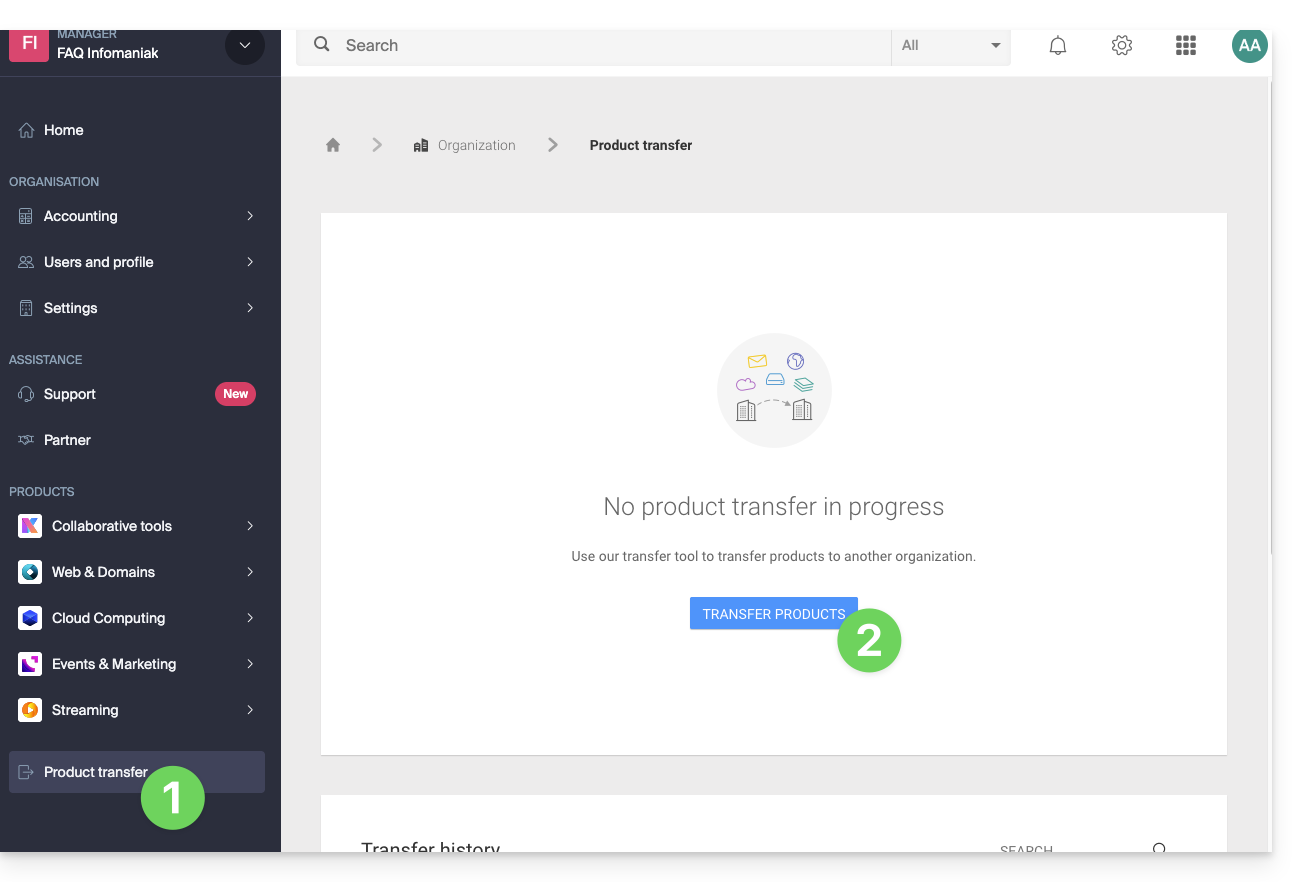
- Click here to access the product transfer management on the Infomaniak Manager (need help?).
- Click on the Transfer products button:
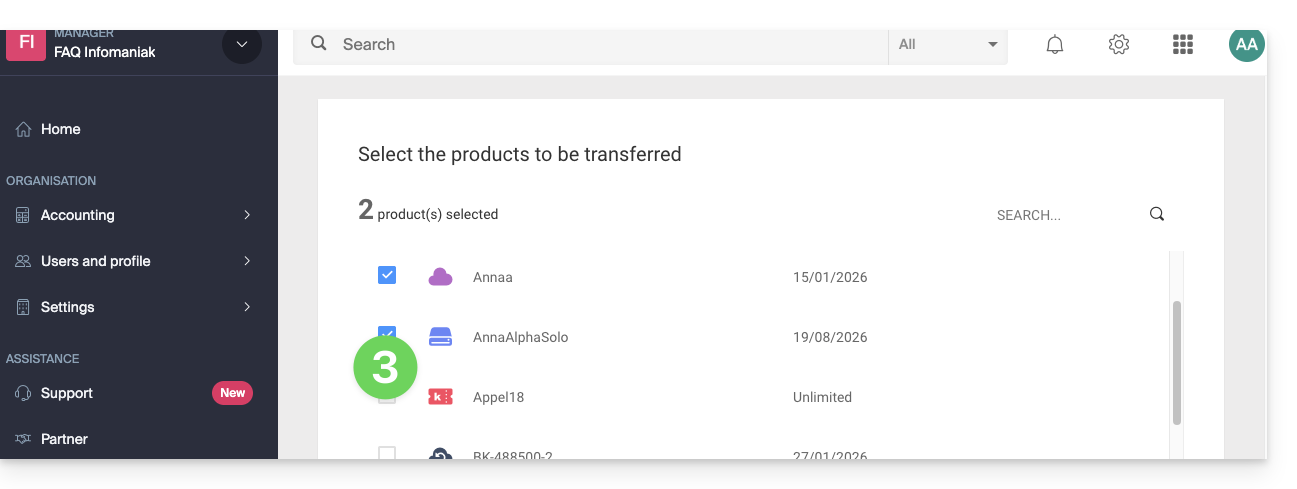
- Check the product(s) to be moved:
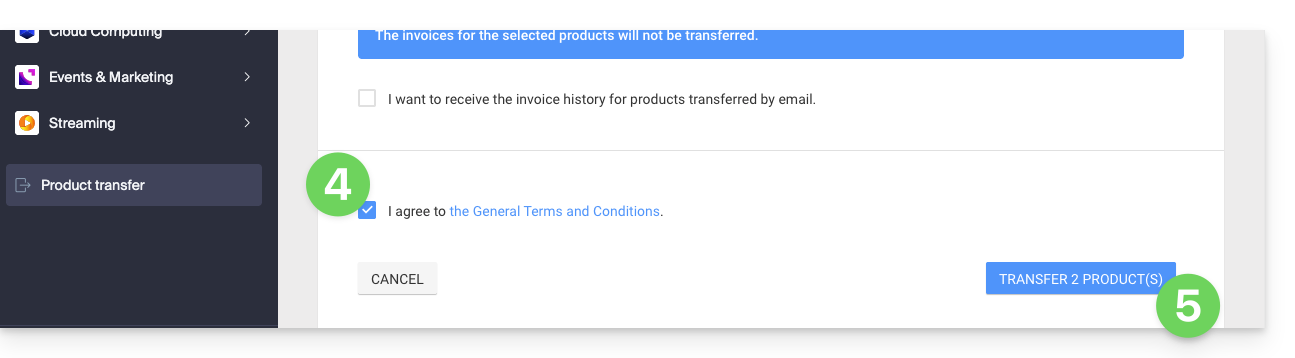
- Read and accept the general conditions.
- Click on the Transfer button:
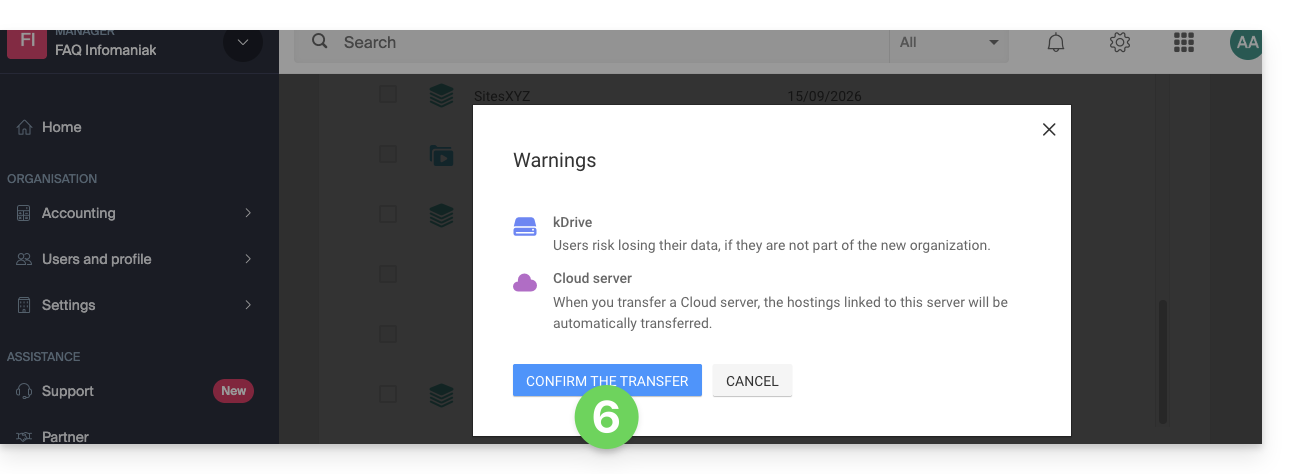
- Read and validate any warnings:
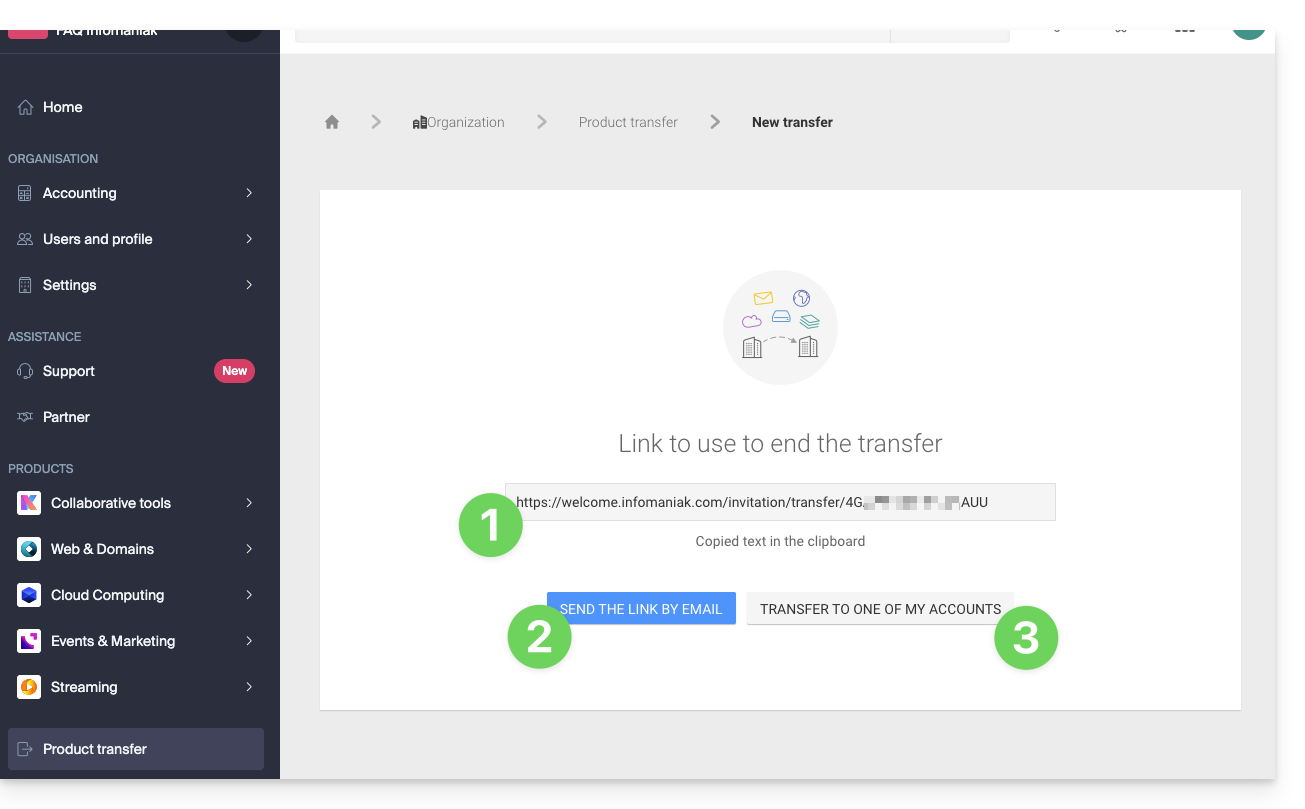
The transfer has started. Now, at your choice, you can:
- Copy the transfer link…
- or send it to the email address of your choice…
- or select directly one of the Organizations to which your user is attached, and the selected product will be transferred there:
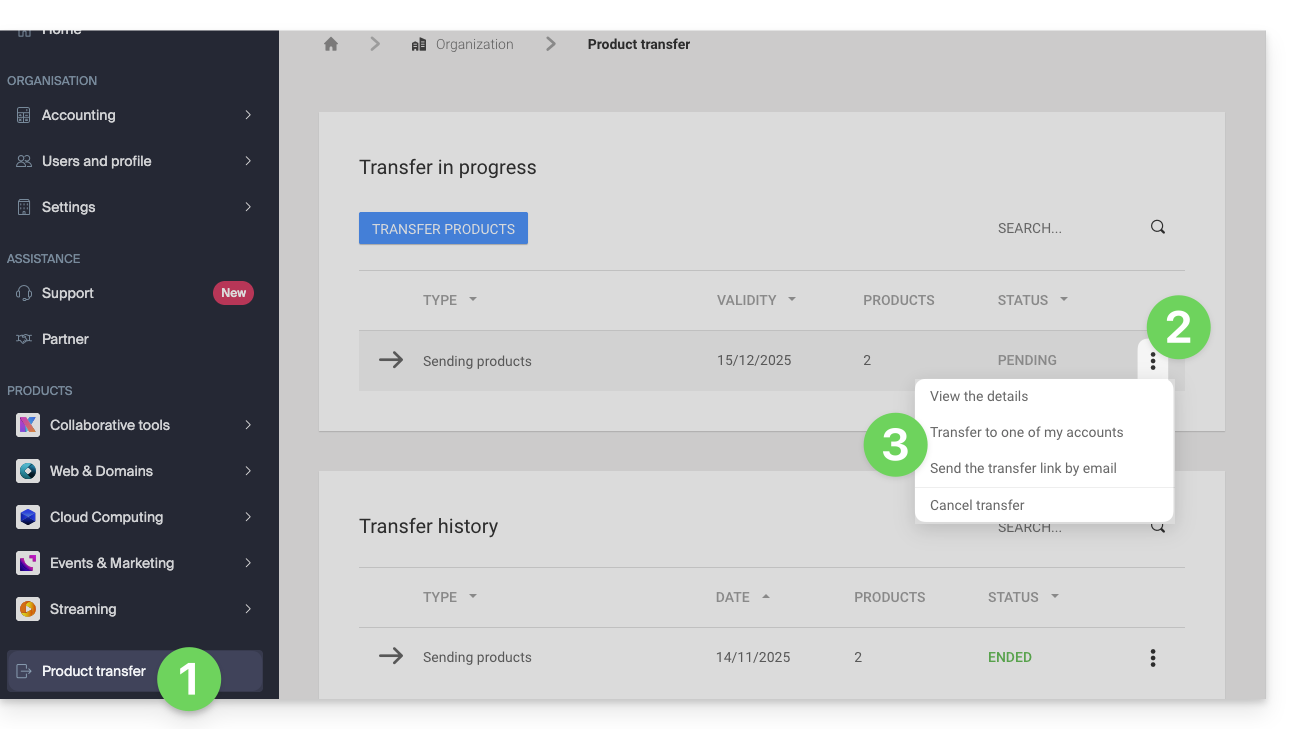
At any time, you can return to the product transfer page to find the possibilities listed above:
Alternative method
In the case of one-time transfer, you can also go directly to the dashboard of the product concerned and click on Manage (example in the image below) however, since this menu is not always present, it is better to prioritize the first method above, which also allows bulk transfer: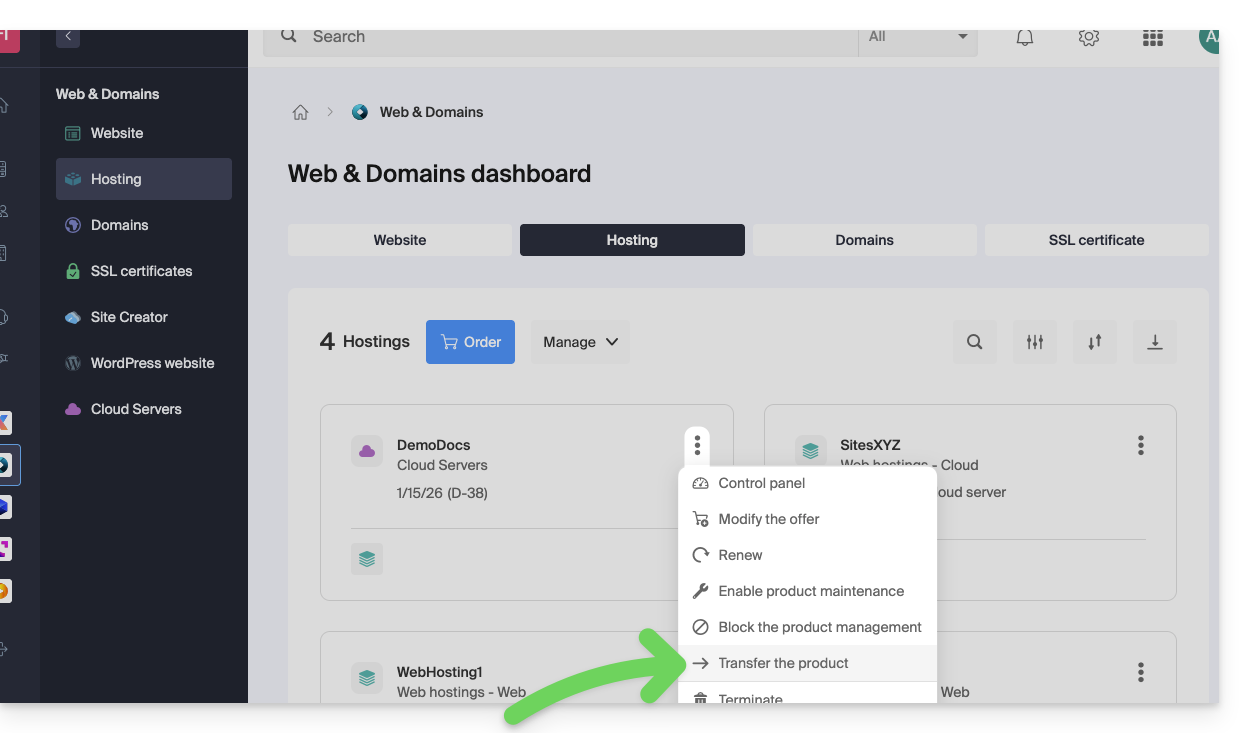
Refer to this other guide regarding Jelastic Cloud.
Receive the product
Once a product transfer is initiated by a user…
1. Be on the Organization that should receive the product
- Click here to log in to the Manager on the Organization that should receive the product(s).
- The user specified when logging in to the Infomaniak account must have administrative rights.
- If necessary, you can create a new Organization to receive products.
2. Execute the obtained link
- Click on the link obtained in the first step above.
- You can also simply paste it into a browser while logged in to the appropriate Infomaniak account.
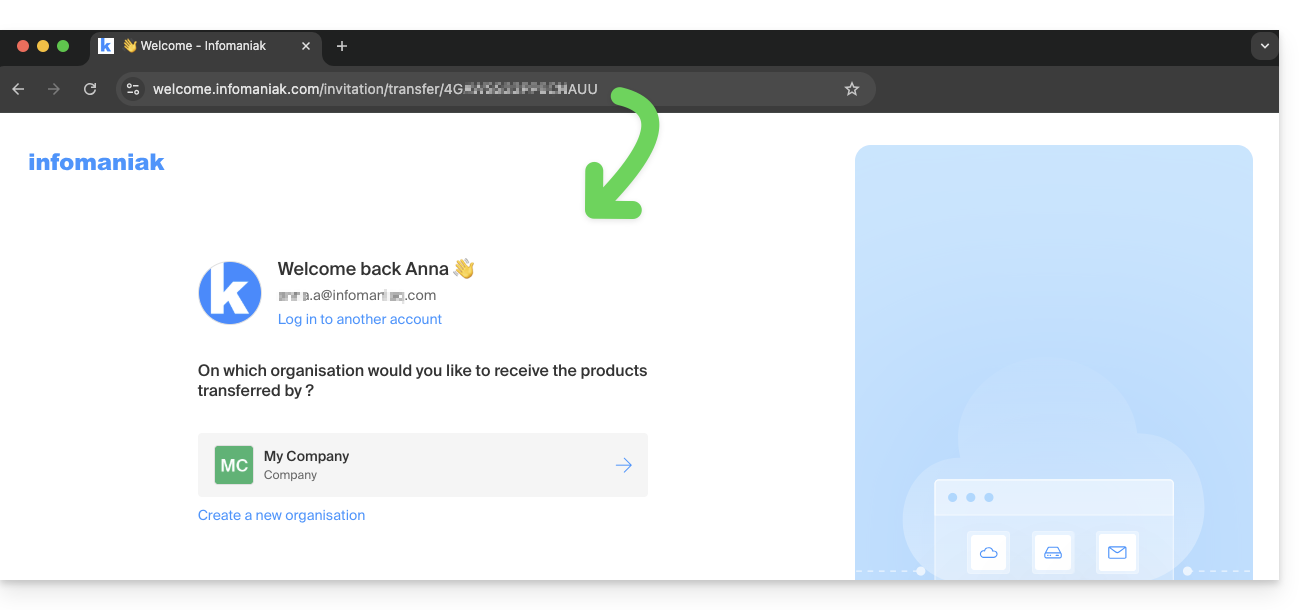
3. Validate the product transfer
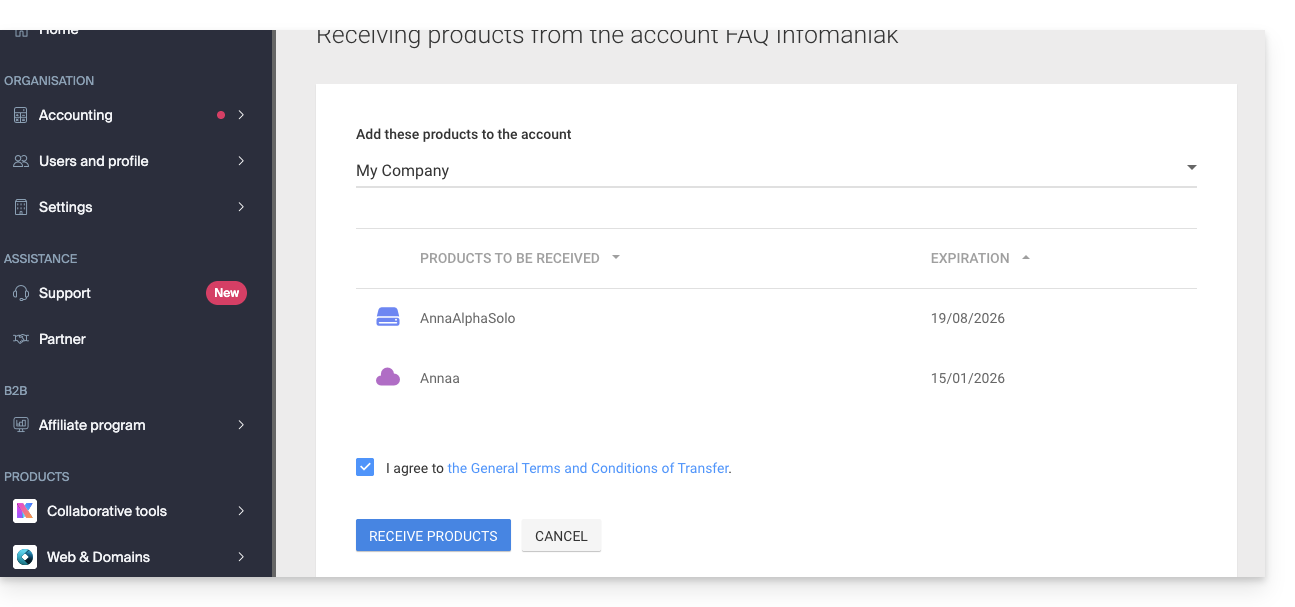
- If necessary, choose the destination Organization using the drop-down menu.
- Read and accept the general conditions.
- Click the Receive the product button (if the button is not clickable, make sure you have selected the Organization).
Find the ongoing or completed transfers at any time from the bottom icon on the left sidebar of the Infomaniak Manager: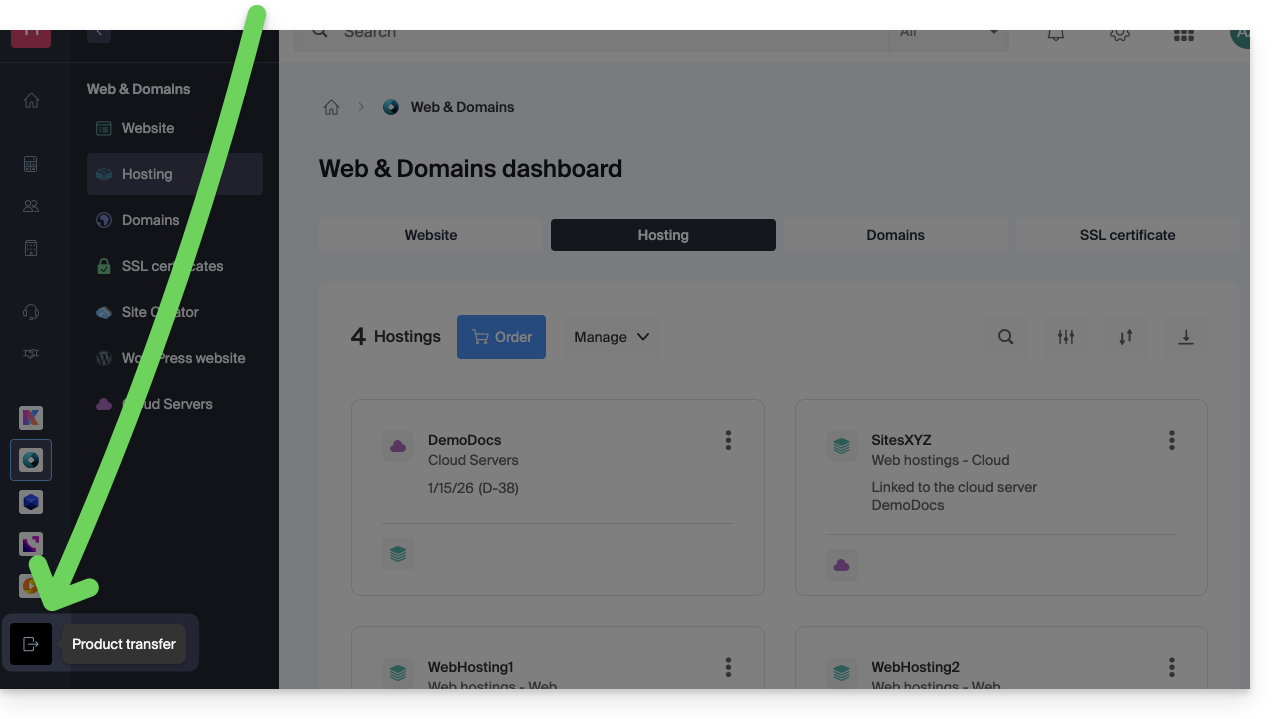
This guide allows you to quickly use the essential functions of your VOD/AOD space Infomaniak.
Manage media
- Import a media
- Move a media
- Edit a media
- Manage media subtitles
- Add a new media to replace another
- Download the source media
Broadcast / share media
- Manage Players
- Embed media
- Share media
- Manage media sharing from a Player
- Embed and share media on WordPress
- Broadcast a VOD list live on Video Streaming
- Modify a thumbnail
- Create chapters on a video
- Manage ads within a Player
Secure VOD/AOD
A question or feedback?
- In case of a problem, please consult the knowledge base before contacting support.
- Click here to share feedback or a suggestion on an Infomaniak product.
This guide explains how to restrict access to imported videos on an Infomaniak VOD service based on geographical criteria and/or IP addresses.
Preamble
- Note that token protection is only effective in the case of standard integration via iframe and therefore through the use of the Infomaniak Player.
- Other access restrictions can be activated and concern access to the file: token | password
Restrict access via GeoIP
Geographical and IP restrictions are configured at the import folder level and will protect all videos in the folder. To configure this folder:
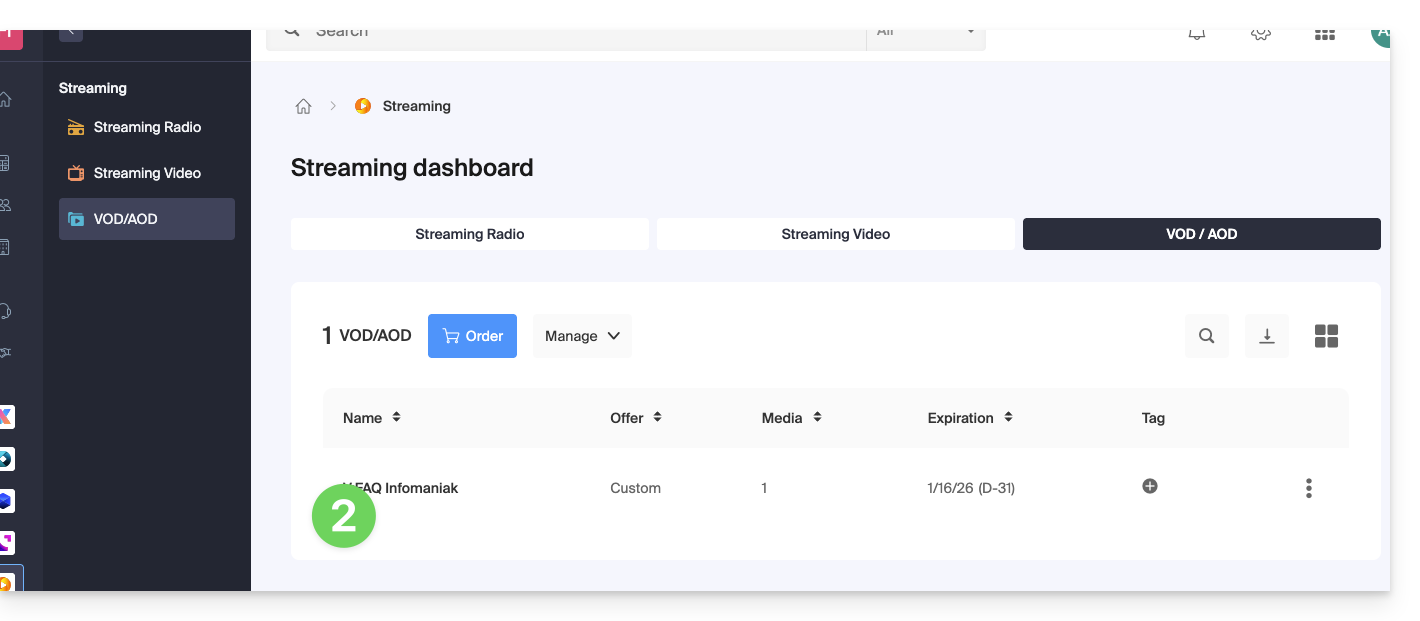
- Click here to access the management of your VOD/AOD on the Infomaniak Manager (need help?).
- Click directly on the name assigned to the product concerned:
- Click on Media in the left sidebar menu.
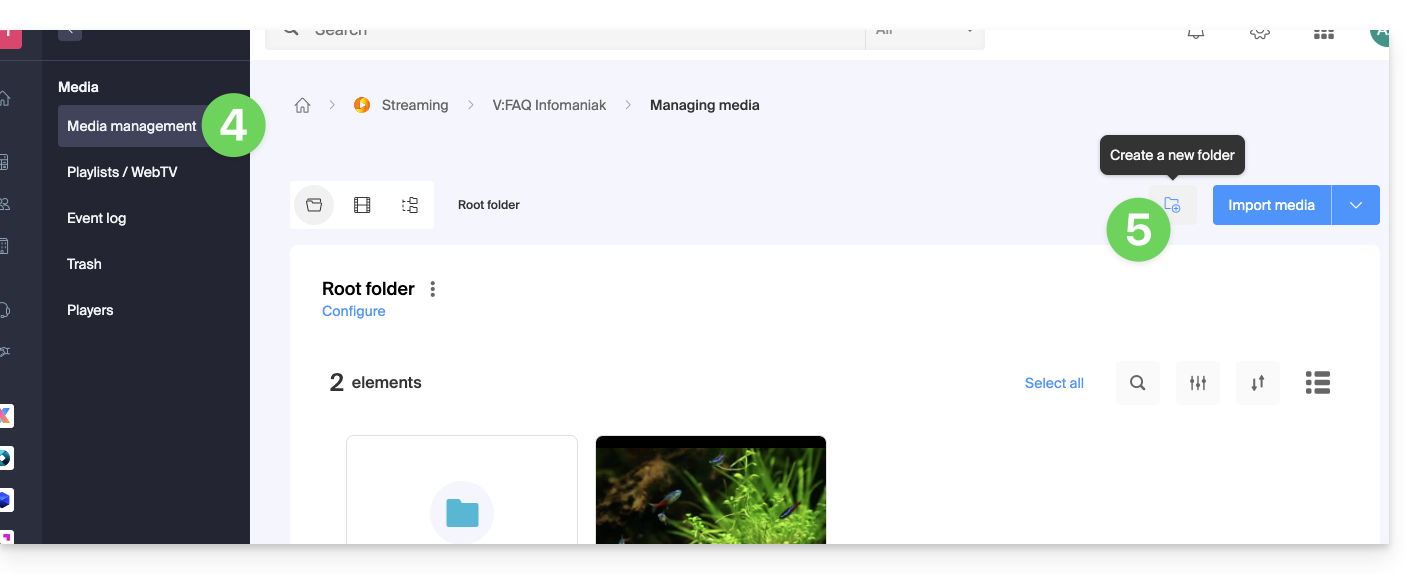
- Click on Media Management in the left sidebar menu.
- Click on the icon to create a New Folder:
- Name the folder.
- Click the blue button to Create the folder.
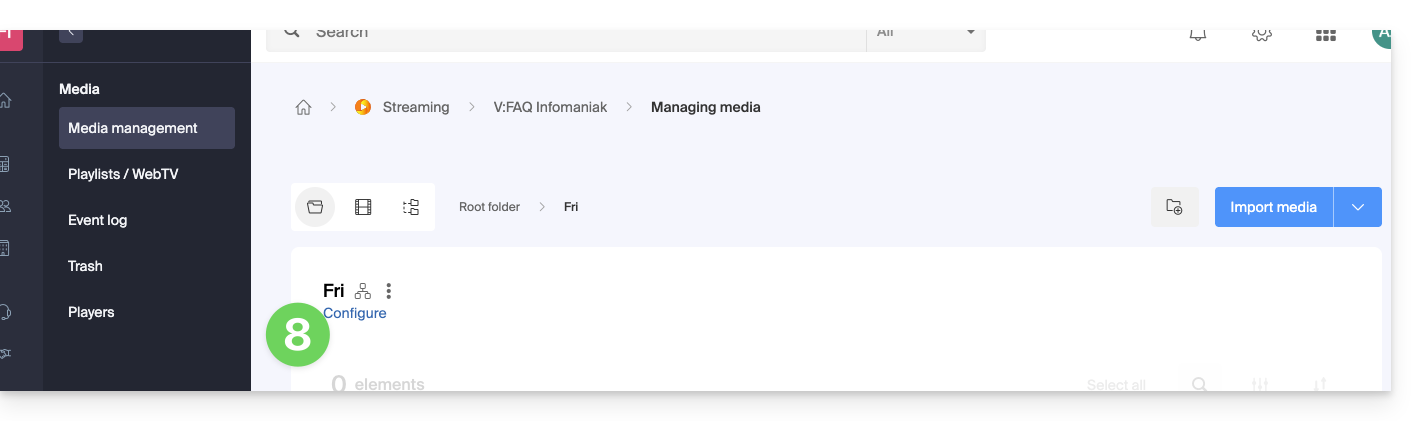
- Click on Configuration:
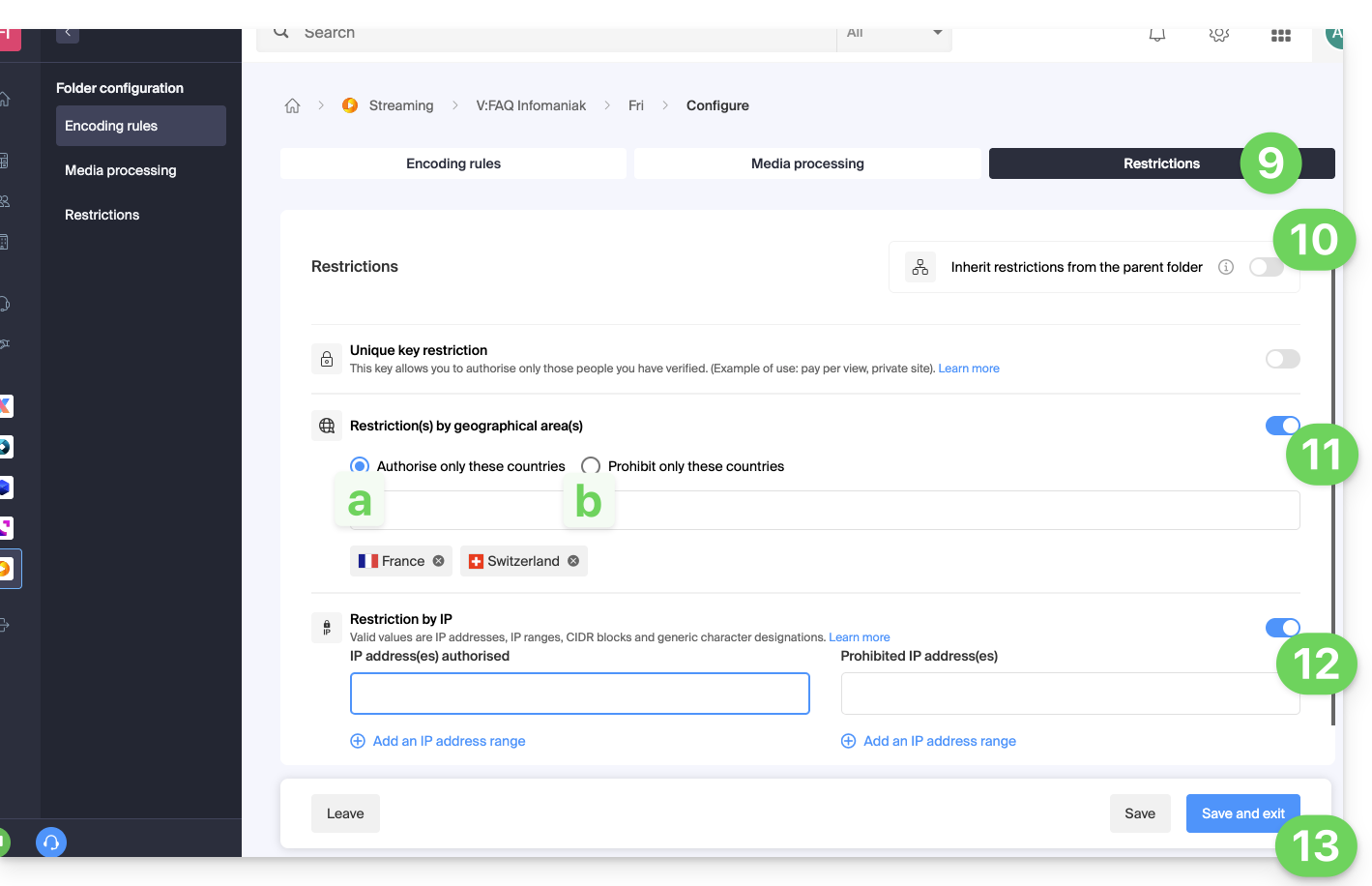
- Click on the Restrictions tab.
- Deactivate if necessary the toggle switch to remove the inheritance from the parent folder, in order to be able to configure your own rules on this specific folder.
- Activate the toggle switch to be able to define a list of countries and what should be done with it:
- Allow only the countries in the list to access the media (the rest of the world is blocked).
- Allow the whole world except the countries in the list which will be blocked.
- Activate the toggle switch to be able to define a list of IPs or IP ranges that must be allowed or denied (the character
*is allowed). - Click on Save once the desired restrictions have been configured:
- Upload new videos to this folder so that they are restricted according to your strict rules when they are played.
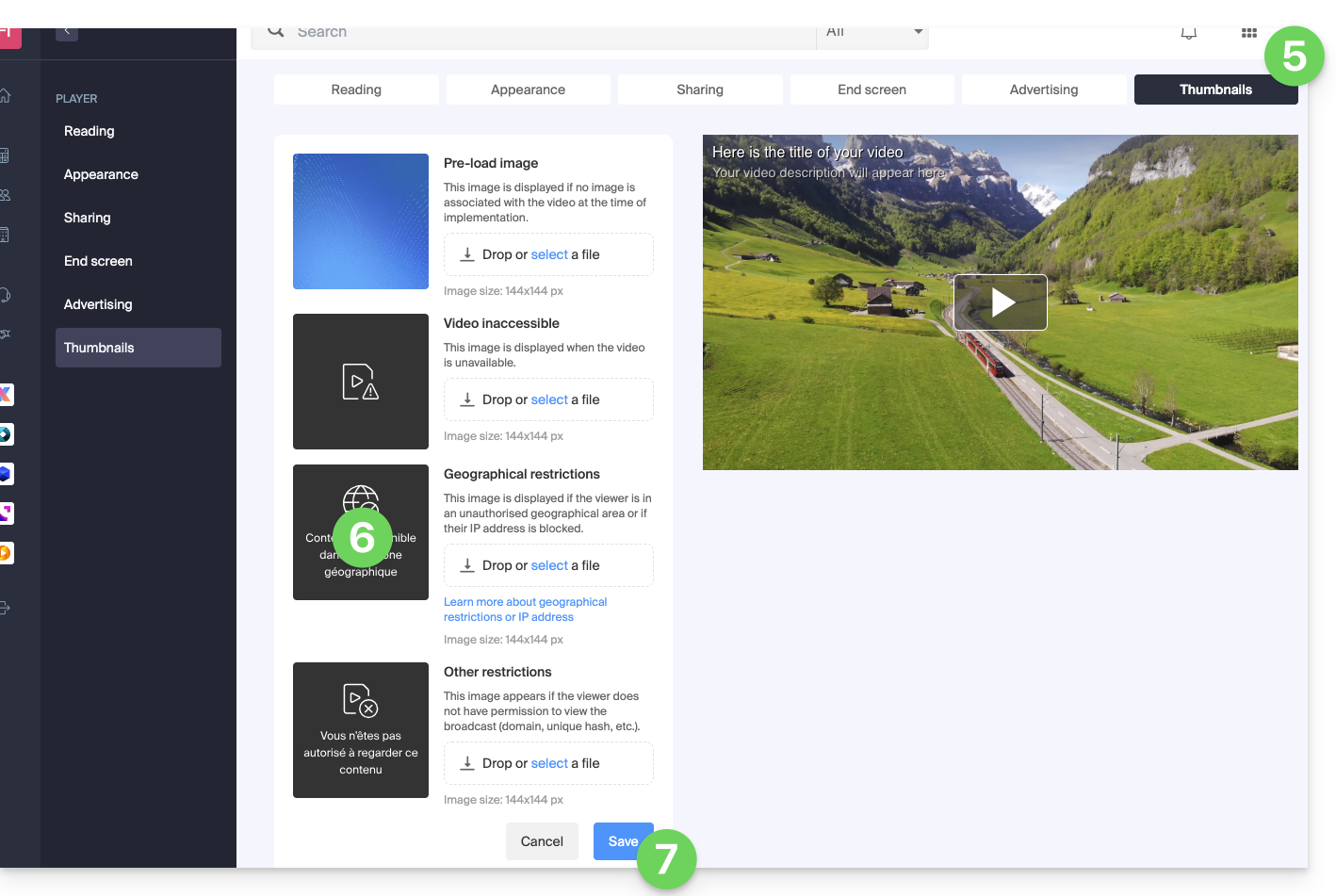
Thumbnails to display in case of GeoIP restrictions
To modify the images that should be displayed to the viewer affected by a restriction you have set up:
- Click here to access the management of your VOD/AOD on the Infomaniak Manager (need help?).
- Click directly on the name assigned to the product concerned.
- Click on Players in the left sidebar.
- Add a new Player or modify an existing Player.
- Click on the THUMBNAILS tab.
- Upload the desired images for the different situations described on the page.
- Click the blue button at the bottom of the page to Save:
When playing an embedded video on a page, the message "Account suspended" appears when the VOD/AOD product, to which the video belongs, has been blocked.
The origin of the blockage can be multiple so contact the VOD/AOD space administrator as soon as possible to find out more.
This guide explains how to upload new media to an Infomaniak VOD/AOD space. Refer to this other guide if you wish to replace an already imported media.
Add and encode a new media
To upload a media to be encoded and streamed from your VOD space:
- Click here to access the management of your product in the Infomaniak Manager (need help?).
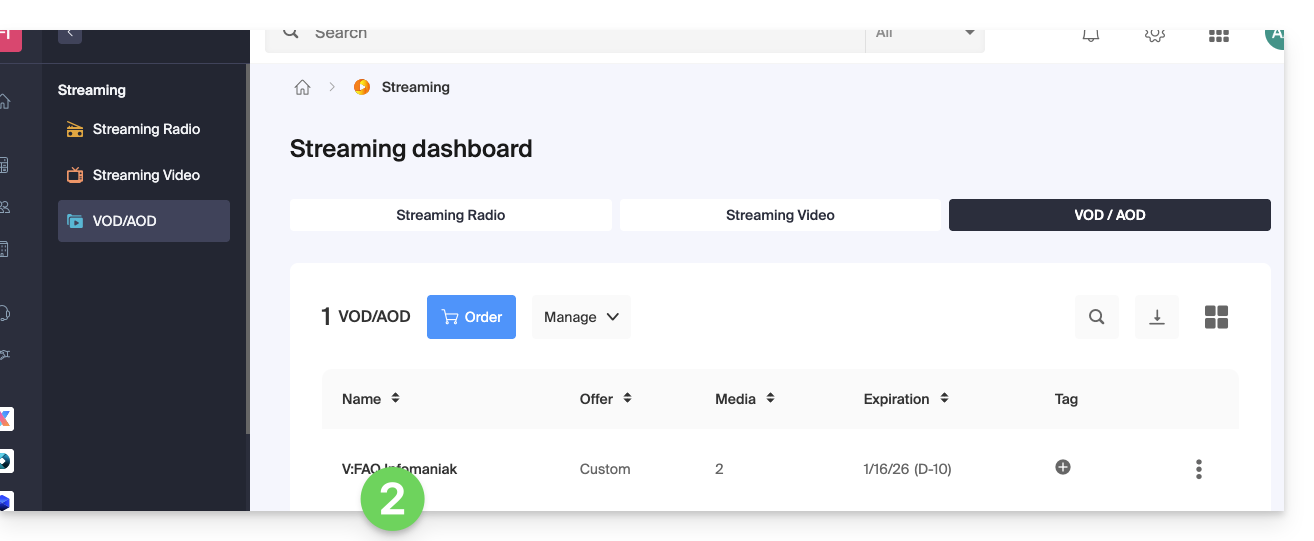
- Click on the name of the product concerned:
There are several ways to import your media:
- From the homepage (dashboard of the VOD/AOD space):
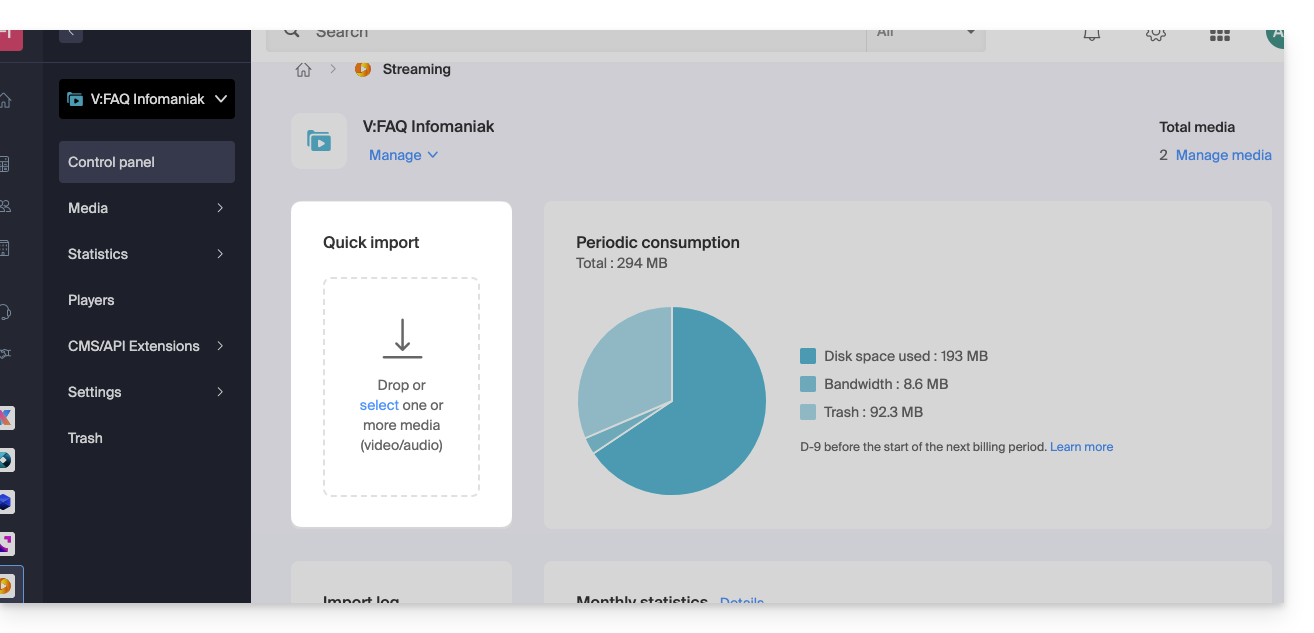
- From the Media page:
- Click on Media in the left sidebar:
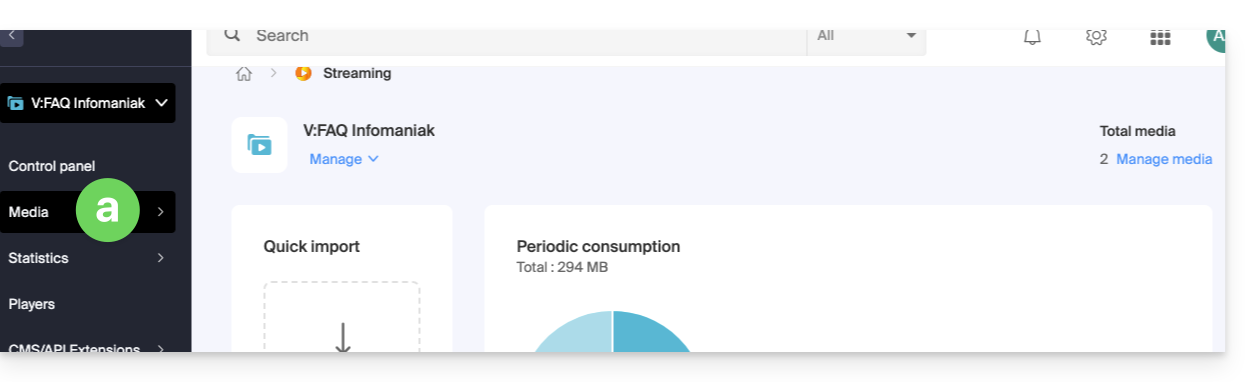
- Click on Media management in the menu.
- Create or access an import folder if necessary:
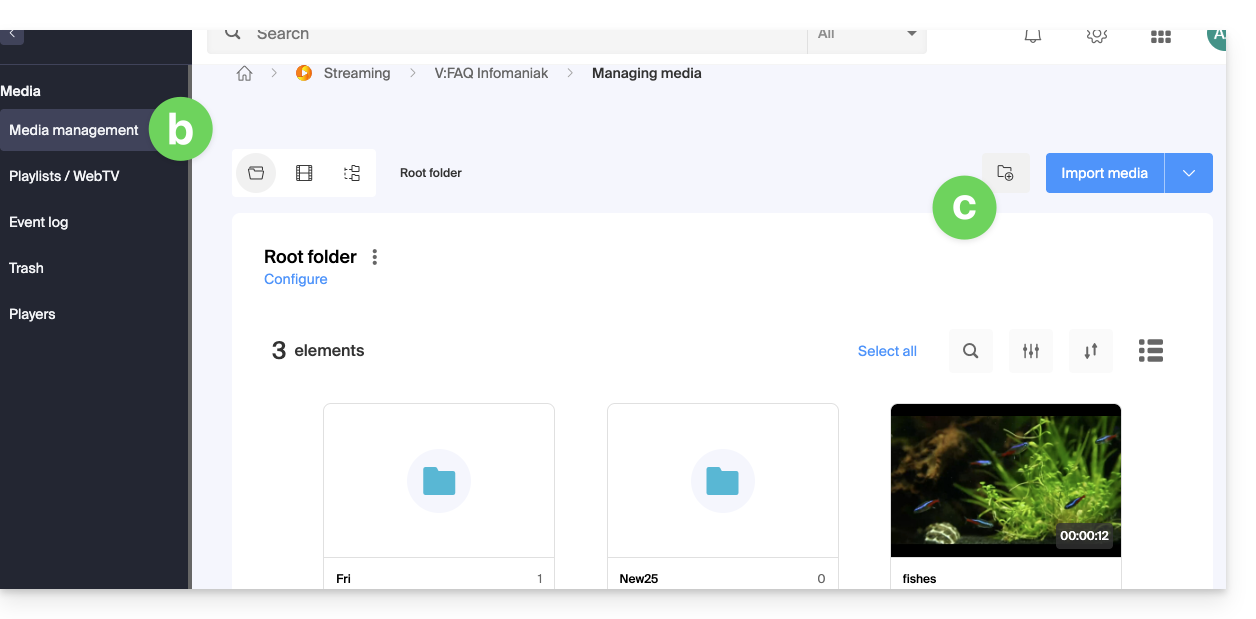
- Click on Media in the left sidebar:
From this page, several options are available to you:
- Click on the blue Import media button:
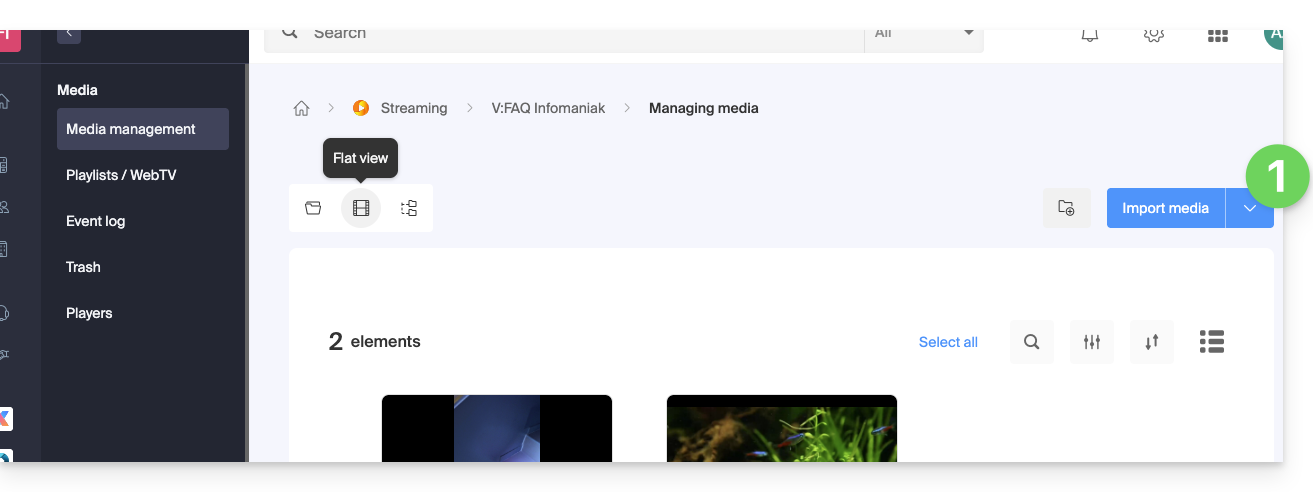
- Choose a sending method:
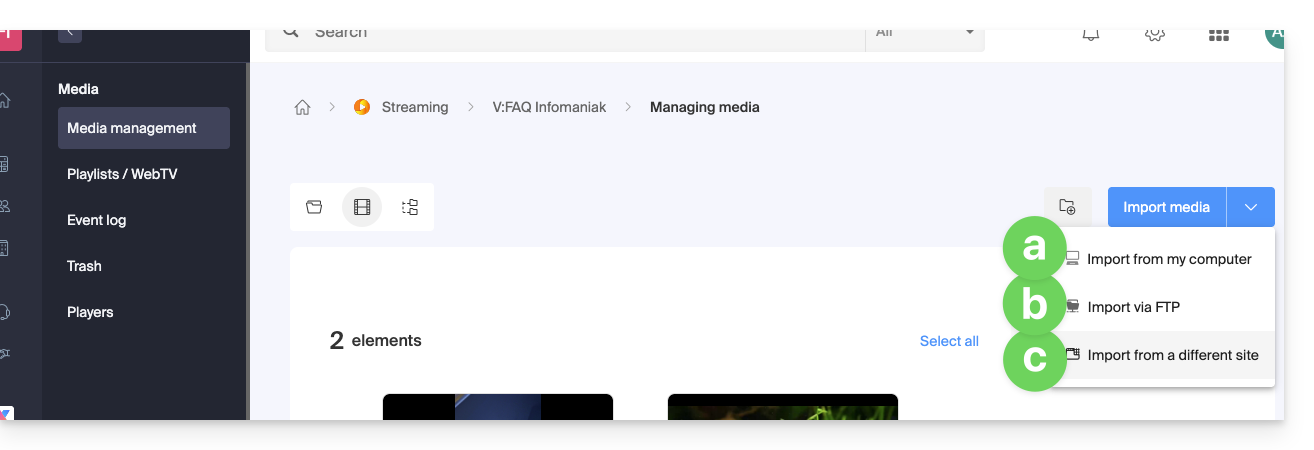
- Import from device (maximum limit per file:
50 Go)
Allows you to select a file from your hard drive or external support: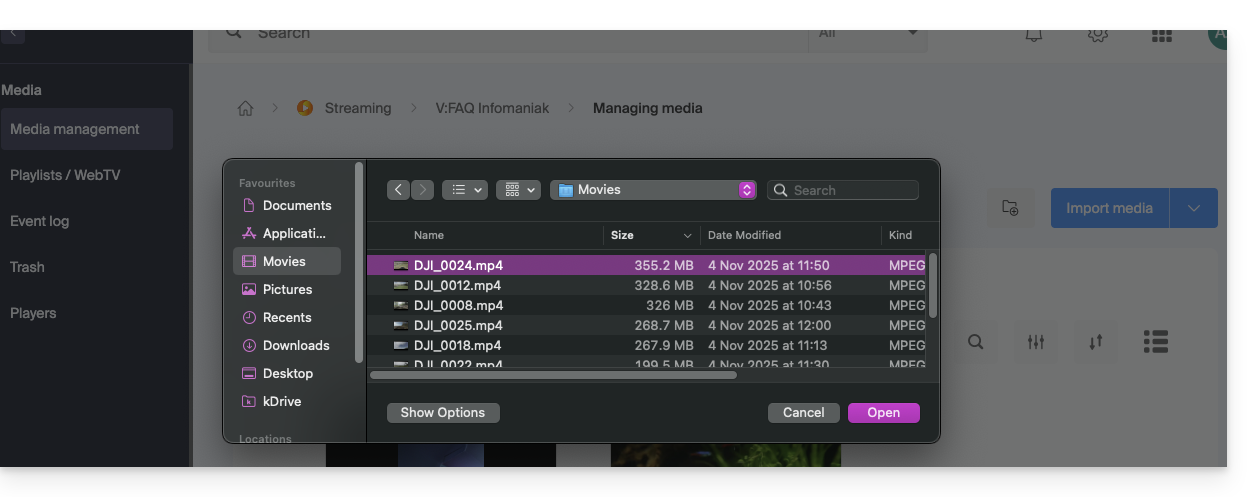
- Import via FTP (no size limit, but depends on the available disk space)
Activate TLS mode in your FTP software. The parameters and management of FTP users are customizable from the page: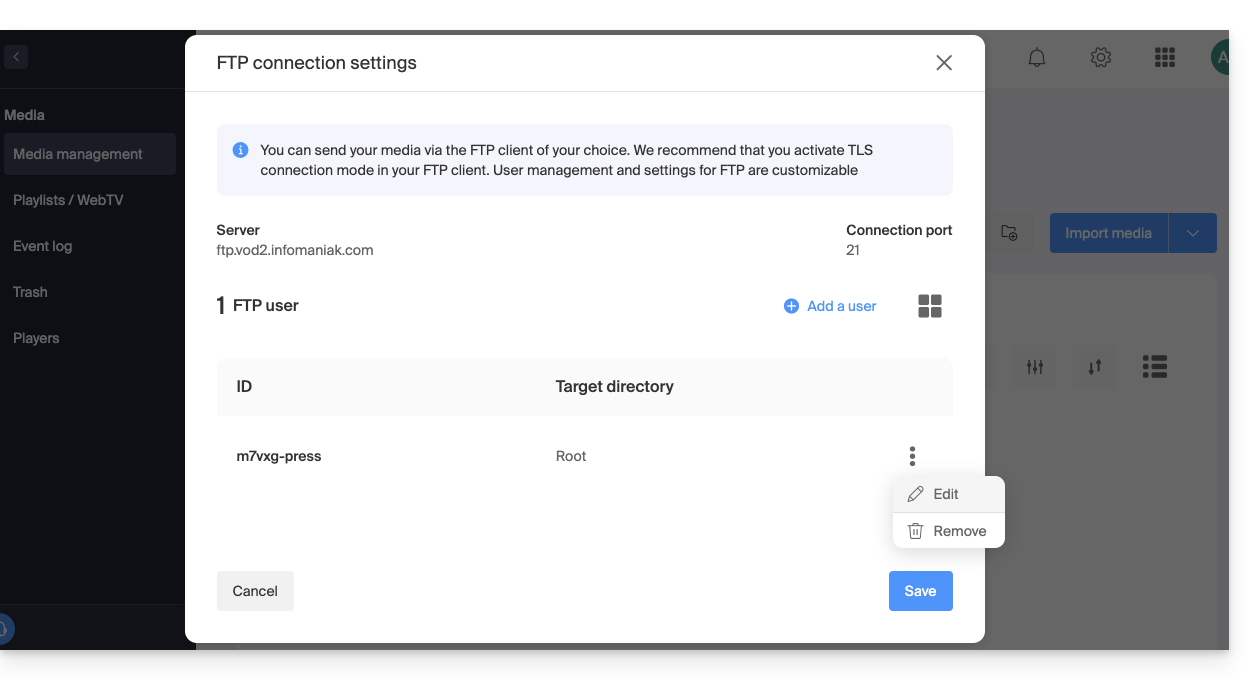
If you are using an editing software that supports FTP publishing (such as Adobe Premiere), you can export directly to the VOD space. Encoding will start automatically. Otherwise, use an FTP client such as FileZilla. - From an external site (maximum limit per file:
40 Go)
Allows you to enter the URL of an online hosted media, including password-protected: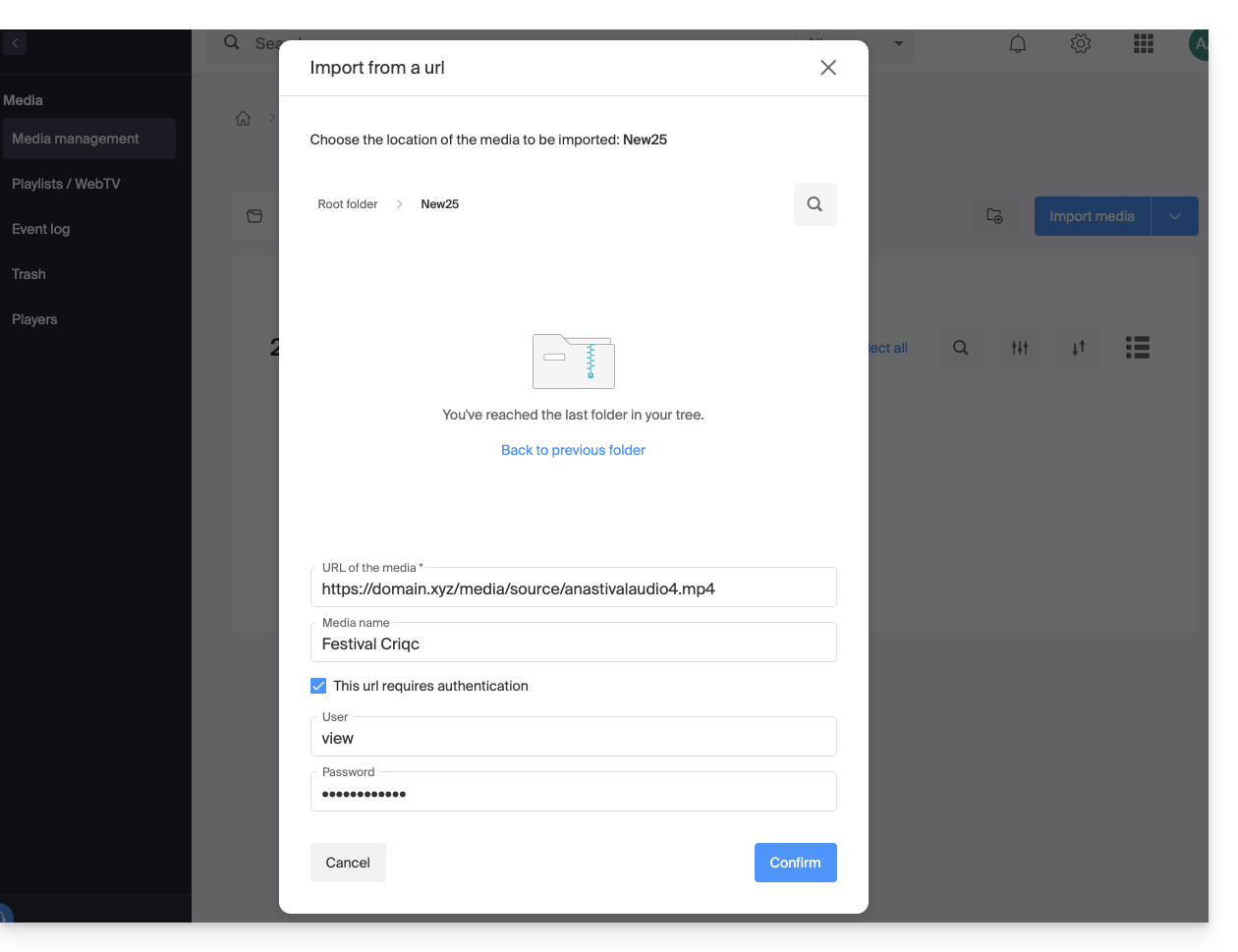
- Import from device (maximum limit per file:
Another method is to use the Infomaniak API (maximum limit per file: 40 Go). The documentation is accessible in the left sidebar, under API: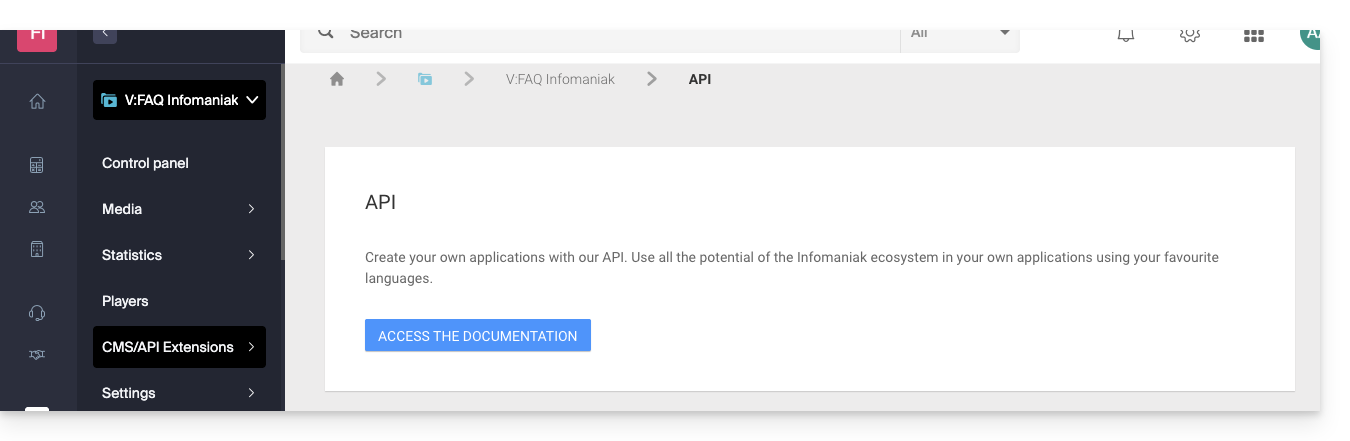
Supported formats
Supported file types:
- Video:
3gp,asf,avi,f4v,flv,m2ts,m2v,m4v,mkv,mov,mp4,mpeg,mpg,rm,ts,webm,wmv - Audio:
aac,flac,m4a,mp2,mp3,ogg,tta,vob,wav,wma
This guide explains how to add subtitles to the media in your Infomaniak VOD space.
Preamble
- The subtitles of your videos are not destructive to the video itself; it is not altered, it is simply a *
.srtfile loaded by the Player. - You can manage the automatic start of subtitles from the Player itself (tab #1).
Manage subtitles
To access a media file in the VOD space:
- Click here to access the management of your VOD/AOD on the Infomaniak Manager (need help?).
- Click directly on the name assigned to the product concerned:
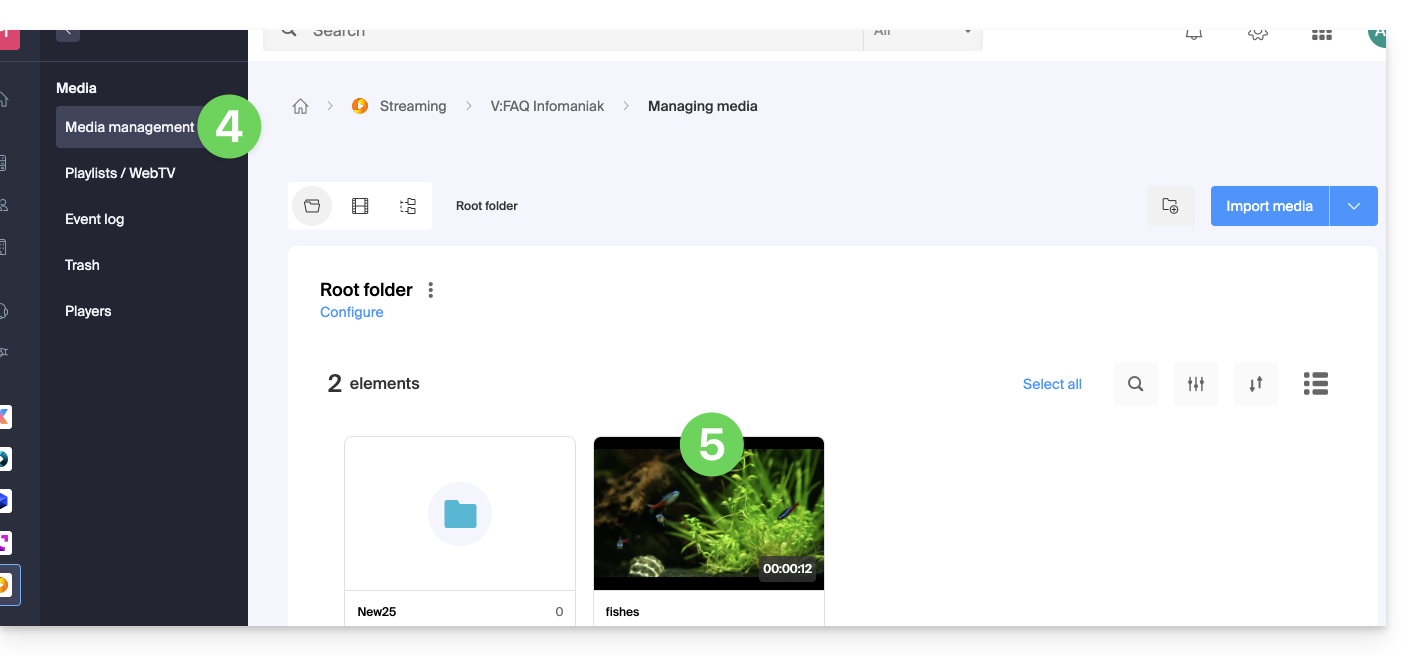
- Click on Media in the left sidebar menu.
- Click on Media Management in the left sidebar menu.
- Click on the media concerned:
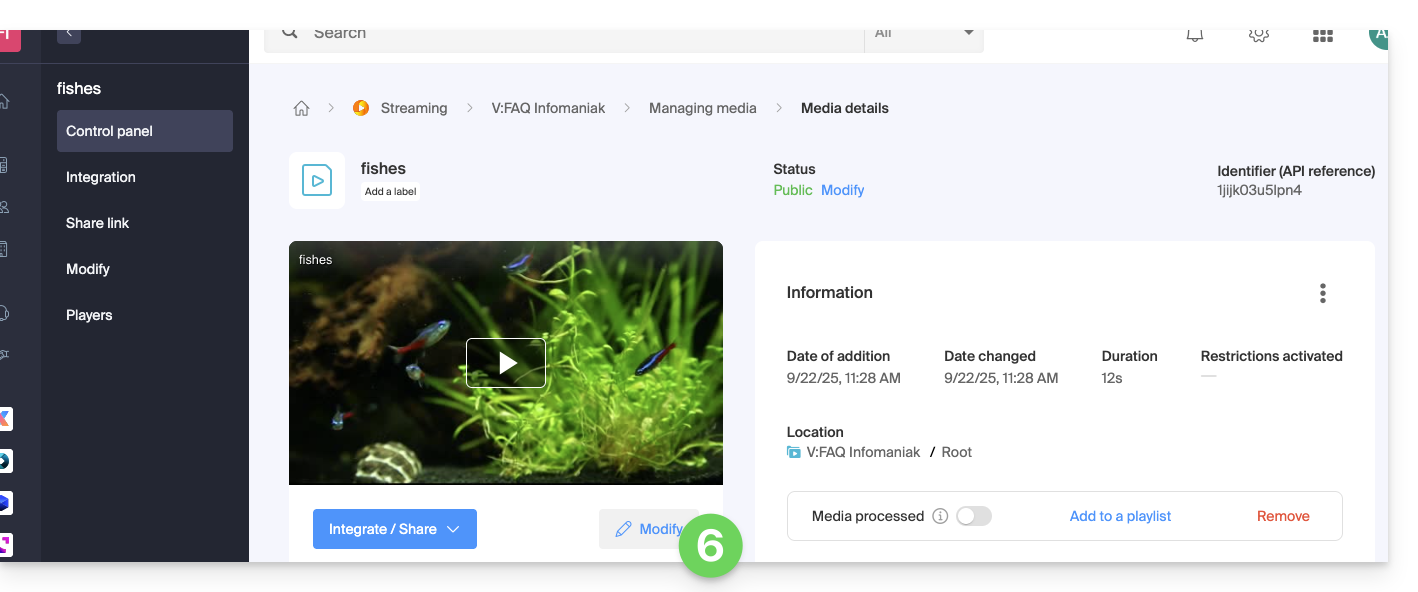
- Click on the Edit button:
- Click on the Subtitles tab.
- Click on the Add a language button to choose one of the 3 subtitle generation methods:
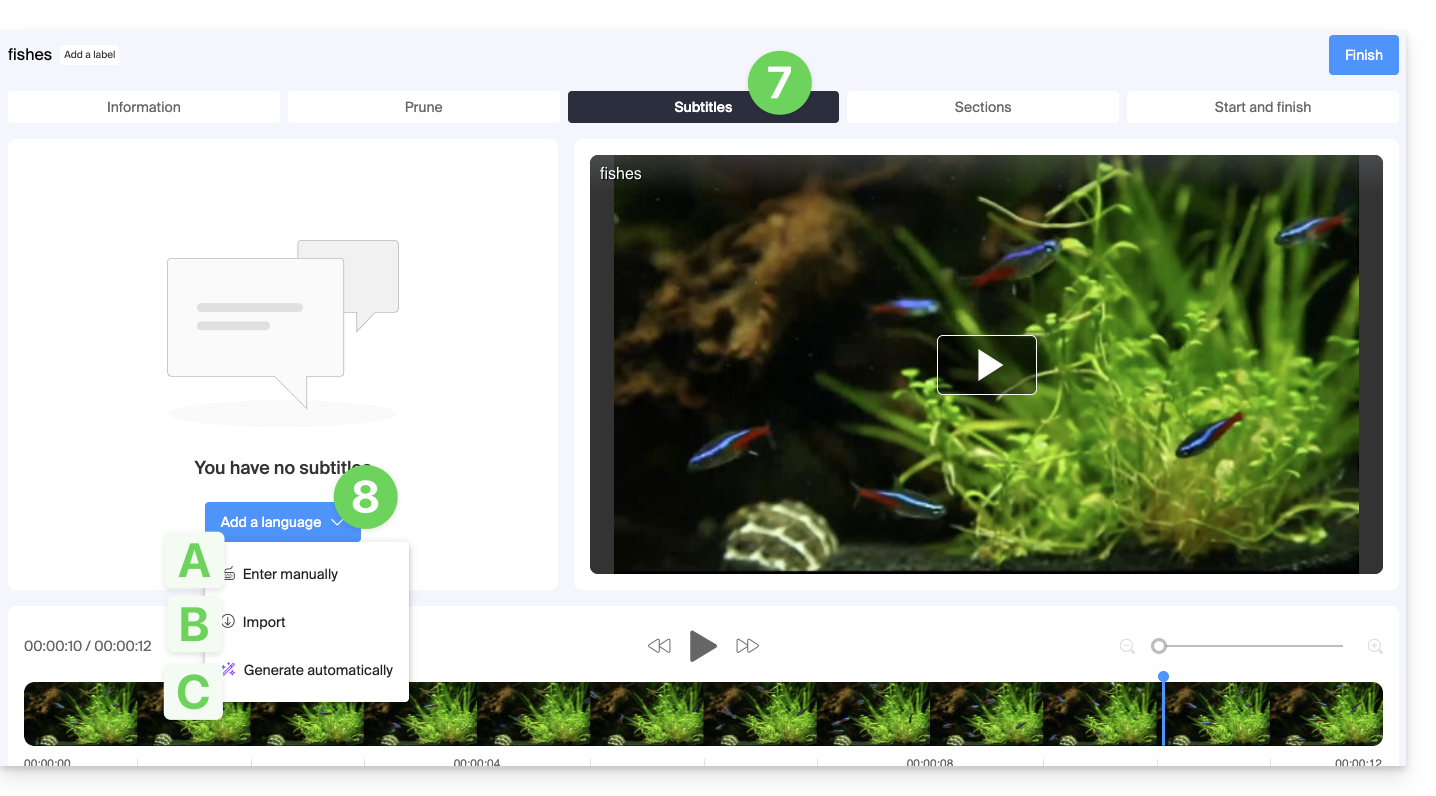
A. Manual subtitle creation
With this subtitling mode, you manually enter each of the texts that should be displayed at the specified timecode, and this for each of the languages: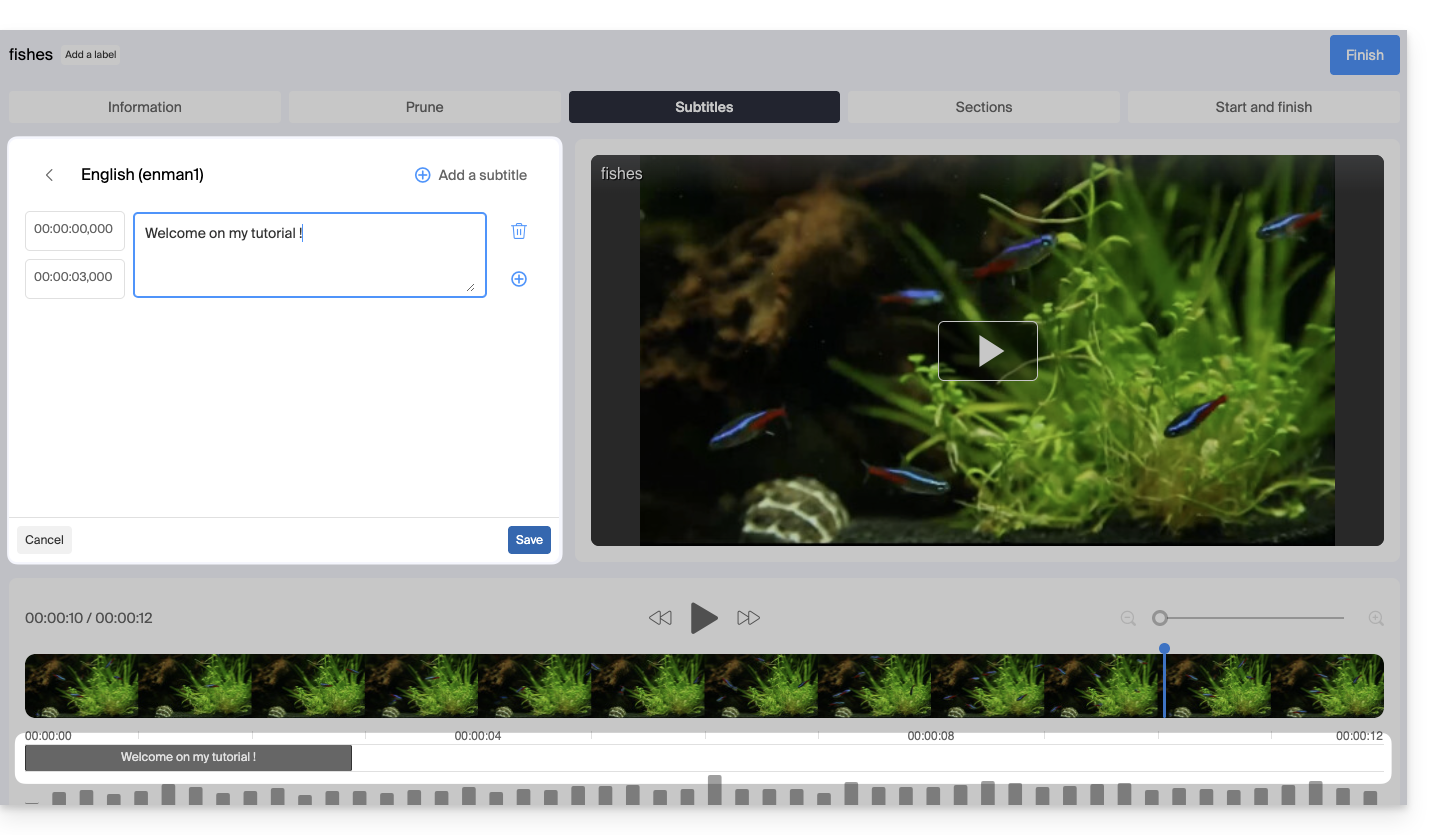
B. Import a subtitle file
You can import a file of type SubRip (*.srt) or SubViewer (*.sbv and *.sub) to enhance your video with subtitles prepared in advance in a separate file: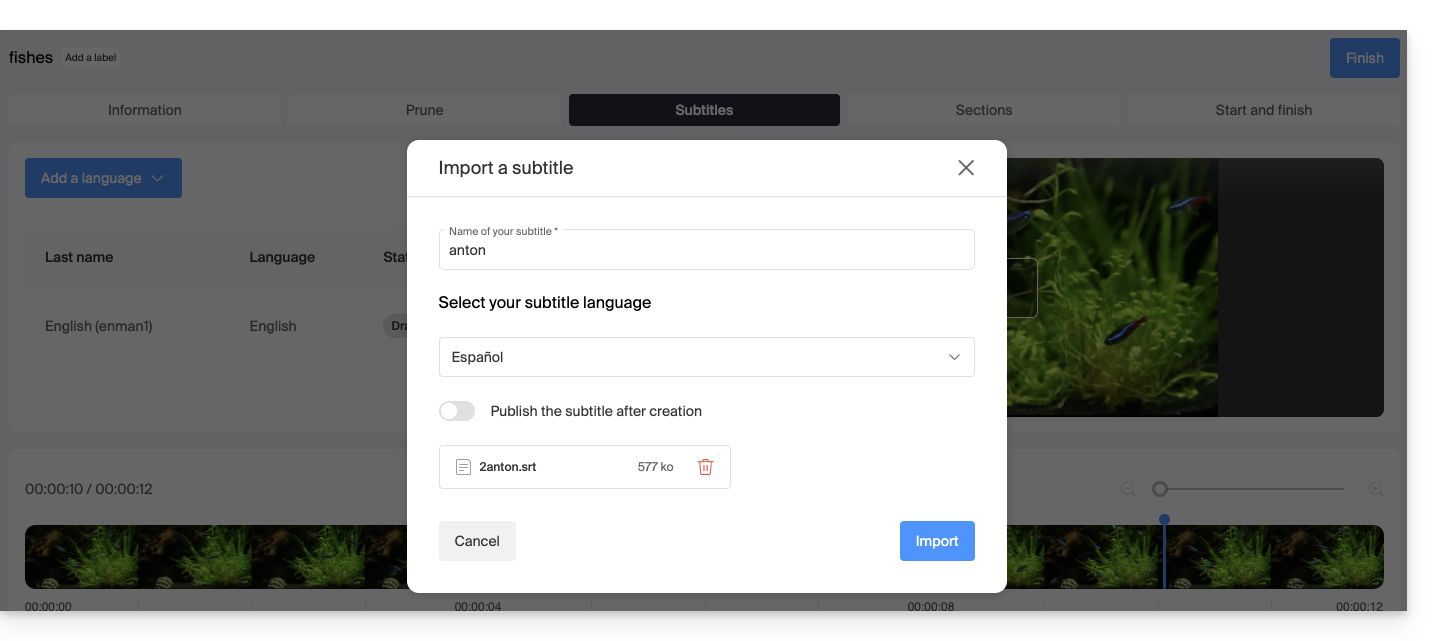
The toggle switch button allows you to enable or disable the publication of subtitles on the Player; this allows you to verify that the content is correct before publishing and sharing the video.
C. Automatically generate subtitles
You can create subtitles directly from the audio available on your media. The texts are generated using artificial intelligence (AI, or equivalent).
Read and understand this other guide about the model used and the responsibilities of each. It is also recommended to manually verify the generated content, especially proper nouns that are sometimes misspelled.
Automatically translate subtitles
When subtitling exists, you can add an additional language in the same place by having the text automatically translated (specify the current language):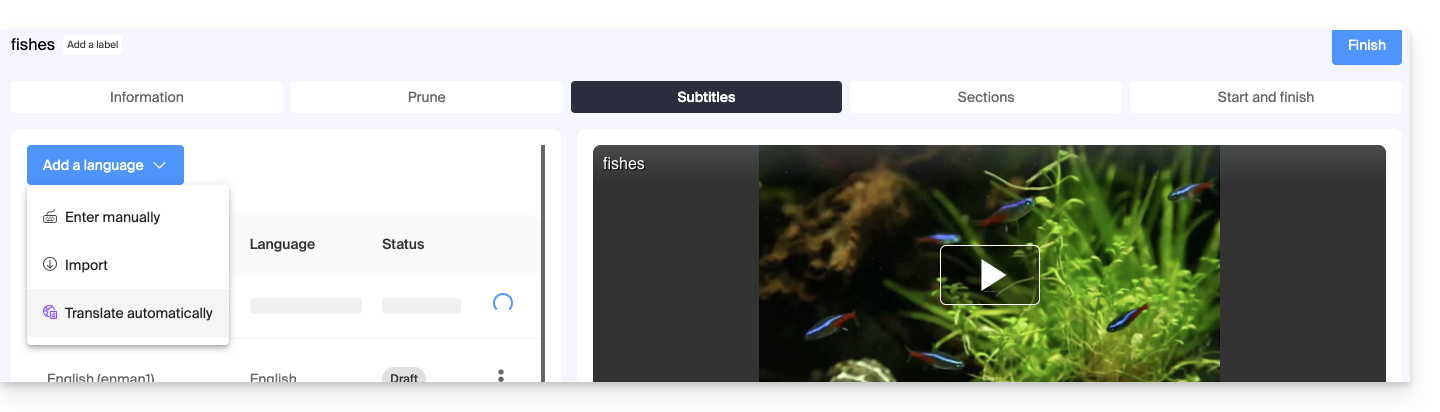 This will generate the appropriate subtitling in the desired language: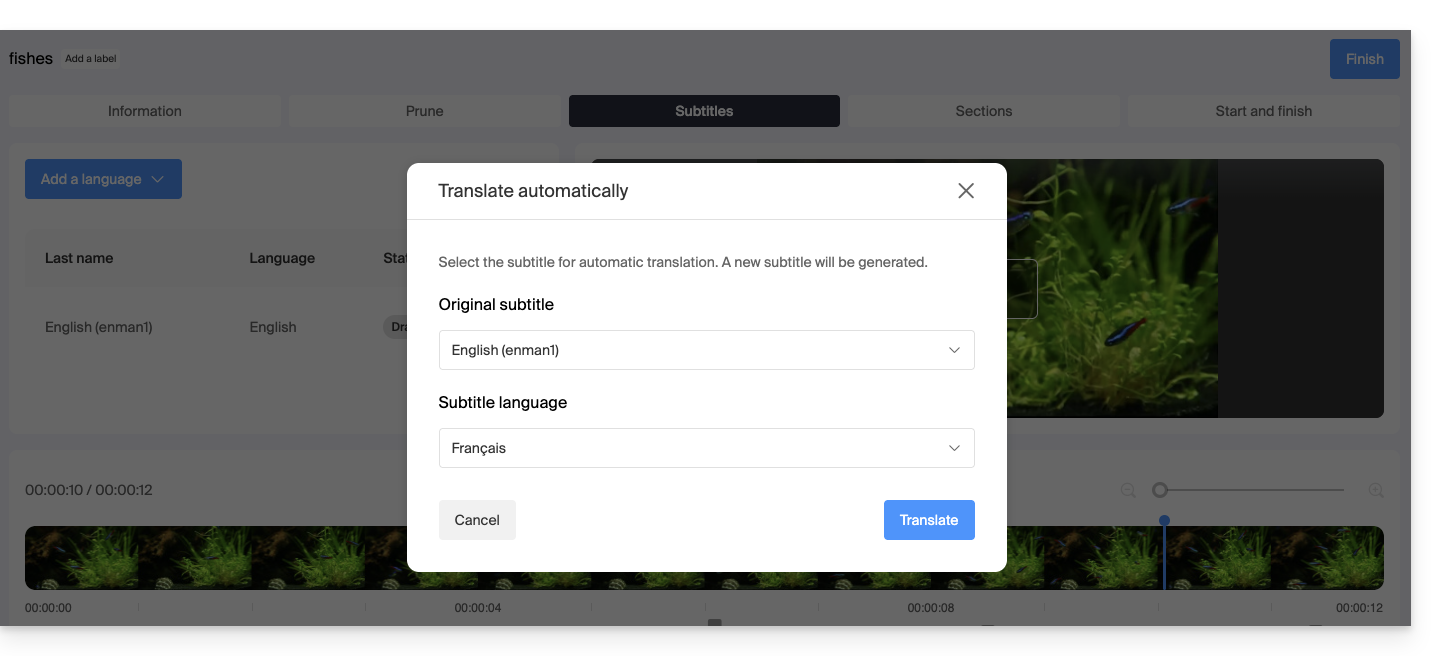
Actions on a subtitle
Click on the action menu ⋮ located to the right of a subtitle language to get additional options such as duplication or automatic translation: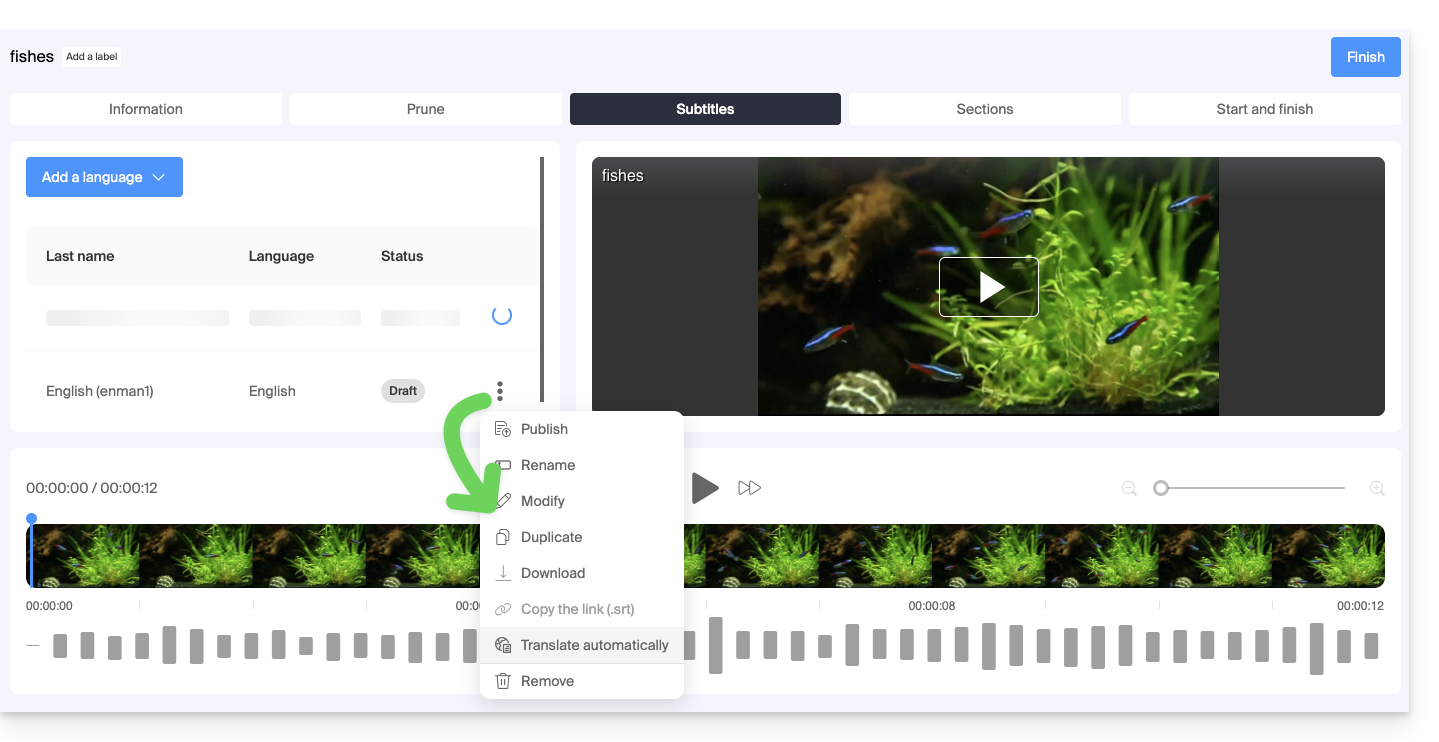
Automatically subtitle new videos
The Root folder or subfolders in your VOD space can have rules executed upon any new media addition within them. One of these rules instructs to automatically generate subtitles using the C method above. To set up this rule:
- Click here to access the management of your VOD/AOD on the Infomaniak Manager (need help?).
- Click directly on the name assigned to the product in question.
- Click on Media in the left sidebar menu.
- Click on Media Management in the left sidebar menu.
- Click on Configure on the page of the Root folder or the folder of your choice:
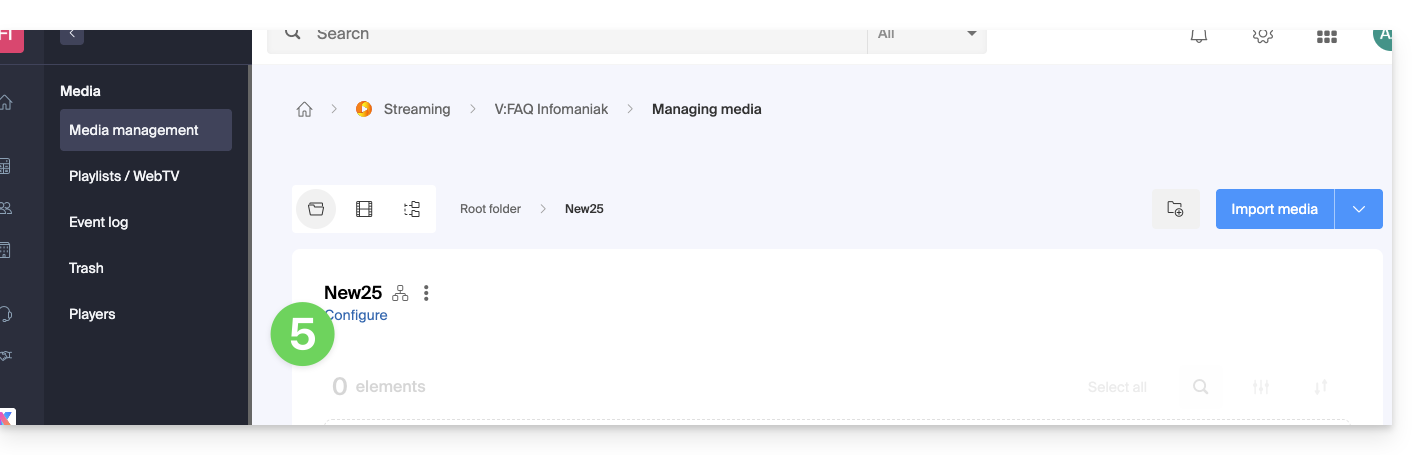
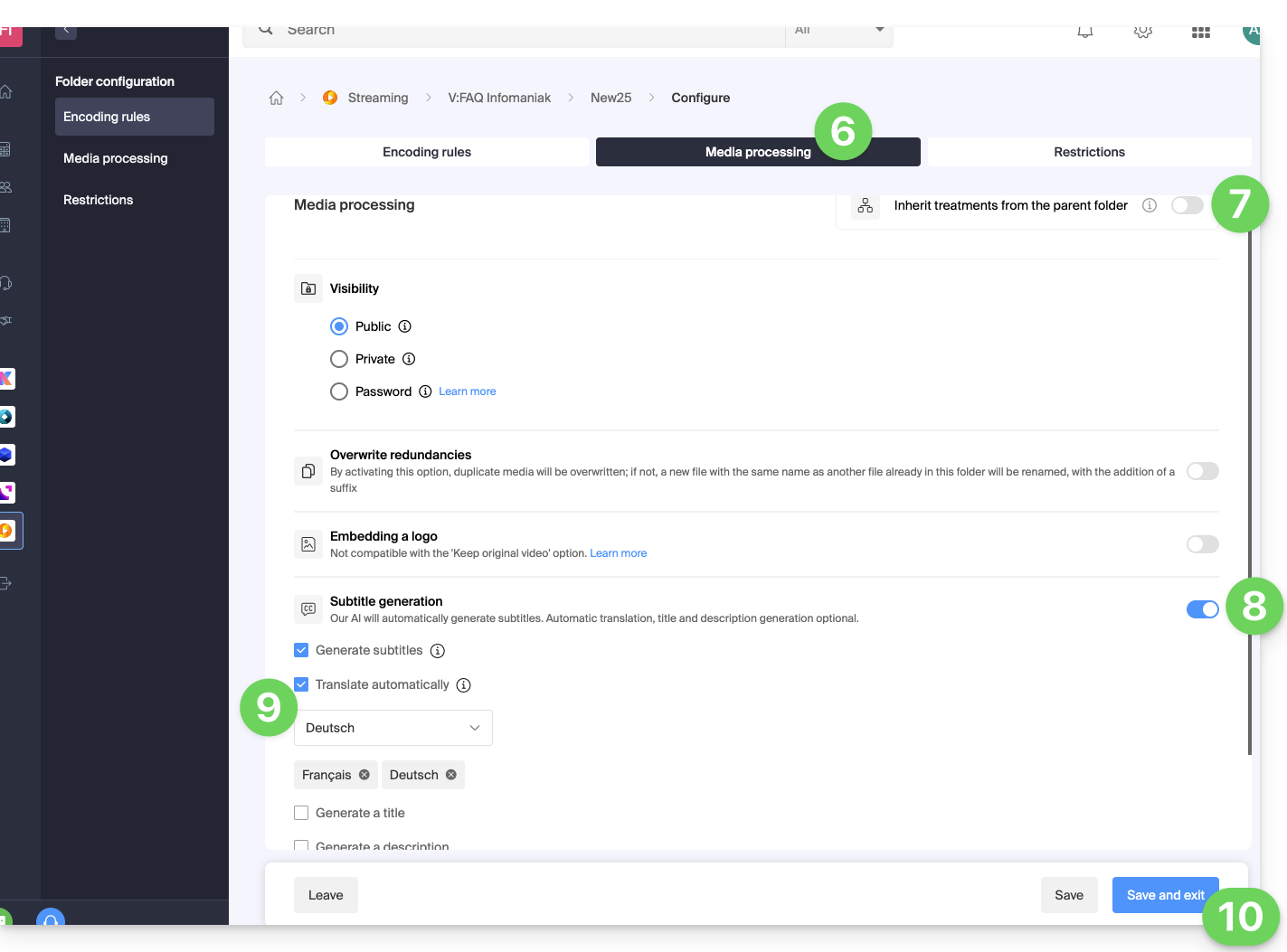
- Click on the Media Processing tab.
- Ensure that the processing is not set to be inherited from the Parent folder (or configure the Parent folder directly) and then save the changes if necessary (point 10 below).
- Enable text generation.
- Configure what should be generated (subtitles, video title, summary/description, as well as any translations depending on the visitor's language).
- Save the changes:
This guide explains how to retrieve the media on your device once it has been uploaded to your VOD/AOD space.
Preamble
- When you send a video to your VOD space, you get the link corresponding to the video's address on the server.
- Most browsers, once this address is loaded, will "stream" the video, meaning the video will be played bit by bit without allowing you to download the entire file to your hard drive.
- If you have deleted the original video from your hard drive, you may want to retrieve it.
- There is no direct access (e.g., via FTP) to the server hosting the videos.
Download the source media
To access a media file from the VOD space:
- Click here to access the management of your VOD/AOD on the Infomaniak Manager (need help?).
- Click directly on the name assigned to the product concerned:
- Click on Media in the left sidebar menu.
- Click on Media Management in the left sidebar menu.
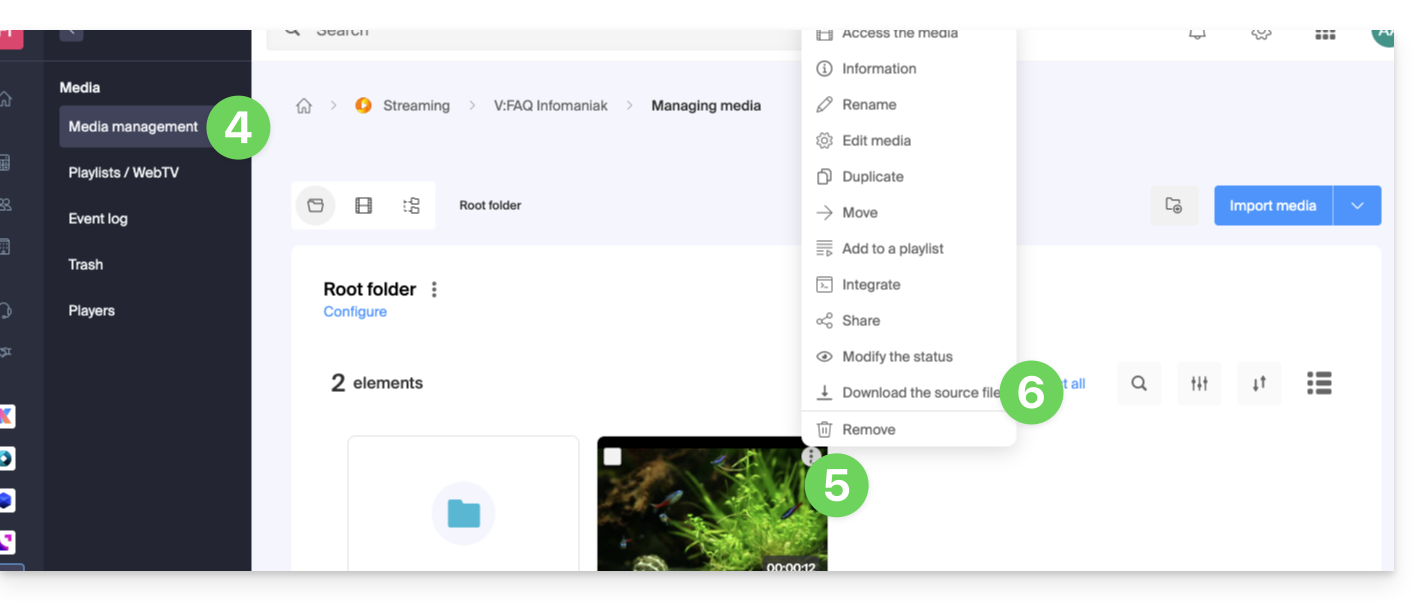
- Click on the action menu ⋮ in the top right corner of the media thumbnail concerned.
- Click on Download the source file so that your web browser offers to download the source media to your device:
This guide covers the creation of chapters on a video from the VOD service and the customization of the menu display (thumbnail, title, description, etc.).
Preamble
- The video file must be encoded in
MP4to access the editing (creation + modification) of chapters. - Chapter editing will not be possible on a FLV video, but the latter will still display the chapters on the video Player if it has also been encoded in MP4 in parallel.
- If the MP4 video is deleted, the chapters will remain on the FLV but without the possibility of editing.
- It is not possible to use this tool in the case of an audio-only media.
Chapter creation
To access a media from the VOD space:
- Click here to access the management of your VOD/AOD on the Infomaniak Manager (need help?).
- Click directly on the name assigned to the product concerned:
- Click on Media in the left sidebar menu.
- Click on Media management in the left sidebar menu.
- Click on the media concerned:
- Click on the Edit button:
- Click on the Chaptering tab.
- Choose the position of the first chapter.
- Click on the blue button to create and configure the first chapter:
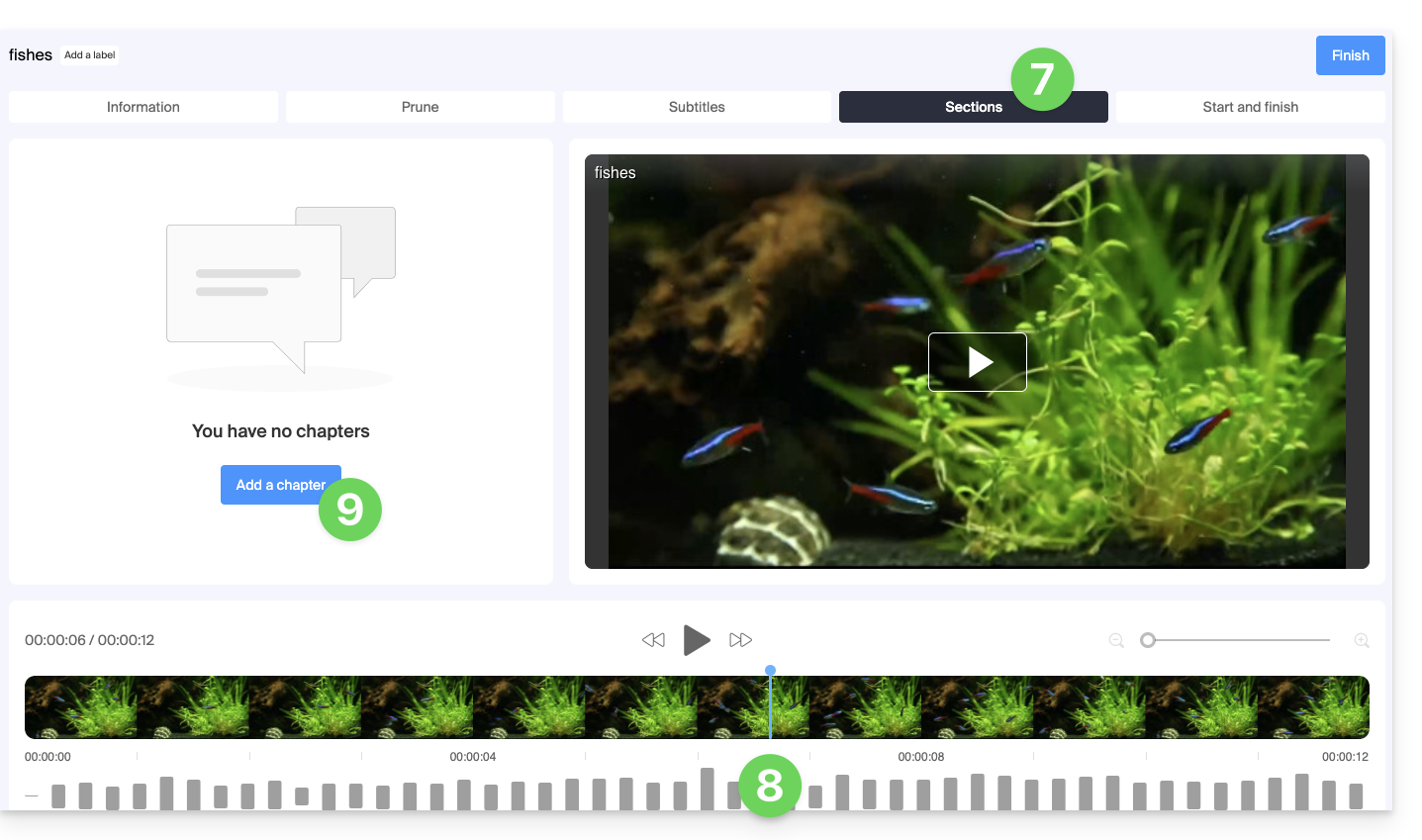
- Edit the first chapter (info, thumbnail) and save with the button to Add the chapter:
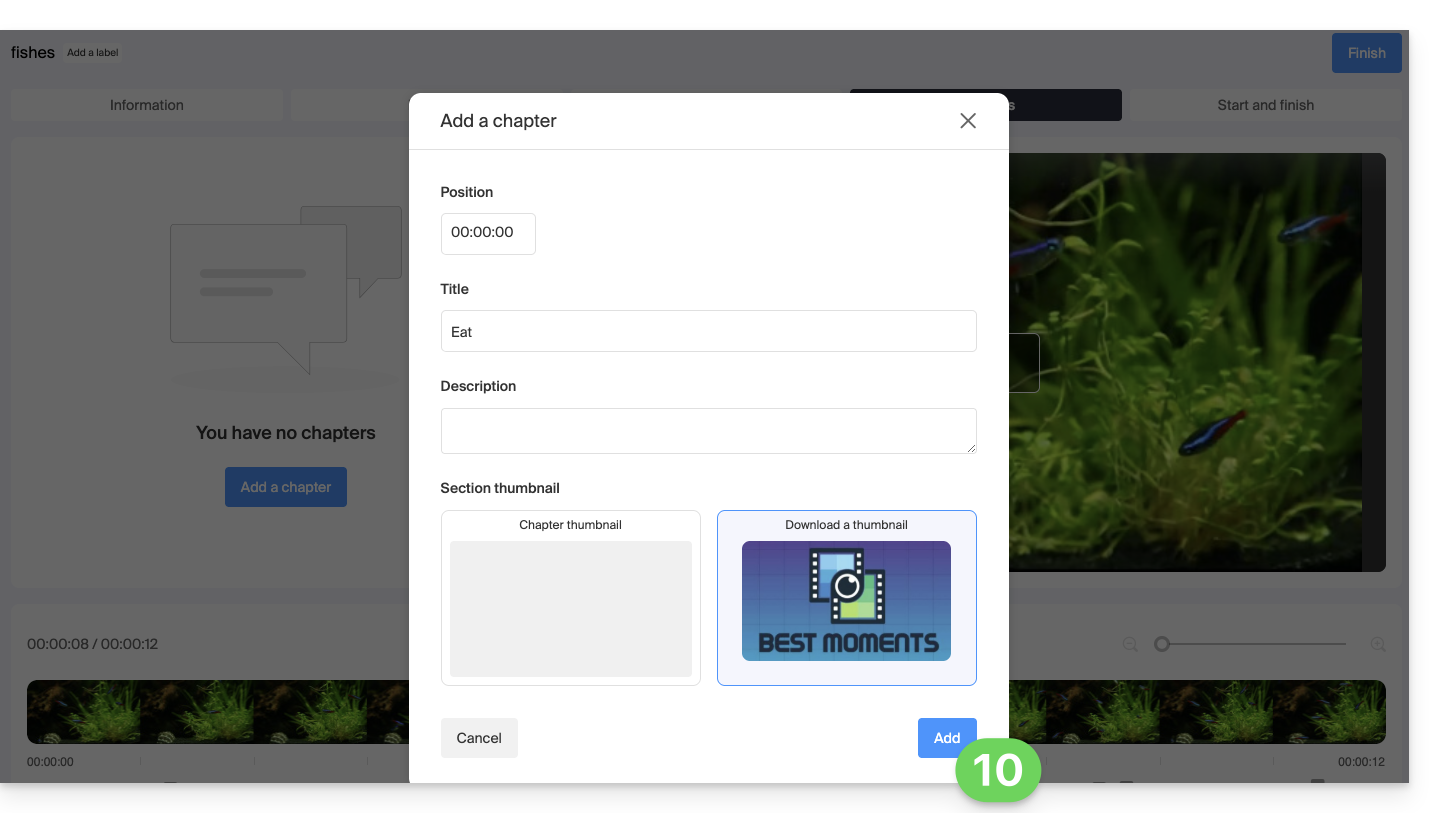
- Repeat for the following chapters.
- You can modify the location of your chapters by clicking directly on the timeline:
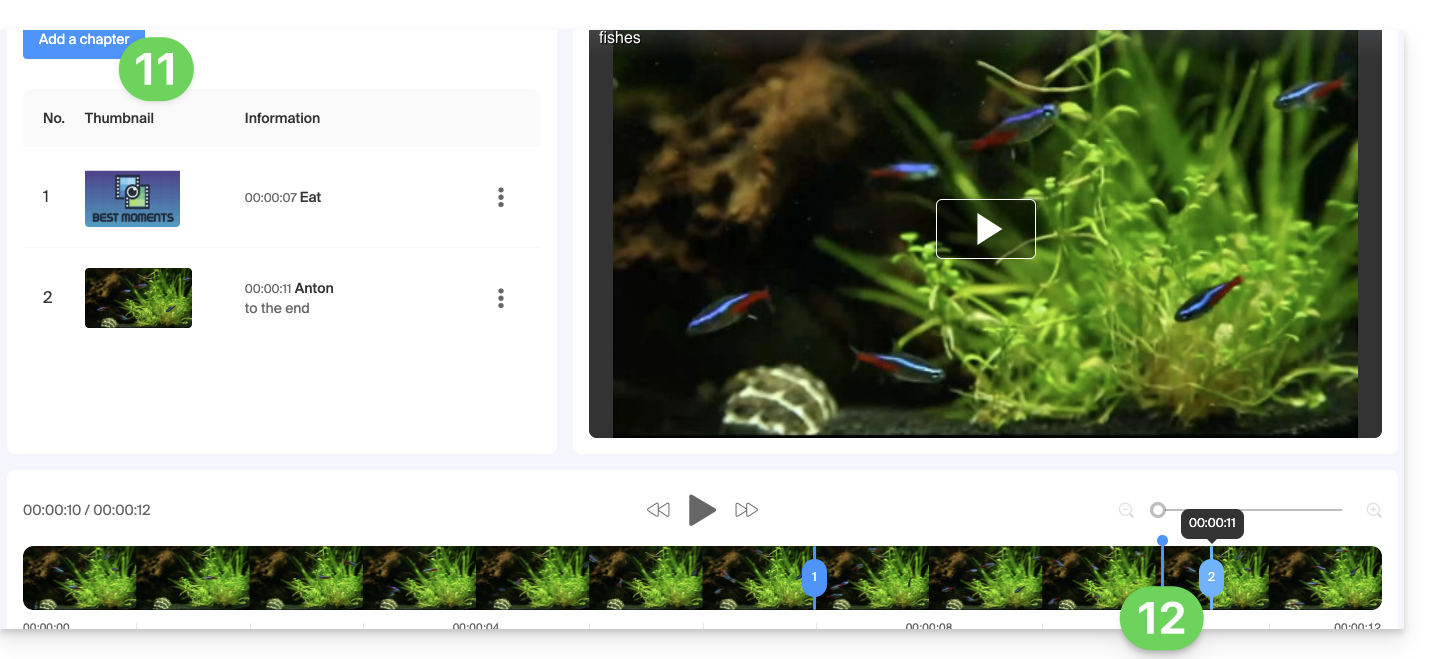
- Finish editing the chapters with the button at the top right.
This guide concerns Infomaniak authentication tokens or tokens, which are used to verify the identity of the application and grant it specific permissions to interact securely with the features and data of the Infomaniak API.
Preamble
- Authentication tokens or tokens are used to verify the identity of the application and grant it specific permissions to interact securely with the features and data of the Infomaniak API.
- There is no limit to the number of tokens you can create.
- The duration of an access token is "unlimited" by default, but it is possible to define a custom duration at its creation.
- Warning, if no call is made with the token for a year, it is automatically deactivated; it will then be necessary to generate a new one.
Manage Infomaniak API tokens
At the time of creating an API token, you will be able to choose the application and the scope accessible by the token (to match your current need and project).
To do this:
- Click here to access the management of your product on the Infomaniak Manager (need help?).
- Click the blue button Create a token.
- Choose from the drop-down menu the appropriate product according to your current need and project.
- Choose a validity period.
- Click the blue button Create a token.
- Enter the password to log in to the Manager as requested.
- Copy the token to a safe place - it will no longer be accessible after that.
Example of application: token for the Newsletter API
This guide explains how to insert an image, a logo, a watermark, on the videos of your VOD service to enhance your brand image and protect your content from copying or potential misuse.
Add the image to the media
You have the option to add an image that will appear on your video:
- either from the configuration of a Player video
- or from the specific rules of an import folder
1. Video Player
In the management section of a Player, the selected logo is overlaid on the video, appearing only during playback.
This approach offers the flexibility to change the logo at any time, thus allowing the use of several Players pointing to the same video without any difficulty.
However, a drawback to consider is that if a visitor manages to retrieve the actual address of the video, it will be streamed without the logo. Despite this drawback, this method is recommended for its ease of use and adaptability:
2. Import folder
In the configuration of a folder (including the root folder) containing media, image embedding is done as a direct integration into the video:
This method is less flexible because once the logo is integrated, no further modifications are possible. It is therefore important to consider that any future change of logo could cause issues, making this approach less adaptable in the long term:
These two technologies are different and do not operate at the same time, so if you activate them simultaneously, you will get the Player logo on top of the embedded logo.
This guide explains how to manage interactions between your Infomaniak VOD/AOD space and any of your WordPress sites, using an extension developed by Infomaniak
Preamble
- This WordPress extension allows you to retrieve and manage all your videos present on an Infomaniak VOD/AOD space, with automatic updates when new videos are added.
- It manages the automatic retrieval of existing Players and playlist management.
- You will be able to search for your videos while writing an article or a page or import media directly from the CMS administration.
- Possible incompatibilities:
- The plugin is not compatible with Elementor.
- Test if the problem persists after installing another editor.
- The plugin is not compatible with WordPress Multisite.
- The plugin is not compatible with Really Simple Security (Really Simple SSL).
- Test if the problem persists by activating or deactivating this setting of the Really Simple Security extension:
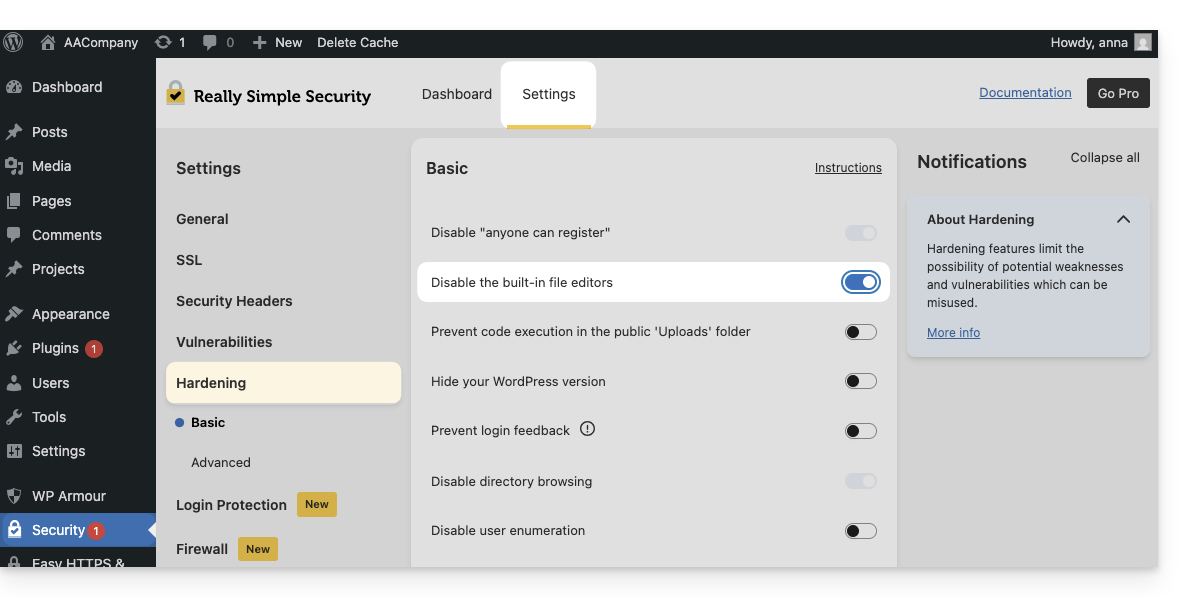
- Test if the problem persists after using another similar module.
- If problems persist, refer to this other guide.
- Test if the problem persists by activating or deactivating this setting of the Really Simple Security extension:
- The plugin is not compatible with Elementor.
Get the Infomaniak VOD extension
Go to your VOD space to obtain the information necessary for the WordPress external module:
- Click here to access the management of your product on the Infomaniak Manager (need help?).
- Click directly on the name assigned to the product concerned:
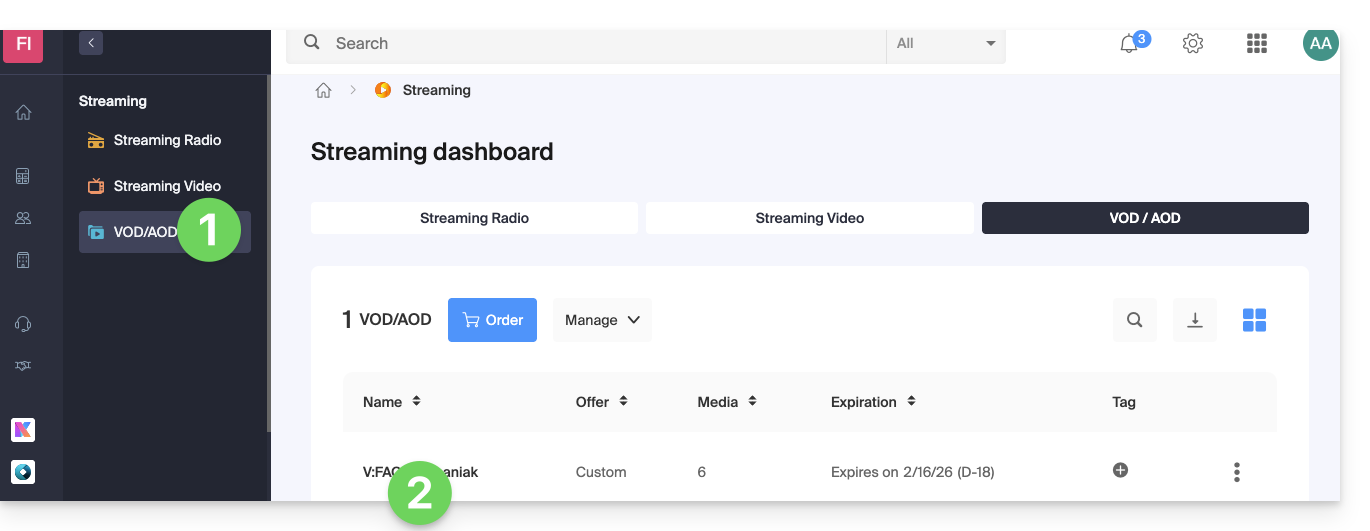
- Click on CMS/Extensions API in the left sidebar menu.
- Click on CMS Extensions in the left sidebar menu.
- Download the WordPress extension.
- Configure the extension using the provided instructions:
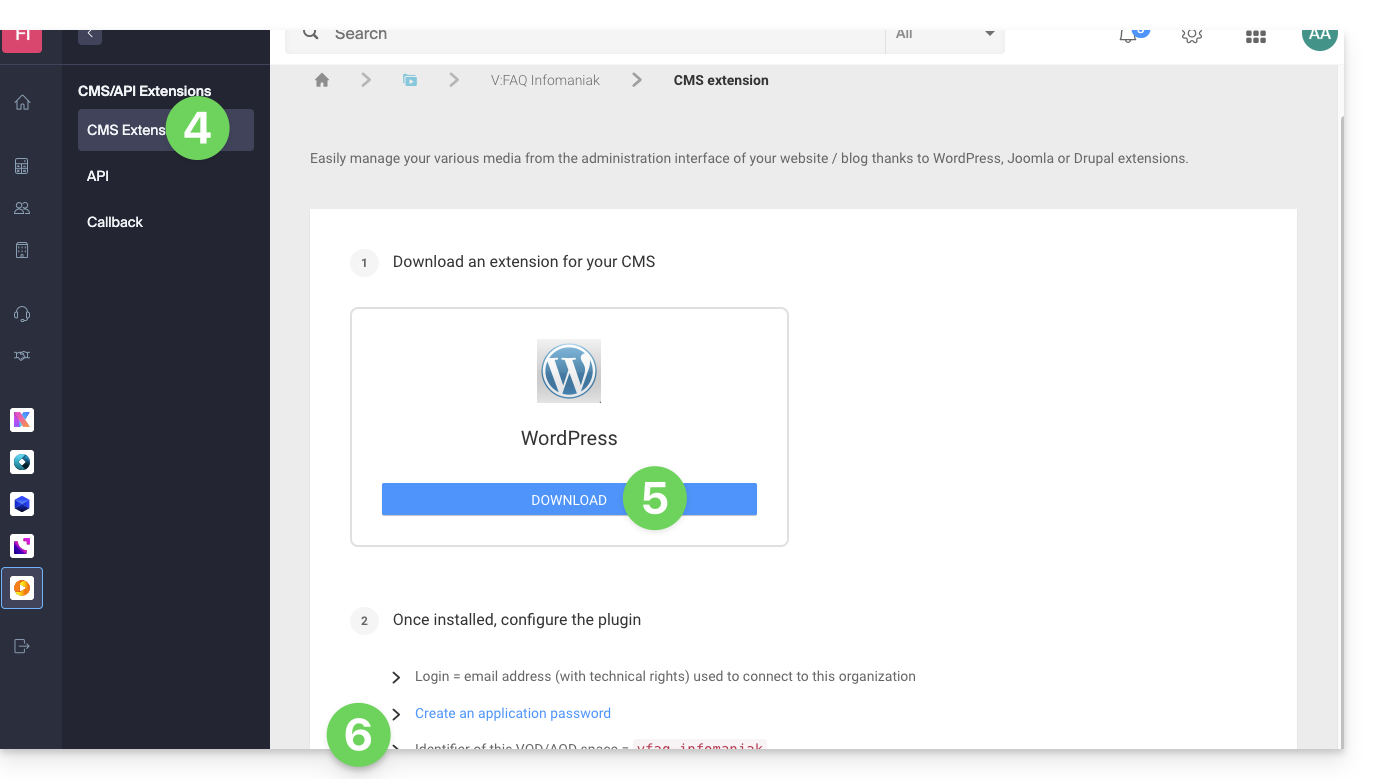
- It is recommended to create a new user in your Organization with only technical rights on the VOD/AOD product and then create the application password from this dedicated account.
You can also download the extension directly from the WordPress extension library: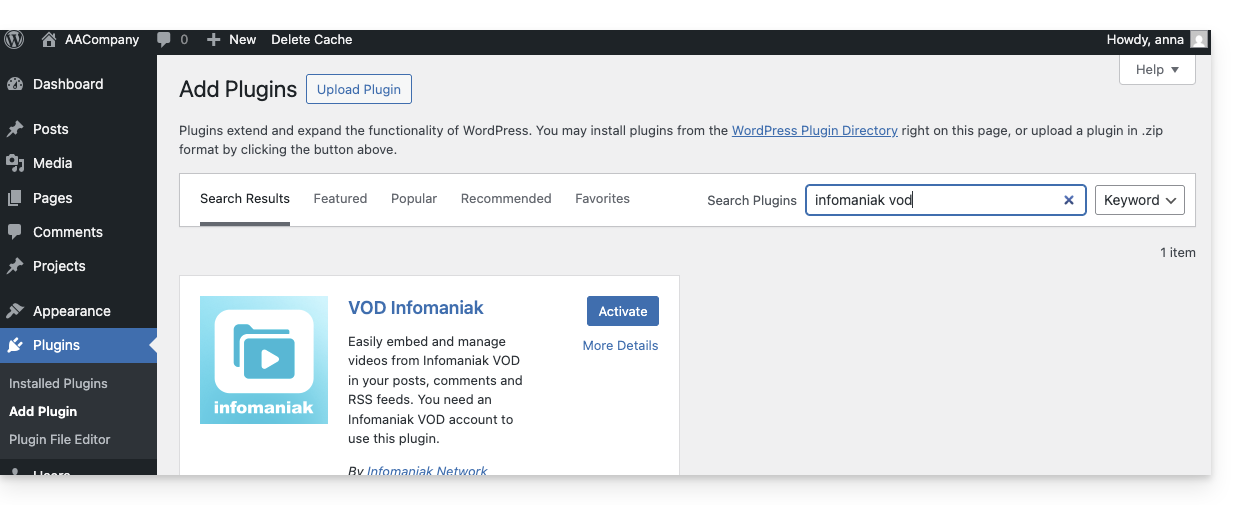
A similar feature exists for Typo3 with the dedicated extension that you can find and install from its extension library: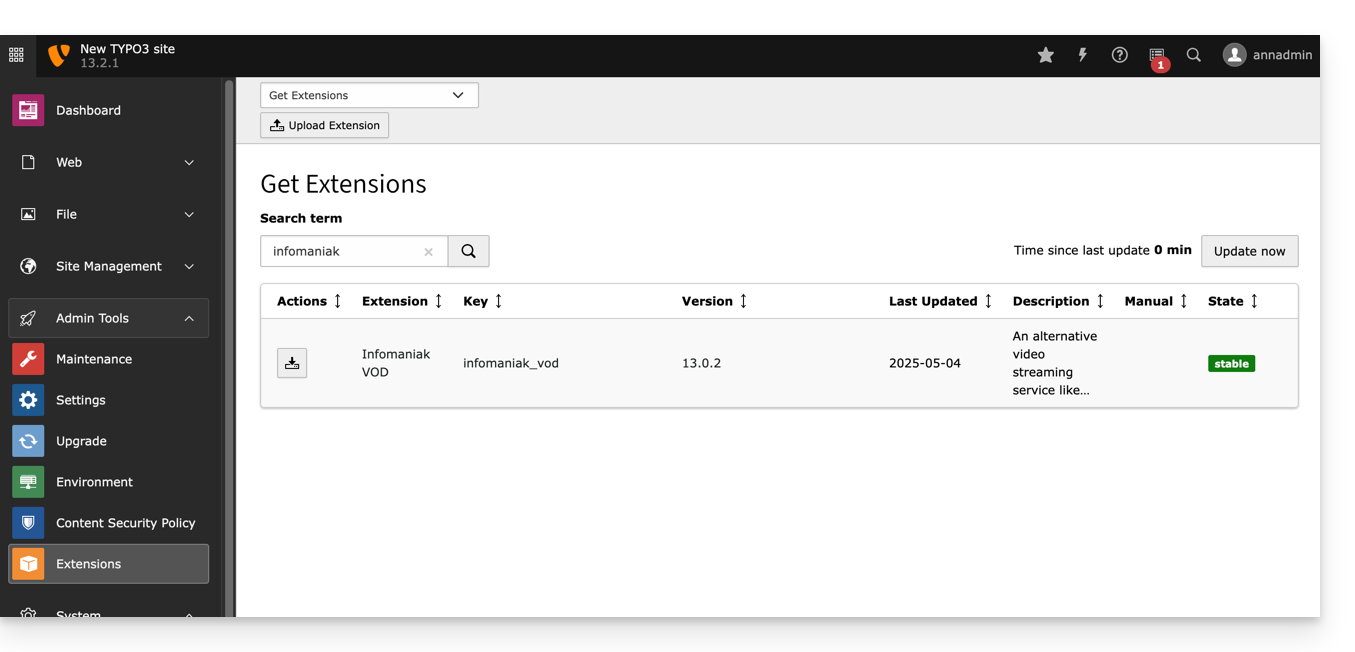
This guide explains how to password-protect videos imported to an Infomaniak VOD service.
Preamble
- Playing a video within a Player configured on the VOD service will require a password without which viewing will not be possible.
- It is not possible to specify multiple different passwords for the same video.
- Other access restrictions can be activated and concern access to the file: token | geoip
Password-protect a video
Password protection can be configured in different ways.
1. Password at the import folder level
If the password is set once and for all at the destination folder level, all new media imports will automatically include this password for viewing. However, it is still possible to modify the visibility of each video individually (see below).
To configure this folder:
- Click here to access the management of your VOD/AOD on the Infomaniak Manager (need help?).
- Click directly on the name assigned to the product concerned:
- Click on Media in the left sidebar menu.
- Click on Media management in the left sidebar menu.
- Click on the icon to create a New folder:
- Name the folder.
- Click the blue button to Create the folder.
- Click on Configuration:
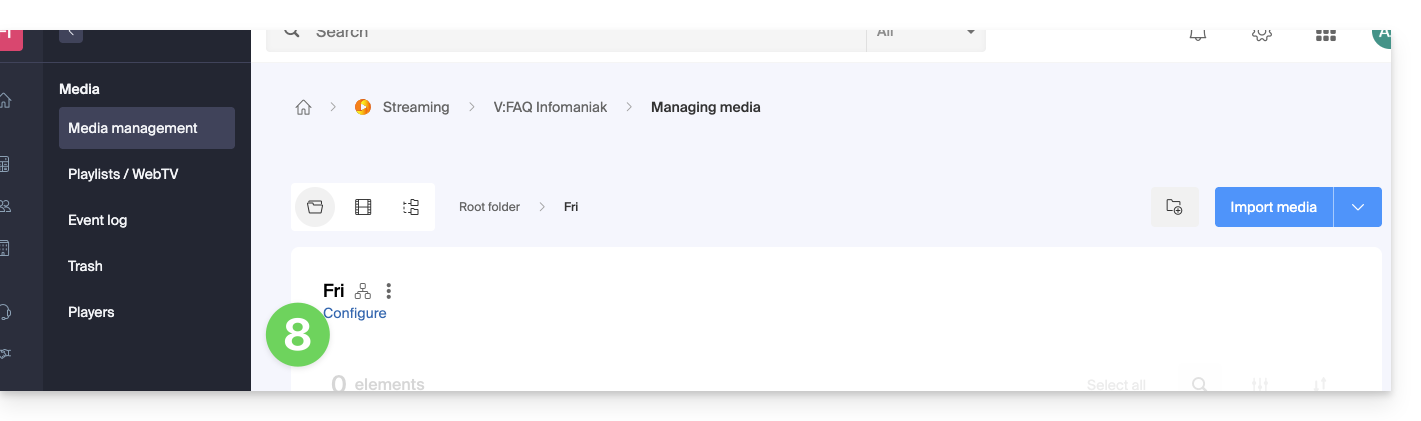
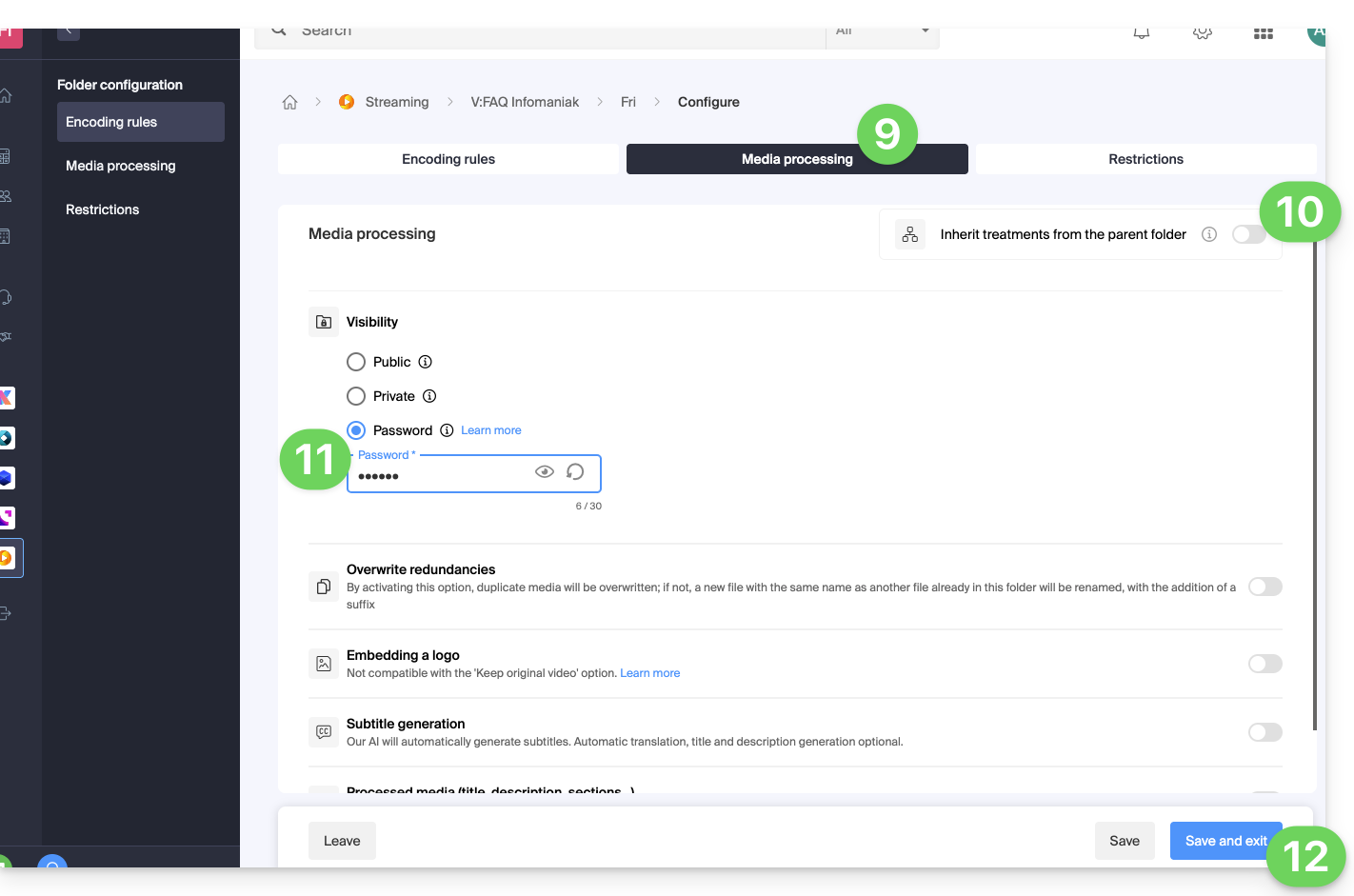
- Click on the Media processing tab.
- If necessary, deactivate the toggle switch to remove the inheritance from the parent folder, so that you can configure your own rules for this specific folder.
- Under Visibility, choose the Password option and enter a new password of at least 6 characters.
- Click on Save once the desired options have been configured:
- Upload new videos to this folder so that they are password-protected when viewed.
A video already encoded in another location in your VOD space will not be automatically protected even if it is moved within this folder. You will need to change its status manually (see below).
2. Password set manually on each video
To modify the visibility of a video on a VOD service:
- Click here to access the management of your VOD/AOD on the Infomaniak Manager (need help?).
- Click directly on the name assigned to the product concerned.
- Click on Media in the left sidebar menu.
- Click on Media management in the left sidebar menu.
- Click on the video in question.
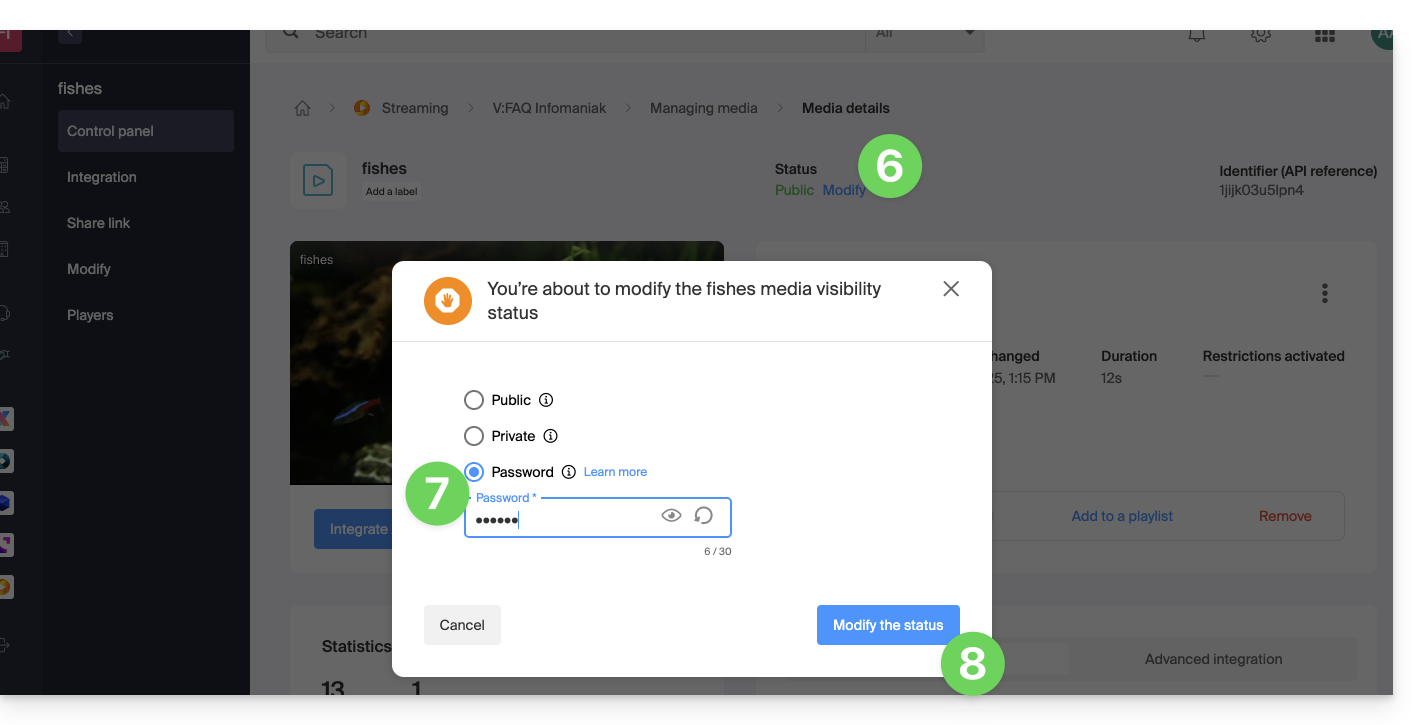
- Click on Modify in the Status section.
- To modify the visibility of this media, choose the Password option and enter a new password of at least 6 characters.
- Click the blue button to Modify the status:
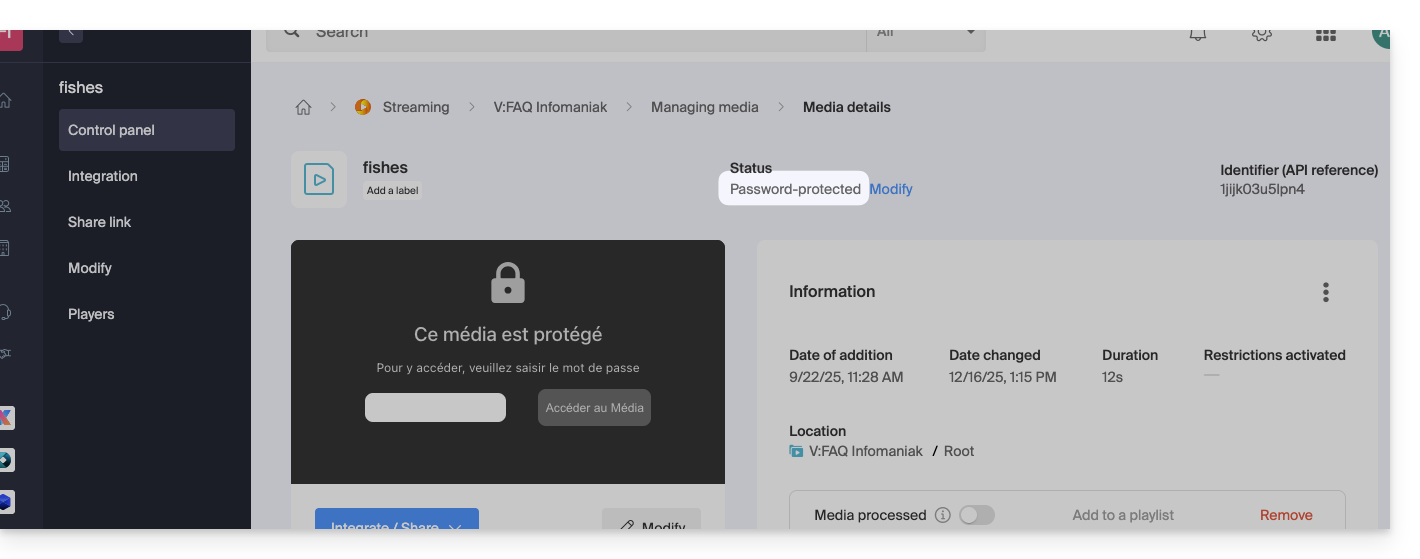
- The video becomes password-protected:
This guide explains how to live stream a list of videos from the VOD service using the Video Streaming product.
Preamble
- This feature allows you to use the VOD service to create a video playlist and then use the Video Streaming service to broadcast it live, for example as part of a music video channel, teleshopping, documentaries, etc.
- It is possible to insert advertisements between each video, manually or via the use of VAST tags.
- The playlist will loop indefinitely until the user stops it.
Broadcast a VOD playlist in live streaming
Prerequisites
- Have a VOD service (at least the free VOD space with the Video Streaming service).
- Have a Video Streaming service in the same Organization and managed by the same account.
To create the playlist, import some videos:
- Click here to access the management of your product on the Infomaniak Manager (need help?).
- Click directly on the name assigned to the product in question.
- Click the Select button (in the Quick Import section).
Once the videos are imported:
- Click on Media in the left sidebar menu.
- Click on Playlists / WebTV in the left sidebar menu.
- Click the button to add a new playlist.
- Name the playlist and determine if it should be automatic (linked to a folder) or manual.
- Choose the folder or specific videos to use to create the playlist.
- Click the Create Live button:

- Choose the stream of the Video Streaming service that will broadcast the playlist and set your preferences:

Some usage examples
Broadcasting a playlist can serve as a fallback solution as soon as a live stream is interrupted (voluntarily or involuntarily) and in this case take over the air. As soon as the live encoder pushes a stream, it takes control of the playlist. This allows you to broadcast alternative content if there is a problem with the live stream or if the user only broadcasts real live content in the evening for example, they can automate the broadcasting of content from playlists for the rest of the day.
It is also possible to schedule the broadcasting of a playlist from the Video Streaming scheduling tool. Thus, you can choose to broadcast unique or different playlists in advance, or on a recurring basis. The encoder broadcasting live will be automatically disconnected and this for the entire duration of the playlist broadcast; once the time slot is over, the encoder will reconnect and its content will be broadcast.
A VOD playlist can be created and then edited manually (by retrieving the video that must complete the list) or be dynamic if automatically constituted by a batch of videos located in a specific folder and fed over time. In both cases, stop then restart the live broadcast to take into account any new video added to the playlist - note that this will no longer be necessary during a future update of the tool.
This guide explains how to change the thumbnail (preview, or thumbnail / poster) representing a video on a VOD service.
Preamble
- The use of animated gifs is not possible.
Modify the video thumbnail
To access a media from the VOD space:
- Click here to access the management of your VOD/AOD on the Infomaniak Manager (need help?).
- Click directly on the name assigned to the product concerned:
- Click on Media in the left sidebar menu.
- Click on Media Management in the left sidebar menu.
- Click on the media concerned:
- Click on the Edit button:
Two possibilities are available to you to replace the default image of the video on pause: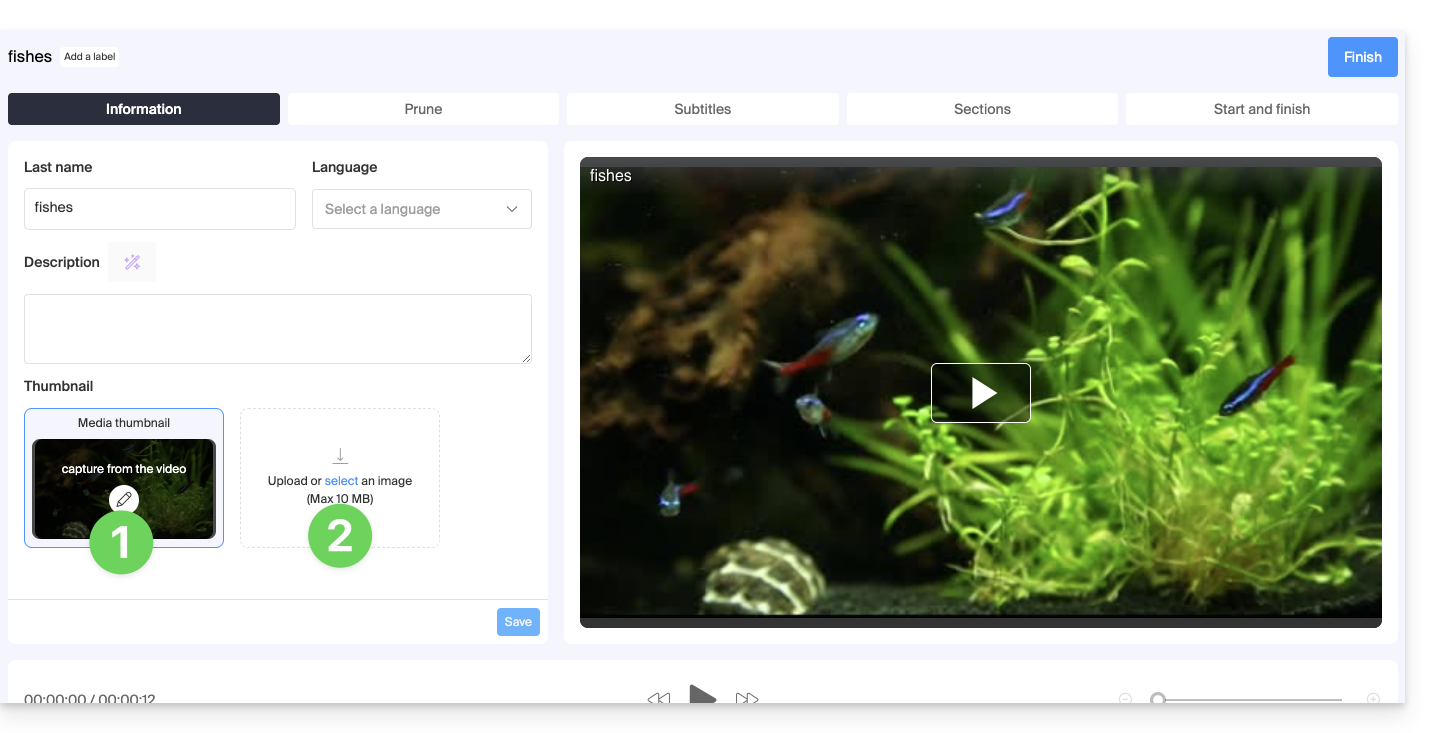
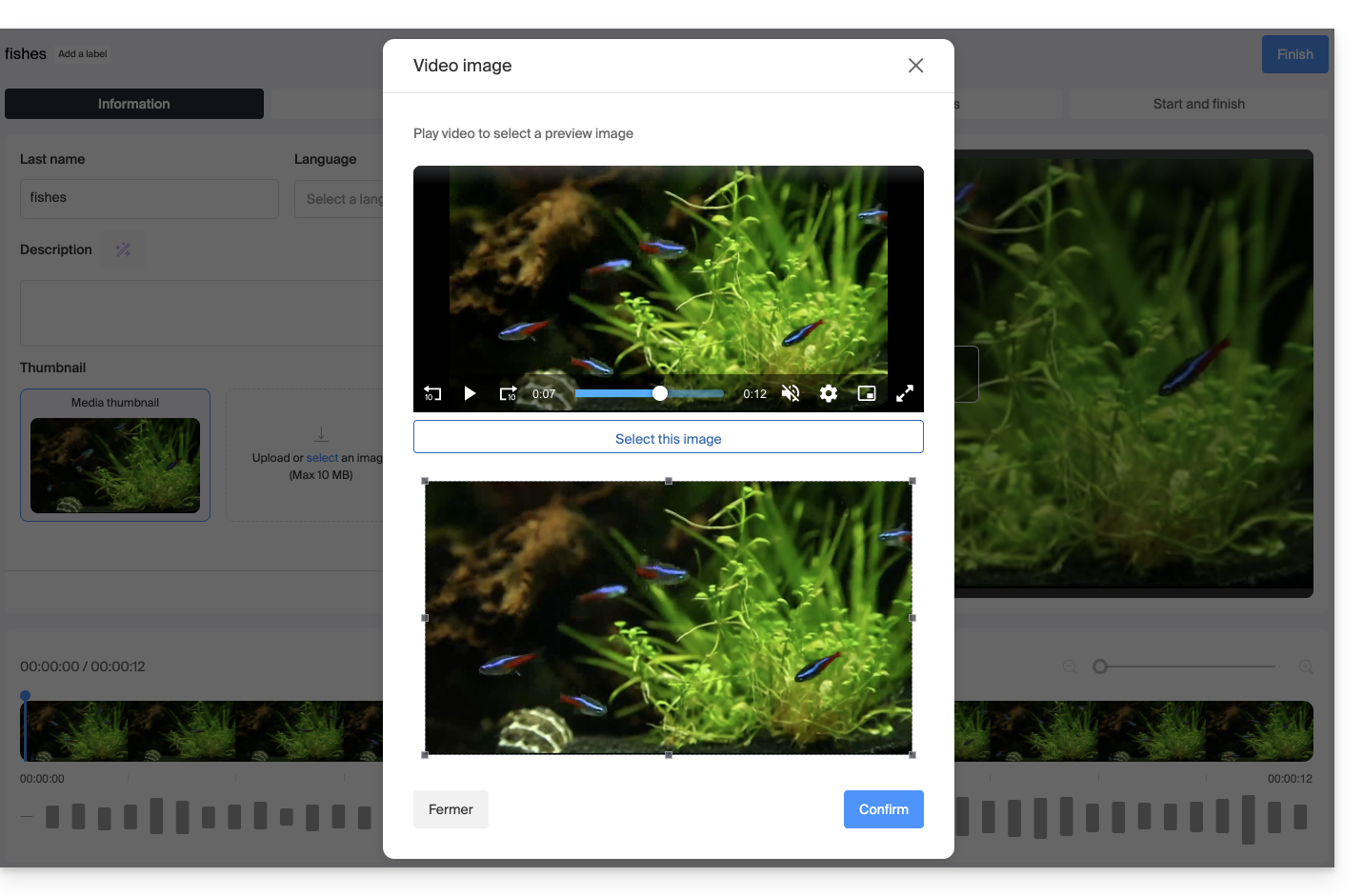
- Select an image within the video itself (click to scroll through the video and press the button to extract the image that you can then crop/resize):
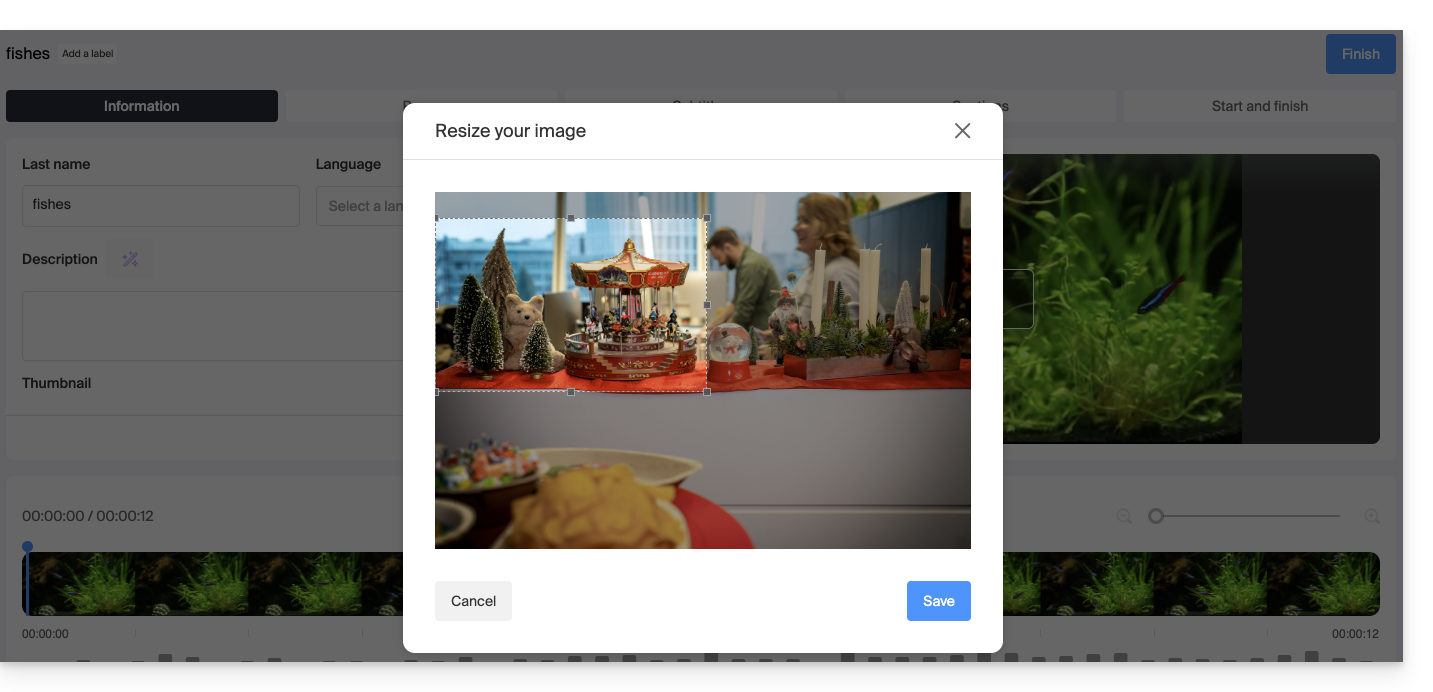
- Upload an image from your hard drive (10 MB max.) that you can then crop/resize:
Validate by clicking on the blue Save button: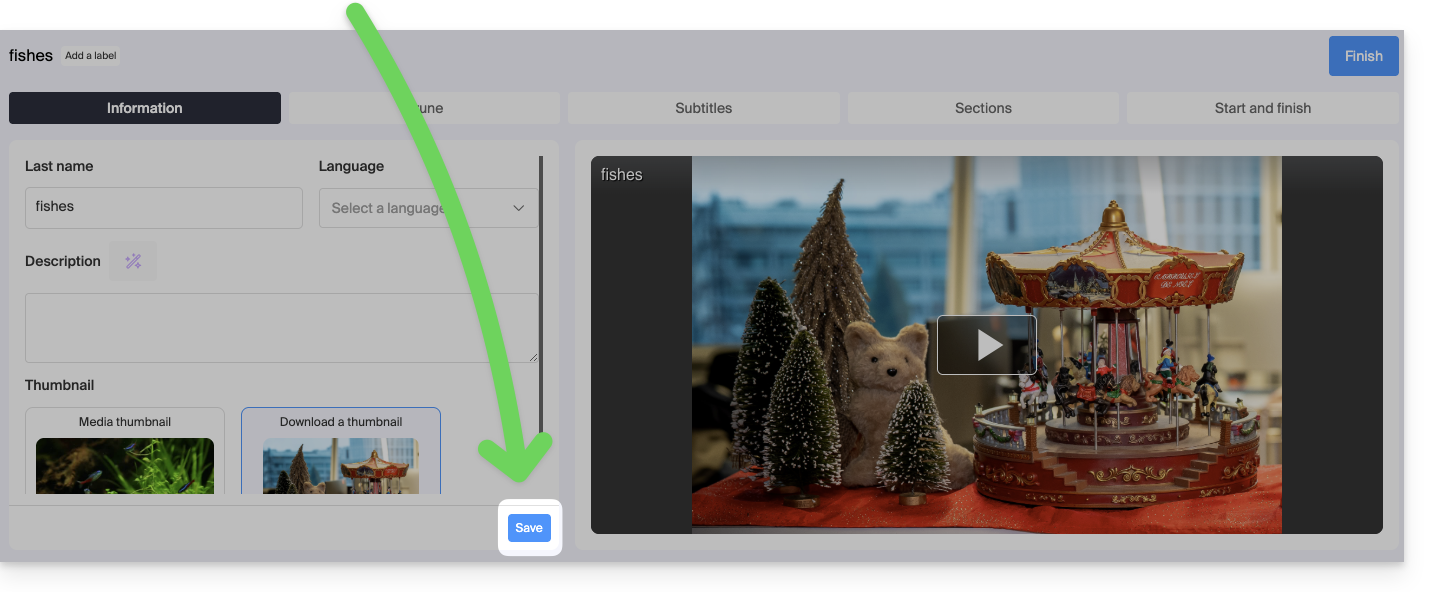
This guide explains how to integrate a button overlay on the video in the Player VOD/AOD used to stream your video, allowing viewers to click and easily share the video link (or embed the video itself).
Preamble
- Automatic sharing is available for Facebook, X (formerly Twitter), LinkedIn, WhatsApp, but it is also possible to provide an HTML code for integrating the Player at the location desired by the visitor.
- Sharing can also be initiated within the media library itself.
Add a share link to the Player
To access the VOD space:
- Click here to access the management of your product on the Infomaniak Manager (need help?).
- Click directly on the name assigned to the relevant product.
- Click on Players in the left sidebar.
- Click on the relevant item in the table that appears.
- Click on the Share tab.
- Enable one or the other of the shares with the desired parameters, to see, on the Player, an icon representing the sharing possibility for the user:

- Do not forget to save your changes if necessary.
This guide explains how to embed video/audio files imported into an Infomaniak VOD/AOD service on web pages.
Preamble
- This VOD/AOD integration code is unique and corresponds to the parameters you are currently specifying on the page.
- It allows you to embed the same video with different display configurations according to your needs.
- Subsequently, you will be able to modify the parameters of this integration by adjusting them from the integration history page on the Infomaniak Manager.
- You can also share a media in different ways.
Generate and copy the integration code
The integration code is on your VOD interface; here is an example with a default Player:
- Click here to access the management of your product on the Infomaniak Manager (need help?).
- Click directly on the name assigned to the product concerned:
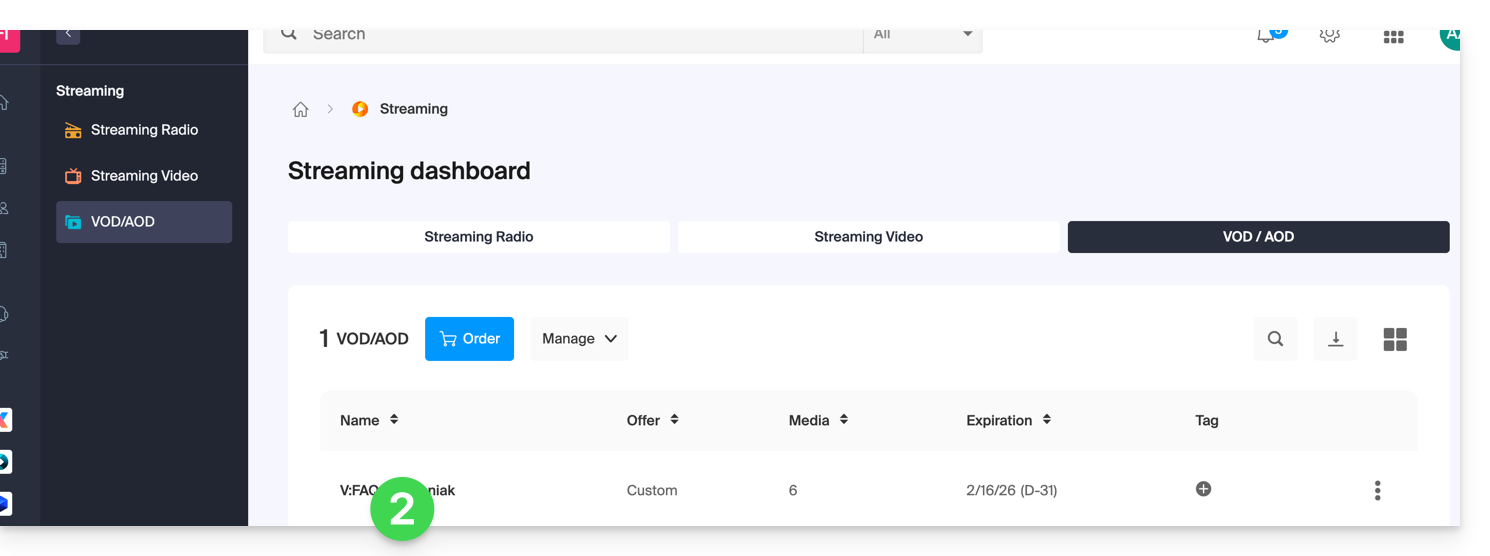
- Click on Media in the left sidebar menu.
- Click on Media Management in the left sidebar menu.
- Click on the media concerned in the displayed table:
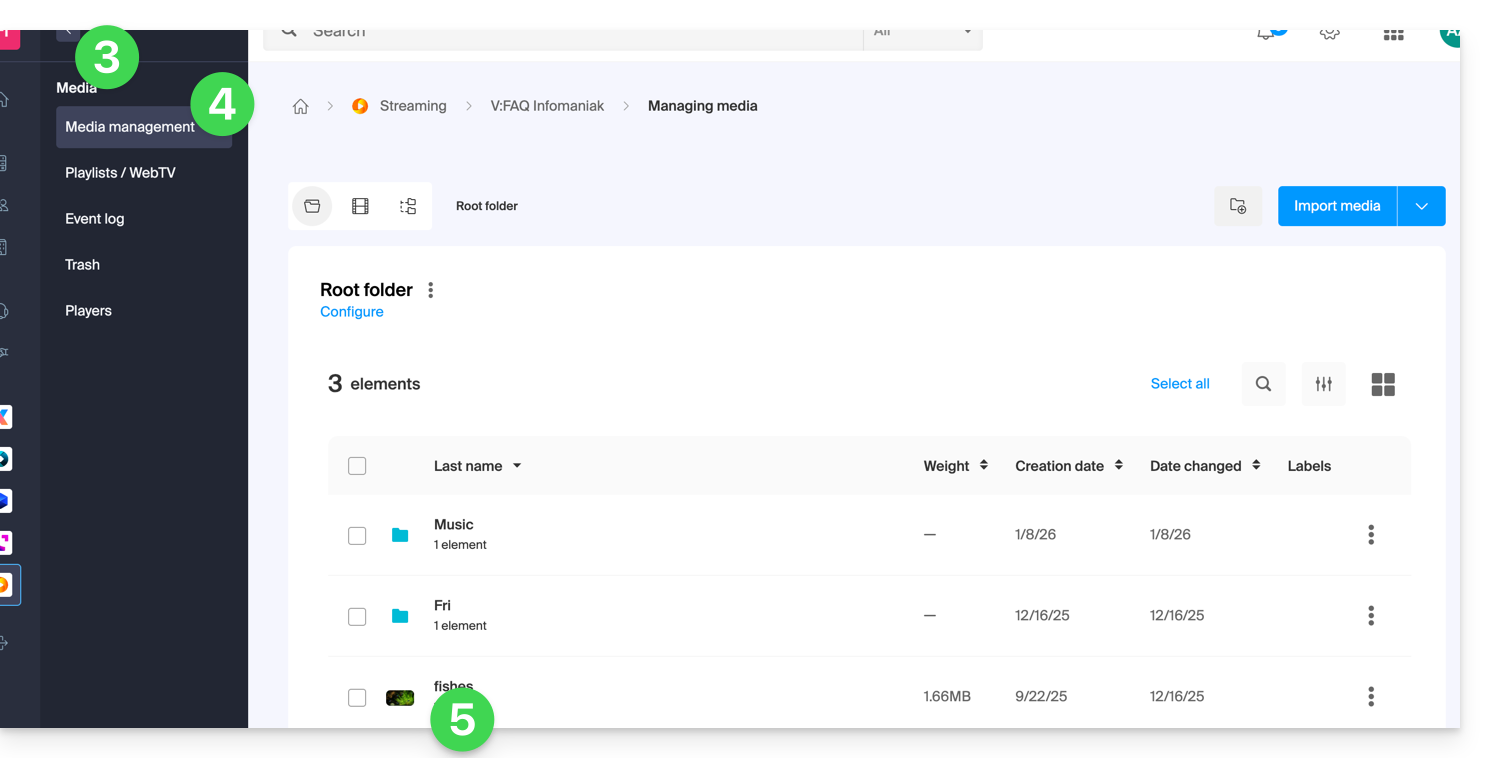
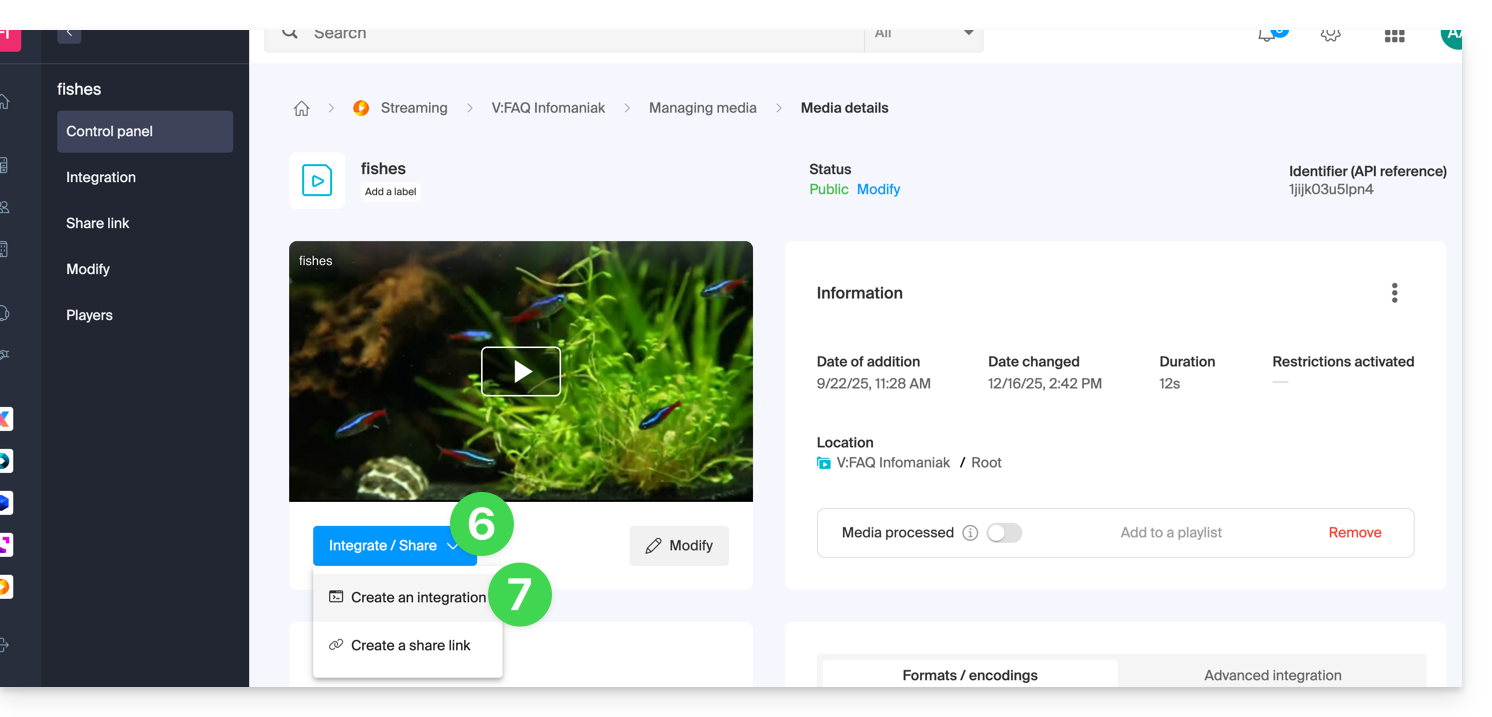
- Click on the blue Embed button.
- Click on Create an integration:
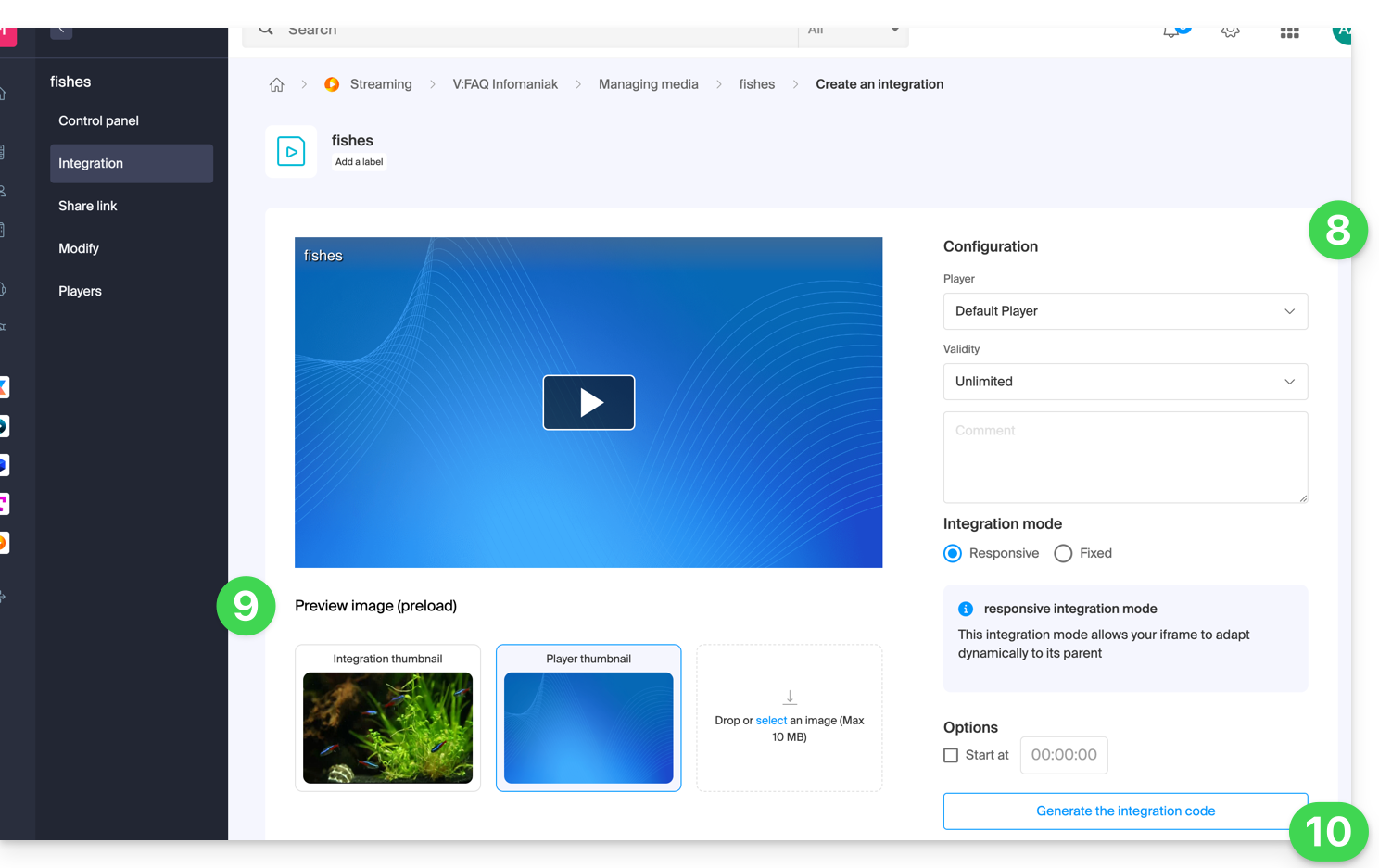
- Customize the media integration (Player to use, timestamp, loop playback, automatic start, …).
- Choose the thumbnail to display when the media is stopped.
- Click on the button to Generate the integration code:
- Copy the code to embed it in the location of your choice:
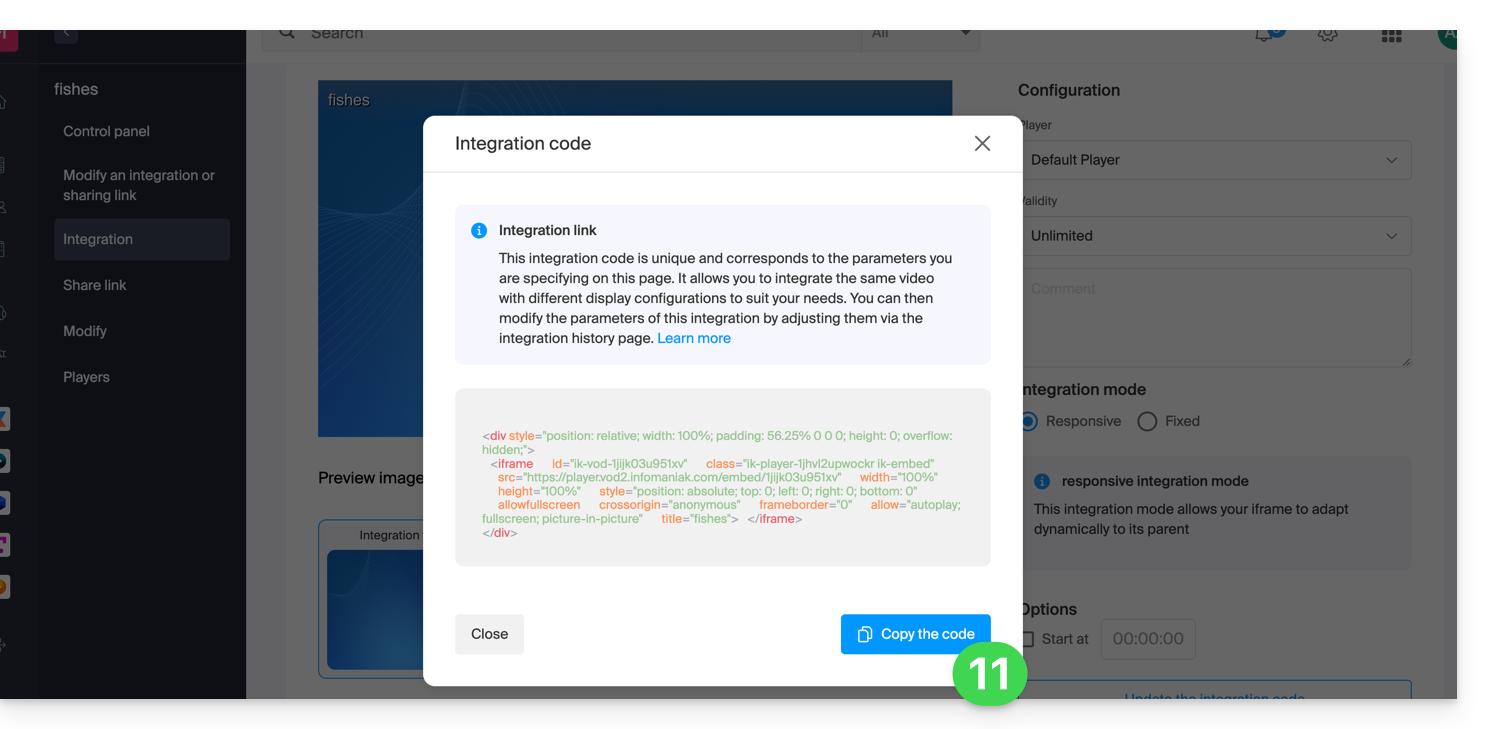
The media will be inserted with the default Player, but you have the option to choose from your created Players the one to be proposed during the integration.
Modify a previous integration
To customize the integration of your media that has already been done, and with the aim of keeping the corresponding code without having to insert it again:
- Click here to access the management of your product on the Infomaniak Manager (need help?).
- Click directly on the name assigned to the product concerned.
- Click on Media in the left sidebar menu.
- Click on Media Management in the left sidebar menu.
- Click on the media concerned in the table that appears.
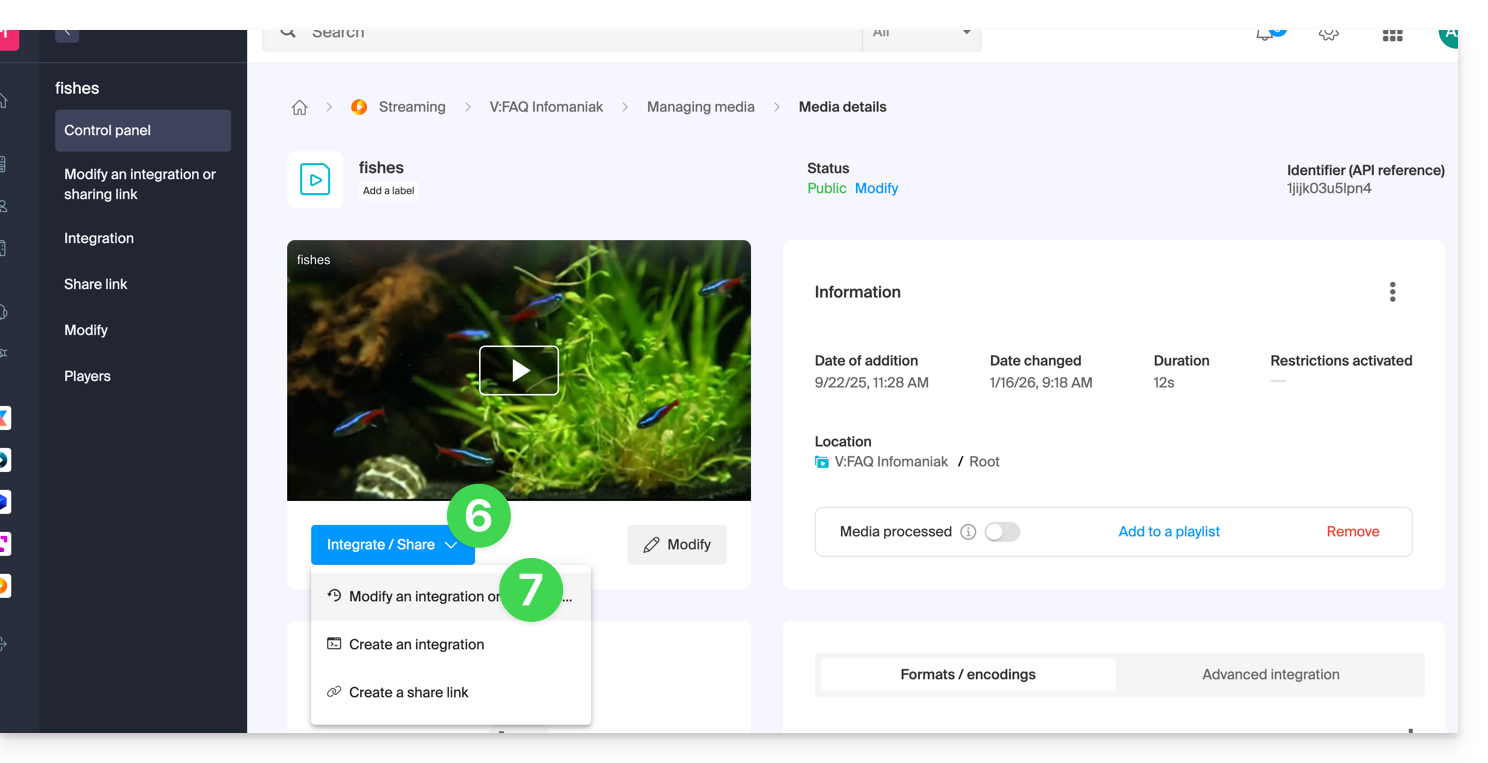
- Click on the blue button Integrate.
- Click on Modify an integration:
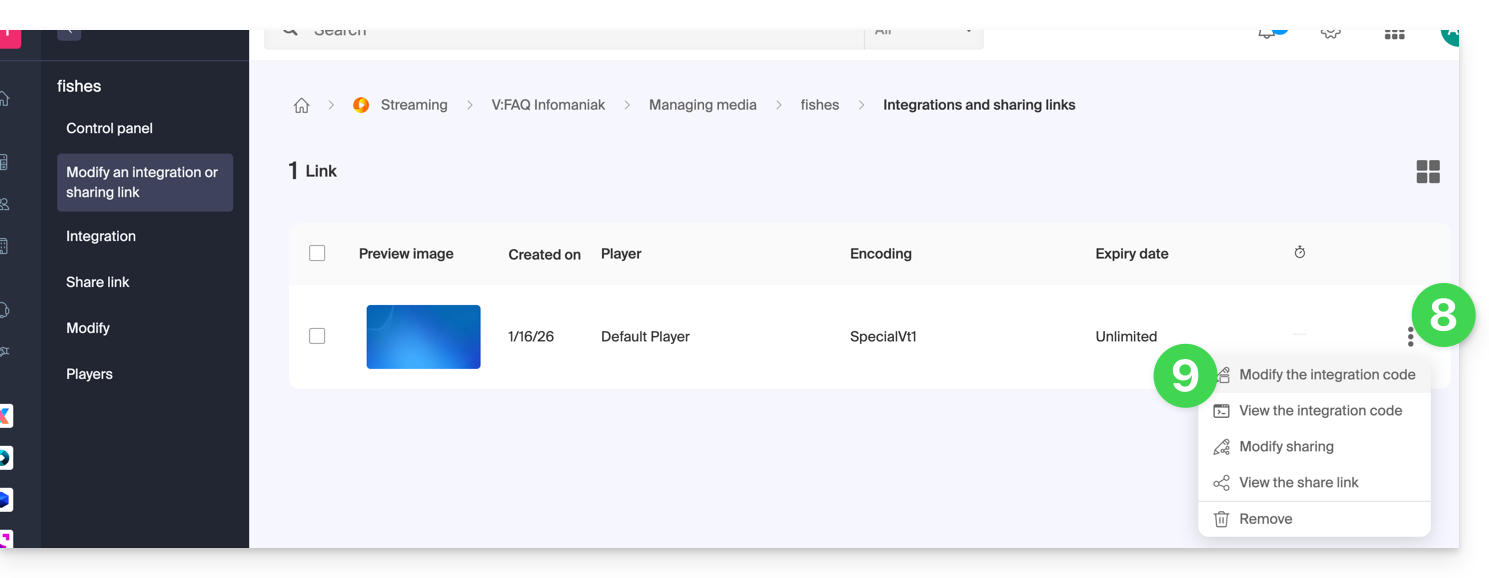
- Click on the action menu ⋮ to the right of the object concerned in the table that appears.
- Click on the desired element to obtain/modify the integration codes:
Paste the integration code…
On the web page of your choice, paste the HTML code where desired: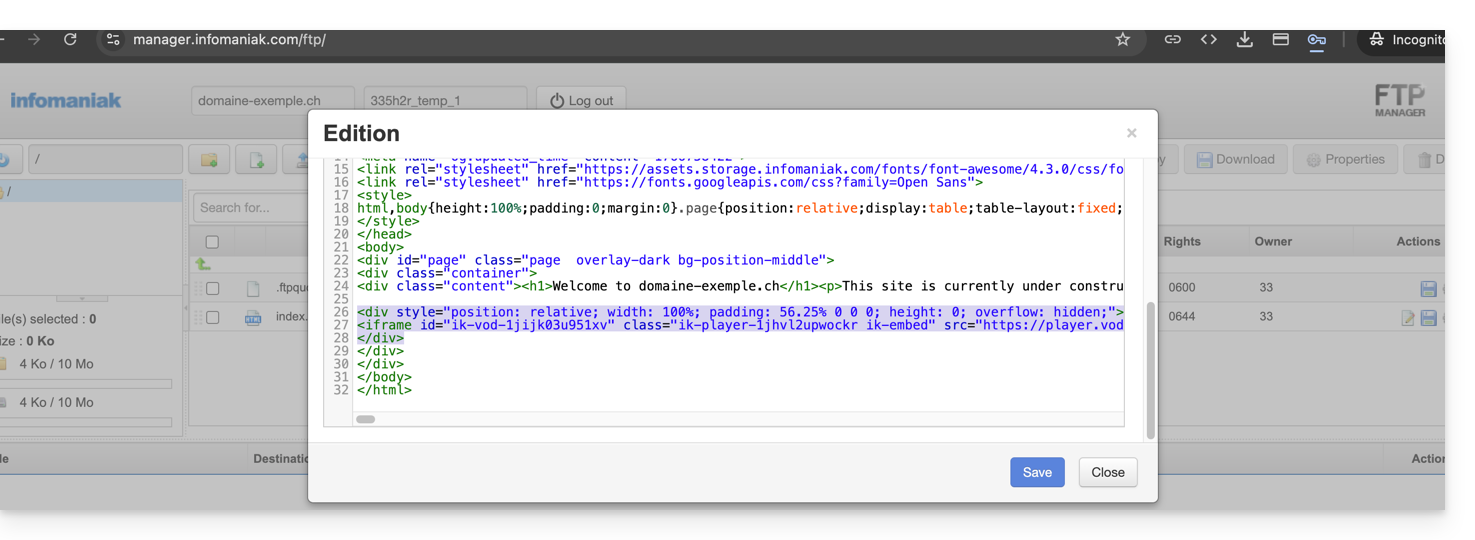
… on Infomaniak Site Creator
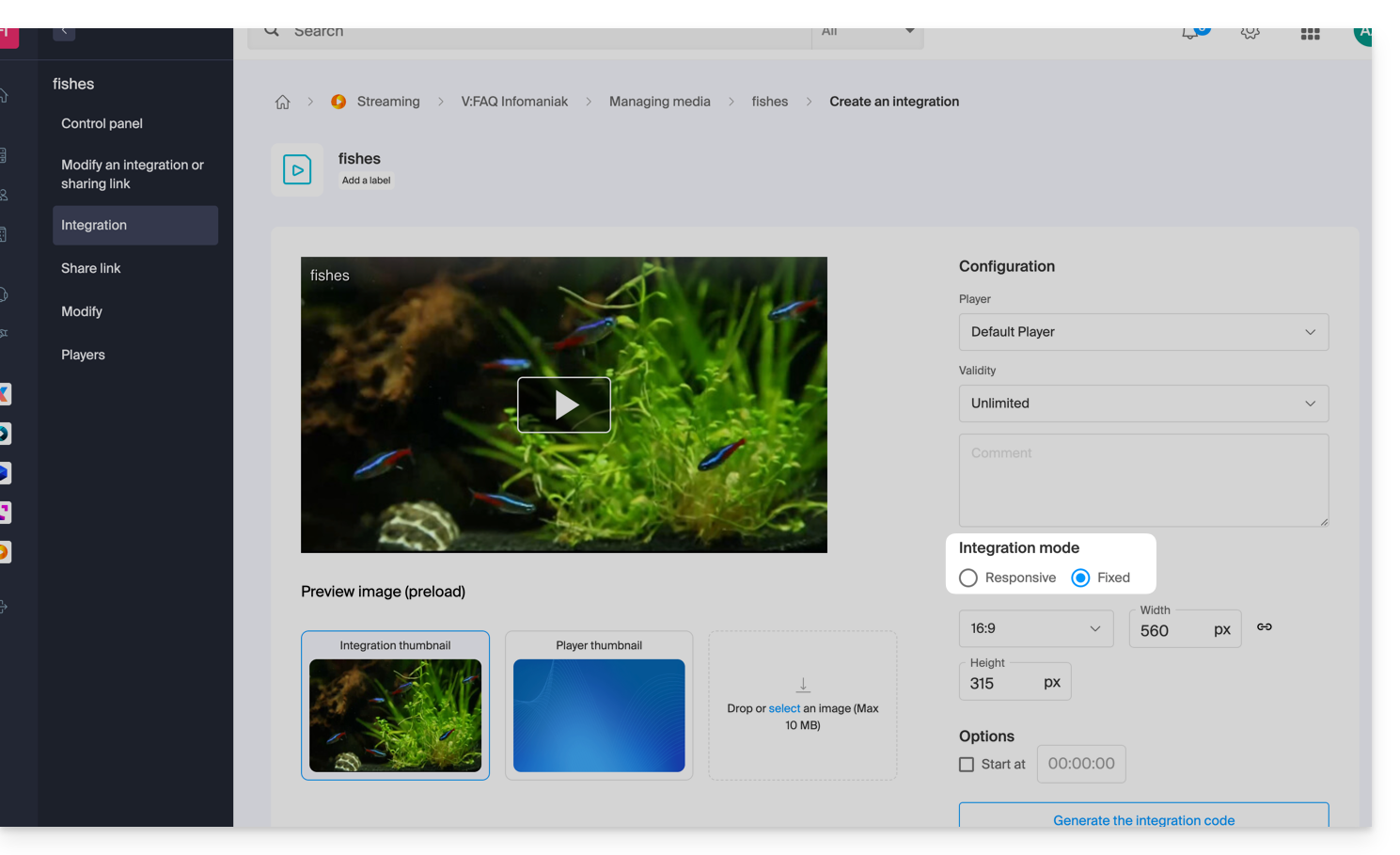
- For Site Creator, you need to generate a “Fixed” integration code (and not “Responsive / Reactive”):
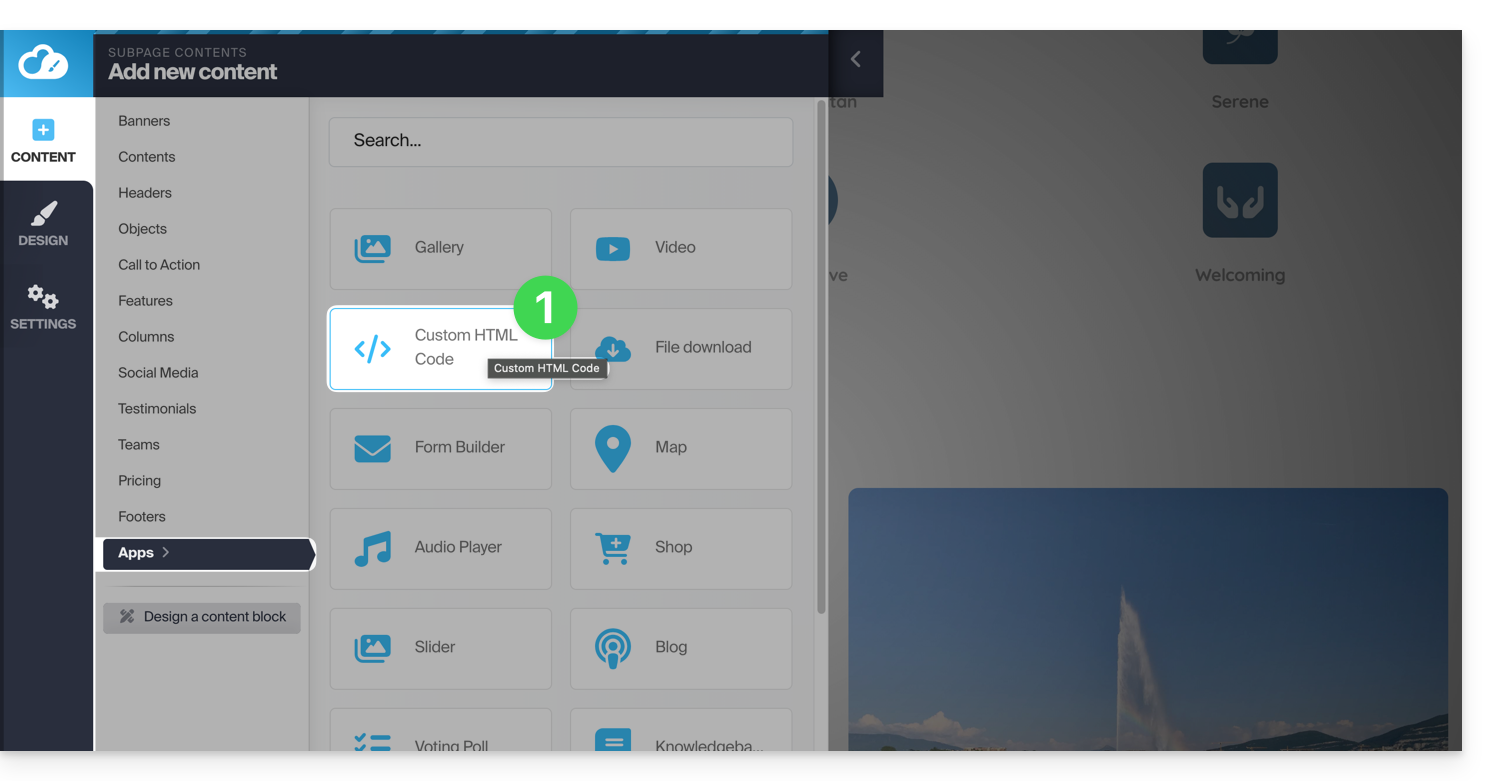
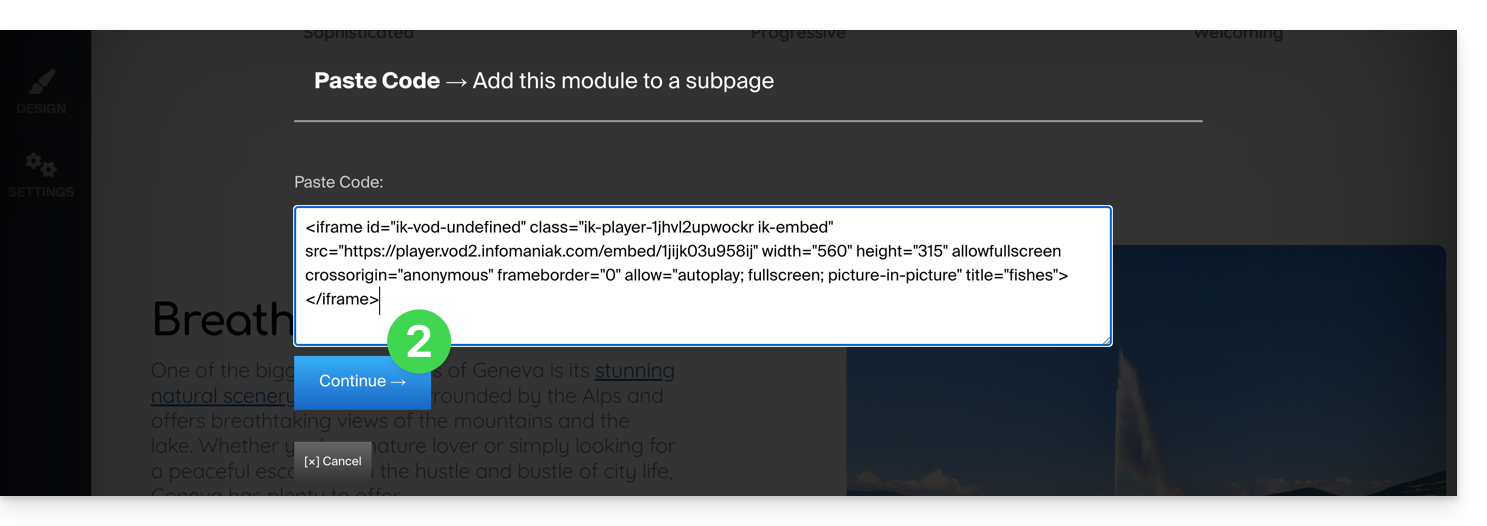
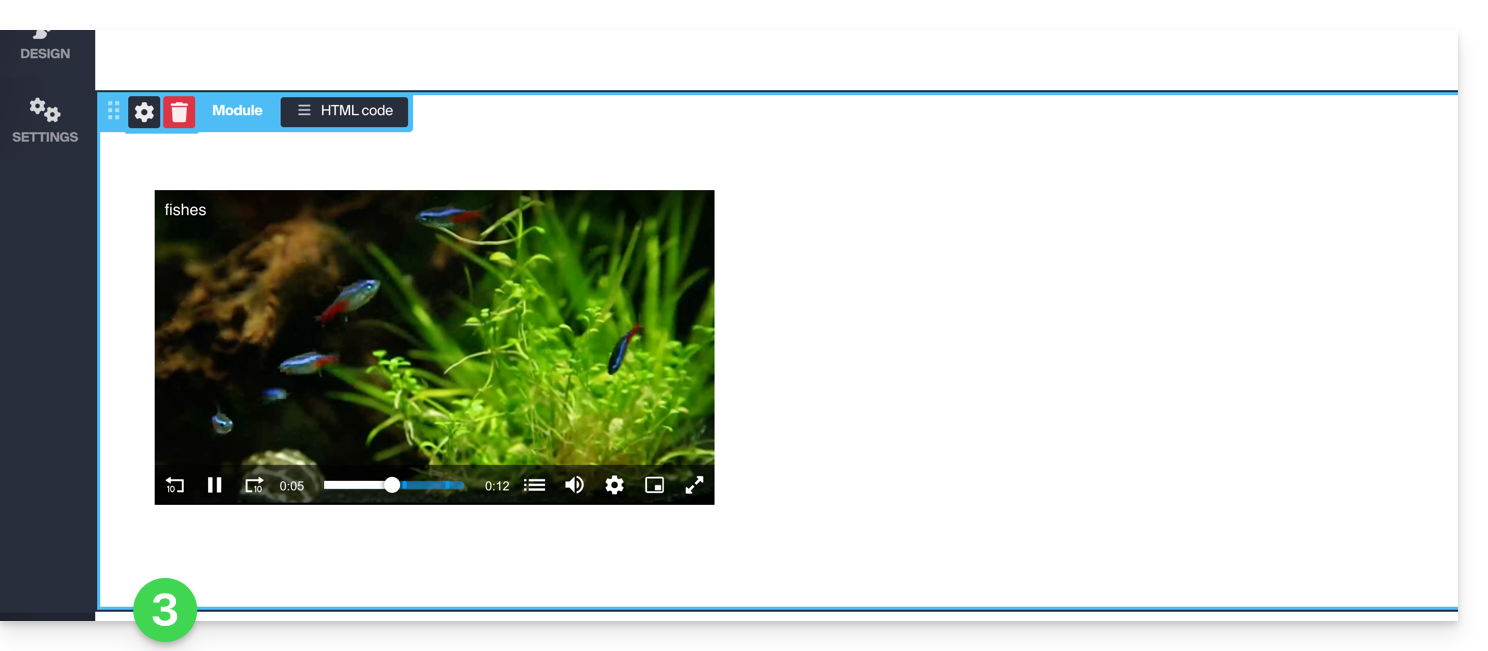
- Then paste this code on Site Creator within a “Custom HTML code” block:
This guide explains how to obtain and configure notifications in case of an incident or exceeding the consumption of VOD/AOD.
Email warnings
To configure notifications:
- Click here to access the management of your product on the Infomaniak Manager (need help?).
- Click directly on the name assigned to the product concerned.
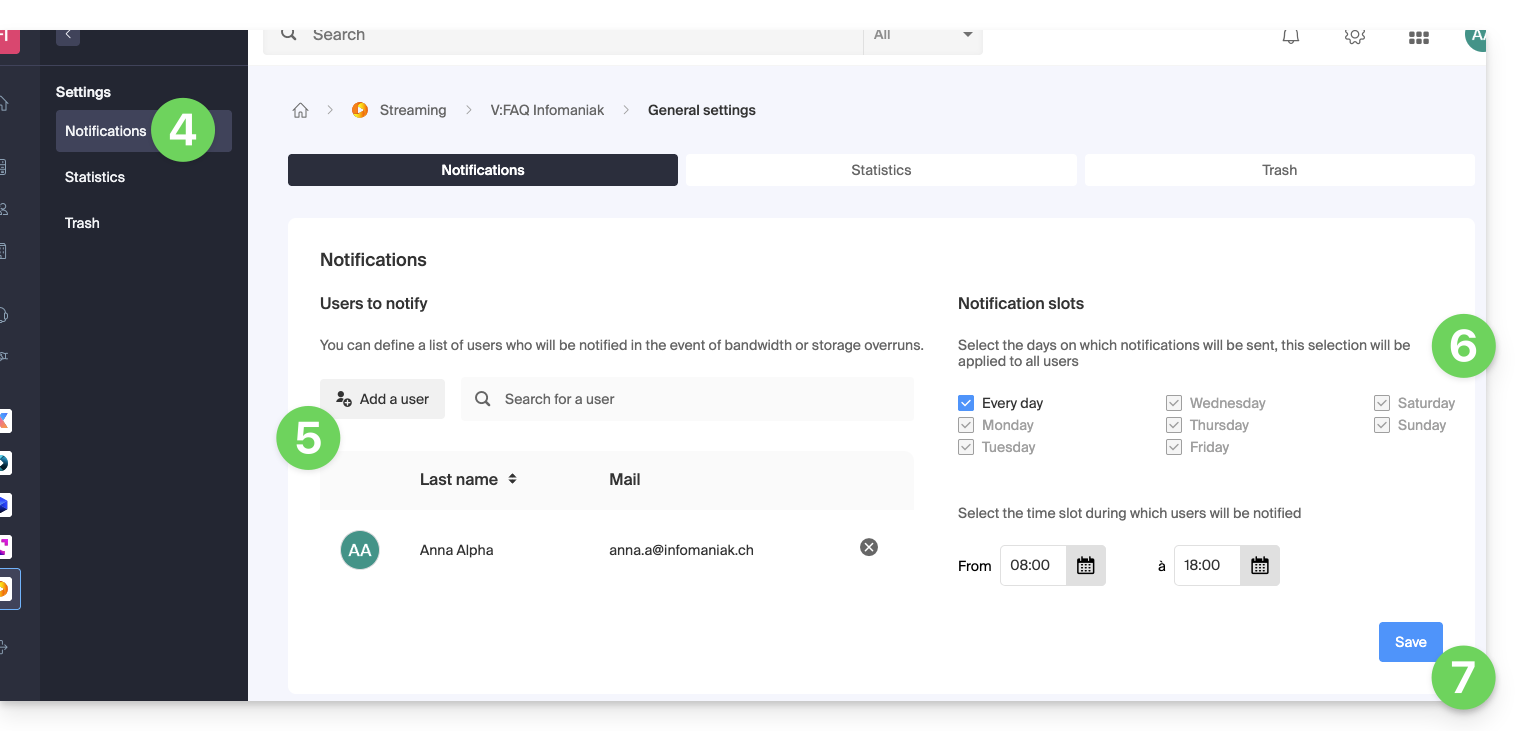
- Click on Settings in the left sidebar.
- Click on Notifications in the left sidebar.
- Add the Organization users to be notified by email.
- Configure the monitoring times (days of the week / hours).
- Save the changes:
This guide details some background operations performed by the VOD / AOD service from Infomaniak.
Operation of SOAP requests and callbacks
In the VOD (video on demand) and AOD (audio on demand) service, some operations such as file downloads go through SOAP requests, a protocol that allows two systems to communicate with each other, often used to exchange data between servers.
When a file is requested via SOAP, there may be a delay before the server responds. This delay depends on several factors, such as the file size, the server load, or the connection quality. The download starts as soon as possible, but it is important to know that there is a queue: if several users make requests at the same time, each one is processed in order, and each user has a limit on simultaneous downloads.
Callback: a notification at the end of the download
A callback is a system that notifies the client (for example, your application) once the download is complete. In other words, instead of waiting while monitoring the download, the system "calls" you or sends a response when everything is ready. This is useful to avoid blocking your application while the file is downloading.
However, there is also a maximum wait time, called a timeout. If this time is reached before the end of the download, a response is still sent. This does not mean that the download has failed, but that the response was given before it was completed. In this case, the processing continues in the background.
Large files take more time
When the requested file is large (for example, several hundred megabytes or even several gigabytes), the download can take several minutes. This time depends a lot on the remote server: some are very fast, others less so. The system tries to manage this as best as possible, but it is important to keep in mind that the response time will not always be immediate.
Blocking and non-blocking calls
By default, some SOAP clients wait for the server to finish responding before continuing. This is called a blocking call : your application is frozen until the response arrives. This can be a problem if the response takes time.
Fortunately, it is often possible to configure the SOAP client so that it does not block. This is called a non-blocking call. This allows sending multiple requests one after the other without having to wait for the response of each call. It is faster and more efficient, especially when processing multiple files in succession.
This guide explains how to protect videos imported on an Infomaniak VOD service with a unique key.
Preamble
- Note that token protection is only effective in the case of standard integration via iframe and therefore through the use of the Infomaniak Player.
- Other access restrictions can be activated: password | geoip
Protect a video with a unique key
You have the possibility to protect all the media in a folder by creating a token. The latter will be unique for each of your visitors and must be passed as a parameter to your media to limit access to it. Only you will be able to generate the unique key, necessary for each user to view the videos. This key therefore allows you to authorize only the people previously verified by you.
This allows you to control access to videos and authorize only certain people, while others are denied; useful in cases such as pay-per-view or limited broadcasts. However, please note that you are responsible for developing the integration with your existing system.
If the hash is not valid, access to the video will return an error page "403 forbidden".
Activate the restriction on the import folder
When the password is set once and for all at the destination folder level, all new media imports will automatically include this mode when read. To configure this folder:
- Click here to access the management of your VOD/AOD on the Infomaniak Manager (need help?).
- Click directly on the name assigned to the product concerned:
- Click on Media in the left sidebar menu.
- Click on Media Management in the left sidebar menu.
- Click on the icon to create a New Folder:
- Give a name to the folder.
- Click on the blue button to Create the folder.
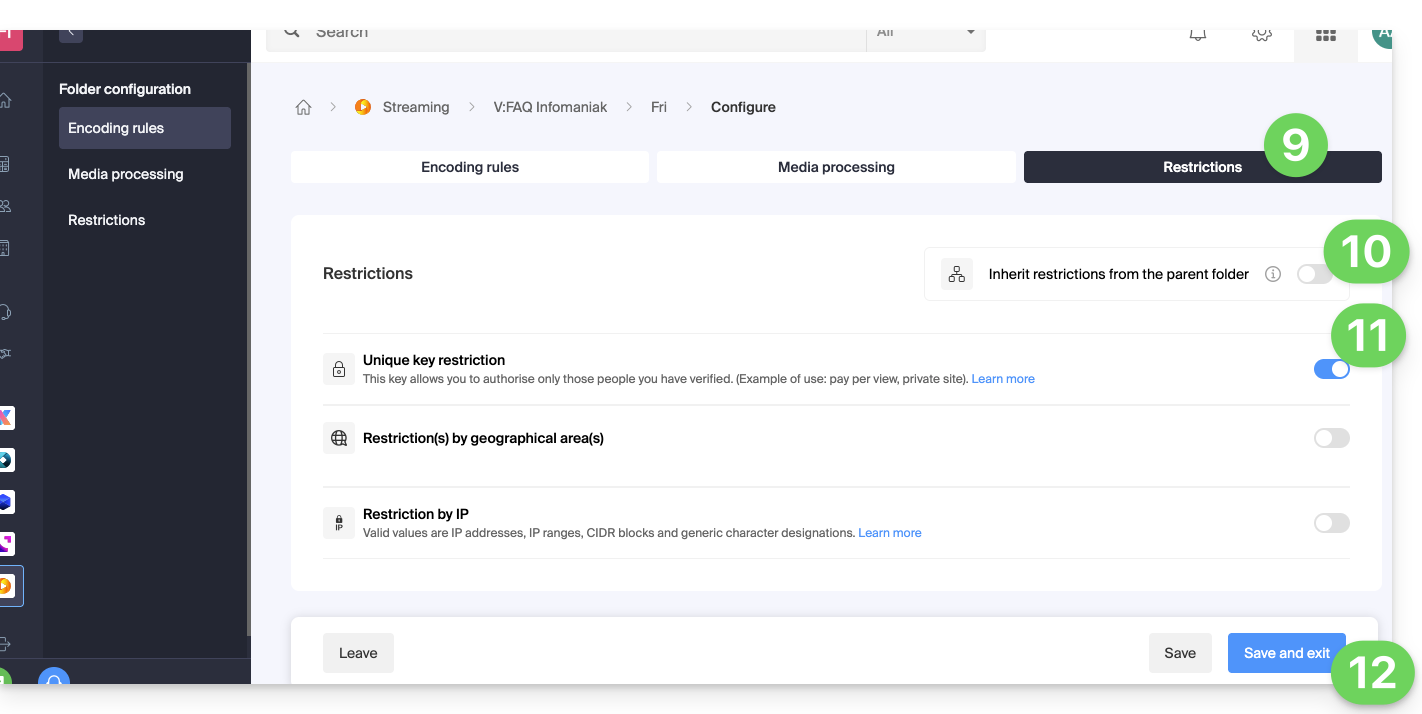
- Click on Configuration:
- Click on the Restrictions tab.
- Deactivate if necessary the toggle switch to remove the inheritance from the parent folder, this in order to be able to configure your own rules on this specific folder.
- Enable the toggle switch to configure the unique key restriction.
- Click on Save once the desired options have been configured:
1. Create a VOD API token
To access the VOD API, you must first authenticate using a token (to be done only once - it will be common for all folders you wish to protect); refer to this other guide and then the documentation https://developer.infomaniak.com/getting-started#authentication.
2. Create the playback token
This step will need to be done on your website/application, and this token must be unique, so generated for each visitor.
It is therefore important that the page responsible for token generation does not have a cache, to guarantee the uniqueness of the token.
POST https://api.vod2.infomaniak.com/api/pub/v1/channel/channel_id/share/share_id/tokenchannel_id = 1227share_id = corresponds to the identifier of your video
Example: https://api.vod2.infomaniak.com/res/embed/1jhvl2uqa5rdf.html
The list of parameters is available in the documentation https://developer.infomaniak.com/docs/api/post/channel/share/token
3. Use the unique token on a media
The token retrieved in point 2 above will thus be passed as a parameter to the media, it will be unique and therefore different for each visitor:
<iframe frameborder="0" width="720" height="360" src="https://api.vod2.infomaniak.com/res/embed/1jhvl2uqa5rdf.html?token=st=1637143497~exp=1637143797~acl=/hls/1jhvl2uq4dnra/1jhvl2uq4dnmd/*~hmac=914aa838bdba141ec85db74266b54278572a1353a49e8851e4fd096dc6372127" allowfullscreen></iframe>This guide explains how to move a media file that has been uploaded to a VOD/AOD space to another folder.
Preamble
- When moving, the media retains its different encodings.
- It is not re-encoded and therefore does not inherit the encodings of the destination folder.
Manage VOD/AOD media
To access the media:
- Click here to access the management of your product on the Infomaniak Manager (need help?).
- Click directly on the name assigned to the product concerned.
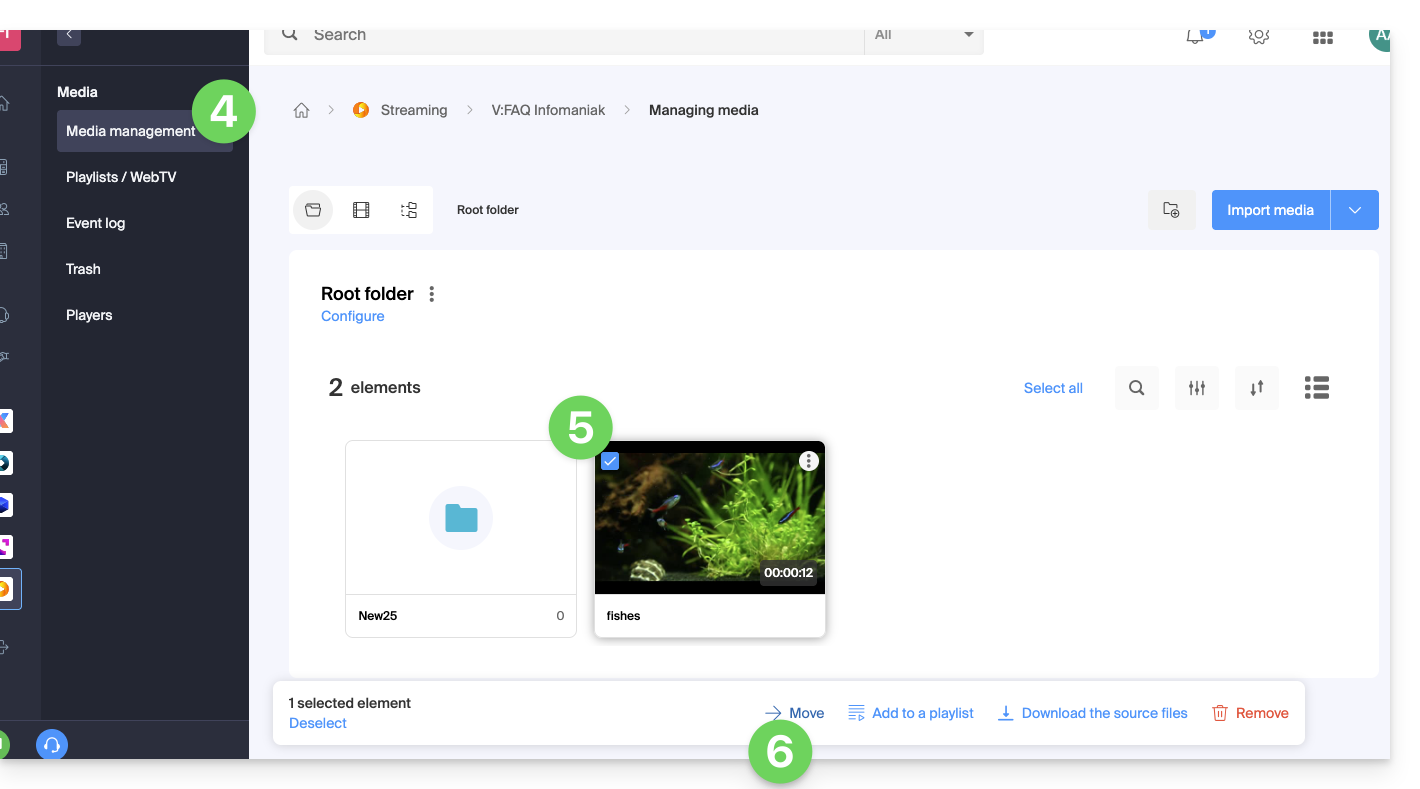
- Click on Media in the left sidebar.
- Click on Media Management in the left sidebar.
- Select one or more media files.
- Choose the desired option at the bottom of the page:
- … or click on a media file to open it and click on the action menu ⋮ on the right:
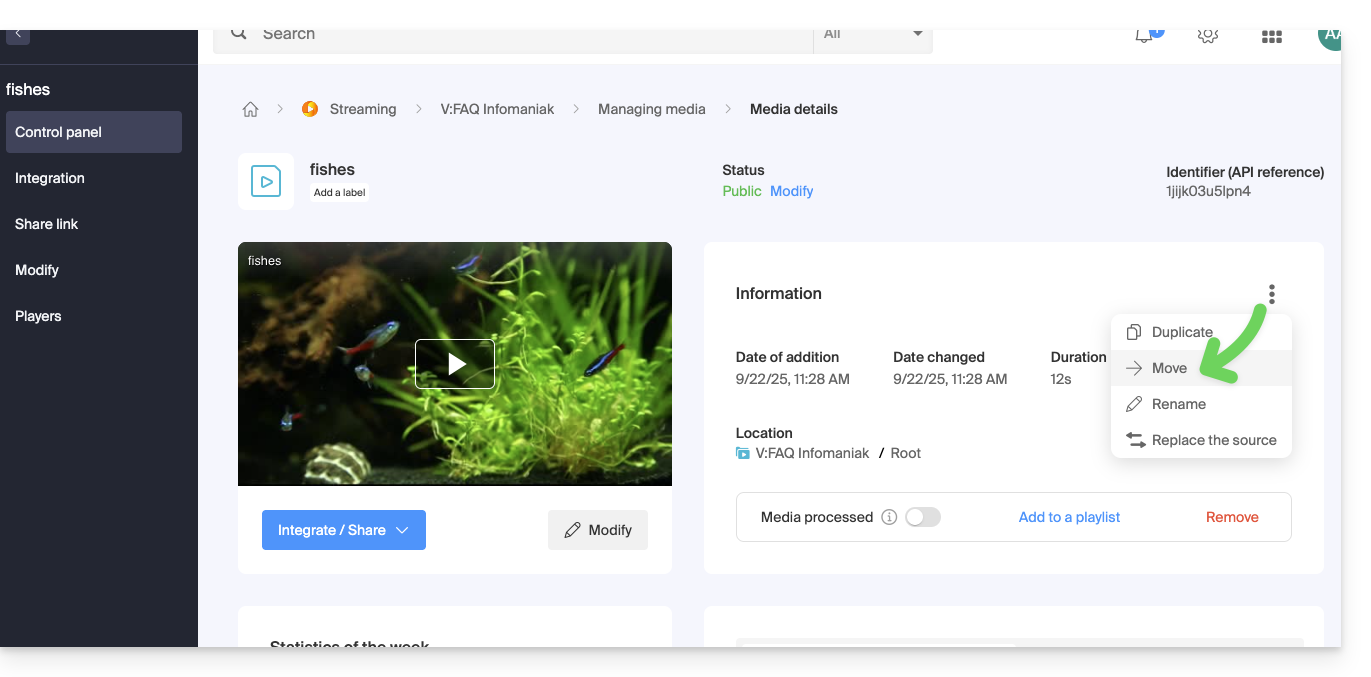
- … or click on a media file to open it and click on the action menu ⋮ on the right: