Knowledge base
1000 FAQs, 500 tutorials and instructional videos. Here, there are only solutions!
Secure videos with a password
This guide explains how to password-protect videos uploaded to an Infomaniak VOD service.
Introduction
- Playing a video within a Player configured on the VOD service will require a password, without which viewing will not be possible.
- It is not possible to specify multiple different passwords for the same video.
- Other access restrictions can be enabled and apply to access to the file: token | geoip
- You can manage the preview images used when restricting access.
Password-protect a video
Password protection can be configured in different ways.
1. Password at the import folder level
If the password is defined once for the destination folder, all new media uploads will automatically have this password when played. It is still possible to change the visibility of each video individually (see below).
To configure this folder:
- Click here to access the management of your VOD/AOD on the Infomaniak Manager (need help?).
- Click directly on the name assigned to the product in question:
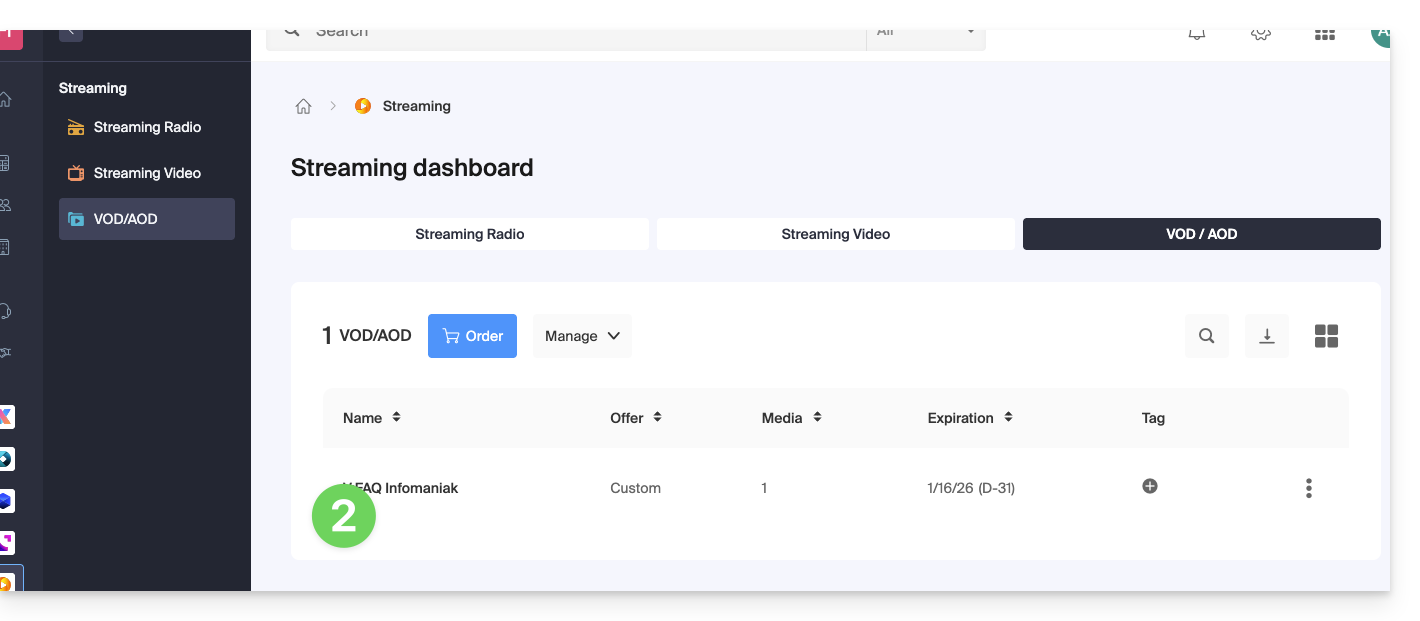
- Click on Media in the left-hand menu.
- Click on Media Management in the left-hand menu.
- Click on the icon to create a New folder:
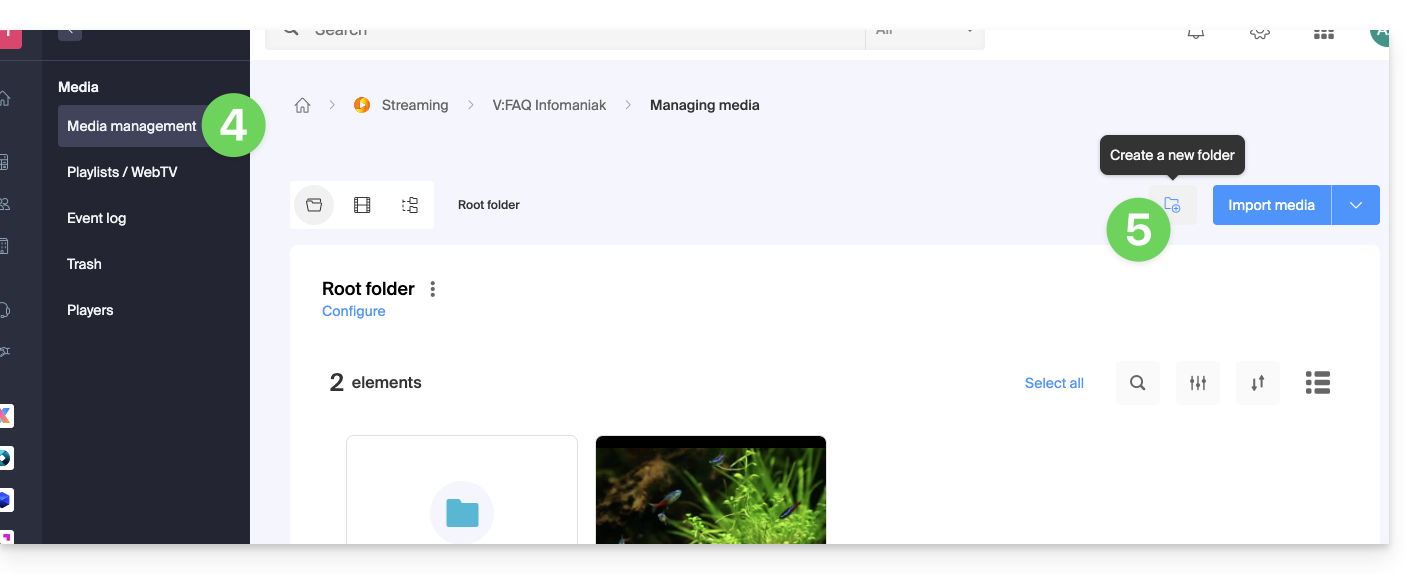
- Give the folder a name.
- Click on the blue button to Create the folder.
- Click on Configuration:
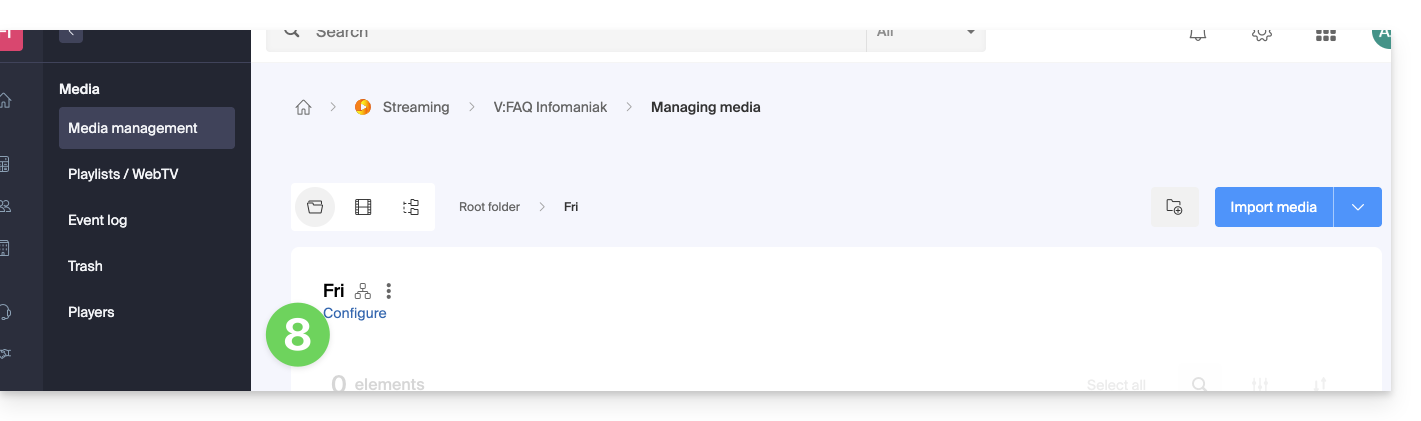
- Click on the Media Processing tab.
- If necessary, disable the toggle switch to remove the inheritance from the parent folder, so that you can configure your own rules for this specific folder.
- Under Visibility, choose the Password option and enter a new password with a minimum of 6 characters.
- Click on Save once the desired options have been configured:
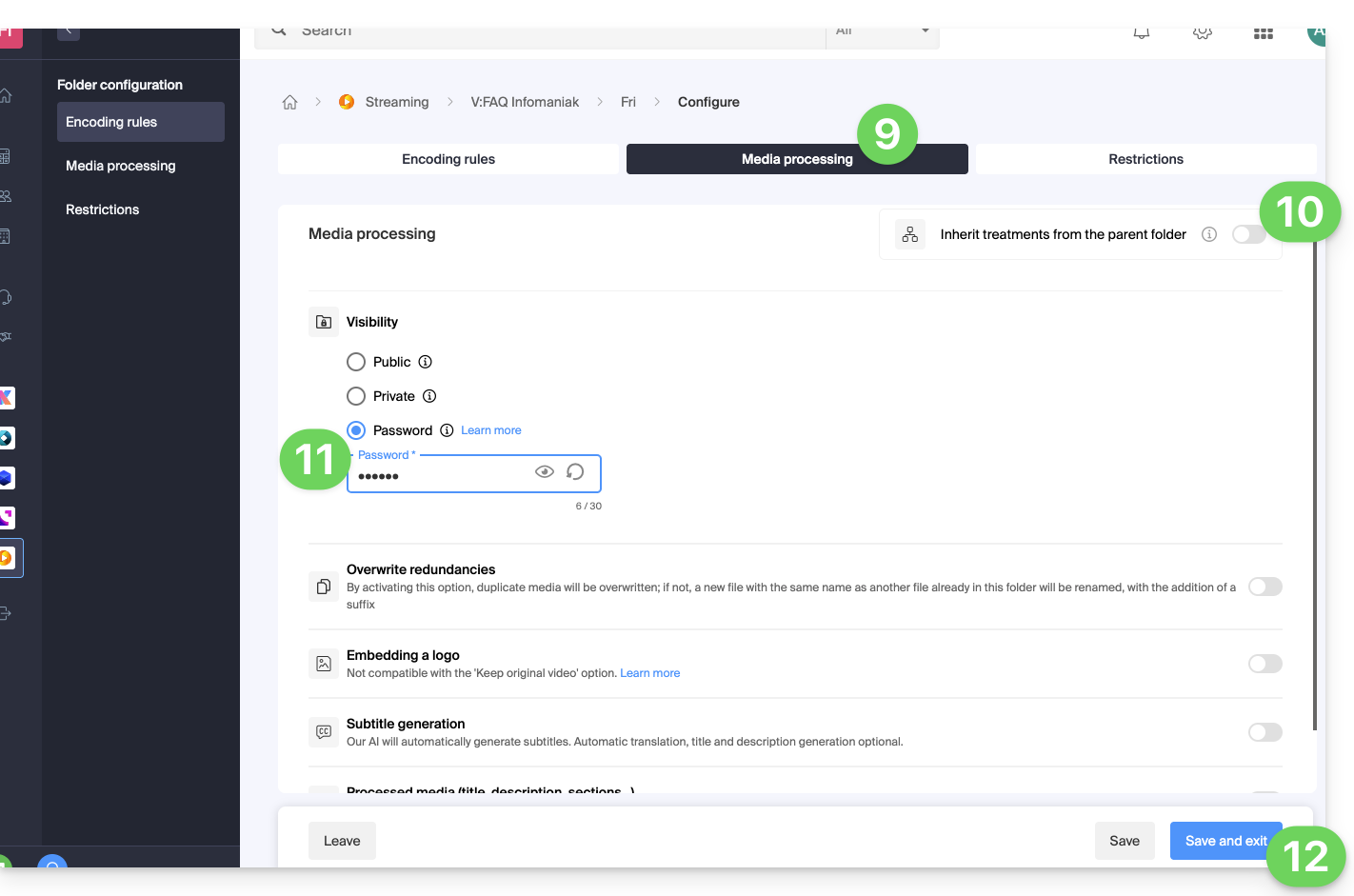
- Upload new videos to this folder so that they are password-protected when played.
A video that has already been encoded in another location in your VOD space will not be automatically protected, even if it is moved into this folder. You will need to change its status manually (see below).
2. Password defined manually for each video
To change the visibility of a video on a VOD service:
- Click here to access the management of your VOD/AOD in the Infomaniak Manager (need help?).
- Click directly on the name assigned to the product in question.
- Click on Media in the left-hand menu.
- Click on Media Management in the left-hand menu.
- Click on the video in question.
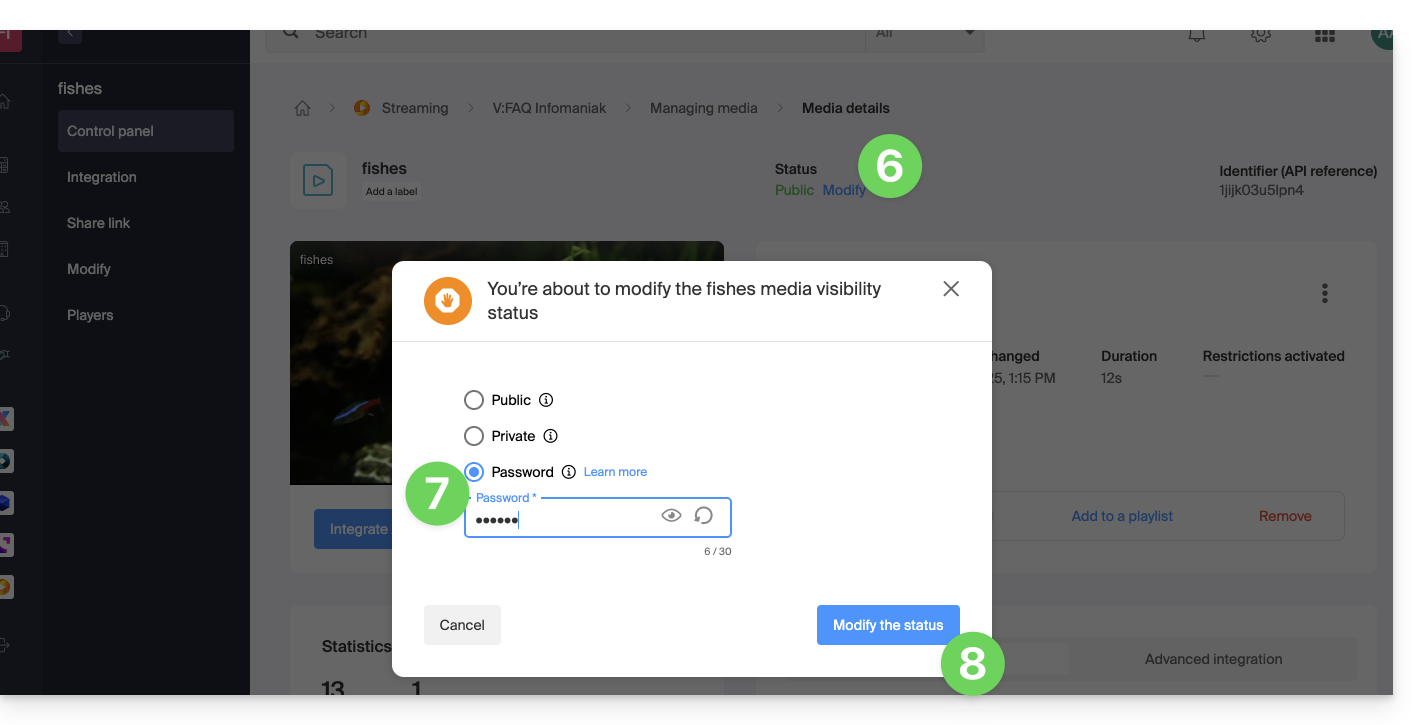
- Click on Edit in the Status section.
- To change the visibility of this media, choose the Password option and enter a new password with a minimum of 6 characters.
- Click on the blue button to Change the status:
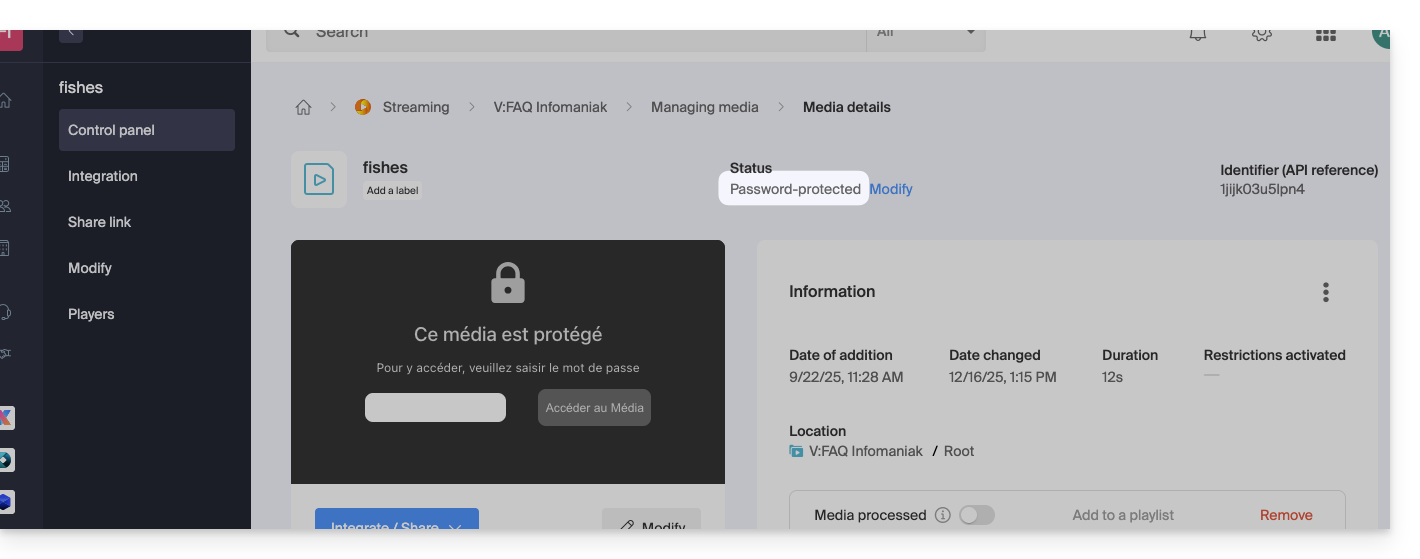
- The video is now password-protected:
Link to this FAQ: https://faq.infomaniak.com/1824
Has this FAQ been helpful?