Knowledge base
1000 FAQs, 500 tutorials and instructional videos. Here, there are only solutions!
Secure emails on Thunderbird
This guide provides a solution for users who wish to increase the security level of their email, on a particularly weak point if you use an email software/client to access your emails.
Also, refer to the fingerprint security for accessing emails on the Infomaniak Mail mobile app and this other guide if you prefer to secure email traffic.
All passwords in memory
When you use the Infomaniak online interface ksuite.infomaniak.com/mail to access and send your emails, it is accessible via your Infomaniak account on which two-factor authentication (2FA) is enabled.
Indeed, all the passwords of each of the email addresses that you have attached to Mail Infomaniak are in memory and you will not need to enter them each time you wish to access your messages.
But before that, you provide 3 pieces of information:
- your Infomaniak account login ID
- the password for this Infomaniak account login ID
- you then validate your access request through one of the existing additional means
Logically, a person in possession of your Infomaniak password will therefore not be able to access your email if they do not also have access to your mobile device for 2FA security.
Case of an email software/client
Double authentication (2FA described above) does not exist directly with email consultation protocols of the IMAP type. An email address is connected via a password generated upstream, and that's all.
Therefore, an email software/client installed on a computer will also keep all the passwords of each of the email addresses attached, and will not ask for a connection password.
There is a solution with Mozilla Thunderbird:
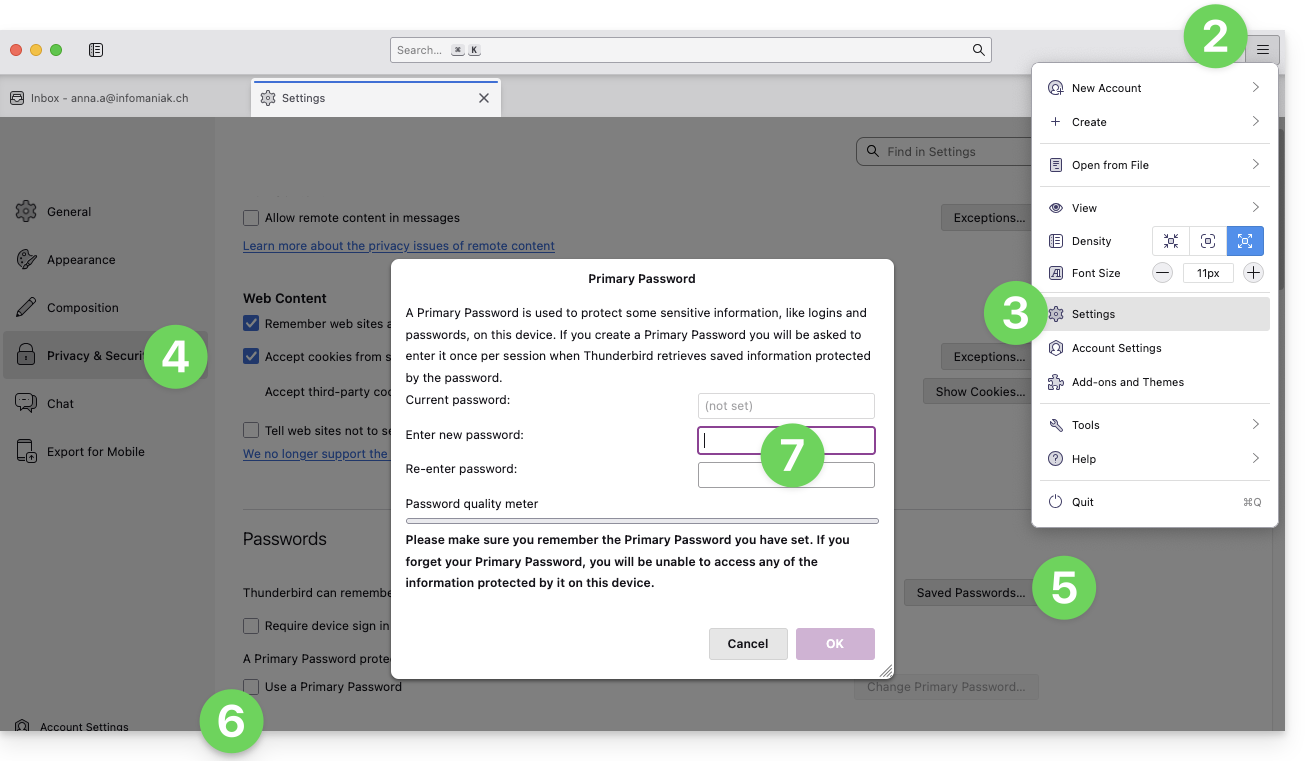
- Open the email software/client.
- In the top right, click on the three-line menu button ☰.
- Click on Preferences (and not on Account Settings).
- Click on Privacy and Security in the left menu.
- Scroll down to the Passwords section (all your email passwords in memory are here).
- Click on the Use a master password box.
- Enter your new software/client email password and click OK to finish:
Next:
- Close and then restart Thunderbird.
- When reopening, enter your main password.
- If you enter the password correctly, you will have access to your accounts.
- In case of failure, Thunderbird will still open, but it will ask you for the main password again.
This method especially protects you if you share your environment with other users.
Link to this FAQ:
Has this FAQ been helpful?