

1000 FAQs, 500 tutorials and explanatory videos. Here, there are only solutions!
Manage the kDrive Lite Sync option (macOS)
This guide details the Lite Sync option of the desktop app kDrive (desktop application on macOS).
Preamble
- The Lite Sync feature saves space by virtually storing your kDrive files on your computer, only downloading them when necessary.
- The files are always accessible from the kDrive web app (online service ksuite.infomaniak.com/kdrive) but locally they are present in a "dehydrated" way, requiring a loading time to be fully accessible.
- This allows you to view, complete, and synchronize the content of kDrive without saturating the hard drive.
- The Lite Sync option always acts:
- on a specific kDrive (in the case where you synchronize several on the application).
- and on the entirety of the kDrive (or the entirety of an advanced synchronization).
- and via a specific kDrive app (another user of the same kDrive can make a different Lite Sync choice from yours).
- In case of a problem, consult this other guide on the subject.
Activate the Lite Sync option
Prerequisites & scope of use of Lite Sync
- macOS version ≥ 10.15 — not available with Linux
- File storage system under NTFS / APFS
The Lite Sync option can be activated during the installation of the application (this is offered to you) or subsequently:
- Perform a left-click on the app icon in the notification area of your computer (top right on macOS).
- Click on the action menu ⋮ to the right of the kDrive window.
- Select kDrive settings:
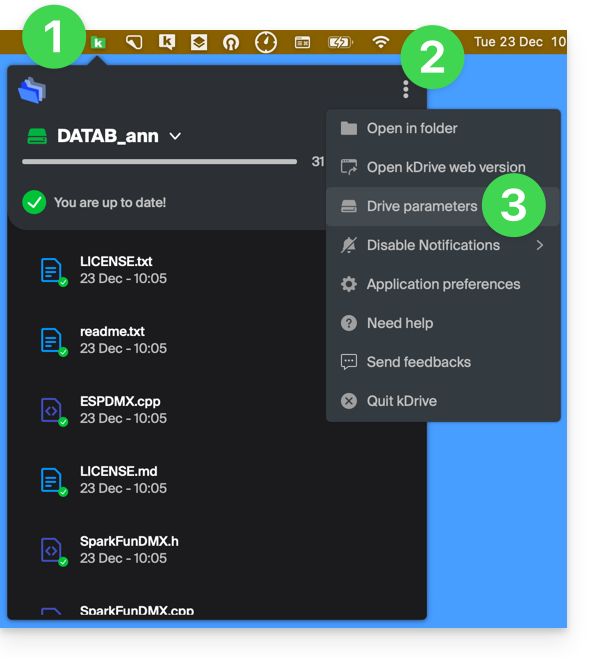
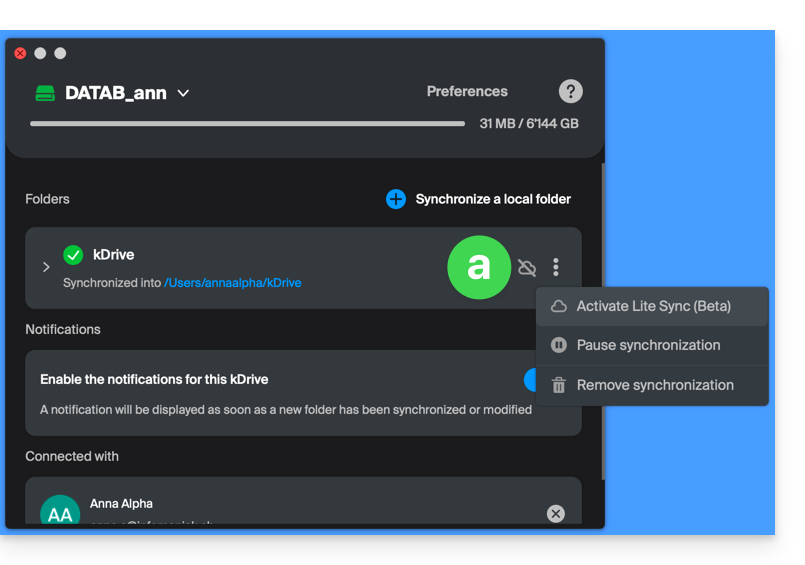
- Click on the action menu ⋮ to the right of the current synchronization and the cloud symbol:
- If the cloud is crossed out, you can activate Lite Sync as it was not yet active:
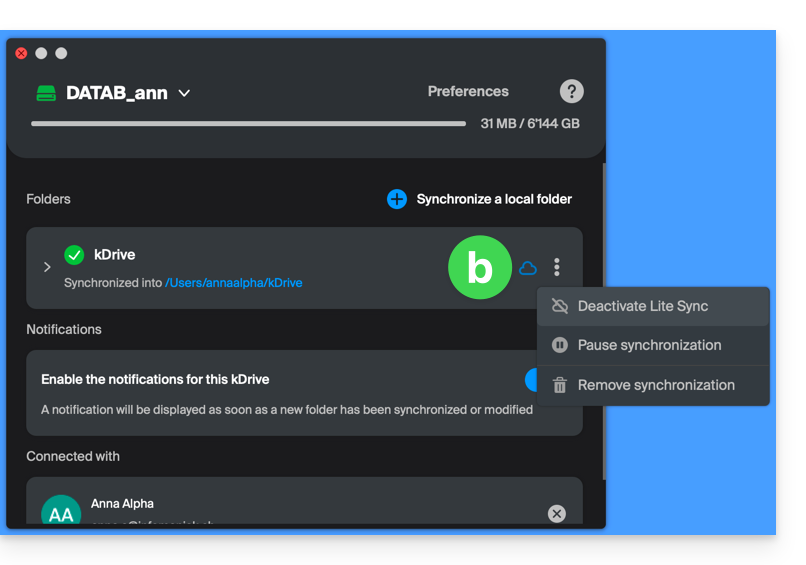
- In the same place, you can deactivate Lite Sync if the cloud was not crossed out (also read at the end of this guide):
- If the cloud is crossed out, you can activate Lite Sync as it was not yet active:
Actions on data synchronized on the disk
Always keep on this device
Once Lite Sync is activated (and therefore the data on the disk has become “virtual”), you can still make a folder and its subfolders or just one or more files locally available:
- From the macOS Finder, navigate to a folder synchronized with kDrive and right-click.
- Select the option Always keep locally available under kDrive:
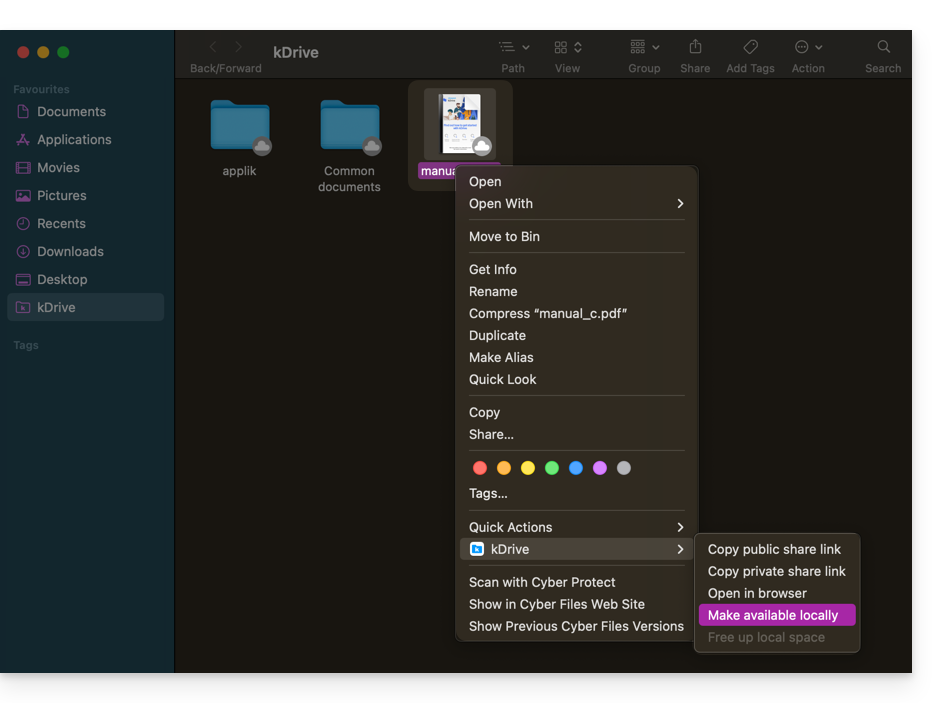
- The symbol visible on the icon of the affected files will change to indicate that the file is no longer "in the cloud" but fully present on your disk:

Free up space
Conversely, once Lite Sync is activated, you can free up space, file by file or in a folder and its subfolders.
Note: "free up space" is not applied by default to new files or folders added locally.
- From the macOS Finder, navigate to a folder synchronized with kDrive and right-click.
- Select the option free up local space under kDrive:
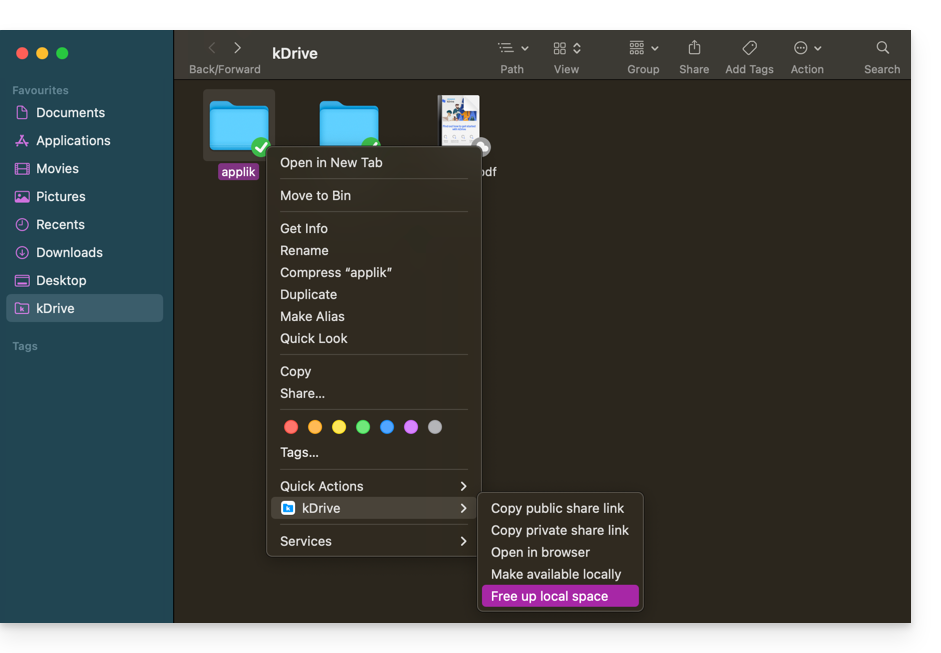
- The symbol visible on the icon of the affected files/folders will change to indicate that the data is “in the cloud” and no longer fully present on your disk:

- The action Free up space will free up storage space on your computer.
- The files will remain visible but will not be accessible without an internet connection.
Example of use (required storage space)
If you activate Lite Sync, the space occupied (900 GB for example) on the Infomaniak server will be freed up on your hard drive, but the opposite is also true (for example, 900 GB of free space required on your hard drive if the Lite Sync option is activated midway).
Therefore, it is recommended to keep the initial choice of whether or not to activate Lite Sync and not to change it midway.
File "dehydration"
As explained in the preamble, a dehydrated file is a kDrive file whose complete version is not present on the hard drive and instead a 1 KB "shortcut" is displayed, which is normal behavior when Lite Sync is activated.
In some cases (for example, if you copy the files from your hard drive while Lite Sync is activated, and then start a new synchronization to a new kDrive) the application will block the import of this type of file. To resolve these errors, you can download the complete file from the kDrive web app (online service ksuite.infomaniak.com/kdrive).
Here are the status icons that are used and their explanations:
| Status icons | Description |
|---|---|
| |
| |
| kDrive encounters a synchronization conflict with the file/folder. | |
| An error occurred during the transfer of the file/folder and it was interrupted. | |
| The progress circle indicates a download in progress. |
Disable the Lite Sync option
To do this, follow the steps at the top of this guide (point 4.b in particular). When disabling LiteSync, two scenarios may occur depending on the remaining space on your device's storage:
- If there is sufficient space on your computer, a message confirming the deactivation will appear; simply click Continue.
- If there is not enough space on your computer, a message will indicate the missing space to allow the deactivation of Lite Sync; the synchronization of your kDrive will be paused until you select the files to synchronize on your computer.