

1000 FAQs, 500 tutorials and explanatory videos. Here, there are only solutions!
Configure Outlook (iOS / Android app) in IMAP (mail)
This guide explains how to connect the mobile app Microsoft Outlook (app for smartphone or tablet iOS / Android) to an email address hosted by Infomaniak.
Preamble
- The app Outlook Lite is not compatible with the IMAP protocol… Only install the version offered above.
- Instead of the manual configuration below, it is recommended to use the app Infomaniak Mail (iOS / Android).
- The various services offered by Infomaniak are all compatible with the corresponding standard protocols (IMAP/SMTP for email, for example), therefore if you encounter a problem with third-party software, contact its publisher or a Partner and consult the support policy as well as article 11.9 of the Infomaniak Terms of Service.
Add the email address to the application
Prerequisites
- Create the email address in my kSuite or a Mail Service / kSuite.
- Create a password for the email address for the device you are going to configure.
To configure the email application:
- Open the application.
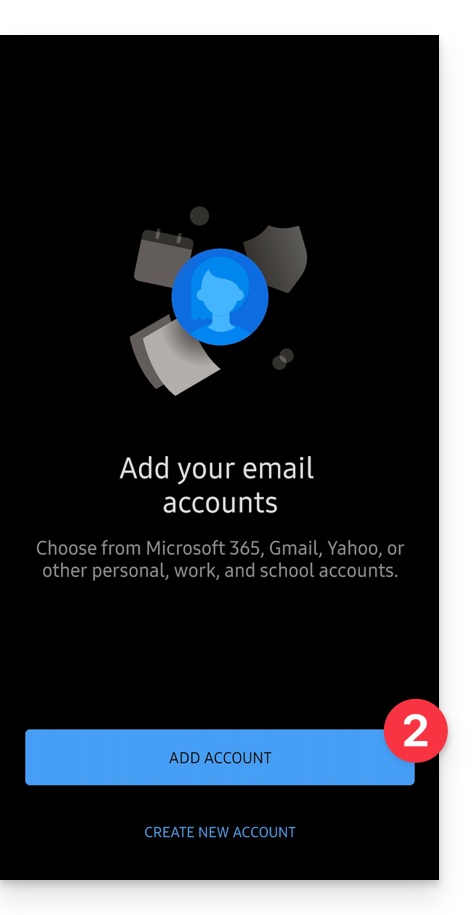
- Click on Add an account:
- Enter the email address to be linked.
- Click on Continue:

- Click on IMAP:

- Check and complete the missing information.
- Click on the icon ✓ at the top right:

- Click on the left to complete the configuration:

- That's it, your email address is now configured in the application:

Recommended settings
- Incoming IMAP server =
mail.infomaniak.com - IMAP port =
993(with SSL) - Outgoing SMTP server =
mail.infomaniak.com - SMTP port & encryption protocol and command/method to activate this protocol:
587+ STARTTLS - Username = full & complete email address ( ? )
- Password = the one generated for the email address you want to access
- Authentication required to send emails:
- It is activated in the SMTP settings of your application.
- Check "use the same parameters as the incoming server" or depending on the software/email clients, enter a username (= full & complete email address) and the generated password.
Refer to this other guide if you are looking for information about other compatible messaging ports and protocols (SSL / TLS for example).
In case of problem
Check that the Mail Service is configured optimally.
There is no need to contact Infomaniak Support if your email address works well outside the application. The most common error concerns the use of an incorrect password. The troubleshooting guides help you resolve any potential issues:
- Refer to the solutions given in this other guide regarding email in general.
- This other guide is more specifically about Outlook.
… and if your Outlook no longer works since a change of email password, refer to this other guide.