Knowledge base
1000 FAQs, 500 tutorials and instructional videos. Here, there are only solutions!
Manage kDrive storage in my kSuite
This guide explains how to monitor the storage space used on your free my kSuite cloud plan (ik.me, etik.com, ikmail.com) and how to free up space.
Introduction
- The free my kSuite cloud offer includes a maximum storage of 15 GB.
Check your free storage space
To access your current my kSuite plan and view the storage space used:
- Click here to access kDrive on your Infomaniak my kSuite (❓: help).
- The storage space used is displayed at the bottom of the left-hand menu.
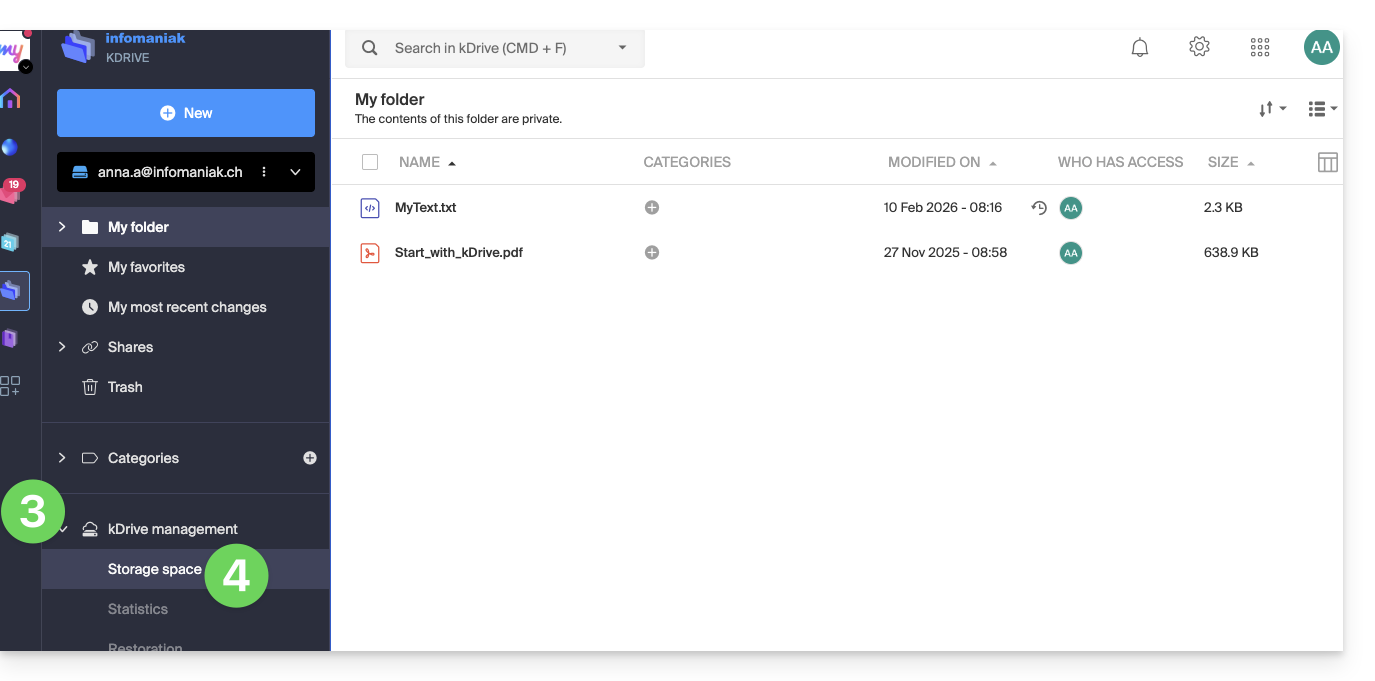
- Click on the chevron to expand the kDrive Management section in the left-hand menu.
- Click on Storage space in the left-hand menu for a more detailed overview:
Free up storage space
To free up space on your free kDrive, simply deleting large files (videos, etc.) is not enough, as files still take up space once they are placed in the trash. They remain there for a certain period of time.
Empty the kDrive trash
You need to manually empty the trash to permanently delete the files it contains:
- Click here to access kDrive on your my kSuite Infomaniak account (❓: help).
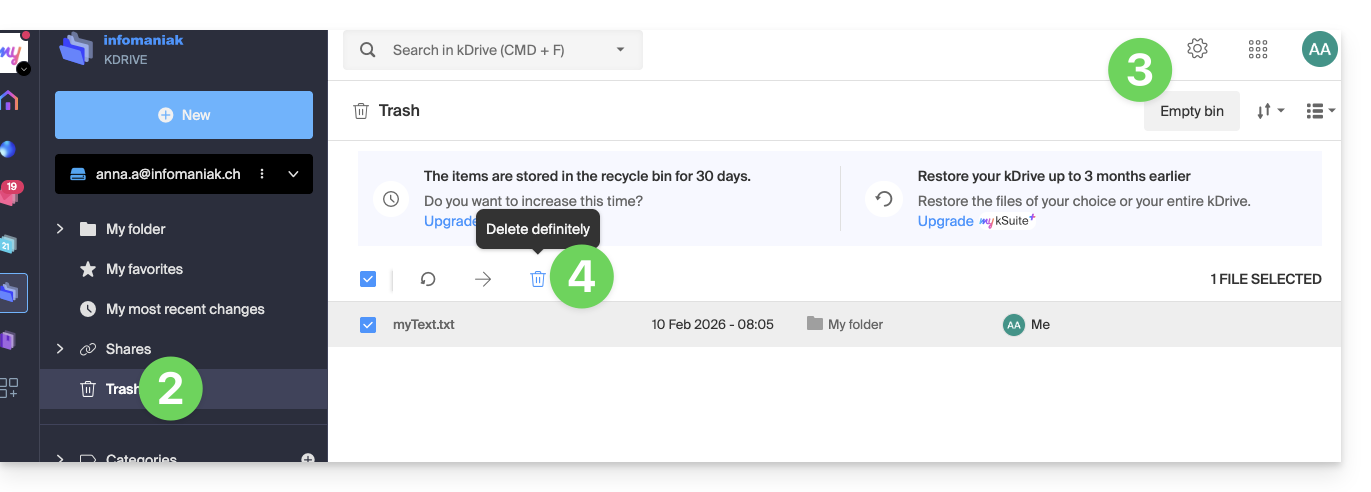
- Click on the Trash icon in the left-hand menu.
- Click on the Empty Trash button to delete all files in the Trash…
- … or select files individually and then click on the trash can icon above the table:
It is also worth noting that whenever a change is made to one of your files, kDrive (my kSuite) saves up to 30 versions for 30 days. This allows you to navigate between multiple versions of a file and restore an older version if needed.
You can delete all versions of the document by clicking the Delete all versions button, or delete versions individually by clicking the ⋮ icon and then clicking Delete. However, this does not free up much space because this versioning is not counted in your kDrive storage space: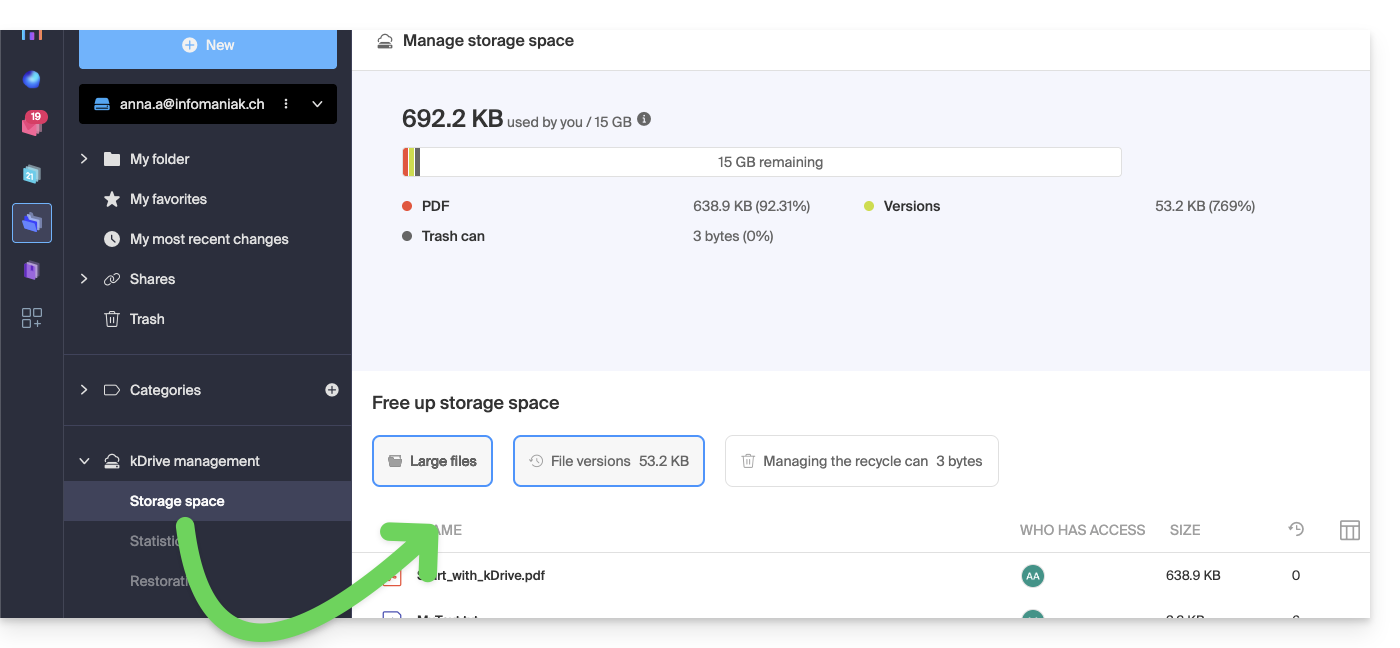
Link to this FAQ: https://faq.infomaniak.com/2487
Has this FAQ been helpful?