

1000 FAQs, 500 tutorials and explanatory videos. Here, there are only solutions!
Change the IMAP special folders of an email address
This guide explains how to change the location of certain folders automatically present in the directory of your Infomaniak email address.
Preamble
- The directory of a classic mailbox can contain certain special folders such as the one that stores emails…
- … once they have been sent (= "Sent messages" or "Sent").
- … for a few days before their final deletion (= "Trash" or "Bin").
- Everything is already configured so that by default it is synchronized between the different messaging interfaces around the globe.
- If you wish to make adjustments for various reasons, sometimes linguistic, then refer to the guide below to modify these special folders:
- drafts
- sent
- bin
- archives
- This allows you to personalize the synchronization of these folders with IMAP clients such as Outlook, Mail iOS, Thunderbird, Spark, etc.
- Note that this does not change the email retention period placed in some of these special folders.
Access from the Infomaniak Web Mail app
Prerequisites
- Have a valid access to the Web Mail app Infomaniak (online service ksuite.infomaniak.com/mail) to which the email address is attached.
- Have permission to modify special folders: it is possible that the Mail Service manager has removed this right from their admin account:
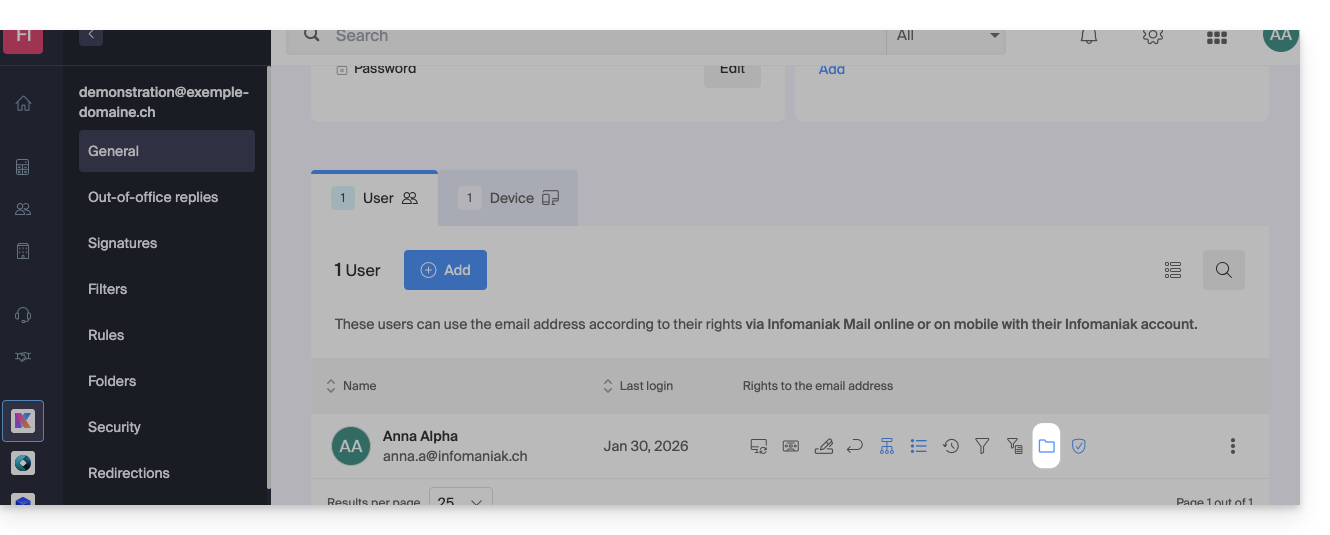
To modify these special folders:
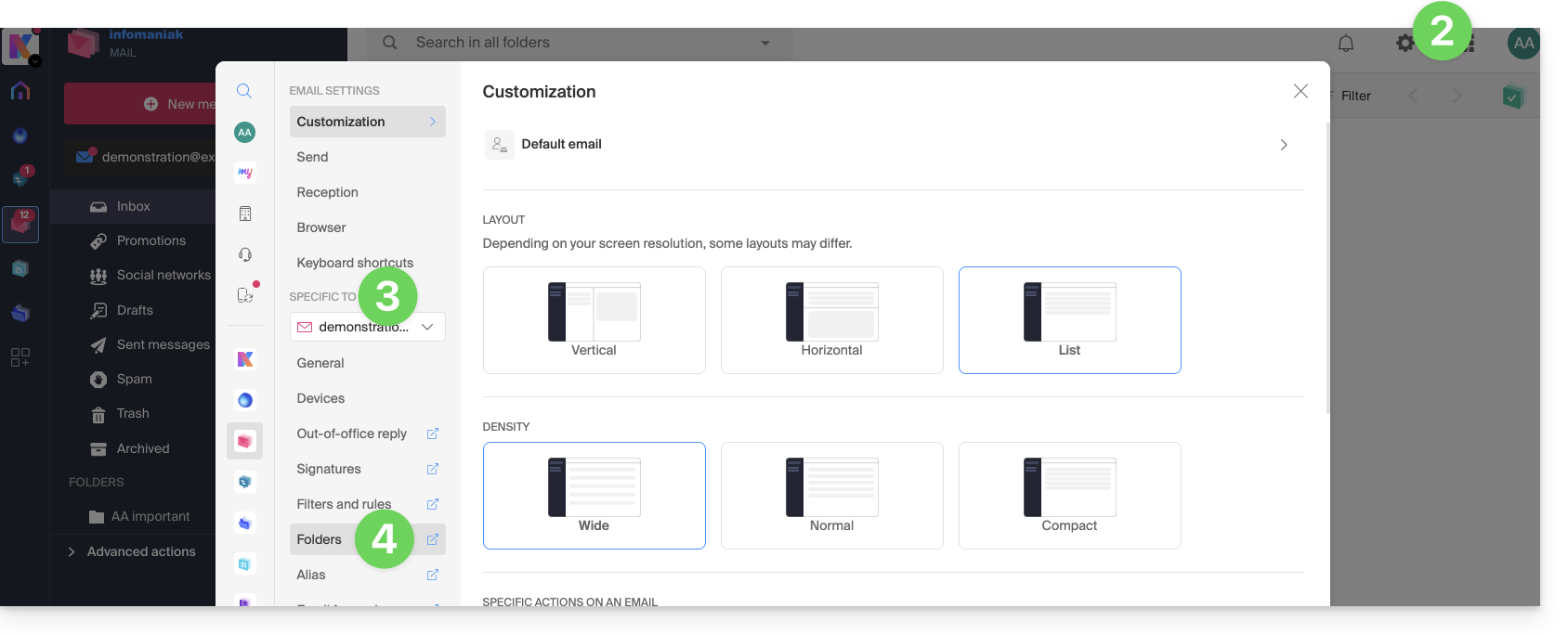
- Click here to access the Web Mail app Infomaniak (online service ksuite.infomaniak.com/mail).
- Click on the Settings icon at the top right.
- Check or select the email address concerned in the dropdown menu of the left sidebar.
- Click on Folders:
Access from the Mail Service
To access this option from a Mail Service:
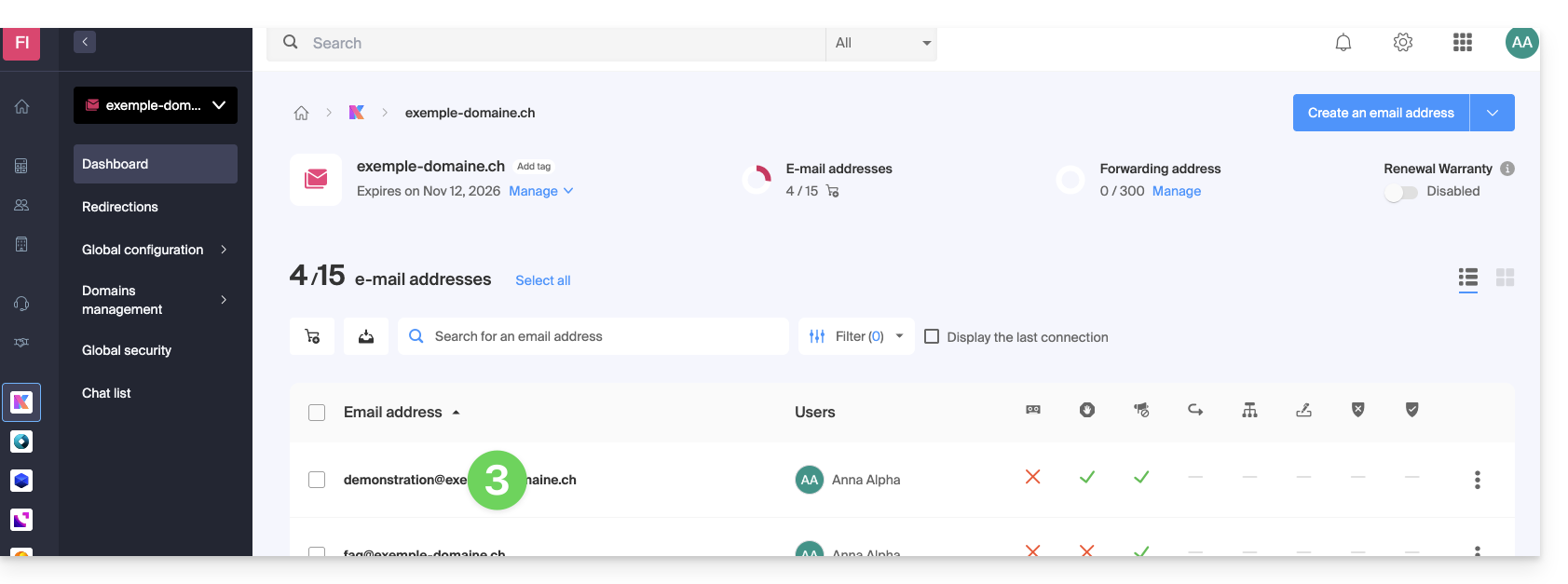
- Click here to access the management of your product on the Infomaniak Manager (need help?).
- Click directly on the name assigned to the product concerned.
- Click on the email address concerned in the table that appears:
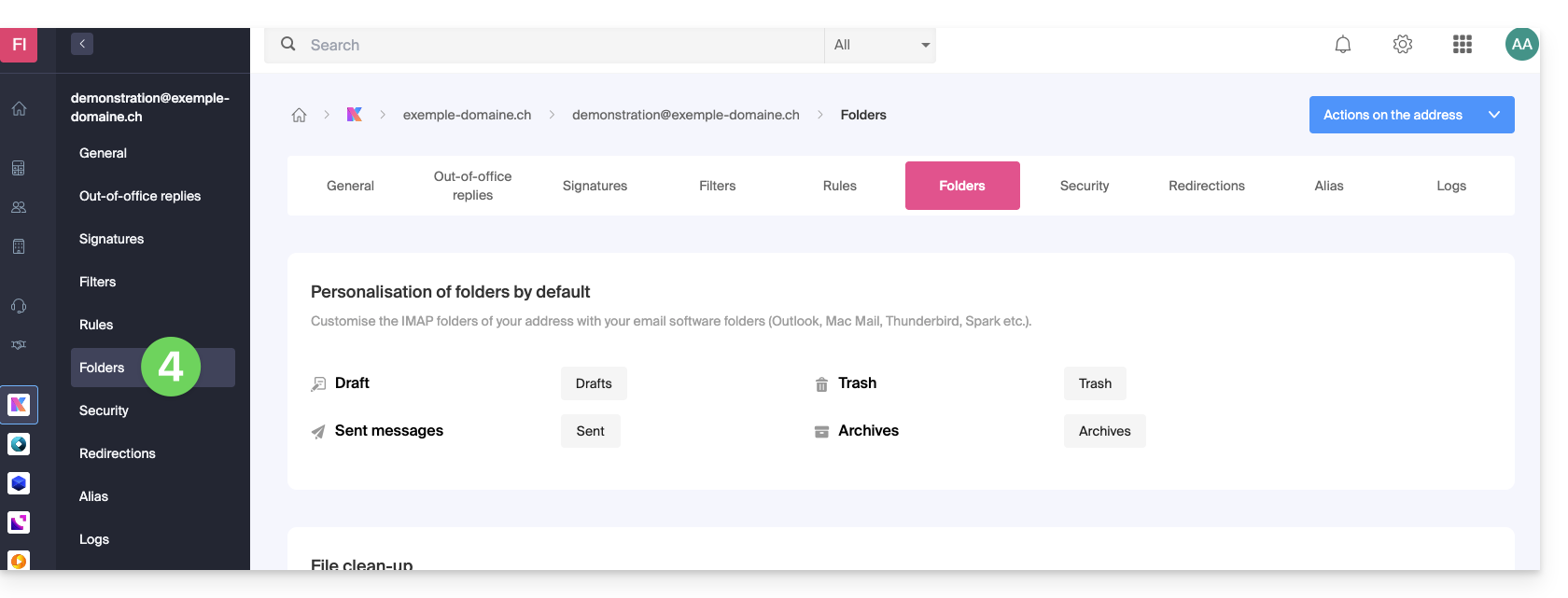
- Click on the tab/menu Folders:
Configure special folders
For security reasons, folder management is confidential and reserved for users added to the email address concerned.
Select the desired folders to store by default your drafts, archives, sent messages, and your trash by clicking on the area to the right of each item: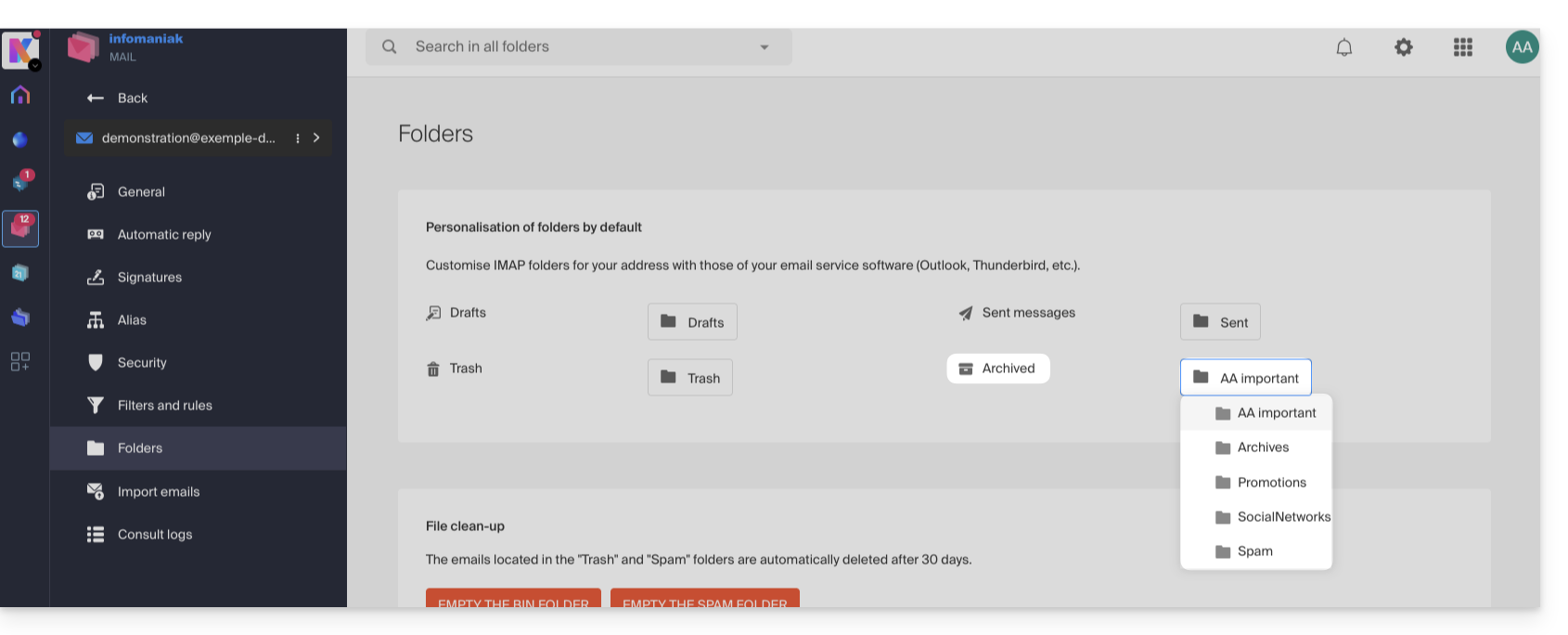
This will display the list of folders already present in the hierarchy of your mailbox.
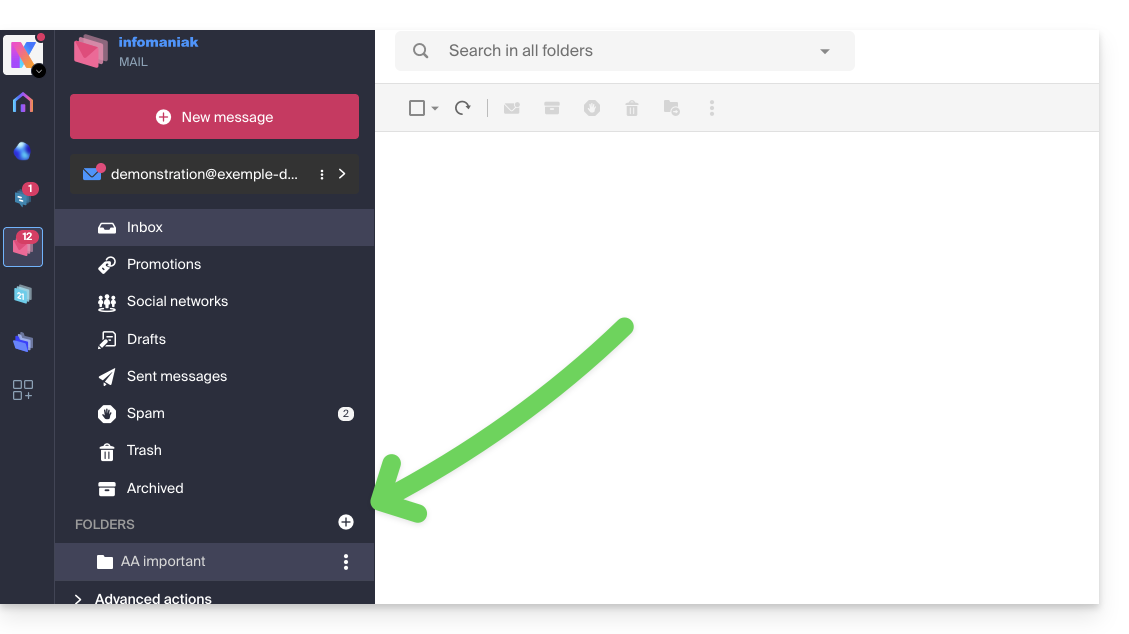
- If necessary, create the desired folder in advance from Mail or an IMAP software:
To modify the default folders that receive spam and advertising messages & social network notifications, you need to do this directly from the Spam Filter and Advertising Filter sections: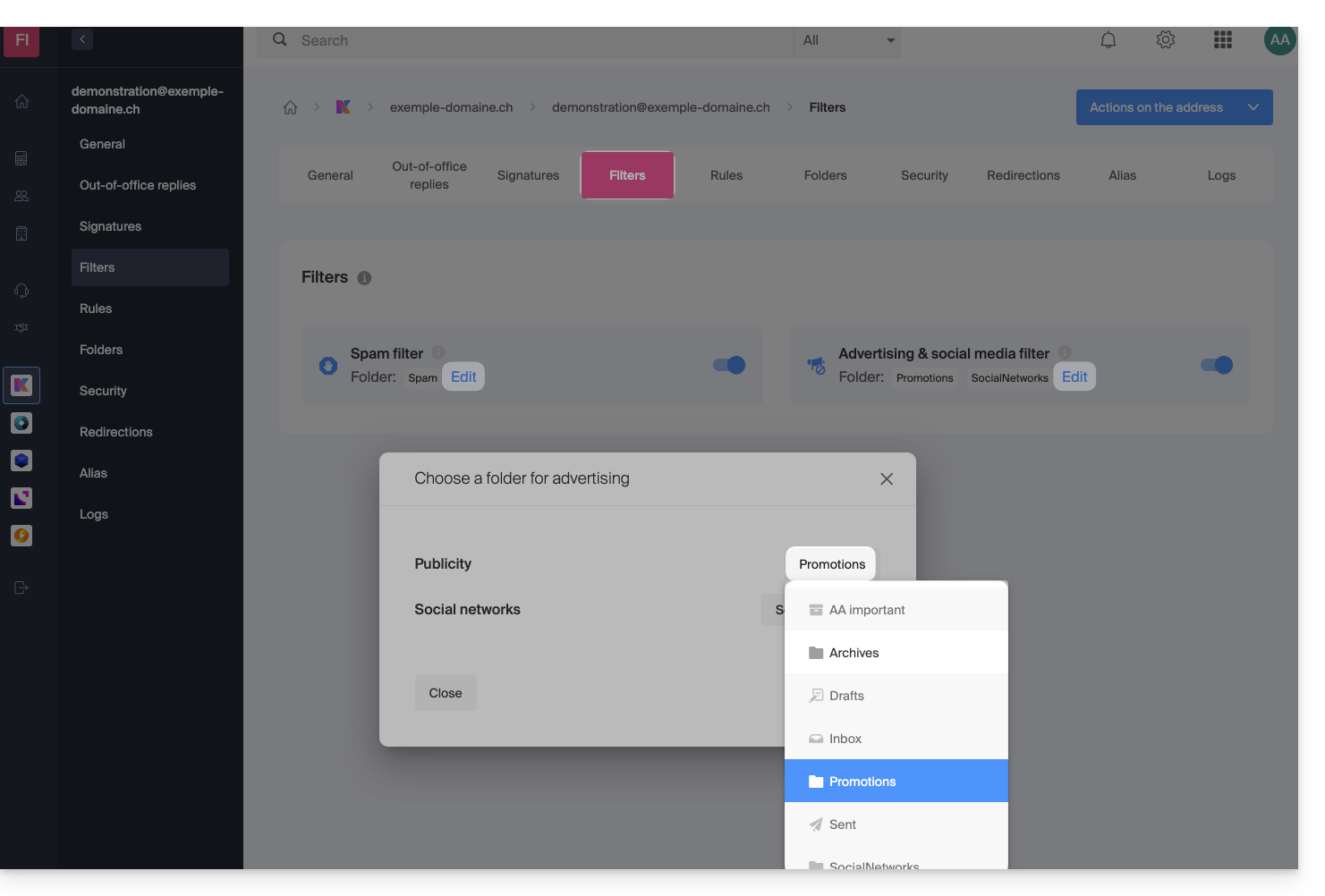
Alternative solutions for…
Some email software/clients also allow you to change the location of special folders. Refer to the official documentation of your application if needed. The following links are provided for information:
… Mozilla Thunderbird
Refer to this other guide if you are looking for information on assigning specific folders (such as Trash, Drafts, Sent Mail) to the IMAP account and synchronizing them with Infomaniak.
… Microsoft Outlook 2013
Refer to this other guide if you are looking for information on how the use of the IMAP protocol in the application can lead to a configuration where messages are stored only locally and not synchronized with the server, which contradicts the main goal of IMAP to maintain consistency across devices.
… Microsoft Outlook 2021
Refer to this other guide if you are looking for information on how to save sent emails in the “Sent” folder rather than “Sent Items” in the application.
… Apple iOS
Refer to this other guide if you are looking for information on how to configure the sent, draft, and deleted mail folders on an iPhone to be synchronized with the mail server, by accessing the advanced settings of the Mail app and selecting the corresponding folders on the IMAP server.