

1000 FAQs, 500 tutorials and explanatory videos. Here, there are only solutions!
Add or remove a user from an email address
This guide explains how to add a user to an existing email address on Infomaniak without sharing a password.
If the email address in question is used as a login identifier for an Infomaniak account, it cannot be shared for security reasons.
Prerequisites
- Order a Mail Service from Infomaniak.
- Create one or more addresses on this Mail Service.
- Be Administrator or Legal Representative within the Organization.
Add a new user to an email address
The current email access management model allows each user to log in independently and securely to the same email address, without sharing a global password:
- Click here to access the management of your product in the Infomaniak Manager (need help?).
- Click on the product name concerned.
- Select the email address concerned in the table.
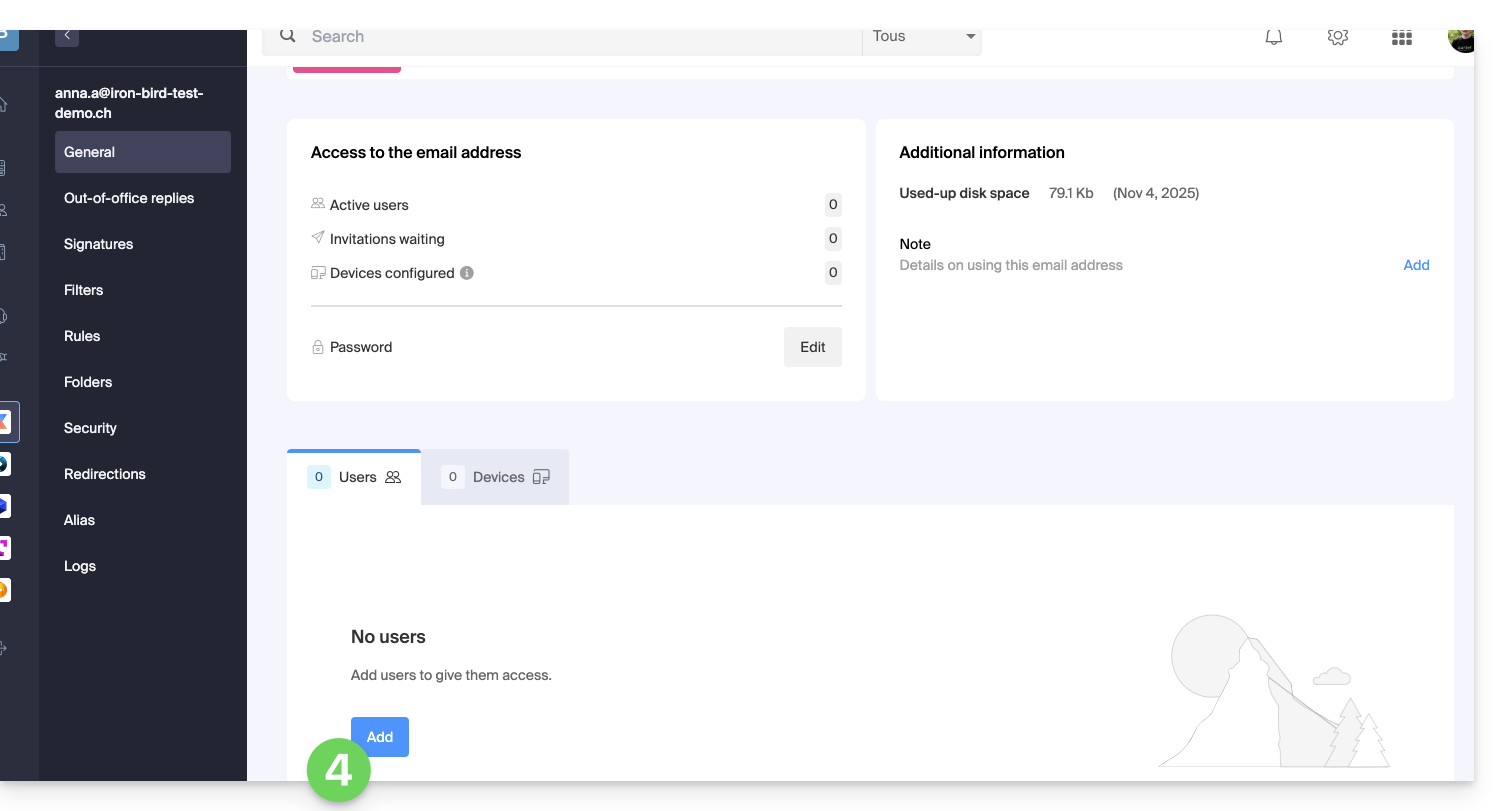
- In the user section, click on Add:
- Enter the password to log in to your Infomaniak account if necessary.
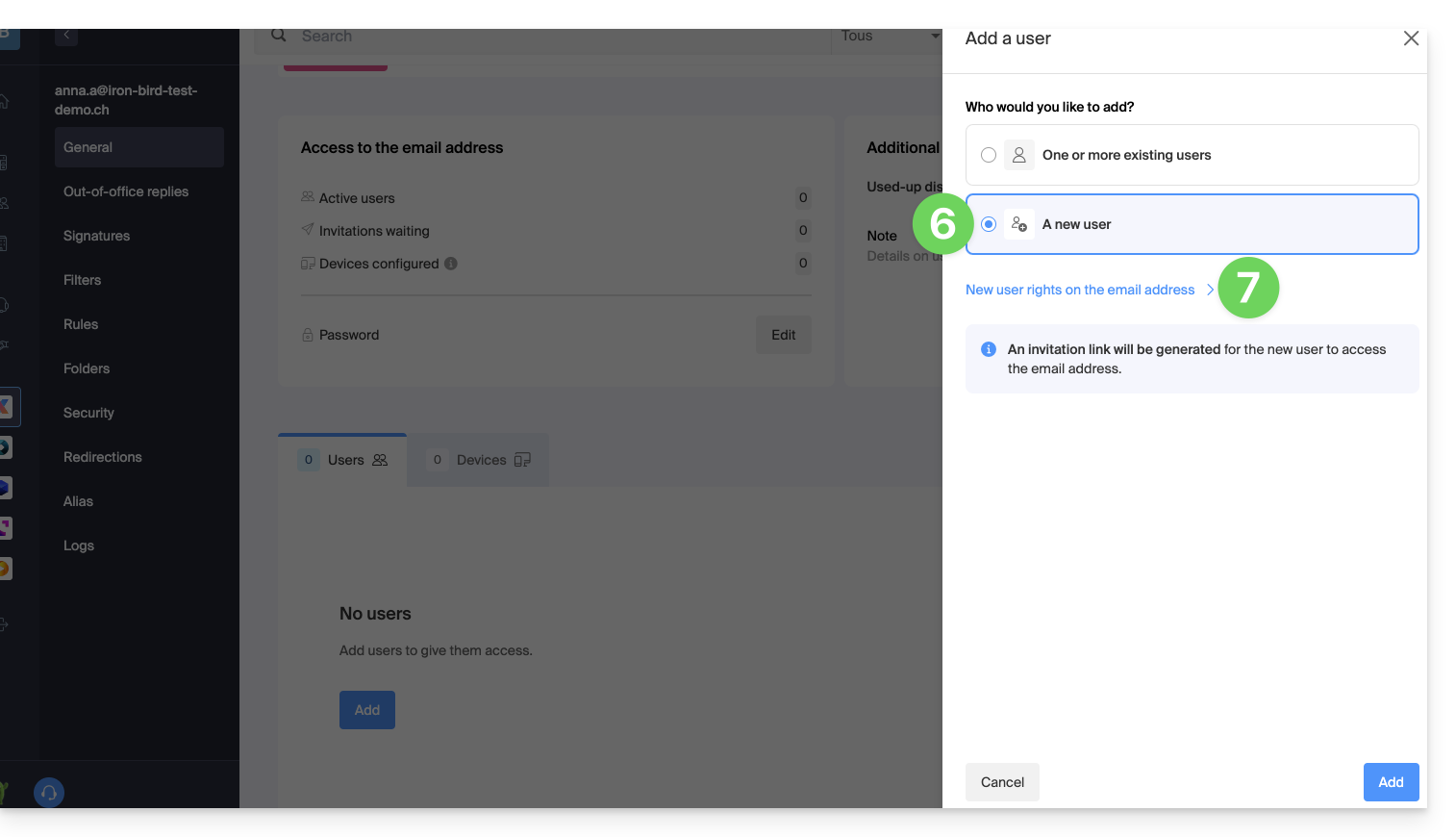
- Click on New user.
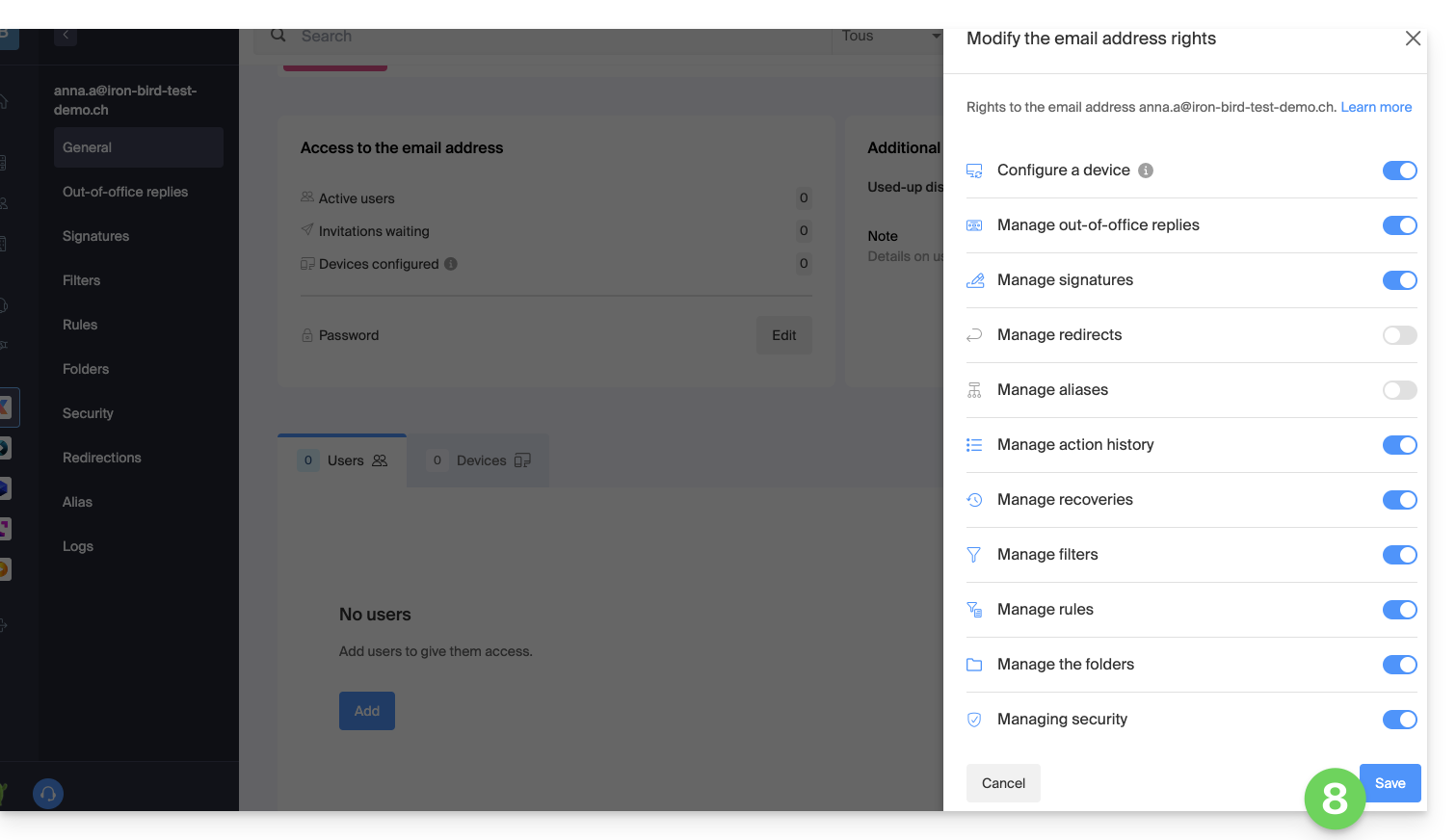
- Click to check or set the access permissions that the user should have according to the needs:
- Once the permissions are configured, click the button to Save (or Cancel to return without modifying the default permissions):
- Click on Add:
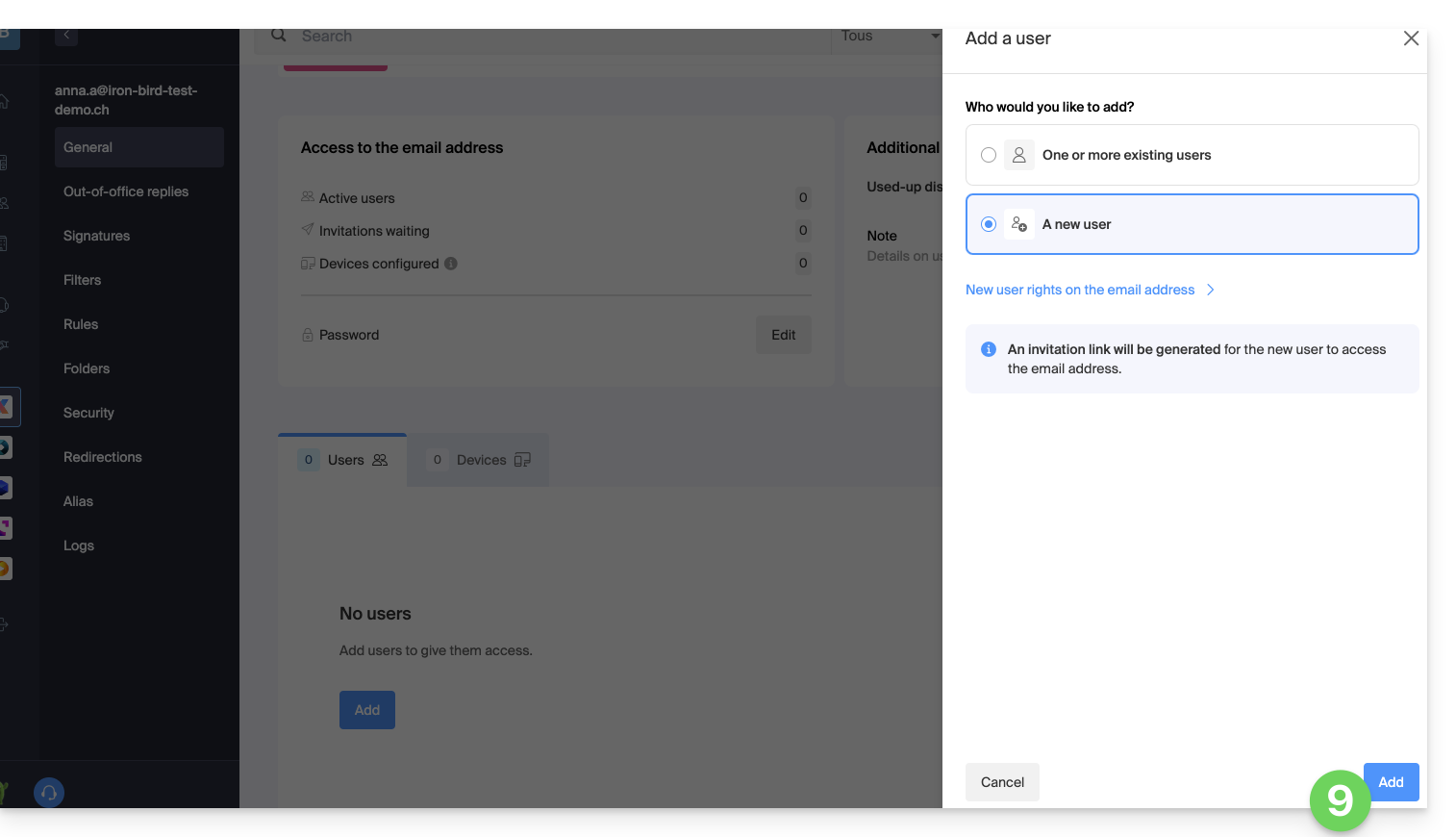
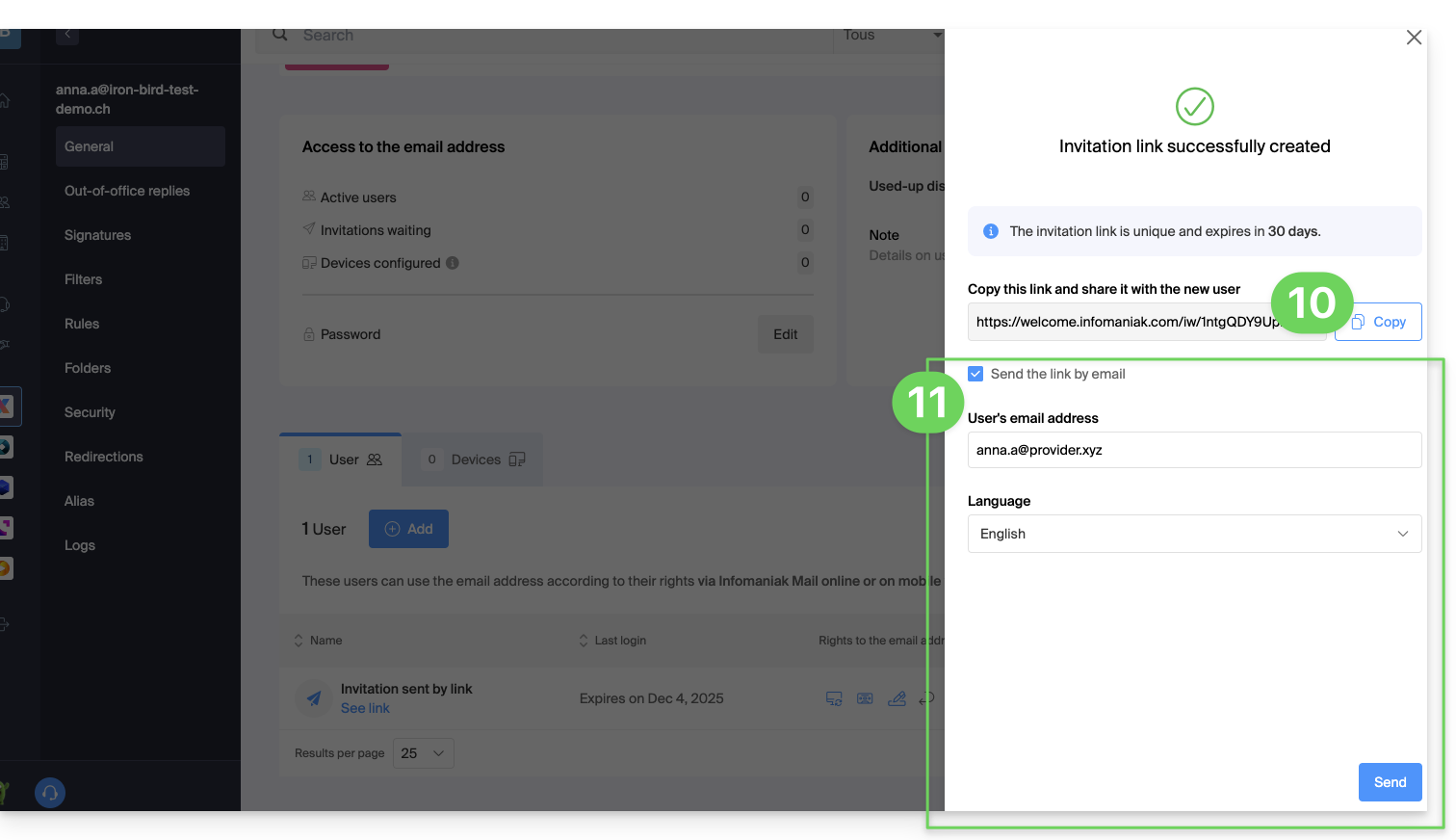
- Copy the invitation link valid for 30 days to be sent to the user.
- If necessary, send the invitation to the user's personal email address:
Acceptance of the invitation (by the new user)
For this:
- The user clicks on the link received (by email or other means).
- They create an Infomaniak account (or log in if they already have one).
- The email address is automatically added to their Mail Infomaniak interface.
Add one or more existing users
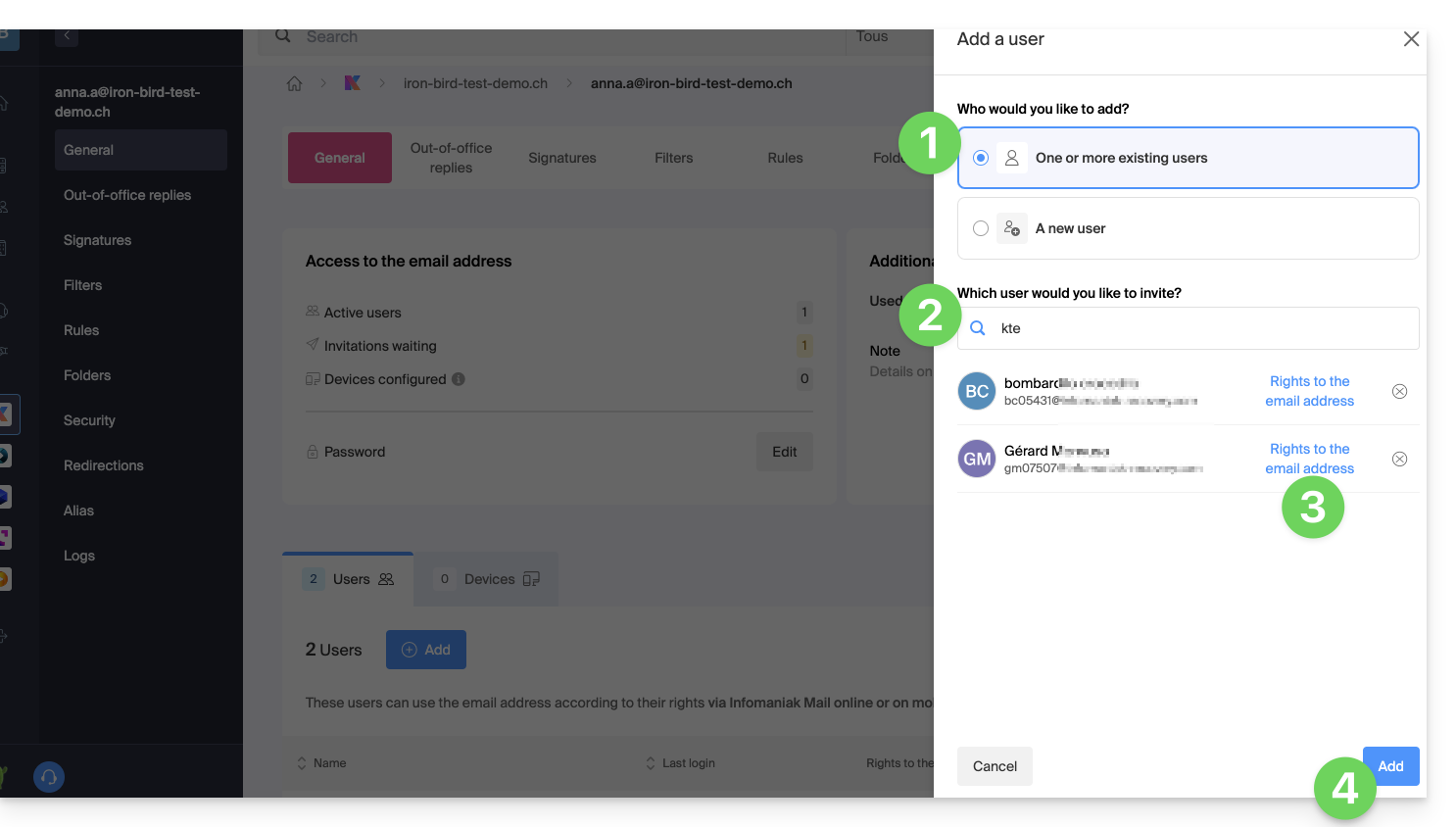
In the case of one or more existing users already in the Organization, the email address will be automatically added to their Mail Infomaniak interface:
- Select One or more existing users in the Organization.
- Search for and choose the desired users.
- Define the permissions (read, write, etc.).
- Click on Add to validate access:
Management and removal of a user
If a user should no longer have access to an email address and its content, simply remove them from the same interface, but there are 2 possibilities:
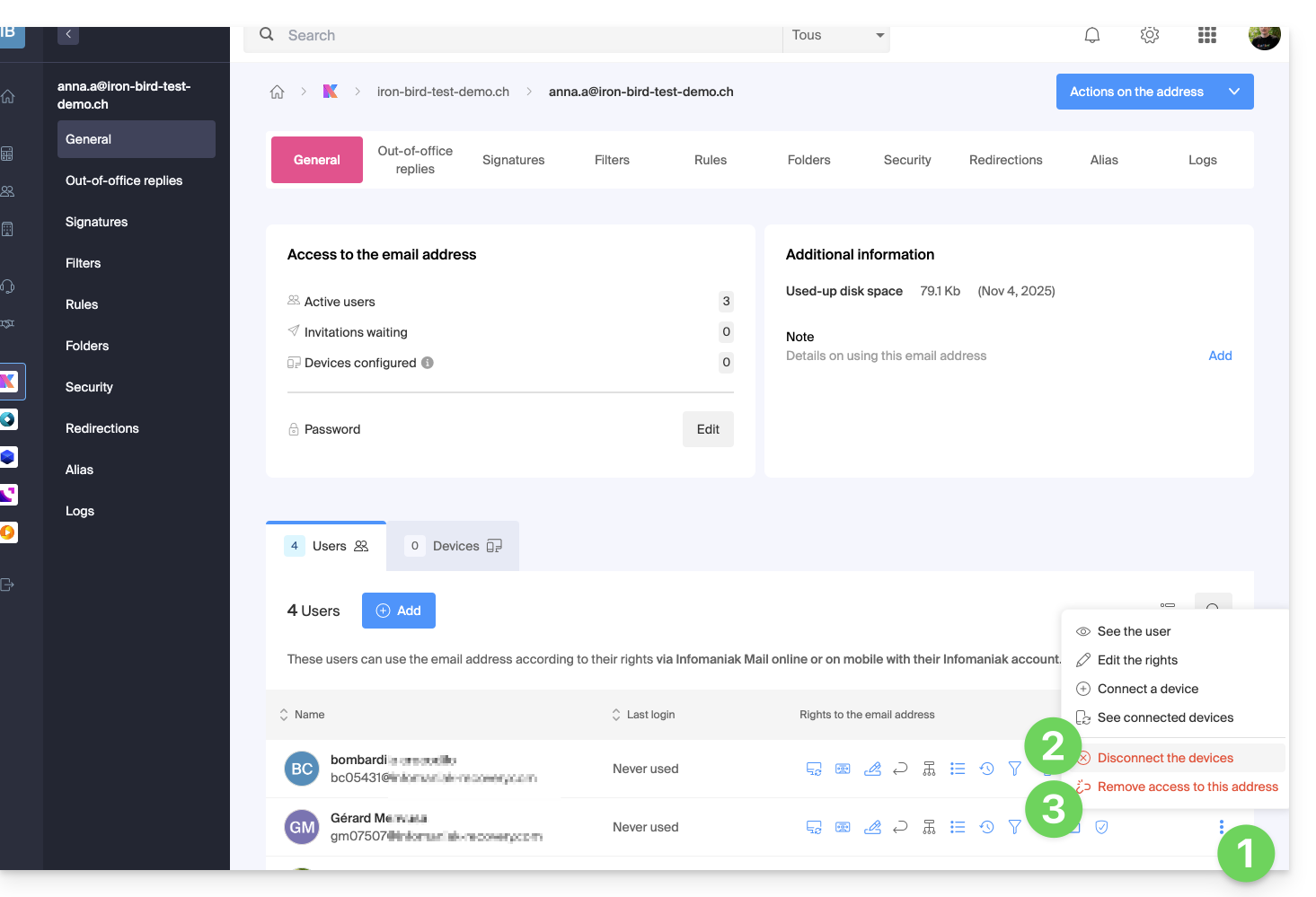
- Click on the action menu ⋮ to the right of the user concerned.
- Choose whether you want to disconnect all of the user's devices: they will no longer have access to the email address on messaging software/clients but will continue to have access to the address on the Infomaniak app (Web, mobile…).
- You can choose to remove all their access to the address, and they will never be able to view it again:
Their password is then immediately revoked, without affecting other users. You can then:
- … assign access to another person
- … retain full management of the address
- … create new accesses without service interruption
Management of individual accesses and passwords
Each added user has their own password, generated automatically when their access is configured. This password is unique to their account and device:
- The owner of the address no longer needs to communicate a main password.
- Each access is isolated and can be revoked without disrupting the others.
- A password is never visible after its creation; if needed, a new access can be created.
Multiple accesses can coexist for the same address, allowing different devices or software to connect without interruption. Each password is entered once per application or device and remains independent: you can revoke a specific access (for example, in case of a lost or replaced device) without affecting the others.
For more information, consult this other guide on the subject.
On the Mail Infomaniak mobile app
When a user is added, the email address is automatically added to their Mail Infomaniak mobile application. They can switch between their addresses at any time via the chevron located at the top left of the screen.