

1000 FAQs, 500 tutorials and explanatory videos. Here, there are only solutions!
Backup Linux with rClone on Swiss Backup (Swift)
This guide details how to back up a server equipped with the Linux distribution of your choice on Swiss Backup, the backup solution in an independent Swiss cloud.
Preamble
- The various services offered by Infomaniak are all compatible with the corresponding standard protocols (S3/Swift for storage, for example). Therefore, if you encounter a problem with third-party software, contact its publisher or a Partner and consult the support policy as well as section 11.9 of the Infomaniak Terms of Service.
Configure rClone for Swiss Backup
Prerequisites
- Have a Swiss Backup space with available device quota (minimum 1) for a Cloud backup.
- Install the rClone application via the package manager of your Linux distribution.
- Add 1 device but of type Server to obtain the rClone parameters
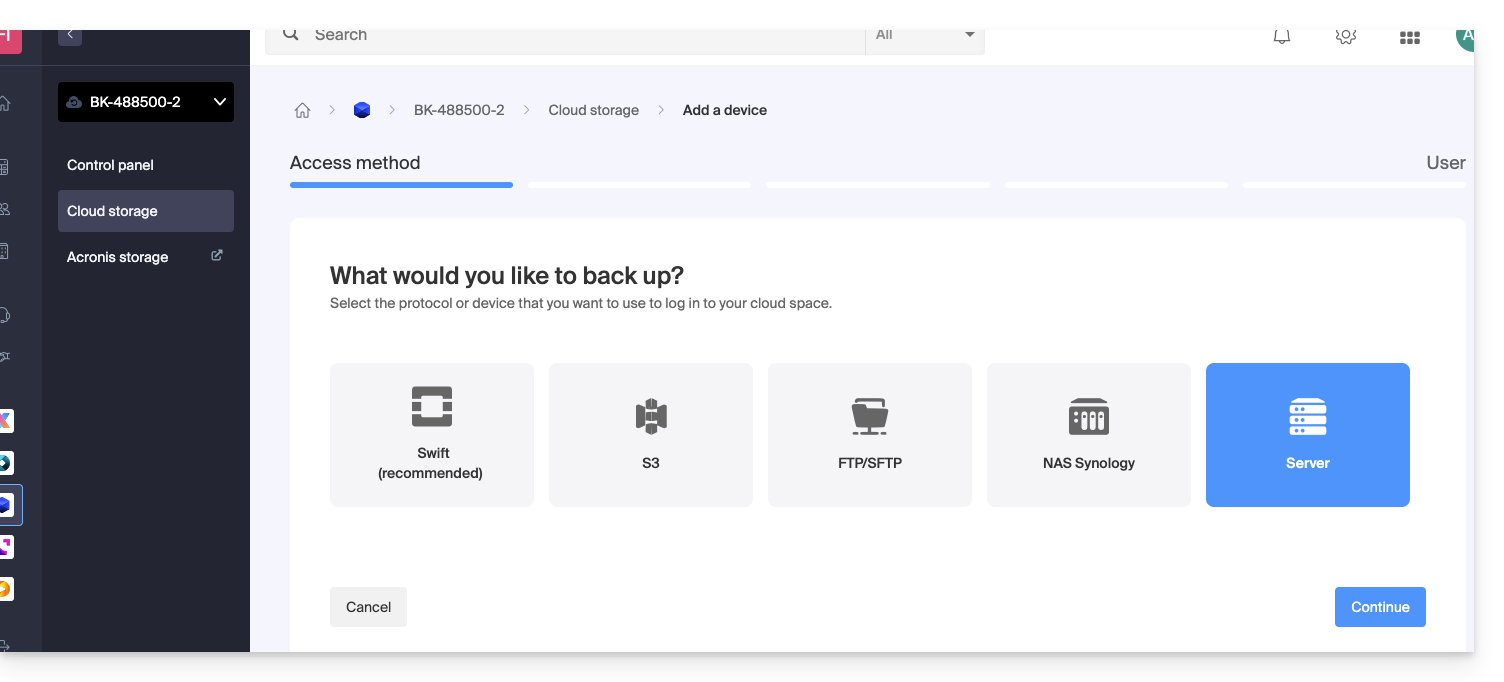
To configure a new backup:
- Download the rclone file received by email after adding the device:
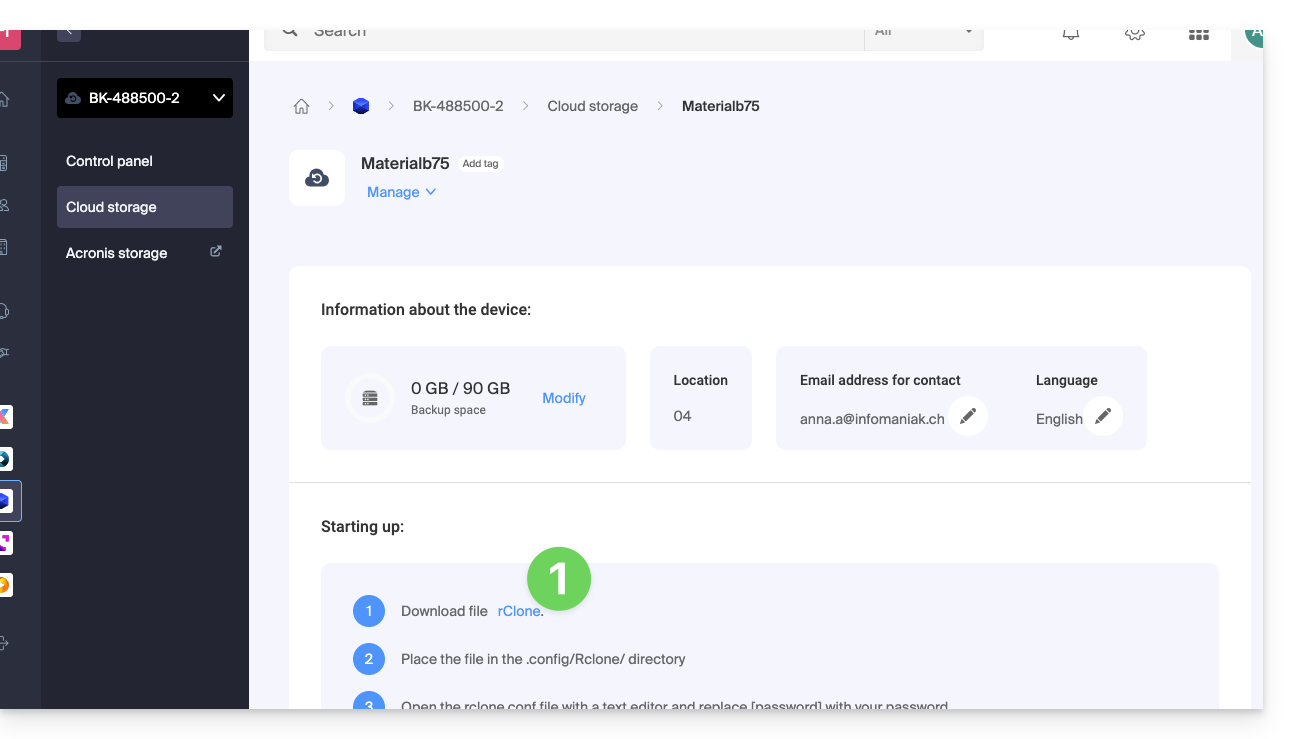
- Place the file in the directory
~/.rclone.conf.config/rclone/or place the content of the file at the end of the existing file~/.rclone.conf.config/rclone/rclone.conf(on debian stretch, this file is located at the following location:~/.rclone.conf) —also refer to the rClone documentation. - Open the file
rclone.confwith a text editor and replace[password]with the generated password: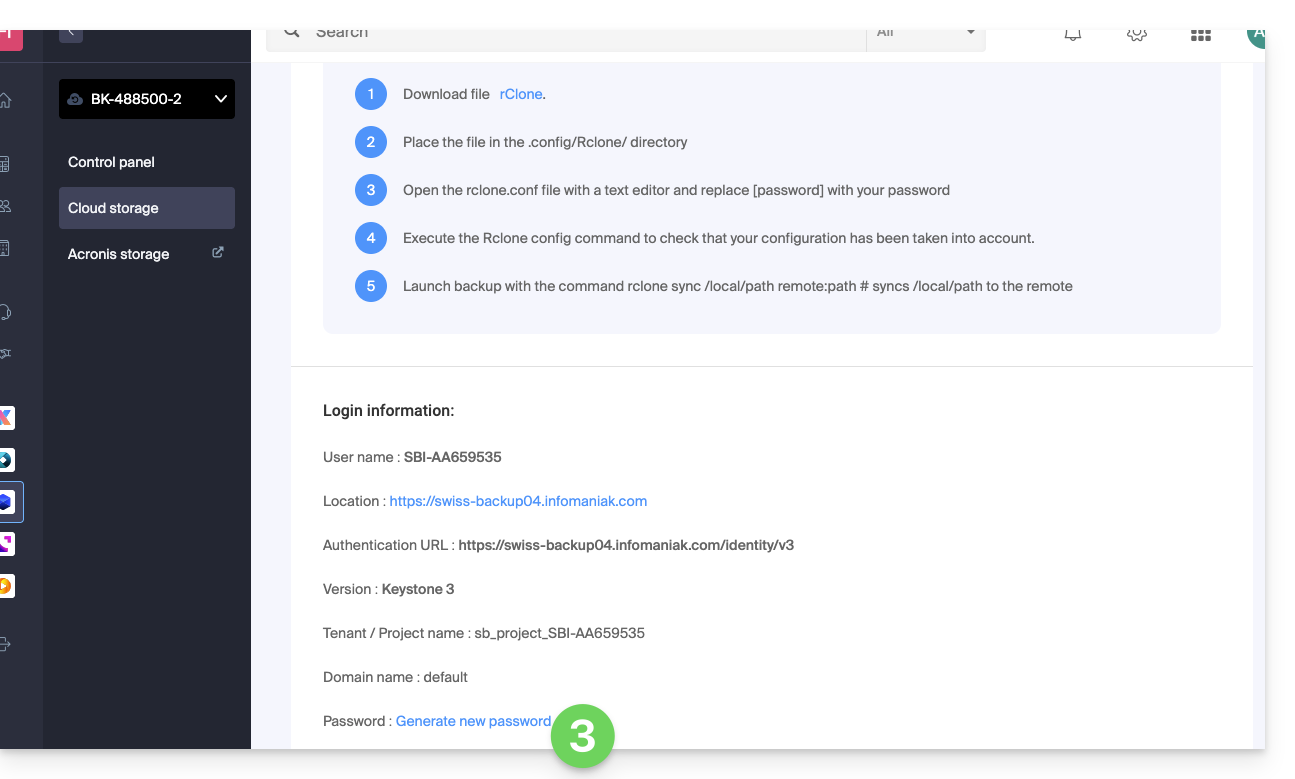
- Run the command
rclone configto verify that the configuration has been successfully applied. - Start the backup with the command
rclone sync /local/path project_name:default.
If necessary, you can find the connection information on the Manager.
rClone configuration example
[sb_project_SBI-AB123456]
type = swift
user = SBI-AB123456
key = [password]
auth (1) = https://swiss-backup02.infomaniak.com/identity/v3
domain = default
tenant = sb_project_SBI-AB123456
tenant_domain = default
region = RegionOne
storage_url =
auth_version =
(1) The indication "//swiss-backup02", "//swiss-backup03" etc. changes depending on the cluster number indicated on the Manager in the Cloud storage information under "Location"; and if your Swiss Backup device was created before October 2020, you will need to use https://swiss-backup.infomaniak.com/identity/v3
You can modify [sb_project_SBI-AB123456] with the indication of your choice for more convenience.
For example, the indication [swissbackup] will give:
rclone sync /local/folder swissbackup:remote/folderinstead of:
rclone sync /local/folder sb_project_SBI-AB123456:remote/folderStart a backup or restore
Start a backup with the following command:
rclone sync /local/folder sb_project_SBI-AB123456:remote/folderStart a restore with the following command:
rclone sync sb_project_SBI-AB123456:remote/folder /local/folder