Knowledge base
1000 FAQs, 500 tutorials and instructional videos. Here, there are only solutions!
This guide explains how to connect the mobile apps Contacts and CalendariOS (iPhone, iPad, etc.) with contacts and calendars hosted by Infomaniak.
Introduction
- Your iOS device will be automatically configured via Apple-compatible .mobileconfig configuration profiles, unlike a manual configuration.
- Infomaniak contacts & calendars are linked to your Infomaniak account; when you log in to ksuite.infomaniak.com/contacts or /calendar, you will likely be asked to perform two-factor authentication (2FA) during login.
- In this case, an application password is required to establish synchronization between your device and Infomaniak tools.
- But don't worry, creating such a password is offered as part of the configuration wizard.
- It is possible to delete a configuration profile once it has been installed (scroll to the bottom of this page for instructions).
- Alternative: if you have the Infomaniak Mail mobile app on your iOS device, one of the menus provides access to a synchronization assistant to connect Contacts & Calendar automatically.
Install a configuration profile
To do this, ideally from the device you want to configure, using the Safari browser:
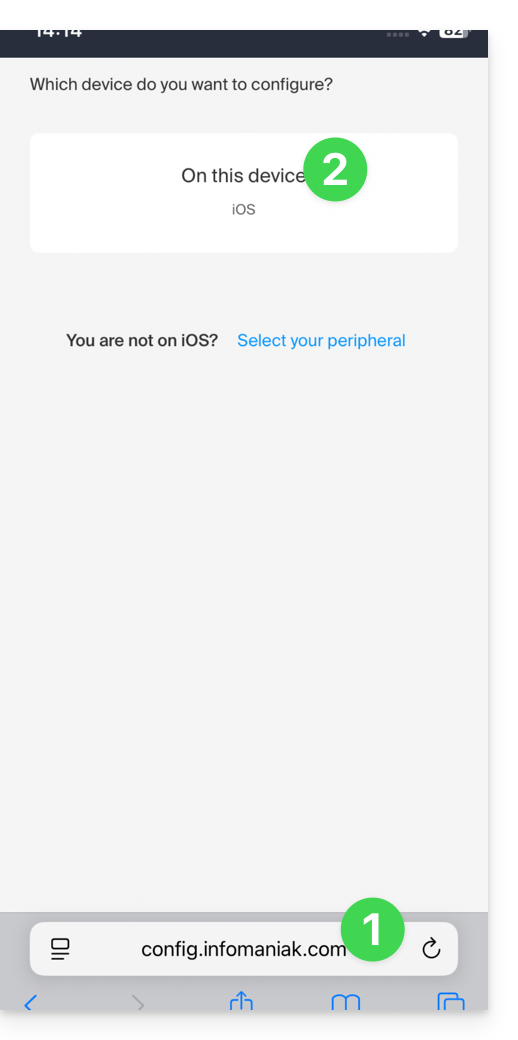
- Click here to access the Infomaniak configuration tool (online service https://config.infomaniak.com) – log in if necessary to your Infomaniak account for the Organization where your services are managed.
- Choose to install the profile on this iOS device:
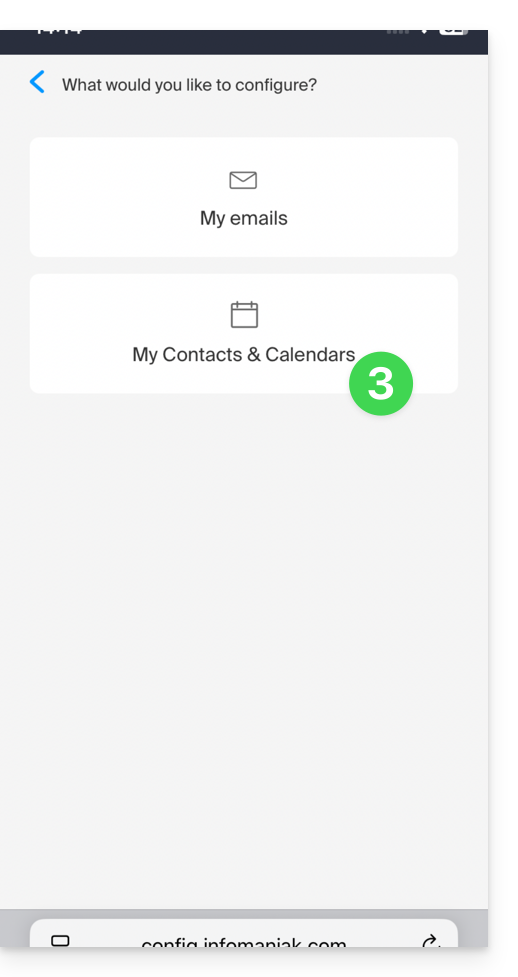
- Choose to synchronize contacts & calendars:
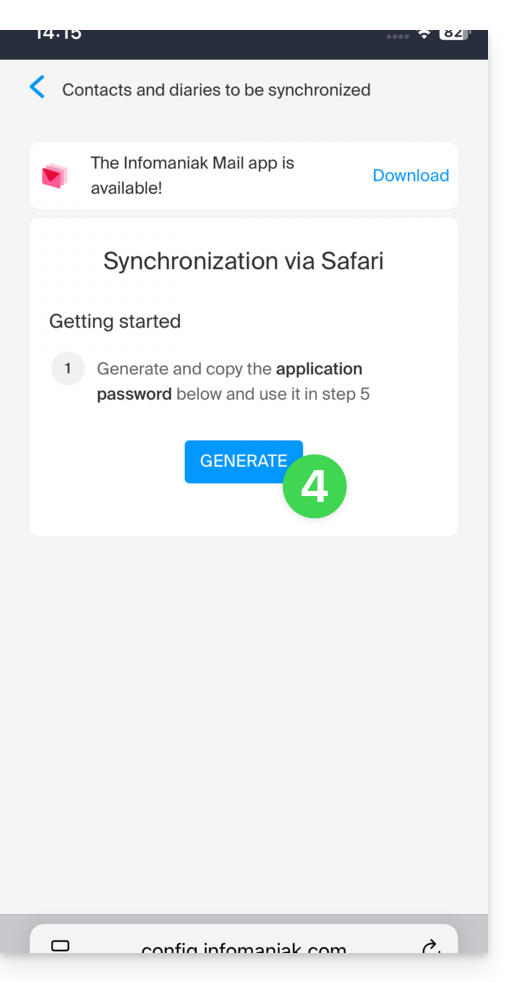
- Generate an application password dedicated to synchronization (in order to maintain the usual 2FA connection for your user account):
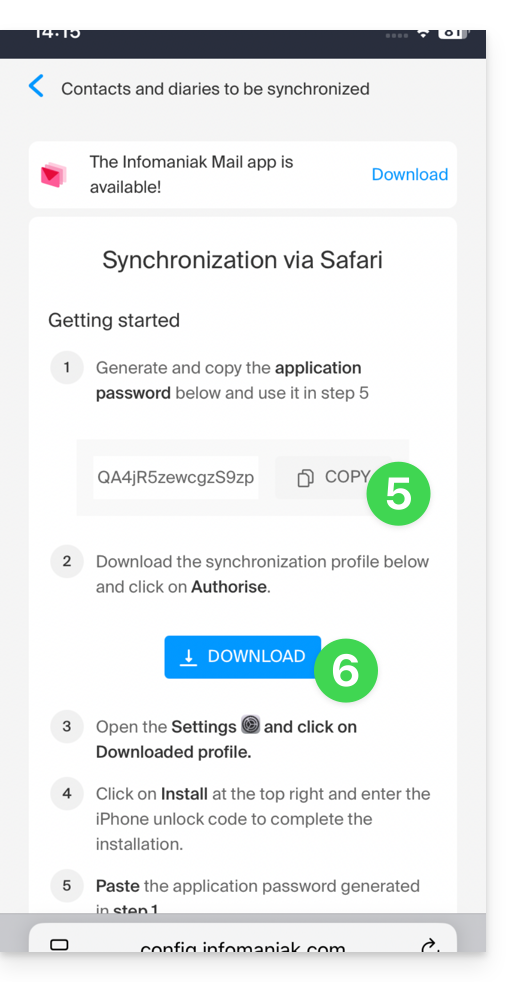
- Copy the generated application password (you will be prompted for it when installing the Apple profile).
- Download the Apple profile:
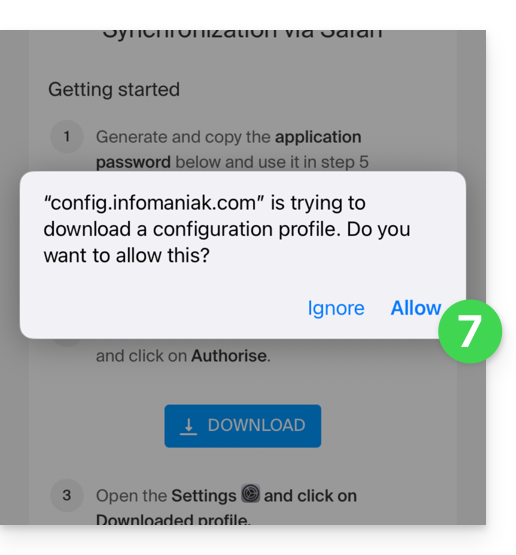
- Allow downloading to the device:
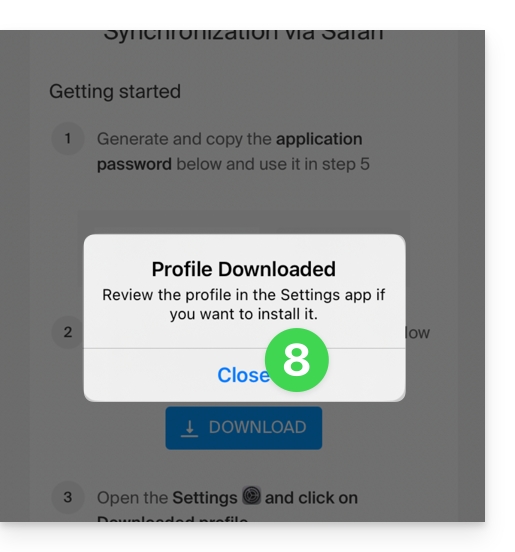
- Tap to close the message:
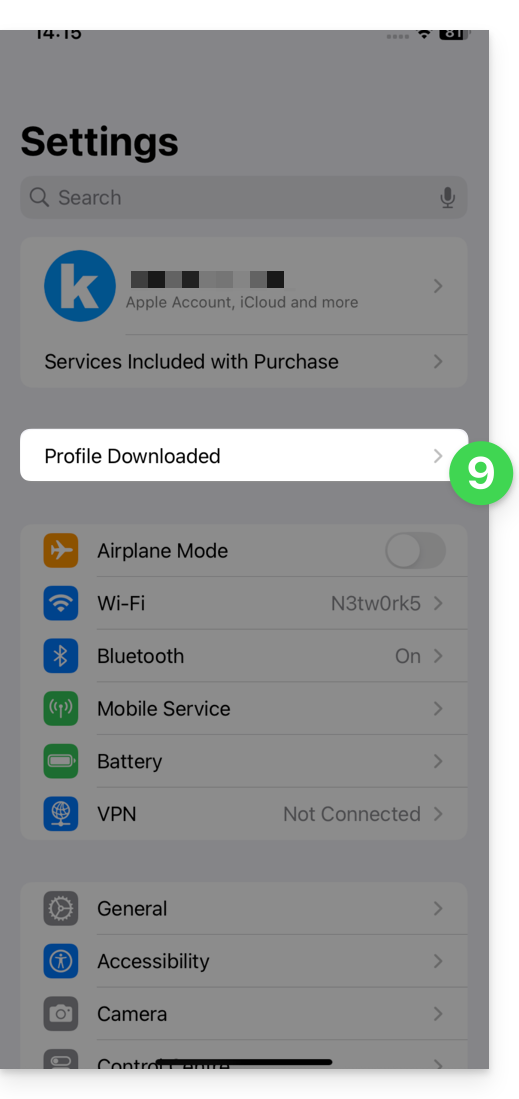
- Open the settings of your iOS device and tap on the banner at the top that informs you that a new profile has been downloaded:
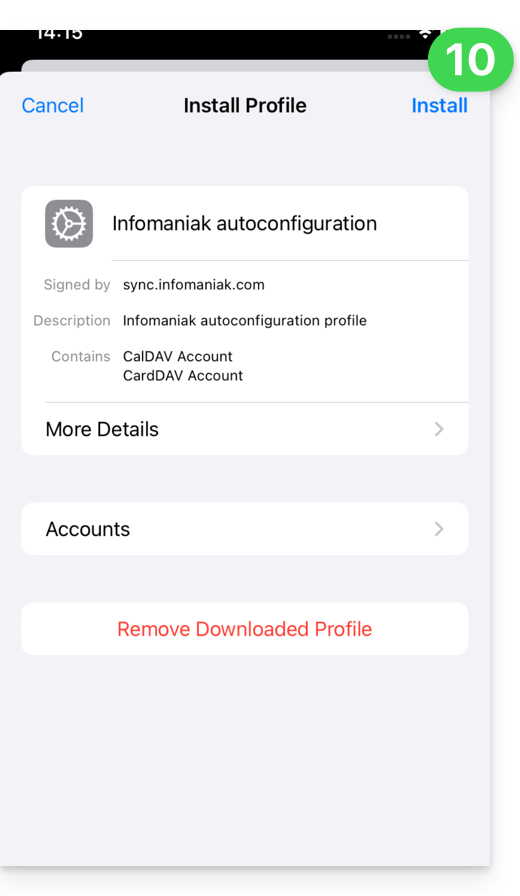
- Tap Install:
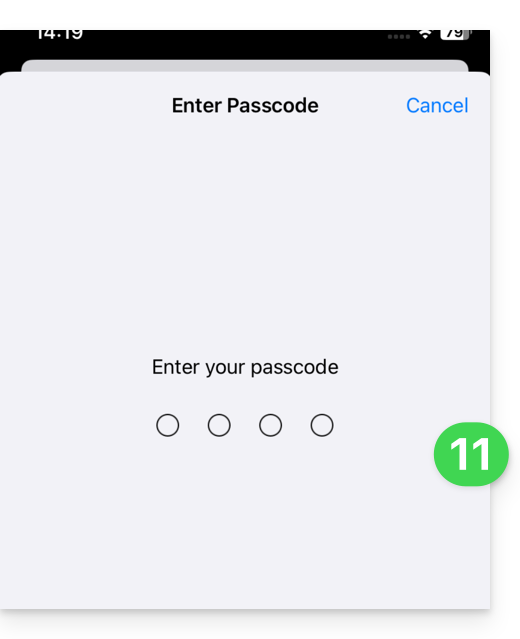
- Enter your iOS device code as if you were unlocking it:
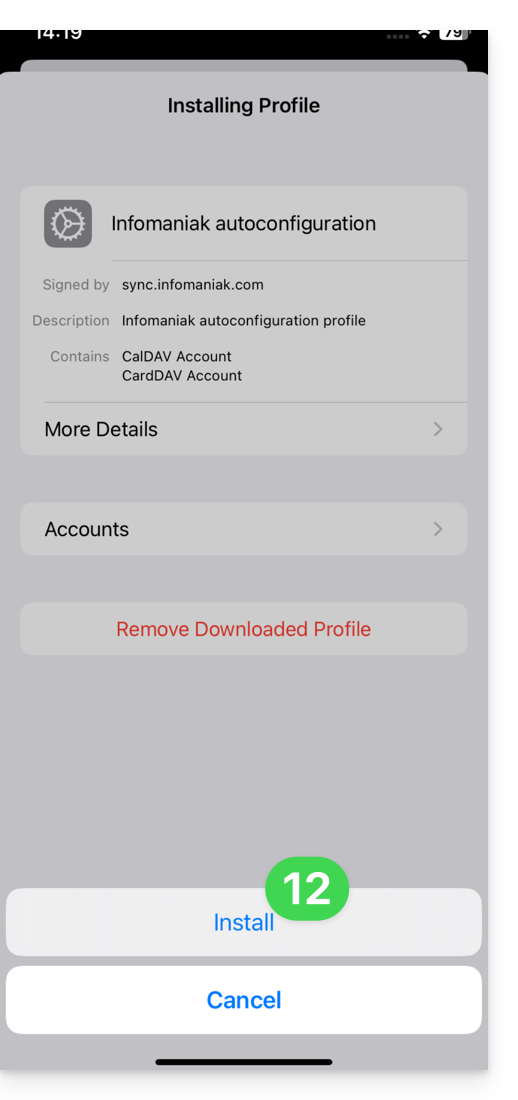
- Tap Install:
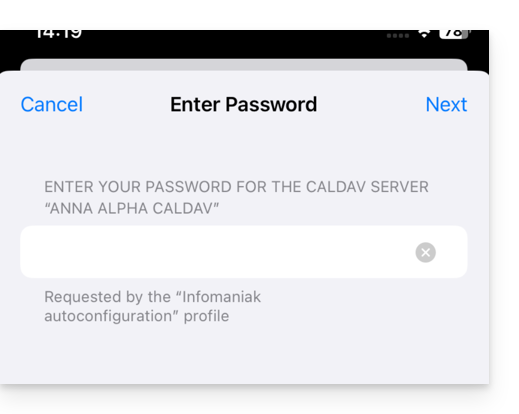
- Enter (or paste) the application password copied in step 5 above:
and do this twice in a row (contacts + calendars):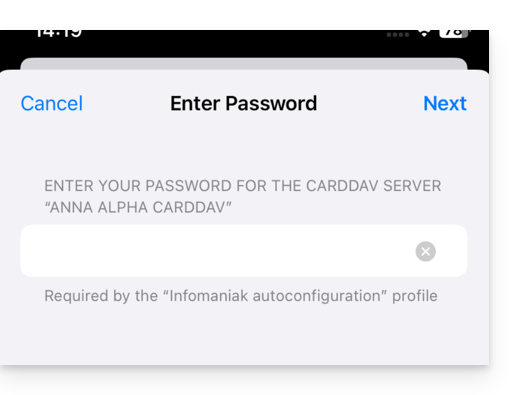
- When the message appears at the top, it is done:
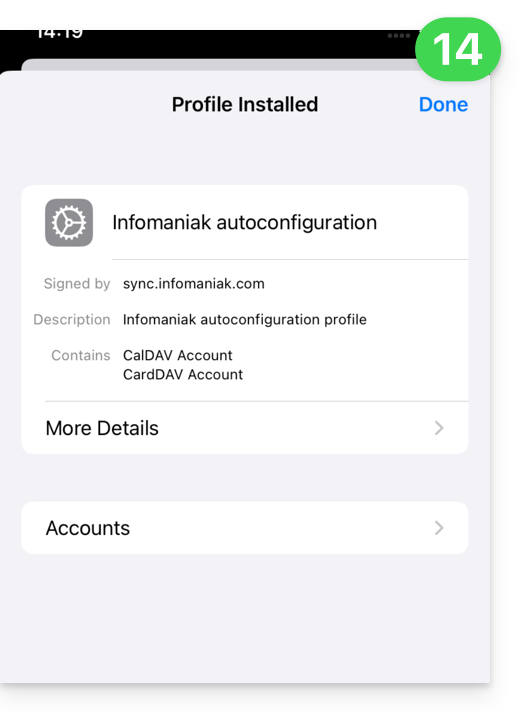
If your iOS Contacts and Calendar apps were already open, you need to restart them. You will then see the information added by the synchronization: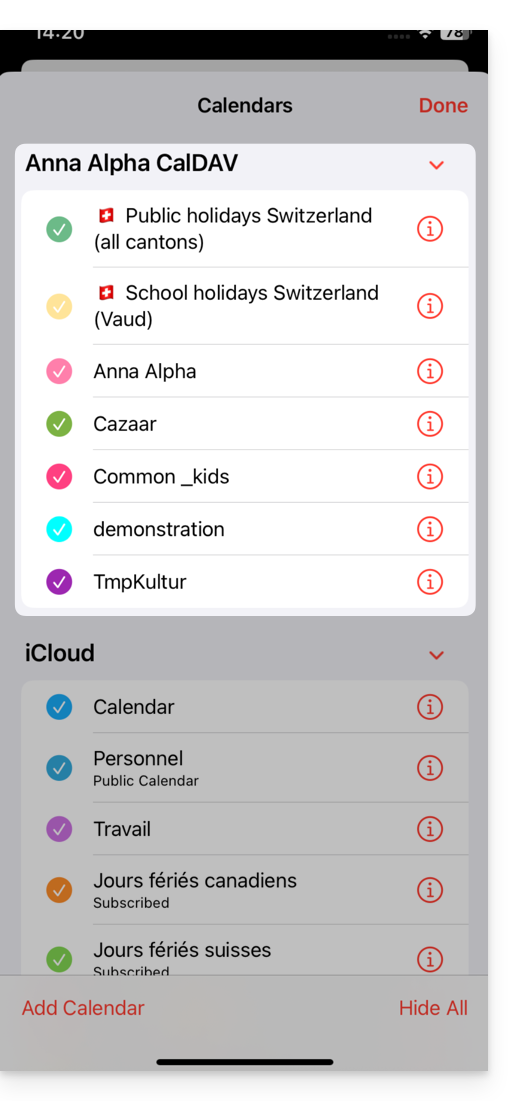
Synchronization specifics
Refer to this other guide.
Delete an Apple profile
Refer to the official documentation, and if necessary, change the version of your system at the top of the page*.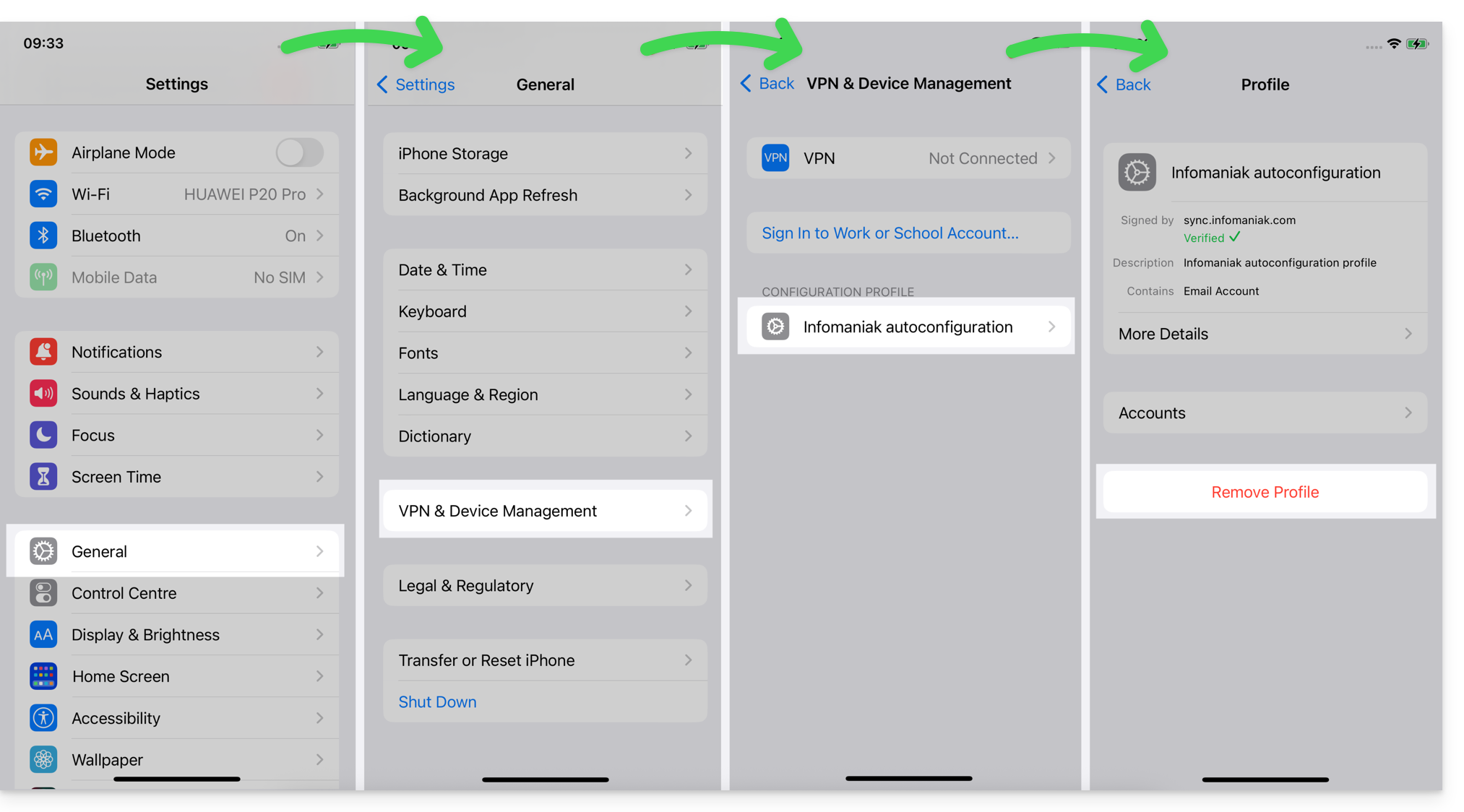
*Why is it necessary to select the guide version that exactly matches your macOS / iOS system version?Apple introduces subtle changes with each new version of its system, for example, a path on iOS 15…
… becomes this on iOS 18…
Link to this FAQ: https://faq.infomaniak.com/2370
Has this FAQ been helpful?
This guide explains how to connect the desktop apps Contacts and Calendar on macOS (MacBook Pro, Neo…) with the contacts & calendars hosted by Infomaniak.
Introduction
- Your macOS computer will be automatically configured via .mobileconfig configuration profiles compatible with Apple, unlike a manual configuration.
- Infomaniak contacts & calendars are linked to your Infomaniak account; when you log in to ksuite.infomaniak.com/contacts or /calendar, you will likely need to perform two-factor authentication (2FA) during login.
- In this case, an application password is required to establish synchronization between your device and Infomaniak tools.
- But don't worry, creating such a password is offered as part of the configuration wizard.
Install a configuration profile
To do this:
- Click here to access the Infomaniak configuration tool (online service https://config.infomaniak.com) — log in if necessary to your Infomaniak account for the Organization where your services to be synchronized are managed.
- Choose to install the profile on this device.
- Choose to synchronize contacts & calendars.
- Generate an application password dedicated to synchronization (in order to maintain the usual 2FA connection for your user account):
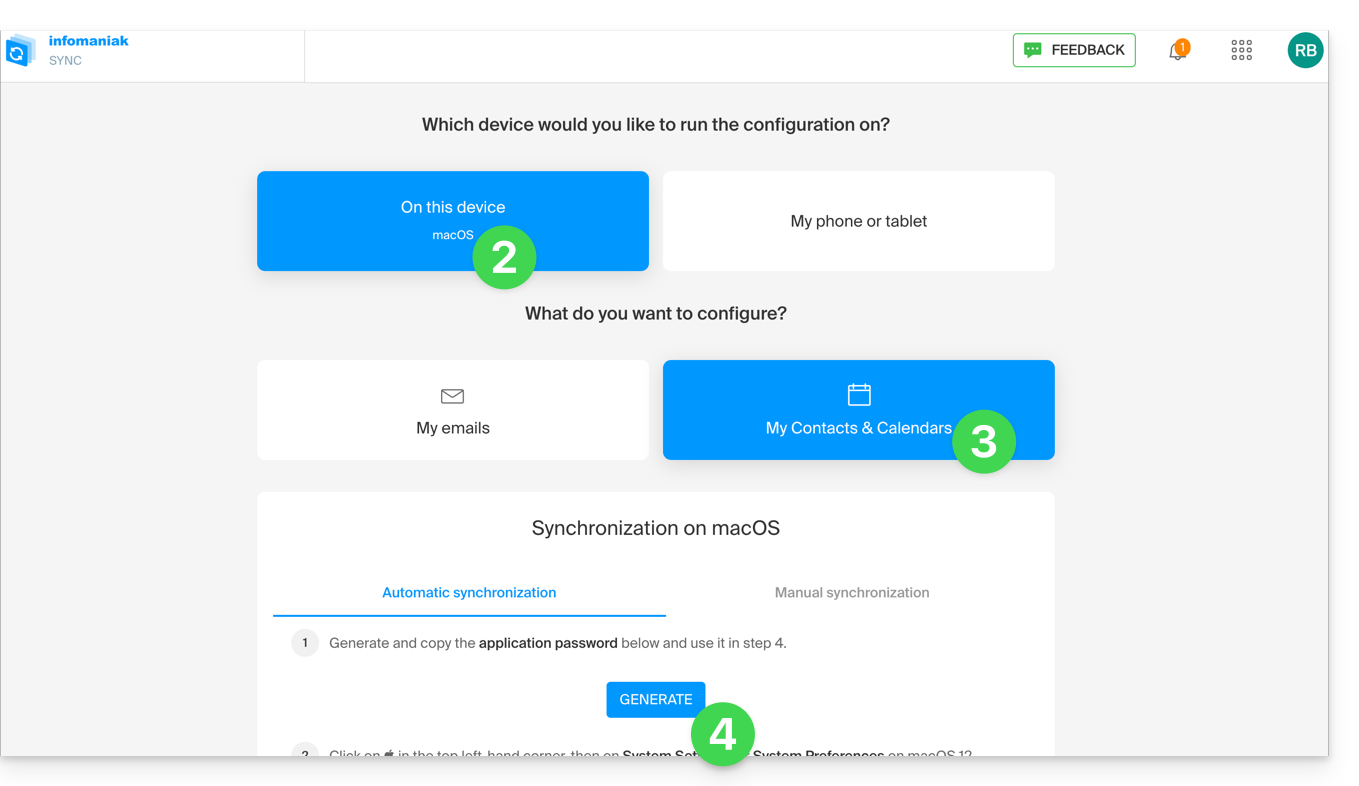
- Copy the generated application password (you will be prompted for it when installing the Apple profile).
- Download the Apple profile:
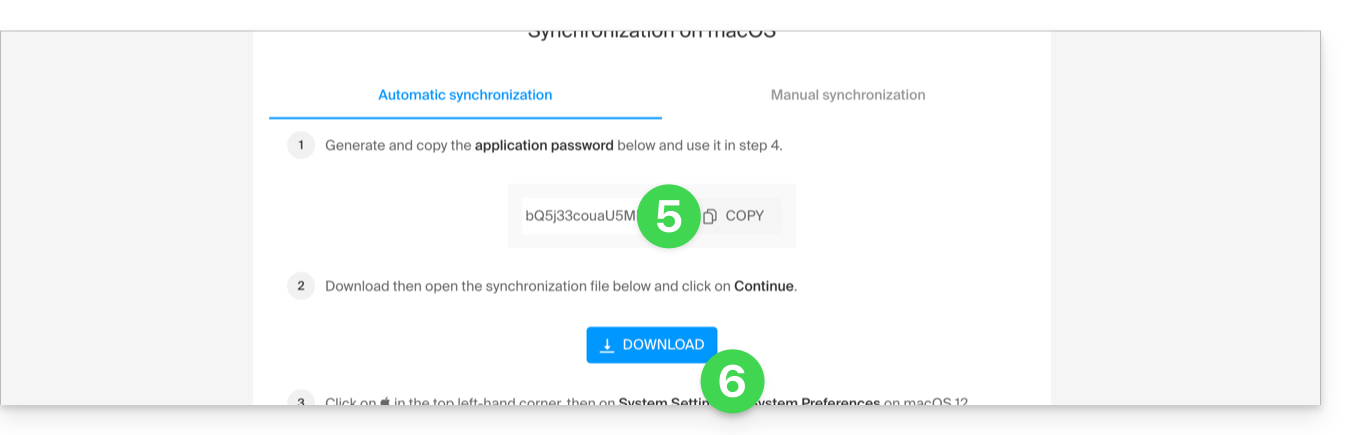
- Open this newly downloaded file on your hard drive.
- Click OK in the confirmation window:
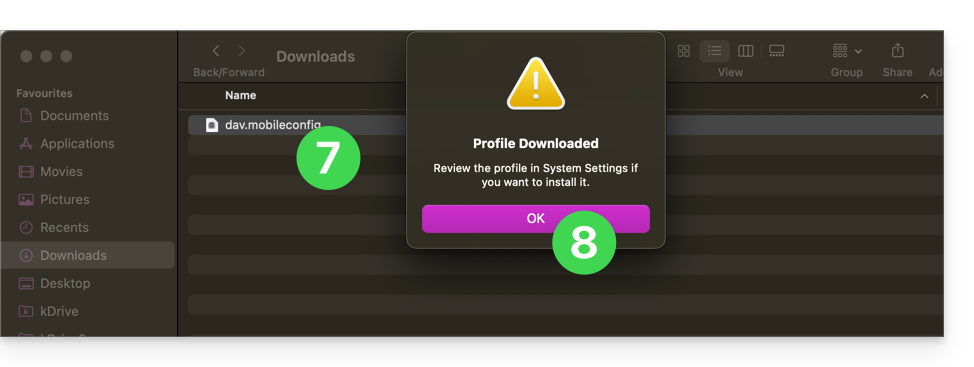
- Open the computer's System Settings.
- In principle, the new profile is indicated as such, and you need to click on this menu item…
- otherwise, click on General in the sidebar
- then click on Manage Device (for macOS Sequoia 15)
- if you have an older version or cannot find the profile, consult the official documentation, changing the version of your system at the top of the page if necessary…
- Double-click on the proposed profile:
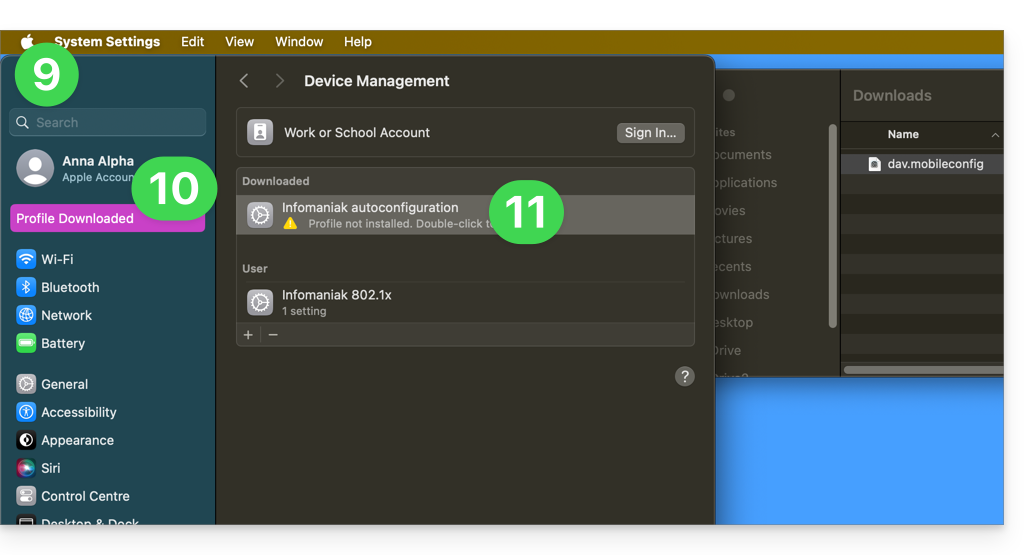
- Click Install:
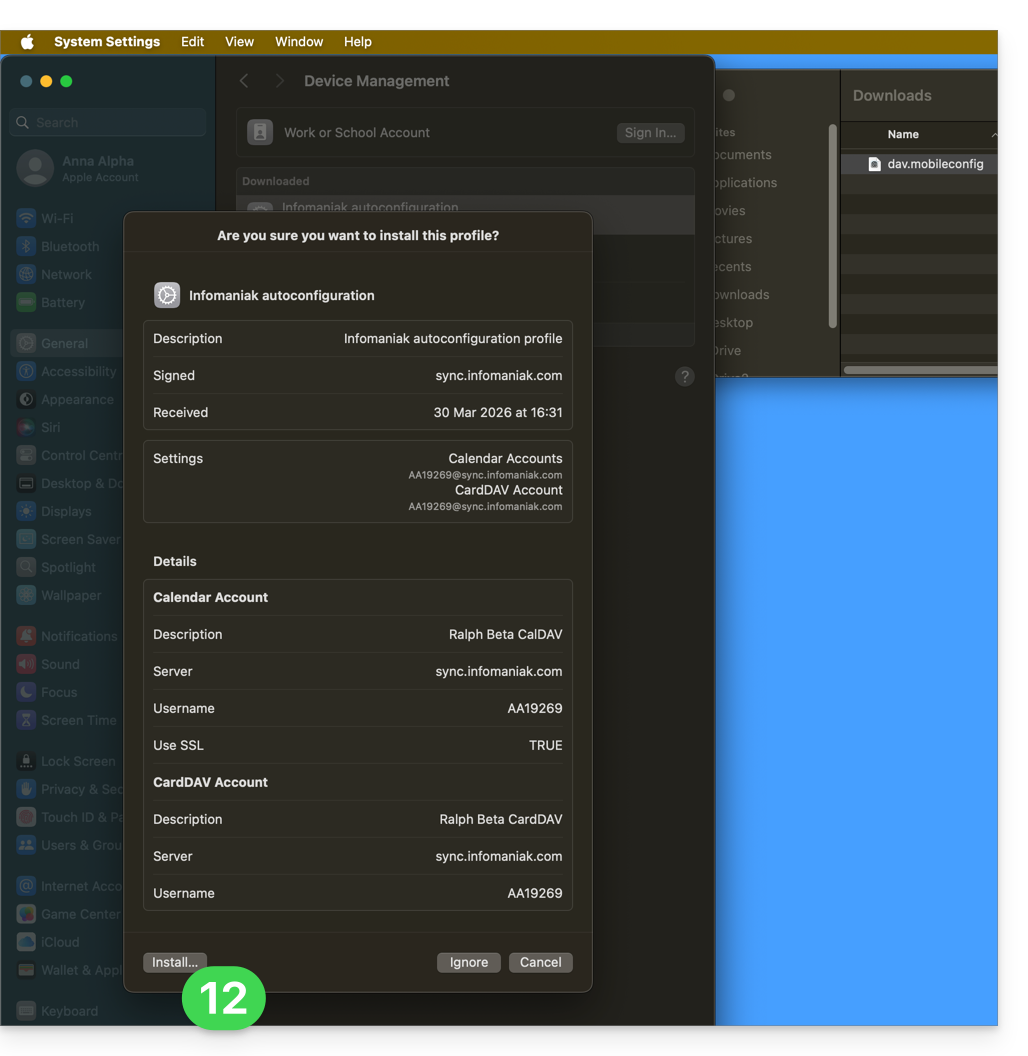
- Enter the application password obtained in step 5 above to connect to Calendars.
- Click on Next:
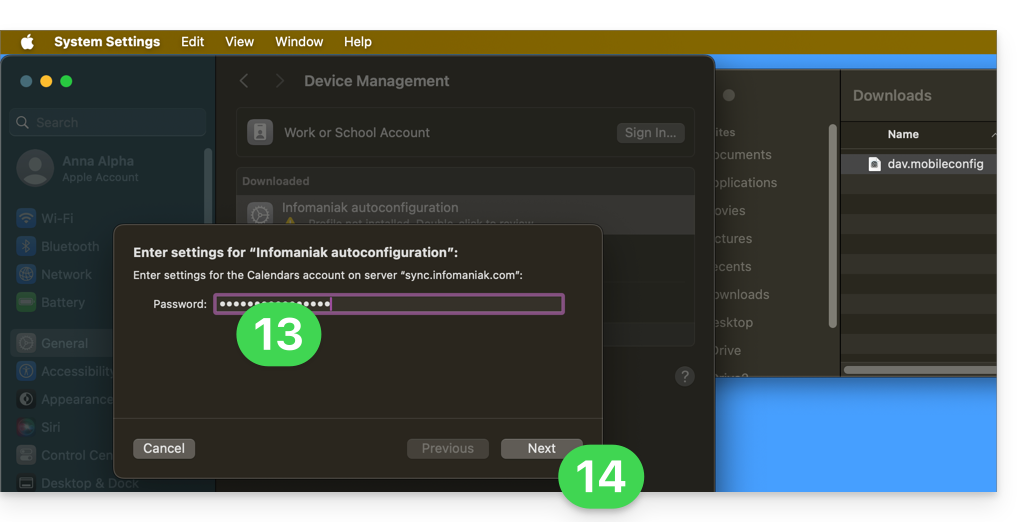
- Enter the password a second time (this time for Contacts) and click on Install to finish.
- That's it, you can now open your macOS Contacts and Calendar applications.
If your applications were already open, you need to restart them. You will then see the information added by the synchronization: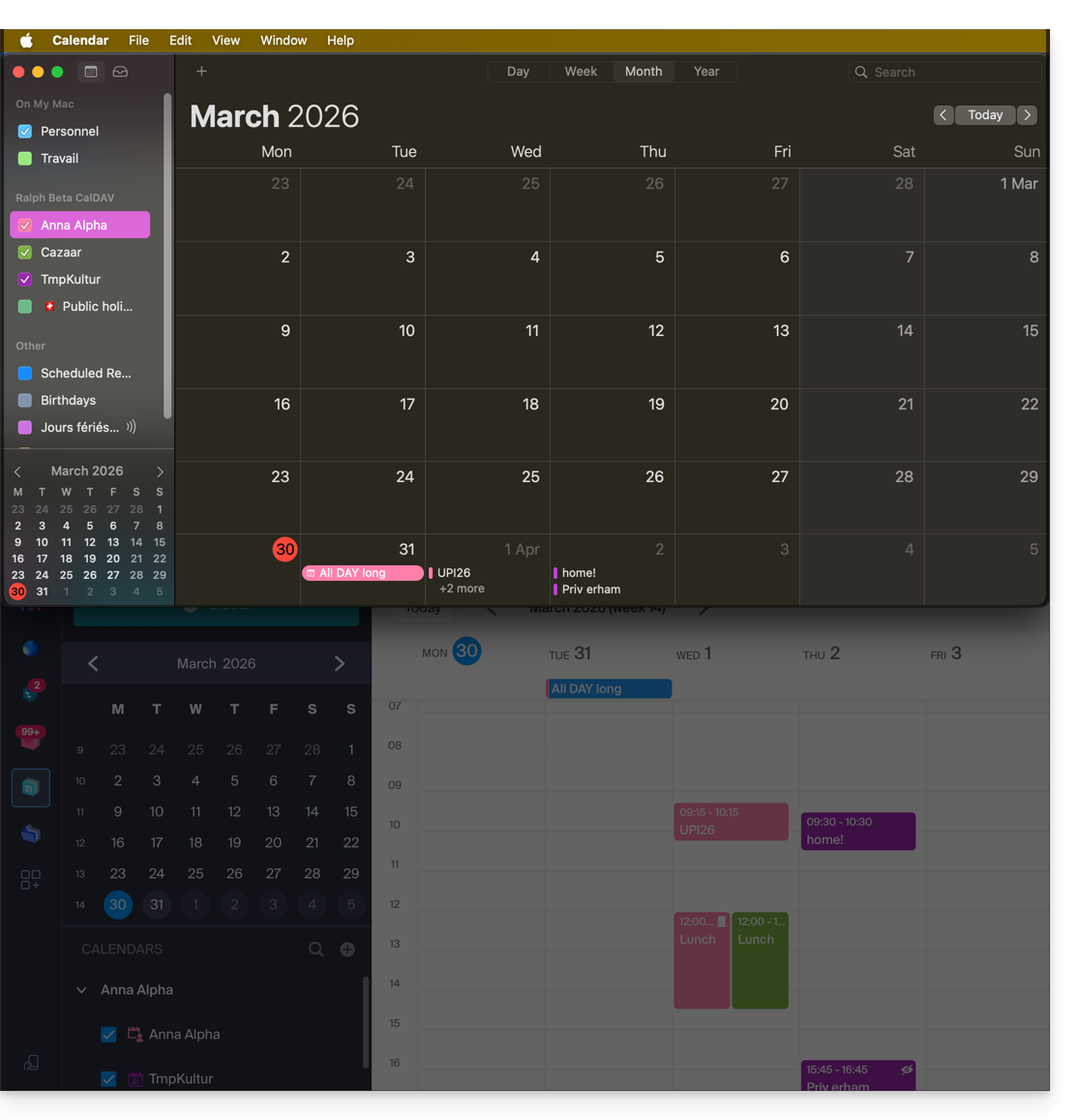
Synchronization specifics
Please refer to this other guide.
Delete an Apple profile
Please refer to the official documentation, and at the top of the page*, change the version of your system if necessary: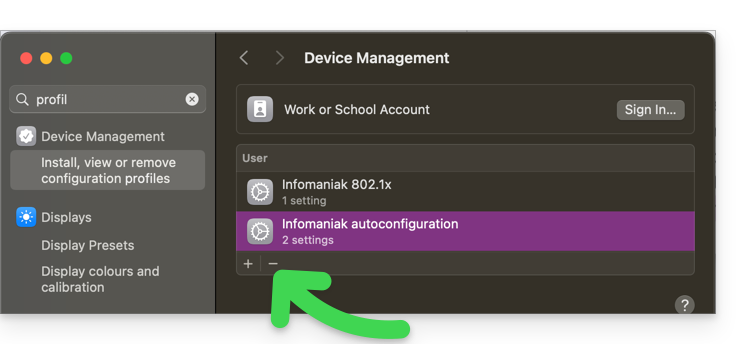
*Why is it necessary to choose the guide version that exactly matches your version of macOS / iOS? Apple introduces sometimes subtle changes with each new version of its system, for example, a path on iOS 15…
… becomes this on iOS 18…
Link to this FAQ: https://faq.infomaniak.com/2143
Has this FAQ been helpful?
This guide details the specific features and limitations of synchronizing contacts and calendars with Infomaniak and native Apple applications (macOS and iOS), particularly for managing shared data.
Introduction
- Infomaniak-hosted contacts and calendars can be synchronized with native Apple applications:
Contacts: synchronizing address books
The CardDAV protocol does not allow you to individually select the items to be synchronized; all data from the account is retrieved by default.
- Before adding a synchronization:
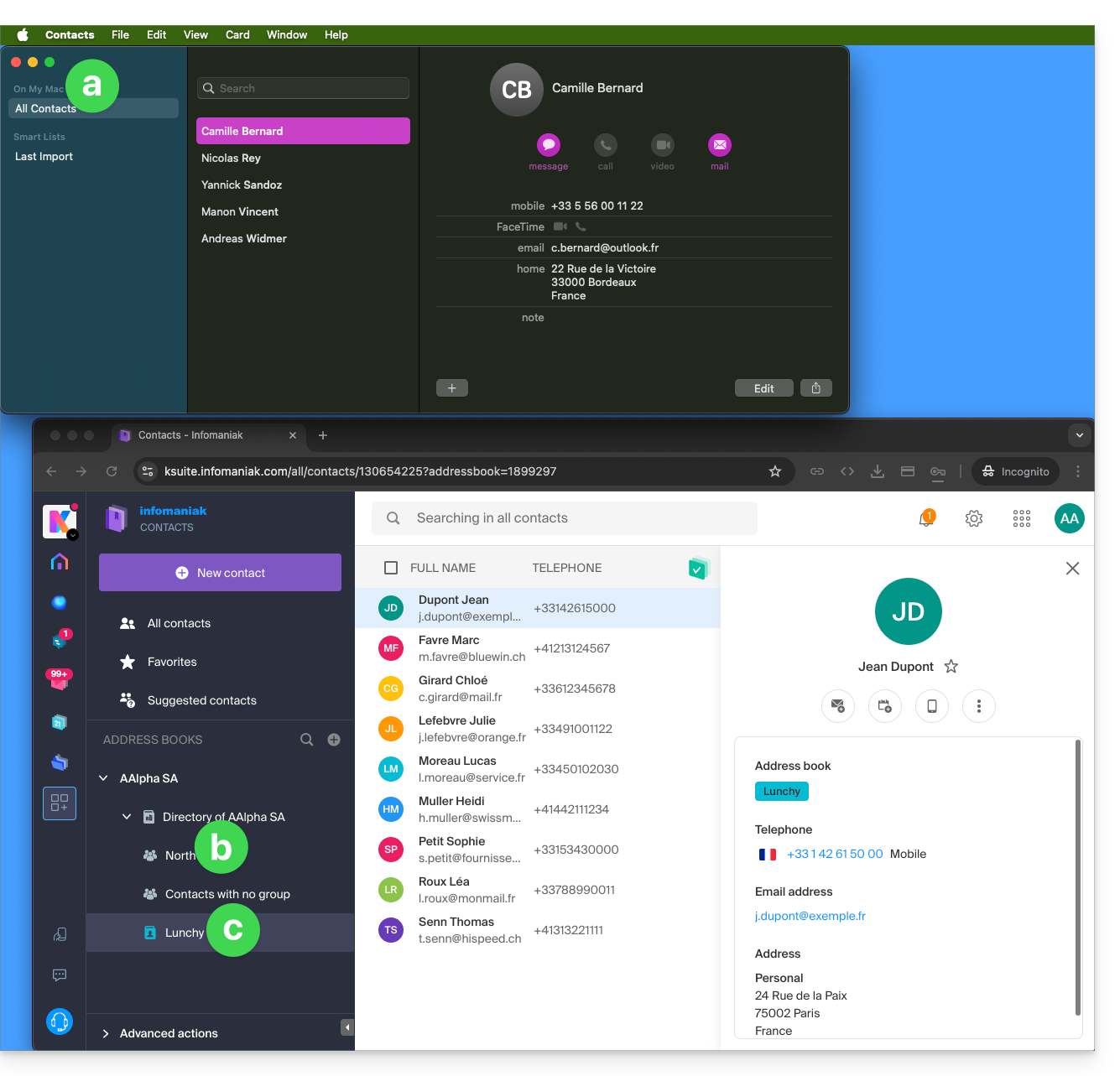
- All existing contacts on the macOS device
- Existing contacts in the Organization (named here AAlpha SA) of the Infomaniak user Anna Alpha, including the Organization directory, which contains a group called North (in this case, this is a “circle” automatically created after setting up a Group in the Manager).
- The user's address book is called Lunchy.
- After adding a macOS profile-based sync:
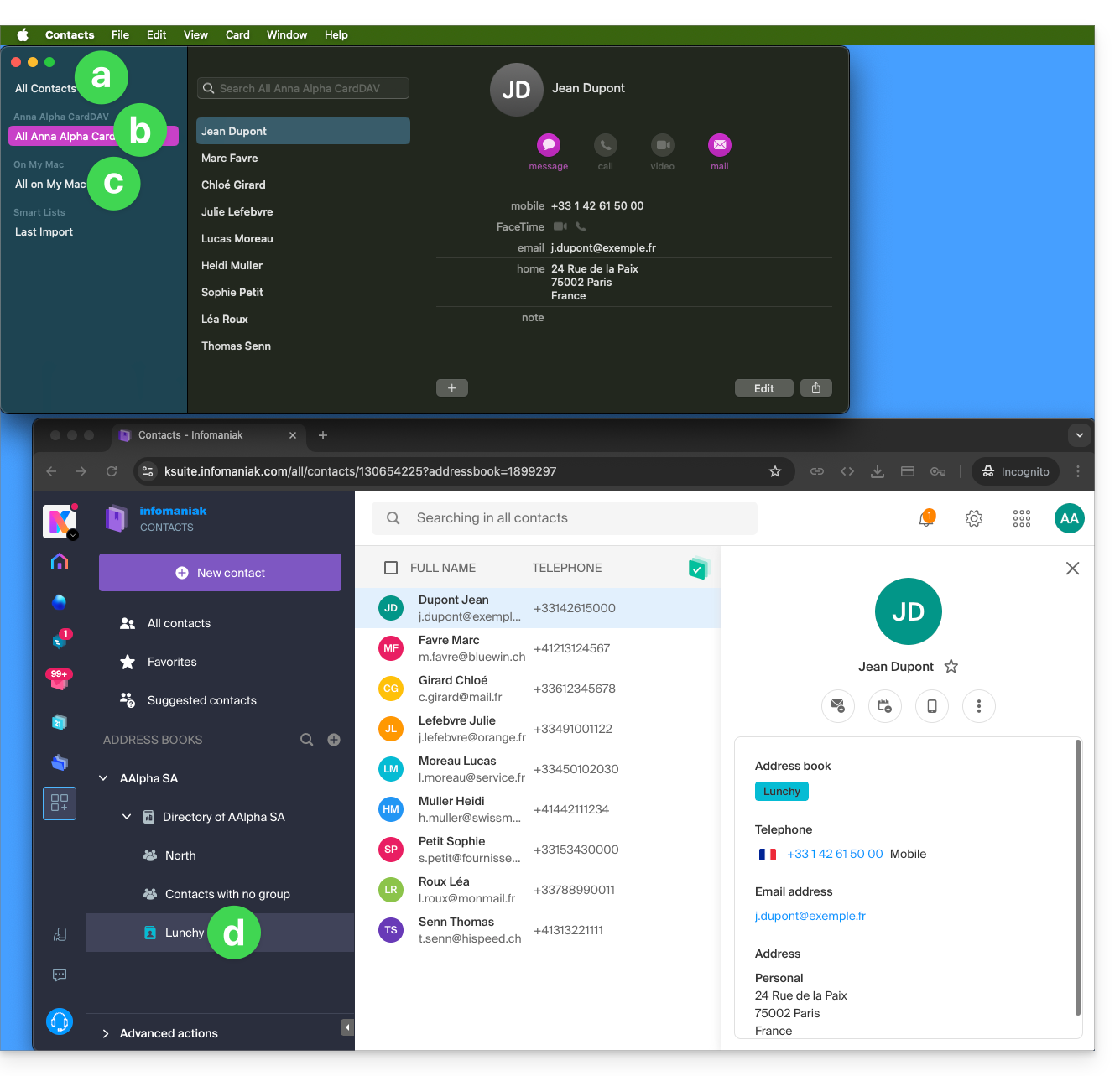
- All existing contacts on the macOS device (this displays the contacts that were already present, as well as the new contacts from the sync).
- Contacts from the sync (see point 2.d below).
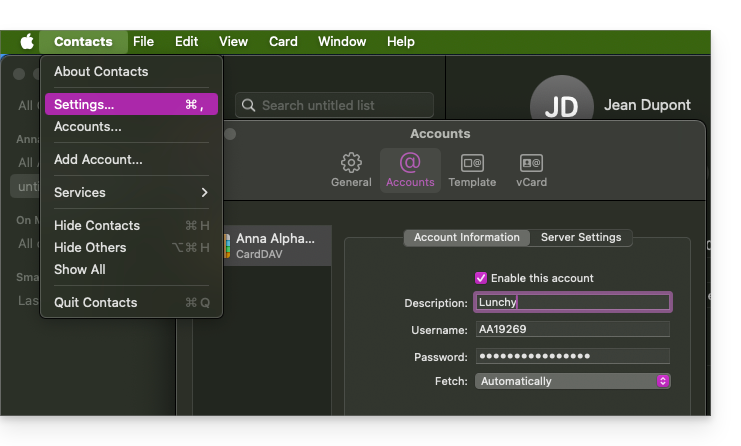
- A downloaded profile contains the Infomaniak account user's name; this name will be used for the synced address book, which will be displayed on the Apple side.
- In the example below, the user's name is Anna Alpha and the address book name is Lunchy; this is the user name that will be displayed to describe the contacts on the Apple side.
- You can change the sync name in the Account Information:
- Existing contacts on the macOS device (those from point 1.a above — they remain local on macOS and are not synced — you need to move them if necessary).
- You can change the address book used by default for future contacts created on your device:
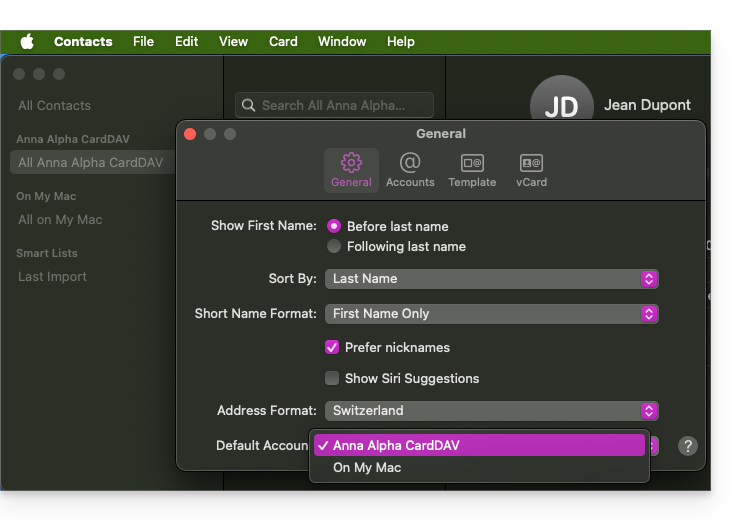
- You can change the address book used by default for future contacts created on your device:
- The user's address book is called Lunchy here (equivalent to point 2.b above).
On iOS
New contacts created on iPhone are often saved locally ("On My iPhone"):
- It is necessary to change the default address book in the device settings so that they are synced to the Infomaniak server.
Groups and lists
Grouping contacts into folders or lists does not synchronize bidirectionally. The list system does not use actual folders but category tags, which makes it impossible to retrieve contact groups.
- Lists created on Apple devices are not reflected on the Infomaniak server (but the contacts within them are):
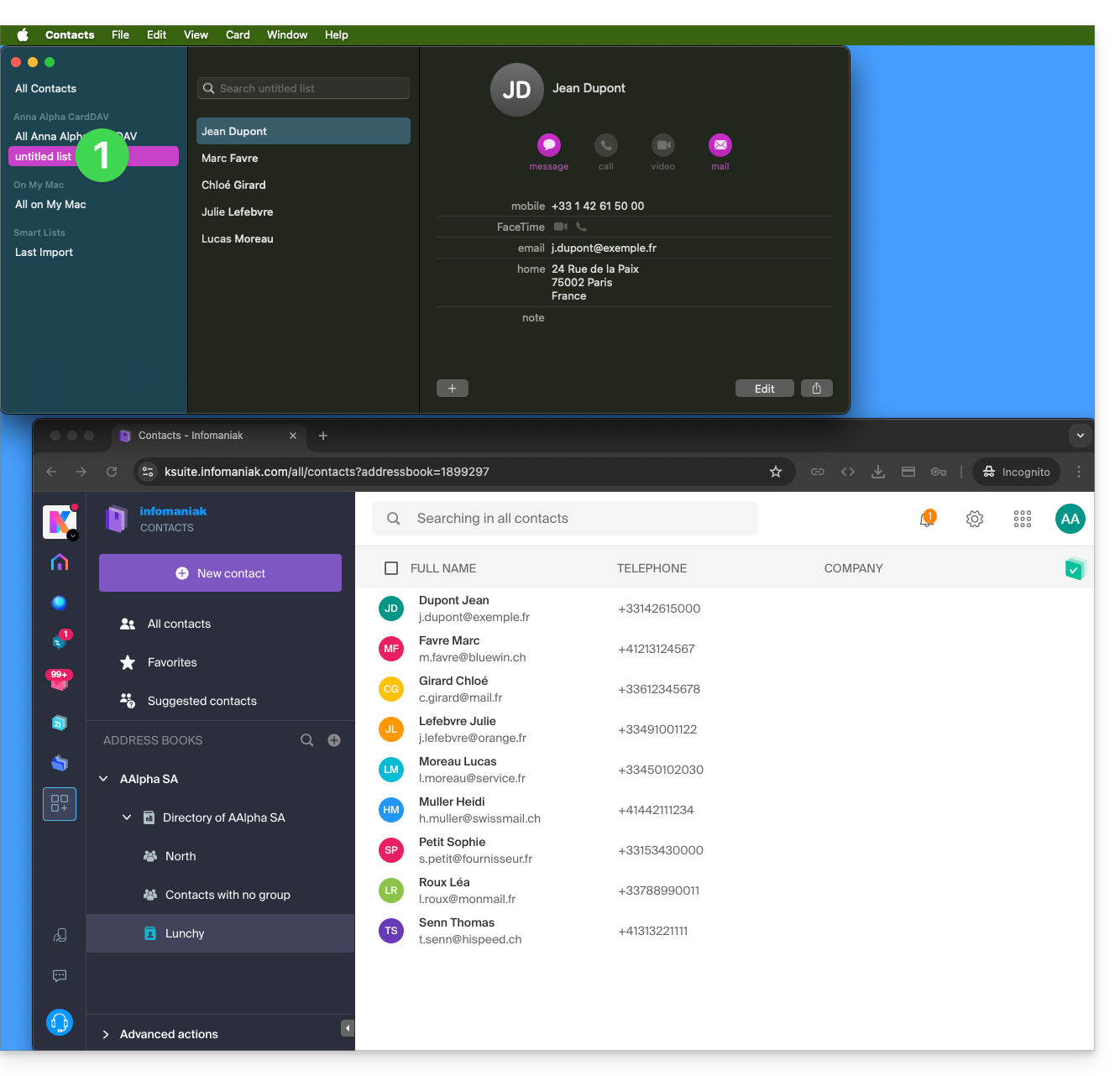
- Groups configured in the web interface are not displayed in the Apple Contacts app (but the contacts within them are):
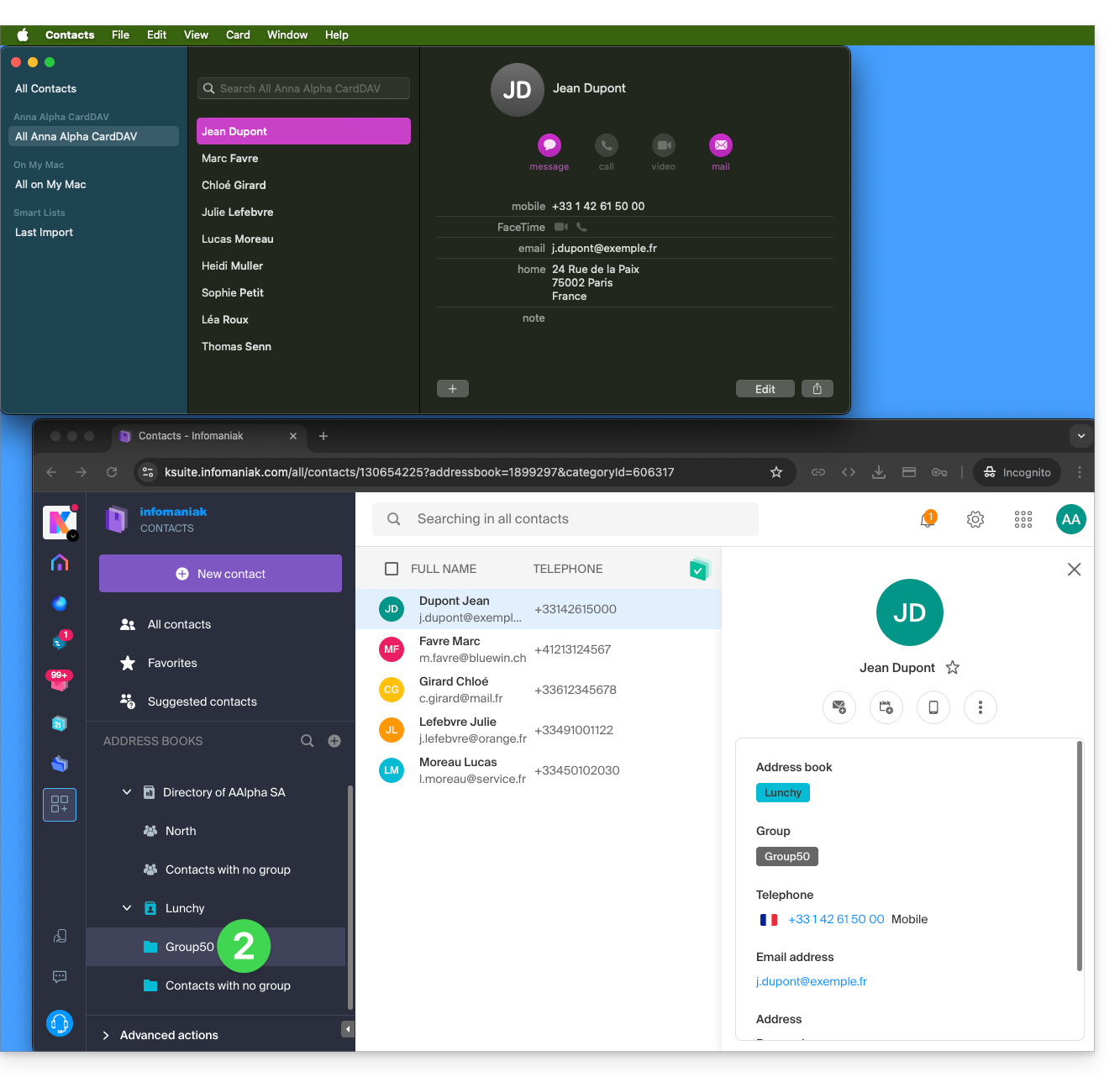
- Tip: to delete a list created on the Apple side, select it and press the DELETE key on your keyboard.
Additional address books
The Contacts app does not support multiple address books for the same account:
- Only the default address book is synchronized.
- To access all your address books, you need to use software like Thunderbird.
Example of a new address book on the Infomaniak side:
- The content of this second address book is not synchronized:
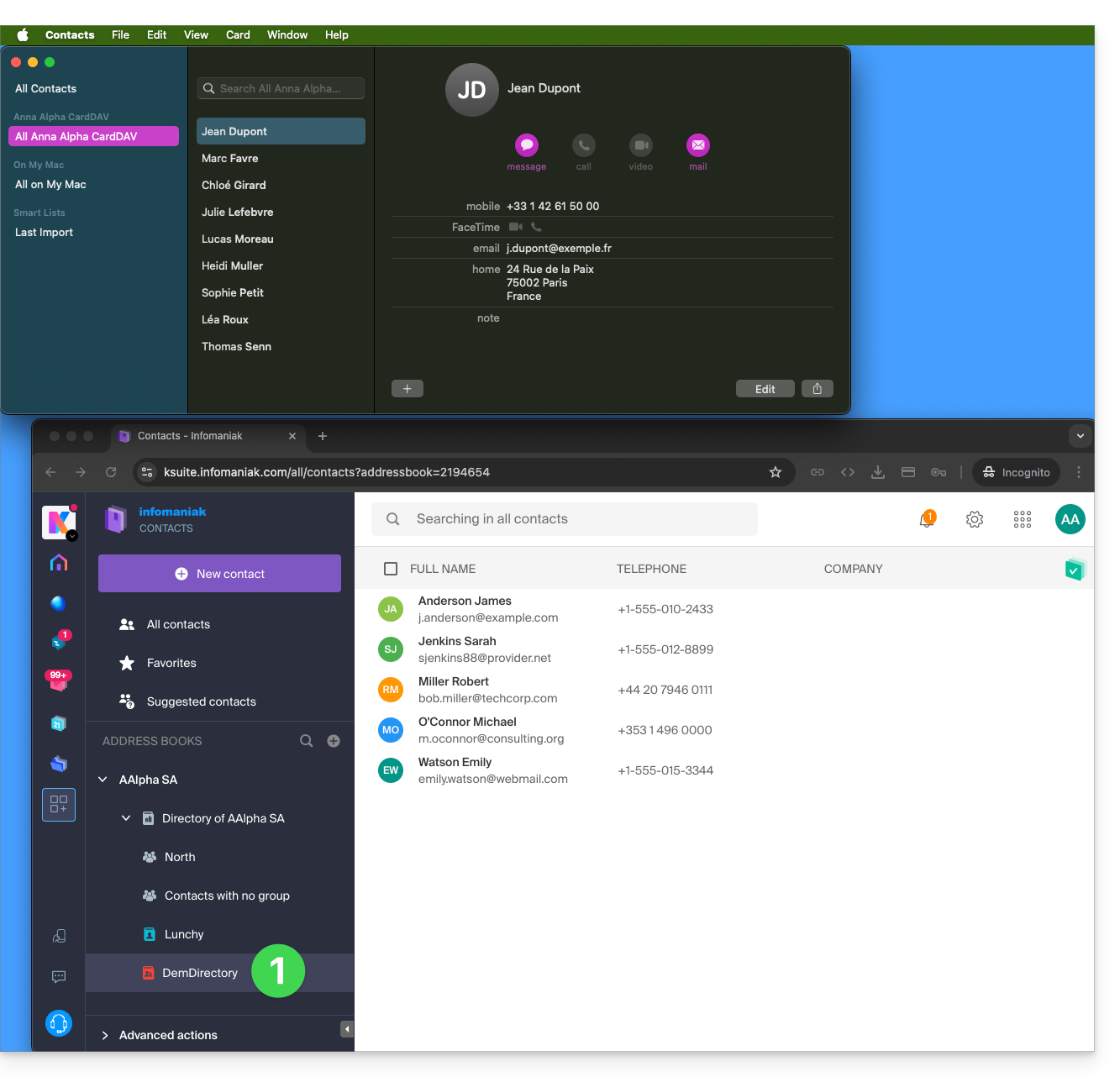
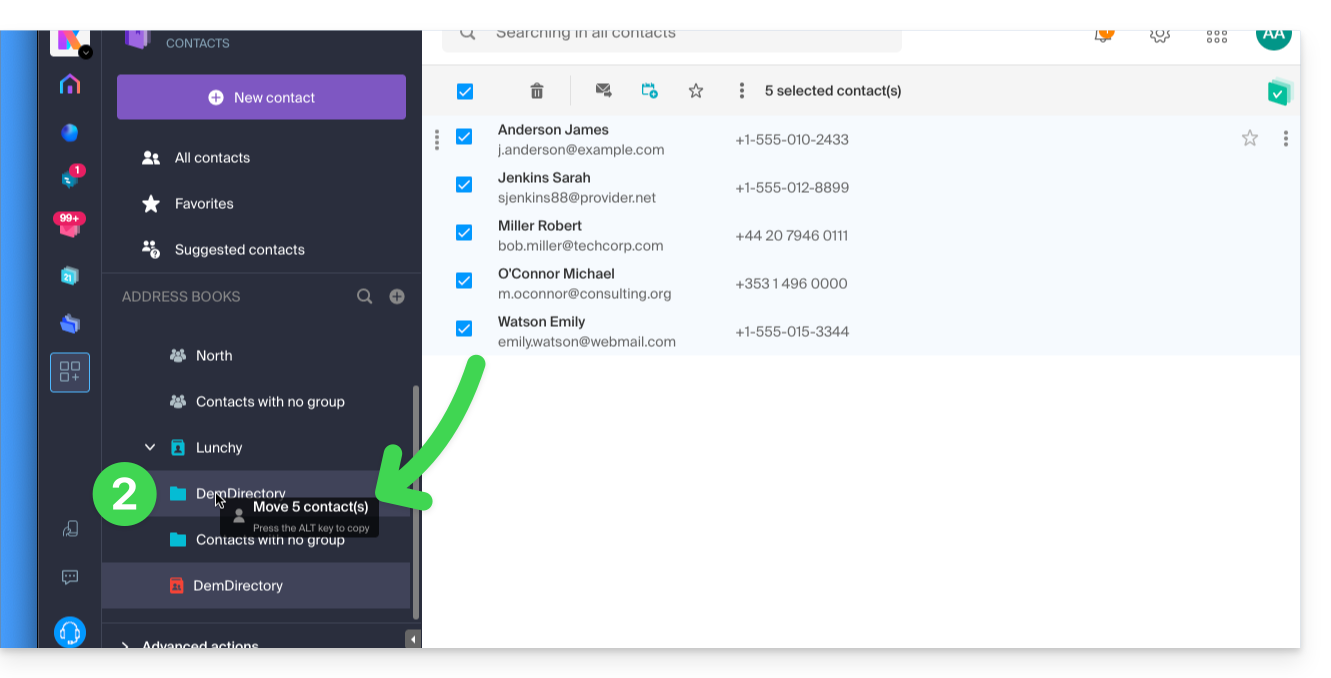
- A solution to organize yourself in a similar way could be to create a group in Lunchy and drag the 5 contacts into it:
Shared address books
A shared address book with another Infomaniak user will continue to be synchronized, including if contacts are added/edited via the sharing, as in this example of sharing with maximum permissions: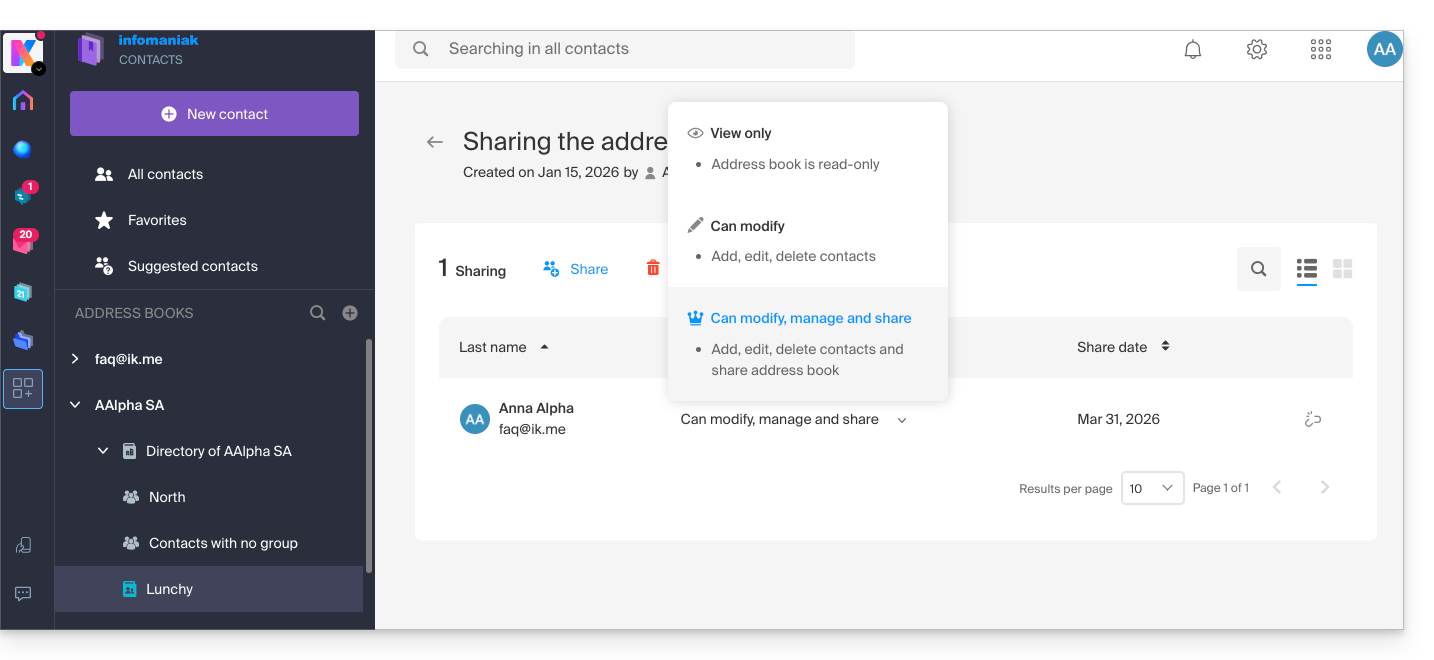
The reverse (receiving the contact sharing from another Infomaniak user) adds an additional address book. The synchronization of these additional contacts is therefore not possible (same rule as presented in the “Additional address books” section above).
Calendar: displaying shared calendars
The CalDAV protocol does not allow you to individually choose which items to synchronize; all data from the account is retrieved, including the calendars you share and those for which you have been granted access/modification rights: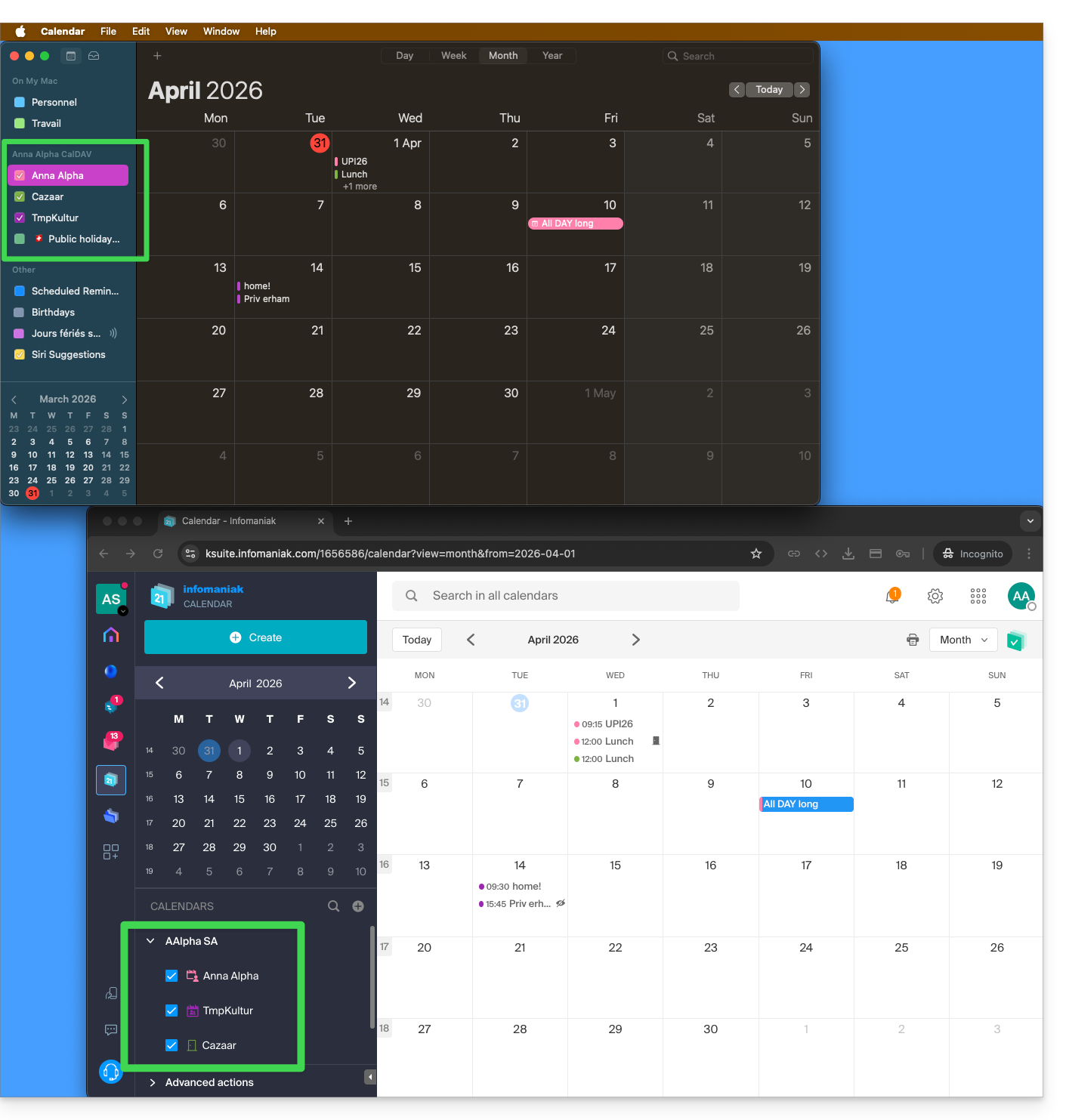
If only your personal calendar is displayed, then try this procedure to enable additional calendars:
On macOS
- Open iCal / Calendar.
- Go to the Calendar menu > Settings (or Preferences).
- Go to the Accounts tab.
- Select the Infomaniak account and click on the Delegation tab.
- Check the shared calendars to display.
On iOS
- Open iCal / Calendar.
- Tap the Calendars button at the bottom of the screen.
- Check the shared calendars in the list.
Notifications (iOS)
You can enable or disable alerts for each specific calendar by tapping the ⓘ icon to the right of its name: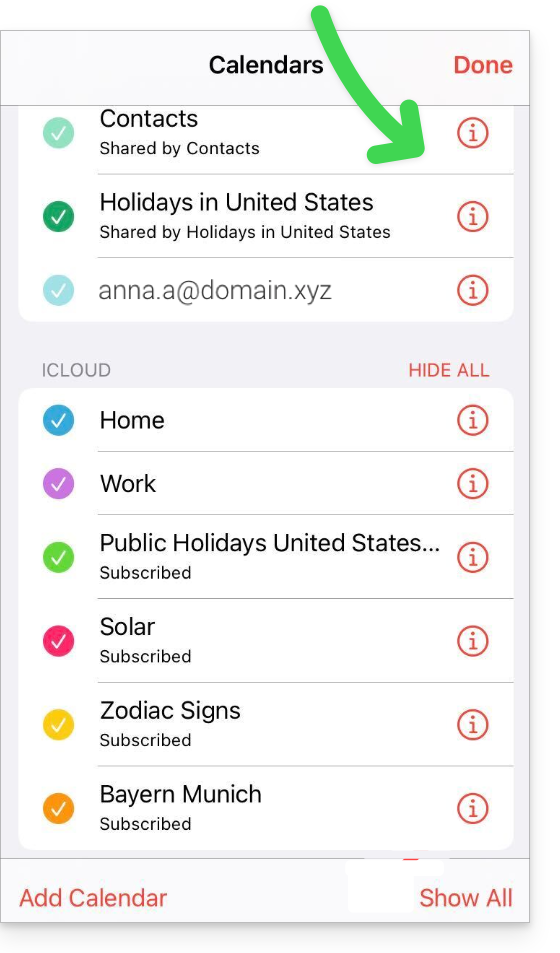
Link to this FAQ: https://faq.infomaniak.com/2181
Has this FAQ been helpful?
This guide explains how to manage a calendar and its events within the Google Calendar mobile app (application for iOS/Android smartphones or tablets) and/or the Infomaniak Calendar web app (online service ksuite.infomaniak.com/calendar), while keeping all data fully synchronized thanks to the Infomaniak mobile app kSync (application for Android smartphones or tablets).
Introduction
- Refer to this other guide if you only want to display an Infomaniak calendar in read-only mode on Google Calendar (web & mobile app).
- The reverse is also possible if you only want to display a Google calendar in read-only mode on the Calendar Infomaniak web app (online service ksuite.infomaniak.com/calendar).
- The procedure below allows you to edit calendar events on both sides, but only on the mobile version of the Google Calendar app.
Sync your Infomaniak calendar with your mobile device
Prerequisites
- Download the Google Calendar mobile app for Android.
- Download the Infomaniak kSync mobile app (application for Android smartphones or tablets) here:

- The kSync application is also available on F-droid.
- Install kSync.
Next, launch the kSync app on your Android device. A step-by-step assistant will help you configure the app according to your needs:
- Decide whether you want to synchronize tasks.
- Allow kSync to access the required items on the device, primarily the calendar.
- Allow the application to run in the background for better synchronization (uses more battery); settings can also be configured within the app itself:
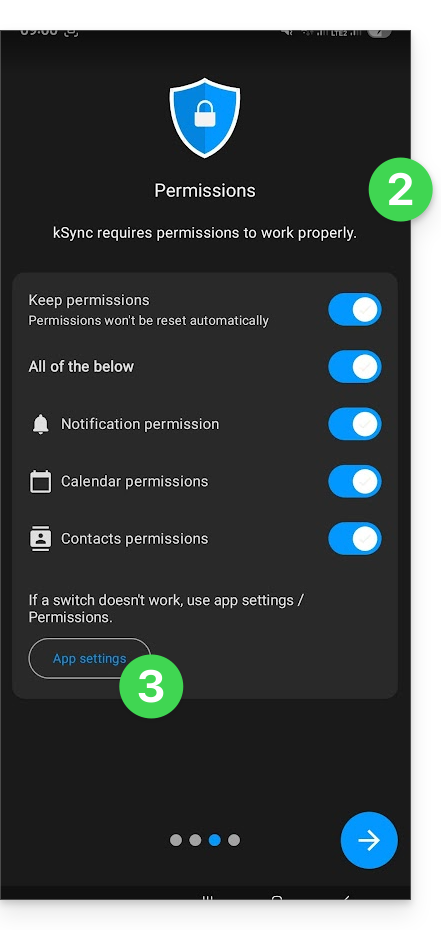
- The key is to grant access rights to the services you need to synchronize:
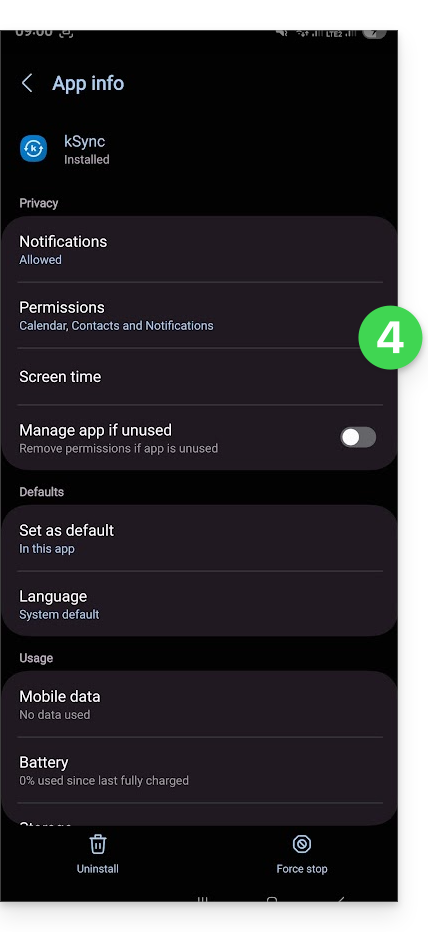
- Go back to the kSync app and continue the configuration:
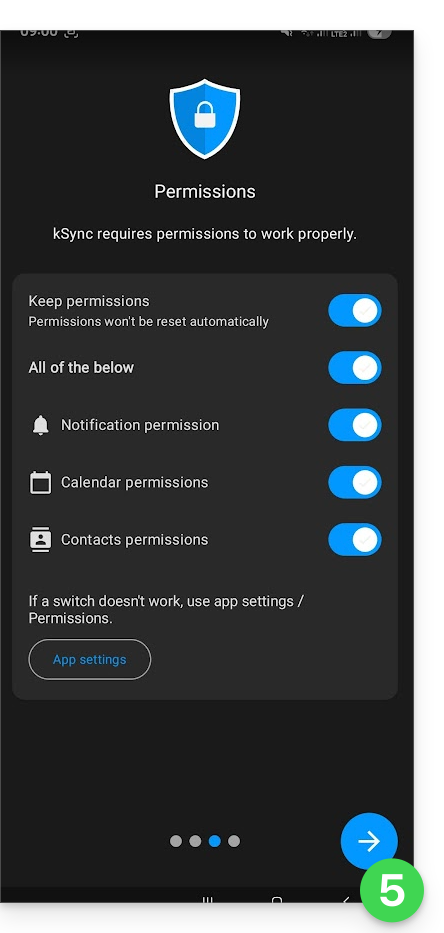
- Tap to add an Infomaniak user account (the one you use to log in to your Infomaniak services):
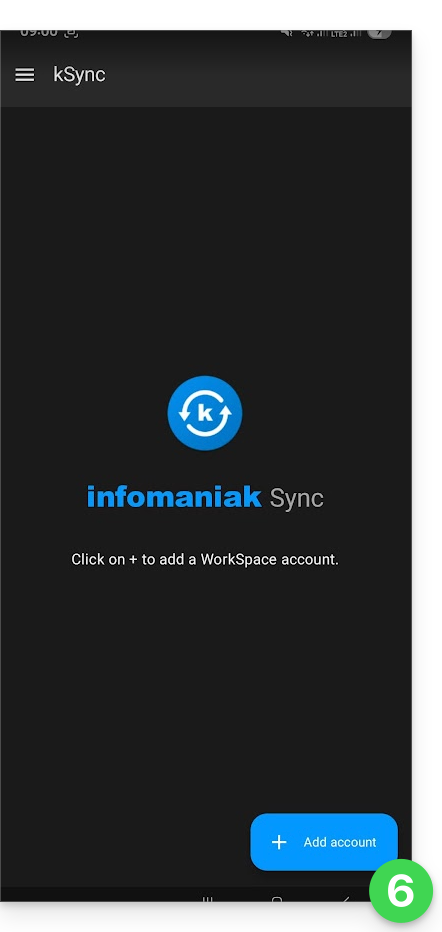
- For example, in the Calendar web app, the user menu in the top right corner shows the login email address used.
- You can then access the calendars of the Organization to which the current user belongs:
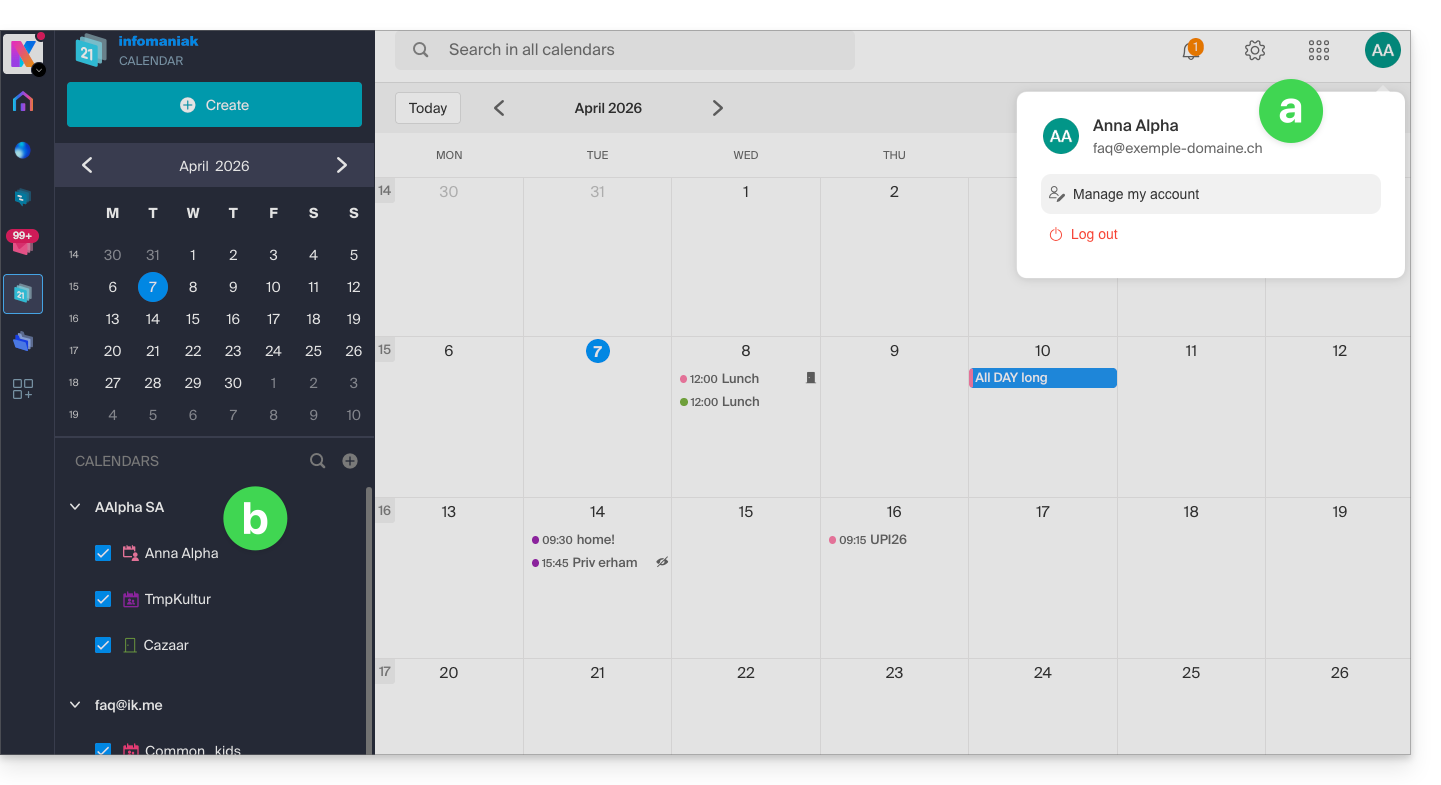
- This is the data that will be synchronized to your device when you log in to the same Infomaniak account on kSync…
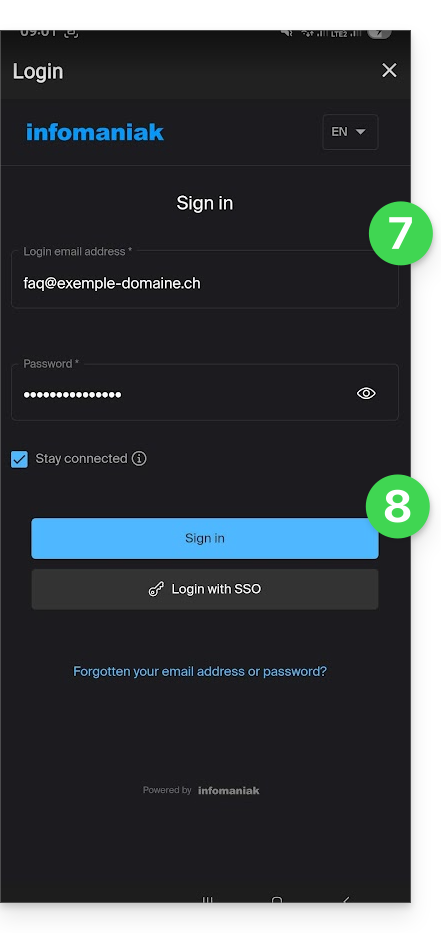
- Enter your Infomaniak login credentials (see point a above).
- Click the button to log in:
- Complete the two-factor authentication steps as you normally would when logging in.
- Once logged in to kSync, activate the calendars (from those displayed, which are the ones linked to your Infomaniak account) to be synchronized from the CALDAV tab:
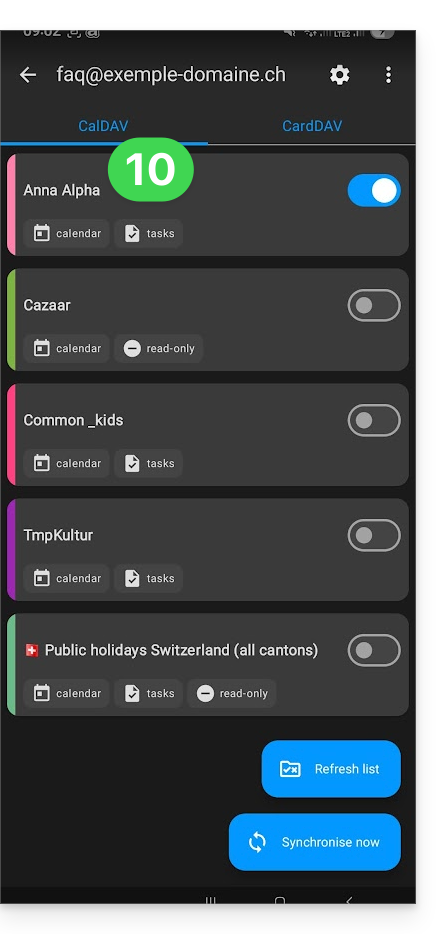
- Start the synchronization using the button located in the bottom right corner.
Automatic synchronization of the native calendar
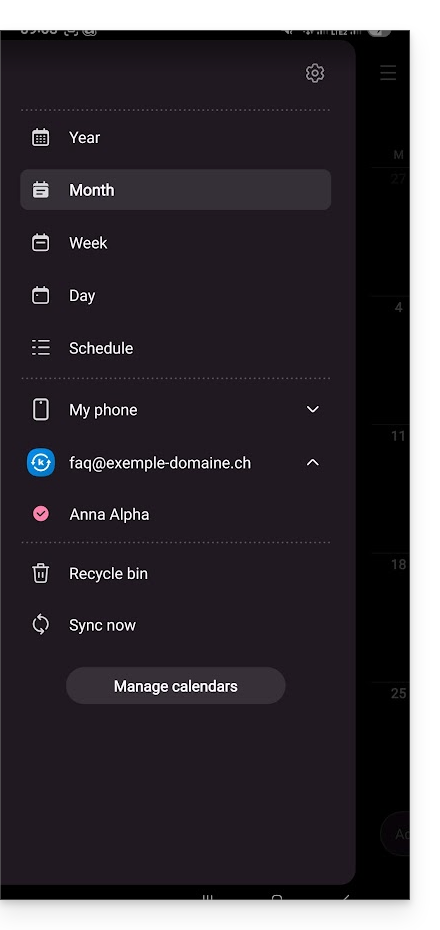
- At this stage,it is the native application of your Android device.Samsung Calendarfor example, on devices from the Samsung brandwhich will be synchronized and display the events from your Infomaniak calendar (you may need to activate the account in the application):
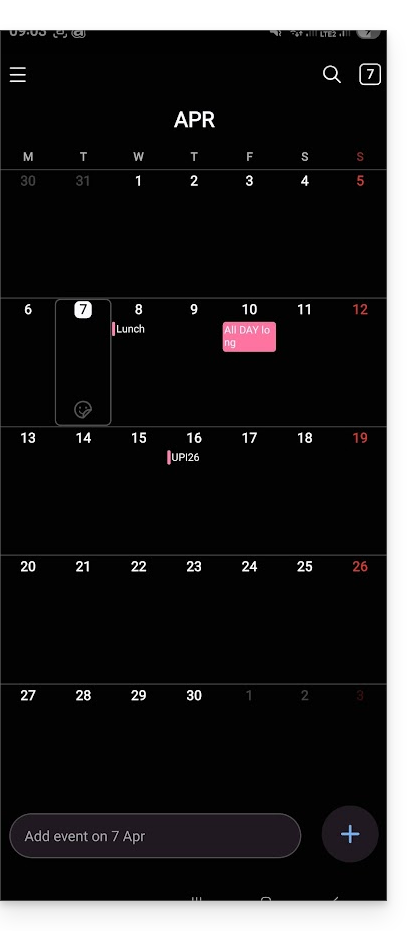
- An event added and/or modified in either interface will be automatically synchronized everywhere:
Enable the calendar in Google Calendar
To access your Infomaniak calendar in Google Calendar and be able to edit its events:
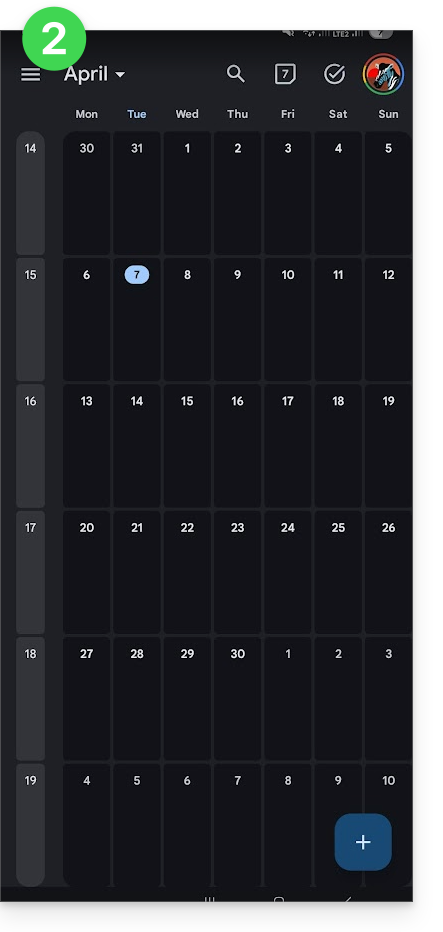
- Open Google Calendar on your Android device.
- Tap the menu button with three horizontal lines ☰ in the upper left corner of the interface:
- Tap Settings at the bottom of the menu:
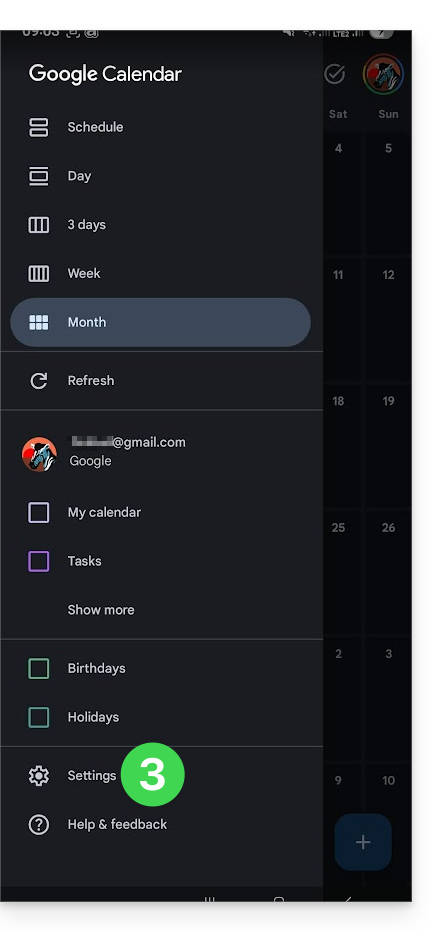
- Tap Manage accounts:
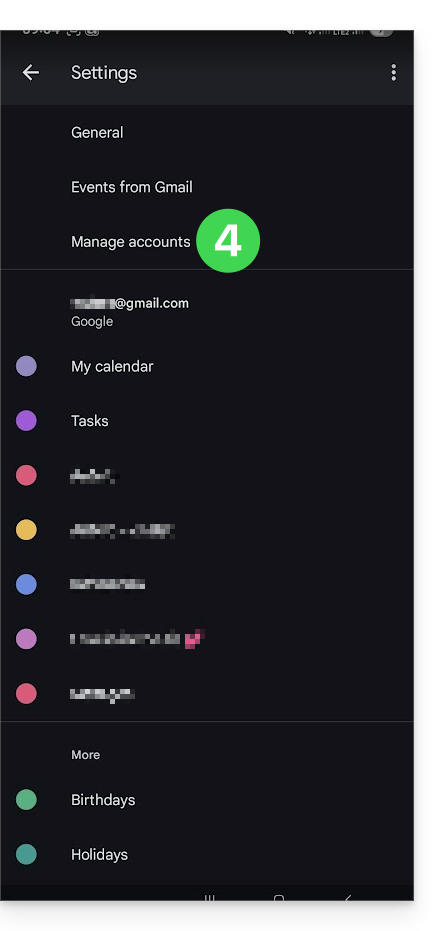
- Activate the account corresponding to your Infomaniak calendar:
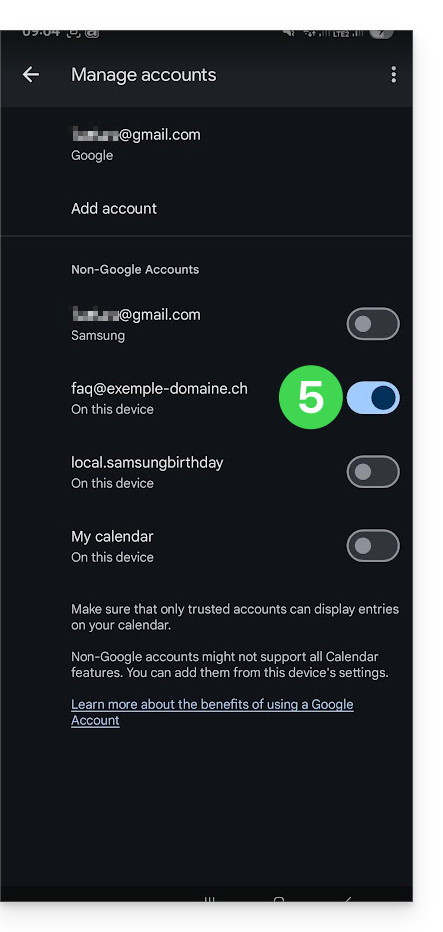
- Go back to the previous page and check that the Infomaniak calendar appears among the accounts, and modify the color if necessary:
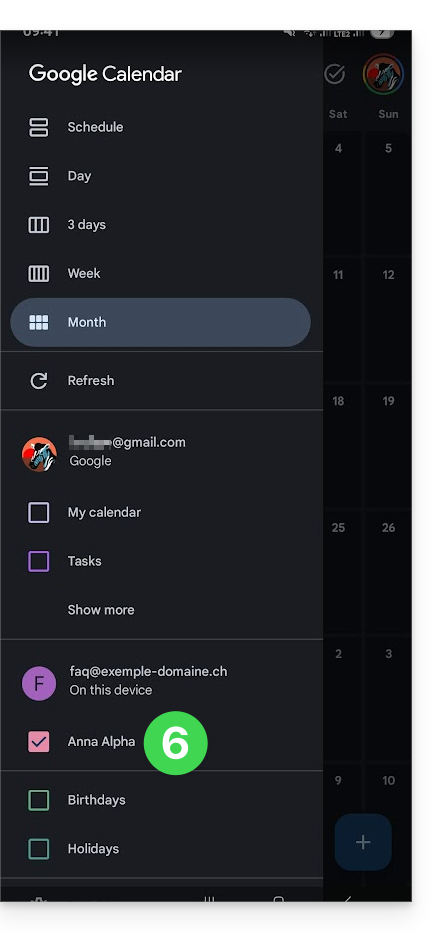
- That's it, Google Calendar is synchronized with the Infomaniak calendar. Any event added or modified in either interface will be automatically synchronized everywhere:
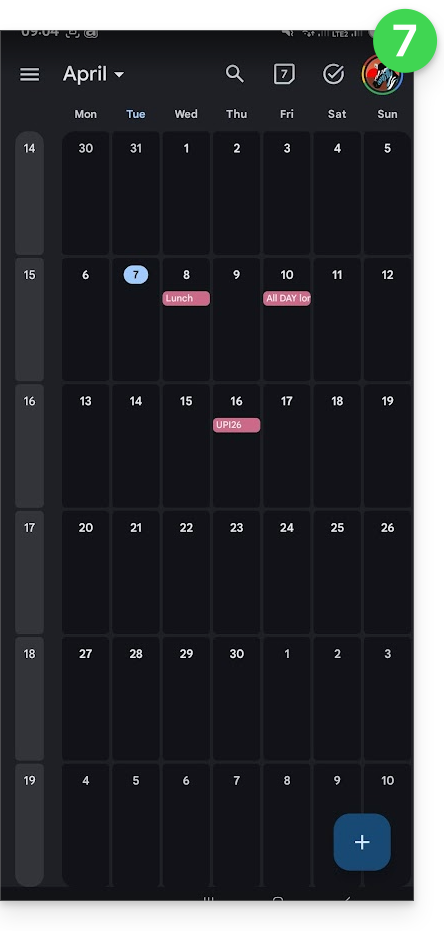
Link to this FAQ: https://faq.infomaniak.com/2486
Has this FAQ been helpful?
This guide explains how to connect the Contacts and Calendar iOS (iPhone, iPad…) apps with the contacts & calendars hosted by Infomaniak.
Introduction
- Rather than the manual configuration below, it is recommended to use the .mobileconfig configuration profiles offered by Apple.
- Infomaniak contacts & calendars are linked to your Infomaniak account; when you log in to ksuite.infomaniak.com/contacts or /calendar, you will likely need to perform two-factor authentication (2FA) during login.
- In this case, an application password is required to establish synchronization between your device and Infomaniak tools.
- But don't worry, creating such a password is offered as part of the configuration wizard.
Manual configuration (contacts & calendars)
Obtain your login information
To obtain the CardDAV/CalDAV synchronization username and password:
- Click here to access the Infomaniak configuration tool (online service https://config.infomaniak.com) — log in if necessary to your Infomaniak account for the Organization where your email address is managed.
- Select a device other than iOS (this is to obtain your username):
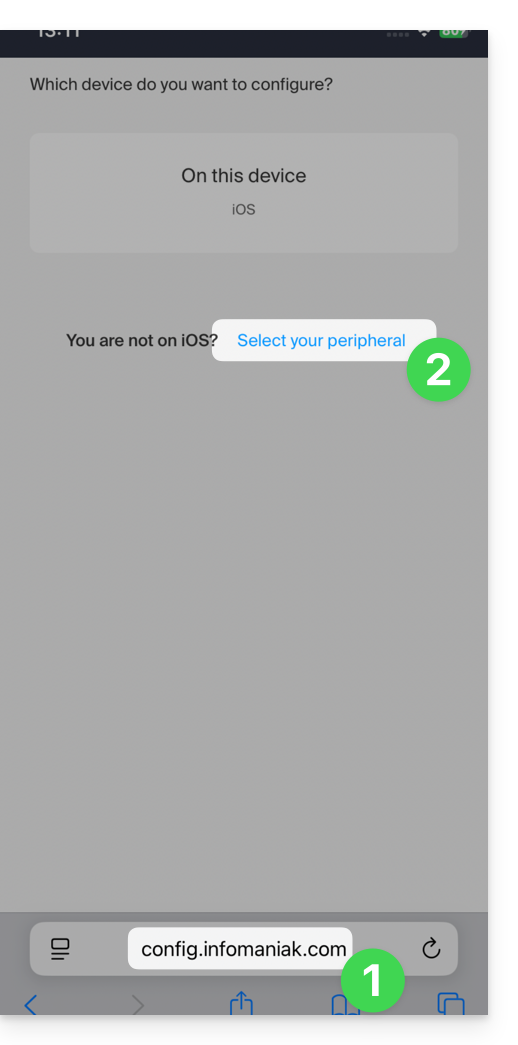
- Choose Linux:
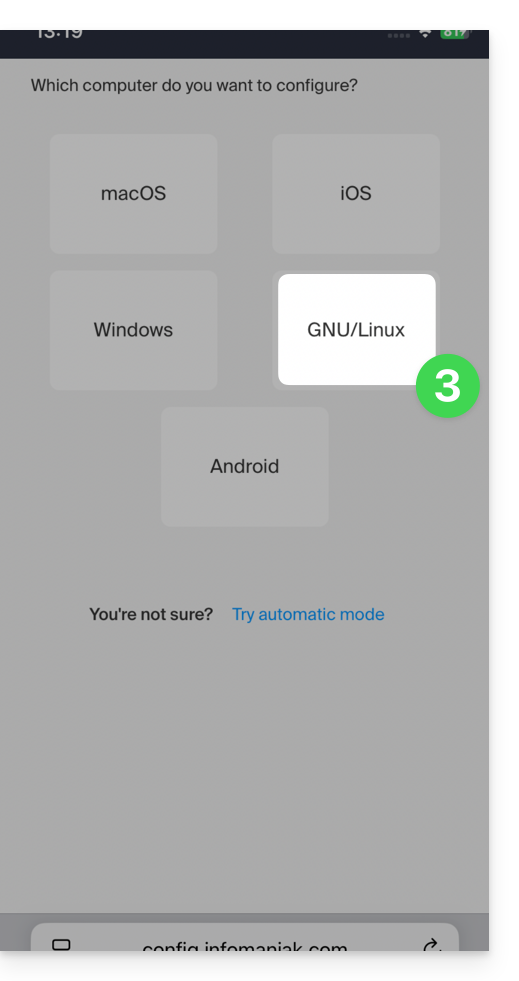
- Choose Contacts or Calendars:
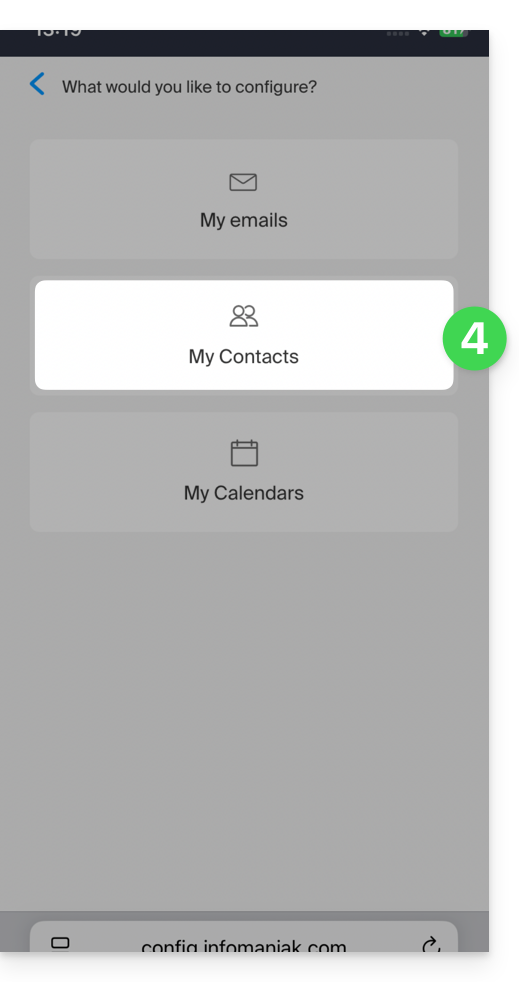
- Choose the specific service that needs to be synchronized.
- Tap the right arrow several times, then tap the title of the manual synchronization tab:
- The information displayed below allows you to obtain:
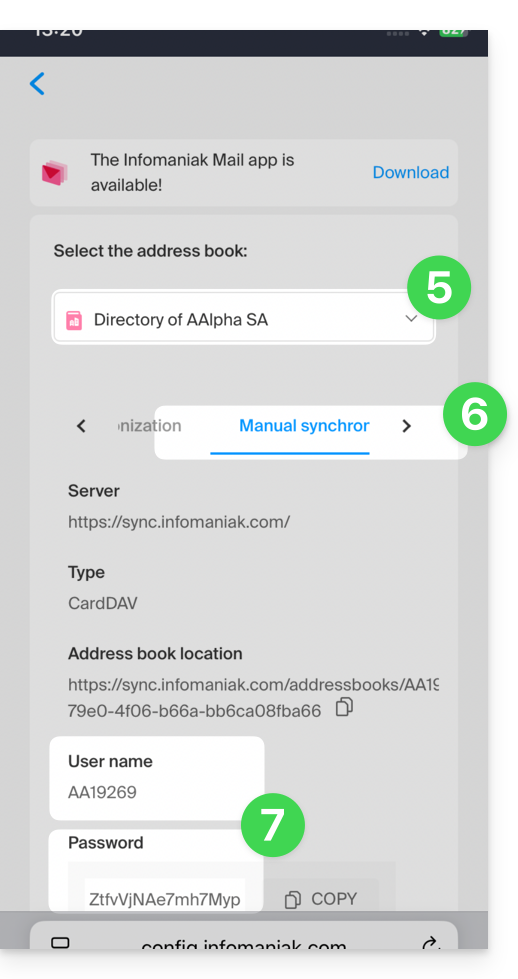
- your username (e.g.,
AB12345)… - application password if two-factor authentication is enabled or the password for your Infomaniak user account if you have not enabled 2FA.
- For the server address, use only
sync.infomaniak.com.
- your username (e.g.,
Using the login information
With this information, all you have to do is add your accounts according to Apple's instructions:
- Go to Settings > Contacts > Accounts > Add Account.
- Tap Other, then Add CardDAV Account and enter the account and server information.
Do the same for the Calendar app:
- Go to Settings > Calendar > Accounts > Add account.
- Tap Other, then Add CalDAV account and enter the account and server details.
Synchronization specifics
Refer to this other guide.
Link to this FAQ: https://faq.infomaniak.com/1544
Has this FAQ been helpful?
This guide explains how to connect the desktop apps Contacts and Calendar on macOS (MacBook Pro, Neo…) with the contacts & calendars hosted by Infomaniak.
Introduction
- Rather than the manual configuration below, it is recommended to use the .mobileconfig configuration profiles offered by Apple.
- Infomaniak contacts & calendars are linked to your Infomaniak account; when you log in to ksuite.infomaniak.com/contacts or /calendar, you will likely need to perform two-factor authentication (2FA) during login.
- In this case, an application password is required to establish synchronization between your device and Infomaniak tools.
- But don't worry, creating such a password is offered as part of the configuration wizard.
Manual configuration (contacts & calendars)
To configure both services on macOS:
- Click here to access the Infomaniak configuration tool (online service https://config.infomaniak.com) — log in if necessary to your Infomaniak account for the Organization where your services to be synchronized are managed.
- Choose synchronization for this device.
- Choose to synchronise your contacts & calendars.
- Click on the Manual synchronisation tab.
- Click on the Generate button to obtain an application password:
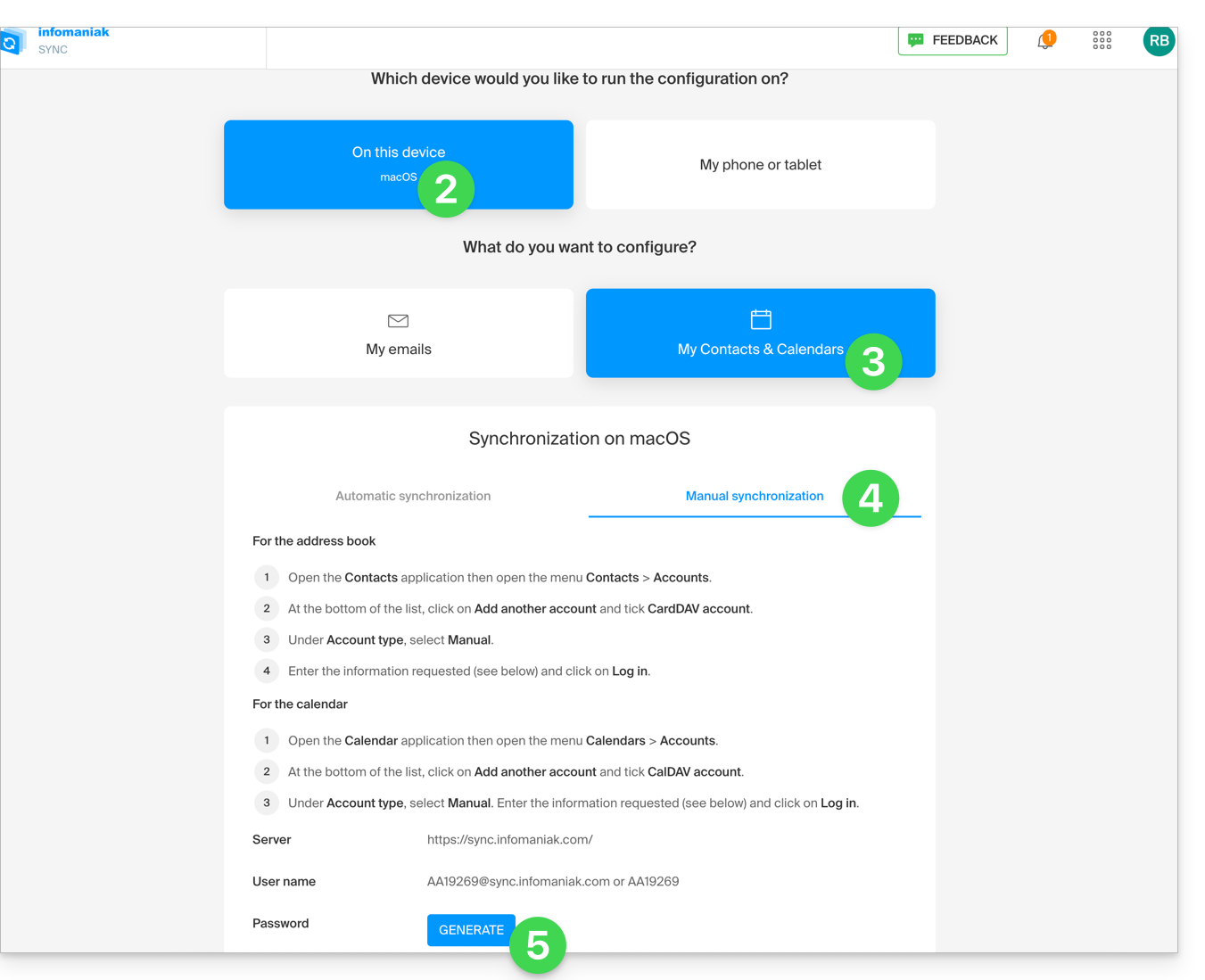
- Note the information that will be displayed on your screen.
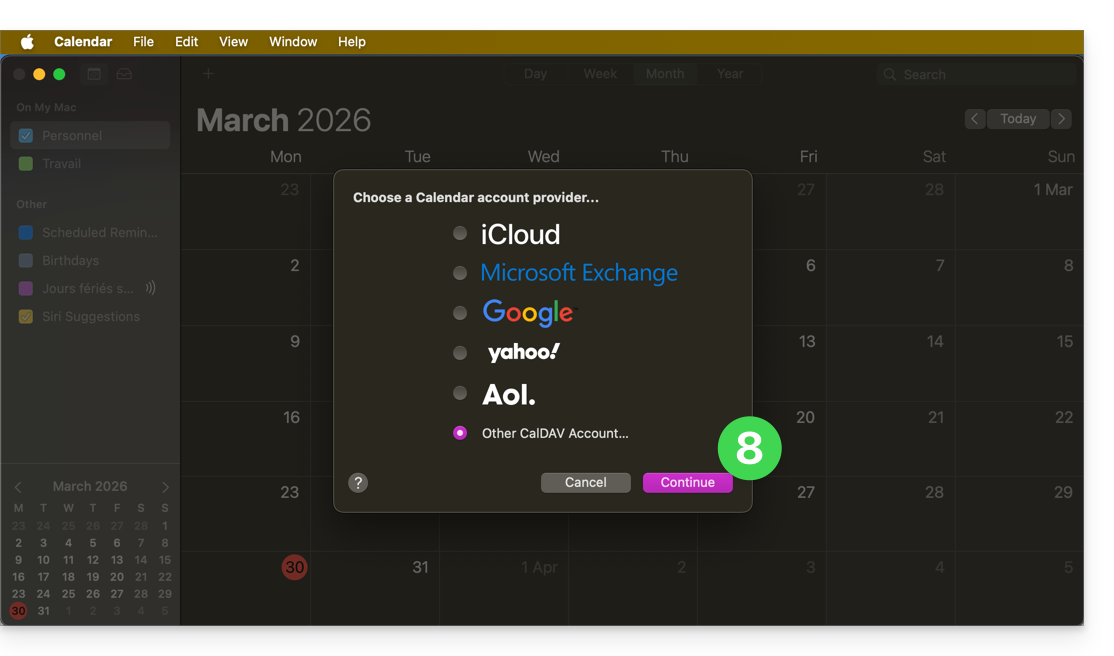
- Then, open the Calendar application on your device.
- Add a new account, making sure to select CalDAV:
- Enter the information noted in step 6 above:
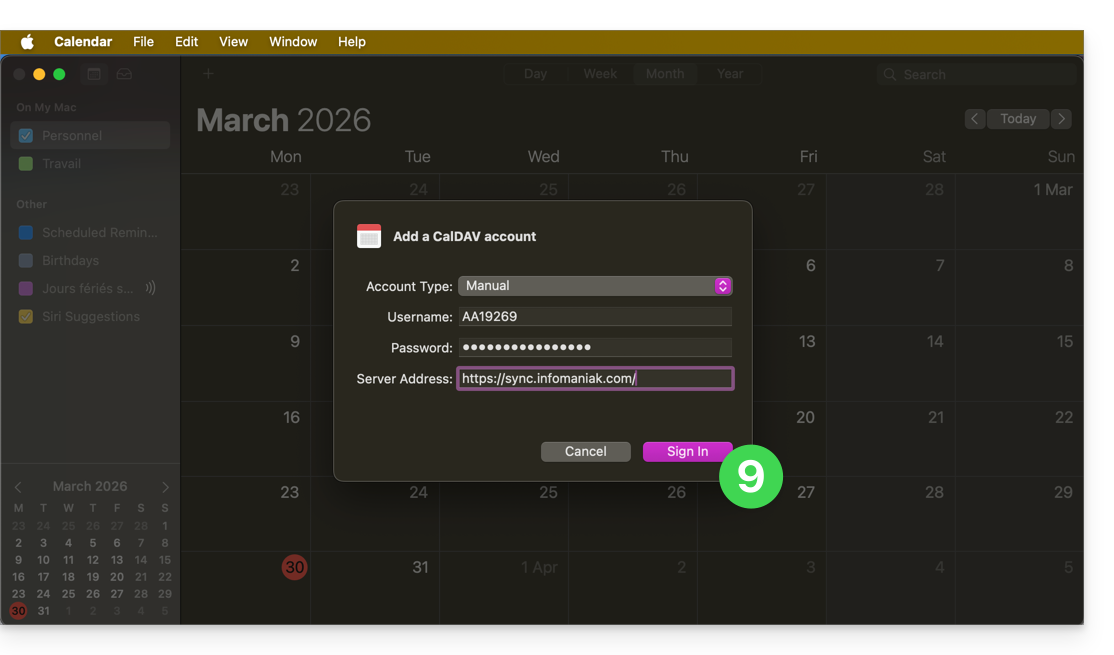
- Username: enter the username provided by the synchronisation assistant in uppercase (e.g.
AB12345)… - Password: the one from step 5 above (i.e. an application password if you have activated two-factor authentication) or the password for your Infomaniak user account if you have not activated 2FA…
- Server address:
https://sync.infomaniak.com/
- Username: enter the username provided by the synchronisation assistant in uppercase (e.g.
- That's it, you can now open your macOS Contacts and Calendar applications.
If your applications were already open, you need to restart them. You will then see the information added by the synchronisation:
Specifics of synchronisation
Refer to this other guide.
Deleting a CardDAV or CalDAV account
Refer to the chapter "Stop using an account" and, at the top of the page, change the system version if necessary to match your own *.
*Why is it necessary to choose the guide version that exactly matches your macOS / iOS system version? Apple introduces subtle changes with each new version of its system, for example, a path on iOS 15…
… becomes this on iOS 18…
Link to this FAQ: https://faq.infomaniak.com/1701
Has this FAQ been helpful?
This guide explains how to synchronize your eM Client contacts & calendars with the contacts & calendars hosted by Infomaniak.
Introduction
- Infomaniak contacts & calendars are linked to your Infomaniak account; when you log in to ksuite.infomaniak.com/contacts or /calendar, you will likely need to perform two-factor authentication (2FA) during login.
- In this case, an application password is required to establish synchronization between your device and Infomaniak tools.
- But don't worry, creating such a password is offered as part of the configuration wizard.
Synchronize contacts & calendars (eM Client 10 macOS)
Prerequisites
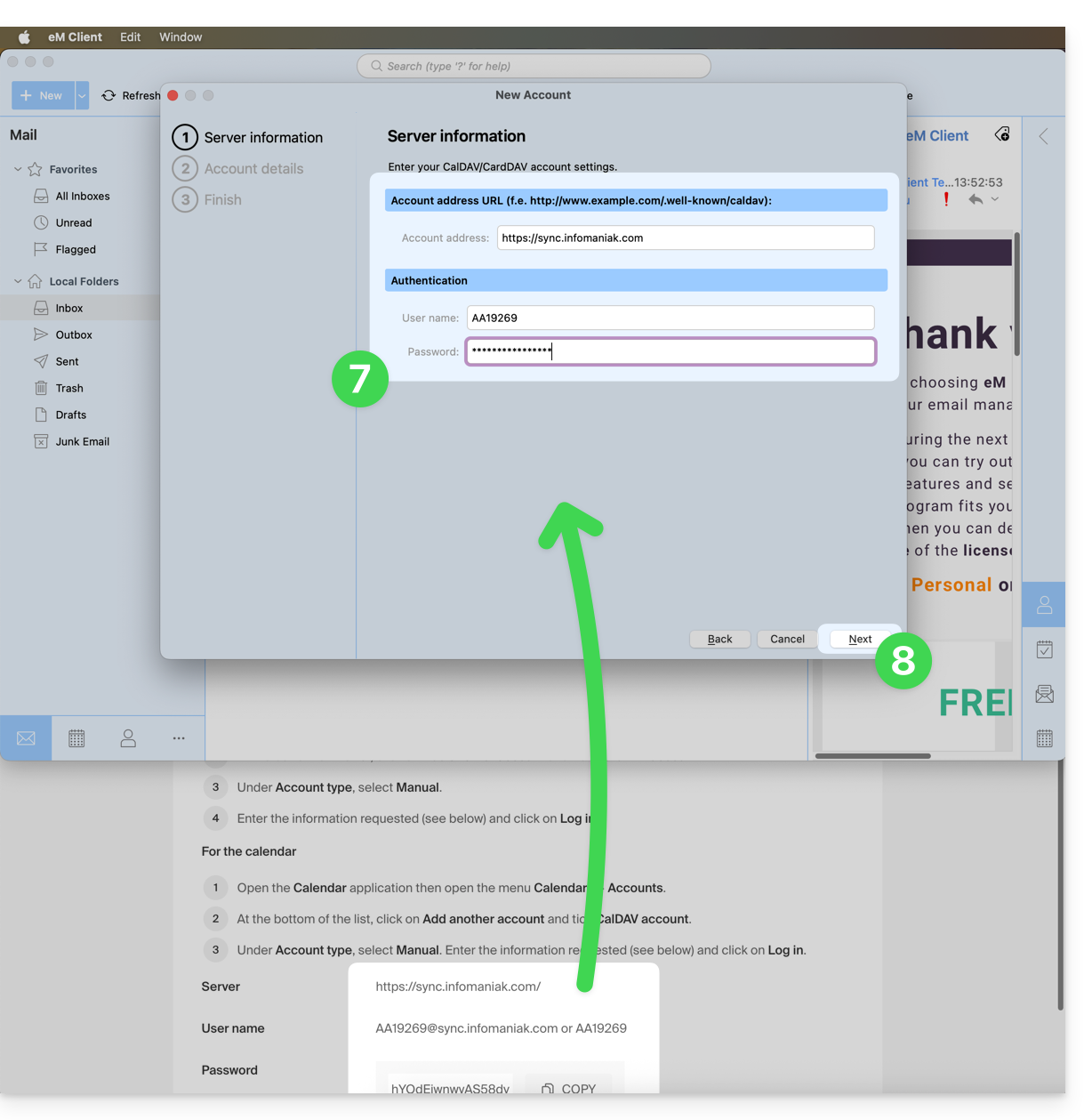
- Obtain your synchronization information provided by the Infomaniak synchronization wizard:
- account address:
https://sync.infomaniak.com - username: for example
AB12345 - application password if two-factor authentication is enabled or the password for your Infomaniak user account if you have not enabled 2FA
- account address:
Then:
- Open eM Client.
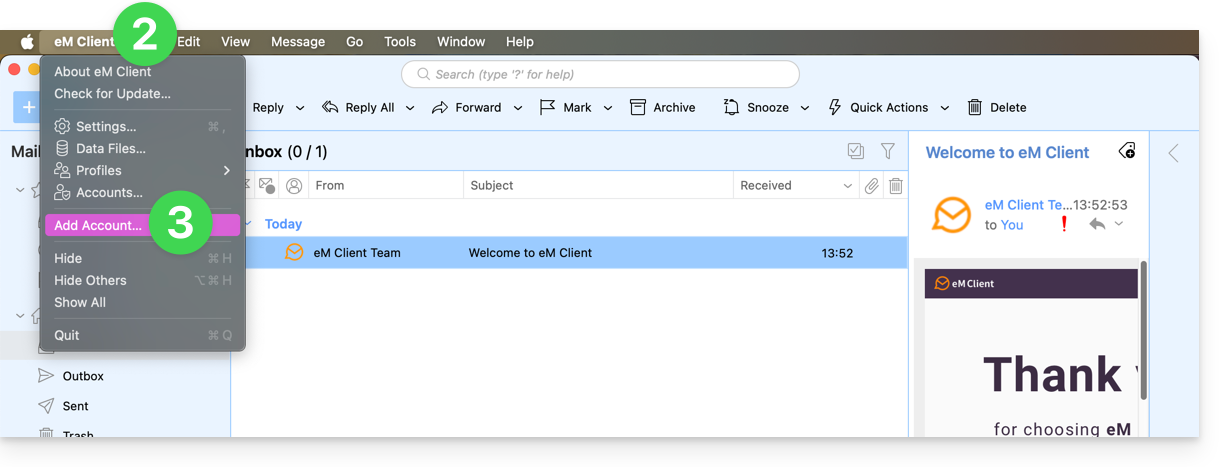
- Click on the eM Client Menu.
- Click on Add account:
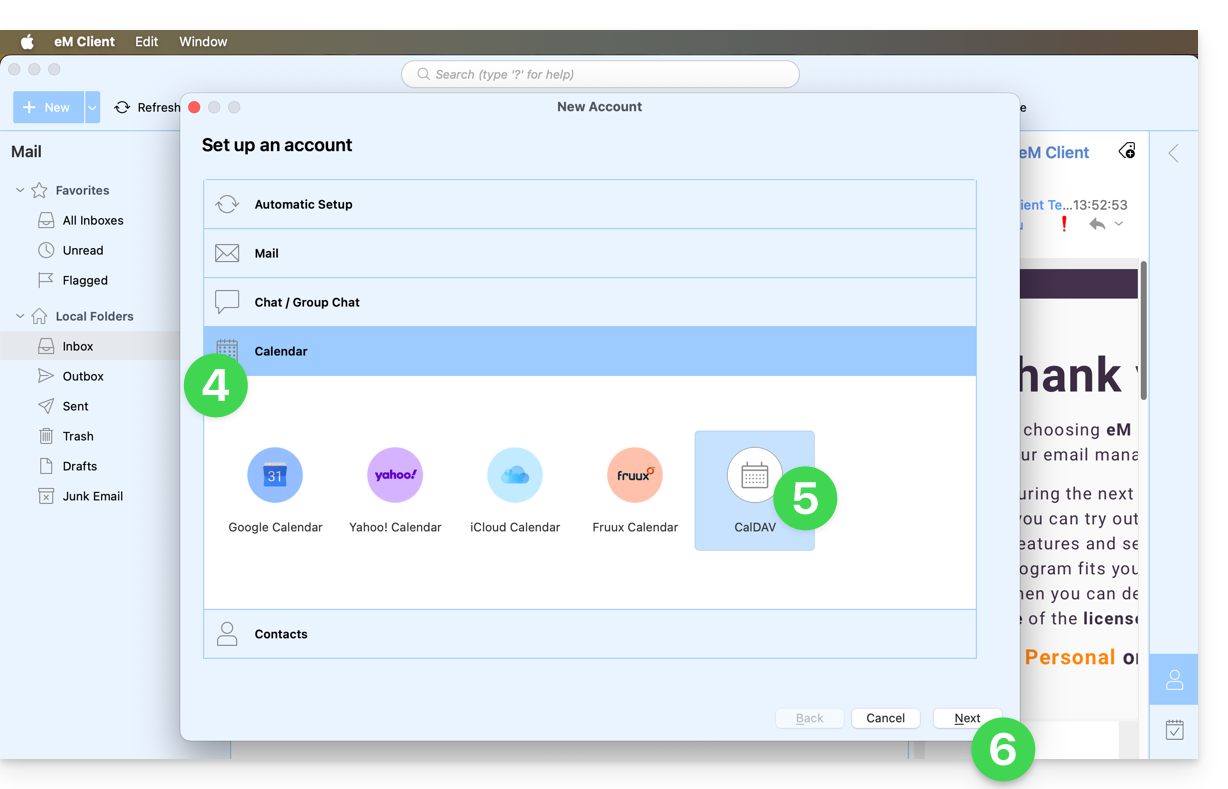
- Click on Calendar.
- Click on CalDAV.
- Click on Next:
- Enter the information obtained from the configuration wizard (see prerequisites).
- Click on Next:
- Choose a name for the account (e.g., infomaniak) and complete the process.
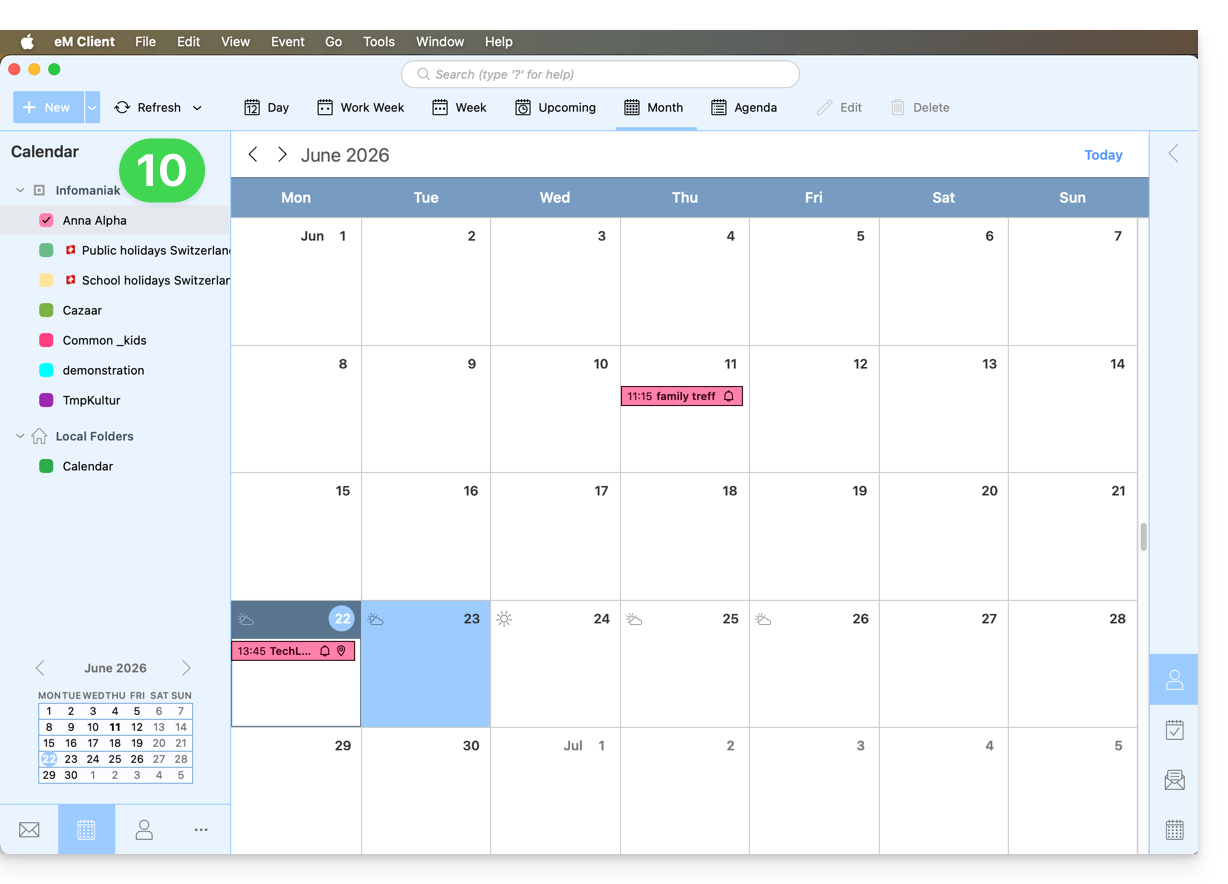
- The information retrieved and synchronized with Infomaniak will be displayed in the Calendar section:
You can start with the Contacts section if you wish, but in any case, a CalDAV procedure also configures CardDAV, and vice versa: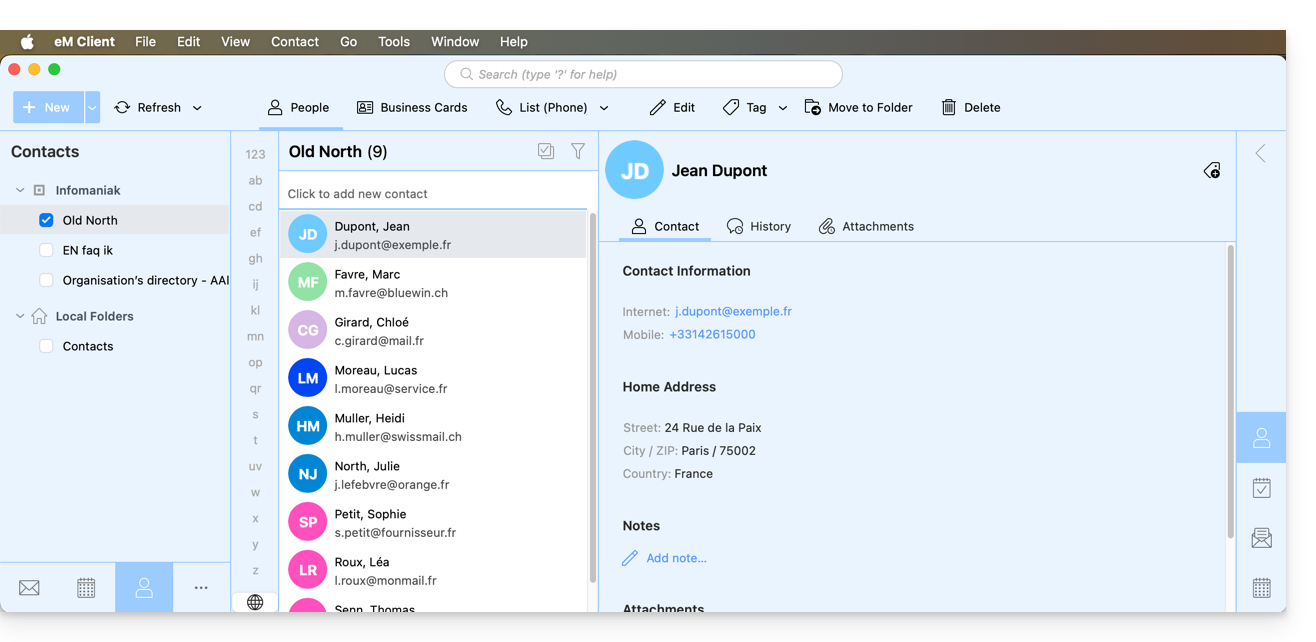
Link to this FAQ: https://faq.infomaniak.com/2047
Has this FAQ been helpful?
The Infomaniak kSync mobile app is a free solution offered by Infomaniak that allows you to synchronize contacts, calendars, and tasks from your Android mobile devices (Samsung, Huawei, Google Pixel, etc.) with the tools provided by Infomaniak:
- ksuite.infomaniak.com/contacts for managing contacts / address books
- ksuite.infomaniak.com/calendar for managing calendars
Introduction
- Configuring synchronization at the email level does not mean that contacts & calendars will also be synchronized!
- Email is synchronized via the IMAP protocol, while your contacts & calendars can be synchronized using the CardDAV and CalDAV protocols.
- To facilitate this synchronization on Android devices, it is recommended to install kSync.
- On iOS (iPhone, iPad, etc.), use an Apple profile, which can be downloaded from the configuration assistant.
- Microsoft has its own format that is not directly compatible with CardDAV and CalDAV; therefore, it is not possible on the Outlook mobile app to synchronize contacts and calendars with Infomaniak (PS: a paid and untested solution exists here).
- To synchronize Outlook on your computer, please refer to this other guide.
What would you like to do?
- Download and install kSync on your Android device
- Configure kSync
- Use kSync to synchronize Google Calendar
- Add a new address book or calendar from kSync
- Synchronize tasks between Mail Infomaniak and your Android devices
- Force kSync synchronization
- Generate a specific password if two-factor authentication is enabled
Link to this FAQ: https://faq.infomaniak.com/2302
Has this FAQ been helpful?
Thank you for choosing my kSuite to manage your emails, back up your data, and share it securely.
These guides will help you set up your emails, use kDrive, change your plan, and more.
my kSuite & my kSuite+
- Compare the free and paid versions
- Differences between my kSuite and kSuite (Standard, Pro, Enterprise)
- Explanations about the interfaces available to you
Free Email (ik.me, etik.com, ikmail.com)
Getting Started
- Forward your emails to Infomaniak
- Sync your emails across all your devices
- Import your old emails
- Synchronize contacts and calendars
- Import your contacts
- Import your calendars
Advanced features
- Customize the Webmail interface
- Manage/Modify passwords
- Add a signature
- Configure an automatic reply
- Use keyboard shortcuts
- View sending limits
- Manage storage space
- Create an address with a custom domain
Free Cloud (kDrive)
Getting started
Advanced features
Other services
- Organize a video conference with kMeet
- Share sensitive data with kPaste
- Send large files with SwissTransfer
- Consequences of deleting an account
Have a question or feedback?
- If you encounter any issues, please consult the knowledge base before contacting support.
- Click here to share feedback or suggestions about an Infomaniak product.
Requests related to free services are processed with limited priority.To benefit from telephone support, choose a Domains, Web Hosting, Backup, Storage, Marketing, Event or Multimedia offer.
To close your “my kSuite”, please refer to this other guide.
Link to this FAQ: https://faq.infomaniak.com/2479
Has this FAQ been helpful?
This guide is for users who own a domain name on the Infomaniak infrastructure and are experiencing a DMARC issue when using certain Google tools such as Meet or Calendar.
Troubleshooting a DMARC error
To ensure compatibility between your domain name configuration (which has a DMARC policy (❓: help) of type reject) and the use of certain Google services, it is necessary to add the corresponding SPF record:
- Before:
v=spf1 include:spf.infomaniak.ch -all - After:
v=spf1 include:spf.infomaniak.ch include:_spf.google.com -all
To edit the SPF record currently configured in the DNS zone of your domain name:
- Click here to access the domain management section in your Infomaniak Manager (❓: help).
- Click on the name of the domain in question.
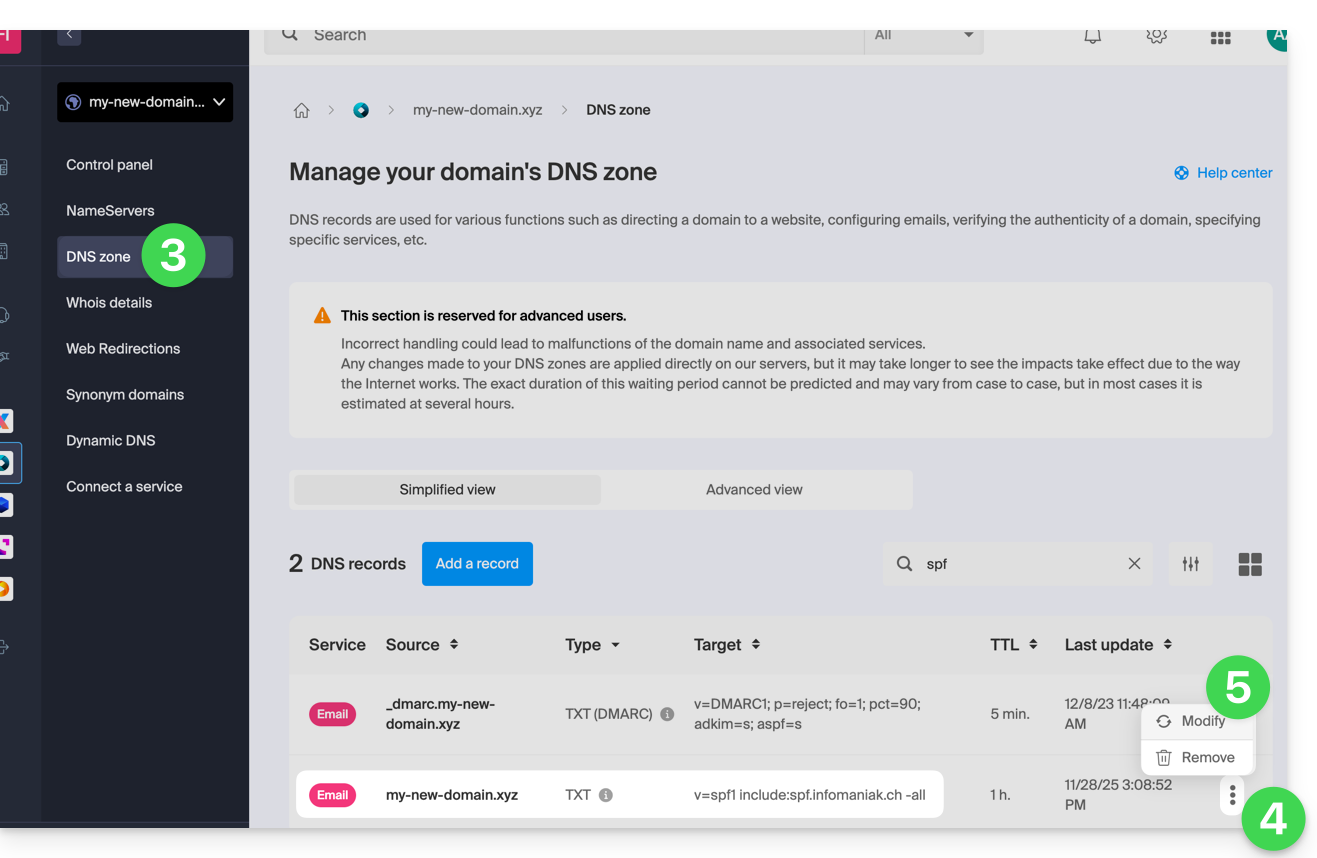
- Click on DNS Zone in the left-hand menu.
- Click on the action menu ⋮ located to the right of the TXT record containing the relevant SPF value.
- Click on Edit:
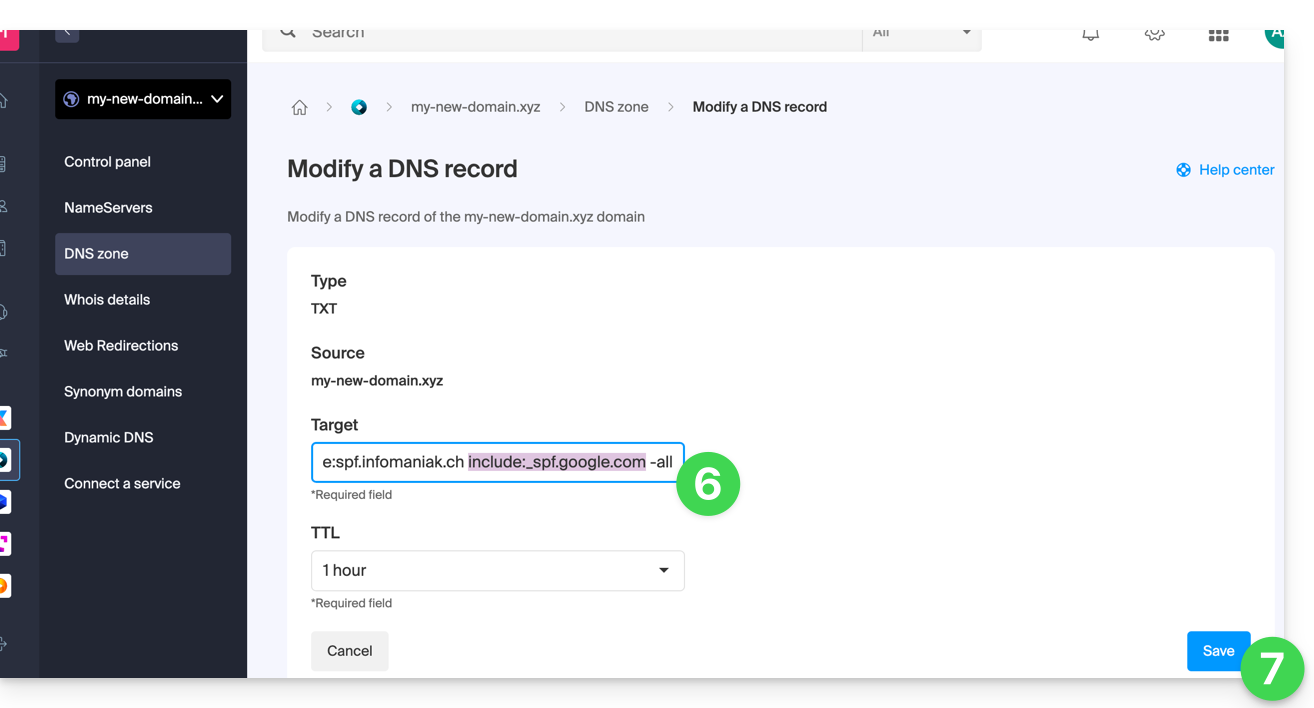
- Edit the field by adding
include:_spf.google.comon the same line after the existing include Infomaniak, and before the final-all. - Click on the Save button:
Any DNS addition or modification may take up to 48 hours to propagate (❓: help).
Please refer to this Google documentation if you need information on configuring Google's SPF.
Link to this FAQ: https://faq.infomaniak.com/1641
Has this FAQ been helpful?
This guide explains how to start an online meeting with kMeet, Infomaniak's ethical and free video conferencing solution.
Introduction
- There is no limit to the number of participants with the paid kSuite plans.
- Participants can write in a common chat (❓: help), annotate a screen share (❓: help), and even control a remote device (❓: help).
- You can create a meeting room in advance and invite participants by creating an associated event in the Infomaniak calendar (❓: help).
- You can also share the video stream within a Streaming Video broadcast (❓: help), for example, to avoid relying on the connection to kMeet.
- Custom Brand: creating rooms on a specific domain (e.g., kMeet.domain.xyz) is not yet supported by the desktop application (especially under Linux).
Create a virtual meeting room
To do this:
- Click here to access kMeet in your Infomaniak kSuite (or launch the mobile/desktop app — ❓: help).
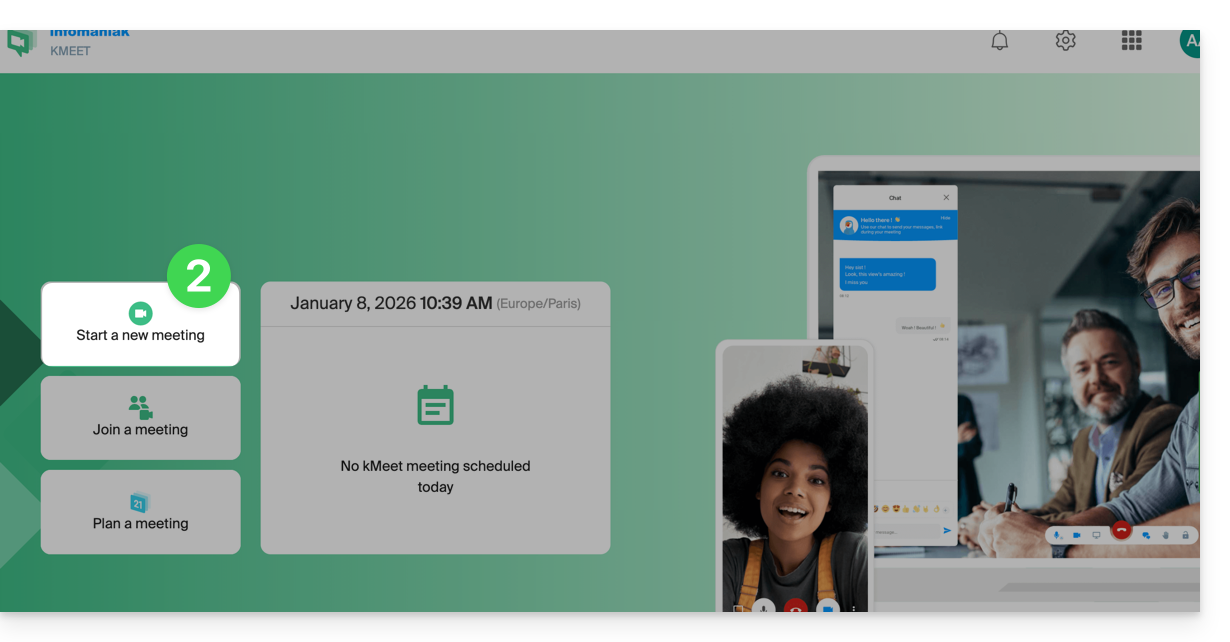
- Start a meeting (❓: help).
- Enter a name for your meeting room.
- Allow access to your webcam and microphone from your browser or from the application (❓: help).
- Enter a nickname or your first and last name.
- If necessary, enable participant control (❓: help), a password, or a custom encryption key (❓: help).
- Click Join the meeting.
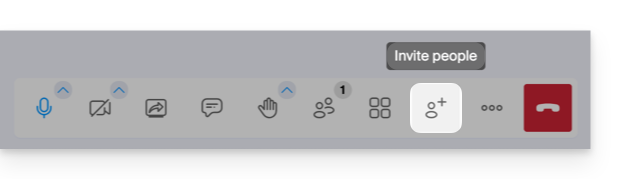
- Share the meeting link to invite participants to join you:
Link to this FAQ: https://faq.infomaniak.com/2475
Has this FAQ been helpful?
Thank you for choosing to customize your account with Custom Brand!
Introduction
- Available as an option with any Infomaniak plan or already included with kSuite Enterprise, discover this customization tool to make your web addresses unique, add a logo, or add an image slideshow to your Infomaniak organization login page.
- The Web Redirection tool will no longer be usable on your domain after Custom Brand is activated on it.
Custom Brand Customization Guides
Prerequisites
- Own a domain name with Infomaniak (transfer it if necessary).
- Its extension must be among those supported by Custom Brand.
- Note that this also works with a subdomain.
- Configure the domain to use Infomaniak's DNS servers.
Next, to use Custom Brand: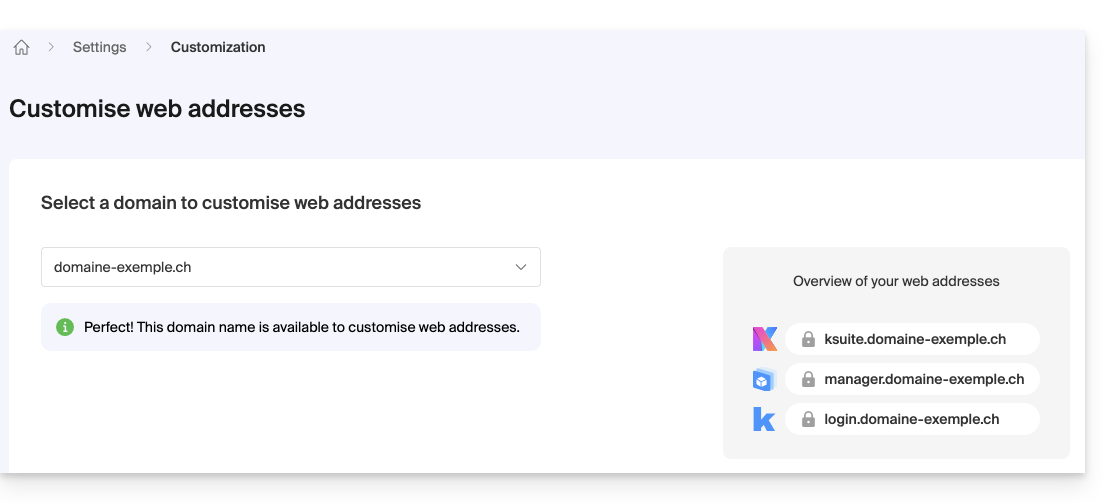
- Getting started with Custom Brand: customize URLs & the interface
- Troubleshooting:
Customize your web addresses with your domain
| Access to… | without Custom Brand | with Custom Brand |
|---|---|---|
| kSuite | ksuite.infomaniak.com | ksuite.domain.xyz |
| Manager | manager.infomaniak.com | manager.domain.xyz |
| e-mails (Mail) | mail.infomaniak.com | mail.domain.xyz |
| calendars | calendar.infomaniak.com | calendar.domain.xyz |
| contacts | contacts.infomaniak.com | contacts.domain.xyz |
| kDrive | kdrive.infomaniak.com | kdrive.domain.xyz |
| kMeet video conferences | kmeet.infomaniak.com | kmeet.domain.xyz |
| Euria | euria.infomaniak.com | euria.domain.xyz |
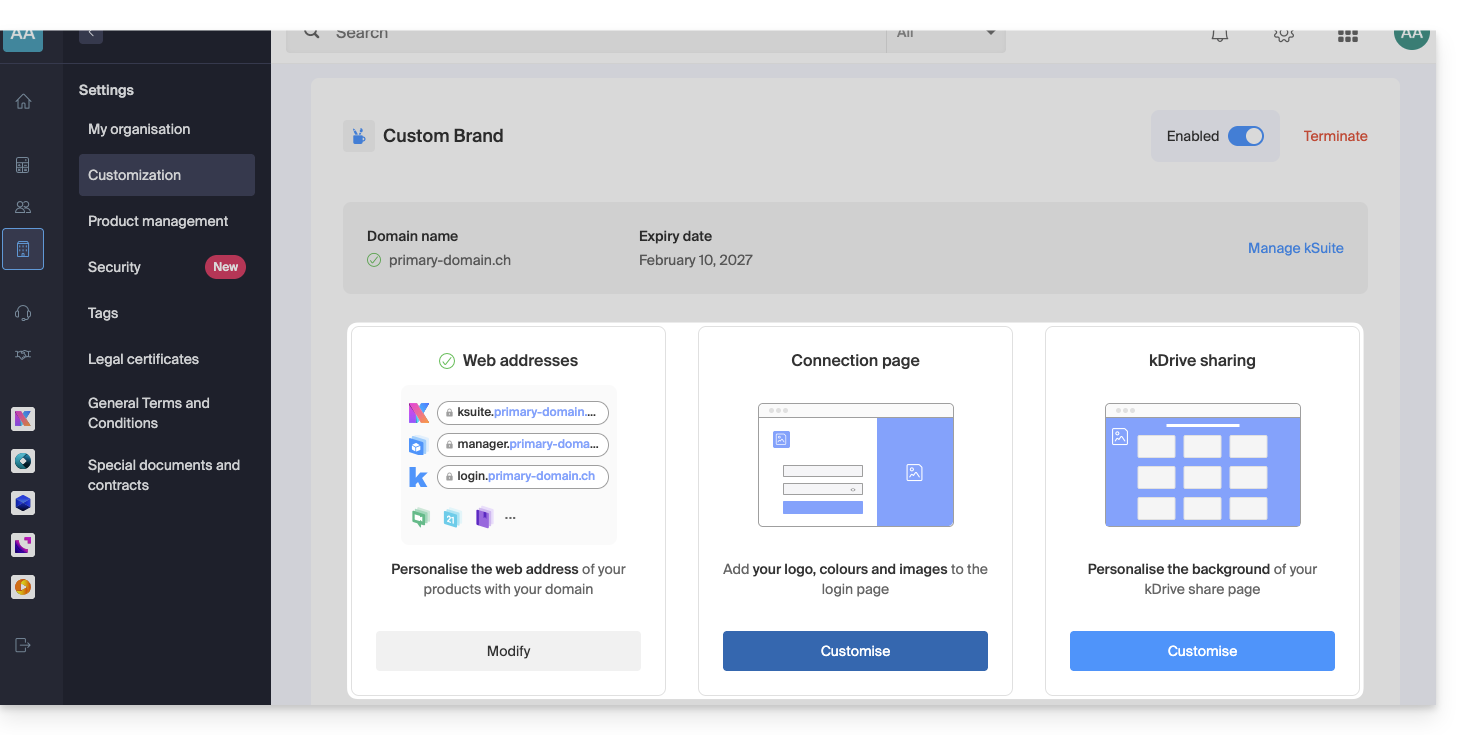
Customize your Organization's interface
The following interface options can be modified from the kSuite settings: :
- Add your logo to your Organization's interface.
- Added a 3-image panorama to the login page.
- Changed the text and button color on the login page.
- Customization of kDrive sharing (see this other guide).
Link to this FAQ: https://faq.infomaniak.com/2465
Has this FAQ been helpful?
This guide explains how to modify the role and permissions of a user so that they only have a limited legal role or access to only certain features of your Organization within the Infomaniak Manager.
Introduction
- Since you opened your account with Infomaniak, you have been part of at least one Organization (❓: help).
- If you were the only user and it wasn't an invitation, an Organization was created in your name, and you automatically become its legal representative.
- Otherwise, you belong to the Organization that invited you (to join its kSuite, to manage a product, etc.).
- You can define whether a user…
- … belongs to your Organization and whether they should have the role of:
- Legal Representative
- Administrator
- Collaborator
- … is external to your Organization (limited rights):
- External users are not taken into account when sharing calendars and address books with the entire Organization.
- … belongs to your Organization and whether they should have the role of:
Modify a user's rights/permissions
Prerequisites
- First, switch to the desired Organization if you cannot find the expected list of users (❓: help).
- You must be at least an Administrator of the Organization (❓: help).
- Learn about the different permissions (e.g., access rights to products) and administrative contact preferencesfor a user within an Organization (❓: help).
- Please note that it is impossible to remove a legal representative if there is no other legal representative (❓: help).
To change a user's role:
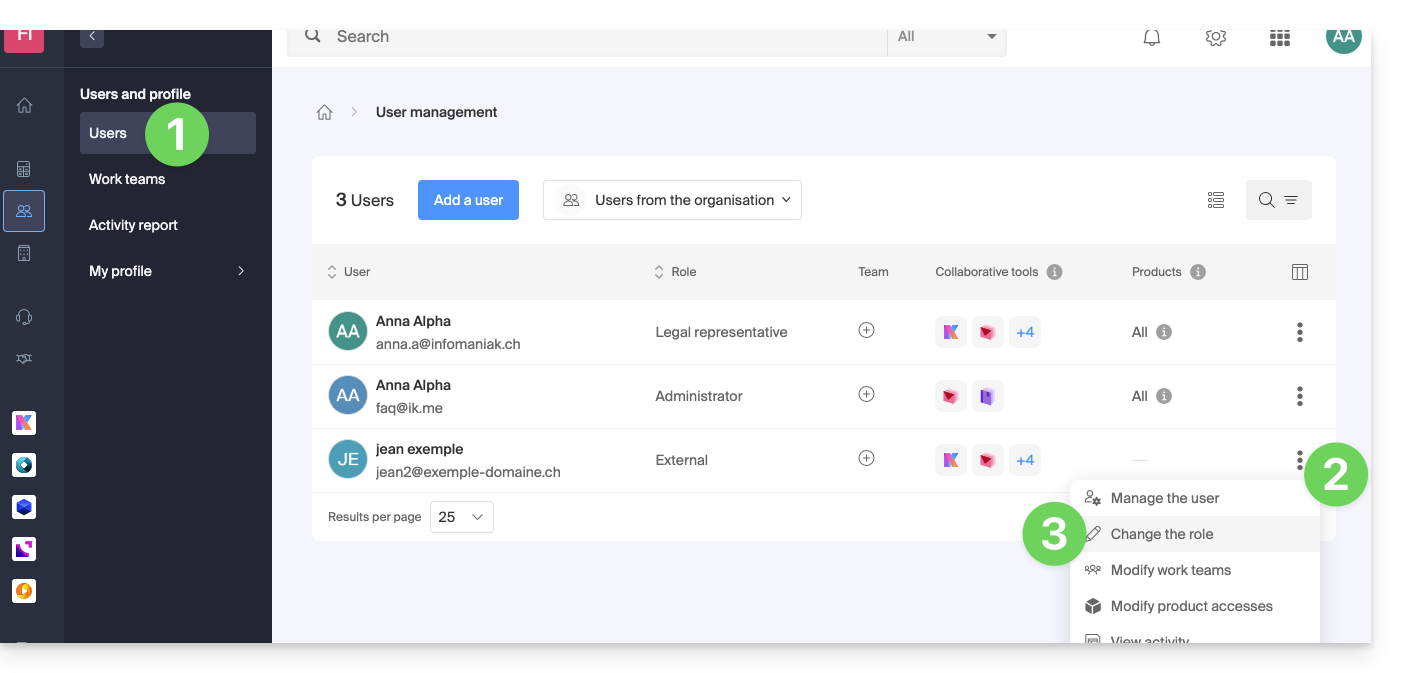
- Click here to access the user management section in the Infomaniak Manager (❓: help).
- Click on the action menu ⋮ located to the right of the user in question.
- Click on Edit role:
- Modify the desired role:
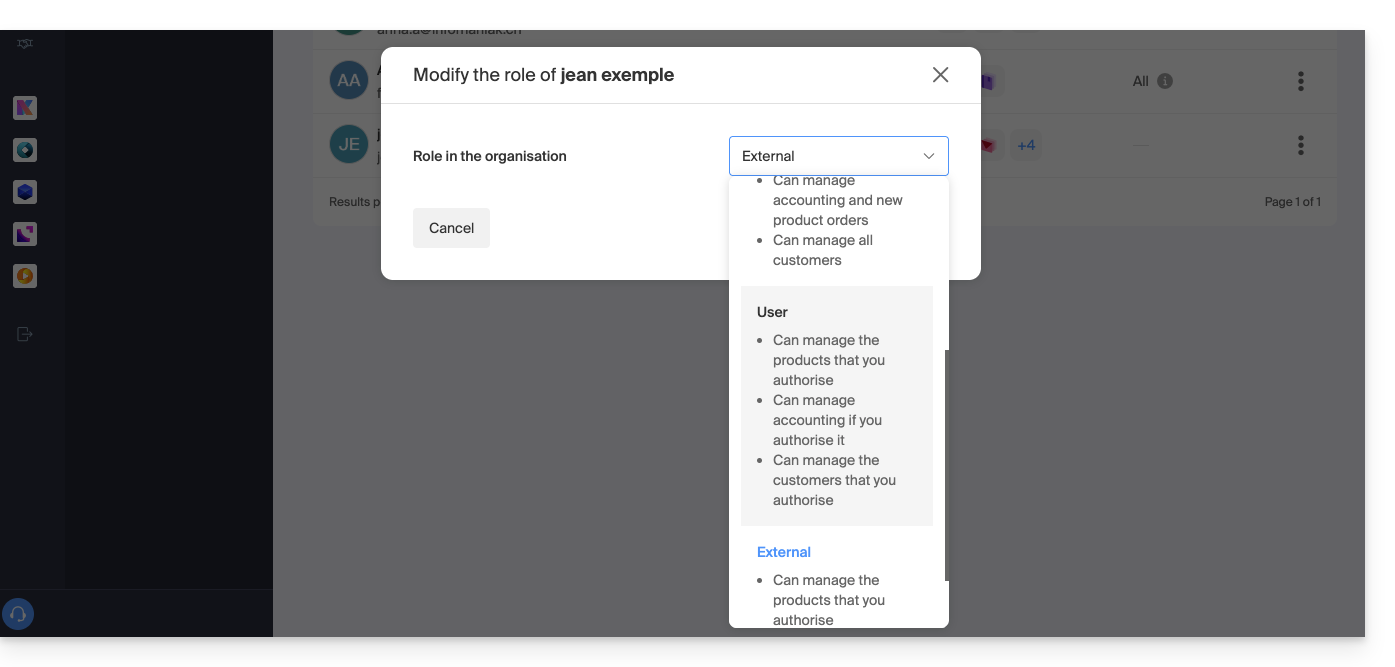
- Click the Save button.
A summary email is sent to the user whose role has been changed.
If you assign the user a simple collaborator role…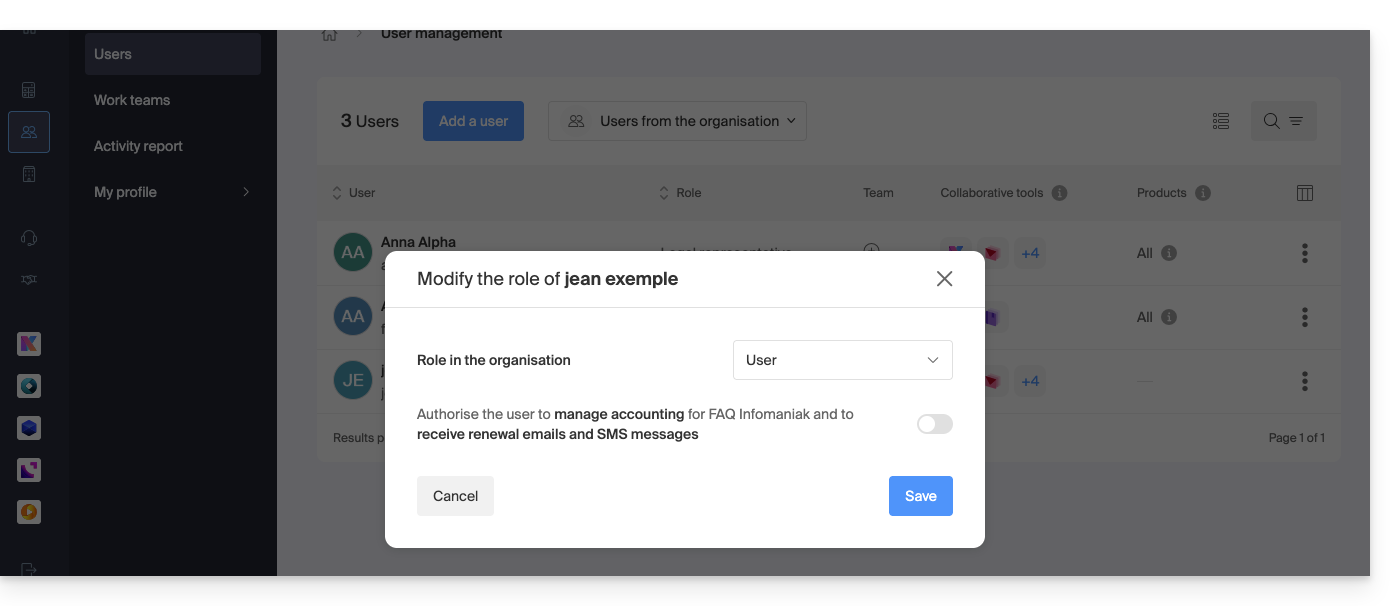
… you can modify the services they can access (❓: help):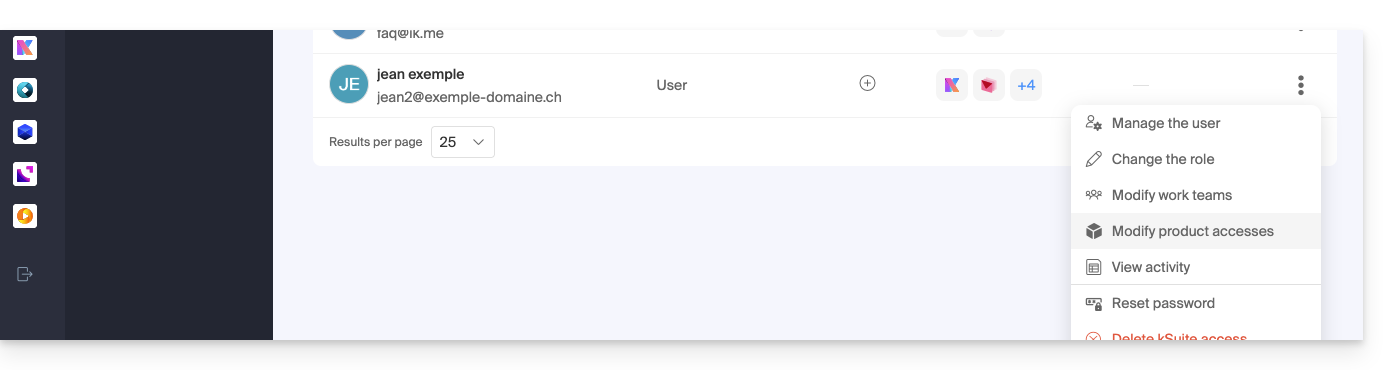
Link to this FAQ: https://faq.infomaniak.com/1633
Has this FAQ been helpful?
This guide explains how to obtain your email address(es) from the Swiss hosting provider Infomaniak.
Introduction
- With the exception of certain free offers (❓: help), an email address with Infomaniak is always created within a Mail Service.
- This Mail Service is based on a personalized domain name which must exist and be configured for the email to function.
- Example: if you want the address
jean.dupont@domain.xyz, you need to:- Own the domain name “
domain.xyz”. - Obtain a Mail service for “
domain.xyz”. - Create the email address “
jean.dupont”.
- Own the domain name “
- All of this is offered and requested during the ordering process on infomaniak.com, preceded by the mandatory creation of a user account (for which you will need to provide your personal email address, or an existing address in any case).
- If your domain name is already registered with an external registrar, you may need to enter the correct MX record (❓: help) in the DNS zone.
Order email addresses for a custom domain
Before or after your registration:
- Consult this other guide to choose the email plan that best suits your needs and follow the instructions to start using the services.
- Once the Mail service has been ordered, you can create the email addresses and then, if necessary, the associated passwords.
Once the Mail service is activated
- Create your email addresses (❓: help).
- Configure your emails on your computer and devices (❓: help).
- Sync your contacts & calendars across your devices (❓: help).
- Migrate your content (❓: help), including content from another provider.
Add an Additional Mail Service
To add a new Mail Service (in order to obtain new addresses on a different domain):
- Click here to access the Mail Service management in your Infomaniak Manager (❓: help).
- Click on the Order button above the table that appears:
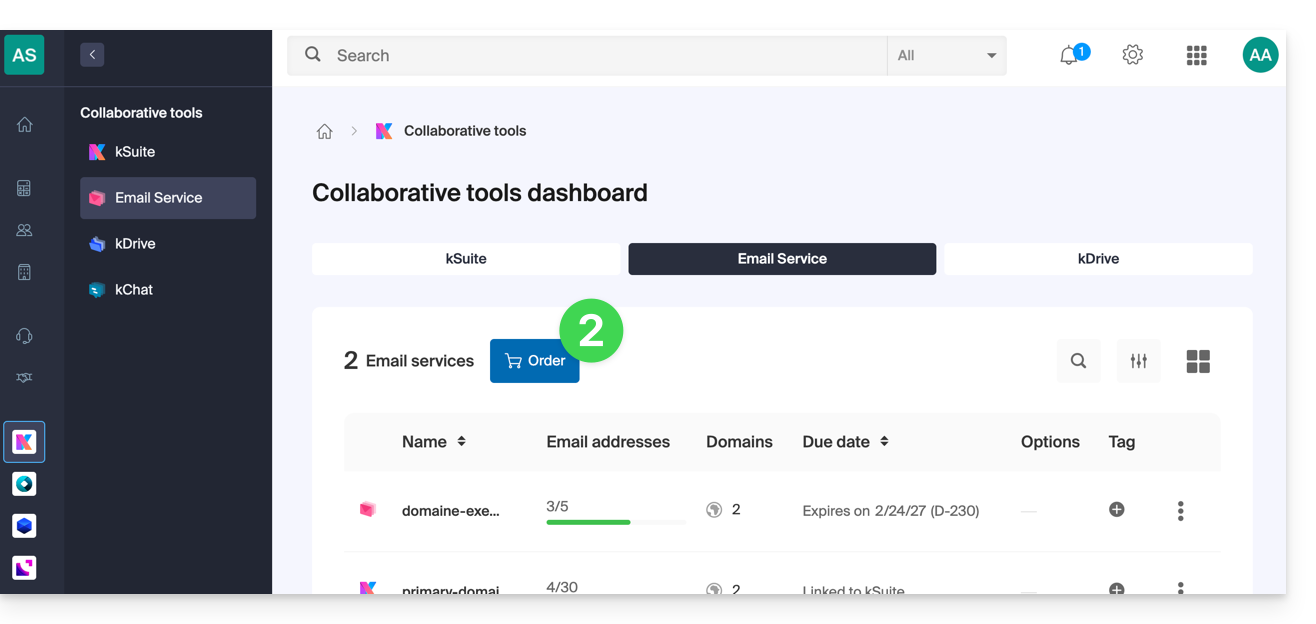
Increase the number of available email addresses on an existing Mail service
To increase the quota of available addresses if necessary, please refer to this other guide.
Link to this FAQ: https://faq.infomaniak.com/1944
Has this FAQ been helpful?
This guide explains how to register a domain name with Infomaniak.
Introduction
- With a new domain name or an additional domain name, many possibilities open up to you, including access to free services, such as:
- You can also:
Order your first domain name
To do this:
- If necessary, create an Infomaniak account (❓: help).
- Click here to access the domain management section in your Infomaniak Manager.
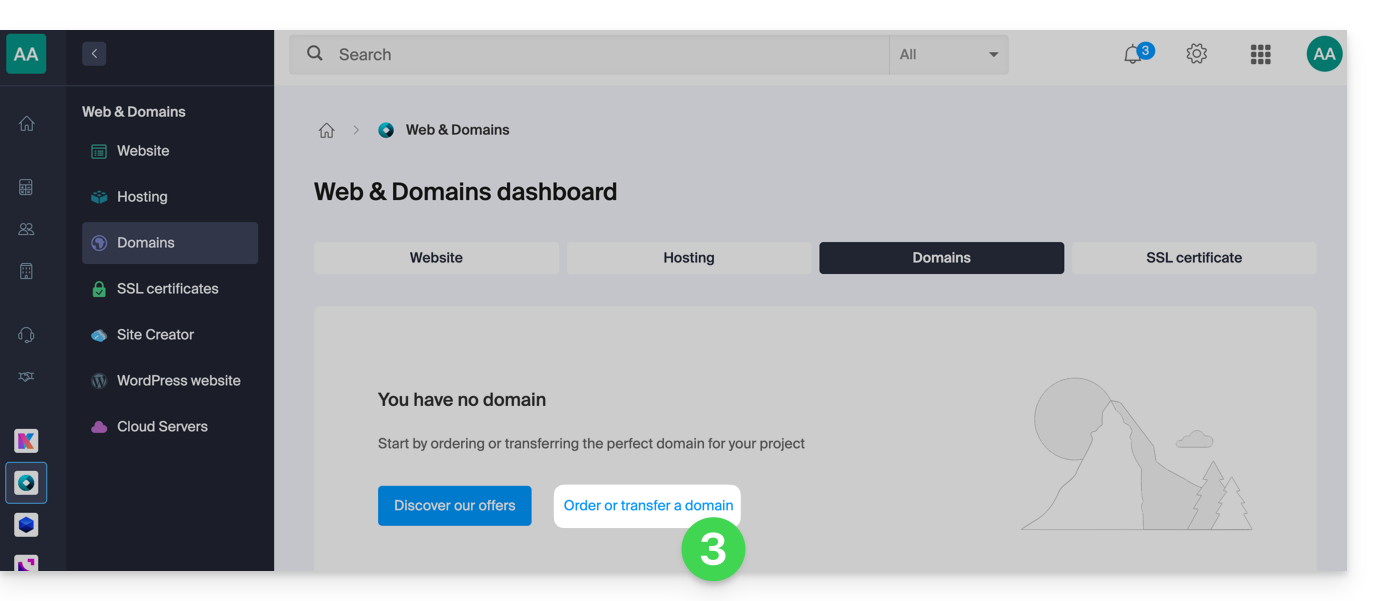
- Click to open the Shop:
- If applicable, select the Organization in which to order your domain:
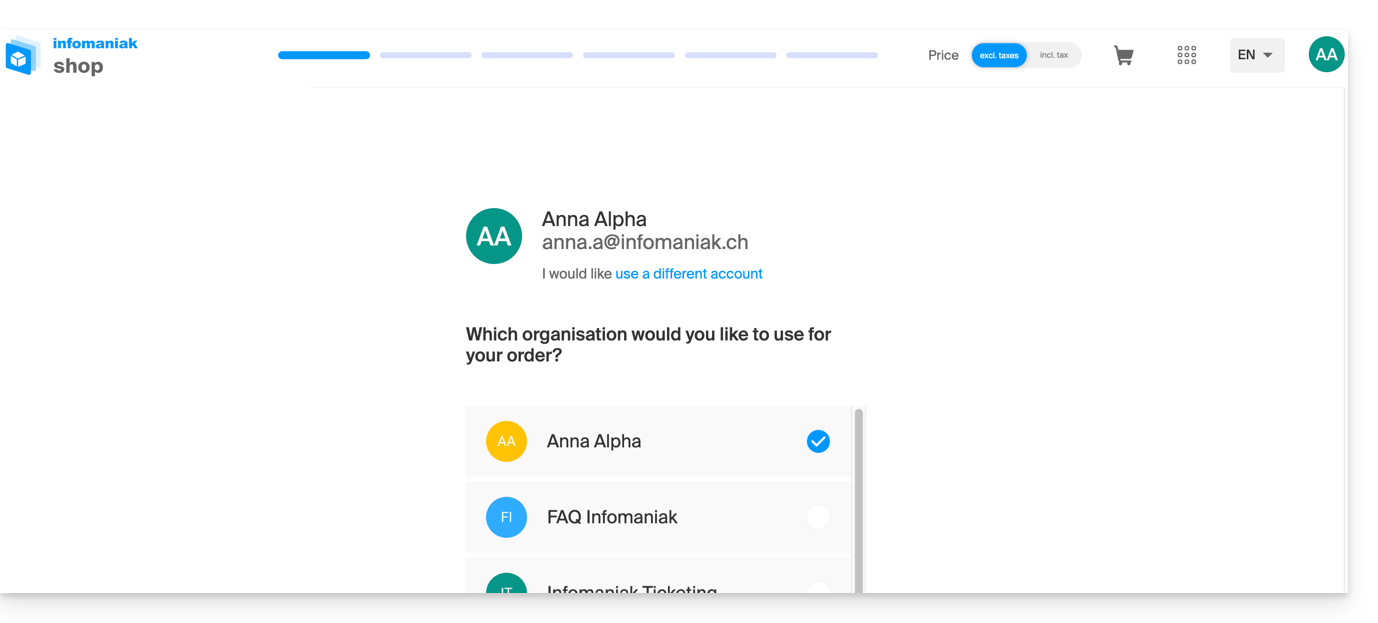
- If applicable, select the Organization in which to order your domain:
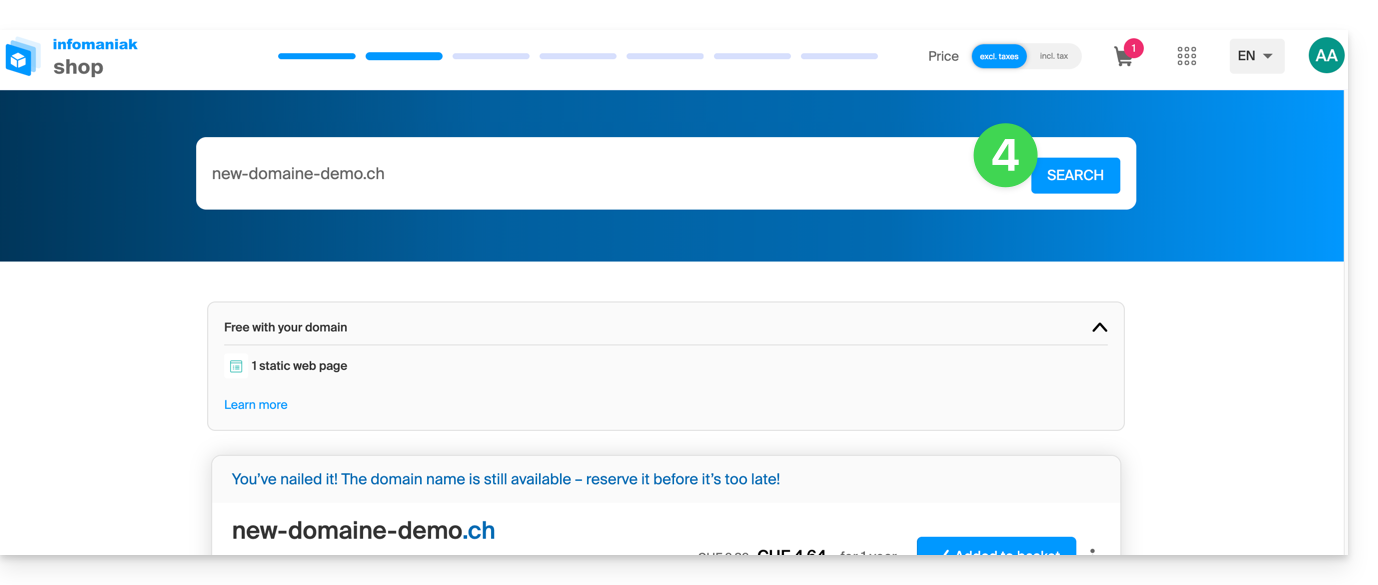
- Once in the Shop, enter the domain name to register and search for it:
- Check or uncheck the additional options and extensions offered, and click Next to proceed.
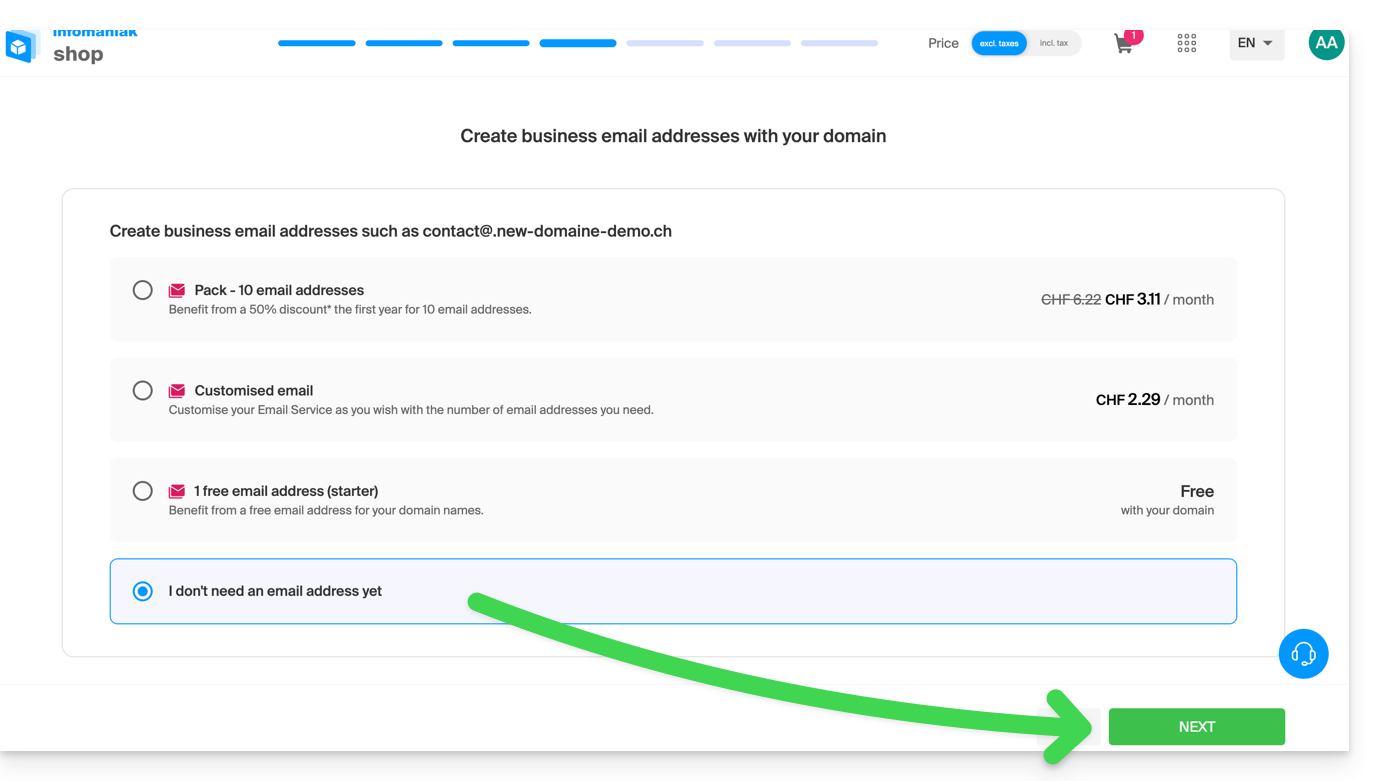
- Choose the desired options on each page, such as the Mail service associated with the domain name:
- Choose the desired options on the following pages, such as the web hosting associated with the domain name:
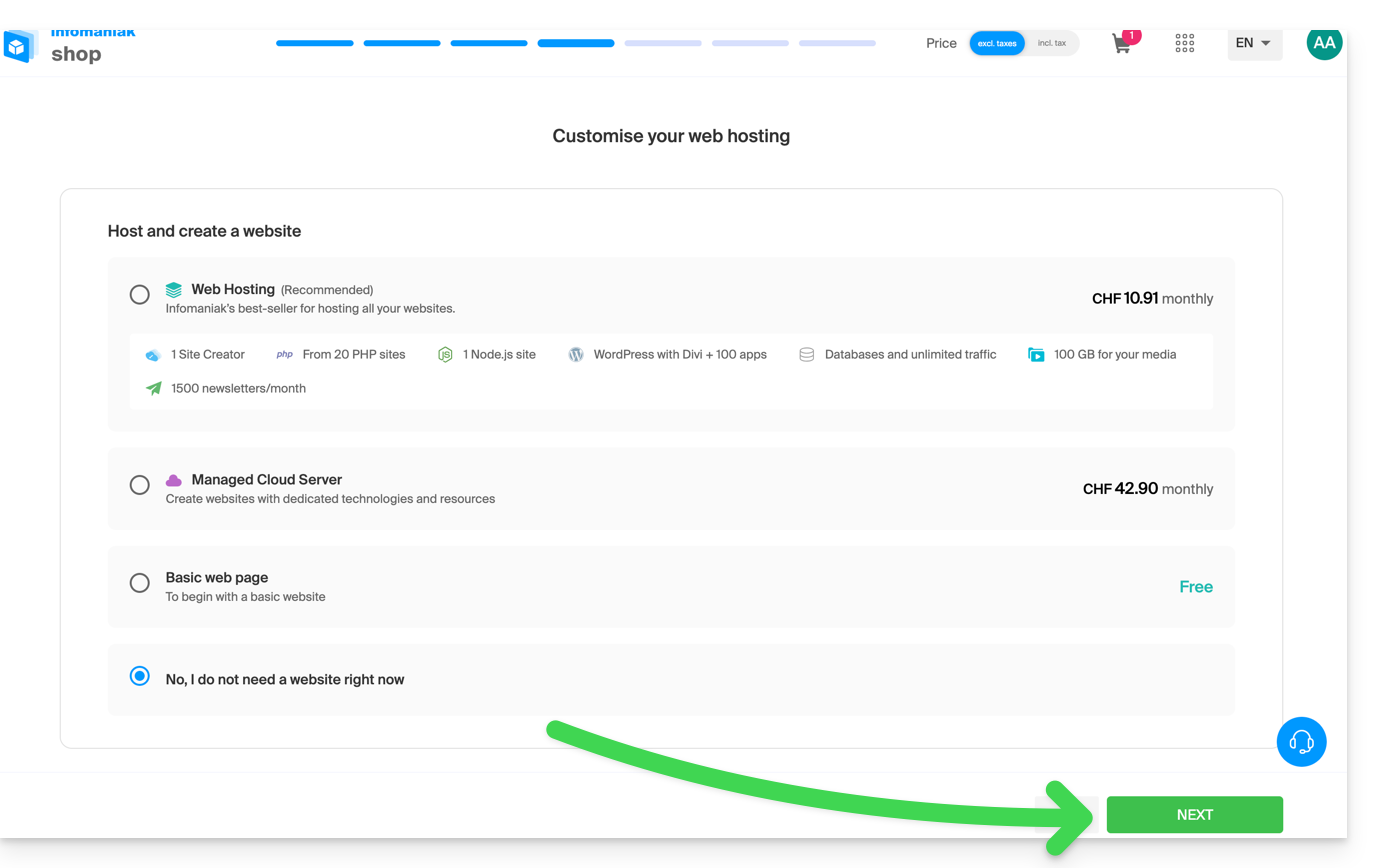
- Enter the contact details related to the domain name.
- Complete the purchase, remembering to read and accept the Terms and Conditions (you may need to scroll down the page first):
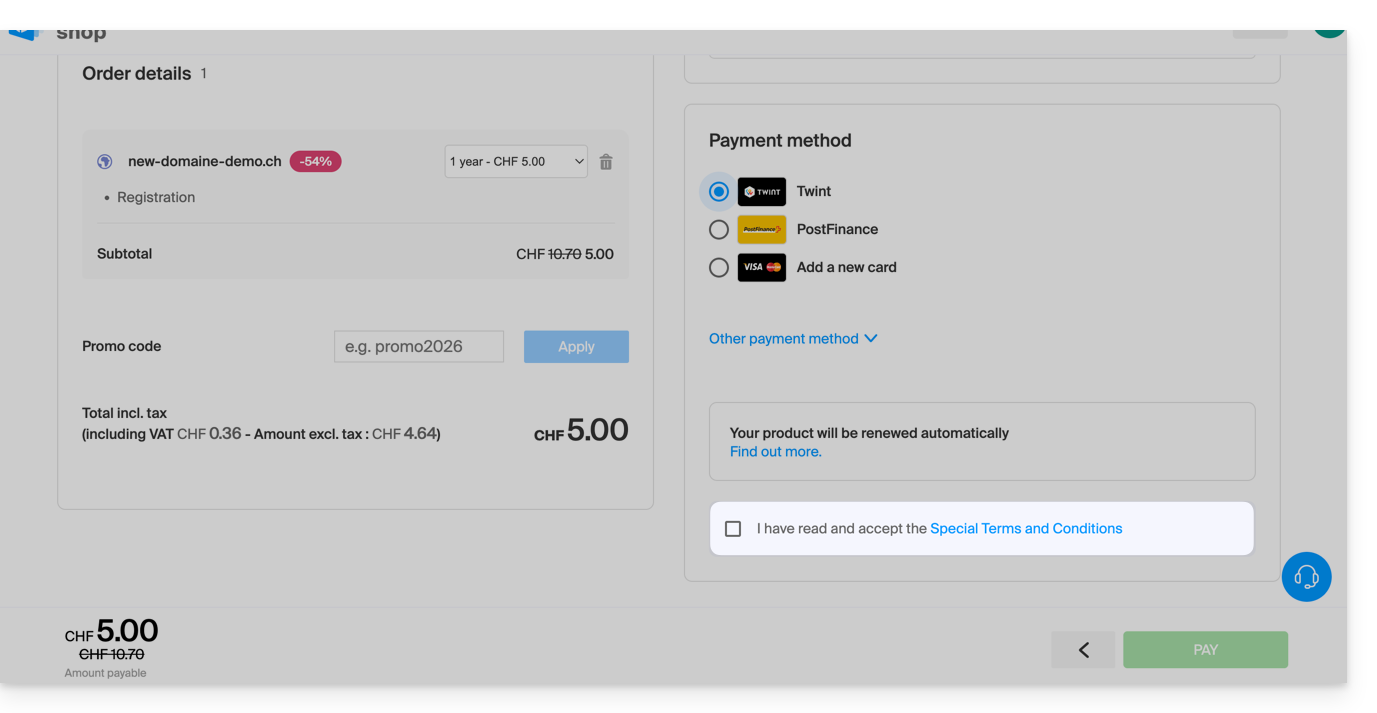
Once ordered, please wait a few hours for the setup to complete.; any DNS addition/modification may take up to 48 hours to propagate (❓: help).
Order an additional domain name
To do this:
- Click here to access the domain management section in your Infomaniak Manager (❓: help).
- Click on the button to Order an additional domain:
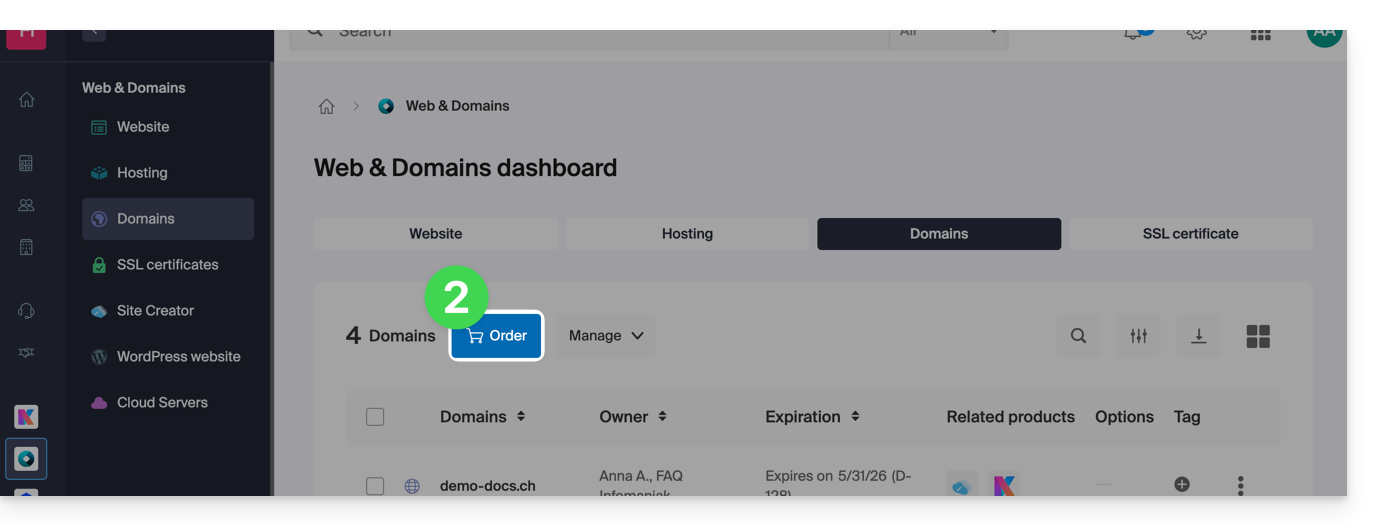
- Follow the first guide above, starting from step 4.
Check the availability of a domain name
See this other page which allows you to quickly check if a domain is available for registration or not.
At least 3 main indications can be identified:
- Available — in this case, it's good, you can book it.
- Transferable — you must own it with another provider in order to transfer it to Infomaniak (❓: help).
- Unavailable – unfortunately, it will not be possible to order it until it is released by its current owner.
Link to this FAQ: https://faq.infomaniak.com/1987
Has this FAQ been helpful?
This guide details the two main types of identifiers. They are distinct, even if the address format may be identical.
Infomaniak Account vs. Email Address
Here is a summary of these 2 types of identifier:
| Type of identifier | Usage | Where to use it | Associated password |
|---|---|---|---|
| Infomaniak account (login ID) | Access all of your Infomaniak services. | Connect to: | Password set during user account creation. ⚠️ Different from the password for your email addresses. |
| Email address hosted with Infomaniak | Send and receive emails. | Connect via SMTP/IMAP…
| Password specific to each email address (there may be several). ⚠️ Different from your Infomaniak account password. |
What to do if you have connection problems?
There is no need to contact Infomaniak Support (which does not have access to any of your passwords)...
- Having an issue with your Infomaniak account? Reset your account password.
- Having trouble with your email address? Reset your email password.
Explanation
- As with many other online services, you registered with Infomaniak using a personal email address.
- This personal email address serves as your login ID when you want to access Infomaniak services.
- This login ID has its own password (defined when creating your Infomaniak user account – your personal email address, see above).
There is no connection between…
- … this username/password combination described in points 1/2/3 above…
- … and the email addresses you created or obtained from Infomaniak.
A link may exist if the address is identical (for example, you registered with the email address toto@abc.xyz and you also manage this same email address with Infomaniak), but even in this case, the password will most likely be different – once for the login ID toto@abc.xyz and once for the email address toto@abc.xyz.
Other login IDs?
Acquiring other Infomaniak products involves obtaining other credentials, such as those required for FTP, MySQL, SSH connections, etc., but these credentials are entirely independent of the two types described above.
Link to this FAQ: https://faq.infomaniak.com/1980
Has this FAQ been helpful?
This guide explains how to modify the access rights to products for a user in your Organization on the Infomaniak Manager.
Introduction
- Since you opened your account with Infomaniak, you have been part of at least one Organization (❓: help).
- If you were the only user and it wasn't an invitation, an Organization was created in your name, and you automatically become its legal representative.
- Otherwise, you belong to the Organization that invited you (to join its kSuite, to manage a product, etc.).
- It is possible to change a user's role within your Organization (❓: help).
- You can then define whether a user…
- … is part of your Organization and whether they should become:
- Legal Representative
- Administrator
- Collaborator (this section is detailed below…)
- … is external to your Organization (limited rights):
- External users are not included in calendar and address book sharing with the entire Organization.
- … is part of your Organization and whether they should become:
Who can access what…
Prerequisites
- First, switch to the desired Organization if you cannot find the expected list of users (❓: help).
- Be at least an Administrator of the Organization (❓: help).
- Haveadded a user as a collaborator (❓: help).
The guide below explains how to manage access to products for collaborators and external users. Indeed, a legal representative or an Administrator always has access to all existing products within the Organization, as displayed in the Infomaniak Manager.
To modify a user's product access within the Organization:
- Click here to access user management in the Infomaniak Manager (❓: help).
- Click on the action menu ⋮ located to the right of the user in question.
- Click on Modify product access:
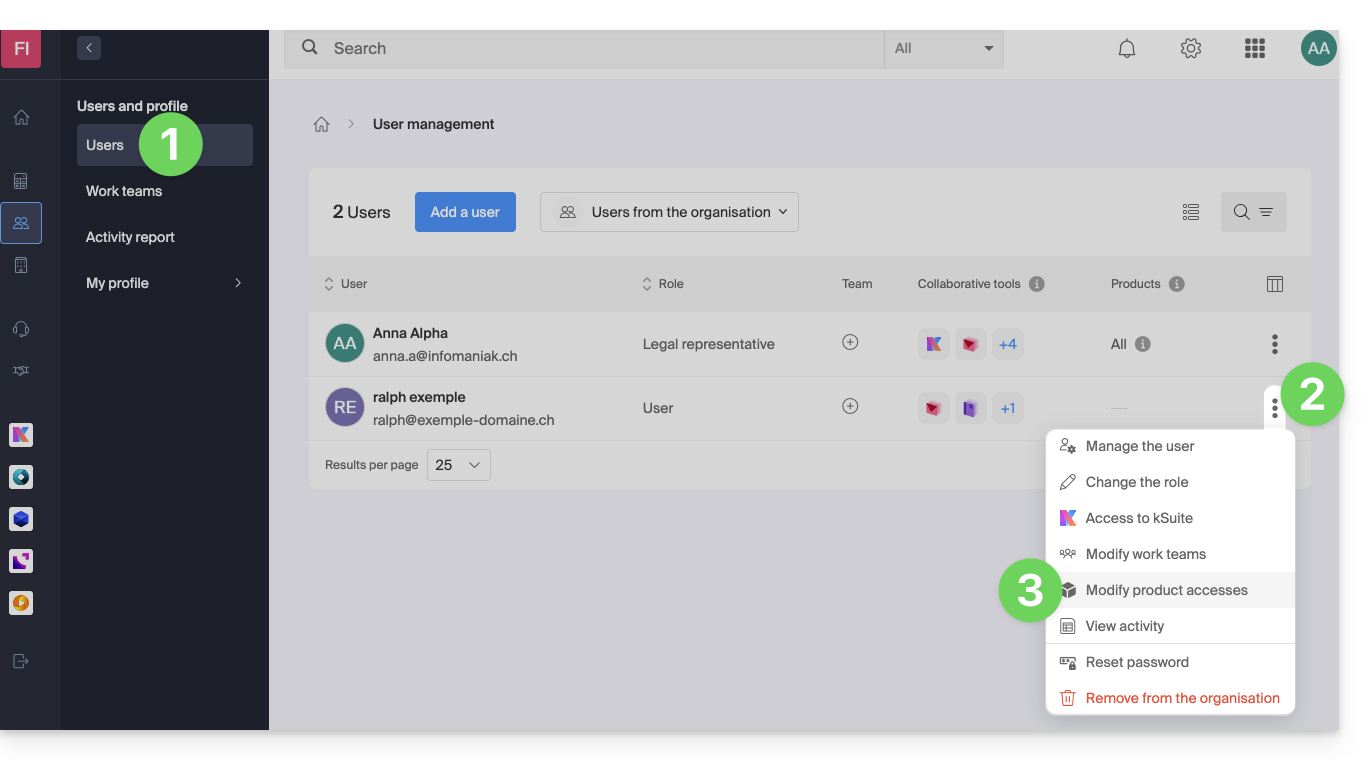
- You can grant access to everything with maximum permissions in one click.
- Otherwise, click on the product category you want to grant access to.
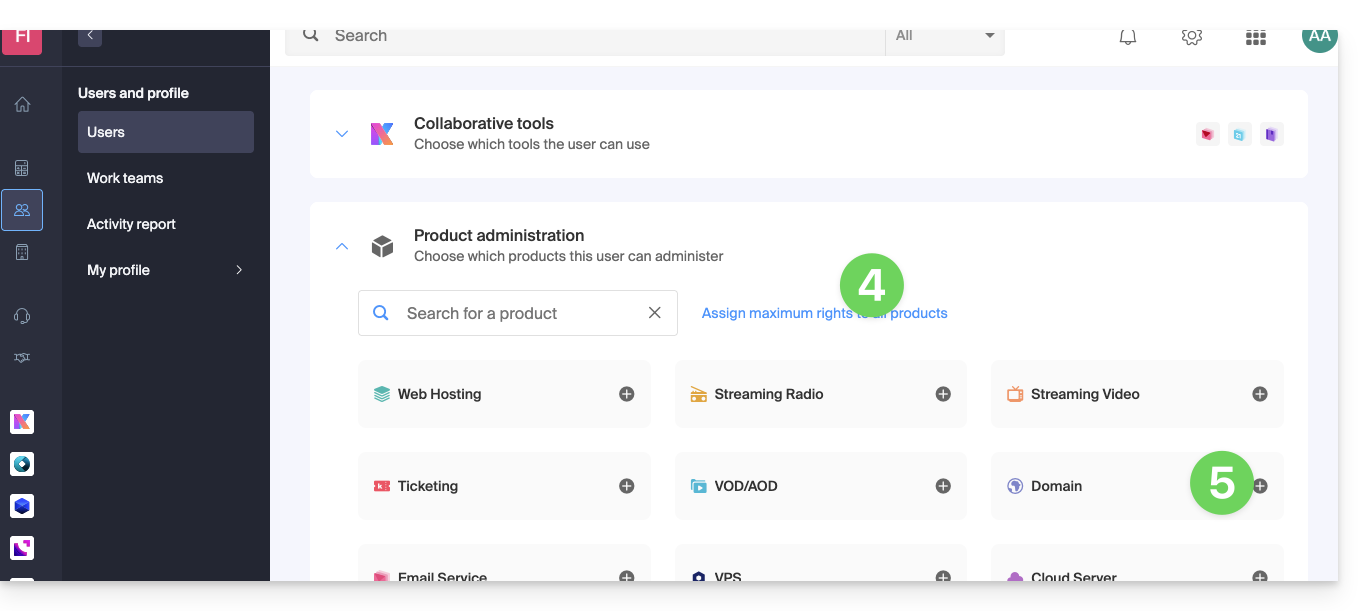
- Select the product(s) you need.
- If you have selected multiple products, decide whether a future additional product should automatically be visible to the user (and with what type of permissions❓: help).
- Click the Save button:
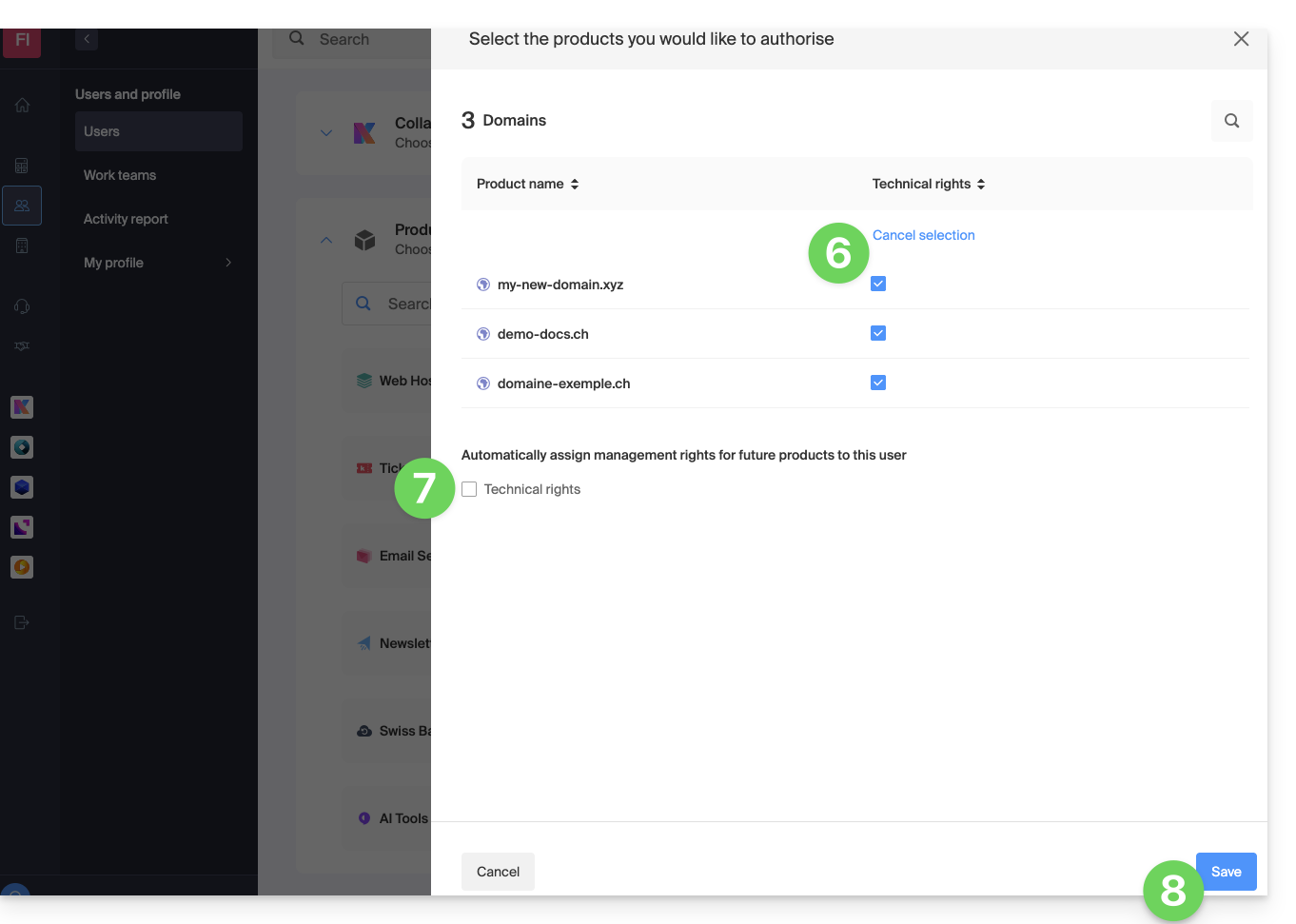
- Permissions are granted immediately.
- Click on the pencil ✎ icon to modify the permissions:
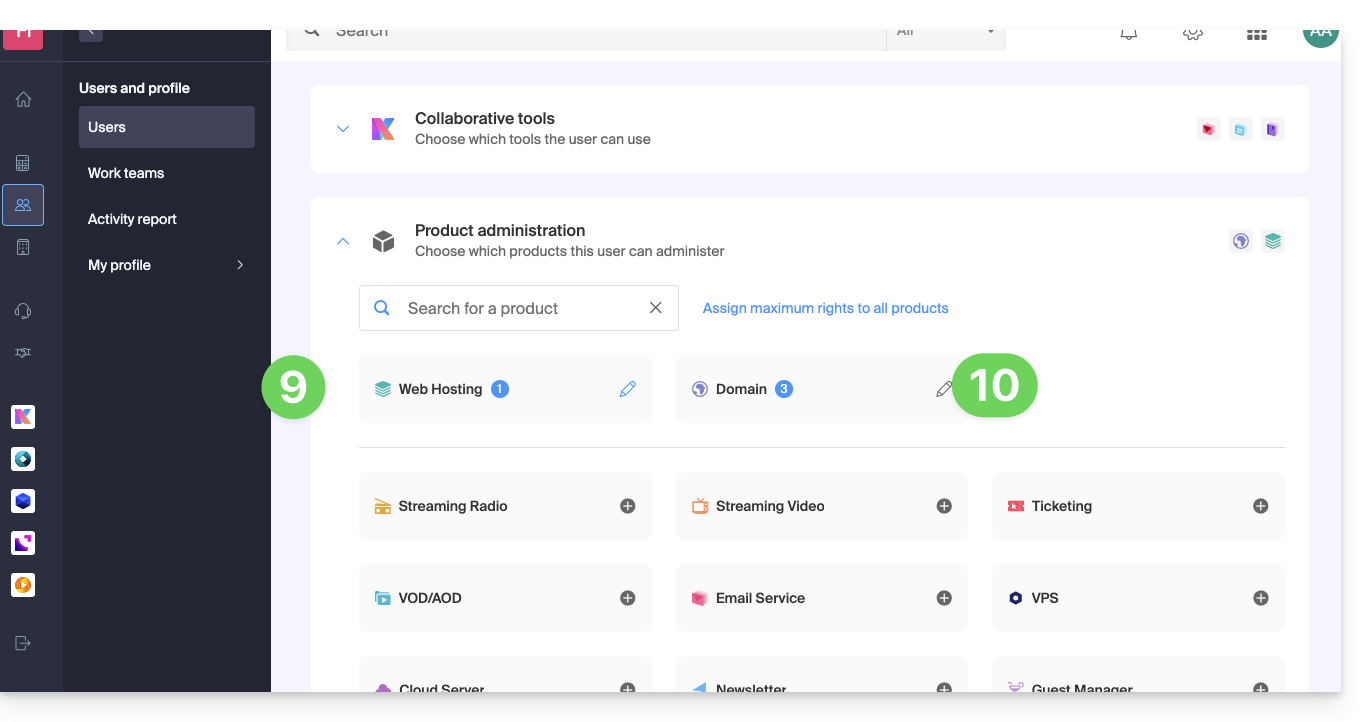
- If you need to grant access to multiple products, start again from step 5.
Using the service / Managing the service
Please note that in the product table, it is important to distinguish between access to the products (e.g., kDrive within kSuite) and access to product management: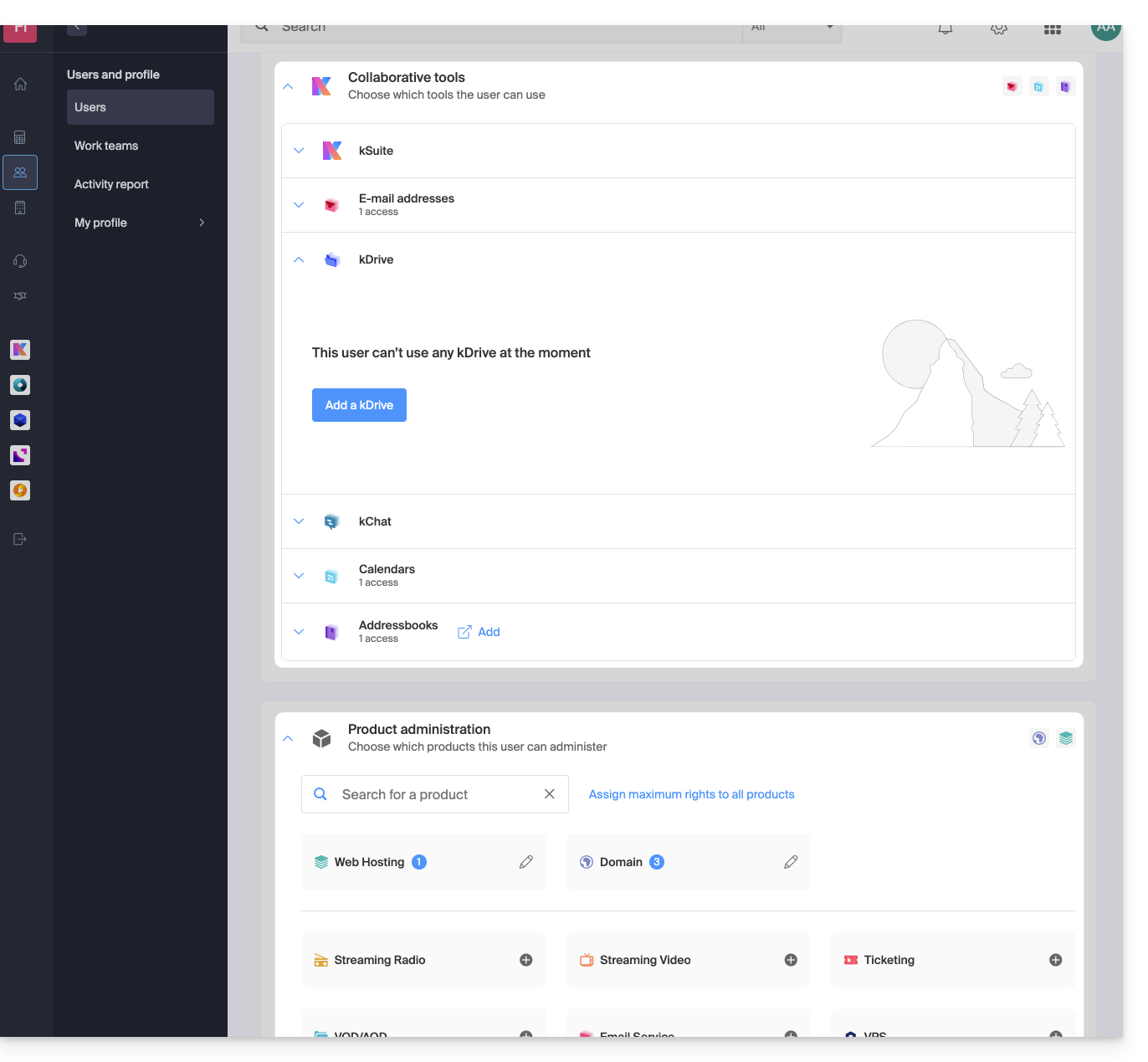
It is possible to authorize a user to use kDrive (e.g., create a PDF) without granting them management rights for the kDrive service (they will not be able to change the plan, invite a new user, cancel, etc.).
Technical rights / Statistical rights
With certain services like kDrive, it is possible to grant a collaborator TECHNICAL and/or STATISTICAL rights (adds access to the dashboard, sharing links, storage statistics, active users, connected devices, activity on the kDrive):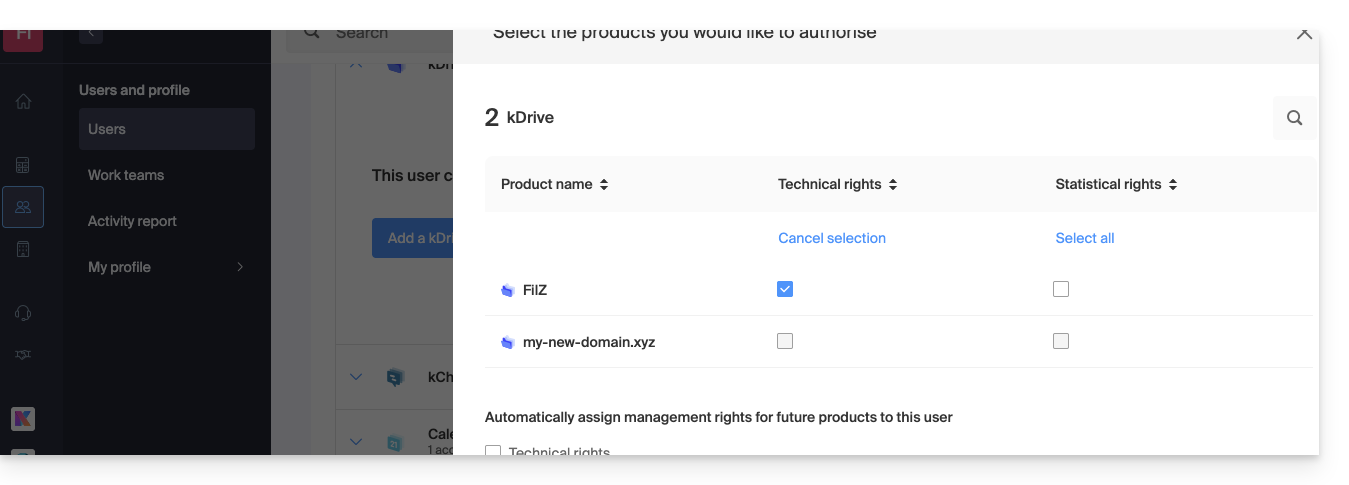
Other services, such as domain names, do not have a STATISTICS section: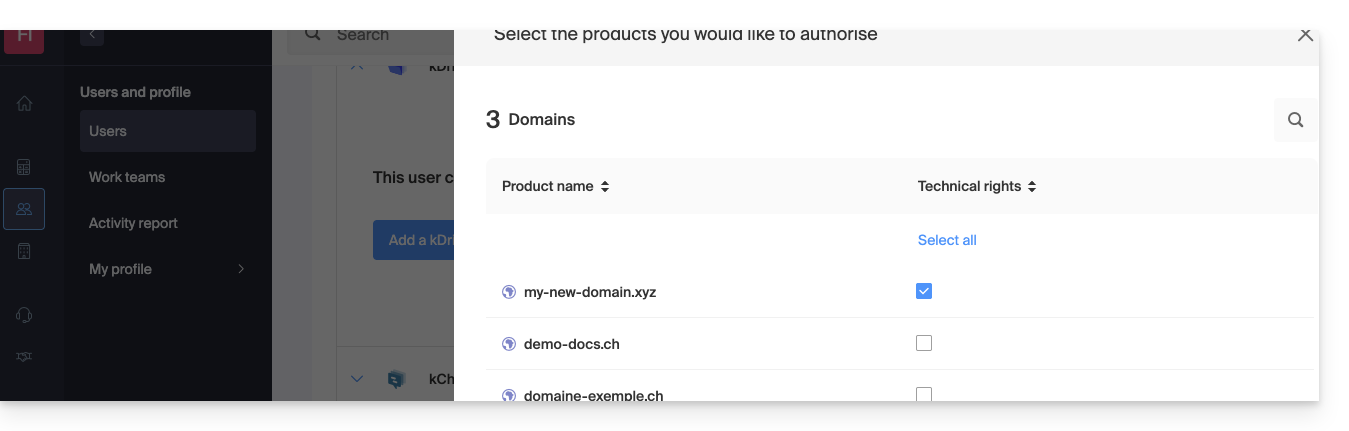
Some specific services, such as ticketing, allow for even more detailed permissions: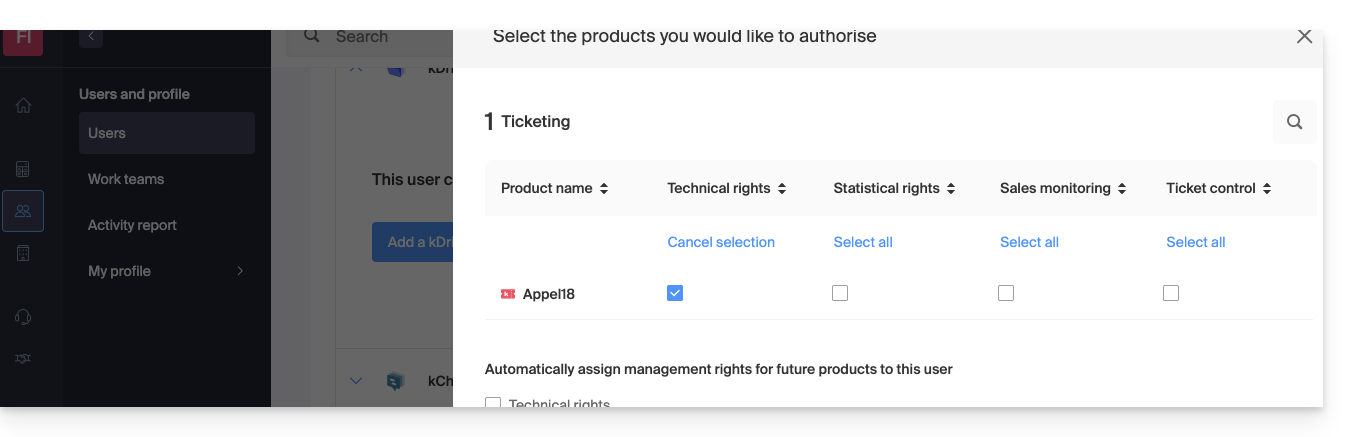
Easy Access: Groups
To simplify the process of adding access rights to a product within your Organization, there are Groups (❓: help). These allow you to create teams that are linked to Infomaniak products with the desired rights, which is very useful for granting a new member of your Organization access to the products they will need in their daily work.
Link to this FAQ: https://faq.infomaniak.com/1610
Has this FAQ been helpful?
This guide explains how to download and use the Infomaniak kSync mobile app for Android devices (Samsung, Huawei, Google Pixel, etc.) which allows you to synchronize calendars and contacts between Android devices (with data stored with Infomaniak).
Introduction
- Once the kSync application is configured, the selected items are automatically synchronized with the Contacts and Calendar applications, which are installed by default on an Android device.
- You can choose to display or hide your various Infomaniak address books and calendars directly within these apps.
- Any modification (addition, editing, deletion) made on the phone is reflected in the Infomaniak interface, and vice versa.
- Data updates are performed continuously according to the configured synchronization interval.
- Refer to this other guide for an example of how to use kSync:synchronizing an Infomaniak calendar with a Google calendar.
Configure kSync
Prerequisites
- Download the Infomaniak kSync mobile app (application for Android smartphones or tablets) here:
- The kSync application is also available on F-droid.
- Install kSync.
Next, launch the kSync app on your Android device. A step-by-step assistant will help you configure the app according to your needs:
- Decide whether you want to synchronize tasks.
- Allow kSync to access the required items on the device, primarily the calendar.
- Allow the application to run in the background for better synchronization (uses more battery); settings can also be configured within the app itself:
- The key is to grant access rights to the services you need to synchronize:
- Go back to the kSync app and continue the configuration:
- Tap to add an Infomaniak user account (the one you use to log in to your Infomaniak services):
- For example, in the Calendar web app, the user menu in the top right corner shows the login email address.
- You can then access the calendars of the Organization to which the current user belongs:
- This is the data that will be synchronized to your device when you log in to the same Infomaniak account on kSync…
- Enter your Infomaniak login credentials (see point a above).
- Tap the button to log in:
- Complete the two-factor authentication steps as you normally would when logging in.
- Once logged in to kSync, under the Calendars CalDAV tab, choose the calendar(s) that should be displayed on your device.
- Under the Address Books CardDAV tab, choose the address book(s) that should be displayed on your device.
- Start the synchronization using the button located in the bottom right corner:
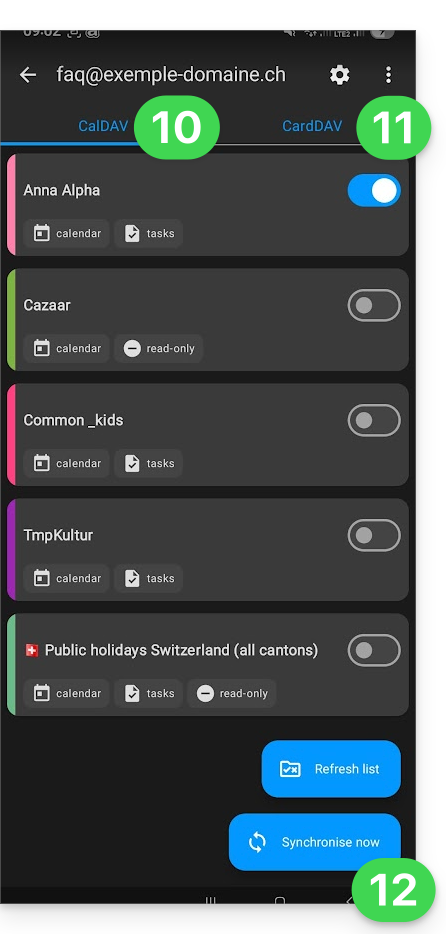
kSync synchronization settings
Click on Settings in the top right corner to adjust some important kSync settings:
- Synchronization interval: you can change the frequency of synchronizations (15, 30, 60 minutes, etc.) for each type of information (address books, calendars, tasks).
- Synchronization via Wi-Fi only (and if so, with which networks...).
- Limit the display of past events.
- Receive a notification for each event that does not have a specific reminder, with a notification delay defined in advance (in minutes).
- Display event colors and persistently synchronize the colors or not.
- Displaying contact groups.
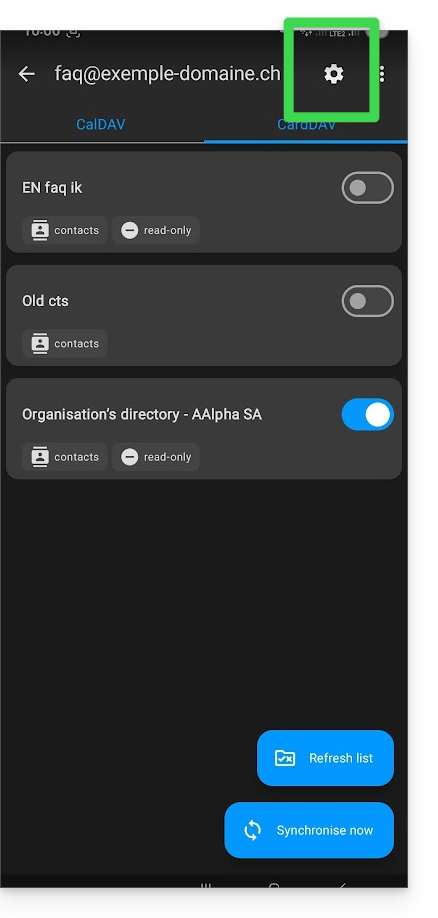
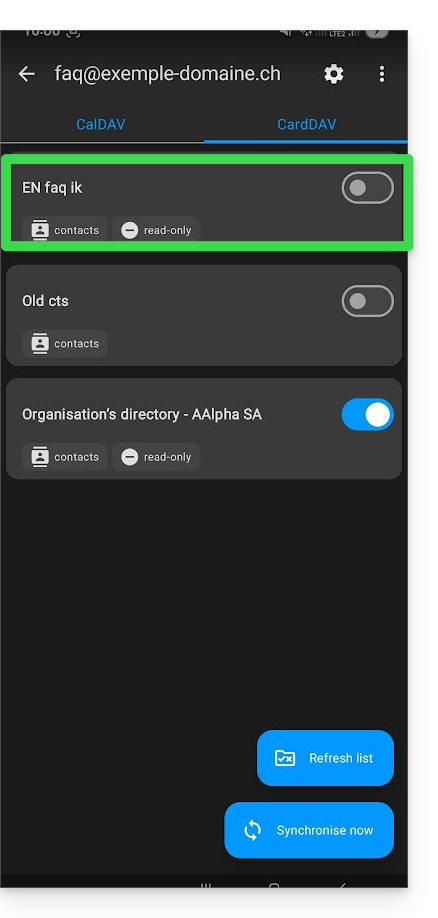
You can also tap on the address books or calendar to configure certain elements:
- It is possible to force read-only mode via kSync, which means that items are synchronized but cannot be modified by the device.
- You can also delete a calendar or address book (excluding the Organization's directory):
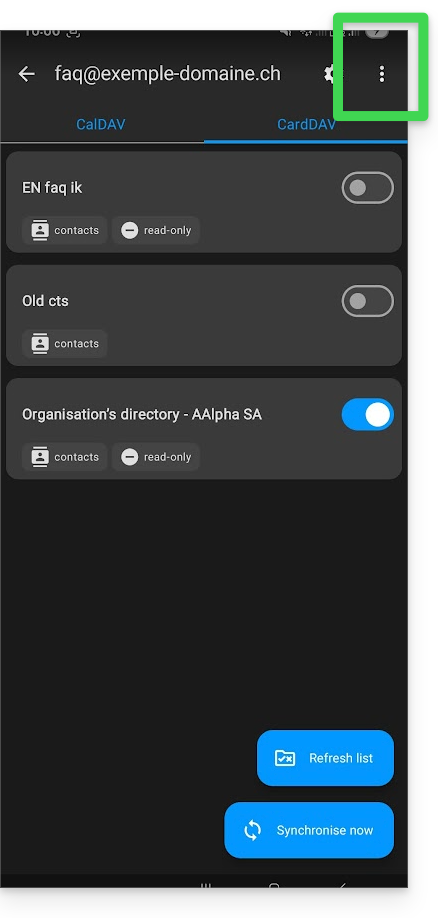
Rename/remove the Infomaniak account from kSync
Tap the action menu ⋮ located to the right of the account in question:
- You can create a new address book or calendar.
- You can rename or delete the account linked to kSync:
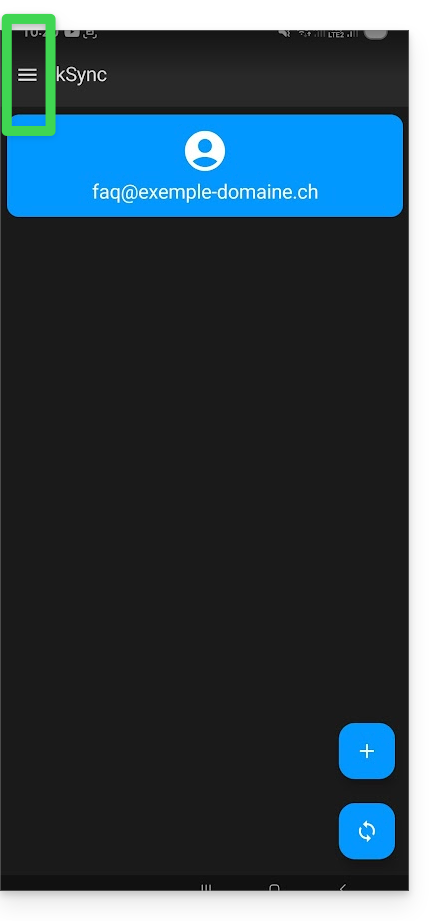
General kSync app settings
Tap the back arrow in the top left corner of the screen to return to the home page.
- Then, tap the menu button with three horizontal lines ☰ and then tap the “Settings” menu item:
Link to this FAQ: https://faq.infomaniak.com/2298
Has this FAQ been helpful?
This guide explains how to modify the display of your events (within the Infomaniak ticketing system).
Accessing the options to configure the display
To do this:
- Click here to access the management interface for your product in the Infomaniak Manager (need help?).
- Click directly on the name assigned to the ticketing system for the event.
- Click on Schedule in the left-hand menu.
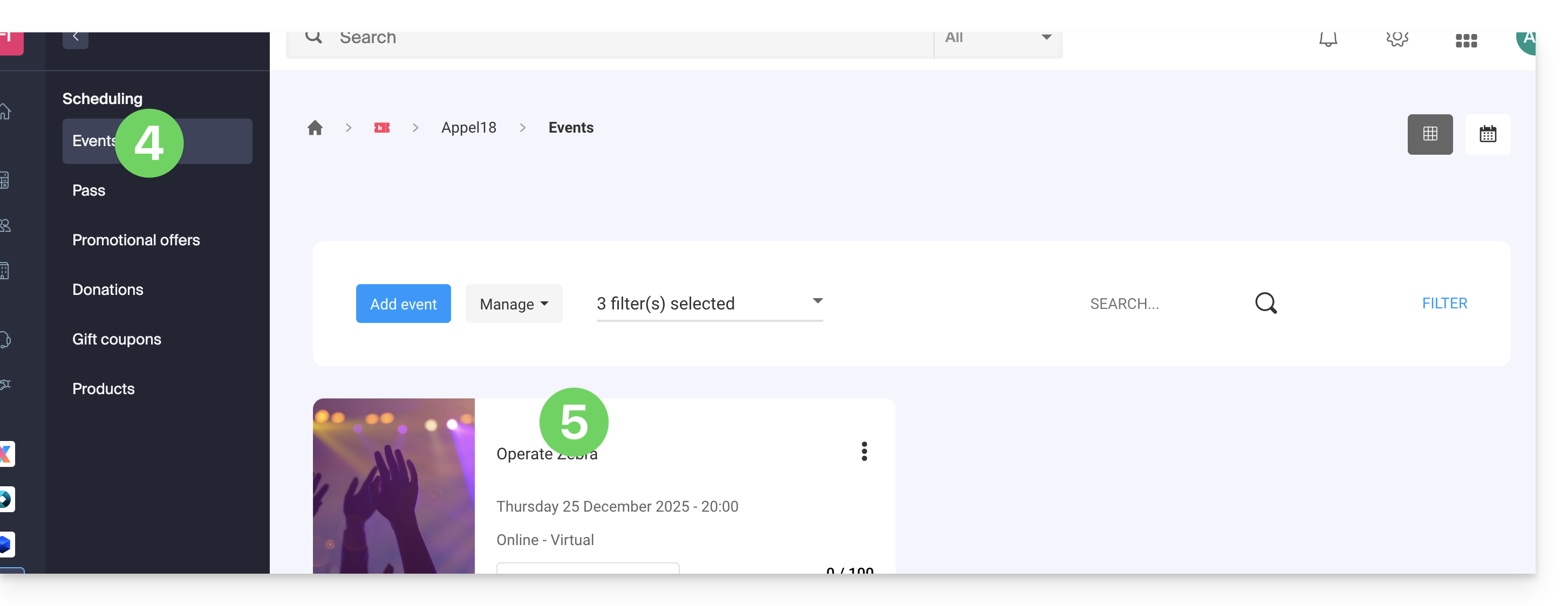
- Click on Events in the left-hand menu.
- Click on the name of the event in question:
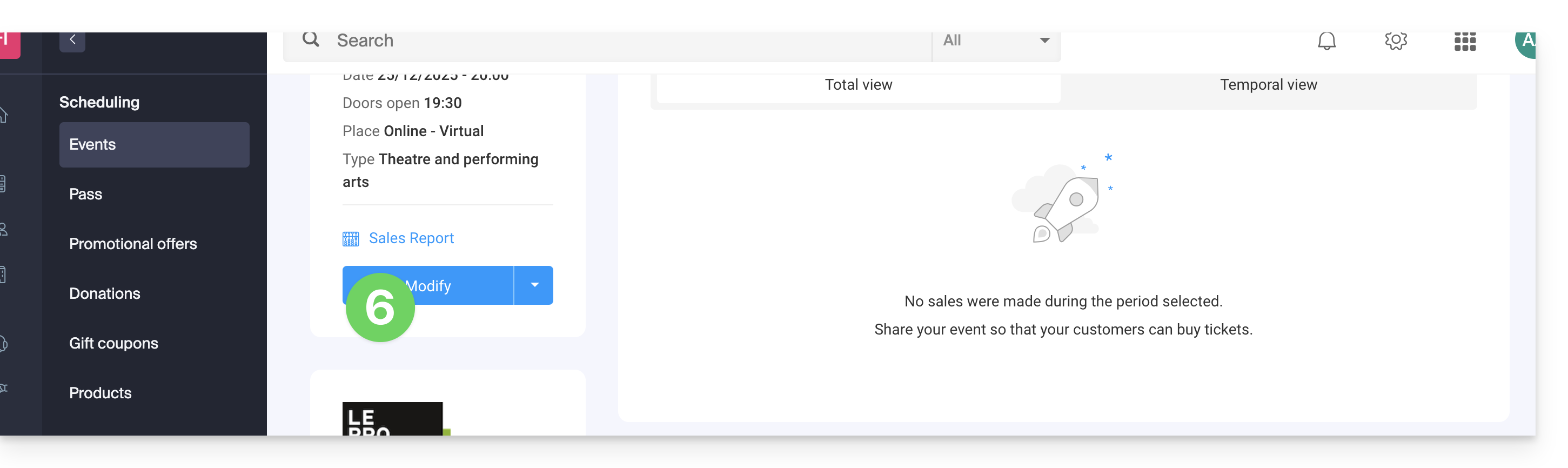
- Click on the Edit button:
Choose a display mode for multi-date events
To do this:
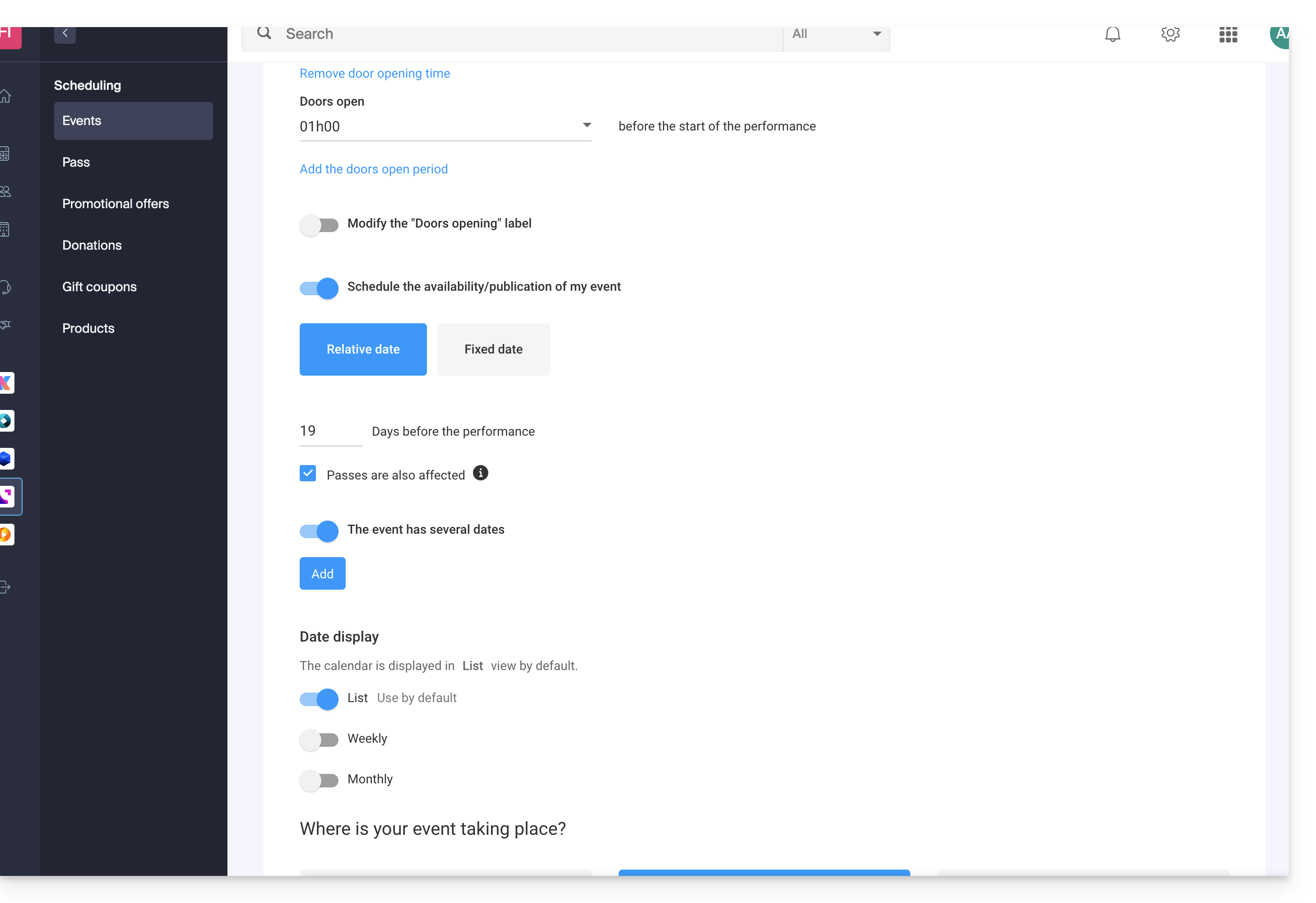
- Add any new possible dates…
- Choose the display methods for these dates on the calendar; these modes will be available on the online ticketing system and will allow your customers to switch between the different display modes they prefer (see below)…
- Choose which display mode will be used by default…
Available display options
List view
The list view is useful if the dates are spaced out over time with empty periods (e.g., weekly or monthly) and/or if the ticketing system needs to offer multiple dates or sessions without displaying them on a calendar.
The monthly calendar
The monthly calendar view allows you to display events on a monthly calendar. This is an effective display, but it can become very cluttered if there are many sessions per day.
The weekly calendar
Very useful if you want to display the dates by week, especially if there are several events per day, or in the case where the event only lasts for a short period, and you want to display the days of the week.
Link to this FAQ: https://faq.infomaniak.com/2696
Has this FAQ been helpful?
This guide explains how to schedule an online meeting with kMeet, Infomaniak's ethical and free video conferencing solution.
Introduction
- To learn more about creating and using virtual meeting rooms, please refer to this other guide.
- You can also simply add a kMeet link to any event created in your Infomaniak calendar: please refer to this other guide.
Schedule a virtual meeting
To do this:
- Click here to access kMeet in your Infomaniak kSuite (or launch the mobile/desktop app — ❓: help).
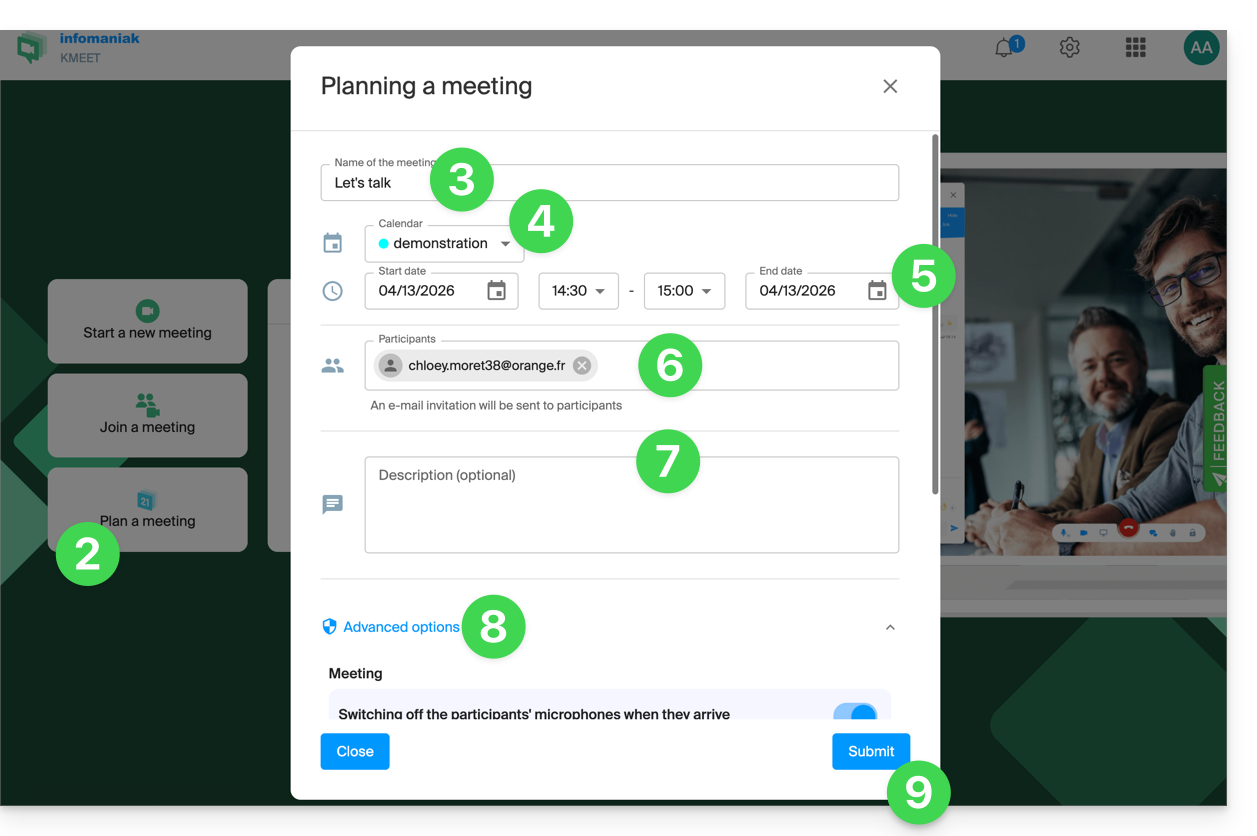
- Click to schedule a new meeting.
- Enter a name for your meeting room.
- Choose the calendar that will contain the details of your scheduled event.
- Choose the date and time for the meeting (timeslots are in 15-minute intervals).
- Specify the email addresses of the participants.
- Specify a description for the meeting.
- Enable the following advanced options:
- start with microphones muted
- start with the administrator's video enabled
- start with the video of each participant enabled
- enable participant control
- enable a password
- enable a custom encryption key.
- Click the button to save the scheduled event:
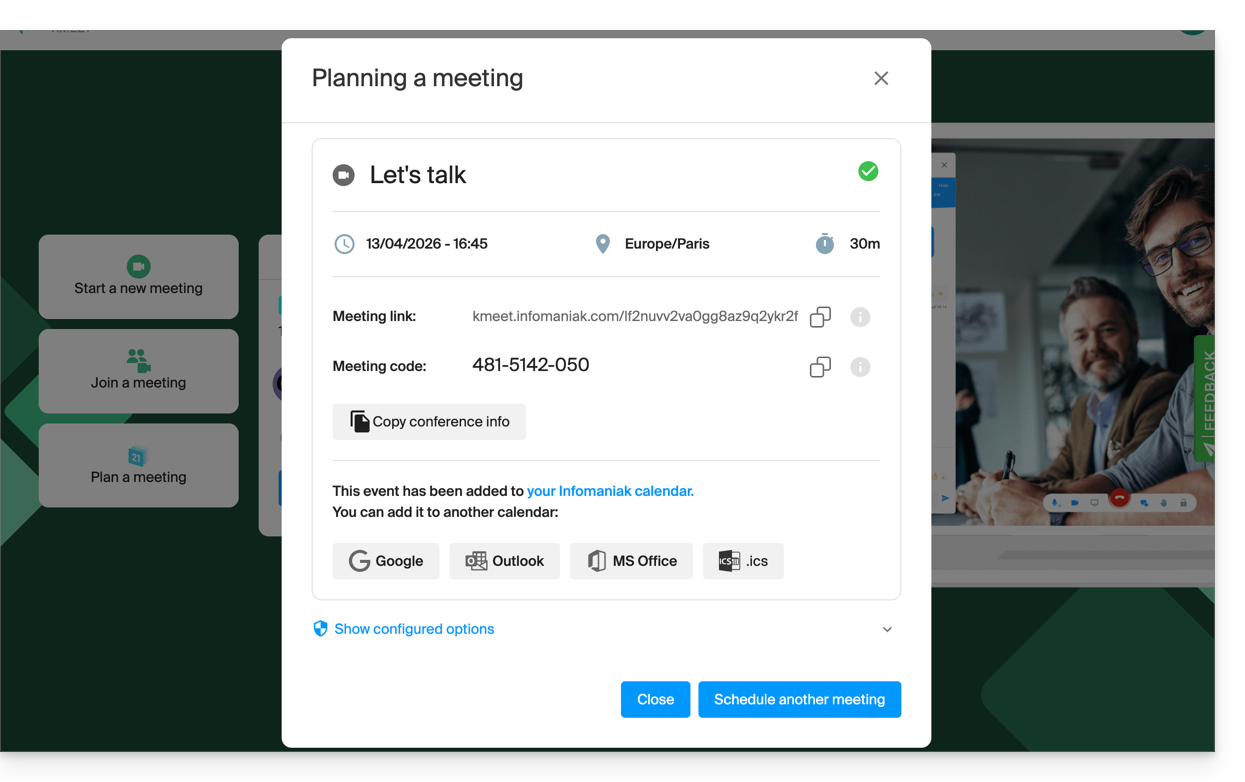
- The event is added to the selected calendar, but you can also add it to other calendar types. The summary displayed also allows you to review the configured options:
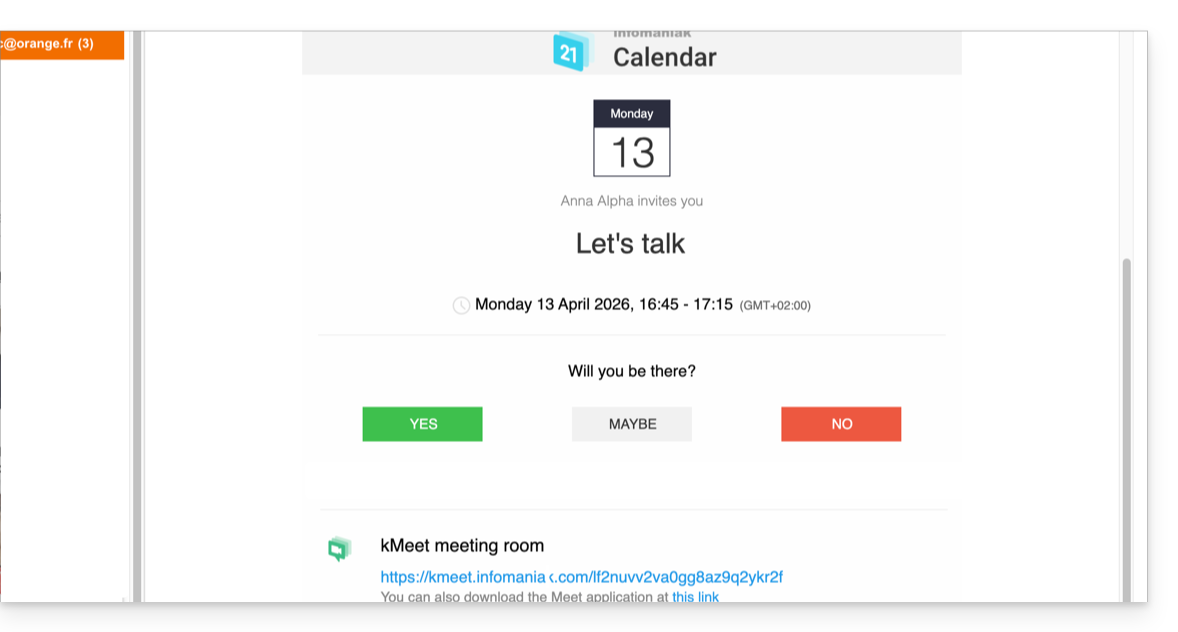
- Meanwhile, invitations are sent to the participants:
Link to this FAQ: https://faq.infomaniak.com/2897
Has this FAQ been helpful?