Knowledge base
1000 FAQs, 500 tutorials and instructional videos. Here, there are only solutions!
This guide is for all users who want to recommend Infomaniak products and earn money on each sale made through the Infomaniak affiliate program. Every click on your links is a potential sale.
Generate earnings quickly
You will earn commissions on all products(including Cloud Servers and Newsletter tool), with the exception of domain names, Hosting, and very high availability hosting. Your earnings will be higher on premium products!
Some tips and ideas
Add your affiliate link…
- … in the signature of your emails
- … when you answer questions in Facebook groups or forums
- … in your various online profiles
- … in your newsletters/email campaigns
Follow discussions on Discord, Facebook, etc., or forums that bring together people interested in…
- … WordPress
- … and more generally, the creation of websites
- … data hosting
because members often ask for advice on choosing a provider, and it is then easy to recommend Infomaniak based on your experience.
Test a free Web Hosting + Mail Serviceand write a review article on your blog, Medium, Facebook, etc.
Create a video on YouTube or other platforms to highlight the strengths of the products (free Elegant Themes WordPress themes, 120 web applications in one click, 100% SSD hosting, etc.) - all these points are presented on the various Infomaniak sales pages.
Link to this FAQ: https://faq.infomaniak.com/2243
Has this FAQ been helpful?
This guide explains how to test the Web Hosting + Mail Service offer from Infomaniak for 3 months as part of the Infomaniak affiliate program.
Preamble
- Indeed, as a member of this program, you have the opportunity to test the flagship Web + Mail hosting offer for free for 90 days in order to talk about it around you by sharing your affiliate links.
Activate the test offer
To start the test offer:
- Click here to access the Infomaniak Manager.
- Click on Affiliation in the left sidebar.

- Click on the Activate button at the top of the page from the dashboard.
- Refer to this other guide
to order the products for free.
Link to this FAQ: https://faq.infomaniak.com/2246
Has this FAQ been helpful?
This guide explains how to enable or disable automatic renewal for your products.
Introduction
- You can automate the renewal of your products that are nearing their expiration date via your preferred payment method.
- During new orders or when renewing a product, this feature is automatically enabled if you use a supported payment method (credit cards, Visa, and MasterCard).
- You can disable this feature at any time.
- Once automatic renewal is enabled, the first payment attempt will take place 14 days before the product's expiration date.
- It is not possible to enable automatic renewal if the product is less than 14 days from its expiration date.
- In this case, you must first renew the product before you can enable this feature.
- Please refer to this other guide if you are looking for information on what to do if you were unable to renew your products on time or if automatic renewal did not work, in order to avoid any service interruptions in the future.
Enable automatic renewal
One product at a time
To enable future automatic renewal for the product of your choice:
- Click here to access the payment management section in the Infomaniak Manager (need help?).
- Access requires authentication with a user who has sufficient rights.
- If necessary, click on the date filter (next 2 months) to Show All:
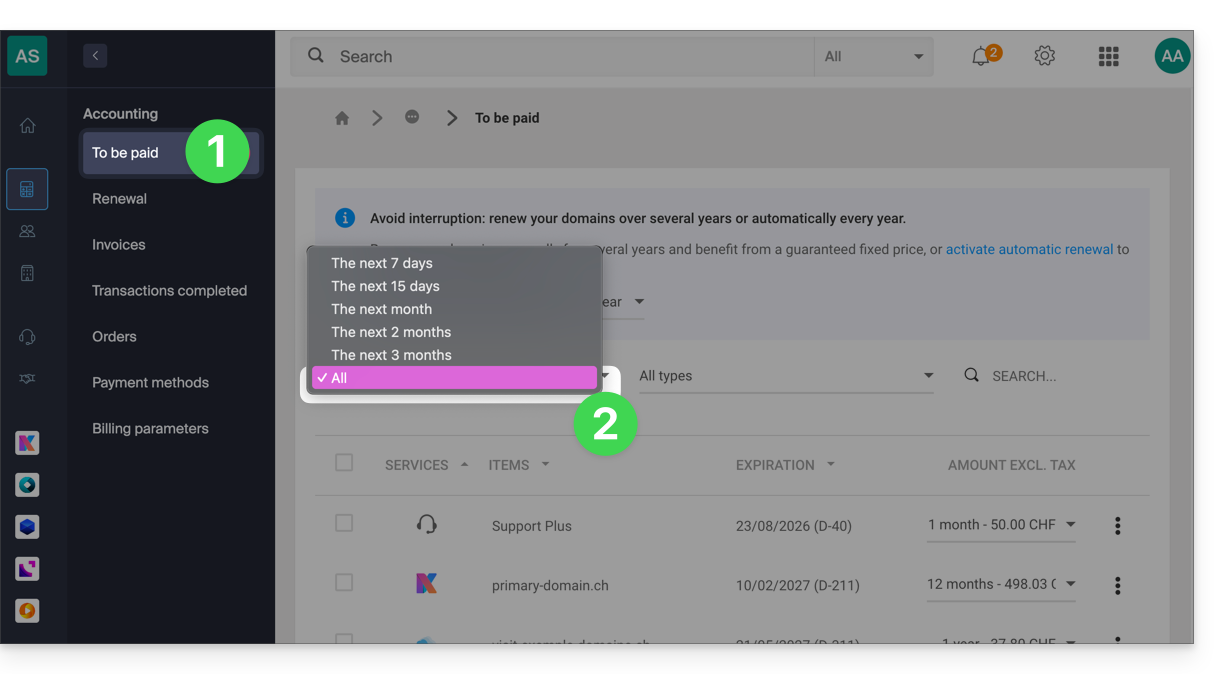
- Click on the action menu ⋮ located to the right of the item in question.
- Choose to enable the automatic renewal of the product:
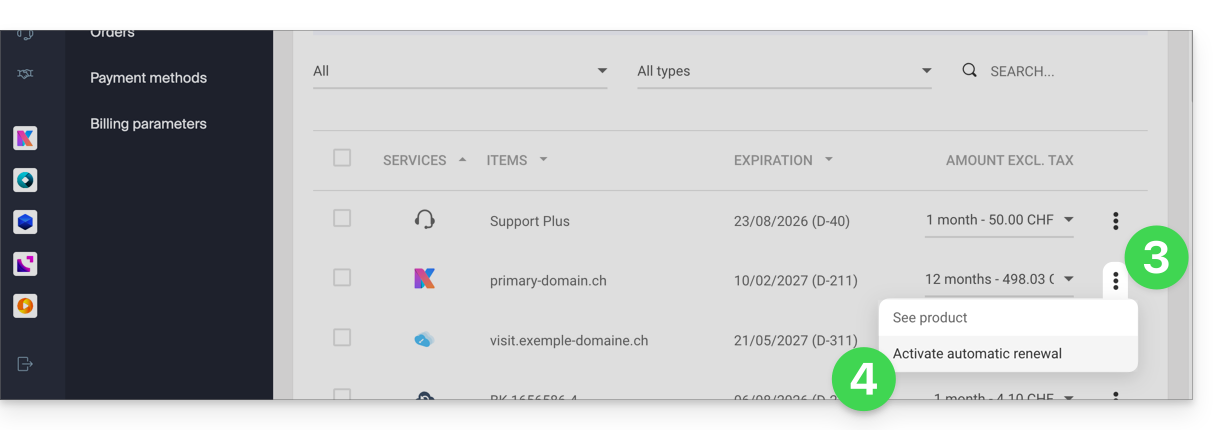
- A window may then open to choose the desired payment method.
All products at once
To enable the future automatic renewal of all your products:
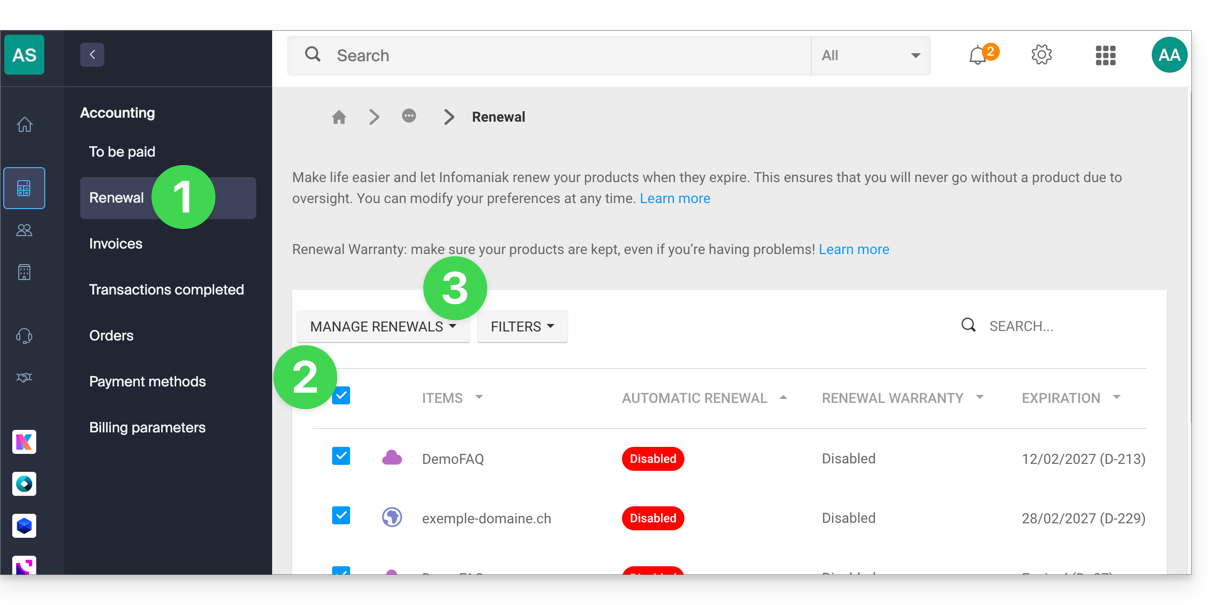
- Click here to access the renewal management section in the Infomaniak Manager (need help?).
- Click on the checkbox at the top of the column to select all your products with one click.
- Click on the Manage renewals button:
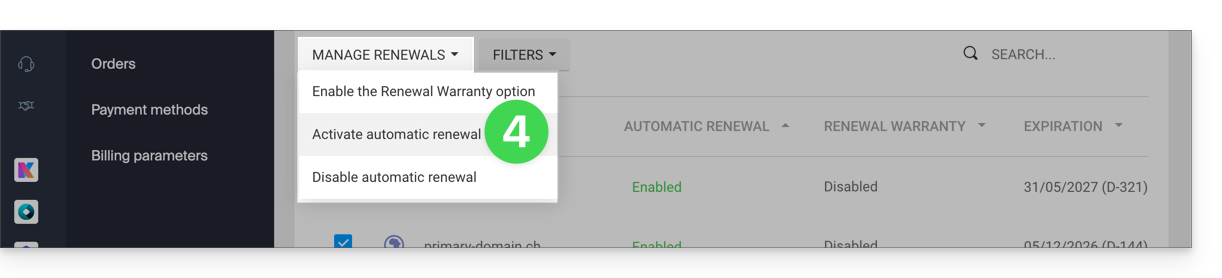
- Choose to enable the automatic renewal of products:
Disable automatic renewal
One product at a time
To disable the automatic renewal of the product of your choice:
- Click here to access the management of payments in the Infomaniak Manager (need help?).
- If necessary, click on the date filter (next 2 months) to Show All:
- Click on the action menu ⋮ located to the right of the item in question.
- Choose to disable the automatic renewal of the product:
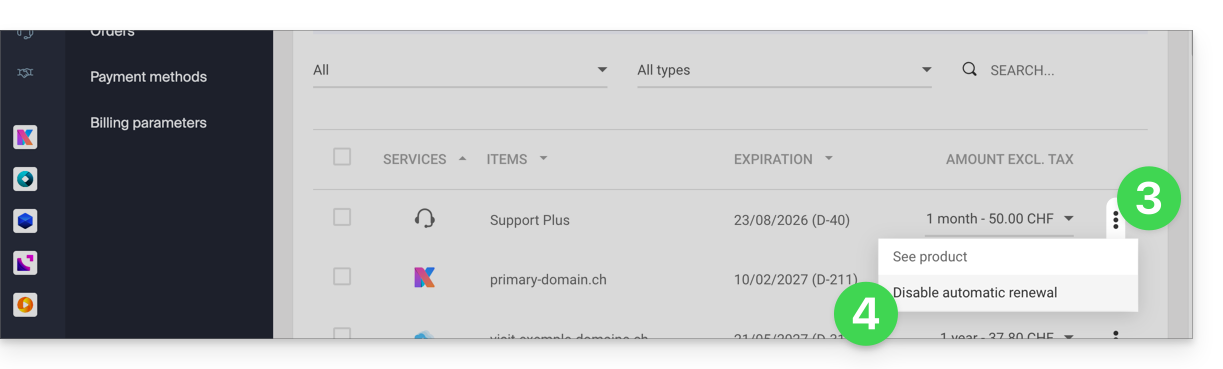
- A window may then open to choose the desired payment method.
All products at once
To disable the automatic renewal of all your products:
- Click here to access the management of renewals in the Infomaniak Manager (need help?).
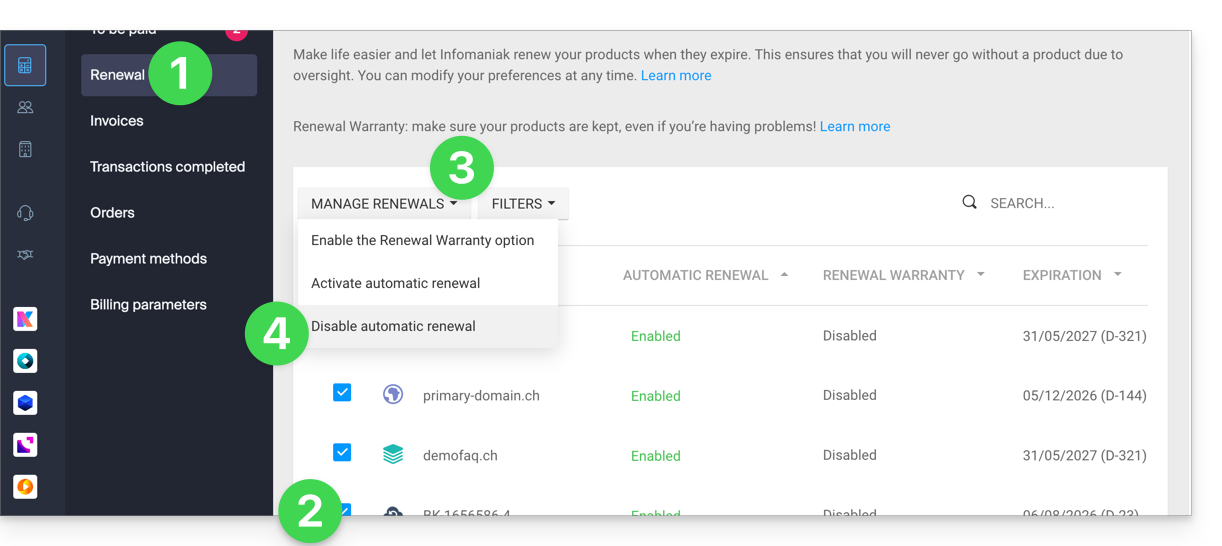
- Click on the box at the top of the column to select all your products in one click.
- Click on the Manage renewals button.
- Choose to disable the automatic renewal of products:
Link to this FAQ: https://faq.infomaniak.com/2314
Has this FAQ been helpful?
This guide explains how to update a payment profile in the Infomaniak Manager to facilitate your orders and service renewals.
Introduction
- Having a payment profile speeds up your payments.
- Payment data is saved securely.
- The funds available in the prepaid account can, for example, be used as the default payment profile, but other payment methods can be saved.
Add or modify a payment profile
To access payment method management and set a default method:
- Click here to access payment profile management in the Infomaniak Manager (need help?).
- Access requires authentication with a user who has sufficient rights.
- Update or add the desired payment method:
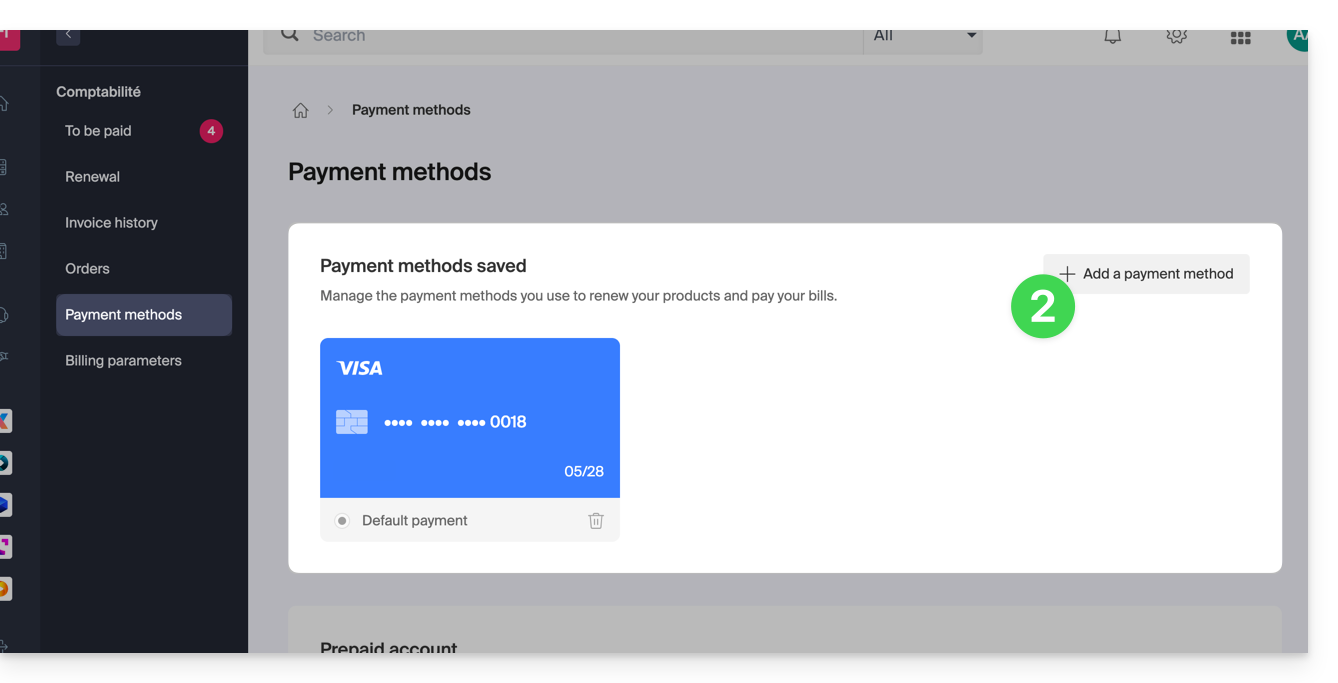
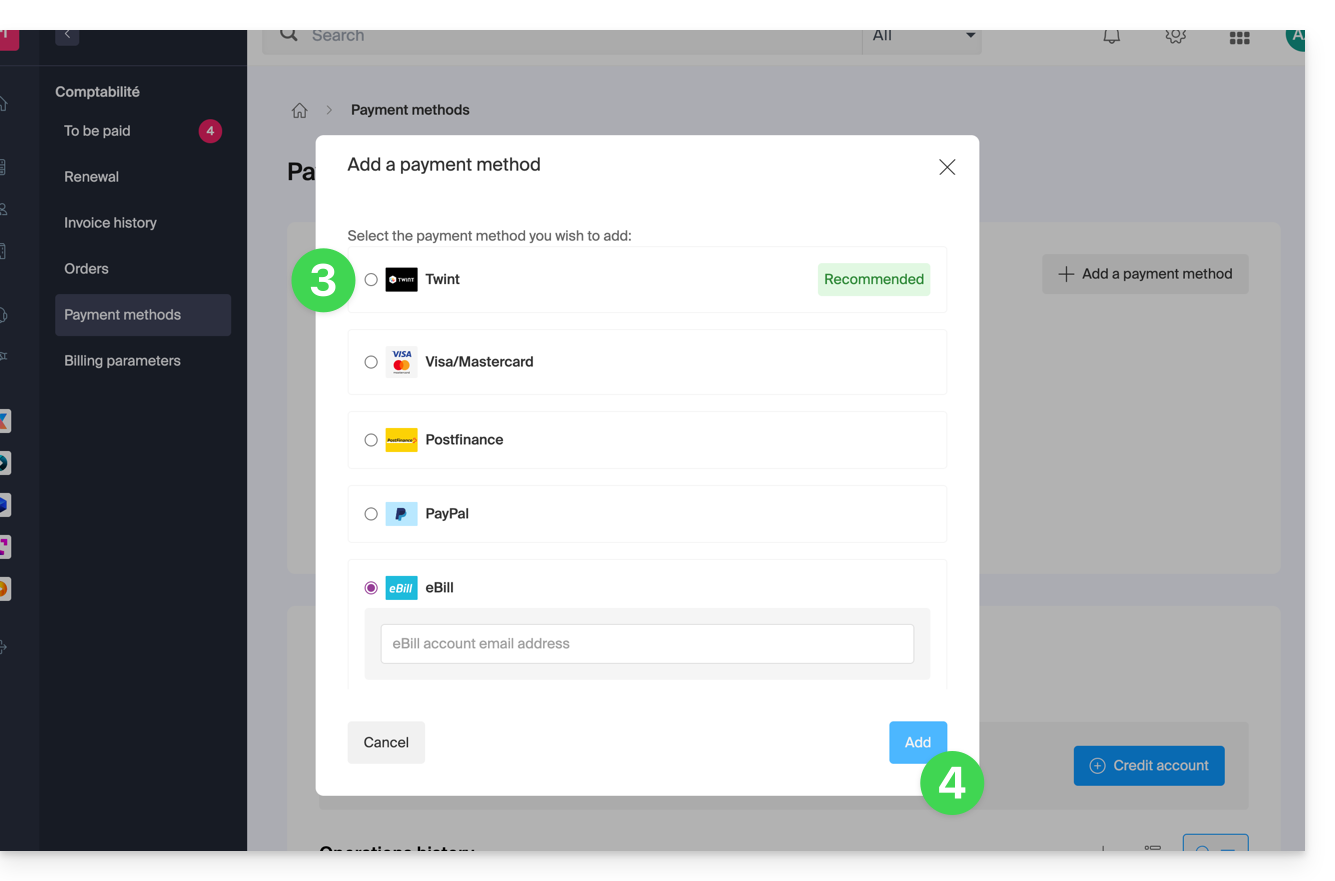
- Select the desired payment method from the following:
- Twint (Switzerland)
- Visa / Mastercard
- Postfinance (Switzerland)
- PayPal
- eBill (Switzerland)
- Click the button to save the addition:
Link to this FAQ: https://faq.infomaniak.com/2315
Has this FAQ been helpful?
Infomaniak continuously improves its products and customer service by prioritizing your suggestions shared through support, social media, or the web. These suggestions are then discussed during meetings of the relevant department.
Introduction
- For languages not listed in the table, please use the English (EN) column.
- Infomaniak support is also available via email, chat, or phone if needed.
Provide feedback on…
INFOMANIAK SERVICE | [FR] | [EN] | [DE] | [IT] | [ES] |
|---|---|---|---|---|---|
| Euria [ ☍ ] | ✎__ | ✎__ | ✎__ | ✎__ | ✎__ |
| Domains [ ☍ ] | ✎__ | ✎__ | ✎__ | ✎__ | ✎__ |
| Hosting / Website Builder [ ☍ ] | ✎__ | ✎__ | ✎__ | ✎__ | ✎__ |
| Cloud Server [ ☍ ] | ✎__ | ✎__ | ✎__ | ✎__ | ✎__ |
| Public Cloud [ ☍ ] | ✎__ | ✎__ | ✎__ | ✎__ | ✎__ |
| Jelastic Cloud [ ☍ ] | ✎__ | ✎__ | ✎__ | ✎__ | ✎__ |
| Synology [ ☍ ] | ✎__ | ✎__ | ✎__ | ✎__ | ✎__ |
| Hosting [ ☍ ] | ✎__ | ✎__ | ✎__ | ✎__ | ✎__ |
| Swiss Backup [ ☍ ] | ✎__ | ✎__ | ✎__ | ✎__ | ✎__ |
| kSuite / my kSuite [ ☍ ] | ✎__ | ✎__ | ✎__ | ✎__ | ✎__ |
| Mail [ ☍ ] | ✎__ | ✎__ | ✎__ | ✎__ | ✎__ |
| app Mail iOS [ ☍ ] | ✎__ | ✎__ | ✎__ | ✎__ | ✎__ |
| Android Mail app [ ☍ ] | ✎__ | ✎__ | ✎__ | ✎__ | ✎__ |
| kDrive [ ☍ ] | ✎__ | ✎__ | ✎__ | ✎__ | ✎__ |
| Calendar [ ☍ ] | ✎__ | ✎__ | ✎__ | ✎__ | ✎__ |
| Contacts [ ☍ ] | ✎__ | ✎__ | ✎__ | ✎__ | ✎__ |
| Chk.me [ ☍ ] | ✎__ | ✎__ | ✎__ | ✎__ | ✎__ |
| Newsletter [ ☍ ] | ✎__ | ✎__ | ✎__ | ✎__ | ✎__ |
| SwissTransfer [ ☍ ] | ✎__ | ✎__ | ✎__ | ✎__ | ✎__ |
| Streaming Radio [ ☍ ] | ✎__ | ✎__ | ✎__ | ✎__ | ✎__ |
| Streaming Video [ ☍ ] | ✎__ | ✎__ | ✎__ | ✎__ | ✎__ |
| VOD / AOD [ ☍ ] | ✎__ | ✎__ | ✎__ | ✎__ | ✎__ |
| Guest Manager [ ☍ ] | ✎__ | ✎__ | ✎__ | ✎__ | ✎__ |
| kChat [ ☍ ] | ✎__ | ||||
| kMeet [ ☍ ] | ✎__ | ||||


Link to this FAQ: https://faq.infomaniak.com/2324
Has this FAQ been helpful?
This guide explains how to add a new Organization that you will access with your current Infomaniak account, and within which you can add and/or transfer products, link users, etc.
Introduction
- If you are a my kSuite user, please refer to this other guide.
Create a new Organization
You can add multiple Organizations (i.e., a space for managing your products) by accessing them with the same login ID and password, to separate your professional and personal activities, for example, or when managing multiple clients:
- Click here to access the management of your settings (Infomaniak Manager).
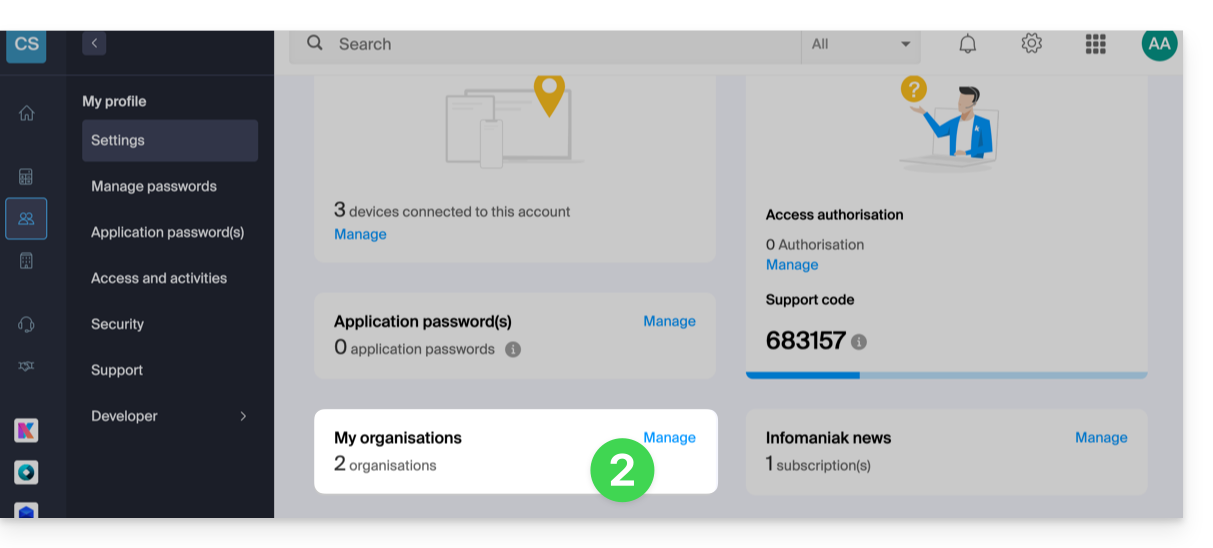
- Click on Manage from the My organizations box:
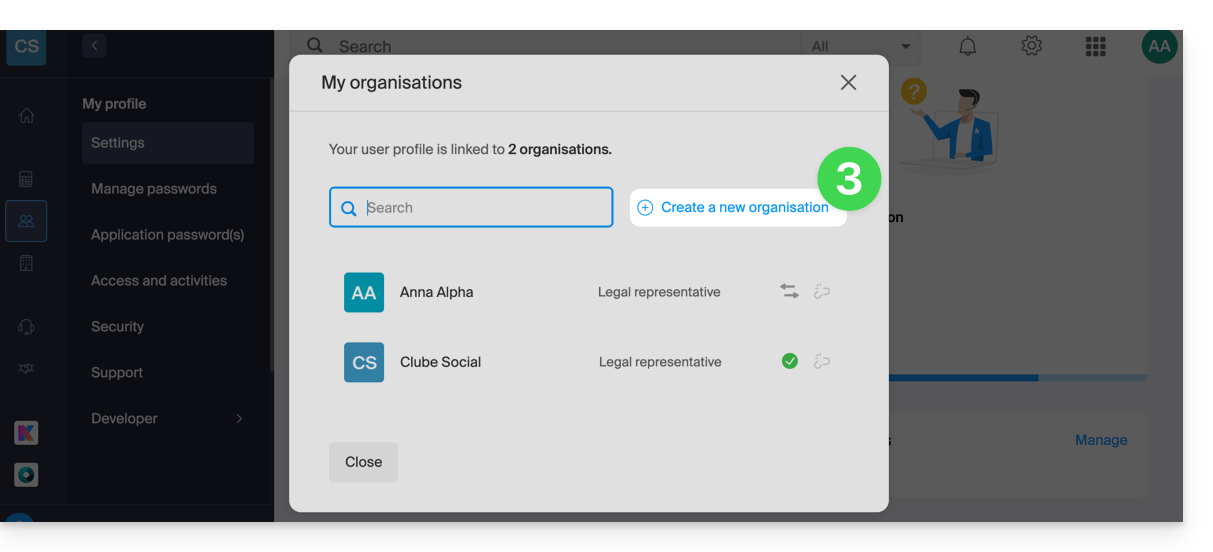
- Click on the Create a new organization button
- Follow the procedure for creating a new Organization.
This way, you can continue to use your usual login credentials while being able to switch between your different Organizations (at the top left of the Manager).
Link to this FAQ: https://faq.infomaniak.com/2330
Has this FAQ been helpful?
This guide explains how to delete an Infomaniak account (i.e., a user account), which means removing your access to the Manager and/or the Mail web app at ksuite.infomaniak.com/mail.
Introduction
- This operation will result in the immediate deletion of your calendars and address books.
- All access to the Manager using this ID will be lost.
- This operation does not delete the email addresses accessed from the account in question (except for certain free offers, but in this case, this is specified before the deletion operation).
- If the account you are using is the only account within an Organization, you must first delete the Organization or appoint someone else in order to delete your account.
Delete an Infomaniak / Mail account
To access the user profile section:
- Click here to access the My profile menu in the Infomaniak Manager.
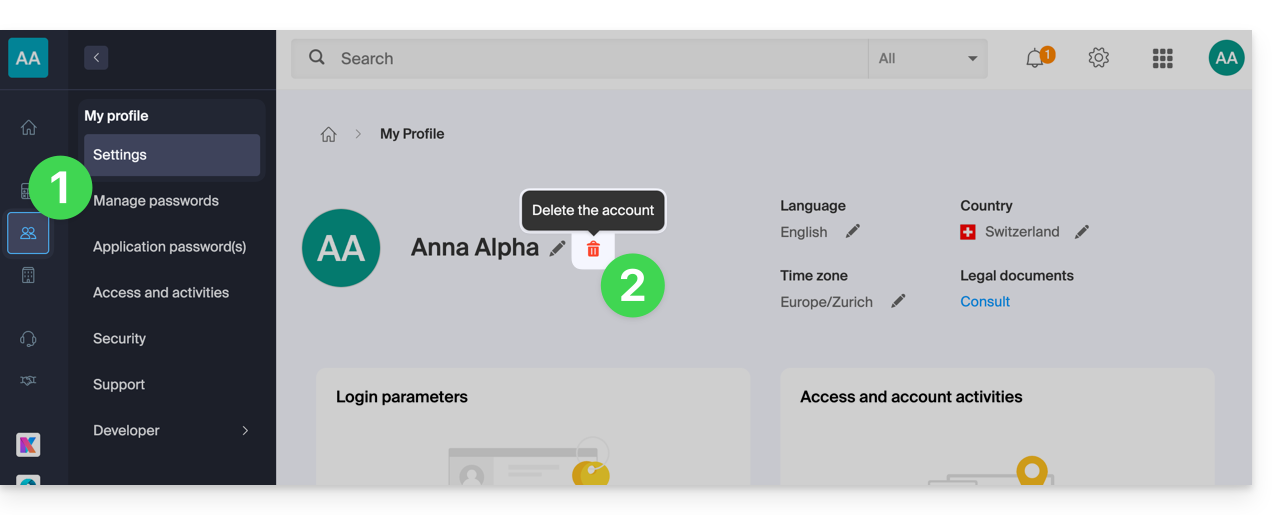
- Click on the trash can to the right of your name to delete your account and data:
- Enter your login password one last time, and the Infomaniak account will be deleted.
Link to this FAQ: https://faq.infomaniak.com/2333
Has this FAQ been helpful?
This guide explains how to obtain information about…
- … the connections made to the Infomaniak Manager using your Infomaniak account login credentials,
- … the activities performed within the Manager by your Infomaniak account.
The same type of logs, but concerning the entire Organization, is available to administrators: refer to this other guide.
Get the Infomaniak account login log
To view a login log (active sessions) for the Infomaniak Managerusing your Infomaniak account login:
- Click here to access the summary of accesses to the Infomaniak Manager using your Infomaniak account.
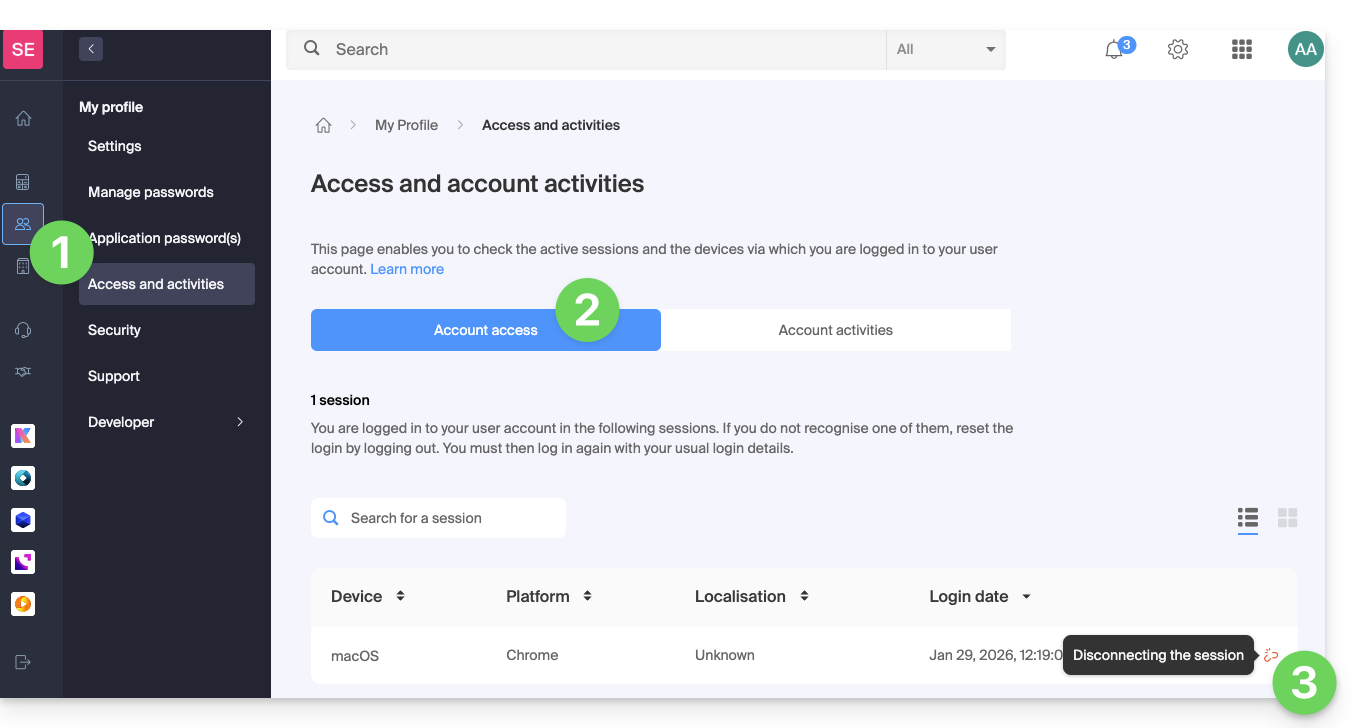
- From the Account Access tab, view the list of devices connected to your Infomaniak account.
- You can end an open session by clicking on the icon at the far right of the name of the device connected to your account, which will disconnect it.:
Be notified of successful or unsuccessful logins
To be notified by email when you log in or attempt to log in to your Infomaniak account:
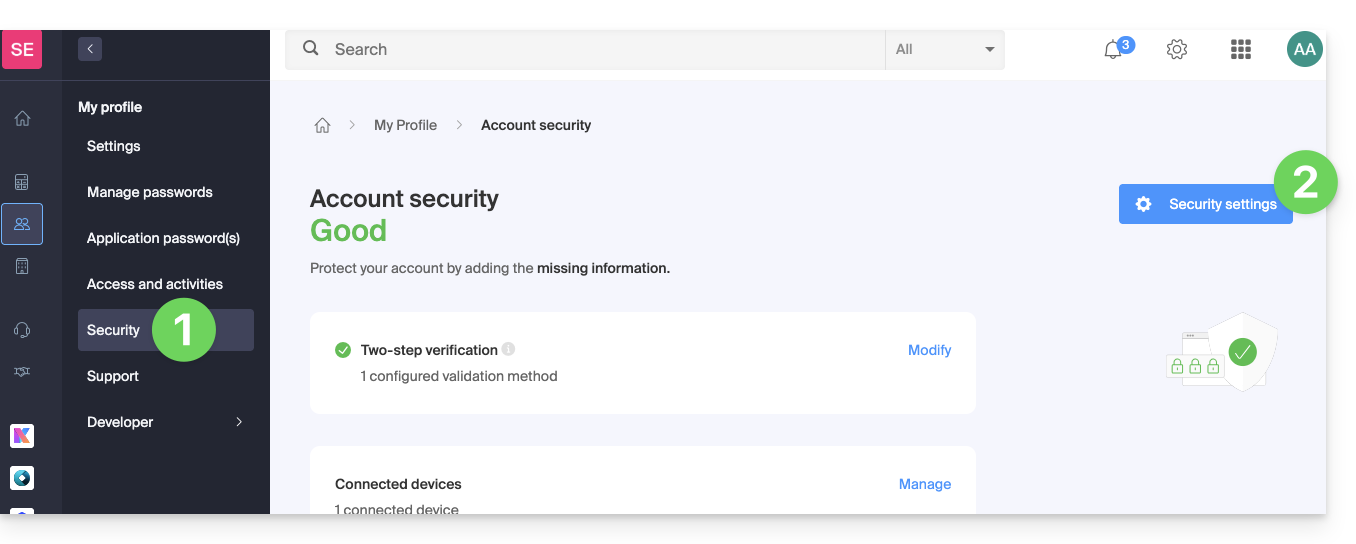
- Click here to access the security summary for your account in the Infomaniak Manager.
- Click on Security settings:
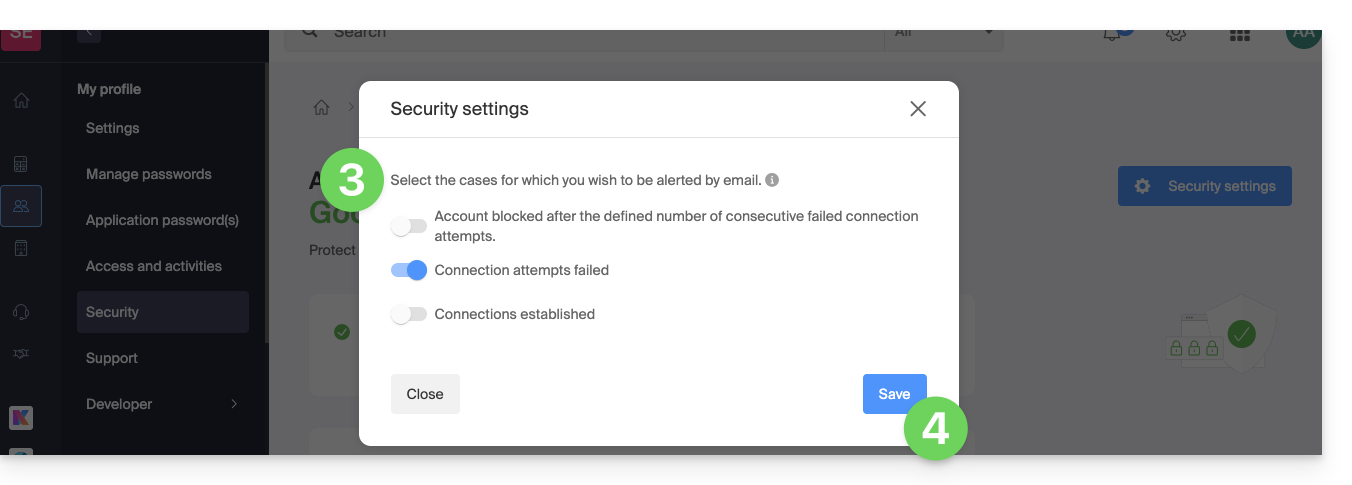
- Select the cases for which you want to receive email alerts (notification upon successful login, or only in case of failed login).
- Click to Save your changes:
In the same section, you can specify the minimum number of unsuccessful attempts after which your Infomaniak account will be locked: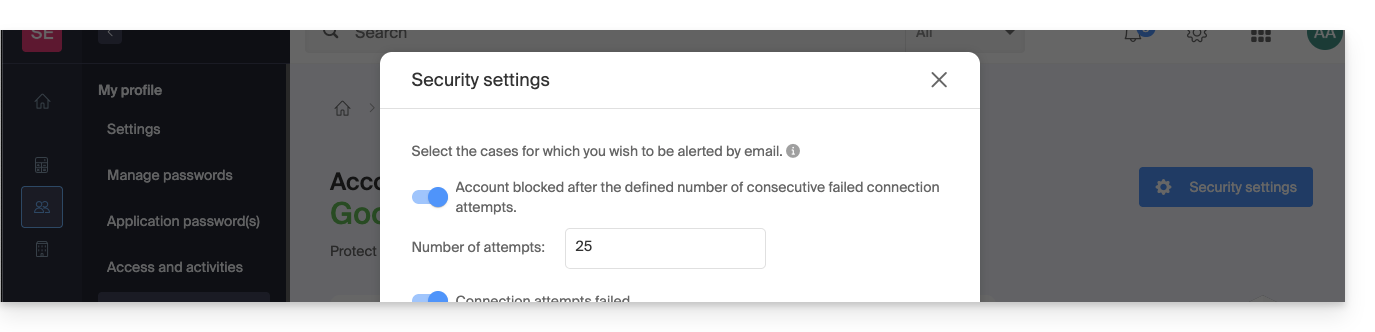
Once locked, the account can be unlocked by an administrator of the Organization or via a secure form.
Get the user account activity log
To view recent activities performed within the Manager by your Infomaniak account:
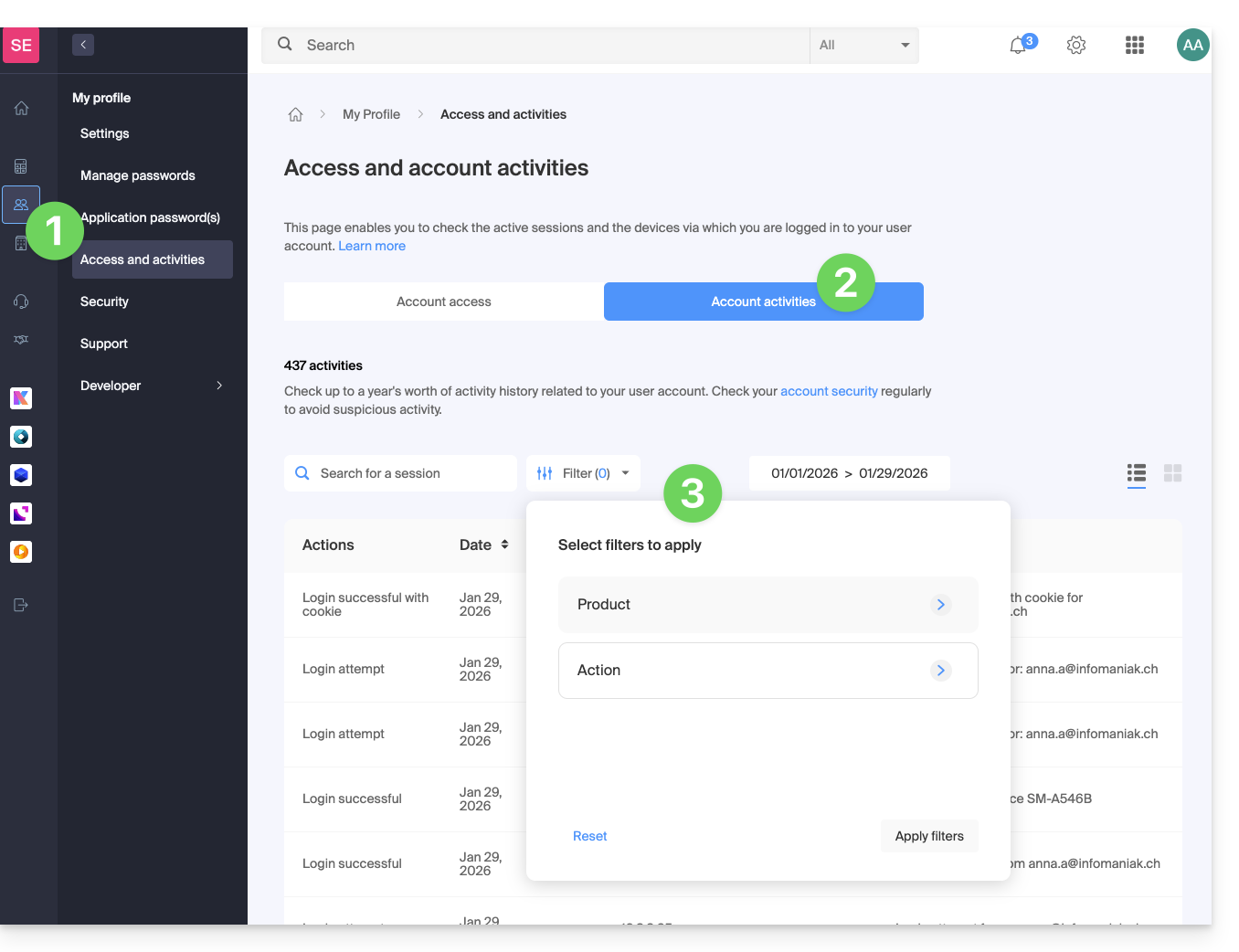
- Click here to access the summary of your account activity in the Infomaniak Manager.
- From the Account Activity tab, view the latest activities and actions on your Infomaniak account.
- Log search and filtering options are available: date, product, or action type:
Link to this FAQ: https://faq.infomaniak.com/2339
Has this FAQ been helpful?
This guide details the procedure for modifying the WHOIS contact information for domain name holders, which you can apply to an entire batch of domains within your Organization at Infomaniak.
Change contact information in bulk
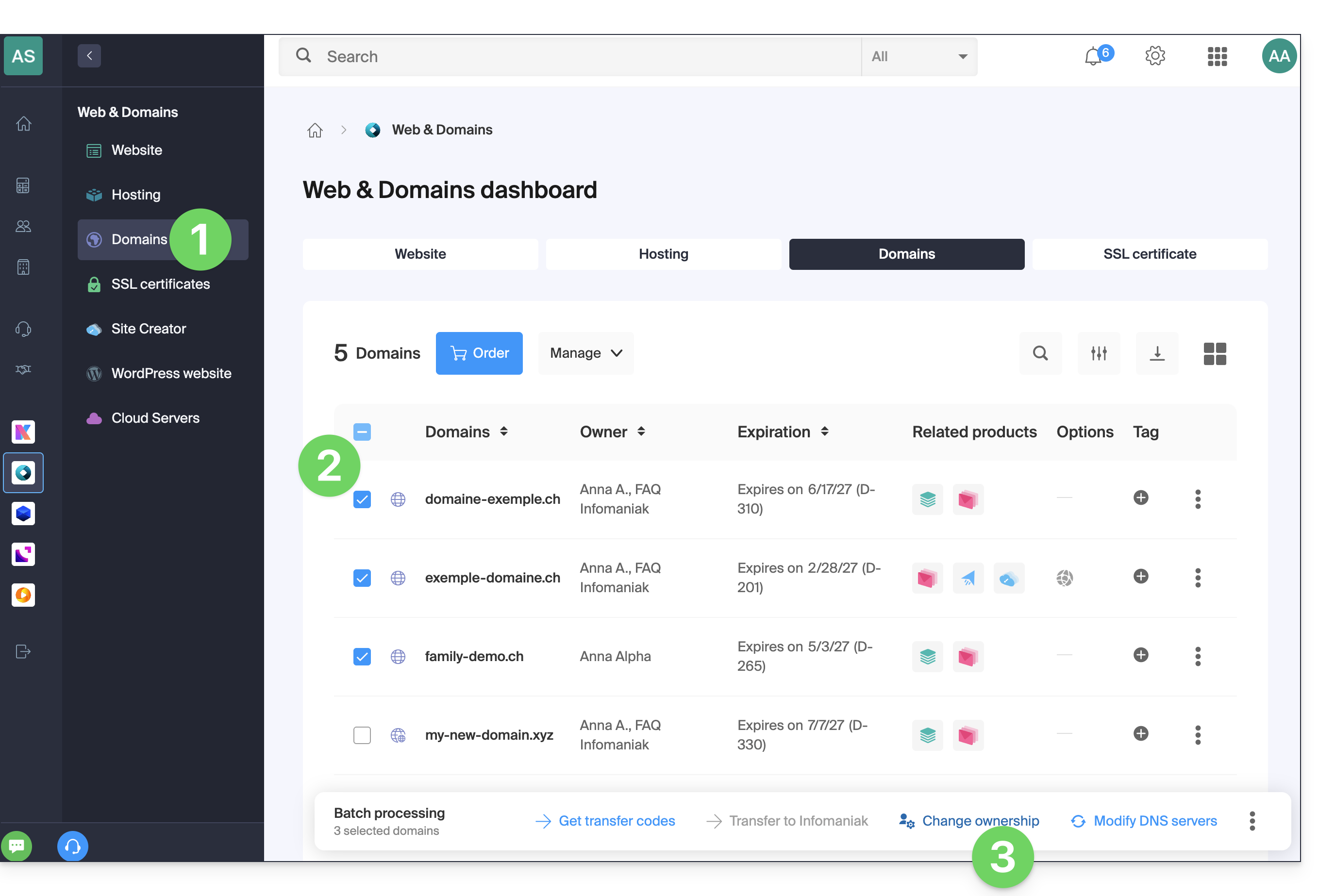
To modify the WHOIS contact information for multiple domain names at once:
- Click here to access your domain management interface in the Infomaniak Manager (need help?).
- Select the domains whose owner needs to be changed using the checkboxes.
- Click on Change owner at the bottom of the table:
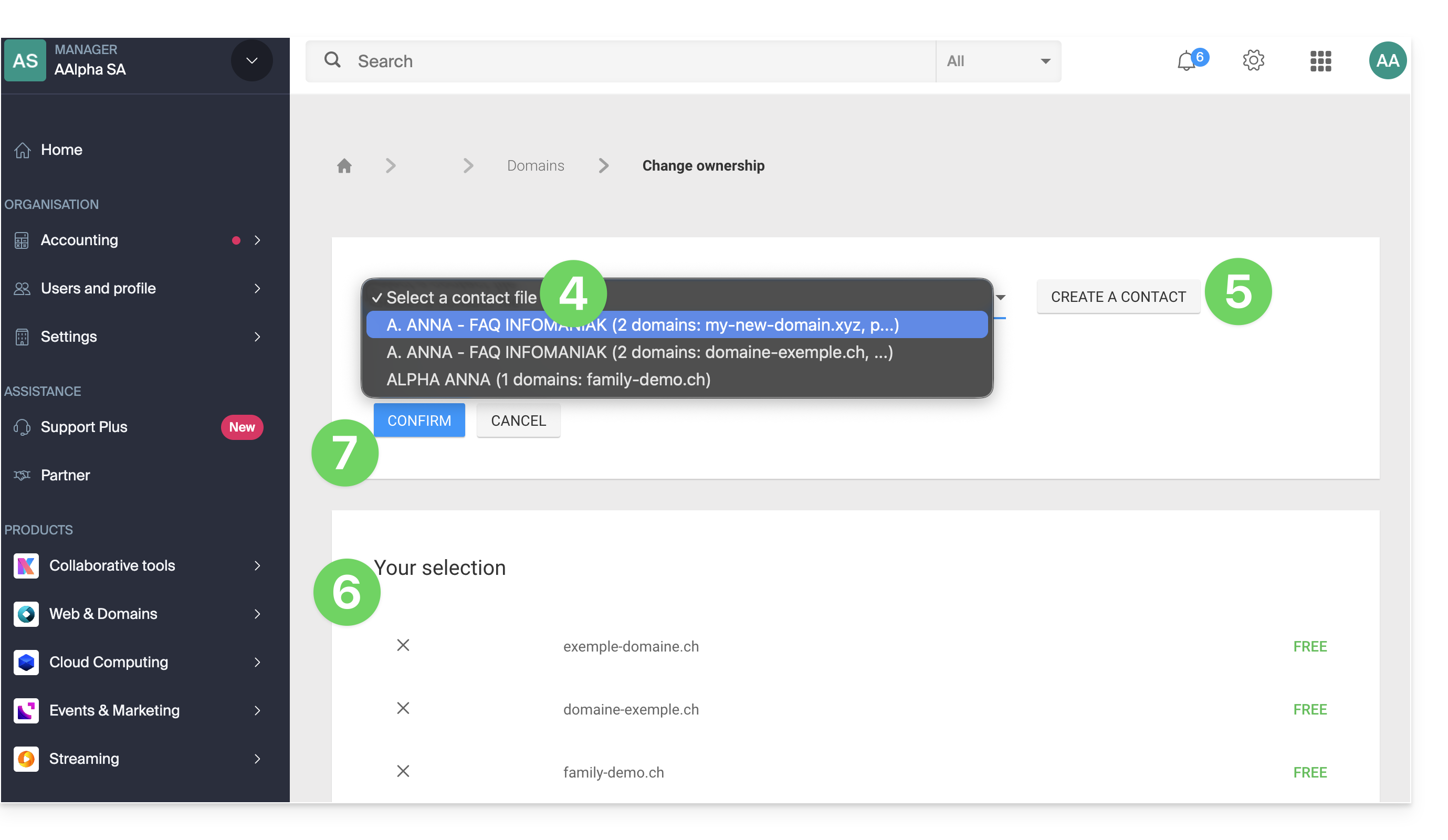
- Choose another existing contact entry…
- … or click the Add button to create a brand new contact entry.
- Check your selection and any potential modification fees in the box.
- Click Confirm:
Link to this FAQ: https://faq.infomaniak.com/2348
Has this FAQ been helpful?
If an Infomaniak service order is interrupted and cancelled before its due date, while a bank transfer is in progress, the funds will be credited to your prepaid account.
You can then place a new order andpay using the amount available in the prepaid account.
Link to this FAQ: https://faq.infomaniak.com/2356
Has this FAQ been helpful?
Infomaniak Authenticator is a free mobile application that enhances and simplifies the security of Infomaniak accounts protected by two-factor authentication (or double authentication / 2FA). It is one of the methods that allows you to secure access to your Infomaniak user account.
Introduction
- Two-factor authentication protects your account and personal data when logging into Infomaniak tools (manager.infomaniak.com and ksuite.infomaniak.com) by requiring:
- your password…
- then a second security method.
- The mobile app Infomaniak Authenticator is one of these methods and allows you to receive a push notification YES / NO to authorize or deny login to your Infomaniak account.
- If another Infomaniak app (Mail, Euria, kDrive, etc.) is installed and your user ID is also connected to it, the authorization request may be made through that app; please refer to this other guide for more information.
- In all cases, it is highly recommended to carefully note the backup codes offered for download after each configuration: download and keep a copy of these codes in a safe place, as they will be the only way to access your account if you lose your credentials or to access your account without access to your phone.
Install the Infomaniak Authenticator app
Prerequisites
- Have an Infomaniak account (know your login credentials so you can log in).
- Have an iOS or Android mobile device.
- From your iOS or Android mobile device, download the Infomaniak Authenticator app here:


Install and open the application.
Add the app as a two-factor authentication method
Once the app is open, log in to the desired Infomaniak account within the app to activate Infomaniak Authenticator as a 2FA method.
How the mobile app works
When you try to log in to your account from any device and successfully enter your usual password, you receive a push notification on your mobile device asking you to authorize the login ("Approve / Decline") via the Infomaniak Authenticator app: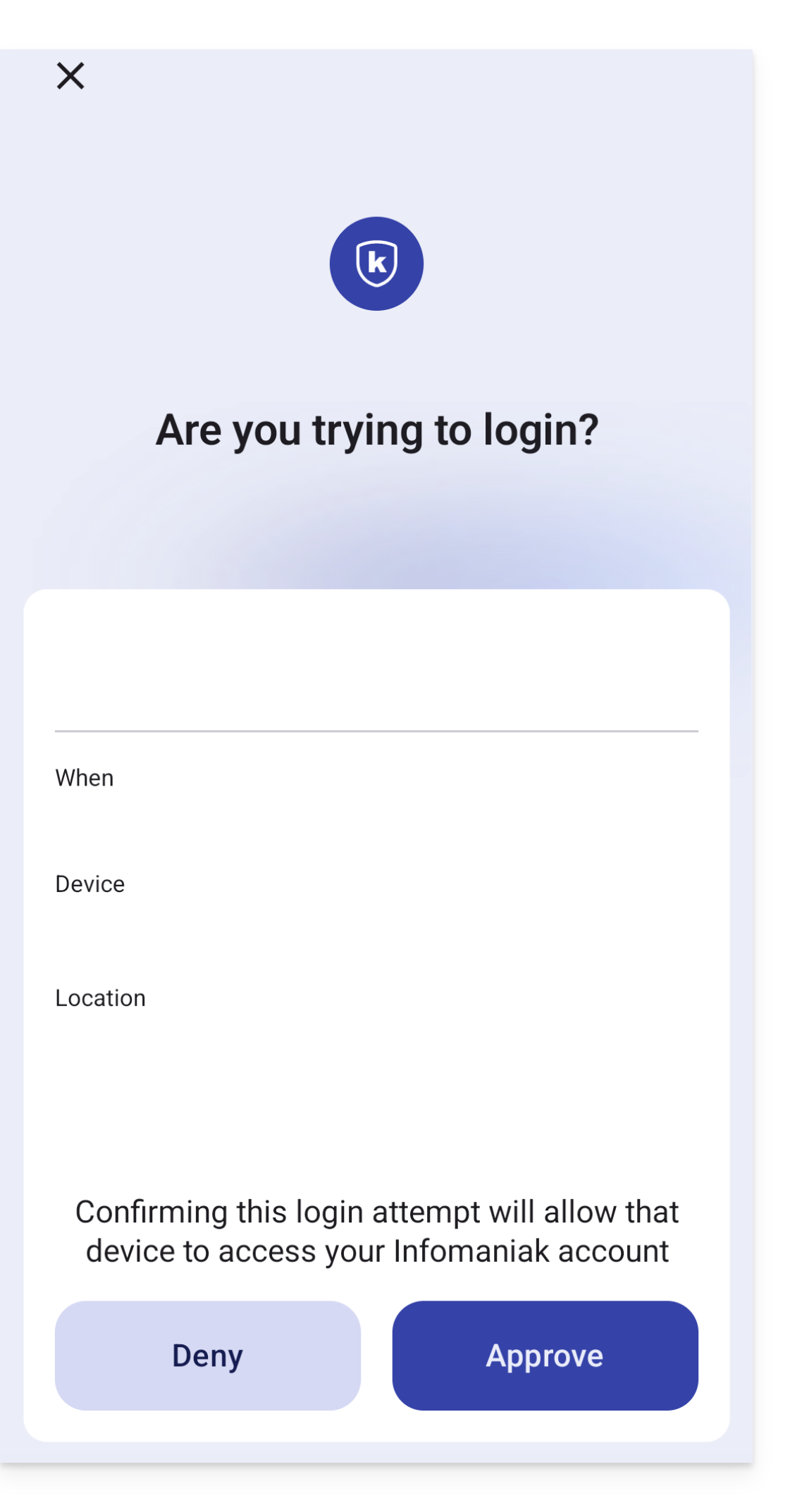
If the connection is allowed, the initial page is automatically redirected to the Infomaniak account.
Migration from kAuth to Authenticator
To do this:
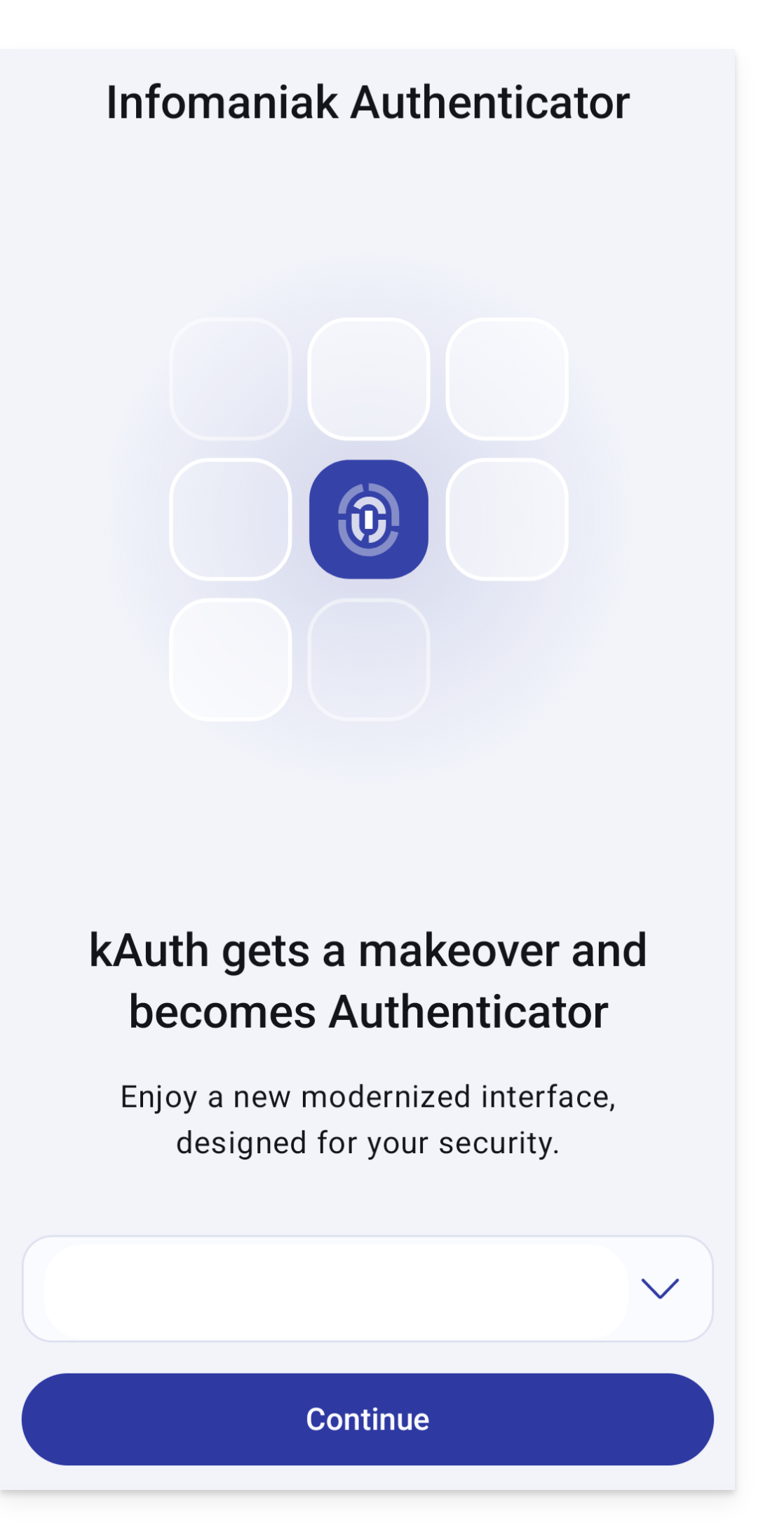
- Open Infomaniak Authenticator from your mobile device.
- The Infomaniak accounts that can be migrated will appear automatically; then click on Continue:
- Enter your credentials if necessary:
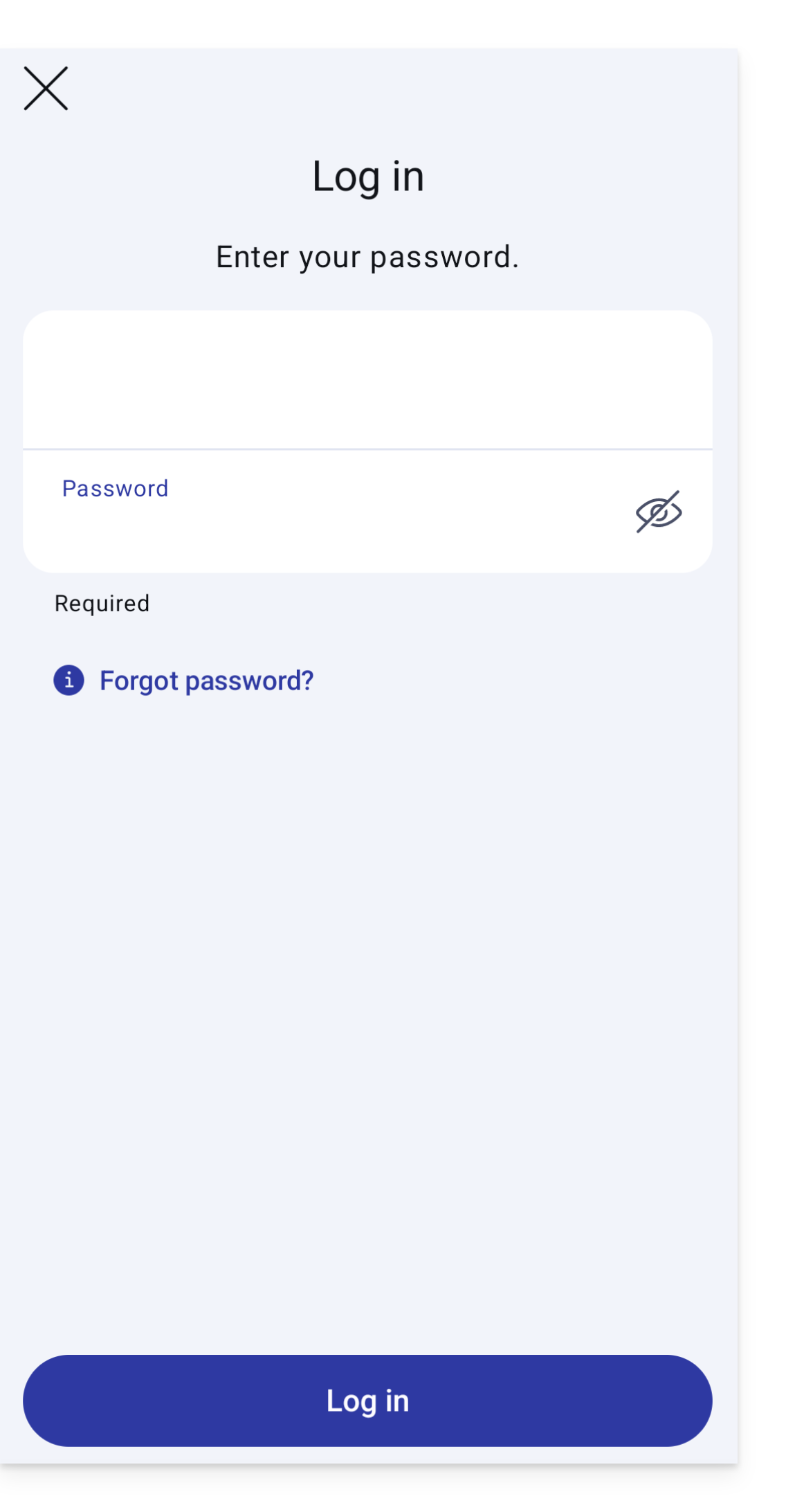
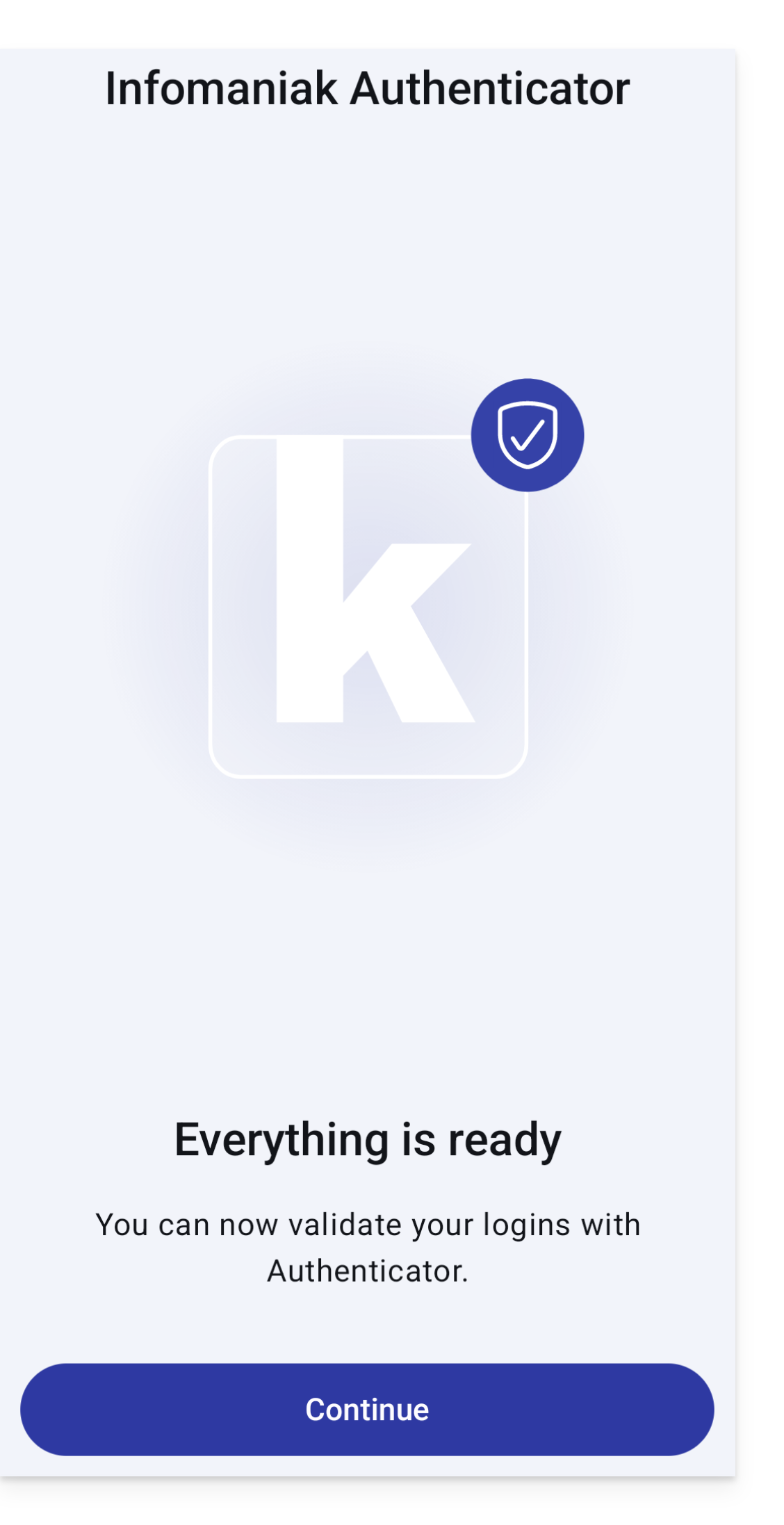
- Everything is ready, click on Continue:
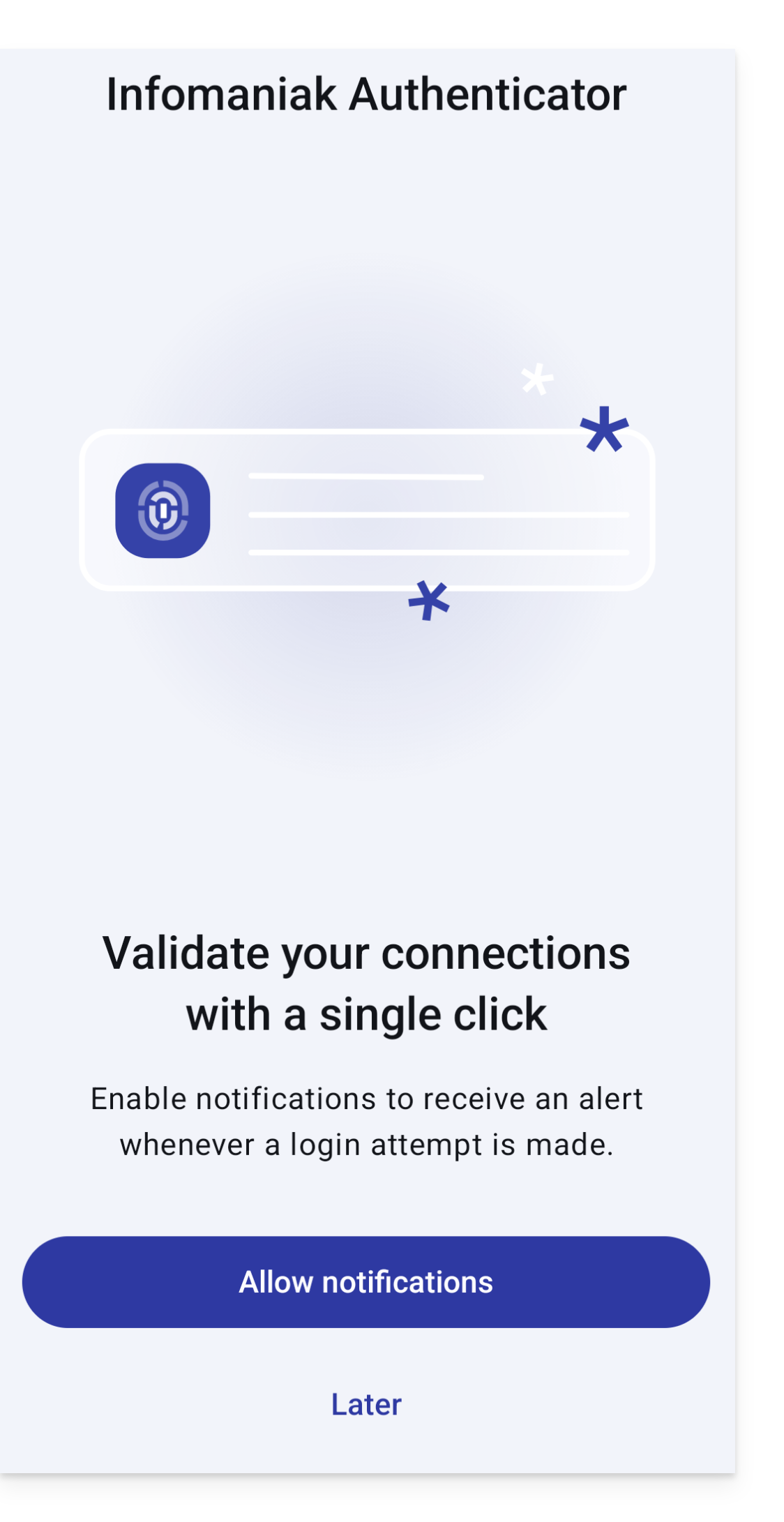
- It is recommended to allow notifications:
Add additional accounts
Infomaniak Authenticator allows you to manage multiple Infomaniak accounts:
- Open Infomaniak Authenticator on your mobile device.
- Click on the blue button :
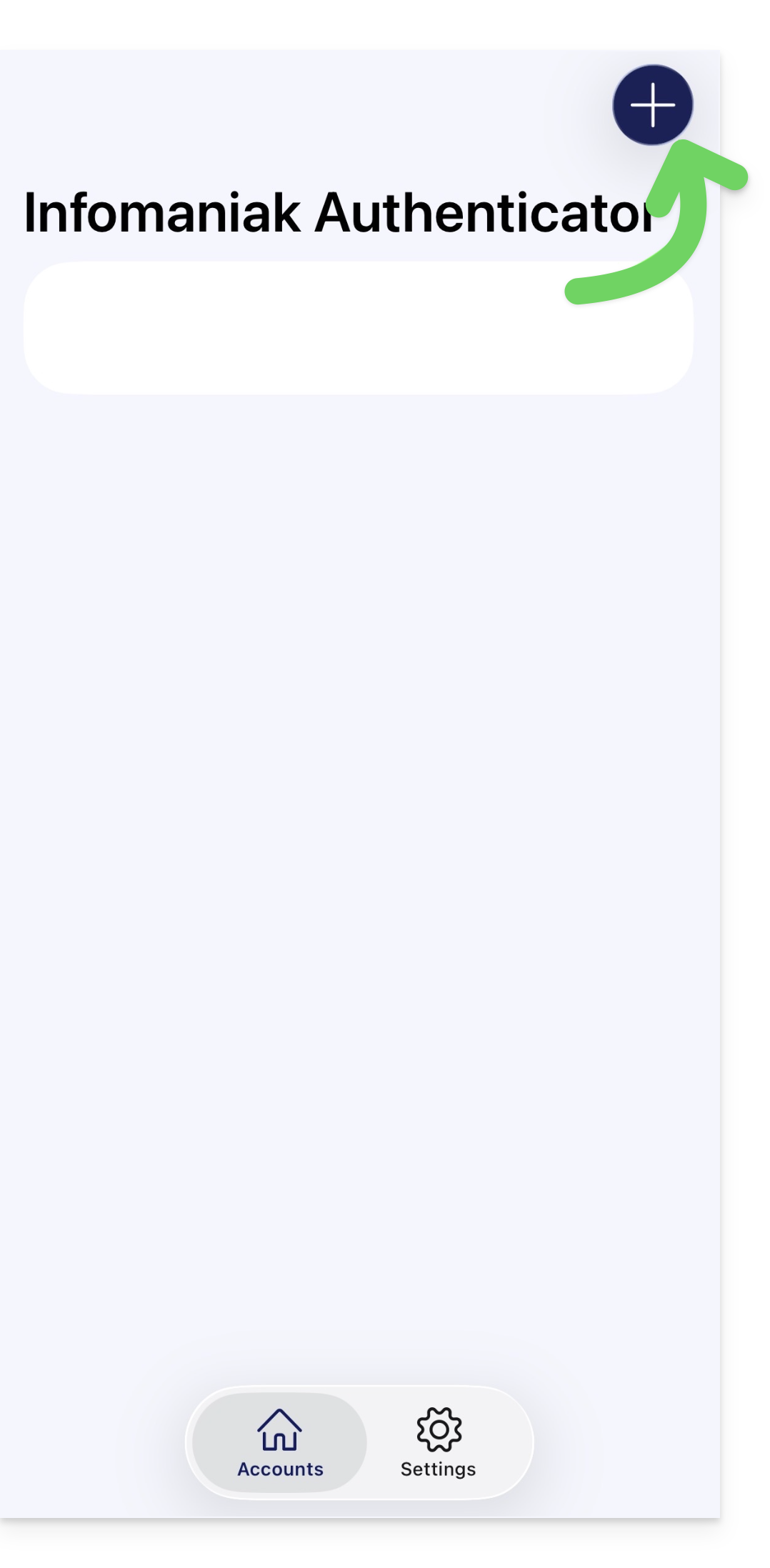
At the bottom right on Android. - Identify the account you want to add.
Remove an account from Infomaniak Authenticator
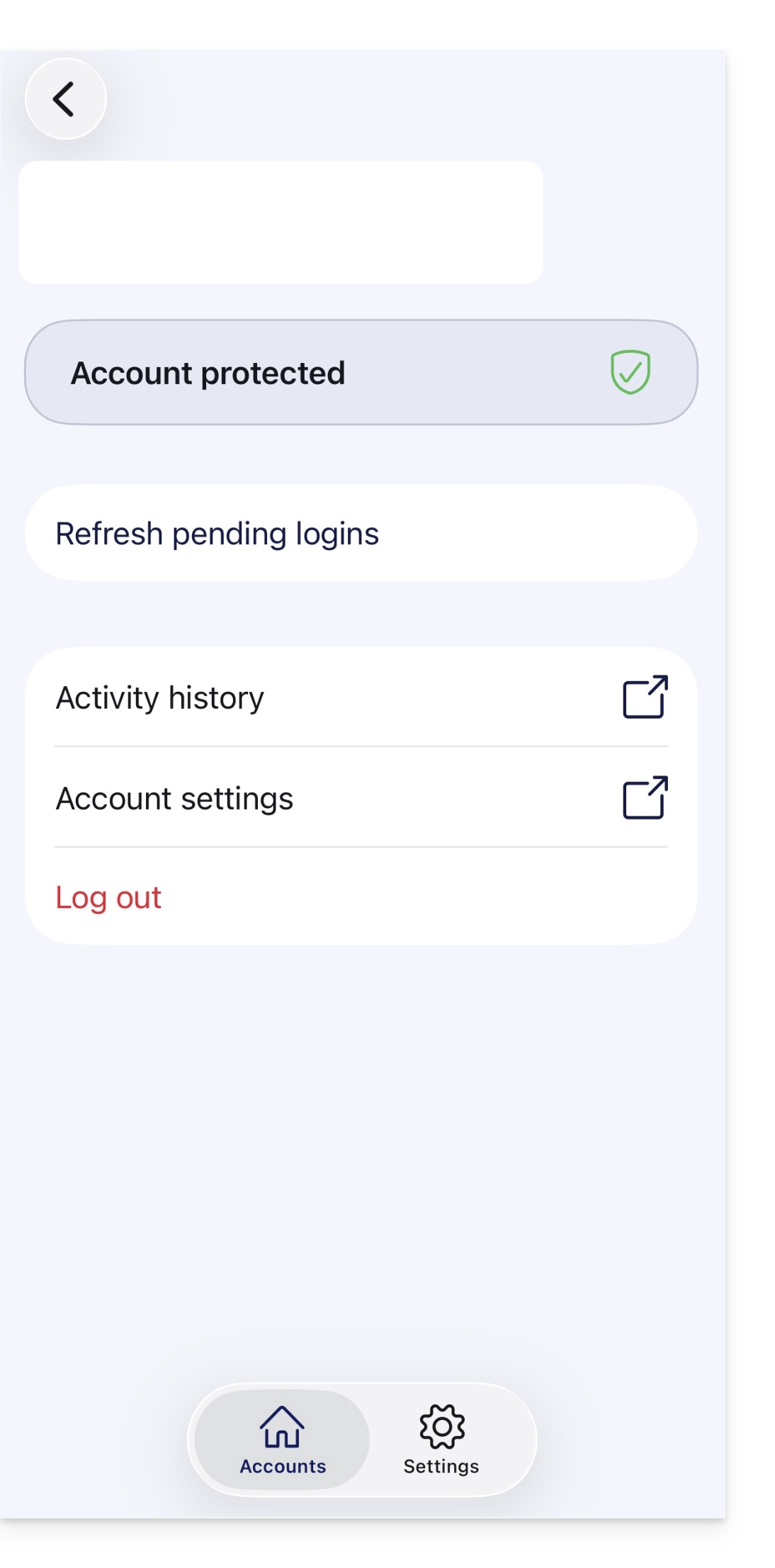
To delete your Infomaniak identity from the Infomaniak Authenticator app.
- Select the account you wish to remove.
- Click on Disconnect:
Warning
Link to this FAQ: https://faq.infomaniak.com/2358
Has this FAQ been helpful?
This guide explains how to change the password for your Infomaniak account (= user account) in the Manager, the administration interface for your Infomaniak products.
Introduction
- This password also allows you to log in to kSuite and the various iOS/Android applications such as kDrive, Infomaniak Mail, etc. (learn more)but it is not the password for your email address!
- If you cannot log in, you will not be able to change your password; please refer to this other guide in that case.
Change your Infomaniak account password
To change the password for your Infomaniak account:
- Click here to access your settings management (Infomaniak Manager).
- Click on Edit from the Login settings box under Login password:
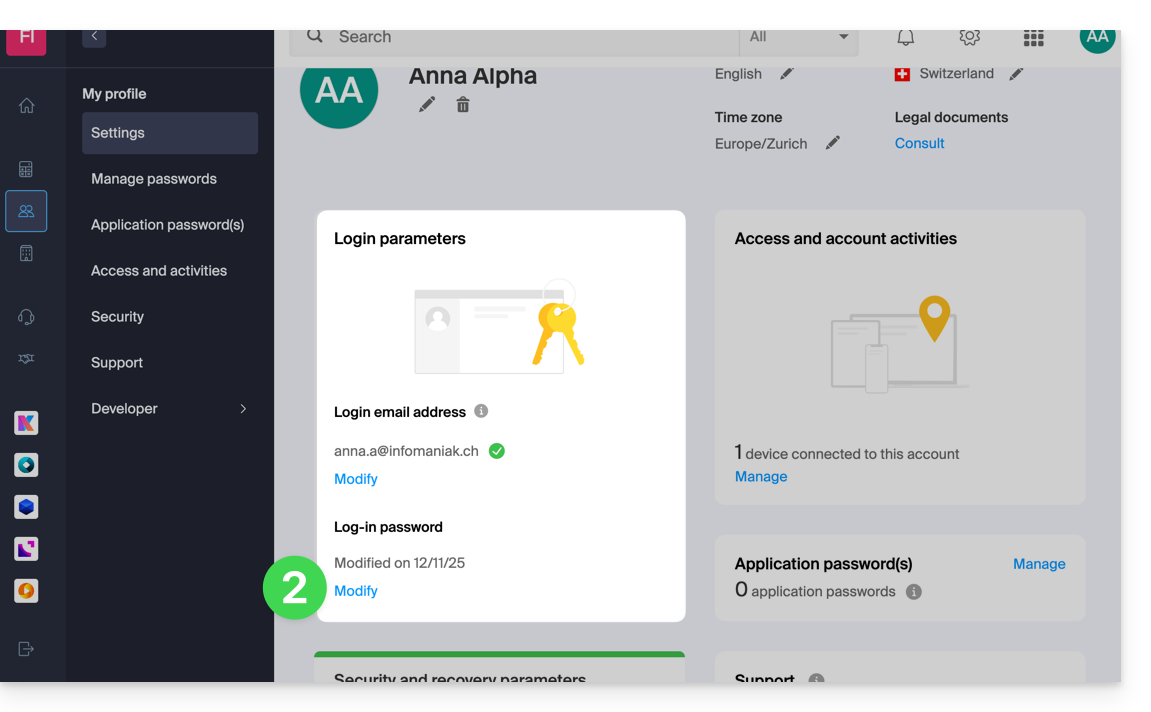
- Click on Edit:
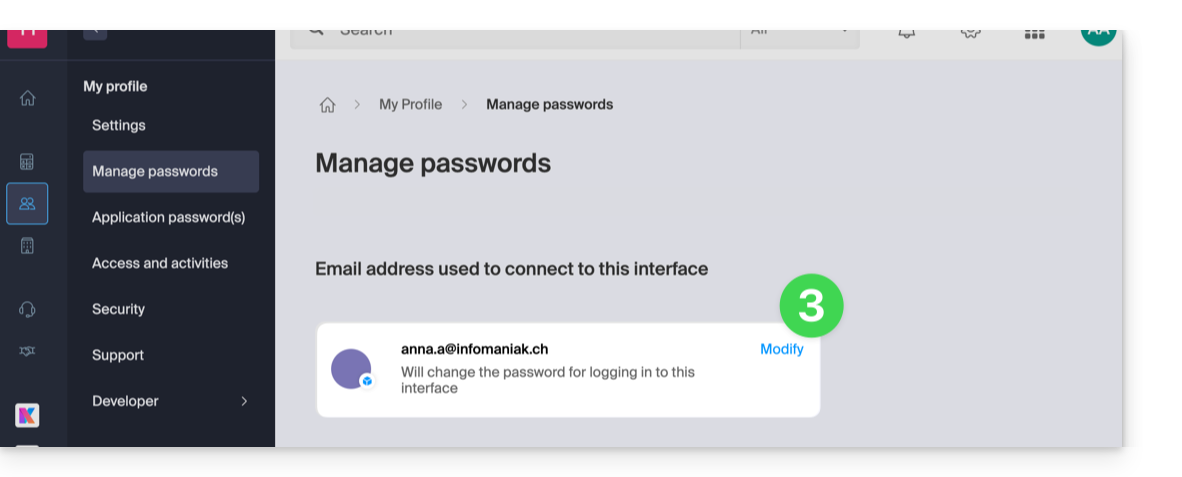
- Enter your current login password and the new password you want.
- Click Save.
Link to this FAQ: https://faq.infomaniak.com/2359
Has this FAQ been helpful?
This guide explains how to remove an Infomaniak account configured in the mobile app Infomaniak Authenticator (iOS / Android app).
Introduction
- Warning: if no other method is configured to secure your account access (e.g., SMS), the two-factor authentication system will be deactivated.
- It is strongly recommended that you re-secure your account with a two-factor authentication method.
- If Infomaniak Authenticator is the most recent protection method available, and an Administrator requires users to have at least one method, you will not be able to follow this guide to the end.
Remove an account from the Infomaniak Authenticator mobile app
To remove the Infomaniak Authenticator two-factor authentication method for a specific account:
- Open the Infomaniak Authenticator app on your mobile device.
- Click on the account from which you want to remove this method:
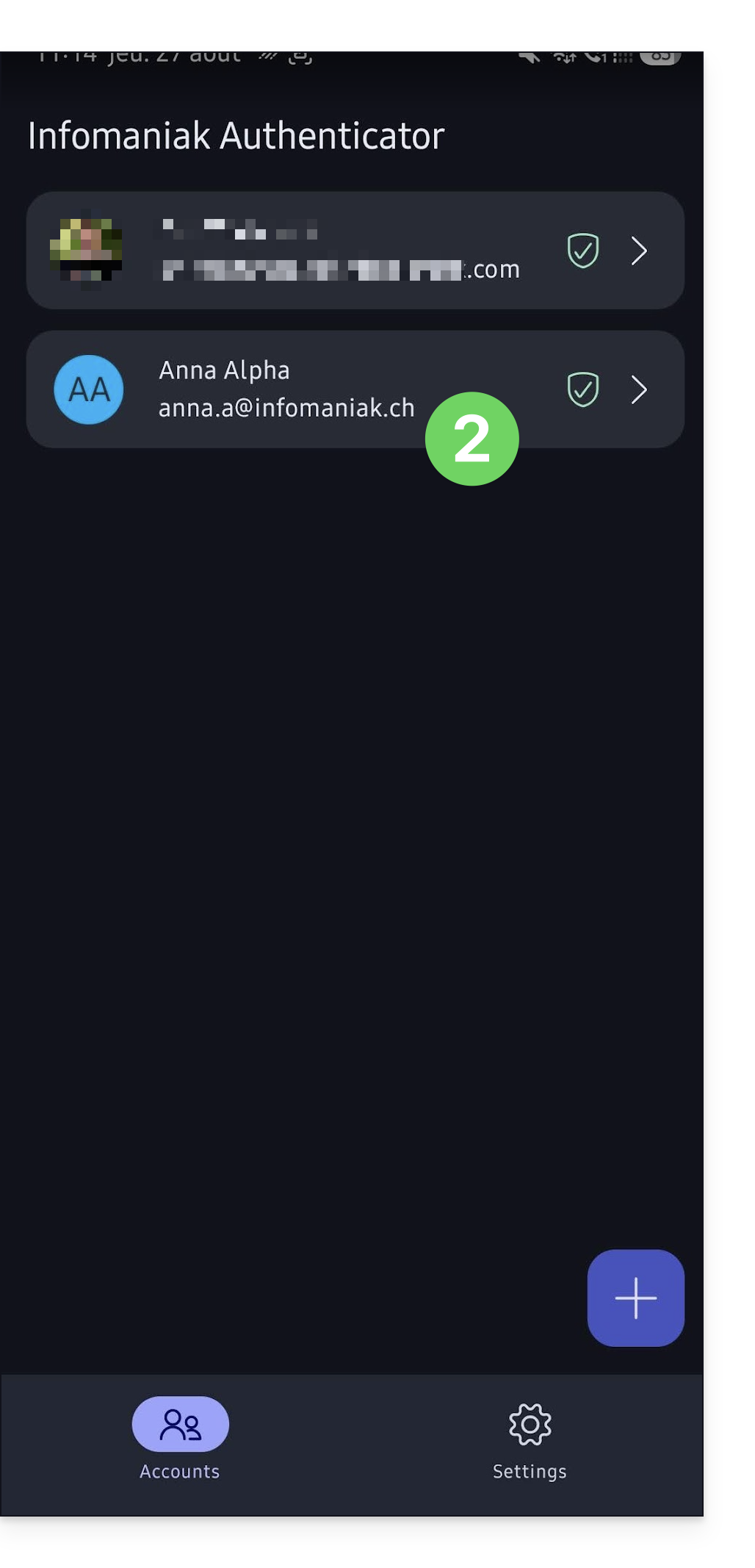
- Click on Disconnect:
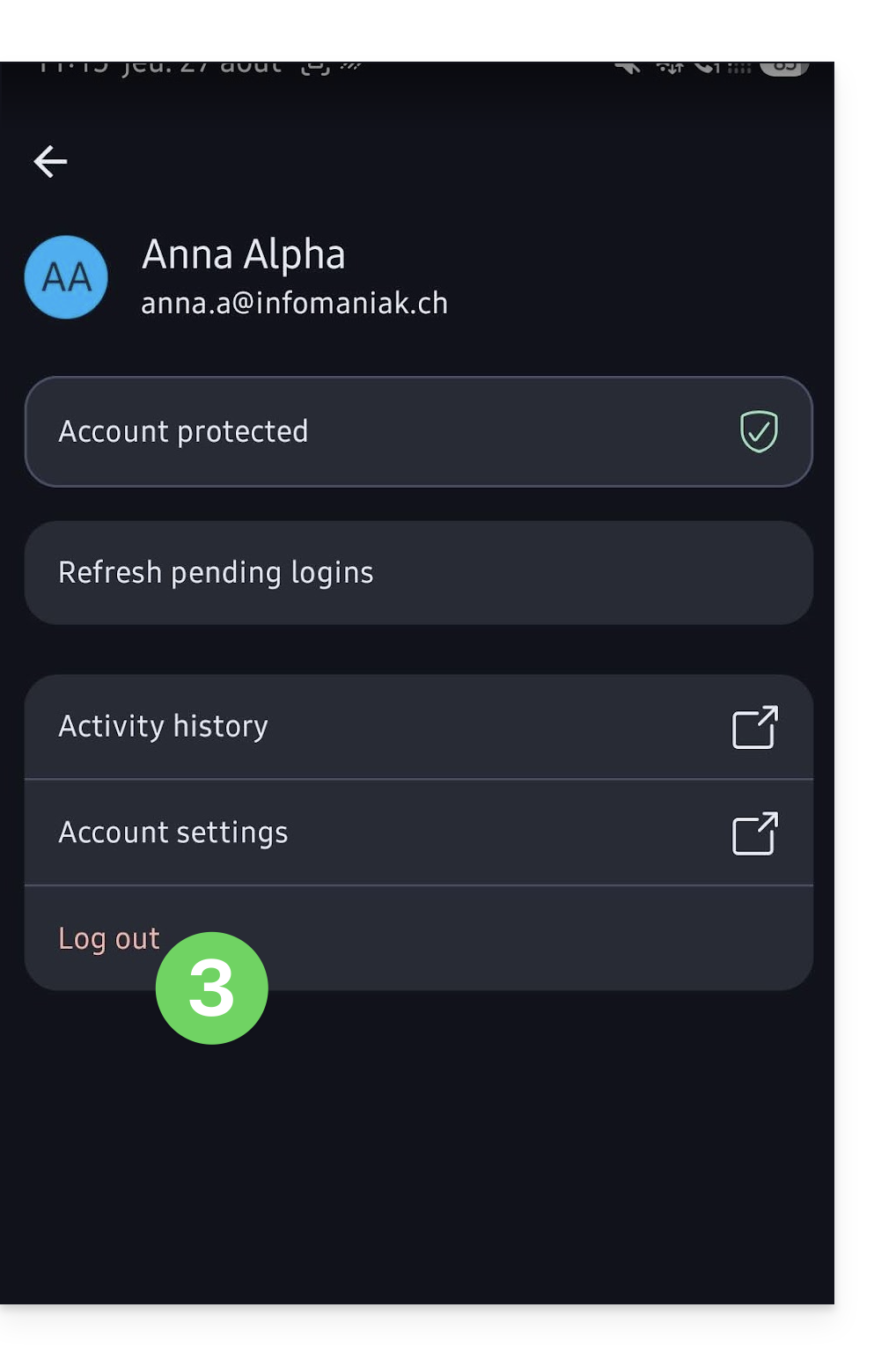
- Confirm the deletion:
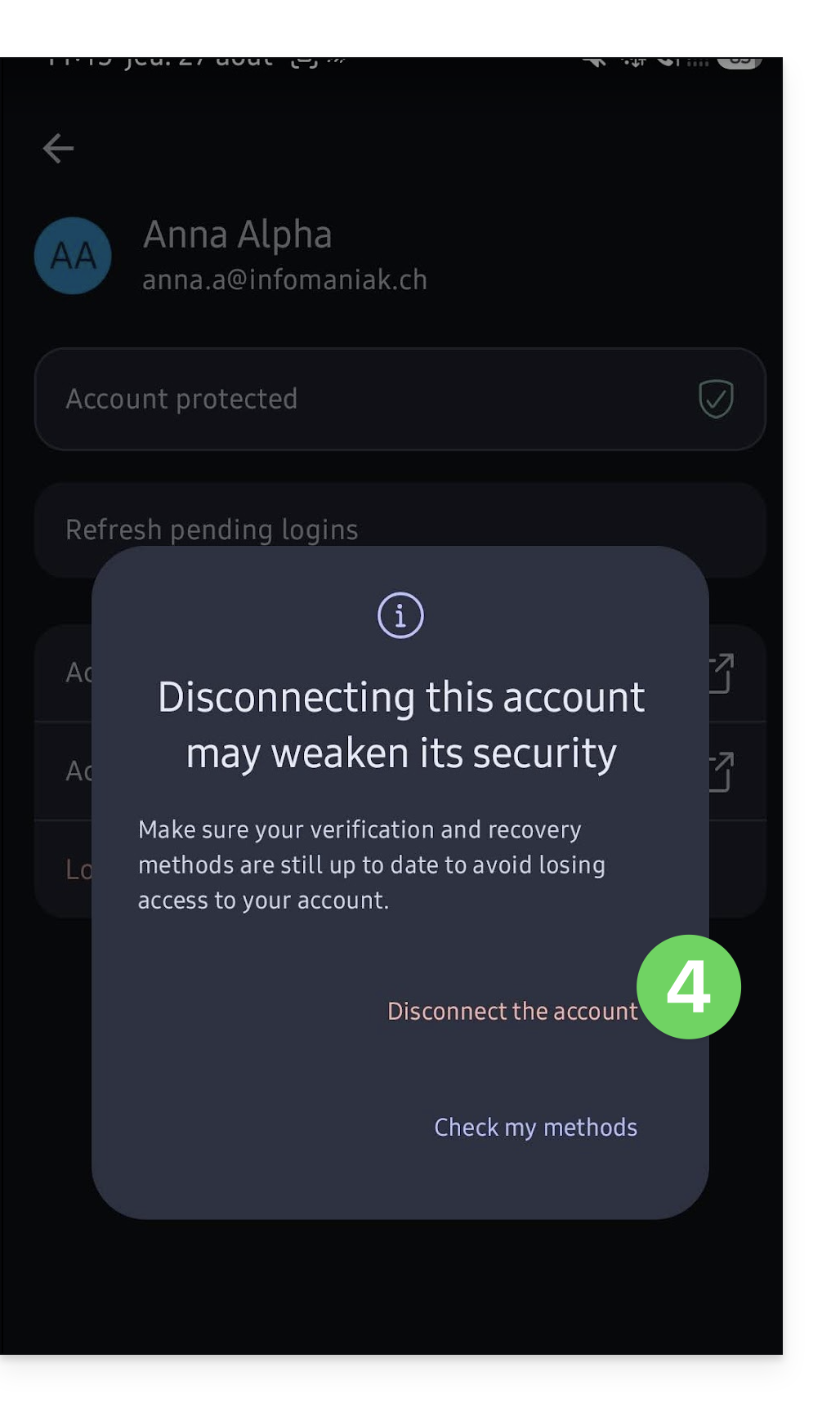
- Confirm to permanently remove the account from the app and no longer use this 2FA method:
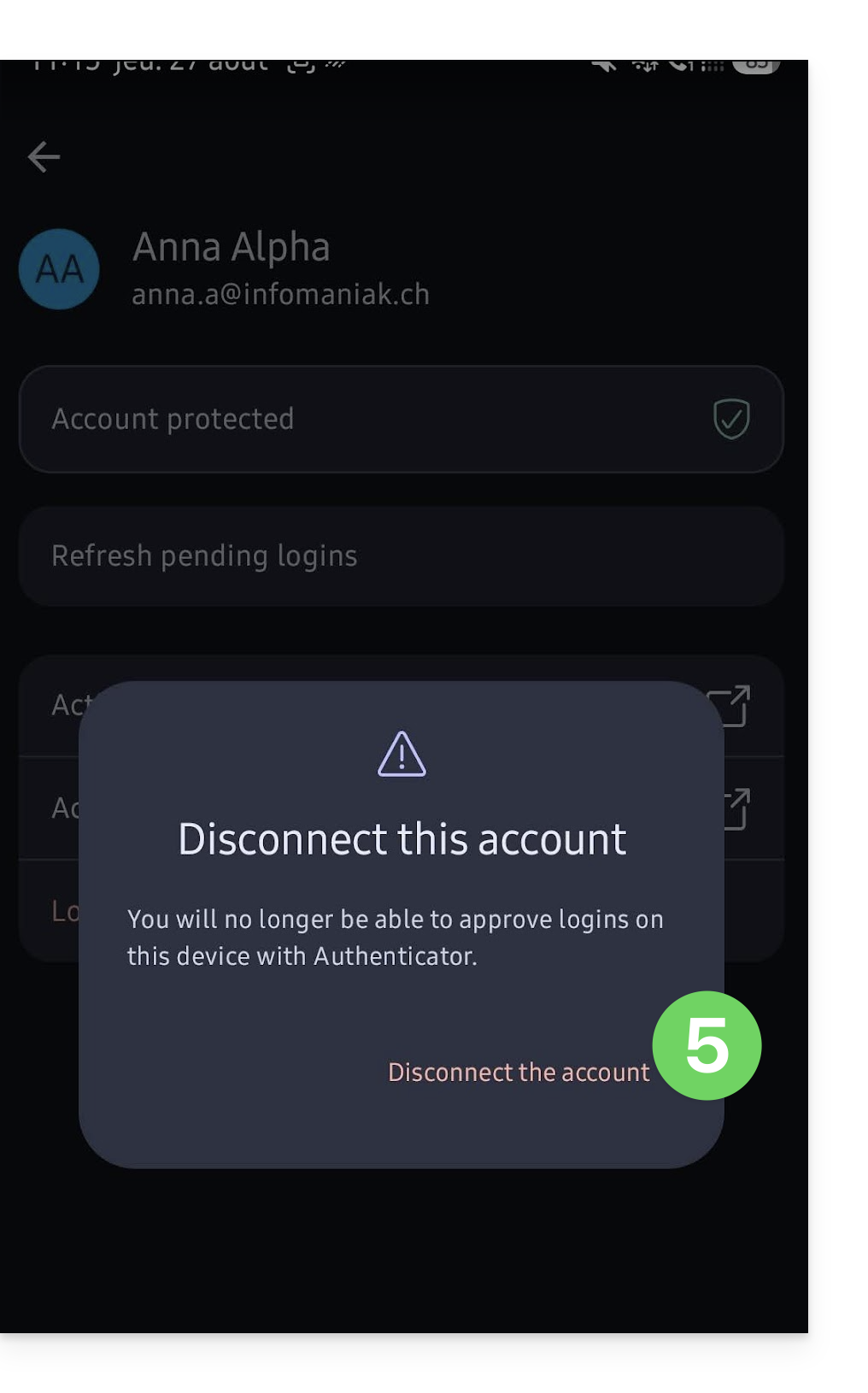
The Infomaniak account no longer appears in the app, and the account is no longer protected by this two-factor authentication method.
Link to this FAQ: https://faq.infomaniak.com/2361
Has this FAQ been helpful?
This guide explains how to regain access to Infomaniak tools (manager.infomaniak.com and Mail / ksuite.infomaniak.com) if you have forgotten your password or your Infomaniak account login ID.
Introduction
- To log in to an Organization that manages one or more Infomaniak products, go to manager.infomaniak.com and enter the following information:
- A login email address (the identifier for your Infomaniak account).
- The password you chose when you registered.
- An additional code if 2FA (two-factor authentication) is enabled.
- If you can log in to the platform but are missing a password for one of your email addresses, please refer to this other guide.
- If the issue is more related to a problem with the login form display, especially on a mobile device, please refer to this other guide on the subject.
You have forgotten...
... the Infomaniak account password
If you forget this password, follow the reset procedure:
- Click here to reset your password.
- Enter the email address you use to log in to your Infomaniak account.
- Choose the desired recovery option or follow the identity verification procedure by clicking on “You have no available options”.
... the email address used to log in to your Infomaniak account
When you registered, you provided a phone number; you can use it to find the email address used to log in to your Infomaniak accountusing your phone number:
- Click here to recover your email address for logging into your Infomaniak account.
- Enter your mobile phone number.
- Enter (if necessary) your recovery email address.
Two scenarios are then possible:
- The system manages to identify your account: choose how you want to receive your Infomaniak account login credentials.
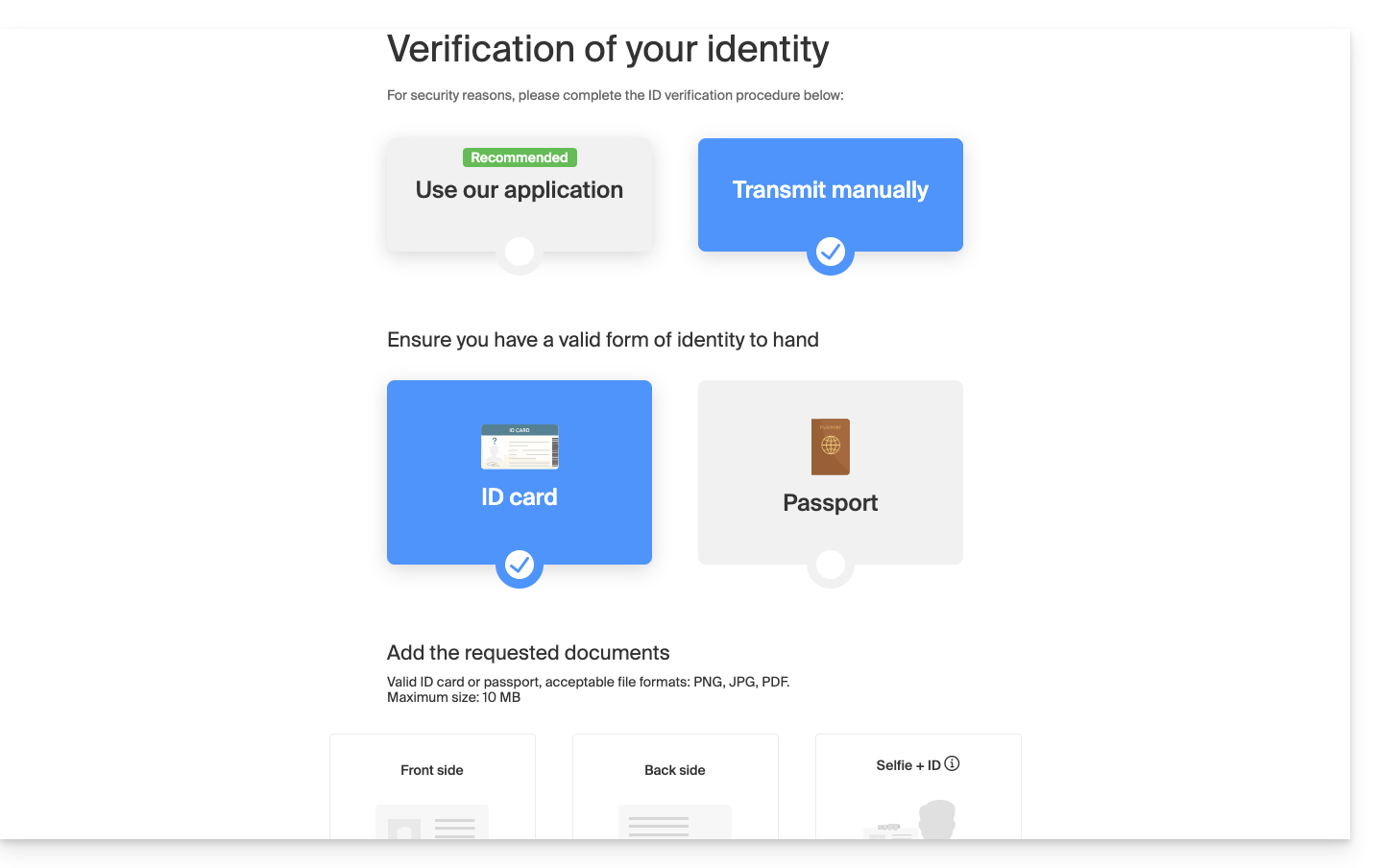
- If not, follow the on-screen wizard to manually verify your identity or via kCheck:
What if the email address no longer exists?
If you have an Infomaniak account where the login ID is in the format toto123@yahoo.com, there is no problem if the email address toto123@yahoo.com is deleted or is no longer valid. Simply log in one last time to the Infomaniak Manager with this ID toto123@yahoo.com and consult this other guide to change your email address for logging into your Infomaniak account.
However, if the email address used as the login ID is hosted by Infomaniak (for example, anna789@assoziation.ch) and an administrator deletes the email address in question or cancels the Mail Service “assoziation.ch”, the situation is different: you will automatically receive an email to the secondary address and an SMS to the mobile phone number specified in your Infomaniak account: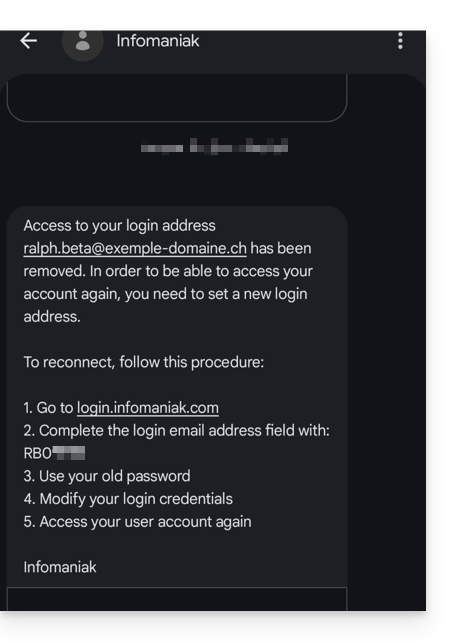
This situation can also occur in a specific email service management scenario.
To regain access to their Infomaniak account now that access is no longer possible with the old email address, the Infomaniak account user must go to the address mentioned in the SMS:
- Click here to access the login page.
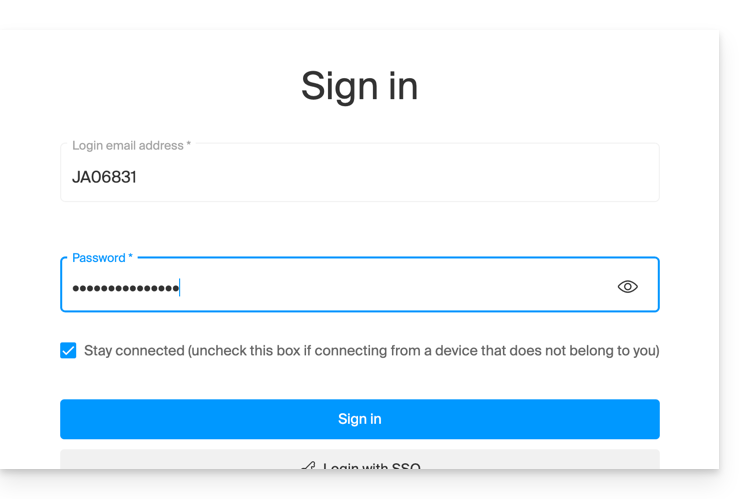
- Enter the username specified in the SMS (usually the initials of your account followed by a series of numbers).
- Enter your usual password (it has not changed):
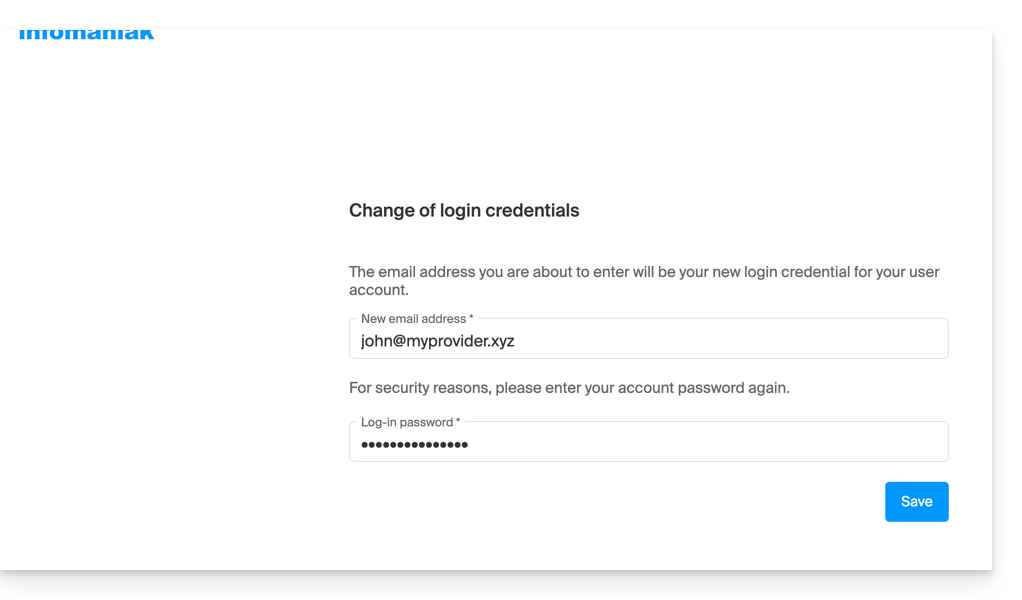
- Enter the new information requested:
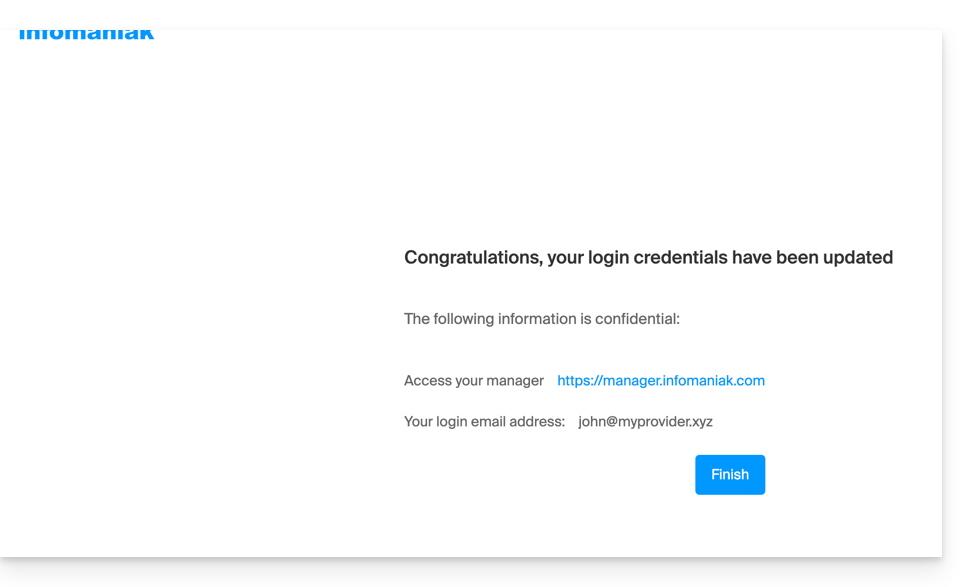
- You will be logged back into your account:
Link to this FAQ: https://faq.infomaniak.com/2415
Has this FAQ been helpful?
This guide concerns the kCheck mobile app (application for iOS/Android smartphones or tablets), created to simplify identity verification procedures and enhance the security of your Infomaniak account.
Introduction
- For security reasons, in order to guarantee the identity of the person making a specific request to Infomaniak, an identity verification procedure may be triggered in the following cases (non-exhaustive list):
- forgotten Infomaniak account password (user account)
- forgotten login email address
- deactivation of two-factor authentication (2FA)
- unlocking an Infomaniak account
- during the first payment of revenue for the Ticketing product
- when ordering a product (suspicion of spam or fraud, brand name, etc.)
- This application allows you to securely transfer the requested information.
- Infomaniak respects your privacy: the information transmitted via the kCheck application will be kept until your request is fully processed; in any case, it will be automatically deleted after 72 hours if this request is not processed.
Starting the identity verification
Prerequisites
- A QR code or a link provided by Infomaniak.
- The kCheck mobile app installed on your device: iOS (iPhone, etc.) or Android.
- An Internet connection on the mobile device.
You can then have your identity verified with kCheck:
- Launch the kCheck app on your mobile device.
- Tap Start.
- Tap Scan a QR code.
- Point your device's camera at the provided QR code.
- Enter your mobile phone number.
- Enter the confirmation code you receive.
- Allow geolocation (required to continue).
- Select the type of ID you have (ID card or passport).
- Follow the steps to photograph your ID.
- Take a selfie (of yourself) with your ID in your hand in front of you.
Your documents will then be securely transmitted to Infomaniak support. These requests are processed with priority and have an average response time of 2 hours during business hours.
If your order is blocked...
For security reasons, some orders may be automatically blocked.
When your order is placed, an email is sent to the email address associated with your Infomaniak Manager account. This email contains the procedure for unblocking your order. If you cannot find it, you can request that it be resent from your Manager by clicking Resend the procedure from the red banner informing you of the block.
Prerequisites
- Open the email containing the unblocking procedure.
- The kCheck mobile app installed on your device: iOS (iPhone, etc.) or Android.
- An internet connection on your mobile device.
You can then start the unlocking process with kCheck:
- Launch the kCheck app on your mobile device.
- Tap Start.
- Tap Scan a QR code.
- Scan the QR code in the email.
- Follow the unlocking procedure until the end.
Special cases
- If you do not take any action within 10 days, the order will be automatically cancelled and the full amount will be refunded to the payment method used.
- If you do not have a mobile device to follow this procedure, contact Infomaniak support.
Link to this FAQ: https://faq.infomaniak.com/2418
Has this FAQ been helpful?
This guide explains how to enable cookies and JavaScript in the main web browsers.
Introduction
- Enabling cookies allows websites to identify you and remember your preferences, such as your preferred language or the items you have added to your shopping cart.
- Enabling JavaScript allows websites to be more interactive and dynamic, and offers features such as video playback or game creation.
- Some websites (including mobile applications) may not function correctly if cookies or JavaScript in the device's native browser are disabled.
- You can also choose to enable cookies and/or JavaScript only for certain websites.
Managing Cookies and JavaScript
The exact location of the options for enabling cookies and JavaScript may vary slightly from one browser version to another.
Click to view the corresponding guides:
| Browser | Enable or disable cookies | Enable or disable JavaScript |
|---|---|---|
Chrome | ||
Firefox | ||
Edge | ||
Safari |
Troubleshooting a Login Issue with an Infomaniak App
If you encounter a login window like the one below, for example with the mobile app Infomaniak Mail (application for iOS smartphones or tablets) on iPhone: 
- Open the Advanced settings in Safari on your mobile device.
- Temporarily disable the toggle switch that blocks all cookies:
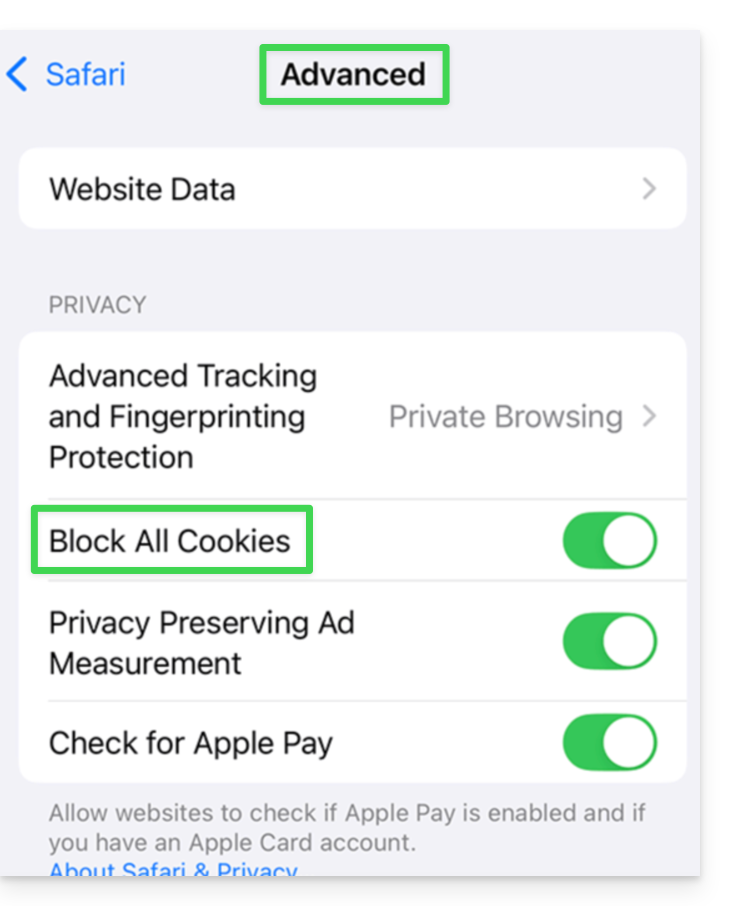
- This will allow you to display the entire login window and log in; you can always re-enable cookie blocking after logging in if you wish.
Link to this FAQ: https://faq.infomaniak.com/2457
Has this FAQ been helpful?
This guide helps you understand the structure of your Infomaniak services. The goal is to familiarize you with the terminology used and to help you easily manage your management interfaces, especially when using my kSuite (ik.me, etik.com, ikmail.com).
Introduction
- An Organisation is the term used to represent the grouping of Infomaniak services and users (you and any collaborators, family members, etc.).
- To understand what an Organisation actually represents, this guide is structured around several possible scenarios:
- Any new registration for a free address my ksuite (ik.me / etik.com / ikmail.com).
- Any new registration for other Infomaniak services.
- Combined use of my kSuite and other services in the ecosystem:
- Register for my kSuite by specifying an existing Infomaniak account.
- Purchase Infomaniak products using only a my kSuite account.
1. Registering for my kSuite (ik.me / etik.com / ikmail.com)
During registration on welcome.infomaniak.com/signup/myksuite, you chose the name for your email address, for example anna.a@ik.me, and then entered a personal phone number: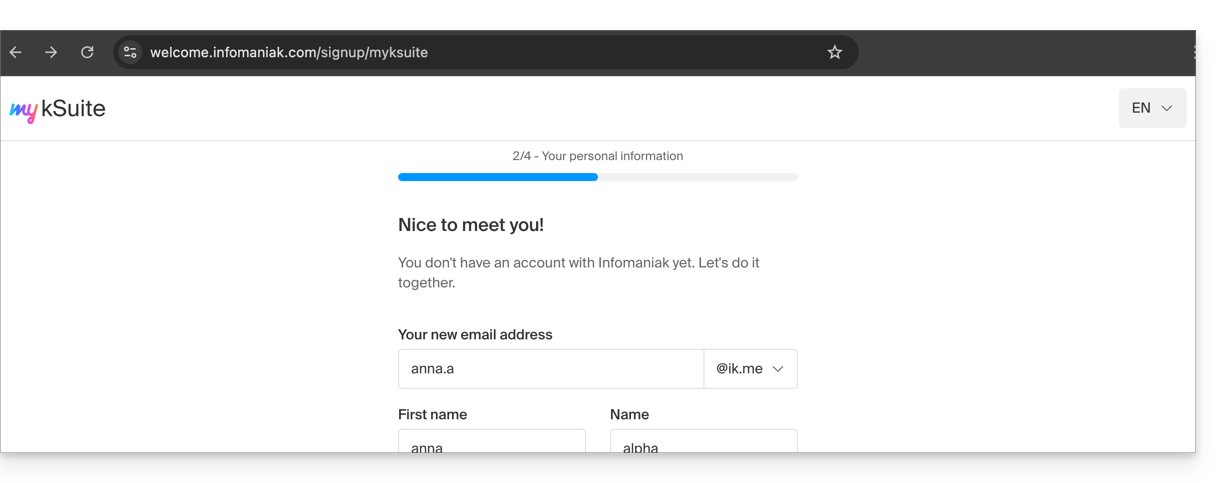
- Once your registration is validated, you can access your email address anna.a@ik.me via the web app Mail
ksuite.infomaniak.com/mail: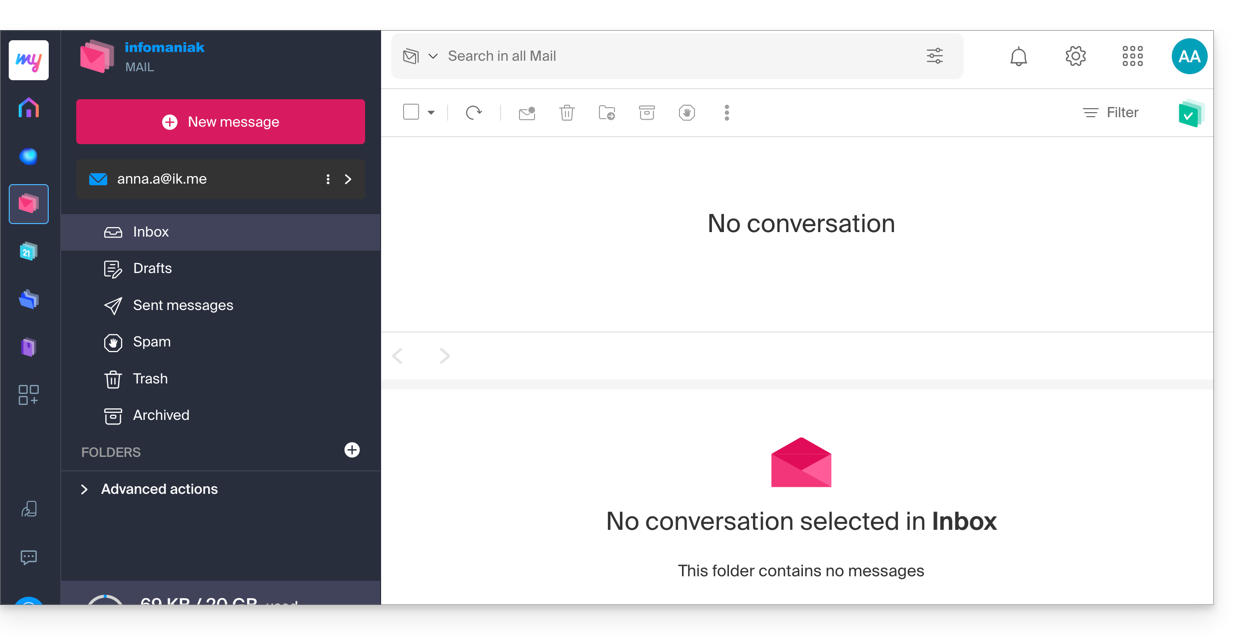
- You can distinguish:
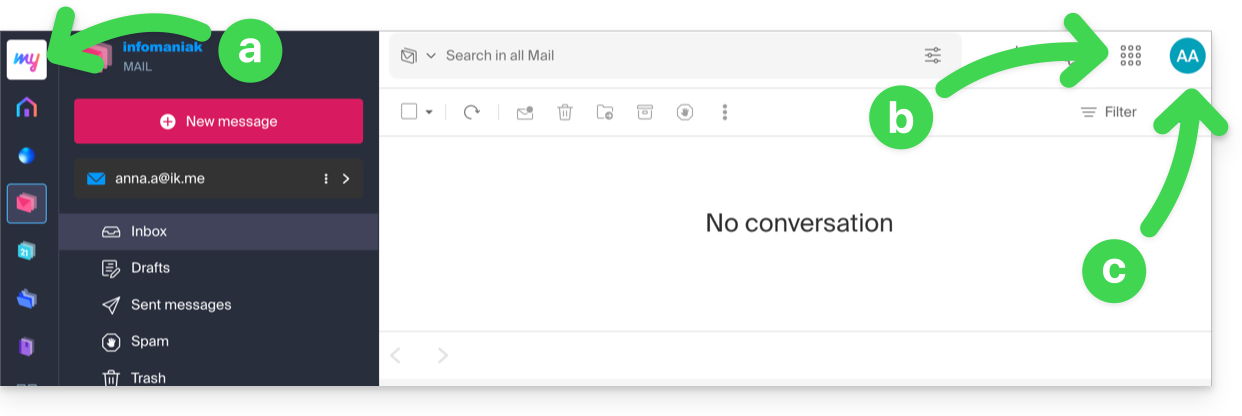
- The logo/type of your Organization, which in this case indicates that it is a my kSuite account.
- The button allows you to access the Manager
manager.infomaniak.comand other apps/services related to my kSuite: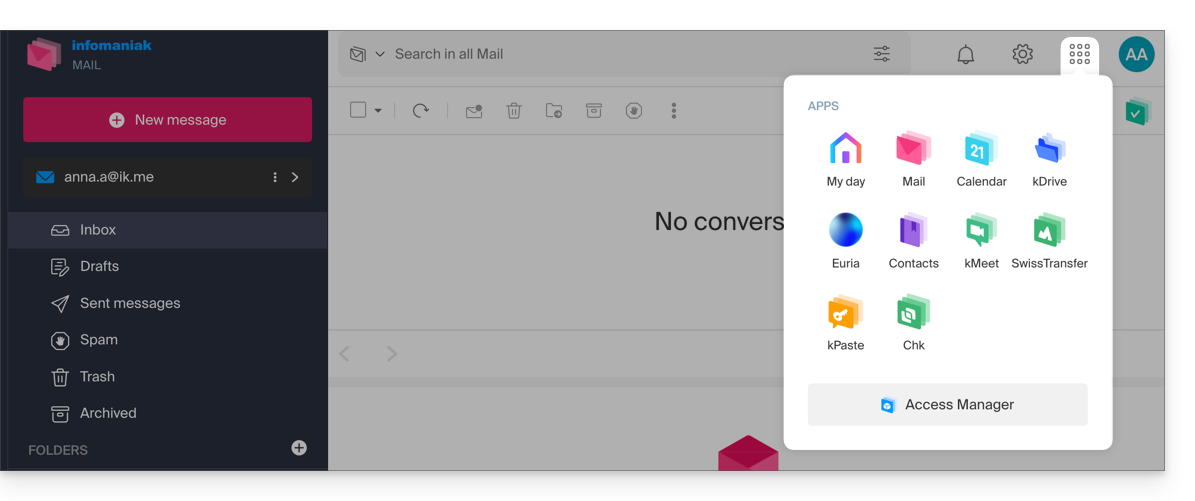
- In this case, the Manager will only contain information about managing your my kSuite account:
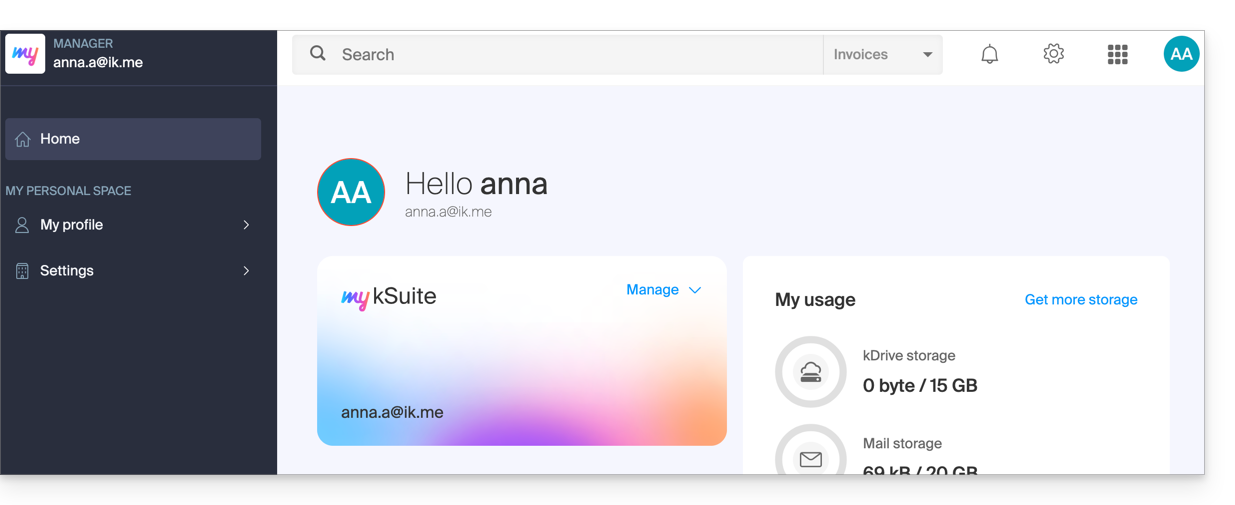
- In this case, the Manager will only contain information about managing your my kSuite account:
- The initials correspond to your Infomaniak account (first name/last name provided during registration):
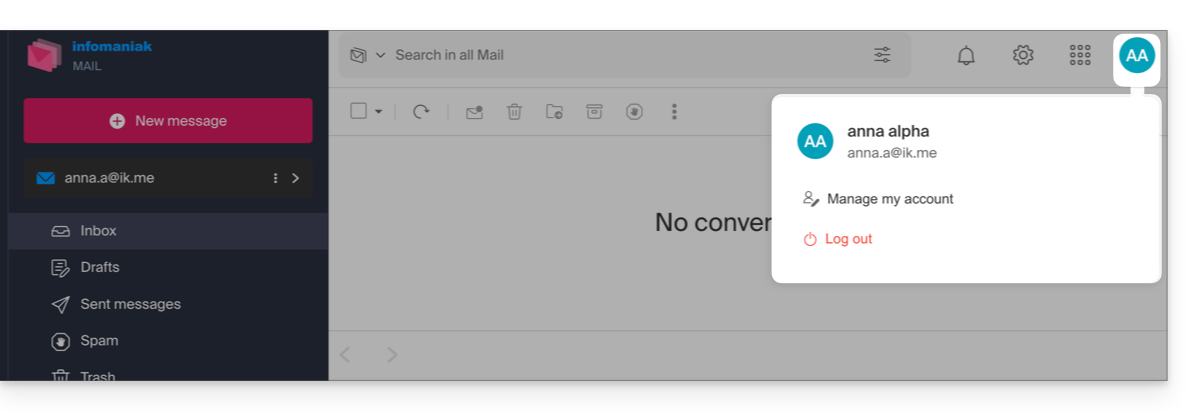
This my kSuite account cannot directly contain hosting products, or kSuite Pro with a domain name, etc. The rest of this guide explains how to create a more comprehensive Organization if needed.
Please note that it is not possible to export your my kSuite services to another Organization.
To use your new my kSuite email address in the Mail web app, please refer to this other guide.
2. Registration and purchase of hosting, domain, etc.
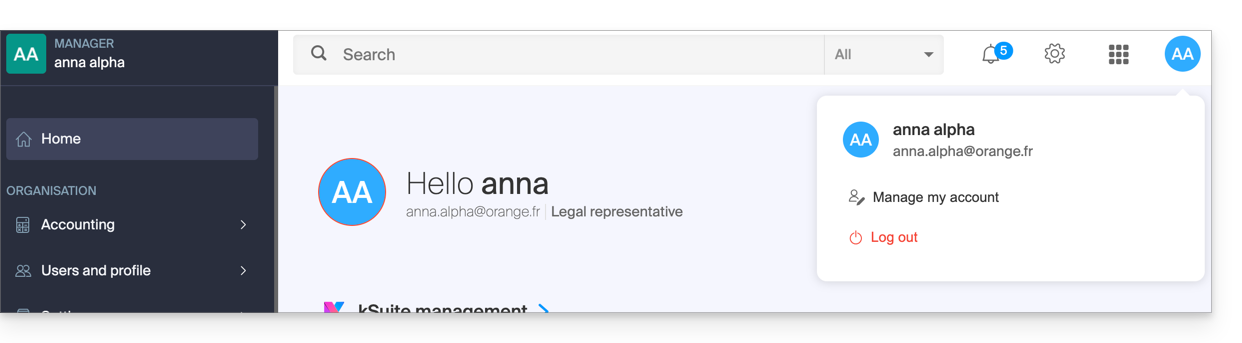
When you registered on welcome.infomaniak.com/signup/, you chose your login ID, in the form of a personal email address, for example anna.alpha@orange.fr :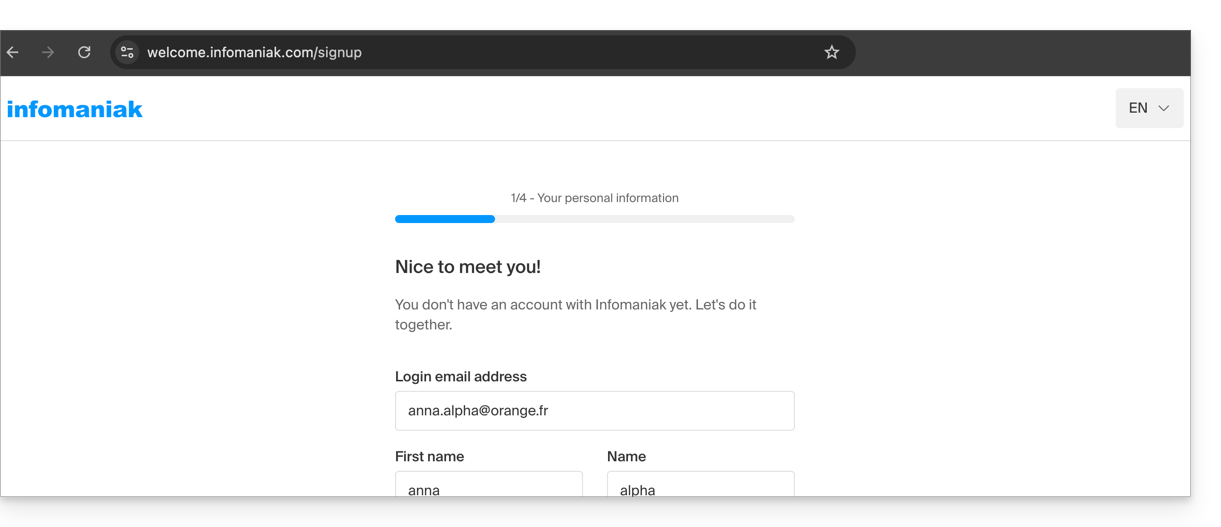
You then chose the type of Organization you wanted to create (personal, or for a company, association, etc.):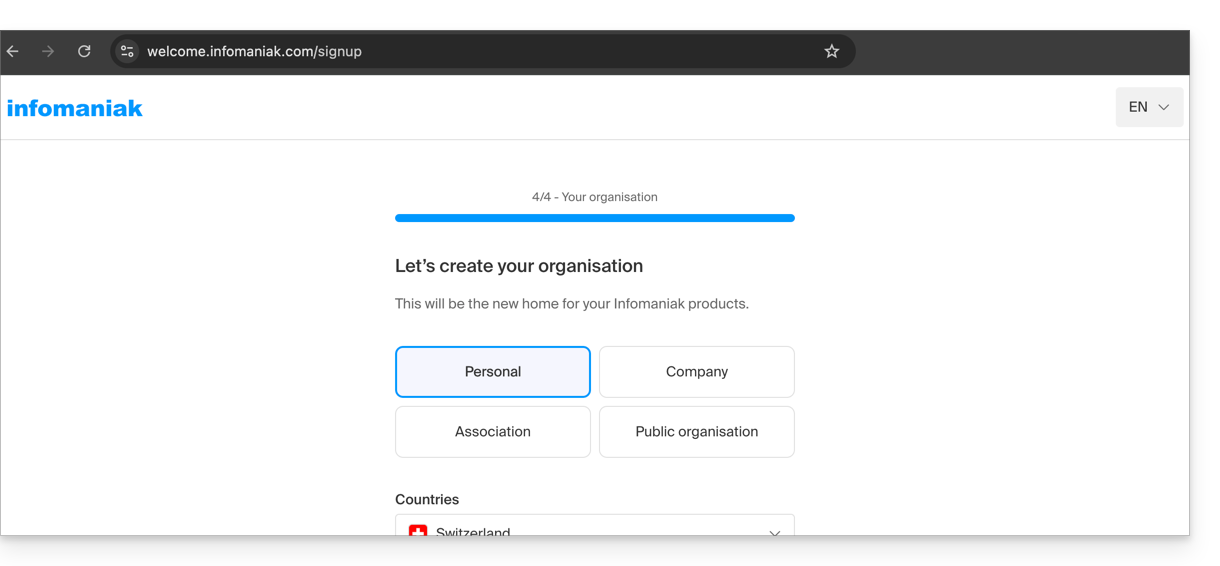
- Once your registration is validated, you can access the Manager at
manager.infomaniak.com, and your Organization is still an “empty shell” of which you are currently the sole legal representative: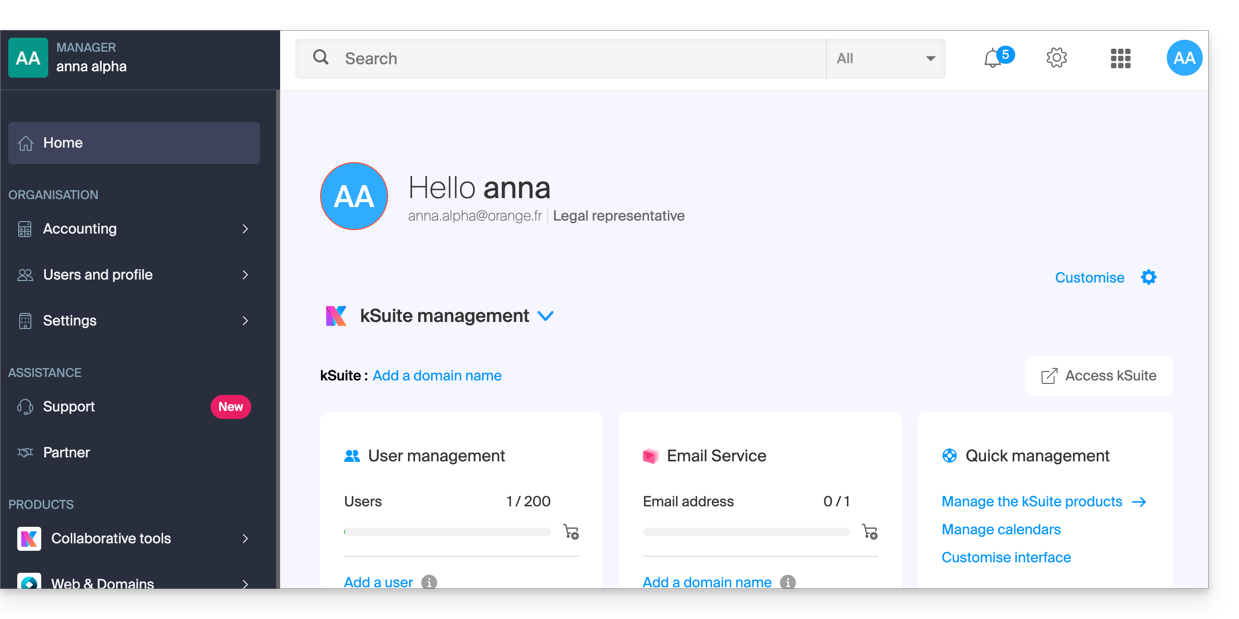
- You can distinguish:
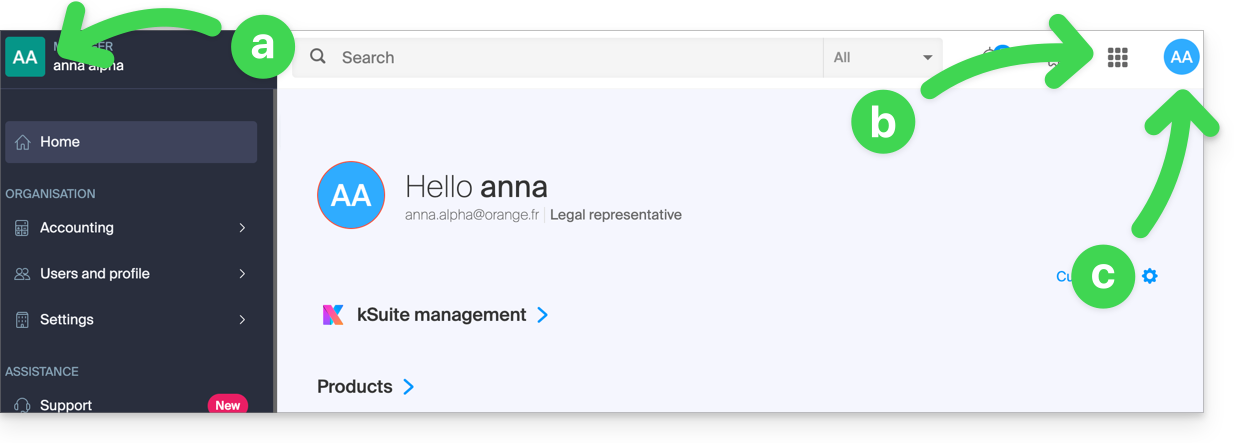
- The logo/type of your Organization, which in this case indicates that it is a personal Organization (automatically named during creation using the creator's first name/last name); this can be customized.
- The button allows you to access kSuite
ksuite.infomaniak.comand other apps/other services related to the kSuite Free added to your new Organization: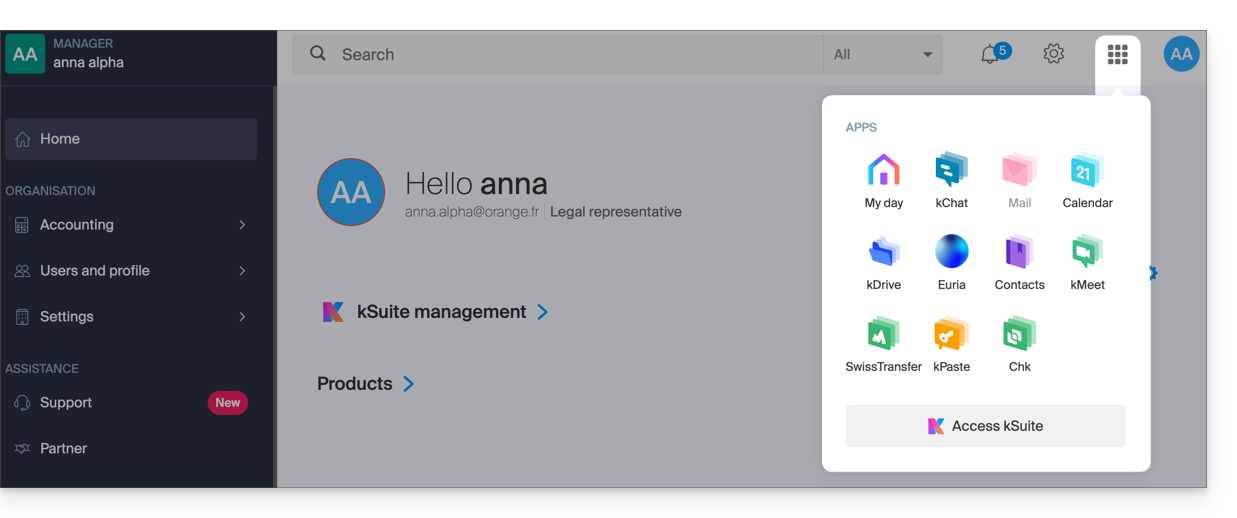
- The initials are those of your Infomaniak account (first name/last name provided during registration):
3. Combined Use
What happens if you sign up for my kSuite using an Infomaniak account that you already own for using hosting products?
Or, how to proceed if you want to purchase hosting products when you only have a my kSuite account?
Register for my kSuite by specifying an existing account
When registering on welcome.infomaniak.com/signup/myksuite, you choose to log in with an existing account…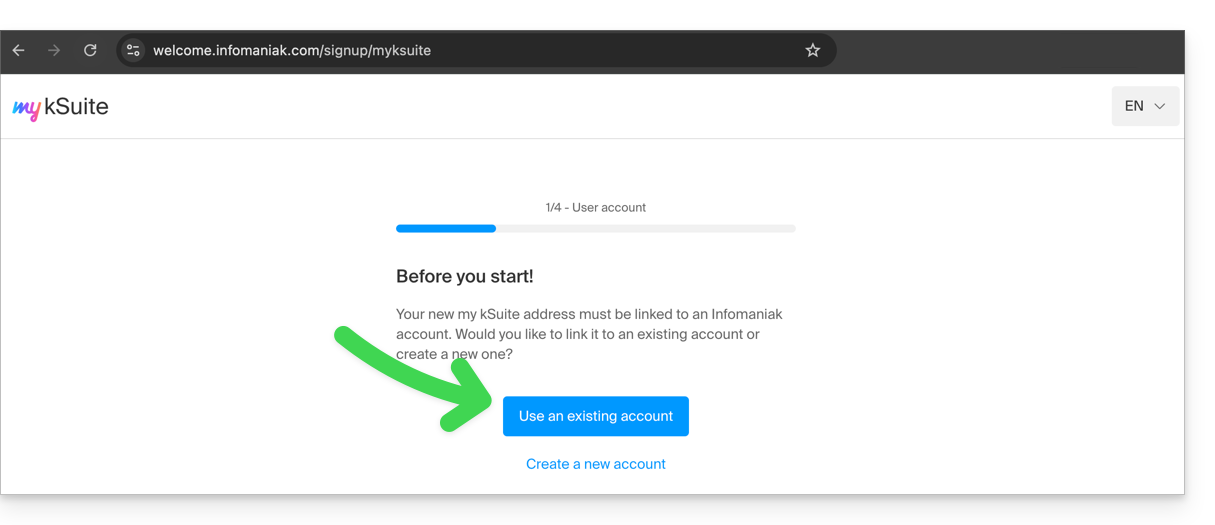
- Obviously, you should not enter a my kSuite account (
anna.a@ik.mefor example) as an existing account, because you cannot have multiple ik.me / etik.com / ikmail.com email addresses: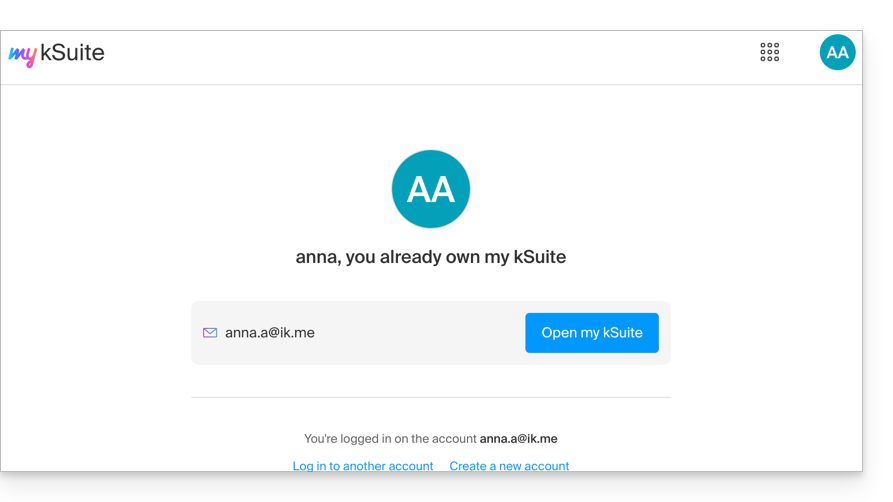
- Enter your existing Organization account,
anna.alpha@orange.fr: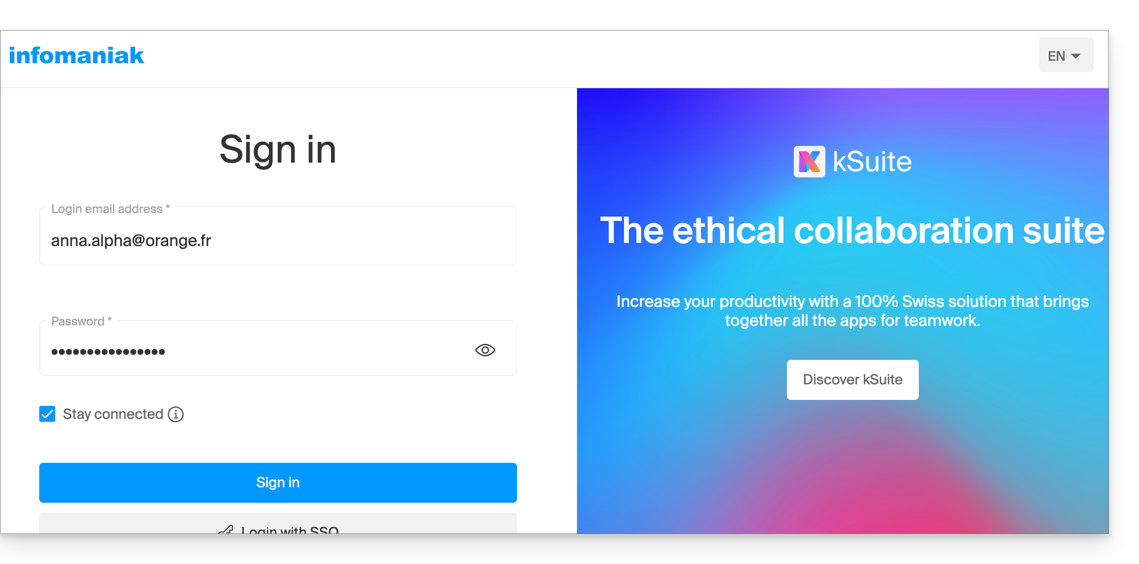
- This will prompt you to create a my kSuite account:
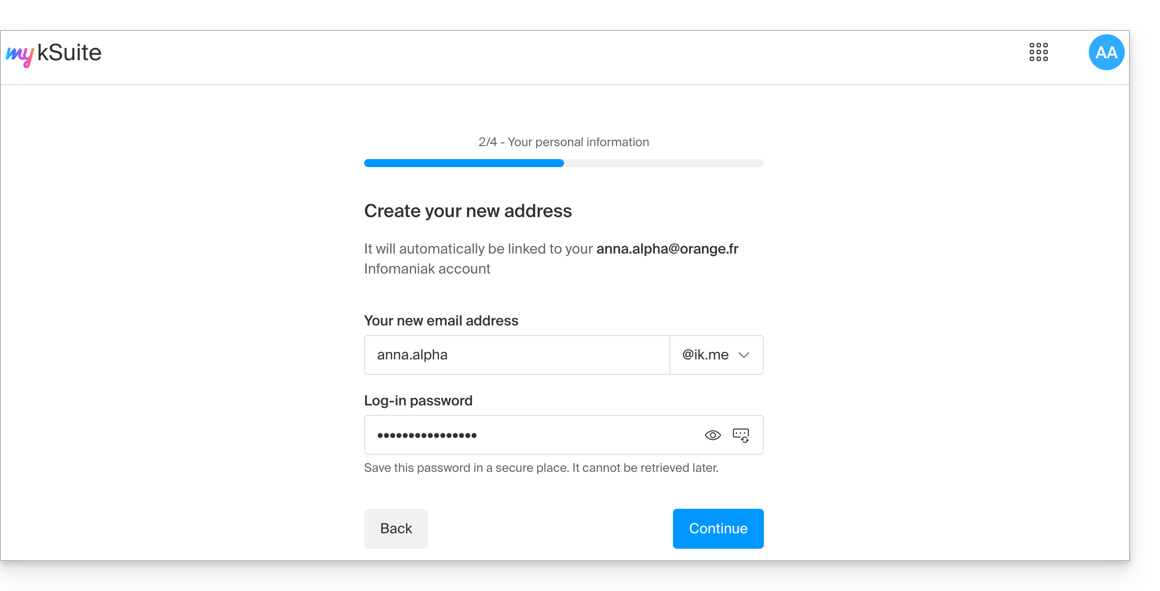
- Once your registration is validated, you will access the Manager at
manager.infomaniak.com:- Your previous Organization is visible…
- and is separate from my kSuite, which is currently selected:
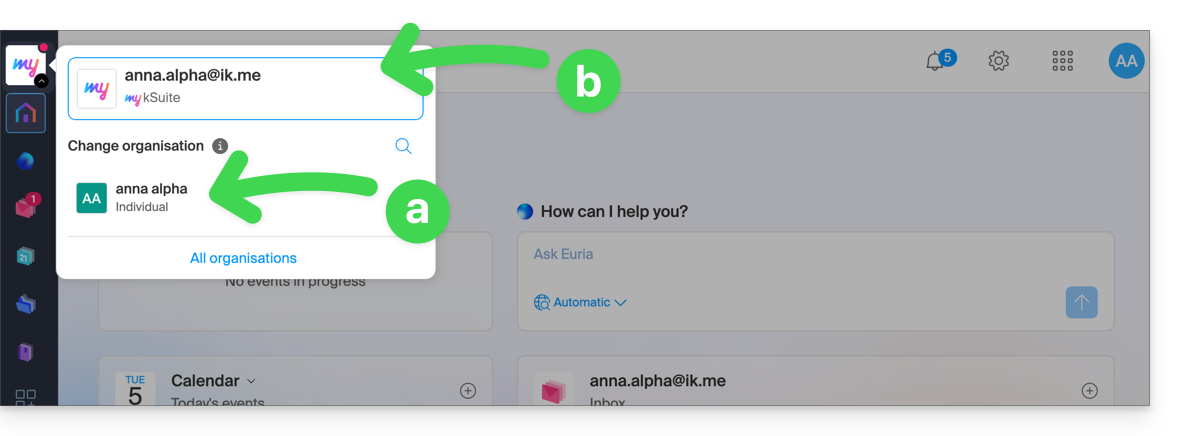
- Click on one of the Organizations/my kSuite in this menu (which is always accessible permanently in the upper left corner) to switch between them.
Purchase products using a my kSuite account
Another scenario: you want to purchase one of the services offered by Infomaniak on www.infomaniak.com, for example a domain name for your future website/email: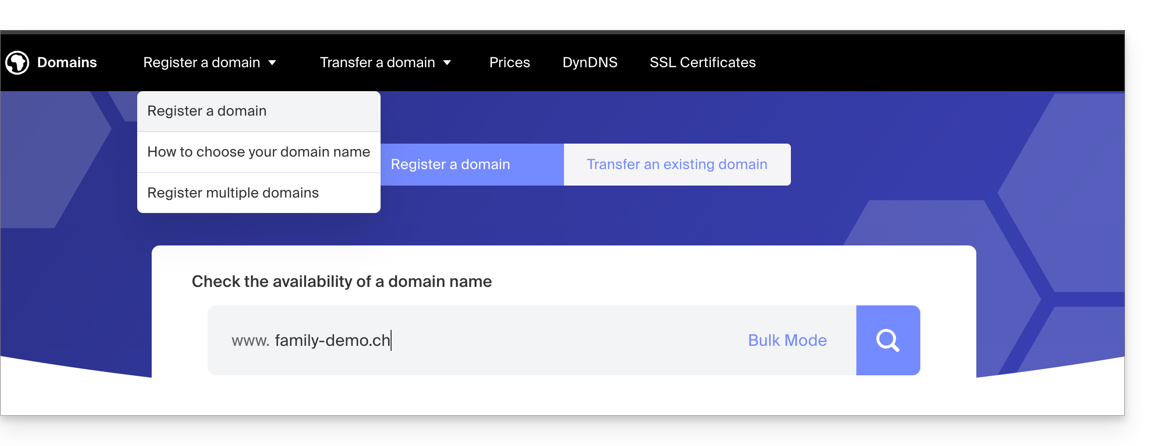
- You will be redirected to the Infomaniak Shop; proceed to the next step:
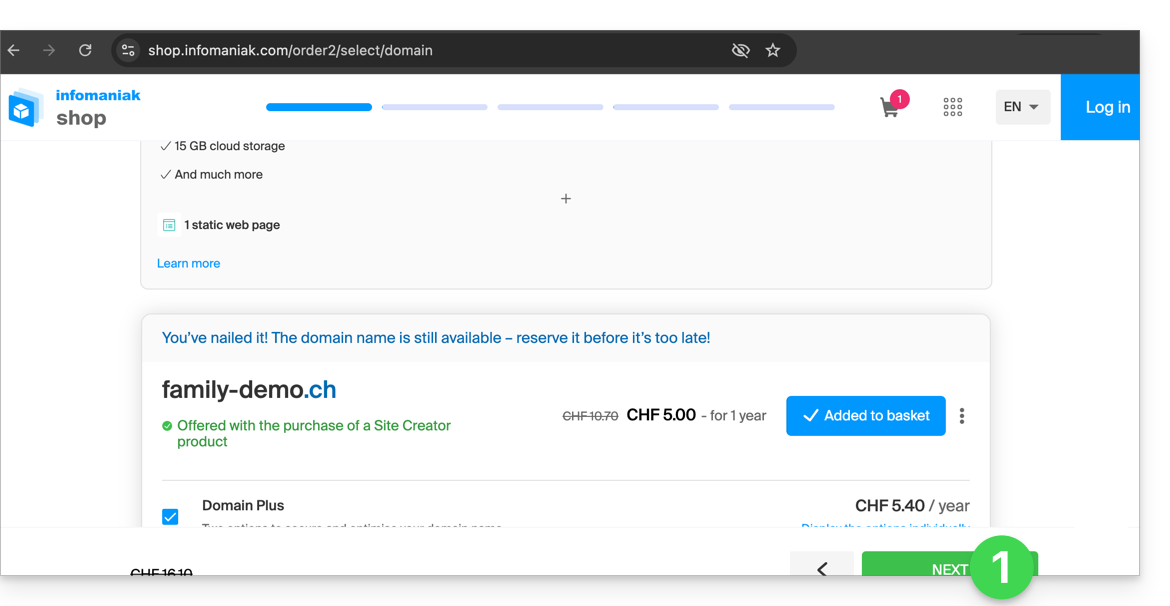
- At the step where you need to enter your existing Infomaniak ID, enter your existing my kSuite account (
anna.alpha@ikmail.comin this example):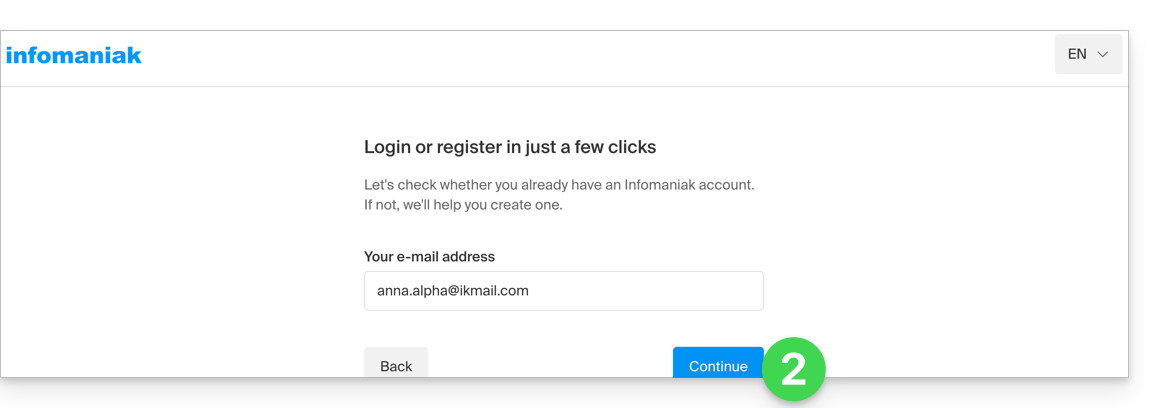
- Your existing ID is recognized; you must authenticate:
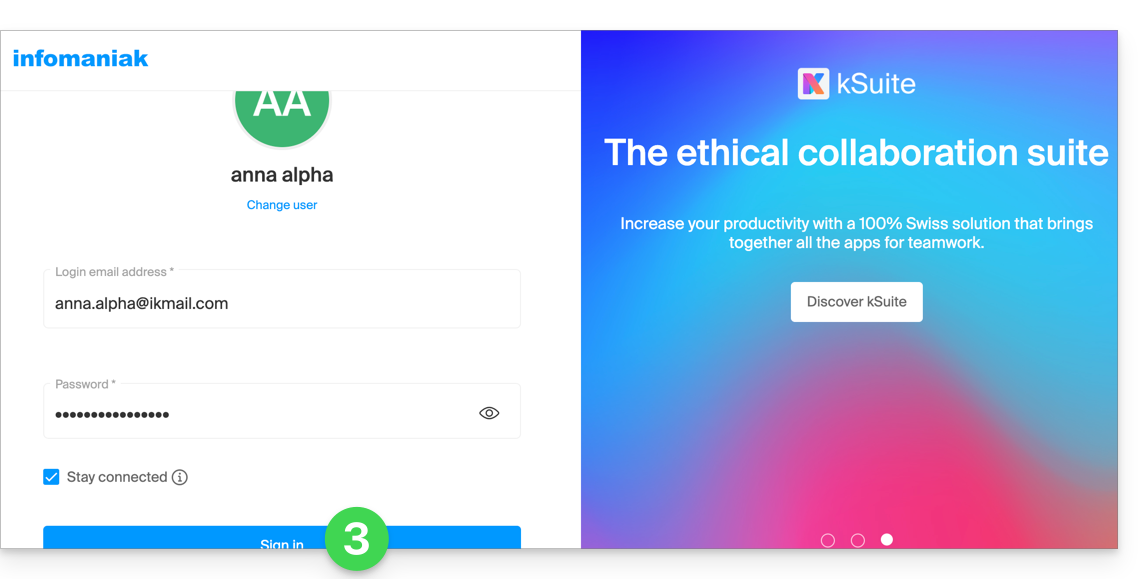
- You will then necessarily proceed to the Organization creation step; choose the type of Organization you wish to create (personal, or for a company, association, etc.):
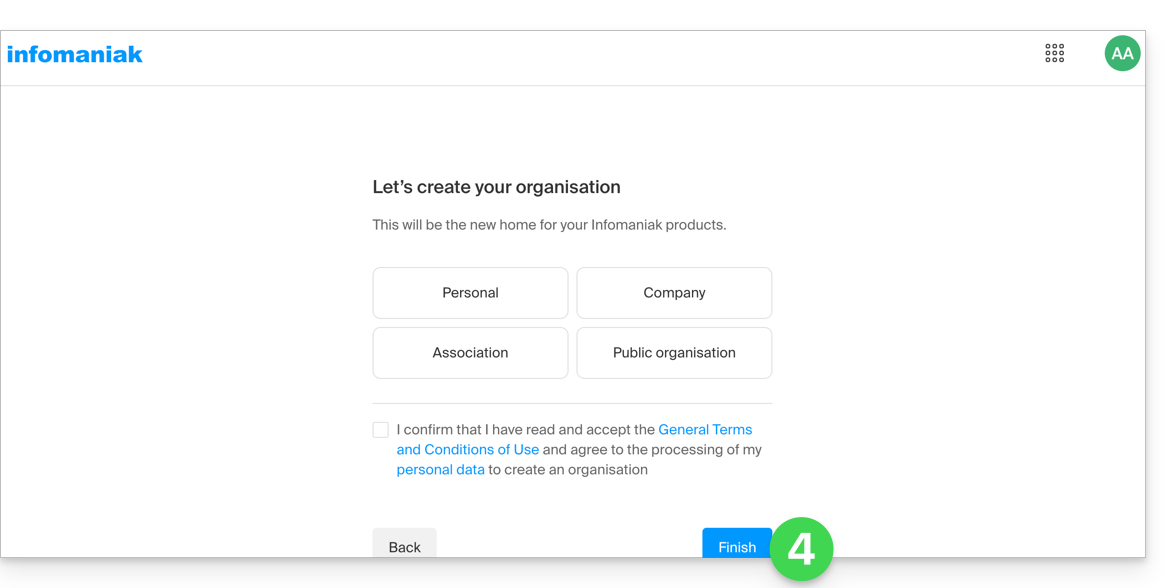
- To complete the purchase, the details relating to the Organization will be requested for billing purposes (they are also used to generate an owner for the domain name ordered); all that remains is to complete the order:
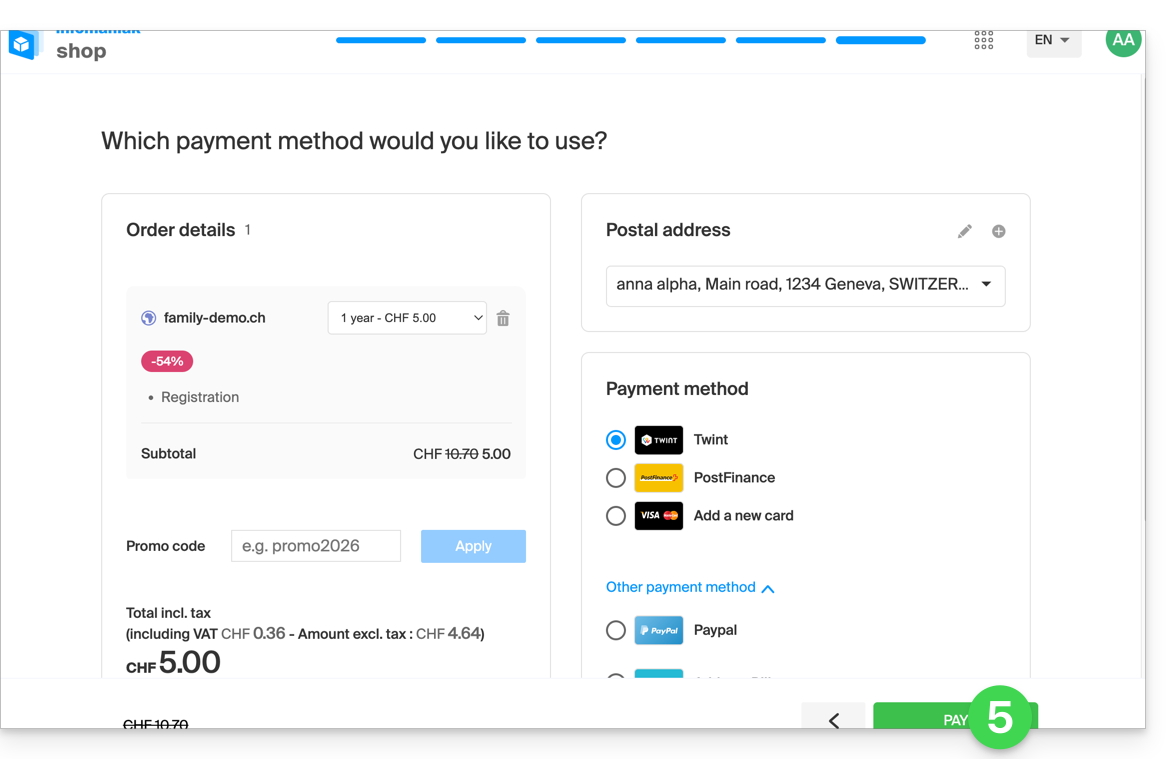
- Once the order is complete, you can access the Manager at
manager.infomaniak.com: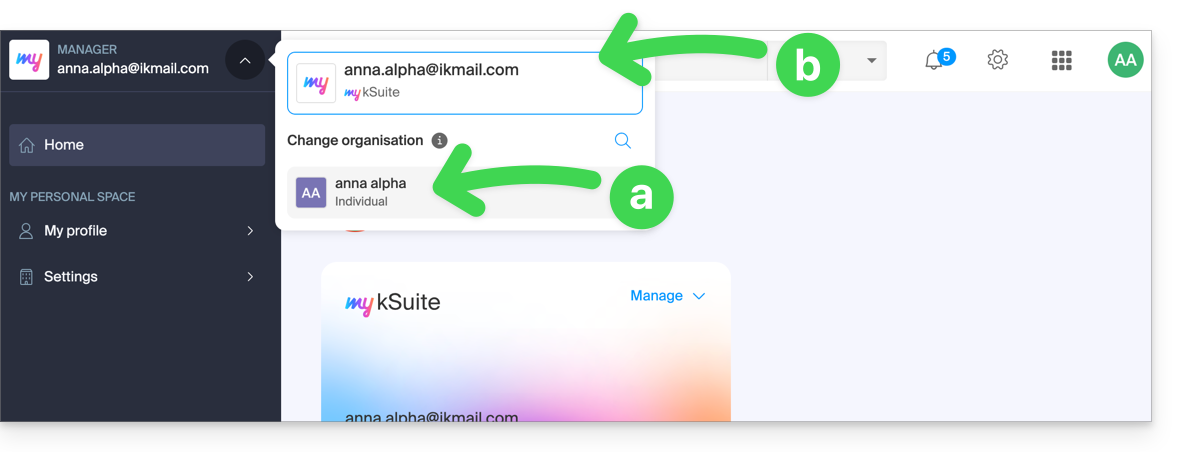
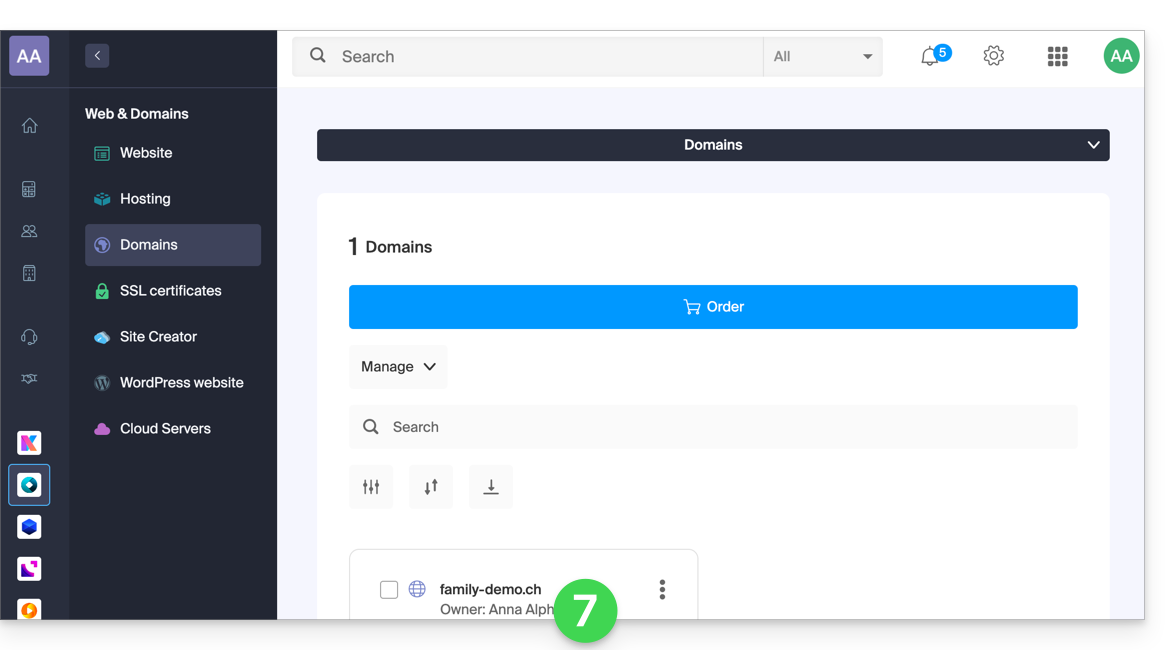
- Your new Organisation is visible…
- and is separate from my kSuite, which is currently selected.
- Click on the new Organisation to switch to it and manage your ordered products:
- To switch between your Organizations/my kSuite, click on this menu (always accessible permanently in the top left corner):
- First, to reach the main Manager page,
- then click on the chevron to select the destination:
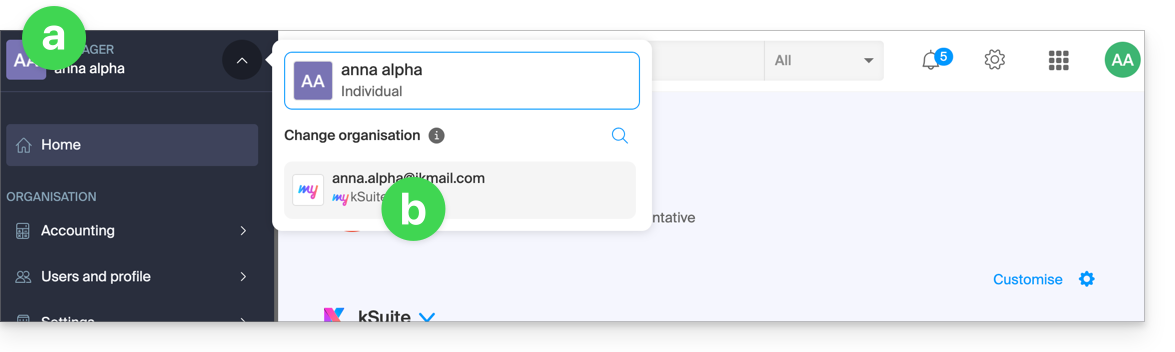
- You will then find your my kSuite email address.
To understand the different Infomaniak "Suites" (kSuite Pro, my kSuite...), please refer to this other guide.
Link to this FAQ: https://faq.infomaniak.com/2489
Has this FAQ been helpful?
Thank you for choosing Infomaniak to host your IT solutions, and congratulations on optimizing your customer experience. You're taking it to the next level with the Premium Support offer.
Introduction
- Since its inception, Infomaniak's Support department has been dedicated to resolving customer issues effectively.
- It provides free and unlimited support, responding to all your requests as quickly as possible, 5/7 days from 9 am to 6 pm by phone and 7/7 days by email from 6 am to 11 pm.
- Infomaniak does not directly intervene on your machines or networks but may request, on a case-by-case basis, access to Mail or kDrive.
- Numerous technical guides answer common questions, and specialized partners offer personalized support beyond the role of the hosting provider.
- The commitment to Premium Support is a minimum of 6 months, with no option to cancel before the end of the term.
Infomaniak Premium Support
By choosing one of the 3 support options, you benefit from personalized advice, product optimization, and faster response times with extended hours compared to standard support. Here are the details of these 3 versions:
Support Plus
- Partners can benefit from this support.
- A first response is guaranteed within 4 hours (during the opening hours mentioned above).
Pro Support
- A response is guaranteed within 2 hours (during the opening hours mentioned above).
- Emergency calls can be made 24/7.
- You benefit from a dedicated account manager, 5 days a week from 9 am to 6 pm.
Enterprise Support
- A response is guaranteed within 1 hour (during the opening hours mentioned above).
- Emergency calls can be made 24/7.
- Personalized support is provided 5 days a week, from 9 a.m. to 6 p.m.
- You will have two dedicated account managers (including one technical expert).
Frequently asked questions
- What is the VIP code and where can I find it?
- What is a PDF technical document?
- Contract duration
- Premium Support Limitations
- Is it beneficial to pay annually?
- What does the guaranteed response time mean?
The entire Infomaniak team is eager to provide you with superior service and help you get the most out of our offerings.
Link to this FAQ: https://faq.infomaniak.com/2500
Has this FAQ been helpful?
This guide concerns the Drupal module "Infomaniak_Connect" which allows users to log in to your Drupal site (whether hosted by Infomaniak or not) using their Infomaniak credentials.
Introduction
- Allowing login via an Infomaniak account on your Drupal site enables your visitors to comment, register for courses, or access any content reserved for members with a single click, without having to create a new account.
- This saves them time and provides a more secure method for you, as you don't have to manage additional passwords.
- This external module functions identically to the "Log in with Google", "Log in with Facebook", or “Log in with Apple” options; it uses the standard OAuth2 and OpenID Connect protocols to enable single sign-on (SSO).
A. Create an application with Auth Infomaniak
To do this:
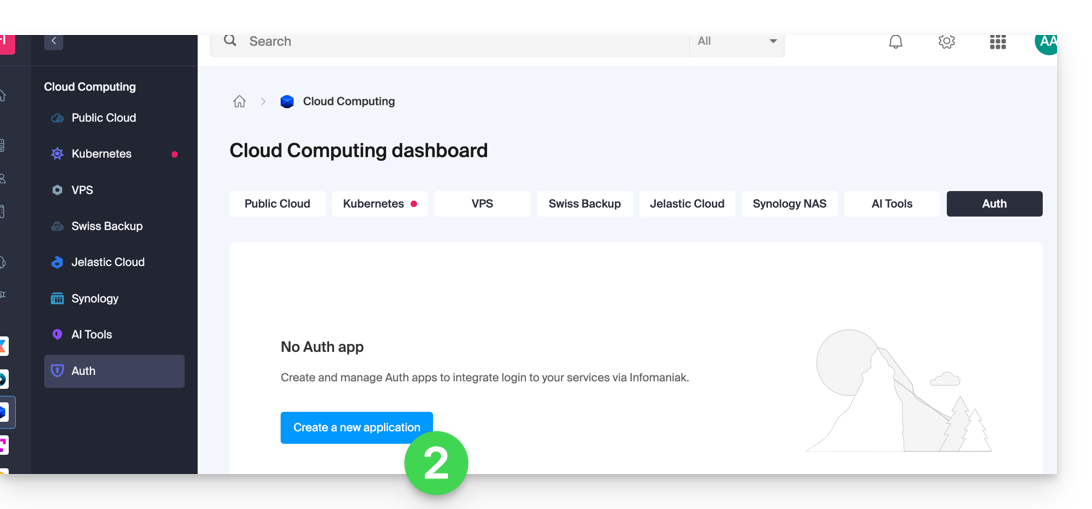
- Click here to access the management of your Auth product on the Infomaniak Manager (need help?).
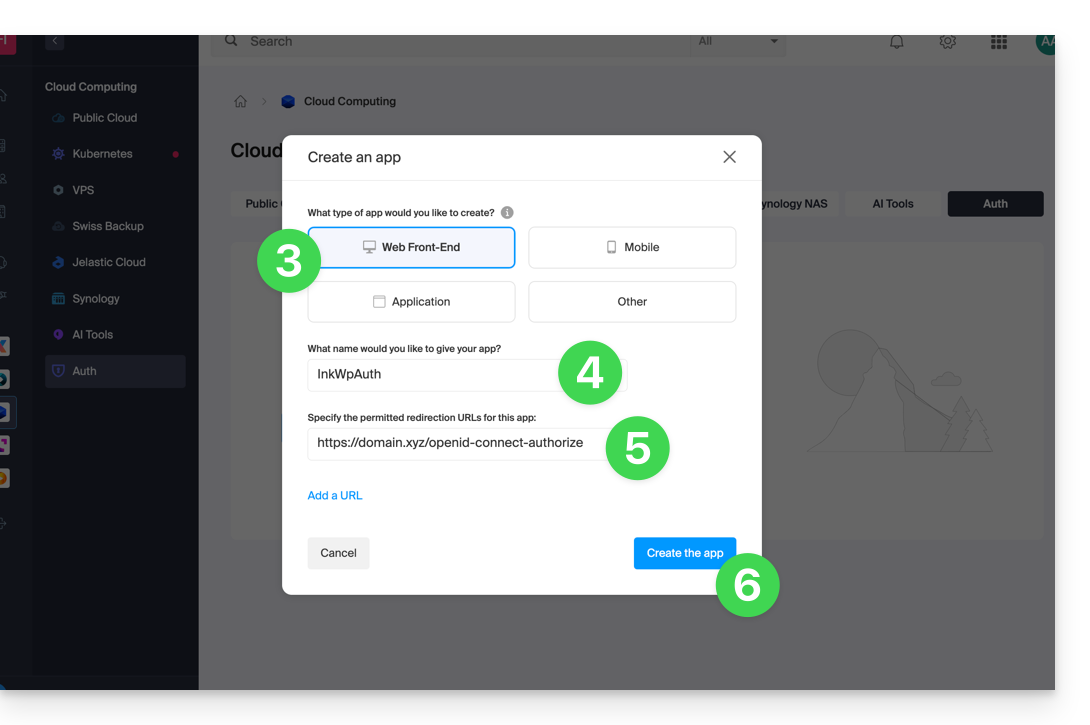
- Click the button to Create a new application:
- Choose the “Web Front-End” type.
- Give your application a name.
- In the URL field, enter the domain name corresponding to your Drupal site followed by
/openid-connect-authorize(refer to the GitHub documentation if needed). - Click the button to complete the app creation:
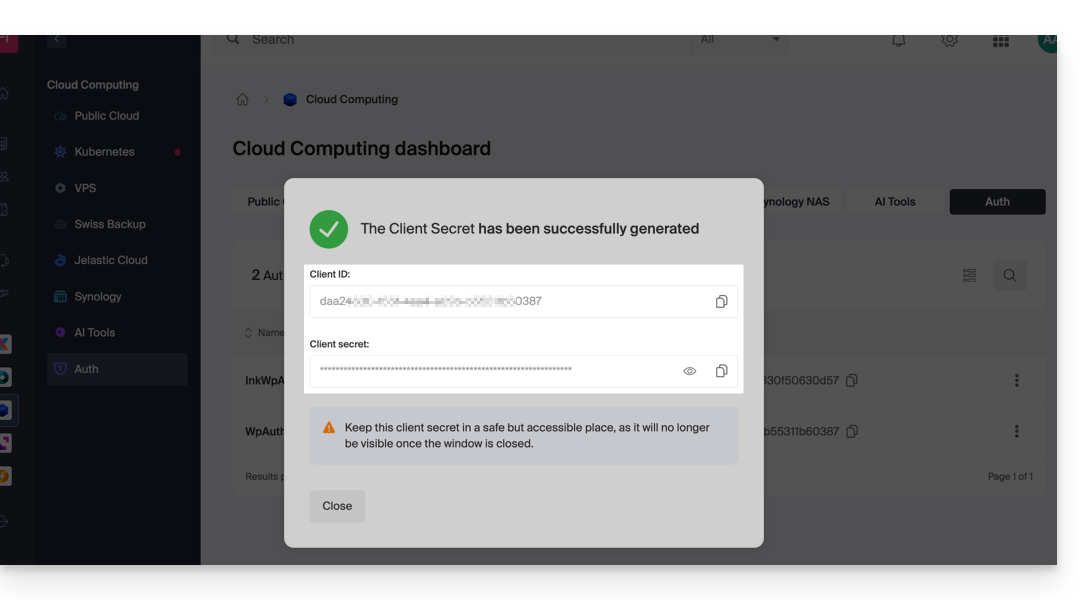
- Carefully note the 2 pieces of information obtained when finalizing your OAuth2 application:
B. Configure the Drupal extension
Via SSH, deploy Composer if necessary to install the openid_connect and infomaniak_connect extensions. To do this:
- You may need to edit the composer.json file, as the version of
openid_connectis not yet considered stable. Add: "minimum-stability": "dev", "prefer-stable": true- The SSH commands for installing the 2 extensions are available here:
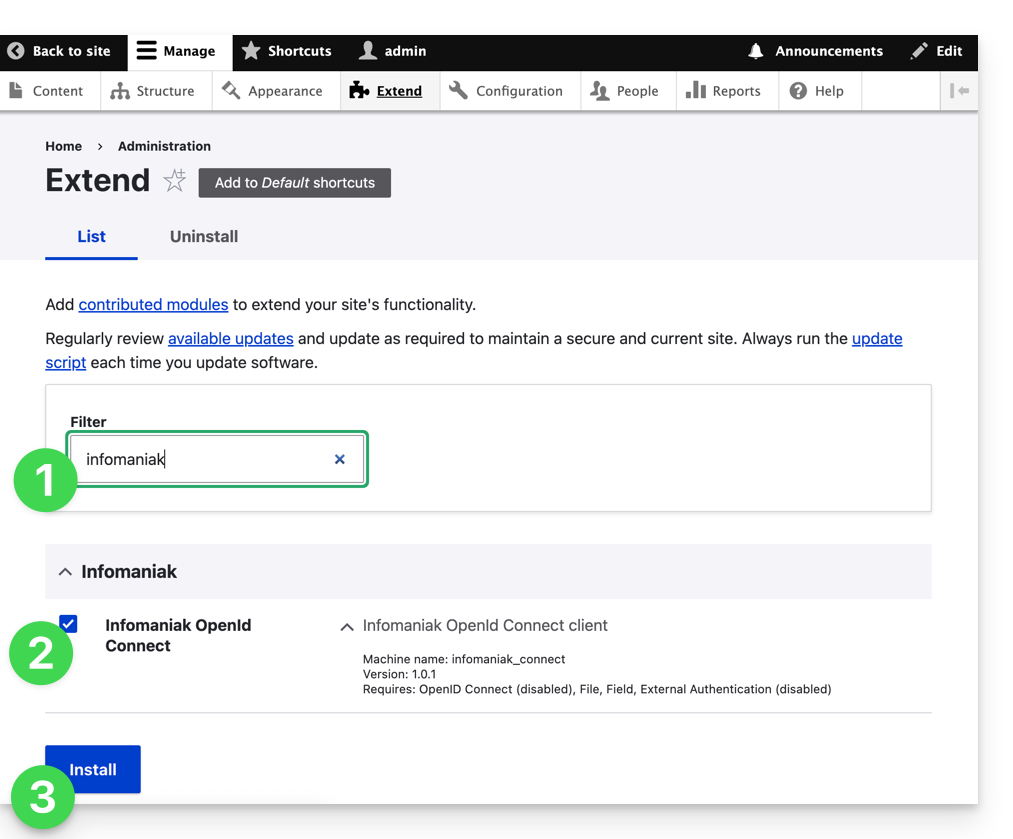
Next, in Drupal:
- Find the Infomaniak module among your pre-installed modules.
- Select it.
- Click on the Install button:
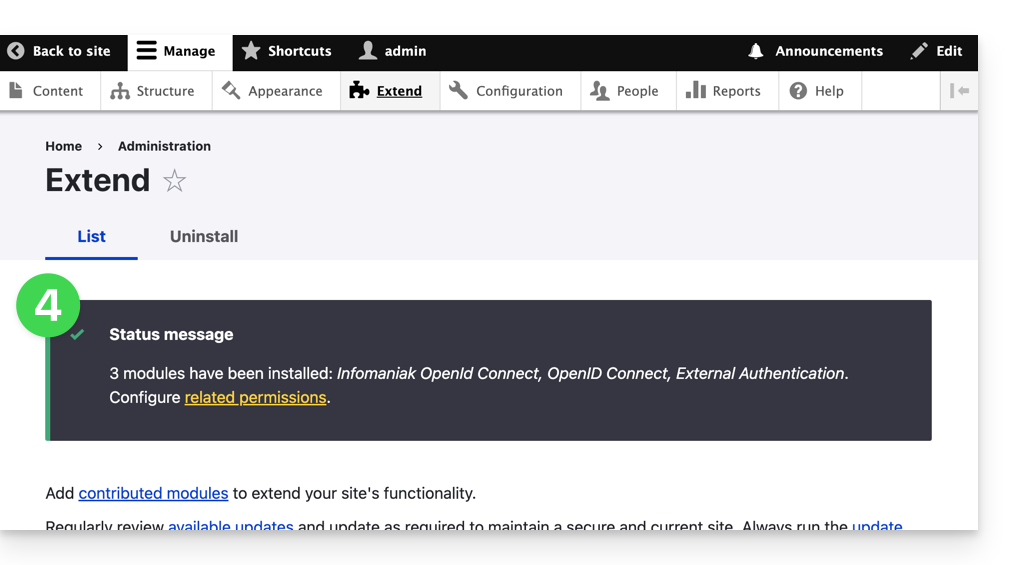
- The dependencies will now be installed:
- Under Configuration, click to configure the OpenID connection:
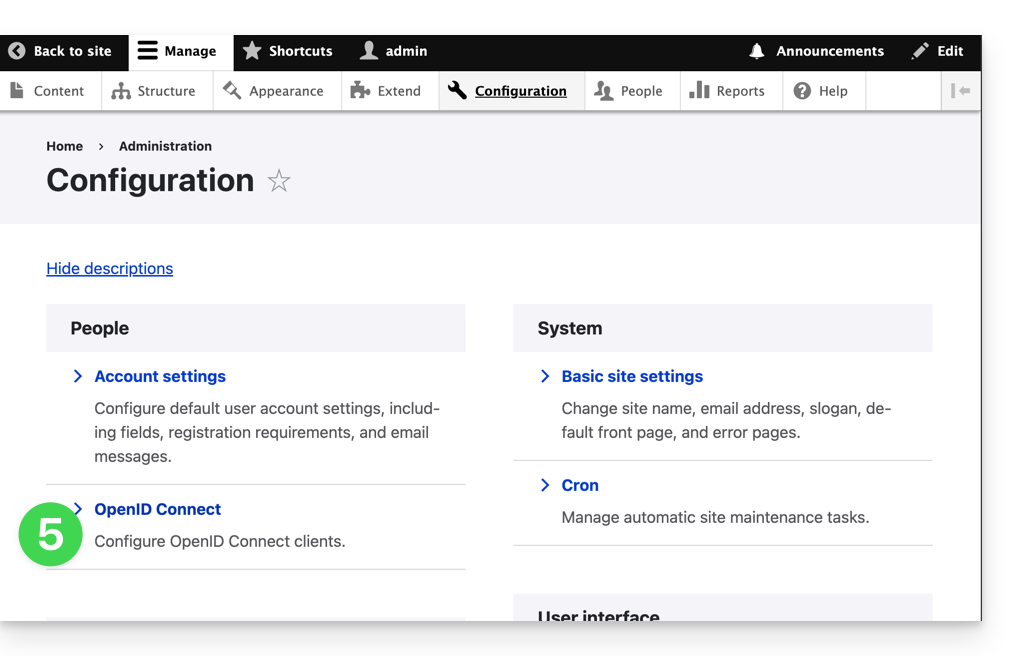
- Click the edit button:
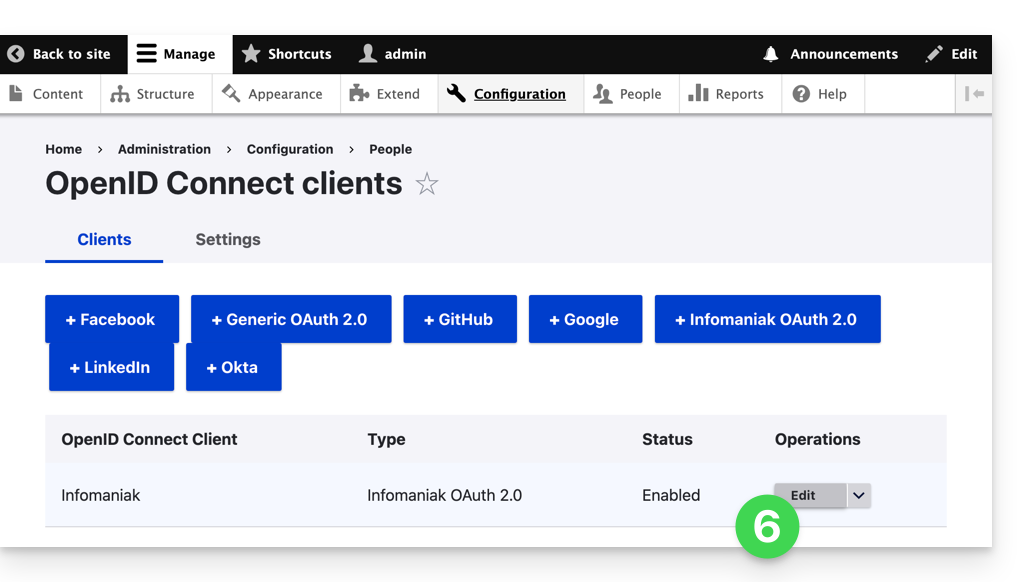
- The only fields you need to fill in are Client ID and Client Secret, and you can find this information in step A above:
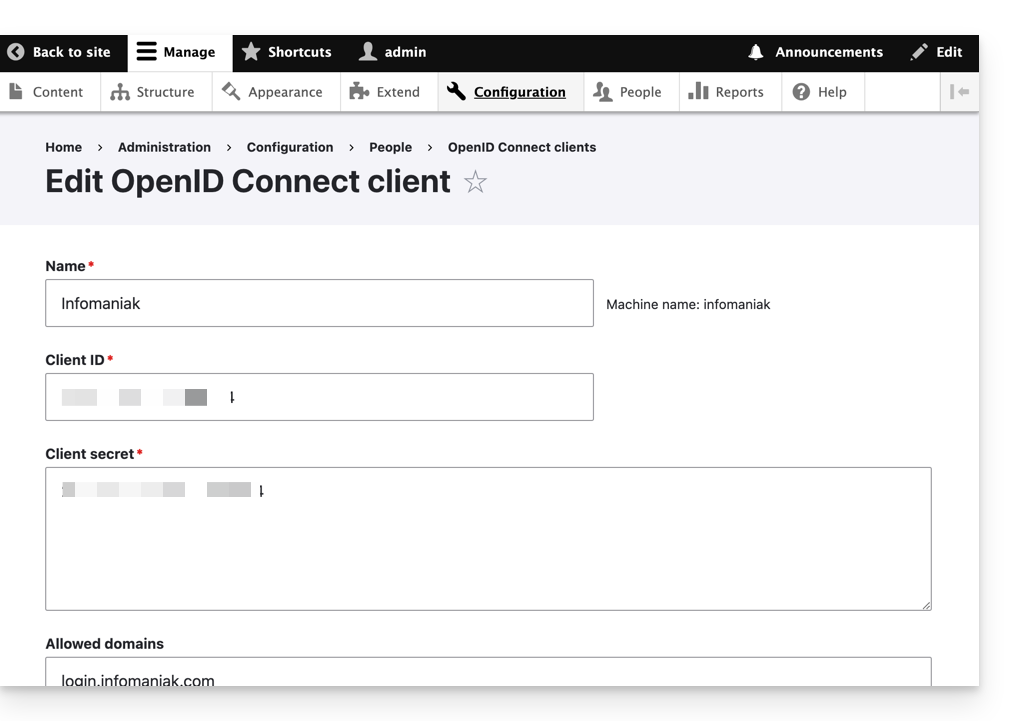
- Don't forget to save the changes you made to the extension settings.
- In the Settings tab, you can choose the display type for your login page; remember to save:
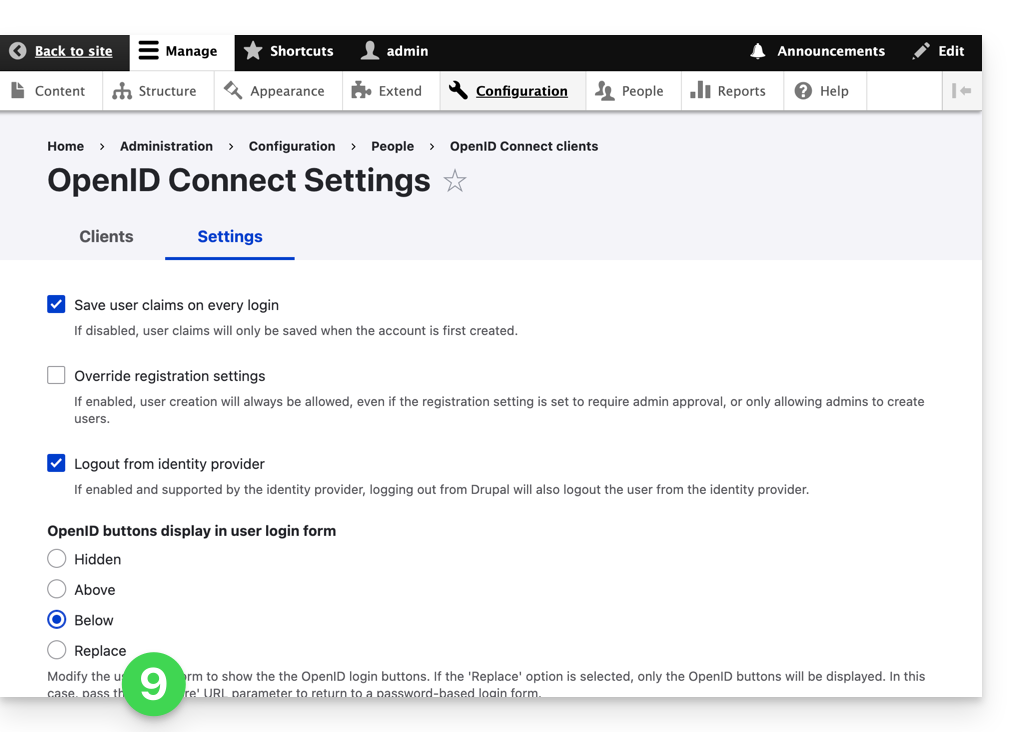
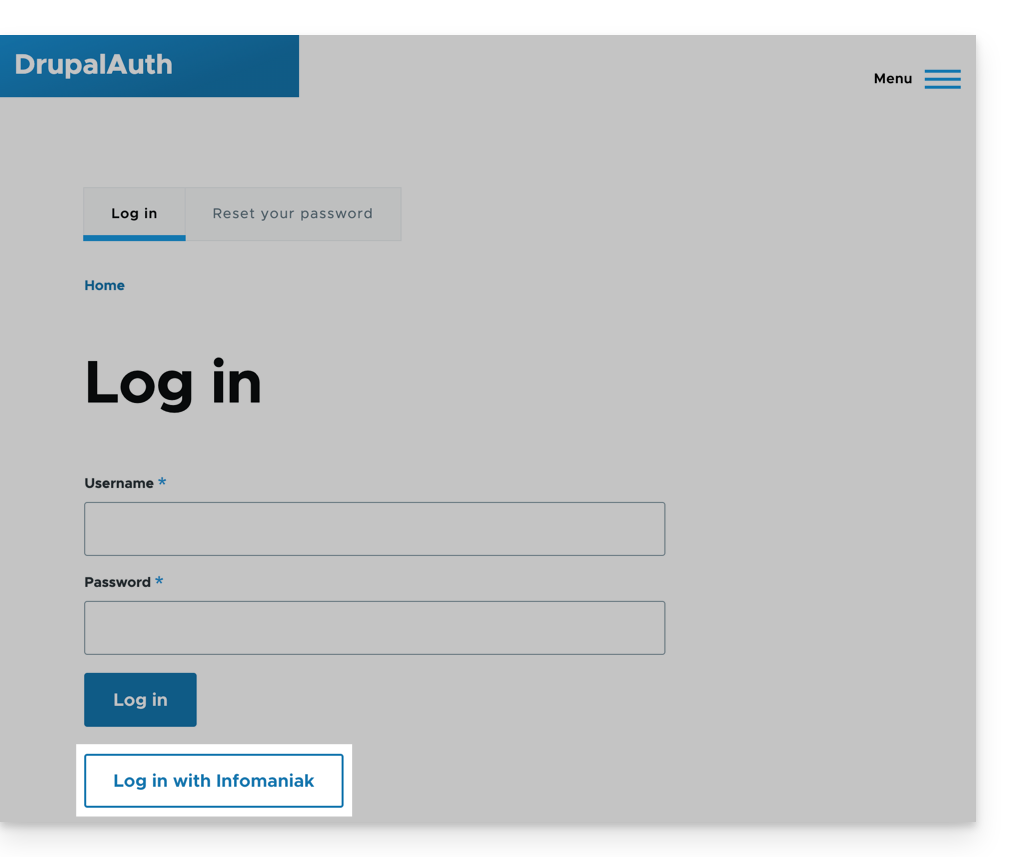
- An additional button, for logging in with your Infomaniak credentials, is now visible on your user login page:
Link to this FAQ: https://faq.infomaniak.com/2532
Has this FAQ been helpful?
This guide details how to manage the Organization Directory, which is a special address book available within the Infomaniak Contacts web app (online service ksuite.infomaniak.com/contacts).
Introduction
- The Organization directory is "automatically created" by the various users that make up one of the Organizations to which your user is linked.
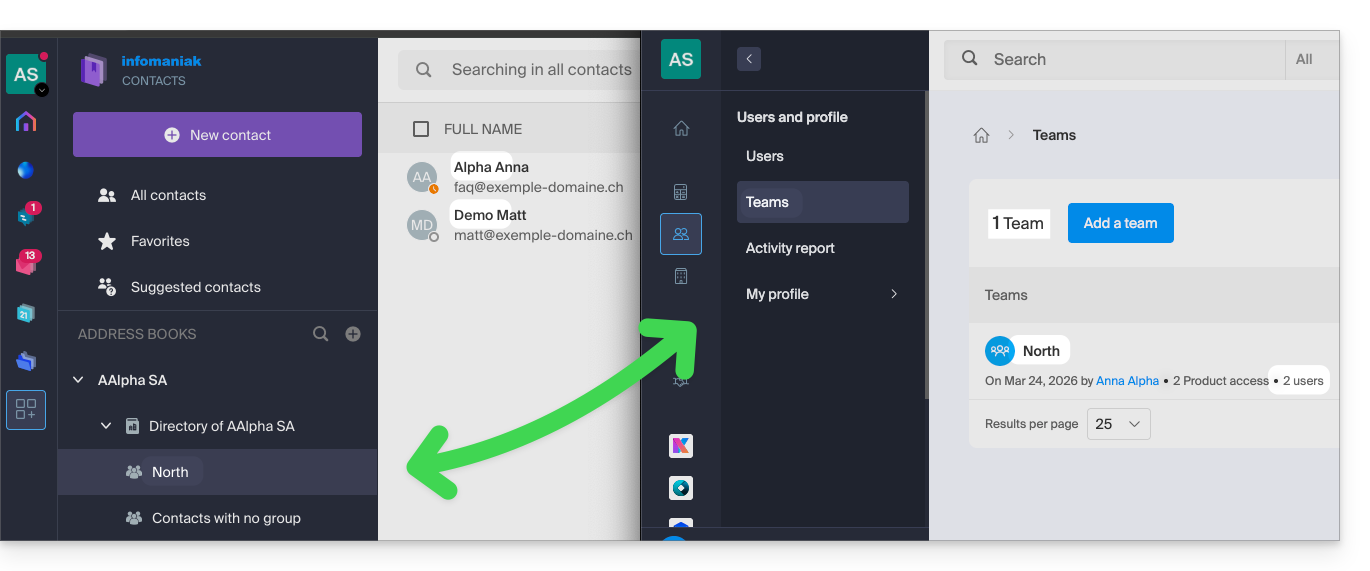
- If Groups are created within the Organization, they will be visible in the Organization directory:
- This address book is automatically synchronized with all internal users of your Organization.
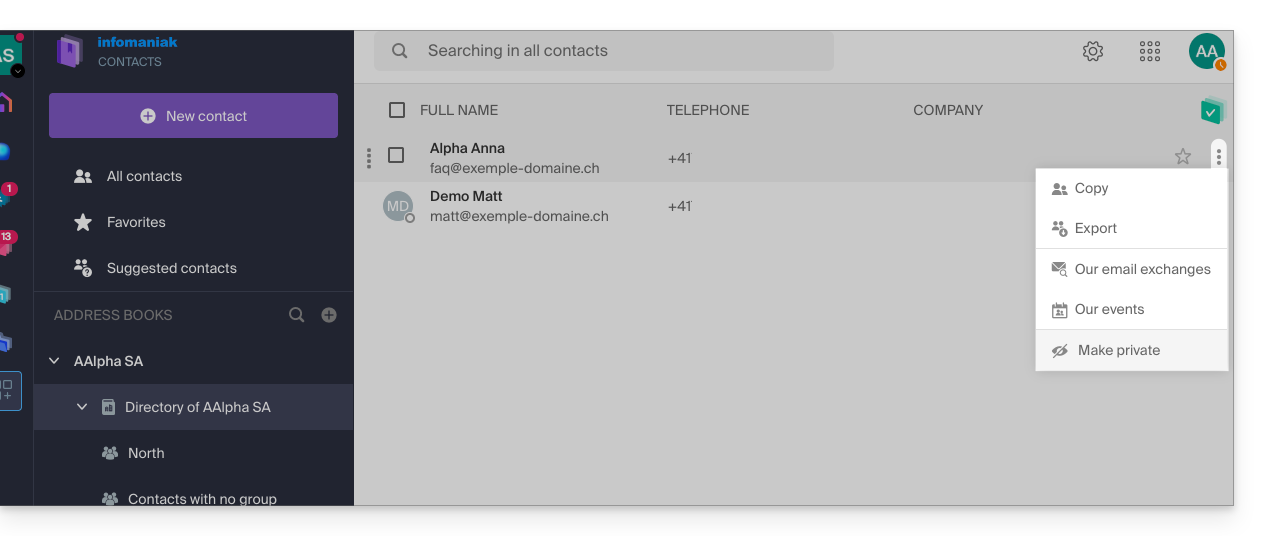
- An administrator of the Organization can make certain entries in the directory private, thereby hiding them from users with fewer permissions:
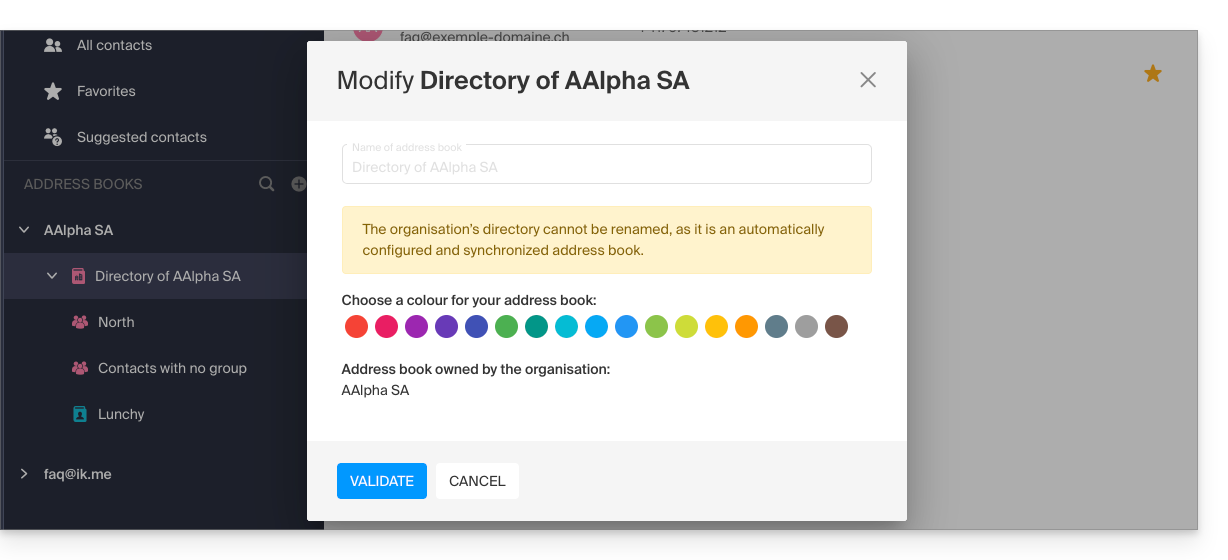
- It is not possible to export or rename it.
- You can change its display color:
- You can change its display color:
Access the directory
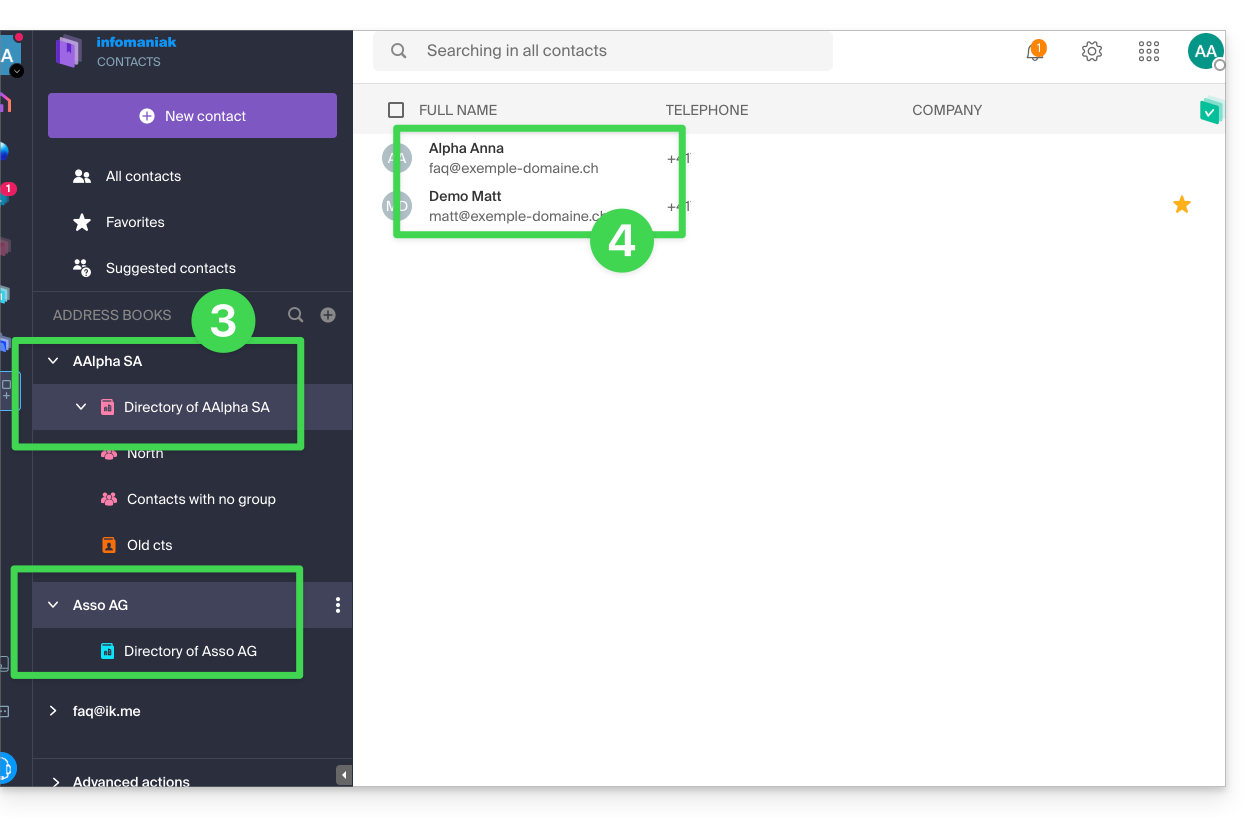
If your login ID matches and belongs to one or more Organizations, you can access the various directories of these Organizations:
- Click here to access the Infomaniak Contacts web app (online service ksuite.infomaniak.com/contacts).
- Click on the chevron to the left of the name of the Organization in question.
- Click on {Organization name} Directory…
- The contacts of the selected Organization are displayed on the right:
Modify the contact details of a contact in the directory
You can do many things (copy, export the contact information, view the email exchanges or calendar events, add to favorites, call, etc.) by clicking on a contact in the Organization Directory address book.However, you will not be able to modify the contact details on behalf of the person.: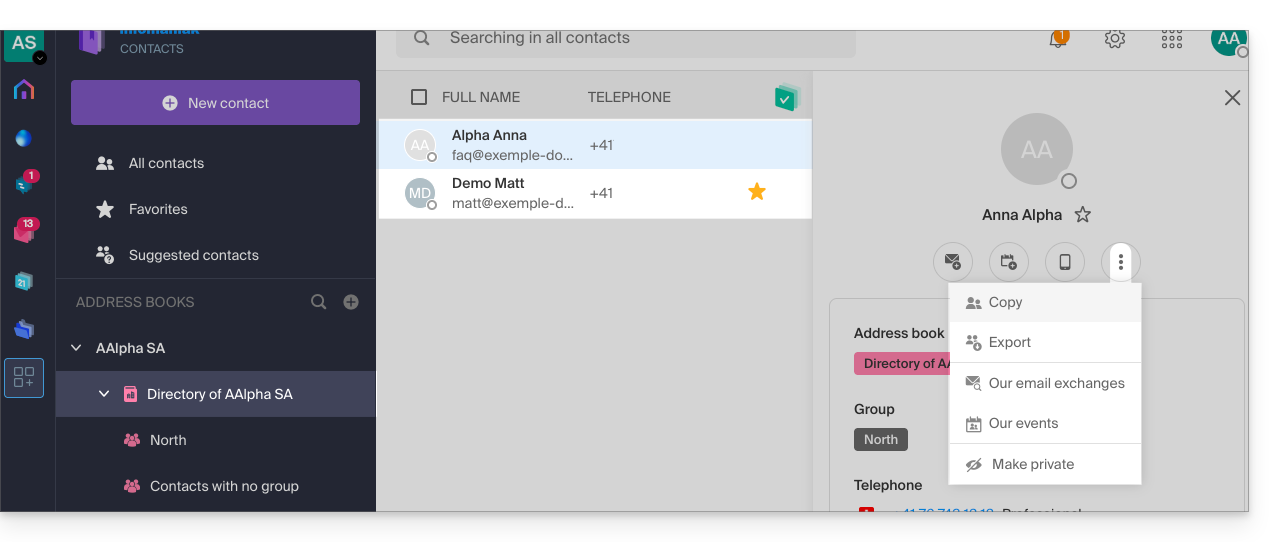
To modify the main information, the person concerned (the person for whom a change needs to be made) must log in to his/her profile and modify it (see below):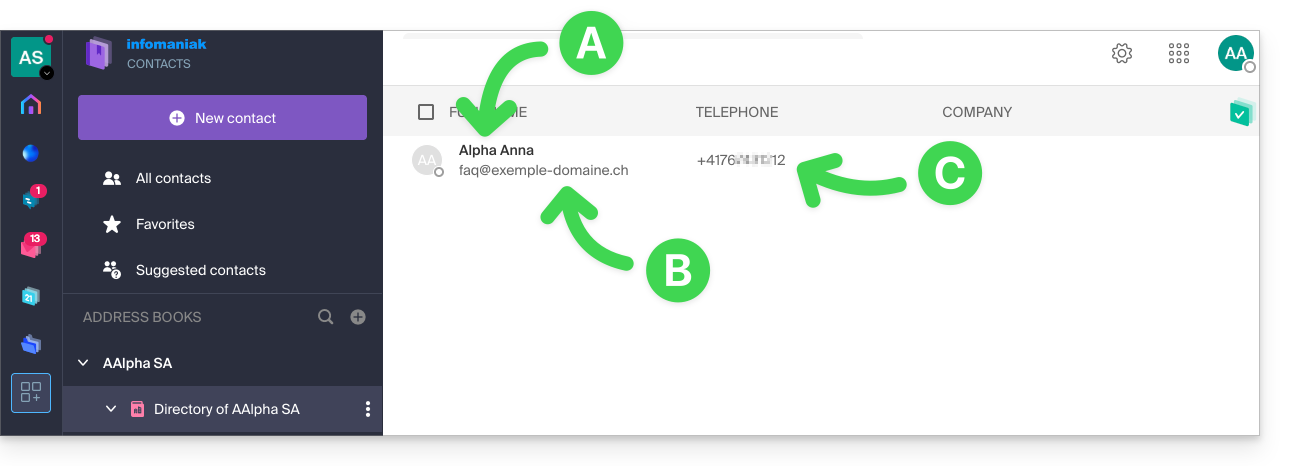
A. First name & Last name
To change the first name and last name displayed in one of the Organization notebooks, the user in question (here, faq@exemple-domaine.ch) must log in to their account and modify their contact information. Please refer to this other guide for more information.
B. Email address
To change the email address displayed in an organization's directory, the user in question must log in to their account and modify their contact details. Please refer to this other guide for more information.
C. Phone number
To change the phone number displayed in an organization's directory, the user in question must log in to their account and modify their contact information. Please refer to this other guide for more information.
Link to this FAQ: https://faq.infomaniak.com/2558
Has this FAQ been helpful?