Knowledge base
1000 FAQs, 500 tutorials and instructional videos. Here, there are only solutions!
This guide concerns the task scheduler on Web Hosting.
Introduction
- This scheduling feature allows you to run scripts and code at the time and frequency you choose, to automate repetitive tasks.
- If your site uses Node.js, you can also manage scheduled tasks directly in your application's code using the
node-cronmodule. - Refer to this other guide if you are looking for information about crontab (crons via SSH) on Cloud Server.
Schedule tasks (webcron)
To access the task scheduling tool:
- Click here to access the hosting & website management section in your Infomaniak Manager (❓: help).
- Click on the name of the website in question.
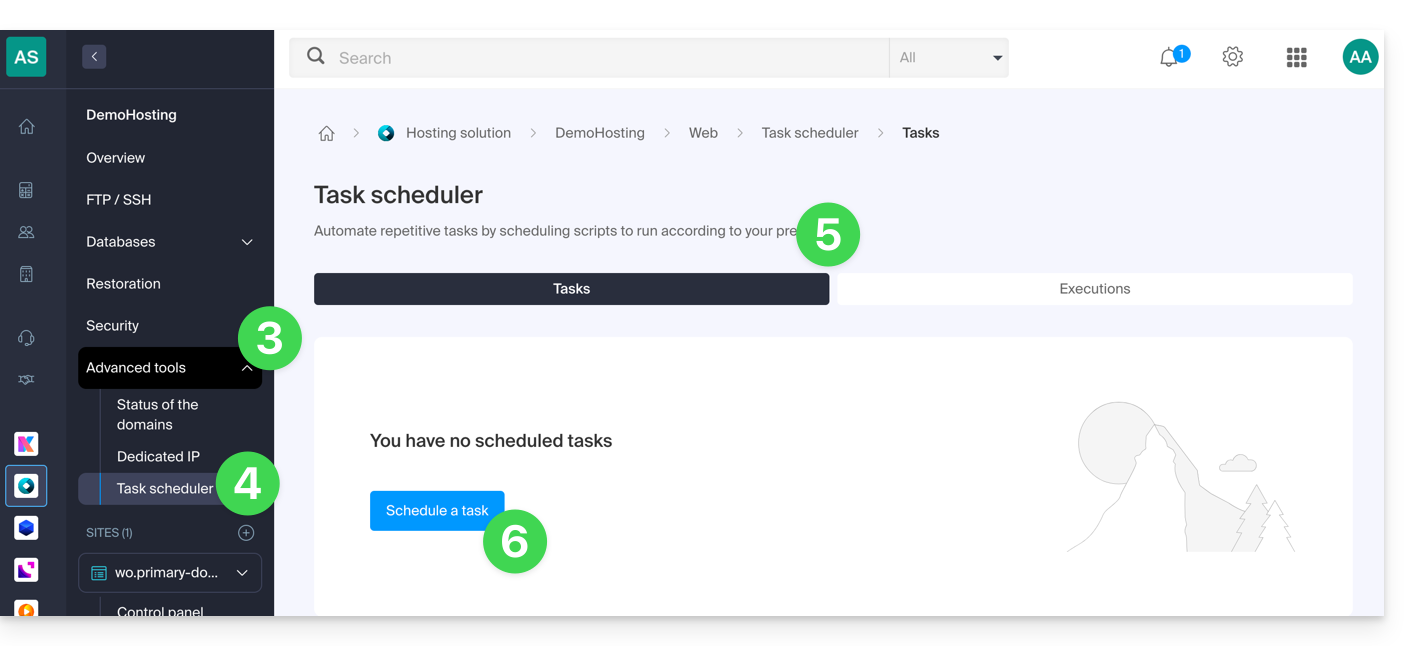
- Click on Advanced Tools in the left-hand menu.
- Click on Task Scheduler.
- Existing cron jobs and tasks currently running are displayed under the two tabs on the page.
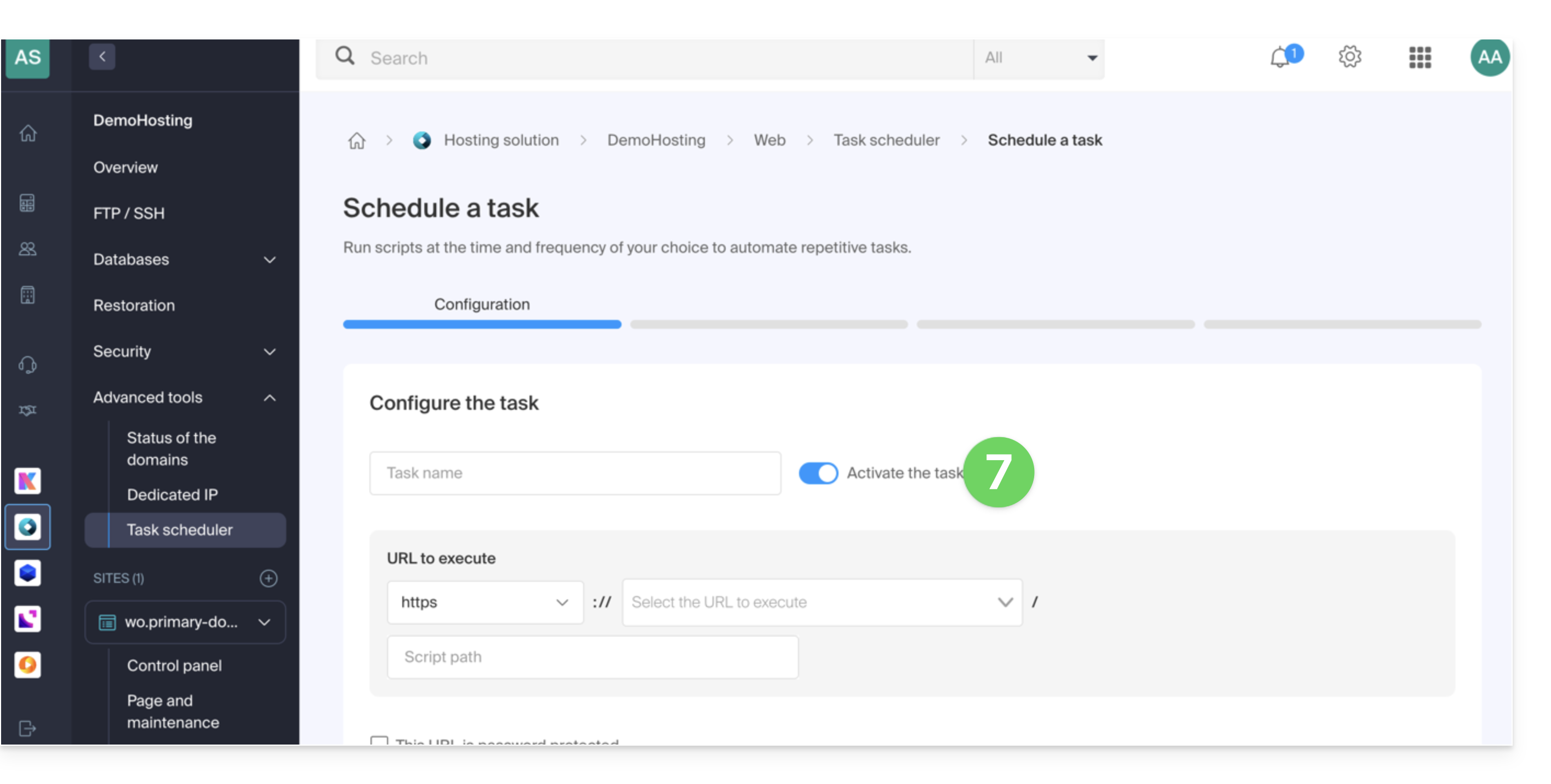
- Click on the Schedule a task button to create a scheduled task, specifying whether the URL of the script to be executed is password-protected, whether you want to receive notifications, and of course the desired interval (see below), etc.:
- Don't forget to activate the task using the toggle switch:
Minimum intervals
In the next step, you can schedule the cron according to…
- [ a ]… pre-defined intervals, such as once a week…
- [ b ]… or a custom interval with a minimum frequency of:
- 15 minutes with shared hosting
- 1 minute on Cloud Server
Notifications & analysis
In the next step, you can enable notification emails: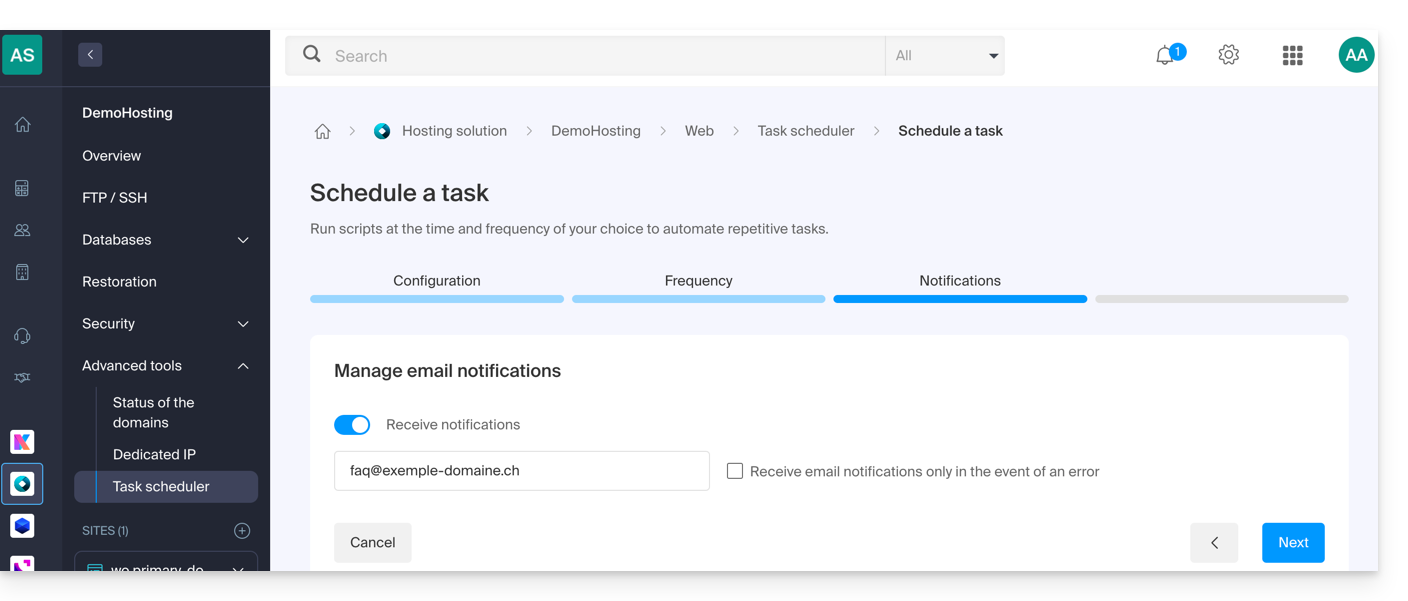
The next step allows you to enable task analysis: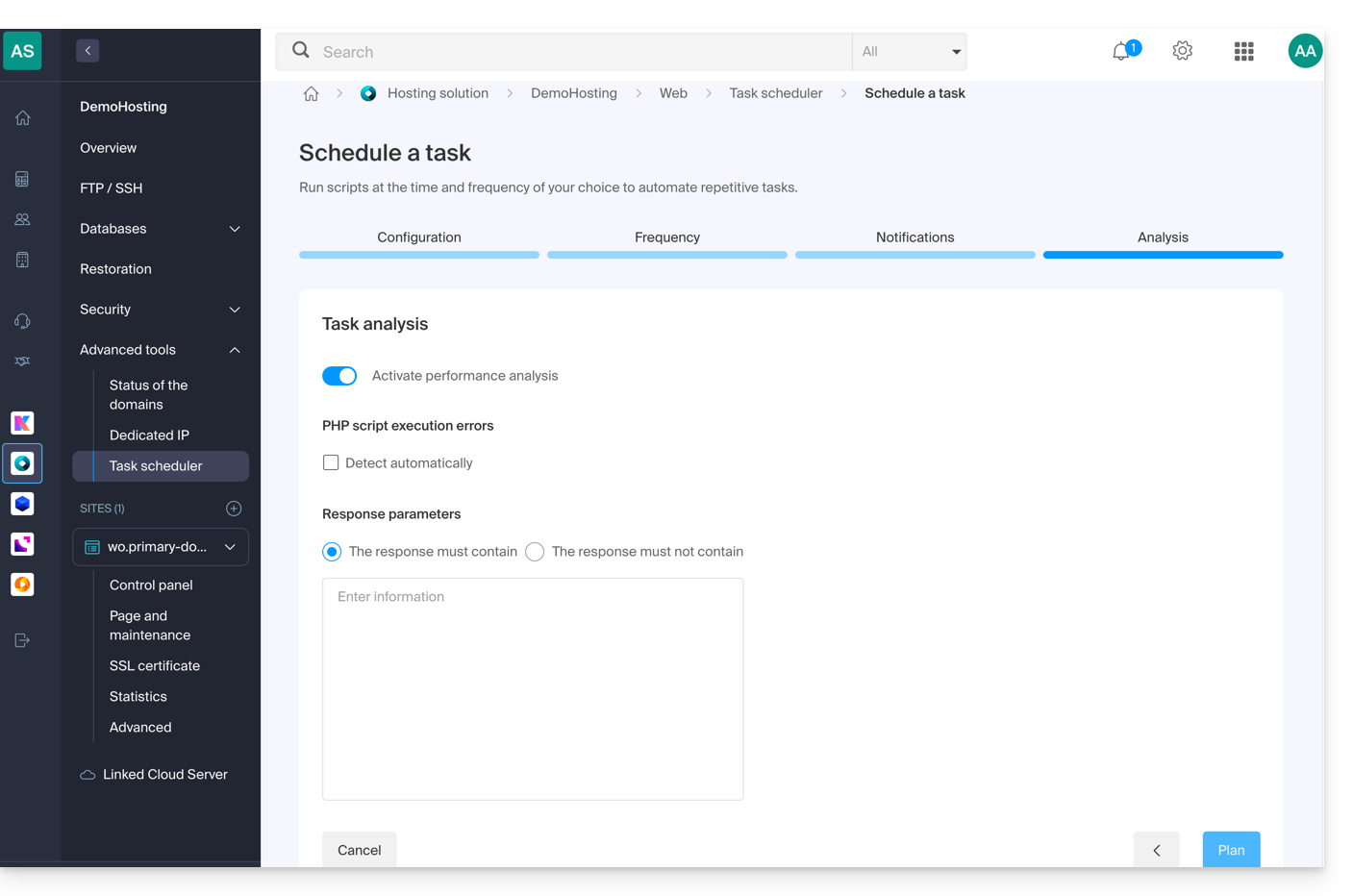
Run the task manually once
Once the task has been created, click on the action menu ⋮ located to the right of the item in question to access the quick management of your task and its execution log: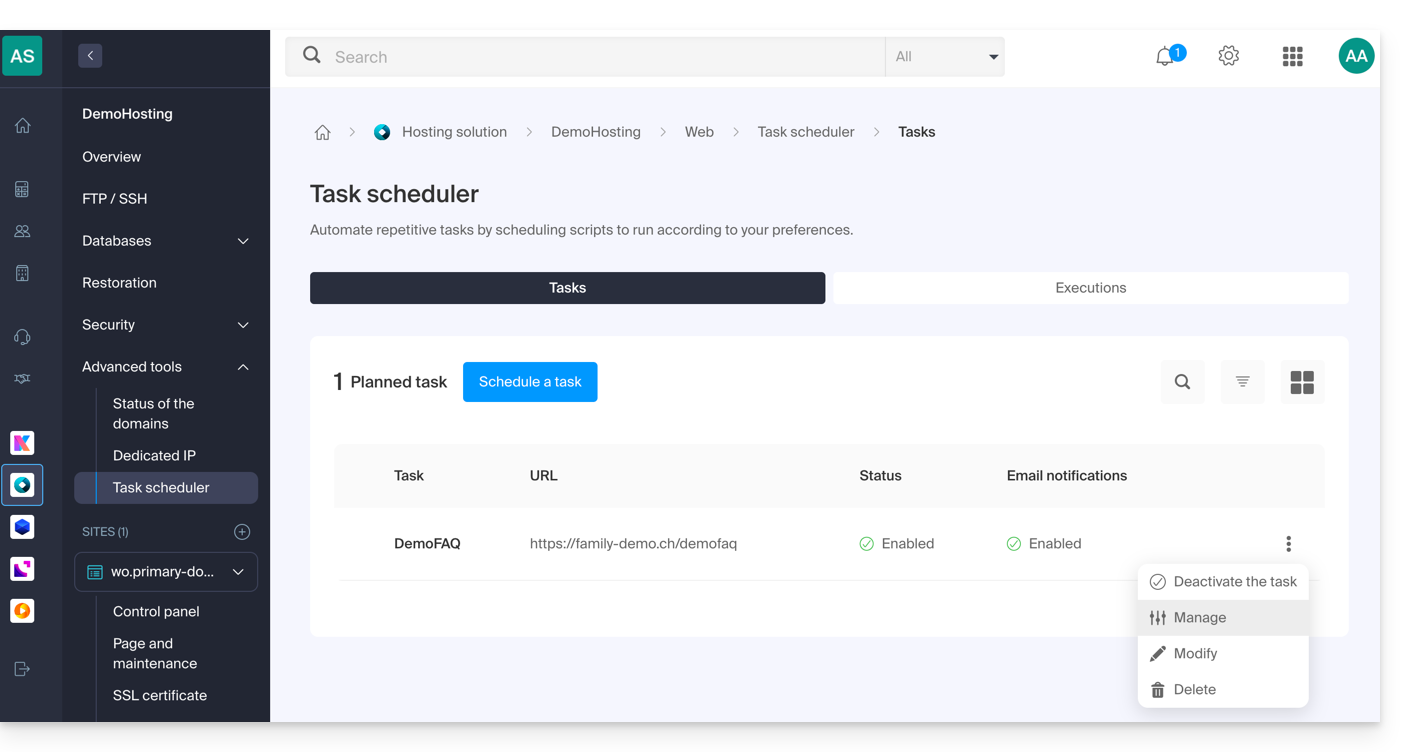
At the top of the page, you can click on the button to execute the task manually once: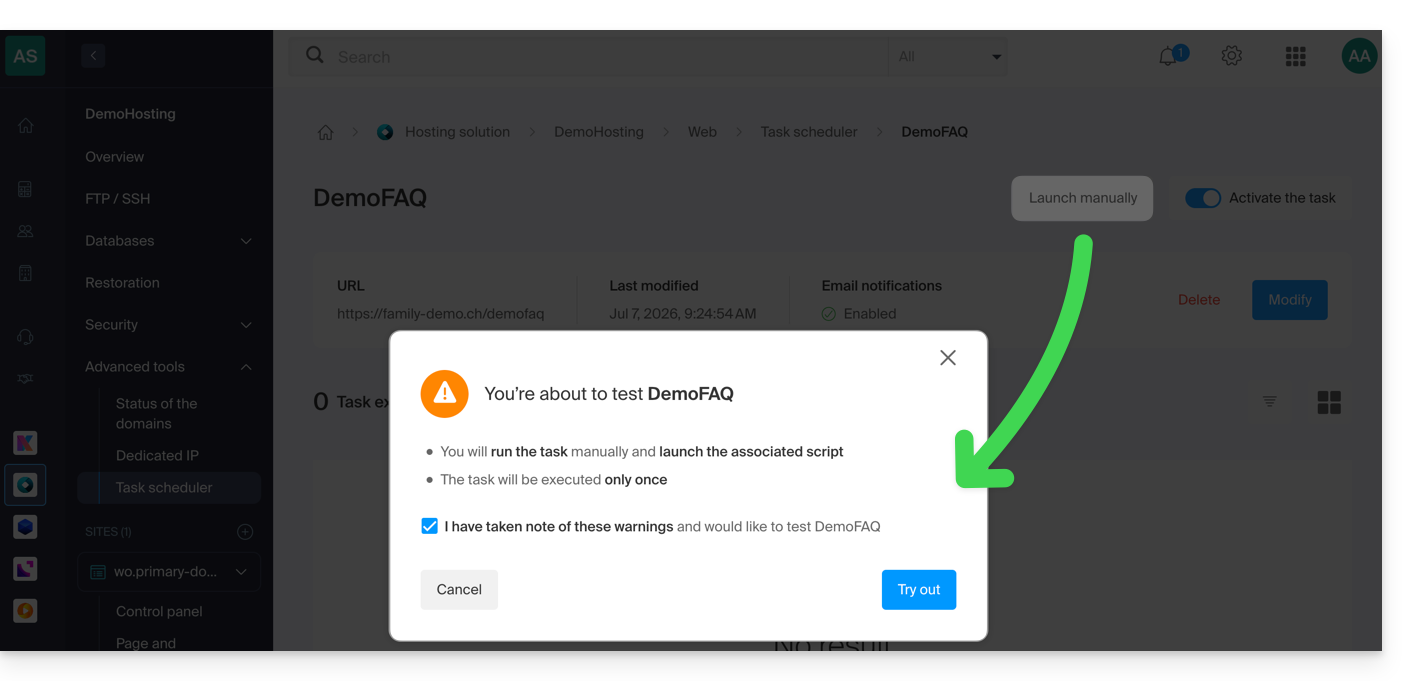
Link to this FAQ: https://faq.infomaniak.com/2161
Has this FAQ been helpful?
This guide explains how to install Nextcloud, an enhanced version of Owncloud, in just a few clicks on our paid Web Hosting plans.
Regardless of your hosting products, Infomaniak also offers a high-performance Cloud service: kDrive (file storage, synchronization, and sharing).
Introduction
- Nextcloud is one of the applications (not developed by Infomaniak) and allows you to set up a file storage and sharing system within a "cloud" that you fully control (user management, permissions, quotas, associated mobile applications, etc.).
- Unlike other hosting providers, Infomaniak allows the use of this type of app on its hosting services:
- Personal use is permitted on shared web hosting.
- For intensive and professional use, it is recommended to opt for a Cloud Server to install ownCloud / Nextcloud.
Install Nextcloud
Prerequisites
- You must have an Infomaniak web hosting plan (order if needed).
- Upgrade the Databases section if necessary (especially for Nextcloud).
- If a blank website is already present on the hosting, click the button as shown in the image below and skip directly to step 9:
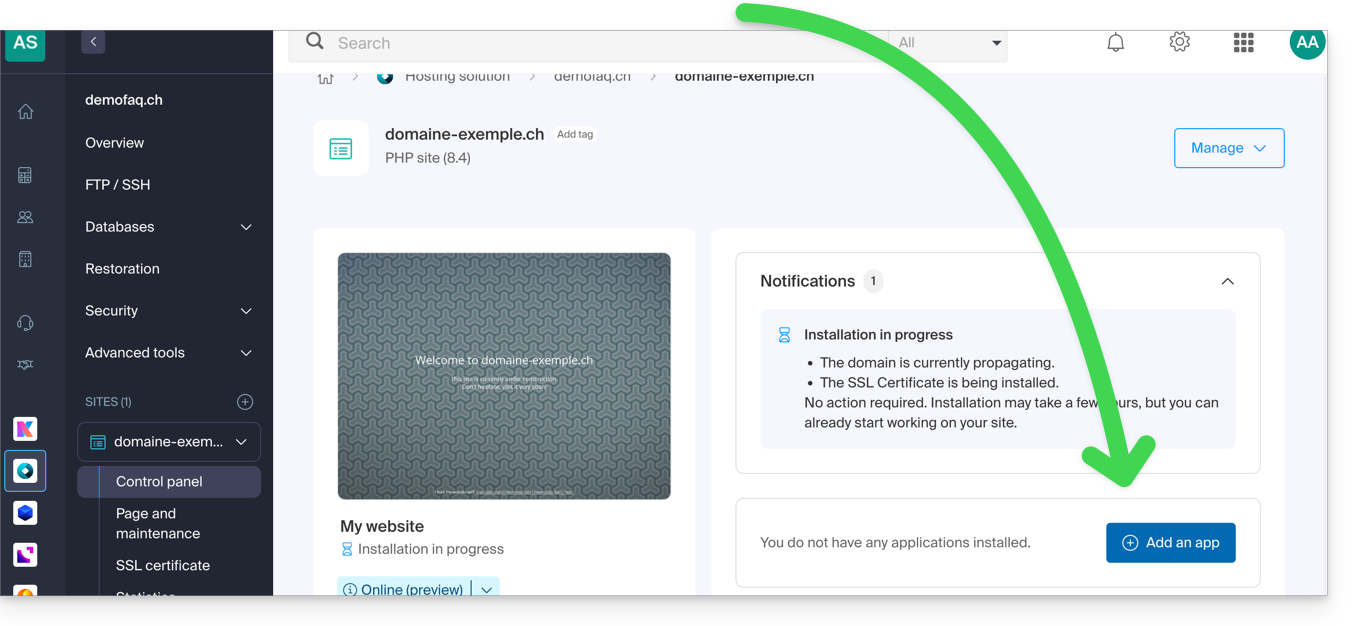
To access Web Hosting and install a new site using the application:
- Click here to access the hosting & site management section in your Infomaniak Manager (❓: help).
- Click on the name of the hosting account in question.
- Click on the Add a site button:
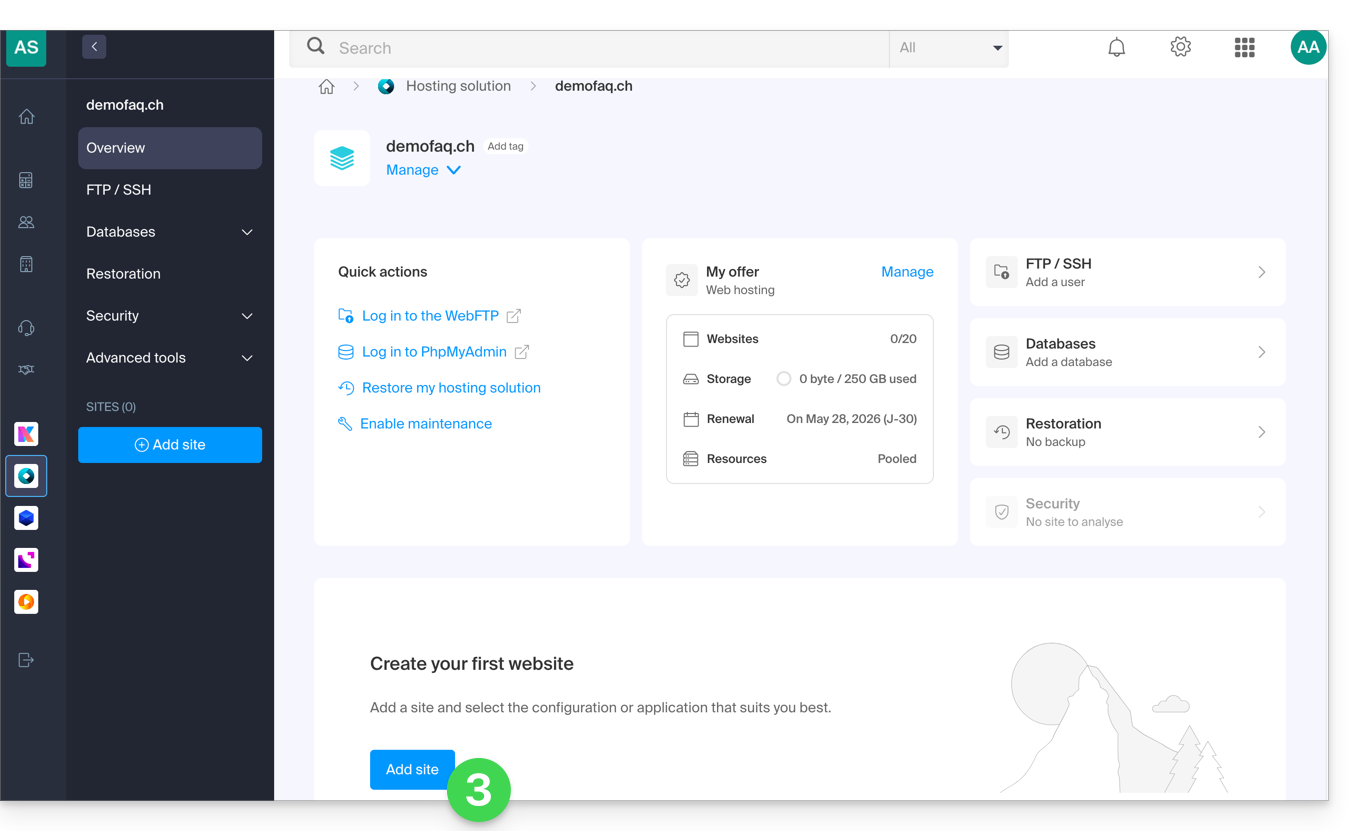
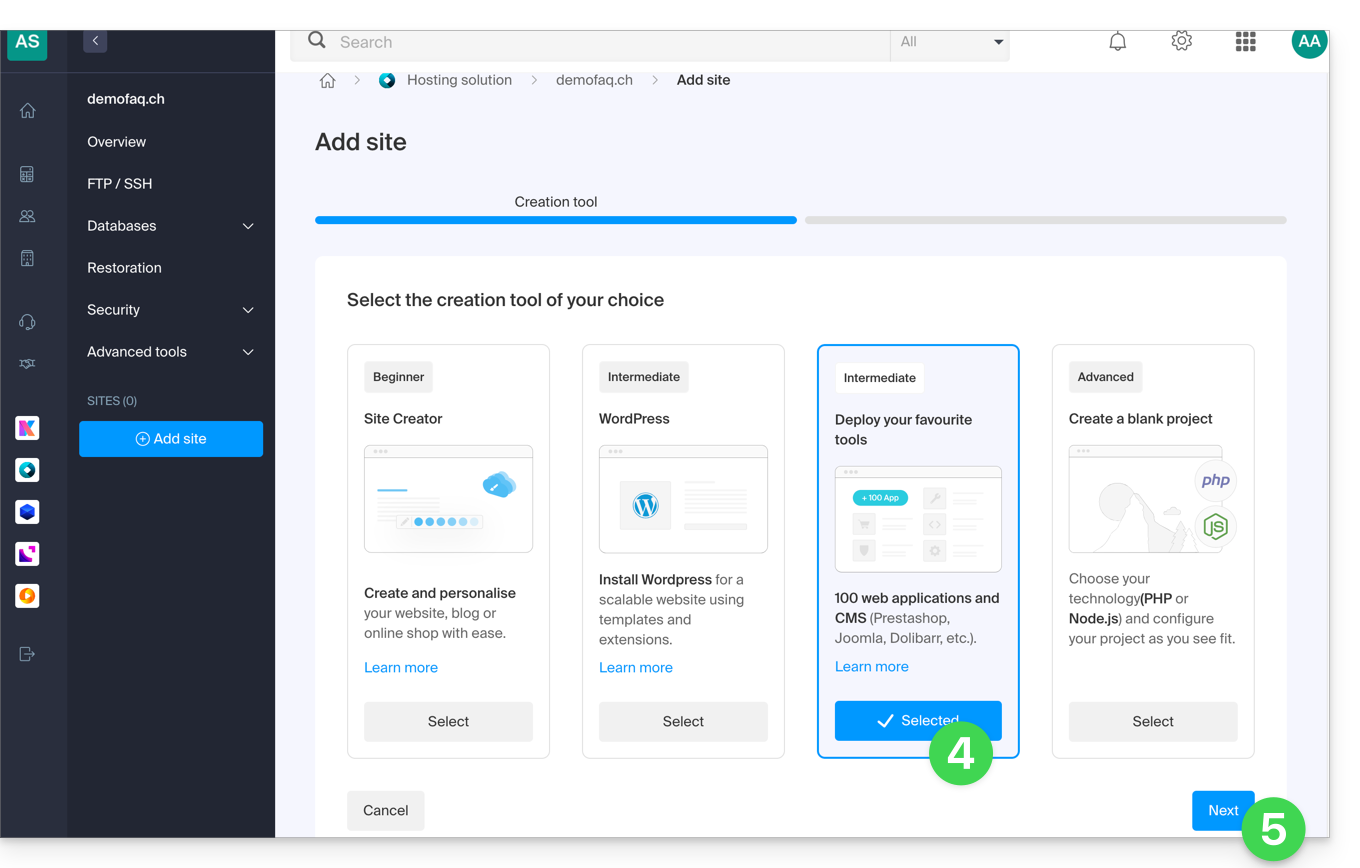
- Select the intermediate option for tool deployment.
- Click on Next:
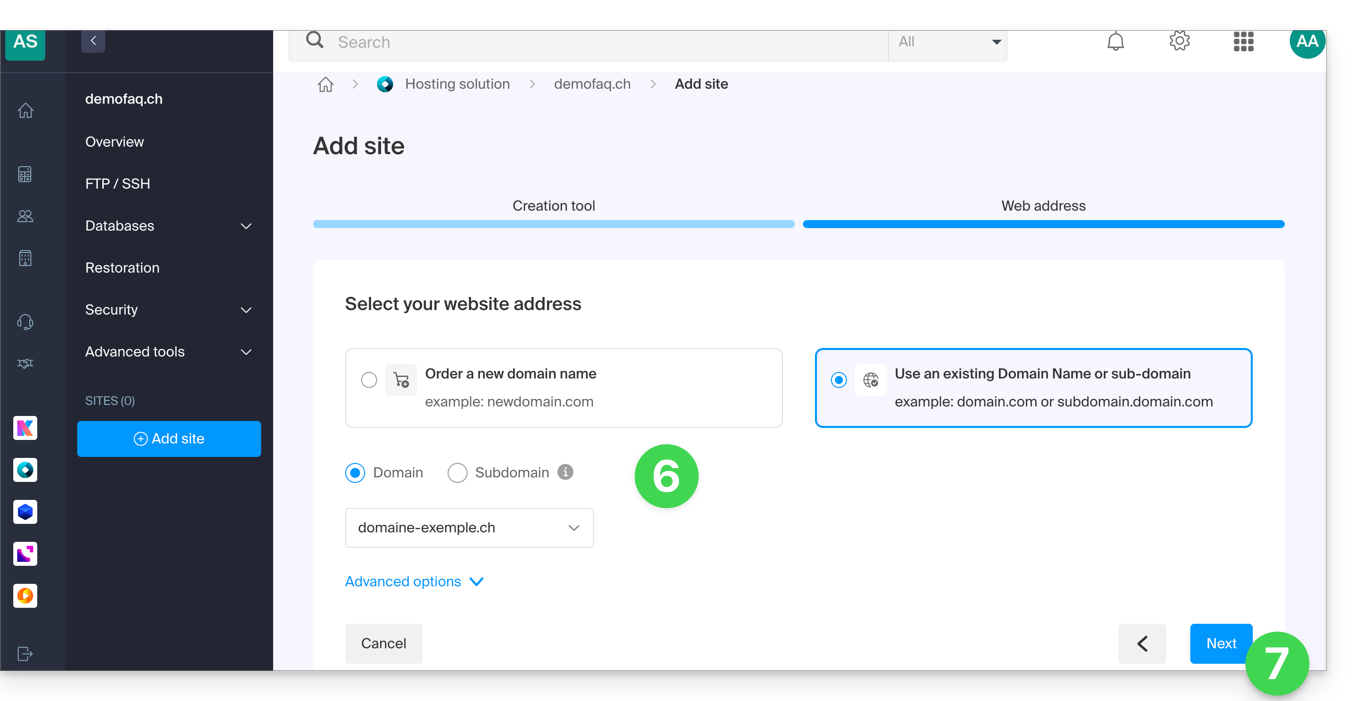
- Select the domain or subdomain and the advanced options if necessary.
- Click on Next:
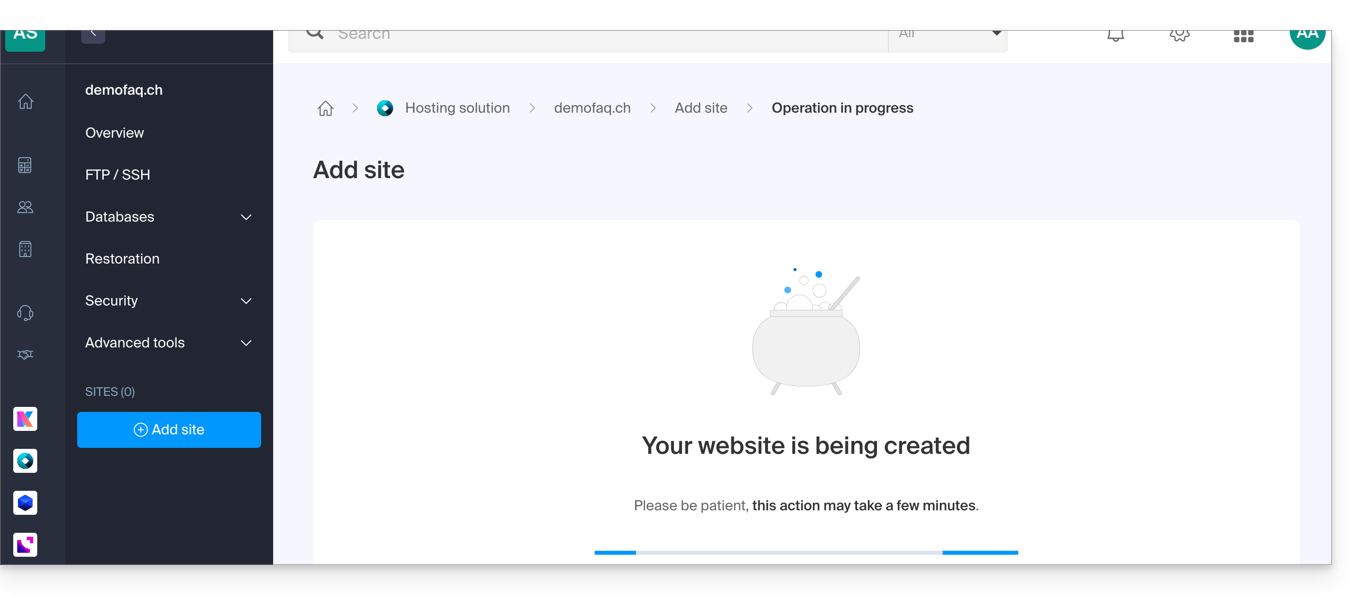
- Please wait a few minutes while the website is being created:
- Select the desired application (if necessary, filter and search):
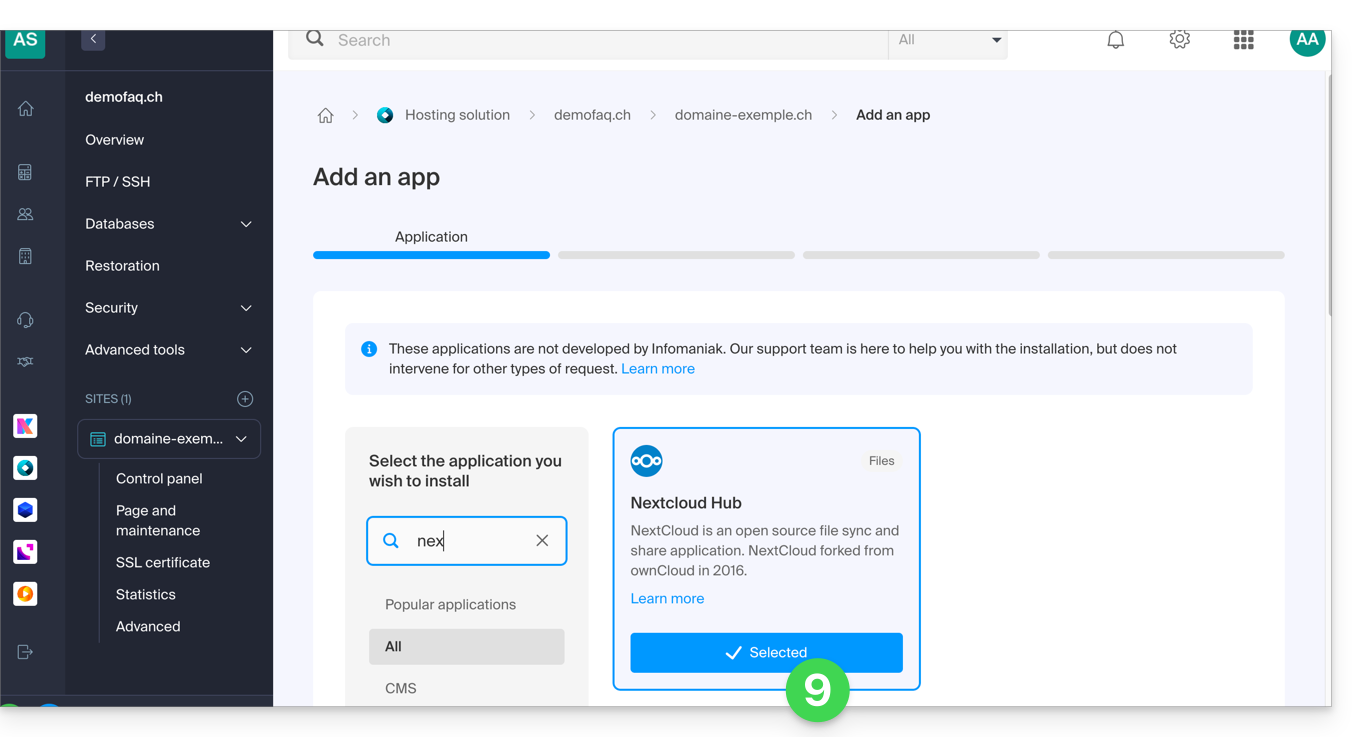
- Click on Next at the bottom of the page.
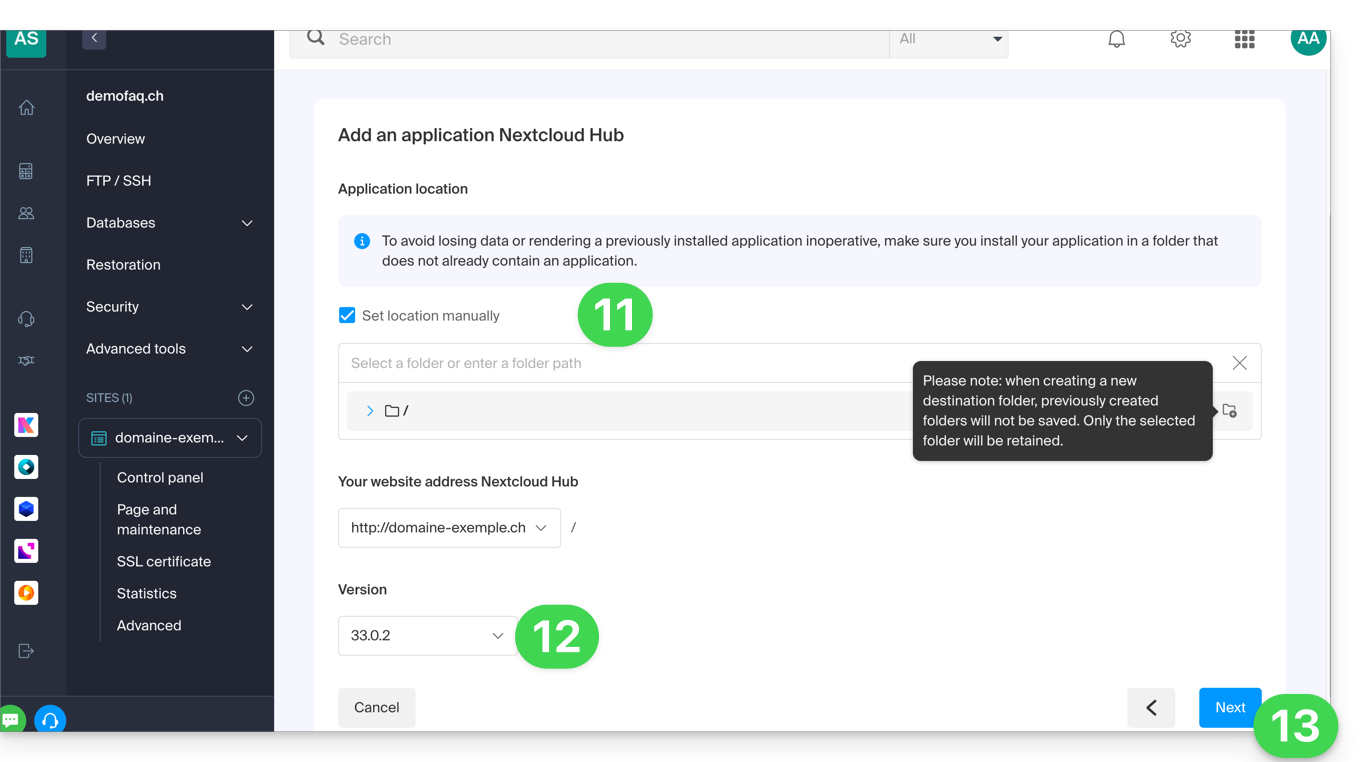
- Leave the default location or check the box to install the app in a new folder, which you can create using the icon visible to the right of point 11 in the image.
- If necessary, select the option to install an older version.
- Click on Next:
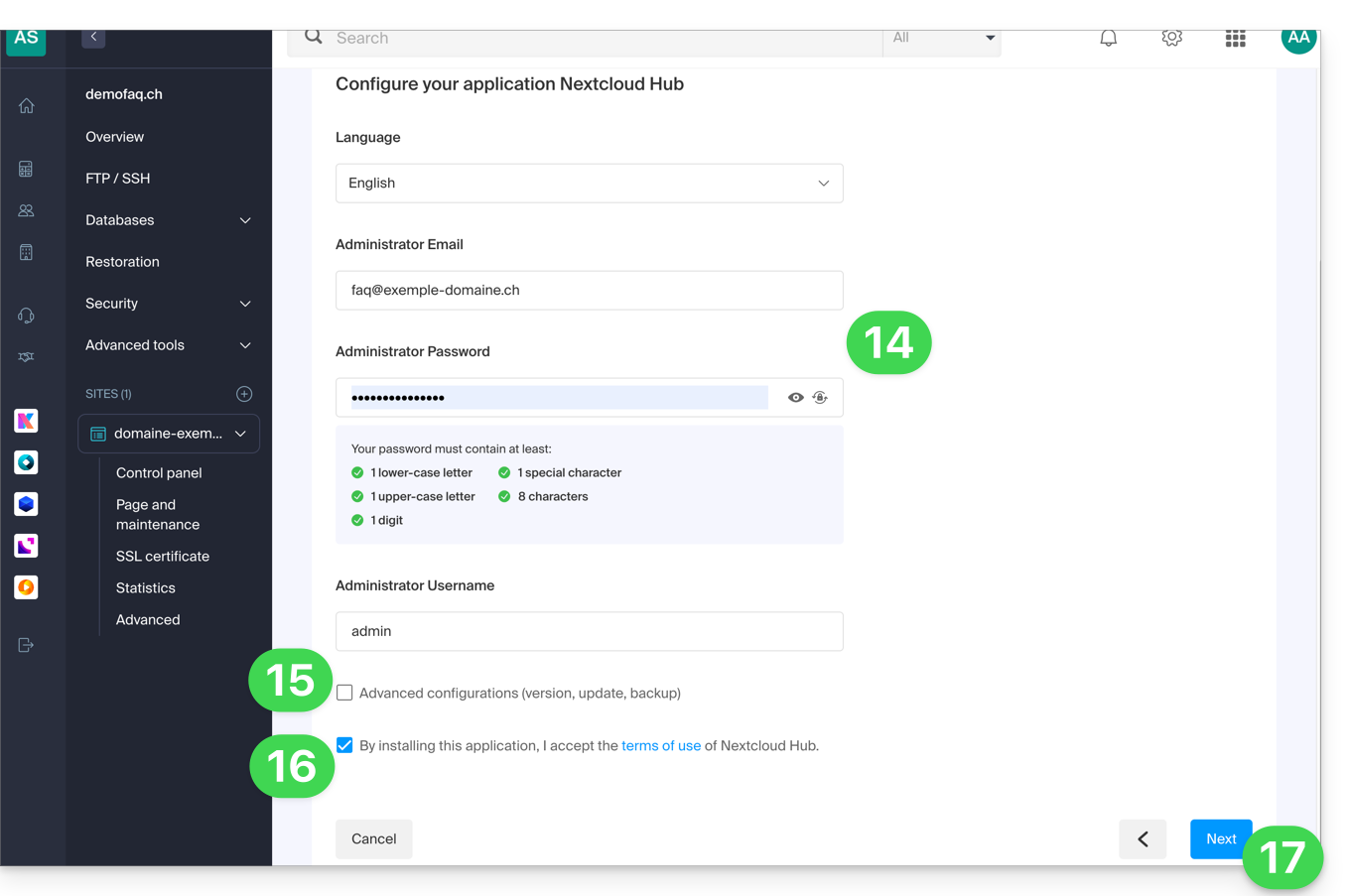
- Configure the username and password.
- Specify certain advanced settings if necessary (e.g., backup type).
- Read and accept the terms of use for the selected app.
- Click on Next:
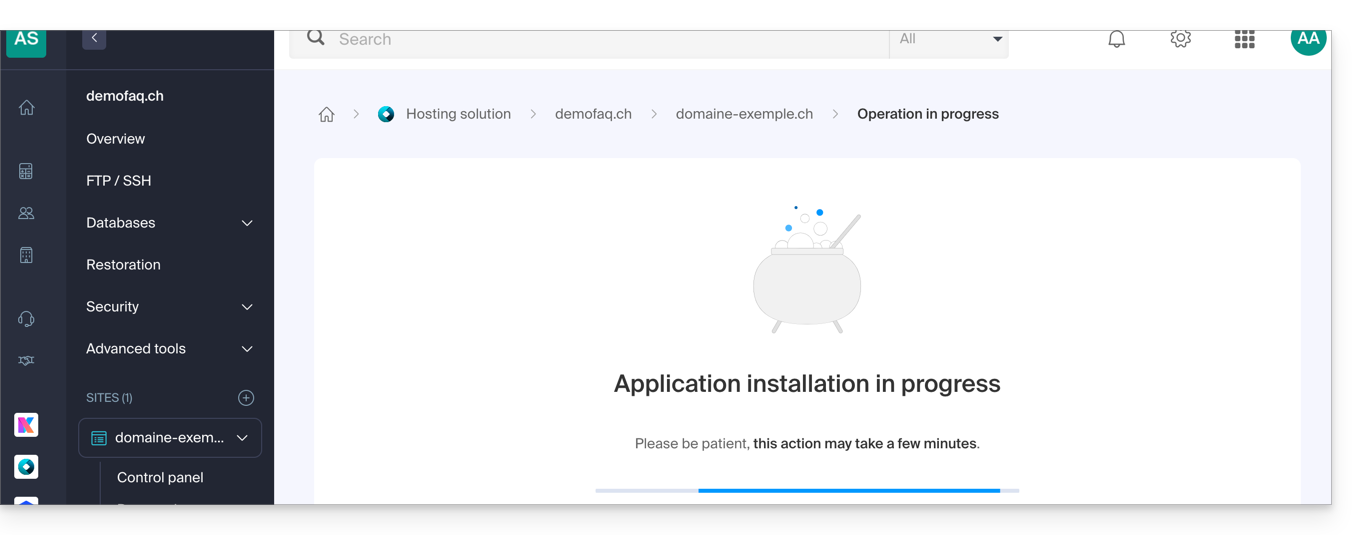
- Confirm the application installation in the next step and wait:
- Take note of any error messages displayed on the screen, for example, if the selected installation folder is not empty or if the PHP version of the website on which you are attempting the installation is not compatible.
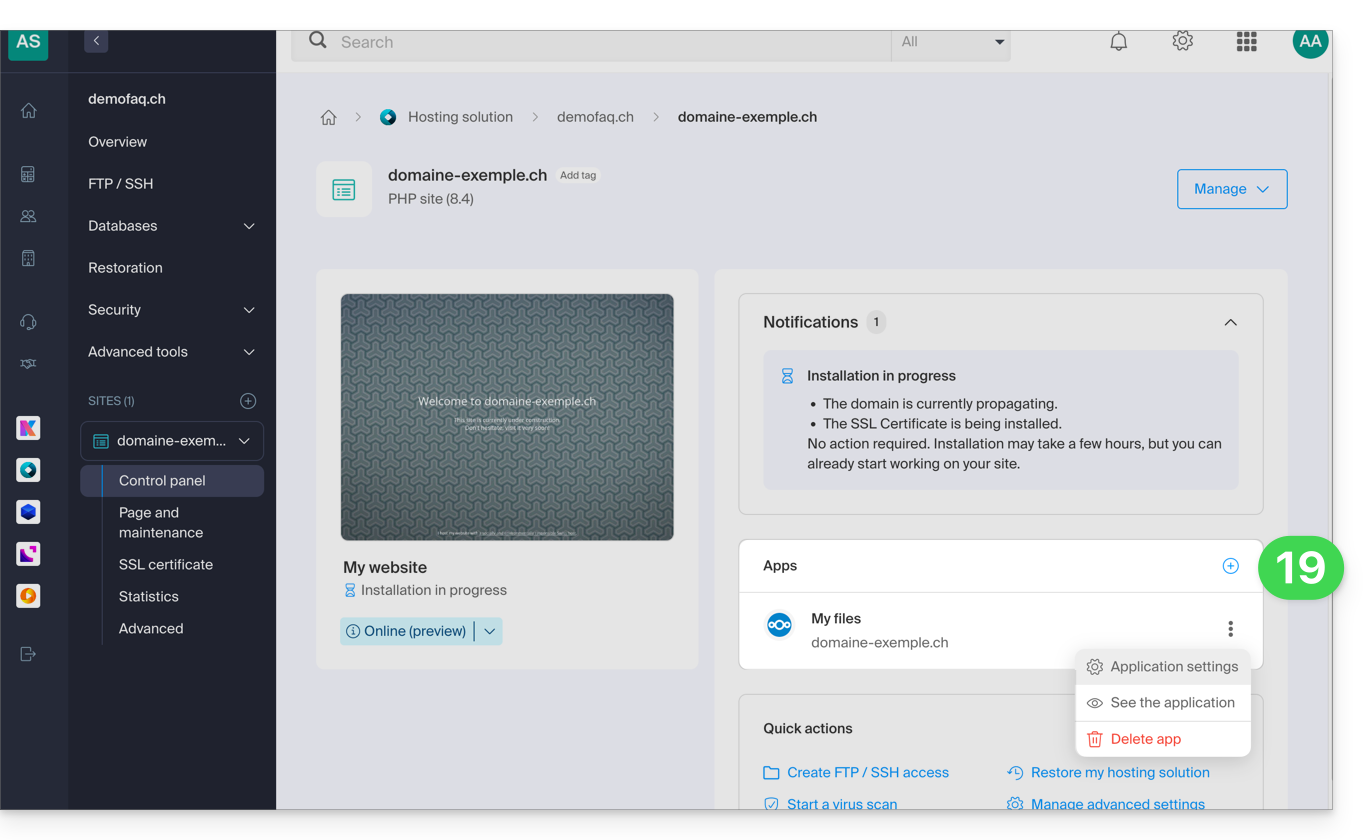
- Once the installation is complete, you can manage your application as desired:
Link to this FAQ: https://faq.infomaniak.com/2162
Has this FAQ been helpful?
This guide explains the purpose of the "MySQL Prefix" option in a website's settings and its implications for the operation of your web applications (CMS) and PHP scripts.
Introduction
- When the "MySQL Prefix" option is enabled for a website, it is no longer necessary to add the "
wxyz_" prefix to the name and users of your MySQL databases. - A PHP script can then connect to MySQL with the user "monuser" and a database "mabase", and access will automatically be granted with the user "wxyz_monuser" and the database "wxyz_mabase".
- ⚠ If you are migrating from an older Infomaniak plan:
- After migrating a website from the old console, the "MySQL Prefix" option is enabled by default to automatically maintain the connection of your web applications (WordPress, Joomla, Drupal, etc.) and PHP scripts with your MySQL databases.
- To ensure your websites function correctly in the event of a migration to another server, it is strongly recommended that you disable this function and make the necessary adjustments.
Manage the MySQL Prefix Option
Go Further with Environment Variables
You can configure environment variables directly from the Manager for your entire website:
- Click here to access the hosting & site management section in your Infomaniak Manager (❓: help).
- Click on the name of the product in question.
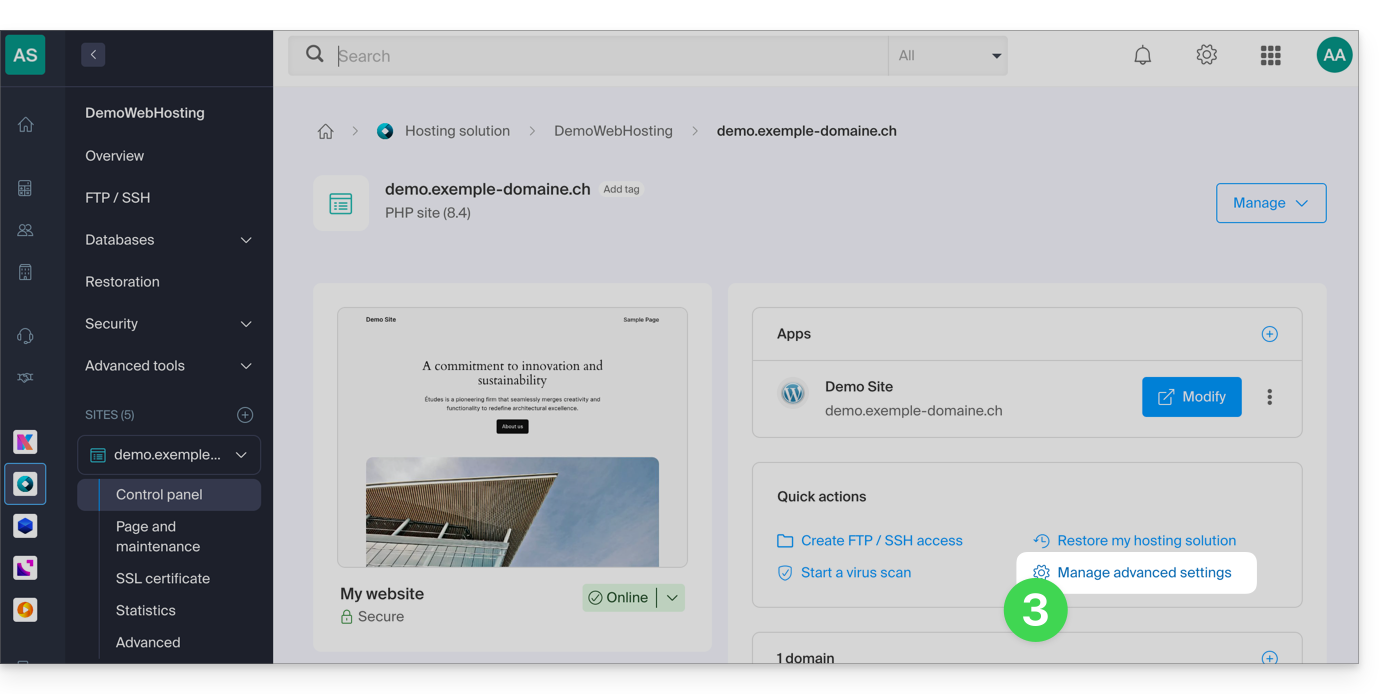
- Click on Manage advanced settings:
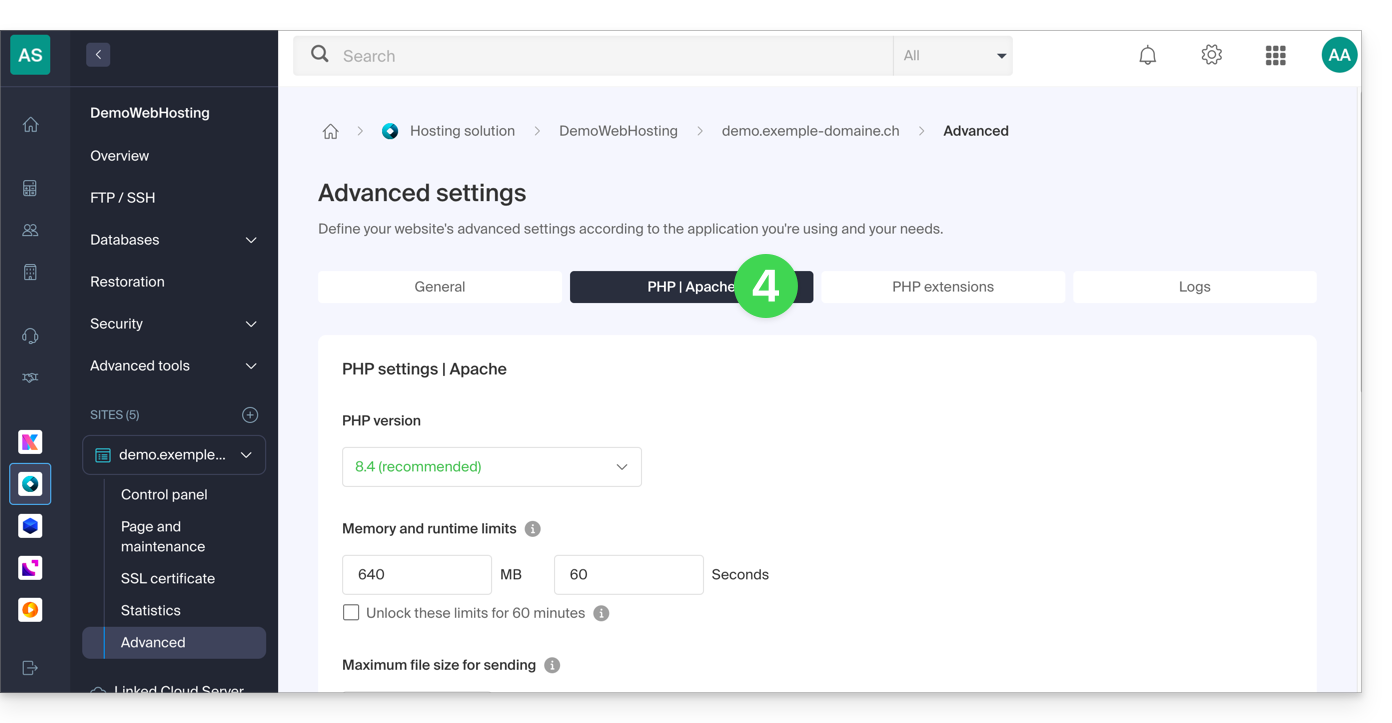
- Click on the PHP / Apache tab:
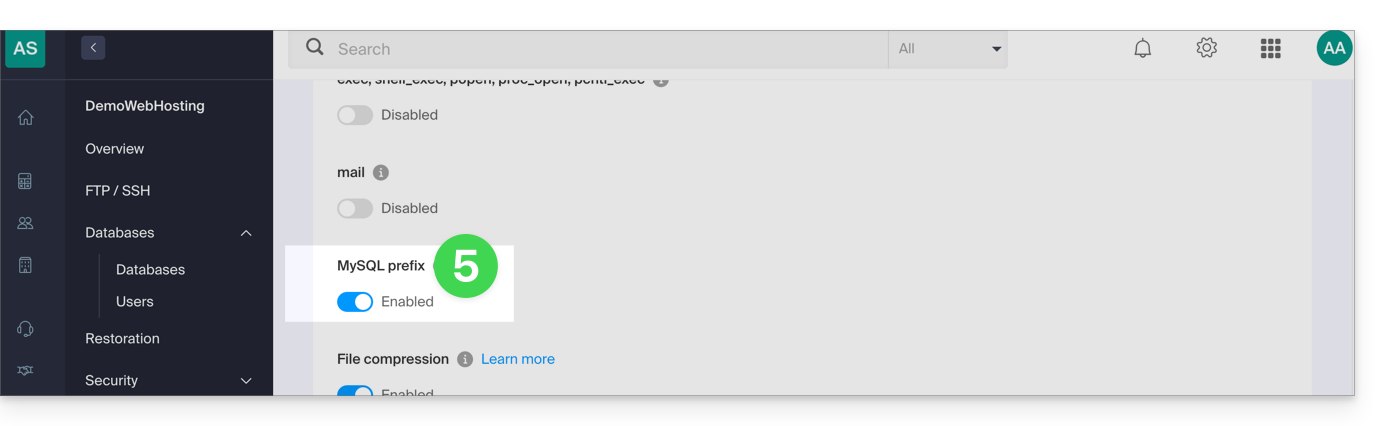
- Enable or disable the MySQL Prefix toggle switch:
- Click on the Save button at the bottom of the page.
- Make the necessary adjustments in the configuration files of your web applications and PHP scripts…
Implications and adjustments to be made
After disabling the MySQL Prefix option for a website, some PHP scripts or CMS may no longer function.
To restore the connection to your databases, you must update the following information in the configuration file(s) of the scripts concerned:
- the name of the MySQL database: you will need to add the prefix of your server to it.
- before:
dbname - after:
wxyz_dbname
- before:
- the user of the MySQL database: you will need to add the prefix of your server to it:
- before:
dbuser - after:
wxyz_dbuser
- before:
Link to this FAQ: https://faq.infomaniak.com/2168
Has this FAQ been helpful?
This guide covers redirecting web traffic to a specific port, including when using a dedicated IP and a specific web application (such as Node or Varnish, for example).
Prerequisites
- Add a website to your hosting.
- Install
HAProxyon the Cloud Server.
Redirect web traffic to a specific port
By default, on Cloud Server, web traffic is sent to Apache. To send requests to a Node script or another service (provided it "listens" on a port between 4000 and 4009), you must use HAProxy.
This applies in particular to Express, Socket.IO, Meteor.js, Nuxt.js, Flask, Ruby on Rails servers, and even possibly Java (J2E), etc.
To do this, make sure that the service is listening on a port between 4000 and 4009 (e.g., with server.listen(4000) for Express or a basic HTTP Node server, but depending on the type of project, using other means, a configuration file, in the code, or otherwise) and on all interfaces (0.0.0.0).
You will also need to configure HAProxy as shown in the following example:
- Click here to access the management of your Cloud Server on the Infomaniak Manager (need help?).
- Click directly on the name assigned to the Cloud Server in question.
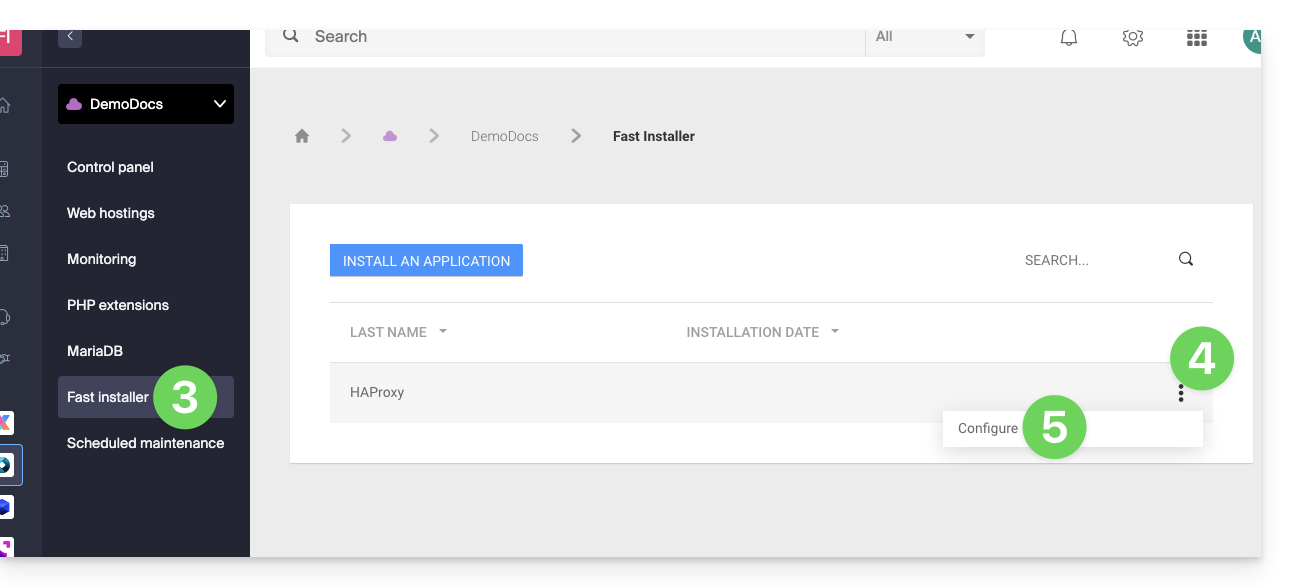
- Click on Fast installer in the left-hand menu.
- Click on the action menu ⋮ located to the right of
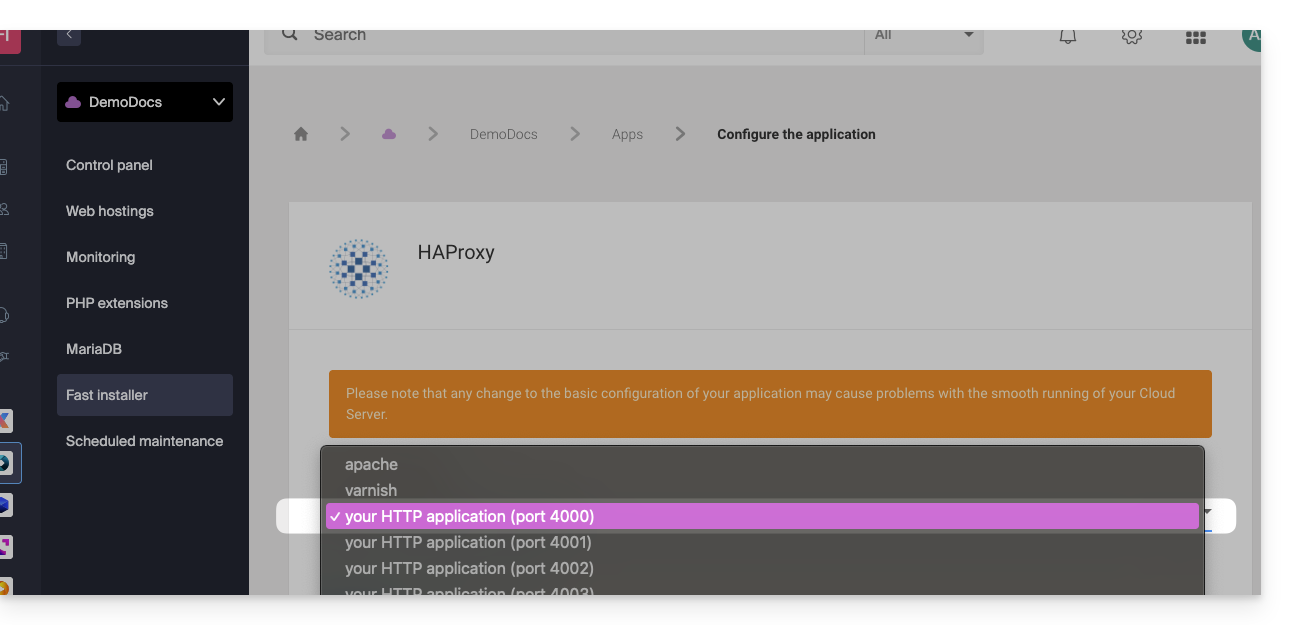
HAProxy. - Click on Configure:
- Select the desired information and save:
Special case for aliases and wildcards
Configuring HAProxy via the Fast Installer applies exclusively to the primary domain of the hosting.
Currently, domain aliases (whether specific or wildcard type, such as *.domain.xyz) are not natively supported by this tool.
To redirect traffic from an alias to your application (which is listening, for example, on port 4000), you must manually configure a "proxy" rule in the .htaccess file located at the root of your site:
# Redirect all traffic to the application (e.g., Node.js on port 4000)
RewriteEngine On
RewriteRule ^(.*)$ {{URL_6}} [P,L]
Without this manual directive, all requests matching your aliases or wildcards will be directed by default to Apache instead of your specific application.
Retrieving the source IP of a request
When you redirect web traffic to your web application, the request processing changes, and the request is first received by a reverse proxy (local to the server), which then forwards the request to the chosen port. As a result of this request transfer, methods that are usually used to retrieve the visitor's IP address will return the IP address of the reverse proxy instead of the visitor's IP address.
Therefore, to retrieve the actual source IP address of the visitor in these cases, you need to consult an HTTP header named X-Forwarded-For, which will contain the accumulated source IPs from each redirection. This header will therefore contain the original client IP address at the end, allowing you to identify the actual visitor.
Caution: It is important to note that HTTP headers can be manipulated, which poses security risks. To minimize these risks, it is recommended to verify that the request actually comes from a reliable server before trusting the content of the X-Forwarded-For header. This verification may involve ensuring that the request was transmitted by a trusted intermediate server, identified by a pre-established list of IP addresses. In the case where the site uses a dedicated IP, the trusted servers are:
- 83.166.133.15
- 83.166.133.17
- 83.166.133.16
- 84.16.92.5
- 84.16.92.43
- 10.2.32.255
- 10.2.34.164
Link to this FAQ: https://faq.infomaniak.com/2171
Has this FAQ been helpful?
This guide explains how to restore an automatic backup of an Infomaniak Web Application (Joomla, Drupal, Typo3, PrestaShop, ownCloud, etc.) included in the paid Web Hosting plans.
Introduction
- This does not concern WordPress, which can be backed up and then restored via:
- automatic backups for hosting,
- extensions that allow you to manually create a complete backup, including an easy-to-use reinstallation file.
- On the FTP server, the files corresponding to the different backups are available under
/application-backups/.
Restore a Web Application
To access the backups of your Apps:
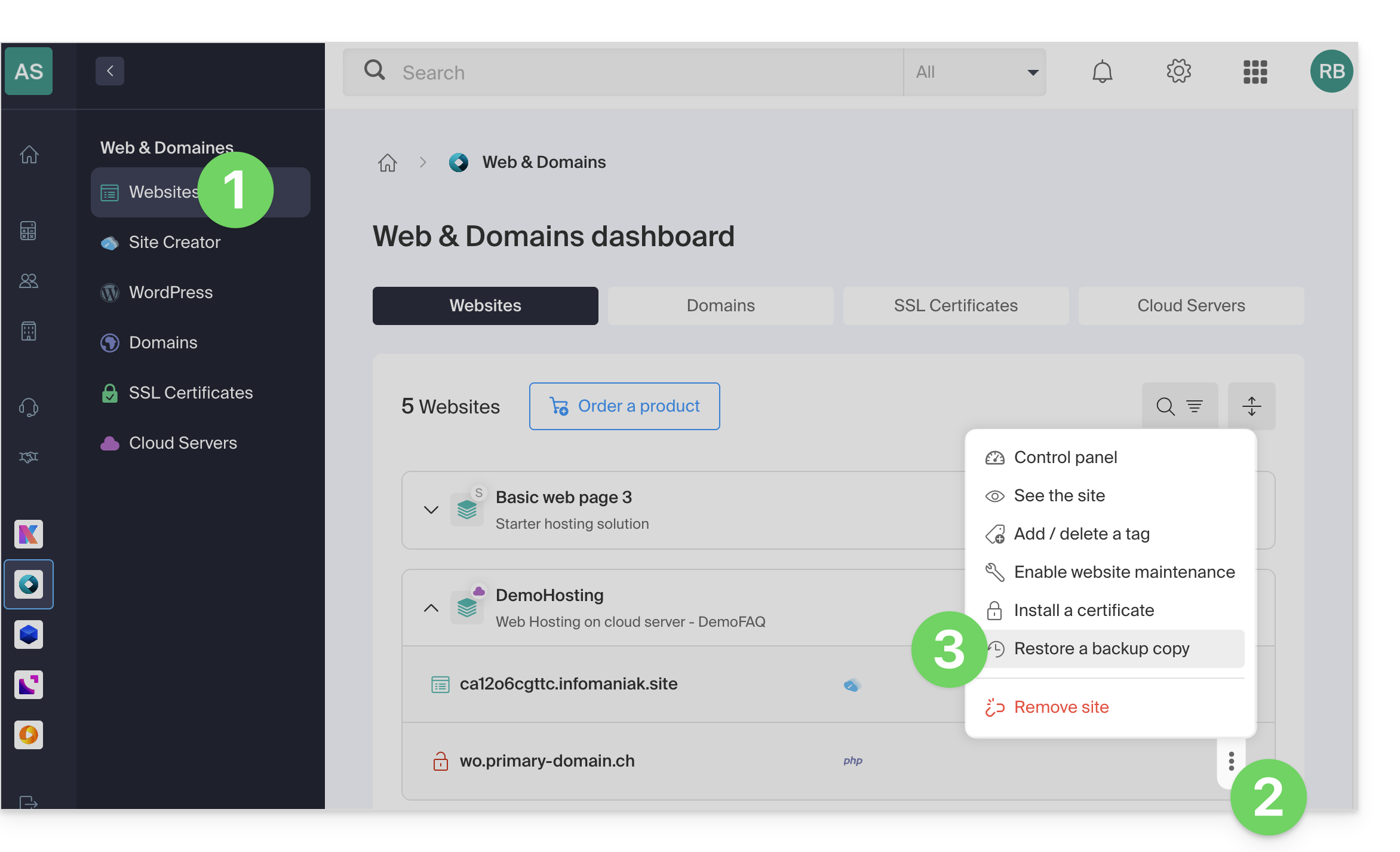
- Click here to access the hosting & website management section in your Infomaniak Manager (❓: help).
- Click on the action menu ⋮ located to the right of the item in question.
- Click on Restore a backup:
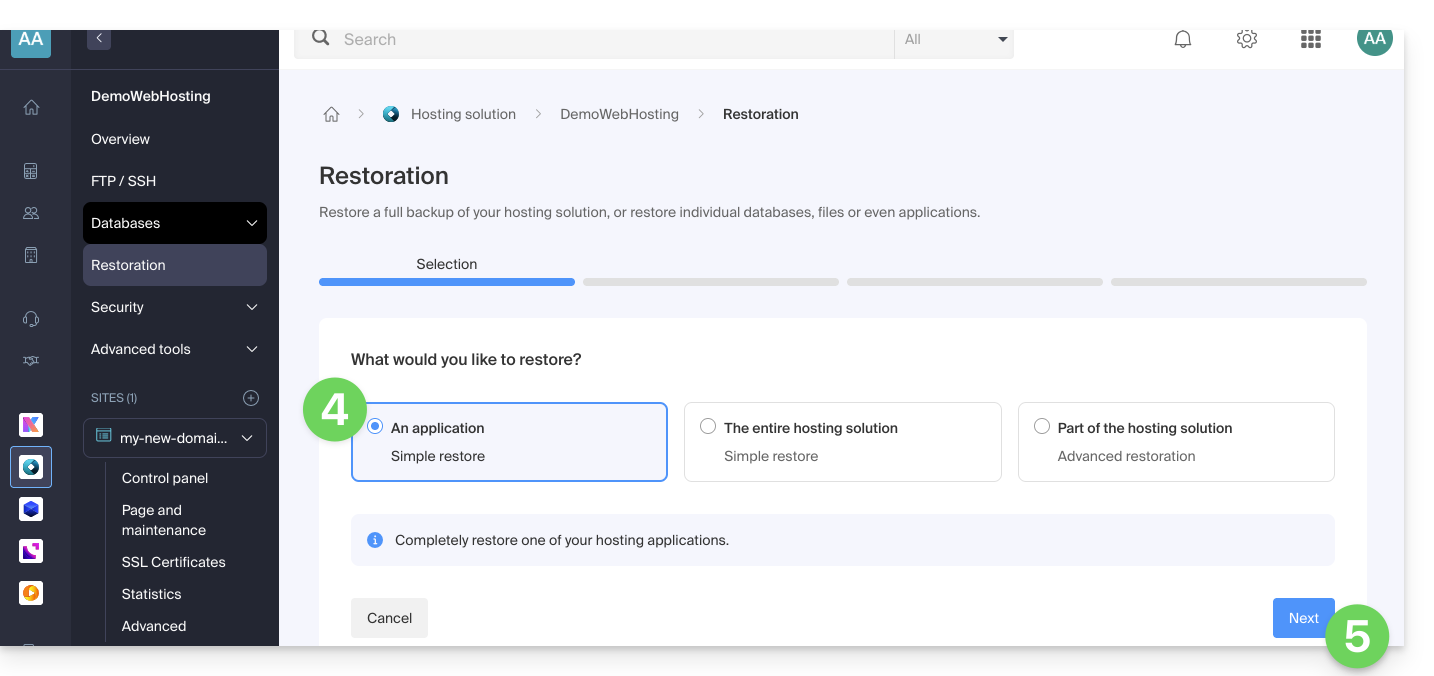
- Click on the desired type of restoration (Web Application).
- Click on the Next button:
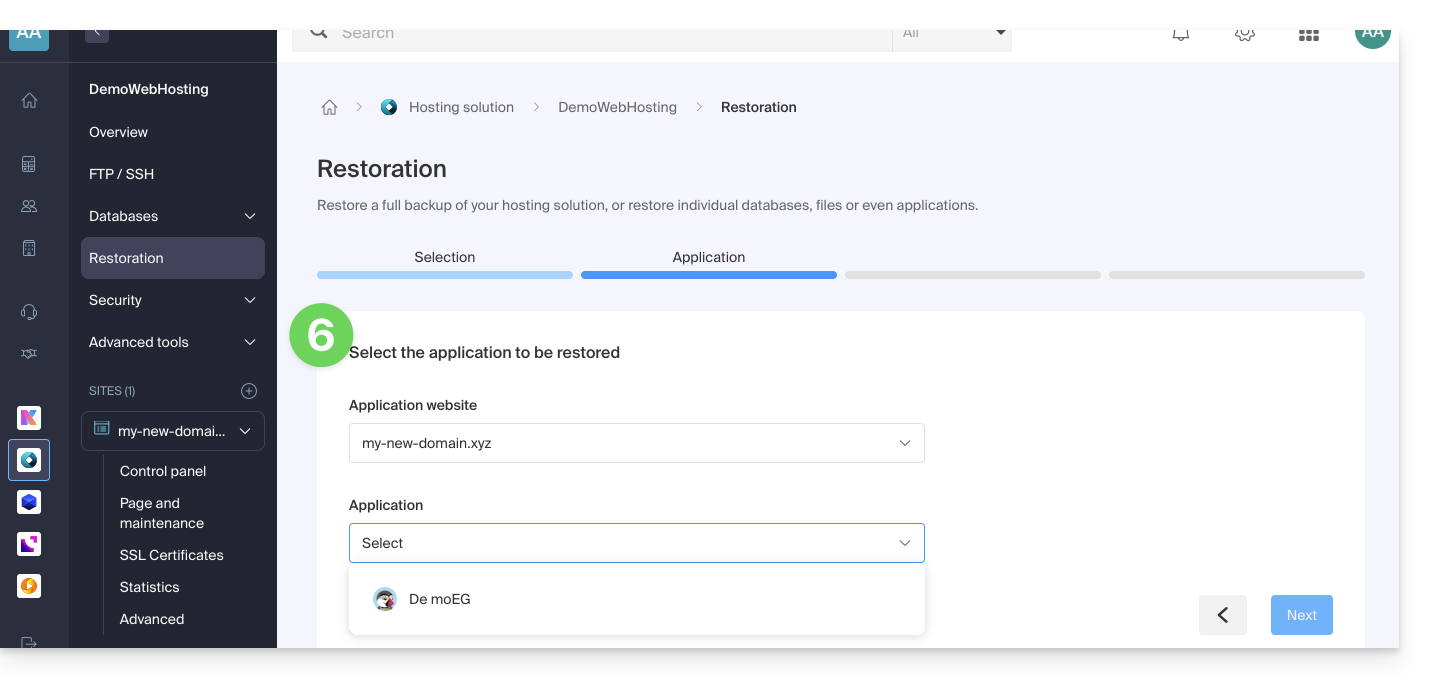
- Choose the application to restore and click on the Next button:
- Choose the date to which you want to revert and click the Next button.
- If the Backups page is empty, this probably means that backups are disabled or that the installation is too recent.
- Choose whether you prefer to…
- …delete existing files before restoring the backup (recommended).
- …replace files with the same name and keep new files created since the backup date.
- Click the Restore button to start restoring the Web Application data.
Learn more
Link to this FAQ: https://faq.infomaniak.com/2175
Has this FAQ been helpful?
This guide explains how to access phpMyAdmin with a Web Hosting plan.
Introduction
- phpMyAdmin is an open-source administration tool designed to manage your MySQL and MariaDB databases via an intuitive web interface.
- It allows you to perform complex operations such as executing SQL queries, creating tables, or importing and exporting data without having to use the command line.
Accessing phpMyAdmin
To access the Web Hosting section related to Databases:
- Click here to access the hosting & website management section in your Infomaniak Manager (❓: help).
- Click on the name of the relevant hosting.
- Click on the chevron to the right of Databases in the left-hand menu.
- Click on Databases in the left-hand menu.
- Click on Connect to phpMyAdmin:
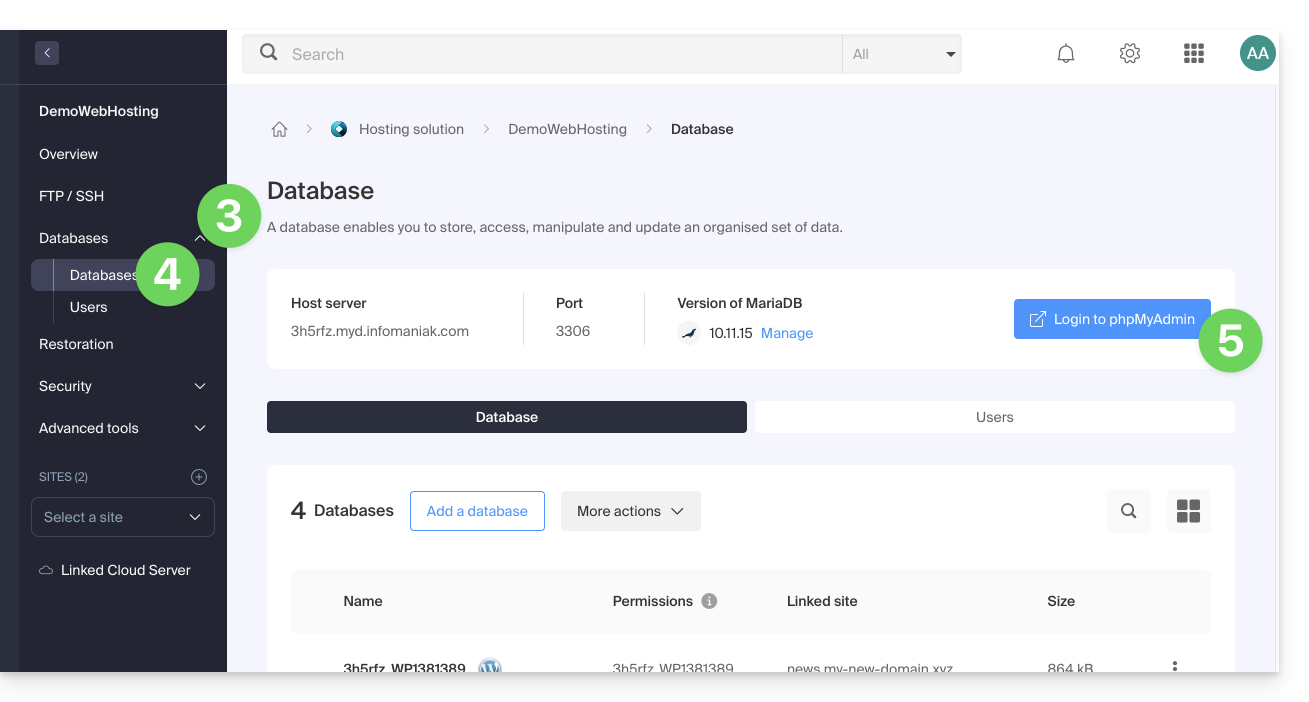
- The correct server and a temporary user are automatically populated.
You can also click on the action menu ⋮ located to the right of a database user: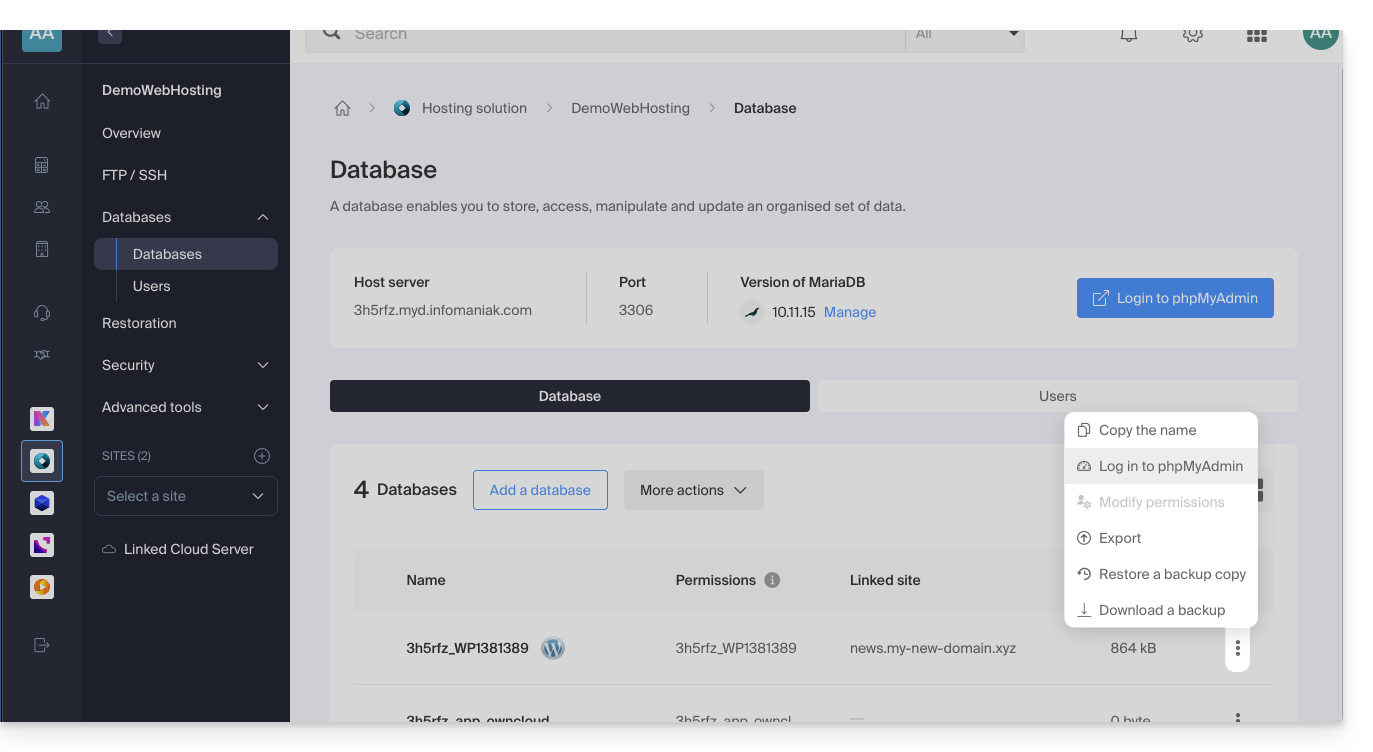
- The correct server is automatically populated.
- The password to enter corresponds to the database user (the one you chose when creating the MySQL user reset it if you have forgotten it):
Link to this FAQ: https://faq.infomaniak.com/2179
Has this FAQ been helpful?
Your website has sent suspicious messages and may have been hacked, although it is still accessible.
Your email accounts (if you have any) are not affected… However, the reception of emails from your website may be disrupted.
What to do?
Infomaniak informs you that websites containing malicious code and/or sending spam may be penalized by search engines, and the registry of the domain in question may block or delete your domain name.
It is therefore essential tocheck and modify your pages, as well as clean up the hosted files.
You should also consult this other guide.
Link to this FAQ: https://faq.infomaniak.com/2183
Has this FAQ been helpful?
This guide explains how to enable a CDN to optimize an Infomaniak Web Hosting service.
Introduction
- CDN stands for "Content Delivery Network".
- A CDN stores a copy of your website's content (images, videos, CSS/JS files) on multiple servers distributed geographically.
- When a user accesses your site, the CDN provides this content from the server closest to their location, reducing loading times:
- Your site loads faster for visitors, which can reduce the bounce rate and improve the user experience.
- By distributing the content, the CDN reduces the load on your main server, improving its performance and availability.
- Some CDNs offer security features such as protection against DDoS attacks and data security.
Setting up a CDN
To use a CDN, you will generally need to make adjustments to your domain name configuration, specifically at the DNS record level. This will direct traffic from your website to the CDN's network of servers. In general, the process is as follows:
- Create an account on the website of the CDN of your choice and add your site to it.
- Modify the DNS zone of your domain name (❓: help) according to the instructions provided by the CDN.
- Test your site to ensure that the CDN is working correctly.
Specific Cloudflare Guide
For customers who wish to optimize their website against overloads caused by heavy bot traffic, using a CDN such as Cloudflare is often recommended. The Cloudflare CDN optimizes the performance and security of a website with features including:
- caching of a website's static content
- minification of HTML, CSS, and Javascript code
- basic anti-DDoS protection
- etc.
To set up Cloudflare:
- If necessary, create an account with Cloudflare (❓: help).
- Add the domain name of the website in question.
- Transfer all DNS records from the domain's DNS zone to Cloudflare (A, MX, TXT, NS records, etc.).
- In the Infomaniak Manager, modify the DNS (❓: help) of the domain in question with the DNS servers provided by Cloudflare.
Please note: mod_cloudflare is enabled by default on all paid web hosting plans.
Enable Cloudflare Rate Limiting
By default, Cloudflare simply acts as an intermediary between the website and Infomaniak, forwarding all requests to the Infomaniak servers. Thus, during traffic spikes or attacks, requests still reach the origin server, but with Cloudflare IP addresses, making it difficult to manage mitigation on a shared server.
Implementing "rate limiting" rules in Cloudflare's application firewall is now an effective solution offered (❓: help). This feature limits the number of requests sent to the server, blocking aggressive scans and protecting the server against excessive overloads.
And also…
… Amazon CloudFront
If you already use AWS services, CloudFront is easy to set up. Create a distribution, configure the settings, and link it to your site.
… Fastly
Sign up for Fastly, configure your service by adding your website and defining the caching settings. Fastly offers advanced configuration options.
Link to this FAQ: https://faq.infomaniak.com/2188
Has this FAQ been helpful?
This guide explains how to modify the automatic backup configurationInfomaniak Web Applications (Joomla, Drupal, Typo3, PrestaShop, ownCloud, etc.) included in the paid Web Hosting plans.
Introduction
- This does not apply to WordPress, which can be backed up and then restored via:
- automatic backups for hosting,
- plugins that allow you to manually create a complete backup, including a file for easy reinstallation.
Configure backups
To manage app backups:
- Click here to access the hosting & website management section in your Infomaniak Manager (❓: help).
- Click on the name of the website in question.
- Click on the action menu ⋮ located to the right of the relevant Web Application.
- Click on Settings in the application:
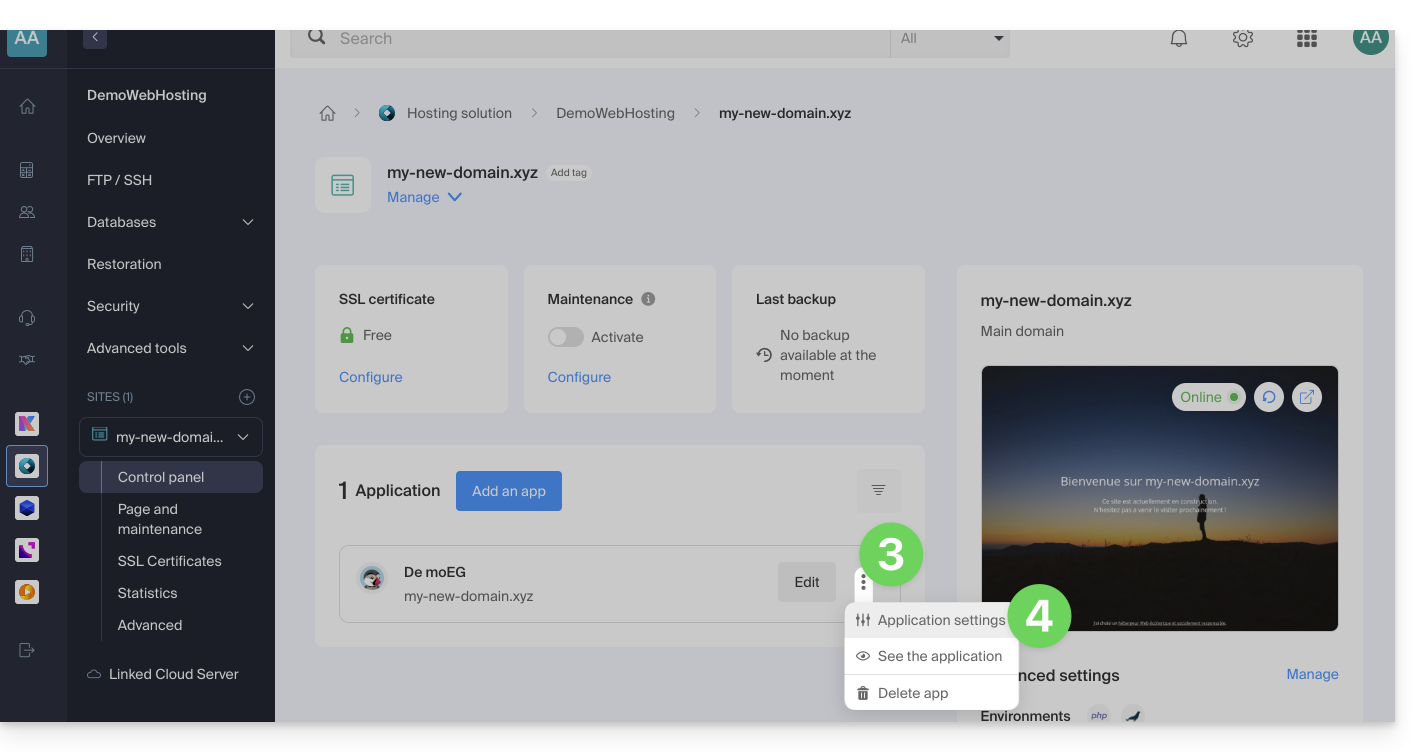
- Click on Edit to the right of the Application:
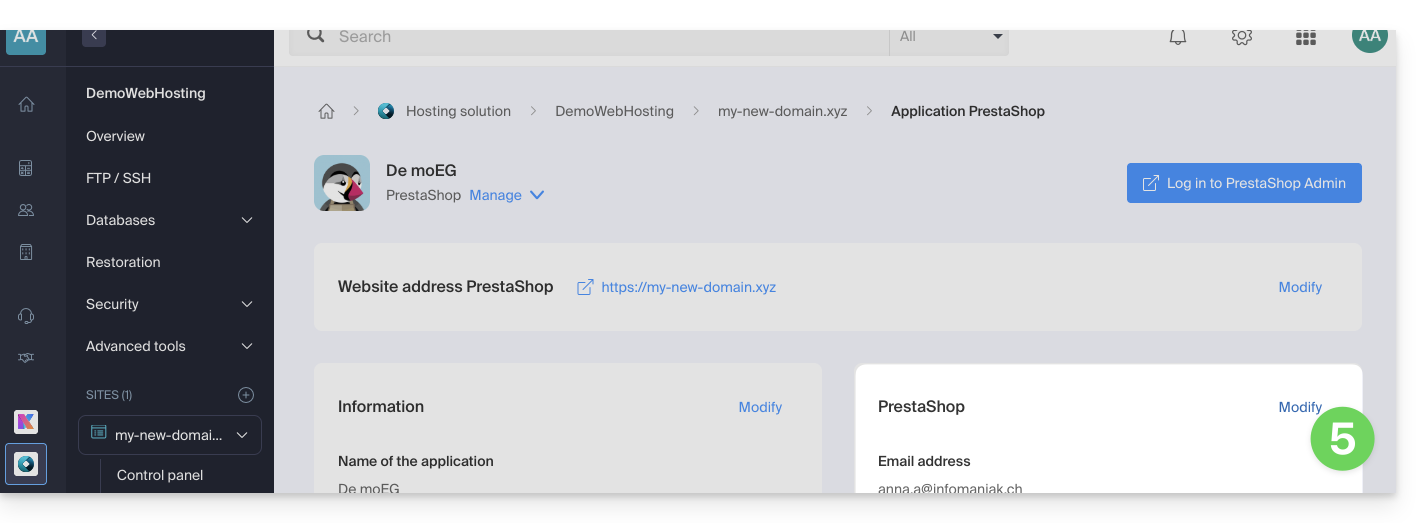
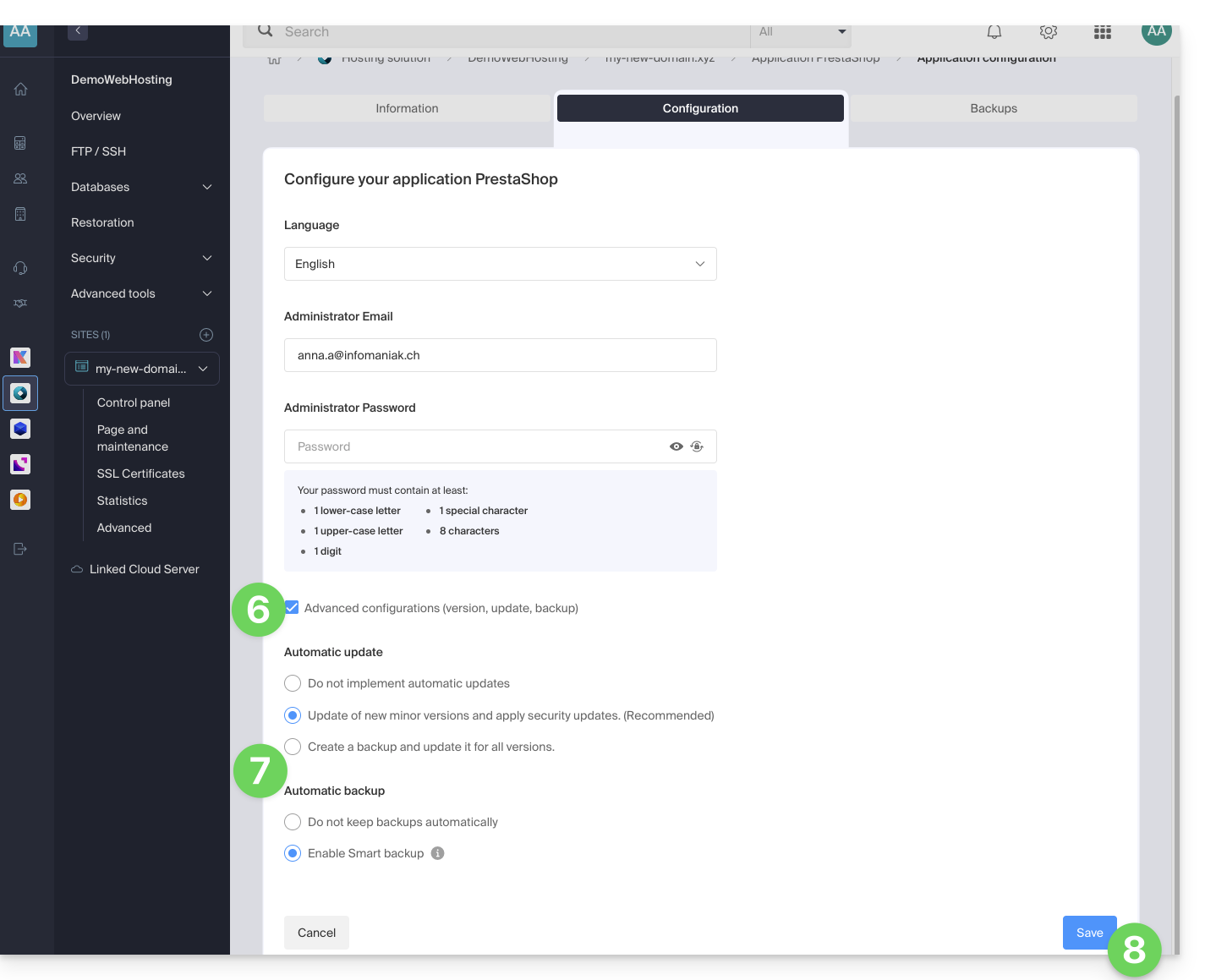
- Under the Configuration tab, click the checkbox to access the advanced configuration.
- Choose the desired update and backup modes:
- 7 recent backups are kept, as well as those from 15 and 30 days ago.
- Save your changes using the button in the bottom right corner:
Learn more
Link to this FAQ: https://faq.infomaniak.com/2196
Has this FAQ been helpful?
This guide explains how to protect your website and its visitors against malicious exploitation of MIME-Type sniffing.
Introduction
- MIME-Type sniffing, or MIME type detection, is a technique used by web browsers to determine the content type of a resource when the MIME type provided by the server is ambiguous, missing, or incorrect.
- Although this can sometimes improve the user experience by making content accessible despite server configuration errors, this feature also introduces significant security vulnerabilities:
- When a browser performs MIME-Type sniffing, it may interpret a text file as an executable script, thereby opening the door to cross-site scripting (XSS) attacks.
- For example, a file intended to be processed as plain text could be interpreted as JavaScript, allowing an attacker to execute malicious code on the user's browser.
- By disabling MIME-Type sniffing, you protect visitors from the unauthorized execution of malicious scripts and also enhance the overall security of your website by reducing potential attack vectors.
Disable MIME-Type sniffing
To protect users and web applications against this type of vulnerability, you can disable automatic resource type detection via the .htaccess file of your sites, instructing the browser to strictly rely on the MIME type specified by the server without attempting to guess it.
By placing the code below in your .htaccess file, you ensure that MIME-Type sniffing is disabled as long as the mod_headers module (which allows you to add the header below) is enabled on your Apache server:
- Open the
.htaccessfile for the site in question using an FTP client or the Web FTP. Add the following code:
<IfModule mod_headers.c> Header always set X-Content-Type-Options "nosniff" </IfModule>- Save the
.htaccessfile.
Link to this FAQ: https://faq.infomaniak.com/2198
Has this FAQ been helpful?
This guide explains how to view the disk space of an Infomaniak web hosting account and display the size of the directories.
Finding the largest folders in a web hosting account
To do this:
- Connect to the server via SSH (need help?).
Run the following SSH command:
ncdu- Navigate through the folder tree using the keyboard's arrow keys.
- Exit using the key combination
CTRL + C.
Link to this FAQ: https://faq.infomaniak.com/2204
Has this FAQ been helpful?
This guide details how, when activating a new WordPress theme, the formatting and content of posts and pages can be altered if the new theme does not use the same shortcodes and/or the same page builder.
Layout issues
Here's an example of how your articles and pages might appear after changing your WordPress theme:

Unfortunately, there is no automatic solution to fix this problem: you will need to:
- either revert to the previous theme you were using
- or manually adapt the content of your site using the tools provided by your new WordPress theme.
Of course, you can also uninstall and reinstall WordPress; the site's content will be deleted, and you'll start fresh.
Reduce future issues
Here are some tips that will prevent you from having to reformat all the content on your site if you change themes:
- Use as few WordPress theme-specific shortcodes as possible.
- Use a universal page builder that is compatible with all WordPress themes (for example Visual Composer or Thrive Content Builder).
- Take the time to test and evaluate the quality of a theme by comparing it with 2-3 other similar themes before using it and adapting all of your site's content.
Useful resources
- Find and automatically remove all unused shortcodes (article in English)…
Link to this FAQ: https://faq.infomaniak.com/2205
Has this FAQ been helpful?
This guide provides basic instructions for creating and using a .htaccess and .user.ini file with an Infomaniak Web Hosting account.
Introduction
- A
.htaccessfile is placed in the root directory of a website and allows you to configure the Apache HTTP server.- As a decentralized configuration file, it offers significant flexibility to adjust the server's behavior according to the specific needs of the site.
- This file allows you to define URL rewrite rules, impose access restrictions, manage HTTP errors, and even customize security aspects such as disabling the display of files/folders.
- It also facilitates the implementation of redirects and aliases, providing precise control over the organization and accessibility of the site.
- A
.user.inifile allows you to customize the PHP directives for the folder (and its subfolders) in which it is located.- By acting at the PHP interpreter level, this file allows you to define specific configurations for a given folder and its subdirectories.
- Thanks to its clear syntax, it offers the possibility of modifying various parameters such as memory limit, script execution time, error handling, and other PHP-related directives.
- This granular approach allows developers to finely customize the behavior of PHP according to the specific requirements of each section of the site.
Create a file…
… .htaccess
- Connect to your hosting account via FTP or SSH.
- At the root of the website in question, create a new file and name it as follows:
.htaccess. - Enter the desired directives in the file; refer to this other guide, for example.
… .user.ini
- Connect to your hosting via FTP or SSH.
- In the desired location, create a new file and name it as follows:
.user.ini. - Enter the desired PHP configuration settings in the file.
Modifying the .user.ini file takes several minutes to take effect.
Link to this FAQ: https://faq.infomaniak.com/2210
Has this FAQ been helpful?
This guide explains how to automatically restore an entire web hosting from backups made by Infomaniak.
Introduction
- Infomaniak performs a daily backup, and the last 7 are available to you.quotidienne, et les 7 dernières sont à votre disposition in the Manager (or more, if you are using a Web Application).
- During the restoration, the websites will automatically be put into maintenance mode until the process is complete.
- Since automatic file backups and database backups are not performed simultaneously, it is recommended to verify that websites are functioning correctly after the restoration.
- Besides these options, there are no other backups available; therefore, there is no need to contact Infomaniak for this purpose, but consider other backup methods for the future.
Restoring a Web Hosting Account
To access web hosting:
- Click here to access the hosting & site management section in your Infomaniak Manager (❓: help).
- Click on the name of the hosting account in question.
- Click on Restore in the left-hand menu.
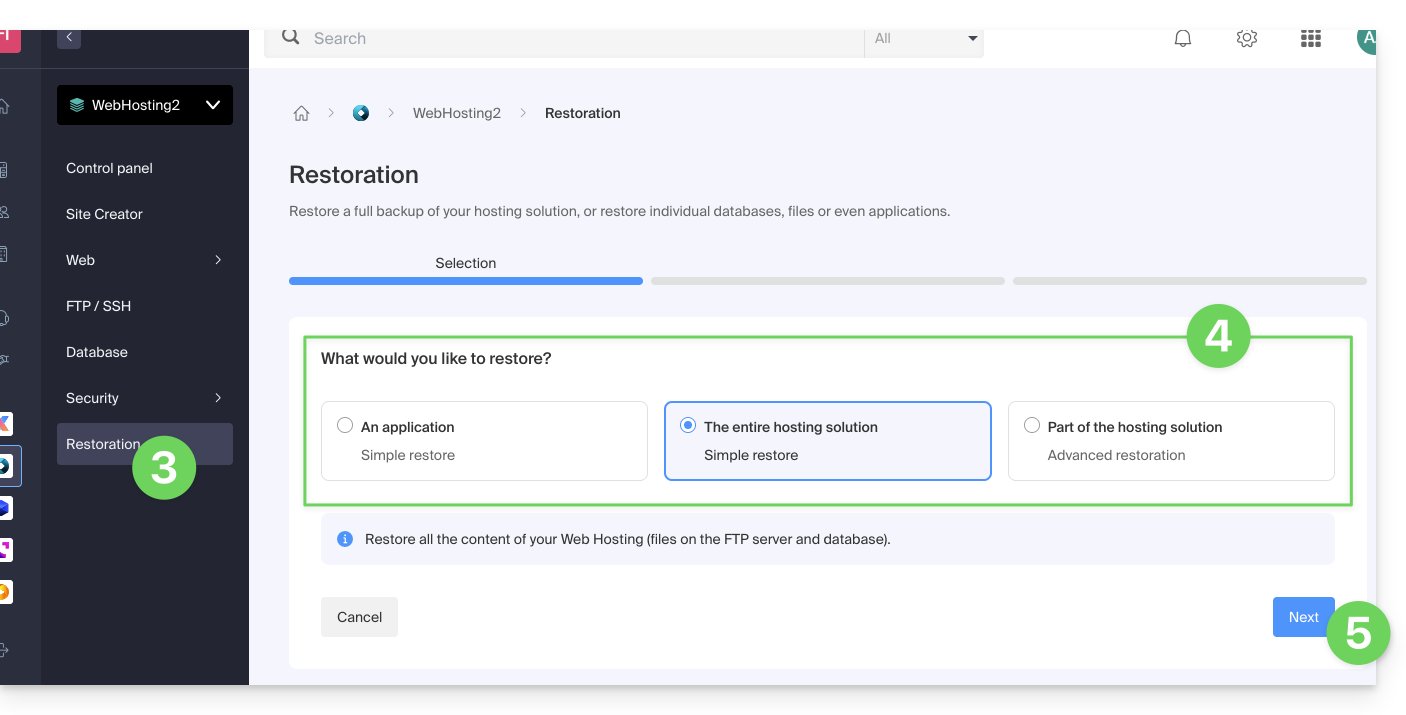
- Choose the type of restore you want:
- Restore one of the Web Applications you have installed.
- Simple restore to restore all websites and databases on the hosting.
- Advanced restore allows you to choose which websites and databases to restore.
- Click on the Next button:
- Select the desired restoration date and complete the procedure.
Link to this FAQ: https://faq.infomaniak.com/2217
Has this FAQ been helpful?
This guide explains how to update Web Applications installed using Infomaniak tools.
Introduction
- If an application is updated manually via FTP, it will then be impossible to update it via the Manager and benefit from automatic updates.
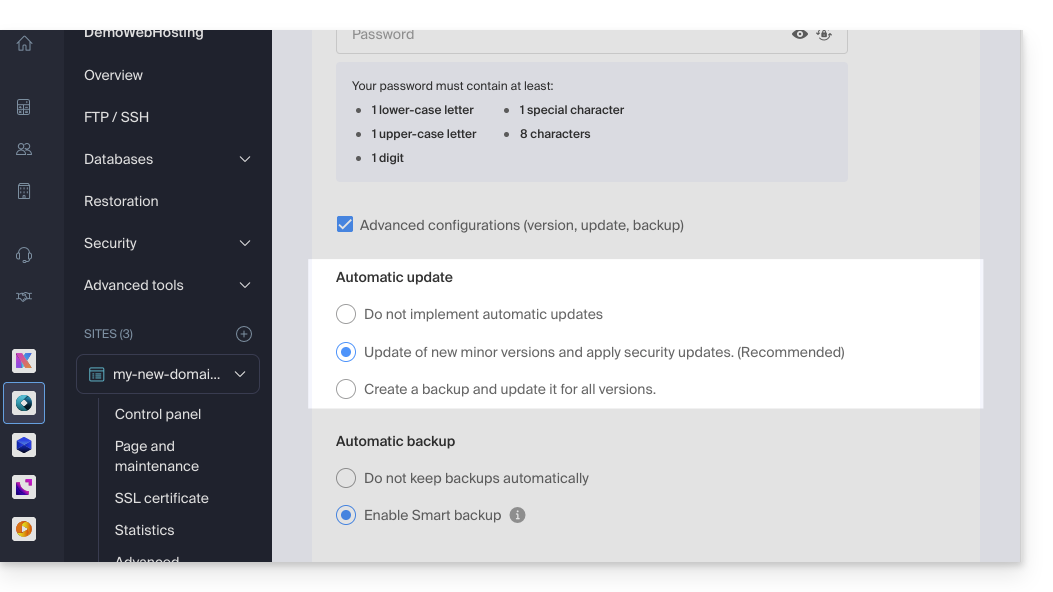
- When installing your Web Application, automatic updates (at least security updates) are generally enabled by default:
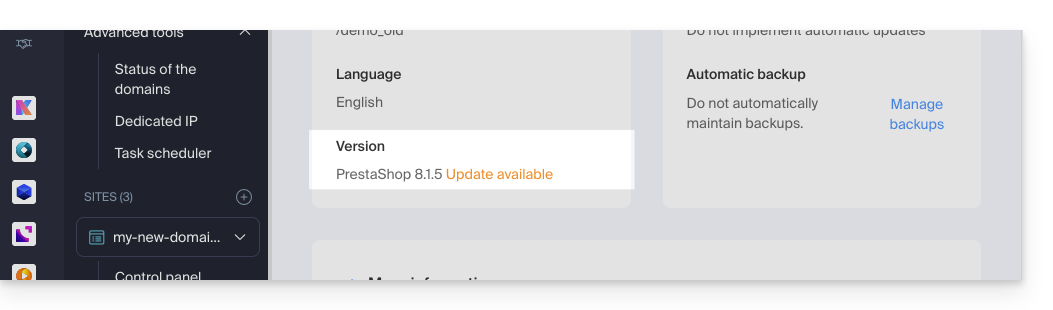
- If an app update is available, you will be notified in the Manager:
Update an application installed via Infomaniak
To access and update the Infomaniak Web Application:
- Click here to access the hosting & website management section in your Infomaniak Manager (❓: help).
- Click on the name of the website in question.
- Click on the action menu ⋮ located to the right of the relevant Web Application.
- Click on Settings in the application:
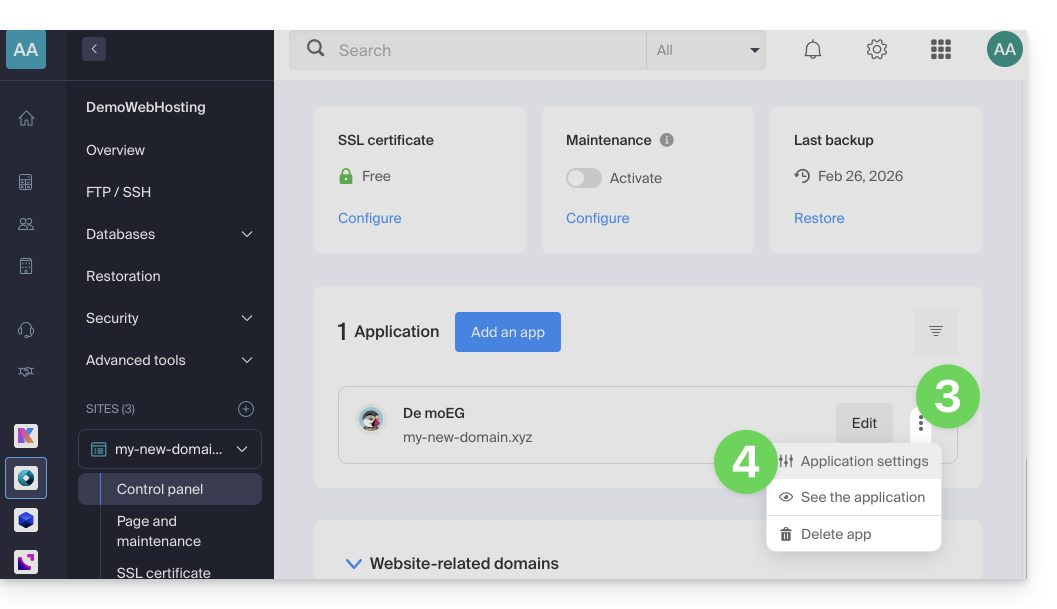
- Click on Edit in the Information section:
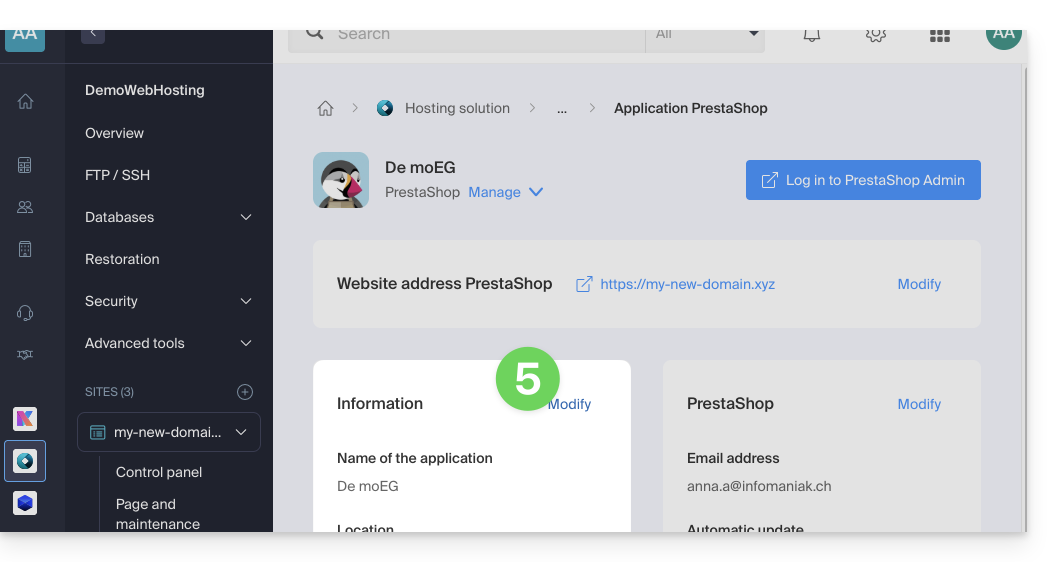
- Click on the dropdown menu to choose a more recent version.
- Click on the Save button:
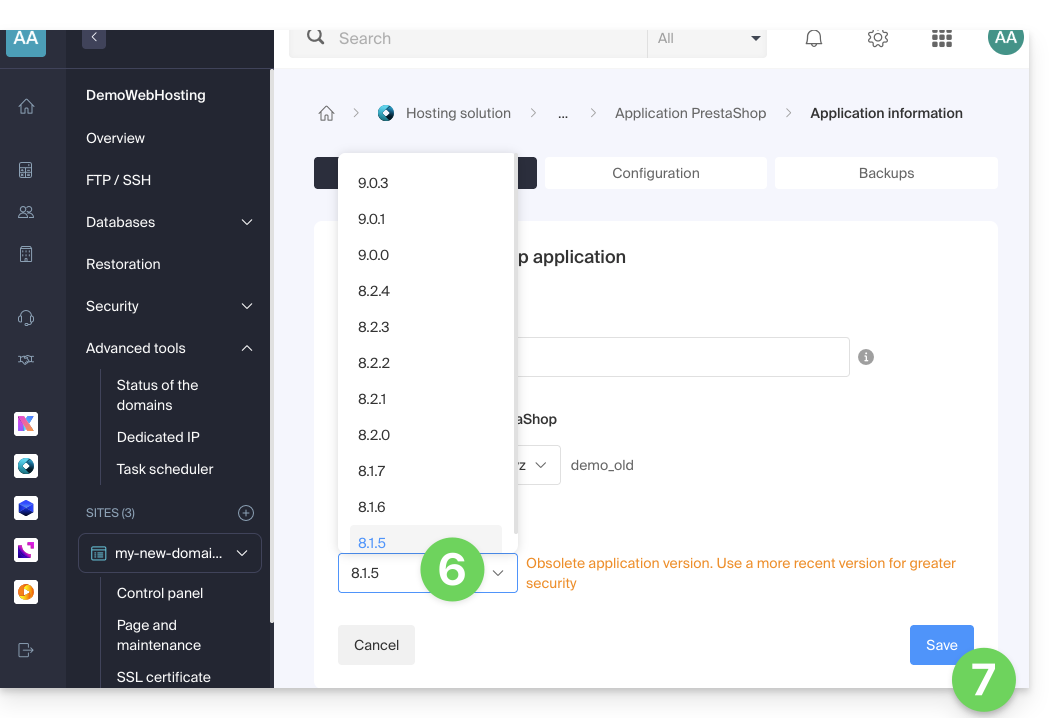
Link to this FAQ: https://faq.infomaniak.com/2226
Has this FAQ been helpful?
Infomaniak's Student Program provides free access to 1 Web Hosting and 1 kSuite Standard to help you develop your digital skills during your higher education.
Introduction
- A domain name is required for the products to function correctly, and this remains a paid service.
- This offer is only valid in the following countries: Switzerland, France, Belgium, Germany, Italy, Austria, Spain, Canada.
- This offer is reserved for new hosting orders (it does not apply to existing or renewed orders).
- 1 Web Hosting (equivalent to storing 20 websites on 250 GB of SSD storage) and 1 kSuite Standard are offered per person.
- The student must be of legal age (or have parental authorization).
- The student must be able to provide proof of their student status with a valid student ID card and a valid identity card:
- Student ID card or school certificate: it must be up-to-date and show the school, the current academic year, as well as your first and last name.
- Identity card (front and back): it must be valid with a clear and legible photo.
- Your official student email address: this is provided by your school, for example, firstname.lastname@your-school.com.
- The duration of the offer depends on the validity period of the student ID card and cannot exceed 4 years in total.
Get free online hosting
To take advantage of this offer, please read the offer page and prepare the required documents.
Requests are processed in the order they are received within a few days of your message. You will receive a response by email in all cases.
Discover other free Infomaniak services!
Link to this FAQ: https://faq.infomaniak.com/2229
Has this FAQ been helpful?
This guide explains how to create an Infomaniak account, which is your user account (customer account) that allows you to use Infomaniak services such as Mail or kDrive, order additional services, and be linked to one or more Organizations (❓: help) to collaborate effectively within the Infomaniak ecosystem.
Create a new Infomaniak account
To be able to order and manage Infomaniak products (including in cases where a user wishes to transfer existing products to you) within one or more Organizations, it is necessary to create a first Infomaniak account with a brand new login ID:
- Click here to register; you will need to enter a valid email address to receive the mandatory verification request.
- Fill in the required information and complete the registration.
To simply obtain a my kSuite / my kSuite+ account (ik.me, etik.com, ikmail.com), click here to register.
Link to this FAQ: https://faq.infomaniak.com/2232
Has this FAQ been helpful?
This guide explains how to uninstall an SSL Certificate, regardless of its type, that was initially installed from the Infomaniak Manager. If your certificate is a paid type and you would like to cancel the current offer instead, please refer to this other guide.
Removing an SSL certificate
To uninstall an Infomaniak certificate:
- Click here to access the management of your SSL certificate in the Infomaniak Manager (need help?).
- Click directly on the name assigned to the product in question:
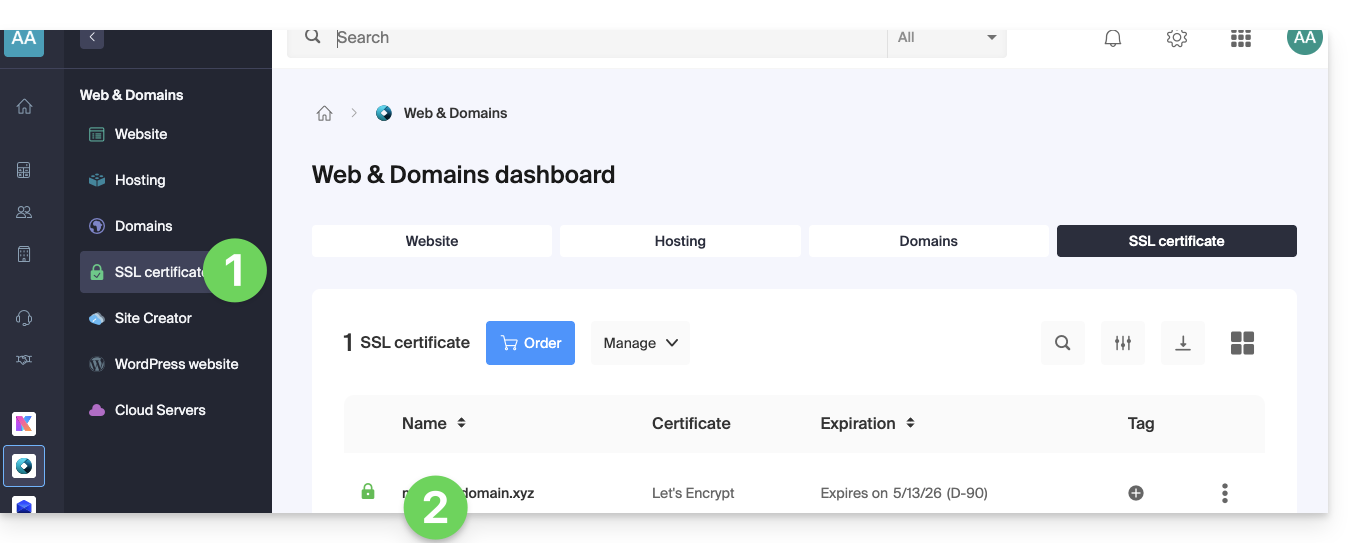
- Click on the action menu ⋮ located to the right of the item in question.
- Click on Uninstall:
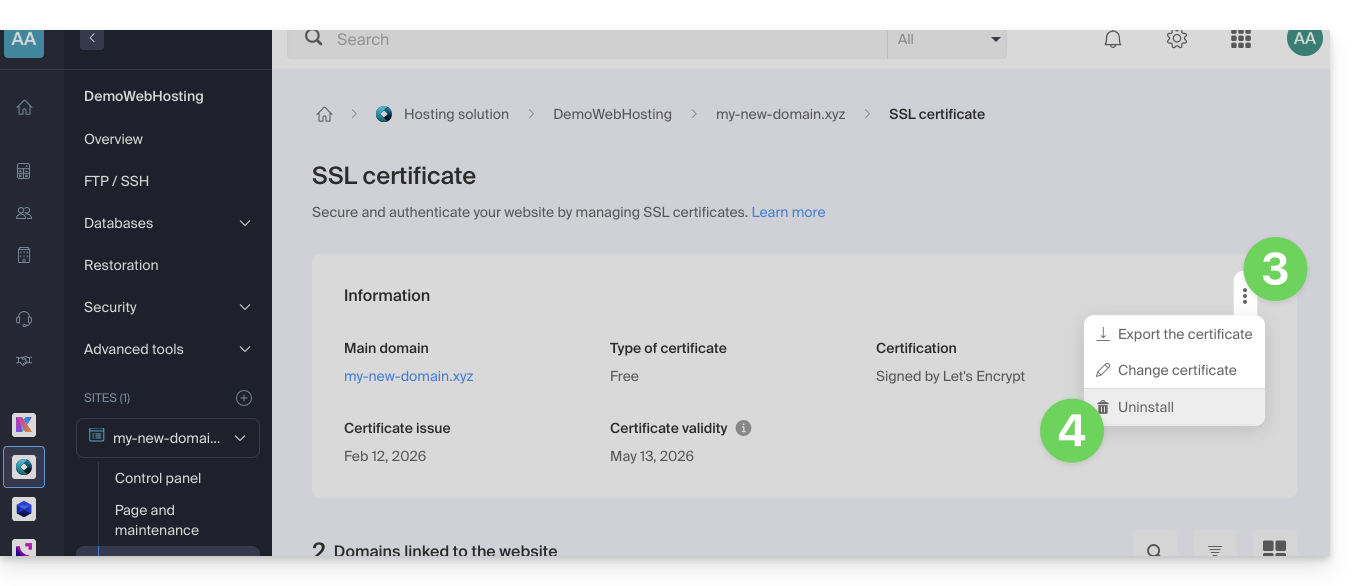
- Confirm the uninstallation of the certificate.
Link to this FAQ: https://faq.infomaniak.com/2250
Has this FAQ been helpful?
This guide presents the Domain Status tool, which allows you to verify the relationships between…
- DOMAIN NAME at Infomaniak
and - WEB HOSTING with Infomaniak
… are correct, so that Web traffic is directed to the right place.
✘ UNAVAILABLE with a
website of type node.js
Introduction
- To verify, the tool checks the
A,CNAMErecords, etc. - This allows you to detect and correct certain web-related issues, especially if they are linked to DNS (technical information that essentially determines where specific web traffic should be directed) by taking action at the domain level.
- Automatic correction is only possible if the domain name is present in the same Organization as the product to which it must be linked.
- If this is not the case, then the correction must be done manually.
Troubleshooting DNS issues
To access the DNS diagnostic for your domain name:
- Click here to access the hosting & website management section in your Infomaniak Manager (❓: help).
- Click on the name of the website in question.
- Click on Web in the left-hand menu (or on the notification, if any, to go directly to step 6):
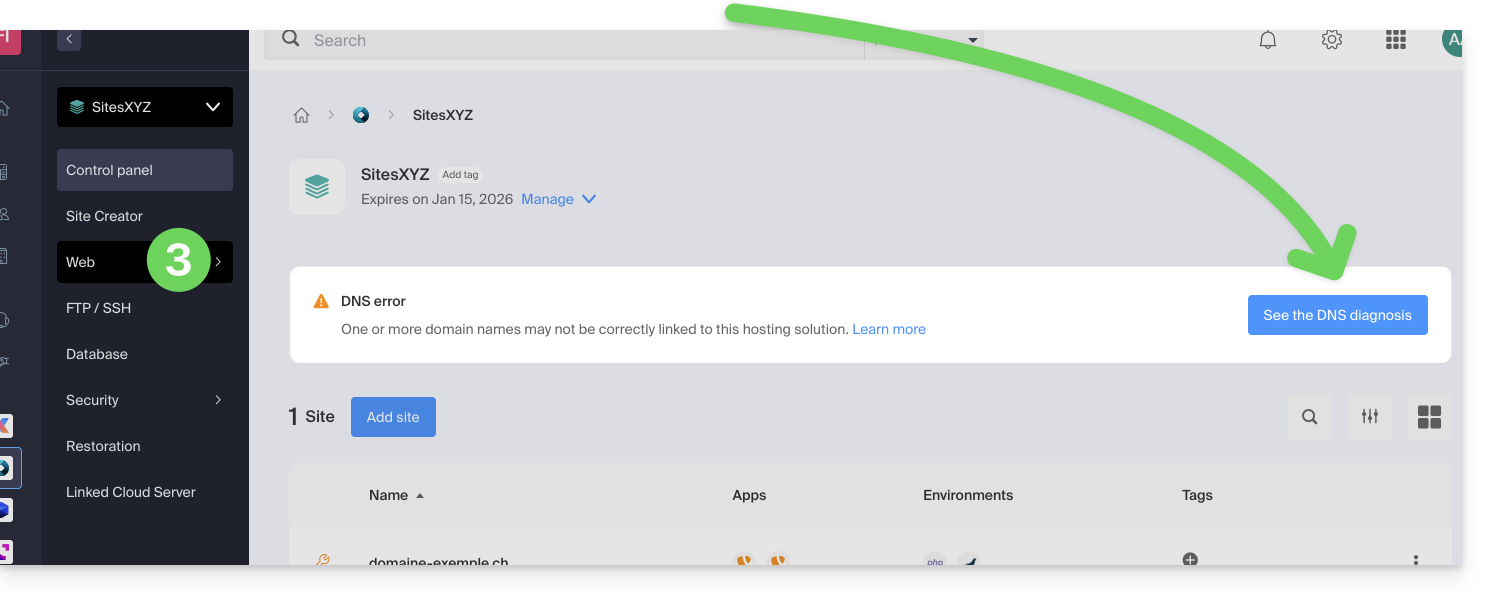
- Click on Domain Status in the left-hand menu.
- If any DNS issues are detected, they will be indicated in the table.
- Correct all errors at once by clicking on the button:
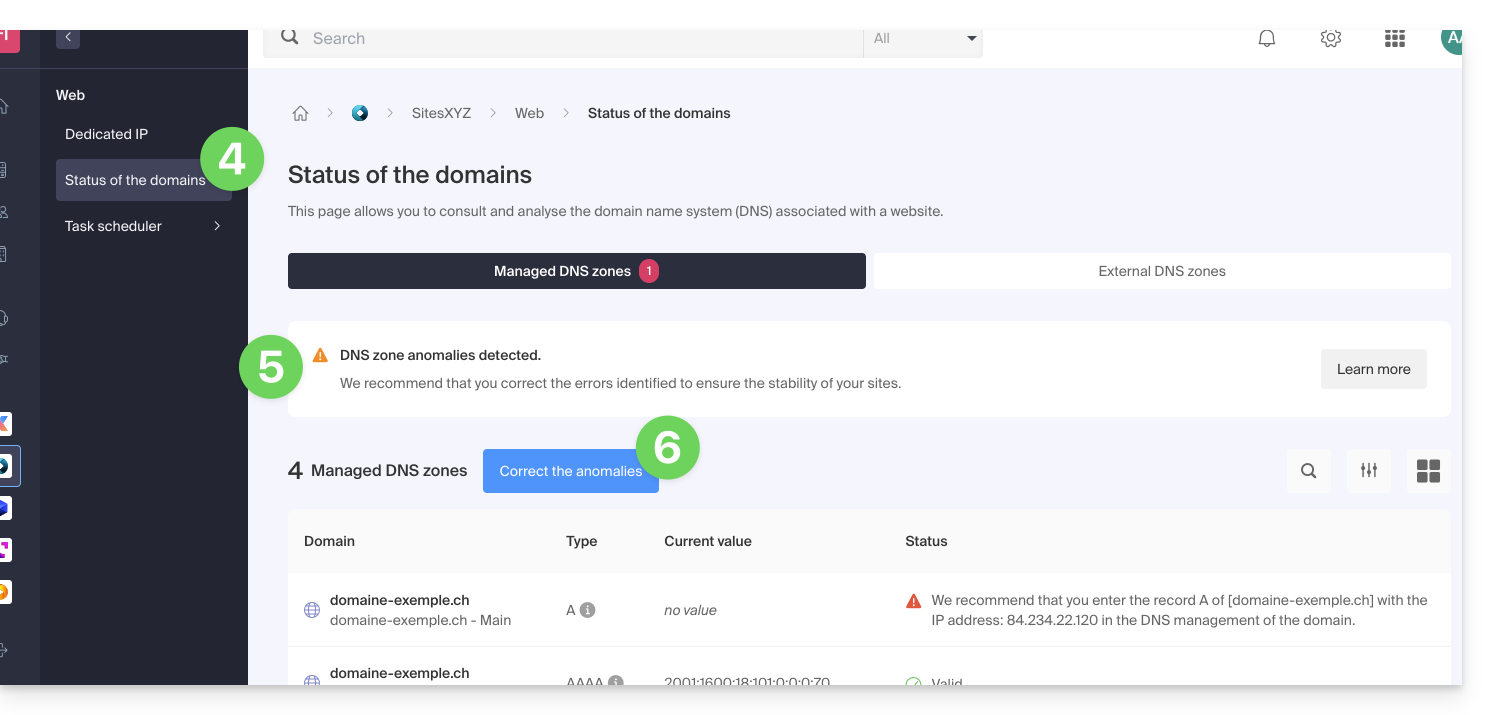
Refer to this other guide about the same automatic verification process, but for Mail Services.
Link to this FAQ: https://faq.infomaniak.com/2251
Has this FAQ been helpful?
This guide compares the different Cloud solutions offered by Infomaniak to help you choose the infrastructure that best suits your needs. In all cases, you benefit from dedicated and scalable resources.
Jelastic Cloud (PaaS)
Jelastic Cloud is a platform that allows you to create development environments on the fly without managing system administration:
- Maximum flexibility: the platform automatically adjusts your resources according to the load in real time.
- Advantage: ideal if your resource consumption (CPU, RAM) varies greatly depending on the time of year.
- Billing: you only pay for the resources you actually use.
Managed Cloud Server
A Cloud Server allows you to manage websites and web applications via a simplified interface, while also enabling the installation of specific software:
- Simplicity: As easy to use as shared hosting, but with the power of dedicated resources.
- Benefit: Ideal if your resource consumption is stable and predictable.
- Management: Infomaniak takes care of the technical maintenance and security updates of the server.
Cloud VPS and VPS Lite
The Cloud VPS or VPS Lite offers full root access to a Linux distribution:
- Total control: you manage your entire server and its software configurations.
- Required skills: solid technical expertise in system administration is essential.
- Use: recommended for specific needs with stable resource consumption.
For large-scale infrastructure needs, please refer to the Public Cloud offer.
Link to this FAQ: https://faq.infomaniak.com/2259
Has this FAQ been helpful?