Knowledge base
1000 FAQs, 500 tutorials and instructional videos. Here, there are only solutions!
Restore a hosting (completely and automatically)
This guide explains how to automatically restore an entire web hosting from backups made by Infomaniak.
Preamble
- Infomaniak performs a daily backup, and the last 7 are available to you in the Manager (or more if you use a Web Application).
- During the restoration, the sites will be automatically put in maintenance until the end of the process.
- Since automatic file backups and database backups are not performed simultaneously, it is recommended to check the proper functioning of the sites after restoration.
- Outside of these options, there is no other backup that you could obtain; it is therefore not necessary to contact Infomaniak for this purpose, but consider other backup methods for the future.
Restoring a web hosting
To access the web hosting:
- Click here to access the management of your product in the Infomaniak Manager (need help?).
- Click directly on the name assigned to the corresponding product.
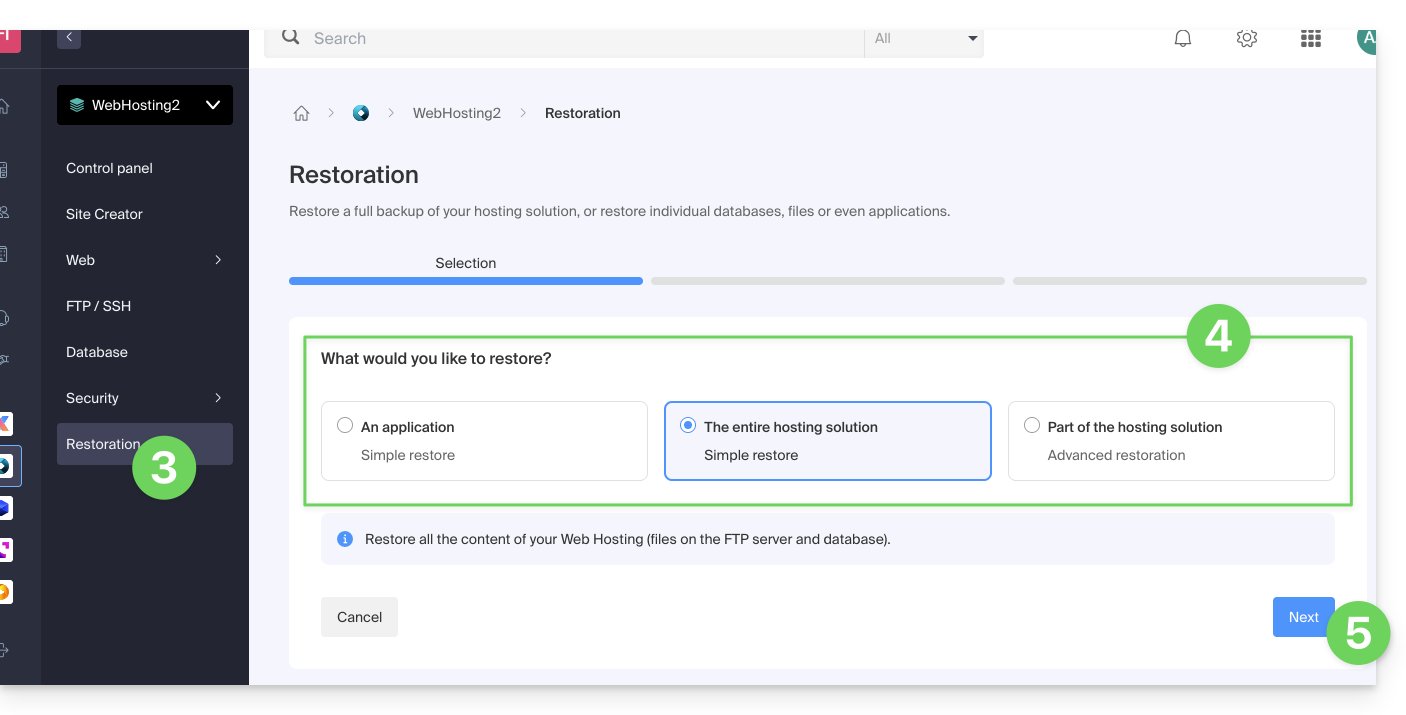
- Click on Restore in the left sidebar.
- Choose the type of restoration desired:
- Restore one of the Web Applications that you have installed.
- Simple restoration to restore all sites and databases of the hosting.
- Advanced restoration allows you to choose the sites and databases to restore.
- Click on the Next button:
- Choose the desired restoration date and complete the procedure.
Link to this FAQ: https://faq.infomaniak.com/2217
Has this FAQ been helpful?