Knowledge base
1000 FAQs, 500 tutorials and instructional videos. Here, there are only solutions!
This guide provides two methods for accessing the administration interface of a WordPress site installed via Infomaniak's tools, in order to, for example, update the content.
Prerequisites
- Find your login credentials…
Access the WordPress console…
1. … from the Manager
To access WordPress from the Manager:
- Click here to access the management of your WordPress site in the Infomaniak Manager (need help?).
- If your site does not appear here, it means it was not installed using the Infomaniak tools… please refer to the official documentation.
- Click directly on the name assigned to the product in question:
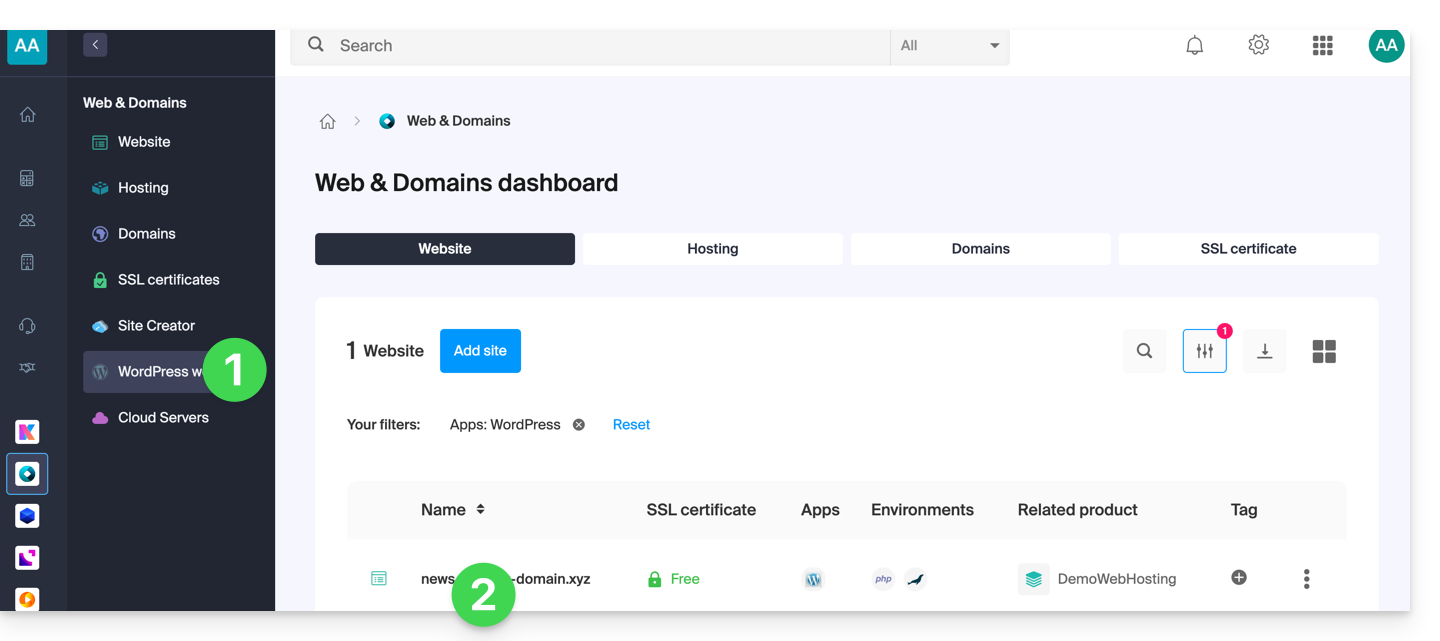
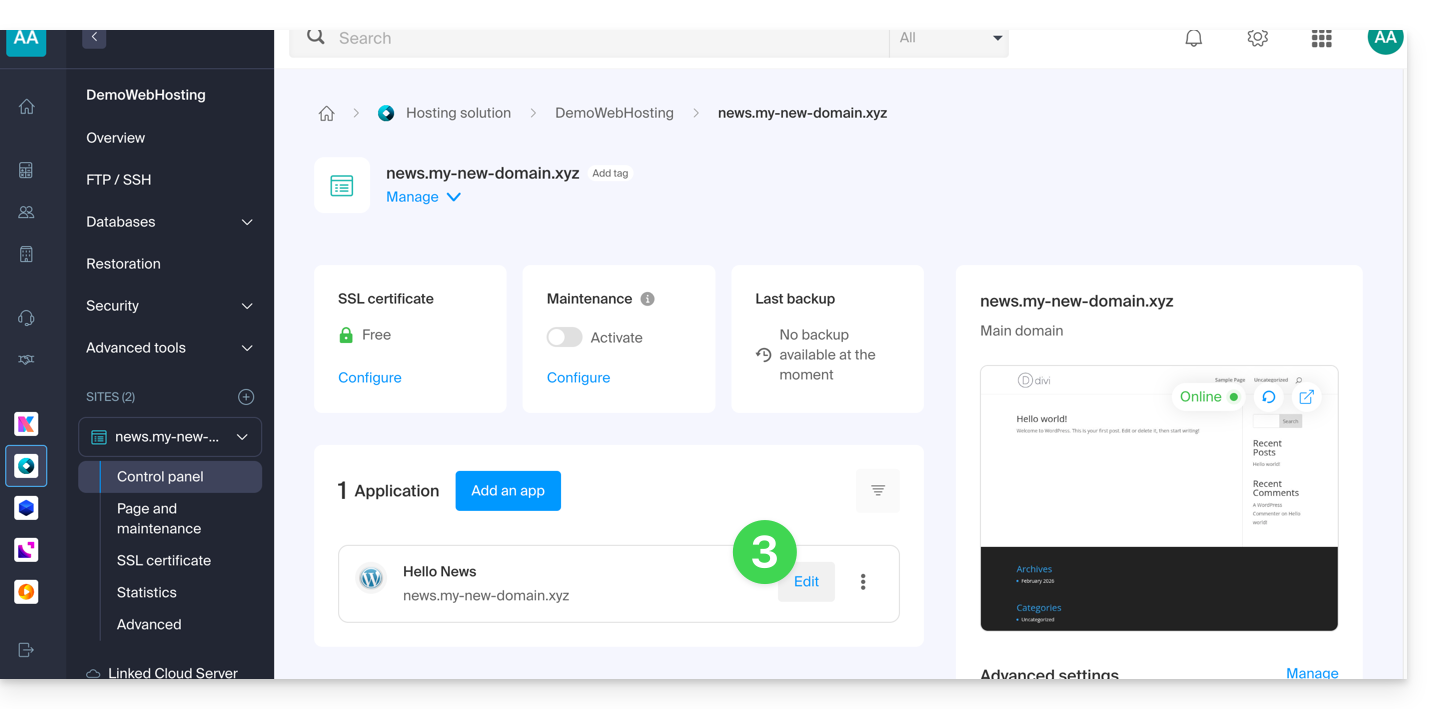
- Click the Edit button to open the WordPress login page:
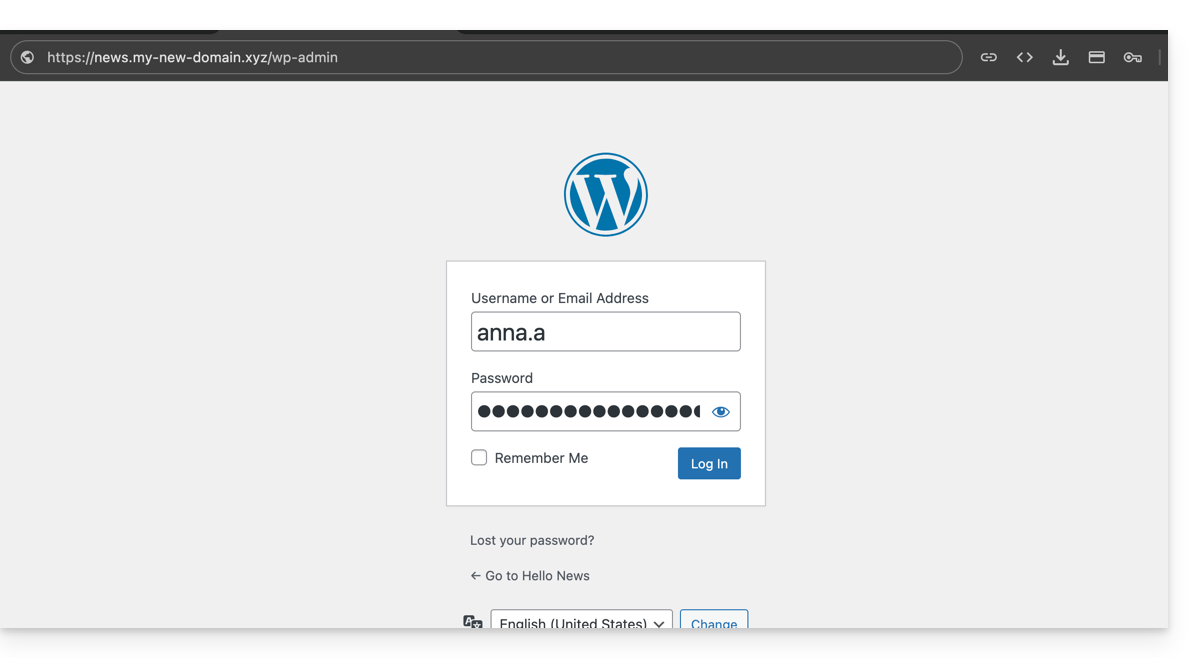
- Enter the username and password you chose during the WordPress installation:
2. … via the URL /wp-admin
By default, simply add the terms /wp-admin to the end of your domain name's URL in your web browser's address bar to directly access the WordPress console login page (= point 4 above).
If the address of your WordPress site is, for example, https://domain.xyz, the address to access the WordPress administration interface will generally be https://domain.xyz/wp-admin.
What to do if the shortcut ./wp-admin doesn't work?
- If the shortcut
./wp-admindoes not work, you may be using a security extension that modifies the URL of certain pages to limit hacking attempts on your site (example of a plugin)… - If you need to access the WordPress console and your domain name is not working at the moment, it is possible to switch the primary domain name to the preview address.
Link to this FAQ: https://faq.infomaniak.com/2275
Has this FAQ been helpful?
This guide provides important information regarding launching and running command-line scripts (SSH) on different types of Infomaniak hosting.
Running scripts via SSH and resource management
Unlike scripts executed via a browser such as Brave, Chrome, Edge, Firefox, Opera, Safari, etc., there is generally no strict time limit (timeout) for commands launched via SSH. Your script can therefore theoretically run for as long as necessary.
Execution time and persistence
If your SSH session closes (due to a loss of internet connection or terminal closure), the script in progress will be immediately interrupted.
To avoid this during long tasks, it is recommended to run your scripts in the background or, in the case of a VPS, to use terminal multiplexing tools (such as screen, tmux, or the nohup utility). This allows the process to continue its work even after you disconnect.
Resource Limits (RAM and CPU)
Even if the time is not limited, hardware resources are.
The execution of your scripts remains subject to the machine's capabilities and its configuration:
- Memory (RAM): if a process consumes more memory than the allowed limit (for example, the
memory_limitof PHP or the available physical RAM), it will be terminated by the system to preserve server stability. - Processor (CPU): Excessive processor usage over a long period may result in throttling or process interruption.
It is possible to adjust these resource limits on dedicated environments (such as Cloud Server). However, on shared hosting, these limits are fixed and cannot be modified in order to guarantee performance for all users hosted on the same server.
Link to this FAQ: https://faq.infomaniak.com/2276
Has this FAQ been helpful?
This guide explains how to change the URL of your website containing a Web Application (such as Prestashop or Joomla) previously installed on your paid Web Hosting plan.
Prerequisites
- The domain name you wish to use must first be added as an alias to the main domain on the relevant website.
Specific guides
Consult these guides if the application in question is:
Guides for any other Web Application
To change the address of a website created with an Infomaniak Web Application to another domain name that already exists within the same Organization:
- Click here to access the hosting & website management section in your Infomaniak Manager (❓: help).
- Click on the name of the website in question.
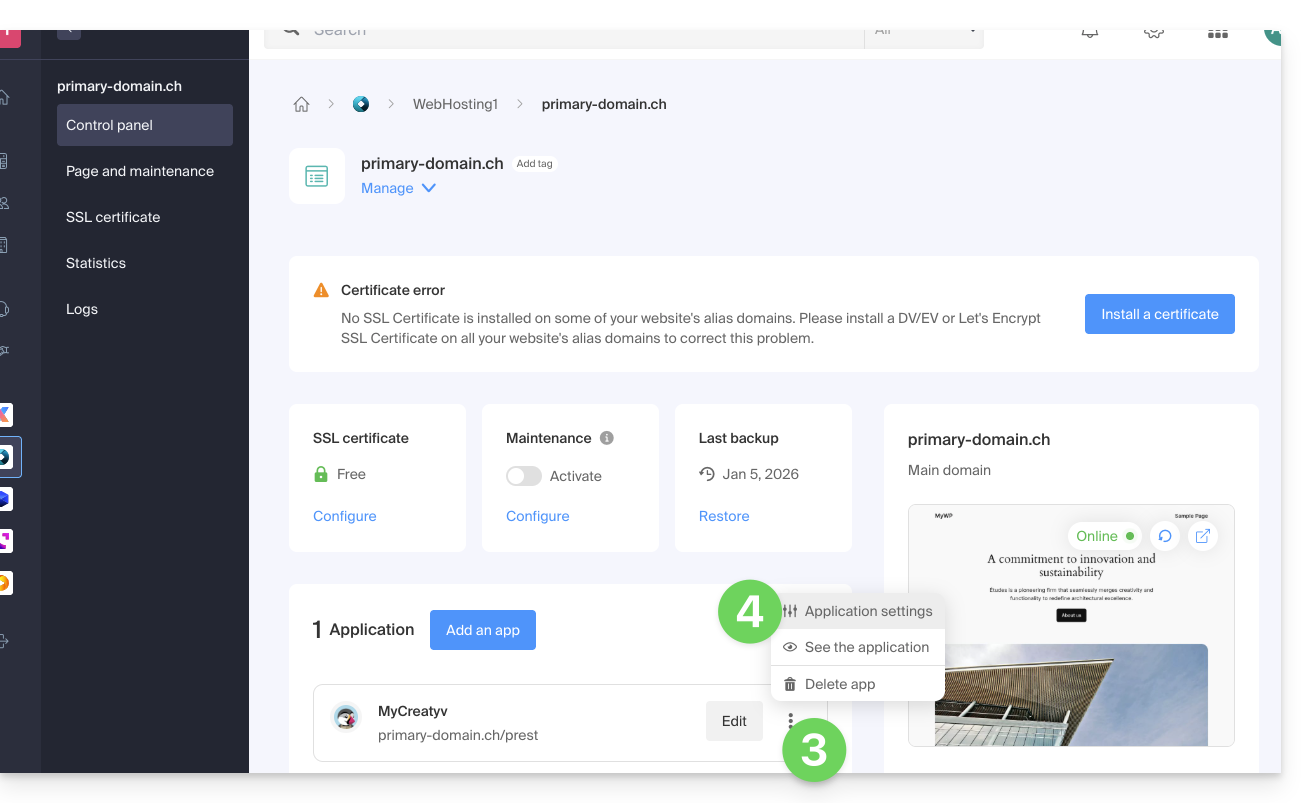
- Click on the action menu ⋮ located to the right of the relevant Web Application.
- Click on the application's Settings:
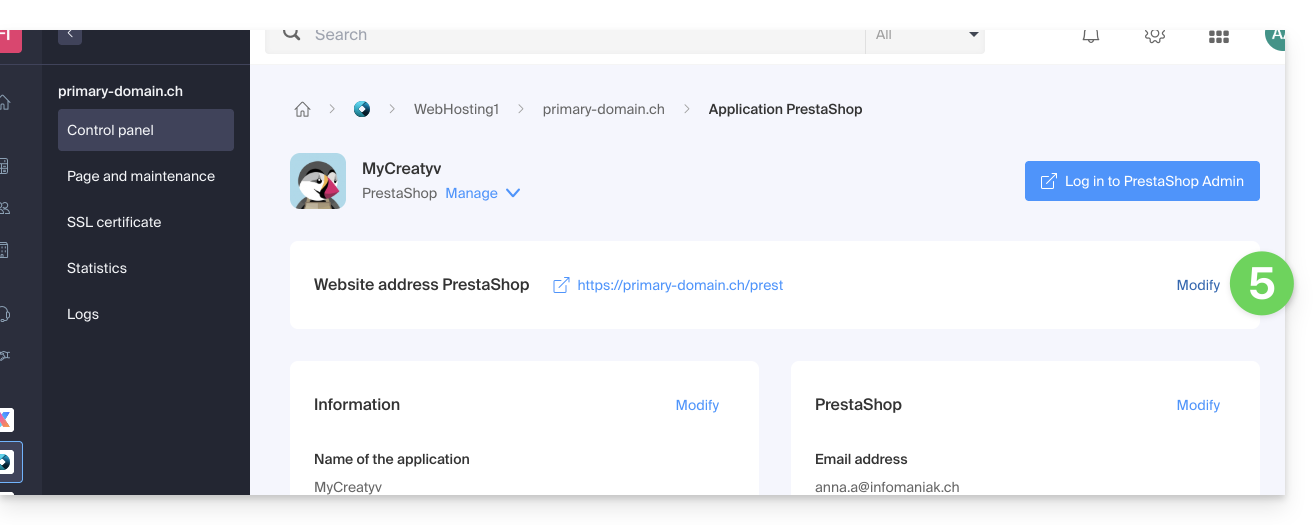
- Click on Edit to the right of the Web Application's address:
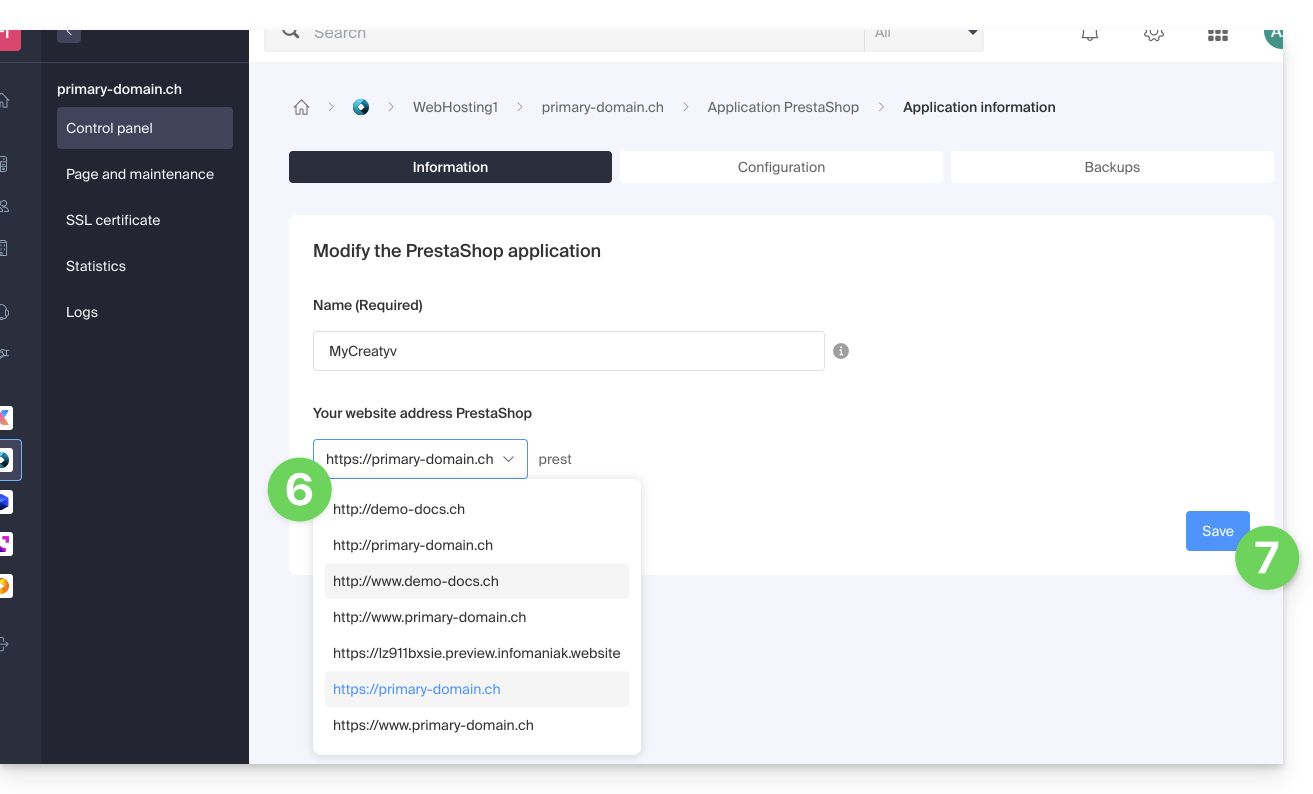
- Under Website URL, select the desired web address from the dropdown menu:
- If you have not followed the prerequisites above, the desired domain will not appear even if it is registered in the same Organization.
- If you have added the domain as an alias for the website, the desired domain will appear and you can select it to replace the previous domain.
- Click on the Save button:
Domain ….preview.infomaniak.website?
Among the URLs in the drop-down menu, the preview URL allows you to access your site in cases where the site's domain name is not yet correctly configured to point to your Web Application: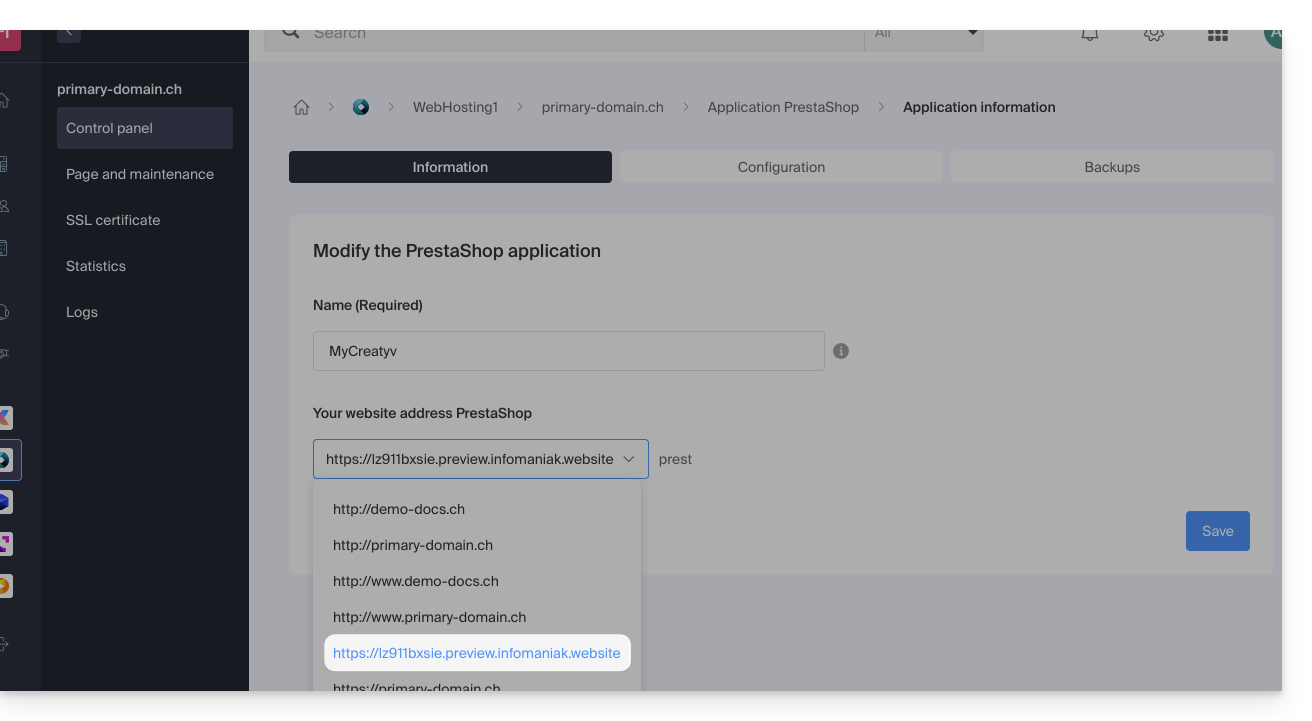
Learn more
Link to this FAQ: https://faq.infomaniak.com/2278
Has this FAQ been helpful?
This guide explains how to move an existing website within an Infomaniak Web Hosting service to another Infomaniak Web Hosting service.
Introduction
- There aren't many ready-made solutions for moving a website:
- In general, few hosting providers offer the export or import of an entire website with its databases.
- This is mainly due to the fact that there are many ways to build a website and just as many languages, which are often incompatible with each other.
- If the website to be transferred is built with WordPress, please refer to this other guide illustrating a simplified solution.
- It is also possible to move an entire web hosting package (see below).
Manual solution: example of a site transfer
To do this manually, you need to:
- retrieve the website data as well as the associated databases,
- republish this on a site created on the destination web hosting,
- and if the associated domain name is identical, the first site will need to be deleted or renamed.
For the rest, here is an example of the steps to follow:
- Order the other Web Hosting / Cloud Server if you haven't already.
- Create a “dummy site” on this new hosting (for example, dev.domain.xyz - see below).
- Manually copy your data via FTP and MySQL (export / import).
- Adjust your website if necessary (database address, etc.).
- Once you are satisfied with the "new website", delete the old one.
- Change the name of the new site to give it its actual name.
Alternatively, in step 2 above, you can work with the www. alias. You can detach it from your current site beforehand. Indeed, the www alias (.domain.xyz) is often installed as an alias for your site, and you simply need to detach it, which allows you to create a site on the other hosting with the name www.domain.xyz (remember, in step 6, to add your alias of the type "domain.xyz" without the www to this new site).
Moving entire web hosting accounts
There is an automated way to move an Infomaniak web hosting account to:
- an Infomaniak Cloud Server (if the hosting is currently shared or if the hosting is already on a Cloud Server)
- another Infomaniak Organization
A Starter hosting plan cannot be moved, but it can be converted.
Link to this FAQ: https://faq.infomaniak.com/2318
Has this FAQ been helpful?
DNS Fast Anycast replicates the DNS of your domain worldwide to reduce latency and increase the availability of your websites.
Introduction
- Thanks to DNS Fast Anycast, your domain's DNS servers are replicated across multiple Points of Presence (PoPs) worldwide (list below).
- Regardless of where your visitors are located, they are redirected to the DNS server closest to them, which on average speeds up access to your site by 34% (DNS resolution).
- Furthermore, if one of your DNS servers were to become unavailable, the closest server will automatically take over, and your visitors will continue to be able to access your site.
- DNS replication for your domain is automatic, and no changes to your code are required.
Manage Fast Anycast DNS
Prerequisites
- DNS Fast Anycast is compatible with all websites, regardless of your hosting provider.
- All you need is a domain name managed with Infomaniak.
- Transfer the management of your domain to Infomaniak if necessary.
- Consult this other guide for managing external domains.
To access the DNS Fast Anycast option:
- Click here to access your product management interface in the Infomaniak Manager (need help?).
- Click directly on the name assigned to the product in question.
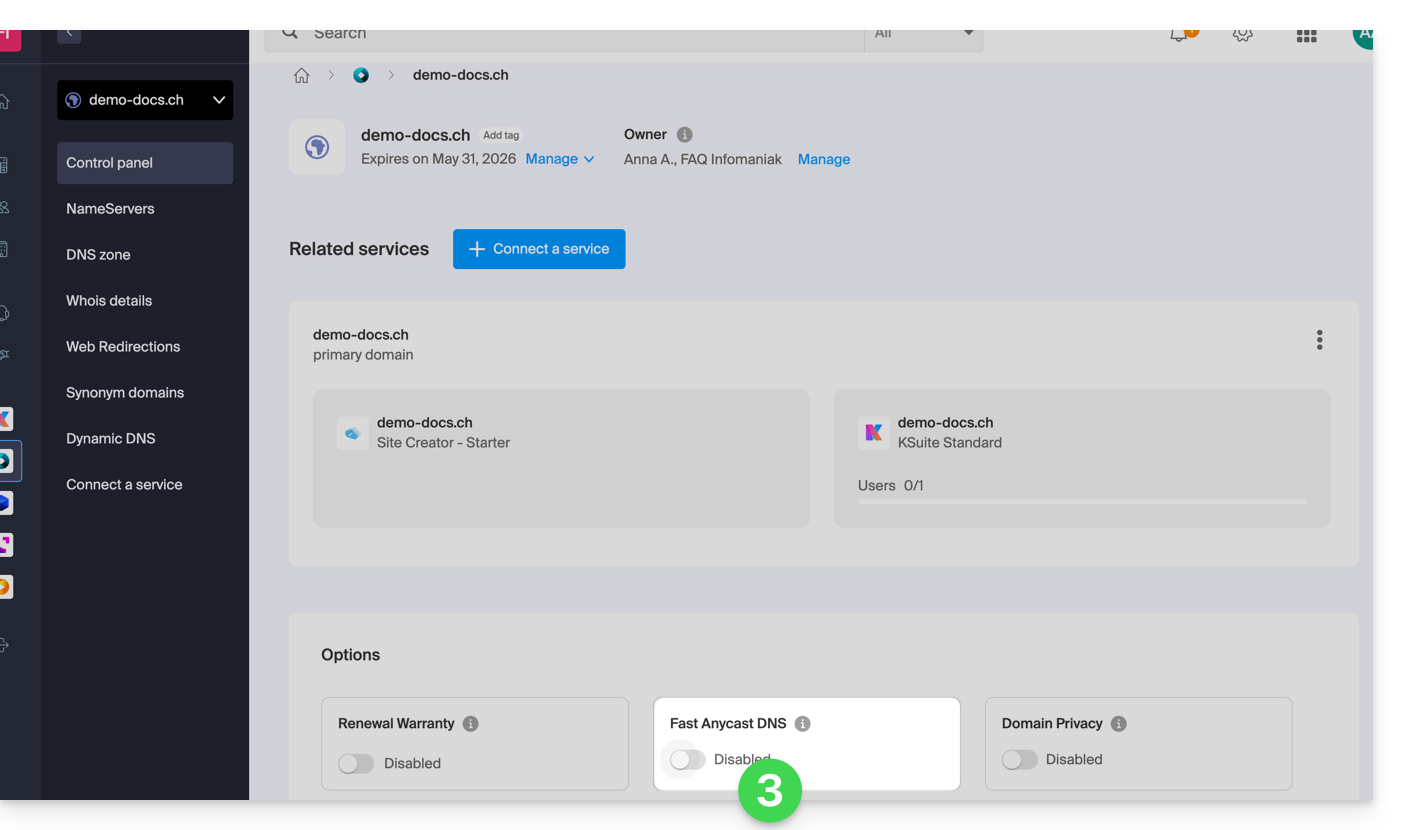
- Enable or disable the DNS Fast Anycast toggle switch on the dashboard:
POP - 'Point of Presence'
By enabling DNS Fast Anycast on your domain, your DNS records will be automatically replicated in the following points of presence:
Network 1
New York, USA (2x)
Paris, France (2x)
Warsaw, Poland (2x)
Dublin, Ireland (2x)
Singapore (2x)
Johannesburg, South Africa
Stockholm, Sweden
Vienna, Austria (2x)
Frankfurt, Germany (2x)
London, United Kingdom
Dallas, USA
Los Angeles, USA (3x)
Amsterdam, Netherlands
Sydney, Australia
São Paulo, Brazil
Miami, USA (2x)
Network 2
Hong Kong, China
San Jose, USA
Dallas, USA
Reston, USA
Chicago, USA
Seattle, USA
London, United Kingdom
Frankfurt, Germany
Amsterdam, Netherlands
Vienna, Austria
Toronto, Canada
Sydney, Australia
São Paulo, Brazil
Johannesburg, South Africa
Miami, USA
The points of presence are distributed across two networks, which are used randomly when one of your visitors accesses your website.
Link to this FAQ: https://faq.infomaniak.com/2323
Has this FAQ been helpful?
Infomaniak continuously improves its products and customer service by prioritizing your suggestions shared through support, social media, or the web. These suggestions are then discussed during meetings of the relevant department.
Introduction
- For languages not listed in the table, please use the English (EN) column.
- Infomaniak support is also available via email, chat, or phone if needed.
Provide feedback on…
INFOMANIAK SERVICE | [FR] | [EN] | [DE] | [IT] | [ES] |
|---|---|---|---|---|---|
| Euria [ ☍ ] | ✎__ | ✎__ | ✎__ | ✎__ | ✎__ |
| Domains [ ☍ ] | ✎__ | ✎__ | ✎__ | ✎__ | ✎__ |
| Hosting / Website Builder [ ☍ ] | ✎__ | ✎__ | ✎__ | ✎__ | ✎__ |
| Cloud Server [ ☍ ] | ✎__ | ✎__ | ✎__ | ✎__ | ✎__ |
| Public Cloud [ ☍ ] | ✎__ | ✎__ | ✎__ | ✎__ | ✎__ |
| Jelastic Cloud [ ☍ ] | ✎__ | ✎__ | ✎__ | ✎__ | ✎__ |
| Synology [ ☍ ] | ✎__ | ✎__ | ✎__ | ✎__ | ✎__ |
| Hosting [ ☍ ] | ✎__ | ✎__ | ✎__ | ✎__ | ✎__ |
| Swiss Backup [ ☍ ] | ✎__ | ✎__ | ✎__ | ✎__ | ✎__ |
| kSuite / my kSuite [ ☍ ] | ✎__ | ✎__ | ✎__ | ✎__ | ✎__ |
| Mail [ ☍ ] | ✎__ | ✎__ | ✎__ | ✎__ | ✎__ |
| app Mail iOS [ ☍ ] | ✎__ | ✎__ | ✎__ | ✎__ | ✎__ |
| Android Mail app [ ☍ ] | ✎__ | ✎__ | ✎__ | ✎__ | ✎__ |
| kDrive [ ☍ ] | ✎__ | ✎__ | ✎__ | ✎__ | ✎__ |
| Calendar [ ☍ ] | ✎__ | ✎__ | ✎__ | ✎__ | ✎__ |
| Contacts [ ☍ ] | ✎__ | ✎__ | ✎__ | ✎__ | ✎__ |
| Chk.me [ ☍ ] | ✎__ | ✎__ | ✎__ | ✎__ | ✎__ |
| Newsletter [ ☍ ] | ✎__ | ✎__ | ✎__ | ✎__ | ✎__ |
| SwissTransfer [ ☍ ] | ✎__ | ✎__ | ✎__ | ✎__ | ✎__ |
| Streaming Radio [ ☍ ] | ✎__ | ✎__ | ✎__ | ✎__ | ✎__ |
| Streaming Video [ ☍ ] | ✎__ | ✎__ | ✎__ | ✎__ | ✎__ |
| VOD / AOD [ ☍ ] | ✎__ | ✎__ | ✎__ | ✎__ | ✎__ |
| Guest Manager [ ☍ ] | ✎__ | ✎__ | ✎__ | ✎__ | ✎__ |
| kChat [ ☍ ] | ✎__ | ||||
| kMeet [ ☍ ] | ✎__ | ||||


Link to this FAQ: https://faq.infomaniak.com/2324
Has this FAQ been helpful?
This guide presents the vulnerability detection tool for your Web Hosting.
Introduction
- There are thousands of cyber threats, and if your website were to be infected, your business could suffer, not only due to its unavailability, but also due to the loss of trust from your visitors and customers.
- The tool offered by Infomaniak is a free protection that complements the antivirus and protects all Infomaniak hosting solutions against malware and security vulnerabilities.
- Infomaniak ensures the protection of hosting by exclusively analyzing the files of websites (webroot); no other synchronous scan is performed on the rest of the hosting.
How this service works
The tool works in the background to detect potential security issues. These vulnerabilities could allow malicious individuals to alter the content of your websites, which could harm your reputation with your customers and search engines.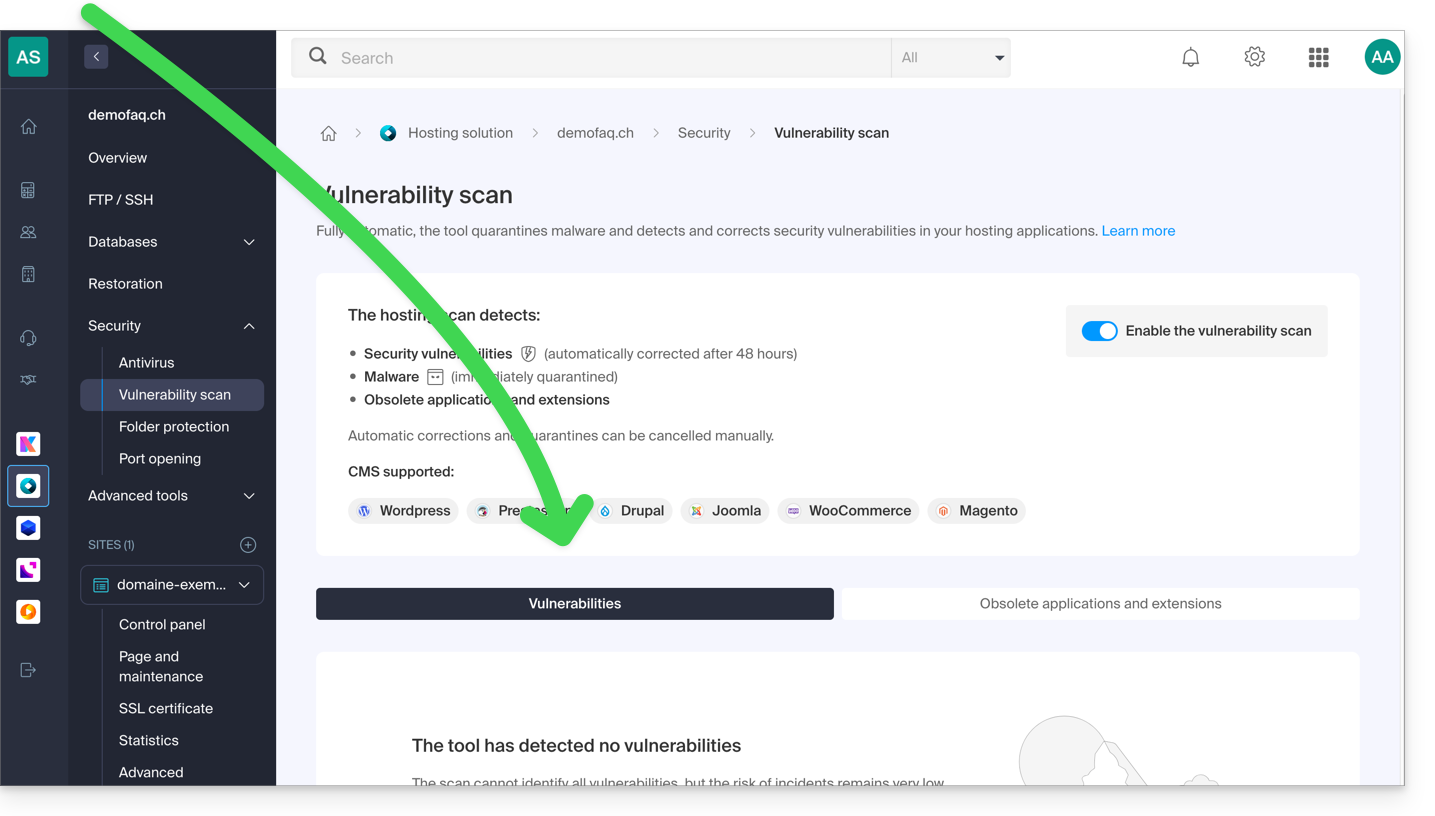
If no action is taken on your part within 48 hours of detection, the tool automatically fixes security vulnerabilities in most CMSsand/or quarantines malicious software, without affecting the proper functioning of your websites.
If necessary, you can:
After a detection, it is recommended to check your entire hosting environment, especially if you notice any suspicious changes that the protection may not have detected automatically.
A second tab allows you to analyze and display outdated applications and extensions on your hosting: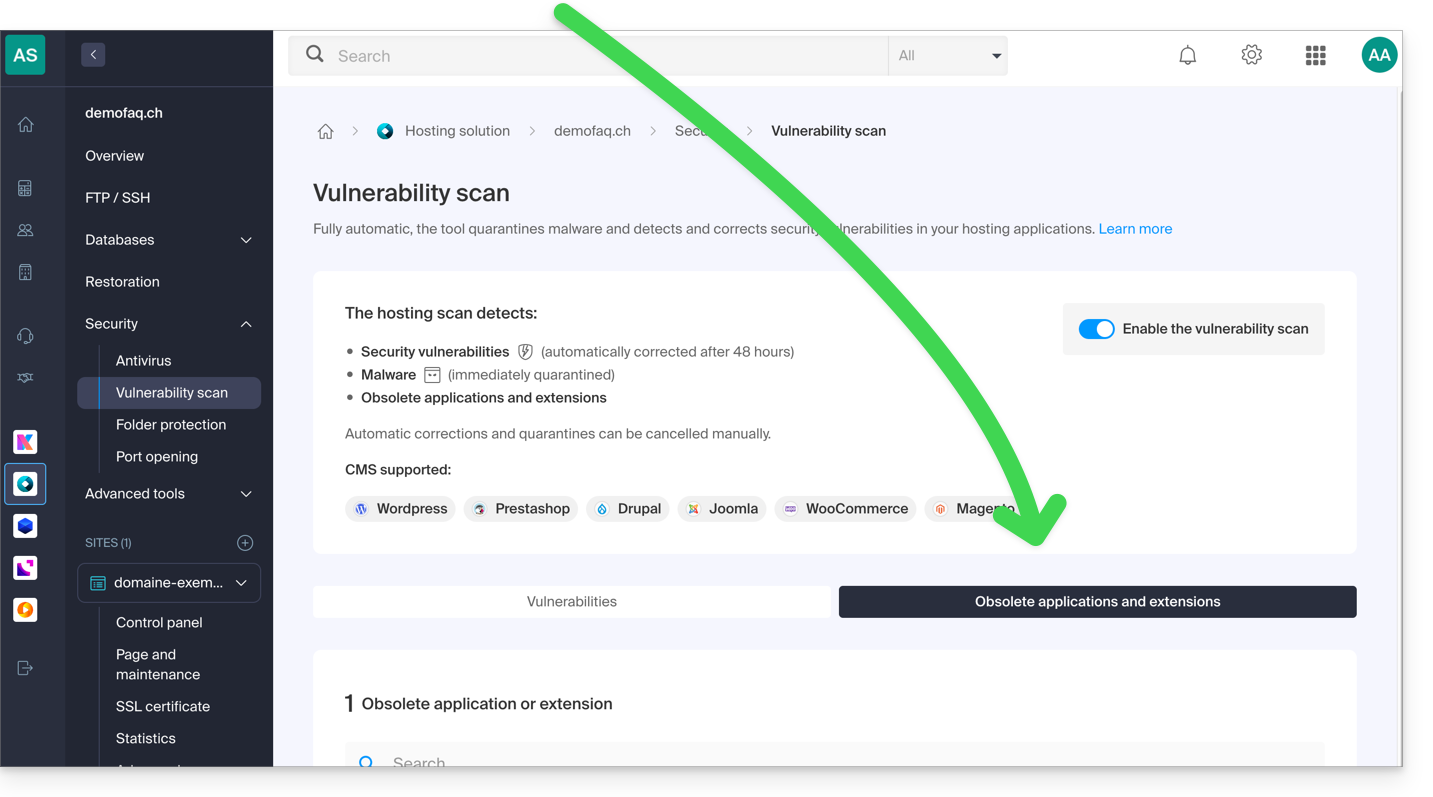
Data Privacy
Like Infomaniak, the tool complies with the European Union's General Data Protection Regulation (GDPR): analyses are performed locally on Infomaniak's servers. The content or signatures of scanned files are not transmitted outside of the infrastructure.
In accordance with the privacy policy, the data processed is limited to the strictly necessary information and includes the username, email address, path, and file names, primarily to communicate detections to the customer.
Link to this FAQ: https://faq.infomaniak.com/2326
Has this FAQ been helpful?
This guide explains how to disable (or re-enable) the vulnerability detection tool, a free protection feature that complements the antivirus and automatically protects your Web Hosting against malware and security vulnerabilities.
Disable or re-enable vulnerability detection
It is not recommended to disable this tool because you will no longer be notified by this free option when your site contains security vulnerabilities or malicious files (malware)!
To access the web hosting to disable (or re-enable) the service:
- Click here to access the hosting & website management section in your Infomaniak Manager (❓: help).
- Click on the name of the relevant hosting.
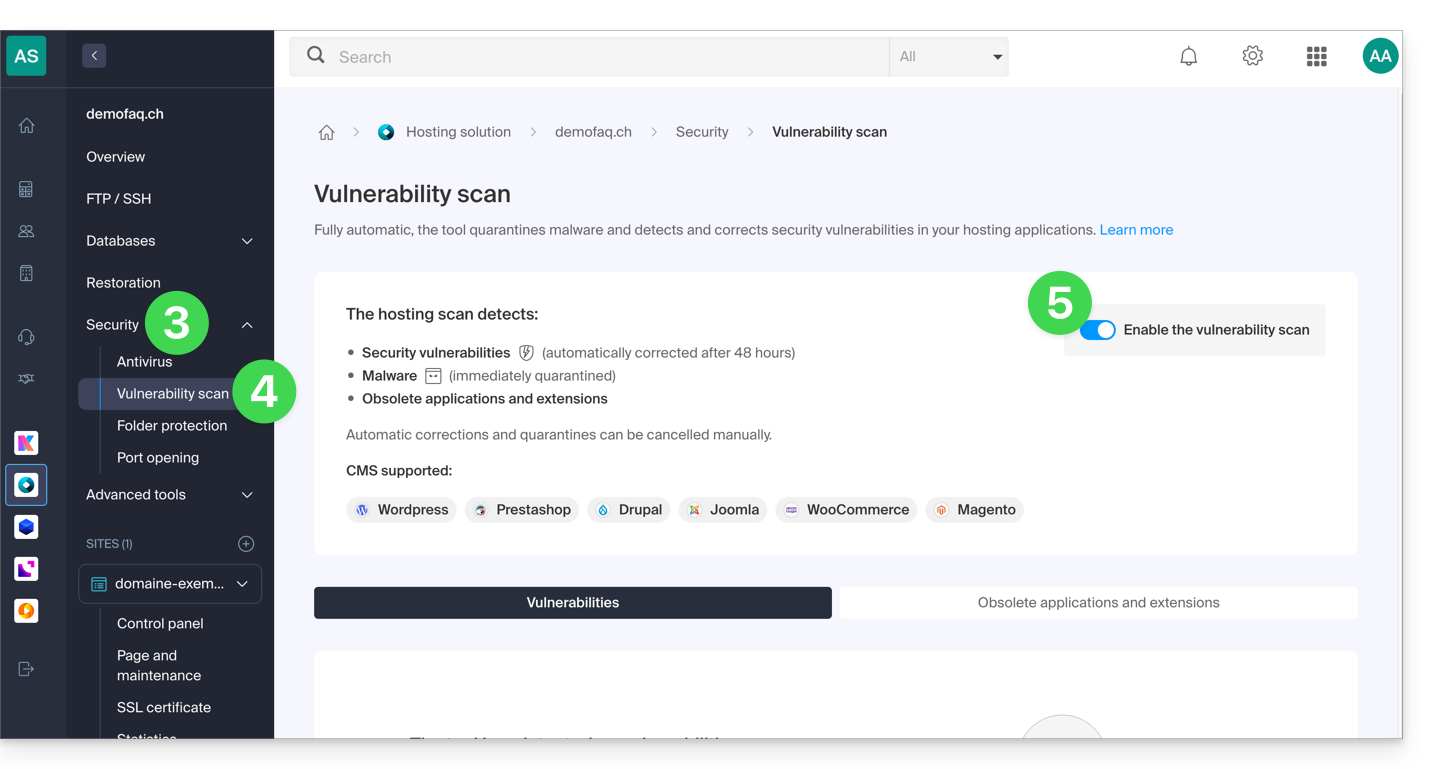
- Click on Security in the left-hand menu.
- Click on Vulnerability Scan in the left-hand menu.
- Click the toggle switch to disable or enable the scan:
Refer to this other guide if you need information on how to cancel a security fix.
Link to this FAQ: https://faq.infomaniak.com/2327
Has this FAQ been helpful?
This guide explains how to add a new Organization that you will access with your current Infomaniak account, and within which you can add and/or transfer products, link users, etc.
Introduction
- If you are a my kSuite user, please refer to this other guide.
Create a new Organization
You can add multiple Organizations (i.e., a space for managing your products) by accessing them with the same login ID and password, to separate your professional and personal activities, for example, or when managing multiple clients:
- Click here to access the management of your settings (Infomaniak Manager).
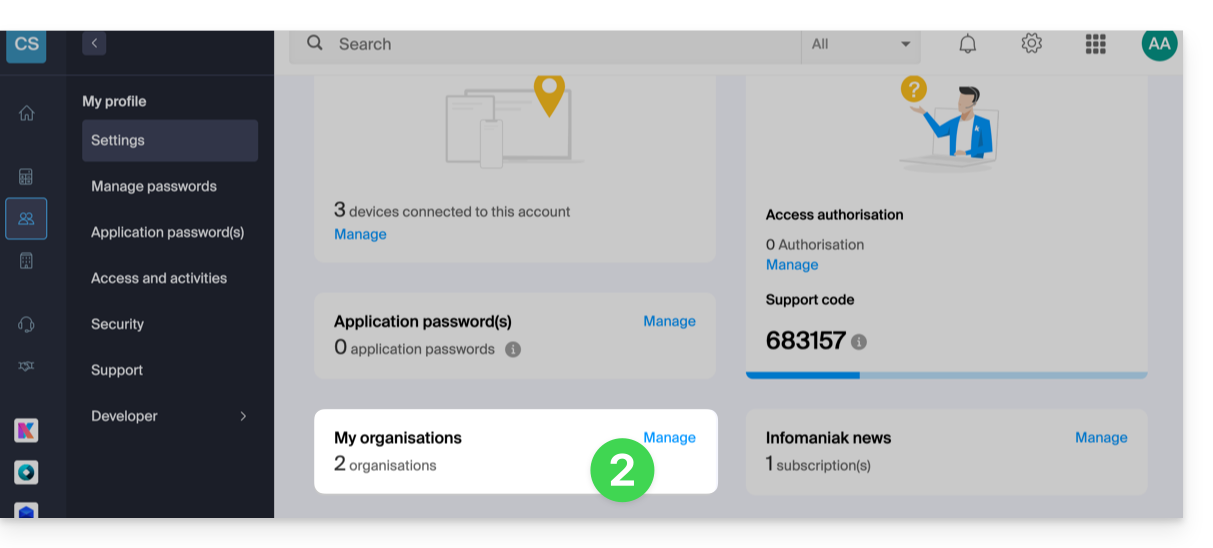
- Click on Manage from the My organizations box:
- Click on the Create a new organization button
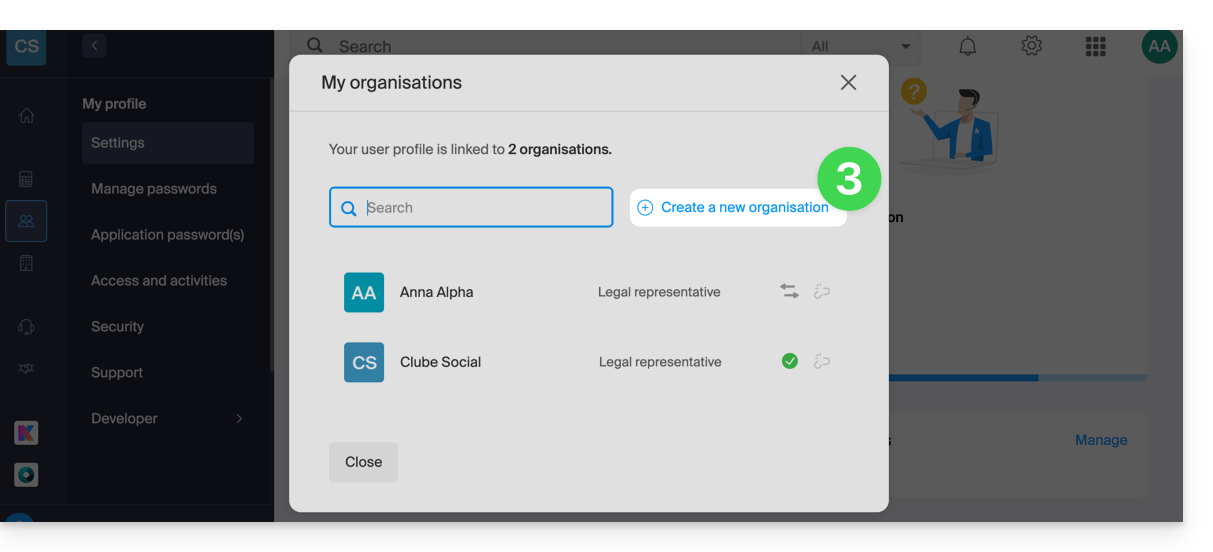
- Follow the procedure for creating a new Organization.
This way, you can continue to use your usual login credentials while being able to switch between your different Organizations (at the top left of the Manager).
Link to this FAQ: https://faq.infomaniak.com/2330
Has this FAQ been helpful?
This guide explains how to add a dynamic trust seal to a secure website with an SSL certificate from Sectigo.
Introduction
- Infomaniak, as a hosting provider, offers SSL certificates to secure its customers' websites.
- Sectigo (formerly known as Comodo) is a recognized SSL certificate provider that offers different levels of security.
- The “dynamic trust seal,” or “Sectigo Trust Seal” / “Sectigo Trust Logo,” is a visual element that website owners can display on their pages to indicate to visitors that their connection is secure. This is a sign of trust that informs users that transactions and information exchanges on the site are encrypted and protected by an SSL certificate issued by Sectigo.
- By using an SSL certificate from Sectigo and displaying the dynamic trust seal, a website hosted with Infomaniak not only benefits from secure data exchange but also enjoys increased user trust, which is essential in e-commerce and for protecting personal information.
Add a trust badge
Here's how a dynamic trust badge works:
- Validation: to obtain such a seal, the website owner must first obtain a valid SSL certificate from Sectigo, which requires a validation process. Depending on the certificate level chosen (Domain Validation - DV, Organization Validation - OV, or Extended Validation - EV), this validation may be more or less thorough.
- Installation: once the SSL certificate has been obtained and installed on the Infomaniak web server, the website is then able to establish secure HTTPS connections.
- Display of the seal: Sectigo provides HTML code or a script that the website owner can then integrate into their website; this code allows the dynamic Sectigo trust seal to be displayed.
- Update: the seal is often updated in real time to reflect the current status of the SSL certificate; if the certificate were to expire or be revoked, the seal would also reflect this, warning potential visitors that the site may no longer be secure.
The trust seal consists of an image and an HTML code.The latter only works if a Sectigo certificate is installed on the site and, in this case, generates an interactive logo that displays the certificate data.
Save one of the images below
Right-click on the image you want to save, then click Save image as...
- Small

- Medium

- Large

Upload the image to your site
Upload the image to your web server (via FTP or your CMS) and note the URL to access this image for the next step (for example, https://domain.xyz/wp-content/uploads/sectigo.png).
Get the code to embed in your pages
Enter the complete address of your image on the https://www.trustlogo.com/install/index2.html page to verify that the image is accessible.
Click the Continue button on the same page to obtain the two codes that you need to copy and paste into the header of your web page(s):

Important:
- In the code,
CL1corresponds to aDVSSL certificate; replaceCL1withSC5for anEVSSL certificate.
Link to this FAQ: https://faq.infomaniak.com/2338
Has this FAQ been helpful?
This guide explains how to apply or cancel a patch, quarantine, or block implemented by the vulnerability detection tool, the free and complementary protection to the antivirus that automatically protects your Web Hosting against malware and security vulnerabilities.
Introduction
- Unless you take action, the tool will automatically correct detected vulnerabilities within 7 days.
- It is strongly recommended not to undo a patch or quarantine unless you are sure of what you are doing.
Apply or cancel a correction
To do this:
- Click here to access the hosting & website management section in your Infomaniak Manager (❓: help).
- Click on the name of the relevant hosting.
- Click on Security in the left-hand menu.
- Click on Vulnerability Scan in the left-hand menu:
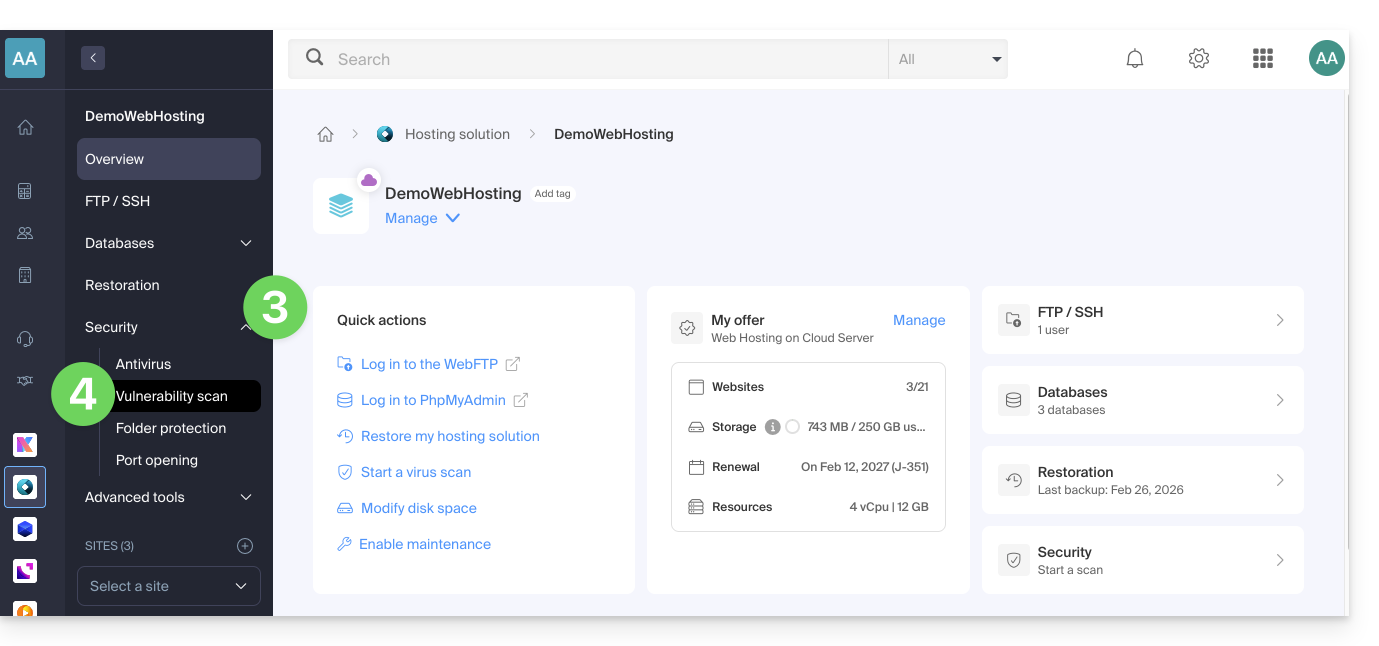
- If nothing is displayed, first click the button to View History.
- If an event history exists, click the action menu ⋮ to the right of the vulnerability in question in the table that is displayed.
- Click on Cancel the fix.
- In some cases, other actions are possible:
- Apply the patch: immediately fixes the vulnerability.
- Cancel the patch: cancels the fix and restores the original vulnerable file (not recommended).
- Delete the file: permanently removes the malware from your hosting (may affect the operation of your site).
- Quarantine: isolates the vulnerable file and allows you to restore it if necessary (may affect the operation of your site).
- Cancel quarantine: restores the isolated file to its original location (not recommended).
- Add an exception: allows you to indicate to the tool that the vulnerable file is safe; it will no longer be analyzed.
- Remove an exception: removes the Allowed status from the file; it will be analyzed again.
Details of the different statuses
- VULNERABLE: a vulnerability has been detected in a file; the path column indicates the file's location.
- RESOLVED : the vulnerability has been fixed by the tool.
- AUTHORIZED : the vulnerable file has been manually authorized; it will no longer be analyzed by the tool.
- RESOLVED : a manual fix, external to the tool, was applied to the file (CMS update, source code modification, manual file deletion, etc.).
- PATCH REVERTED : the tool's fix was manually reverted; it is possible to reapply the patch.
Link to this FAQ: https://faq.infomaniak.com/2343
Has this FAQ been helpful?
This guide explains how to specify a file that will be loaded before the desired page or at the beginning of each PHP script executed on your server, included as if it had been called with the require() function, but more generally by using the auto_prepend_file directive of PHP.
Introduction
- For example, to declare the headers of a website, you can create a
headers.phpfile containing PHPheader()functions, and have it prepended to the beginning of each PHP file…- … via a
.user.inifile (specific to a folder), - … or via the site configuration in the Manager (global), as explained below.
- … via a
Include a file globally from the Manager
To access website management:
- Click here to access the hosting & website management section in your Infomaniak Manager (❓: help).
- Click on the name of the website in question.
- Click on Manage advanced settings:
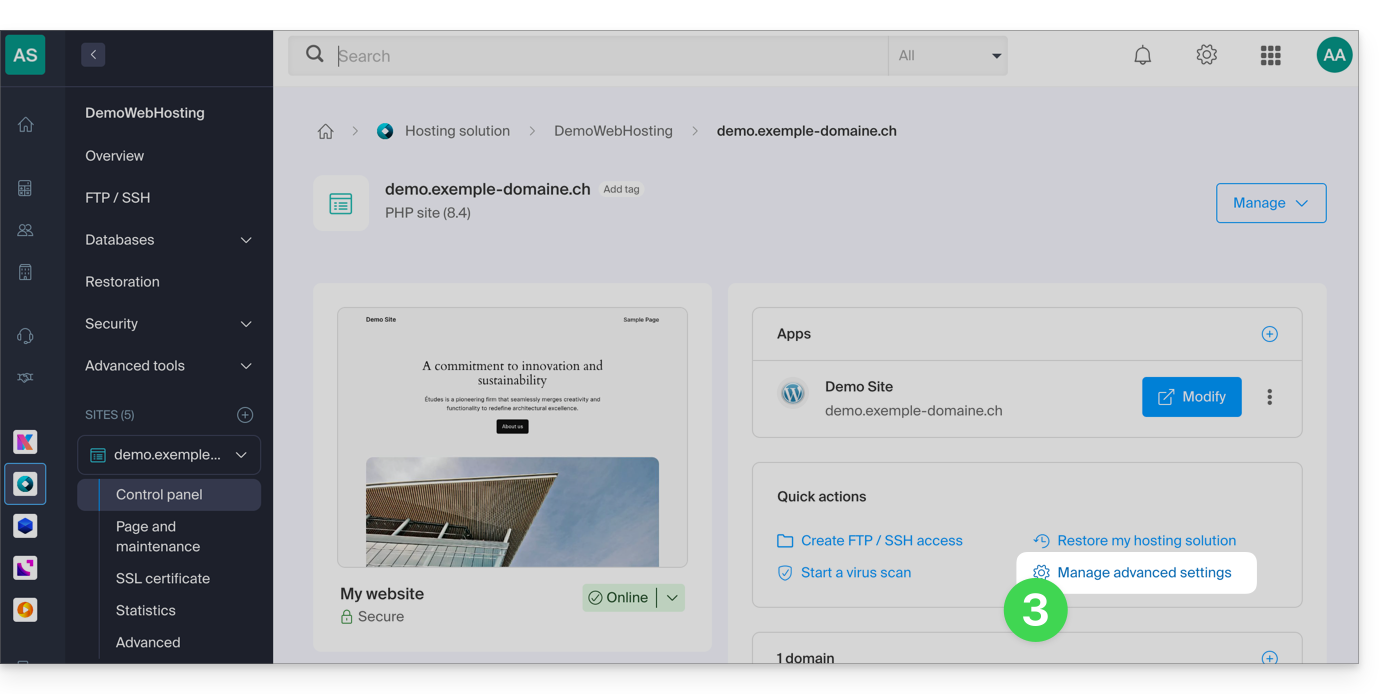
- Click on the PHP / Apache tab:
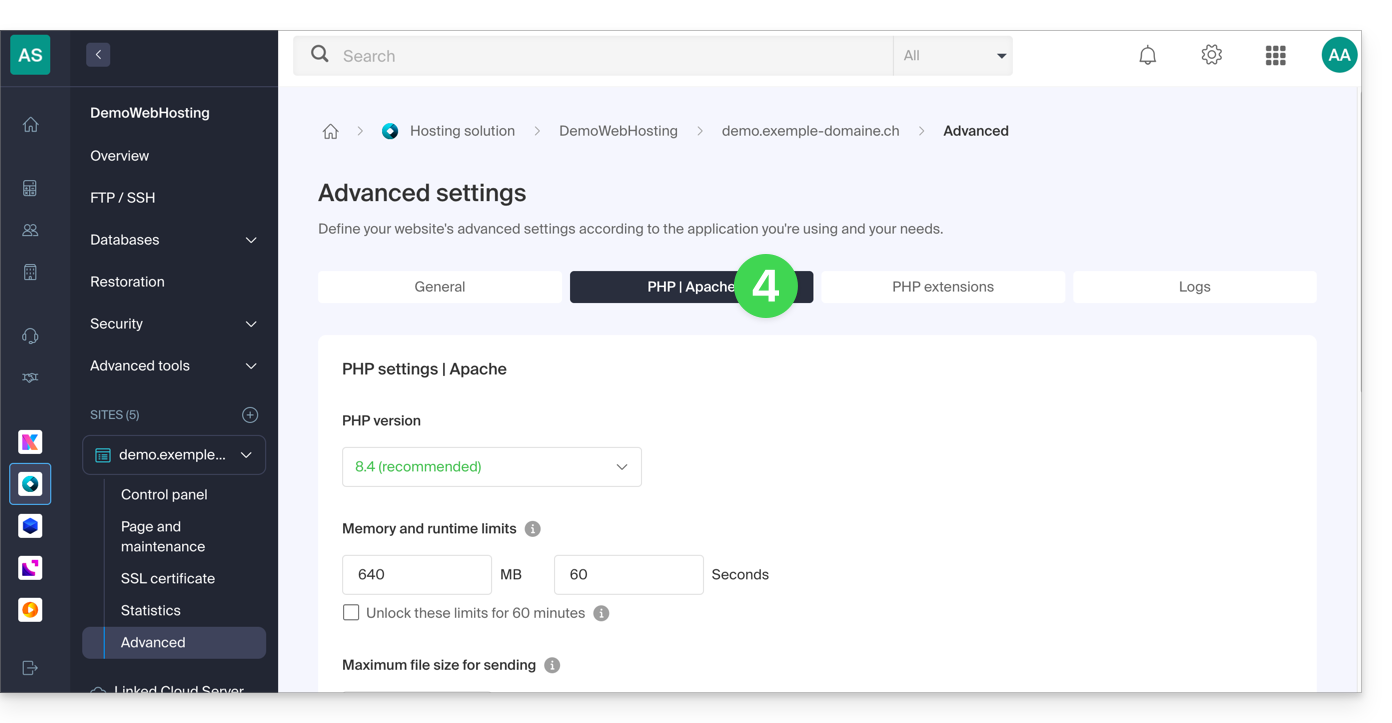
- Complete the relevant line by entering the path to the file to be included.
- Click on the Save button at the bottom of the page:
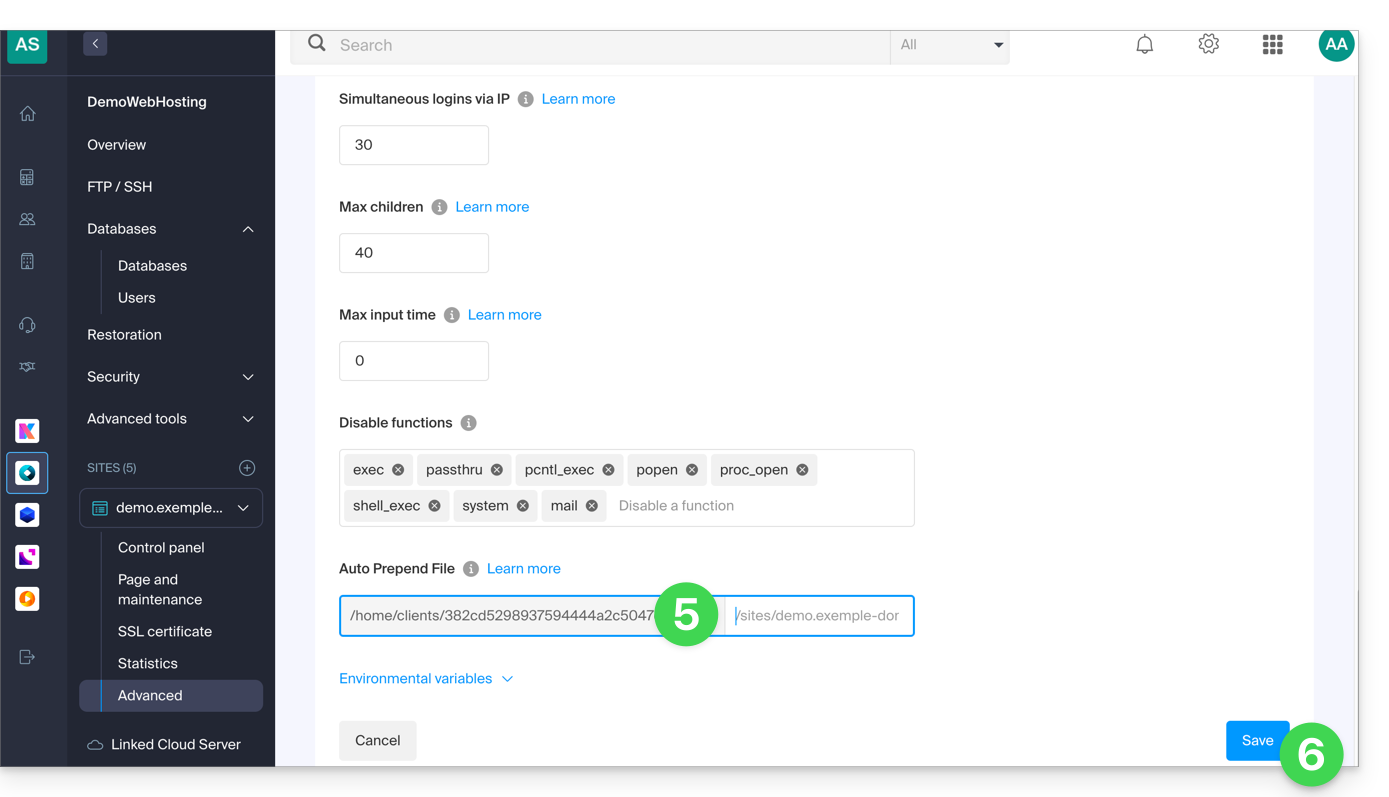
After defining this directive, all PHP pages on your server will automatically include the specified file before executing their own code.
The headers defined in a .htaccess file are only valid for non-PHP content (i.e., static content).
Infomaniak uses php-fpm, which receives the various headers via apache fast_cgi. In the RFC for cgi_www, the Strict-Transport-Security header is not part of the headers passed via CGI, and the Apache documentation confirms this. Please refer to this other RFC.
Link to this FAQ: https://faq.infomaniak.com/2352
Has this FAQ been helpful?
This guide explains how to change the URL of a website on which the Prestashop (1.7) application is installed (manual installation on your end), but more generally, it also allows you to import a Prestashop website to Infomaniak if it was previously registered elsewhere with a different URL.
Introduction
- If you are using Prestashop installed via the Infomaniak Manager Apps, you can easily change the address.
Changing the URL of an installed Prestashop
To do this:
- Put your Prestashop into maintenance mode (go to Shop Parameters then Maintenance).
- Go to Store Settings > Traffic & SEO.
- A little further down, modify the Store URL section:
- Under Store Domain, enter the new domain
- Under SSL Domain, enter the new domain
- The base path can be modified as needed but with caution
- Click Save.
- Download all of your old Prestashop's Web + MySQL data to your computer.
- Re-import the downloaded MySQL data into a new database.
- Update the
parameters.phpfile (located inapp/config/) by providing the information for the new database in the following lines:database_hostdatabase_namedatabase_userdatabase_password
- Re-import the web data into the directory of your new site (new URL).
- Remove the entire content of the cache folder, except for the
index.phpfile. - Remove the website maintenance mode and test the entire site (links, images, shopping cart, etc.).
Also, refer to this other guide.
Link to this FAQ: https://faq.infomaniak.com/2373
Has this FAQ been helpful?
This guide explains how to configure an action in n8n so that a message is sent on kChat when the conditions are met.
Prerequisites
- Install n8n on an Infomaniak hosting.
- Create a webhook on the Infomaniak kChat app.
Create the action in n8n
In your n8n session:
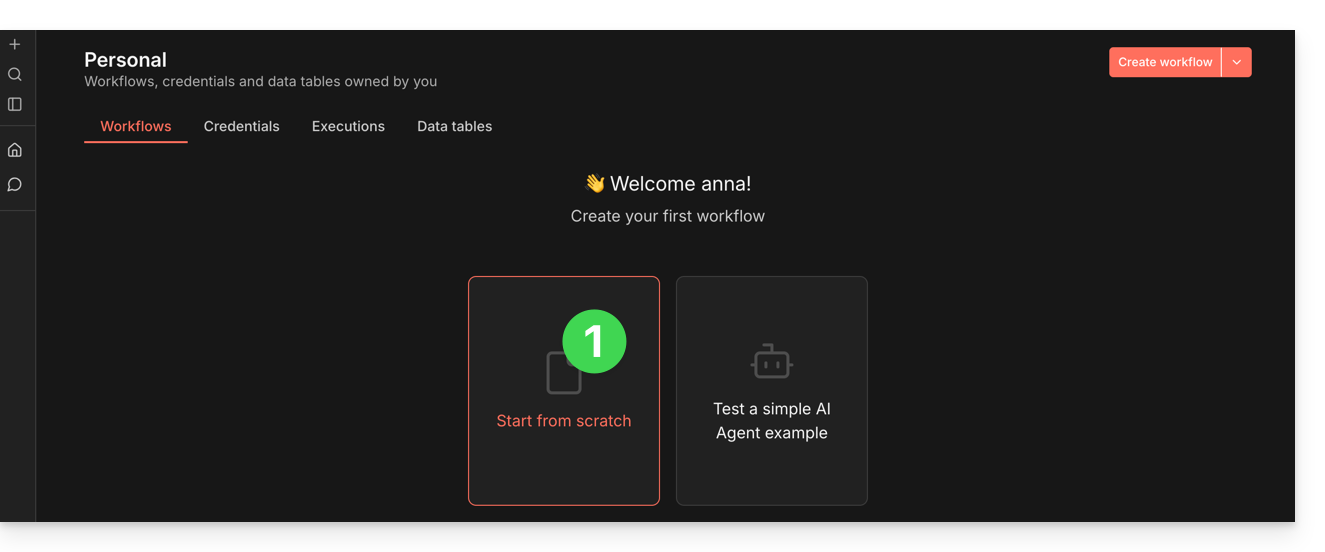
- Click to start from scratch:
- Click to add a first action.
- Choose a manual trigger:
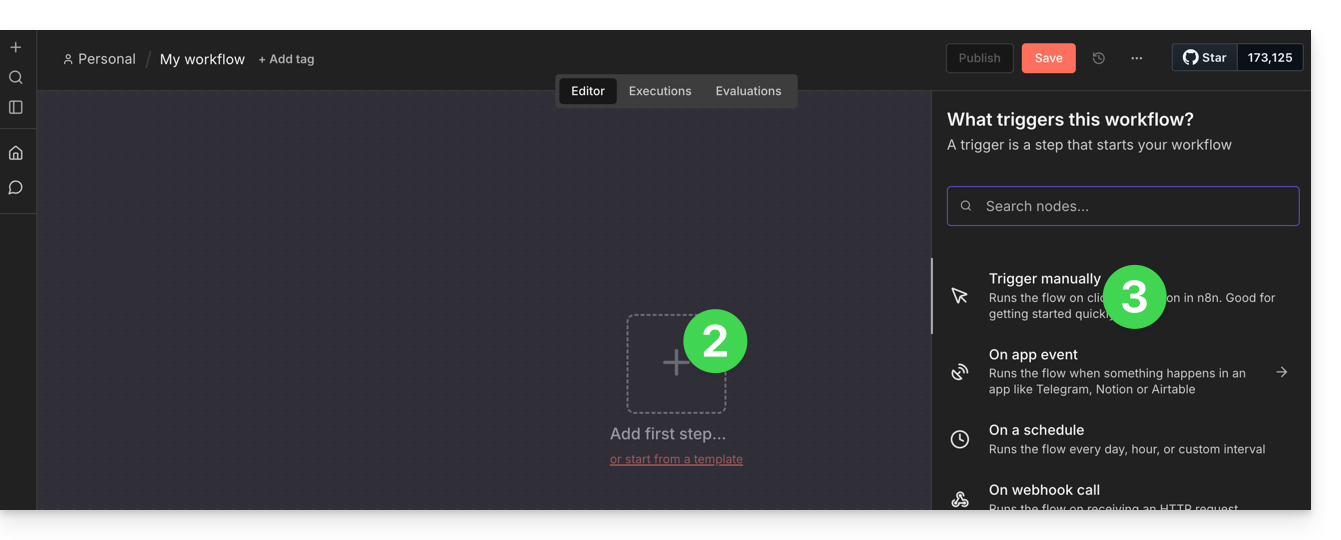
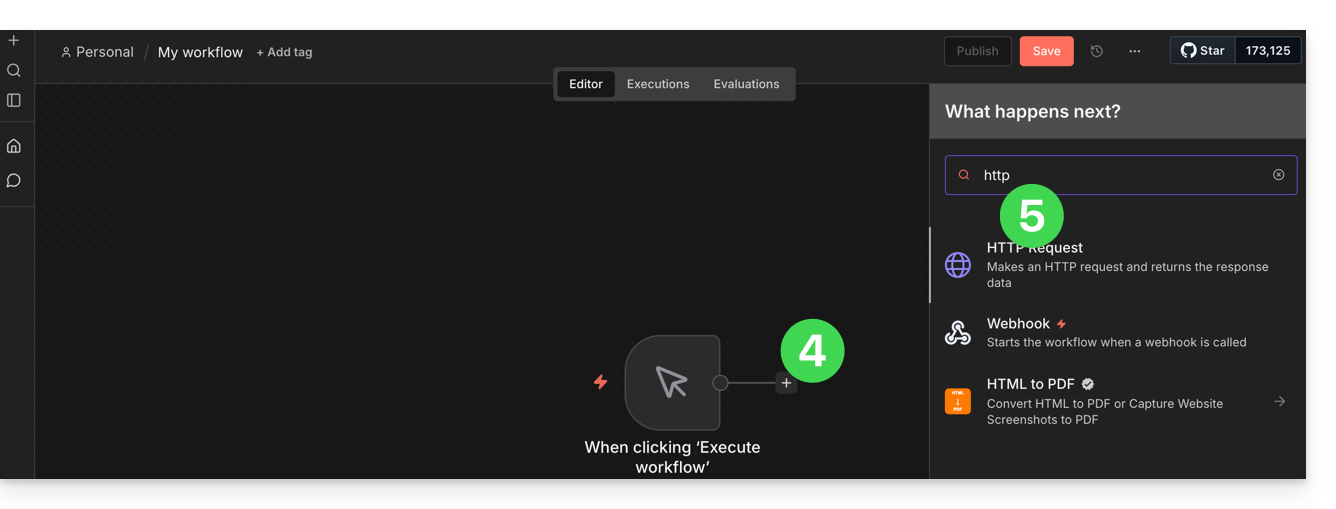
- Click to add an action to trigger.
- Search for and activate an action of the “HTTP Request” type:
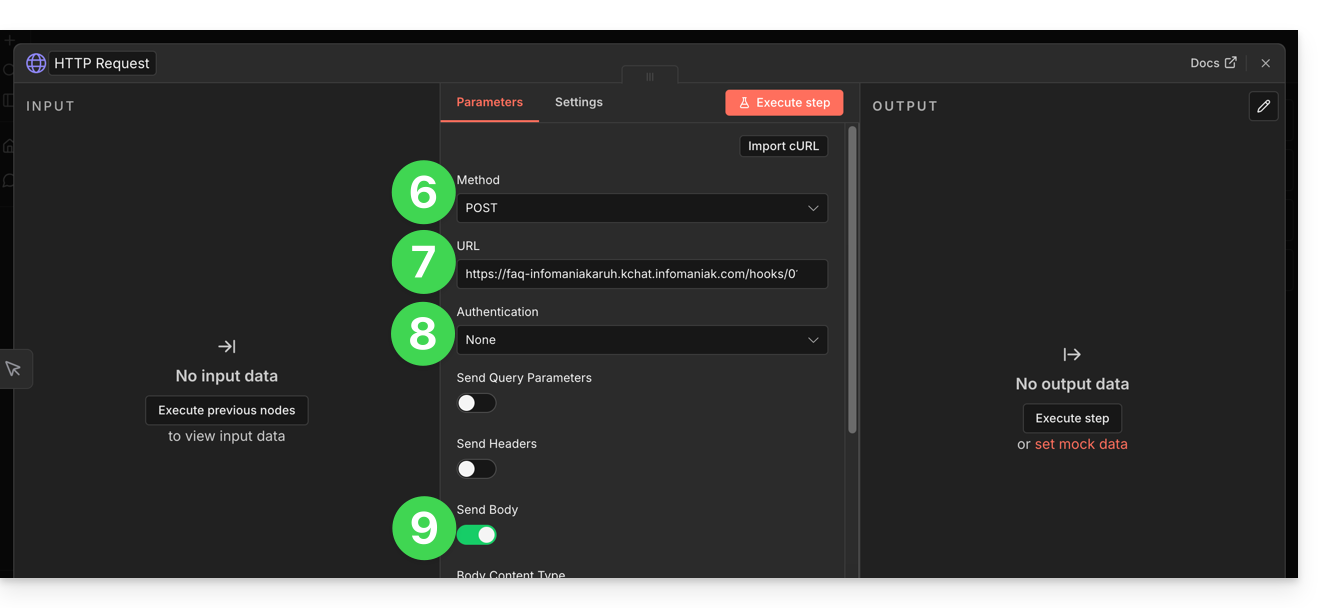
- Choose the POST method.
- Enter the URL of your kChat webhook.
- Authentication is not required (already applied in the URL).
- Activate the “Send body” toggle switch to specify content:
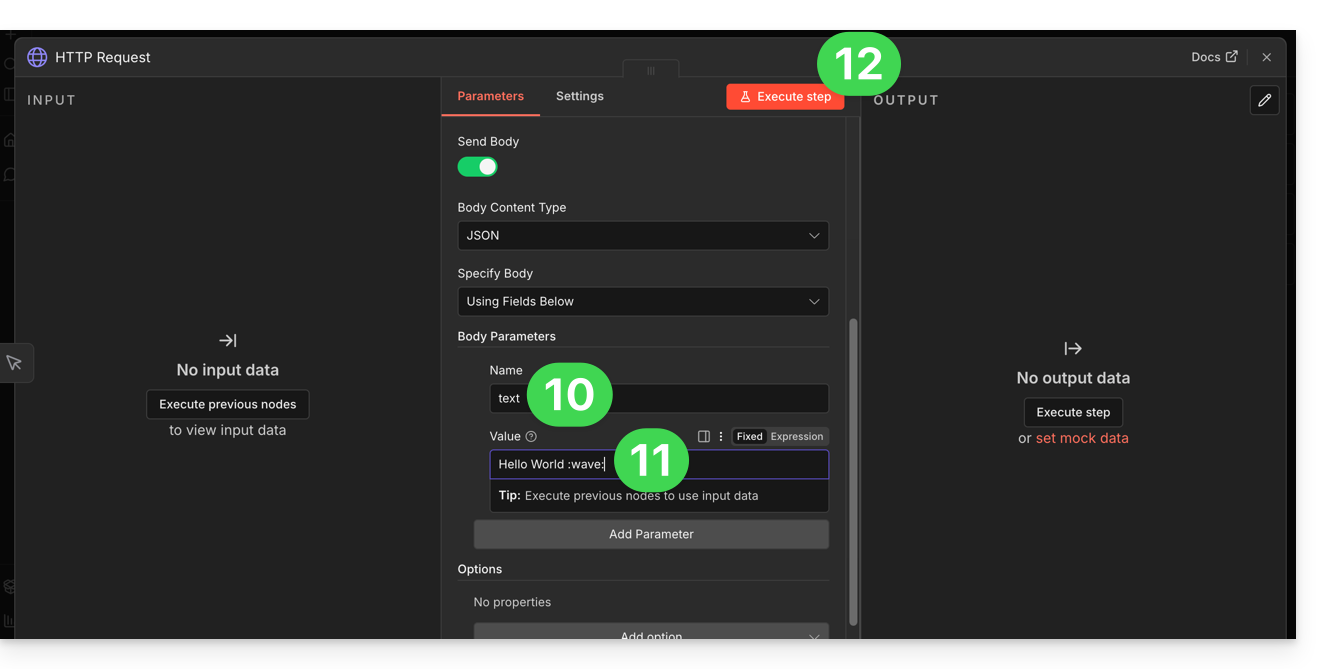
- In the “Name” field, enter the exact term “text” as expected by kChat.
- In the “Value” field, enter the information you want to display on kChat.
- Click the button to test and apply your custom command:
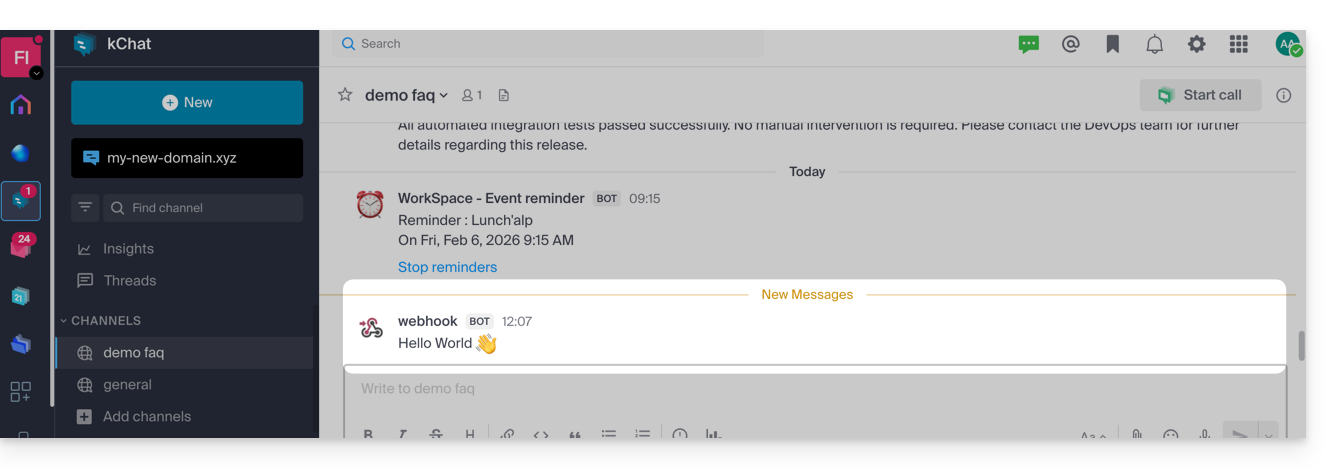
- The message specified in n8n will then be displayed on kChat:
Now that this base is working, you could imagine replacing the fixed text with data from elsewhere. For example, add an "Imap" or "RSS Feed" node before the HTTP Request node. This way, instead of writing the text manually, click on the small gear next to Value > Expression to say: "Send the title of the last email received on kChat"…
Link to this FAQ: https://faq.infomaniak.com/2388
Has this FAQ been helpful?
This guide explains how to add or modify one or more TXT recordsin the DNS zone (of a domain name) managed in the Infomaniak Manager.
Introduction
- The
TXTrecord type allows you to insert readable text into the DNS zone of a domain name. - This is the method generally used to help prevent spam and to verify domain ownership (Google may ask you to do this before using some of their services: see this other guide for an example of adding a
TXTrecord to authenticate a domain).
Modify the DNS zone
To manage this type of record in a DNS zone:
- Click here to access the domain management section in your Infomaniak Manager (❓: help).
- Click on the name of the domain in question.
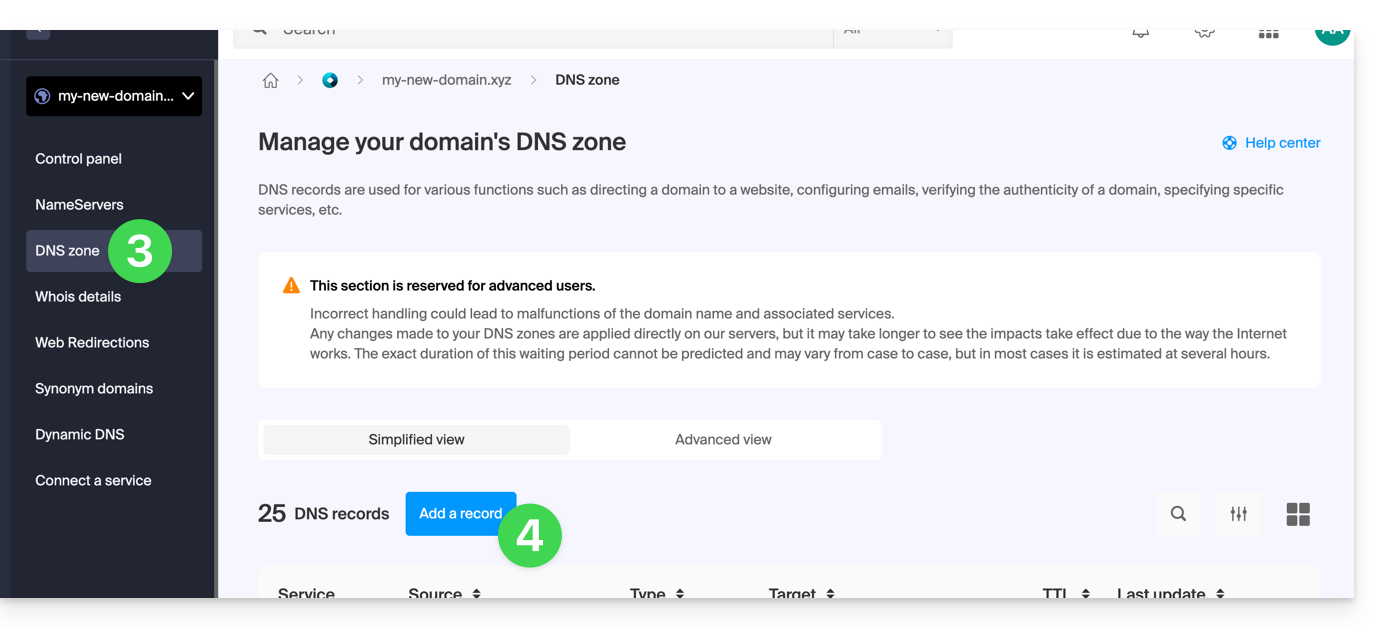
- Click on DNS Zone in the left-hand menu.
- Click the button to add a record:
- Click the TXT radio button to add a record.
- Click the Next button:
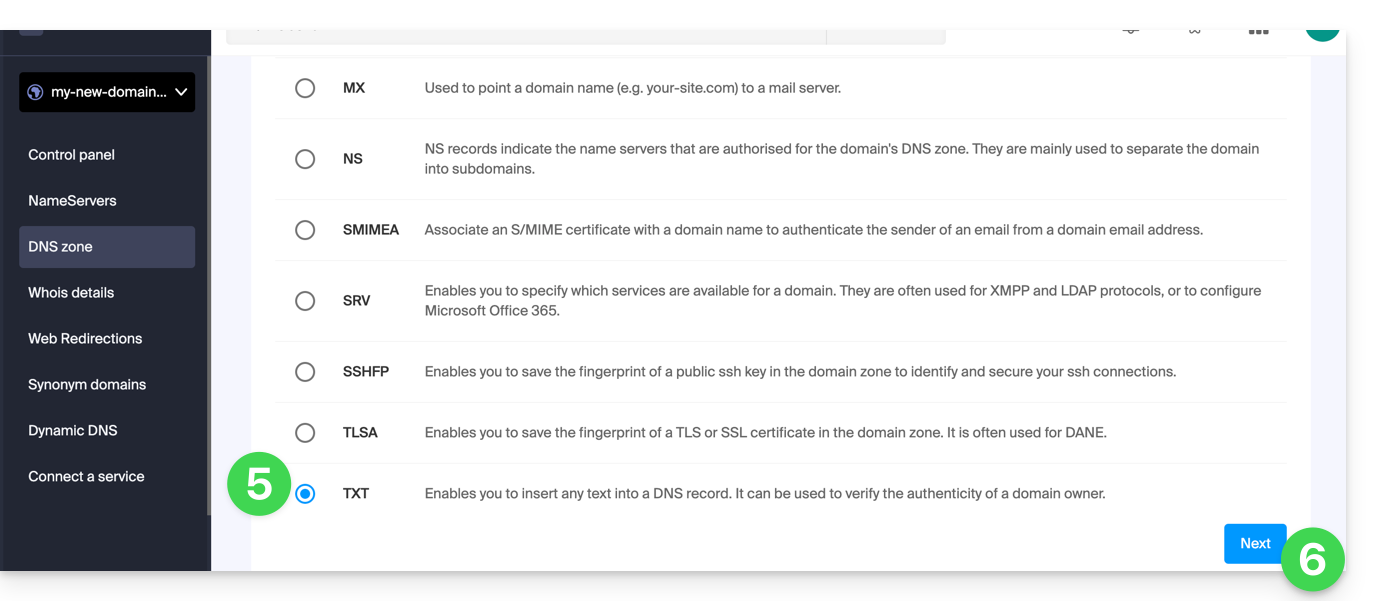
- Enter the TXT values required for your DNS zone.
- Leave the default value for the TTL.
- Click on the Save button:
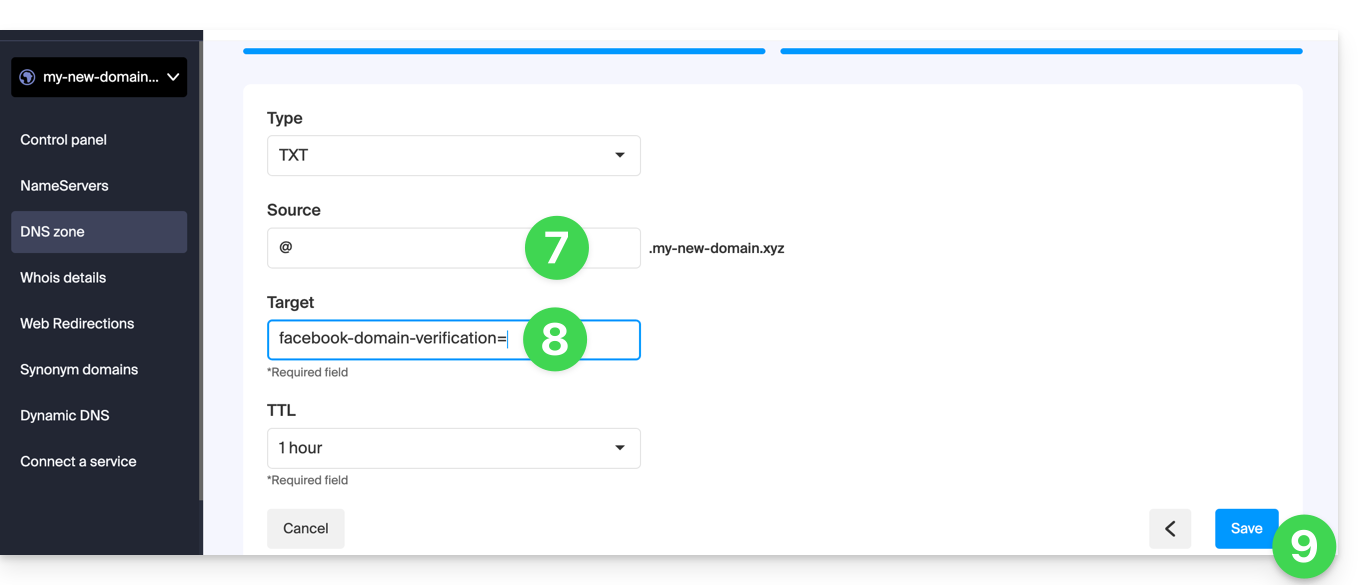
Link to this FAQ: https://faq.infomaniak.com/2460
Has this FAQ been helpful?
This guide explains how to securely transfer files between your computer and the server of your web hosting using the SCP (secure copy command) protocol.
Introduction
- To function, the
SCPcommand requires:- a source: a file/folder to transfer
- a destination: the address of the FTP server to perform the transfer
- Data is automatically encrypted by
SCPduring the transfer.
Copy a local file to the server
Prerequisites
- To obtain the FTP server address:
- Click here to access the hosting & site management section in your Infomaniak Manager (❓: help).
- Click on the name of the relevant hosting.
- Click on FTP / SSH in the left-hand menu:
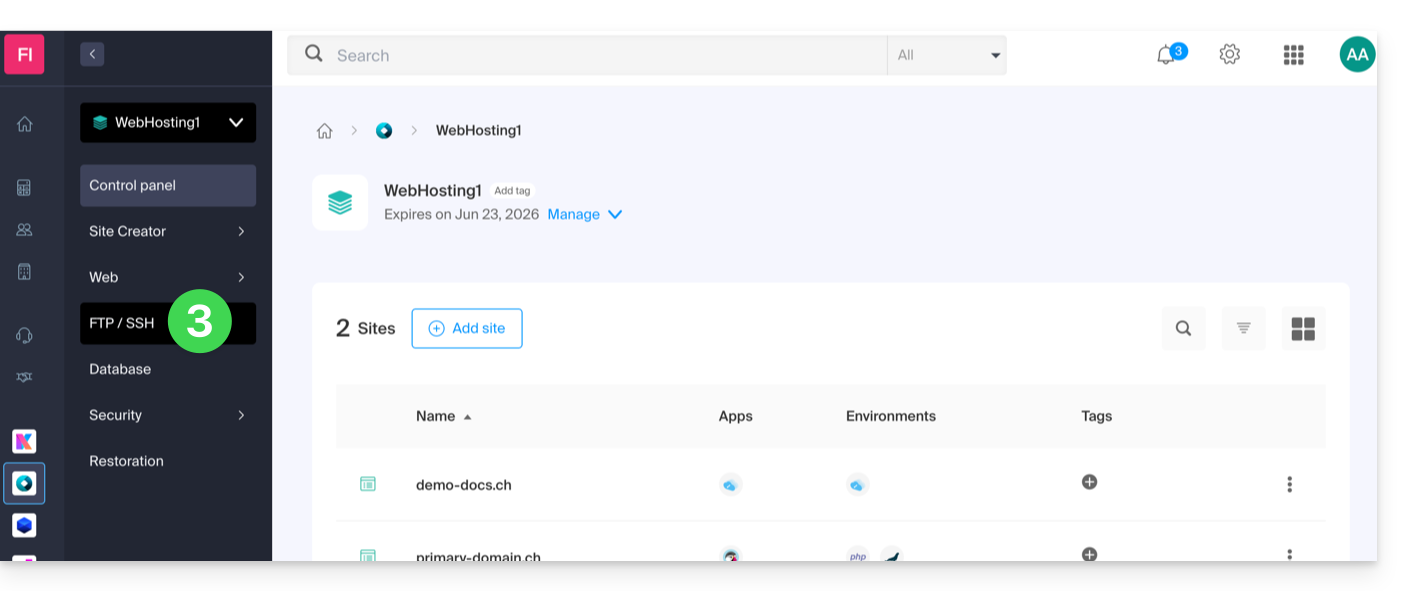
- The host server address is displayed in the top left corner and can be copied:
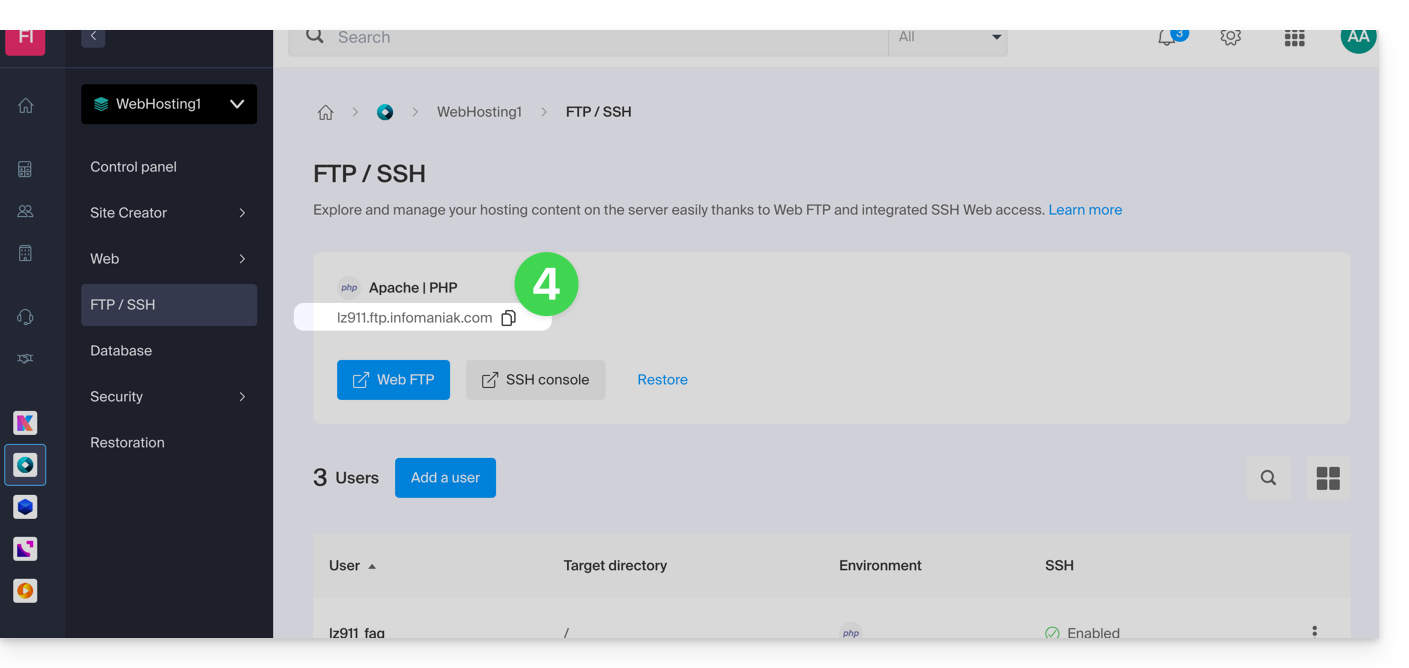
- To obtain the path to the destination folder:
- Click here to access the hosting & site management section in your Infomaniak Manager (❓: help).
- Click on the name of the hosting account in question.
- Click on More information (in the Information section).
- Copy the absolute path:
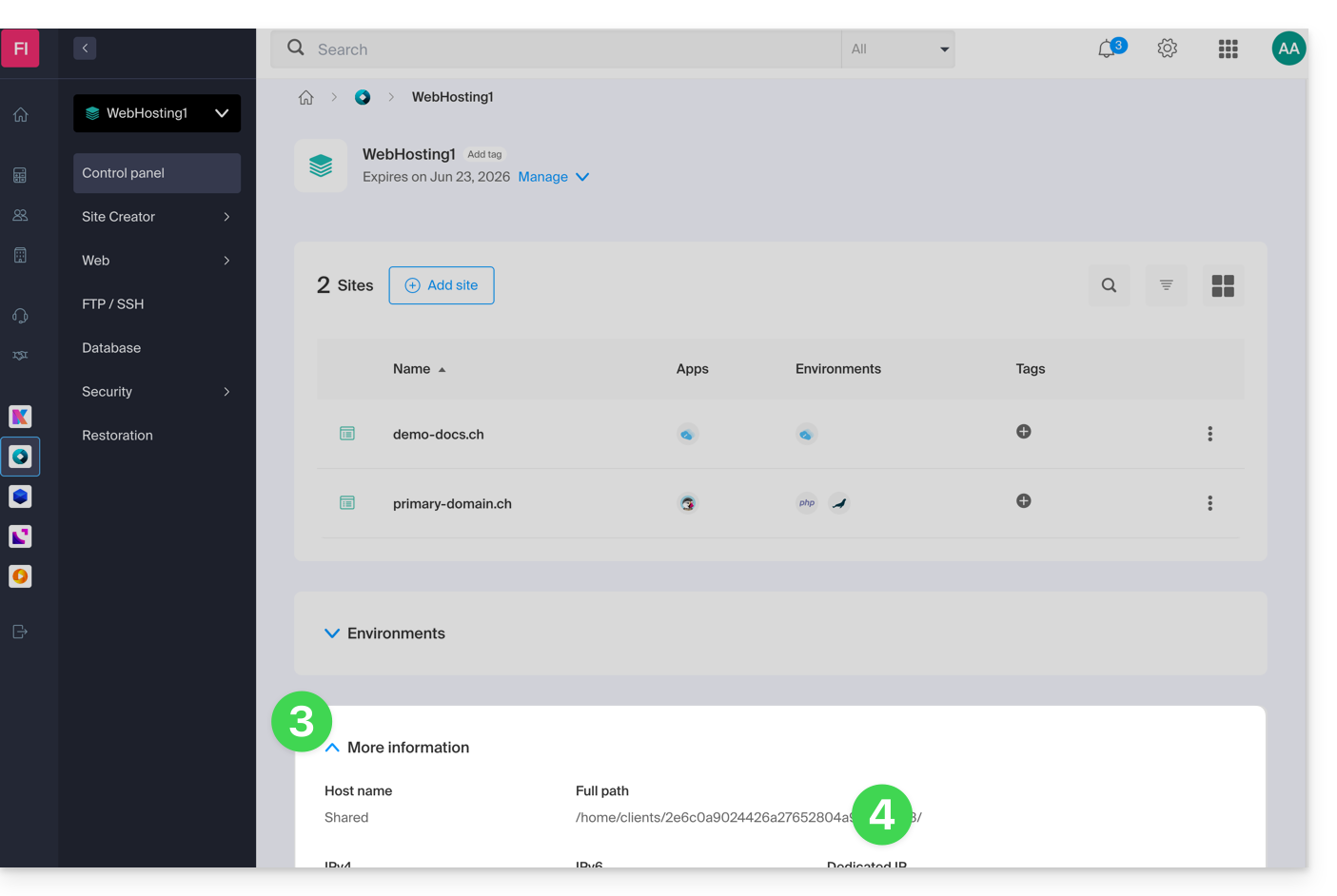
- Complete the absolute path with the desired destination folder.
Next, to copy a file from your computer, the command is structured as follows:
scp localmachine/path_to_the_file username@ftp_server_adress:/path_to_remote_directory
To copy an entire directory from your computer, you need to adapt the command as follows:
scp -r localmachine/path_to_the_file username@ftp_server_adress:/path_to_remote_directoryThe entire folder will be transferred to your server.
To copy the entire contents of a directory from your computer, you need to adapt the command as follows:
scp -r localmachine/path_to_the_file/* username@ftp_server_adress:/path_to_remote_directoryLink to this FAQ: https://faq.infomaniak.com/2461
Has this FAQ been helpful?
This guide details how to create a GIT repository on both your Web Hosting and your Cloud Server with Infomaniak.
Introduction
- GIT and GitHub are available by default on both of the aforementioned platforms.
Creating the GIT repository
Configuration on the server:
- The GIT repository is located at
/git_depot - the website is located in the
/web/[project]folder (on your FTP server)
Command lines to enter:
cd
mkdir git_depot
cd git_depot/
git init --bare [projet].git
cd [projet].git
git update-server-info
Sending the local repository to the server
To be performed on the local workstation:
git init
git remote add origin ssh://user@[xxxxx].ftp.infomaniak.com:/home/clients/[123456789]/git_depot/[projet].git
git status
git add .
git commit -a -m "init"
git push --set-upstream origin master
git push
Clone the website to the server directory
To be done on the server:
cd
cd web
rm -r [projet]/
git clone /home/clients/[123465789]/git_depot/[projet].git [projet]/
Link to this FAQ: https://faq.infomaniak.com/2463
Has this FAQ been helpful?
You have reached this page because a web redirection on your domain is incorrectly configured. Infomaniak is unable to identify the correct path for this redirection, so you are being redirected to this page to help you correct the situation.
DNS Zone Check
To restore the functionality of your redirection, you must first remove any traces of a previously misconfigured redirection:
- Access your DNS zone (❓: help).
- Delete the relevant records (refer to the list below) that correspond to your redirection.
- Click on the action menu ⋮ to the right of the DNS entry in question and select Delete:
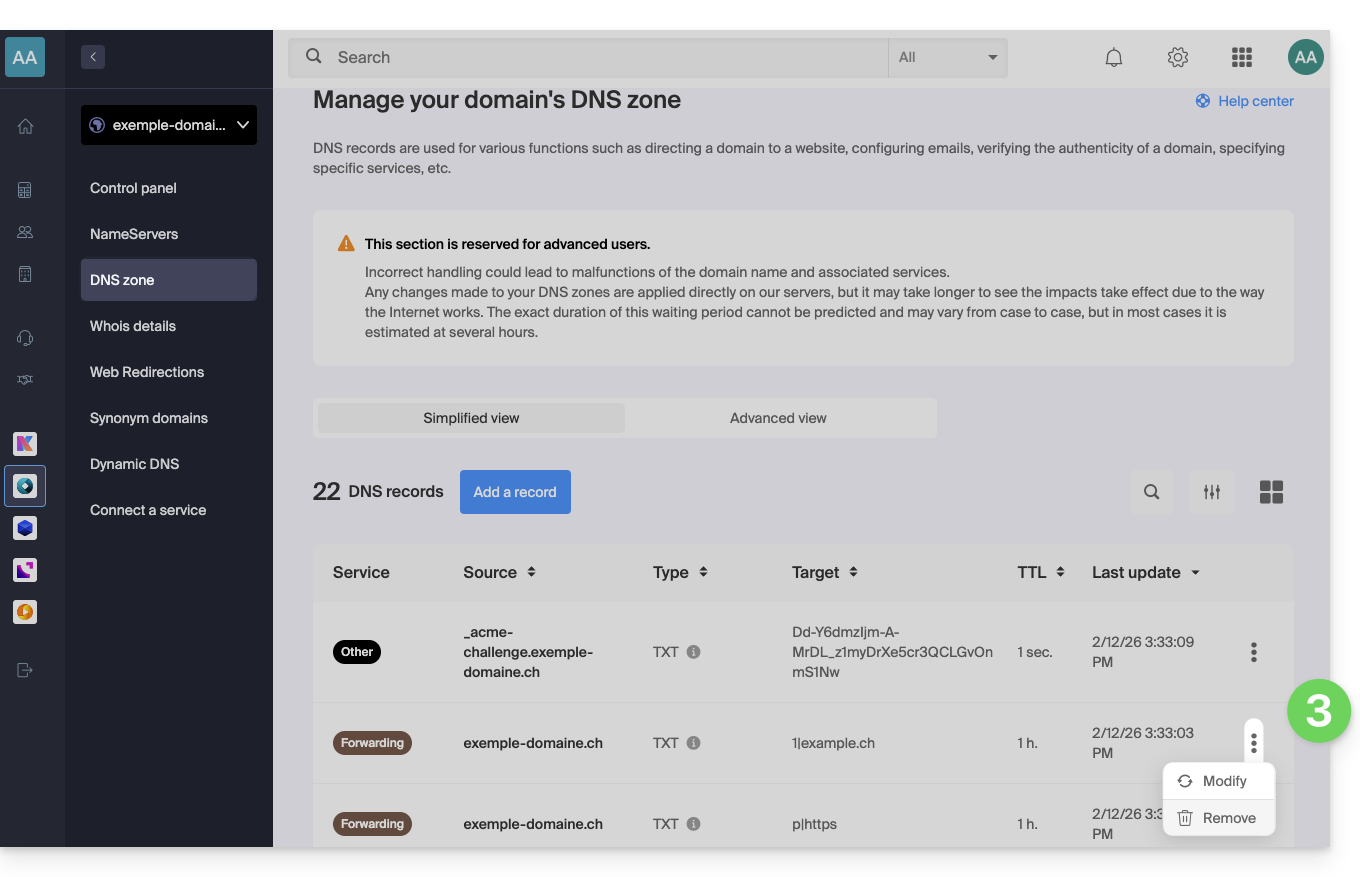
- You probably won't find all the records listed, and that's perfectly normal.
- Any DNS addition/modification may take up to 48 hours to propagate (❓: help).
- Recreate the web redirection (❓: help).
List of records to check and delete
DNS records can be of the following types:
A, which points toxx.xx.xx.xx(only numbers)AAAArecords that point to an IP addressxxxx:xxxx:x:x::x(a combination of numbers and letters).TXTrecords whose string resembles "(number)|(URL)"- for example,
1|infomaniak.comif your redirection points to infomaniak.com
- for example,
TXTwhere the string resembles "(letter)|(text)"- for example
t|Text,d|Textork|Text
- for example
Link to this FAQ: https://faq.infomaniak.com/2506
Has this FAQ been helpful?
This guide details the open ports available for Node.js websites hosted with Infomaniak.
Outbound open ports
Web
- HTTP:
tcp/80 - Alternative HTTP:
tcp/8080 - HTTPS:
tcp/443 - FTP Data:
tcp/20 - FTP Control:
tcp/21
- POP3:
tcp/110 - IMAP:
tcp/143 - SMTP submission (+ STARTTLS):
tcp/587 - SMTPS:
tcp/465 - IMAPS:
tcp/993 - POP3S:
tcp/995
Database
- MySQL:
tcp/3306 - MongoDB:
tcp/27017 - PostgreSQL:
tcp/5432 - Redis:
tcp/6379 - Redis TLS:
tcp/6380 - ElasticSearch:
tcp/9200
Miscellaneous
- SSH:
tcp/22 - Git pack transfer:
tcp/9418
Incoming open ports
- HTTP:
tcp/80 - HTTPS:
tcp/443 - SSH:
tcp/22
Link to this FAQ: https://faq.infomaniak.com/2516
Has this FAQ been helpful?
This guide explains how to resolve an issue with the installation of an SSL certificate (Let's Encrypt or Sectigo) if you are using Cloudflare with strict security rules, such as country or IP address filtering.
Adjust SSL / geoblocking settings
When an SSL certificate is requested via Infomaniak (free Let's Encrypt or Sectigo), the certificate authority must verify that you are the owner of the domain. This verification can be done via HTTP (using special files placed on your website), DNS, or email:
- Let's Encrypt uses
/.well-known/acme-challenge/. - Sectigo generally uses
/.well-known/pki-validation/(or DNS / email, depending on the option chosen).
If these checks fail (for example, because Cloudflare blocks access), the certificate cannot be issued or renewed. However, Let's Encrypt no longer verifies only from a single location. For some time now (and even more so since March 2024), it performs its checks from several countries simultaneously – including new ones such as Sweden or Singapore. As a result, if one of these countries is blocked by your Cloudflare settings, the certificate request may fail, even if everything else is configured correctly.
Even worse: even if you try to create an exception specifically for the challenge address (.well-known/acme-challenge), it may not work with certain Cloudflare rules. Indeed, blocking rules based on country or IP address are applied before any exception based on URL paths.
Adjust the SSL/TLS mode
In Cloudflare, use Full or Full (strict) mode. These modes temporarily tolerate an expired or self-signed certificate while validation is in progress: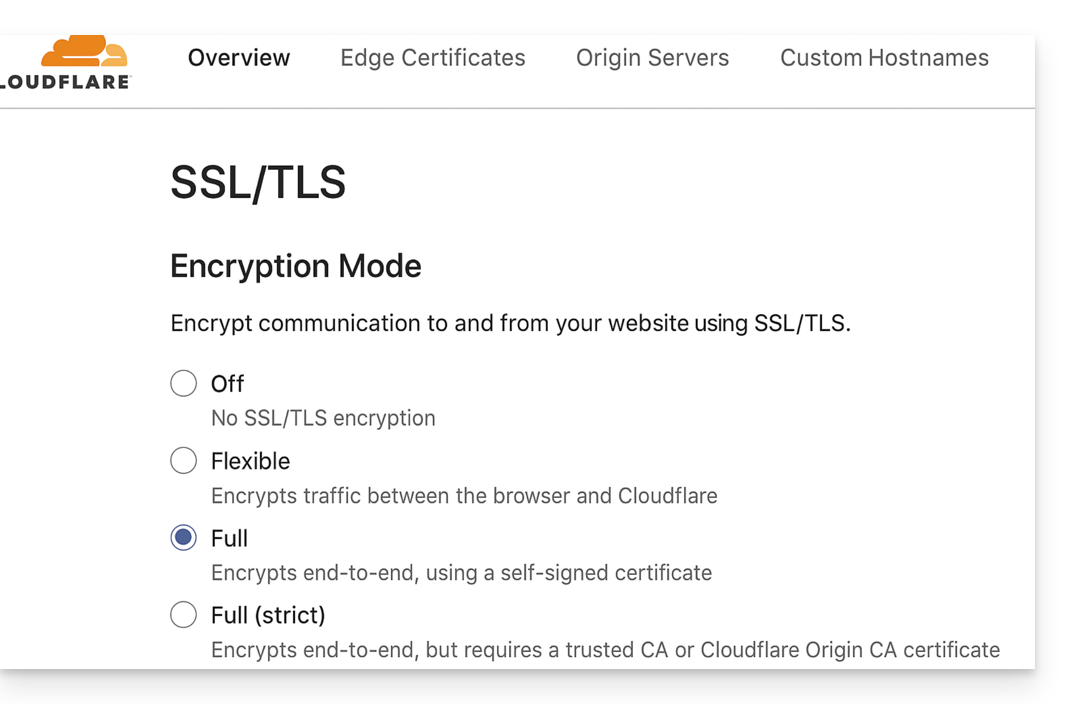
Allow validation paths
Avoid restrictive "IP Access Rules" and instead use "Custom Rules" that allow unrestricted access to the following paths:
/.well-known/acme-challenge/(Let's Encrypt)/.well-known/pki-validation/(Sectigo)
Temporarily disable geoblocking
If necessary, temporarily disable geographic or IP blocking during the validation process, then re-enable your security measures after the certificate is issued or renewed.
Link to this FAQ: https://faq.infomaniak.com/2517
Has this FAQ been helpful?