Knowledge base
1000 FAQs, 500 tutorials and instructional videos. Here, there are only solutions!
This guide explains how to remove additional designations from an existing Mail Service (everything that comes after the @ symbol in your email address) by detaching its associated domain names.
Introduction
- Once removed, the domain name is again available to order a new Mail Service or to be linked to another existing Mail Service.
- It should also be noted that you can rename your product in the Infomaniak Manager, but changing the name of a Mail Service has absolutely no effect on its addresses; you must act on the domain name.
Remove the linked domain
Prerequisites
- Make sure the synonymous domain name is no longer associated with the main domain name if it was previously associated.
- Define the domain name to be disassociated as a secondary domain (instead of a primary domain) – this change can be made by following this other guide in the section titled "a" starting from point 3.
To unlink a domain name from your Mail service:
- Click here to access the management interface for your product in the Infomaniak Manager (need help?).
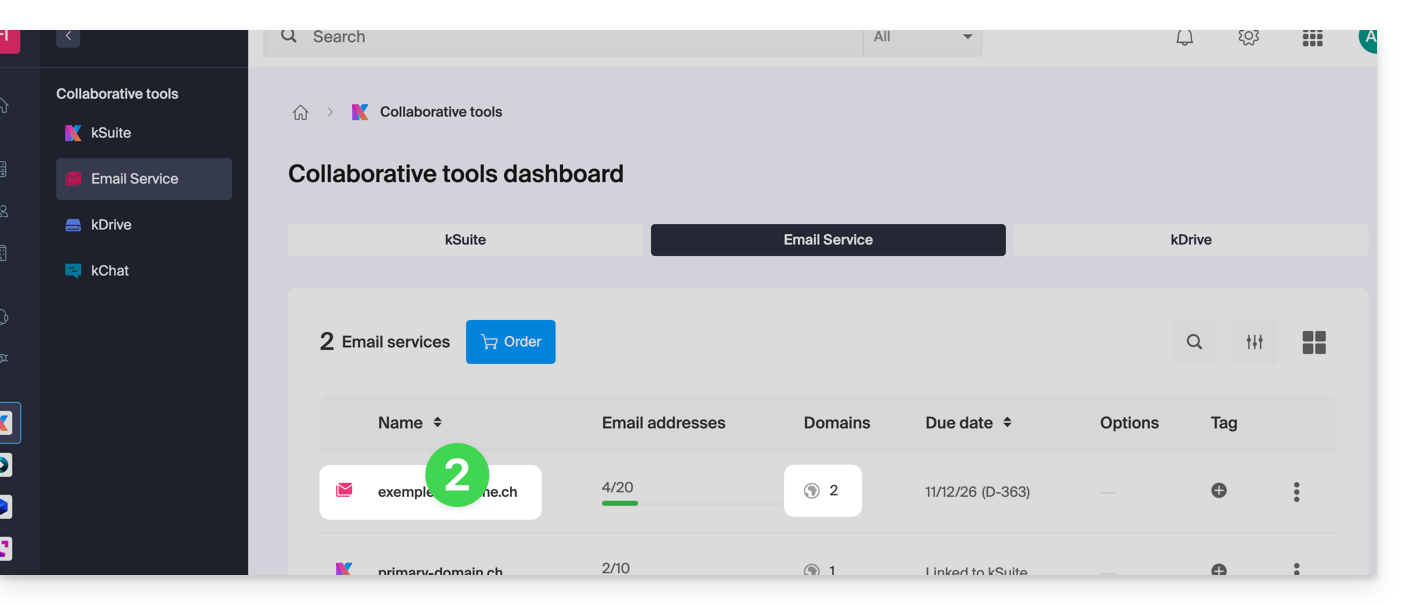
- Click directly on the name assigned to the product in question:
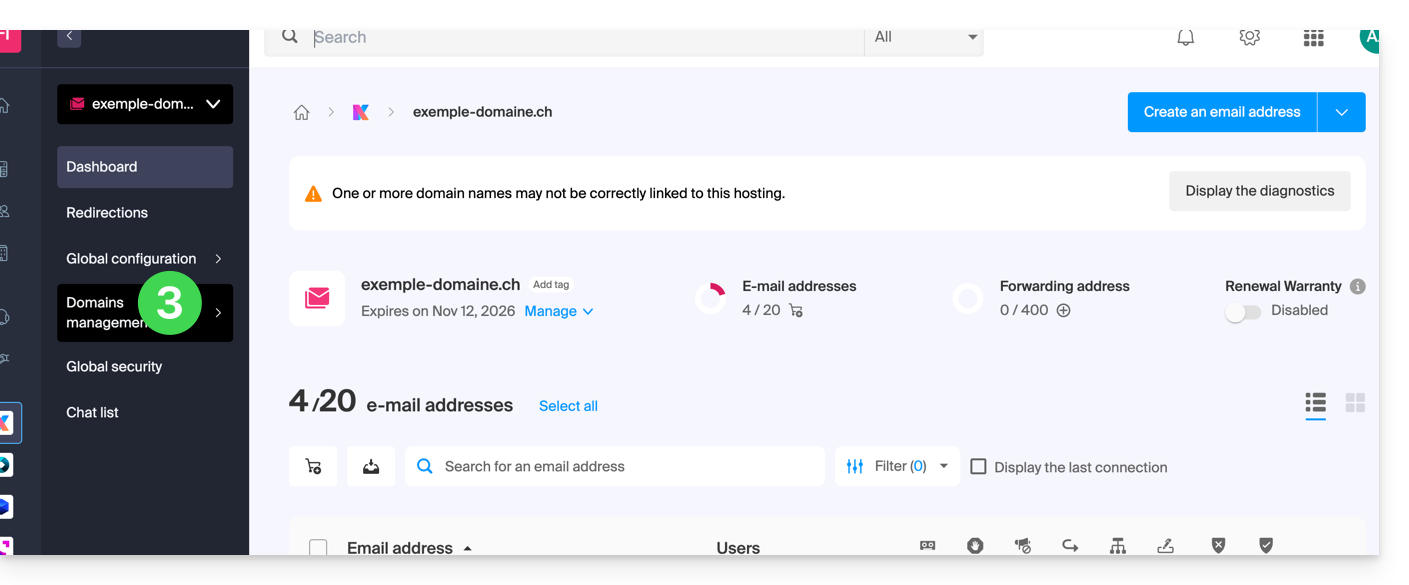
- Click on Domain Management in the left-hand menu:
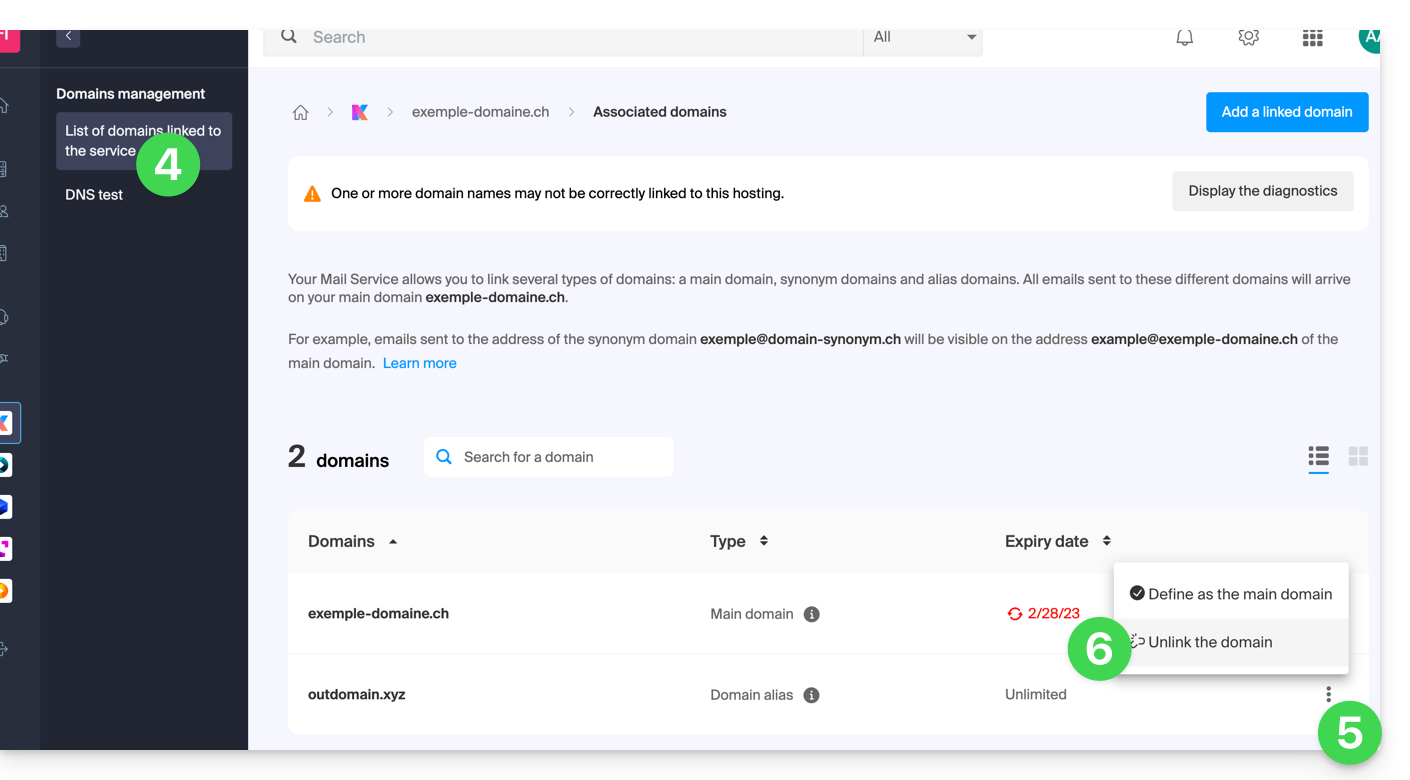
- Click on List of domains linked to the service in the left-hand menu.
- Click on the ⋮ icon to the right of the domain name you want to unlink.
- Click on Unlink domain (see prerequisites if this option is not available):
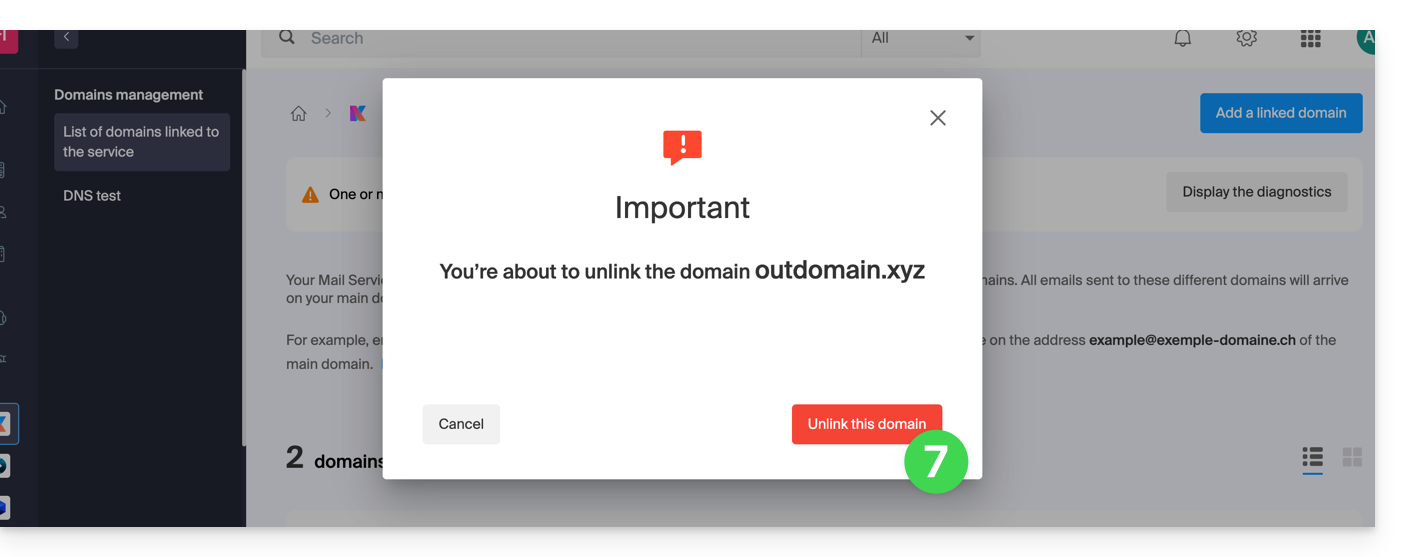
- Confirm the unlinking:
Link to this FAQ: https://faq.infomaniak.com/1996
Has this FAQ been helpful?
This guide explains how to add a synonym domain to a domain name.
Introduction
- A synonym domain is a domain name that can serve as a secondary name for another domain.
- When a synonym domain is added, it automatically inherits the content of the DNS zone of the main domain (including
MX,A, etc. records), as well as its Web and Mail hosting. - Alternatively, you can also add an alias to a website or add an alias to a Mail service.
Add a synonym domain to a domain
Prerequisites
- The domain name of the future synonym or the management of its DNS zone…
- … must be registered with Infomaniak,
- … must be configured with Infomaniak DNS,
- … must not yet be linked to any product.
- The domain name to which the synonym will be added…
- … must not be associated with the Infomaniak Newsletter product.
To access your domain names:
- Click here to access the management of your domain in the Infomaniak Manager (need help?).
- Click directly on the name assigned to the main domain in question:
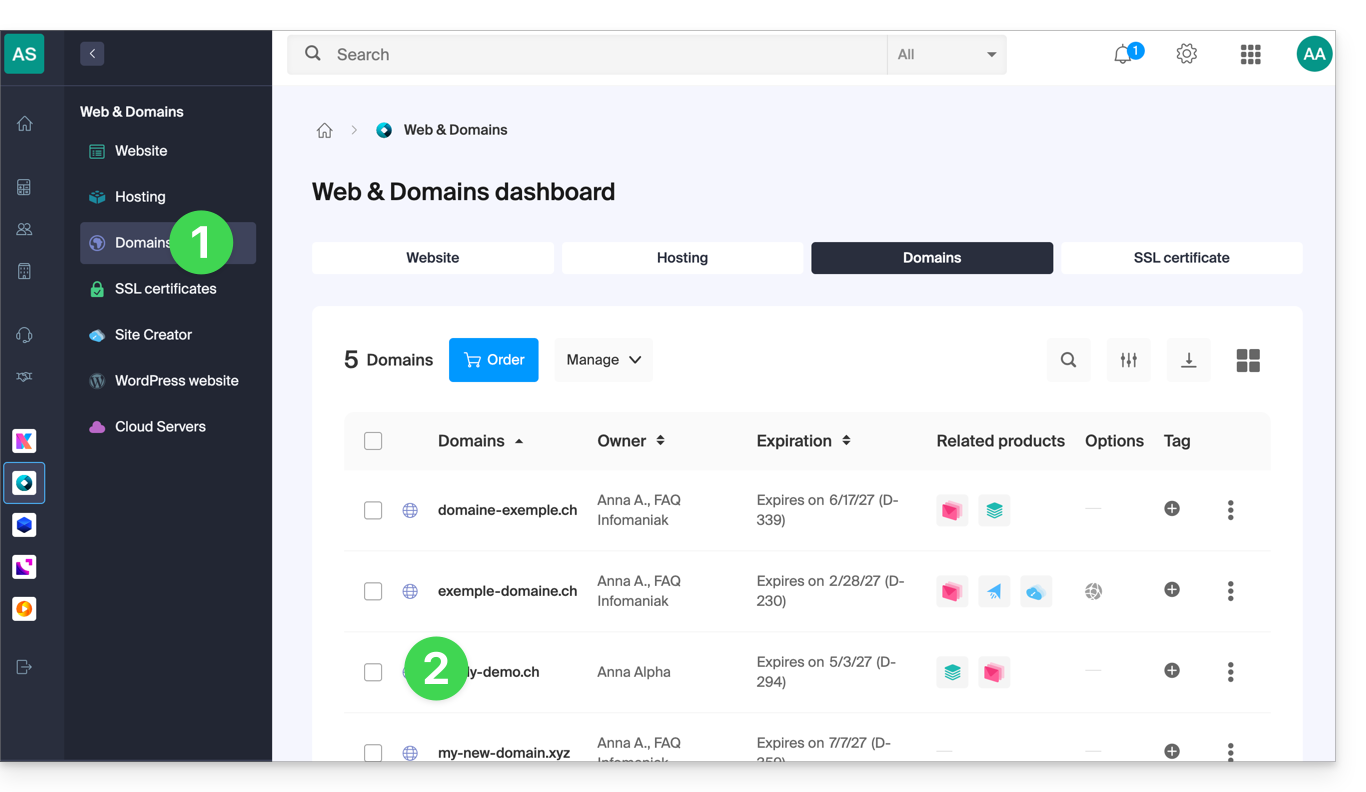
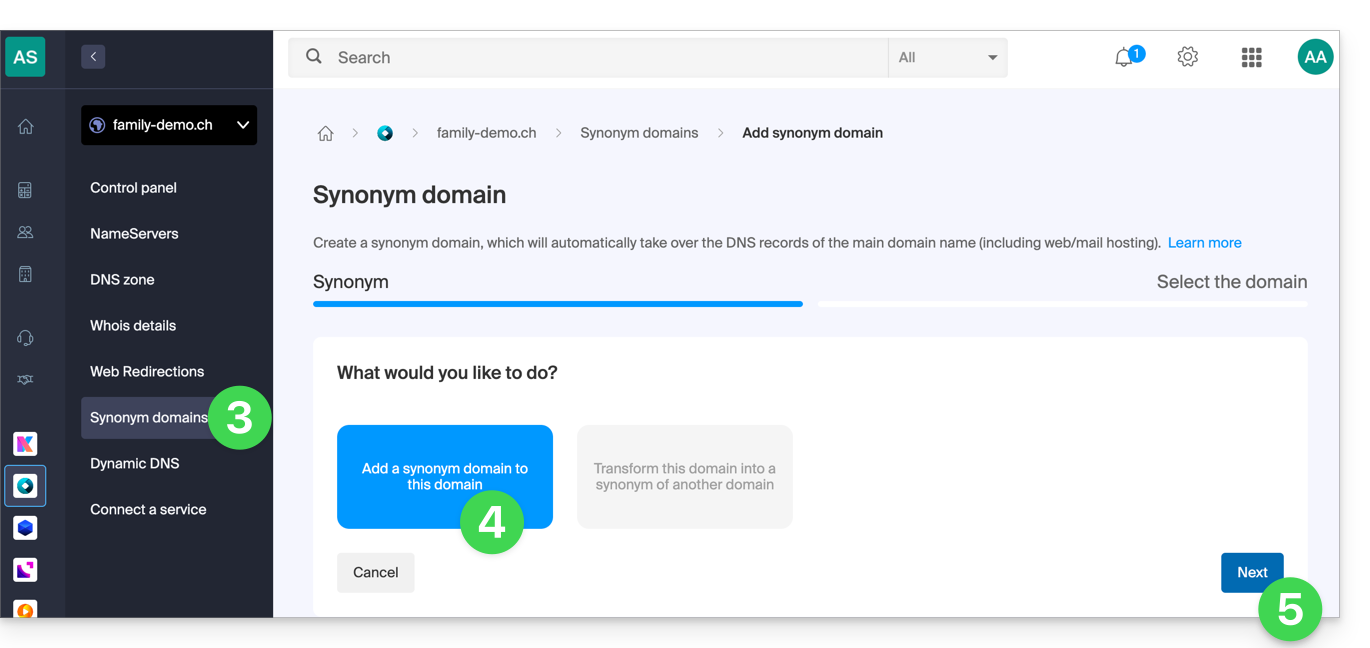
- Click on Synonymous Domains in the left-hand menu.
- Choose to add a synonym.
- Click on Next:
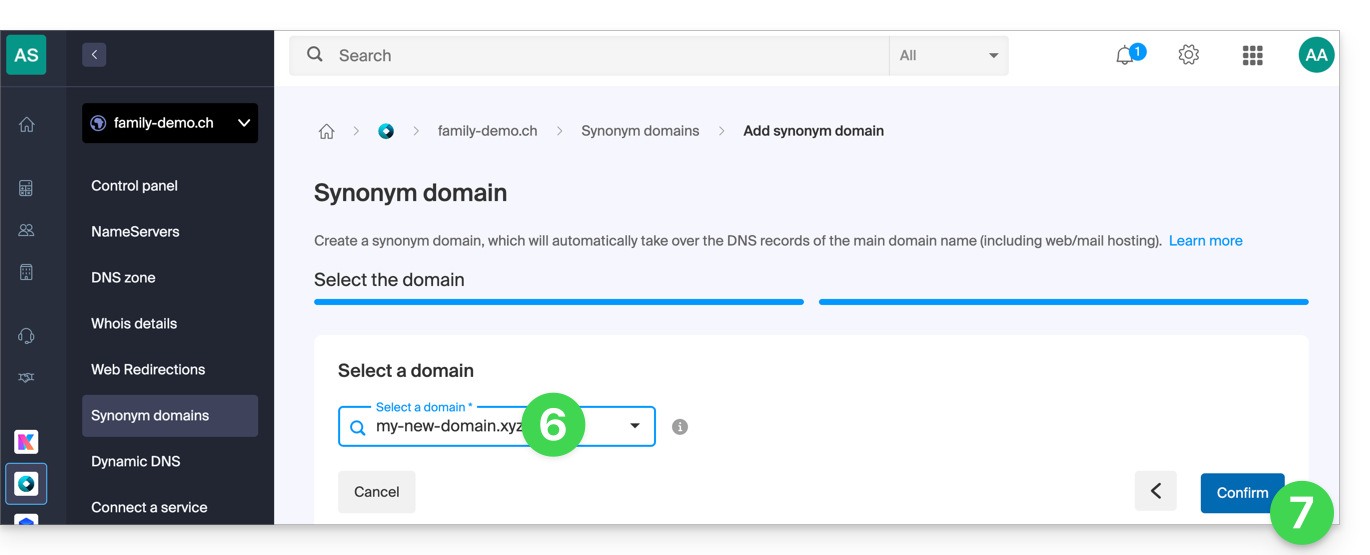
- Choose an existing domain for this Organization, or order a new domain in advance.
- Click the button to Confirm:
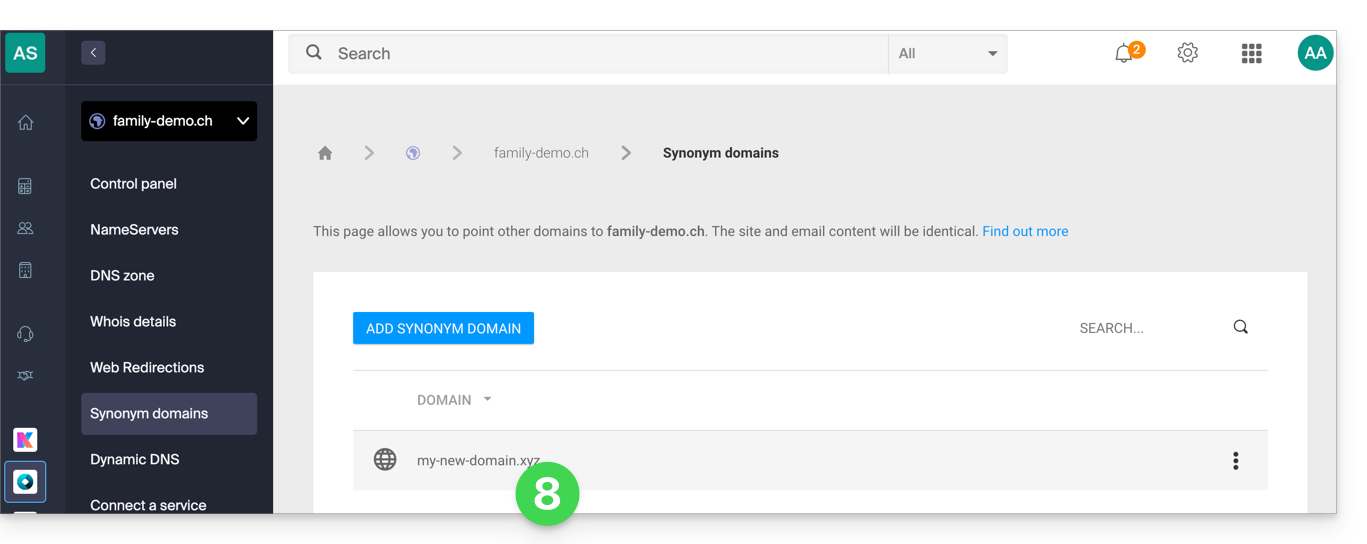
- That's it:
Refer to this other guide if you are looking for information on disassociating a synonymous domain name.
Link to this FAQ: https://faq.infomaniak.com/1999
Has this FAQ been helpful?
This guide explains how to obtain a Mail service + web hosting free of charge after purchasing a domain name from Infomaniak.
Introduction
- For each domain name registered or transferred to Infomaniak, you can benefit from the following free services:
- a mail address that gives you access to the Mail Infomaniak app
- and 10 MB of web space for a basic page.
- It is also possible to have a free Mail service while having a paid Web offer, or vice versa.
- Instead of a Starter Mail service, there is also kSuite.
Activate the Starter Mail + Web offer
Prerequisites
- You must own a domain name with Infomaniak (a DNS zone is not sufficient).
- Depending on the desired type (Mail or Web), ensure that no corresponding product is already associated with the domain nameand this within any existing Infomaniak organization.
To order a Mail Starter service and a Web Hosting Starter included with each domain:
- Click here to access your product management interface in the Infomaniak Manager (need help?).
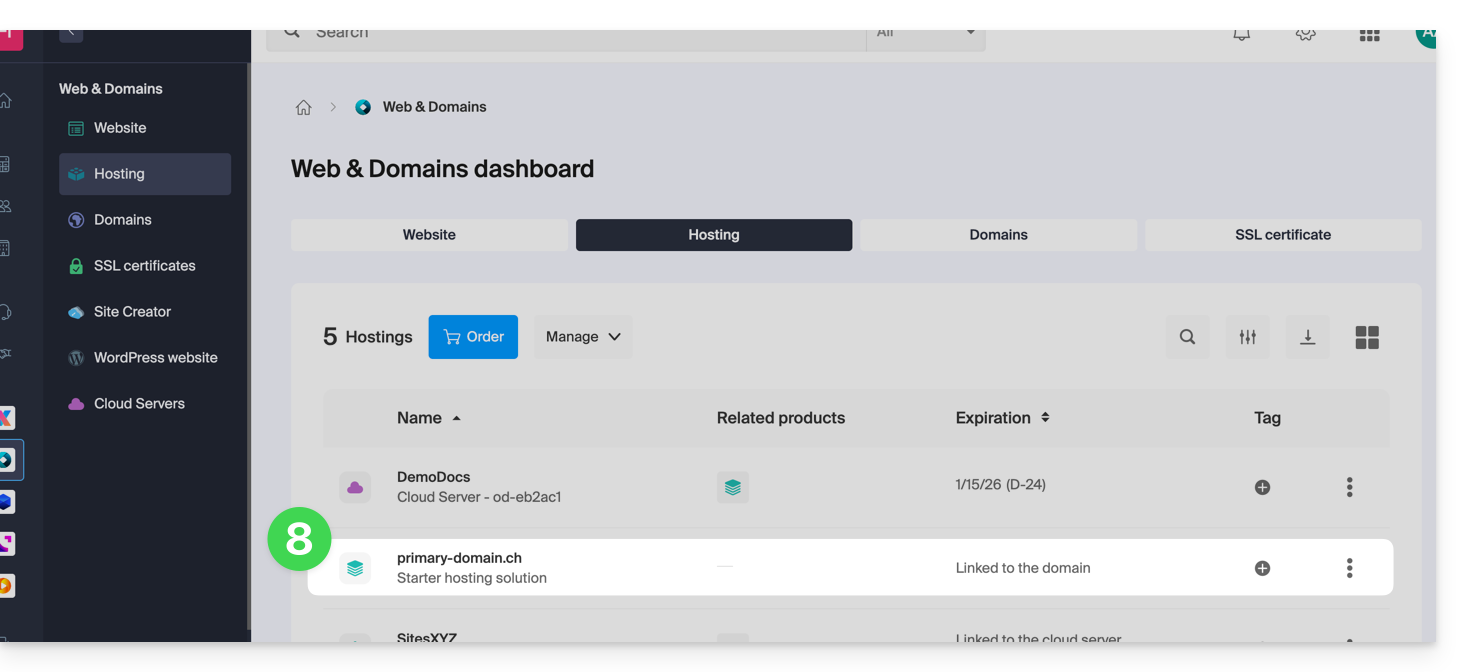
- Click directly on the name assigned to the product in question:
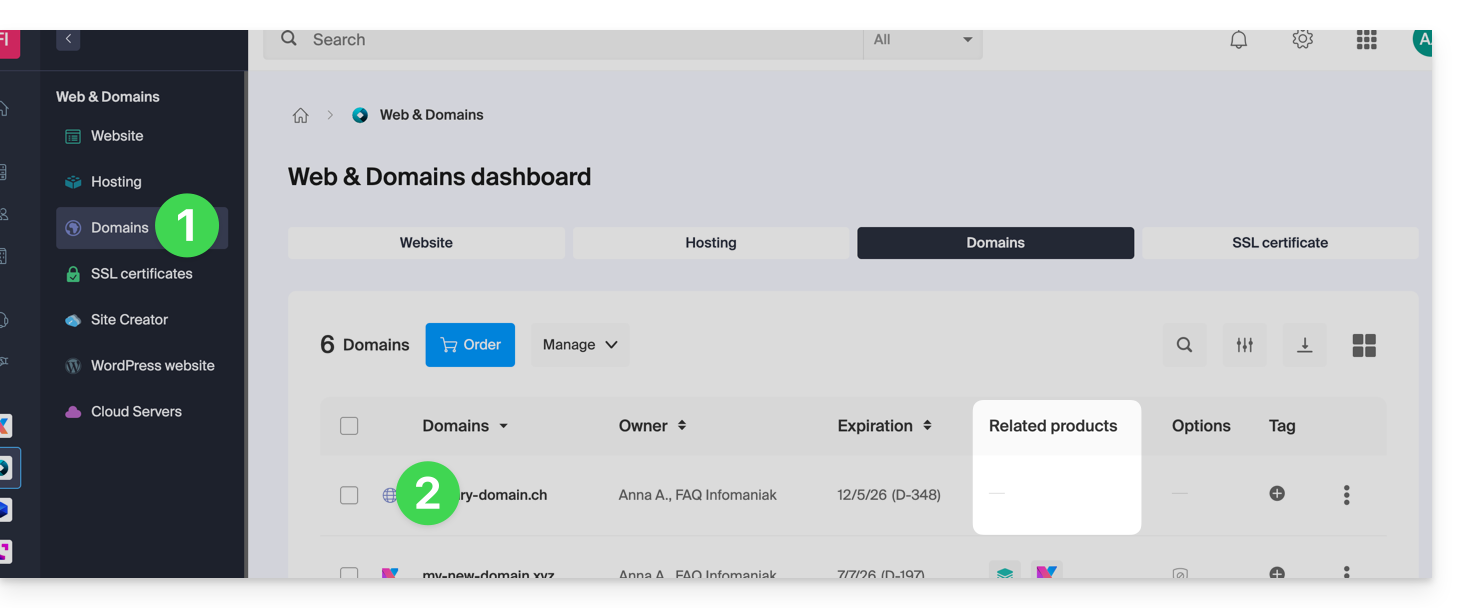
- No product should be linked to the domain at this time (as shown in the linked products column).
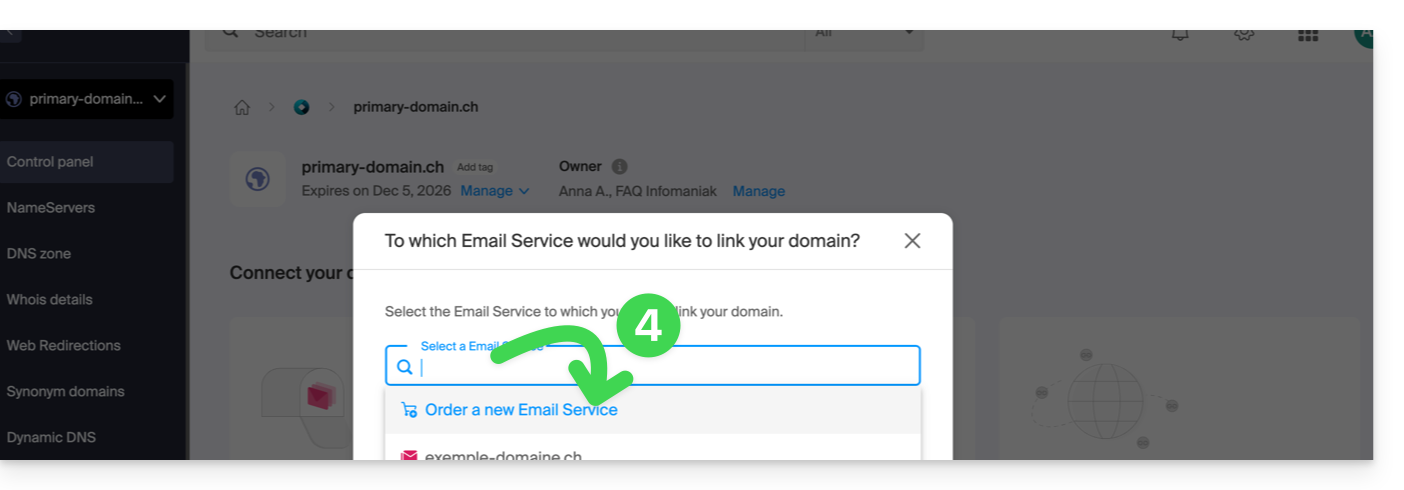
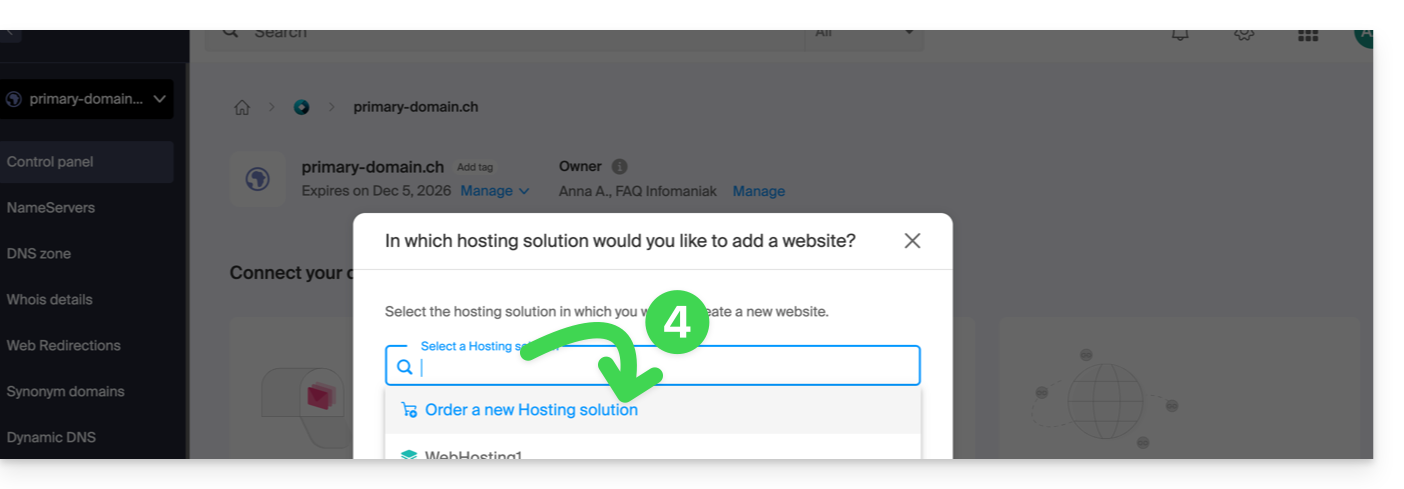
- Click on one of the shortcuts to Connect a service (mail or web):
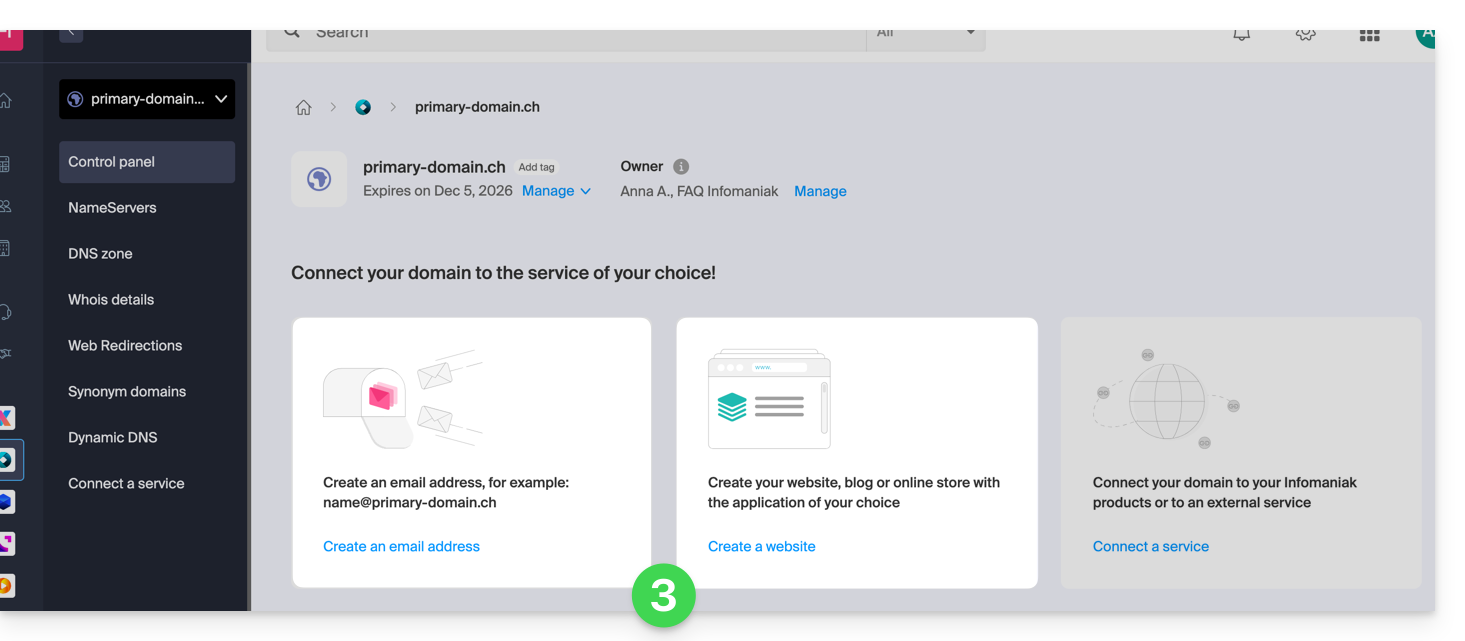
- In both cases, click on Order…:
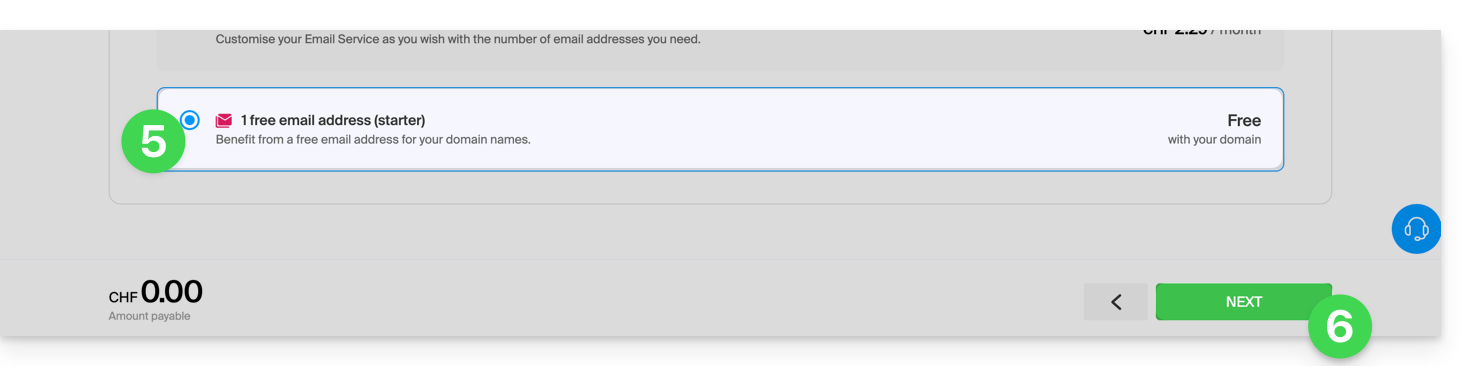
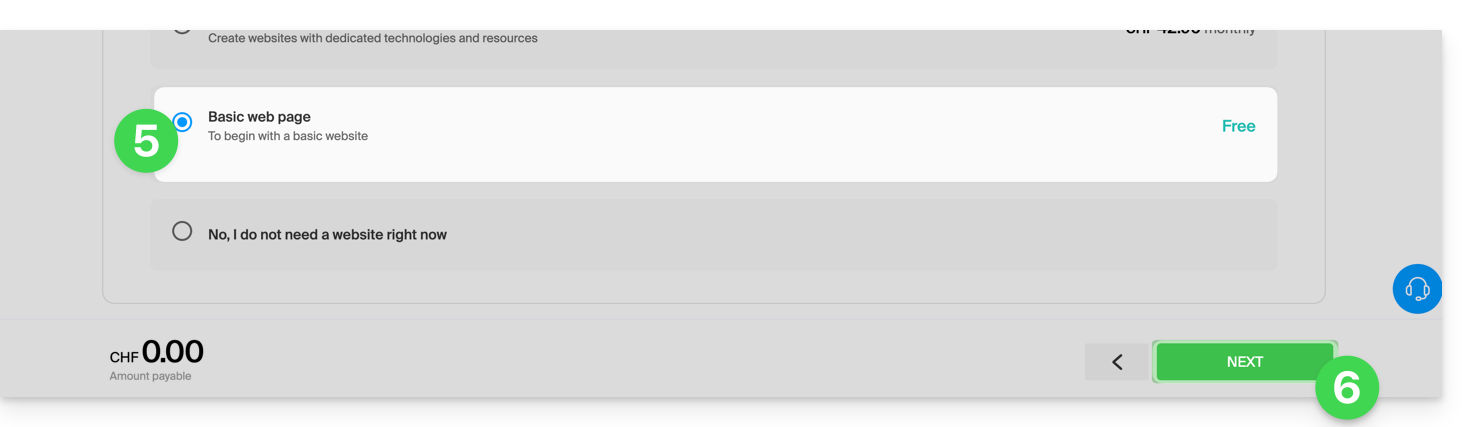
- You can choose the corresponding free service (mail or web), and the next step will allow you to choose the other one (mail or web) if desired.
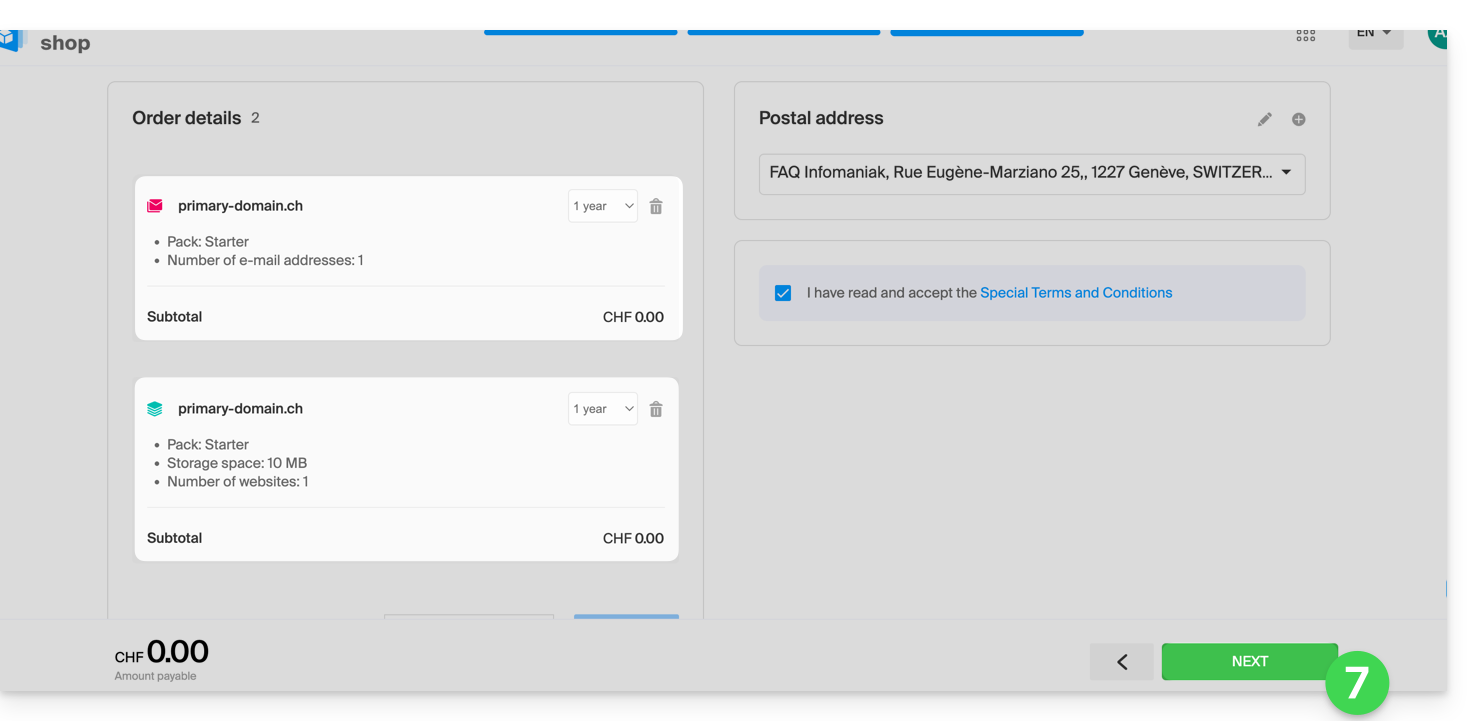
- Click at the bottom of the page to continue:
- Complete the order:
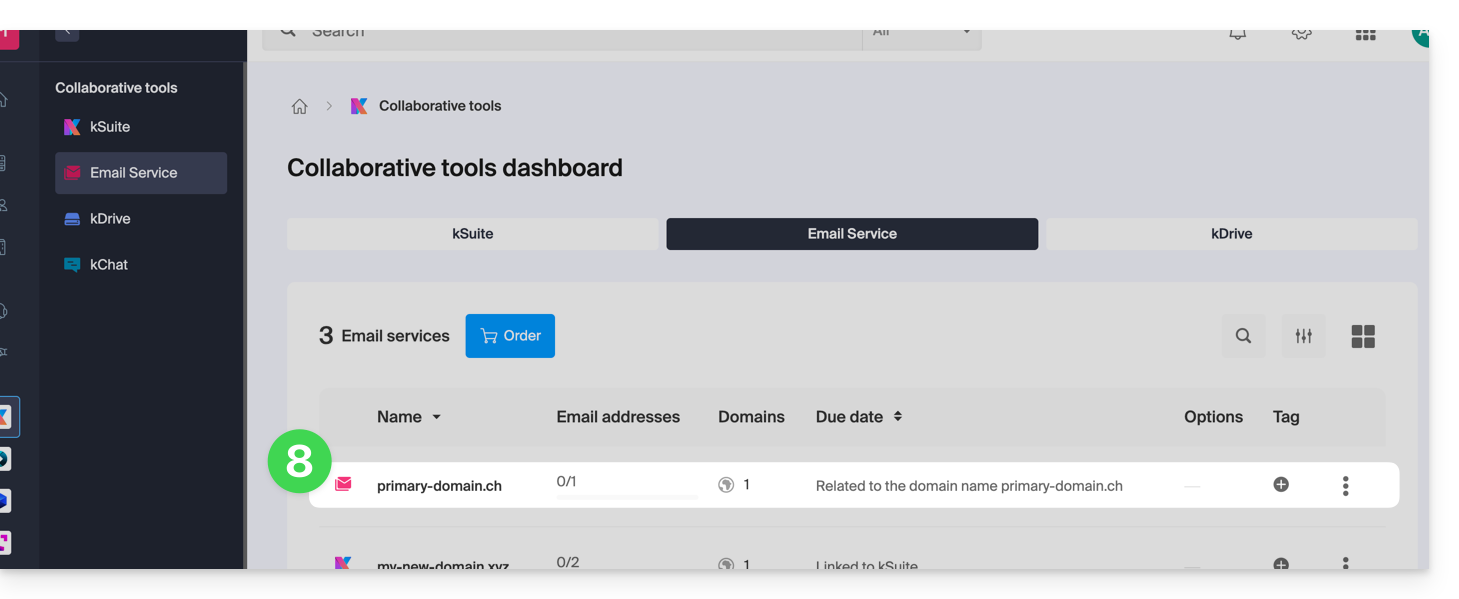
- Go back to your Infomaniak Manager to discover and use your new products:
Using your Starter products
- Create the email address you want on your Mail Starter service.
- To use the 10 MB of web space and create a basic web page on your Web Hosting Starter, use:
- the page editor
- or the Web FTP in the Manager to manage your HTML pages
- or any software/FTP client with the classic FTP protocol
Upgrading a Starter plan
- Modify a Mail plan (click here).
- Modify a Web plan (click here).
In case of a problem with a Starter hosting plan
A Starter web hosting plan does not offer IPv6. Therefore, be careful with AAAA records in the DNS zone of the domain in question, as they may prevent you from activating SSL; also, please refer to this other guide.
Link to this FAQ: https://faq.infomaniak.com/2002
Has this FAQ been helpful?
Thank you for choosing Infomaniak to host your emails.
This guide will help you quickly use the essential features of your new Mail Service. If you encounter any issues, please consult the knowledge base before contacting Infomaniak support.
If your domain name is not managed by Infomaniak or your Mail Service is not managed in the same user account as your domain name, please refer to this other guide to link the domain name to your Mail Service.
Create email addresses
- Get started with the interface
- Create email addresses
- Create email addresses in bulk
- Create email addresses that only serve as redirects
- Copy email content from Gmail, OVH, etc. to Infomaniak
Using your created email addresses
- Manage passwords & users
- Sync your emails across all your devices
- Hide the recipient addresses in an email
- Discover the Infomaniak Mail mobile app
- Use email even if your domain name points to Wix or a similar service
- Use email with your website
- Use Euria (Infomaniak AI) with your email
- Check the incoming and outgoing email log
Learn about important information
- Sending limits
- Size limits
- Recipient limit
- Different identifiers
- Troubleshoot an error with a mail software/client
Customize your email
- Add a signature
- Add an alias
- Add an automatic out-of-office message
- Add a domain name
- Automatically sort incoming emails
Secure your email address
Link to this FAQ: https://faq.infomaniak.com/2009
Has this FAQ been helpful?
This guide details sending authenticated emails from a website/CMShosted by Infomaniak.
Introduction
- Configuring your website to send emails via an authenticated SMTP server improves the reliability and security of email sending compared to using the PHP
mail()function without authentication:- improved email delivery reliability,
- enhanced security,
- more accurate error detection,
- better compatibility with email services,
- and improved email tracking.
SMTP configuration examples
Prerequisites
- You must have an email service.
- You can use the Mail Service offered by Infomaniak or any other email service of your choice.
- Create a device password (❓: my kSuite | Mail/kSuite Service).
- Use the recommended settings:
- Outgoing SMTP server =
mail.infomaniak.com - SMTP port & encryption protocol and command/method to activate this protocol:
587+ STARTTLS - Username = the complete and full email address (need help?)
- Password = the one generated for the email address you want to use
- Authentication is mandatory for sending emails:
- It is activated in the SMTP settings of your CMS.
- Check "use the same settings as the incoming server" or, depending on the CMS, enter a username (= complete and full email address) and the generated password.
- Outgoing SMTP server =
WordPress
To enable your site to send emails, use an email address from its domain (e.g. email@domain-site.xyz) and enter the SMTP settings (see prerequisites):
- Log in to the WordPress administration panel.
- Install an SMTP plugin (e.g. WP Mail SMTP).
- Configure the extension, for example:
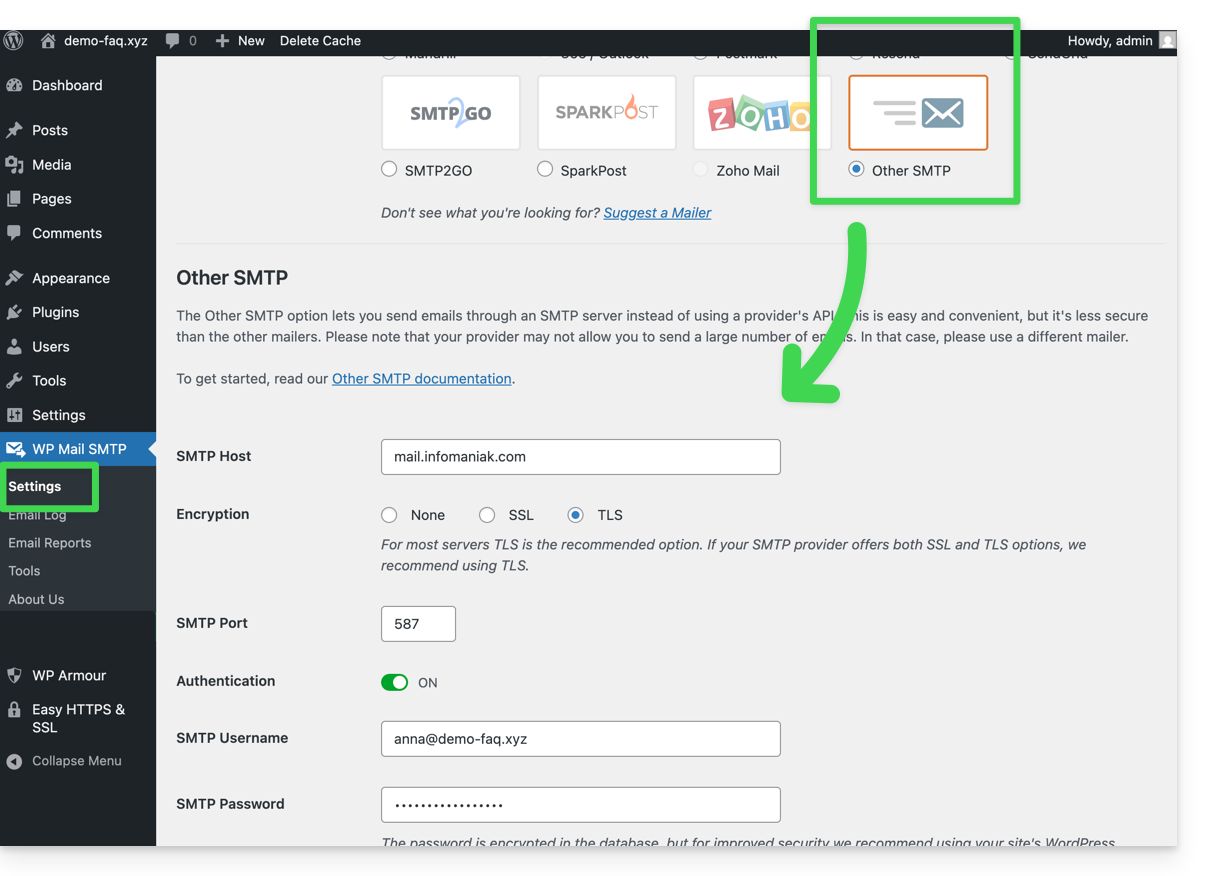
From then on, an email sent from a contact form on the website (e.g., the default Divi form) will be sent using the SMTP method.
To verify this, simply examine the headers of a message received through this method, particularly the x-mailer line, which may indicate, for example, WPMailSMTP/Mailer/smtp instead of PHPMailer.
Note: the x-mailer can be any indication and may not necessarily reflect the actual sending method!
Prestashop
To enable your site to send emails, use an email address from its domain (e.g., email@domain-site.xyz) and enter the SMTP settings (see prerequisites):
- Log in to the PrestaShop administration panel.
- Go to Advanced Parameters then E-mail.
- Configure sending via SMTP:
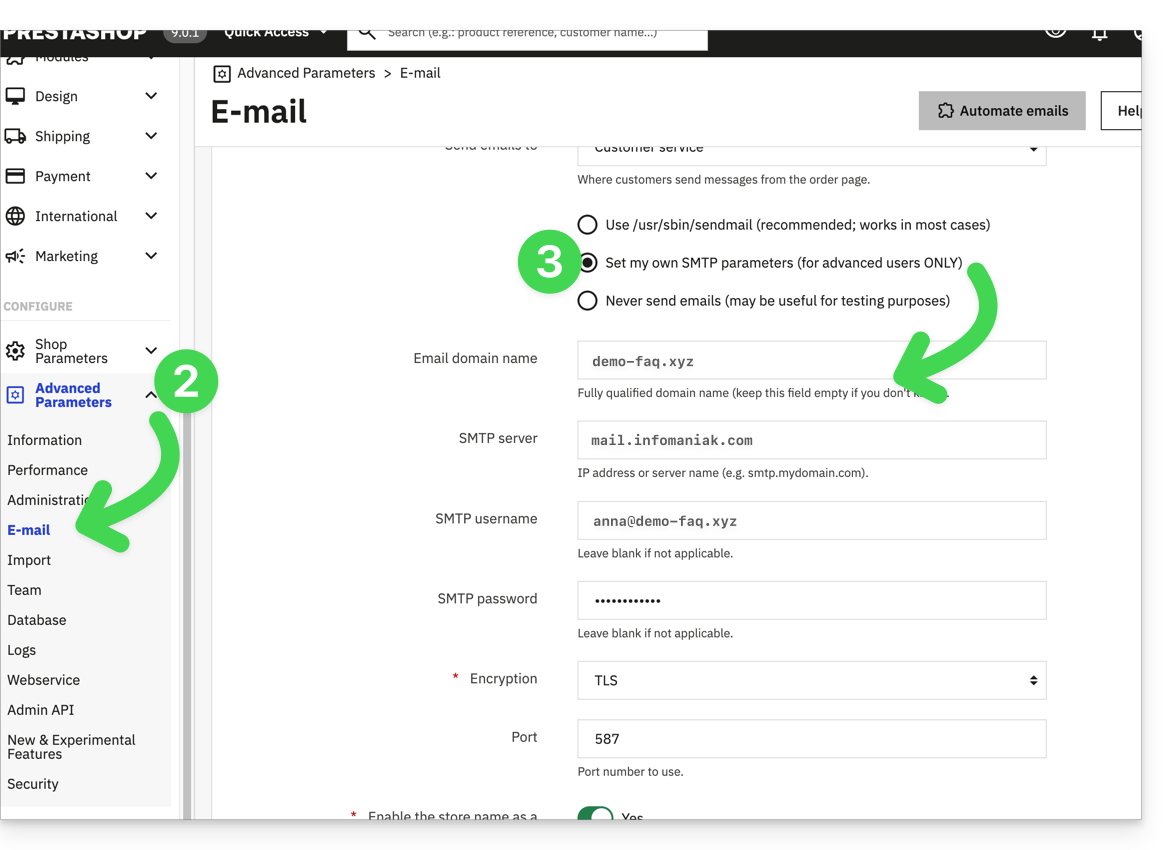
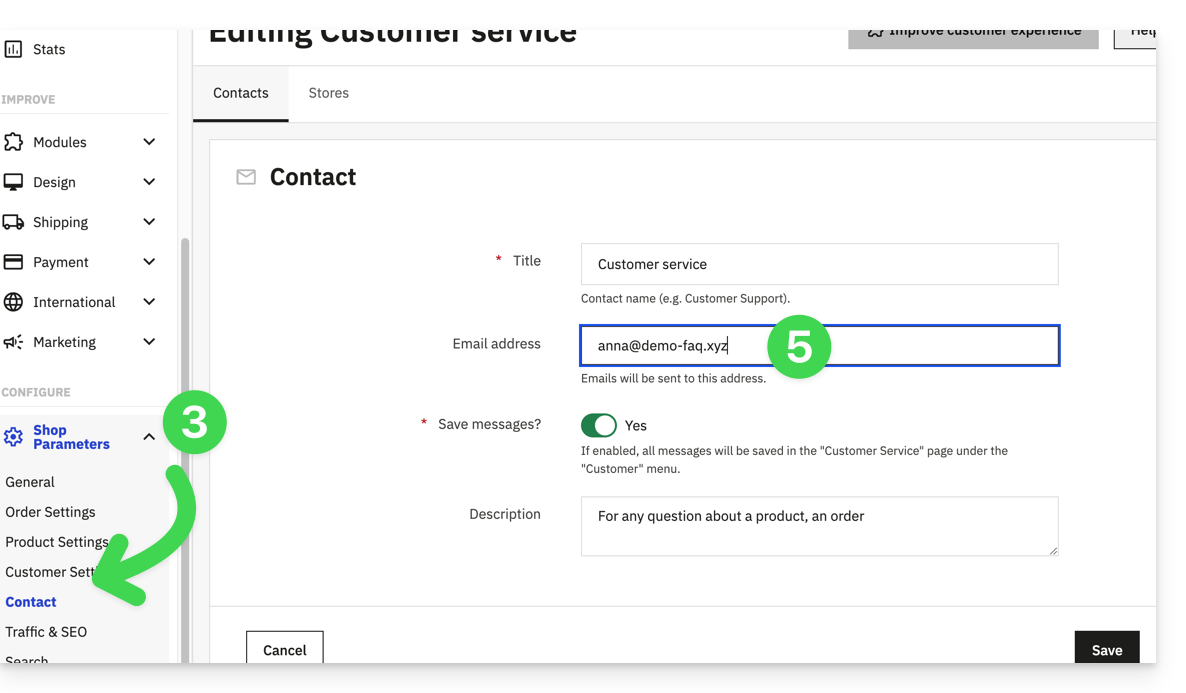
Then, check (to avoid errors such as Could not instantiate mail function or sender mismatch) that the address you configured in these advanced settings matches the address that Prestashop uses when sending emails. To do this:
- Log in to the Prestashop administration panel.
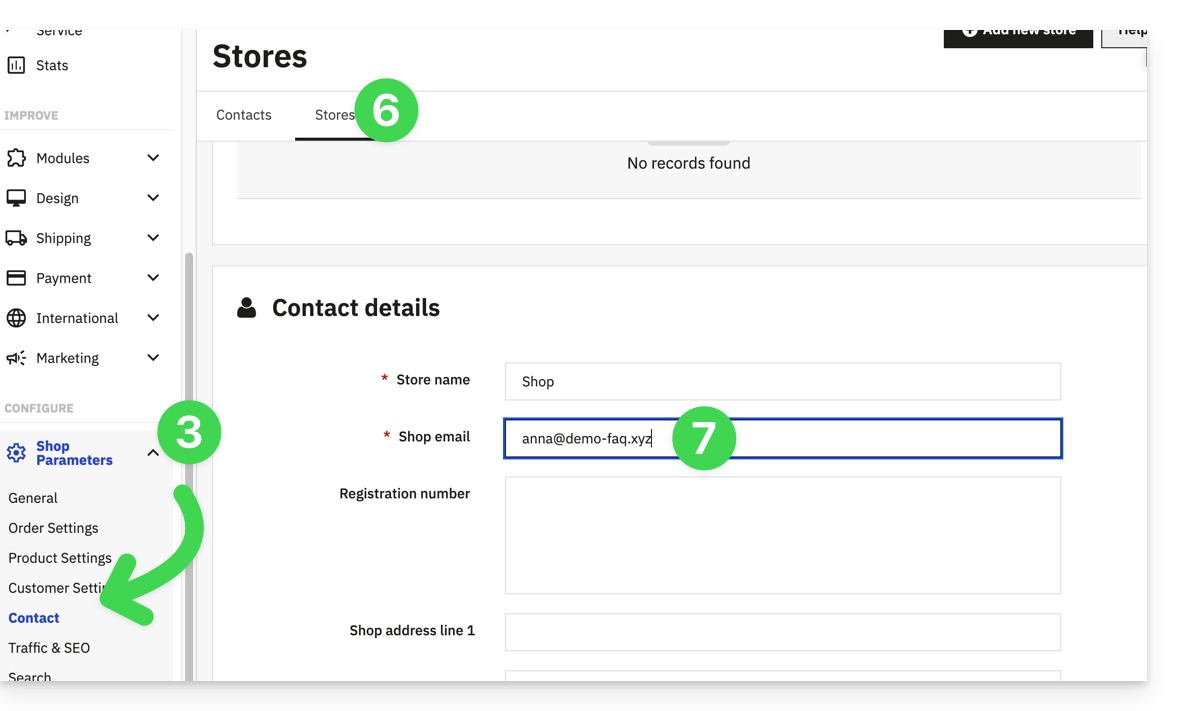
- Go to Shop Parameters.
- Click on Contact in the left-hand menu.
- On the Contacts tab, verify that the email address mentioned is the same as the one configured previously.
- Edit the email addresses if necessary:
- Click on the Shops tab.
- Check (and correct if necessary) that the email address mentioned is the same as the one configured previously:
Joomla
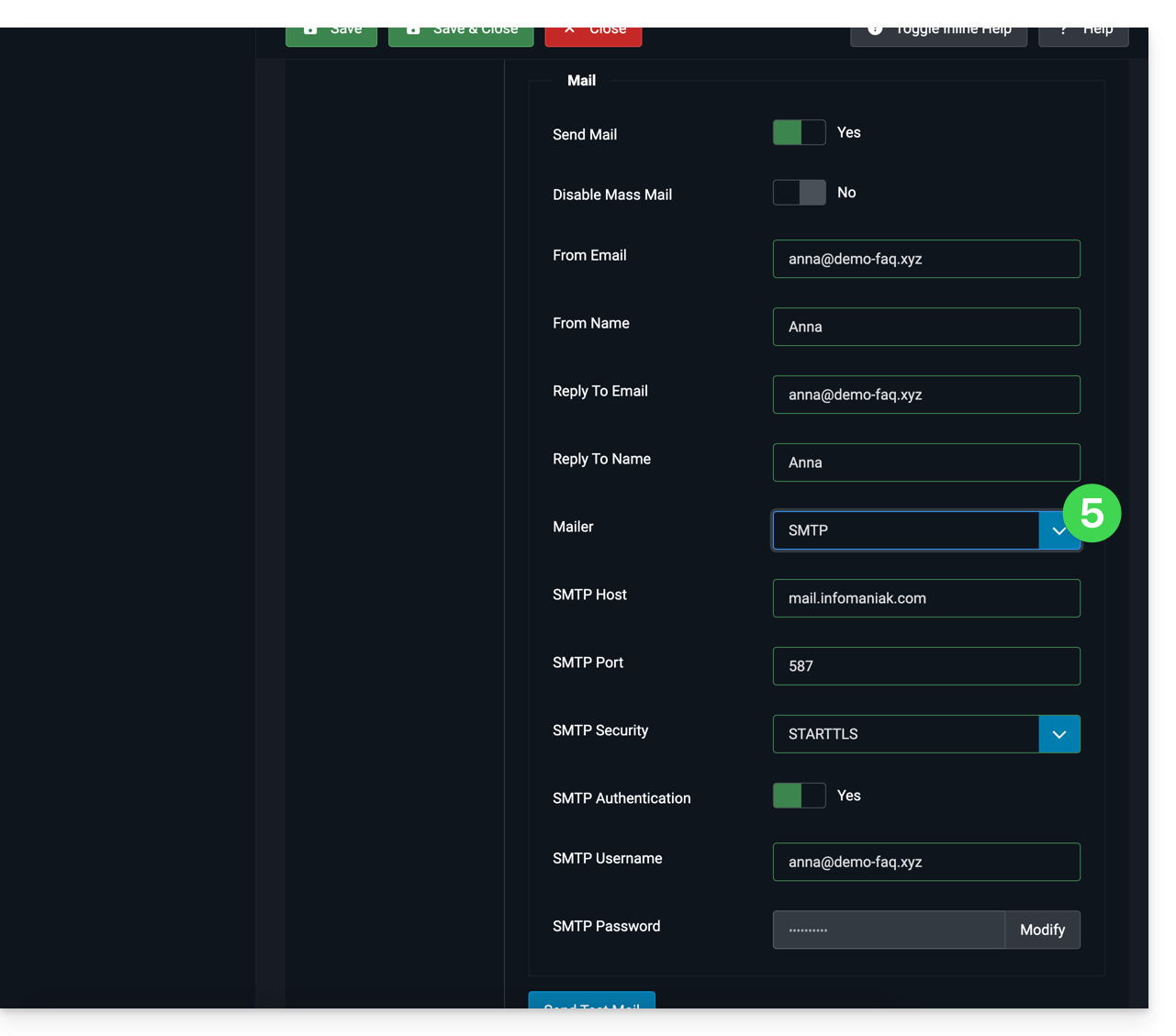
To enable your website to send emails, use an email address from its domain (e.g., email@domain-site.xyz) and enter the SMTP settings (see prerequisites):
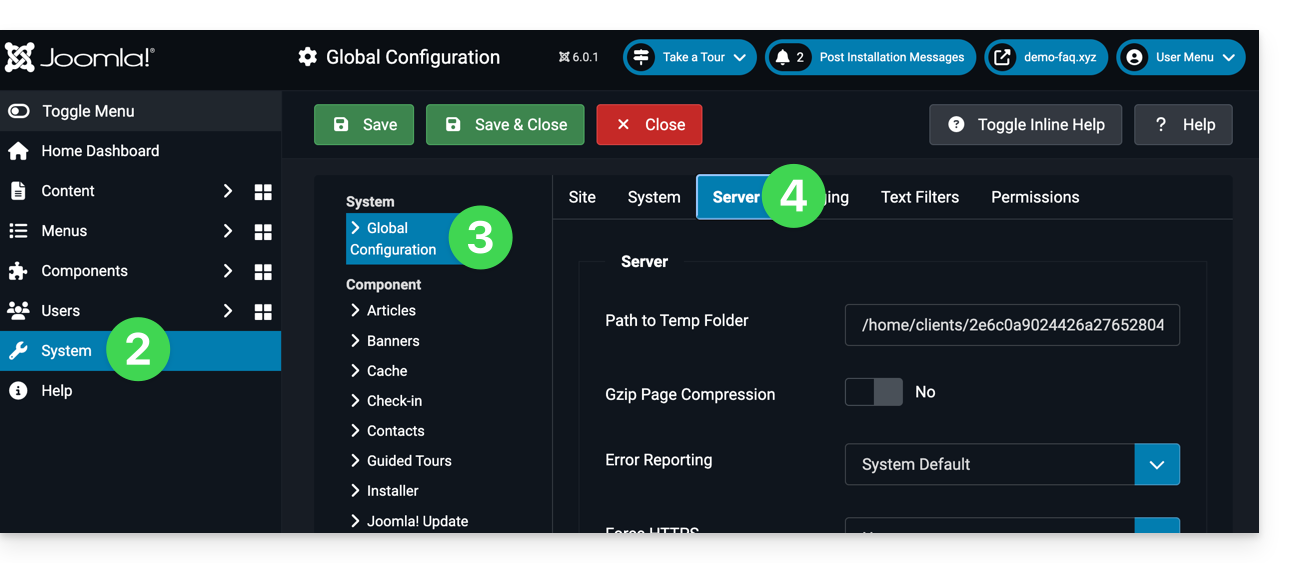
- Log in to the Joomla administration panel.
- Click on System in the left-hand menu.
- Click on General Settings.
- Click on the Server tab:
- Configure sending via the SMTP method:
Link to this FAQ: https://faq.infomaniak.com/2023
Has this FAQ been helpful?
This guide explains how to transfer to Infomaniak data (Web, Mail, Domain, and even Cloud) currently hosted elsewhereYou remain the owner of your data, with no loss or interruption!
Introduction
- By consolidating your domain names, websites, and email addresses with Infomaniak, you simplify the management of your invoices and services.
- Furthermore, your domains will be automatically linked to your website and email address.
- You will not need to manually configure the DNS settings for your domains with another registrar.
Specific guides
Click on the link corresponding to your current hosting provider:
- Swisscom: complete guide to migrating Web, Mail, and domain name data
Guides for any other hosting provider
To avoid interrupting your website and email services and prevent data loss when importing your existing data, migrate your services in the order indicated:
Import Web data (any PHP, HTML, etc. website)
- For WordPress specifically, please refer to this other guide…
- For WordPress specifically, please refer to this other guide…
Copy Mail data (addresses and mailbox content, etc.) to kSuite or a simple Mail Service
Transfer the domain name (domain management, DNS zone, etc.)
You can also transfer other types of data to Infomaniak servers:
- Dropbox, Google Drive, etc. content: refer to this other guide
- Data on Synology or QNAP NAS: please refer to this other guide
Link to this FAQ: https://faq.infomaniak.com/2057
Has this FAQ been helpful?
This guide details the security measures implemented as part of the Infomaniak email offers to detect abusive and abnormal use of an email address.
Introduction
- Number of outgoing emails possible per 24 hours:
- kSuite Free = 200
- kSuite Standard = 500
- kSuite Business = 500
- kSuite Enterprise = 500
- my kSuite = 200
- my kSuite+ = 500
- Mail Service Starter = 200
- Mail Service Premium = 500
- Web Hosting = limit depends on the email service used; otherwise, 50 emails max. via PHP Mail() without authentication.
- For sending emails to a large number of recipients, the Newsletter tool is the most suitable.
- You should also consult these other guides:
How are sending quotas calculated?
Quotas are calculated over a rolling 24-hour window and are not reset at midnight. Each email sent is counted for 24 hours from the time it was sent, after which it is automatically released from the quota.
For example, if the limit is reached at 11 a.m., emails sent from that time onwards can only be sent as the previously sent messages reach 24 hours of age. Sending rights are therefore released gradually the next day, and not all at once at midnight.
Why are there sending limits?
Sending limits are applied to protect email services against abusive or abnormal use, including the mass sending of messages from a compromised account.
They also help to limit the risks associated with spam and to preserve the reputation of Infomaniak's servers, in order to maintain good email deliverability.
These limits apply to all emails sent from an address, regardless of the software or application used. Messages addressed to multiple recipients are counted individually: 1 message sent to 2, 42, or 99 people in CC/BCC counts as 2, 42, and 99 messages, respectively.
Upon a written, justified, and authenticated request, it is possible to modify these security rules for a specific paid email address.
Link to this FAQ: https://faq.infomaniak.com/2065
Has this FAQ been helpful?
This guide explains how to delete an email address from the Infomaniak Mail Service.
Delete one or more email addresses
Prerequisites
- You must have a Mail Service on your Infomaniak Manager.
- Be the Administrator or Legal Representative of the Organization.
Removing an email address or terminating a user account is done via the Mail Service dashboard. This action disconnects related services and requires careful attention to the preservation of existing data. To remove an email address (its content will be permanently deleted):
- Click here to access the management of your Mail Service in the Infomaniak Manager (need help?).
- Click directly on the name assigned to the Mail Service in question.
Once you are on the email address management page: 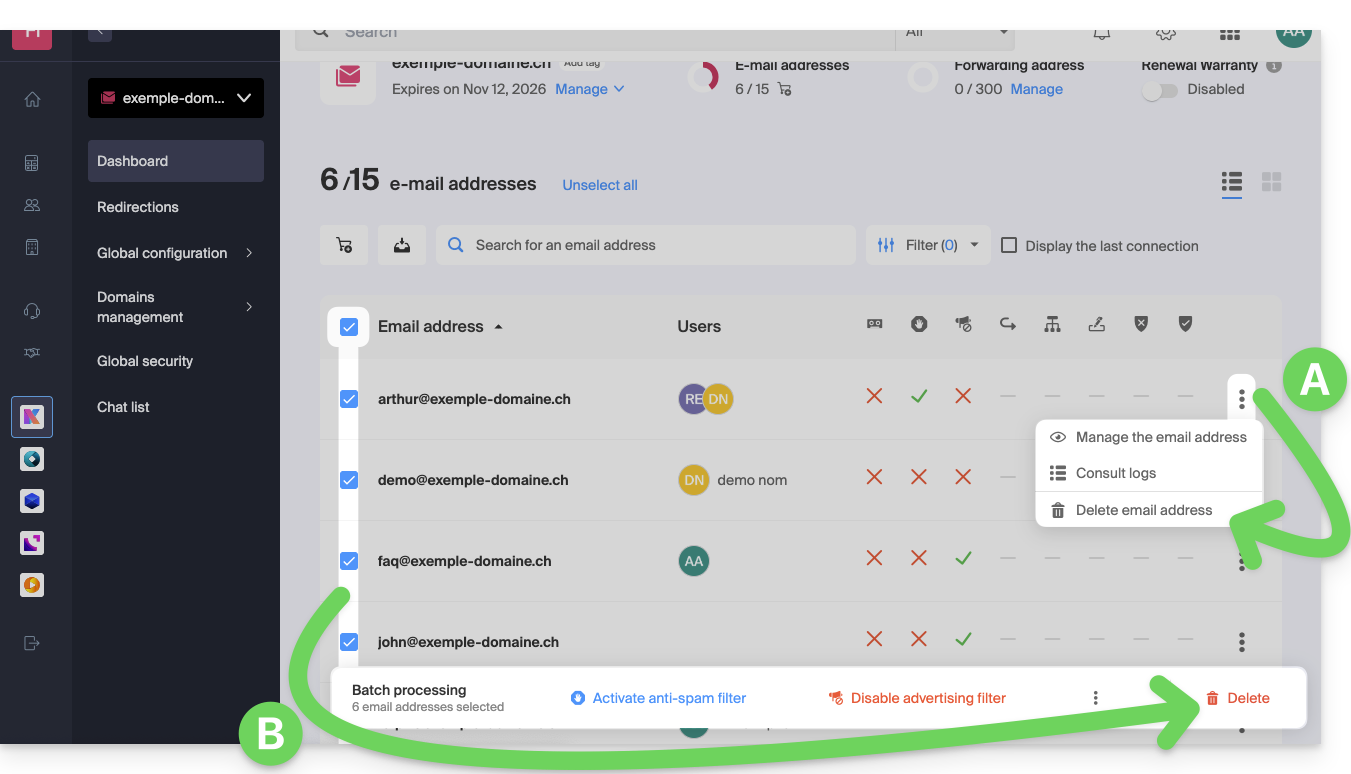
A. Delete addresses one by one
- Click on the action menu ⋮ located to the right of the item in question.
- Choose to delete the email address.
B. Delete multiple addresses at once
- Select the addresses to delete by checking the boxes to the left of each line.
- Click on Delete at the bottom of the screen.
Link to this FAQ: https://faq.infomaniak.com/2066
Has this FAQ been helpful?
This guide explains how to transfer to Infomaniak email addresses currently hosted by Orange (France), using an IMAP import tool.
Introduction
- This operation does not affect the data already present in the destination address, nor the data in the source address.
- The entire external mailbox will be imported.
- Once the import process has started, it is no longer possible to interrupt it.
- Any duplicates will be handled: identical content will only be copied once.
- Consult this other guide if you are looking for alternatives to this IMAP process.
Import your entire email history
1. Orange Prerequisites
- Enable the POP/IMAP/SMTP features that are disabled by default (need help?).
2. Infomaniak Prerequisites
- You must have a Mail Service in your Infomaniak Manager.
- Have a number of available addresses or adjust it if necessary.
- Make sure your email is properly secured
- Create one or more addresses on this Mail service.
- If you have many (10+) email addresses to create, please refer to this other guide regarding bulk creation.
- The destination email address must be linked to the user (= the Infomaniak account) you are using.
3. Import your Orange email content to Infomaniak
- Click here to access the import tool (online service https://import-email.infomaniak.com).
- If necessary, log in to your Infomaniak account for the relevant organization; the import will be done to one of the email addresses associated with the Infomaniak Mail web interface (online service ksuite.infomaniak.com/mail) of the Infomaniak account you are using.
- Click on the IMAP import.
- Click on one-time import.
- Fill in the field on the left with your source email address (the content of which will be copied):
username@orange.frfor example
- Fill in the field on the right with the password for this same source email address (see prerequisites).
- If necessary, modify the Advanced Settings to specify an IMAP server address:
- Enter the IMAP server name
imap.orange.fr. - Leave the default port (993) and SSL enabled.
- Enter the IMAP server name
- Click on Confirm.
- If necessary, enter a second email address to be imported at the same time.
- Choose the email address from which to import emails; the drop-down menu lists the email addresses currently associated with your Infomaniak Web Mail interface (online service ksuite.infomaniak.com/mail) of the Infomaniak account you are logged into.
- After selecting the desired destination address from the list, click the blue Import emails button.
- The copy process has started. You can wait and view the results on the page once the import is complete, or close the window (the import will continue in the background, and progress can be tracked - see below).
- A confirmation email will be automatically sent to all email addresses involved in the operation once the import is complete, indicating the number of messages copied.
- Tracking is available in the settings of the destination email address, and only on the web app Mail (online service ksuite.infomaniak.com/mail).
- Tracking allows you to view the import history for the address in question.
4. Adjust the application settings
Once you have taken the necessary steps to ensure that the domain name associated with your email account works with Infomaniak, modify the settings of the email software/clients you use so that they connect correctly to the Infomaniak servers: follow the configuration wizard.
Link to this FAQ: https://faq.infomaniak.com/2090
Has this FAQ been helpful?
This guide explains how to have multiple domain names (everything that comes after the at symbol @ in your email address) for an existing Mail Service by adding related domain names to it.
Introduction
- Email addresses (existing and future) are automatically valid with all linked domains.
- To completely change and reverse the domain names of a Mail Service, please refer to this other guide.
- If you would prefer to modify the part of your email address that comes before the at symbol
@, please refer to this other guide. - Please also note that you can rename your product in the Infomaniak Manager, but changing the name of a Mail Service has absolutely no effect on its addresses; you need to modify the domain name.
Add a Domain Name to the Mail Service
Prerequisites
- Own the new domain name (if necessary, you may need to create it beforehand).
- Review the instructions in this other guide and apply the instructions that correspond to your situation (to ensure that the domain name works when it is linked to your Mail service).
Once the new domain name is ready to be used alongside the old one, you need to add it to the Mail service:
- Click here to access the management of your product in the Infomaniak Manager (need help?).
- Click directly on the name assigned to the product in question.
- Click on Domain Management in the left-hand menu:
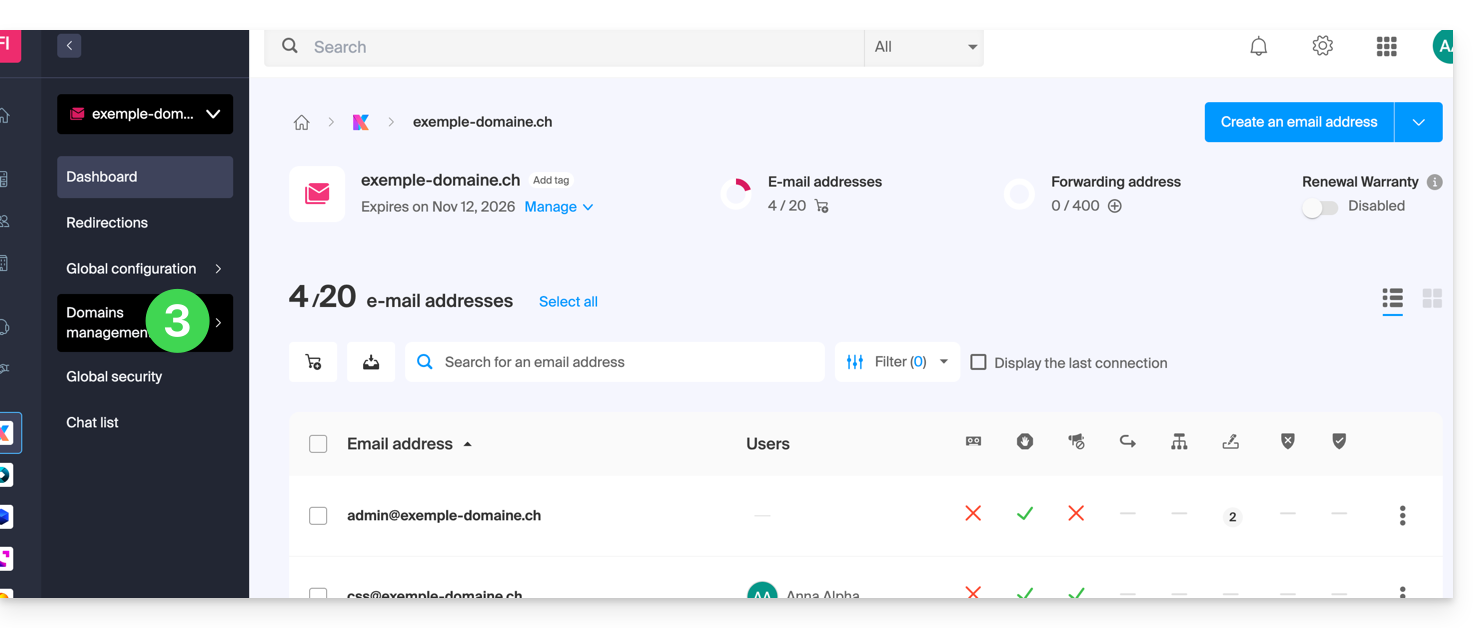
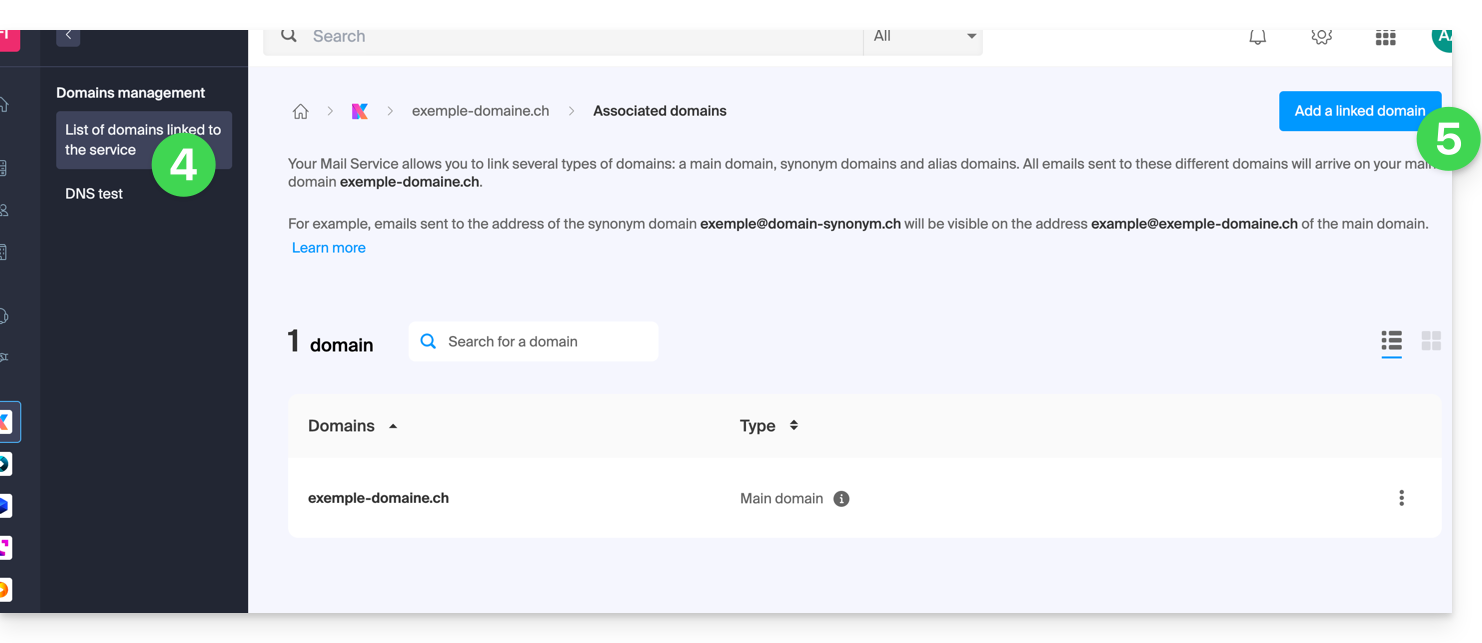
- Click on List of domains linked to the service in the left-hand menu.
- Click the blue Add a linked domain button:
- It is possible to…
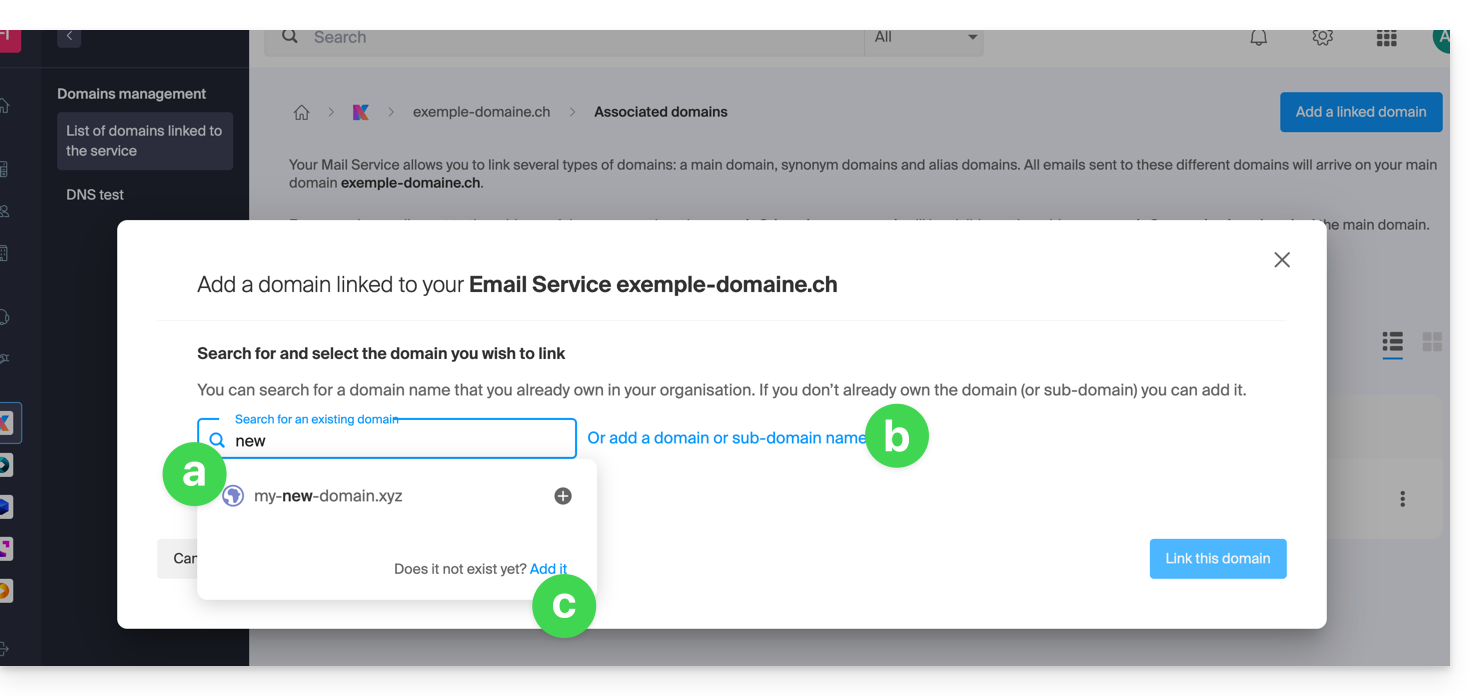
- … Search for an existing domain within the organization you are connected to; this will automatically link and update the DNS zone of the added domain.
- … Add a domain name or subdomain to manually specify the domain name or subdomain to use (ideal if the domain name is located elsewhere).
- … Buy a new domain name.
a: The domain exists at the Organization level
- Click on the proposed domain name.
- Click on the blue Link this domain button:
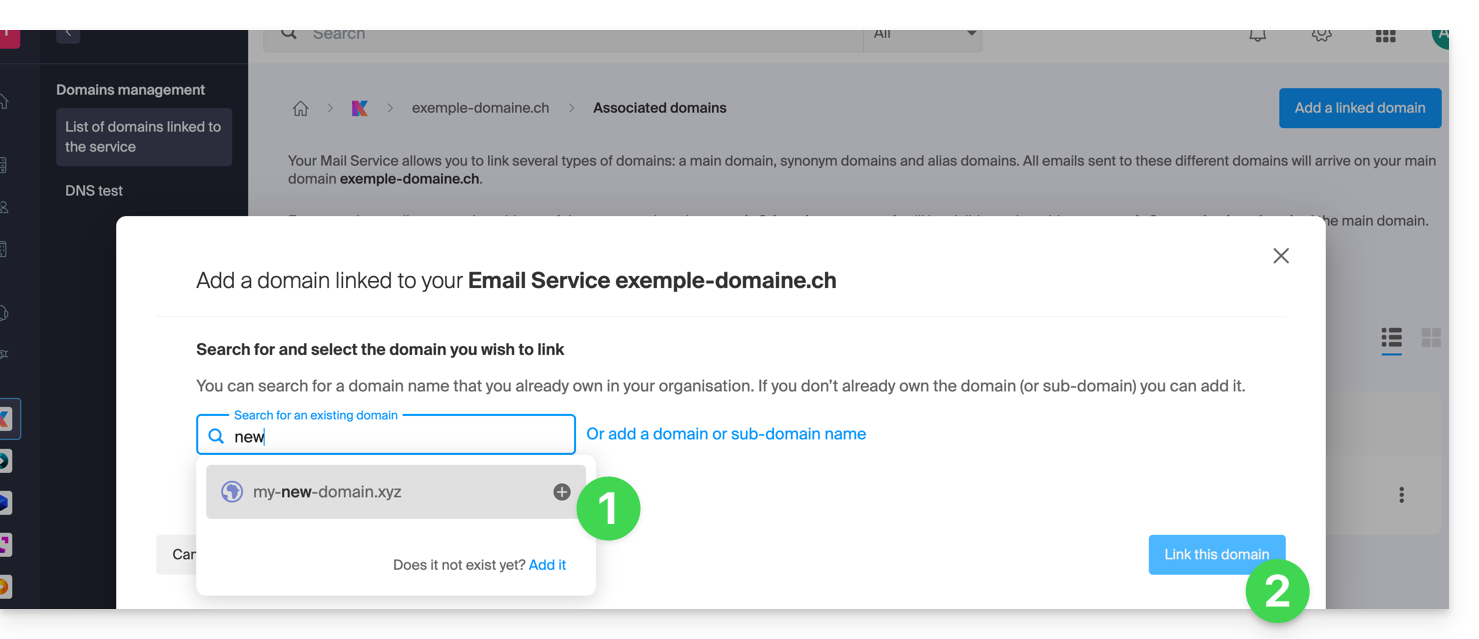
It's done: the Mail service now responds to a second domain name: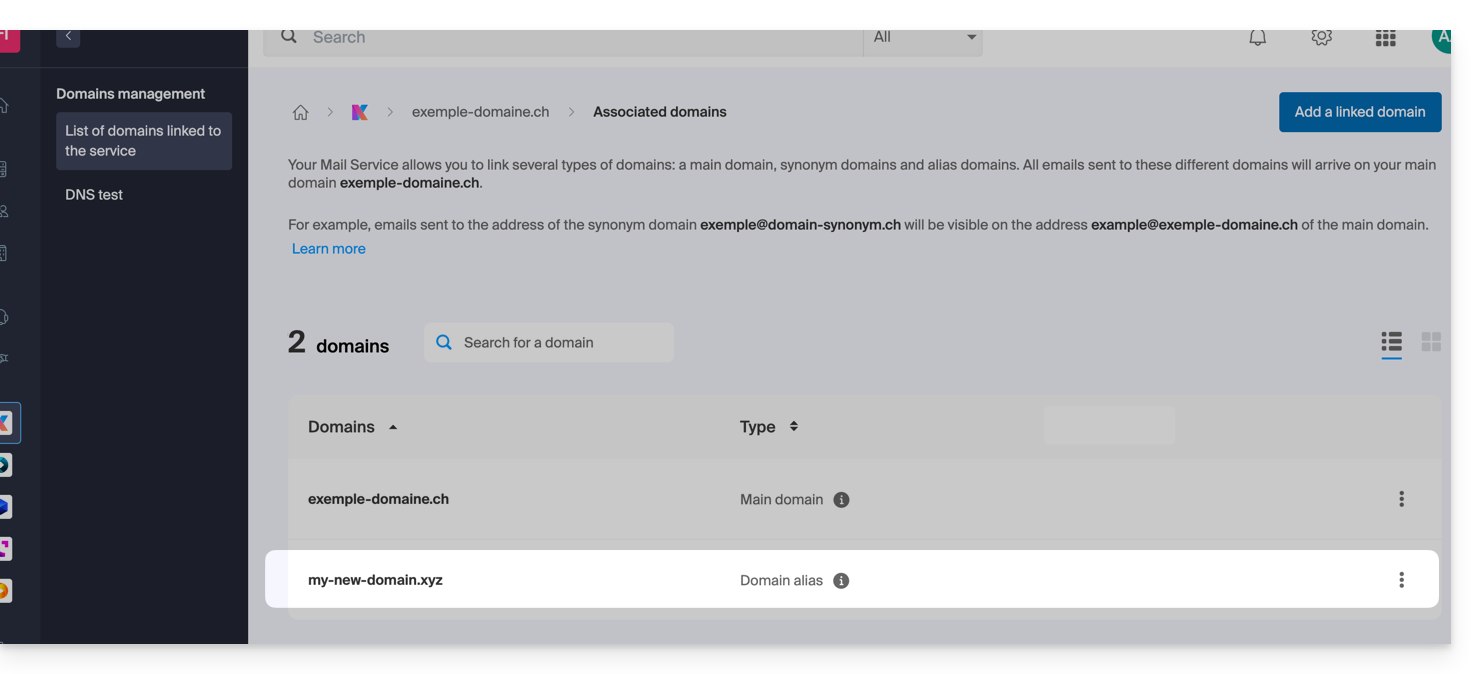
b: The domain exists but is registered elsewhere (another organization, another registrar...).
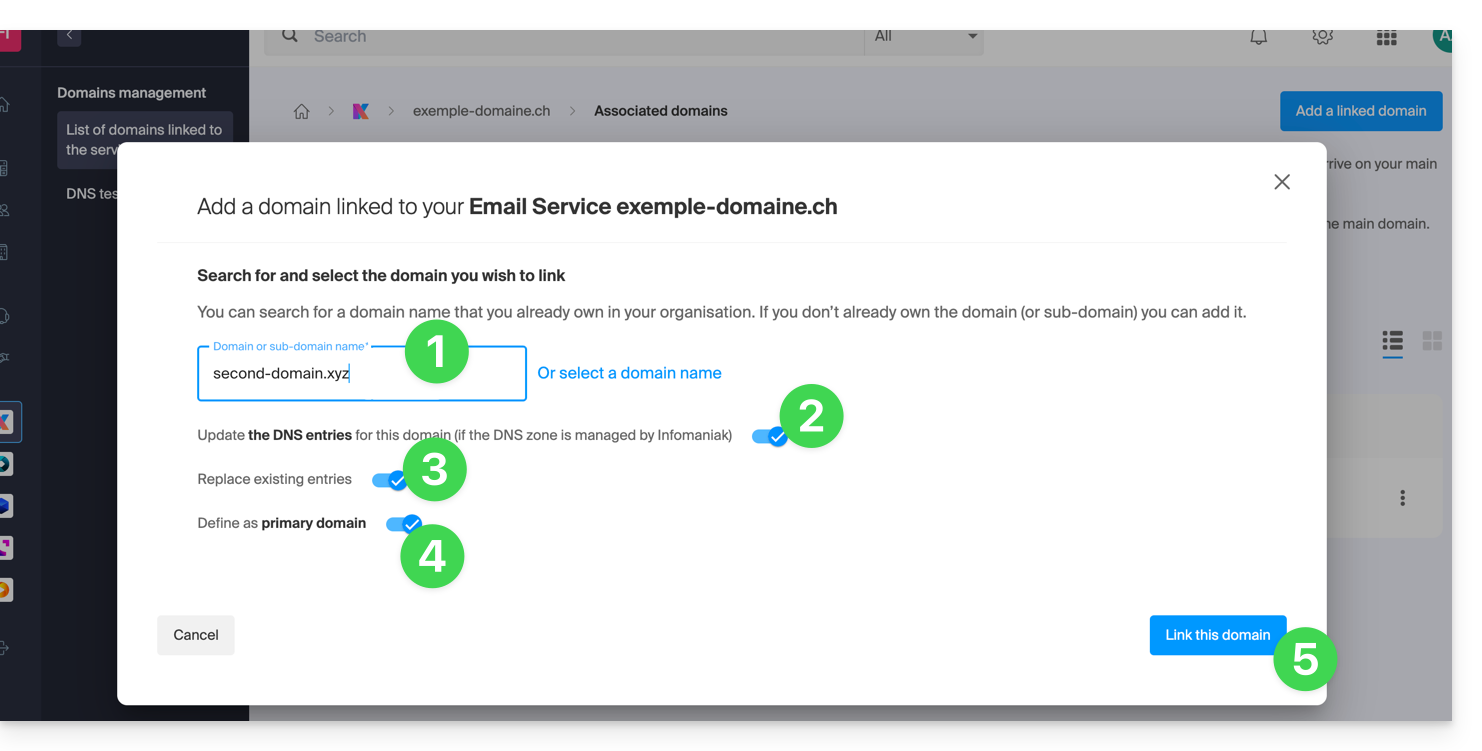
- Enter the domain name to add.
- Enable DNS record updates (if the domain name's status allows, the domain name's DNS zone will be updated automatically).
- If the above point 2 is active, then enable the replacement of any existing entries.
- Only enable domain name reversal if you want to define this new domain name as the primary one (this is mainly an administrative rather than a technical matter).
- Click on the blue Link this domain button:
Example of use
The email address contact@une-super-entreprise-familiale.com is a long email address. The synonymous domain contact@usef.com is shorter and easier to remember.
By adding the "usef.com" domain to the "une-super-entreprise-familiale.com" Mail service, you authorize all messages sent to contact@usef.com (the associated domain) will be among the messages received by the address contact@une-super-entreprise-familiale.com.
Link to this FAQ: https://faq.infomaniak.com/2097
Has this FAQ been helpful?
This guide explains what a web hosting provider like Infomaniak is, and specifies its role, scope, and the limits of its technical support.
Infomaniak, a hosting provider since 1996
According to Wikipedia, a web host is a company that provides Internet hosting for computer systems for individuals or entities who do not wish to do so themselves.
Infomaniak also offers:
- … decades of experience in hosting and high-performance online solutions.
- … over a million users in Switzerland and Europe trusting us with the management of their critical data.
- … a company certified according to ISO 27001, 9001, 14001, 50001 standards and committed to sustainable digital practices.
- … 100% Swiss-made technological expertise with data hosted in Switzerland in its own data centers.
- … a comprehensive knowledge base and a customer support service available to assist you.
Responsibilities and scope of intervention
As a hosting provider, Infomaniak installs, secures, and keeps the server infrastructure up to dateis constantly improving its management interfaces (Manager) and helping its customers to make the most of the tools provided. Infomaniak strives to offer solutions that are accessible to everyone; however, human support for free products is inherently limited in order to guarantee the sustainability of these services.
For security and privacy reasons,No assistance will be provided without formal identificationof the person requesting it.
Support is exclusively for Organization administrators. End customers or users with a contract through a Reseller Partner must first contact their administrator or dedicated service provider.
Scope of technical support
Technical support does not provide assistance for:
- Development and programming: debugging websites, correcting source code, personal scripts (PHP, JS, etc.)
- API usage and integration.
- Application maintenance and webmastering: troubleshooting, updates, or content management for third-party applications (e.g., CMS such as WordPress, email clients such as Outlook, etc.).
- On-site and customized support: remote access, configuration of your own hardware, complex manual installations or migrations.
However, our support team will be happy to assist you with:
- Infrastructure and Manager: resolving incidents related to the network, hardware, or Infomaniak management interfaces.
- Using Infomaniak services: clarifying configuration processes and providing assistance with using our native features.
- Documentation: we will guide you to the relevant resources and technical guides to help you become self-sufficient.
A Premium support service and a migration service are available for more specific needs.
Find external support
For assistance with the content of your website, its programming, or the advanced organization of your email accounts, use the Infomaniak bidding platform, which lists over 1000 verified professionals, or consult the directory.
Link to this FAQ: https://faq.infomaniak.com/2103
Has this FAQ been helpful?
This guide explains how to change the location of certain folders that are automatically present in the structure of your Infomaniak email address.
Introduction
- The folder structure of a standard mailbox may contain certain special folders, such as the one that stores emails…
- … once they have been sent (= "Sent messages").
- … for a few days before they are permanently deleted (= "Trash").
- Everything is already configured so that, by default, synchronized across the various email interfaces around the world.
- If you wish to make adjustments for various reasons, sometimes linguistic ones, then please refer to the guide below to modify these special folders:
- drafts
- sent messages
- trash
- archives
- This allows you to customize the synchronization of these folders with IMAP clients such as Outlook, Mail iOS, Thunderbird, Spark, etc.
- Please note that this does not change the retention period emails placed in some of these special folders.
Access from the Infomaniak Web Mail app
Prerequisites
- You must have a valid access to the Infomaniak Mail web app (online service ksuite.infomaniak.com/mail) to which the email address is linked.
- Having permission to modify special folders: it is possible that the Mail Service administrator has removed this right from their admin account:
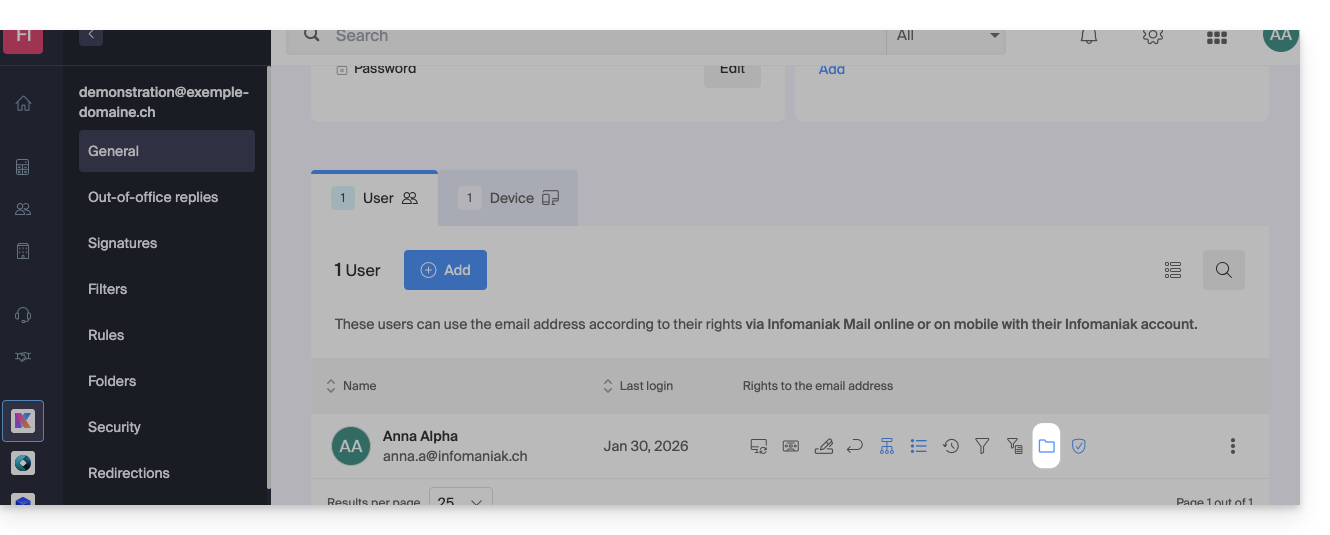
To modify these special folders:
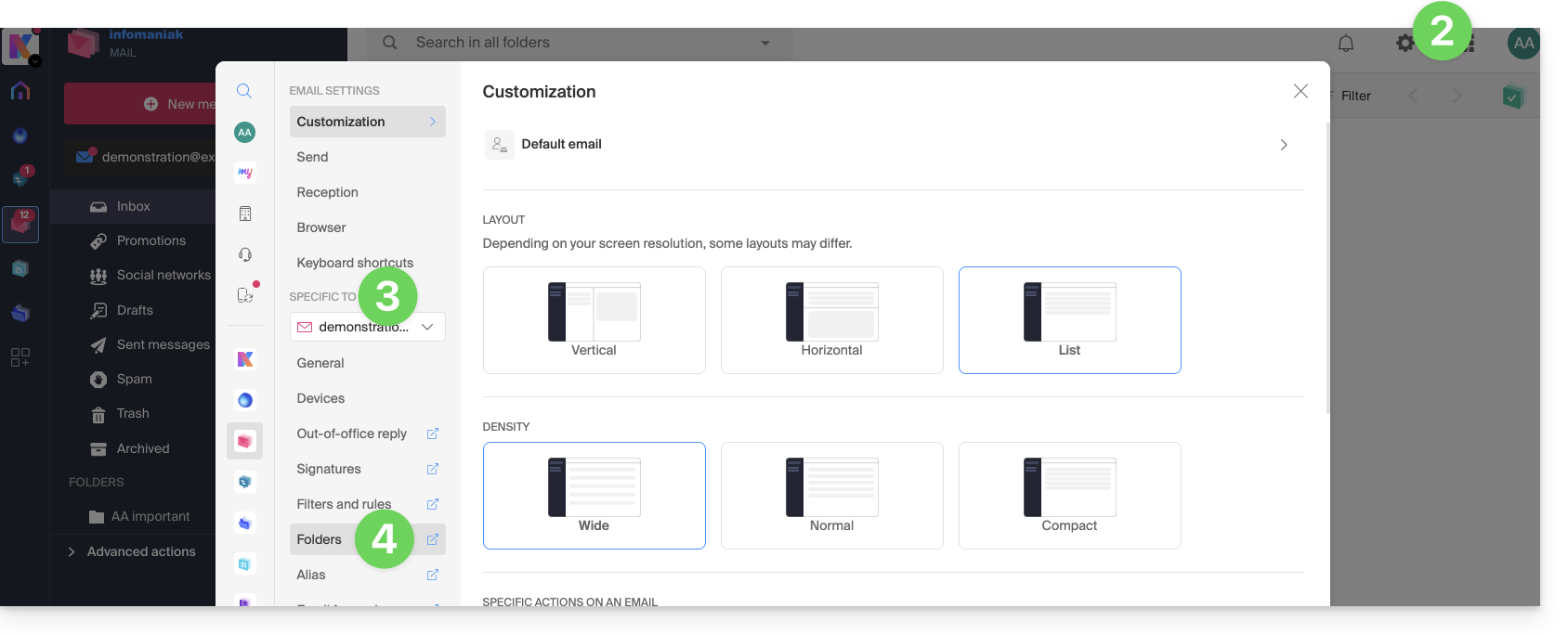
- Click here to access the Infomaniak Mail web app (online service ksuite.infomaniak.com/mail).
- Click on the Settings icon in the top right corner.
- Check or select the relevant email address from the drop-down menu in the left-hand menu.
- Click on Folders:
Access from the Mail Service
To access this option from a Mail service:
- Click here to access the management interface for your product in the Infomaniak Manager (need help?).
- Click directly on the name assigned to the product in question.
- Click on the email address in question in the table that appears:
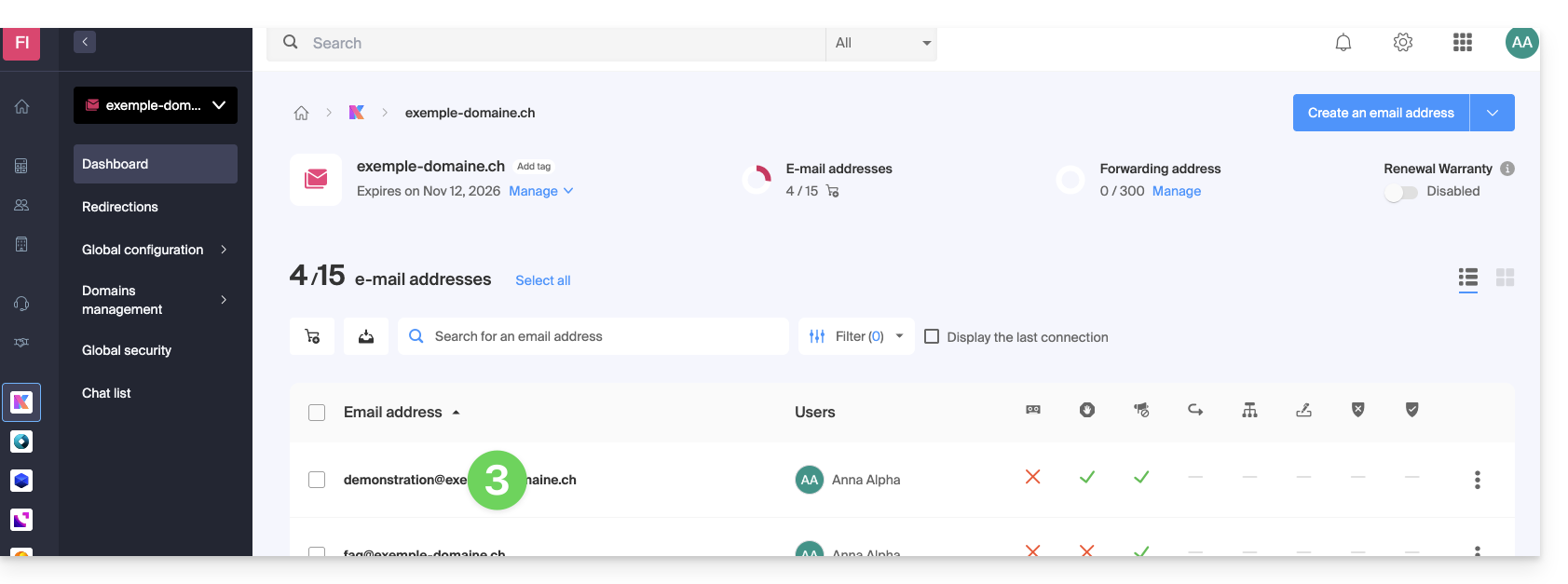
- Click on the Folders tab/menu:
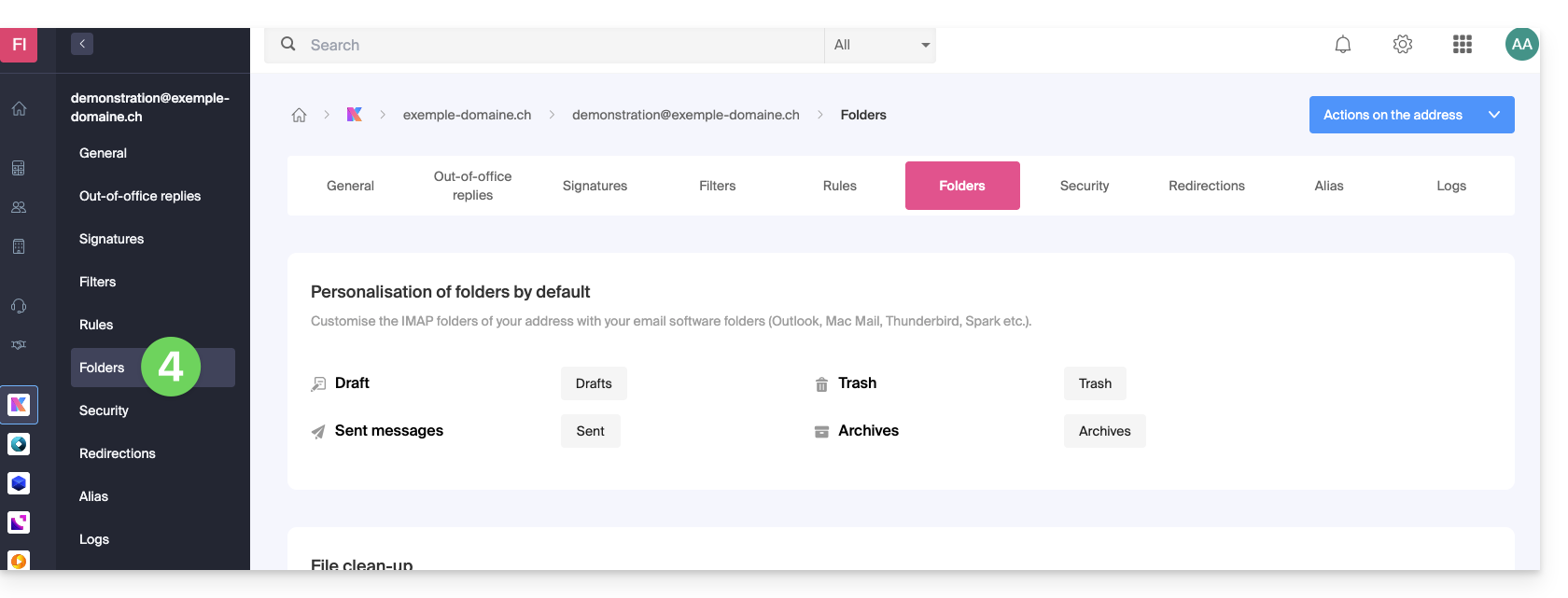
Configure special folders
For security reasons, folder management is confidential and restricted to users added to the relevant email address.
Select the desired folders to store your drafts, archives, sent messages, and trash by default by clicking on the area to the right of each item: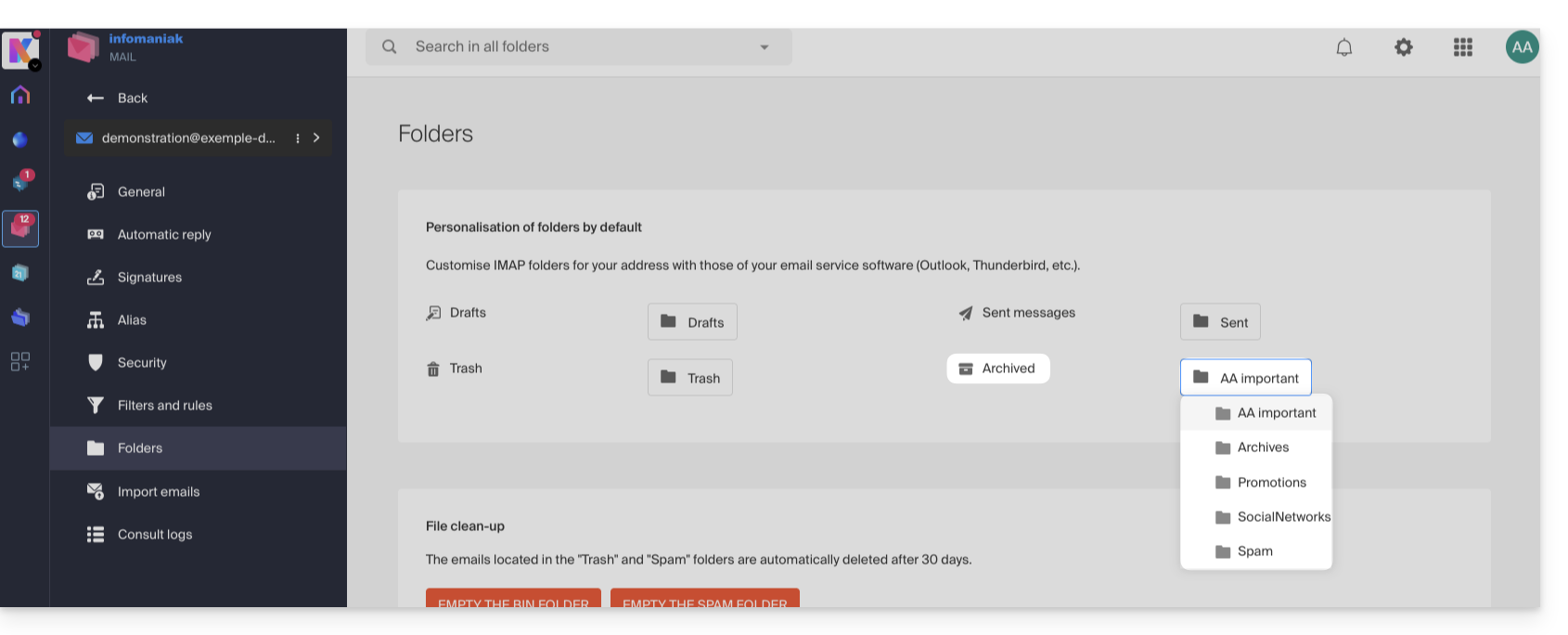
This will display the list of folders already present in your email's directory structure.
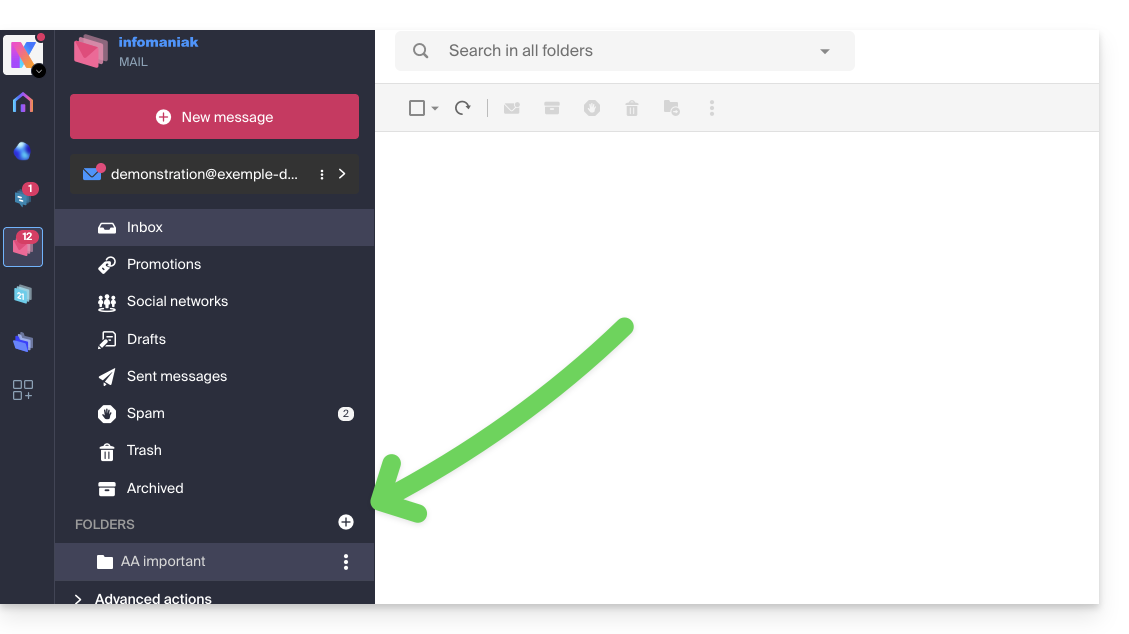
- If needed, create the desired folder beforehand from Mail or an IMAP software:
To modify the default folders that host spam and advertising messages & social media notifications, you must do so directly from the Spam Filter and Advertising Filter sections: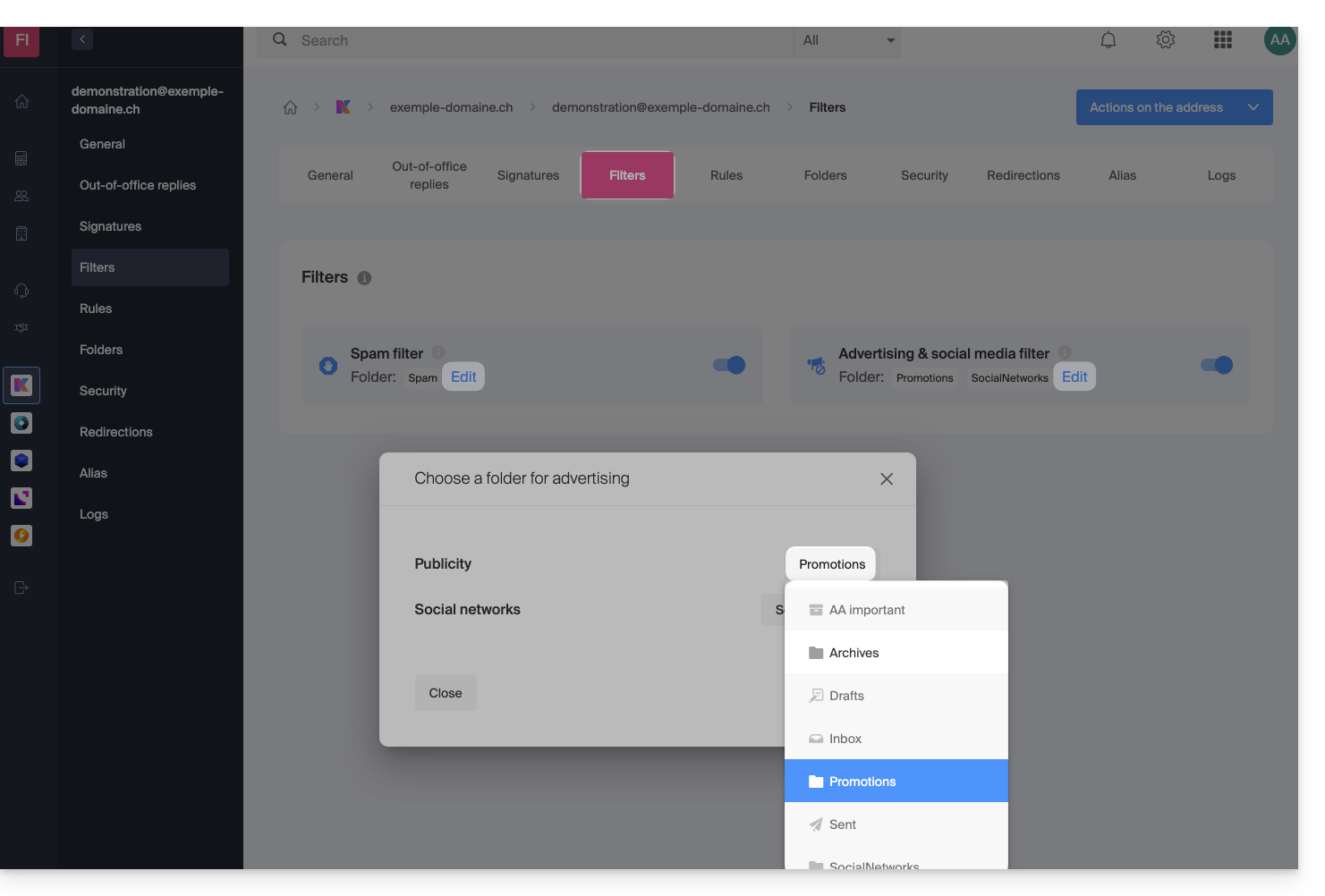
Alternative solutions for…
Some software/email clients also allow you to change the location of special folders. Consult the official documentation for your application if needed. The following links are provided for informational purposes:
… Mozilla Thunderbird
Refer to this other official guide if you are looking for information on assigning specific folders (such as the Trash, Drafts, and Sent Messages folders) to the IMAP account and synchronizing them with Infomaniak.
… Microsoft Outlook 2013
Refer to this other unofficial guide if you are looking for information on how using the IMAP protocol in the application can lead to a configuration where messages are stored only locally and not synchronized with the server, which contradicts the main objective of IMAP, which is to maintain consistency between devices.
… Microsoft Outlook 2021
Refer to this other unofficial guide if you are looking for information on how to save sent emails in the "Sent" folder instead of the "Sent Items" folder in the application.
… Apple iOS
Refer to this other unofficial guide if you are looking for information on how to configure the sent, drafts, and deleted message folders on an iPhone so that they are synchronized with the mail server, by accessing the advanced settings of the Mail application and selecting the corresponding folders on the IMAP server.
Link to this FAQ: https://faq.infomaniak.com/2107
Has this FAQ been helpful?
This guide explains how to add or modify an MX record in the DNS zone of a domain name managed from the Infomaniak Manager.
Introduction
- An MX record tells mail servers to which server/provider to forward messages addressed to your domain name.
- Changes made in the Infomaniak Manager are only applied if the domain name uses the corresponding DNS zone.
- Any DNS addition/modification may take up to 48 hours to propagate; during this period, some messages may still be routed according to the old configuration.
MX records for Infomaniak email
Infomaniak automatically configures the necessary MX record when the domain name and Mail service are created within the same organization in the Infomaniak Manager.
If your configuration requires manually adding the MX record to direct incoming messages to Infomaniak, enter the following values:
- Host / Source: leave this field blank to apply the record to the main domain
- Target:
mta-gw.infomaniak.ch - Priority:
5
The target must be entered as a hostname, without https://, without an email address, and without any additional path.
Variant specific to certain DNS interfaces
Some interfaces, notably Gandi's, require a period at the end of the target to indicate that it is a fully qualified domain name. In this case, enter:
mta-gw.infomaniak.ch.
If a different MX record is used or if multiple MX records are configured, Infomaniak cannot guarantee that messages will be received correctly.
Edit the DNS zone
To add an MX record to the DNS zone:
- Click here to access the domain management section in the Infomaniak Manager (need help?).
- Click directly on the name assigned to the domain in question.
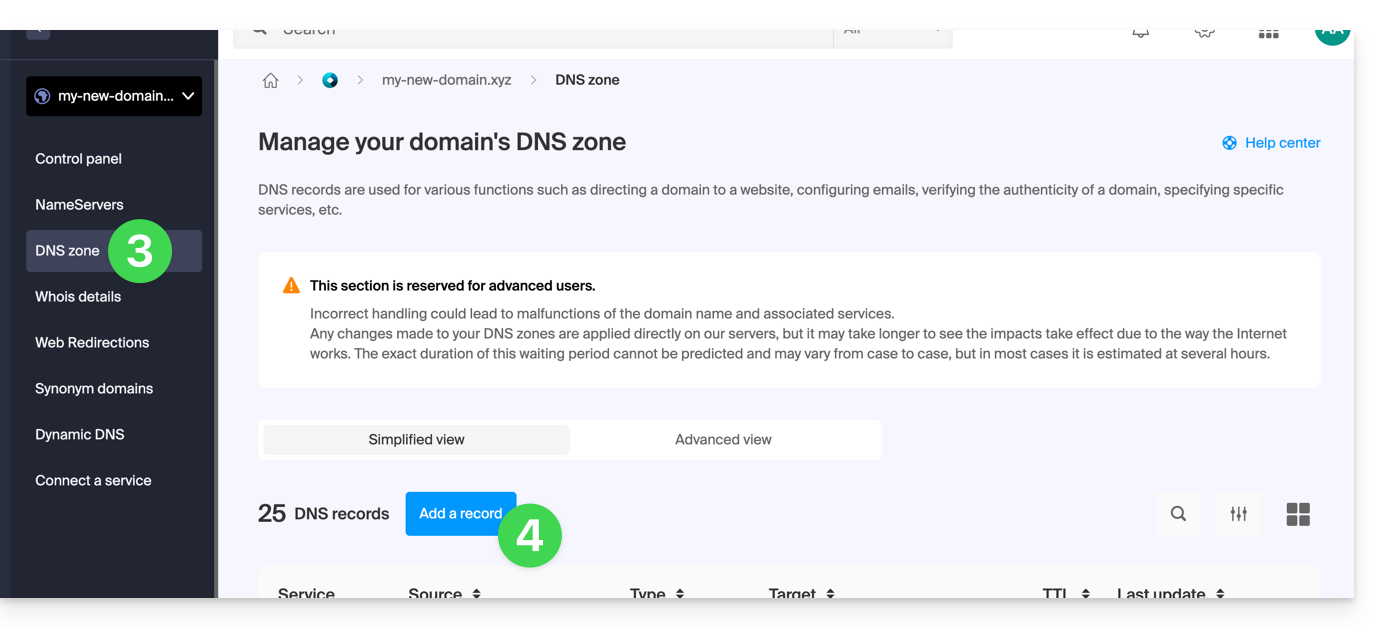
- Click on DNS Zone in the left-hand menu.
- Click on the button to add a record:
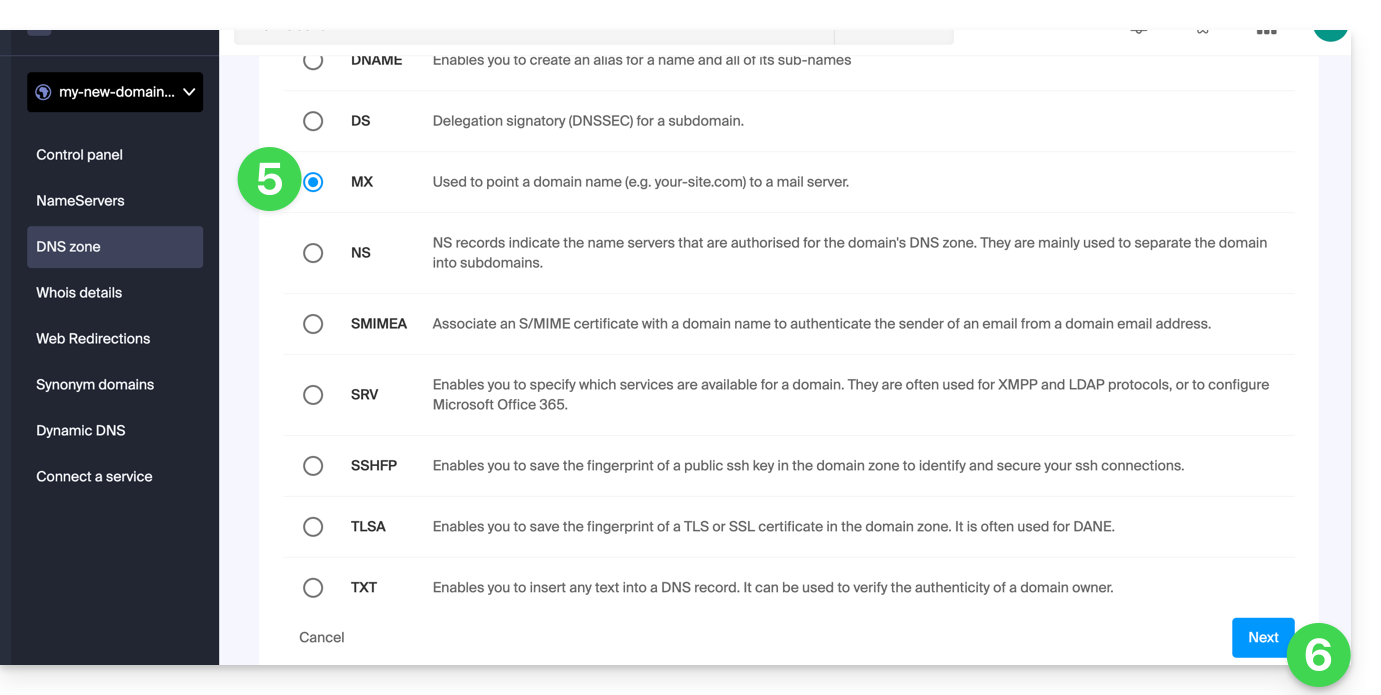
- Select the MX record type.
- Click on the Next button:
- Enter the requested values:
- for the main domain's email, leave the Host or Source field blank
- enter the name of the email server provided by your provider in the Target field
- enter the priority indicated by this provider
- Keep the default value for TTL, unless your email provider specifies otherwise.
- Click on the Save button:
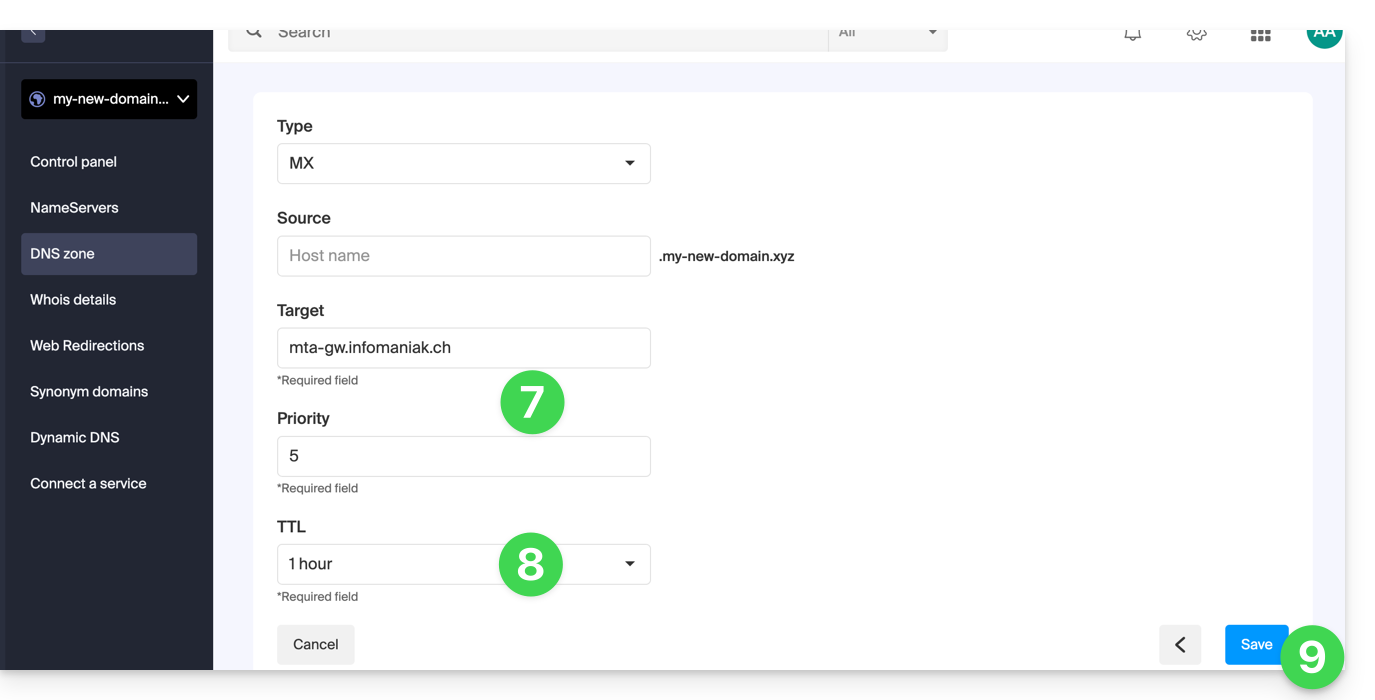
Once saved, the MX record will appear in the DNS zone table: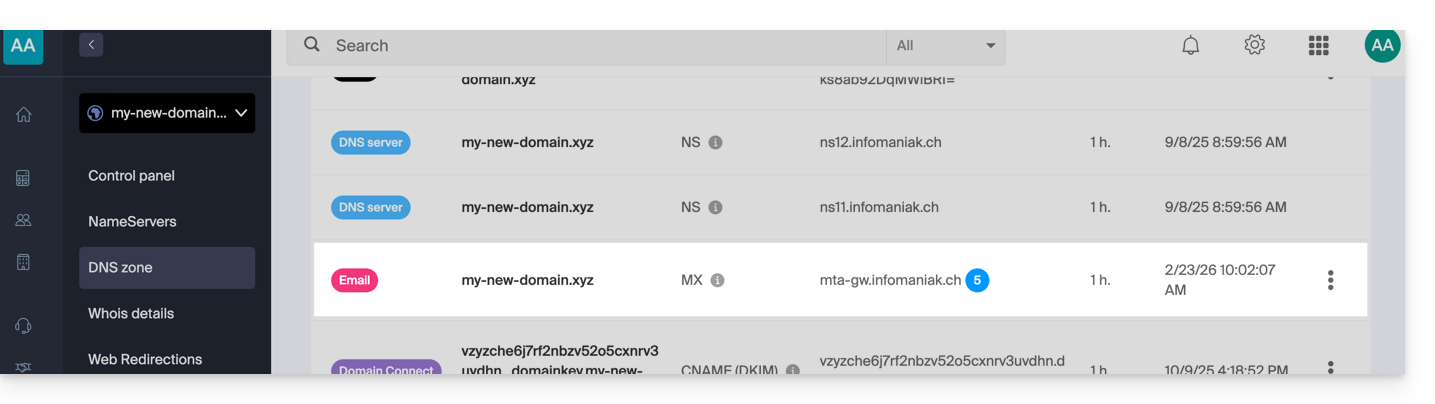
To send messages using Infomaniak's email service, the domain name must also have a correctly configured SPF record.
Learn more
Link to this FAQ: https://faq.infomaniak.com/2110
Has this FAQ been helpful?
This guide explains how to convert a free Mail Starter plan to a more comprehensive and enhanced plan, such as kSuite Free or other kSuite Pro plans.
Introduction
- When you purchase a domain name from Infomaniak, you get1 free email address and 10 MB of basic web space: this is the Starter plan.
- With just a few clicks, you can upgrade these plans to remove the limits and enjoy an enhanced experience.
- To help you identify the Mail plan that best suits your needs, please refer to this other guide.
Upgrade the Starter plan - Free Mail service
To upgrade the Starter plan:
- Click here to access your product management in the Infomaniak Manager (need help?).
- Click on the action menu ⋮ located to the right of the item in question.
- Click on Modify offer:
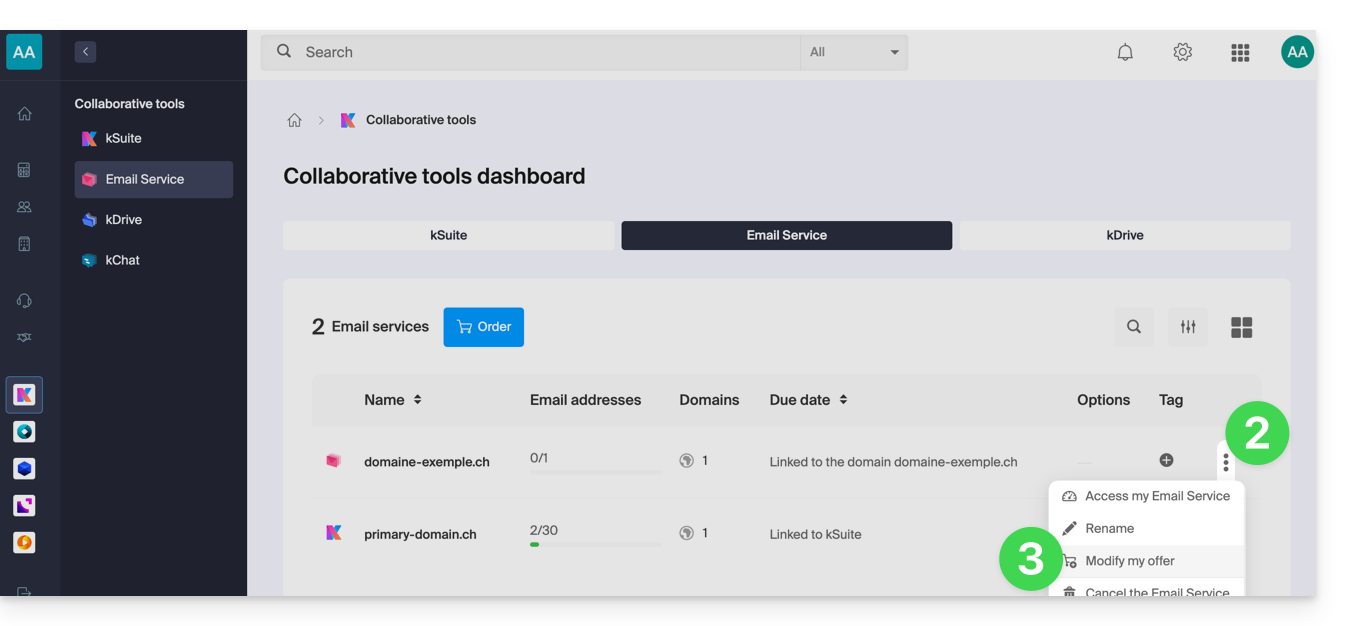
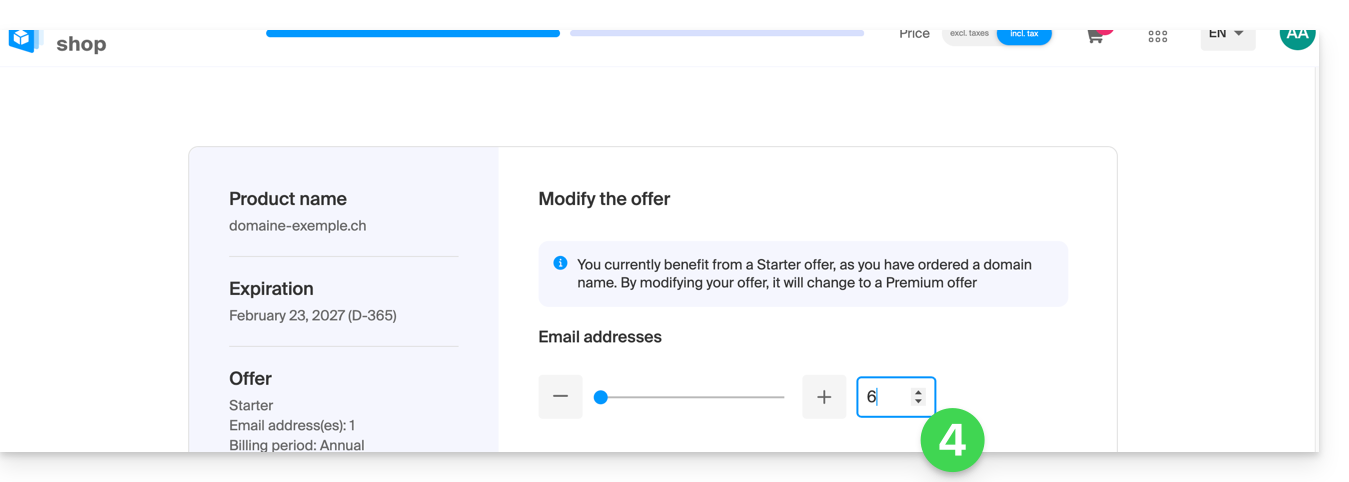
- Adjust if necessarythe number of email addresses to add to the Mail Serviceusing the order assistant, which will allow you to complete the upgrade until the end:
Link to this FAQ: https://faq.infomaniak.com/2112
Has this FAQ been helpful?
This guide suggests solutions to resolve Microsoft errors of type 0x800...
Introduction
- To find out what an error number corresponds to (e.g.,
0x800CCCXX), consult the Microsoft knowledge base or a virtual assistant.
0x800CCCDE
To try to resolve the following error:
Outlook cannot synchronize subscribed folders for email@domain.xyz. Error: An unexpected internal error occurred. It is suggested that you restart your client. If you continue to receive this message, contact your server administrator or Internet service provider (ISP)- Open Microsoft Outlook.
- Click on File and then on Options.
- In the menu on the left, click on Advanced options.
- Click on the Send/Receive... button.
- Click on Change.
- Check the box Use the custom behavior below.
- Check the boxes for the folders to be synchronized.
- Check the box Download entire items (including attachments) for subscribed folders.
- Save the changes and close the options window.
0x800CCC0E
- Compare the recommended settings for the software used.
- Consult this other guide.
- Contact Infomaniak support and provide your public IP address.
Link to this FAQ: https://faq.infomaniak.com/2120
Has this FAQ been helpful?
This guide presents the DNS Diagnostic tool, which allows you to verify the relationships between…
- DOMAIN NAME at Infomaniak
and - MAIL SERVICE with Infomaniak
… are correct, so that Mail traffic is directed to the right place.
Introduction
- To verify, the tool checks the MX records, SPF, etc.
- This allows you to detect and correct certain Mail issues, particularly if they are related to DNS (technical information that essentially determines where certain Mail traffic should be directed) by taking action at the domain level.
- Automatic correction is only possible when the domain name is present in the same Organization as the product to which it should be linked.
- If this is not the case, then the correction will have to be done manually.
Troubleshooting DNS issues
To access the DNS diagnostics for your domain name:
- Click here to access the management of your Mail Service in the Infomaniak Manager (need help?).
- Click directly on the name assigned to the product in question:
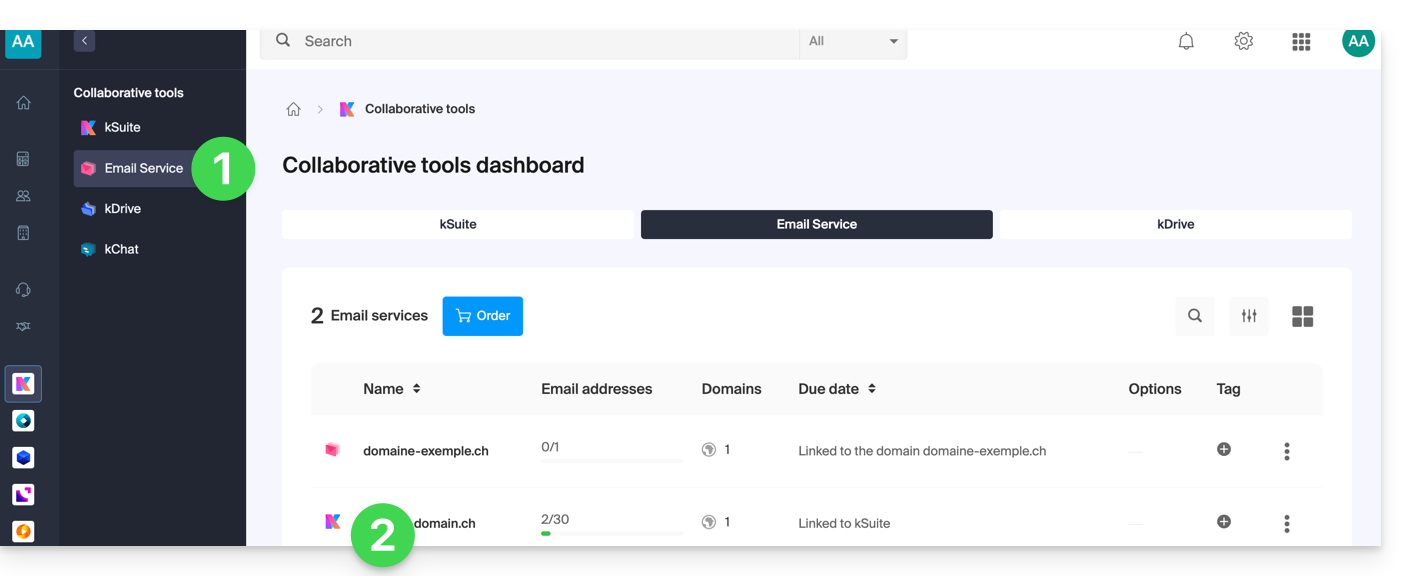
- Click on Domain Management in the left-hand menu:
- Click on DNS Diagnostics in the left-hand menu.
- Click the button if necessary to refresh the information, which should then be displayed in green.
- If DNS issues are detected, a red display in the table indicates this:
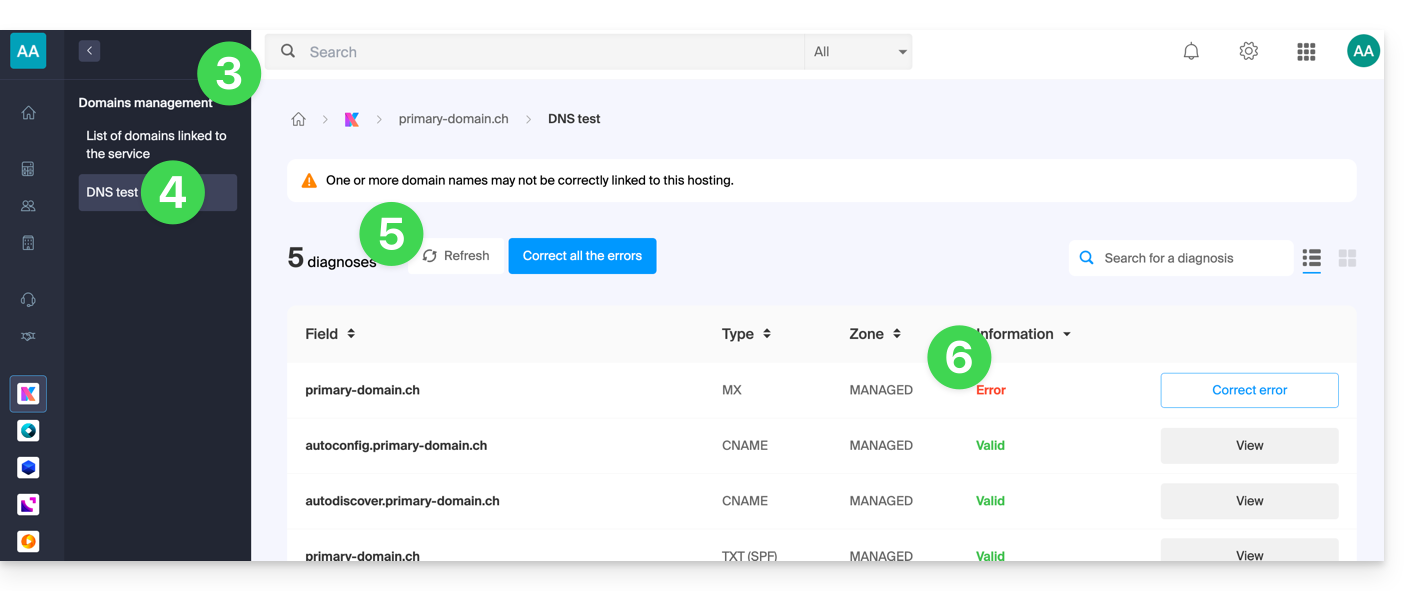
- Correct each error individually by clicking the button to the right of the item in question…
- … or correct all errors at once using the button above the table.
Refer to this other guide regarding the same automatic verification process, but for Web Hosting.
And if necessary, consult the security diagnostic related to email.
Link to this FAQ: https://faq.infomaniak.com/2124
Has this FAQ been helpful?
This guide explains how to create an alias, which is a variation of your usual email address without having to add a new address to your existing Mail Service.
✘ NOT AVAILABLE with
my kSuite (ik.me, etik.com, ikmail.com)
Introduction
- Number of aliases possible per email address:
- kSuite Free = 1
- kSuite Standard = 50
- kSuite Business = 50
- kSuite Enterprise = 50
- my kSuite+ = 2 (note: a deleted alias cannot be recreated with the same name)
- Mail Service Starter = 1
- Mail Service Premium = 50
- An alternative feature is presented here.
- To modify what comes after the @ symbol, use domain aliases.
- Users of the address (on the Mail Infomaniak web app) receive an email each time an alias is added or removed.
How an alias works
You can create alternative versions of your email addresses by modifying what comes before the @ symbol.
For example:
john-peter.smith@domain.xyz is a long email address…
It can be shortened and used as follows:
jps@domain.xyz
In this example, you need to create an alias "jps" for the address "john-peter.smith".
Then, if someone writes to jps@domain.xyz:
- their message will arrive in the inbox of the main address (
john-peter.smith@domain.xyz).
If someone sends an email to john-peter.smith@domain.xyz AND includes jps@domain.xyz in the CC field:
- their message will arrive twice in the inbox of the primary address (
john-peter.smith@domain.xyz).
Add an alias from the Infomaniak Web Mail app
Prerequisites
- You need permission to manage aliases: it is possible that the Mail Service administrator has removed this right from their admin account.
Next, to add an alias:
- Click here to access the Infomaniak Mail web app (online service ksuite.infomaniak.com/mail).
- Click on the Settings icon in the top right corner.
- Check or select the relevant email address from the drop-down menu in the left-hand menu.
- Click on Alias:
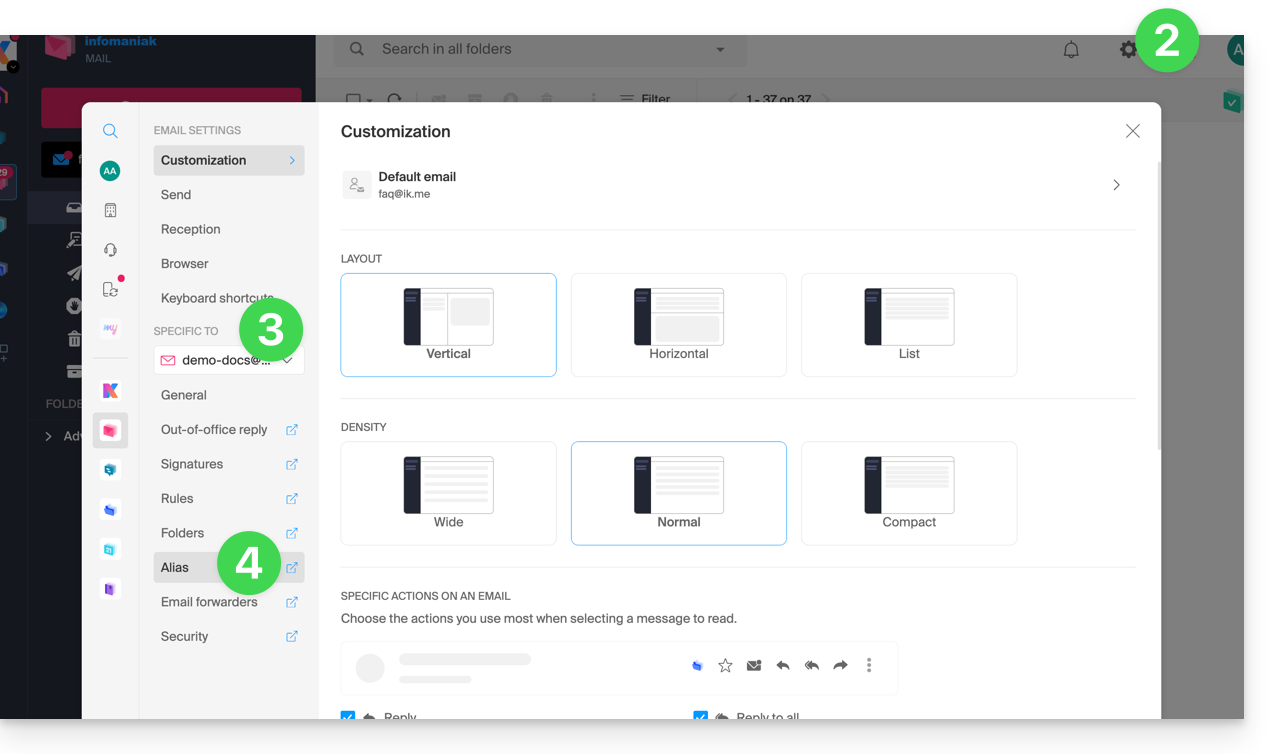
- Click on Add an alias to create a variation of your email address.
- Enter the desired alias (the part before the @ symbol).
- Click on Add:
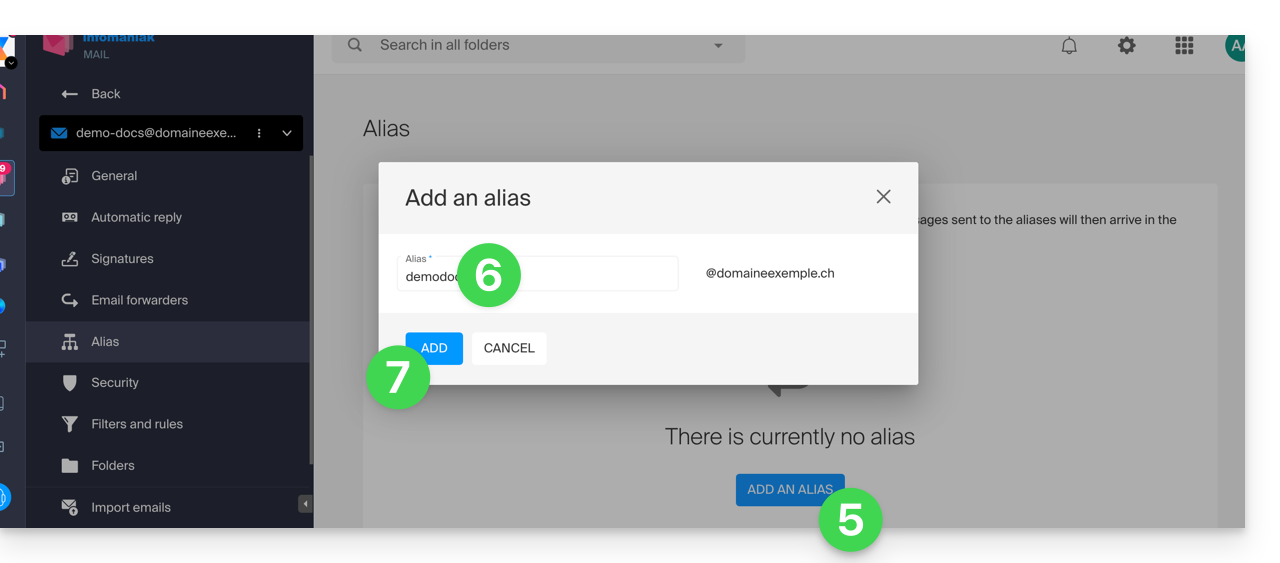
Add an alias from the Mail Service
To access the Mail Service:
- Click here to access the management interface for your product in the Infomaniak Manager (need help?).
- Click directly on the name assigned to the product in question.
- Click on the relevant email address in the table that appears.
- Click on the Alias tab, or in the left-hand menu, click on Alias.
- Click on the blue Add an alias button.
- Enter the desired alias (the part that comes before the @ symbol):
- Click Apply to save the changes:
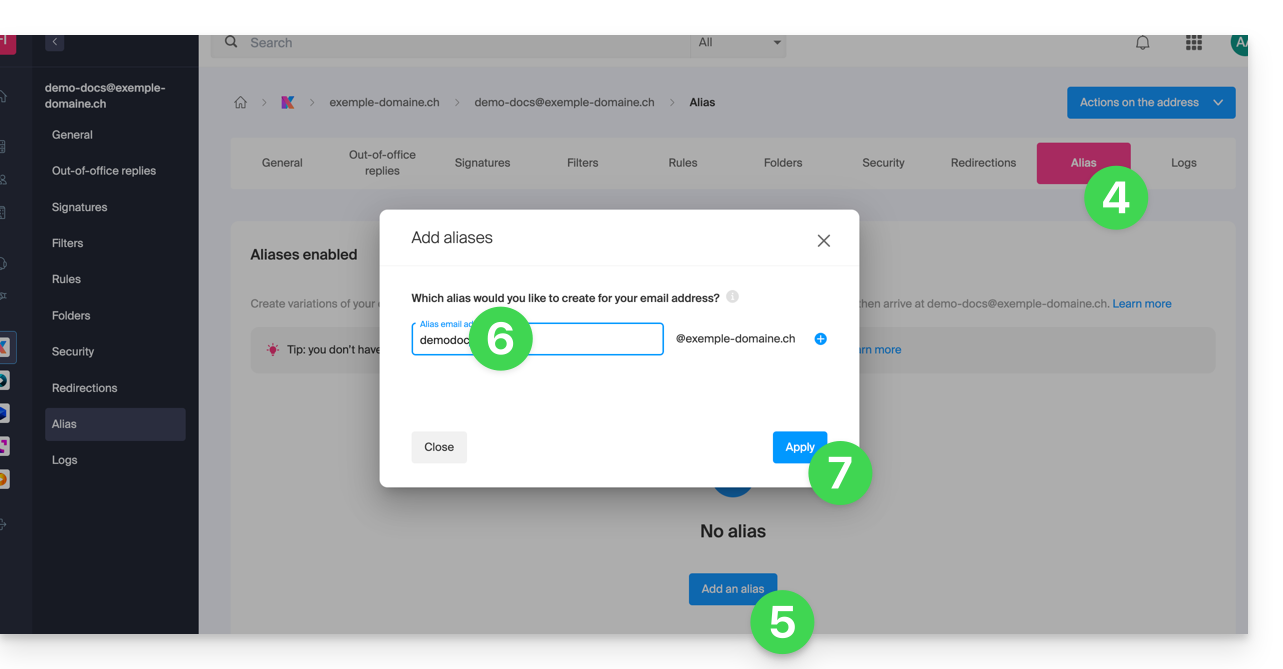
Link to this FAQ: https://faq.infomaniak.com/2129
Has this FAQ been helpful?
This guide is about IP addresses, including…
- … those assigned to websites/hosting/servers, dynamic or static IPs, shared or dedicated IPs,
- … assigned by your Internet Service Provider (ISP) when establishing an Internet connection to your Infomaniak product.
Introduction
- A dedicated or static IP address for a website is a permanent IP address that is specifically assigned to it.
- Unlike a shared IP address, which is used by multiple websites, a dedicated IP address ensures that only this platform is associated with that address.
- Dedicated IP addresses for websites are often used in cases where stability, customization, and security are important, such as hosting servers, configuring firewalls, or enabling SSL certificates (although it is possible to proceed without a dedicated IP address to install an SSL certificate).
- Here are the main advantages:
- Configuring a PTR record or reverse DNS on dedicated IPs is useful, especially for installing a mail server, because some email providers check the PTR record before accepting emails sent from a server.
- Improved connection stability.
- Reduced risk of a bad reputation due to websites sharing the same IP address.
- Easier configuration of certain technical aspects.
- A dedicated IP can improve a website's search engine ranking (although there are differing opinions among SEO specialists).
- Note: Infomaniak does not allow access to websites via HTTP(S) using dedicated IPs on managed servers; you must use a domain name that points to the IP (or use the preview URL).
Add a dedicated IP to the website
To add a dedicated IP to your website, please refer to this guide.
If you are experiencing issues when directing web traffic to a specific port, please refer to this other guide.
Blocking the IP address (Internet connection)
If you can no longer access…
- … all your email addresses that you have with Infomaniak (which usually work fine) and this using an email software/client from a single Internet network (i.e., from the same IP address provided by your ISP)…
… or if you have unfortunately performed this type of operation:
- repeated, unsuccessful connection attempts via FTP, SSH, or on access points such as the WordPress login…
- requests returning too many errors, such as a large number of 403 errors…
… your access to Infomaniak servers may be blocked following the banning of the IP address (banip / ipban) of your internet connection.
To resolve this, contact Infomaniak support by email, specifying the domain concerned and, above all, your public IP address.
Permanent unblocking (IP whitelisting)
With a Cloud Server, you can request that the IP address in question be permanently whitelisted so that the blocking never happens again, regardless of the situation. To do this, you must:
- Have a dedicated IP associated with your Cloud Server.
- Be aware that Infomaniak will no longer block any potential attacks originating from this IP.; malicious attacks or access attempts originating from this address will no longer be automatically blocked by the security systems.
- Confirm via email and from a contact addressassociated with the account (owner or administrator), and that you understand and accept full responsibility in the event of an attack originating from this IP address.
Link to this FAQ: https://faq.infomaniak.com/2138
Has this FAQ been helpful?
This guide explains how to…
- … enable filtering of incoming emails
- … automatically categorize advertising messages
- … flag certain fraudulent messages
… in order to reduce unwanted or excessive messages on an email address managed by Infomaniak.
Solutions for excluding, sorting, and filtering incoming emails
Automatic filtering methods
- Refer to this guide to learn how to use the <Spam> folder by activating the spam filter (you can also deactivate it).
- Refer to this other guide to learn how to use the <Promotions> and <Social Networks> (<SocialNetworks>) folders by activating the advertising & social networks filter.
Manual methods
- Consult this guide to report an incoming message that was not detected as spam (advertisement / unsolicited contact).
- Consult this guide to report an incoming message that was not detected as phishing (scam / deceptive fake email).
- Consult this guide to block or allow specific email addresses or even entire domains.
- Consult this guide to define your own sorting and filtering rules ('Sieve language') for incoming emails…
- …which will allow you, for example, to filter messages addressed to a temporary alias that you can create to protect yourself when registering on new websites.
If you are experiencing a surge in spam or unusual messages, please refer to this other guide to perform some checks.
If your own emails are often incorrectly classified as spam, please refer to this other guide to perform some checks.
To sort and clean a mailbox that has been flooded with messages, please refer to this other guide.
Link to this FAQ: https://faq.infomaniak.com/2149
Has this FAQ been helpful?
This guide shows how to export and save the contacts from the "Mailing List" tool into a CSV file (.csv format).
The Mailing List tool is currently offered available only to users who have activated it in the past. Discover a simpler and more powerful email marketing solution (Newsletter). You can easily import your existing contacts.
Export contacts to a file
The mailing list tool is available within your Mail Service:
- Click here to access the management of your Mail Service in the Infomaniak Manager (need help?).
- Click directly on the domain name assigned to the product in question.
- Click on Mailing list in the left-hand menu.
- Click on the name of your list.
- Click on the Subscribers tab.
- Click on Download the list in CSV format:
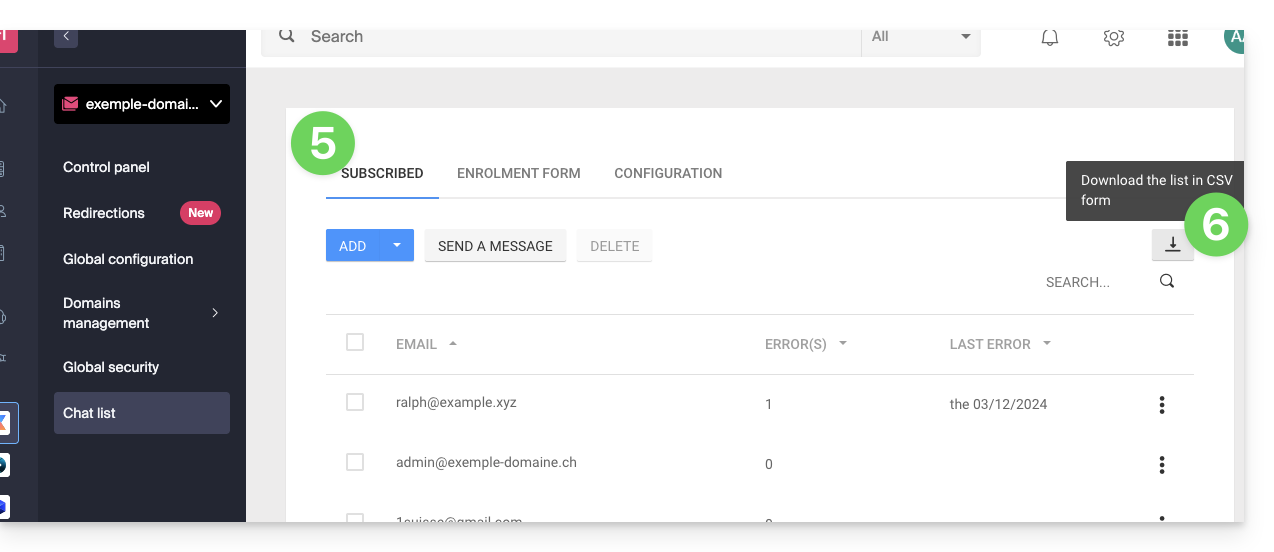
The CSV file will be downloaded to your computer's hard drive.
To import these contacts into the Newsletter tool:
- Modify the file extension from
.txtto.csv. - Refer to this other guide.
Link to this FAQ: https://faq.infomaniak.com/2166
Has this FAQ been helpful?