Knowledge base
1000 FAQs, 500 tutorials and instructional videos. Here, there are only solutions!
This guide explains how to connect the desktop app Outlook 2016 (desktop application on Windows) to an email address hosted by Infomaniak.
Add the email address to the application
Prerequisites
- Create the email address (❓: my kSuite | Mail Service/kSuite).
- Create a device password (❓: my kSuite | Mail/kSuite Service).
- Verify that the domain is configured correctly (❓: Mail/kSuite Service).
To configure the email application:
- Open the application.
- Click on the File menu:
- Click on Account Settings.
- Click on Add or remove accounts:
- Click on New:
- Enter the email address to connect.
- Click on Advanced options.
- Click on Manual configuration.
- Click on the blue Connect button:
- Click on IMAP:
- Enter the password for the email address you want to connect.
- Click the blue Connect button:
- If necessary, uncheck the box for additional device settings.
- Click the blue Finish button:
- Click Fix to correct certain information that was added automatically but is incorrect:
- Click on Advanced options.
- Click on Manual repair.
- Click the blue Repair button:
- Check and complete the missing or incorrect information.
- Click on Outgoing server:
- Check and complete the missing information.
- Click on Next.
- Click on Finish:
- Click on Close:
- That's it, your email address is now correctly configured in the application:
Recommended settings
- Incoming IMAP server =
mail.infomaniak.com - IMAP port =
993(with SSL) - Outgoing SMTP server =
mail.infomaniak.com - SMTP port & encryption protocol and command/method to activate this protocol:
587+ STARTTLS - Username = the complete email address & (need help?)
- Password = the password generated for the email address you want to access (❓: my kSuite | Mail Service/kSuite).
- Authentication required for sending emails:
- Enable this in the SMTP settings of your application.
- Check "use the same settings as the incoming server" or, depending on the software/email client, enter a username (the complete email address) and the generated password.
Refer to this other guide if you are looking for information about other email ports and protocols that are supported (SSL/TLS, for example).
In case of a problem
Check that the Mail service is configured optimally.
It is not necessary to contact Infomaniak Support if your email address works correctly outside the application. The most common error concerns the use of an incorrect password. The troubleshooting guides will help you resolve any potential issues:
- Refer to the solutions provided in this other guide regarding email in general.
- This other guide provides more specific information about Outlook.
… and if your Outlook is no longer working after a change of email password, please refer to this other guide.
Link to this FAQ: https://faq.infomaniak.com/2172
Has this FAQ been helpful?
This guide explains how to connect the desktop app Microsoft Outlook for Mac version 16.80 (desktop application on macOS) to an email address hosted by Infomaniak.
Introduction
- Instead of the manual configuration for Outlook below, it is recommended to use the Infomaniak Mail macOS app or even Apple Mail with the .mobileconfig configuration profiles provided by Apple.
Add the email address to the application
Prerequisites
- Create the email address (❓: my kSuite | Mail Service/kSuite).
- Create a device password (❓: my kSuite | Mail/kSuite Service).
- Verify that the domain is configured correctly (❓: Mail/kSuite Service).
To configure the email application:
- Open the application.
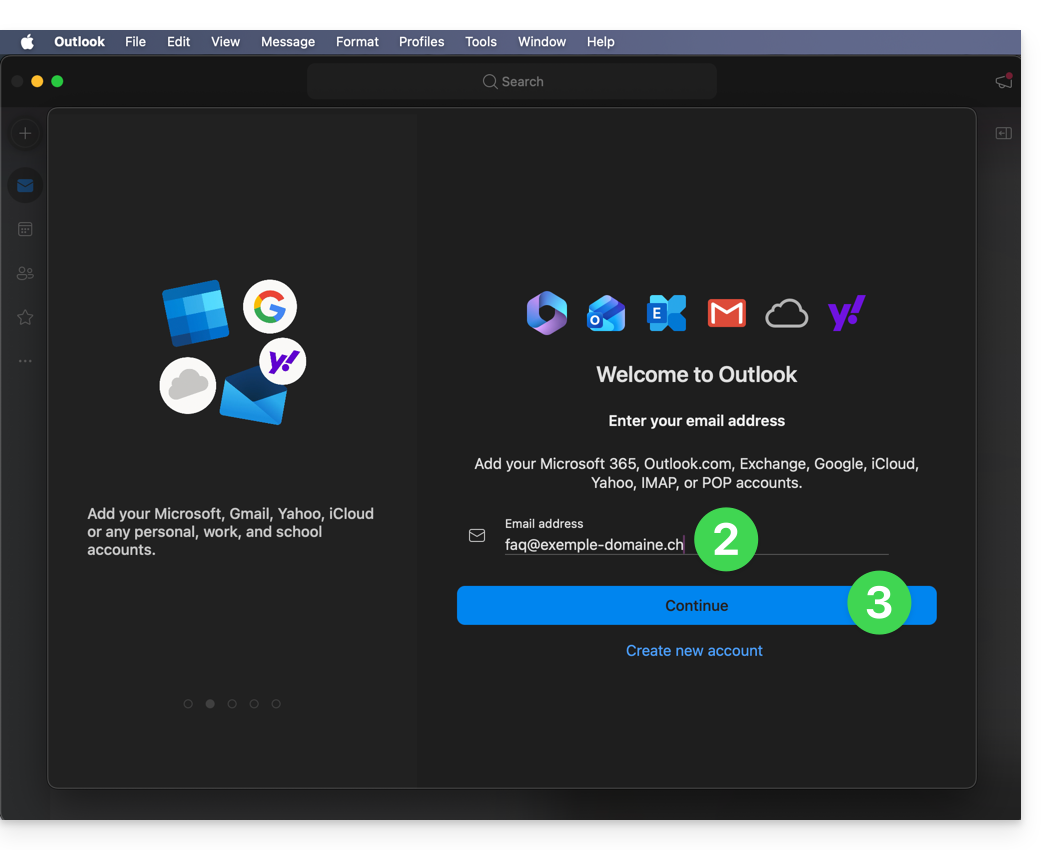
- Enter the email address to associate.
- Click on Continue:
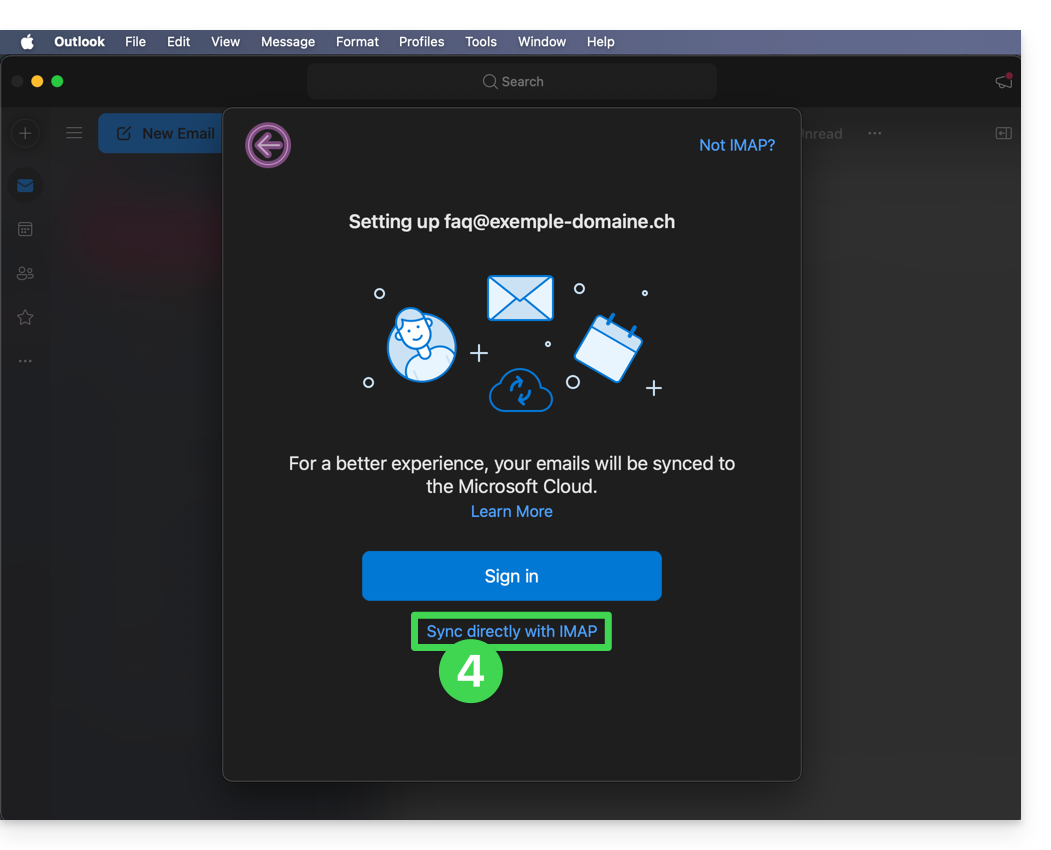
- Click on Synchronize via IMAP (without Microsoft Cloud):
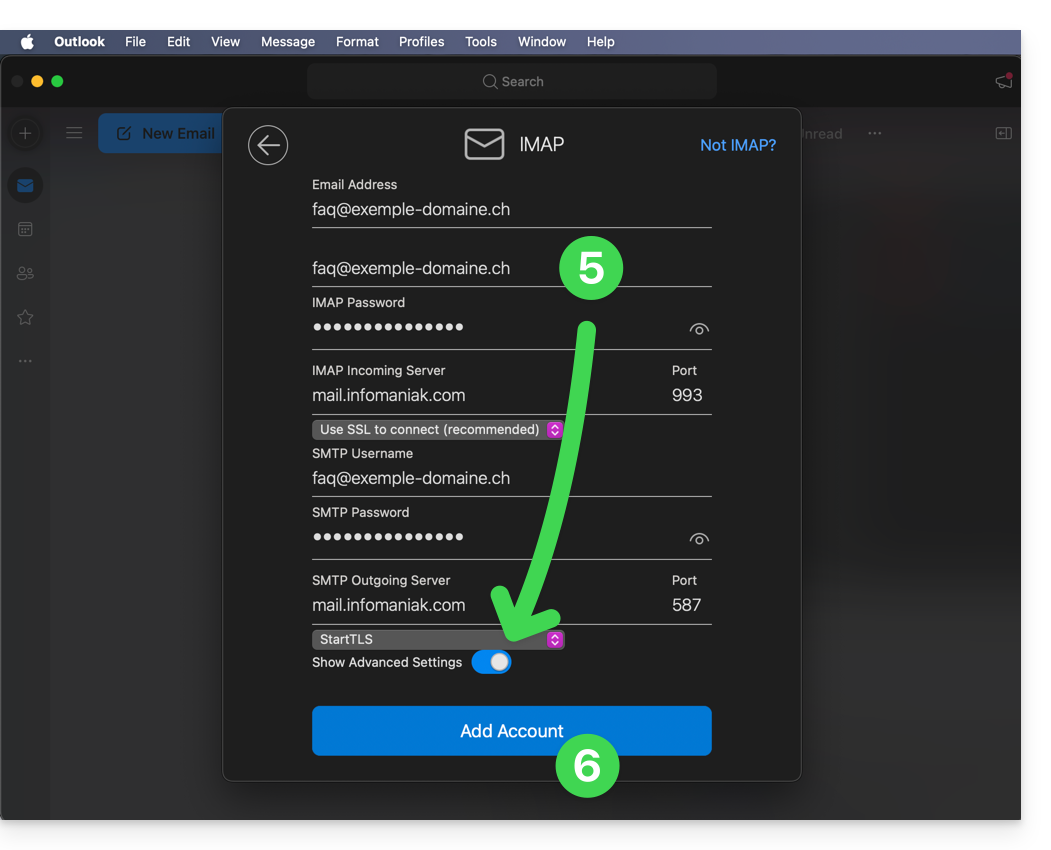
- Check and complete the missing information.
- To do this, activate the toggle switch for displaying advanced settings.
- Click on Add account:
- Understand and proceed through the various Microsoft information windows:

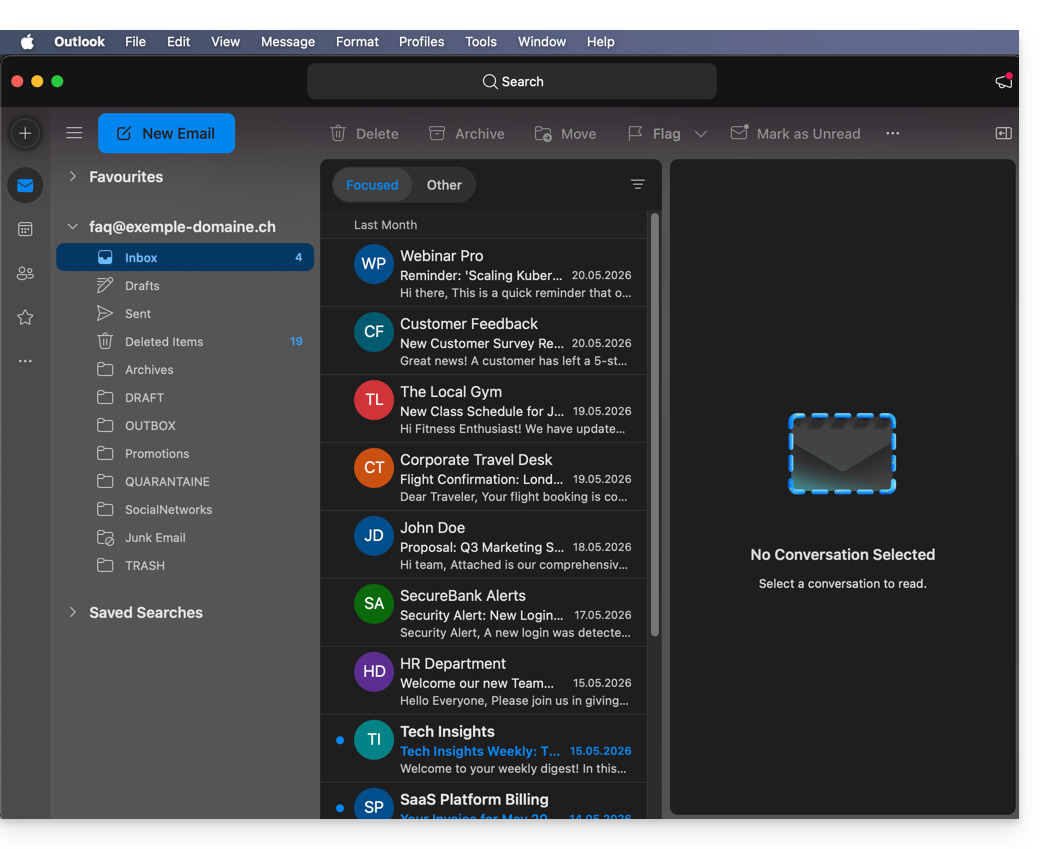
- Your email address is now configured in the application:
Recommended settings
- Incoming IMAP server =
mail.infomaniak.com - IMAP port =
993(with SSL) - Outgoing SMTP server =
mail.infomaniak.com - SMTP port & encryption protocol and command/method to activate this protocol:
587+ STARTTLS - Username = the complete email address (need help?)
- Password = the password generated for the email address you want to access (❓: my kSuite | Mail/kSuite Service).
- Mandatory authentication for sending emails:
- Activate it in the SMTP settings of your application.
- Check "use the same settings as the incoming server" or, depending on the software/email clients, enter a username (i.e., the complete email address) and the generated password.
Refer to this other guide if you are looking for information about other compatible email ports and protocols (SSL / TLS, for example).
In case of a problem
Check that the Mail service is configured optimally.
You do not need to contact Infomaniak Support if your email address works correctly outside of the application. The most common error is using an incorrect password. The troubleshooting guides will help you resolve any potential issues:
- Refer to the solutions provided in this other guide regarding email in general.
- This other guide is specifically about Outlook.
… and if your Outlook is no longer working after a change of your email password, please refer to this other guide.
Link to this FAQ: https://faq.infomaniak.com/2174
Has this FAQ been helpful?
This guide explains how to add or modify one or more SPF records in a DNS zone (of a domain name) managed in the Infomaniak Manager.
Introduction
- If your domain name is registered with Infomaniak, your email is managed by Infomaniak, but your website is hosted with another provider (Wix, for example), you are probably managing the DNS zone (and therefore the SPF) with that other provider: please refer to this other guide for more information.
Understanding SPF records
The SPF (Sender Policy Framework) record type is a standard for verifying the sender's domain name in an email and aims to reduce SPAM. It is used to indicate which server is authorized or not to send emails for a domain. If the SPF check fails for an email, it means that the email was not sent from an authorized server/IP address by the domain administrator. The email is then considered spam.
Strict SPF -all: rejecting unauthorized emails
Infomaniak automatically installs this type of record when creating an Email Service on your domain (strict SPF):
v=spf1 include:spf.infomaniak.ch -allThus, the recipient server of the email you send will evaluate that any email not coming from Infomaniak servers will be rejected. This prevents malicious individuals from spoofing email addresses from your domain.
Soft SPF ?all: tolerance for some emails
You can choose to modify the SPF to a more flexible model:
v=spf1 include:spf.infomaniak.ch ?allIn this case, the recipient server of the email you are sending will evaluate, according to its own rules, whether it accepts emails not originating from Infomaniak servers.
In summary:
?: the receiving server accepts the message even if the sender is not listed in the SPF~: the receiving server generally accepts the message if it is not listed in the SPF but identifies it as suspicious-: the receiving server rejects the message if it is not listed in the SPF (recommended)
Add an SPF via a TXT record
There are 2 ways to manage SPF.
If you have a Mail service with Infomaniak, the easiest way is to go to the Global Security tool to manage the SPF: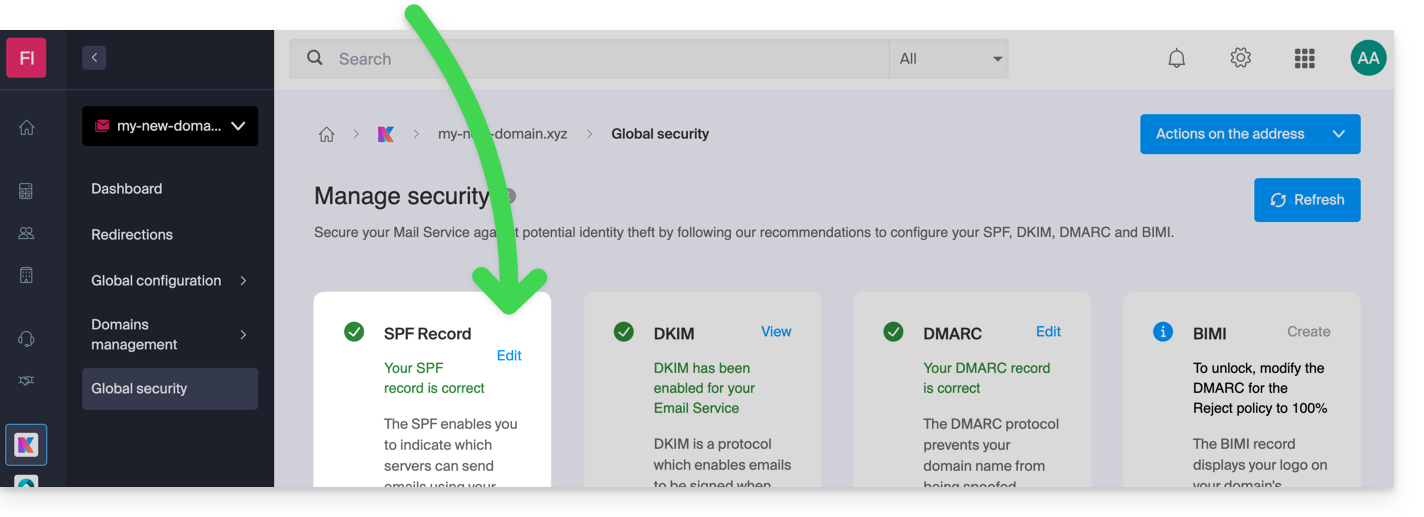
But since the SPF record is a type of DNS record of type TXT, you can also manage it from the DNS zone of the domain name:
- Click here to access the management of your domain on the Infomaniak Manager (need help?).
- Click directly on the name assigned to the domain in question.
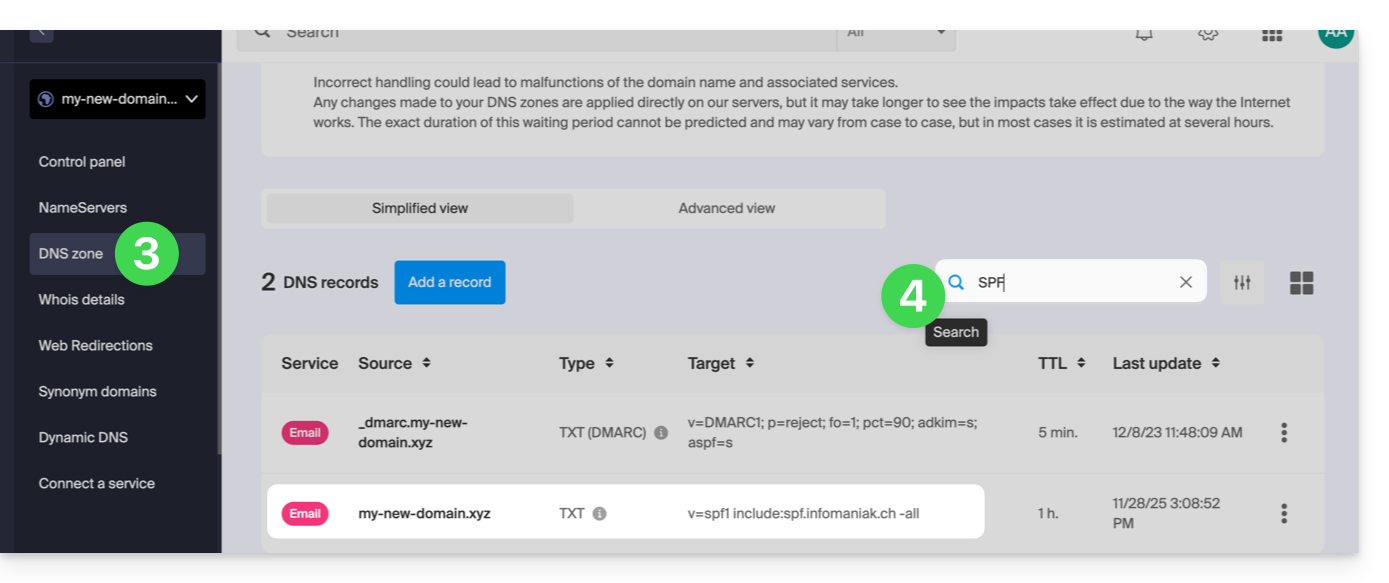
- Click on DNS Zone in the left-hand menu.
- Check in the table that there is not already a TXT record with a value mentioning SPF, as shown here:
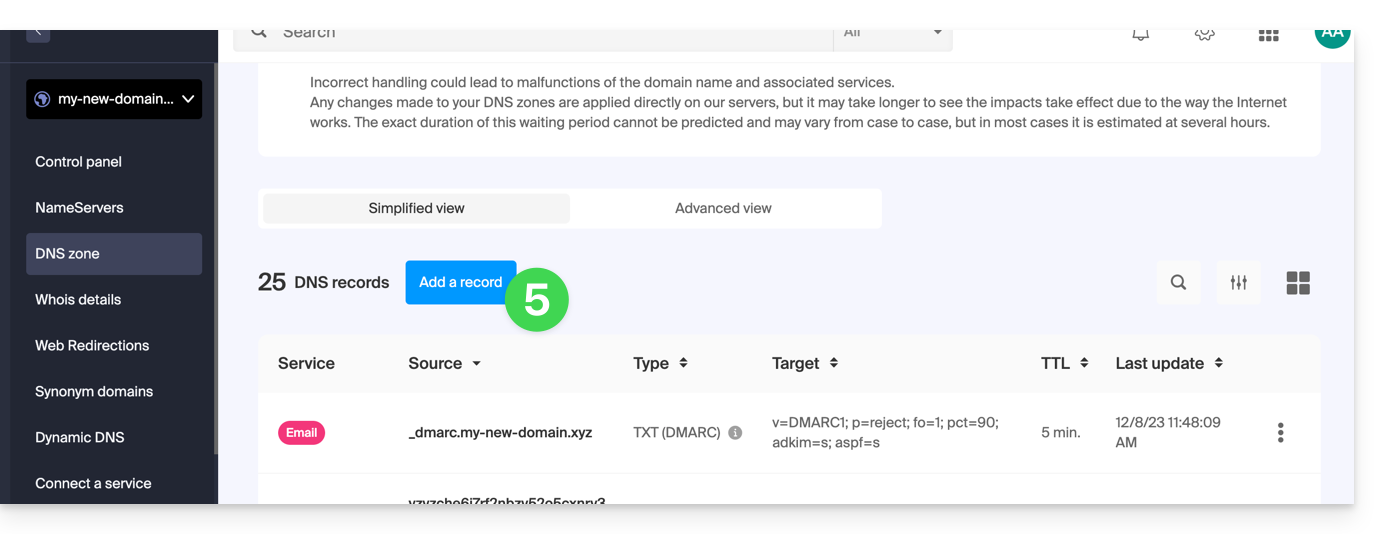
- Click the button to add a record (you will receive an error if you try to add a TXT record with an SPF value when one already exists in the zone):
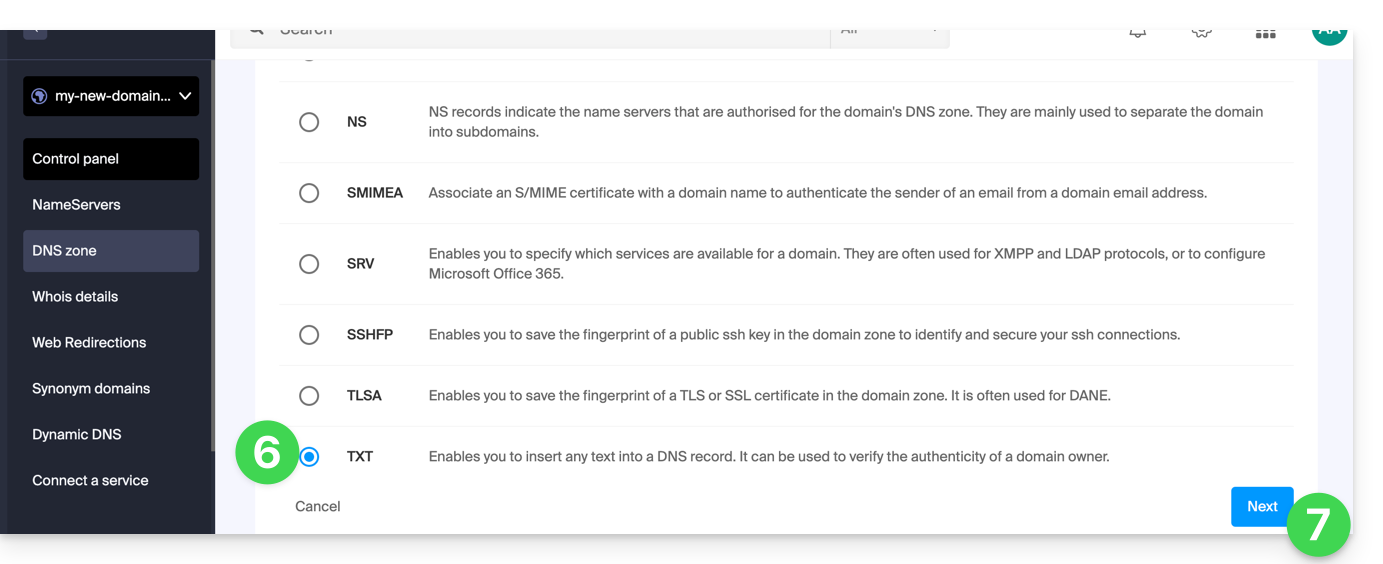
- Click the TXT radio button to add a record.
- Click the Next button:
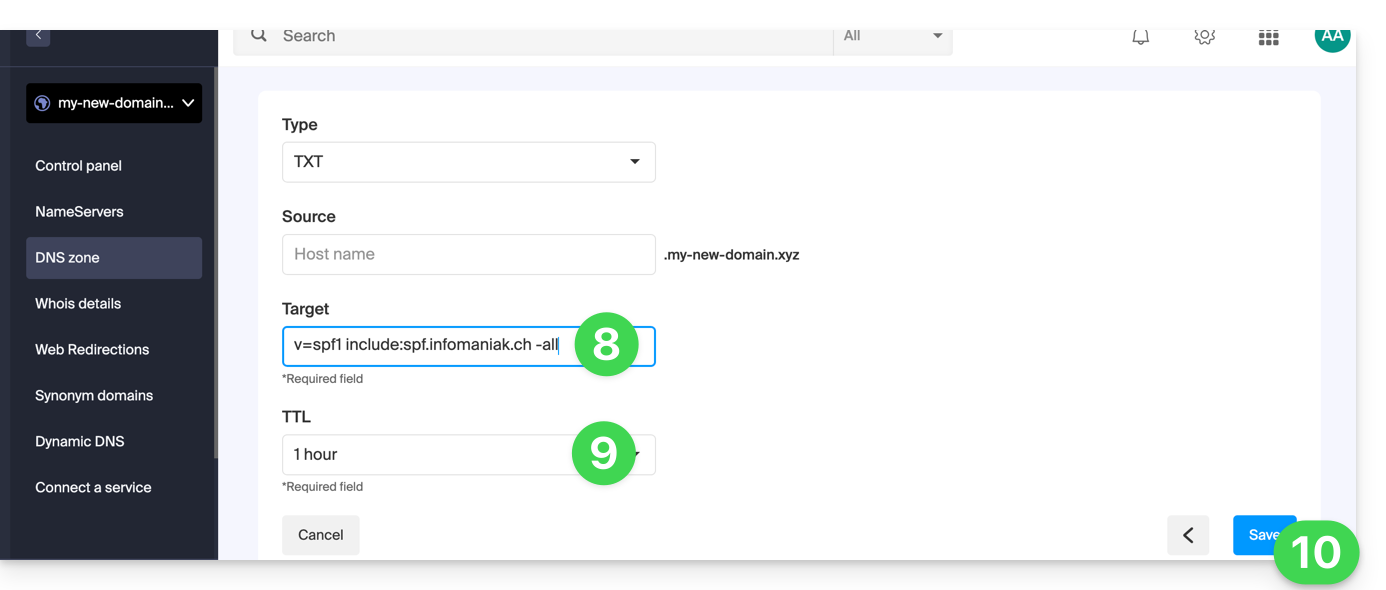
- Enter the SPF value required for your DNS zone.
- Leave the default value for the TTL.
- Click the Save button:
Adding Multiple SPF Records
If you use other email providers in addition to Infomaniak, you need to obtain their SPF records and then merge them with Infomaniak's SPF record using a specific syntax.
Having multiple separate SPF records will cause errors. It is essential to combine multiple SPF records into a single TXT record!
Example of 3 SPF records to merge:
- Infomaniak's:
v=spf1 include:spf.infomaniak.ch -all - Two secondary providers:
v=spf1 include:the-second-domain.xyz ?allv=spf1 include:the-other-domain.xyz ~all
... the final SPF record to be inserted into your DNS zone should be in the following format:
v=spf1 include:spf.infomaniak.ch include:the-second-domain.xyz include:the-other-domain.xyz -allRemove any other SPF entries from the DNS zone of your domain! Any DNS addition/modification may take up to 48 hours to propagate.
Limits on the Number of SPF Records
Multiple SPF records are limited to a maximum of 10 inclusions.
The Infomaniak SPF record generally already includes 4 entries:
include:relay.mail.infomaniak.chinclude:app.mail.infomaniak.chinclude:newsletter.infomaniak.cominclude:amazonses.com
Check the SPF record(s)
The Global Security tool in the Infomaniak Manager allows you to easily check and correct any problematic records.
If you encounter a problem, it is recommended to analyze your domain name on MxToolbox to check if your SPF record contains syntax errors, too many inclusions, or other issues that could lead to an error: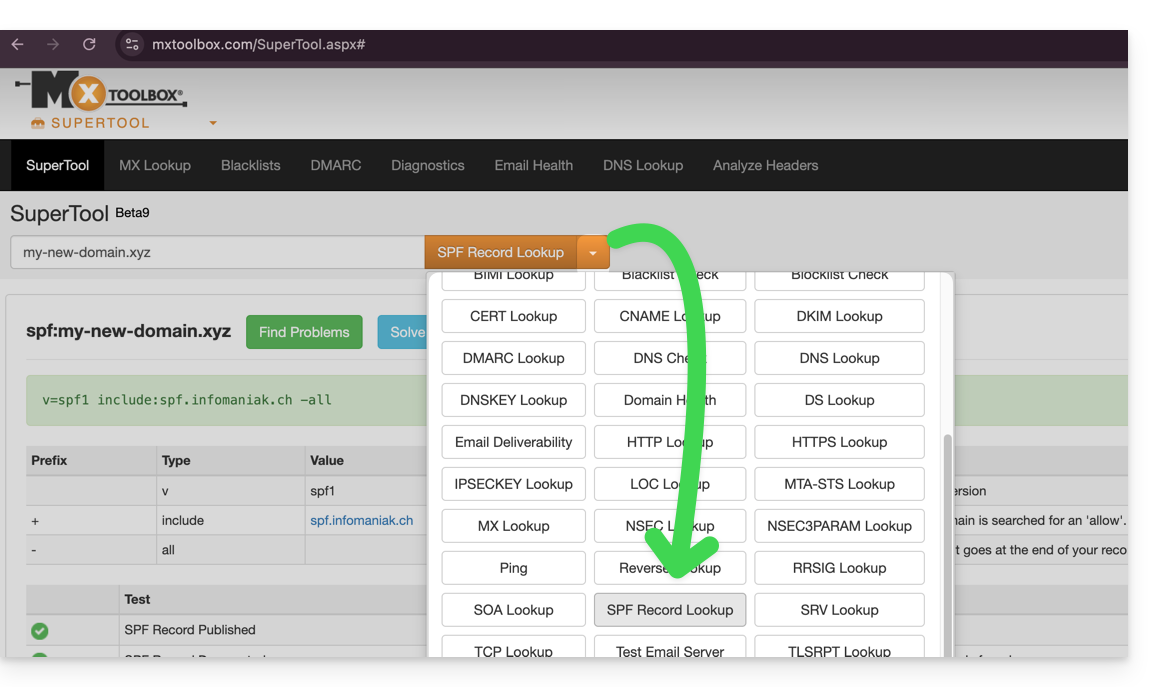
… or directly at https://mxtoolbox.com/spf.aspx.
Link to this FAQ: https://faq.infomaniak.com/2199
Has this FAQ been helpful?
This guide explains how to copy the content of one or more external email addresses to Infomaniak (all email messages, folders, subfolders, in short, the entire structure of your third-party email account) to one of your existing Infomaniak addresses (regardless of the Mail service), thanks to the MBOX import tool offered by Infomaniak.
Introduction
- This is the ideal procedure when switching hosting providers or restoring old messages that are still stored elsewhere.
- Once the import process has started, it is no longer possible to interrupt it.
- Any potential duplicates are handled: identical content will only be copied once.
Import an mBox archive to Infomaniak
Prerequisites
- You must have an archive of your previous email account in the
.mboxformat.- For Gmail: go to Google Takeout (need help?)
- Have a Mail service on your Infomaniak Manager.
- Have a available address quota or adjust it beforehand if necessary.
- Make sure your email is properly secured
- Create one or more addresses on this Mail service.
- If you have many (10+) email addresses to create, please refer to this other guide on bulk creation.
- The destination email address must be linked to the user (= the Infomaniak account) you are using.
Next, to import the email content:
- Click here to access the import tool (online service https://import-email.infomaniak.com).
- If necessary, log in to your Infomaniak account for the relevant organisation; the import will be done to one of the email addresses associated with the Infomaniak Mail web interface (online service ksuite.infomaniak.com/mail) of the Infomaniak account you are using.
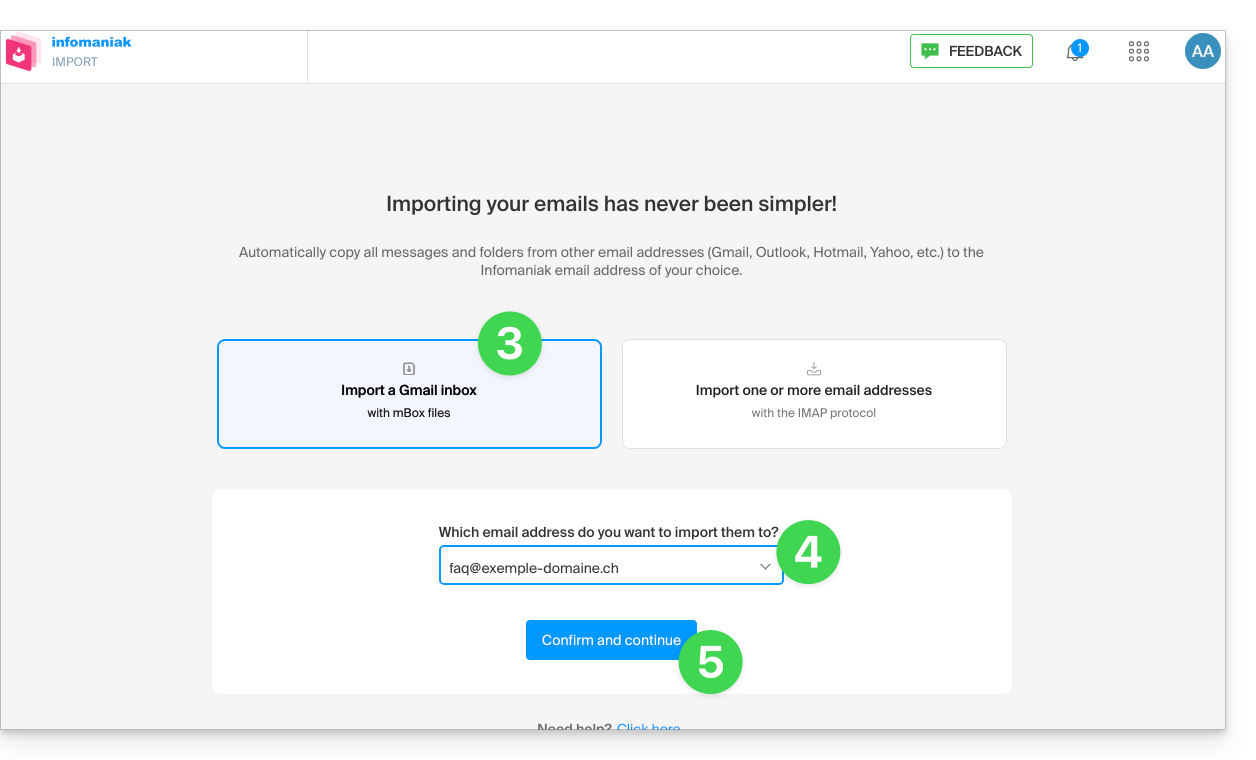
- Click on mBox file import.
- Choose the email address to which you want to import the emails; the drop-down menu lists the email addresses currently associated with your Infomaniak Web Mail interface (online service ksuite.infomaniak.com/mail) for the Infomaniak account you are logged into.
- Click on Confirm:
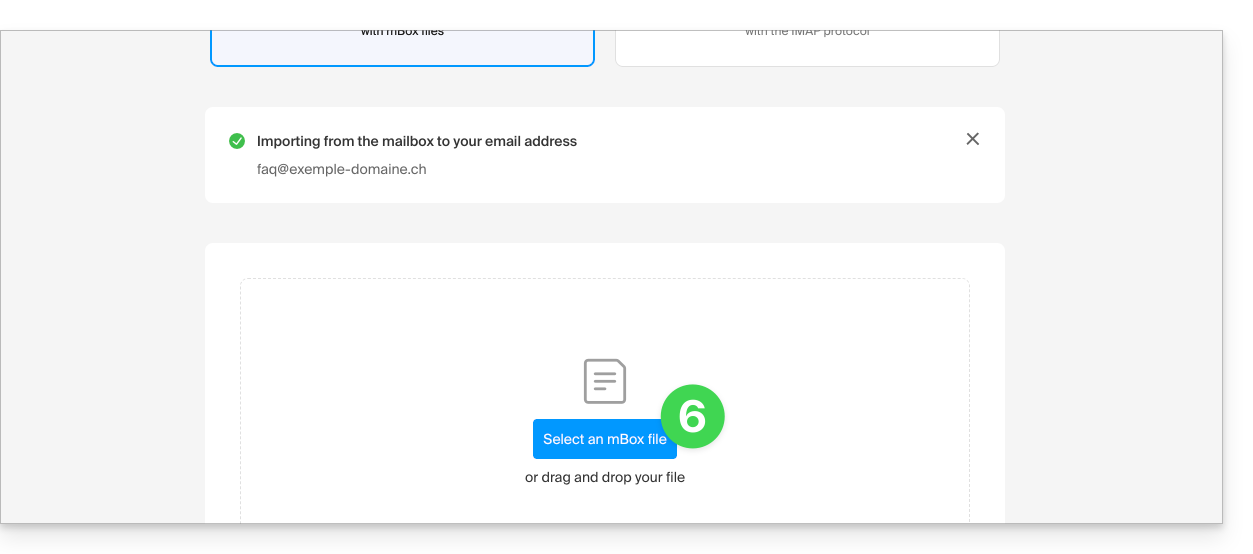
- Click on the button to select the mBox archive on your hard drive:
- The import process has started. You can wait and view the results on the page once the import is complete, or close the window (the import will continue in the background, and you can track its progress - see below):
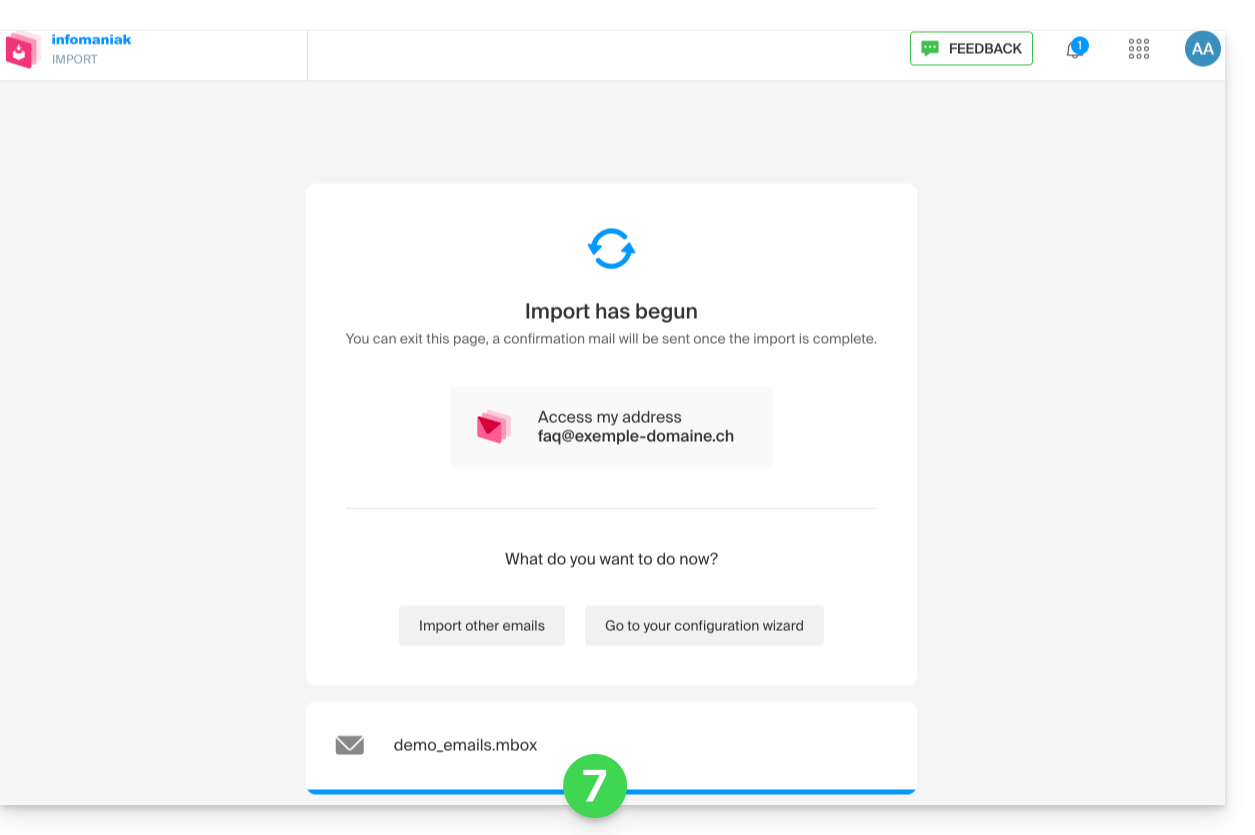
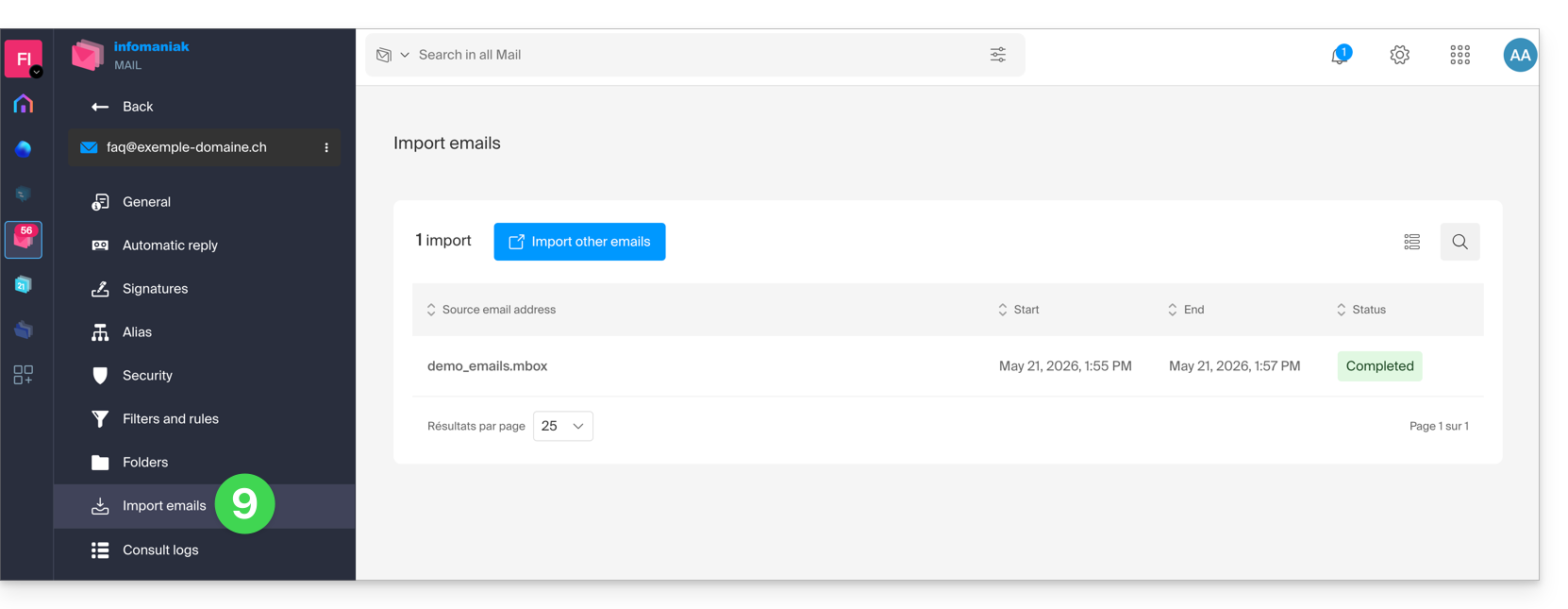
- You can track the progress in the settings for the destination email address, on the web app Mail (online service ksuite.infomaniak.com/mail) only.
- The tracking feature allows you to view the import history for the address in question:
Link to this FAQ: https://faq.infomaniak.com/2207
Has this FAQ been helpful?
This guide helps you identify and correct errors encountered when using your software or email client(Microsoft Outlook, Mozilla Thunderbird, Apple Mail, etc.).
For an error returned after sending (delivery errors of the type Mailer Daemon or Mail Delivery Subsystem, please refer to this other guide.
1. Configuration and essential settings
Unique server name
Enter mail.infomaniak.com exclusively for the incoming (IMAP) and outgoing (SMTP) servers.
Network ports
Configure the recommended incoming and outgoing port numbers.
Email address password
Enter the password for your email address. It is different from the password for your Infomaniak customer account (if necessary, you can add or change the password for your email address). Pay particular attention to the special character $.
SMTP Authentication
Enable authentication in the sending settings of your software. Enter your complete email address as the username and its password.
Valid email address
Make sure that the address used has actually been created in your Manager (or defined as an alias).
Protocol selection
Use the same protocol on all your devices. Do not mix POP3 and IMAP for the same mailbox, as these two protocols do not work well together.
2. Recommended troubleshooting steps
Check the configuration
Compare your current settings with the recommended settings for your software, especially if you have just changed your password.
Try a different network
Try retrieving your emails from a different internet connection (Wi-Fi, 4G/5G hotspot, etc.).
Temporarily disable security applications
Briefly disable your antivirus, firewall, or VPN. If the email service works again, contact the software vendor.
Check your password entry
Enter your password in plain text in a text editor. Depending on your keyboard layout (AZERTY / QWERTY), the A key may correspond to the letter Z and the Q key to the letter A.
Restart the email software
Close and restart your application before attempting another Send / Receive operation. Some software requires a restart to apply the new settings.
Compose a new test message
Do not reuse an existing draft. A message saved in the Drafts folder before you modified your settings may retain the old, problematic configuration.
3. Troubleshooting common errors
Errors of the type 0x800... (Outlook)
Refer to the guide to resolving 0x800 errors.
Certificate error (SSL / TLS)
Consult the dedicated guide on certificate errors.
550 5.7.1 relaying denied or Proper authentication required errors
Read the guide on relay and authentication errors.
535 5.7.0 authentication failed error
Please refer to the guide on authentication failure.
Timeouts and Port 25 Blocking
Observed messages: "573 Antispam: Authenticated connection not possible. Please use port 587 instead of port 25.", "An operation on the server timed out" or "the timeout period has expired" (errors 421, 573, etc.).
Solution: Never specify port 25 as the SMTP port, as most Internet Service Providers (ISPs) block it. To send emails without being blocked, use the recommended ports (such as port 587 or 465).
Link to this FAQ: https://faq.infomaniak.com/2218
Has this FAQ been helpful?
Infomaniak's Student Program provides free access to 1 Web Hosting and 1 kSuite Standard to help you develop your digital skills during your higher education.
Introduction
- A domain name is required for the products to function correctly, and this remains a paid service.
- This offer is only valid in the following countries: Switzerland, France, Belgium, Germany, Italy, Austria, Spain, Canada.
- This offer is reserved for new hosting orders (it does not apply to existing or renewed orders).
- 1 Web Hosting (equivalent to storing 20 websites on 250 GB of SSD storage) and 1 kSuite Standard are offered per person.
- The student must be of legal age (or have parental authorization).
- The student must be able to provide proof of their student status with a valid student ID card and a valid identity card:
- Student ID card or school certificate: it must be up-to-date and show the school, the current academic year, as well as your first and last name.
- Identity card (front and back): it must be valid with a clear and legible photo.
- Your official student email address: this is provided by your school, for example, firstname.lastname@your-school.com.
- The duration of the offer depends on the validity period of the student ID card and cannot exceed 4 years in total.
Get free online hosting
To take advantage of this offer, please read the offer page and prepare the required documents.
Requests are processed in the order they are received within a few days of your message. You will receive a response by email in all cases.
Discover other free Infomaniak services!
Link to this FAQ: https://faq.infomaniak.com/2229
Has this FAQ been helpful?
This guide explains how to modify an email address within a Mail Service, for example, if you want to edit the spelling of the part that comes before the @ symbol in your email address (= the prefix).
Introduction
- This can be useful for addresses in the format "firstname.lastname" in case of a change of last name (e.g., marriage) or simply a change of spelling.
- To change the part of your email address that comes after the @ symbol, please refer to this other guide.
Modify the prefix of an email address
To change an email address from the format address1@domain.xyz…
… to a renamed address adresse2@domain.xyz…
… and given thatit is not possible to simply change the spelling of an email address; you must:
… or create a mail alias
- then, if using email software/client, reconfigure your email settings
- and optionally, in Mail, modify the sending address in the Signature section
… or create a second email address with the new wording
- then move the messages from one address to the other
- and delete the first address if necessary.
Link to this FAQ: https://faq.infomaniak.com/2263
Has this FAQ been helpful?
This guide explains how to easily sort your messages using Plus Addressing (or "sub-addressing"), which means using aliases of your email address that do not need to be actually created on an Infomaniak Mail Service.
Introduction
- This feature is free of charge and available for all Infomaniak email services. It allows you to have multiple versions of your existing email address (i.e., aliases) so that you can, for example, separate your personal emails from the newsletters you subscribe to.
- These "wildcard" aliases mean that a message can be sent to an email address containing a
+(e.g.,abc+def@domain.xyz), and it will still arrive in the existingabc@domain.xyzinbox. You will also have the option to filter and sort it automatically based on what comes after the "+" if you set this up. - Please note that it is also possible to create real aliases without the
+character... - Infomaniak is fully compatible with the DEA system, which the functionality presented here depends on; if you encounter any problems, please contact the organization that uses it.
Use a “disposable” alias with your Infomaniak email address
The next time you sign up for a newsletter or a customer area that requires a username:
- Simply use a variation of your email address that includes the "+" sign (e.g., anna+event@domain.xyz) instead of entering your actual email address:
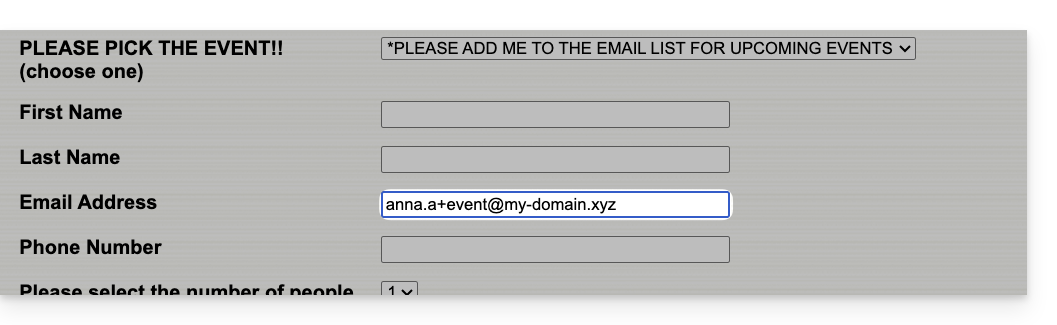
So, if your usual email address is anna@domain.xyz, emails sent to anna+event@domain.xyz or anna+nospam@domain.xyz (in short, anna+"whatever you want here"@domain.xyz…) will arrive in the inbox of anna@domain.xyz.
Next, to automatically move incoming messages sent to your aliases into specific folders, refer to this other guide to create sorting filters based on the recipient of the received message.
You can also configure a mail client so that sending from this type of email address works: refer to the second part of this other guide — this does not work when sending from the Infomaniak Mail web app (ksuite.infomaniak.com/mail online service).
Link to this FAQ: https://faq.infomaniak.com/2317
Has this FAQ been helpful?
Infomaniak continuously improves its products and customer service by prioritizing your suggestions shared through support, social media, or the web. These suggestions are then discussed during meetings of the relevant department.
Introduction
- For languages not listed in the table, please use the English (EN) column.
- Infomaniak support is also available via email, chat, or phone if needed.
Provide feedback on…
INFOMANIAK SERVICE | [FR] | [EN] | [DE] | [IT] | [ES] |
|---|---|---|---|---|---|
| Euria [ ☍ ] | ✎__ | ✎__ | ✎__ | ✎__ | ✎__ |
| Domains [ ☍ ] | ✎__ | ✎__ | ✎__ | ✎__ | ✎__ |
| Hosting / Website Builder [ ☍ ] | ✎__ | ✎__ | ✎__ | ✎__ | ✎__ |
| Cloud Server [ ☍ ] | ✎__ | ✎__ | ✎__ | ✎__ | ✎__ |
| Public Cloud [ ☍ ] | ✎__ | ✎__ | ✎__ | ✎__ | ✎__ |
| Jelastic Cloud [ ☍ ] | ✎__ | ✎__ | ✎__ | ✎__ | ✎__ |
| Synology [ ☍ ] | ✎__ | ✎__ | ✎__ | ✎__ | ✎__ |
| Hosting [ ☍ ] | ✎__ | ✎__ | ✎__ | ✎__ | ✎__ |
| Swiss Backup [ ☍ ] | ✎__ | ✎__ | ✎__ | ✎__ | ✎__ |
| kSuite / my kSuite [ ☍ ] | ✎__ | ✎__ | ✎__ | ✎__ | ✎__ |
| Mail [ ☍ ] | ✎__ | ✎__ | ✎__ | ✎__ | ✎__ |
| app Mail iOS [ ☍ ] | ✎__ | ✎__ | ✎__ | ✎__ | ✎__ |
| Android Mail app [ ☍ ] | ✎__ | ✎__ | ✎__ | ✎__ | ✎__ |
| kDrive [ ☍ ] | ✎__ | ✎__ | ✎__ | ✎__ | ✎__ |
| Calendar [ ☍ ] | ✎__ | ✎__ | ✎__ | ✎__ | ✎__ |
| Contacts [ ☍ ] | ✎__ | ✎__ | ✎__ | ✎__ | ✎__ |
| Chk.me [ ☍ ] | ✎__ | ✎__ | ✎__ | ✎__ | ✎__ |
| Newsletter [ ☍ ] | ✎__ | ✎__ | ✎__ | ✎__ | ✎__ |
| SwissTransfer [ ☍ ] | ✎__ | ✎__ | ✎__ | ✎__ | ✎__ |
| Streaming Radio [ ☍ ] | ✎__ | ✎__ | ✎__ | ✎__ | ✎__ |
| Streaming Video [ ☍ ] | ✎__ | ✎__ | ✎__ | ✎__ | ✎__ |
| VOD / AOD [ ☍ ] | ✎__ | ✎__ | ✎__ | ✎__ | ✎__ |
| Guest Manager [ ☍ ] | ✎__ | ✎__ | ✎__ | ✎__ | ✎__ |
| kChat [ ☍ ] | ✎__ | ||||
| kMeet [ ☍ ] | ✎__ | ||||


Link to this FAQ: https://faq.infomaniak.com/2324
Has this FAQ been helpful?
This guide details the size limits (message size and disk space) implemented for Infomaniak's email services and provides instructions on how to check your storage usage.
Introduction
- Maximum storage space in gigabytes (GB):
- kSuite Free = 20
- kSuite Standard = unlimited
- kSuite Business = unlimited
- kSuite Enterprise = unlimited
- my kSuite = 20
- my kSuite+ = unlimited
- Mail Service Starter = 20
- Mail Service Premium = unlimited
- You should also consult these other guides:
Email Size and Number Limits
Regarding the emails themselves and their attachments:
- The maximum size of an email, both when sending and receiving, is 210763776 bytes, or exactly 201 MB.
- This includes the header and body (text, HTML, attachments, etc.), regardless of the method used to send the email.
- Note that an attachment can be encoded in base64, so its size in the email is not necessarily the same as its size on disk.
- With the Infomaniak Mail web app (online service ksuite.infomaniak.com/mail), the size limit for attachments is 25 MB.
- Beyond this limit, and up to a maximum of 3 GB, a SwissTransfer link is generated and integrated into your message: the data is stored in Switzerland in Infomaniak's Cloud, and your recipients can use this link to easily download the attachments during a predefined period.
- Beyond 3 GB (and up to 50 GB), it is recommended to use SwissTransfer directly for your sends.
- The number of messages in the respective storage space is not limited.
- However, it is not recommended to keep more than 4,000 to 5,000 messages per folder (this slows down message indexing).
- It is therefore advisable to move your messages into subfolders, which also makes it easier to view them (you can do this manually or set up automatic sorting rules).
Email retention time limit
Retention period:
- There is no time limit for message storagein the inbox or in subfolders, except for an email that is deleted, or reported as spam, or moved manually/automatically to the "Trash" or "Spam" folder (or one of its equivalent names such as "Deleted Items", "Deleted Messages", "Junk Mail", including spellings in another language, such as "Junk" - this list is not exhaustive)... In this case, the email is automatically deleted after 30 days and cannot be recovered.
Therefore, never use a folder named, for example, Trash or Infected to store and keep important messages.
- Backups performed by Infomaniak have a retention period.
Display the total size from the Infomaniak Web Mail app
To do this:
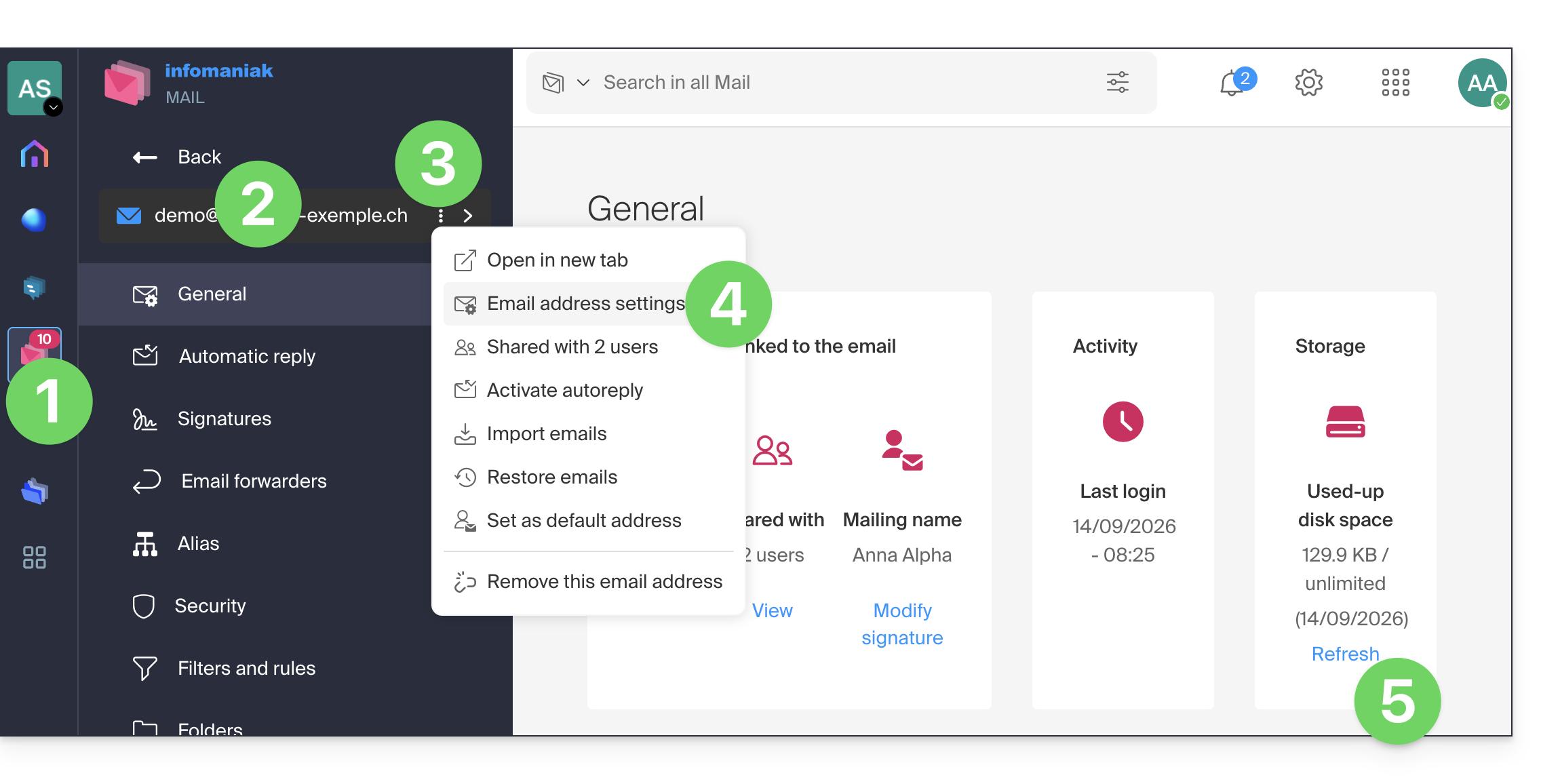
- Click here to access the Infomaniak Mail web app (online service ksuite.infomaniak.com/mail).
- Check or select the relevant email address from the dropdown menu in the left-hand menu.
- Click on the action menu ⋮ to the right of the item in question in the table that appears.
- Click on Mail address settings.
- Click on Refresh in the Storage box to display the mailbox size:
Still having a problem?
If your recipient's email address is not hosted with Infomaniak, you may receive an error message when sending the email. This message may take various forms, such as Recipient address rejected: 5.2.2 Over quota 554 5.0.0 Service unavailable.
This may indicate that your recipient's mailbox is full and they can no longer receive emails, or that the email you are trying to send is too large.
In this case, you should contact your correspondent and ask them to empty/reduce the size of their inbox or to tell you the maximum size of messages you can send them.
Link to this FAQ: https://faq.infomaniak.com/2351
Has this FAQ been helpful?
This guide explains how to connect the desktop app Outlook 2019 (desktop application on Windows) to an email address hosted by Infomaniak.
Add the email address to the application
Prerequisites
- Create the email address (❓: my kSuite | Mail Service/kSuite).
- Create a device password (❓: my kSuite | Mail/kSuite Service).
- Verify that the domain is configured correctly (❓: Mail/kSuite Service).
To configure the email application:
- Open the application.
- If the wizard starts automatically, go to step 5.
- If the wizard does not start automatically, click on the File menu:
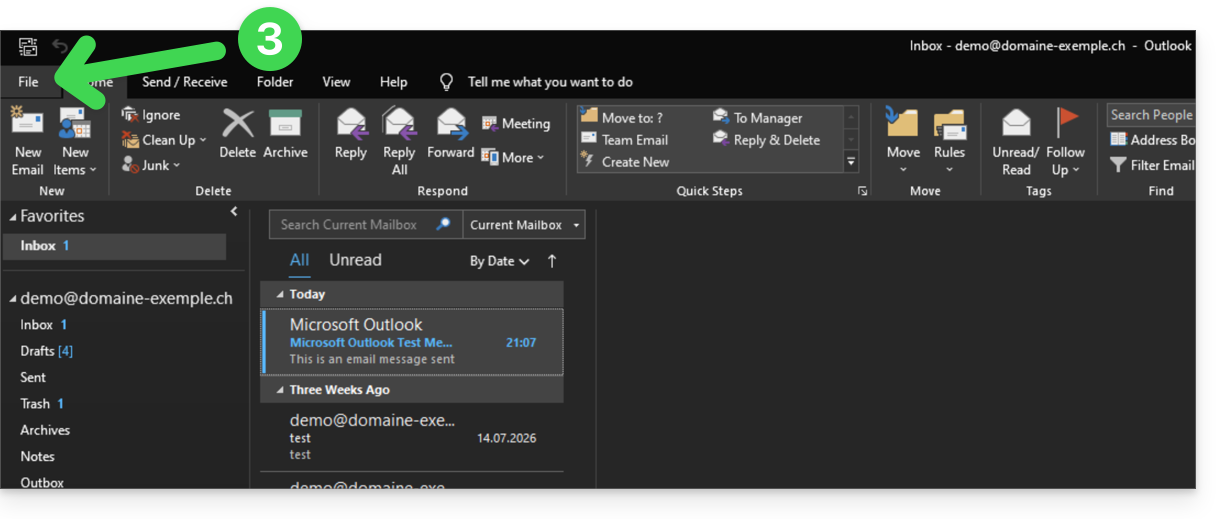
- Click on Add account:
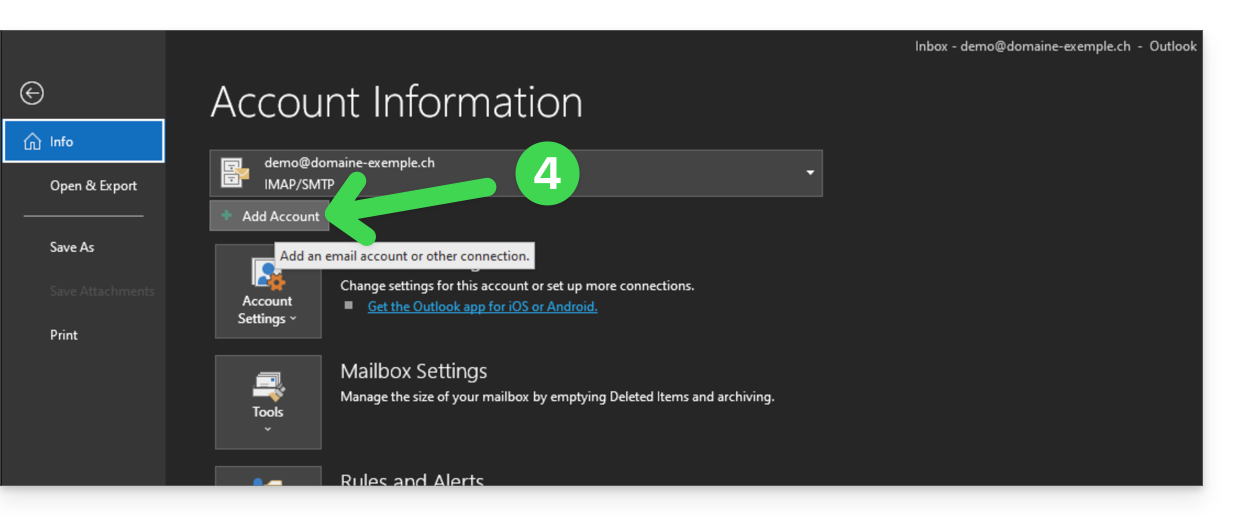
- Enter the email address to connect.
- Click on the chevron Advanced options.
- Activate the checkbox to configure your account manually.
- Click on the Connect button:
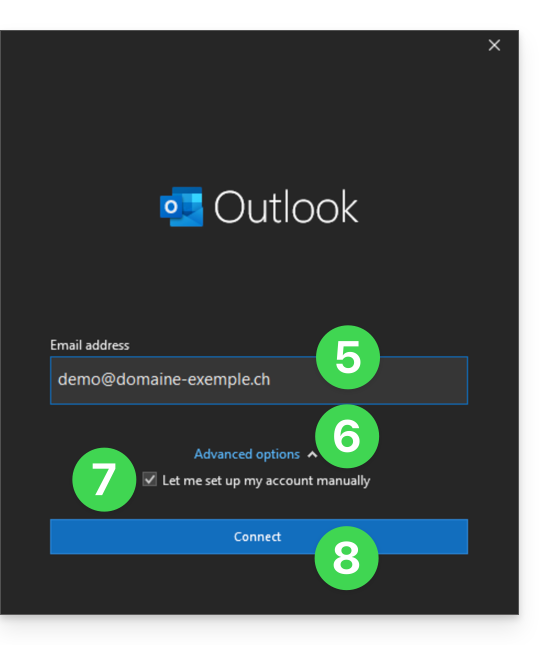
- Click on IMAP:
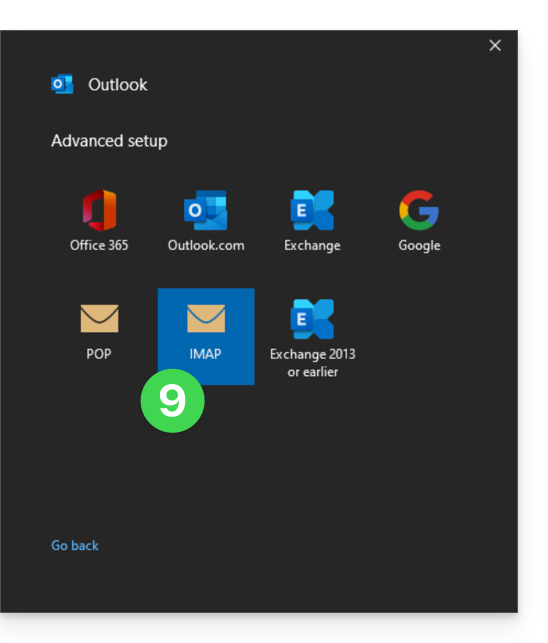
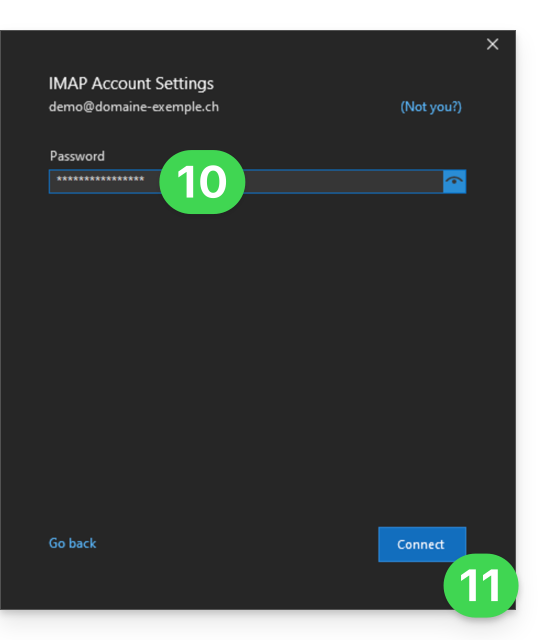
- Enter the password for the email address you want to connect.
- Click the blue Connect button:
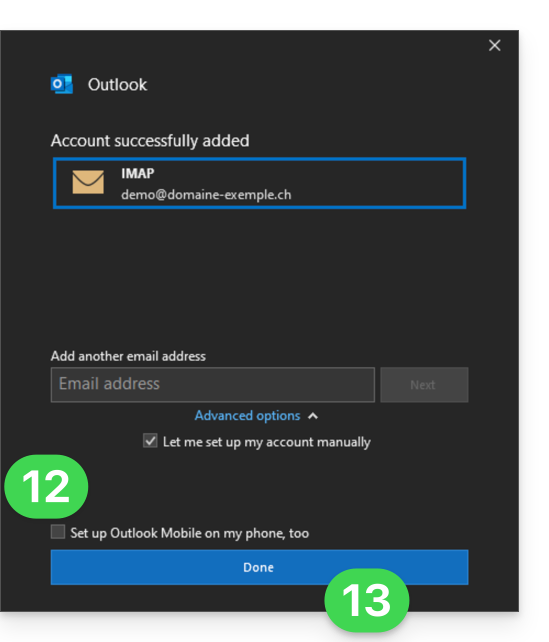
- Uncheck the additional settings box for mobile devices, if necessary.
- Click the blue Finish button:
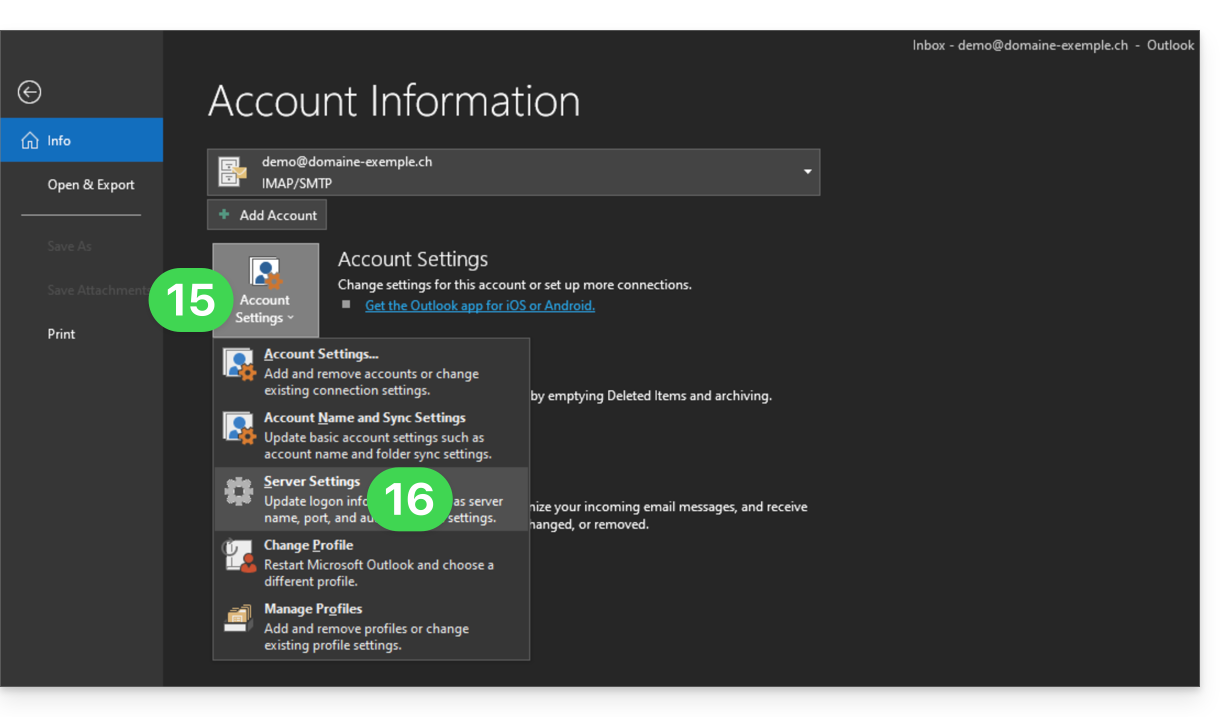
- Stay in or return to the File menu.
- Click on Account Settings to correct certain information that was added automatically but is incorrect.
- Click on Server Settings:
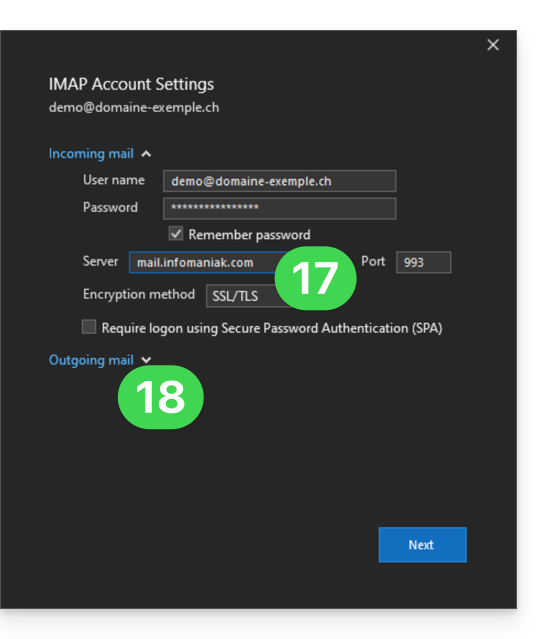
- Check and complete the missing information.
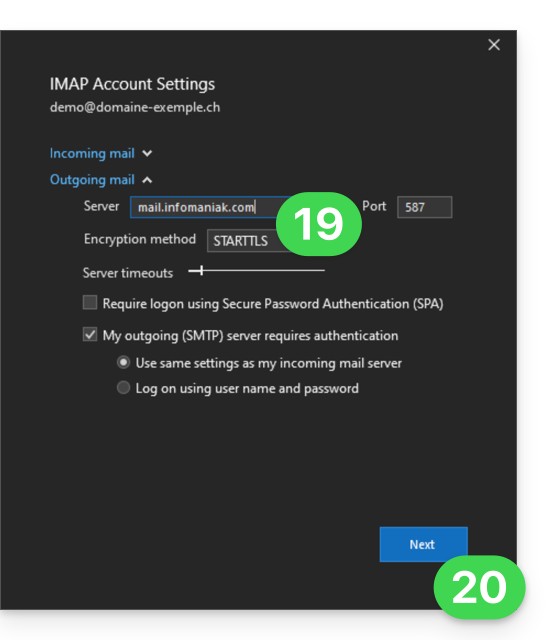
- Click on the downward-pointing chevron Outgoing Mail:
- Check and complete the missing information.
- Click on Next:
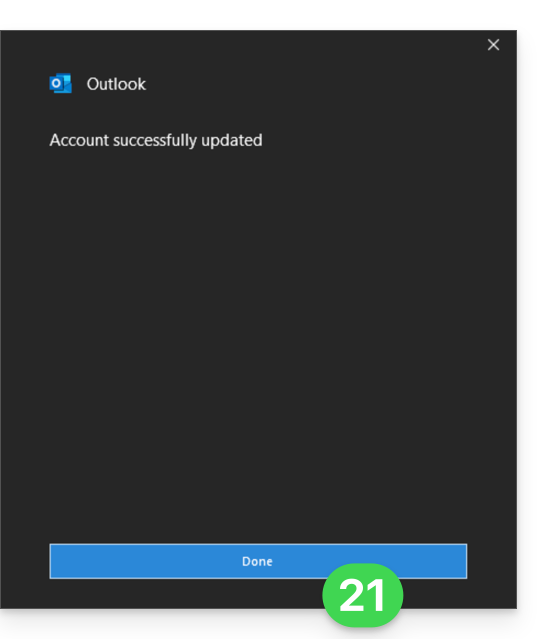
- Click on Finish:
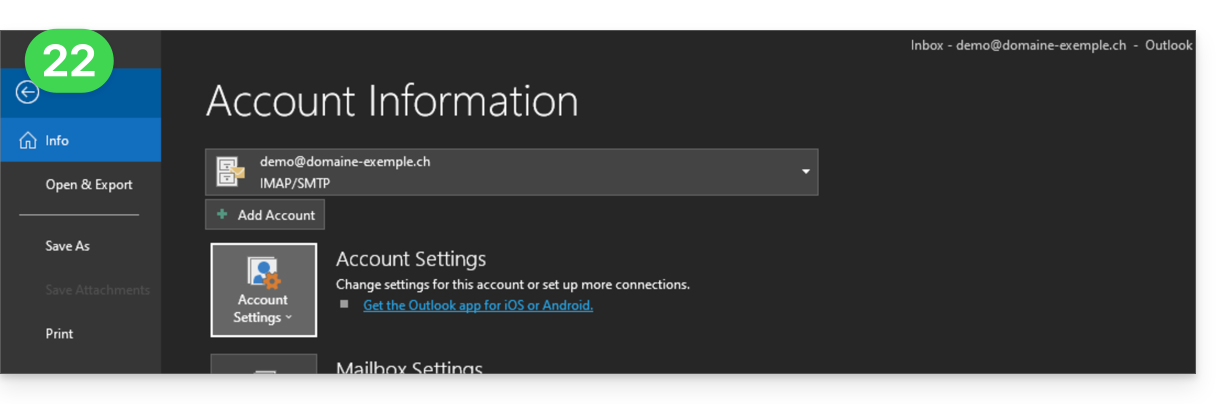
- Go back to the home page; your email address is now correctly configured in the application:
Recommended settings
- Incoming IMAP server =
mail.infomaniak.com - IMAP port =
993(with SSL) - Outgoing SMTP server =
mail.infomaniak.com - SMTP port & encryption protocol and command/method to activate this protocol:
587+ STARTTLS - Username = the complete email address (need help?)
- Password = the password generated for the email address you want to access (❓: my kSuite | Mail/kSuite Service).
- Mandatory authentication for sending emails:
- Enable this in the SMTP settings of your application.
- Check "use the same settings as the incoming server" or, depending on the software/email client, enter a username (i.e., the complete email address) and the generated password.
Refer to this other guide if you are looking for information about other compatible email ports and protocols (SSL / TLS, for example).
In case of a problem
Check that the Mail Service is configured optimally.
You do not need to contact Infomaniak Support if your email address works correctly outside the application. The most common error is using an incorrect password. The troubleshooting guides will help you resolve any potential issues:
- Refer to the solutions provided in this other guide regarding email in general.
- This other guide focuses specifically on Outlook.
… and if your Outlook is no longer working after a change of your email password, please refer to this other guide.
Link to this FAQ: https://faq.infomaniak.com/2354
Has this FAQ been helpful?
This guide details the various options available in the incoming email filtering tool (based on sorting rules) of Mail Infomaniak.
Introduction
- Refer to this other guide if you are looking for information on setting up sorting filters in your Infomaniak email.
Discover the possible conditions
The meaning of these different conditions and criteria currently in place is detailed below:
From
Allows you to filter messages based on the sender (and decide what to do with emails that always come from the same person or even the same domain, for example).
A
Allows you to filter messages based on the recipient (if you receive an email that is always addressed to a specific primary recipient, for example benevoles@domain.xyz).
Cc
Allows you to filter messages based on the recipient mentioned in the Cc field (who therefore receives the email as a copy in addition to the main recipient).
Subject
Allows you to filter messages based on the message subject.
Reply-to
Allows you to filter messages by examining the content of the reply-to field (specific condition - example).
Size
Allows you to filter messages based on their size.
Message content
Allows you to filter messages based on specific words found in the body of the incoming message.
Email type
Allows you to filter messages based on the x-infomaniak-type header, the value of which can be ham, spam, transactional, and bounce.
If you use the condition "email type = advertising, social networks", the selected action will be performed before the ad filtering, if the latter is enabled.
Link to this FAQ: https://faq.infomaniak.com/2360
Has this FAQ been helpful?
This guide explains how to connect the Apple Mail iOS mobile app (iPhone, iPad, etc.) to an email address hosted by Infomaniak.
Introduction
- Instead of the manual configuration below, it is recommended to use the .mobileconfig configuration profiles provided by Apple or the Infomaniak Mail app (iOS) to benefit from a Push update method.
Manually add the email address to the application
Prerequisites
- Create the email address (❓: my kSuite | Mail Service/kSuite).
- Create a device password (❓: my kSuite | Mail/kSuite Service).
- Verify that the domain is configured correctly (❓: Mail/kSuite Service).
To configure the email application:
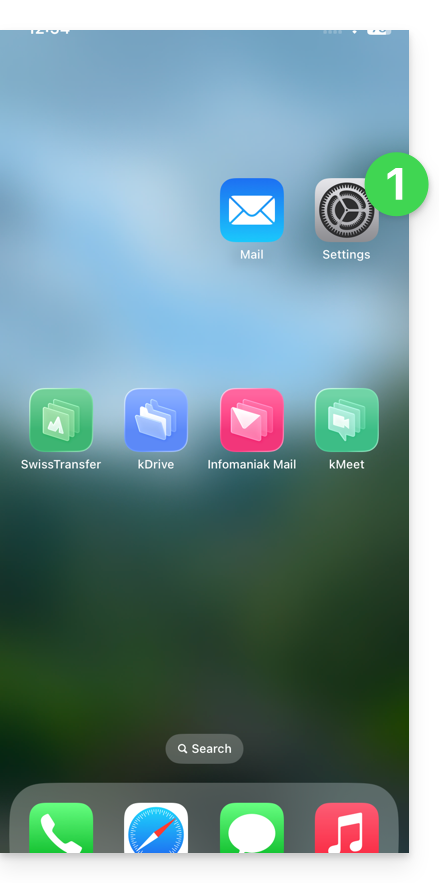
- Open the Settings on your iPhone:
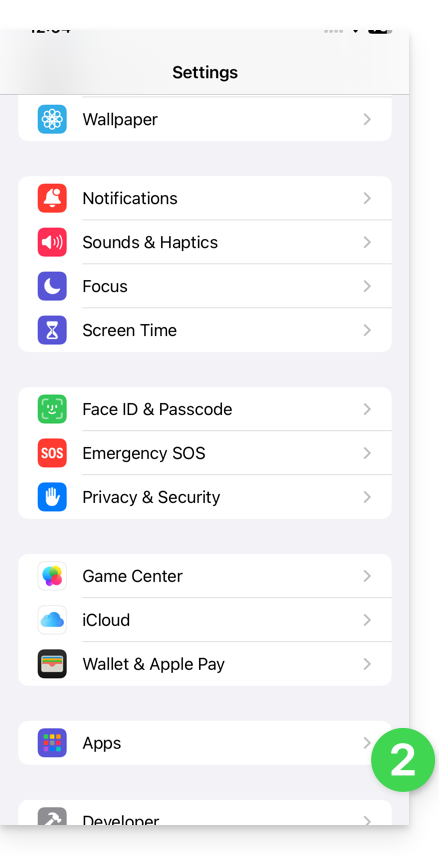
- Tap Apps:
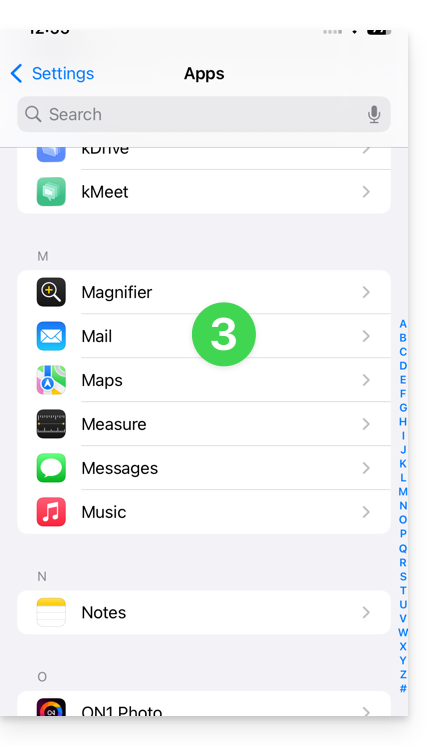
- In Apps, tap Mail:
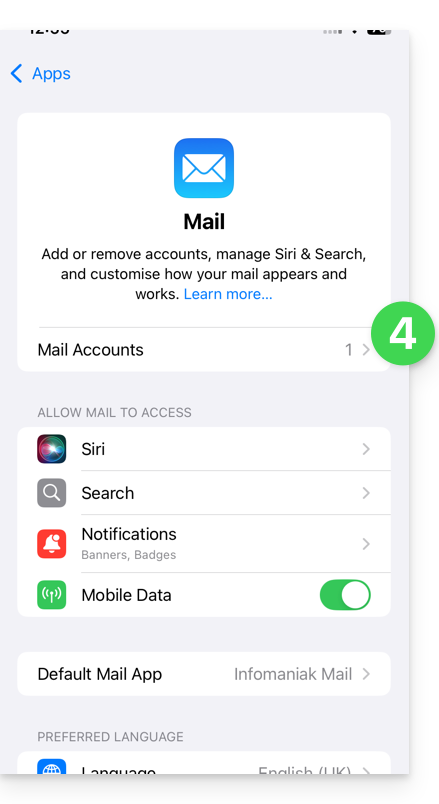
- Tap Mail Accounts:
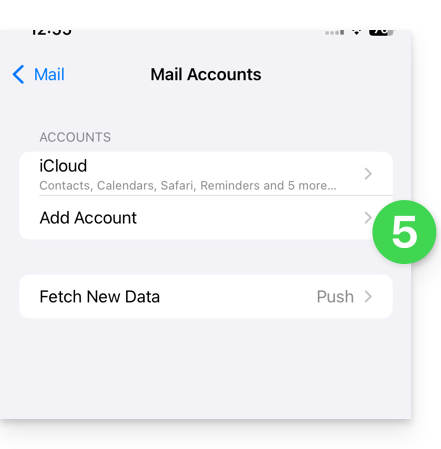
- Tap to add an account:
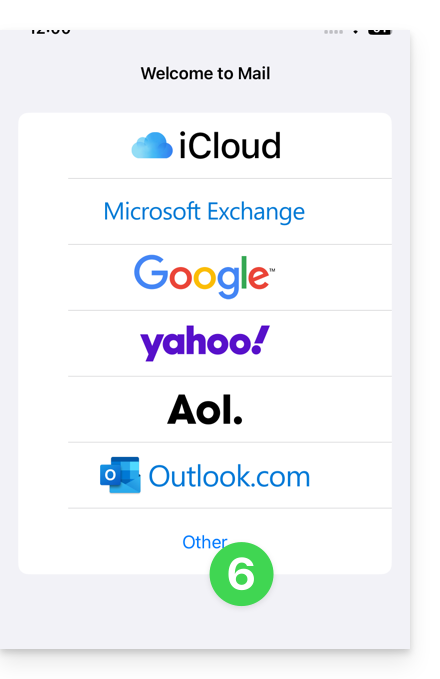
- Tap Another account:
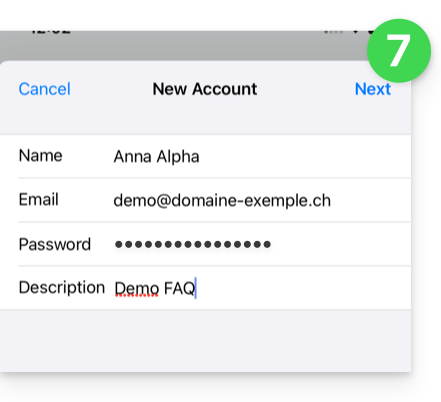
- Enter the email address and password for the account you want to add (see prerequisites), then tap Next:
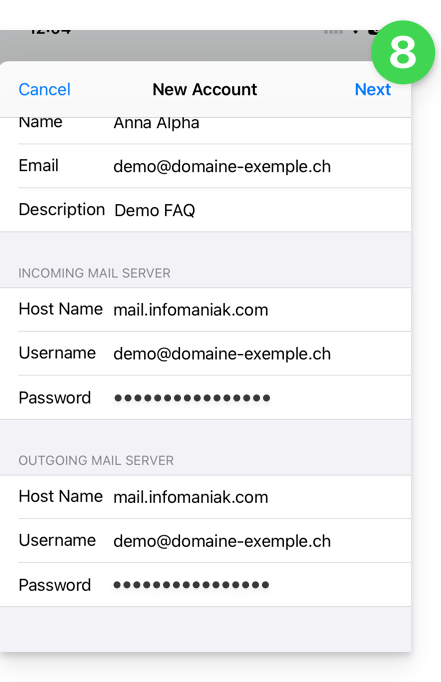
- Check and complete the missing information, then click Next:
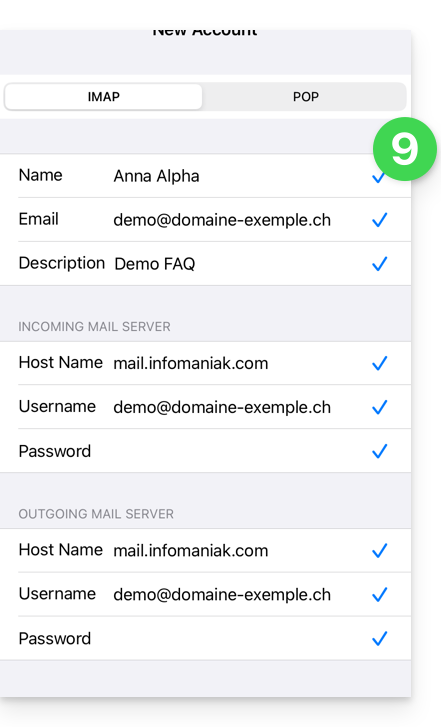
- The app indicates that some fields are optional, but they are not at all!
- The IMAP verification must be performed correctly (do not click on POP)
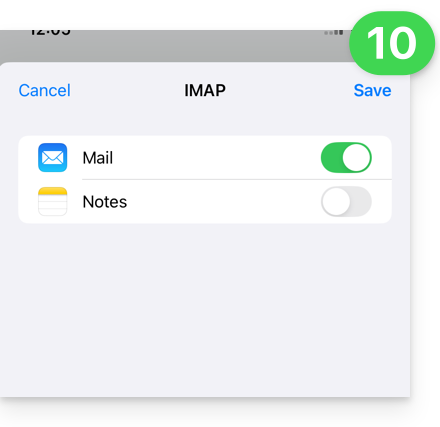
- Enable email and save the configuration in the top right corner:
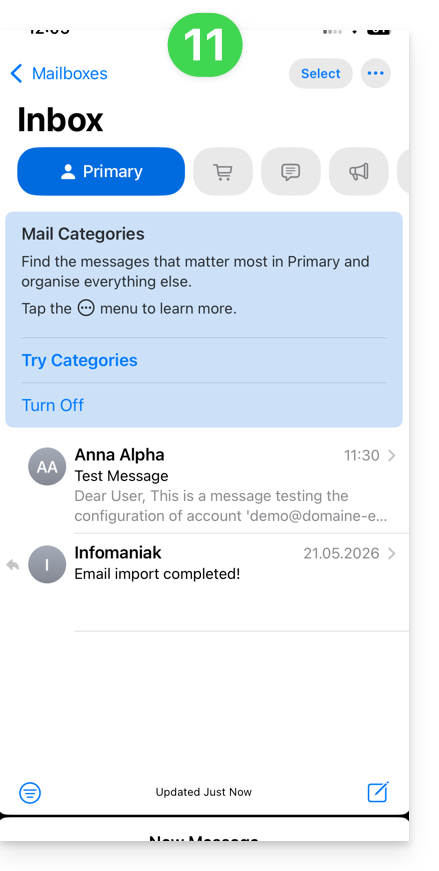
- Done, your email address is now configured in the application:
Recommended settings
- Incoming IMAP server =
mail.infomaniak.com - IMAP port =
993(with SSL) - Outgoing SMTP server =
mail.infomaniak.com - SMTP port & encryption protocol and command/method to activate this protocol:
587+ STARTTLS - Username = the complete email address & (need help?)
- Password = the password generated for the email address you want to access (❓: my kSuite | Mail Service/kSuite).
- Authentication required for sending emails:
- Enable this in the SMTP settings of your application.
- Check "use the same settings as the incoming server" or, depending on the software/email client, enter a username (= complete email address) and the generated password.
Refer to this other guide if you are looking for information about other email ports and protocols that are supported (SSL / TLS, for example).
In case of a problem
Check that the Mail service is configured optimally.
It is not necessary to contact Infomaniak Support if your email address works correctly outside the application. The most common error concerns the use of an incorrect password. The troubleshooting guides will help you resolve any potential issues:
- Refer to the solutions provided in this other guide regarding email in general.
- Delete any existing Apple configuration profilesrelated to your Infomaniak email account before restarting the configuration.
And if your Apple Mail no longer works for sending emails (e.g., the SMTP server is disconnected or missing) or after a change of email password, please refer to this other guide.
Link to this FAQ: https://faq.infomaniak.com/2369
Has this FAQ been helpful?
This guide explains how to access your emails hosted by Infomaniak.
Guides for Infomaniak email
Click here to open the Infomaniak assistant and configure synchronization on macOS, Windows, Linux, Android, and iOS for common email software/clients (Outlook, Microsoft 365, Thunderbird, Apple Mail, eM Client, etc.). It will allow you to obtain the recommended settings and also create the IMAP/SMTP password needed for your configuration.
Alternatively, use directly the email in a web browser via the Infomaniak Mail web app (online service ksuite.infomaniak.com/mail) and/or download the Infomaniak Mail mobile app (application for iOS/Android smartphones or tablets).
Here are also guides for specific manual procedures:
| OS | Application to synchronize |
|---|---|
| Outlook New / Microsoft 365 MSO / 2019 (Windows) | |
| Outlook Microsoft 365 MSO (macOS) | |
| Apple Mail (configuration profile for macOS) | |
| Apple Mail (configuration profile for iOS: iPhone, iPad, etc.) | |
| Mail (Android: Huawei, Samsung, Sony, etc.) | |
| Outlook (iOS + Android) | |
| Gmail (iOS + Android) | |
| Mozilla Thunderbird |
For synchronizing your contacts & calendars, please refer to this other guide.
Recommended IMAP settings
Username = the complete email address (❓: guide)
Password = the password generated for the email address you want to access (❓: my kSuite guide | Mail Service/kSuite guide).
Incoming IMAP server = mail.infomaniak.com
IMAP port = 993 (with SSL)
Recommended SMTP settings
Username = the complete email address (❓: guide)
Password = the password generated for the email address you want to access (❓: my kSuite guide | Mail Service/kSuite guide).
Outgoing SMTP server = mail.infomaniak.com
SMTP port & encryption protocol and command/method to enable this protocol:
- Prioritize port
587+ STARTTLS: this is the official technical standard and the most compatible method with the majority of modern systems for authenticated submission. - Tolerate port
465+ SSL/TLS only as a compatibility option or alternative, specifying that this is implicit encryption, but that 587 remains the recommended choice.
Mandatory authentication for sending emails:
- It is activated in the SMTP settings of your application.
- Check "use the same settings as the incoming serverEnter your username (i.e., your full email address) and password, or as required by your email software/client.
In case of problems
Please check the following points:
- Refer to this other guide if you encounter any errors, to verify the essential points!
- Consult this other guide if you are looking for information about other email ports and protocols that are compatible.
- POP3 protocol not recommended (POP server = mail.infomaniak.com and POP port = 995 with SSL).
Change a mail password
Mail passwords can be multiple, are not related to your Infomaniak login password, and cannot be retrieved after their first display. Therefore, you must (re)create them whenever you need them, specifying the device (computer, mobile, etc.) and/or the user concerned, so that you can manage them separately when you need to manage a specific connection.
Manage passwords:
- from the Manager on the Mail Service
- from the Infomaniak Mail web app
Apply the new email password
If you have deleted an existing password in order to create a new one,you will need to update your applications and devices that used this password.Refer to these specific guides:
- Apple Mail (macOS / iOS)
- Android Mail / Gmail (various versions)
- Microsoft Outlook (various versions)
- Mozilla Thunderbird
Are you not yet managing your emails with Infomaniak?
Link to this FAQ: https://faq.infomaniak.com/2427
Has this FAQ been helpful?
This guide explains how to connect Microsoft 365 to an email address hosted by Infomaniak.
Introduction
- Infomaniak email addresses cannot be added directly to Outlook online from a browser using a personal Microsoft account.
- Indeed, Microsoft no longer allows adding an external address via IMAP on
outlook.live.com. - Only the Microsoft mailbox linked to the connected account (address
@outlook.fr,@outlook.com,@hotmail…) can be displayed there. - “Microsoft 365” is primarily the subscription; Microsoft has removed the function for connected accounts in Outlook.com, and the equivalent function of Outlook on the web has also been removed.
- Indeed, Microsoft no longer allows adding an external address via IMAP on
- To view an Infomaniak address with Outlook, you must install the Outlook app or use a different software/IMAP-compatible email client.
Get the Outlook 365 app
To do this:
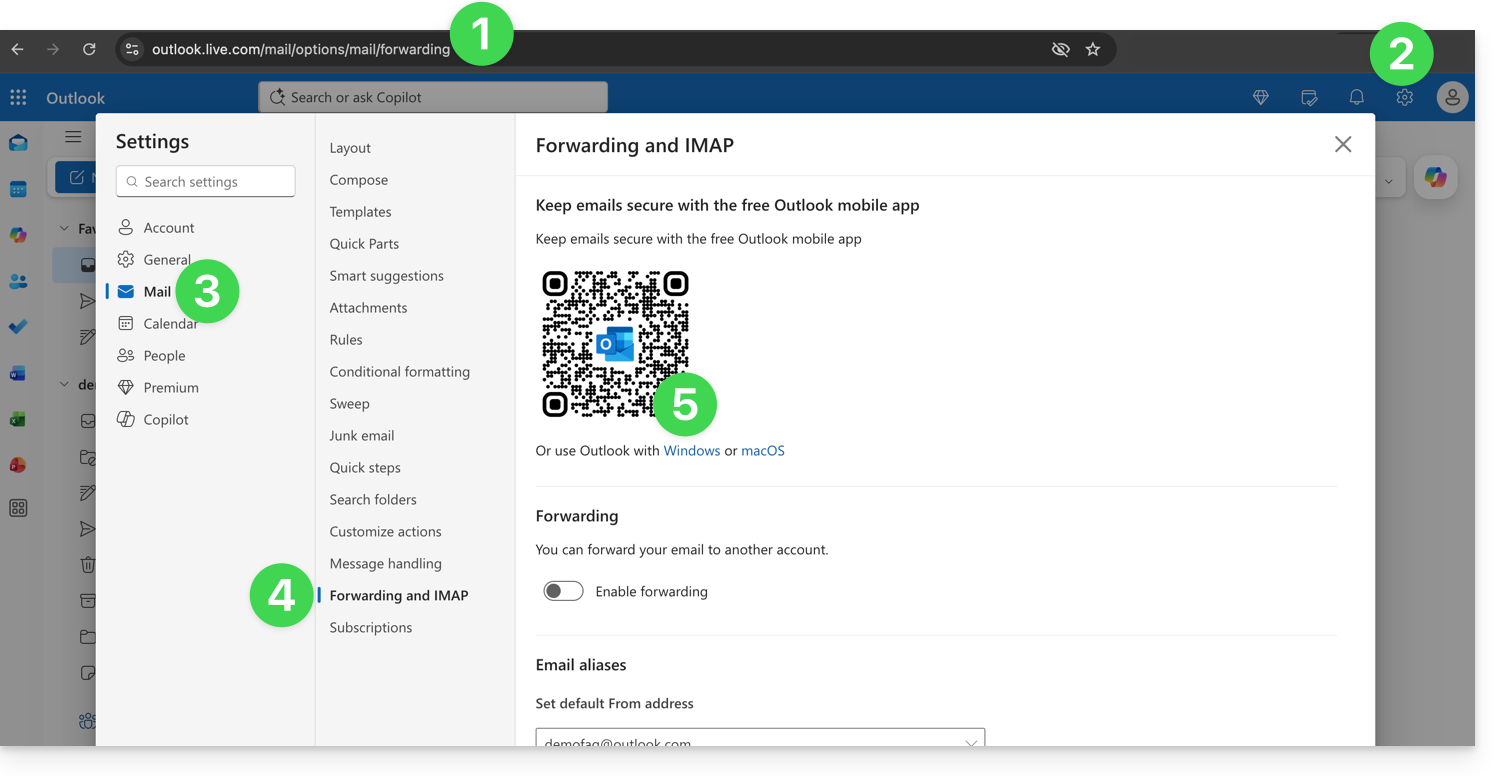
- Log in to https://outlook.live.com/mail/options/mail/forwarding with your personal Microsoft account.
- Click on the Settings icon in the upper right corner of the interface.
- Click on Mail in the left-hand menu.
- Click on Forwarding and IMAP in the secondary menu.
- Download the Outlook application in the version corresponding to your device type:
Add the email address to the Outlook 365 app
On macOS, please refer to this other guide.
On Windows, refer to this other guide, and on mobile (iOS / Android), refer to this other guide.
Link to this FAQ: https://faq.infomaniak.com/2428
Has this FAQ been helpful?
This guide explains how to connect the eM Client desktop app (desktop application on macOS / Windows) to an email address hosted by Infomaniak.
Add the email address to the application
Prerequisites
- Create the email address (❓: my kSuite | Mail Service/kSuite).
- Create a device password (❓: my kSuite | Mail/kSuite Service).
- Verify that the domain is configured correctly (❓: Mail/kSuite Service).
To configure the email application:
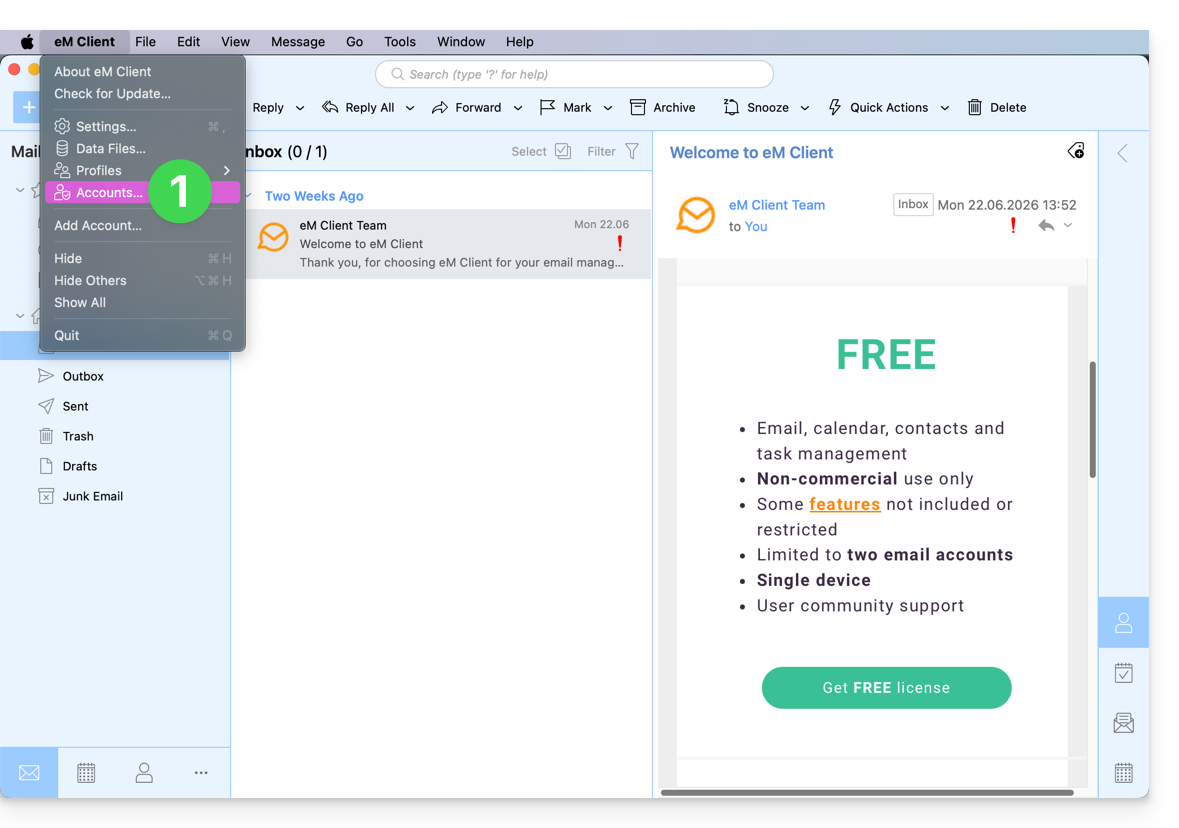
- Open the application and click on Accounts:
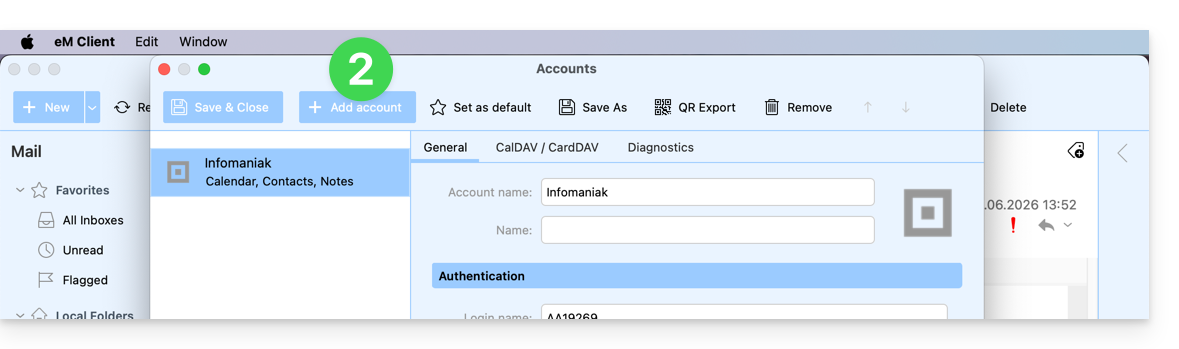
- Click on Add account:
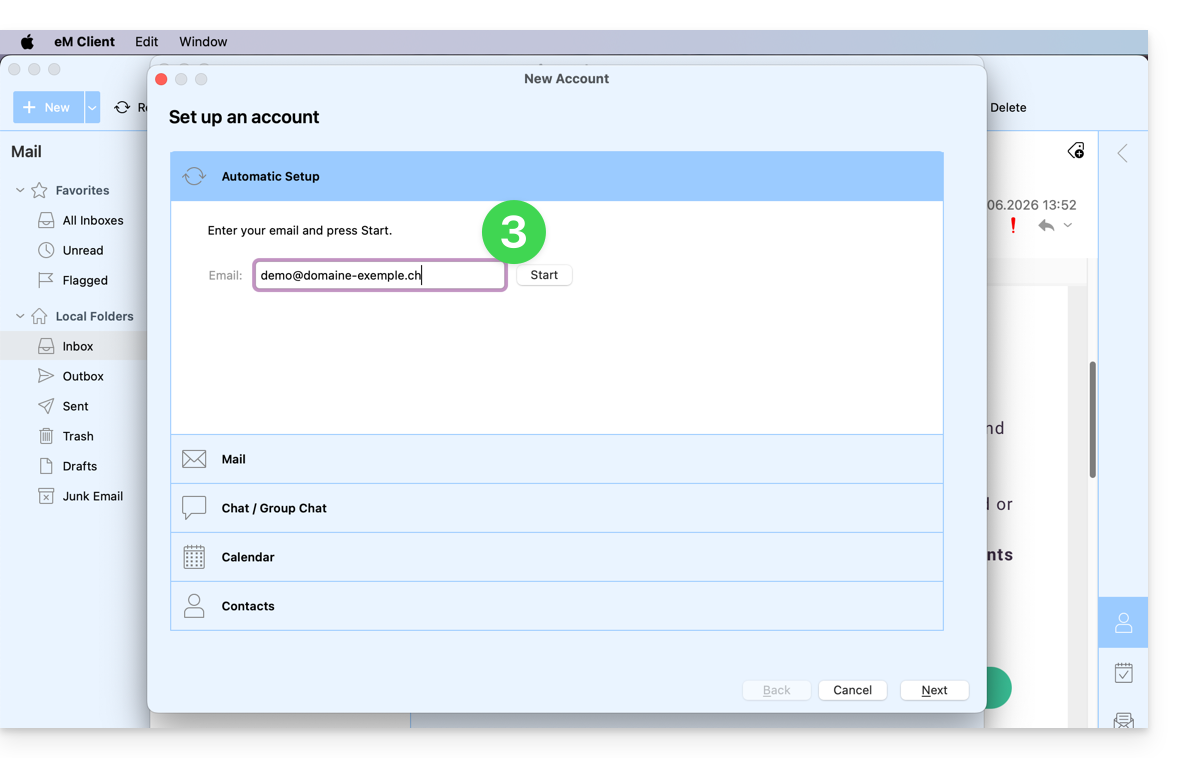
- Enter the email address to be linked, then click the Start button next to the field:
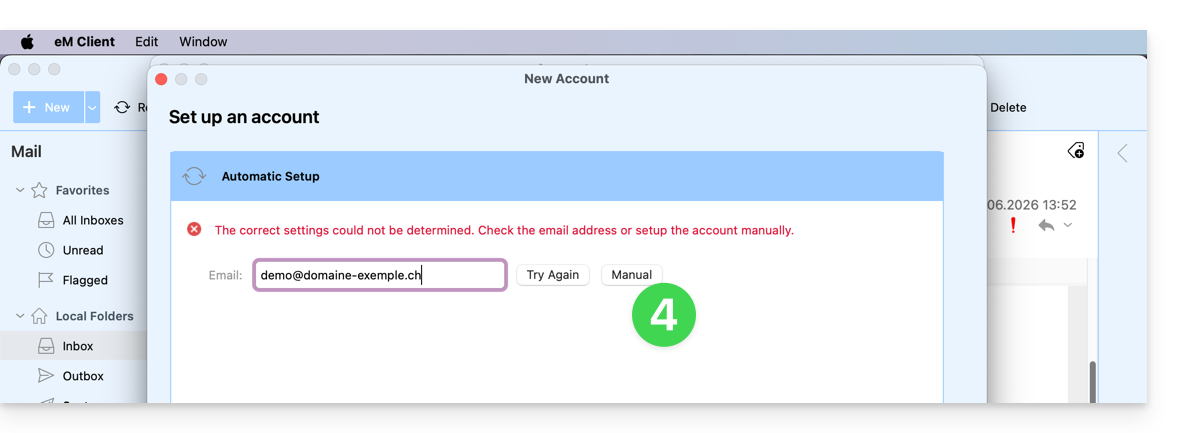
- Click the button to manually enter the settings:
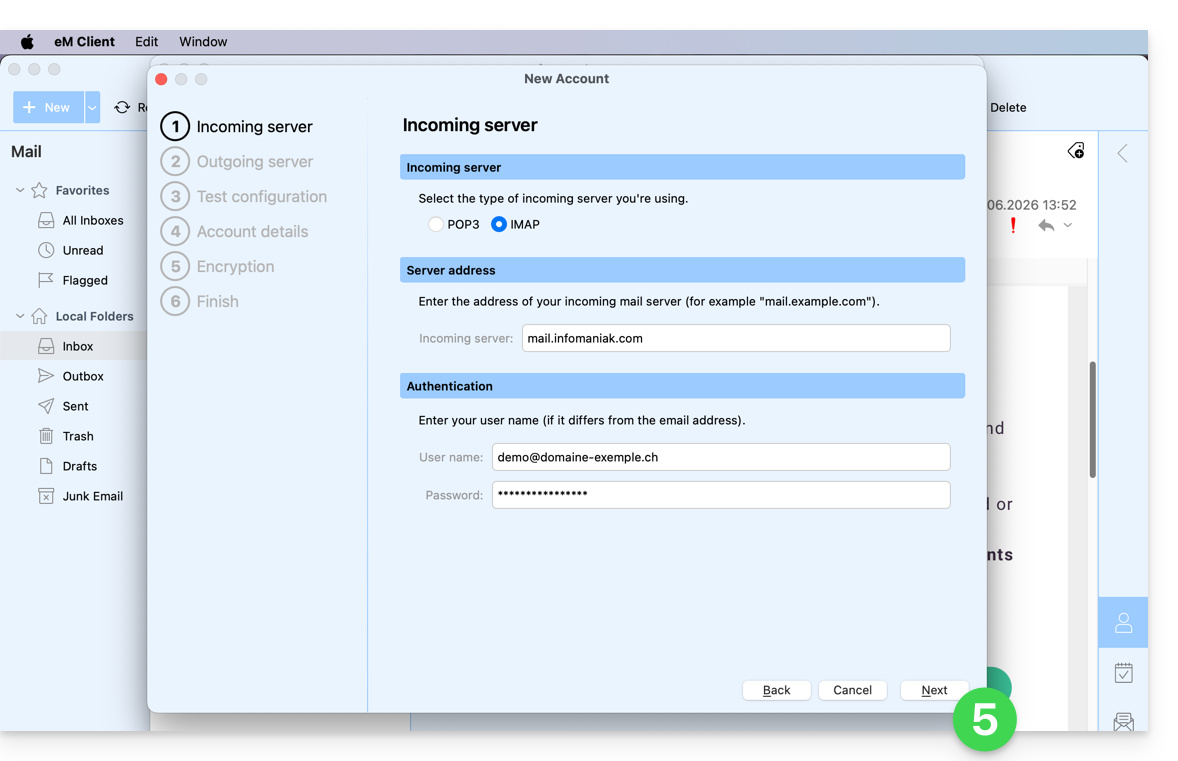
- Check the incoming server and complete the missing information, then click Next:
- Do the same for the outgoing server:
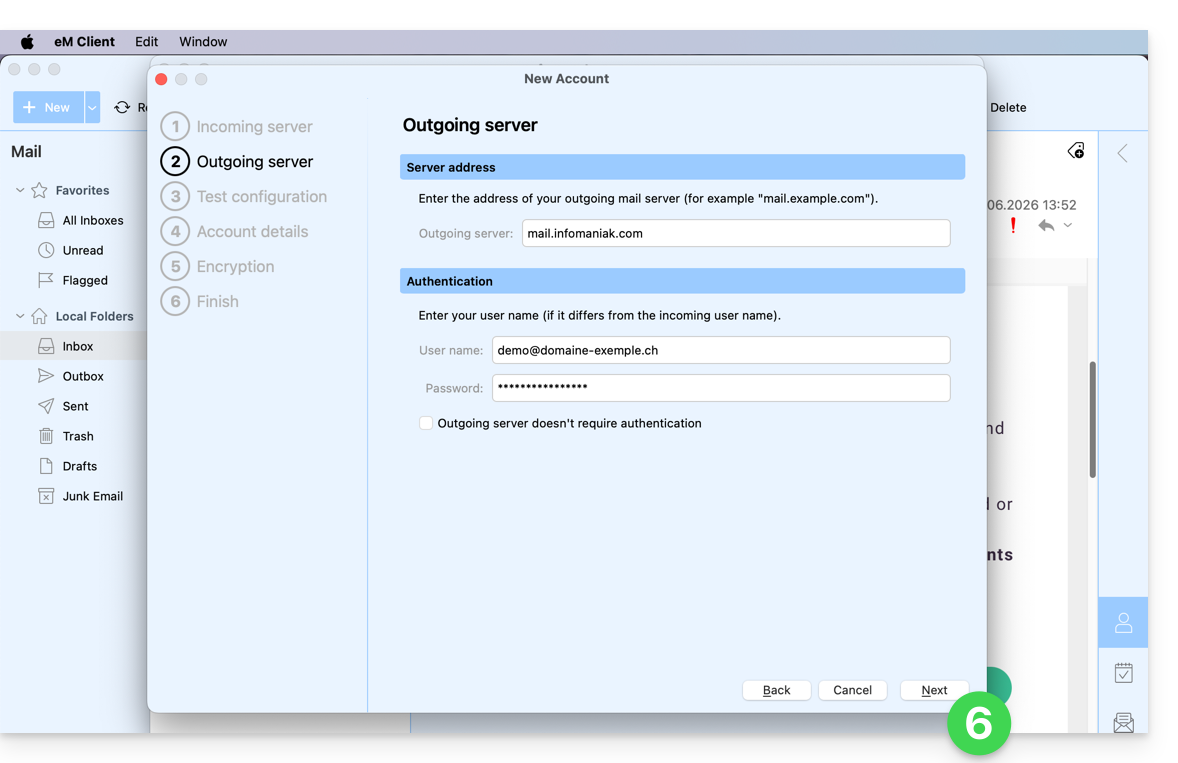
- Once the test indicators are green, click Next:
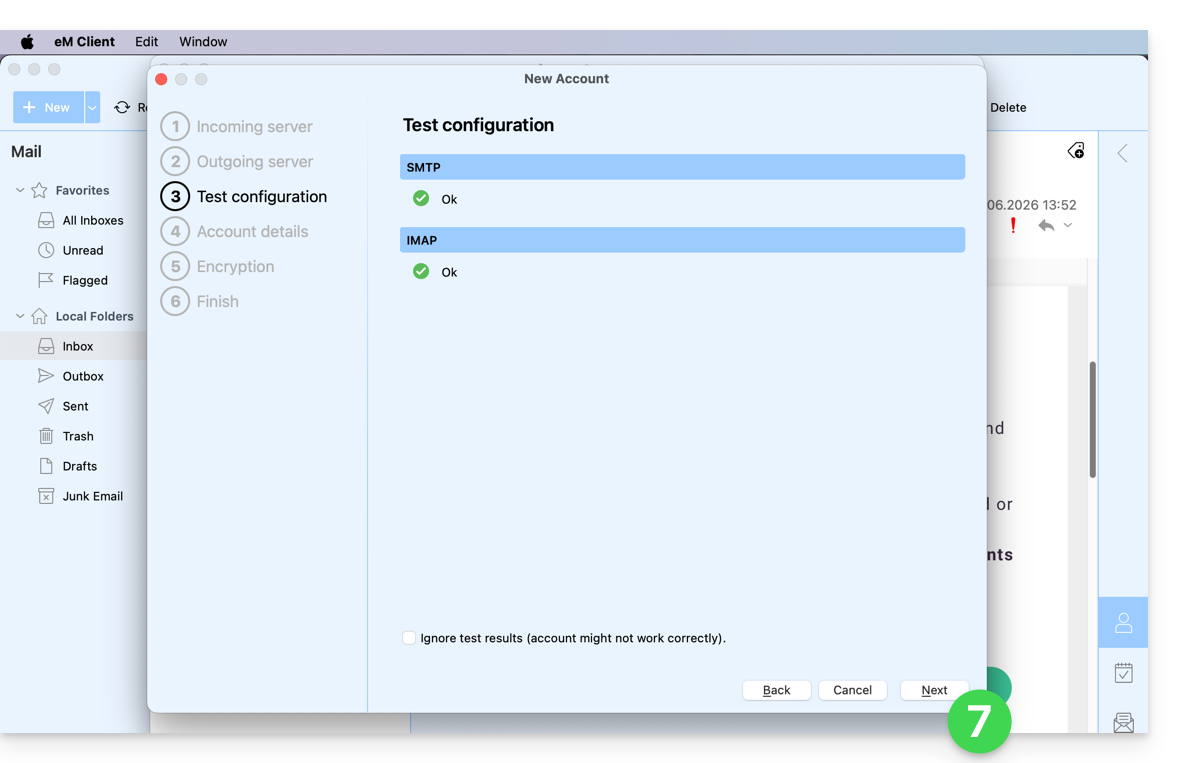
- Complete the missing information and then click Next:
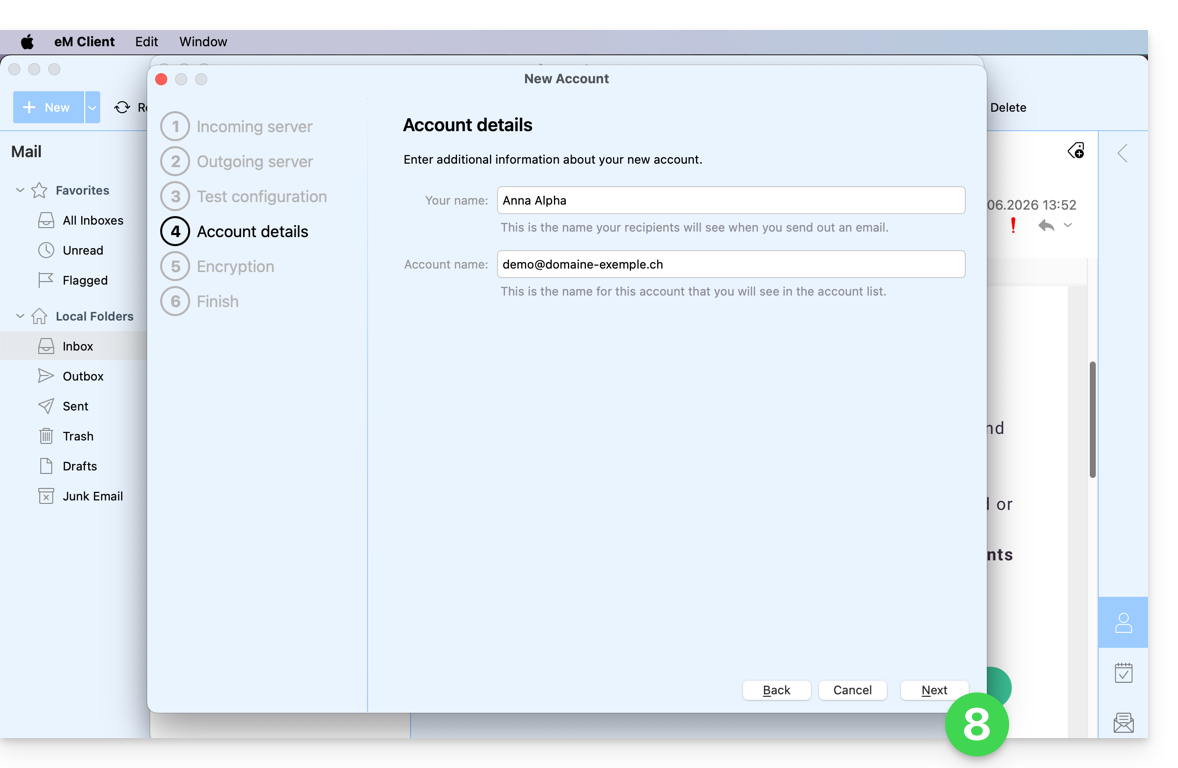
- Skip this step without adding extra security:
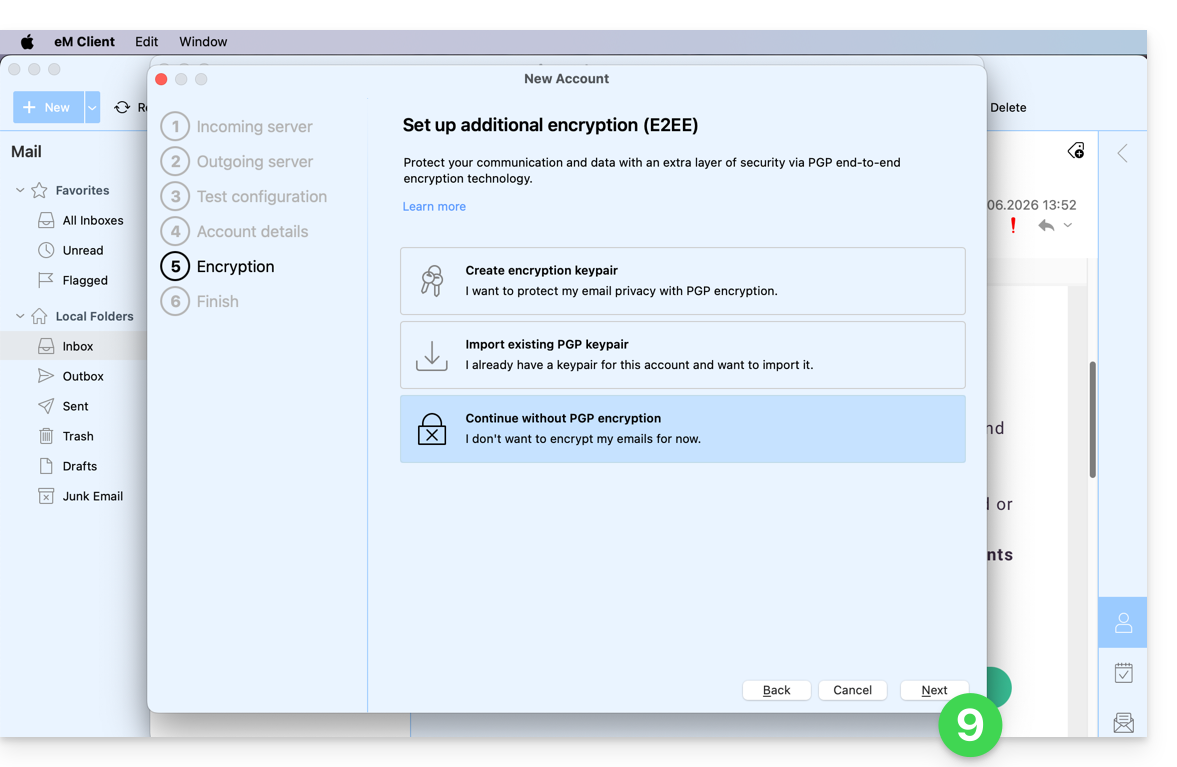
- Set your preferences and tap Finish:
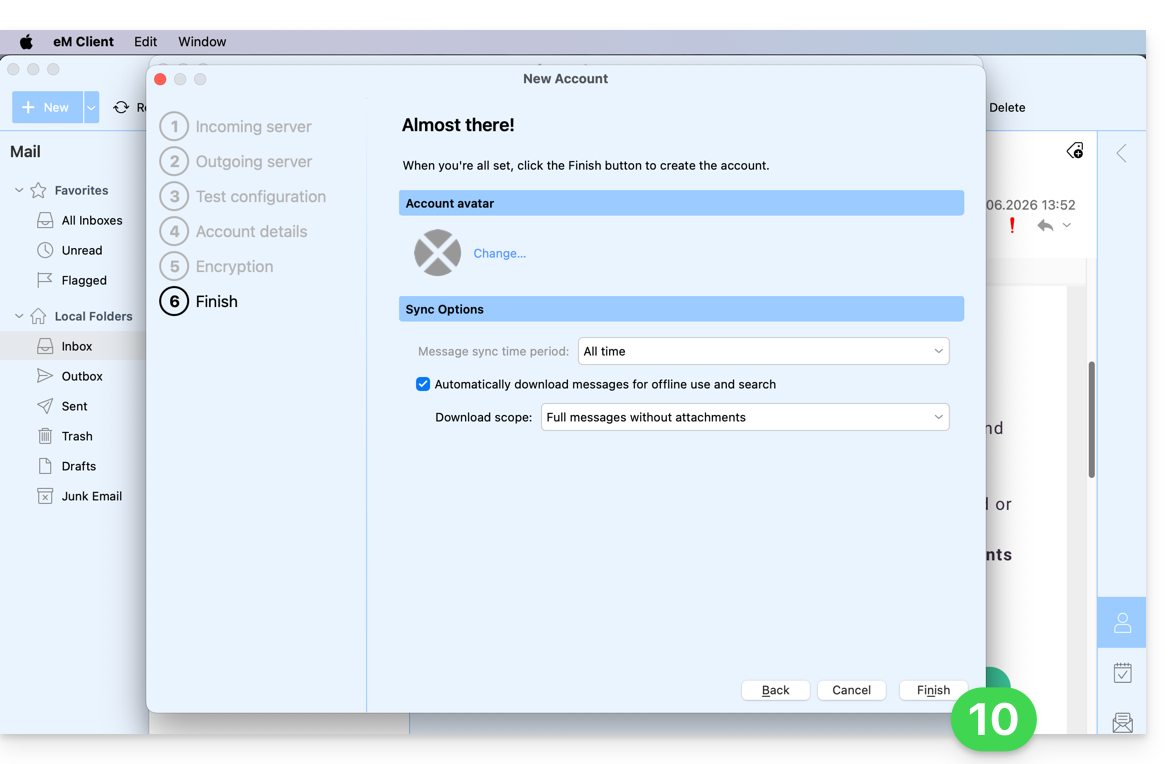
- Save the account addition:
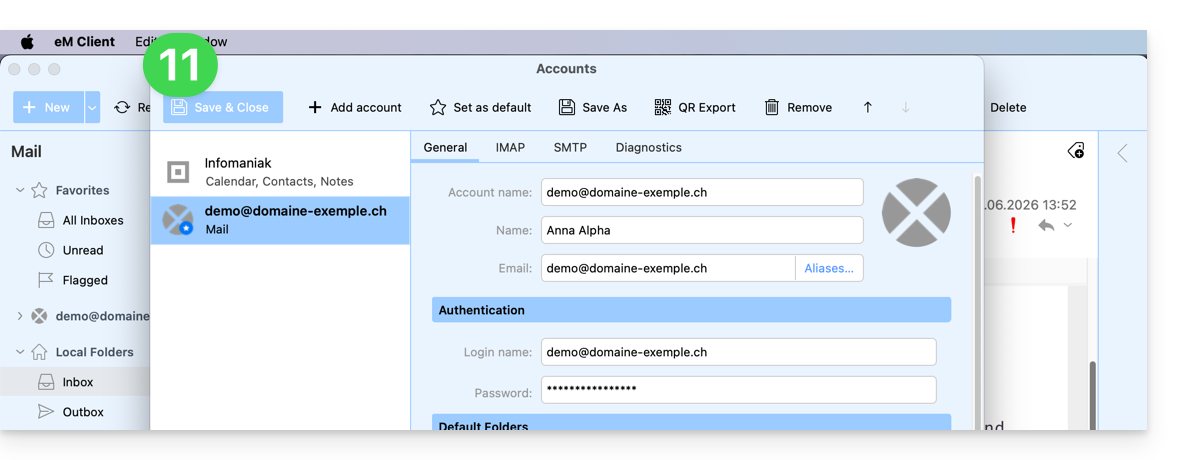
- Your email address is now configured in the application:
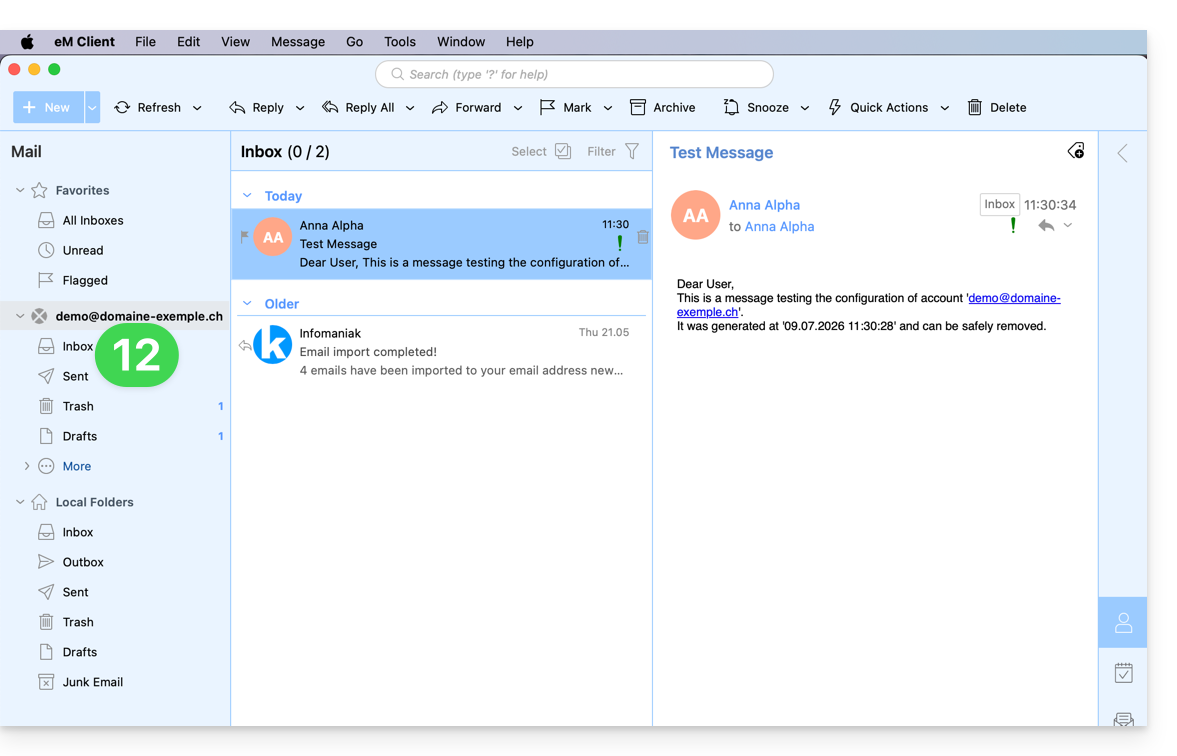
Recommended settings
- Incoming IMAP server =
mail.infomaniak.com - IMAP port =
993(with SSL) - Outgoing SMTP server =
mail.infomaniak.com - SMTP port & encryption protocol and command/method to activate this protocol:
587+ STARTTLS - Username = the complete email address (need help?)
- Password = the password generated for the email address you want to access (❓: my kSuite | Mail/kSuite Service).
- Mandatory authentication for sending emails:
- Enable this in the SMTP settings of your application.
- Check "use the same settings as the incoming server" or, depending on the software/email client, re-enter a username (= complete email address) and the generated password.
Refer to this other guide if you are looking for information about other compatible email ports and protocols (SSL / TLS for example).
In case of a problem
Check that the Mail service is configured optimally.
You don't need to contact Infomaniak Support if your email address works correctly outside the application. The most common error is using an incorrect password. Please refer to the solutions provided in this other guide regarding email in general.
Link to this FAQ: https://faq.infomaniak.com/2429
Has this FAQ been helpful?
This guide explains how to connect the desktop app Thunderbird (desktop application on macOS / Windows / Linux) to an email address hosted by Infomaniak.
Add the email address to the application
Prerequisites
- Create the email address (❓: my kSuite | Mail Service/kSuite).
- Create a device password (❓: my kSuite | Mail/kSuite Service).
- Verify that the domain is configured correctly (❓: Mail/kSuite Service).
To configure the email application:
- Download the latest version of Thunderbird.
- Open the application.
- Enter your account information and click Continue:
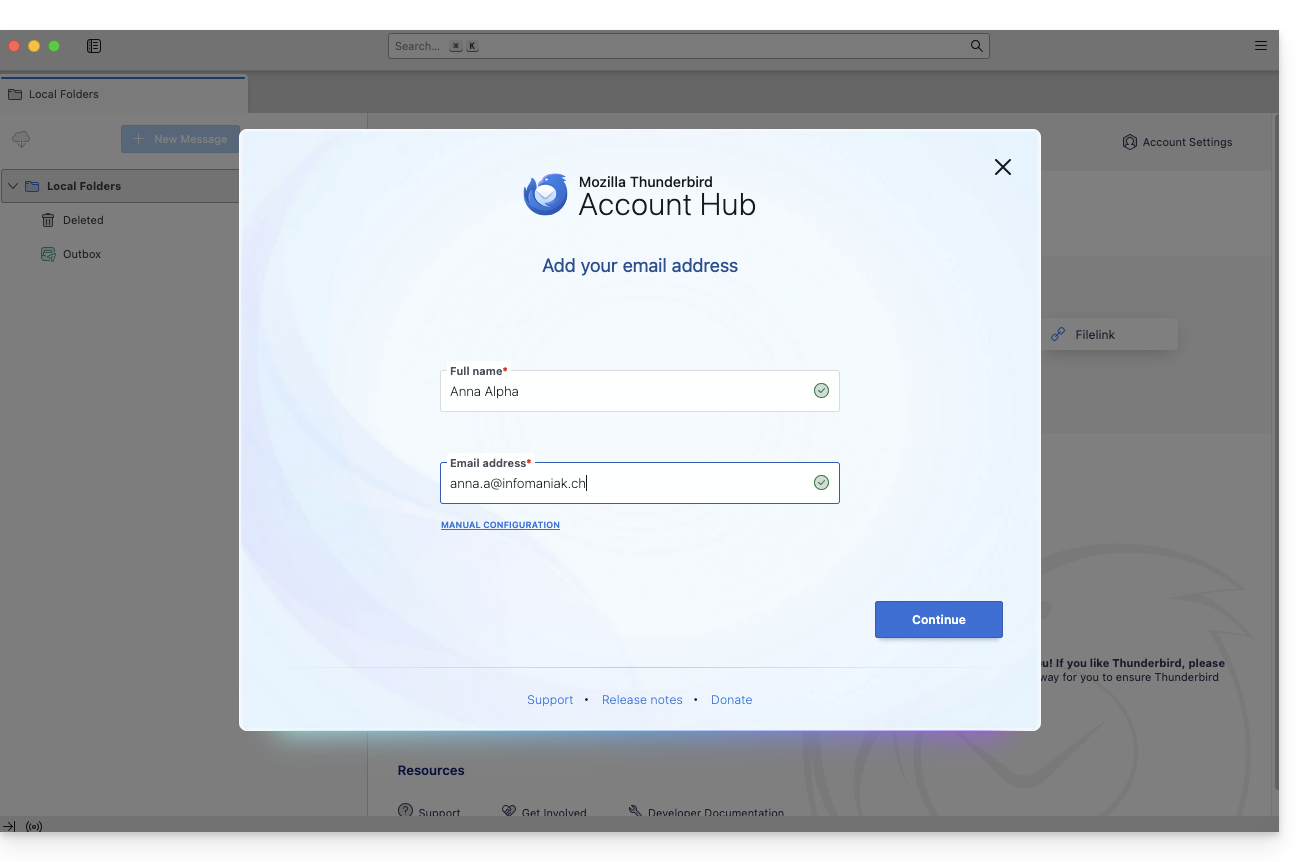
- Keep IMAP selected and click Continue:
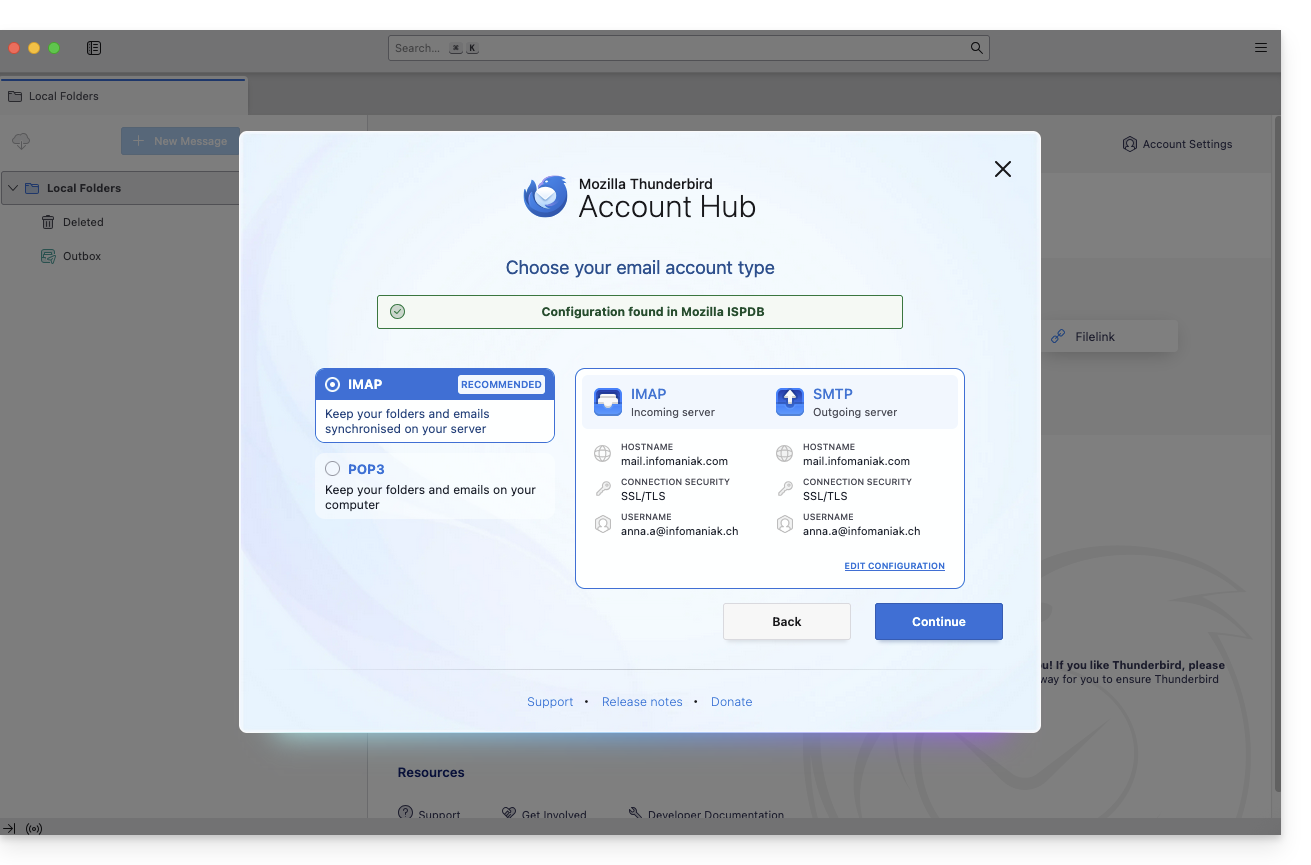
- Enter your password and click Continue:
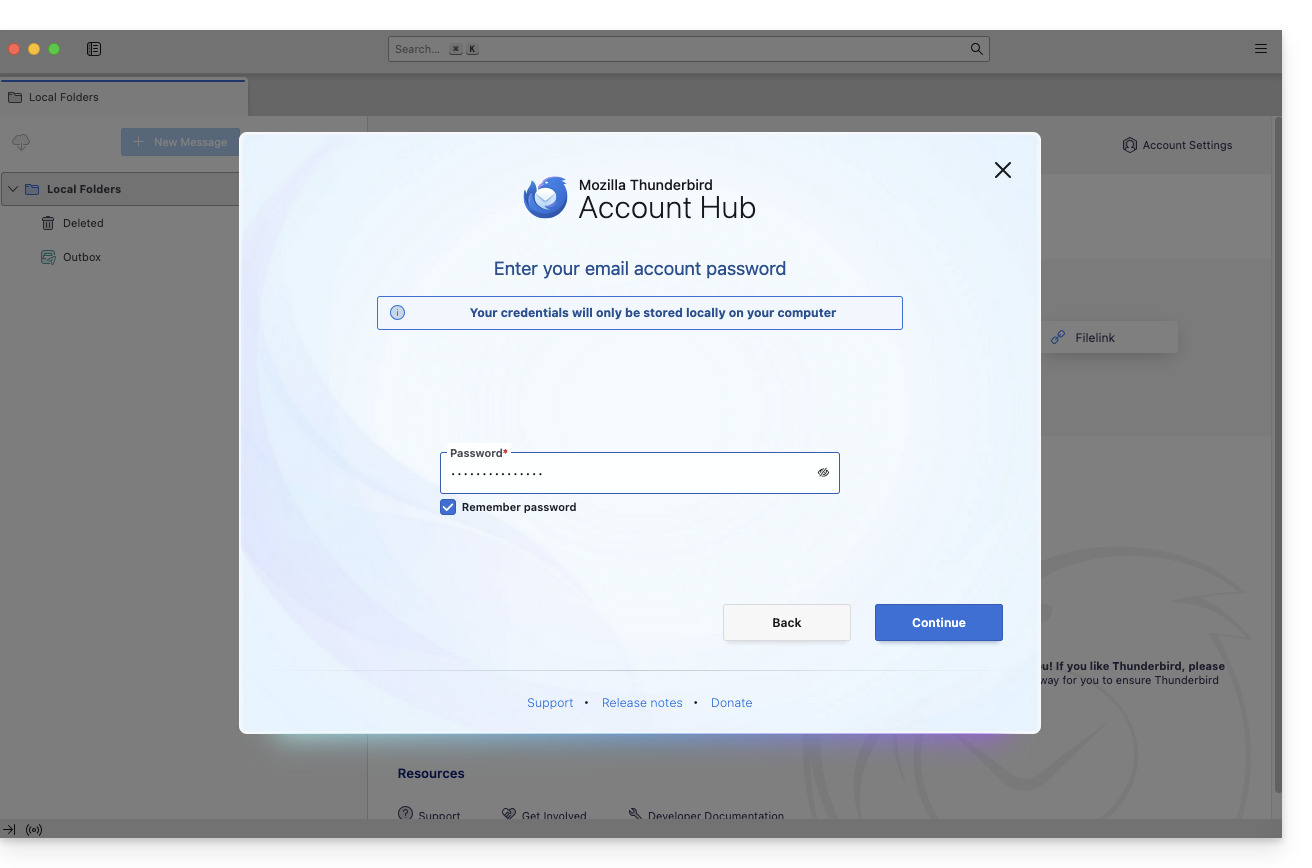
- Click on Continue:
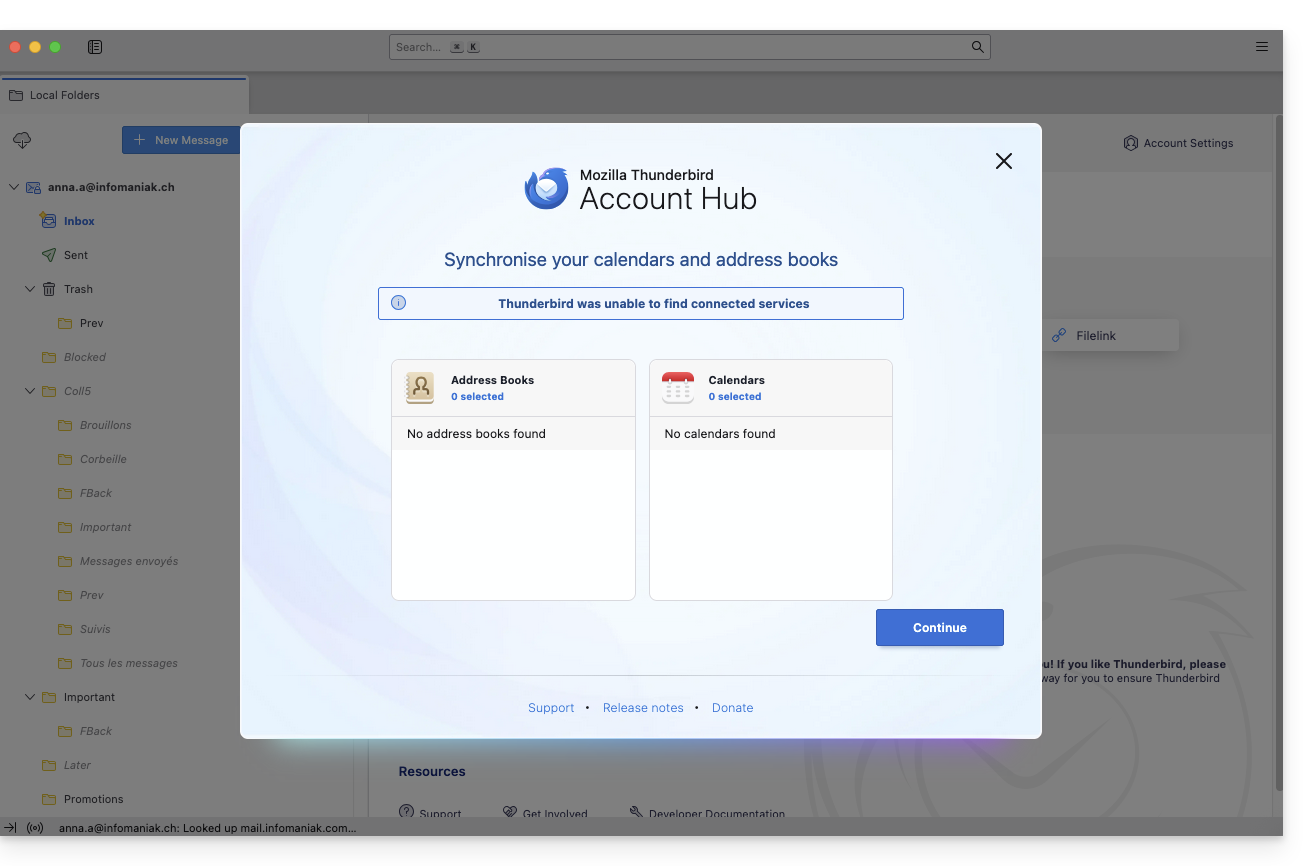
- Your registration summary is displayed. Click on Finish to add the address (or configure other services from there):
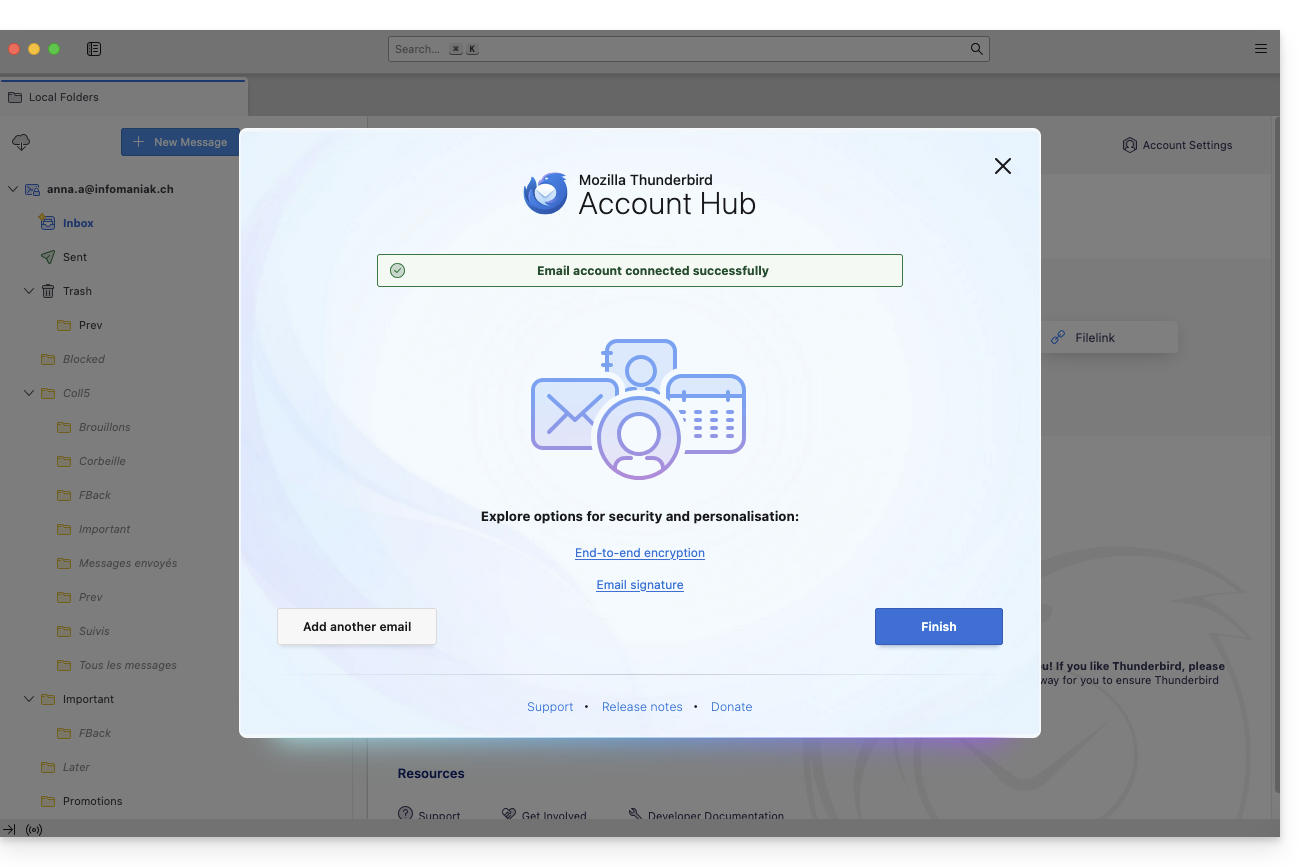
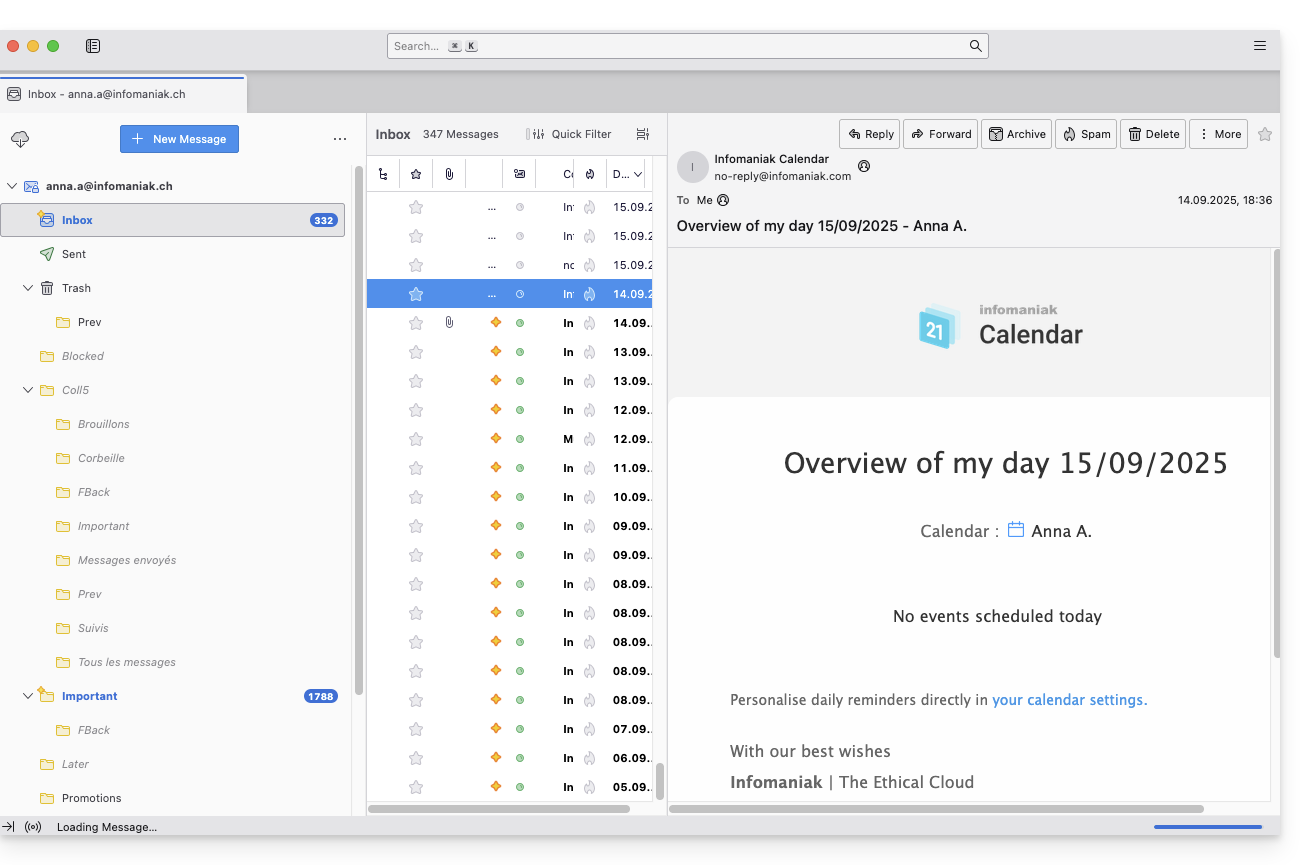
- Your email address is now configured in the application:
Recommended settings
- Incoming IMAP server =
mail.infomaniak.com - IMAP port =
993(with SSL) - Outgoing SMTP server =
mail.infomaniak.com - SMTP port & encryption protocol and command/method to activate this protocol:
587+ STARTTLS - Username = the complete email address (need help?)
- Password = the password generated for the email address you want to access (❓: my kSuite | Mail/kSuite Service).
- Mandatory authentication for sending emails:
- Enable this in the SMTP settings of your application.
- Check "use the same settings as the incoming server" or, depending on the software/email client, re-enter a username (= complete email address) and the generated password.
Refer to this other guide if you are looking for information about other compatible email ports and protocols (SSL / TLS for example).
In case of a problem
Check that the Mail service is configured optimally.
You do not need to contact Infomaniak Support if your email address works correctly outside the application. The most common error involves using an incorrect password. The troubleshooting guides will help you resolve any potential issues:
- Refer to the solutions provided in this other guide regarding email in general.
- This other guide is specifically about Thunderbird.
… and if Thunderbird is no longer working after a change of your email password, please refer to this other guide.
Link to this FAQ: https://faq.infomaniak.com/2430
Has this FAQ been helpful?
This guide explains how to connect the native Android messaging app to an email address hosted by Infomaniak.
Introduction
- Instead of the manual configuration below, it is recommended to use the Infomaniak Mail app (iOS / Android) to benefit from Infomaniak's security features.
Manually add the email address to the application
Prerequisites
- Create the email address (❓: my kSuite | Mail Service/kSuite).
- Create a device password (❓: my kSuite | Mail/kSuite Service).
- Verify that the domain is configured correctly (❓: Mail/kSuite Service).
To configure the email application:
- Open the native email application on your device.
- Click on Add account.
- Select Other as the address type.
- Enter your email address.
- Select the Personal IMAP type.
- Check and complete the missing information.
- Complete the procedure.
- There you go, your email address is now configured in your device's application.
Recommended settings
- Incoming IMAP server =
mail.infomaniak.com - IMAP port =
993(with SSL) - Outgoing SMTP server =
mail.infomaniak.com - SMTP port & encryption protocol and command/method to activate this protocol:
587+ STARTTLS - Username = the complete email address (need help?)
- Password = the password generated for the email address you want to access (❓: my kSuite | Mail/kSuite Service).
- Mandatory authentication for sending emails:
- Activate it in the SMTP settings of your application.
- Check "use the same settings as the incoming server" or, depending on the software/email clients, enter a username (i.e., the complete email address) and the generated password.
Refer to this other guide if you are looking for information about other compatible email ports and protocols (SSL / TLS, for example).
In case of a problem
Check that the Mail Service is configured optimally.
You do not need to contact Infomaniak Support if your email address works correctly outside the application. The most common error is using an incorrect password. The troubleshooting guides will help you resolve any potential issues:
- Refer to the solutions provided in this other guide regarding email in general.
- … and if your application no longer works for sending emails (e.g., SMTP server disconnected or unavailable) or after a change of email password, please refer to this other guide.
Link to this FAQ: https://faq.infomaniak.com/2433
Has this FAQ been helpful?
This guide explains how to connect the desktop app New Outlook (desktop application for Windows, replacing Windows Mail) to an email address hosted by Infomaniak.
Introduction
- Although the emails themselves remain stored on the Infomaniak server, the experience in New Outlook is highly integrated with the Microsoft cloud:
- Some of your account information may be used by Microsoft for centralized management and a better synchronization experience.
- If you want to have full and local control over your emails, consider using third-party email software/clients (such as Thunderbird, for example) that allow for more direct storage.
Add the email address to the application
Prerequisites
- Create the email address (❓: my kSuite | Mail Service/kSuite).
- Create a device password (❓: my kSuite | Mail/kSuite Service).
- Verify that the domain is configured correctly (❓: Mail/kSuite Service).
The password created for the email address must meet the criteria detailed at the bottom of this guide.
To configure the email application:
- Open the application.
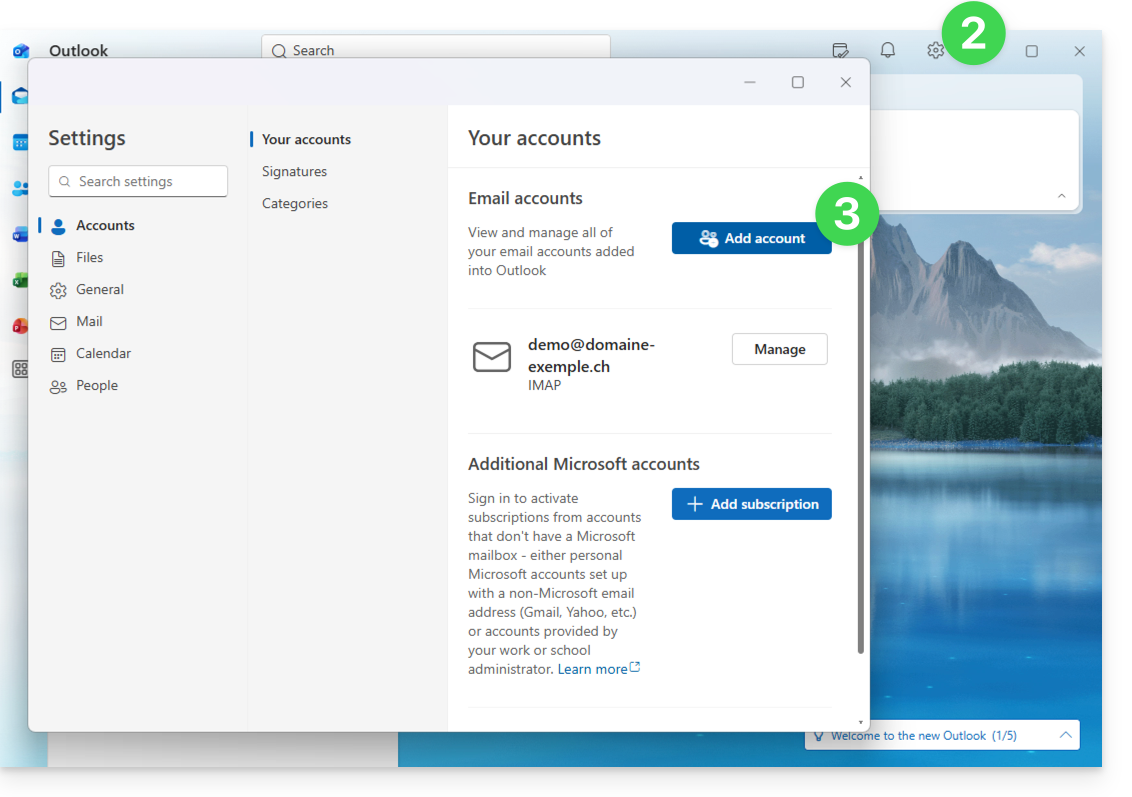
- If necessary, click on the gear icon in the top right corner (otherwise, skip to step 4).
- Click on Add an account:
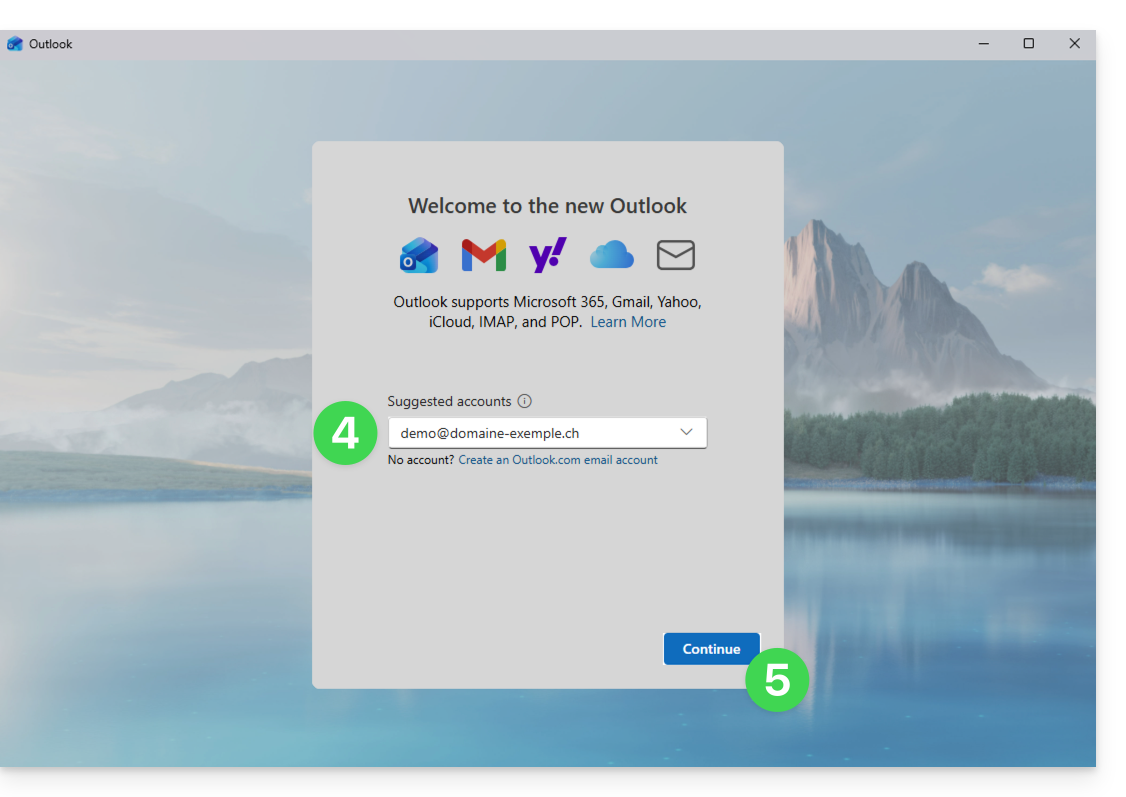
- Enter the email address to associate.
- Click on Continue:
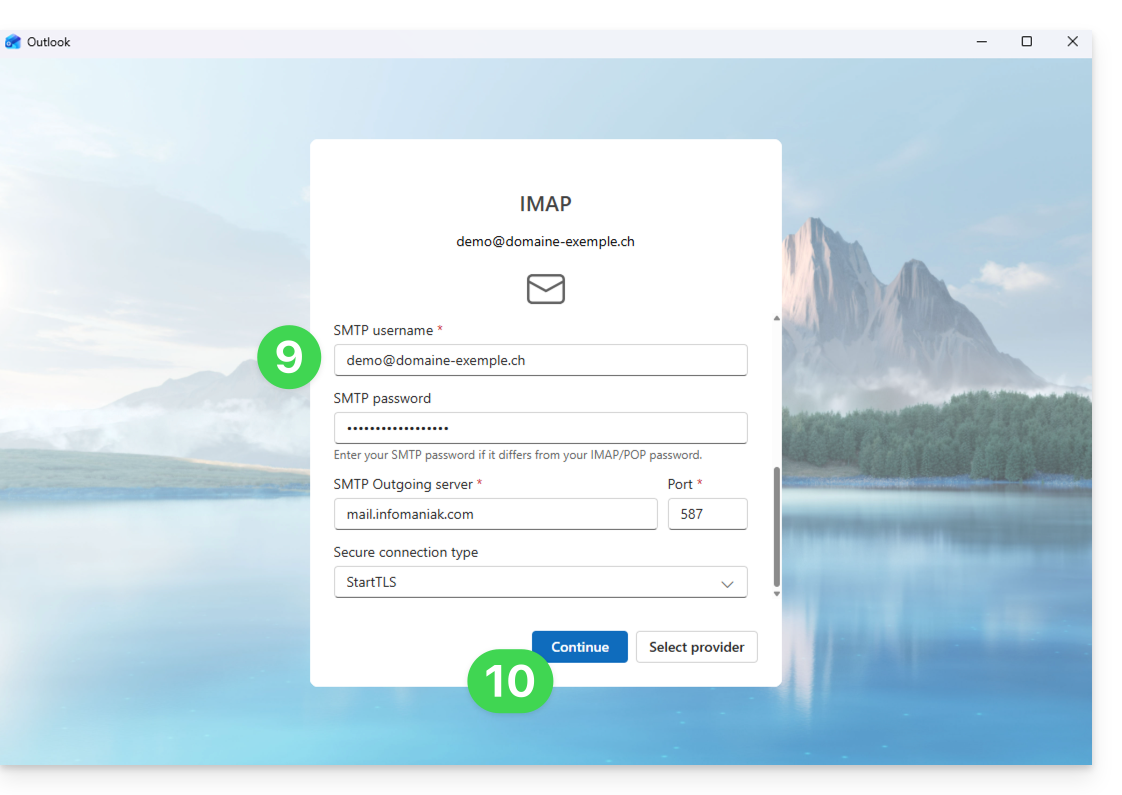
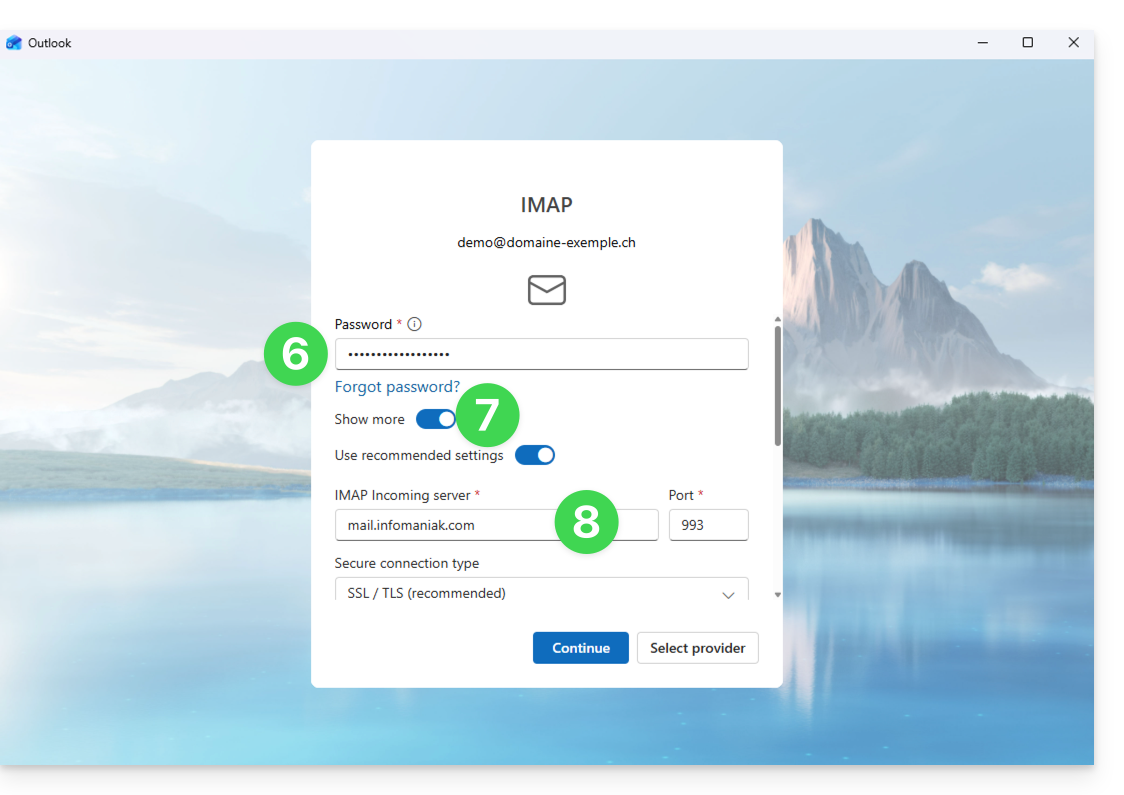
- Enter the password for the email address.
- Click the View more button.
- Scroll down to the bottom of the page, then check and complete the missing information.
- Click Continue:
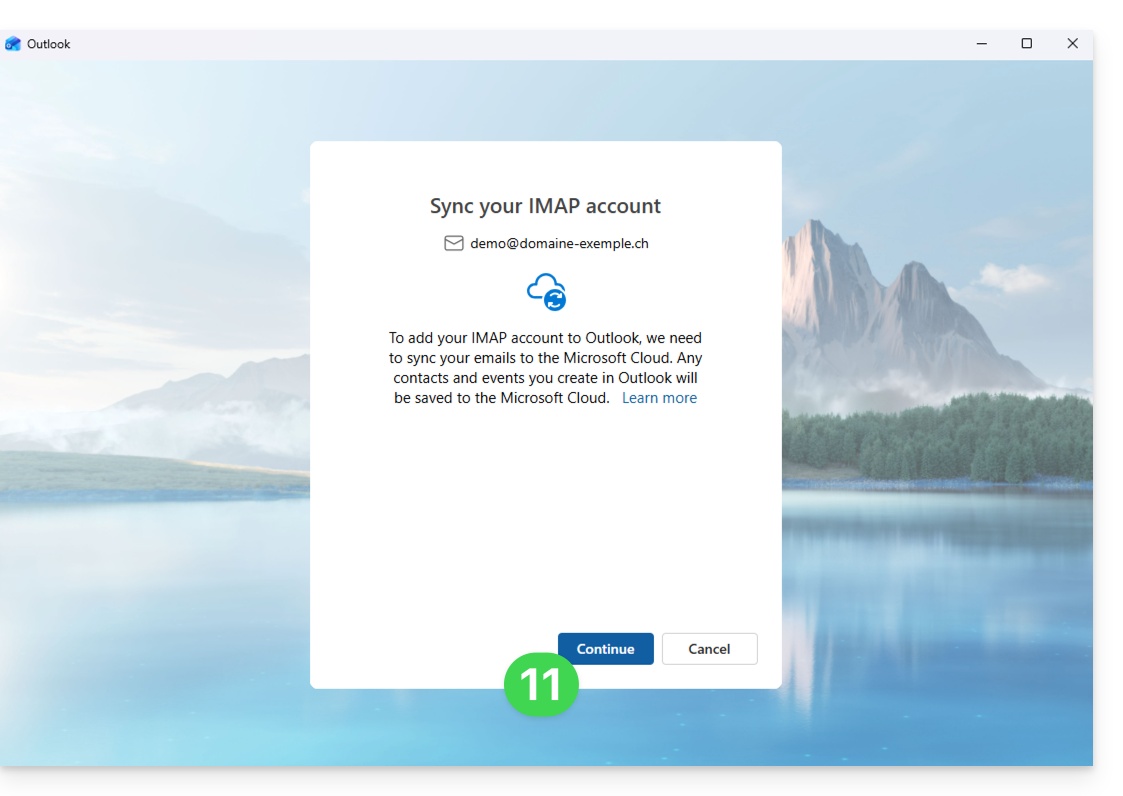
- Read and go through the different Microsoft information windows:
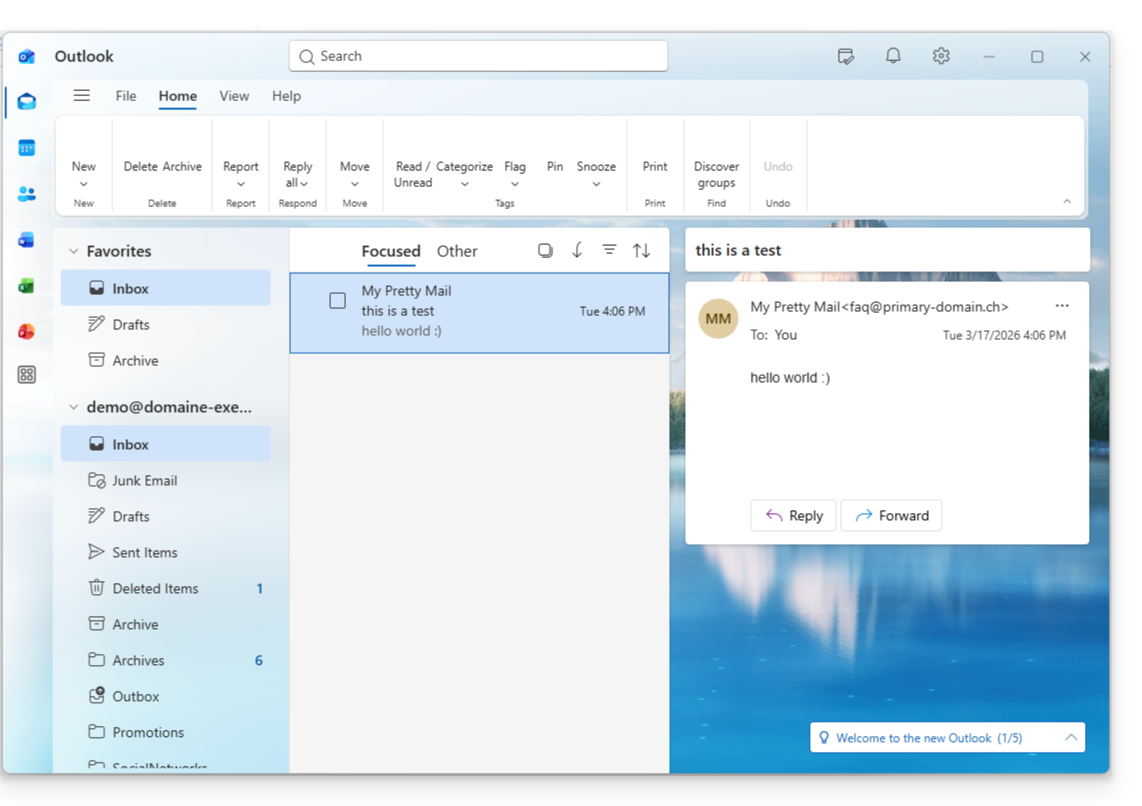
- That's it, your email address is now configured in the application:
Recommended settings
- Incoming IMAP server =
mail.infomaniak.com - IMAP port =
993(with SSL) - Outgoing SMTP server =
mail.infomaniak.com - SMTP port & encryption protocol and command/method to activate this protocol:
587+ STARTTLS - Username = the complete email address & (need help?)
- Password = the password generated for the email address you want to access (see prerequisites).
- Authentication required for sending emails:
- Enable this in the SMTP settings of your application.
- Check "use the same settings as the incoming server" or, depending on the software/email client, enter a username (= the complete email address) and the generated password.
Refer to this other guide if you are looking for information about other email ports and protocols that are supported (SSL/TLS, for example).
In case of a problem
A solution that seems to work is the combination of these 2 situations:
- Being logged in to your Windows session with a Microsoft account (not just a local account).
- Added the email address used to log in to Windows to this version of Outlook.
Also create a new password, allowing it to be generated randomly, but also ensuring that it meets the criteria imposed by Microsoft:
| Allowed characters |
|
| Forbidden characters |
|
| Password length | 16 characters MAXIMUM |
Check that the Mail service is configured optimally.
The troubleshooting guides will help you resolve any potential issues:
- Consult the solutions provided in this other guide regarding email in general.
- This other guide provides more specific information about Outlook.
… and if your Outlook is no longer working after a change of email password, please refer to this other guide.
Link to this FAQ: https://faq.infomaniak.com/2434
Has this FAQ been helpful?
This guide presents the main features of an Infomaniak Mail Service. Discover the administration interface for your email addresses created and hosted with Infomaniak.
Accessing the Mail Service
To access the Mail service:
- Click here to access the management of your product in the Infomaniak Manager (need help?):
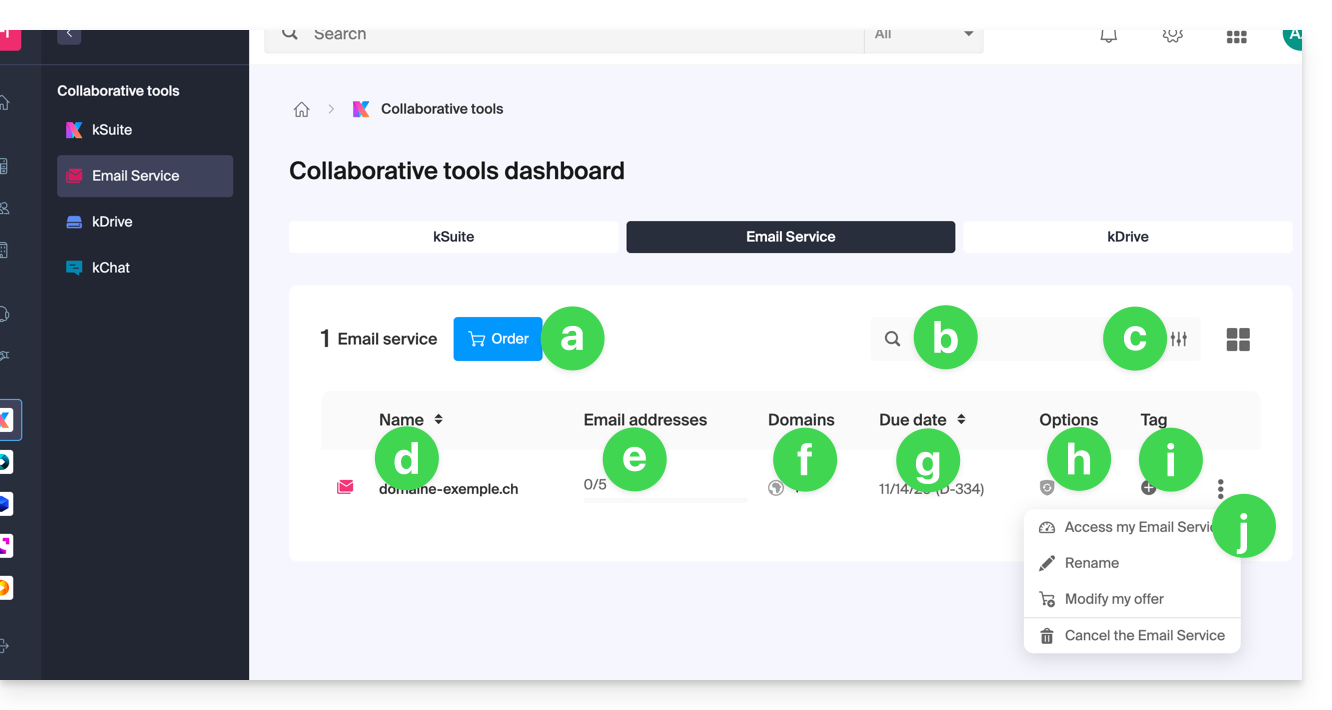
- Order a new Mail Service (to obtain email addresses on a new domain name, for example).
- Search among your Mail Service names.
- Filtering/sorting and table display options.
- The name of your Mail Service (note that it can be renamed (see point j) to facilitate its organization, but the associated domain, which is visible on hover (see point f), will remain the same).
- The number of email addresses created and available (here the quota is 5, but no addresses have been created).
- The domain(s) associated with your Mail Service; see this other guide to change the domain name of your Mail Service.
- Service expiration date (may be linked to kSuite).
- Possible option(s) such as Renewal Warranty, for example.
- Possible label(s)/tag(s).
- Action menu allowing you, in particular, to rename the Mail Service or to modify the offer.
Accessing email addresses
To access the email addresses contained in this Mail Service:
- Click directly on the name of the Mail Service in question in the table (see illustration above).
- You will arrive on this type of page:
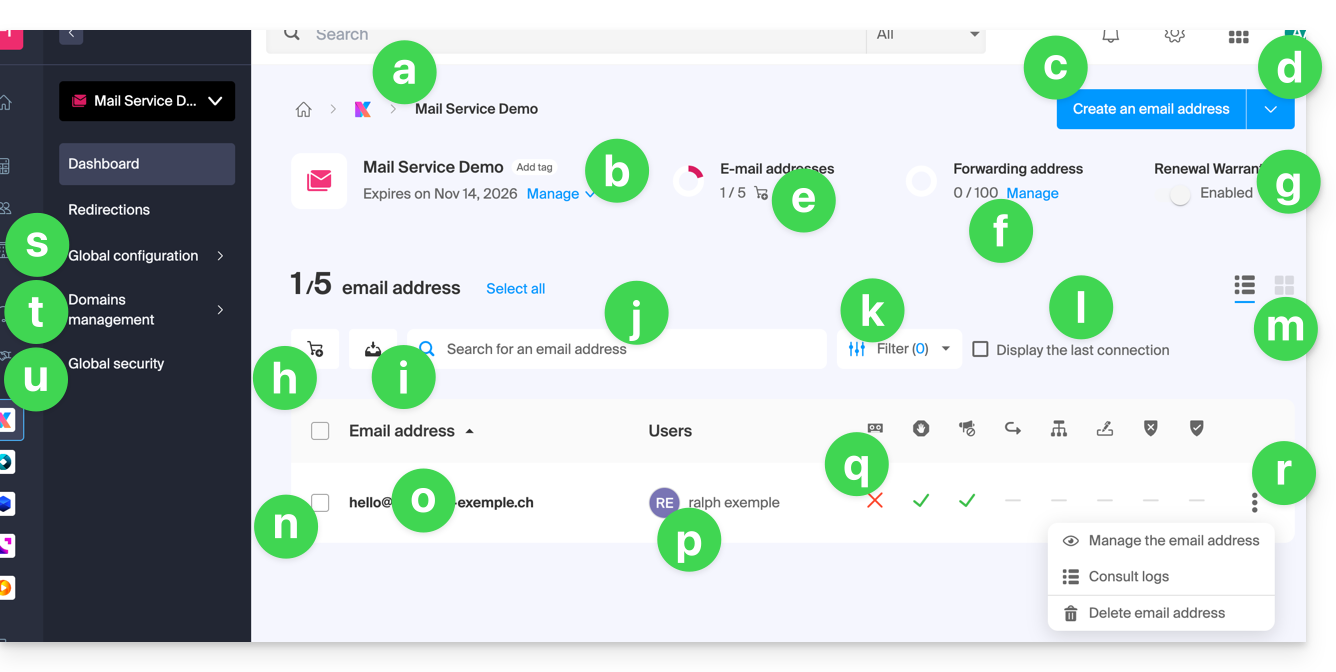
- Breadcrumb trail and name of the Mail Service (possibly renamed as in this example).
- Mail Service management menu, which allows actions that point j in the previous table does not.
- Create additional email addresses (or order them first if the quota is not sufficient) on the same domain.
- Additional menu to, in particular, create addresses in bulk or generic addresses.
- Current quota (you can modify it).
- Create virtual addresses (redirection addresses).
- See point h in the previous table.
- Order additional email addresses.
- Download the list of addresses in a CSV file (
.csvformat). - Search among the addresses of the Mail Service (unlike the search bar above, which allows you to search among all the products of the Organization).
- Filter the display according to different criteria, including the users' login dates.
- Display in the table the last login of a user to the Infomaniak Mail interface to which the email address in question is linked.
- Table display options.
- In front of each email address is a small square that can be clicked and allows you to select multiple addresses at the same time in order to perform actions (available at the bottom of the page once the selection is made).
- Click directly on the name of the email address to configure it (see the following table).
- The user(s) of the Infomaniak Mail interface who have linked the email address in question.
- By clicking on the boxes in the table, you can access the options; a sign indicates whether the option in question is not activated.
- Possible actions on the email address.
- Global configuration (applies to the entire Mail Service) to, for example, apply a signature or anti-spam to the entire Mail Service.
- Management of domains linked to the Mail Service.
- Global security to perform a technical diagnostic and, if possible, correct errors automatically.
Access email address details and settings
To access the settings and information related to the email address (storage, password, etc.) and the users of the Infomaniak Mail app (i.e., when not using IMAP) who use the email address:
- Click directly on the relevant email address in the table.
- You will be taken to a page like this:
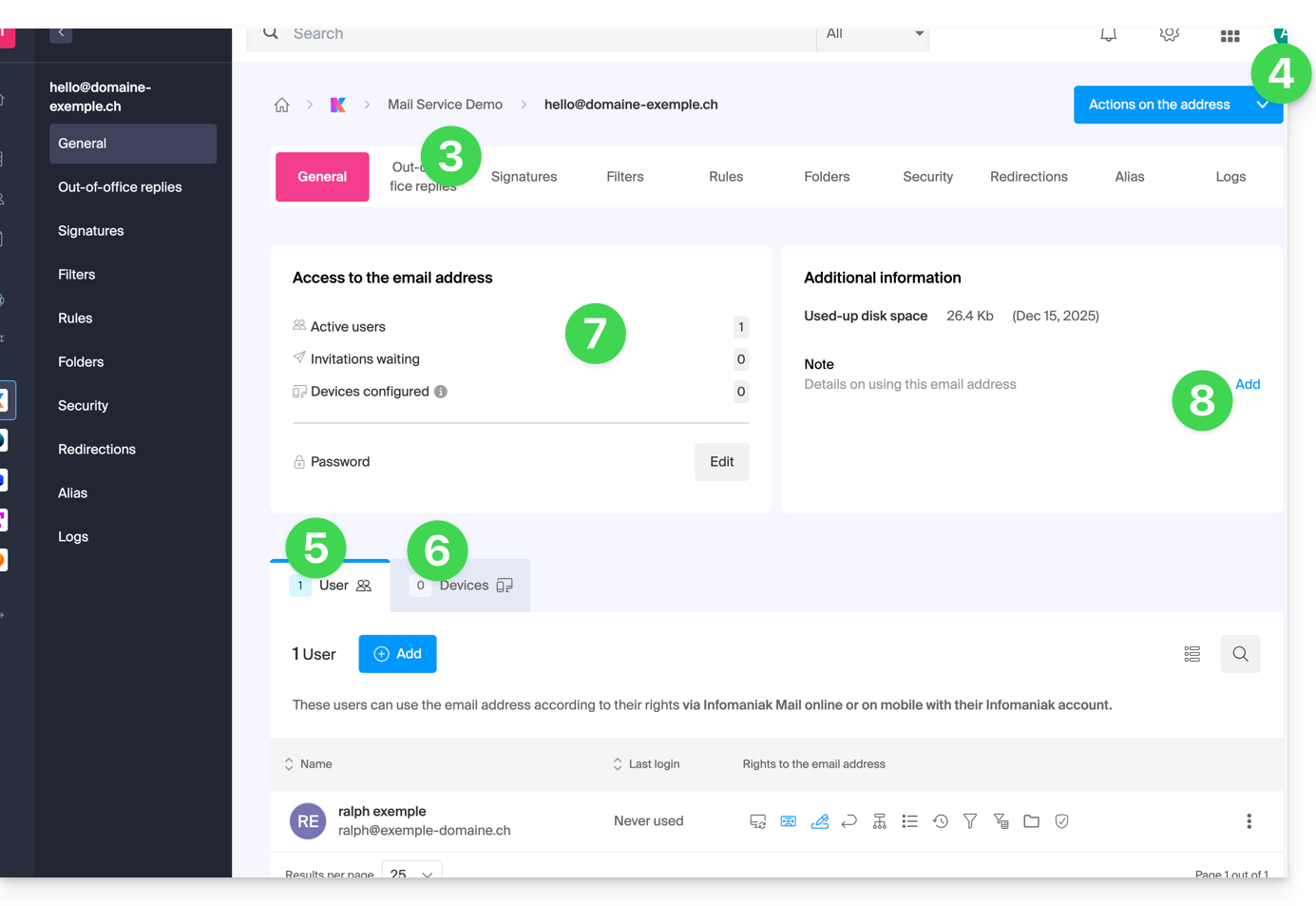
- Click on the various tabs at the top of the page (or in the left-hand menu) to configure the different settings for your email address.
- Additional actions, such as restoration, are available using the Actions button.
- The Users tab (allows you to invite users and grant them permission to manage the address).
- The Devices tab (allows you to add a password to the address for use on a specific device).
- Summary of current access to the address (see points 5 & 6).
- Allows you to add free text that will be displayed on the left.
Link to this FAQ: https://faq.infomaniak.com/2435
Has this FAQ been helpful?