Knowledge base
1000 FAQs, 500 tutorials and instructional videos. Here, there are only solutions!
To help you identify the kSuite plan that best suits your needs, please refer to this other guide.
The kSuite plan offered by Infomaniak does not include a web hosting service for a page or website on the internet.
You can, of course, subscribe to an Infomaniak Web Hosting plan from the same user account and/or the same Organization and build your website using the tool of your choice, such as WordPress or Site Creator.
To help you identify the hosting plan that best suits your needs, please refer to this other guide.
Link to this FAQ: https://faq.infomaniak.com/2094
Has this FAQ been helpful?
This guide explains how to convert a free Mail Starter plan to a more comprehensive and enhanced plan, such as kSuite Free or other kSuite Pro plans.
Introduction
- When you purchase a domain name from Infomaniak, you get1 free email address and 10 MB of basic web space: this is the Starter plan.
- With just a few clicks, you can upgrade these plans to remove the limits and enjoy an enhanced experience.
- To help you identify the Mail plan that best suits your needs, please refer to this other guide.
Upgrade the Starter plan - Free Mail service
To upgrade the Starter plan:
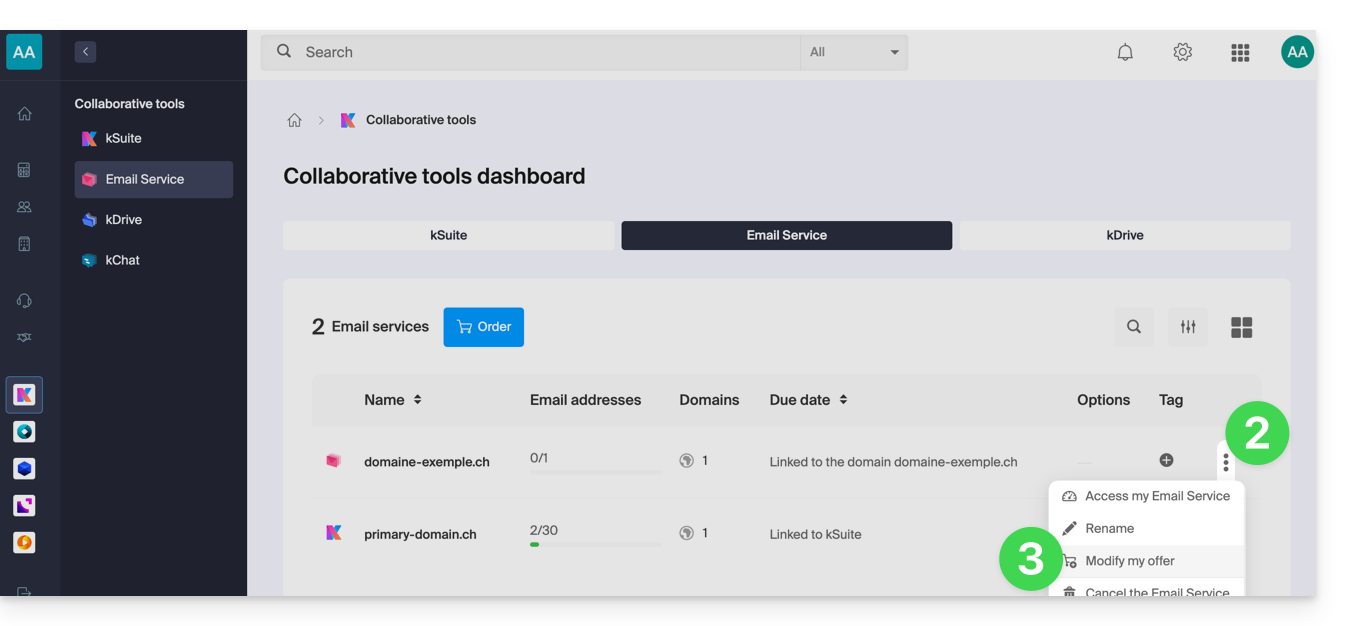
- Click here to access your product management in the Infomaniak Manager (need help?).
- Click on the action menu ⋮ located to the right of the item in question.
- Click on Modify offer:
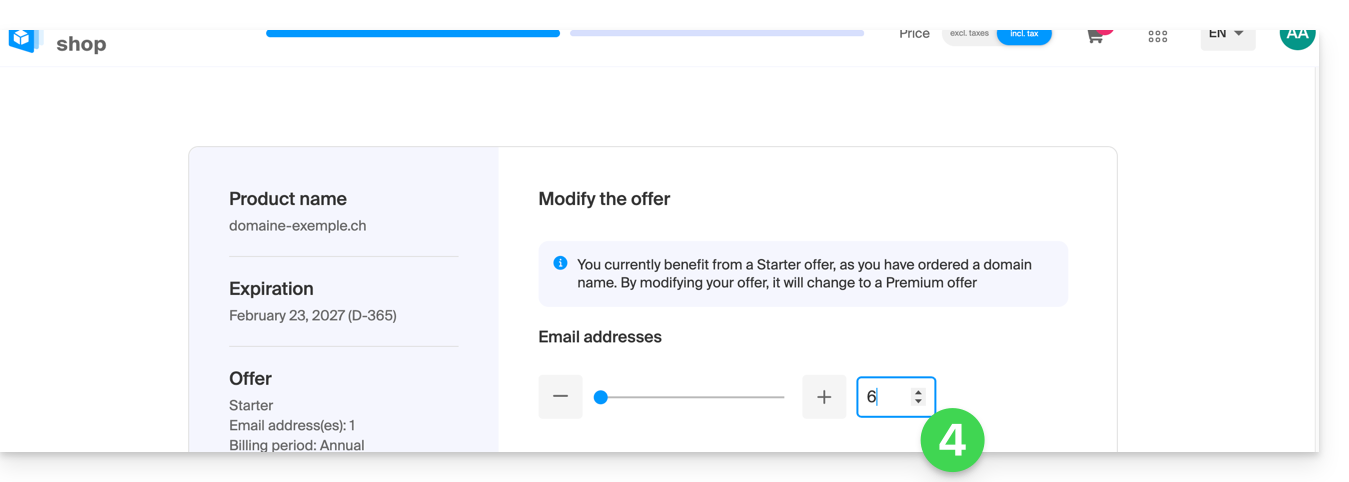
- Adjust if necessarythe number of email addresses to add to the Mail Serviceusing the order assistant, which will allow you to complete the upgrade until the end:
Link to this FAQ: https://faq.infomaniak.com/2112
Has this FAQ been helpful?
This guide explains how to use Infomaniak Chk.me, a platform available with kSuite, designed to transform long URLs into shorter, more manageable links.
Introduction
- The tool also generates associated QR codes, which are available for download in
PNGandSVGformats. - The data created is stored in Switzerland, which guarantees Swiss-level security.
- Creating an Infomaniak account is essential to use the service, however, there is no dedicated dashboard to monitor your links.
- Number of new items created per month:
- kSuite Free = 50
- kSuite Standard = 100
- kSuite Business = 200
- kSuite Enterprise = 500
- my kSuite = 50
- my kSuite+ = 50
- Regardless of the plan you choose, the validity period of a created link can be set to 7 days, 30 days, 6 months, 1 year, or lifetime.
Use Chk to share links and QR codes
To do this:
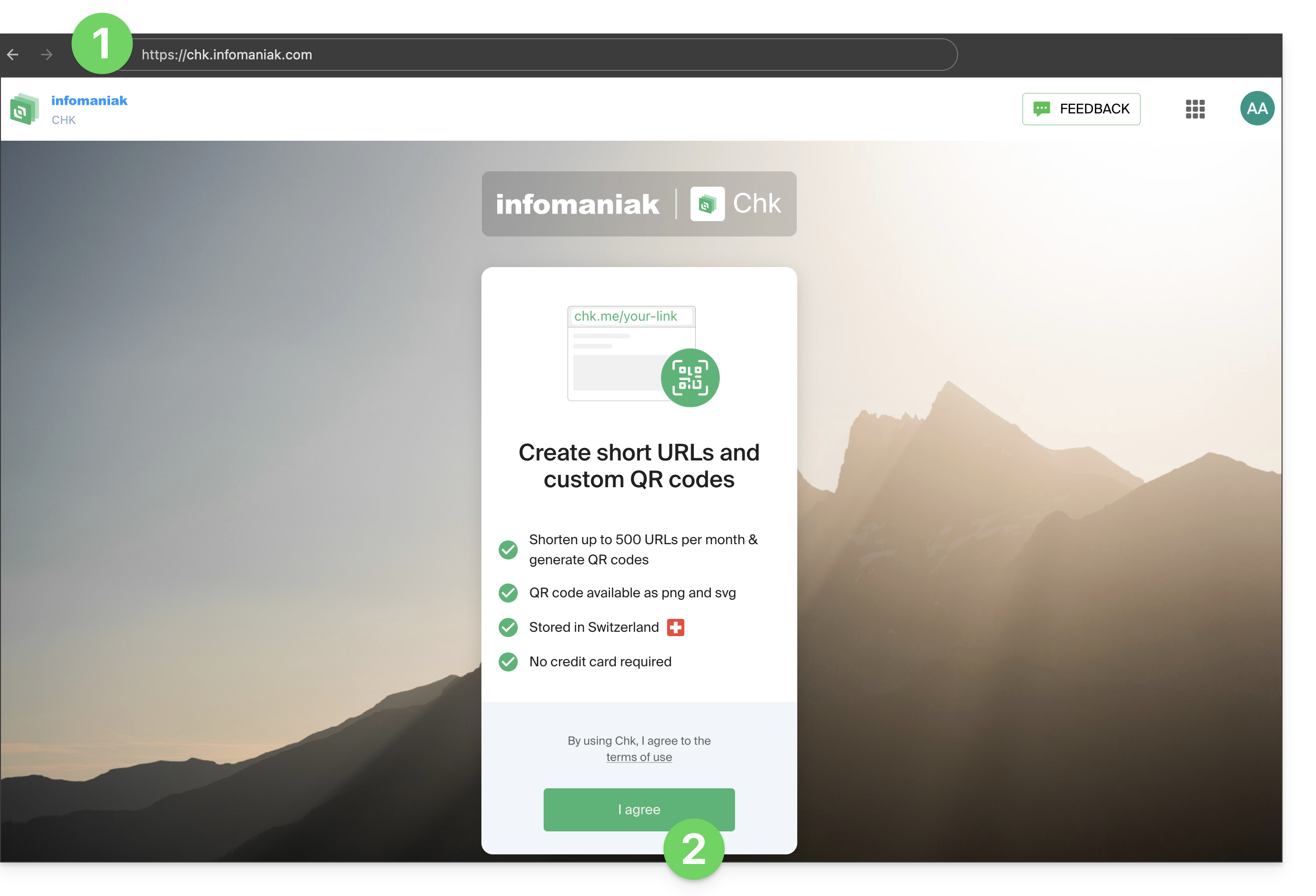
- Access the chk.me service.
- Click the button to accept the terms of service during your first visit:
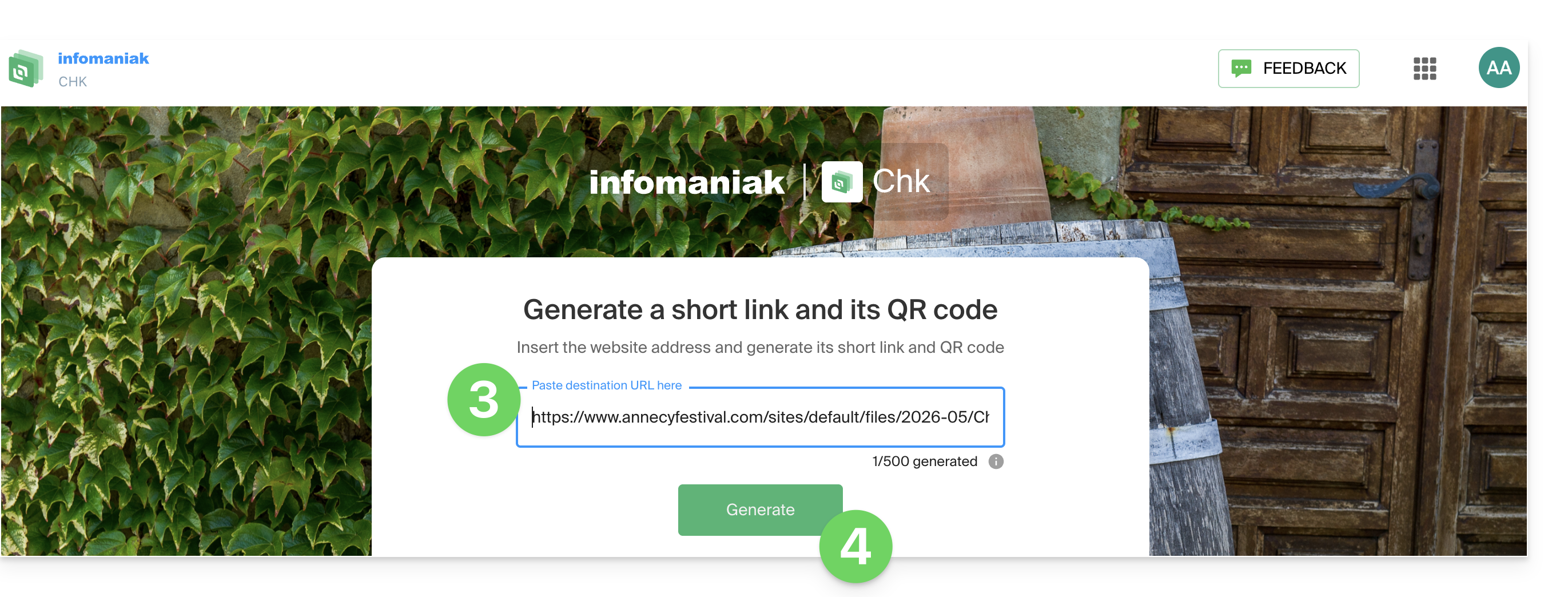
- Enter the website address (your original long URL) in the field that says “Paste destination URL here”.
- Click the « Generate » button to simultaneously create the short link and its QR code:
- Get and copy the short link in the format
chk.me/… - Define the validity period of the link according to your needs.
- (Optional) Customize your QR code in more detail by adding a personal logo in the center to strengthen your brand's visual identity.
- Download the generated QR code or copy the short link to easily integrate it into your social media, emails, or printed marketing materials:
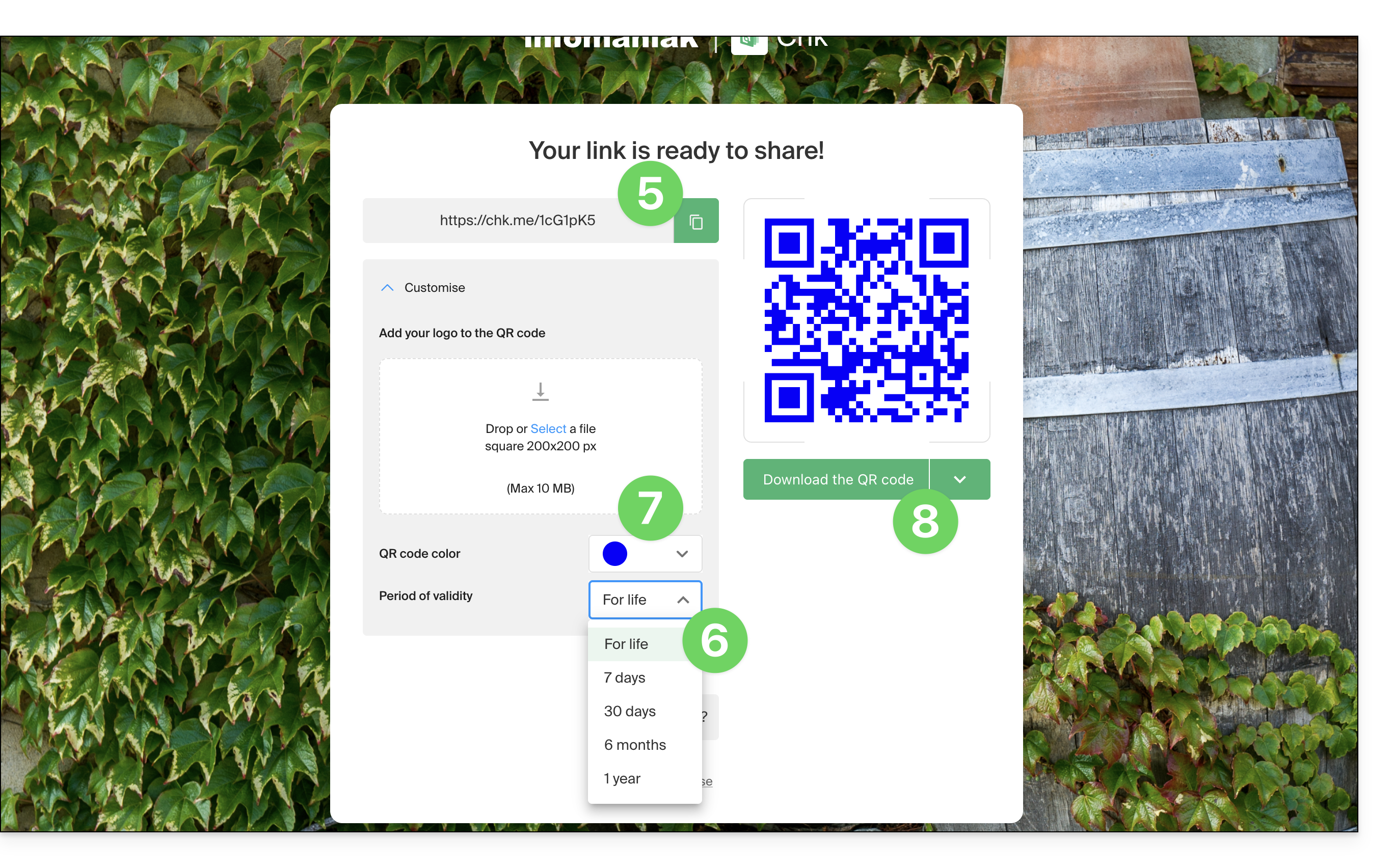
- You can start the process again to create a new link, but be aware that once you leave the page,It is not possible to retrieve a previously generated link..
Example of use
You are an event organizer and want to add the link to your ticketing page to a printed flyer:
- Open the Infomaniak Chk interface.
- Paste the very long URL of your ticketing page into the field provided.
- Select a validity period suitable for your campaign, for example 6 months.
- Click on « Generate ».
- Add your event logo to the center of the QR code to promote immediate brand recognition.
- Download the QR code (in PNG or SVG format) and integrate it into the design of your flyer.
- As soon as a participant scans the code from the physical medium, they will access the ticketing system, which increases click-through rates while eliminating the risk of broken links over time.
Link to this FAQ: https://faq.infomaniak.com/2135
Has this FAQ been helpful?
This guide explains how to connect the desktop apps Contacts and Calendar on macOS (MacBook Pro, Neo…) with the contacts & calendars hosted by Infomaniak.
Introduction
- Your macOS computer will be automatically configured via .mobileconfig configuration profiles compatible with Apple, unlike a manual configuration.
- Infomaniak contacts & calendars are linked to your Infomaniak account; when you log in to ksuite.infomaniak.com/contacts or /calendar, you will likely need to perform two-factor authentication (2FA) during login.
- In this case, an application password is required to establish synchronization between your device and Infomaniak tools.
- But don't worry, creating such a password is offered as part of the configuration wizard.
Install a configuration profile
To do this:
- Click here to access the Infomaniak configuration tool (online service https://config.infomaniak.com) — log in if necessary to your Infomaniak account for the Organization where your services to be synchronized are managed.
- Choose to install the profile on this device.
- Choose to synchronize contacts & calendars.
- Generate an application password dedicated to synchronization (in order to maintain the usual 2FA connection for your user account):
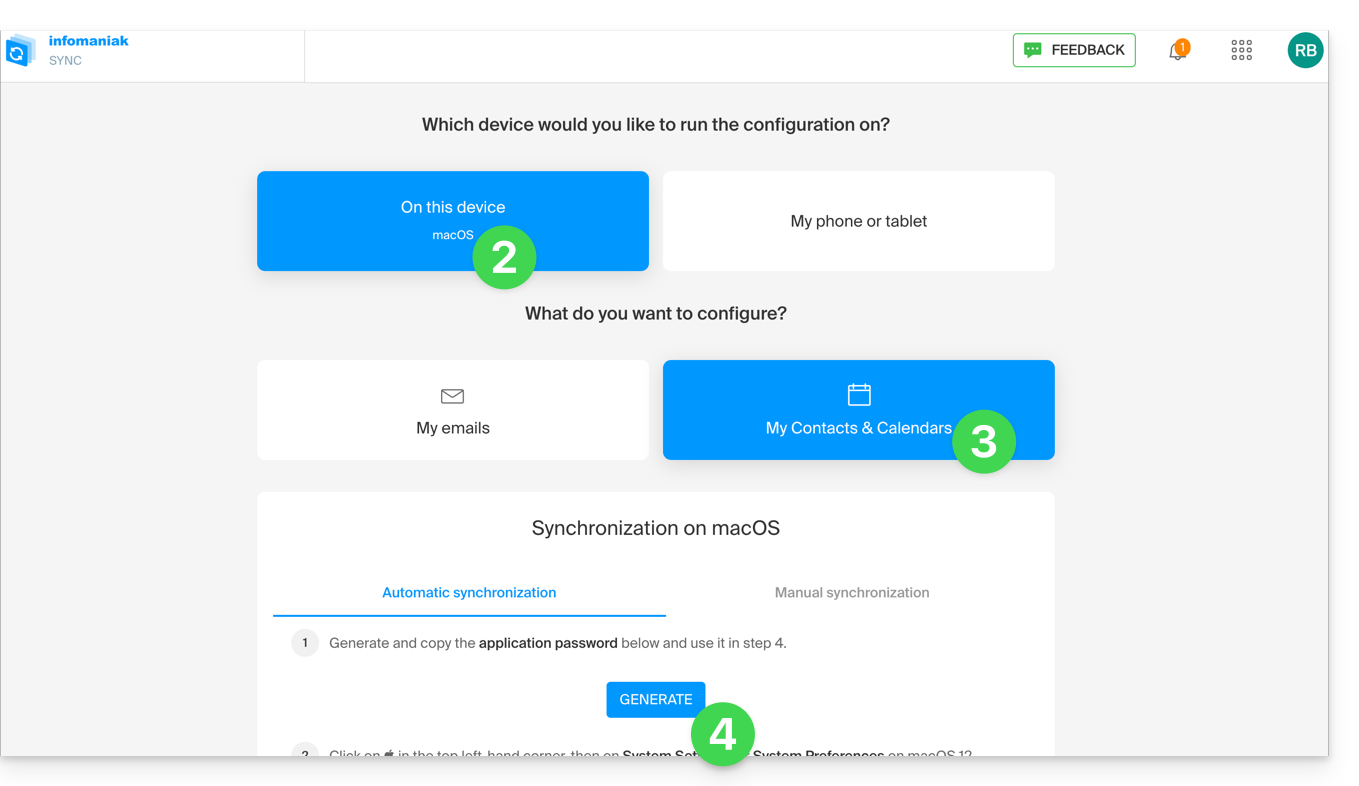
- Copy the generated application password (you will be prompted for it when installing the Apple profile).
- Download the Apple profile:
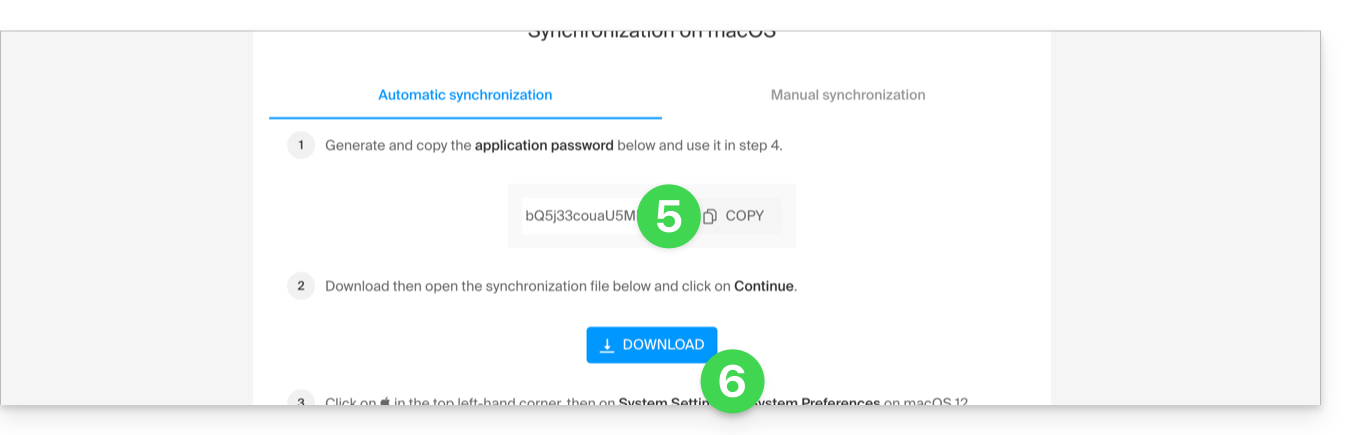
- Open this newly downloaded file on your hard drive.
- Click OK in the confirmation window:
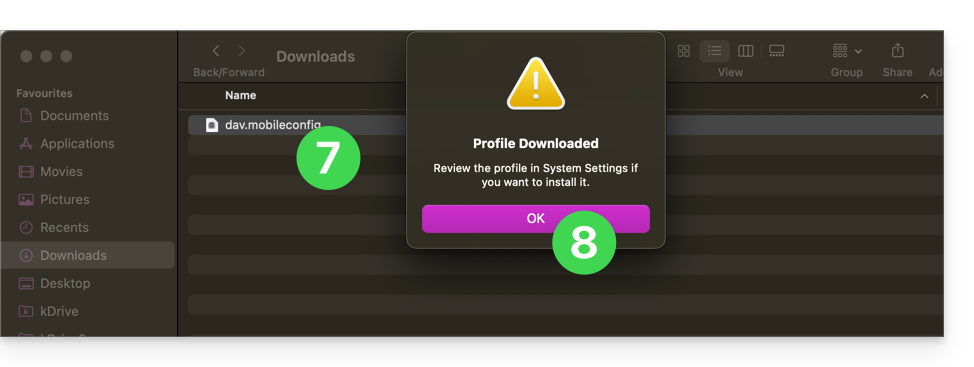
- Open the computer's System Settings.
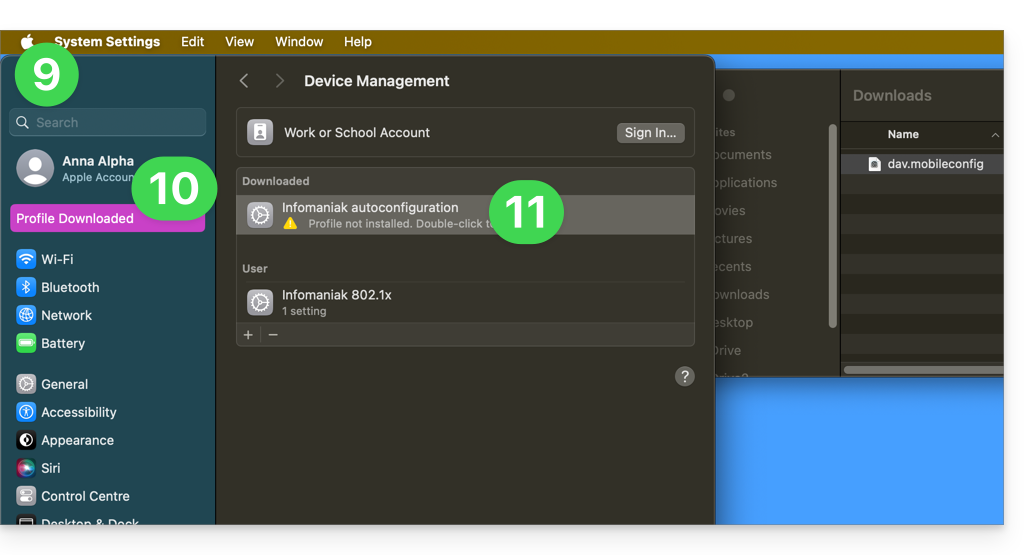
- In principle, the new profile is indicated as such, and you need to click on this menu item…
- otherwise, click on General in the sidebar
- then click on Manage Device (for macOS Sequoia 15)
- if you have an older version or cannot find the profile, consult the official documentation, changing the version of your system at the top of the page if necessary…
- Double-click on the proposed profile:
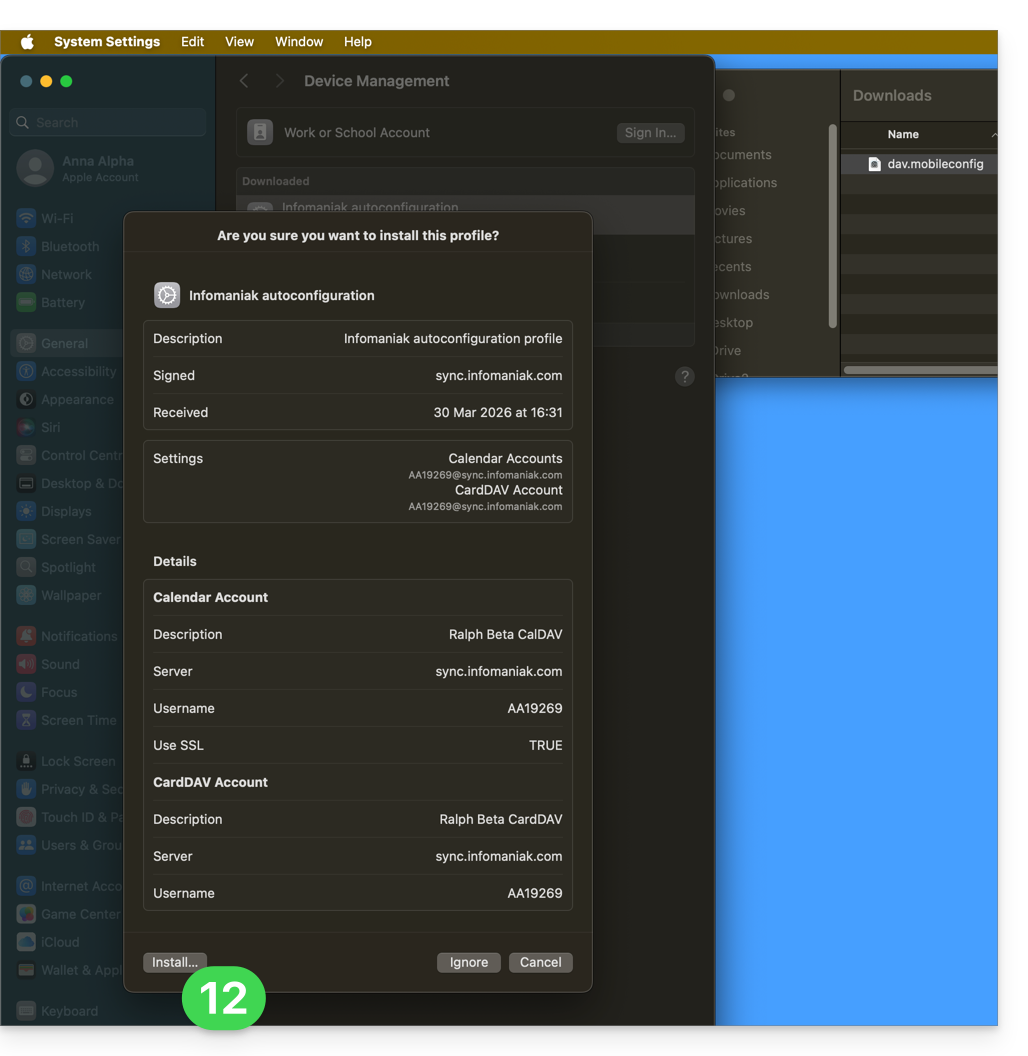
- Click Install:
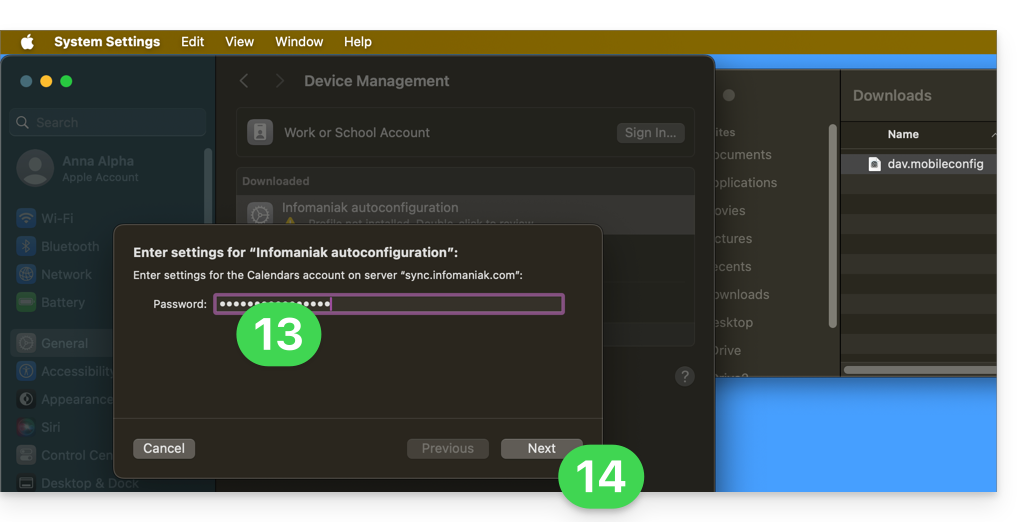
- Enter the application password obtained in step 5 above to connect to Calendars.
- Click on Next:
- Enter the password a second time (this time for Contacts) and click on Install to finish.
- That's it, you can now open your macOS Contacts and Calendar applications.
If your applications were already open, you need to restart them. You will then see the information added by the synchronization: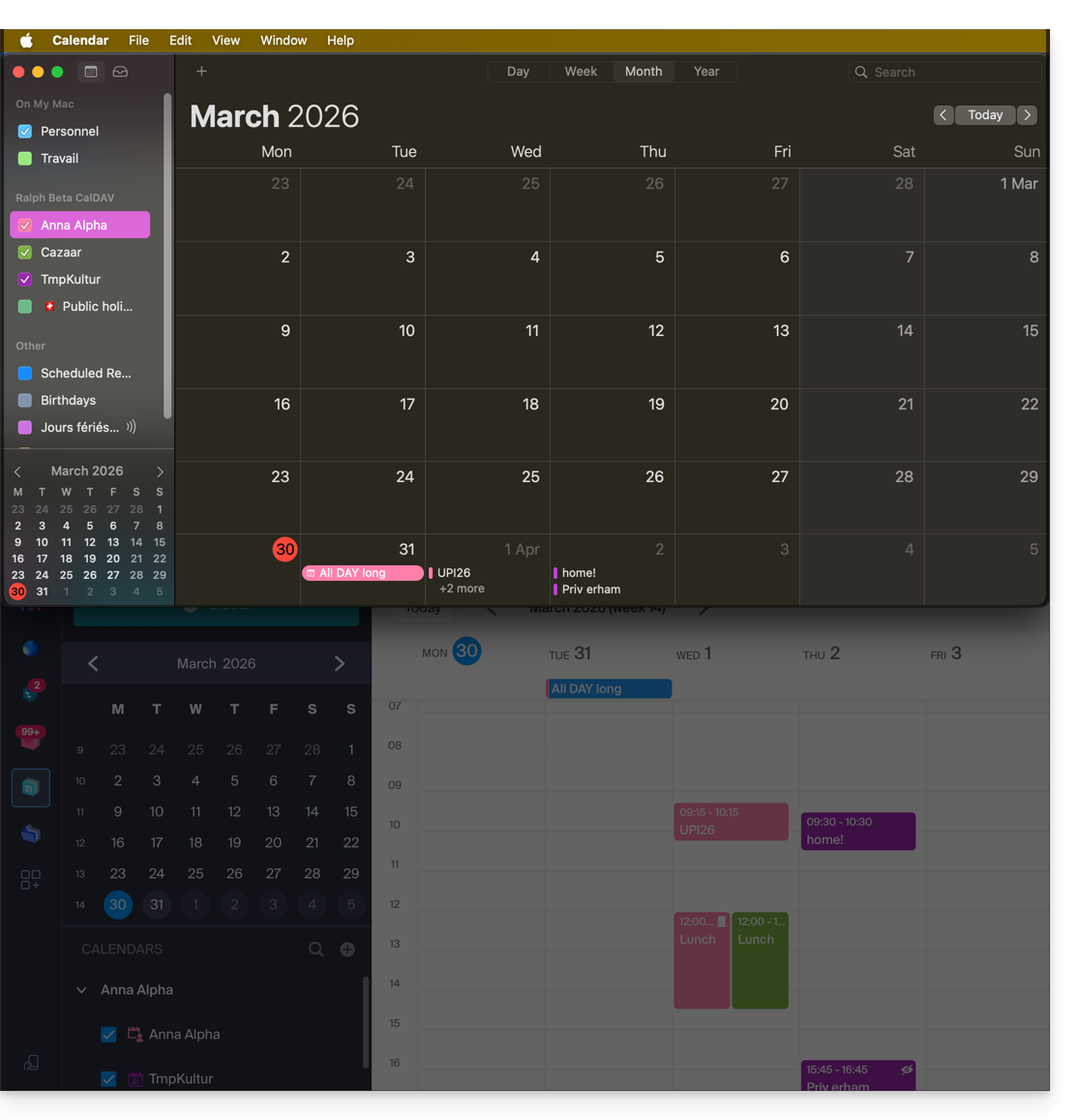
Synchronization specifics
Please refer to this other guide.
Delete an Apple profile
Please refer to the official documentation, and at the top of the page*, change the version of your system if necessary: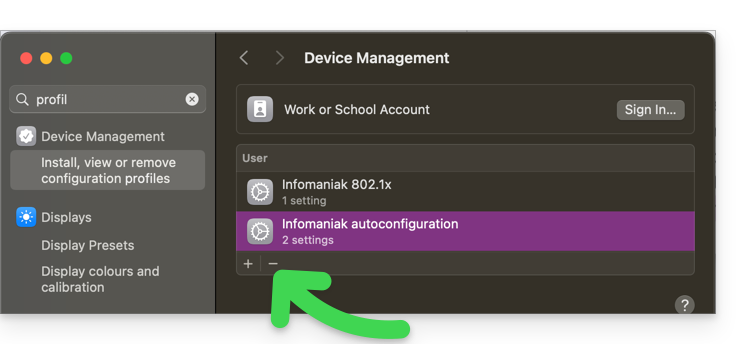
*Why is it necessary to choose the guide version that exactly matches your version of macOS / iOS? Apple introduces sometimes subtle changes with each new version of its system, for example, a path on iOS 15…
… becomes this on iOS 18…
Link to this FAQ: https://faq.infomaniak.com/2143
Has this FAQ been helpful?
This guide explains how to modify certain language settings in the Manager and kSuite (Infomaniak Mail app, Calendar, Contacts, etc.).
Change the language of your Infomaniak account
To do this:
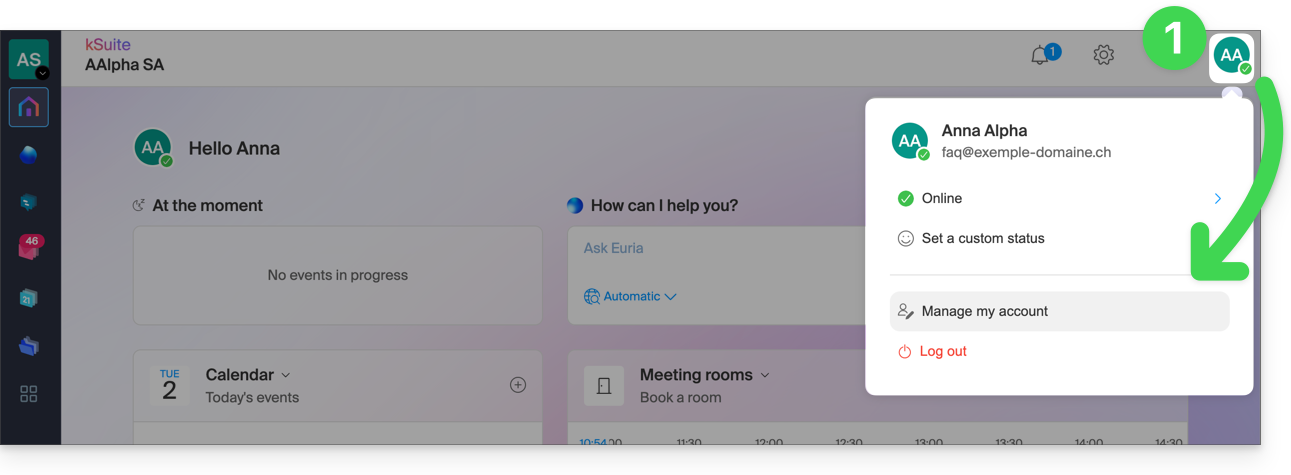
- Click here (or on the badge with your initials/avatar in the top right corner of the Infomaniak Manager) to "Manage my account":
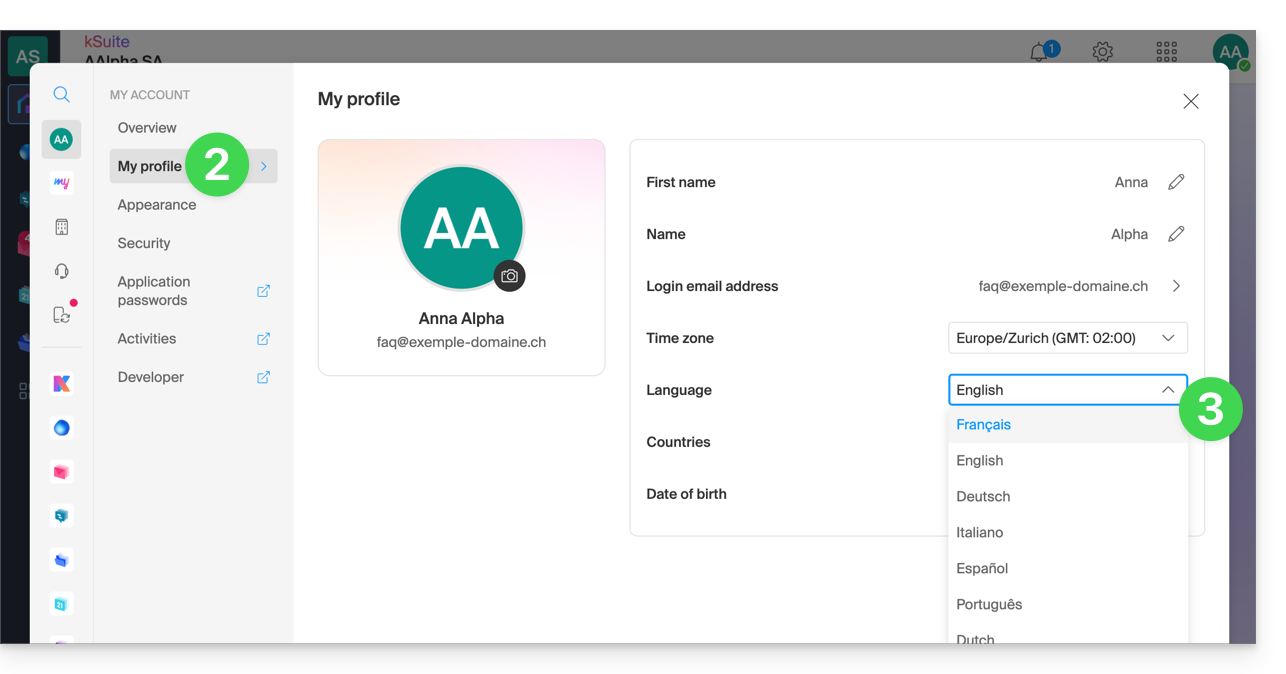
- Click on My profile in the left-hand menu.
- Click on the language dropdown menu to choose from French, English, German, Italian, Spanish, Portuguese, etc.:
Modify your account's regional settings
In the same section, you can set the time zone for your region/country: 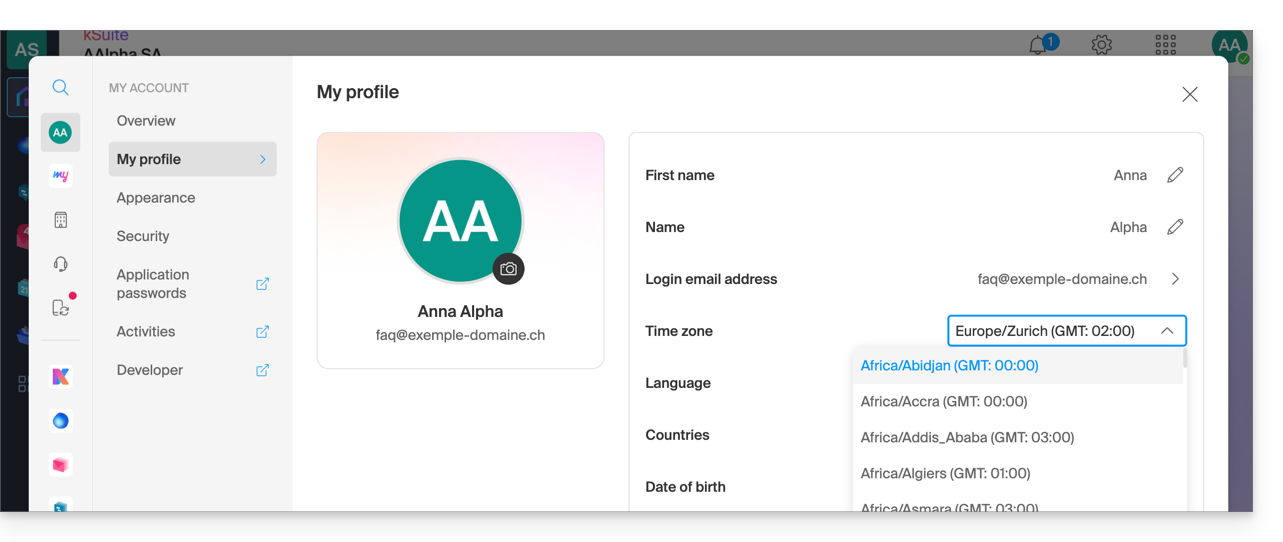
Link to this FAQ: https://faq.infomaniak.com/2144
Has this FAQ been helpful?
This guide explains how to connect the desktop app Outlook 2016 (desktop application on Windows) to an email address hosted by Infomaniak.
Add the email address to the application
Prerequisites
- Create the email address (❓: my kSuite | Mail Service/kSuite).
- Create a device password (❓: my kSuite | Mail/kSuite Service).
- Verify that the domain is configured correctly (❓: Mail/kSuite Service).
To configure the email application:
- Open the application.
- Click on the File menu:
- Click on Account Settings.
- Click on Add or remove accounts:
- Click on New:
- Enter the email address to connect.
- Click on Advanced options.
- Click on Manual configuration.
- Click on the blue Connect button:
- Click on IMAP:
- Enter the password for the email address you want to connect.
- Click the blue Connect button:
- If necessary, uncheck the box for additional device settings.
- Click the blue Finish button:
- Click Fix to correct certain information that was added automatically but is incorrect:
- Click on Advanced options.
- Click on Manual repair.
- Click the blue Repair button:
- Check and complete the missing or incorrect information.
- Click on Outgoing server:
- Check and complete the missing information.
- Click on Next.
- Click on Finish:
- Click on Close:
- That's it, your email address is now correctly configured in the application:
Recommended settings
- Incoming IMAP server =
mail.infomaniak.com - IMAP port =
993(with SSL) - Outgoing SMTP server =
mail.infomaniak.com - SMTP port & encryption protocol and command/method to activate this protocol:
587+ STARTTLS - Username = the complete email address & (need help?)
- Password = the password generated for the email address you want to access (❓: my kSuite | Mail Service/kSuite).
- Authentication required for sending emails:
- Enable this in the SMTP settings of your application.
- Check "use the same settings as the incoming server" or, depending on the software/email client, enter a username (the complete email address) and the generated password.
Refer to this other guide if you are looking for information about other email ports and protocols that are supported (SSL/TLS, for example).
In case of a problem
Check that the Mail service is configured optimally.
It is not necessary to contact Infomaniak Support if your email address works correctly outside the application. The most common error concerns the use of an incorrect password. The troubleshooting guides will help you resolve any potential issues:
- Refer to the solutions provided in this other guide regarding email in general.
- This other guide provides more specific information about Outlook.
… and if your Outlook is no longer working after a change of email password, please refer to this other guide.
Link to this FAQ: https://faq.infomaniak.com/2172
Has this FAQ been helpful?
This guide explains how to connect the desktop app Microsoft Outlook for Mac version 16.80 (desktop application on macOS) to an email address hosted by Infomaniak.
Introduction
- Instead of the manual configuration for Outlook below, it is recommended to use the Infomaniak Mail macOS app or even Apple Mail with the .mobileconfig configuration profiles provided by Apple.
Add the email address to the application
Prerequisites
- Create the email address (❓: help my kSuite | Mail Service/kSuite).
- Create a device password (❓: help my kSuite | Mail/kSuite Service).
- Verify that the domain is configured correctly (❓: help).
To configure the email application:
- Open the application.
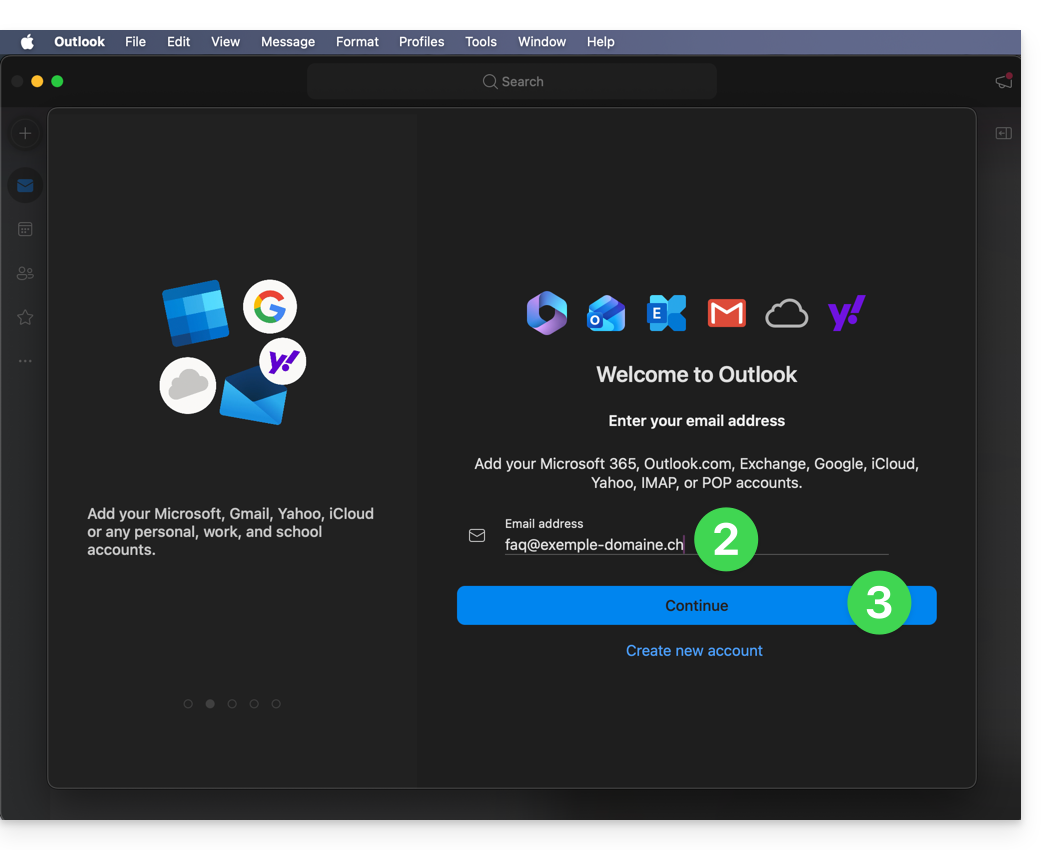
- Enter the email address to associate.
- Click on Continue:
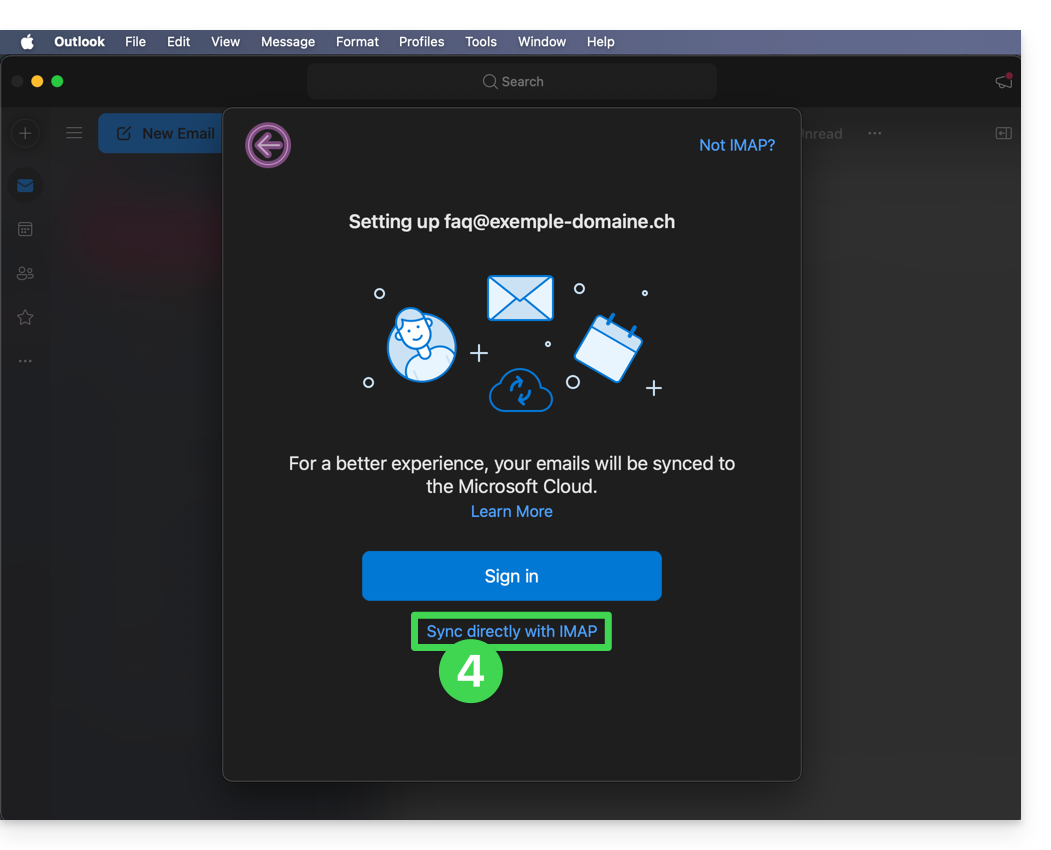
- Click on Synchronize via IMAP (without Microsoft Cloud):
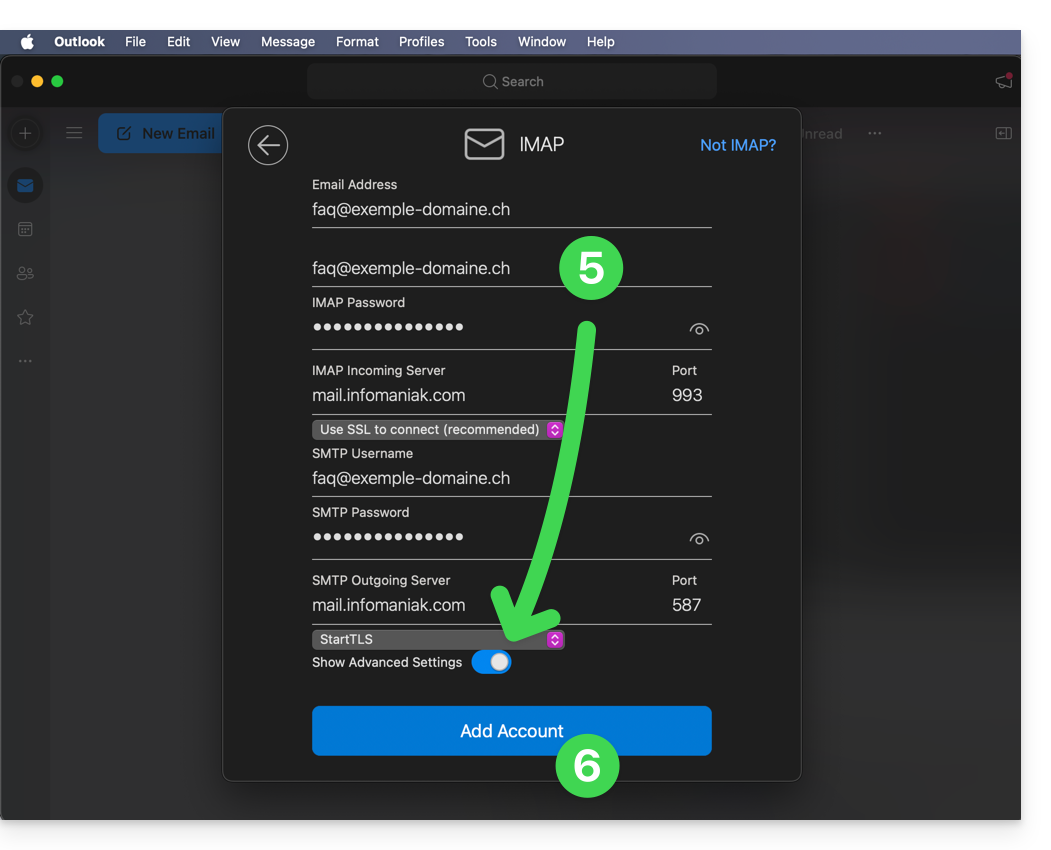
- Check and complete any missing information (❓: help).
- To do this, activate the toggle switch for displaying advanced settings.
- Click on Add account:
- Understand and proceed through the various Microsoft information windows:

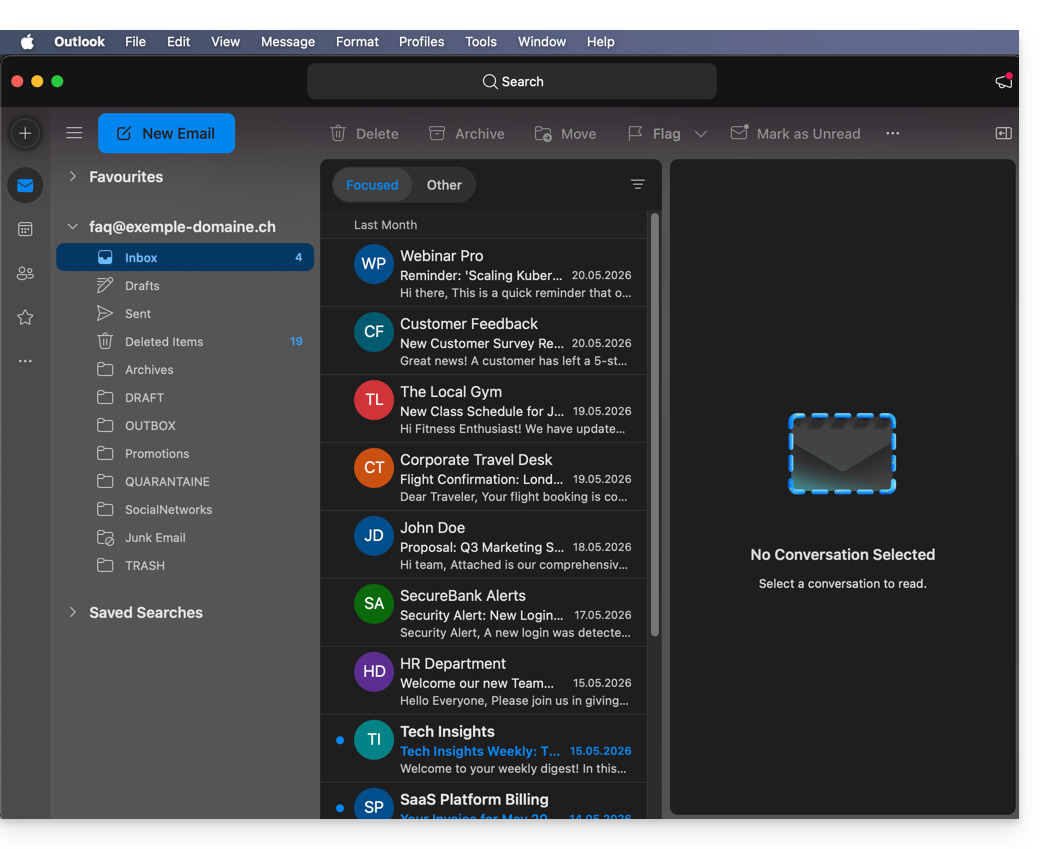
- Your email address is now configured in the application:
Recommended settings
- Incoming IMAP server =
mail.infomaniak.com - IMAP port =
993(with SSL) - Outgoing SMTP server =
mail.infomaniak.com - SMTP port & encryption protocol and command/method to activate this protocol:
587+ STARTTLS - Username = the complete email address (❓: help)
- Password = the password generated for the email address you want to access (❓: help my kSuite | Mail Service/kSuite).
- Mandatory authentication for sending emails:
- Activate it in the SMTP settings of your application.
- Check "use the same settings as the incoming server" or, depending on the software/email client, re-enter a username (= complete email address) and the generated password.
Refer to this other guide if you are looking for information about other compatible email ports and protocols (SSL / TLS for example).
In case of a problem
Make sure the Mail service is configured optimally (❓: help).
You do not need to contact Infomaniak Support if your email address works correctly outside the application. The most common error is using an incorrect password. The troubleshooting guides will help you resolve any potential issues:
- Refer to the solutions provided in this other guide regarding email in general.
- This other guide is specifically about Outlook.
… and if your Outlook is no longer working after a change of your email password, please refer to this other guide.
Link to this FAQ: https://faq.infomaniak.com/2174
Has this FAQ been helpful?
This guide details the specific features and limitations of synchronizing contacts and calendars with Infomaniak and native Apple applications (macOS and iOS), particularly for managing shared data.
Introduction
- Infomaniak-hosted contacts and calendars can be synchronized with native Apple applications:
Contacts: synchronizing address books
The CardDAV protocol does not allow you to individually select the items to be synchronized; all data from the account is retrieved by default.
- Before adding a synchronization:
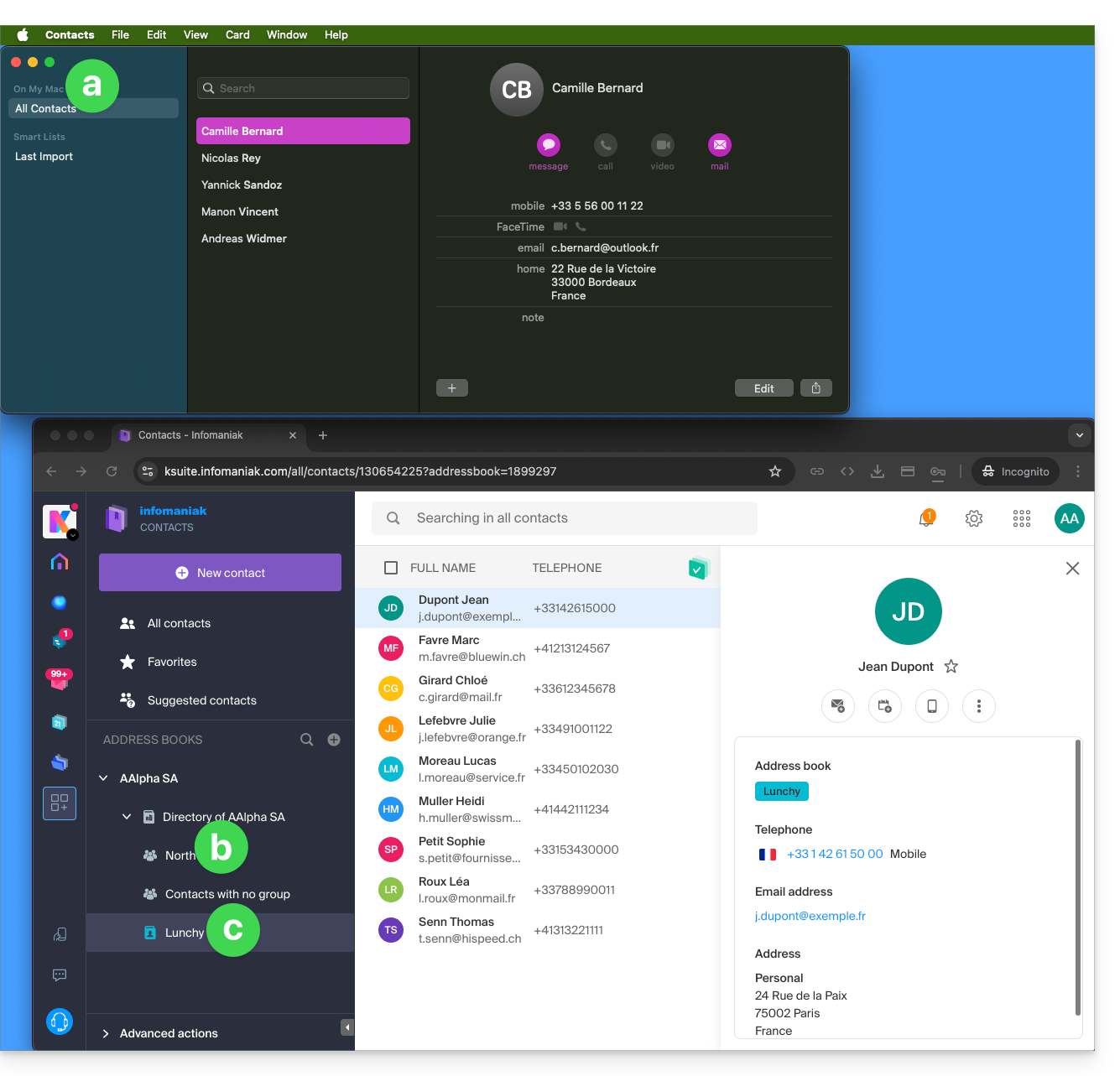
- All existing contacts on the macOS device
- Existing contacts in the Organization (named here AAlpha SA) of the Infomaniak user Anna Alpha, including the Organization directory, which contains a group called North (in this case, this is a “circle” automatically created after setting up a Group in the Manager).
- The user's address book is called Lunchy.
- After adding a macOS profile-based sync:
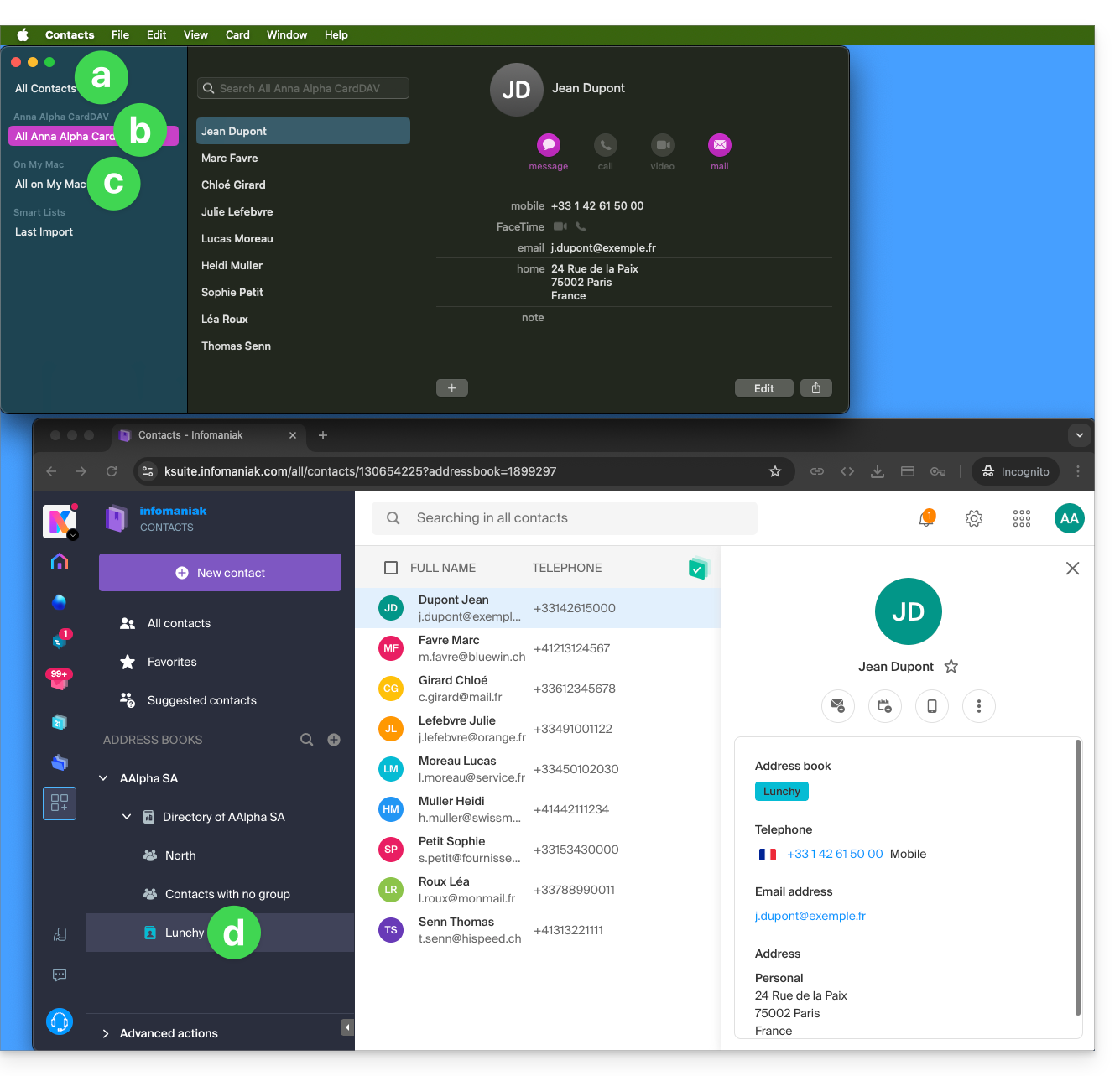
- All existing contacts on the macOS device (this displays the contacts that were already present, as well as the new contacts from the sync).
- Contacts from the sync (see point 2.d below).
- A downloaded profile contains the Infomaniak account user's name; this name will be used for the synced address book, which will be displayed on the Apple side.
- In the example below, the user's name is Anna Alpha and the address book name is Lunchy; this is the user name that will be displayed to describe the contacts on the Apple side.
- You can change the sync name in the Account Information:
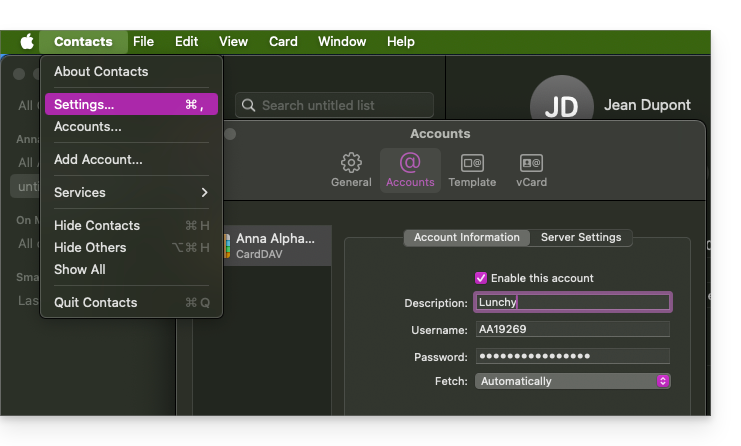
- Existing contacts on the macOS device (those from point 1.a above — they remain local on macOS and are not synced — you need to move them if necessary).
- You can change the address book used by default for future contacts created on your device:
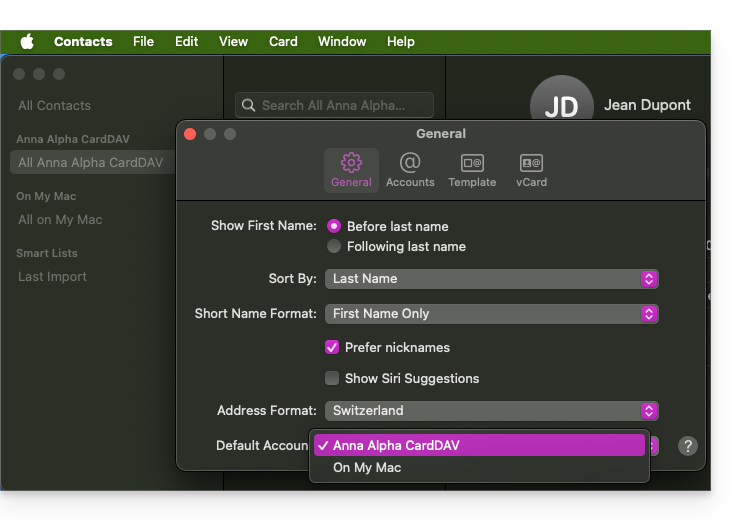
- You can change the address book used by default for future contacts created on your device:
- The user's address book is called Lunchy here (equivalent to point 2.b above).
On iOS
New contacts created on iPhone are often saved locally ("On My iPhone"):
- It is necessary to change the default address book in the device settings so that they are synced to the Infomaniak server.
Groups and lists
Grouping contacts into folders or lists does not synchronize bidirectionally. The list system does not use actual folders but category tags, which makes it impossible to retrieve contact groups.
- Lists created on Apple devices are not reflected on the Infomaniak server (but the contacts within them are):
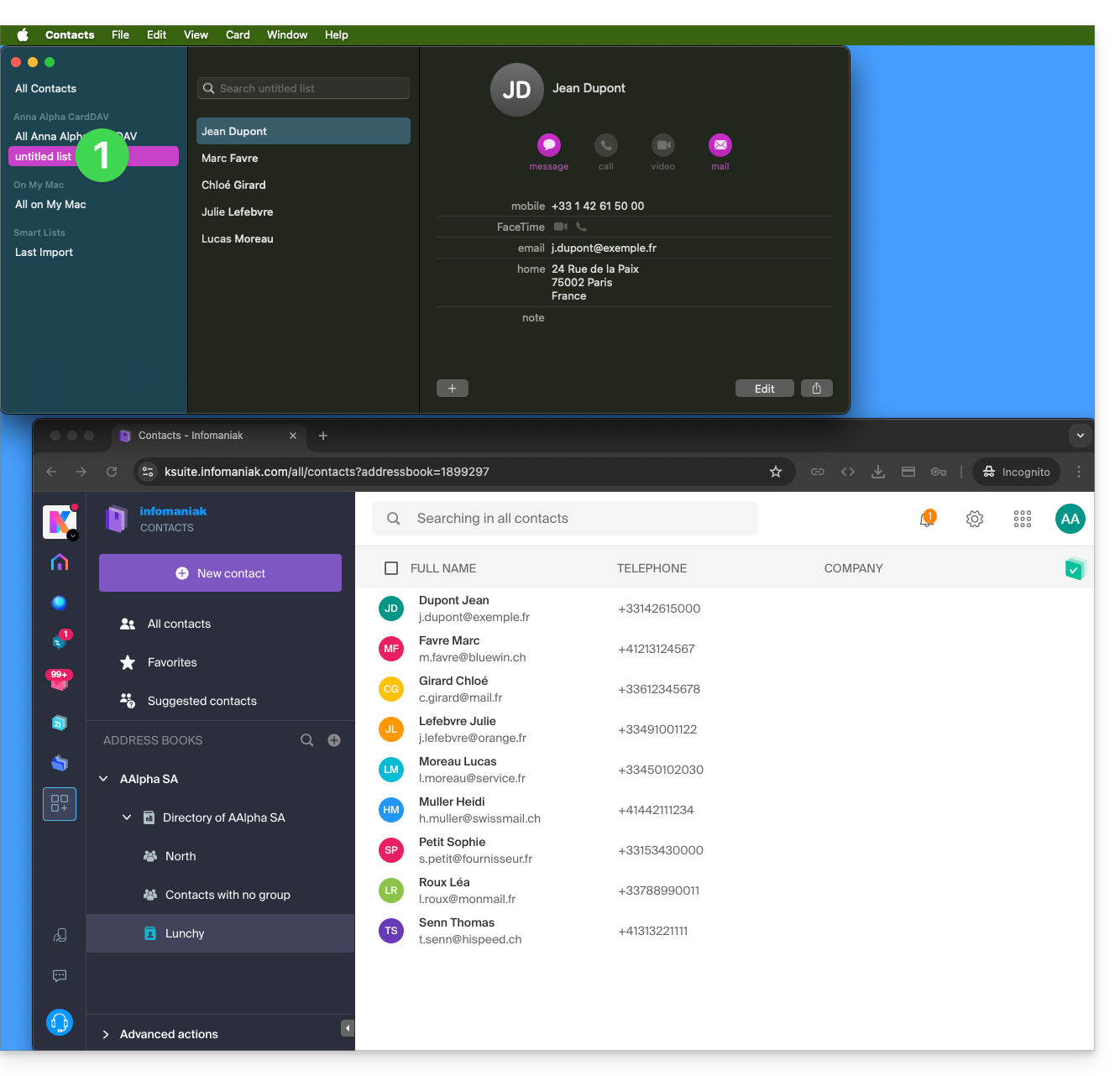
- Groups configured in the web interface are not displayed in the Apple Contacts app (but the contacts within them are):
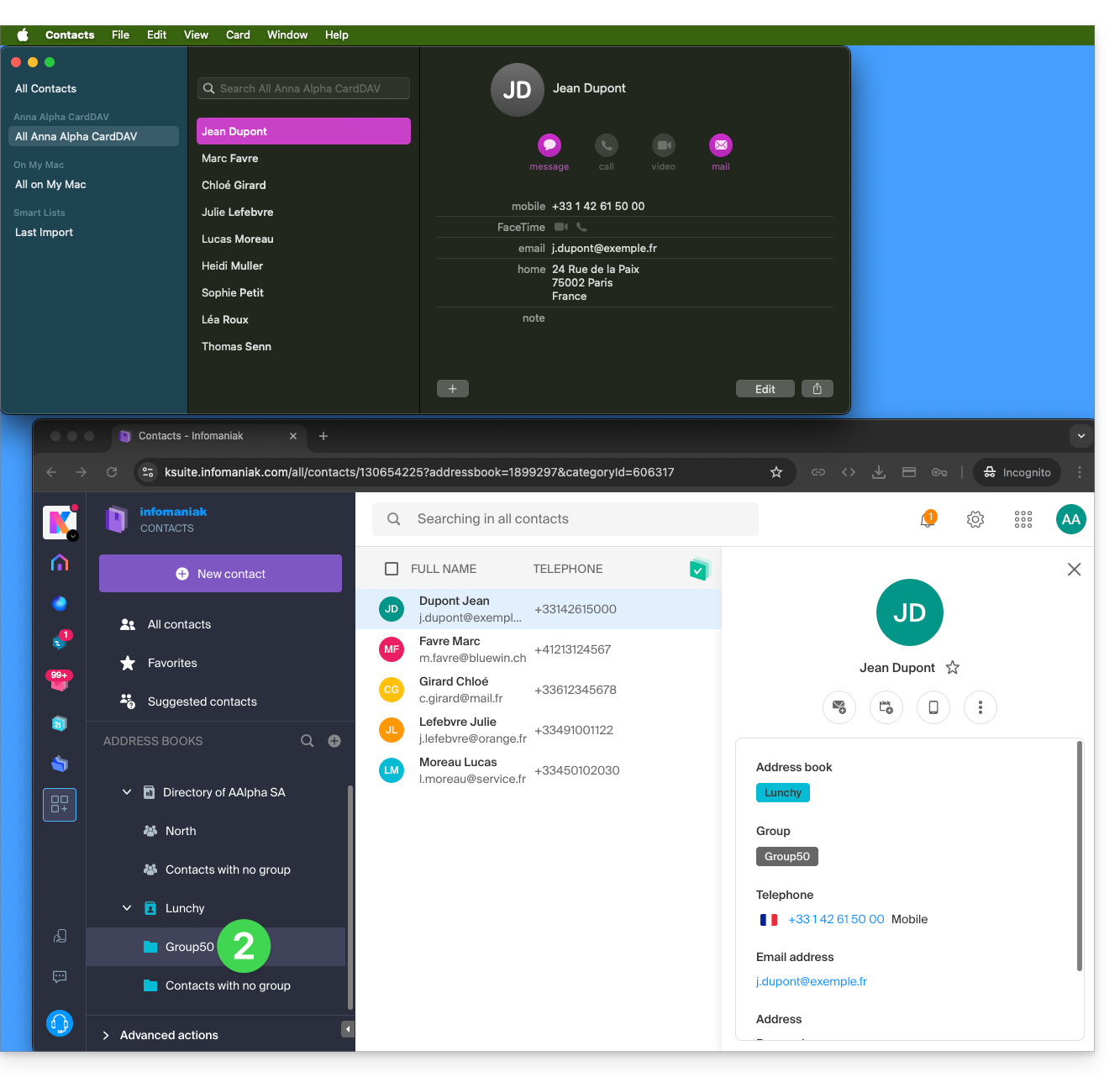
- Tip: to delete a list created on the Apple side, select it and press the DELETE key on your keyboard.
Additional address books
The Contacts app does not support multiple address books for the same account:
- Only the default address book is synchronized.
- To access all your address books, you need to use software like Thunderbird.
Example of a new address book on the Infomaniak side:
- The content of this second address book is not synchronized:
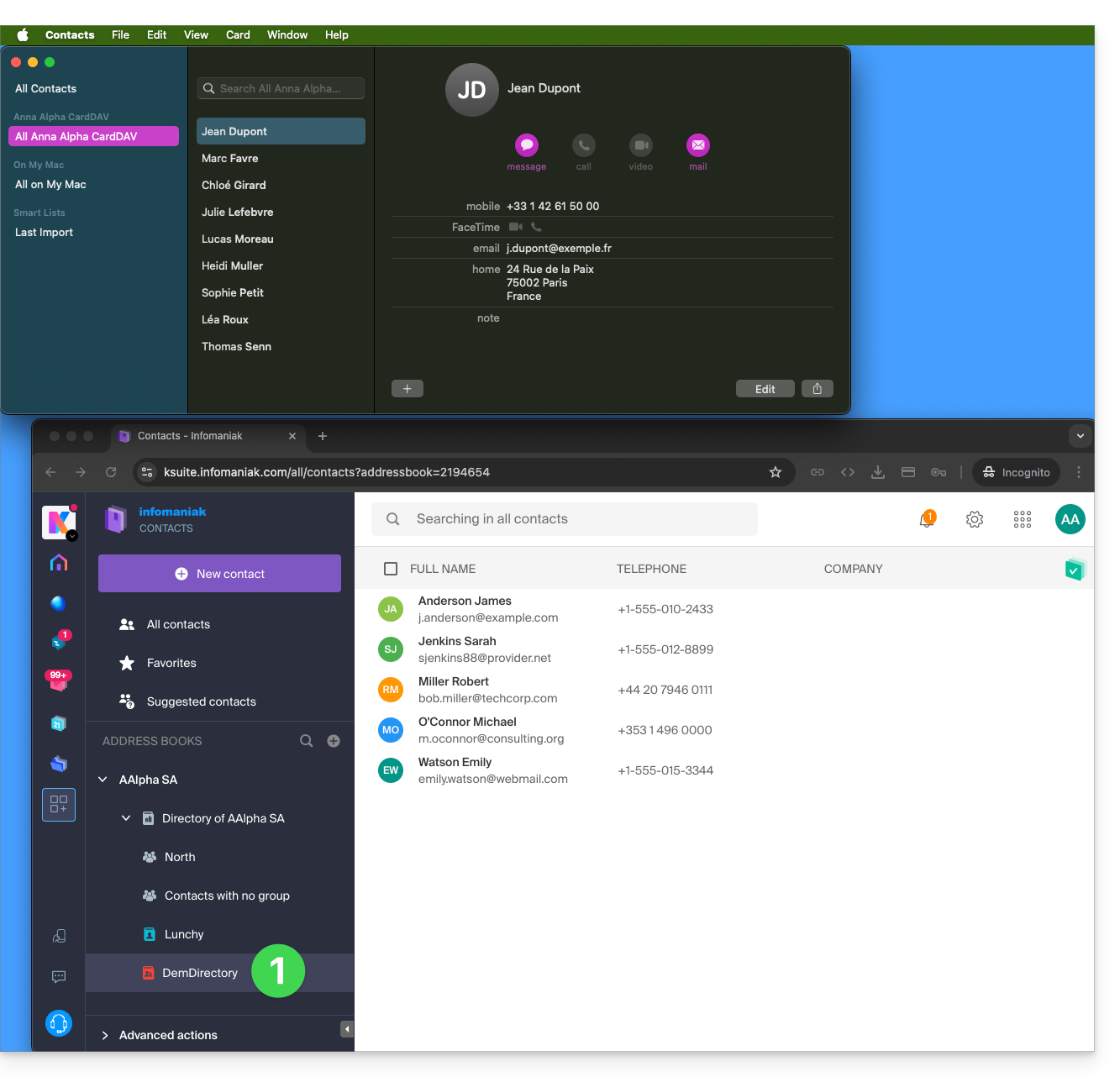
- A solution to organize yourself in a similar way could be to create a group in Lunchy and drag the 5 contacts into it:
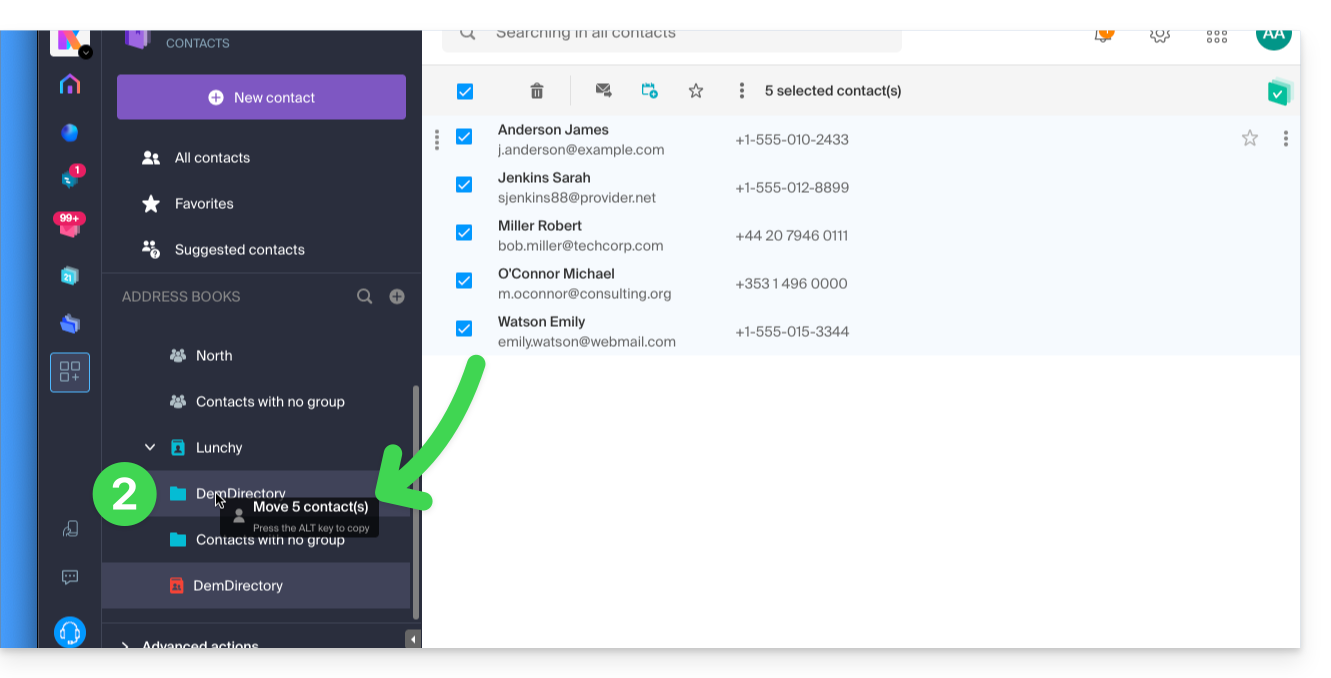
Shared address books
A shared address book with another Infomaniak user will continue to be synchronized, including if contacts are added/edited via the sharing, as in this example of sharing with maximum permissions: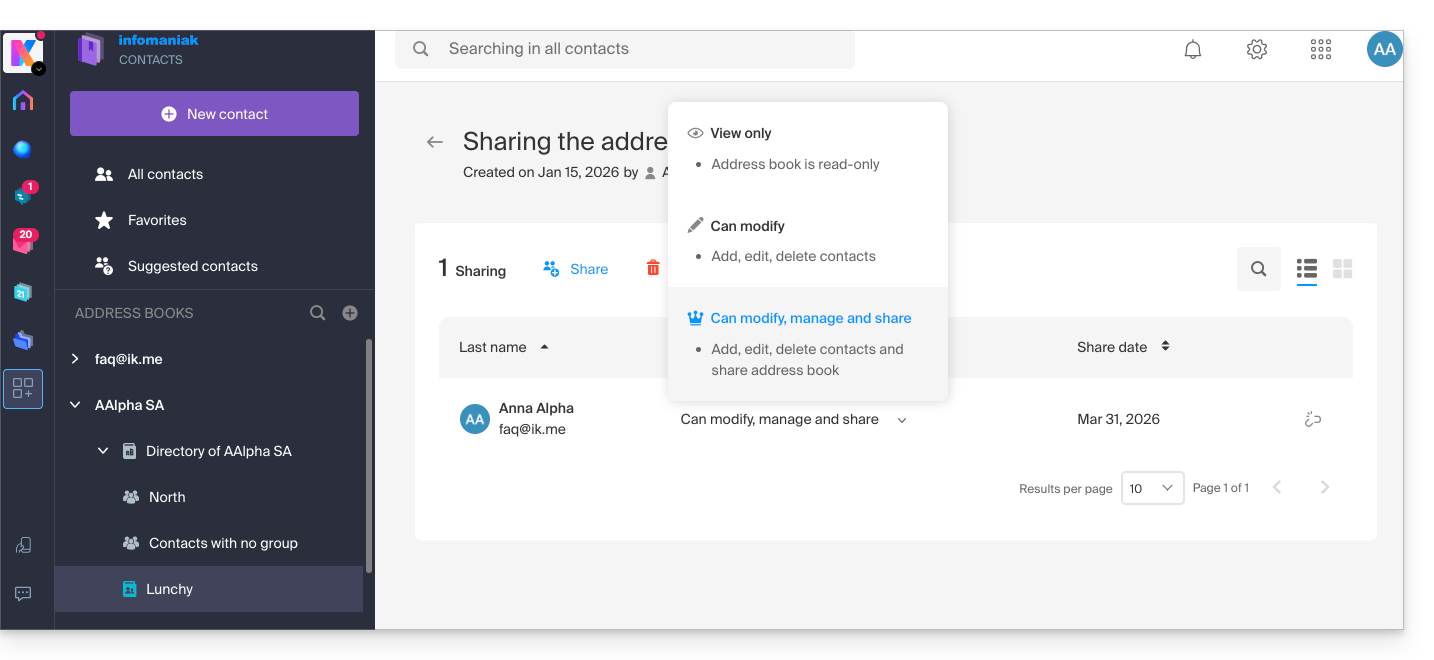
The reverse (receiving the contact sharing from another Infomaniak user) adds an additional address book. The synchronization of these additional contacts is therefore not possible (same rule as presented in the “Additional address books” section above).
Calendar: displaying shared calendars
The CalDAV protocol does not allow you to individually choose which items to synchronize; all data from the account is retrieved, including the calendars you share and those for which you have been granted access/modification rights: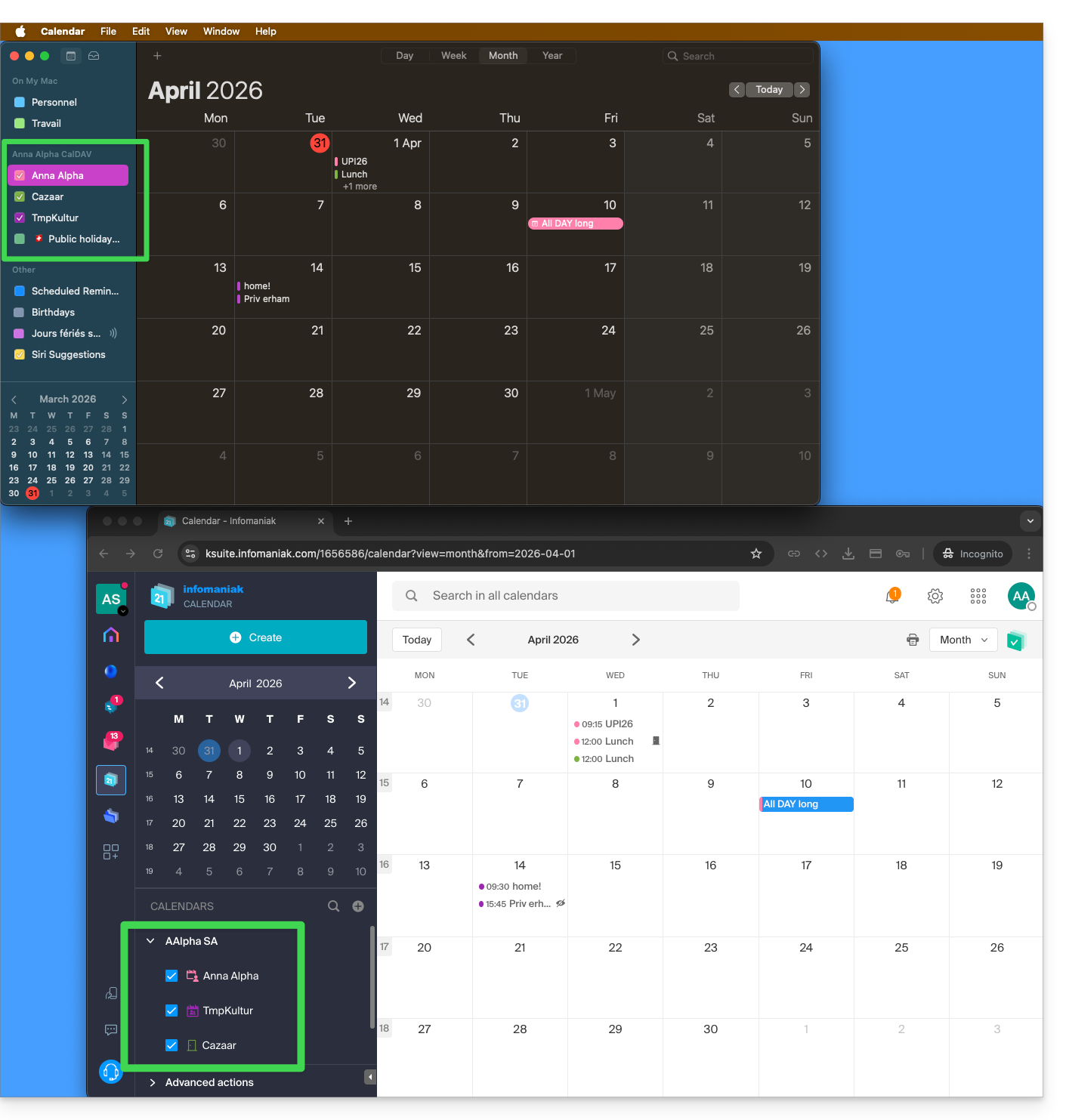
If only your personal calendar is displayed, then try this procedure to enable additional calendars:
On macOS
- Open iCal / Calendar.
- Go to the Calendar menu > Settings (or Preferences).
- Go to the Accounts tab.
- Select the Infomaniak account and click on the Delegation tab.
- Check the shared calendars to display.
On iOS
- Open iCal / Calendar.
- Tap the Calendars button at the bottom of the screen.
- Check the shared calendars in the list.
Notifications (iOS)
You can enable or disable alerts for each specific calendar by tapping the ⓘ icon to the right of its name: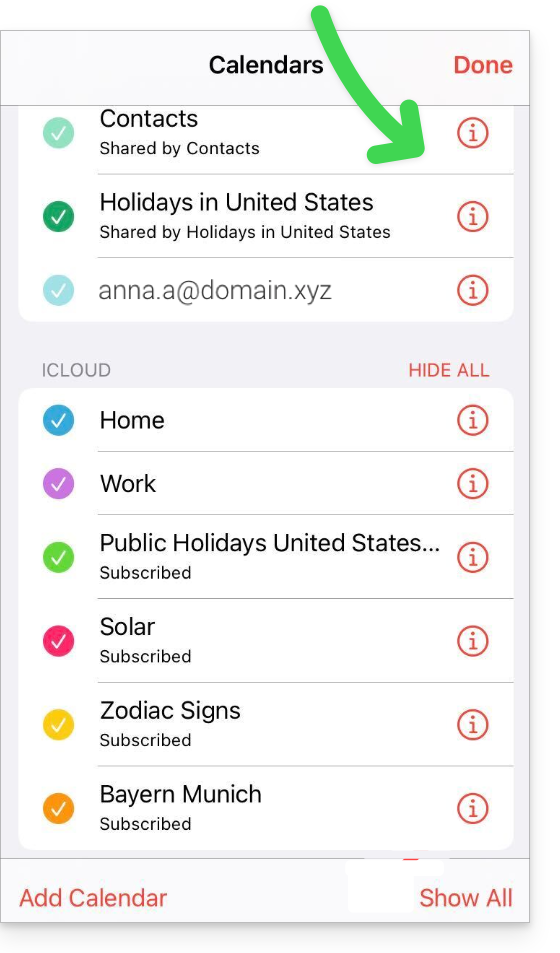
Link to this FAQ: https://faq.infomaniak.com/2181
Has this FAQ been helpful?
This guide explains how to modify the kSuite plan.
Introduction
- kSuite is a bundled offer that can be upgraded to a higher tier at any time (increase the number of users and the storage space for data).
- It is not possible to switch to a lower-priced plan later, nor to transfer kSuite to another Organization.
- The products included in kSuite cannot be moved or cancelled independently of each other.
- To help you identify the kSuite offer that best suits your needs, please refer to this other guide.
Modify the kSuite plan
To access the kSuite plan modification:
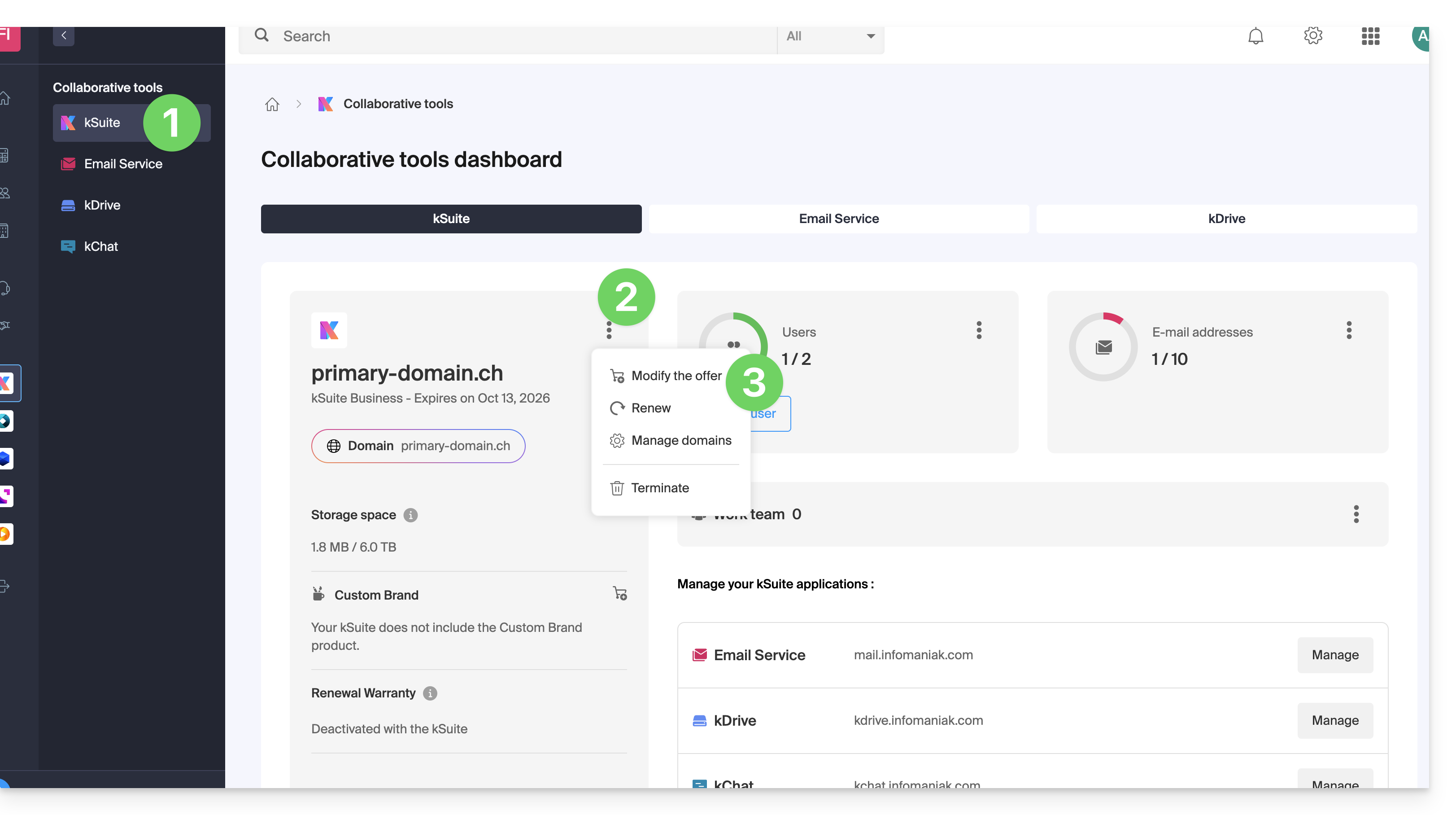
- Click here to access your product management in the Infomaniak Manager (need help?).
- Click on the action menu ⋮ to the right of the kSuite name.
- Click on Modify offer:
Link to this FAQ: https://faq.infomaniak.com/2197
Has this FAQ been helpful?
This guide explains how to copy the content of one or more external email addresses to Infomaniak (all email messages, folders, subfolders, in short, the entire structure of your third-party email account) to one of your existing Infomaniak addresses (regardless of the Mail service), thanks to the MBOX import tool offered by Infomaniak.
Introduction
- This is the ideal procedure when switching hosting providers or restoring old messages that are still stored elsewhere.
- Once the import process has started, it is no longer possible to interrupt it.
- Any potential duplicates are handled: identical content will only be copied once.
Import an mBox archive to Infomaniak
Prerequisites
- You must have an archive of your previous email account in the
.mboxformat.- For Gmail: go to Google Takeout (need help?)
- Have a Mail service on your Infomaniak Manager.
- Have a available address quota or adjust it beforehand if necessary.
- Make sure your email is properly secured
- Create one or more addresses on this Mail service.
- If you have many (10+) email addresses to create, please refer to this other guide on bulk creation.
- The destination email address must be linked to the user (= the Infomaniak account) you are using.
Next, to import the email content:
- Click here to access the import tool (online service https://import-email.infomaniak.com).
- If necessary, log in to your Infomaniak account for the relevant organisation; the import will be done to one of the email addresses associated with the Infomaniak Mail web interface (online service ksuite.infomaniak.com/mail) of the Infomaniak account you are using.
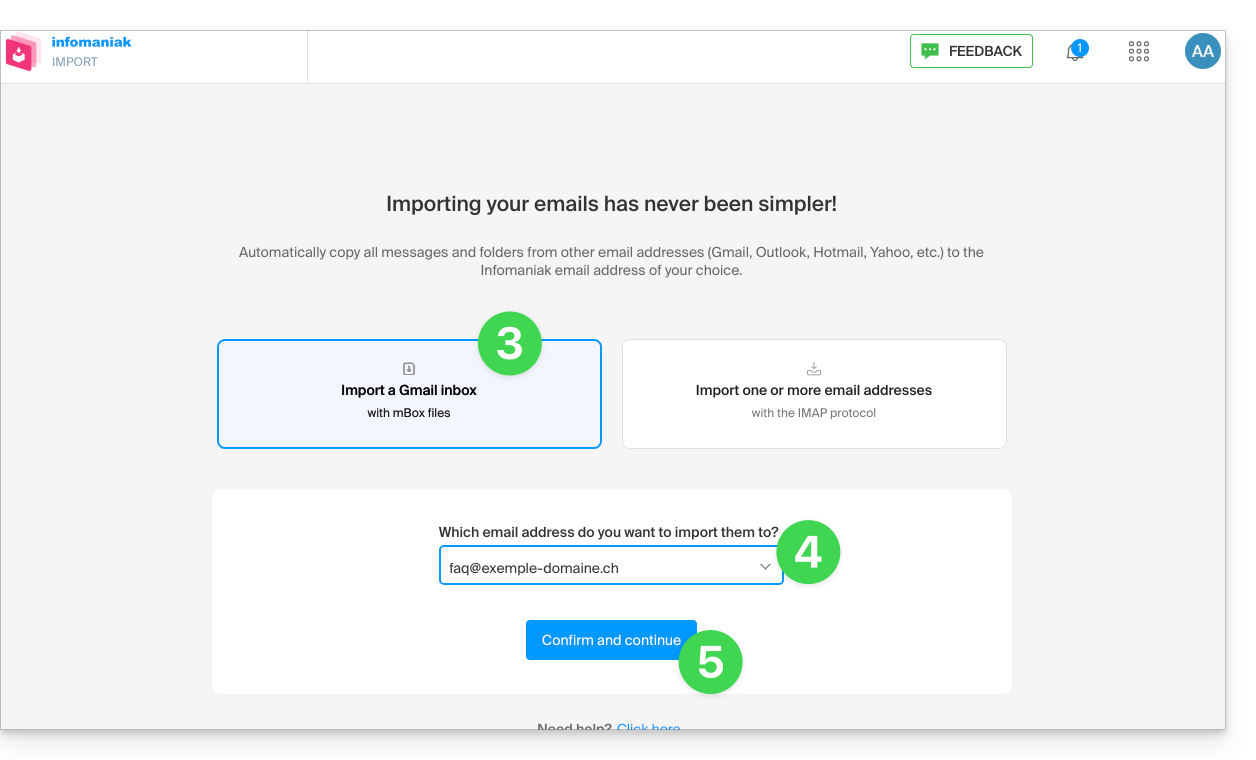
- Click on mBox file import.
- Choose the email address to which you want to import the emails; the drop-down menu lists the email addresses currently associated with your Infomaniak Web Mail interface (online service ksuite.infomaniak.com/mail) for the Infomaniak account you are logged into.
- Click on Confirm:
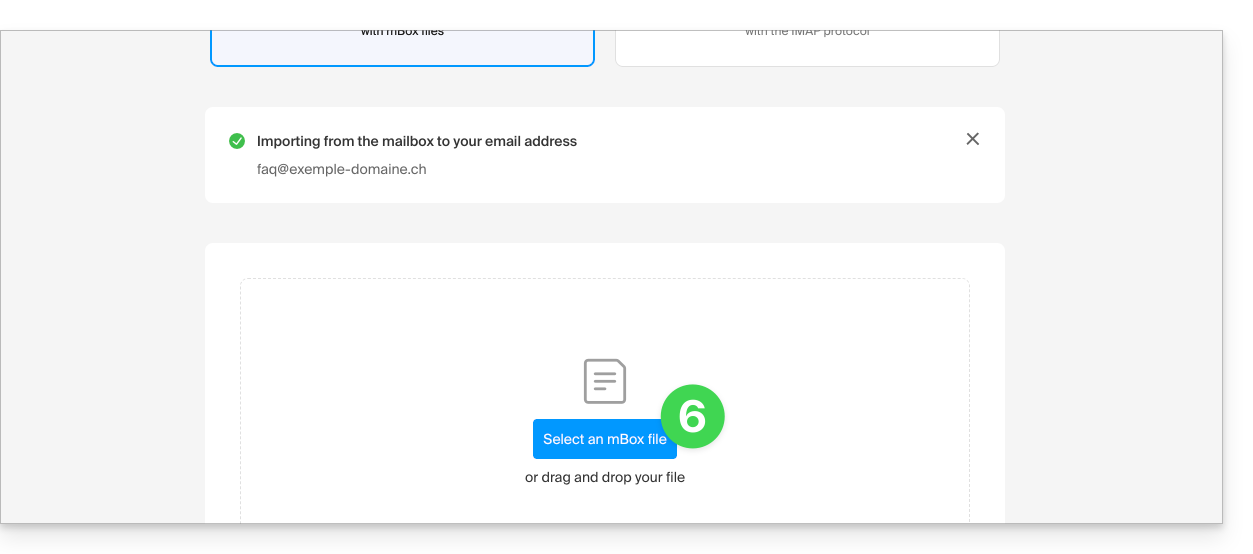
- Click on the button to select the mBox archive on your hard drive:
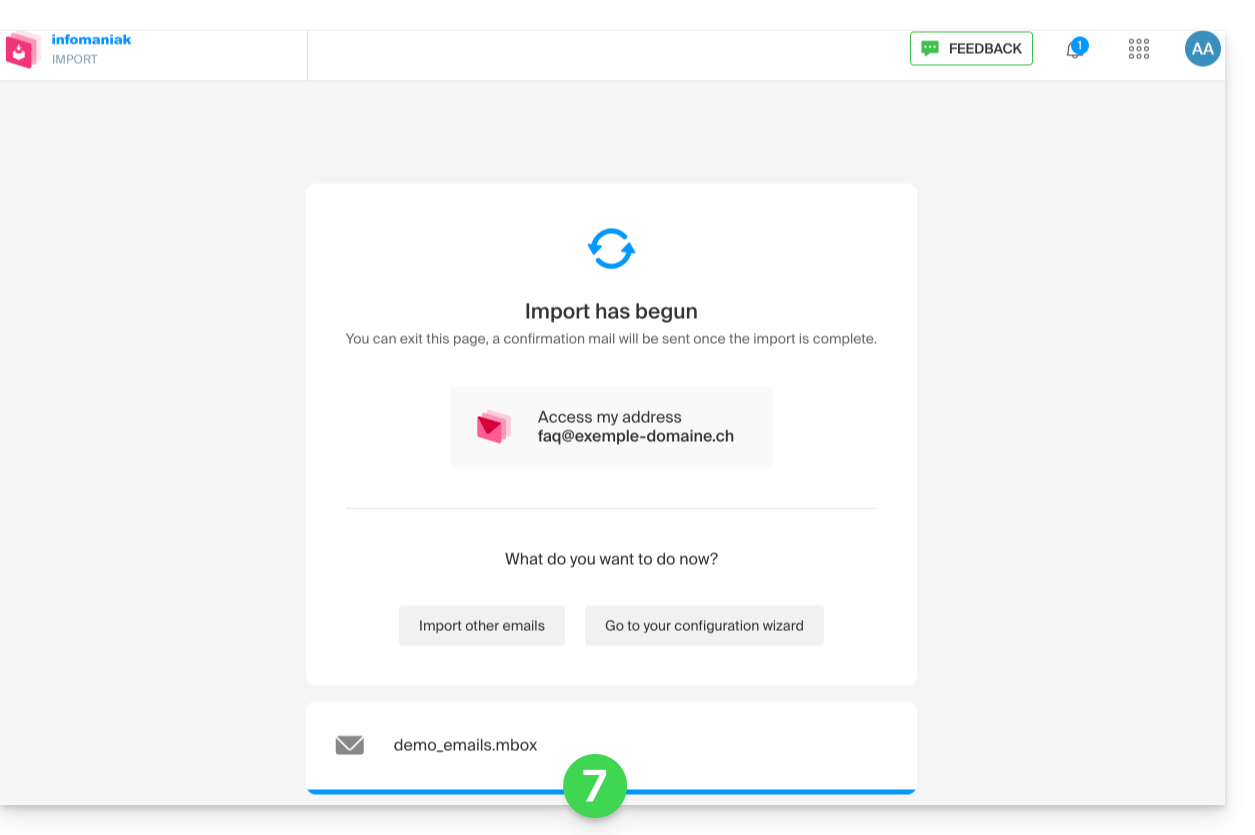
- The import process has started. You can wait and view the results on the page once the import is complete, or close the window (the import will continue in the background, and you can track its progress - see below):
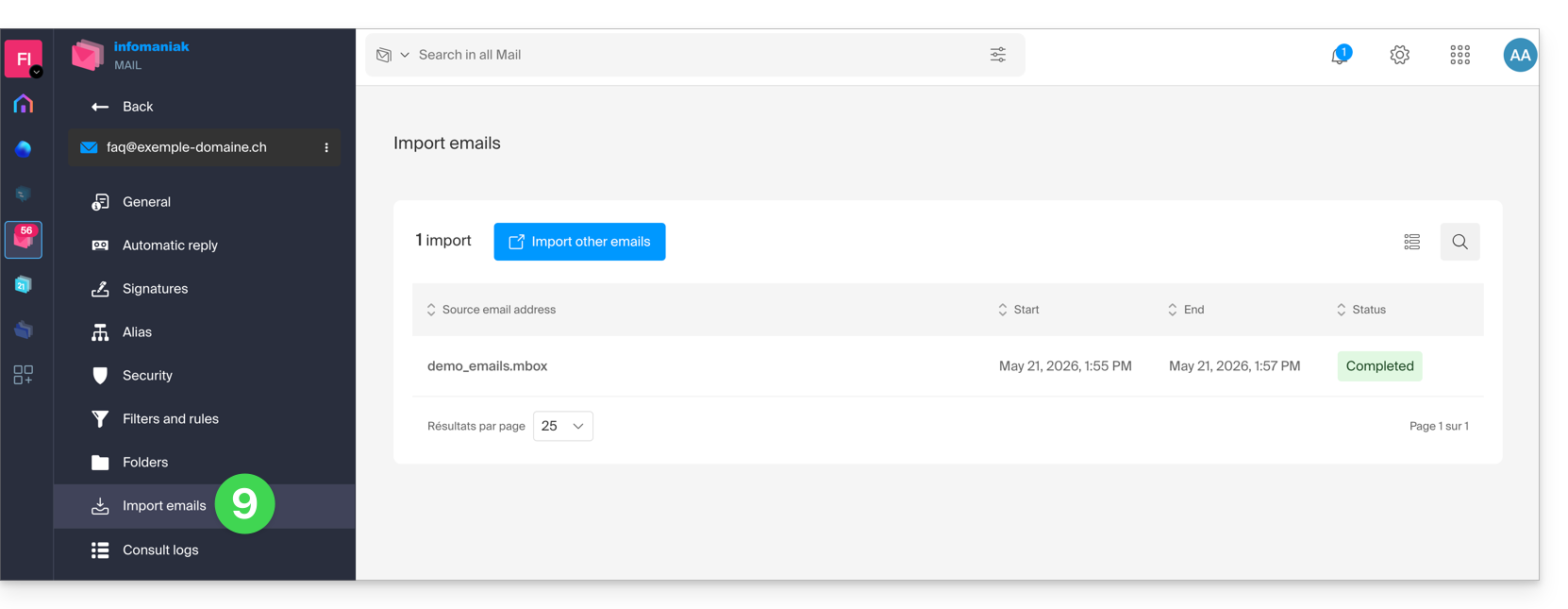
- You can track the progress in the settings for the destination email address, on the web app Mail (online service ksuite.infomaniak.com/mail) only.
- The tracking feature allows you to view the import history for the address in question:
Link to this FAQ: https://faq.infomaniak.com/2207
Has this FAQ been helpful?
This guide explains how to create an Infomaniak account, which is your user account (customer account) that allows you to use Infomaniak services such as Mail or kDrive, order additional services, and be linked to one or more Organizations (❓: help) to collaborate effectively within the Infomaniak ecosystem.
Create a new Infomaniak account
To be able to order and manage Infomaniak products (including in cases where a user wishes to transfer existing products to you) within one or more Organizations, it is necessary to create a first Infomaniak account with a brand new login ID:
- Click here to register; you will need to enter a valid email address to receive the mandatory verification request.
- Fill in the required information and complete the registration.
To simply obtain a my kSuite / my kSuite+ account (ik.me, etik.com, ikmail.com), click here to register.
Link to this FAQ: https://faq.infomaniak.com/2232
Has this FAQ been helpful?
This guide explains how to receive event reminders from the Infomaniak Web app Calendar (online service ksuite.infomaniak.com/calendar) on a messaging system like kChat, so you can be notified in the chat thread of your choice when an event is approaching.
Introduction
- The kSuite Free plan is limited to 1 webhook.
Link the kChat webhook to Calendar
Prerequisites
- Create an incoming webhook on the kChat app to obtain a URL of the type
https://your-server-kchat.xyz/hooks/xxx-key-generated-xxx: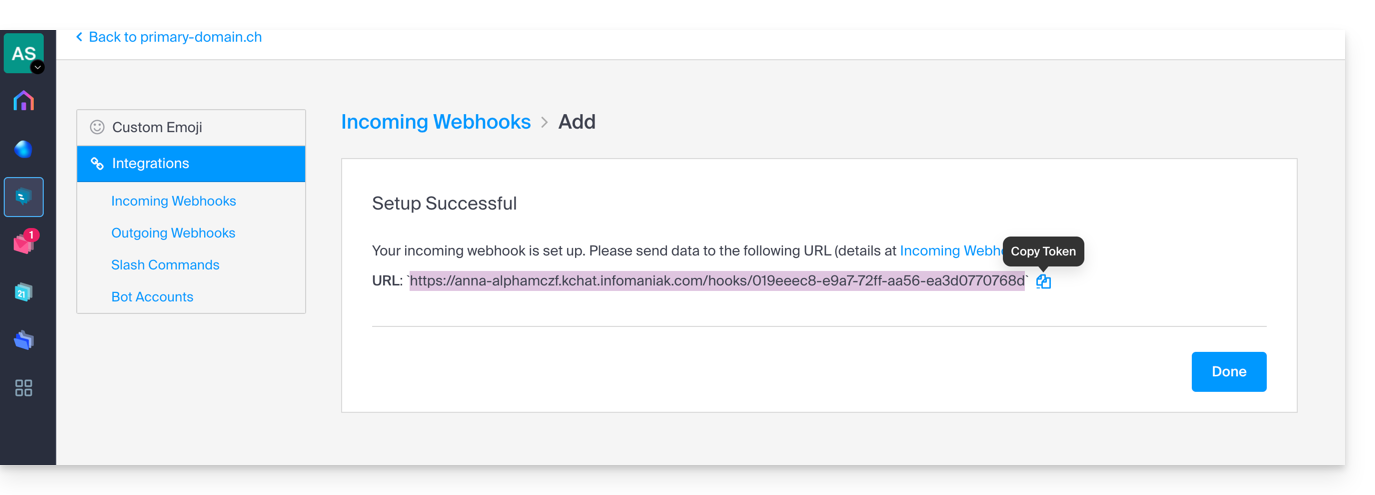
Next, to add the webhook for your chat system to the Calendar app:
- Click here to access the Infomaniak web Calendar app (online service ksuite.infomaniak.com/calendar).
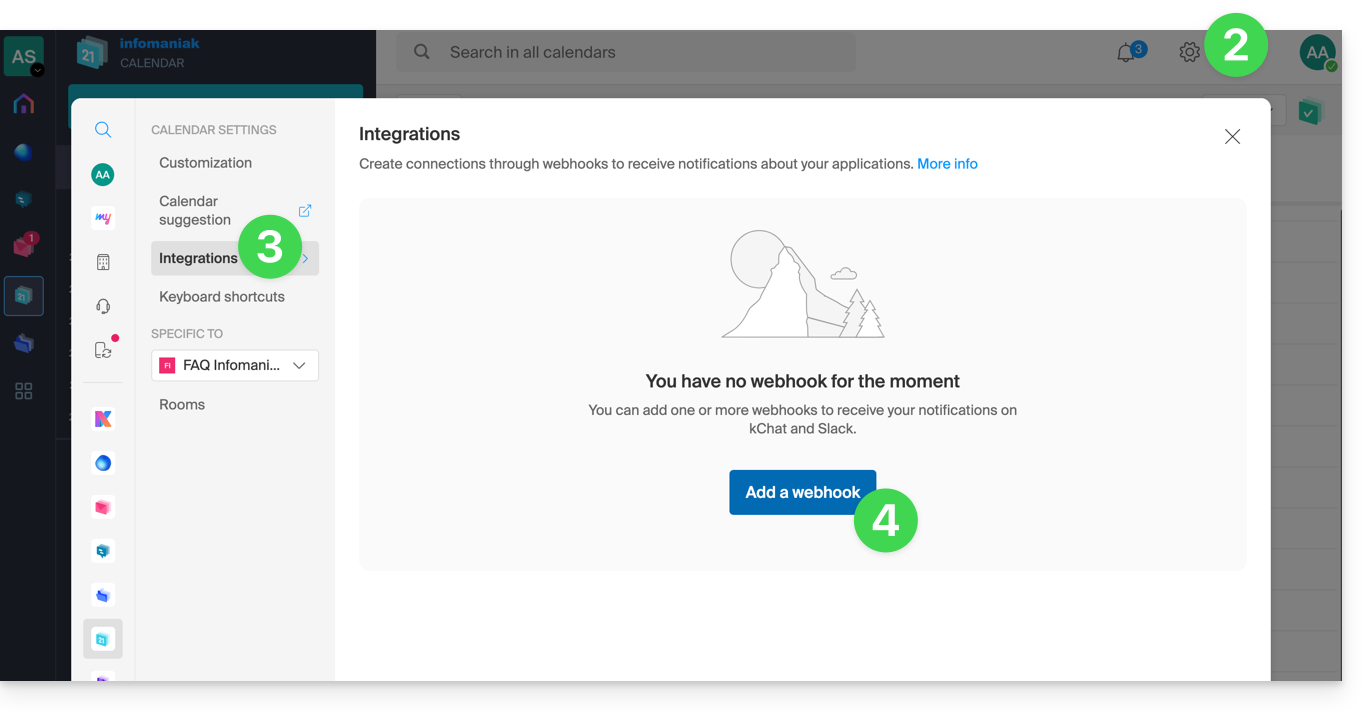
- Click on Settings in the top right corner.
- Click on Integrations in the left-hand menu.
- Click on the Add a webhook button:
- Define:
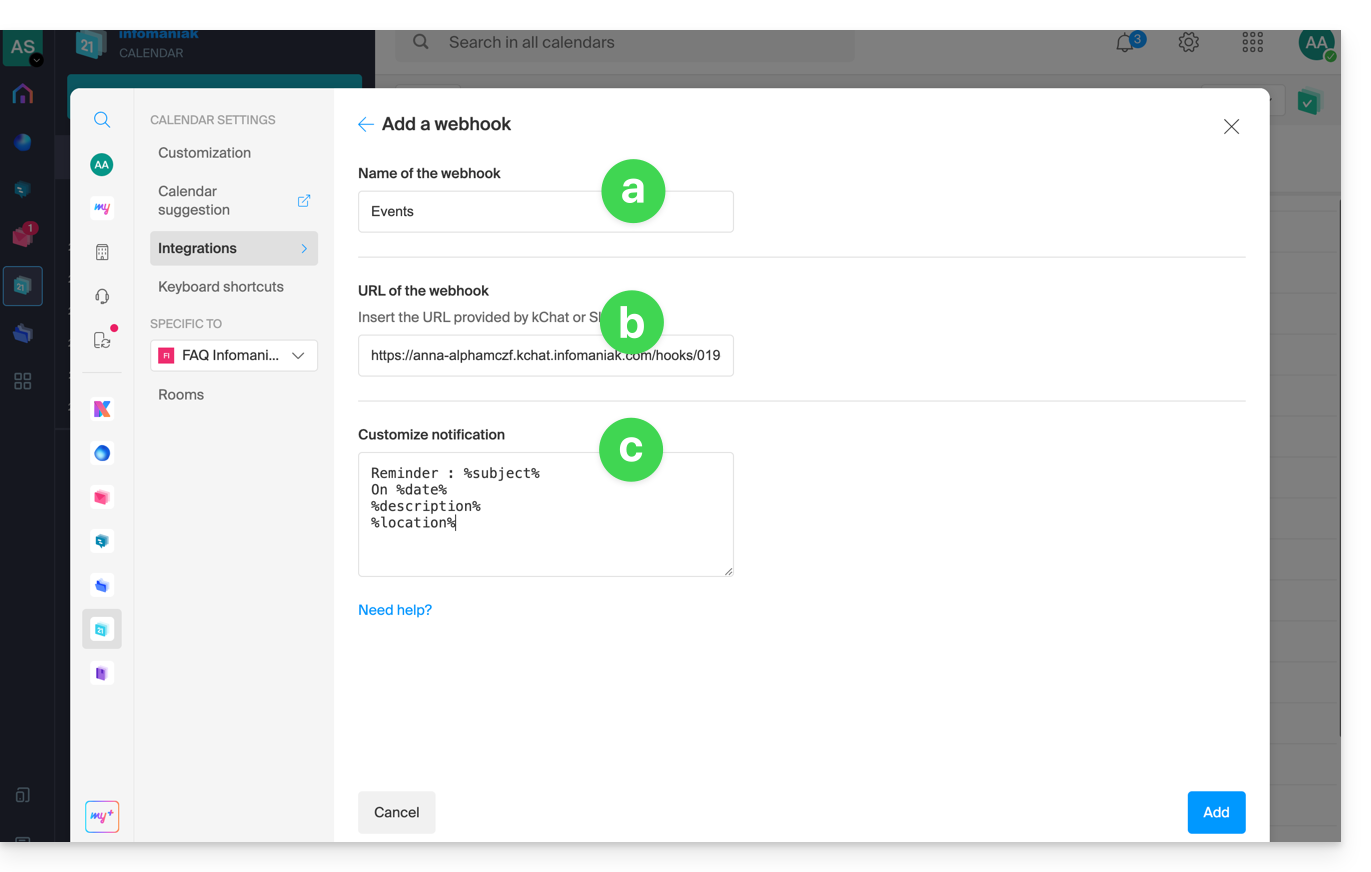
- A name to easily identify the webhook when adding reminders.
- The webhook URL (obtained from your chat system).
- The elements (automatically taken from your event and/or added manually here) and their layout in the message that will be sent:
- Insert %subject% to include the event subject.
- Insert %date% to include the event date.
- Insert %description% to include the event description.
- Insert %location% to include the event location, if applicable.
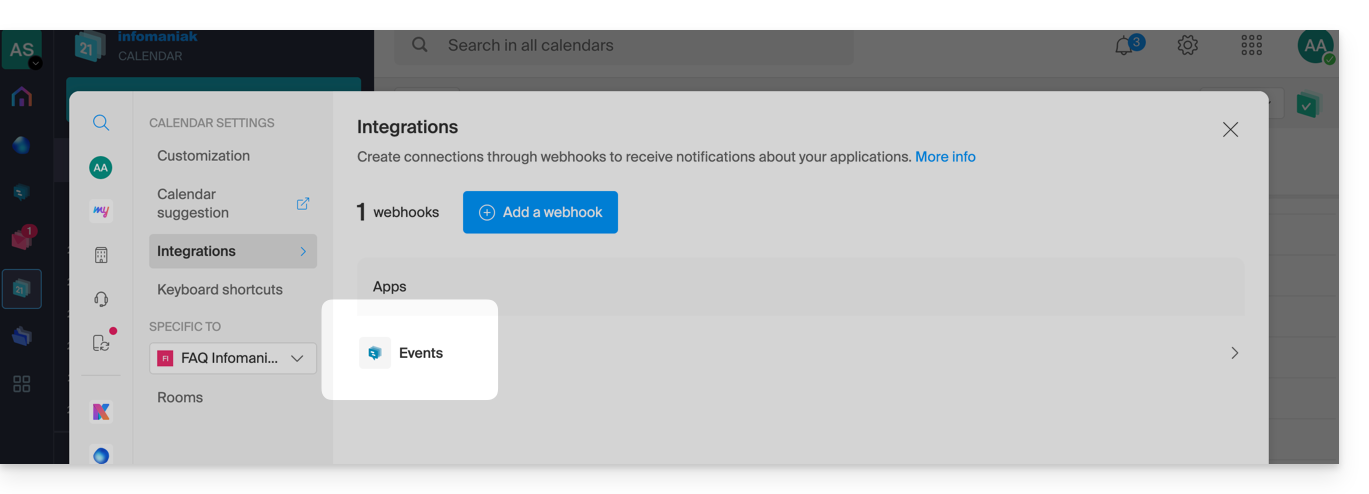
- Click the button to Add the configured item and see it created:
Create an event with chat reminder
Now that Calendar is linked to your messaging system account, you can choose to be notified in a chat when you add a reminder to an event:
- Click here to access the Infomaniak Calendar web app (online service ksuite.infomaniak.com/calendar).
- Click the Create button in the top left corner.
- Click on Event:
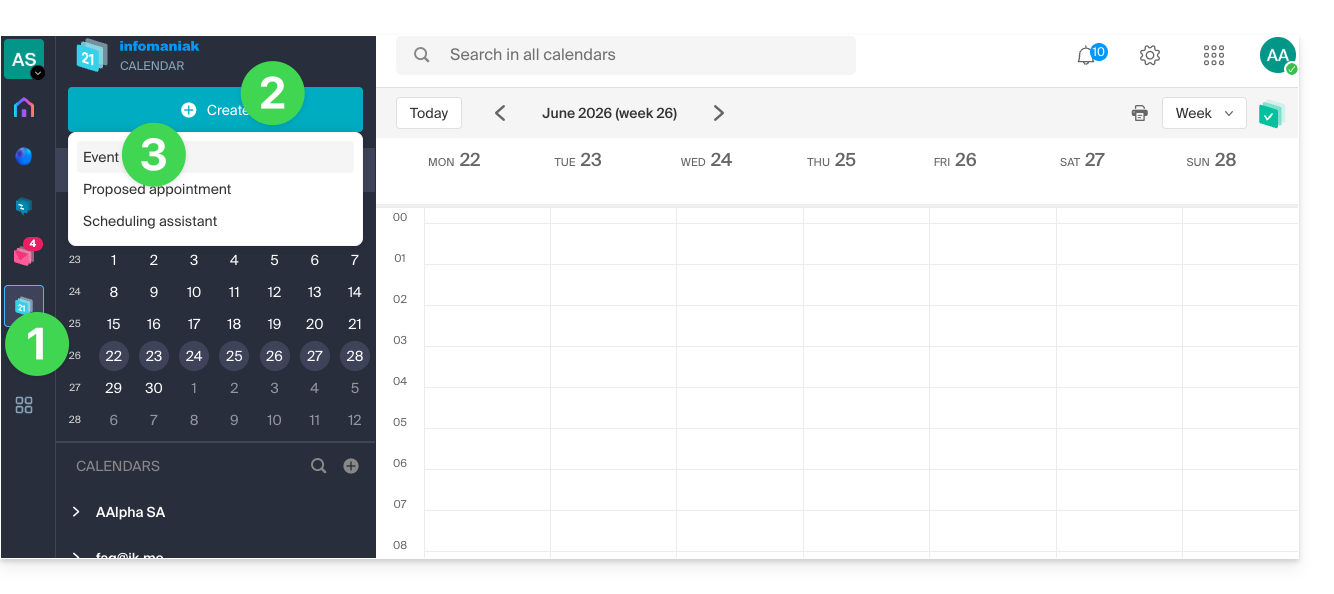
- You can also click on an existing event in the calendar to edit it.
- Enter the event details.
- Click on Add reminder to configure it:
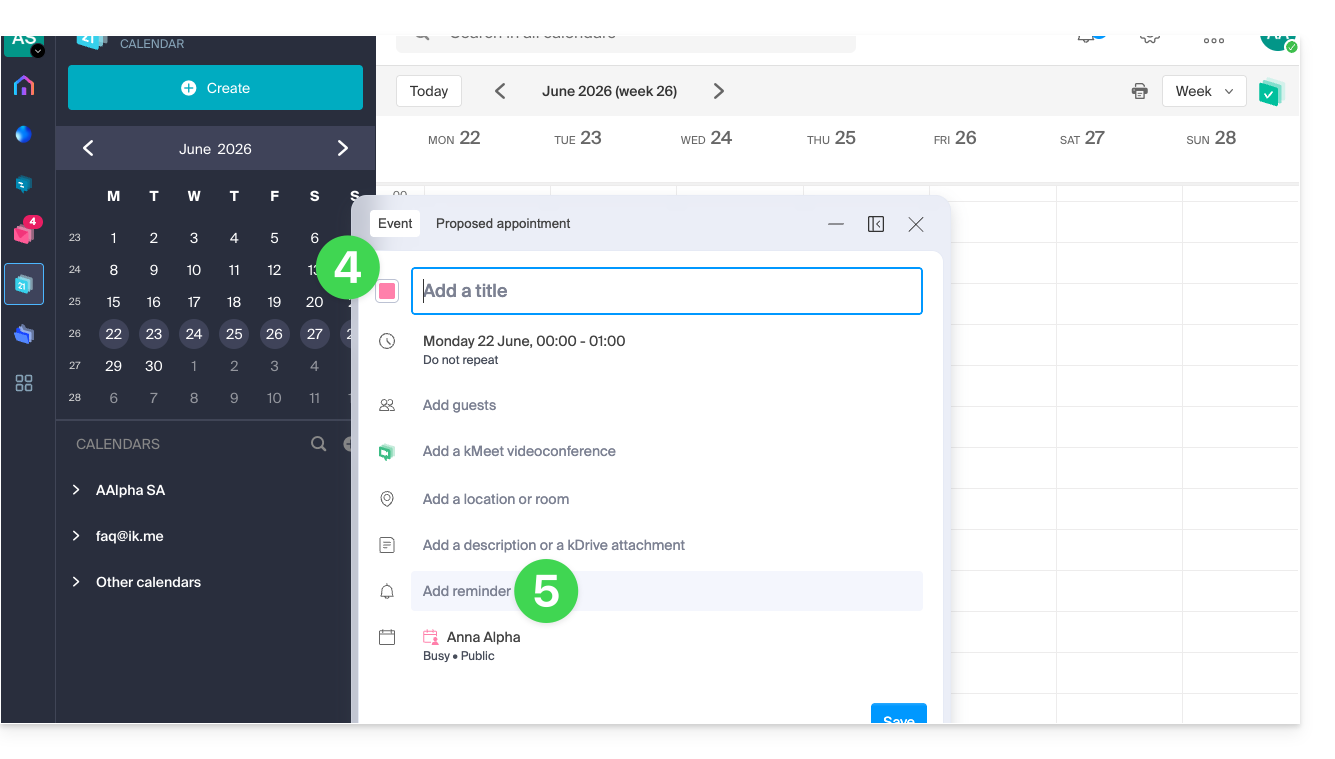
- In the dropdown menu for reminder types, select the webhook you configured (according to the name given in step 5a above).
- Save the event at the bottom of the page:
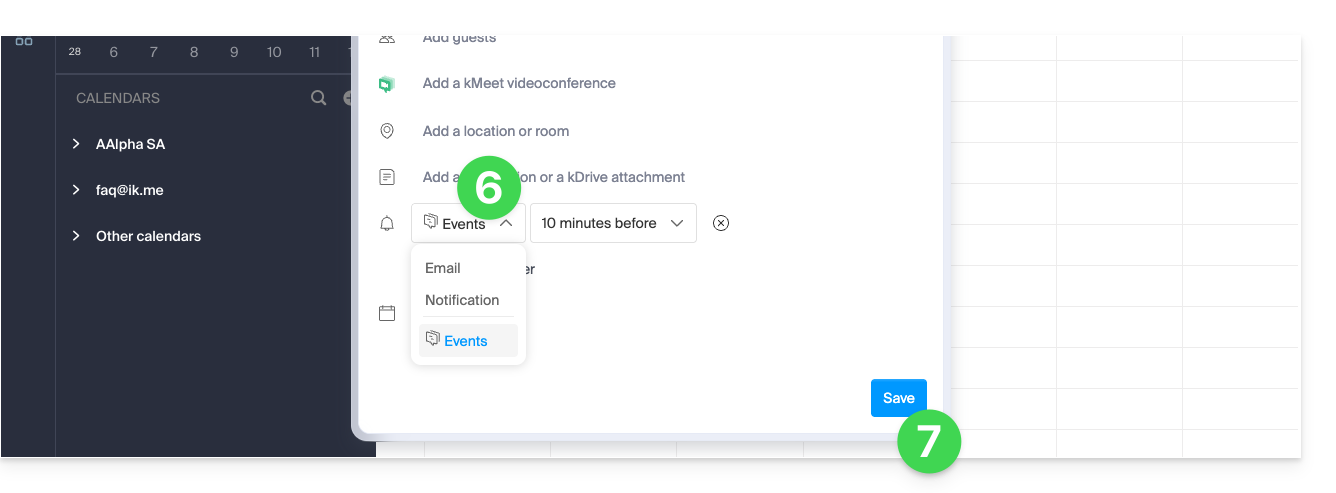
- When the reminder time arrives, a message (in the format configured in point 5c above) is sent to the event's recipient on the channel configured in the webhook (see prerequisites):
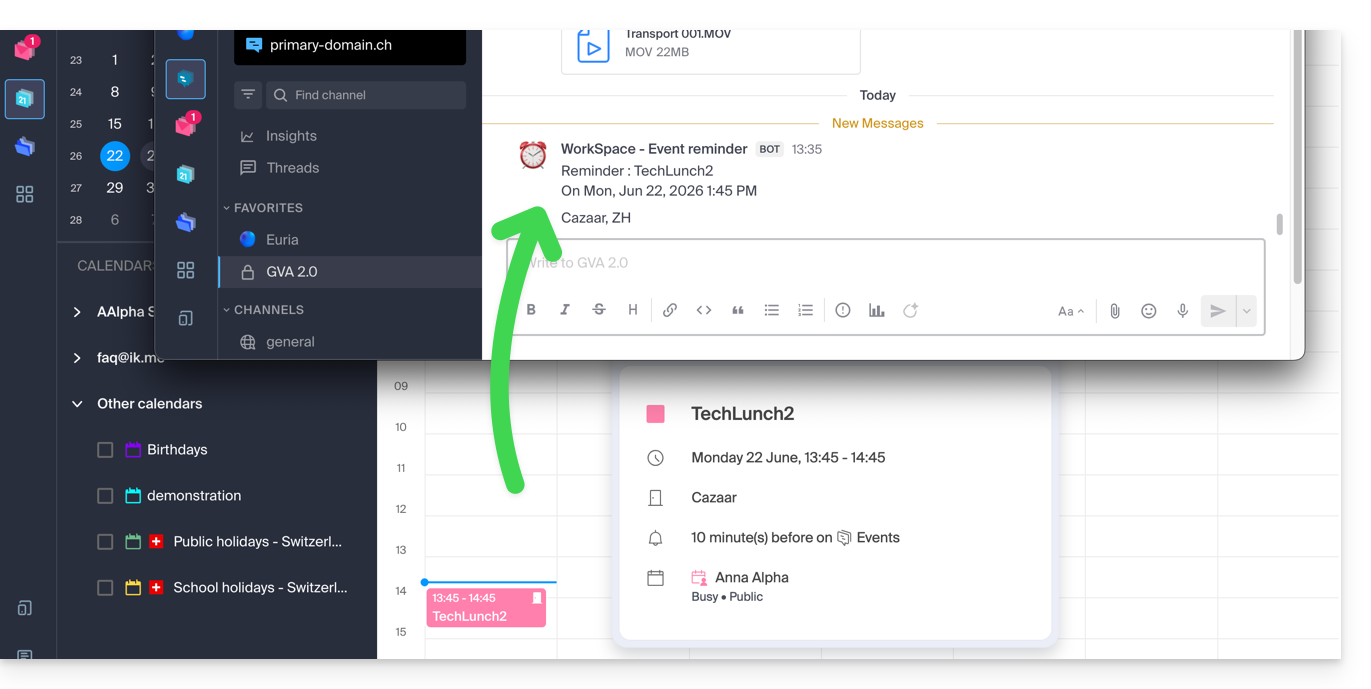
And on other messaging systems?
Slack
- Click here to access the Slack WebHooks.
- Choose the discussion thread where your reminders will appear (e.g. @slackbot or #general):
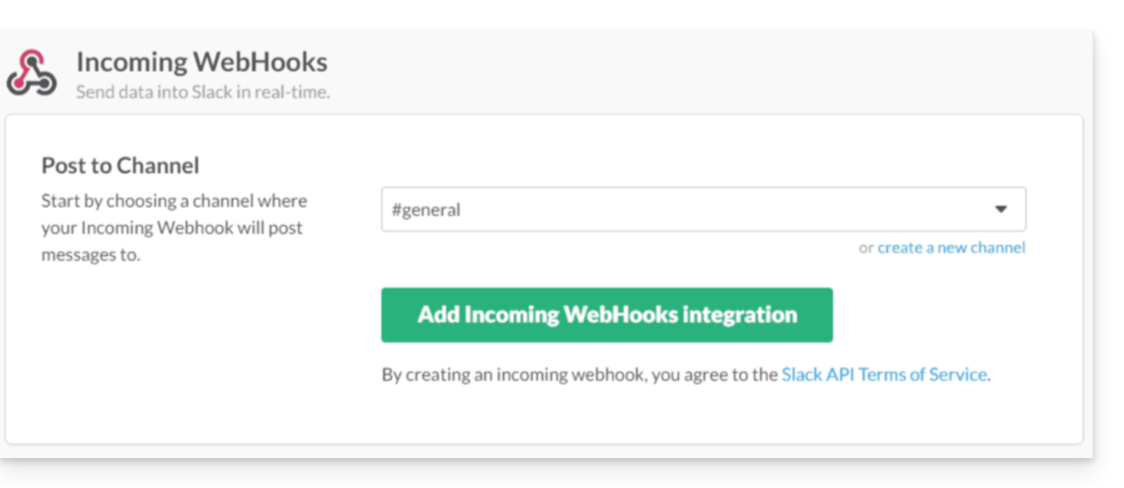
- Save to obtain the webhook URL.
Create additional webhooks to define reminders in other threads.
You can freely use Slack's formatting options in your notifications. Example in French:
N'oubliez pas de %subject% pour le %date%.
À prendre avec le jour J : %description%.
Lieu de l'event : %location%
Link to this FAQ: https://faq.infomaniak.com/2244
Has this FAQ been helpful?
This guide explains how reminders and event alerts work in the Infomaniak Calendar web app (online service ksuite.infomaniak.com/calendar).
Add a reminder or alert to an event
To add a reminder to an event (e.g., an appointment):
- Click here to access the Infomaniak Calendar web app (online service ksuite.infomaniak.com/calendar).
- Click the Create button in the top left corner.
- Click on Event:
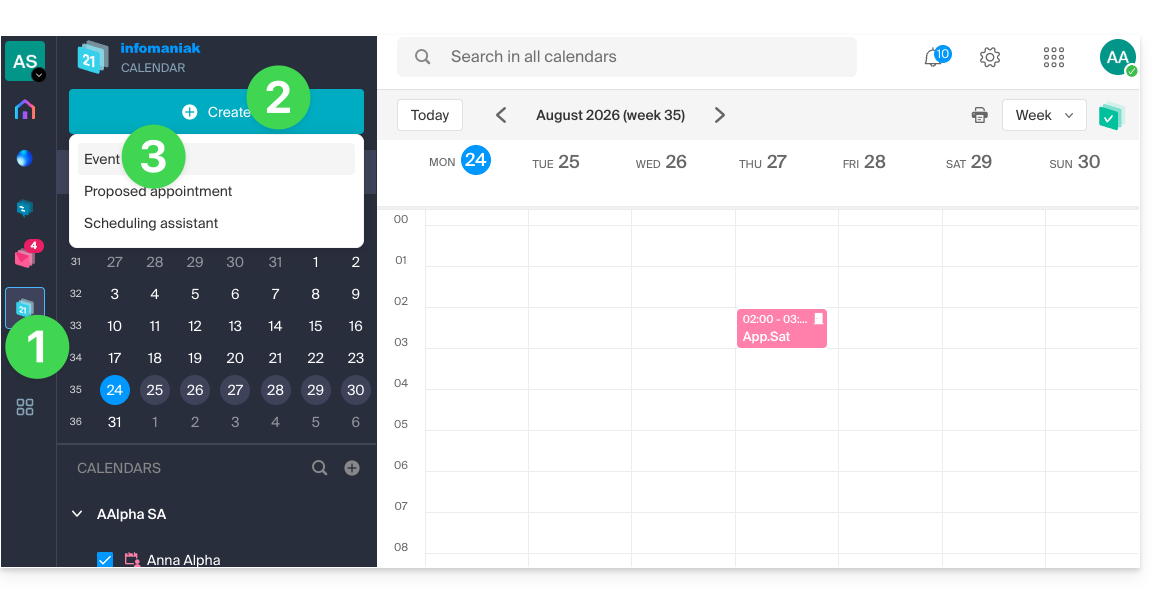
- You can also click on an existing event in the calendar to edit it.
- Click on Add a reminder to configure it:
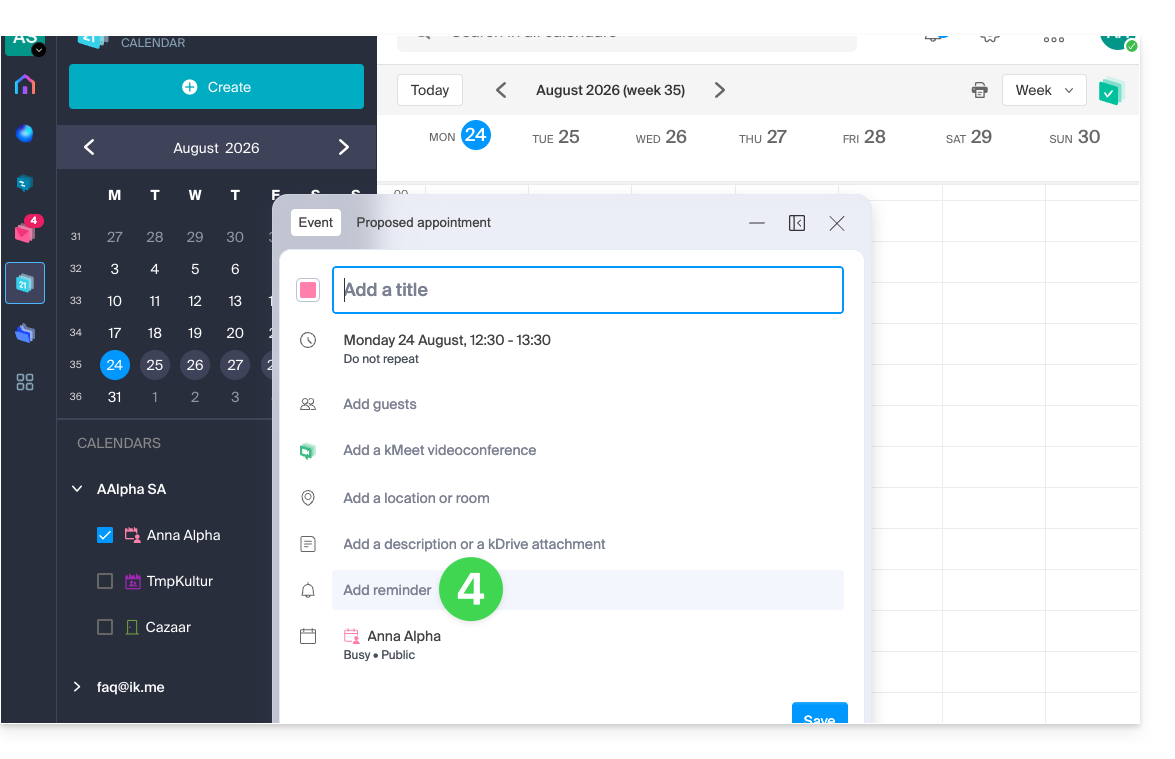
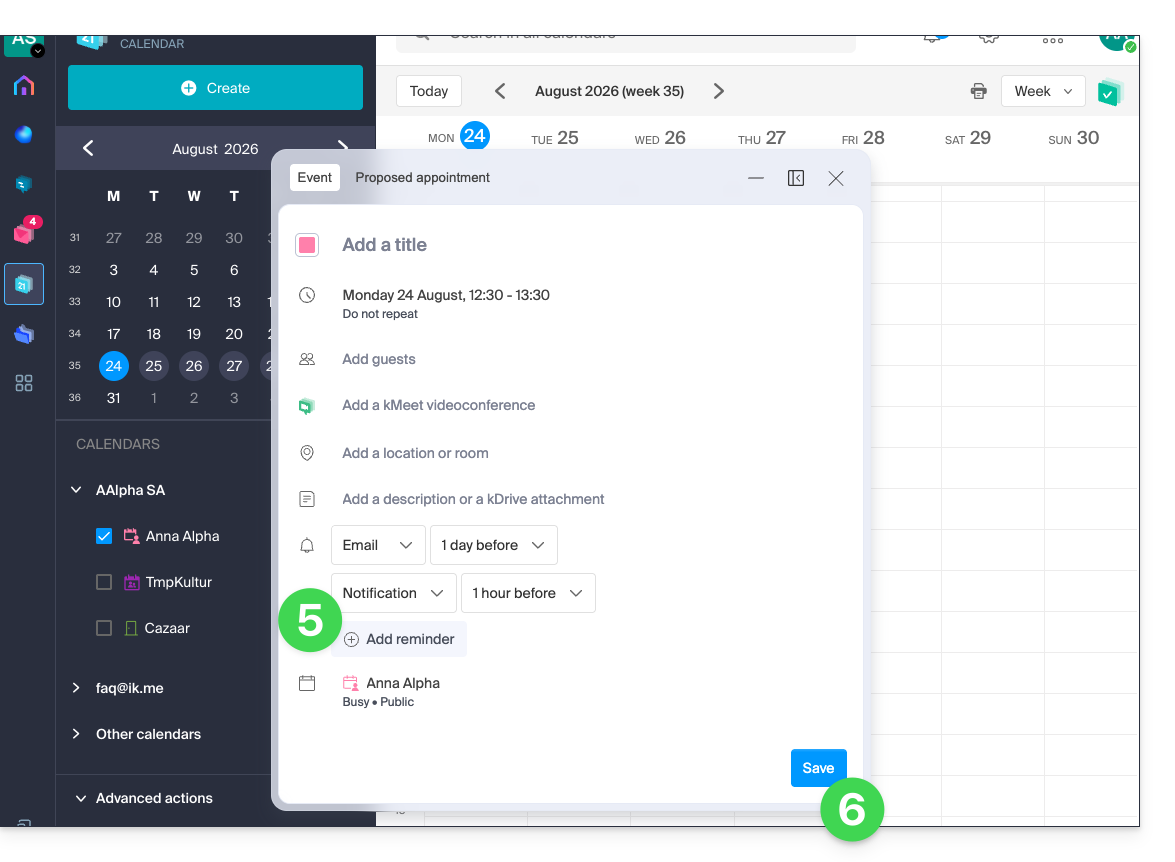
- To receive multiple notifications, you need to add multiple reminders (tap on ).
- Save the event at the bottom of the page:
Reminder types
You can be notified via 3 different channels:
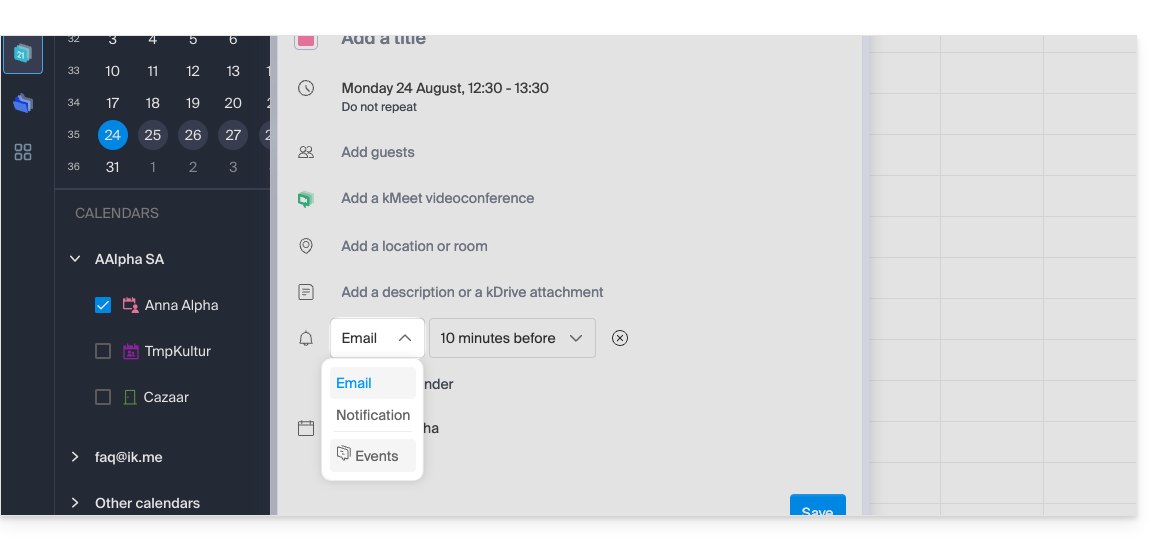
- Via email: the reminder will be sent by email at the chosen time.
- Via a browser notification, such as from Brave, Chrome, Edge, Firefox, Opera, Safari…: the reminder will be displayed via a notification managed by your browser, provided that kSuite is connected; this is also the option to choose if you synchronize your calendar with your phone to receive an alert on your device.
- Via a chat system like kChat: the reminder will be sent to the chosen chat thread.
Event invitees will not be notified by the reminders.
Define one or more default reminders
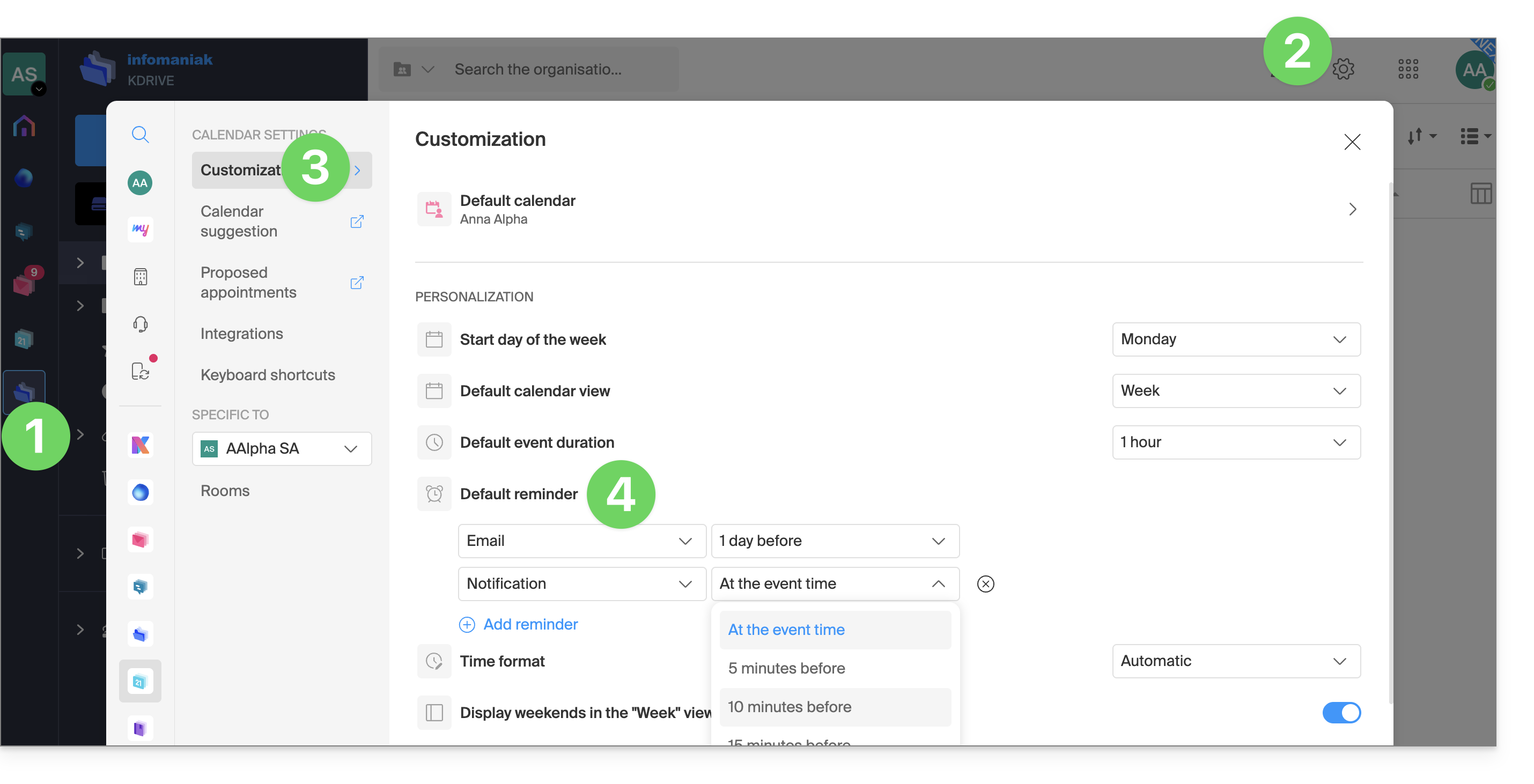
Setting up a manual alert for each event quickly becomes repetitive. Define reminders for all your appointments in your calendar settings: an email 15 minutes beforehand or a notification the day before – it's up to you. These rules apply by default and can be modified on a case-by-case basis:
- Click here to access the Infomaniak Calendar web app (online service ksuite.infomaniak.com/calendar).
- Click on Settings in the top right corner.
- Click on Customization.
- Configure one or more reminders that will then be applied to each of your newly created events:
Link to this FAQ: https://faq.infomaniak.com/2248
Has this FAQ been helpful?
This guide explains how to download and use the Infomaniak kSync mobile app for Android devices (Samsung, Huawei, Google Pixel, etc.) which allows you to synchronize calendars and contacts between Android devices (with data stored with Infomaniak).
Introduction
- Once the kSync application is configured, the selected items are automatically synchronized with the Contacts and Calendar applications, which are installed by default on an Android device.
- You can choose to display or hide your various Infomaniak address books and calendars directly within these apps.
- Any modification (addition, editing, deletion) made on the phone is reflected in the Infomaniak interface, and vice versa.
- Data updates are performed continuously according to the configured synchronization interval.
- Refer to this other guide for an example of how to use kSync:synchronizing an Infomaniak calendar with a Google calendar.
Configure kSync
Prerequisites
- Download the Infomaniak kSync mobile app (application for Android smartphones or tablets) here:

- The kSync application is also available on F-droid.
- Install kSync.
Next, launch the kSync app on your Android device. A step-by-step assistant will help you configure the app according to your needs:
- Decide whether you want to synchronize tasks.
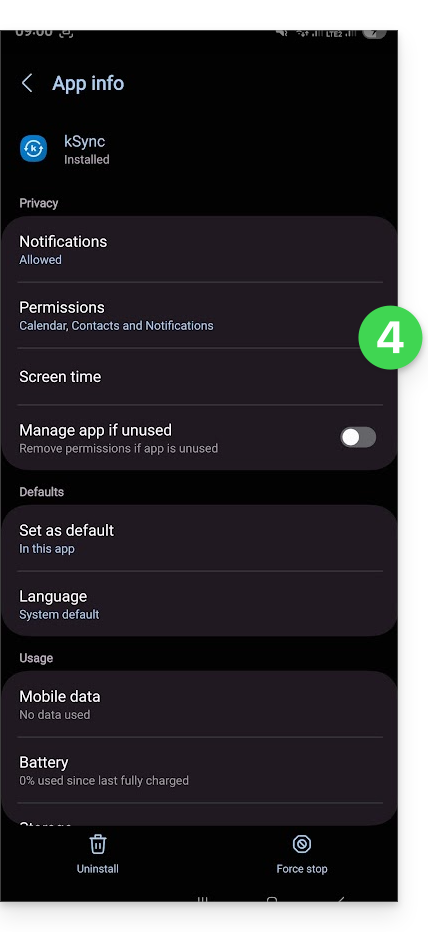
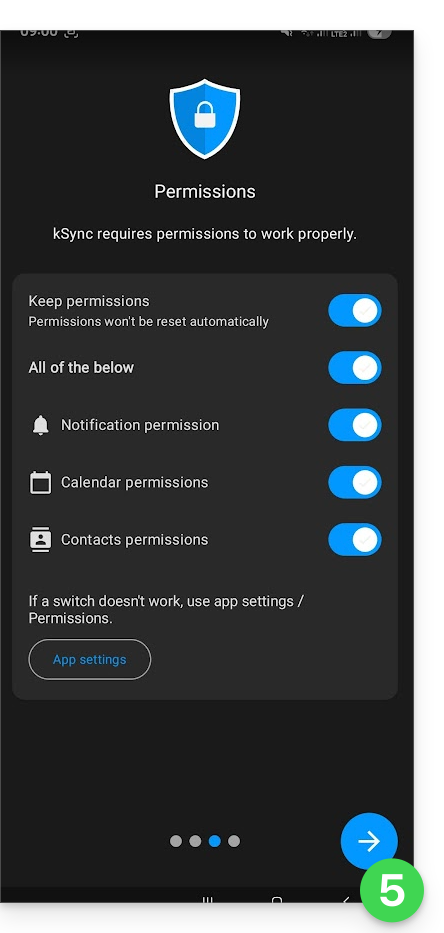
- Allow kSync to access the required items on the device, primarily the calendar.
- Allow the application to run in the background for better synchronization (uses more battery); settings can also be configured within the app itself:
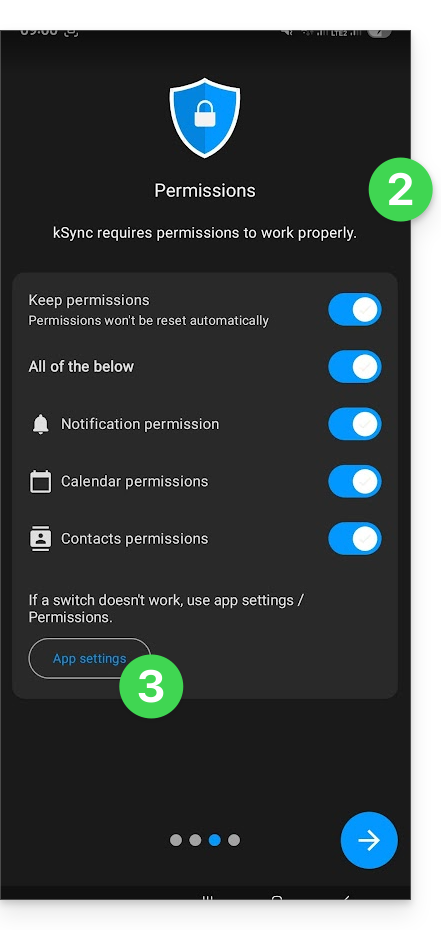
- The key is to grant access rights to the services you need to synchronize:
- Go back to the kSync app and continue the configuration:
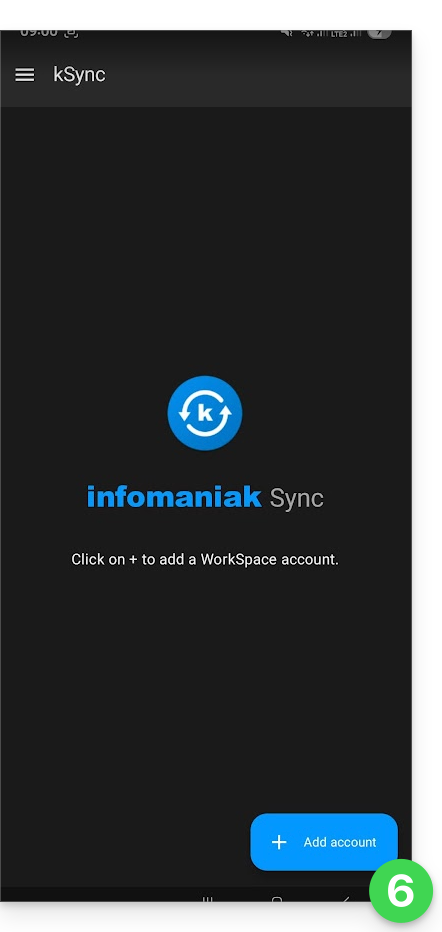
- Tap to add an Infomaniak user account (the one you use to log in to your Infomaniak services):
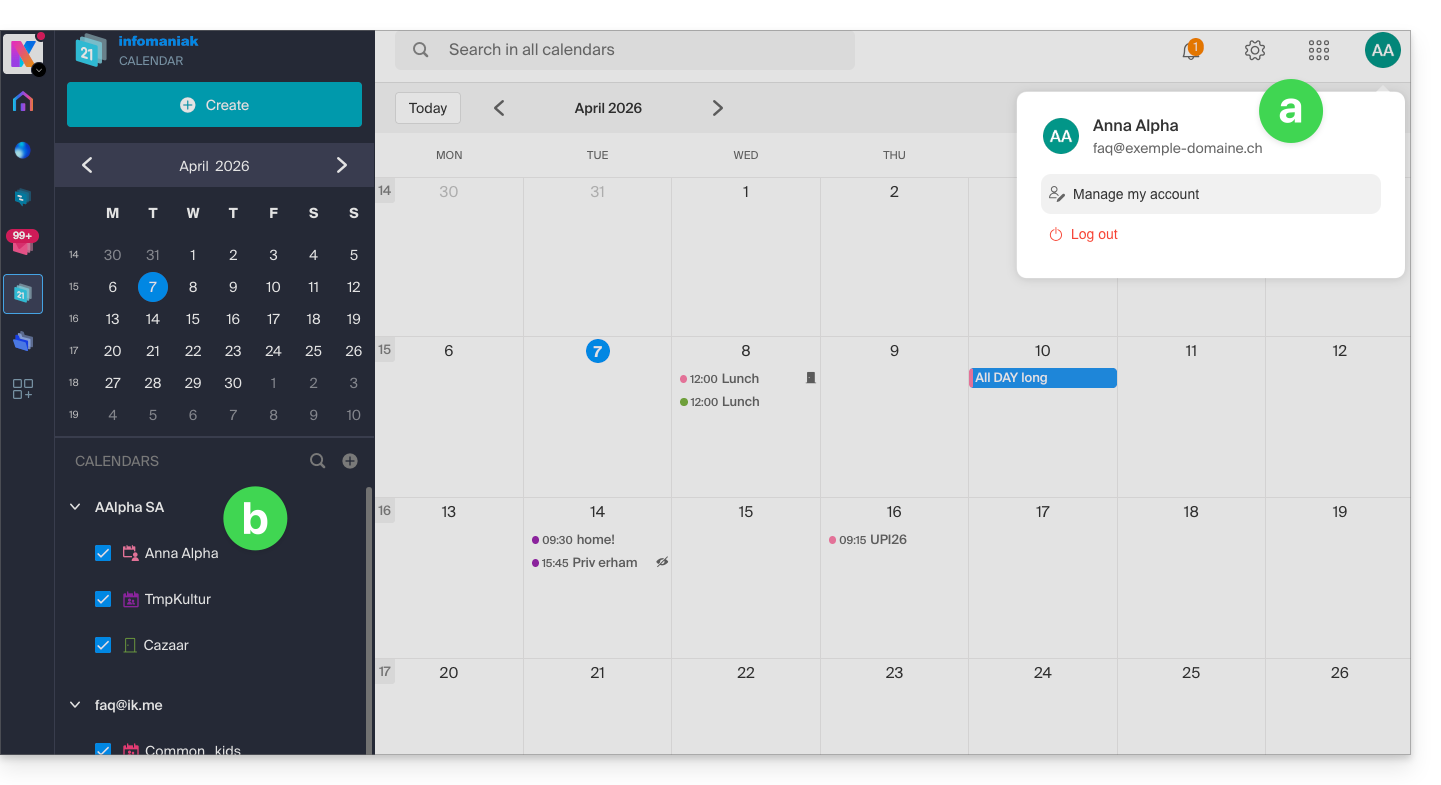
- For example, in the Calendar web app, the user menu in the top right corner shows the login email address.
- You can then access the calendars of the Organization to which the current user belongs:
- This is the data that will be synchronized to your device when you log in to the same Infomaniak account on kSync…
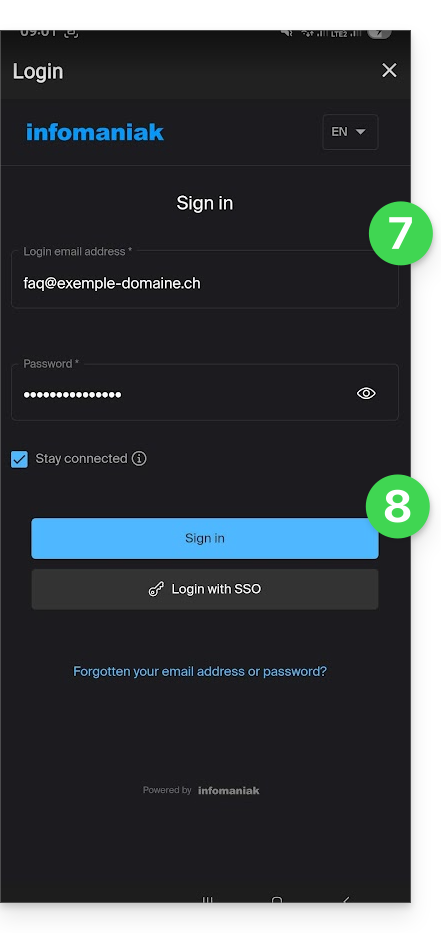
- Enter your Infomaniak login credentials (see point a above).
- Tap the button to log in:
- Complete the two-factor authentication steps as you normally would when logging in.
- Once logged in to kSync, under the Calendars CalDAV tab, choose the calendar(s) that should be displayed on your device.
- Under the Address Books CardDAV tab, choose the address book(s) that should be displayed on your device.
- Start the synchronization using the button located in the bottom right corner:
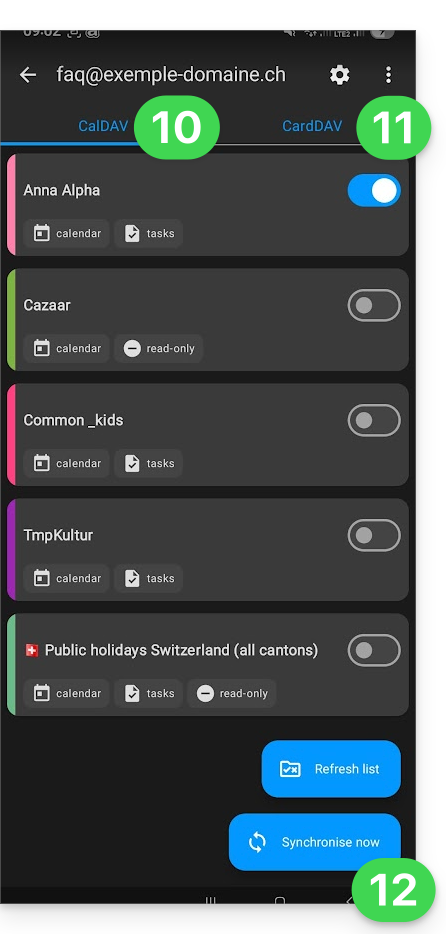
kSync synchronization settings
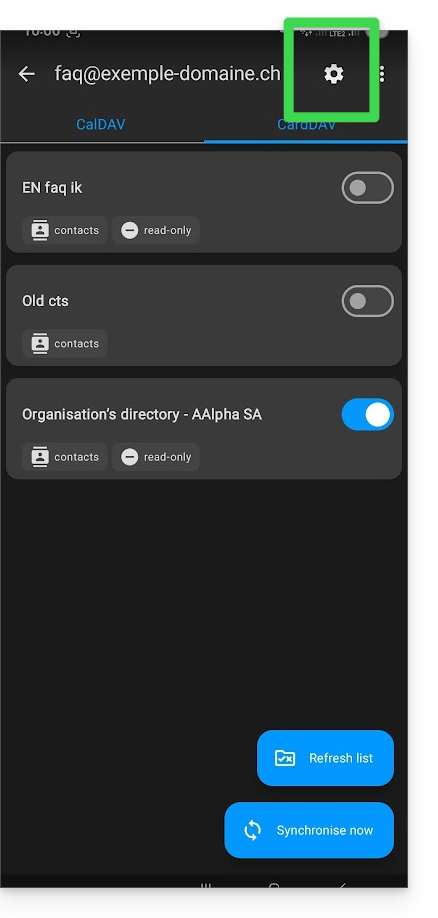
Click on Settings in the top right corner to adjust some important kSync settings:
- Synchronization interval: you can change the frequency of synchronizations (15, 30, 60 minutes, etc.) for each type of information (address books, calendars, tasks).
- Synchronization via Wi-Fi only (and if so, with which networks...).
- Limit the display of past events.
- Receive a notification for each event that does not have a specific reminder, with a notification delay defined in advance (in minutes).
- Display event colors and persistently synchronize the colors or not.
- Displaying contact groups.
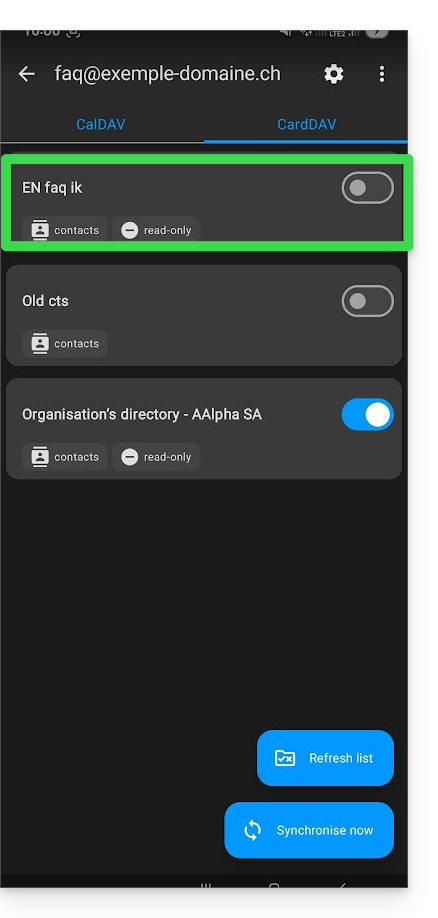
You can also tap on the address books or calendar to configure certain elements:
- It is possible to force read-only mode via kSync, which means that items are synchronized but cannot be modified by the device.
- You can also delete a calendar or address book (excluding the Organization's directory):
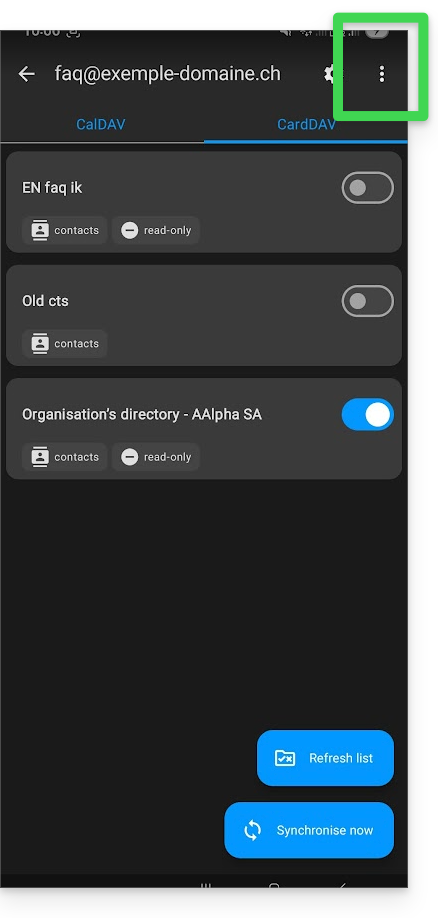
Rename/remove the Infomaniak account from kSync
Tap the action menu ⋮ located to the right of the account in question:
- You can create a new address book or calendar.
- You can rename or delete the account linked to kSync:
General kSync app settings
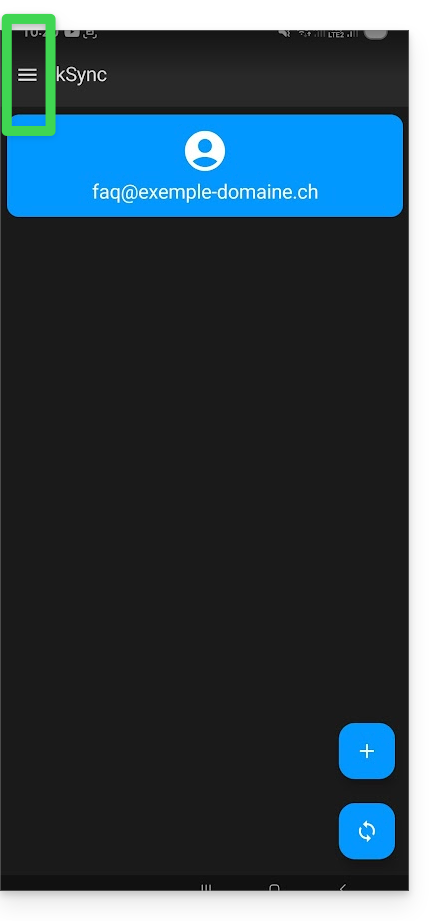
Tap the back arrow in the top left corner of the screen to return to the home page.
- Then, tap the menu button with three horizontal lines ☰ and then tap the “Settings” menu item:
Link to this FAQ: https://faq.infomaniak.com/2298
Has this FAQ been helpful?
This guide concerns kSync, which allows you to create a new calendar or a new address book directly from an Android device.
Create a calendar or address book from the app
To do this:
- Open the kSync mobile app on your Android device.
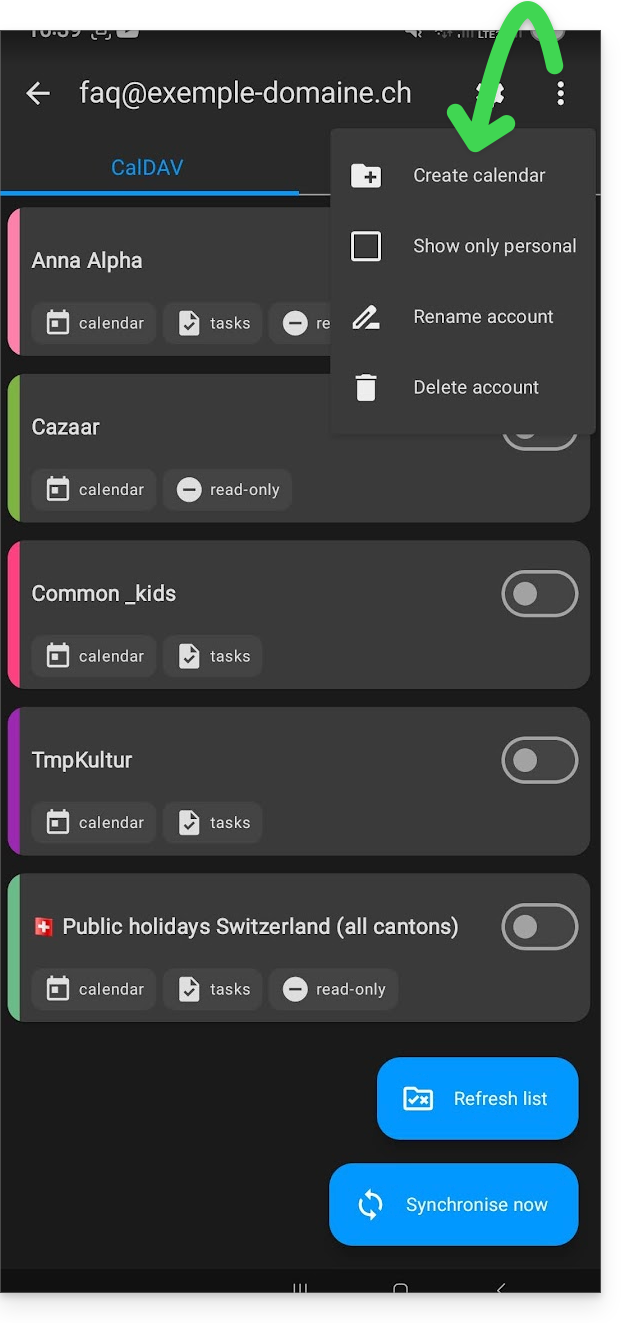
- Once logged in, click on the action menu ⋮ located in the top right corner.
- Tap on Create a new address book / Calendar:
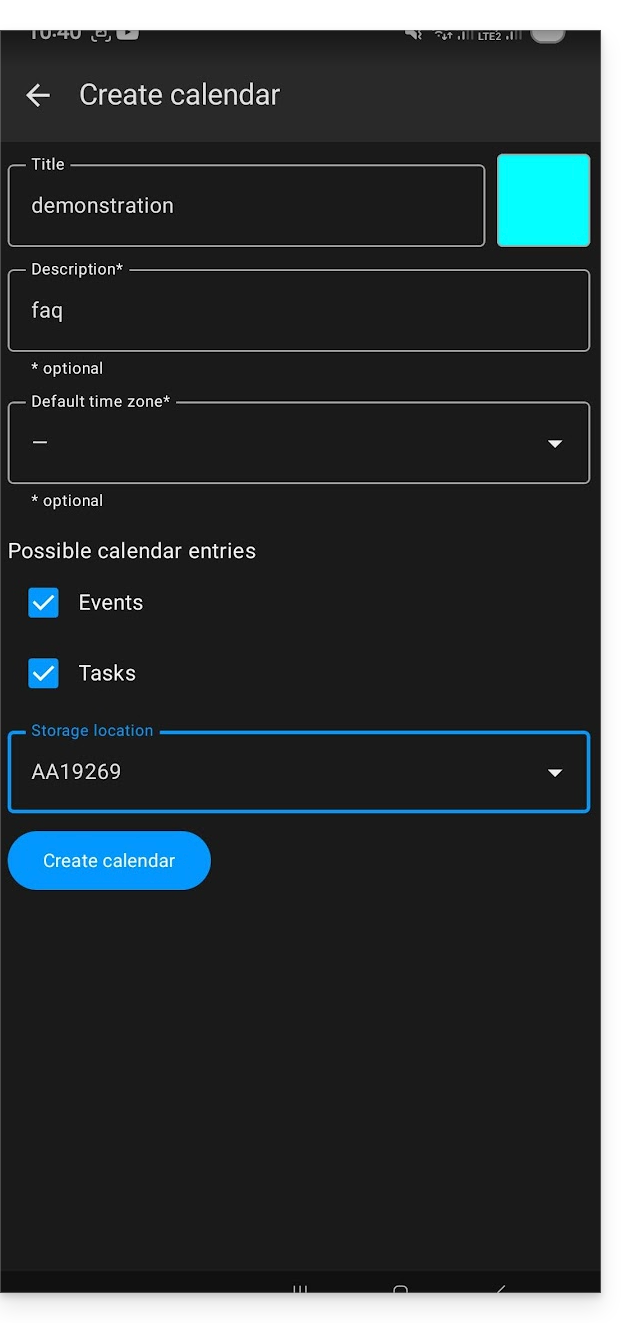
- Enter the name of the notebook or agenda and a color.
- Click on Create:
- If necessary, click the icon to refresh the list; your new item will appear in the list after a few seconds:
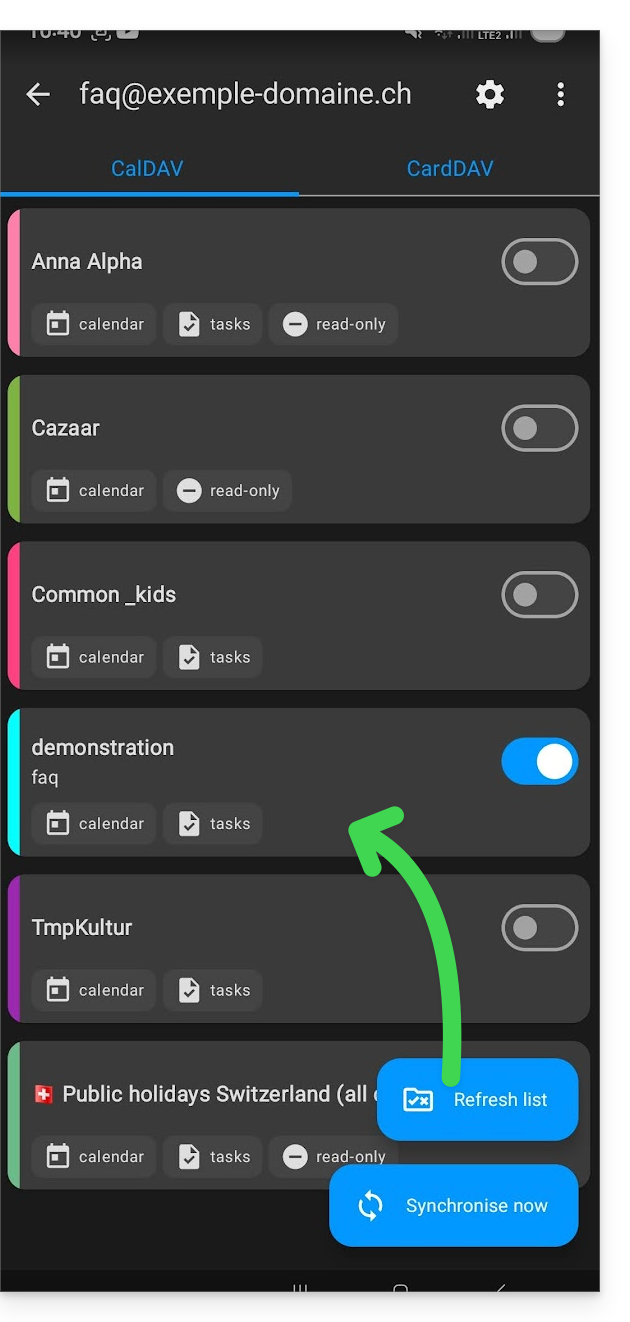
Your service will then be synchronized with the corresponding web app, here Calendar Infomaniak (online service ksuite.infomaniak.com/calendar):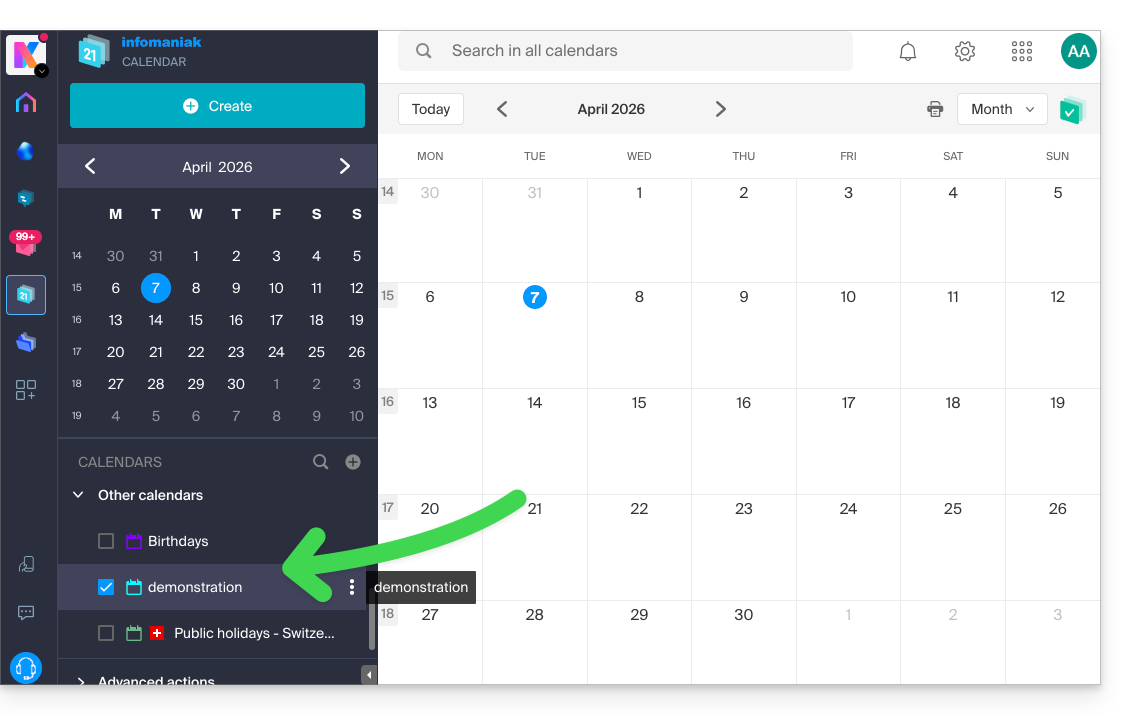
Link to this FAQ: https://faq.infomaniak.com/2299
Has this FAQ been helpful?
This guide explains how to force a synchronization of your Infomaniak contacts & calendars when they are synchronized using the kSync app on your Android device.
Introduction
- The kSync app only synchronizes the contacts & calendars that are selected in the application.
- If you add calendars/agendas later from Calendar or address books from Contacts, you will need to add them to the synchronization in the kSync application.
Add a calendar / address book to synchronization
To force synchronization if necessary:
- Open the kSync mobile app on your Android device and tap on the relevant synchronized account.
- Tap Refresh list to update the address books / calendars:
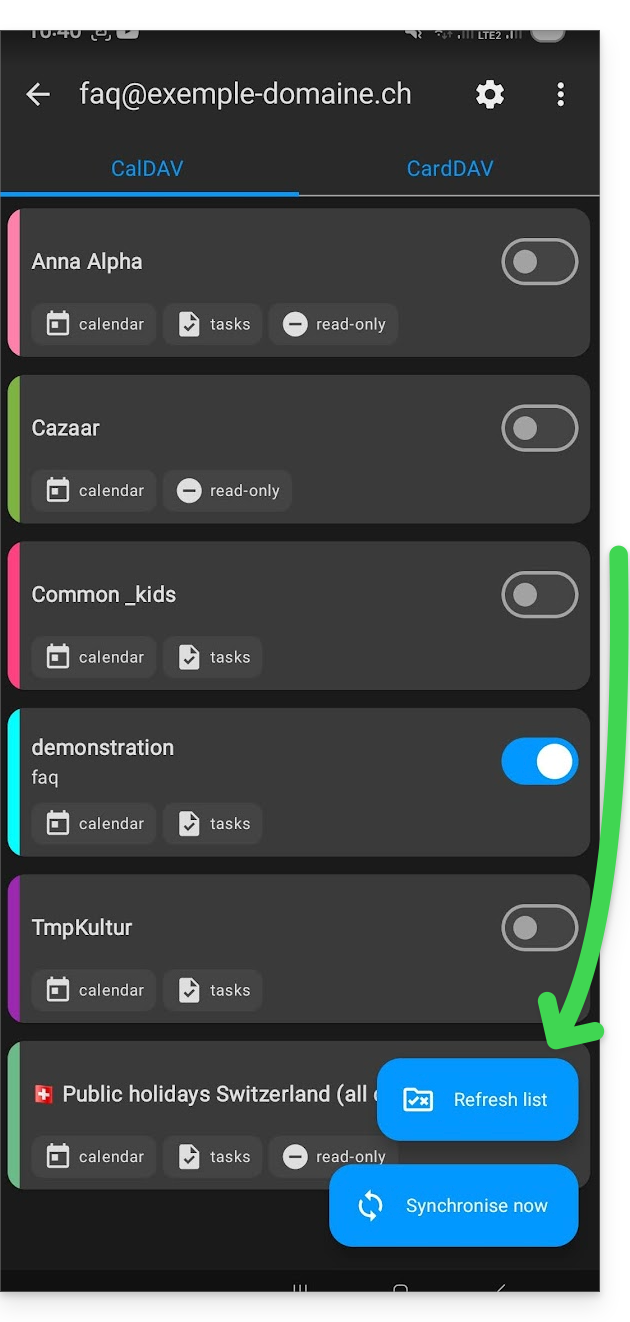
The new notebooks and calendars appear in the list. Configure the ones you want to synchronize.
Link to this FAQ: https://faq.infomaniak.com/2300
Has this FAQ been helpful?
This guide explains how to synchronise tasks with kSync, the Infomaniak mobile app that connects your calendars and contacts stored with Infomaniak with the data on your Android devices.
Prerequisites
- Install and download the free jtx Board application.
Synchronize tasks
To synchronize data between Infomaniak Calendar tasks and your Android devices, jtx Board will use kSync to regularly synchronize tasks based on one or more Infomaniak calendars.
- Here is a task present in Infomaniak:

- After synchronization, it appears on jtx Board:

- Example of task validation when it is executed, then adding a second task from the application:

- Result on Infomaniak:

To go further, it may be necessary to purchase the Pro version of the jtx Board application.
Recommended settings
To improve the readability of your tasks in the application, it is recommended to disable these 2 settings in the jtx Board application settings…
… and then remove "local" from the list of locations, so that you only have the option to save to your synchronized account(s).
Link to this FAQ: https://faq.infomaniak.com/2301
Has this FAQ been helpful?
The Infomaniak kSync mobile app is a free solution offered by Infomaniak that allows you to synchronize contacts, calendars, and tasks from your Android mobile devices (Samsung, Huawei, Google Pixel, etc.) with the tools provided by Infomaniak:
- ksuite.infomaniak.com/contacts for managing contacts / address books
- ksuite.infomaniak.com/calendar for managing calendars
Introduction
- Configuring synchronization at the email level does not mean that contacts & calendars will also be synchronized!
- Email is synchronized via the IMAP protocol, while your contacts & calendars can be synchronized using the CardDAV and CalDAV protocols.
- To facilitate this synchronization on Android devices, it is recommended to install kSync.
- On iOS (iPhone, iPad, etc.), use an Apple profile, which can be downloaded from the configuration assistant.
- Microsoft has its own format that is not directly compatible with CardDAV and CalDAV; therefore, it is not possible on the Outlook mobile app to synchronize contacts and calendars with Infomaniak (PS: a paid and untested solution exists here).
- To synchronize Outlook on your computer, please refer to this other guide.
What would you like to do?
- Download and install kSync on your Android device
- Configure kSync
- Use kSync to synchronize Google Calendar
- Add a new address book or calendar from kSync
- Synchronize tasks between Mail Infomaniak and your Android devices
- Force kSync synchronization
- Generate a specific password if two-factor authentication is enabled
Link to this FAQ: https://faq.infomaniak.com/2302
Has this FAQ been helpful?
Infomaniak continuously improves its products and customer service by prioritizing your suggestions shared through support, social media, or the web. These suggestions are then discussed during meetings of the relevant department.
Introduction
- For languages not listed in the table, please use the English (EN) column.
- Infomaniak support is also available via email, chat, or phone if needed.
Provide feedback on…
INFOMANIAK SERVICE | [FR] | [EN] | [DE] | [IT] | [ES] |
|---|---|---|---|---|---|
| Euria [ ☍ ] | ✎__ | ✎__ | ✎__ | ✎__ | ✎__ |
| Domains [ ☍ ] | ✎__ | ✎__ | ✎__ | ✎__ | ✎__ |
| Hosting / Website Builder [ ☍ ] | ✎__ | ✎__ | ✎__ | ✎__ | ✎__ |
| Cloud Server [ ☍ ] | ✎__ | ✎__ | ✎__ | ✎__ | ✎__ |
| Public Cloud [ ☍ ] | ✎__ | ✎__ | ✎__ | ✎__ | ✎__ |
| Jelastic Cloud [ ☍ ] | ✎__ | ✎__ | ✎__ | ✎__ | ✎__ |
| Synology [ ☍ ] | ✎__ | ✎__ | ✎__ | ✎__ | ✎__ |
| Hosting [ ☍ ] | ✎__ | ✎__ | ✎__ | ✎__ | ✎__ |
| Swiss Backup [ ☍ ] | ✎__ | ✎__ | ✎__ | ✎__ | ✎__ |
| kSuite / my kSuite [ ☍ ] | ✎__ | ✎__ | ✎__ | ✎__ | ✎__ |
| Mail [ ☍ ] | ✎__ | ✎__ | ✎__ | ✎__ | ✎__ |
| app Mail iOS [ ☍ ] | ✎__ | ✎__ | ✎__ | ✎__ | ✎__ |
| Android Mail app [ ☍ ] | ✎__ | ✎__ | ✎__ | ✎__ | ✎__ |
| kDrive [ ☍ ] | ✎__ | ✎__ | ✎__ | ✎__ | ✎__ |
| Calendar [ ☍ ] | ✎__ | ✎__ | ✎__ | ✎__ | ✎__ |
| Contacts [ ☍ ] | ✎__ | ✎__ | ✎__ | ✎__ | ✎__ |
| Chk.me [ ☍ ] | ✎__ | ✎__ | ✎__ | ✎__ | ✎__ |
| Newsletter [ ☍ ] | ✎__ | ✎__ | ✎__ | ✎__ | ✎__ |
| SwissTransfer [ ☍ ] | ✎__ | ✎__ | ✎__ | ✎__ | ✎__ |
| Streaming Radio [ ☍ ] | ✎__ | ✎__ | ✎__ | ✎__ | ✎__ |
| Streaming Video [ ☍ ] | ✎__ | ✎__ | ✎__ | ✎__ | ✎__ |
| VOD / AOD [ ☍ ] | ✎__ | ✎__ | ✎__ | ✎__ | ✎__ |
| Guest Manager [ ☍ ] | ✎__ | ✎__ | ✎__ | ✎__ | ✎__ |
| kChat [ ☍ ] | ✎__ | ||||
| kMeet [ ☍ ] | ✎__ | ||||


Link to this FAQ: https://faq.infomaniak.com/2324
Has this FAQ been helpful?
This guide explains how to add a new Organization that you will access with your current Infomaniak account, and within which you can add and/or transfer products, link users, etc.
Introduction
- If you are a my kSuite user, please refer to this other guide.
Create a new Organization
You can add multiple Organizations (i.e., a space for managing your products) by accessing them with the same login ID and password, to separate your professional and personal activities, for example, or when managing multiple clients:
- Click here to access the management of your settings (Infomaniak Manager).
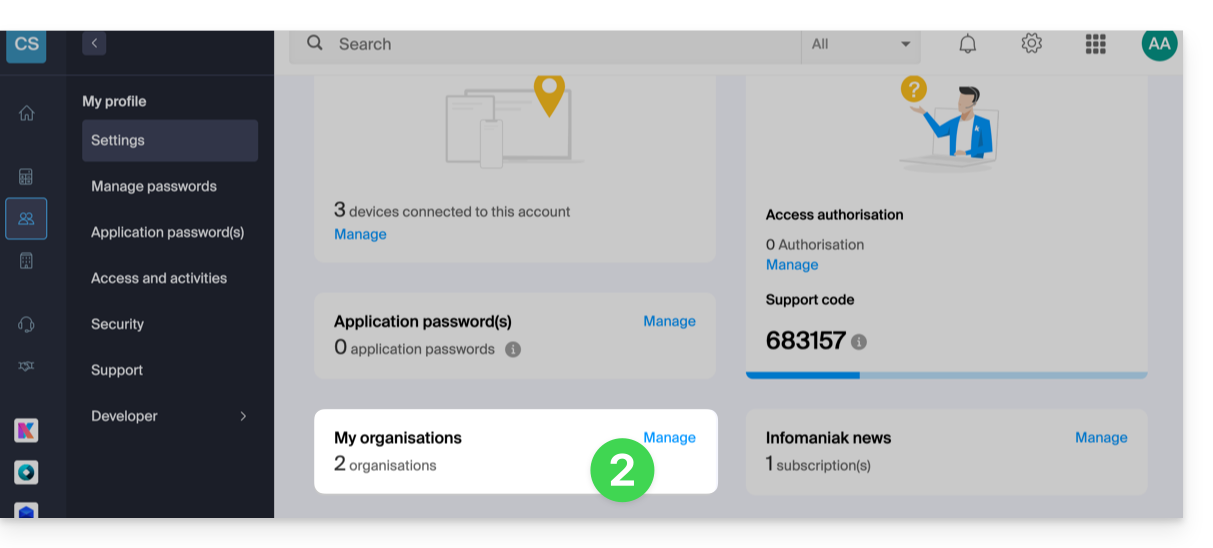
- Click on Manage from the My organizations box:
- Click on the Create a new organization button
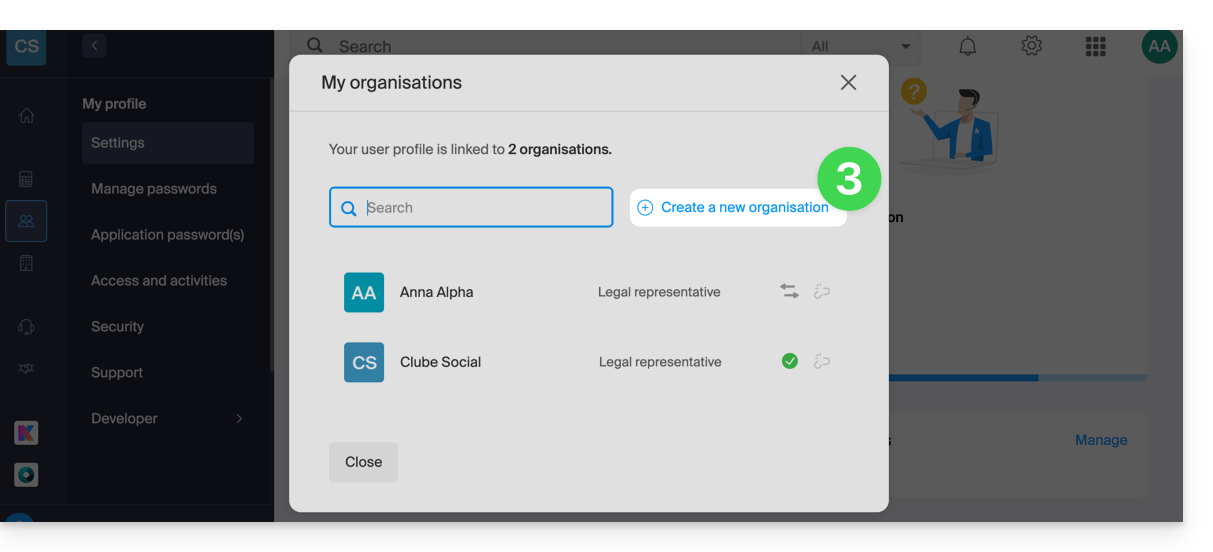
- Follow the procedure for creating a new Organization.
This way, you can continue to use your usual login credentials while being able to switch between your different Organizations (at the top left of the Manager).
Link to this FAQ: https://faq.infomaniak.com/2330
Has this FAQ been helpful?