Knowledge base
1000 FAQs, 500 tutorials and instructional videos. Here, there are only solutions!
This guide helps you get started with kSuite by integrating an existing kDrive into your organization.
Introduction
- kDrive will be an integral part of the new kSuite.
- The minimum number of users in the chosen kSuite plan will be based on the number of users in the existing kDrive plan.
- kDrive users will become kSuite users.
- To help you identify the kSuite offer that best suits your needs, please refer to this other guide.
Upgrading my kDrive to kSuite
Prerequisites
- The organization must not already have kSuite.
- The organization must have a paid kDrive plan.
- You must be at least an Administrator of the Organization (❓: help).
Create a new kSuite from your existing kDrive:
- Click here to access the Infomaniak kDrive web app (online service ksuite.infomaniak.com/kdrive).
- Click on Manage.
- Click on Upgrade your plan.
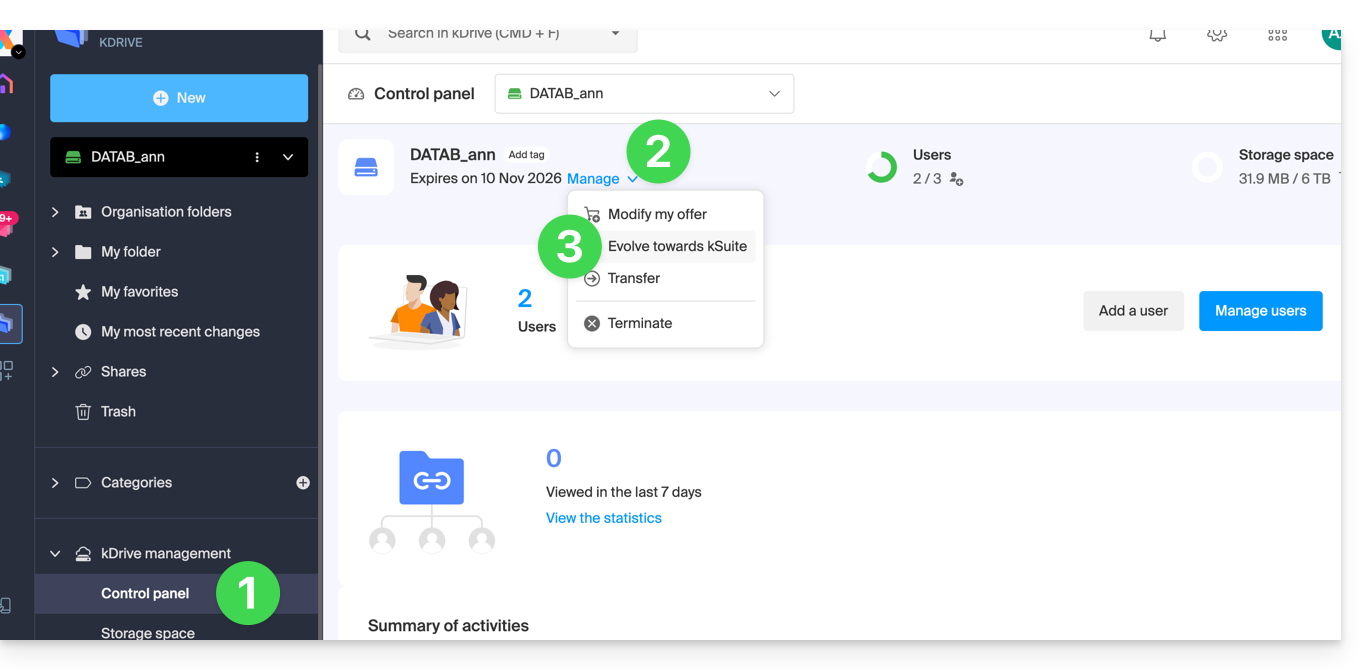
You can also do this from an information banner visible on the home page of your Manager interface: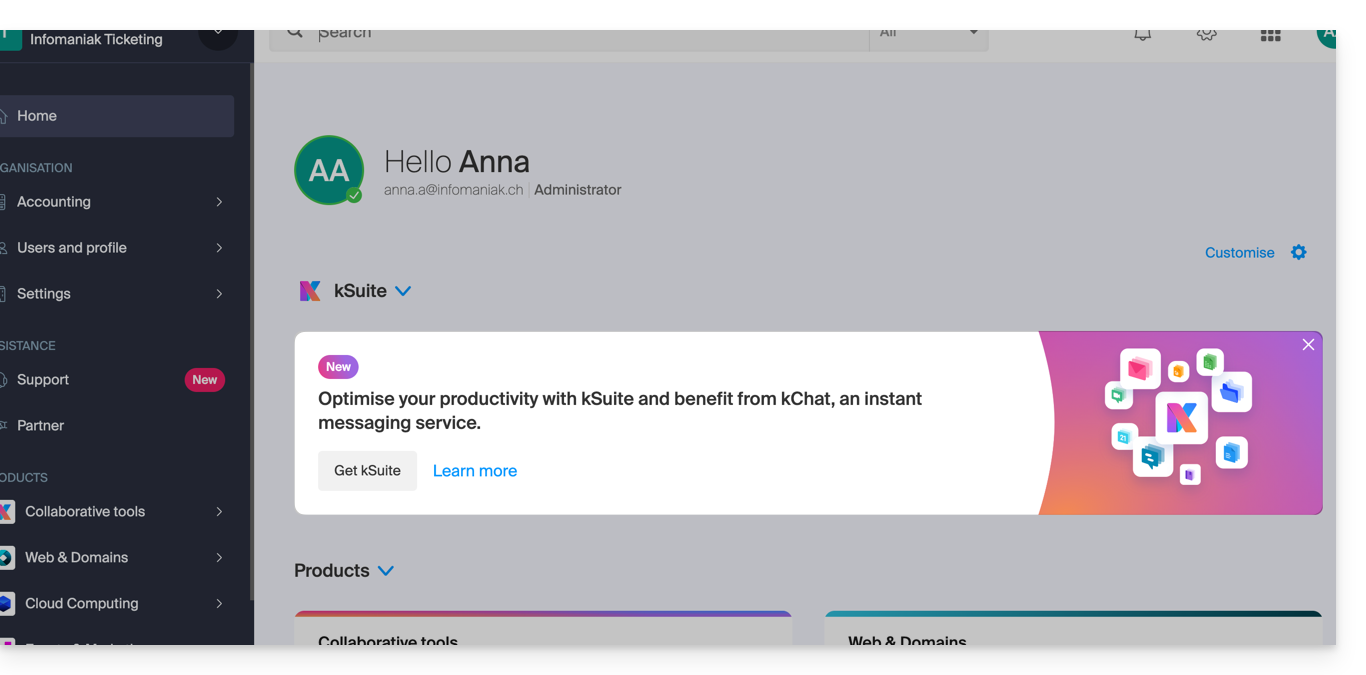
You can also integrate your Mail service if it is currently outside of kSuite.
Link to this FAQ: https://faq.infomaniak.com/2350
Has this FAQ been helpful?
This guide explains how to connect the desktop app Outlook 2019 (desktop application on Windows) to an email address hosted by Infomaniak.
Add the email address to the application
Prerequisites
- Create the email address (❓: help my kSuite | Mail Service/kSuite).
- Create a device password (❓: help my kSuite | Mail/kSuite Service).
- Verify that the domain is configured correctly (❓: help).
To configure the email application:
- Open the application.
- If the wizard starts automatically, go to step 5.
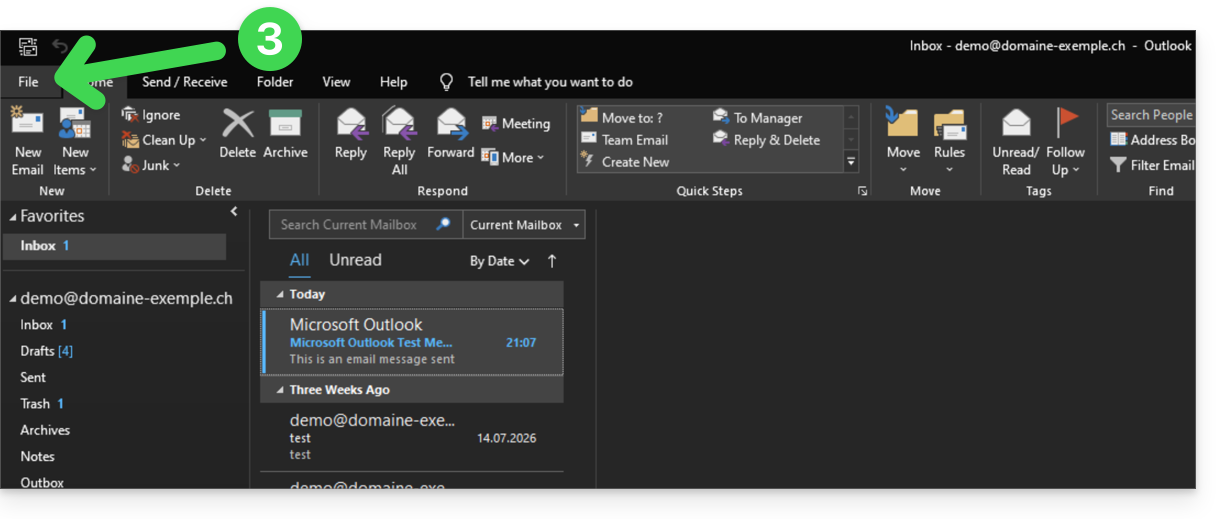
- If the wizard does not start automatically, click on the File menu:
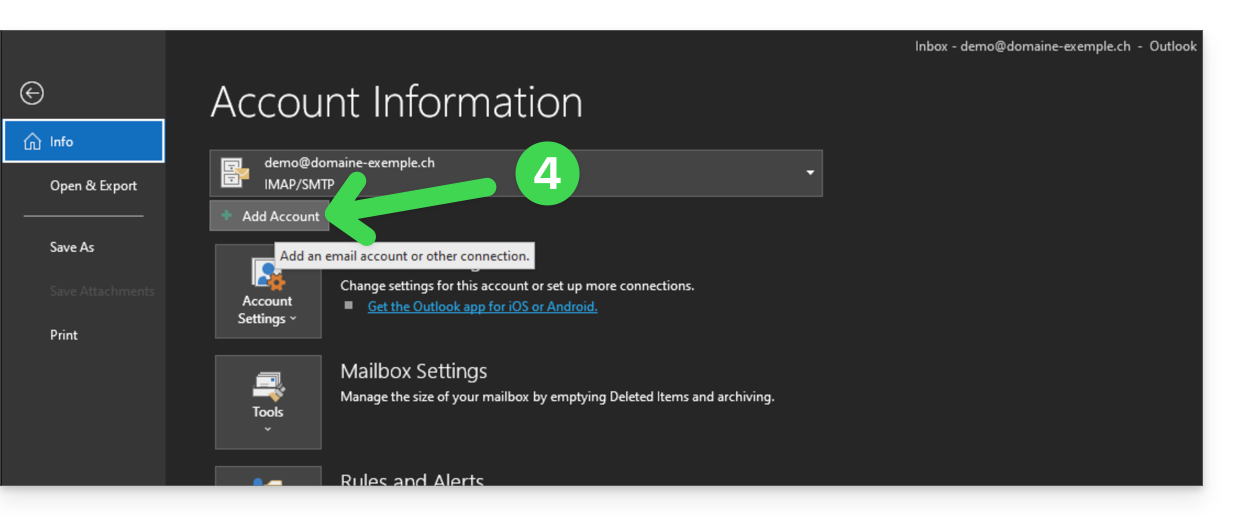
- Click on Add account:
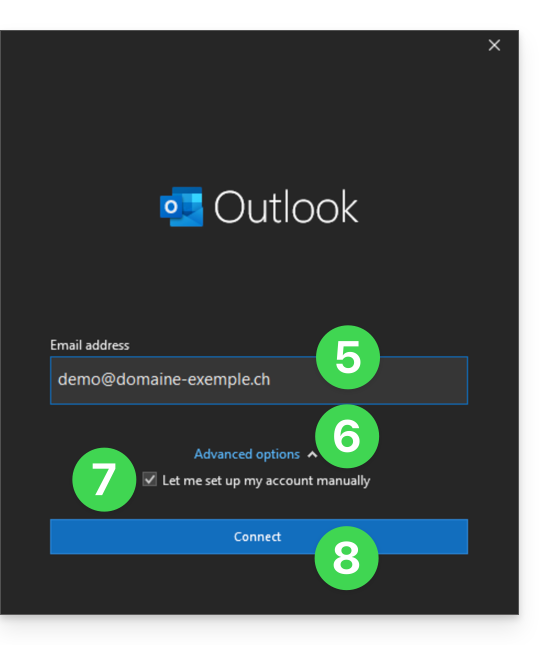
- Enter the email address to connect.
- Click on the chevron Advanced options.
- Activate the checkbox to configure your account manually.
- Click on the Connect button:
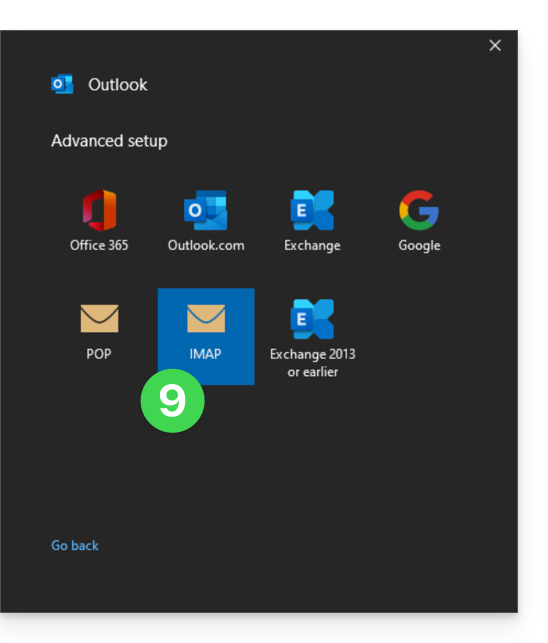
- Click on IMAP:
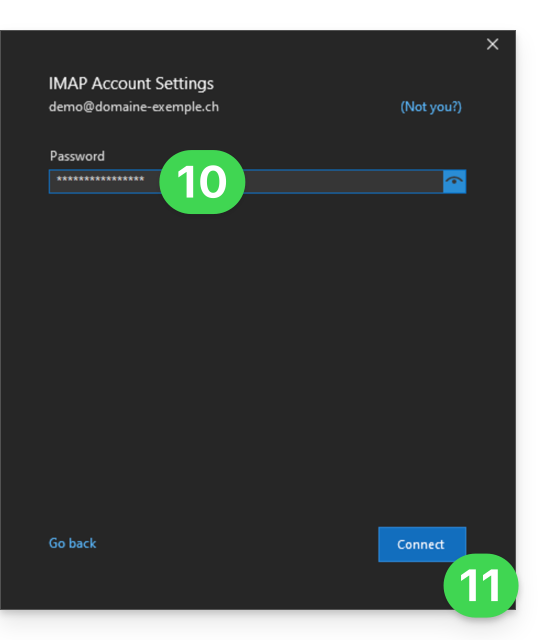
- Enter the password for the email address you want to connect (❓: help).
- Click the blue Connect button:
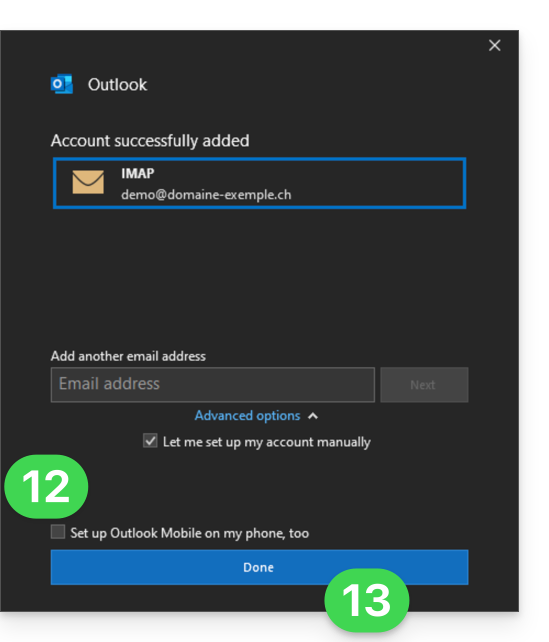
- Uncheck the additional settings box for mobile devices, if necessary.
- Click the blue Finish button:
- Stay in or return to the File menu.
- Click on Account Settings to correct certain information that was added automatically but is incorrect.
- Click on Server Settings:
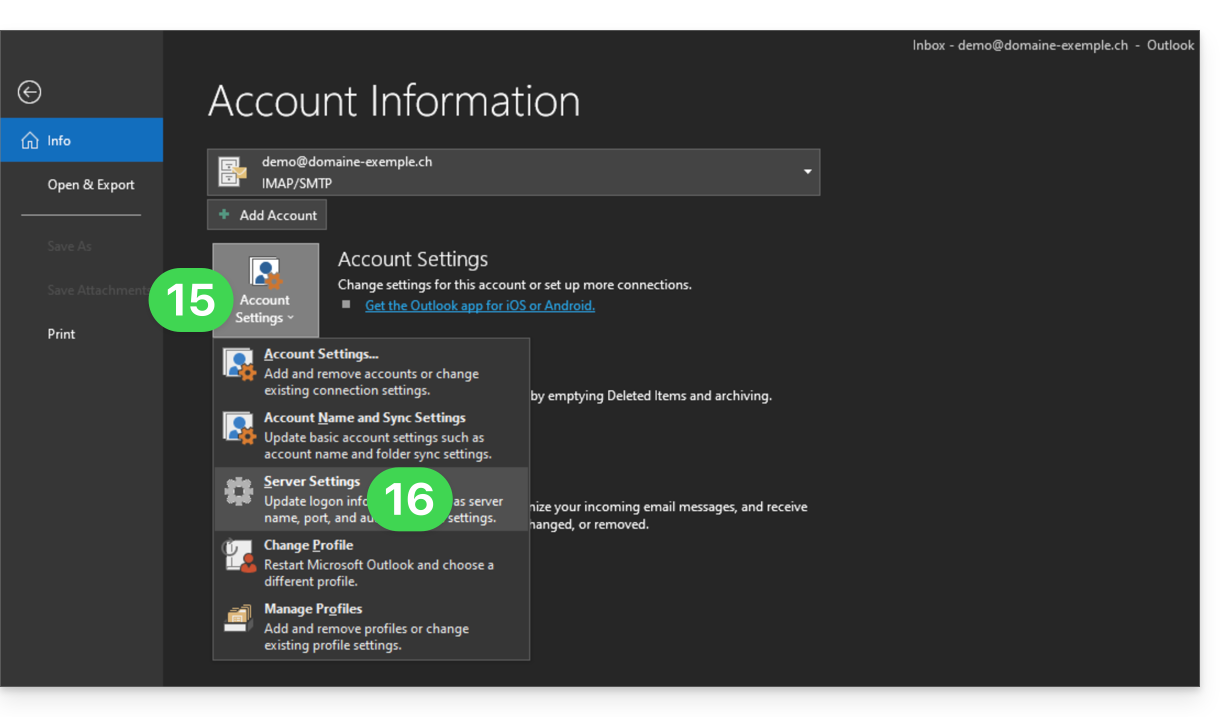
- Check and complete any missing information (❓: help).
- Click on the downward-pointing chevron Outgoing Mail:
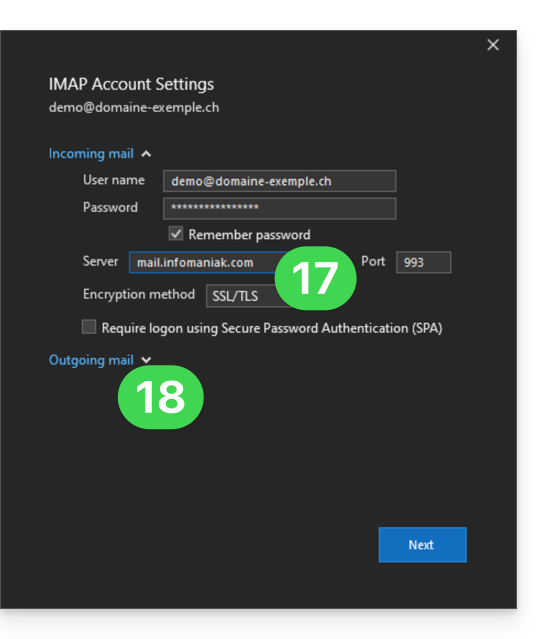
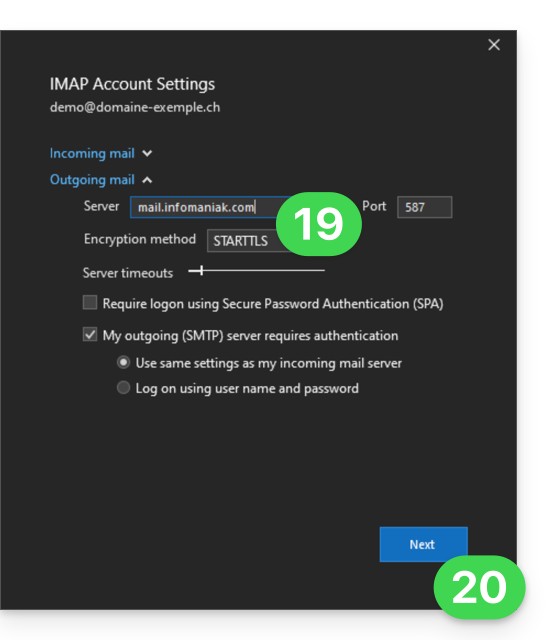
- Check and complete any missing information (❓: help).
- Click on Next:
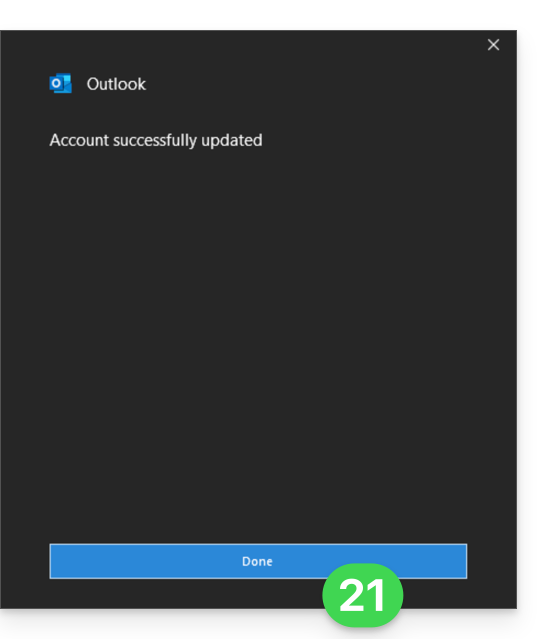
- Click on Finish:
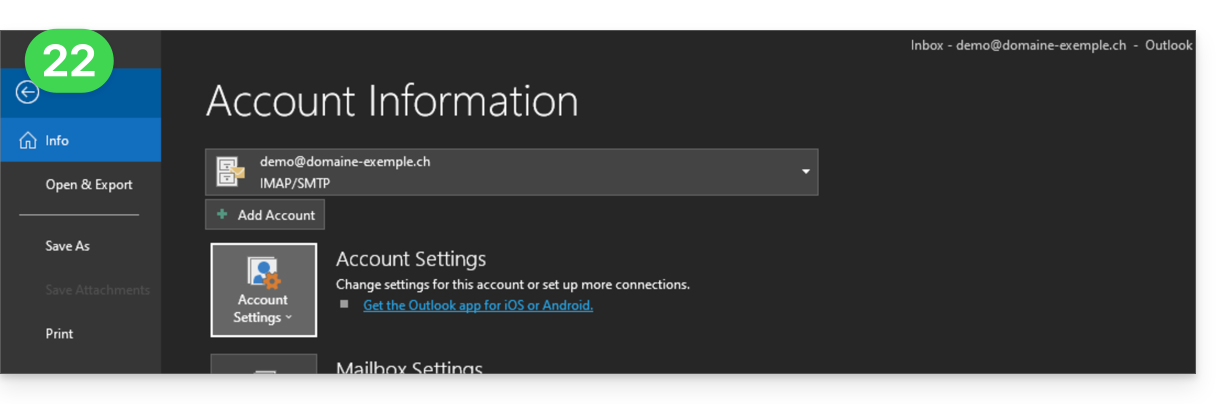
- Go back to the home page; your email address is now correctly configured in the application:
Recommended settings
- Incoming IMAP server =
mail.infomaniak.com - IMAP port =
993(with SSL) - Outgoing SMTP server =
mail.infomaniak.com - SMTP port & encryption protocol and command/method to activate this protocol:
587+ STARTTLS - Username = the complete email address (❓: help)
- Password = the password generated for the email address you want to access (❓: help my kSuite | Mail Service/kSuite).
- Mandatory authentication for sending emails:
- Enable this in the SMTP settings of your application.
- Check "use the same settings as the incoming server" or, depending on the software/email client, enter a username (i.e., the complete email address) and the generated password.
Refer to this other guide if you are looking for information about other compatible email ports and protocols (SSL / TLS, for example).
In case of a problem
Make sure the Mail service is configured optimally (❓: help).
You do not need to contact Infomaniak Support if your email address works correctly outside the application. The most common error involves using an incorrect password. The troubleshooting guides will help you resolve any potential issues:
- Refer to the solutions provided in this other guide regarding email in general.
- This other guide is specifically about Outlook.
… and if your Outlook is no longer working after a change of your email password, please refer to this other guide.
Link to this FAQ: https://faq.infomaniak.com/2354
Has this FAQ been helpful?
This guide explains how to change the password for your Infomaniak account (= user account) in the Manager, the administration interface for your Infomaniak products.
Introduction
- This password also allows you to log in to kSuite and the various iOS/Android applications such as kDrive, Infomaniak Mail, etc. (learn more)but it is not the password for your email address!
- If you cannot log in, you will not be able to change your password; please refer to this other guide in that case.
Change your Infomaniak account password
To change the password for your Infomaniak account:
- Click here to access your settings management (Infomaniak Manager).
- Click on Edit from the Login settings box under Login password:
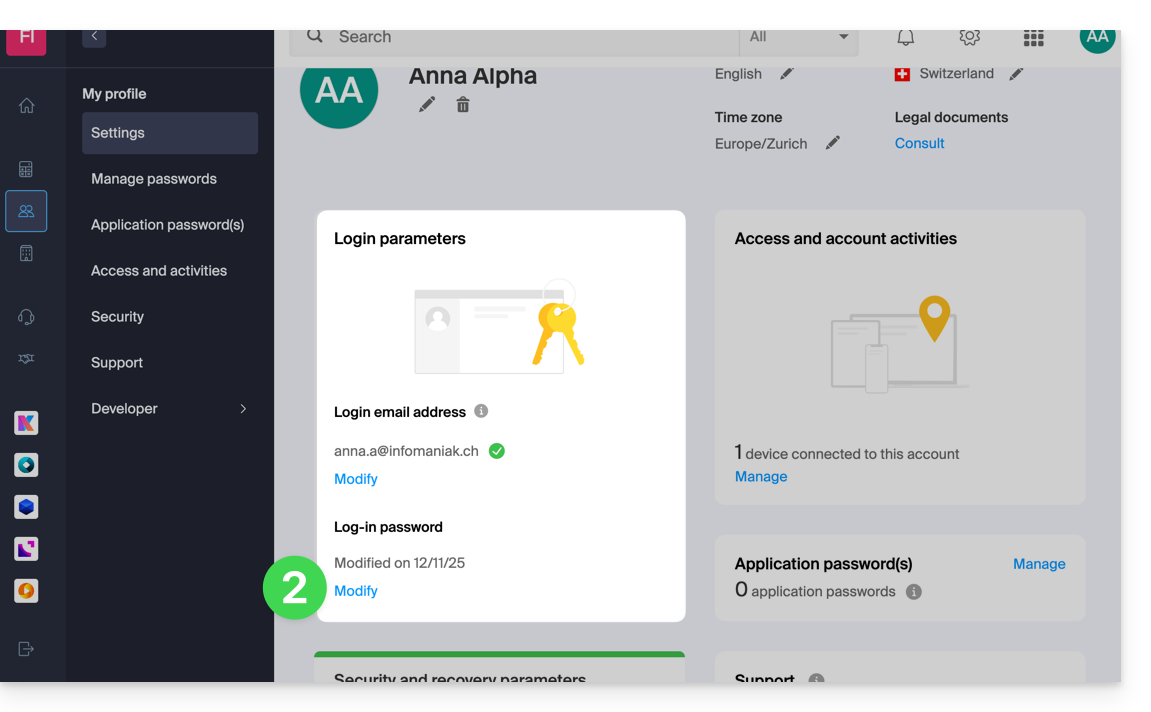
- Click on Edit:
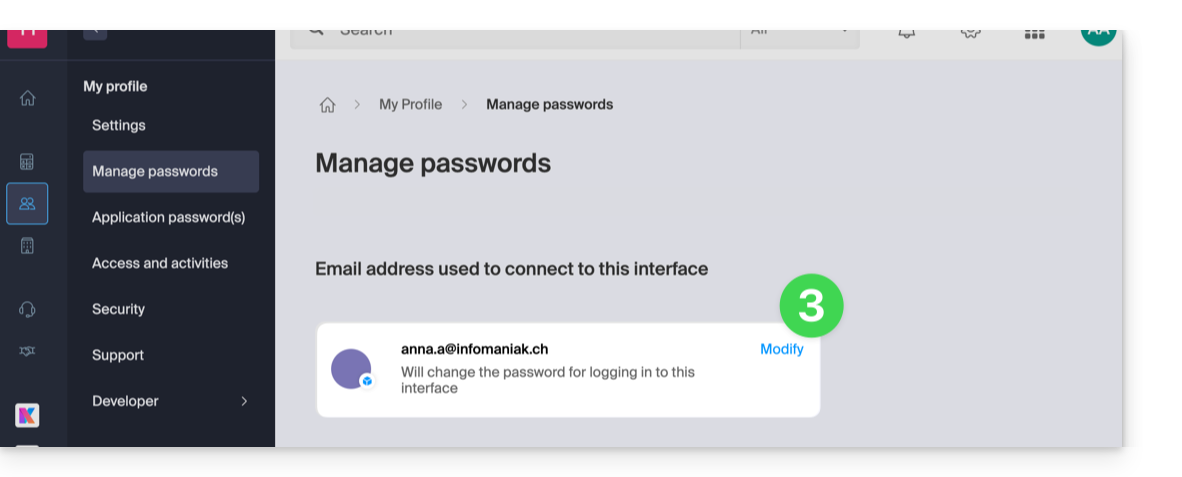
- Enter your current login password and the new password you want.
- Click Save.
Link to this FAQ: https://faq.infomaniak.com/2359
Has this FAQ been helpful?
This guide explains how to connect the Apple Mail iOS mobile app (iPhone, iPad, etc.) to an email address hosted by Infomaniak.
Introduction
- Instead of the manual configuration below, it is recommended to use the .mobileconfig configuration profiles (❓: help) provided by Apple or the Infomaniak Mail app (iOS) to benefit from a Push-based update method.
Manually add the email address to the application
Prerequisites
- Create the email address (❓: help my kSuite | Mail Service/kSuite).
- Create a device password (❓: help my kSuite | Mail/kSuite Service).
- Verify that the domain is configured correctly (❓: help).
To configure the email application:
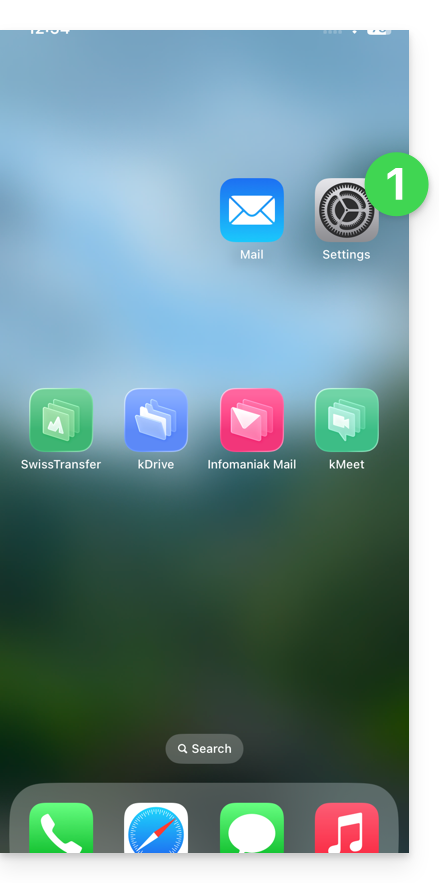
- Open the Settings on your iPhone:
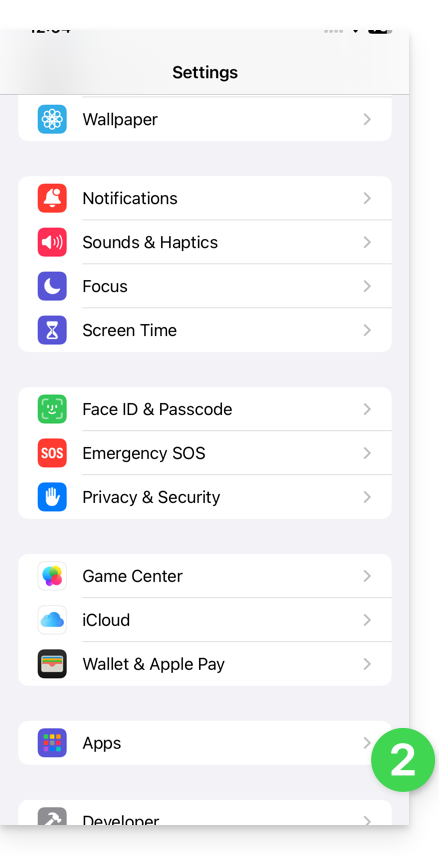
- Tap Apps:
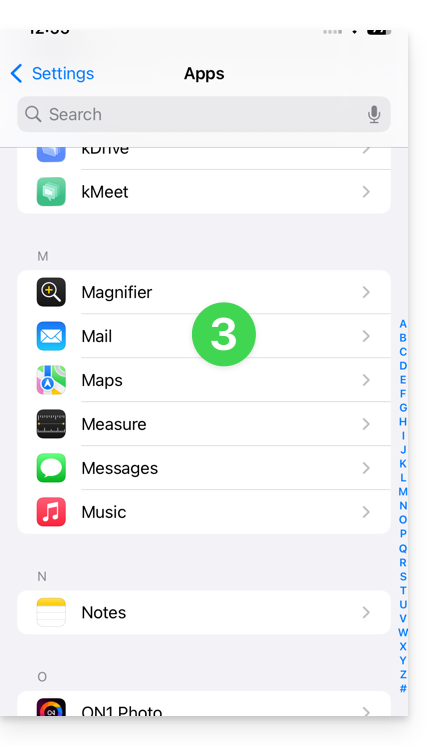
- In Apps, tap Mail:
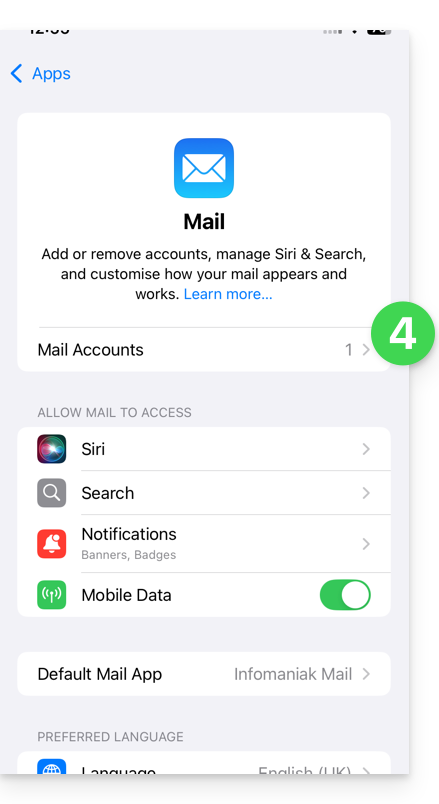
- Tap Mail Accounts:
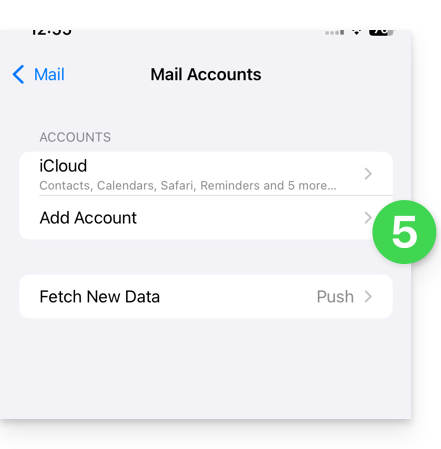
- Tap to add an account:
- Tap Another account:
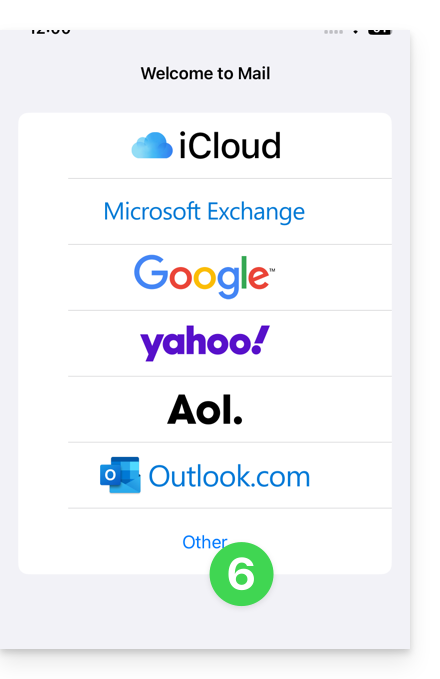
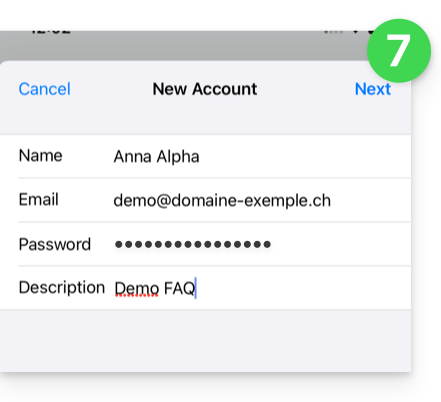
- Enter the email address and password for the account you want to add (see prerequisites), then tap Next:
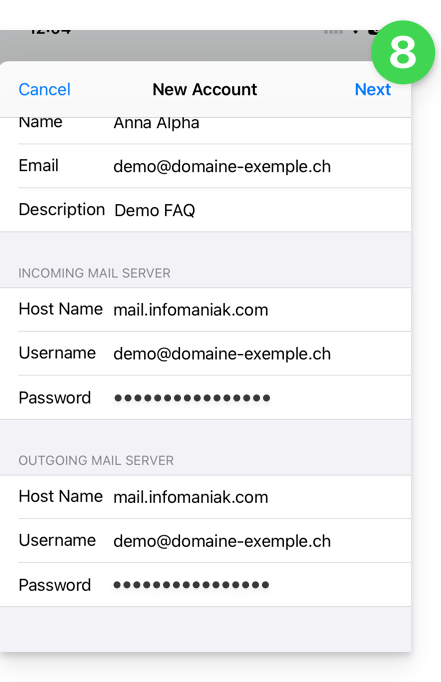
- Check and complete any missing information (❓: help), then click Next:
- The app indicates that some fields are optional, but they are not!
- The IMAP verification must be performed correctly (do not click on POP)
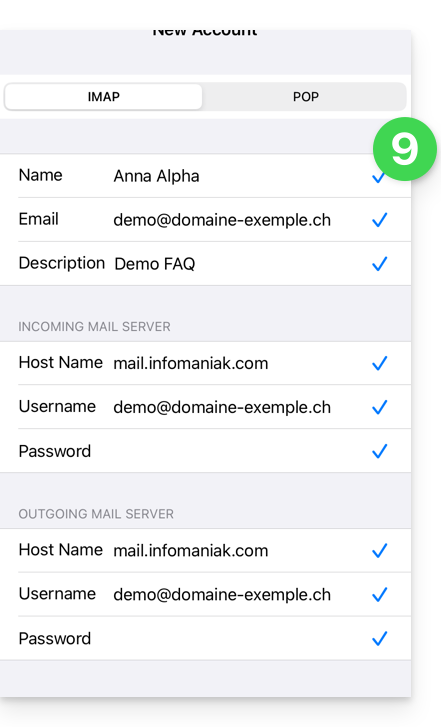
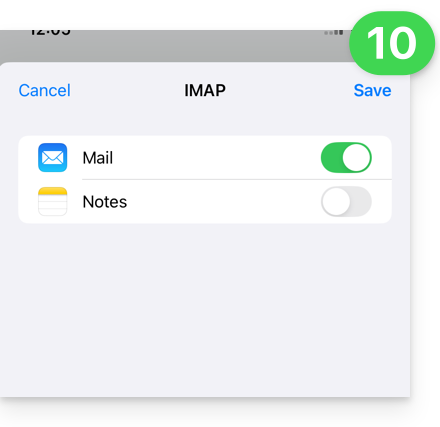
- Enable email and save the configuration in the top right corner:
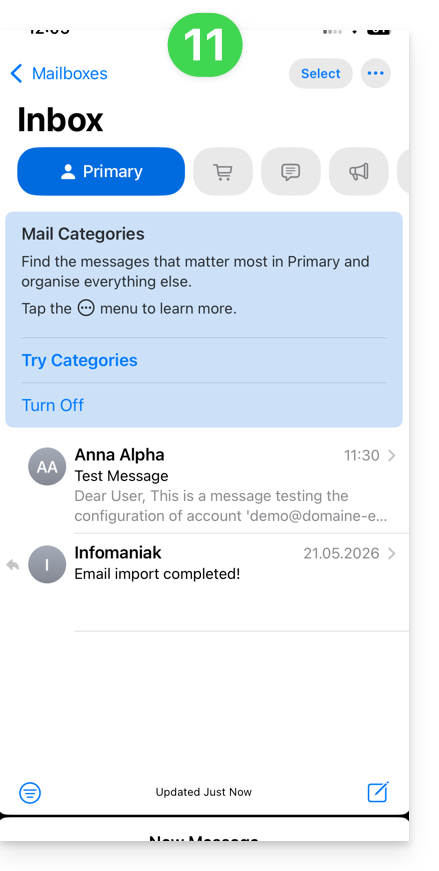
- Done, your email address is now configured in the application:
Recommended settings
- Incoming IMAP server =
mail.infomaniak.com - IMAP port =
993(with SSL) - Outgoing SMTP server =
mail.infomaniak.com - SMTP port & encryption protocol and command/method to enable this protocol:
587+ STARTTLS - Username = the complete email address & (❓: help)
- Password = the password generated for the email address you want to access (❓: help my kSuite | Mail/kSuite Service).
- Mandatory authentication for sending emails:
- Activate it in the SMTP settings of your application.
- Check "use the same settings as the incoming server" or, depending on the software/email client, enter a username (= complete email address) and the generated password.
Refer to this other guide if you are looking for information about other email ports and protocols that are supported (SSL/TLS, for example).
In case of a problem
Ensure that the Mail service is configured optimally (❓: help).
It is not necessary to contact Infomaniak Support if your email address works correctly outside the application. The most common error concerns the use of an incorrect password. The troubleshooting guides will help you resolve any potential issues:
- Refer to the solutions provided in this other guide regarding email in general.
- Delete any existing Apple configuration profilesrelated to your Infomaniak email account before restarting the configuration.
And if your Apple Mail no longer works for sending emails (e.g., the SMTP server is disconnected or missing) or after a change of email password, please refer to this other guide.
Link to this FAQ: https://faq.infomaniak.com/2369
Has this FAQ been helpful?
This guide explains how to connect the mobile apps Contacts and CalendariOS (iPhone, iPad, etc.) with contacts and calendars hosted by Infomaniak.
Introduction
- Your iOS device will be automatically configured via Apple-compatible .mobileconfig configuration profiles, unlike a manual configuration.
- Infomaniak contacts & calendars are linked to your Infomaniak account; when you log in to ksuite.infomaniak.com/contacts or /calendar, you will likely be asked to perform two-factor authentication (2FA) during login.
- In this case, an application password is required to establish synchronization between your device and Infomaniak tools.
- But don't worry, creating such a password is offered as part of the configuration wizard.
- It is possible to delete a configuration profile once it has been installed (scroll to the bottom of this page for instructions).
- Alternative: if you have the Infomaniak Mail mobile app on your iOS device, one of the menus provides access to a synchronization assistant to connect Contacts & Calendar automatically.
Install a configuration profile
To do this, ideally from the device you want to configure, using the Safari browser:
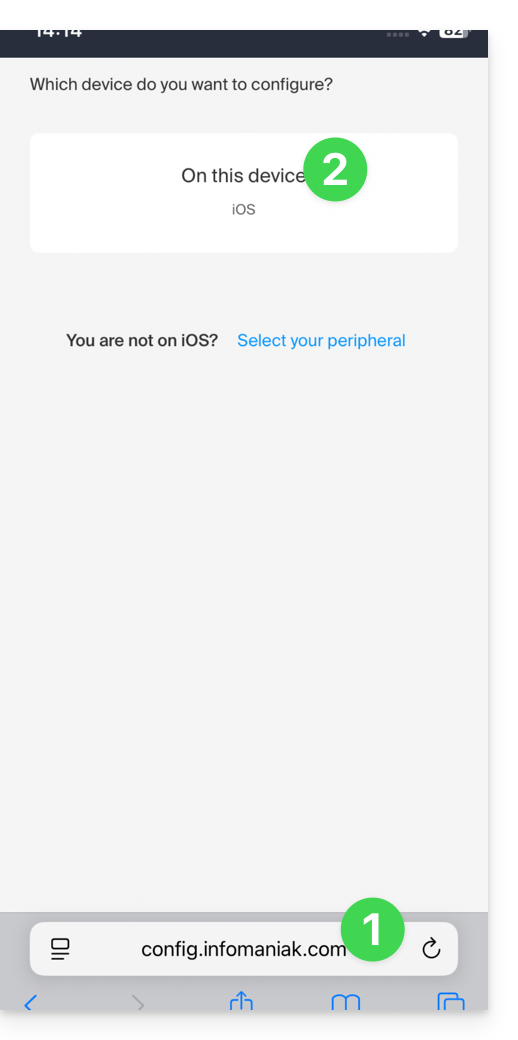
- Click here to access the Infomaniak configuration tool (online service https://config.infomaniak.com) – log in if necessary to your Infomaniak account for the Organization where your services are managed.
- Choose to install the profile on this iOS device:
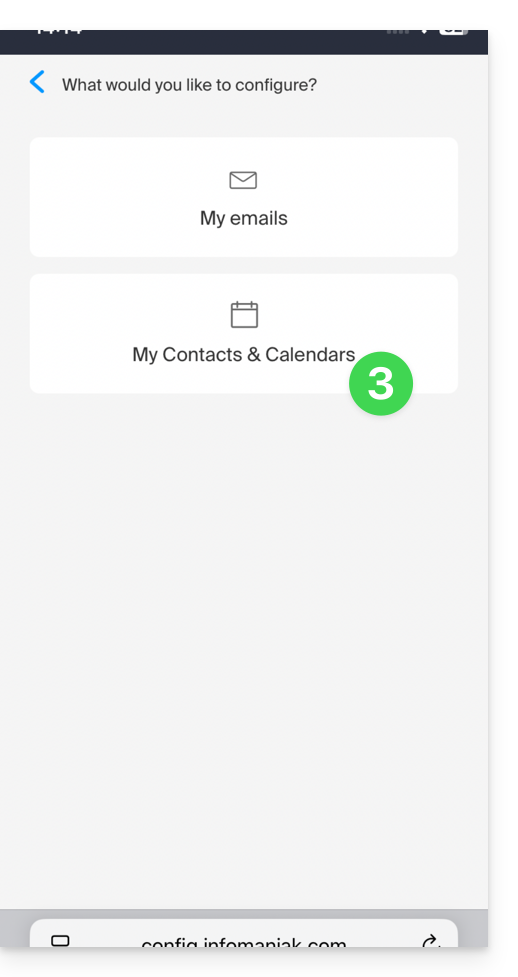
- Choose to synchronize contacts & calendars:
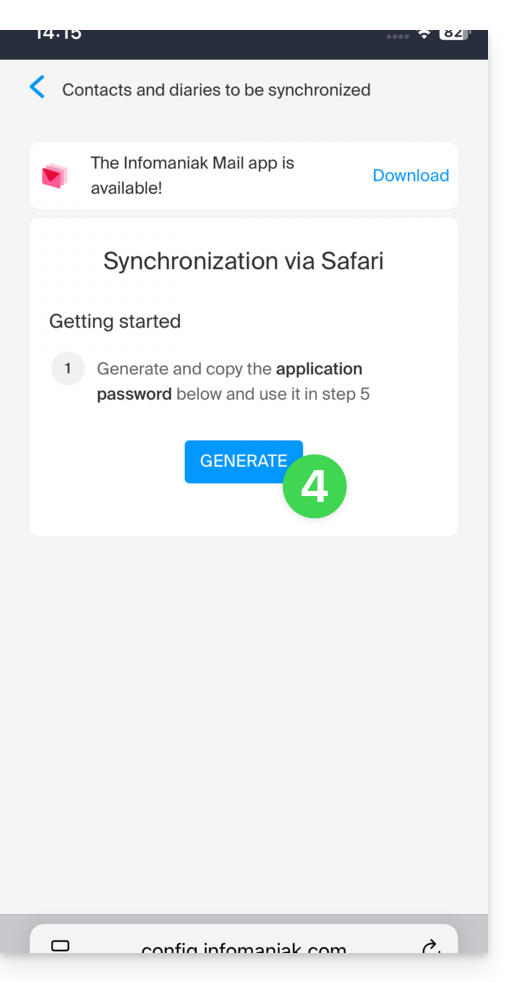
- Generate an application password dedicated to synchronization (in order to maintain the usual 2FA connection for your user account):
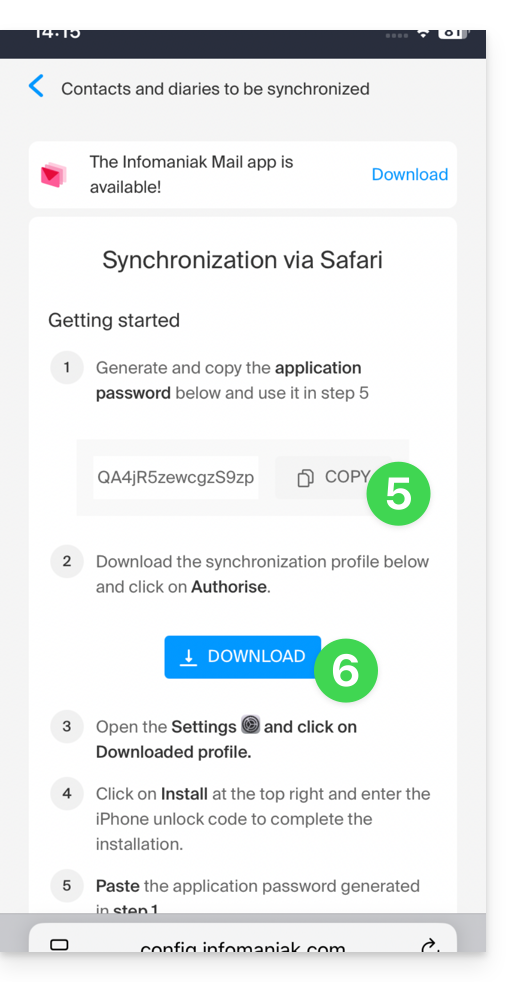
- Copy the generated application password (you will be prompted for it when installing the Apple profile).
- Download the Apple profile:
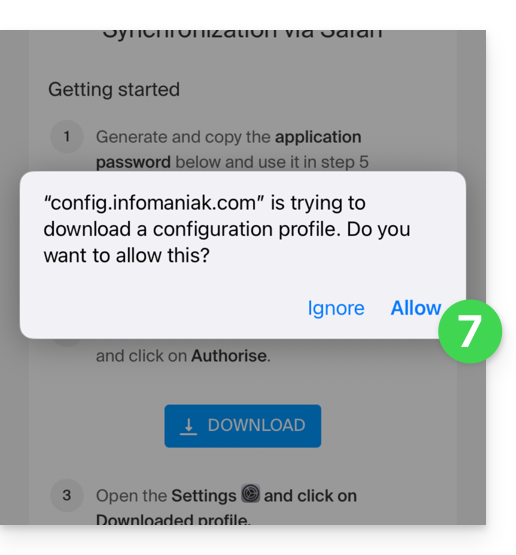
- Allow downloading to the device:
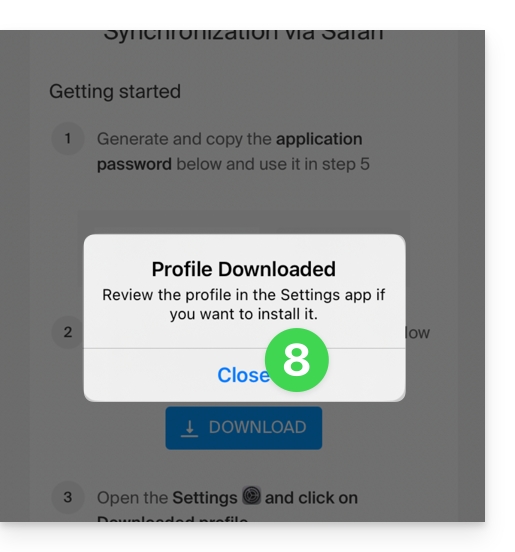
- Tap to close the message:
- Open the settings of your iOS device and tap on the banner at the top that informs you that a new profile has been downloaded:
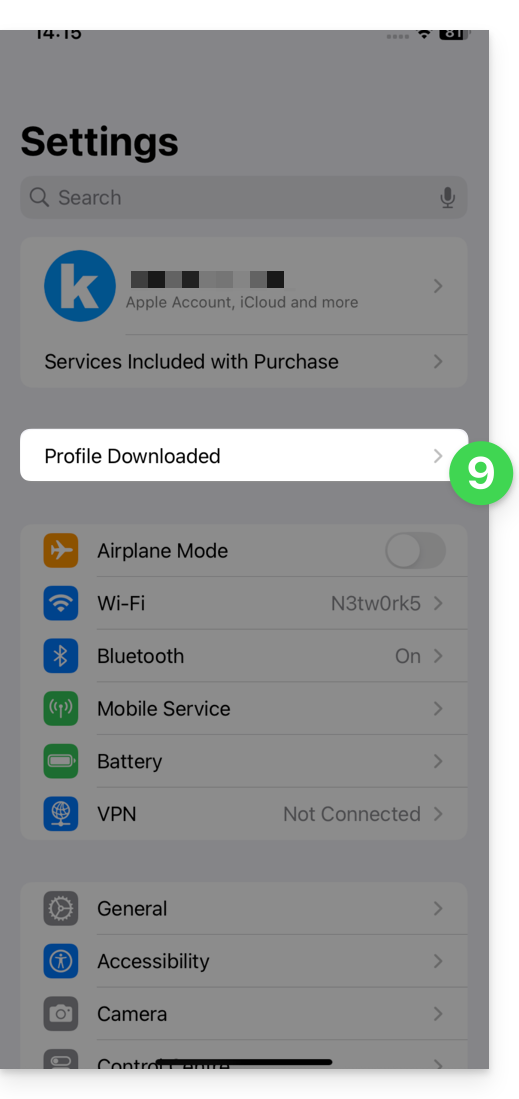
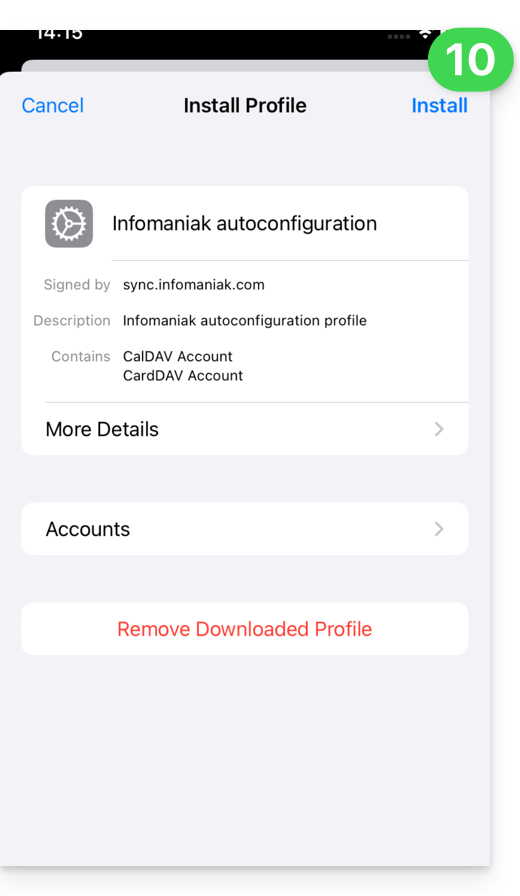
- Tap Install:
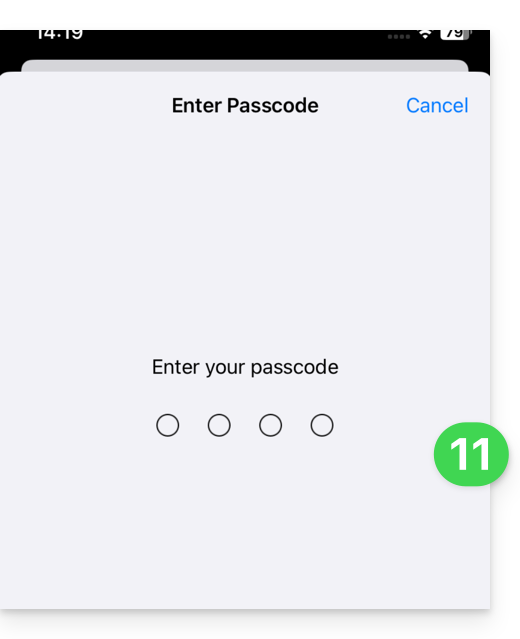
- Enter your iOS device code as if you were unlocking it:
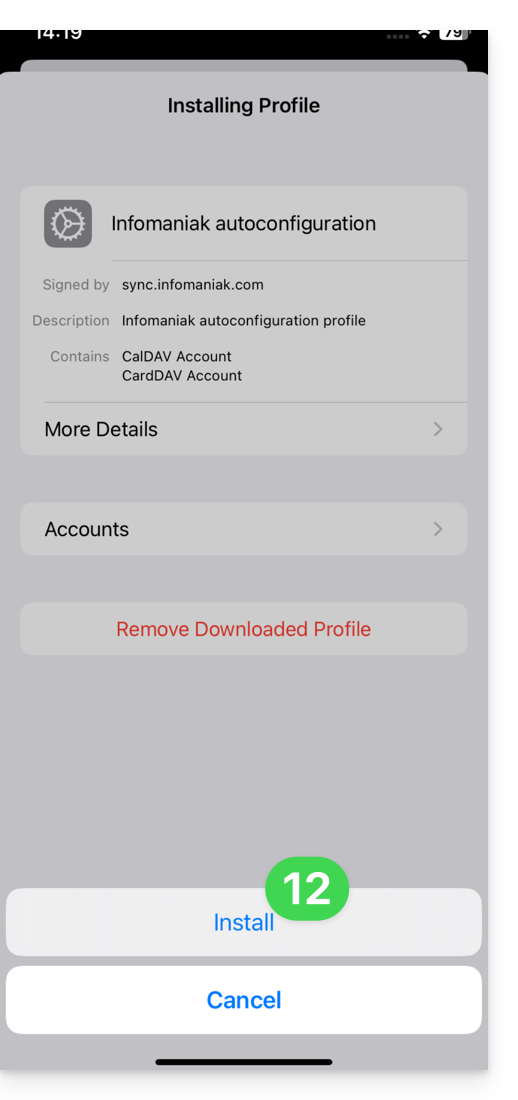
- Tap Install:
- Enter (or paste) the application password copied in step 5 above:
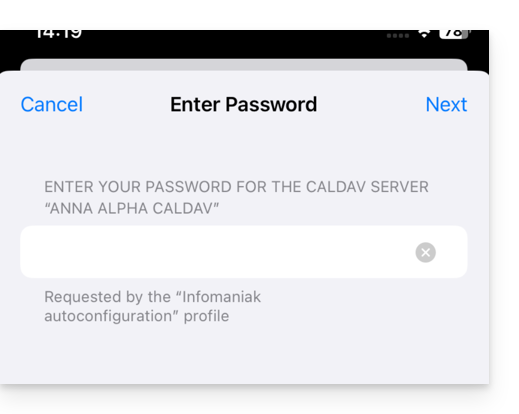
and do this twice in a row (contacts + calendars):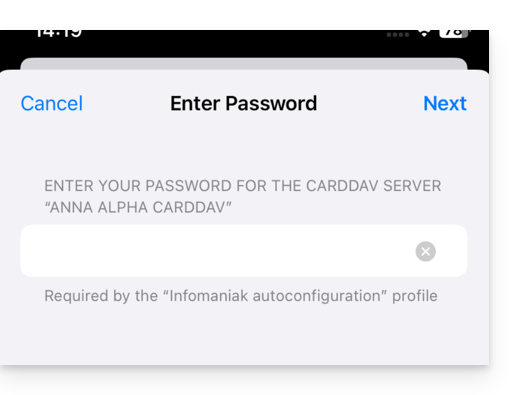
- When the message appears at the top, it is done:
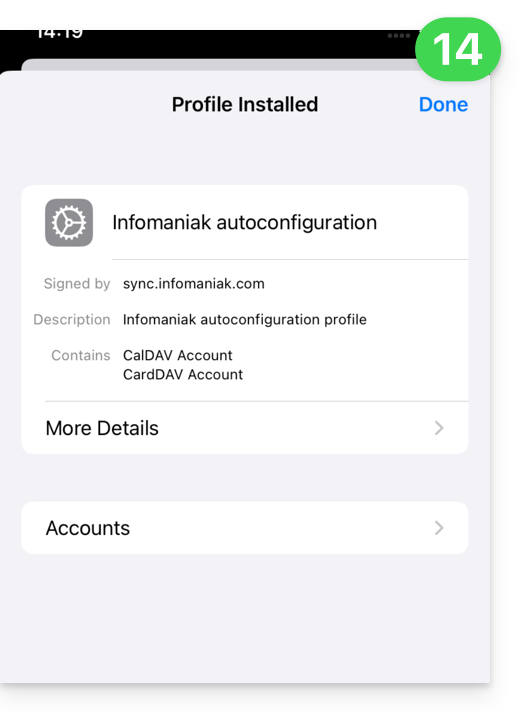
If your iOS Contacts and Calendar apps were already open, you need to restart them. You will then see the information added by the synchronization: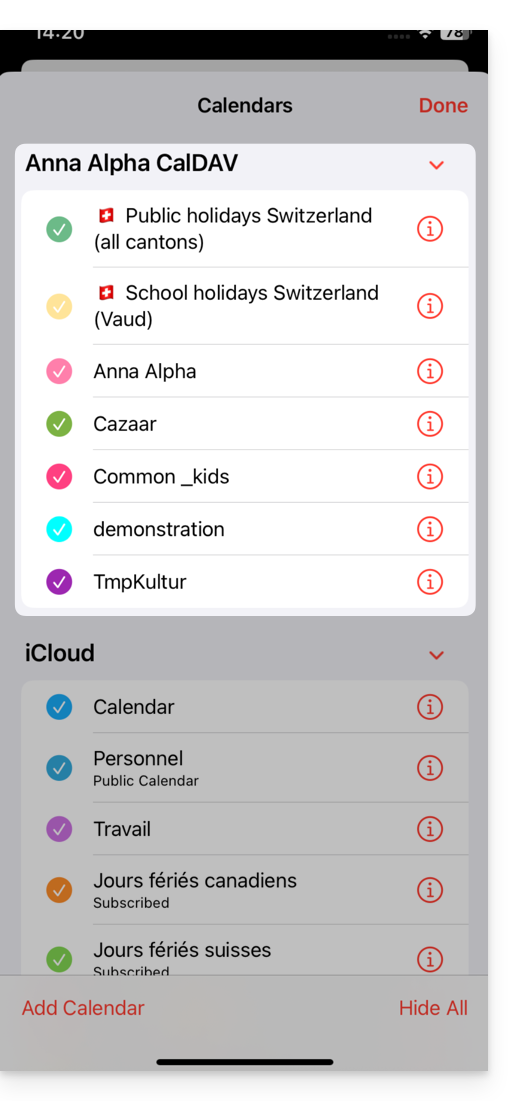
Synchronization specifics
Refer to this other guide.
Delete an Apple profile
Refer to the official documentation, and if necessary, change the version of your system at the top of the page*.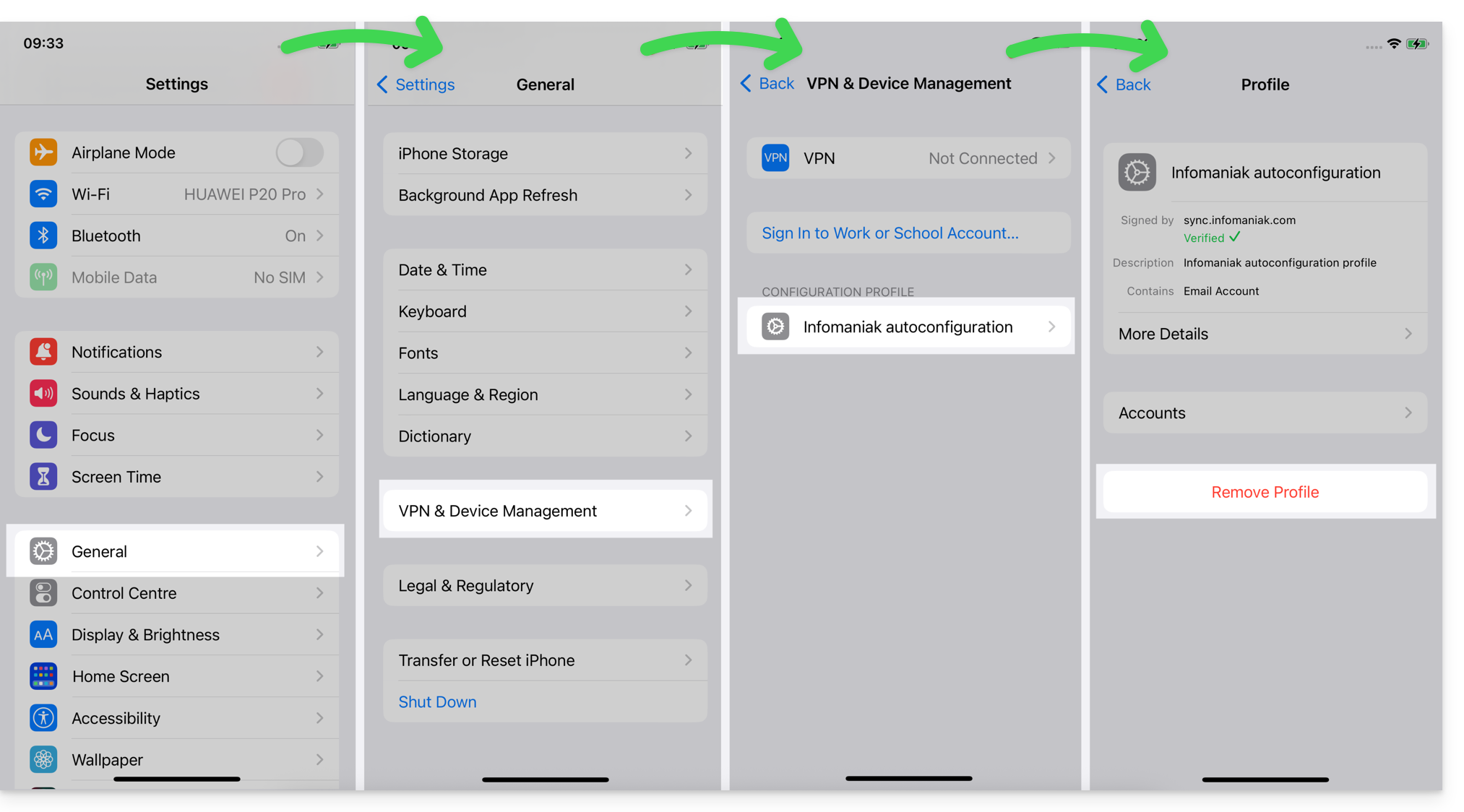
*Why is it necessary to select the guide version that exactly matches your macOS / iOS system version?Apple introduces subtle changes with each new version of its system, for example, a path on iOS 15…
… becomes this on iOS 18…
Link to this FAQ: https://faq.infomaniak.com/2370
Has this FAQ been helpful?
This guide explains how to create, save, and edit Office-type files (text, spreadsheet, presentation, etc.) on the web app kDrive (online service ksuite.infomaniak.com/kdrive) and on the mobile app kDrive (application for iOS/Android smartphones or tablets) using the native editor.
Edit a text file, spreadsheet, presentation…
Prerequisites
- To create and collaborate on a spreadsheet or text document, etc. directly on the web app, the file size must be less than
100 MB; otherwise, the document will be downloaded, and you will need to edit it locally on your computer using an Office-type application (OnlyOffice, for example).- Therefore, be mindful of the images you insert into your documents (compress them to reduce their size and quality if necessary).
The web app kDrive (online service ksuite.infomaniak.com/kdrive) natively integrates the Docs, Grids, and Points applications, which allow you to create, modify, and collaborate online on Word .docx, Excel .xlsx, and PowerPoint .ppsx documents:
- Click here to access the web app kDrive (online service ksuite.infomaniak.com/kdrive).
- If necessary, open the folder in which to create an Office document.
- Click the New button in the upper left corner.
- Choose the type of document to create:
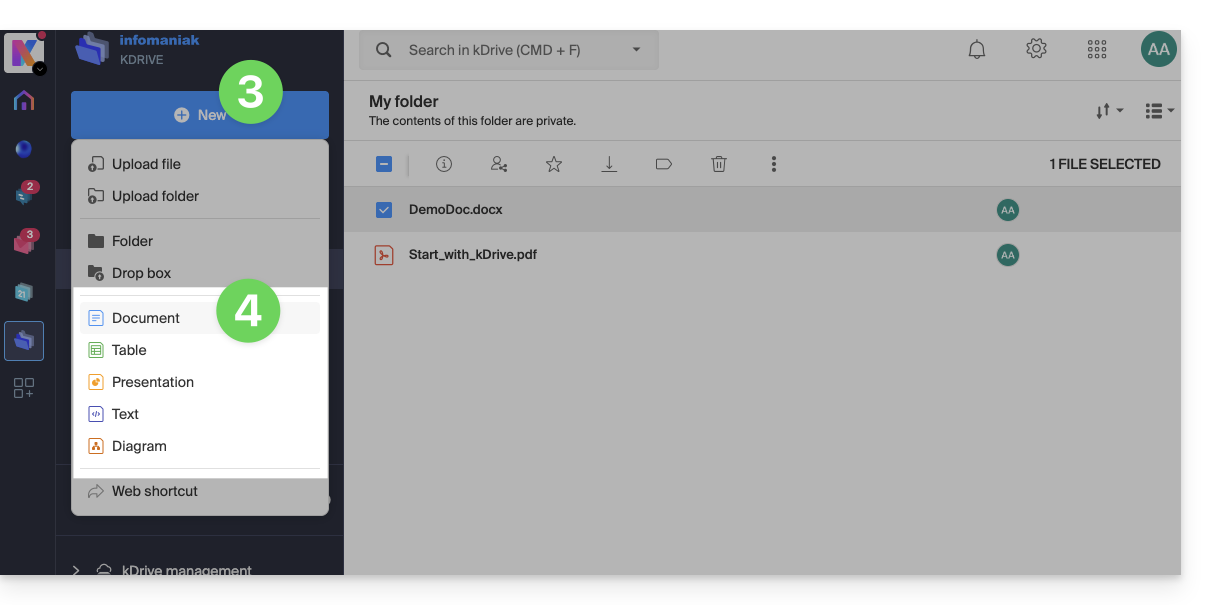
- text document
- spreadsheet
- presentation
- plain text (notepad)
- draw.io document for diagrams, flowcharts, and wireframes
- Give the file a name.
To set a default editor, refer to this other guide.
Find and Replace Function
To work with and replace all occurrences of a text in a few clicks, once the document is created:
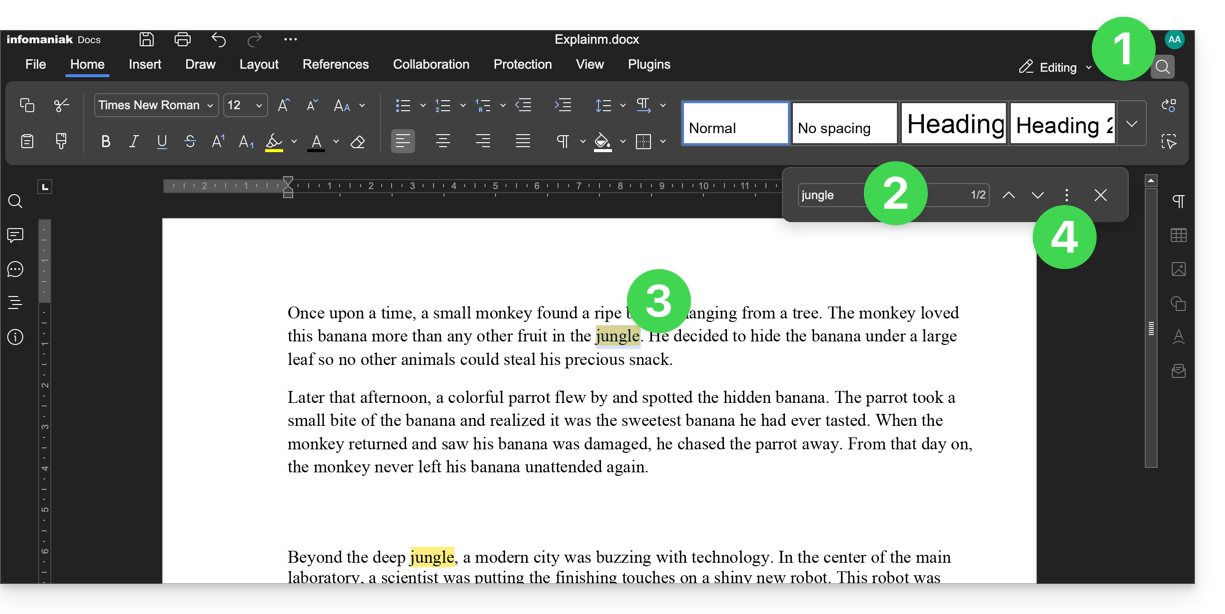
- Click on the search function (magnifying glass icon in the top right corner).
- Search for the term to be replaced throughout the text.
- Check the selection of occurrences in the text.
- Click on the action menu ⋮ to the right of the search field:
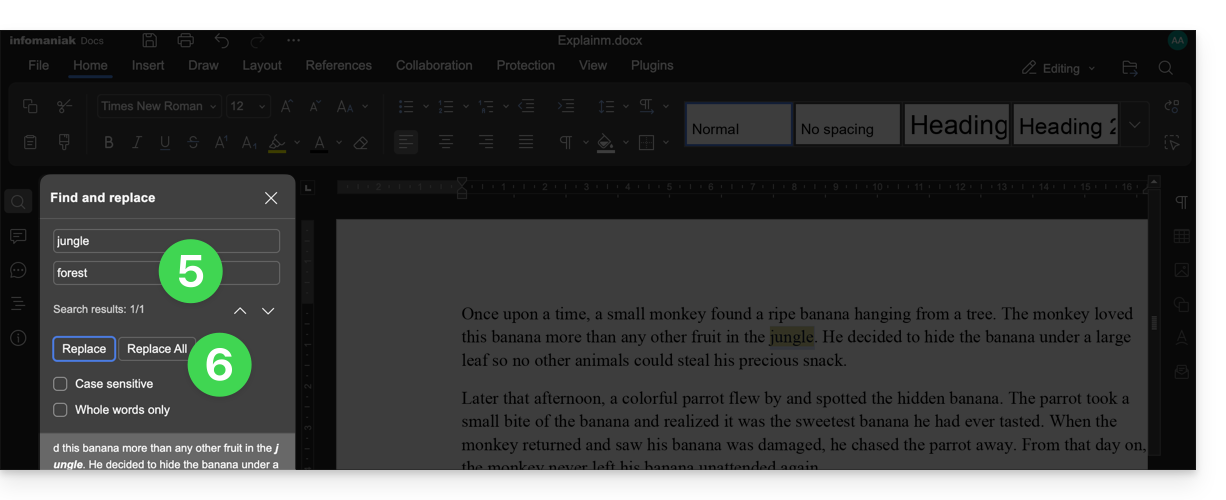
- Enter the text that should replace the selection.
- Click on Replace (to replace one by one) or Replace All (the text replaces all identical occurrences):
Save the File
When you work online on your Word, Excel, or PowerPoint files, they are automatically saved each time you make changes.
If in doubt, you can manually save a document:
- Click on File then on Save (if "Save" is disabled, it means the file has already been saved).
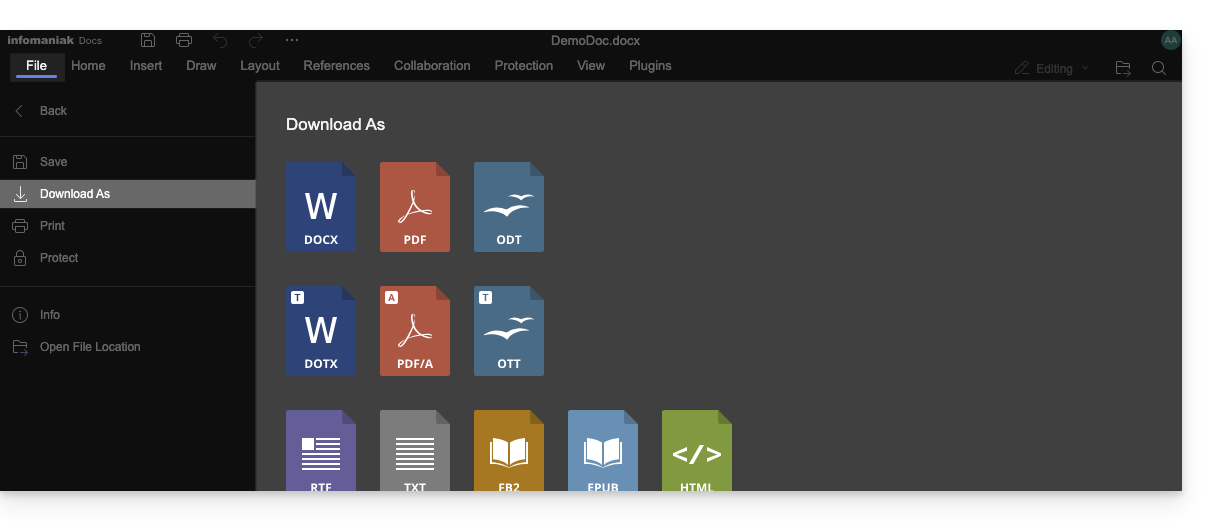
- If needed, you can download a copy of your file in your preferred format (docx, pdf, rtf, epub, html, jpg, png…) by clicking on Download as...
Password-protected files
When working online on your Word, Excel, or PowerPoint files, these can be pre-protected with a password. Therefore, the password will be requested when opening the file in the Infomaniak interface, but it will disappear when saving your document in kDrive.
Indeed, it is not possible to set a password when saving a document to kDrive, nor to keep the existing password. You should consider using another editor available in kDrive, but only with certain paid plans.
Add a bookmark
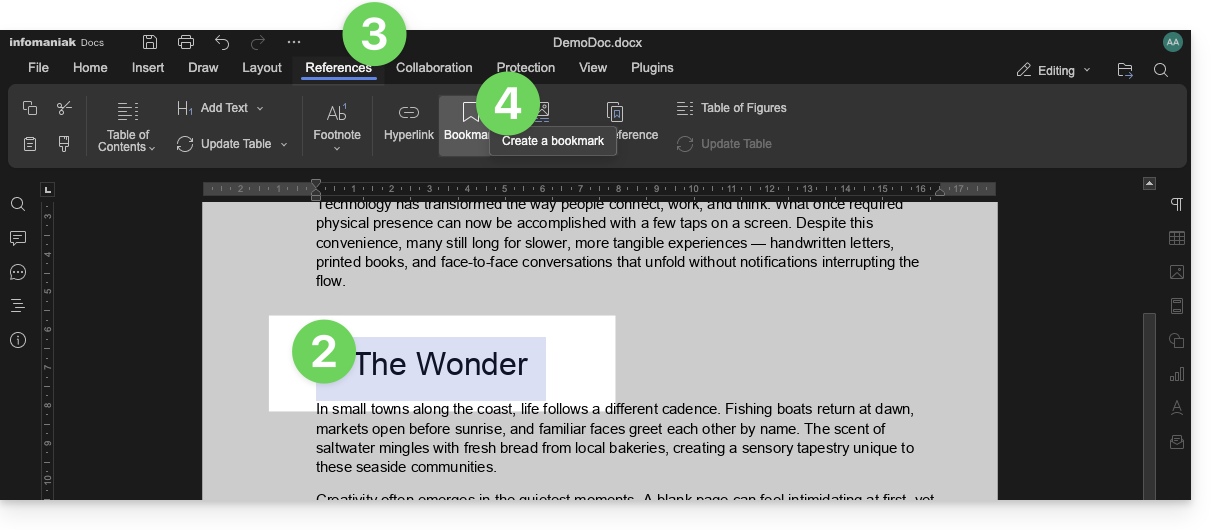
A feature allows you to add a bookmark, which is a kind of shortcut to a favorite passage in your document, or the equivalent of a web page anchor:
- Edit a text document on kDrive.
- Select the text that will serve as the reference point.
- Click on the References tab.
- Click on Bookmark:
- Name your bookmark.
- Click on the Add button:
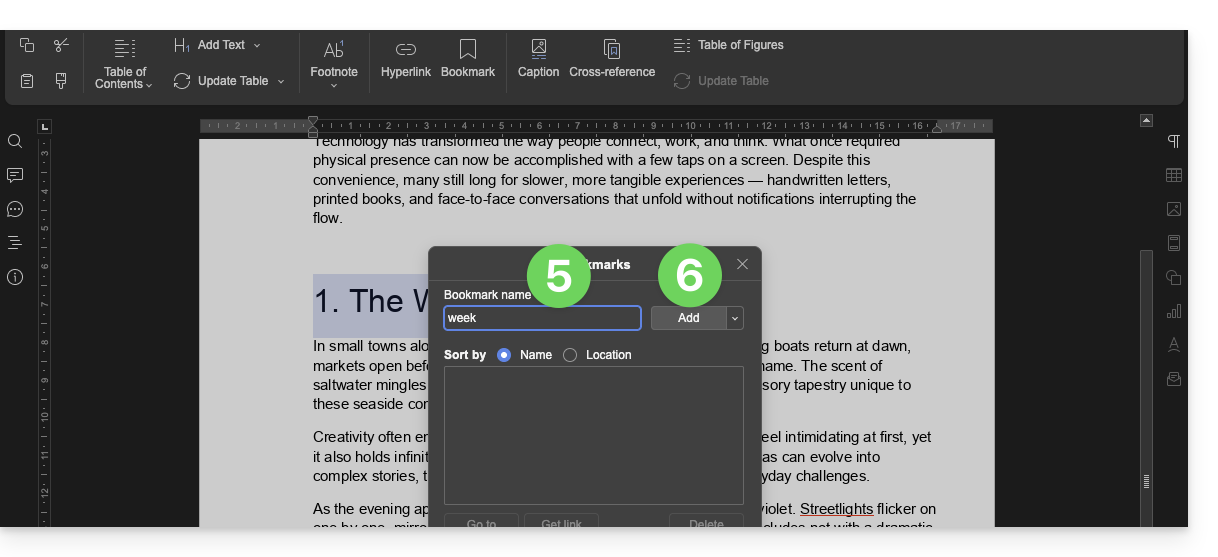
- The window closes, your favorite location is created and saved in the document.
Create a share link that leads directly to the bookmark
Once the document is open:
- Click on the References tab.
- Click on Bookmark.
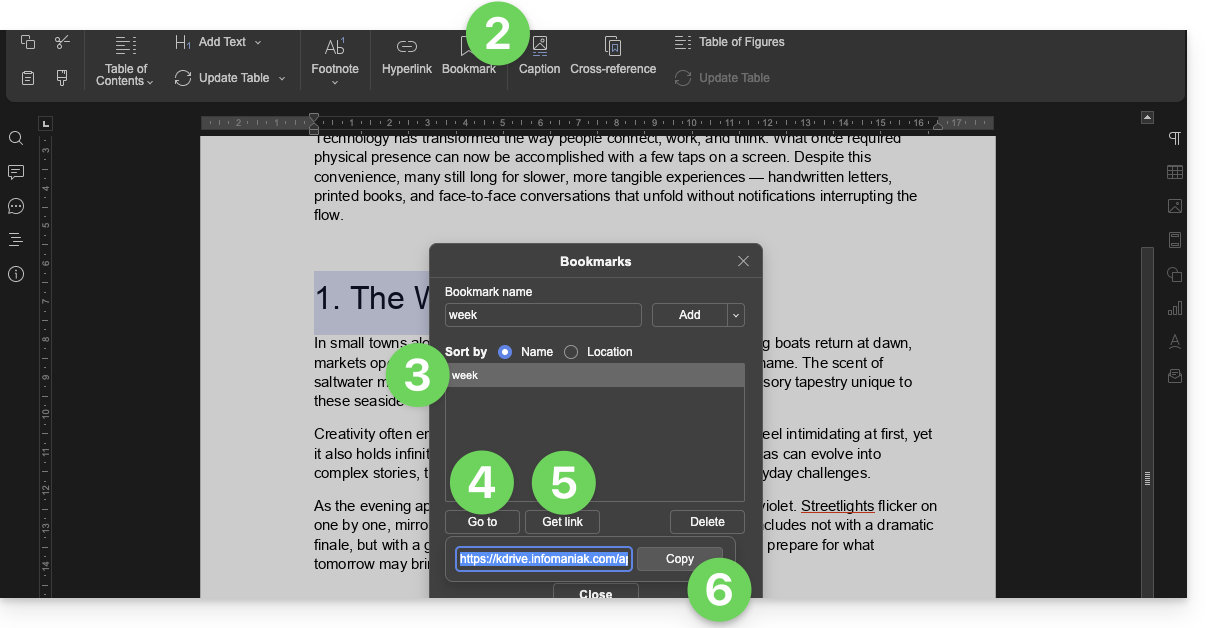
- Click on the bookmark name to reach.
- Optional: Click on the Go to button so that the document open in the background displays exactly at the previously defined location.
- Click on the Get link button to share your document and obtain a link that will lead the user to the exact location of your bookmark.
- Click on the Copy button to directly place it in the clipboard:
kSuite users: be notified on kChat
A feature allows users to tag (mention) collaborators in the comments of a document via a "+" followed by the user's name:
- Edit a document on kDrive.
- Click on the Collaboration tab.
- Click on Add a comment.
- Enter your comment, mentioning a user if necessary: type the
+sign followed by the name: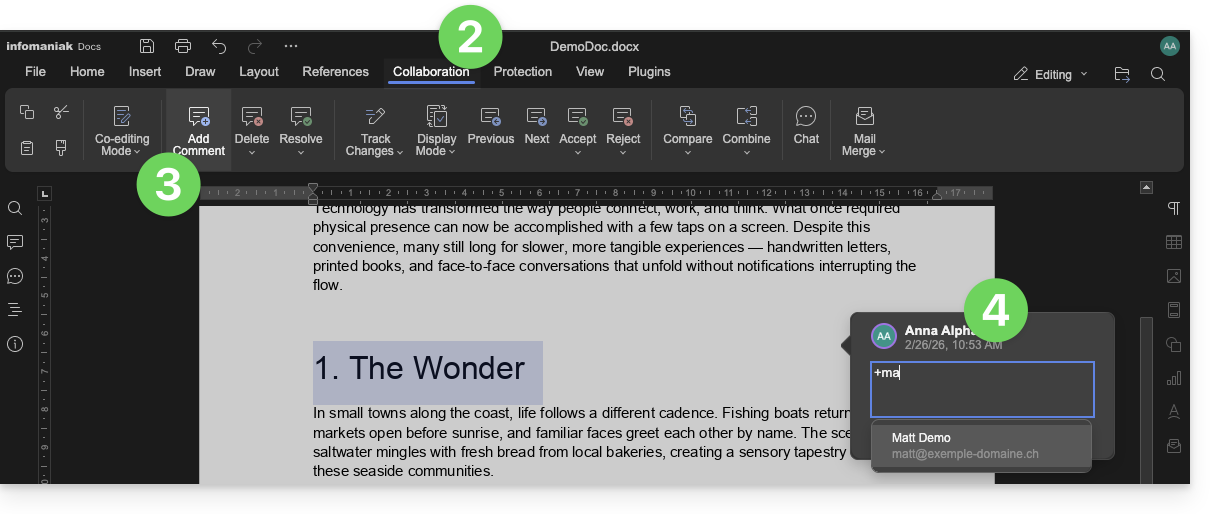
The tagged user receives an email with the relevant details: name of the comment author, link to the document, date and time of the comment.
If the user in question is online on kChat (within the relevant kSuite), instead of receiving an email, they will receive a notification via the kChat Bot. If the user is offline or in "Do Not Disturb" mode, the system will send an email.
Edit an Office-type document on mobile
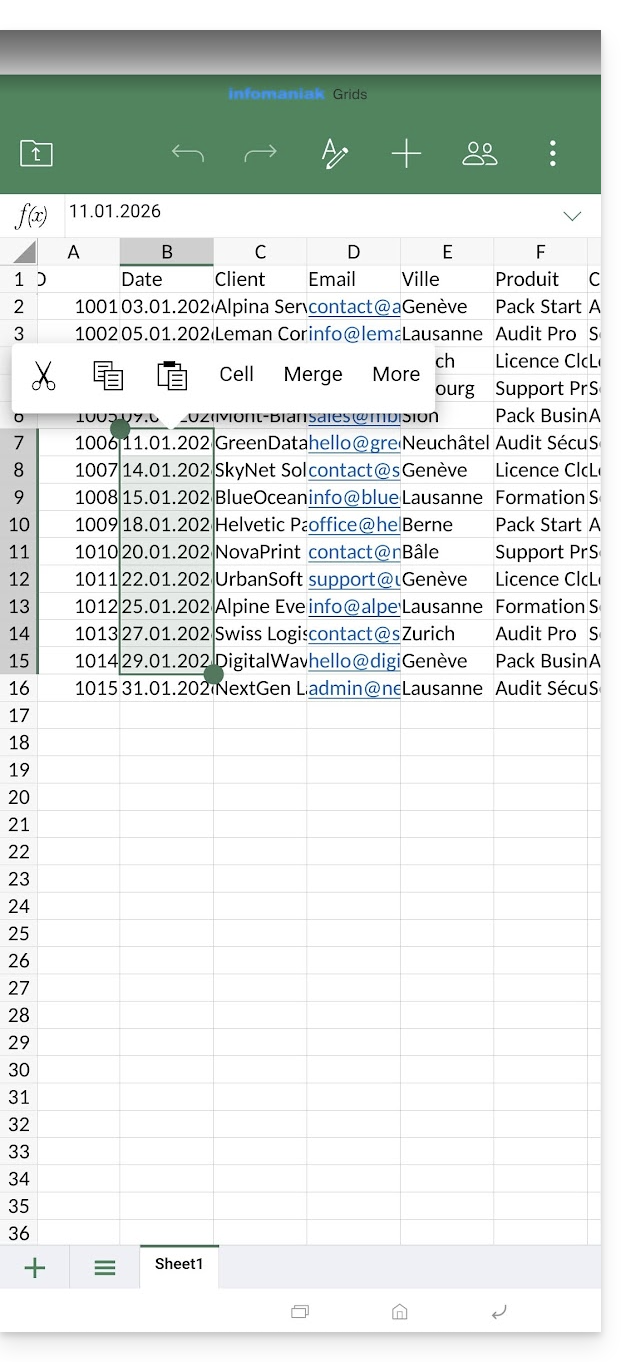
The kDrive mobile app (application for iOS/Android smartphones or tablets) natively integrates the Docs, Grids, and Points applications, which allow you to create, edit, and collaborate online on Word .docx, Excel .xlsx, and PowerPoint .ppsx documents: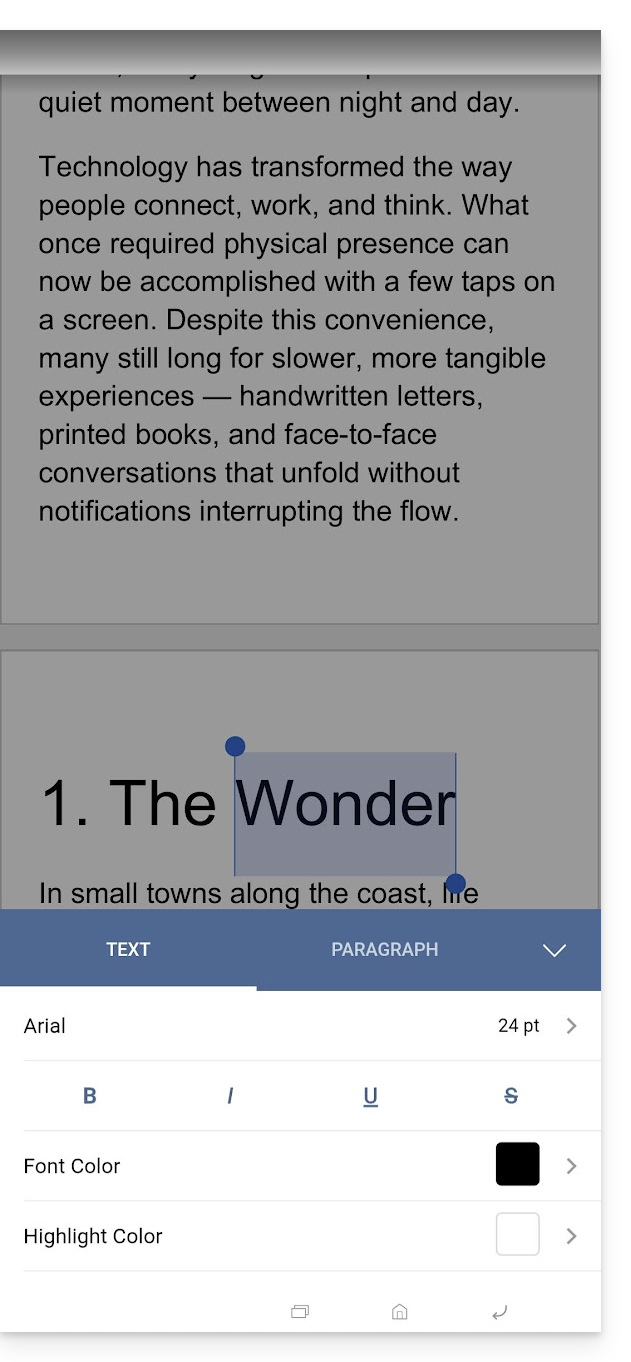
Link to this FAQ: https://faq.infomaniak.com/2399
Has this FAQ been helpful?
This guide explains why analyses are performed on your kDrive data when you grant this permission to Infomaniak, and how to revoke it.
Introduction
- Data analysis is used solely to improve AI features, including search.
- The confidentiality of data stored on kDrive is a priority for Infomaniak:
- The analysis is performed entirely in-house by Infomaniak, without any involvement from third parties.
- Human intervention is technically possible, but it is extremely rare and not practiced under normal circumstances.
- Read this other guide to learn more about the model used and the responsibilities of each party.
Manage the granted right
Prerequisites
- You must be at least an Administrator of the Organization (❓: help).
Next, you can check the status of your data analysis:
- Click here to access the Infomaniak kDrive web app (online service ksuite.infomaniak.com/kdrive).
- Click on Settings in the top right corner.
- Check or select the relevant kDrive from the drop-down menu in the left-hand menu.
- Click on General in the left-hand menu.
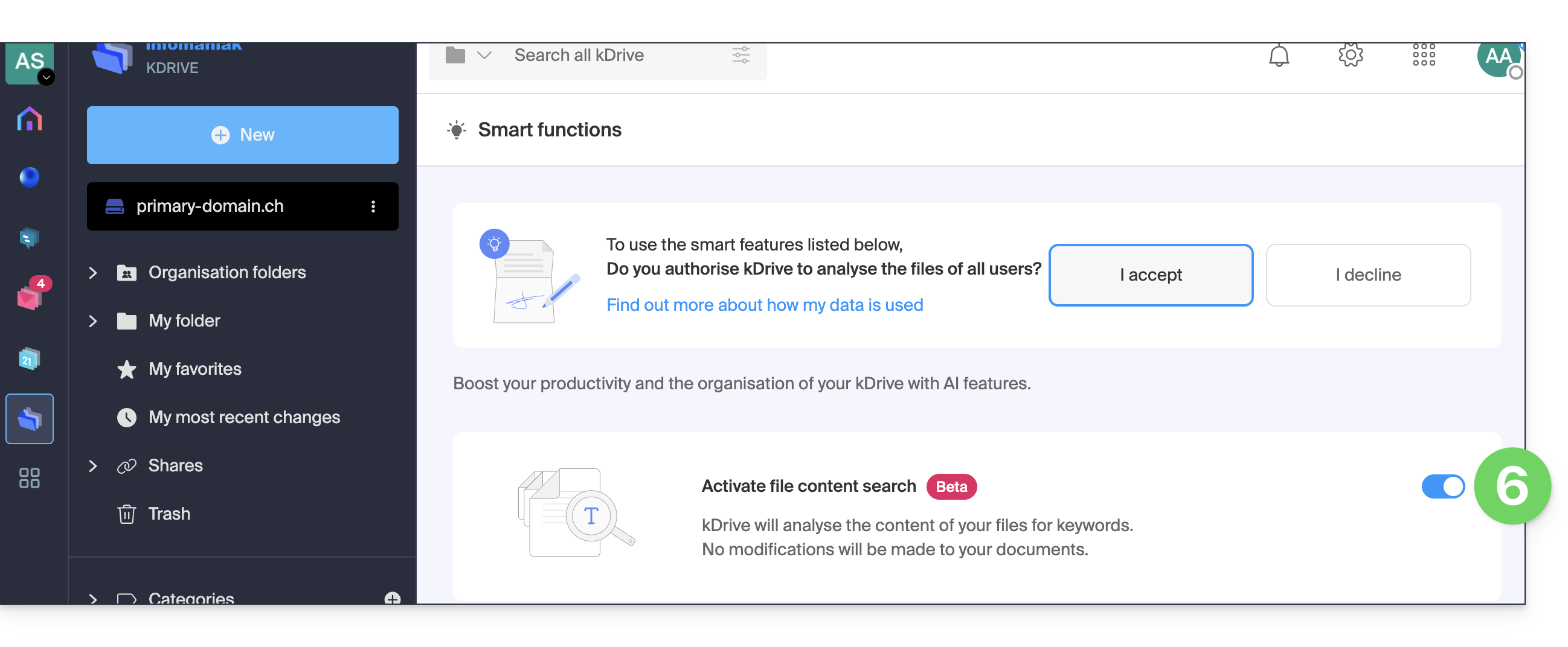
- Click under Permissions on Smart features (or Data analysis in my kSuite):
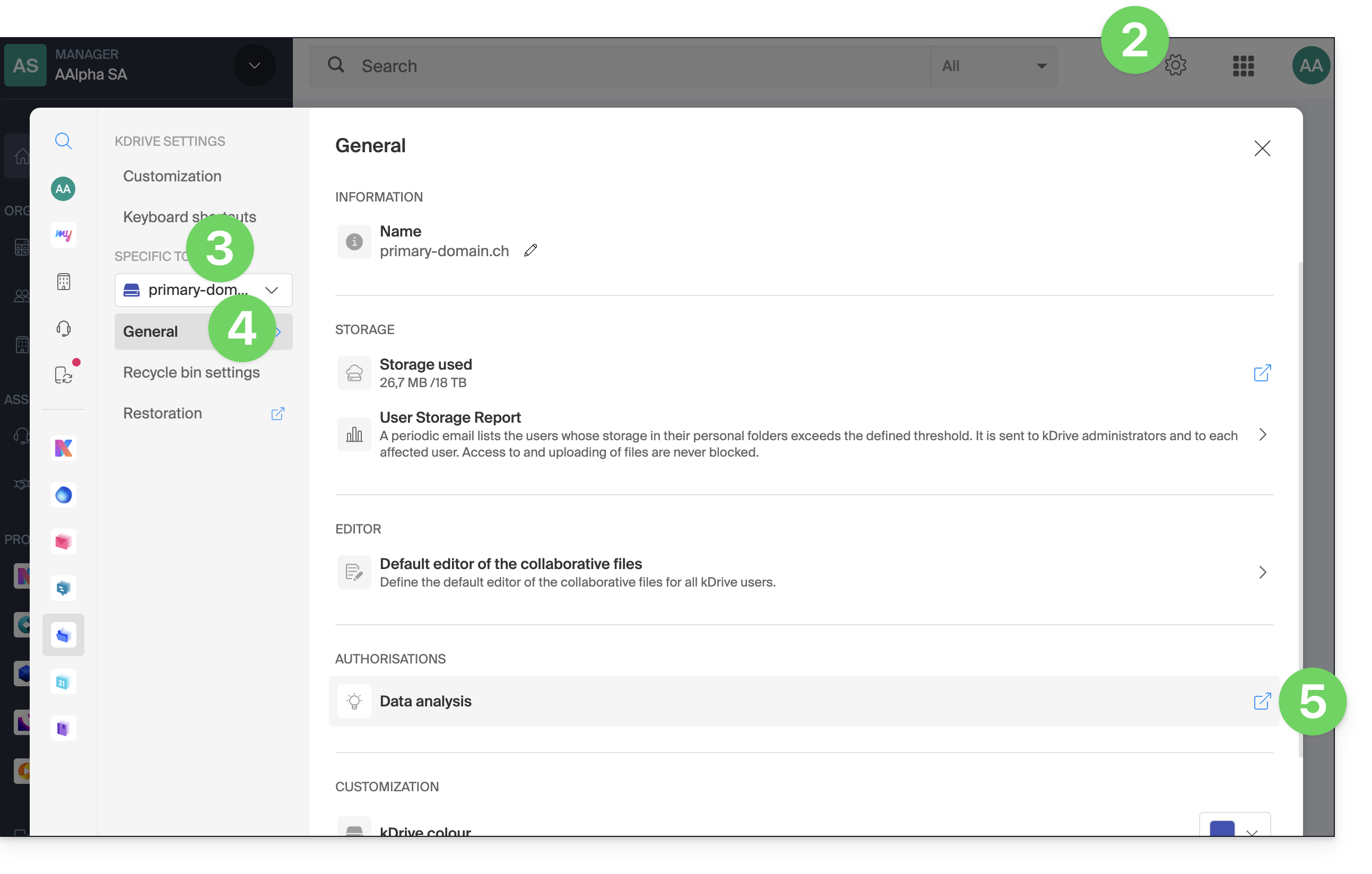
- Click the toggle switch to perform the desired action:
Link to this FAQ: https://faq.infomaniak.com/2412
Has this FAQ been helpful?
This guide explains how to regain access to Infomaniak tools (manager.infomaniak.com and Mail / ksuite.infomaniak.com) if you have forgotten your password or your Infomaniak account login ID.
Introduction
- To log in to an Organization that manages one or more Infomaniak products, go to manager.infomaniak.com and enter the following information:
- A login email address (the identifier for your Infomaniak account).
- The password you chose when you registered.
- An additional code if 2FA (two-factor authentication) is enabled.
- If you can log in to the platform but are missing a password for one of your email addresses, please refer to this other guide.
- If the issue is more related to a problem with the login form display, especially on a mobile device, please refer to this other guide on the subject.
You have forgotten...
... the Infomaniak account password
If you forget this password, follow the reset procedure:
- Click here to reset your password.
- Enter the email address you use to log in to your Infomaniak account.
- Choose the desired recovery option or follow the identity verification procedure by clicking on “You have no available options”.
... the email address used to log in to your Infomaniak account
When you registered, you provided a phone number; you can use it to find the email address used to log in to your Infomaniak accountusing your phone number:
- Click here to recover your email address for logging into your Infomaniak account.
- Enter your mobile phone number.
- Enter (if necessary) your recovery email address.
Two scenarios are then possible:
- The system manages to identify your account: choose how you want to receive your Infomaniak account login credentials.
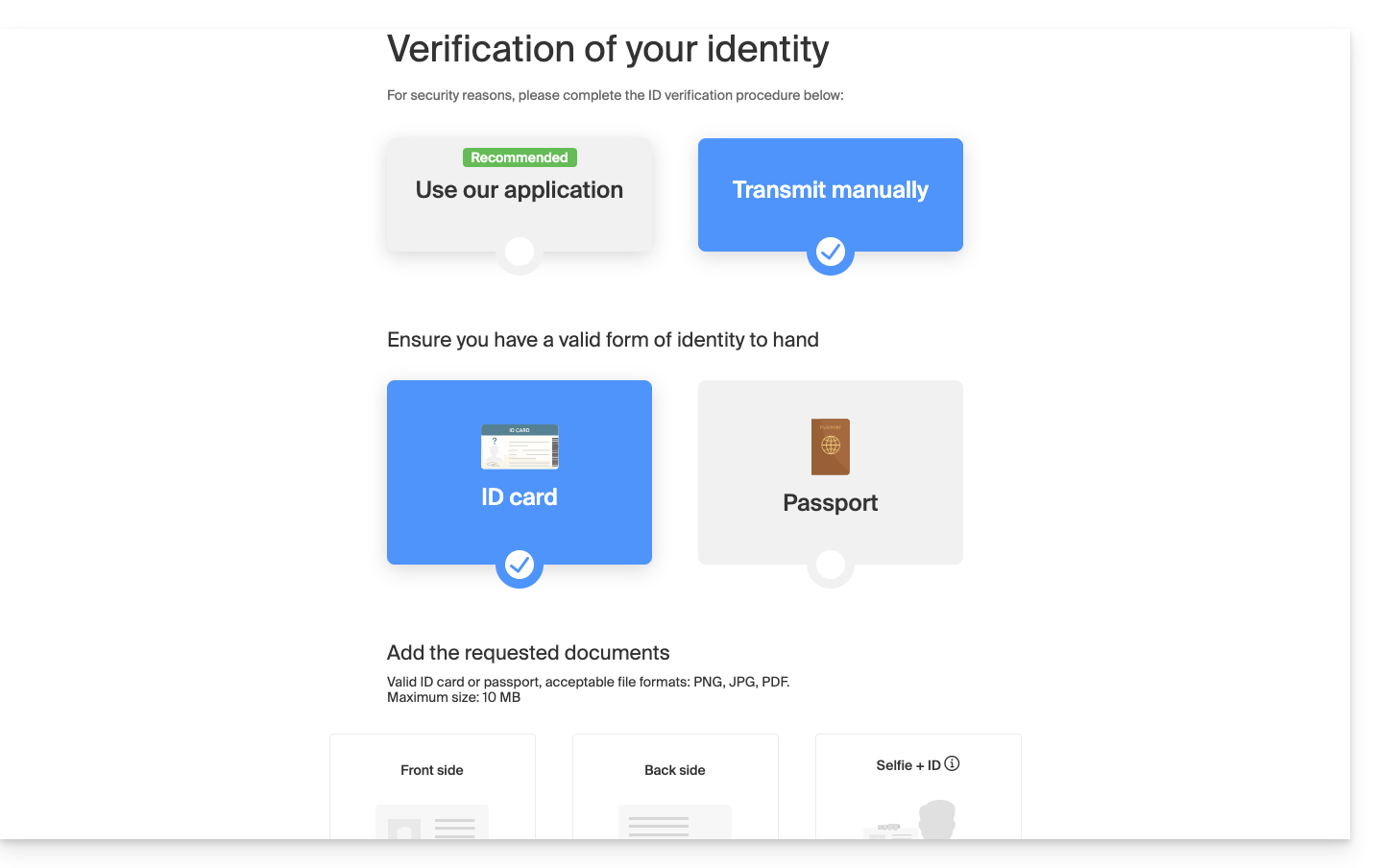
- If not, follow the on-screen wizard to manually verify your identity or via kCheck:
What if the email address no longer exists?
If you have an Infomaniak account where the login ID is in the format toto123@yahoo.com, there is no problem if the email address toto123@yahoo.com is deleted or is no longer valid. Simply log in one last time to the Infomaniak Manager with this ID toto123@yahoo.com and consult this other guide to change your email address for logging into your Infomaniak account.
However, if the email address used as the login ID is hosted by Infomaniak (for example, anna789@assoziation.ch) and an administrator deletes the email address in question or cancels the Mail Service “assoziation.ch”, the situation is different: you will automatically receive an email to the secondary address and an SMS to the mobile phone number specified in your Infomaniak account: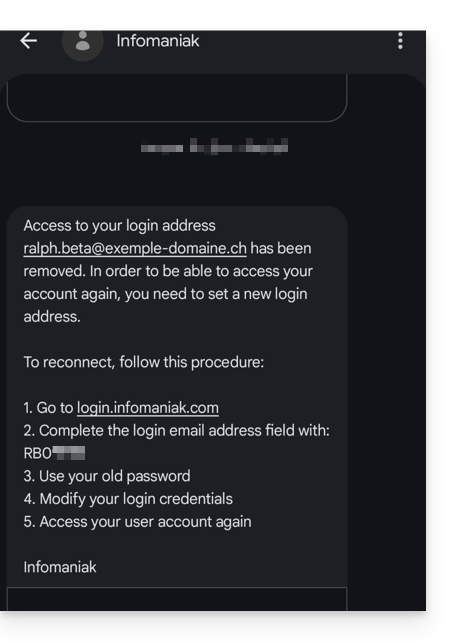
This situation can also occur in a specific email service management scenario.
To regain access to their Infomaniak account now that access is no longer possible with the old email address, the Infomaniak account user must go to the address mentioned in the SMS:
- Click here to access the login page.
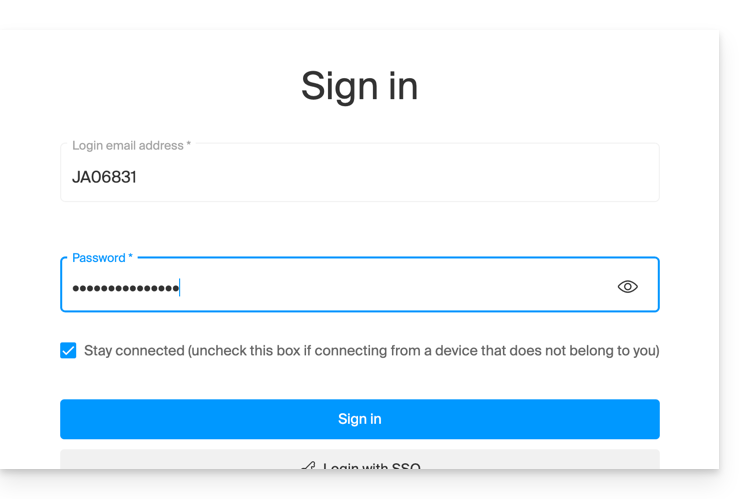
- Enter the username specified in the SMS (usually the initials of your account followed by a series of numbers).
- Enter your usual password (it has not changed):
- Enter the new information requested:
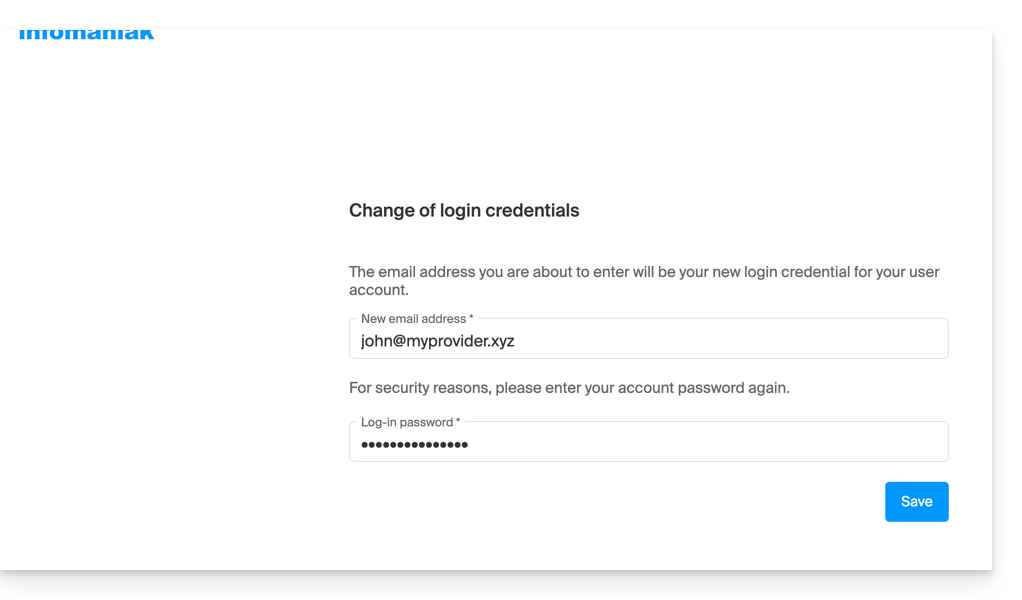
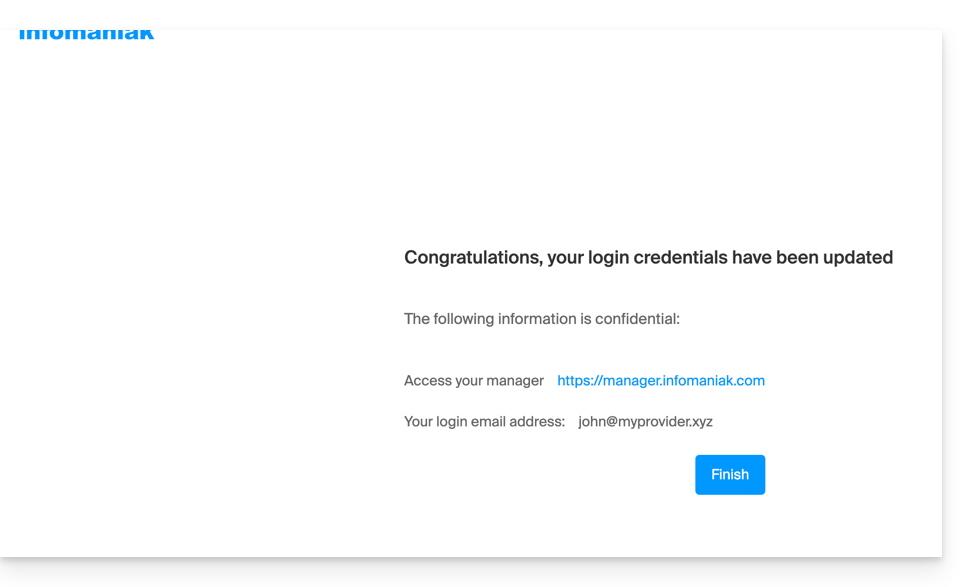
- You will be logged back into your account:
Link to this FAQ: https://faq.infomaniak.com/2415
Has this FAQ been helpful?
This guide concerns the kCheck mobile app (application for iOS/Android smartphones or tablets), created to simplify identity verification procedures and enhance the security of your Infomaniak account.
Introduction
- For security reasons, in order to guarantee the identity of the person making a specific request to Infomaniak, an identity verification procedure may be triggered in the following cases (non-exhaustive list):
- forgotten Infomaniak account password (user account)
- forgotten login email address
- deactivation of two-factor authentication (2FA)
- unlocking an Infomaniak account
- during the first payment of revenue for the Ticketing product
- when ordering a product (suspicion of spam or fraud, brand name, etc.)
- This application allows you to securely transfer the requested information.
- Infomaniak respects your privacy: the information transmitted via the kCheck application will be kept until your request is fully processed; in any case, it will be automatically deleted after 72 hours if this request is not processed.
Starting the identity verification
Prerequisites
- A QR code or a link provided by Infomaniak.
- The kCheck mobile app installed on your device: iOS (iPhone, etc.) or Android.
- An Internet connection on the mobile device.
You can then have your identity verified with kCheck:
- Launch the kCheck app on your mobile device.
- Tap Start.
- Tap Scan a QR code.
- Point your device's camera at the provided QR code.
- Enter your mobile phone number.
- Enter the confirmation code you receive.
- Allow geolocation (required to continue).
- Select the type of ID you have (ID card or passport).
- Follow the steps to photograph your ID.
- Take a selfie (of yourself) with your ID in your hand in front of you.
Your documents will then be securely transmitted to Infomaniak support. These requests are processed with priority and have an average response time of 2 hours during business hours.
If your order is blocked...
For security reasons, some orders may be automatically blocked.
When your order is placed, an email is sent to the email address associated with your Infomaniak Manager account. This email contains the procedure for unblocking your order. If you cannot find it, you can request that it be resent from your Manager by clicking Resend the procedure from the red banner informing you of the block.
Prerequisites
- Open the email containing the unblocking procedure.
- The kCheck mobile app installed on your device: iOS (iPhone, etc.) or Android.
- An internet connection on your mobile device.
You can then start the unlocking process with kCheck:
- Launch the kCheck app on your mobile device.
- Tap Start.
- Tap Scan a QR code.
- Scan the QR code in the email.
- Follow the unlocking procedure until the end.
Special cases
- If you do not take any action within 10 days, the order will be automatically cancelled and the full amount will be refunded to the payment method used.
- If you do not have a mobile device to follow this procedure, contact Infomaniak support.
Link to this FAQ: https://faq.infomaniak.com/2418
Has this FAQ been helpful?
This guide concerns kSuite, the suite of productivity and online collaboration tools developed in Switzerland by Infomaniak.
Introduction
- Only one kSuite is possible per Organization!
- Create multiple Organizations (while keeping your Infomaniak account and switching between Organizations) to manage multiple kSuites.
- Please note that a kSuite cannot be transferred from one Organization to another!
Manage kSuite
- Link a domain name to kSuite
- Link an additional domain name to kSuite
- Convert existing products to kSuite (or unlink them)
- Define the user quota
- Understanding data storage related to kSuite
- Get a website
- Modify an existing kSuite plan
Using kSuite
- Discover kSuite and its included products
- Discover the kSuite dashboard
- Manage status and presence in kSuite
Each product included in kSuite has its own guides in the kChat, kMeet, kDrive, etc. sections, which you can find on https://faq.infomaniak.com. You can also enter the name of the product you are looking for: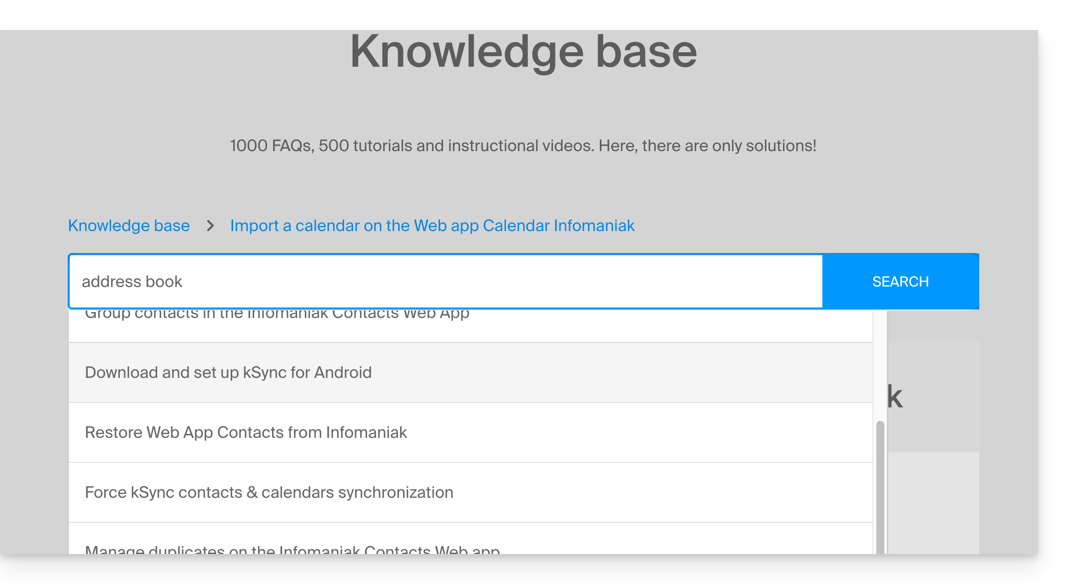
Have a question or feedback?
- To help you identify the my kSuite / kSuite offer that best suits your needs, please refer to this other guide.
- If you encounter any issues, please consult the knowledge base before contacting support.
- Click here to share feedback or suggestions about an Infomaniak product.
Link to this FAQ: https://faq.infomaniak.com/2423
Has this FAQ been helpful?
This guide explains how to connect Microsoft 365 to an email address hosted by Infomaniak.
Introduction
- Infomaniak email addresses cannot be added directly to Outlook online from a browser using a personal Microsoft account
- Indeed, Microsoft no longer allows adding an external address via IMAP to
outlook.live.com. - Only the Microsoft mailbox linked to the connected account (address
@outlook.fr,@outlook.com,@hotmail, etc.) can be displayed there. - “Microsoft 365” is primarily a subscription; Microsoft has removed the function for connected accounts in Outlook.com, and the equivalent function in Outlook on the web has also been removed.
- Indeed, Microsoft no longer allows adding an external address via IMAP to
- To view an Infomaniak address with Outlook,you must therefore install the Outlook app or use other IMAP-compatible email software/client.
Get the Outlook 365 app
To do this:
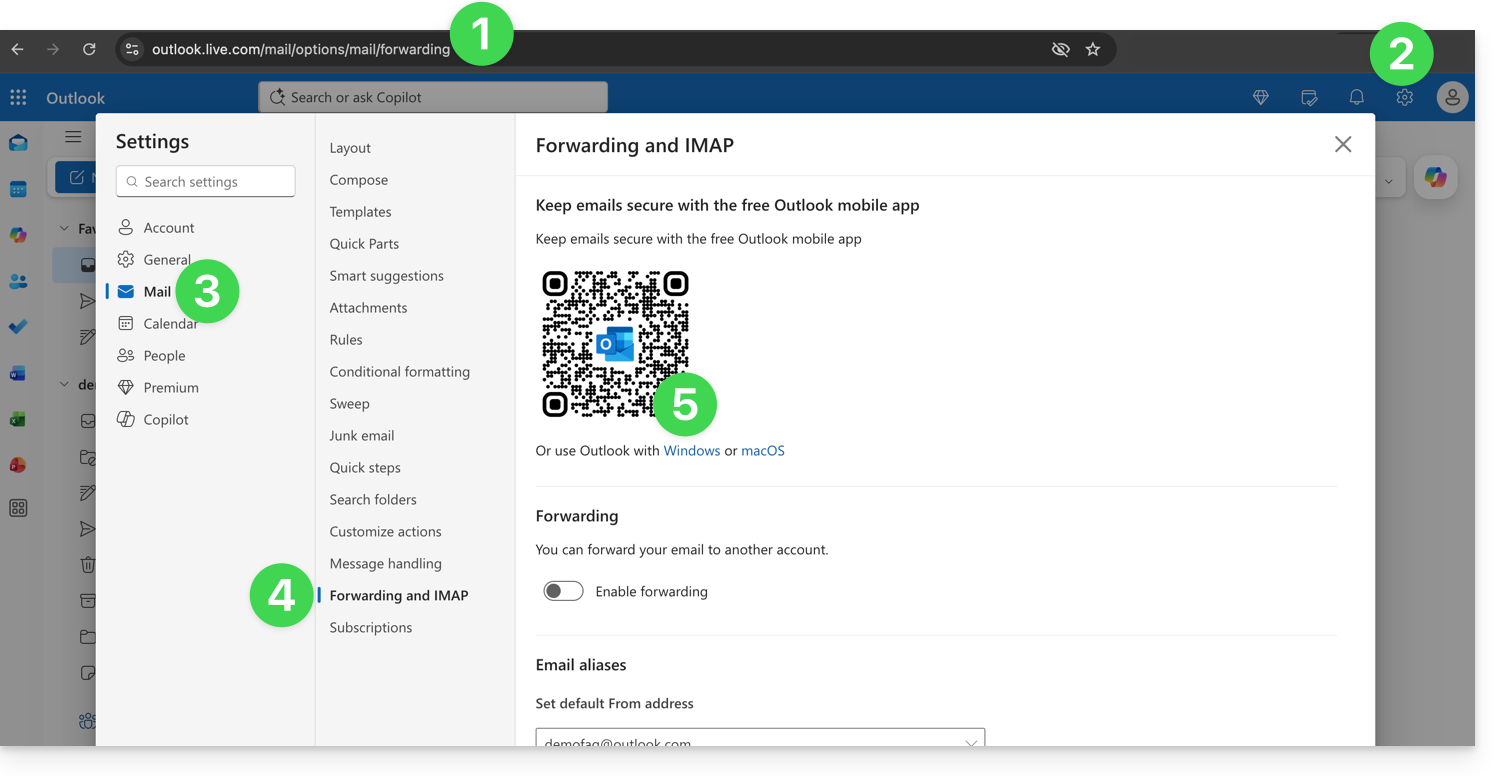
- Log in to https://outlook.live.com/mail/options/mail/forwarding with your personal Microsoft account.
- Click on Settings in the top right corner.
- Click on Mail in the left-hand menu.
- Click on Transfer and IMAP in the secondary menu.
- Download the Outlook application in the version corresponding to your device type:
Add the email address to the Outlook 365 app
On macOS, please refer to this other guide.
On Windows, this other guide and on mobile (iOS / Android), this other guide.
Link to this FAQ: https://faq.infomaniak.com/2428
Has this FAQ been helpful?
This guide explains how to connect the eM Client desktop app (desktop application on macOS / Windows) to an email address hosted by Infomaniak.
Add the email address to the application
Prerequisites
- Create the email address (❓: help my kSuite | Mail Service/kSuite).
- Create a device password (❓: help my kSuite | Mail/kSuite Service).
- Verify that the domain is configured correctly (❓: help).
To configure the email application:
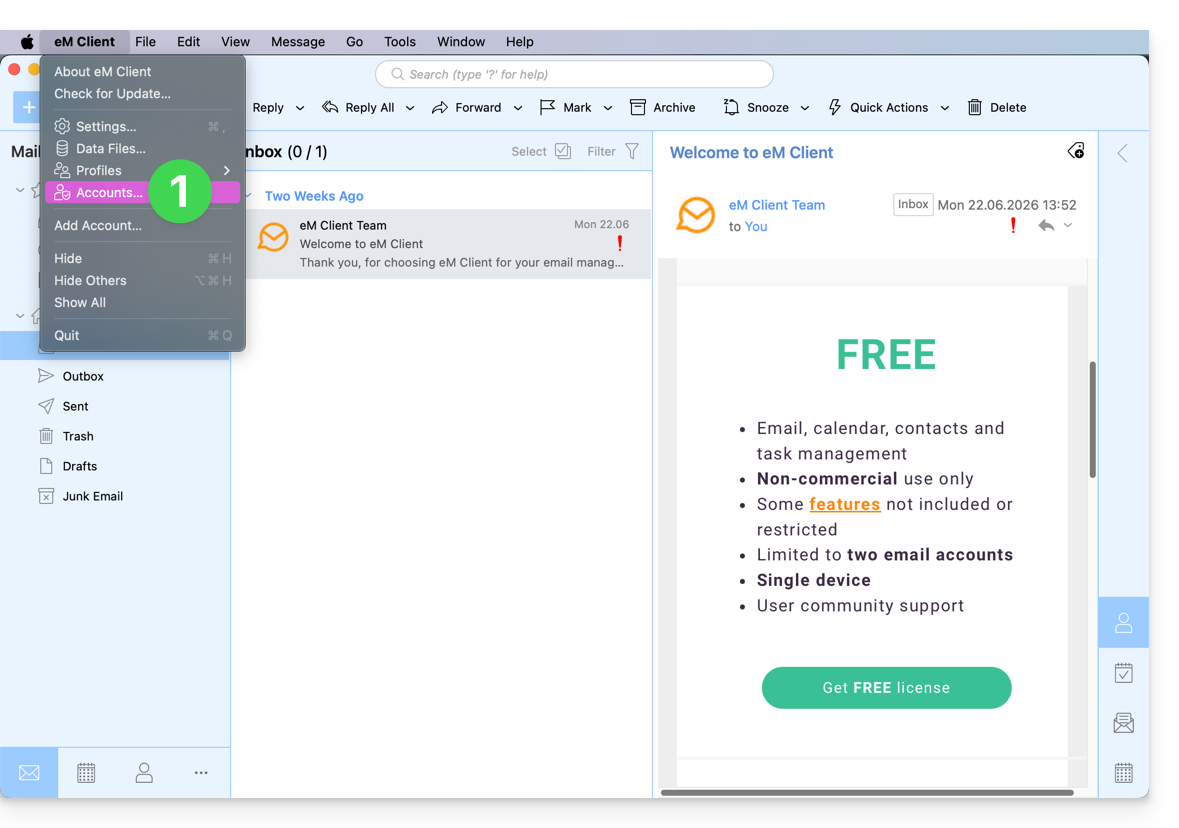
- Open the application and click on Accounts:
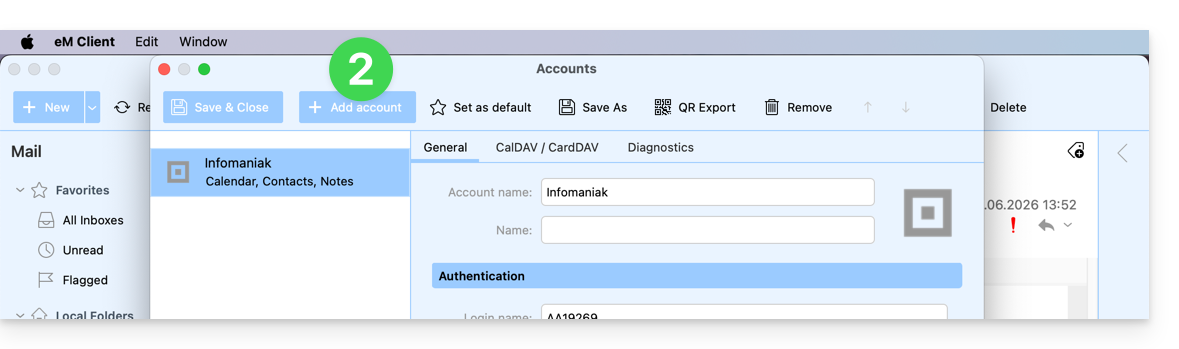
- Click on Add an account:
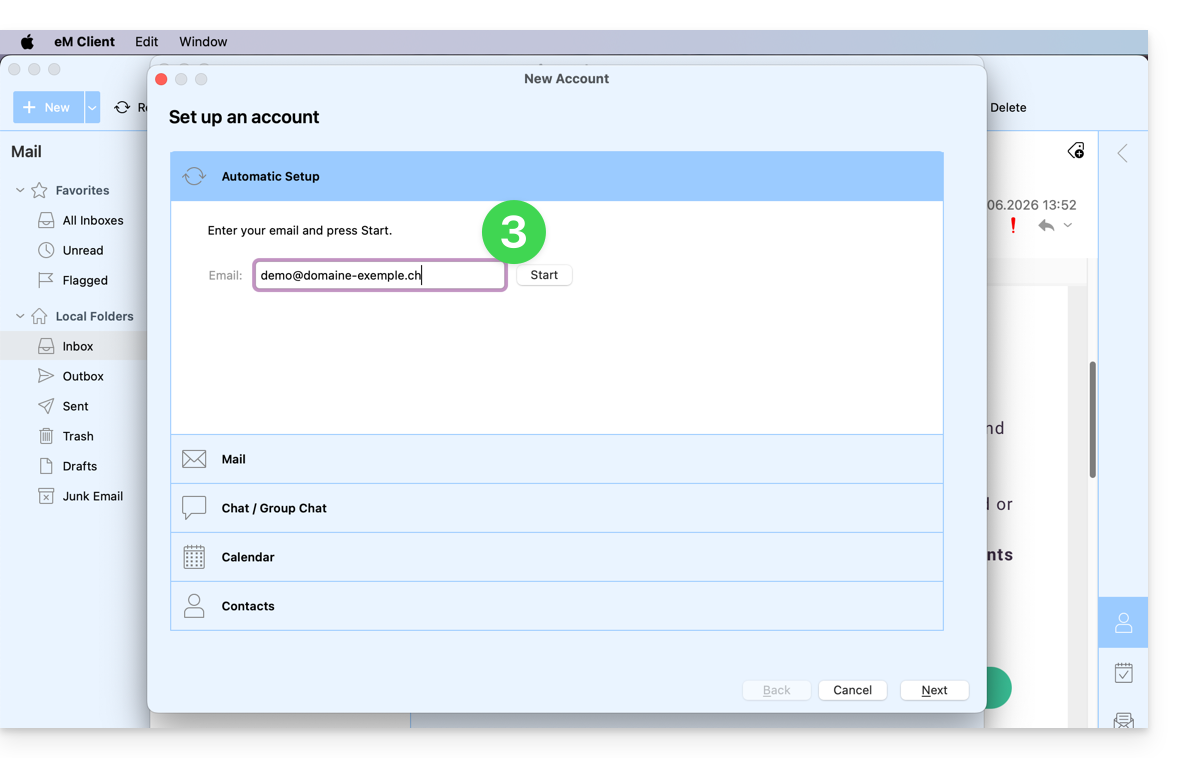
- Enter the email address to be linked, then click the Start button next to the field:
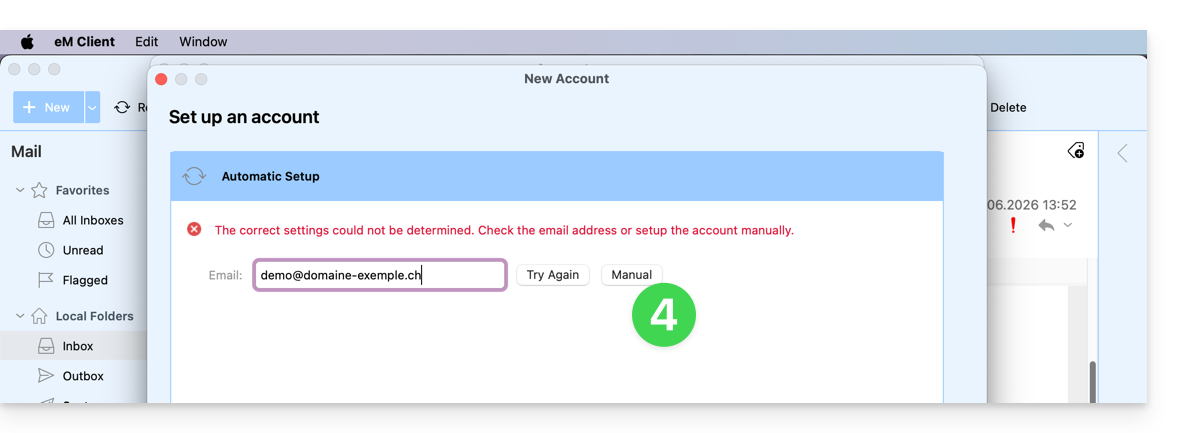
- Click the button to manually enter the settings:
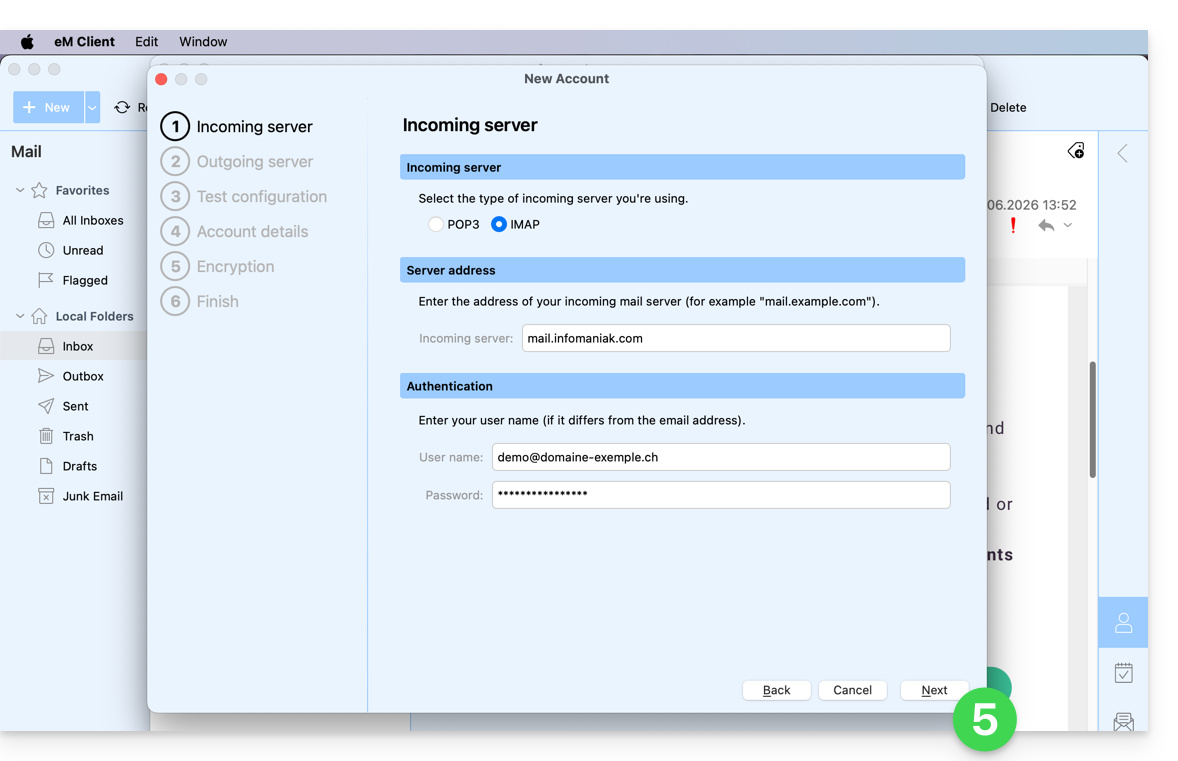
- Check the incoming server and complete any missing information (❓: help), then click Next:
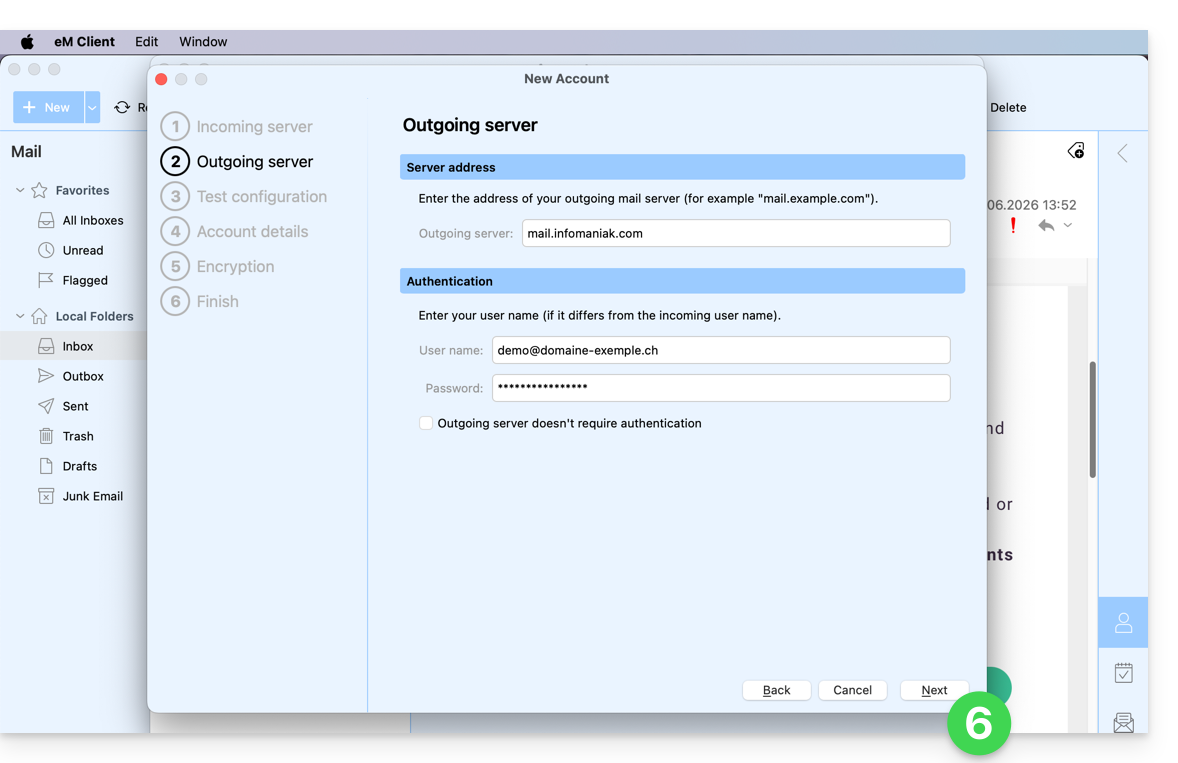
- Do the same for the outgoing server:
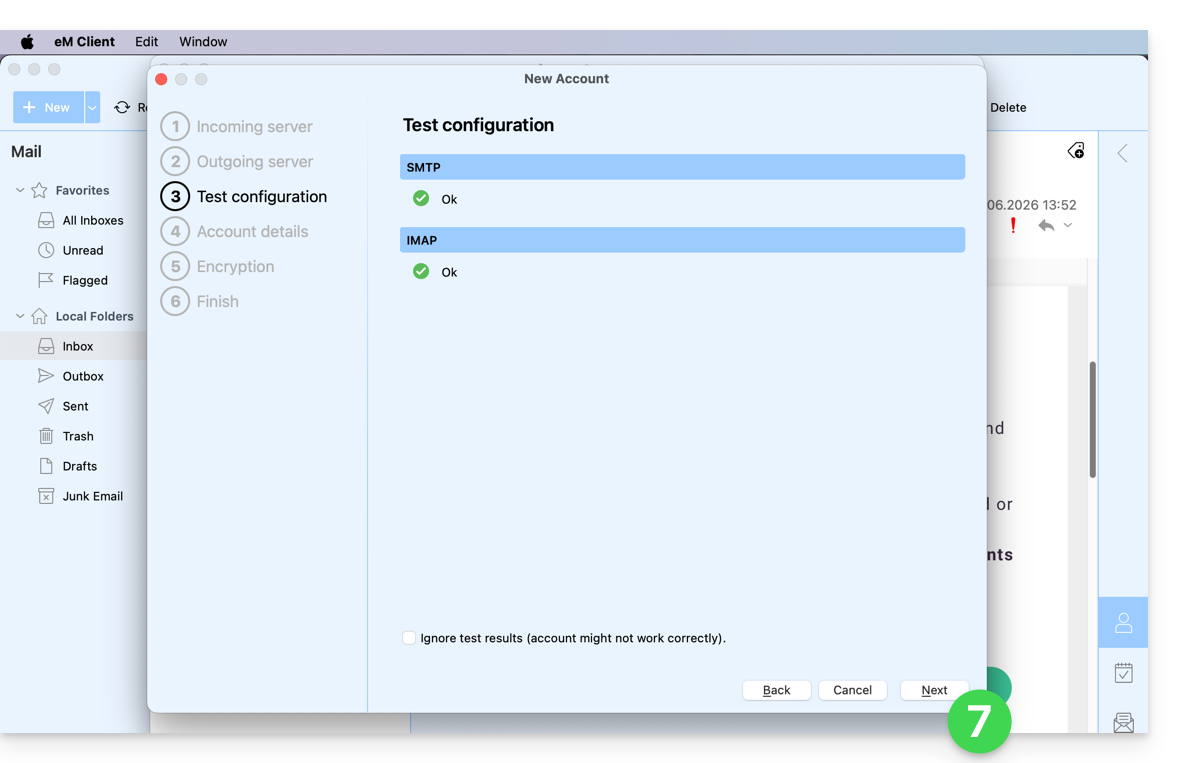
- Once the test indicators are green, click Next:
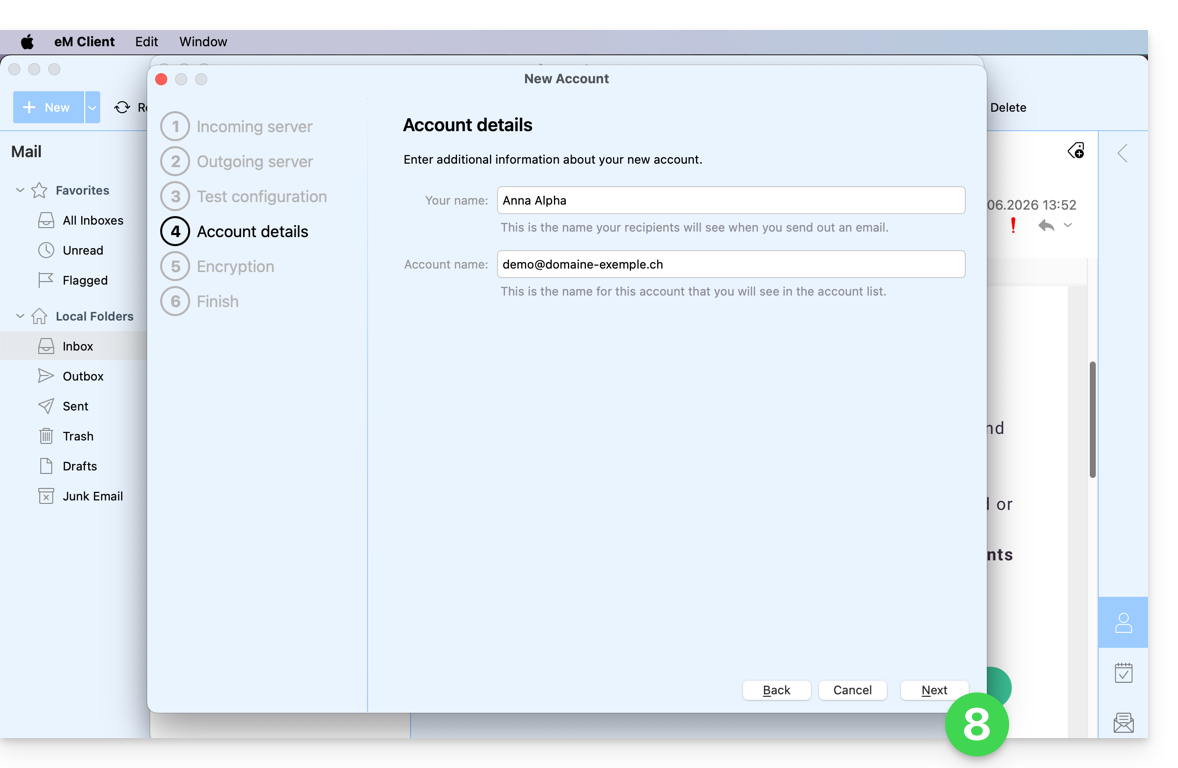
- Complete the missing information and then click Next:
- Skip this step without adding extra security:
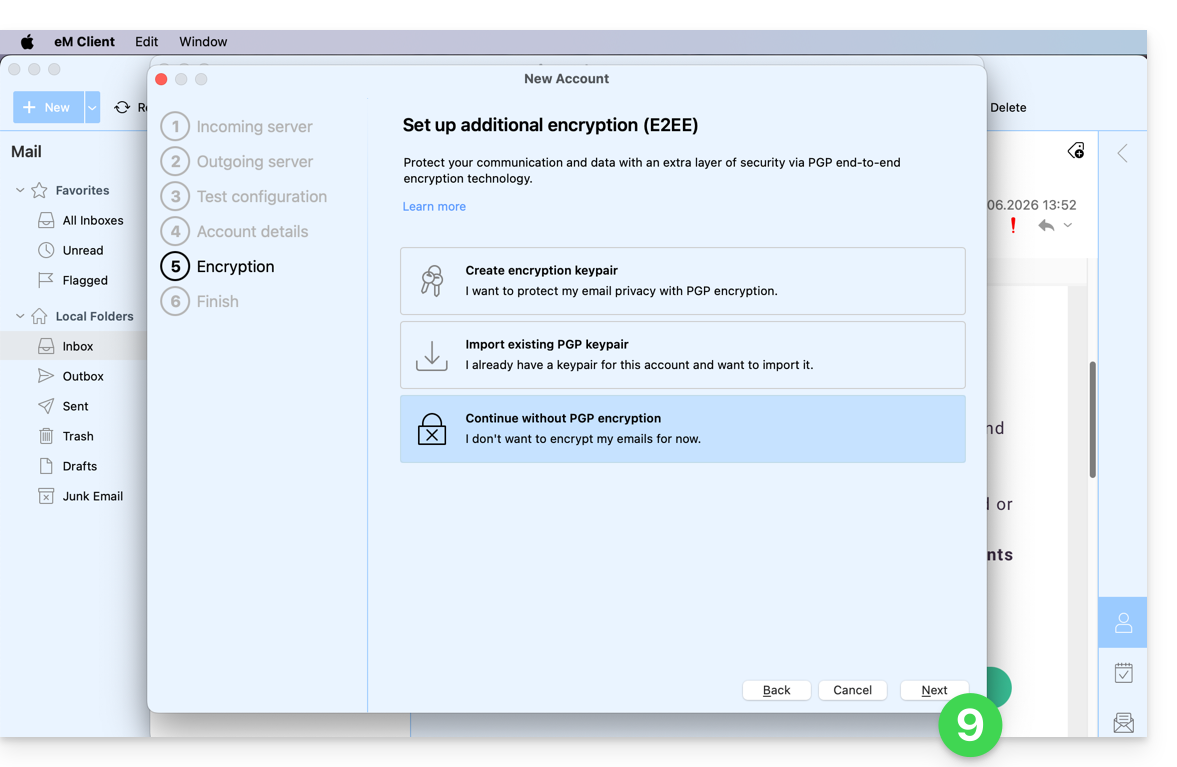
- Set your preferences and tap Finish:
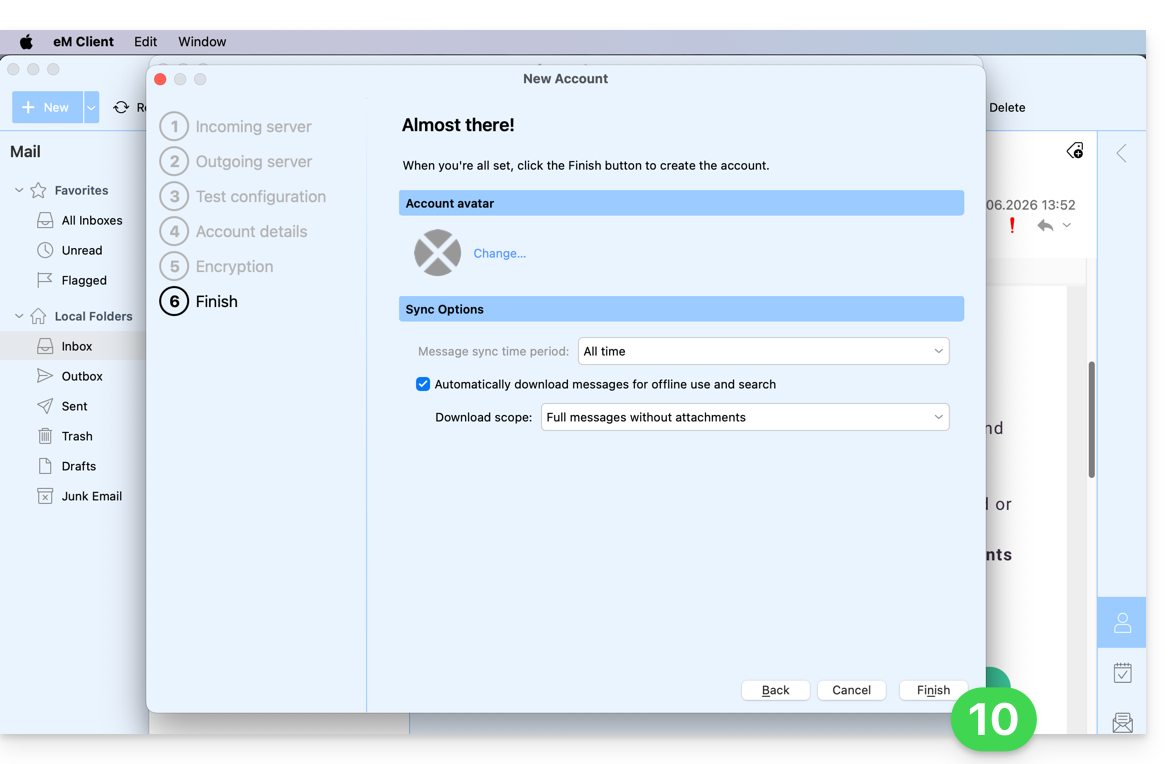
- Save the account addition:
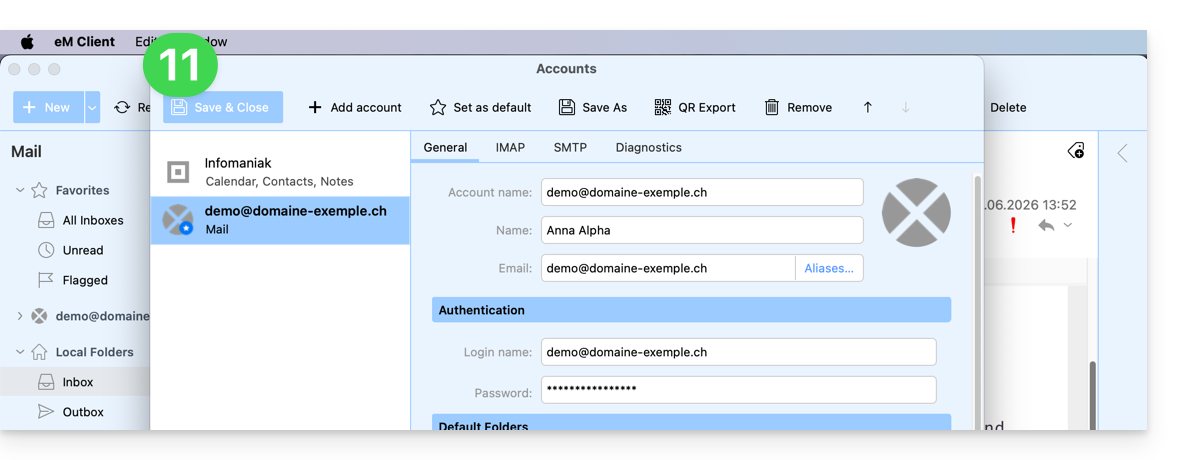
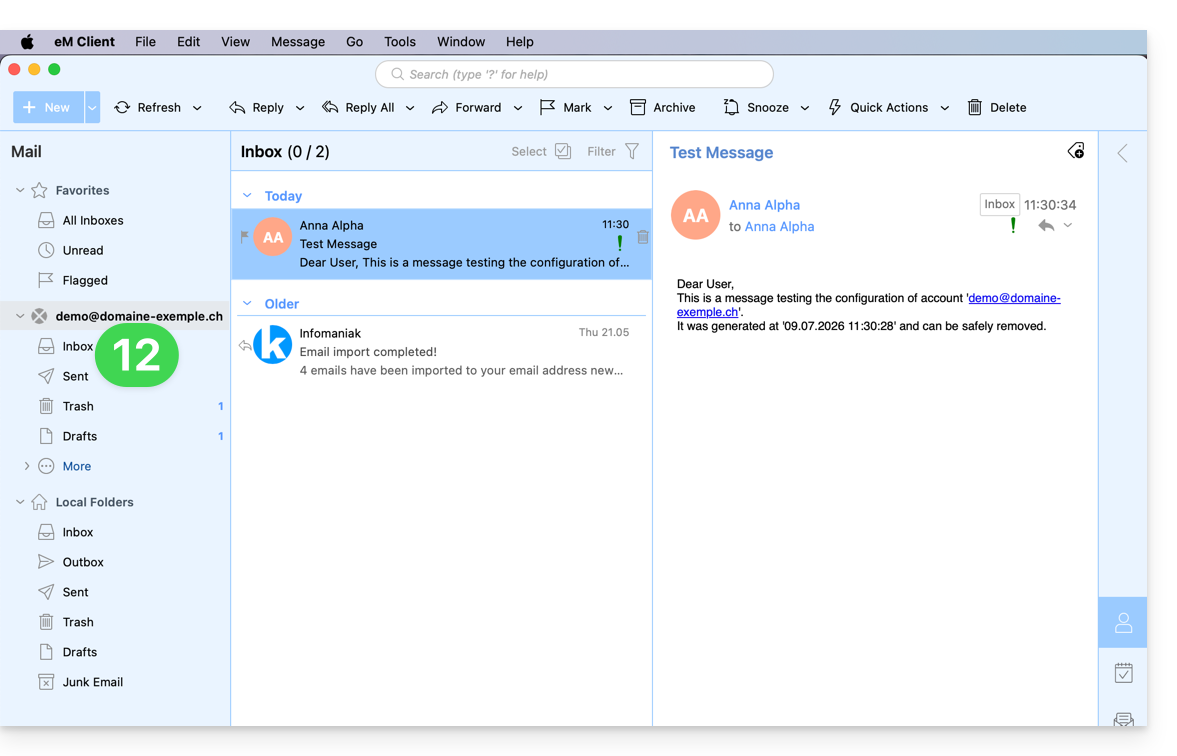
- Your email address is now configured in the application:
Recommended settings
- Incoming IMAP server =
mail.infomaniak.com - IMAP port =
993(with SSL) - Outgoing SMTP server =
mail.infomaniak.com - SMTP port & encryption protocol and command/method to activate this protocol:
587+ STARTTLS - Username = the complete email address (❓: help)
- Password = the password generated for the email address you want to access (❓: help my kSuite | Mail Service/kSuite).
- Mandatory authentication for sending emails:
- Enable this in the SMTP settings of your application.
- Check "use the same settings as the incoming server" or, depending on the software/email client, enter a username (i.e., the complete email address) and the generated password.
Refer to this other guide if you are looking for information about other compatible email ports and protocols (SSL / TLS, for example).
In case of a problem
Check that the Mail service is configured optimally (❓: help).
You do not need to contact Infomaniak Support if your email address works correctly outside the application. The most common error is using an incorrect password. Please refer to the solutions provided in this other guide regarding email in general.
Link to this FAQ: https://faq.infomaniak.com/2429
Has this FAQ been helpful?
This guide explains how to connect the desktop app Thunderbird (desktop application on macOS / Windows / Linux) to an email address hosted by Infomaniak.
Add the email address to the application
Prerequisites
- Create the email address (❓: help my kSuite | Mail Service/kSuite).
- Create a device password (❓: help my kSuite | Mail/kSuite Service).
- Verify that the domain is configured correctly (❓: help).
To configure the email application:
- Download the latest desktop version of Thunderbird (❓: help).
- Open the application.
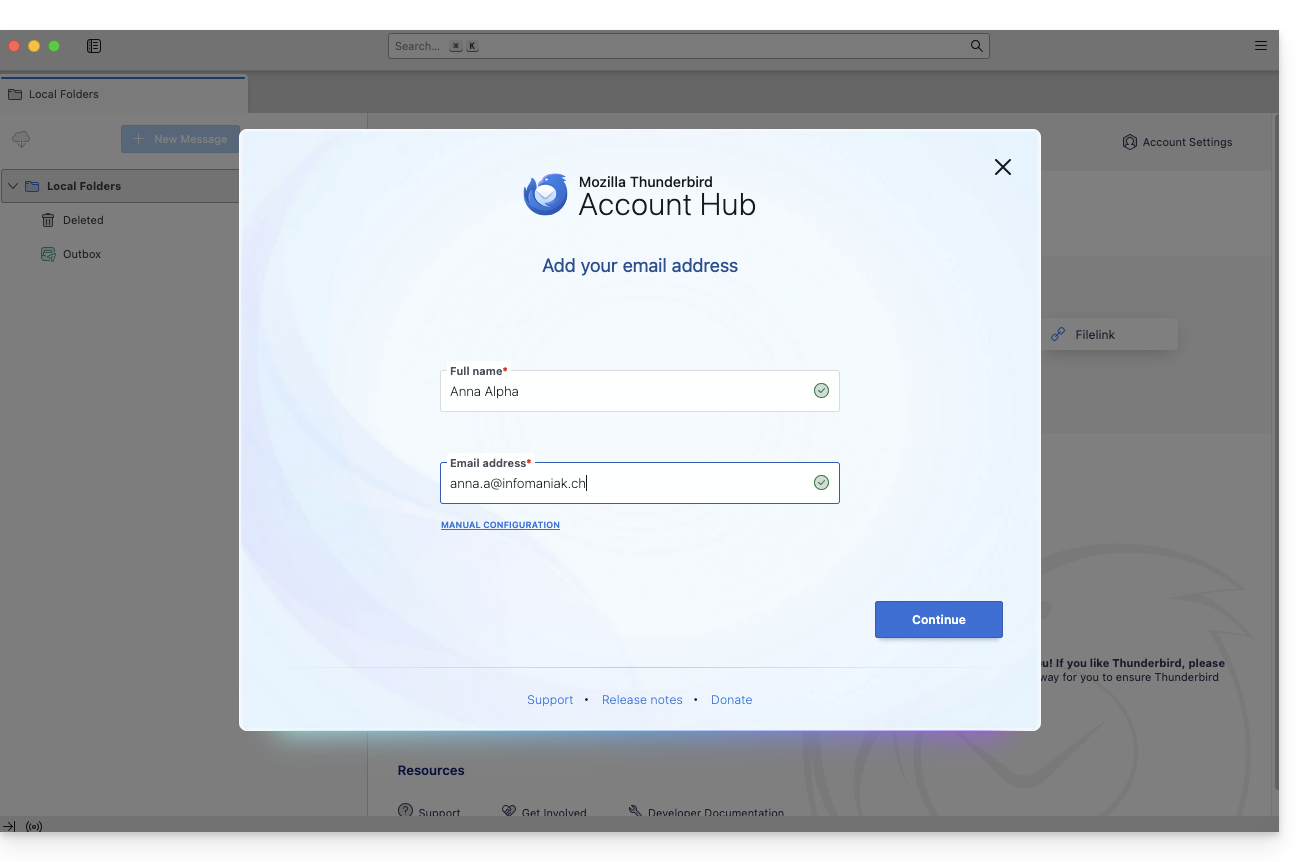
- Enter your account information and click Continue:
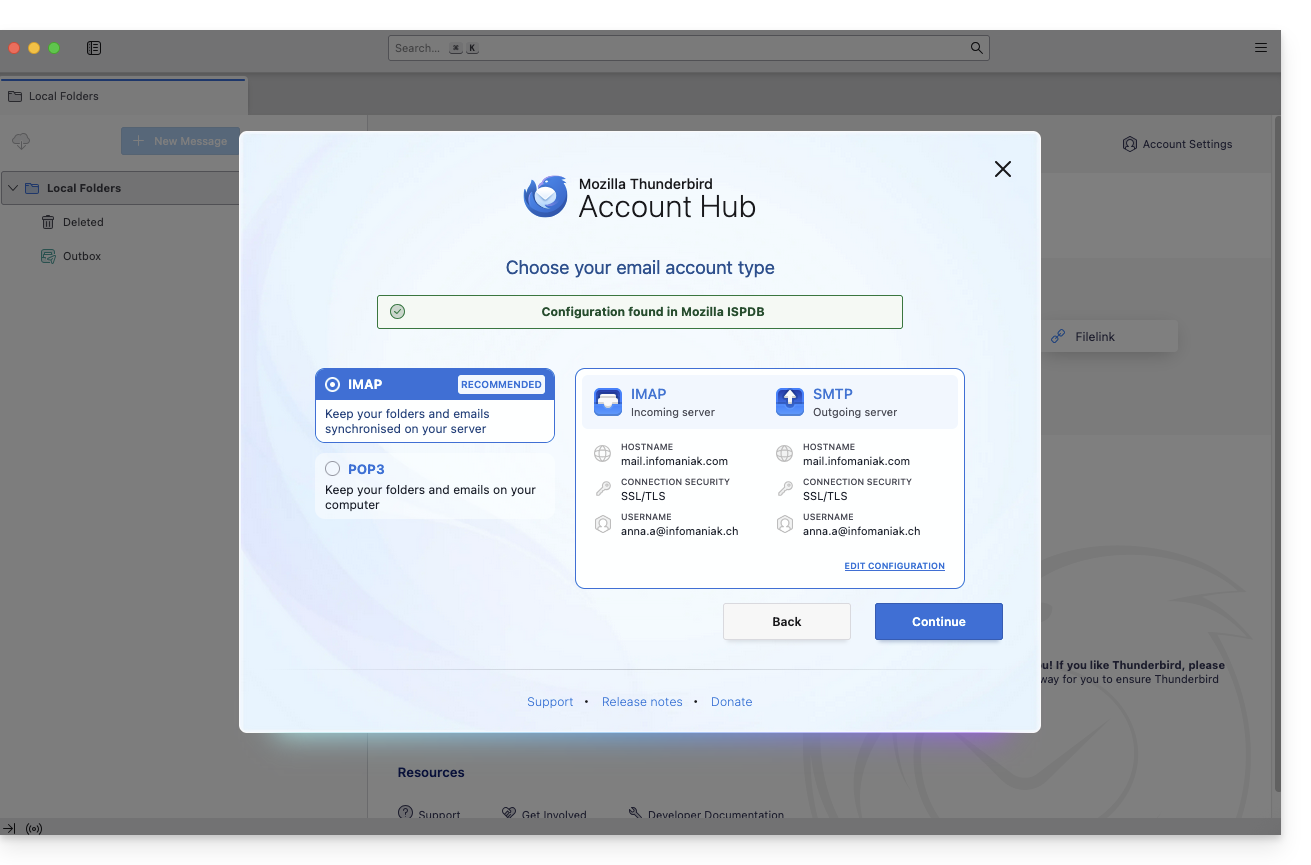
- Keep IMAP selected and click Continue:
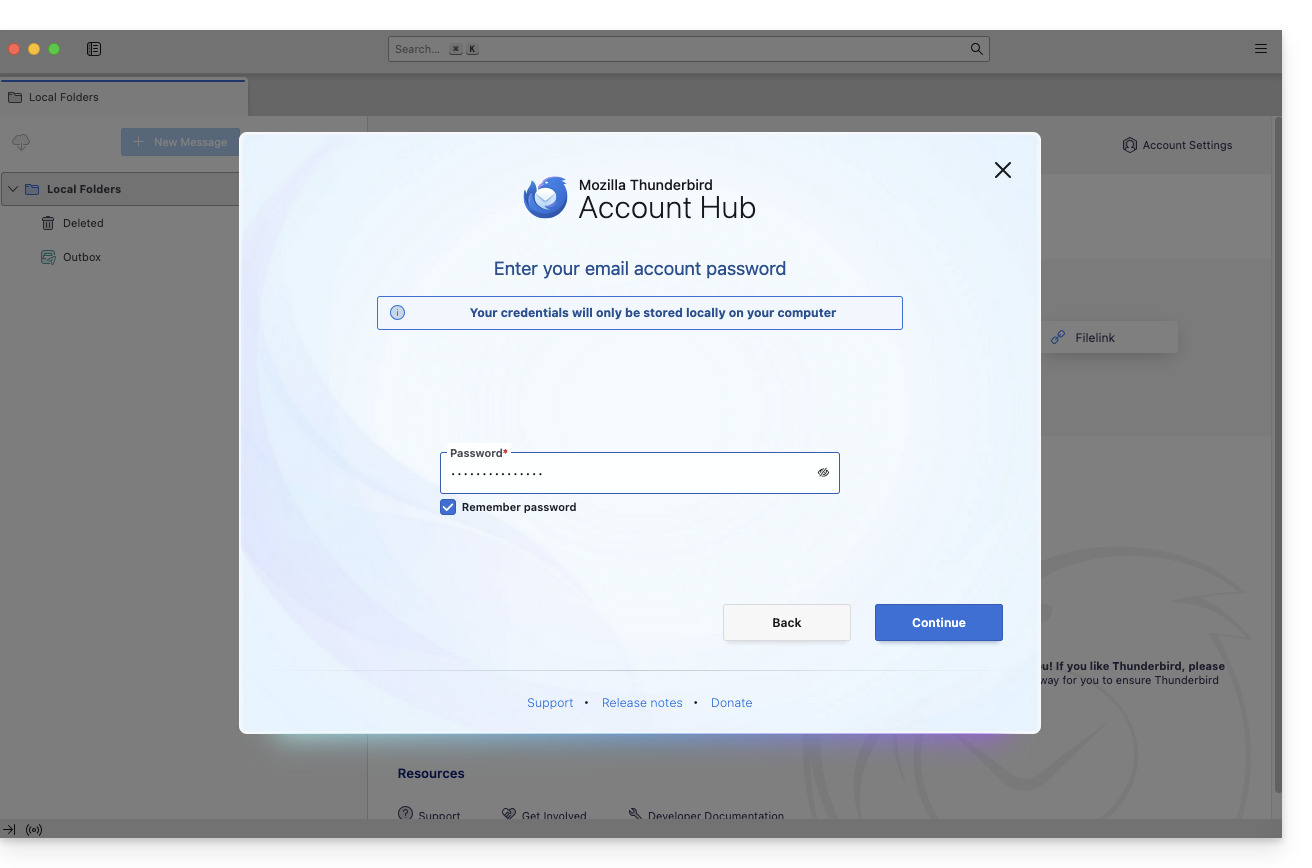
- Enter your password and click Continue:
- Click on Continue:
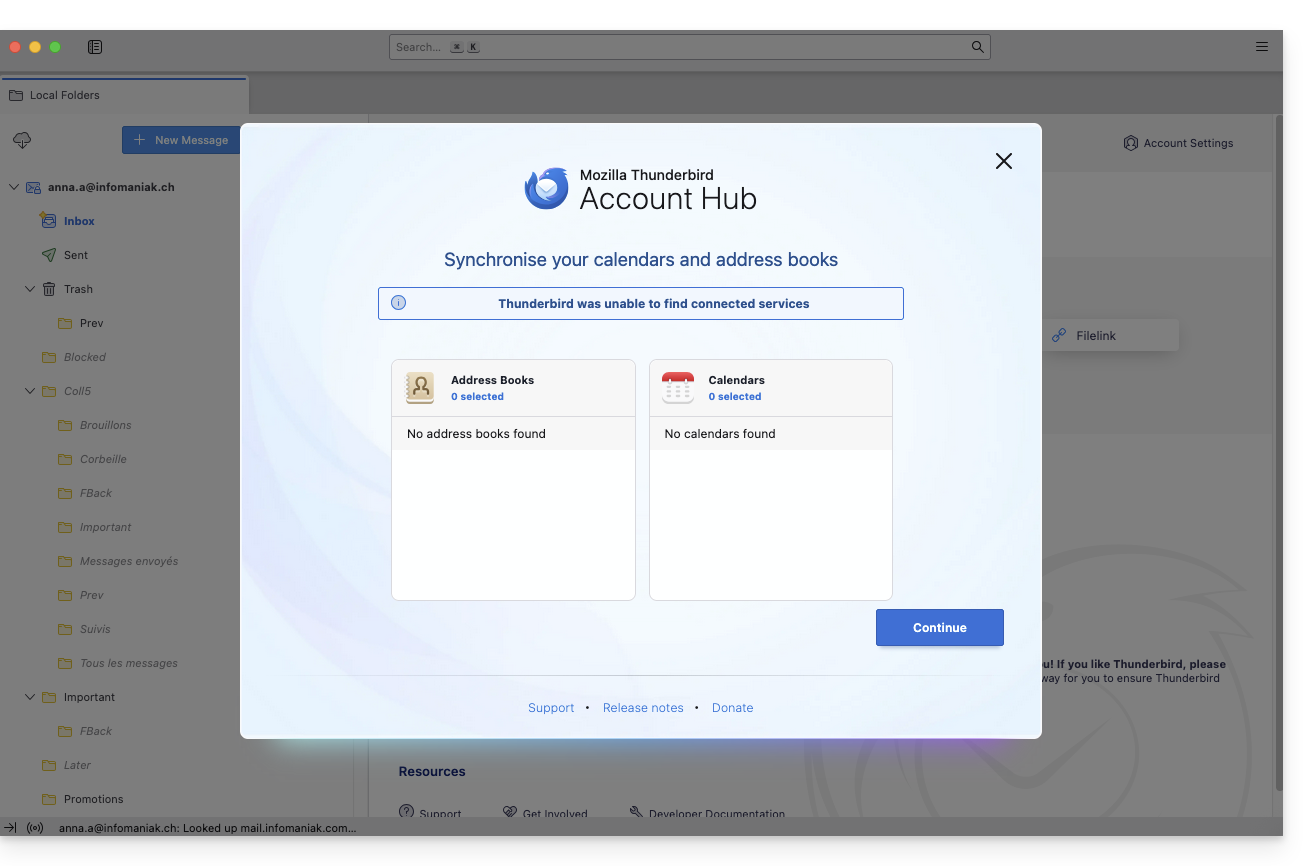
- Your registration summary is displayed. Click on Finish to add the address (or configure other services from there):
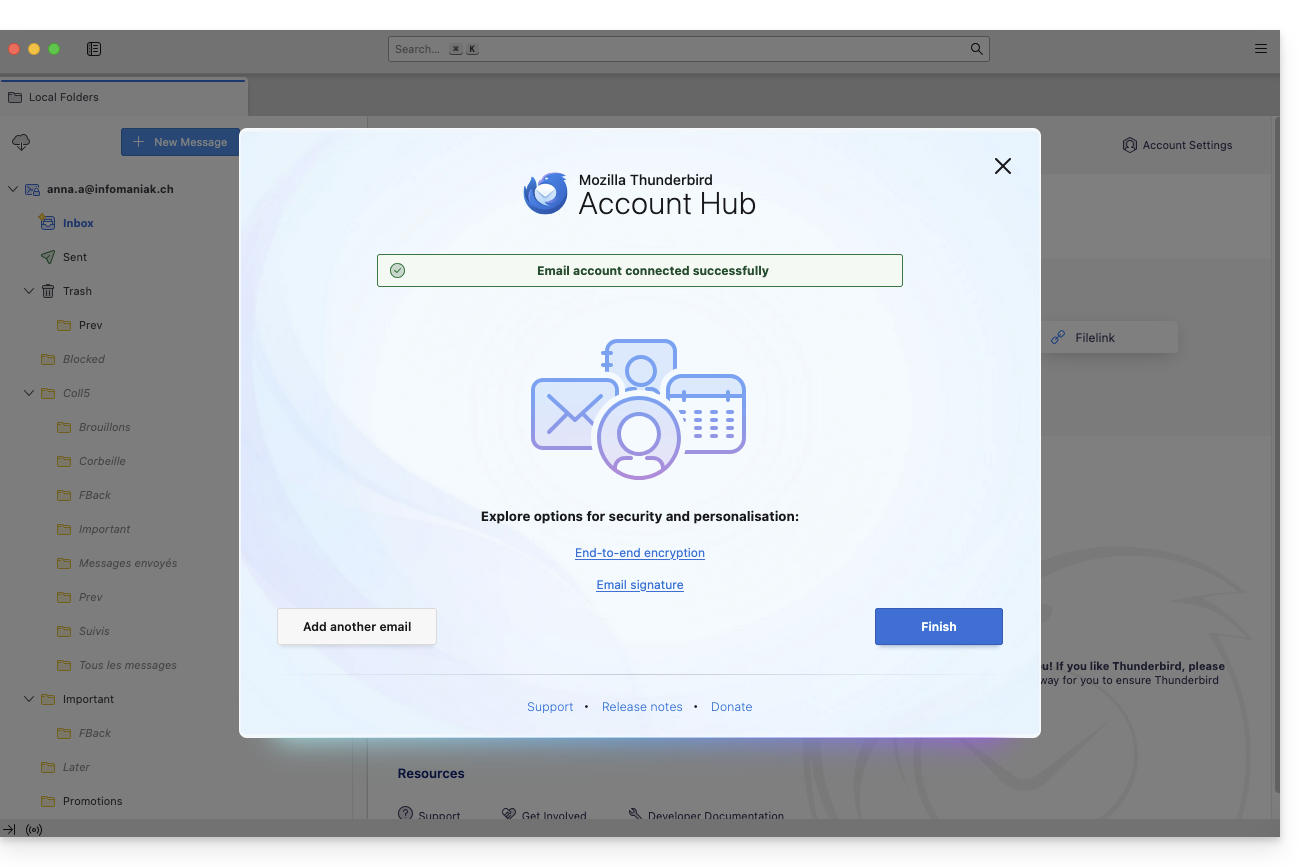
- Your email address is now configured in the application:
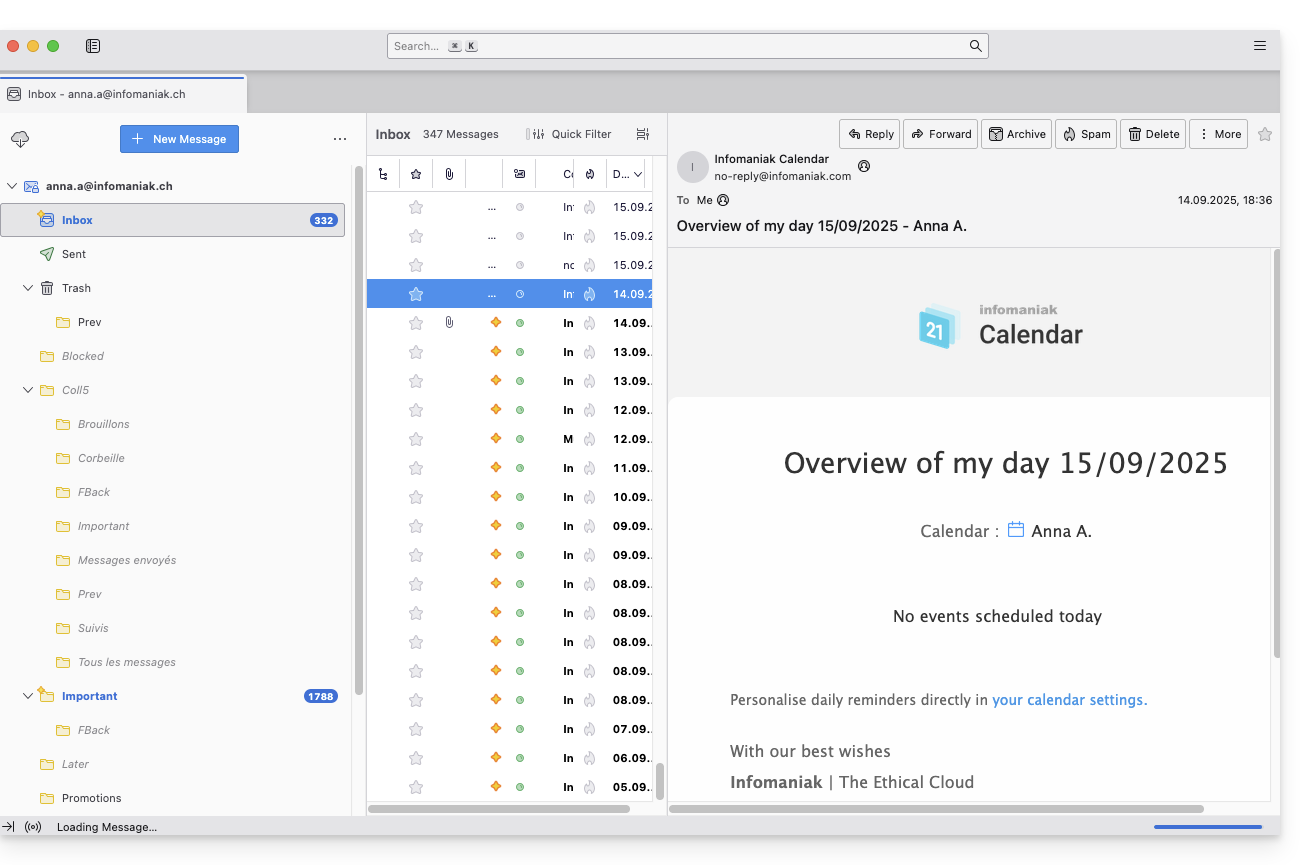
Recommended settings
- Incoming IMAP server =
mail.infomaniak.com - IMAP port =
993(with SSL) - Outgoing SMTP server =
mail.infomaniak.com - SMTP port & encryption protocol and command/method to activate this protocol:
587+ STARTTLS - Username = the complete email address (❓: help)
- Password = the password generated for the email address you want to access (❓: help my kSuite | Mail Service/kSuite).
- Mandatory authentication for sending emails:
- Enable this in the SMTP settings of your application.
- Check "use the same settings as the incoming server" or, depending on the software/email client, enter a username (i.e., the complete email address) and the generated password.
Refer to this other guide if you are looking for information about other compatible email ports and protocols (SSL / TLS, for example).
In case of a problem
Check that the Mail service is configured optimally (❓: help).
You do not need to contact Infomaniak Support if your email address works correctly outside the application. The most common error involves using an incorrect password. The troubleshooting guides will help you resolve any potential issues:
- Refer to the solutions provided in this other guide regarding email in general.
- This other guide is specifically about Thunderbird.
… and if Thunderbird is no longer working after a change of your email password, please refer to this other guide.
Link to this FAQ: https://faq.infomaniak.com/2430
Has this FAQ been helpful?
This guide explains how to access your Infomaniak address books and Infomaniak calendars from your devices.
Refer to this other guide if you are looking for information on synchronizing your emails.
Introduction
- The web app Contacts (management of your Infomaniak address books for all your professional and personal contacts) and the web app Calendar (management of your Infomaniak calendars for all your events and appointments) can be synchronized so that their content (hosted on Infomaniak servers) appears on your personal devices.
- If your current contacts and calendars are not yet managed within these Infomaniak applications, you will need to import your data beforehand so that synchronization can function properly.
- The suggested calendars can also be synchronized with your mobile and desktop devices.
- The birthday calendar (a calendar that displays the birthdays of your contacts when the date is entered in their address book entry) is only visible through the web app and cannot be synchronized with CalDAV tools.
Synchronize contacts & calendars (CardDAV/CalDAV)
Click here to open the Infomaniak wizard, which allows you to configure the synchronization of your devices (macOS, Windows, Linux, Android, iOS) and common software (Outlook, Microsoft 365, Thunderbird, Apple Mail, eM Client, etc.).
Specific guides
| OS | Application to synchronize |
| Outlook via CalDav Synchronizer (Windows) | |
| Contacts & Calendars (macOS) | |
| Contacts & Calendars (iOS: iPhone, iPad, etc.) | |
| Contacts & Calendars via kSync (Android: Huawei, Samsung, Sony, etc.) | |
| Google Calendar via kSync | |
| Mozilla Thunderbird |
You can alsoturn the Infomaniak Calendar or Contacts web app into an application to use on your device.
Link to this FAQ: https://faq.infomaniak.com/2432
Has this FAQ been helpful?
This guide explains how to connect the native Android messaging app to an email address hosted by Infomaniak.
Introduction
- Instead of the manual configuration below, it is recommended to use the Infomaniak Mail app (iOS / Android) to benefit from Infomaniak's security features.
Manually add the email address to the application
Prerequisites
- Create the email address (❓: help my kSuite | Mail Service/kSuite).
- Create a device password (❓: help my kSuite | Mail/kSuite Service).
- Verify that the domain is configured correctly (❓: help).
To configure the email application:
- Open the native email application on your device.
- Click on Add account.
- Select Other as the address type.
- Enter your email address.
- Select the Personal IMAP type.
- Check and complete any missing information (❓: help).
- Complete the process.
- There you go, your email address is now configured in your device's application.
Recommended settings
- Incoming IMAP server =
mail.infomaniak.com - IMAP port =
993(with SSL) - Outgoing SMTP server =
mail.infomaniak.com - SMTP port & encryption protocol and command/method to activate this protocol:
587+ STARTTLS - Username = the complete email address (❓: help)
- Password = the password generated for the email address you want to access (❓: my kSuite | Mail Service/kSuite).
- Mandatory authentication for sending emails:
- Enable this in the SMTP settings of your application.
- Check "use the same settings as the incoming server" or, depending on the software/email client, re-enter a username (= complete email address) and the generated password.
Refer to this other guide if you are looking for information about other compatible email ports and protocols (SSL / TLS for example).
In case of a problem
Check that the Mail service is configured optimally (❓: help).
You do not need to contact Infomaniak Support if your email address works correctly outside the application. The most common error involves using an incorrect password. The troubleshooting guides will help you resolve any potential issues:
- Refer to the solutions provided in this other guide regarding email in general.
- … and if your application no longer works for sending emails (e.g., SMTP server disconnected or unavailable) or after a change of email password, please refer to this other guide.
Link to this FAQ: https://faq.infomaniak.com/2433
Has this FAQ been helpful?
This guide explains how to connect the desktop app New Outlook (the new Outlook desktop application on Windows, replacing Windows Mail) to an email address hosted by Infomaniak.
Introduction
- Although the emails themselves remain stored on the Infomaniak server, the experience in New Outlook is highly integrated with the Microsoft cloud:
- Some of your account information may be used by Microsoft for centralized management and a better synchronization experience.
- If you want to have full and local control over your emails, consider using third-party email software/clients (such as Thunderbird, for example) that allow for more direct storage (❓: help).
Add the email address to the application
Prerequisites
- Create the email address (❓: help my kSuite | Mail Service/kSuite).
- Create a device password (❓: help my kSuite | Mail/kSuite Service).
- Verify that the domain is configured correctly (❓: help).
The password created for the email address must meet the criteria detailed at the bottom of this guide.
To configure the email application:
- Open the application.
- If necessary, click on the gear icon in the top right corner (otherwise, skip to step 4).
- Click on Add an account:
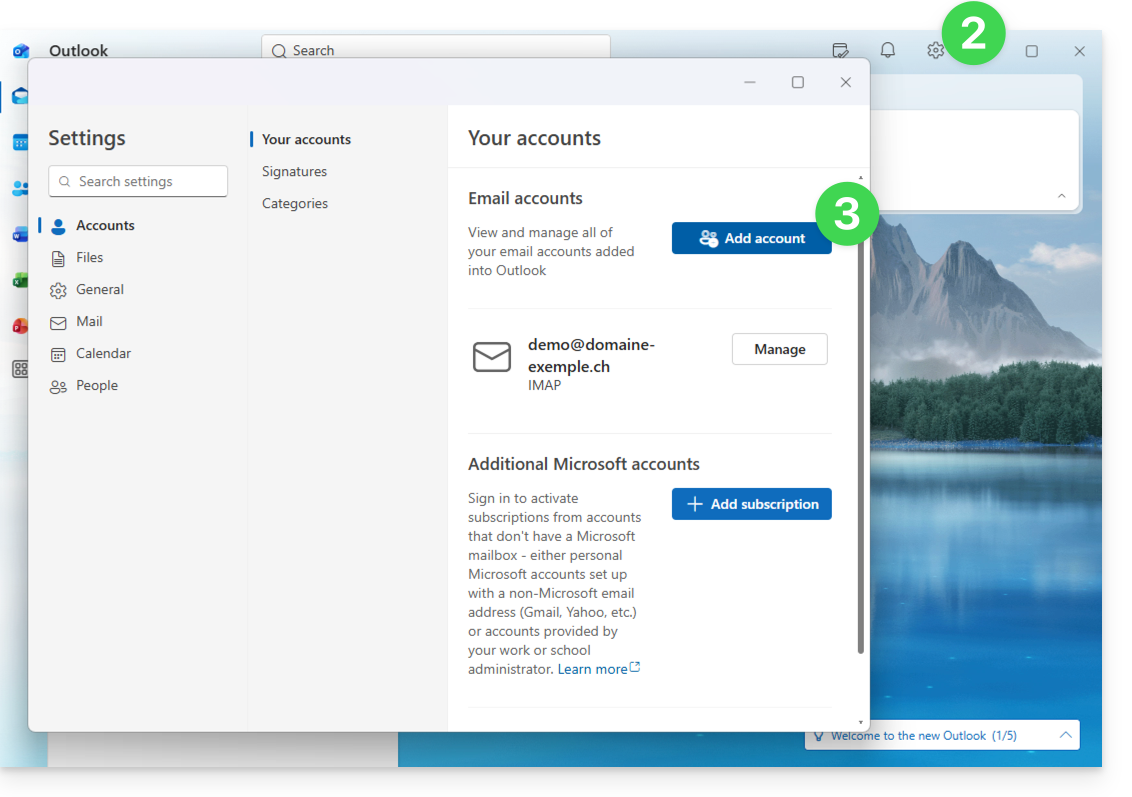
- Enter the email address to associate.
- Click on Continue:
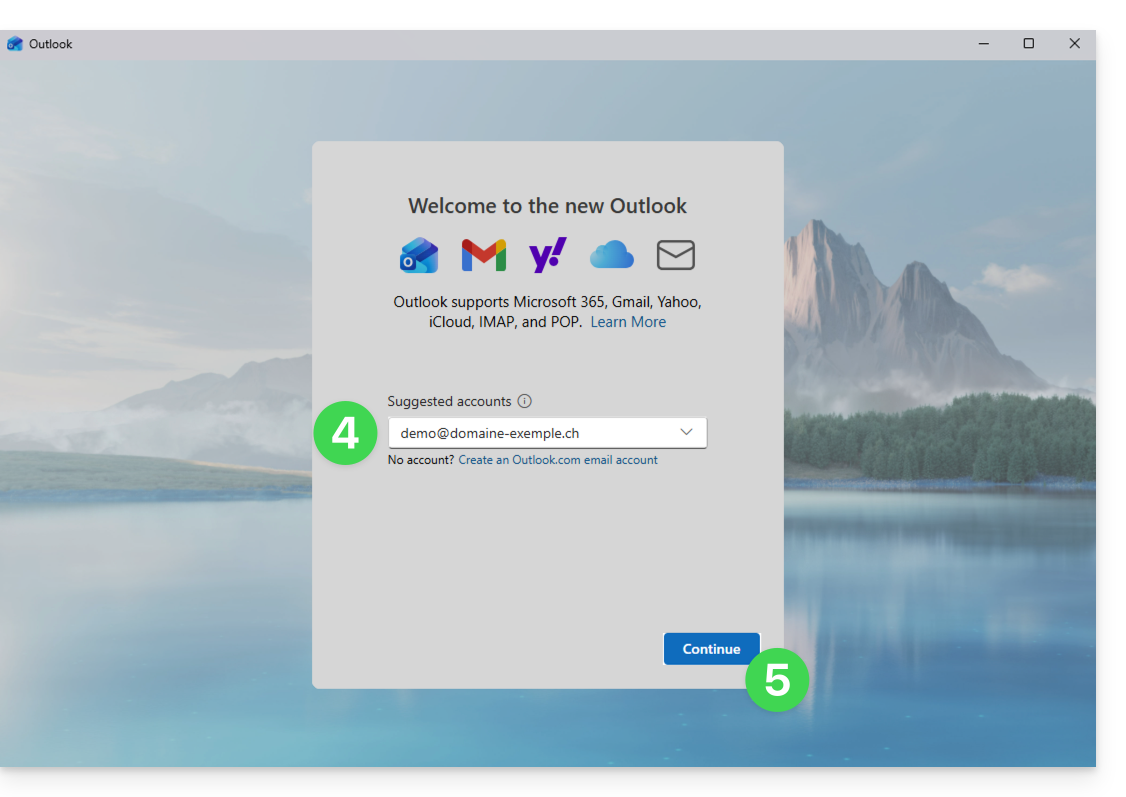
- Enter the password for the email address (❓: help).
- Click on the View more button.
- Check and complete any missing information (❓: help):
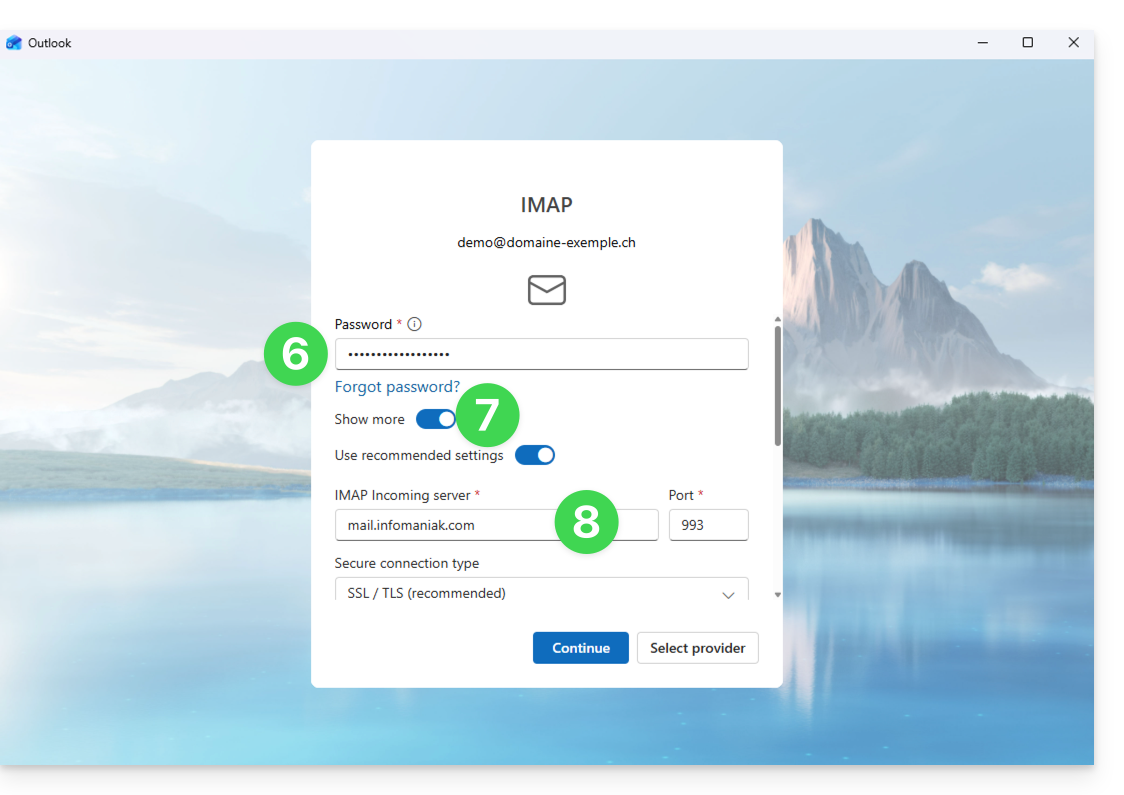
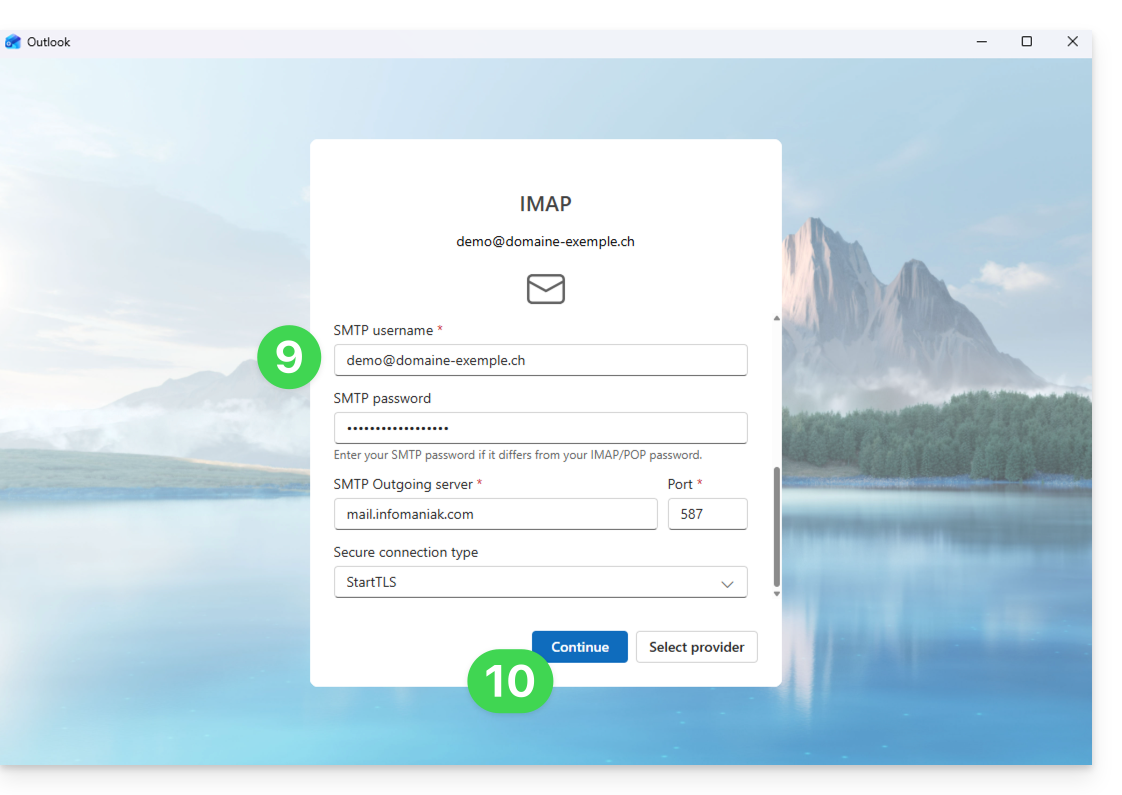
- Scroll down to the bottom of the page, then check and complete any missing information (❓: help).
- Click Continue:
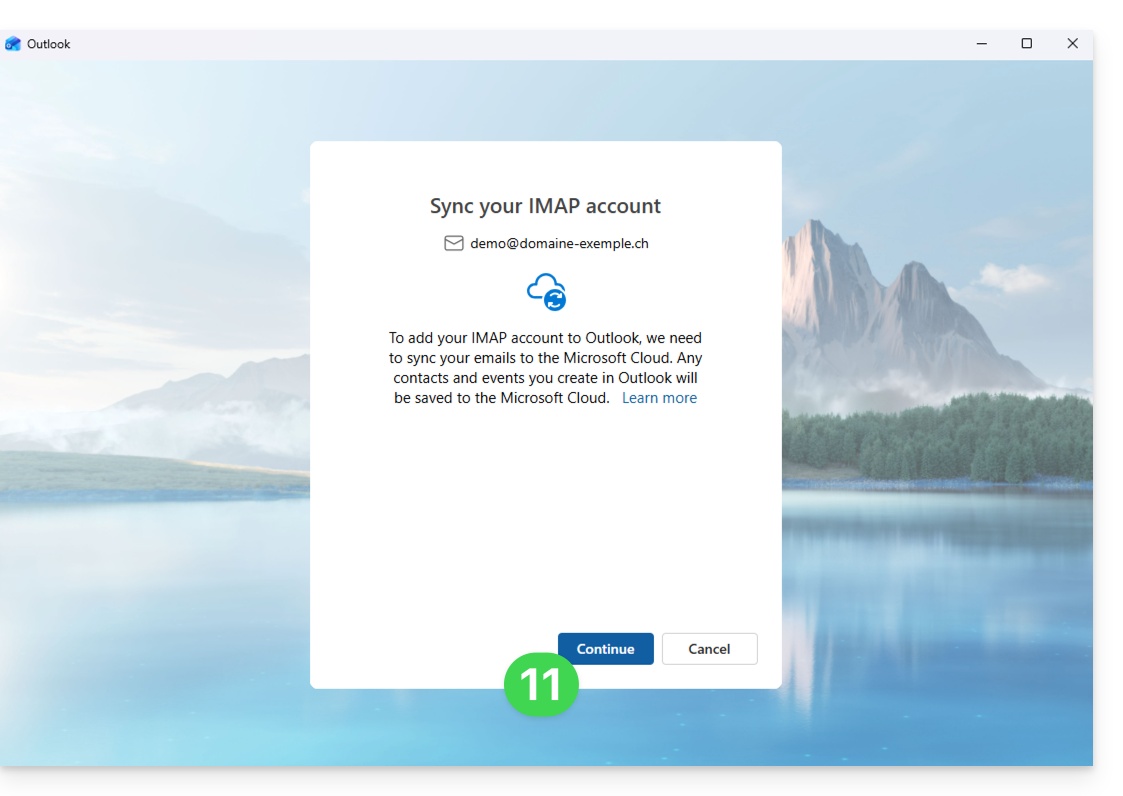
- Read and go through the various Microsoft information windows:
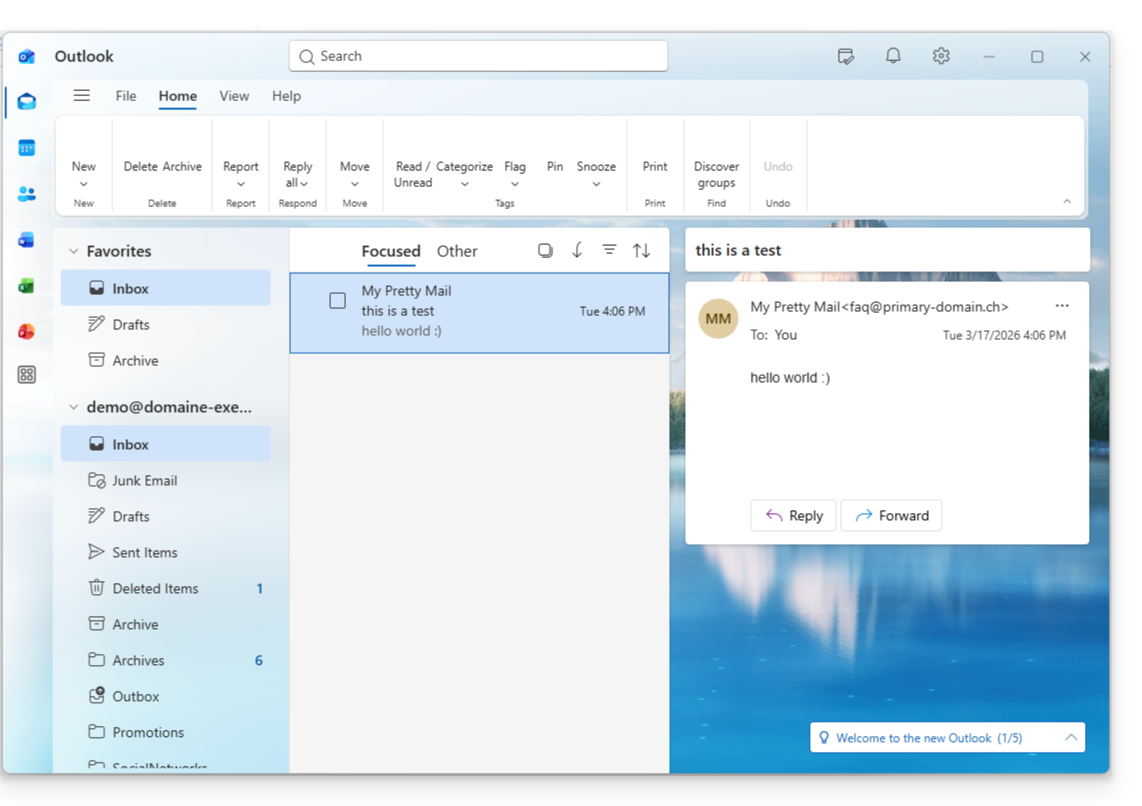
- Done! Your email address is now configured in the application:
Recommended settings
- Incoming IMAP server =
mail.infomaniak.com - IMAP port =
993(with SSL) - Outgoing SMTP server =
mail.infomaniak.com - SMTP port & encryption protocol and command/method to activate this protocol:
587+ STARTTLS - Username = the complete email address & (❓: help)
- Password = the password generated for the email address you want to access (see prerequisites).
- Authentication required for sending emails:
- Enable this in the SMTP settings of your application.
- Check "use the same settings as the incoming server" or, depending on the software/email client, enter a username (= the complete email address) and the generated password.
Refer to this other guide if you are looking for information about other email ports and protocols that are supported (SSL/TLS, for example).
In case of a problem
A solution that seems to work is the combination of these 2 situations:
- Being logged in to your Windows session with a Microsoft account (not just a local account).
- Added the email address used to log in to Windows to this version of Outlook.
Also, create a new password (❓: help) by letting it be generated randomly, but also ensuring that it meets the criteria imposed by Microsoft:
| Allowed characters |
|
| Forbidden characters |
|
| Password length | 16 characters MAXIMUM |
Make sure that the Mail service is configured optimally (❓: help).
The troubleshooting guides will help you resolve any potential issues:
- Consult the solutions provided in this other guide regarding email in general.
- This other guide focuses specifically on Outlook.
… and if your Outlook is no longer working after a change of email password, please refer to this other guide.
Link to this FAQ: https://faq.infomaniak.com/2434
Has this FAQ been helpful?
This guide explains how to connect the Apple Mail desktop app on macOS (MacBook Pro, Neo, etc.) to an email address hosted by Infomaniak.
Introduction
- Instead of the manual configuration below, it is recommended to use the .mobileconfig configuration profiles provided by Apple (❓: help).
Manually add the email address to the application
Prerequisites
- Create the email address (❓: help my kSuite | Mail Service/kSuite).
- Create a device password (❓: help my kSuite | Mail/kSuite Service).
- Verify that the domain is configured correctly (❓: help).
To configure the email application:
- Open the application.
- If you have already configured an address, click on the Mail menu and then Add account:
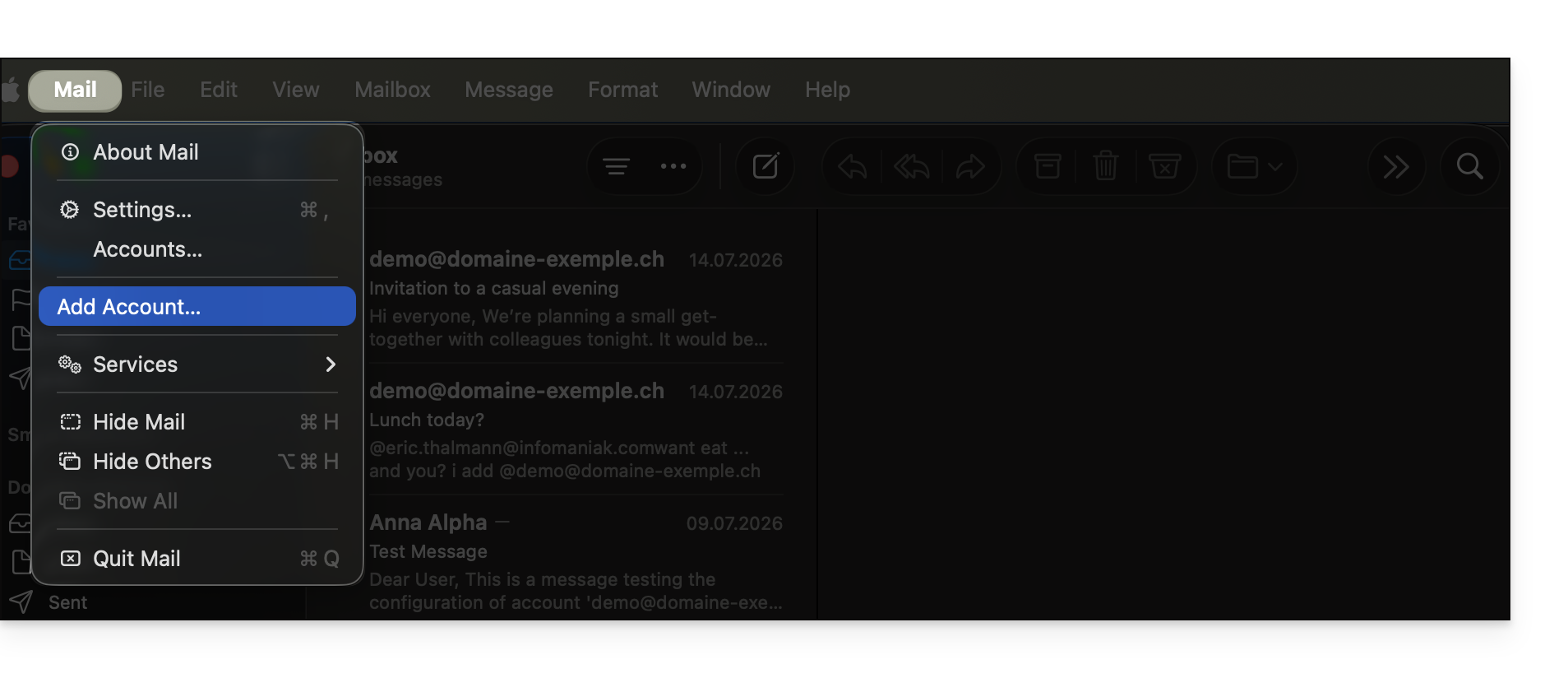
- If you have already configured an address, click on the Mail menu and then Add account:
- Enter the email address to associate.
- Click on Continue:
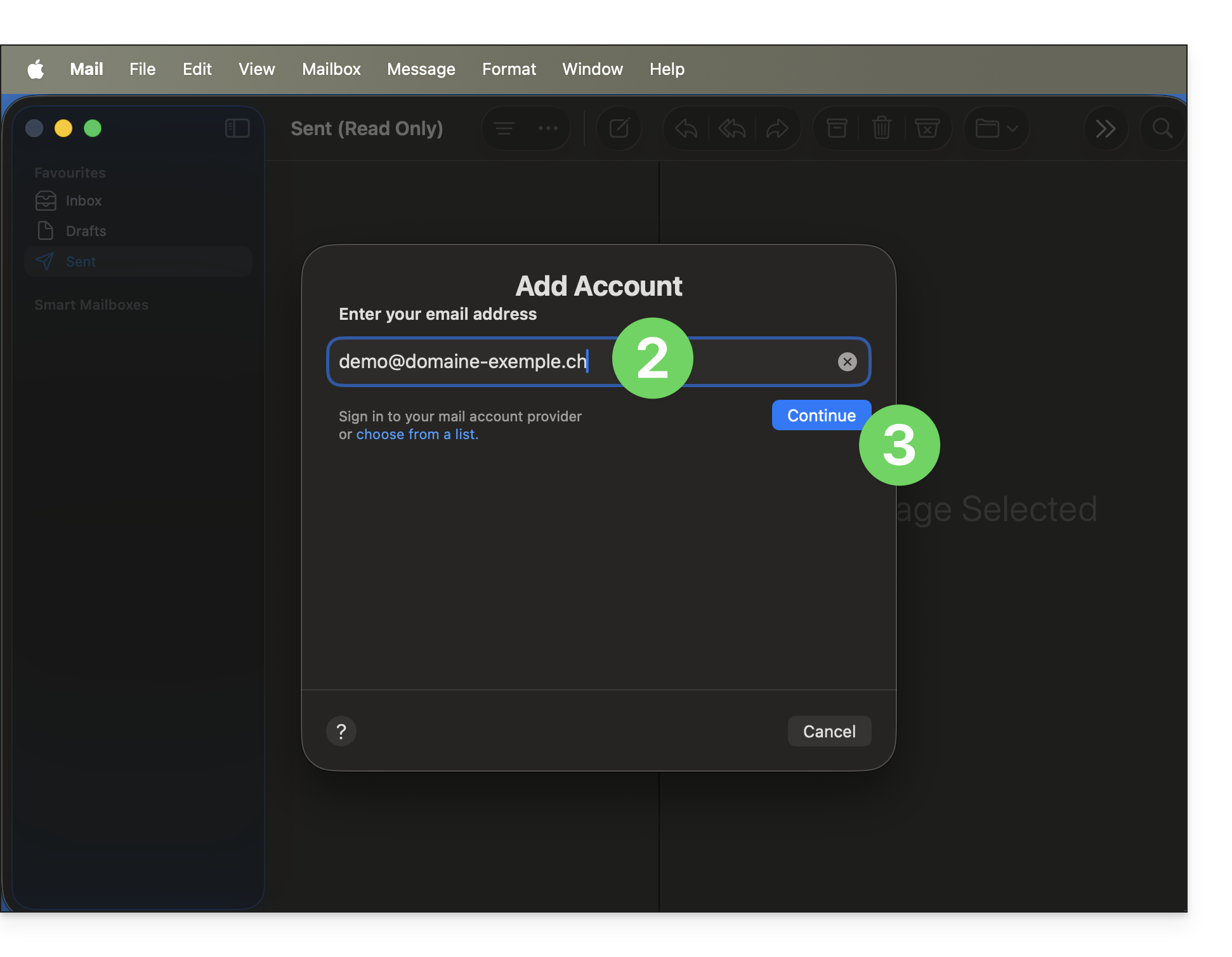
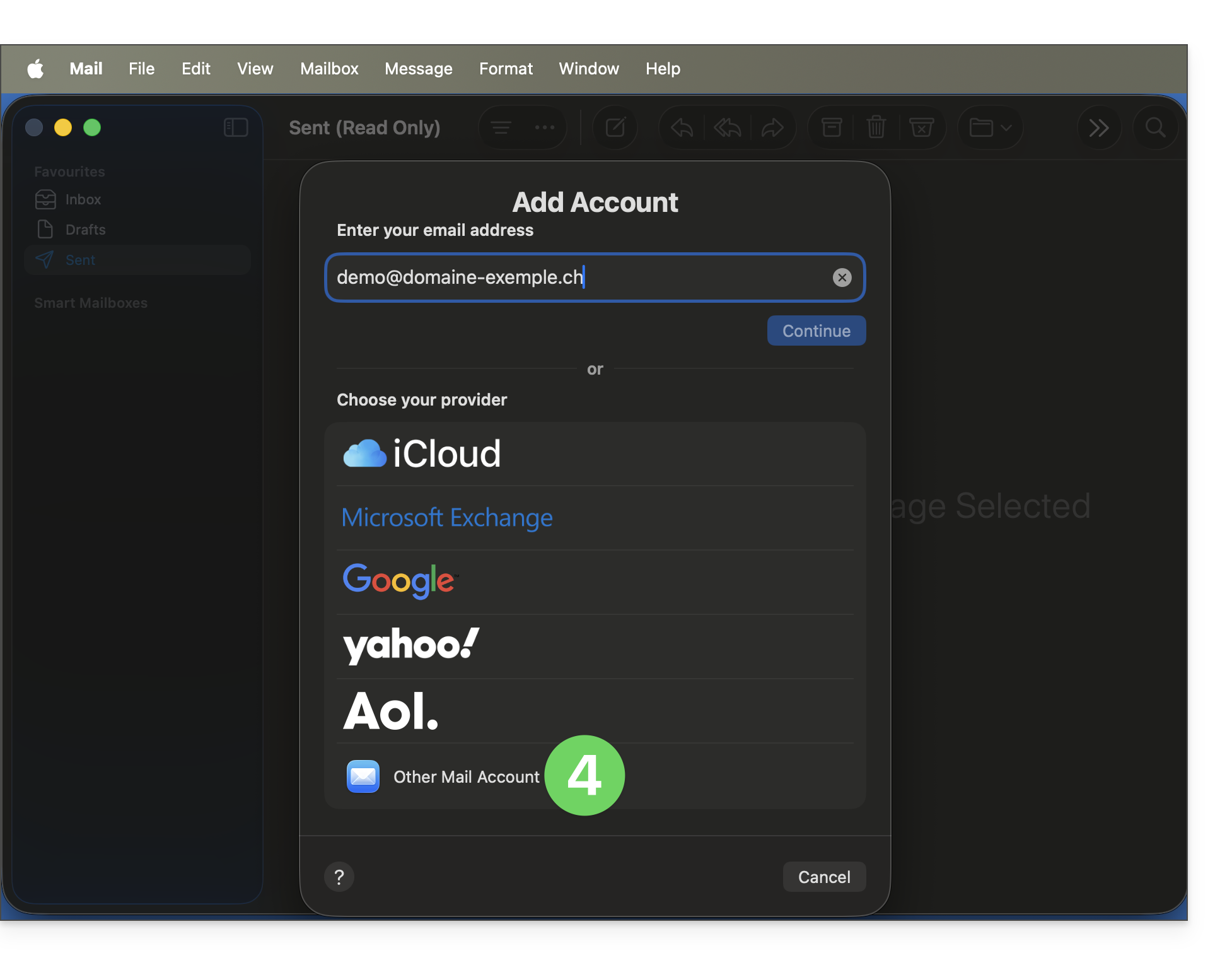
- Click on Other account:
- Enter the account name.
- Paste the password for the email address generated in the Infomaniak Manager (❓: help).
- Click the Connect button:
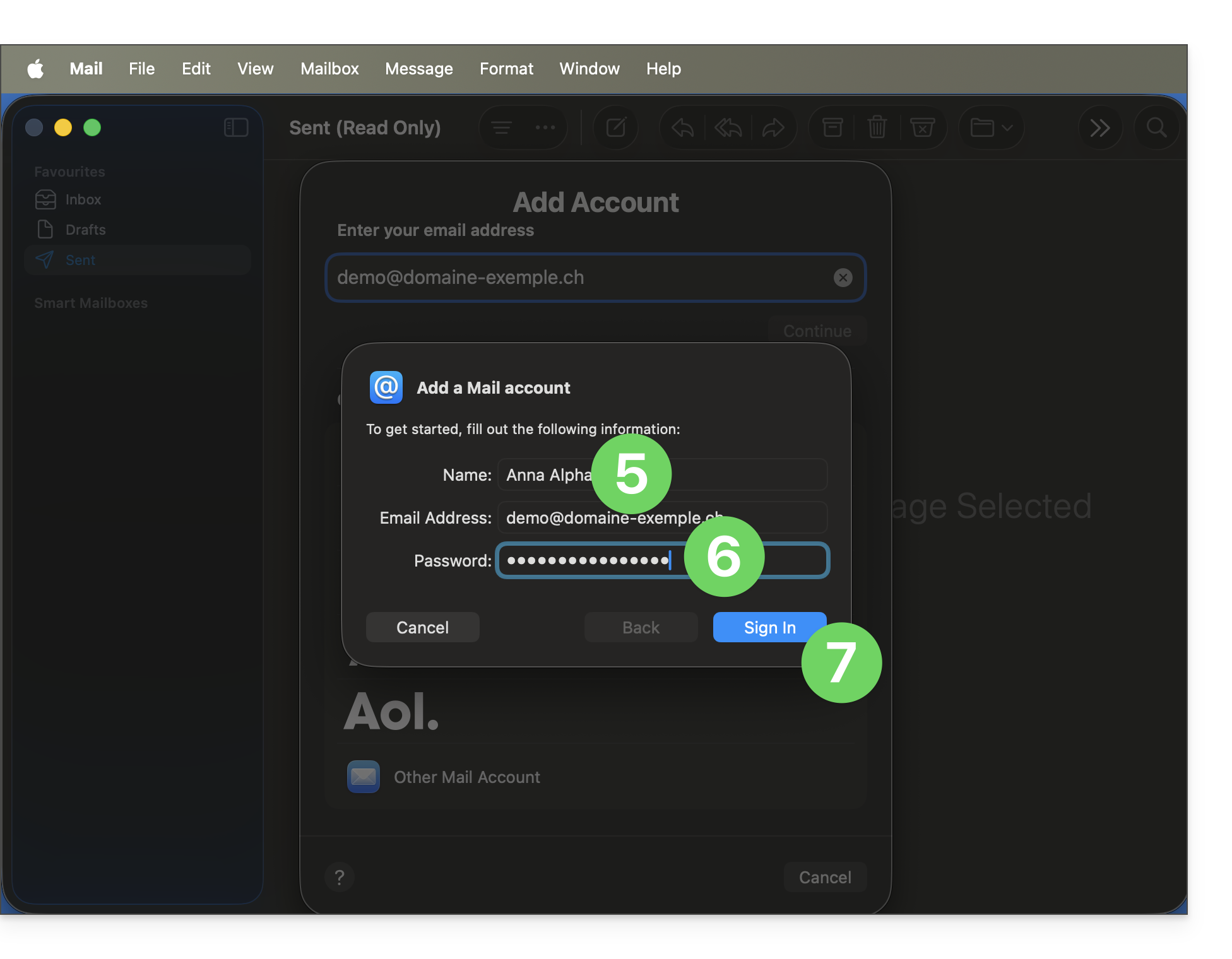
- Check and complete any missing information (❓: help).
- Check and complete any missing information (❓: help).
- The red indication is normal because, at this stage, the application has not yet received the correct information about your account.
- Click on Log in:
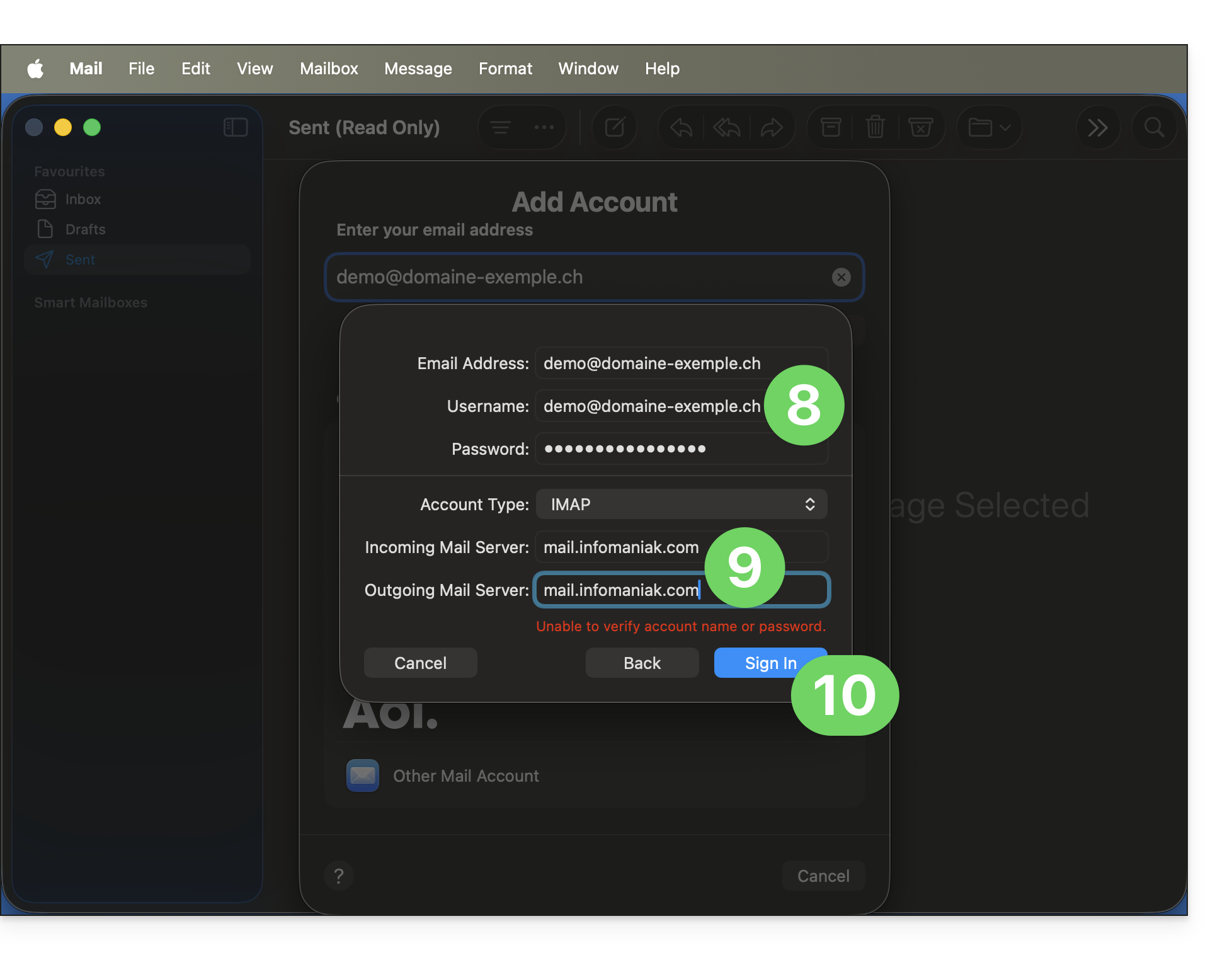
- Tap the button to confirm:
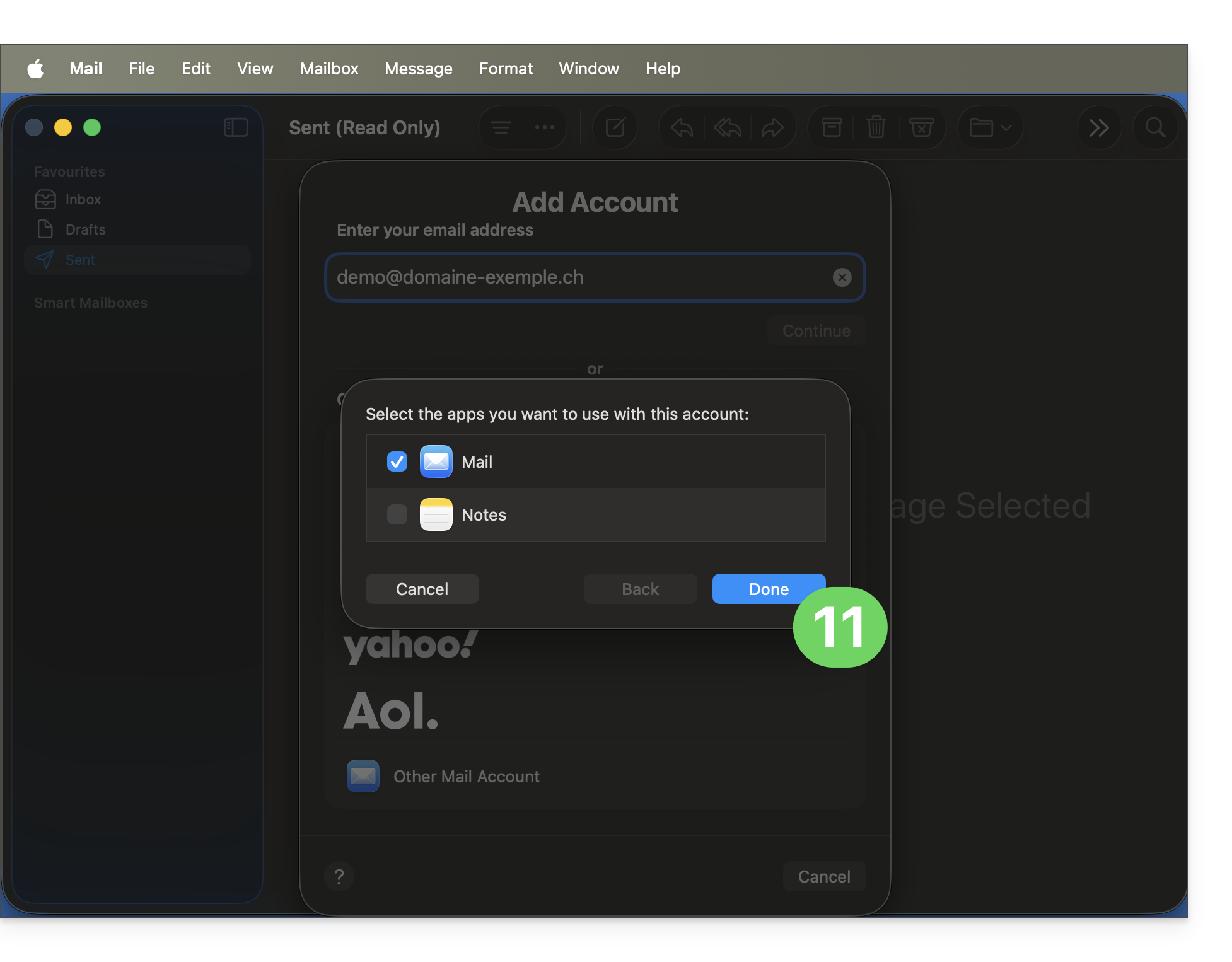
- Your email address is now configured in the application:
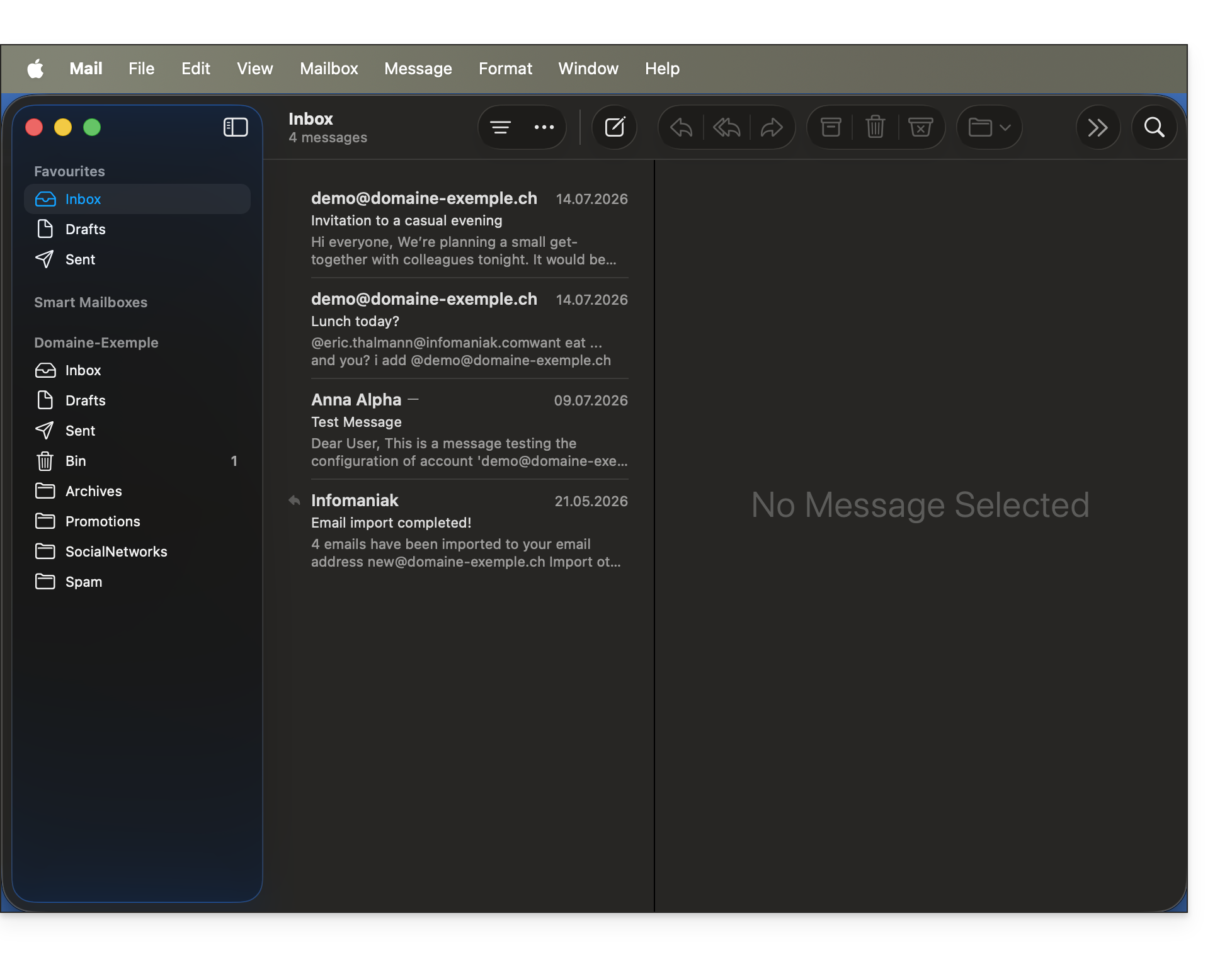
Recommended settings
- Incoming IMAP server =
mail.infomaniak.com - IMAP port =
993(with SSL) - Outgoing SMTP server =
mail.infomaniak.com - SMTP port & encryption protocol and command/method to activate this protocol:
587+ STARTTLS - Username = the complete email address (❓: help)
- Password = the password generated for the email address you want to access (❓: help my kSuite | Mail Service/kSuite).
- Mandatory authentication for sending emails:
- Activate it in the SMTP settings of your application.
- Check "use the same settings as the incoming server" or, depending on the software/email clients, enter a username (i.e., the complete email address) and the generated password.
Refer to this other guide if you are looking for information about other compatible email ports and protocols (SSL / TLS, for example).
In case of a problem
There is no need to contact Infomaniak Support if your email address works correctly outside the application. The most common error concerns the use of an incorrect password. The tool provided within Apple Mail can indicate this: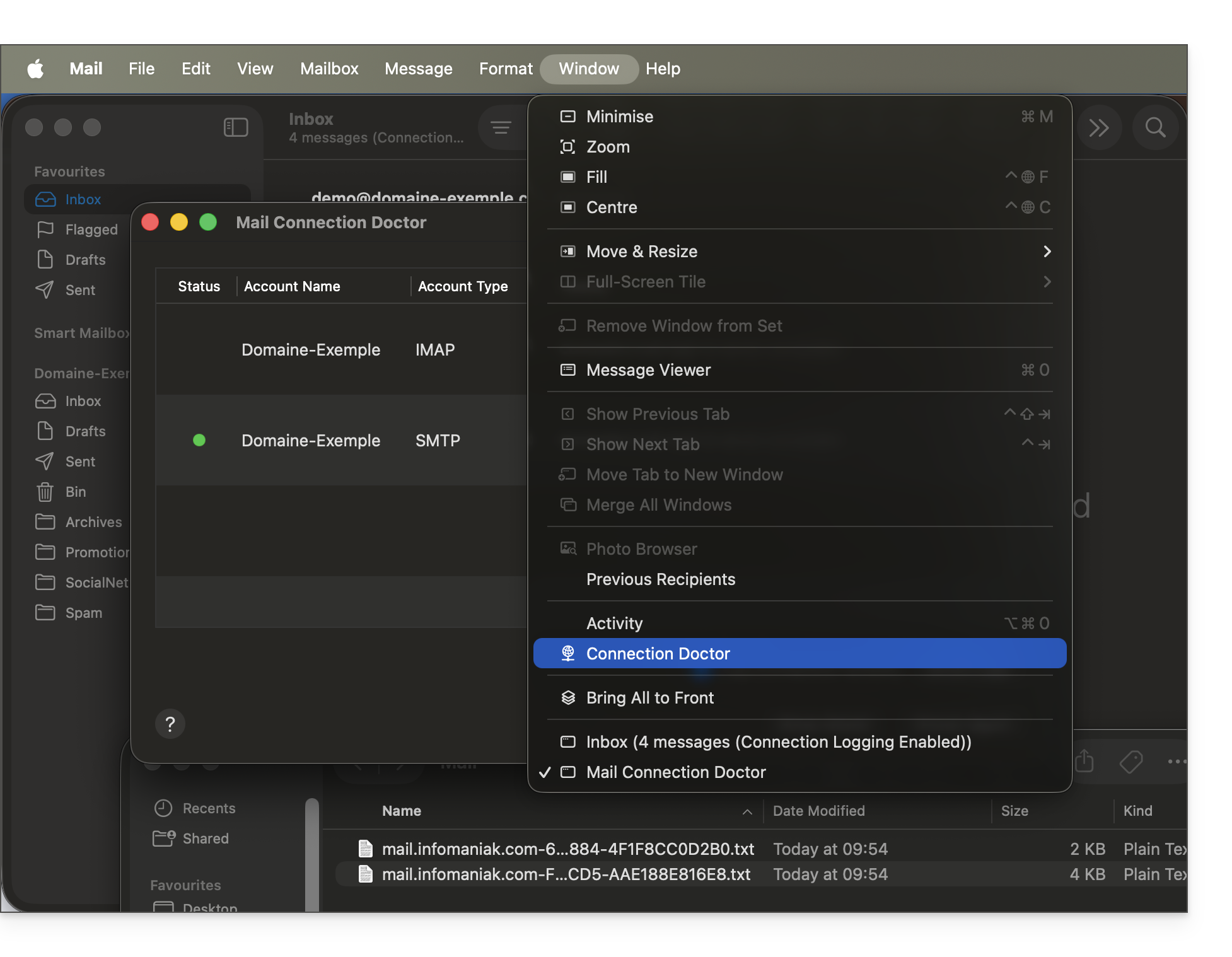
Create a new password from the Mail service (❓: help) and restart the configuration of your account in the email application.
The troubleshooting guides help you resolve any potential issues:
- Remove any existing Apple configuration profiles (❓: help) related to your Infomaniak email before restarting the configuration.
- Consult the solutions provided in this other guide regarding email in general.
If your Apple Mail is no longer working after a change of email password, please refer to this other guide.
Link to this FAQ: https://faq.infomaniak.com/2442
Has this FAQ been helpful?
Are you no longer able to send or receive emails? Are you experiencing synchronization errors with your contacts & calendars? Follow the instructions in this guide to delete the problematic accounts and reconfigure them correctly.
Introduction
- Only follow these instructions to delete a mail account configured in IMAP (and not in POP3). Learn more
Delete the email address
To do this:
- Open Thunderbird.
- Right-click on the email address you want to delete and select Settings.
- Go to Account Management.
- Select Delete account and click Delete
- Refer to this other guide to properly reconfigure the email address
Delete contacts (in CardBook)
Now everything is integrated into Thunderbird, but if you still have an older version (which you should definitely update):
- Open Thunderbird.
- In CardBook, select the contact profile to delete.
- Click on the menu button with three horizontal lines ☰ in the top left corner of the interface, then click on Address Book and Delete Address Book.
- Confirm by clicking on OK.
- Refer to this other guide to reconfigure synchronization.
Delete the calendar (in Lightning)
Now everything is integrated into Thunderbird, but if you still have an older version (which you will need to update):
- Open Thunderbird.
- In Lightning, select the calendar profile you want to delete.
- Right-click on the calendar and select Unsubscribe from calendar.
- Confirm by clicking OK.
- Refer to this other guide to reconfigure synchronization.
Link to this FAQ: https://faq.infomaniak.com/2444
Has this FAQ been helpful?
This guide explains how to access kDrive files locally on your hard drive using the desktop app kDrive (desktop application for macOS / Windows / Linux), as well as files from the kDrive web app (online service ksuite.infomaniak.com/kdrive).
Prerequisites
- Install the kDrive desktop app on your device.
- Make sure you are logged in with the same Infomaniak account on both the desktop and web versions; otherwise, step 3 below will lead to an error.
View kDrive files
When the kDrive application is installed and launched:
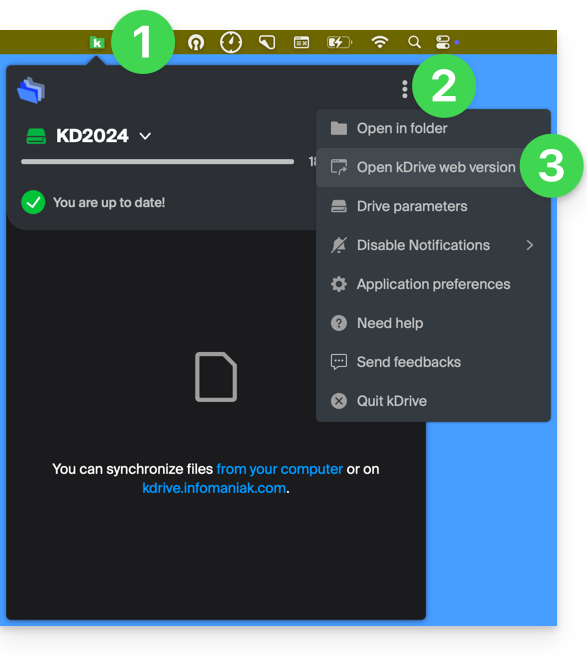
- Left-click on the app icon in the notification area of your computer (top right on macOS, bottom right on Windows, and double left-click in the taskbar on Linux).
- Click on the action menu ⋮ in the top right corner.
- Click on Open kDrive Web to access the files stored on the kDrive server:
- It is possible that the version in the browser may not display correctly.
- Click on the item above to open the disk folder on your computer containing your kDrive files, physically present or virtually present (depending on whether Lite Sync is enabled).
If not all of your files are present/synchronized, please refer to this other guide.
Differences between the web version and the synchronized computer version
Shared folders
In the web version of kDrive, the shared folder is called Organization folders: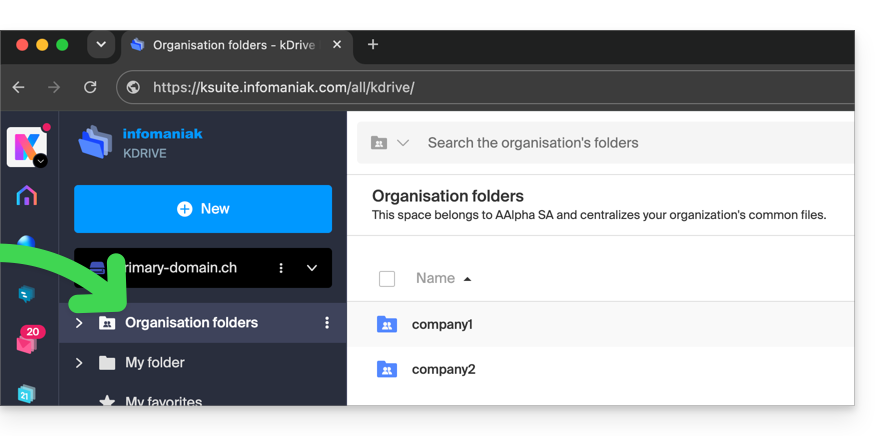
On the computer side, you will find the same folder, but named Common documents; do not attempt to rename it: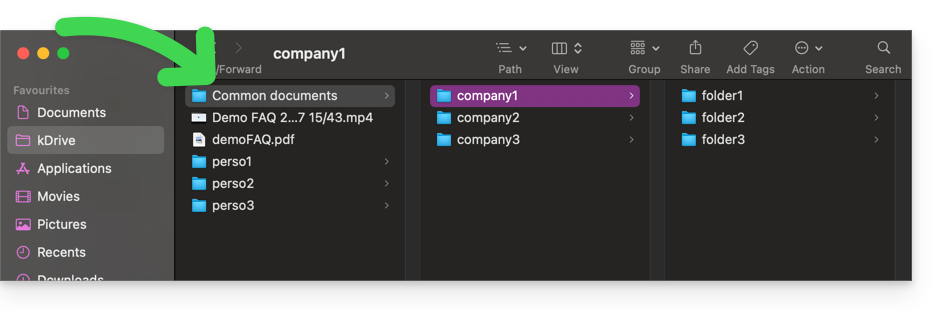
Personal folder
In the web version of kDrive, the logged-in user's personal folder is located in a separate area ("My folder"), which cannot be modified either: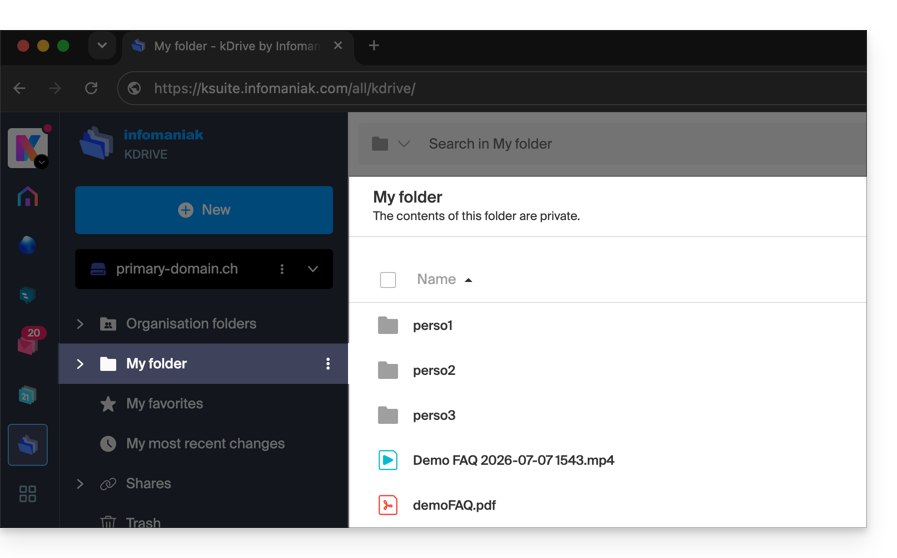
On the computer, everything outside of Common documents belongs to the personal folder ("My folder") of the logged-in user: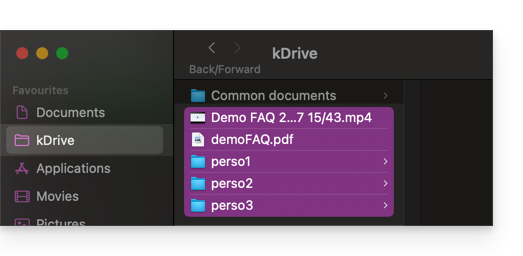
Link to this FAQ: https://faq.infomaniak.com/2456
Has this FAQ been helpful?
Thank you for choosing to customize your account with Custom Brand!
Introduction
- Available as an option with any Infomaniak plan or already included with kSuite Enterprise, discover this customization tool to make your web addresses unique, add a logo, or add an image slideshow to your Infomaniak organization login page.
- The Web Redirection tool will no longer be usable on your domain after Custom Brand is activated on it.
Custom Brand Customization Guides
Prerequisites
- Own a domain name with Infomaniak (transfer it if necessary).
- Its extension must be among those supported by Custom Brand.
- Note that this also works with a subdomain.
- Configure the domain to use Infomaniak's DNS servers.
Next, to use Custom Brand: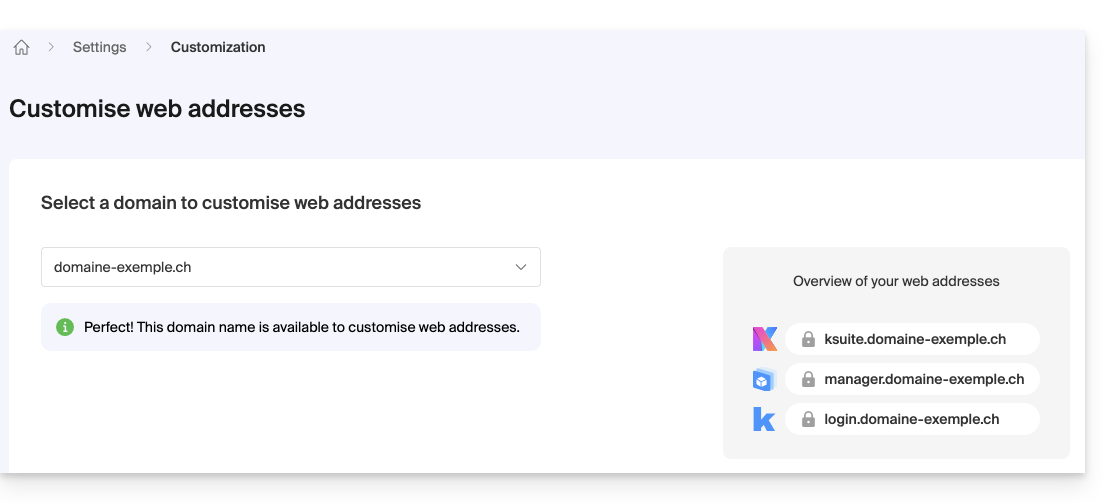
- Getting started with Custom Brand: customize URLs & the interface
- Troubleshooting:
Customize your web addresses with your domain
| Access to… | without Custom Brand | with Custom Brand |
|---|---|---|
| kSuite | ksuite.infomaniak.com | ksuite.domain.xyz |
| Manager | manager.infomaniak.com | manager.domain.xyz |
| e-mails (Mail) | mail.infomaniak.com | mail.domain.xyz |
| calendars | calendar.infomaniak.com | calendar.domain.xyz |
| contacts | contacts.infomaniak.com | contacts.domain.xyz |
| kDrive | kdrive.infomaniak.com | kdrive.domain.xyz |
| kMeet video conferences | kmeet.infomaniak.com | kmeet.domain.xyz |
| Euria | euria.infomaniak.com | euria.domain.xyz |
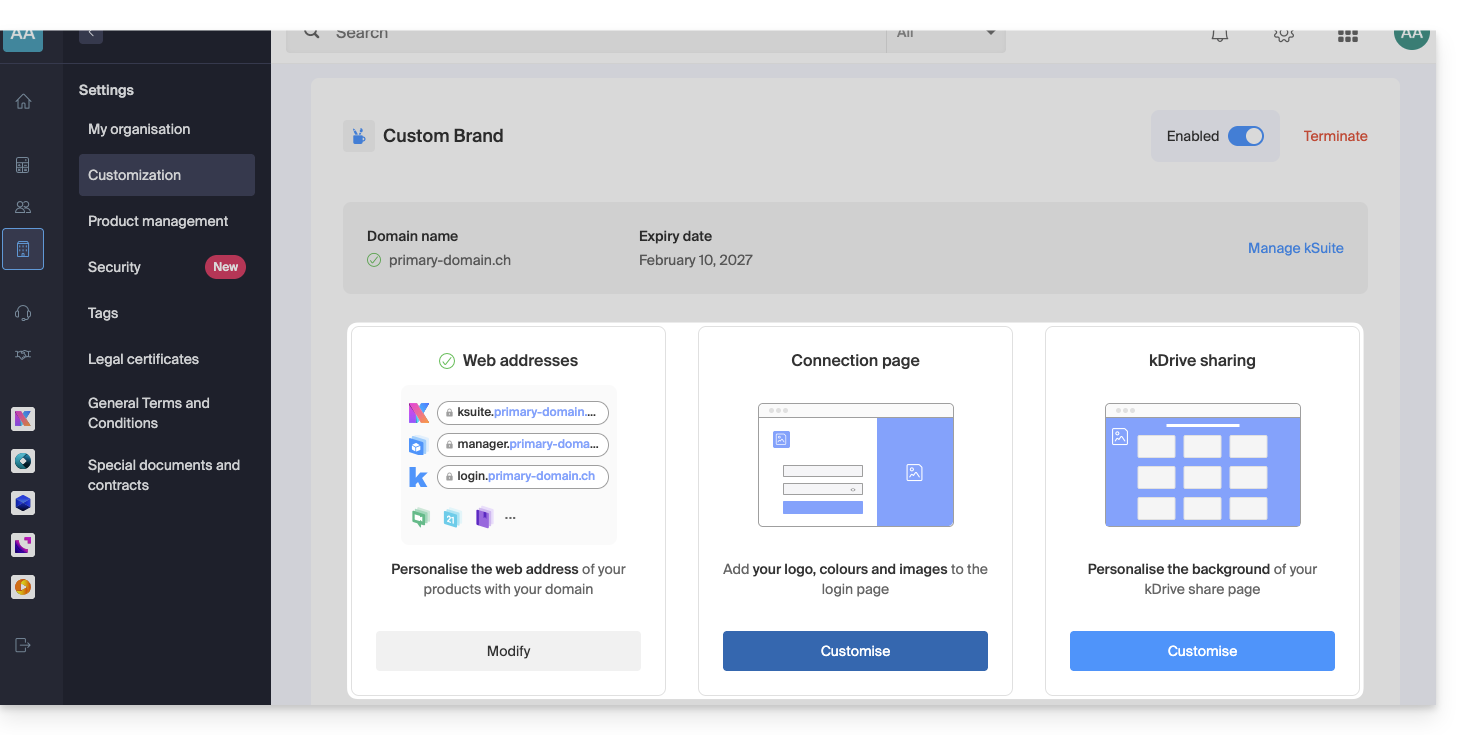
Customize your Organization's interface
The following interface options can be modified from the kSuite settings: :
- Add your logo to your Organization's interface.
- Added a 3-image panorama to the login page.
- Changed the text and button color on the login page.
- Customization of kDrive sharing (see this other guide).
Link to this FAQ: https://faq.infomaniak.com/2465
Has this FAQ been helpful?