Knowledge base
1000 FAQs, 500 tutorials and instructional videos. Here, there are only solutions!
Configure New Outlook (Windows) with IMAP (email)
This guide explains how to connect the desktop app New Outlook (the new Outlook desktop application on Windows, replacing Windows Mail) to an email address hosted by Infomaniak.
Introduction
- Although the emails themselves remain stored on the Infomaniak server, the experience in New Outlook is highly integrated with the Microsoft cloud:
- Some of your account information may be used by Microsoft for centralized management and a better synchronization experience.
- If you want to have full and local control over your emails, consider using third-party email software/clients (such as Thunderbird, for example) that allow for more direct storage (❓: help).
Add the email address to the application
Prerequisites
- Create the email address (❓: help my kSuite | Mail Service/kSuite).
- Create a device password (❓: help my kSuite | Mail/kSuite Service).
- Verify that the domain is configured correctly (❓: help).
The password created for the email address must meet the criteria detailed at the bottom of this guide.
To configure the email application:
- Open the application.
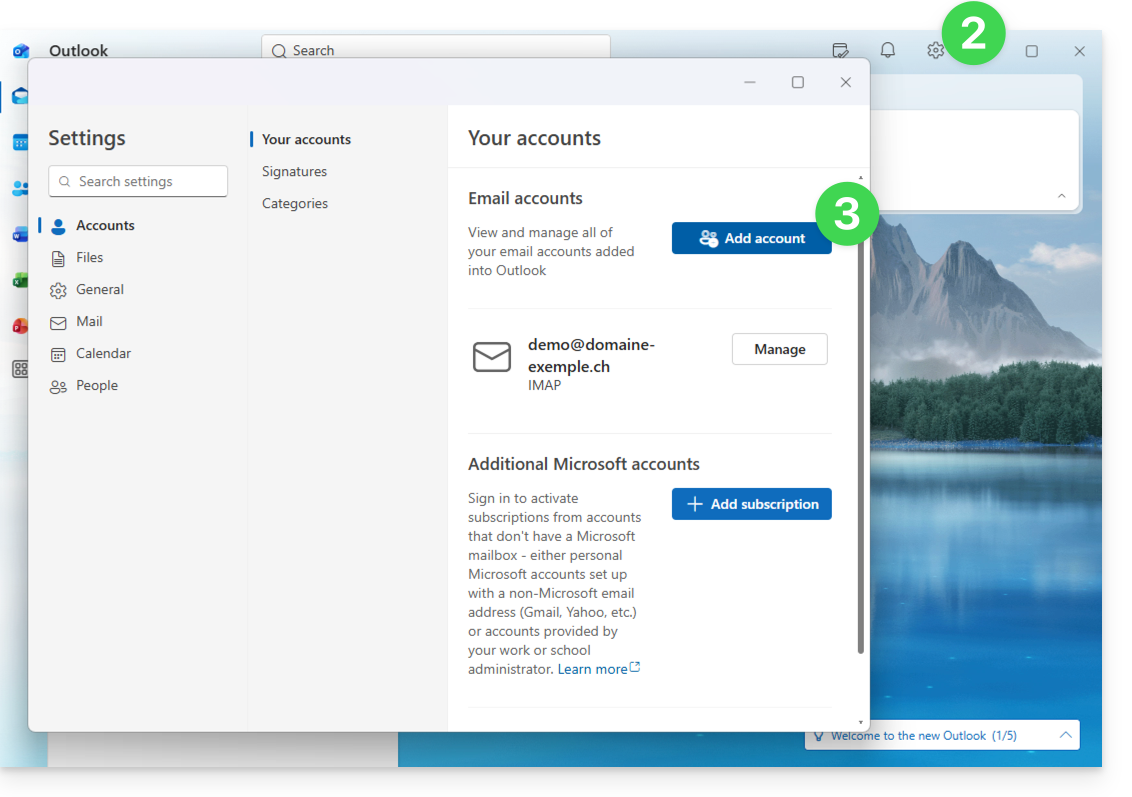
- If necessary, click on the gear icon in the top right corner (otherwise, skip to step 4).
- Click on Add an account:
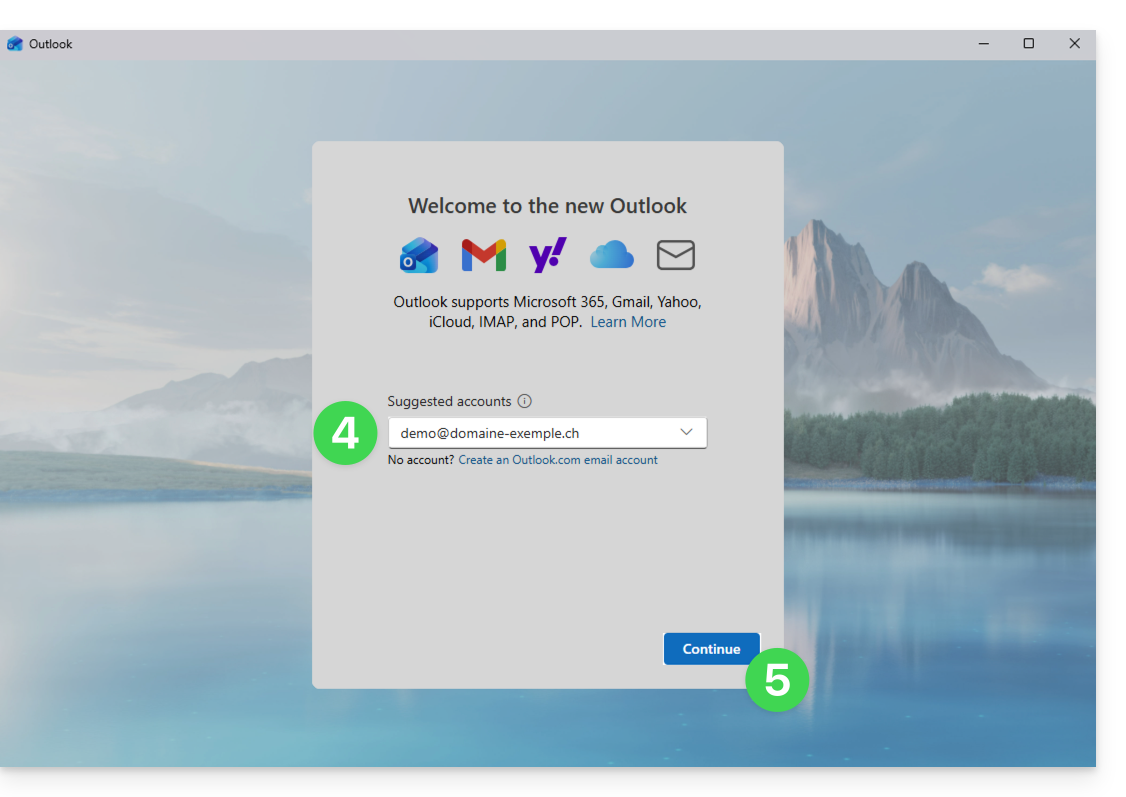
- Enter the email address to associate.
- Click on Continue:
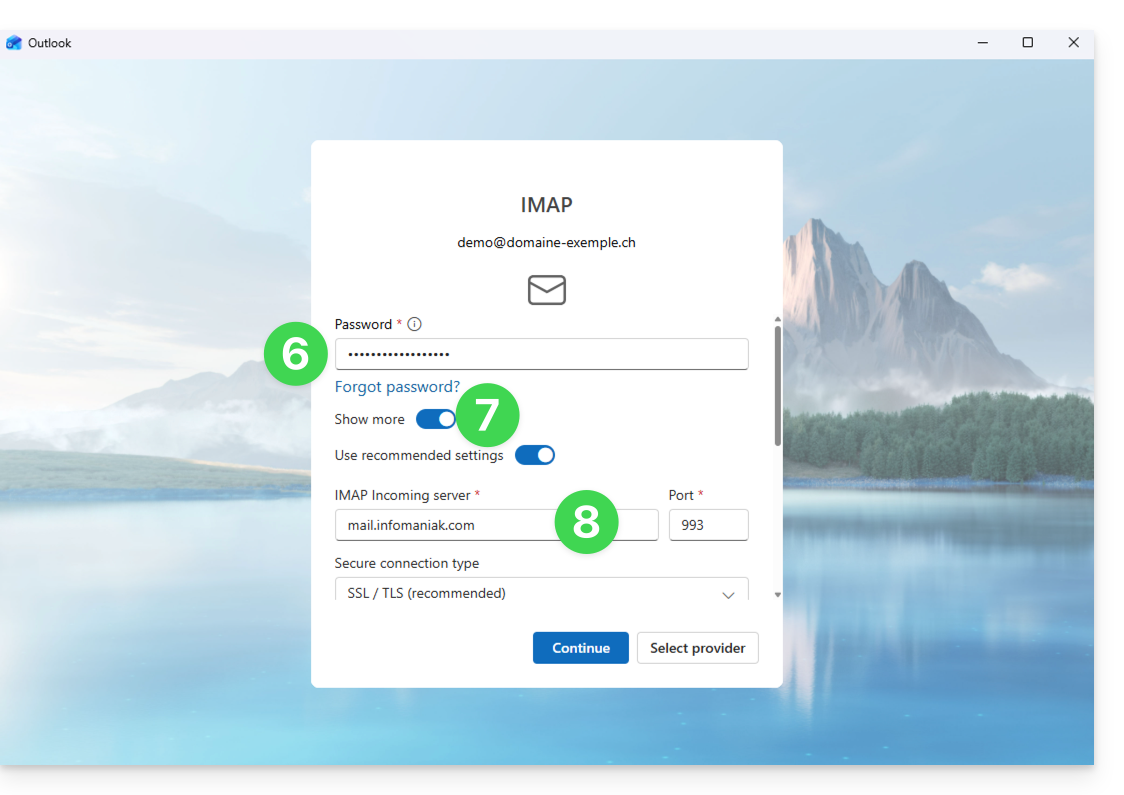
- Enter the password for the email address (❓: help).
- Click on the View more button.
- Check and complete any missing information (❓: help):
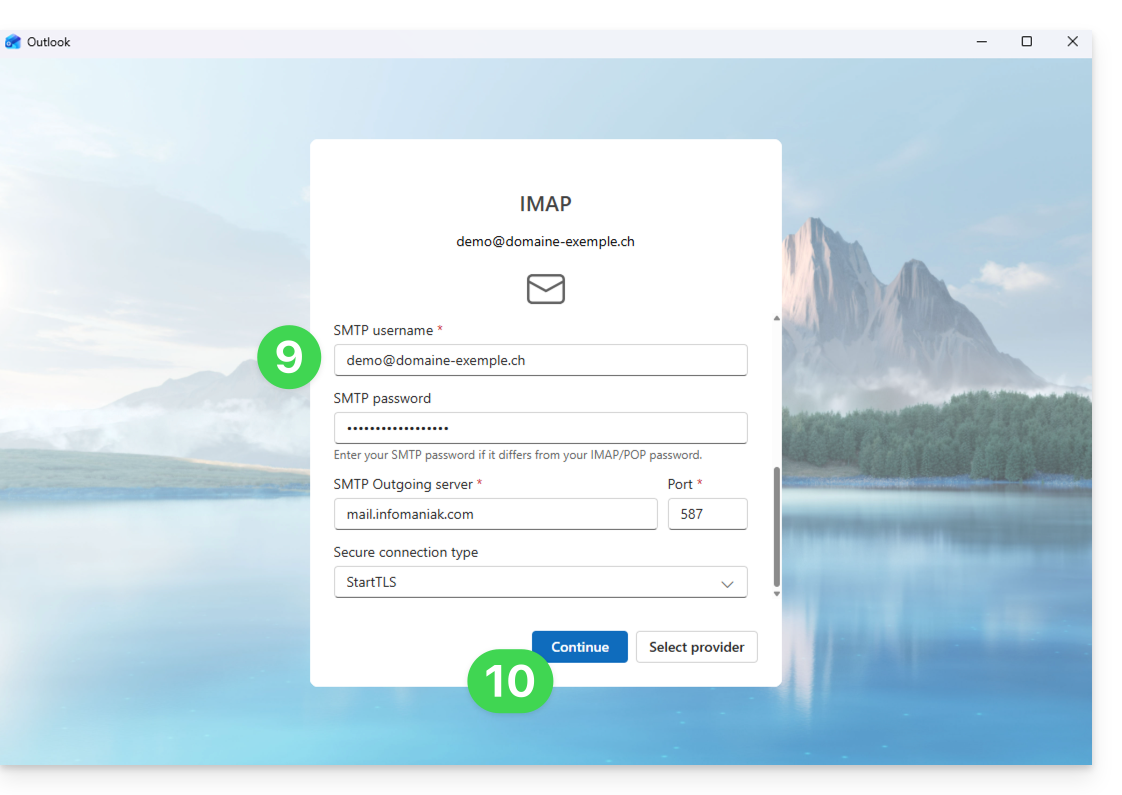
- Scroll down to the bottom of the page, then check and complete any missing information (❓: help).
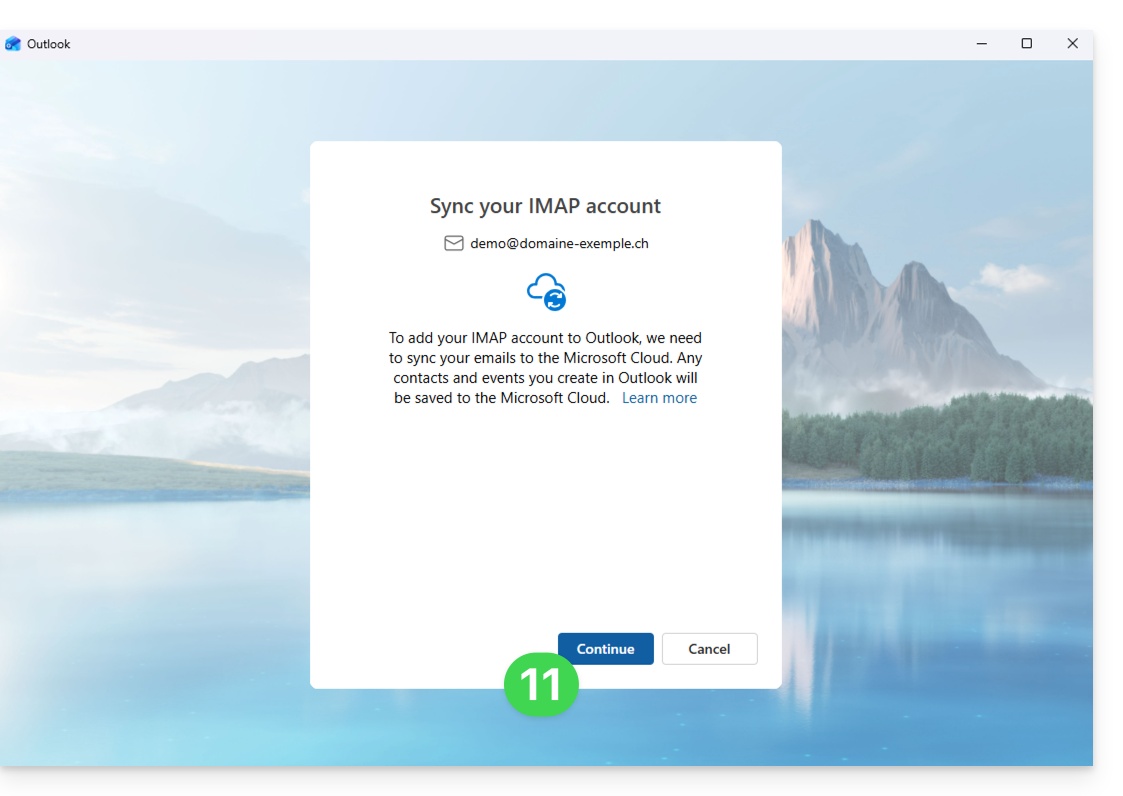
- Click Continue:
- Read and go through the various Microsoft information windows:
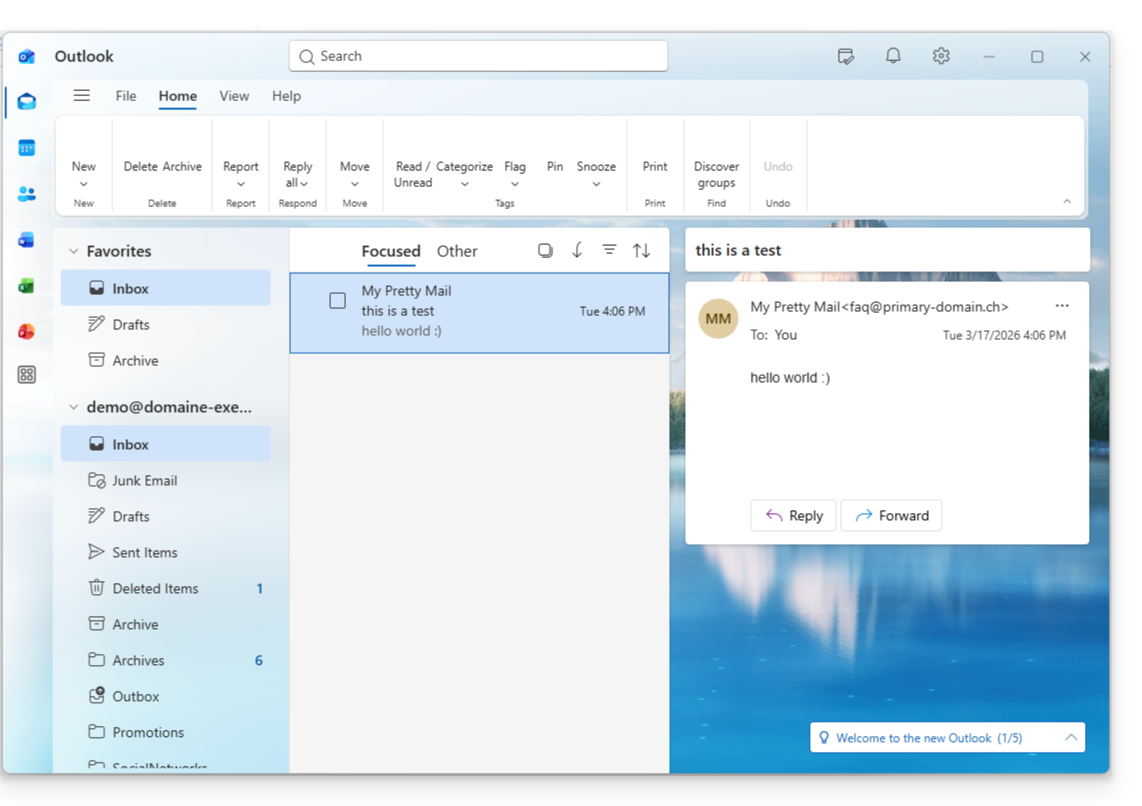
- Done! Your email address is now configured in the application:
Recommended settings
- Incoming IMAP server =
mail.infomaniak.com - IMAP port =
993(with SSL) - Outgoing SMTP server =
mail.infomaniak.com - SMTP port & encryption protocol and command/method to activate this protocol:
587+ STARTTLS - Username = the complete email address & (❓: help)
- Password = the password generated for the email address you want to access (see prerequisites).
- Authentication required for sending emails:
- Enable this in the SMTP settings of your application.
- Check "use the same settings as the incoming server" or, depending on the software/email client, enter a username (= the complete email address) and the generated password.
Refer to this other guide if you are looking for information about other email ports and protocols that are supported (SSL/TLS, for example).
In case of a problem
A solution that seems to work is the combination of these 2 situations:
- Being logged in to your Windows session with a Microsoft account (not just a local account).
- Added the email address used to log in to Windows to this version of Outlook.
Also, create a new password (❓: help) by letting it be generated randomly, but also ensuring that it meets the criteria imposed by Microsoft:
| Allowed characters |
|
| Forbidden characters |
|
| Password length | 16 characters MAXIMUM |
Make sure that the Mail service is configured optimally (❓: help).
The troubleshooting guides will help you resolve any potential issues:
- Consult the solutions provided in this other guide regarding email in general.
- This other guide focuses specifically on Outlook.
… and if your Outlook is no longer working after a change of email password, please refer to this other guide.
Link to this FAQ: https://faq.infomaniak.com/2434
Has this FAQ been helpful?