Knowledge base
1000 FAQs, 500 tutorials and instructional videos. Here, there are only solutions!
This guide explains how, when you belong to multiple Organizations, to switch from displaying one Organization to anotherfrom the Infomaniak Manager.
Introduction
- Since you opened your account with Infomaniak, you have been part of at least one Organization.
- If you were on your own and it wasn't an invitation, an Organization was created in your name, and you automatically become its Legal Representative.
- Otherwise, you belong to the Organization that invited you (to join its kSuite, to manage a product, etc.) with a defined role.
- You can leave Organizations.
- It is perfectly possible to access multiple Organizations using the same login credentials and to switch quickly between them.
- The principle is the same in the Infomaniak Mail interface (refer to this other guide).
Display one of the other Organizations for the same user account
To switch to another Organization among those you belong to:
- Click here to log in and access the management of your services & products on the Infomaniak Manager.
- Click on the chevron in the upper left corner of the Manager interface, to the right of the name of the Organization you are currently on:
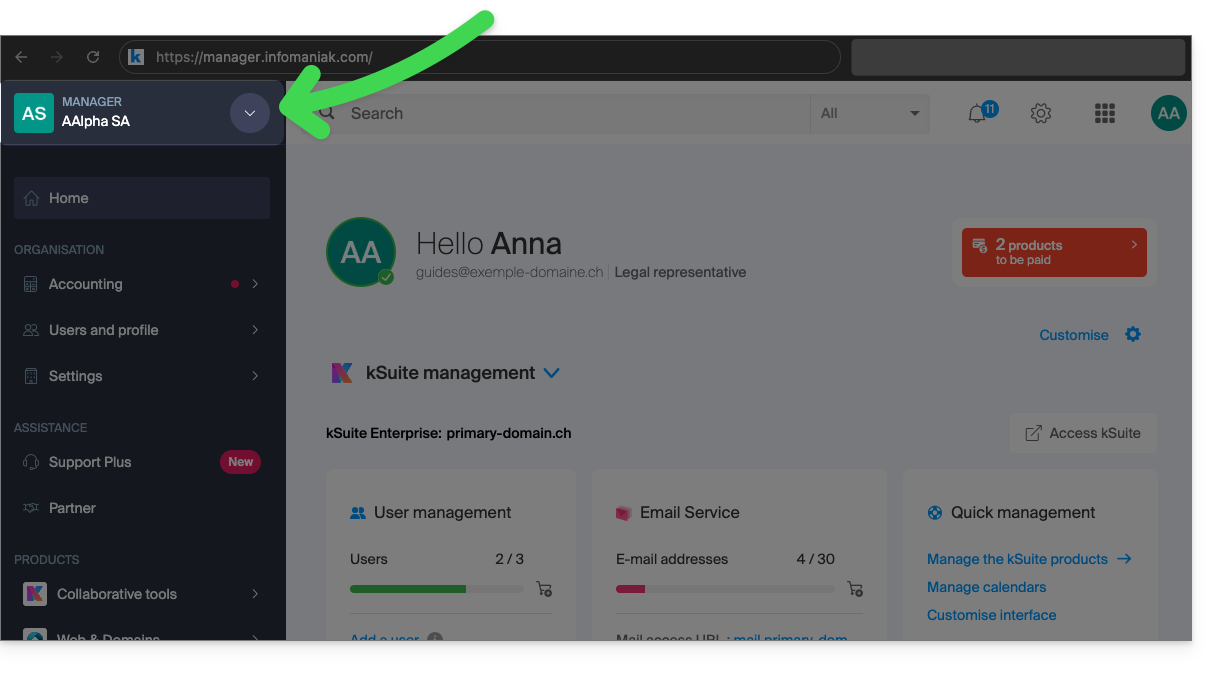
- In the menu that opens, click on the name of the Organization you want to access:
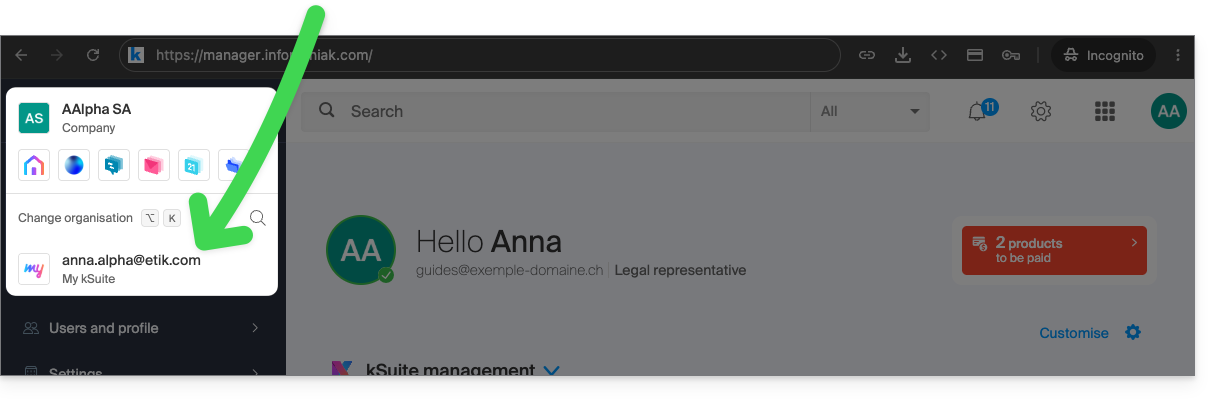
- If you belong to many Organizations, you can click on the magnifying glass to enter the name of the Organization you are looking for.
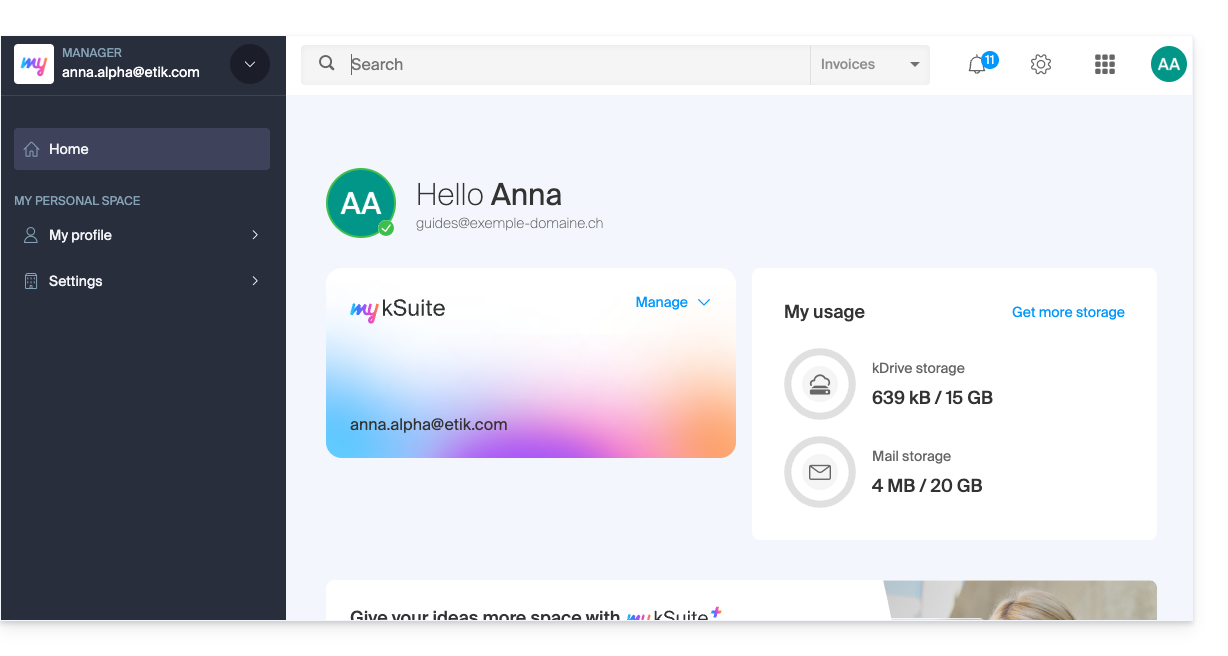
- The change of Organisation is immediate; you are automatically switched (here to a my kSuite account):
- Start again from step 2 to return to one of the other Organisations.
Link to this FAQ: https://faq.infomaniak.com/1989
Has this FAQ been helpful?
This guide explains how to find out the operating system version of your Web Hosting server.
Introduction
- Even if Debian or a package seems outdated, the versions displayed do not contain any vulnerabilities:
- Infomaniak keeps them up to date through regular internal patches on all components and systems used.
- The versions are chosen for their stability and then reinforced with security measures that standard tests do not detect.
- If you or your clients identify a flaw in an Infomaniak product, please submit a POC. Although rare, these cases are handled quickly.
- Data security is the responsibility of the user: Infomaniak cannot be held responsible for poor management or use of access credentials.
Which OS is running on my website?
To find out the version:
- Connect to the server via SSH (need help?).
Run the following command:
lsb_release -aYou will receive information of this type:
Distributor ID: Debian
Description: Debian GNU/Linux 7.9 (wheezy)
Release: 7.9
Codename: wheezy
Link to this FAQ: https://faq.infomaniak.com/1995
Has this FAQ been helpful?
This guide explains how to remove an alias domain from an Infomaniak web hosting account. The main domain name of the website will then no longer be linked to any other domain name.
This allows you to subsequently create a new web hosting or separate site for the detached domain name.
Prerequisites
- If previously associated, unlink the synonym domain from the main domain.
Remove the alias domain
To remove an alias domain name from your website:
- Click here to access the hosting & website management section in your Infomaniak Manager (❓: help).
- Click on the name of the site in question.
- Click on the action menu ⋮ to the right of the domain to be removed.
- Choose Unlink:
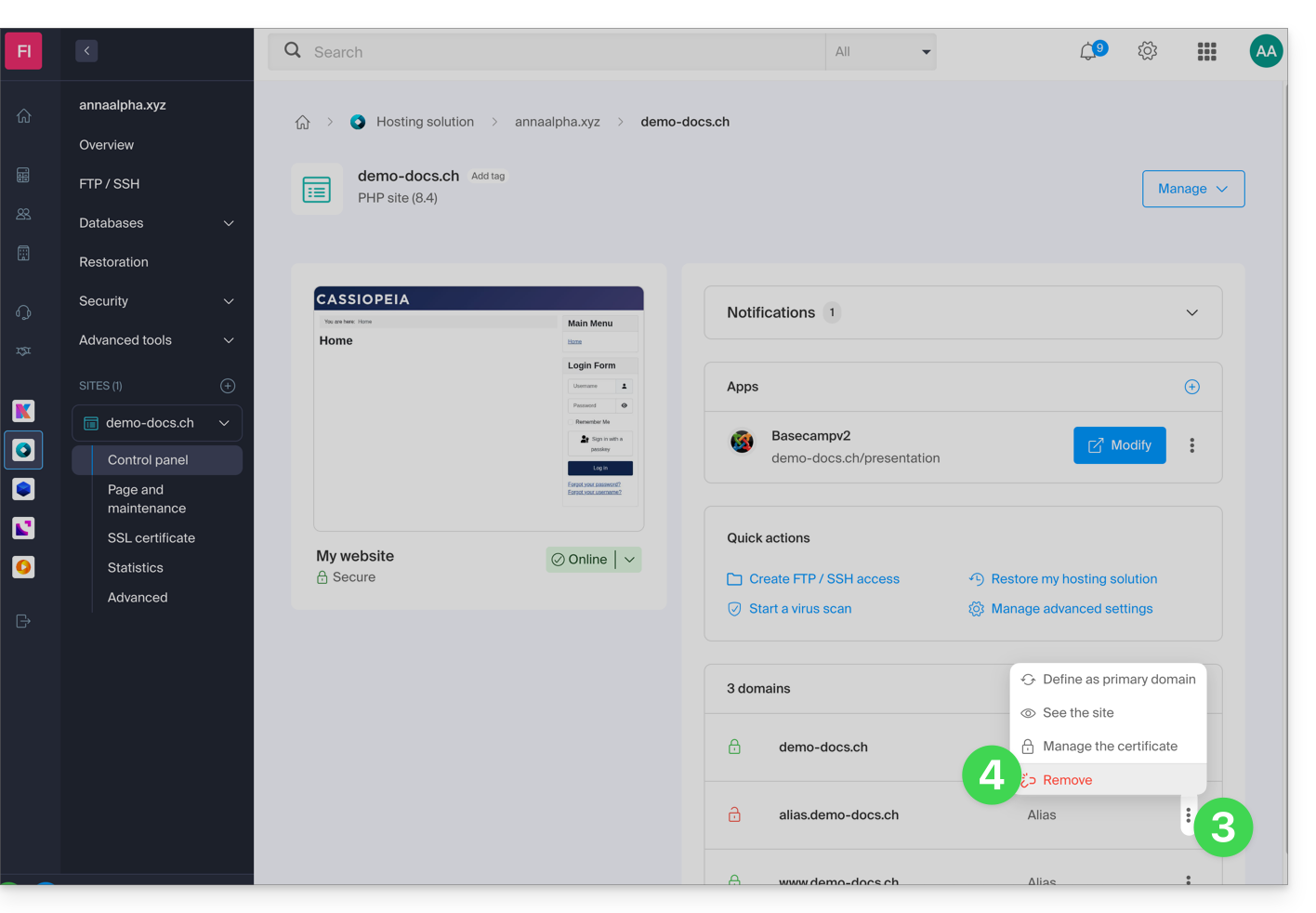
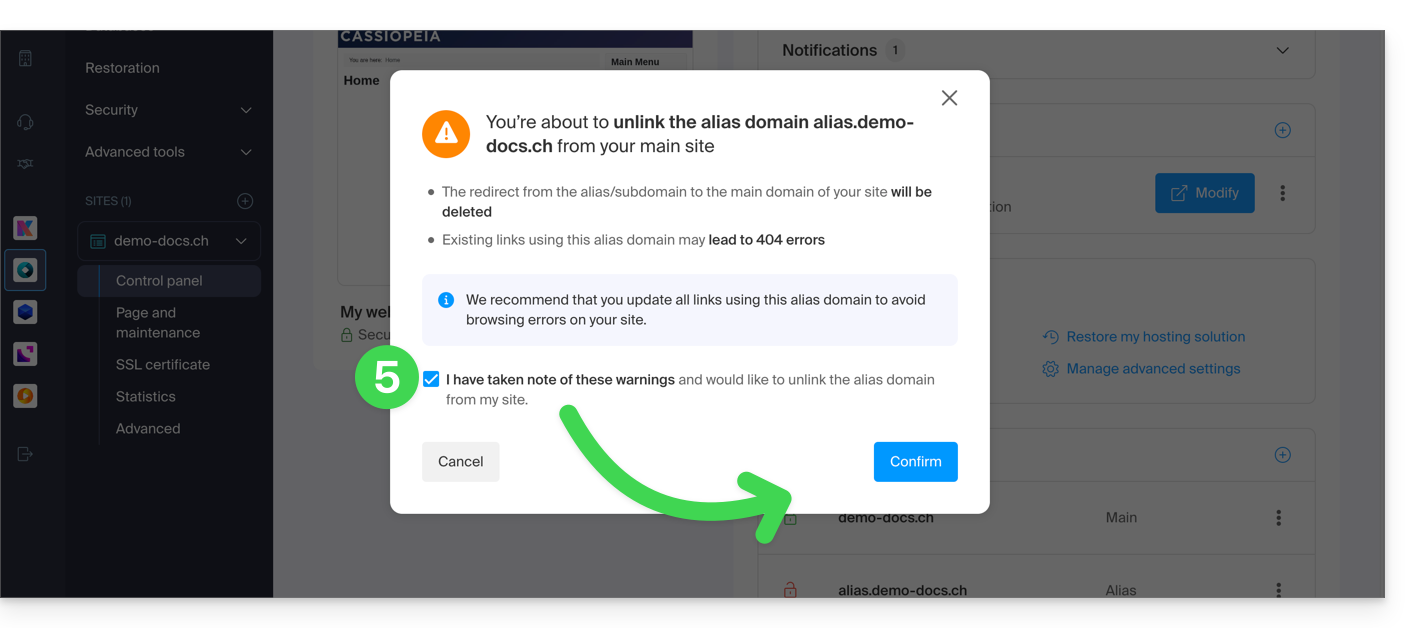
- Confirm the alias deletion:
Link to this FAQ: https://faq.infomaniak.com/1997
Has this FAQ been helpful?
This guide explains how to add a domain alias to a domain name.
Introduction
- A synonymous domain is a domain name that can serve as a secondary name for another domain.
- When a synonymous domain is added, it automatically inherits the content of the DNS zone of the main domain (including
MX,A, etc. records), as well as its Web and Mail hosting. - Alternatively, you can add an (domain) alias to a website or add a (domain) alias to a Mail Service.
Add a synonym domain to a domain
Prerequisites
- The domain name for the future alias or its DNS zone management…
- … must be registered with Infomaniak,
- … must be configured with Infomaniak DNS,
- … must not yet be linked to any product.
- The domain name on which the alias will be placed…
- … must not be associated with the Newsletter product from Infomaniak.
To access your domain names:
- Click here to access the domain management section in your Infomaniak Manager (❓: help).
- Click on the name of the main domain in question.
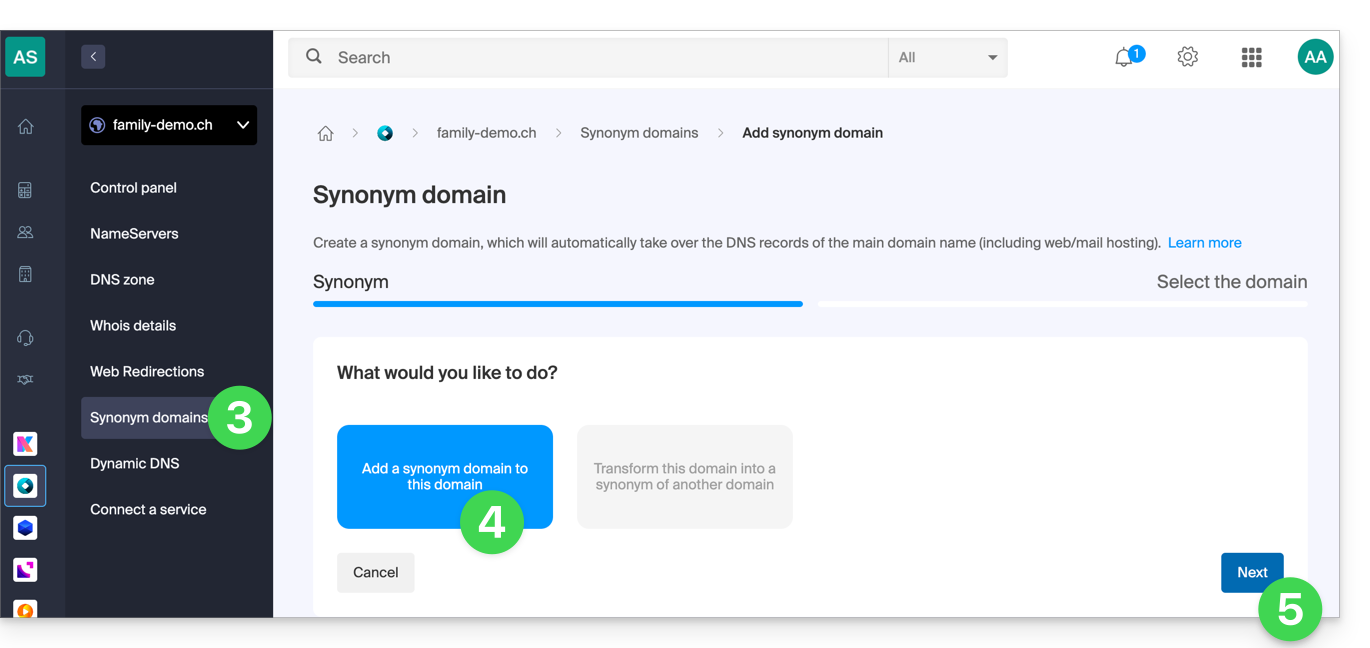
- Click on Synonymous domains in the left-hand menu.
- Choose to add a synonym.
- Click on Next:
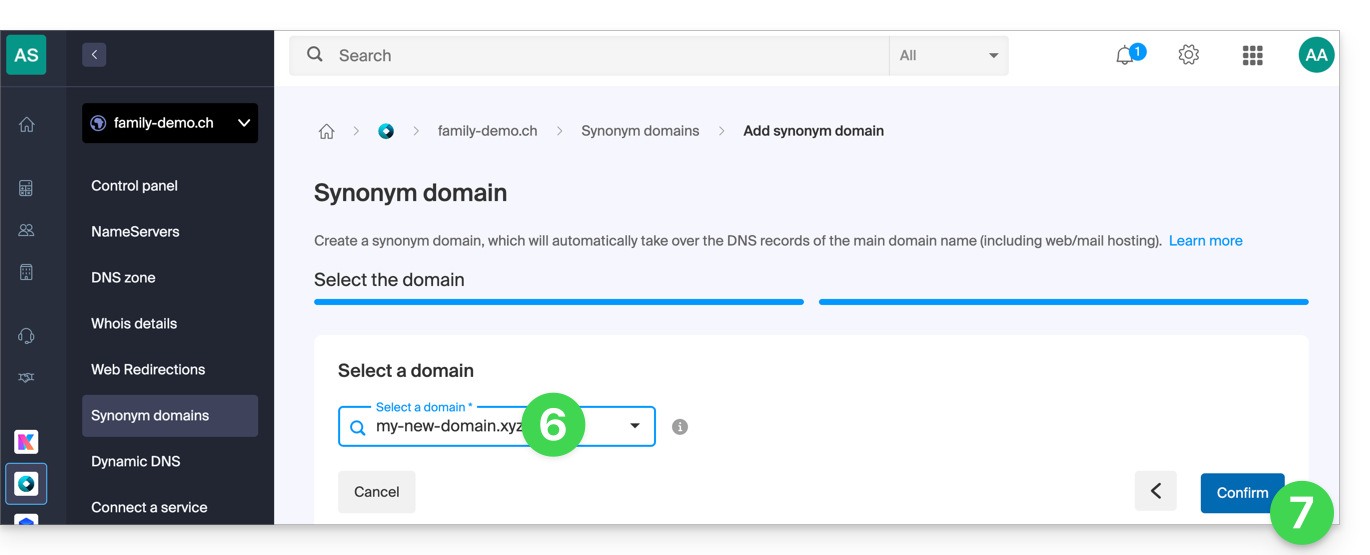
- Choose an existing domain within this Organization, or order a new domain in advance.
- Click the button to Confirm:
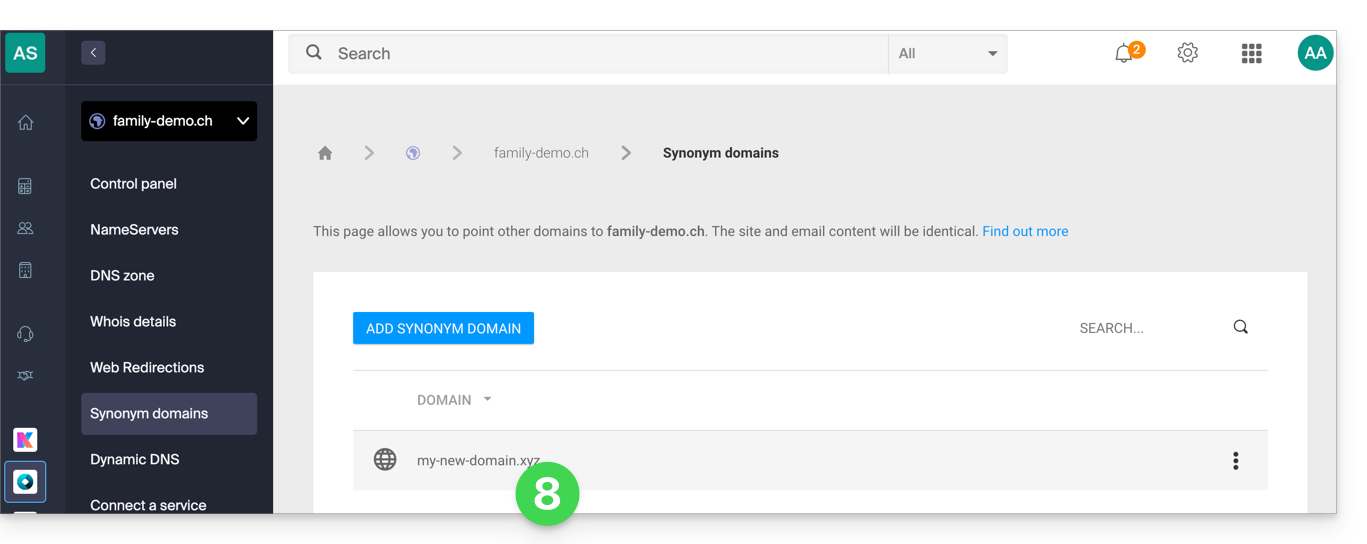
- That's it:
Refer to this other guide if you are looking for information on how to unlink a domain name alias.
Link to this FAQ: https://faq.infomaniak.com/1999
Has this FAQ been helpful?
This guide explains how to obtain a Mail service + web hosting free of charge after purchasing a domain name from Infomaniak.
Introduction
- For each domain name registered or transferred to Infomaniak, you can benefit from the following free services:
- a mail address that gives you access to the Mail Infomaniak app
- and 10 MB of web space for a basic page.
- It is also possible to have a free Mail service while having a paid Web offer, or vice versa.
- Instead of a Starter Mail service, there is also kSuite.
Activate the Starter Mail + Web offer
Prerequisites
- You must own a domain name with Infomaniak (a DNS zone is not sufficient).
- Depending on the type (Mail or Web) desired, ensure that no corresponding product is already associated with the domain nameand this within any existing Infomaniak organization.
To order a Mail Starter service and a Web Hosting Starter included with each domain:
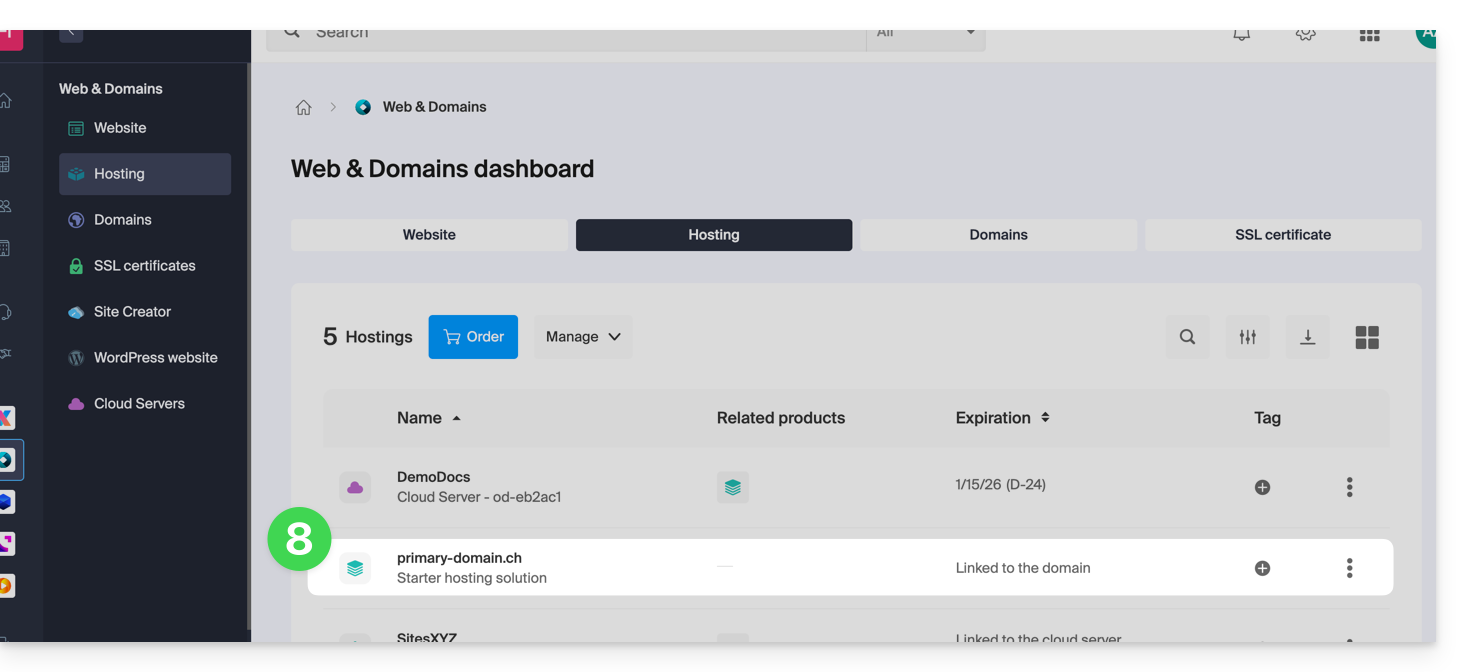
- Click here to access the domain management section in your Infomaniak Manager (❓: help).
- Click on the name of the domain in question:
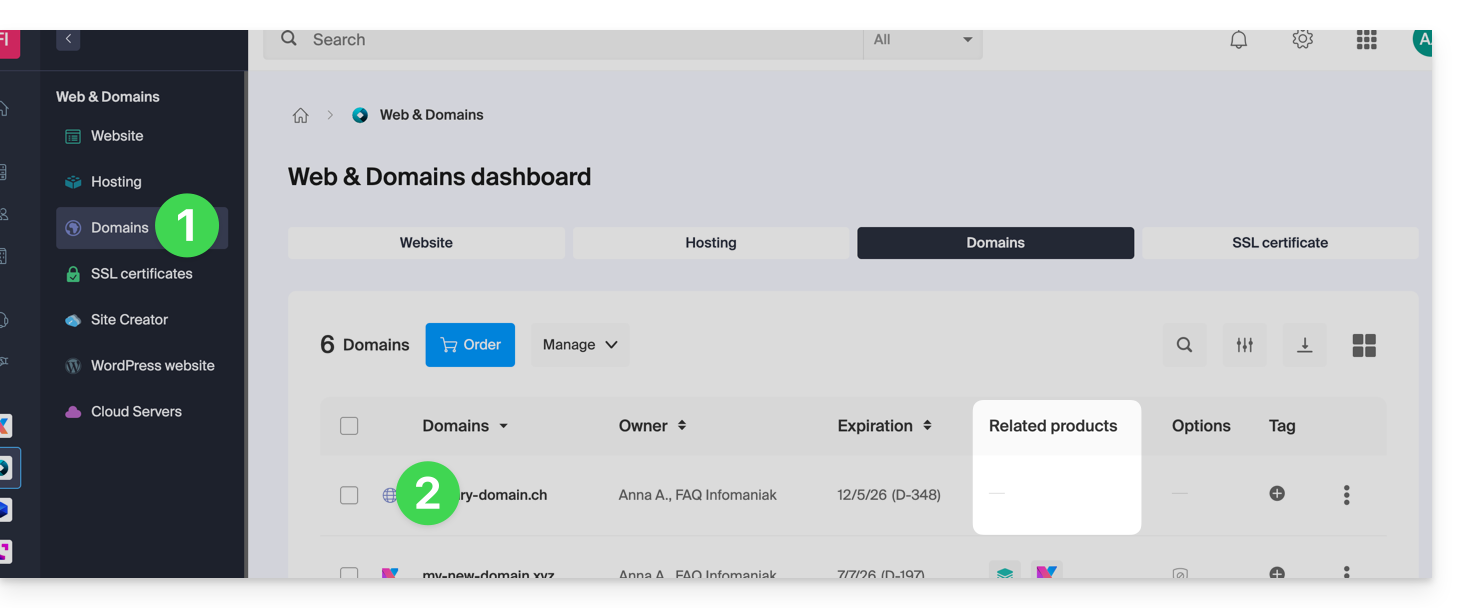
- No product should be linked to the domain at this time (visible in the linked products column).
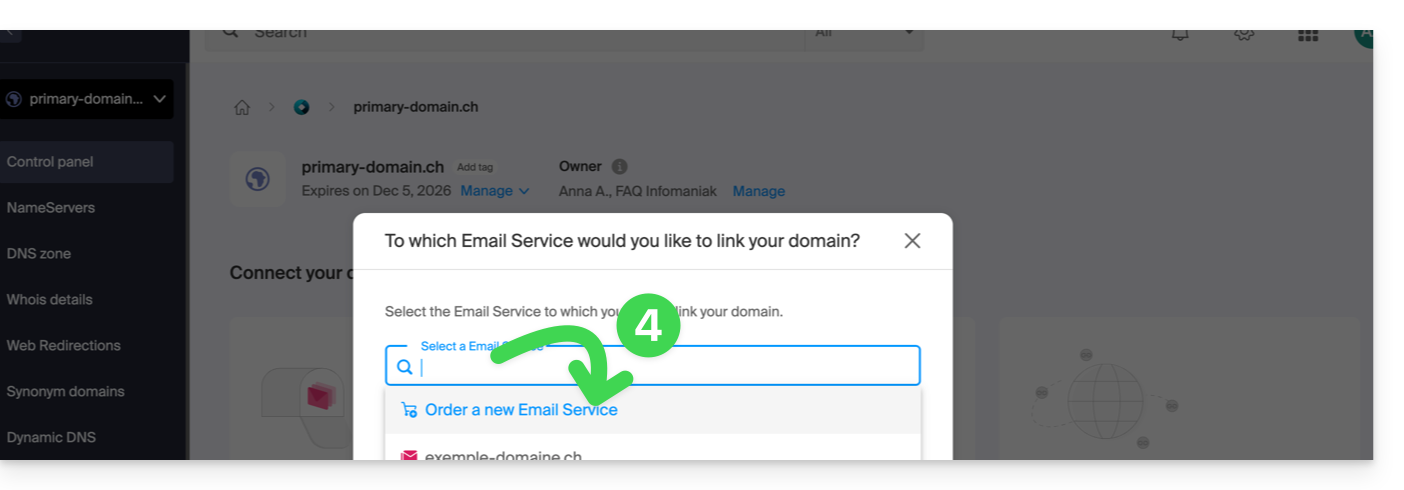
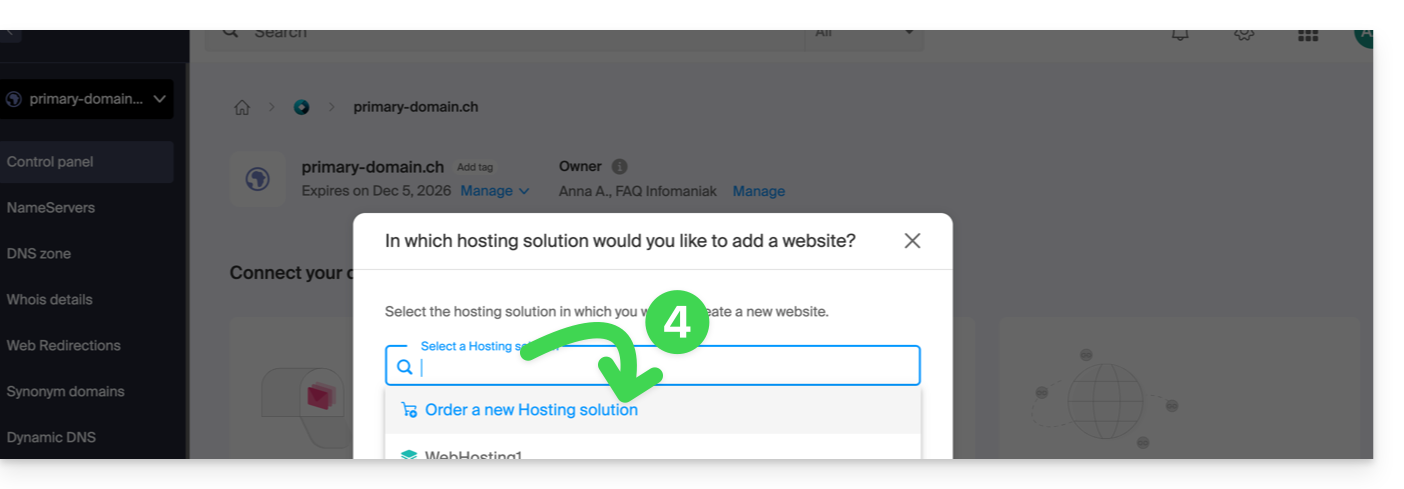
- Click on one of the shortcuts to Connect a service (mail or web):
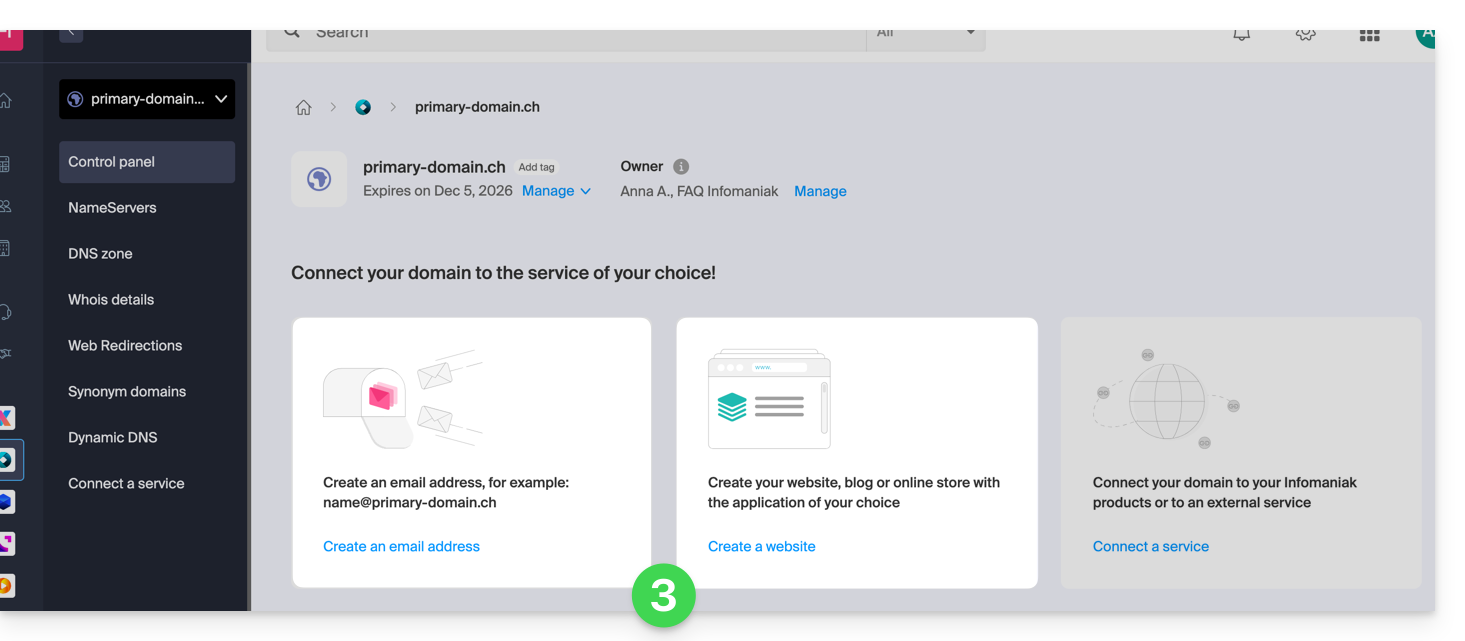
- In both cases, click on Order…:
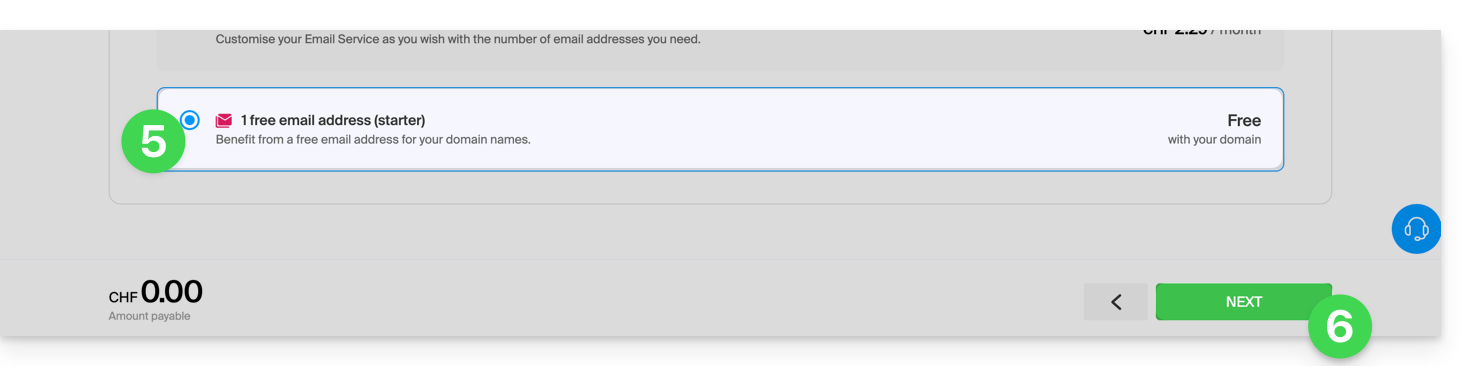
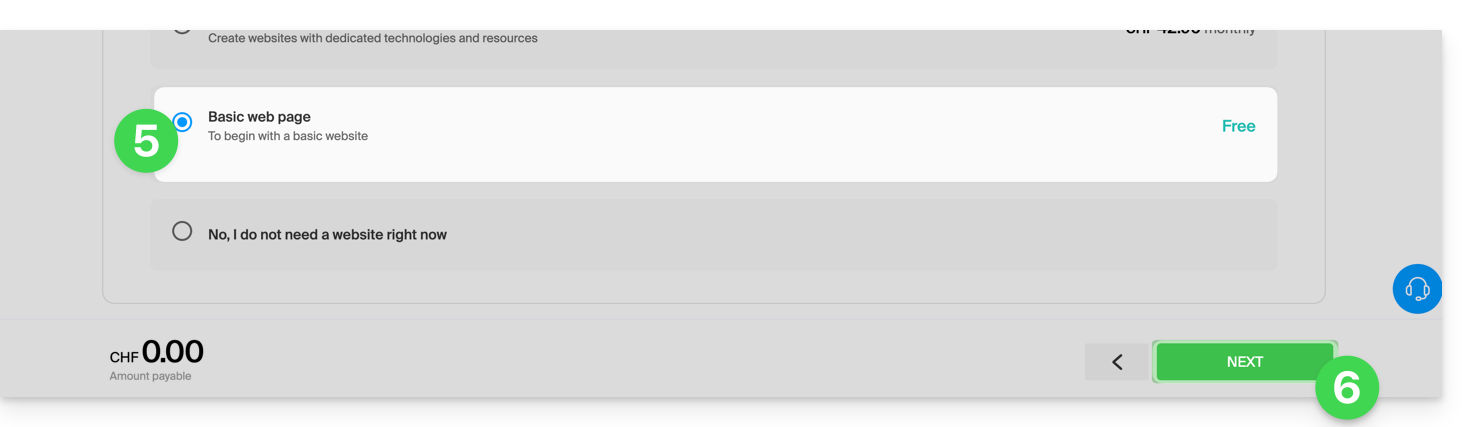
- You can choose the corresponding free service (mail or web), and the next step will allow you to choose the other one (mail or web) if desired.
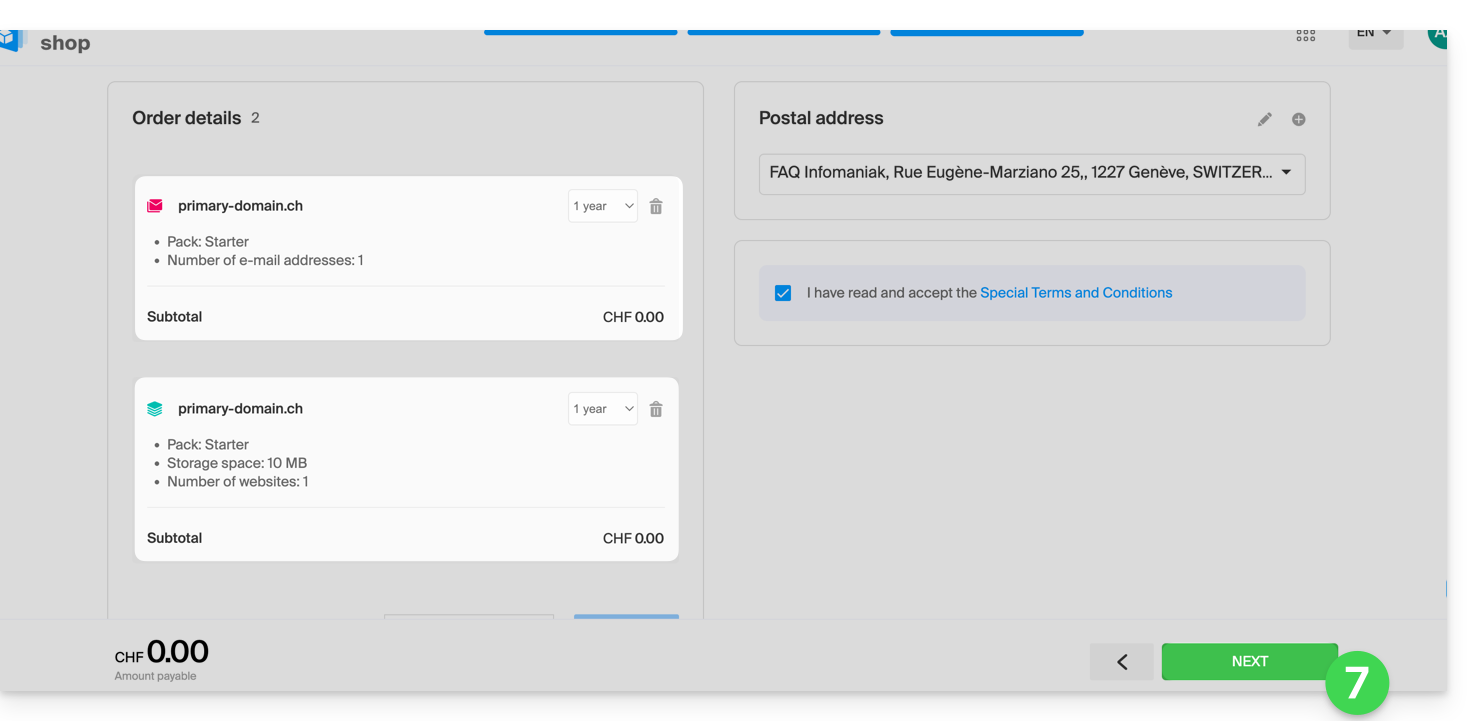
- Click at the bottom of the page to continue:
- Complete the order:
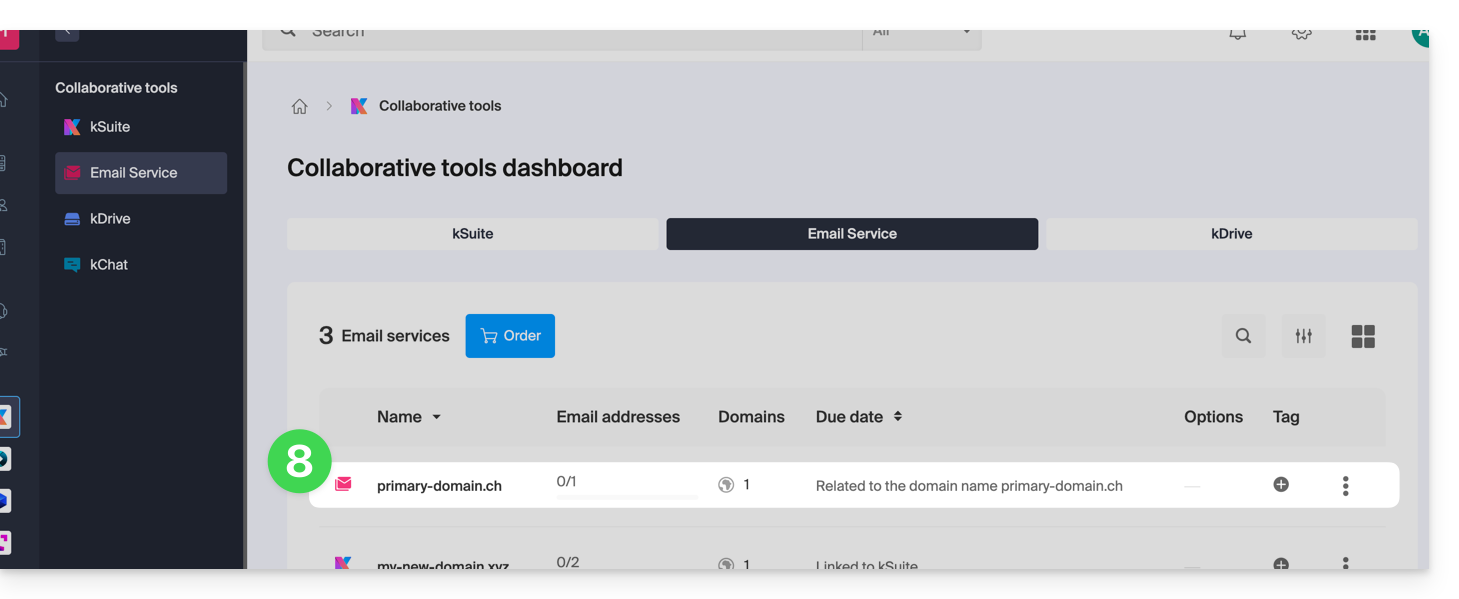
- Go back to your Infomaniak Manager to discover and use your new products:
Using your Starter products
- Create the email address you want on your Mail Starter service.
- To use the 10 MB of web space and create a basic web page on your Web Hosting Starter, use:
- the page editor
- or the Web FTP in the Manager to manage your HTML pages
- or any software/FTP client with the classic FTP protocol
Upgrading a Starter plan
- Modify a Mail plan (click here).
- Modify a Web plan (click here).
In case of a problem with a Starter hosting plan
A Starter web hosting plan does not offer IPv6. Therefore, be careful with AAAA records in the DNS zone of the domain in question, as they may prevent you from activating SSL; also, please refer to this other guide.
Link to this FAQ: https://faq.infomaniak.com/2002
Has this FAQ been helpful?
Thank you for choosing Infomaniak to host your website.
Introduction
- Web hosting is a storage space available on a computer, also known as a "server," connected to the Internet and managed by a web hosting provider, Infomaniak.
- This storage space, made available to professionals and individuals, is used to install websites or other types of tools (CRM, extranet, intranet, etc.) that need to be accessible via the Internet.
- These guides will help you quickly learn how to use the essential features of your new product, your web hosting, which can host multiple websites.
Where to start?
- Create a WordPress website
- Build the site with Site Creator
- Install a web application (ownCloud, Joomla, Typo3, Drupal, phpBB, Simple Machines Forum, Magento, Prestashop, …)
- Manage your FTP accounts/users
- Manage and publish files on your hosting via Web FTP
- Manage your MySQL databases
- Add a website or subdomain to your hosting (multisite/multi-domain)including a Node.js website
- Link another domain name to an existing website (domain alias)
- Preview your website even if your domain name does not yet point to Infomaniak's servers
IMPORTANT: the domain name…
For a website to be visible to the public on the Internet, it must be associated with a domain name!
Is your domain name not managed by Infomaniak? Or is it in a different Organization than the one for your web hosting? Then, please refer to this other guide to configure the DNS or "A records" in order to link the domain name to your web hosting.
In case of a problem
To resolve an issue, please consult the Web Hosting Knowledge Base before contacting Infomaniak support.
Click here to share feedback or a suggestion about an Infomaniak product.
Link to this FAQ: https://faq.infomaniak.com/2004
Has this FAQ been helpful?
This guide explains how to enable compression for your resources (CSS, HTML, JSON, JS) to speed up the loading of your Web Hosting.
Introduction
- By compressing your files, you reduce their size, which decreases the transfer time to your visitors' browsers.
- Fast loading speed is a major criterion for search engines like Google.
- The Infomaniak Manager handles modifying your
.htaccessand.user.inifiles.- A backup copy is created automatically for security purposes.
- The modification may take up to 5 minutes to propagate across the entire infrastructure.
Enable Gzip compression
The procedure via the Manager activates one of the most efficient compression algorithms supported by your browser:
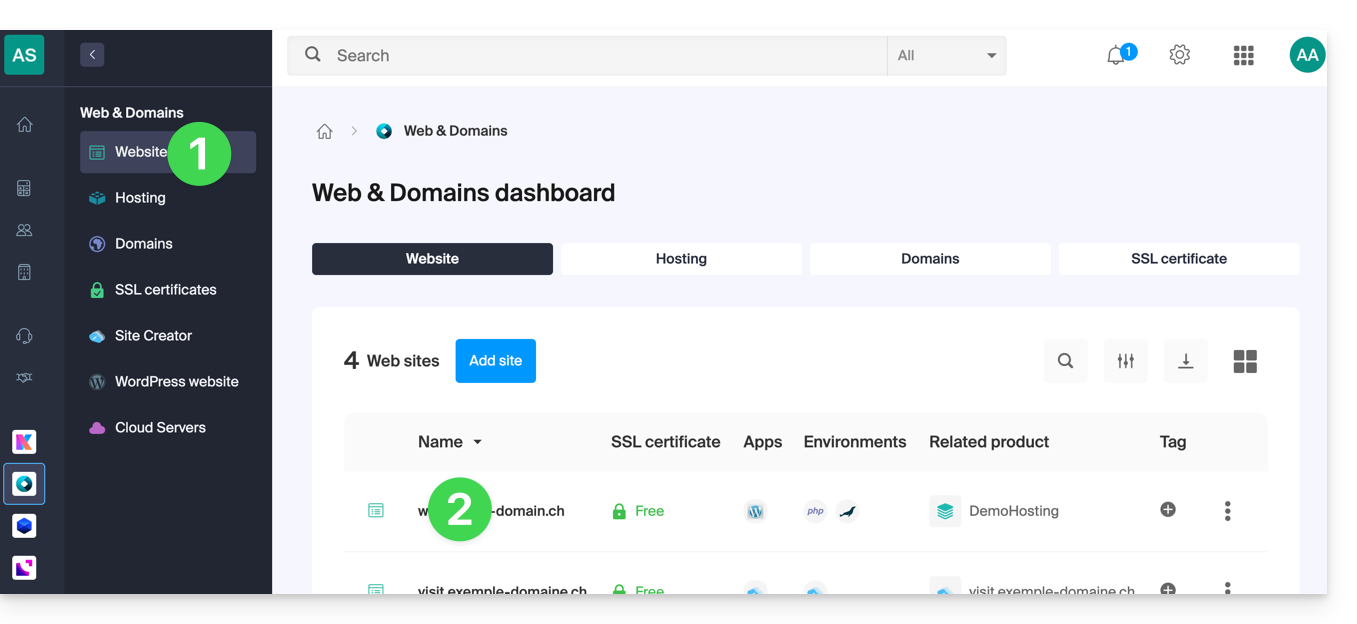
- Click here to access the hosting & website management section in your Infomaniak Manager (❓: help).
- Click on the name of the website in question.
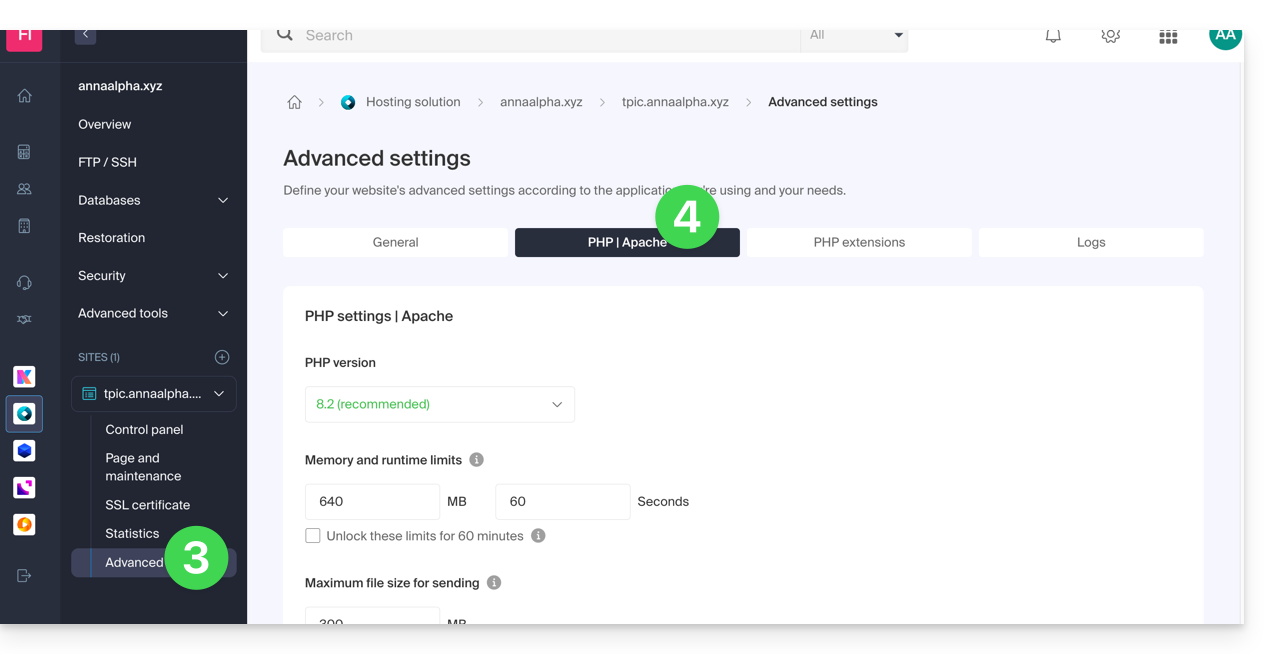
- Click on Advanced in the left-hand menu.
- Click on the Apache tab:
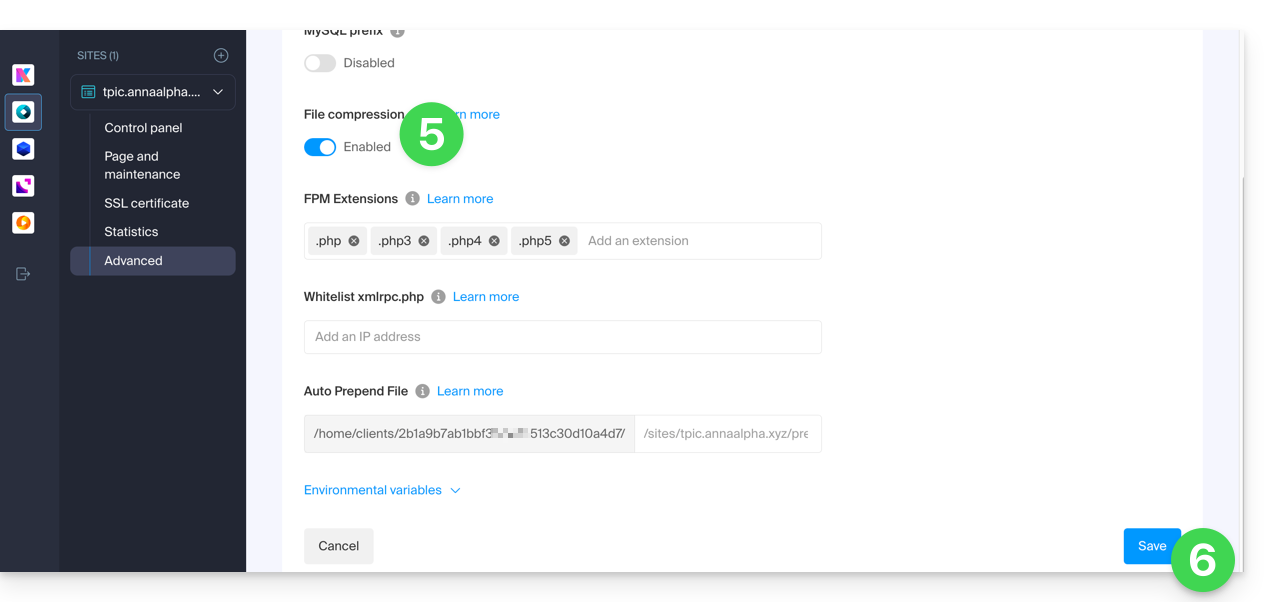
- Enable the File Compression option.
- Click on Save at the bottom of the page:
Check if the compression header is active
Once activated, your server will send an HTTP header Content-Encoding: gzip. You can test your site with these tools:
- Google PageSpeed Insights (recommended for a comprehensive analysis).
- GiftOfSpeed Gzip/Brotli Test (modern and fast tool).
- Browser Inspector: press
F12> Network tab > Click on your page > Check the response headers.
Link to this FAQ: https://faq.infomaniak.com/2013
Has this FAQ been helpful?
This guide explains how to use MySQL on Infomaniak hosting, in particular how stored procedures work.
Introduction
- “Stored procedures” and “stored routines” are not available on a shared web hosting plan.
Understanding stored procedures and routines
If stored procedures are essential to your project and you are currently using shared hosting, it is advisable to consider a VPS or a dedicated server, which offer more control and resources.
Stored procedures are an effective way to automate tasks and integrate business logic directly into the database. This allows for more efficient and easier-to-maintain applications.
On a Cloud Server, as long as the user has administrator rights on the relevant MySQL database, they have the necessary permissions to execute SQL statements, including the EXECUTE command, which is used to launch stored procedures that are already present in the database.
The user also has the required privileges to create new stored procedures.A stored procedure is created using a specific SQL syntax that defines the instructions to be executed, followed by saving it in the database.
Example
DELIMITER //
CREATE PROCEDURE GetUserCount()
BEGIN
    SELECT COUNT(*) AS total_users FROM users;
    -- Returns the total number of users in the table
END //
DELIMITER ;

-- Execute the stored procedure
CALL GetUserCount();
Link to this FAQ: https://faq.infomaniak.com/2014
Has this FAQ been helpful?
This guide explains how to change the URL of your website from the WordPress app installed on your Infomaniak Web Hosting (only if you installed WordPress using the dedicated tools provided by Infomaniak).
This allows you to assign a different domain name to your WordPress site.
Prerequisites
- The domain name you want to use must be added as an alias to the main domain on the relevant website.
Change a WordPress Site Address
To change the address of the site created with WordPress Infomaniak to another domain name that is already in the same Organization:
- Click here to access the management of your WordPress site on the Infomaniak Manager (need help?).
- If your site does not appear here, it means it was not installed using Infomaniak tools... refer to the official documentation.
- Click directly on the name assigned to the site in question:
- Click on the action menu ⋮ located to the right of the relevant Web Application.
- Click on Settings for the application:
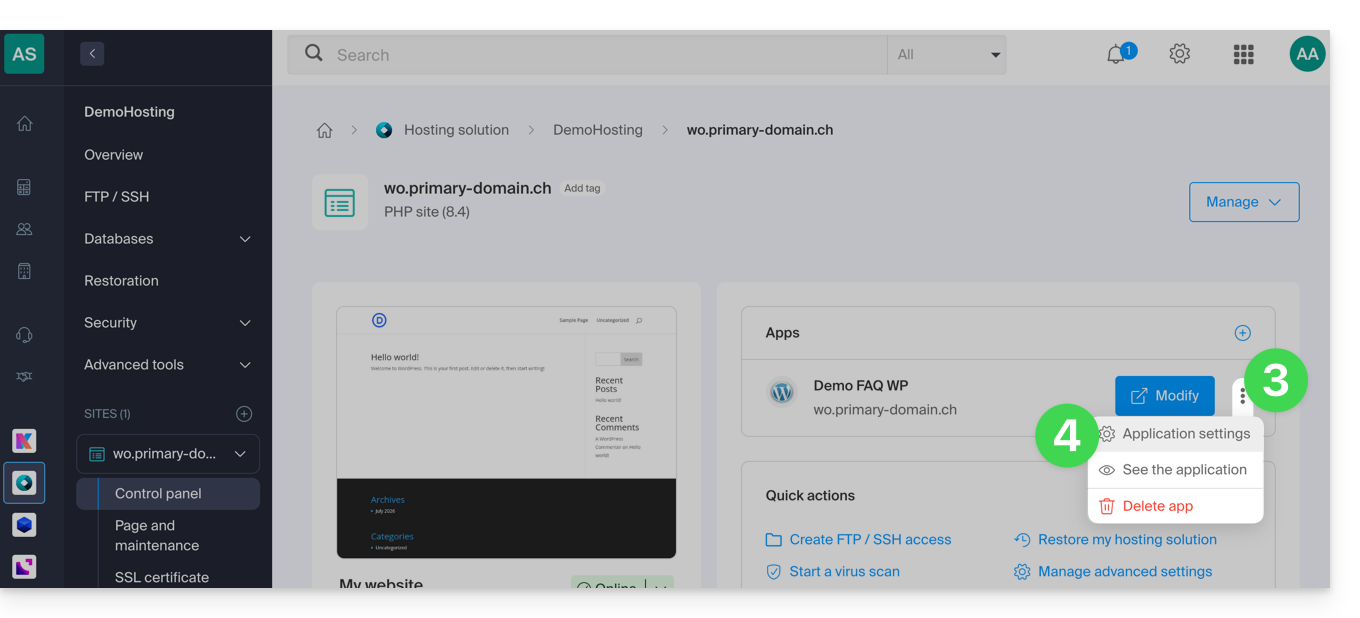
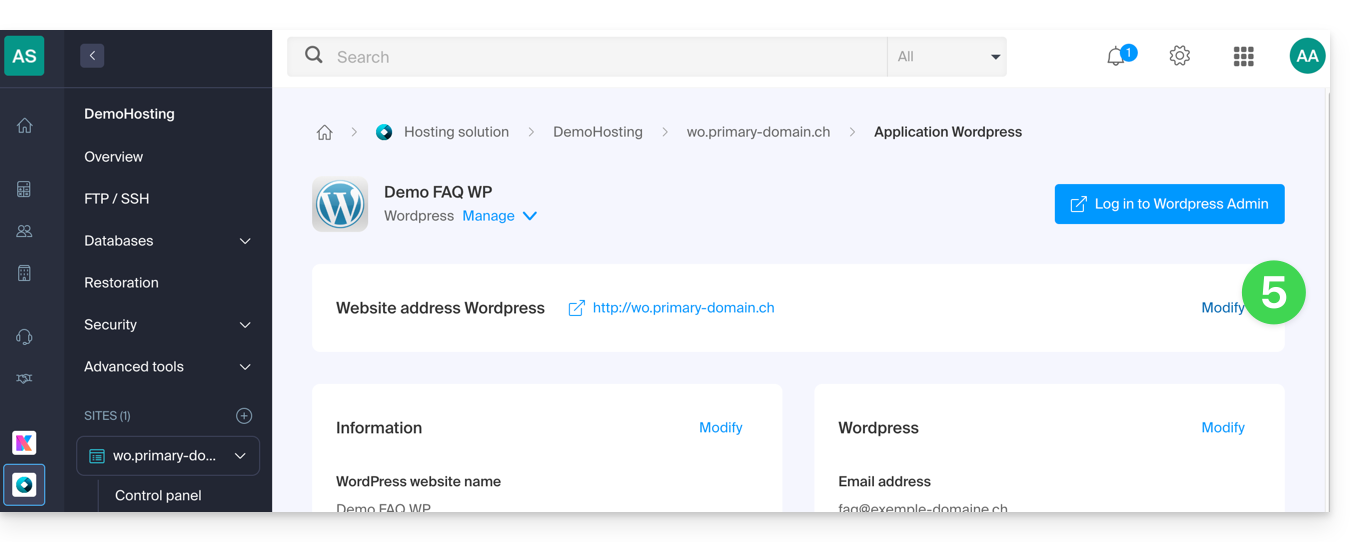
- Click on Edit to the right of WordPress:
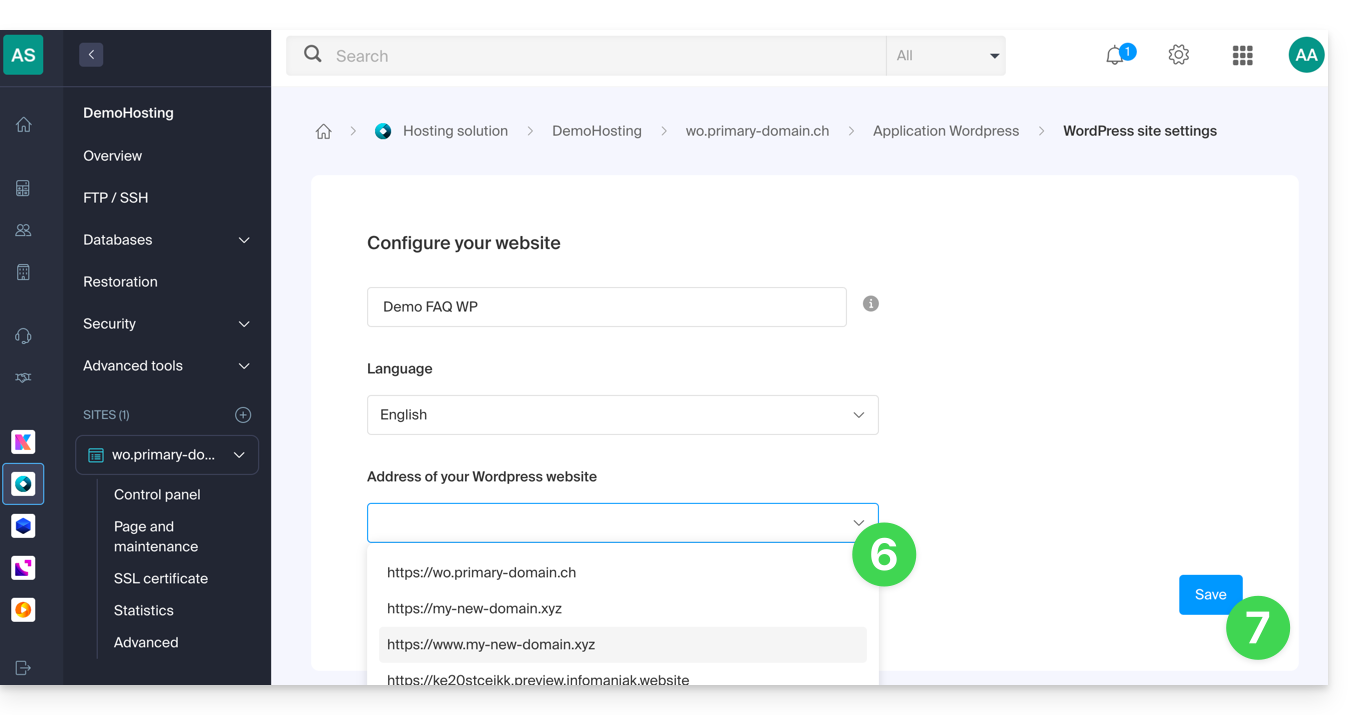
- Under Site URL, select the desired address from the drop-down menu:
- If you have not followed the prerequisites above, the desired domain will not appear even if it is registered in the same Organization.
- If you have added the domain as an alias for the site, the desired domain will appear and you can select it to replace the previous domain.
- Click the Save button:
Domain… .preview.infomaniak.website?
Among the URLs present in the drop-down menu, the preview URL allows you to access your WordPress site in the event that the site's domain name is not yet correctly configured to point to your WordPress app.
Link to this FAQ: https://faq.infomaniak.com/2016
Has this FAQ been helpful?
This guide explains the differences between Infomaniak's web hosting plans to help you choose the best solution based on your IT needs.
If you are looking to host your email, please refer to this other guide.
1. Site Creator
Standalone plans, independent of a hosting solution such as the one presented in point 3.
Site Creator is a ready-to-use solution that allows you to easily create a showcase website, a blog, or an e-commerce store without any specific technical skills. Offered as a standalone solution (without requiring traditional web hosting), it is available in several plans to suit your needs:
- Site Creator Free: a free version to test and customize a web page with basic features
- Site Creator Lite: ideal for publishing a showcase website or blog (up to 6 web pages, 15 GB of disk space, and a free domain name for 1 year)
- Site Creator Pro: the complete solution for online stores (unlimited pages, 50 GB of disk space, e-commerce features with payment and inventory management, free domain name for 1 year)
Learn more about the Site Creator plans and compare features.
2. Web Hosting Starter
Simple and free web hosting
The Starter web hosting plan is offered free of charge with every domain name registered with Infomaniak. It offers 10 MB of disk space to create a website (basic pages in HTML only - no PHP, no database) even without specific knowledge, thanks to the Welcome Page tool.
- Register or transfer a domain name to Infomaniak
- Learn more about the benefits included with a domain name
3. Shared Web Hosting
The flagship offer for creating your websites
These web hosting solutions are shared hosting offers (websites will be hosted on servers whose resources are shared with other customers). To guarantee the reliability of these shared services, Infomaniak servers use, on average, only 40% of the CPU power and are equipped with professional, latest-generation SSD disks.
Web hosting offers a minimum of 250 GB of disk space and allows you to manage multiple websites with multiple domain names. This offer includes all the technologies usually used to create professional websites: PHP, MySQL, FTP and SSH access, SSL certificates and easy installation of WordPress or common CMS, etc. It is also possible to add a Node.js site and/or Site Creator.
Please note that without any type of hosting, it is also possible to obtain and use Site Creator in a “standalone” mode. Refer to this other guide.
3. Cloud Server
Professional Web Hosting
With a Cloud Server,the resources allocated to you are not shared with other customersand you can customize the hardware and software configuration of your server according to your needs. A Cloud Server also allows you to use components that are not available on shared web hosting (Node.js, mongoDB, Sol, FFMPEG, etc.).
- A Cloud Server allows you to easily manage your server via the same administration interface as your web hosting – you manage websites in the same way.
- A VPS allows you to manage your server 100% independently with the Windows version or the Linux distribution of your choice (
Debian,Ubuntu,openSUSE, ...) – solid technical skills are required to use a VPS, including VPS Lite.
4. Public Cloud (et Kubernetes Service)
Open, reliable, and secure IaaS solution
For Infomaniak, this is the infrastructure that powers kDrive, Swiss Backup, and Webmail, services used by several million users. But Public Cloud is accessible to everyone and provides the resources you need to develop your projects.
With our custom and tailored offers, you'll have no trouble managing your development budget. No setup fees. No minimum amount. Cancel anytime. You only pay for the resources you actually use with Public Cloud at the end of each month, the same applies to Kubernetes Service.
5. Jelastic Cloud
Custom web hosting with the technologies of your choice
Jelastic Cloud allows you to create custom development environments with the technologies of your choice (PHP, Java, Docker, Ruby, etc.). It is a flexible cloud offering:
- Horizontal and vertical resizing of resources.
- Payment based on actual resource consumption.
- Easy customization of your infrastructure (redundancy, IP, SSL, load balancing, etc.).
Link to this FAQ: https://faq.infomaniak.com/2019
Has this FAQ been helpful?
This guide details sending authenticated emails from a website/CMShosted by Infomaniak.
Introduction
- Configuring your website to send emails via an authenticated SMTP server improves the reliability and security of email sending compared to using the PHP
mail()function without authentication:- improved email delivery reliability,
- enhanced security,
- more accurate error detection,
- better compatibility with email services,
- and improved email tracking.
SMTP configuration examples
Prerequisites
- You must have an email service.
- You can use the Mail Service offered by Infomaniak or any other email service of your choice.
- Create a device password (❓: help my kSuite | Mail/kSuite Service).
- Use the recommended settings:
- Outgoing SMTP server =
mail.infomaniak.com - SMTP port & encryption protocol and command/method to activate this protocol:
587+ STARTTLS - Username = the complete and full email address (❓: help).
- Password = the one generated for the email address you want to use
- Authentication is mandatory for sending emails:
- It is activated in the SMTP settings of your CMS.
- Check "use the same settings as the incoming server" or, depending on the CMS, re-enter a username (= complete and full email address) and the generated password.
- Outgoing SMTP server =
WordPress
To enable your site to send emails, use an email address from its domain (e.g. email@domain-site.xyz) and enter the SMTP settings (see prerequisites):
- Log in to the WordPress administration panel.
- Install an SMTP plugin (e.g. WP Mail SMTP).
- Configure the extension, for example:
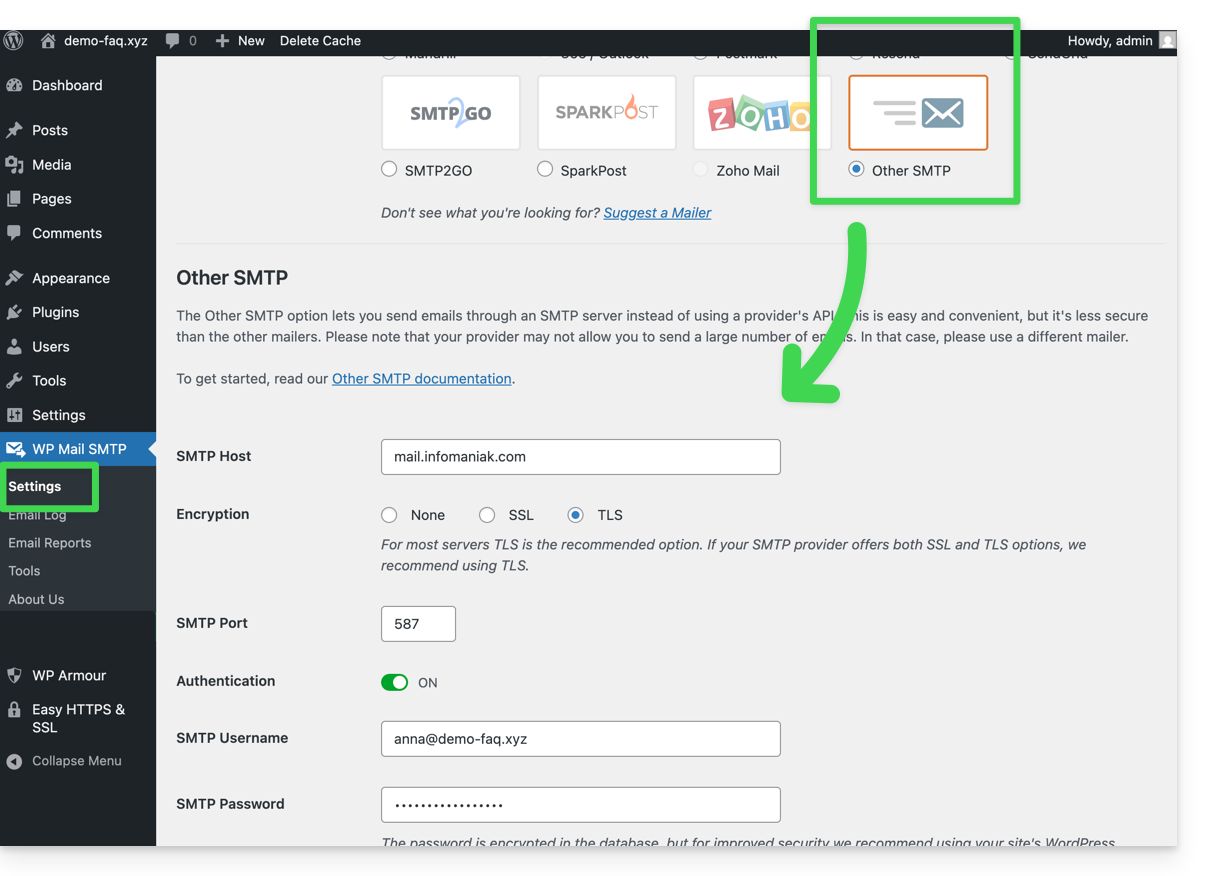
From then on, an email sent from a contact form on the website (e.g., the default Divi form) will be sent using the SMTP method.
To verify this, simply examine the headers of a message received through this method, particularly the x-mailer line, which may indicate, for example, WPMailSMTP/Mailer/smtp instead of PHPMailer.
Note: the x-mailer can be any indication and may not necessarily reflect the actual sending method!
Prestashop
To enable your site to send emails, use an email address from its domain (e.g., email@domain-site.xyz) and enter the SMTP settings (see prerequisites):
- Log in to the PrestaShop administration panel.
- Go to Advanced Parameters, then E-mail.
- Configure sending via SMTP:
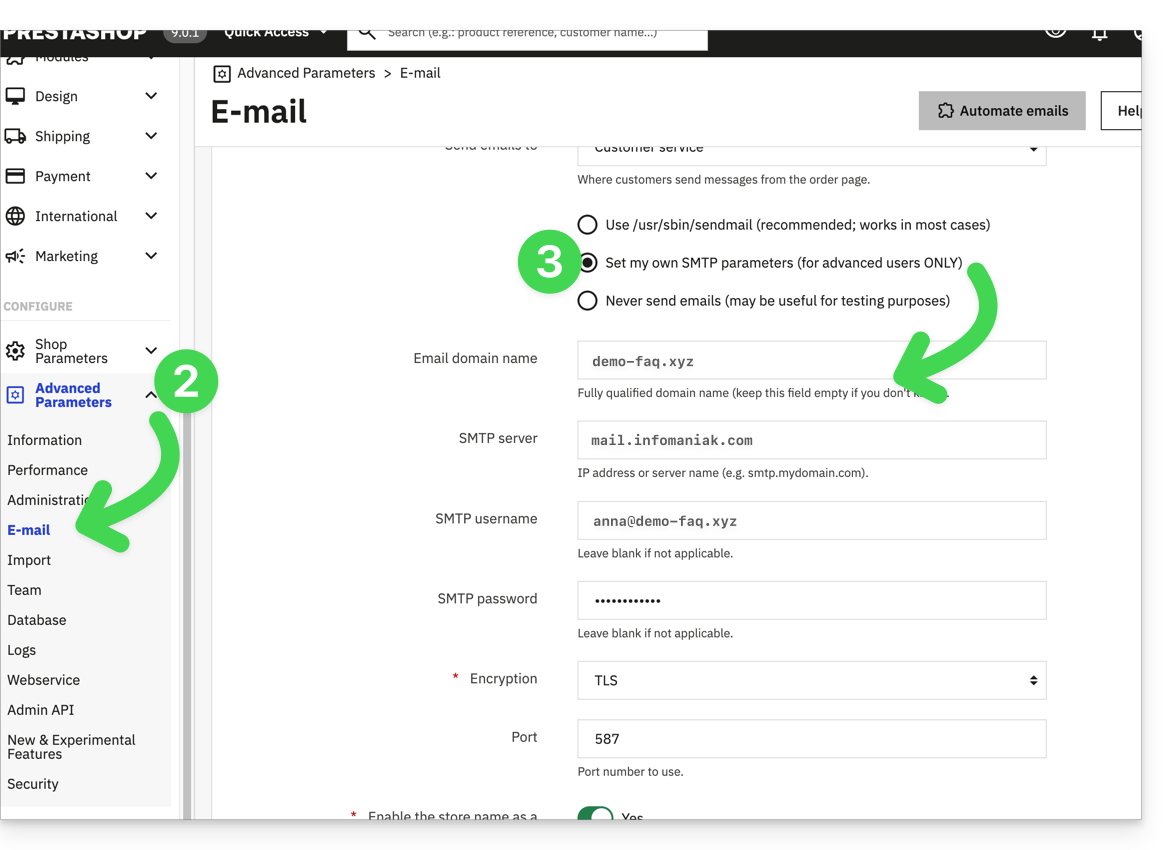
Then, check (to avoid errors such as Could not instantiate mail function or sender mismatch) that the address you configured in these advanced settings matches the address that Prestashop uses when sending emails. To do this:
- Log in to the PrestaShop administration panel.
- Go to Shop Parameters.
- Click on Contact in the left-hand menu.
- On the Contacts tab, verify that the email address mentioned is the same as the one configured previously.
- Edit the email addresses if necessary:
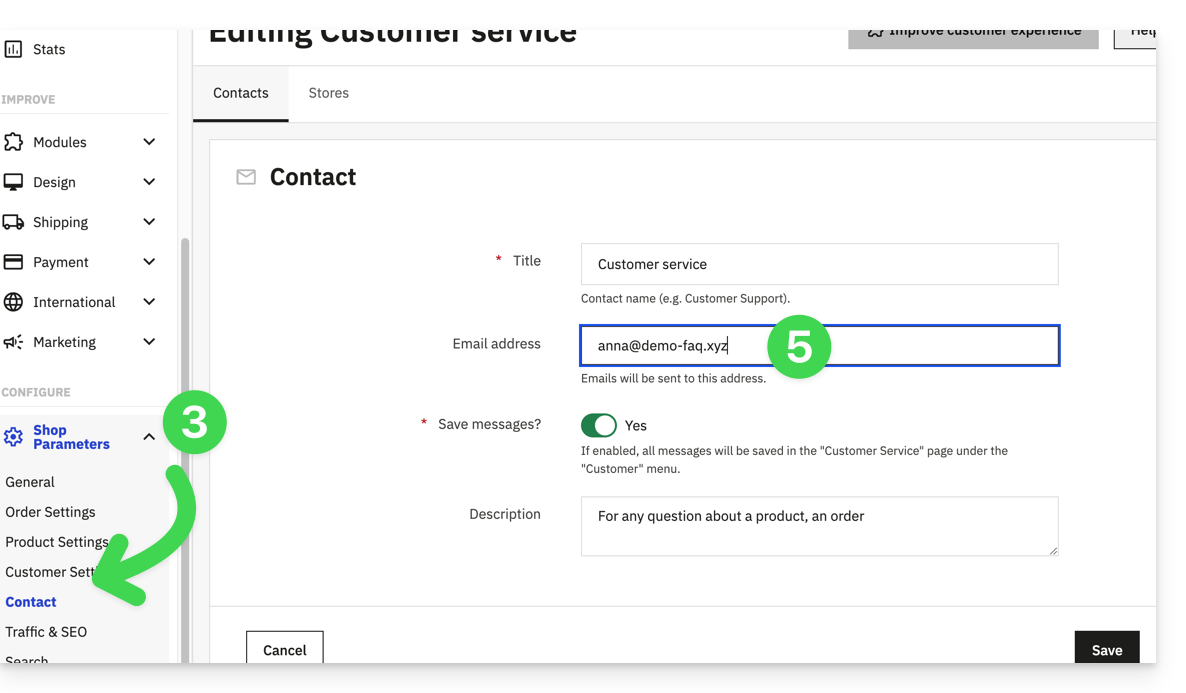
- Click on the Shops tab.
- Check (and correct if necessary) that the email address mentioned is the same as the one configured previously:
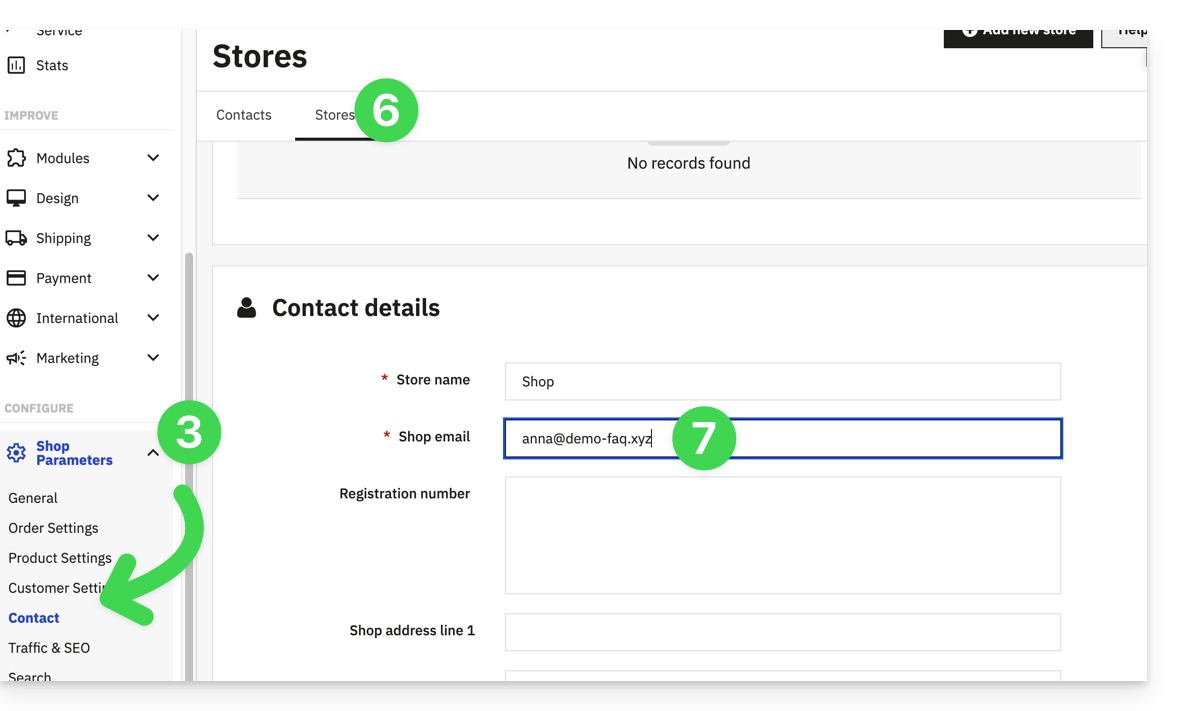
Joomla
To enable your website to send emails, use an email address from its domain (e.g., email@domain-site.xyz) and enter the SMTP settings (see prerequisites):
- Log in to the Joomla administration panel.
- Click on System in the left-hand menu.
- Click on General Settings.
- Click on the Server tab:
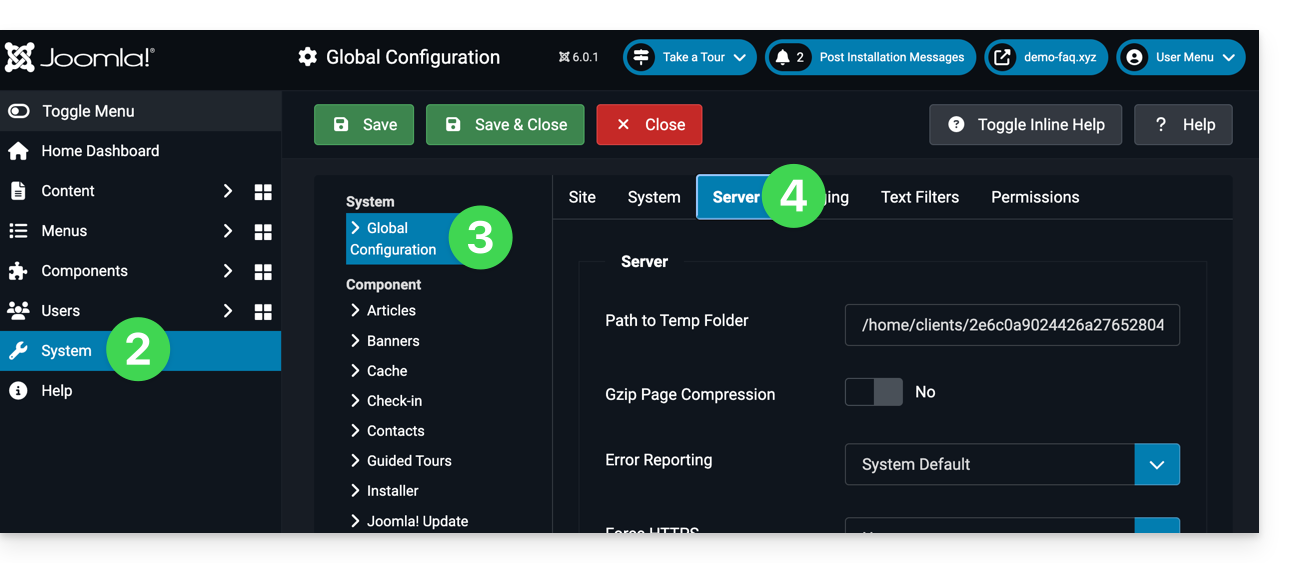
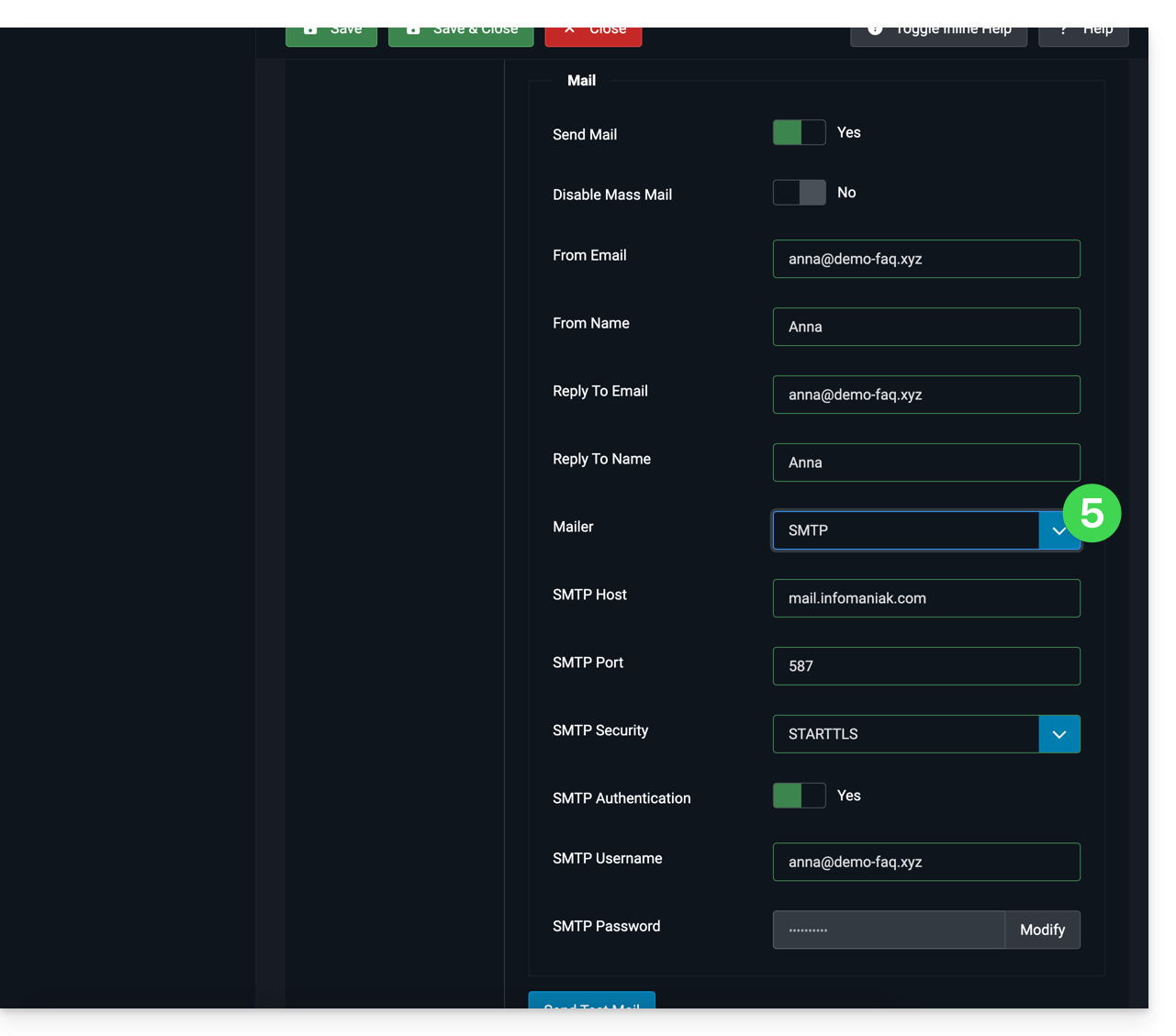
- Configure sending via the SMTP sending method:
Link to this FAQ: https://faq.infomaniak.com/2023
Has this FAQ been helpful?
This guide explains how to transfer an Infomaniak product from one Organization to another.
Introduction
- You can move almost all products subscribed to with Infomaniak to a different Infomaniak Manager interface than the one the product is currently on; this is therefore an internal transfer, from Organization to Organization.
- kSuite cannot be transferred.
- Users who currently have access to the selected products will not be transferred (and may therefore no longer have access to the products).
- Regarding kDrive: users who currently have access to kDrive will be integrated into the new Organization.
- They will retain their access and their kDrive permissions, but any management rights they may have had on the product itself will be lost.
- Groups (formerly "work teams") are also not moved, and any rights managed via Groups will also be lost.
- If your user has access to multiple Organizations, it is even easier to move the product of your choice to one of them.
- The invoices for the selected products will not be transferred.
- This operation will not cause any interruption.
Generate a transfer link
Prerequisites
- Be an Administrator or Legal Representative within the Organization (❓: help).
To transfer a product:
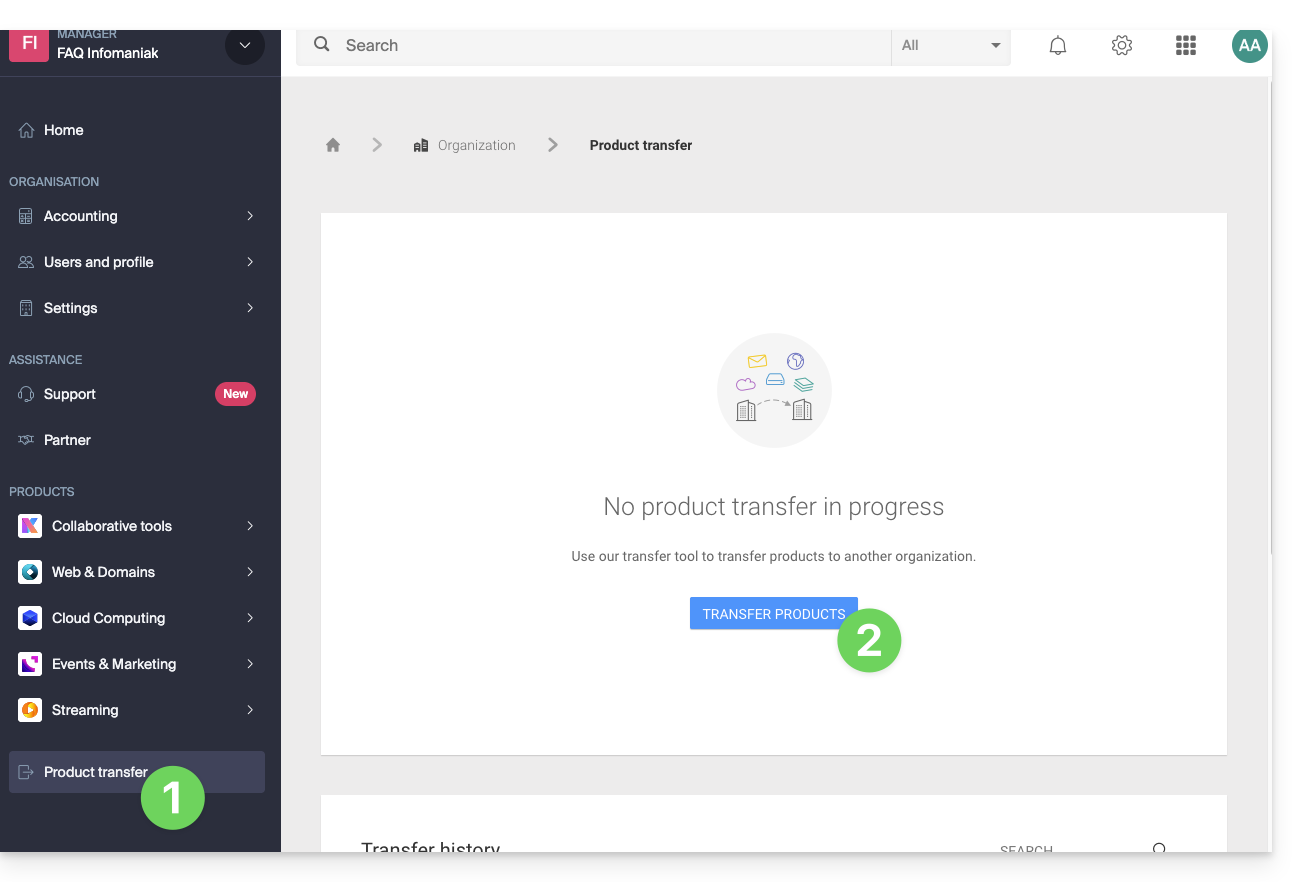
- Click here to access the product transfer management section in the Infomaniak Manager (❓: help).
- Click on the Transfer Products button:
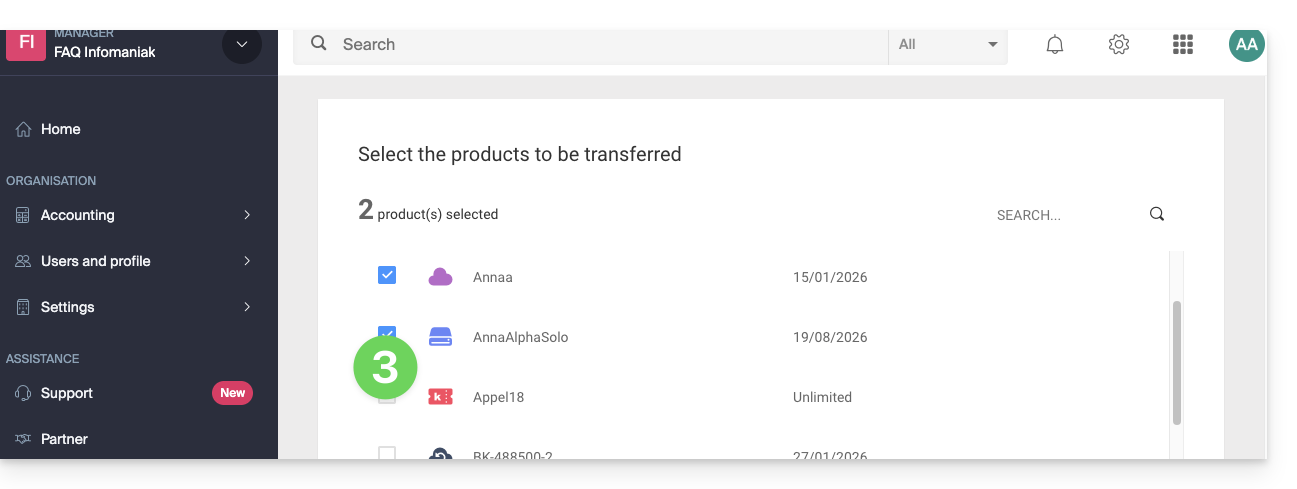
- Check the box next to the product(s) you want to move:
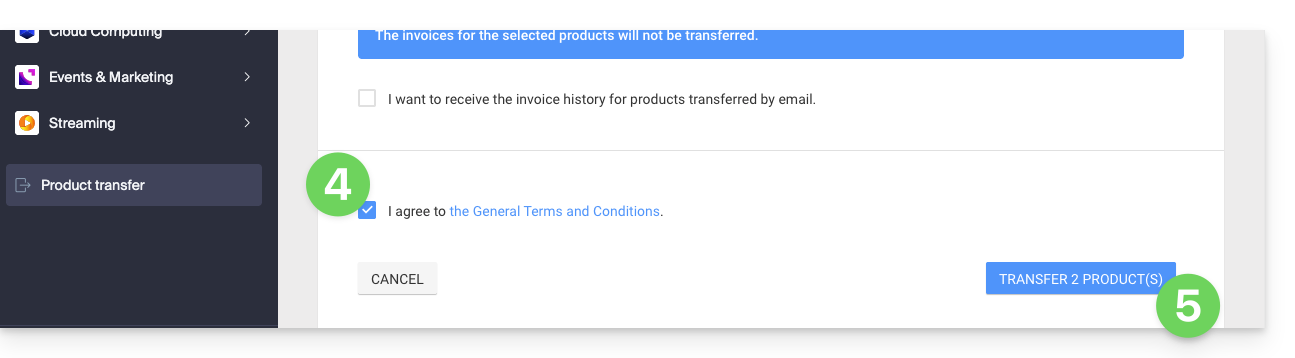
- Read and accept the terms and conditions.
- Click on the Transfer button:
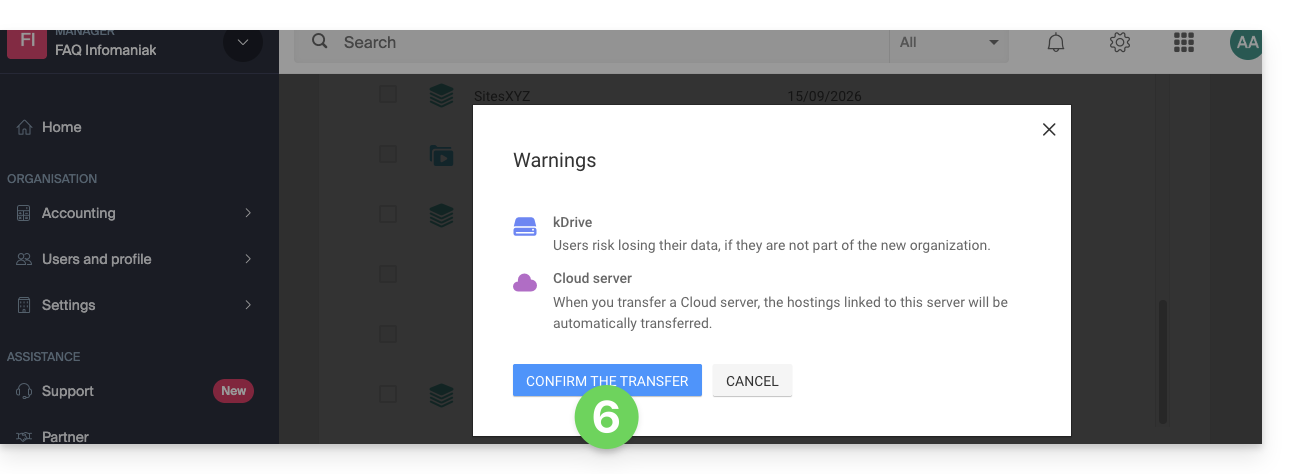
- Read and acknowledge any warnings:
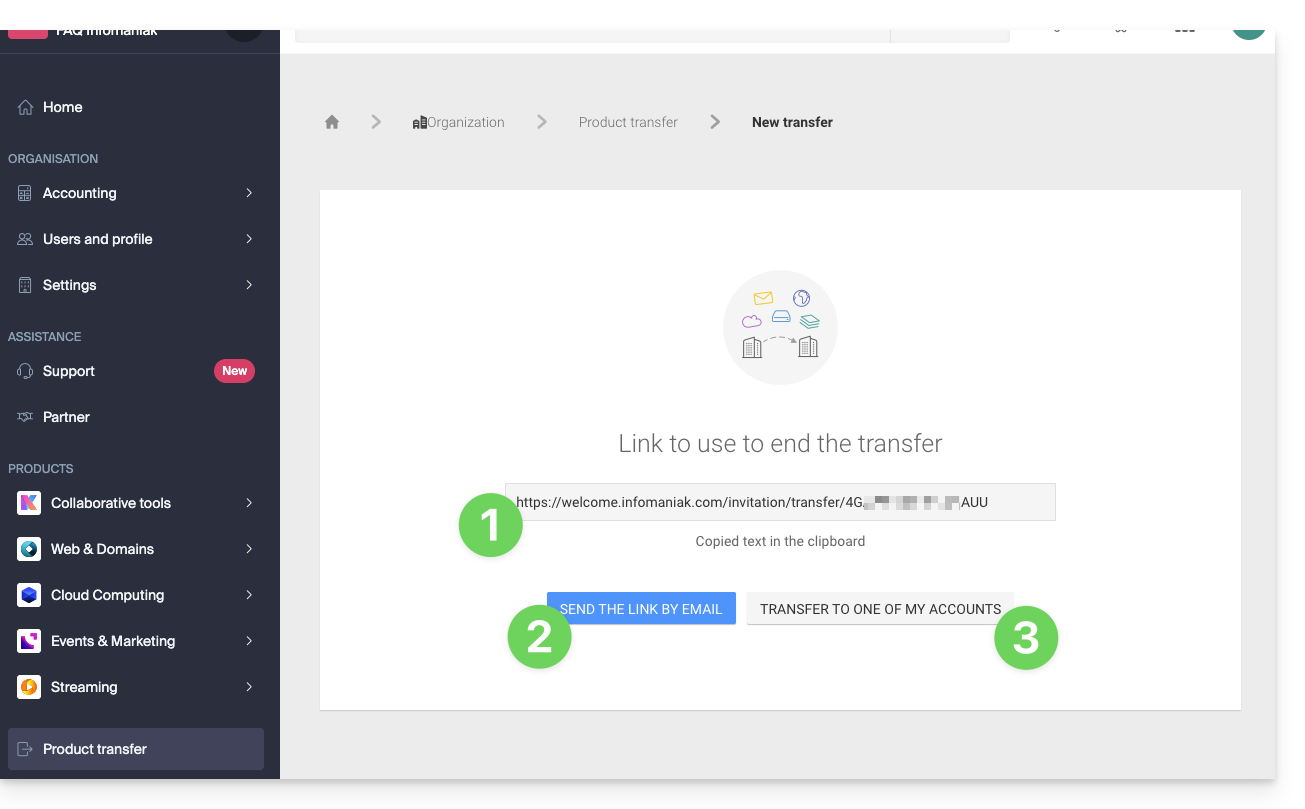
The transfer has started. You can now, optionally:
- Copy the transfer link…
- or send it to the email address of your choice…
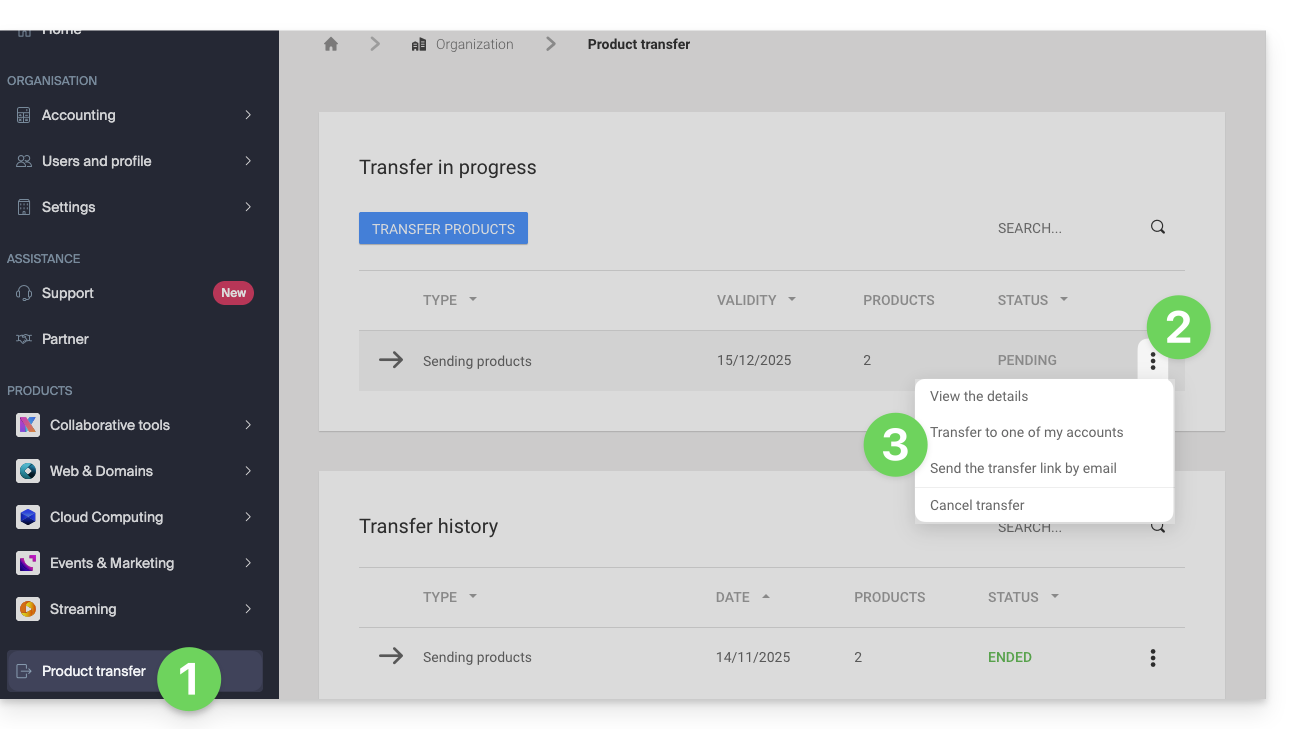
- or directly select one of the Organizations to which your user is associated, and the selected product will be transferred to it:
At any time, you can return to the product transfer page to find the options listed above:
Refer to this other guide about Jelastic Cloud.
Receiving the product
Once a product transfer has been initiated by a user…
1. Be on the Organization that should receive the product
- Click here to log in to the Manager for the Organization that should receive the product(s).
- The user specified when logging into the Infomaniak account must have administrative privileges.
- If necessary, you can create a new Organization to receive products (❓: help).
2. Execute the link obtained
- Click on the link obtained in the first step above.
- You can also simply paste it into a browser while logged into the appropriate Infomaniak account.
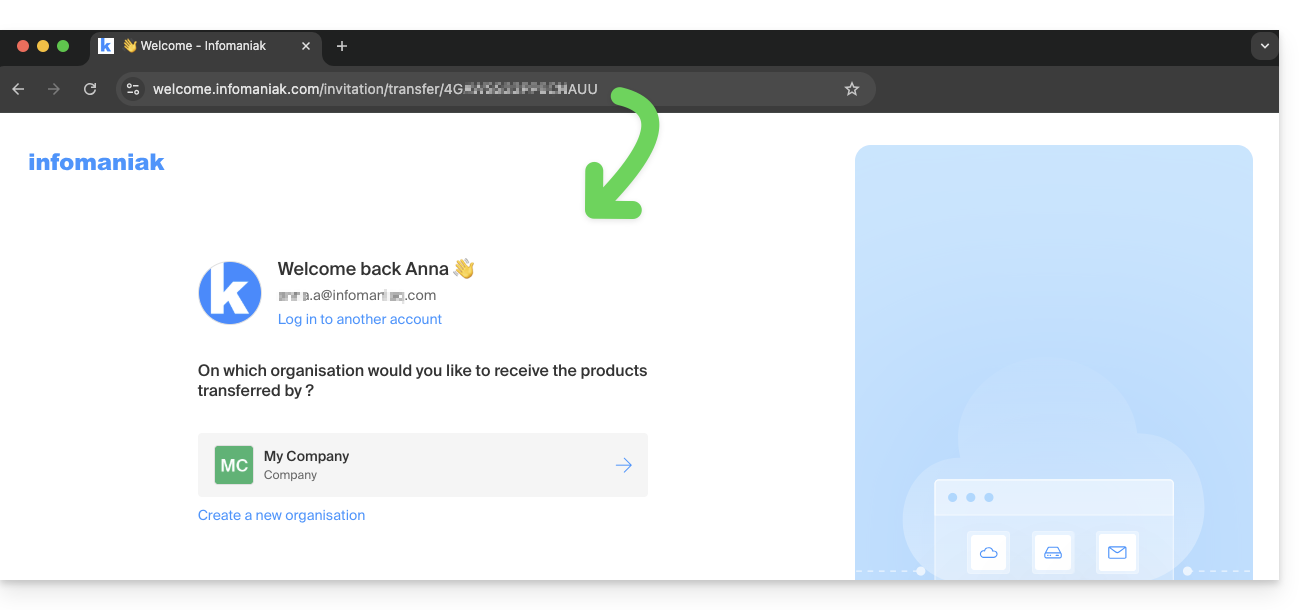
3. Confirm the product transfer
- If necessary, select the destination Organization using the drop-down menu.
- Read and accept the terms and conditions.
- Click on the Receive Products button (if the button is not clickable, make sure you have selected the Organization):
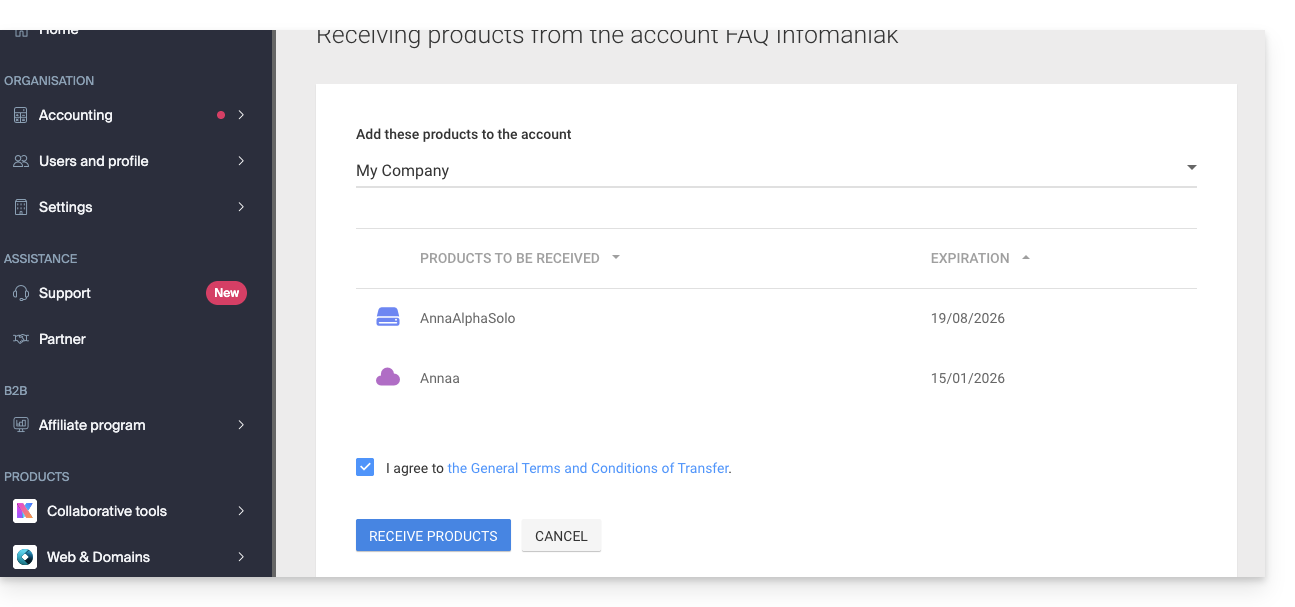
You can view ongoing or completed transfers at any time.from the icon at the bottom of the left-hand menu in the Infomaniak Manager: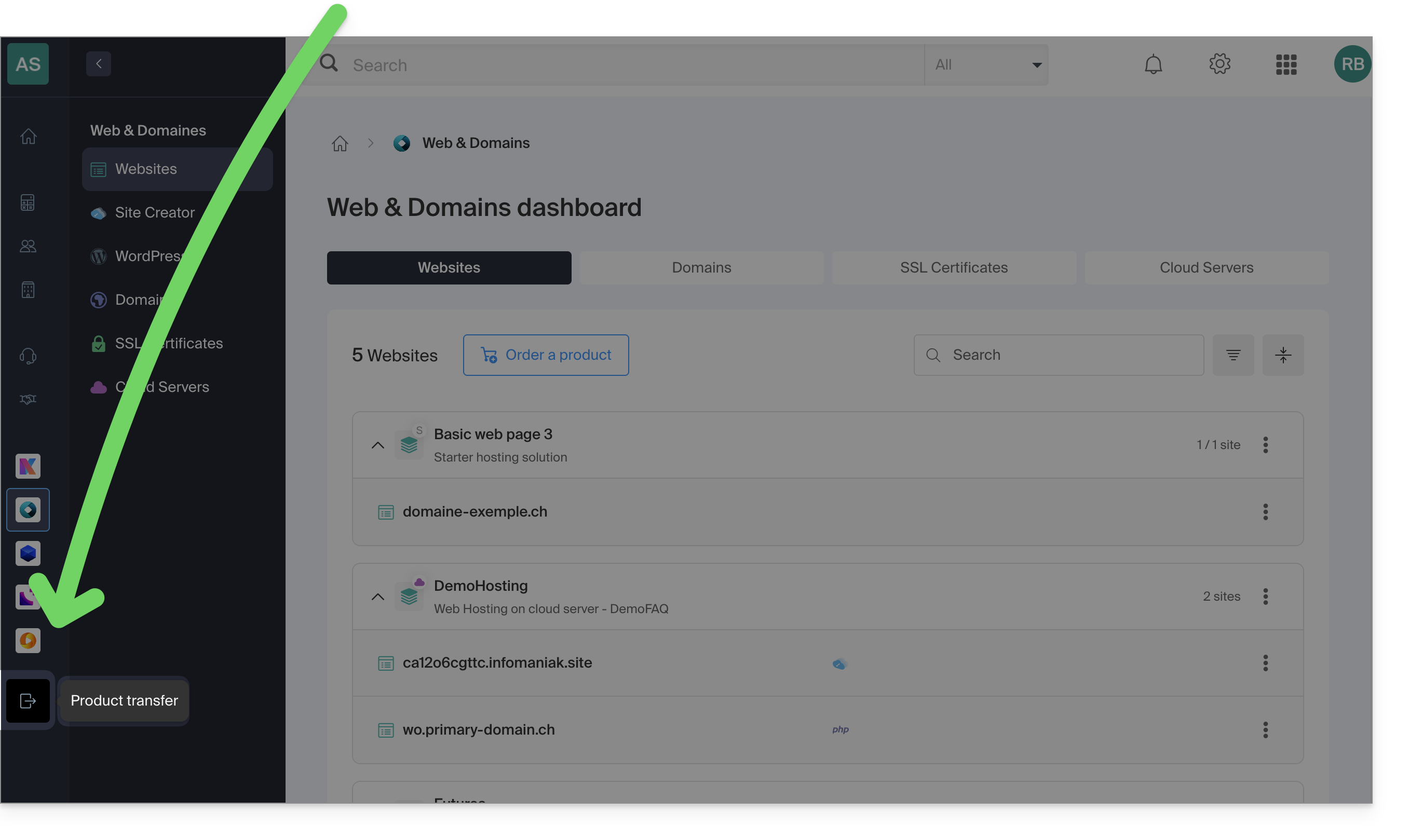
Link to this FAQ: https://faq.infomaniak.com/2024
Has this FAQ been helpful?
This guide explains how to link a domain name to an Infomaniak Web Hosting.
Where is your domain name located?…
… With Infomaniak, even for Organizations
If your domain name is registered with Infomaniak and is in the same user account or organization as your email, then there is nothing to do.
- Consult this other guide to check and correct any potential configuration errors.
… At Infomaniak, Different Organization
If your domain name is registered with Infomaniak but in a different user account or Organization, then:
- Edit its DNS zone (❓: help) by specifying the website's IP address (❓: help) as an A record (❓: help).
- Any DNS addition/modification may take up to 48 hours to propagate (❓: help).
OU
… With Infomaniak and external DNS
If your domain name uses DNS servers that are not Infomaniak's, then:
- Edit the current DNS zone where it is hosted (if necessary, consult the help documentation of the provider in question) and specify the IP address of the website (❓: help) as an A record (❓: help).
- Any DNS addition or modification may take up to 48 hours to propagate (❓: help).
OU
- Change your current DNS settings and select the option to use Infomaniak's DNS servers.
- Any DNS addition or modification may take up to 48 hours to propagate (❓: help).
- Refer to this other guide to check and correct any potential configuration errors.
… Elsewhere with external DNS
If your domain name uses DNS servers that are not Infomaniak's, then:
- Edit the current DNS zone directly (if necessary, consult the relevant provider's help documentation) by specifying the website's IP address in the form of an A record (❓: help).
- Any DNS addition or modification may take up to 48 hours to propagate (❓: help).
OU
- Change the current DNS settings (if necessary, consult the relevant provider's help documentation) by specifying Infomaniak's DNS servers (this requires having a DNS zone with Infomaniak (❓: help).
- Any DNS addition or modification may take up to 48 hours to propagate (❓: help).
- This DNS zone with Infomaniak will be configured correctly, but please refer to this other guide to check for and correct any potential configuration errors.
… Elsewhere, but you are migrating it here
If your domain name is registered with another registrar and you want to transfer it to the same location as your Infomaniak website, then:
- Transfer the domain name (❓: help) to Infomaniak (it will be configured correctly, but please refer to this other guide to check and correct any potential configuration errors).
- If the domain name is intended to be an alias for your main website, you need to add the alias to your website (❓: help).
Link to this FAQ: https://faq.infomaniak.com/2025
Has this FAQ been helpful?
This guide explains how to…
- …generate a
CSRand private key to request a third-party certificate from a certificate authority (CA), - … import this certificate for your Infomaniak site, using the
CRTfile obtained from theCA.
Introduction
- Although Infomaniak offers all the SSL certificates you might need…
- free Let's Encrypt certificates for personal websites (only possible with websites hosted at Infomaniak),
- DV certificates from Sectigo for professional/personal websites that are not registered in the commercial register,
- EV certificates from Sectigo for companies registered in the commercial register,
- … it is also possible to install an SSL certificate obtained elsewhere (intermediate certificate from a certification authority of your choice), custom or self-signed certificates.
1. Generate a CSR (Certificate Signing Request)
A CSR (Certificate Signing Request or Certificate Signing Request) is an encoded file containing the information needed to request an SSL/TLS certificate.
It must be generated on your end to ensure that the private key remains under your control, using OpenSSL, for example.
Adapt and run the following command from a Terminal application (command-line interface, CLI) on your device:
openssl req -utf8 -nodes -sha256 -newkey rsa:2048 -keyout domain.xyz.key -out domain.xyz.csr -addext "subjectAltName = DNS:domain.xyz, DNS:www.domain.xyz"
Explanation
newkey rsa:2048: Generates a new 2048-bit RSA key.keyout domain.xyz.key: Specifies the file where the private key will be saved.out domain.xyz.csr: Specifies the file where the CSR will be saved.addext “subjectAltName = ...”: Adds additional domains via theSAN (Subject Alternative Name)extension, which is necessary to include all desired domains in the certificate (the main domain domain.xyz + any other associated domain or subdomain, such as www.domain.xyz).
After generation, you can check the content of the CSR with the following command:
openssl req -in domain.xyz.csr -noout -textThis ensures that all domains listed in subjectAltName are correctly included.
Once the CSR is generated, you can submit it to the certificate authority (CA) to obtain your SSL/TLS certificate.
2. Import the external certificate
Once validated, the CA provides you with a certificate (domain.xyz.crt) and sometimes an intermediate certificate (ca_bundle.crt).
To access SSL certificate management:
- Click here to access the hosting & website management section in your Infomaniak Manager (❓: help).
- Click on the name of the website in question.
- Click on SSL Certificates in the left-hand menu.
- Click on the blue Install a certificate button:
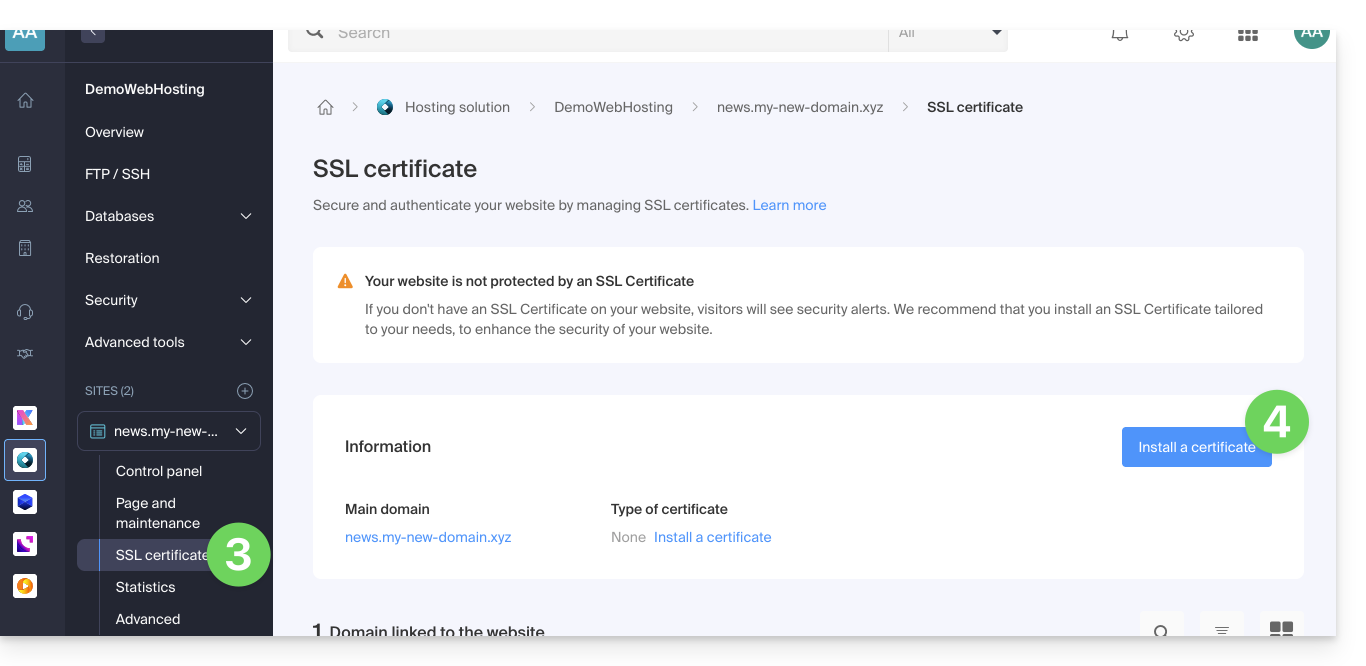
- Choose the custom certificate.
- Click on the Next button:
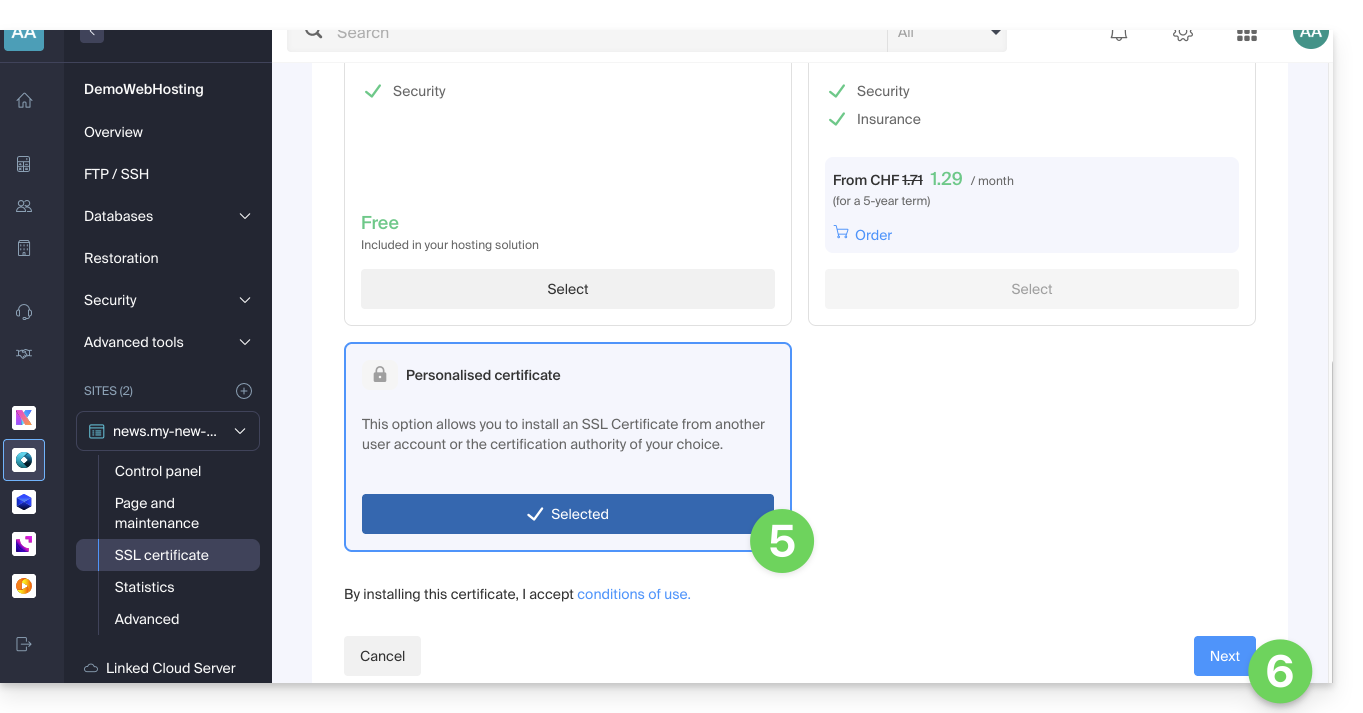
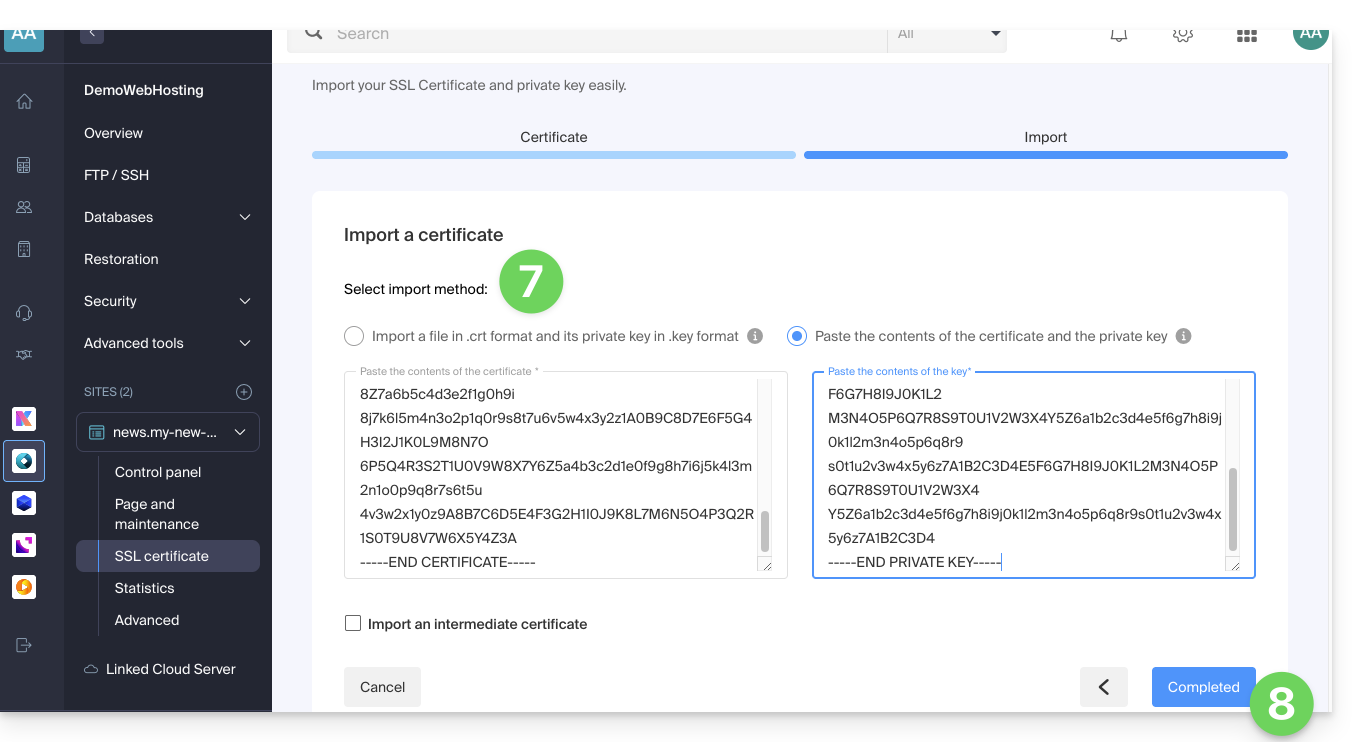
- Import your certificate and private key, either by importing the
.crtand.keyfiles or by copying and pasting. - Click on Complete:
Alternative command to generate a self-signed certificate (optional)
If you want a local certificate only for testing purposes or without going through a CA (not recommended for production), you can use this command:
openssl req -x509 -nodes -days 365 -newkey rsa:2048 -keyout domain.xyz.key -out domain.xyz.crt -addext “subjectAltName = DNS:domain.xyz, DNS:www.domain.xyz”This generates both a self-signed certificate (domain.xyz.crt) and a private key (domain.xyz.key). However, self-signed certificates are not recognized as valid by browsers or public systems. They are only suitable for internal or development environments.
Import an intermediate certificate
When adding a custom SSL certificate, you can import the intermediate certificate (by importing the .crt file or by copying and pasting the data provided by the certification authority):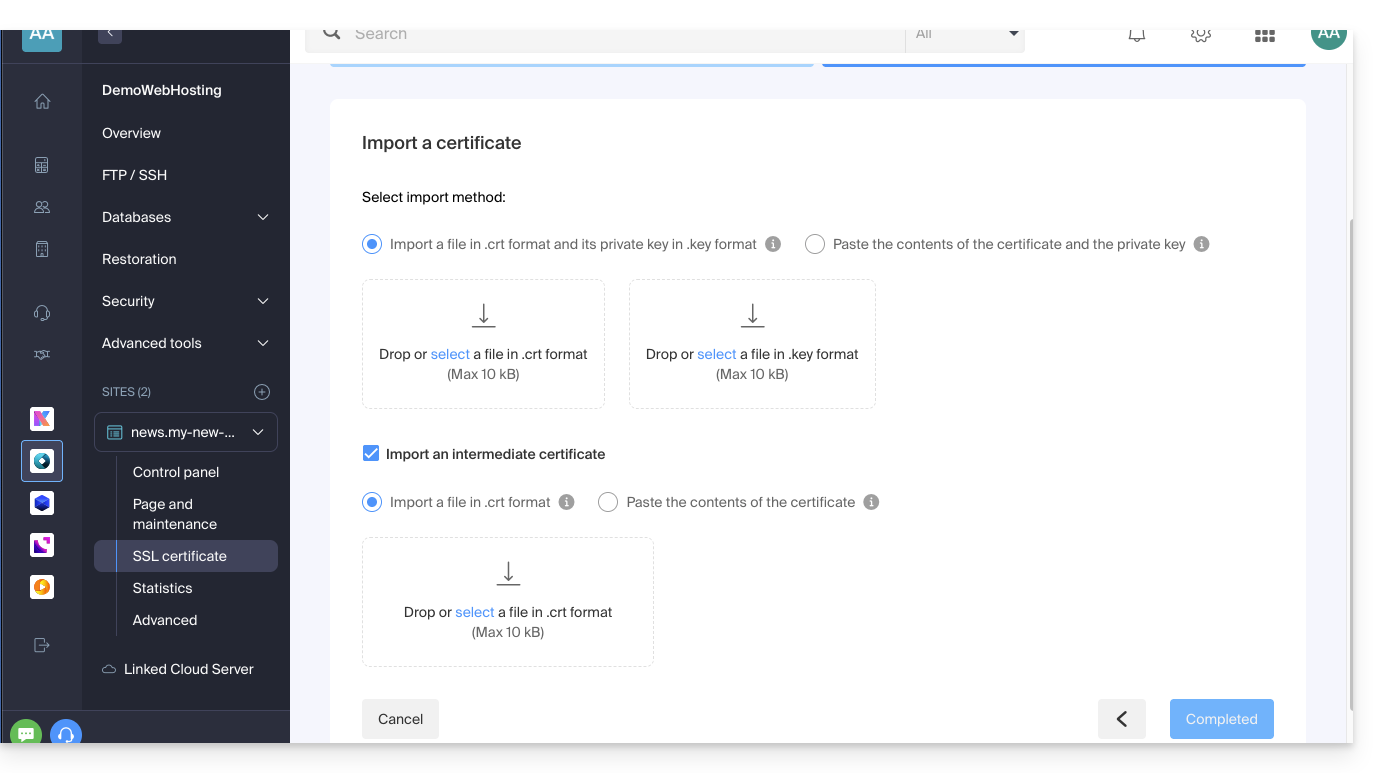
Link to this FAQ: https://faq.infomaniak.com/2027
Has this FAQ been helpful?
This guide explains how to delete a folder or file via SSH, which can be particularly useful when it is impossible to delete a file using an FTP software/client (❓: help) or the Web FTP (❓: help) in the Manager.
SSH command to delete a folder/file
To delete a file or directory, you need to use the rm command.
To delete the Data.php and Data.txt files, for example, you need to execute the following command:
rm Data.php Data.txtTo delete a directory, you must first delete its contents and then use the following command:
rmdir Folder/To delete all files in HTML format, execute the following command:
rm *.htmlLink to this FAQ: https://faq.infomaniak.com/2032
Has this FAQ been helpful?
This guide explains how to add or modify one or more records of type CNAME and DNAME in the DNS zone (of a domain name) managed on the Infomaniak Manager.
Introduction
- The
CNAMErecord type allows you to point a subdomain to a website address.- This is the method generally used to make the
wwwsubdomain work with your site, or to redirect a subdomain to a folder on the web server where your website is hosted.
- This is the method generally used to make the
- The
DNAMErecord type, for "delegation name", is particularly useful when reorganizing domains or for smooth transitions of part of your infrastructure to another, while preserving the hierarchical structure of the subdomains.- A
DNAMEcreates an alias for an entire domain and all its subdomains.
- A
- Unlike a
CNAME, which only applies to a single, specific hostname, aDNAMEautomatically redirects all subdomains. For example:- A
DNAMEforabc.site1.compointing tosite2.comwill automatically linkxyz.abc.site1.comtoxyz.site2.com,new.login.abc.site1.comtonew.login.site2.com, and so on.
- A
- ⚠ A
DNAMErecord cannot be used at the root zone of a domain (likesite1.comdirectly). It is generally used on a subdomain. If you want to redirect the main domain itself, you will need to use other types of records, such as anA,AAAA, orCNAME(with some restrictions for the latter).
Modify the DNS zone
To manage this type of record in a DNS zone:
- Click here to access the domain management section in your Infomaniak Manager (❓: help).
- Click on the name of the domain in question.
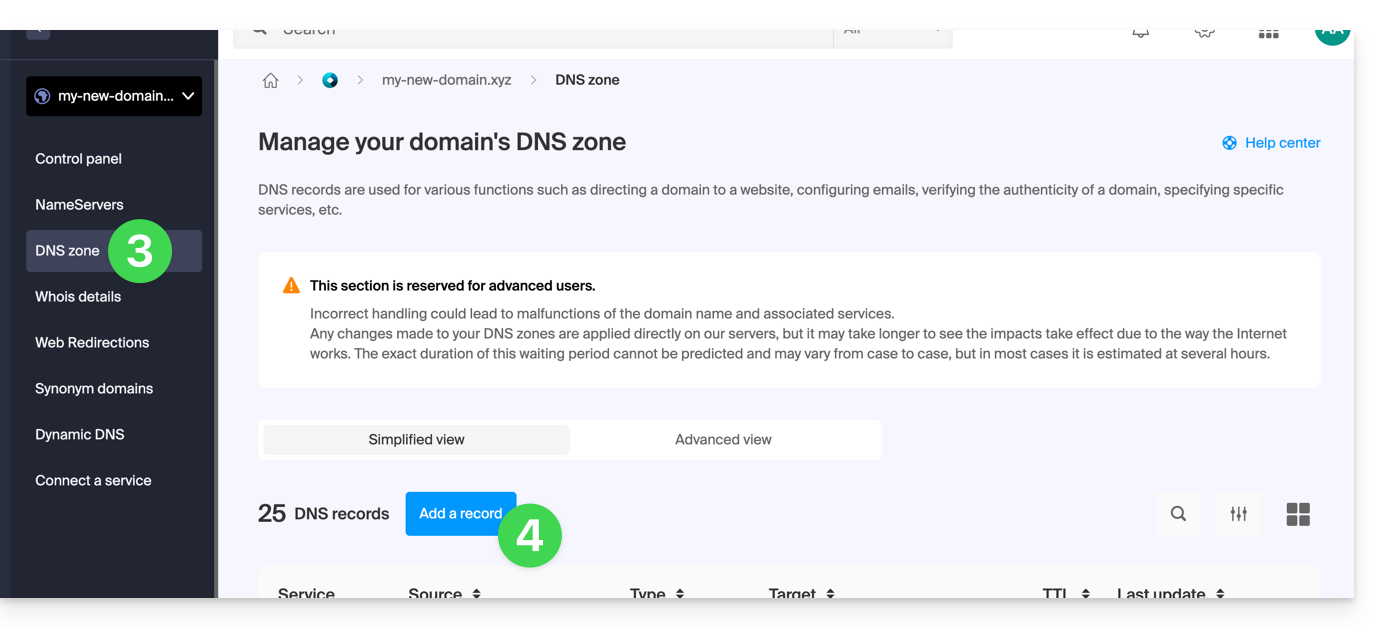
- Click on DNS Zone in the left-hand menu.
- Click the button to add a record:
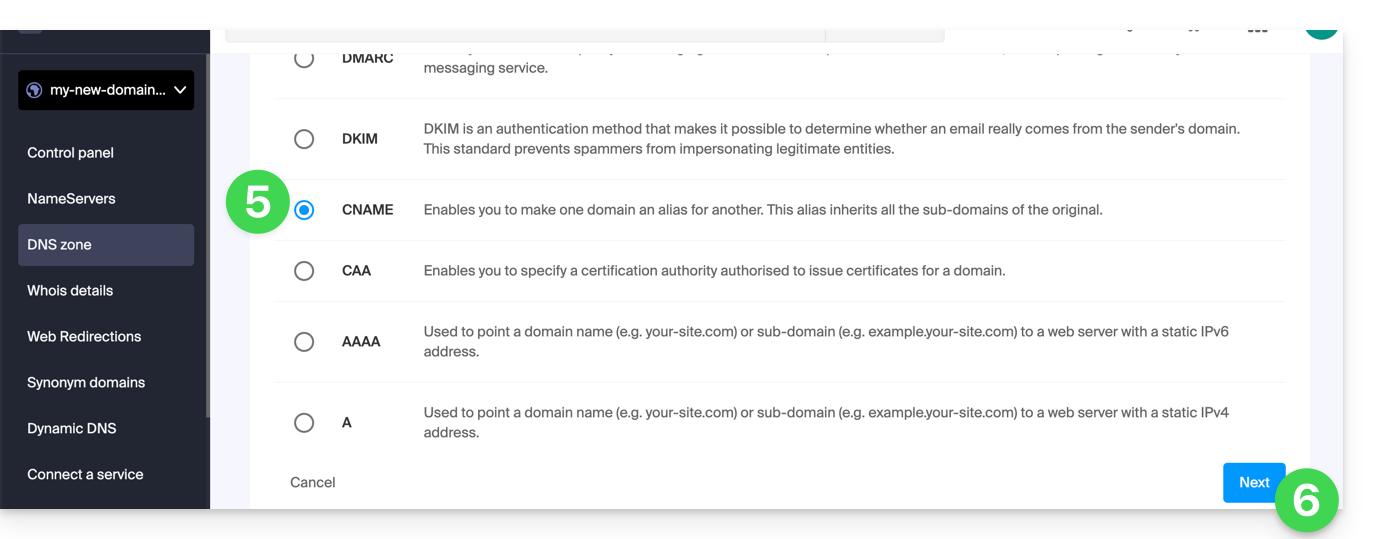
- Click the corresponding radio button to add a record.
- Click the Next button:
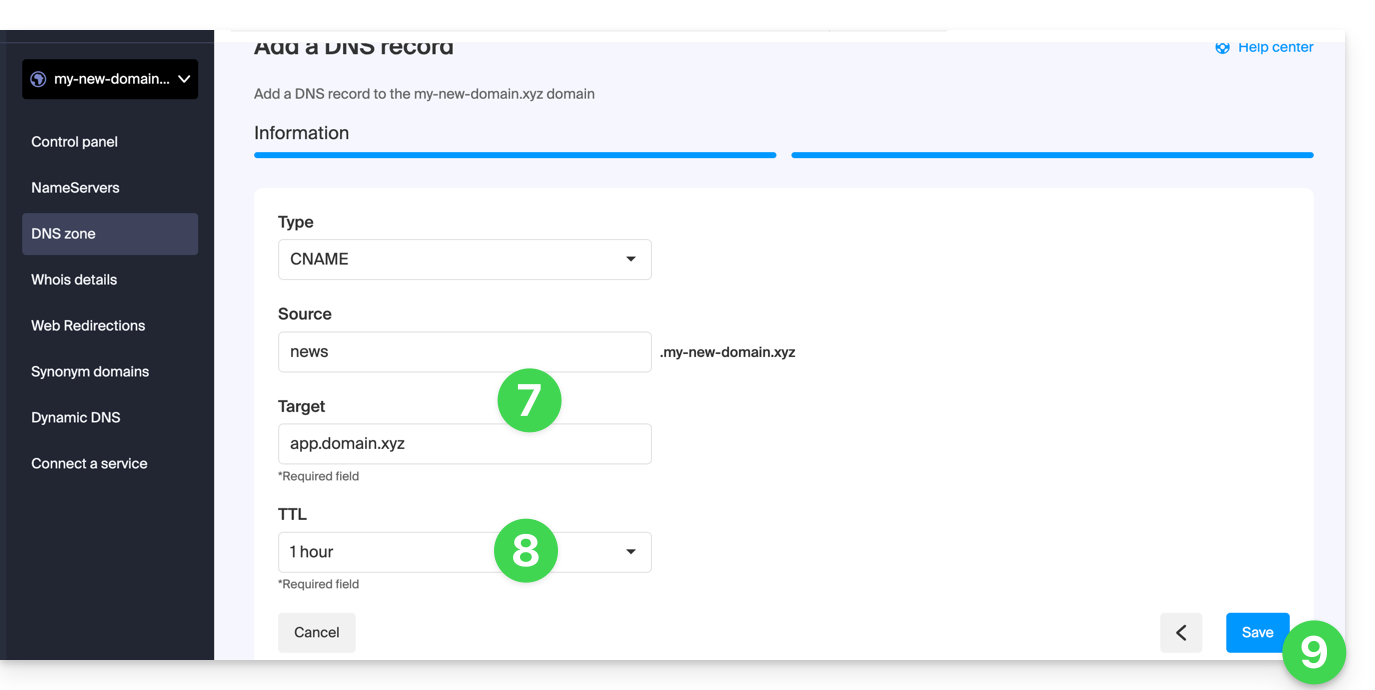
- Enter the values required for your DNS zone.
- Leave the default value for the TTL.
- Click on the Save button:
Link to this FAQ: https://faq.infomaniak.com/2033
Has this FAQ been helpful?
This guide explains how to create subdomains on an existing Infomaniak hosting account, using an .htaccess file.
✘ NOT AVAILABLE with
Site Creator Lite
hosting plans Starter
Preamble
- Hosting can be provided through a Shared Web Hosting plan or on an Infomaniak Cloud Server.
- Subdomains can be added very easily to your current hosting plan, as the basic plan includes 20 sites per hosting plan (sites = subdomains).
- If you do not wish to use this number of sites, you can follow the method below.
Create a subdomain as a shortcut
Subdomains created in this way make it easier to organize a hosting environment. For example, the address vlog.domain.xyz will be the shortcut for the address domain.xyz/vlog. In other words, the address vlog.domain.xyz will redirect to the vlog folder, which must be located at the root of the domain.xyz website. In this example, vlog is the subdomain of domain.xyz.
1. Add the subdomain as an alias for your website
To do this:
- Follow the procedure for adding an alias, but please read points 2 and 3 below.
- In the field for adding the associated domain, enter the complete address of the subdomain (e.g.
vlog.domain.xyz). - If your domain or its DNS zone is managed with Infomaniak, enable the following two options: Update DNS entries for this domain and Replace existing entries; if this is not the case, create an A record with your registrar using the following information:
- field: the complete URL of the subdomain (e.g.
vlog.domain.xyz) - target: the IPv4 address (A record) of your website (refer to this other guide to find the A record of your website)
- field: the complete URL of the subdomain (e.g.
2. Modify the .htaccess file of your website
Important: The following instructions are provided for guidance only. You may need to adapt the code to make it work in your specific situation.
Using your FTP software/client or Web FTP in the Manager, add and adapt the following code to the .htaccess file located in the root directory of your website:
RewriteCond %{HTTP_HOST} ^(.*)\.domain\.xyz [NC]
RewriteCond %{DOCUMENT_ROOT}/%1/ -d
RewriteCond %1::%{REQUEST_URI} !^(.*?)::/\1/?
RewriteRule "^(.*)$" "%{DOCUMENT_ROOT}/%1/$1" [L]
Explanation for the third line: https://stackoverflow.com/a/15981056
On the first line, replace:
domainwith your domain namexyzby extending your domain name (ch, fr, etc.)
Now, the address vlog.domain.xyz should display the content of the vlog folder located at the root of your website. If this is not the case, check that the vlog folder actually exists at the root of your website.
Link to this FAQ: https://faq.infomaniak.com/2036
Has this FAQ been helpful?
This guide explains how to change the PHP version available for the websites on your Infomaniak Web Hosting.
Introduction
- It is possible to upgrade from an older, potentially vulnerable PHP version to a newer version, but you will no longer be able to revert to that vulnerable versionfor security reasons.
- The change is effective immediately and permanently.
- Refer to this other guide if you are looking for information on configuring the PHP version used in SSH.
- You may need to update your hosting beforehand to access the latest PHP versions offered by Infomaniak.
Change the PHP version used for a website
You can easily change the PHP version used for an entire website:
- Click here to access the hosting & website management section in your Infomaniak Manager (❓: help).
- Click on the name of the product in question.
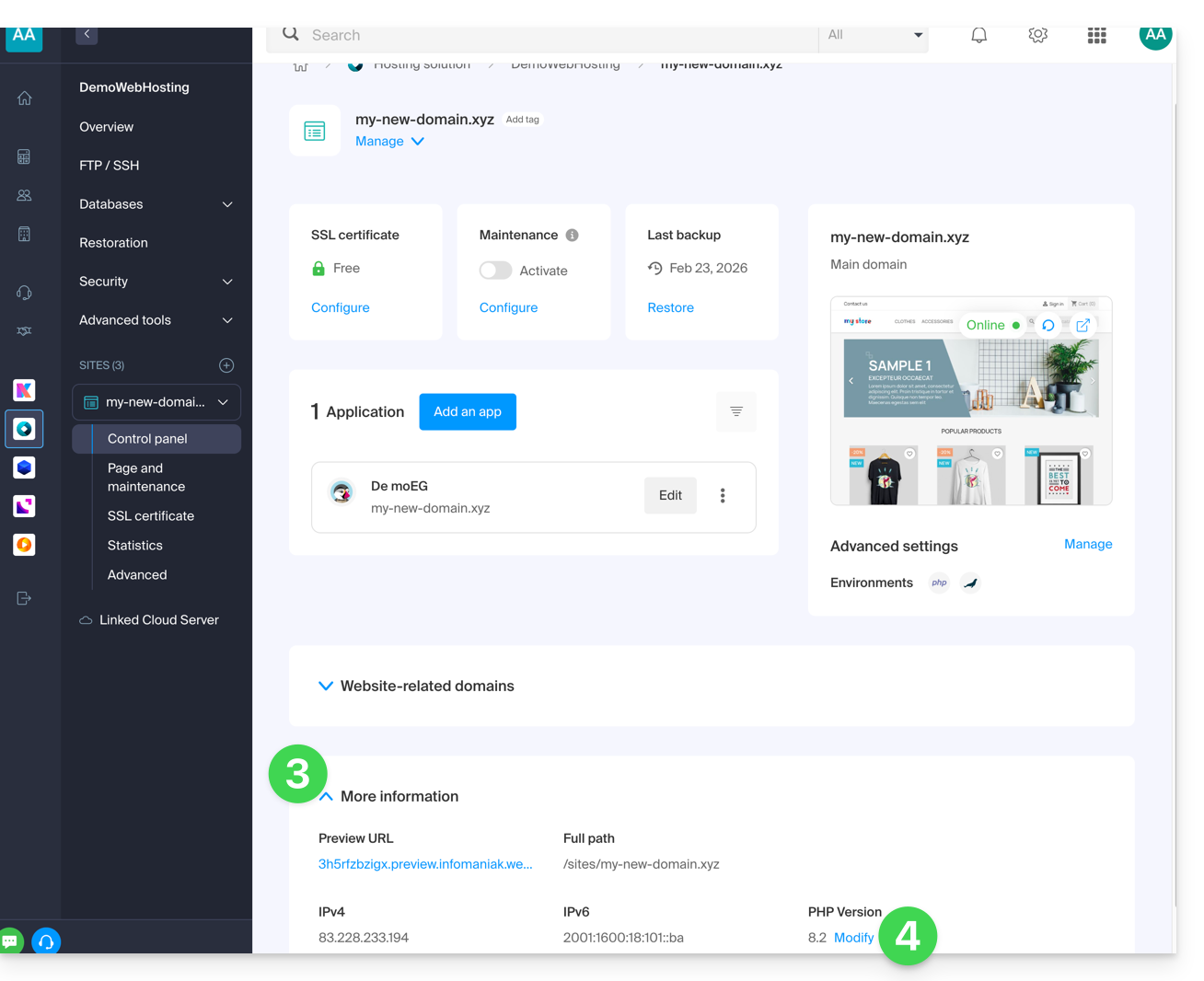
- Click on More information.
- Click on Edit:
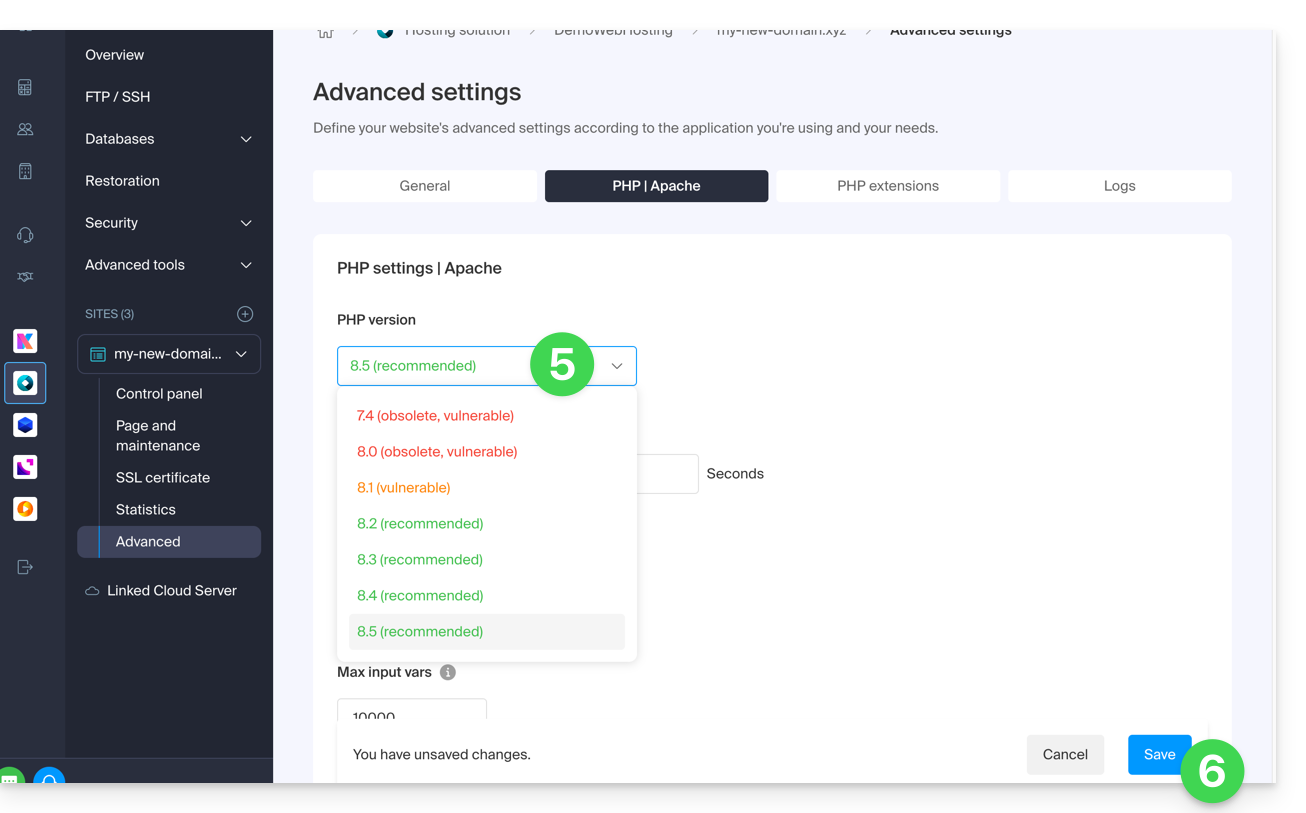
- Choose the desired PHP version.
- Click on Save at the bottom of the page to save the change:
Link to this FAQ: https://faq.infomaniak.com/2053
Has this FAQ been helpful?
This guide explains how to connect to your Web Hosting using an SSH key.
✘ UNAVAILABLE with
sites of type Node.js
hosting plans Starter
Prerequisites
- Create an FTP / SSH account (❓: help).
- Create an SSH key using a secure algorithm, for example
ed25519:ssh-keygen -t ed25519because with an RSA key (
ssh-keygenorssh-keygen -t rsa), the connection will be refused, and the following error will be returned in verbose mode:debug1: send_pubkey_test: no mutual signature algorithm
Upload the SSH key
To do this:
- Connect to the server via SSH (❓: help).
Go to the root directory of your hosting:
cd ~Create the "
.ssh" directory:mkdir .ssh- Change the permissions of the
.sshdirectory to CHMOD 700. - Create the
authorized_keysfile and paste your public SSH key into it on a single line (important). - Change the permissions of the
authorized_keysfile to CHMOD 600.
SSH agent forwarding (ForwardAgent / ssh -A) is not supported on the Infomaniak infrastructure: this SSH agent forwarding feature presents significant security risks.
Link to this FAQ: https://faq.infomaniak.com/2054
Has this FAQ been helpful?
This guide explains how to add a theme from Elegant Themes (Divi) to a WordPress site that has already been installed using the Infomaniak installer, free of charge.
Prerequisites
- Your WordPress site must be installed using the Infomaniak WordPress tools to use these themes and extensions.
- The theme can be added during installation (approximately step 14 of this other guide) or activated later.
- To benefit from Elegant Themes support (customer service), you must subscribe to an Elegant Themes plan.
Add an Elegant Themes theme
To do this:
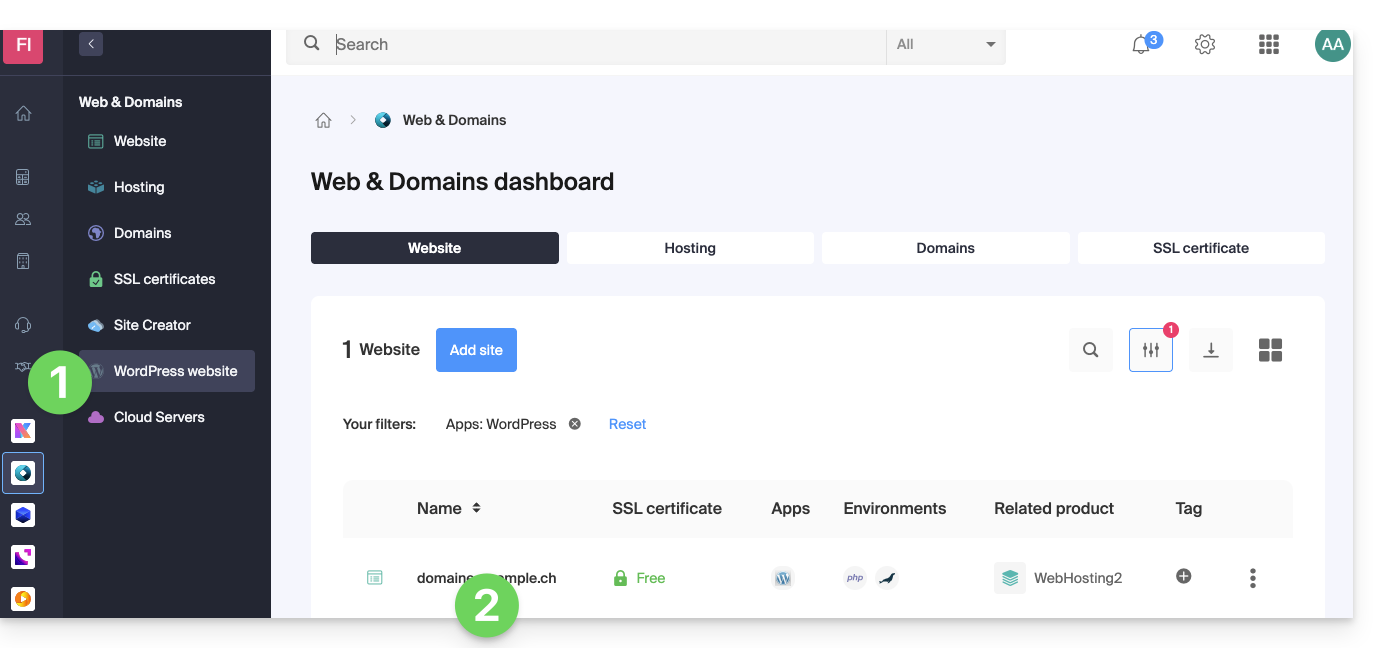
- Click here to access the management of your WordPress site in the Infomaniak Manager (need help?).
- If your site does not appear here, it means that it was not installed using the Infomaniak tools (see prerequisites).
- Click directly on the name assigned to the product in question:
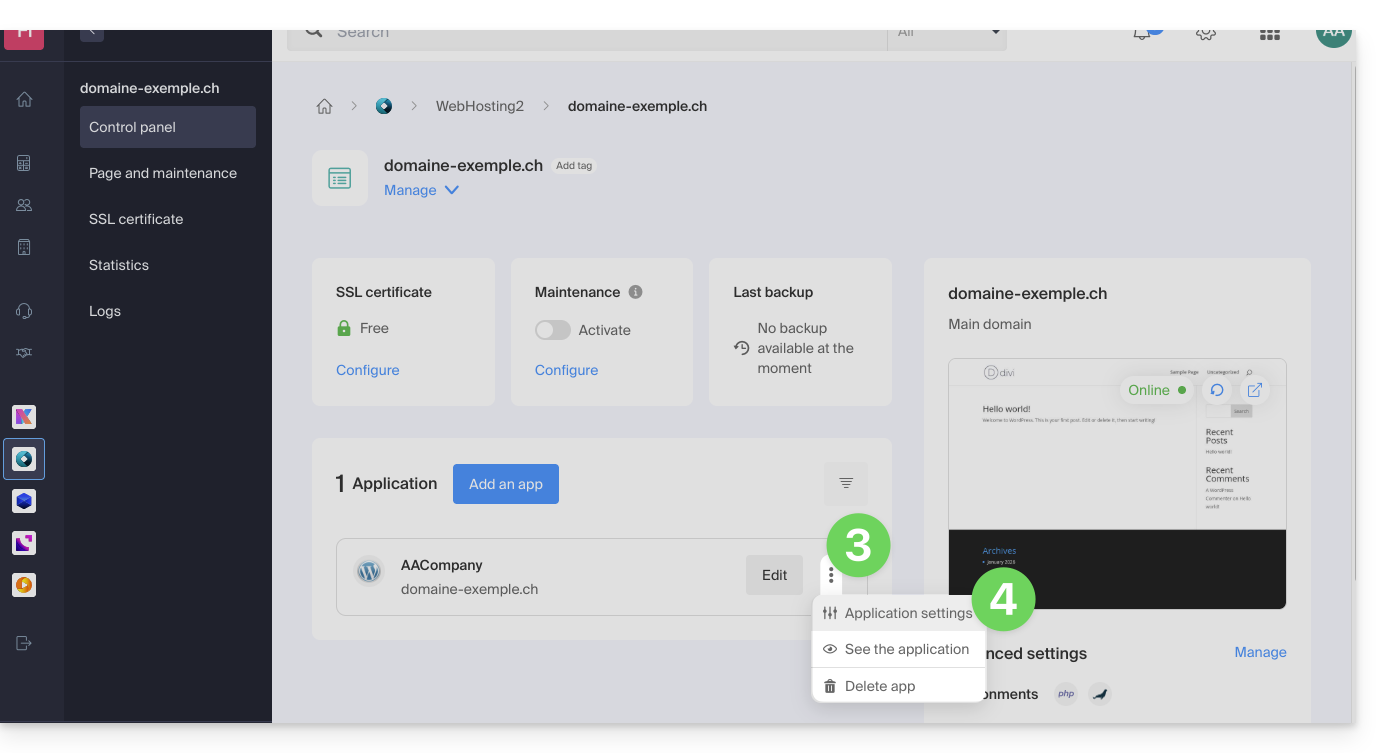
- Click on the action menu ⋮ located to the right of the relevant Web Application.
- Click on Settings in the application:
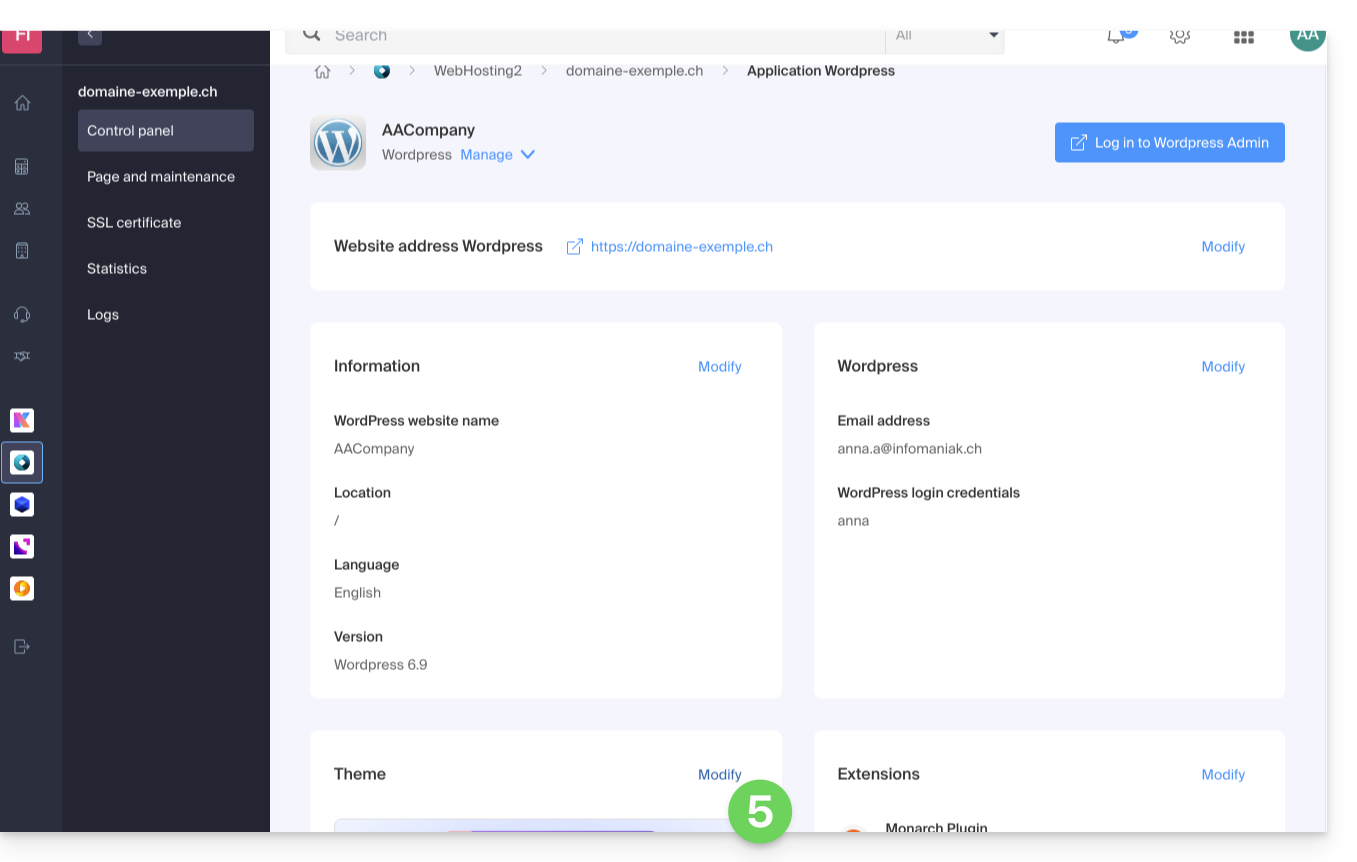
- Click on Edit under Theme:
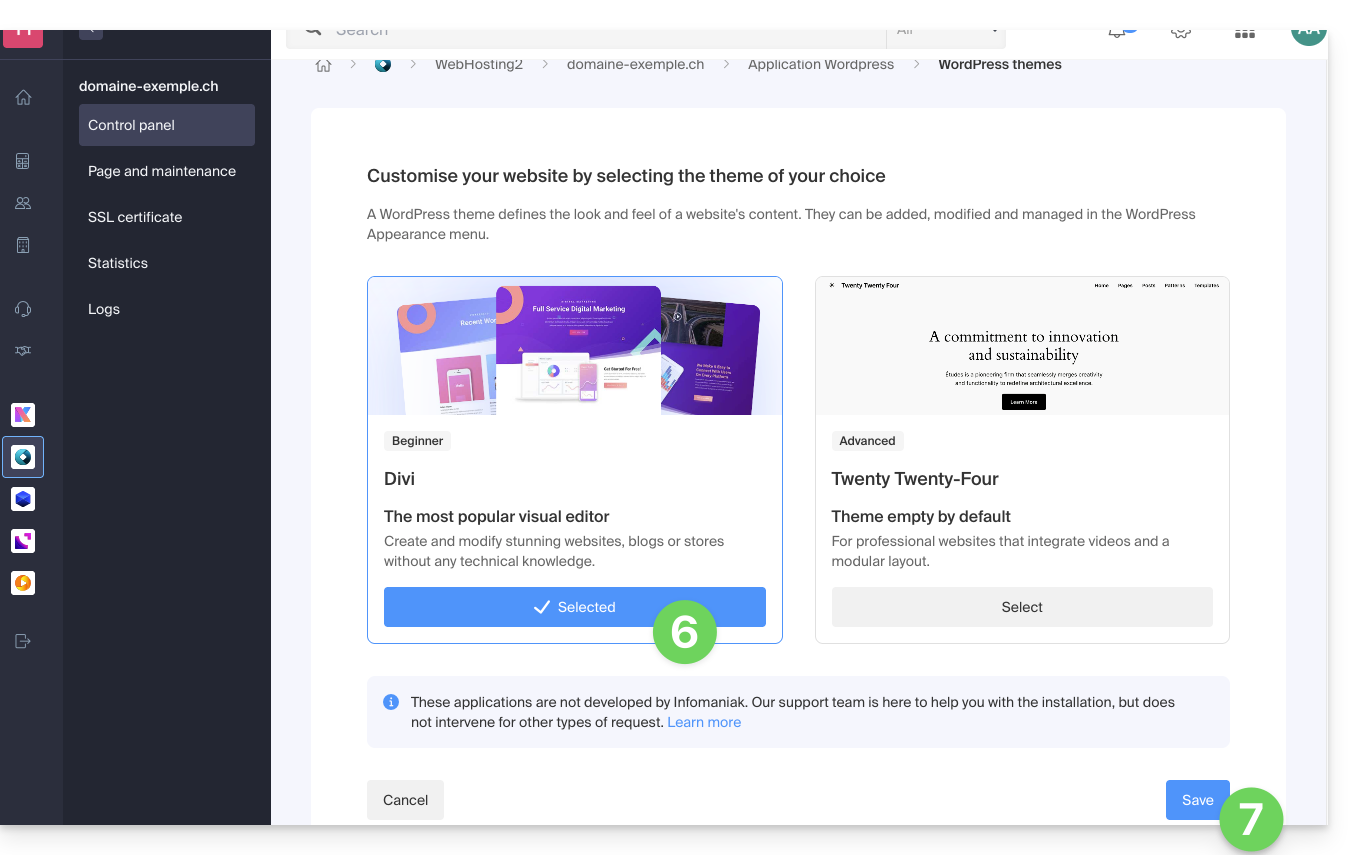
- Select the desired theme.
- Click on the Save button:
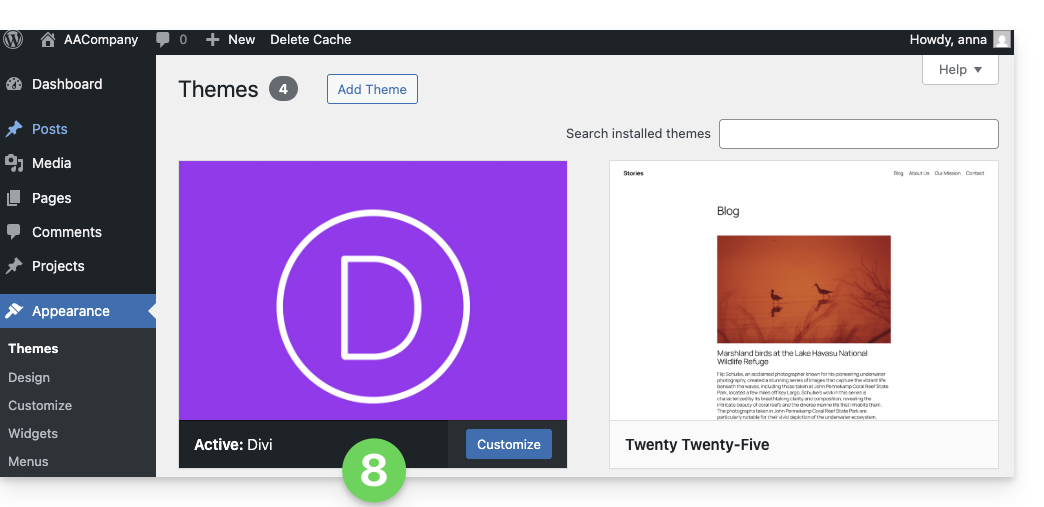
- The theme has been applied and is now available for configuration in your WordPress administration interface:
Link to this FAQ: https://faq.infomaniak.com/2056
Has this FAQ been helpful?