Knowledge base
1000 FAQs, 500 tutorials and instructional videos. Here, there are only solutions!
This guide explains how to transfer to Infomaniak data (Web, Mail, Domain, and even Cloud) currently hosted elsewhereYou remain the owner of your data, with no loss or interruption!
Introduction
- By consolidating your domain names, websites, and email addresses with Infomaniak, you simplify the management of your invoices and services.
- Furthermore, your domains will be automatically linked to your website and email address.
- You will not need to manually configure the DNS settings for your domains with another registrar.
Specific guides
Click on the link corresponding to your current hosting provider:
- Swisscom: complete guide to migrating Web, Mail, and domain name data
Guides for any other hosting provider
To avoid interrupting your website and email services and prevent data loss when importing your existing data, migrate your services in the order indicated:
Import Web data (any PHP, HTML, etc. website)
- For WordPress specifically, please refer to this other guide…
- For WordPress specifically, please refer to this other guide…
Copy Mail data (addresses and mailbox content, etc.) to kSuite or a simple Mail Service
Transfer the domain name (domain management, DNS zone, etc.)
You can also transfer other types of data to Infomaniak servers:
- Dropbox, Google Drive, etc. content: refer to this other guide
- Data on Synology or QNAP NAS: please refer to this other guide
Link to this FAQ: https://faq.infomaniak.com/2057
Has this FAQ been helpful?
This guide explains how to view a website hosted by Infomaniak, even if no domain name/URL is currently configured to direct visitors to the site.
Introduction
- Using your website's preview URL, you can view the current version of your content in a browser, even if the corresponding domain name has not yet been configured correctly.
- This website preview can be accessed using a preview URL and allows you, in particular, to test a website before pointing a domain name to it, even if that domain name currently points elsewhere.
- This temporary URL provided by Infomaniak may change at any time and is only available with paid plans.
Get the preview URL for your site
To do this:
- Click here to access the hosting & website management section in your Infomaniak Manager (❓: help).
- Click on the name of the product in question.
- Click on Advanced.
- The preview address is displayed under Preview URL (e.g.:
XXX.preview.infomaniak.website):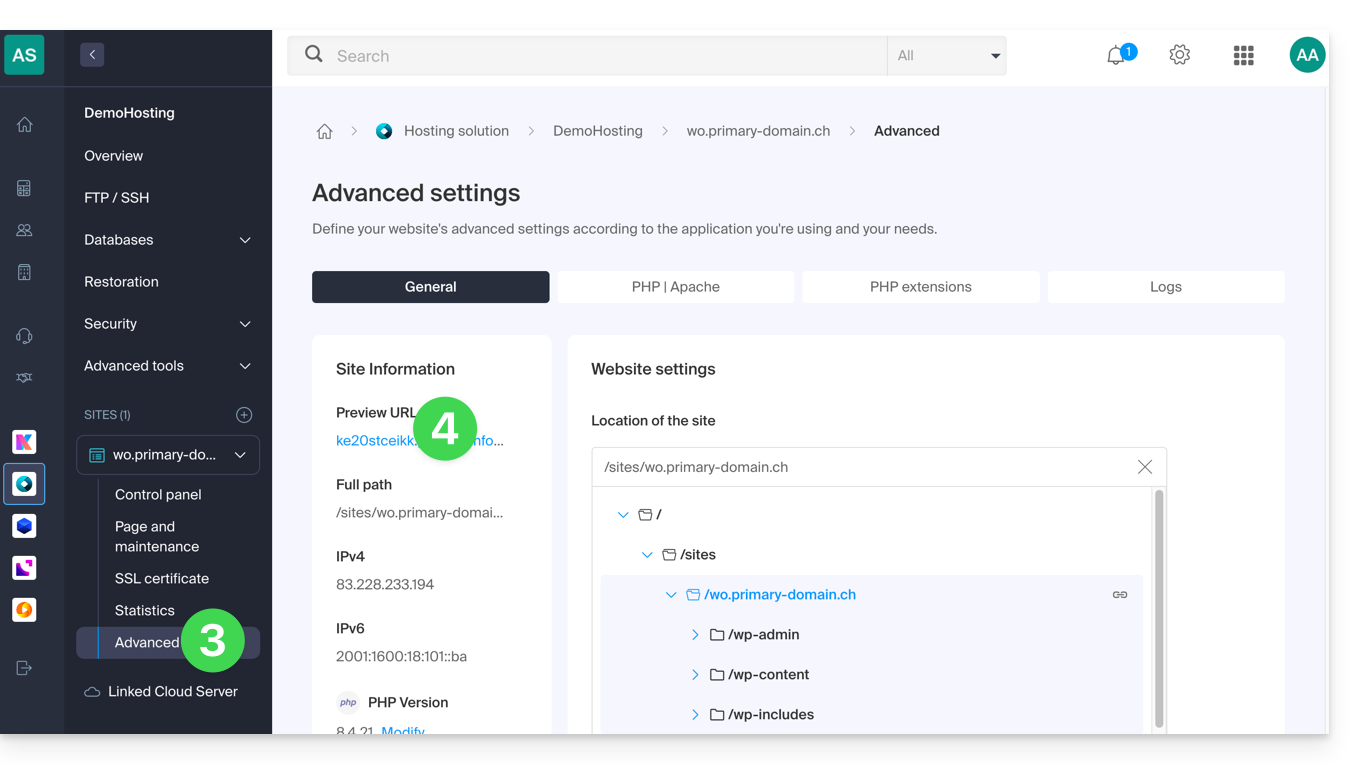
In case of a problem…
If, when visiting your preview address, the URL immediately changes to another, it may be due to a .htaccess file that you have modified to include rewrite rules. You should disable it and then test again.
… on WordPress
Ifthe preview URL is always displayed, even though you have taken the necessary steps regarding the domain name, you must assign the definitive address as the primary address in your website's settings.
Alternatives for previewing your site
If you wish to proceed differently than using the preview address provided by Infomaniak (see above), you can modify the hosts file on your computer (including with browser extensions such as this one for Firefox). To do this, you will need the IP address of your site.
Once your tests are complete or the DNS records for your domain name have been updated,Remember to clear any changes you may have made; otherwise, it will be impossible to display your site if the server's IP address is changed or if the site is migrated to another web hosting.
Link to this FAQ: https://faq.infomaniak.com/2060
Has this FAQ been helpful?
This guide explains how to enable or disable maintenance mode on a website hosted on an Infomaniak Hosting plan.
Introduction
- Maintenance mode allows you to display a personalized message to your visitors, for example while resolving a technical issue.
- You can also specify IP addresses that will be able to bypass this page.
- An email is sent to the users of the Organization.
Enable maintenance mode
To activate a page that temporarily replaces your usual homepage:
- Click here to access the hosting & website management section in your Infomaniak Manager (❓: help).
- Click on the name of the website in question.
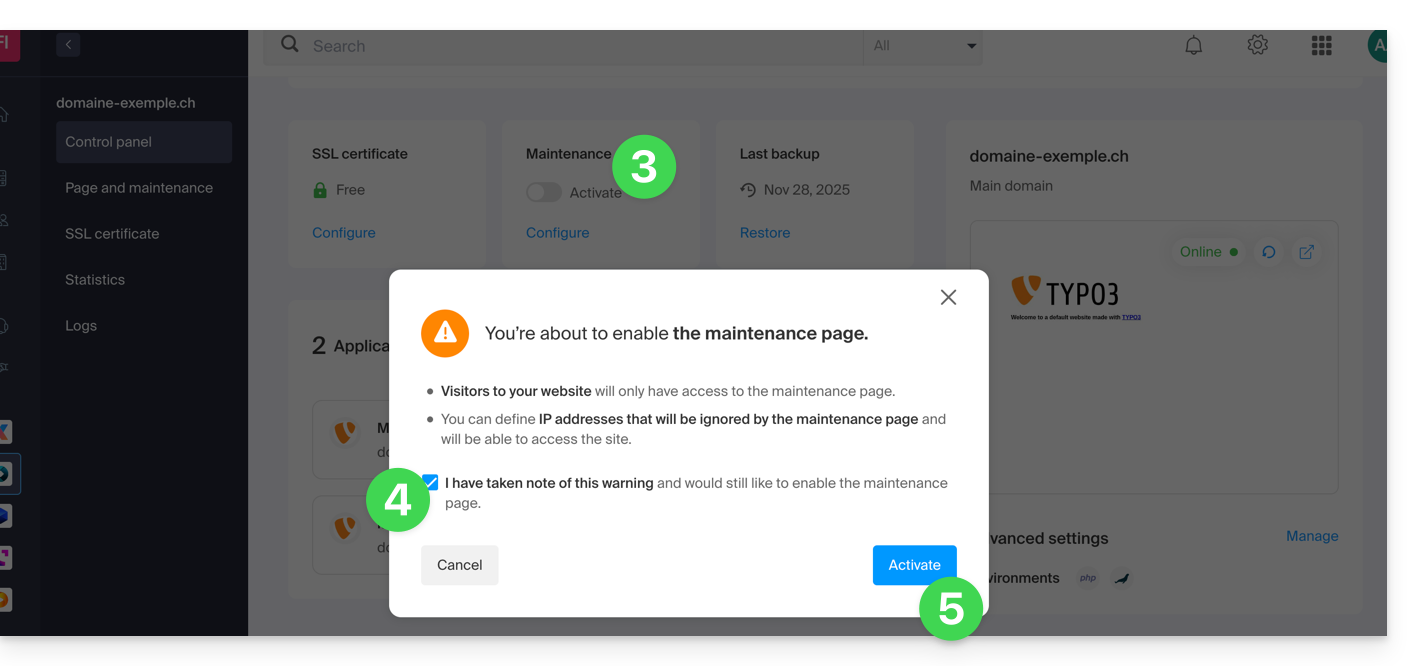
- Click on the toggle switch to enable the maintenance page.
- Confirm the warning.
- Click the button to activate:
Customize the maintenance page
To set up a page with your desired message:
- Click here to access the hosting & website management section in your Infomaniak Manager (❓: help).
- Click on the name of the website in question.
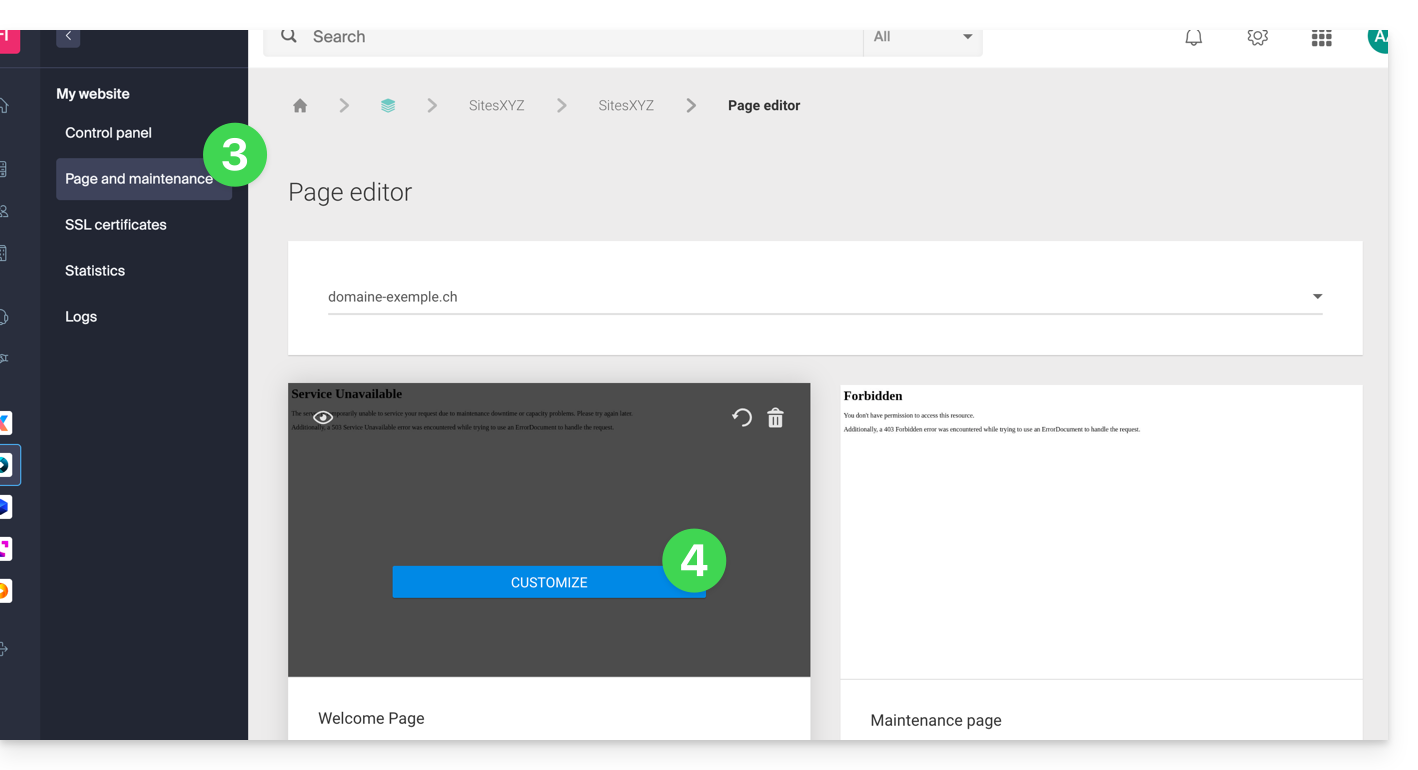
- Click on Page & Maintenance in the left-hand menu.
- Click on Create a page or on the Customize button if it already exists:
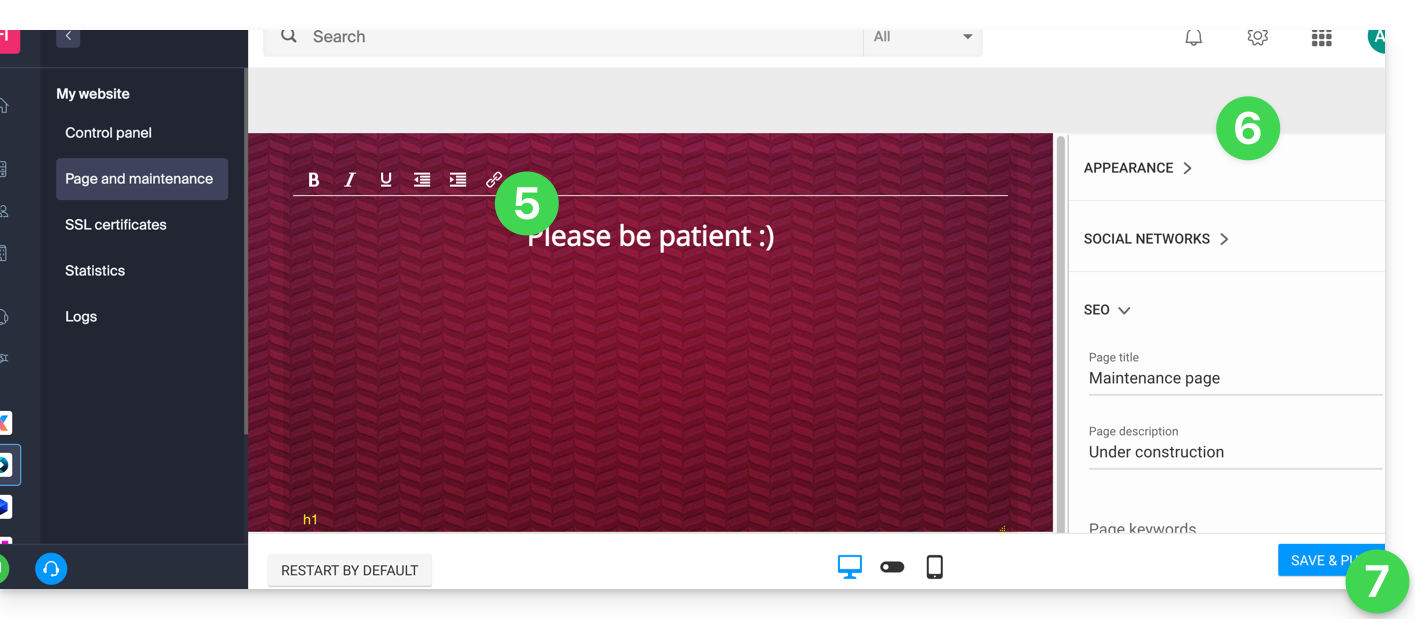
- Format the text of your choice.
- Configure the display using the elements on the right.
- Click Save & activate to publish the page:
Allow specific IP addresses to bypass the suspension
It is possible to display the actual website even with maintenance mode enabled. To do this, you need to enter the IP addresses of the computers that should be able to bypass maintenance mode:
- Enable maintenance mode according to the procedure above.
- Go back to the maintenance page configuration page (see procedure above).
- Under Maintenance on the right, click Insert my IP address to allow your computer to display the site without maintenance mode:
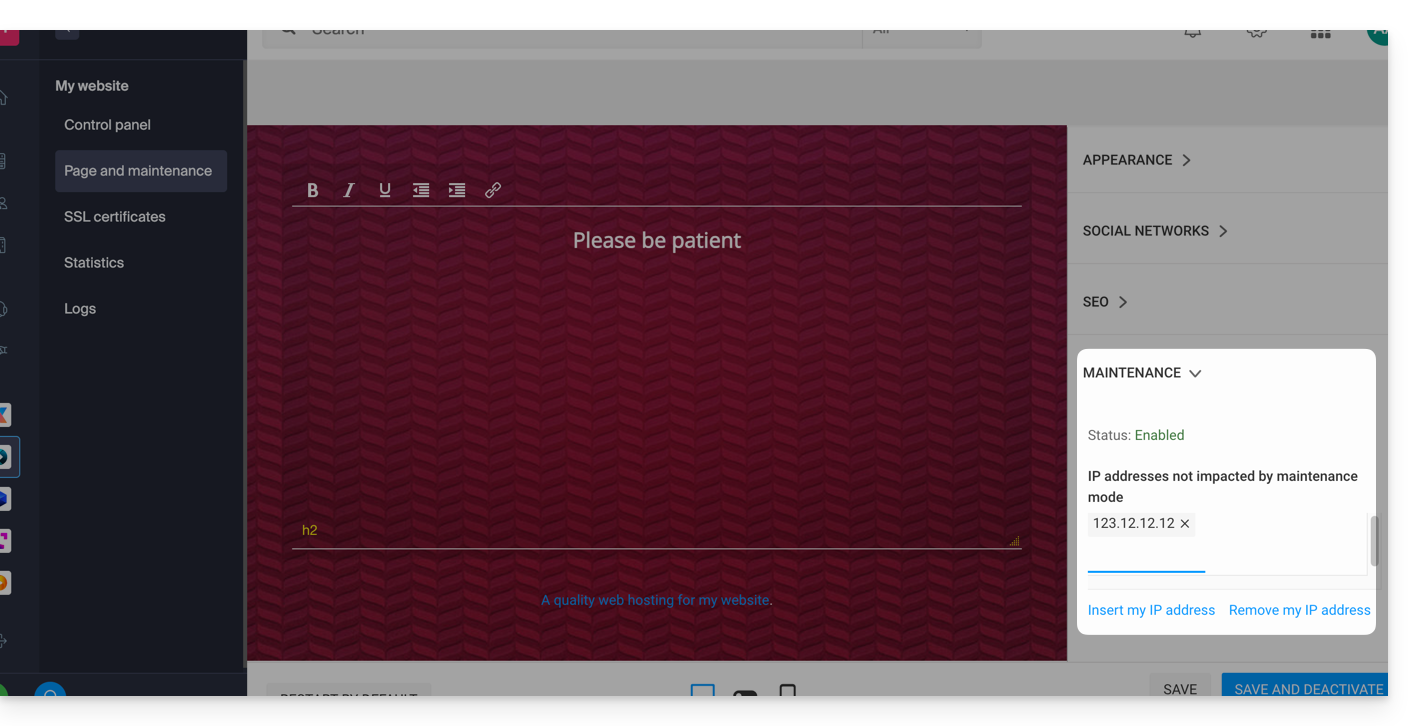
- You can also manually enter the IP addresses to allow.
- Click on Save and publish.
If the IP addresses of the added computers change, it will be necessary to repeat these steps.
Disable maintenance mode
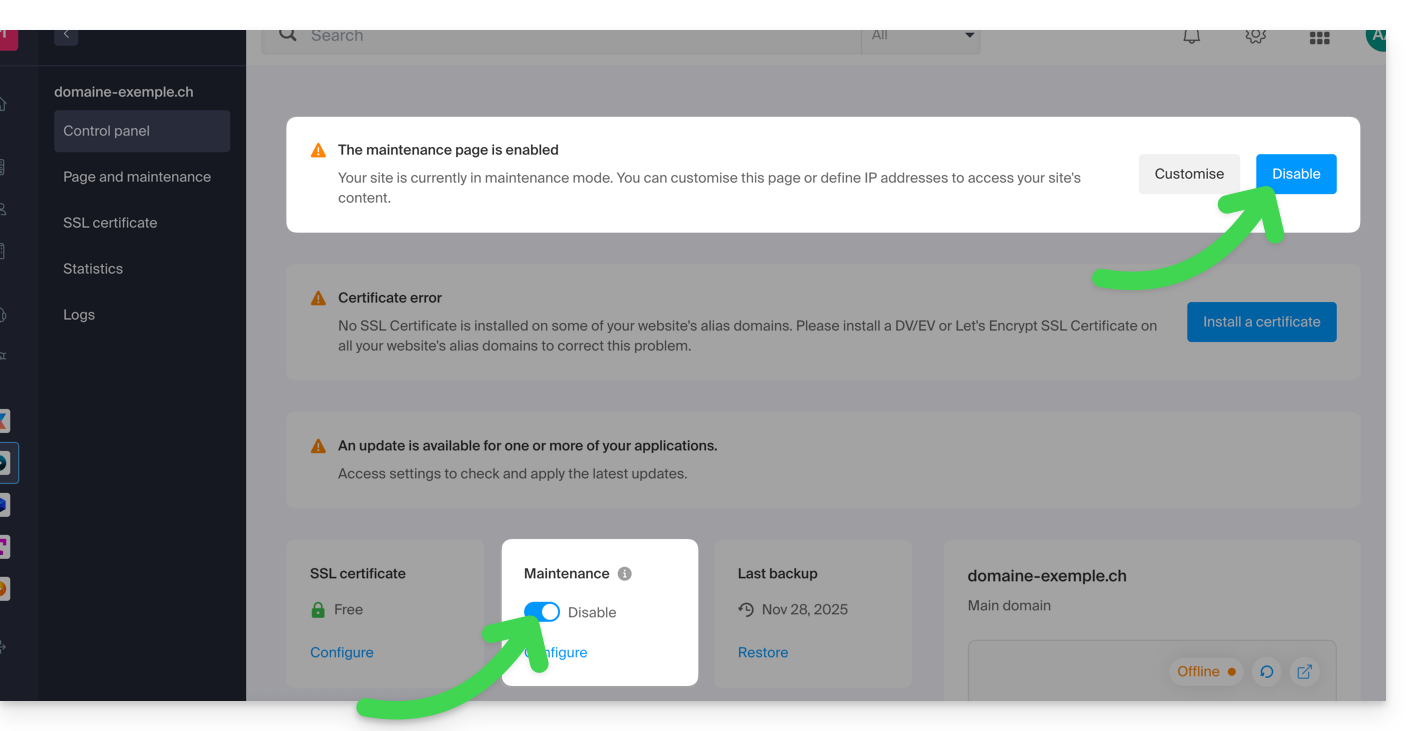
To disable the message that appears on your website during maintenance:
- Click here to access the hosting & website management section in your Infomaniak Manager (❓: help).
- Click on the name of the website in question.
- Click either the Disable button or the toggle switch to disable the maintenance page:
- Confirm the deactivation of maintenance.
Alternative method for WordPress
It is not recommended to activate the Infomaniak maintenance page above and then work in WordPress.
It is recommended to install a WordPress extension (there are dozens available) dedicated to maintenance mode within the CMS itself.
Alternatively, you can add the code to a new, empty file named .maintenance (the dot before the file name is important) and place it on the server at the root of your site, which will disable all your pages except for the WordPress homepage.
Link to this FAQ: https://faq.infomaniak.com/2063
Has this FAQ been helpful?
This guide details the security measures implemented as part of the Infomaniak email offers to detect abusive and abnormal use of an email address.
Introduction
- Number of outgoing emails possible per 24 hours:
- kSuite Free = 200
- kSuite Standard = 500
- kSuite Business = 500
- kSuite Enterprise = 500
- my kSuite = 200
- my kSuite+ = 500
- Mail Service Starter = 200
- Mail Service Premium = 500
- Web Hosting = limit depends on the email service used; otherwise, 50 emails max. via PHP Mail() without authentication.
- For sending emails to a large number of recipients, the Newsletter tool is the most suitable.
- You should also consult these other guides:
How are sending quotas calculated?
Quotas are calculated over a rolling 24-hour window and are not reset at midnight. Each email sent is counted for 24 hours from the time it was sent, after which it is automatically released from the quota.
For example, if the limit is reached at 11 a.m., emails sent from that time onwards can only be sent as the previously sent messages reach 24 hours of age. Sending rights are therefore released gradually the next day, and not all at once at midnight.
Why are there sending limits?
Sending limits are applied to protect email services against abusive or abnormal use, including the mass sending of messages from a compromised account.
They also help to limit the risks associated with spam and to preserve the reputation of Infomaniak's servers, in order to maintain good email deliverability.
These limits apply to all emails sent from an address, regardless of the software or application used. Messages addressed to multiple recipients are counted individually: 1 message sent to 2, 42, or 99 people in CC/BCC counts as 2, 42, and 99 messages, respectively.
Upon a written, justified, and authenticated request, it is possible to modify these security rules for a specific paid email address.
Link to this FAQ: https://faq.infomaniak.com/2065
Has this FAQ been helpful?
This guide explains how toreplace the main domain name associated with a website(excluding Starter hosting) hosted on Infomaniak, in case you want to change the name of your business or modify the spelling.
Introduction
- It is not possible to simply change the spelling of the domain name in question.
- You must own the new domain name and install it in place of the current one by performing a swap (see below).
- After making changes to the domain name, it may be necessary to adapt the website content.
- You can also rename your Web Hosting product in the Infomaniak Manager, but changing the name of a hosting plan has absolutely no impact on the URLs of websites.
- During this operation, the statistics are reset.
Change the domain name of the website
Prerequisites
- Prepare the new domain name (if necessary, you need to purchase it).
- Install a valid SSL certificate, otherwise the redirection will not be offered.
- If the desired change is more of a "subdomain" to "main domain" type (e.g.,
dev.domain.xyz→domain.xyz), then please refer to this other guide.
Next, to replace the domain name assigned to the website with a different domain name:
- Click here to access the hosting & website management section in your Infomaniak Manager (❓: help).
- Click on the name of the website in question.
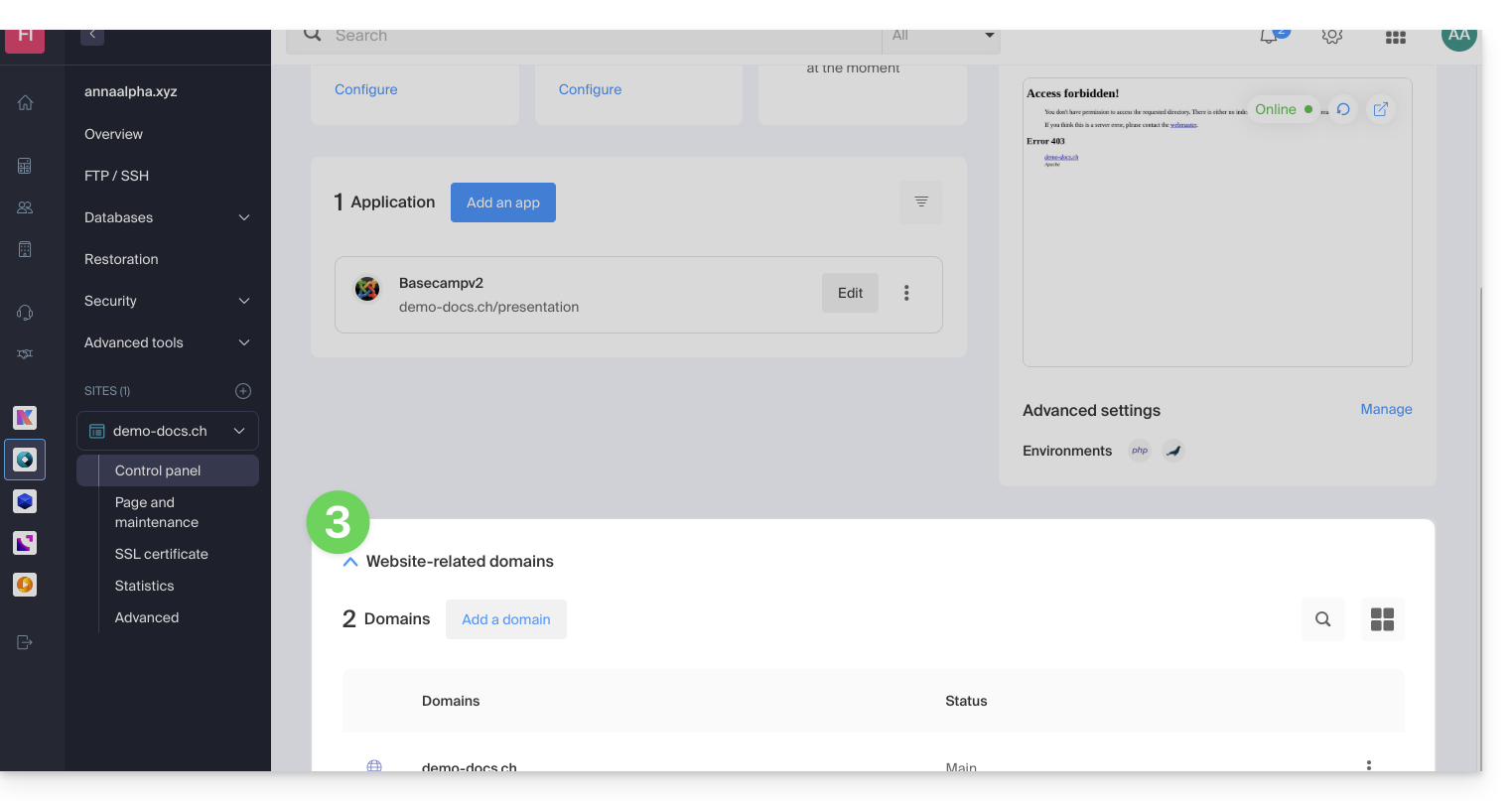
- Then, click on the downward-pointing chevron to expand the Domains section of that website:
- Refer to this other guide (especially its Prerequisites) to link the new domain name to your site:
- This new domain linked will replace the current primary domain name after the switch you will perform below.
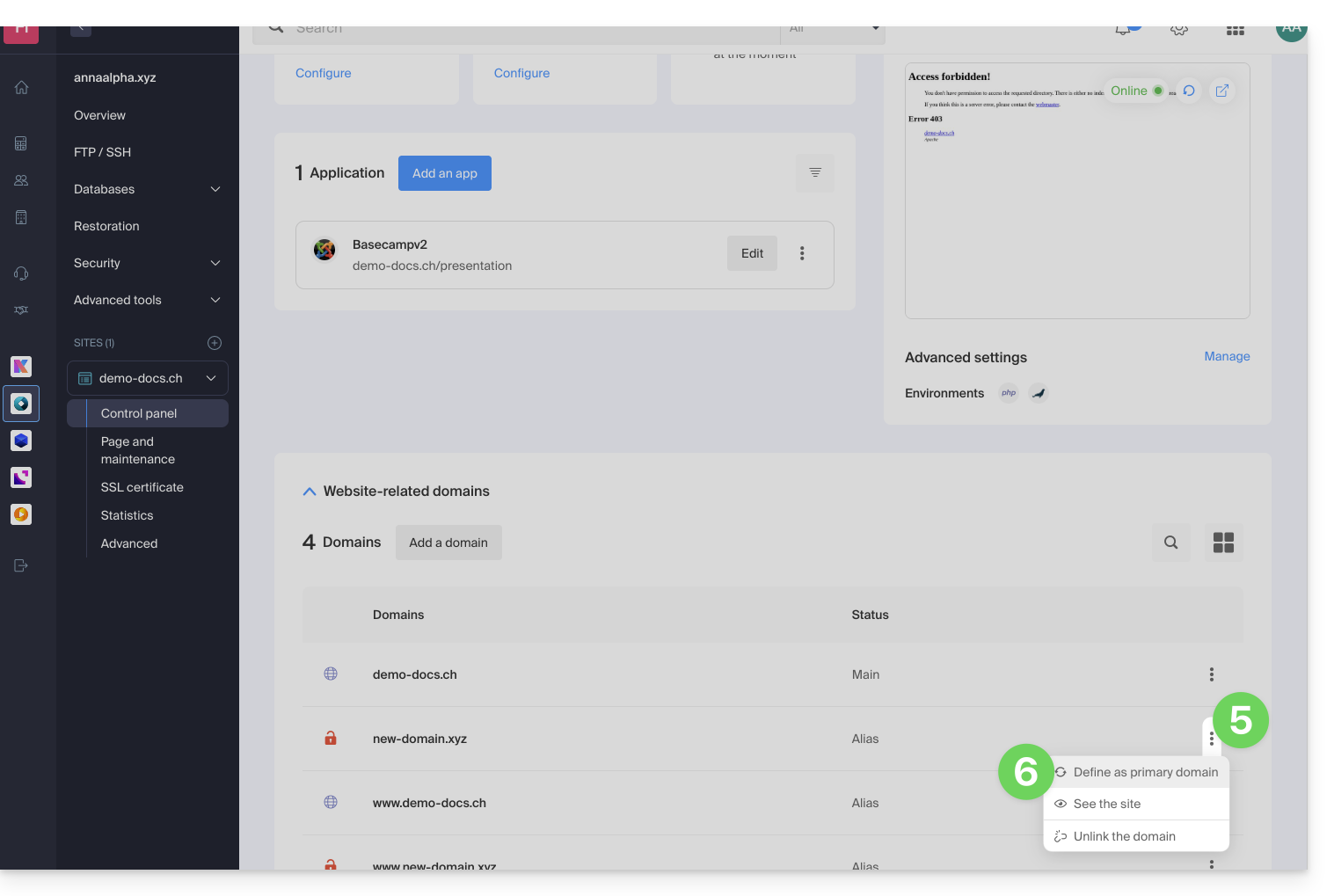
- Once the new domain name is linked to your site, click on the action menu ⋮ to the right of it.
- Choose Set as primary domain:
- If necessary, delete the old domain name and its variants that have become alias domains (and are no longer primary domains).
If you are using an SSL certificate, you will need to update it so that it includes the added aliases.
If you are using the dedicated IP option, you need to uninstall it and reinstall it after the switch you are going to perform.
Adapt the website content to the new name
In some cases,The web application used to develop the site needs to undergo some adjustmentsto function with the new domain name. Click on the link corresponding to your site's development to adapt the content:
Link to this FAQ: https://faq.infomaniak.com/2070
Has this FAQ been helpful?
This guide is intended for users who are making changes to a web hosting environment where WordPress is installed.
Introduction
- Following a change to your web hosting plan (migration from the old v1 60 GB hosting plan to the current plans), you may need to update the connection between your MySQL/MariaDB database and your WordPress site (to avoid the "
error establishing a database connection" error, for example) and re-establish the link between WordPress and the MySQL/MariaDB database.
Modify the important elements
Here is the information to update in the wp-config.php file so that your WordPress site works (generally, a prefix has simply been added to the existing database name and username):
- the name of the MySQL database (bddname before, abcd_bddname after, for example)
- the server hosting the MySQL database (mysql.domain.xyz before, abcd.myd.infomaniak.com after, for example)
- the username used to access the MySQL database (userbdd before, abcd_userbdd after, for example)
Modify the wp-config.php file of WordPress
To do this:
- Find and save your current MySQL information (❓: help) according to the list above.
- Create an FTP account (❓: help).
- Connect via FTP (❓: help).
- Edit the
wp-config.phpfile, which is located in the root directory of your WordPress site. - Find the relevant paragraph and update the 3 pieces of information (according to the list above).
- Save the file, and that's it! Your WordPress will now connect to the correct database.
Link to this FAQ: https://faq.infomaniak.com/2072
Has this FAQ been helpful?
This guide explains how to use PHP environment variables with Web Hosting plans that run on php-fpm.
Introduction
- PHP environment variables are system variables used to store information about HTTP requests and redirects.
- They are generally used in web servers to store details about previous requests or redirects that have been performed.
- These variables can contain information such as previous URLs, HTTP methods, or other data related to the client's navigation on the web server.
Using environment variables
To use PHP environment variables:
- Define the PHP environment variables in a
.htaccessfile:SetEnv EXAMPLEVARIABLE hello
- In your PHP file, the name of the variable to call must correspond to the same variable name defined in the environment variable:
<?php getenv('EXAMPLEVARIABLE');
In this example, the result displayed will be hello.
Go further with environment variables
It is possible to configure environment variables directly from the Manager for your entire website:
- Click here to access the hosting & website management section in your Infomaniak Manager (❓: help).
- Click on the name of the website in question.
- Click on Manage advanced settings:
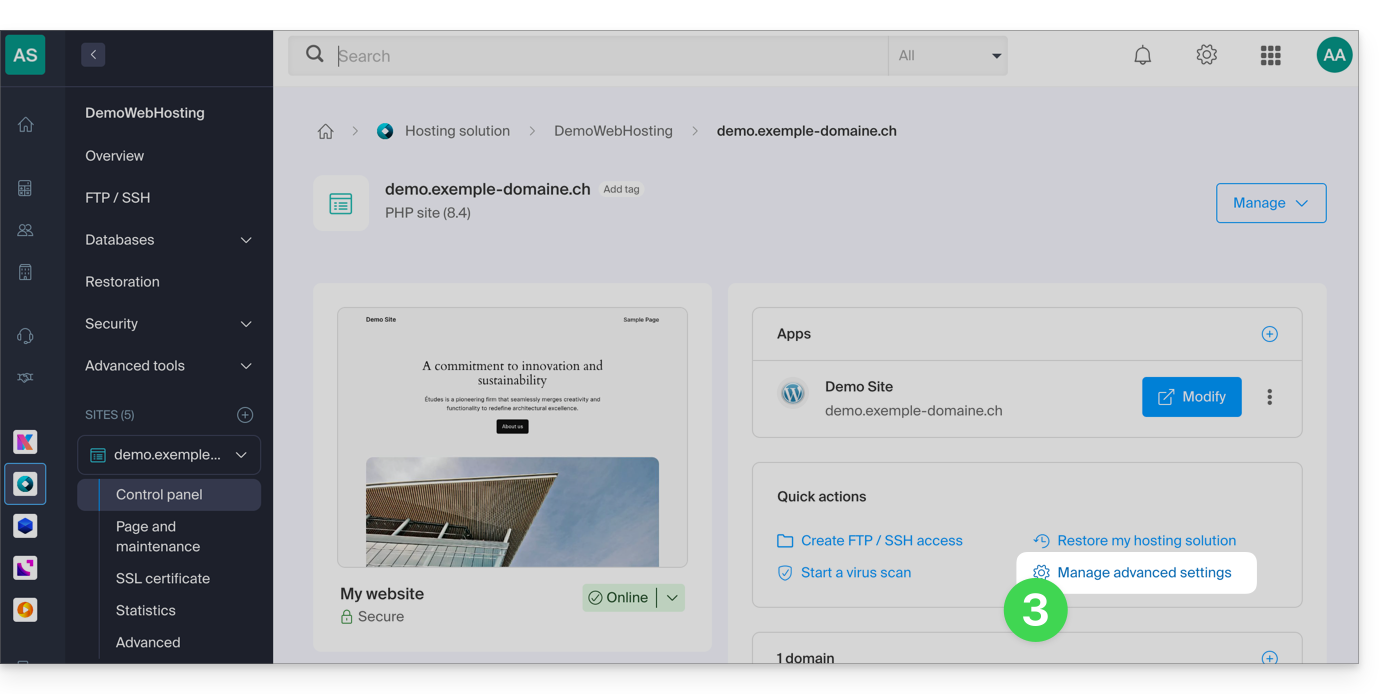
- Click on the PHP / Apache tab:
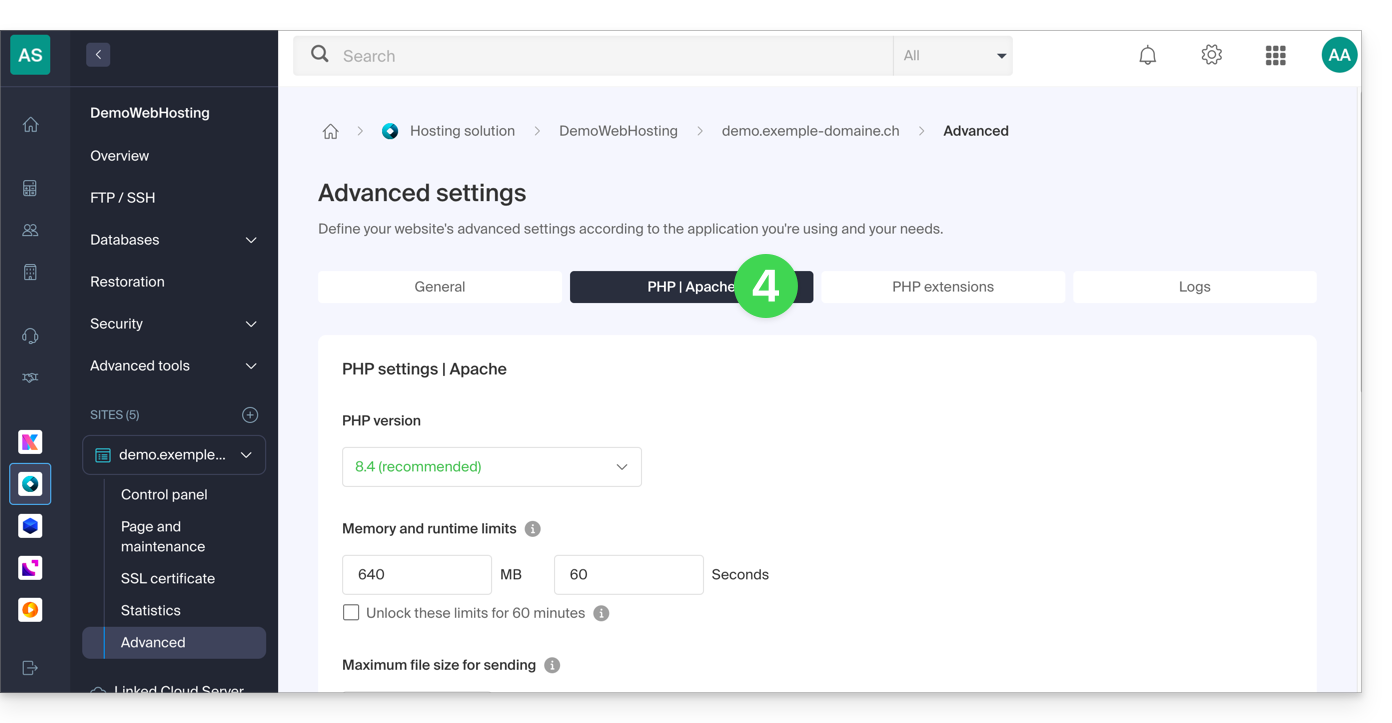
- Further down the page, click on the chevron to expand the Environment Variables section.
- Click on the Add icon.
- Enter the variable and its value.
- Click the button to save:
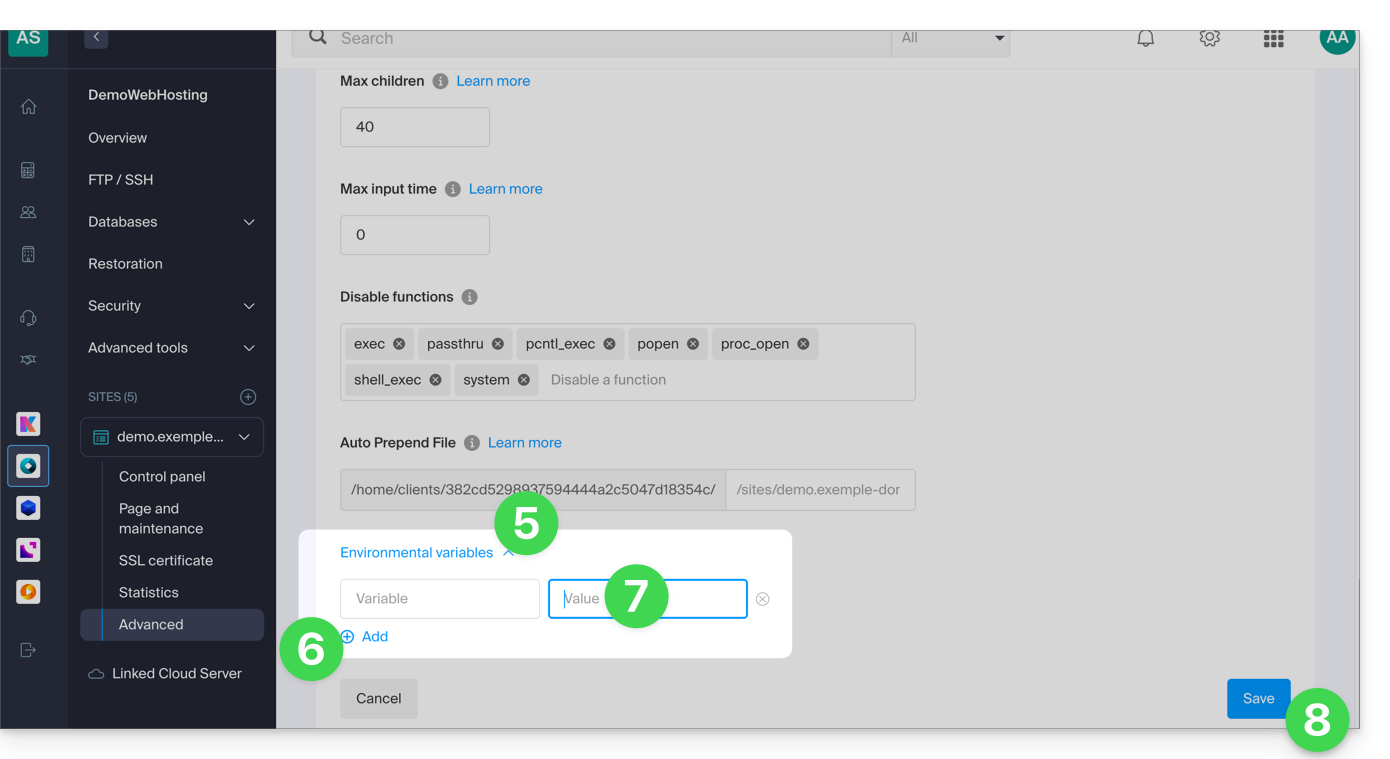
Link to this FAQ: https://faq.infomaniak.com/2087
Has this FAQ been helpful?
This guide explains how to add or modify one or more A and AAAA type records in the DNS zone (of a domain name) managed in the Infomaniak Manager.
Introduction
- This type of record allows you to point a domain name to a static IP address (usually a server), type A for IPv4 and AAAA for IPv6.
- This is the method generally used to redirect your domain name to the IP address of the web server hosting your website. Furthermore, this type of record is used automatically to link your domain name with your website if they are in the same location and within the same Infomaniak organization.
- You should only modify this type of record if you have a specific configuration to implement (e.g., pointing a subdomain to an external application).
Modify the DNS zone
To manage this type of record in a DNS zone:
- Click here to access the domain management section in your Infomaniak Manager (❓: help).
- Click on the name of the domain in question.
- Click on DNS Zone in the left-hand menu.
- Click the button to add a record:
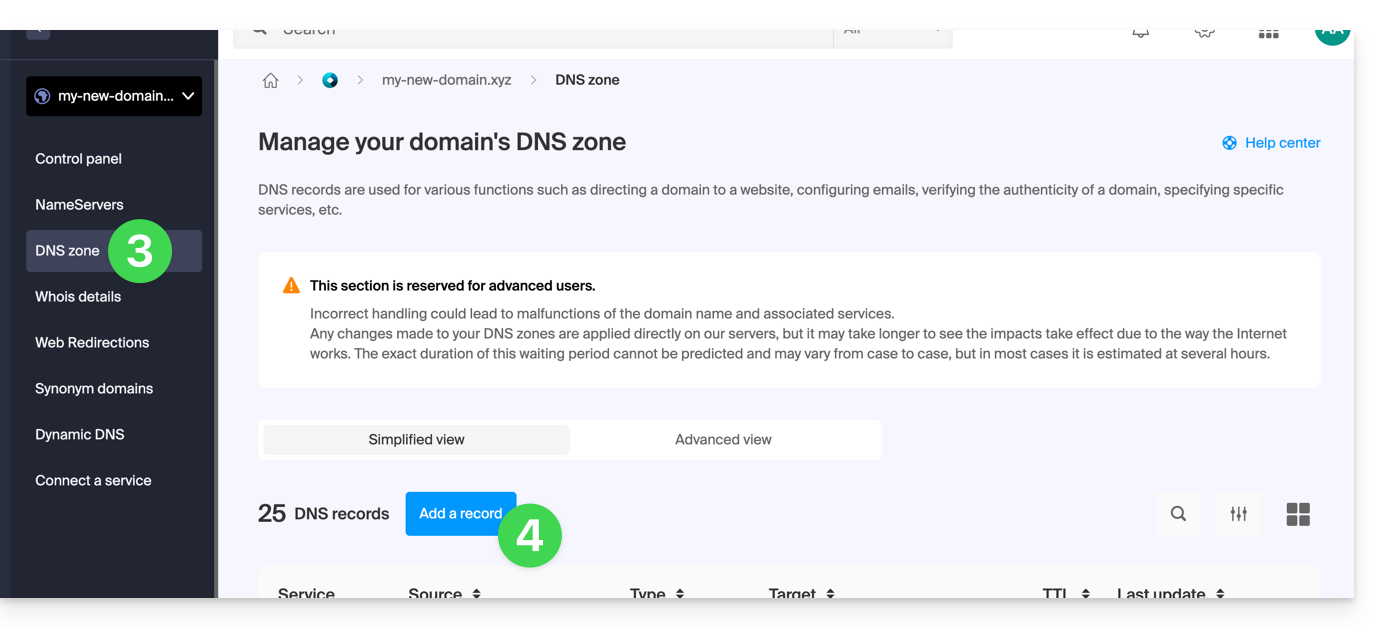
- Click the A or AAAA radio button to add a record.
- Click on the Next button:
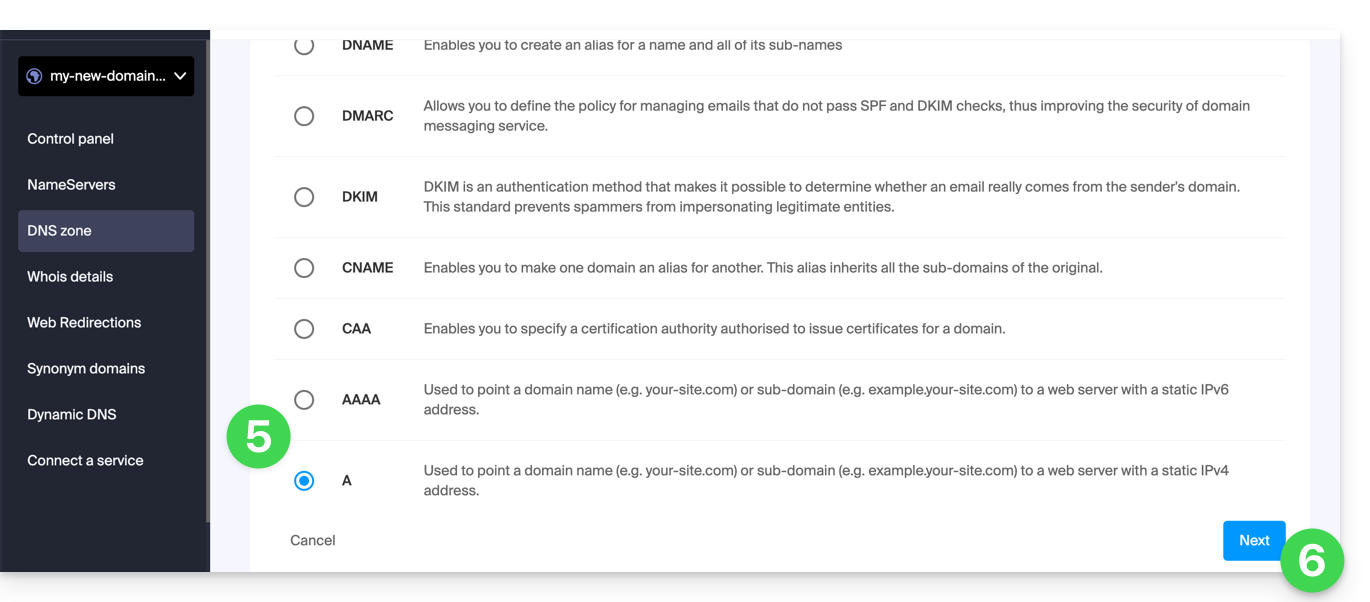
- Enter the values required for your DNS zone.
- Leave the default value for the TTL.
- If necessary, you can request an adjustment to the AAAA record by activating the checkbox, which will allow you to specify an IPv6 address at the same time.
- Click on the Save button:
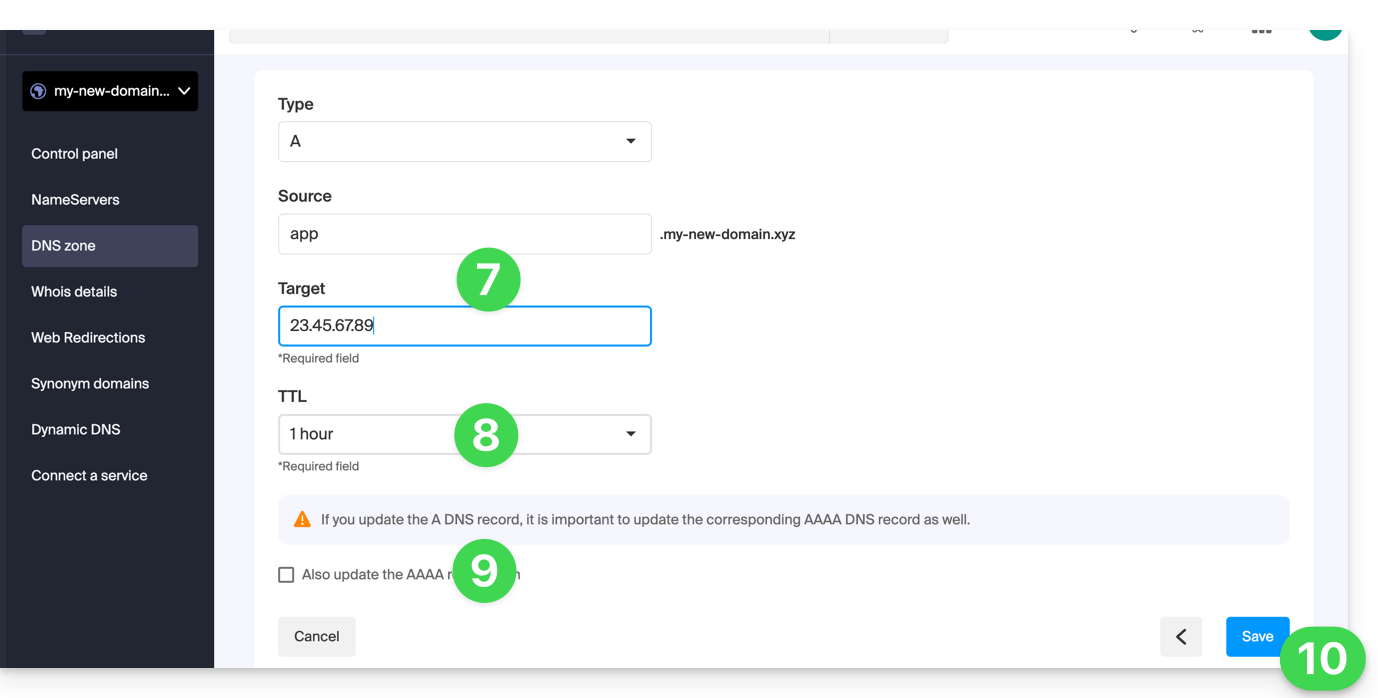
Link to this FAQ: https://faq.infomaniak.com/2088
Has this FAQ been helpful?
This guide provides tips on how to perform operations related to a WordPress site, which allows you to…
- …copy and migrate a WordPress site from a competing host to Infomaniak,
- …change the domain name of a WordPress site,
- …back up an entire WordPress site…
Introduction
- Depending on the context, instead of performing a WordPress transfer, you can also simply…
- … change the website address (the associated domain name) very easily if you installed WordPress using the Infomaniak installer,
- … duplicate a WordPress site to work simultaneously in a development environment…
Transfer a WordPress site…
…using the All-in-One WP Migration extension
- Requires installing a new, blank WordPress instance (e.g., using the Infomaniak automatic installer) to import the old site.
- Refer to this guide.
… with the Duplicator extension
- Requires connecting to the hosting via FTP to send a
.ziparchive and a PHP file to reinstall the old site.- Refer to this guide.
Link to this FAQ: https://faq.infomaniak.com/2089
Has this FAQ been helpful?
This guide provides instructions on how to obtain one or more Infomaniak invoices before and after payment, view, download, and print all or part of the billing document history for your accounting purposes.
Introduction
- Final invoices can only be printed after they have been paid.
- If necessary, a personalized message can be easily added to your billing documents: see this other guide.
Accessing the Invoice History
Prerequisites
- Be Administrator or Legal Representative within the Organization…
- … or a simple user account but with the permission to manage accounting enabled:
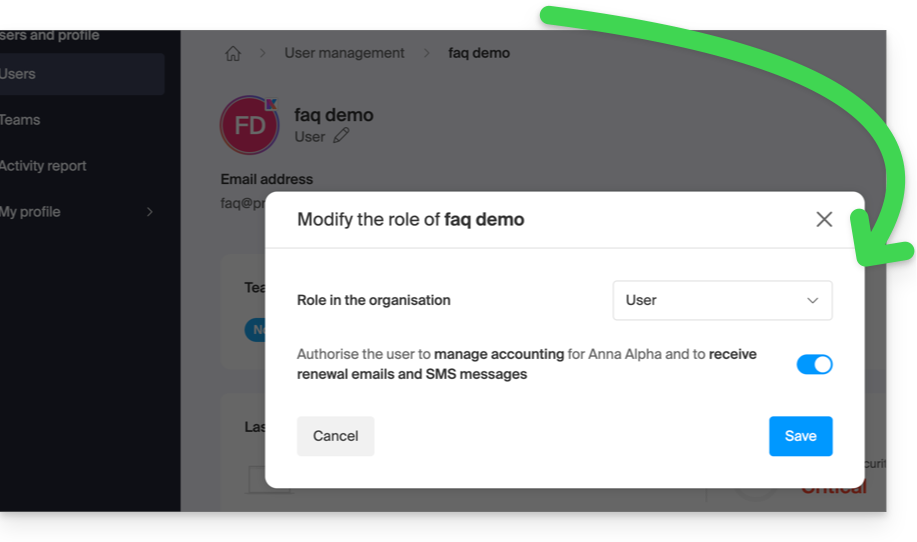
- … or a simple user account but with the permission to manage accounting enabled:
To go to the billing documents page:
- Click here to access the invoice history in the Infomaniak Manager:
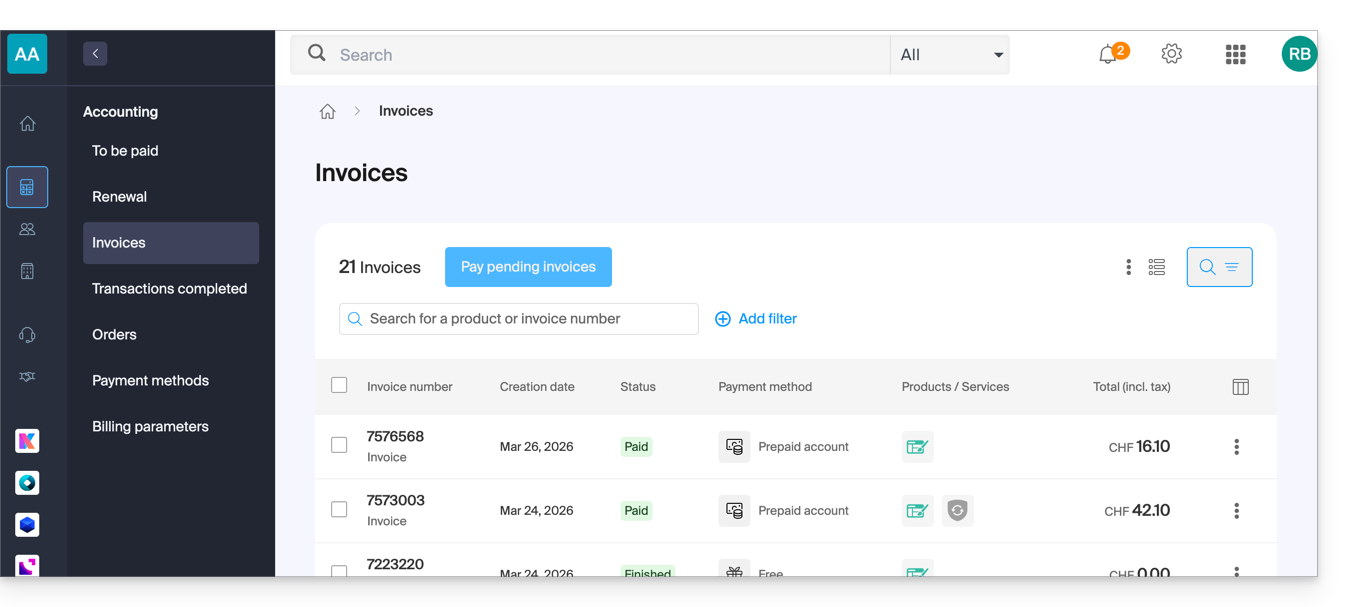
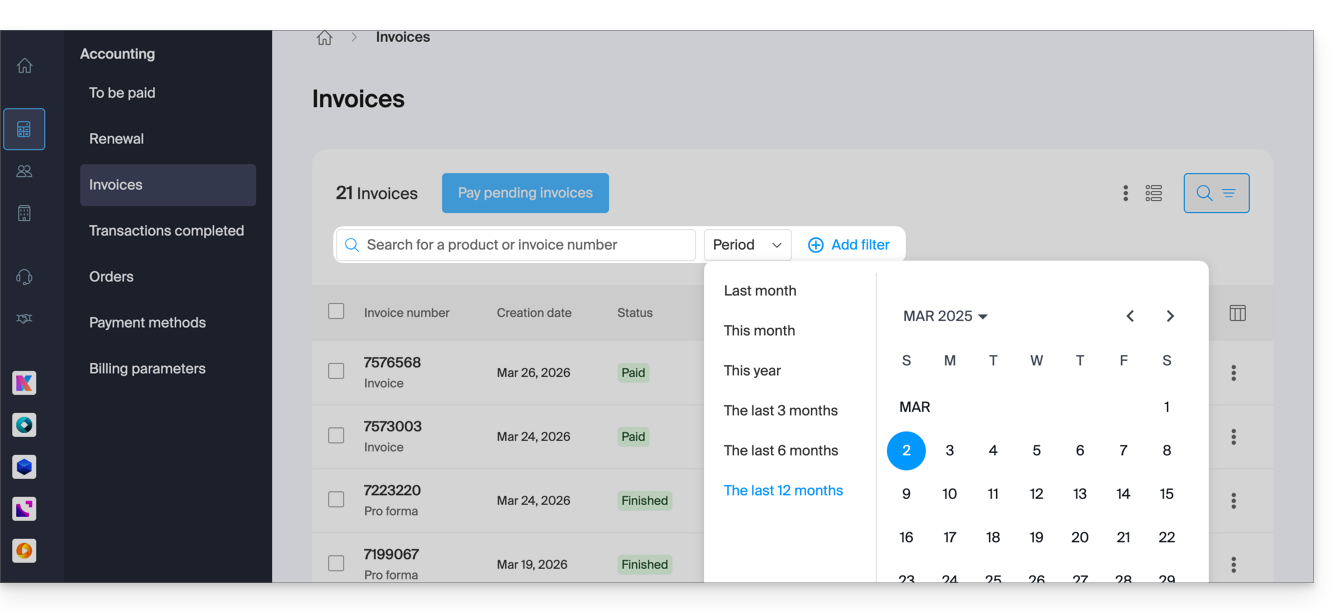
- The table automatically displays the most recent billing documents.
- The top section allows you to filter documents based on the Paid, Reimbursed, etc. status and based on the desired period (start and end date calendar):
Print/export a billing document
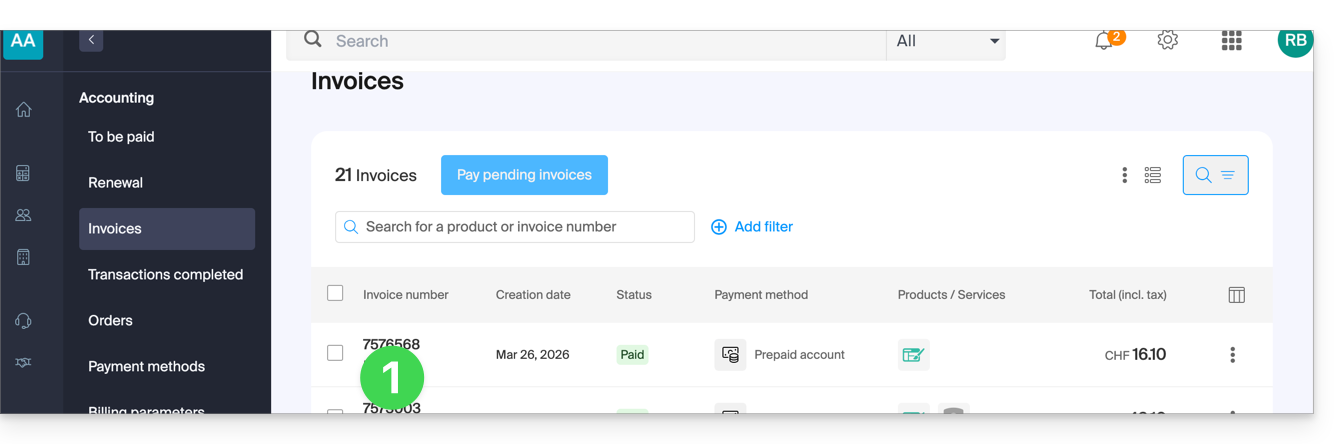
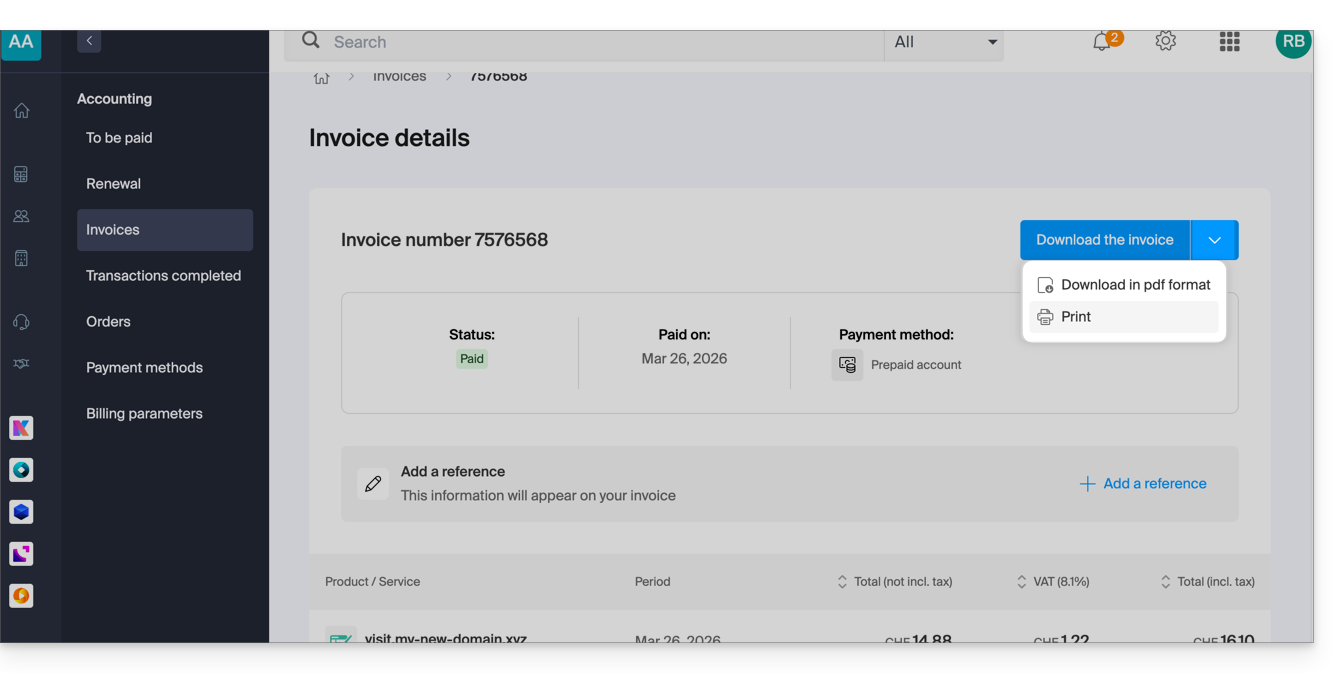
To view one of these documents in PDF format and then save it to your device or print it with your printer:
- On the same page, click on the invoice in question in the table that is displayed:
- Click the Download button or the chevron for more options:
Export a set of billing documents
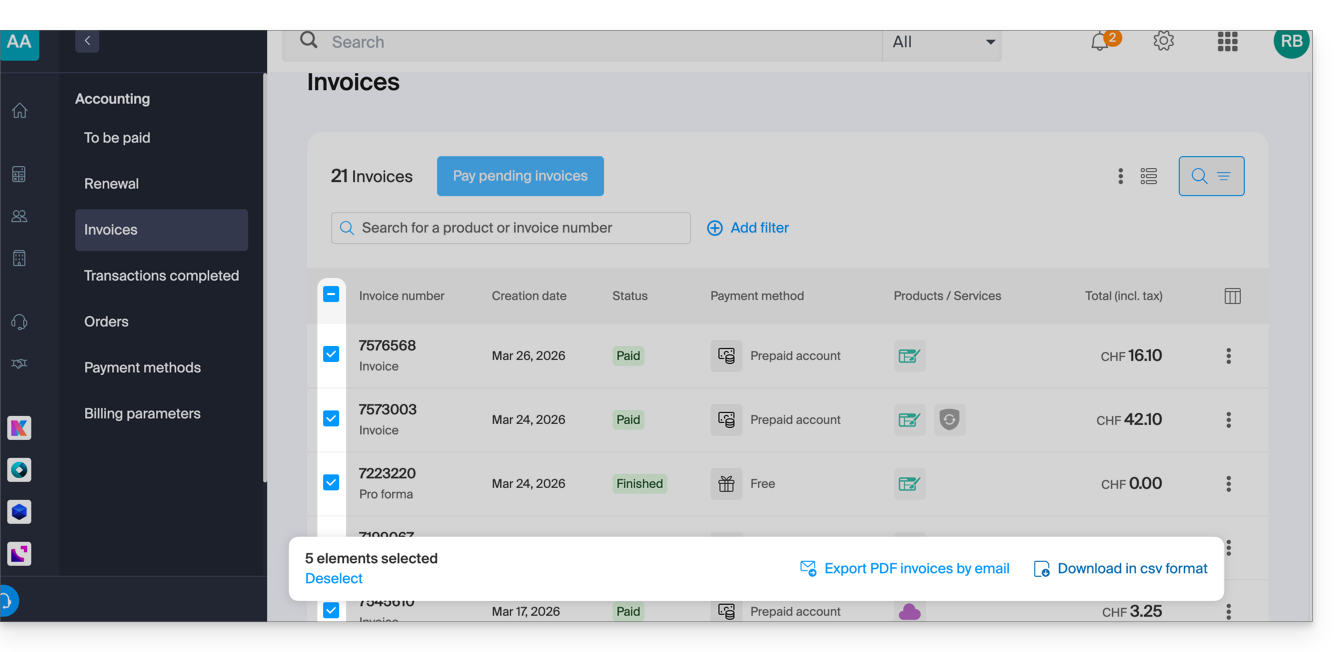
To download a set of documents in a CSV file in .csv format, or to receive them by email:
- On the same page, filter the documents based on the Paid, Reimbursed, etc. status, and based on the desired period (start and end dates).
- Click on the button at the bottom, depending on the type of export you want:
Receive the (next) PDF invoice by email
To ensure that the invoice is always attached in PDF format with each renewal email:
- Click here to access the configuration/accounting page in the Infomaniak Manager (need help?).
- Access requires authentication with a user who has sufficient rights.
- On this page, enable or disable the addition of PDF invoices:
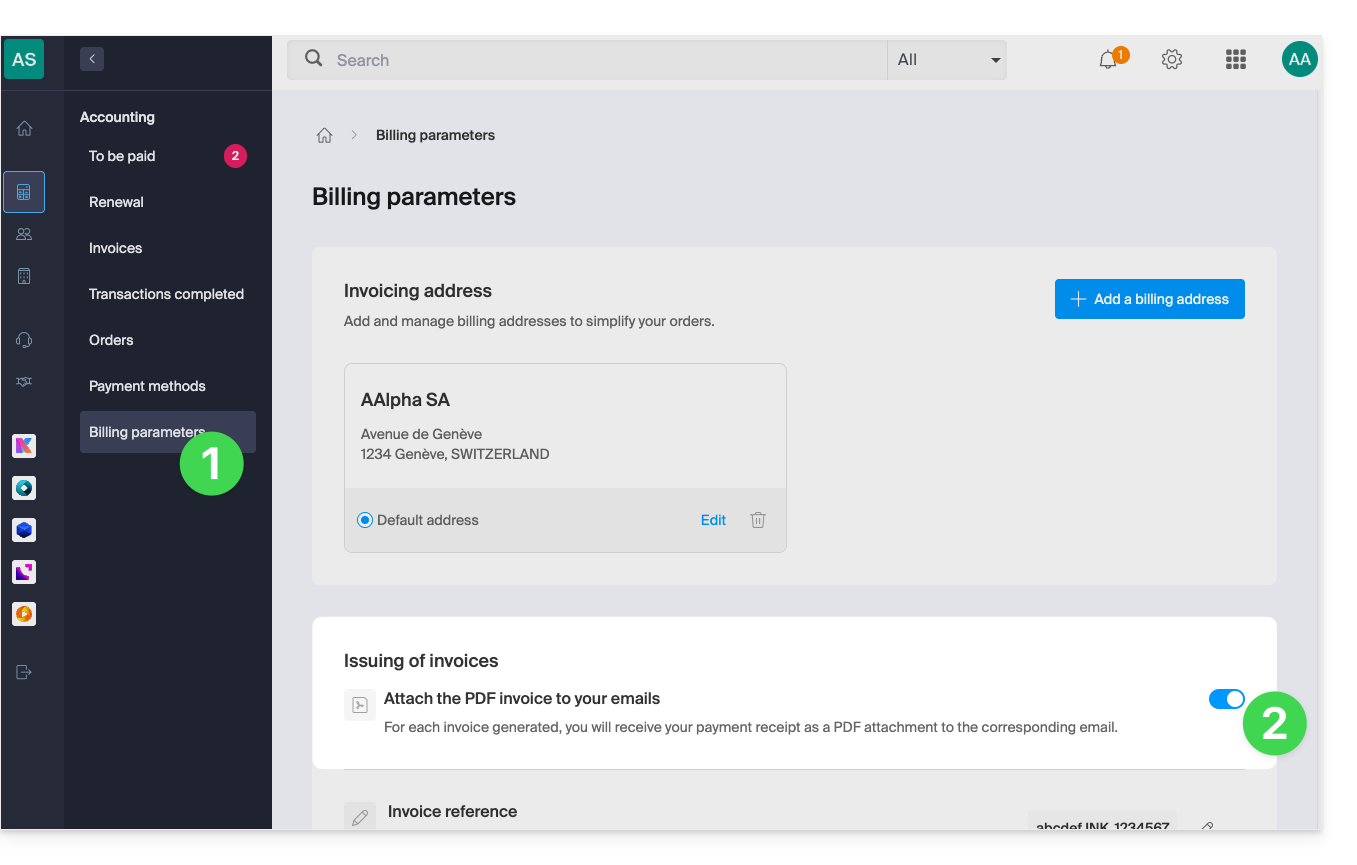
Your preferences are automatically saved as soon as a change is made on the page.
Print a Pro Forma Invoice
Pro Forma invoices do not have any legal, judicial, tax, or accounting value:
- Click here to access payment management in the Infomaniak Manager.
- Select the relevant products.
- Click on Generate a Pro Forma Invoice at the bottom of the table.
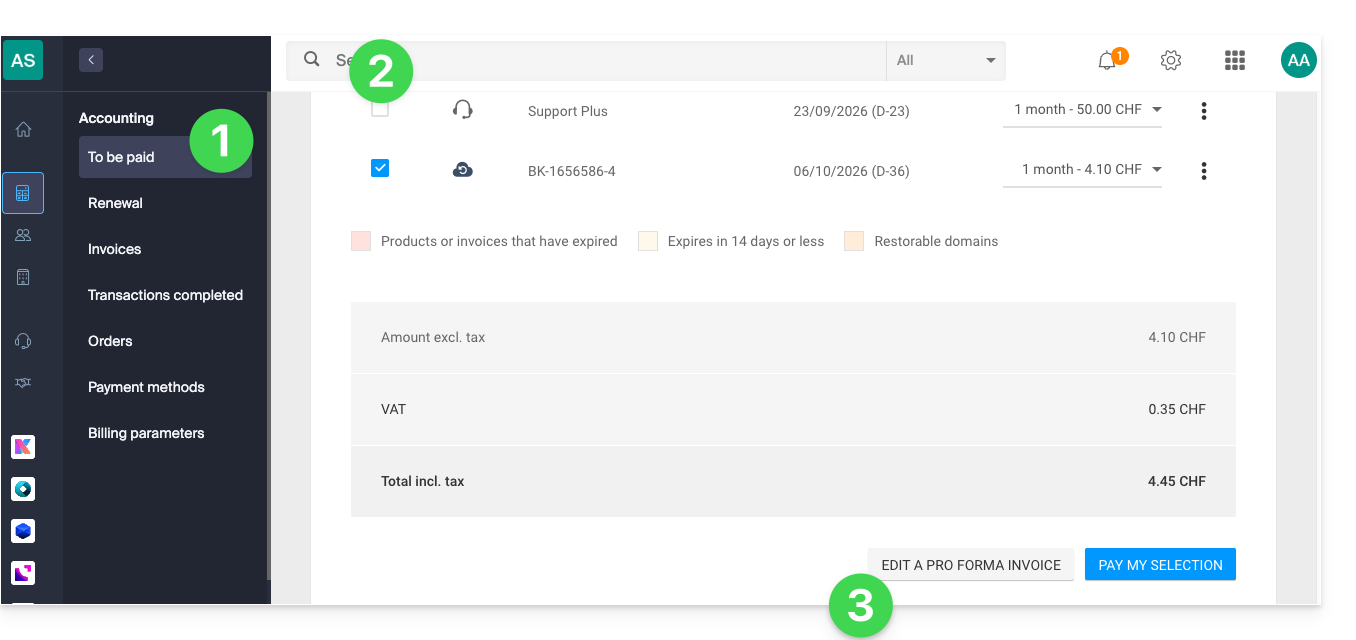
- Once displayed, you can then download the Pro Forma Invoice.
Link to this FAQ: https://faq.infomaniak.com/2091
Has this FAQ been helpful?
This guide explains how to easily set up a redirection for your domain name managed with Infomaniak.
Introduction
- A web redirection allows you to redirect a domain name or subdomain to the internet address of your choice.
- This procedure is only valid if the domain's DNS records are managed by Infomaniak (❓: help) and if Custom Brand is not activated.
- Any DNS addition/modification may take up to 48 hours to propagate (❓: help).
- If necessary, create a redirection for your domain with and without the www (
domain.xyzandwww.domain.xyz).
Redirect a domain to the URL of your choice
To do this:
- Click here to access the domain management section in your Infomaniak Manager (❓: help).
- Click on the name of the domain in question.
- Click on Web Redirections in the left-hand menu.
- Click on the Add a redirection button:
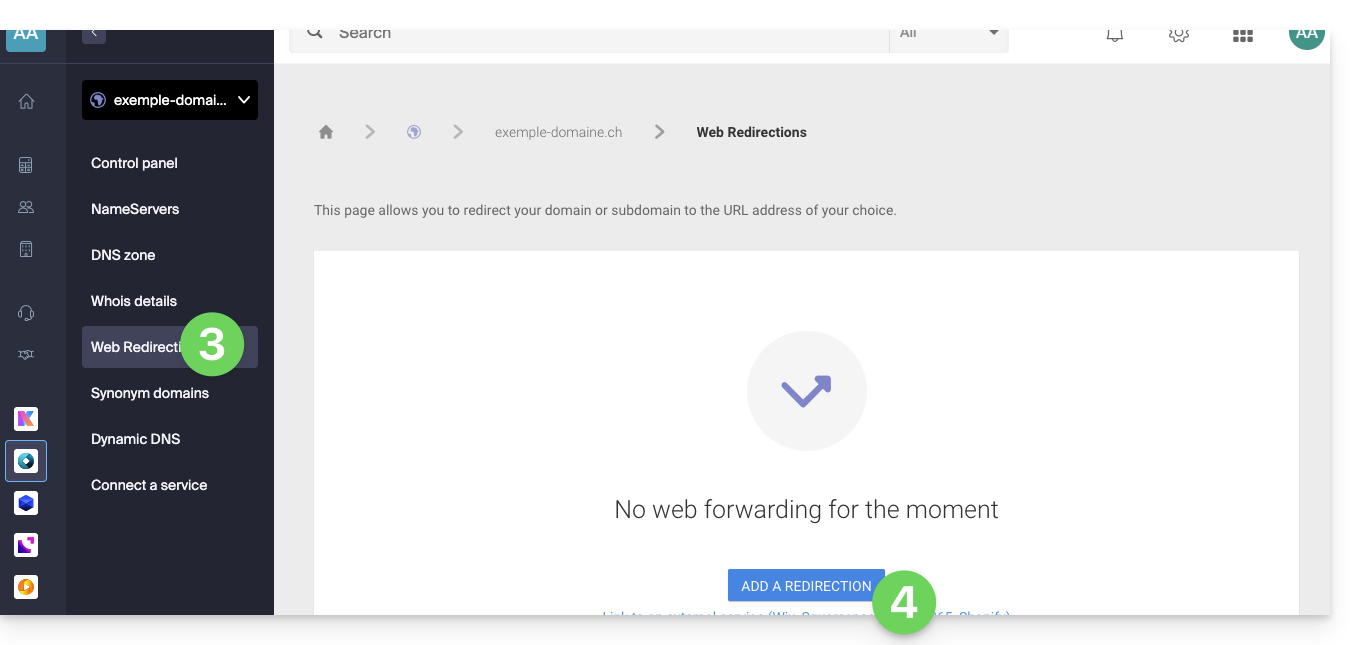
- Enter the destination address (under To).
- Choose between a 301 or 302 redirect.
- The advanced options allow you to specify a redirect in the form of an iframe (invisible, but not recommended).
- Click the button to Confirm:
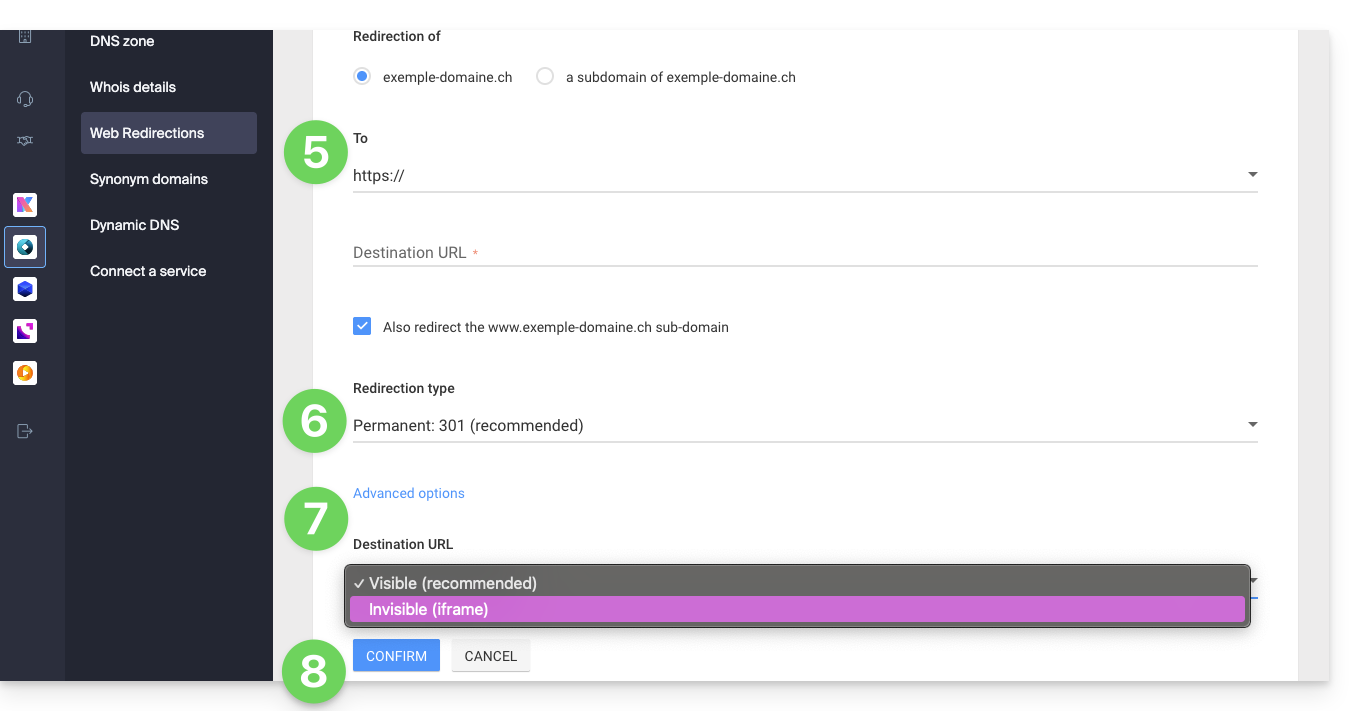
Link to this FAQ: https://faq.infomaniak.com/2092
Has this FAQ been helpful?
This guide explains how to display the absolute paths for certain Infomaniak web applications that require them.
Obtaining the absolute path…
... of a web hosting service
To do this:
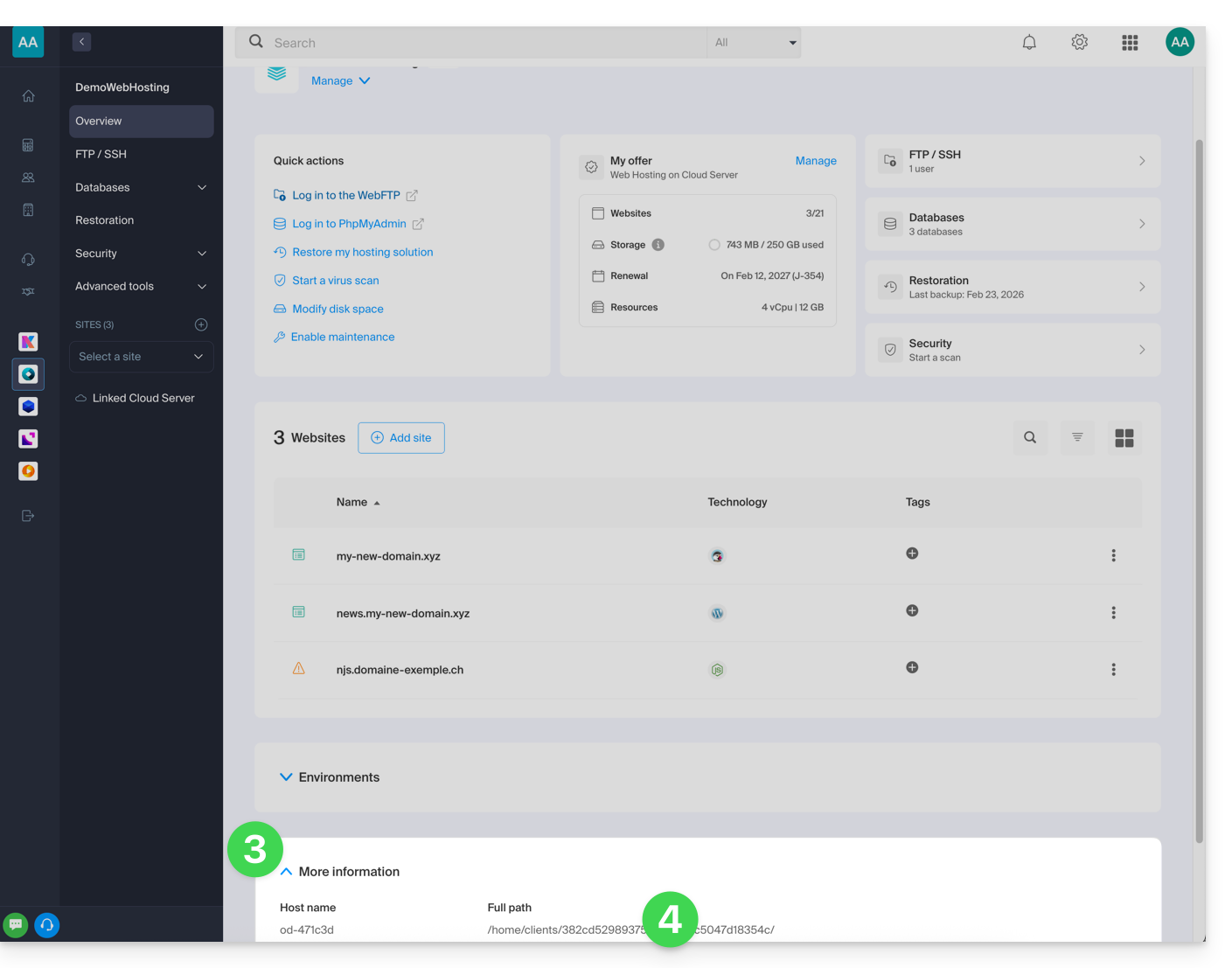
- Click here to access the hosting & website management section in your Infomaniak Manager (❓: help).
- Click on the name of the relevant hosting.
- Then click on the chevron to expand the Information section of this hosting.
- The highlighted information below indicates the location of the example site:
… of a website
To do this:
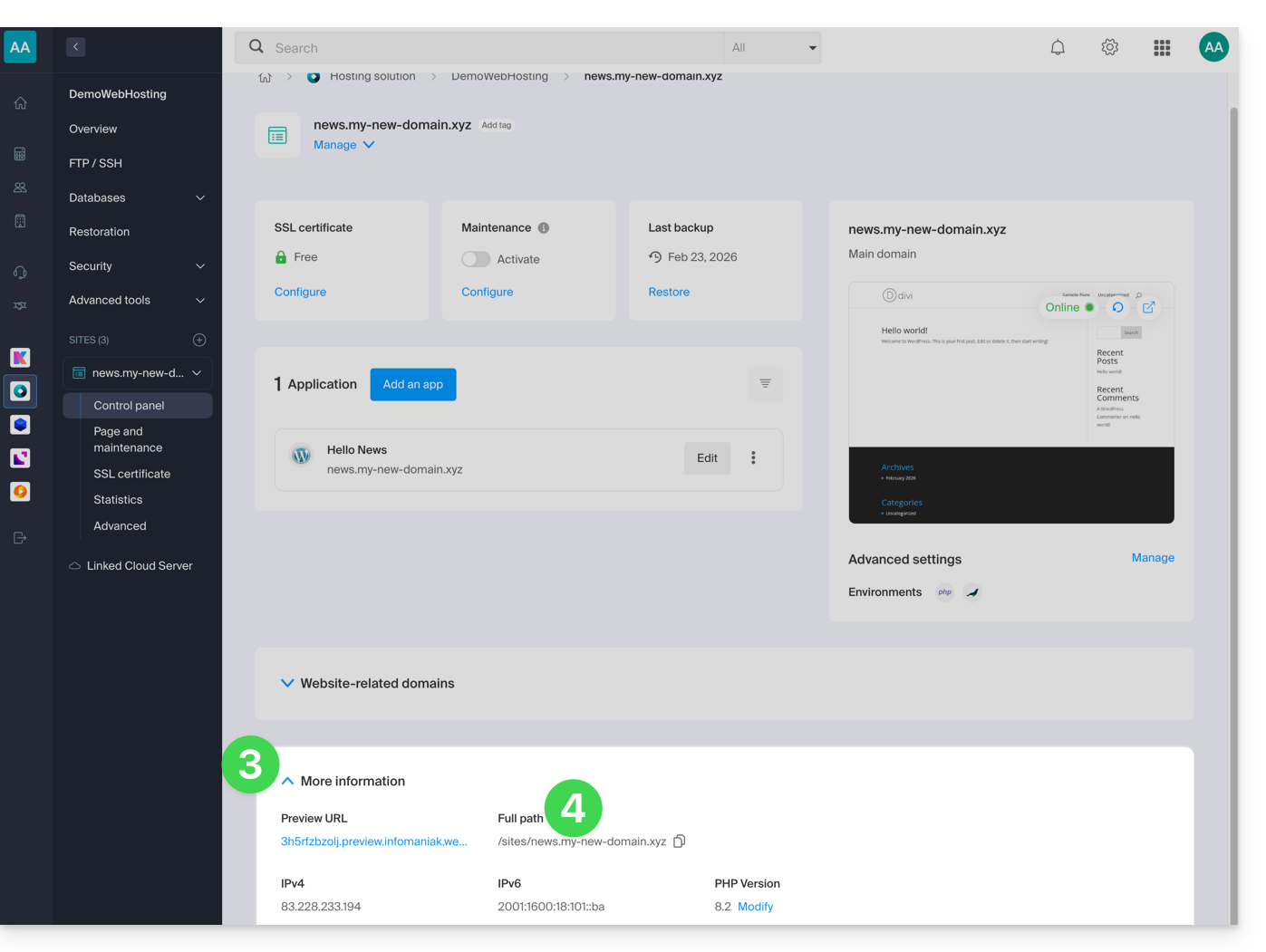
- Click here to access the hosting & website management section in your Infomaniak Manager (❓: help).
- Click on the name of the website in question.
- Then, click on the chevron to expand the Information section of this site.
- The highlighted information below indicates the location of the example site:
Link to this FAQ: https://faq.infomaniak.com/2093
Has this FAQ been helpful?
To help you identify the kSuite plan that best suits your needs, please refer to this other guide.
The kSuite plan offered by Infomaniak does not include a web hosting service for a page or website on the internet.
You can, of course, subscribe to an Infomaniak Web Hosting plan from the same user account and/or the same Organization and build your website using the tool of your choice, such as WordPress or Site Creator.
To help you identify the hosting plan that best suits your needs, please refer to this other guide.
Link to this FAQ: https://faq.infomaniak.com/2094
Has this FAQ been helpful?
This guide explains how to generate a certificate signing request (CSR) for a domain name and all its subdomains with a Web Hosting plan (excluding free Starter plans), allowing you to encrypt the connection to your domain name and all its subdomains via a single SSL certificate.
Introduction
- The configuration allows for a "named site" and a "backup site"; to ensure this works without conflict, make sure that the wildcard and your specific subdomains do not overlap on the same web hosting:
- DNS level: the priority is natural: if a specific subdomain exists (e.g.,
prive.domain.xyz), it is used; otherwise, the request is redirected to the wildcard (*.domain.xyz). - Server level: it is necessary to be vigilant: if the wildcard and the specific subdomain are on the same server, the software implementation (Apache) decides; Apache processes requests according to the evaluation order of the configuration files.
- The risk: if the wildcard is evaluated first, it "captures" all traffic, making your specific subdomain inaccessible, even if it exists elsewhere.
- Therefore, you should not place the wildcard on the same hosting as a more specific subdomain that overlaps with it.
- DNS level: the priority is natural: if a specific subdomain exists (e.g.,
Setting up a Wildcard Certificate
1. Add a domain alias with an asterisk (*)
To add a wildcard alias (*) to your website:
- Click here to access the hosting & website management section in your Infomaniak Manager (❓: help).
- Click on the name of the website in question.
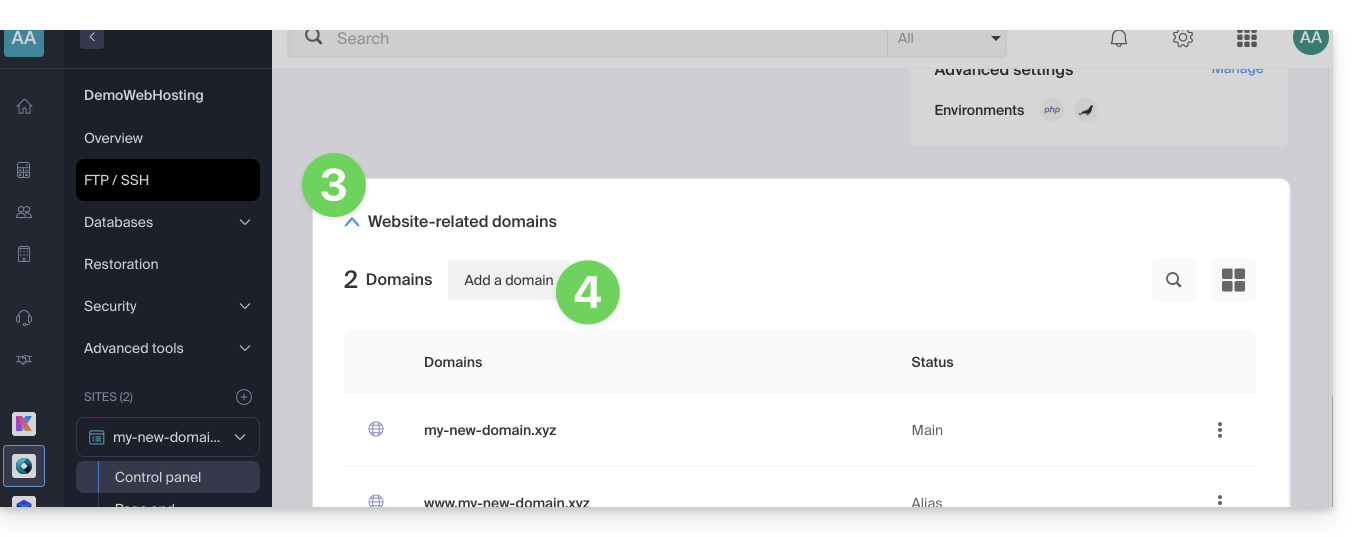
- Then, click on the down arrow to expand the Domains section of that website.
- Click on the Add a domain button:
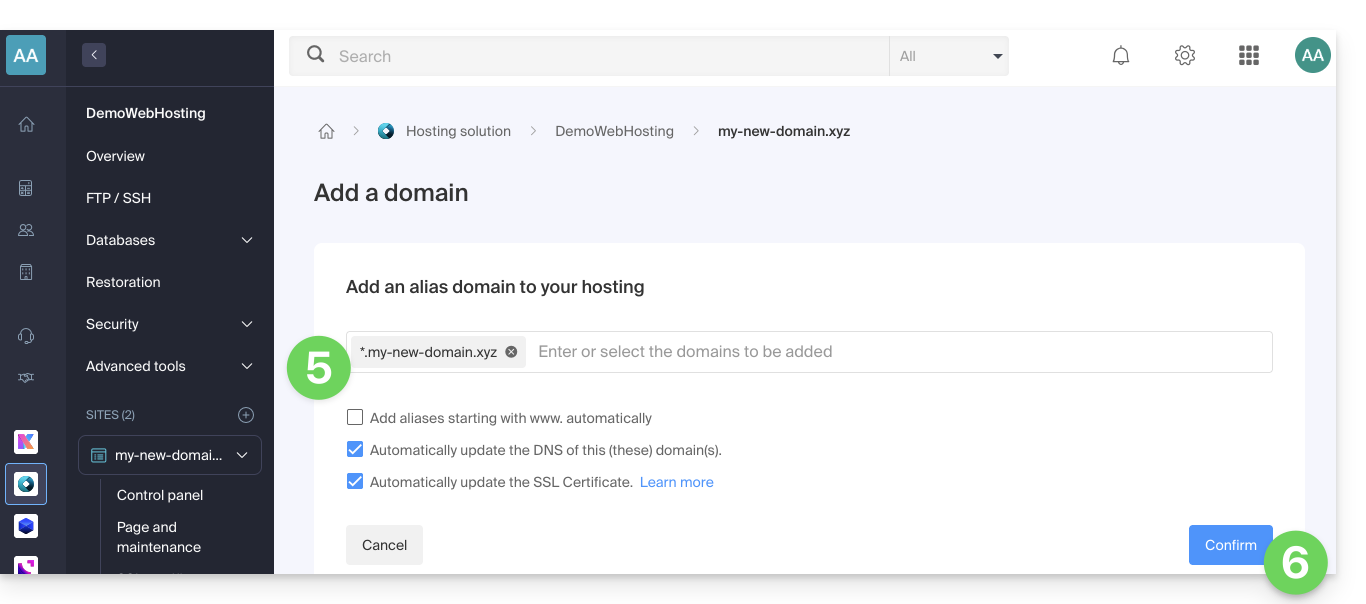
- Enter the domain name to add in the following format:
*.domain.xyz(the asterisk is required, followed by a period, and then the domain name of the website, which in this example is domain.xyz)
- Click the Confirm button to complete the process:
2. Install an SSL certificate or update it
Example of how to update the existing certificate to include the * wildcard subdomain:
- Click here to access the hosting & website management section in your Infomaniak Manager (❓: help).
- Click on the name of the website in question.
- Click on SSL Certificate in the left-hand menu.
- Click on the action menu ⋮ located on the right.
- Click on Update certificate:
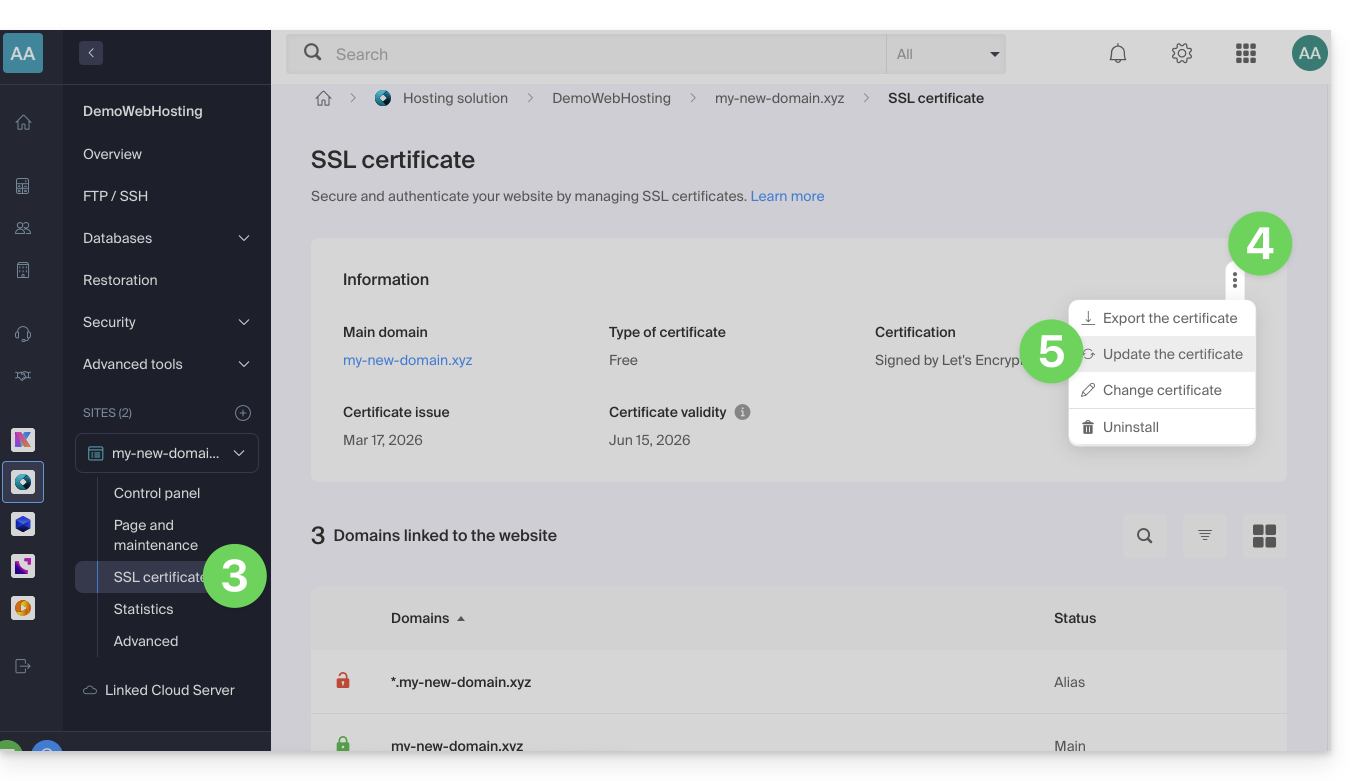
- Make sure the newly added subdomain is selected.
- Click the Install button at the bottom:
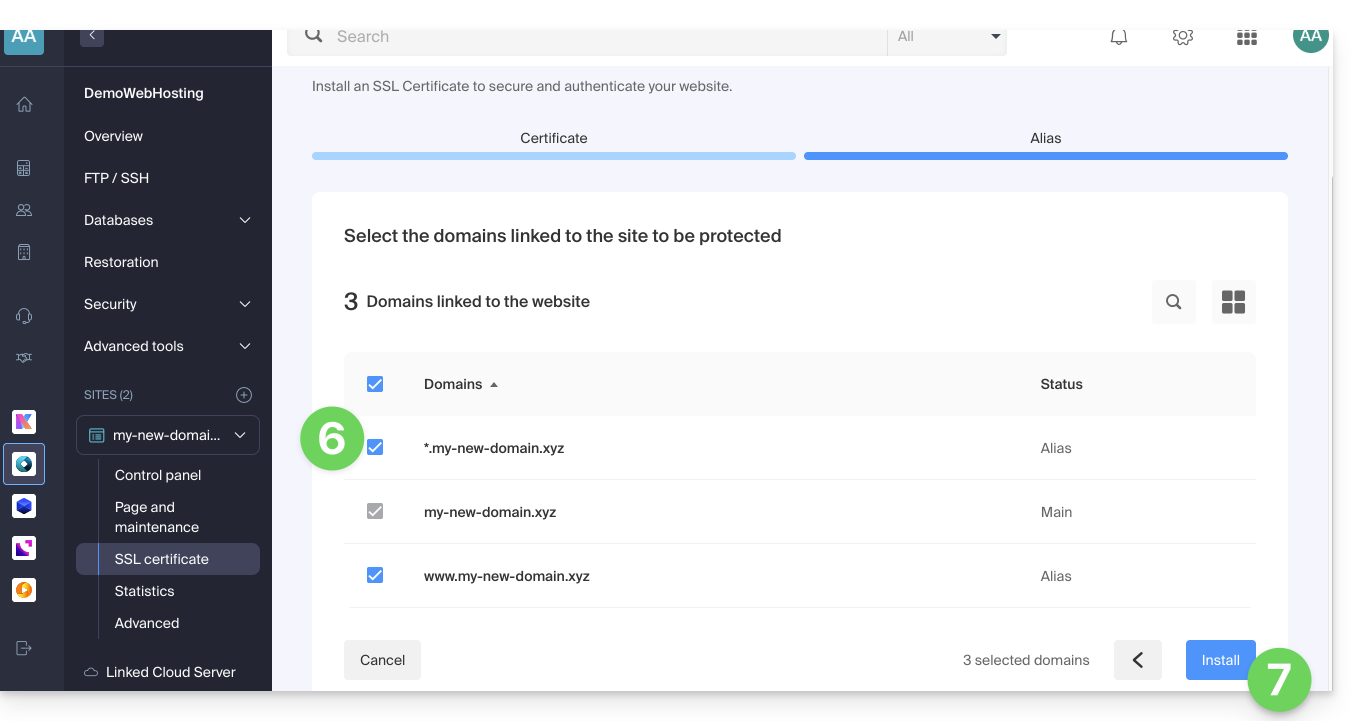
- Please wait while the process is created or updated.
Link to this FAQ: https://faq.infomaniak.com/2096
Has this FAQ been helpful?
This guide explains how ModSecurity works, how to configure it, and how to manage it on Infomaniak servers.
Introduction
- ModSecurity (
mod_secure) is available and enabled by default on Infomaniak servers:- All HTTP requests will be subject to the security rules defined by ModSecurity.
- The
uploadprogressPHP extension is not available on Infomaniak servers, as PHP is used in its FPM version.
- It is not possible to disable ModSecurity on Infomaniak servers:
- The setting is global to the server where your site is hosted, which means that all defined security rules will be applied to your site.
In case of a problem
Language error in the browser (code 403)
If the error message ModSecurity: Access denied with code 403 (phase 2). Operator EQ matched 0 at REQUEST_HEADERS. (...) appears regarding ModSecurity, you should check that a default language is properly configured in your web browser. This error can sometimes be caused by incorrectly configured language settings in the browser.
"Request body larger than configured limit" warning
If you see messages regarding the Request body larger than configured limit error or warning, please note that this is only a warning — the request still goes through and is not blocked. This configuration is specific to certain older hosting generations (of the jessie type) and allows all requests to pass through to the server without impacting your visitors.
Link to this FAQ: https://faq.infomaniak.com/2098
Has this FAQ been helpful?
Thank you for choosing Infomaniak to host your WordPress site.
Introduction
- As a reminder, the WordPress website creation tool can be:
- hosted by the WordPress.com infrastructure (paid), in which case Infomaniak is not involved in the hosting
- installed freely but manually by the user using the archive provided by WordPress.org; in this case, Infomaniak hosts the website but does not manage any updates and does not list the application in the Web Applications section of the Infomaniak Manager; this is the case if you migrate an external WordPress to Infomaniak
- installed automatically by the tool available in the Manager; in this case, WordPress is largely maintained (at the security level) by Infomaniak
- This guide focuses on this third and final point.
- The Infomaniak installerautomates the installation and security updates of WordPress.
Install WordPress & Apps
Infomaniak makes it easy to install the WordPress application (and other applications as well):
Using WordPress
Although WordPress is one of the easiest CMS platforms to use, it still requires some getting used to. To help you with this, here are some external resources in various languages to help you get started with WordPress:
- Essential basics to know to get started with WordPress
- Help forum for the French-speaking WordPress community
- FAQ about backups / restores
- Using an ElegantThemes theme
- Free WordPress training provided by the website progresser-en-informatique.com. If you want to focus on the essentials, concentrate on the following modules:
Link to this FAQ: https://faq.infomaniak.com/2102
Has this FAQ been helpful?
This guide explains what a web hosting provider like Infomaniak is, and specifies its role, scope, and the limits of its technical support.
Infomaniak, a hosting provider since 1996
According to Wikipedia, a web host is a company that provides Internet hosting for computer systems for individuals or entities who do not wish to do so themselves.
Infomaniak also offers:
- … decades of experience in hosting and high-performance online solutions.
- … over a million users in Switzerland and Europe trusting us with the management of their critical data.
- … a company certified according to ISO 27001, 9001, 14001, 50001 standards and committed to sustainable digital practices.
- … 100% Swiss-made technological expertise with data hosted in Switzerland in its own data centers.
- … a comprehensive knowledge base and a customer support service available to assist you.
Responsibilities and scope of intervention
As a hosting provider, Infomaniak installs, secures, and keeps the server infrastructure up to dateis constantly improving its management interfaces (Manager) and helping its customers to make the most of the tools provided. Infomaniak strives to offer solutions that are accessible to everyone; however, human support for free products is inherently limited in order to guarantee the sustainability of these services.
For security and privacy reasons,No assistance will be provided without formal identificationof the person requesting it.
Support is exclusively for Organization administrators. End customers or users with a contract through a Reseller Partner must first contact their administrator or dedicated service provider.
Scope of technical support
Technical support does not provide assistance for:
- Development and programming: debugging websites, correcting source code, personal scripts (PHP, JS, etc.)
- API usage and integration.
- Application maintenance and webmastering: troubleshooting, updates, or content management for third-party applications (e.g., CMS such as WordPress, email clients such as Outlook, etc.).
- On-site and customized support: remote access, configuration of your own hardware, complex manual installations or migrations.
However, our support team will be happy to assist you with:
- Infrastructure and Manager: resolving incidents related to the network, hardware, or Infomaniak management interfaces.
- Using Infomaniak services: clarifying configuration processes and providing assistance with using our native features.
- Documentation: we will guide you to the relevant resources and technical guides to help you become self-sufficient.
A Premium support service and a migration service are available for more specific needs.
Find external support
For assistance with the content of your website, its programming, or the advanced organization of your email accounts, use the Infomaniak bidding platform, which lists over 1000 verified professionals, or consult the directory.
Link to this FAQ: https://faq.infomaniak.com/2103
Has this FAQ been helpful?
This guide explains how to change the PHP version used in the command line (PHP CLI) on an Infomaniak web hosting plan.
Introduction
- Useful for configuring a specific script or a PHP session in the command-line interface (CLI).
- To change the PHP version of the web server (FPM/Apache) via the Manager, please refer to this other guide.
Default PHP CLI Version
The php command uses the server's default version. Check the active version with this command:
# Check current PHP version
php -v
To ensure the stability of your scripts, use an explicit path (e.g., php8.2) or modify your PATH variable.
Change the PHP version in CLI
You can configure the PHP version loaded automatically in your SSH session via two main files.
1. Using .bashrc (Recommended)
The ~/.bashrc file is read when an interactive shell is opened.
Open the file (or create it if it doesn't exist):
touch ~/.bashrc
nano ~/.bashrc
Add this line to define the desired version (example with PHP 8.3):
export PATH="/opt/php8.3/bin:$PATH"Update the configuration:
source ~/.bashrcCheck the change:
php -v
which php
2. Using .profile (Alternative)
The ~/.profile file is read during an SSH connection (login mode).
Edit the file:
nano ~/.profileAdd the export line:
export PATH="/opt/php8.3/bin:$PATH"
3. Load .bashrc systematically
To apply the configuration to all session types, add this code to your ~/.bash_profile or ~/.profile files:
# Load .bashrc if it exists
if [ -f ~/.bashrc ]; then . ~/.bashrc; fi
Run a specific version temporarily
To run a script with a specific version without changing your global environment, call the binary directly:
# Execute with a specific version
/opt/php8.2/bin/php my_script.php
/opt/php8.3/bin/php -v
Once these steps are completed, your SSH sessions and CLI scripts will use the selected PHP version by default.
Link to this FAQ: https://faq.infomaniak.com/2108
Has this FAQ been helpful?
This guide explains how to upgrade from a free Web Starter plan to a paid plan with more features, such as shared Web Hosting or Web Hosting on a Cloud Server.
Introduction
- When you purchase a domain name from Infomaniak, you can add 1 free email address and 10 MB of basic web space.
- With just a few clicks, you can upgrade this plan to enjoy an enhanced experience.
Modify the Starter plan - basic website
To upgrade this free offer:
- Click here to access the hosting & website management section in your Infomaniak Manager (❓: help).
- Click on the action menu ⋮ located to the right of the Starter hosting plan in question.
- Click on Modify plan:
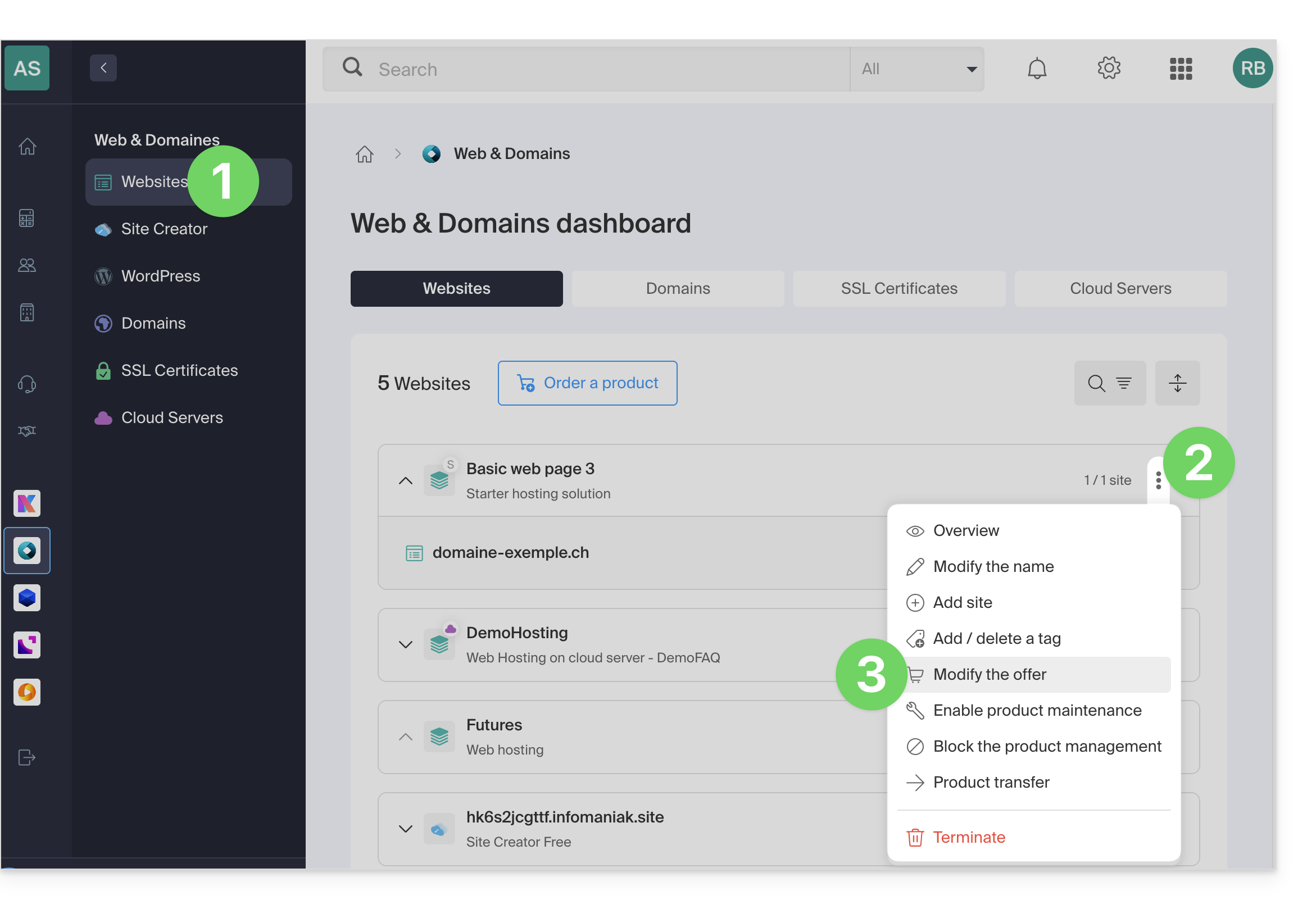
- Follow the wizard to choose the new type of hosting, and pay to complete the plan change.
Link to this FAQ: https://faq.infomaniak.com/2111
Has this FAQ been helpful?
This guide explains how to create a homepage on your Infomaniak websiteusing the welcome page creation tool, a simplified tool for creating content quickly and easily. To create a more complete website, there is Site Creator.
Prerequisites
- Have a website hosted on Infomaniak, even a simple Starter plan, with a basic web page (❓: help).
Create a welcome page on an Infomaniak website
To access the simple creation tool:
- Click here to access the hosting & website management section in your Infomaniak Manager (❓: help).
- Click on the name of the product in question.
- Click on Page and Maintenance in the left-hand menu:
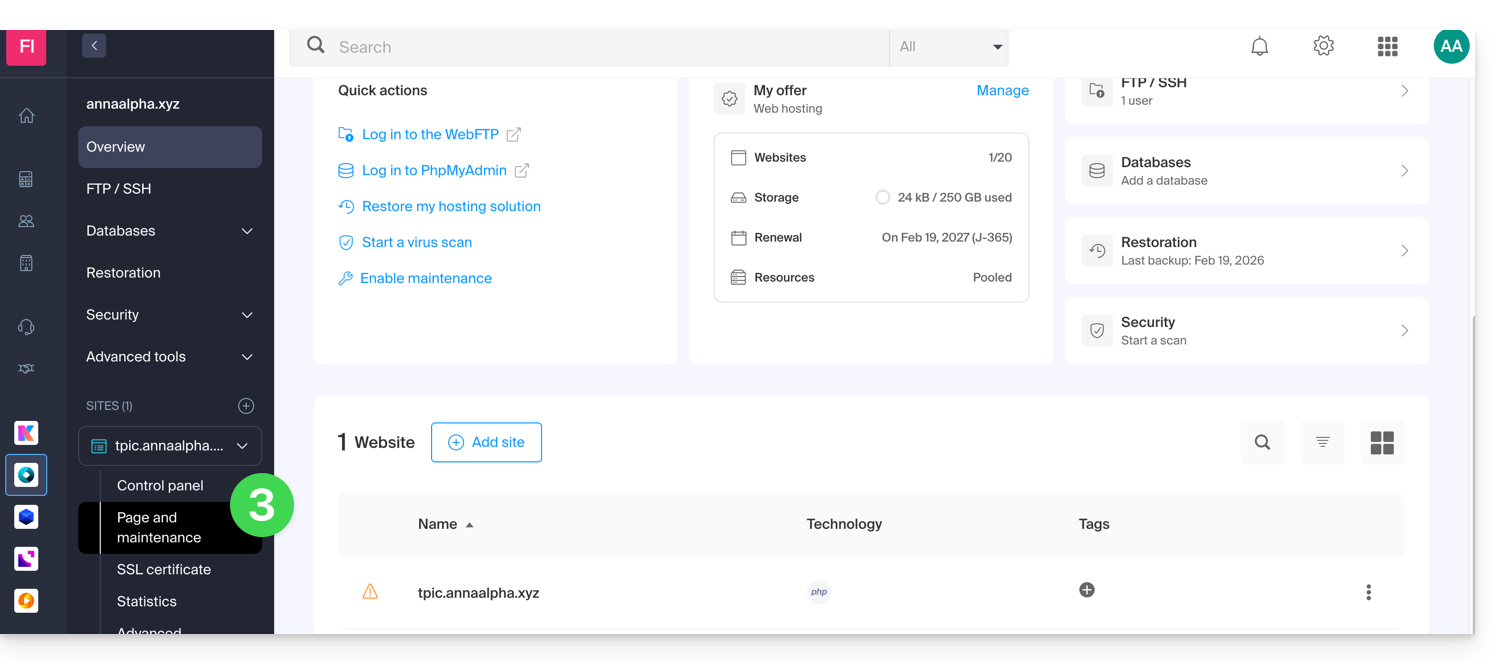
- Check or select the domain name of the website where you want to install the web page.
- Click on Create a homepage or Customize:
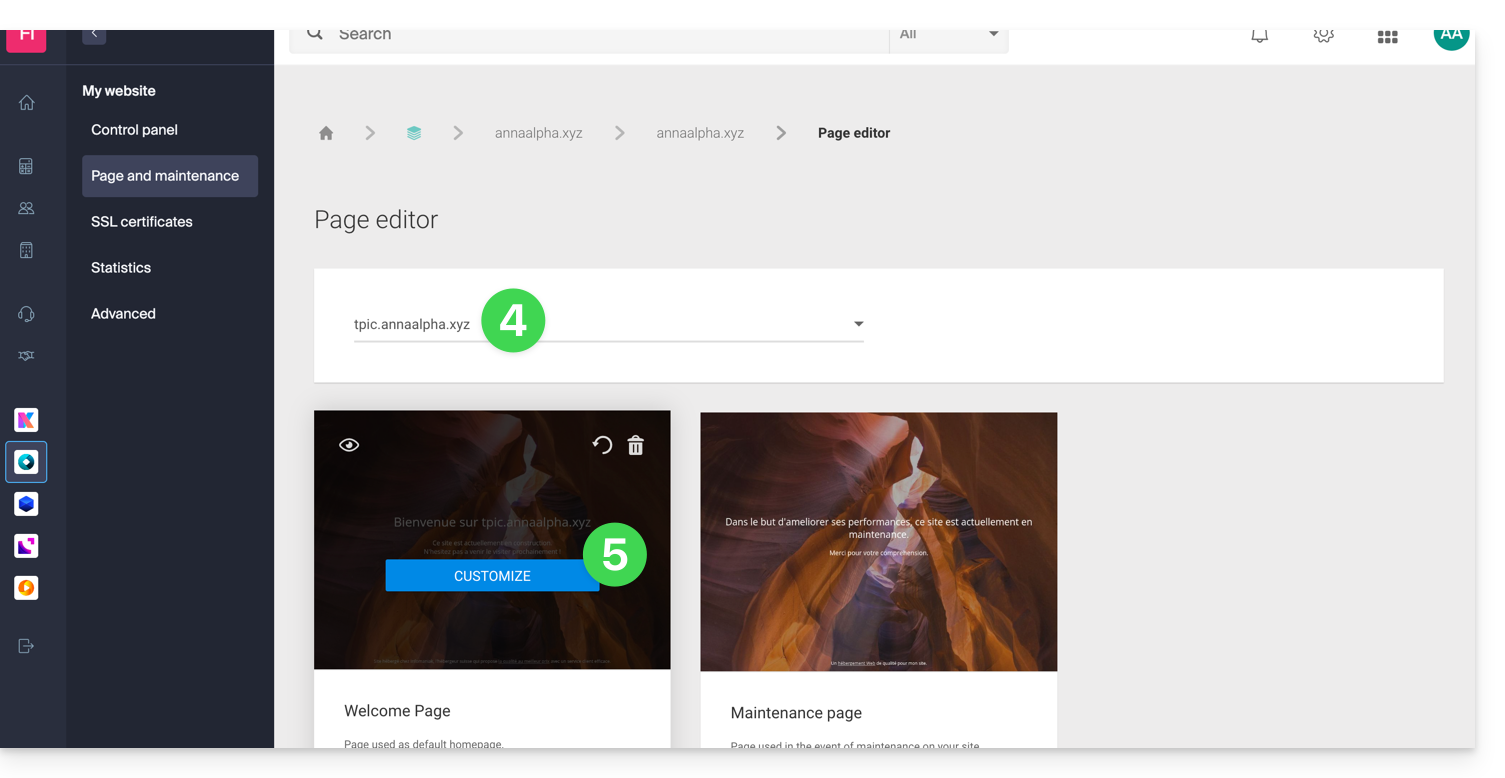
You can then choose a theme, define the text visible to your visitors, insert an image into the page body, manage the SEO content of your page, add a background image, specify social media usernames if necessary, etc., and all of this can be modified at any time.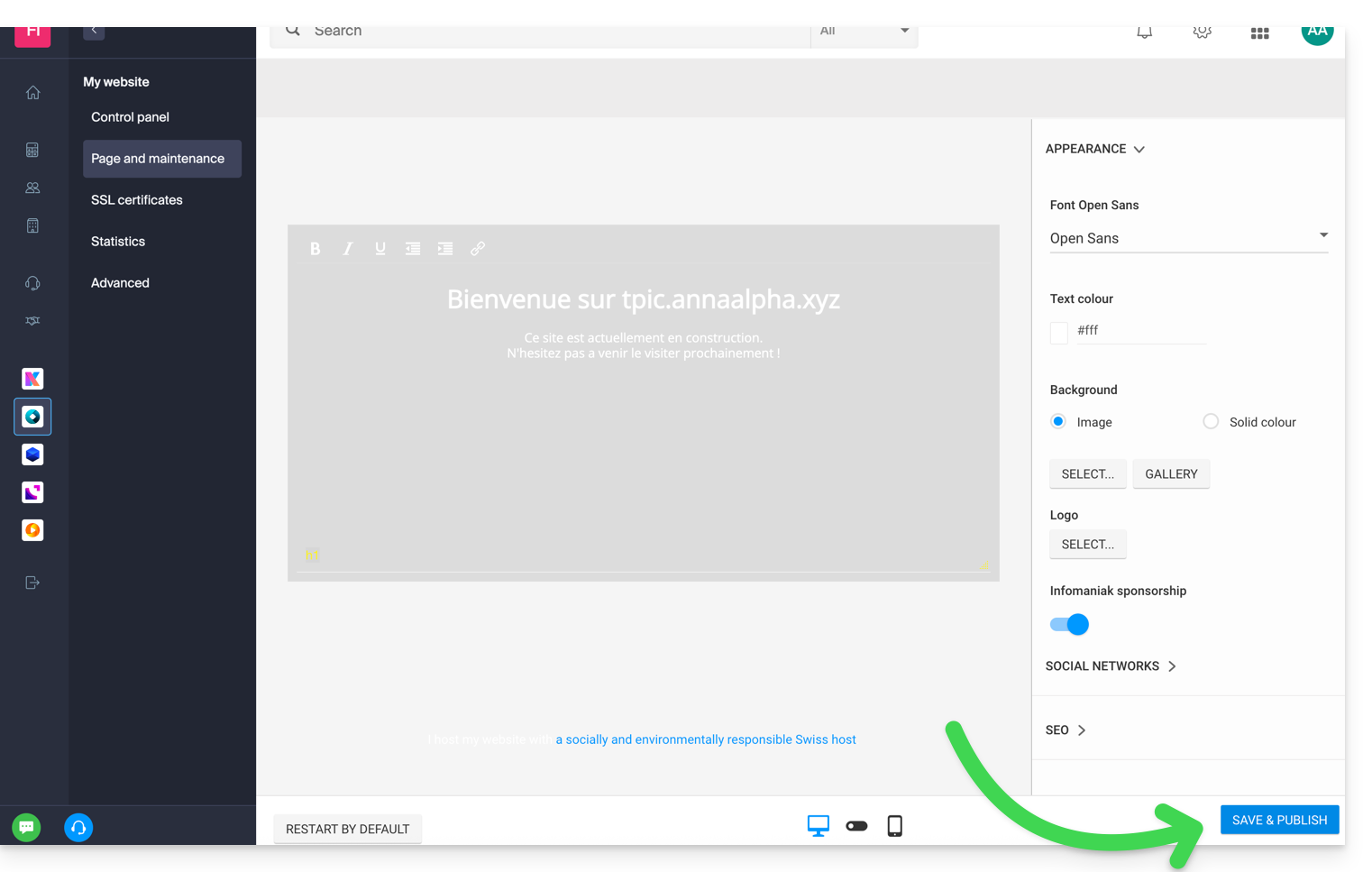
Click on the blue button at the bottom of the page to save and publish your changes.
Note that the tool can be used in conjunction with FTP management of your web hosting if necessary (❓: help).
Disable and delete the welcome page
To remove the home page that was automatically placed at the root of your website's file structure:
- Click here to access the hosting & website management section in your Infomaniak Manager (❓: help).
- Click on the name of the product in question.
- Click on Page and Maintenance in the left-hand menu.
You can delete the welcome page using the trash can icon.This will permanently delete the content of the welcome page!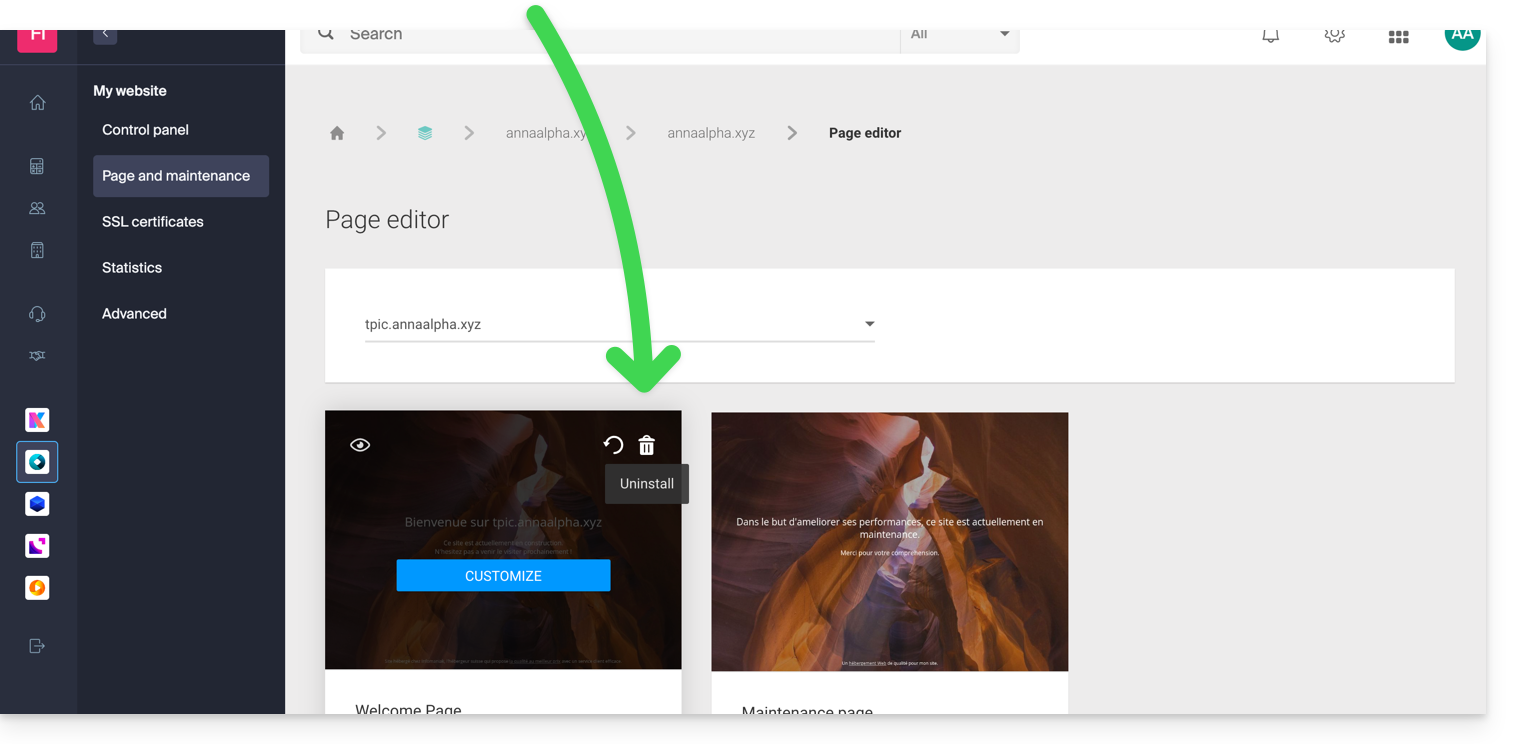
Link to this FAQ: https://faq.infomaniak.com/2115
Has this FAQ been helpful?