Knowledge base
1000 FAQs, 500 tutorials and instructional videos. Here, there are only solutions!
This guide explains how to quickly schedule an event, such as a meeting between several users, from the Infomaniak Mail web app (online service ksuite.infomaniak.com/mail) using the features of Infomaniak Calendar.
Create an event with the email recipient(s)
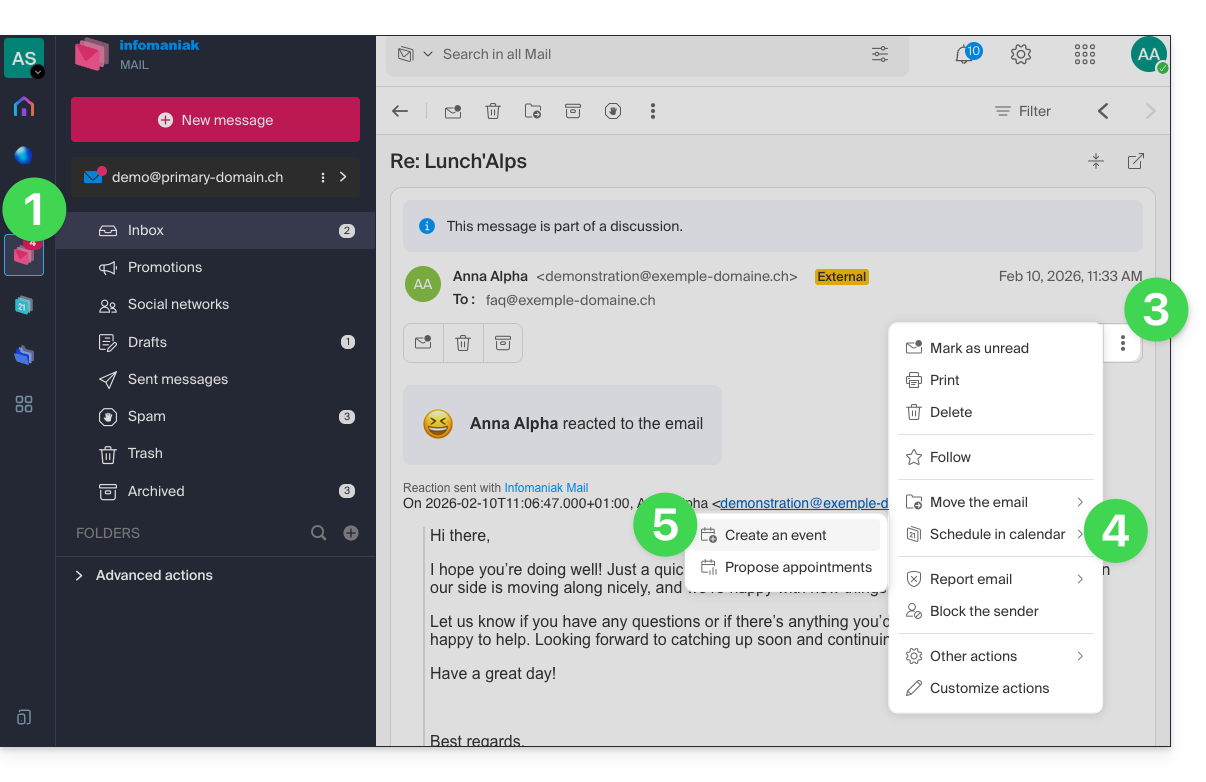
To start the scheduling assistant, which will allow you to quickly create an event with the participants (senders/recipients) of the email you are currently viewing:
- Click here to access your emails on your Infomaniak kSuite (❓: help).
- Open the message from the sender (or the conversation between multiple participants) with whom you want to organize a meeting/event.
- Click on the action menu ⋮ in the top right corner of the open message.
- Click on Schedule in Calendar.
- Click on Create an event:
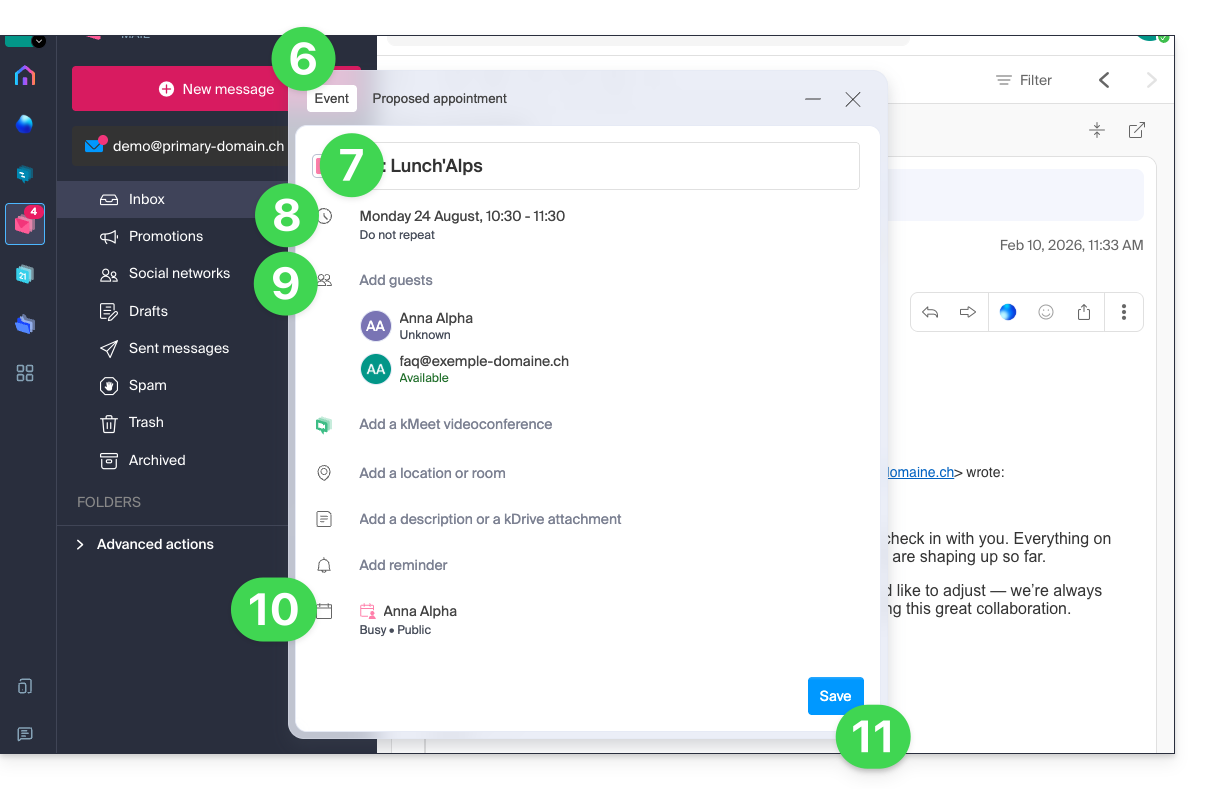
- The assistant for the Calendar app by Infomaniak appears.
- The meeting title is automatically generated from the email subject, but it can be modified.
- The duration of the event (and its time slot within the day) is automatically generated to be as close as possible to the current time, but it can be modified. You can also add a room below, if needed.
- Participants in the discussion are automatically added based on their email address.
- Check or change the calendar used.
- Save the information to create the event and the invitations:
Suggest time slots for a meeting
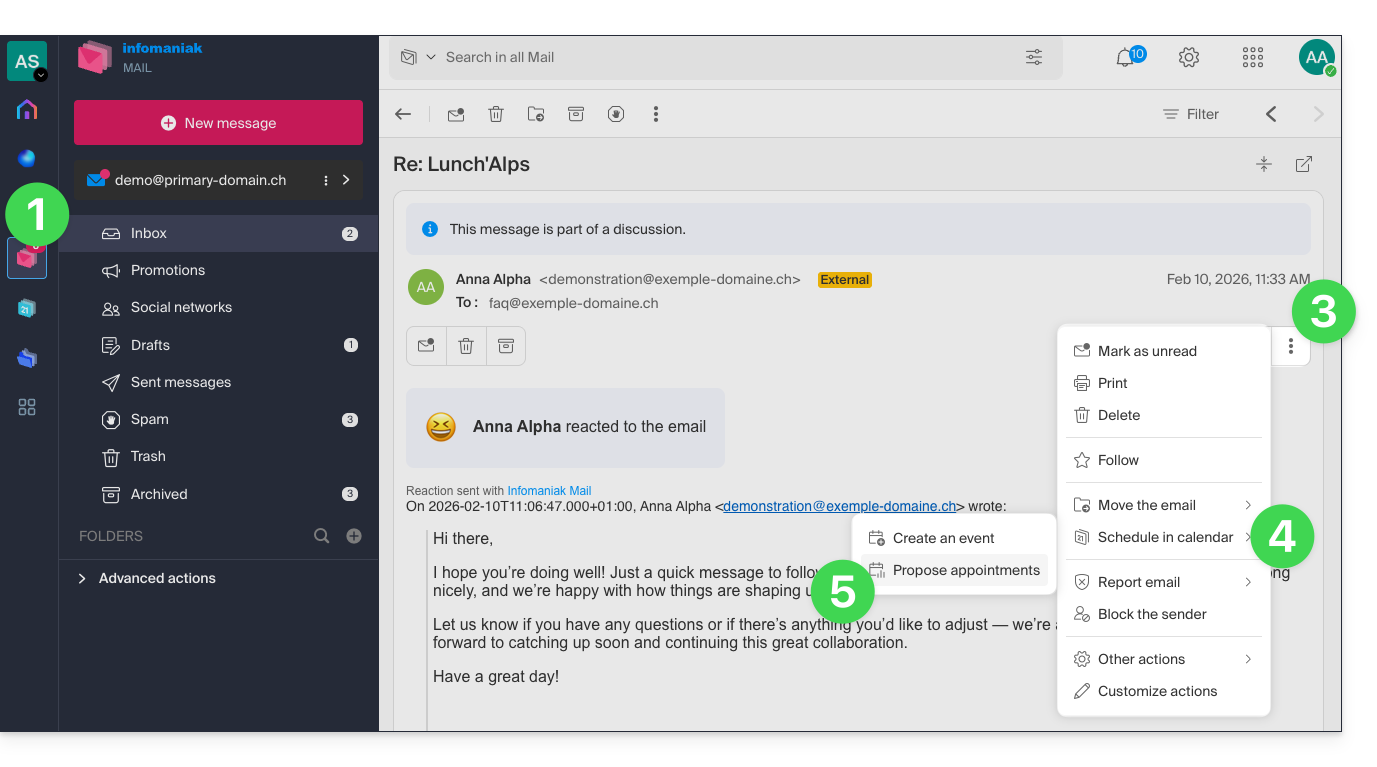
To suggest a new shared event with the participants (senders/recipients) of the email you are currently viewing, use a meeting request:
- Click here to access your emails on your Infomaniak kSuite (❓: help).
- Open the message from the sender (or the conversation between multiple participants) with whom you want to organize a meeting/event.
- Click on the action menu ⋮ in the top right corner of the open message.
- Click on Schedule in Calendar.
- Click on Suggest meeting time:
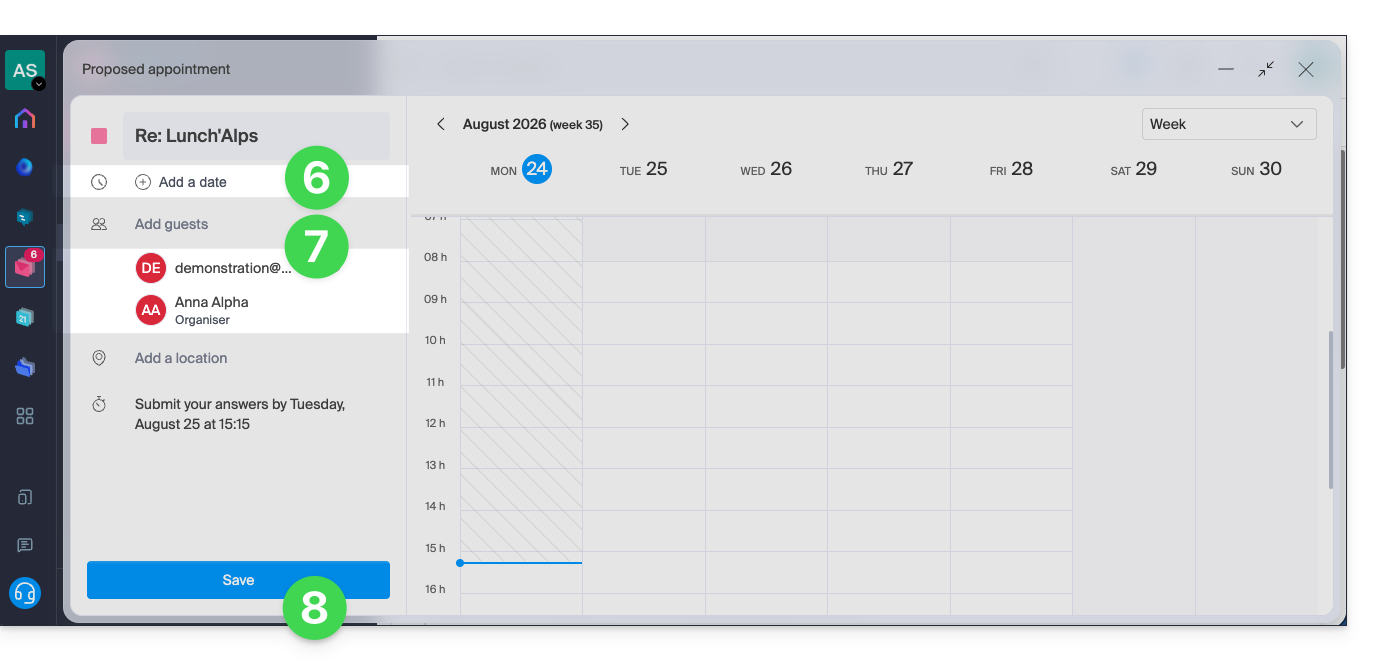
- You will then need to specify suggested dates/times to arrange a meeting with your contacts.
- Email contacts are automatically added.
- Don't forget to save:
Refer to this other guide to learn more about this feature.
Link to this FAQ: https://faq.infomaniak.com/2572
Has this FAQ been helpful?
This guide explains how to automatically receive a summary of your activities recorded in Infomaniak Calendar in your Mail inbox and/or kChat every morning.
Introduction
- This feature is disabled by default on all calendars.
- This summary is sent to your email address, which is the one you use to log in to your Infomaniak account (❓: help).
- It contains a list of all the day's events with their most important information (possible kMeet link, location, times, etc.).
- You can even share this daily schedule with your team or assistant so they know when it's best to contact you, including by creating an rule for automatic forwarding based on the criteria corresponding to the email received.
Obtain a schedule automatically and daily
Prerequisites
- To send a summary on kChat, you must have kChat within your Organization.
Start your day by viewing a message in your Infomaniak inbox containing the schedule based on your Infomaniak calendar:
- Click here to access the Settings Calendar in your Infomaniak kSuite (❓: help).
- Check or select the relevant Organization from the dropdown menu in the left-hand menu.
- If you change it, return to the settings by clicking on the daily reminder item to access the settings:
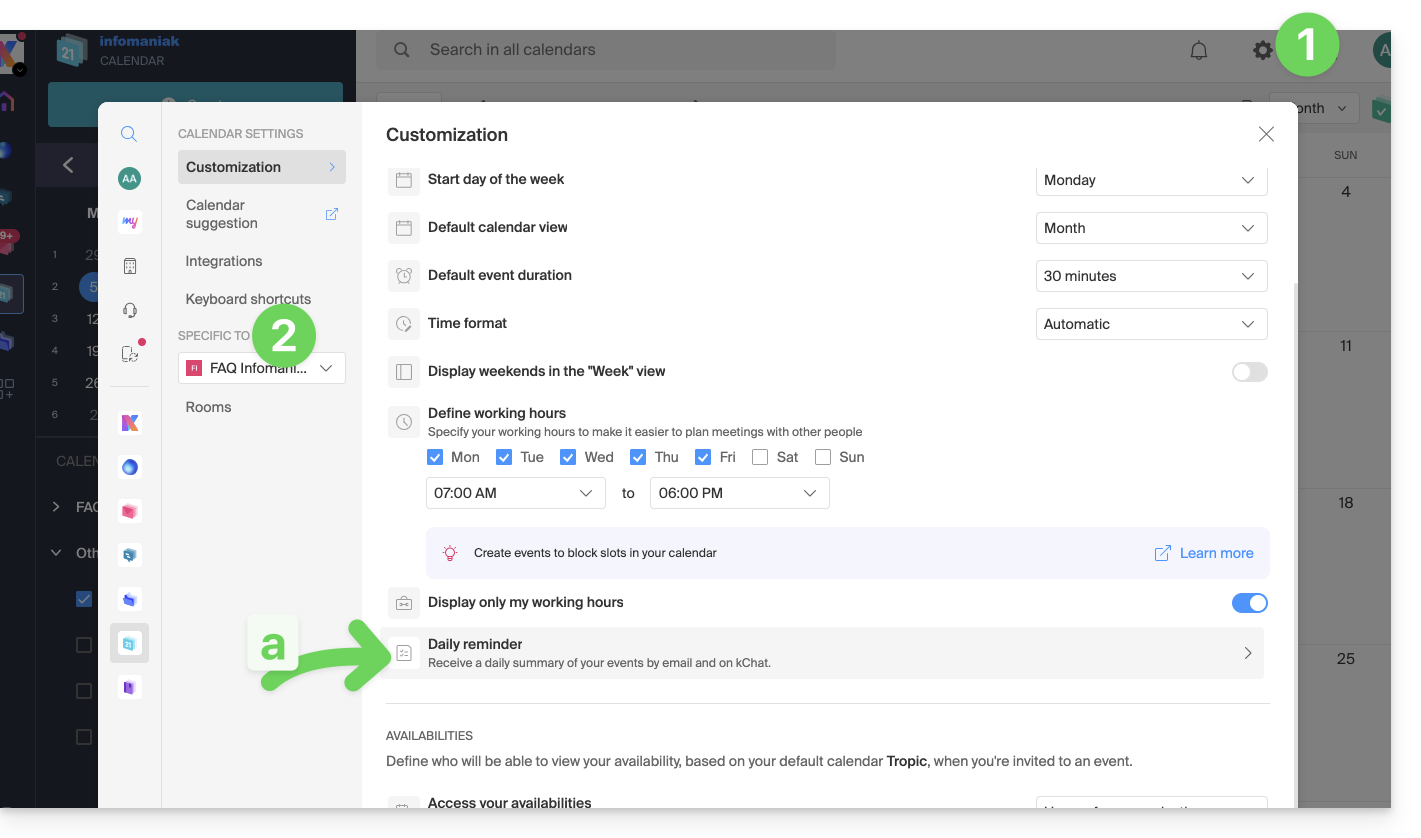
- If you change it, return to the settings by clicking on the daily reminder item to access the settings:
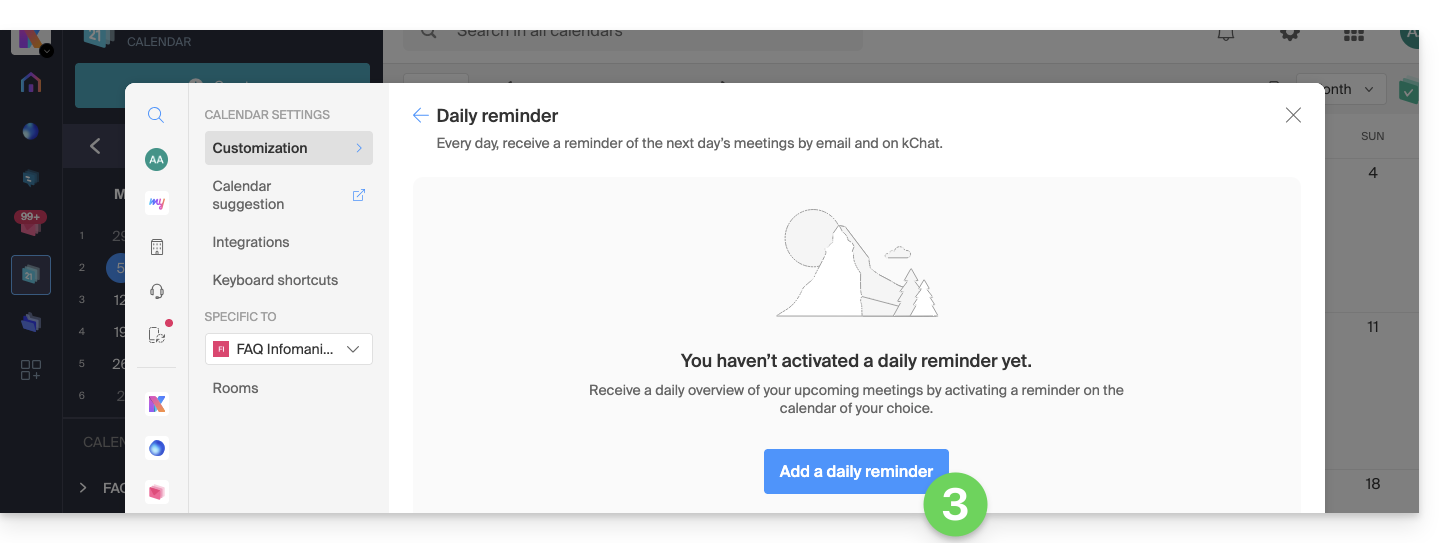
- Click the button to Add a daily reminder and configure it:
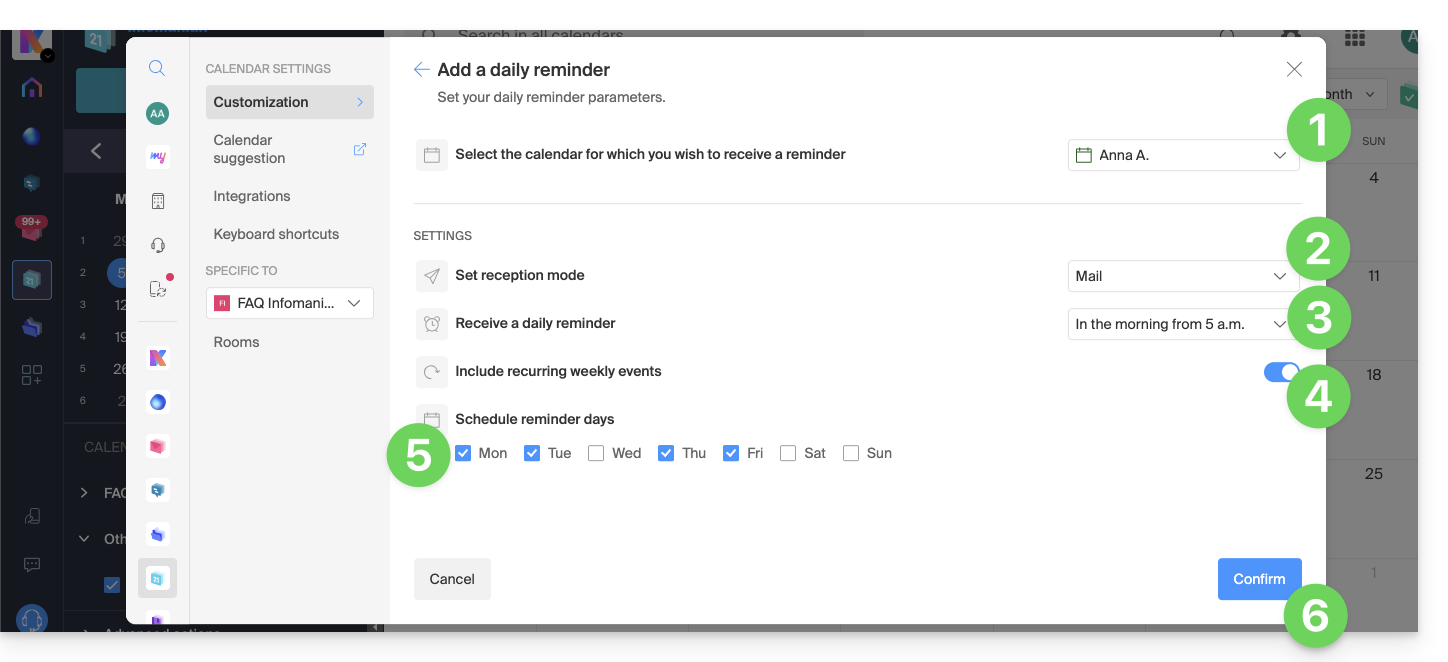
To customize your reminder according to your needs:
- Select the calendar in question.
- Choose the notification method (Mail, kChat, or both).
- Choose when you want to receive the reminder (the evening before or early on the day itself).
- Choose whether or not to include recurring events (❓: help).
- Choose the days during which the daily reminder will be sent.
- Confirm your choices at the bottom of the page:
Disable the daily reminder
To stop receiving the daily summary by email or via Euria on kChat:
- Click on the link located at the very bottom of the notification you received:
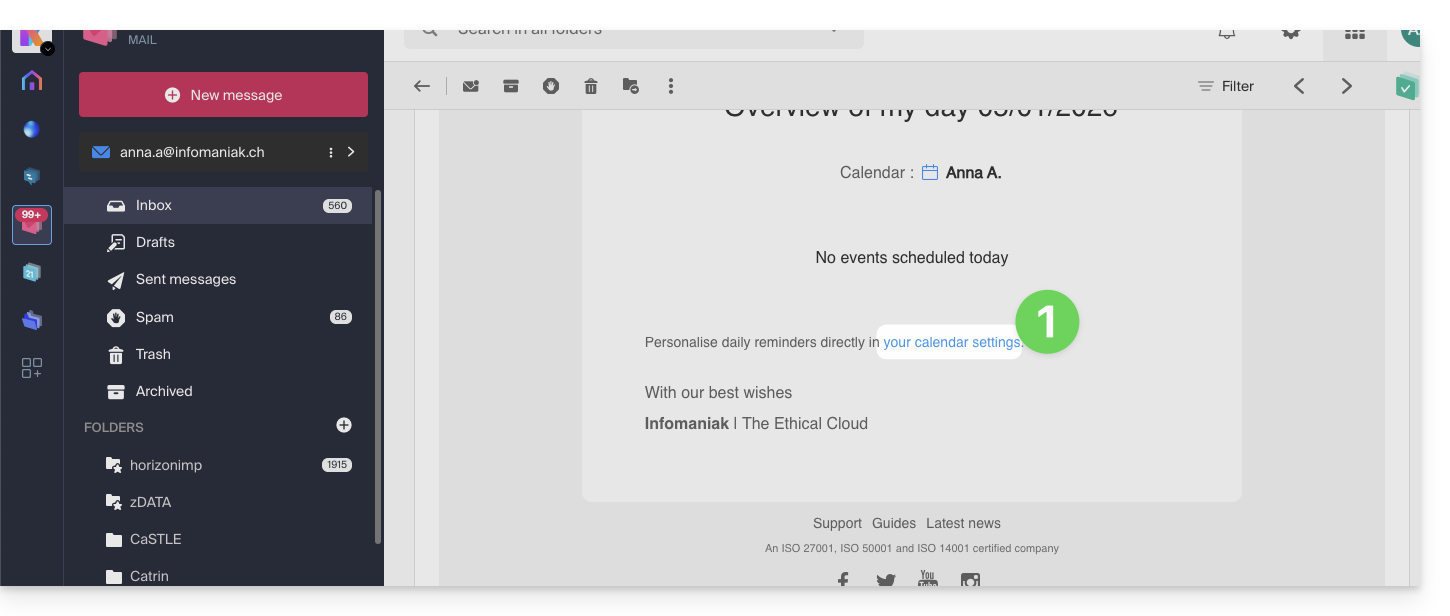
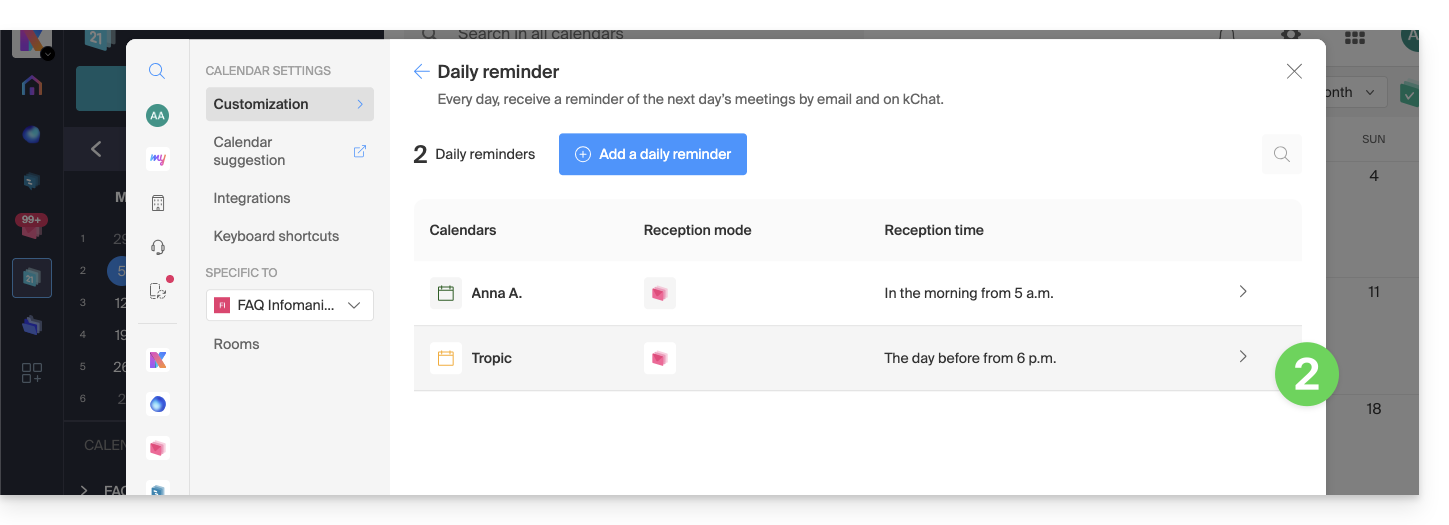
- Click on the reminder to delete it:
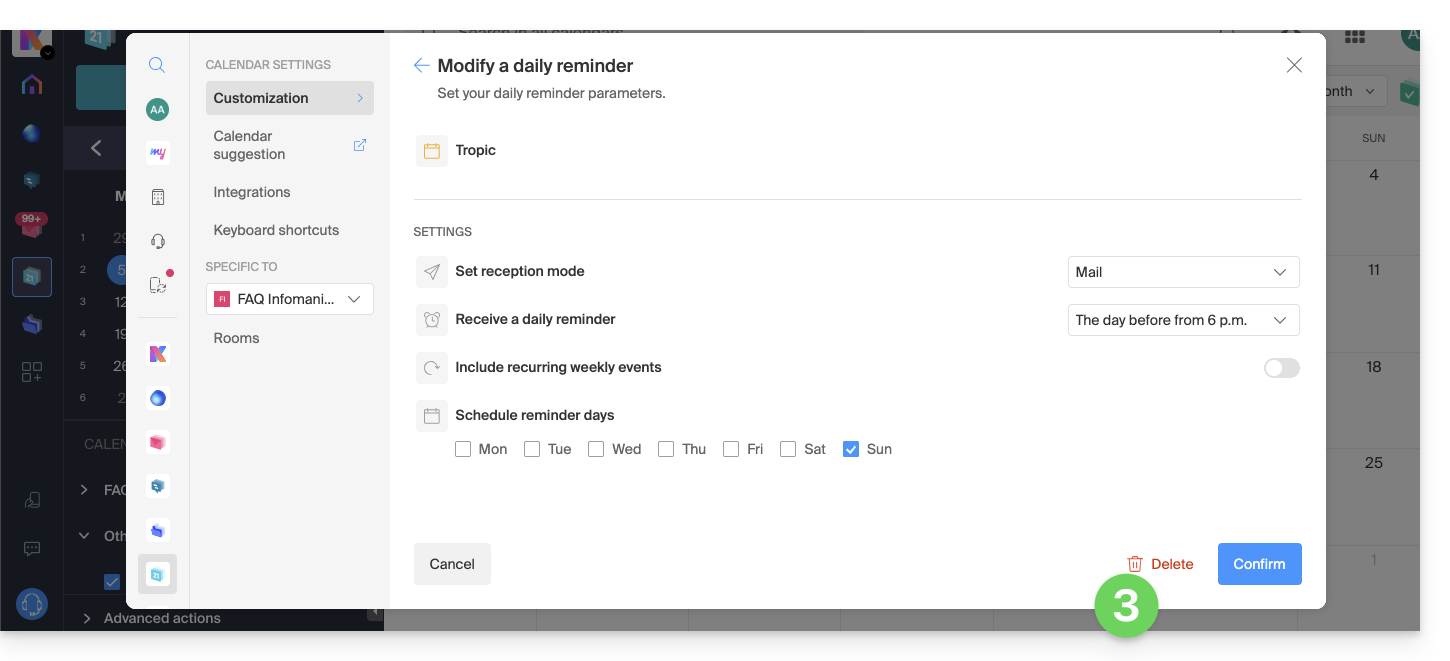
- Delete the reminder from the edit page:
Link to this FAQ: https://faq.infomaniak.com/1622
Has this FAQ been helpful?
This guide explains how to synchronise tasks with kSync, the Infomaniak mobile app that connects your calendars and contacts stored with Infomaniak with the data on your Android devices.
Prerequisites
- Install and download the free jtx Board application.
Synchronize tasks
To synchronize data between Infomaniak Calendar tasks and your Android devices, jtx Board will use kSync to regularly synchronize tasks based on one or more Infomaniak calendars.
- Here is a task present in Infomaniak:

- After synchronization, it appears on jtx Board:

- Example of task validation when it is executed, then adding a second task from the application:

- Result on Infomaniak:

To go further, it may be necessary to purchase the Pro version of the jtx Board application.
Recommended settings
To improve the readability of your tasks in the application, it is recommended to disable these 2 settings in the jtx Board application settings…
… and then remove "local" from the list of locations, so that you only have the option to save to your synchronized account(s).
Link to this FAQ: https://faq.infomaniak.com/2301
Has this FAQ been helpful?
This guide explains how to display a countdown timer before the next live broadcast or during a scheduled interruption on Infomaniak's video streaming service.
Accessing the scheduling calendar
To do this:
- Click here to access the management of your product on the Infomaniak Manager (need help?).
- Click directly on the name assigned to the product in question:
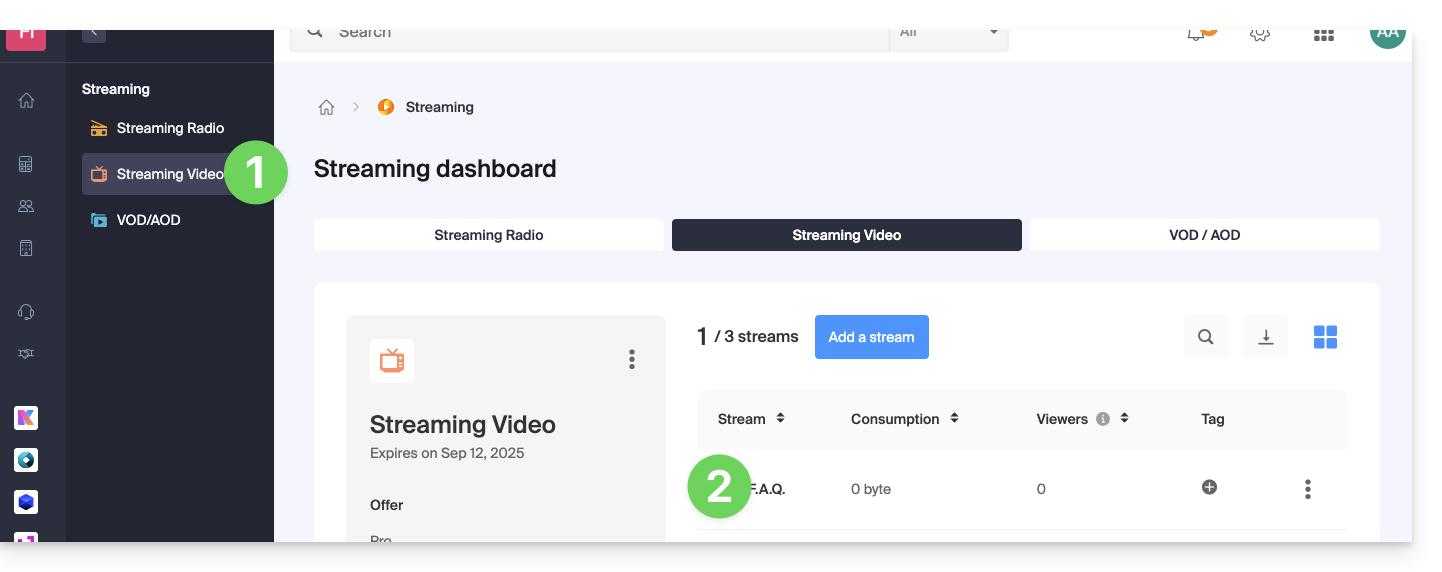
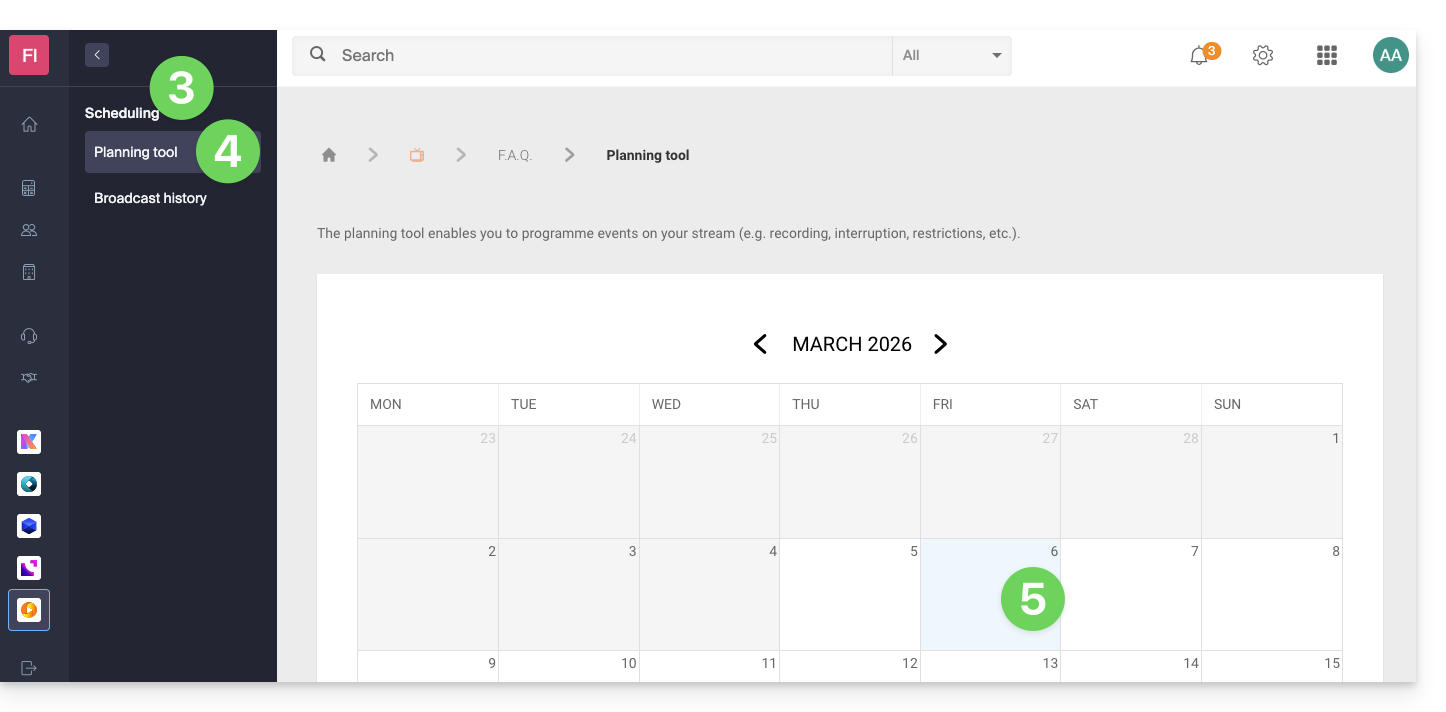
- Click on Programming in the left-hand menu.
- Click on Scheduling Tool in the left-hand menu.
- Click on the desired date:
Interrupt function on the schedule
For example:
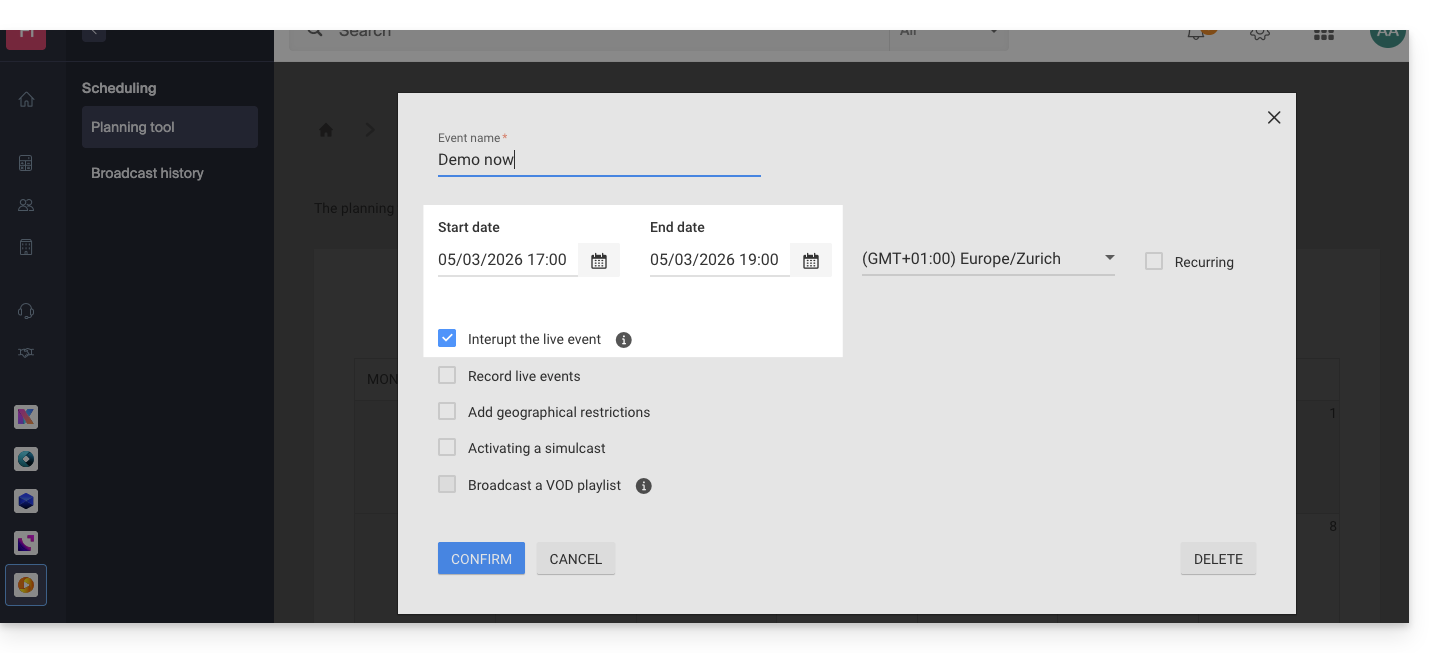
- This setting in the calendar allows you to interrupt a live broadcast…
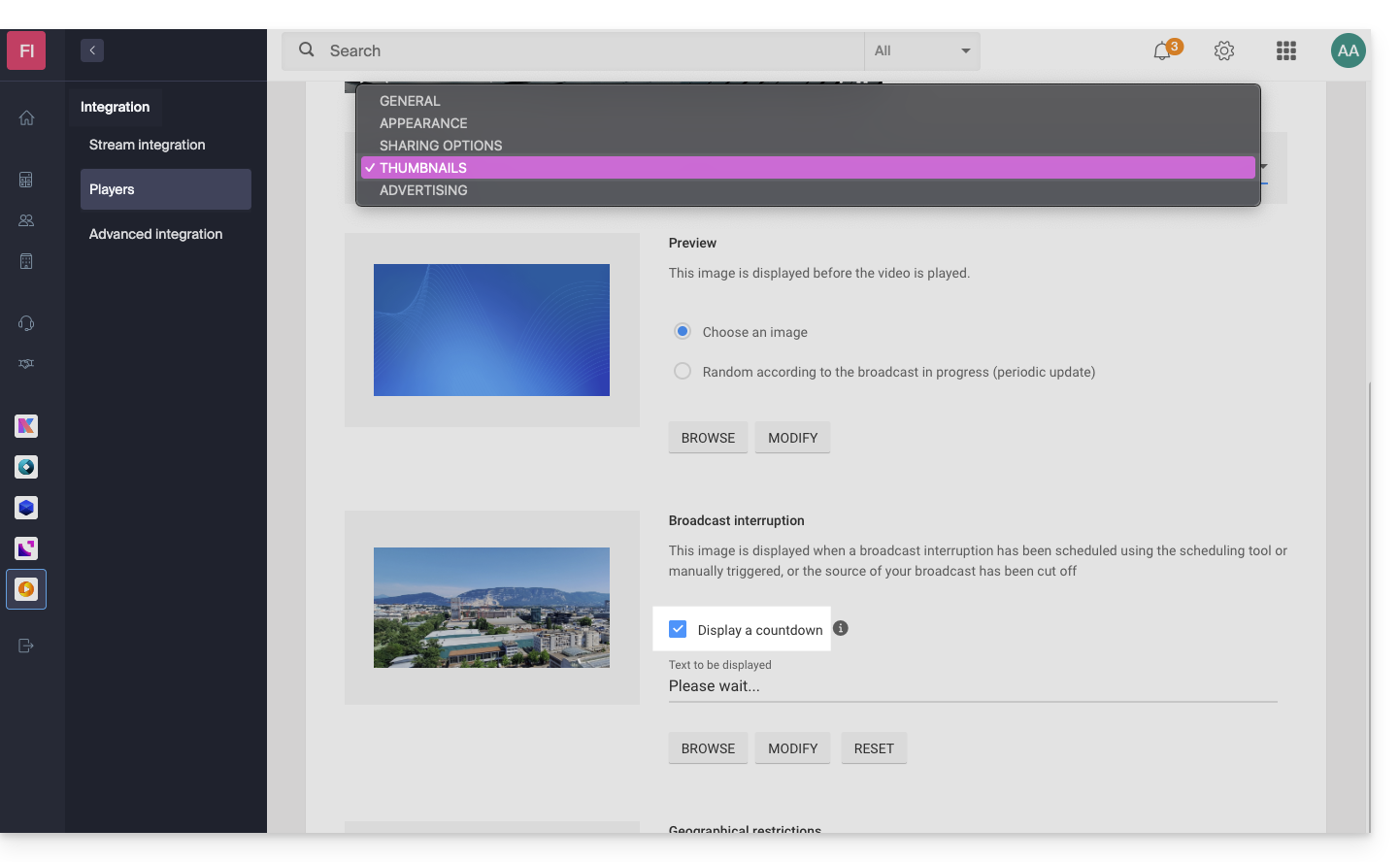
- … and this setting allows you to choose the image (thumbnail) and text for the video player…
- … will display this result from 5 PM onwards, with a 2-hour countdown timer visible on the player for your TV stream:

Once programmed, the countdown timer works in conjunction with stream interruptions if you set any (or several in sequence, thus managing the overlap). Please note: it takes 2 minutes for a scheduled interruption to be reflected in the countdown.
Link to this FAQ: https://faq.infomaniak.com/1948
Has this FAQ been helpful?
Infomaniak offers you the possibility of replacing Skype with its own solutions, whether for individual calls, remote meetings, or group discussions.
kMeet, the video conferencing solution for individuals & businesses
Despite its initial success, the Skype communication platform has seen its usage decline with the emergence of solutions better integrated into new collaborative practices.
One of the easiest ways to replace Skype is to adopt kMeet:
- Unlimited audio and video calls
- Access without registration
- Compatibility with Web, mobile, and desktop
- Integrated chat & reactions (emoticons, sounds)
- Screen sharing with drawing and remote control tools
- Sub-commission rooms (breakout rooms)
- Integration with the calendar (create a video call link)
- Integration with kDrive for storing meeting recordings
- Integration with kChat for video calls
- Privacy-focused (no advertising, hosting in Switzerland)
- Security with AES-256 encryption
- Eco-friendly (renewable energy, CO₂ compensation)
Replace Skype with kMeet
The kMeet alternative to replace Skype can be implemented in several ways:
To start a private conversation between several people on the Internet, simply have one of them go to kMeet and then share the meeting link with the others. Here is the step-by-step procedure:
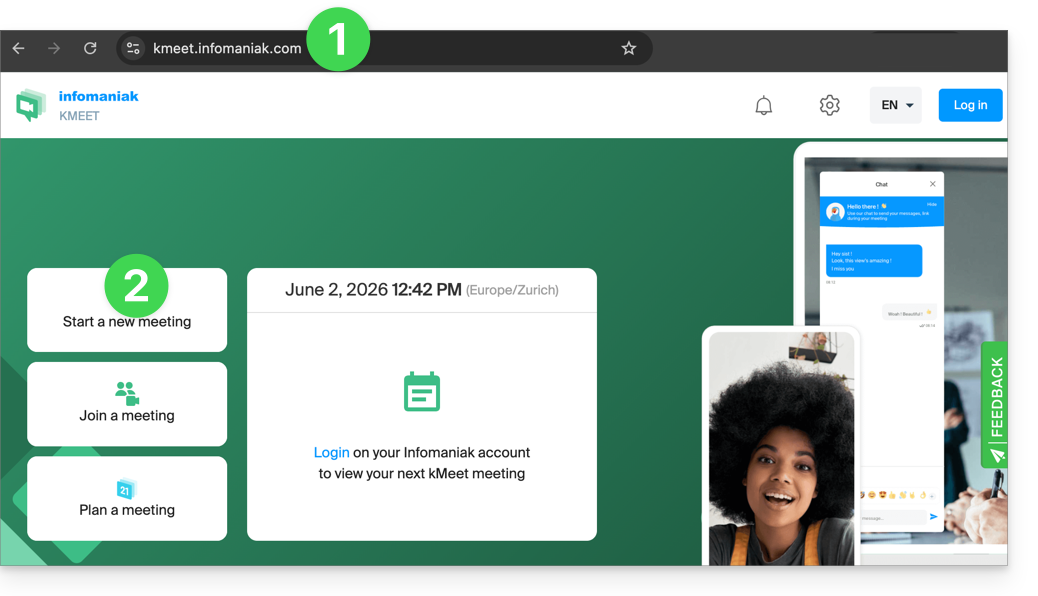
- Enter kmeet.infomaniak.com in a browser such as Brave, Chrome, Edge, Firefox, Opera, Safari….
- Start a meeting (❓: help):
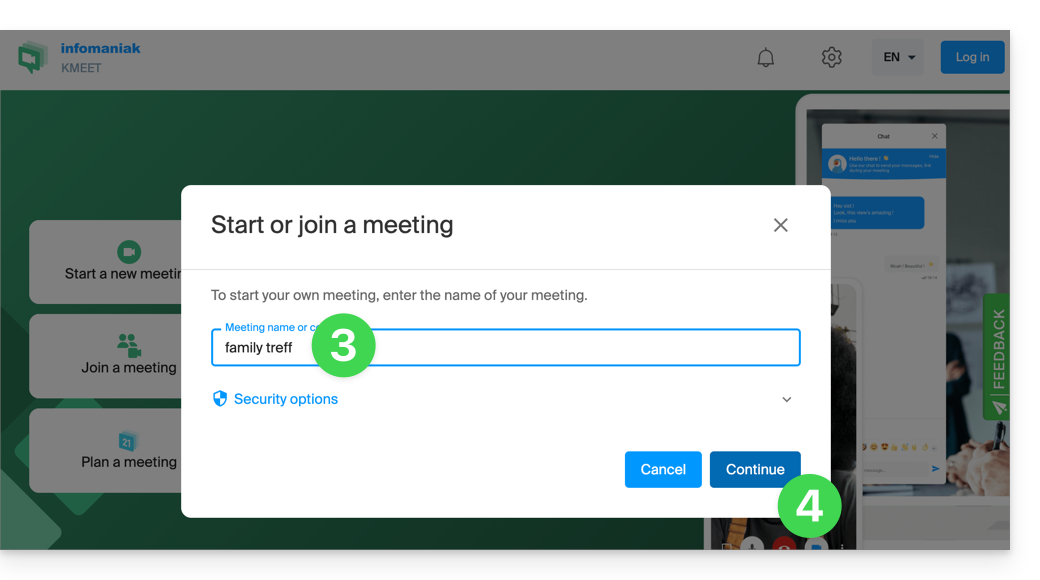
- Enter a name for the meeting, which will indicate to future participants the subject of the discussion they are joining.
- Click the button to Continue:
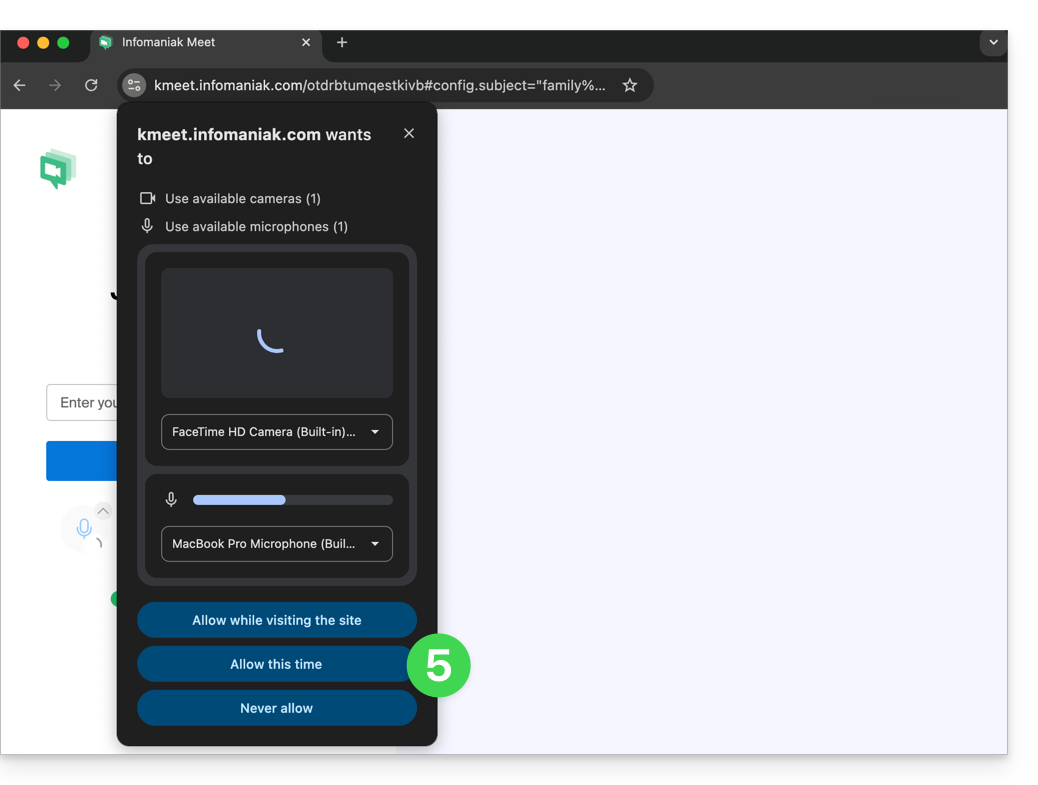
- Grant the necessary permissions to kMeet:
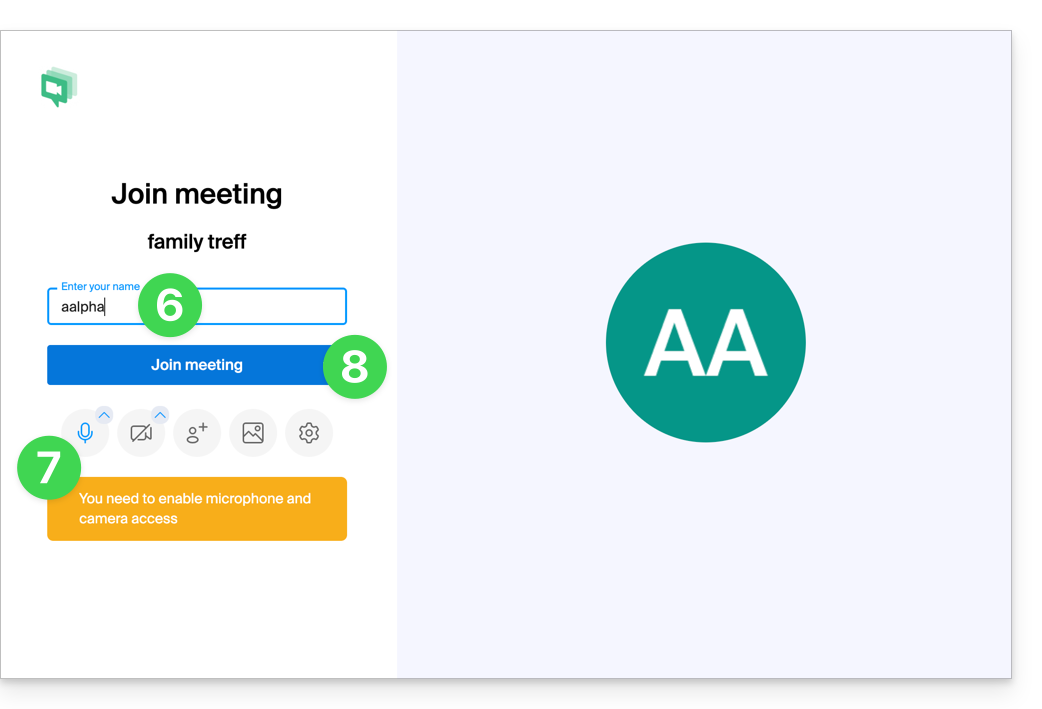
- Enter your name, which will be visible to other participants.
- Enable or disable any communication methods if they should not be used at this time.
- Click the button to join the virtual meeting room (as the first participant, since no one else has been invited yet):
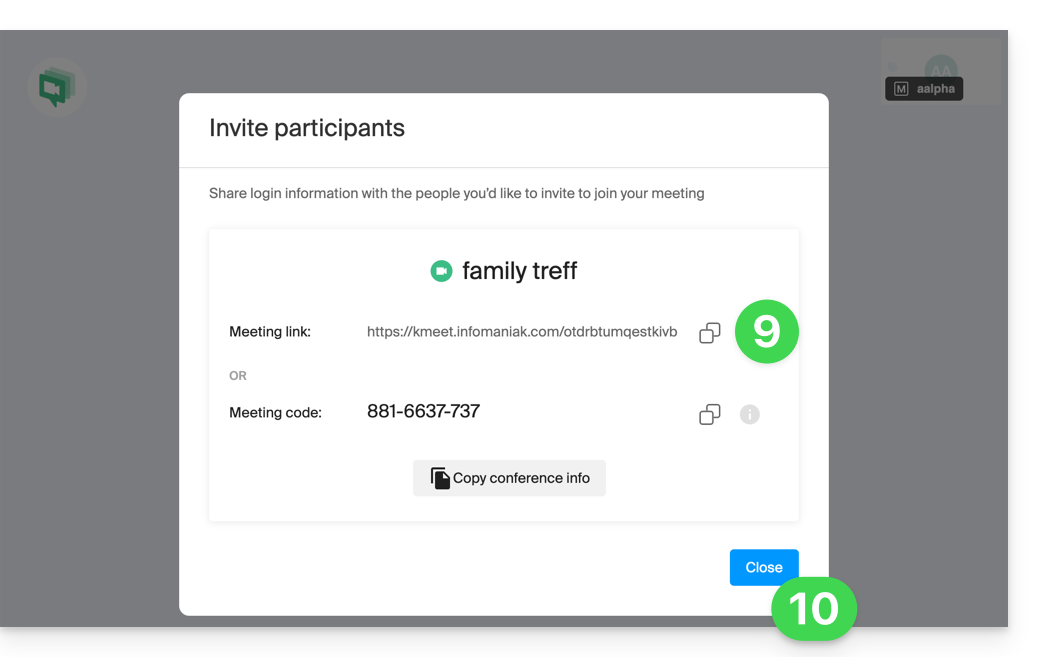
- Done, the room has been created, and you can now copy the information about this session and send it to the contacts so they can join you (they will only need to click the link you send them).
- Close the information window so that you can all chat together:
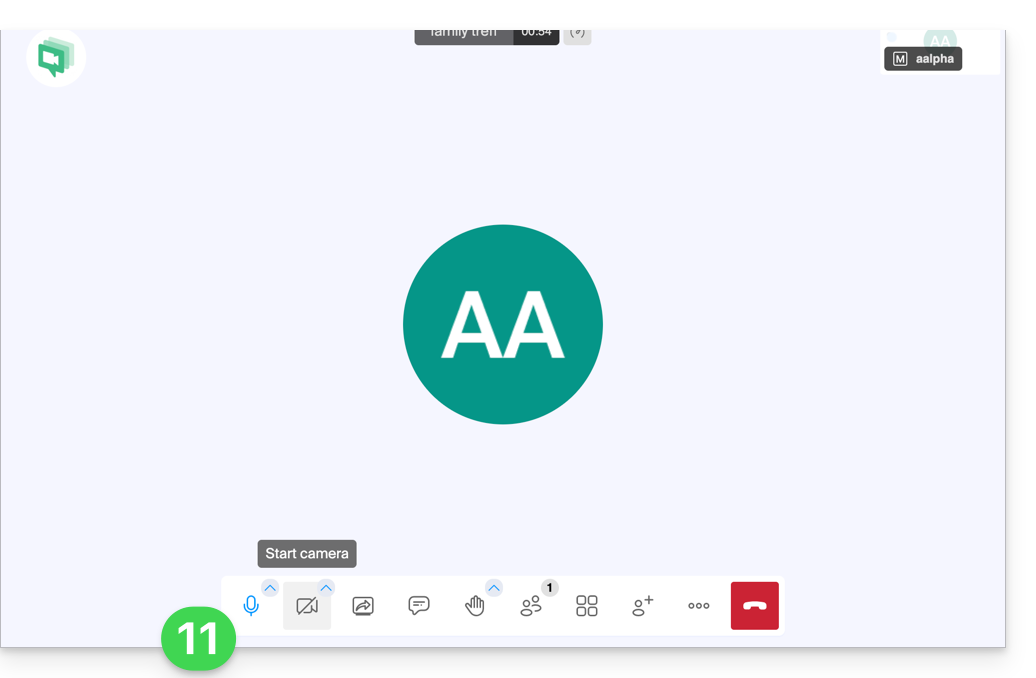
- The toolbar at the bottom of the screen allows you to enable or disable the microphone, camera, etc.:
To discover all the possibilities offered by kMeet, consult this other guide.
2. Scheduling and invitations with my kSuite
To work efficiently, kMeet can be directly linked to your professional calendar. This means that every time you create an event in your calendar…
- … a video conferencing link is automatically generated…
- … participants receive the invitation by email with all the information…
- … and on the day, they can join the meeting with a single click, without registration or the need to install any software.
Benefit: you centralize meeting management, reduce forgotten appointments, and simplify organization, all from a single interface.
To implement this solution:
- Sign up for free to my kSuite to get a mail address, for example
anna.alpha@ikmail.com, and especially access to Infomaniak services. - Connect to the calendar at ksuite.infomaniak.com/calendar, then create an event on the day of your choice.
- Add participants to the event, even if they are not Infomaniak customers.
- Click the green button to automatically generate a kMeet link that will be added to the event.
- Click the button to save your event:
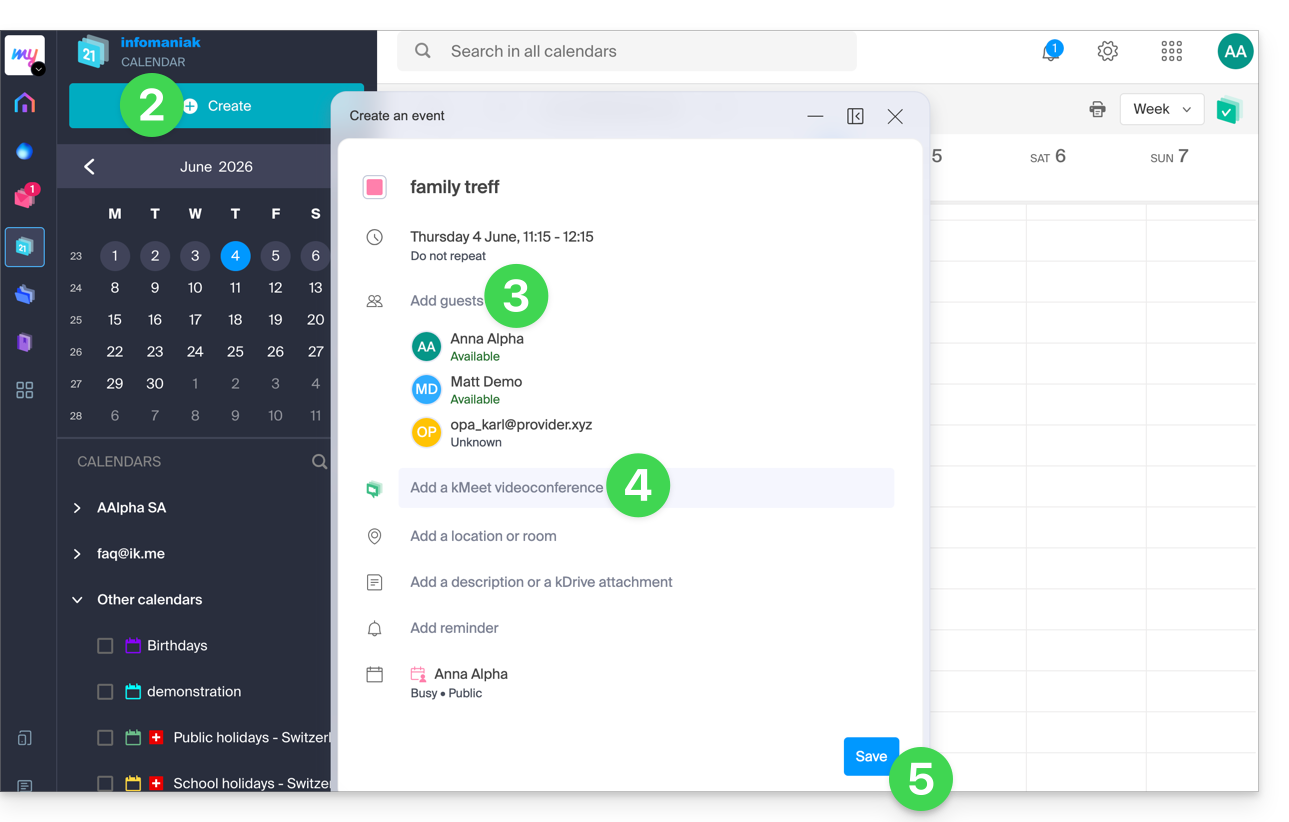
- Answer YES to the prompt to send notifications to the guests.
- Invitations will then be automatically sent to participants via email, containing the clickable kMeet link that allows them to join the online discussion when the time comes:
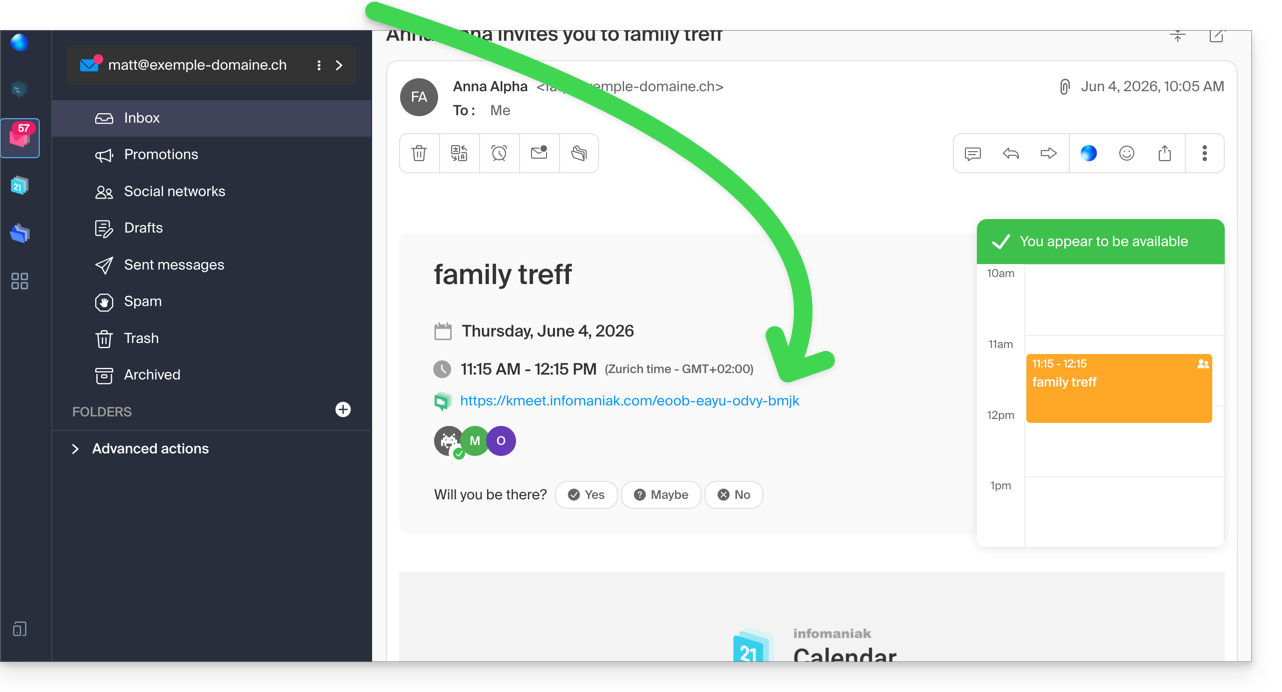
- The kMeet meeting link is also visible directly on the event in the calendar.
3. Call your contact as you would with Skype
To start a conversation at any time with a contact that you have previously saved in your address book, both of you need to have kChat, which is available within the kSuite from Infomaniak. To set up this solution, which can also be extended to an entire group of contacts:
- Register for kSuite to gain access to the corresponding Infomaniak services.
- Configure users (these can even be external) in kSuite.
- Install the kChat app or go to the URL https://ksuite.infomaniak.com/kchat
- A user can then be called via kChat, which will make the recipient's device ring:
- = browser if the kChat URL is open in it, or computer/mobile device if the kChat app is installed.
- Refer to this other guide to learn more about video conference calls on kChat.
- Your contact can then respond; the call will be made using kMeet technology within kChat or on the kMeet app if it is installed.
Link to this FAQ: https://faq.infomaniak.com/2890
Has this FAQ been helpful?
This guide offers solutions if you are no longer able to send or receive emails, or if you are experiencing synchronization errors with your contacts and calendars.
Remove an account in Outlook
Warning: Only follow these instructions if the account is configured using IMAP.
- Open Outlook.
- Click on File from the ribbon.
- Go to Account Settings.
- Select the email address to delete and click Delete.
- Refer to this other guide to properly reconfigure the email address.
Delete contacts & calendars (CalDav Sync)
- Open Outlook
- Click on CalDav Synchronizer from the ribbon.
- Go to Synchronization Profiles.
- Select the profile to remove and click on the red Delete cross.
- Refer to this other guide to properly reconfigure synchronization.
If the problem persists...
There is no need to contact Infomaniak Support if your email address works correctly outside of the application. The most common error concerns using an incorrect password.
If your Outlook is no longer working after a change of email password, please refer to this other guide; otherwise, follow the solutions provided in this other guide regarding email in general.
Link to this FAQ: https://faq.infomaniak.com/2443
Has this FAQ been helpful?
This guide explains how to use zones in the pricing menu (as part of the Infomaniak ticketing system).
Introduction
- Each event can contain one or more zones, each with its own pricing.
- This allows you to group prices within each zone and manage each zone independently:
- Each zone can contain prices, each with its own ticket quantity.
- Each zone can be assigned to the seating plan or not.
- Each zone and each price can have its own online visibility.

Access the pricing menu
To do this:
- Click here to access the management of your product in the Infomaniak Manager (need help?).
- Click directly on the name assigned to the ticketing system for the event.
- Click on Scheduling in the left-hand menu.
- Click on Events in the left-hand menu.
- Click on the event in question.
- Click on the Pricing tab.
- If the event has multiple dates, this section is replaced by “Dates”, which opens a calendar.
- Click on the date in the calendar to access the pricing…
- Enable zone management.This option will be automatically enabled if a floor plan is assigned to the event.:

This menu is also available when creating an event.
Adding a zone and a price, managing the settings for each zone
Here are the important buttons for managing your zones and rates:
Link to this FAQ: https://faq.infomaniak.com/2777
Has this FAQ been helpful?
This guide explains the procedure for creating free entries for your guests (as part of the Infomaniak ticketing system).
Preamble
- The simplest way to create free entries for your guests is to create a free rate, which is not available online, but only from the ticket office.
- This allows you to generate completely free tickets for your shows.
Setting up the invitation rate
In order to create invitations, you must first include an invitation rate in the areas where you want to be able to create this type of entry.
- Click here to access the management of your product on the Infomaniak Manager (need help?).
- Click directly on the name assigned to the ticketing concerned by the event.
- Click on Programming in the left sidebar.
- Click on Events in the left sidebar.
- Click on the event concerned.
- Click on the Pricing tab.
- If the event has multiple dates, this section is replaced by “Dates” which opens a calendar.
- Click on the calendar date to join the pricing…
- Click on Add a rate:

- Add a free rate with the desired name:

- Once the rate is created, click on the visibility option and choose Hidden from customer or Hidden from customer and reseller:

Create the invitation ticket
To create the invitation ticket, go to the ticket office and proceed as a normal sale with the invitation rate:
Link to this FAQ: https://faq.infomaniak.com/2801
Has this FAQ been helpful?
This guide explains how to manage application passwords from the Infomaniak Manager.
Introduction
An application password is not an device password - it will not allow you to synchronize an email address.
- Application passwords allow you to establish an authenticated connection between certain tools and services, even if two-factor authentication (2FA) is enabled.
- To synchronize, for example, your Infomaniak account's contacts and calendars with a mobile device or email software/client, follow the steps in the guide below to generate a new password specific to this application.
- It is possible to generate multiple specific passwords (e.g. 1 for contacts and 1 for calendars) or to use the same password for synchronizing both services.
Create an application password
To do this:
- Click here to access the application password management section in the Infomaniak Manager.
- Click on Generate an application password:
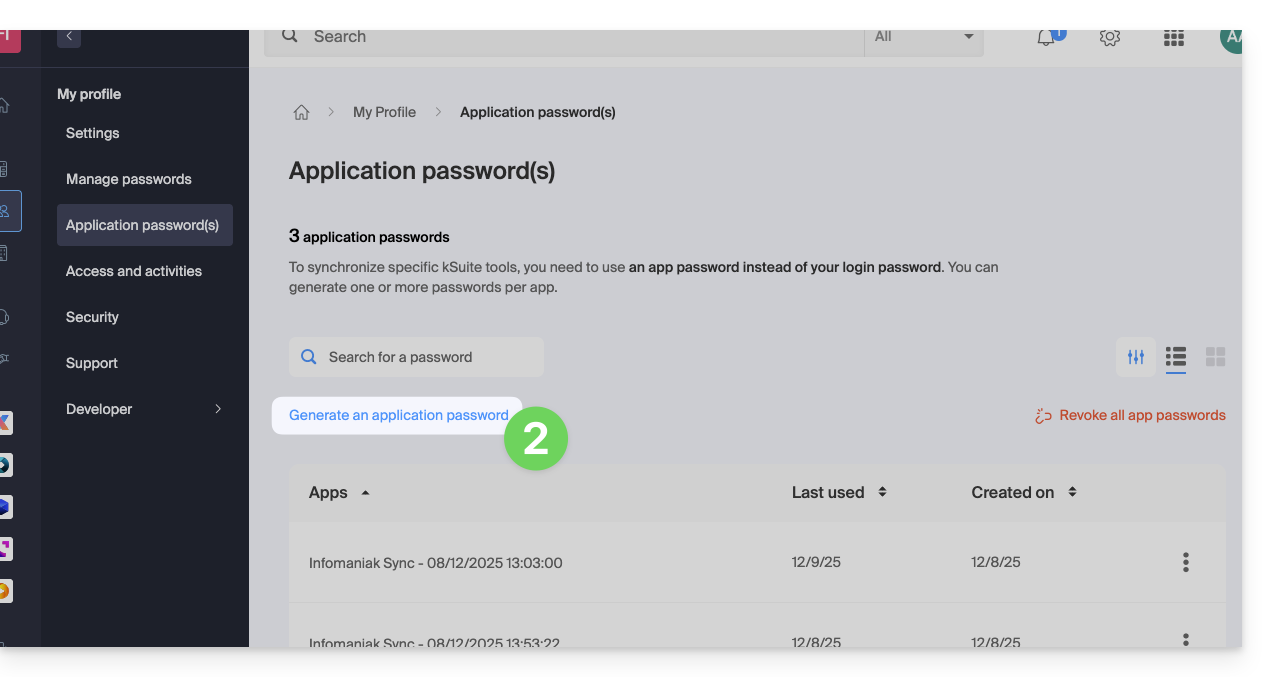
- Enter a name for the application password in the dialog box, then click on Generate an application password:
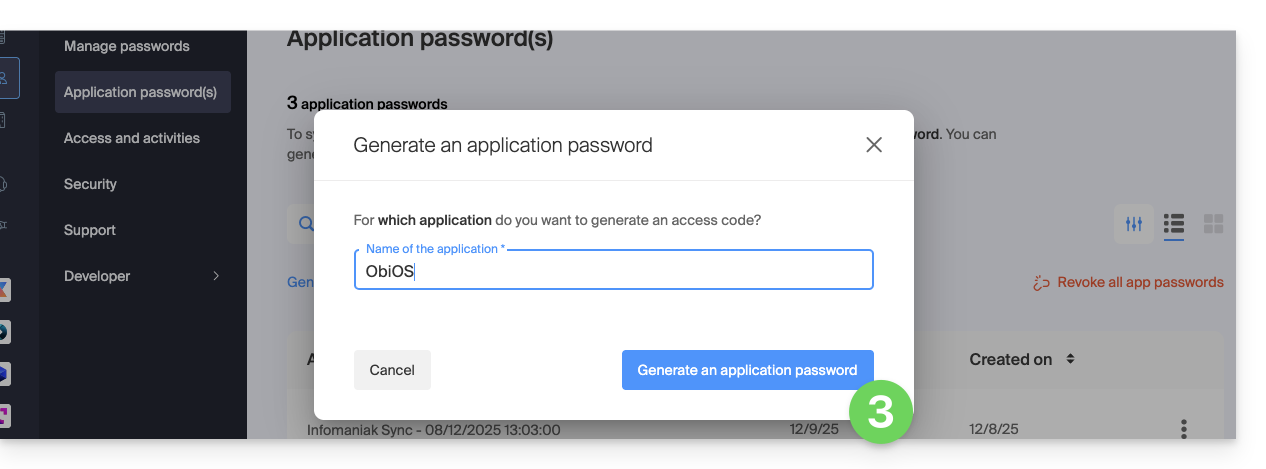
- Copy and save the generated application password in a safe but accessible location, it will no longer be accessible once the window is closed.
Revoke application passwords
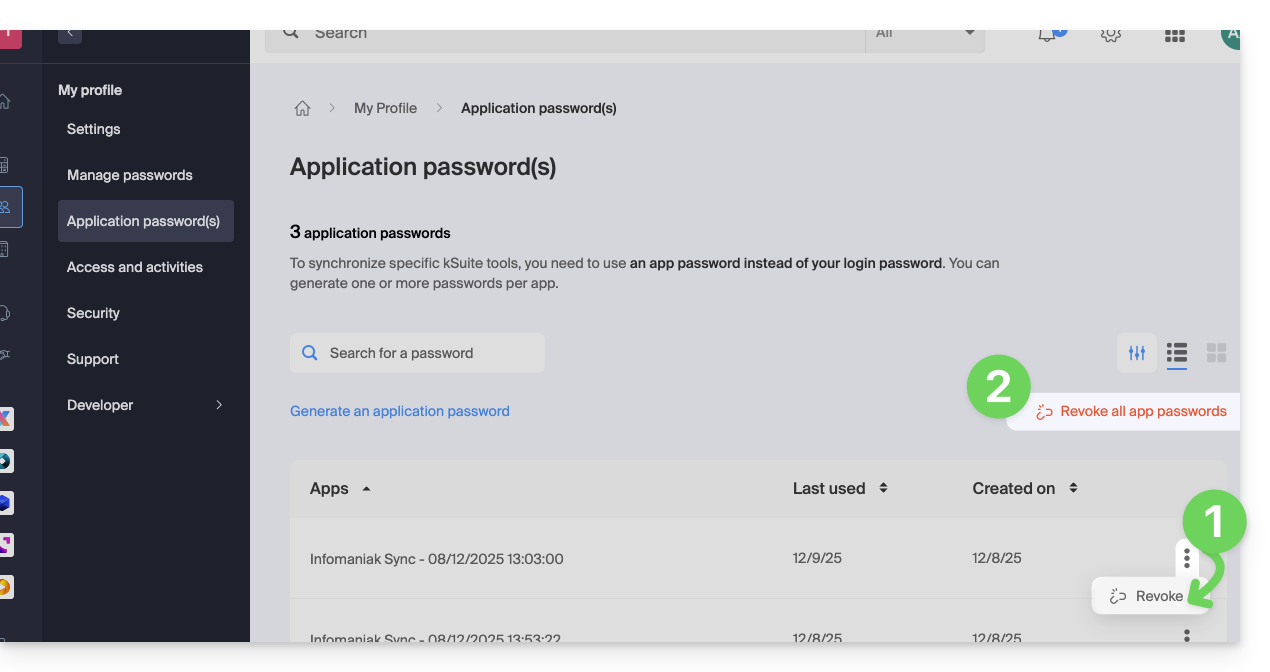
In the same location, you can delete one or more application passwords when they are no longer needed:
- Click on the action button ⋮ to the right of each password, then revoke them…
- or click on Revoke All at the top of the table:
Link to this FAQ: https://faq.infomaniak.com/2855
Has this FAQ been helpful?
This guide explains how to configure the visual displayed on the screen of the device scanning tickets during an event (as part of the Infomaniak ticketing system).
Preamble
- Infomaniak offers an app for ticket control.
- It is possible to set a specific icon that will be displayed on the device screen when scanning a ticket.
- If the ticket is valid and an icon is set, the scanner will display the chosen icon on a green background.
Set up the scan validation icon
The choice of visual is configured in the advanced settings of a rate:
- Click here to access the management of your product on the Infomaniak Manager (need help?).
- Click directly on the name assigned to the ticketing related to the event.
- Click on Scheduling in the left sidebar.
- Click on Events in the left sidebar.
- Click on the relevant event.
- Click on the Pricing tab.
- If the event has multiple dates, this section is replaced by “Dates” which opens a calendar.
- Click on the date in the calendar to access the pricing…
- Click on the action menu ⋮ located to the right of the price (first expand the Zone using the chevron if necessary).
- Click on Edit:

- Then click on the chevron to expand the advanced settings.
- Enable the option Set a visual for the scan app.
- Select the icon name.
- Click the Confirm button:

Result on the scan device
Here is an example of the display when validating a correctly registered ticket:
Link to this FAQ: https://faq.infomaniak.com/1572
Has this FAQ been helpful?
This guide will quickly introduce you to the essential features of Euria, the artificial intelligence available within kSuite, which performs particularly well with the kDrive Infomaniak web app (online service ksuite.infomaniak.com/kdrive).
✘ UNAVAILABLE with
kSuite Free / kSuite Standard
my kSuite / my kSuite+ (ik.me, etik.com, ikmail.com)
kDrive Solo / kDrive Team / kDrive Pro
Use AI for your files on kDrive
Prerequisites
- You must be at least an Administrator of the Organization (❓: help).
- Enable Euria for all users of your kDrive: follow the wizard that appears when you log in to kDrive (❓: help).
- Read and understand this other guide about the model used and the responsibilities of each party.
To access Euria on kDrive:
- Click here to access the Infomaniak kDrive web app (online service ksuite.infomaniak.com/kdrive).
- Open a PDF document (Euria is also available with other text/code file types:
.md,.txt,.json,.php, etc.) or right-click on the file in question: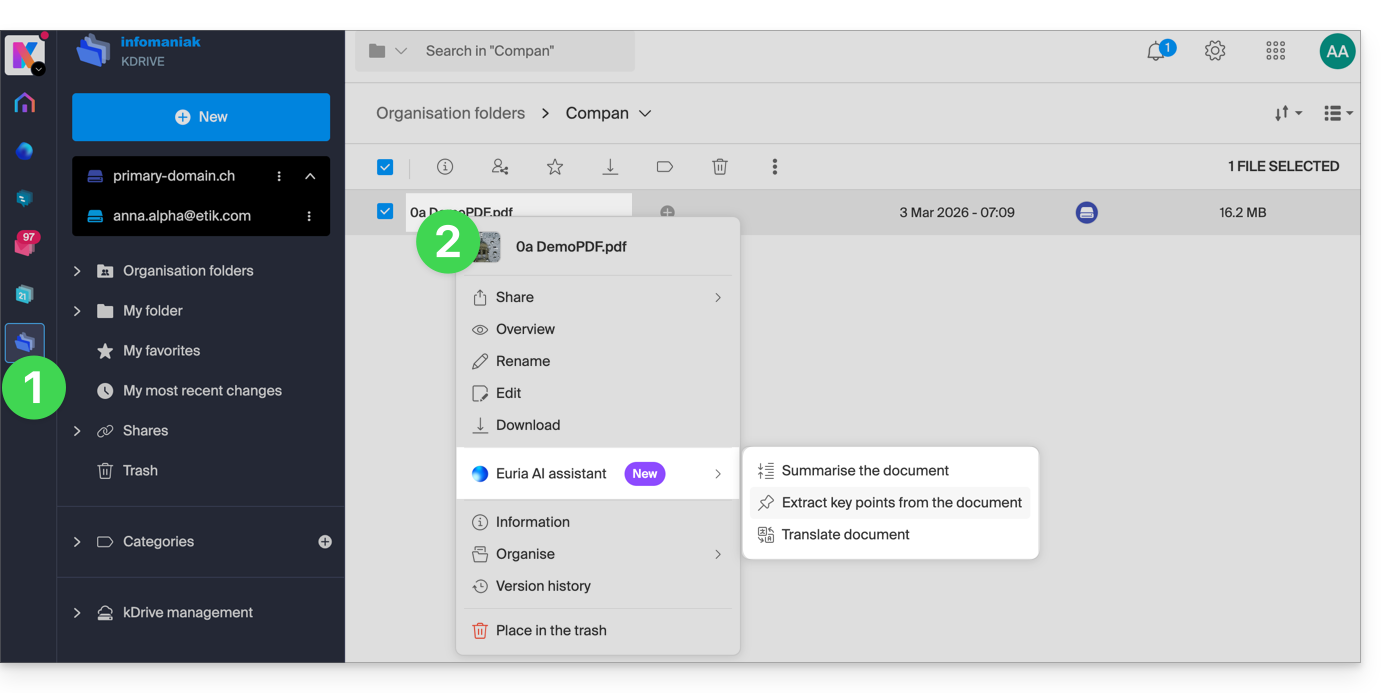
- Euria will open in a sidebar on the right; if you close it, Euria remains accessible via the round icon located in the upper right corner:
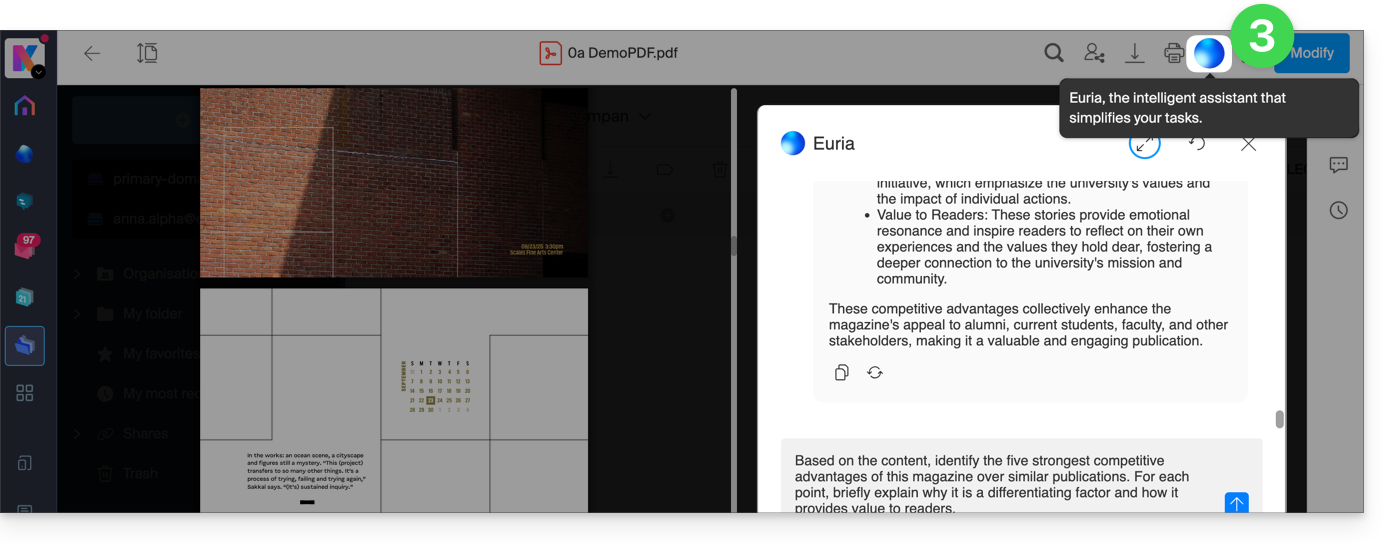
How can Euria help?
Euria helps you make the most of the document you have open (and only this one); it can, in particular:
- answer your questions about its content (details, statistics, changes)
- summarize the key points (or even simplify them, and even more so if you specify “for a 10-year-old”…)
- translate it
- provide metadata (size, creation or modification date)
- explain the terms or acronyms used
For example, if the document is a long company report on the past year, you can ask for the current size of the Development department, which projects are the highest priority, or the last date the document was modified…
Create an event for your calendar
With a document mentioning an appointment (e.g., a medical appointment), you can ask Euria to create a snippet of code that, once copied and pasted into an appropriate file, will allow you to add an event to your calendar. Example phrasing: “Create an event in ics format using the details of this appointment”.
Euria can also extract events from a more complex document: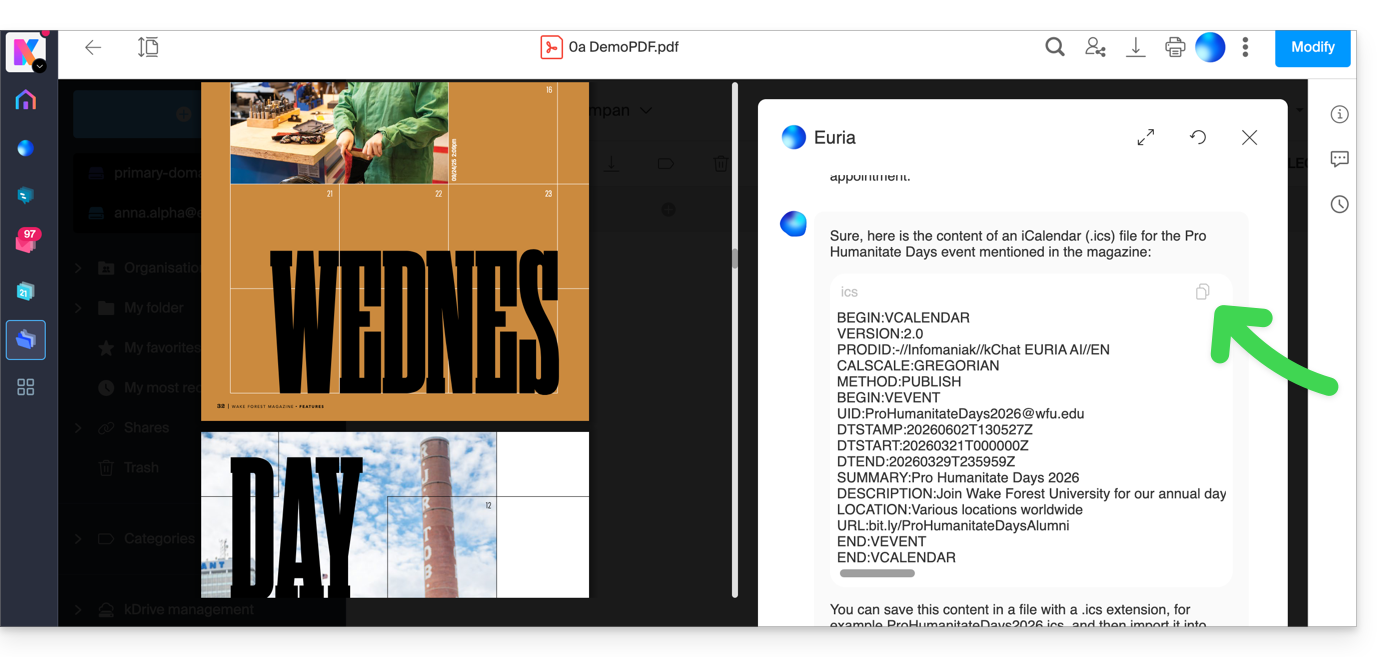
Euria will explain what it did (a VCALENDAR code) and what you need to do: create a new file with the .ics extension containing the code it generated, and open it on your computer to import it into your usual calendar app or import it into your kSuite calendar (❓: help)…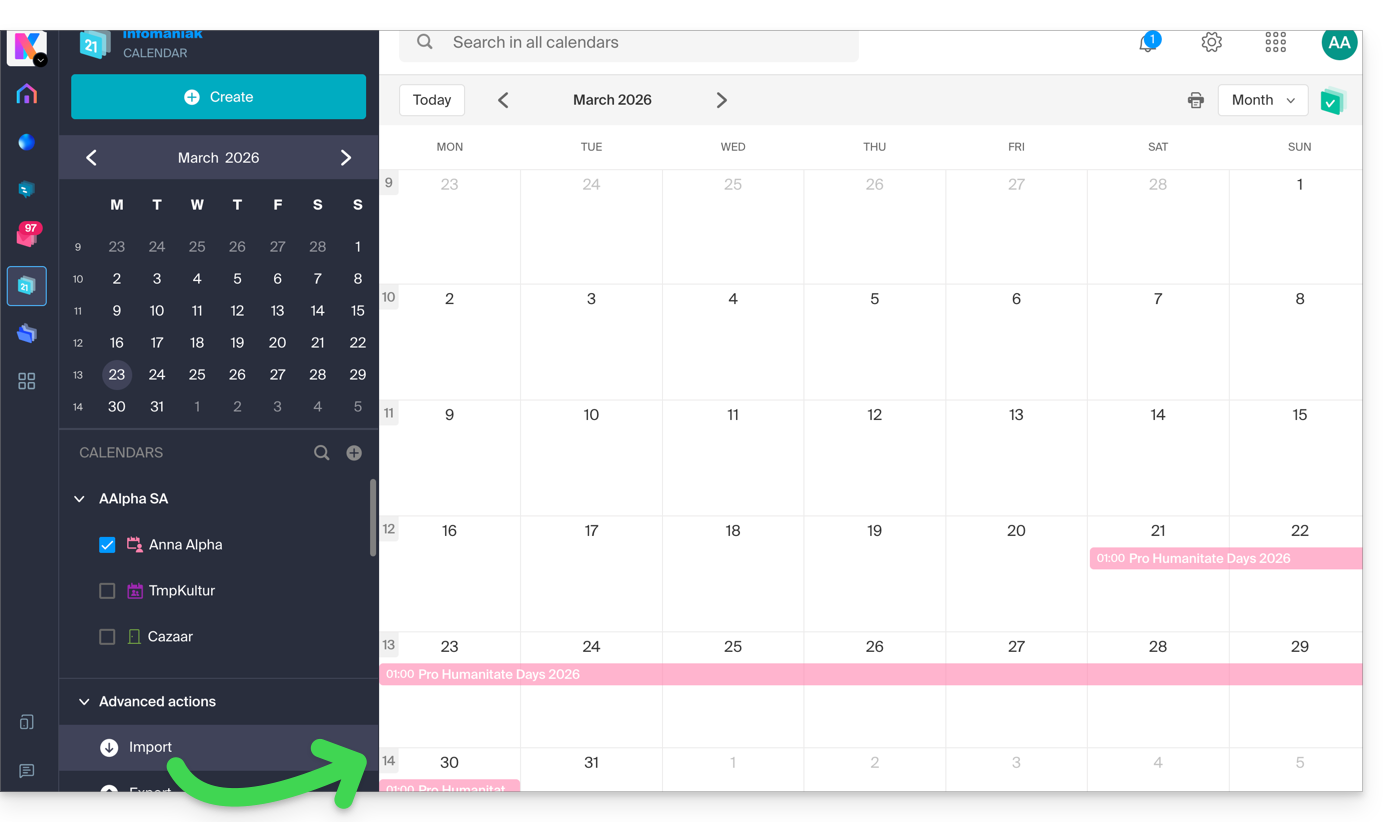
Create a character family tree
With a book stored on your kDrive, you can ask Euria to create a precise and complete family tree to show the relationships between all the characters. You will then obtain a list of names with their relationships.
But you can take the experience even further by then requesting a “Mermaid” diagram based on this list. Simply copy and paste the code provided by Euria into a tool like mermaid.live:
Analyze a survey, write a blog post
Based on a document of the type survey/report, you can ask Euria to write a new article in the tone you want and addressed to the desired target audience. Example: “Based on all of this, write a blog post with an engaging title and text of no more than 400 words, for a target audience of women aged 30 to 40.”.
But you can also ask it to find “what are the biases in this survey” or “what elements should be explored or verified in more detailEuria can thus help you adopt a critical perspective when reviewing a survey or report, by highlighting any potential shortcomings, exaggerations, or biases.
It can also rephrase the survey's conclusions for different audiences (professionals, teenagers, curious readers, etc.), suggest alternative angles for a related article, or even generate titles, introductions, or summaries according to the desired level of complexity.
The goal is to extract maximum editorial value from a single source content by diversifying the formats, tones, and perspectives.
Link to this FAQ: https://faq.infomaniak.com/2566
Has this FAQ been helpful?
This guide explains how to modify certain language settings in the Manager and kSuite (Infomaniak Mail app, Calendar, Contacts, etc.).
Change the language of your Infomaniak account
To do this:
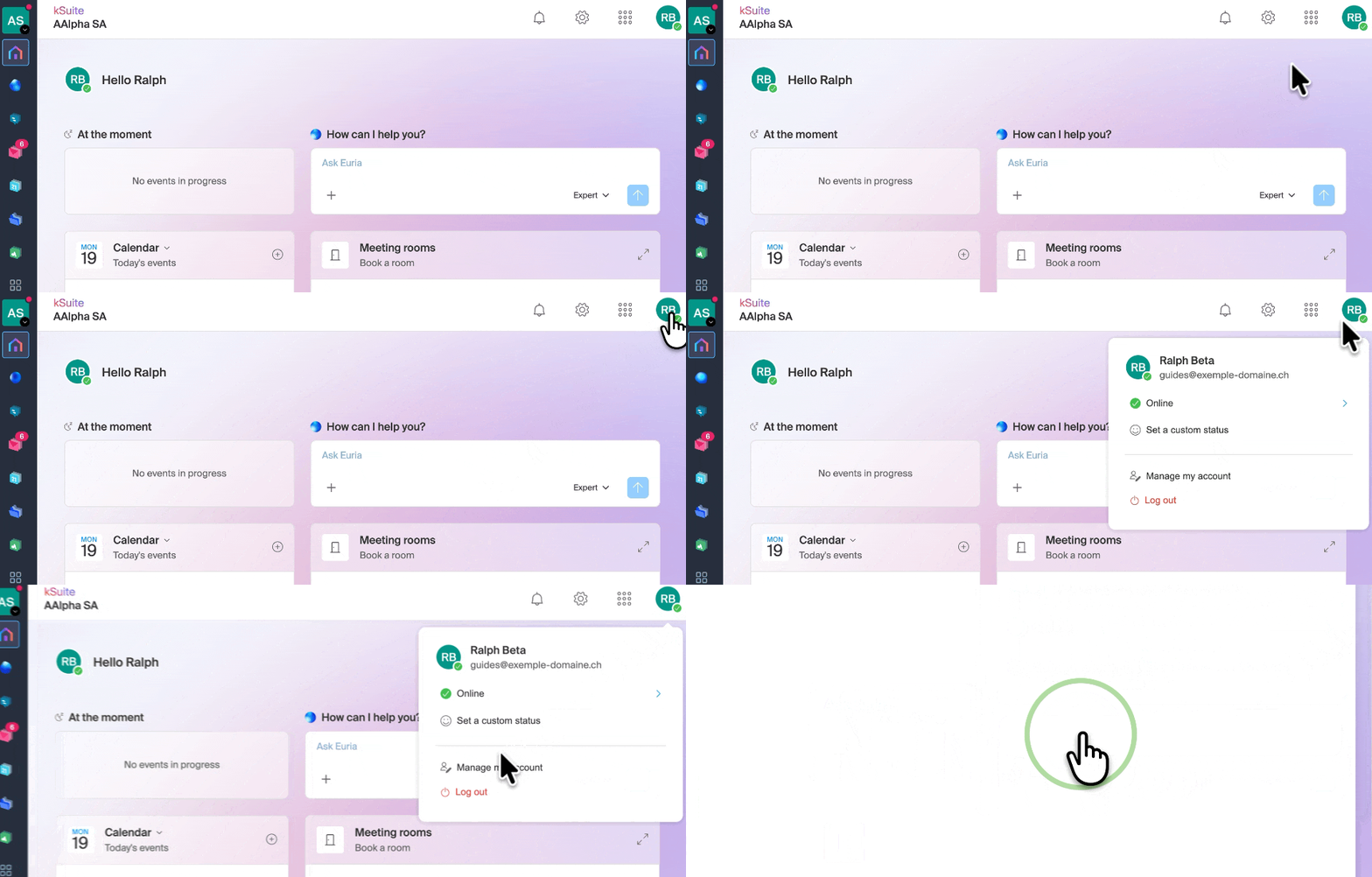
- Click here or at the top right, on your initials/avatar, to "Manage my account":
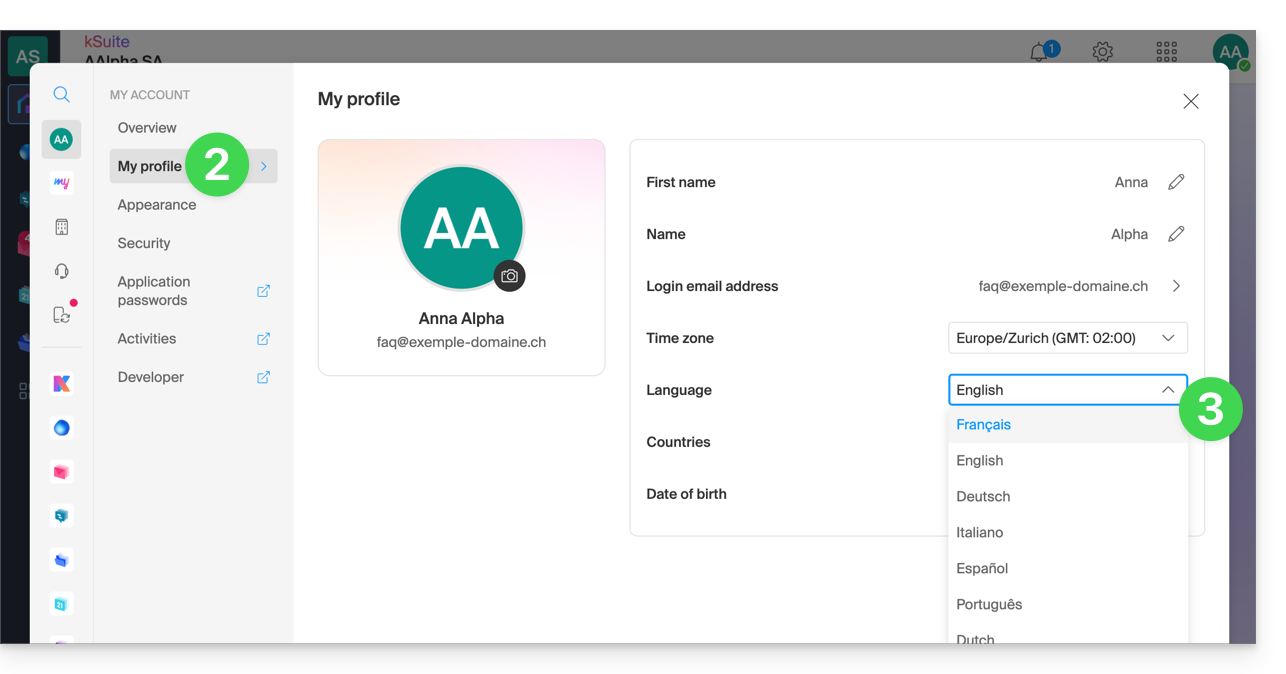
- Click on My profile in the left-hand menu.
- Click on the language dropdown menu to choose from French, English, German, Italian, Spanish, Portuguese, etc.:
Modify your account's regional settings
In the same section, you can set the time zone for your region/country: 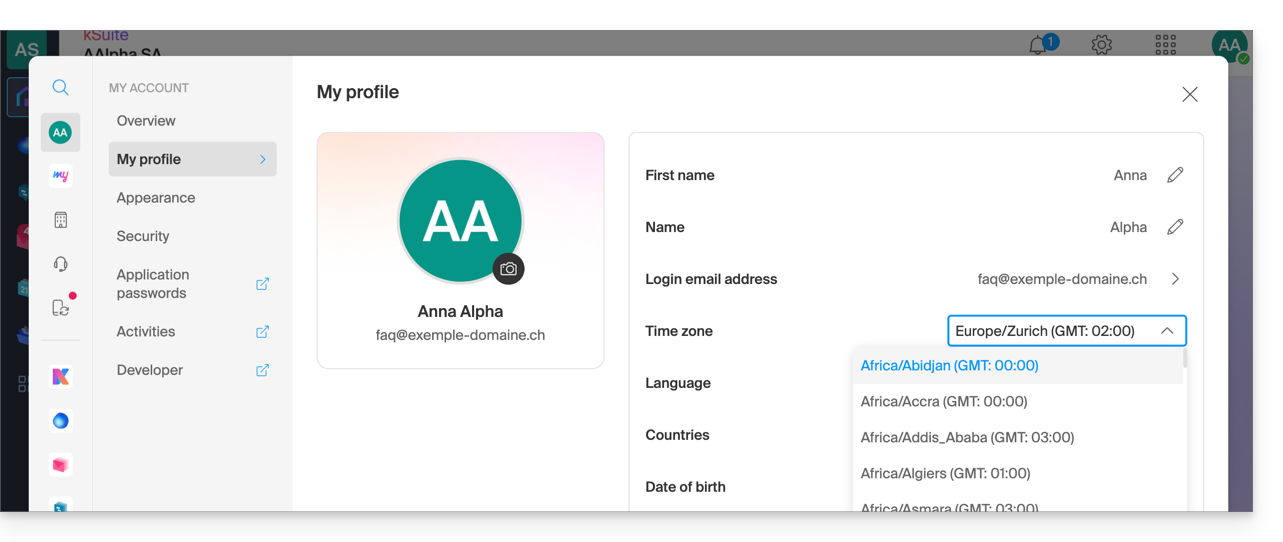
Link to this FAQ: https://faq.infomaniak.com/2144
Has this FAQ been helpful?
This guide explains how to create events with multiple dates (within the Infomaniak ticketing system).
Create a multi-date event
To do this:
- Click here to access your product management interface in the Infomaniak Manager (need help?).
- Click directly on the name of the relevant ticketing system.
- Click on Programming in the left-hand menu.
- Click on Events in the left-hand menu.
- Click on the Add event button.
- In the Date and Location step, you can select the Multiple occurrences option:
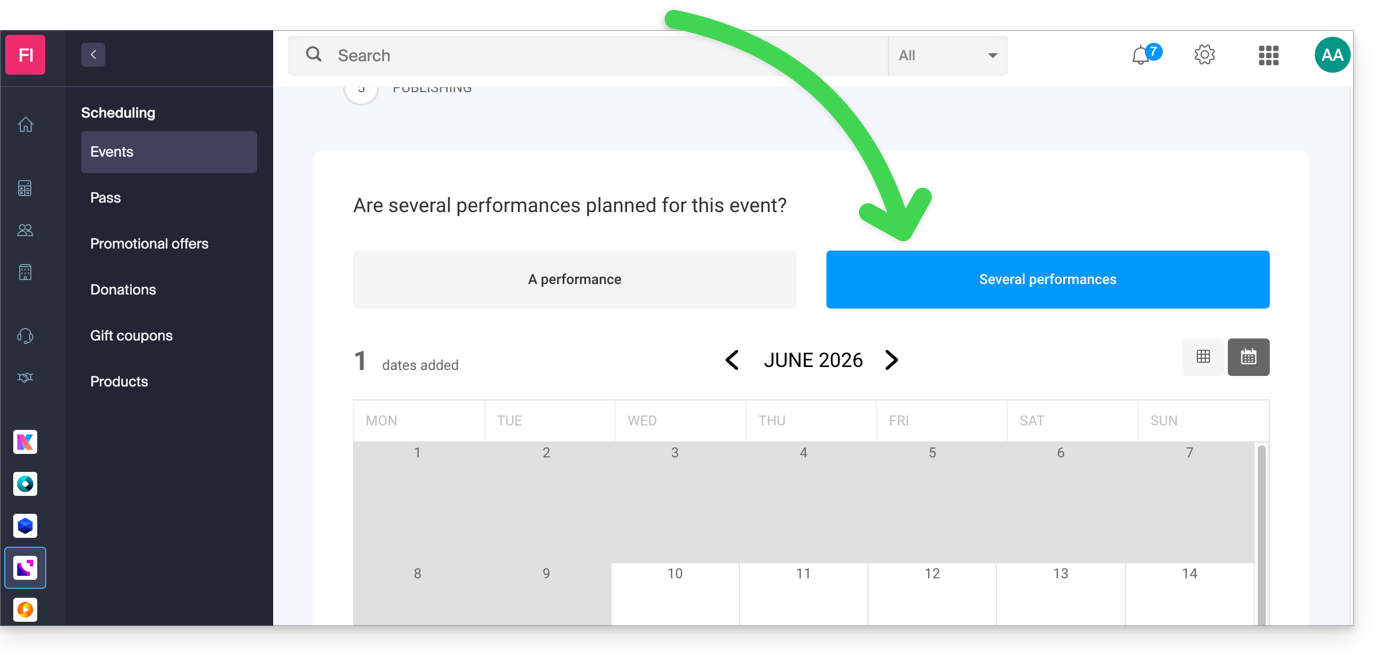
- An interface displaying a calendar appears; choose the start date of the event.
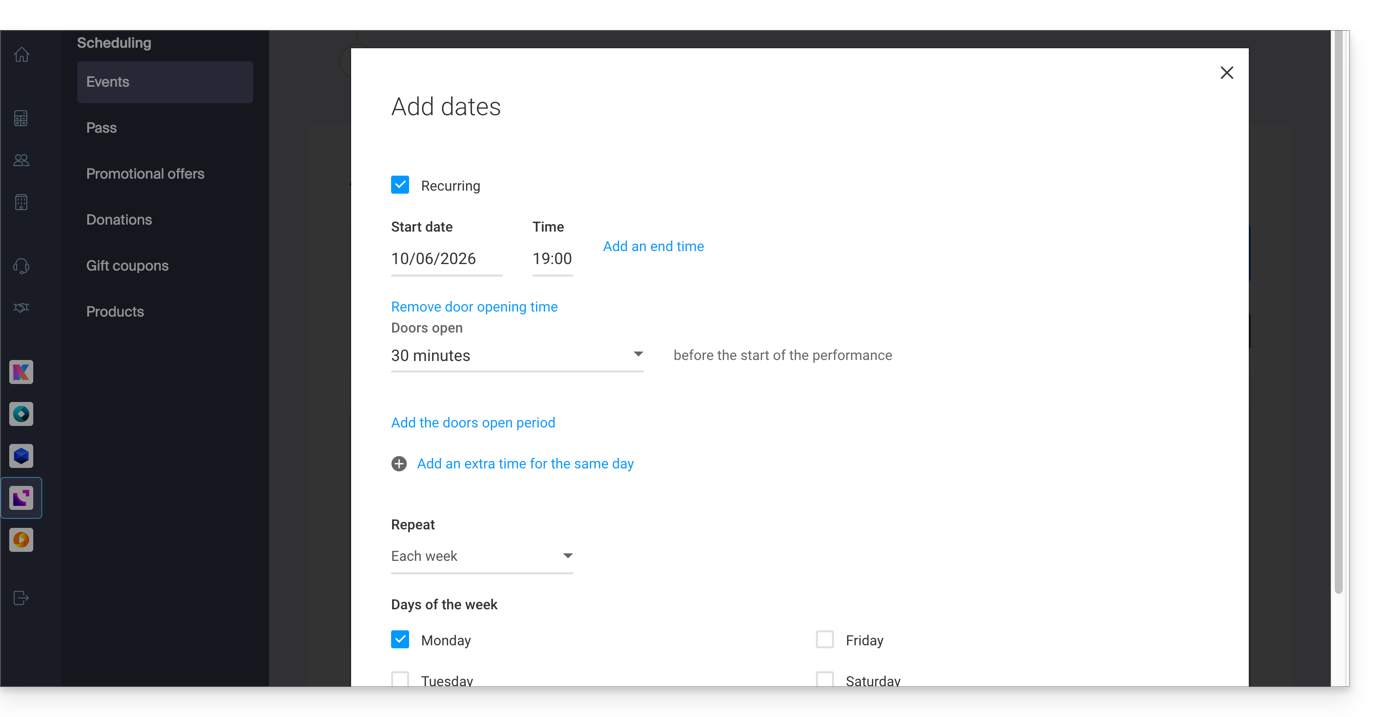
- You can specify whether the event lasts for several days, weeks, or months, or whether it recurs several times in the same day:
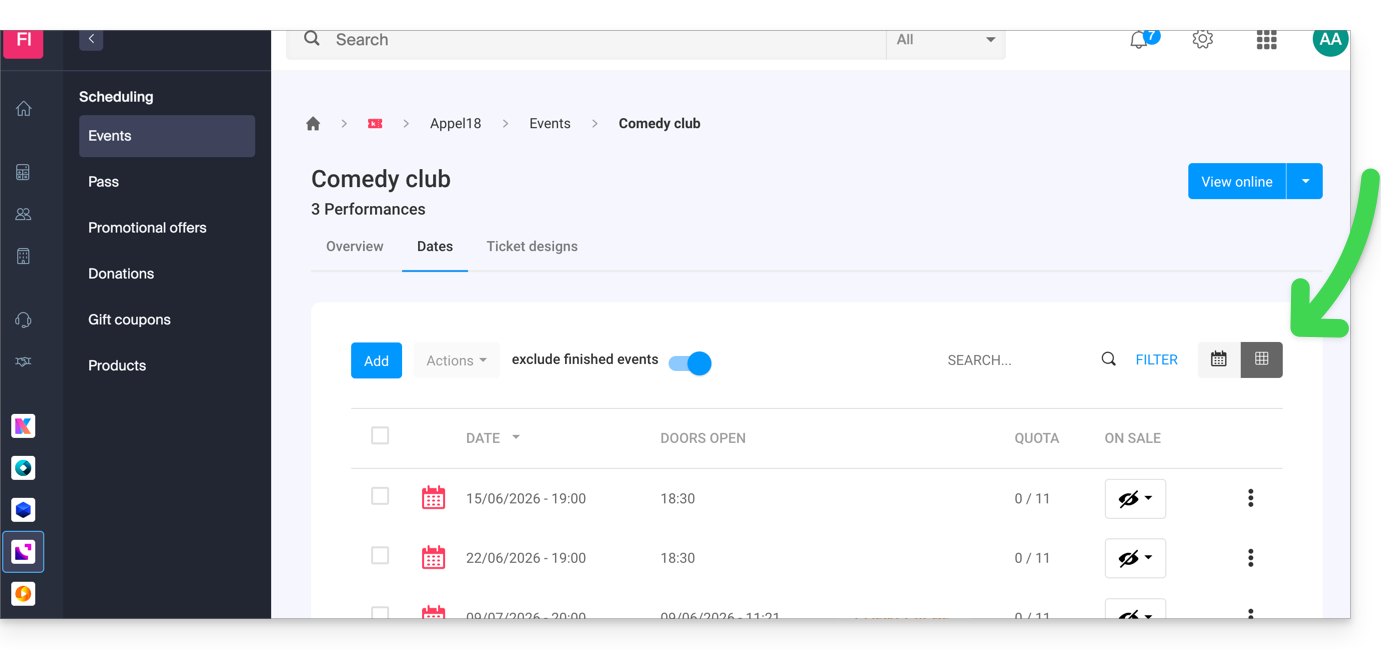
- Once the event is created and open for sale, you can track the progress of orders for each date using a List view:
Link to this FAQ: https://faq.infomaniak.com/2574
Has this FAQ been helpful?
This guide presents the benefits of kSuite (Standard, Business, Enterprise), the suite of productivity and online collaboration tools developed in Switzerland by Infomaniak.
Introduction
- kSuite simplifies user management for businesses and consolidates your products into a single invoice with a single due date.
- It also includes advanced user management for all the applications you need to collaborate online.
- You choose the domain name, and kSuite is then configured based on your needs in terms of the number of users and storage space.
- kSuite is a bundled offer that can be upgraded to a higher tier at any time.However, it is not possible to switch to a lower-priced plan later, nor is it possible to transfer kSuite to another Organization.
- The products included in kSuite cannot be moved or cancelled independently of each other.
- To help you identify the kSuite plan that best suits your needs, please refer to this other guide.
Choosing kSuite over individual apps
The question of whether to choose kDrive and/or Mail separately, as standalone products, rather than the kSuite, may indeed arise.
kSuite is more cost-effective, simplifies user management for businesses, and groups all your products into a single invoice with a single due date. This offer is recommended if you own or would like to have a domain name that will be associated with it.
It also includes advanced and unified user and team management, as well as kChat, which cannot be ordered separately.
Here are some other points:
- unlocked features
- single invoice
- address book & dynamic calendar for the Organization
- larger disk storage (per user)
- Custom Brand offered with kSuite Enterprise
In summary, choosing this suite of web tools rather than individual applications offers advantages in terms of integration, simplified management, real-time collaboration, multi-platform accessibility, and flexibility. These advantages can improve your efficiency, productivity, and overall user experience.
Products included in kSuite
On your ksuite.infomaniak.com interface, you can access: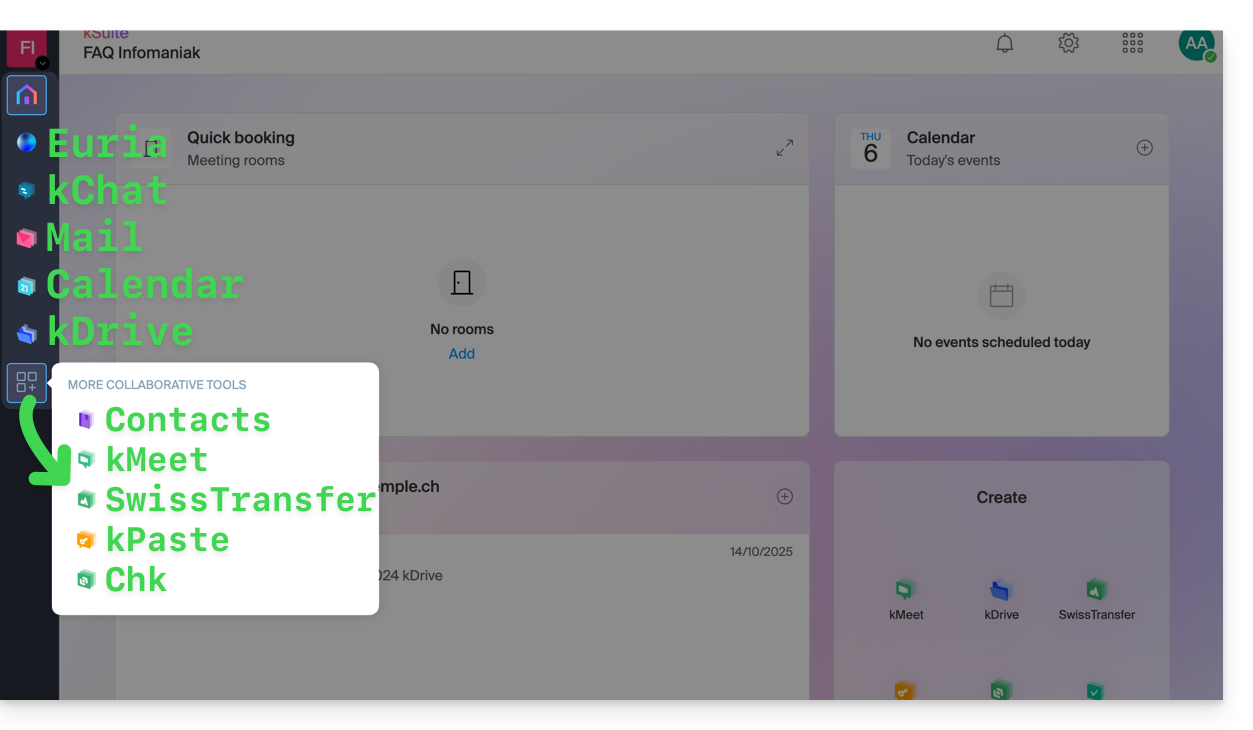
Create, communicate, plan, collaborate, share…
- Euria
- kChat
- A Mail Service (even if you already have a Mail Service)
- Calendar
- kDrive (even if you already have a kDrive)
And also:
Management
- The Manager interface with Custom Brand included or available as an option, depending on the plan.
Are you a Partner or would you like to become one in order to resell kSuite?
Link to this FAQ: https://faq.infomaniak.com/80
Has this FAQ been helpful?
This guide details what you can search for in the Infomaniak Mail web app (online service ksuite.infomaniak.com/mail) or other kSuite services. For searching in kDrive, please refer to this other guide.
Search for an email
On ksuite.infomaniak.com/mail, type the term you want to find in the search bar at the top of the page.
The search will be performed within the email address mentioned in the left sidebar(to search across multiple email addresses simultaneously, use an IMAP email client to which you connect your different addresses):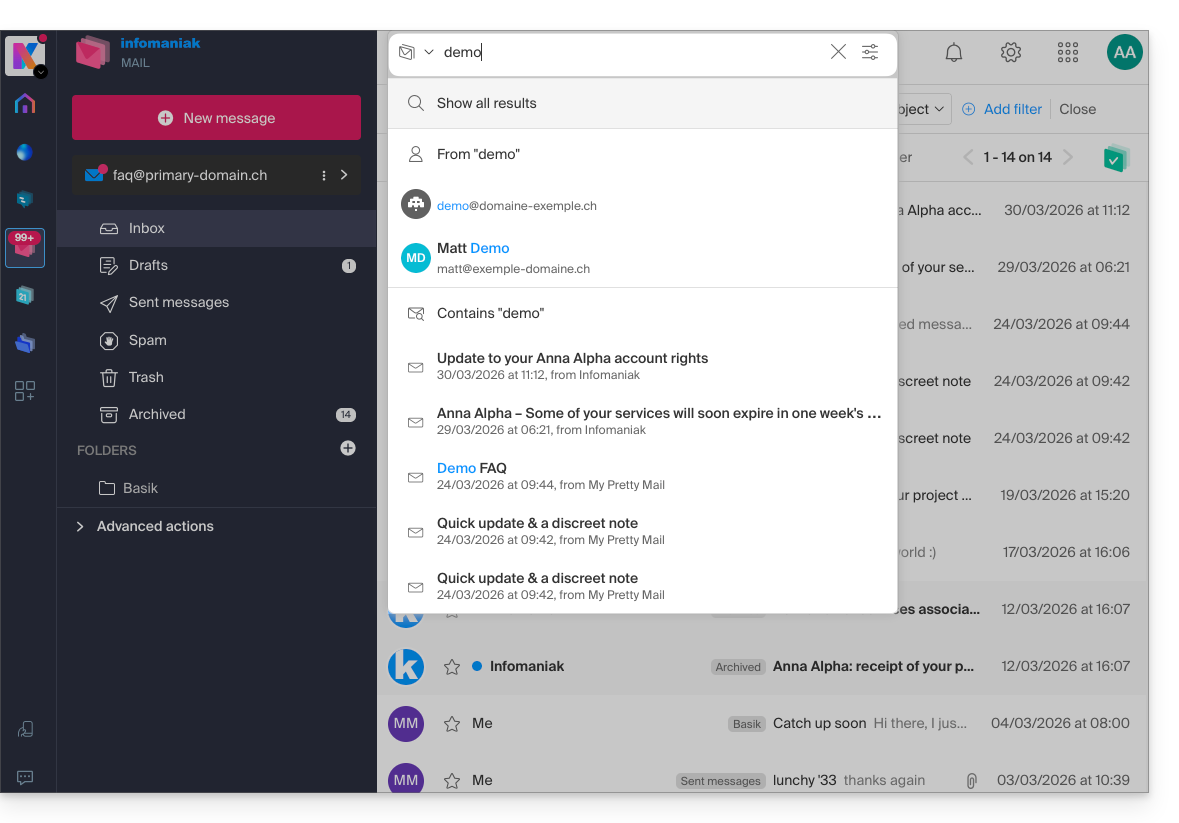
Advanced search is accessible to the right of the search field at the top of your Mail: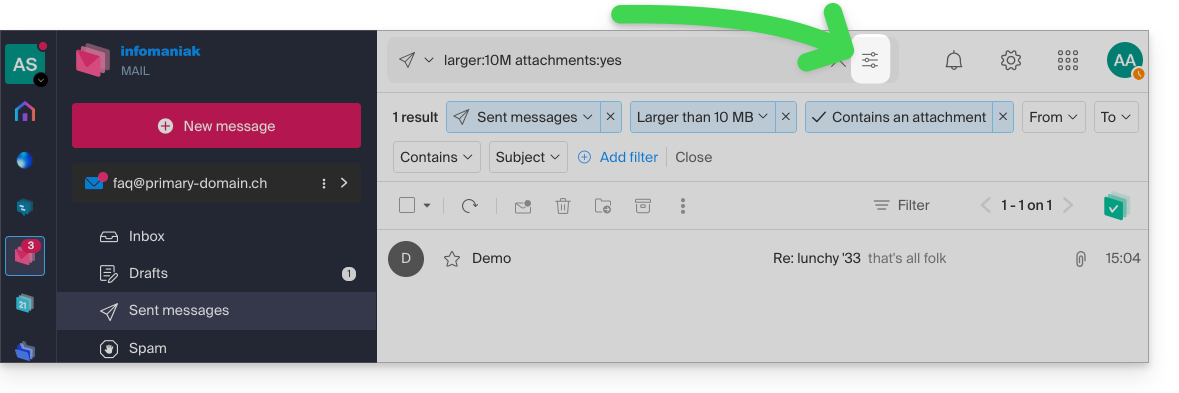
You can search for content…
- either in the body of the message,
- either in its subject,
- or among its senders/recipients…
You can also filter the search by message size and by whether or not it contains an attachment.
Regarding the scope of the searches:
- The content of encrypted emails is not indexed (except for the email subject).
- The content of attachments, as well as their name, is not indexed: therefore, it is not possible to find an email by searching for the name of the file that was attached to it.
- The "Search all emails" function does not include the Trash or Spam folder:
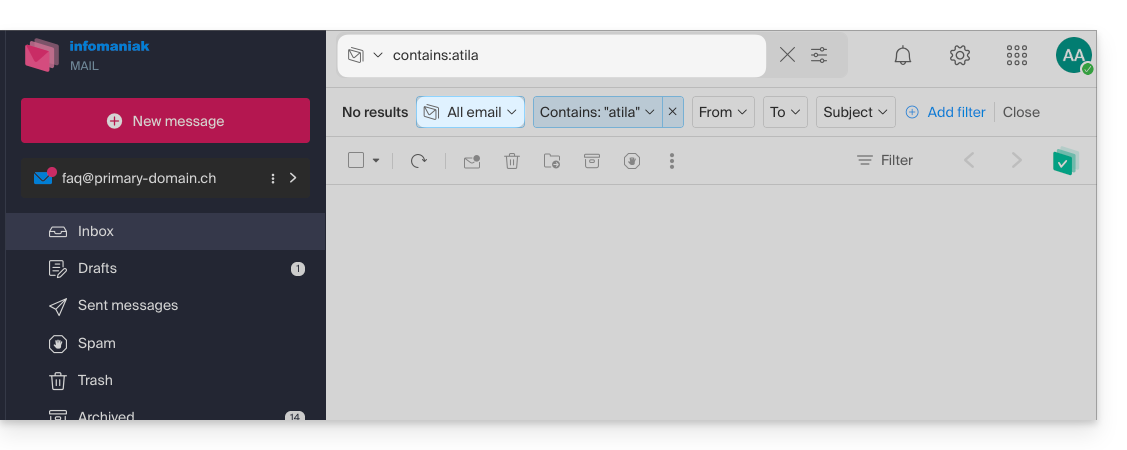
- If a global search returns no results, the email may be in one of these two folders.
- You will then need to go specifically to the Trash or Spam folder to perform the search there, or launch the search by selecting one of these two items:
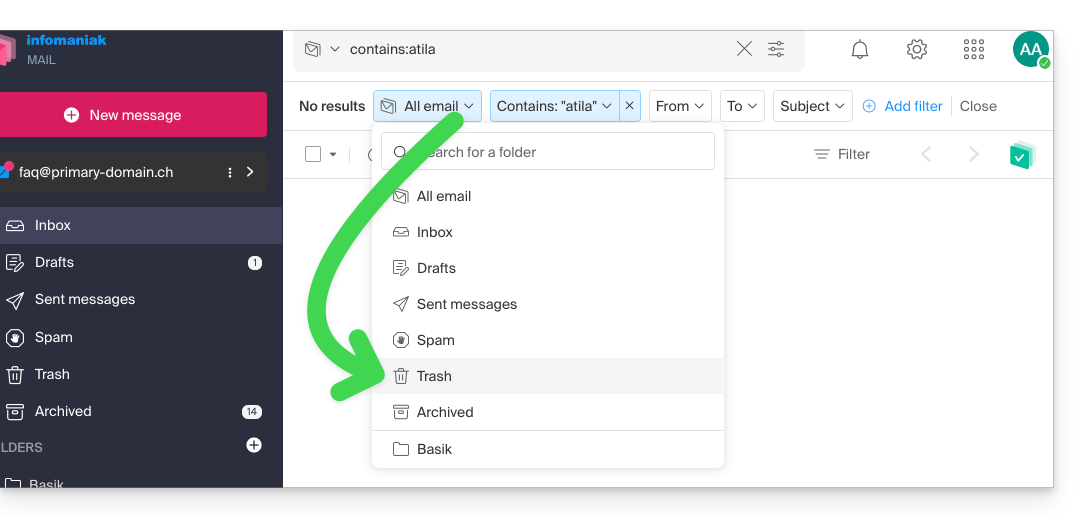
- Any items found will then be displayed:
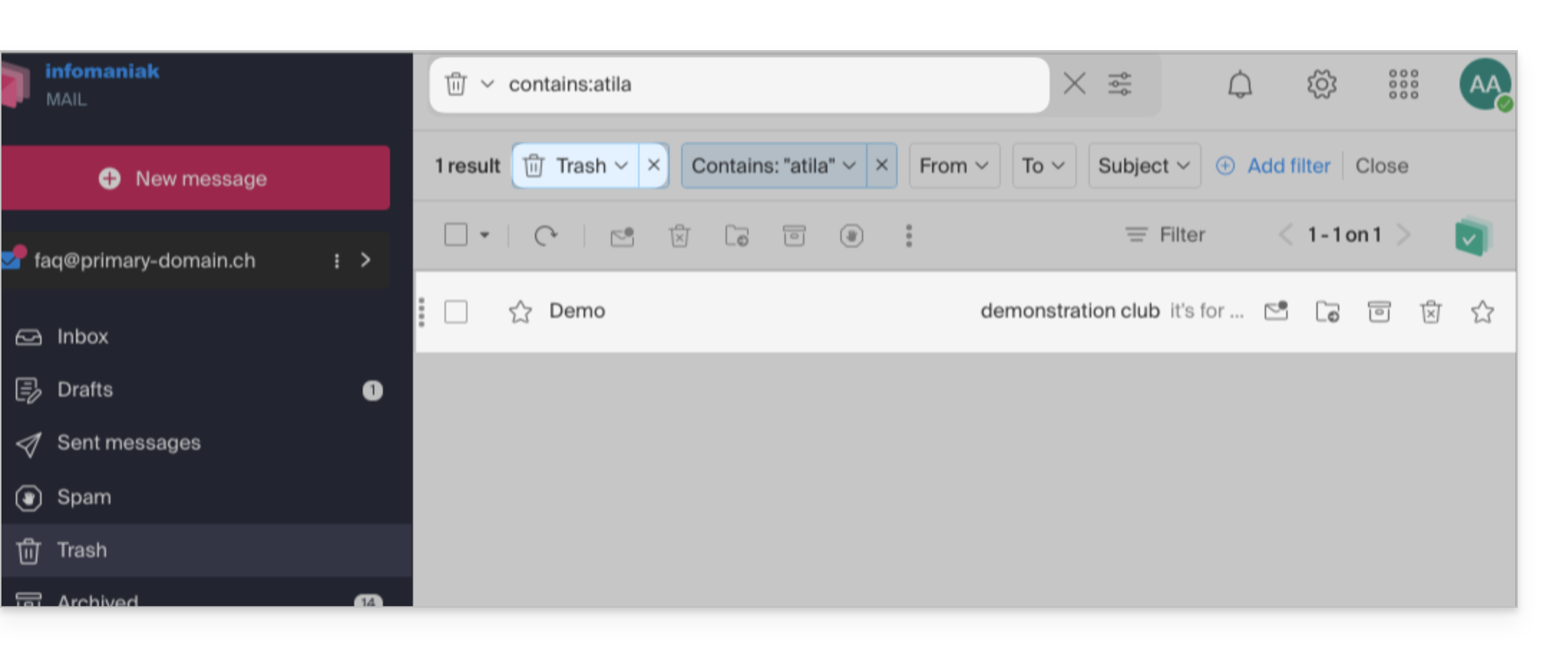
- Similarly, when you want to find a message in a specific folder, it is best to go there first from the left-hand menu, and then launch a search.
To search for traces of an email or to see its activity, you can also search in the logs of an email address.
Email search with a software/email client
To find out how your specific email application performs searches, consult its documentation. For example, desktop apps like Thunderbird and Outlook can synchronize messages locally and perform local searches, while other applications may prefer searching on the IMAP server. In this case, the software/email client sends a search command to the server, which then searches through all messages stored on the server and returns the results to the software/email client.
Search for a contact in your address books
The search function automatically searches through all your address books, groups, and contacts using the search field at the top of the ksuite.infomaniak.com/contacts interface: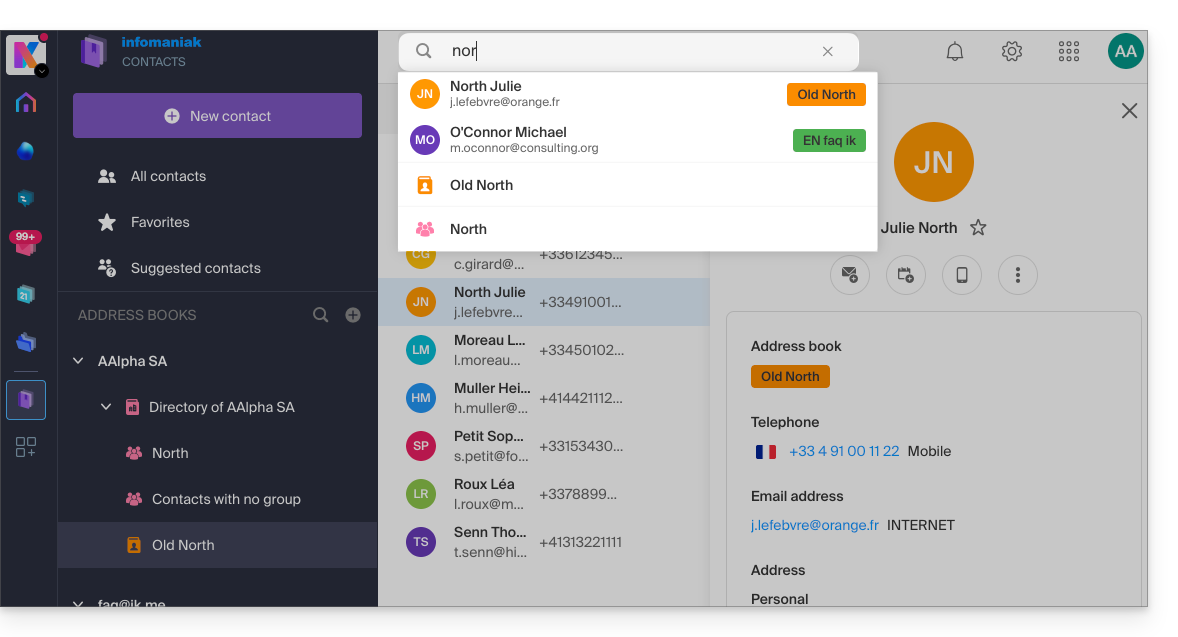
Search for an event in your calendars
Searching for an item on ksuite.infomaniak.com/calendar is performed automatically across all your calendars, events, and rooms, including within the description of these items and the people associated with them (if you click on a contact, you will see the events you have in common with that contact):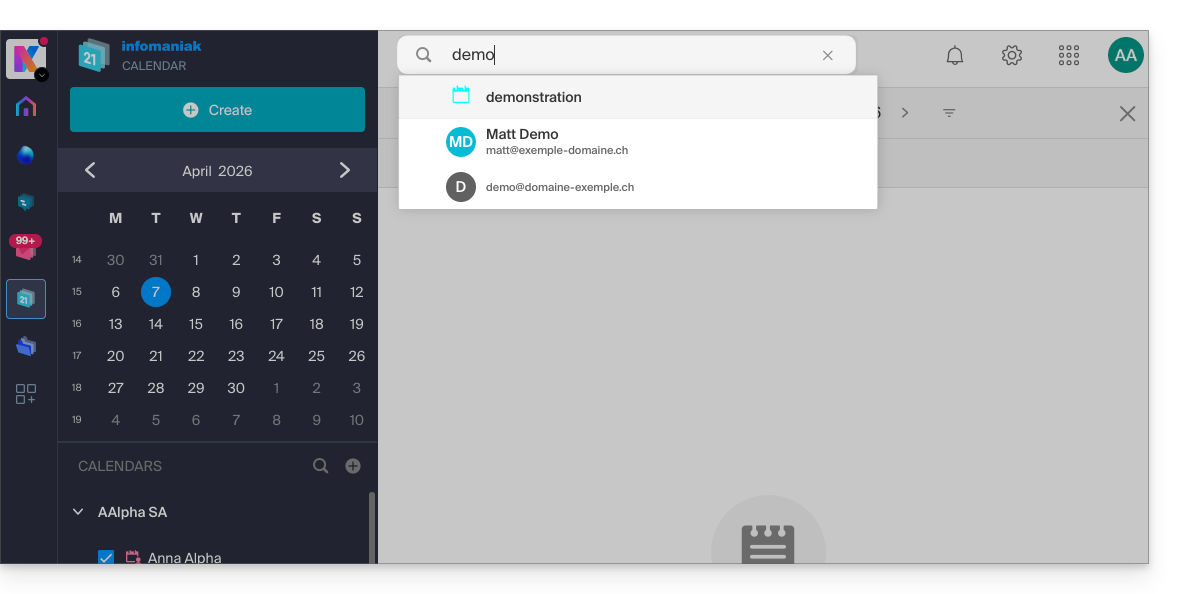
Search in kChat
To search for an item in ksuite.infomaniak.com/kchat, use the main search field to find messages, replies, or file content: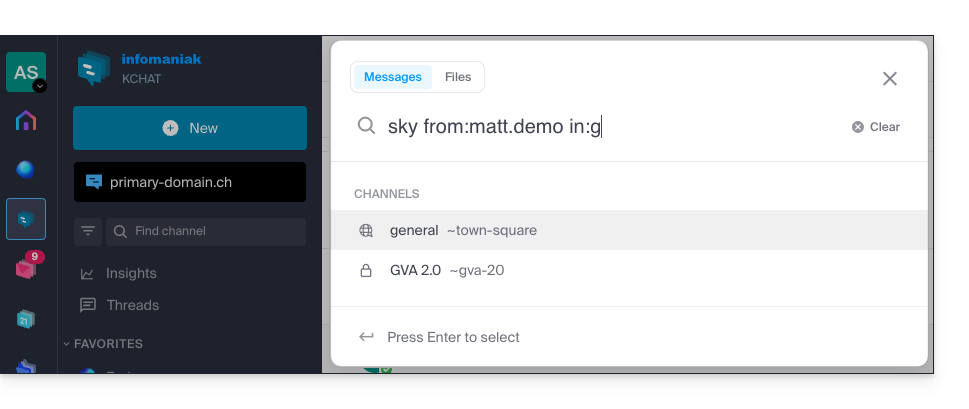
To refine your search results, several search modifiers are available:
from:: to find messages sent by a specific user (e.g.,from:jean.dupont).in:: to restrict the search to a specific public channel, private channel, or direct message (e.g.,in:channel-name).before:,after:,on:: to target a specific date (in YYYY-MM-DD format) or period (e.g.,on:2026-09-01).
Exclude a channel or terms from a search (exclusions)
It is possible to exclude certain search results by using the hyphen - before a term or modifier. This is an extremely useful feature for filtering out irrelevant results:
- Exclude a channel: add
-in:channel-nameto your query to completely exclude results from that channel. - Exclude a word: type
test -releaseso that the results include the term "test" while excluding messages containing "release". - Exclude a user: type
-from:userto hide messages sent by that specific person.
You can perfectly combine these exclusions. For example, the search test -release -in:release-discussion -from:anna will find the word "test", excluding the word "release", completely ignoring the "release-discussion" channel, and excluding messages from the user “anna”.
Link to this FAQ: https://faq.infomaniak.com/1733
Has this FAQ been helpful?
This guide explains how to delete an Infomaniak account (i.e., a user account), which means removing your access to the Manager and/or the Mail web app at ksuite.infomaniak.com/mail.
Introduction
- This operation will result in the immediate deletion of your calendars and address books.
- All access to the Manager using this ID will be lost.
- This operation does not delete the email addresses accessed from the account in question (except for certain free offers, but in this case, this is specified before the deletion operation).
- If the account you are using is the only account within an Organization, you must first delete the Organization or appoint someone else in order to delete your account.
Delete an Infomaniak / Mail account
To access the user profile section:
- Click here to access the My profile menu in the Infomaniak Manager.
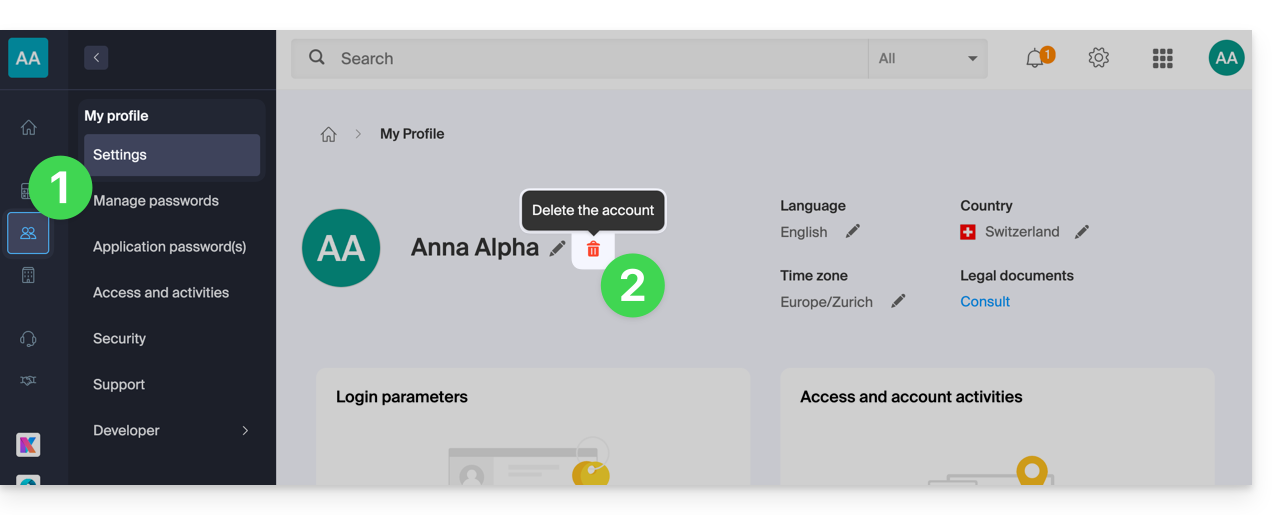
- Click on the trash can to the right of your name to delete your account and data:
- Enter your login password one last time, and the Infomaniak account will be deleted.
Link to this FAQ: https://faq.infomaniak.com/2333
Has this FAQ been helpful?
This guide concerns kSuite and the ability for users to define a status and manage the display of their presence or absence.
Introduction
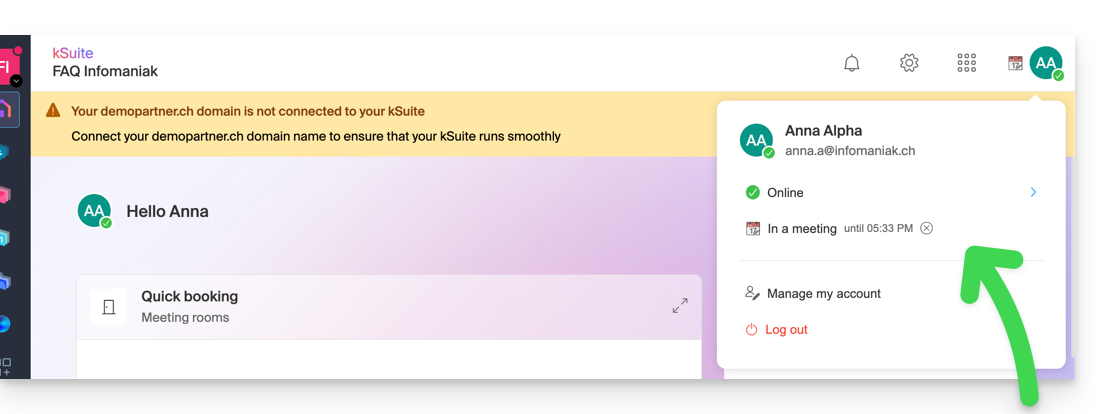
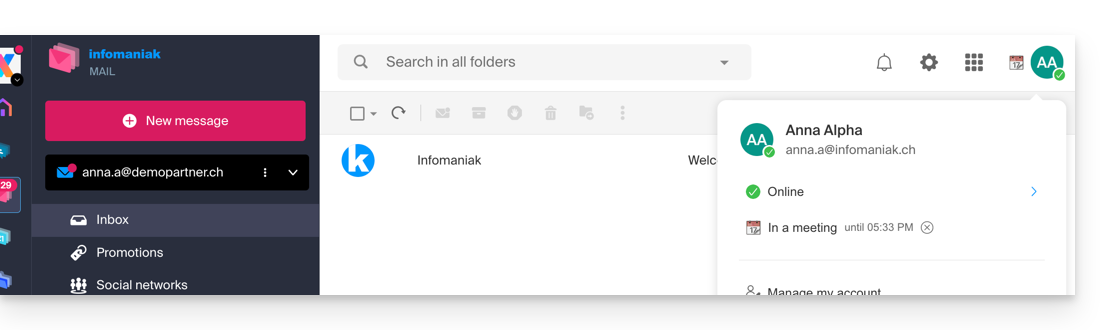
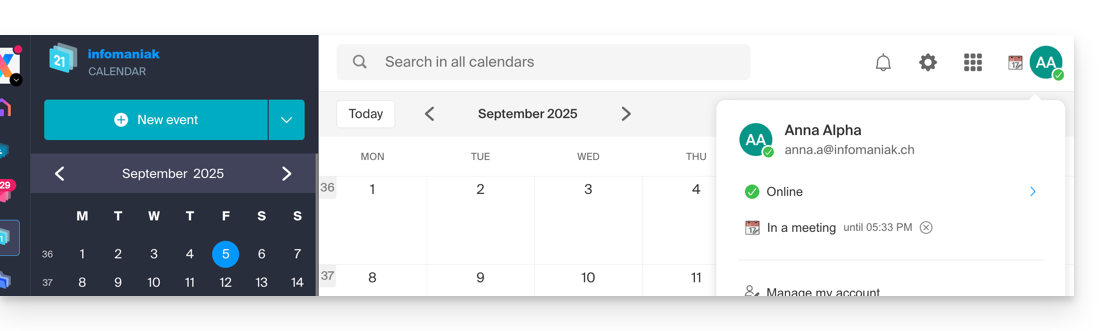
- Once defined, your custom status is visible to users within the Organization on various pages related to kSuite:
- Home page ksuite.infomaniak.com
- Mail
- Calendar
- Contacts
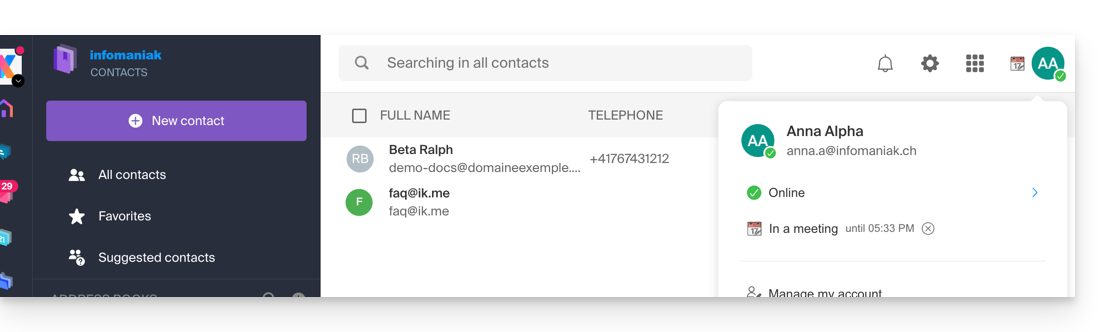
- kDrive
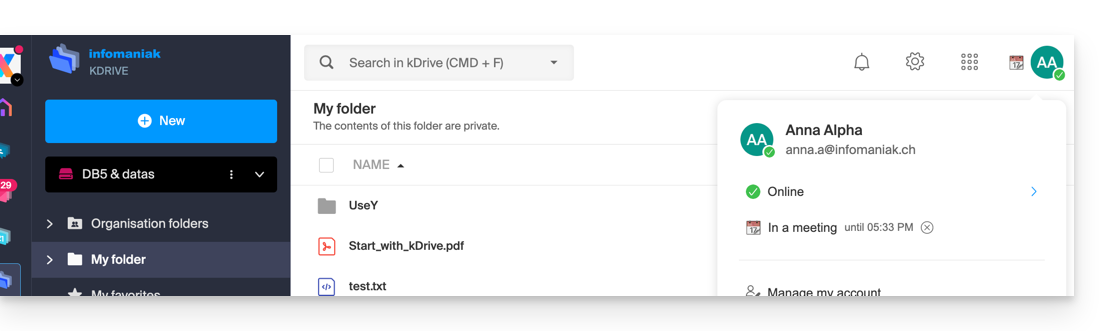
- Euria
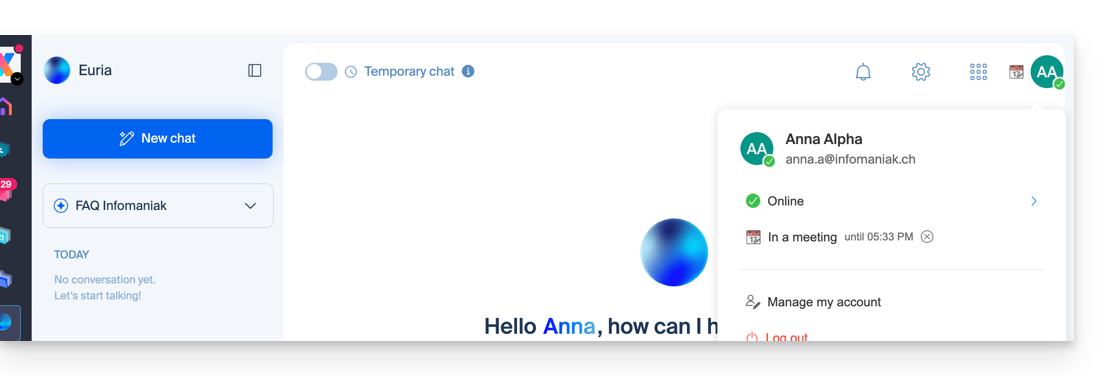
- Chk
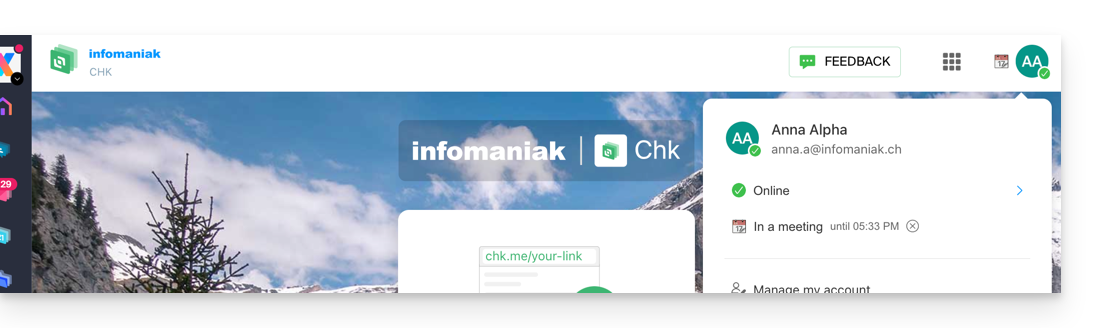
- kPaste
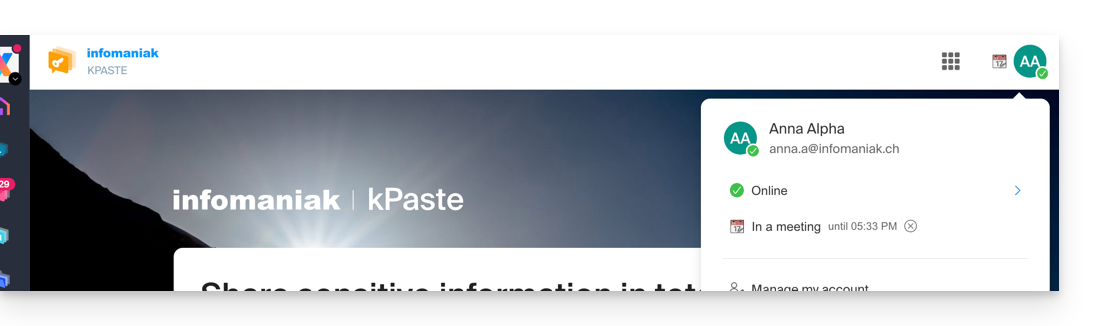
- kMeet
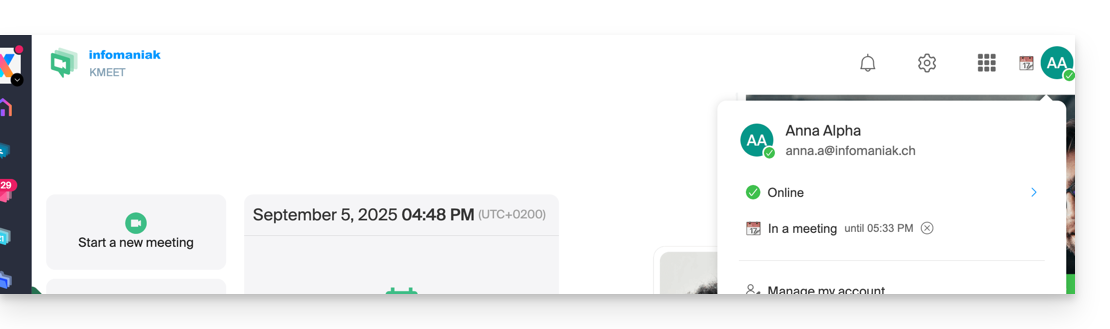
- Home page ksuite.infomaniak.com
- A presence status different from the default status, such as "Do not disturb," may affect the notifications of certain services (❓: help).
Update the kSuite profile status
To do this:
- Click here to access kSuite.
- If nothing appears after logging in, you may not be in the Organization to which your kSuite is linked (❓: help).
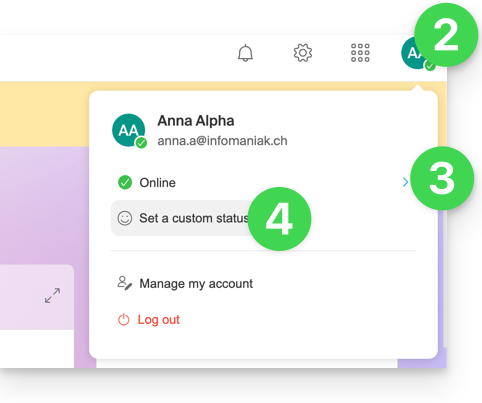
- Click on the badge with your initials/avatar in the top right corner.
- Click on Online to choose a different status if needed (away or do not disturb)…
- … or click on Set a custom status to enter a custom status or choose one from the suggestions:
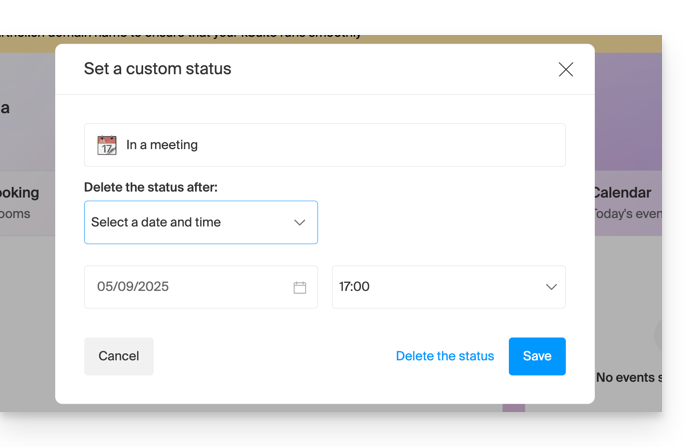
- Specify an expiration date if necessary and save:
Link to this FAQ: https://faq.infomaniak.com/1712
Has this FAQ been helpful?
This guide details how to back up an Android device (Samsung, Huawei, OnePlus, etc.) using Acronis on Swiss Backup Infomaniak, the backup solution in an independent Swiss cloud.
Introduction
- What you can back up:
- Contacts & Calendars
- Photos (the original size and format of your photos are preserved)
- Videos
- It is also possible to back up other types of data.
Configure Backup
Prerequisites
- Own an Infomaniak Swiss Backup space with an available device quota (minimum 1) for Mobile:
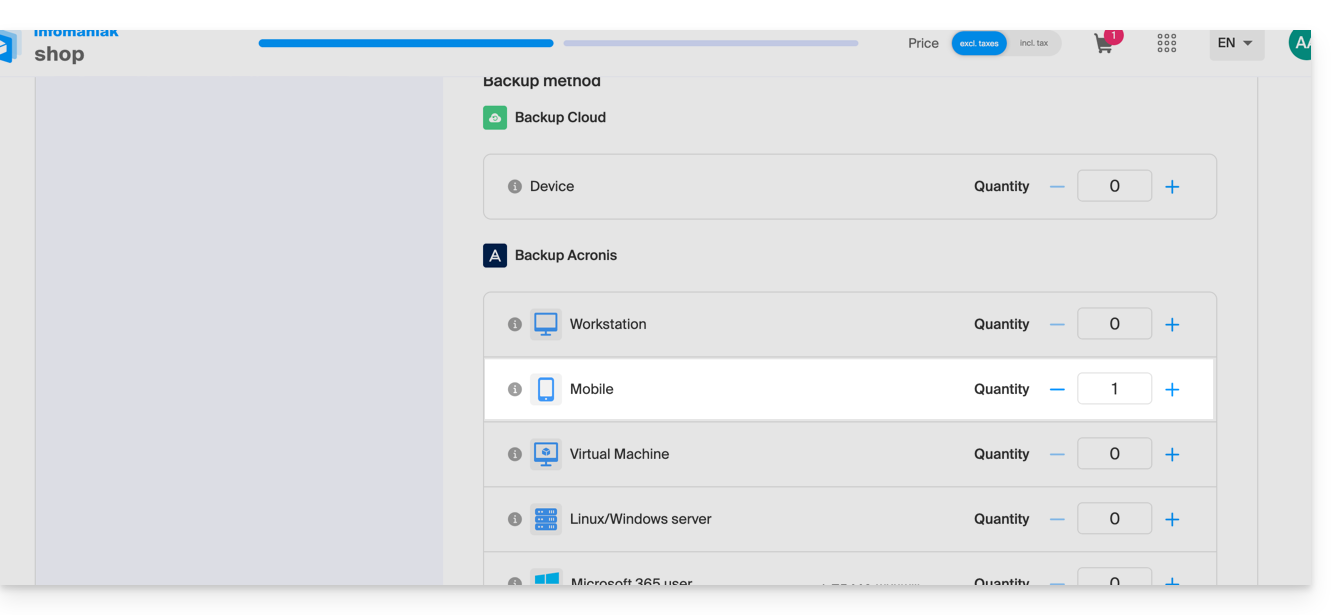
- If necessary, increase the device quota according to your needs.
- Add the device to the Infomaniak Manager to receive the login credentials.
- Consult the Acronis documentation on this topic.
To configure mobile backup on Android with Acronis:
- Download and install the Acronis Cyber Protect application from the Google Play Store.
- Open the Cyber Protect mobile app by logging in to the Acronis Agent with the credentials obtained after adding the device (need help?).
- Click on Back up and choose the data to back up.
- Click Validate to start the data backup.
Link to this FAQ: https://faq.infomaniak.com/2294
Has this FAQ been helpful?
This guide details how to back up an Apple iOS device (iPhone, iPad, etc.) using Acronis on Swiss Backup, the backup solution in a Swiss independent cloud.
Introduction
- What you can back up:
- Contacts & Calendars
- Photos (the original size and format of your photos are preserved)
- Videos
- It is also possible to back up other types of data.
Configure Backup
Prerequisites
- Own an Infomaniak Swiss Backup space with an available device quota (minimum 1) for Mobile:
- If necessary, increase the device quota according to your needs.
- Add the device to the Infomaniak Manager to receive the login credentials.
- Consult the Acronis documentation on this topic.
To configure mobile backup on Android with Acronis:
- Download and install the Acronis Cyber Protect application (not Acronis Mobile) from the App Store.
- Open the application by logging in to the Acronis Agent using the credentials obtained after adding the device (need help?).
- Click Back up and choose the data to back up.
- Click Confirm to start the data backup.
Link to this FAQ: https://faq.infomaniak.com/2295
Has this FAQ been helpful?
This guide details the settings required to configure email sending (scan-to-mail / scan-to-email) from a printer, scanner, or any other device (Hewlett-Packard, Xerox, Canon, Epson, Brothers, etc.) connected via an Infomaniak email account.
Introduction
- Your device must support SMTP authentication.
- Anonymous sending is not allowed.
- Manually configure your emails, contacts & calendars on your devices
SMTP Configuration Settings
Use the following settings in your device's configuration interface:
- Outgoing server (SMTP):
mail.infomaniak.com - Port and security:
465(SSL/TLS) or587(STARTTLS) - Authentication: required /
yes - Username: the complete email address (e.g.
scan@domain.xyz) - Password: the password created for this email address
In case of problems
If the connection fails, check that port 465 or 587 is not blocked by your local network's firewall.
Also, test the connection by temporarily disabling encryption (port 25 or 587 without SSL), although this is strongly discouraged for security reasons.
Link to this FAQ: https://faq.infomaniak.com/1236
Has this FAQ been helpful?