Knowledge base
1000 FAQs, 500 tutorials and instructional videos. Here, there are only solutions!
Receive your daily schedule by email or kChat
Update 10/12/2026
This guide explains how to automatically receive a summary of your activities recorded in Infomaniak Calendar in your Mail inbox and/or kChat every morning.
Introduction
- This feature is disabled by default on all calendars.
- This summary is sent to your email address, which is the one you use to log in to your Infomaniak account (❓: help).
- It contains a list of all the day's events with their most important information (possible kMeet link, location, times, etc.).
- You can even share this daily schedule with your team or assistant so they know when it's best to contact you, including by creating an rule for automatic forwarding based on the criteria corresponding to the email received.
Obtain a schedule automatically and daily
Prerequisites
- To send a summary on kChat, you must have kChat within your Organization.
Start your day by viewing a message in your Infomaniak inbox containing the schedule based on your Infomaniak calendar:
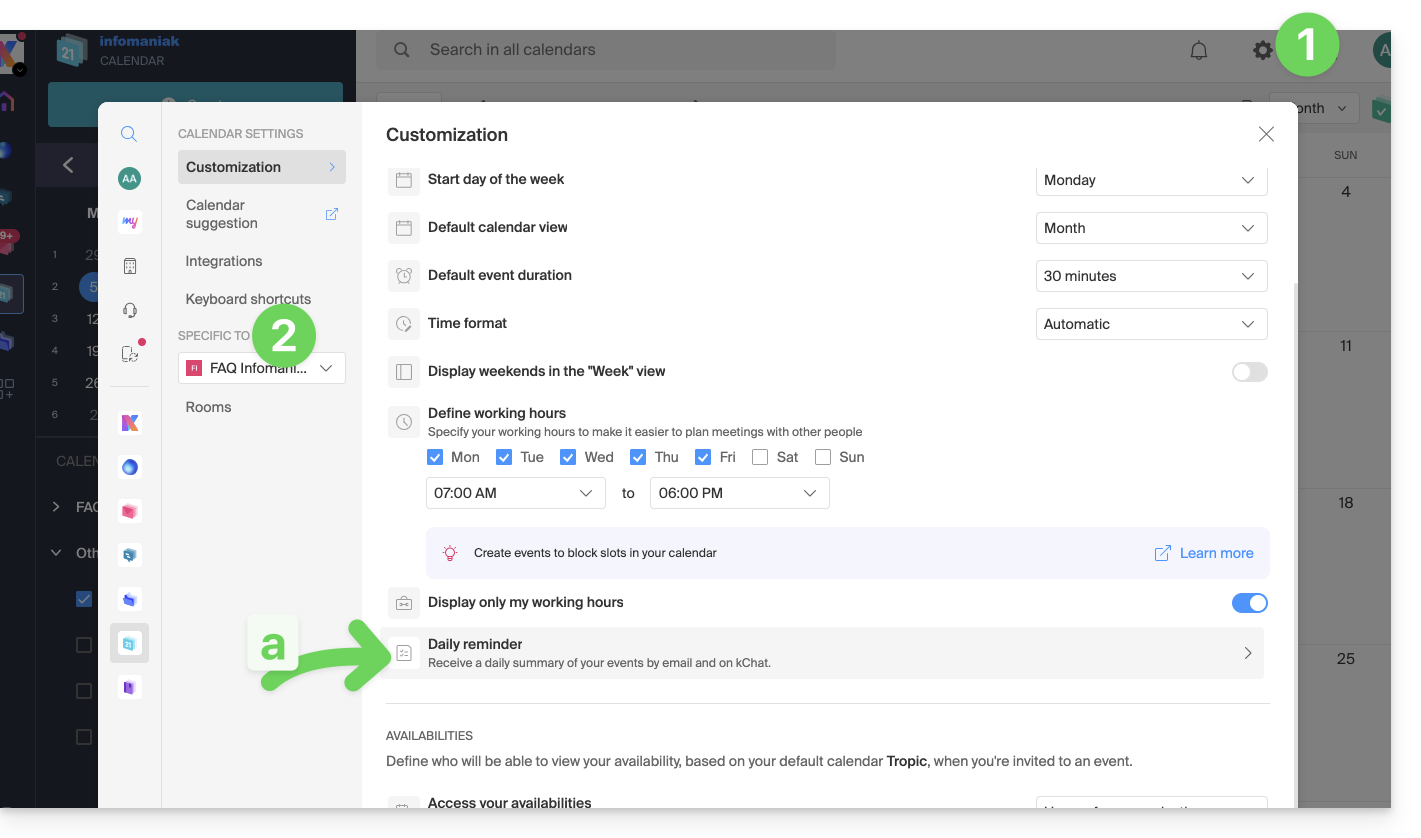
- Click here to access the Settings Calendar in your Infomaniak kSuite (❓: help).
- Check or select the relevant Organization from the dropdown menu in the left-hand menu.
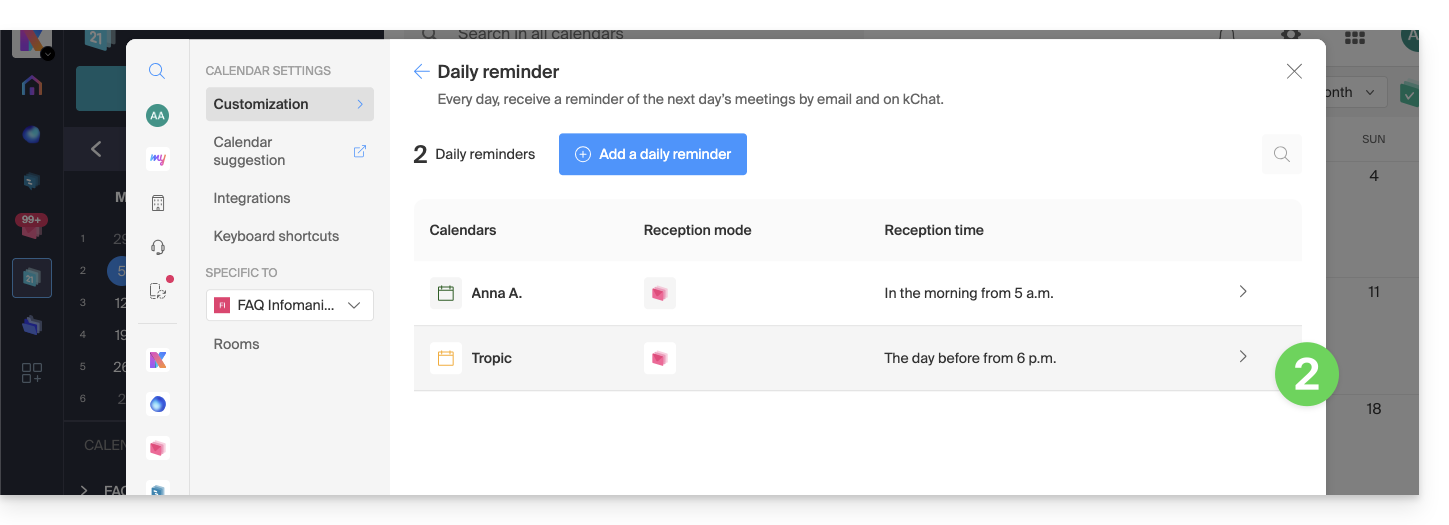
- If you change it, return to the settings by clicking on the daily reminder item to access the settings:
- If you change it, return to the settings by clicking on the daily reminder item to access the settings:
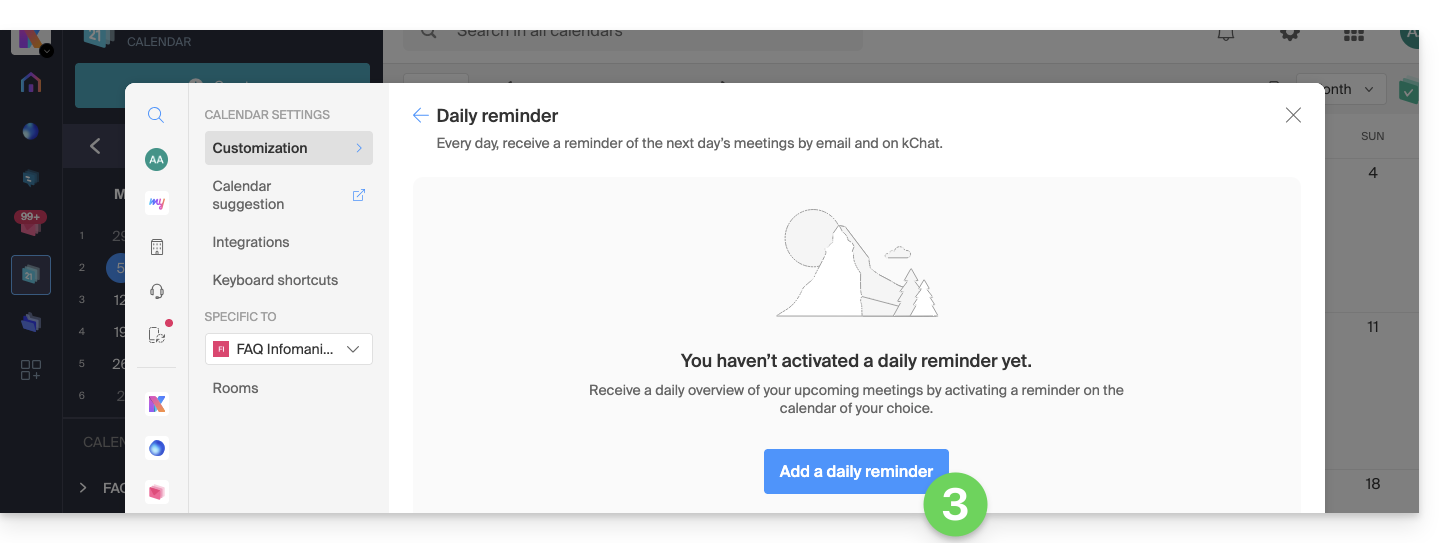
- Click the button to Add a daily reminder and configure it:
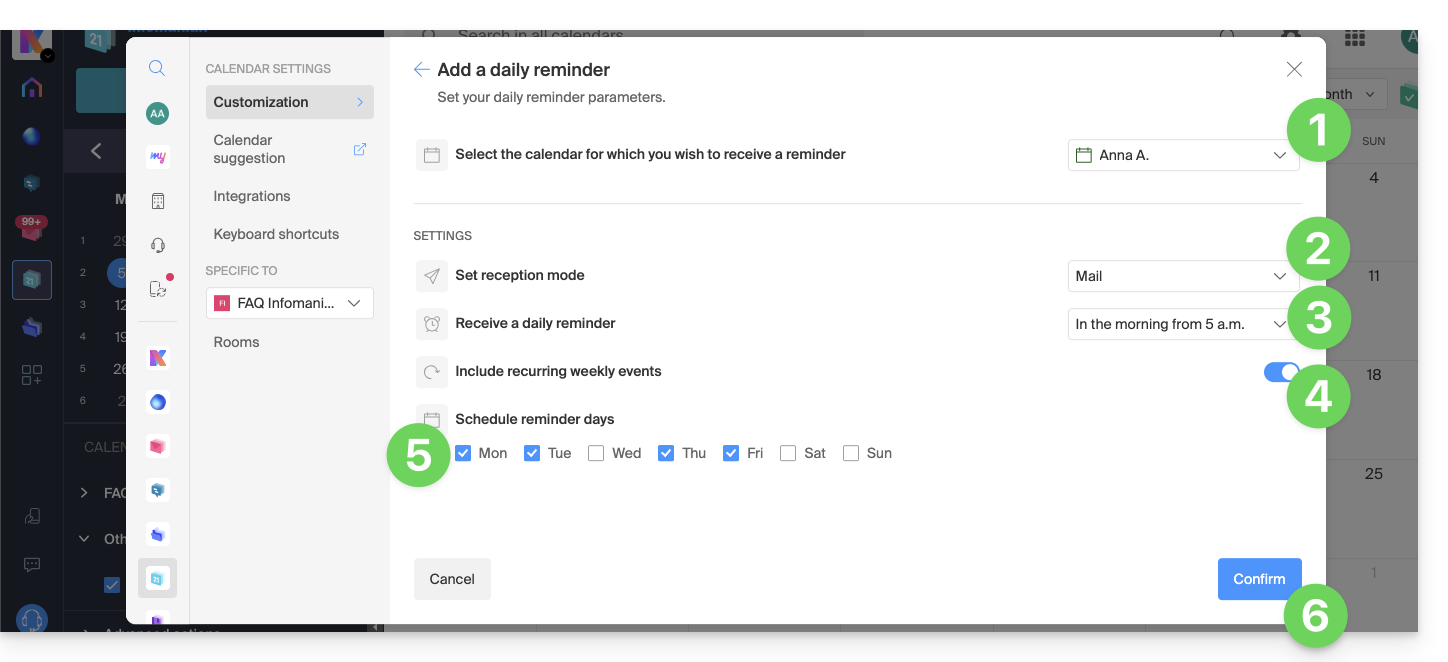
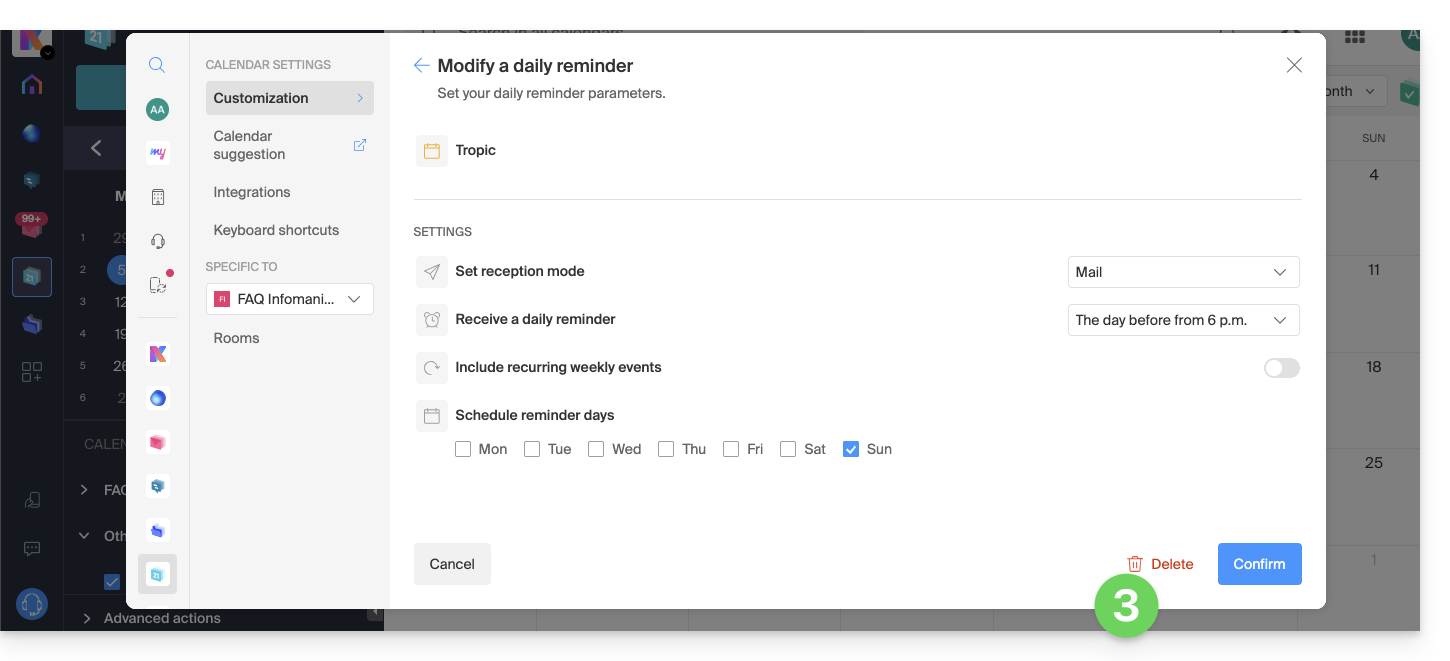
To customize your reminder according to your needs:
- Select the calendar in question.
- Choose the notification method (Mail, kChat, or both).
- Choose when you want to receive the reminder (the evening before or early on the day itself).
- Choose whether or not to include recurring events (❓: help).
- Choose the days during which the daily reminder will be sent.
- Confirm your choices at the bottom of the page:
Disable the daily reminder
To stop receiving the daily summary by email or via Euria on kChat:
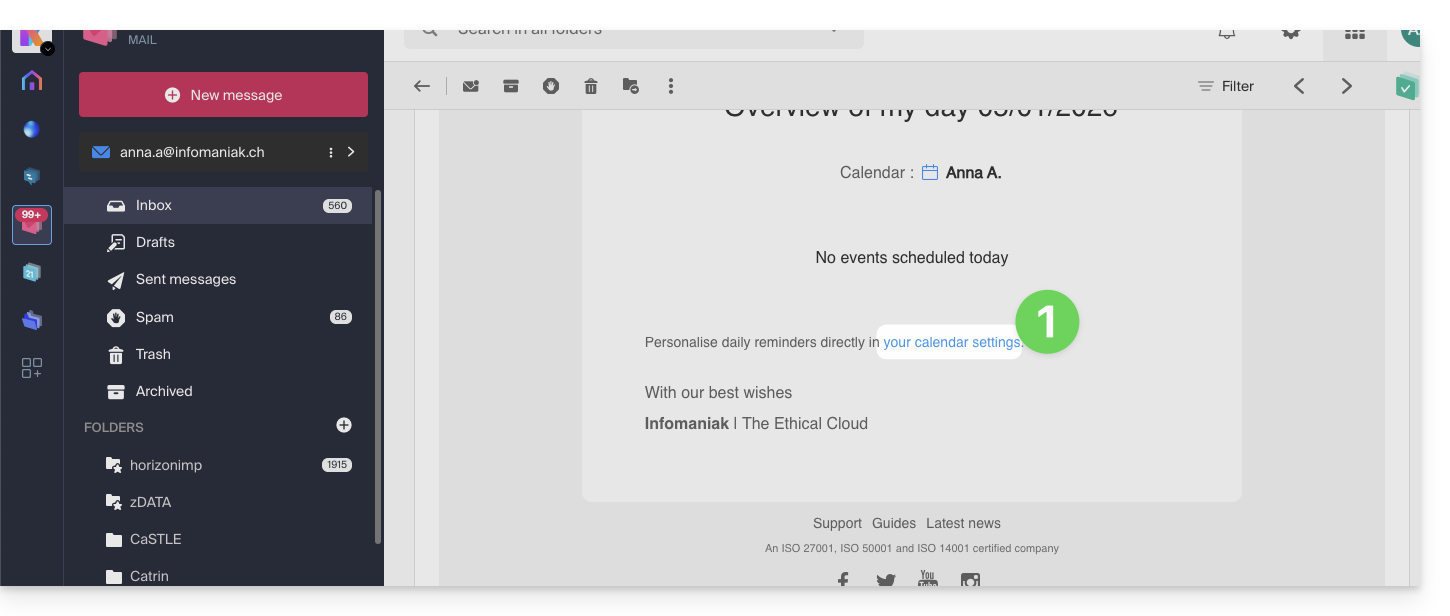
- Click on the link located at the very bottom of the notification you received:
- Click on the reminder to delete it:
- Delete the reminder from the edit page:
Link to this FAQ: https://faq.infomaniak.com/1622
Has this FAQ been helpful?