Knowledge base
1000 FAQs, 500 tutorials and instructional videos. Here, there are only solutions!
Download/print an Infomaniak invoice
This guide provides instructions on how to obtain one or more Infomaniak invoices before and after payment, view, download, and print all or part of the billing document history for your accounting purposes.
Introduction
- Final invoices can only be printed after they have been paid.
- If necessary, a personalized message can be easily added to your billing documents: see this other guide.
Accessing the Invoice History
Prerequisites
- Be Administrator or Legal Representative within the Organization…
- … or a simple user account but with the permission to manage accounting enabled:
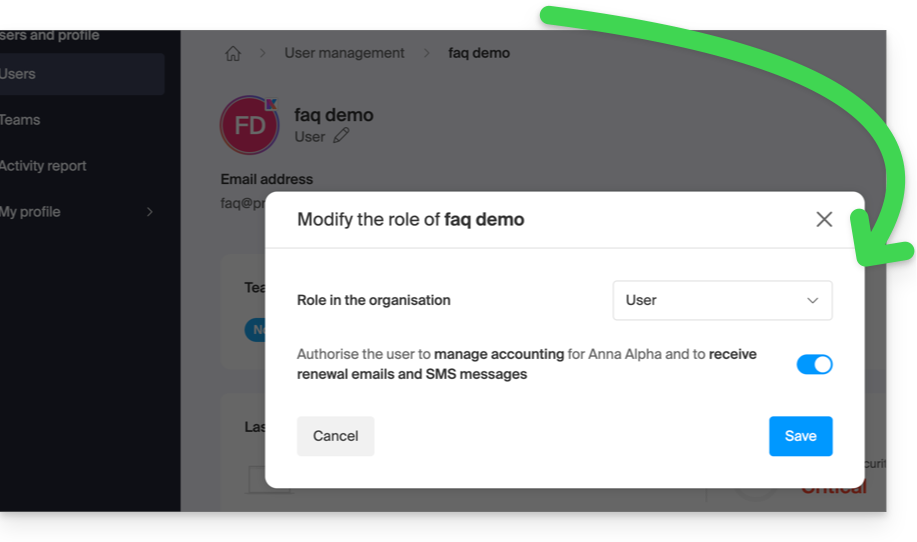
- … or a simple user account but with the permission to manage accounting enabled:
To go to the billing documents page:
- Click here to access the invoice history in the Infomaniak Manager:
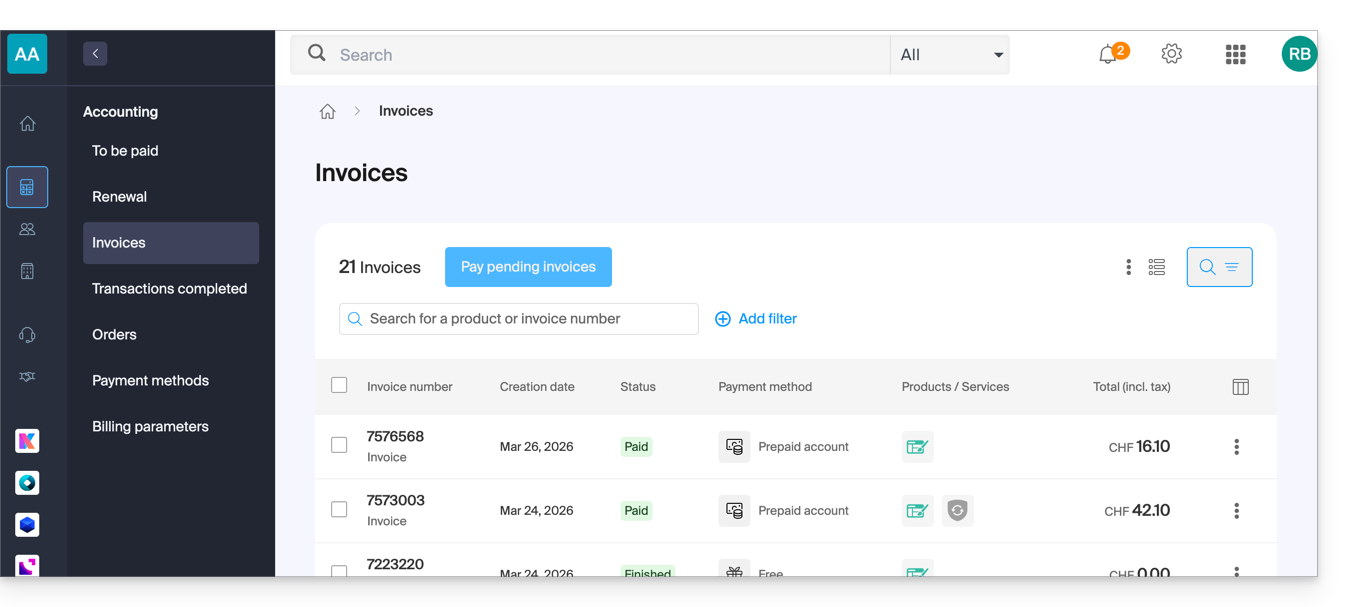
- The table automatically displays the most recent billing documents.
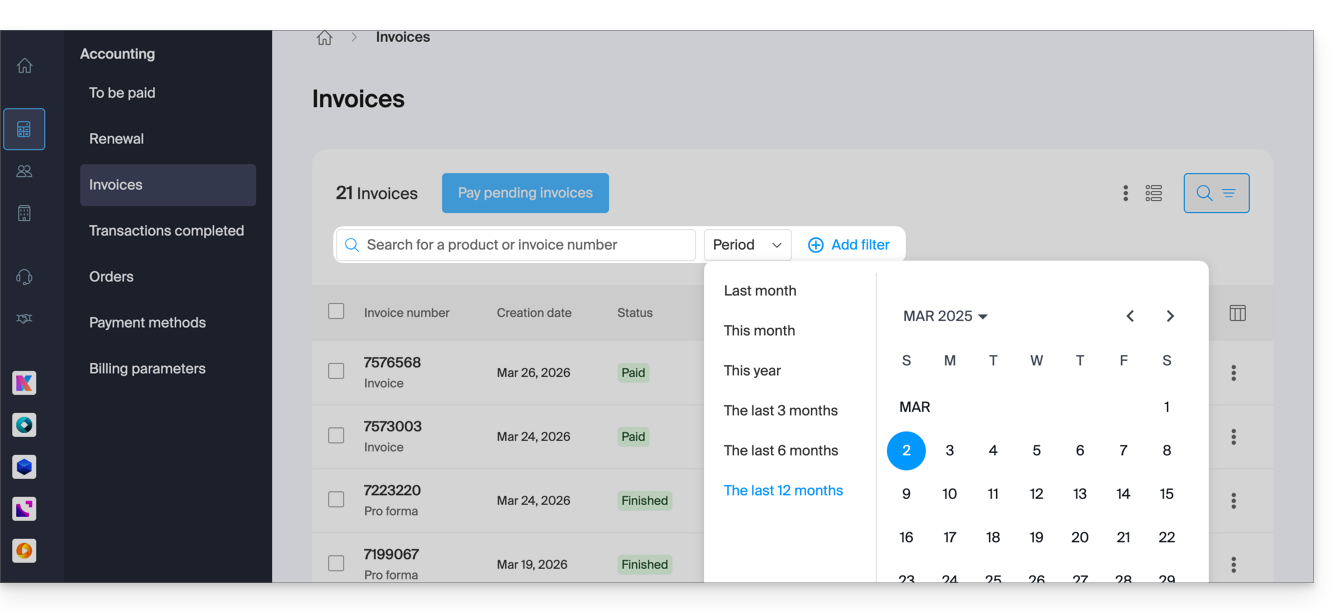
- The top section allows you to filter documents based on the Paid, Reimbursed, etc. status and based on the desired period (start and end date calendar):
Print/export a billing document
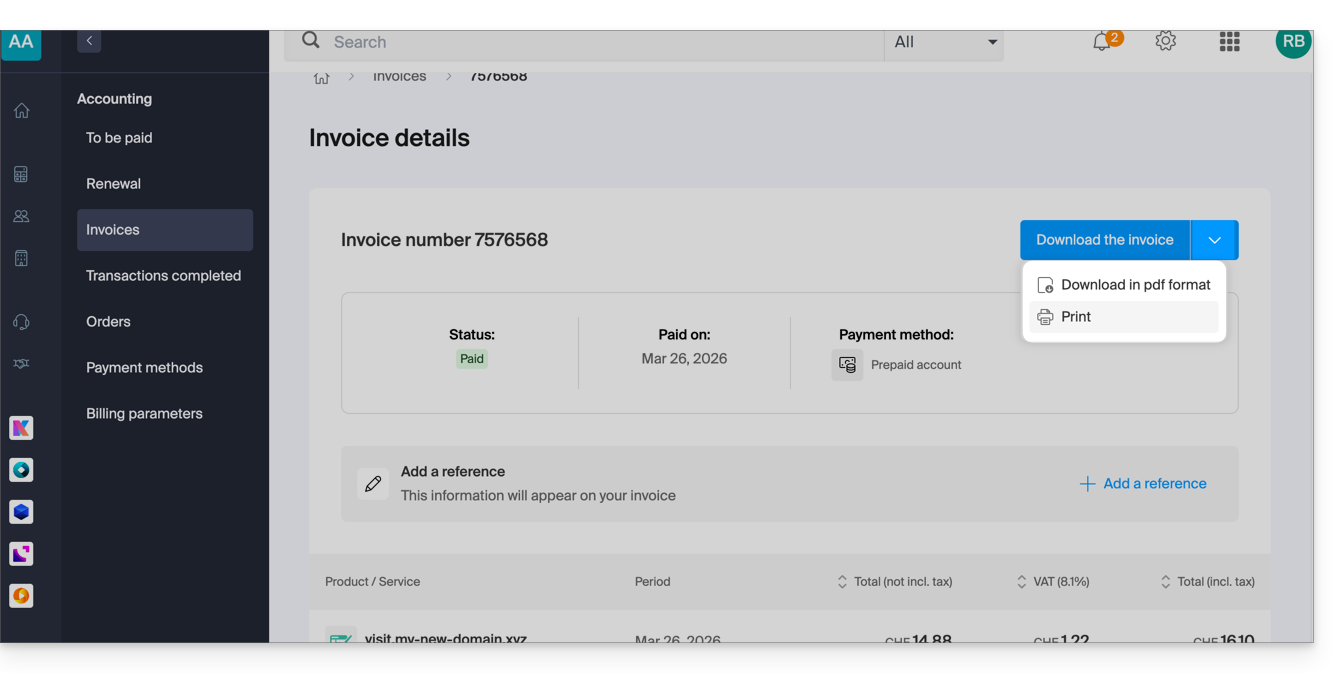
To view one of these documents in PDF format and then save it to your device or print it with your printer:
- On the same page, click on the invoice in question in the table that is displayed:
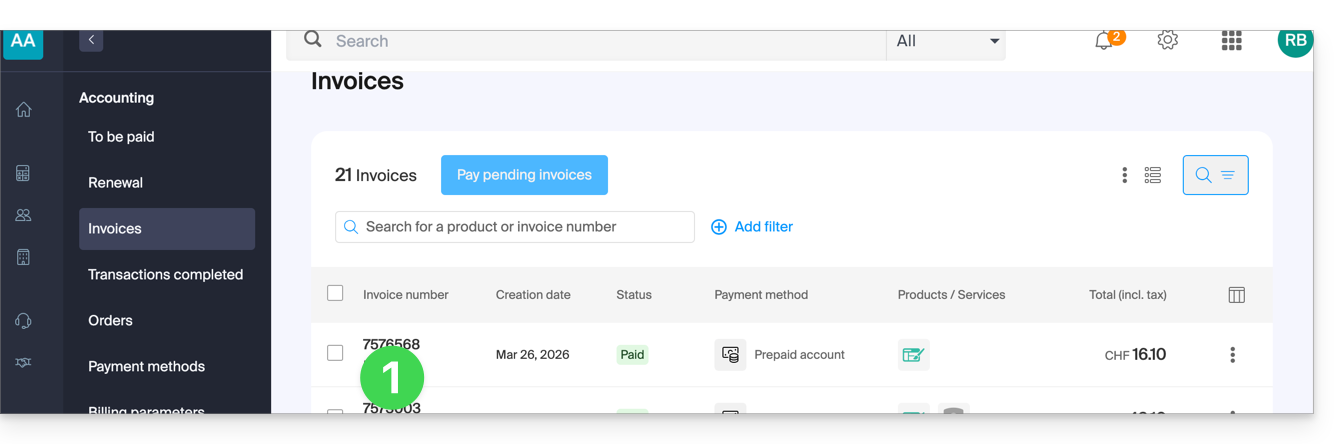
- Click the Download button or the chevron for more options:
Export a set of billing documents
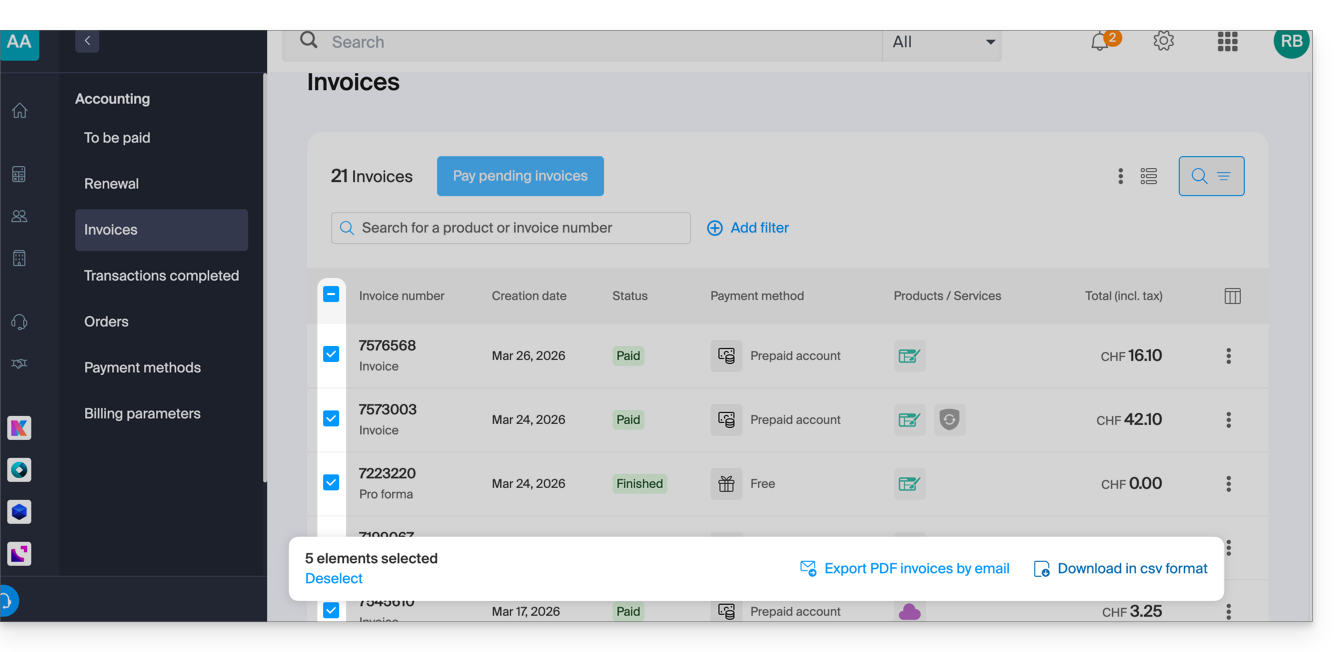
To download a set of documents in a CSV file in .csv format, or to receive them by email:
- On the same page, filter the documents based on the Paid, Reimbursed, etc. status, and based on the desired period (start and end dates).
- Click on the button at the bottom, depending on the type of export you want:
Receive the (next) PDF invoice by email
To ensure that the invoice is always attached in PDF format with each renewal email:
- Click here to access the configuration/accounting page in the Infomaniak Manager (need help?).
- Access requires authentication with a user who has sufficient rights.
- On this page, enable or disable the addition of PDF invoices:
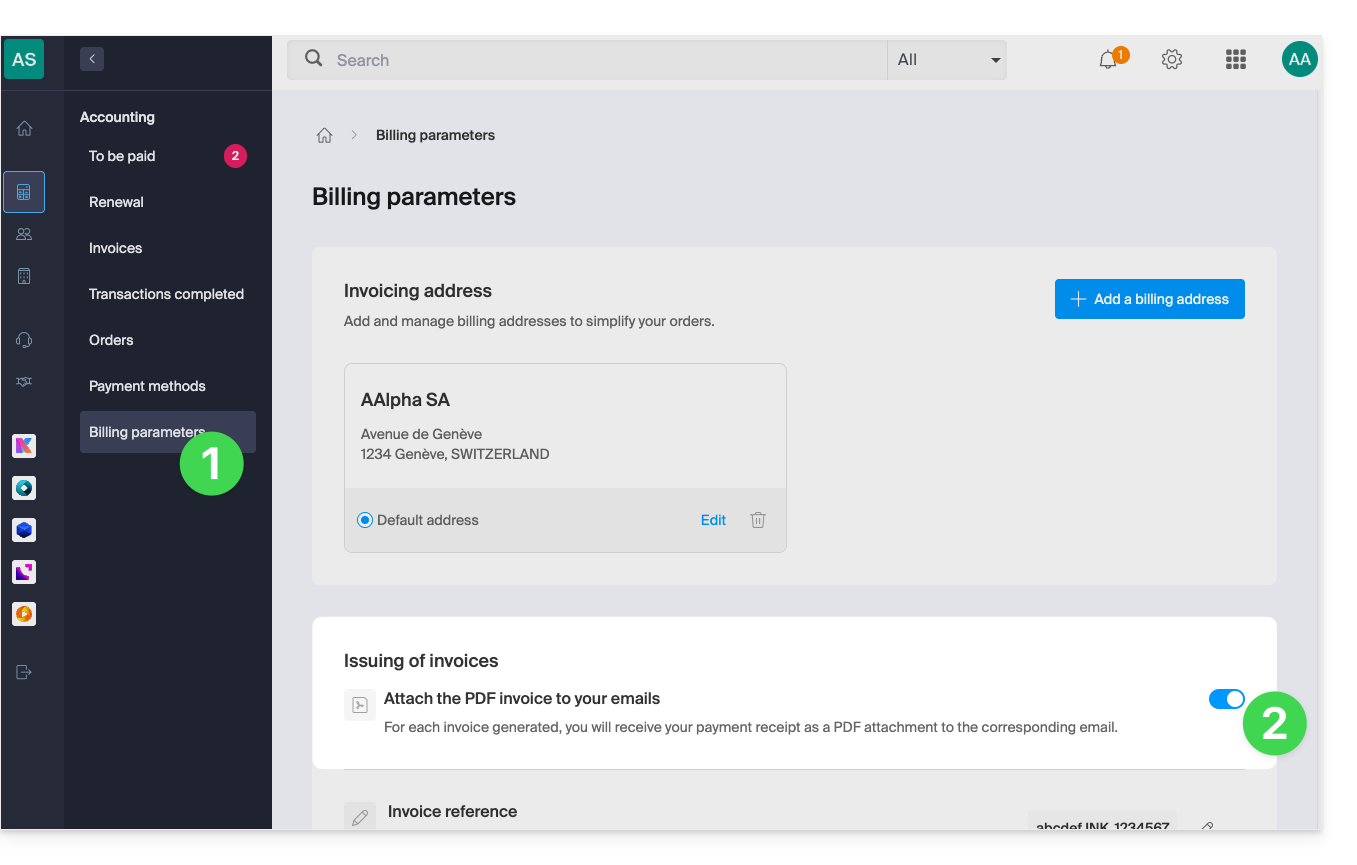
Your preferences are automatically saved as soon as a change is made on the page.
Print a Pro Forma Invoice
Pro Forma invoices do not have any legal, judicial, tax, or accounting value:
- Click here to access payment management in the Infomaniak Manager.
- Select the relevant products.
- Click on Generate a Pro Forma Invoice at the bottom of the table.
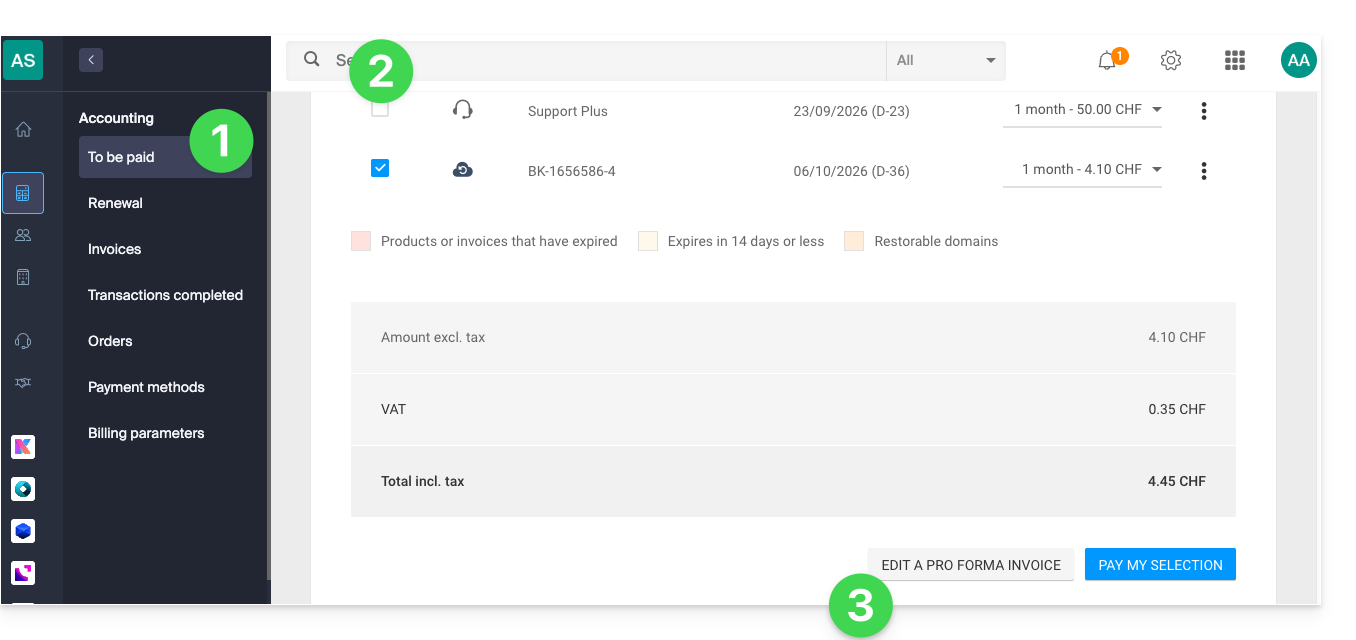
- Once displayed, you can then download the Pro Forma Invoice.
Link to this FAQ: https://faq.infomaniak.com/2091
Has this FAQ been helpful?