Knowledge base
1000 FAQs, 500 tutorials and instructional videos. Here, there are only solutions!
This guide explains how to modify the information for the kDrive product. Please note that there may be a delay before the applications (desktop, mobile, etc.) are synchronized with the new information.
Rename a kDrive from the Infomaniak Manager
To do this:
- Click here to access the kDrive management interface in your Infomaniak Manager.
- If nothing is displayed after logging in, you may not be in the Organization to which your kDrive is linked (❓: help).
- Click on the action menu ⋮ located to the right of the kDrive in question.
- Click on Rename product.
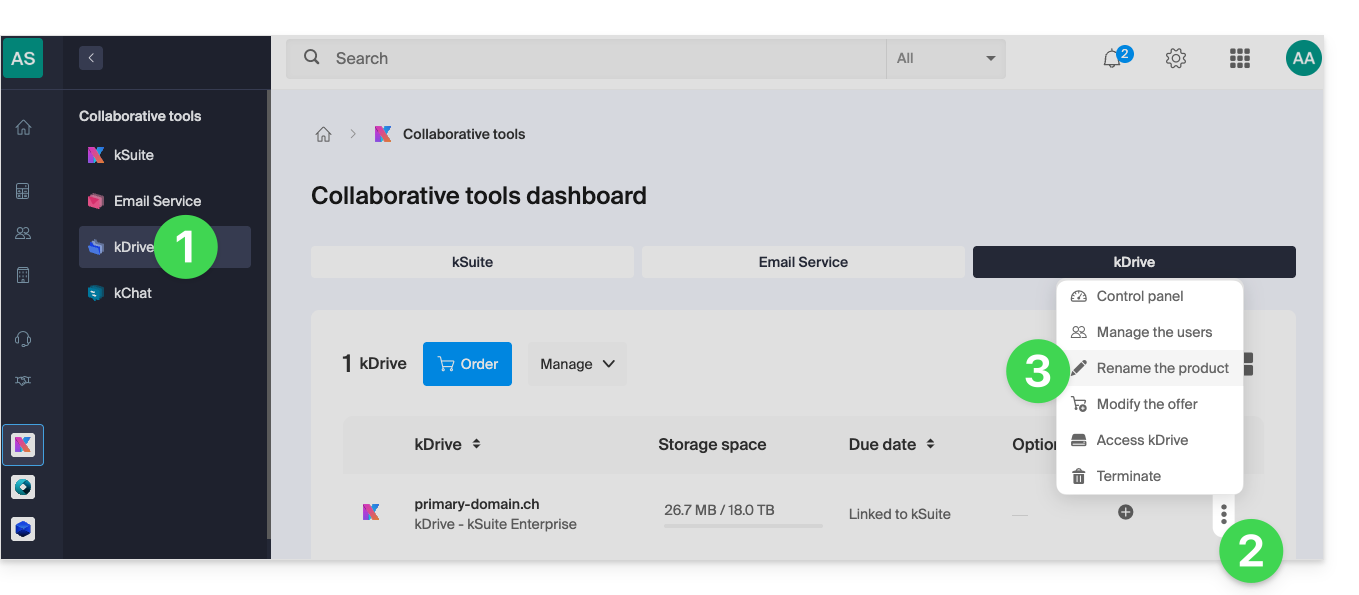
- Rename your kDrive.
- Click the Save button.
Rename from the unified settings of the apps
To do this:
- Click here to access kDrive on your Infomaniak kSuite (❓: help).
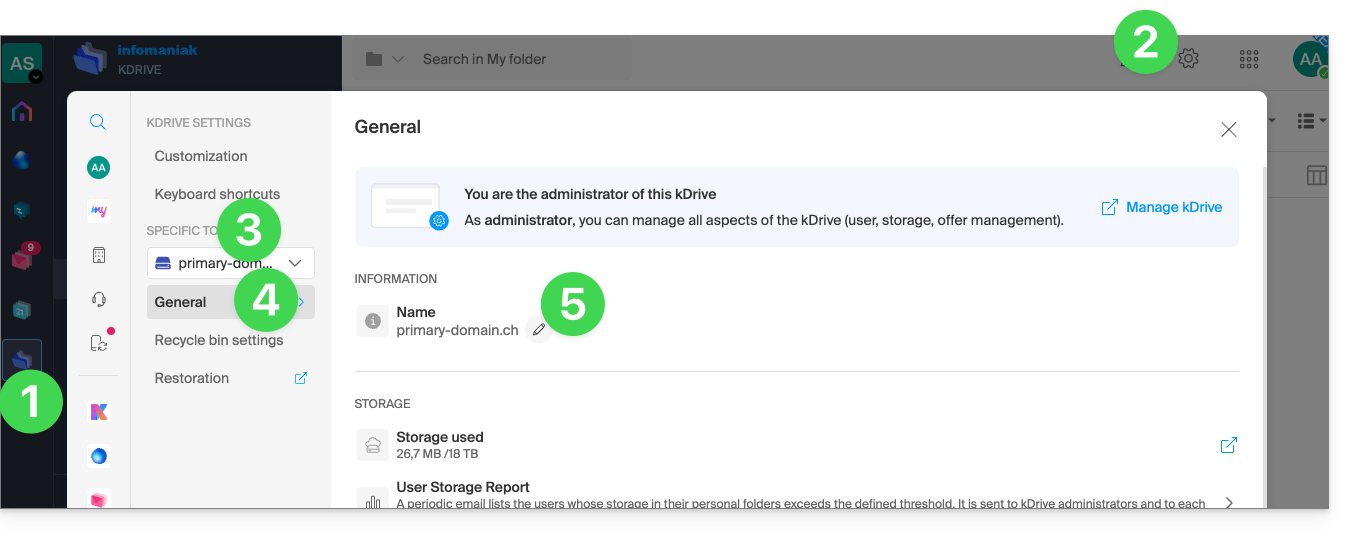
- Click on Settings in the top right corner.
- Check or select the relevant kDrive from the dropdown menu in the left-hand sidebar.
- Click on General.
- Click on the pencil ✎ icon to edit the kDrive name as you wish:
Link to this FAQ: https://faq.infomaniak.com/2274
Has this FAQ been helpful?
This guide explains how to save email attachments from the Infomaniak Mail web app (online service ksuite.infomaniak.com/mail).
Introduction
- You can save all the files attached to a message in a single click, in a
.ziparchive on your computer, or within your kDrive, etc. - Other guides detail how to:
Save the attachment from the Web Mail app
To export the attached files received by email:
- Click here to access your emails on your Infomaniak kSuite (❓: help).
- Open the message containing the attachments you want to save.
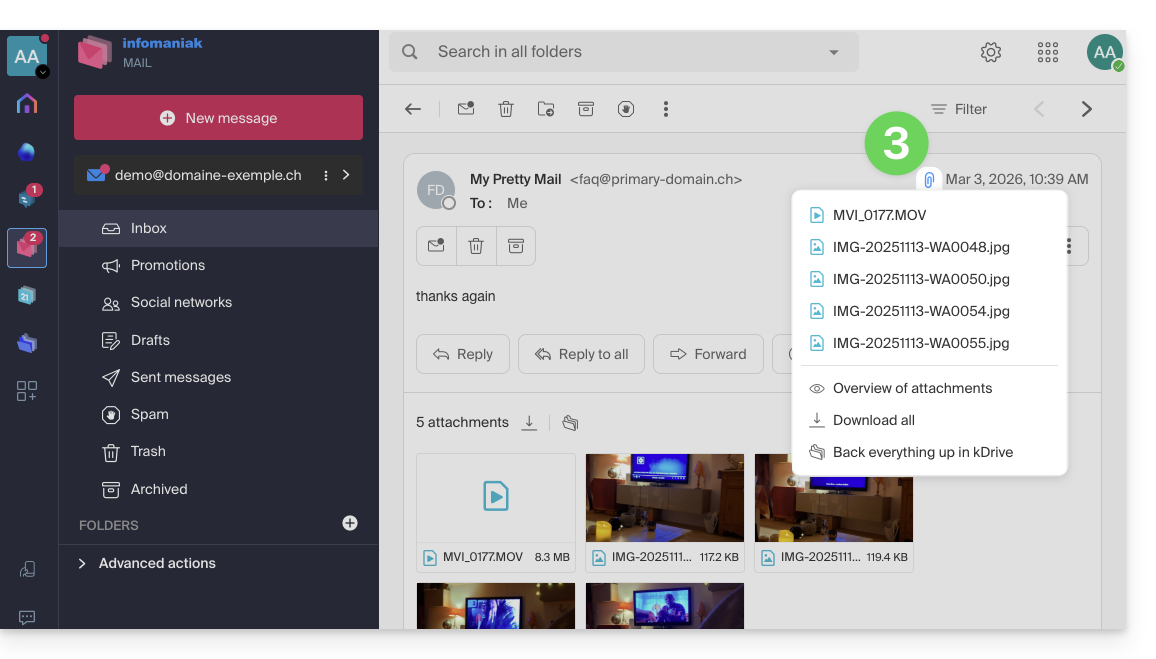
- Click on the paperclip icon to access the content backup and preview options:
- … or directly above the attached files to start the download or save to kDrive:
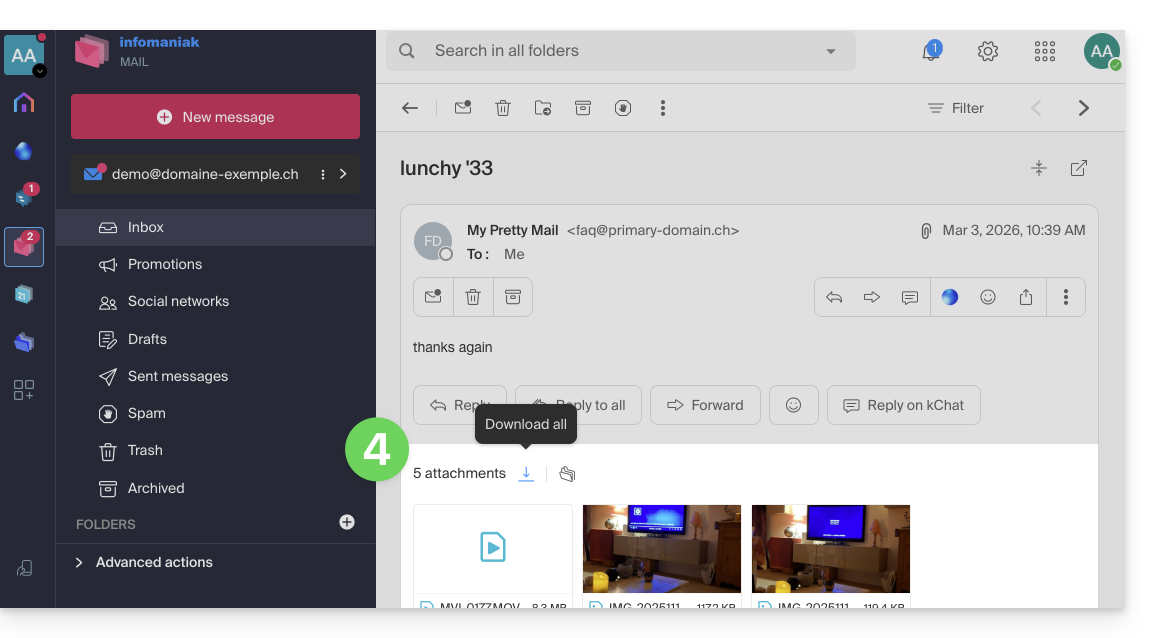
- Download all creates a
ziparchive to download to your device. - Save all to kDrive allows you to choose the kDrive (from those to which you are linked by your Organization) and the desired location on it to save the files:
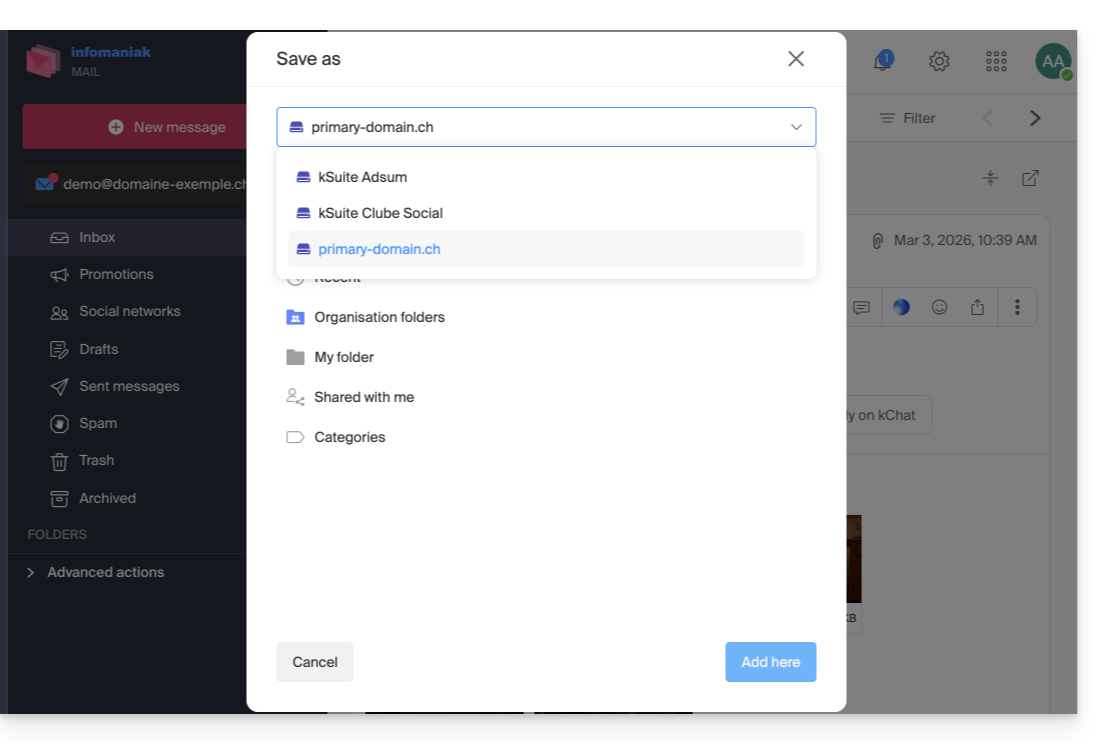
- Download all creates a
Link to this FAQ: https://faq.infomaniak.com/2309
Has this FAQ been helpful?
This guide helps you get started with kSuite by integrating an existing kDrive into your organization.
Introduction
- kDrive will be an integral part of the new kSuite.
- The minimum number of users in the chosen kSuite plan will be based on the number of users in the existing kDrive plan.
- kDrive users will become kSuite users.
- To help you identify the kSuite offer that best suits your needs, please refer to this other guide.
Upgrading my kDrive to kSuite
Prerequisites
- The organization must not already have kSuite.
- The organization must have a paid kDrive plan.
- You must be at least an Administrator of the Organization (❓: help).
Create a new kSuite from your existing kDrive:
- Click here to access the Infomaniak kDrive web app (online service ksuite.infomaniak.com/kdrive).
- Click on Manage.
- Click on Upgrade your plan.
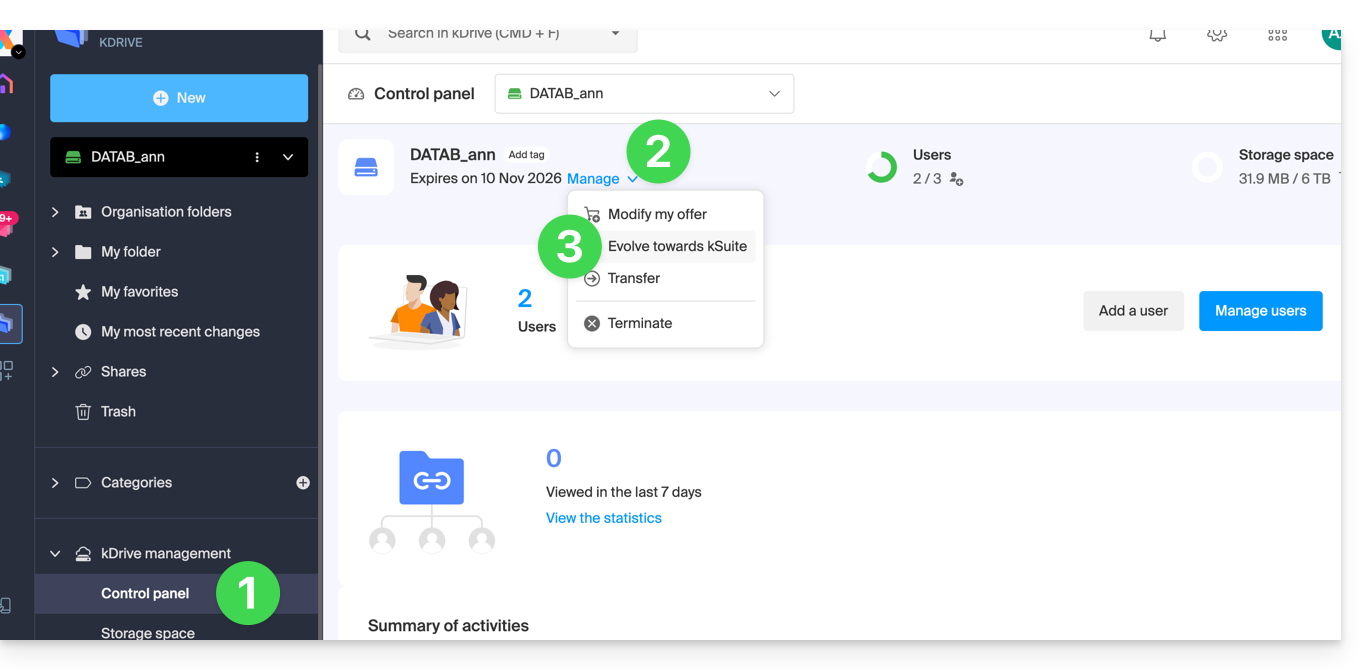
You can also do this from an information banner visible on the home page of your Manager interface: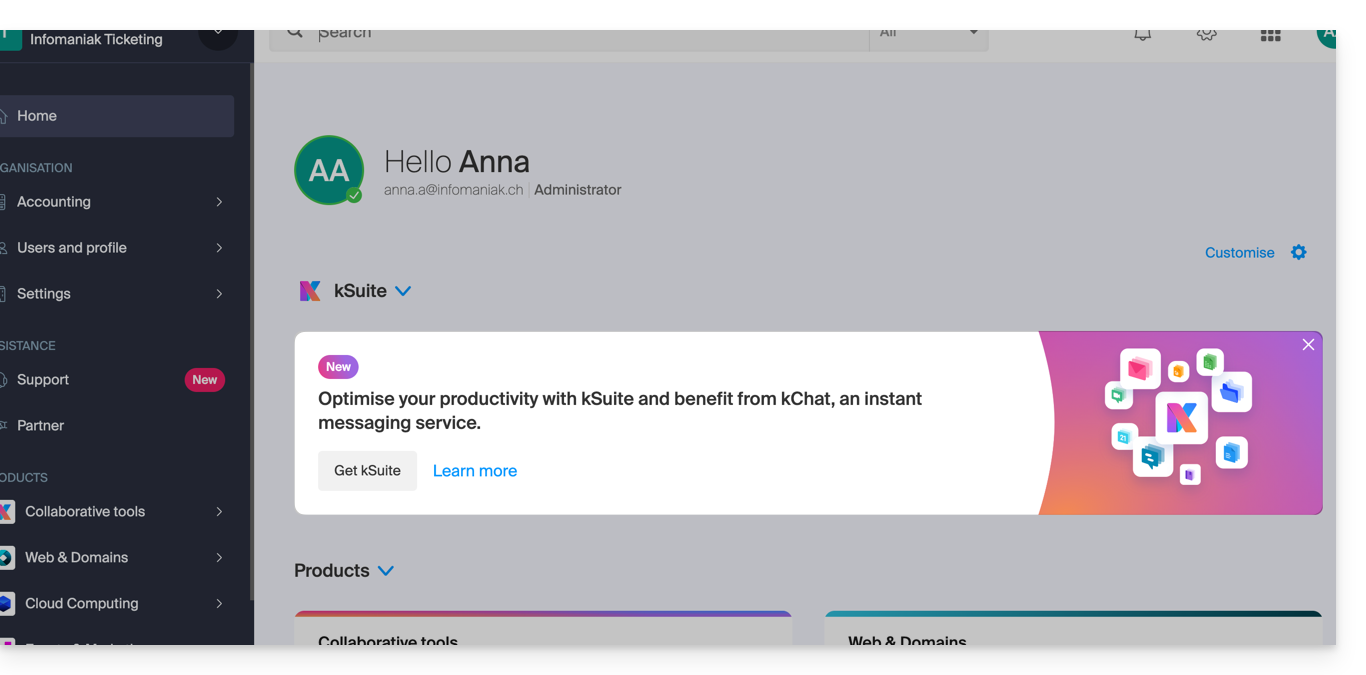
You can also integrate your Mail service if it is currently outside of kSuite.
Link to this FAQ: https://faq.infomaniak.com/2350
Has this FAQ been helpful?
This guide explains how to add, block, replace, or remove a user from a kDrive. To learn more about managing user rights, please refer to this other guide.
Prerequisites
- The user must create (or have) an Infomaniak account to accept the invitation and join the kDrive.
- You must have a kDrive plan with a sufficient number of available user slots (need help?).
Adding a user
To do this:
- Click here to access the Infomaniak kDrive web app (online service ksuite.infomaniak.com/kdrive).
- Check or select the relevant kDrive in the drop-down menu on the left-hand side.
- Click on the action menu ⋮ located to the right of the item in question.
- Click on Invite a new user:
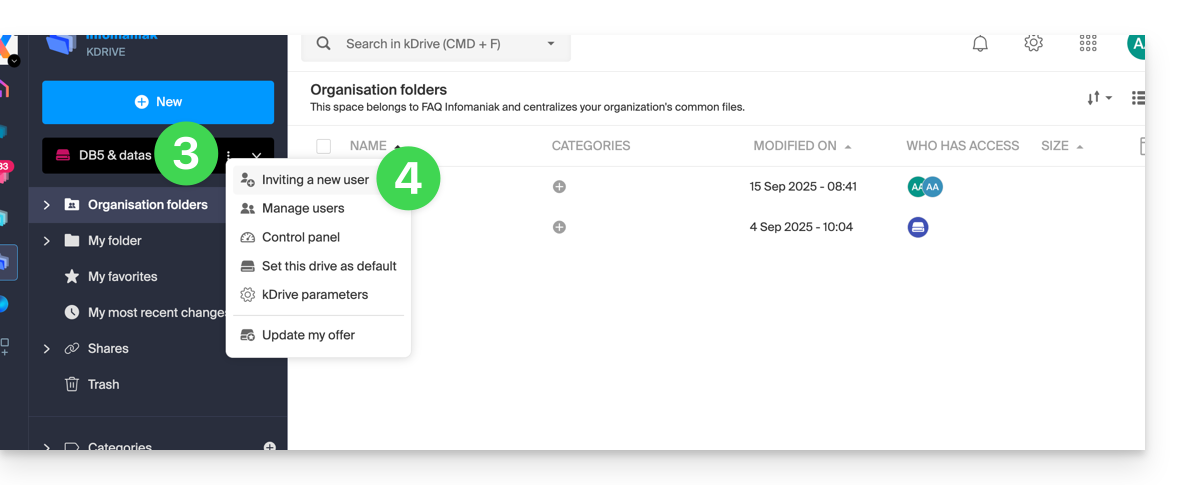
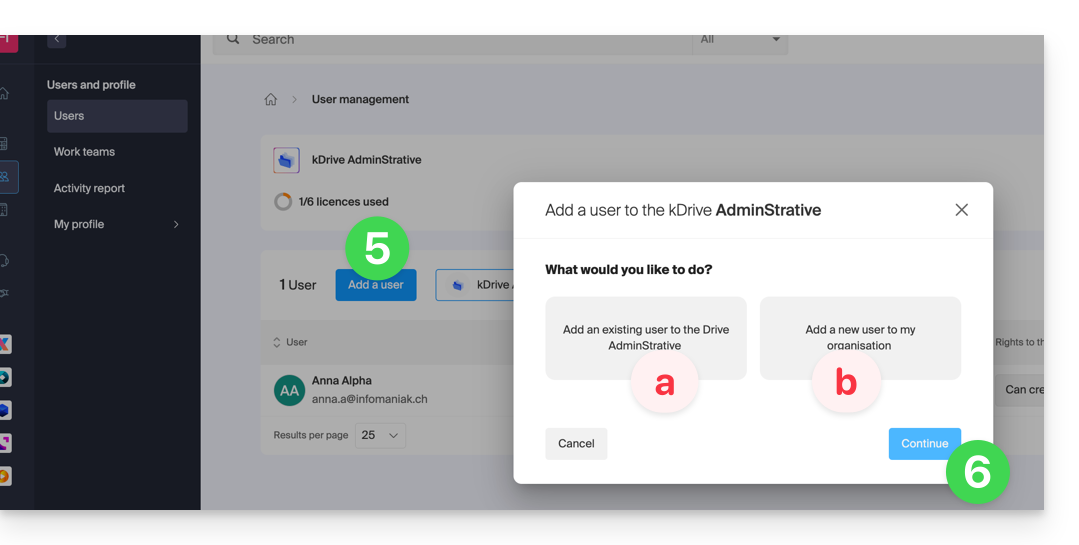
If necessary, click the button again to invite a new user, then click on:
- Add a user to Drive to choose a user already present in your Organization,
- Add a user to my Organization to invite an external user.
With kSuite, it's essentially the same:- Create a (new) kSuite user,
- Invite an existing user to kSuite.
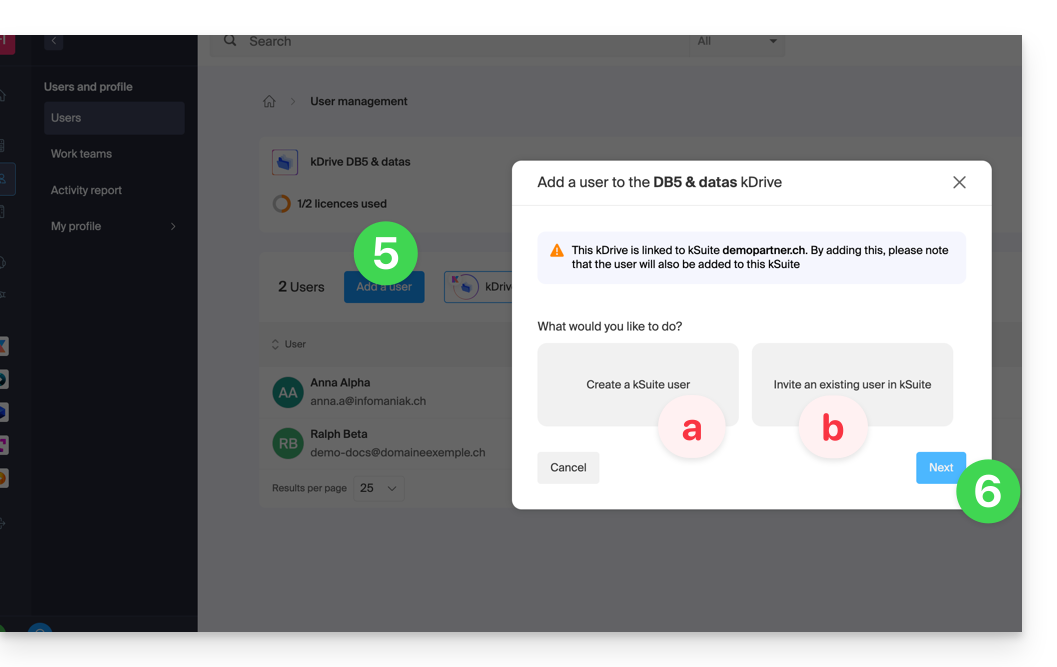
- Press the button to continue.
- Depending on your choice, enter the contact details or simply the email address of the user to invite and specify their rights.
- Click on Invite.
The user will then receive an email that will allow them to accept the invitation (valid for 1 month). They will be indicated as an invited user awaiting confirmation in the kDrive user management section.
Block a user
This feature allows you to prevent a user from accessing files from the kDrive web interface and from the application on a device:
- Click here to access the Infomaniak kDrive web app (online service ksuite.infomaniak.com/kdrive).
- Check or select the kDrive in question from the drop-down menu in the left-hand menu.
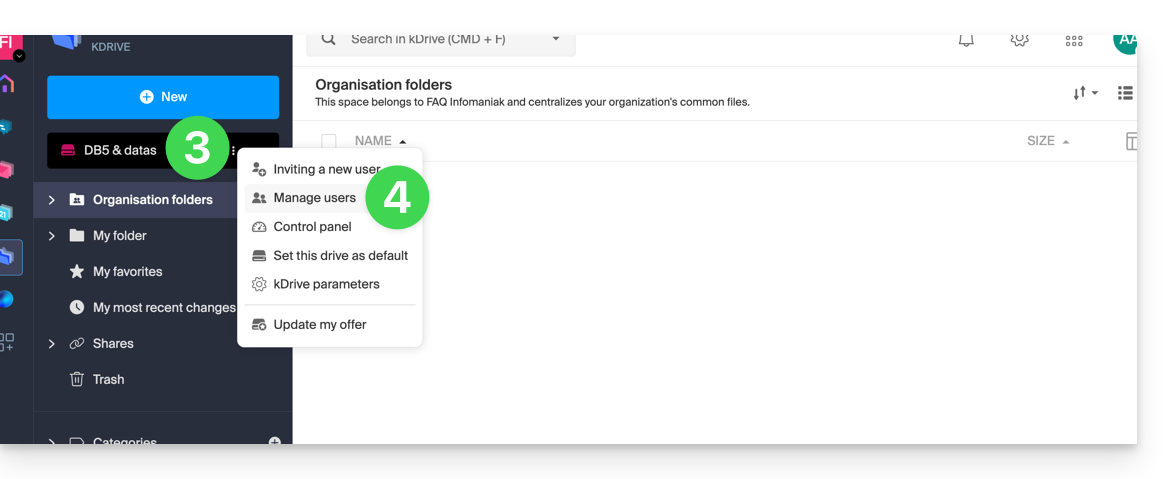
- Click on the action menu ⋮ located to the right of the item in question.
- Click on Manage Users:
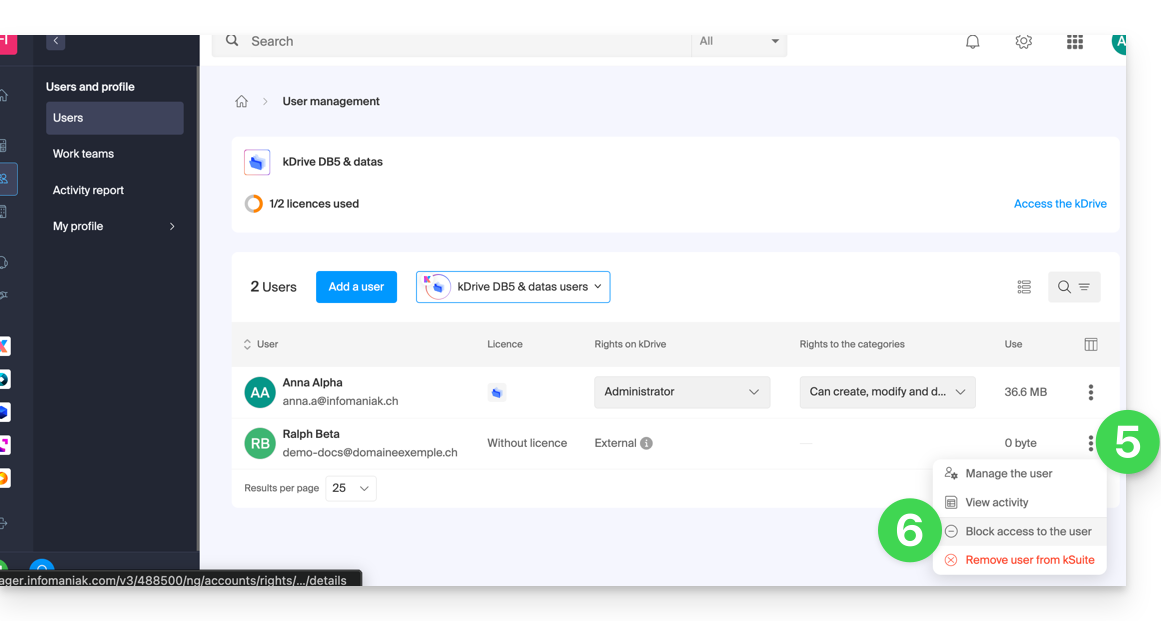
- Click on the action menu ⋮ to the right of the user in question in the table that appears.
- Click on Block User and confirm the action:
To unblock a user, simply follow the same procedure.
How to delete a user
If a user leaves your company or team, several options are available to you as an administrator. You can choose to…
- … block the user for a certain period of time (see above).
- … completely delete the user and their files.
- … delete the user and keep their files for 6 months.
- … delete the user and transfer their files to another user.
To delete a user:
- Click here to access the Infomaniak kDrive web app (online service ksuite.infomaniak.com/kdrive).
- Check or select the relevant kDrive in the drop-down menu in the left-hand menu.
- Click on the action menu ⋮ to the right of the item in question.
- Click on Manage Users:
- Click on the action menu ⋮ to the right of the user in question in the table that appears.
- Click on Remove User.
- Choose whether or not to keep the user's data:
- Keep the user's files for 6 months or transfer them to another user.
- Delete the user's files immediately and permanently.
- Click on Remove access rights.
Remove an external user from kDrive
External users are those with whom you have only shared one or more files/folders without giving them access to the entire kDrive:
To remove an external user:
- Click here to access the Infomaniak kDrive web app (online service ksuite.infomaniak.com/kdrive).
- Check or select the relevant kDrive in the dropdown menu on the left-hand menu.
- Click on the action menu ⋮ located to the right of the item in question.
- Click on Manage users.
- Click on the action menu ⋮ to the right of the external user in question in the table that appears.
- Click on Remove access to kDrive:
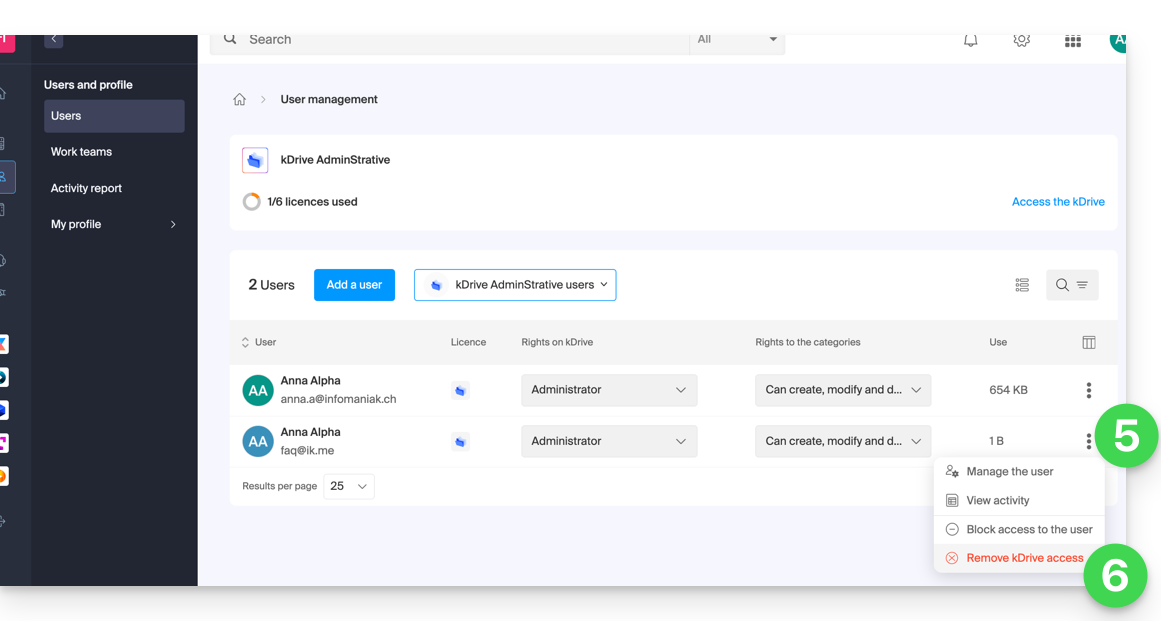
You can also go to the location of the shared file and click on the sharing column to remove access for the user in question: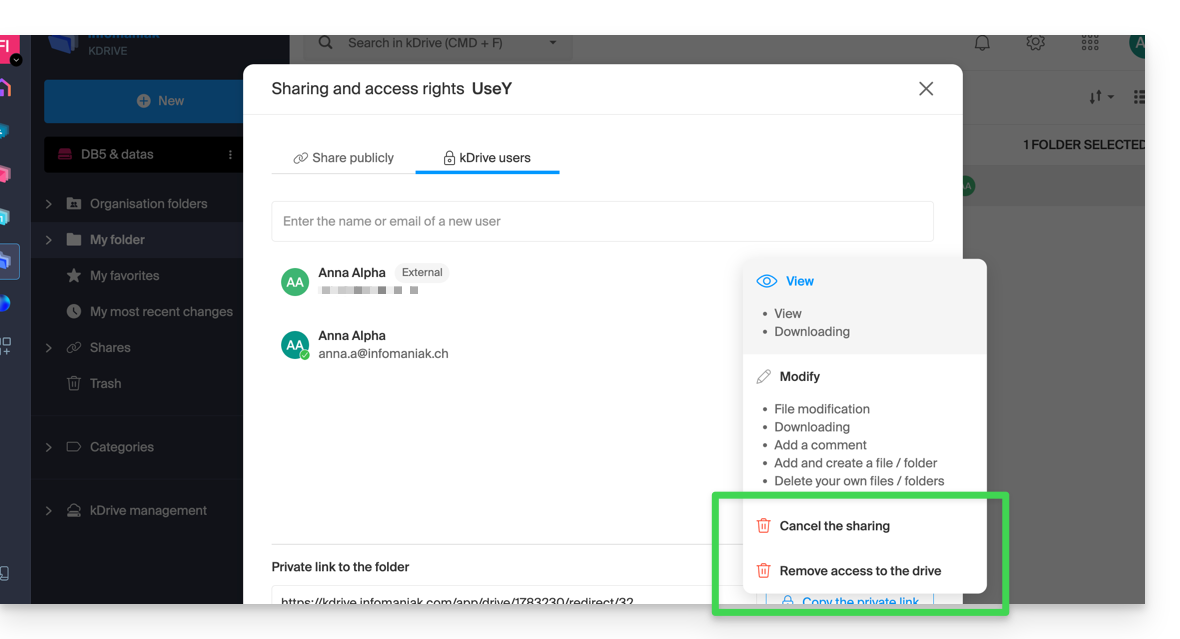
You can:
- stop sharing the file with them (they will continue to see the other files if you have shared others)
- remove their access to all the files you have shared with them from this kDrive
Please note that the external user can also, from their limited kDrive, remove themselves by cutting off access to the shared file if they no longer wish to access that file: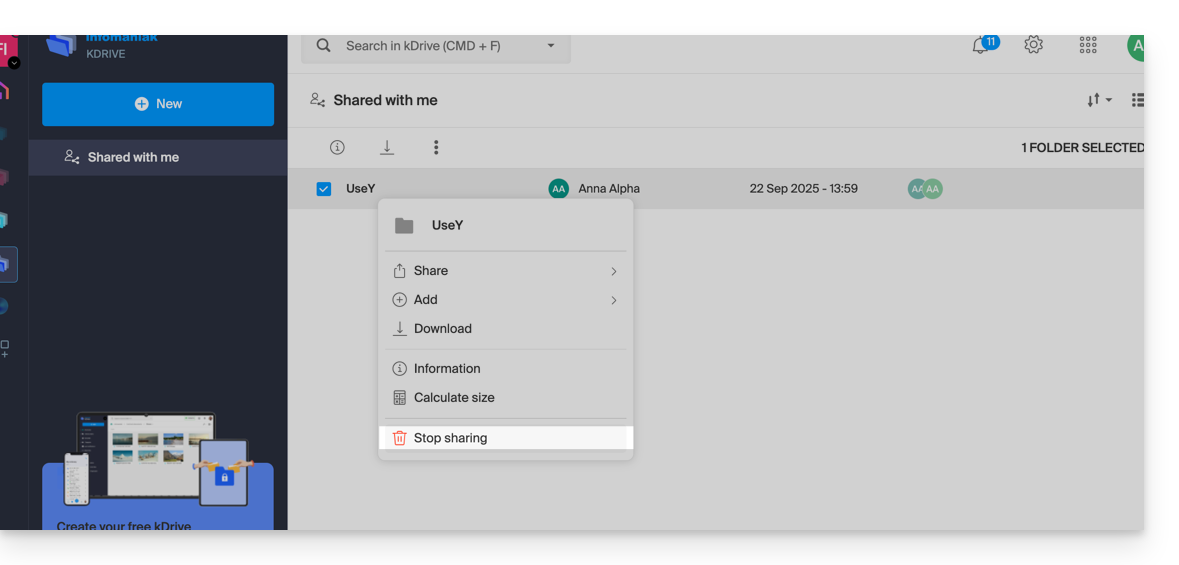
They will no longer appear in the list of external users.
Replace a kDrive user
✘ UNAVAILABLE with
kSuite
my kSuite / my kSuite+ (ik.me, etik.com, ikmail.com)
In the case where a kDrive administrator wishes to remove themselves (only this type of account can do so) and assign the kDrive usage rights to a third-party user (who is already among the users of the Organization on which the kDrive in question is located):
- Click here to access the Infomaniak kDrive web app (online service ksuite.infomaniak.com/kdrive).
- Check or select the kDrive in question from the drop-down menu in the left-hand menu.
- Click on the action menu ⋮ located to the right of the item in question.
- Click on Dashboard.
- Click on Manage users:
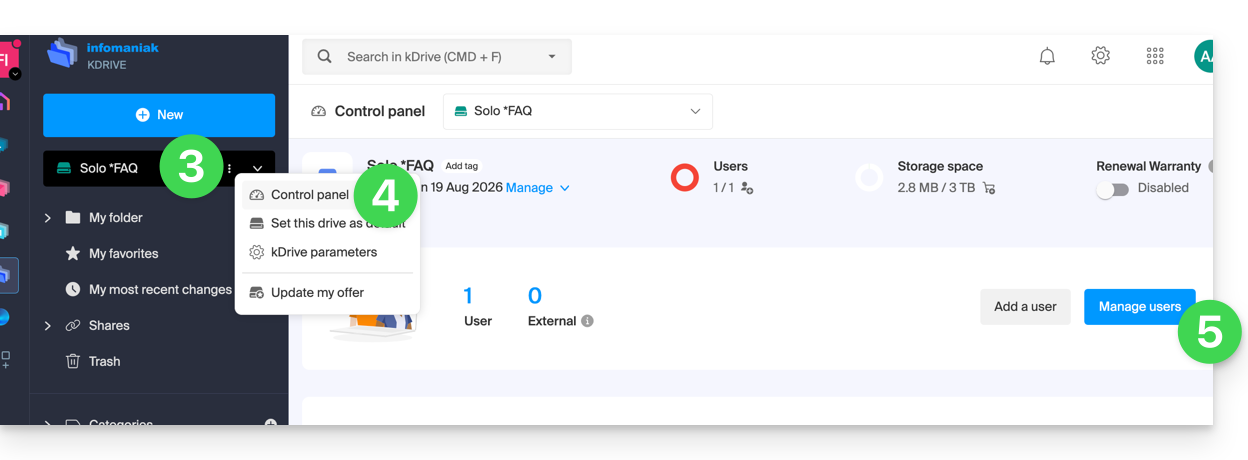
- Click on the action menu ⋮ located to the right of the current user.
- Click on Replace User:
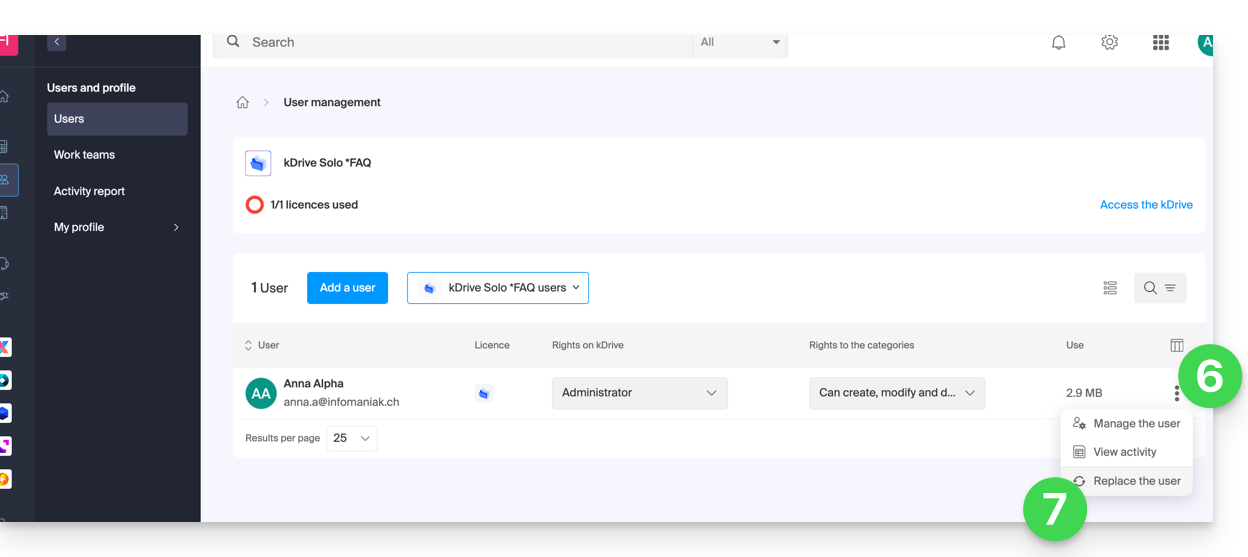
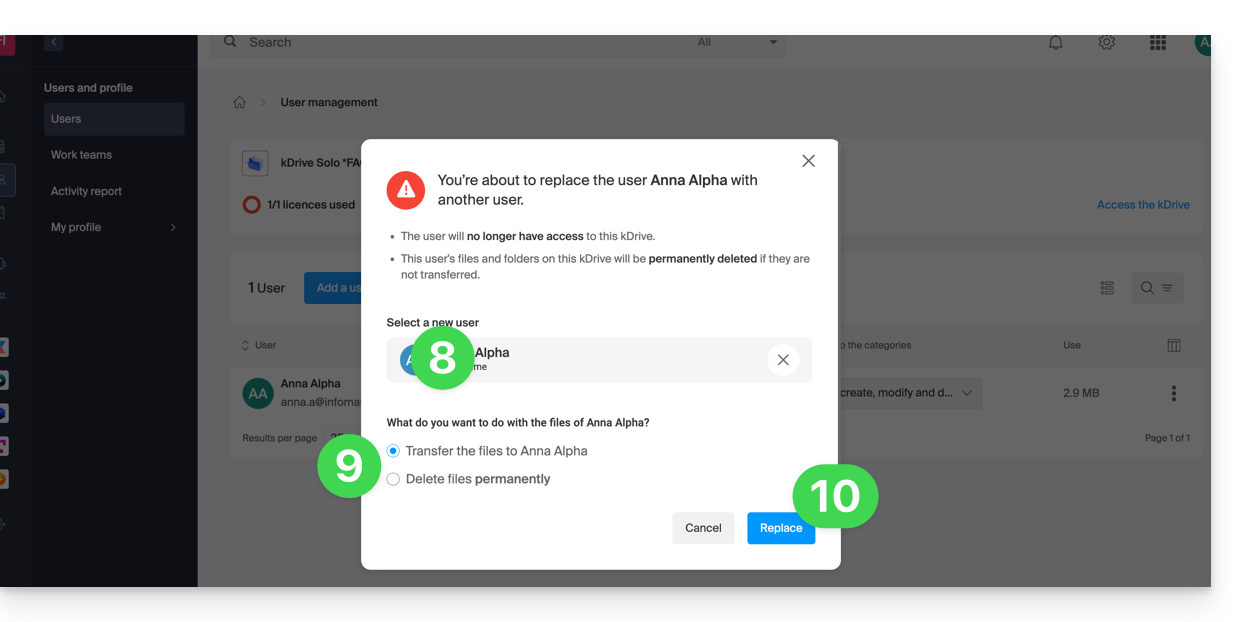
- Enter the user (from those already associated with the Organization) who should be the main user of the kDrive, replacing the current administrator.
- Choose whether the existing data on kDrive should be kept and transferred to the user, or whether it should be deleted completely and permanently.
- Click on the Replace button:
Video: What does a newly added user have access to?
Imagine a kDrive Pro within a kSuite, with only 1 user out of 3, data in the shared folder "Organization Folders" and in the personal folder "My Folder".
If a new user without an Infomaniak account is invited to kSuite as a collaborator, what will they be able to access by default in the Manager and on kDrive?
The new user is invited to the Organization as a collaborator, therefore by default they will have no management rights over the products in the Manager:
The invitee opens the link in a browser and creates their Infomaniak account:
and at the end of the registration process, they access the Manager, which, as expected, is completely empty in terms of product management…
However, they are prompted to use the kDrive web app (online service ksuite.infomaniak.com/kdrive), accessible via the icon in the top right corner, under Applications:
and they can access the organization's folders, which are already populated by other users!
Link to this FAQ: https://faq.infomaniak.com/2364
Has this FAQ been helpful?
This guide explains how user permissions work on kDrive and how you can modify these access permissions.
How kDrive User Permissions Work
You can add a new user to kDrive (e.g., kDrive Pro, which is separate from kSuite) and define two levels of permissions through folder sharing…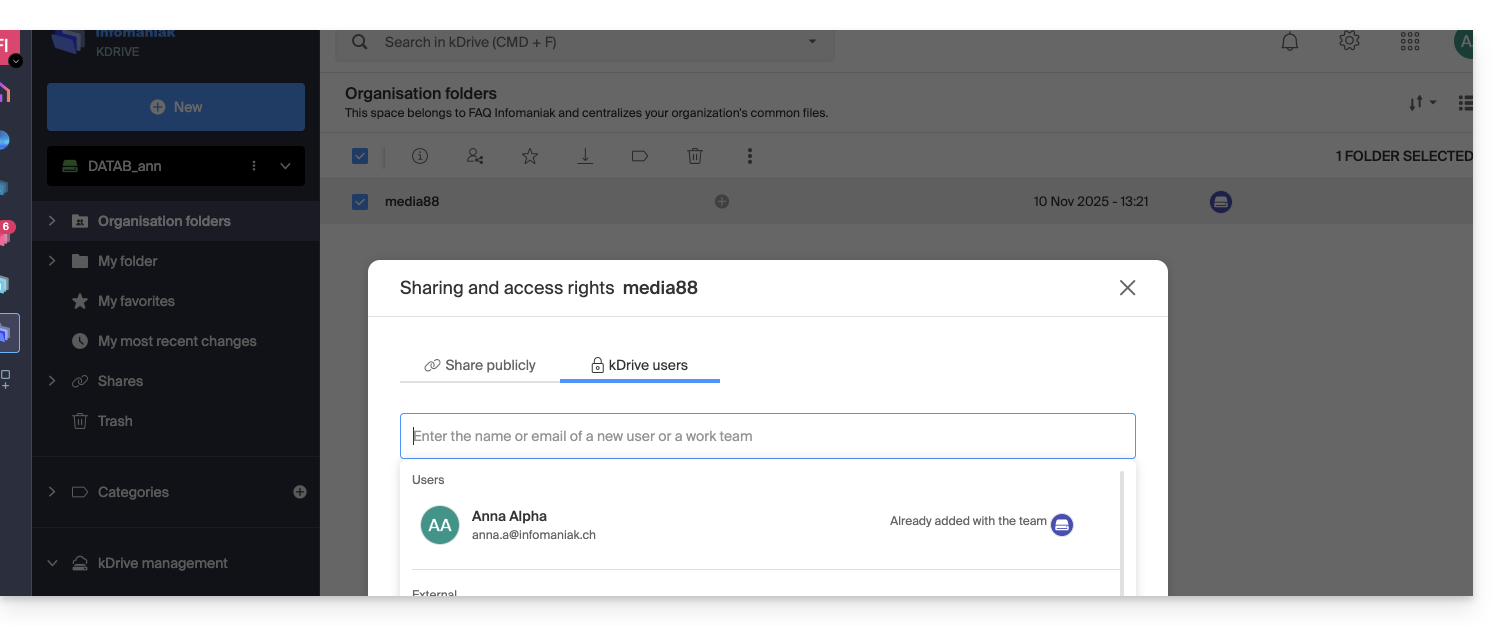
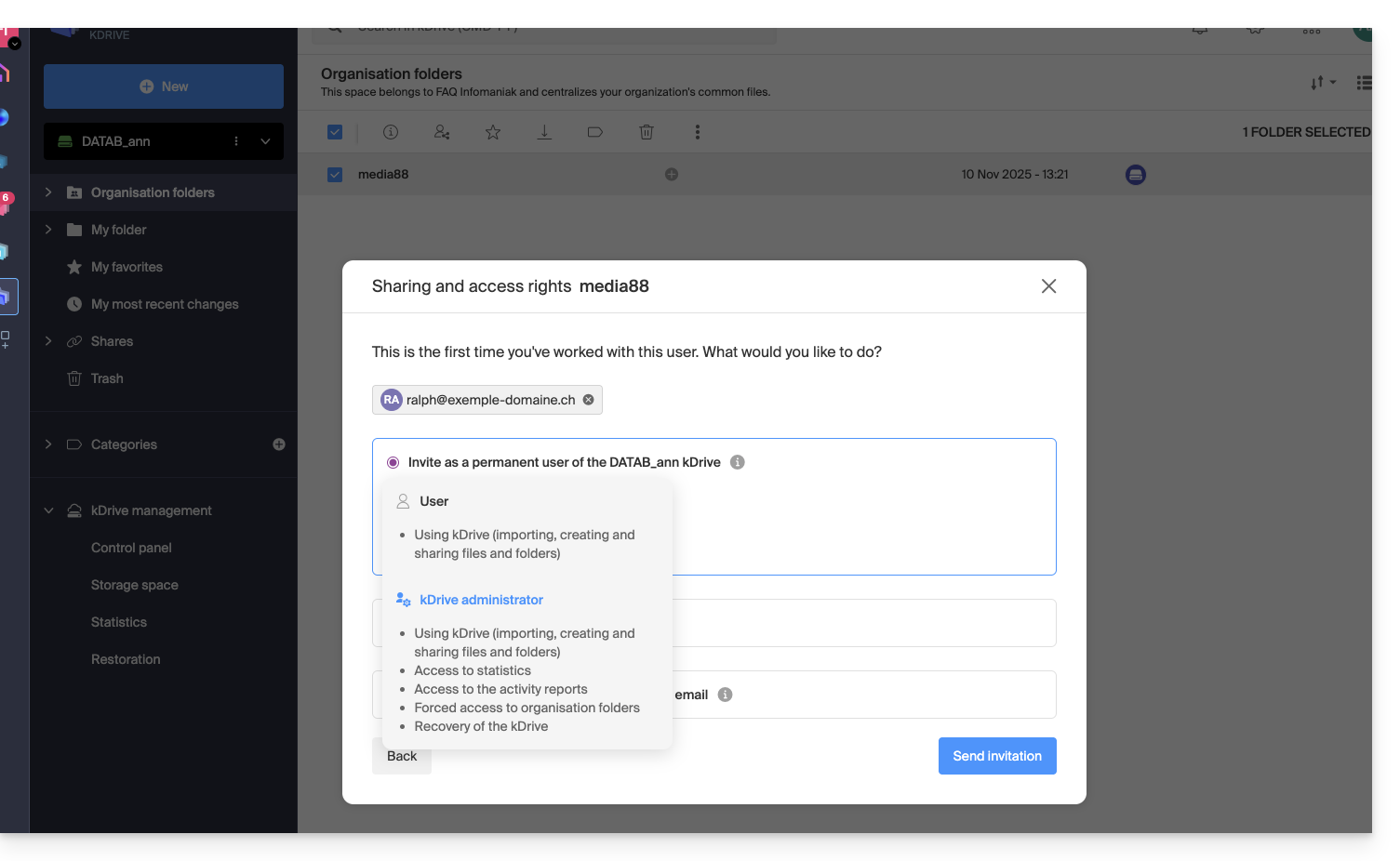
…or through kDrive user management: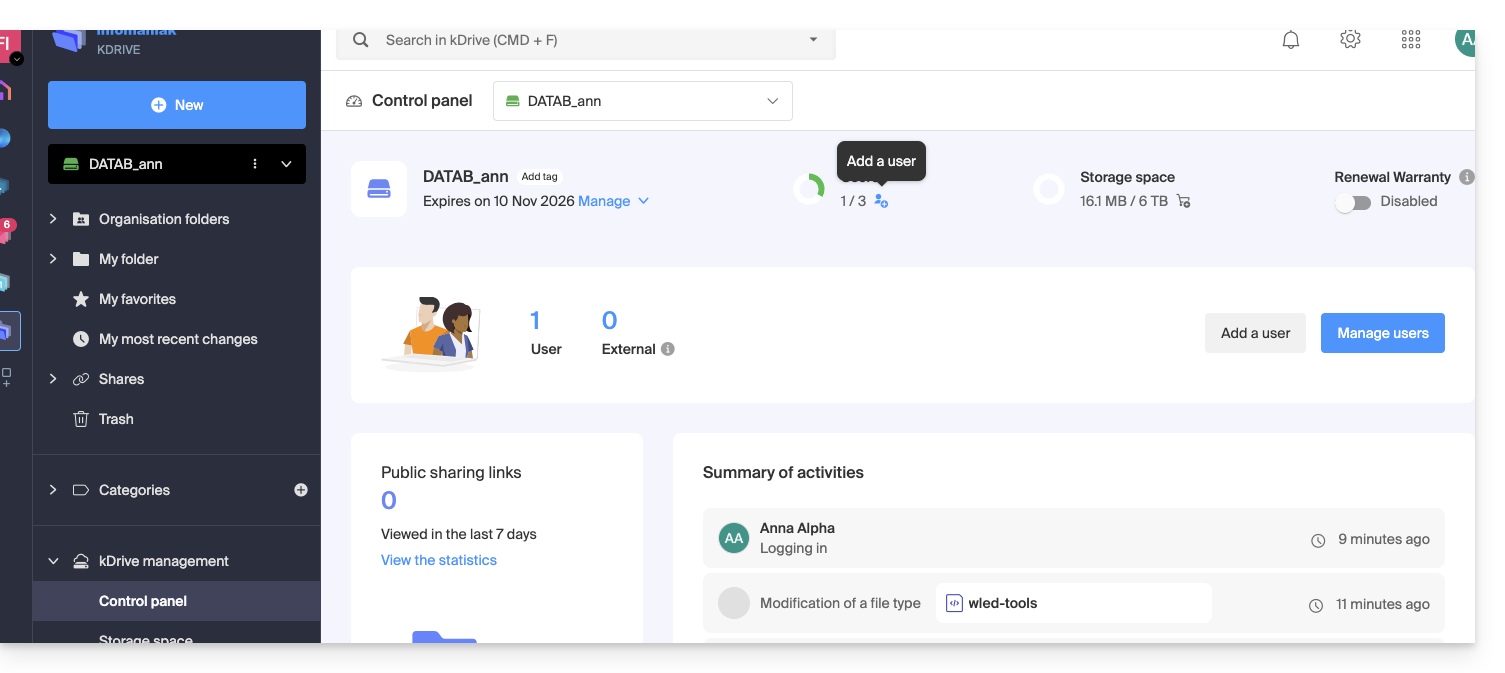
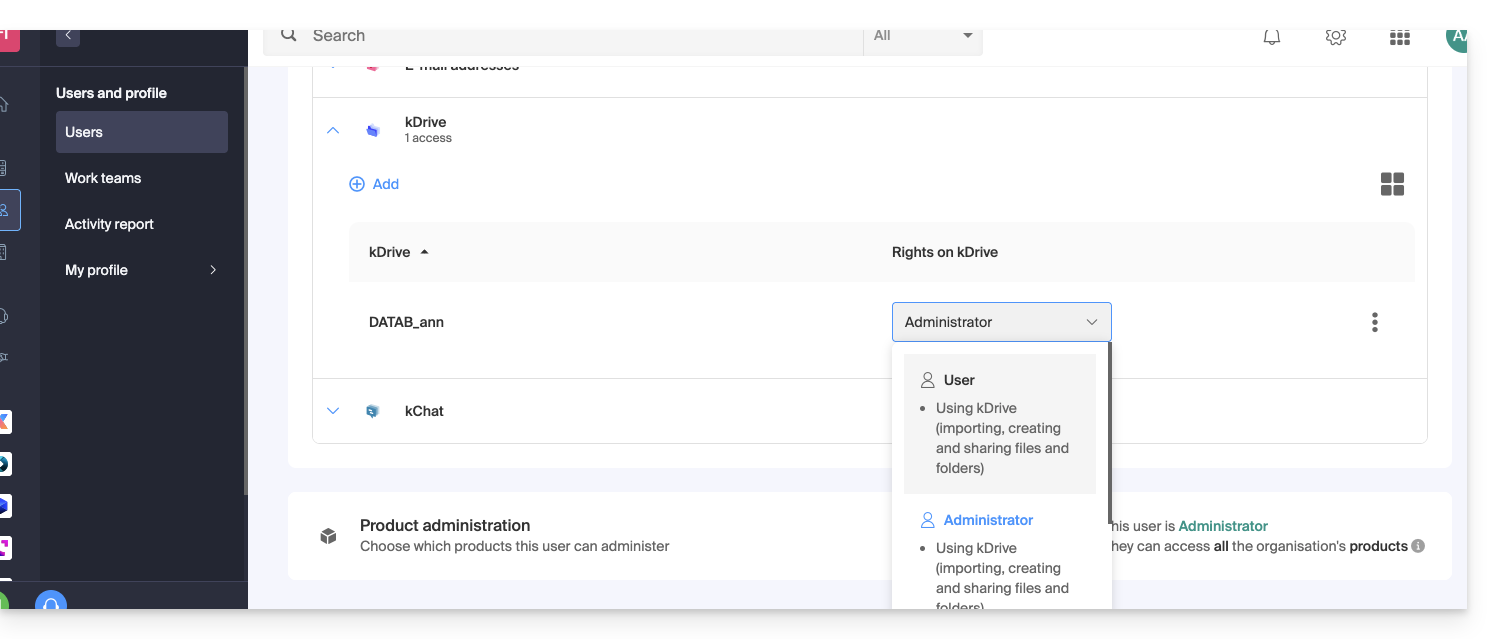
In both of these cases, 2 levels of permissions are offered:
- Administrator grants users the same rights as the kDrive owner:
- Sharing, statistics, activity reports, restoring and deleting folders, importing external data, etc., and accessing files and folders…
- User allows access to the folders located at the root of kDrive, as well as the ability to manage and freely share their content:
- Access to shared files and folders, personal directory, and creation/sharing of files…
- However, users will not be able to access the administrative management of the product (manage users, view statistics, create or delete folders at the root of kDrive, import data from an external service, etc.)…
In all cases:
- The content of the Organization Folders directory is shared and visible to other kDrive users, but sharing can be restricted.
- Content shared by other users from their private kDrive space is not listed in the Shared menu of other users.
- Any folder or file can be shared with other kDrive users and your chosen contacts.
Modify a kDrive user's permissions
To access kDrive and manage user permissions:
- Click here to access the Infomaniak kDrive web app (online service ksuite.infomaniak.com/kdrive).
- Check or select the relevant kDrive from the dropdown menu in the left-hand sidebar.
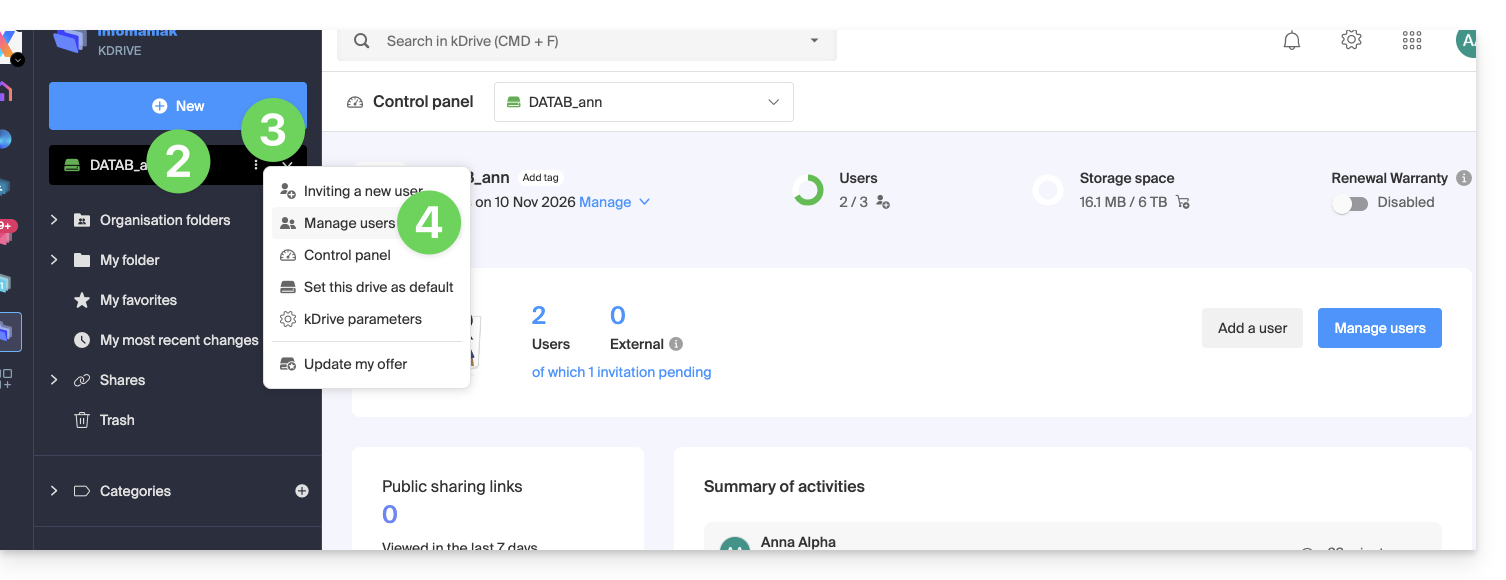
- Click on the action menu ⋮ located to the right of the item in question.
- Click on Manage users:
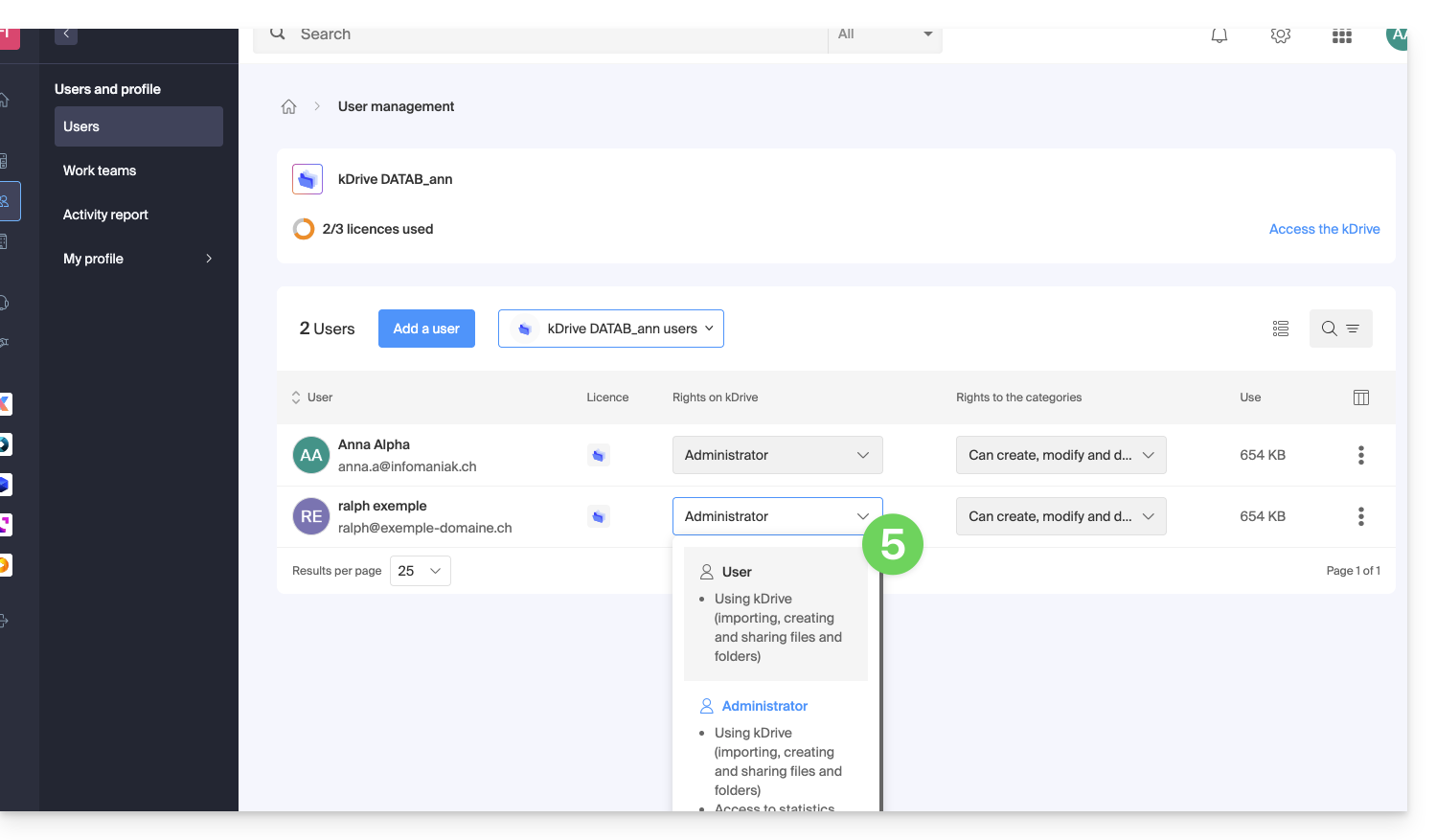
- Manage the rights of the desired user, and choose the desired access level:
In case of a problem
If a modification is not possible: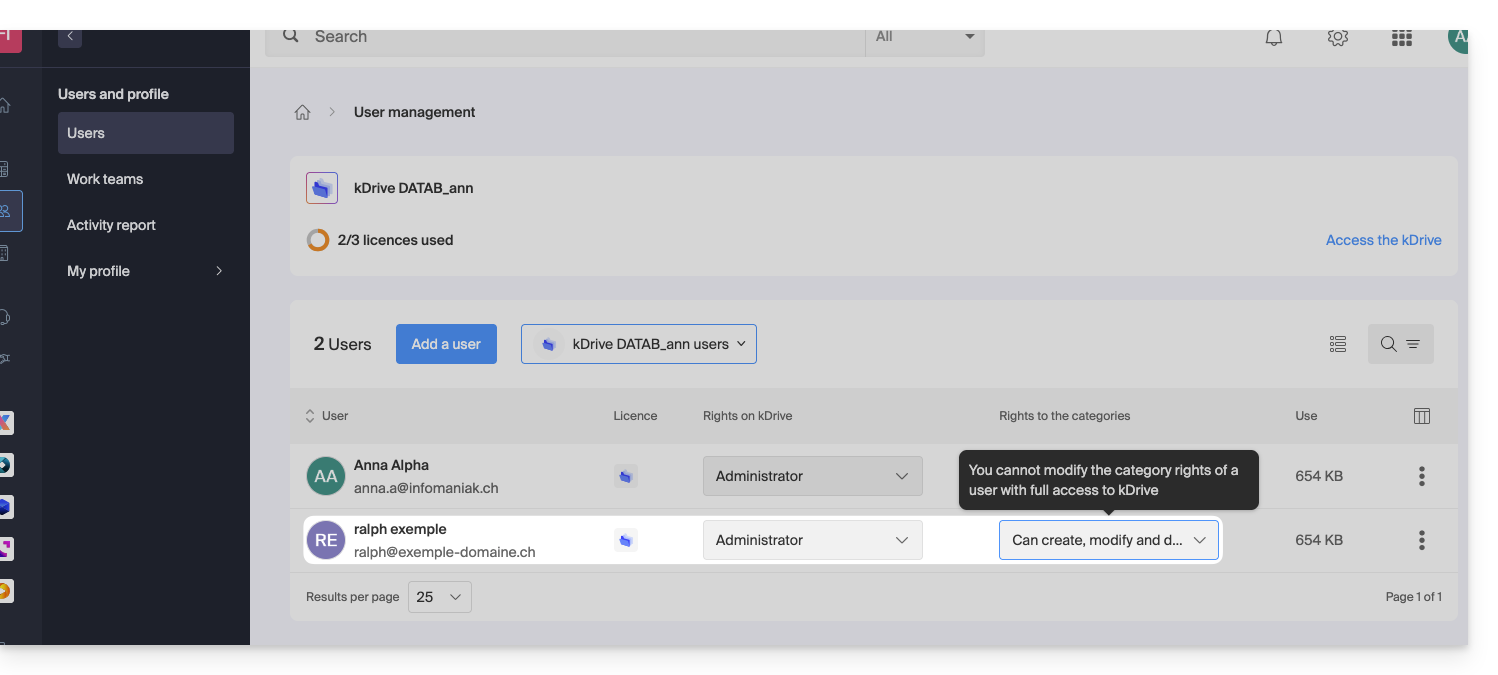
… so you must first modify the user's permissions at the Organization level: 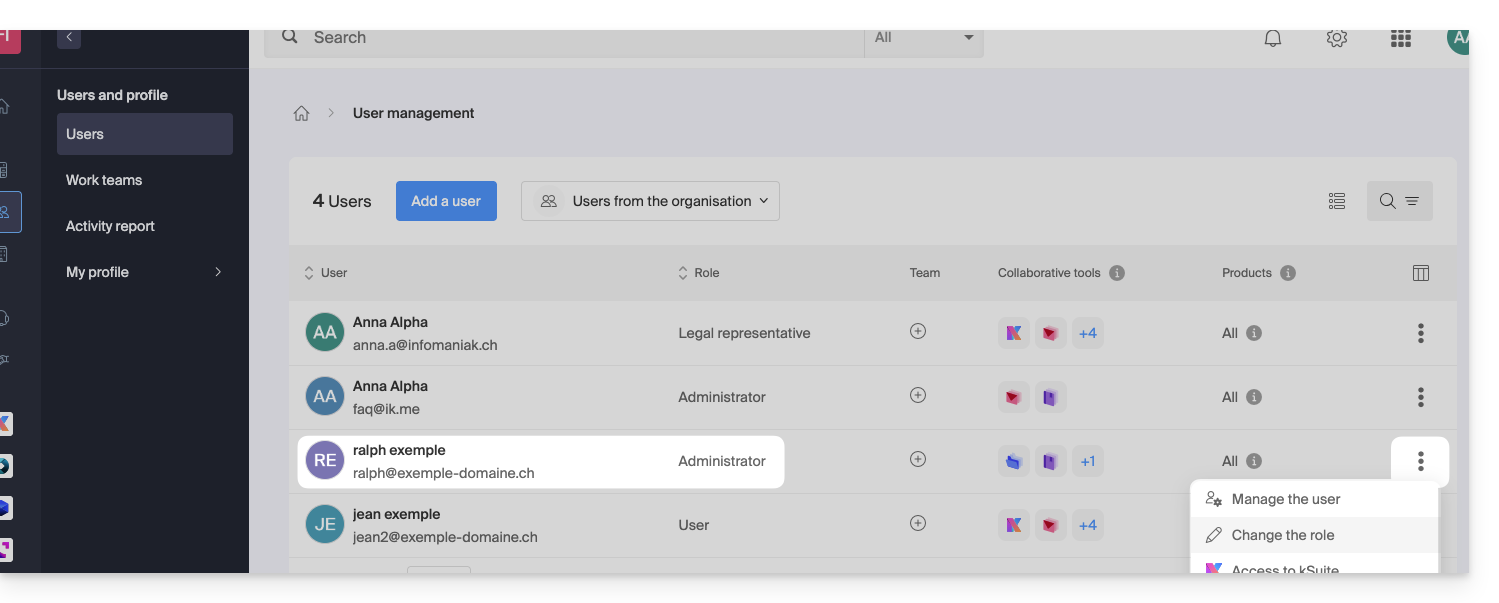
… and reduce their role from administrator to user: 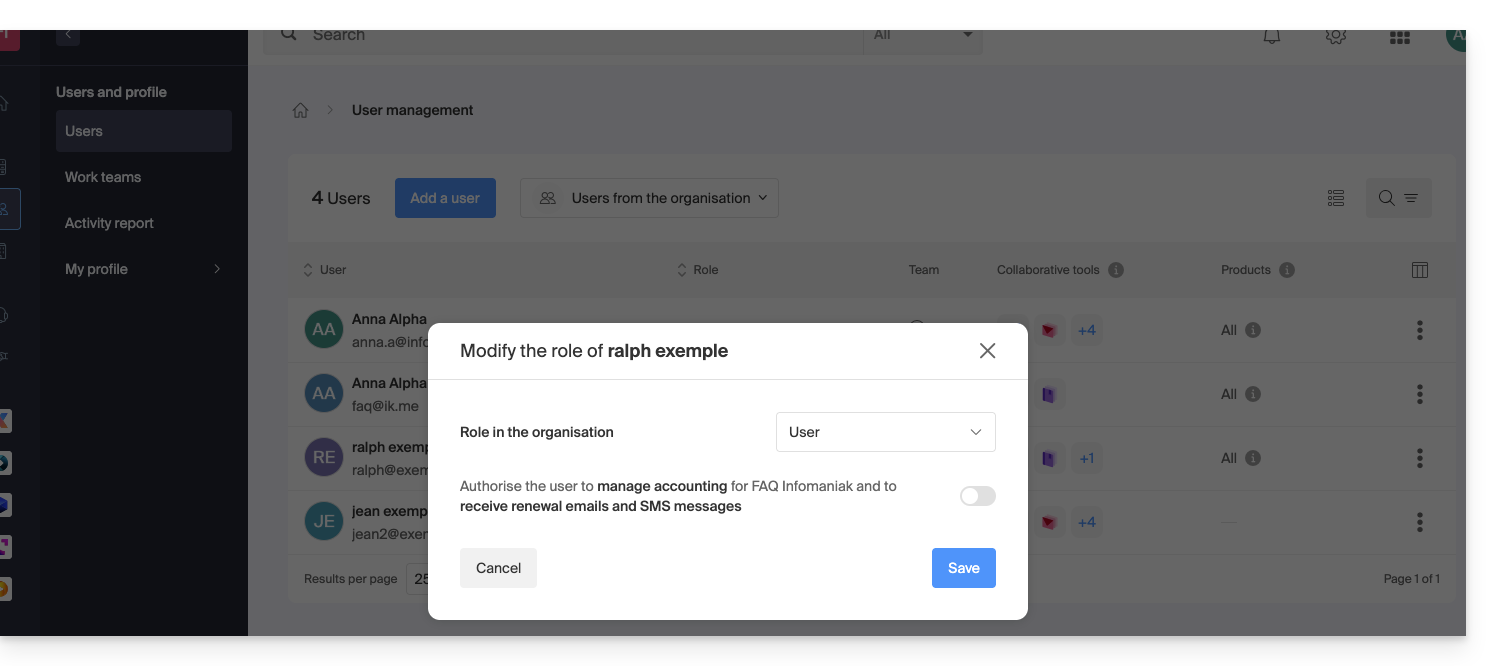
The modification proposed in point 5 above will now be accessible: 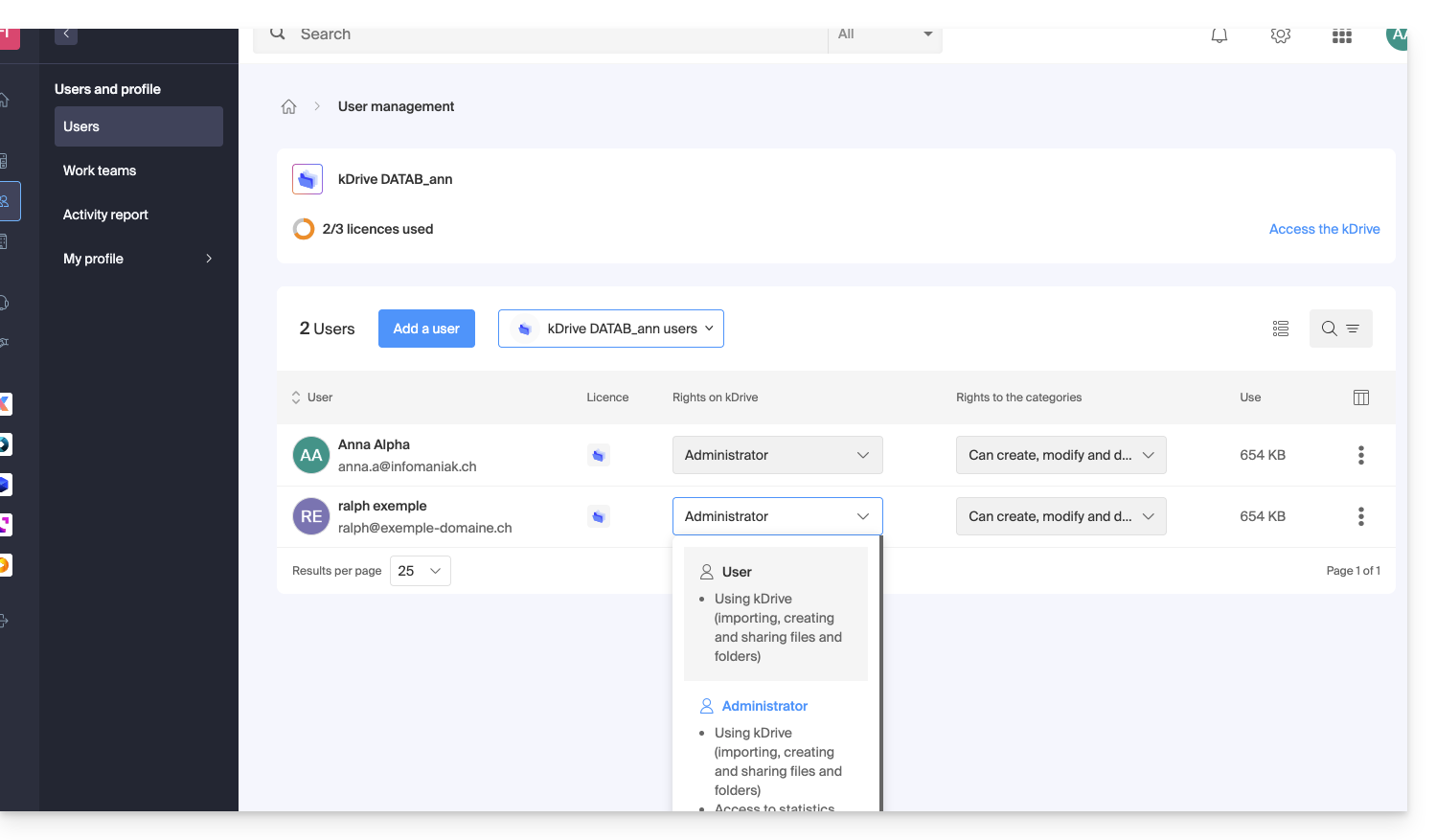
Other actions on the user
If necessary, open the action menu ⋮ for the desired user to access advanced actions: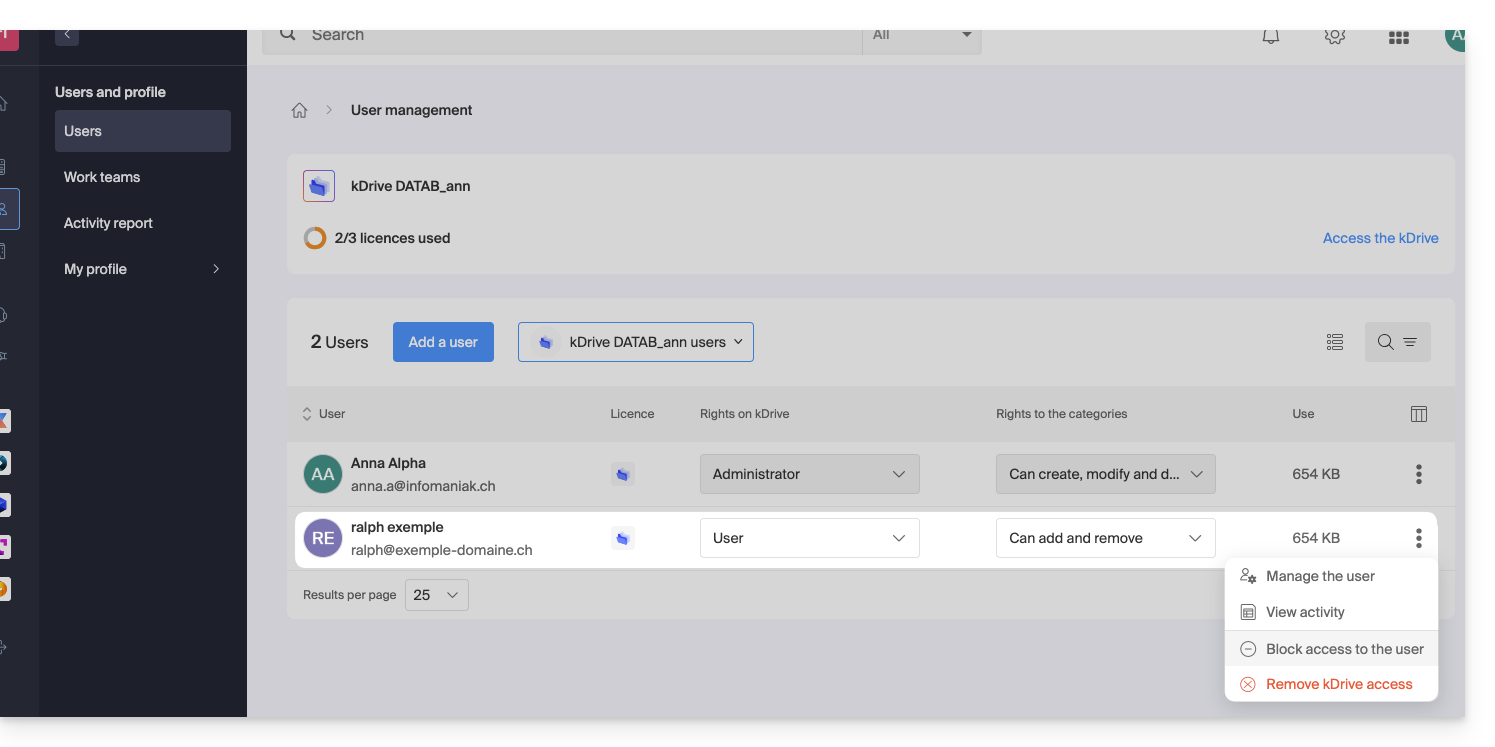
You can manage the user, view their activity, block their access, and completely remove them from kDrive.
If necessary, also manage the permissions related to actions on categories: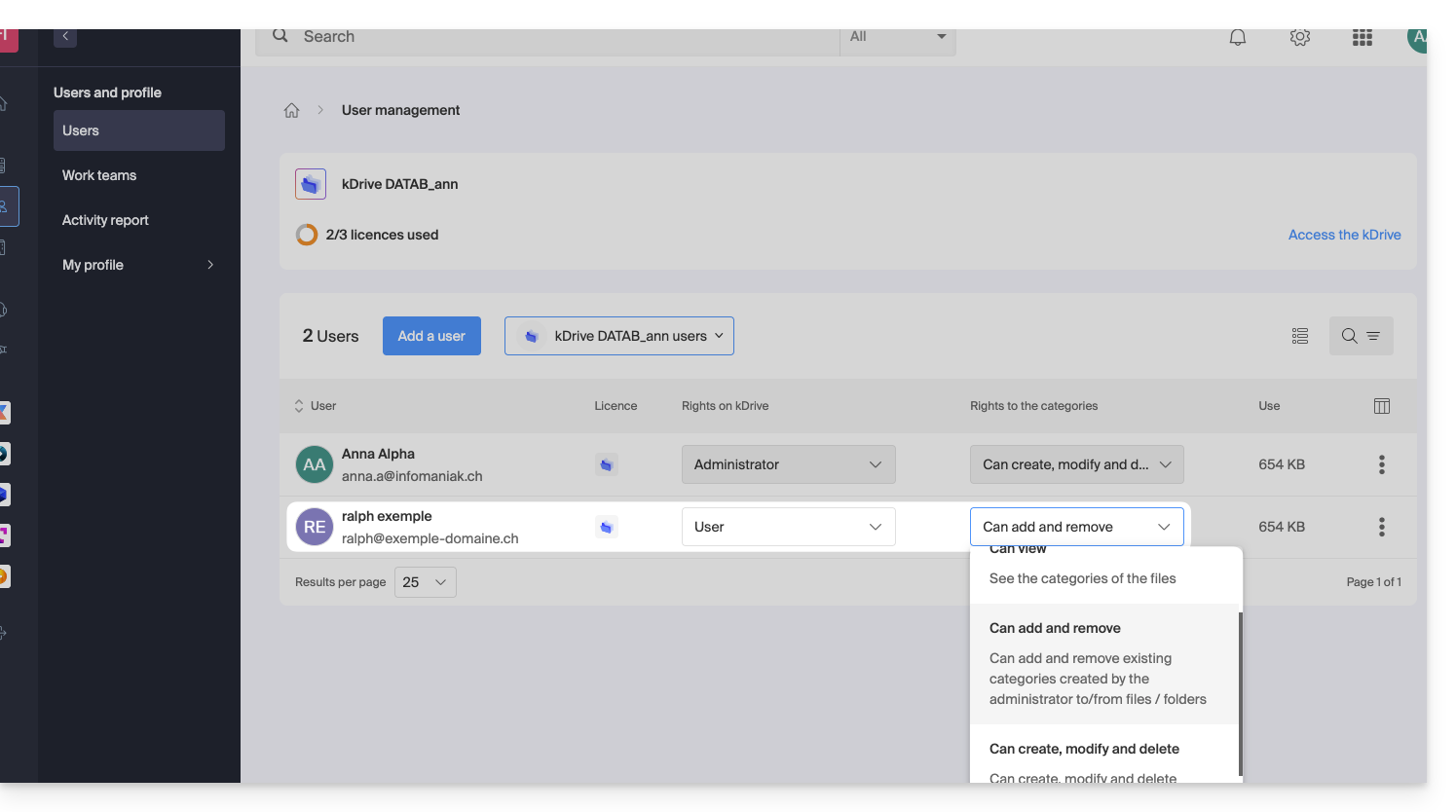
Permissions within the Organization / Permissions on kDrive
As mentioned above, it is important not to confuse or mix up:
- the permissions granted for managing the kDrive service in the Manager,
- and the permissions granted to the user within kDrive.
Indeed, a user may have limited or even no rights to the kDrive product in the Manager (they will therefore not be able to manage the kDrive product itself or have access to technical details - see below), but may have been defined as an administrator in kDrive and thus have access to all stored data.
Rights within the Organization: product management
In this example, you can manage the kDrive management rights for the user ralph from the product access settings: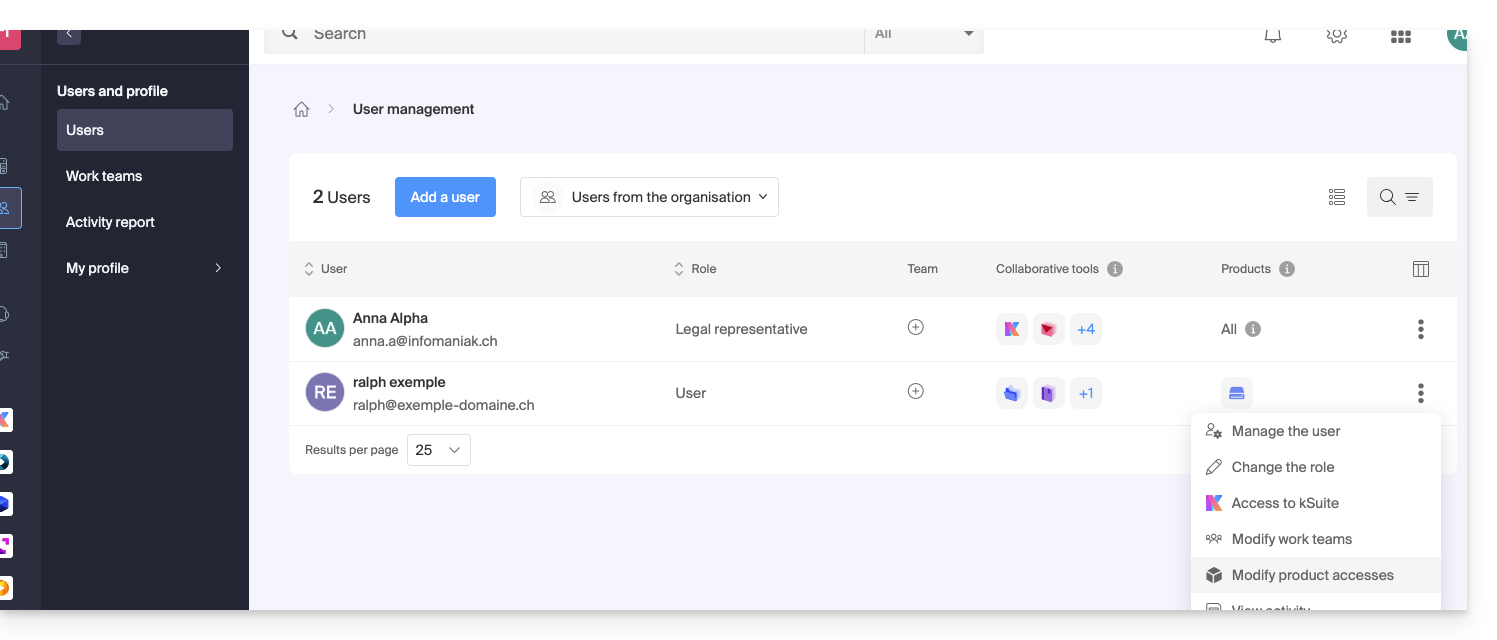
If necessary, you must specify which kDrive is concerned and, above all, what permissions (technical / statistical) it should have: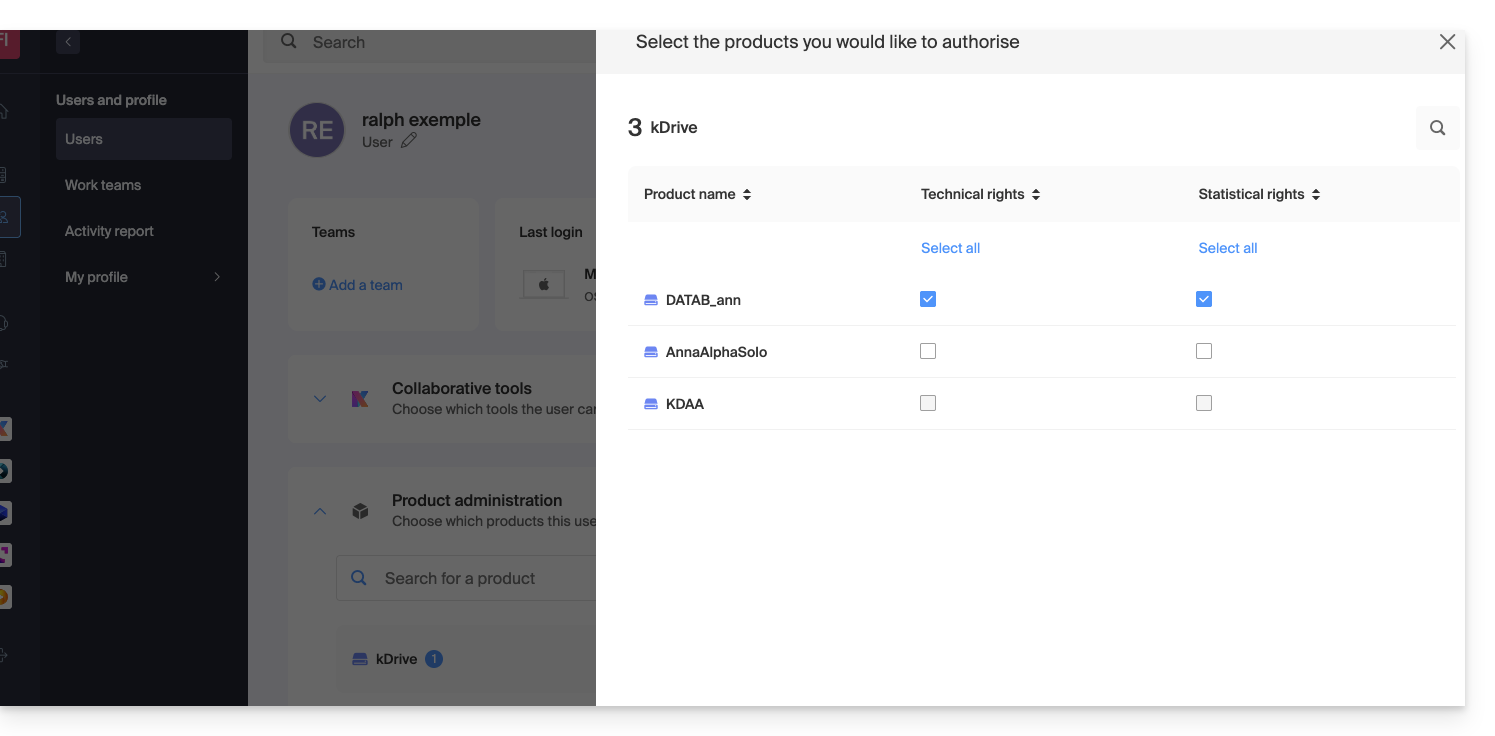
With only Technical permissions, the user will not see the Statistics item in the side menu: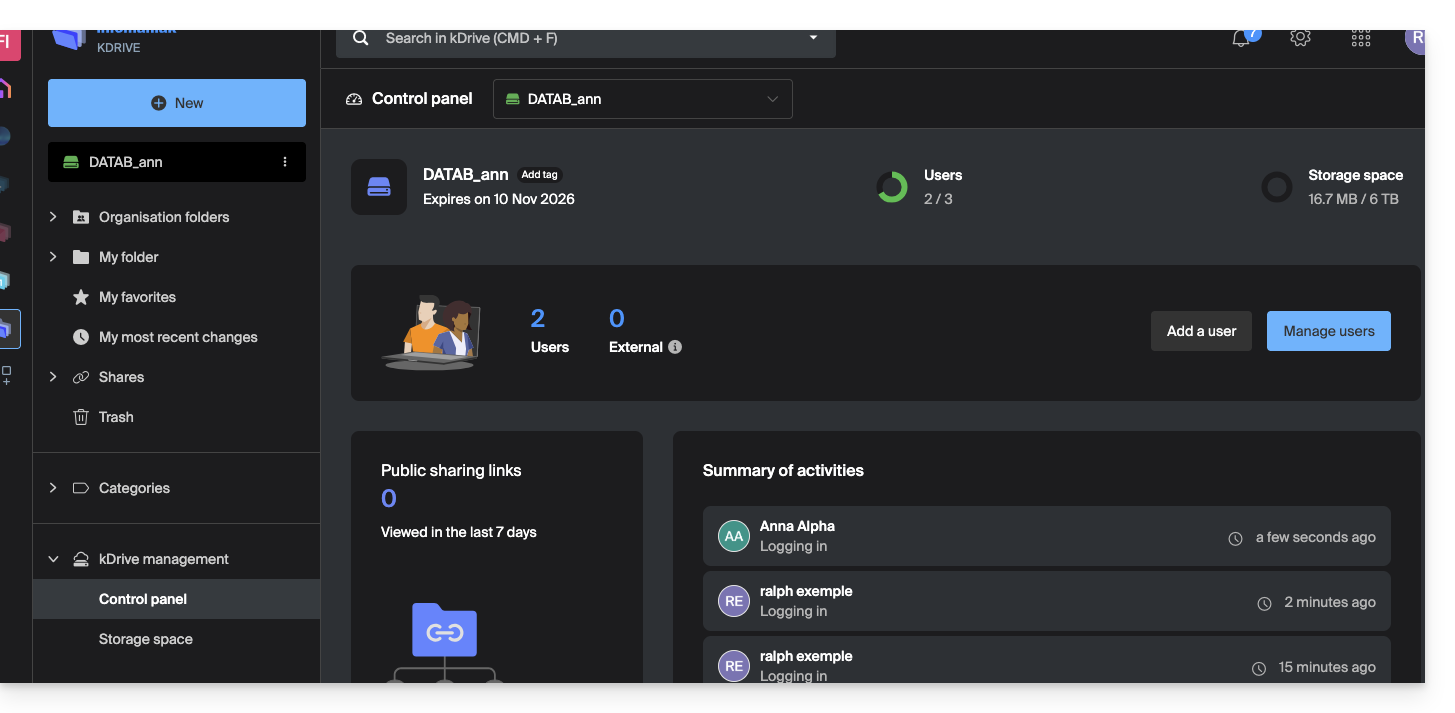
Conversely, if only the Statistics checkbox is enabled, the user will not have access to the dashboard: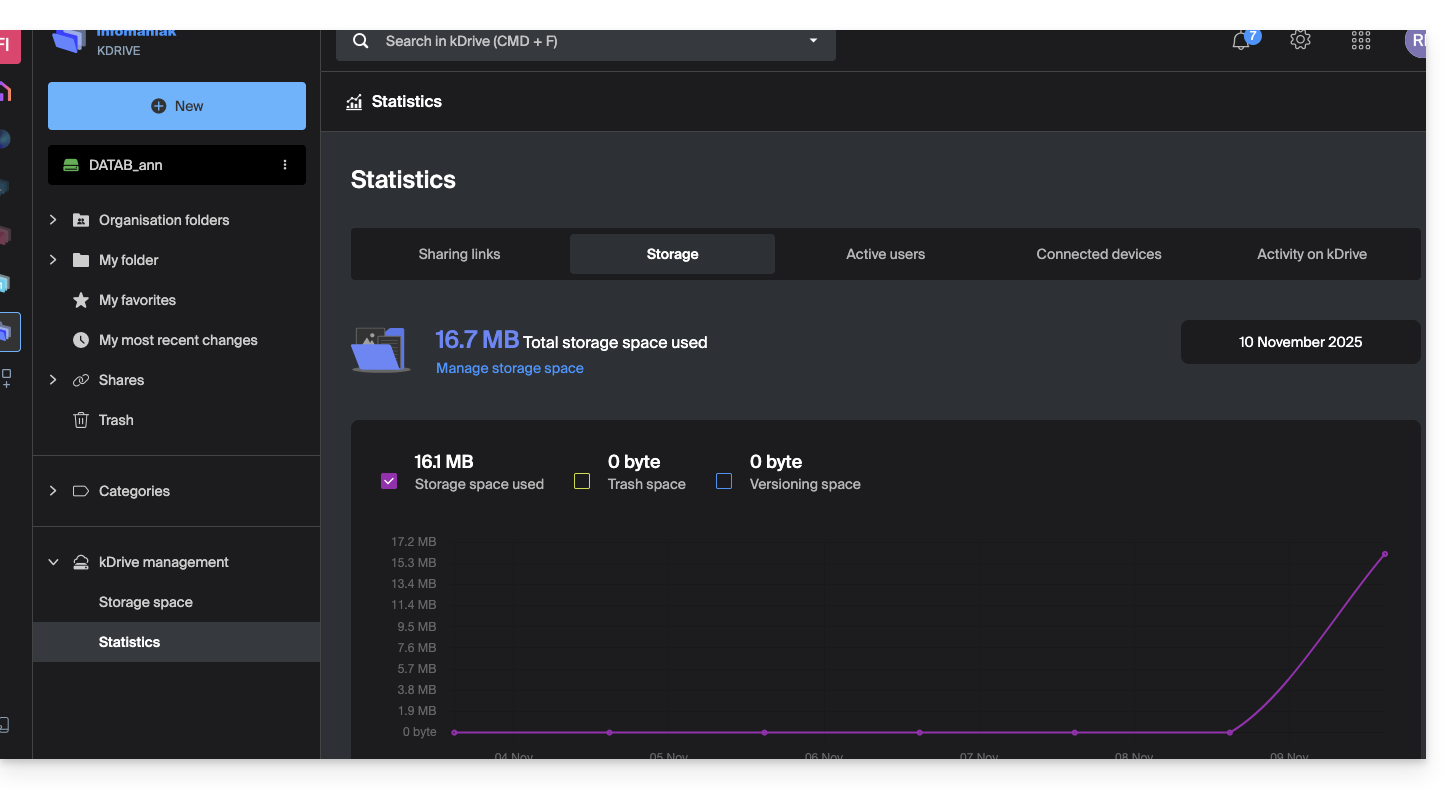
If the administrator disables both the Technical and Statistics checkboxes, only the storage information will be accessible from the sidebar: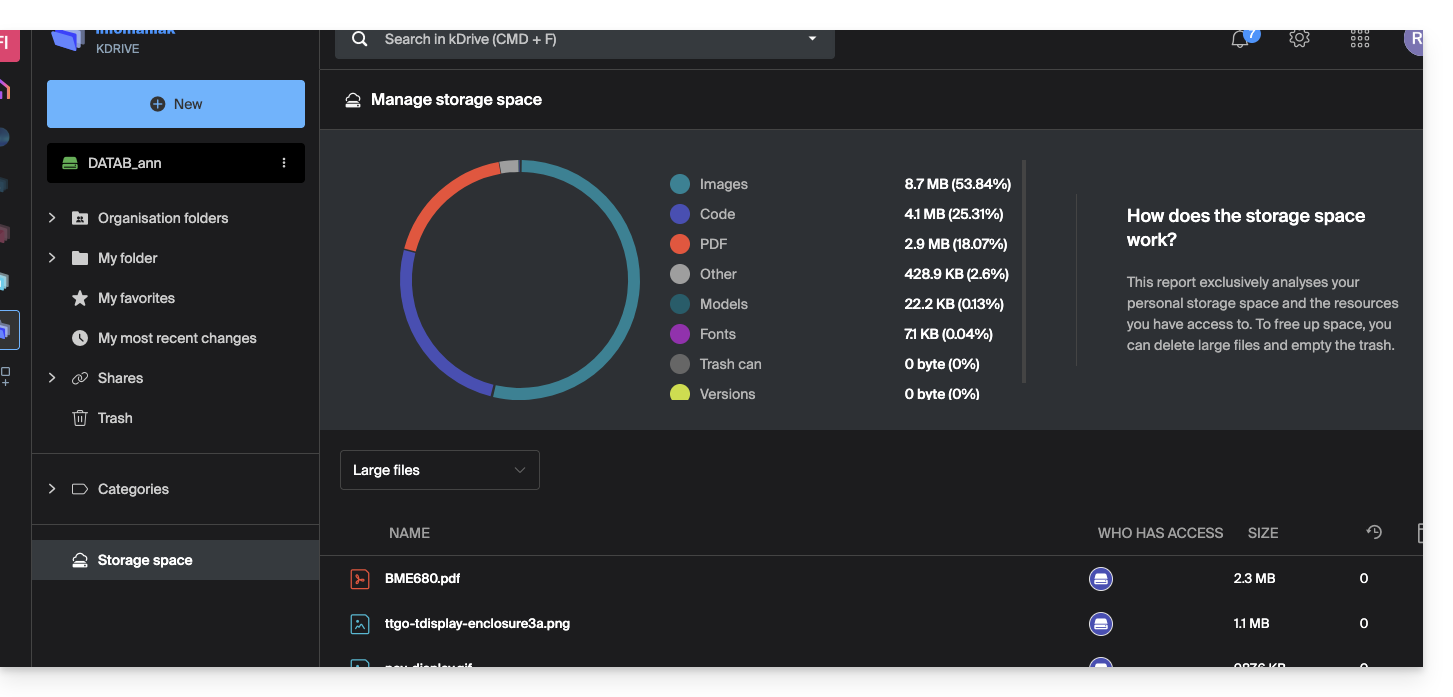
User rights on kDrive
Even with the two options (as mentioned above) Techniques and Statistics enabled, a user who only has User rights at the kDrive user management level will not be able to, among other things, create a new folder in the root of the Organization Folders: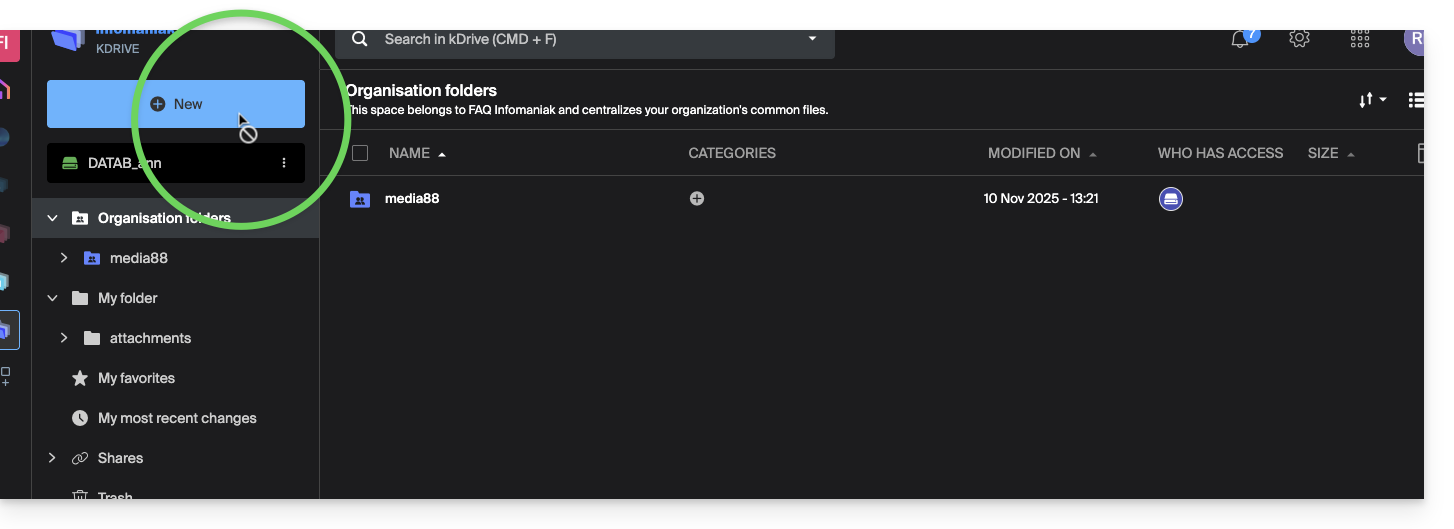
The user will need an Administrator role (see point 5 above) to access this window for creating a new Organization Folder in the root: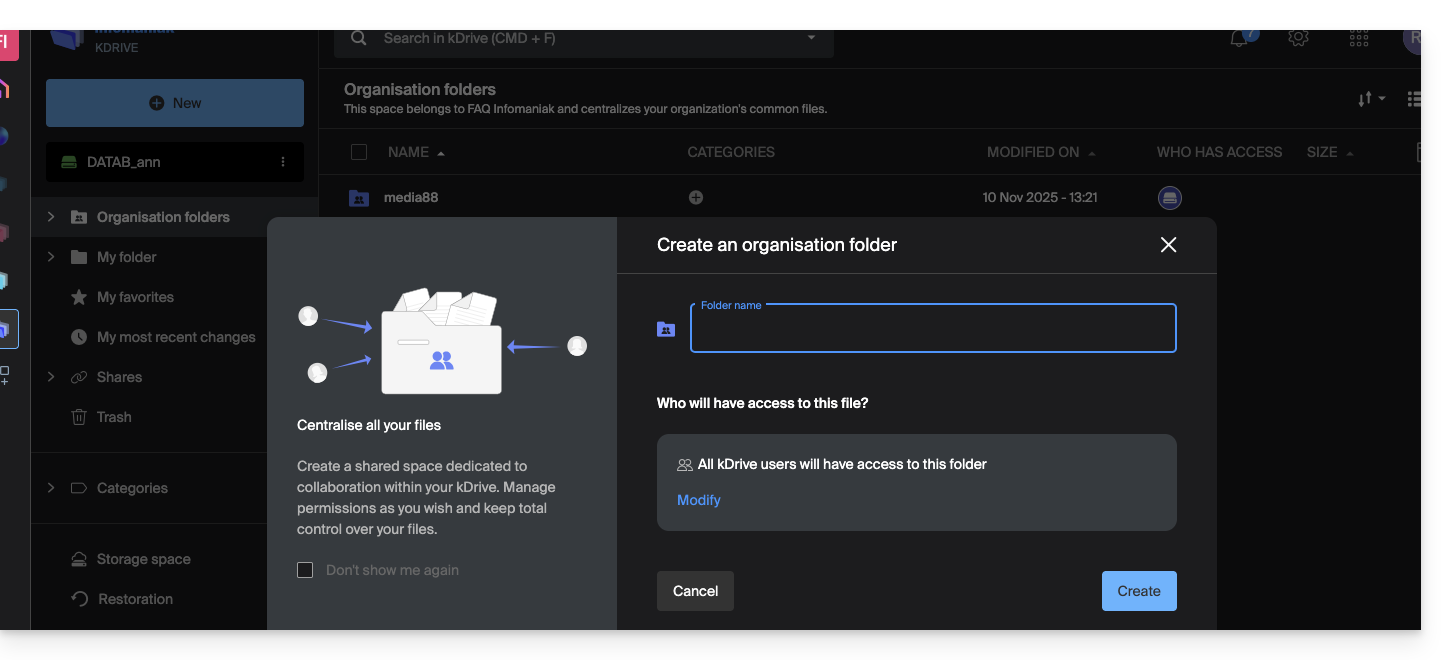
Link to this FAQ: https://faq.infomaniak.com/2365
Has this FAQ been helpful?
Thank you for choosing kDrive, the independent and privacy-respecting solution for collaborating, sharing, and accessing your data from all your devices. Your data is encrypted, permanently backed up, and exclusively hosted in Switzerland.
Collaborative storage on a 100% Swiss Made cloud
Getting Started
- Synchronize kDrive across different devices
- Manage the kDrive Lite Sync option (macOS)
- Manage the Lite Sync option for kDrive (Windows)
- Install kDrive on Linux
- kDrive folders (personal, shared, common)
- Manage kDrive folders to be synced to your device
- Manage the folders on your device to be synchronized with kDrive
- Edit an Office file type on kDrive (Word, Excel, PowerPoint) or plain text
- Working with kDrive: basic operations
- Manage kDrive storage space
- Search for data on kDrive
Share your data
- Manage kDrive dropboxes
- Customize kDrive shares and uploads
- Share data from kDrive (web interface)
- Example of internal/external sharing
- Share data via email from kDrive (web interface)
Filling up your kDrive
- Import external data into kDrive
- Import data to kDrive (iOS) or automatically import only iPhone photos
- Import photos to kDrive (Android)
- Import data to kDrive without the kDrive app
- Access kDrive files locally and online
- Scan documents with kDrive (iOS / Android)
For multiple users
- Manage a kDrive user's permissions
- Manage access permissions for folders and subfolders
- Manage kDrive users
- Manage multiple kDrives (iOS / Android)
- Manage multiple kDrive accounts (macOS / Windows)
- Copy specific data between kDrive accounts you have access to
Go further with kDrive
- Modify an existing kDrive plan
- Manage kDrive categories to organize your data
- Save a kMeet meeting to kDrive
- Export email attachments from Mail
- Export an email to kDrive
- Add an attachment to an event in Calendar
For advanced users
In case of a problem
- Troubleshoot a kDrive blocking issue (antivirus, firewall, etc.)
- Resolve a kDrive sync conflict
- Troubleshoot a kDrive synchronization issue
- Troubleshoot a kDrive issue on an Android device (don't kill my app)
- Troubleshoot a Lite Sync plugin error on macOS
- Clear your browser cache
- Clear the cache of the kDrive mobile app
- kDrive application version (macOS / Windows / Linux)
- Restore a kDrive file to its previous version
- Restore a deleted kDrive file
- Force kDrive to synchronize certain special files
- Allow access to your products / Complete a support request
- Show kDrive debugging information
Learn more about kDrive
Have a question or feedback?
- Contact Infomaniak support
- Click here to share feedback or suggestions about an Infomaniak product.
Link to this FAQ: https://faq.infomaniak.com/2366
Has this FAQ been helpful?
This guide explains how to obtain the kDrive app to synchronize files stored in kDrive and easily access them on all your macOS, Windows, Linux, iOS, and Android devices.
Introduction
- To ensure that any changes made to your files & folders on your workstation (Finder / Explorer) are automatically synchronized…
- on the kDrive web app (Infomaniak online service ksuite.infomaniak.com/kdrive),
- on the kDrive mobile app (application for iOS / Android smartphones or tablets),
- for all collaborators who access the data,
- and in both directions,
- … you need to install the kDrive desktop app (desktop application for macOS / Windows / Linux).
Download the kDrive desktop app
Open the kDrive download page (❓: help) to download kDrive.
Other versions and apps can be downloaded from the unified kSuite settings (❓: help), including an iOS version optimized for iPad, adapted to the screens of these tablets.
Install kDrive
To install and use kDrive on an operating system, please note the minimum required and supported version:
- Windows 10 (❓: help) v10 1709 to benefit from Lite Sync
- macOS (❓: help) v10.15, ARM OK
- Ubuntu (❓: help) 22.04 LTS, ARM OK
- Neither Lite Sync nor the right-click context menu is available on Linux
- Supported desktop environments: GNOME or KDE
- iOS 16.4, including photo backup (❓: help)
- Android 8.1, including photo backup (❓: help)
Link to this FAQ: https://faq.infomaniak.com/2374
Has this FAQ been helpful?
This guide explains how to manually upload data (files, folders, etc.) from your computer to your kDrive without installing the kDrive Infomaniak application (application for iOS/Android smartphones or tablets, or desktop application for macOS/Windows/Linux).
Import to kDrive from the browser
To access kDrive:
- Click here to access the Infomaniak kDrive web app (online service ksuite.infomaniak.com/kdrive).
- Check or select the relevant kDrive from the dropdown menu in the left-hand sidebar.
Then, choose one of the following:
Drag & Drop
Drag and drop the items you want to upload to kDrive from a window on your computer to the browser window where the kDrive website is open:
“New” button
Use the New button at the top left of your kDrive interface, then choose the desired import (either a file or a folder):
- The operating system (e.g., macOS) may prompt you to confirm when uploading a folder.
Right-click
Right-click where you want to import new content, then choose the desired import option (either a file or a folder):
- The operating system (e.g., macOS) may ask for confirmation when uploading a folder.
Import external data
Import specific content using the Import external data menu:
- Refer to this other guide if you are looking for information on importing data from an external source.
Regardless of the method used, please wait during the data transfer (the duration depends on the speed of your internet connection).
File types
You can send and preview any type of file, such as .pdf, .txt or other extensions, including those related to 3D (❓: help) or eBooks (.epub, .azw3, .fb2 and .cbz).
kDrive also allows you to open and convert iWork files created on a Mac, so you can edit them from any device. These files from the Apple Suite have some specific features, particularly with their extensions; for example, with the Numbers application:
.numbersfiles can be either files or folders, depending on the save settings (and the behavior during upload is different depending on whether it is a file or a folder).- If there is already a file, for example
calcul.numbers, on kDrive, and it is saved as a “package” on your desktop, then during the upload, the file will be considered a folder, and kDrive will try to upload files inside it, which is not possible, so the upload will not be allowed.- To resolve the problem, simply change the save format in the Apple Numbers application on macOS to “Single file”:

- To resolve the problem, simply change the save format in the Apple Numbers application on macOS to “Single file”:
Link to this FAQ: https://faq.infomaniak.com/2379
Has this FAQ been helpful?
This guide details how to share files and folders in kDrive with whomever you want, without installing the desktop app kDrive (desktop application on macOS / Windows / Linux), and even if the recipient does not have an Infomaniak account or is not yet using kDrive.
Introduction
- The kDrive web app allows you to share content in several ways, including by right-clicking on items or by attaching to an email to quickly offer the option to view or edit a file.
- A drop box can also be shared.
- The appearance of the sharing windows can be customized.
- Number of clicks allowed per hour on a public link:
- kSuite Free = 150
- kSuite Standard = unlimited
- kSuite Business = unlimited
- kSuite Enterprise = unlimited
- my kSuite = 150
- my kSuite+ = unlimited
- kDrive Solo = unlimited
- kDrive Team = unlimited
- kDrive Pro = unlimited
- These activity limits apply to all your shared links and count a maximum of one action per user (IP) per minute, regardless of the number of files viewed or downloaded during that time; you can track this usage in your activity statistics:
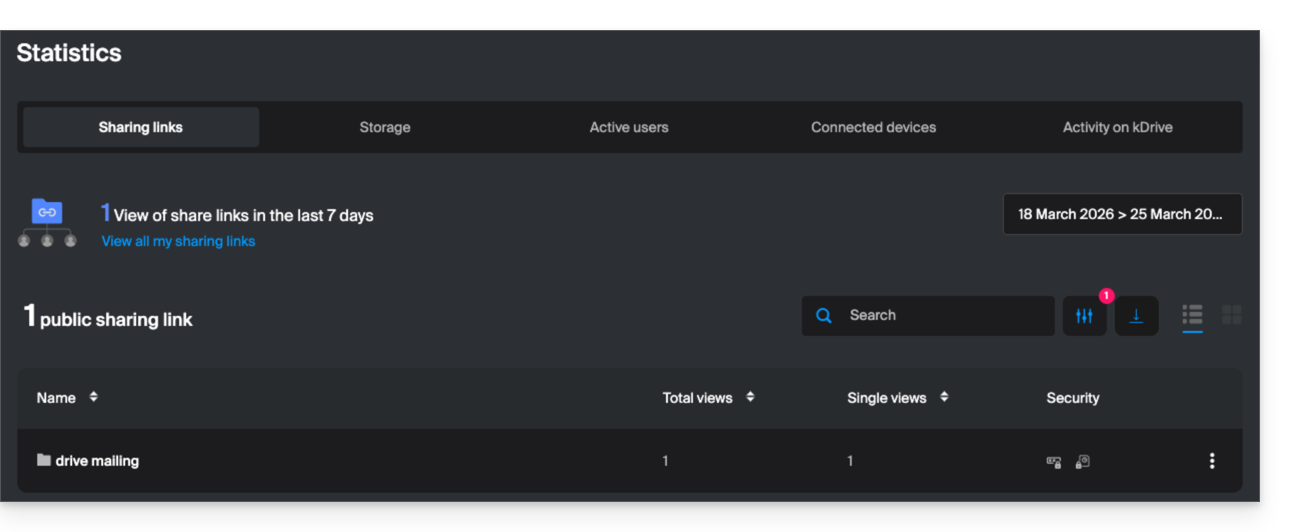
- To optimize this quota, it is recommended that recipients download entire folders in one go rather than individual files.
- Number of allowed external sharing links:
- kSuite Free = 100
- kSuite Standard = 1000
- kSuite Business = 2500
- kSuite Enterprise = 5000
- my kSuite = 25
- my kSuite+ = 1000
- kDrive Solo = 1000
- kDrive Team = 1000
- kDrive Pro = 1000
- Other types of limits exist at the level of:
Share a file/folder on kDrive
To allow users to view, edit, and download your content, you need to specify who you want to share a file/folder from kDrive with:
- Click here to access the Infomaniak web app kDrive (online service ksuite.infomaniak.com/kdrive).
- Right-click on the file/folder in question.
- Click on Share... at the top of the drop-down menu:
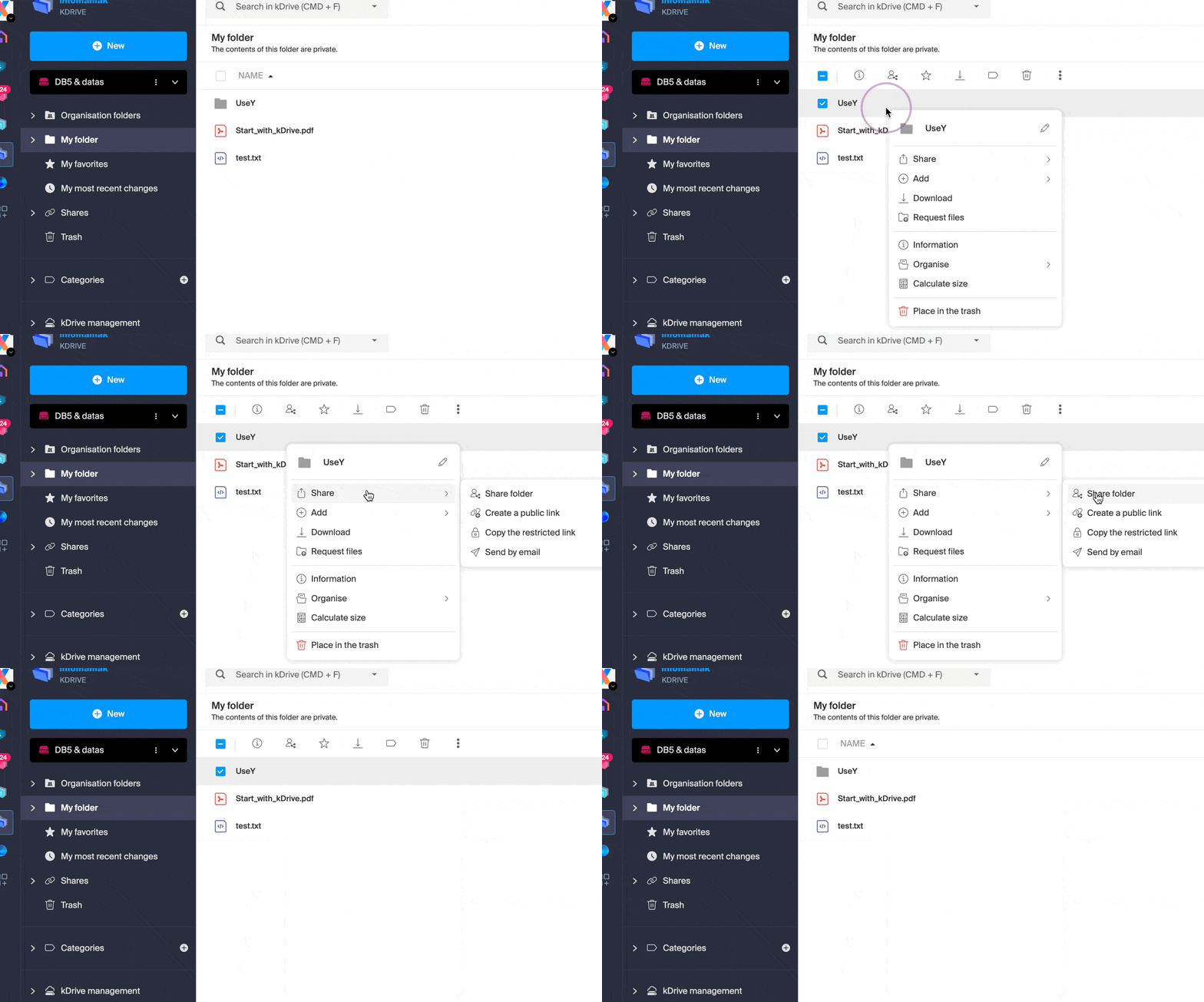
From there, you can…
- … or activate a public sharing link with various possible options:
- allow modification of the document if it is one of the collaborative formats
- expiration date
- password
- allow downloading
- allow access so that the user with access to the sharing link can request full access - see the dedicated chapter below
so that anyone with the link displayed in this window can access the shared file: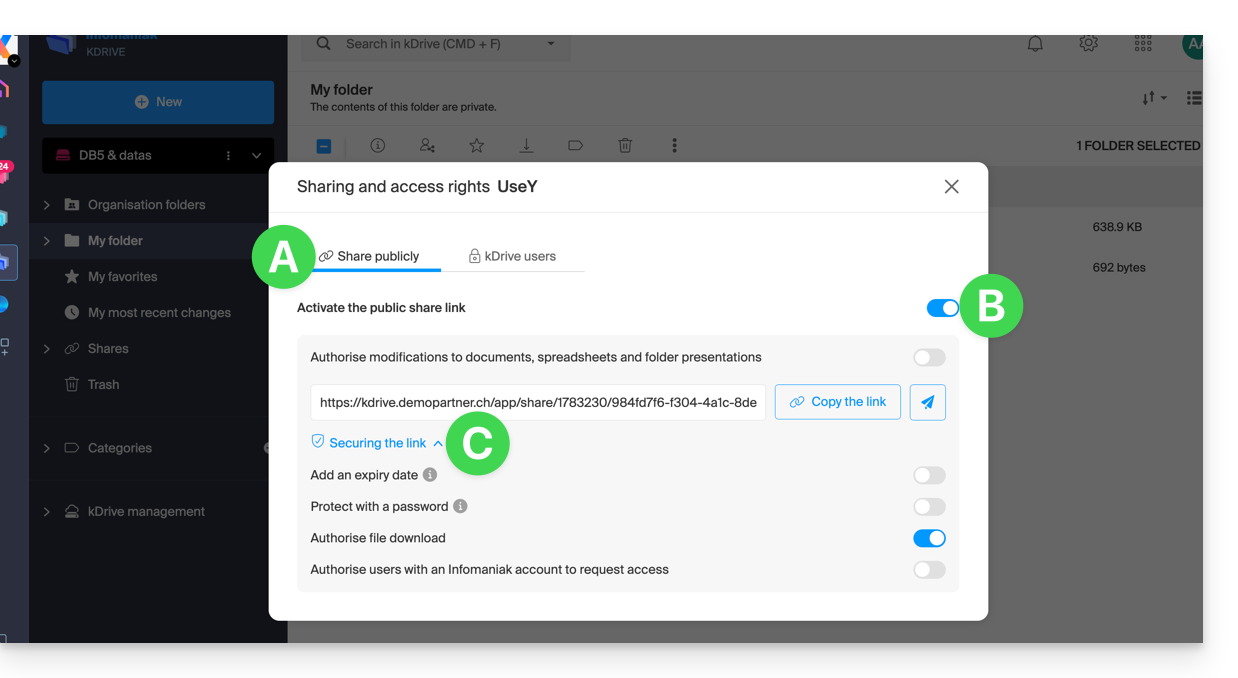
Please note: simply deactivating and reactivating a public sharing link changes the URL and renders the previous one invalid!
- … or enter a kDrive user, a contact from your address book, the email address of a new contact (or a Group if the sharing is done within “shared folders”):
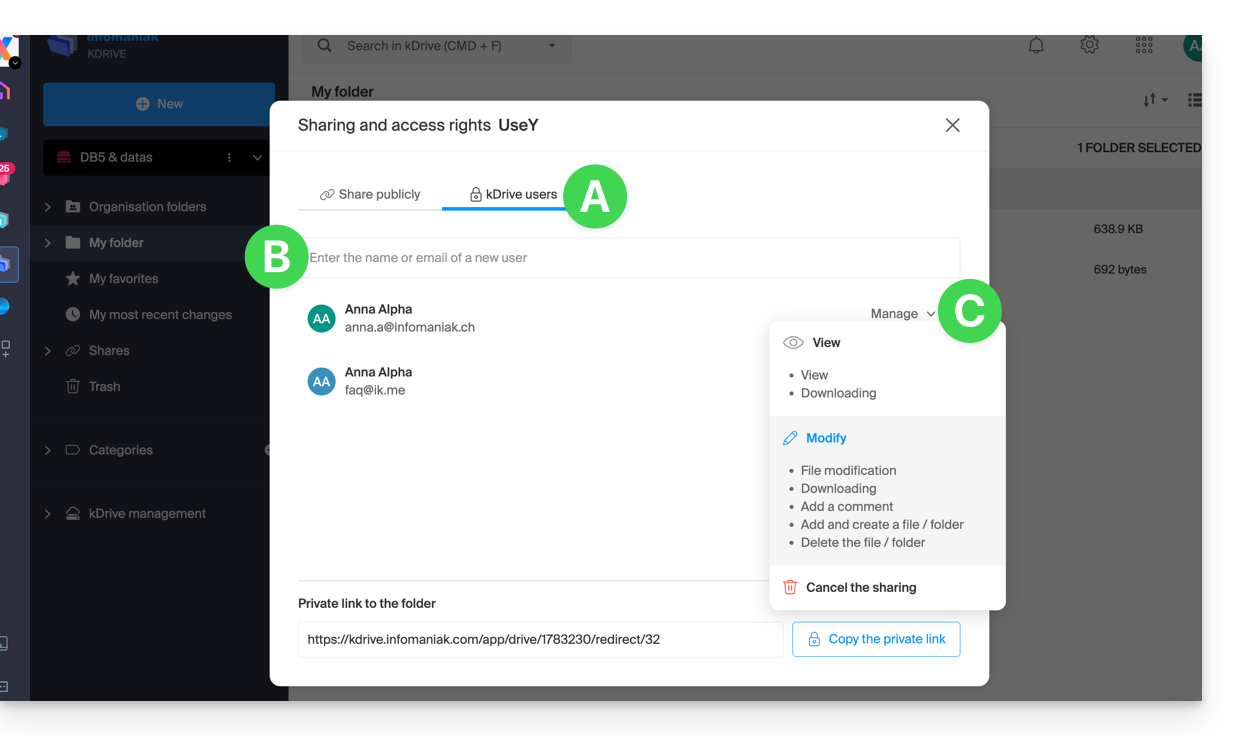
An assistant allows you to define the rights of each person you add: “view” / “edit” / “manage” (refer to this other guide if you are looking for information about access permissions for files, folders, and subfolders in kDrive):
- The person whose email address you provide will receive an email with the necessary information to access your shared content.
- If she doesn't have an Infomaniak account, she can create one for free to access the shared items and edit them.
- In the meantime, you will see the pending invitation and can revoke it at any time from the same location.
- The private link is displayed each time you go to the sharing menu on the sidebar, allowing you to easily copy and resend the link to authorized users.
With a Solo plan or a free kDrive account, it is only possible to specify this type of external user when you want to share a file/folder.
Click on the close button in the top right corner of the window when you are finished.
Create a public, editable shareable link
To quickly access the various features/operations, right-click on your files.
When you activate a sharing link for a Word, Excel, or PowerPoint file, you can allow online editing of the file: 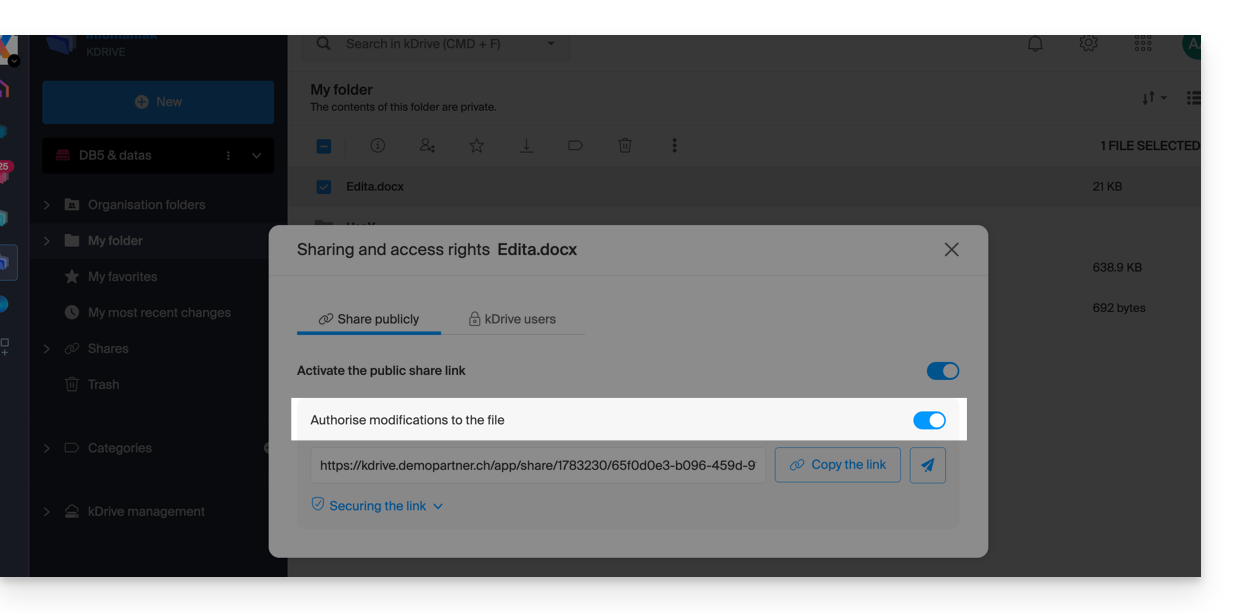
Anyone with access to this sharing link can then immediately edit the file without needing an Infomaniak account (simply test the URL obtained in a private browsing window to verify the result).
You can also obtain a specific sharing link from the document.
Request access from the shared file page
The user who shares a folder can enable a button in the advanced sharing settings: 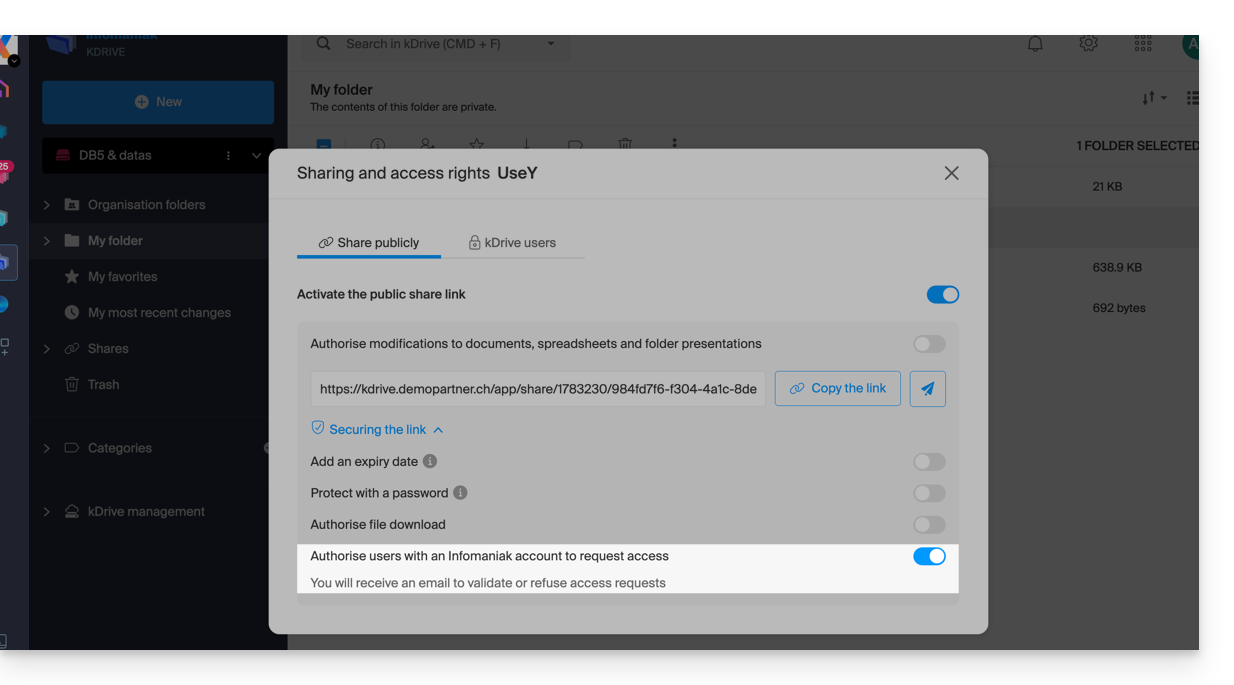
This “Add files” button will be displayed on the sharing page (A) so that the user accessing the sharing link can request to become an external user (if they have an Infomaniak account or if they create one (B):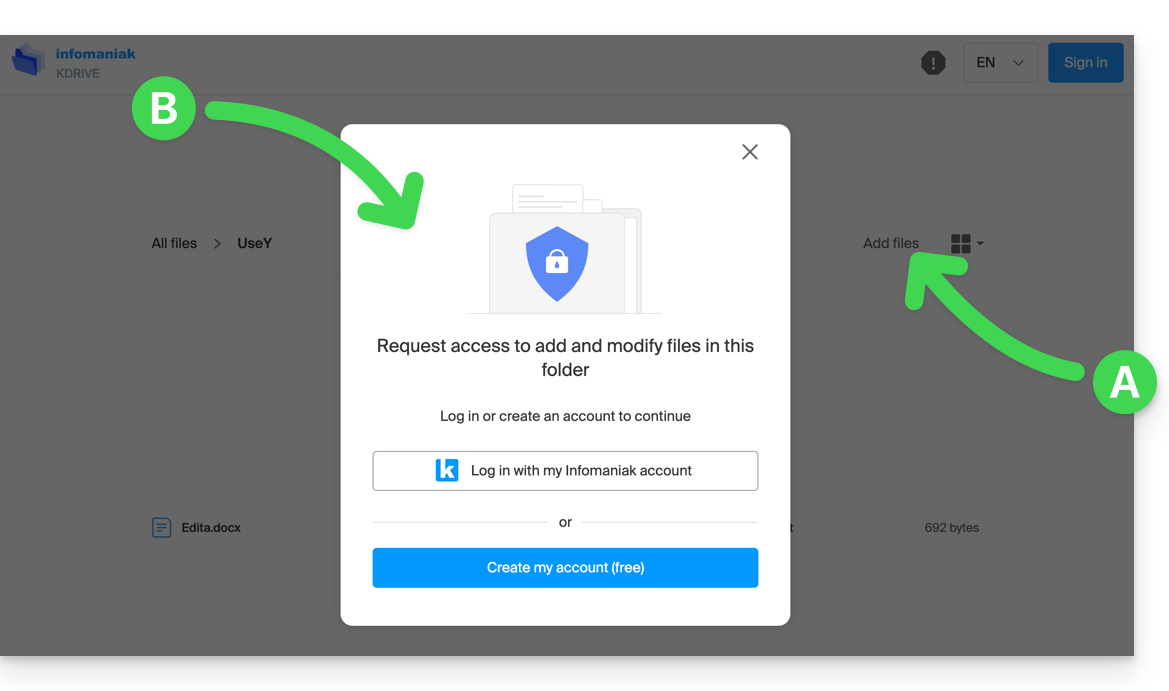
The request will then be sent by email to the user who initiated the sharing, and they can decide whether to accept or reject it.
Shared folders
Refer to this other guide to fully understand the differences between the various sections of kDrive.
These shared folders are available with certain paid plans and allow you to share your data with all kDrive users. Any new folder created within with a maximum sharing option will be indicated as such on the right in the folder list.
However, a folder can also be created with restricted sharing (this option is offered when creating a new folder or when you return to the sharing settings of that folder), and in this case, only authorized users will be able to view its contents directly; users who have access are visible on the right in the list of folders: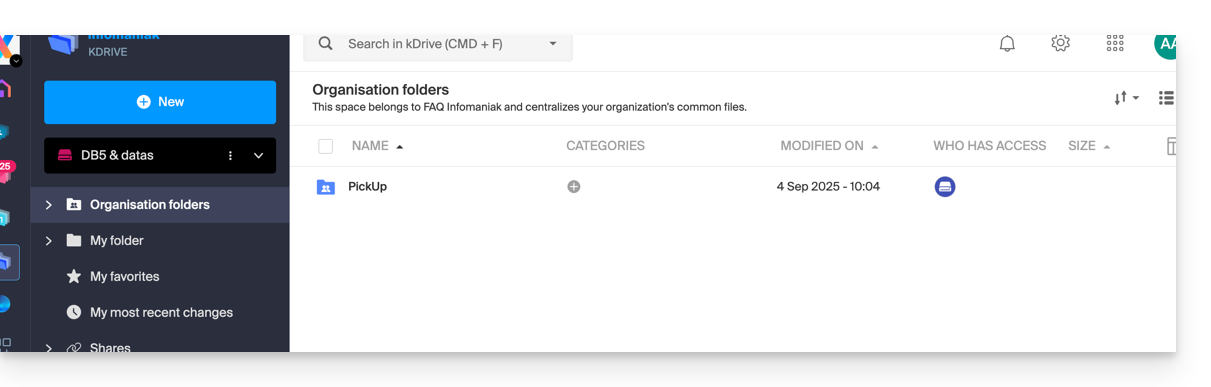
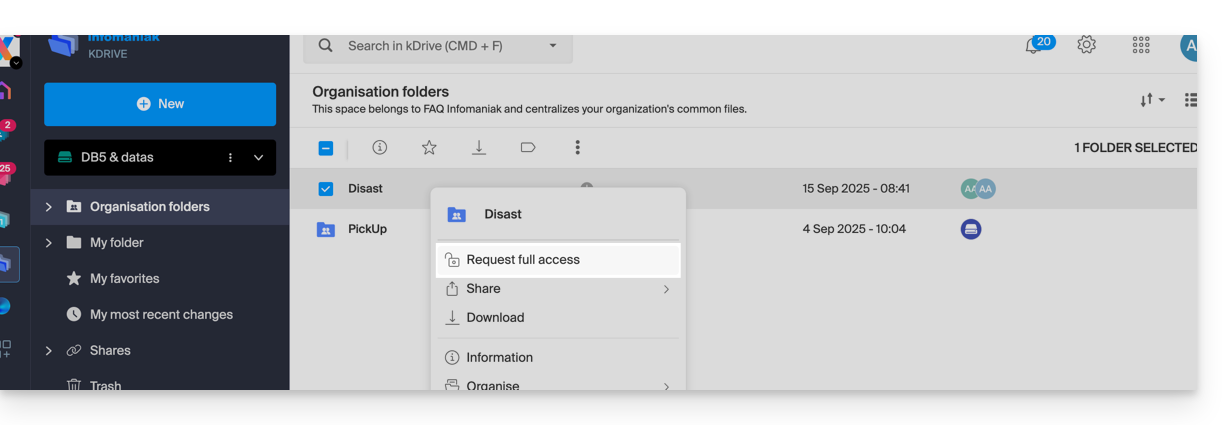
Other users who have access to the shared folders can also access a subfolder by clicking on it and accepting the warning message, or by using the action menu on the right of the directory and choosing "Force Access"; this will notify other users by email about the access attempt:
Refer to this other guide if you are looking for information on shared folders and collaborative spaces.
Link to this FAQ: https://faq.infomaniak.com/2382
Has this FAQ been helpful?
This guide explains how to manage the behavior of deleted files and the trash bin in kDrive.
Introduction
- When a file is deleted from one of the tools synchronized with kDrive, the kDrive web app (online service ksuite.infomaniak.com/kdrive) places the file in its recycle bin.
- If this kDrive recycle bin is emptied, it is impossible to recover its contents.
- If the operating system's recycle bin on the computer where kDrive is installed is emptied, this will not empty the recycle bin of the kDrive web app.
- The file remains in the kDrive recycle bin for at least 30 days, but some plans allow you to set a higher number for the file retention period in the kDrive recycle bin:
- Files remain in the kDrive trash for at least 30 days after deletion, but depending on the plan you have, the maximum retention period in the trash (in days) may be longer:
- kSuite Free = 30
- kSuite Standard = 60
- kSuite Business = 180
- kSuite Enterprise = 365
- my kSuite = 30
- my kSuite+ = 60
- kDrive Solo = 365
- kDrive Team = 365
- kDrive Pro = 365
Delete a file…
… on the kDrive web app
To delete a file and track its path to the recycle bin:
- Click here to access the kDrive web app (online service ksuite.infomaniak.com/kdrive).
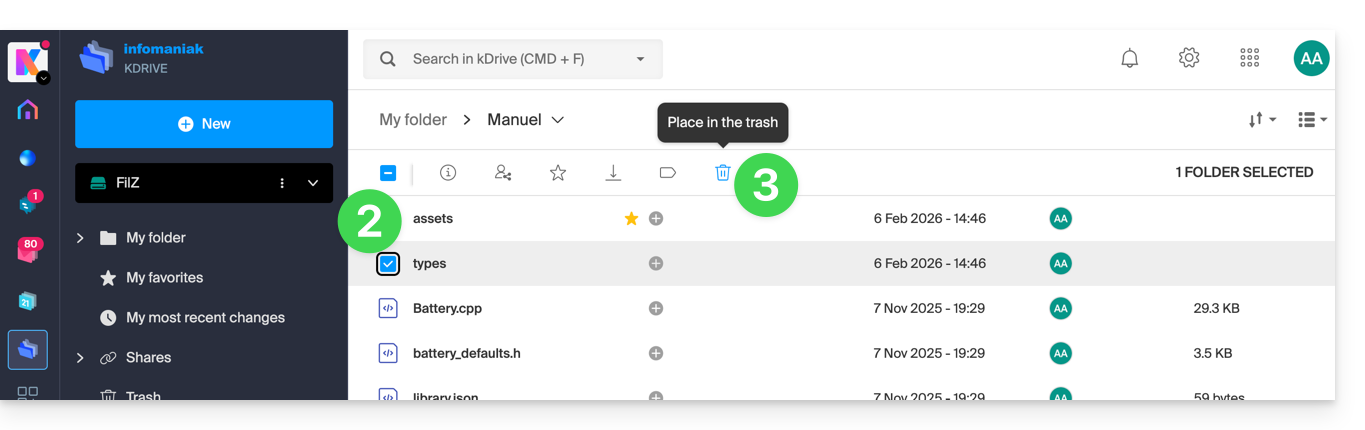
- Select the file(s) in question.
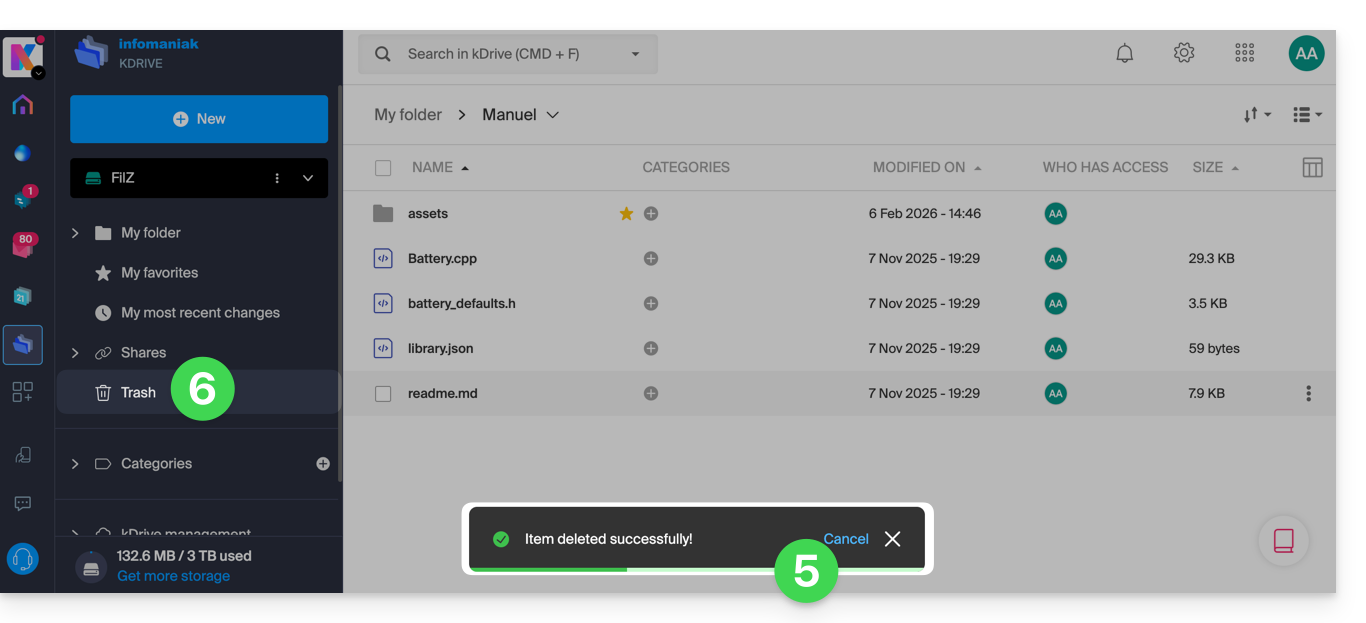
- Click on the trash can icon in the top bar:
- Confirm the deletion:
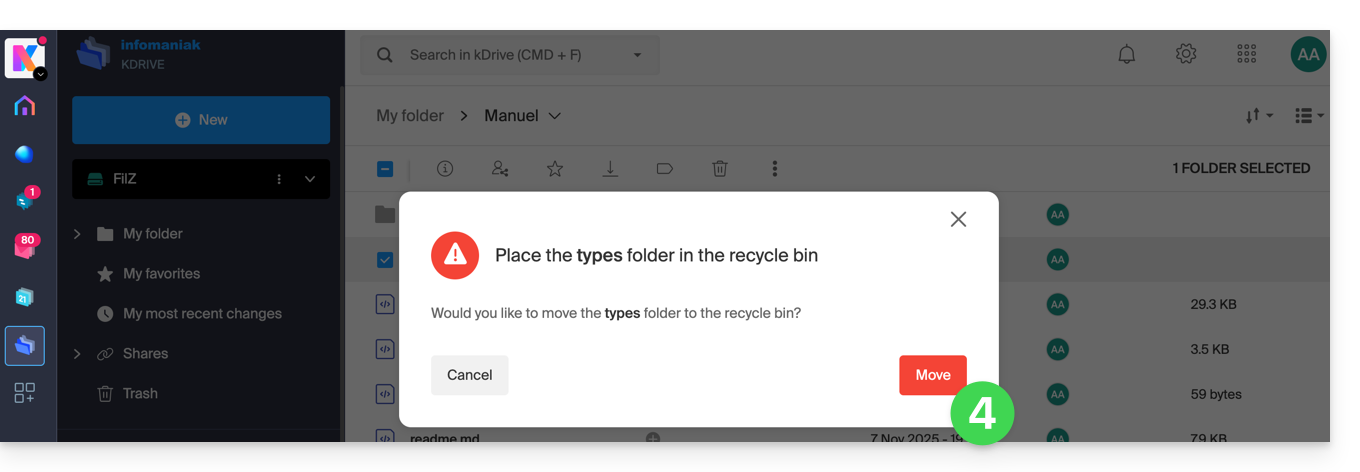
- A confirmation message appears at the bottom of the screen, allowing you to cancel the deletion if needed.
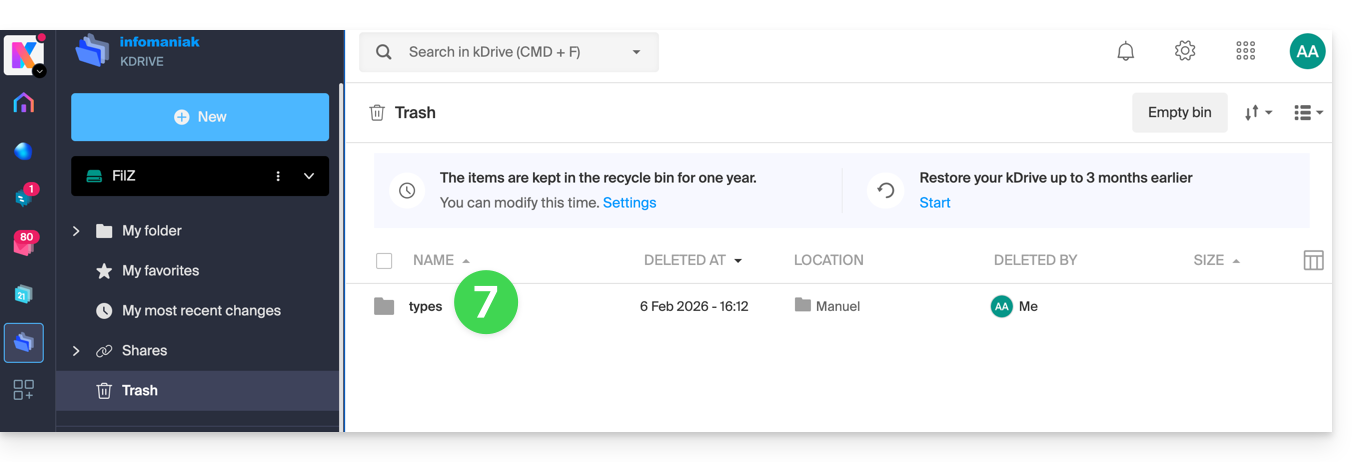
- Click on the Trash menu:
- Recently deleted items are displayed here:
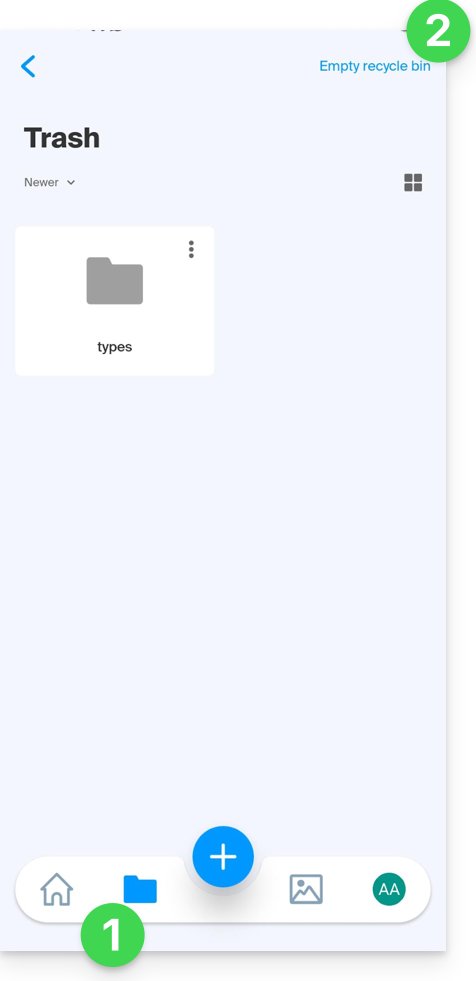
Deletion is synchronized with the various solutions connected to the same kDrive, for example the kDrive mobile app (application for iOS/Android smartphones or tablets):
- The Trash menu is located under the Folders icon at the bottom.
- You can empty the trash from this page, but please read the information below in this guide:
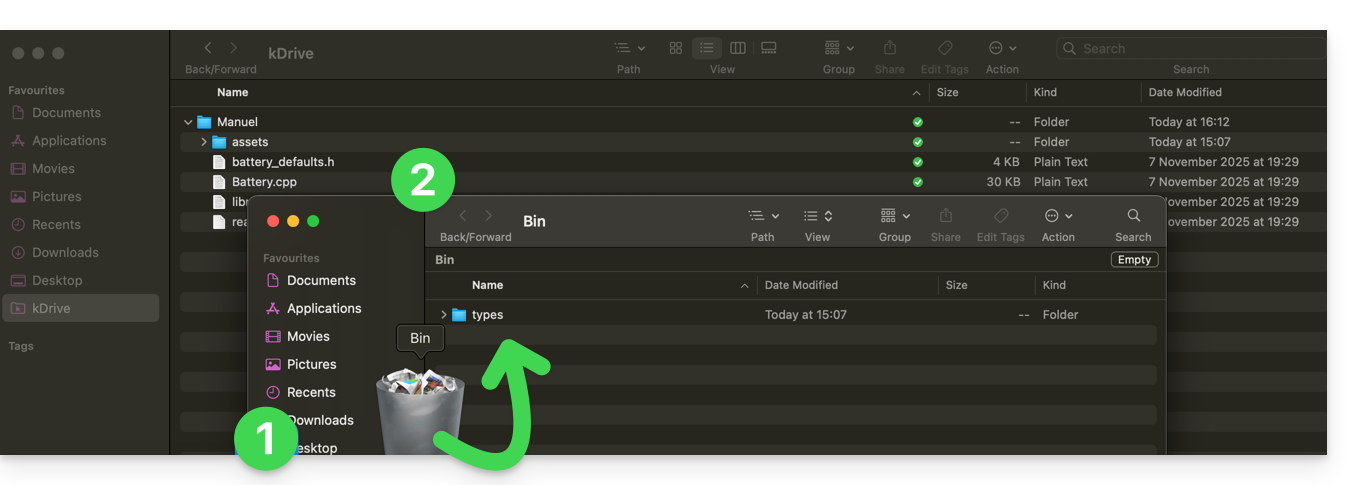
Deletion is also synchronized (if this option is not disabled – see below in this guide) with the desktop app kDrive (desktop application for macOS / Windows / Linux), which will instruct the computer to send any data deleted from the web app to the computer's recycle bin (and vice versa):
- Open the computer's recycle bin.
- Deleted data is in the trash, and no longer in the main kDrive file structure:
Empty the trash manually…
… on the kDrive web app
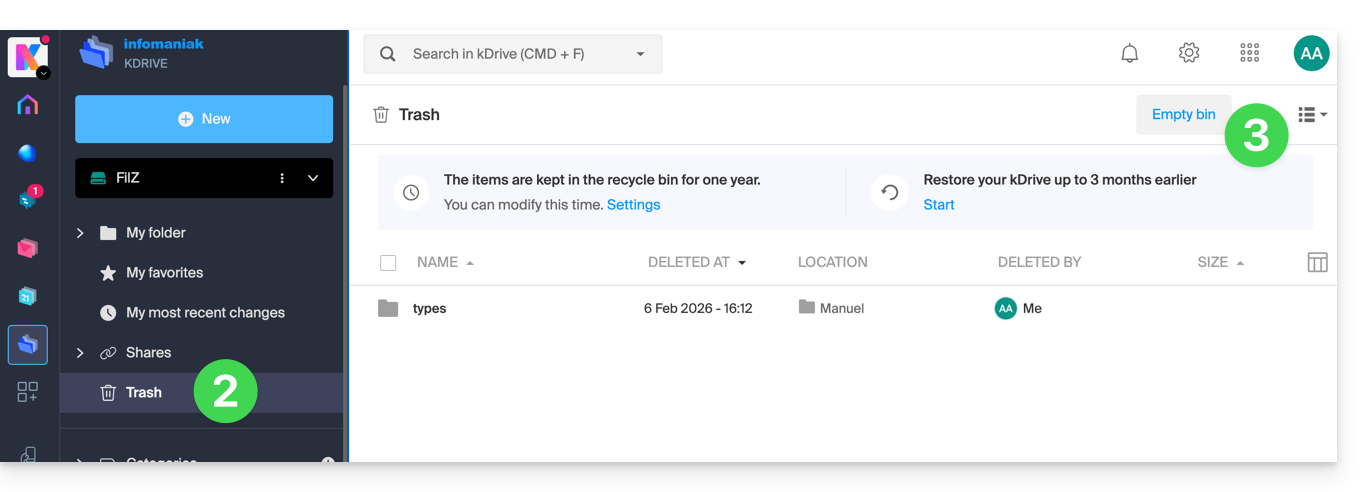
To empty the kDrive trash manually (not recommended as it is better to wait for the scheduled deletion):
- Click here to access the kDrive web app (online service ksuite.infomaniak.com/kdrive).
- Click on the Trash menu in the left-hand menu.
- Click on Empty Trash:
- Confirm the operation:
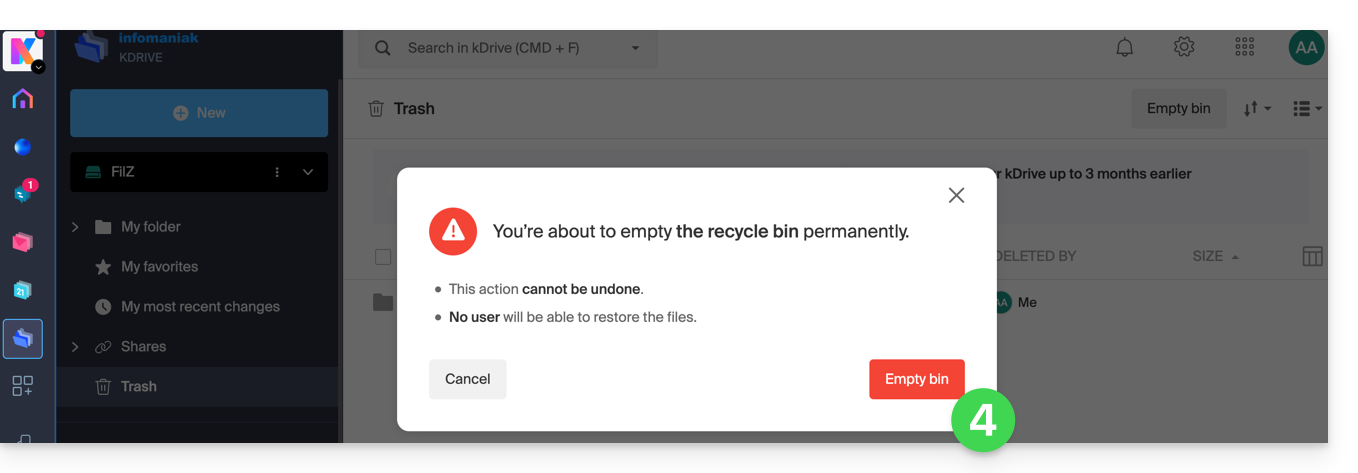
- Data is permanently deleted, only on the kDrive web app; files remain in the computer's recycle bin.
… on the synchronized computer
- If the computer's recycle bin is emptied (Empty button in the example below)…
- and the deletion is confirmed…
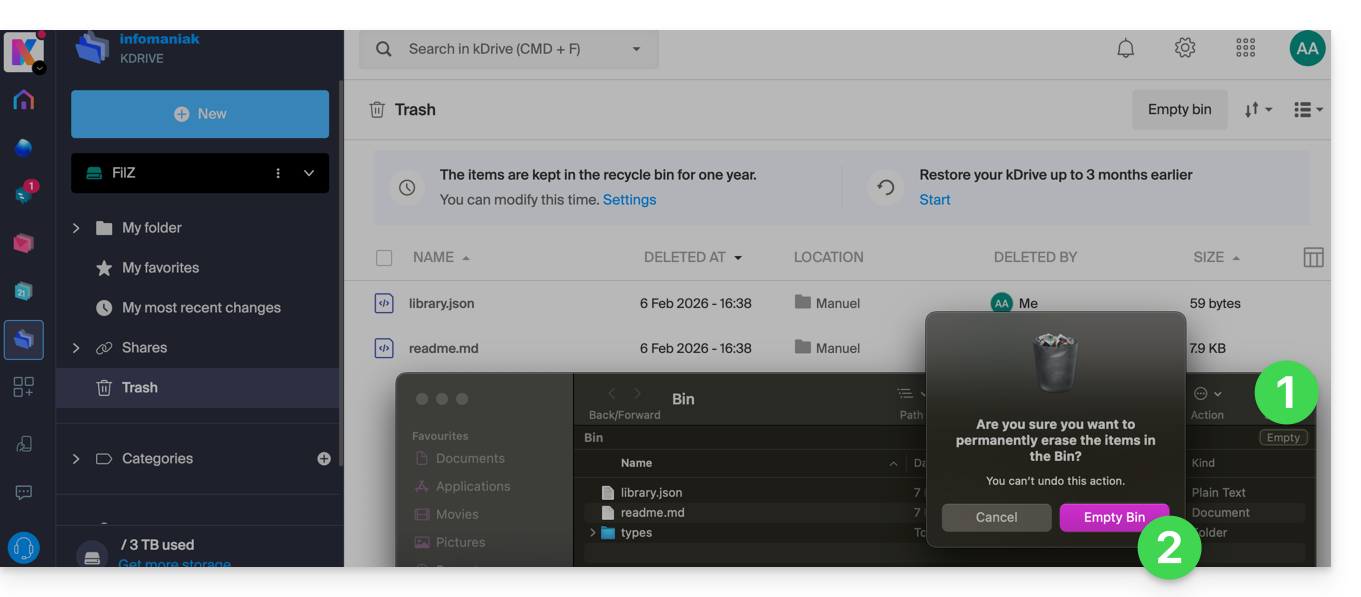
- … the web app's kDrive trash is not affected, and deleted files will still be found there, as long as this kDrive trash is not emptied, either manually or automatically after a certain period.
Manage the kDrive trash retention period
To access the files in the trash:
- Click here to access the kDrive web app (online service ksuite.infomaniak.com/kdrive).
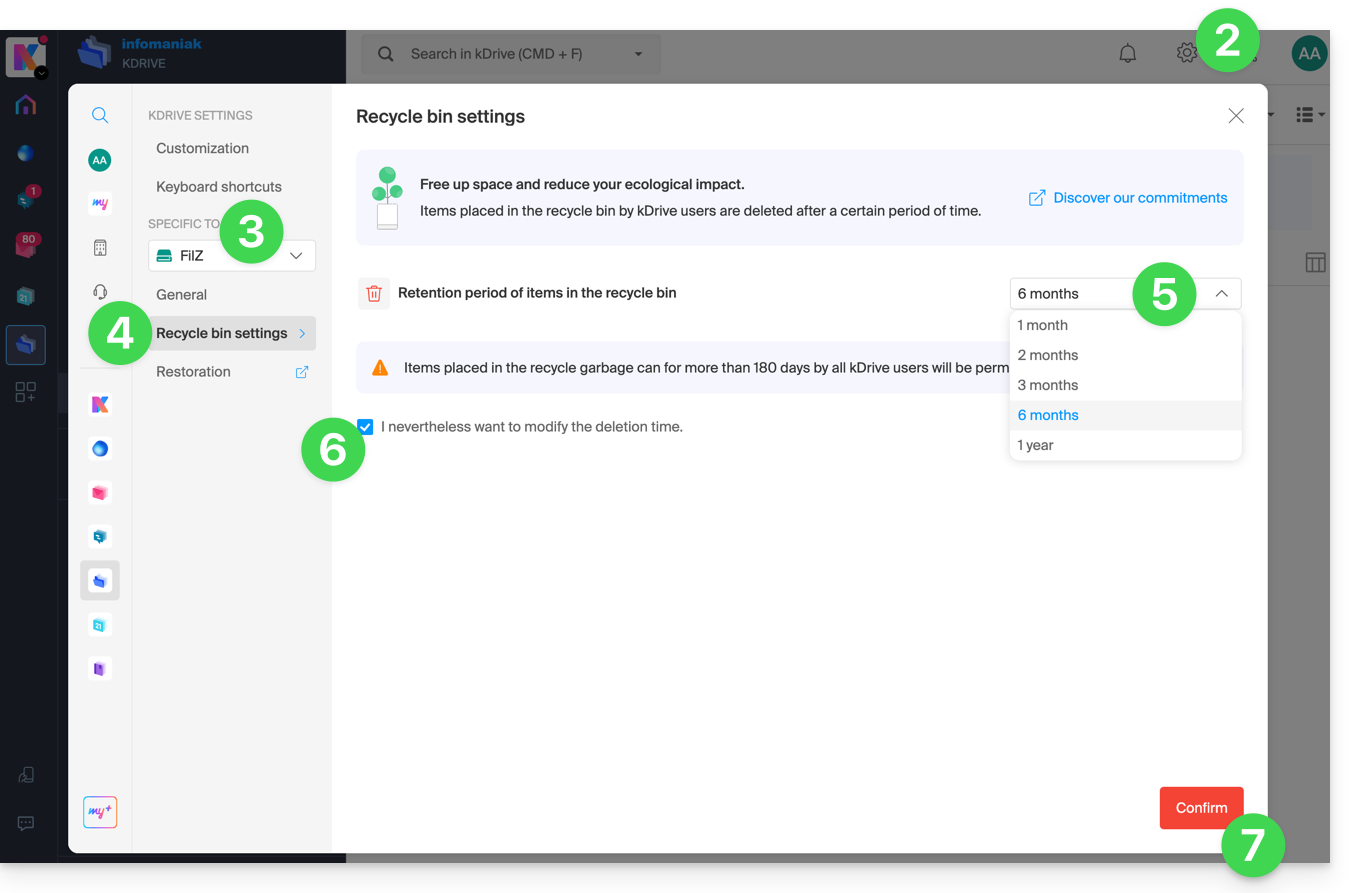
- Click on Settings in the top right corner.
- Check or select the relevant kDrive from the drop-down menu in the left-hand menu.
- Click on Trash settings.
- Choose the desired duration from the drop-down menu (between 1 month and 1 year, depending on your plan – see at the top of this guide).
- Review the information regarding the possible permanent deletion of files moved to the trash before the new deadline you wish to apply, and confirm your choice.
- Click the button to Confirm:
Disable the delete order on the desktop app
To choose whether deleting a file on the web app or the mobile app should move the file synchronized with the desktop app to the computer's recycle bin:
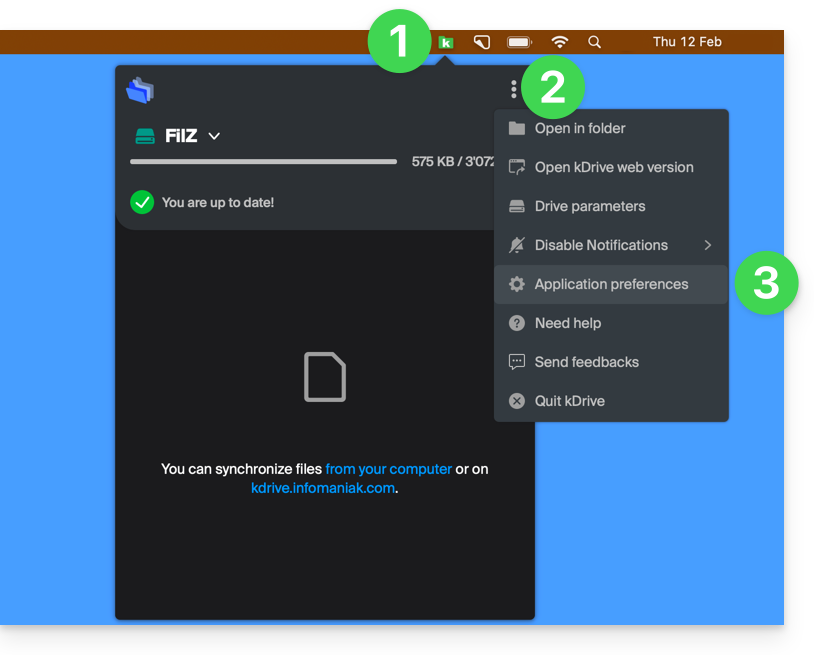
- Left-click on the desktop app icon in the notification area of your computer (top right on macOS, bottom right on Windows, and double-left-click in the taskbar on Linux).
- Click on the action menu ⋮ on the right of the window that appears.
- Click on Application Preferences:
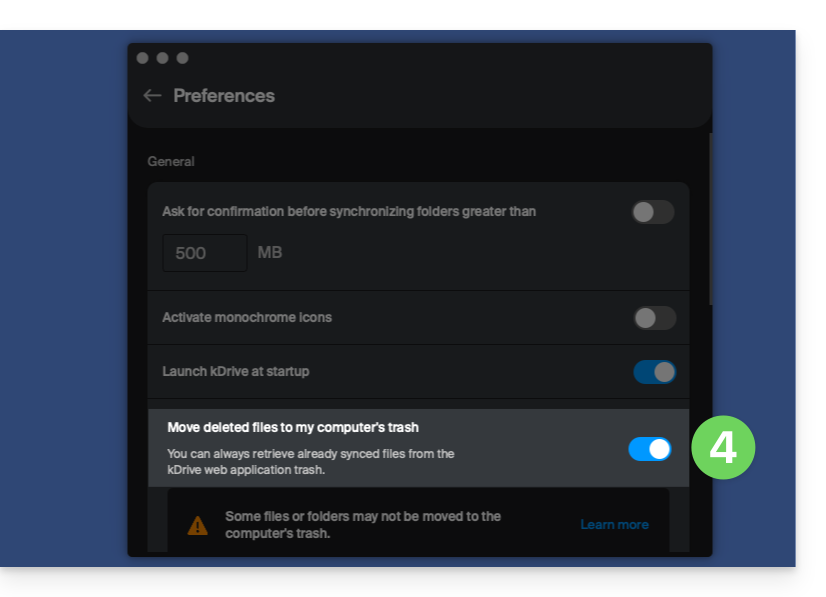
- Activate or deactivate the toggle switch to decide whether or not to send the synchronized version to the computer's trash/recycle bin:
Troubleshooting issues with moving files to the trash on your computer
In rare cases, even if you have configured the setting to move files to the trash (point 4 above), the desktop app may permanently delete the file from your computer:
- … the web app (online service ksuite.infomaniak.com/kdrive)…
- … the mobile app (application for iOS/Android smartphones or tablets)…
- … another synchronized computer…
instead of placing it in the trash, because:
- Insufficient space: the trash/recycle bin has reached its maximum configured size.
- No trash/recycle bin: on some file systems, such as network drives or removable drives (e.g., USB drives), there may be no trash/recycle bin.
This list is not exhaustive, but it covers the majority of cases that will not be reported to the user. Other issues, such as those related to the use of read-only mounted disks, will be taken into account and reported to the user.
If in doubt, also make sure that your computer does not instantly delete items that are too large when they are placed in the recycle bin, due to the size of the Windows recycle bin, for example:
Restore a file from the trash…
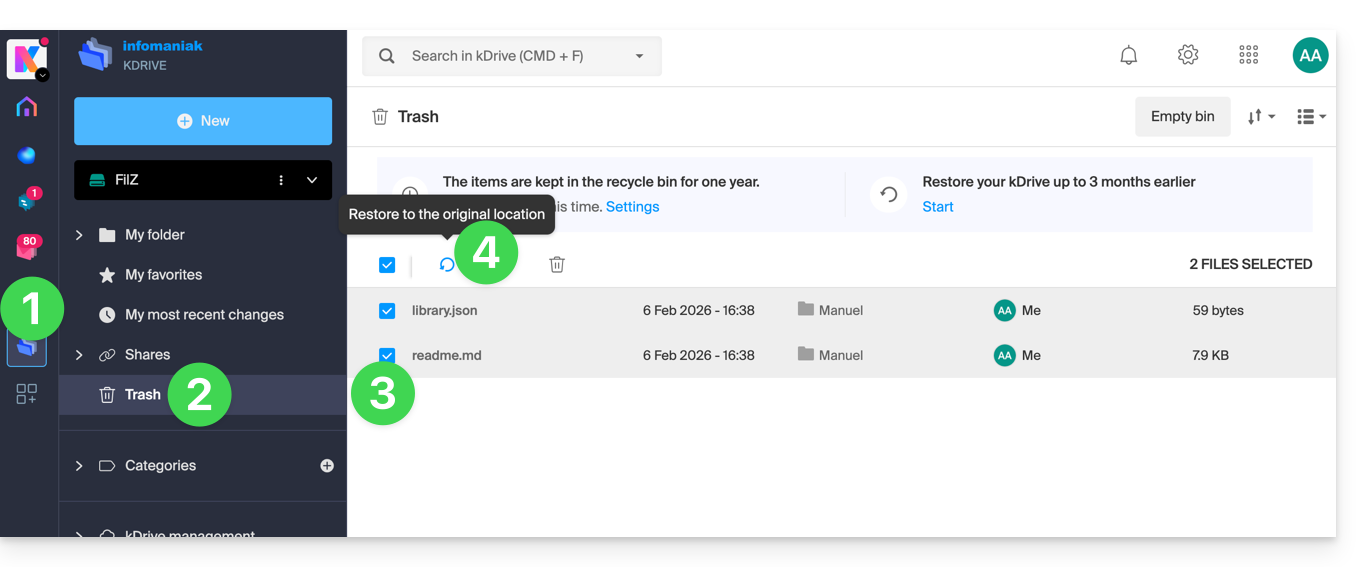
To restore a file to its original location before the trash has been emptied in the kDrive web app:
- Click here to access the kDrive web app (online service ksuite.infomaniak.com/kdrive).
- Click on Trash in the left-hand menu.
- Select the items to restore.
- Click on Restore:
To revert an entire kDrive to its state before any file movements or reorganizations, please refer to this other guide.
To restore a previous version of an existing file, please refer to this other guide.
Link to this FAQ: https://faq.infomaniak.com/2383
Has this FAQ been helpful?
This guide explains how to use the file history or versioning feature on kDrive.
Introduction
- This feature is very useful for recovering information that has been deleted or modified by a third party within a collaborative file.
- Infomaniak saves the different versions in the history.a backup of all changes made to Office file types on kDrive.
- You can choose to keep certain versions of these files indefinitely.
A global backup of the organization's folders and personal Drives is not offered; this choice is intentional in order to guarantee the confidentiality of personal spaces: administrators do not have access to users' private data.
- Maximum number of versions / Maximum number of days:
- kSuite Free = 30 / 30
- kSuite Standard = 100 / 120
- kSuite Business = 200 / 180
- kSuite Enterprise = 200 / 365
- my kSuite = 30 / 30
- my kSuite+ = 60 / 120
- kDrive Solo = 100 / 60
- kDrive Team = 100 / 60
- kDrive Pro = 200 / 120
- Other types of limits exist at the level of:
Manage previous file versions
To access kDrive:
- Click here to access the Infomaniak web app kDrive (online service ksuite.infomaniak.com/kdrive).
- Select the file to edit (or right-click on the file, and in that case, proceed to step 4).
- Click on the action menu ⋮ in the toolbar.
- Click on Version History:
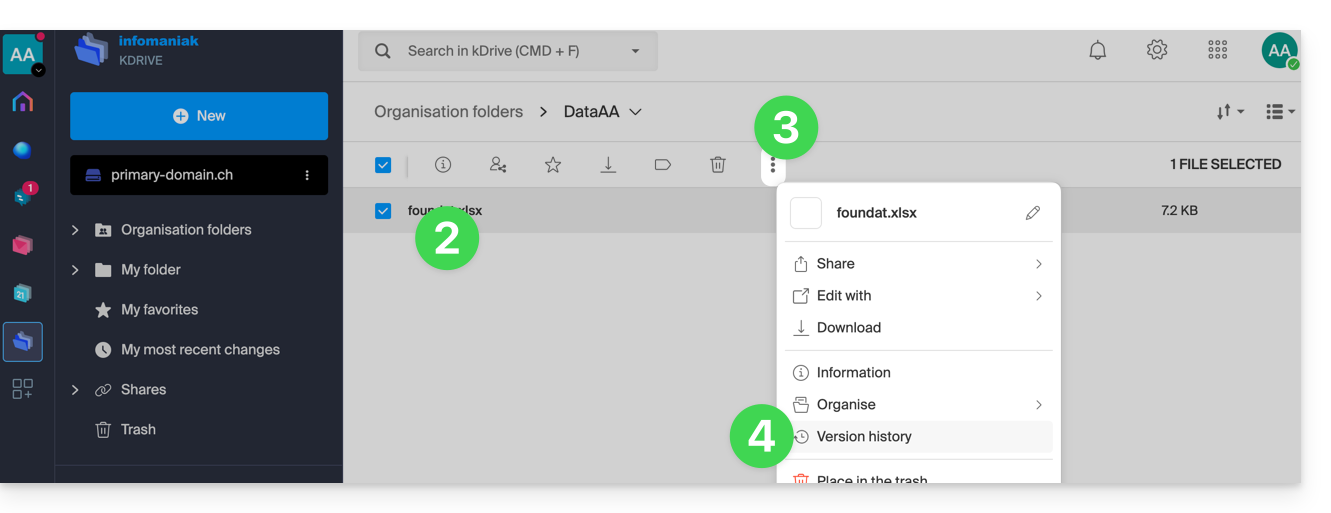
The different versions of the file are listed in reverse chronological order.
You can delete all versions of this file using the following button: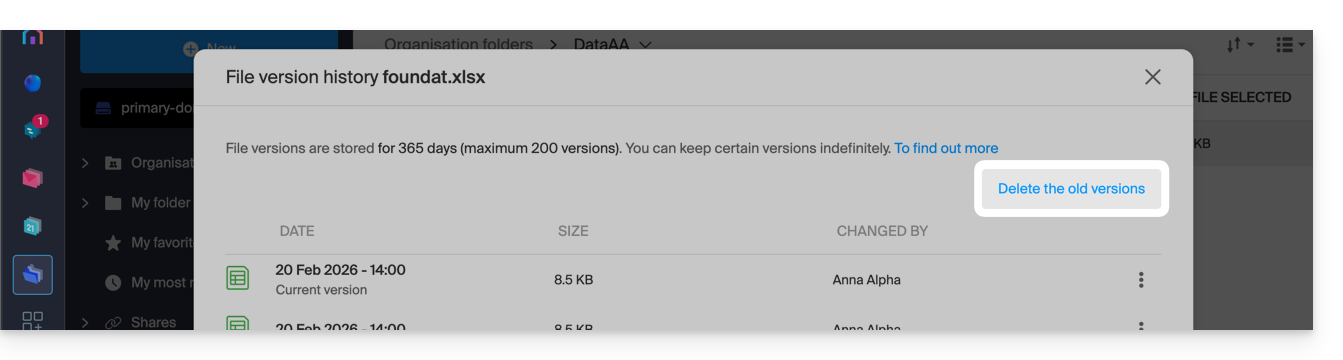
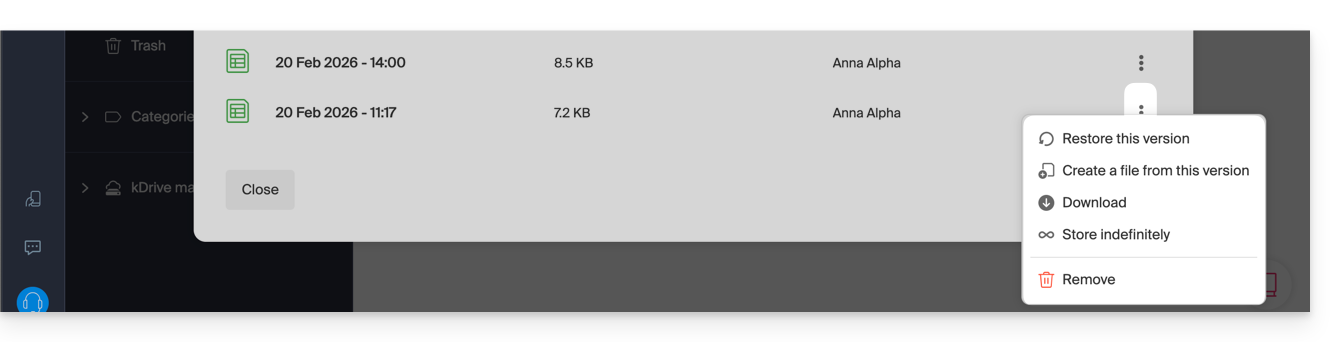
Otherwise, a menu on the right side of each version allows you to:
- … keep it indefinitely: the version will be saved after the standard retention period,
- … create a new file on kDrive from this version,
- … delete the version: this allows you to delete only this version.
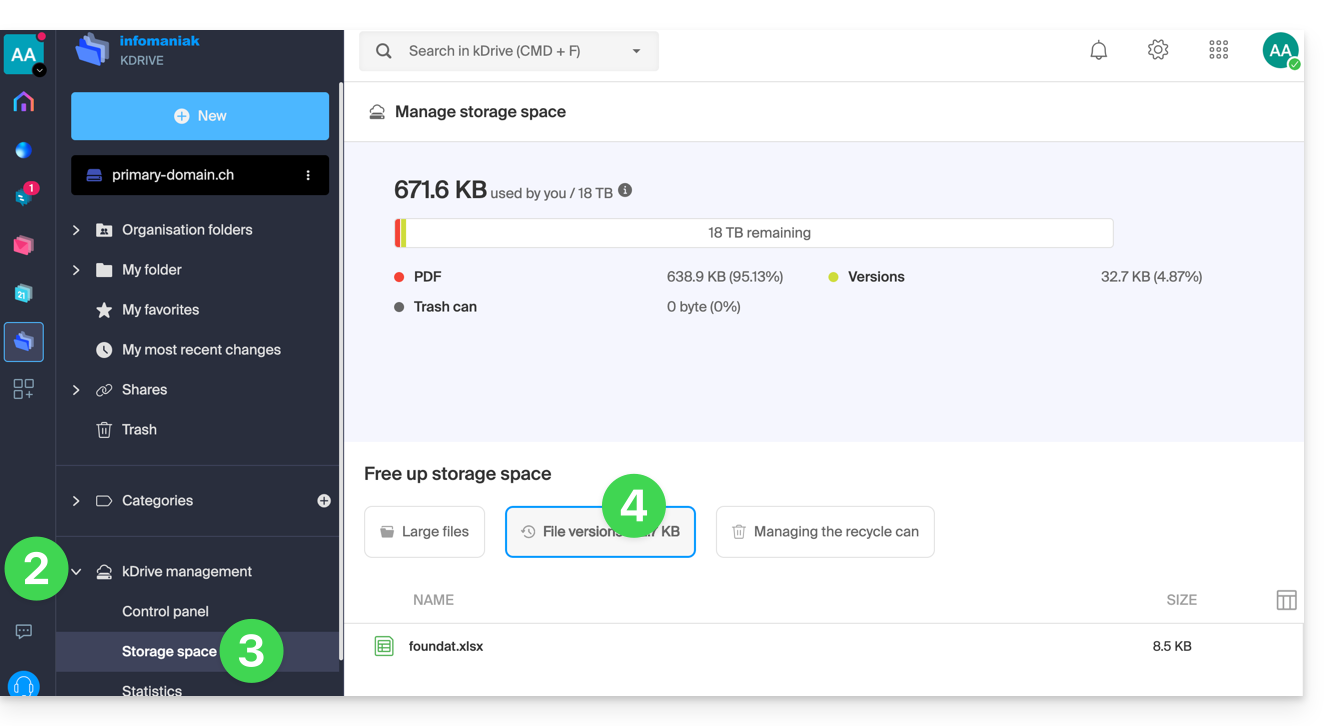
You can also access all versions of all your files:
- Click here to access the Infomaniak kDrive web app (online service ksuite.infomaniak.com/kdrive).
- Click on Manage kDrive in the left-hand menu.
- Click on Manage storage space
- Click to select File versions:
You can also restore a previous version of your entire file organization on kDrive.
Link to this FAQ: https://faq.infomaniak.com/2384
Has this FAQ been helpful?
This guide explains how to create a drop box with kDrive to invite contacts to upload content (files or folders); the content uploaded by your contacts is then sent directly, stored, and organized in the correct location on your kDrive.
Introduction
- Number of allowed dropboxes:
- kSuite Free = 1
- kSuite Standard = 10
- kSuite Business = 100
- kSuite Enterprise = 1000
- my kSuite = 1
- my kSuite+ = unlimited
- kDrive Solo = 100
- kDrive Team = 1000
- kDrive Pro = 1000
- You can customize the appearance of the dropboxes.
- Other types of limits exist at the:
Create a drop box
To access kDrive and create a drop box:
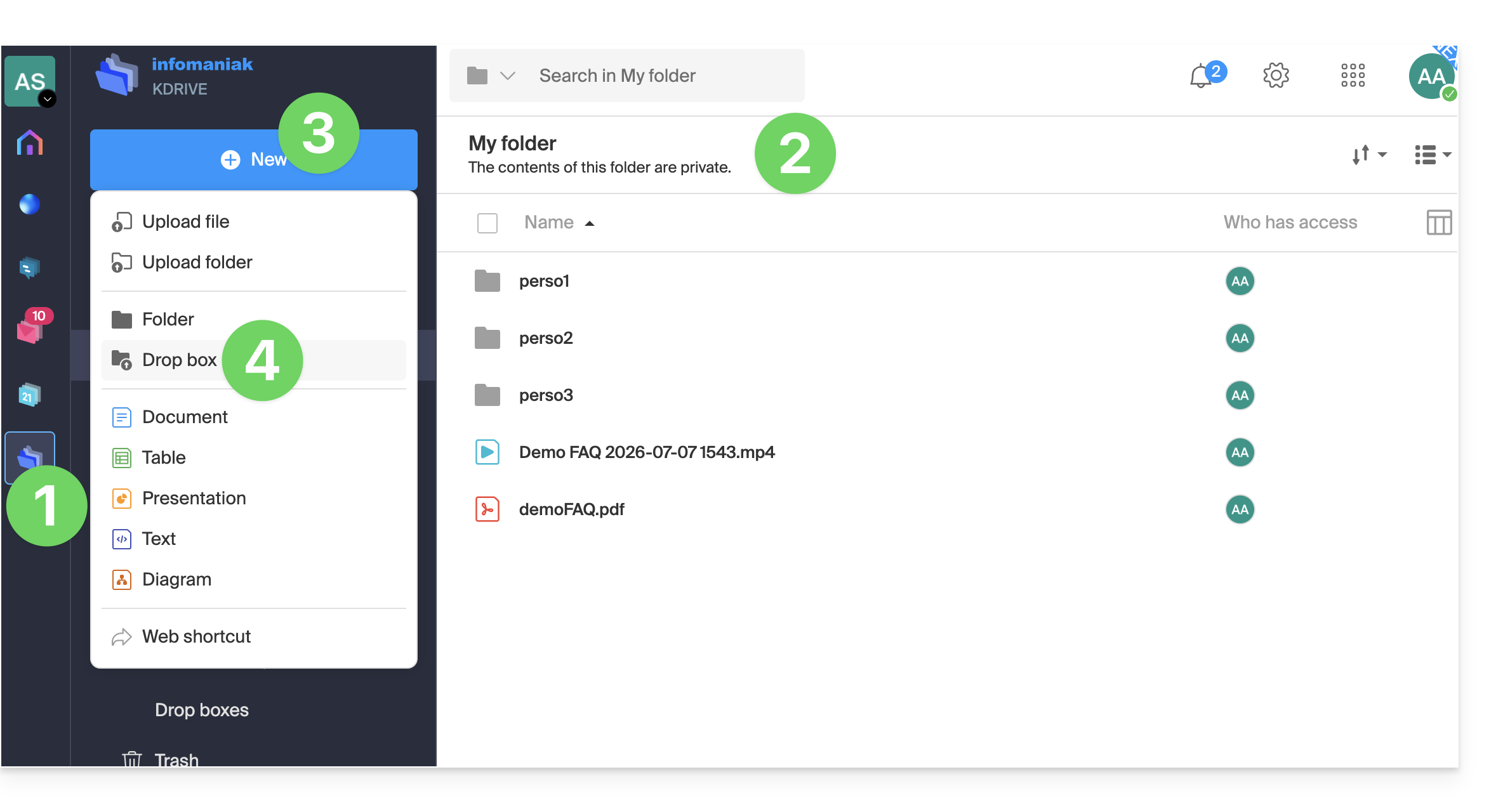
- Click here to access the Infomaniak kDrive web app (online service ksuite.infomaniak.com/kdrive).
- Navigate through the kDrive tree, which is displayed in the left-hand menu, and go to the folder that will store the data collected in the upload box:
- Stay in the personal folder (My folder) if the data is private and specific to your user.
- Go to the shared folder (Organization folders) if you want other users of your kDrive to be able to directly view the data from the upload box.
- Click the blue New button when you are in the directory of your choice (the one that will store the data collected using the upload box).
- Click on Drop Box:
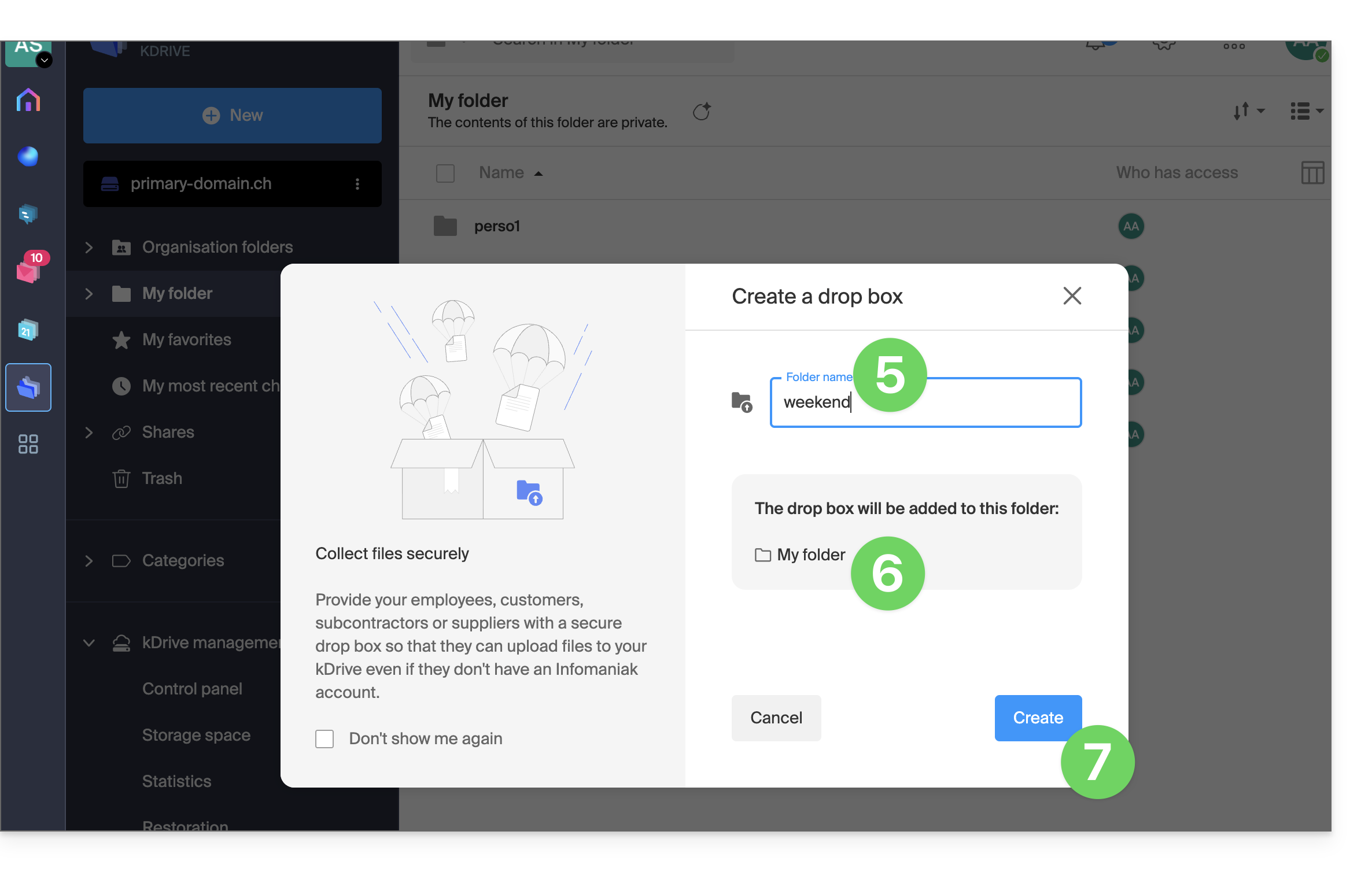
- Enter the name of the drop box.
- The full path (within your kDrive) to the location of this drop box is provided for your information.
- Click on the Create button:
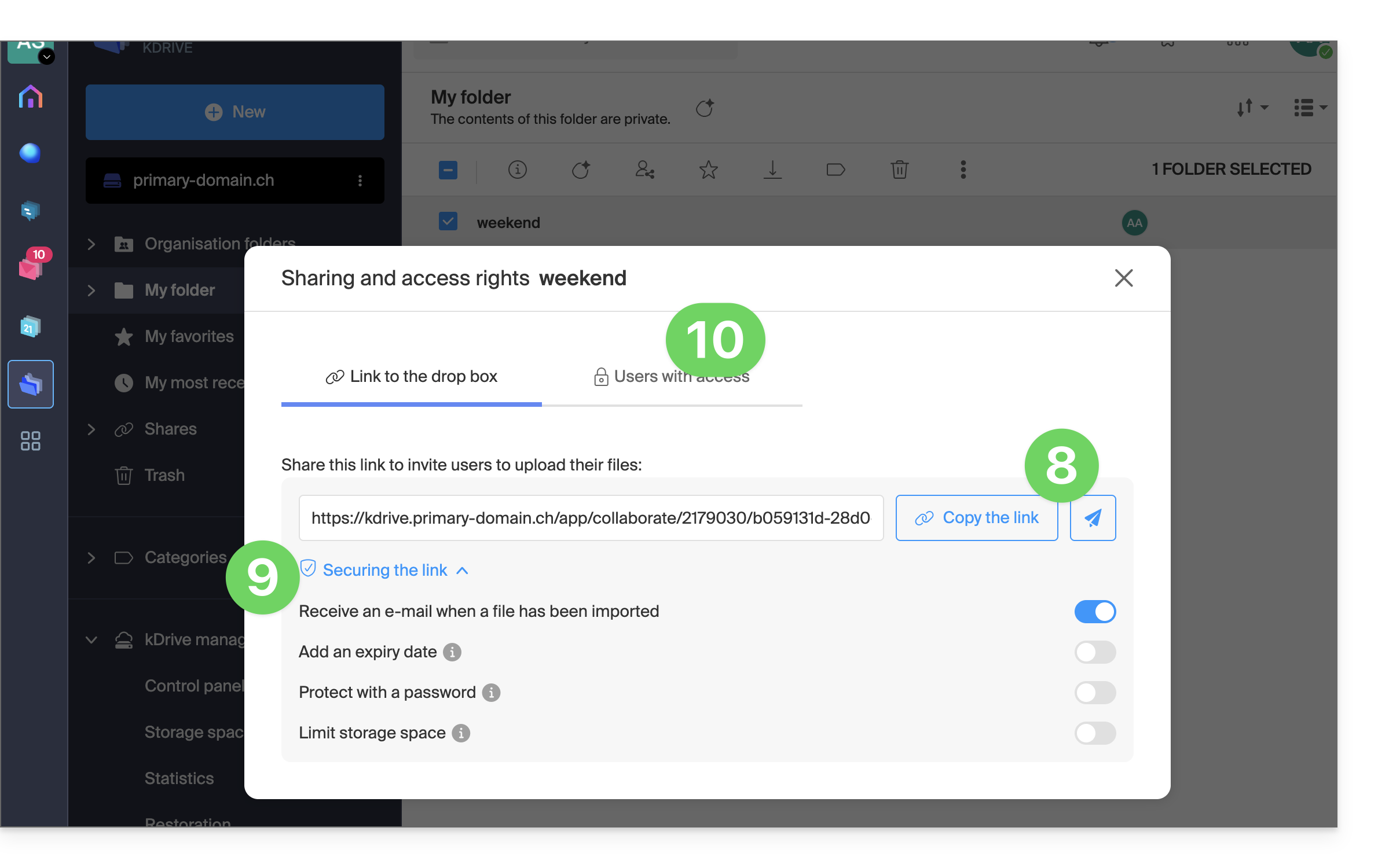
- Share the link to the upload folder or click on Send by email to share it with your contacts.
- Advanced options allow you toreceive a notification by email when a file is uploaded, protect the folder with a password, add an expiration date, and limit the storage space of the upload box.
- Depending on your kDrive plan and your choice in step 2 above, you can decide whether, despite the files being located in Organization Folders (shared folder), you want to restrict access to your user only:
Disable or modify a drop box
To access the drop boxes:
- Click here to access the Infomaniak kDrive web app (online service ksuite.infomaniak.com/kdrive).
- Click on Sharing in the left-hand menu.
- Click on Drop boxes.
- Right-click or click on the action menu ⋮ to the right of the item in question in the table that appears.
- Click on Disable to cancel the sharing link without deleting the data that has already been shared (the box will become a simple folder).
Or click on Settings further up in the drop-down menu to modify the advanced options (point 10 above):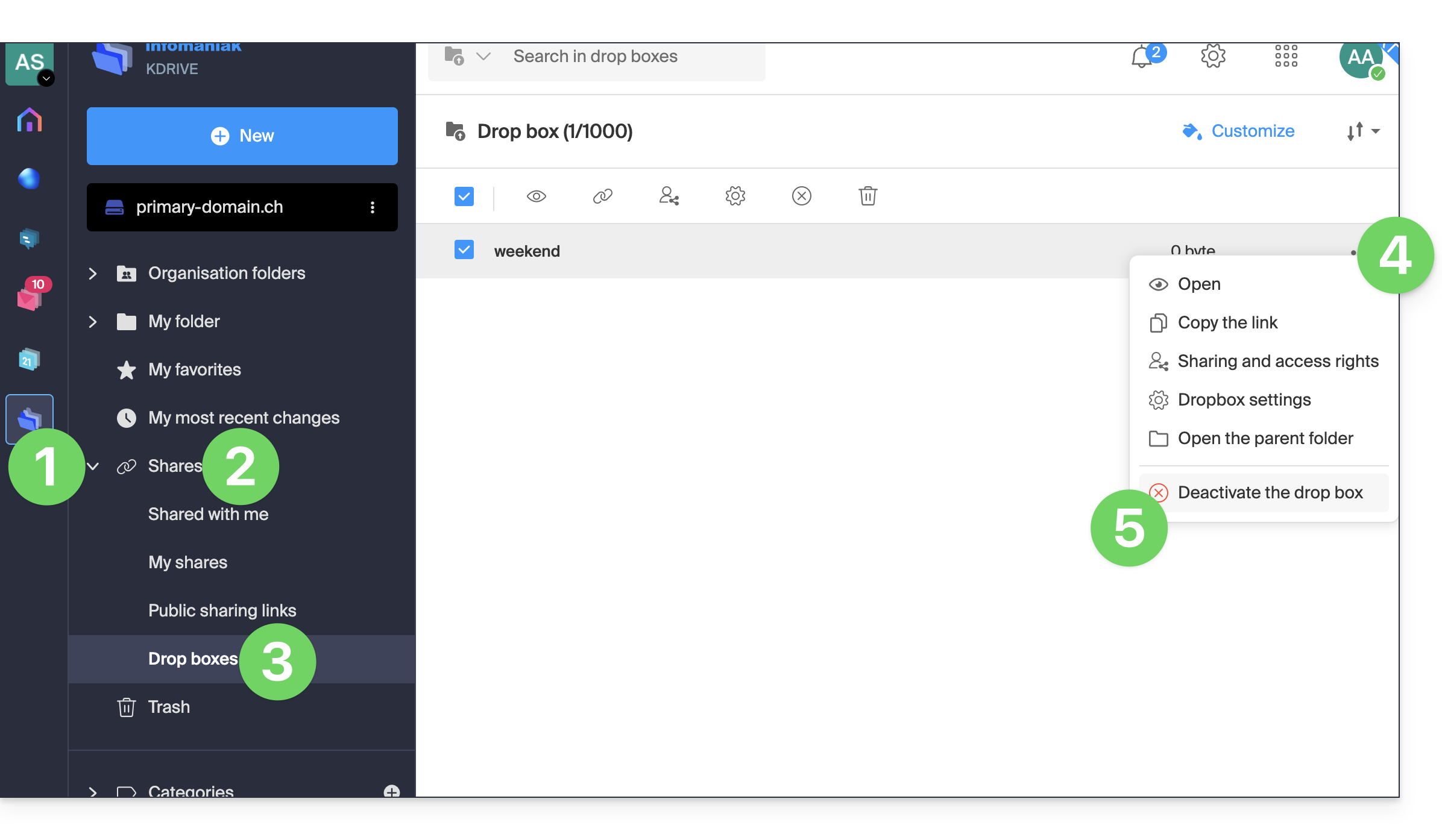
Link to this FAQ: https://faq.infomaniak.com/2386
Has this FAQ been helpful?
This guide explains how to view how the storage space of your kDrive is being used and how to increase its capacity if needed.
Introduction
- The maximum number of files per kDrive is not a fixed limit, but if this limit is exceeded, Infomaniak cannot guarantee the stability of the storage system and the kDrive application.
- Only the kDrive Terms and Conditions apply (❓: help).
- Other types of limits exist at the level of:
Storage and traffic limits
At most, and regardless of the kDrive / kSuite / my kSuite offer, etc.:
- 300,000 files per kDrive
- 1000 subfolders per kDrive
- 100,000 files per folder
- 1000 GB per file sent via the desktop app, the web app, and the API
Next:
- Bandwidth (in GB) allowed per day and per user (these limits, provided for informational and precautionary purposes, may apply if excessive use degrades the service, in order to guarantee its stability and availability for all users):
- kSuite Free = 200
- kSuite Standard = 1000
- kSuite Business = 1000
- kSuite Enterprise = 1000
- my kSuite = 200
- my kSuite+ = 200
- kDrive Solo = 1000
- kDrive Team = 1000
- kDrive Pro = 1000
- Maximum number of daily file downloads per user:
- kSuite Free = 50000
- kSuite Standard = 100000
- kSuite Business = 100000
- kSuite Enterprise = 100000
- my kSuite = 50000
- my kSuite+ = 50000
- kDrive Solo = 50000
- kDrive Team = 50000
- kDrive Pro = 50000
Check your kDrive storage space
To access kDrive:
- Click here to access kDrive on your Infomaniak kSuite (❓: help).
- Click on the chevron to expand the kDrive Management section in the left-hand menu.
- Click on Storage space in the left-hand menu:
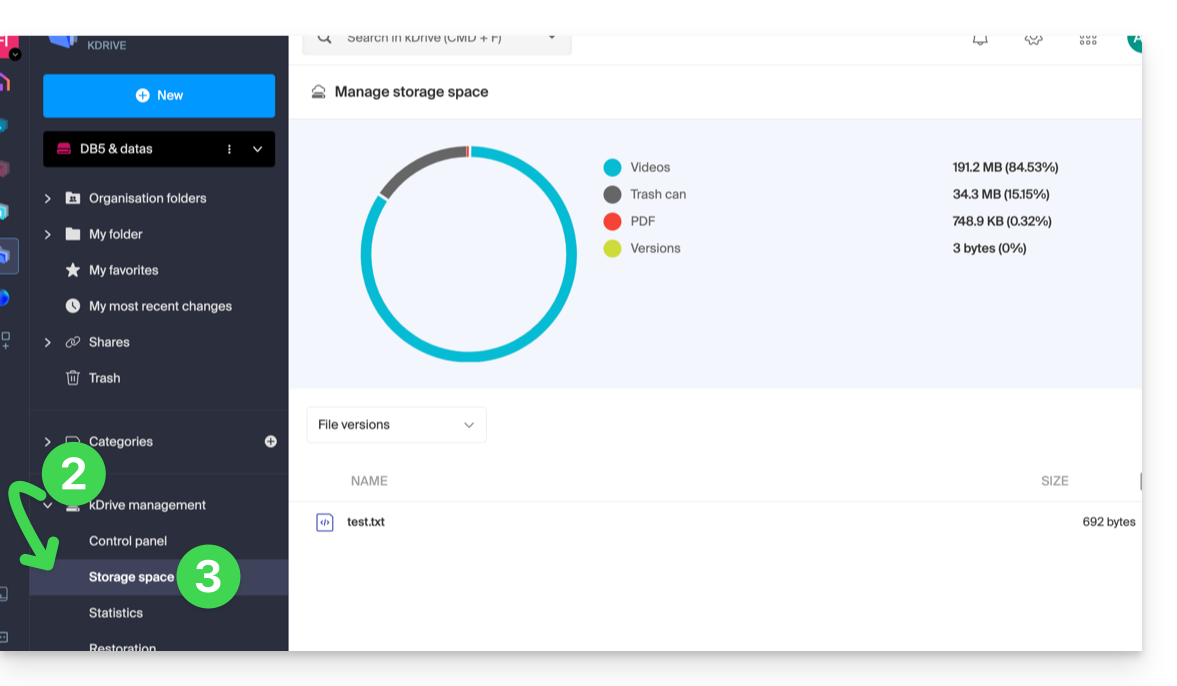
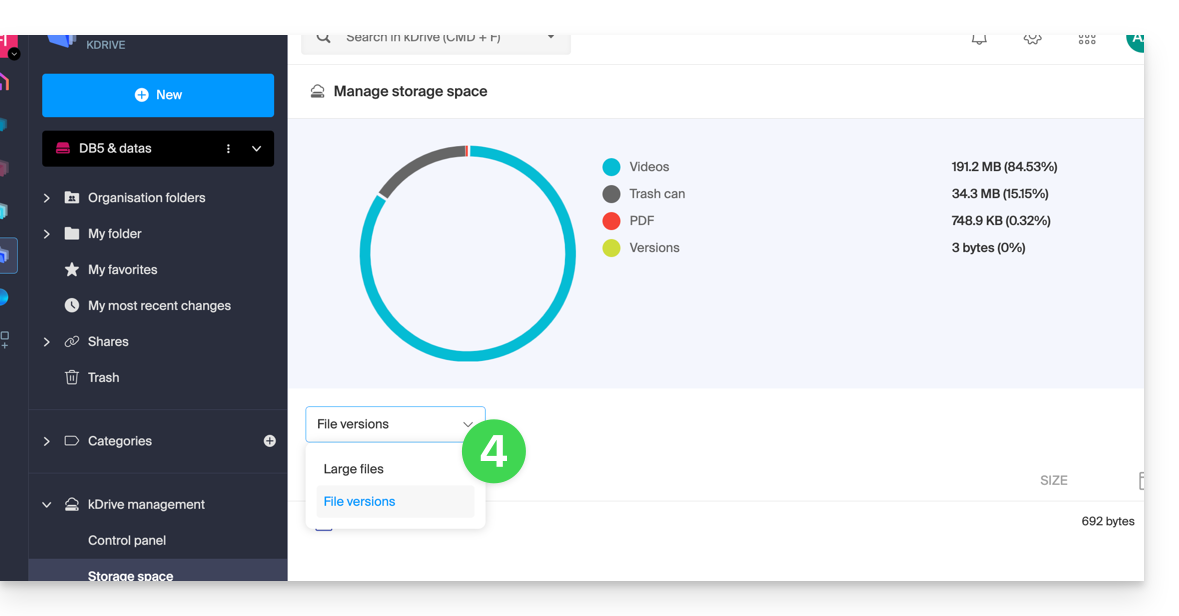
- Choose the large files (or the file versions which are also counted towards the storage space) using the drop-down menu:
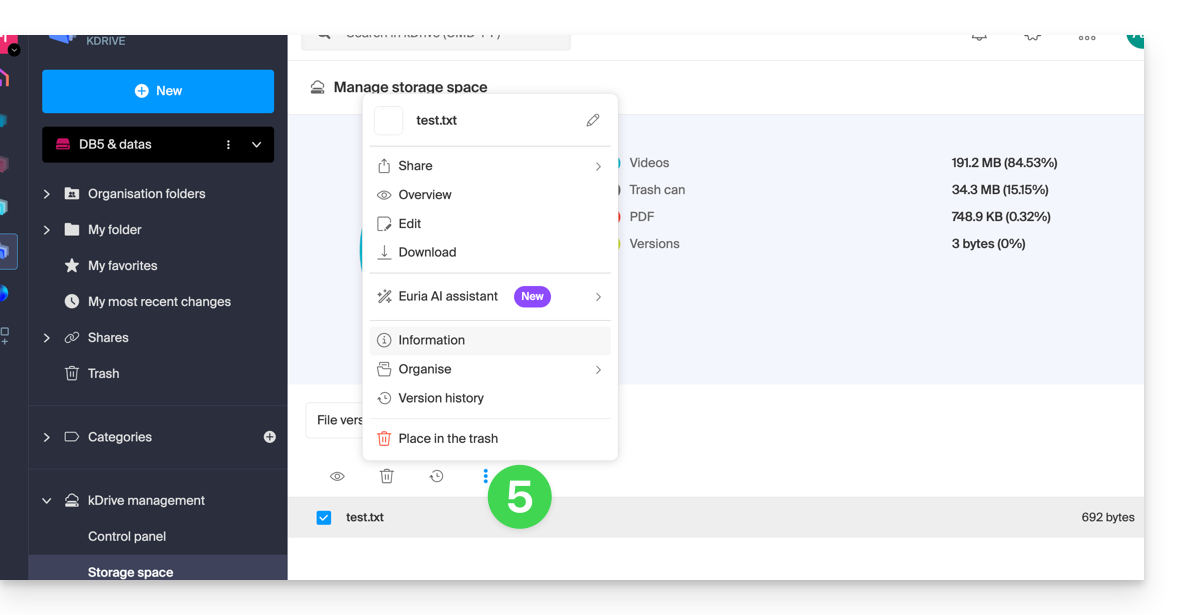
- Click on the action menu ⋮ located above your selection to perform an action (e.g., delete):
Increase kDrive storage space
Prerequisites
- You must have sufficient permissions within the Organization.
To modify the kDrive storage space:
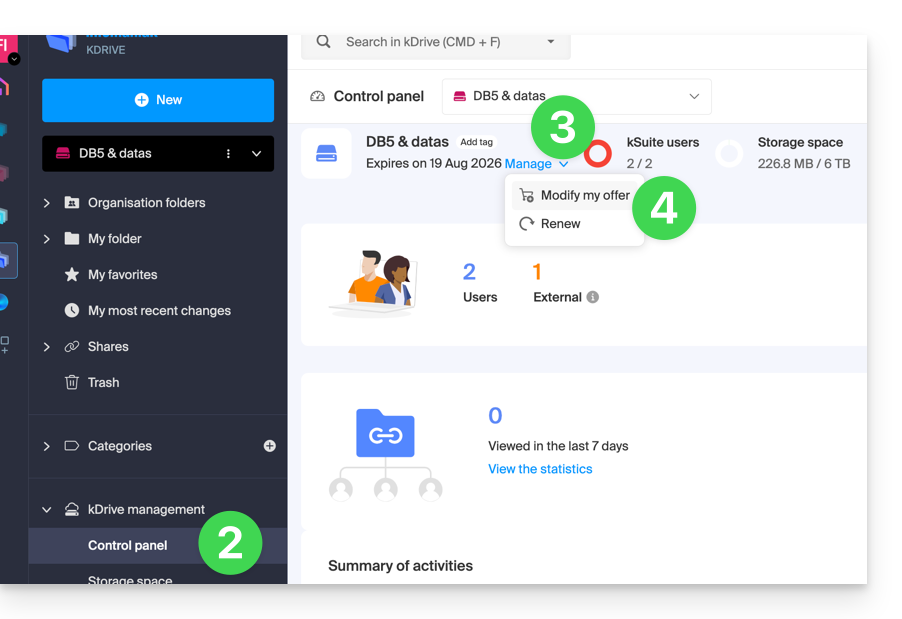
- Click here to access kDrive in your Infomaniak kSuite (❓: help).
- Click on Dashboard in the left-hand menu under kDrive Management.
- Click on Manage.
- Click on Modify offer:
- You will then be given the option to modify the offer or change the maximum storage space for your kDrive.
- Once the offer has been modified, click on Next and proceed with the payment.
Get information about a folder and its contents
Simply right-click on any folder in the kDrive web app to view its size and contents:
Link to this FAQ: https://faq.infomaniak.com/2387
Has this FAQ been helpful?
This guide explains how to create, save, and edit a plain text file (no specific formatting, like a notepad or raw code) in the kDrive web app (online service ksuite.infomaniak.com/kdrive) using the native editor.
Creating a plain text file
To create a .txt file:
- Click here to access the kDrive web app (online service ksuite.infomaniak.com/kdrive).
- If necessary, open the folder where you want to create the .txt document.
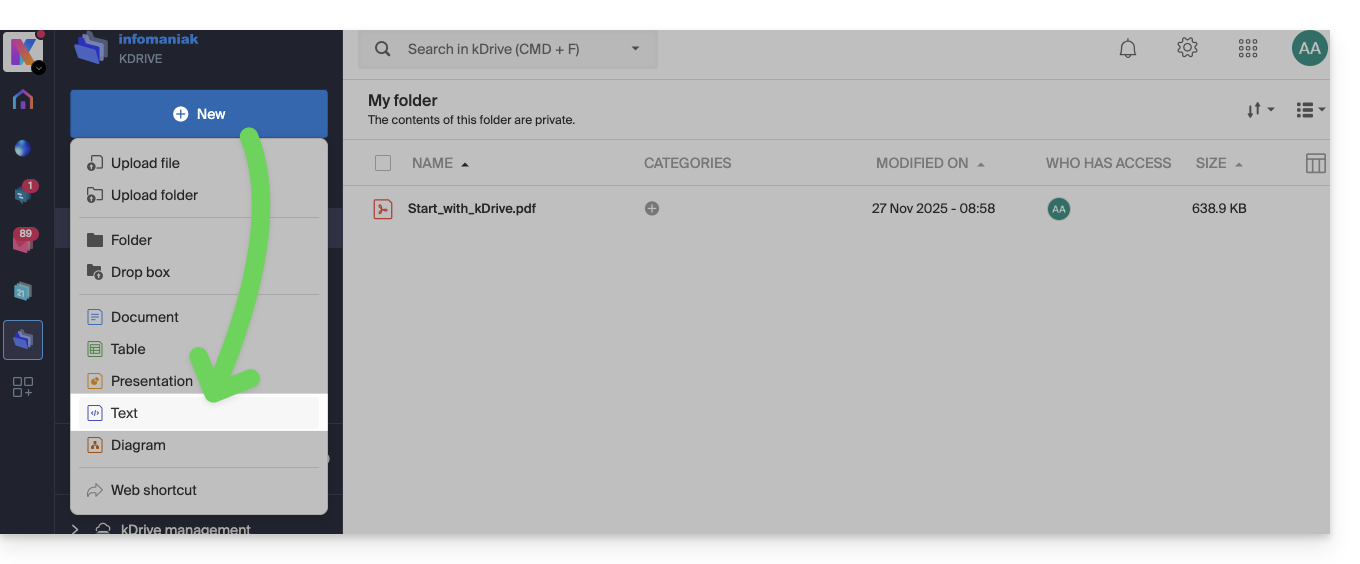
- Click the New button in the upper left corner.
- Choose the Text type to create a blank document:
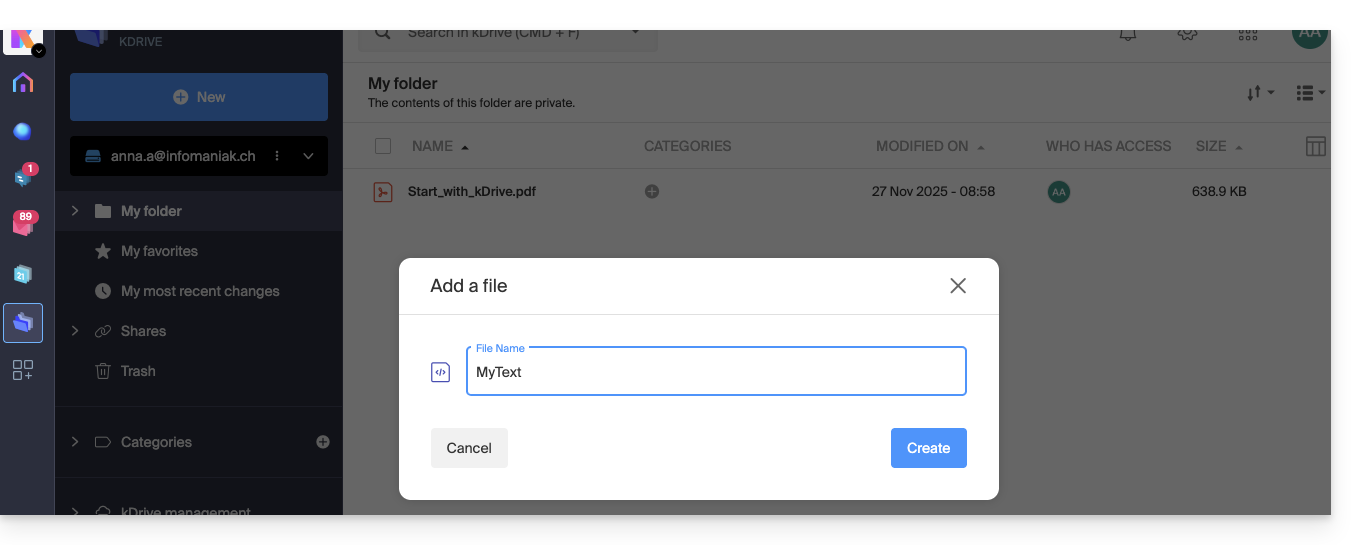
- Enter a file name:
- The blank file opens automatically, and you can enter plain text:
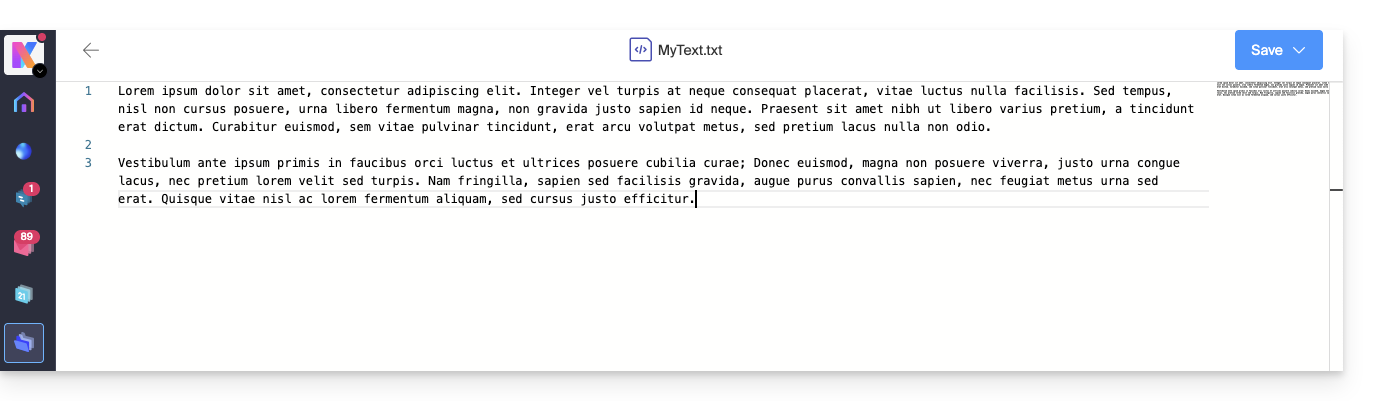
- There is no way to format the text, edit its style, or its alignment, etc. (use Office file types for that).
- If you paste rich content onto the page, it will be converted to plain text without formatting.
- A page outline is displayed on the right to facilitate quick navigation in long documents.
- Saving is automatic, but you can manually save your changes in the upper right corner if needed.
Find and Replace Function
To work with and replace all instances of a text with just a few clicks, once the document is created:
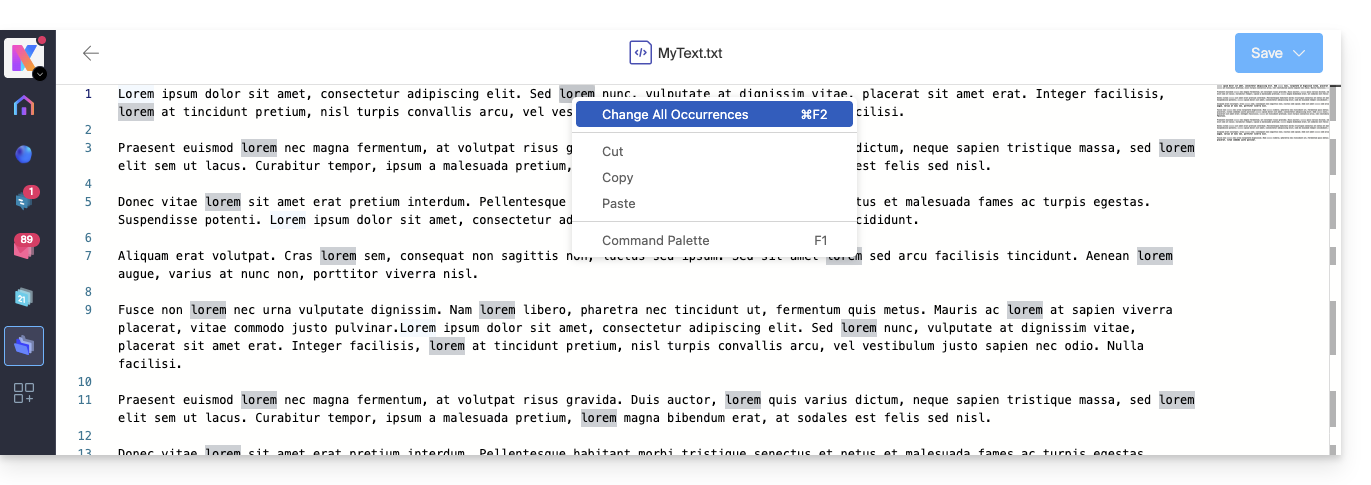
- Select the term to be replaced throughout the text.
- Right-click on the selection and choose the "Edit all instances" menu item:
- Enter the text that should replace the selection; the text will replace all identical instances:
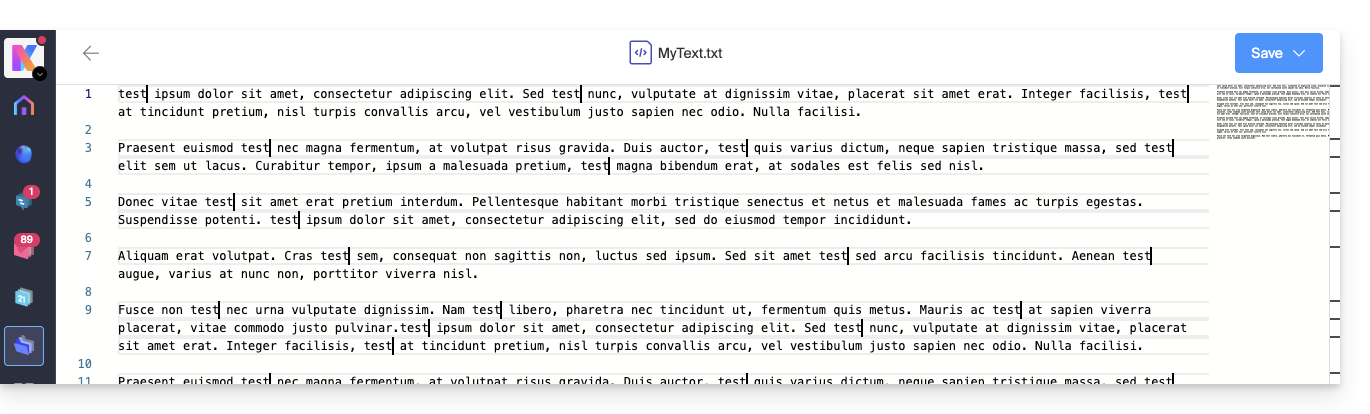
- Saving is automatic, but you can manually save your changes in the upper right corner if needed.
Link to this FAQ: https://faq.infomaniak.com/2389
Has this FAQ been helpful?
This guide explains how to automatically transfer photos from your mobile device (iOS) to kDrive Infomaniak.
Introduction
- Once this feature is enabled, photos from your mobile device will be saved to the kDrive folder of your choice.
- Foreground mode:
- Synchronization works optimally when the kDrive application is active and in the foreground.
- Background mode
- iOS limits the operation of closed applications.
- kDrive will still be able to perform uploads in short sessions (approximately every 15 minutes) or during the night if the device is charging and connected to Wi-Fi.
- File naming: automatic backup may rename your files to avoid collision errors or duplicates (see below).
Enable sending to kDrive on iOS (iPhone, iPad)
Prerequisites
To configure automatic backup:
- Open the kDrive mobile app.
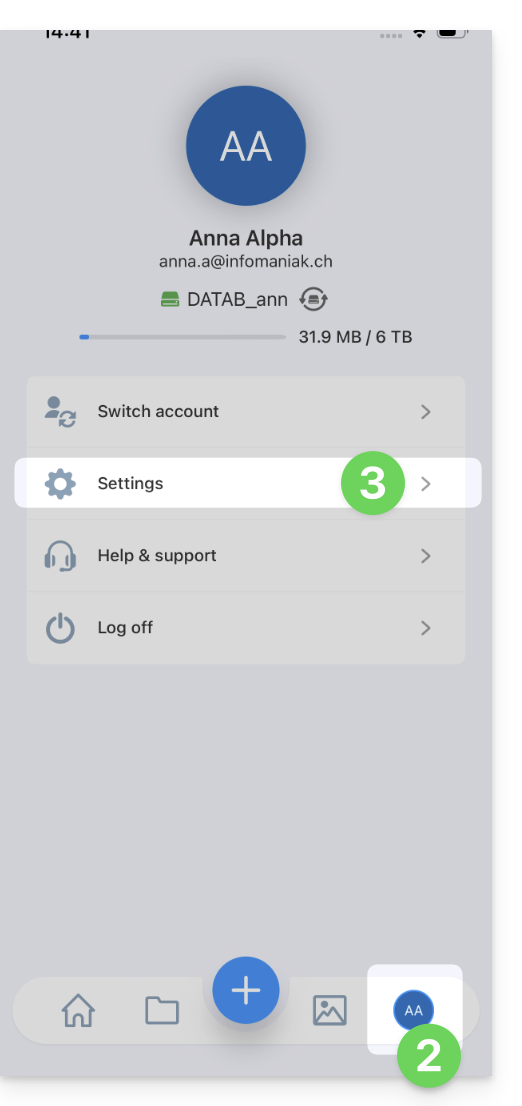
- Tap on your initials or avatar (bottom right).
- Go to Settings:
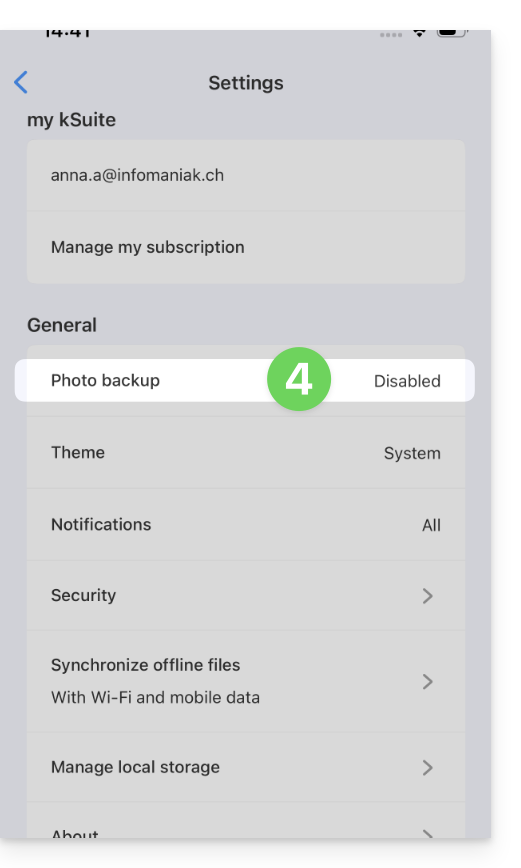
- Select Photo Backup:
- Enable Automatic Backup.
- Allow access to your photos according to the options provided by iOS.
- Choose the destination kDrive and the target folder.
- Adjust your preferences (videos, screenshots, deletion after sending, etc.) then tap Save.
Keep the original name of the photos
By default, automatic backup renames your files (e.g., 20260101_101000_1234.jpg) to avoid collision errors or duplicates.
If you want your photos to retain their original name (e.g., IMG_3006.jpg) instead of being renamed by date, you should use the iOS sharing function instead of automatic backup:
- Open the Photos app on iOS.
- Select the desired photo(s).
- Tap the Share icon (square with an upward-pointing arrow).
- Select kDrive from the list of applications.
- Choose the location and send.
Manual export via the Share button is not recommended for transferring large numbers of photos, but it guarantees the integrity of the original file name.
Link to this FAQ: https://faq.infomaniak.com/2394
Has this FAQ been helpful?
This guide explains how to scan or digitize documents (multi-page) using the mobile app kDrive (application for iOS / Android smartphones or tablets).
Prerequisites
- You must have a kDrive or kSuite subscription.
- Install the kDrive mobile app (application for iOS / Android smartphones or tablets).
Scanning Documents
To quickly digitize paper documents and store them on your kDrive:
- Launch the kDrive mobile app on your iOS or Android device.
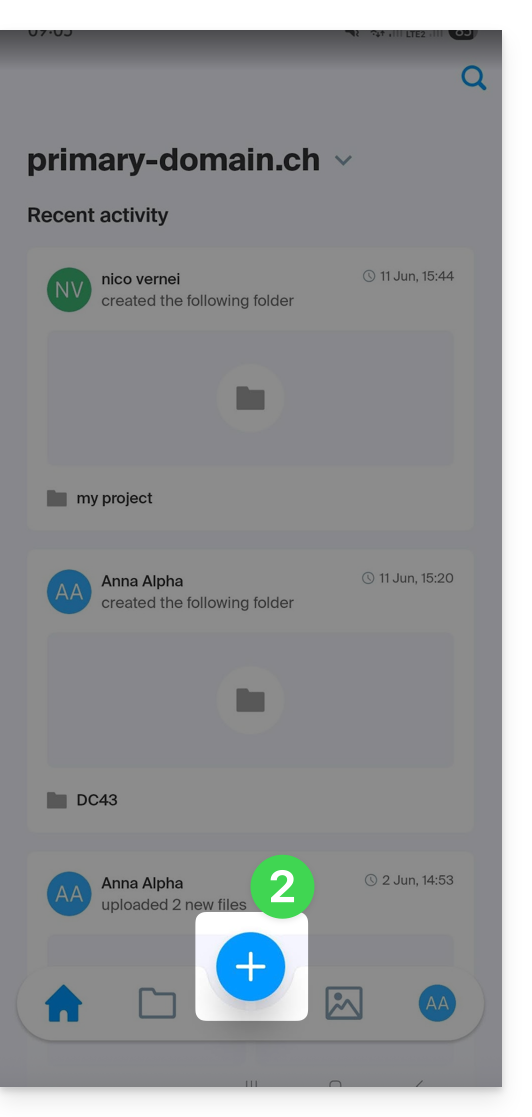
- Tap the icon at the bottom:
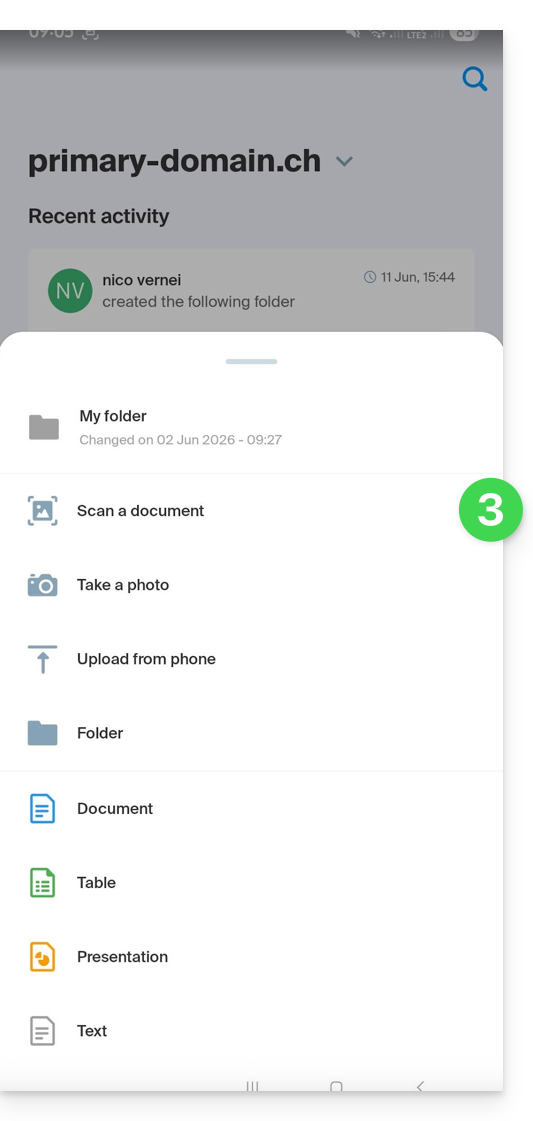
- Tap Scan a document in the panel that opens:
- If necessary, allow the app to access the requested permissions (camera, etc.).
- The document search and detection process is performed automatically as soon as the image is stable (text and a circle will indicate this), but you can tap the central circle to manually trigger a capture.
- If necessary, enable the use of the flash.
- When scanning a series of documents, you can manually insert a file that is already in your device's gallery to add it to your final multi-page document:
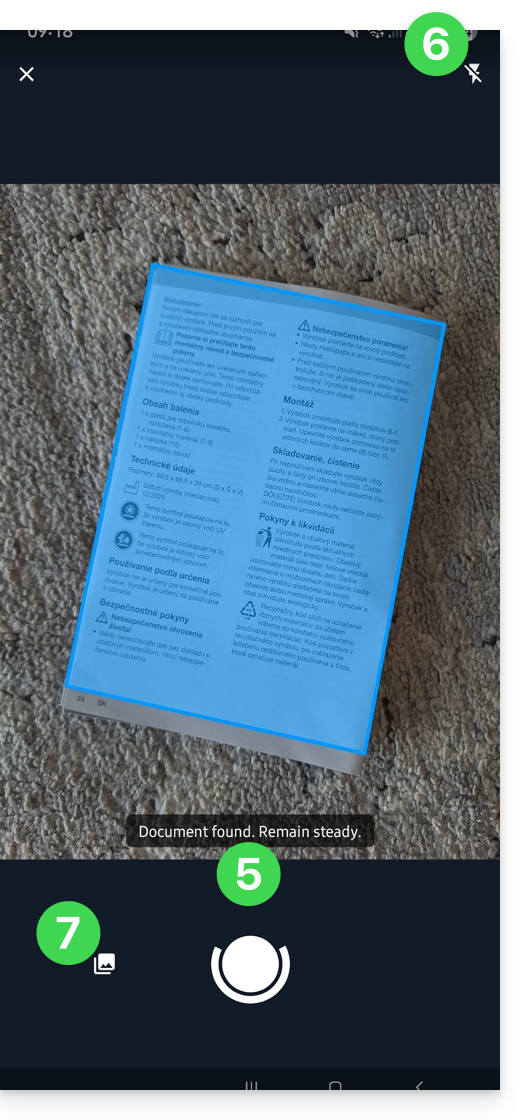
- If the selected image is not suitable, you can repeat the operation.
- Once the image is selected, you can apply a rotation, a filter such as black & white, cropping, etc.
- You can add other scans to your final document:
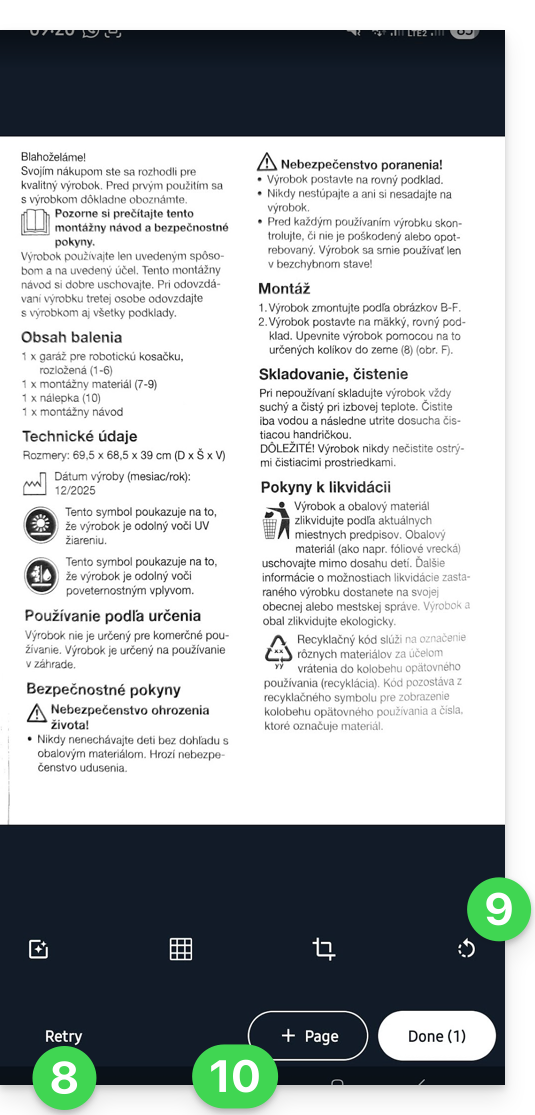
- Once you have added all the pages (the number is displayed on the button), tap Finish in the bottom right corner:
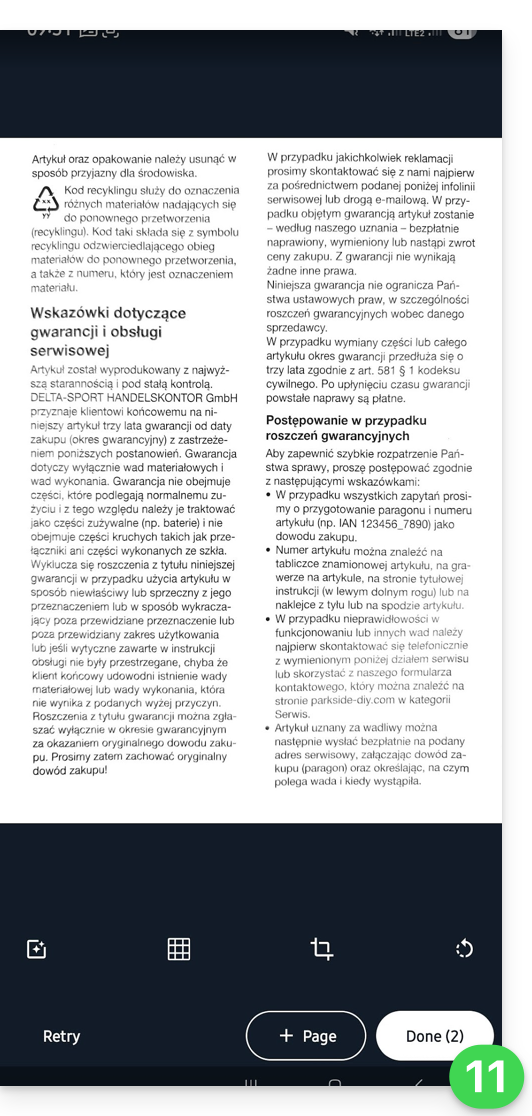
- If your scan contains multiple pages, it will be grouped into a PDF to be saved in the location of your choice on kDrive; if there is only one image, you can choose to save it in .JPG format (iOS only):
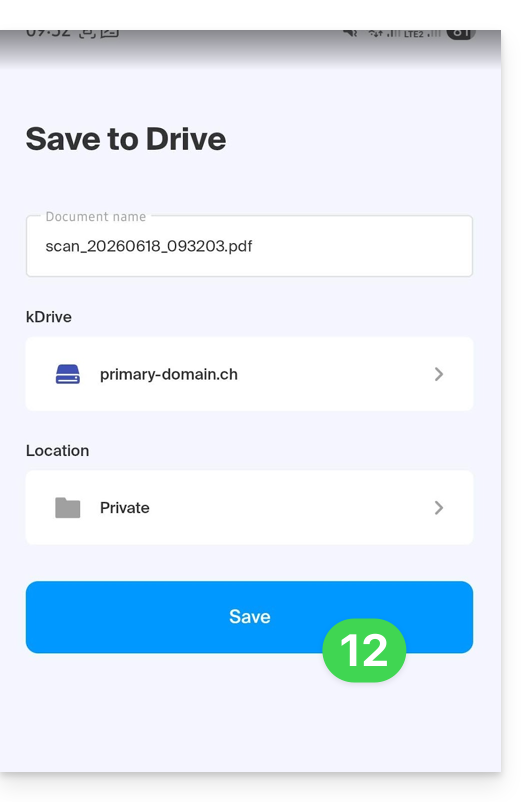
- The document is sent to kDrive and you can view it:
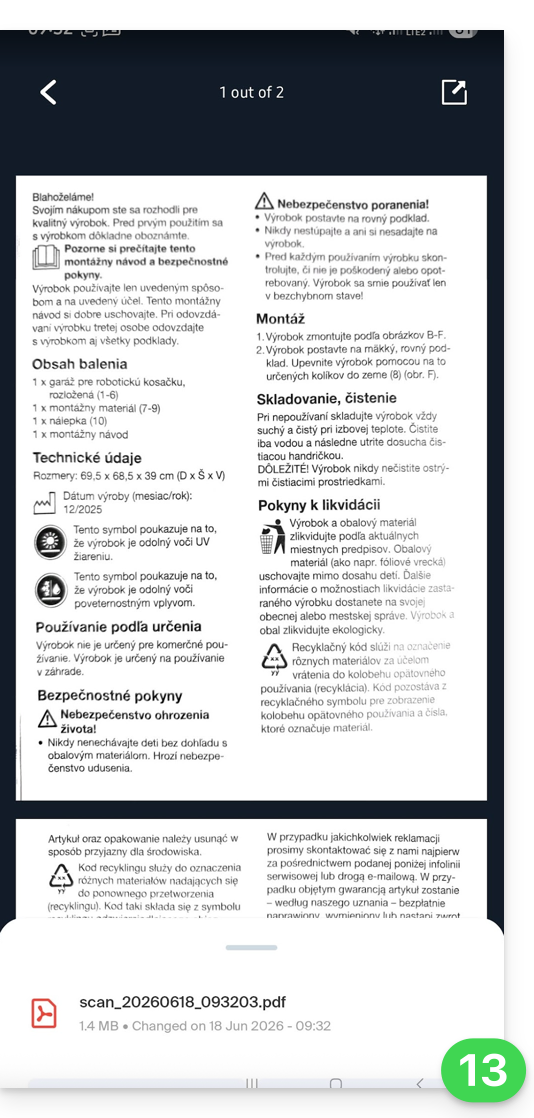
- You can also find it on all your connected devices:
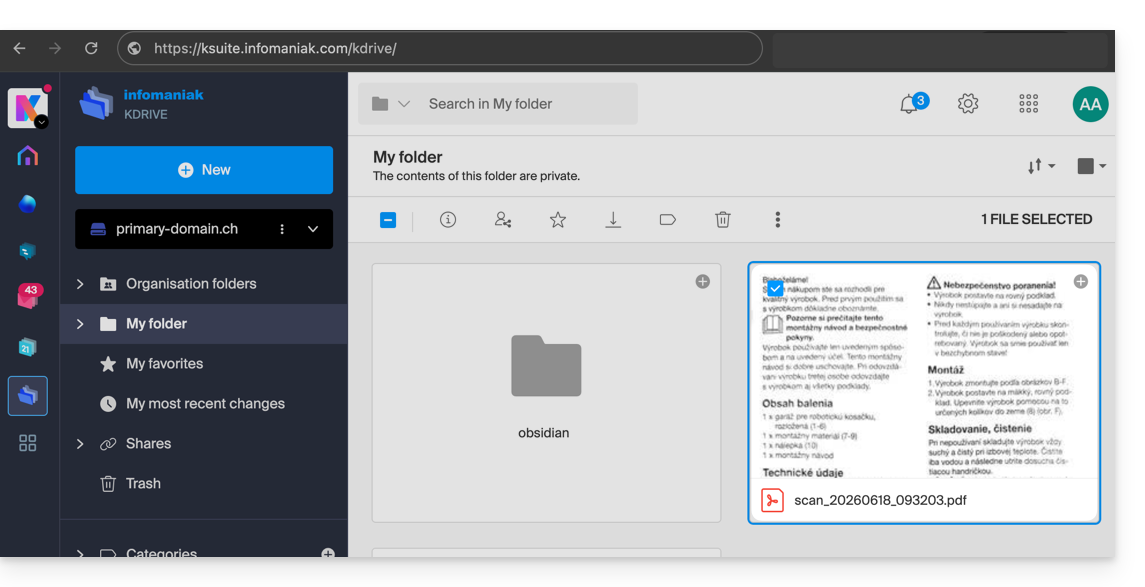
Link to this FAQ: https://faq.infomaniak.com/2395
Has this FAQ been helpful?
This guide explains how to connect to and manage multiple kDrive accounts on the kDrive mobile app (application for iOS/Android smartphones or tablets). This feature allows you, for example, to access files from a personal kDrive and a professional kDrive.
Prerequisites
- Have a kDrive or kSuite plan.
- Install the kDrive mobile app (application for iOS/Android smartphones or tablets).
Accessing different kDrives from the mobile app
A user can access multiple kDrives if they are already working with multiple kDrives outside of the app, if they have been added to other kDrives, etc. They will all be accessible once the user is logged in.using the login ID corresponding to these kDrive accounts.
This is the case in the Web app…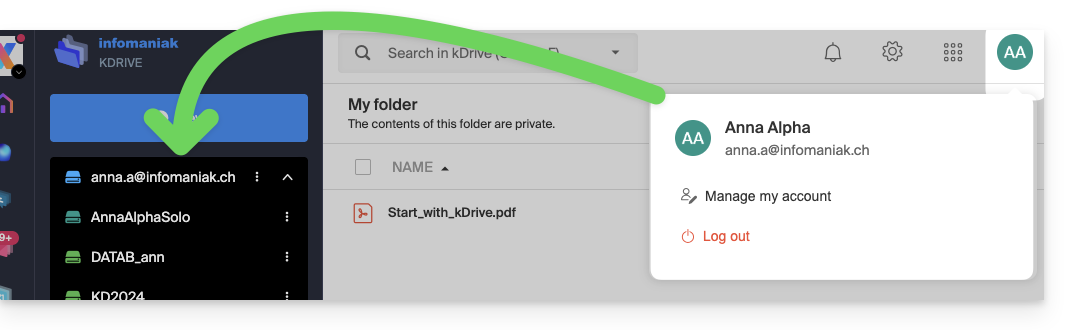 … as well as in the mobile app:
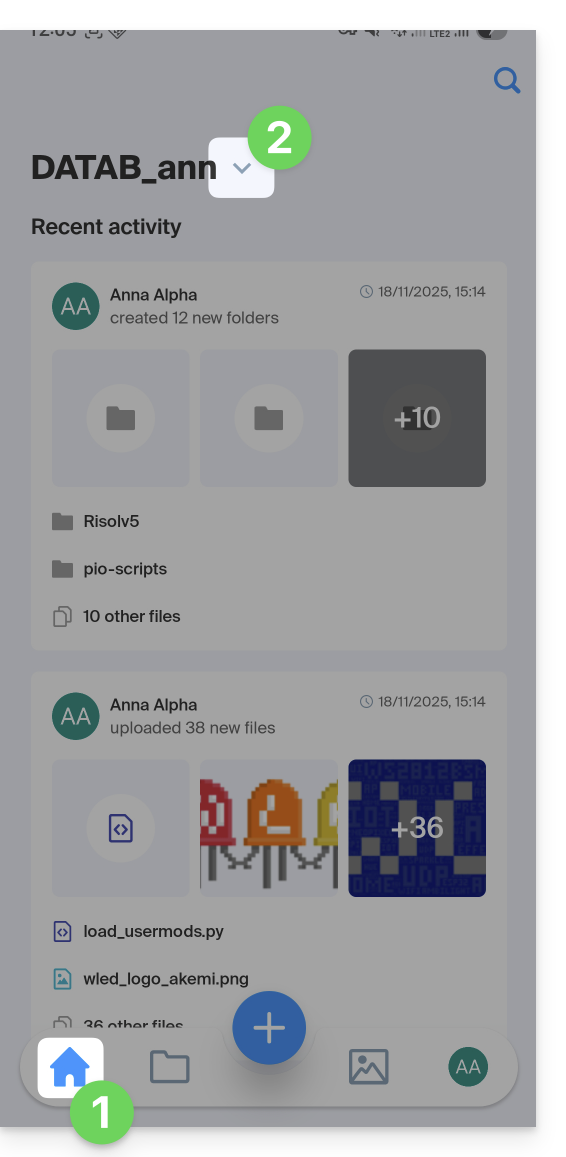
Once you are logged into your Infomaniak account on the kDrive mobile app, the easiest way to access the different kDrives for which your Infomaniak account has access is:
- Click on the home icon to go to the home page.
- Click on the chevron to the right of the current kDrive name:
- In the sliding panel that appears, click on the name of the desired kDrive:
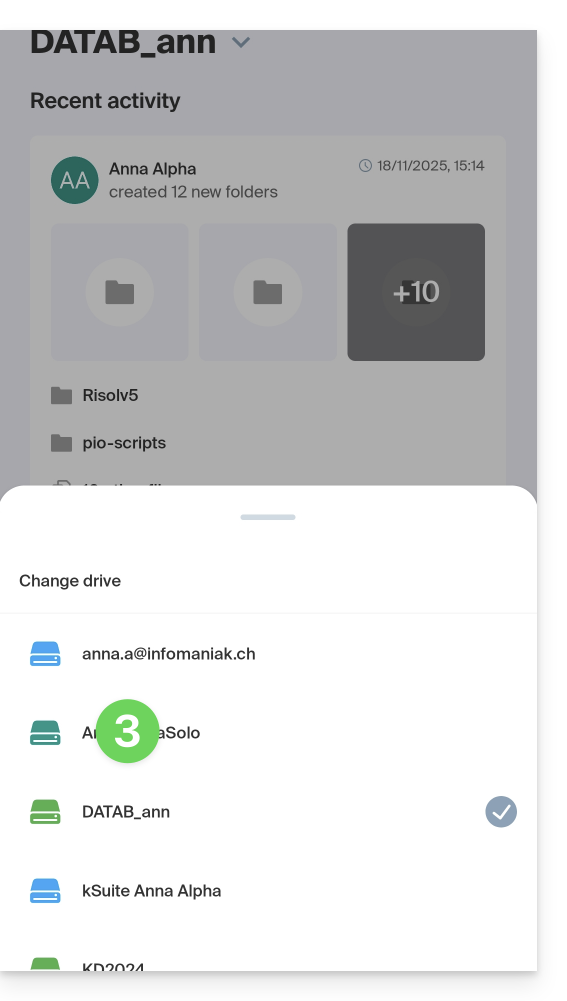
- You will be redirected to the data of the selected kDrive.
Accessing and managing other kDrive accounts
To log in with a different Infomaniak account and access other kDrive accounts:
- Open the kDrive mobile app.
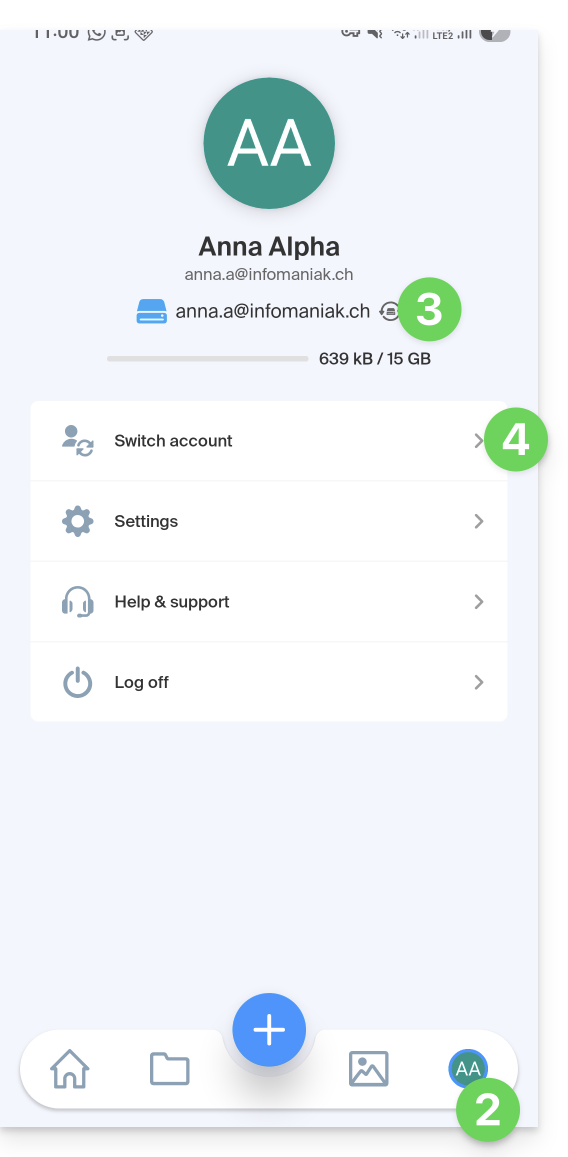
- Tap the button with your initials or avatar in the bottom right corner.
- Tap the icon to the right of the kDrive name (simply to check the kDrives you already have access to).
- Tap Change user:
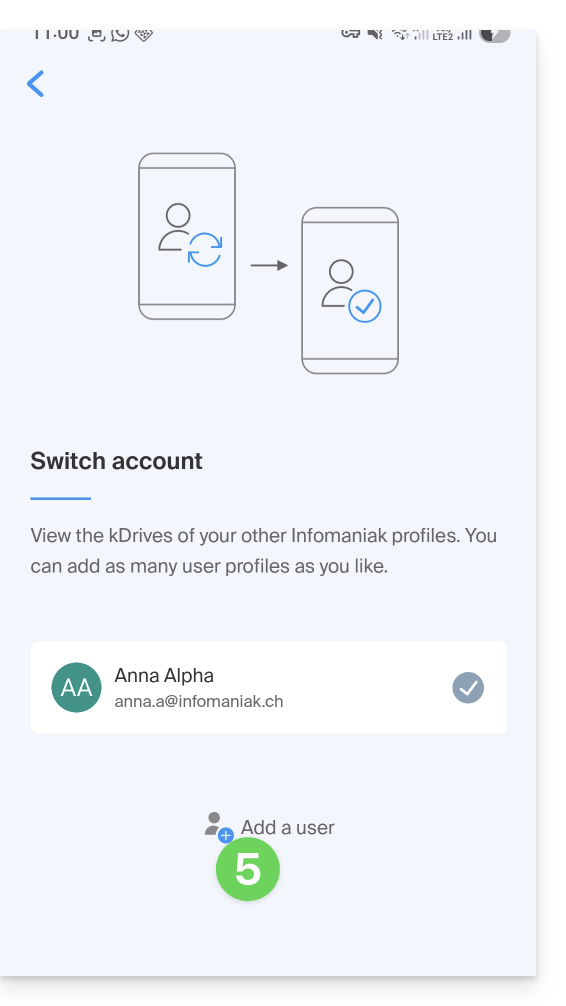
- Tap Add user:
- Enter your Infomaniak account credentials – refer to this other guide if needed.
- Choose the kDrive to add.
- You can now switch between kDrive accounts from the User > Change user menu; the credentials for the different accounts are saved.
Link to this FAQ: https://faq.infomaniak.com/2396
Has this FAQ been helpful?
This guide explains how to create, save, and edit Office-type files (text, spreadsheet, presentation, etc.) on the web app kDrive (online service ksuite.infomaniak.com/kdrive) and on the mobile app kDrive (application for iOS/Android smartphones or tablets) using the native editor.
Edit a text file, spreadsheet, presentation…
Prerequisites
- To create and collaborate on a spreadsheet or text document, etc. directly on the web app, the file size must be less than
100 MB; otherwise, the document will be downloaded, and you will need to edit it locally on your computer using an Office-type application (OnlyOffice, for example).- Therefore, be mindful of the images you insert into your documents (compress them to reduce their size and quality if necessary).
The web app kDrive (online service ksuite.infomaniak.com/kdrive) natively integrates the Docs, Grids, and Points applications, which allow you to create, modify, and collaborate online on Word .docx, Excel .xlsx, and PowerPoint .ppsx documents:
- Click here to access the web app kDrive (online service ksuite.infomaniak.com/kdrive).
- If necessary, open the folder in which to create an Office document.
- Click the New button in the upper left corner.
- Choose the type of document to create:
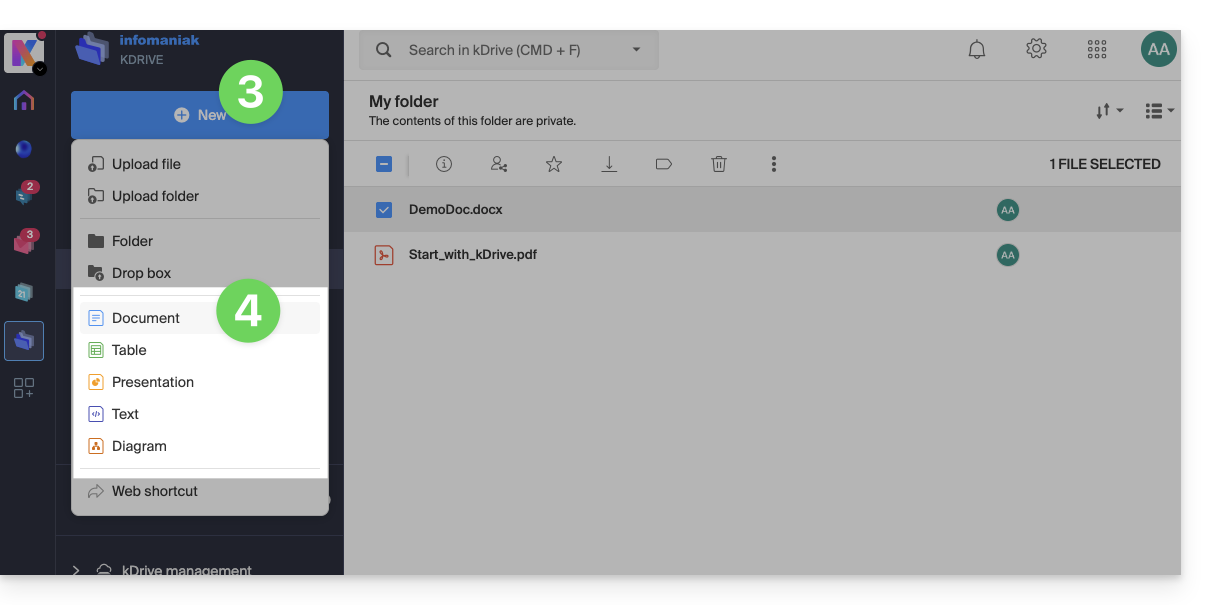
- text document
- spreadsheet
- presentation
- plain text (notepad)
- draw.io document for diagrams, flowcharts, and wireframes
- Give the file a name.
To set a default editor, refer to this other guide.
Find and Replace Function
To work with and replace all occurrences of a text in a few clicks, once the document is created:
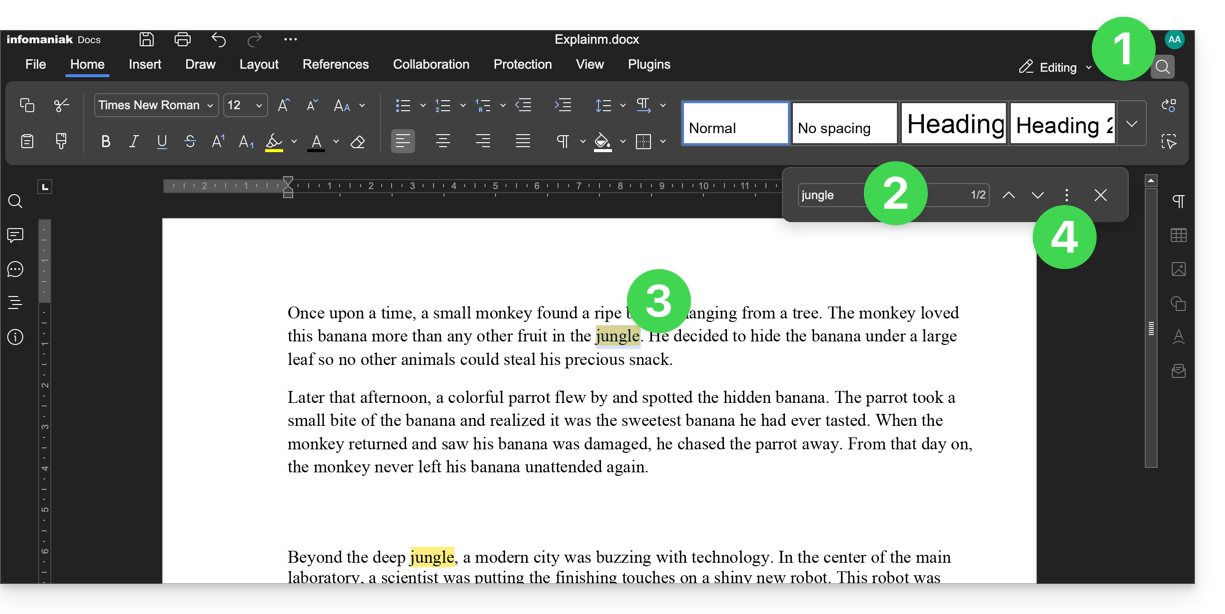
- Click on the search function (magnifying glass icon in the top right corner).
- Search for the term to be replaced throughout the text.
- Check the selection of occurrences in the text.
- Click on the action menu ⋮ to the right of the search field:
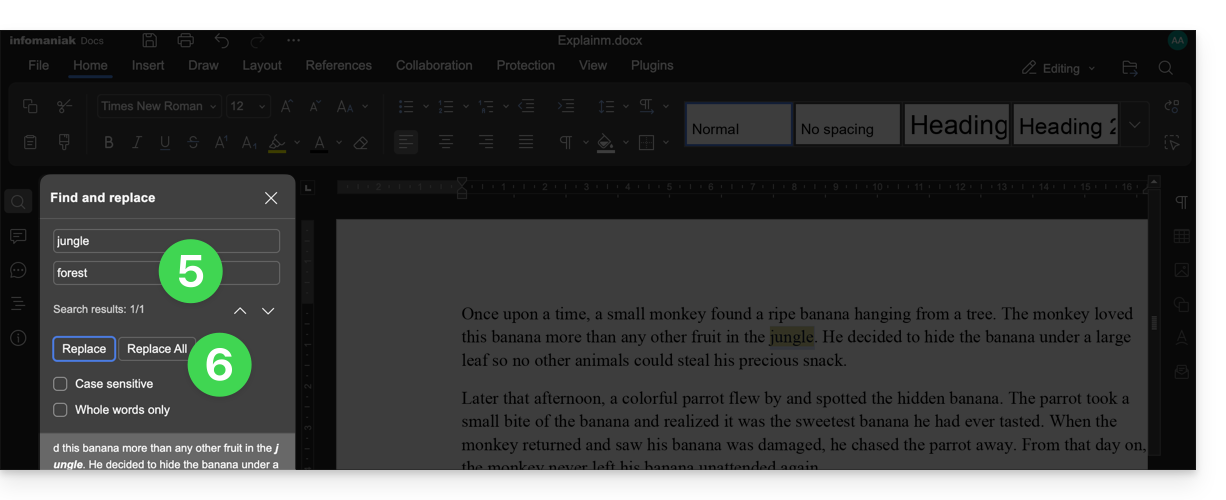
- Enter the text that should replace the selection.
- Click on Replace (to replace one by one) or Replace All (the text replaces all identical occurrences):
Save the File
When you work online on your Word, Excel, or PowerPoint files, they are automatically saved each time you make changes.
If in doubt, you can manually save a document:
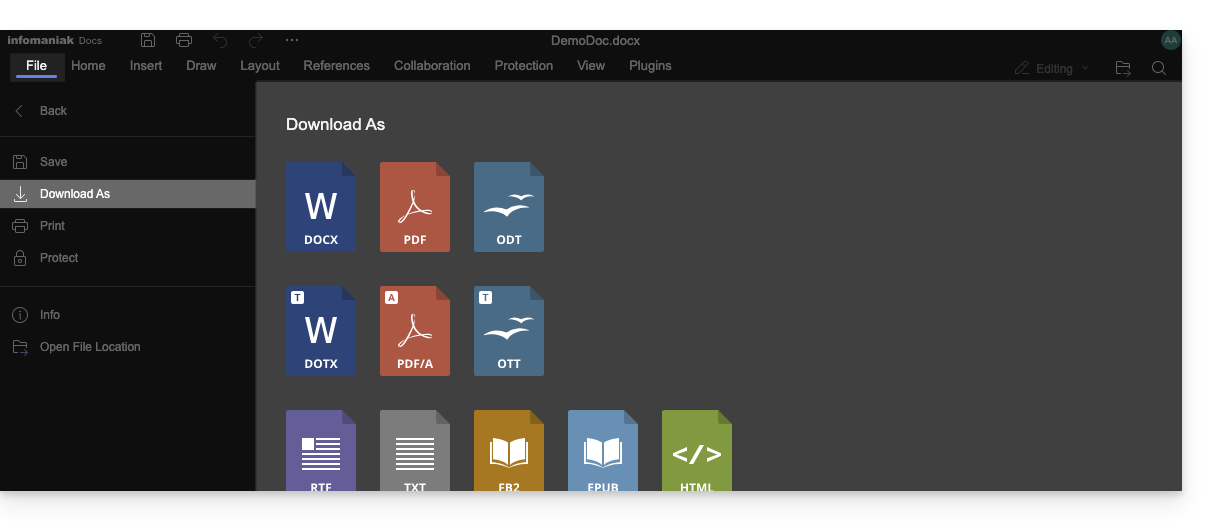
- Click on File then on Save (if "Save" is disabled, it means the file has already been saved).
- If needed, you can download a copy of your file in your preferred format (docx, pdf, rtf, epub, html, jpg, png…) by clicking on Download as...
Password-protected files
When working online on your Word, Excel, or PowerPoint files, these can be pre-protected with a password. Therefore, the password will be requested when opening the file in the Infomaniak interface, but it will disappear when saving your document in kDrive.
Indeed, it is not possible to set a password when saving a document to kDrive, nor to keep the existing password. You should consider using another editor available in kDrive, but only with certain paid plans.
Add a bookmark
A feature allows you to add a bookmark, which is a kind of shortcut to a favorite passage in your document, or the equivalent of a web page anchor:
- Edit a text document on kDrive.
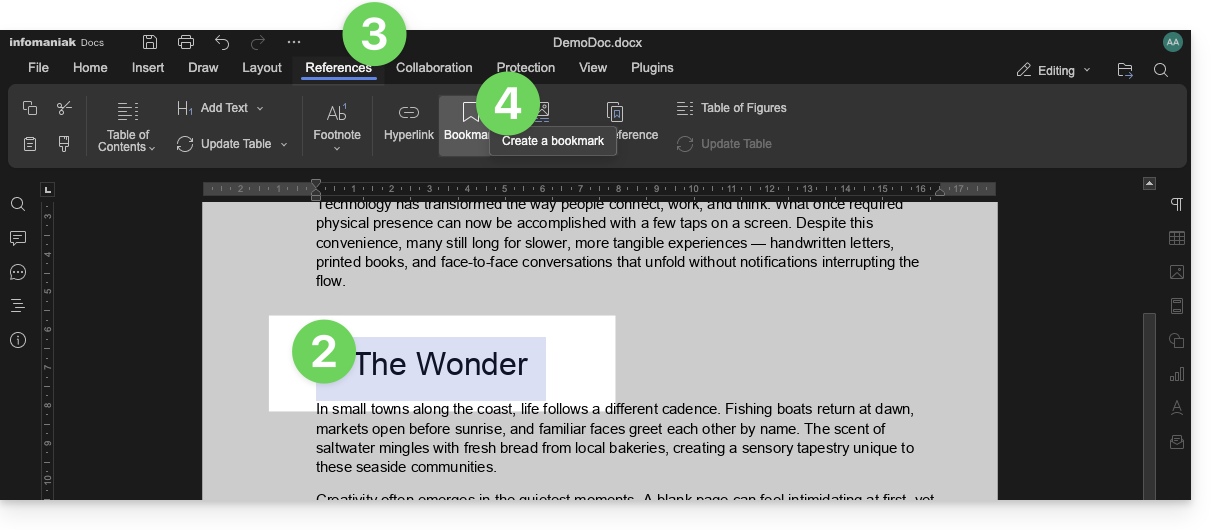
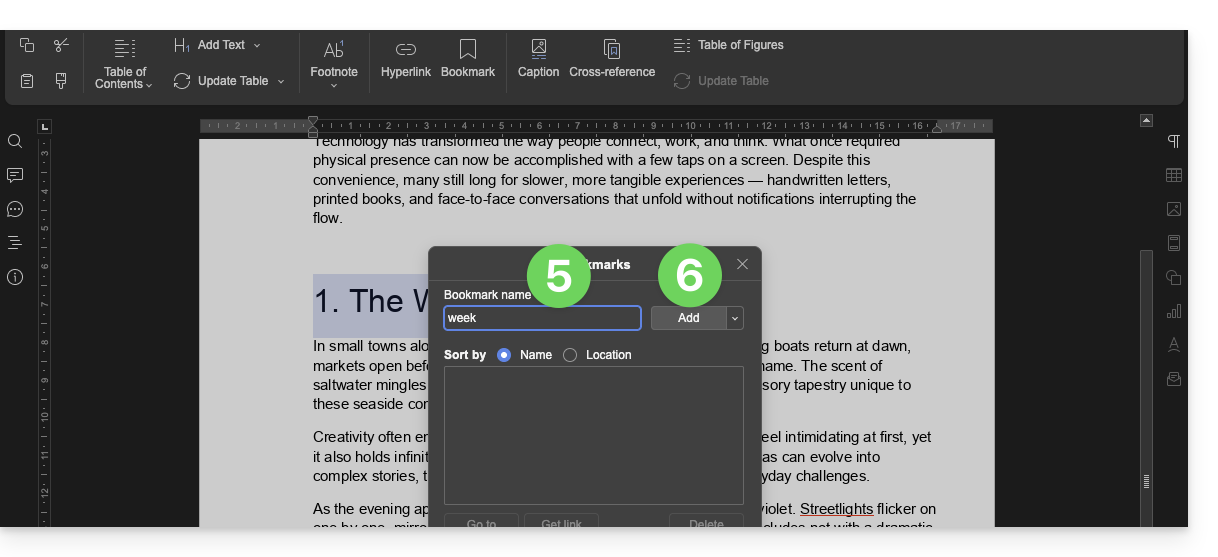
- Select the text that will serve as the reference point.
- Click on the References tab.
- Click on Bookmark:
- Name your bookmark.
- Click on the Add button:
- The window closes, your favorite location is created and saved in the document.
Create a share link that leads directly to the bookmark
Once the document is open:
- Click on the References tab.
- Click on Bookmark.
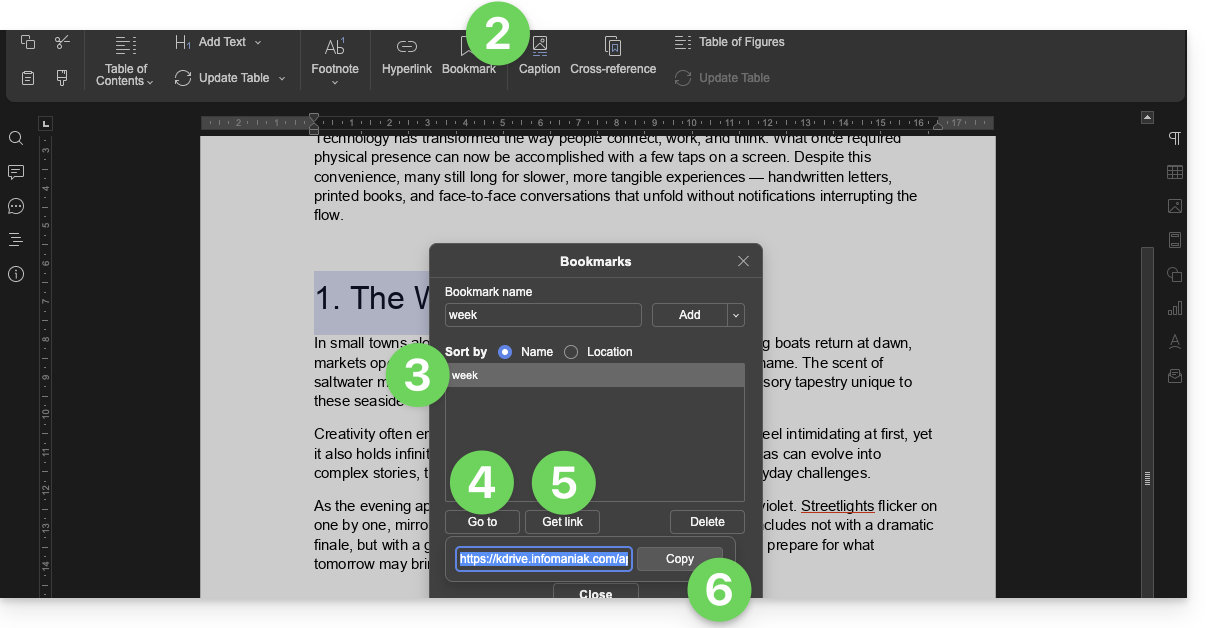
- Click on the bookmark name to reach.
- Optional: Click on the Go to button so that the document open in the background displays exactly at the previously defined location.
- Click on the Get link button to share your document and obtain a link that will lead the user to the exact location of your bookmark.
- Click on the Copy button to directly place it in the clipboard:
kSuite users: be notified on kChat
A feature allows users to tag (mention) collaborators in the comments of a document via a "+" followed by the user's name:
- Edit a document on kDrive.
- Click on the Collaboration tab.
- Click on Add a comment.
- Enter your comment, mentioning a user if necessary: type the
+sign followed by the name: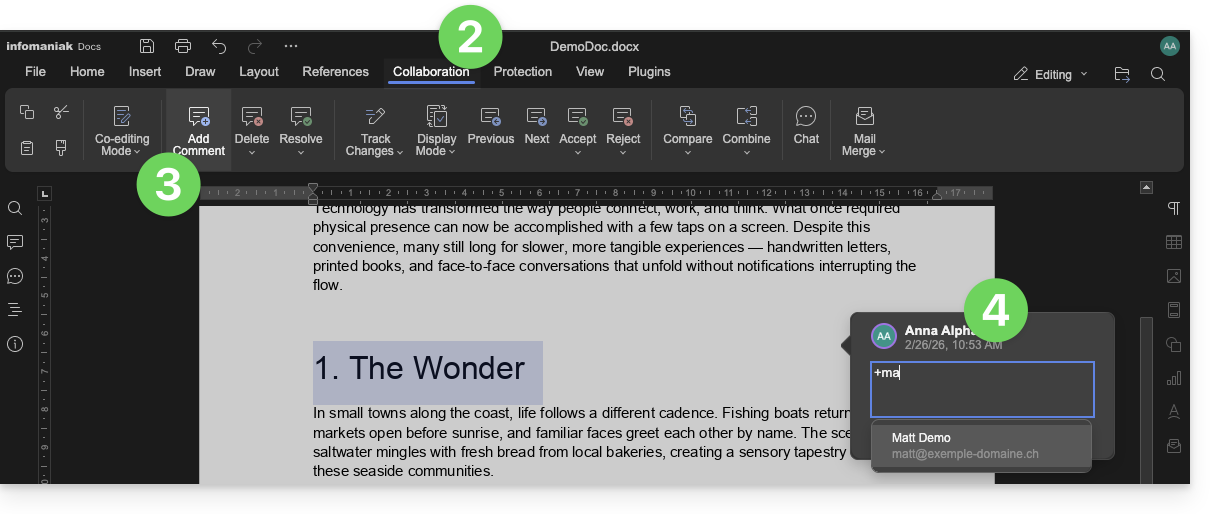
The tagged user receives an email with the relevant details: name of the comment author, link to the document, date and time of the comment.
If the user in question is online on kChat (within the relevant kSuite), instead of receiving an email, they will receive a notification via the kChat Bot. If the user is offline or in "Do Not Disturb" mode, the system will send an email.
Edit an Office-type document on mobile
The kDrive mobile app (application for iOS/Android smartphones or tablets) natively integrates the Docs, Grids, and Points applications, which allow you to create, edit, and collaborate online on Word .docx, Excel .xlsx, and PowerPoint .ppsx documents: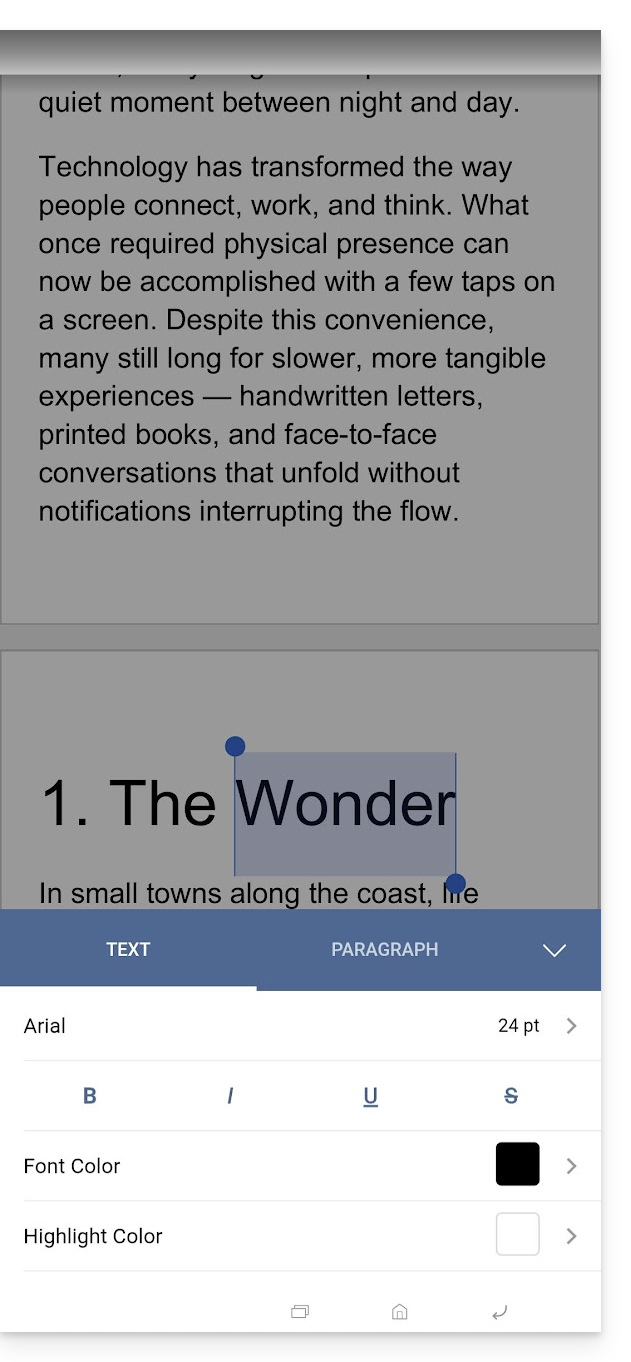
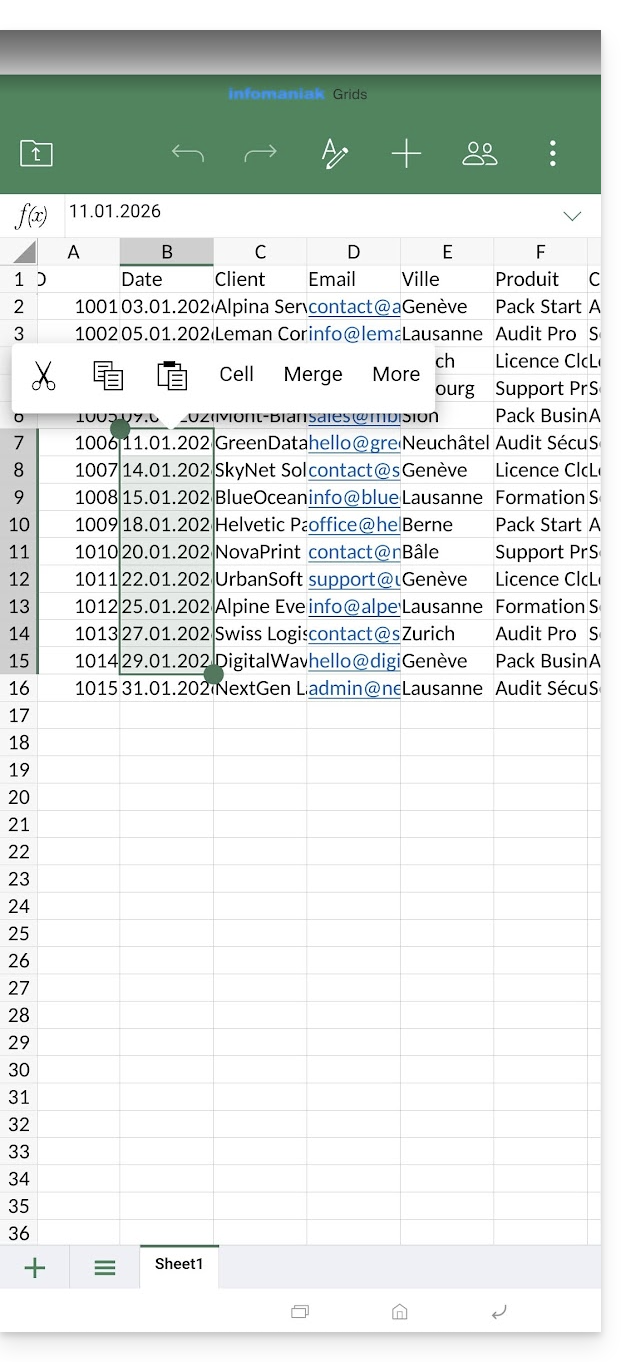
Link to this FAQ: https://faq.infomaniak.com/2399
Has this FAQ been helpful?
This guide details the possible solutions when the desktop app icon for kDrive (desktop application on macOS / Windows / Linux) turns orange, which means there was a synchronization conflict.
Introduction
- kDrive does not indicate whether a file is open or being modified on another local device (no alert is displayed in this case):
- It is therefore perfectly possible to view (read) a file while it is being modified on another device without this causing a conflict.
- The conflict only appears in the event of simultaneous modification.
kDrive synchronization conflict cases
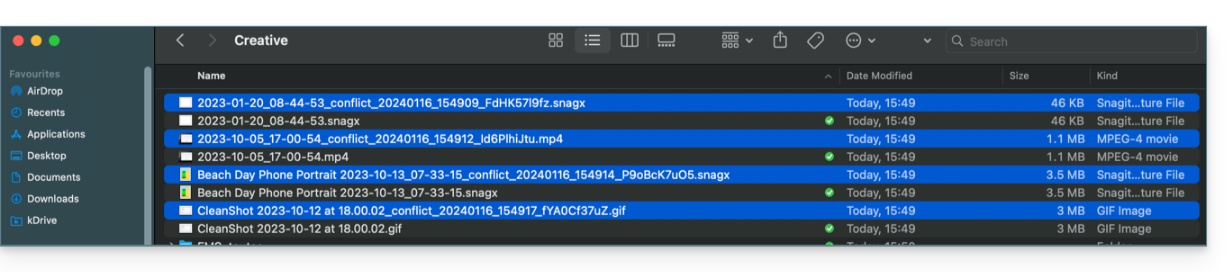
When do conflict files appear?
- When you modify a file locally while it is also being modified on kDrive Web (the two versions become different).
- When you create or move a file while a similar operation is taking place simultaneously on kDrive Web.
- When you modify a file whose parent folder has been deleted on kDrive Web.
- When a file move cannot be synchronized correctly.
In all these cases
- The kDrive Web version remains unchanged.
- Your local version is saved under the name "[file name]_conflict".
- The conflicting file is not synchronized with kDrive Web.
What to do with these conflicting files?
- Either keep both versions (but only the original file will be synchronized).
- Or delete the
_conflictfile if it is the older version. - Either delete the original version (the one that is not
_conflict) if it is outdated, and then rename the_conflictversion to synchronize it. - Or, manually merge the two versions before deleting the
_conflictversion.
When reinstalling the kDrive application
These conflicts can also occur if you uninstall and then reinstall the application without deleting the configuration, while changes have been made on kDrive Web. To avoid this, it is recommended to:
- Either do not save the configuration during uninstallation.
- Or synchronize completely before any uninstallation.
- Refer to the best practices below in this guide.
Managing Synchronization Conflicts
When simultaneous changes are made to the same file (locally and in kDrive Web, or while the application is closed), kDrive automatically manages these conflicts according to specific rules.
For kDrive app versions prior to 3.6.11
- In the event of simultaneous creation, concurrent modification, or conflicting movement, the kDrive Web version always takes precedence. The local version is renamed with "
_conflict". - For conflicts involving a deletion on the kDrive Web side, the local file is generally kept and resynchronized.
- Conflicting transfers are cancelled and recalculated based on the status of kDrive Web.
Starting with version 3.6.11
For "placeholder" files (files dehydrated via Lite Sync):
- They are automatically deleted locally.
- If the file still exists on kDrive Web, it will be resynchronized correctly.
For all other cases:
- The kDrive Web version remains the priority in most situations.
- Locally conflicting files are renamed with “
_conflict”. - Important exception: when a file modified locally should be deleted according to the kDrive Web status…
- …it is moved to a folder named "
kDrive Rescue Folder" (instead of being deleted); this protects your local modifications from accidental deletion.
- …it is moved to a folder named "
Special cases:
- If a parent folder is deleted, locally modified files are retained.
- Cycles of moves (folders moved back and forth) are resolved in favor of the state of kDrive Web.
- Renaming conflicts are resolved in favor of the kDrive Web version.
How to view conflicts?
To display conflicting files:
- Left-click on the kDrive desktop app icon in your computer's notification area (top right on macOS, bottom right on Windows, and double-left-click in the taskbar on Linux).
- Click on the information button at the top.
- Click on the event listed to view its details:

- Conflicts and errors are displayed in two separate tabs, allowing you to view the unsynchronized data:
- The first tab allows you to resolve conflicts:

- You will then need to choose how to resolve the conflict by deciding whether to send the local version
- to the server (i.e., synchronize)
- or to the computer's recycle bin

Preventing synchronization conflicts
Recommendations:
- Do not work on the same file simultaneously with others (unless you are working online on a Word, Excel, or PowerPoint document).
- Synchronize your offline changes before modifying the same files online.
- Avoid creating folders with the same name as folders that you do not synchronize on a device.
If necessary, to manually resolve certain synchronization conflictswhich would not have been done automatically:
- Open both files.
- Compare the differences.
- Retrieve the information from the conflict file (the one with the exclamation mark) and merge it into the base file.
- Delete the file that is causing the conflict and is not being synchronized (the one with the exclamation mark and the label
conflicted copy):
Are you not seeing the conflict files on all your devices?This is normal; the conflict file (the one with the exclamation mark and the conflicted copy mention in its name) is not synchronized. The idea is that you, the author of the changes, are the best person to resolve the conflict.
Refer to this other guide if you encounter a problem even though the kDrive desktop app icon is green.
Link to this FAQ: https://faq.infomaniak.com/2403
Has this FAQ been helpful?
This guide provides instructions for synchronizing kDrive with a Synology NAS (or vice versa) via the WebDAV protocol, which can be found in the Cloud Sync application.
✘ UNAVAILABLE with
kSuite Free / kSuite Standard
my kSuite / my kSuite+ (ik.me, etik.com, ikmail.com)
Prerequisites
- You must have a Synology NAS that is accessible from the internet.
- Find out your kDrive ID (kDrive ID).
Synchronize kDrive and Synology via Cloud Sync
To do this:
- Log in to the Synology DiskStation Manager (DSM).
- If necessary, download and install the Cloud Sync app from the Package Center.
- Open Cloud Sync.
- Click on the + at the bottom left to add a Cloud.
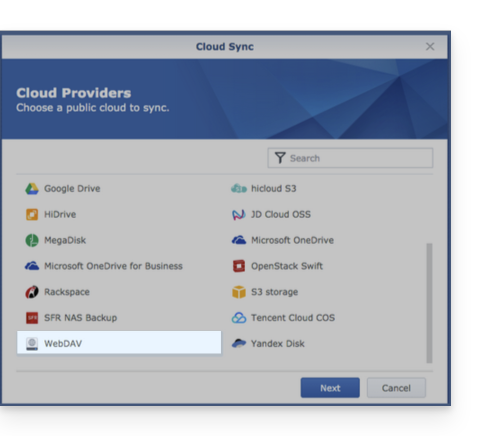
- Choose WebDAV at the bottom of the list of available Clouds:
- For account settings, use the following information:
- Server address:
https://IDkDrive.connect.kdrive.infomaniak.com(see prerequisites) - Username: the email address used to log in to your Infomaniak account
- Password: create an application password for this specific use.
- Server address:
- Choose the local folder, the destination folder, and the desired synchronization type:
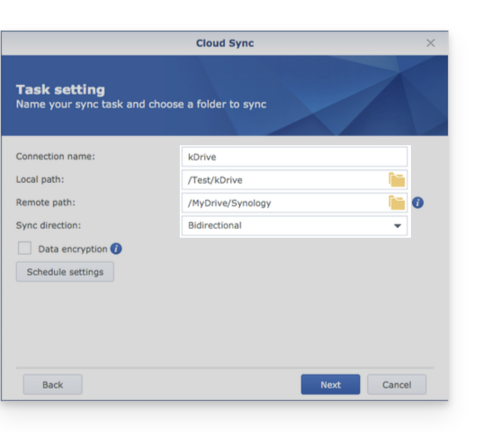
- Bidirectional: changes will be reflected in both directions.
- Download only remote changes: ideal for backing up a kDrive to your NAS.
- Download only local changes: ideal for backing up data from your NAS to a kDrive.
Link to this FAQ: https://faq.infomaniak.com/2404
Has this FAQ been helpful?