Knowledge base
1000 FAQs, 500 tutorials and instructional videos. Here, there are only solutions!
This guide provides instructions for synchronizing kDrive with a QNAP NAS (or vice versa) via the WebDAV protocol, which can be found in the HBS 3 Hybrid Backup Sync application.
✘ UNAVAILABLE with
kSuite Free / kSuite Standard
my kSuite / my kSuite+ (ik.me, etik.com, ikmail.com)
Prerequisites
- You must have a Qnap NAS that is accessible from the internet.
- Know your kDrive ID (kDrive ID).
Synchronize kDrive and Qnap via HBS 3
To do this:
- Log in to the Qnap NAS administration interface (QTS).
- If necessary, download and install the HBS 3 Hybrid Backup Sync app.
- Open HBS 3.
- Go to Sync from the menu on the left.
- Create a synchronization task (Two-way Sync Job).
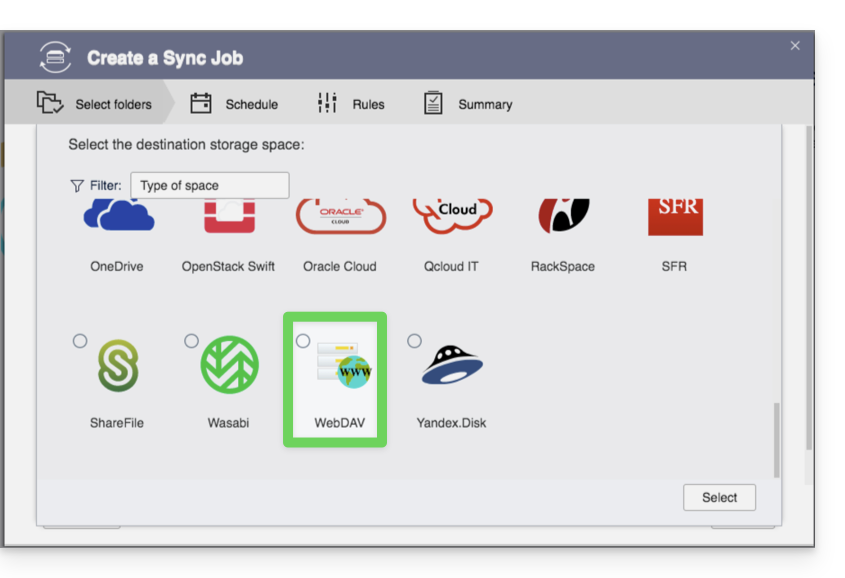
- Choose WebDAV from the list of Cloud providers:
- For the account settings, use the following information:
- Server address:
https://IDkDrive.connect.kdrive.infomaniak.com(see prerequisites) - Username: the email address used to log in to your Infomaniak account
- Password: create an application password for this specific use.
- Server address:
- Choose the local source and destination folder:
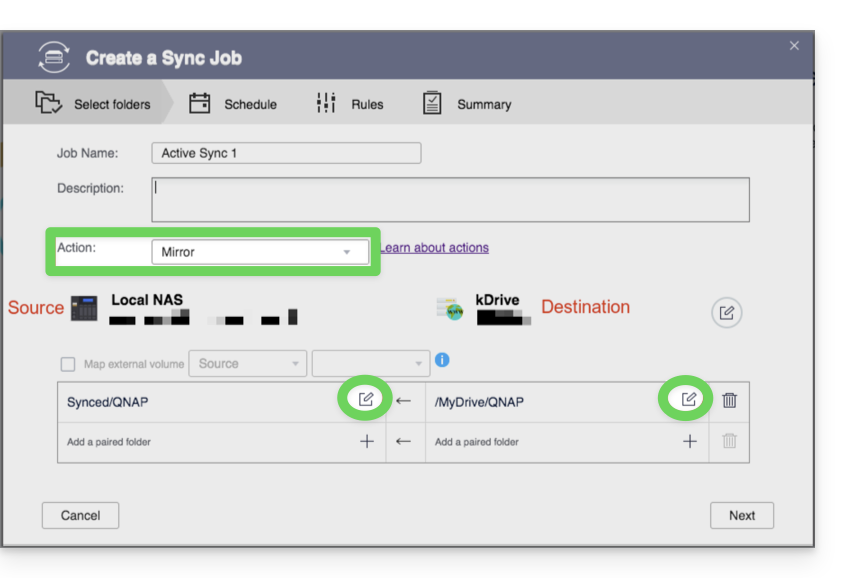
- Customize the task frequency.
- Complete the wizard.
Link to this FAQ: https://faq.infomaniak.com/2405
Has this FAQ been helpful?
This guide explains how to import (once only) data (files, folders, etc.) from an external cloud, such as that of your previous provider (e.g., Dropbox or Microsoft), into kDrive.
Prerequisites
- Have a kDrive or kSuite plan.
- Have sufficient permissions within kDrive or kSuite.
- Do not change your passwords until the import is complete!
Specific guides
Click on the link corresponding to your current hosting provider:
- Google Photos: complete guide for migrating photos from Google Photos to Infomaniak
- Google Drive
- Apple iCloud
- ⚠️ For security reasons, importing is no longer possible via WebDAV, or from ownCloud / Nextcloud; perform a manual import or use the kDrive app
Guide for any other external Cloud provider
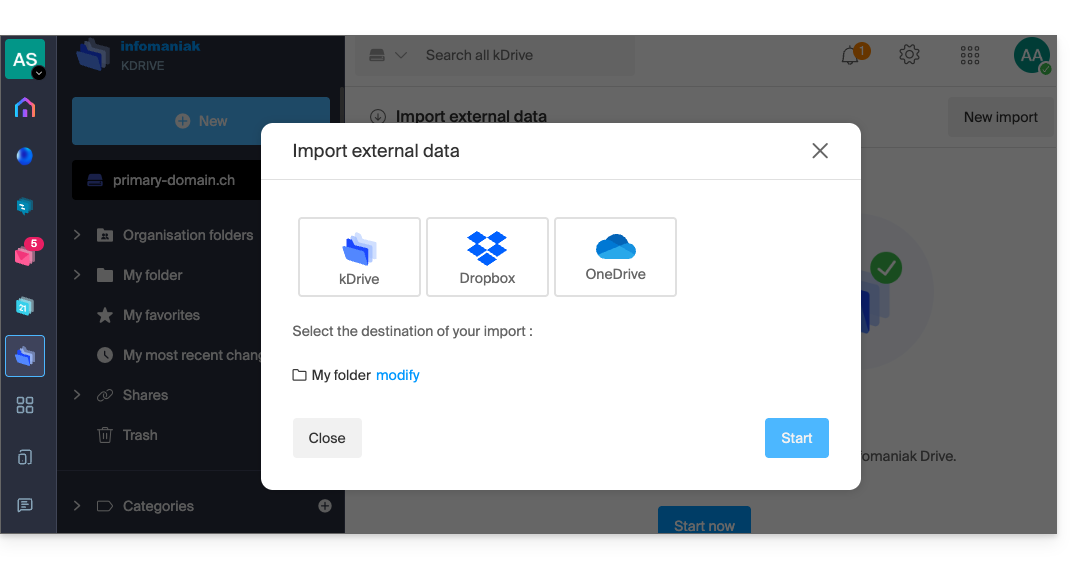
For example:
- Another kDrive to which your user account has access (except for "external" access).
- Dropbox
- OneDrive
Data not imported
- The data that was shared with you has not been imported.
- Only the data that actually belongs to you will be imported.
- Google documents such as Gdocs, Sheets, Slides, etc. …
- … are not imported during a Dropbox import.
- … are converted by Google when these files are downloaded from Google Drive to macOS/Windows.
- … are not converted when they are copied from the local Google Drive directory to the local kDrive directory. Therefore, it is essential to download the files from the web version of Google Drive.
- Dropbox Paper documents.
- Dropbox sharing links, viewable here.
- Individually shared Dropbox files, viewable here(however, shared folders and shared documents will be imported).
To proceed with the data import:
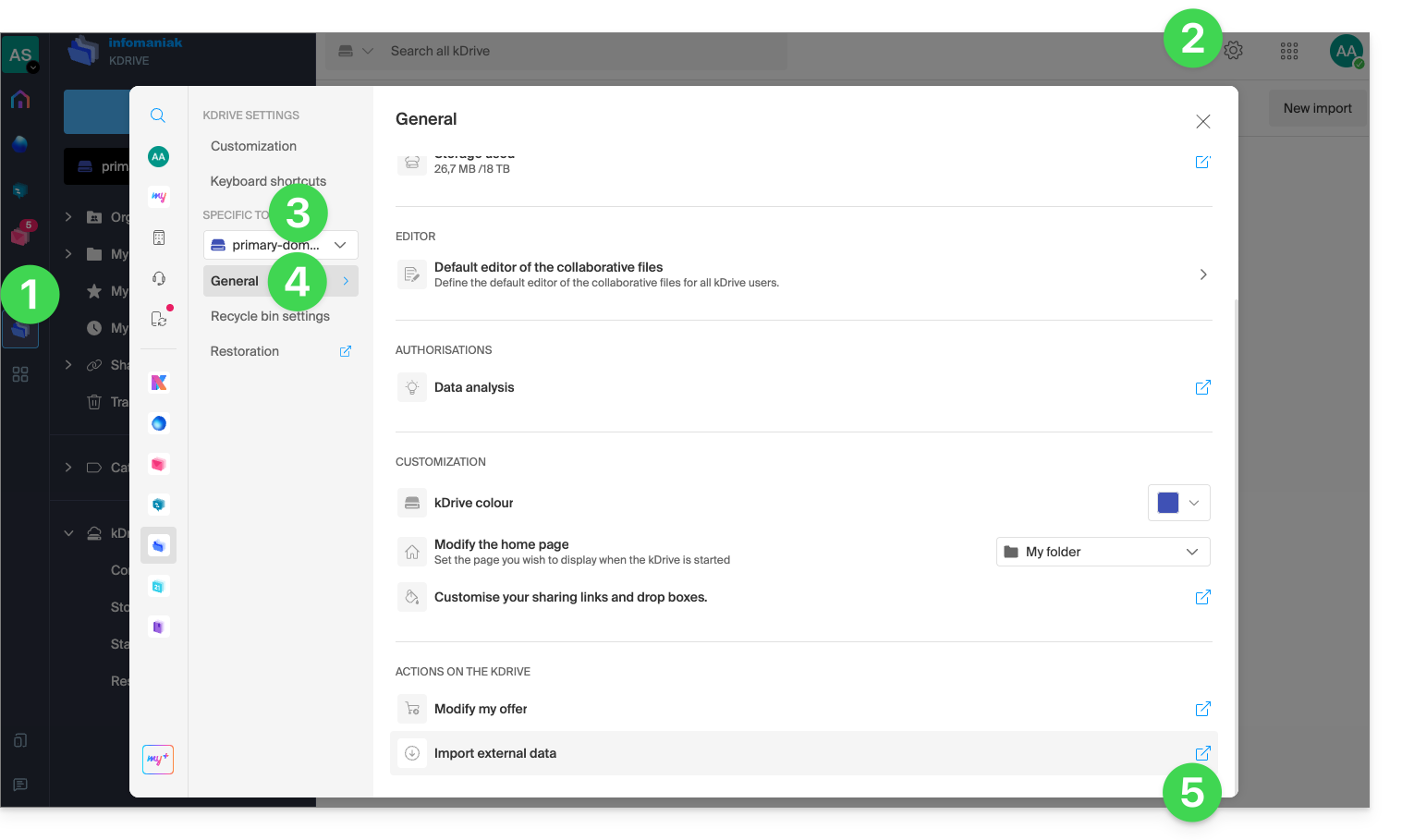
- Click here to access the Infomaniak kDrive web app (online service ksuite.infomaniak.com/kdrive).
- Click on Settings in the top right corner.
- Check or select the relevant kDrive from the dropdown menu in the left-hand sidebar.
- Click on General in the left-hand sidebar.
- Click on Import external data:
- Click on Start or New import at the top:
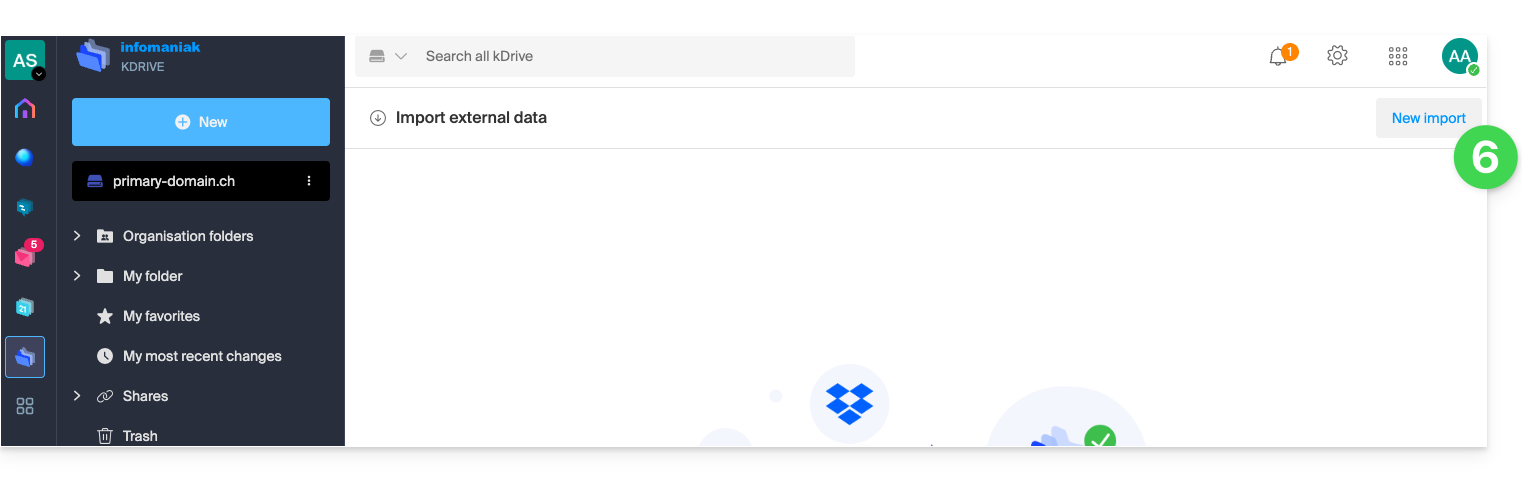
- Select the service in question.
- Choose the location where the imported files will be stored.
- Click on the Start button:
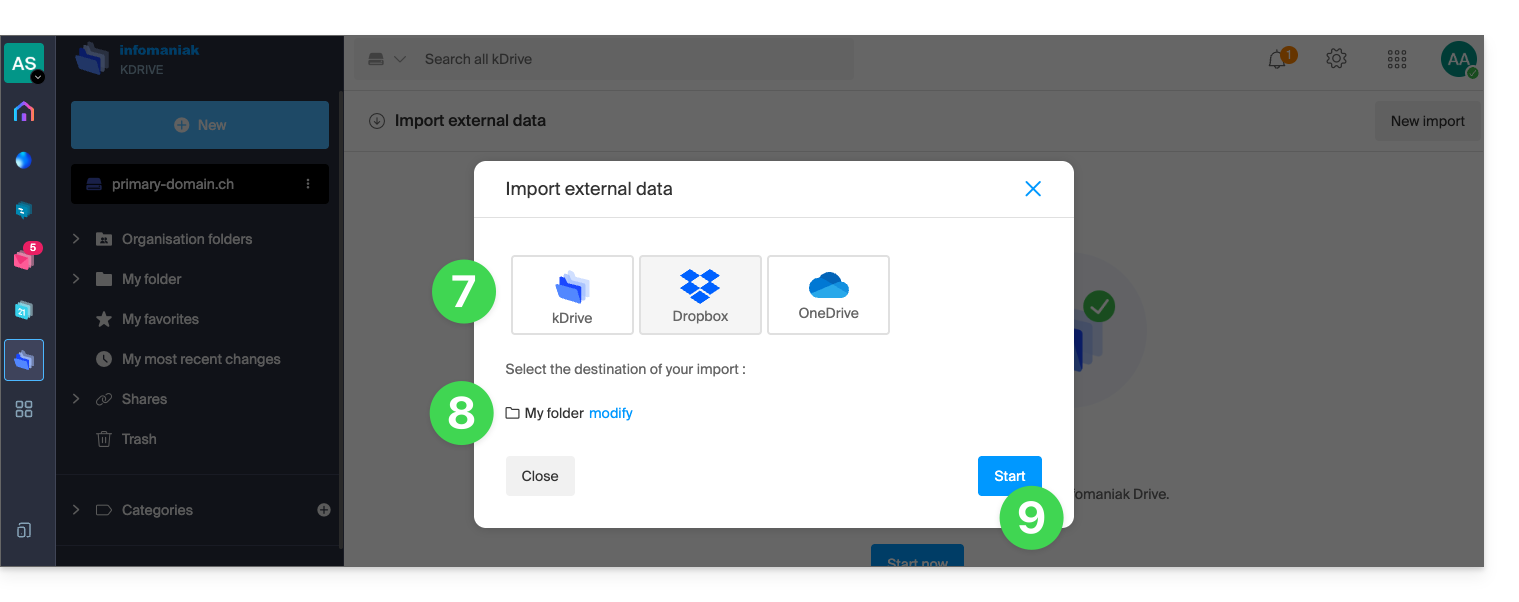
- Complete the required information (a new window may open in the background) and click on the blue Continue button.
- Complete the wizard.
- Wait for the data to be imported.
Manage the ongoing import
To monitor ongoing imports, return to the page mentioned in point 6 above at any time.
To stop an import in progress, click on the action menu to the right of the import listed on the page and choose to cancel it (if the import is interrupted voluntarily, a report will be sent to the administrator by email).
A second consecutive import would re-import all the data (to a different directory in kDrive); this is not a differential synchronization, and there is no duplicate management.
Be sure to check your imported data immediately after the operation.
Link to this FAQ: https://faq.infomaniak.com/2406
Has this FAQ been helpful?
This guide details how to import data from Google Drive using rClone to kDrive Infomaniak.
✘ UNAVAILABLE with
kSuite Free / kSuite Standard
my kSuite / my kSuite+ (ik.me, etik.com, ikmail.com)
⚠ ATTENTION ⚠
Infomaniak guarantees that its services comply with standard protocols (IMAP, S3, etc.), but does not provide additional support for external services or software, as their configuration may change depending on the provider or publisher(see:
1. Configure rclone for drive access
Install rclone on your computer
There is a version of rclone with a graphical interface (GUI), but it is also possible to do this using the command line (CLI):
- Install rclone from a
Terminal-type application on your device by typing the following command:sudo -v ; curl https://rclone.org/install.sh | sudo bash - Enter the password for your session on your computer to begin the installation:

- If necessary, consult the official installation guide.
Configuring the remote disk (Google Drive) in rclone
- Once rclone is installed, enter the command
rclone config.- If necessary, consult the official configuration guide.
- Then, choose to configure a new remote import by answering
nforNew remote. - Name the remote disk, for example
gdrive:
- Then, choose the type of disk to import by entering
drive, which corresponds to Google Drive among the options provided.
Next, you need to authorize the connection to Google Drive from a browser such as Brave, Chrome, Edge, Firefox, Opera, Safari…
By default, rclone uses a client ID shared among all users, which can lead to request limitations imposed by Google. It is strongly recommended to use your own client ID to avoid these restrictions.
- Access the Google API Console with your Google account.
- Create or select a project.
- Enable the Google Drive API by clicking the "Enable APIs and services" button/link.
- Search for the keyword
Driveand click onGoogle Drive API:
- Click the Activate button.
- Click Credentials in the left-hand menu (and not on a similar button).
- Click on Configure OAuth consent screen (if you haven't already):
- Enter a name, for example
rclone. - Select "External" (or "Internal" if you are a Google Workspace user).
- Under “Data access”, add the necessary scopes:
https://www.googleapis.com/auth/docs,https://www.googleapis.com/auth/drive,https://www.googleapis.com/auth/drive.metadata.readonly;
- Save.
- Add your email account as a test user under "Audience".
- Go back to the "Google Auth Platform" section.
- Enter a name, for example
- Create OAuth credentials:
- Click on "Create credentials / OAuth client ID".
- Choose "Desktop app" and leave the default name, then click the Create button.
- Keep the displayed
client IDandclient secret code.
- If "External" was chosen in step 7 above, go back to “Audience” in the left-hand menu and click on “Publish the application”.
Due to the "enhanced security" recently introduced by Google, you are theoretically supposed to "submit your application for verification" and wait several weeks for their response.
In practice, you can directly use the client ID and client secret with rclone (see the rest of the guide). The only consequence will be a very intimidating confirmation screen when you connect via your browser to allow rclone to obtain its token ID. However, since this only occurs during the initial configuration of the remote storage, it is not a major problem.
It is also possible to leave the application in "Test" mode, but in this case, any authorization will expire after a week, which may be inconvenient to renew frequently. If a short validity period is not a problem for your use case, then keeping the application in test mode may be sufficient.
Go back to rclone in the terminal:
- Tell rclone the
client_idby copying and pasting theClient IDobtained in step 8 above, and do the same for the secret phrase. - Next, select
scope#1:
- Press the “
Enter” key to leave theservice_account_filequestion blank. - Answer “No”
nto the question about “advanced configuration”. - Answer “Yes”
yto the question about connecting via a browser:
- An Internet page opens in your browser, allowing you to connect to Google and authorize the application you created in step 9 above.
- Once the permissions are granted, you should receive the following message:

- In the terminal, answer “No”
nto the question about “Shared Drive (Team Drive)”. - Answer “Yes”
yto the last question:
Configuring the destination disk (kDrive) in rclone
You can directly modify the rclone configuration file by pasting your kDrive configuration into it, for example:
[kdrive]
type = webdav
url = {{URL_19}}
vendor = other
user = user@email.com
pass = PASSWORD_HERE_OR_APP_PASSWORD_IF_2FA
Here's how to proceed step by step, just like with the previous configuration:
- Still on the terminal, enter
nfor a new disk configuration and enter the namekDriveto identify your destination disk:
- Next, choose the type of disk to import by entering
webdav, which corresponds to a WebDAV configuration among the options provided. - Enter the following information:
url= the direct access to kDrive (refer to this other guide regarding the kDrive ID for the connection URL)vendor= rclone (option no. 6)user= the email address used to log in to your Infomaniak user account
- Answer “Yes”
yto the password question, then enter the password:- application password if two-factor authentication is enabled or your Infomaniak user account password if you have not enabled 2FA.
- Leave the
bearer_tokenfield blank and answer “No”nto the question about “advanced configuration”. - Answer “Yes”
yto the last question, and your 2 disks will be displayed:
2. Copy data from Google Drive to kDrive
kDrive supports rclone's streaming upload via WebDAV with automatic error handling if the limit is exceeded without prior size specification via Content-Length.
Prerequisites
- Consult the available options in the official guide before starting an import, including these important commands:
--drive-skip-shortcutsto avoid infinite import loops--drive-shared-with-meto retrieve shared files--drive-acknowledge-abuseto force the download of files blocked by Google
Example command to start a copy of your Google Drive to the root of your kDrive:
sudo rclone copy gdrive:
kDrive:
This will immediately start copying your folders, subfolders, and content from Google Drive to the personal folder of your Infomaniak kDrive!
Google Docs files, such as Gdocs, Sheets, and Slides, are converted to Office formats like .docx and .xlsx, and can be read directly in kDrive.
Link to this FAQ: https://faq.infomaniak.com/2408
Has this FAQ been helpful?
This guide provides instructions for connecting to kDrive using the WebDAV connection protocol.
✘ UNAVAILABLE with
kSuite Free / kSuite Standard
my kSuite / my kSuite+ (ik.me, etik.com, ikmail.com)
⚠ WARNING ⚠
Use the WebDAV protocol on kDrive for specific and occasional use cases:
- If you want to work on your files and share them, kDrive is the ideal tool; it is recommended to install the kDrive application to avoid any file loss.
- However, to secure your data against loss or corruption and ensure business continuity, Swiss Backup is the essential and appropriate solution.
Infomaniak guarantees that its services comply with standard protocols (IMAP, S3, etc.) but does not provide additional support for external services or software, as their configuration may change depending on the provider or publisher(see:
Get your kDrive ID
To find your kDrive ID:
- Click here to access the Infomaniak kDrive web app (online service ksuite.infomaniak.com/kdrive).
- The kDrive file structure is displayed in the left-hand menu.
- The URL
https://ksuite.infomaniak.com/34567/kdrive/app/drive/123456/files/56789orhttps://ksuite.infomaniak.com/all/kdrive/app/drive/123456/displayed at the top of your browser contains a number: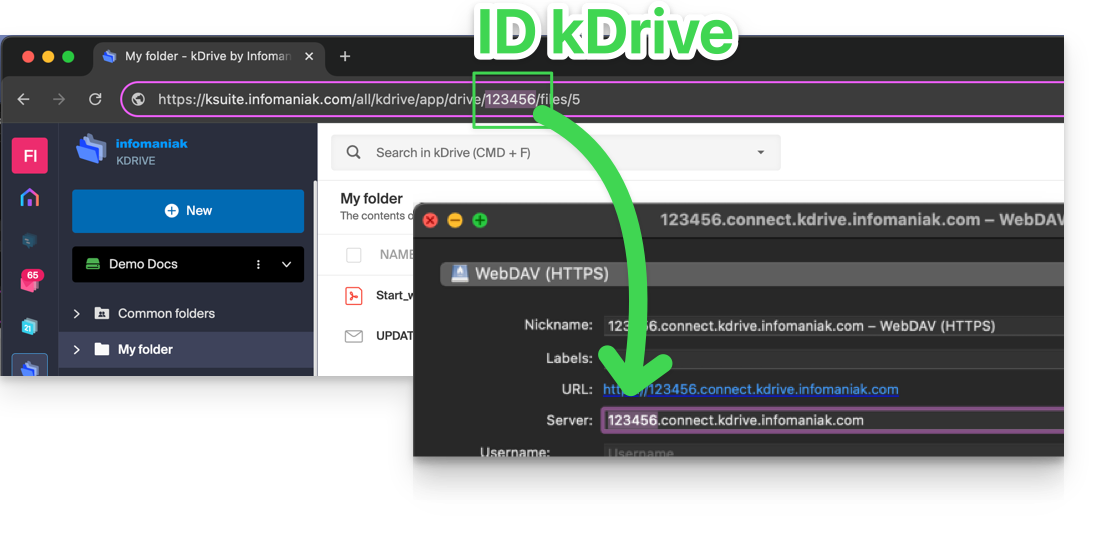
- In some cases, particularly when the Organization ID is mentioned in the URL, there may be several sets of numbers, but the principle remains the same: you need to take the number displayed after the term "/drive/":
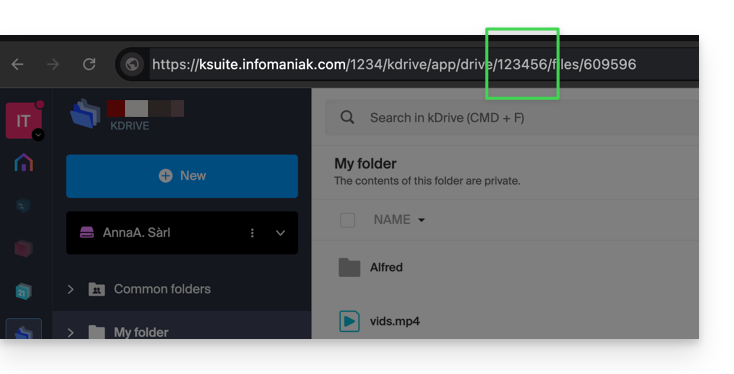
This number (in the example 123456) is your kDrive identifier (IDkDrive).
You will therefore need to enter https://IDkDrive.connect.kdrive.infomaniak.com whenever necessary (e.g. https://123456.connect.kdrive.infomaniak.com as your WebDAV address).
Specific WebDAV Guides
Examples of synchronization via WebDAV:
Direct WebDAV connection URL to a specific folder
To facilitate a direct connection via WebDAV to a specific folder, you can use the following URL (replacing 123456 as shown above):
{{URL_20}} documents/folder-nameThis simple method allows you to quickly access the desired folder without manually navigating through the directory structure. Simply replace "folder-name" with the exact name of the target folder to establish a direct and secure connection via WebDAV.
Link to this FAQ: https://faq.infomaniak.com/2409
Has this FAQ been helpful?
This guide details the structure of Infomaniak's kDrive: online interface, menus for managing and finding your shares, the purpose and meaning of the default folders, etc.
Introduction
- This guide applies to the kDrive web app (online service ksuite.infomaniak.com/kdrive).
- The desktop app is not directly affected and will display certain elements differently, or not at all (❓: help).
- The mobile app, however, is similar in terms of menu organization (with some specific features, such as offline files).
- The Shared folders and the Sharing menu are only visible with certain multi-user plans.
- Do not rename and/or move the folders created by defaultneither in the web version nor locally, as this will cause synchronization problems.
- To quickly access the various features/operations, right-click on your files.
3 main elements
The kDrive interface features a left-hand menu that takes you to your kDrive data, including these 3 main elements:
1. Organization folders: shared by all collaborators in your Organization
This folder displays the tree structure of shared folders, automatically showing them to certain or all users of the same kDrive. If they contain documents, they will be displayed in the center of the interface: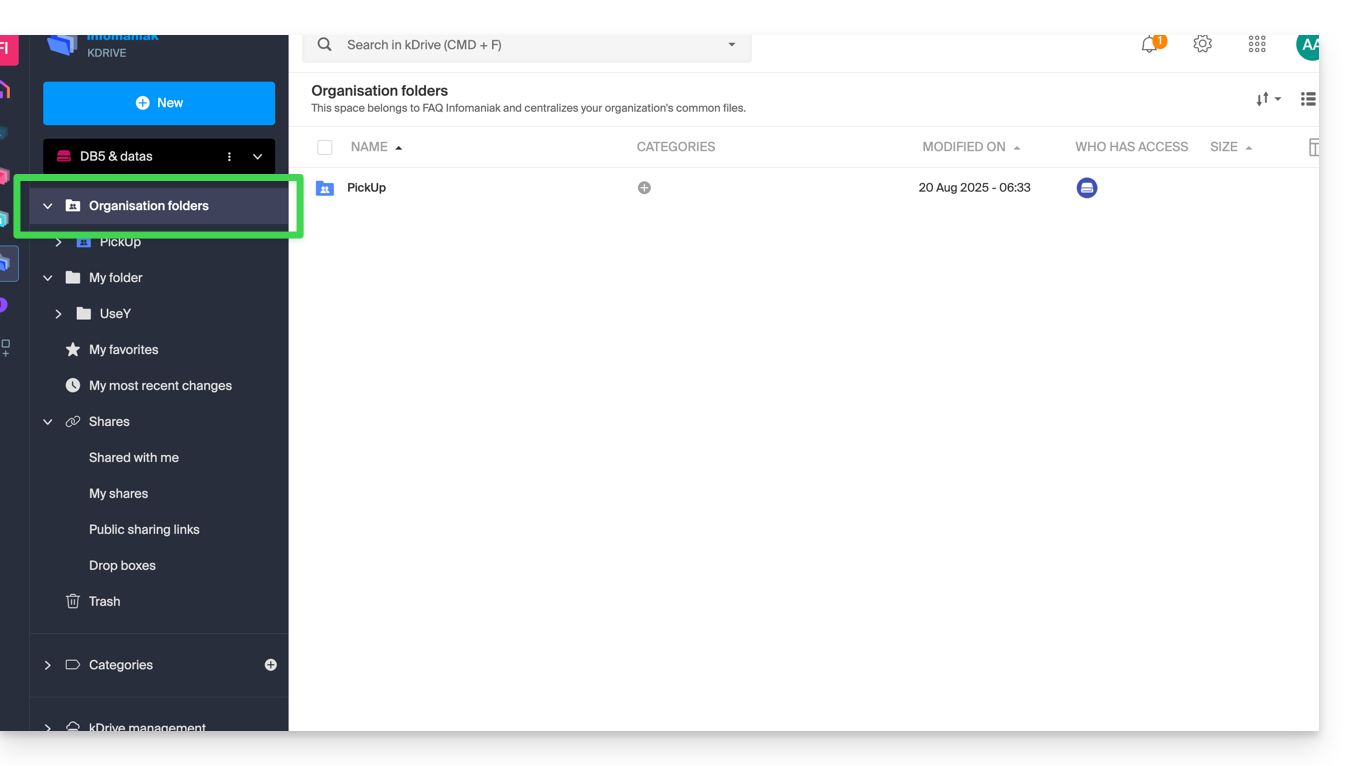
If you create a new folder here (❓: help), you can choose to share it with the entire Organization (all users of the kDrive) or only with a few users/groups, who will then have to request access if necessary: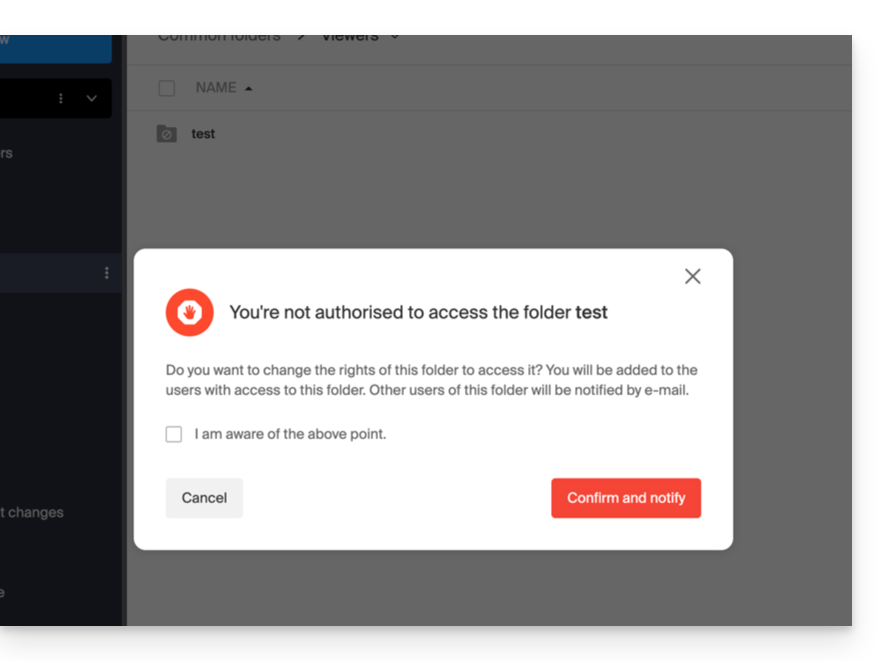
2. My folder: personal & private folder by default
This folder displays the directory structure of the folders belonging to the user themselves: indeed, each kDrive user has their own personal space that will not be automatically shared with other users of the same kDrive: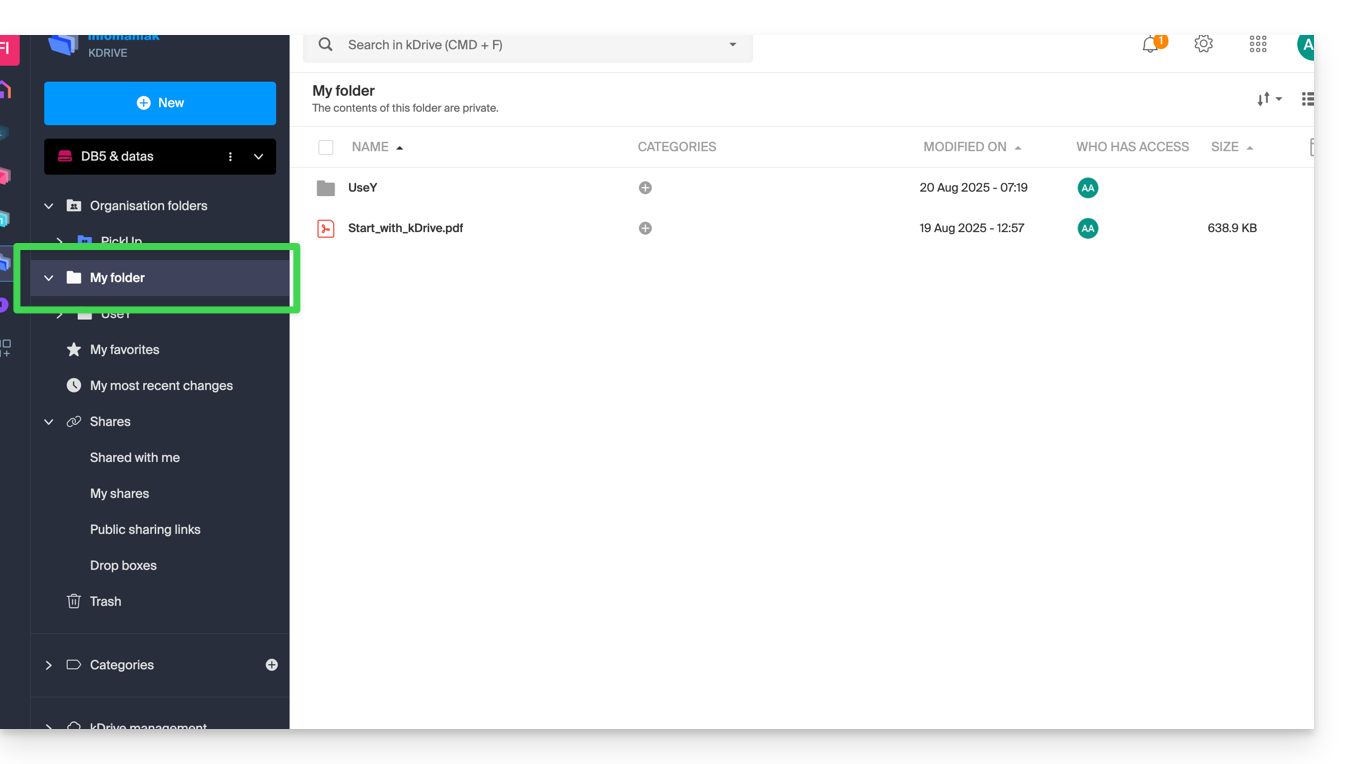
Any relevant documents will be displayed in the center of the interface.
3. Sharing
The Sharing menu leads to 4 sub-menus displayed in the left-hand menu:
- Items that are shared with you by other kDrive users, among the kDrive accounts to which you have access with your login credentials.
- Items you share with other users (❓: help).
- Items you have shared by creating a public sharing link (❓: help).
- Drop boxes (❓: help).
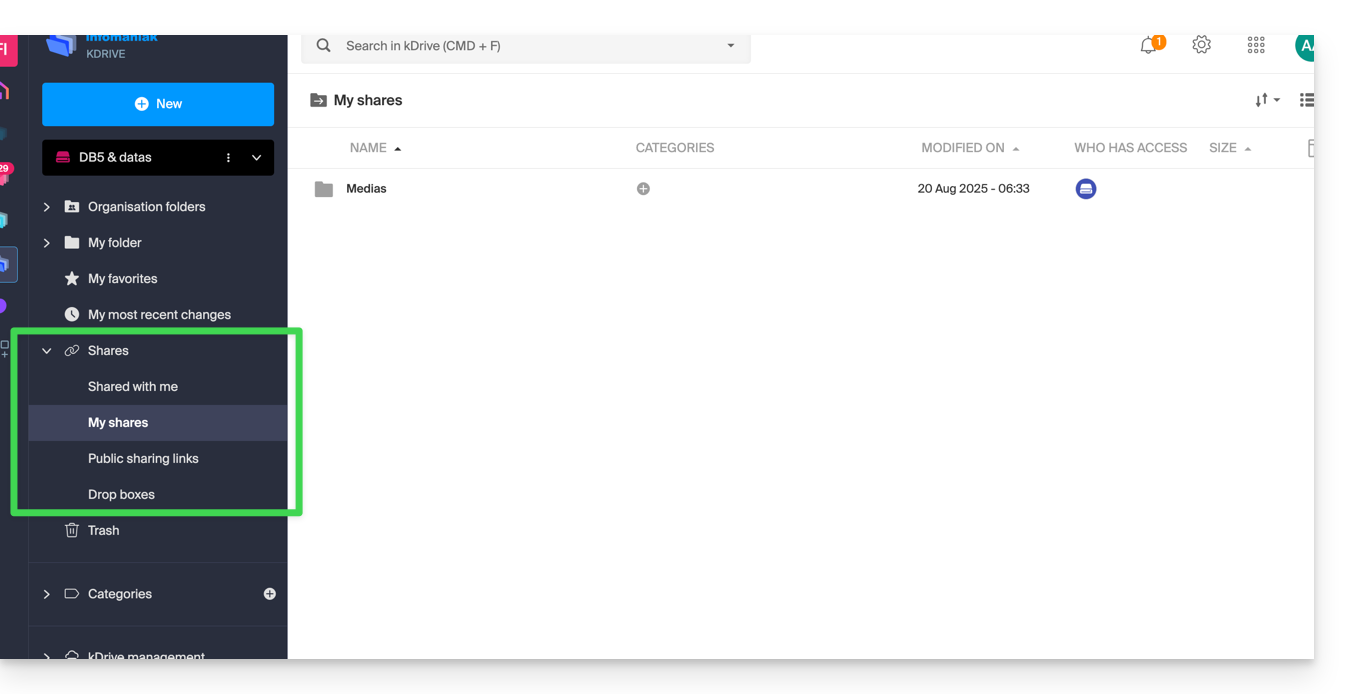
Any existing items will be displayed in the center of the interface and can be modified/deleted.
Refer to this other guide about how these shared folders behave in the Desktop app.
Additional elements
My favorites
This menu groups your files and folders defined as favorites on kDrive (❓: help), which you can then find in the web app…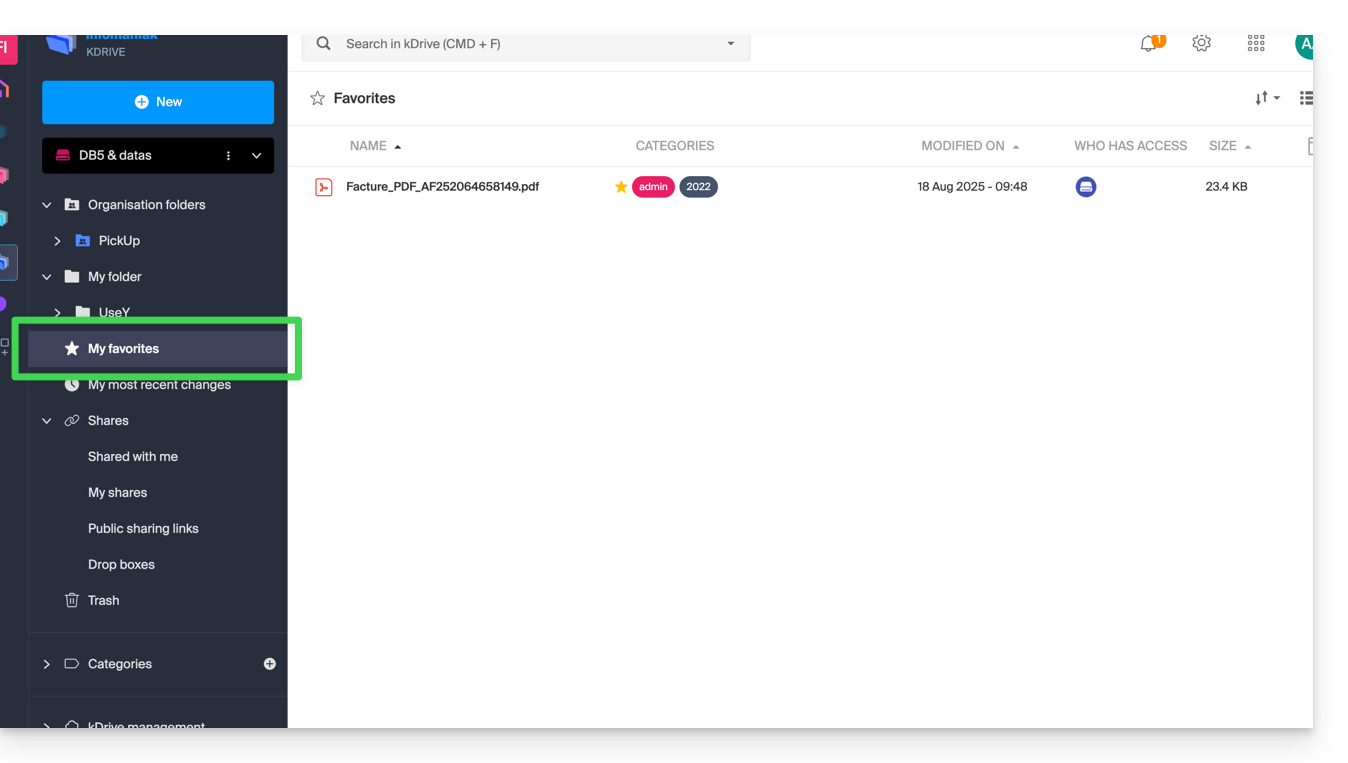
… and the mobile app:
My latest changes
This menu displays the latest operations performed by your user: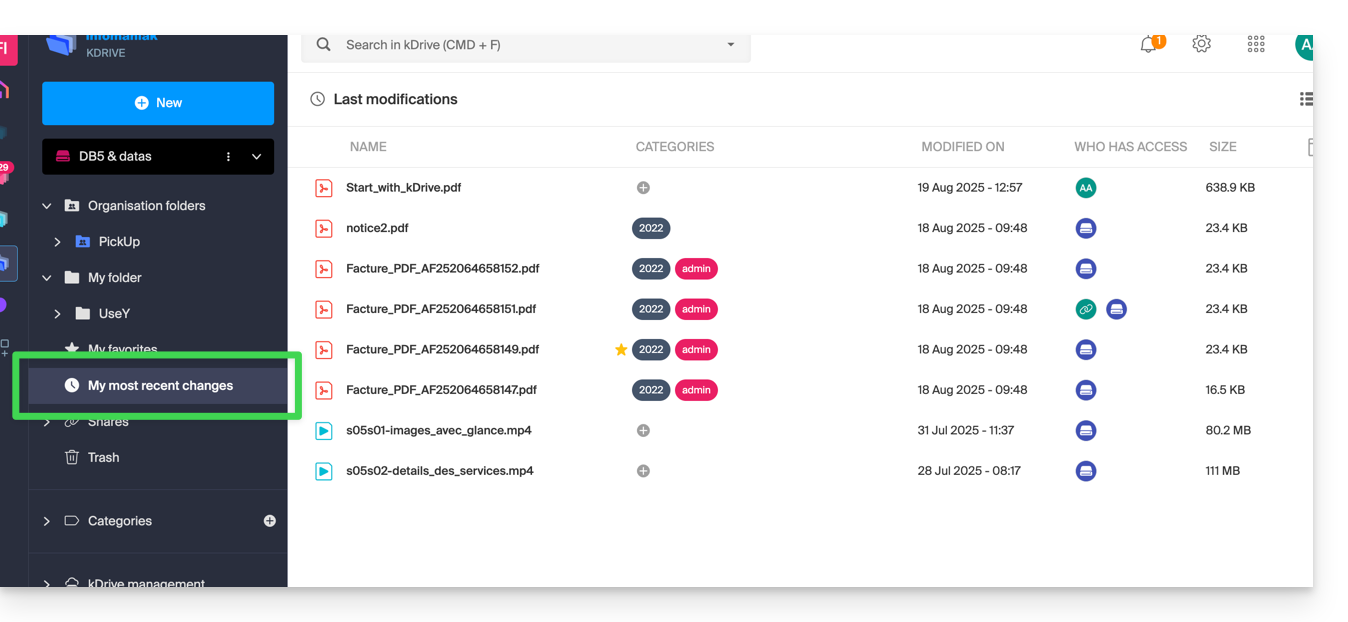
This allows you to quickly return to recently modified files, even if they are located in different subfolders within your kDrive. You can also select these files to move or delete them in bulk.
Trash
This menu leads to your deleted data, which can still be restored (❓: help):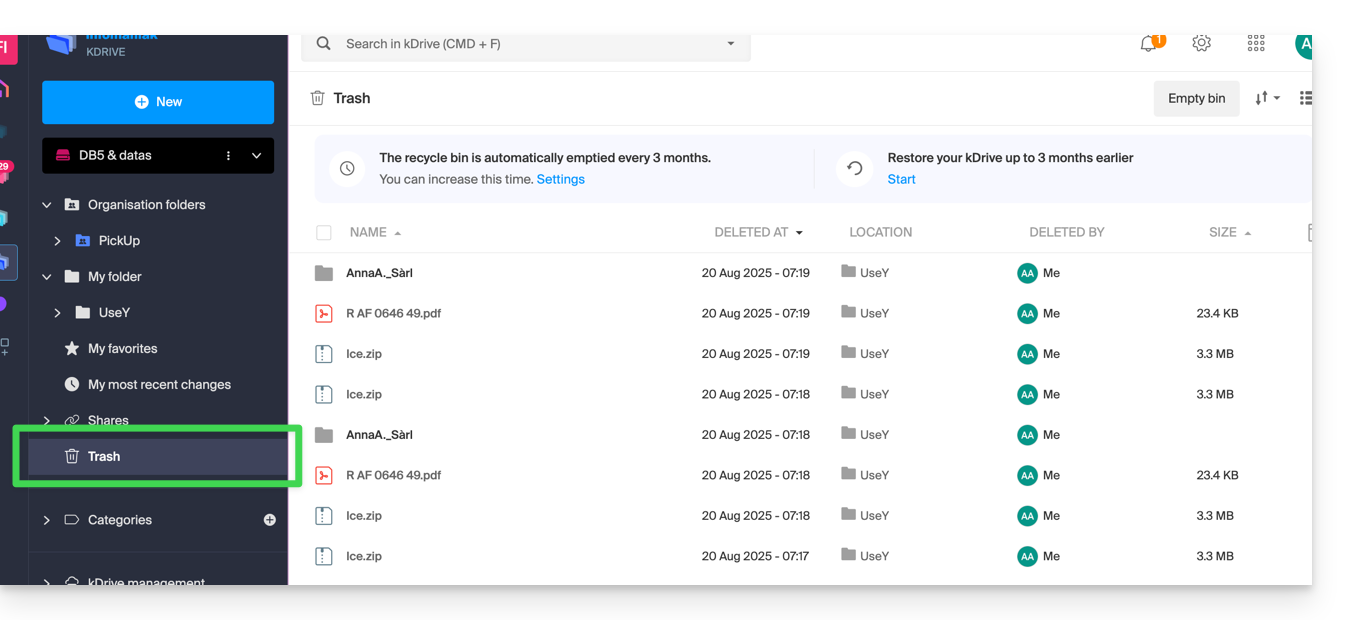
Categories
You can also quickly access your files if they are categorized (❓: help) using the Categories menu by clicking on the different categories listed there: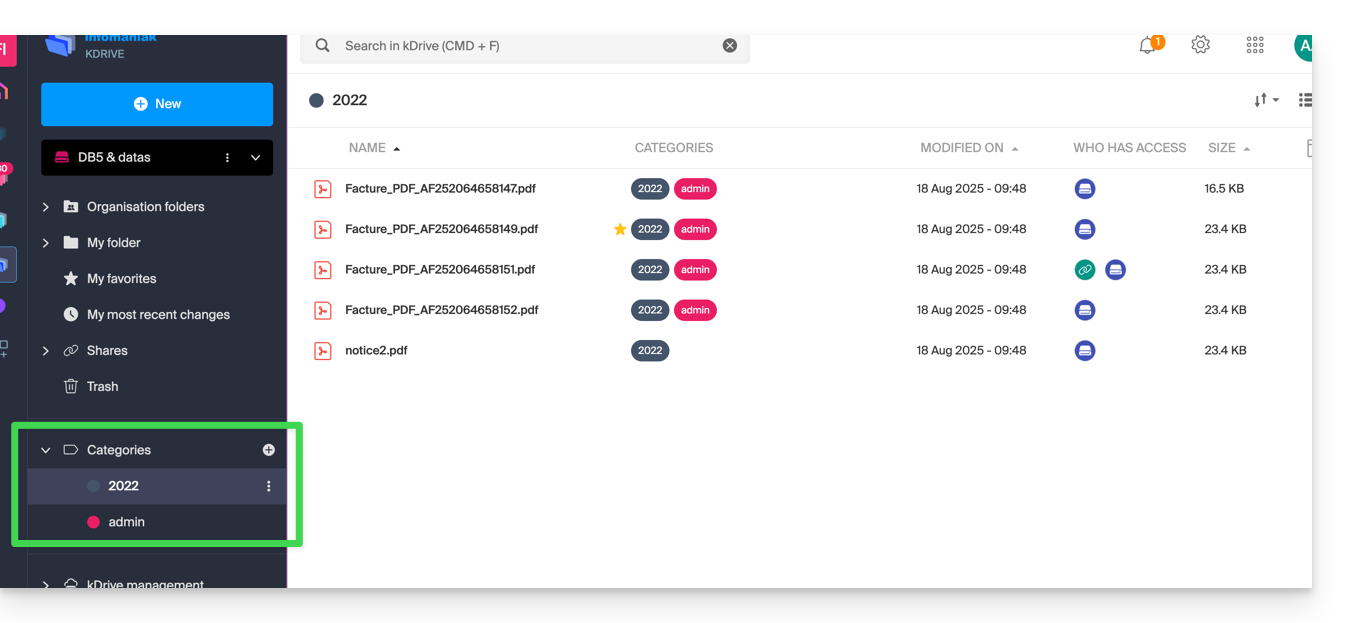
Define the default display when starting up
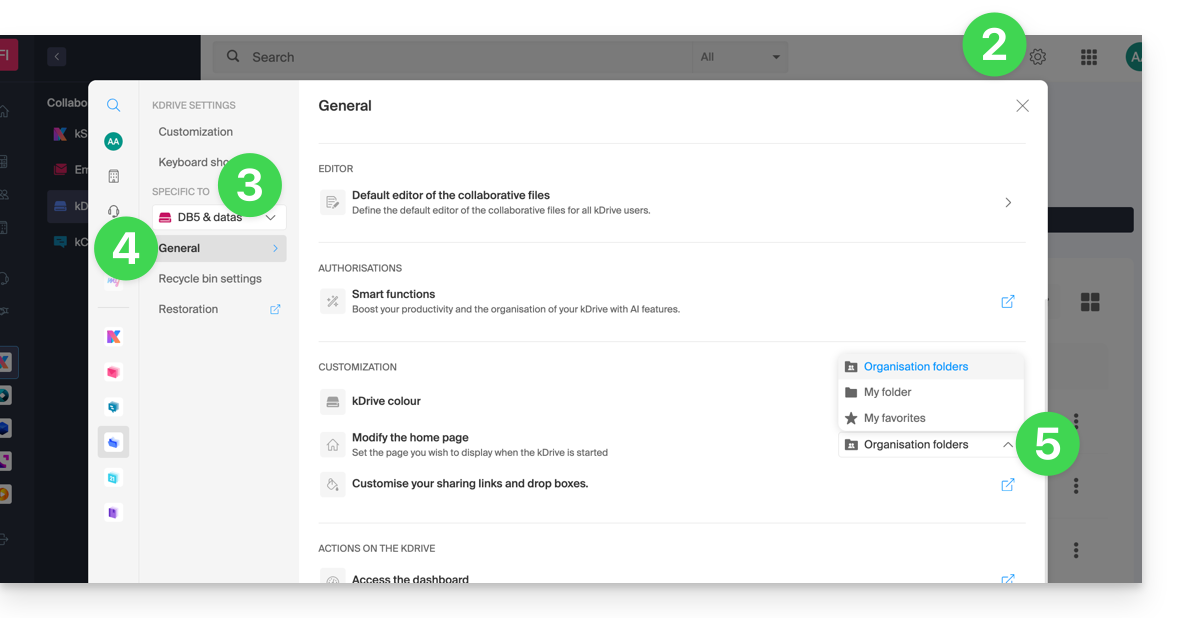
You can choose which home page to use when navigating within kDrive, from the following three options:
- your personal folder
- the shared documents folder
- favorites (which groups together the documents added as favorites by your user)
To access kDrive and modify the home page:
- Click here to access the management interface for your product on the Infomaniak Manager (❓: help).
- Click on Settings in the top right corner.
- Check or select the relevant kDrive from the drop-down menu in the left-hand menu.
- Click on General in the left-hand menu.
- Choose the page that should be displayed by default when you arrive at the home page:
Restore the shared folder (synchronized on a computer)
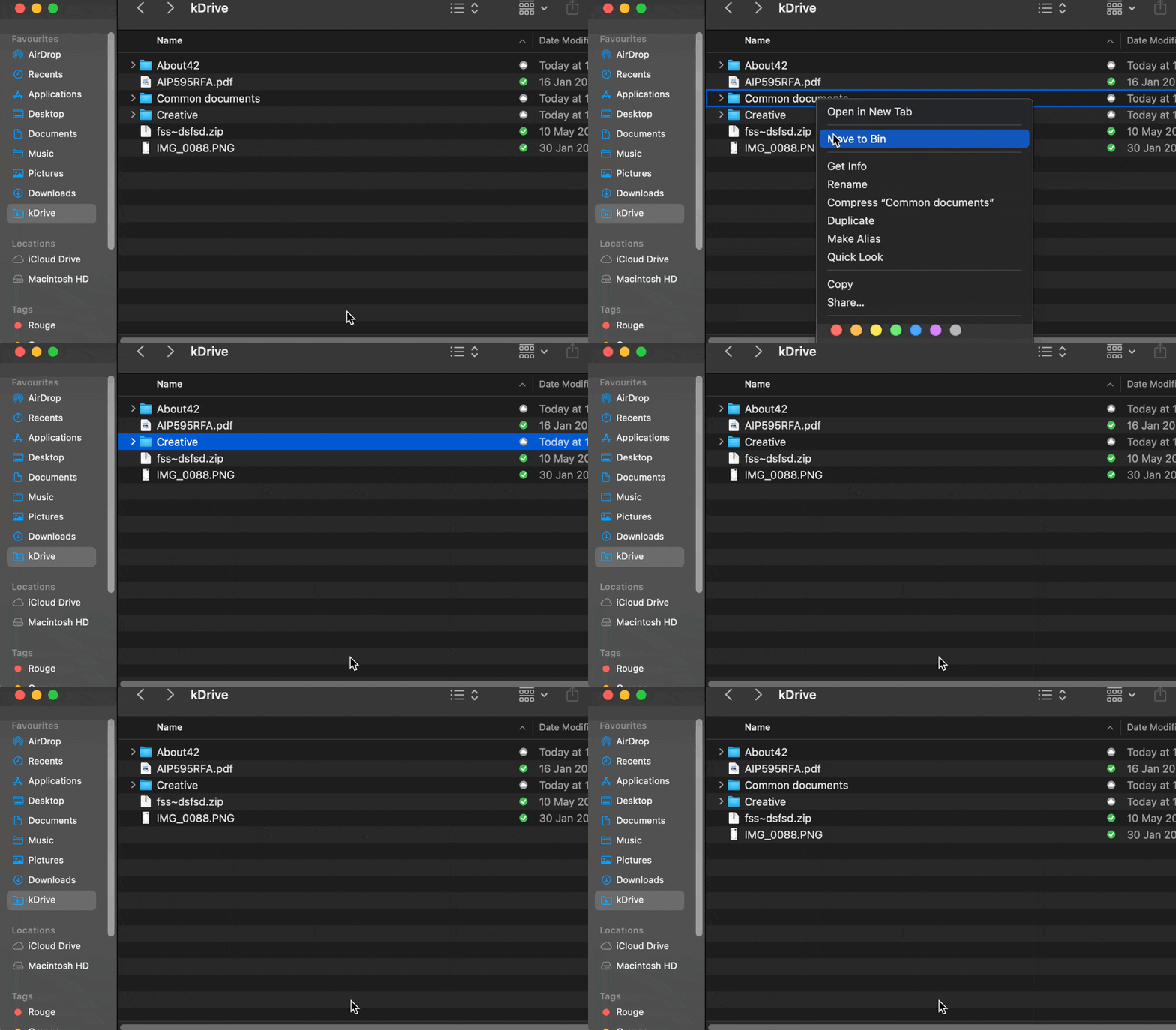
If you accidentally delete the folder containing the data you share with all kDrive users ("Organization folders"), don't worry: it will automatically be restored. This is a special folder that cannot be moved, even on your computer:
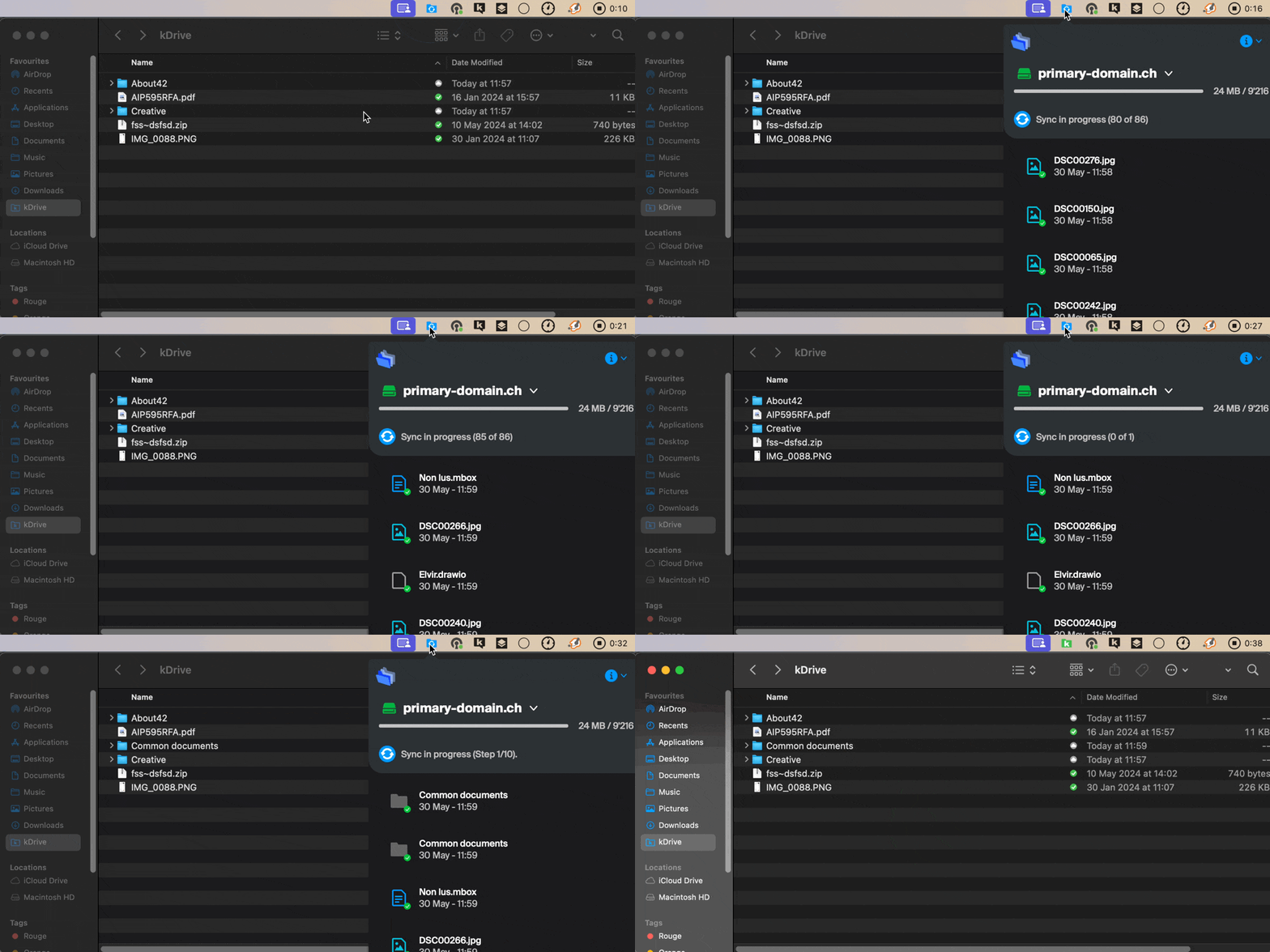
If it doesn't return immediately, wait for the tasks already running in the background to complete:
Link to this FAQ: https://faq.infomaniak.com/2410
Has this FAQ been helpful?
This guide explains why analyses are performed on your kDrive data when you grant this permission to Infomaniak, and how to revoke it.
Introduction
- Data analysis is used solely to improve AI features, including search.
- The confidentiality of data stored on kDrive is a priority for Infomaniak:
- The analysis is performed entirely in-house by Infomaniak, without any involvement from third parties.
- Human intervention is technically possible, but it is extremely rare and not practiced under normal circumstances.
- Read this other guide to learn more about the model used and the responsibilities of each party.
Manage the granted right
Prerequisites
- You must be at least an Administrator of the Organization (❓: help).
Next, you can check the status of your data analysis:
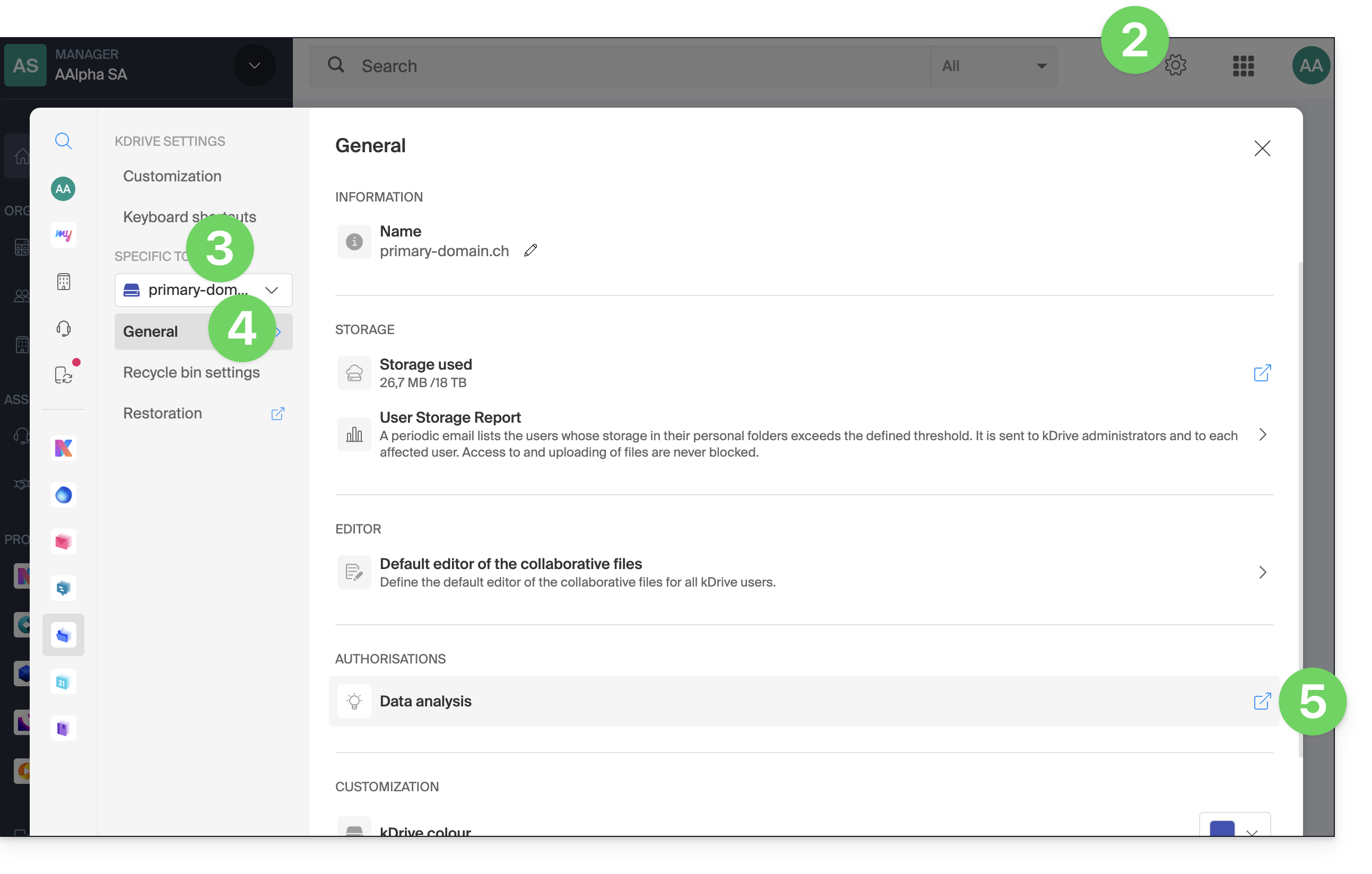
- Click here to access the Infomaniak kDrive web app (online service ksuite.infomaniak.com/kdrive).
- Click on Settings in the top right corner.
- Check or select the relevant kDrive from the drop-down menu in the left-hand menu.
- Click on General in the left-hand menu.
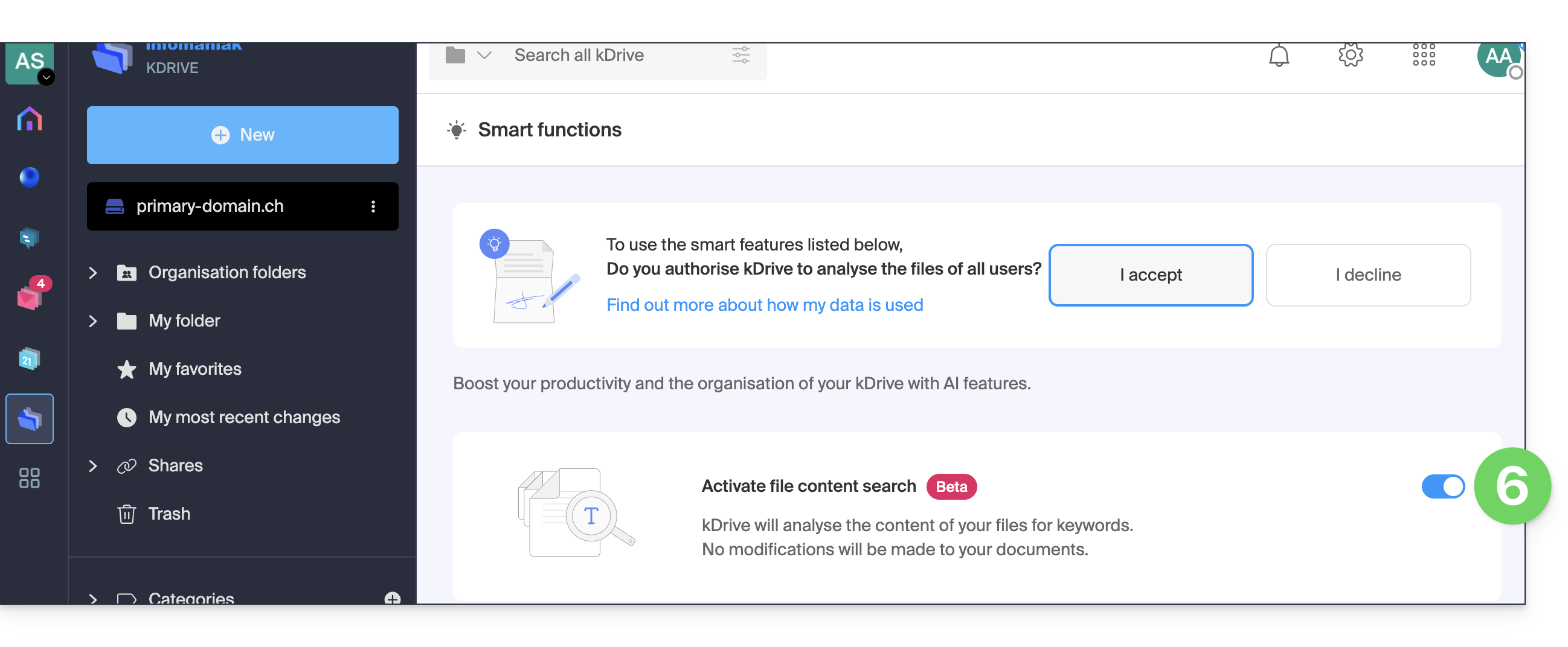
- Click under Permissions on Smart features (or Data analysis in my kSuite):
- Click the toggle switch to perform the desired action:
Link to this FAQ: https://faq.infomaniak.com/2412
Has this FAQ been helpful?
This guide provides instructions for synchronizing kDrive with Windows using the WebDAV connection protocol.
✘ UNAVAILABLE with
kSuite Free / kSuite Standard
my kSuite / my kSuite+ (ik.me, etik.com, ikmail.com)
⚠ WARNING ⚠
Use the WebDAV protocol on kDrive for specific and occasional use cases:
- If you want to work on your files and share them, kDrive is the ideal tool; it is recommended to install the kDrive application to avoid any file loss.
- However, to secure your data against loss or corruption and ensure the continuity of your business, Swiss Backup is the essential and appropriate solution.
Infomaniak guarantees that its services comply with standard protocols (IMAP, S3, etc.) but does not provide additional support for external services or software, as their configuration may change depending on the provider or publisher(see:
Connect to kDrive via WebDAV on Windows
For a Windows PC:
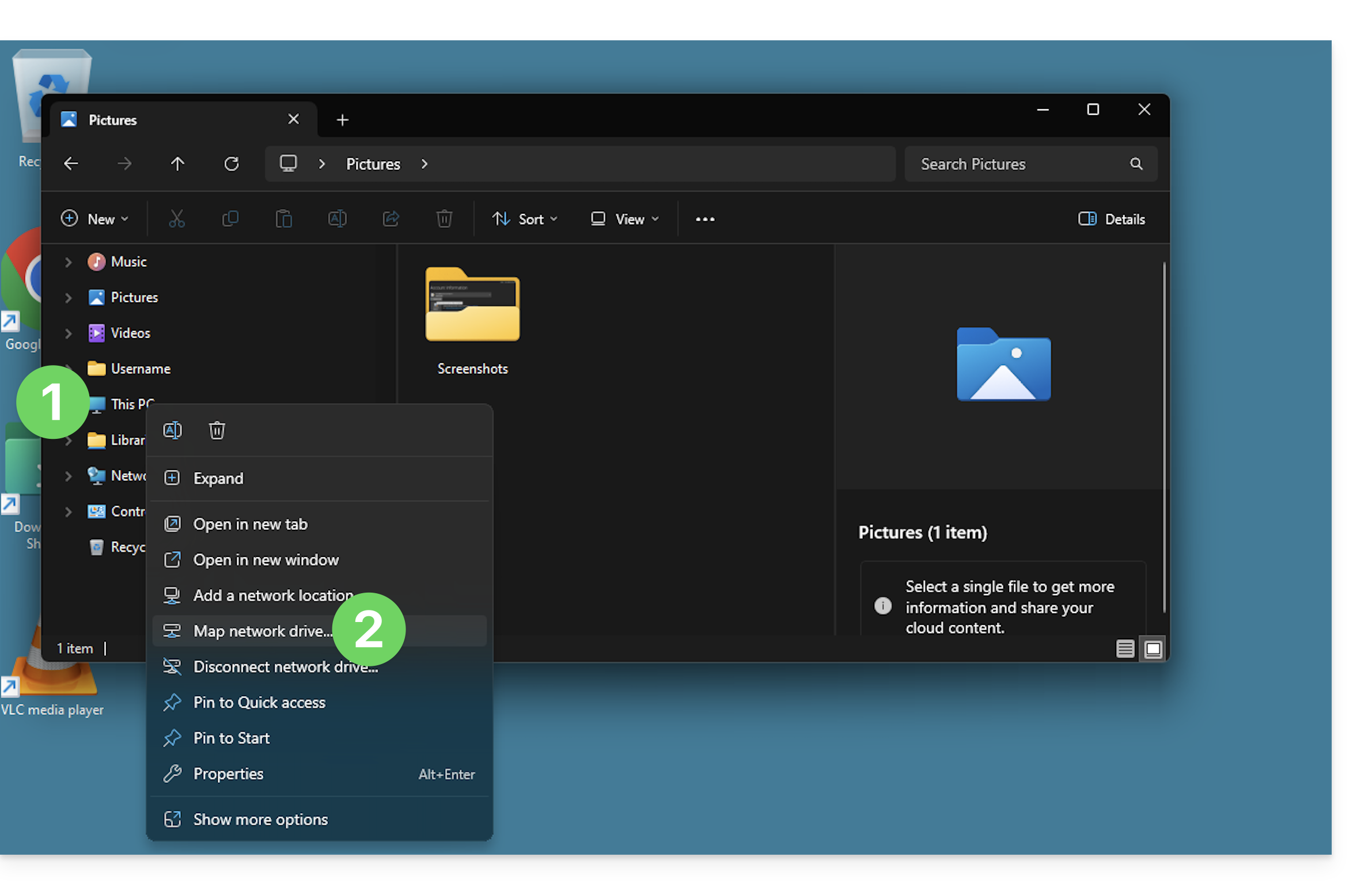
- Right-click on This PC (formerly “My Computer”) in File Explorer or the Start menu.
- Click on Connect a network drive:
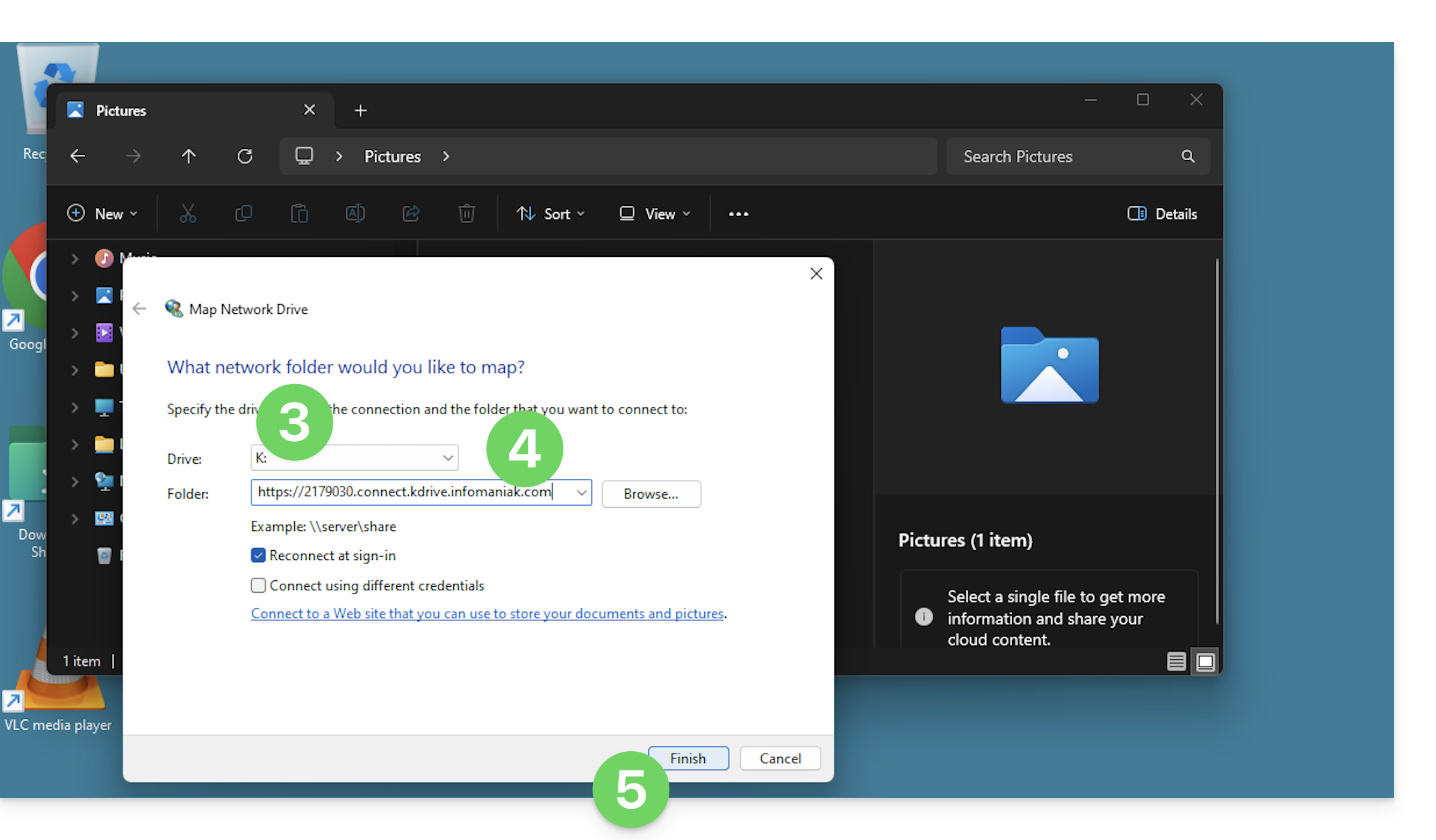
- Enter a letter to designate the kDrive virtual drive.
- Enter the server address:
https://IDkDrive.connect.kdrive.infomaniak.com(need help?). - Click on Finish to log in:
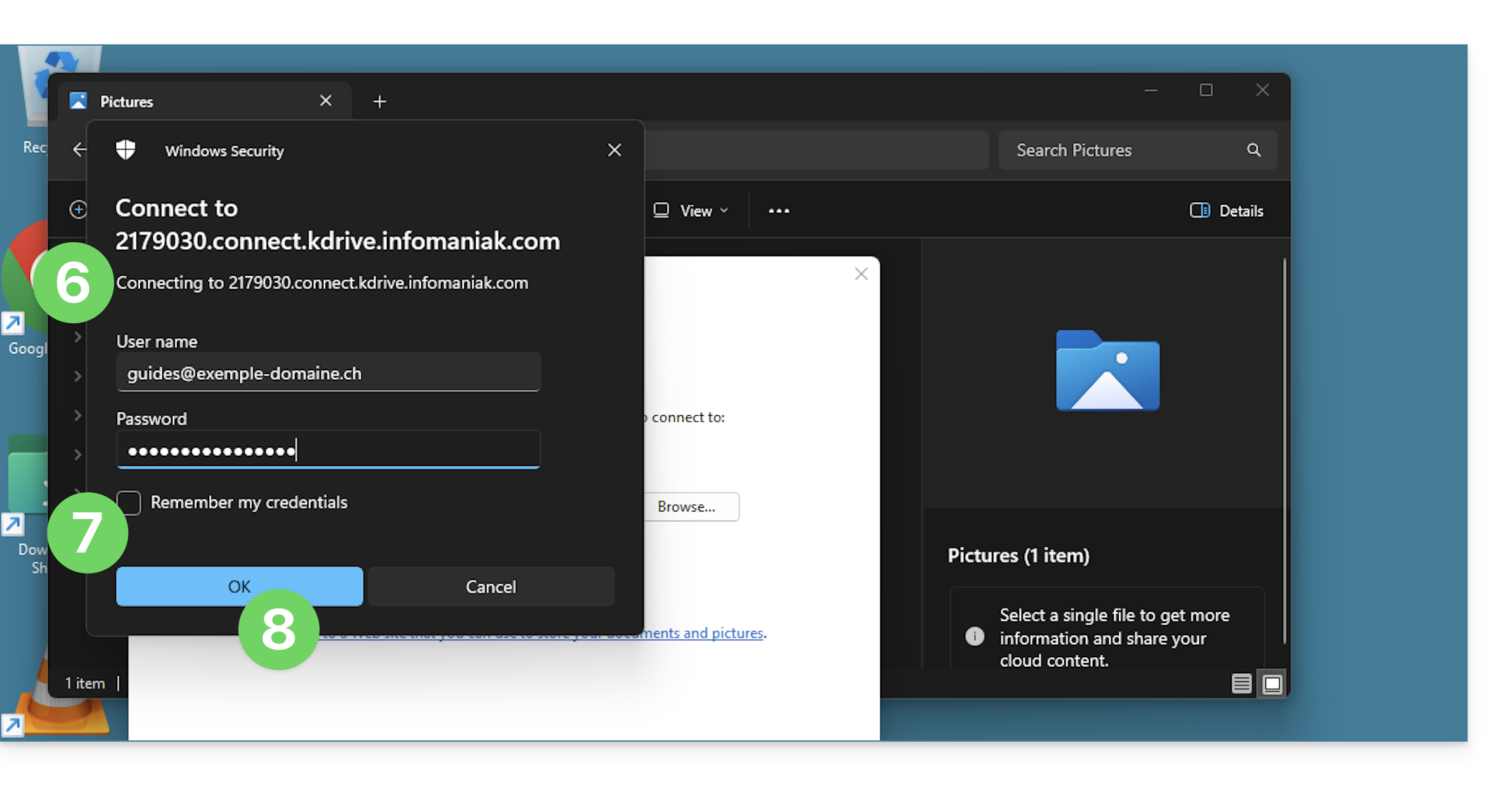
- Enter the following information:
- Username: the email address you use to log in to your Infomaniak account.
- Password: create an application password for this specific use.
- If desired, click the box to save the login information.
- Confirm the connection by clicking the button:
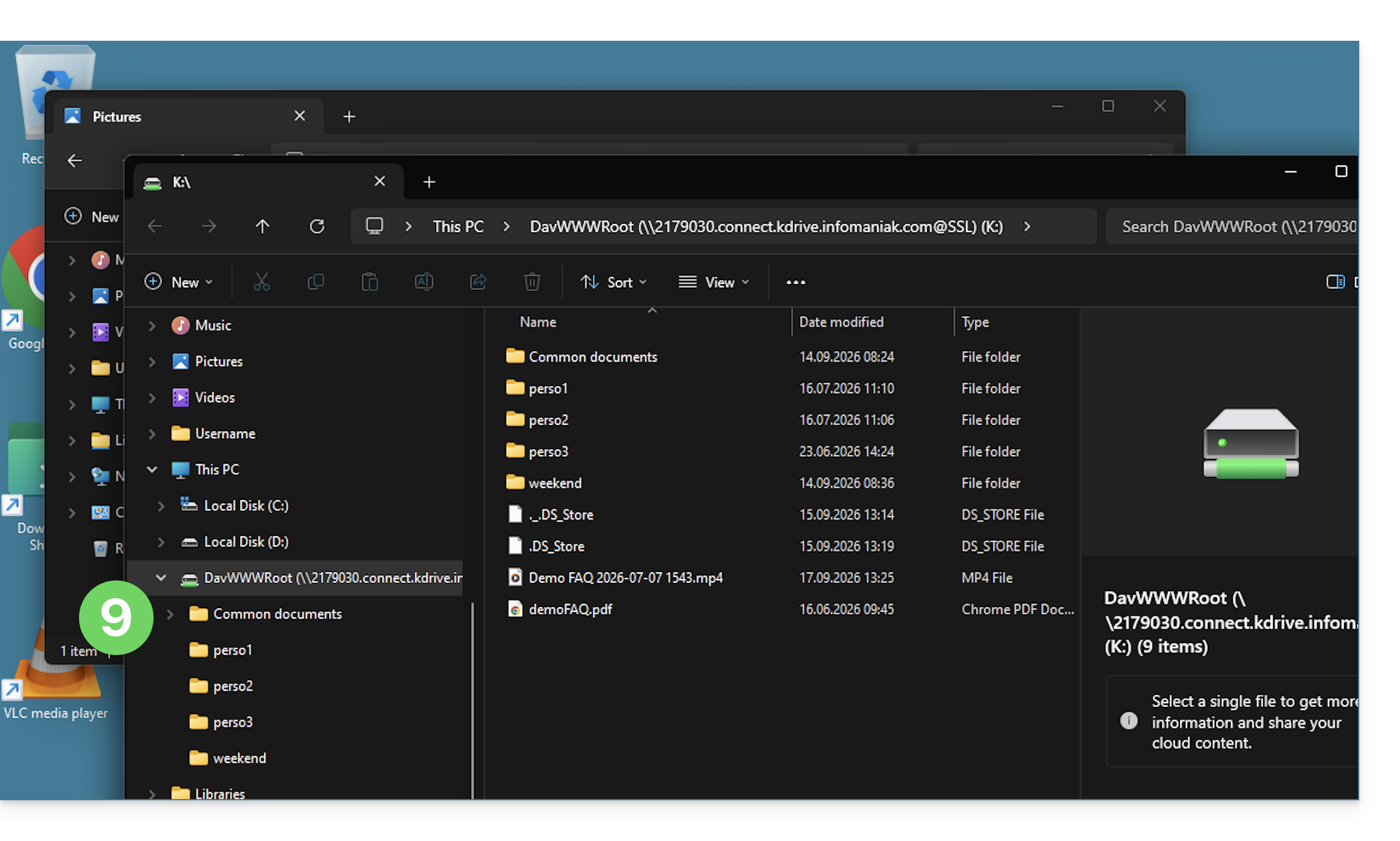
- The kDrive content is now displayed in the file explorer, just like it is accessible in kDrive for your Infomaniak user:
The Mountain Duck alternative
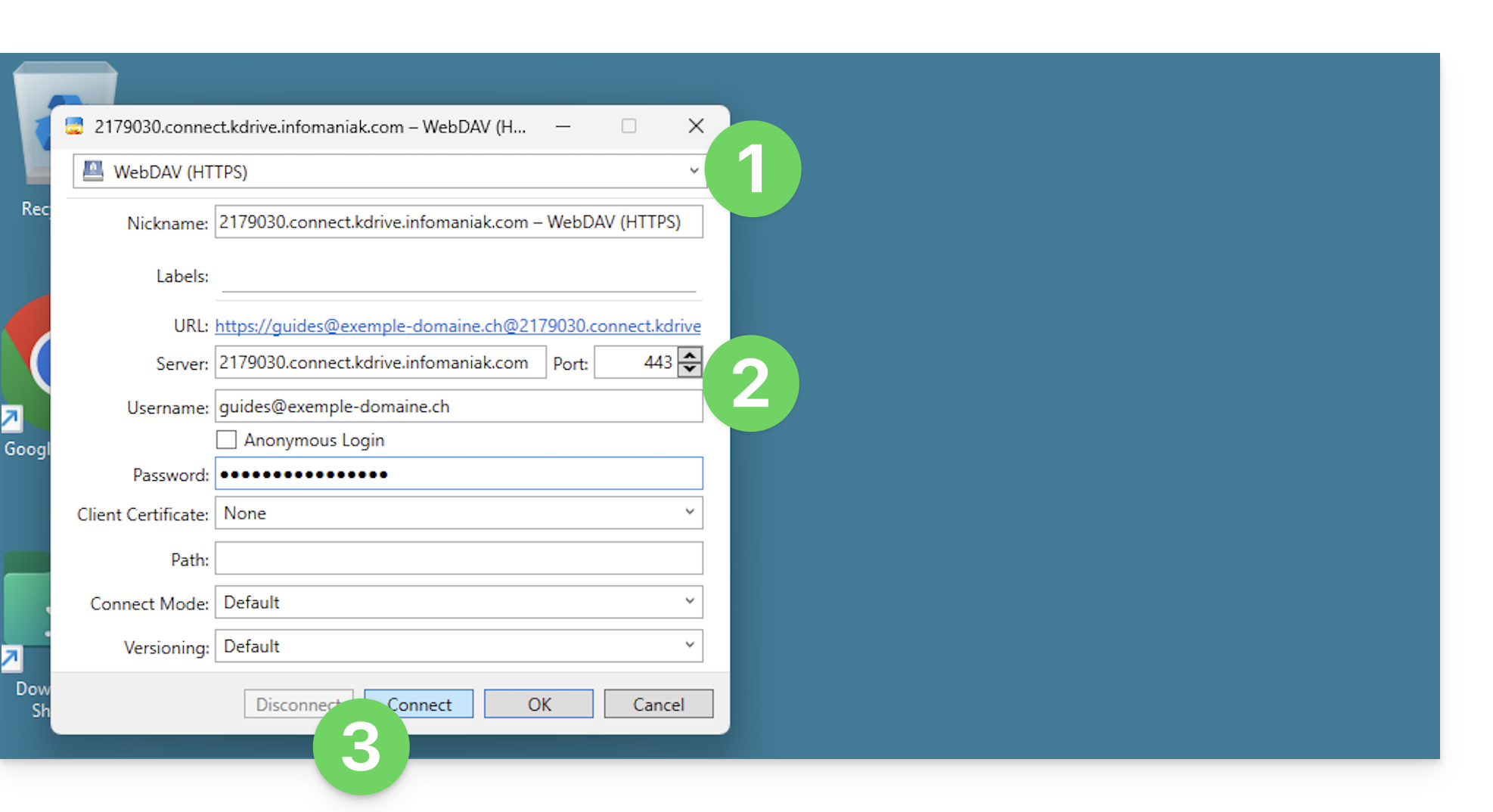
Using the same principle and with the same information, you can also consider connecting via a WebDAV software/client such as Mountain Duck:
- Create a new WebDAV connection in Mountain Duck.
- Enter the appropriate information.
- Click on Log in:
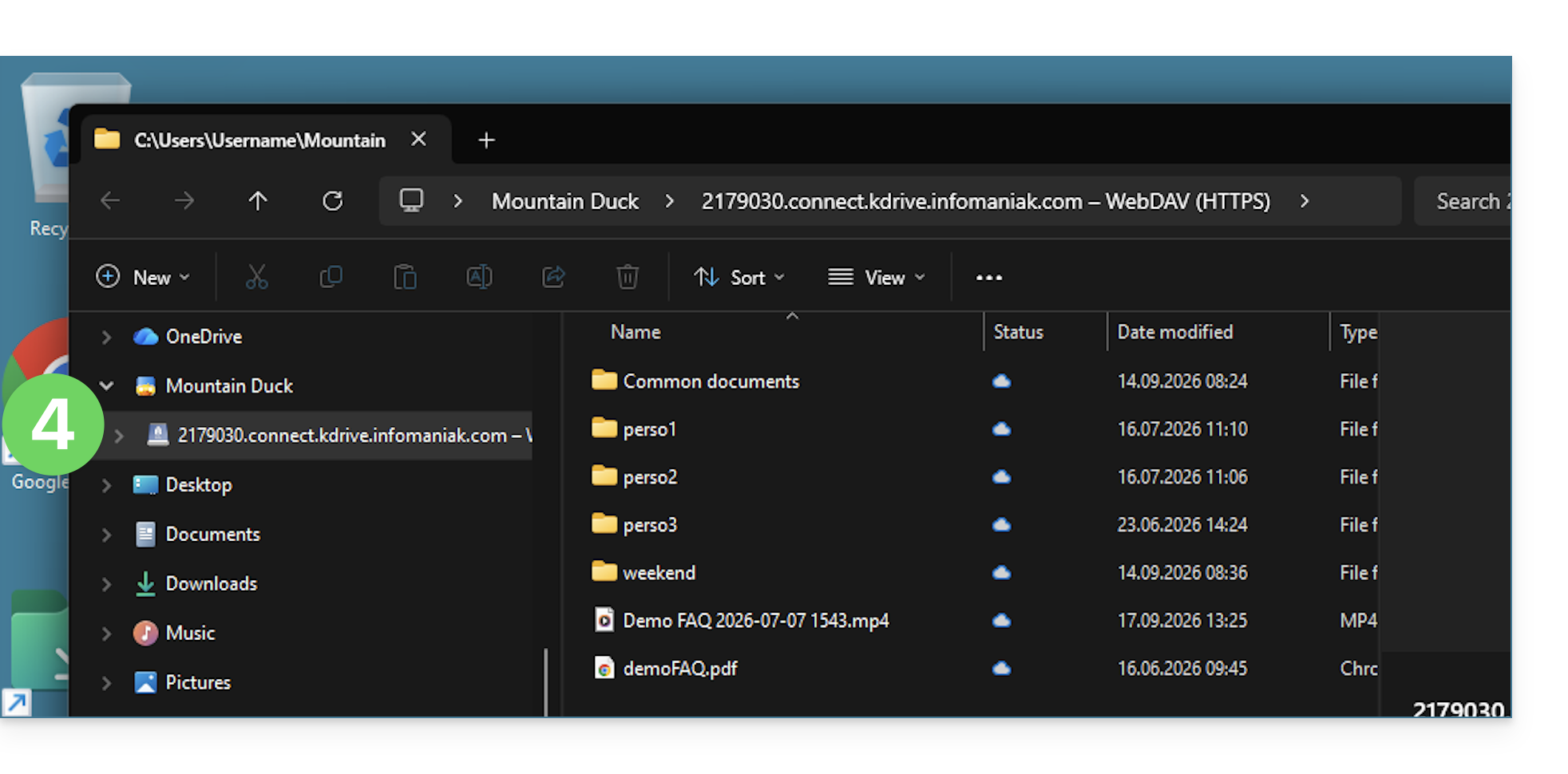
- There you go, the kDrive content is now displayed in the file explorer, just like what is accessible on kDrive for your Infomaniak user:
Link to this FAQ: https://faq.infomaniak.com/2419
Has this FAQ been helpful?
This guide explains how to select the folders that will be synchronized between the web app kDrive (online service ksuite.infomaniak.com/kdrive) and the desktop app (desktop application on macOS / Windows / Linux).
Prerequisites
- Have a kDrive / kSuite plan.
- Have the kDrive application on the device to be synchronized.
Do not synchronize everything to a single device
When you install the kDrive application on your computer, everything that is already on the kDrive web app (online service ksuite.infomaniak.com/kdrive) will be visible on your computer in a /kdrive (or /kdrive2, etc.) folder:
- either virtually if you choose to enable Lite Sync (for example, 10 GB on the web will be reduced to just a few MB on your computer),
- either physically with the same storage size (10 GB on the Web will require 10 GB on your computer).
But you can specify in the kDrive app on your device that it should not display everything, so that some of your data remains on kDrive (Web) and is neither downloaded, displayed, nor synchronized on your device. This is particularly useful, especially when using advanced synchronization (❓: help).
Desktop app v4.x
To choose which folder(s) you want to be able to view on your computer and exclude others, assuming that your synchronization is currently complete between kDrive Web and your computer:
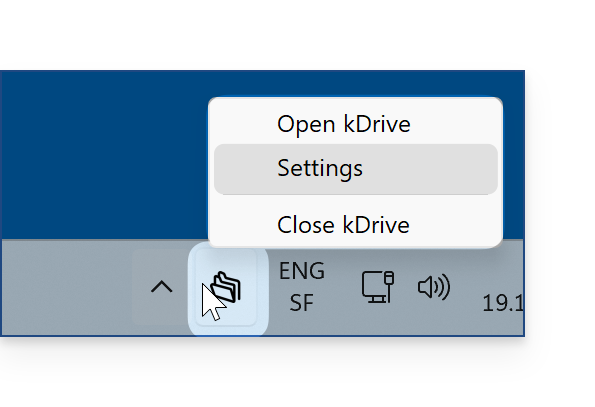
- Launch kDrive on your device: the app icon should be visible in the top right corner on macOS/Linux, and in the bottom right corner on Windows (❓: help).
- Right-click on the icon and choose Settings:
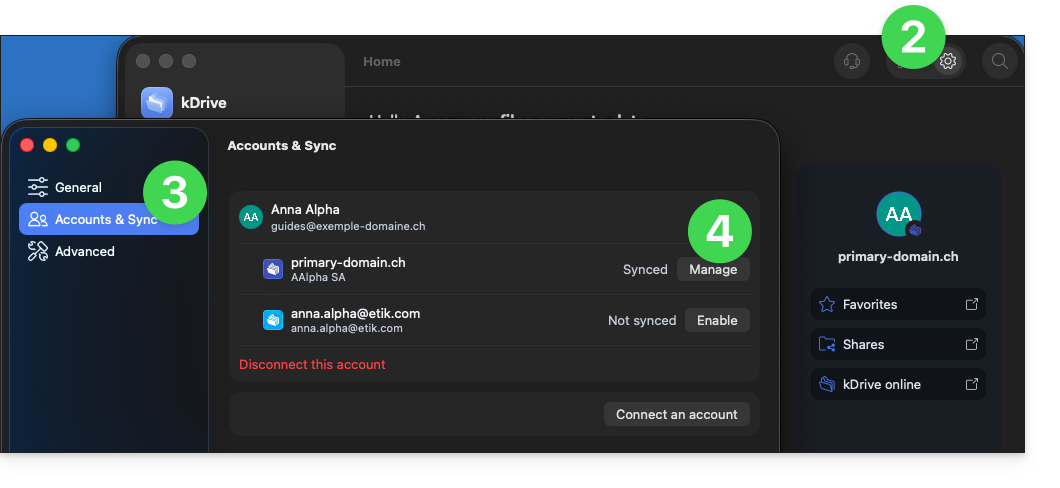
- Go to Accounts & Sync.
- Click on Manage (or ❯) to the right of the current sync:
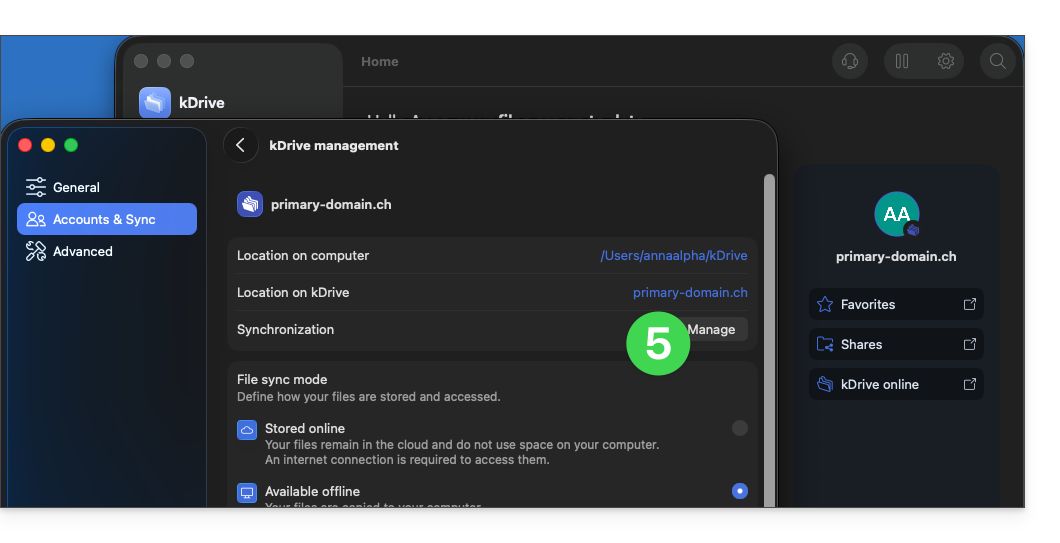
- Click on Manage synchronization:
- Enable or disable the boxes corresponding to the data that should no longer appear on your device after the next synchronization.
- Save your changes:
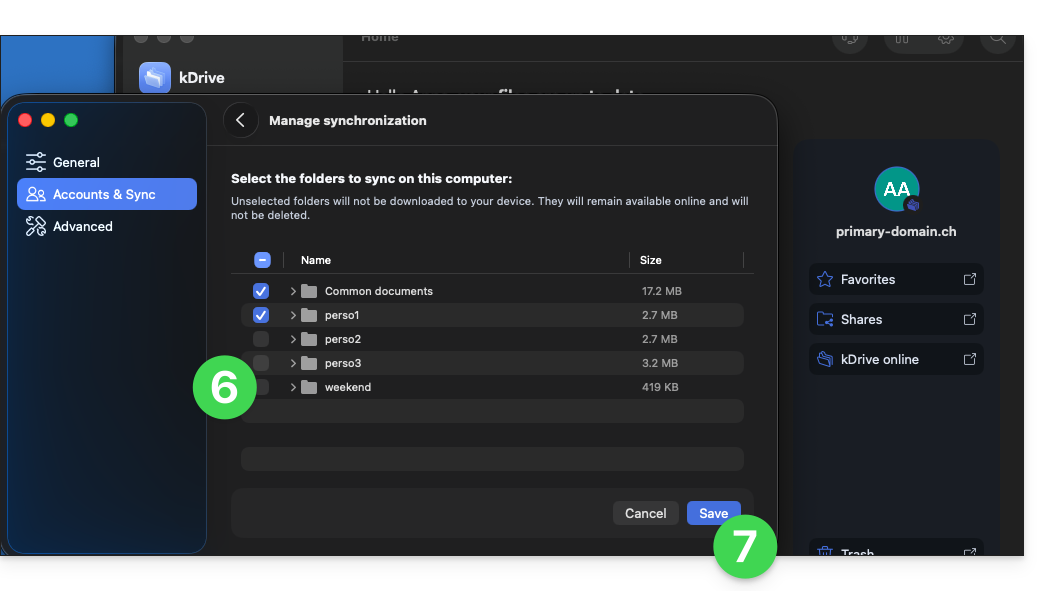
- The effect is immediate; only the files checked in the list will remain synchronized with your device; the rest will be excluded and will no longer be synchronized:
- The kDrive folders in the online version accessible via a browser such as Brave, Chrome, Edge, Firefox, Opera, Safari, etc., will not be affected, but you must ensure, before the operation, that the folder in question was properly synchronized and fully present in this online version (especially if you had just placed it within your synchronized directory).
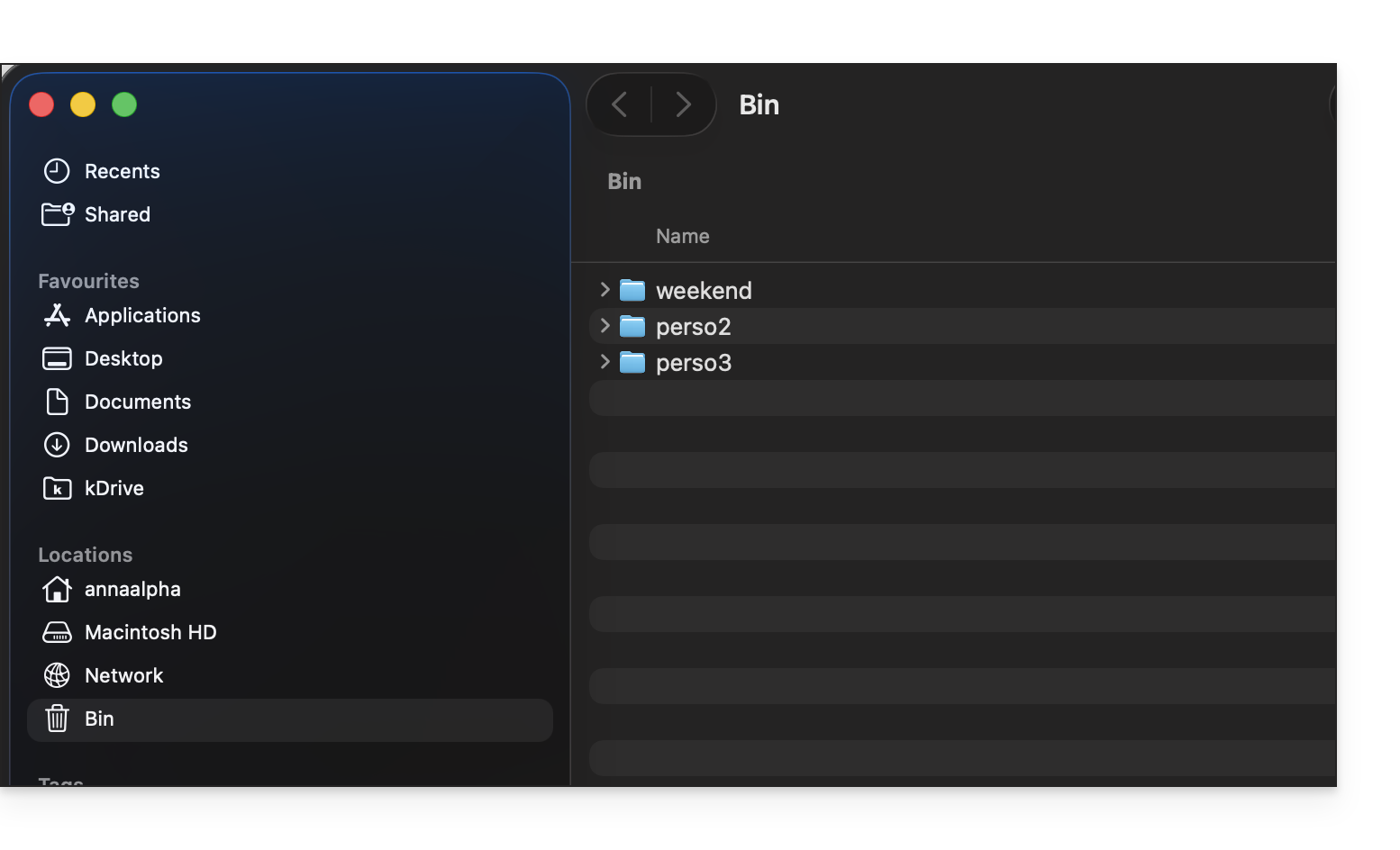
- The data removed from synchronization will go to the device's recycle bin:
- If in doubt, also make sure that your computer does not instantly delete items that are too large when they are placed in the recycle bin, due to the size of the Windows recycle bin, for example:

Desktop app v3.x
To choose which folder(s) you want to be able to access on your computer, go to the settings of the kDrive application on your computer:
- Left-click on the desktop app icon in the notification area of your computer (top right on macOS, bottom right on Windows, and double-left-click in the taskbar on Linux).
- Click on the action menu ⋮ on the right of the window that appears.
- Click on kDrive Settings.
- Click on the chevron to the left of your synchronization name to display the list of folders (currently stored on kDrive Web).
- Expand the contents of the listed folders as needed and check / uncheck the folders to be synchronized with your computer.
- Click the blue Validate button.
But be careful:
- When deselecting a folder that was selected in the list, a message next to the button (point 6 above) warns you that a This folder will be moved to your computer's Recycle Bin..
- This is the folder that was in your kDrive folder structure on your computer.
- The kDrive folders in the online version accessible via a browser will not be affected, but you must ensure, before the operation, that the folder in question was properly synchronized and fully present in this online version (especially if you had just placed it within your synchronized directory).
- If in doubt, also make sure that your computer does not instantly delete overly large items when they are placed in the recycle bin, due to the size of the Windows recycle bin, for example:
Link to this FAQ: https://faq.infomaniak.com/2454
Has this FAQ been helpful?
This guide explains how to access kDrive files locally on your hard drive using the desktop app kDrive (desktop application for macOS / Windows / Linux), as well as files from the kDrive web app (online service ksuite.infomaniak.com/kdrive).
Prerequisites
- Install the kDrive desktop app on your device.
- Make sure you are logged in with the same Infomaniak account on both the desktop and web versions; otherwise, step 3 below will lead to an error.
View kDrive files
When the kDrive application is installed and launched:
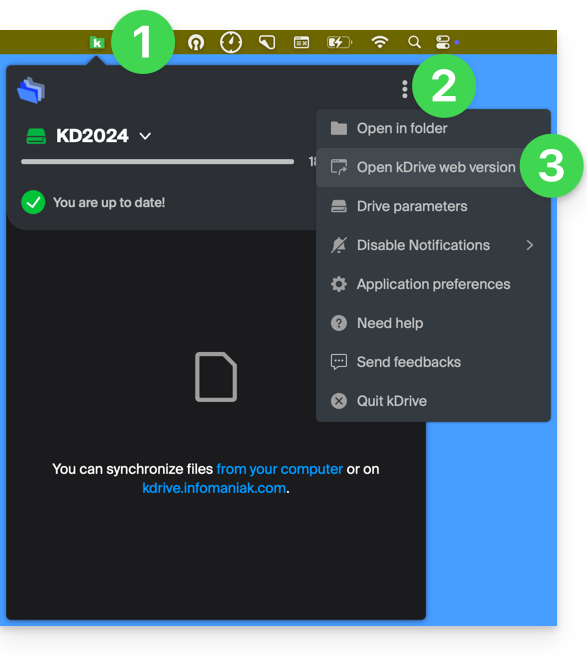
- Left-click on the app icon in the notification area of your computer (top right on macOS, bottom right on Windows, and double left-click in the taskbar on Linux).
- Click on the action menu ⋮ in the top right corner.
- Click on Open kDrive Web to access the files stored on the kDrive server:
- It is possible that the version in the browser may not display correctly.
- Click on the item above to open the disk folder on your computer containing your kDrive files, physically present or virtually present (depending on whether Lite Sync is enabled).
If not all of your files are present/synchronized, please refer to this other guide.
Differences between the web version and the synchronized computer version
Shared folders
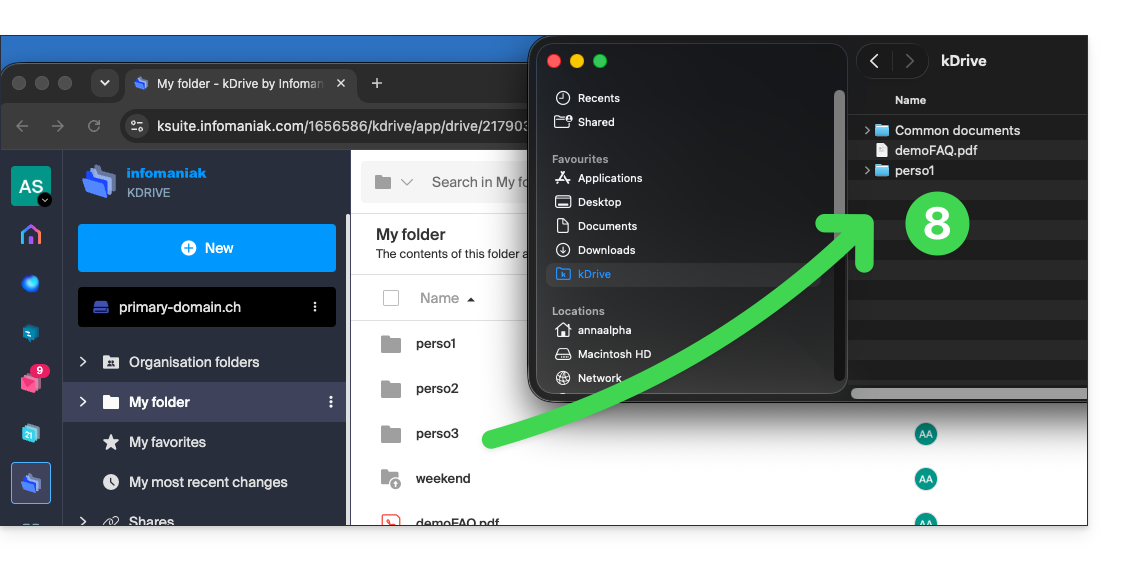
In the web version of kDrive, the shared folder is called Organization folders: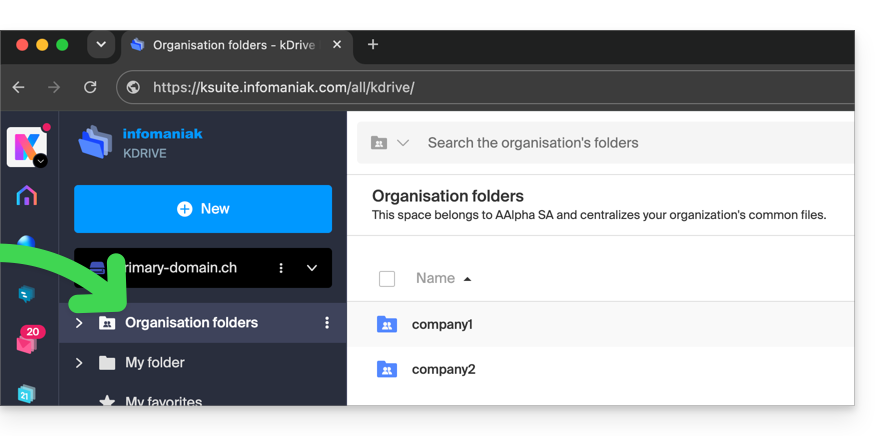
On the computer side, you will find the same folder, but named Common documents; do not attempt to rename it: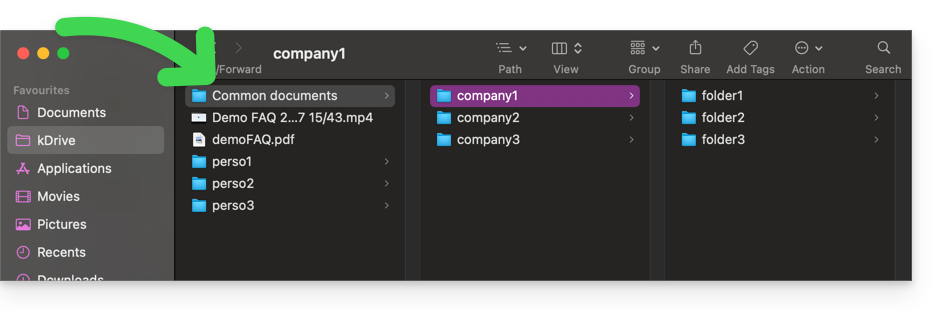
Personal folder
In the web version of kDrive, the logged-in user's personal folder is located in a separate area ("My folder"), which cannot be modified either: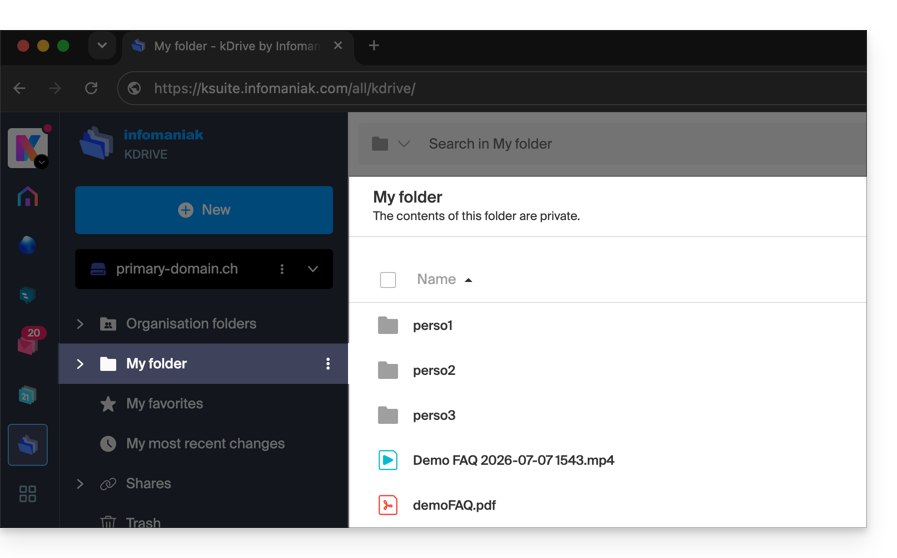
On the computer, everything outside of Common documents belongs to the personal folder ("My folder") of the logged-in user: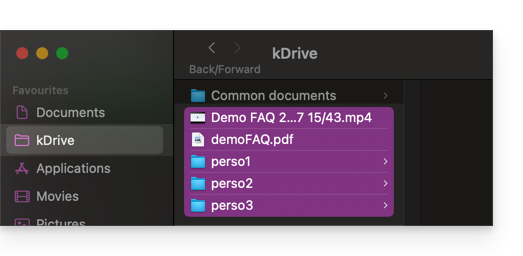
Link to this FAQ: https://faq.infomaniak.com/2456
Has this FAQ been helpful?
This guide explains how to connect to and manage multiple kDrive accounts on your computer (macOS / Windows). This feature allows you, for example, to access files from a personal kDrive and a professional kDrive.
Prerequisites
- Have a kDrive or kSuite plan.
- Have the kDrive desktop app (desktop application for macOS / Windows / Linux).
Accessing different kDrives from your computer
A user logged into the kDrive application on their computer can already access multiple kDrives if they are already working with multiple kDrives outside of the app, if they have been added to other kDrives, etc. They are all accessible as long as the user is logged in with the credentials corresponding to these kDrives.
Access and manage other kDrives…
To connect with a different account and therefore access other kDrives:
… from the kDrive desktop app (desktop application on macOS / Windows / Linux)
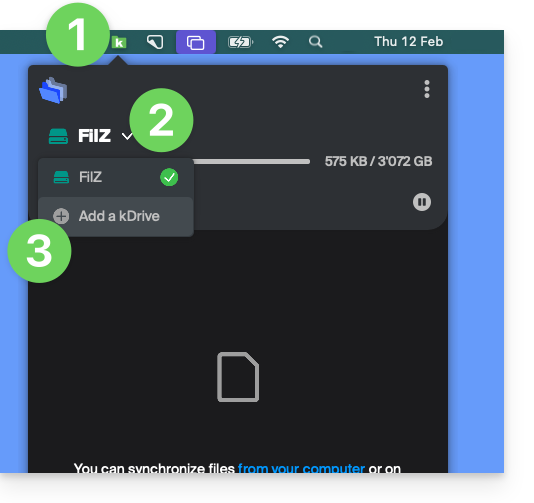
- Left-click on the desktop app icon in your computer's notification area (top right on macOS, bottom right on Windows, and double-left-click in the taskbar on Linux).
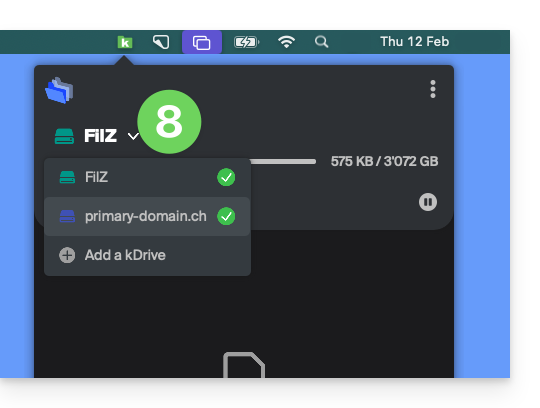
- Click on the chevron to the right of the kDrive name (the kDrives you already have access to with your user account will be displayed).
- Click on Add a kDrive:
- Click on the badge with your initials or your avatar in the top right corner.
- Click on Add an account:
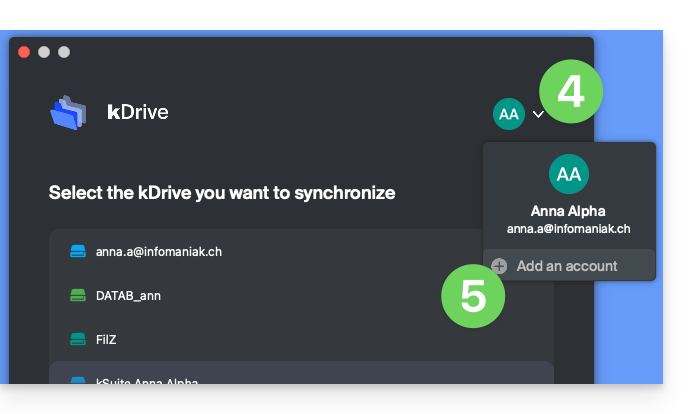
- Enter your Infomaniak account credentials – refer to this other guide if needed.
- Choose and configure the kDrive to add (Lite Sync, directory to be used on the computer, etc.):
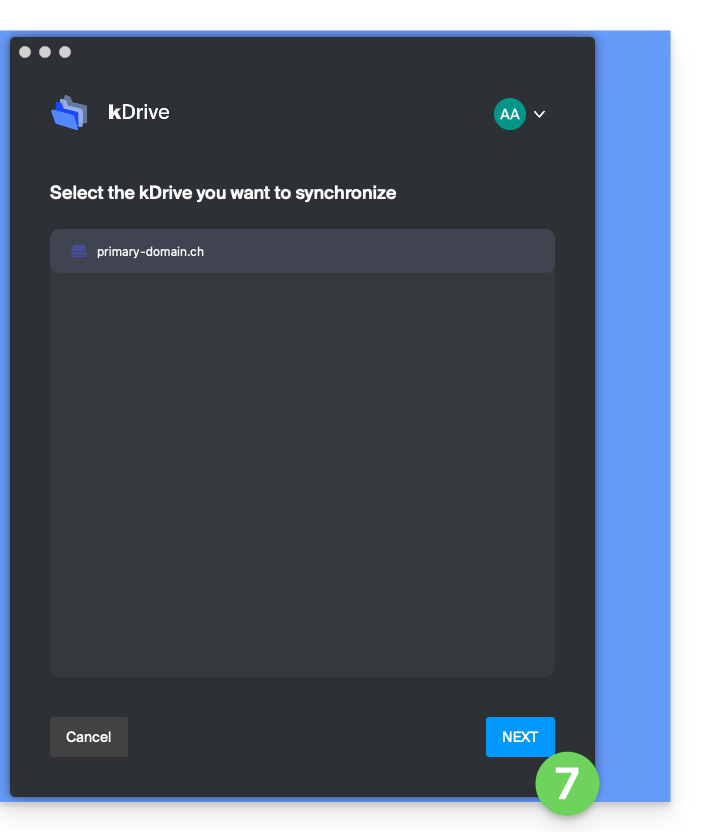
- You can now switch between kDrive accounts by clicking on the kDrive icon and then on the down arrow in the window that opens:
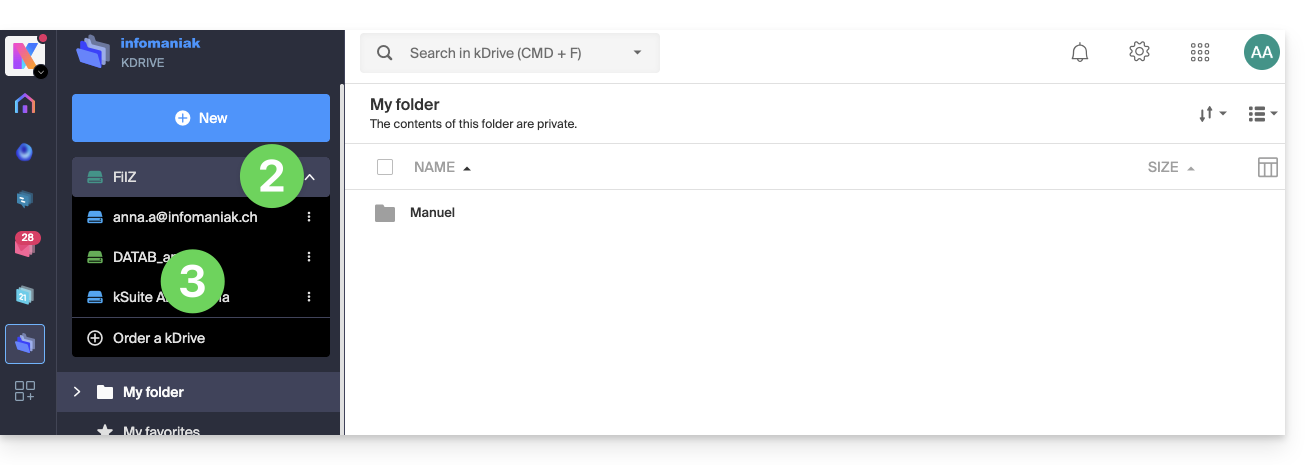
… from the kDrive web app (online service ksuite.infomaniak.com/kdrive)
- Click here to access the Infomaniak kDrive web app (online service ksuite.infomaniak.com/kdrive).
- Click on the chevron to expand the list at the top left of the kDrive interface.
- Click on the kDrive you want to use
Disconnect a kDrive from the desktop app
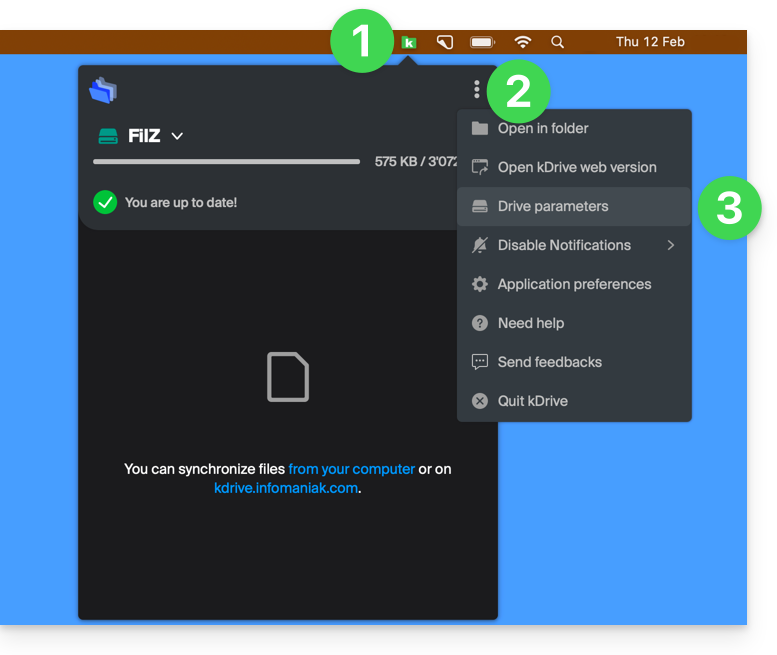
To access the kDrive application settings on your device:
- Left-click on the desktop app icon in your computer's notification area (top right on macOS, bottom right on Windows, and double-left-click in the taskbar on Linux).
- Click on the ⋮ icon on the right in the application.
- Click on kDrive Settings:
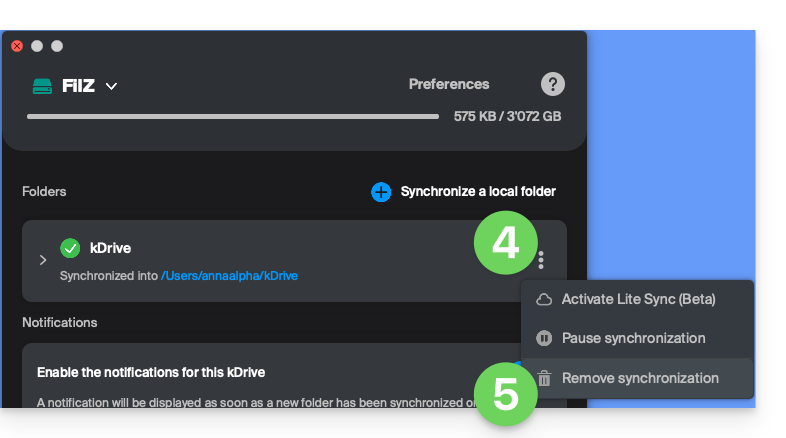
- Click on the ⋮ icon to the right of the synchronized kDrive, under Folders.
- Choose Stop synchronization (only on your device, without affecting kDrive):
Link to this FAQ: https://faq.infomaniak.com/2458
Has this FAQ been helpful?
This guide details the measures implemented by Infomaniak to secure all your kDrive data, whether it is personal (medical data, login credentials) or even sensitive (financial information, trade secrets, intellectual property, research and development, etc.).
Data Security and Privacy
The kDrive infrastructure consists of several services and servers based on different technologies. The content and structure of each customer's content are systematically encrypted and permanently backed up to at least 3 locations in several datacenters managed by Infomaniak. Data is stored and processed exclusively in datacenters located in Switzerland. The datacenters are of the TIER III+ type, guaranteeing high availability and N+1 redundancy for its critical components.
Storage is performed via Swift, a distributed and highly available cloud data storage technology.
kDrive integrates several levels of protection to protect files:
- To protect data in transit, the SSL/TLS encryption protocol is used.
- To protect stored data, AES 128-bit encryption (AES-128-CBC) is used with an individual and unique key per kDrive space.
Infomaniak regularly tests the applications and kDrive infrastructure to identify any potential security vulnerabilities, thereby strengthening security and ensuring protection against attacks.
But also…
- kDrive provides an access log for data, and a history of actions can be viewed directly from the Manager; you can access an activity report to monitor the history of actions performed by users across your entire kDrive; you can also track your data and the changes made to each document, spreadsheet, or presentation.
- Only people with a link to the public files can view them.
- Two-factor authentication provides an additional level of security when logging in; if you use two-factor authentication, you can choose, for example, authentication via the Infomaniak Authenticator app.
- Refer to this other guide if you are looking for information on data analysis.
Link to this FAQ: https://faq.infomaniak.com/2462
Has this FAQ been helpful?
This guide explains how to start recording an online meeting organized with kMeet, Infomaniak's ethical and free video conferencing solution, to obtain a video recording of the session stored on kDrive Infomaniak.
Introduction
- Video recording
- takes place on the server side
- does not generate any load on the participant's computer that initiated it
- is in
.mp4video format - has a maximum duration of 3 hours.
- The video will not be available until someone manually stops the recording.
Record a kMeet meeting as a video on kDrive
Prerequisites
- Own a kDrive (standalone or as part of a kSuite, my kSuite, etc. offer).
- Do not create an encrypted video conference using a custom key (❓: help).
To record the meeting on kDrive:
- Click here to access kMeet on your Infomaniak kSuite (or launch the mobile/desktop app — ❓: help).
- Start a meeting (❓: help).
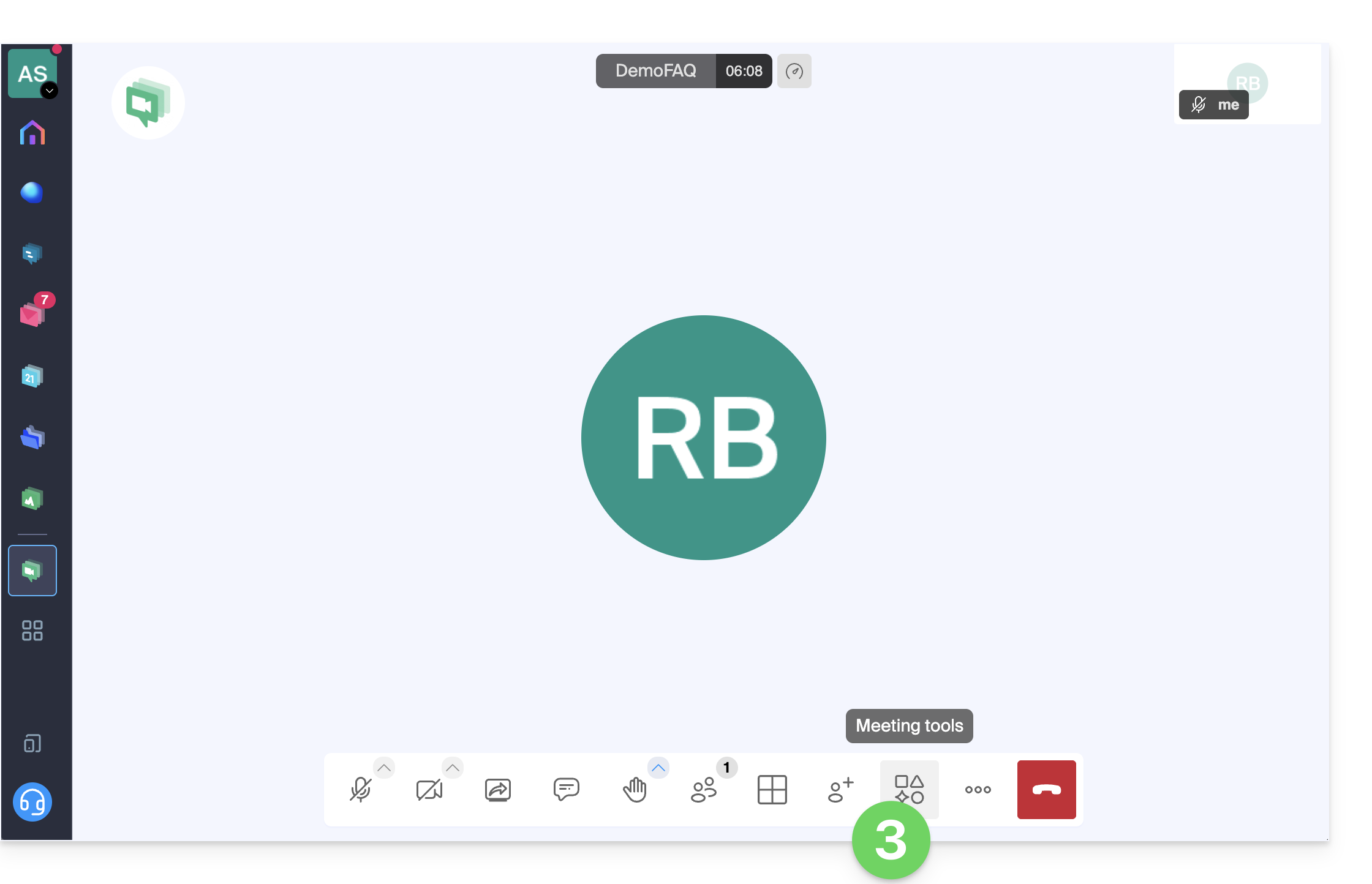
- Click on Meeting tools in the bottom toolbar:
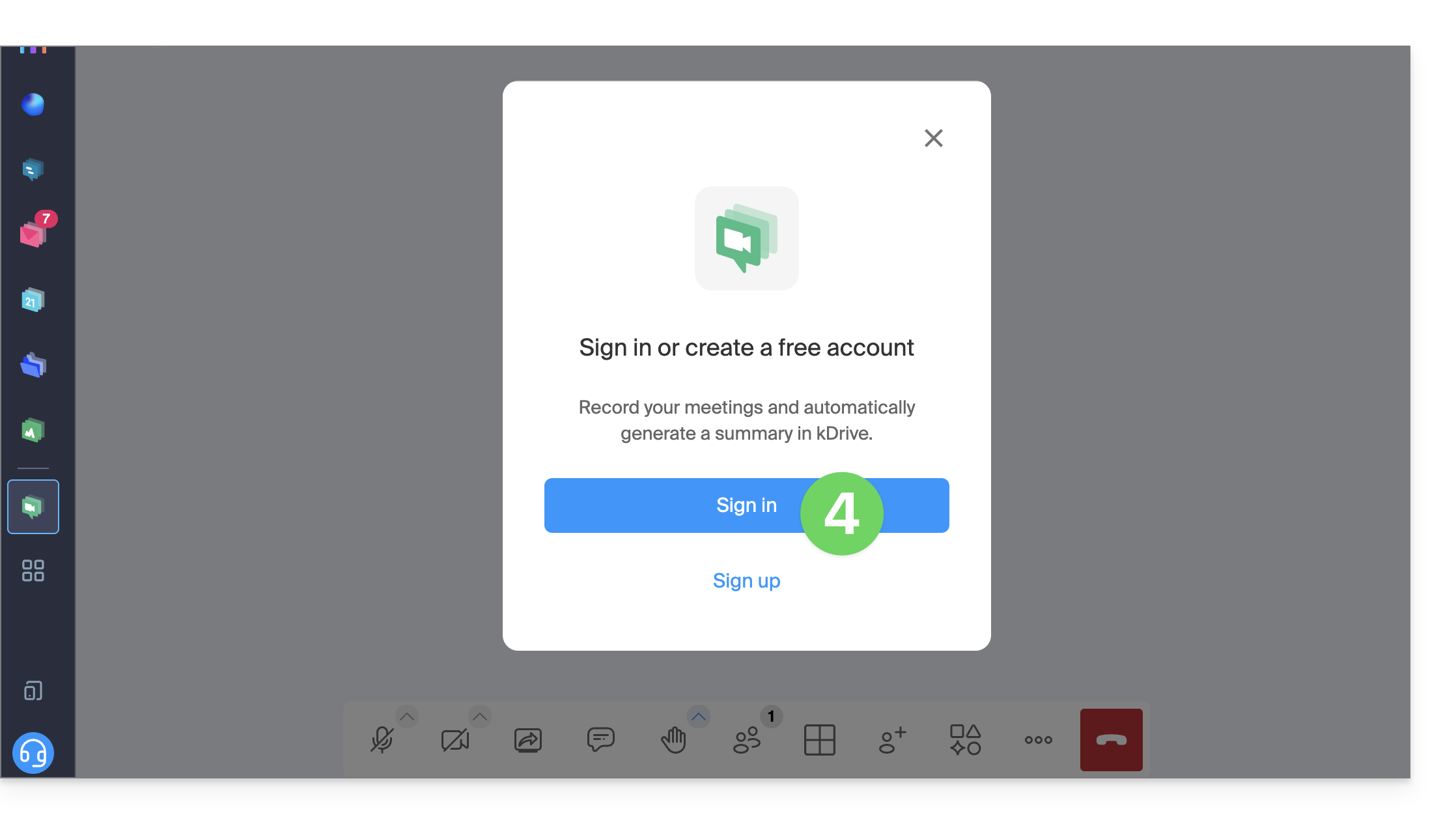
- If needed, click to log in:
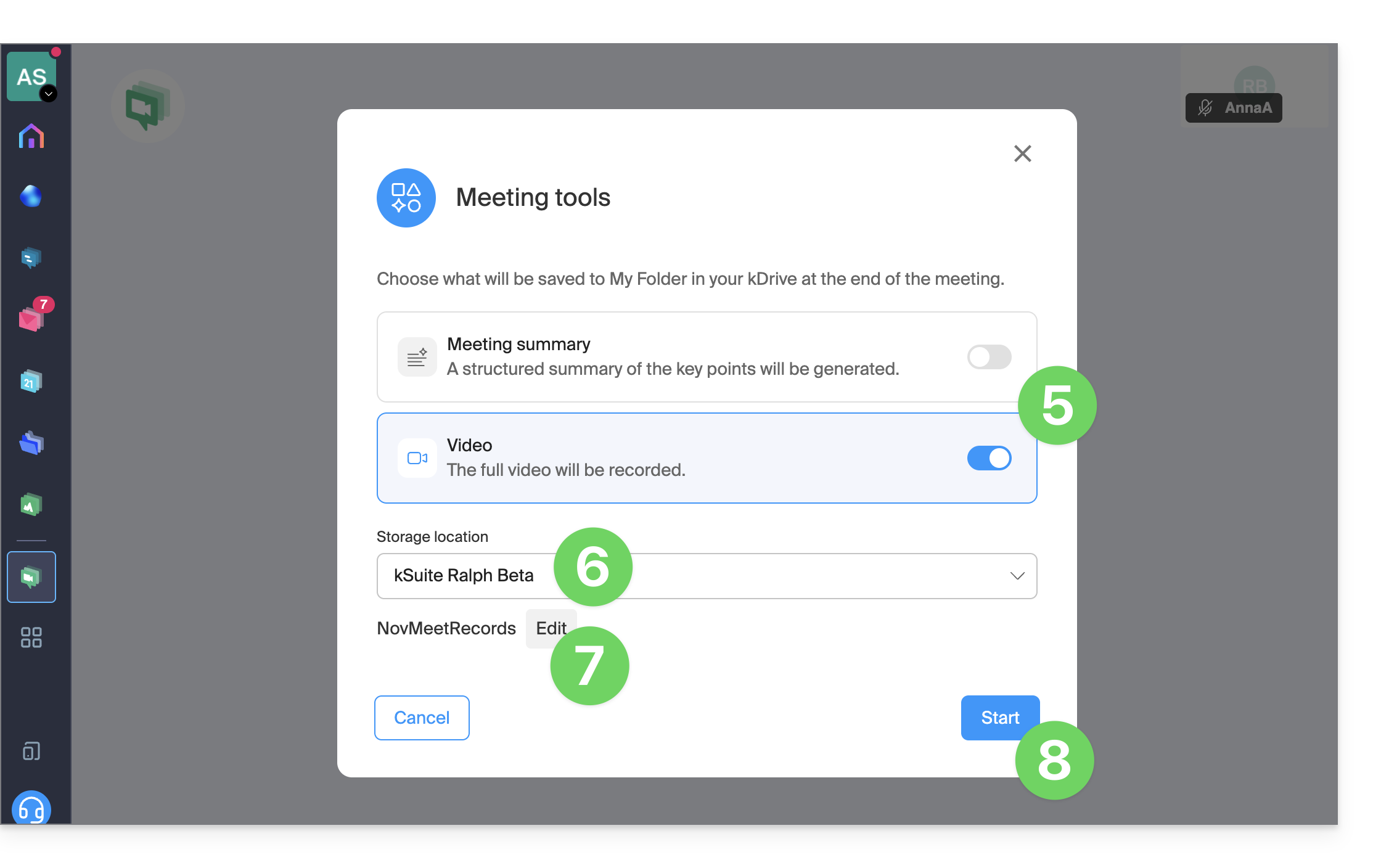
- Enable video recording (and/or the text summary feature — ❓: help).
- Select a kDrive to save the video conference to.
- Edit the location within the kDrive where future recordings will be saved.
- Then, click the button to start the recording – an audio message will inform participants that the recording has begun:
- If a participant joins the meeting later, they will also receive an audio message upon joining, warning them that a recording is in progress.
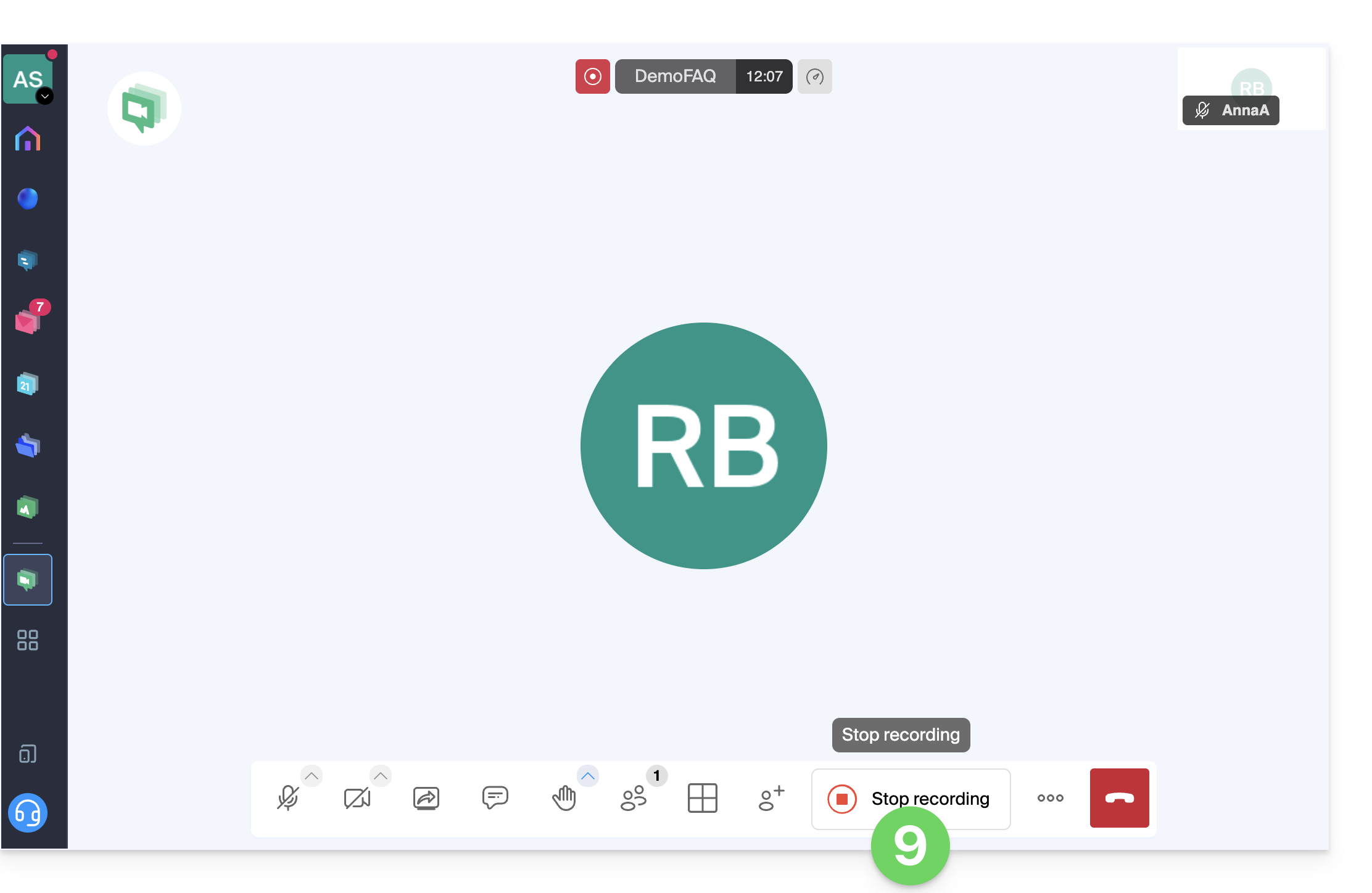
- To stop the video recording, click Stop recording:
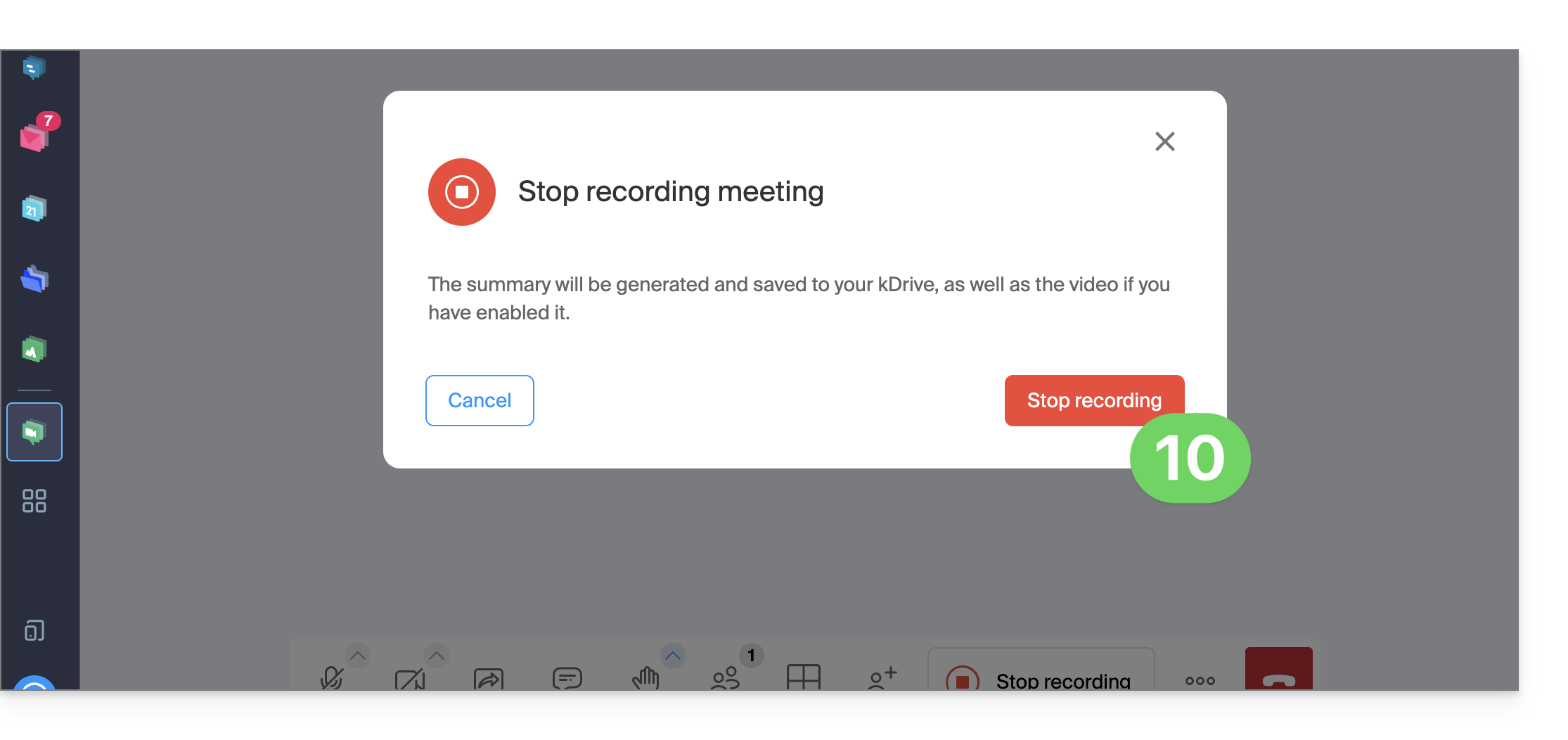
- Confirm:
- Choose whether you want to go to the location of the recording on kDrive:
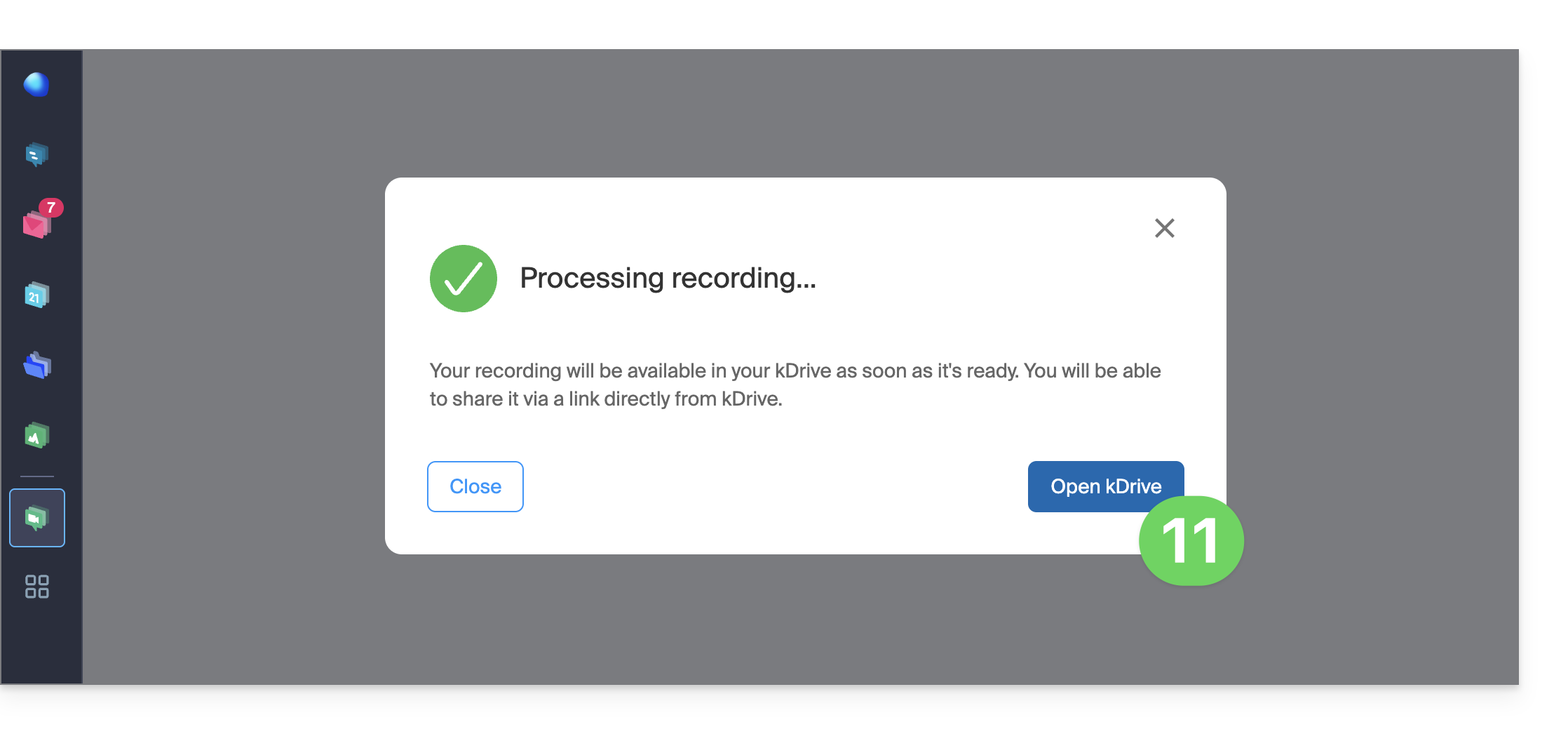
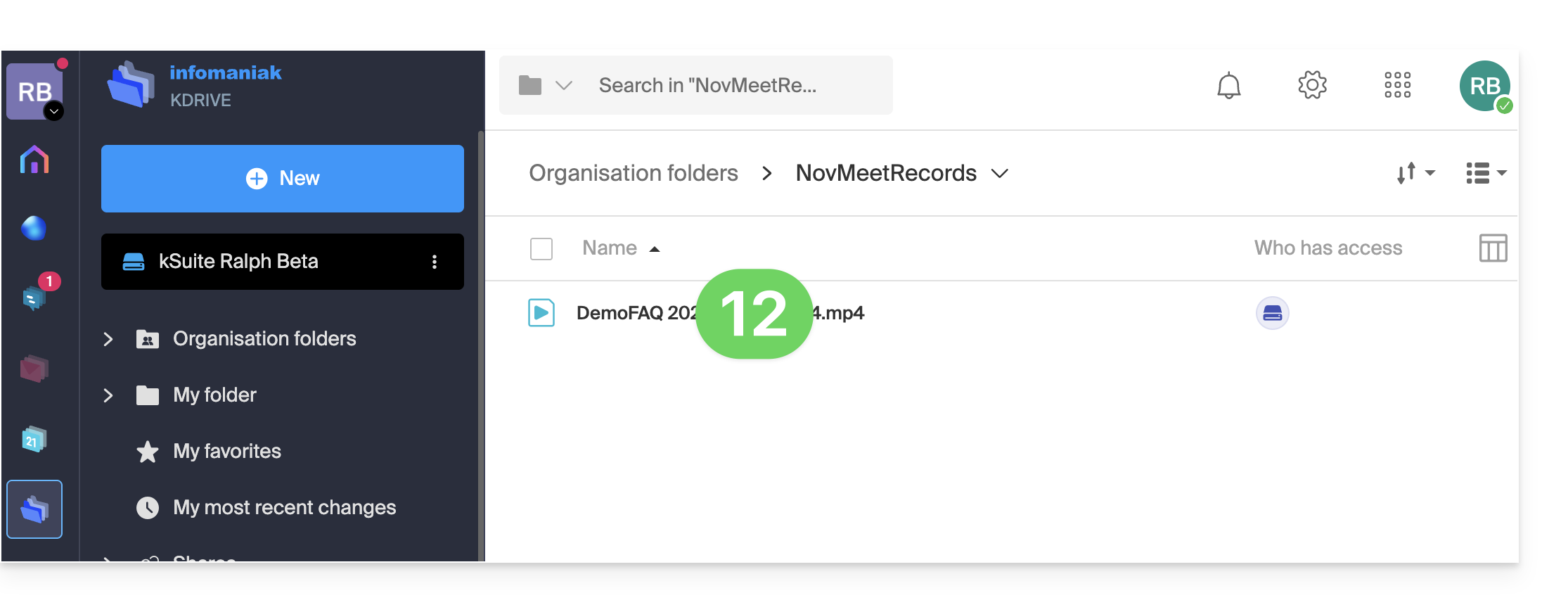
- The file is saved in the root directory of the selected kDrive:
Link to this FAQ: https://faq.infomaniak.com/2472
Has this FAQ been helpful?
This guide explains how to monitor the storage space used on your free my kSuite cloud plan (ik.me, etik.com, ikmail.com) and how to free up space.
Introduction
- The free my kSuite cloud offer includes a maximum storage of 15 GB.
Check your free storage space
To access your current my kSuite plan and view the storage space used:
- Click here to access kDrive on your Infomaniak my kSuite (❓: help).
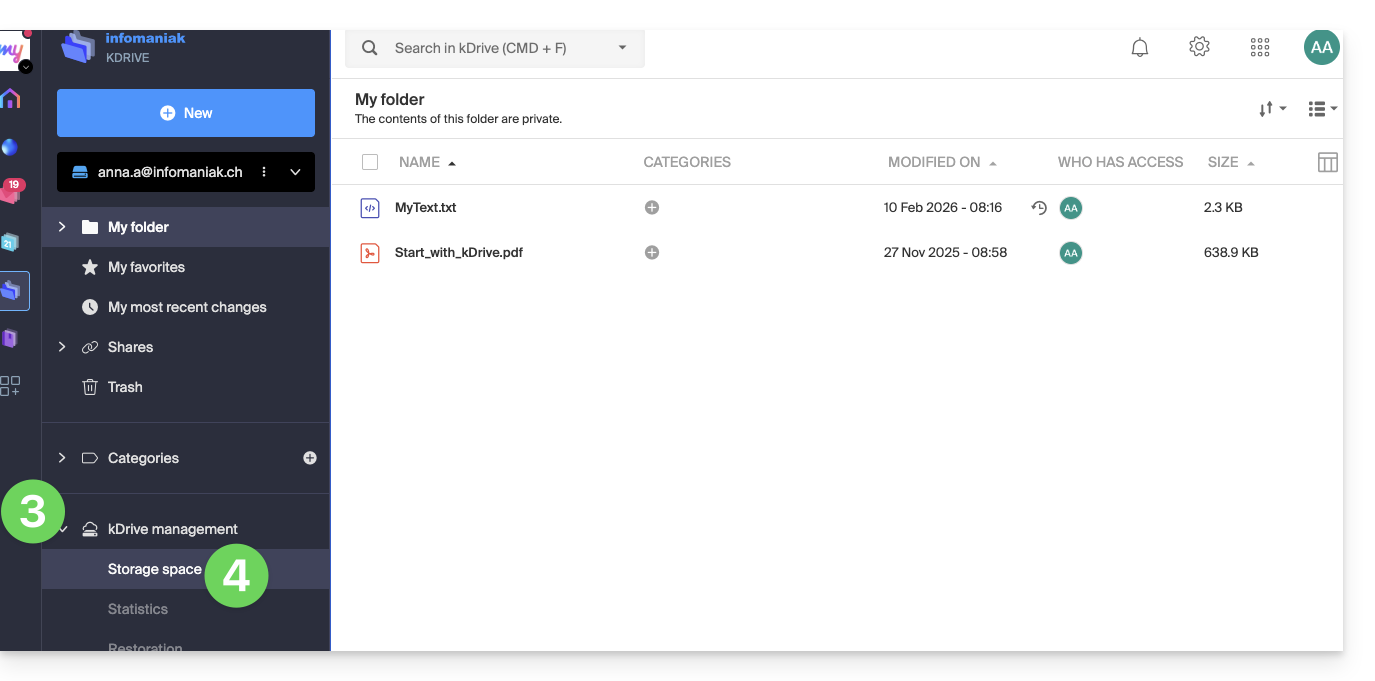
- The storage space used is displayed at the bottom of the left-hand menu.
- Click on the chevron to expand the kDrive Management section in the left-hand menu.
- Click on Storage space in the left-hand menu for a more detailed overview:
Free up storage space
To free up space on your free kDrive, simply deleting large files (videos, etc.) is not enough, as files still take up space once they are placed in the trash. They remain there for a certain period of time.
Empty the kDrive trash
You need to manually empty the trash to permanently delete the files it contains:
- Click here to access kDrive on your my kSuite Infomaniak account (❓: help).
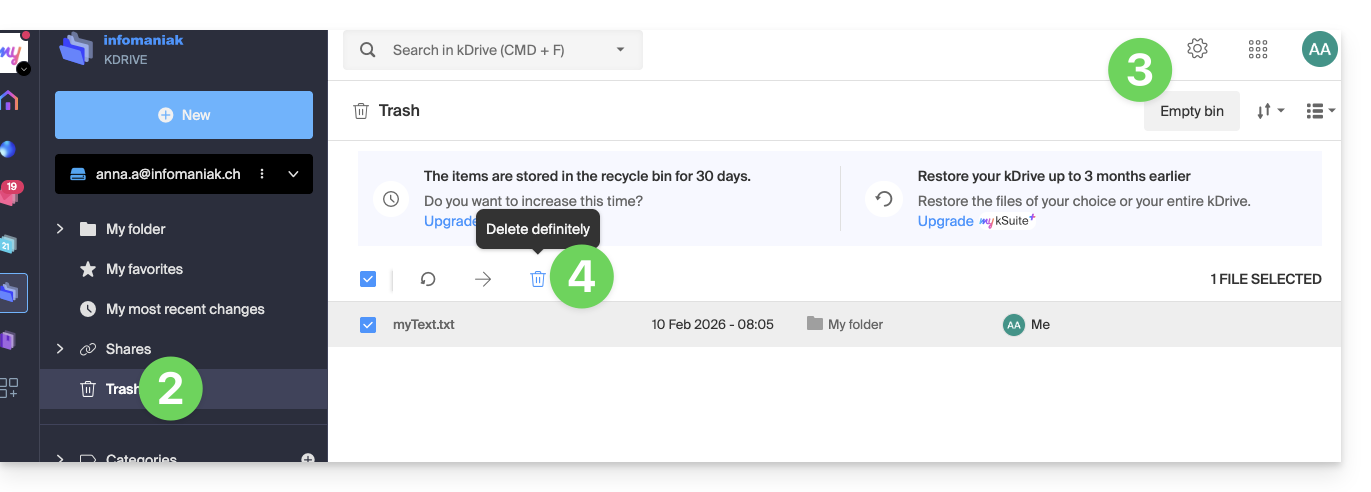
- Click on the Trash icon in the left-hand menu.
- Click on the Empty Trash button to delete all files in the Trash…
- … or select files individually and then click on the trash can icon above the table:
It is also worth noting that whenever a change is made to one of your files, kDrive (my kSuite) saves up to 30 versions for 30 days. This allows you to navigate between multiple versions of a file and restore an older version if needed.
You can delete all versions of the document by clicking the Delete all versions button, or delete versions individually by clicking the ⋮ icon and then clicking Delete. However, this does not free up much space because this versioning is not counted in your kDrive storage space: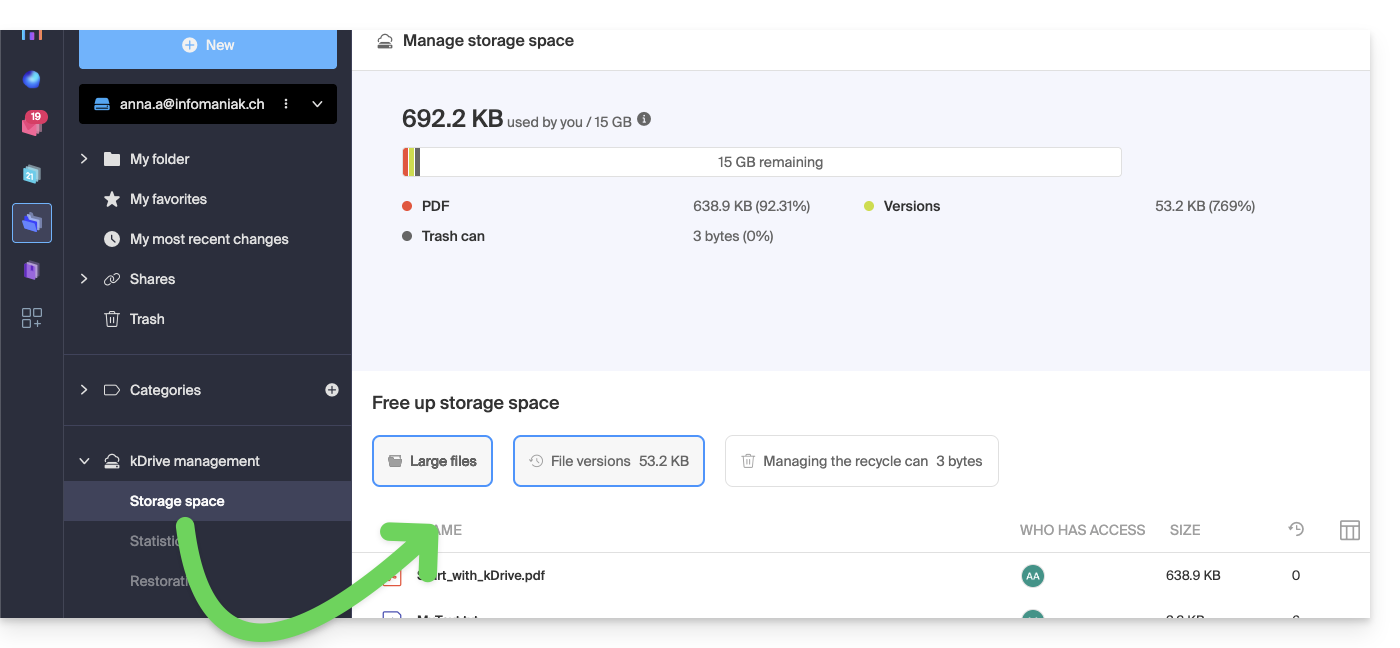
Link to this FAQ: https://faq.infomaniak.com/2487
Has this FAQ been helpful?
This guide explains how to retrieve and transmit debugging information (logs, reports, and error logs) from the desktop app kDrive (desktop application on macOS / Windows / Linux) in case of an issue between the app and your device.
Introduction
- If the kDrive app synchronization with your device is blocked, which may have various causes (file type, name length, etc.), enabling the logs allows you to record the application's activity from that point on, in order to facilitate the analysis of the problem by Infomaniak Support.
Record and share the logs with Support
Desktop app v4.x
When requested by Infomaniak Support:
- Launch kDrive on your device: the app icon should be visible in the top right corner on macOS/Linux, and in the bottom right corner on Windows (❓: help).
- Right-click on the icon and choose Settings:
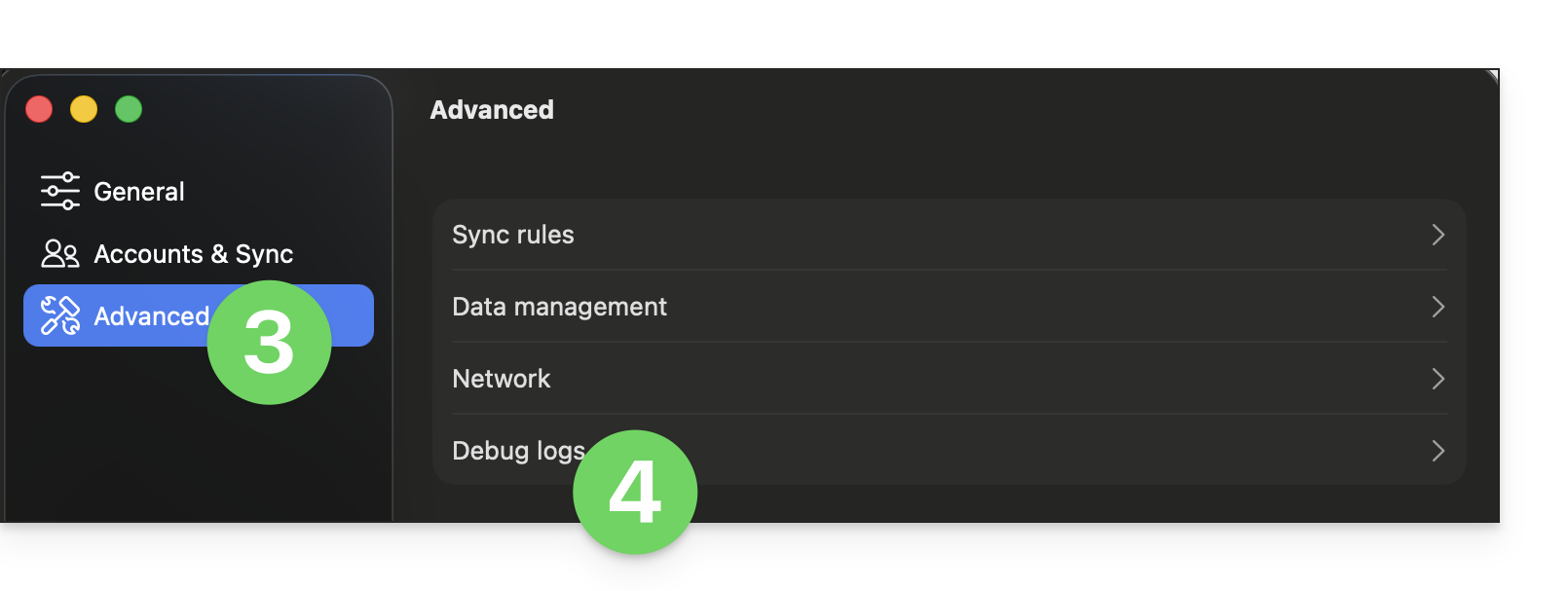
- Go to Advanced.
- Click on Debug information:
- Activate the various toggle switches as shown in the image below:
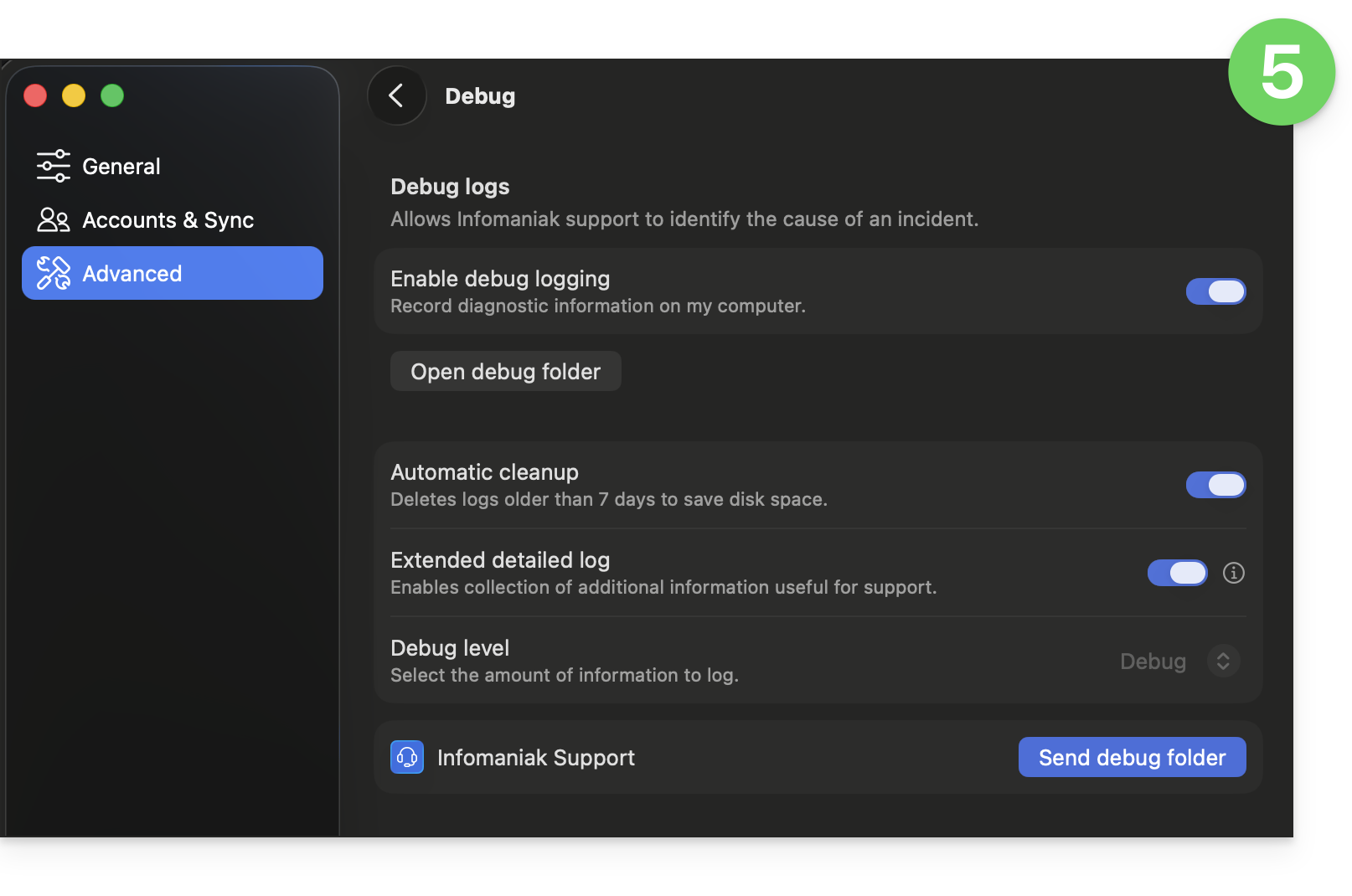
- Let the application run for at least 10 minutes.
- Return to the same location 10 minutes later, then click the blue button to share your debugging information with Infomaniak Support, and inform them of this action within the current exchange.
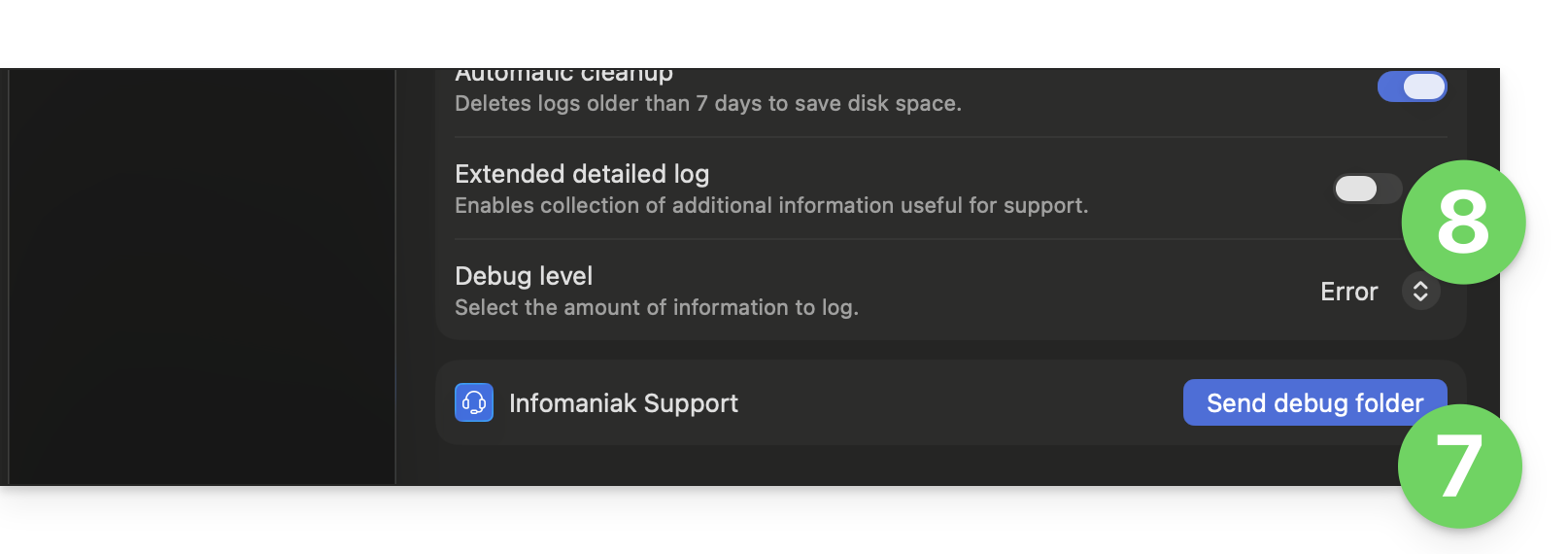
- Disable extended logs and the Debug level:
Desktop app v3.x
When requested by Infomaniak Support:
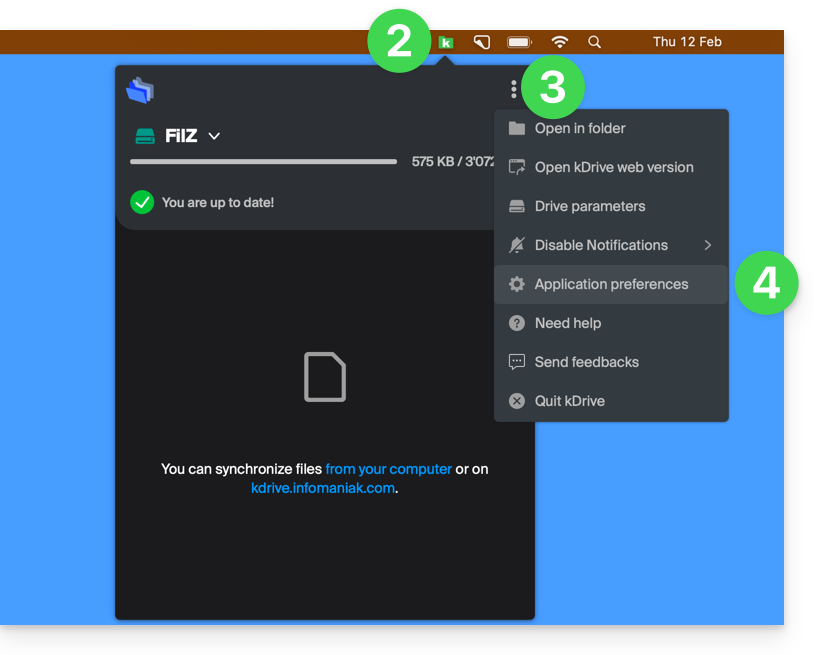
- Open the kDrive application on your computer.The app icon should be visible in the notification area..
- Left-click on the app icon in the notification area of your computer (top right on macOS, bottom right on Windows, and double left-click in the taskbar on Linux).
- Click on the action menu ⋮ to the right of the application window.
- Select App Preferences:
- Scroll down to the Advanced section and click the arrow to the right of Debugging information:
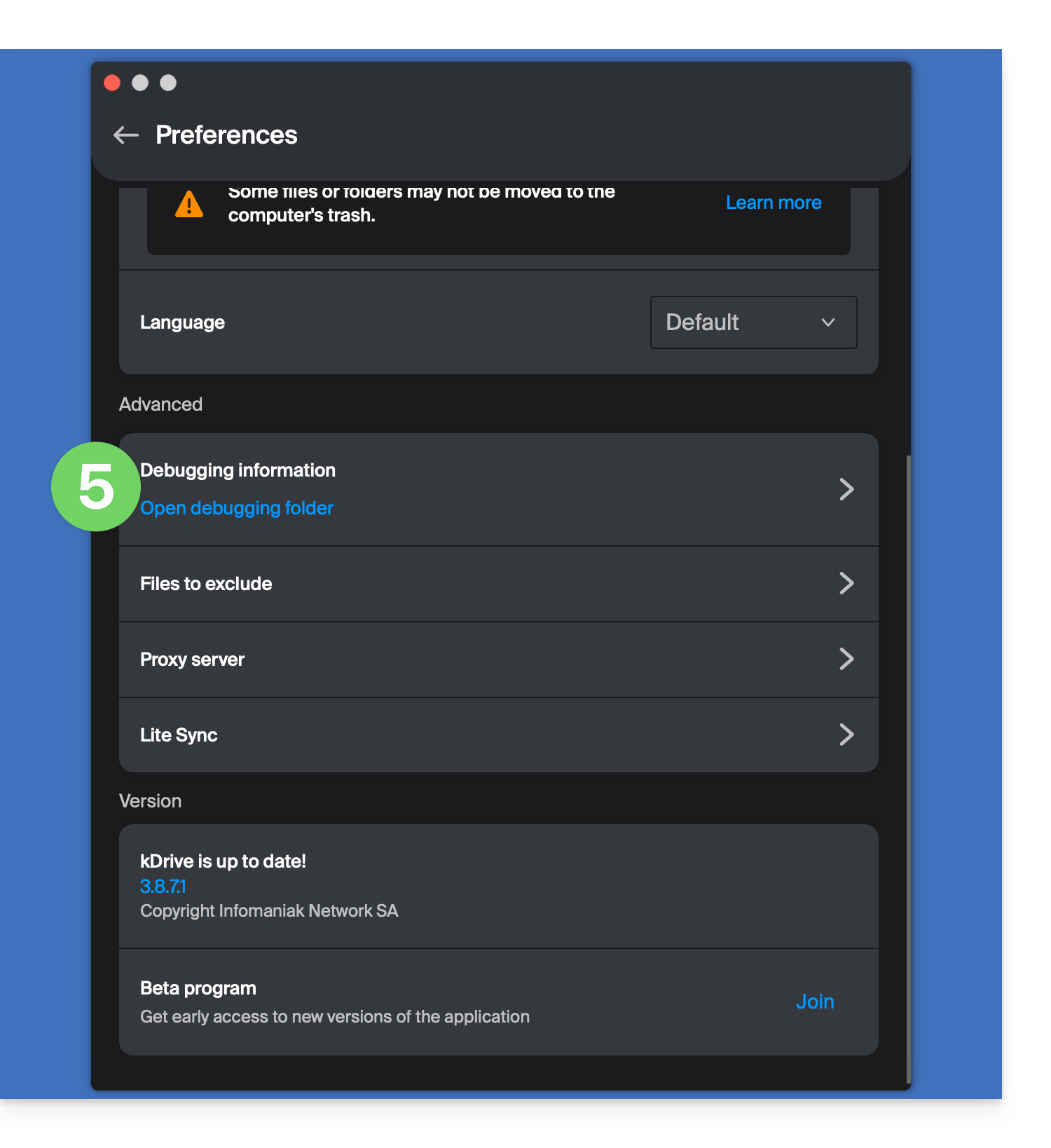
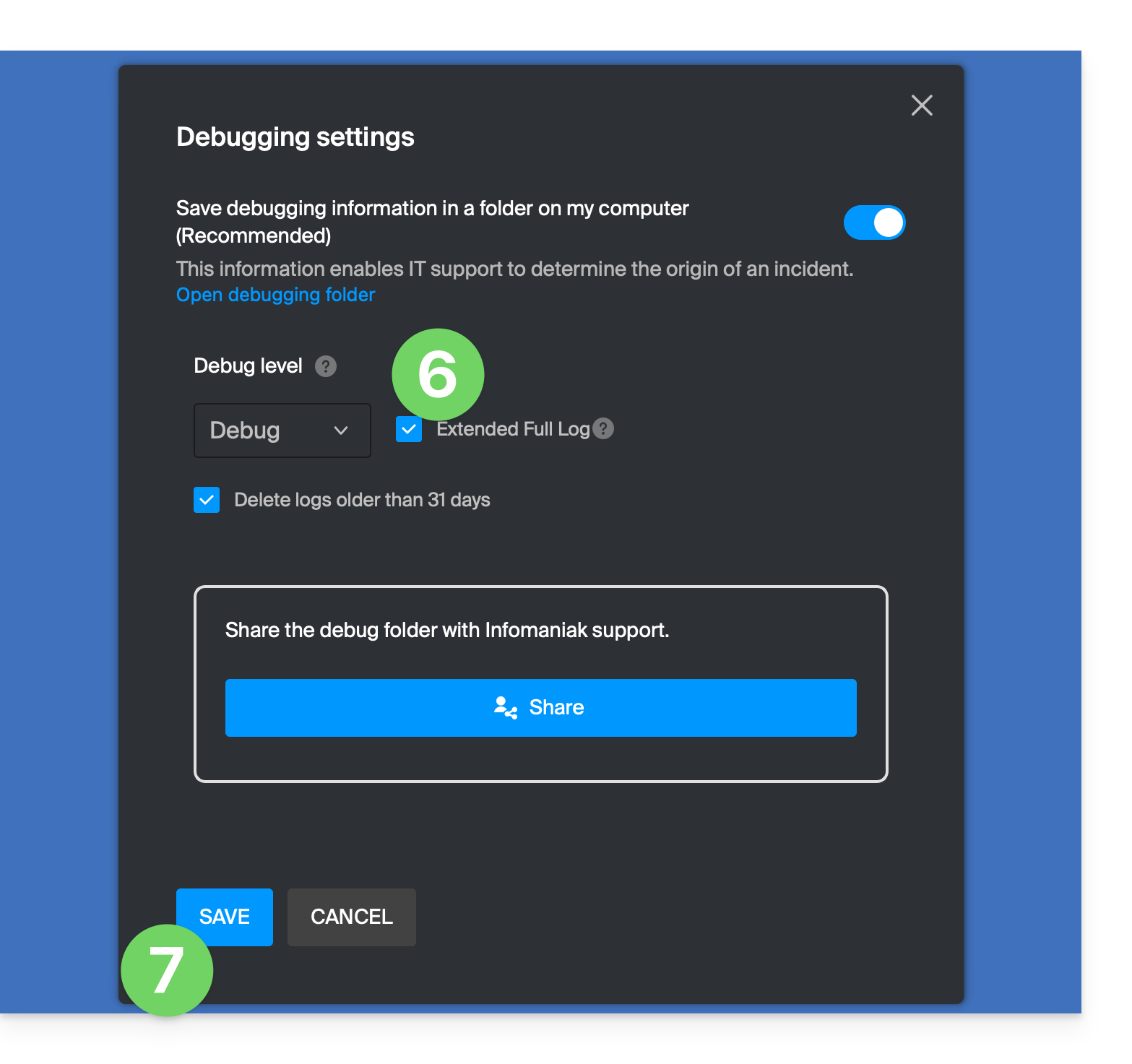
- Check the box for extended logs as shown in the image below.
- Click the SAVE button andlet the application run for at least 10 minutes:
- Return to the same location 10 minutes later (steps 1-6 above) and then click the blue button to share your debugging information with Infomaniak Support:
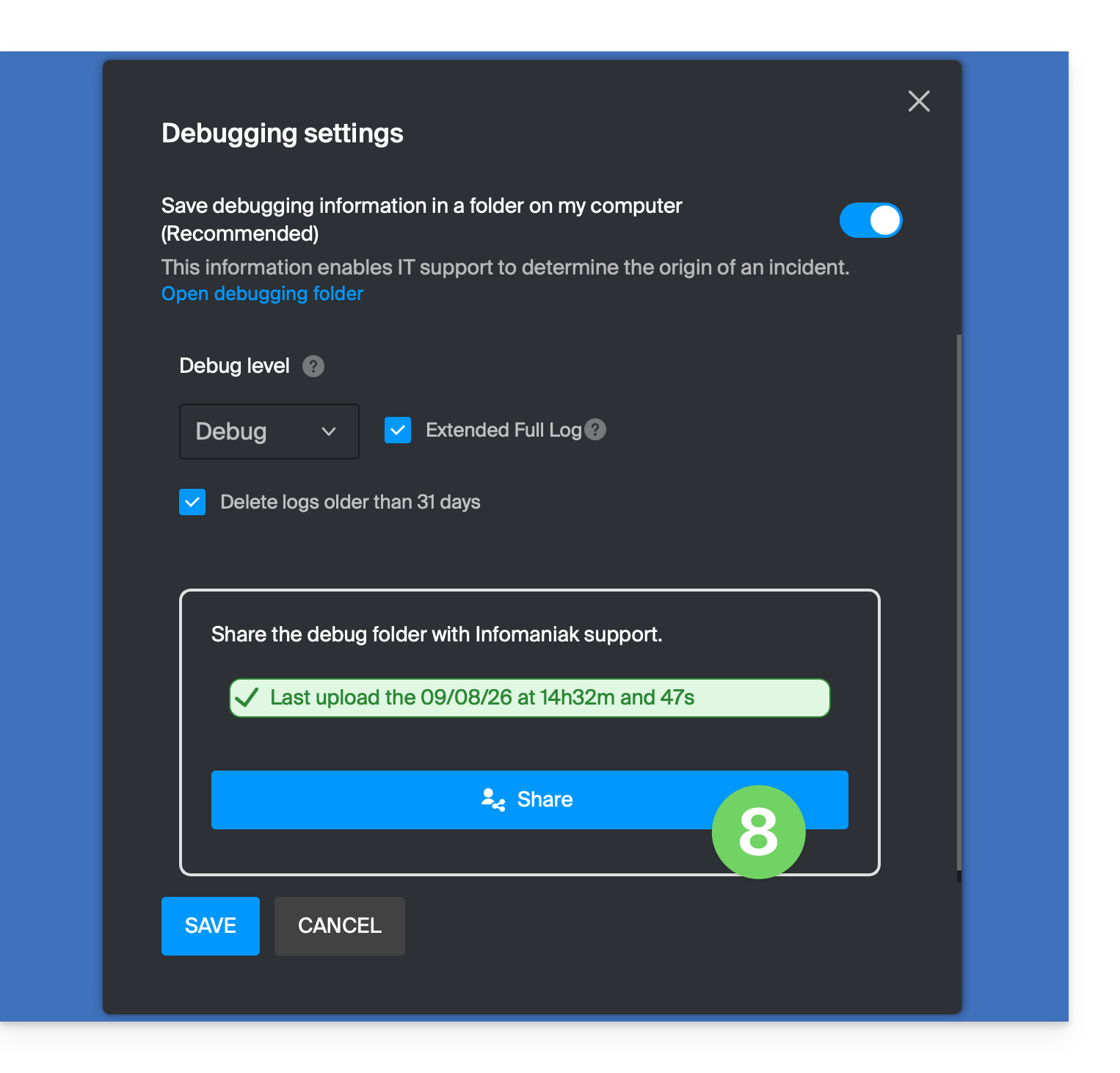
- Inform Infomaniak Support about this action within the current exchange.
Alternative methods
If you encounter any issues with the method above:
- Click on the blue link on the left to Open the debugging folder.
- From this folder, you will have access to all bug reports for the kDrive application on your device:
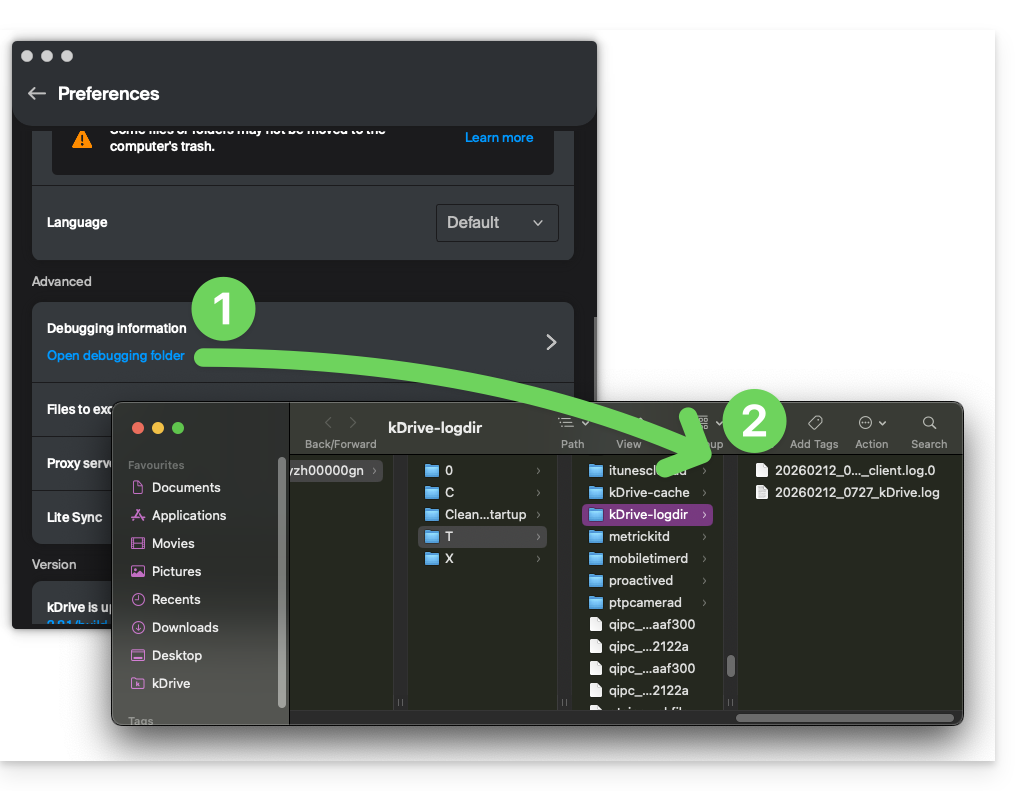
The same applies to v4.x: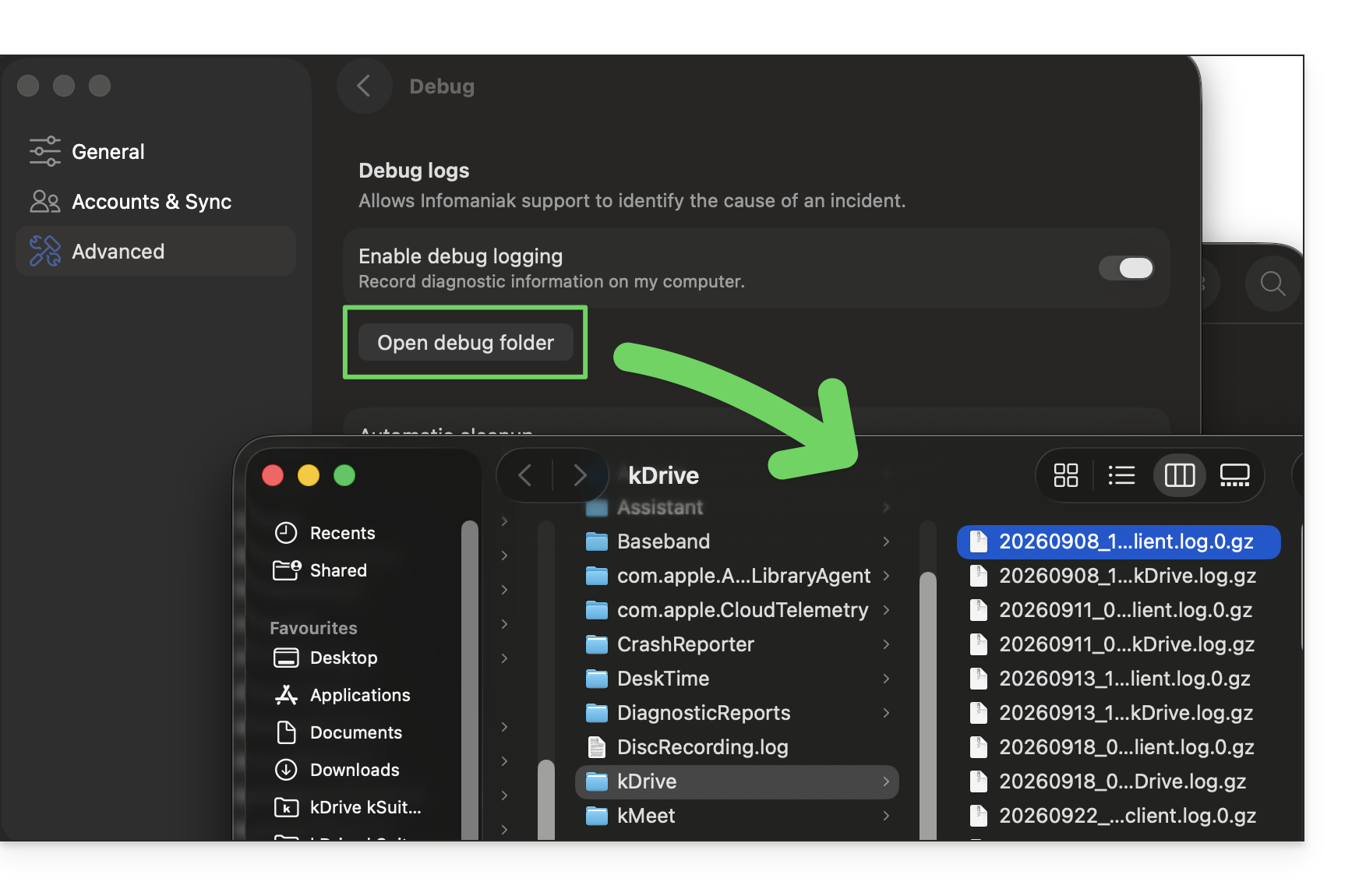
If the application does not open, you can also access the logs using these paths:
- macOS:
/Users//Library/Logs/kDrive - Windows (copy and paste into the file explorer):
C:\Users\%USERNAME%\AppData\Local\Temp\kDrive-logdir(if necessary, enable hidden files and folders in Windows Explorer) - Linux:
/home//.local/state/kDrive/logs
To manually send the collected files:
- If the files are not large, send them directly to Infomaniak Support within the current exchange.
- If the files are large, compress them in .zip format and send them to Infomaniak Support within the current exchange.
- If they are still too large to send by email, upload the .zip archive to swisstransfer.com to obtain a sharing link, which you will need to communicate to Infomaniak Support within the current exchange:
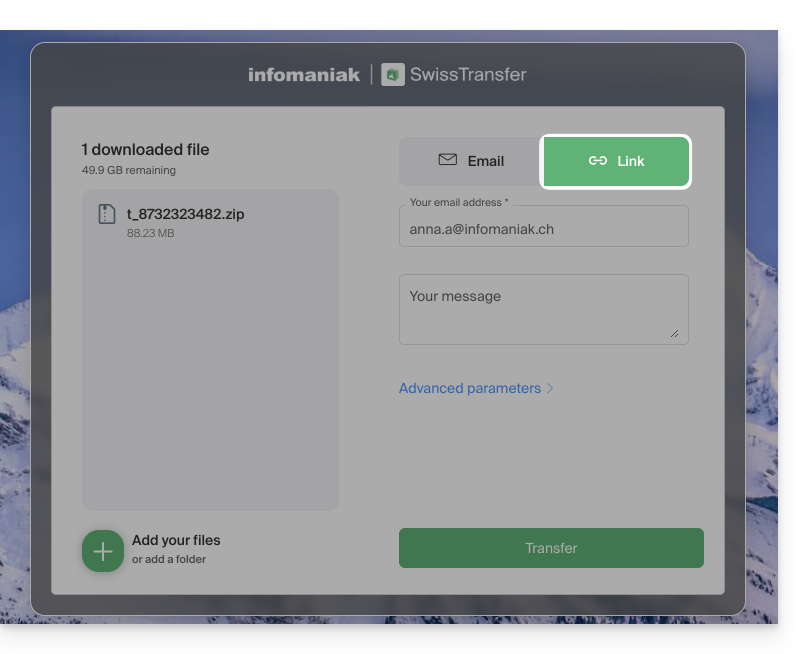
Link to this FAQ: https://faq.infomaniak.com/2488
Has this FAQ been helpful?
This guide is for you if you are looking for a comprehensive email and collaborative data storage solutionIts purpose is to help you better understand the various Infomaniak product suites when you are unsure or don't know which one to choose.
If you are looking to host a website, please refer to this other guide. If you are unsure which Mail-only offer to choose, please refer to this other guide.
A summary of the different plans
Here is a summary of the different plans (excluding web hosting plans):
| Free (or domain name to be paid for) | Paid |
|---|---|
my kSuite
| my kSuite+
|
Mail Starter service
| Mail Premium service
|
kSuite Pro: Free
| kSuite Pro: Standard / kSuite Business / kSuite Enterprise
|
Free or paid suites
Infomaniak offers several email solutions with or without additional collaboration tools:
- A Mail Service is the name given to the email service created by Infomaniak in Switzerland. You can order a Mail Service independently of kSuite.
- kSuite Pro is a collection of Infomaniak services that includes a Mail Service and is based around a personal domain name.
- my kSuite and my kSuite+ are limited versions of kSuite that do not require a domain name and can also fully meet your email needs. In the Infomaniak Manager, these offers will be “separated” from the rest.
Cost of simple email plans
This email service can be…
- … free if you are happy with an address using a generic domain name (the part after the
@symbol), provided by Infomaniak (ik.me,etik.com,ikmail.com) by choosing my kSuite (my kSuite+ unlocks certain limitations of my kSuite) - … at a very low cost if you are happy with just one or two email addresses on a domain name that you pay for (there are domain names for less than CHF/€ 5 per year, which will be your only expense, and this allows you to customize your email addresses) by ordering:
- either the Starter plan (1 email address)
- or the kSuite Pro plan
Need a large number of email addresses?
If you need multiple email addresses on the same domain, you can order a Mail service only (minimum of 5 email addresses) or kSuite Pro, which is available in 4 different versions:
- Free
- Standard
- Business
- Enterprise
All Mail offers have one thing in common: you must have a user account with Infomaniak (a login ID in the form of an email address, as well as a password) which will take you to your Organisation where your email will be located. Also, please refer to this other guide.
Additional tools (kDrive…)
If you choose a Suite (kSuite or my kSuite / my kSuite+), this user account will take you to your Organization, where you will find the suite of tools, including your email, kDrive, kChat, etc.
Click on the links to access the comparison charts detailing all the features available depending on the plan:
- kDrive can be obtained by creating a my kSuite or my kSuite+ account.
- kDrive can be obtained independently in 3 different versions:
- Solo
- Team
- Pro
- kDrive can be obtained by subscribing (for free or with a paid subscription) to kSuite Pro, which is available in 4 different versions:
- Free
- Standard
- Business
- Enterprise
There is no limit to the number of kDrive (paid) accounts you can add to your Infomaniak account. Order a new kDrive if needed (❓: help).
Would you like to join Infomaniak?
Please refer to this other guide.
Link to this FAQ: https://faq.infomaniak.com/2497
Has this FAQ been helpful?
This guide details the different permissions and access rights to files/folders in Infomaniak's kDrive, including restoring the inheritance of rights to the content of folders and subfolders.
Introduction
- Refer to this other guide if you are looking for general information about sharing data on kDrive.
- Refer to this other guide for more specific information about sharing the shared folder.
- Refer to this other guide for information about the more general permissions for users within the Organization if they are part of it.
Types of access rights
A share (of a document, directory, etc.) on kDrive can be restricted: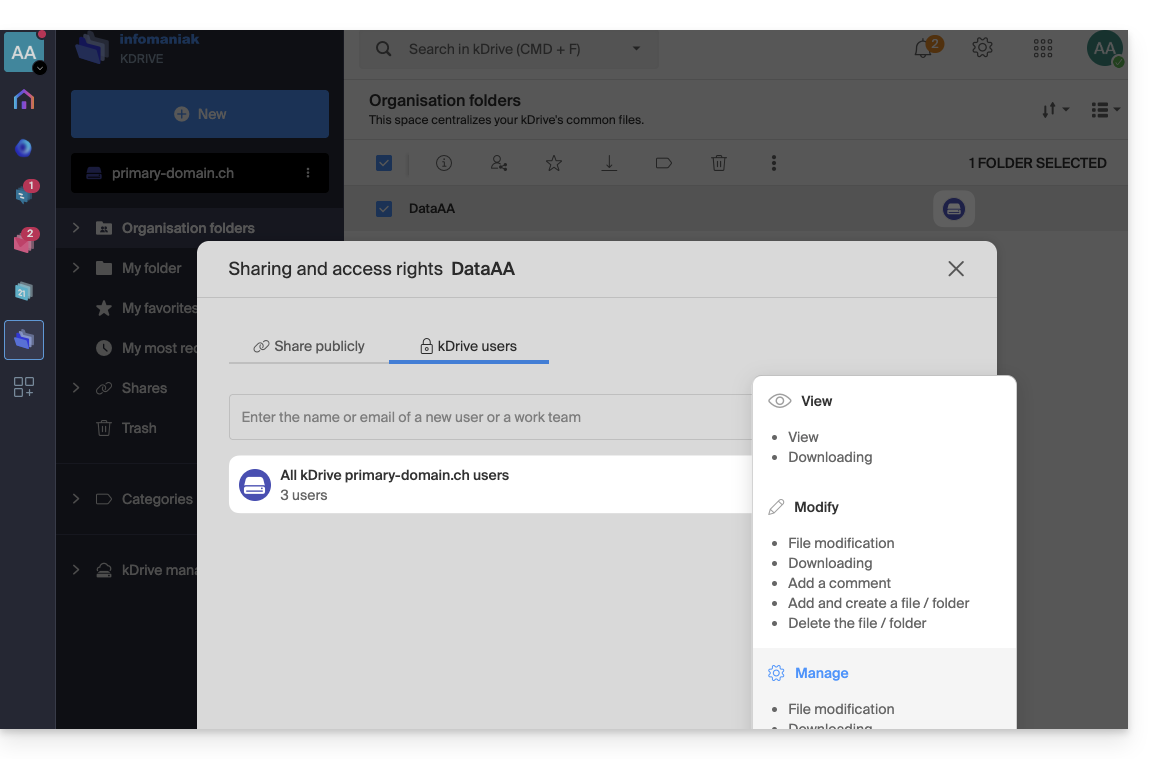
Choose whether the user…
- … can view:
- View only
- Download
- Add comment (if file is not an Office type)
- … can modify:
- Modify the file
- Download
- Add comment
- Add and create file/folder
- Delete file/folder
- … can manage (only if the sharing takes place within the shared folder and not in a folder within the personal file structure):
- File modification
- Download
- Adding a comment
- Adding and creating files/folders
- File deletion
- Sharing with other users
- Managing user permissions
The permissions granted, as well as information about the recipients of the shares, can be viewed in kDrive in the column “Who has access”: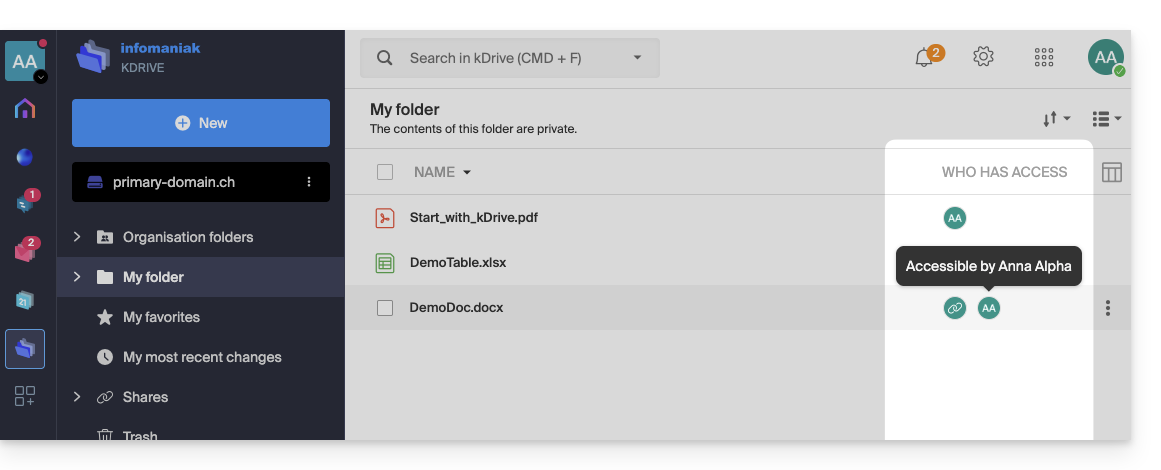
Any public link enabled for a file is indicated by a chain icon in this column: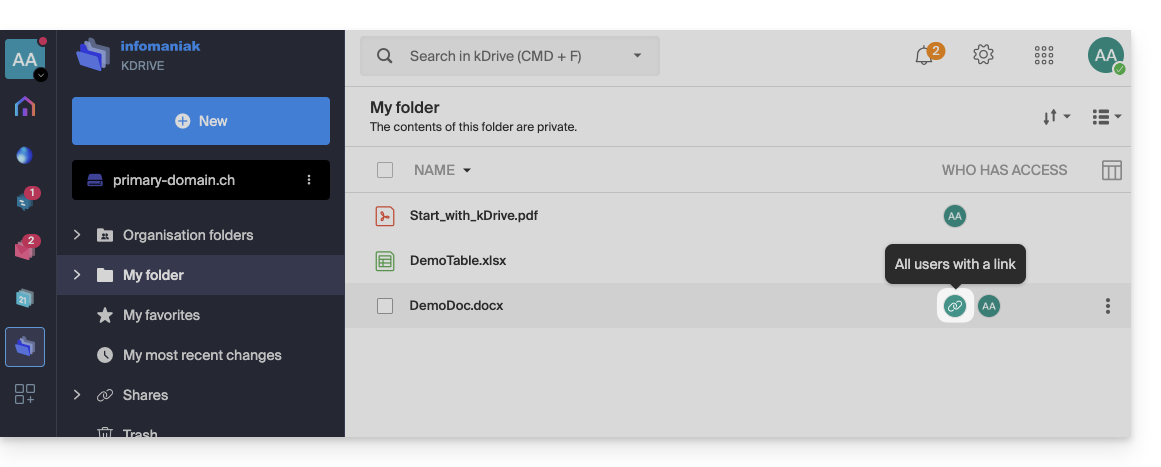
Assigning Permissions and Inheritance (Organization Folders)
The fact that a folder is located in "Organization Folders" does not necessarily mean that all kDrive users have access to it.
Sharing can be restricted to sub-levels: only a portion of the file structure may be shared with certain collaborators, while other folders remain private or limited.
Understanding Inheritance Break
By default, a "child" folder inherits the permissions of the "parent" folder. However, if you manually change the access to a sub-folder (e.g., by removing a user), the inheritance is broken.
From that point on, any subsequent changes made to the parent folder will no longer be reflected in that specific sub-folder.
Concrete example with your folders:
- Several users have access to the parent folder DataAA. By inheritance, they can all see the sub-folder 4All.
- If you manually remove a user from sharing on the child folder 4All, inheritance will stop for this folder.
- Later, you add a new collaborator to the parent folder DataAA.
- Problem: this new user will see the content of DataAA, but will not see the 4All folder (because inheritance was broken in step 2).
How to restore permission inheritance?
kDrive detects these permission discrepancies. When you open the sharing settings for the child folder (4All), a blue information banner appears: 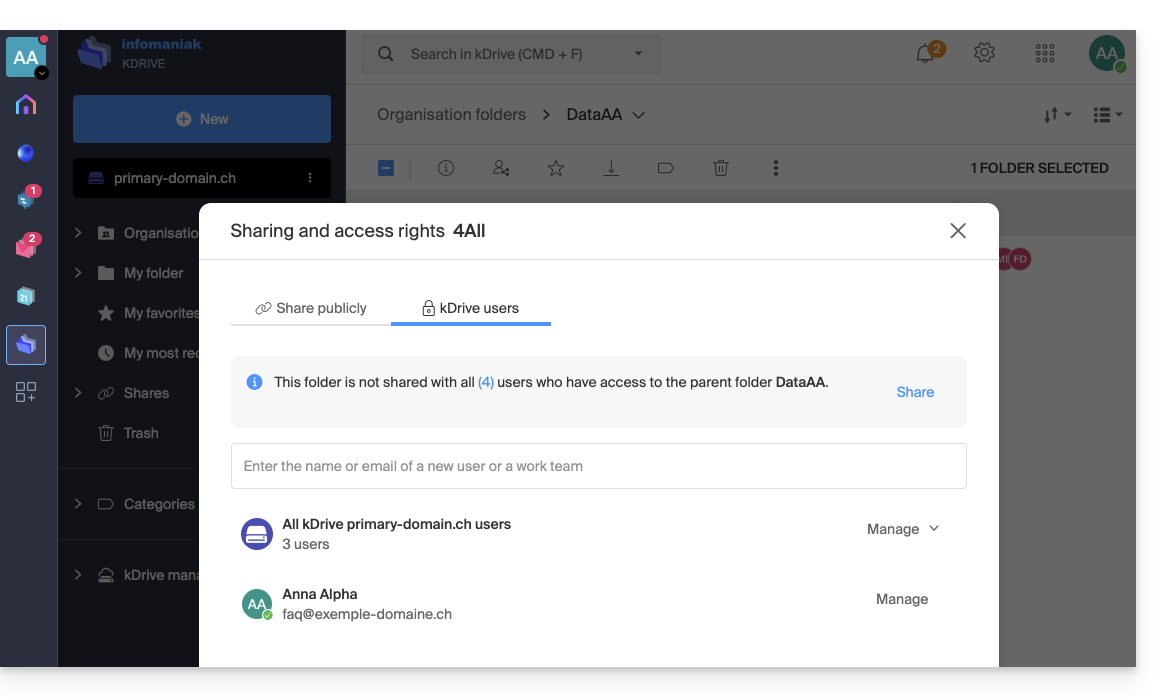
To resolve the problem:
- Click on the Share link in this blue banner.
- A confirmation window appears to inform you that "all future changes to user access for the parent folder DataAA will automatically apply to the 4All folder".
- Click on the blue Share button to validate:
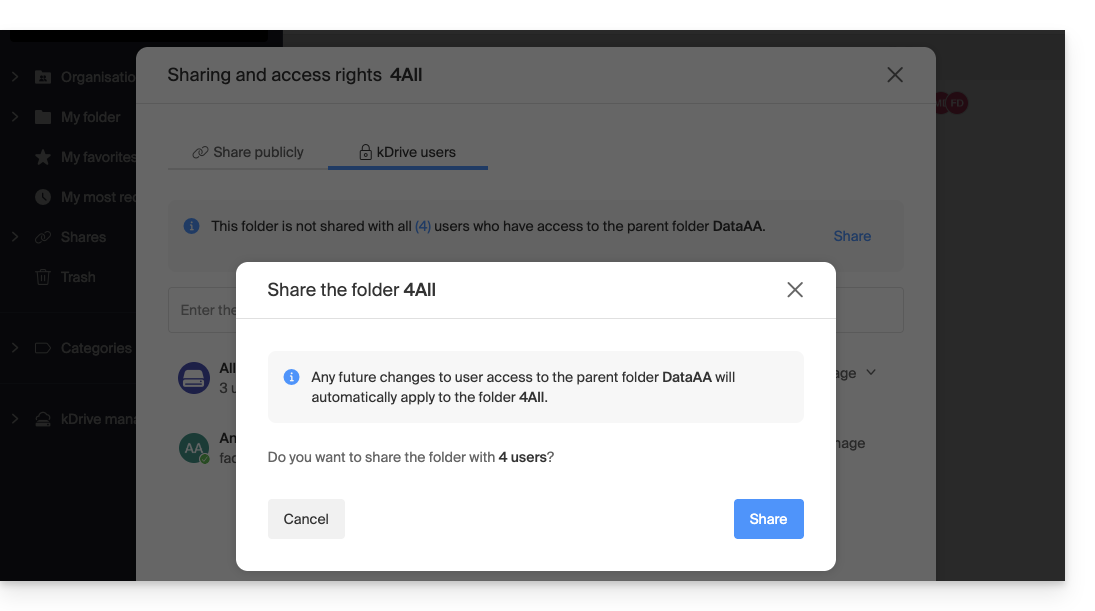
Inheritance is now restored: all current and future users of the parent folder will automatically regain access to the subfolder.
Link to this FAQ: https://faq.infomaniak.com/2501
Has this FAQ been helpful?
This guide provides instructions for synchronizing kDrive with macOS using the WebDAV connection protocol.
✘ UNAVAILABLE with
kSuite Free / kSuite Standard
my kSuite / my kSuite+ (ik.me, etik.com, ikmail.com)
⚠ WARNING ⚠
Use the WebDAV protocol on kDrive for specific and occasional use cases:
- If you want to work on your files and share them, kDrive is the ideal tool; it is recommended to install the kDrive application to avoid any file loss.
- However, to secure your data against loss or corruption and ensure the continuity of your business, Swiss Backup is the essential and appropriate solution.
Infomaniak guarantees that its services comply with standard protocols (IMAP, S3, etc.) but does not provide additional support for external services or software, as their configuration may change depending on the provider or publisher(see:
Connect to kDrive via WebDAV on macOS
For a macOS computer, follow the Apple instructions, which may look like this:
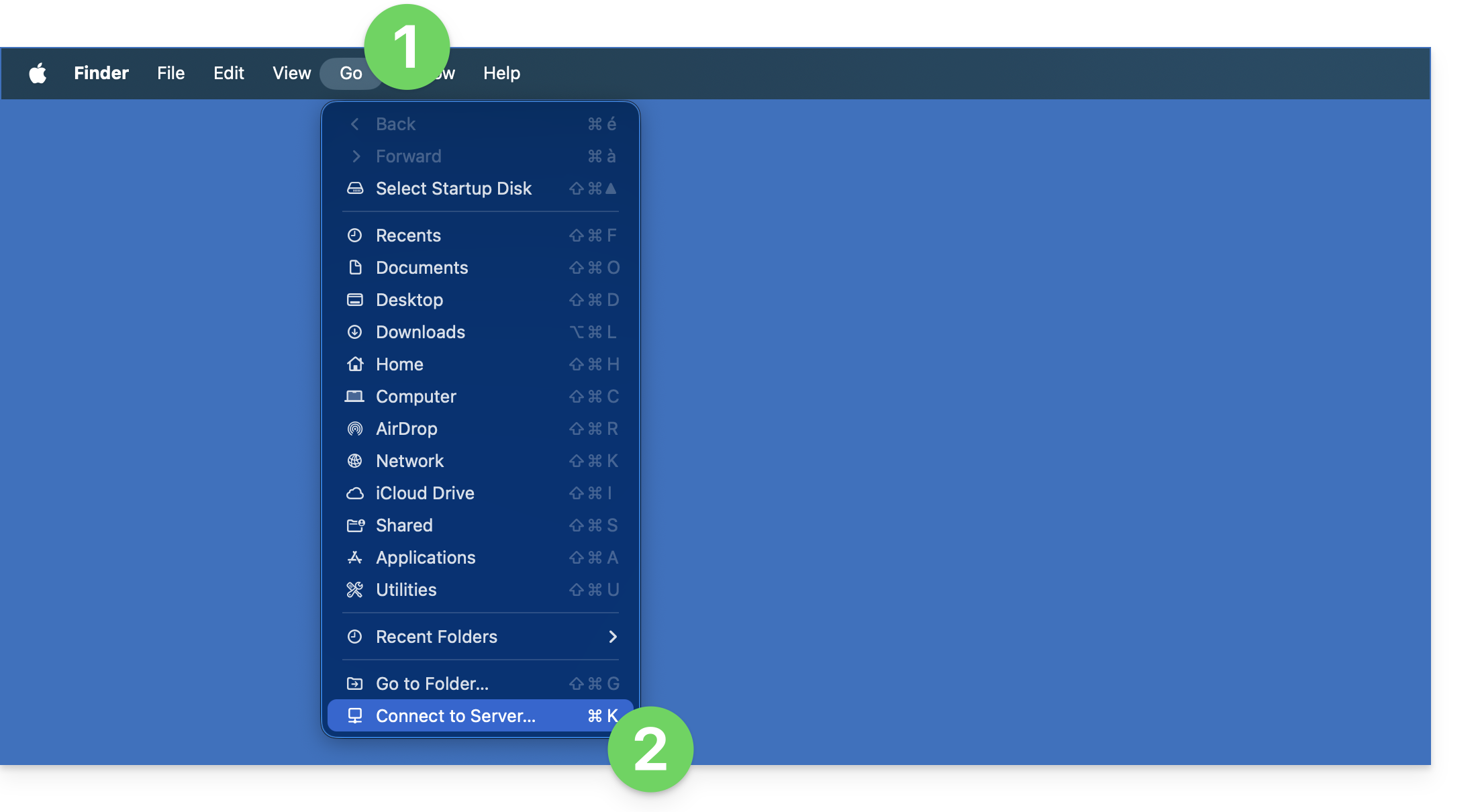
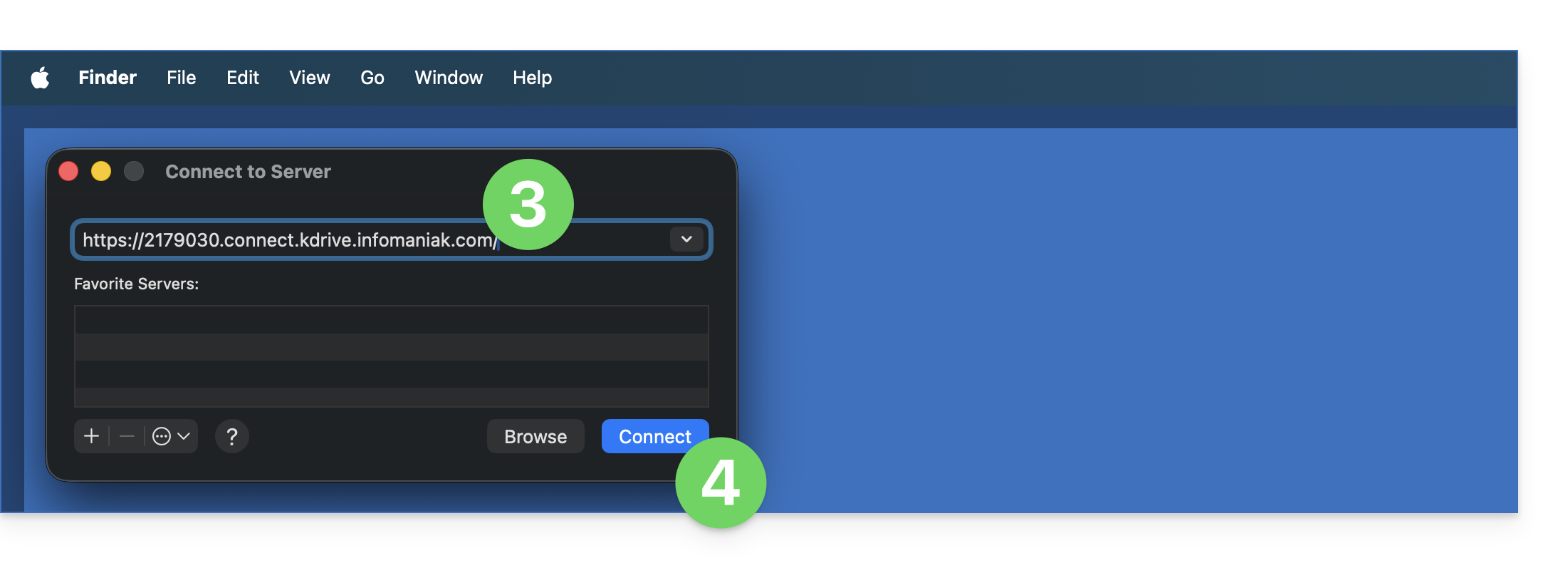
- Click on the Go menu in Finder.
- Click on Connect to Server:
- Enter the server address:
https://IDkDrive.connect.kdrive.infomaniak.com(need help?). - Click on Connect:
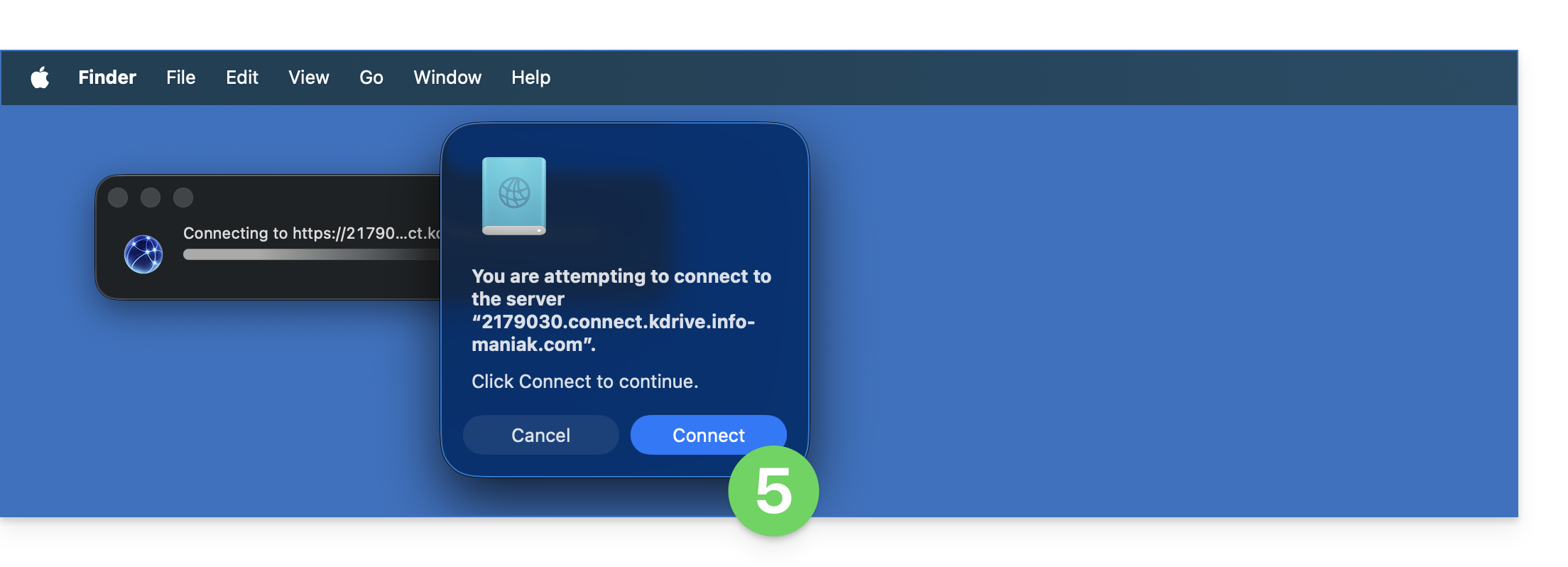
- Confirm the connection by clicking on the blue button:
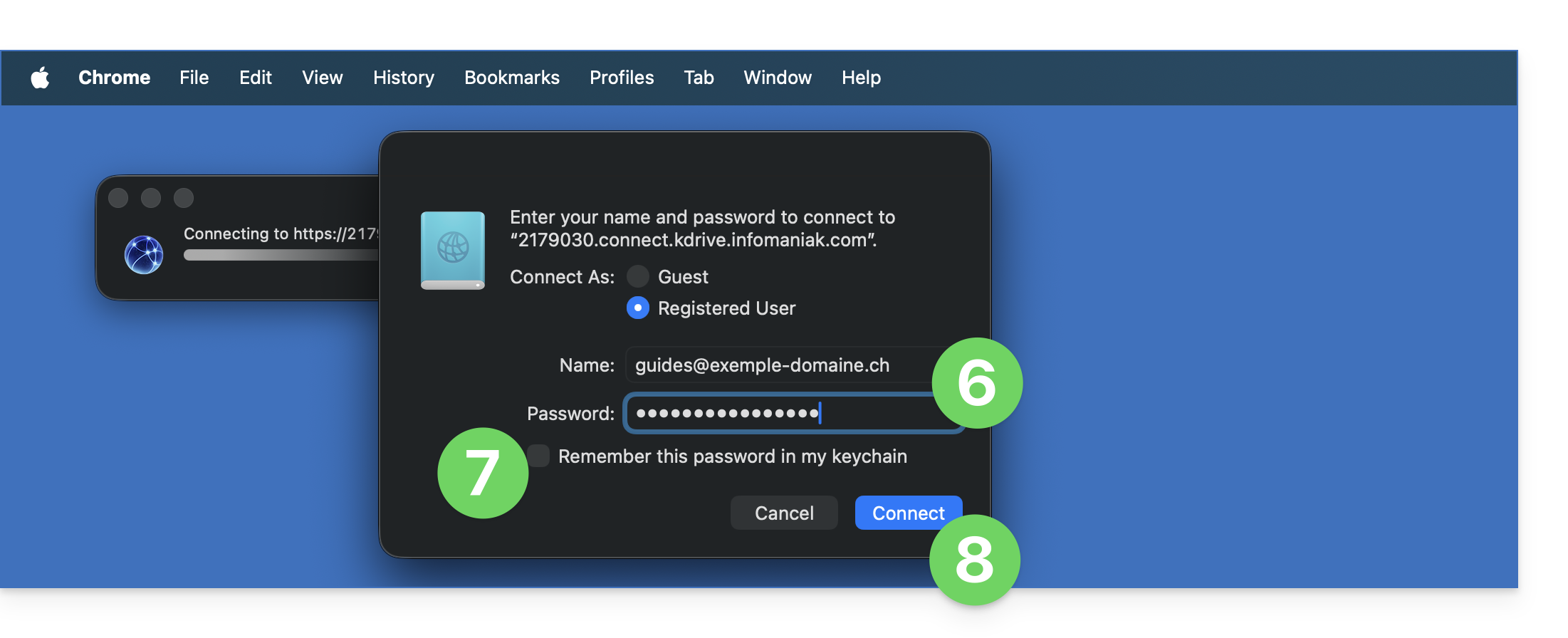
- Enter the following information:
- Username: the email address you use to log in to your Infomaniak account.
- Password: create an application password for this specific use.
- If desired, click the box to save your login information.
- Click the blue button to log in:
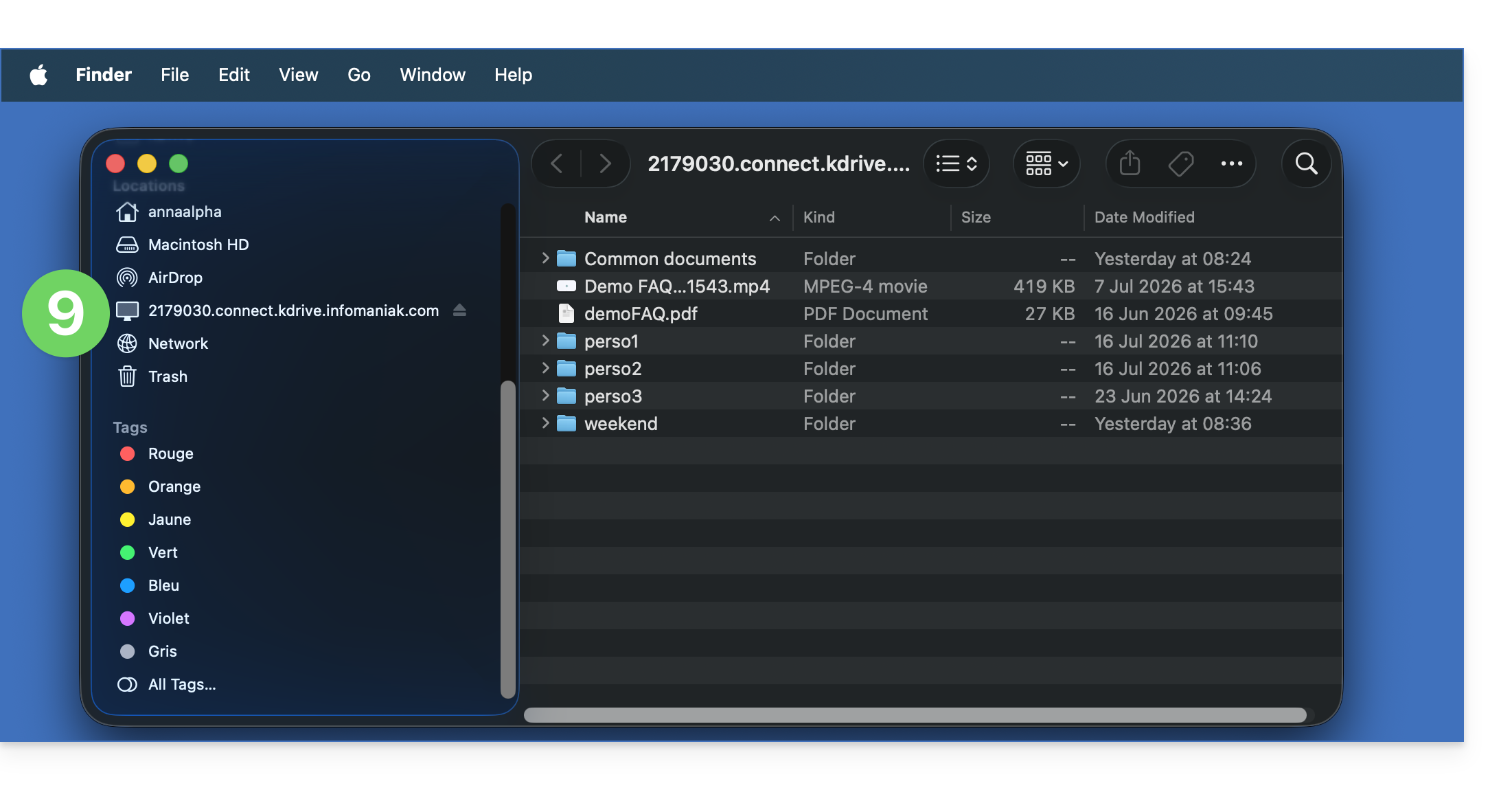
- The kDrive content is now displayed in Finder, just like the content accessible on kDrive for your Infomaniak user:
The Mountain Duck alternative
Using the same principle and with the same information, you can also consider connecting via a WebDAV software/client such as Mountain Duck:
- Create a new WebDAV connection in Mountain Duck.
- Enter the appropriate information.
- Click on Log in:
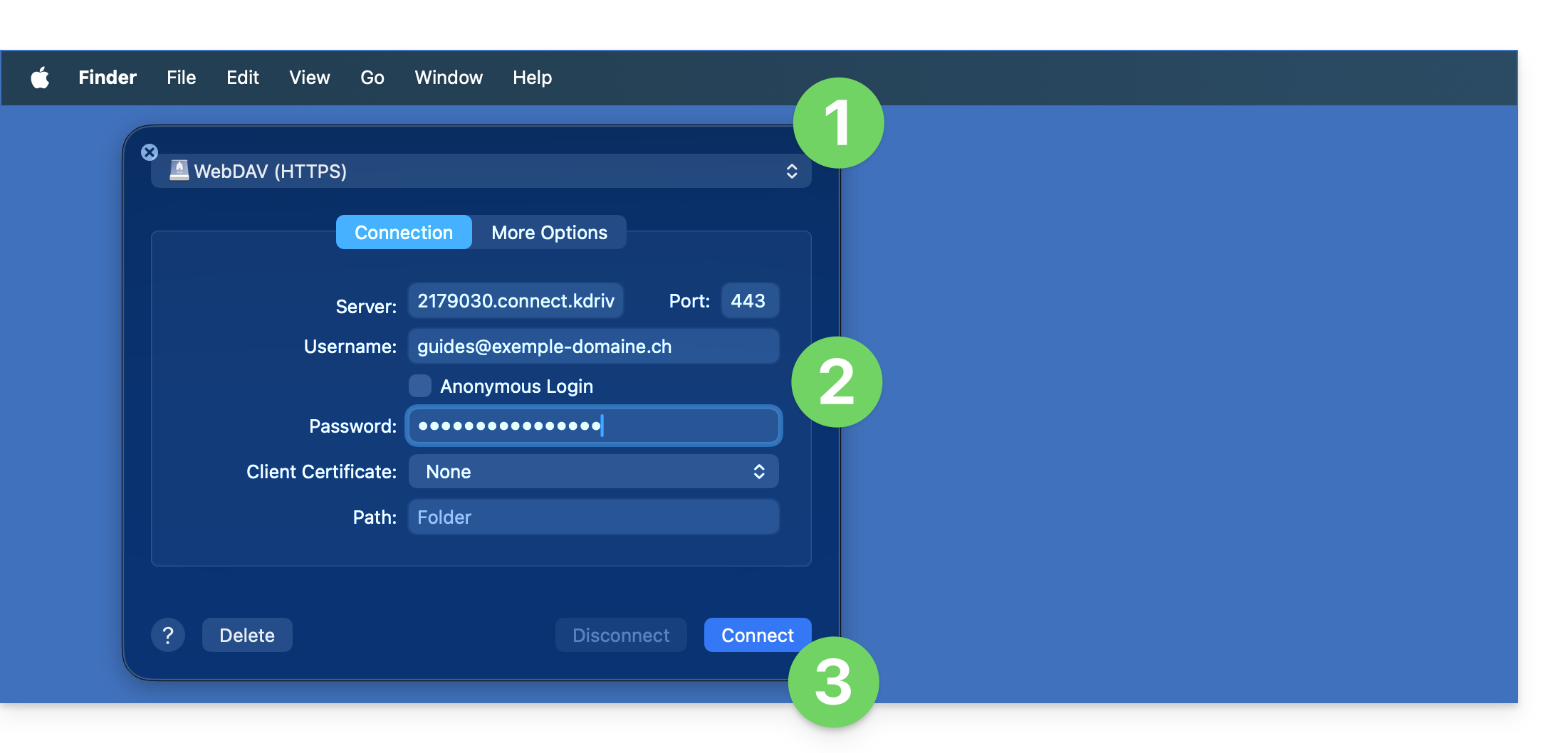
- There you go, the kDrive content is now displayed in Finder, just like what is accessible on kDrive for your Infomaniak user:
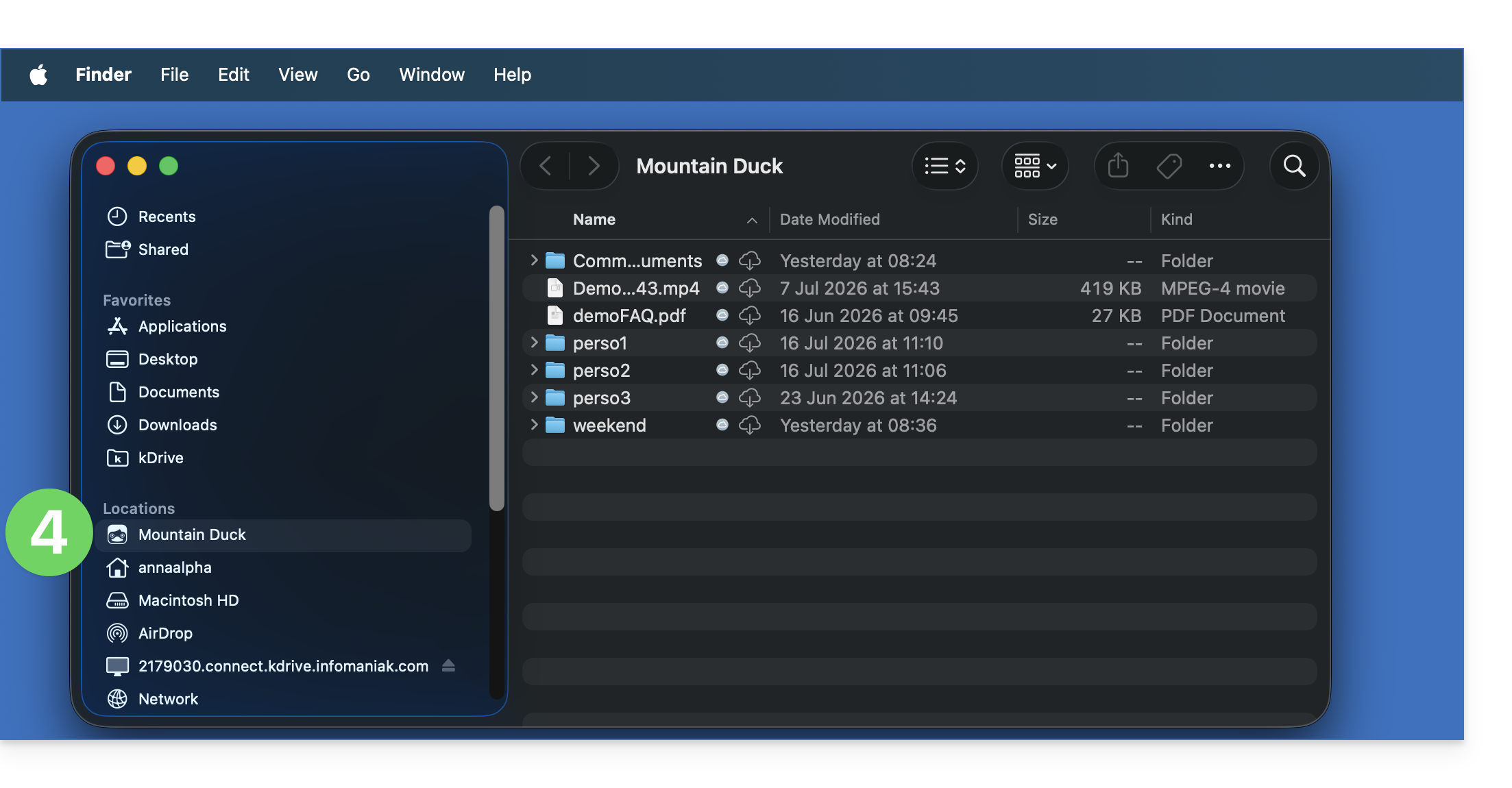
Link to this FAQ: https://faq.infomaniak.com/2504
Has this FAQ been helpful?
This guide explains how to view 3D files in the kDrive web app (online service ksuite.infomaniak.com/kdrive) and interact with them.
Introduction
- The 3D object can be viewed against a light or dark background.
- You can zoom in and out, and the 3D view can be reset with a single click.
- The camera can be in orthographic or perspective mode.
- Supported file extensions for online preview:
3dm3ds3mfamfbimbrepdaefbxfcstdglbifcigesobjoffplystepstpstlwrl
- Only the following extensions are supported:
blendusdusdausdcusdzgltf
- Formats that depend on other files cannot be previewed.
- Files with thumbnails (e.g.,
obj,stl, etc.) are generally supported for previewing.
Previewing 3D files
To access kDrive and interact with 3D images:
- Click here to access kDrive on your Infomaniak kSuite (❓: help).
- Open the relevant image file.
- Manipulate the object directly with the cursor.
- Use the toolbar available below the image:

Link to this FAQ: https://faq.infomaniak.com/2509
Has this FAQ been helpful?
This guide explains how to select one or more additional folders that will be uploaded and synchronized from the desktop app (desktop application on macOS / Windows / Linux) to the Web kDrive app (online service ksuite.infomaniak.com/kdrive), a process called “advanced synchronization”.
Introduction
- Advanced synchronization can have its own Lite Sync configuration, independent of the settings applied to the rest of the standard synchronization:
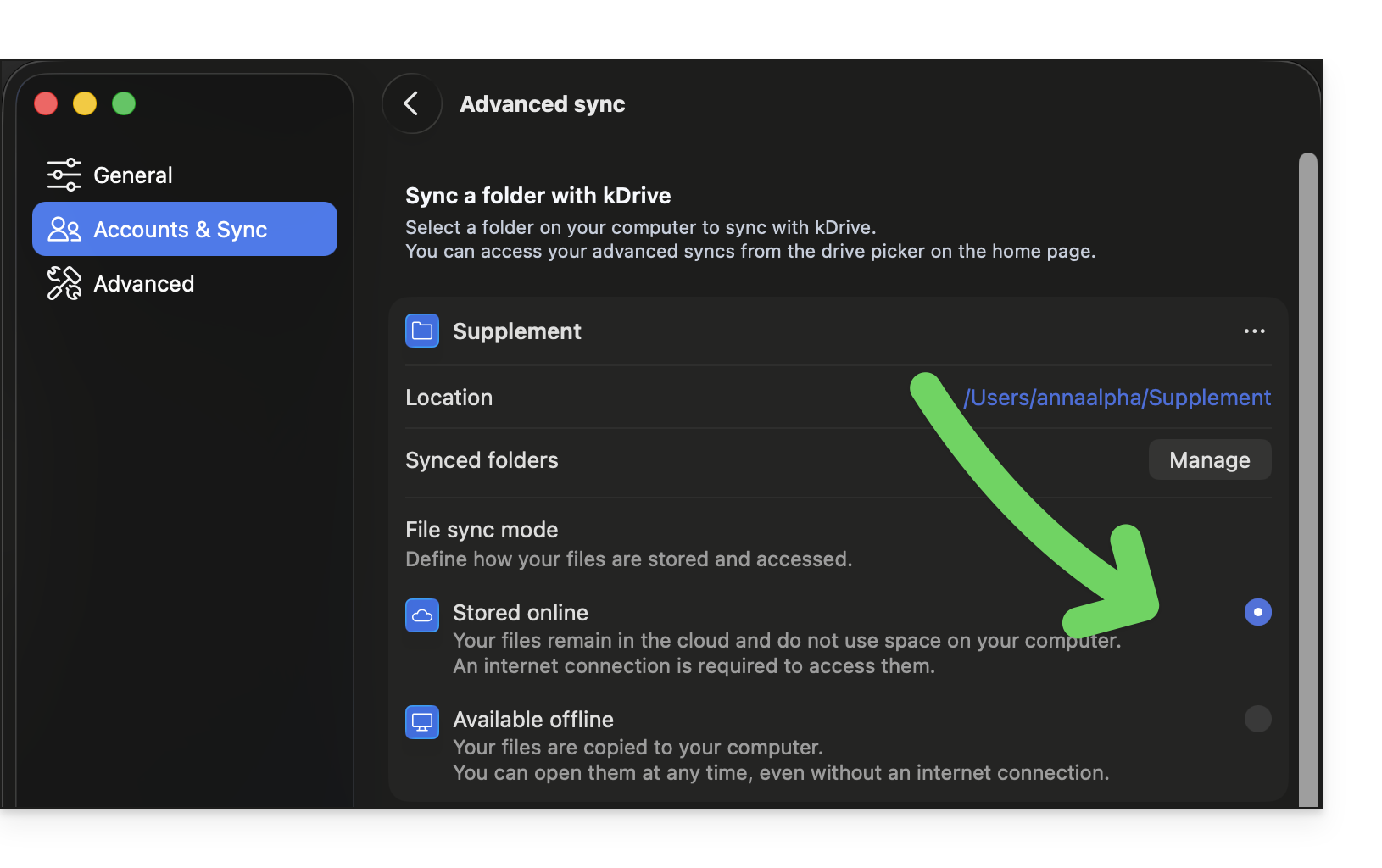
- Note that once an advanced synchronization is configured, the folder containing your new synchronization (advanced synchronization) belongs to you and will not be shared automatically, even if it is created in the organization's folders.
- It is, however, preferable to centralize everything in the "official"
/kdrive(or/kdrive2, etc.) folder rather than distributing your files in different locations. - And be careful not to create duplicates, which could take up unnecessary space and complicate the organization of your files (❓: help).
Choose an additional folder to synchronize with kDrive
Prerequisites
- For synchronization between your devices to work when your data is updated on kDrive (new file, edited document, etc.), it is obviously necessary that:
By default, when you install the kDrive application on your device, everything that is already on the web app kDrive (online service ksuite.infomaniak.com/kdrive) and that belongs to you will be transferred and visible on the device in a /kdrive (or /kdrive2, etc.) folder; and everything that is in /kdrive (or /kdrive2, etc.) will be found on the web version of kDrive.
However, you can instruct the kDrive app on your device to access other folders (on the computer's hard drive, for example) outside the standard /kdrive (or /kdrive2, etc.) directory structure, so that they are also synchronized and sent to Infomaniak's servers.
Desktop app v4.x
To add a local folder for advanced synchronization:
- Launch kDrive on your device: the app icon should be visible in the top right corner on macOS / Linux, and in the bottom right corner on Windows (❓: help).
- Right-click on the icon and select Settings:
- Go to Accounts & Sync and click on Manage (or ❯ ) to the right of the current sync:
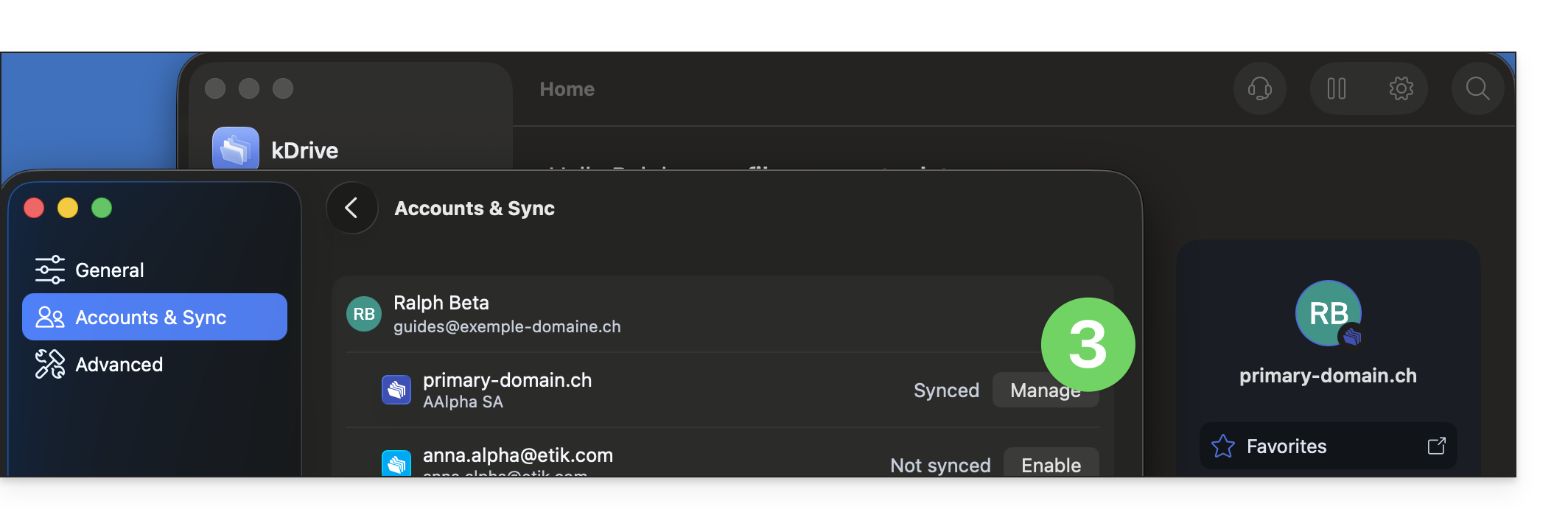
- Click on Advanced Synchronization:
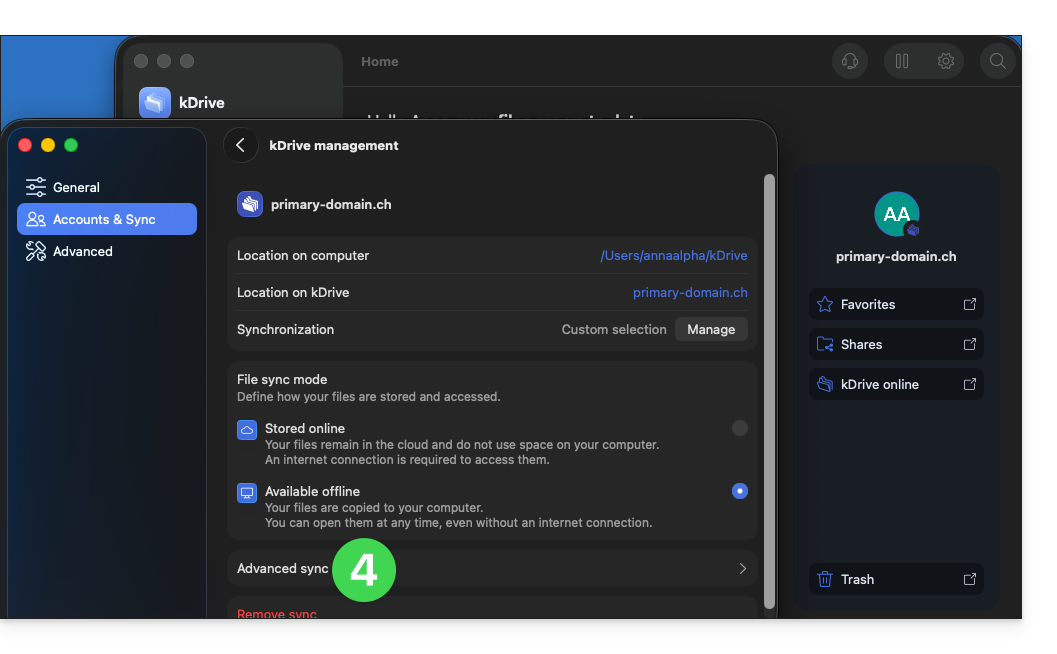
- Click on Synchronize a folder:
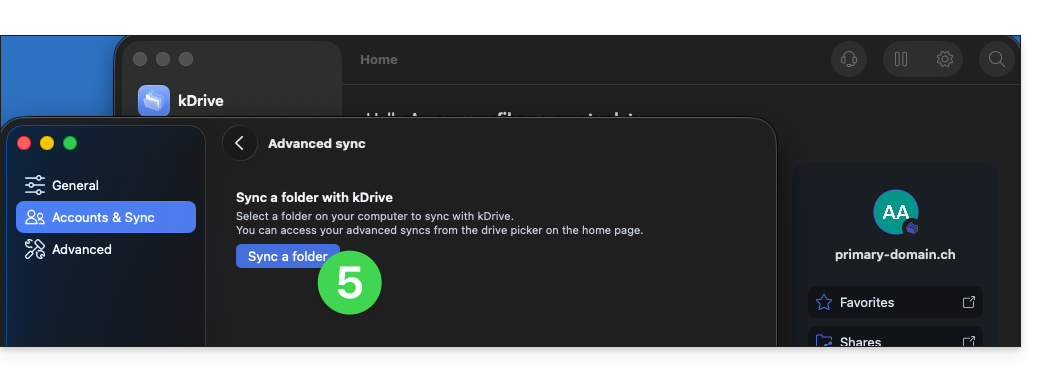
- Click the button to Select a folder:
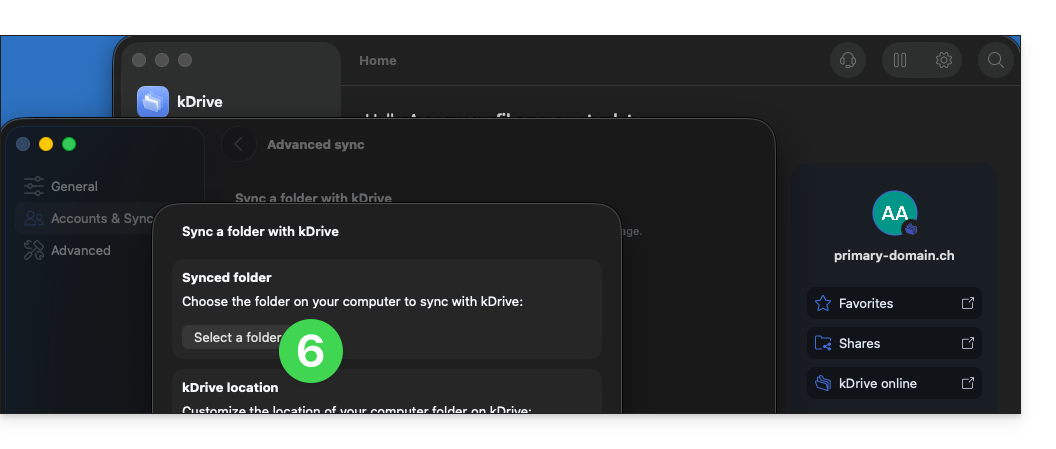
- Find and select the additional folder (outside of your existing and already synchronized kDrive structure) and then click Open:
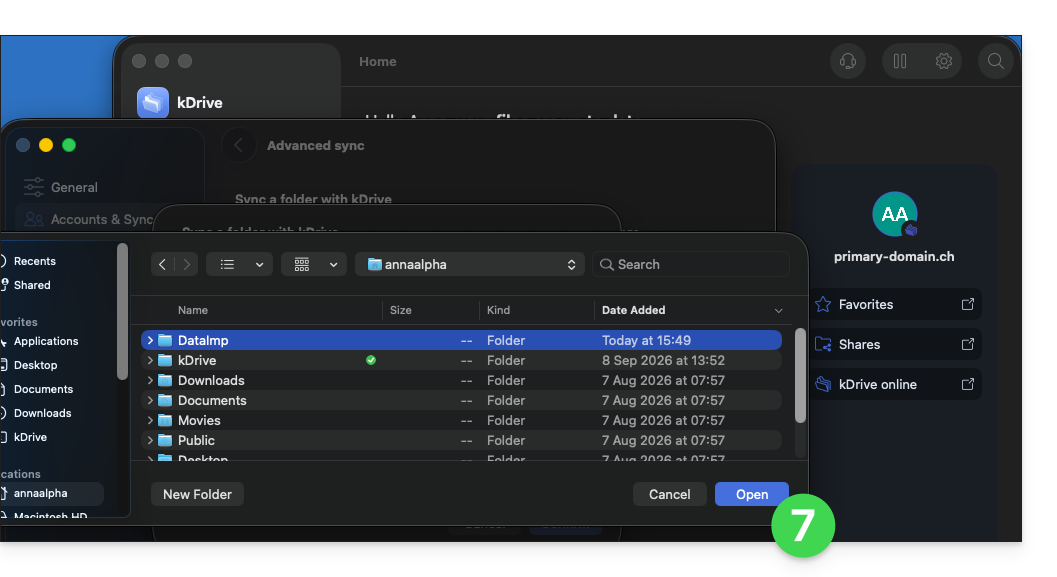
- Then, click to choose the location in kDrive Web where the selected additional folder should be sent:
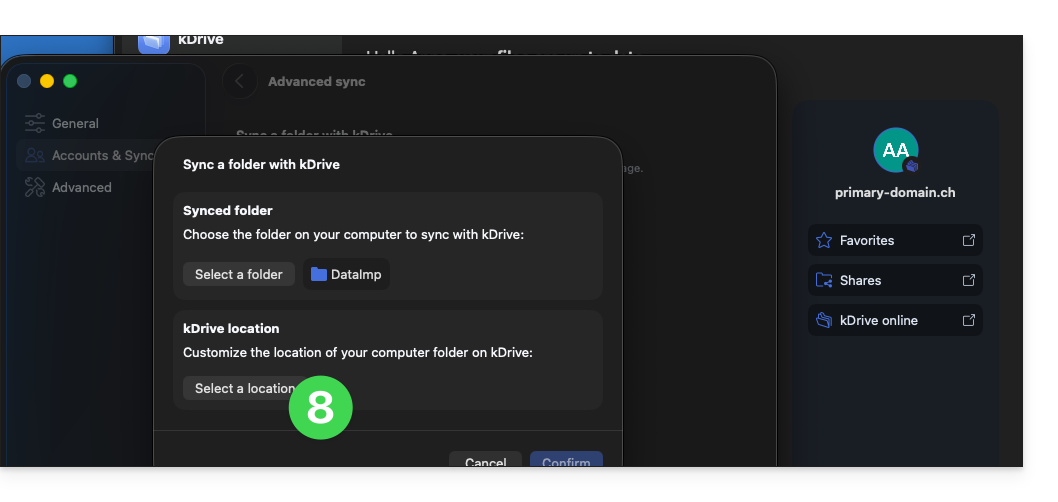
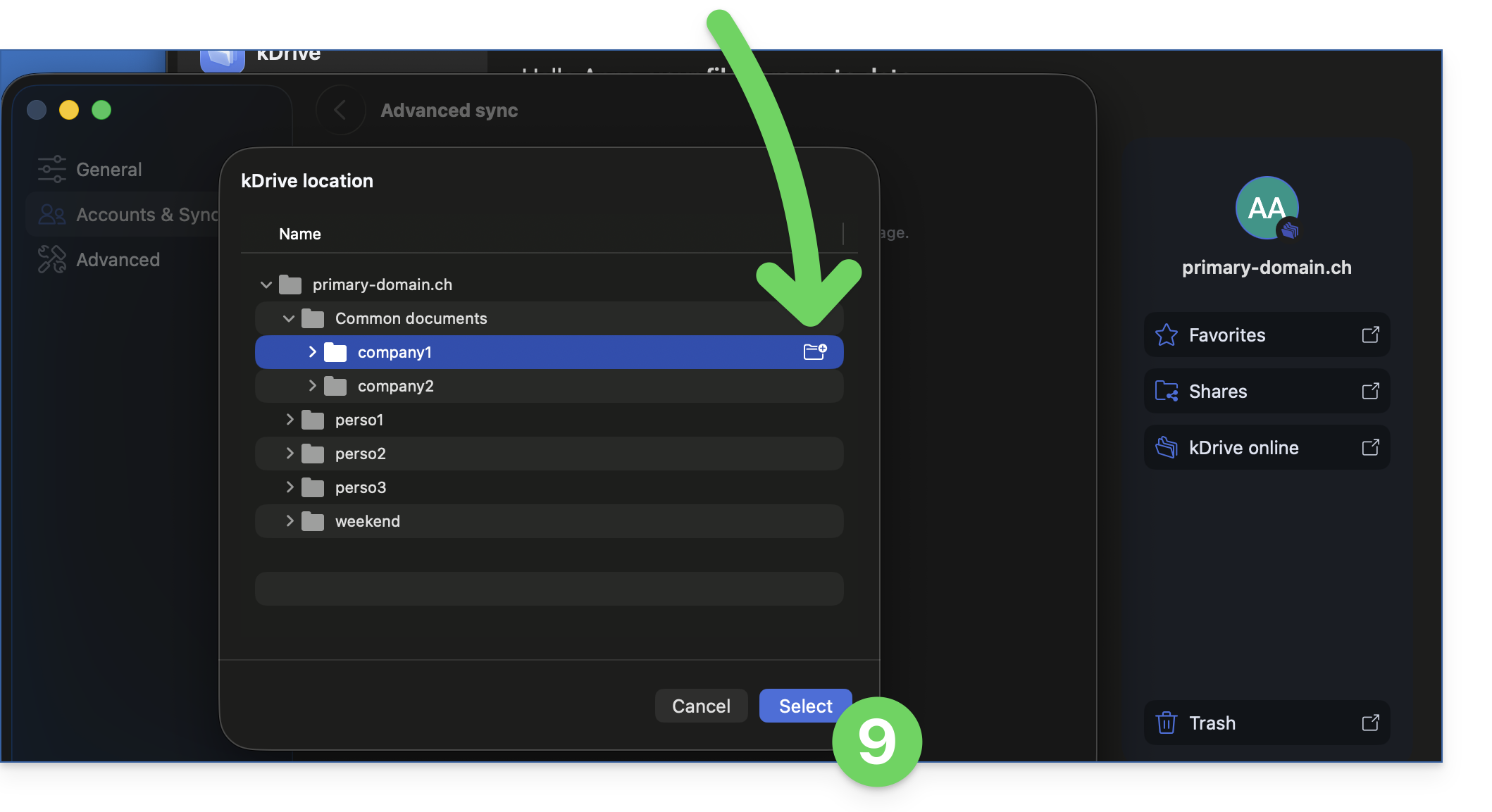
- Find the destination location to use – it is recommended to create a new folder (❓: help) – then click Select:
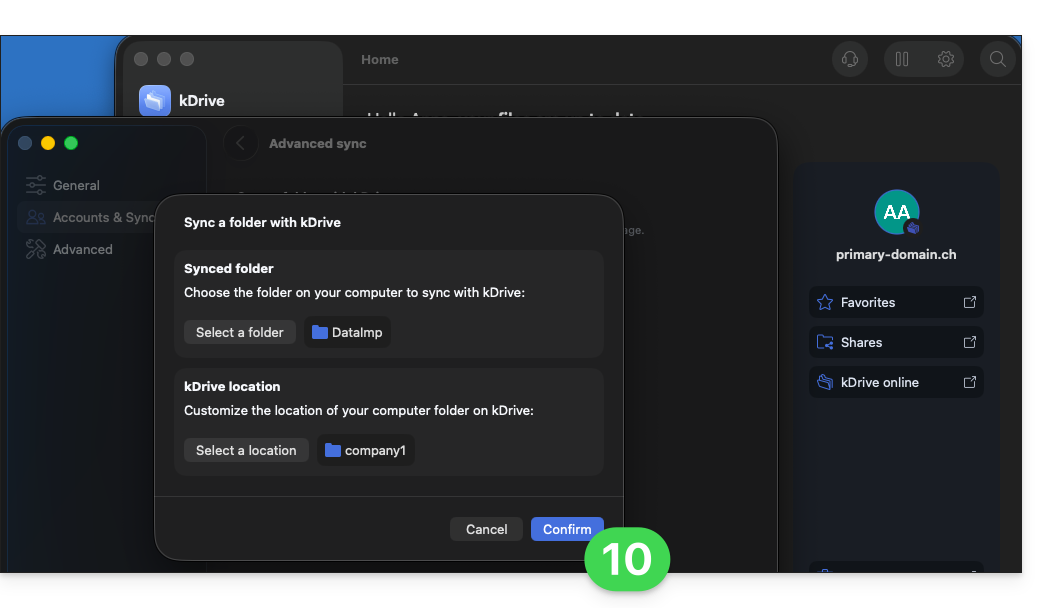
- Confirm your selections:
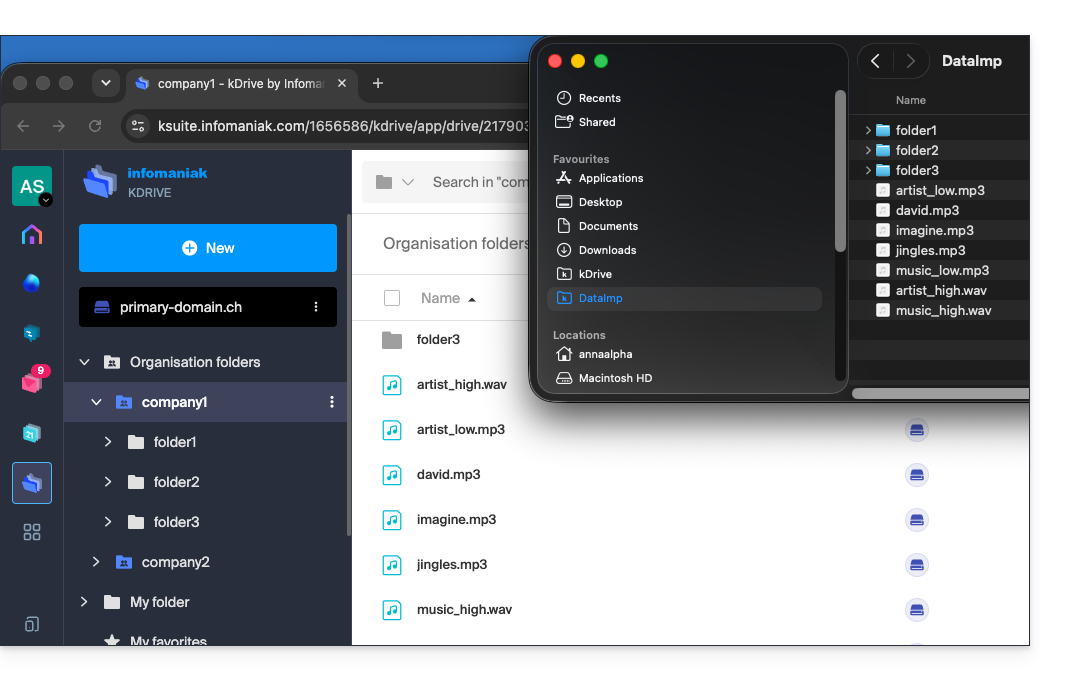
- That's it, the additional data is sent to the specified location and synchronized across your devices:
To stop and remove an advanced synchronization:
- In the same location accessible using the procedure above, click on the ••• icon on the far right:
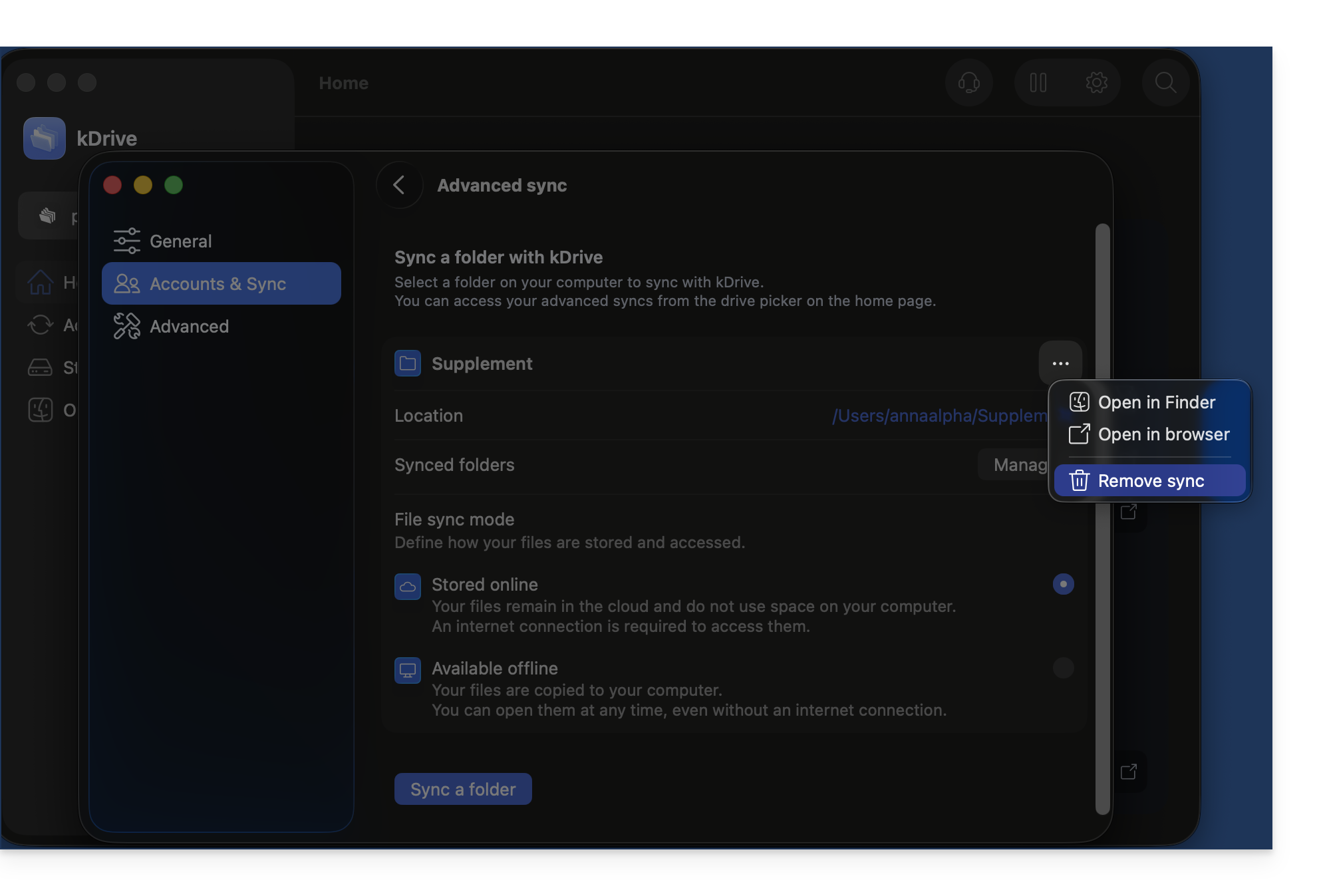
Desktop app v3.x
To add a local folder for advanced synchronization:
- Left-click on the desktop app icon in the notification area of your computer (top right on macOS, bottom right on Windows, and double-left-click in the taskbar on Linux).
- Click on the action menu ⋮ on the right of the window that appears.
- Click on kDrive Settings.
- Click on the chevron to the left of your synchronization name to display the list of folders (currently stored on kDrive Web).
- Expand the contents of the listed folders as needed and check / uncheck the folders to be synchronized with your computer.
- Click the blue Validate button.
- Click on Synchronize a local folder.
- … which will allow you to synchronize one or more new folders from your hard drive with the location of your choice on kDrive.
To stop and remove a synchronization:
- In the same location accessible using the procedure above, click on the ⋮ icon on the far right:
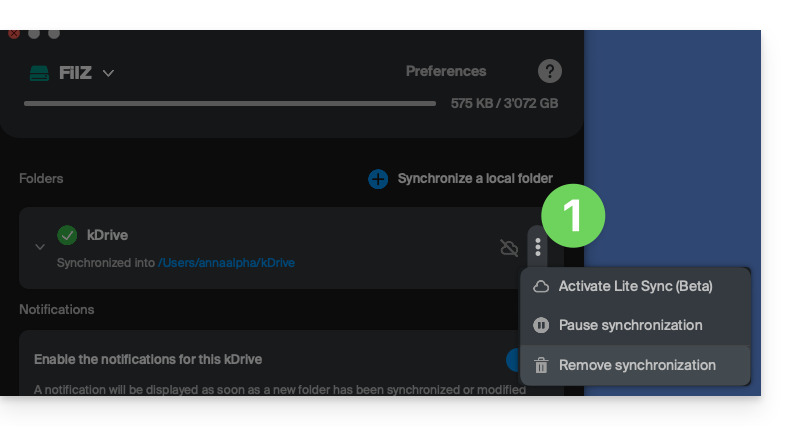
- … which will allow you to:
- Enable Lite Sync
- Pause synchronization
- Delete synchronization (only from your device, without affecting your kDrive) - see this other guide.
Avoid duplicates during advanced synchronization (v4.x)
When creating an advanced synchronization and choosing its destination, create a new folder specifically for this purpose from the location selection window in kDrive: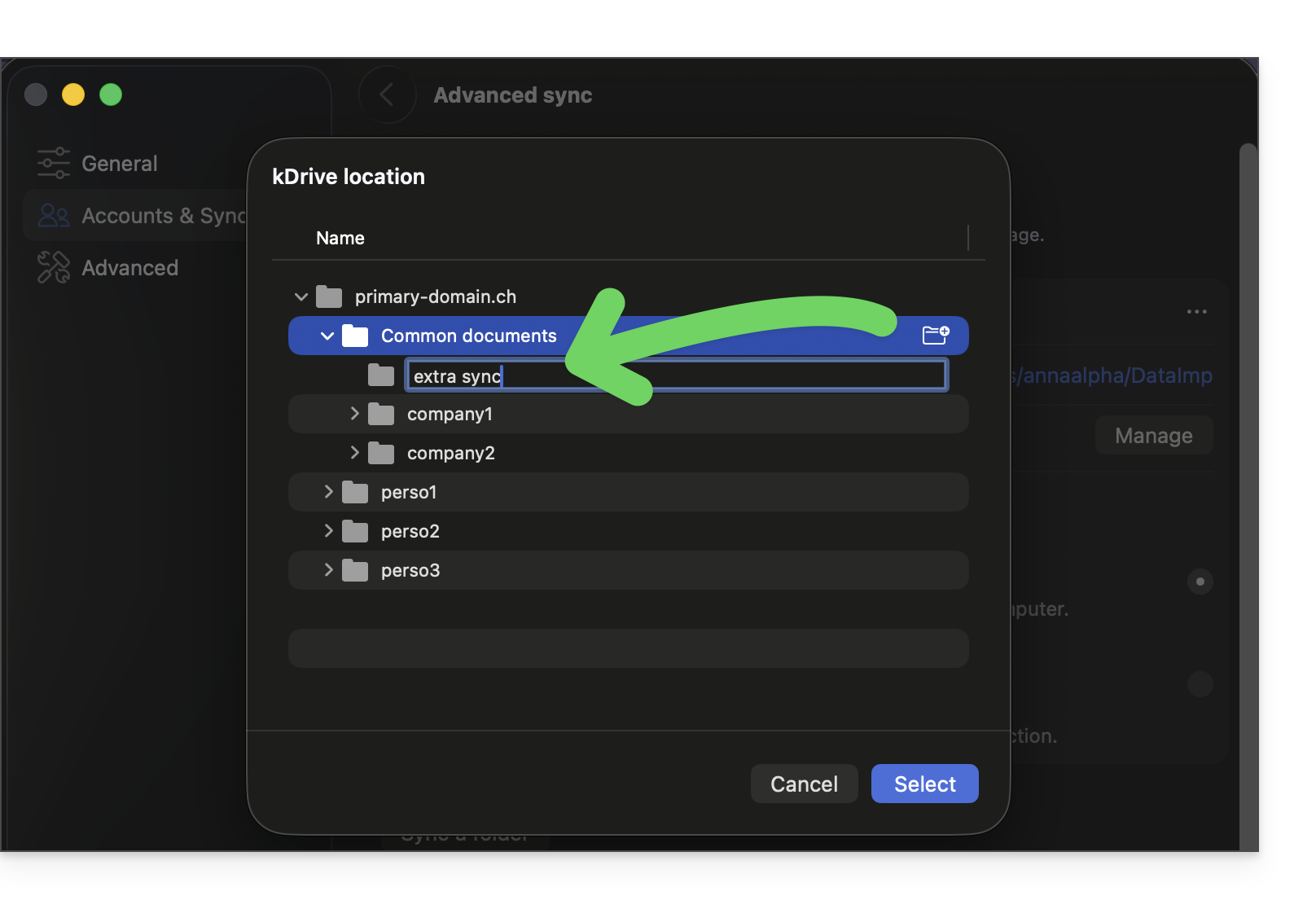
Select it. The folder created in this way will be automatically excluded from any other existing synchronization on kDrive, to avoid duplicate data: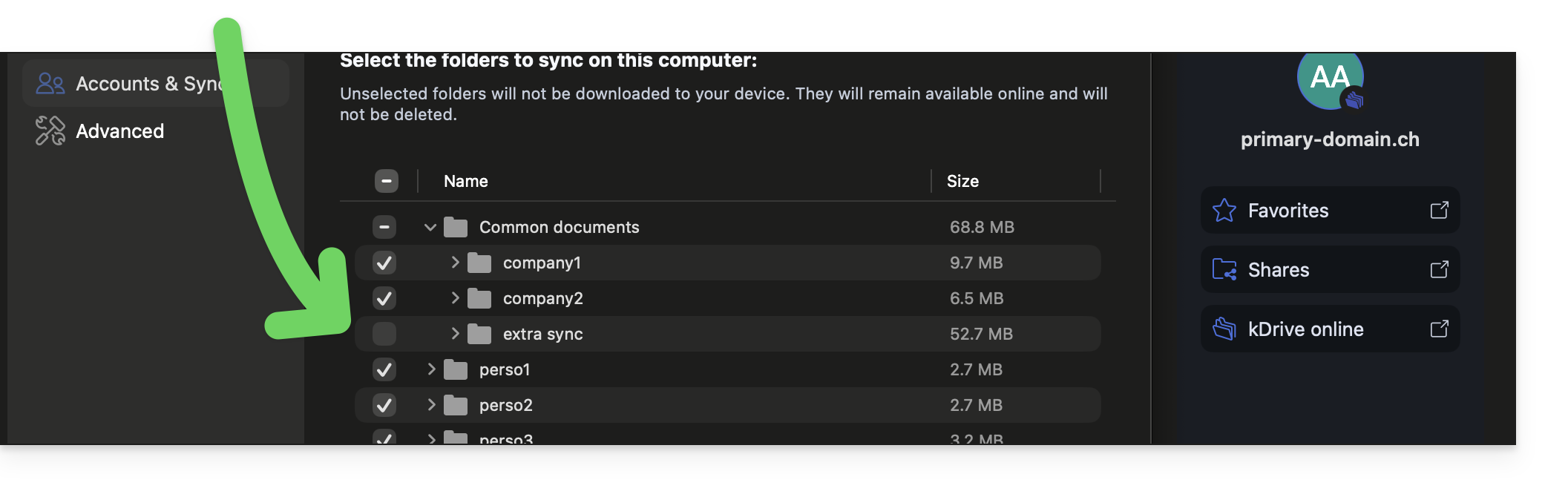
If you have not created a new folder using this method, then it is recommended tomanually exclude your advanced synchronizationotherwise, it will be double-synchronized via the usual synchronization process (since the files are now part of the kDrive file structure).
To do this:
- Click on Settings in the top right corner on macOS.
- Click on Accounts & Sync.
- Click on Manage to the right of the current synchronization:
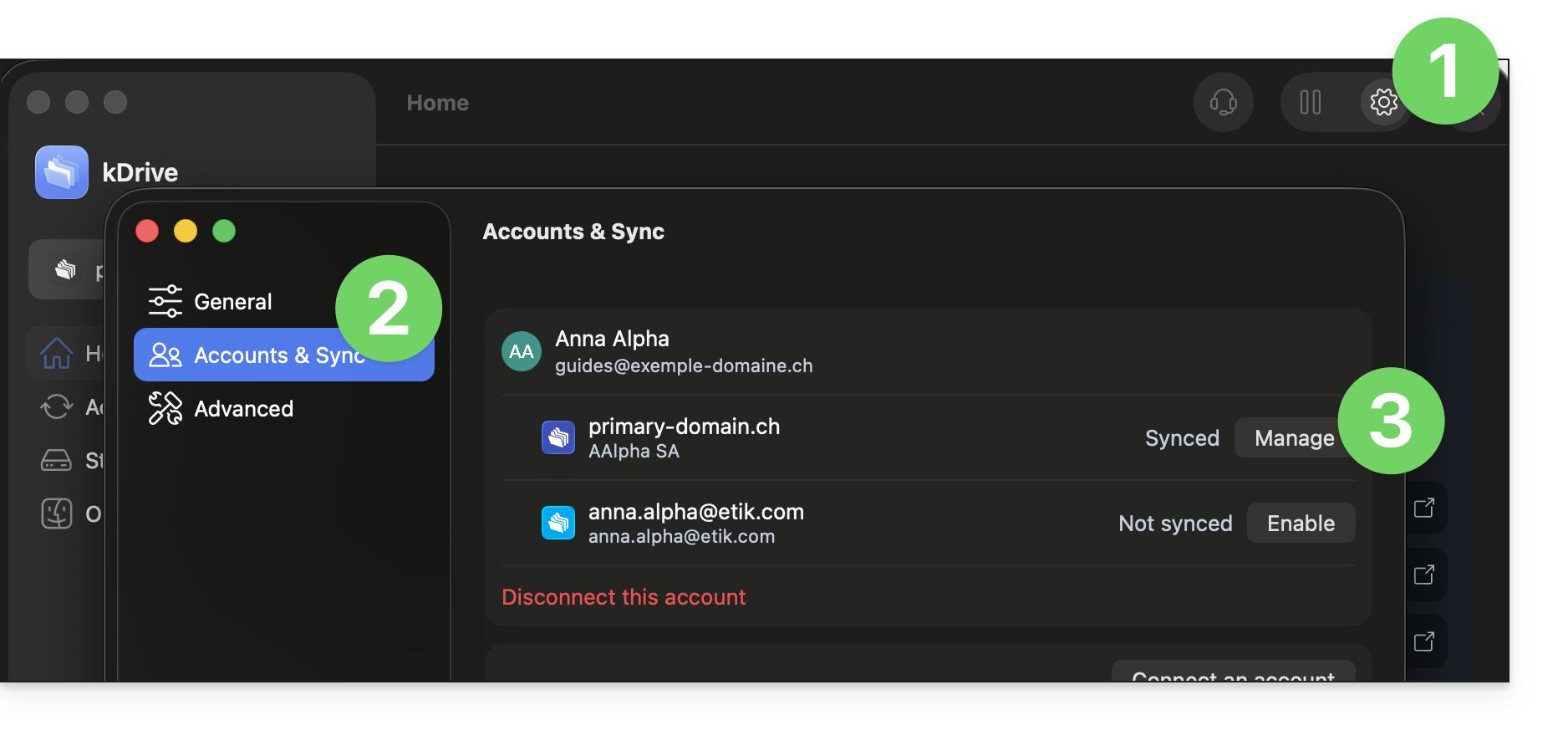
- Click on Manage synchronization:
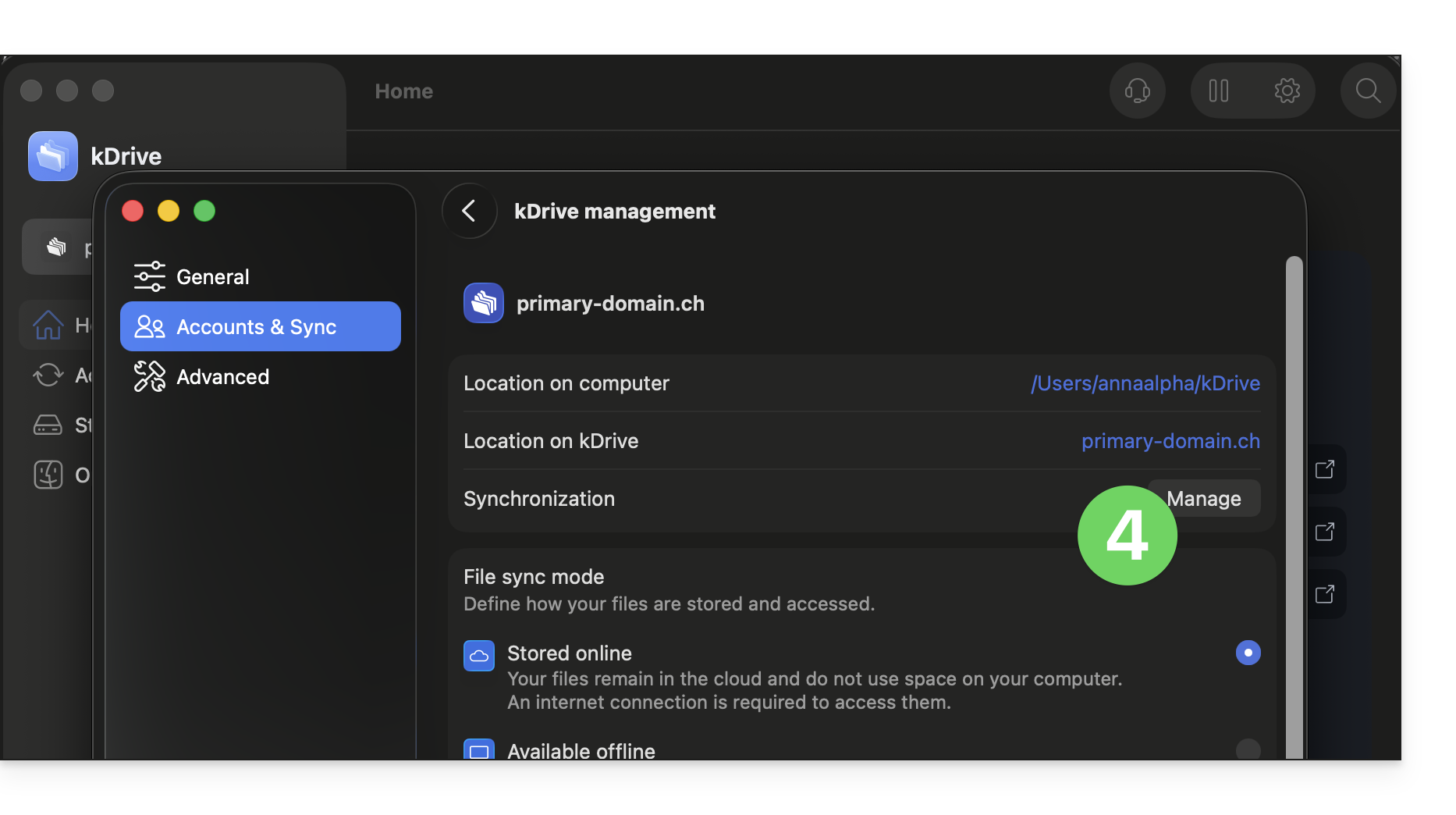
- Enable or disable the checkboxes corresponding to the data that should no longer appear on your device after the next synchronization.
- Save your changes:
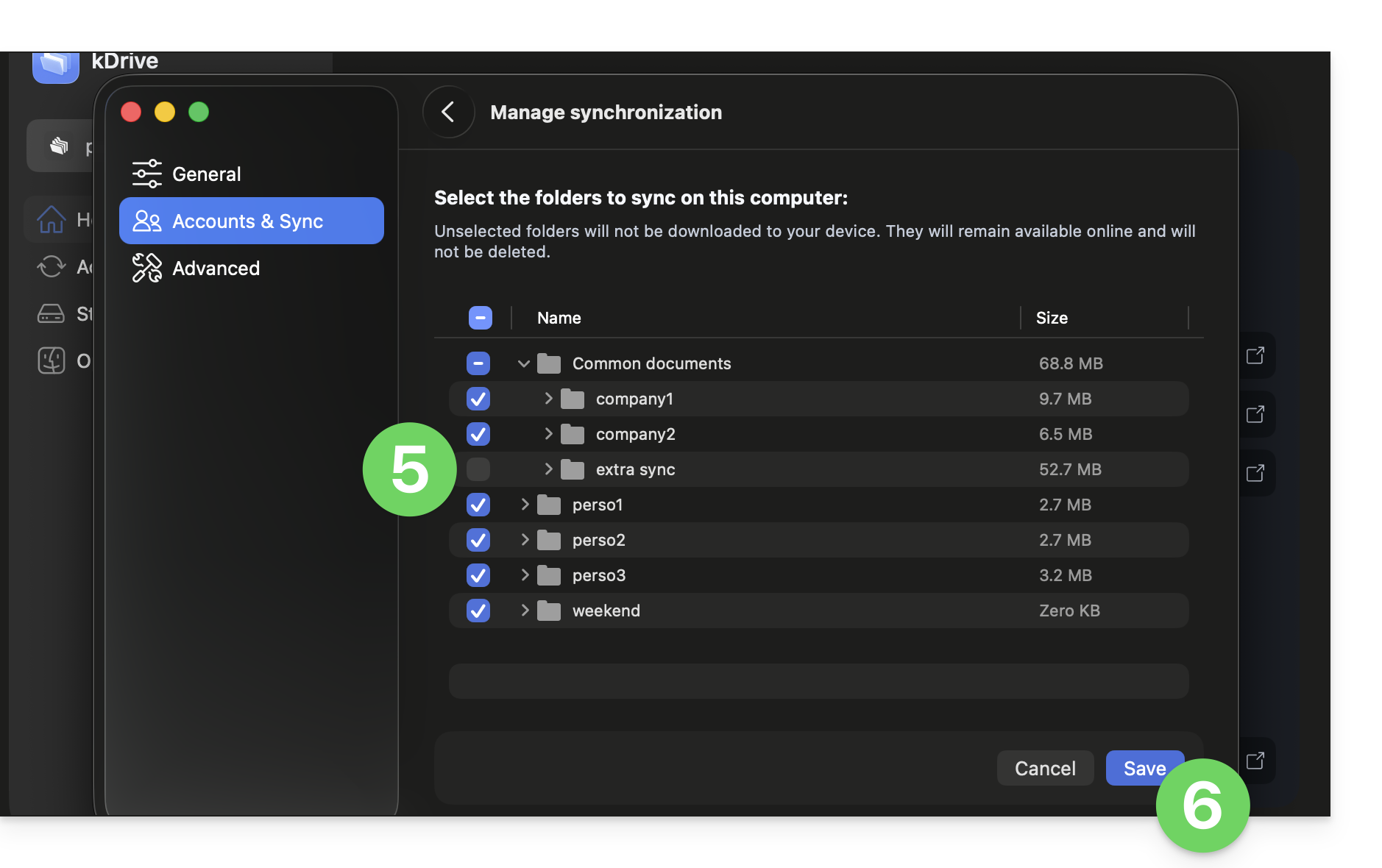
Link to this FAQ: https://faq.infomaniak.com/2510
Has this FAQ been helpful?
This guide explains how to automatically transfer photos from your mobile device (Android) to kDrive Infomaniak.
Introduction
- Once this feature is enabled, photos from your mobile device will be saved to the kDrive folder of your choice.
- Foreground mode:
- Synchronization works optimally when the kDrive application is active and in the foreground.
- Background mode
- Android may limit the operation of applications in the background to save battery.
- For smooth synchronization, ensure that the kDrive application is not subject to strict "battery optimization" settings on your phone.
- File naming: unlike iOS, automatic backup on Android generally preserves the original name of files (e.g., IMG_001.jpg), but please refer to the information at the bottom of this guide.
Enable sending to kDrive on Android
Prerequisites
To configure automatic backup:
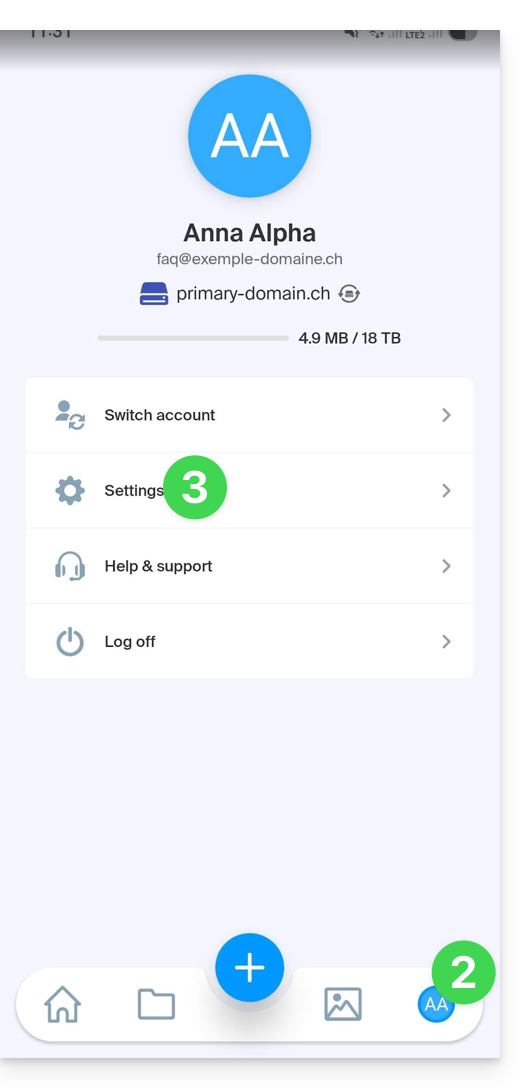
- Open the kDrive mobile app.
- Tap on your initials or your avatar (bottom right).
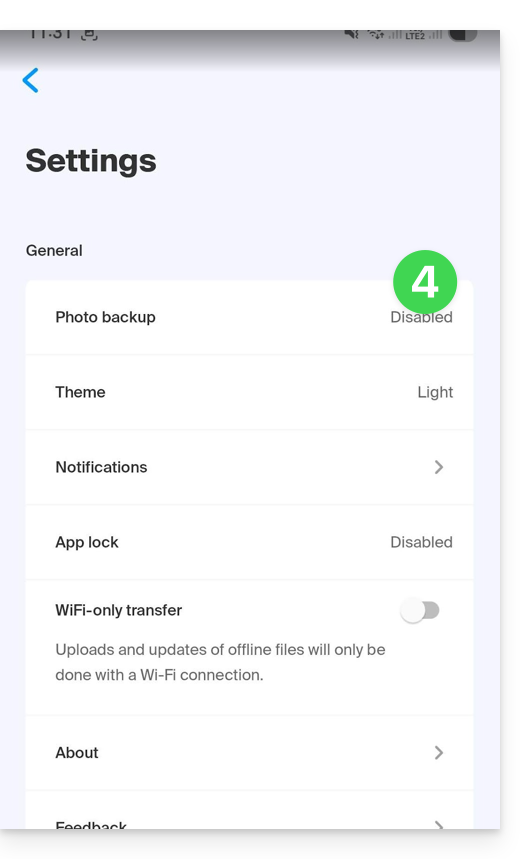
- Tap on Settings:
- Tap Photo Backup:
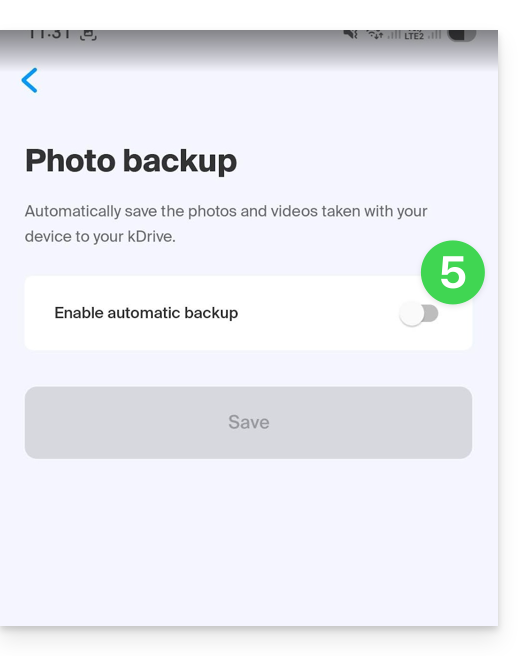
- Enable Automatic Backup:
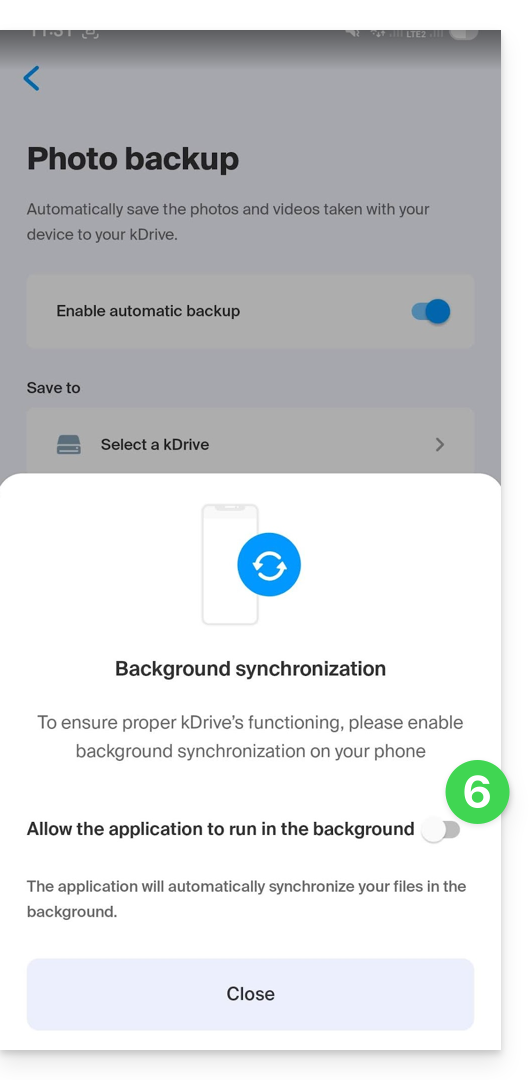
- If necessary, accept Android's request to access all your media and enable background synchronization:
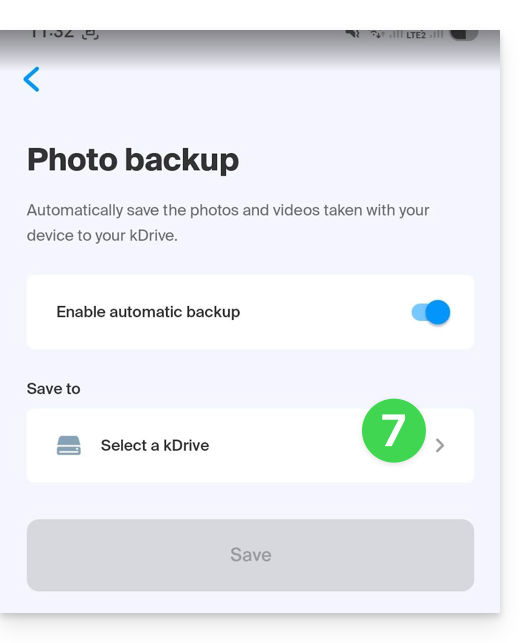
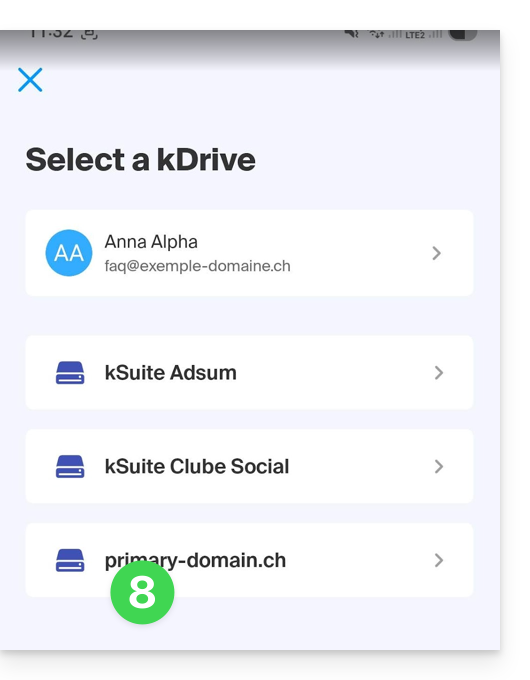
- Tap Select a kDrive:
- Choose the destination Infomaniak account and kDrive:
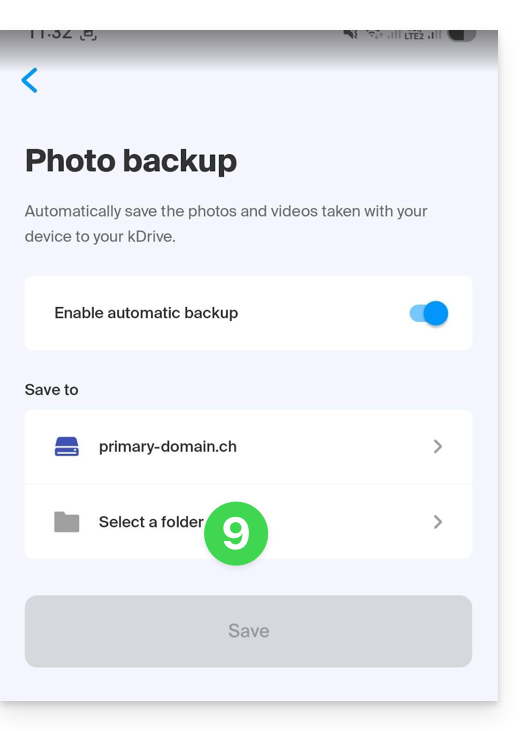
- Tap on the kDrive folder selection:
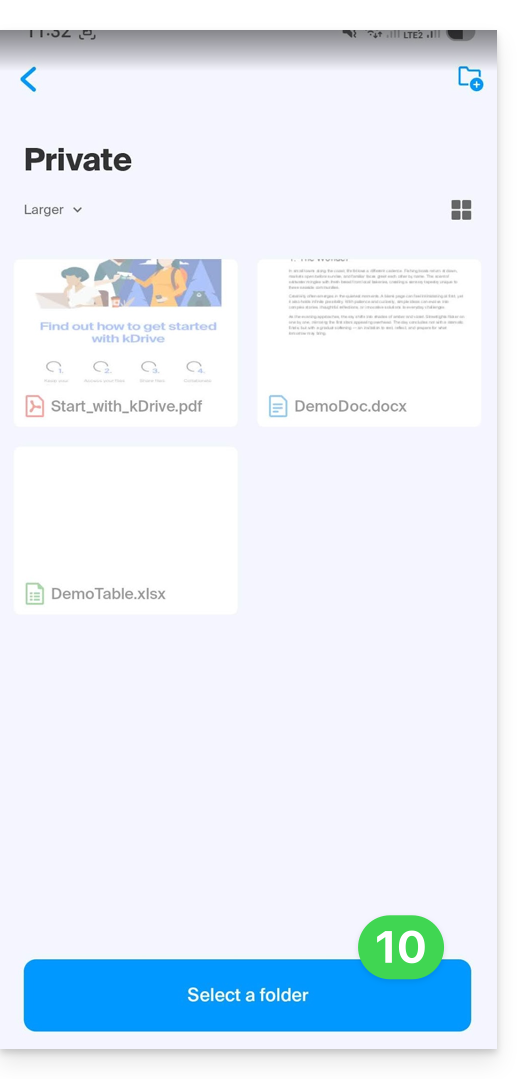
- Once in the target folder on kDrive, tap Select:
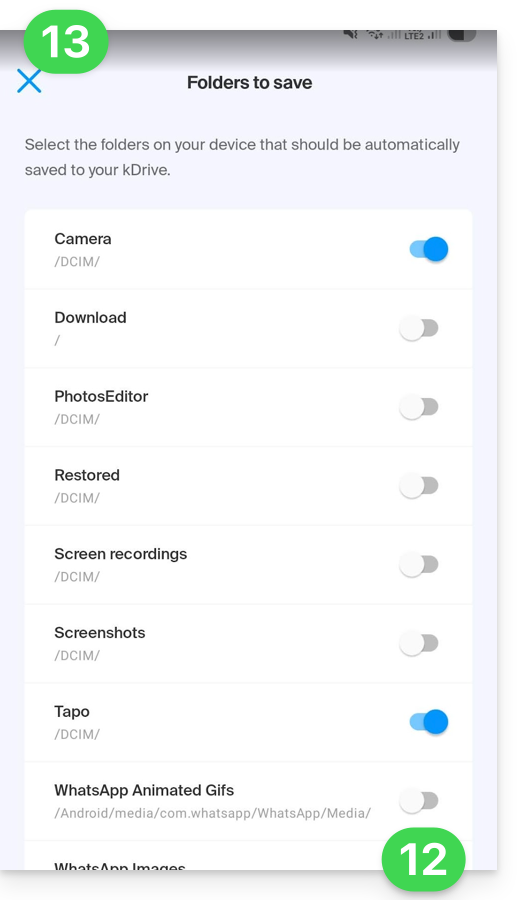
- Tap the folders that need to be backed up:
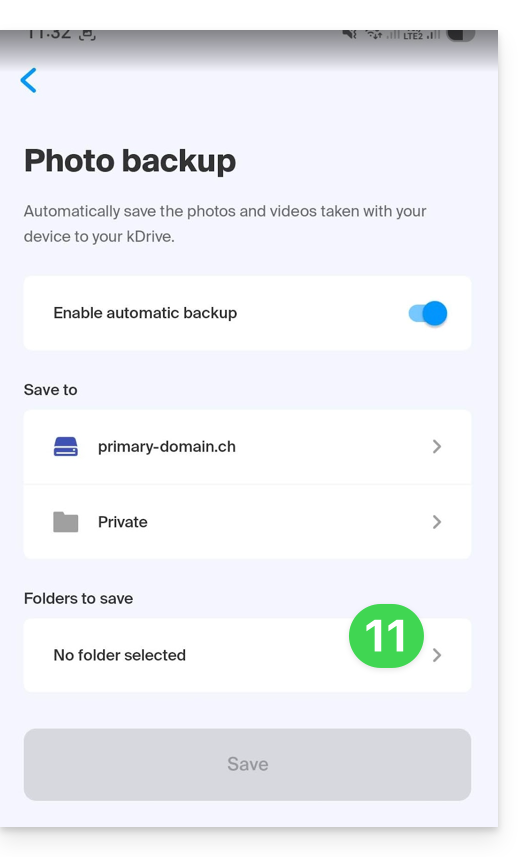
- Enable the folder(s) on your device that you want to synchronize (e.g., DCIM, WhatsApp, etc.).
- Close the folder selection window:
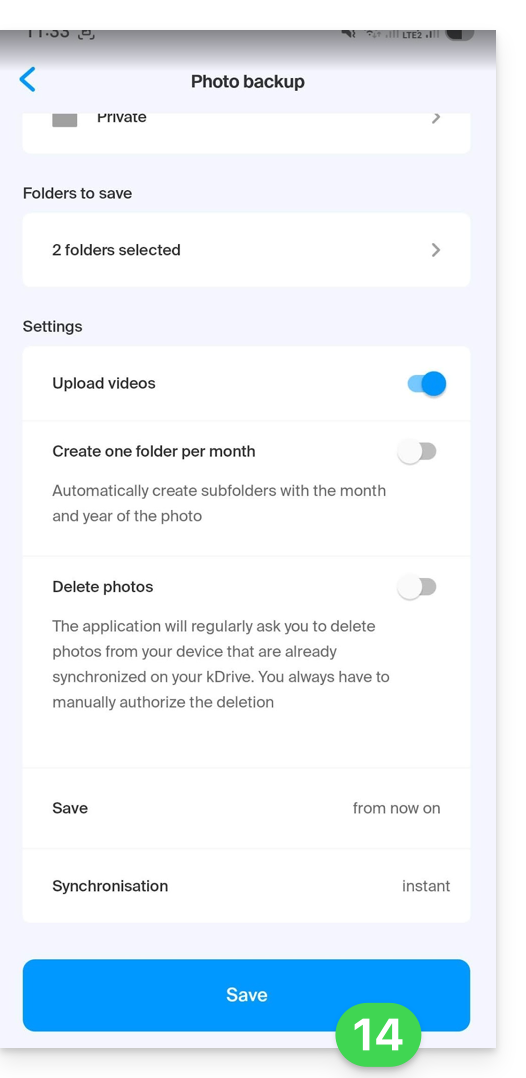
- Adjust your preferences (videos, monthly ranking, deletion after sending, etc.) then click Save:
Warning: Risk of collision and data loss
The Android application retains the original name defined by your device. On some models (such as Sony Xperia), the numbering of photos is sequential (e.g., DSC_0001.jpg).
If you enable the option to delete content on the mobile device after sending, the device may reset its numbering. During the next synchronization, a new photo named DSC_0001.jpg could then overwrite the previous one on your kDrive.
To prevent data loss, it is recommended to configure your "Camera" application to use a naming system based on the date and time (e.g., 20260219_150109.jpg) rather than a simple numerical sequence.
Link to this FAQ: https://faq.infomaniak.com/2514
Has this FAQ been helpful?