Knowledge base
1000 FAQs, 500 tutorials and instructional videos. Here, there are only solutions!
Sync kDrive across different devices
Update 03/02/2026
This guide explains how to synchronize files stored in kDrive to access them easily on all your macOS, Windows, Linux, iOS and Android devices.
Preamble
- For any modification made to your files & folders on your workstation (Finder / Explorer) to be automatically synchronized…
- on the kDrive Web app Infomaniak (online service ksuite.infomaniak.com/kdrive),
- on the kDrive mobile app (app for iOS / Android smartphone or tablet),
- this for all collaborators who access the data,
- and this in all directions,
- … you need to install the kDrive desktop app (desktop app on macOS / Windows / Linux).
- You have the option to customize the kDrive folders that need to be synchronized on your computer.
- You can also automatically back up photos from your mobile:
- Refer to this other guide for iOS and for Android.
- Note, there is no automatic synchronization between the rest of the content of your mobile device and kDrive; this functionality is identical to competing apps that do not offer it either, as the restrictions of mobile OSs are too significant to allow it (alternative solutions generally paid for exist via third-party apps using the WebDAV protocol).
Download the kDrive desktop app
Open the kDrive download page to download kDrive (other versions and apps can be downloaded from the unified kSuite settings, including an iOS version optimized for iPad, adapted to the screens of these tablets.
| OS | Minimum and supported version |
|---|---|
| Windows 10 (v10 1709 to benefit from Lite Sync) | |
| macOS 10.15, ARM OK | |
| Ubuntu 22.04 LTS, ARM OK Neither Lite Sync nor right-click context menu on Linux Desktop environments: GNOME or KDE | |
| iOS 16.4 | |
| Android 8.1 |
Install the kDrive app
To do this:
- Open the downloaded application to start the installation on your device.
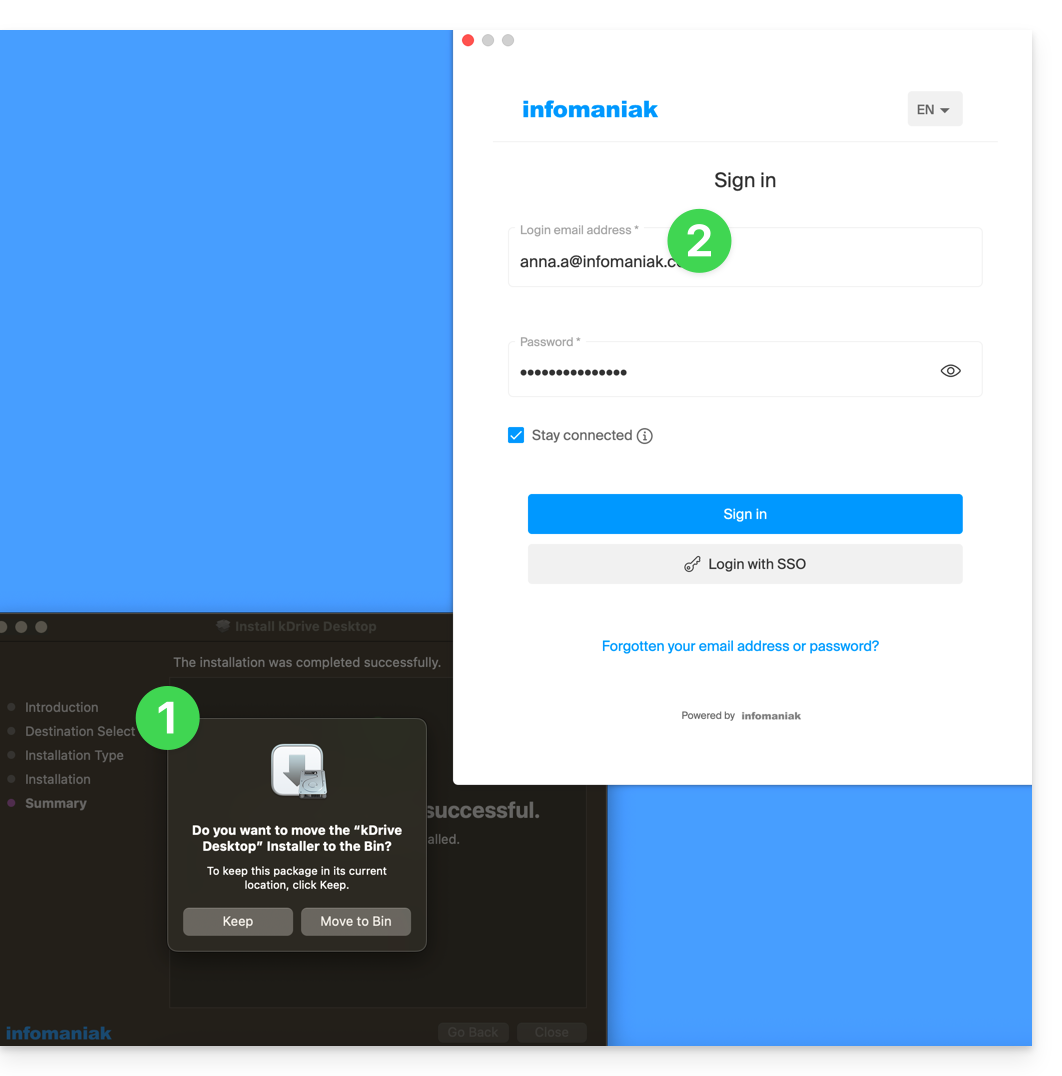
- At the end of the installation, the application should open and a form will ask you to log in to your Infomaniak account (need help?):
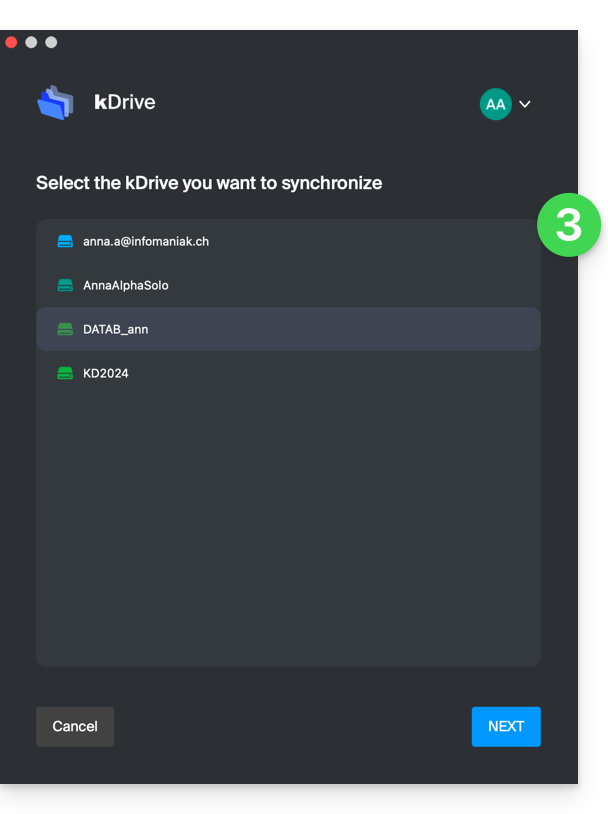
- Then choose from the list the kDrive you want to synchronize (if your account allows access to multiple kDrives — you can link others later if necessary):
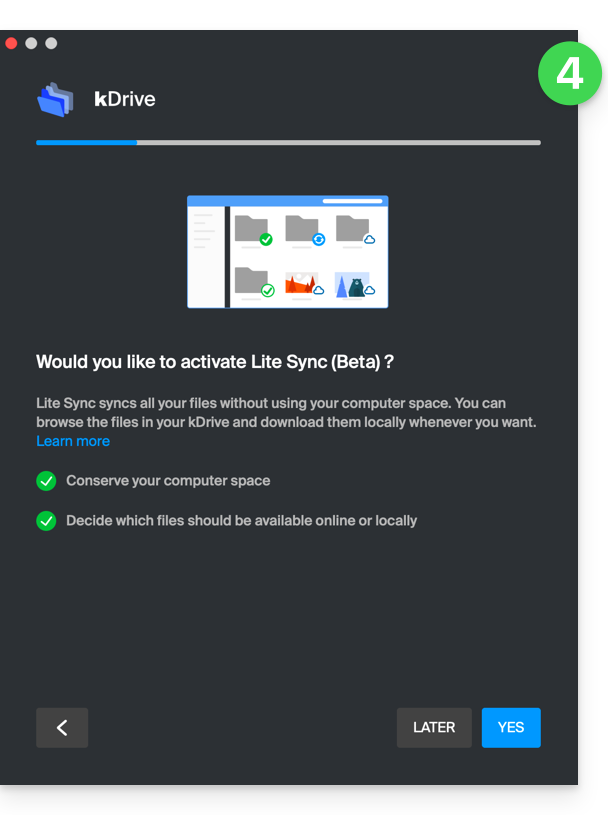
- Enable or disable the Lite Sync option (feature of the Windows and macOS app that saves space by virtually storing your kDrive files on your computer, only downloading them when necessary):
- A kDrive folder is created on your hard drive at the indicated location (a location that is recommended not to be modified, but if necessary you can do so by clicking on the pencil icon ✎):
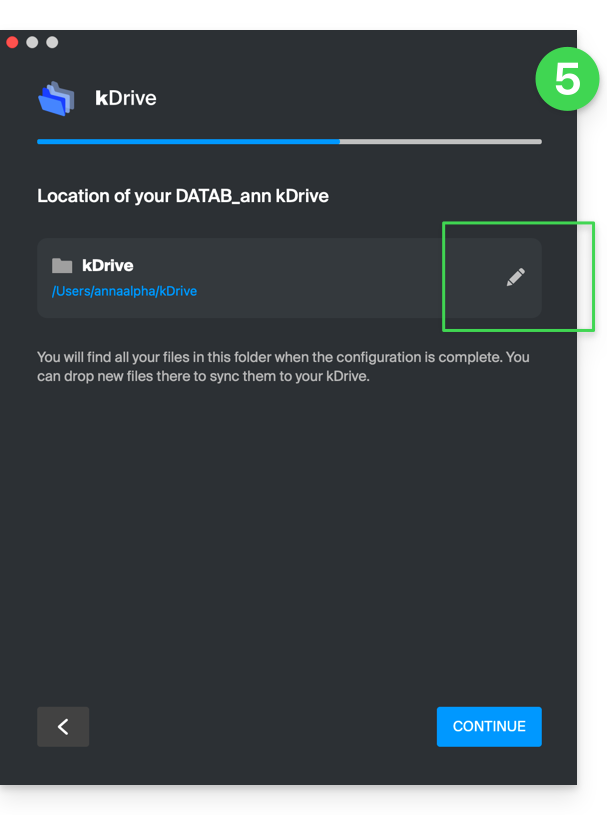
- It will contain the files that may already exist on your kDrive (some folders may be ignored - read below) and will send to the kDrive server all the files you place there in the future.
- During installation, pay attention to the permissions that may be requested (especially on macOS) and that must be granted for the proper functioning of the application:
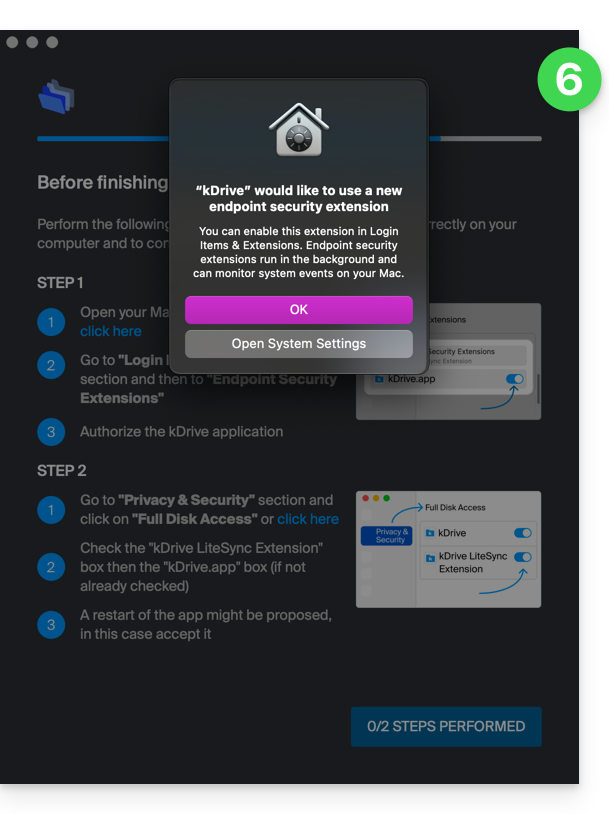
- You need to enable this on macOS:
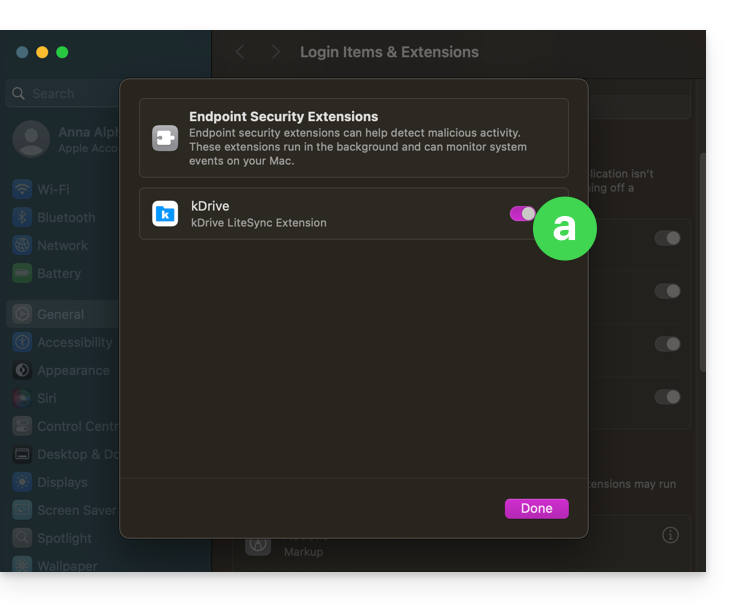
- but also this:
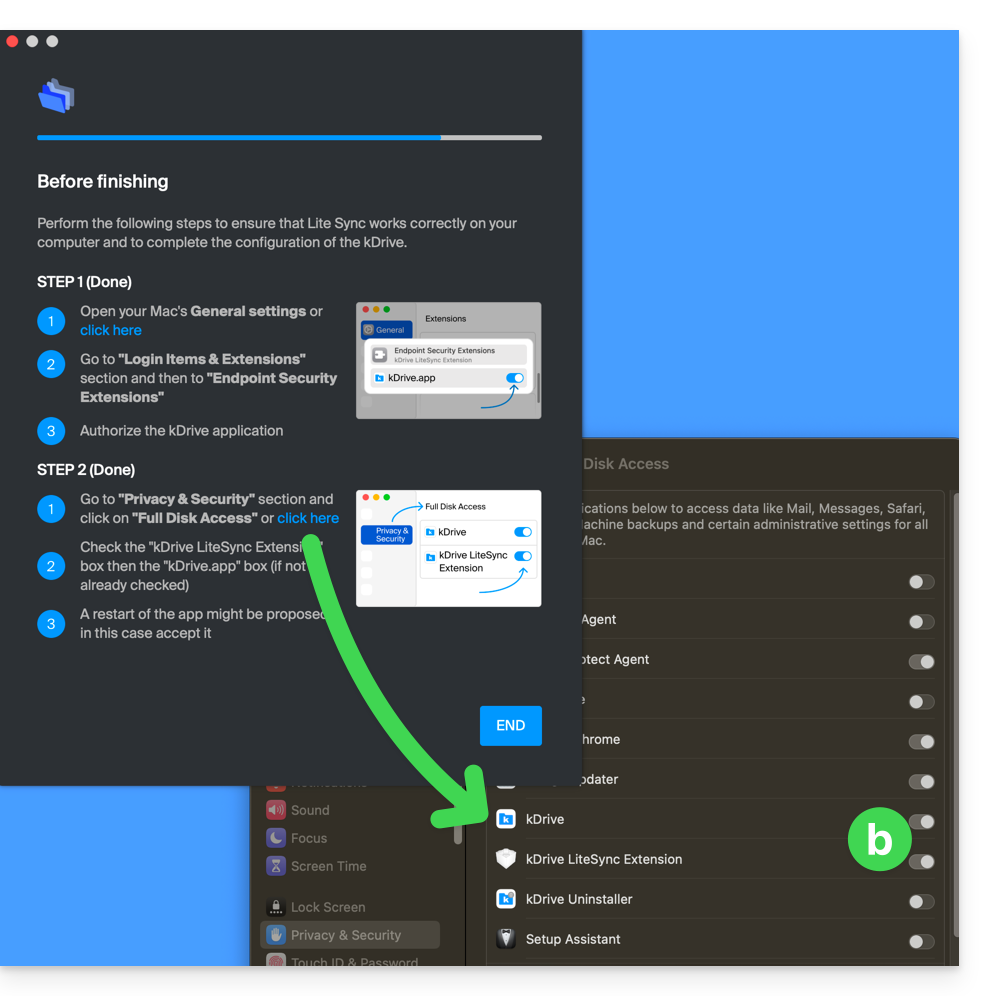
- You need to enable this on macOS:
- Once the installation is complete, you can choose to open the location of the kDrive files on your hard drive:
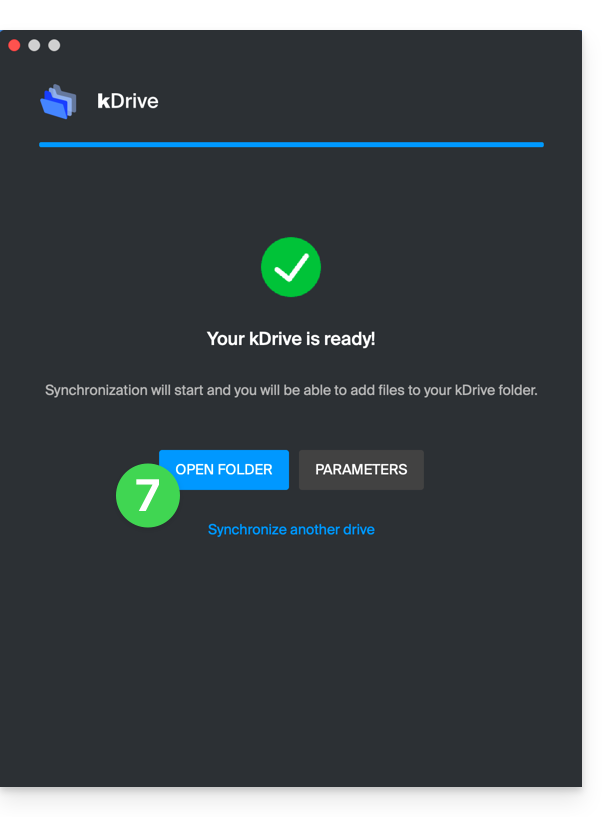
- On a macOS device, for example, it looks like this:
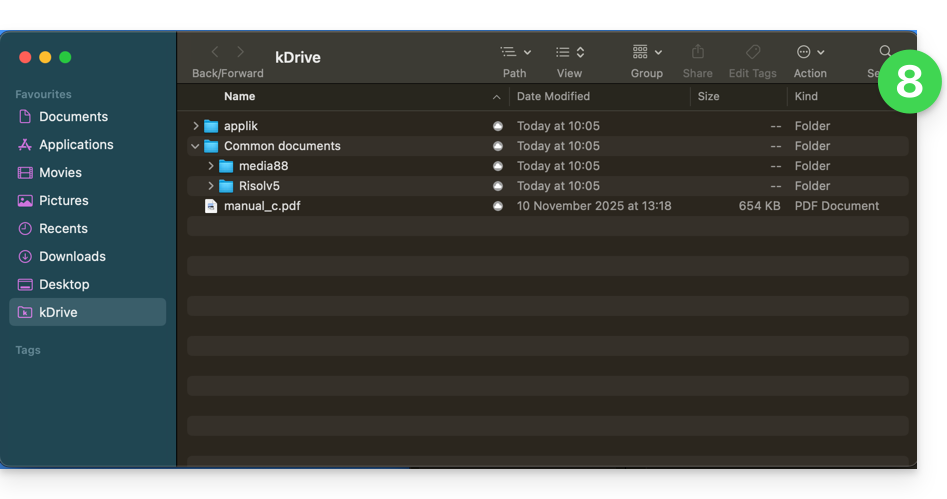
- And you can compare the data present on your hard drive with the data from the kDrive Web app Infomaniak (online service ksuite.infomaniak.com/kdrive):
- Click on the action menu ⋮ to the right of the kDrive window.
- Click to open the web version:
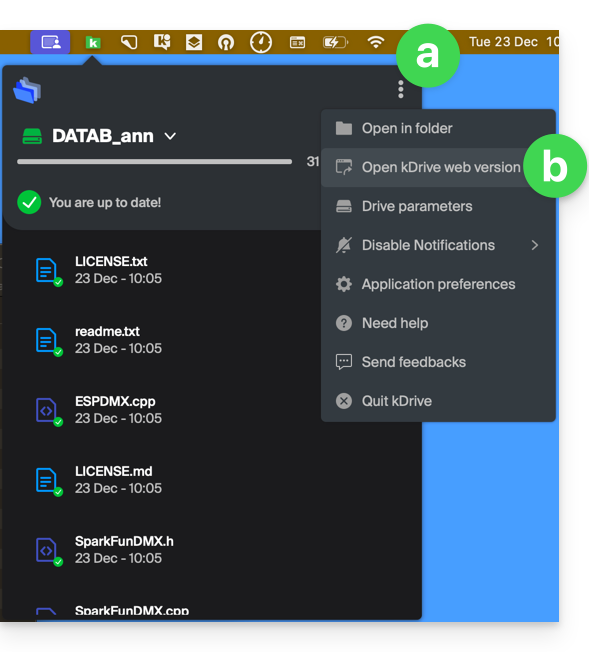
- The data appears, you can compare it with point 8 above:
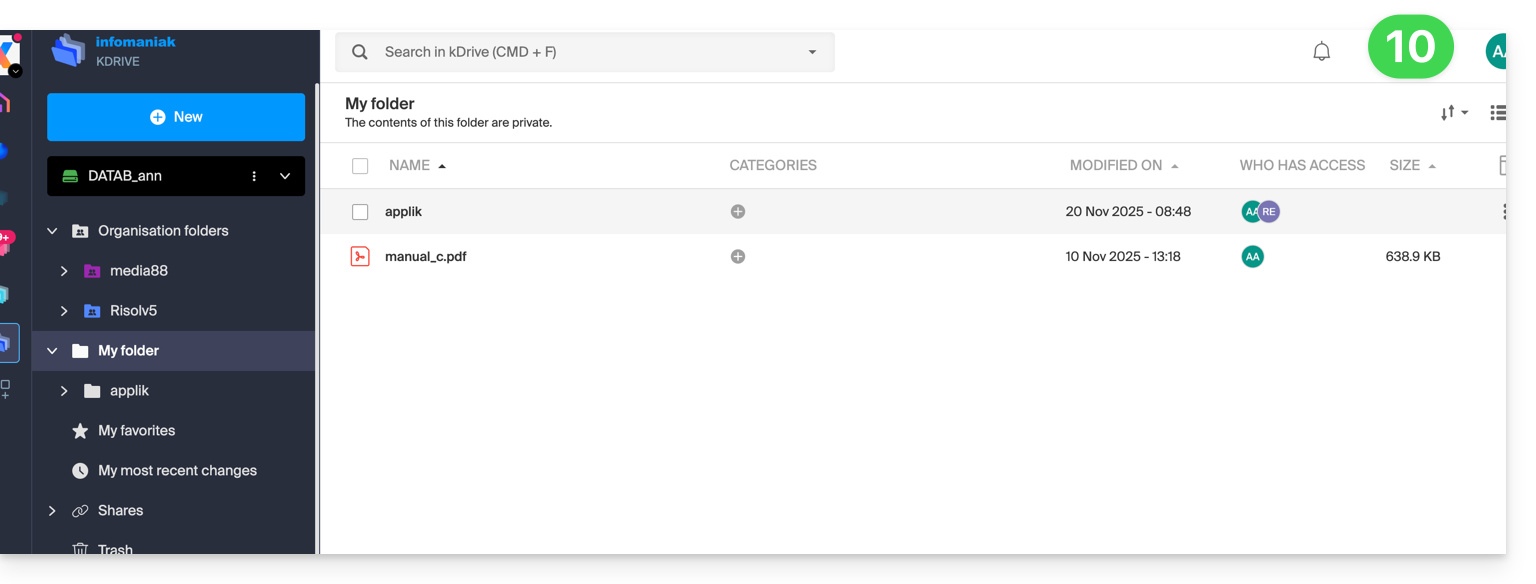
Synchronize files with kDrive
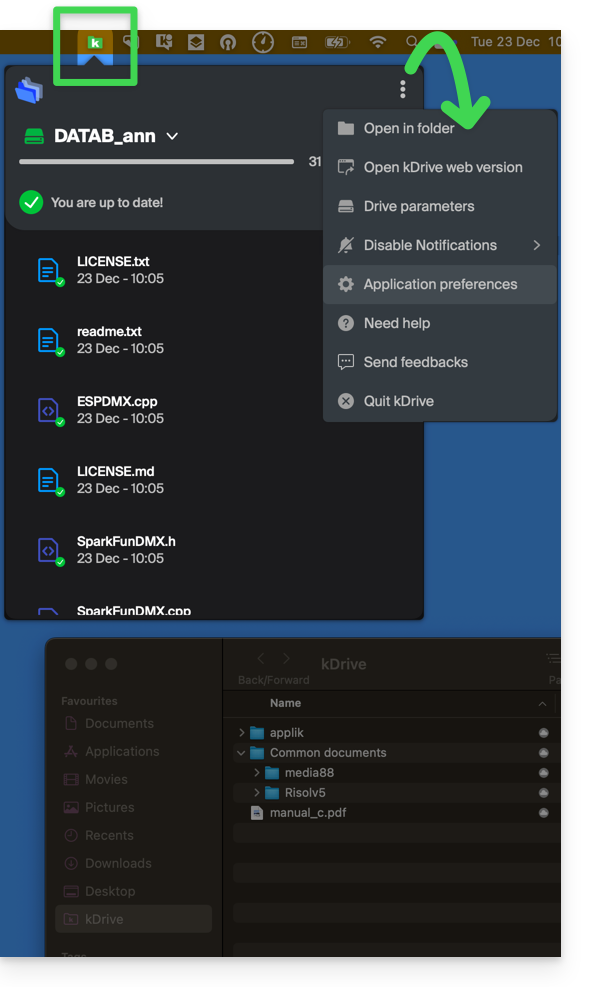
Once the application is installed and the connection to your account is established, you have the kDrive application on your device:
- On a computer, the app icon appears in the notification area of your computer (top right on macOS, bottom right on Windows and a double left click in the taskbar on Linux).
- Take advantage of this to browse the application preferences and the Drive preferences, from the action menu ⋮ to the right of the kDrive window.
Link to this FAQ:
Has this FAQ been helpful?