Knowledge base
1000 FAQs, 500 tutorials and instructional videos. Here, there are only solutions!
Restore a kDrive file to a previous version
This guide explains how to use the file history or versioning on kDrive.
Preamble
- This feature is very useful for recovering information that has been deleted or modified by a third party within a collaborative file.
- Infomaniak keeps in the version history a backup of all changes made to files on kDrive.
- You can choose to keep certain versions indefinitely.
⚠ Number of versions / Number of days :
| kSuite | free | 30 / 30 |
| Standard | 100 / 120 | |
| Business | 200 / 180 | |
| Enterprise | 200 / 365 | |
| my kSuite | 30 / 30 | |
| my kSuite+ | 60 / 120 | |
| kDrive | Solo | 100 / 60 |
| Team | 100 / 60 | |
| Pro | 200 / 120 |
Manage previous file versions
To access kDrive:
- Click here to access the kDrive Infomaniak Web app (online service ksuite.infomaniak.com/kdrive).
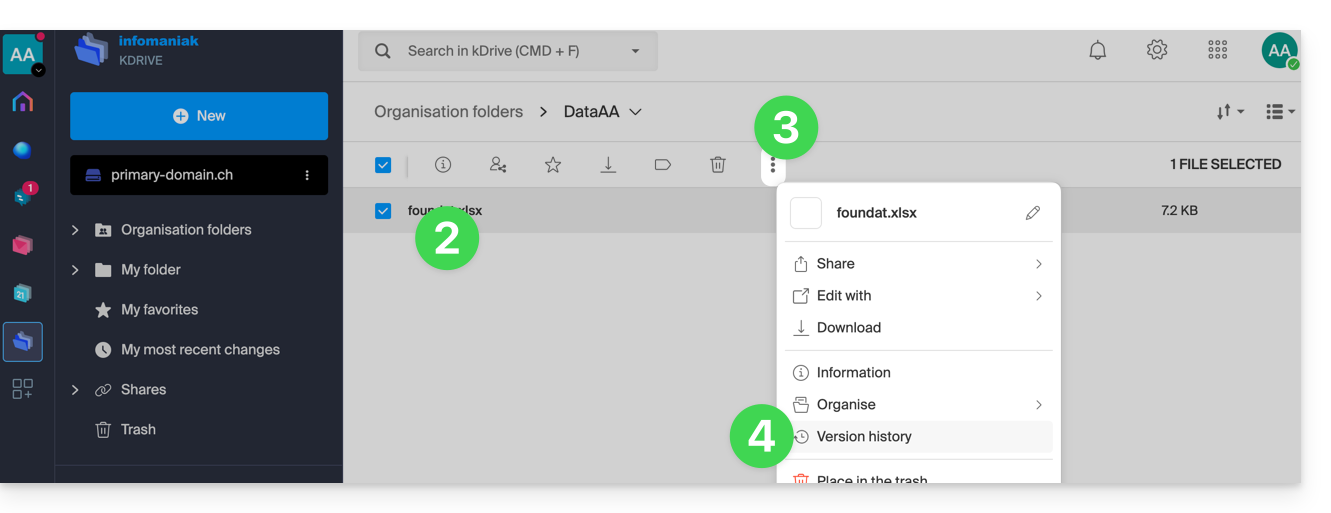
- Select the file to edit (or right-click on the file and in this case go to step 4).
- Click on the action menu ⋮ in the toolbar.
- Click on Version history:
The different versions of the file are listed in reverse chronological order.
You can delete all versions of this file using the button: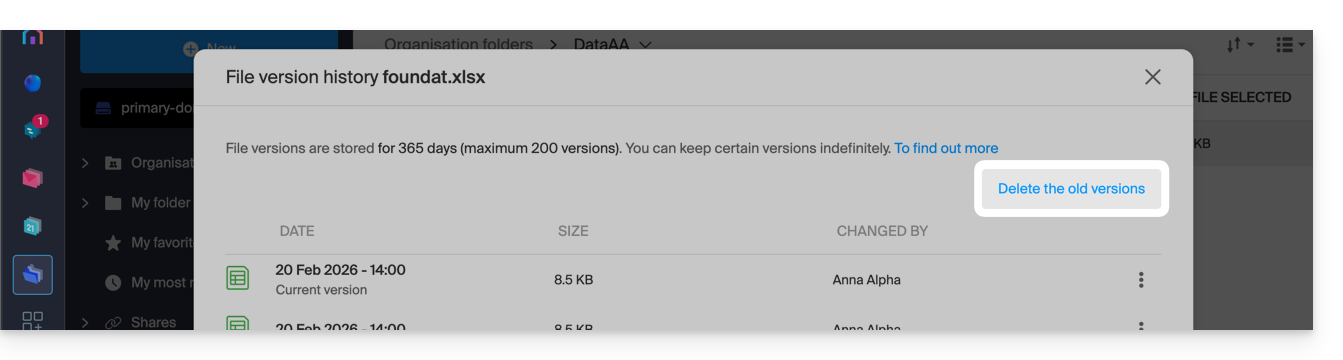
Otherwise, a menu on the right of each version allows you to: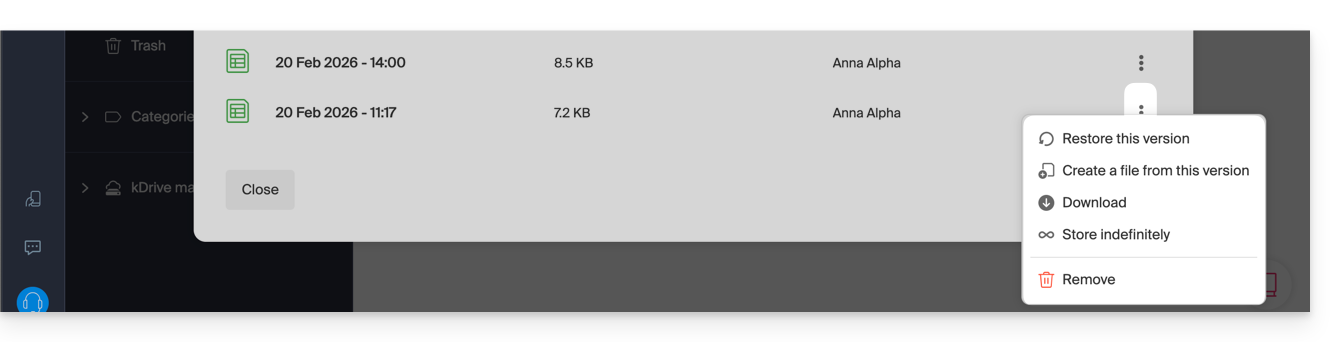
- ... download the file in its state at the date/time of the selected version,
- ... keep it indefinitely: the version will be kept after the standard retention period,
- ... create a new file on kDrive from this version,
- ... delete the version: allows you to erase this version only.
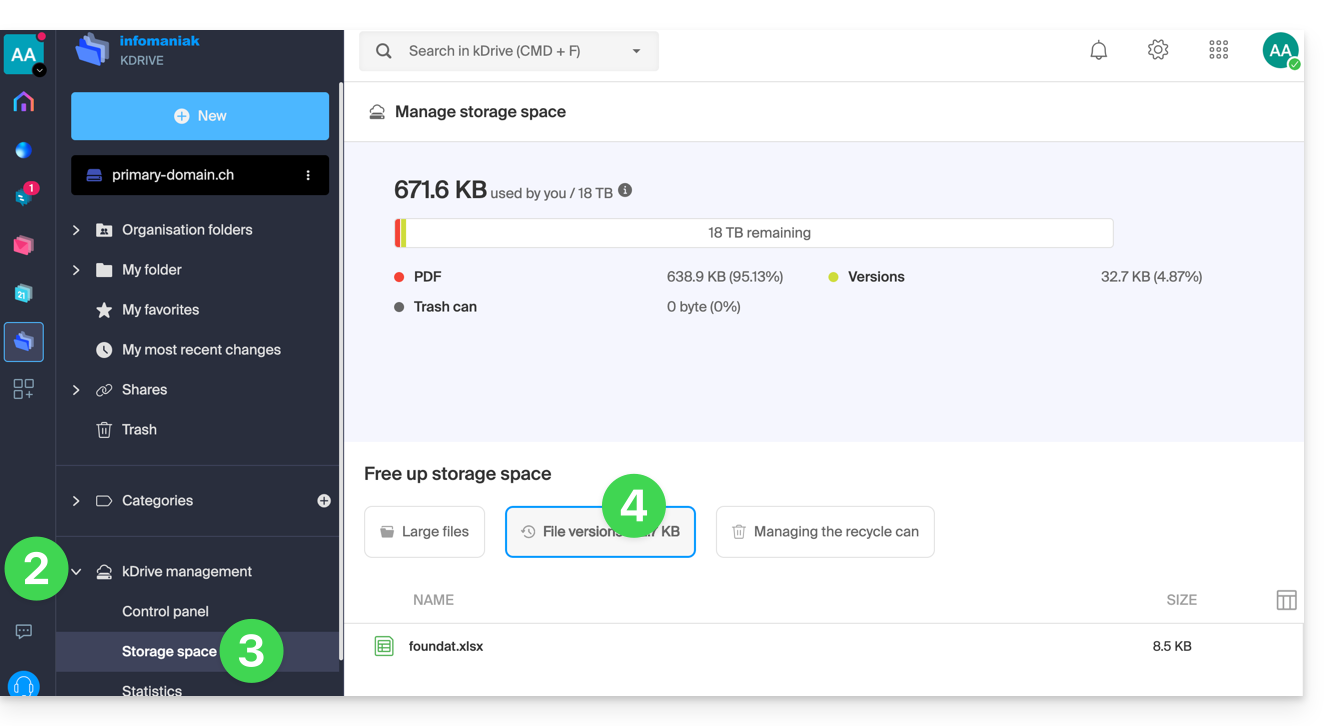
You can also access all versions of all your files:
- Click here to access the kDrive Infomaniak Web app (online service ksuite.infomaniak.com/kdrive).
- Click on kDrive Management in the left sidebar.
- Click on Manage storage space
- Click to select File versions:
It is also possible to restore a previous version of the entire organization of your files on the kDrive.
Link to this FAQ: https://faq.infomaniak.com/2384
Has this FAQ been helpful?