Knowledge base
1000 FAQs, 500 tutorials and instructional videos. Here, there are only solutions!
Manage multiple kDrive on the mobile app
This guide explains how to connect and manage multiple kDrive on the mobile app kDrive (app for iOS/Android smartphone or tablet). This feature allows you, for example, to access files from a personal kDrive and a professional kDrive.
Prerequisites
- Have a kDrive or kSuite offer.
- Install the mobile app kDrive (app for iOS/Android smartphone or tablet).
Access different kDrives from the mobile app
A user can access multiple kDrives if they already work with multiple kDrives outside the app, if they have been added to other kDrives, etc. They will all be accessible as soon as the user is logged in with the login ID corresponding to these kDrives.
This is the case on the Web app…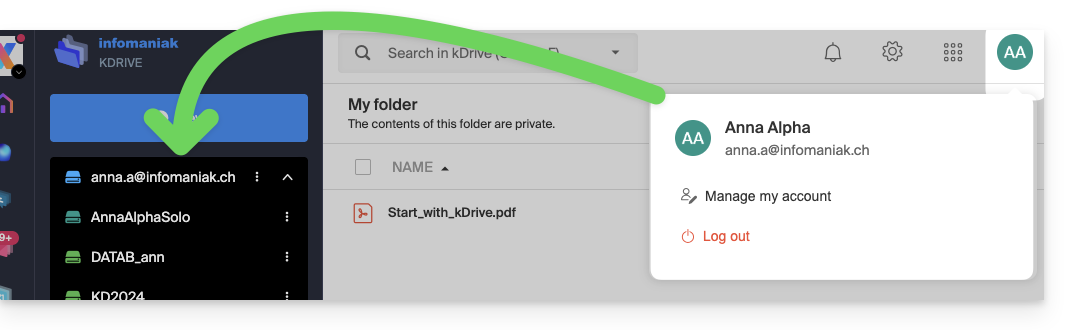 … as on the mobile app:
Once you are logged into your Infomaniak account on the mobile app kDrive, the easiest way to access the different kDrives for which your Infomaniak account has access:
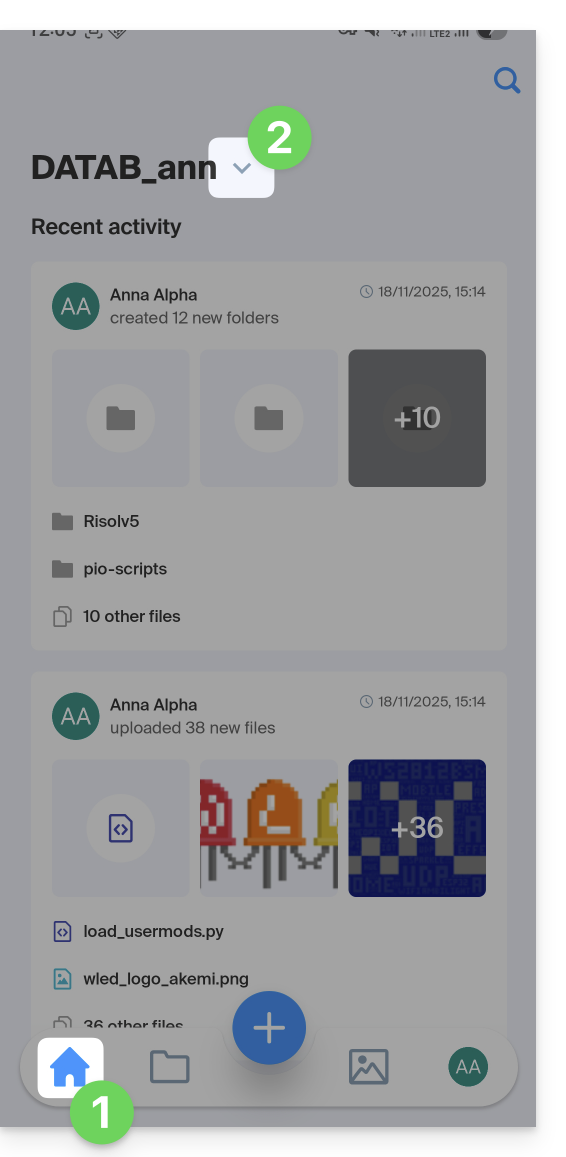
- Click on the home icon to be on the home page,
- Click on the chevron to the right of the current kDrive name:
- On the sliding lower panel, click on the name of the desired kDrive:
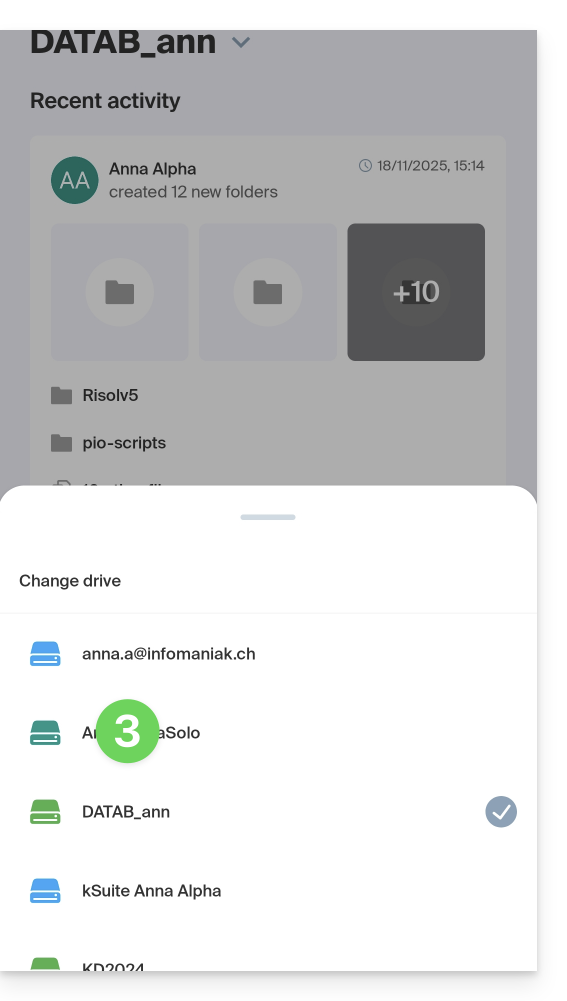
- You will be switched to the data of the selected kDrive.
Access and manage other kDrive accounts
To log in with a different Infomaniak account and thus access other kDrives:
- Open the mobile app kDrive.
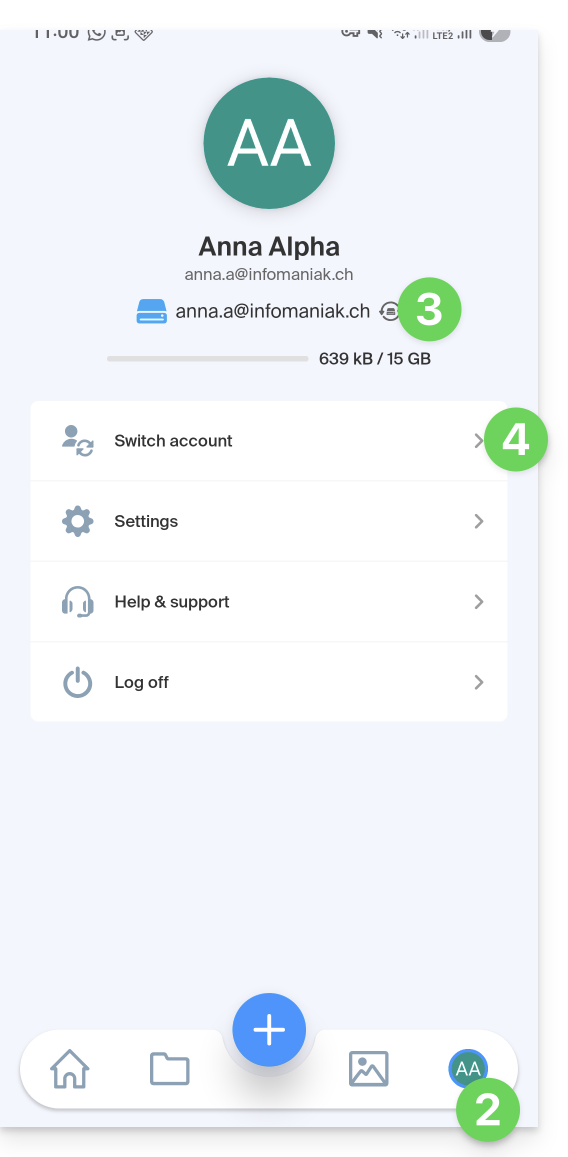
- Press the badge with your initials or avatar at the bottom right.
- Press the icon to the right of the kDrive name (just to check the kDrives you already have access to).
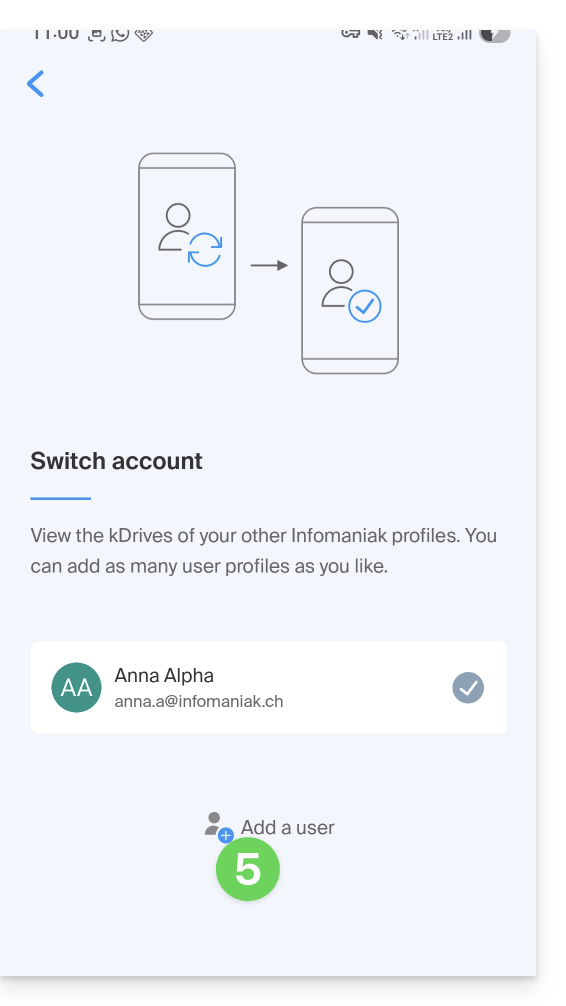
- Press Switch user:
- Press Add a user:
- Enter your Infomaniak account credentials — refer to this other guide if needed.
- Choose the kDrive to add.
- It is now possible to switch from one kDrive to another from the menu User > Switch user, the credentials of the different accounts are preserved.
Link to this FAQ: https://faq.infomaniak.com/2396
Has this FAQ been helpful?