Knowledge base
1000 FAQs, 500 tutorials and instructional videos. Here, there are only solutions!
Manage a kDrive user's rights
This guide explains how user permissions work on kDrive and how you can modify these access permissions.
How kDrive user permissions work
You can add a new user to kDrive (kDrive Pro, for example, therefore outside kSuite), and define 2 levels of permissions, via folder sharing…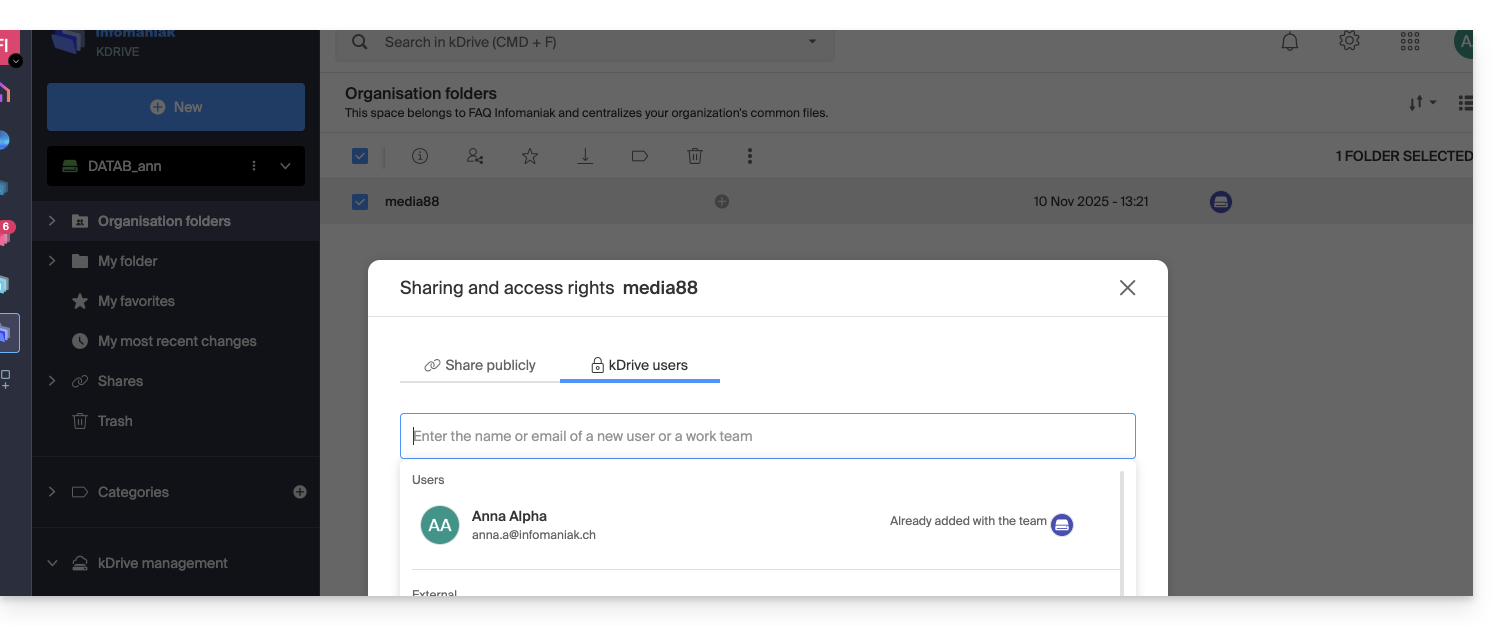
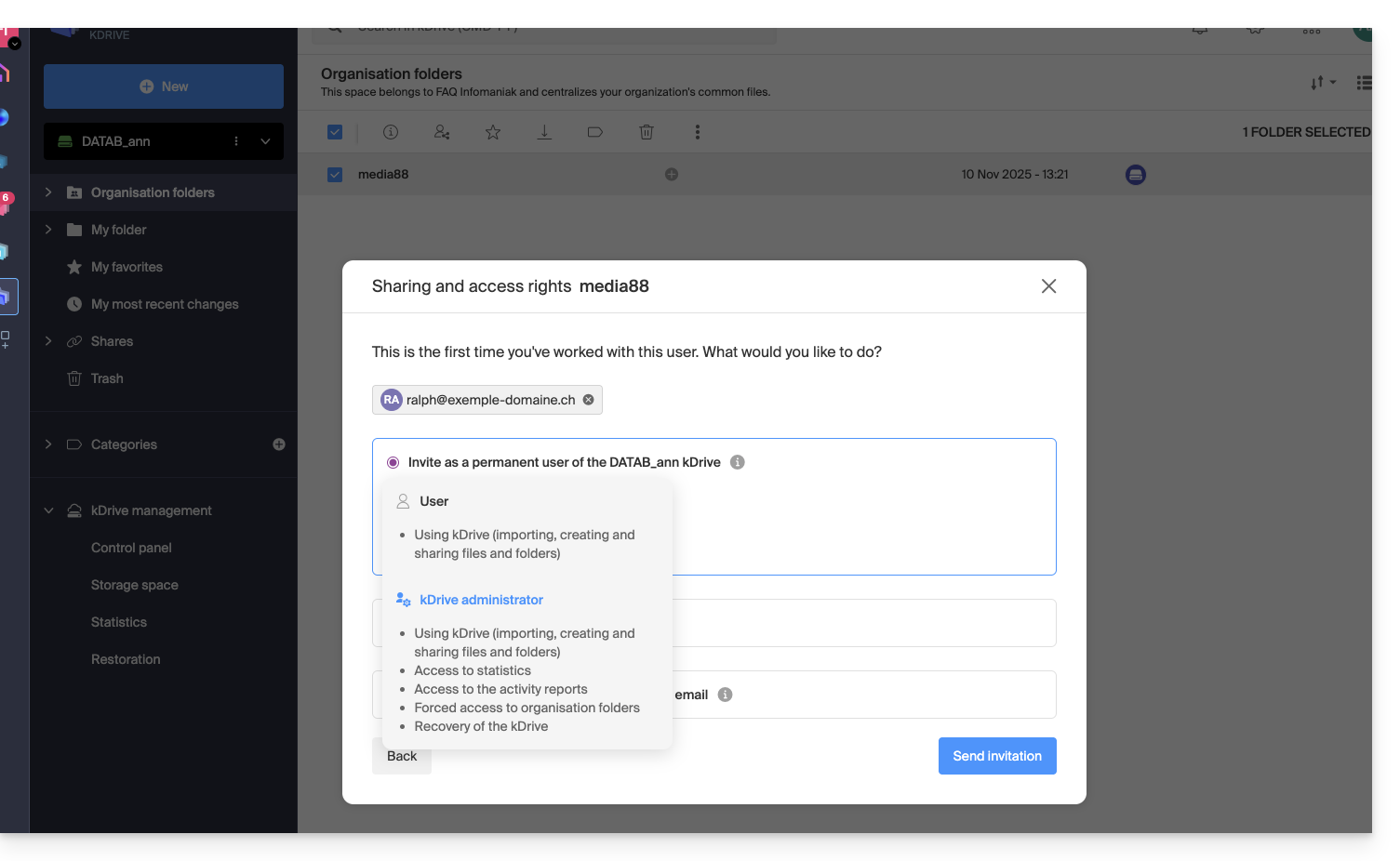
… or via kDrive user management: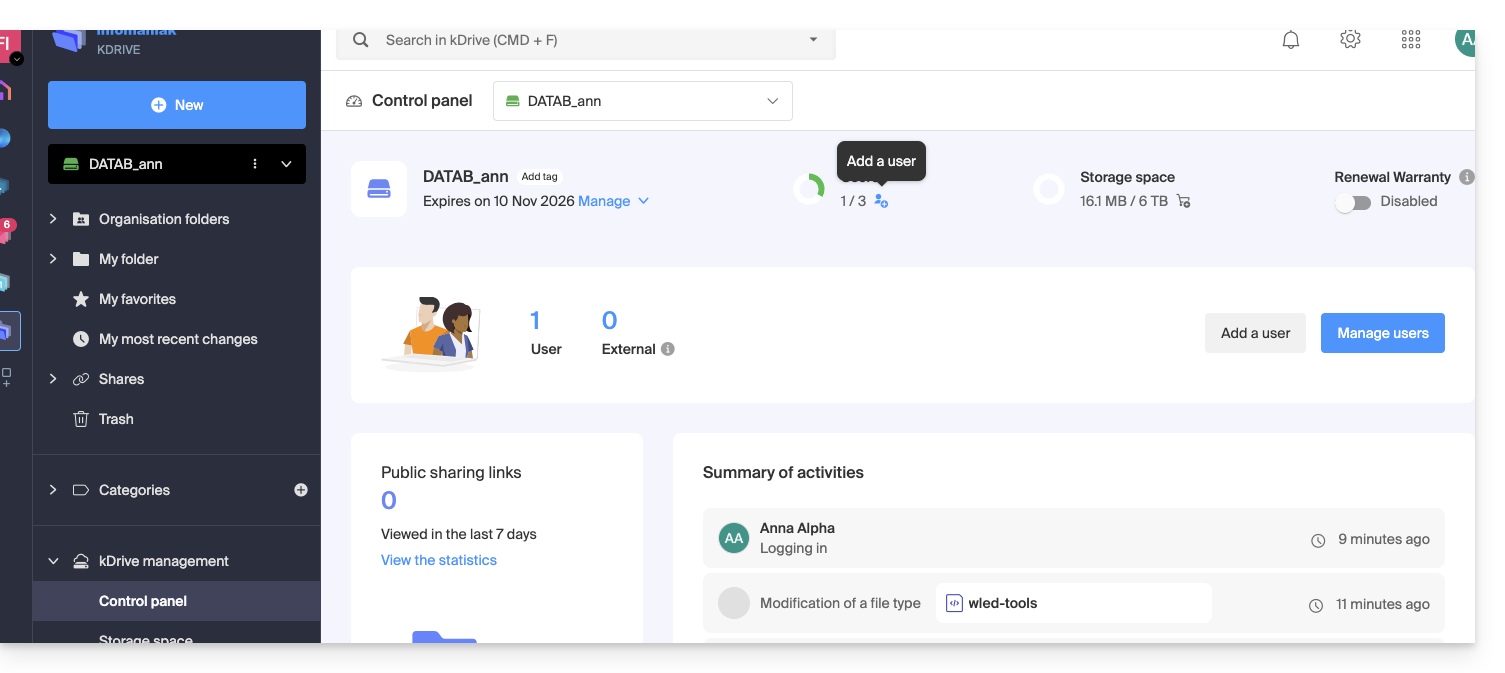
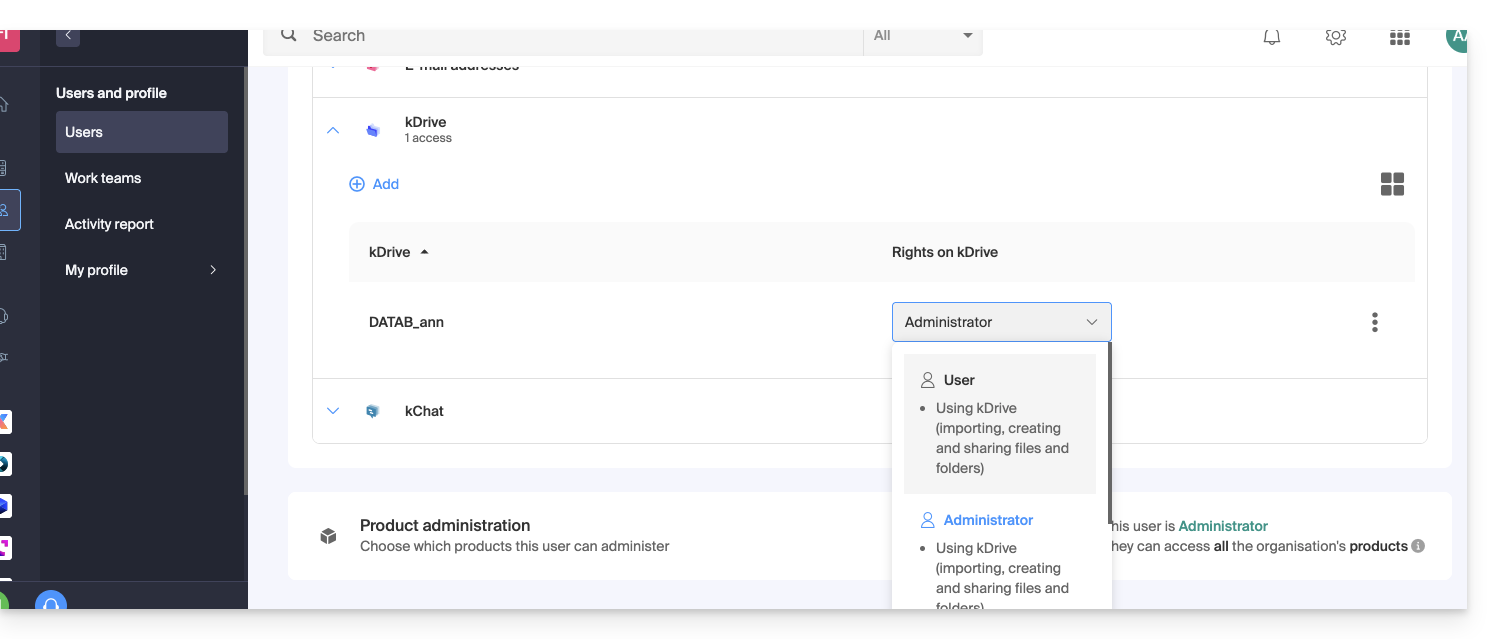
In both cases, 2 levels of permissions are offered:
- Administrator gives users the same rights as the kDrive owner:
- Sharing, statistics, activity reports, restoring and deleting folders, importing external data, etc. and accessing files and folders…
- User allows access to folders located at the root of the kDrive as well as managing and freely sharing their content:
- Access to shared files and folders, personal directory and file creation/sharing…
- However, users will not be able to access the administrative management of the product (manage users, view statistics, create or delete folders at the root of the kDrive, import data from an external service, etc.)…
In all cases:
- The content of the Organization Folders directory is common and visible to other kDrive users, but sharing can be restricted.
- Contents shared by other users from their private part of the kDrive are not listed in the Shares menu of other users.
- Any folder or file can be shared with other kDrive users and your chosen contacts.
Modify kDrive user permissions
To access kDrive and manage user rights:
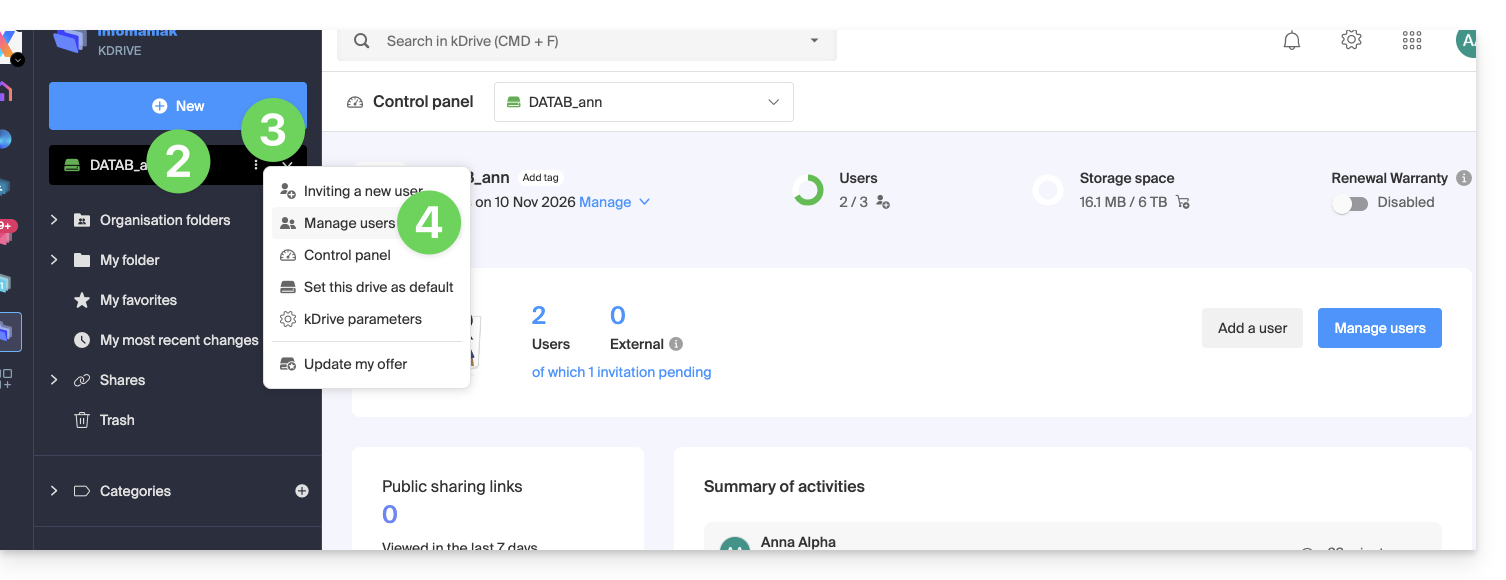
- Click here to access the Infomaniak kDrive Web app (online service ksuite.infomaniak.com/kdrive).
- Check or select the relevant kDrive in the dropdown menu of the left sidebar.
- Click on the action menu ⋮ located to the right of the relevant item.
- Click on Manage users:
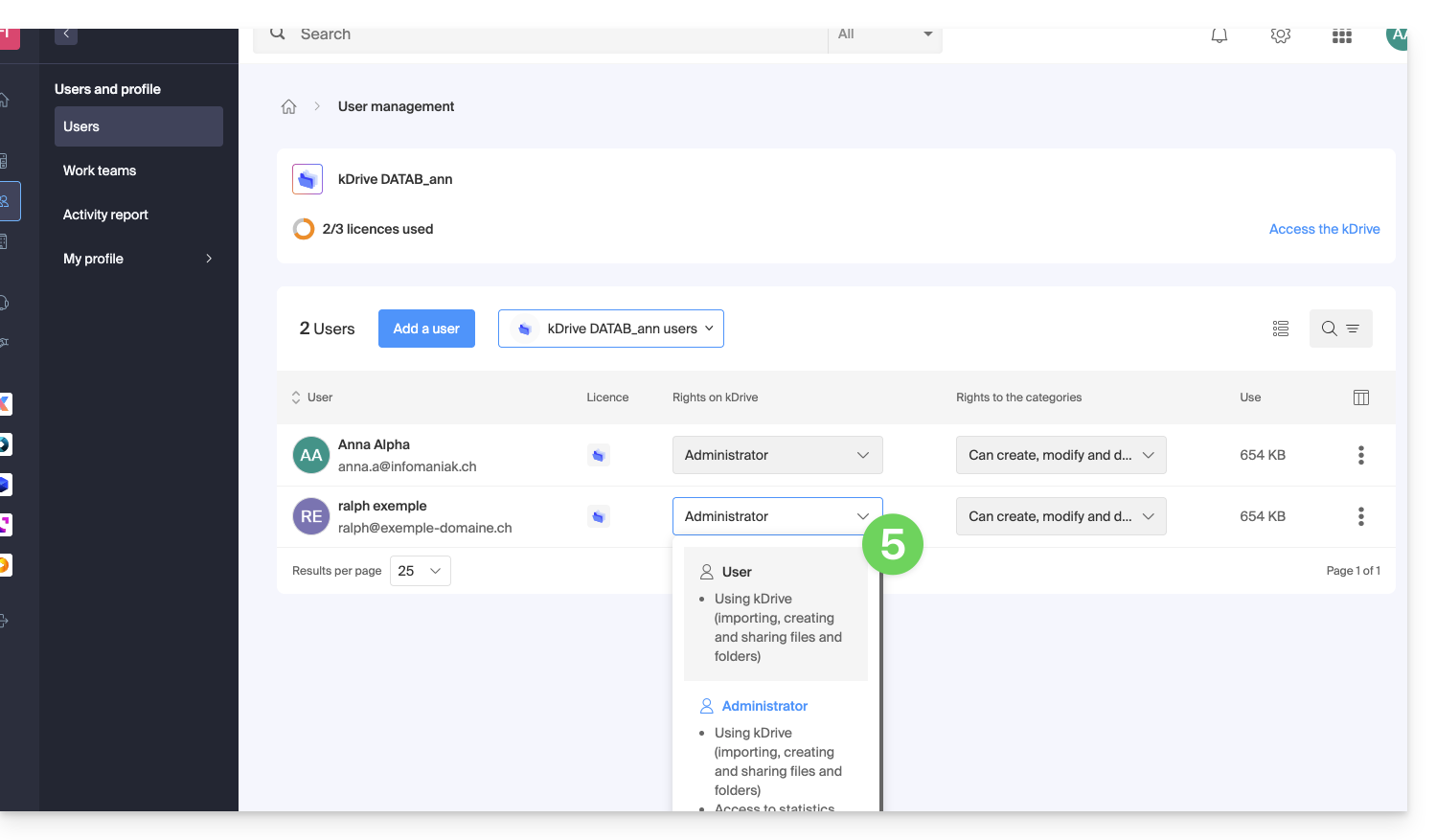
- Manage the rights of the desired user, choose the desired access level:
In case of a problem
If a modification is not possible: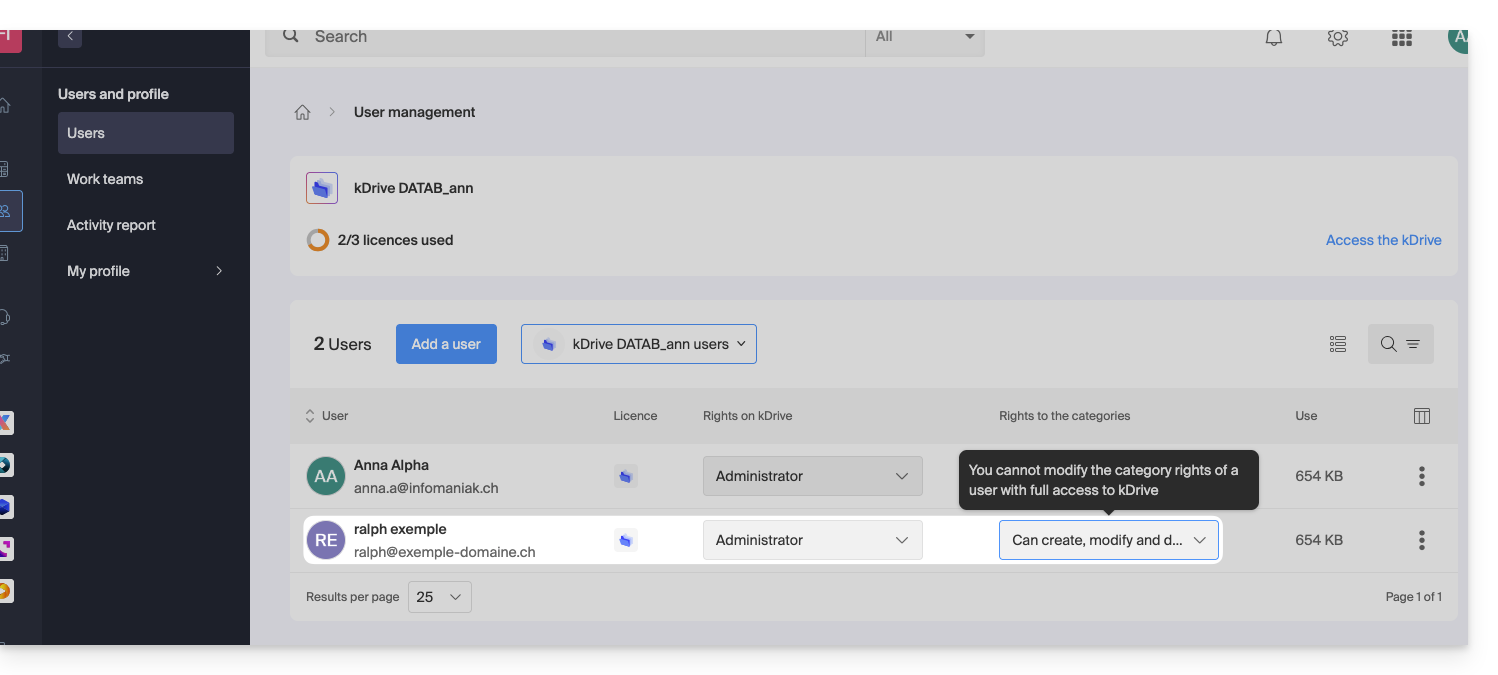
… then you need to act on the user's rights at the Organization level itself: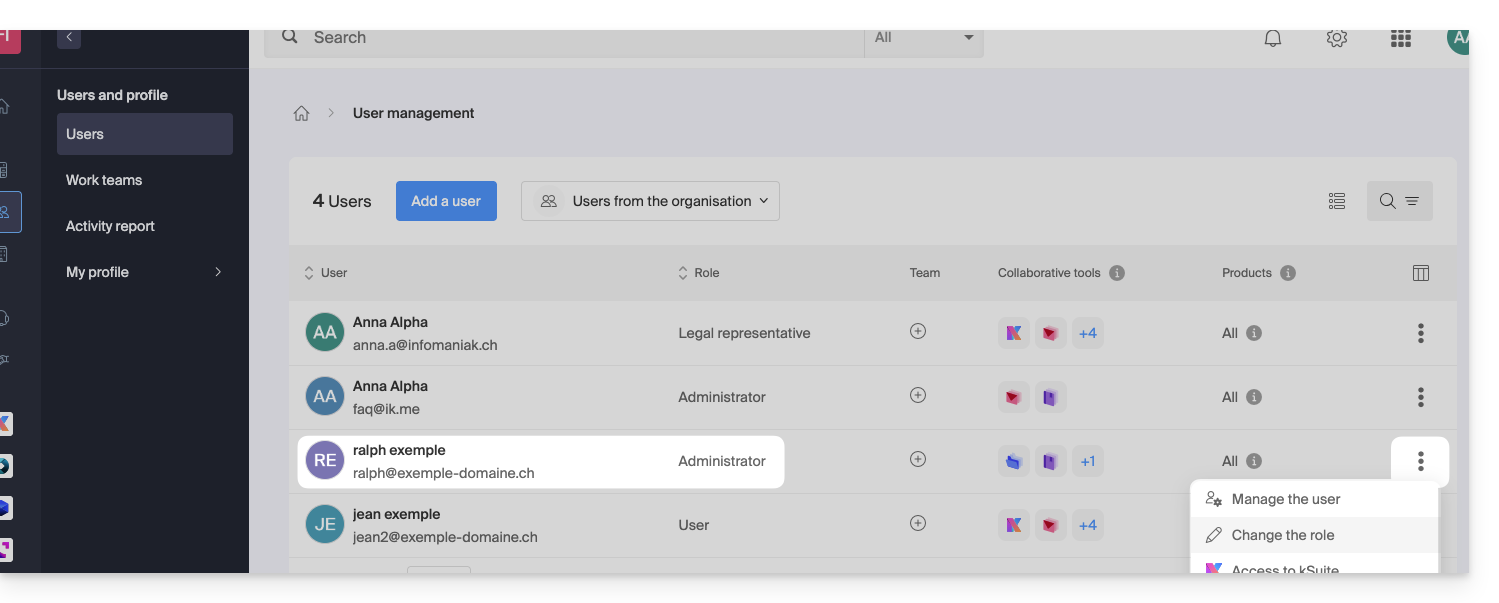
… and reduce their role as administrator by giving them a role as user: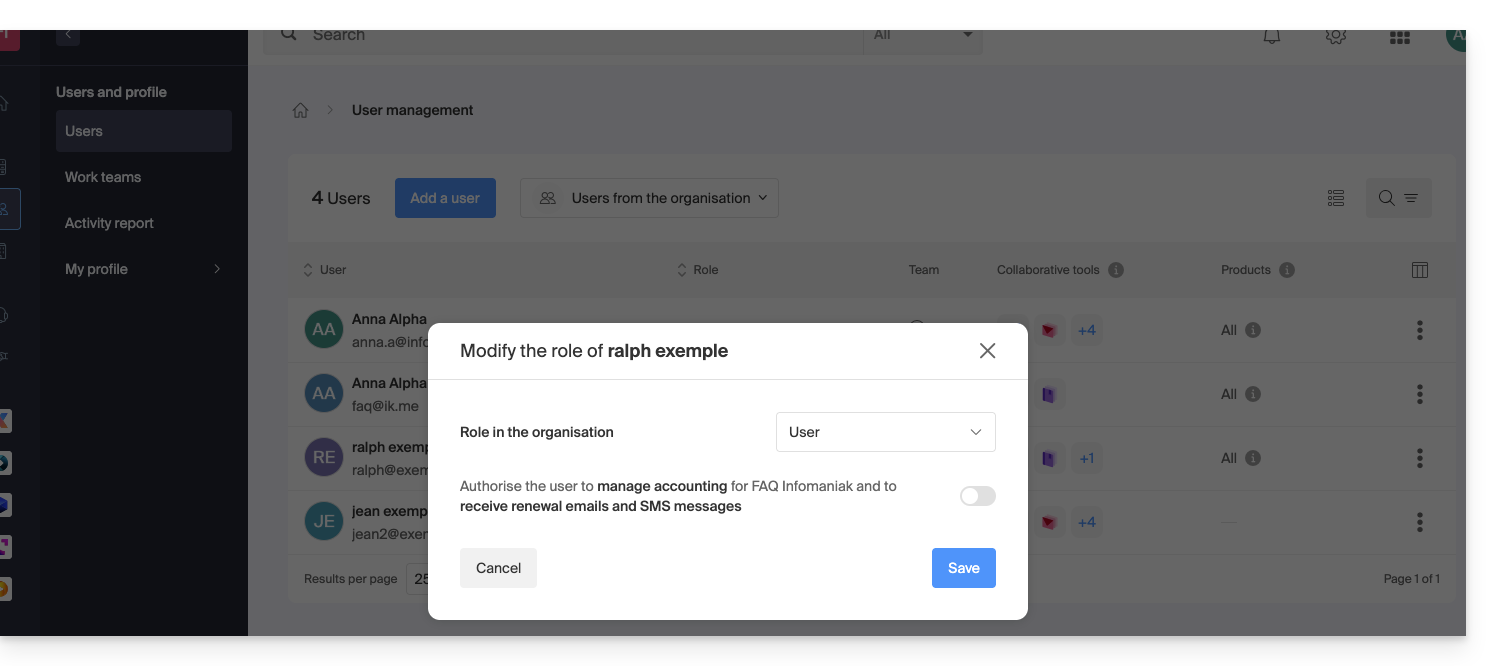
Thus, the modification proposed in point 5 above will now be accessible: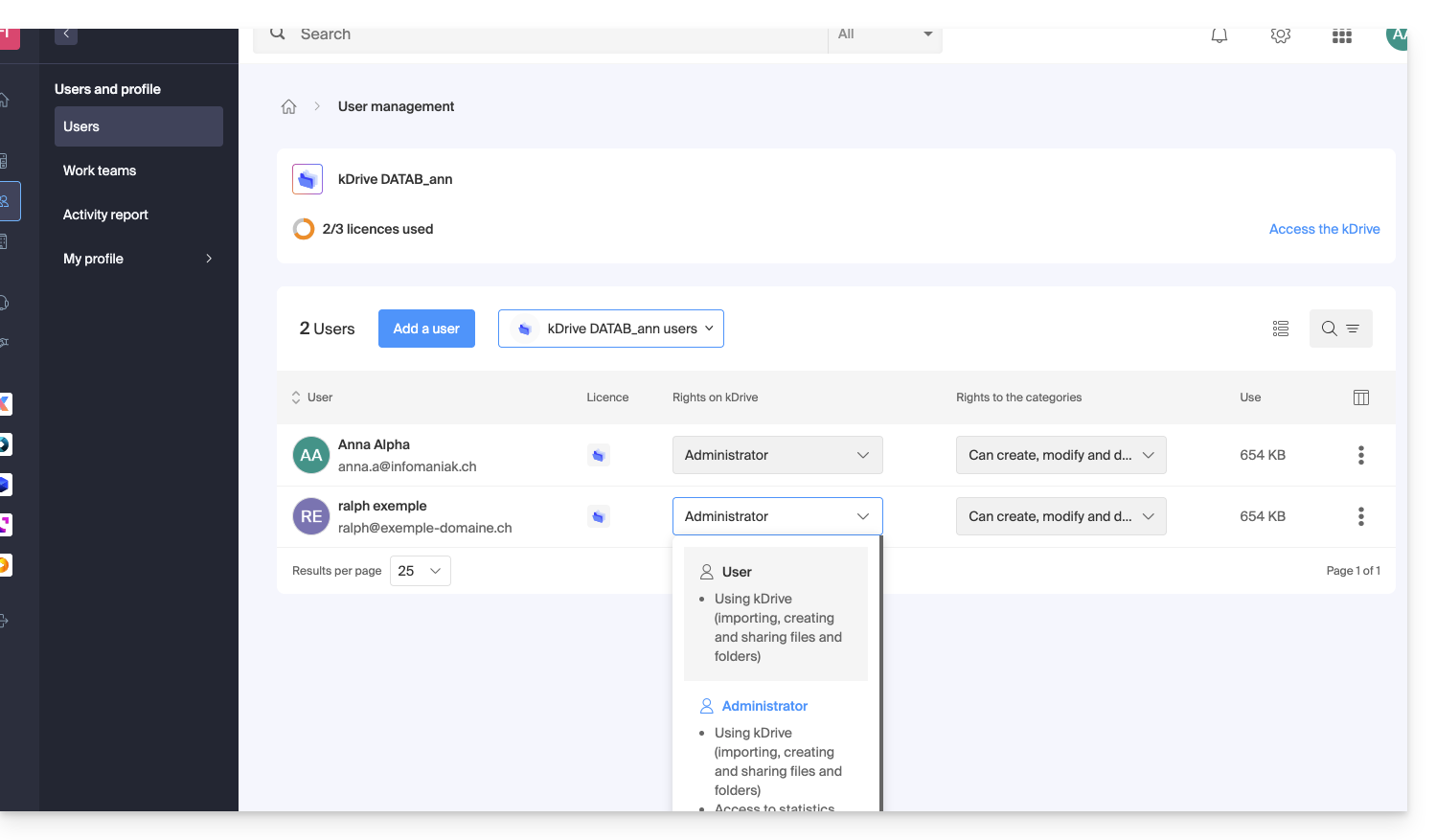
Other actions on the user
If necessary, open the action menu ⋮ of the desired user for advanced actions: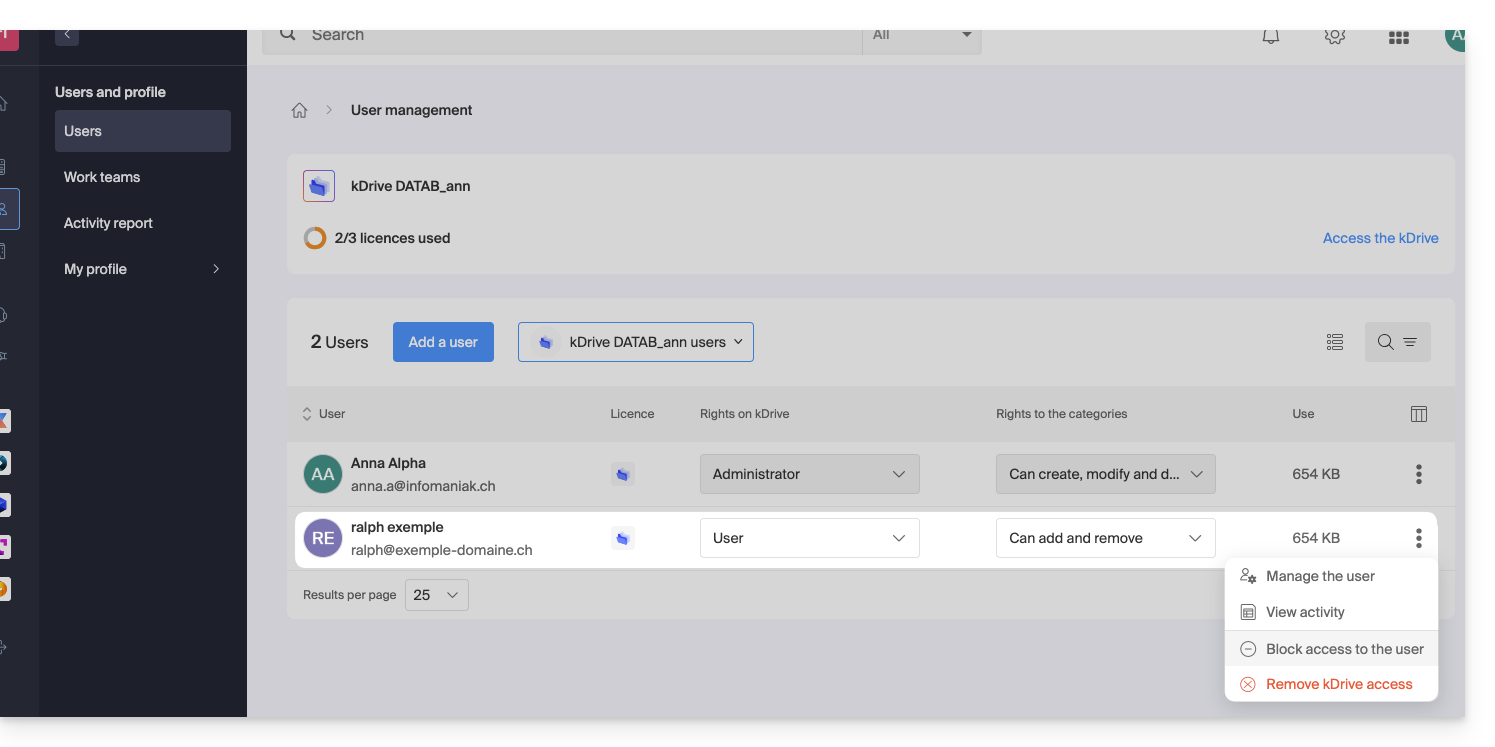
You can manage the user, view their activity, block their access, and completely remove them from kDrive.
If necessary, also manage the permissions related to actions on categories: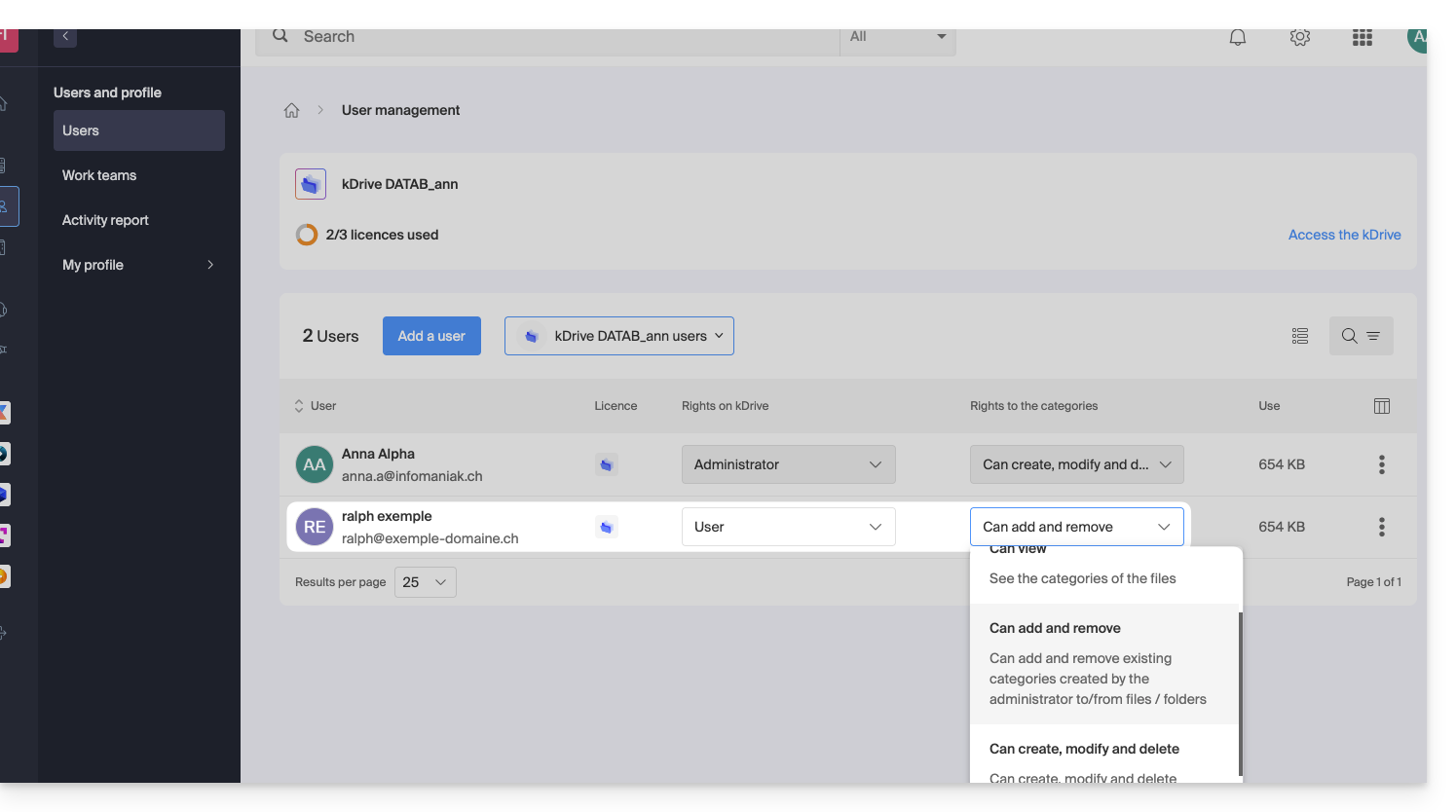
Rights in the Organization / Rights on kDrive
As seen above, do not confuse or mix:
- the rights granted for managing the kDrive service on the Manager,
- and the rights granted to the user within kDrive.
Indeed, a user may have restricted or no rights on the kDrive product in the Manager (they will therefore not be able to manage the kDrive product themselves or have technical details - see below) but may have been defined as administrator in kDrive and thus have access to all stored data.
Rights in the Organization: product management
In this example, you can manage the kDrive management rights of the user ralph from the product accesses: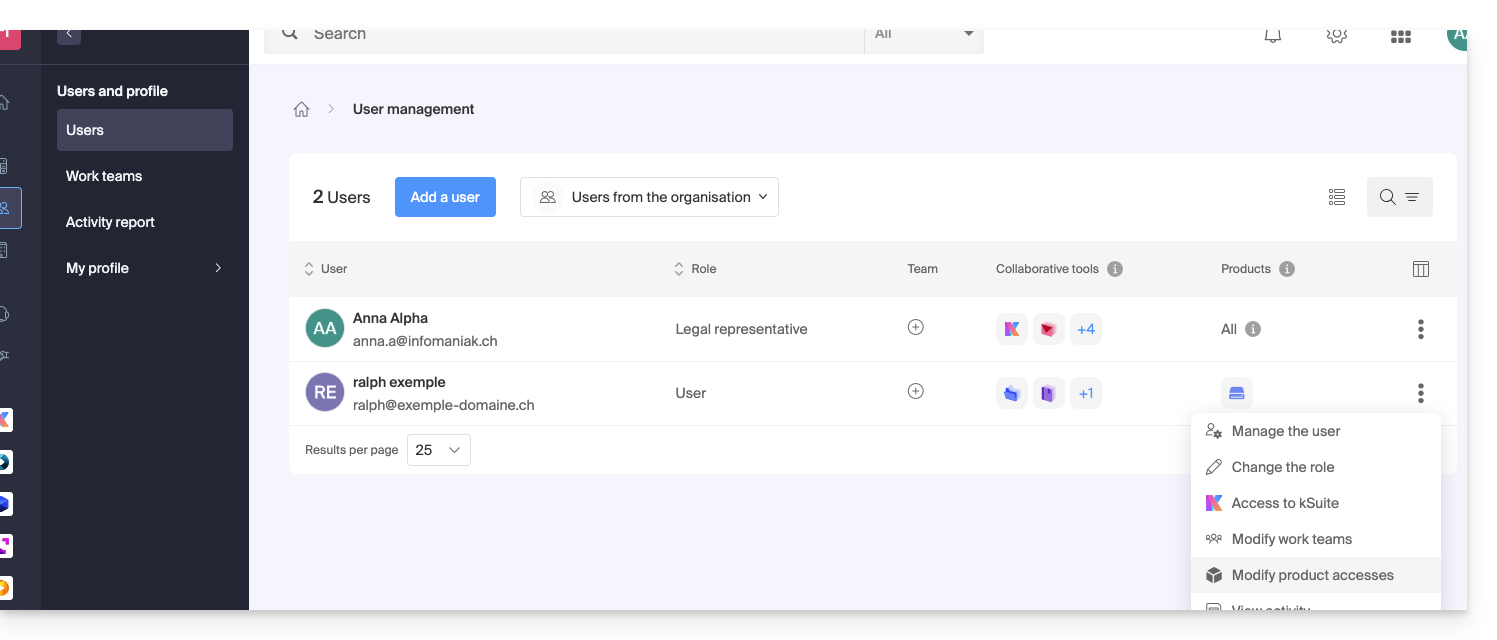
If necessary, specify which kDrive is concerned and especially which permissions (technical / statistics) they should have: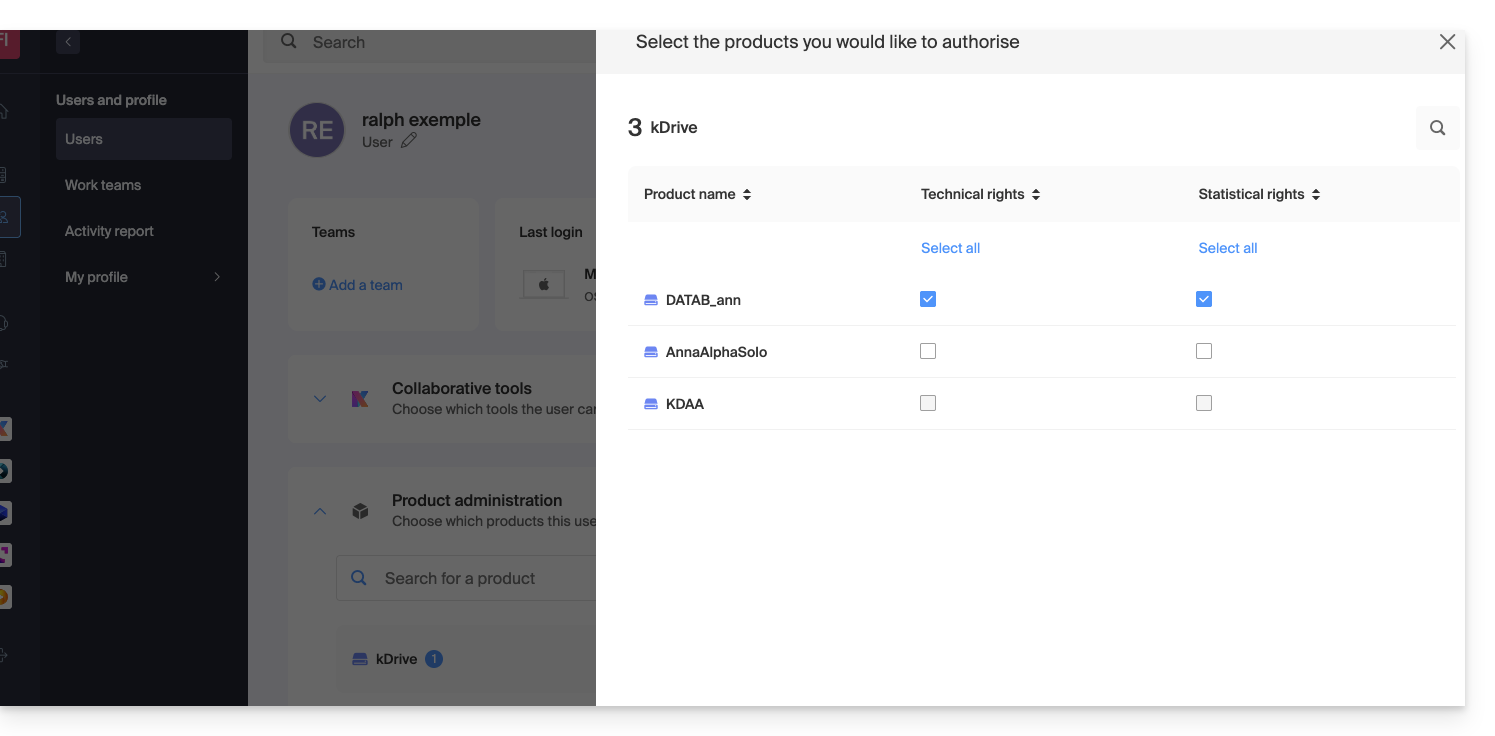
With only Technical rights, they will not see the Statistics element in the sidebar: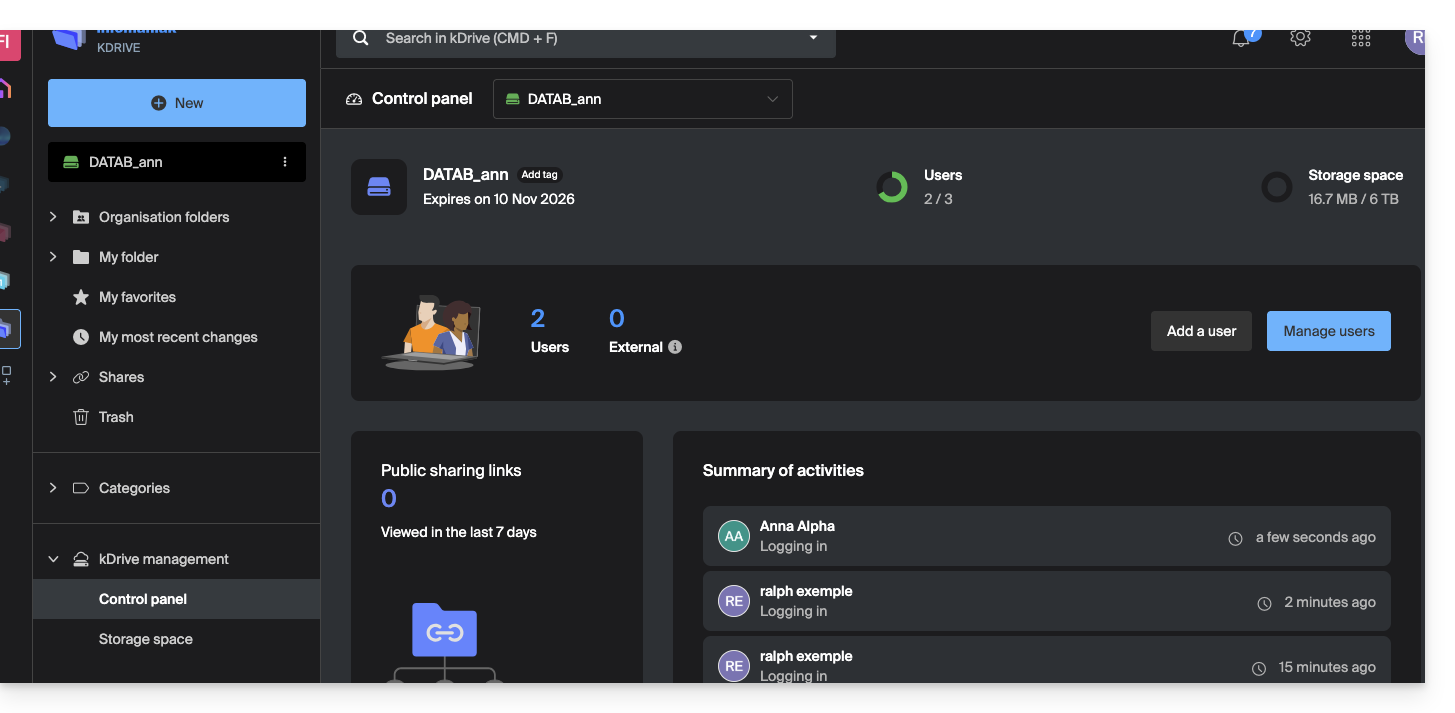
If, conversely, only the Statistics box is activated, then they will not access the dashboard: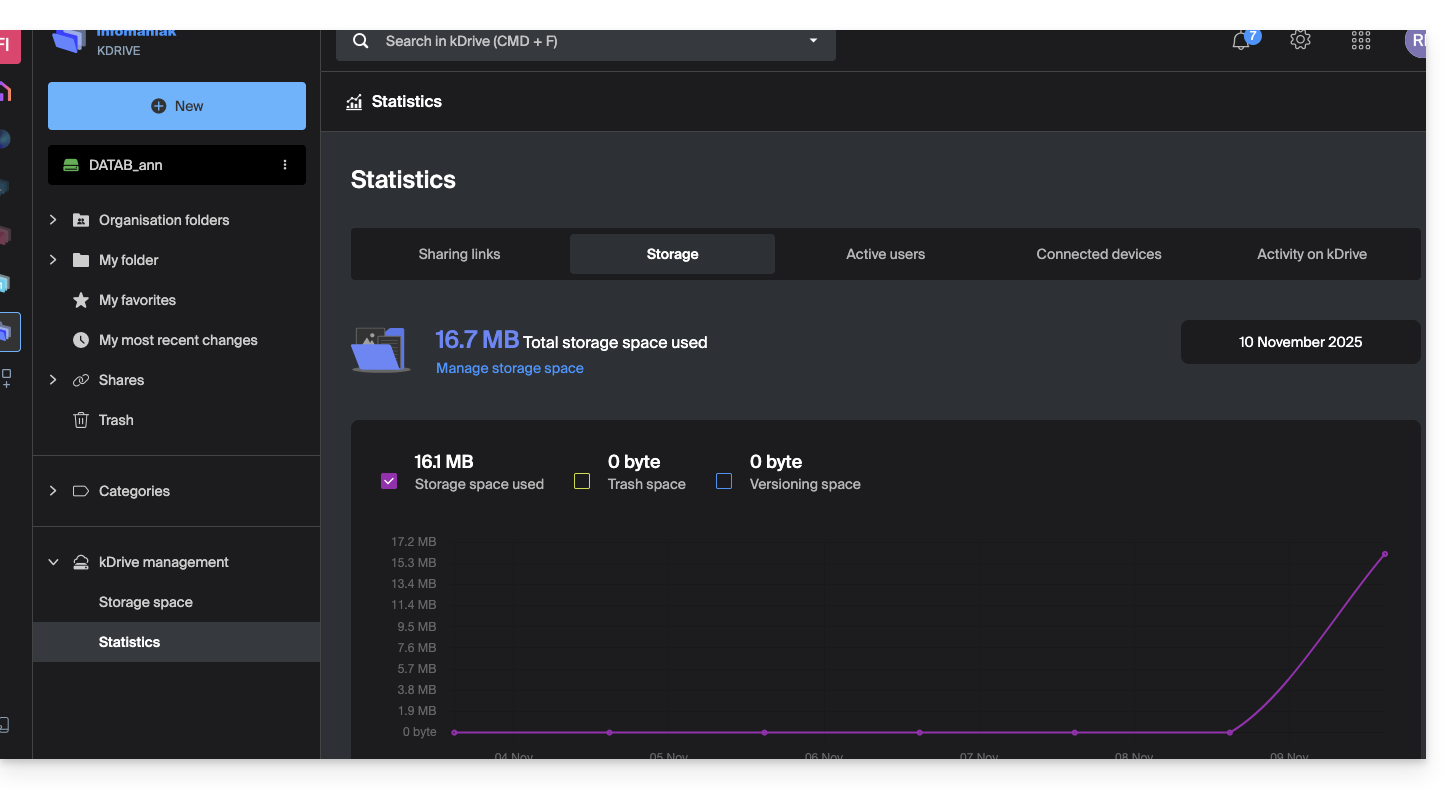
And if the administrator deactivates both Technical and Statistics boxes, only storage information is accessible from the sidebar: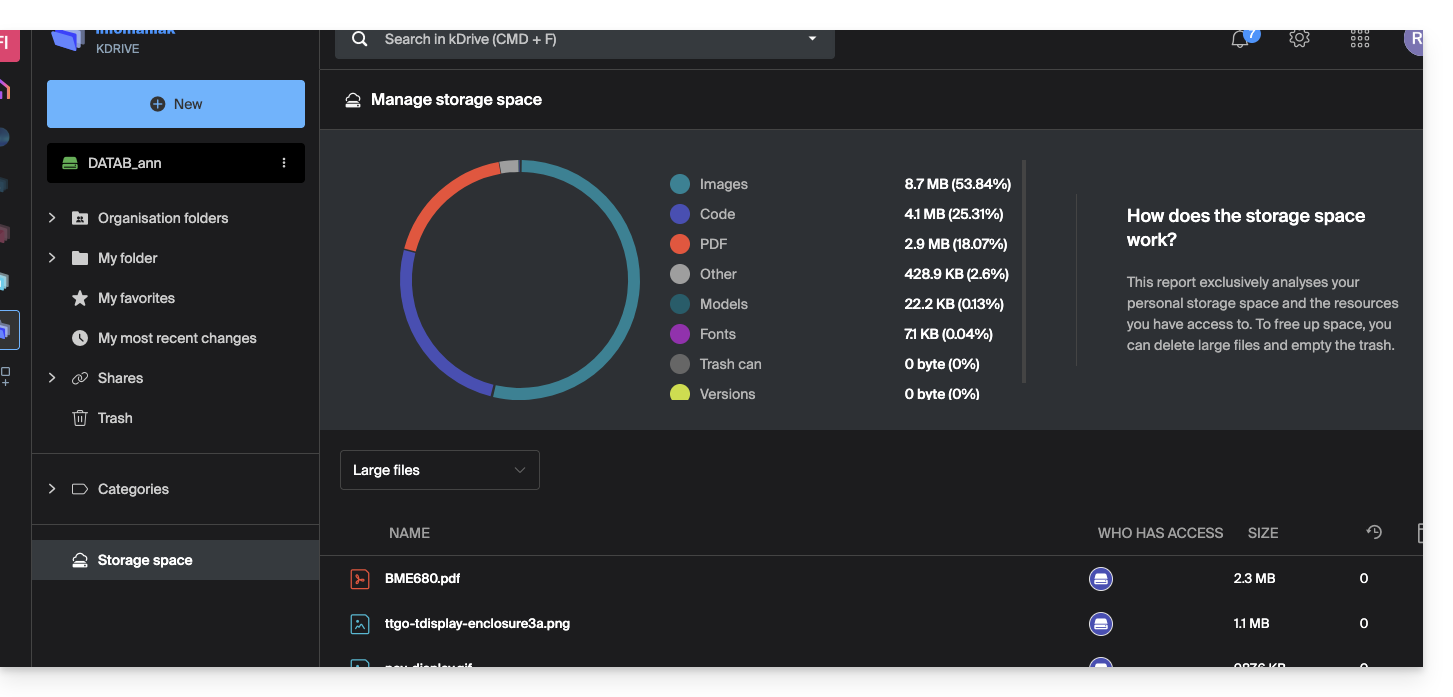
User rights on kDrive
Even with both boxes (Technical and Statistics) activated, a user who only has User rights at the level of kDrive user management will not be able to, among other things, create a new folder at the root of the Organization Folders: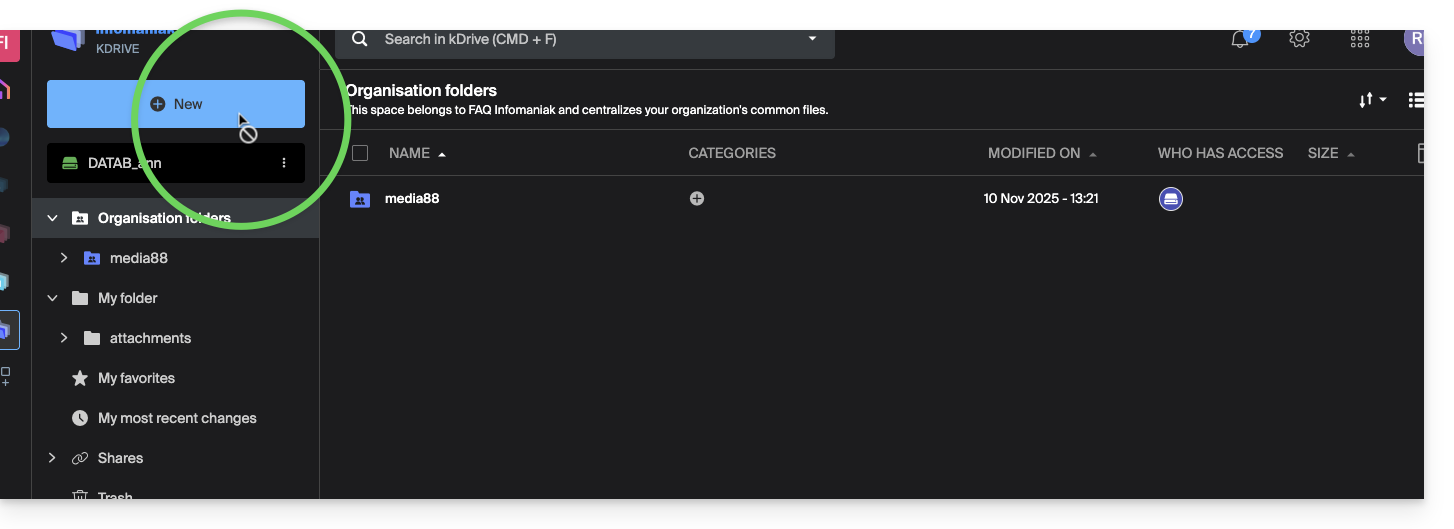
The user will need an Administrator role (see point 5 above) to access this window for creating a new Organization Folder at the root: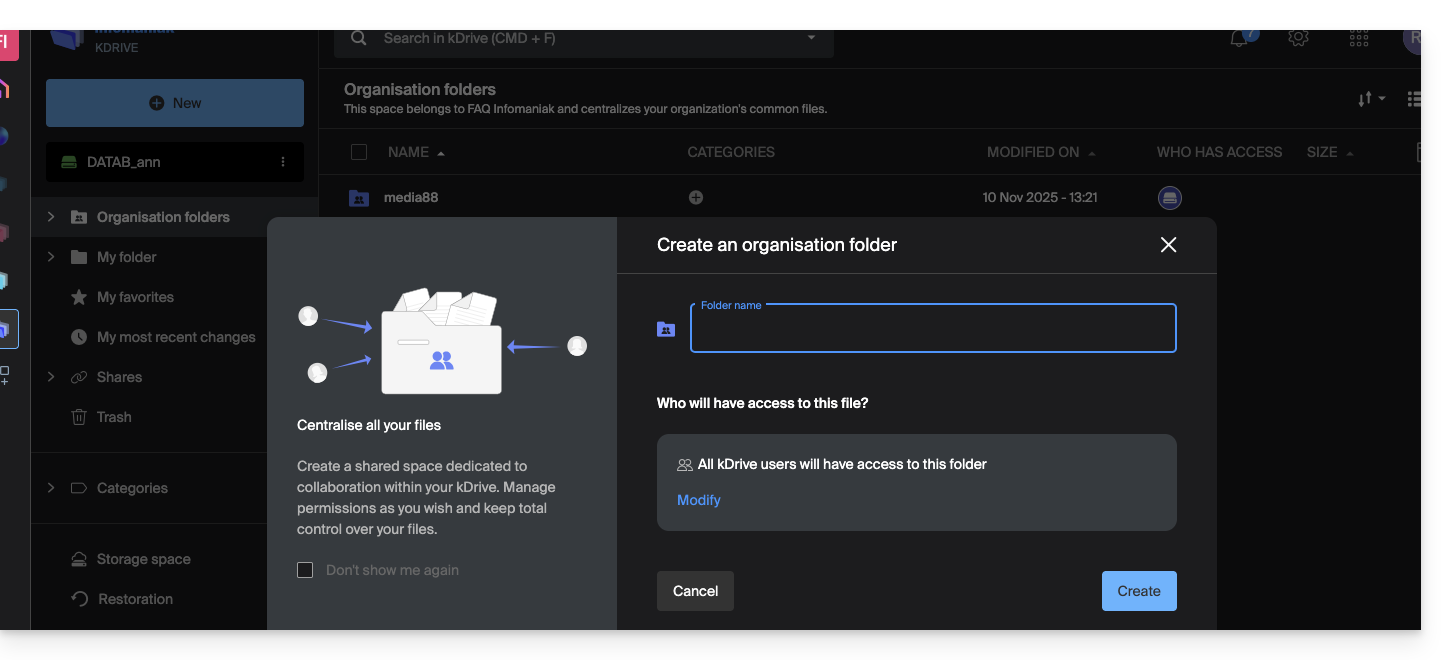
Link to this FAQ: https://faq.infomaniak.com/2365
Has this FAQ been helpful?