Knowledge base
1000 FAQs, 500 tutorials and instructional videos. Here, there are only solutions!
Share data from the kDrive web app
This guide details how to share files and folders in kDrive with whomever you want, without installing the desktop app kDrive (desktop application on macOS / Windows / Linux), and even if the recipient does not have an Infomaniak account or is not yet using kDrive.
Introduction
- The kDrive web app allows you to share content in several ways, including by right-clicking on items or by attaching to an email to quickly offer the option to view or edit a file.
- A drop box can also be shared.
- The appearance of the sharing windows can be customized.
- Number of clicks allowed per hour on a public link:
- kSuite Free = 150
- kSuite Standard = unlimited
- kSuite Business = unlimited
- kSuite Enterprise = unlimited
- my kSuite = 150
- my kSuite+ = unlimited
- kDrive Solo = unlimited
- kDrive Team = unlimited
- kDrive Pro = unlimited
- These activity limits apply to all your shared links and count a maximum of one action per user (IP) per minute, regardless of the number of files viewed or downloaded during that time; you can track this usage in your activity statistics:
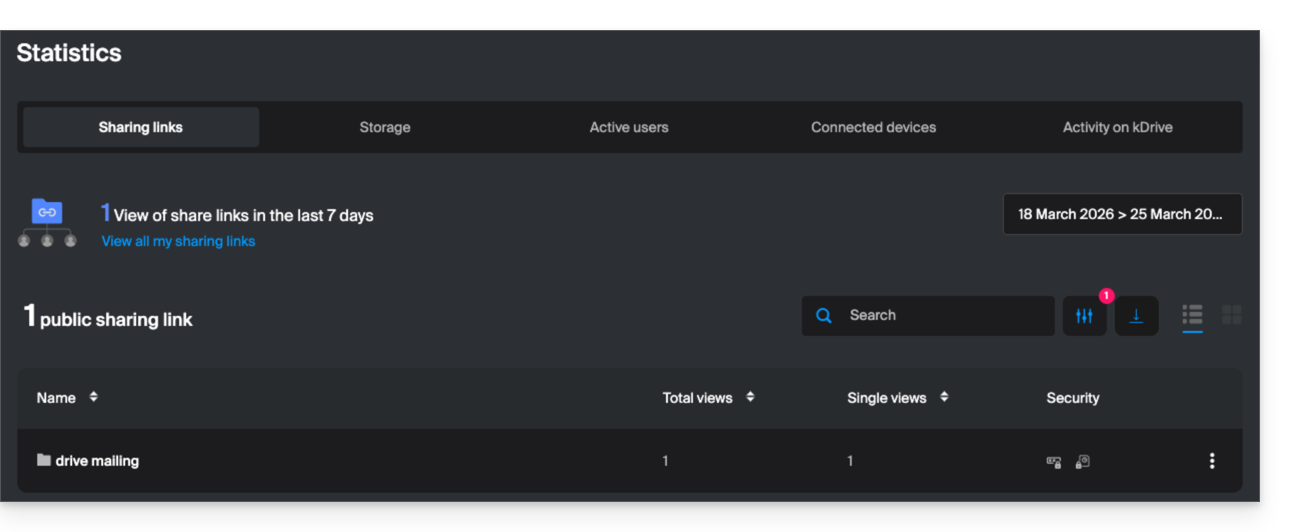
- To optimize this quota, it is recommended that recipients download entire folders in one go rather than individual files.
- Number of allowed external sharing links:
- kSuite Free = 100
- kSuite Standard = 1000
- kSuite Business = 2500
- kSuite Enterprise = 5000
- my kSuite = 25
- my kSuite+ = 1000
- kDrive Solo = 1000
- kDrive Team = 1000
- kDrive Pro = 1000
- Other types of limits exist at the level of:
Share a file/folder on kDrive
To allow users to view, edit, and download your content, you need to specify who you want to share a file/folder from kDrive with:
- Click here to access the Infomaniak web app kDrive (online service ksuite.infomaniak.com/kdrive).
- Right-click on the file/folder in question.
- Click on Share... at the top of the drop-down menu:
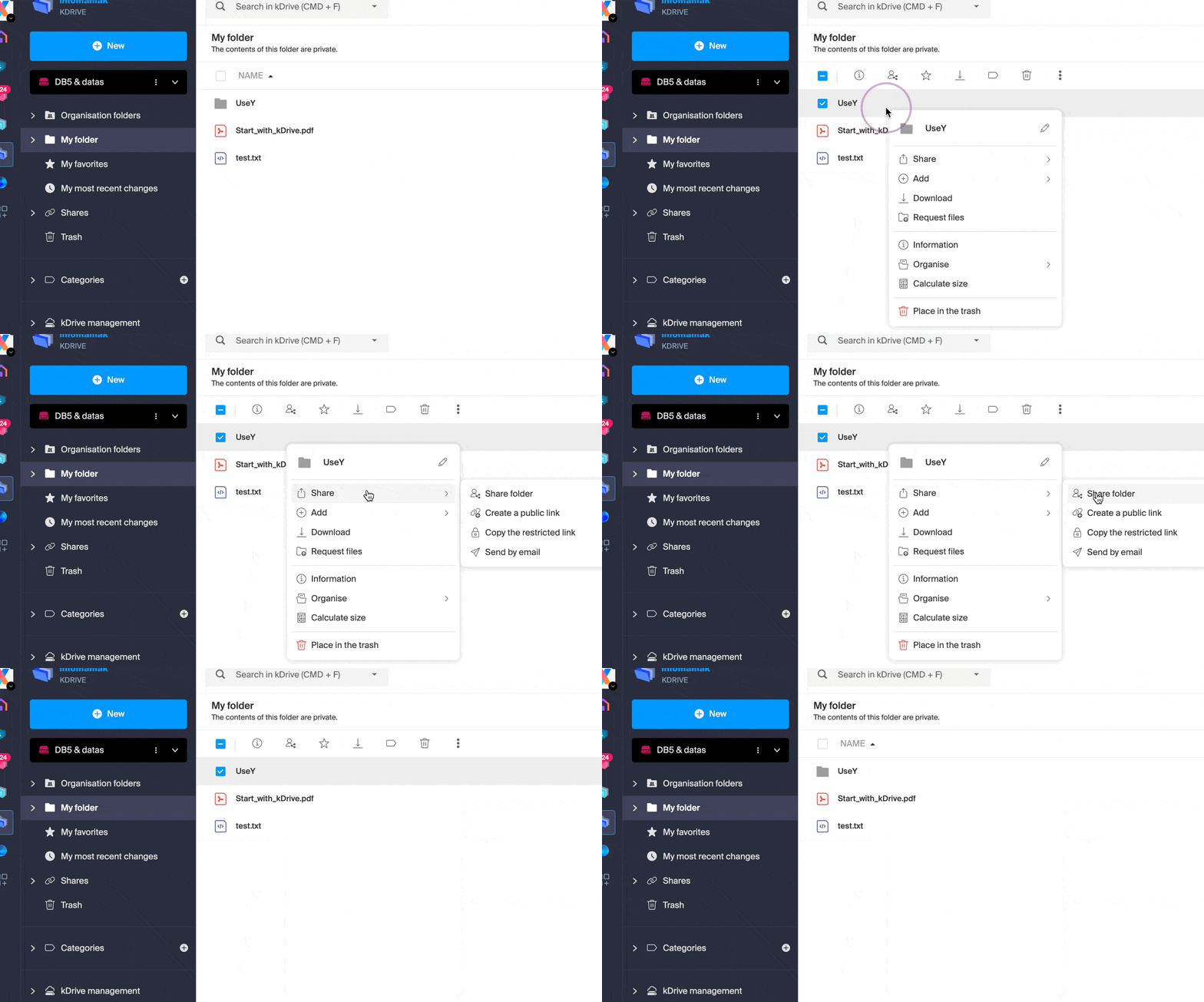
From there, you can…
- … or activate a public sharing link with various possible options:
- allow modification of the document if it is one of the collaborative formats
- expiration date
- password
- allow downloading
- allow access so that the user with access to the sharing link can request full access - see the dedicated chapter below
so that anyone with the link displayed in this window can access the shared file: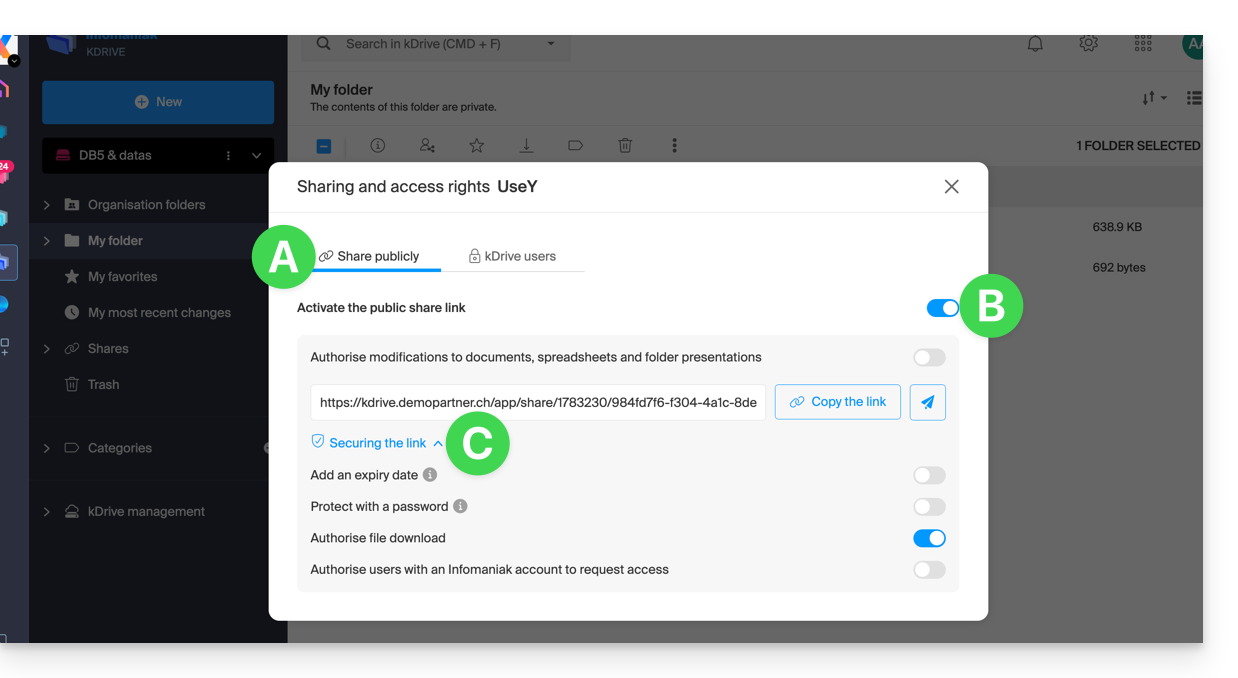
Please note: simply deactivating and reactivating a public sharing link changes the URL and renders the previous one invalid!
- … or enter a kDrive user, a contact from your address book, the email address of a new contact (or a Group if the sharing is done within “shared folders”):
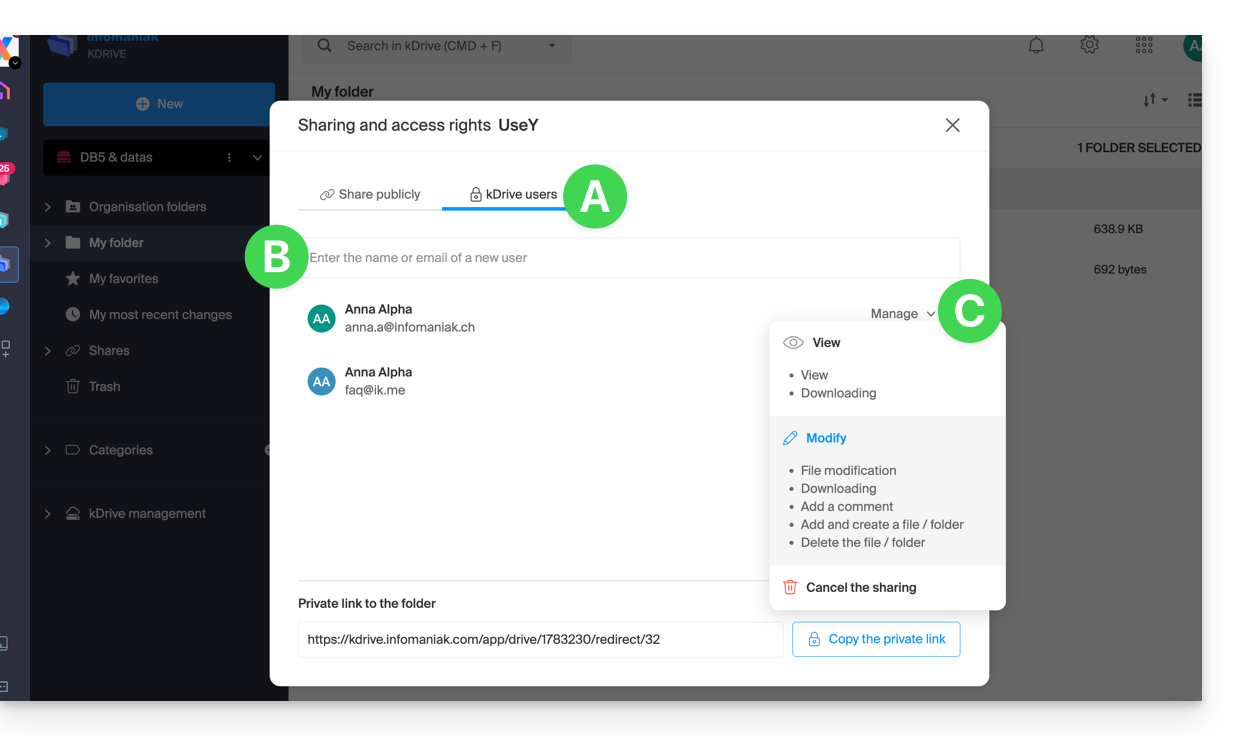
An assistant allows you to define the rights of each person you add: “view” / “edit” / “manage” (refer to this other guide if you are looking for information about access permissions for files, folders, and subfolders in kDrive):
- The person whose email address you provide will receive an email with the necessary information to access your shared content.
- If she doesn't have an Infomaniak account, she can create one for free to access the shared items and edit them.
- In the meantime, you will see the pending invitation and can revoke it at any time from the same location.
- The private link is displayed each time you go to the sharing menu on the sidebar, allowing you to easily copy and resend the link to authorized users.
With a Solo plan or a free kDrive account, it is only possible to specify this type of external user when you want to share a file/folder.
Click on the close button in the top right corner of the window when you are finished.
Create a public, editable shareable link
To quickly access the various features/operations, right-click on your files.
When you activate a sharing link for a Word, Excel, or PowerPoint file, you can allow online editing of the file: 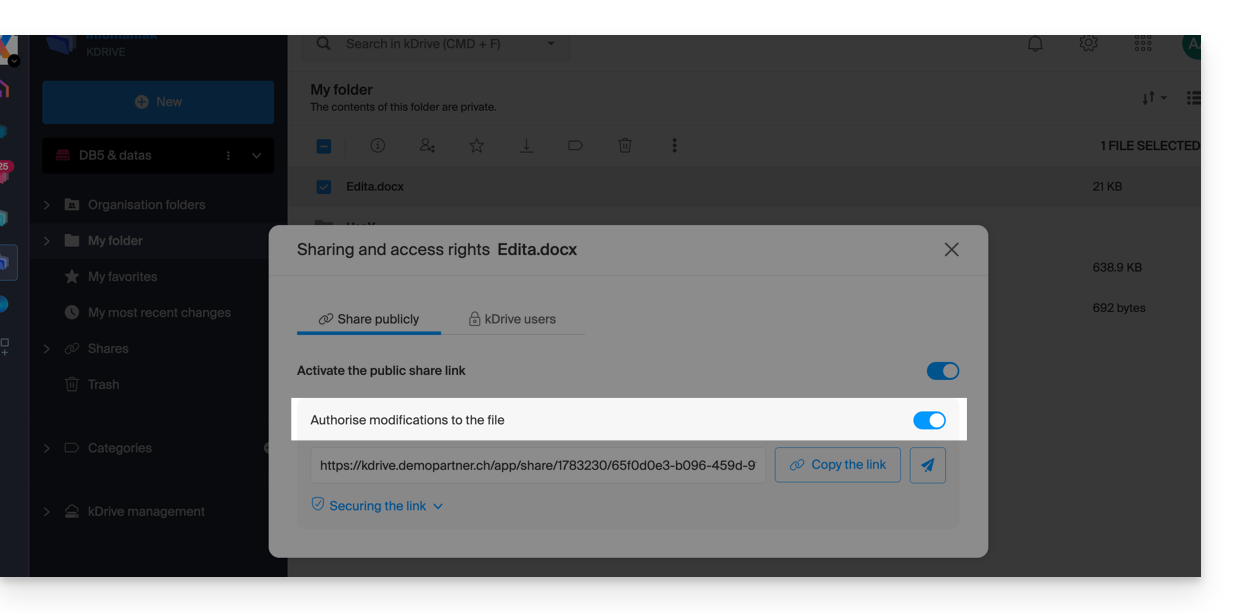
Anyone with access to this sharing link can then immediately edit the file without needing an Infomaniak account (simply test the URL obtained in a private browsing window to verify the result).
You can also obtain a specific sharing link from the document.
Request access from the shared file page
The user who shares a folder can enable a button in the advanced sharing settings: 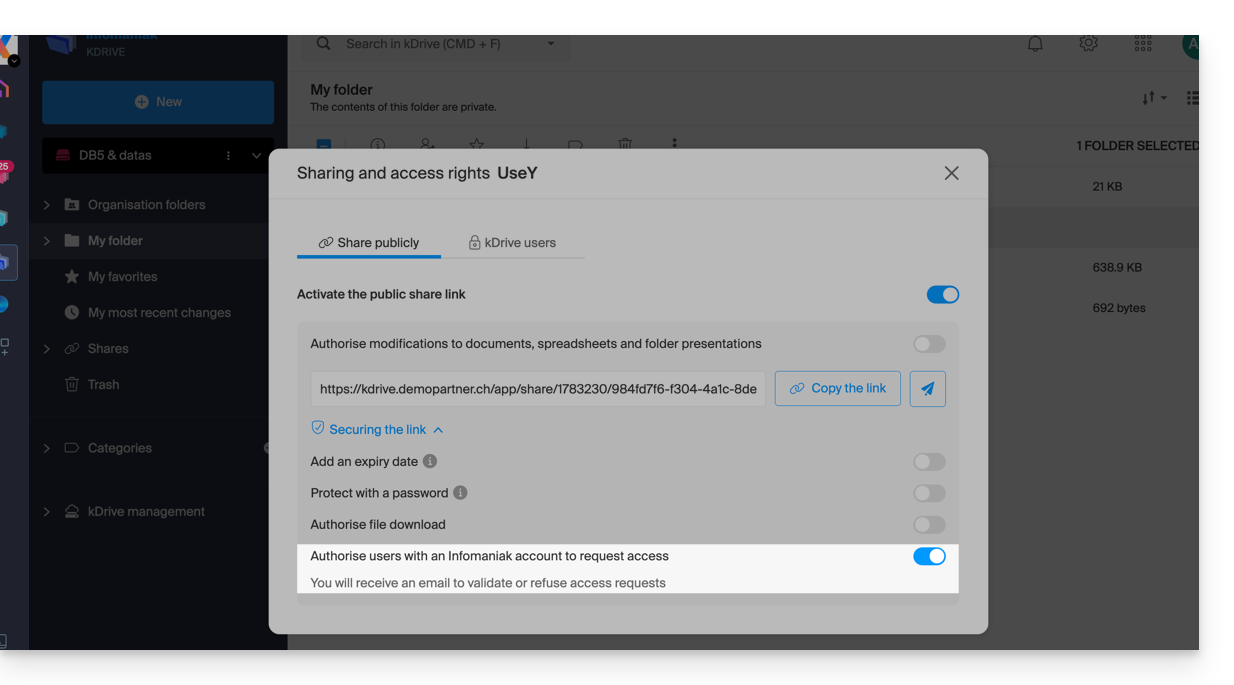
This “Add files” button will be displayed on the sharing page (A) so that the user accessing the sharing link can request to become an external user (if they have an Infomaniak account or if they create one (B):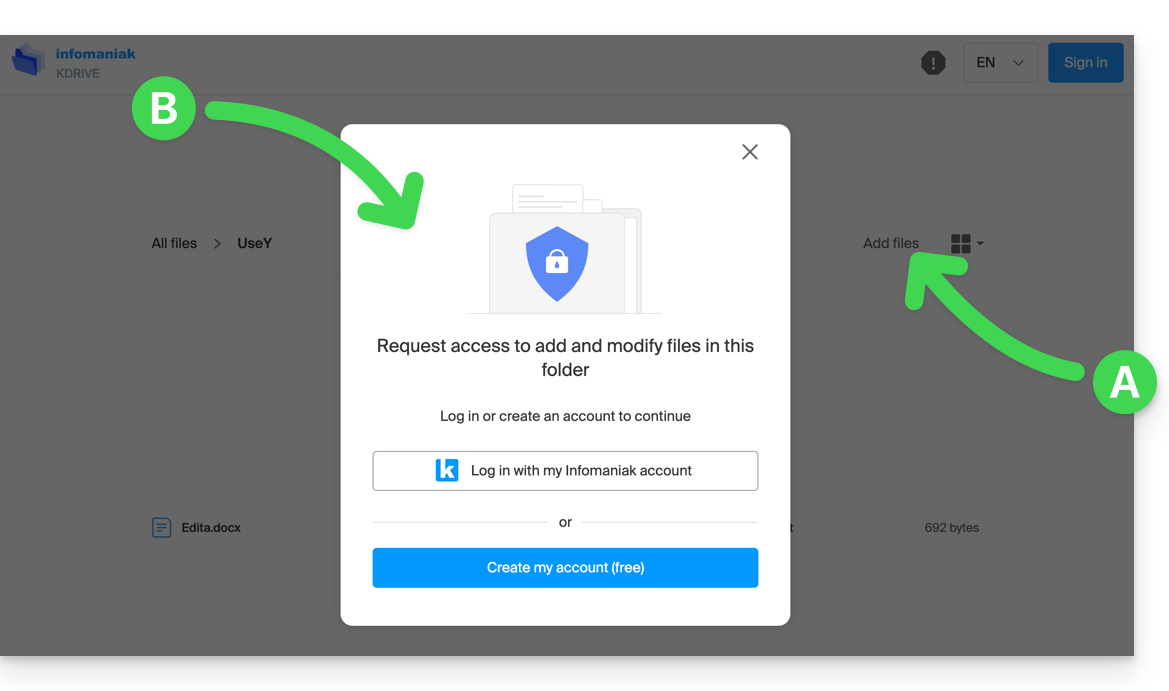
The request will then be sent by email to the user who initiated the sharing, and they can decide whether to accept or reject it.
Shared folders
Refer to this other guide to fully understand the differences between the various sections of kDrive.
These shared folders are available with certain paid plans and allow you to share your data with all kDrive users. Any new folder created within with a maximum sharing option will be indicated as such on the right in the folder list.
However, a folder can also be created with restricted sharing (this option is offered when creating a new folder or when you return to the sharing settings of that folder), and in this case, only authorized users will be able to view its contents directly; users who have access are visible on the right in the list of folders: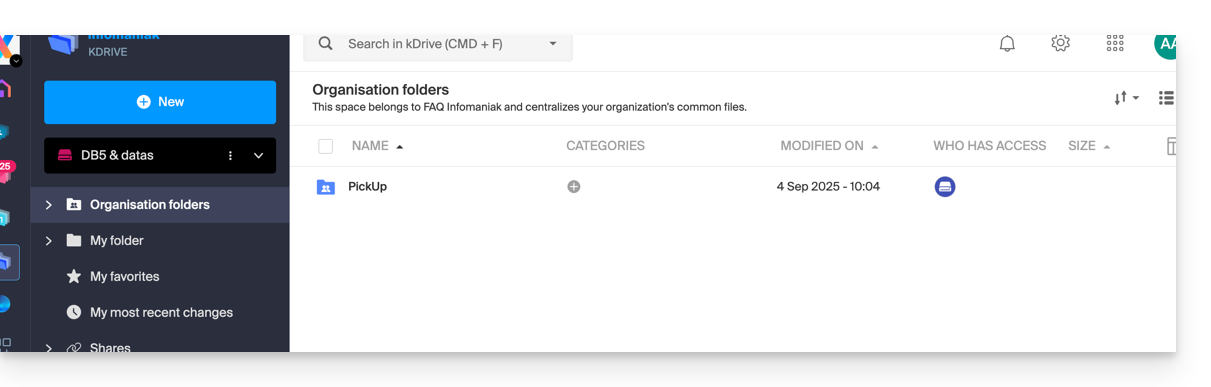
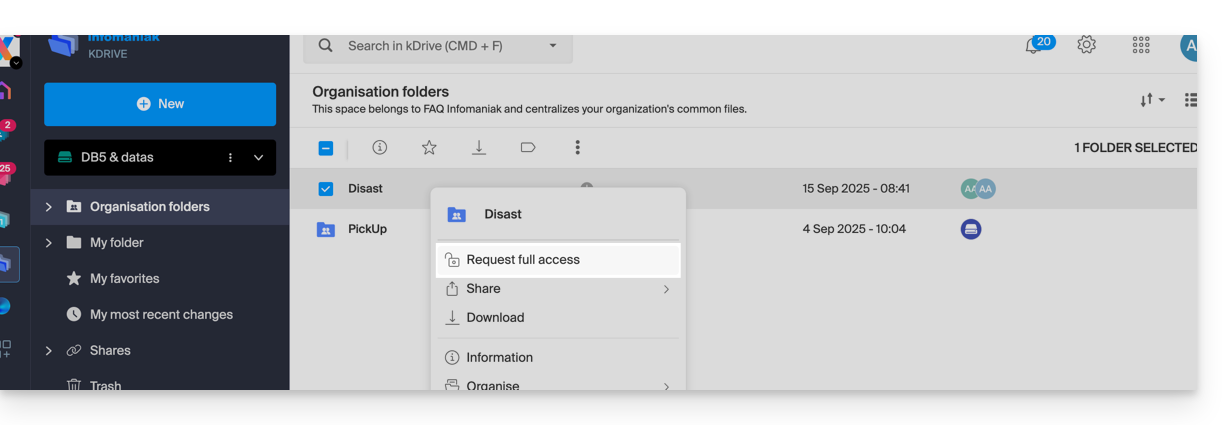
Other users who have access to the shared folders can also access a subfolder by clicking on it and accepting the warning message, or by using the action menu on the right of the directory and choosing "Force Access"; this will notify other users by email about the access attempt:
Refer to this other guide if you are looking for information on shared folders and collaborative spaces.
Link to this FAQ: https://faq.infomaniak.com/2382
Has this FAQ been helpful?