Knowledge base
1000 FAQs, 500 tutorials and instructional videos. Here, there are only solutions!
Import data to kDrive without desktop app
This guide explains how to manually upload data (upload files, folders, etc.) from your computer to your kDrive without installing the Infomaniak kDrive app (app for smartphone or tablet iOS / Android or desktop app on macOS / Windows / Linux).
Import to kDrive from the browser
To access kDrive:
- Click here to access the Infomaniak kDrive Web app (online service ksuite.infomaniak.com/kdrive).
- Check or select the relevant kDrive in the dropdown menu of the left sidebar.
Then as desired:
Drag & Drop
- Drag and drop the items to be sent to kDrive, from a window of your computer, to the window of your browser where the kDrive site is open:
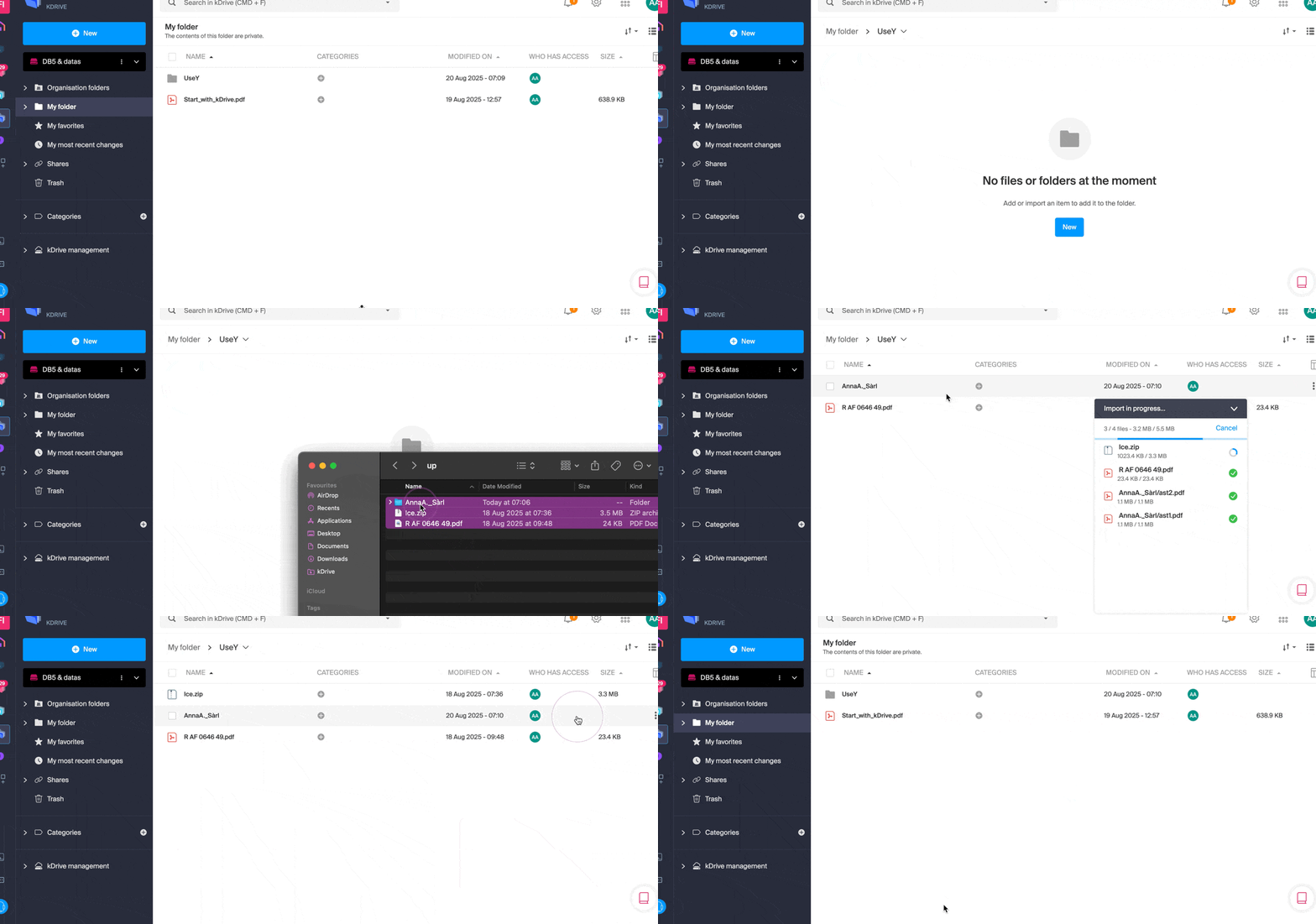
New button
- Use the New button at the top left of your kDrive interface, then choose the desired import (either file or folder):
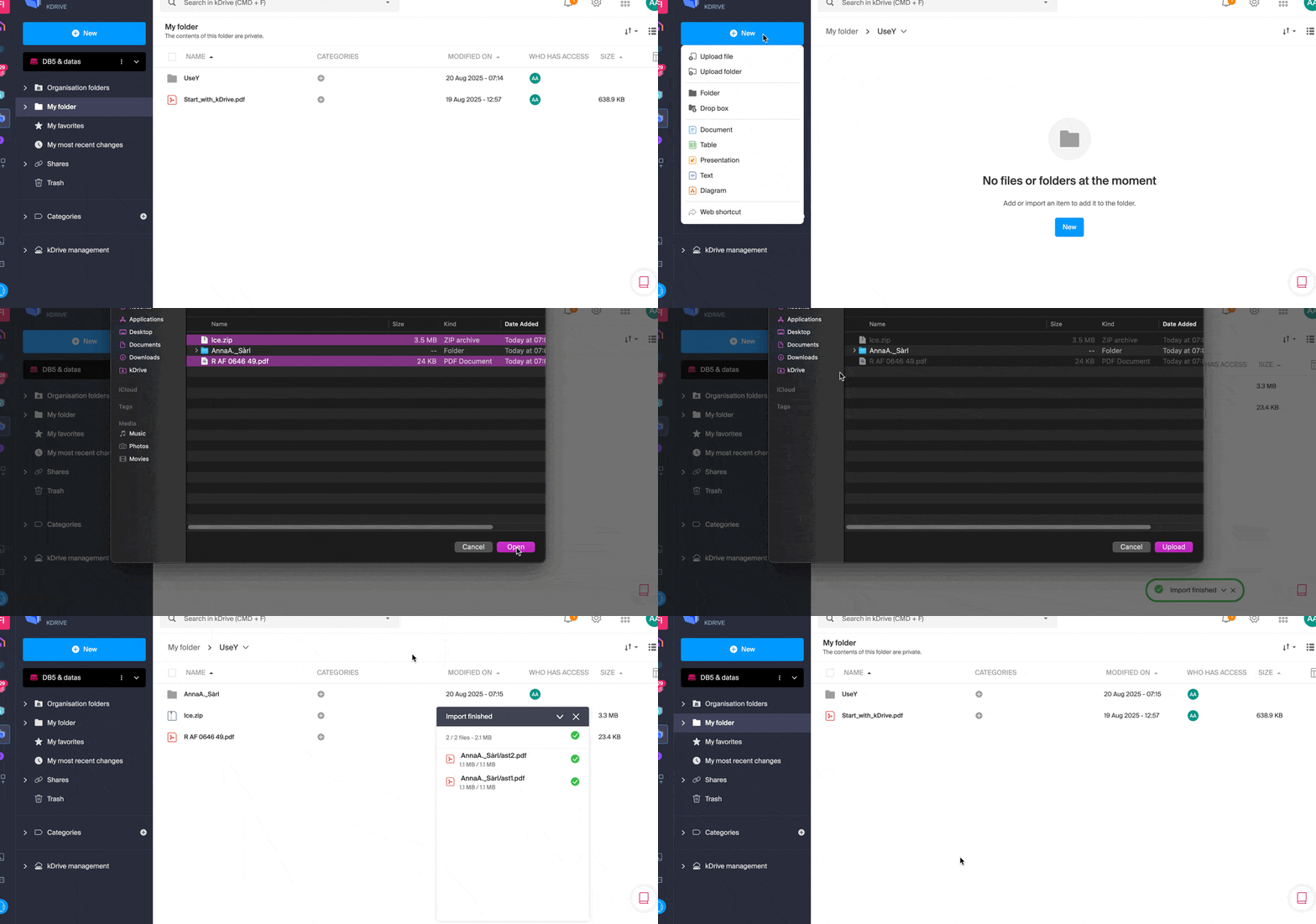
- The operating system (macOS for example) may ask for confirmation when uploading a folder.
Right-click
- Right-click where to import new content, then choose the desired import (either file or folder):
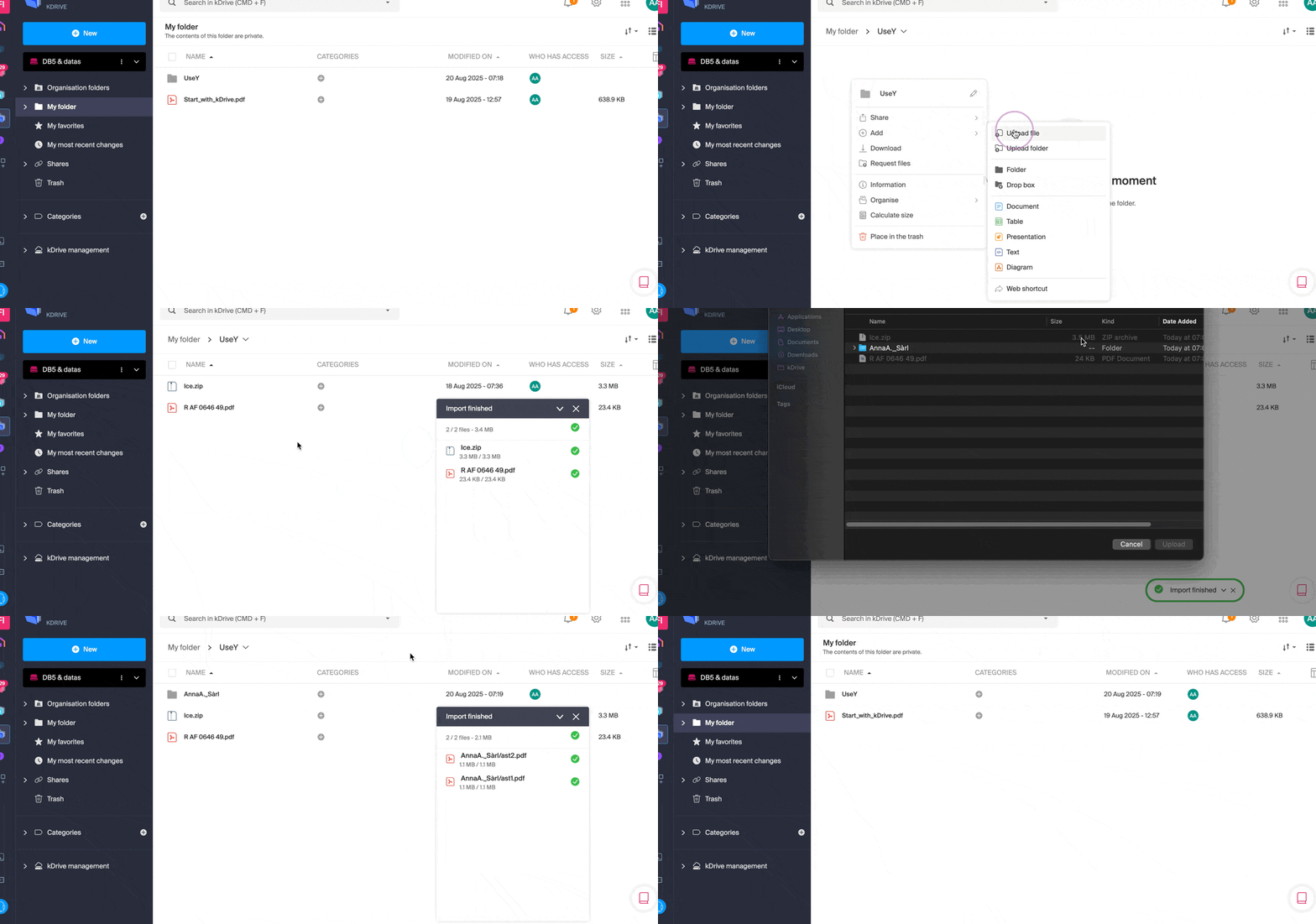
- The operating system (macOS for example) may ask for confirmation when uploading a folder.
Import external data
- Import specific content using the Import external data menu:
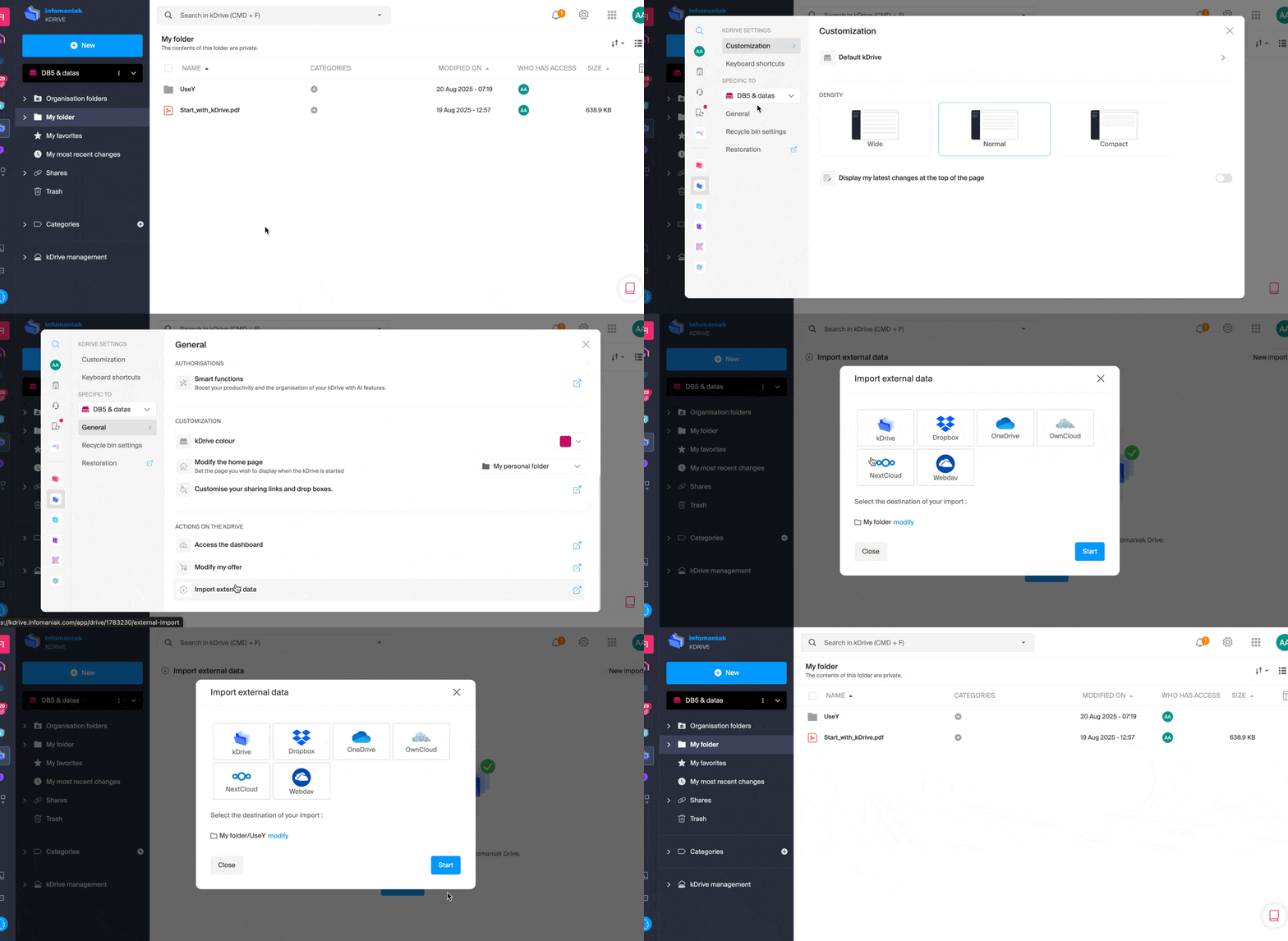
- Refer to this other guide if you are looking for information about importing data from the outside.
Regardless of the method used, wait during the data transfer (the duration depends on the speed of your Internet connection).
File types
You can send any type of file, such as .pdf, .txt or other extensions, including in the field of 3D.
kDrive also allows you to open and convert iWork files designed from a Mac to edit them from any device. These files from the Apple Suite still have a few peculiarities with their extensions; example with the Numbers application:
- The
.numberscan be files or folders depending on the registration chosen (and the behavior during upload is not the same when it is a folder). - If there is already a file for example
calcul.numberson kDrive and if it is saved as a “package” on the desktop, then at the time of upload the file will be considered as a folder and kDrive will try to upload files inside it, which is not possible so the upload will not be authorized.- To solve the problem, simply change the save format in the Apple Numbers application on macOS to “Single File”:

- To solve the problem, simply change the save format in the Apple Numbers application on macOS to “Single File”:
Link to this FAQ: https://faq.infomaniak.com/2379
Has this FAQ been helpful?