Knowledge base
1000 FAQs, 500 tutorials and instructional videos. Here, there are only solutions!
This guide explains how to obtain information about the activities performed within your Organization in the Manager.
The same type of logs, but concerning only the activity of your Infomaniak account, is available in your Manager: refer to this other guide.
Prerequisites
- Switch to the desired Organization beforehand.
- Be Administrator or Legal Representative within the Organization.
Obtain the activity log for the Organization
To view an activity log of the actions performed on the Infomaniak Manager within the Organization to which you belong:
- Click here to access the Organization's logs on the Infomaniak Manager.
- Review the information.
- Search and filter options are available for logs: term, product, or action type:
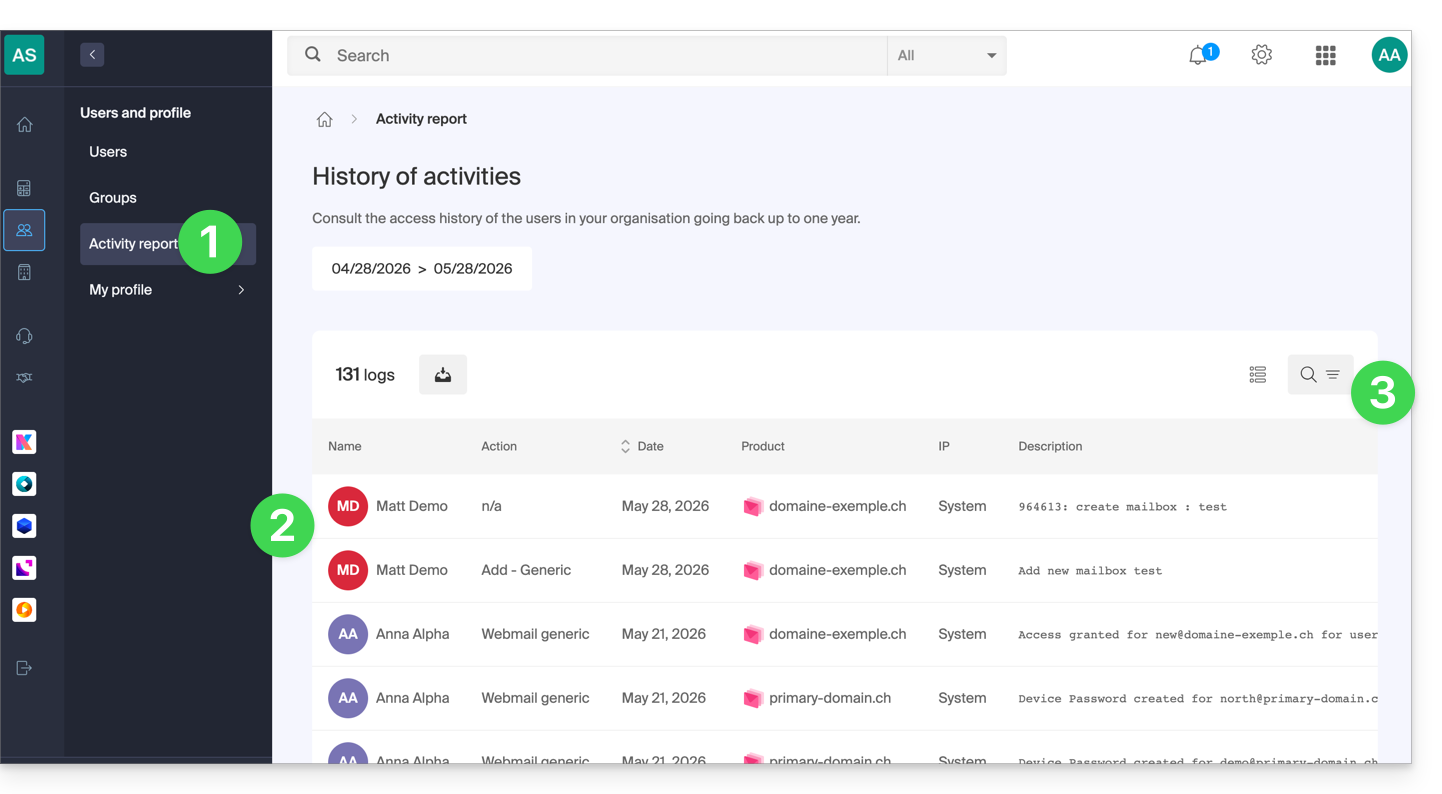
Here are the types of actions that can be listed in this table:
- Login attempt
- Successful login
- Successful cookie-based login
- Enable automatic login
- Disable automatic login
- Password recovery request
- Password recovered
- Password change
- Username change
- Email recovery request
- Email address recovered
- Modify email address
- Assign owner role
- Remove owner role
- Assign administrator role
- Remove administrator role
- Add a server
- Modifying a server
- Deleting a server
- Client-server action
- Repository creation
- Submission received
- Order management
- Invoice generation
- Invoice activation
- Disable billing
- Transfer funds
- Add an item
- Modify an item
- Delete an item
- Lock an item
- Unlock an item
- Save video recording
- Using the webmail
- Automatic email sent
- Sending an SMS
- Generic system error
Link to this FAQ: https://faq.infomaniak.com/1504
Has this FAQ been helpful?
This guide explains how to customize the display of the Organization you are in within the Infomaniak Manager.
Introduction
- You can, for example, add a logo to the organization's name and completely replace the display of the name with a small banner.
- For advanced customization of URLs and certain interfaces, including login pages, discover Custom Brand.
Accessing the Customization Page
Prerequisites
- Be an Administrator or Legal Representative within the Organization.
- Switch to the desired Organization beforehand, if necessary.
To customize the Manager interface:
- Click here to access the Organization customization settings in the Infomaniak Manager.
- The left Customize button allows you to edit the visible section in the upper left corner of the Manager:
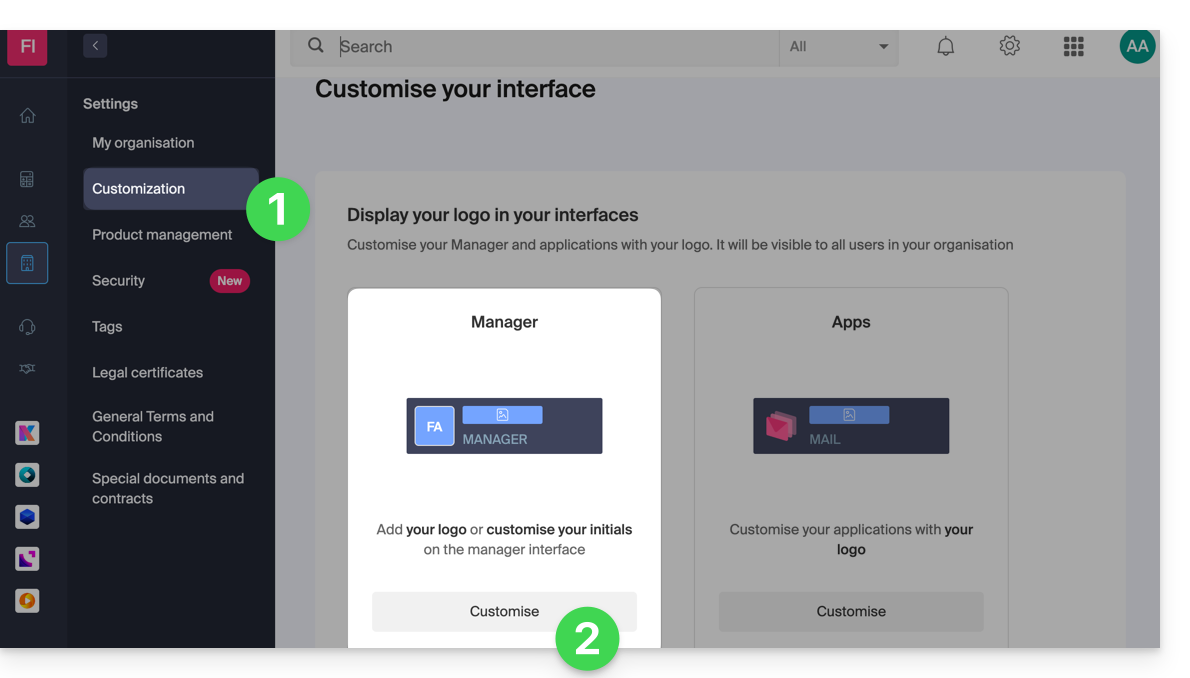
- Choose a square logo only (in this case, no rectangular logo).
- Choose to display initials in the square (in this case, it is possible to have a rectangular logo in addition, or no rectangular logo).
- The right Customize button allows you to add a rectangular logo (only) to applications such as kDrive and Mail:
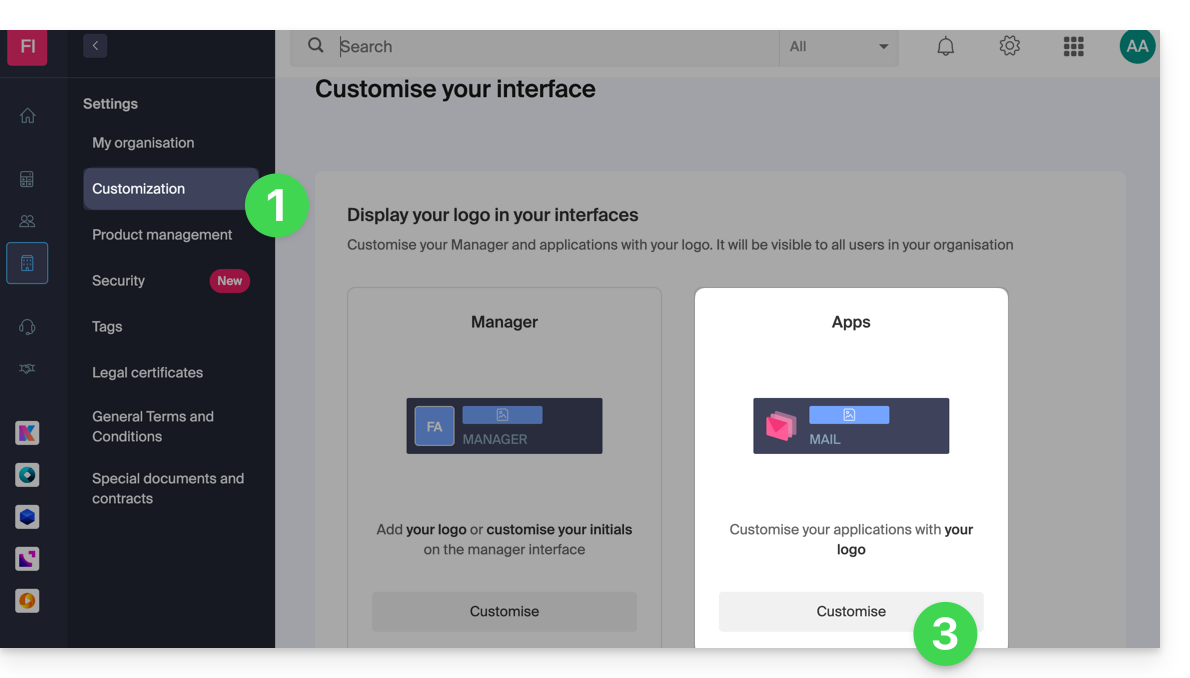
- Note that the rectangular logo will also be used in the Manager (it is not possible to have a different rectangular logo for these different services).
- If no rectangular logo is configured in the Manager, then it will simply not be displayed.
Link to this FAQ: https://faq.infomaniak.com/1534
Has this FAQ been helpful?
This guide explains how to create and share a digital business card (QR code) containing your contact details and social media links from the Infomaniak Mail app (iOS / Android).
Create the QR code and share it with your contacts
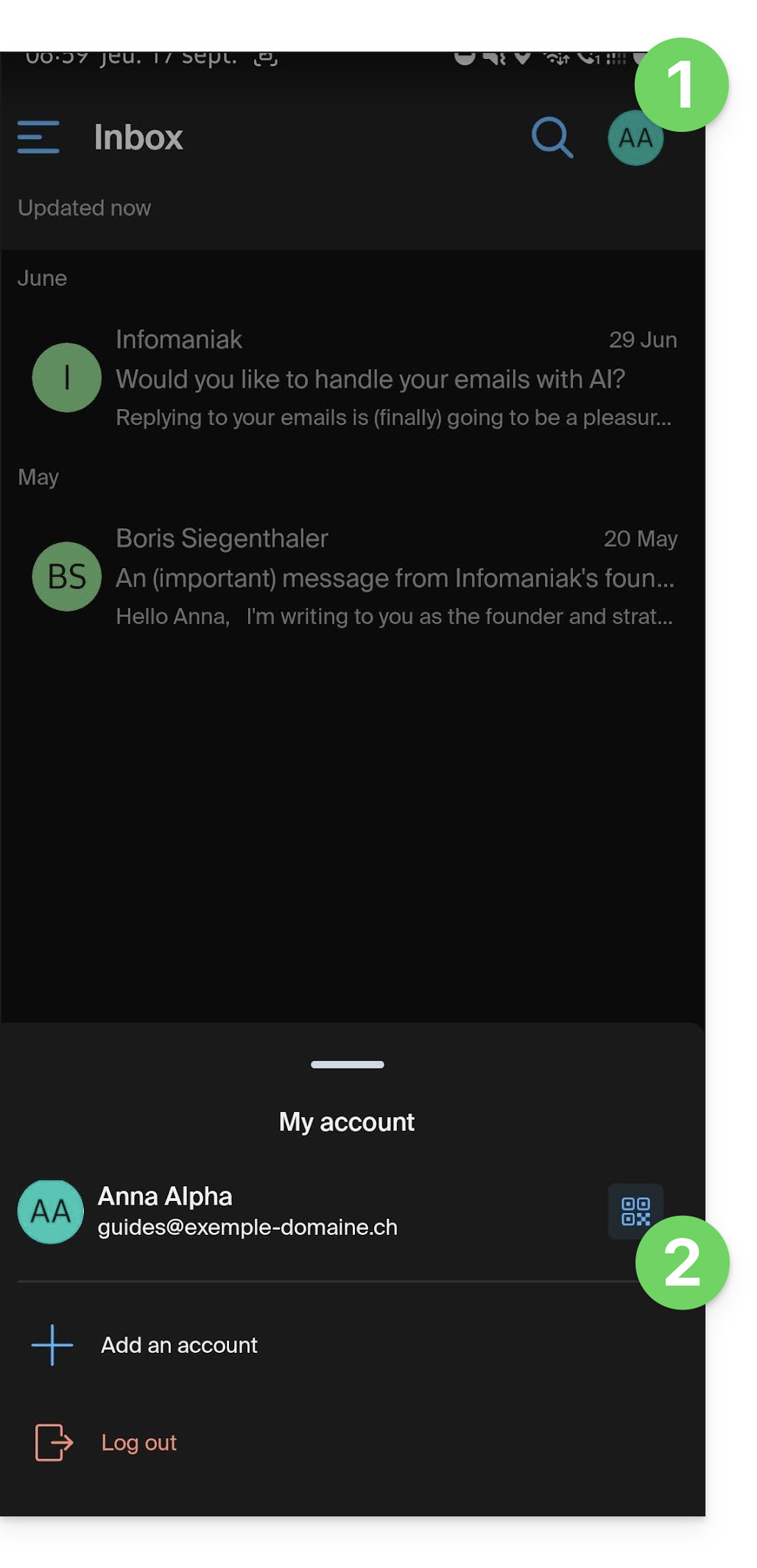
To access the QR code feature in the Infomaniak Mail app on your device:
- Click on the badge with your initials / avatar in the top right corner of the app.
- Click to the right of your Infomaniak account name in the bottom menu:
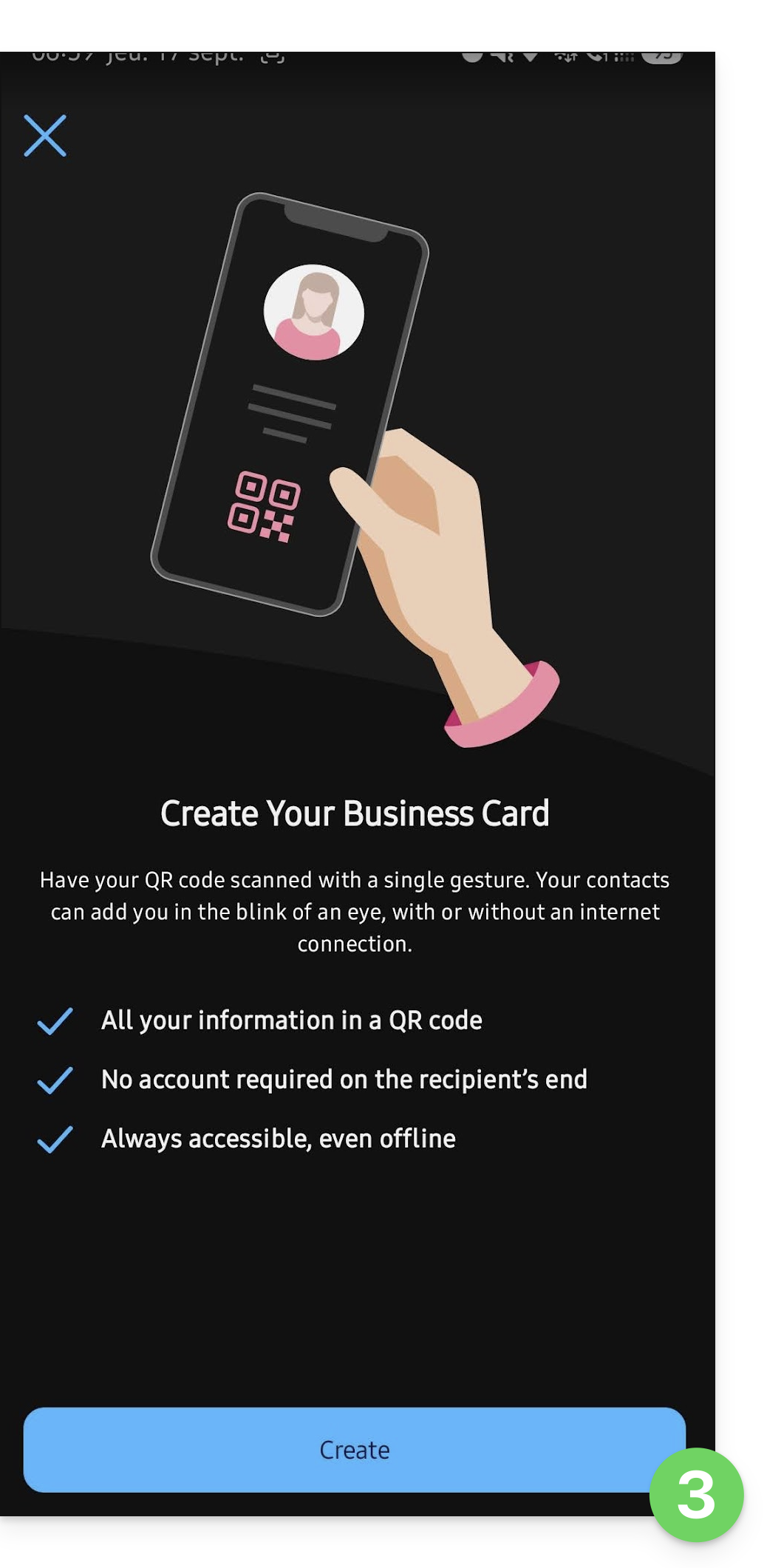
- The first time you use it, a screen will introduce you to the feature; click the button to start creating your business card:
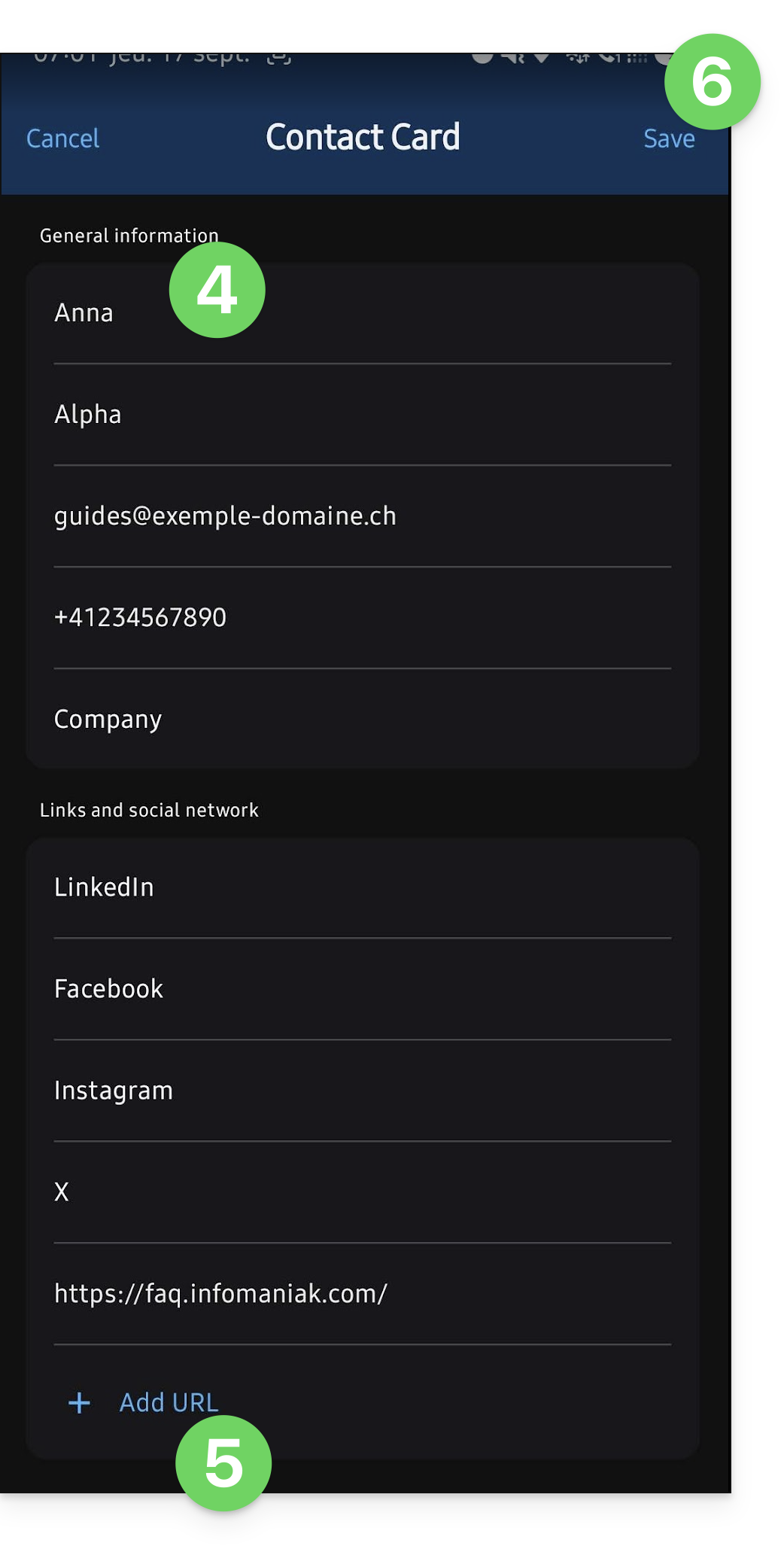
- Enter the information you want to display on your contact details page.
- If necessary, add other links to include (website, social media).
- Save your contact card by clicking Save:
- The QR code appears and can be scanned directly by another device to save the associated contact card.
- This contact information can be sent via other means by clicking on the Share button.
- The
.vcfformat, which works on the same principle as, for example, exporting contacts, is automatically recognized by contact management applications: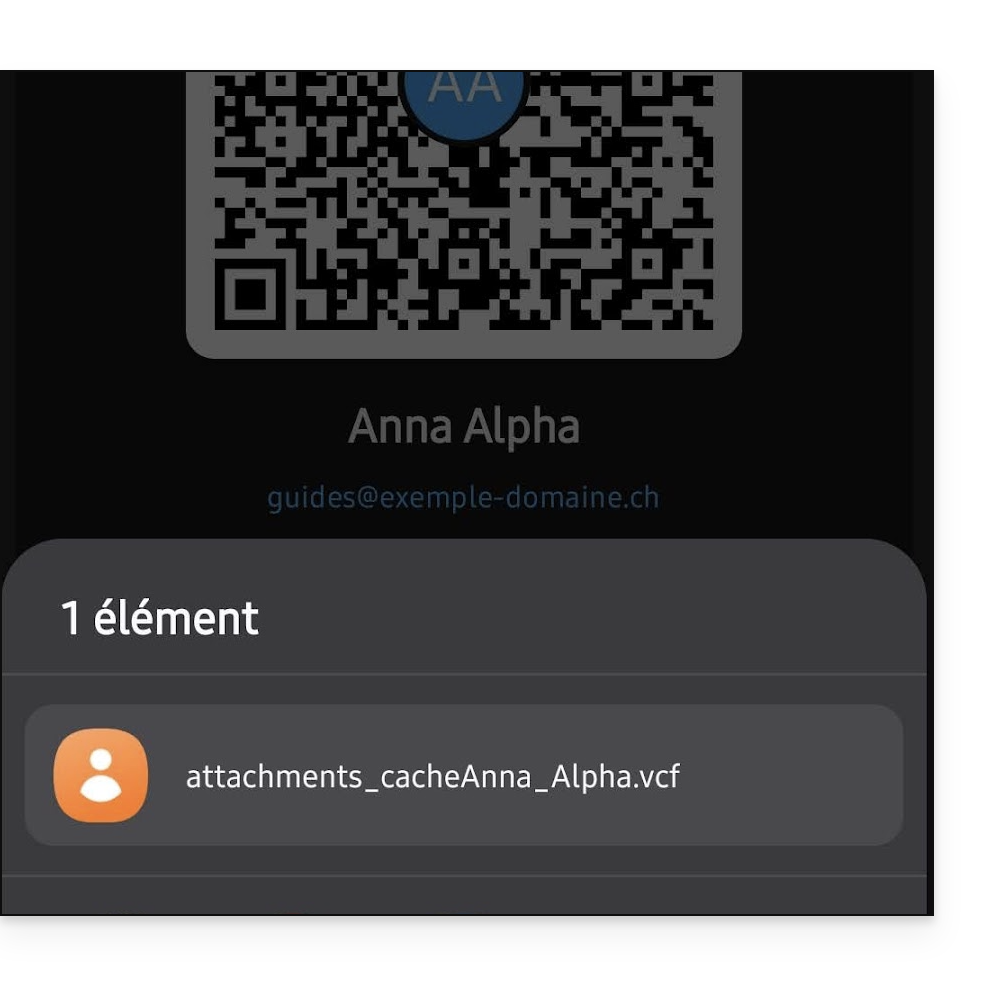
- The
- You can edit your information at any time from the action menu ⋮ in the top right corner:
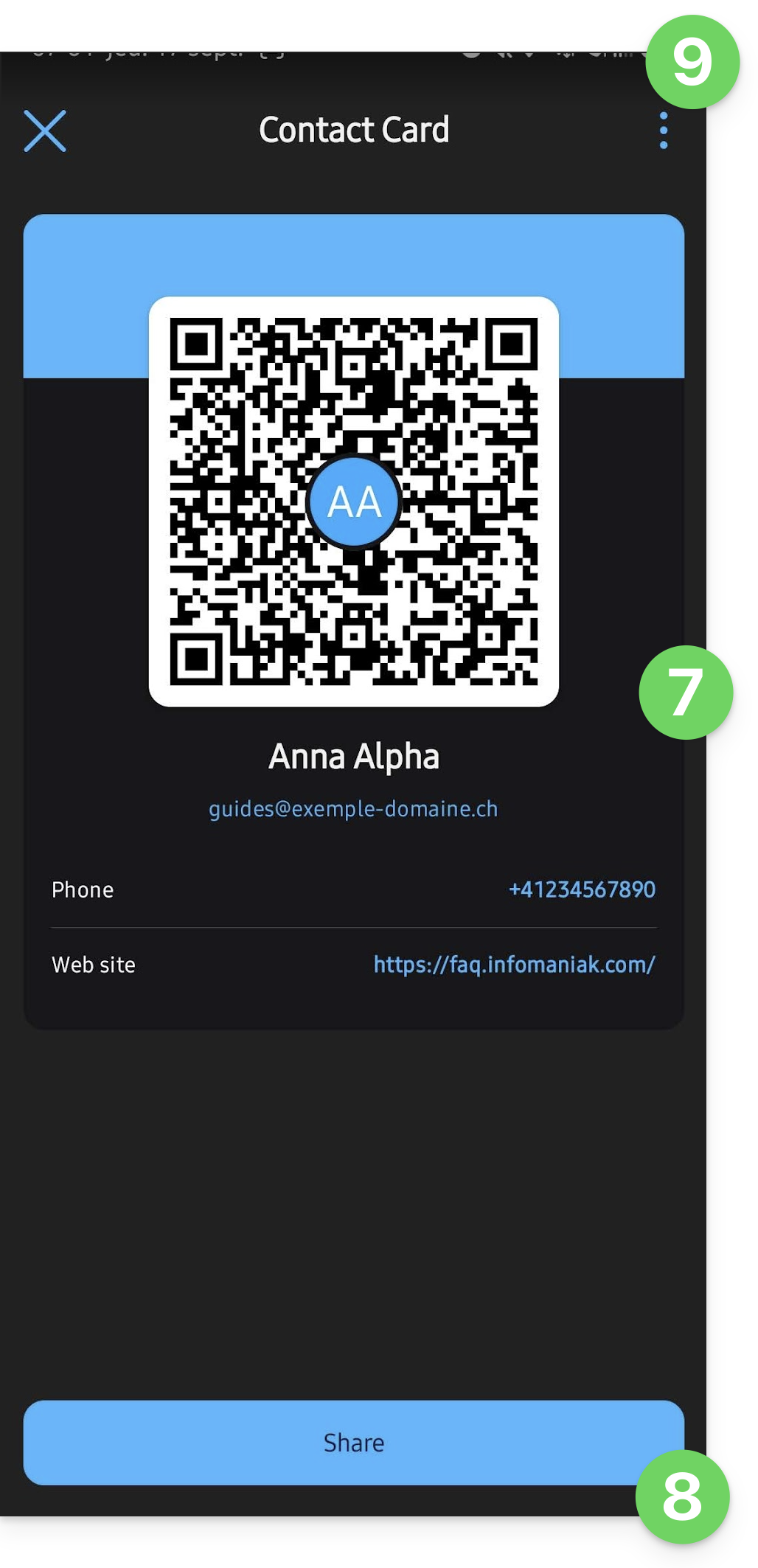
- From now on, to display the generated QR code directly, follow steps 1 & 2 above.
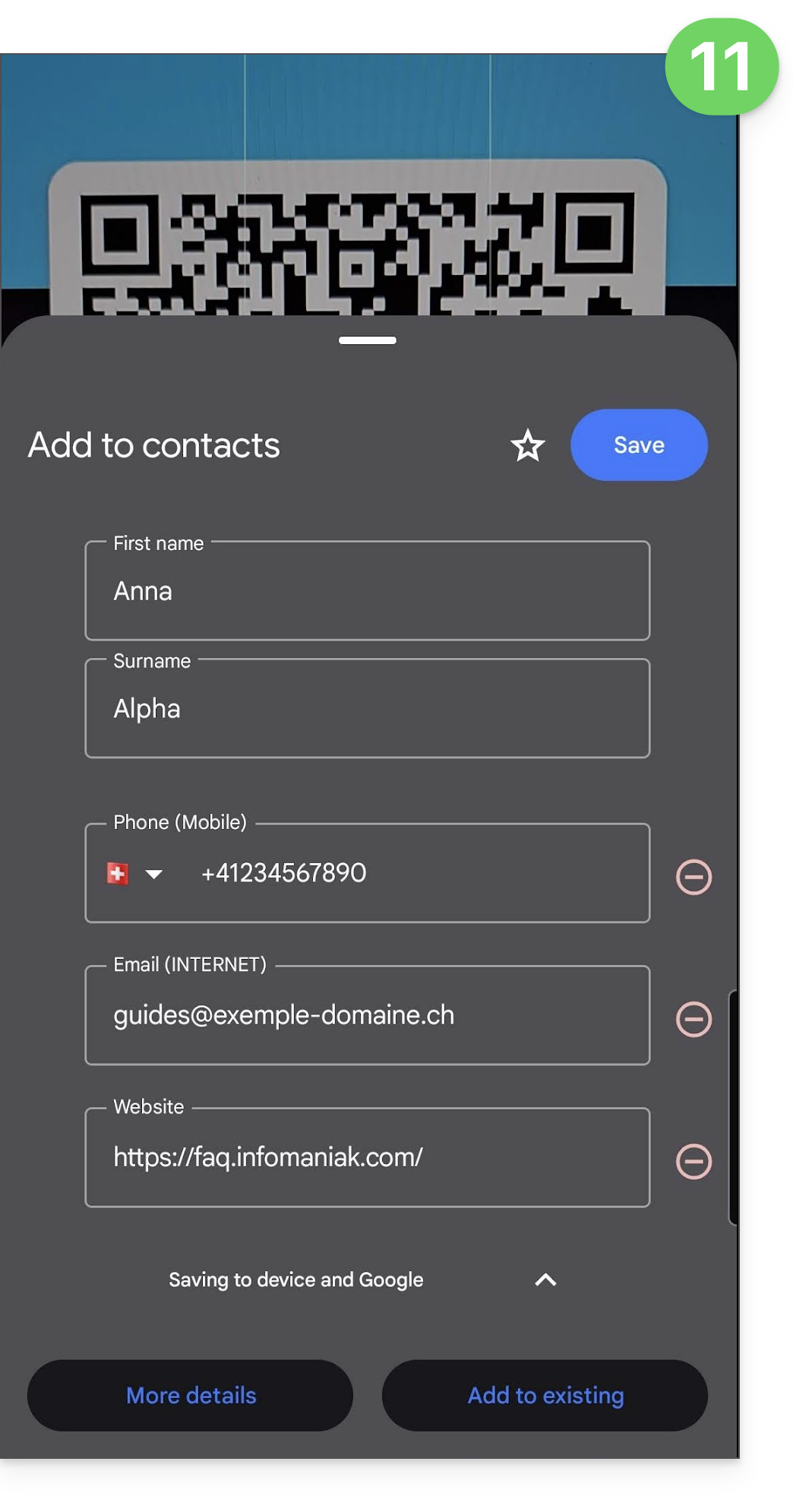
- The person scanning the QR code can directly save your contact information to their device:
Link to this FAQ: https://faq.infomaniak.com/1584
Has this FAQ been helpful?
This guide explains how to modify the access rights to products for a user in your Organization on the Infomaniak Manager.
Introduction
- Since you opened your account with Infomaniak, you have been part of at least one Organization.
- If you were the only user and it wasn't an invitation, an Organization was created in your name, and you automatically become its legal representative.
- Otherwise, you belong to the Organization that invited you (to join its kSuite, to manage a product, etc.).
- You can change a user's role within your Organization.
- You can then define whether a user…
- … is part of your Organization and whether they should become:
- Legal Representative
- Administrator
- Collaborator (this section is detailed below…)
- … is external to your Organization (limited rights):
- External users are not included in calendar and address book sharing with the entire Organization.
- … is part of your Organization and whether they should become:
Who can access what…
Prerequisites
- Switch to the desired Organization beforehand if you cannot find the expected list of users.
- Be an Administrator or Legal Representative within the Organization.
- Have added a user as a collaborator.
The guide below explains how to manage access to products for collaborators and external users. Indeed, a legal representative or an Administrator always has access to all existing products within the Organization, as displayed in the Infomaniak Manager.
To modify a user's product access within the Organization:
- Click here to access user management in the Infomaniak Manager (need help?).
- Click on the action menu ⋮ located to the right of the user in question.
- Click on Modify product access:
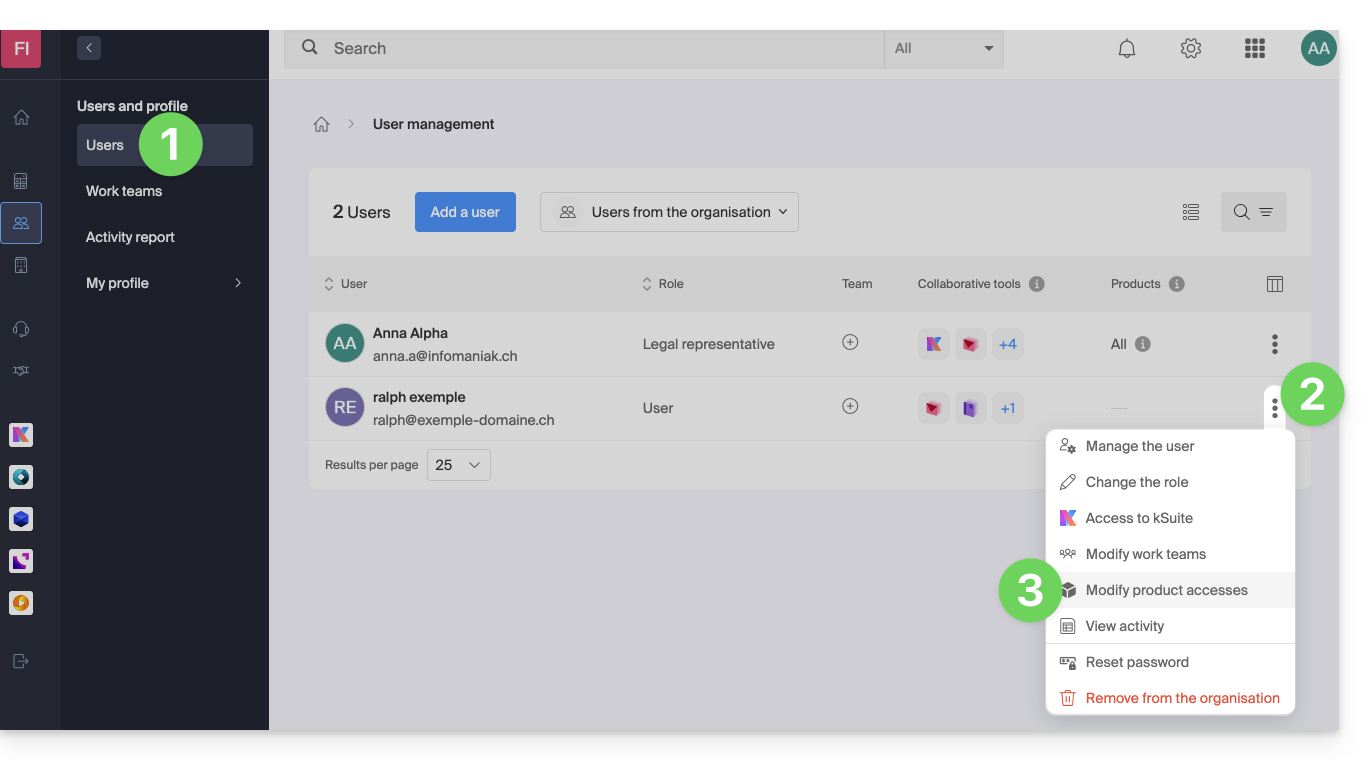
- You can grant access to everything with maximum permissions in one click.
- Alternatively, click on the product category you want to grant access to.
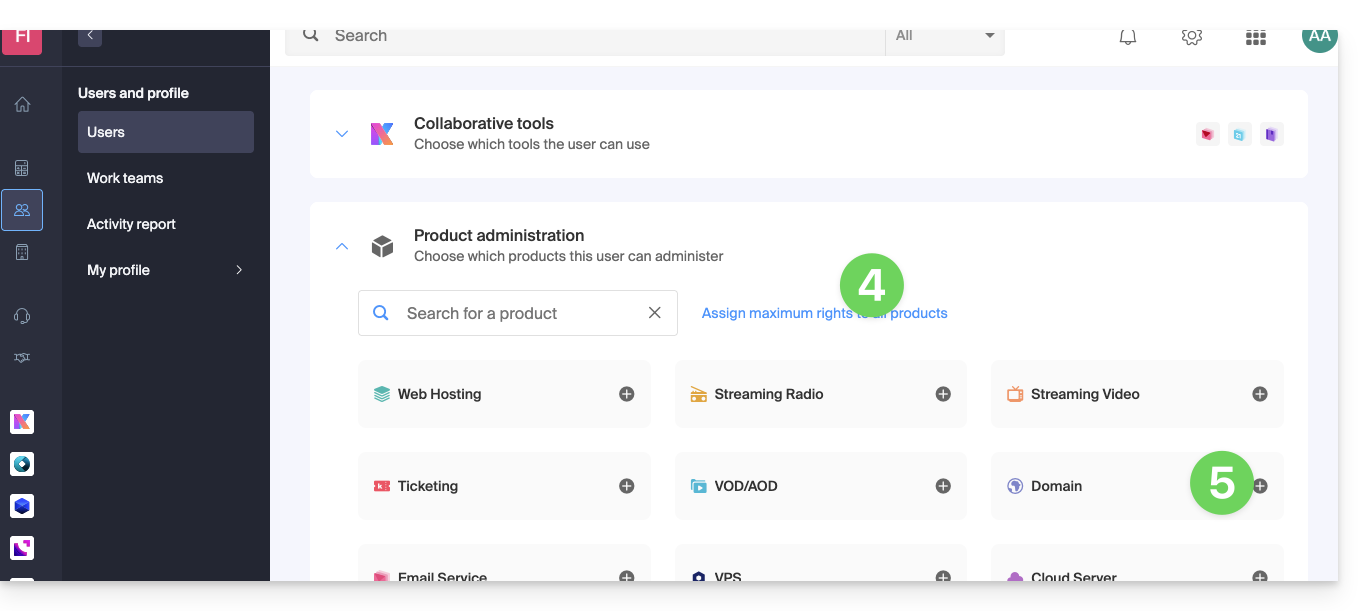
- Select the product(s) you need.
- If you have selected multiple products, decide whether a future additional product should automatically be visible to the user (and with what type of permissions).
- Click on the Save button:
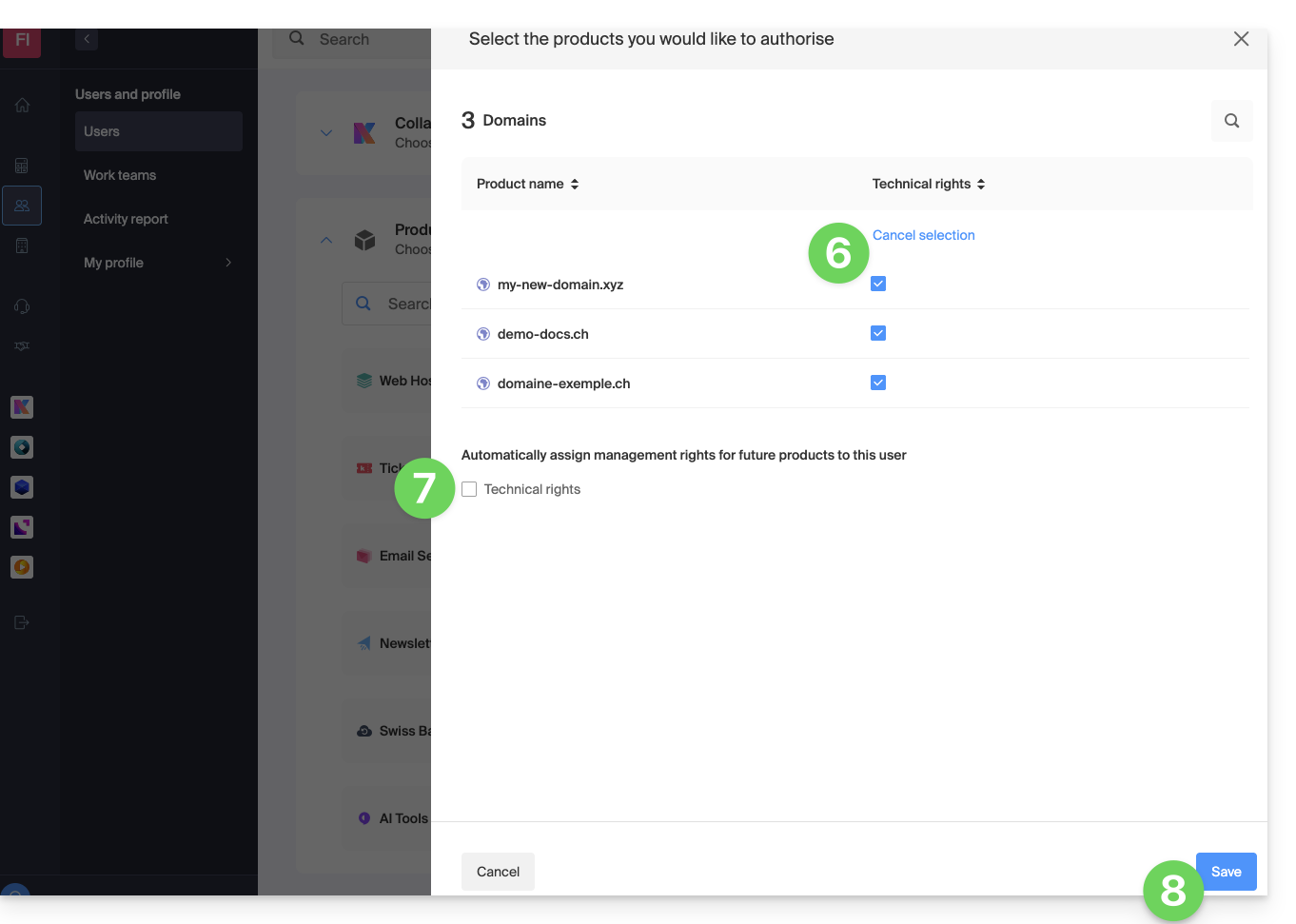
- Permissions are granted immediately.
- Click on the pencil ✎ icon to modify the permissions:
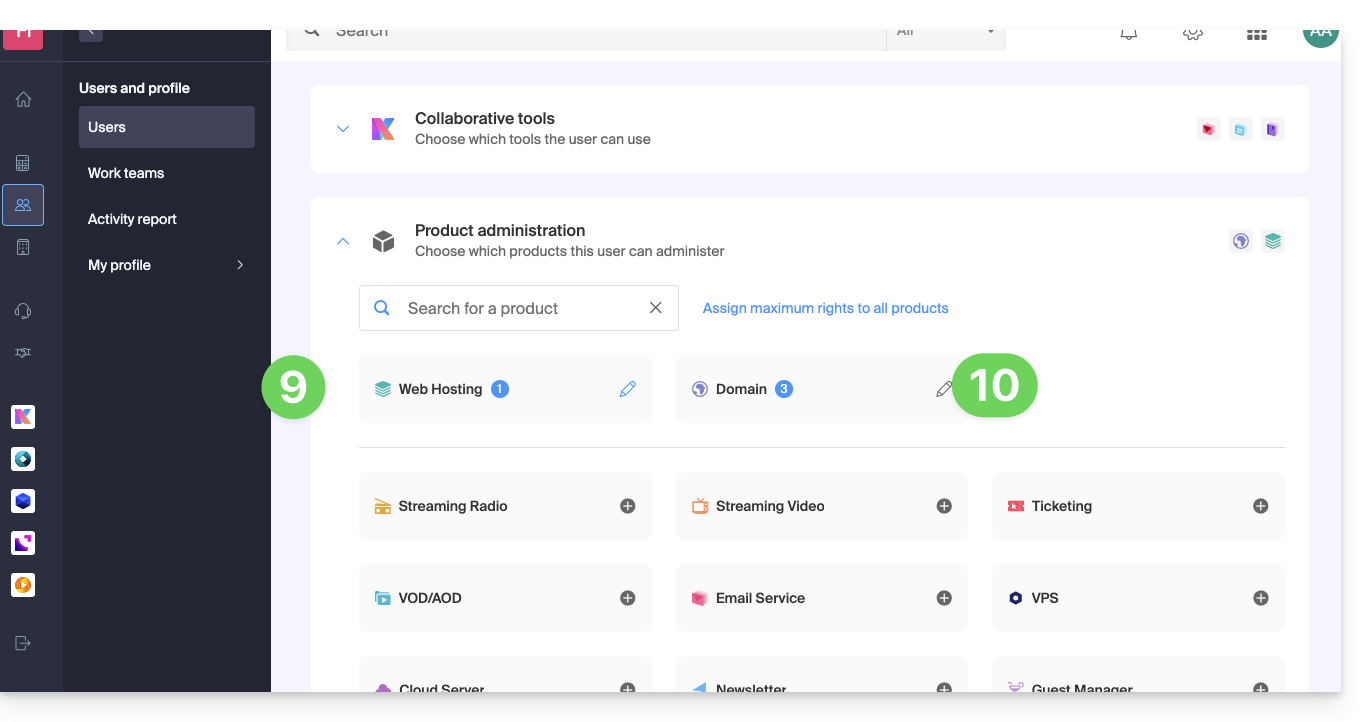
- If you need to grant access to multiple products, start again from step 5.
Using the service / Managing the service
Please note that in the product table, it is important to distinguish between access to the products (e.g., kDrive within kSuite) and access to product management: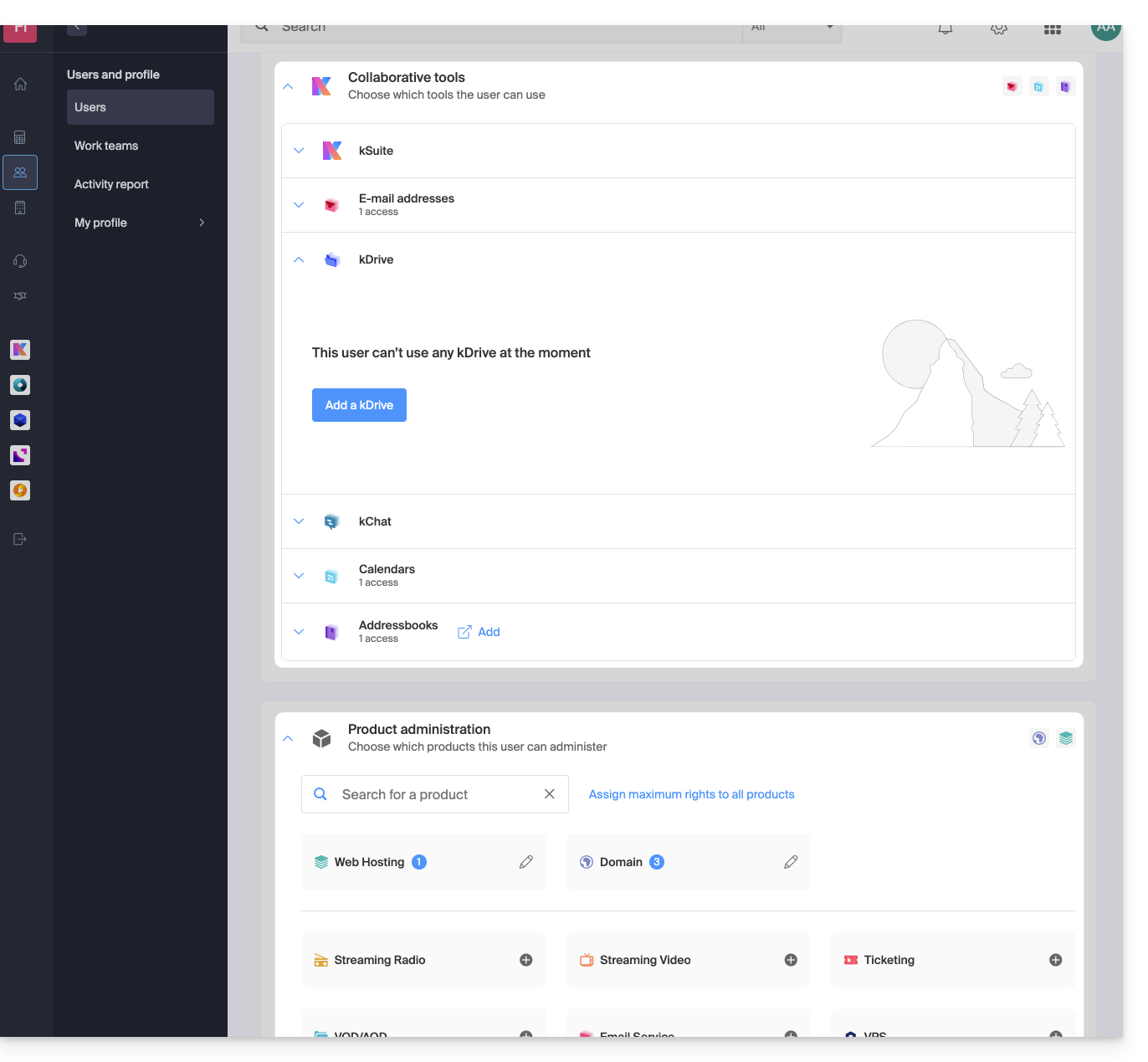
It is possible to authorize a user to use kDrive (they will be able to create a PDF, for example) without granting them management rights for the kDrive service (they will not be able to change the plan, invite a new user, cancel the service, etc.).
Technical Rights / Statistical Rights
With certain services like kDrive, it is possible to grant a collaborator TECHNICAL and/or STATISTICAL rights (adds access to the dashboard, sharing links, storage statistics, active users, connected devices, activity on the kDrive):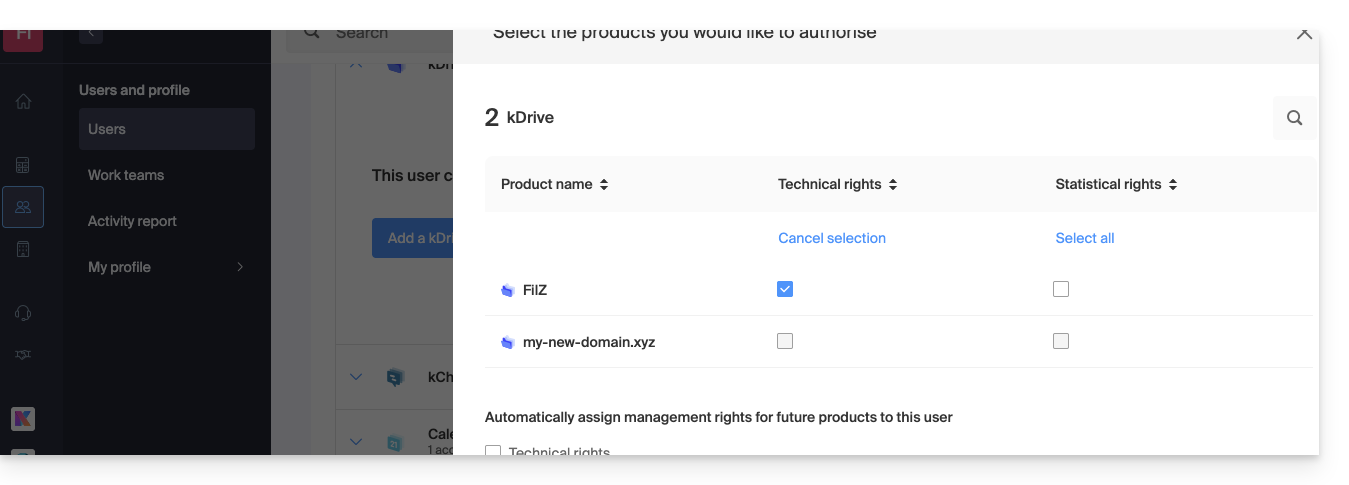
Other services, such as domain names, do not have a STATISTICS section: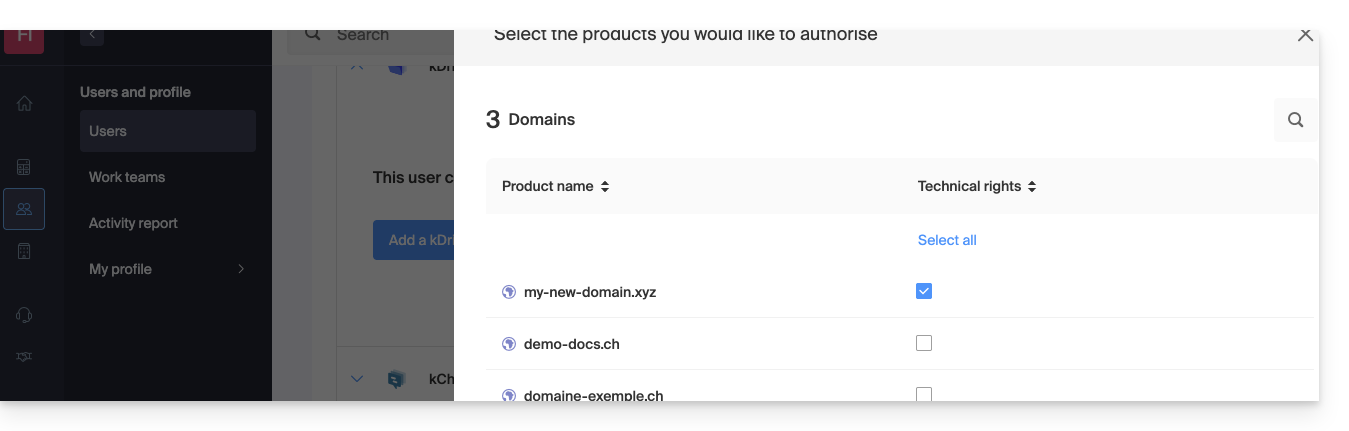
Some specific services, such as ticketing, allow for even more detailed permissions: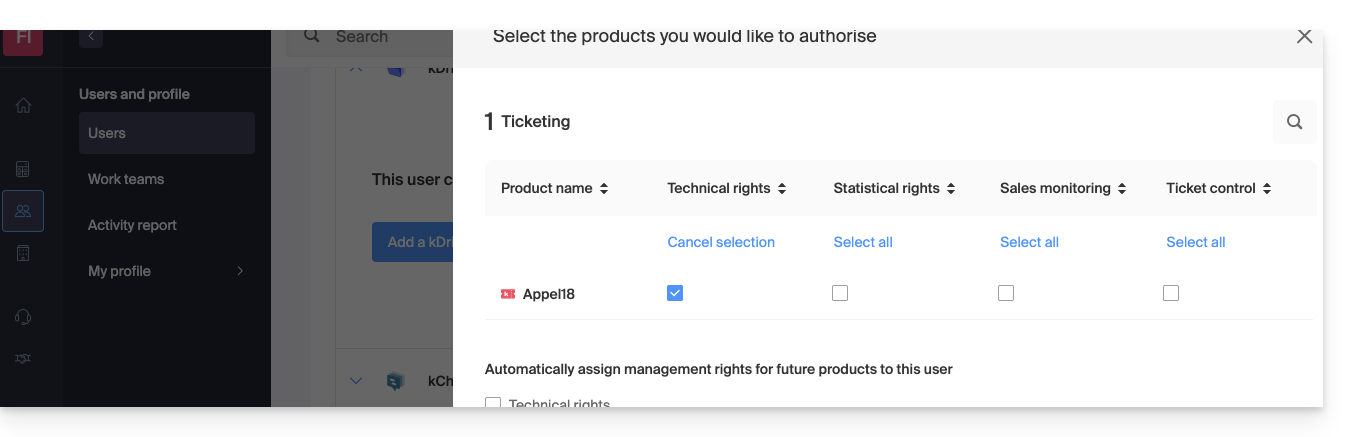
Easy Access: Groups
To simplify the process of adding access rights to a product within your Organization, there are Groups. These allow you to create teams that are linked to Infomaniak products with the desired rights, which is very useful for granting a new member of your Organization access to the products they will need in their daily work.
Link to this FAQ: https://faq.infomaniak.com/1610
Has this FAQ been helpful?
This guide explains how to modify the role and permissions of a user so that they only have a limited legal role or access to only certain features of your Organization in the Infomaniak Manager.
Introduction
- Since you opened your account with Infomaniak, you have been part of at least one Organization.
- If you were the only user and it wasn't an invitation, an Organization was created in your name, and you automatically become its legal representative.
- Otherwise, you belong to the Organization that invited you (to join its kSuite, to manage a product, etc.).
- You can define whether a user…
- … belongs to your Organization and whether they should have the role of:
- Legal Representative
- Administrator
- Collaborator
- … is external to your Organization (limited rights):
- External users are not included in calendar and address book sharing for the entire Organization.
- … belongs to your Organization and whether they should have the role of:
Modify a user's rights/permissions
Prerequisites
- If you cannot find the expected list of users, first switch to the desired Organization using this link.
- You must be an Administrator or Legal Representative within the Organization.
- Learn about the different permissions (e.g., access rights to products) and administrative contact preferencesof a user within an Organization.
- Please note that it is impossible to remove a legal representative if there is no other legal representative.
To change a user's role:
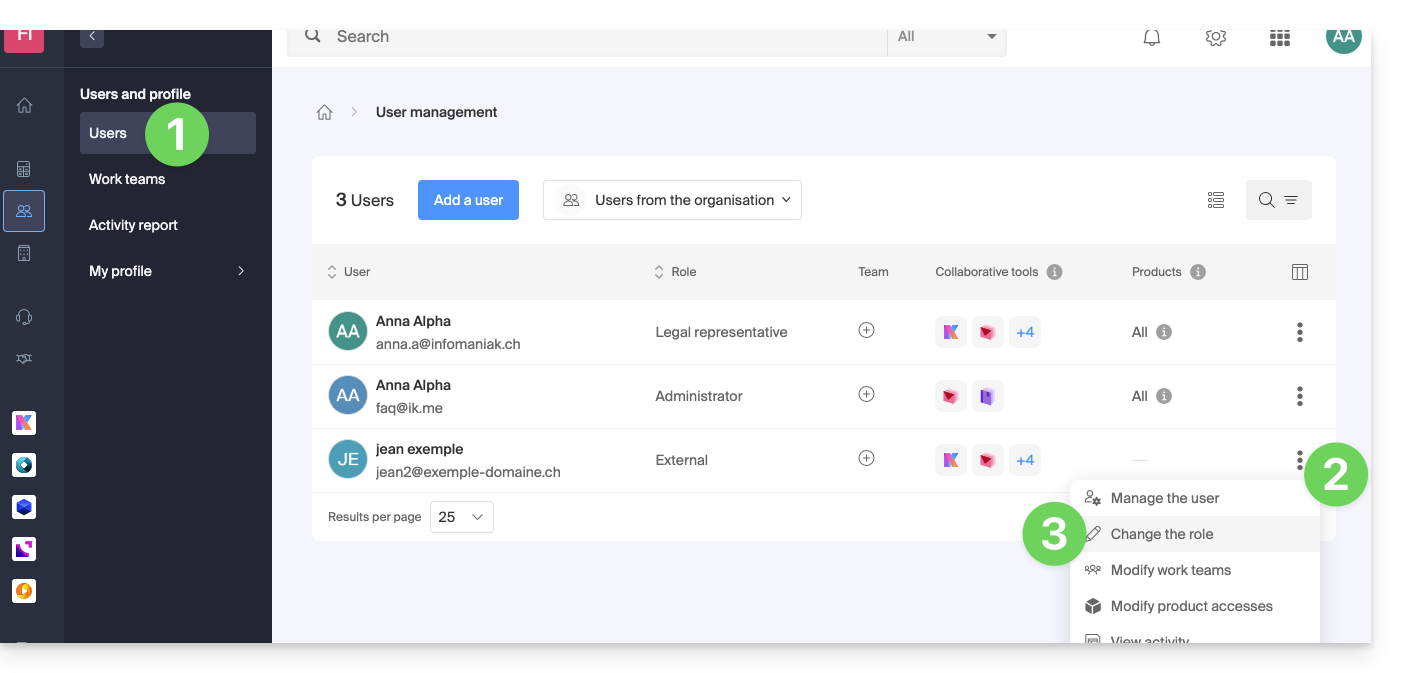
- Click here to access user management in the Infomaniak Manager (need help?).
- Click on the action menu ⋮ located to the right of the user in question.
- Click on Edit role:
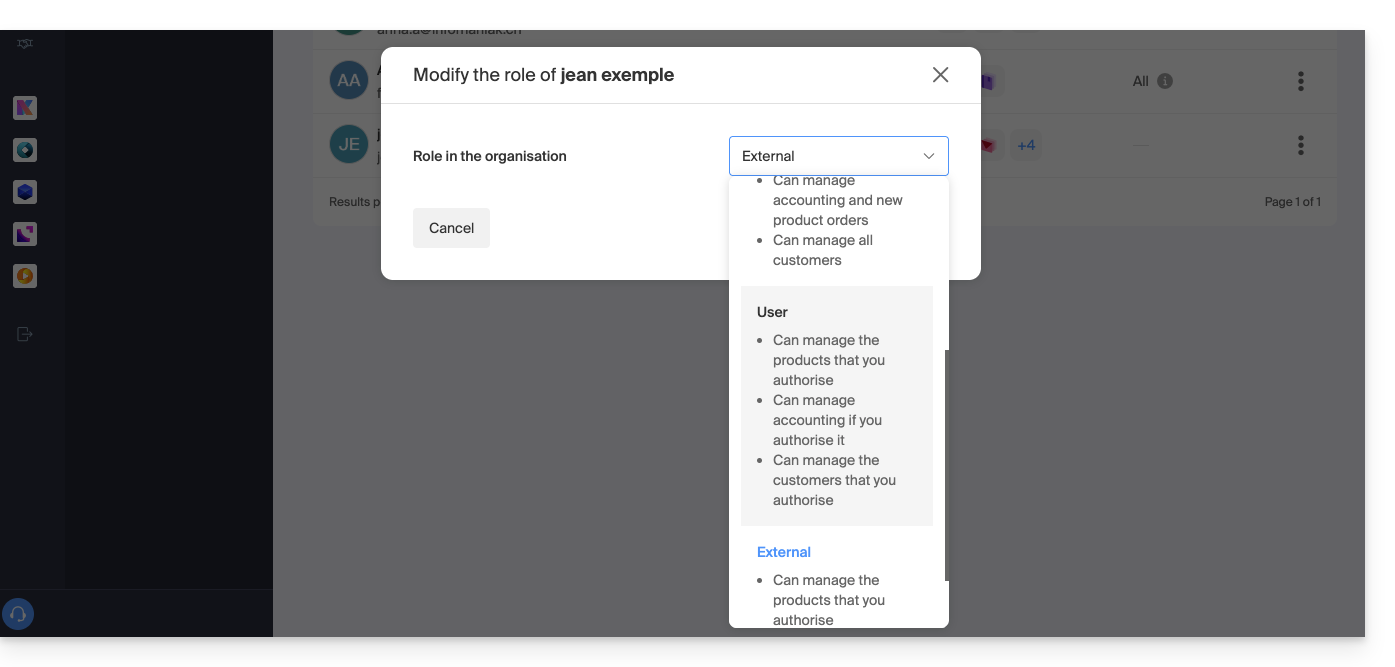
- Modify the desired role:
- Click the Save button.
A summary email is sent to the user whose role has been changed.
If you assign the user a simple collaborator role…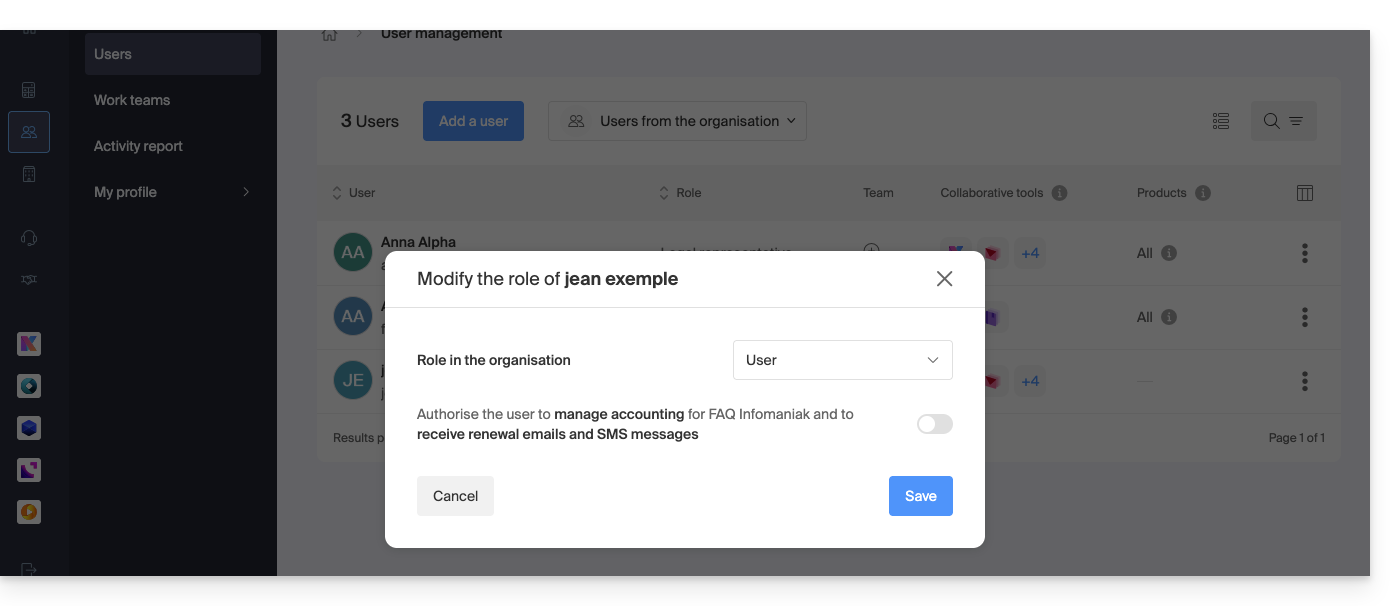
… you can modify the services they can access; refer to this other guide: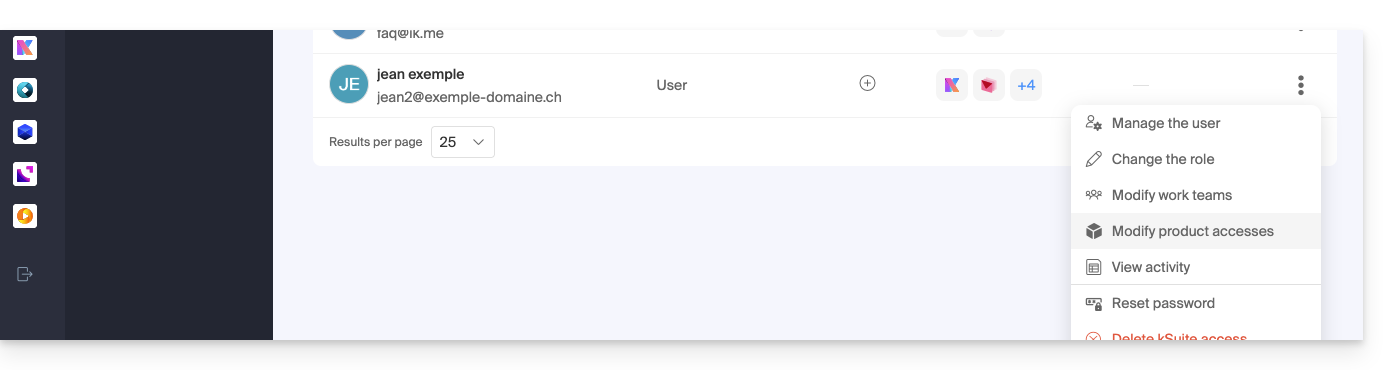
Link to this FAQ: https://faq.infomaniak.com/1633
Has this FAQ been helpful?
This guide explains how to receive email notifications about the expiration date of an Infomaniak product, at different intervals that you can configure to avoid being overwhelmed with messages.
Prerequisites
- Be Administrator or Legal Representative within the Organization…
- … or a simple user account but with the permission to manage accounting enabled:
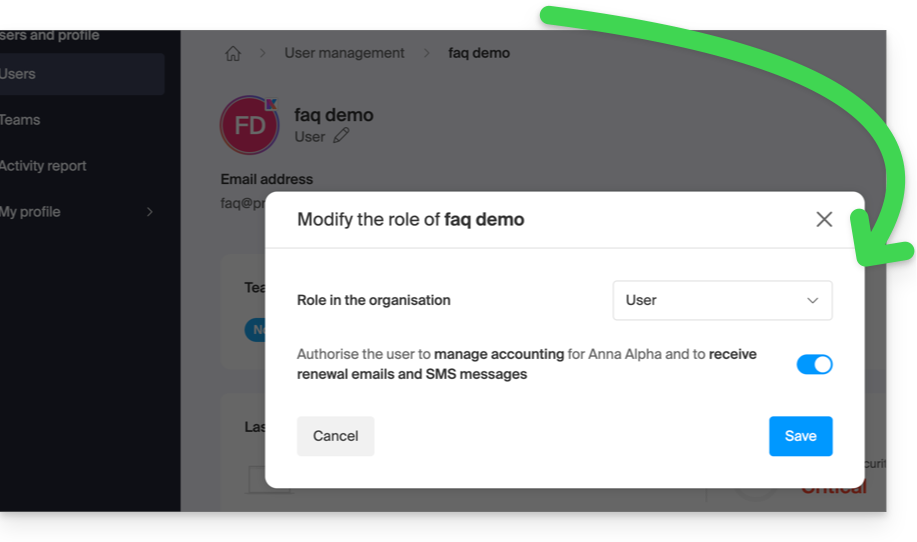
- … or a simple user account but with the permission to manage accounting enabled:
Enable or disable emails
To check and modify the current settings for billing messages:
- Click here to access the configuration/accounting page in the Infomaniak Manager (need help?).
- On this page, enable or disable the desired notifications:
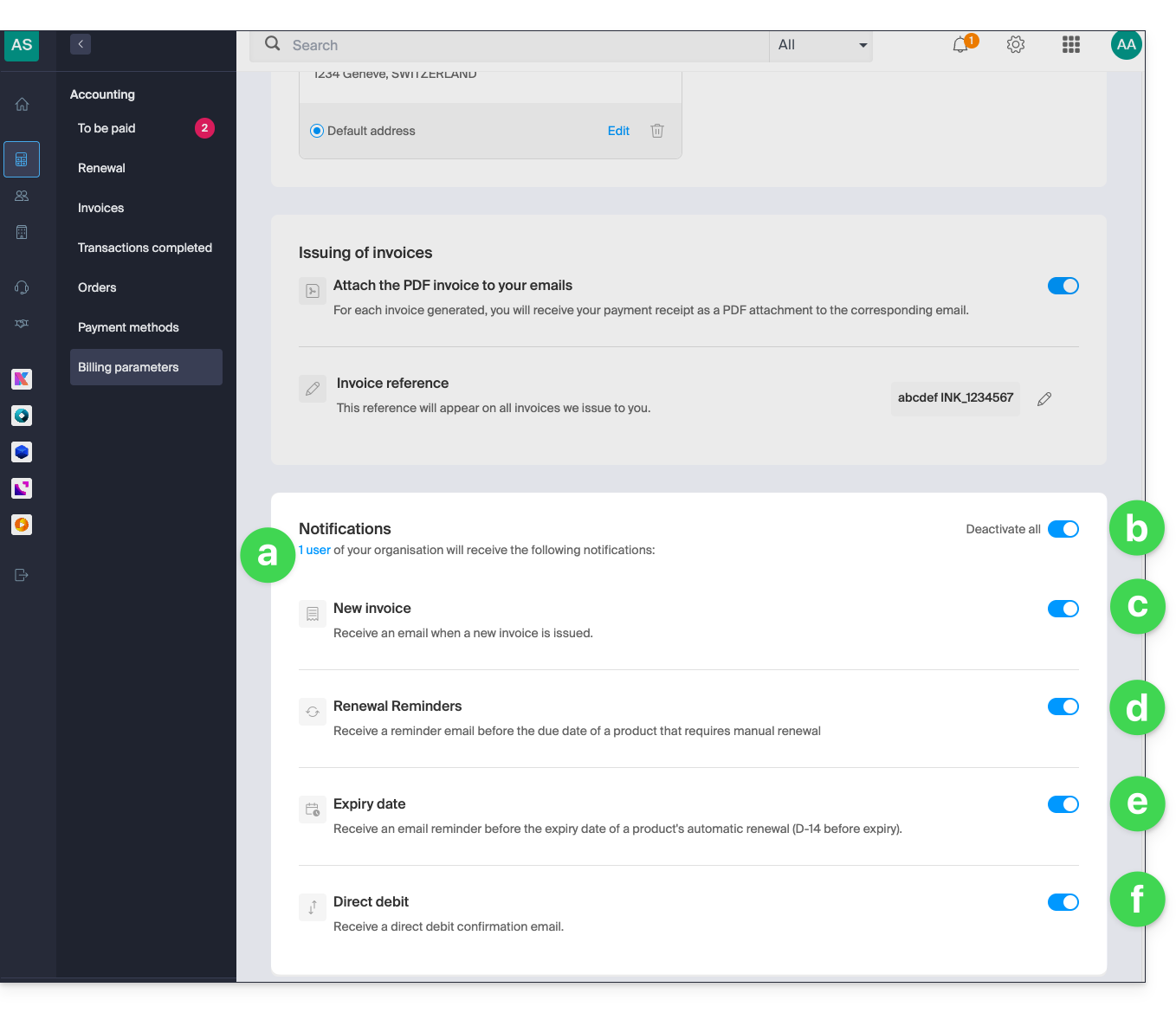
- Allows you to see the user(s) concerned by receiving the notifications (see prerequisites).
- Allows you to enable or disable all notifications with a single click.
- Email notification when an invoice is issued.
- Reminder email before the expiration date of a product that will not be automatically renewed.
- Reminder email before the automatic renewal date of a product (14 days before expiration).
- Confirmation email upon automatic payment.
Your preferences are automatically saved as soon as a change is made on the page.
You should also consult this other guide about invoices.
Link to this FAQ: https://faq.infomaniak.com/1634
Has this FAQ been helpful?
This guide explains how to suspend the administrative management of a product so that no user in the Organization can use it within the Infomaniak Manager. It is also possible to block a user from your Organization without deleting them.
Introduction
- By blocking the management of a product:
- Only administrators and the legal representative will be able to unblock it.
- Users with limited rights (collaborators and clients) who have access to this product will no longer be able to manage it.
- An email is sent to the users of the Organization.
Block a product
Prerequisites
- Be an Administrator or Legal Representative within the Organization (users with limited rights (collaborators and clients) who have access to this product will not be able to do so).
To block or unblock certain products for the entire Organization:
- Click here to access product management in the Infomaniak Manager (need help?).
- Access the service you wish to block.
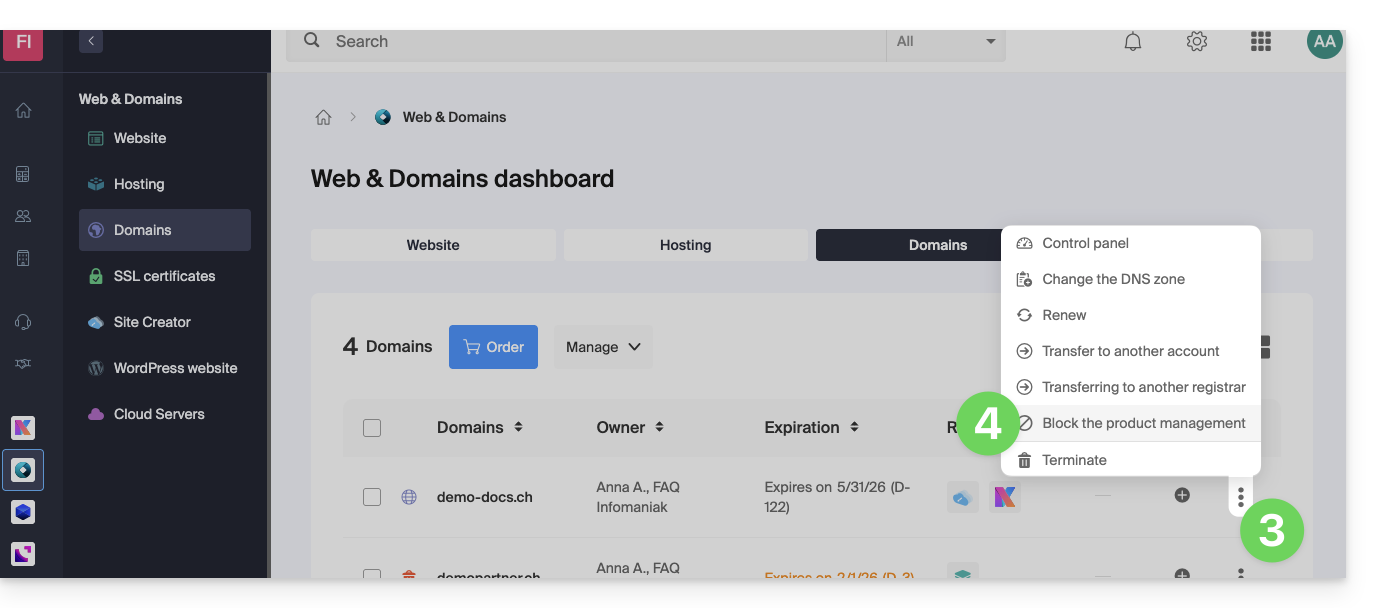
- Click on the action menu ⋮ located to the right of the item in question.
- Click on Block product management:
- Example 1, Cloud Server:
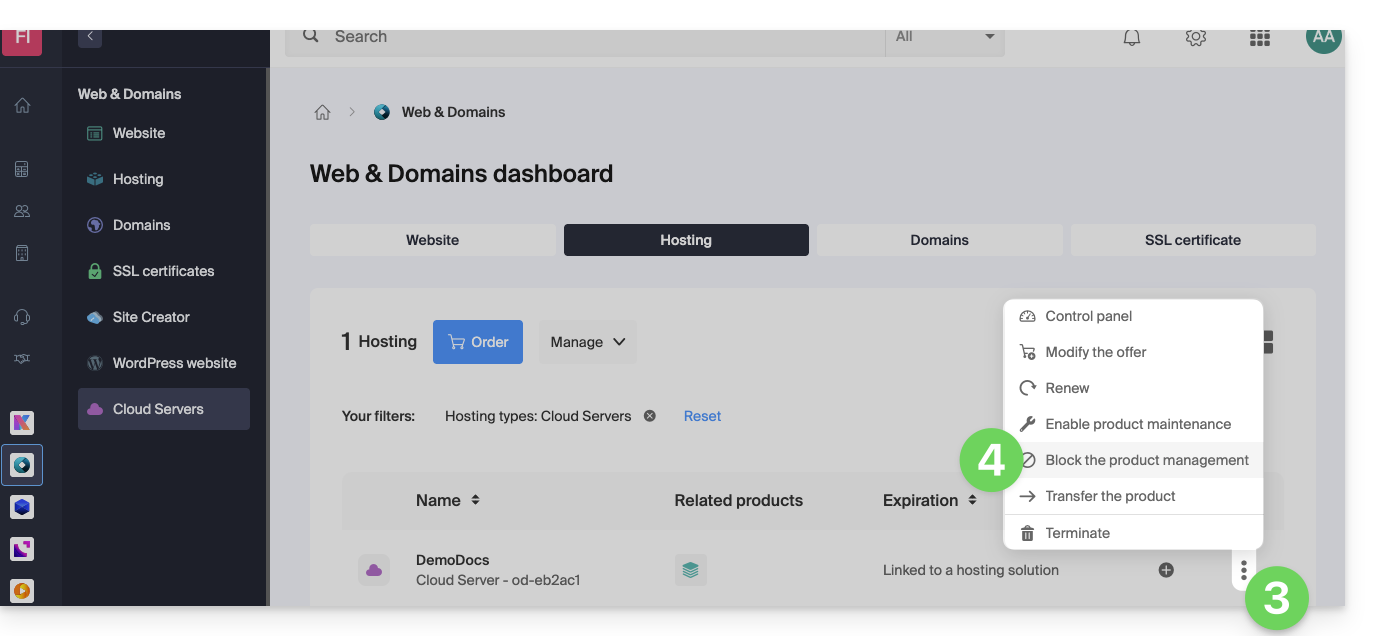
- Example 2, domain name:
- Example 1, Cloud Server:
- Confirm the suspension.
Suspend emails
A Mail Service cannot be blocked in the manner indicated above, but it can be put into maintenance mode.
Prerequisites
- Be an administrator or legal representative; users with limited rights (collaborators and clients) who have access to this product will not be able to do so.
To suspend email addresses:
- Click here to access the management interface for your product in the Infomaniak Manager (need help?).
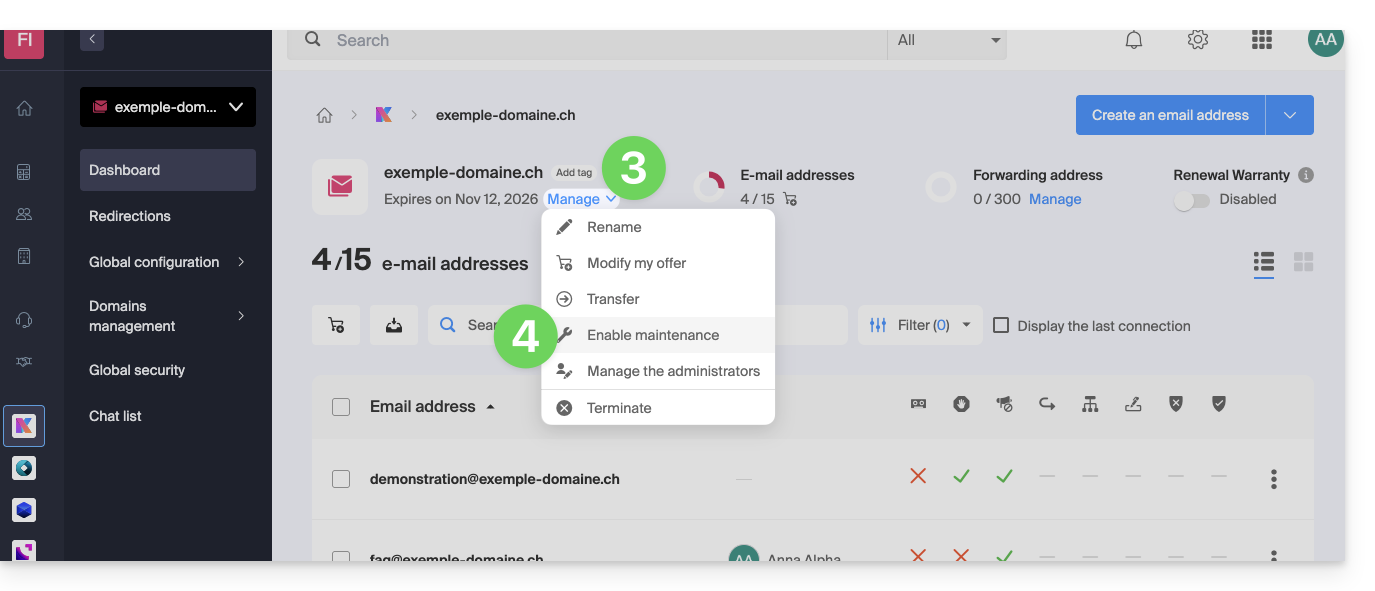
- Click directly on the name assigned to the product in question.
- Click on Manage.
- Click on Enable maintenance:
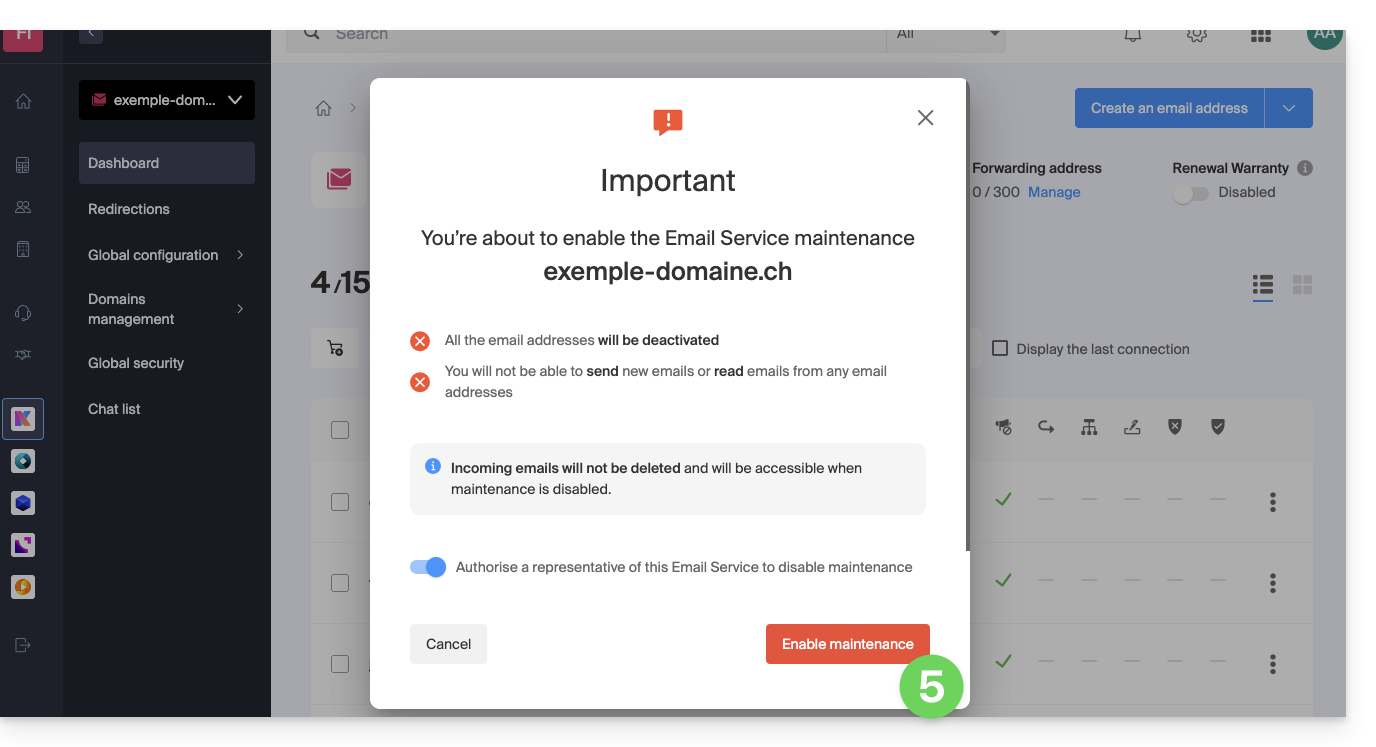
- Confirm the suspension of email address usage by clicking the red button (receiving emails is not interrupted, but viewing them is impossible):
Block a user from the Organization
To quickly block a user from the Organization in case of a security incident, log in to your user management as an Administrator or Legal Representative of the Organization:
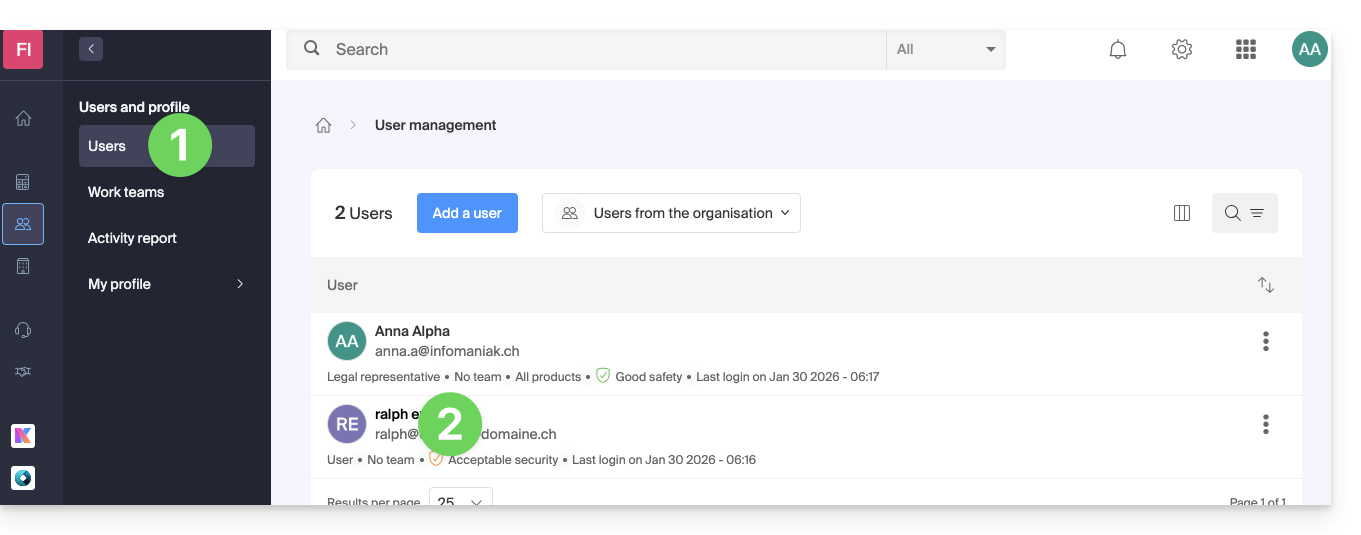
- Click here to access user management in the Infomaniak Manager (need help?).
- Click on the user in question:
- Using the Manage button at the top of the page, you can remove the user from the Organization (which also removes their various management access rights to the products they had access to).
- Further down, you can manage in more detail the products that the user should be able to access:
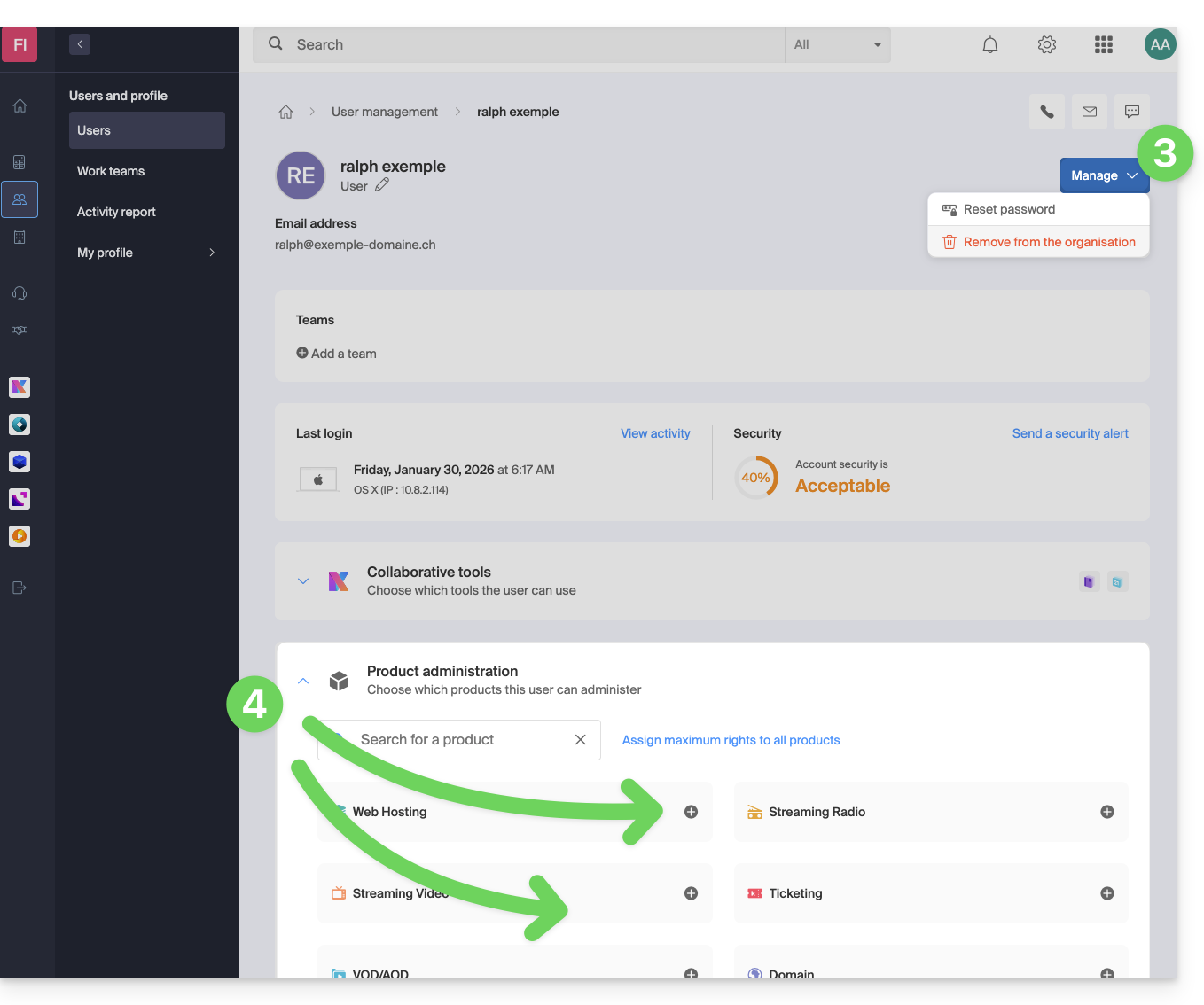
Thus, critical services such as the Manager interface for your Organization, the kDrive web app, and the Mail web app can become inaccessible to this user.
Depending on the situation, also consult these links to block other services such as email (IMAP / SMTP) or Web services.
To avoid blocking the user yourself, but instead provide them with instructions on how to secure their account, consult this other guide.
Link to this FAQ: https://faq.infomaniak.com/1689
Has this FAQ been helpful?
This guide clarifies the distinction between the financial settlement for a service and the ownership of the associated rights.
Payment does not confer ownership
Paying the invoices for a service (domain name, hosting) does not automatically grant ownership rights. According to Infomaniak's Terms of Service, the official owner remains the person or entity whose name is associated with the service, even if the payment is made by a third party or a Partner.
This distinction is particularly important during a product transfer between Organizations: the payer is not necessarily the manager or the legal owner.
Verify and update your details
To ensure your rights to a service, make sure the identification information is in your name or that of your company. Check the following details:
- Your Infomaniak profile
- The Organization that owns the product
- The billing information
- The legal owner of the domain name (registrant)
In the event of a dispute, only the owner designated in the Infomaniak interfaces is recognized as the responsible party and the rights holder.
Link to this FAQ: https://faq.infomaniak.com/1721
Has this FAQ been helpful?
This guide explains how to, from a Mail service, reset or delete the passwords for a mail addressto disconnect a third-party application such as Outlook or Thunderbird.
Other access and management options are presented in the main guide.
Introduction
- Changing the password for an email address is equivalent to changing the IMAP / SMTP password:
- As soon as the password is changed, you must update your software (Outlook, etc.), mobile devices (iPhone), etc. with the new password (this is your responsibility).
- If you cannot log in to the Manager or Mail / kSuite, you will not be able to manage the passwords for any of your email addresses: please refer to this other guide in this case.
Remove a password / device
Prerequisites
- You must have at least the right to manage the Mail Service in question (or be an Administrator / Legal Representative within the Organization).
To disconnect any existing IMAP/POP/SMTP connections using a password generated in this interface (this will not remove the address from Infomaniak Mail apps – you need to manage the users of the email address for that), you can revoke a device or even delete all existing configurations with a single click:
- Click here to access the management interface for your product in the Infomaniak Manager (need help?).
- Click on the name of the product in question.
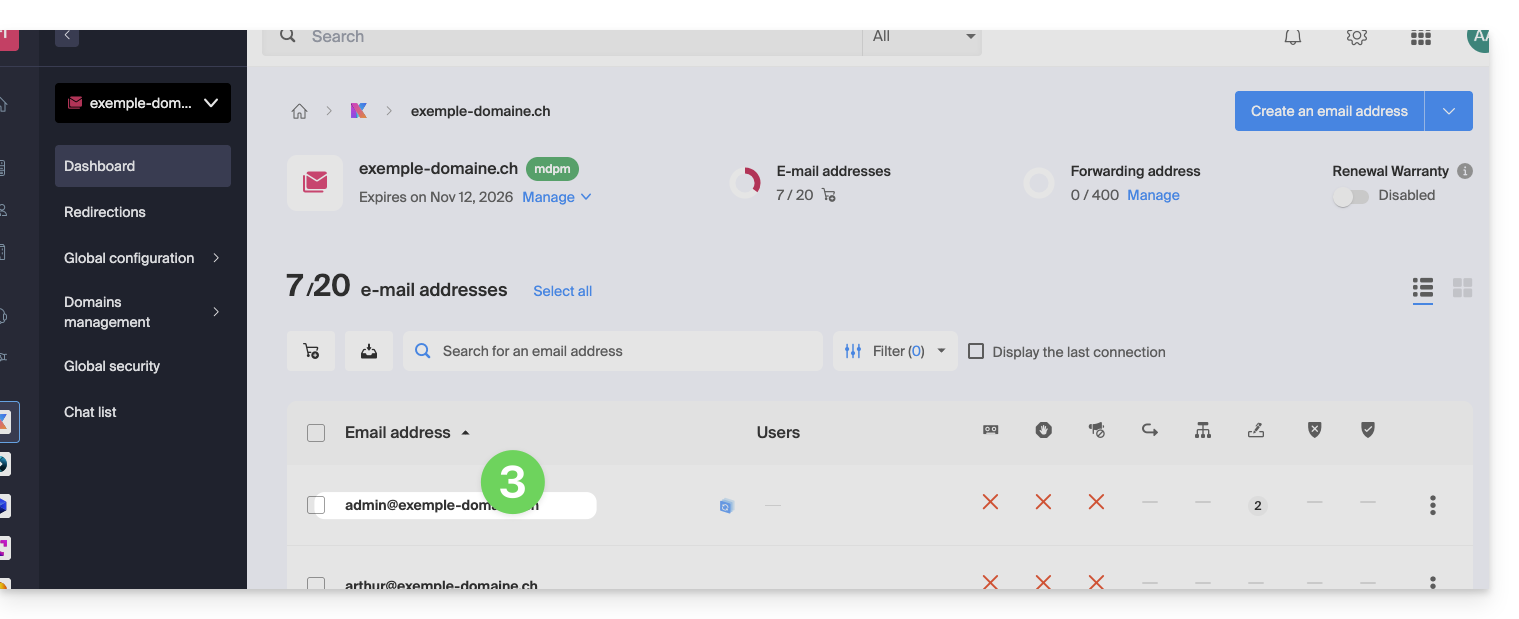
- Click on the email address in question in the table:
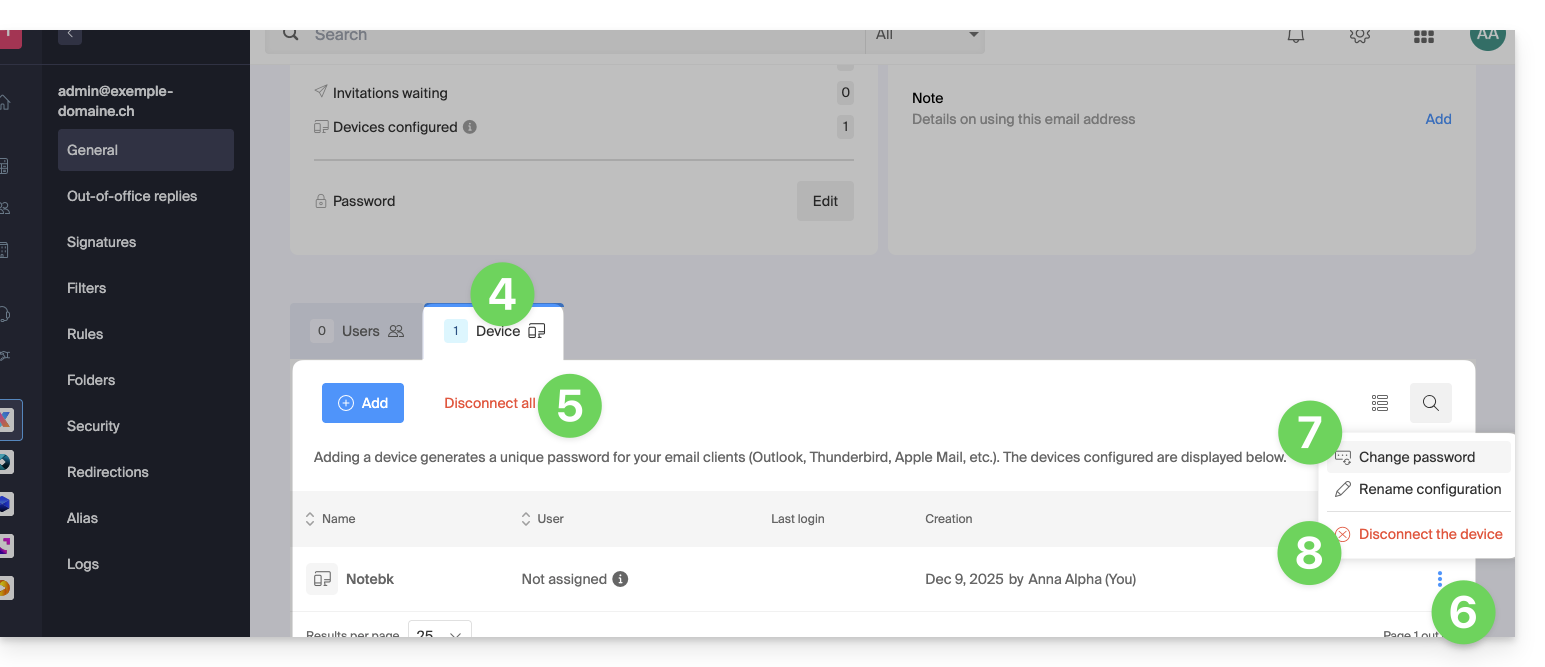
- Click on the Devices tab.
- Click on the red link to disconnect all registered devices (confirmation is required).
- Click on the action menu ⋮ located to the right of the device in question.
- Click on “Change password” to disconnect the current connection but allow the device to reconnect with a new password directly.
- Click on “Disconnect device” to remove it from the list and delete the corresponding connection:
What is a “generic” password?
Some email addresses may display a specific indication in the Devices section: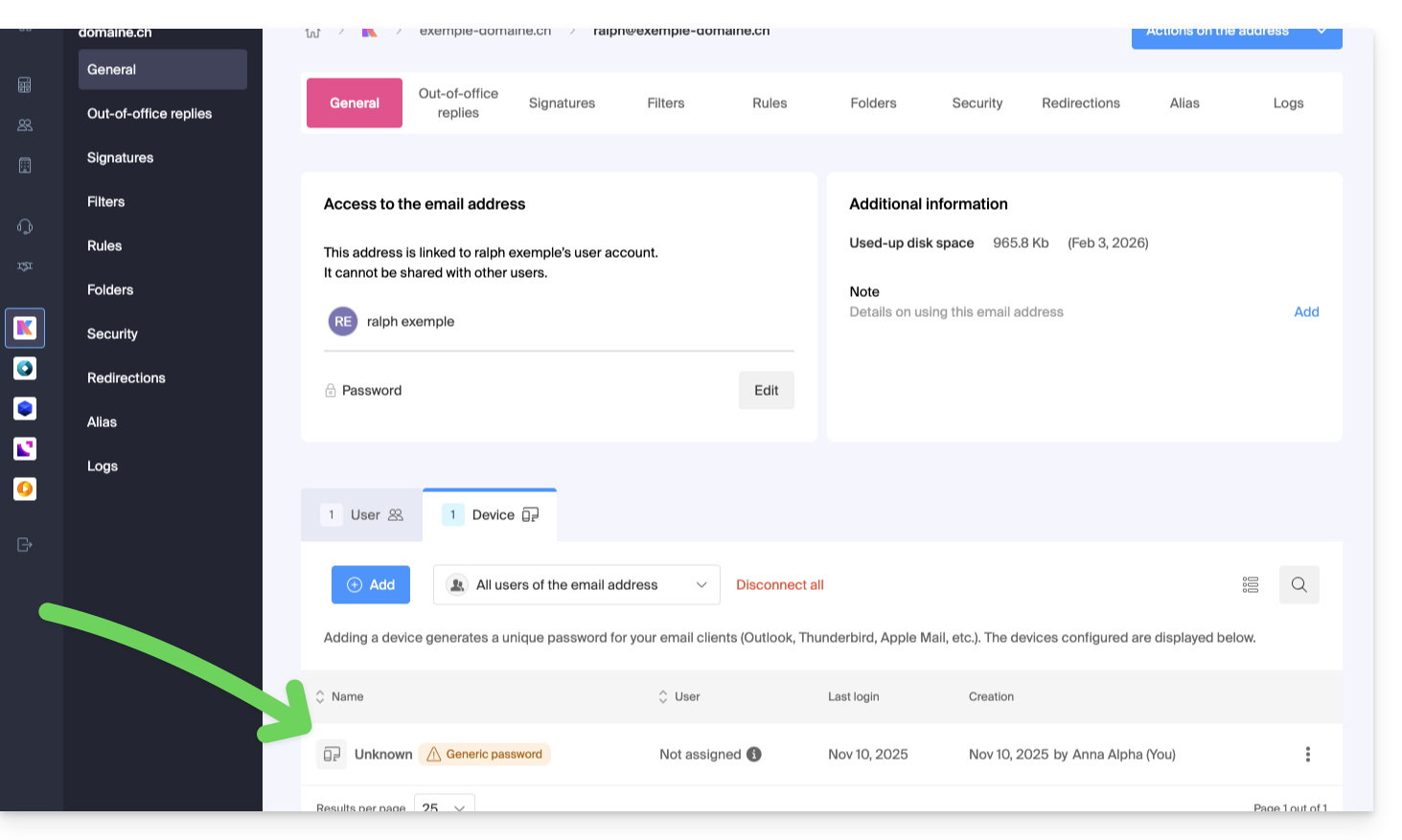
If this is the case, don't worry; it means that the address has a password assigned to it when it was created (prior to 2026). This password remains valid, but like other passwords, it cannot be displayed.And unlike other passwords, this one cannot be reset (the option is grayed out, disabled):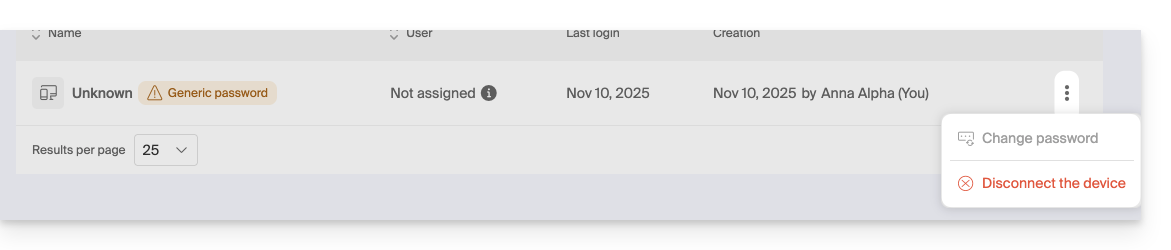
In this case, you can easily add an additional password.
Link to this FAQ: https://faq.infomaniak.com/1736
Has this FAQ been helpful?
This guide explains how to remove one of the users from your Organization in the Infomaniak Manager.
Prerequisites
- If you cannot find the expected list of users, switch to the desired Organization beforehand by clicking here.
- You must be an Administrator or Legal Representative within the Organization.
- Please note that it is impossible to remove a Legal Representative if there is no other legal representative.
Remove a user from your Organization
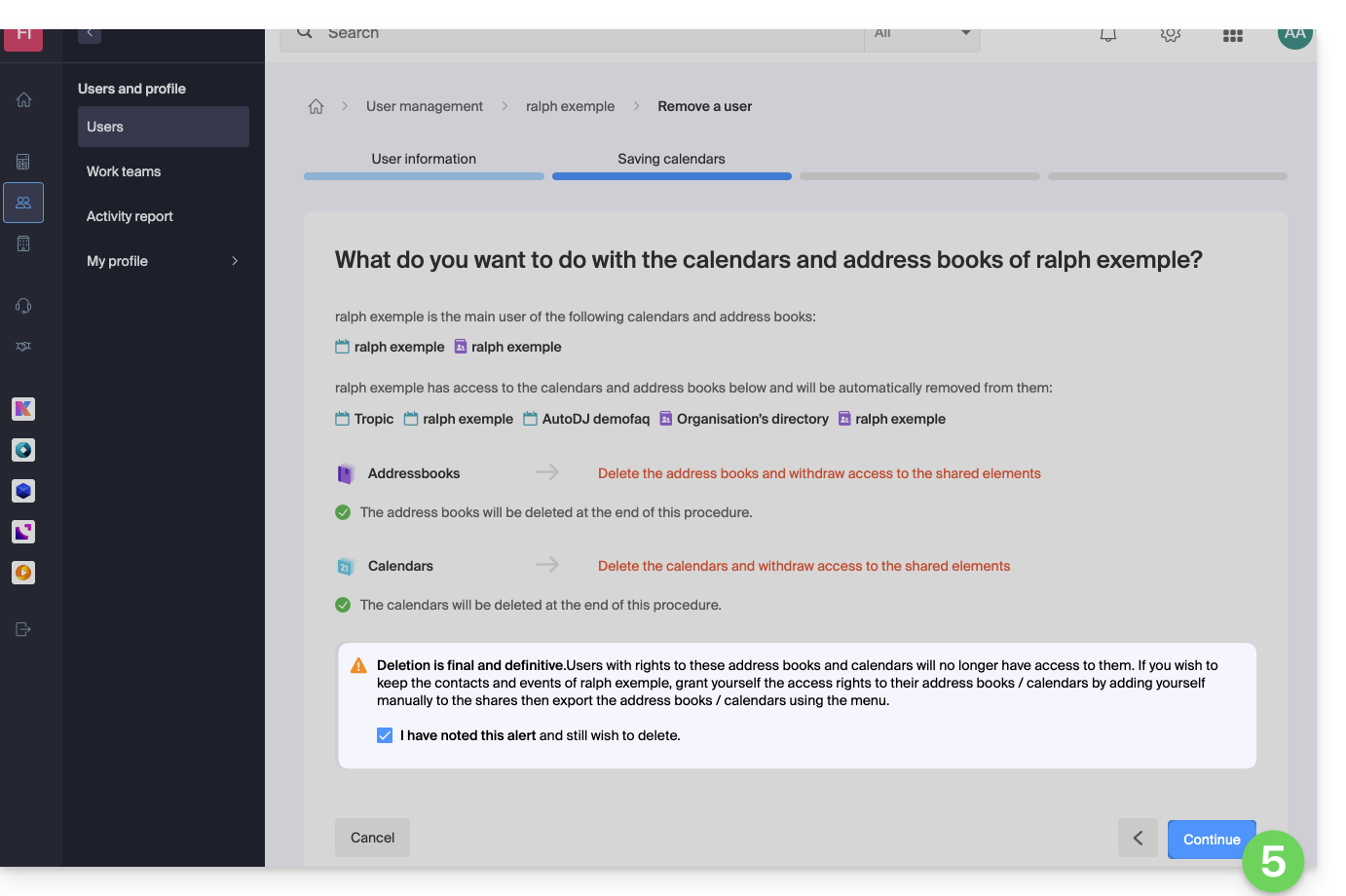
If the user had access to kDrive or was invited to access a third-party email address, several intermediate steps will ask you what actions to take with their data and will inform you, if applicable, about what will happen to the calendars and address books. To remove one of the users from the Organization:
- Click here to access the organization's user management in the Infomaniak Manager (need help?).
- Click on the action menu ⋮ to the right of the user in question.
- Click on Remove from Organization:
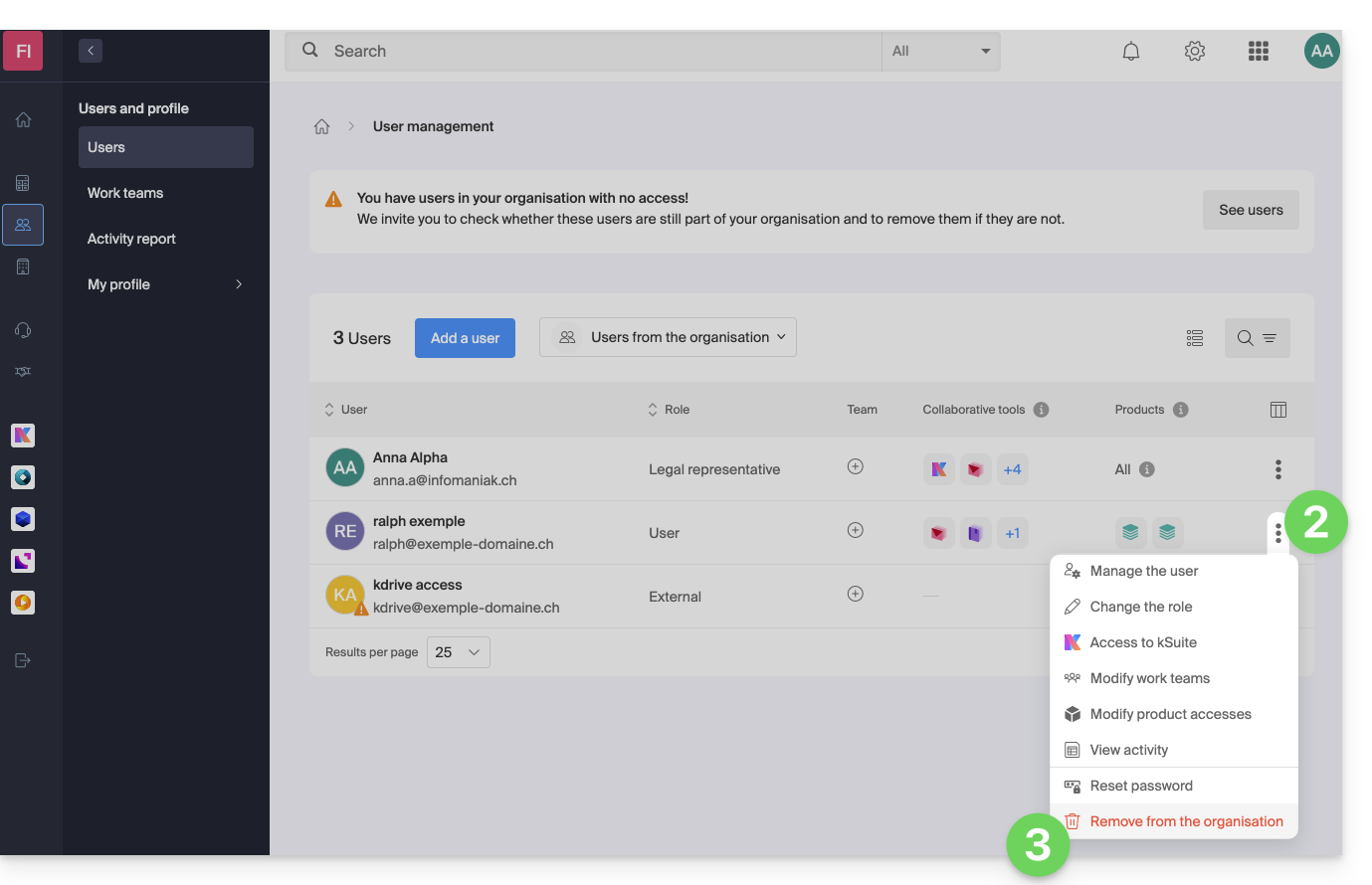
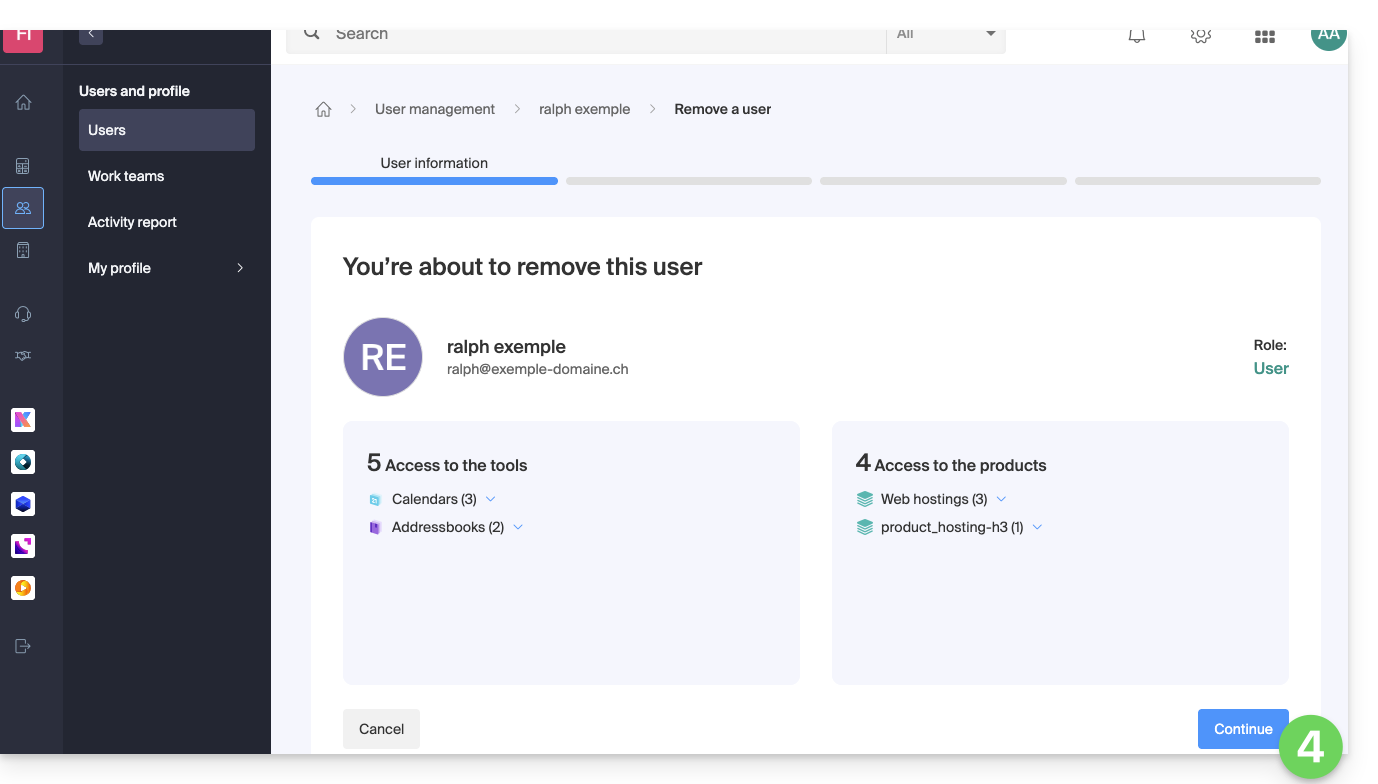
- Review the information (click on the down arrows if necessary to view the details of the deletions), then click the blue Continue button:
- Review the information, confirm the deletion by checking the box, then click the blue Continue button:
- Review the information (click on the chevrons if necessary to view the details of the deletions) and then click on the red Remove button:
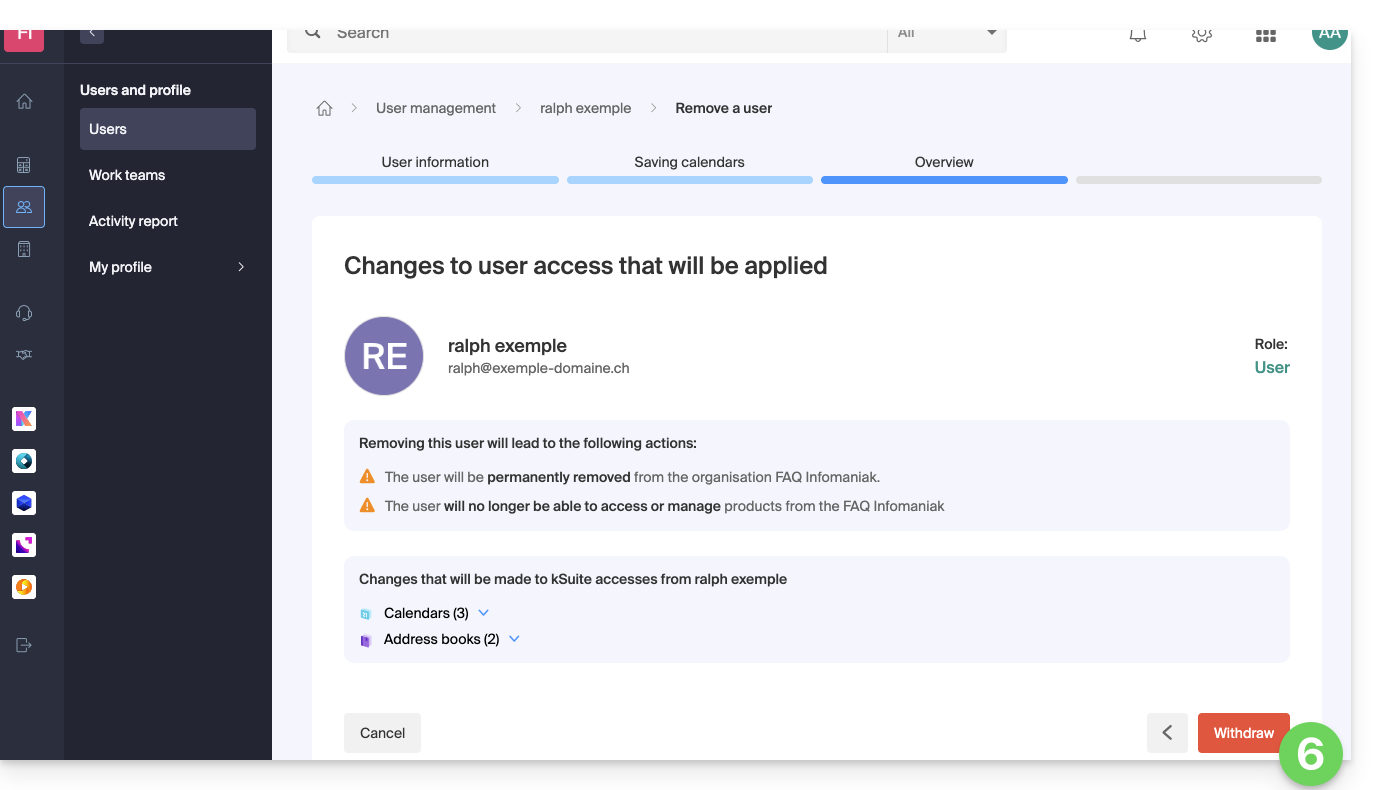
- Enter your email address (login ID for the Manager), check the confirmation box, and then click the red Remove this user button to permanently remove the user, with no possibility of reverting the action.
Link to this FAQ: https://faq.infomaniak.com/1738
Has this FAQ been helpful?
This guide explains how to manage and modify user permissions (assigning an additional password, setting up an alias, etc. see below for the complete list) for an Infomaniak user, so that they can manage more or fewer configuration elements in the Infomaniak Mail web app (online service ksuite.infomaniak.com/mail).
Introduction
- The email address is first created within a Mail Service and can then be used within one or more Infomaniak Mail interfaces by one or more users.
- The creator (or manager) of the address may want to limit the possible actions for one or more of the users who will use the email address.
- This granular permission management can be done when creating an address or later, and you can also define what the default permissions should be, which will always be applied.
List of user email permissions
When you view the users with access to a specific email addresswithin a Mail service, a column allows you to quickly identify the type of permissions granted to the user: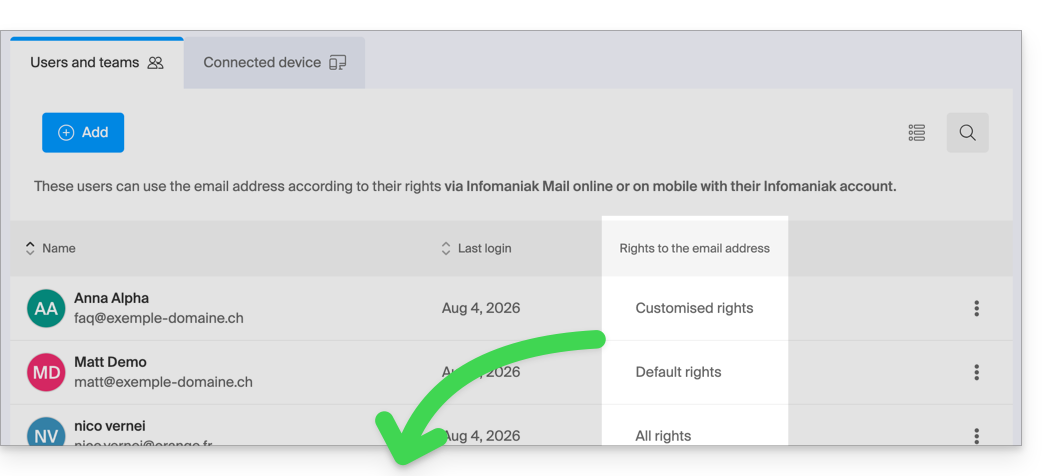
“All rights” is displayed when the user has all possible permissions.
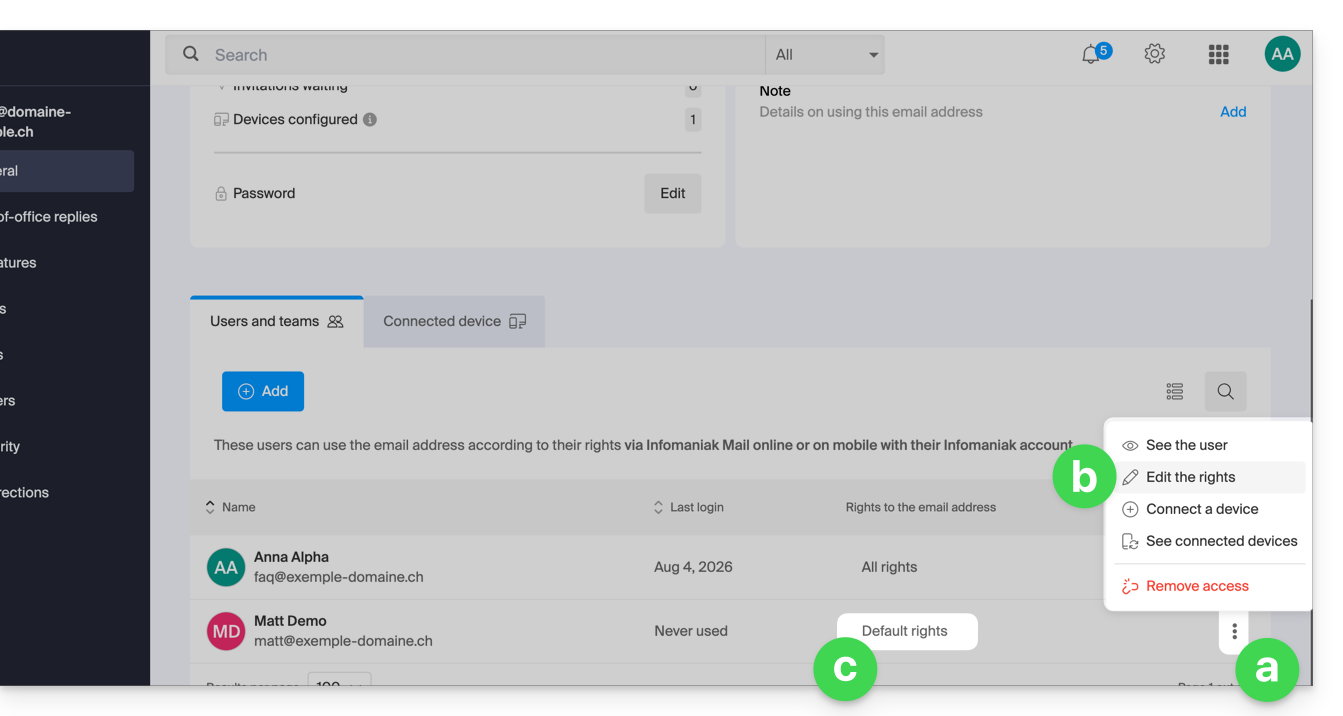
“Default rights” is displayed when the permissions are identical to those specified in the global configuration.
“Custom rights” is displayed as soon as not all permissions are granted and they differ from the default template (global configuration).
Click on the indication to access the user's permission management, detailed below:
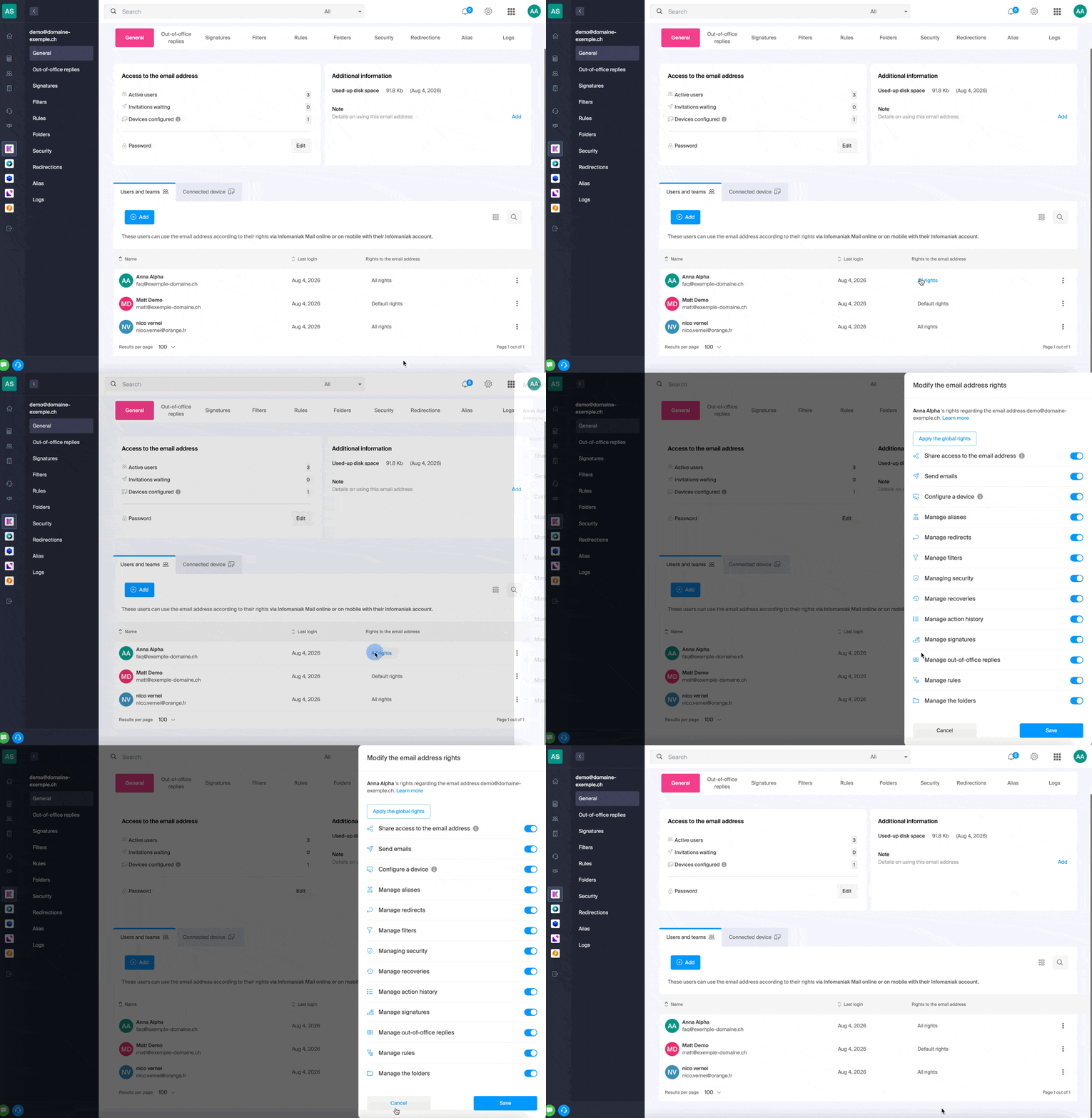
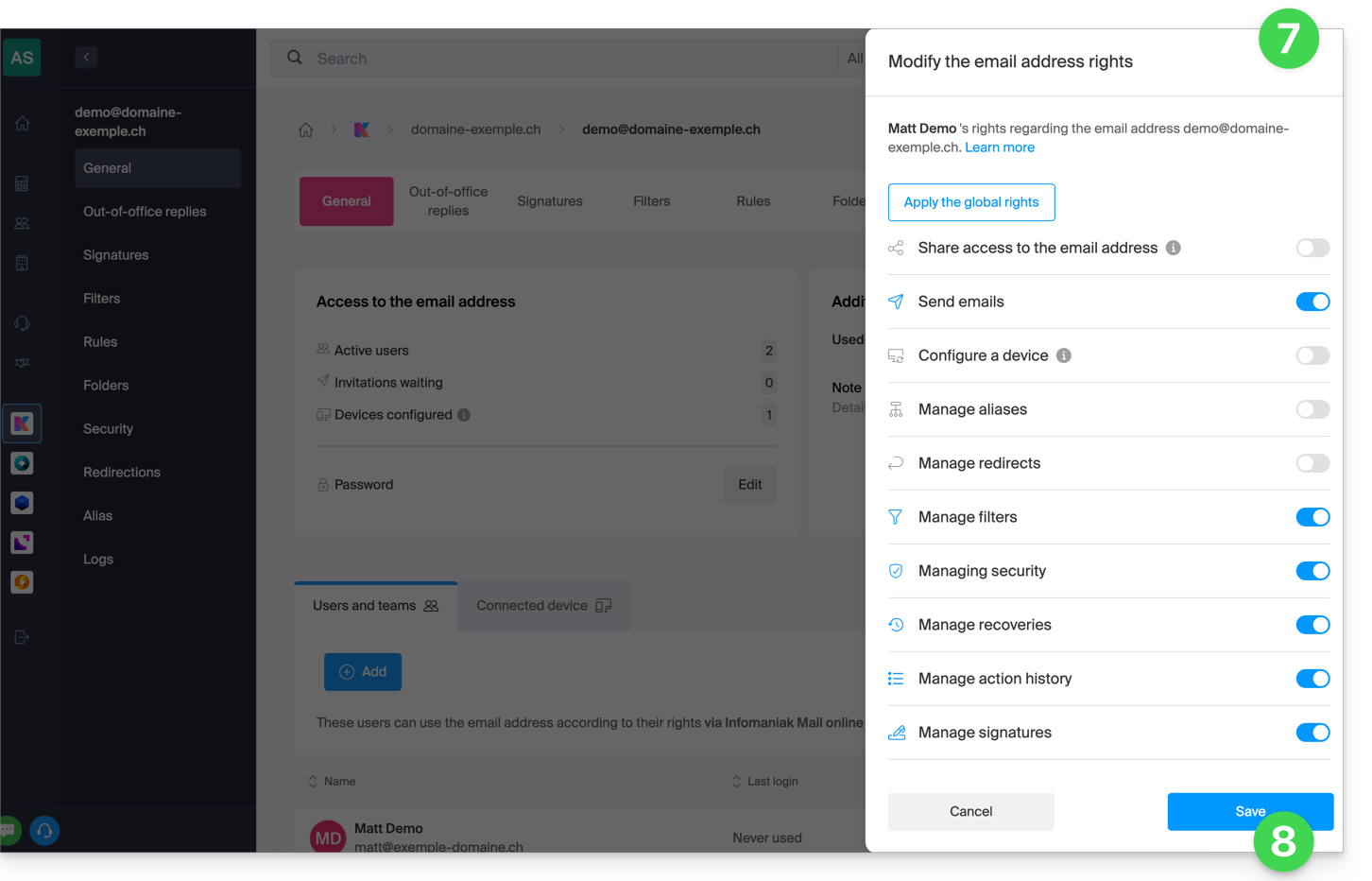
Simply click on the corresponding toggle switch to enable or disable the specific permission. Here is the list:
| Type / Icon | Description of the permission granted to the user |
|---|---|
| Share access to the email address | Manage users (ability to delegate mail access to another user in the Organisation) |
| Configure a device | Manage devices (ability to create a dedicated password) |
| Manage voicemail | Create an automatic reply (e.g., configure an out-of-office message) |
| Manage signatures | Add signatures and manage reply email addresses |
| Manage forwarding | Forward emails to one or more other addresses |
| Manage aliases | Create variations of your email address (by changing what comes before the @) |
| Manage the action history | Access the logs for the email address |
| Manage restores | Access backups and restores |
| Manage filters | Access SPAM and other filters |
| Manage rules | Automatically sort and categorize new incoming emails |
| Manage folders | Customize IMAP folders |
| Manage security | Manage blocked and approved addresses |
| Manage email sending | Enable sending emails (allow global SMTP) |
Manage permissions granted to a user
You may be asked for your Infomaniak account login password to make changes to the permissions.
… from the Mail Service
- Click here to access the management of your Mail Service in the Infomaniak Manager (need help?).
- Click directly on the name assigned to the Mail Service in question.
- Click on the email address in question in the table that appears.
- There are several ways to modify the permissions of an email address:
- When adding a user to an email address:
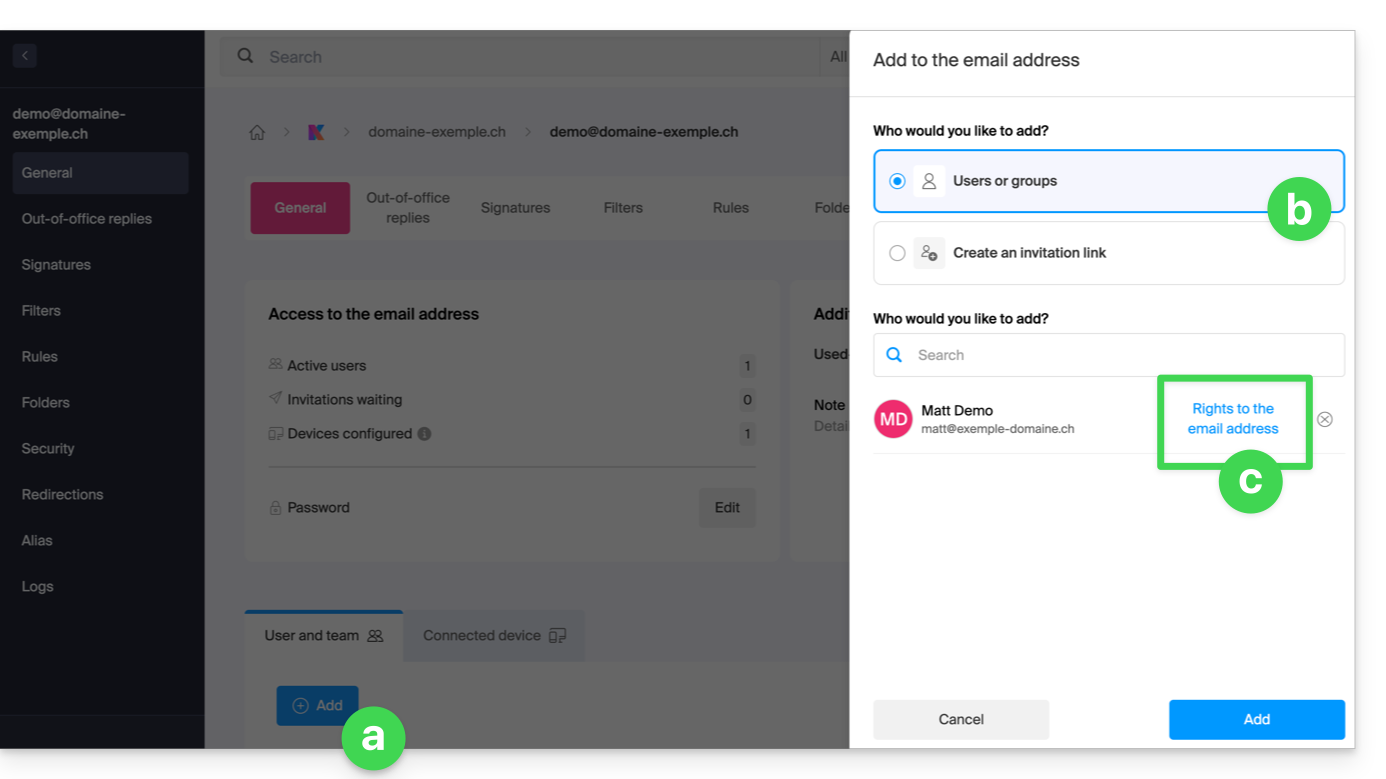
- Once the user has been added:
- Click on the action menu ⋮ located to the right of the user's name for the email address.
- Select ✎ Edit permissions.
- Or click directly on the indication regarding their permissions:
- When adding a user to an email address:
… from the Manager (user management)
- Click here to access user management in the Infomaniak Manager (need help?).
- Click on the relevant user in the table that appears.
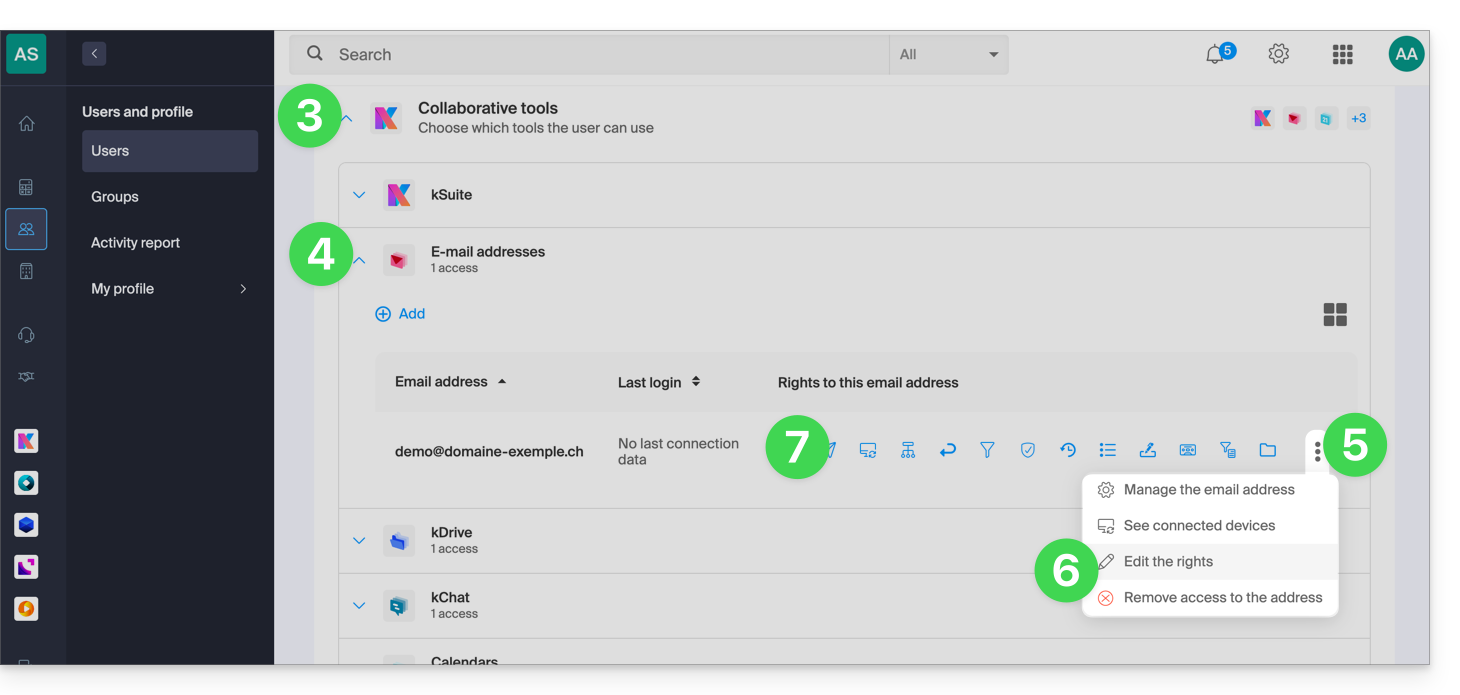
- Expand the collaborative tools section by clicking on the chevron .
- Expand the section displaying the email addresses accessible to the user by clicking on the chevron .
- Click on the action menu ⋮ located to the right of the email address in question.
- Select Edit permissions.
- Or click directly on the icons visible in the table:
… from the Web Mail app
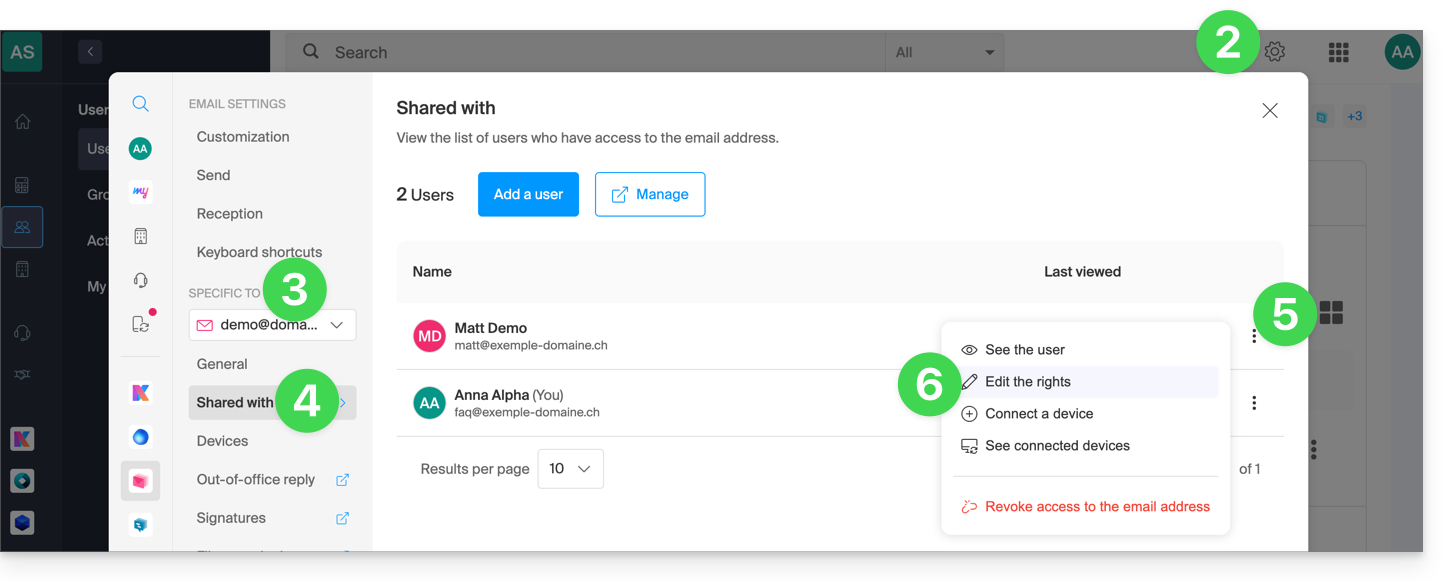
- Click here to access the Infomaniak Mail web app (online service ksuite.infomaniak.com/mail).
- Click on the Settings icon in the top right corner of the interface.
- Check or select the relevant email address from the dropdown menu in the left sidebar.
- Click on Shared with.
- Click on the action menu ⋮ located to the right of the email address user name.
- Select ✎ Edit permissions:
- You will be redirected to the settings for your email address in the Mail service, specifically to the permissions section for the user in question.
- Adjust the permissions and save at the bottom of the page:
Result for the user
The user whose permissions are revoked will no longer see certain corresponding menus in their email address settings.
For certain features, even if the menu is still accessible, some buttons will be inoperative or grayed out: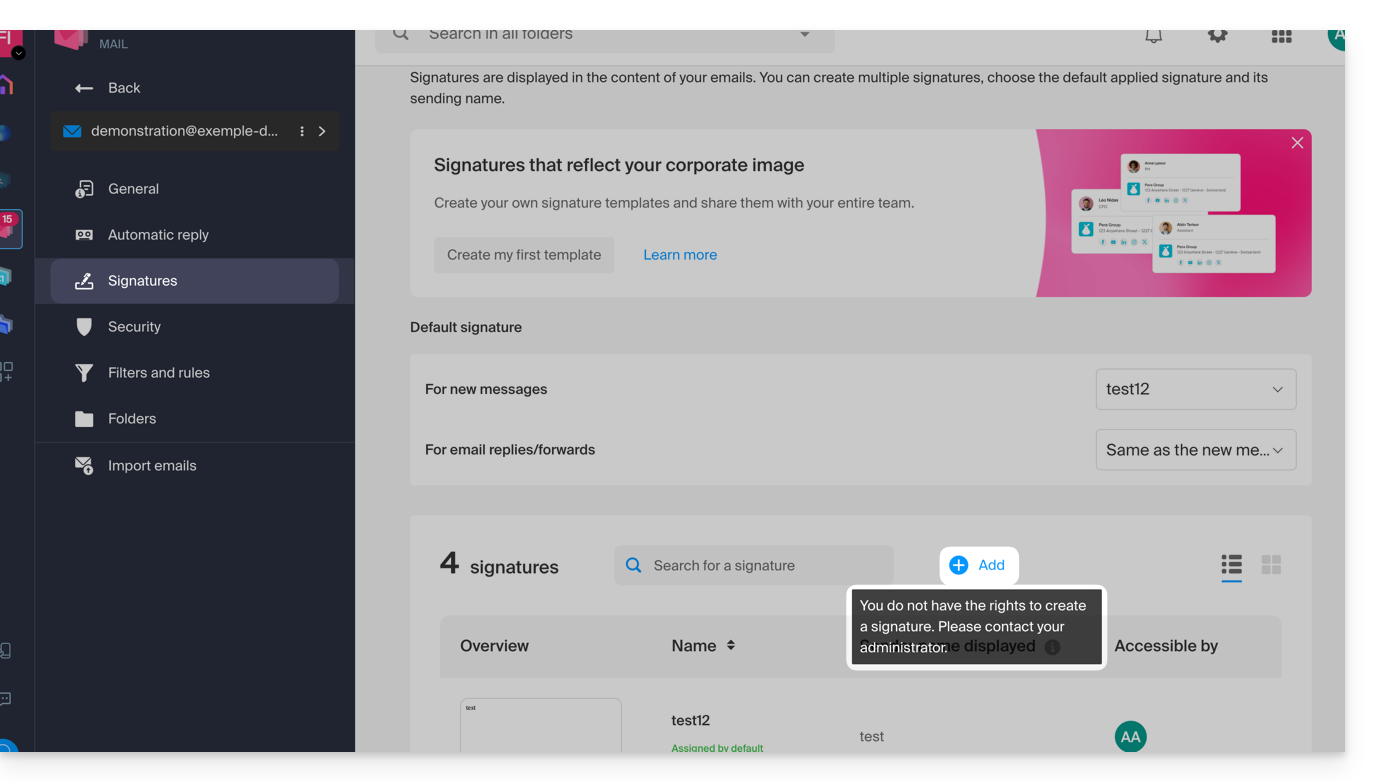
Link to this FAQ: https://faq.infomaniak.com/1811
Has this FAQ been helpful?
This guide explains how to renew or restore a domain name registered with Infomaniak.
Introduction
- You will automatically receive an email notification (at the address you provided) when one of your domain names is about to expire.
- If this domain name is not renewed before its expiration date, it enters a redemption period during which it is still possible to recover/restore it.
- The restoration fees and the duration of the redemption period are variable depending on the extension in question.
- Once the redemption period has expired, the domain name is free and can be registered again by anyone.
- If your domain is important for your business, Renewal Warranty offers you the assurance of never losing it: Infomaniak will do everything in its power to ensure that you can keep it, even if you do not provide timely notice before its expiration.
Renew a domain name before it expires
Renewing one or more domain names is done in exactly the same way as any other Infomaniak service renewal. Refer to this other guide if you are looking for information on how to renew the product in question.
Restore a domain name after expiration
To restore a domain during its redemption period:
- Click here to access your product management interface in the Infomaniak Manager (need help?).
- An expired domain is indicated as such:
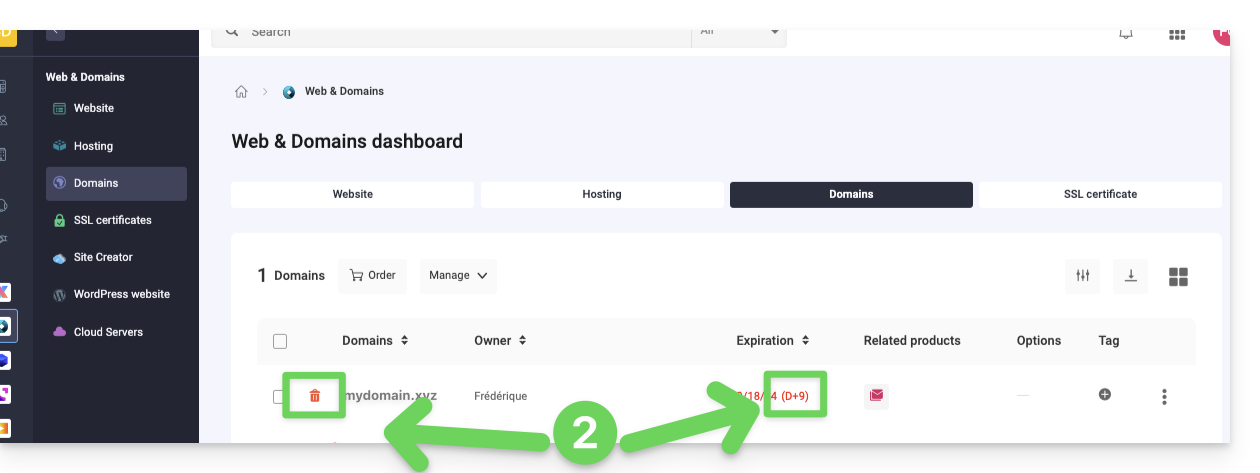
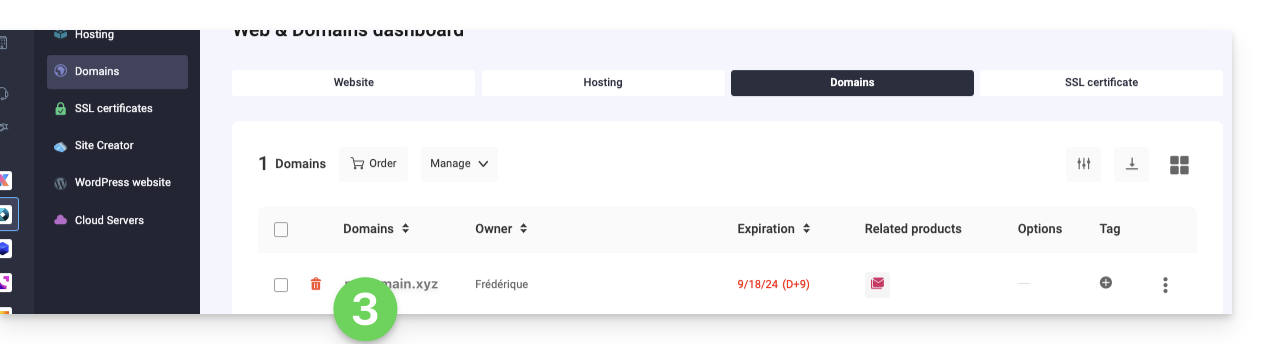
- Click directly on the name assigned to the product in question:
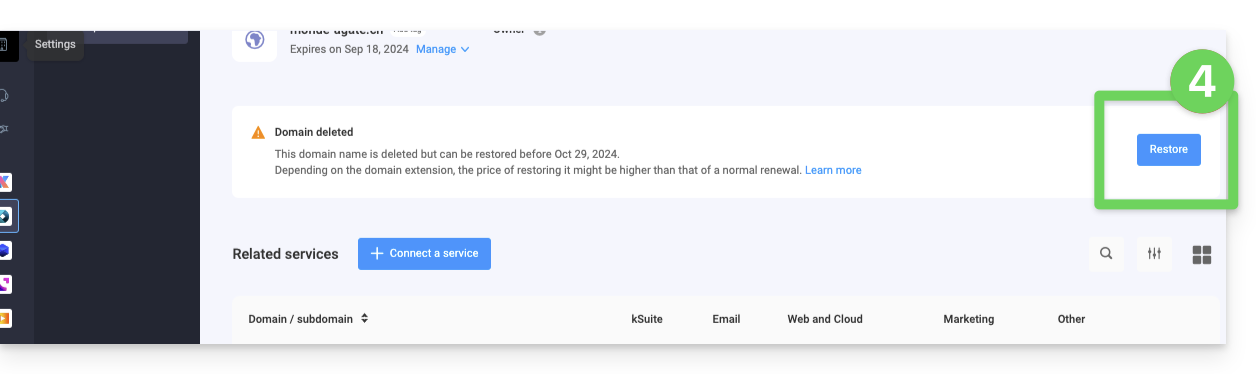
- Click on the Restore button:
- Follow the restoration steps until the end.
Troubleshooting
What to do if the domain does not appear in your account?
- Make sure you are logged in with the correct Infomaniak account (user account), and that you are viewing the correct Organization if you are associated with multiple entities.
- Go to the DOMAIN section of the Managerand not to a section of products to be billed or renewed.
- Repurchase the domain name if it has not been reserved in the meantime.
Link to this FAQ: https://faq.infomaniak.com/1825
Has this FAQ been helpful?
This guide explains how to retry transferring a domain name to Infomaniak in case of failure.
Manually retry a domain transfer
If a domain transfer fails, you will receive an email with the possible reason for the problem.
The message also contains a link to retry the transfer request without paying the transfer fees again.
In case of a problem:
- Click here to access your domain management in the Infomaniak Manager (need help?).
- Click directly on the name assigned to the domain in question.
- Carefully follow the instructions displayed in red at the top of the page.
Link to this FAQ: https://faq.infomaniak.com/1842
Has this FAQ been helpful?
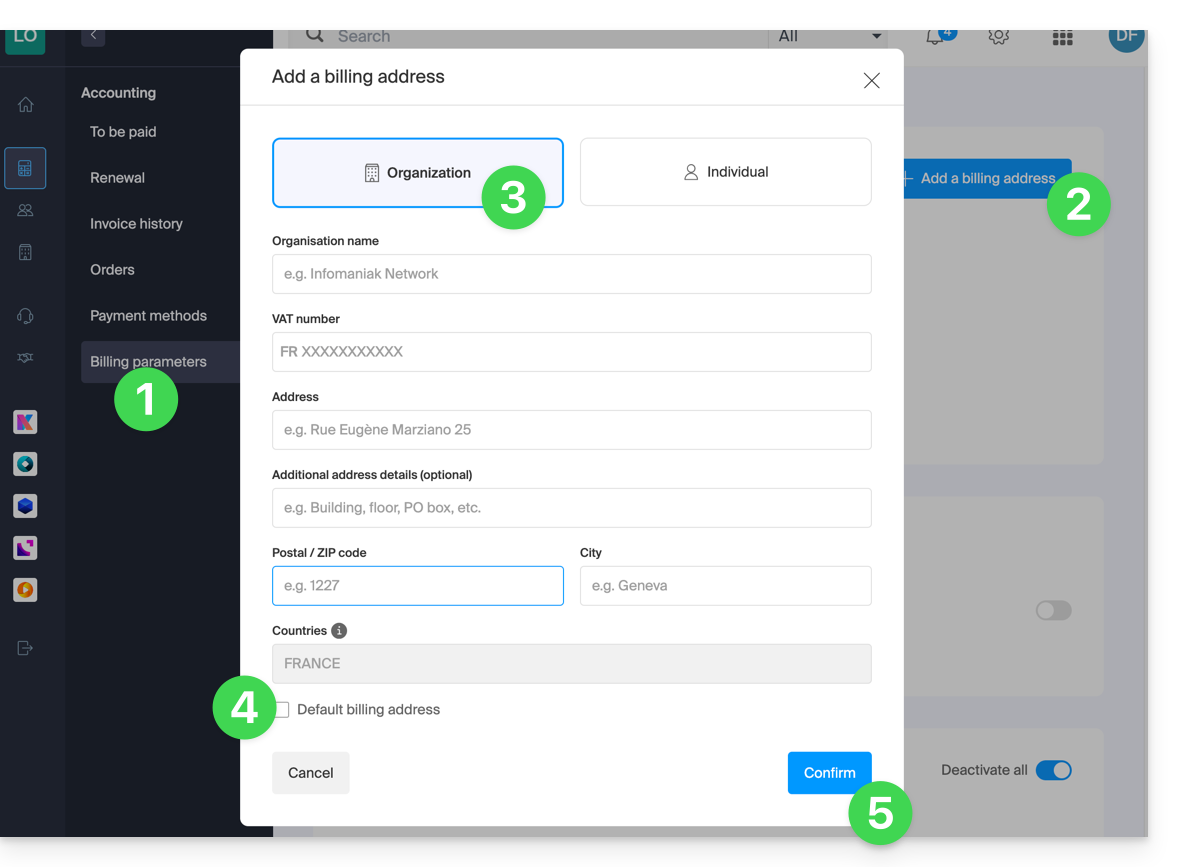
This guide explains how to add a billing address so that the products of your Organization can be billed under new contact details in the future, for example, to assign invoices to different people.
Add billing addresses
To create additional billing addresses:
- Click here to access the billing address management.
- Access requires authentication with a user who has sufficient rights.
- Click the Add button.
- Enter the desired details for the additional billing address.
- If necessary, set this as the default address.
- Click on Confirm:
When renewing a product, choose the desired billing address.
Refer to this other guide if you need information about the currently defined postal address.
Link to this FAQ: https://faq.infomaniak.com/1920
Has this FAQ been helpful?
This guide explains how to enable two-factor authentication to secure your Infomaniak account login (and therefore access to kSuite tools, hosting, etc.).
Introduction
- This two-step verification, also known as multi-factor/two-factor authentication (2FA), protects access to your Infomaniak account by:
- your chosen password
- and a second identity verification method, such as a code obtained on your mobile device.
- If a malicious person were to decipher or steal your password, they would still need a validation code that only the legitimate user can obtain on their mobile device.
- Refer to this other guide if you are an administrator of an Organization and want to enforce 2FA for all users who have not yet activated it.
- You do not need to contact Infomaniak, as we do not have any of your codes or passwords.
- For any assistance regarding 2FA, please refer to this other guide.
Enable two-factor authentication
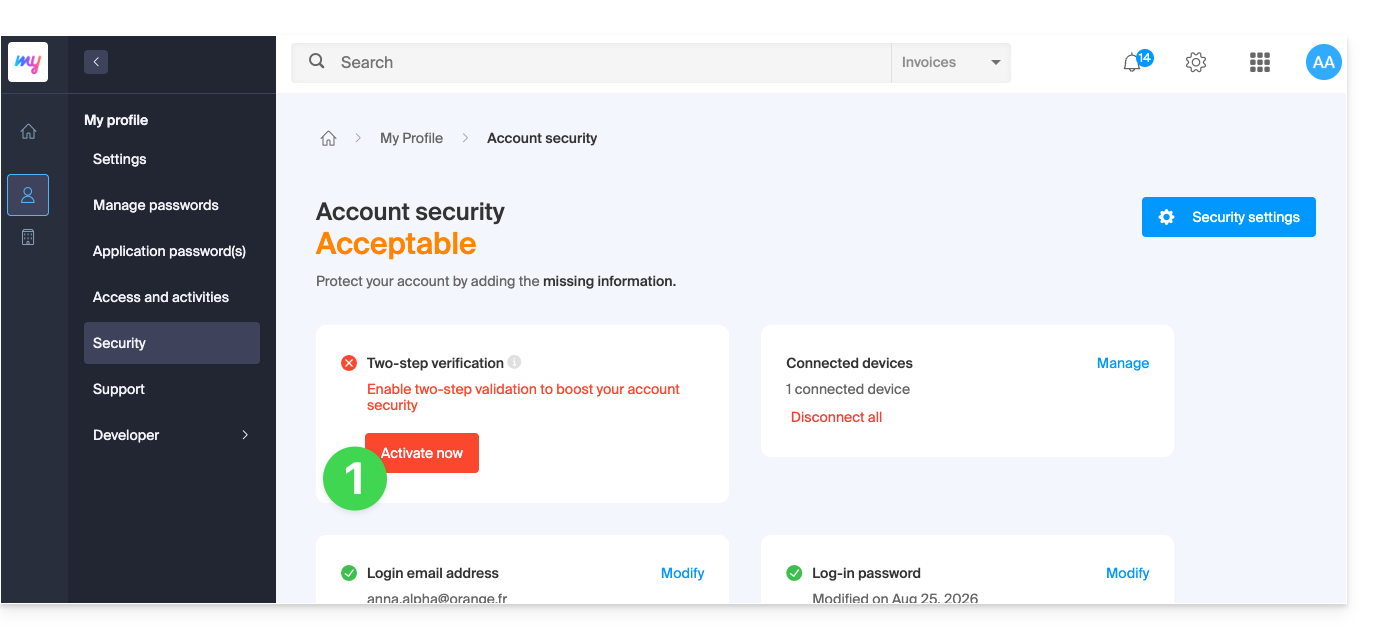
To increase the security level of your Infomaniak account:
- Click here to log in and access the two-factor authentication management in the Infomaniak Manager:
- Once logged in, you can choose a 2FA method:
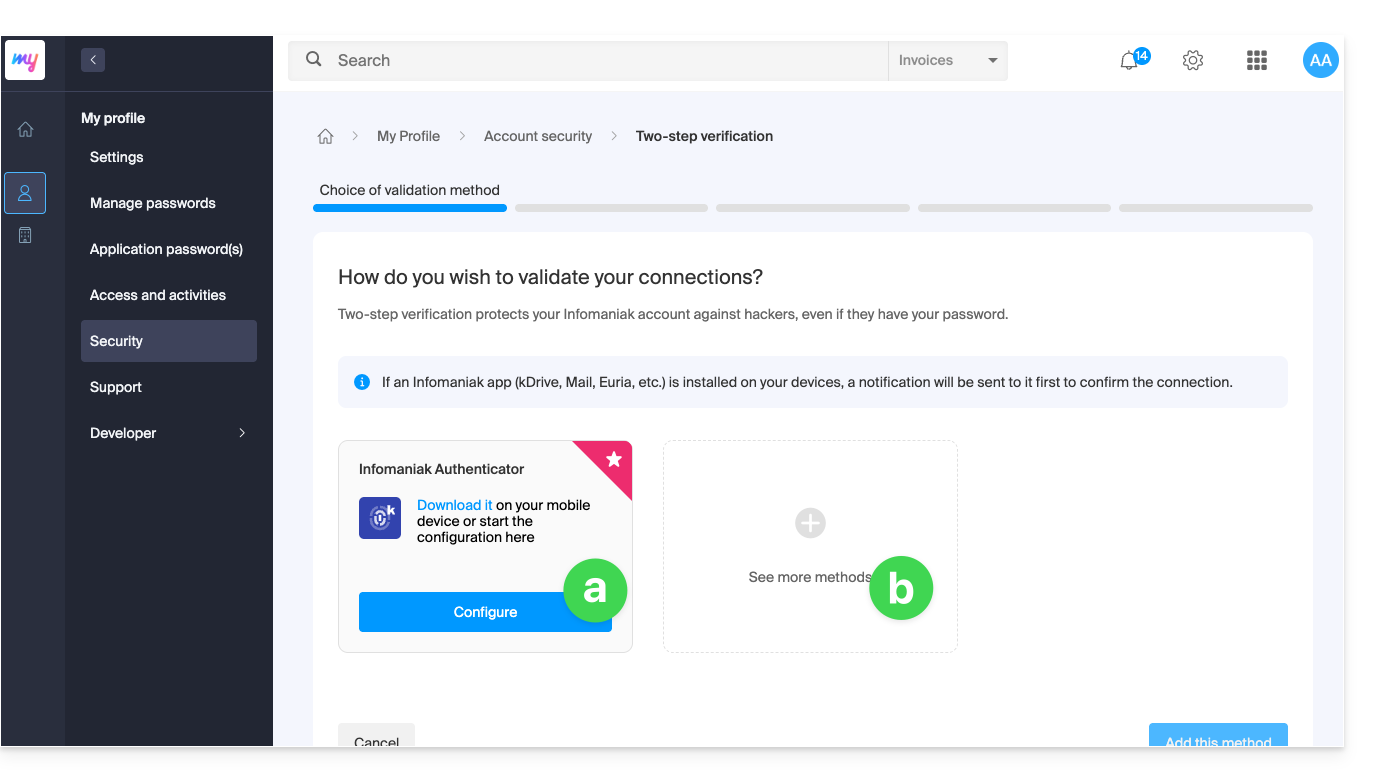
- the Infomaniak Authenticator app for iOS / Android devices (refer to this other guide for more information),
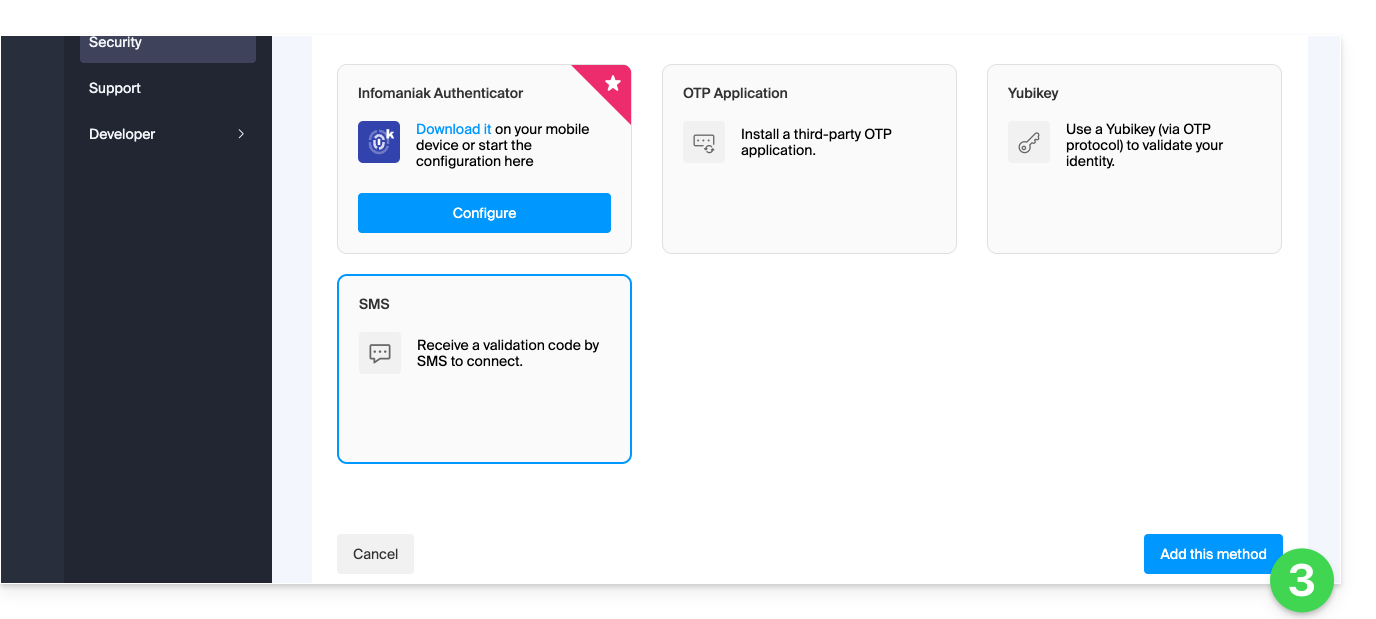
- another method from the following:
- any OTP application (such as Authy, for example) to obtain a one-time use code,
- YubiKey (from Yubico); refer to this other guide for more information,
- SMS (only for CH / FR / BE / DE countries) to obtain a one-time use code.
- Click the button to configure the selected alternative method:
- Follow the on-screen instructions to complete the configuration.
Be mindful of existing synchronizations
Once two-factor authentication is enabled, some synchronization tools, such as those using CardDAV or CalDAV protocols, require an application password to replace the previous password and continue connecting directly at regular intervals.
Email services are not affected because the IMAP, POP, and SMTP protocols work with device passwords, which remain the same before and after enabling a two-factor authentication method.
Change the default option or remove one
If you have enabled multiple verification methods (SMS, OTP app, etc.), you can specify which one will be offered by default each time you log in.
Please note, however, that the main, default method will remain the one used for validation within the installed Infomaniak app (Mail, kChat, kDrive, etc.) on your devices.
- Click here to log in and access the two-factor authentication management interface in the Infomaniak Manager.
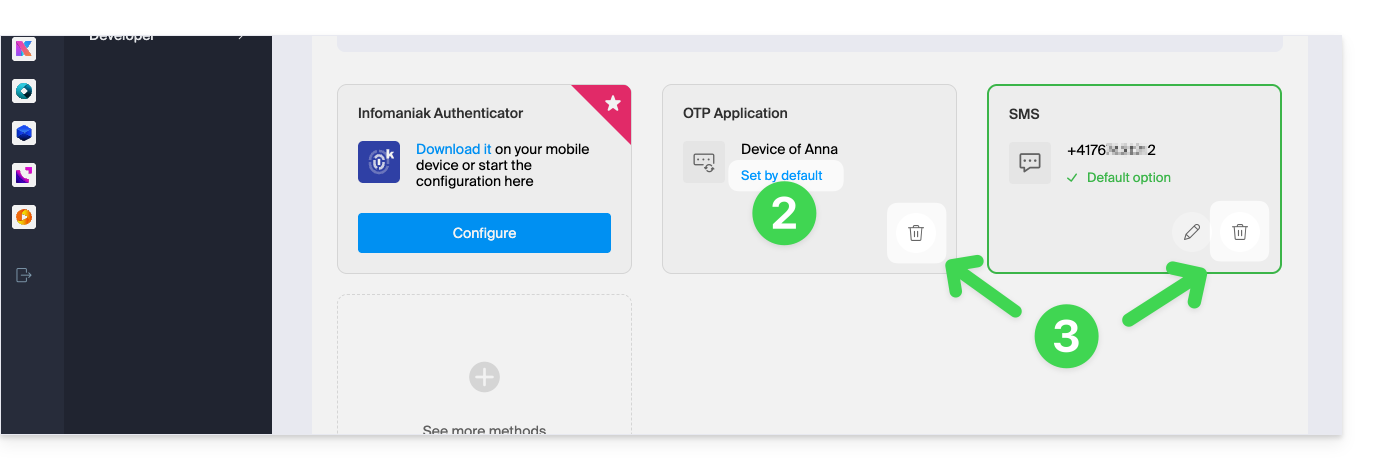
- Click the button to set it as the default.
- Click the trash can to remove the selected method and prevent it from being offered again (this only works if another method exists):
To completely disable 2FA, please refer to this other guide.
Require authentication each time the browser is opened
To prevent cookies from being saved when browser windows are closed, and therefore require authentication each time you access the Infomaniak Manager when you restart the browser…
… on Chrome
In the Google Chrome settings (chrome://settings/content/siteData – paste this into the address bar, or consult the official documentation), specify the address [*.]infomaniak.com: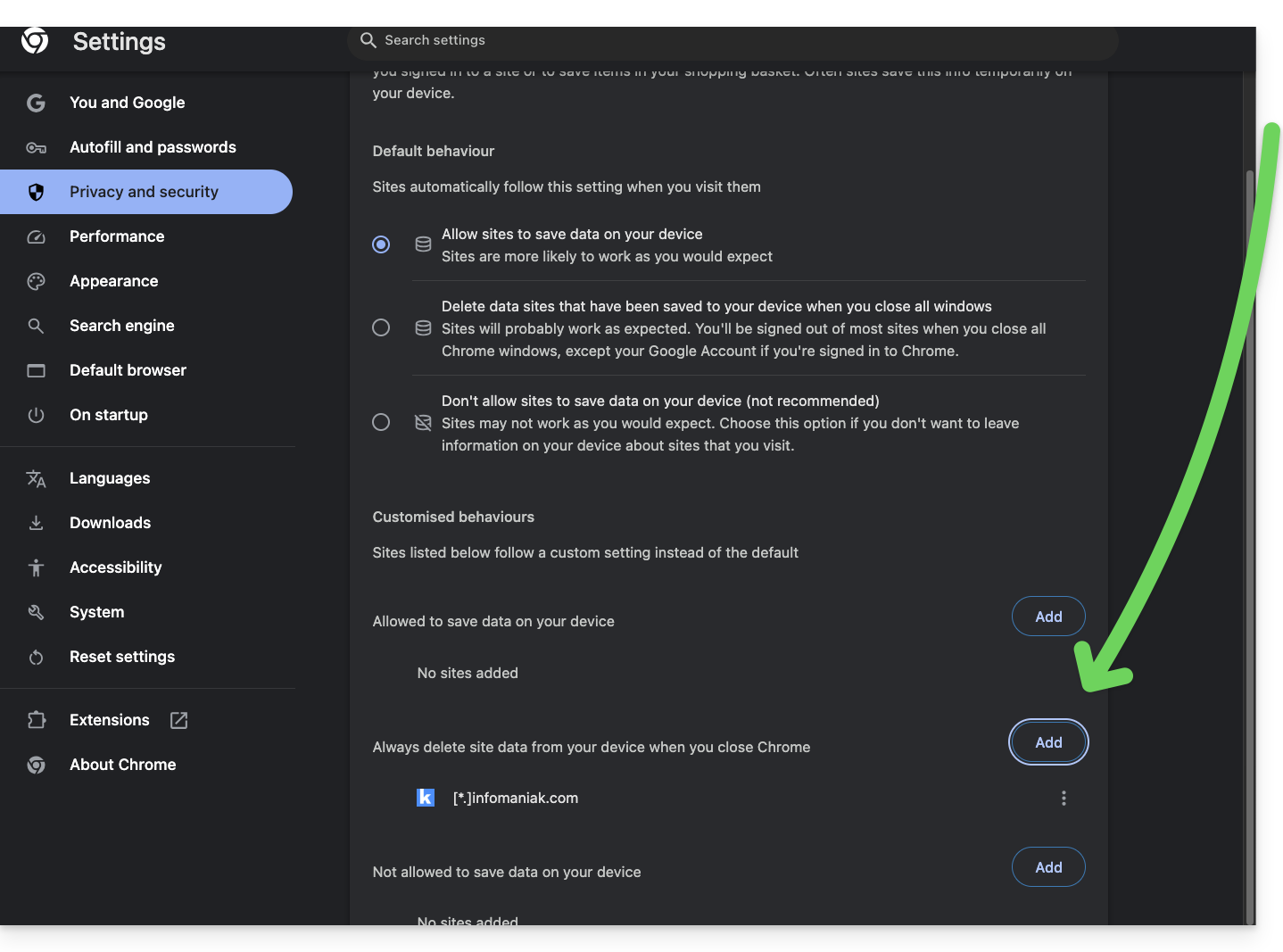
Link to this FAQ: https://faq.infomaniak.com/1940
Has this FAQ been helpful?
This guide, intended for Infomaniak Partners, details the very useful function for accounting purposes, which allows you to export billing information related to the Clients under management.
Export the file containing Client information
To access the Managed Clients page:
- Click here to access your Managed Clients in the Infomaniak Manager Reseller Area (need help?).
- Click on the Download button (top right of the table displaying your managed Clients) to include the data for all of your Clients.
- Choose the type of history to export.
- Choose the period to include in the exported data and confirm:

- Click the blue Export button to start downloading the data into a CSV file (
.csvformat). - To export data only from a subset of your managed Clients, click the checkboxes next to the Clients concerned and enable the export from the menu that appears at the bottom of the page:

Link to this FAQ: https://faq.infomaniak.com/1978
Has this FAQ been helpful?
This guide details the two main types of identifiers. They are distinct, even if the address format may be identical.
Infomaniak Account vs. Email Address
Here is a summary of these 2 types of identifier:
| Type of identifier | Usage | Where to use it | Associated password |
|---|---|---|---|
| Infomaniak account (login ID) | Access all of your Infomaniak services. | Connect to: | Password set during user account creation. ⚠️ Different from the password for your email addresses. |
| Email address hosted with Infomaniak | Send and receive emails. | Connect via SMTP/IMAP…
| Password specific to each email address (there may be several). ⚠️ Different from your Infomaniak account password. |
What to do if you have connection problems?
There is no need to contact Infomaniak Support (which does not have access to any of your passwords)...
- Having an issue with your Infomaniak account? Reset your account password.
- Having trouble with your email address? Reset your email password.
Explanation
- As with many other online services, you registered with Infomaniak using a personal email address.
- This personal email address serves as your login ID when you want to access Infomaniak services.
- This login ID has its own password (defined when creating your Infomaniak user account – your personal email address, see above).
There is no connection between…
- … this username/password combination described in points 1/2/3 above…
- … and the email addresses you created or obtained from Infomaniak.
A link may exist if the address is identical (for example, you registered with the email address toto@abc.xyz and you also manage this same email address with Infomaniak), but even in this case, the password will most likely be different – once for the login ID toto@abc.xyz and once for the email address toto@abc.xyz.
Other login IDs?
Acquiring other Infomaniak products involves obtaining other credentials, such as those required for FTP, MySQL, SSH connections, etc., but these credentials are entirely independent of the two types described above.
Link to this FAQ: https://faq.infomaniak.com/1980
Has this FAQ been helpful?
This guide explains how, when you belong to multiple Organizations, to switch from displaying one Organization to anotherfrom the Infomaniak Manager.
Introduction
- Since you opened your account with Infomaniak, you have been part of at least one Organization.
- If you were on your own and it wasn't an invitation, an Organization was created in your name, and you automatically become its Legal Representative.
- Otherwise, you belong to the Organization that invited you (to join its kSuite, to manage a product, etc.) with a defined role.
- You can leave Organizations.
- It is perfectly possible to access multiple Organizations using the same login credentials and to switch quickly between them.
- The principle is the same in the Infomaniak Mail interface (refer to this other guide).
Display one of the other Organizations for the same user account
To switch to another Organization among those you belong to:
- Click here to log in and access the management of your services & products on the Infomaniak Manager.
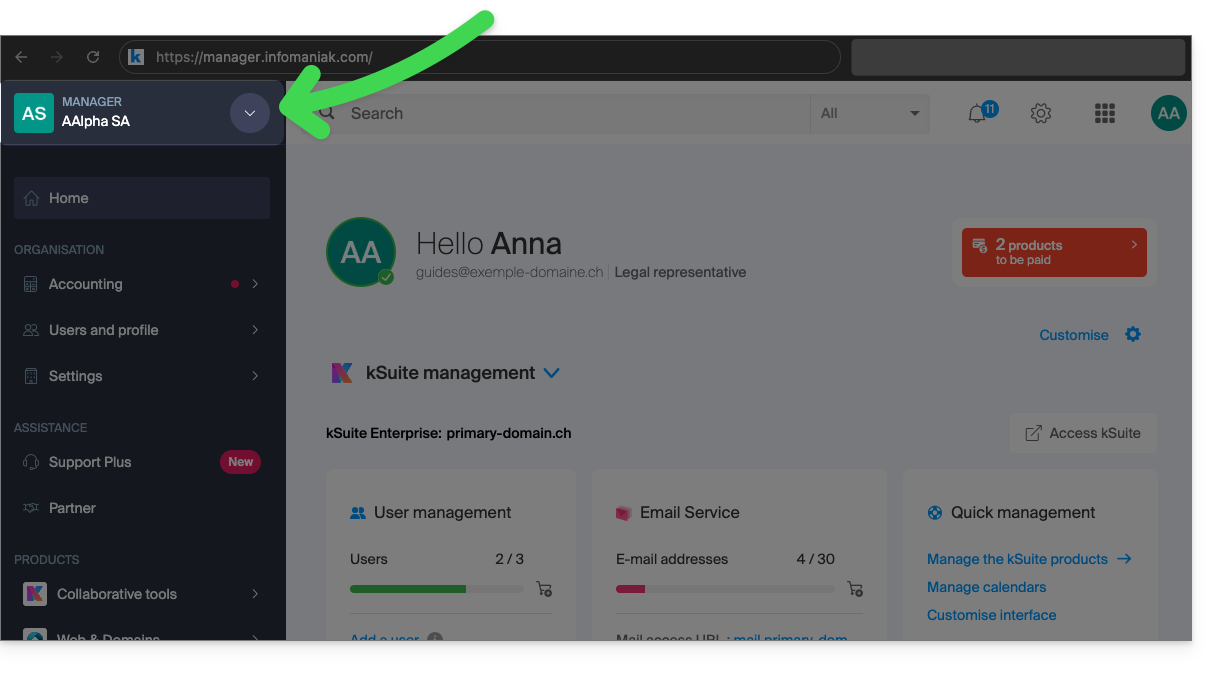
- Click on the chevron in the upper left corner of the Manager interface, to the right of the name of the Organization you are currently on:
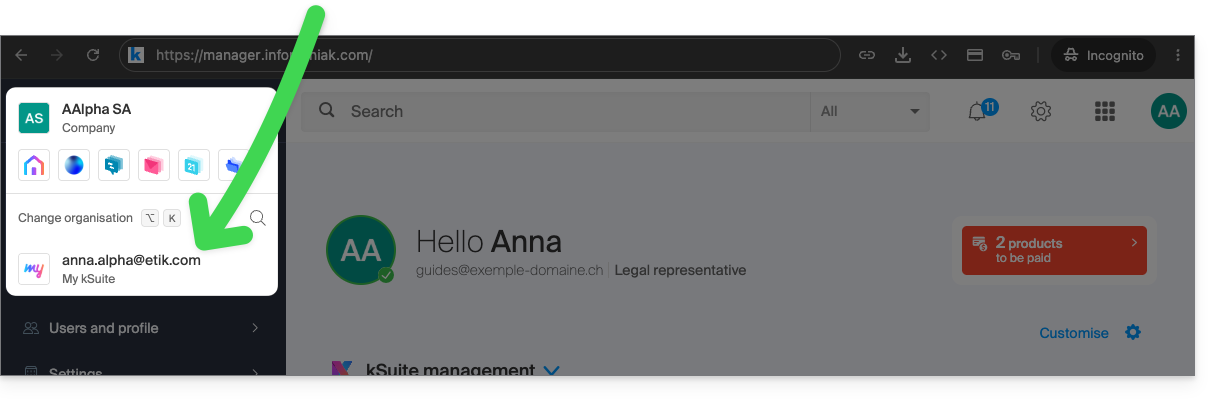
- In the menu that opens, click on the name of the Organization you want to access:
- If you belong to many Organizations, you can click on the magnifying glass to enter the name of the Organization you are looking for.
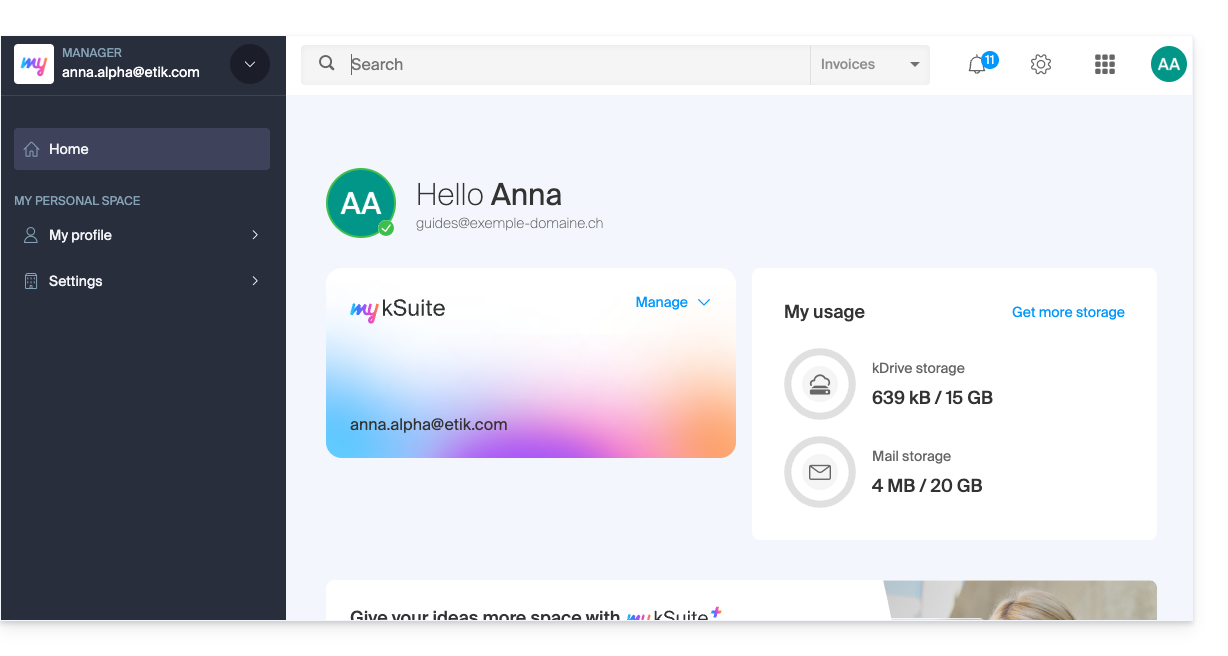
- The change of Organisation is immediate; you are automatically switched (here to a my kSuite account):
- Start again from step 2 to return to one of the other Organisations.
Link to this FAQ: https://faq.infomaniak.com/1989
Has this FAQ been helpful?
This guide explains how the Infomaniak services administration interface, called Manager, works. https://manager.infomaniak.com.
Introduction
- The Manager is Infomaniak's interface that allows you to manage your various Infomaniak products, such as domain names and hosting, as well as the administrative section, billing, etc.
Ordering a product = creating an account
If you do not yet have any products with Infomaniak, you will be prompted to create an account (with a login ID) during the ordering process, and an Organization is automatically created at this time.
For an individual, the name of the Organization will generally consist of their first and last name, while for a company, it will generally be its name or company name.
Once the Organization has been created by this first user, it is possible…
1. Other users will be able to…
- … all rights and therefore be an administrator of the Organization
- … limited rights (access to specific products)
- … with or without billing rights
2. Other Organizations may…
- … contain other products unrelated to the other Organizations
- … have their own users who will not have access to other Organizations
The concept of Organization is particularly interesting for people who need manage multiple products for different clientsswitch from one account (Organization) to another
Navigating and accessing your products
There are several ways to access your products, for example, the list of your hosting accounts (where your websites are located), once you are logged in.
Can't find your products?
If you are on an interface where your hosting products are not displayed, you are probably on kSuite; click on the icon in the top right corner of the interface to switch between the kSuite apps (Mail, for example) and the Manager:
If you still can't find them, check the currently displayed organization…
Can't find your address in the webmail app?
Check the currently displayed Organization because the associated email addresses are displayed by Organization. You may need to switch to another Organization to find the email address you want to view.
Navigating within the Infomaniak Manager
You can navigate using the menu on the left, by clicking on Web & Domain and then on Hosting:
You can also click in the center of the home page on Hosting (under Web & Domain):
There is another way to do this in the FAQs: simply click on the link (example) provided in the guide to go directly to the relevant product type.
All you need to do is click on the name assigned to your product (for example, domain.xyz when you reach the page for managing your domain names).
Display the online tutorial
Click on the icon in the bottom right corner to access the visual guide that introduces you to the main sections of the Manager:
Troubleshooting issues in the Manager
Unable to log in?
Please refer to this other guide.
Is the product you are looking for grayed out or invisible?
You are probably not in the correct Organization or user account if your usual products are not visible. Check and change the Organization (if your user account allows it) or re-login to a different user account.
Does a single click not load the desired page?
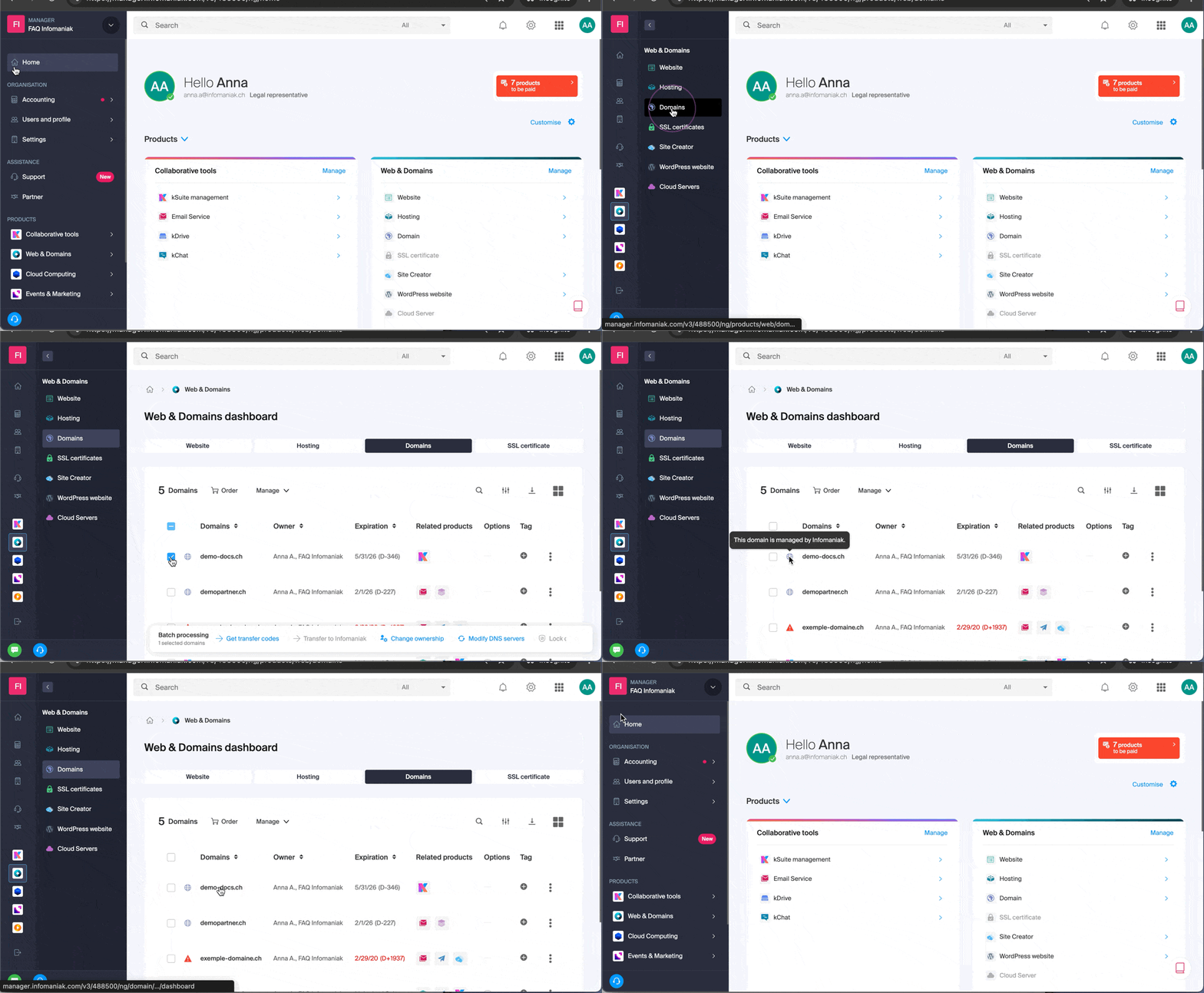
Do not click in the selection boxes for products, as nothing will happen (except for selecting them for a possible batch operation), but click directly on the name assigned to the product:
Is the desired operation not possible or displayed in gray?
Your user may not have sufficient permissions within the Organization, or may no longer have them. Try to find out more with this other guide (or this one if it concerns actions related to email).
Link to this FAQ: https://faq.infomaniak.com/1990
Has this FAQ been helpful?
This guide explains how to order an Infomaniak product for which you are entitled to a discount or free offer (promo code or free offer already confirmed by one of the Support agents).
Introduction
- In some cases (for example, a special offer for customers migrating their data from a competitor that is discontinuing its services), you may be entitled to a discount code (partial discount or equivalent to the total purchase price) that allows you to order hosting, email addresses, etc.
- Do you not have a promo code? Discover Infomaniak's free offers!
Using a deal / promo code
A promo code is used at the end of an order placed in the Infomaniak shop, which allows you to purchase new products such as Swiss Backup:
- First, choose the desired payment method.
- Enter the promo code.
- Click the Apply button.
Repeat for additional promo codes if you have several (and therefore if you have several corresponding products in the cart):
Using a free offer
To order a product as part of a free offer:
- Click here to access the management of your product on the Infomaniak Manager (need help?).
- Click on the type of product for which you received a free offer (and if necessary, click on Back... in the left-hand menu).
- Click on the Order button (usually a shopping cart icon) or go to the Infomaniak Shop.
- When the order summary appears, activate the free offer using the drop-down menu displayed next to the relevant product.
- Complete the order.
If you encounter any problems:
- Make sure you are logged in to the correct Organization in the Manager.
- Verify that you ordered the correct product, the one for which the free offer was generated.
Link to this FAQ: https://faq.infomaniak.com/1991
Has this FAQ been helpful?