Knowledge base
1000 FAQs, 500 tutorials and instructional videos. Here, there are only solutions!
Remove a device (delete a mail password) from the Mail service
This guide explains how to, from a Mail service, reset or delete the passwords for a mail addressto disconnect a third-party application such as Outlook or Thunderbird.
Other access and management options are presented in the main guide.
Introduction
- Changing the password for an email address is equivalent to changing the IMAP / SMTP password:
- As soon as the password is changed, you must update your settings on Outlook, iPhone, etc. (❓: help) with the new password (this is your responsibility).
- If you cannot log in to Manager or Mail / kSuite, you will not be able to manage the passwords for any of your email addresses (❓: help).
Remove a password / device
Prerequisites
- You must have at least the right to manage the Mail service in question (❓: help).
To disconnect any current IMAP/POP/SMTP connections using a password generated in this interface, you can revoke a device, or even delete all existing configurations with a single click (this does not remove the address from Infomaniak Mail apps; to do this, you need to manage the users of the email address —❓: help):
- Click here to access the Mail Service management section in your Infomaniak Manager (❓: help).
- Click on the name of the Mail Service in question.
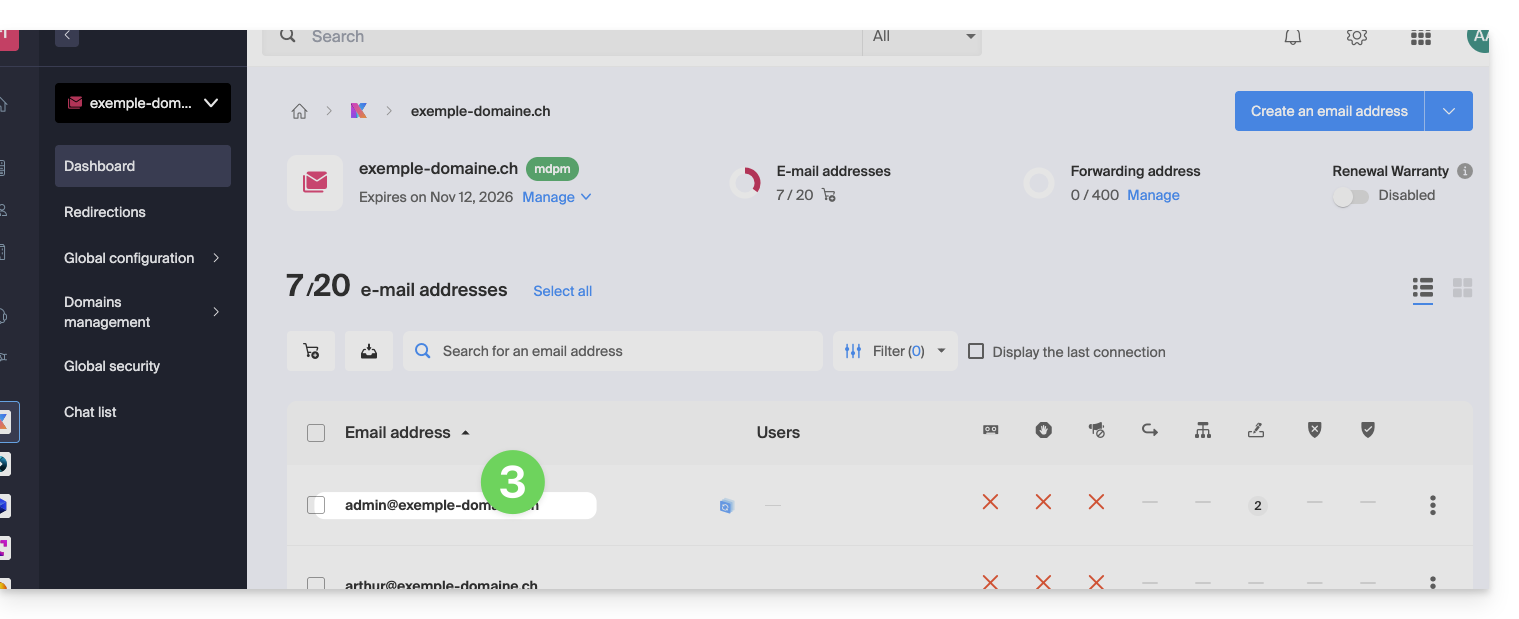
- Click on the email address in question in the table:
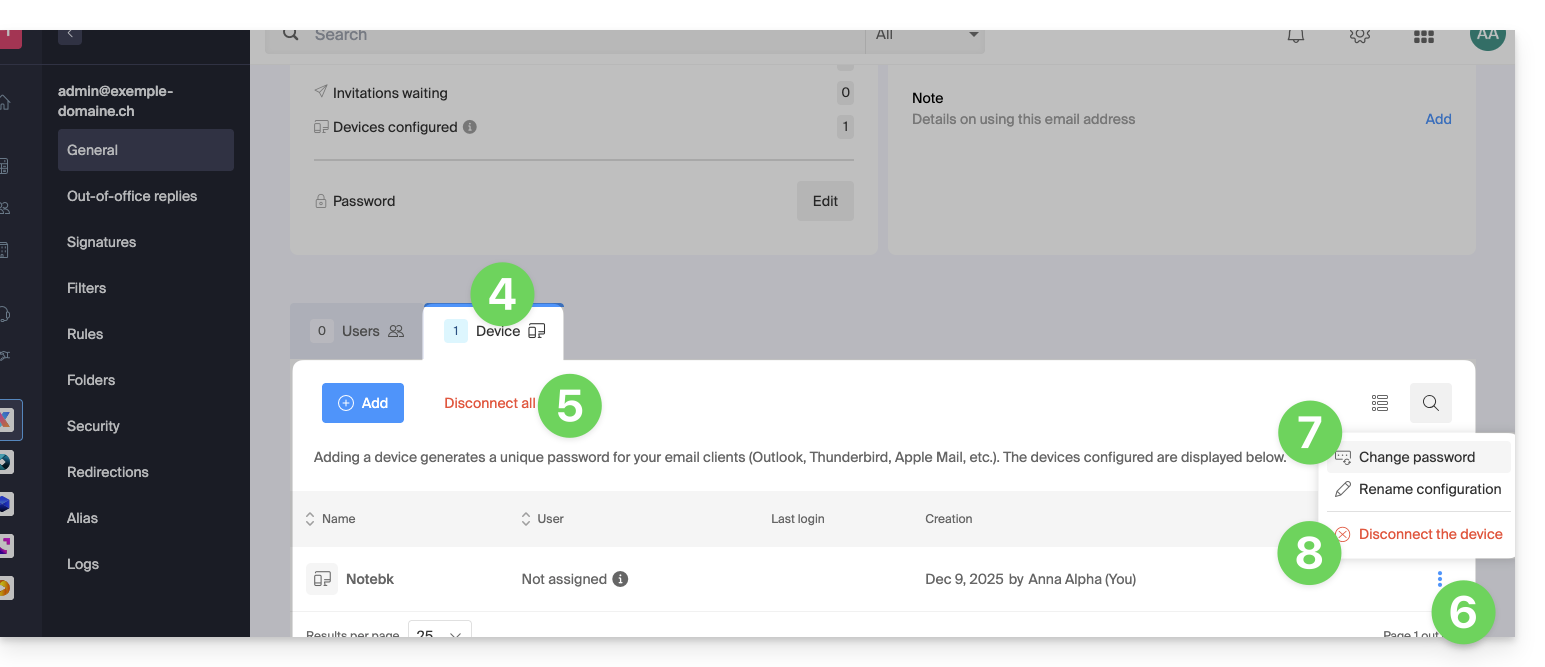
- Click on the Devices tab.
- Click on the red link to disconnect all registered devices (confirmation is required).
- Click on the action menu ⋮ located to the right of the device in question.
- Click on “Change password” to disconnect the current connection but allow the device to reconnect with a new password directly.
- Click on “Disconnect device” to remove it from the list and delete the corresponding connection:
What is a “generic” password?
Some email addresses may display a specific indication in the Devices section: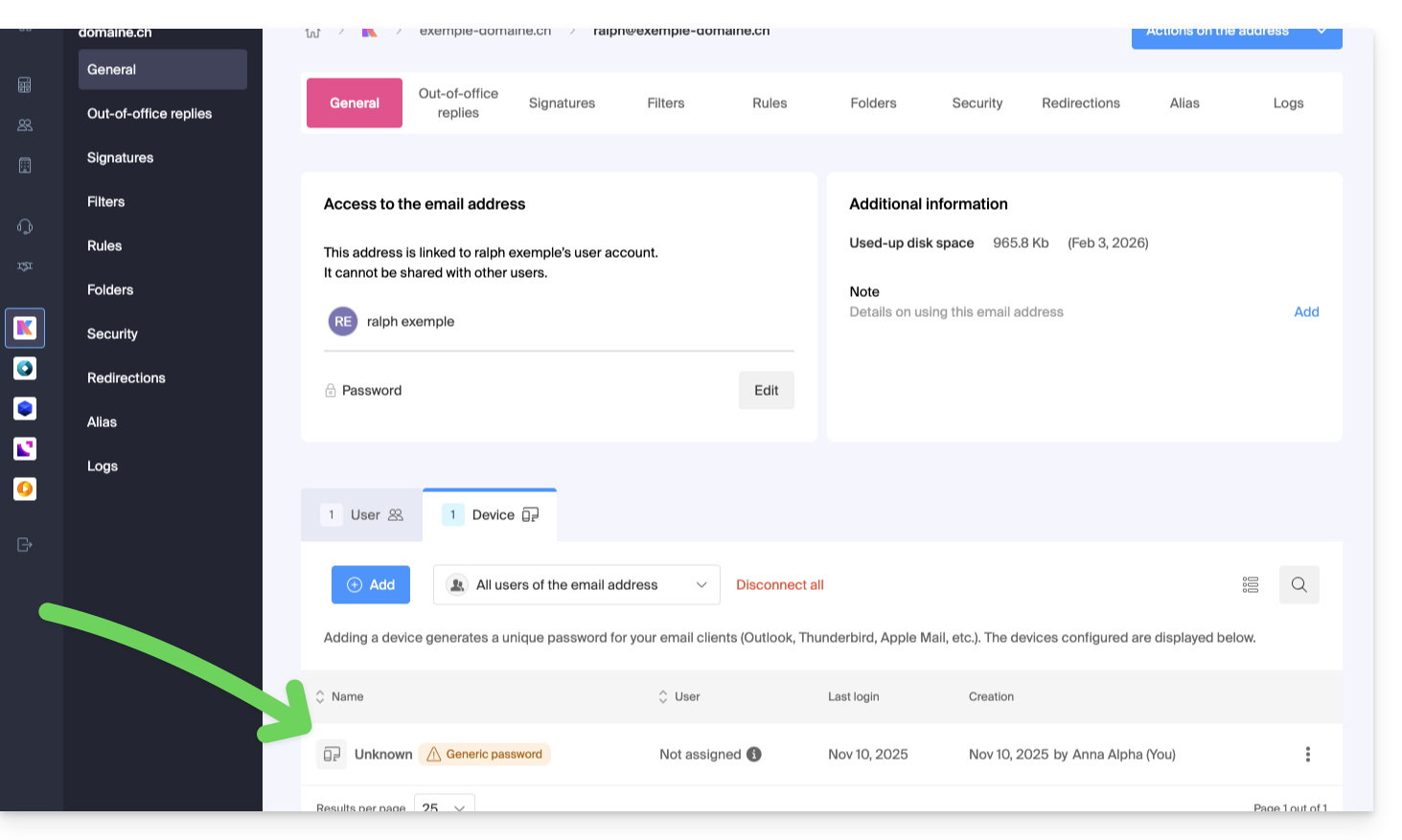
If this is the case, don't worry; it means that the address has a password assigned to it when it was created (prior to 2026). This password remains valid, but like other passwords, it cannot be displayed.And unlike other passwords, this one cannot be reset (the option is grayed out, disabled):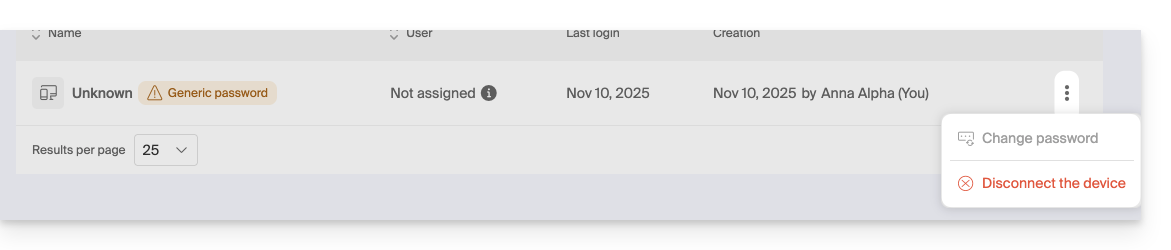
In this case, you can easily add an additional password (❓: help).
Link to this FAQ: https://faq.infomaniak.com/1736
Has this FAQ been helpful?