Knowledge base
1000 FAQs, 500 tutorials and instructional videos. Here, there are only solutions!
This guide explains how to change the mobile phone number (used if you forget the password to access your Manager) for your Infomaniak account (i.e., your user account).
Introduction
- To manage your Infomaniak account details, please refer to this other guide.
- To change your login ID, please refer to this other guide.
- To manage the details of the Organization you belong to, please refer to this other guide.
Modify the mobile phone number
To change the phone number associated with your Infomaniak account:
- Click here to access the security information management section in the Infomaniak Manager.
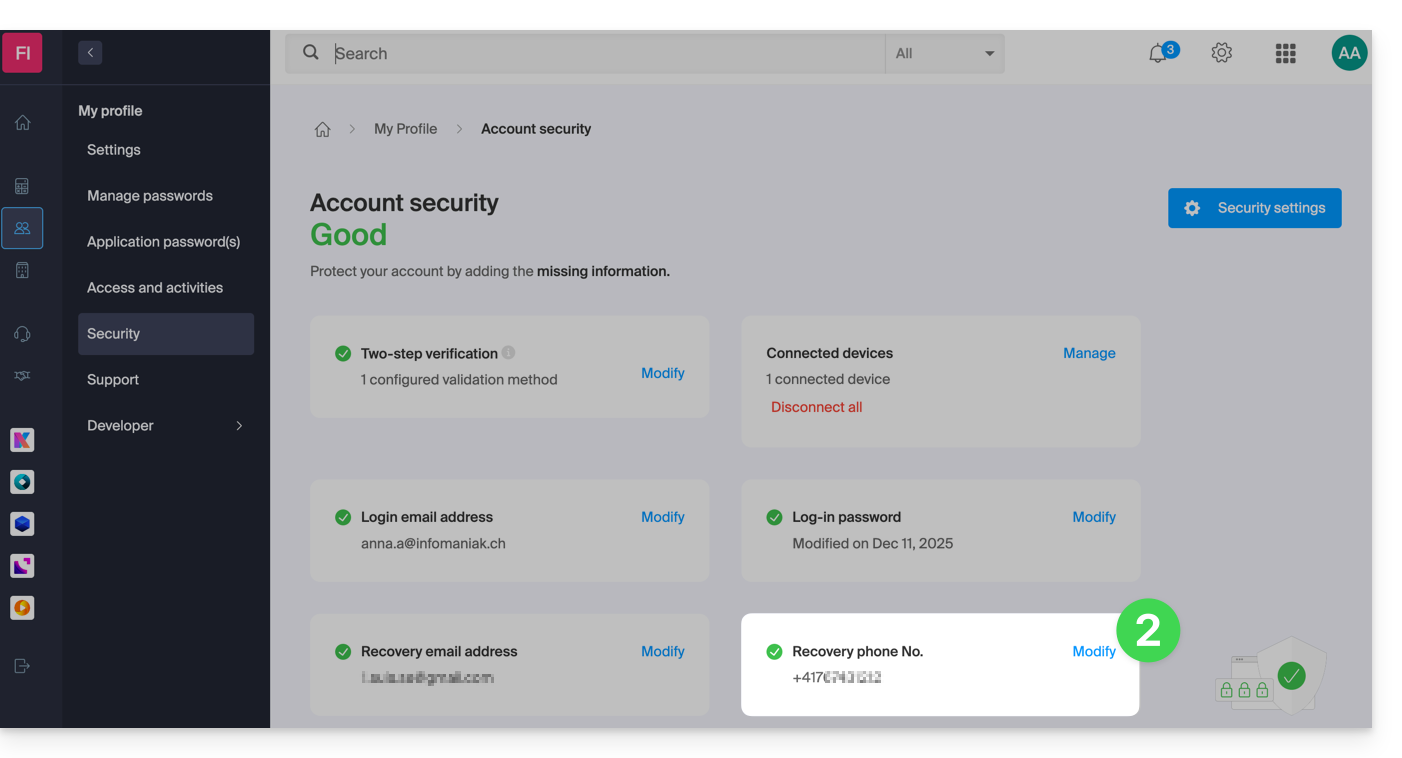
- Click on Edit in the Recovery Phone box:
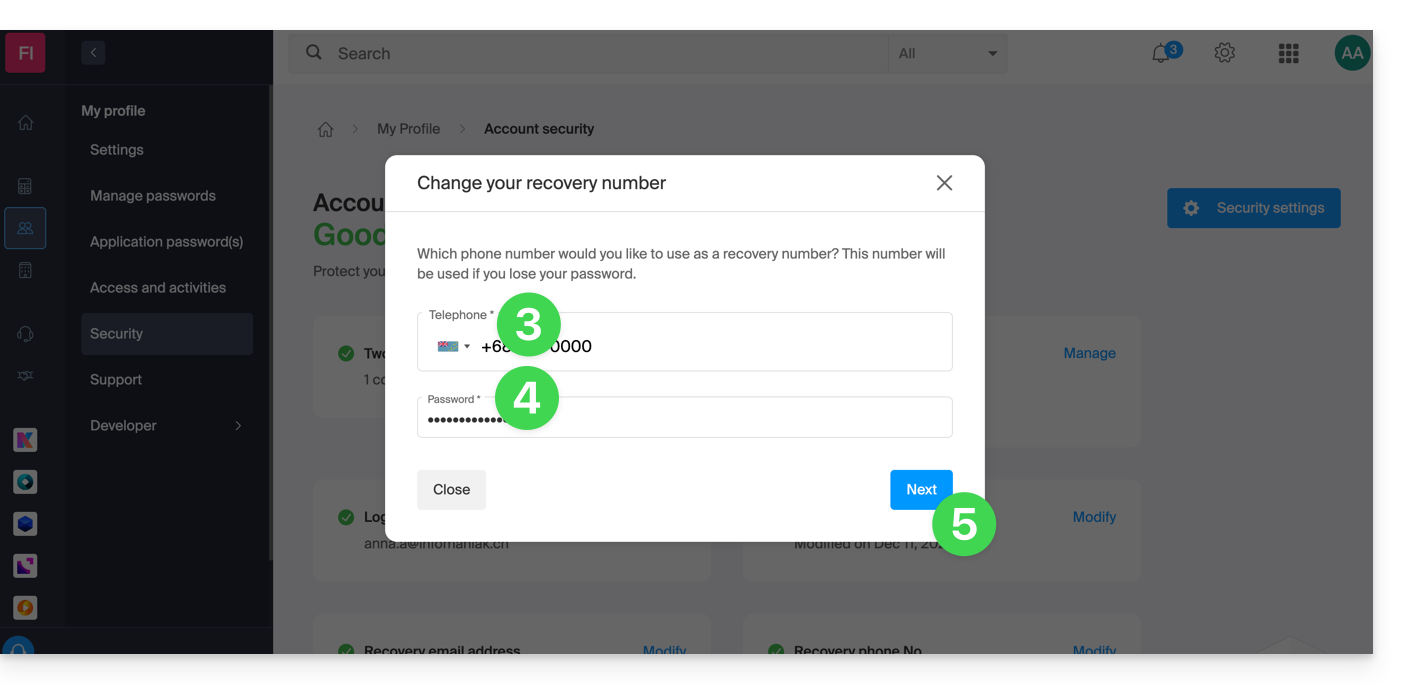
- Enter the country code corresponding to your country and your new mobile phone number.
- Enter your Manager login password.
- Click the Next button to save:
Note: an administrator within the Organization canPrevent users from requesting a password reset via SMS: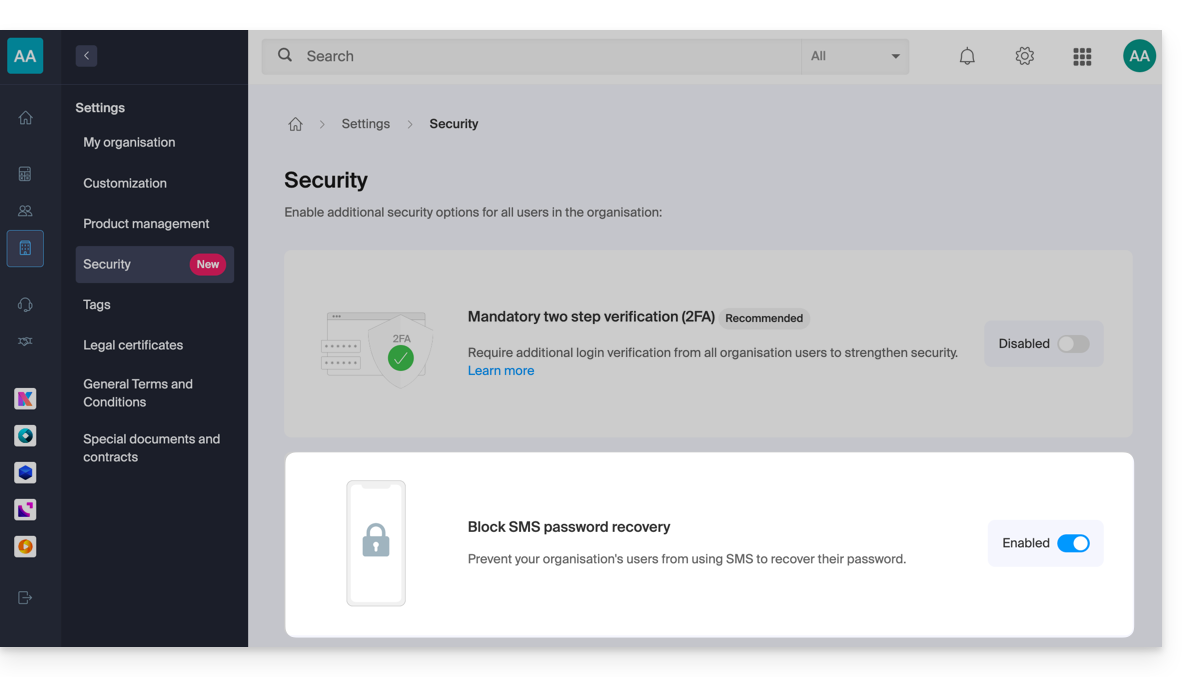
In this case, the recovery email will be used instead of the phone number specified above.
Link to this FAQ: https://faq.infomaniak.com/2017
Has this FAQ been helpful?
This guide explains how to disable two-factor authentication, also known as two-factor authentication (2FA) or two-step verification, for logging into the Infomaniak Manager (manager.infomaniak.com) or Mail Infomaniak (ksuite.infomaniak.com/mail).
Introduction
- For security reasons, Infomaniak support will never disable alogin validation method enabled on an accountupon simple request.
- You must follow the procedures below.
- Please note that if you were using SMS authentication, once it is deactivated, you will only be able to re-enable this method if you reside in CH / FR / BE / DE.
- Outside of these countries, you will need to use Infomaniak Authenticator or any other OTP application.
Disable Two-Factor Authentication
If two-factor authentication is enabled and you want to disable it:
- Click here to access the 2FA management section in the Infomaniak Manager.
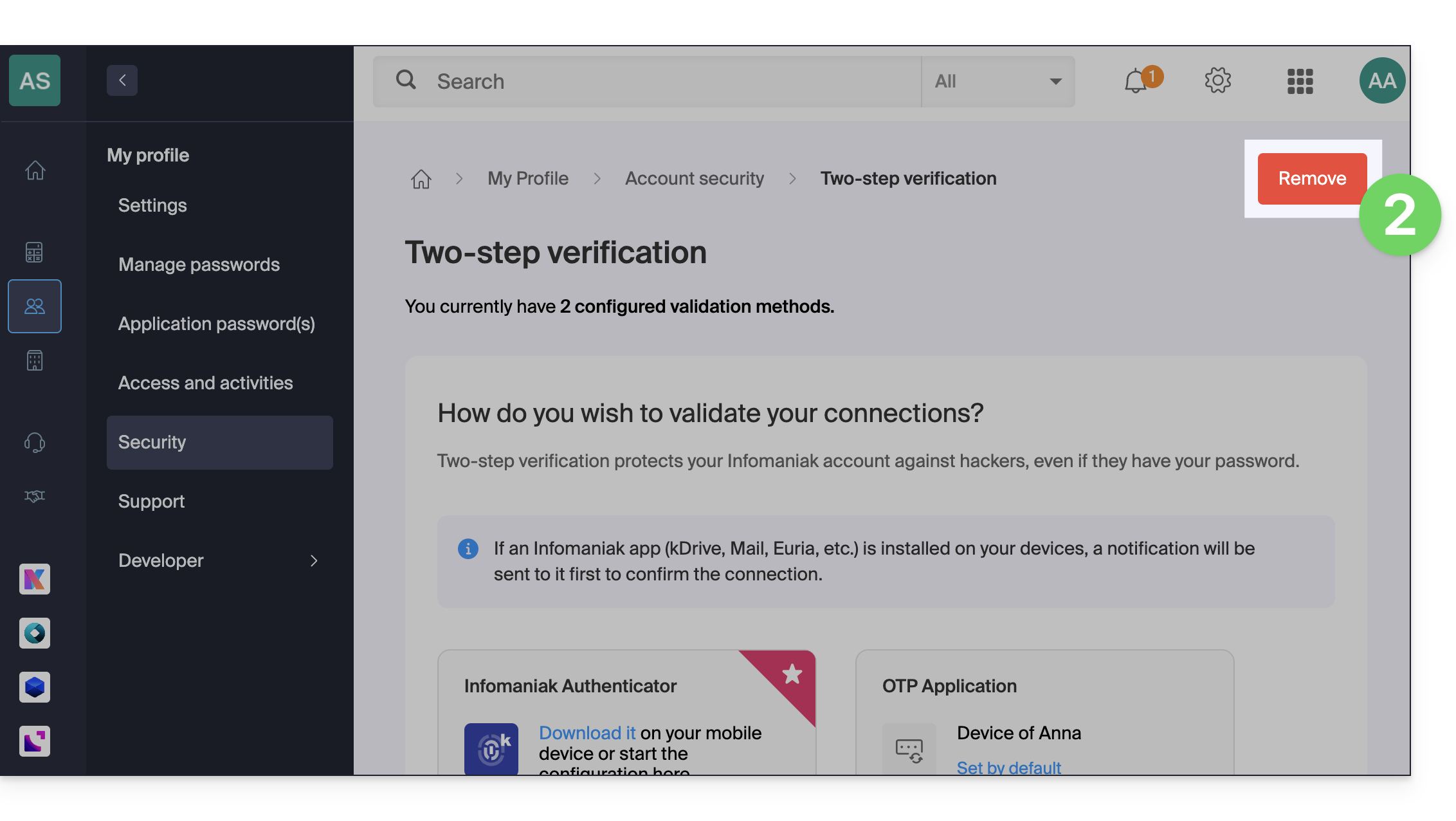
- Click the Delete button to remove the security:
- If the red button is inactive / grayed out…
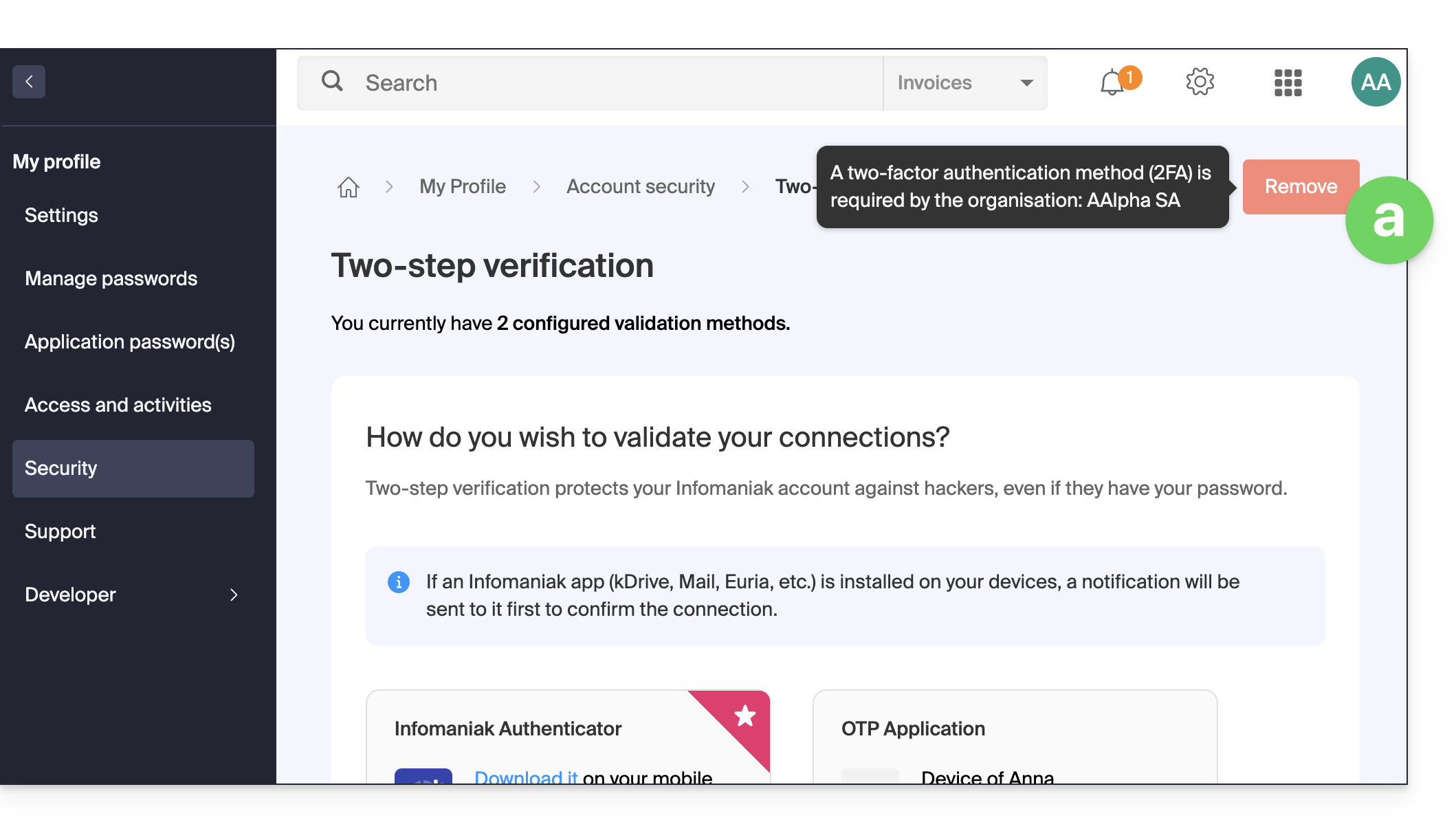
- … there is probably a security setting in place that prevents you from disabling 2FA:
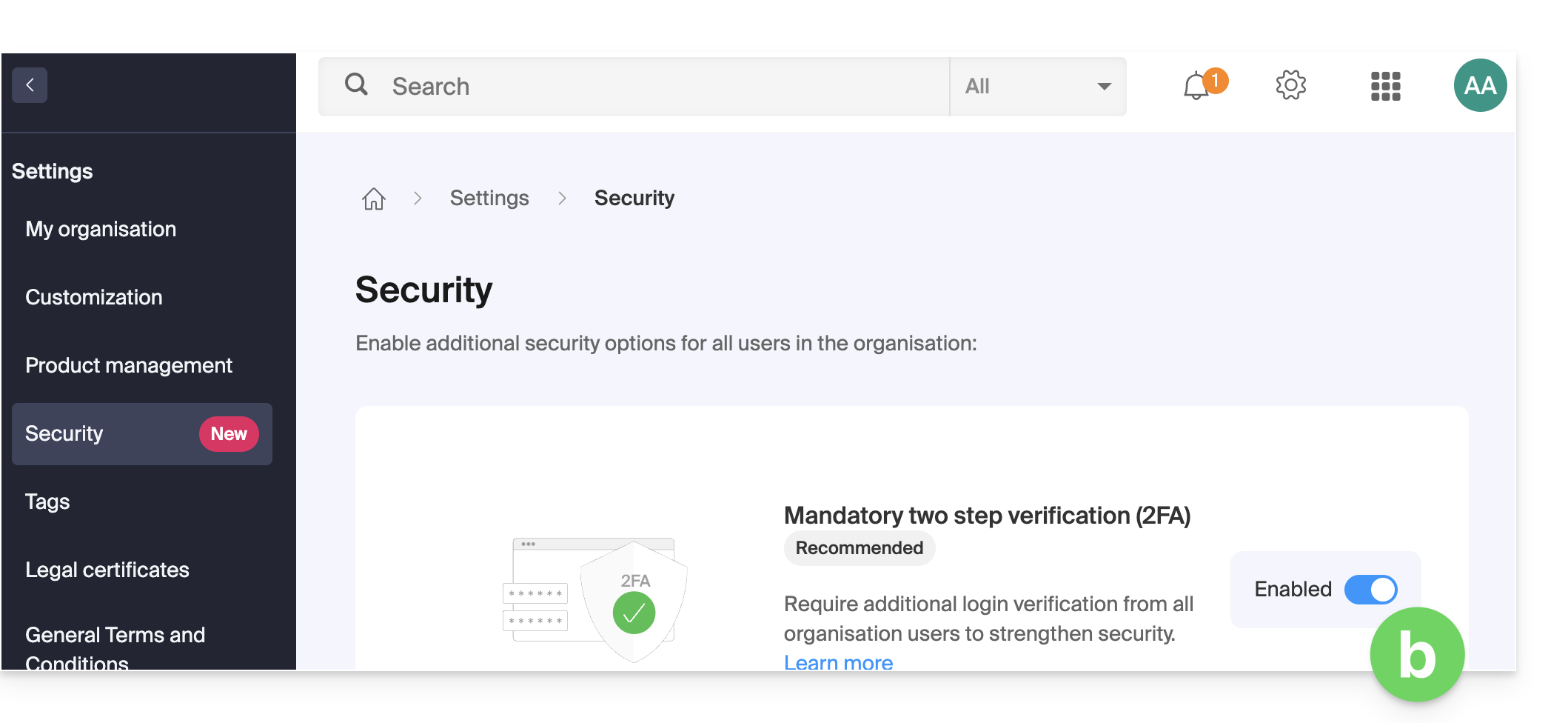
- If the red button is inactive / grayed out…
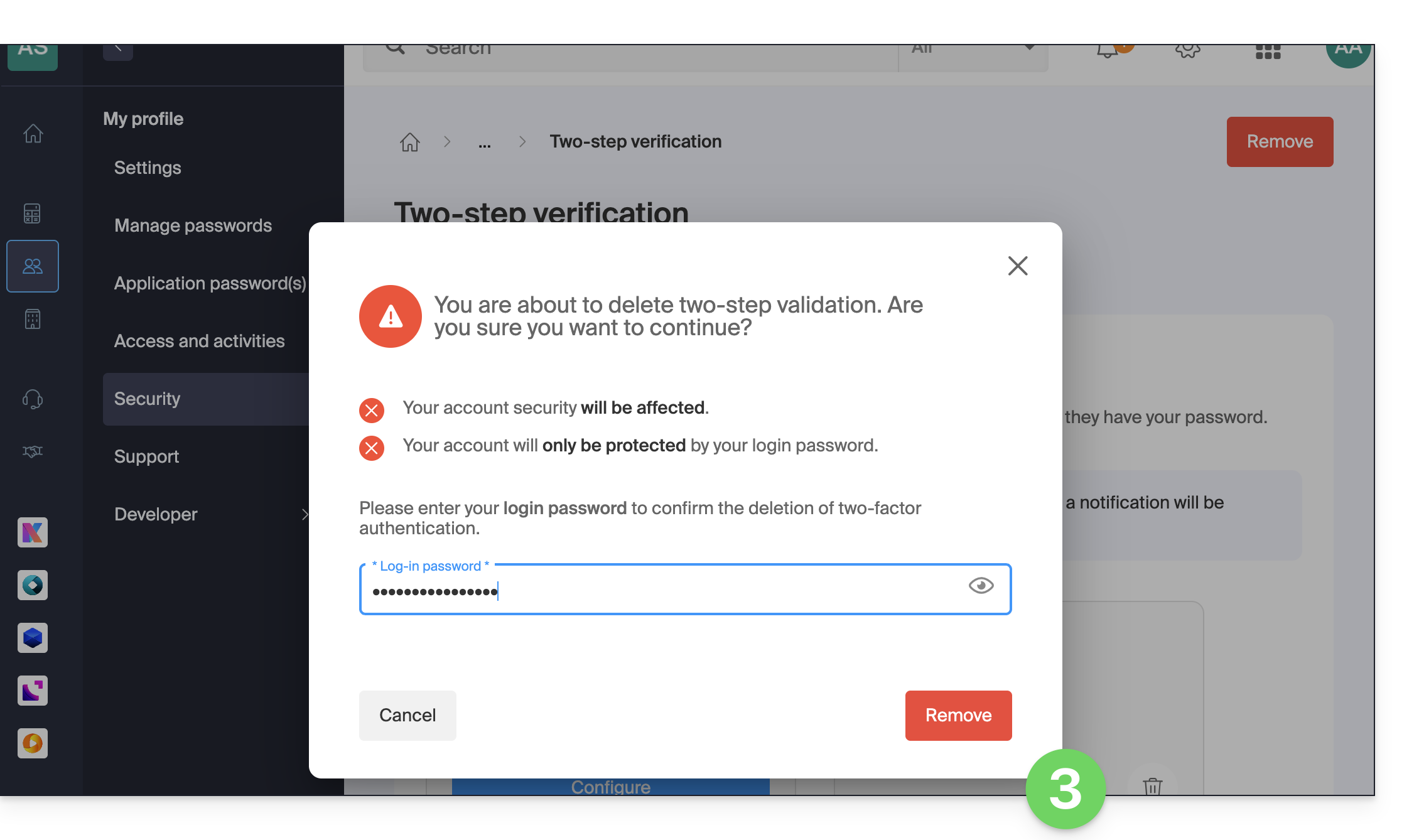
- Enter the password for logging into your account to confirm:
In case of problems
Obviously, the procedure above requires you to log in one last time with two-factor authentication, so that you can then disable it.
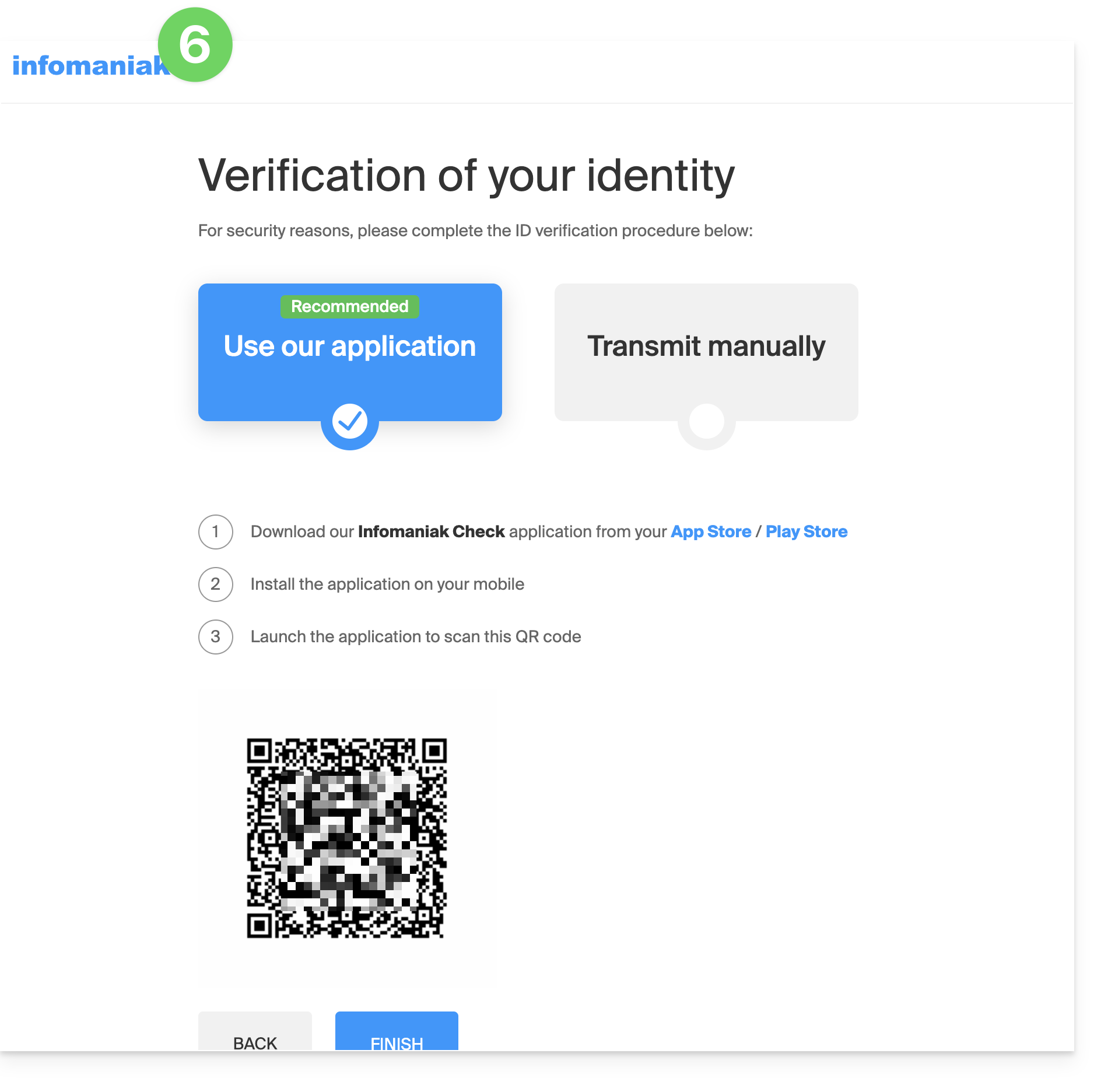
If you have no access to the Infomaniak Authenticator application, the device that receives the verification SMS, or any other authentication method that you have configured, there is no need to call Infomaniak. In this case, you will have to provide a number of security details manually or via the Infomaniak Check (kCheck) app to regain access to your account:
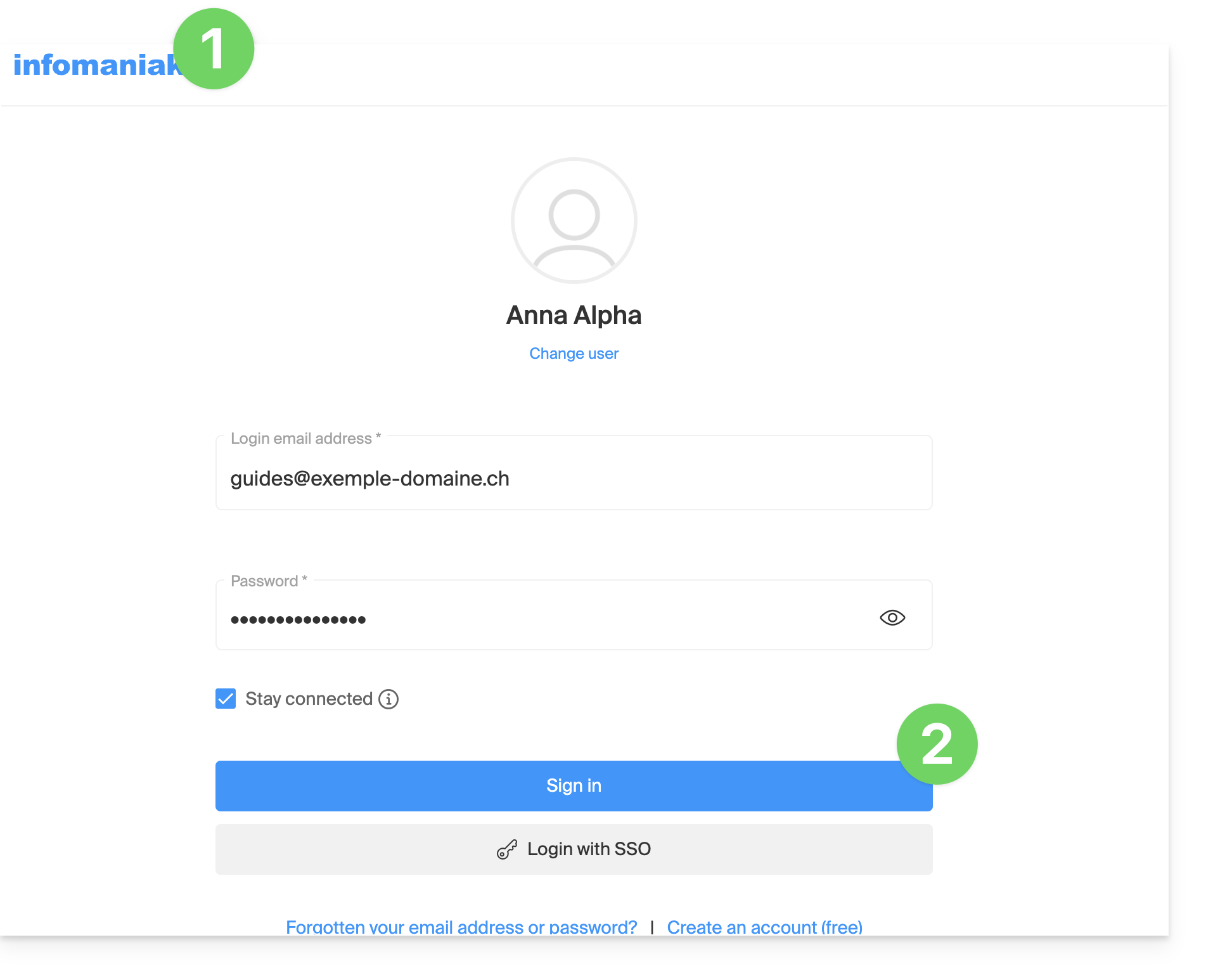
- Click here to access the Infomaniak Manager login page.
- Enter your username and your usual and correct password:
- When prompted for additional authentication, click on alternative methods:
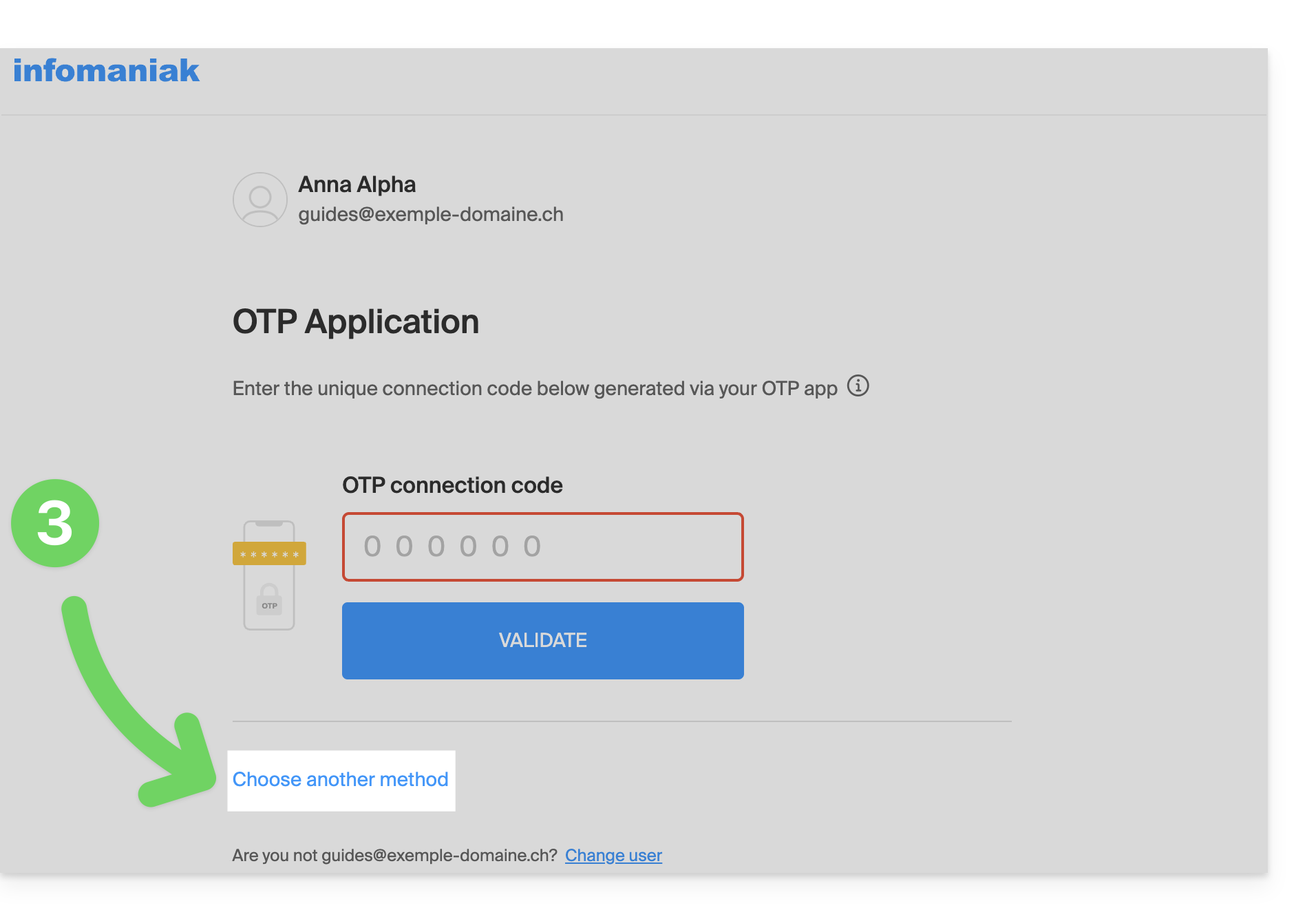
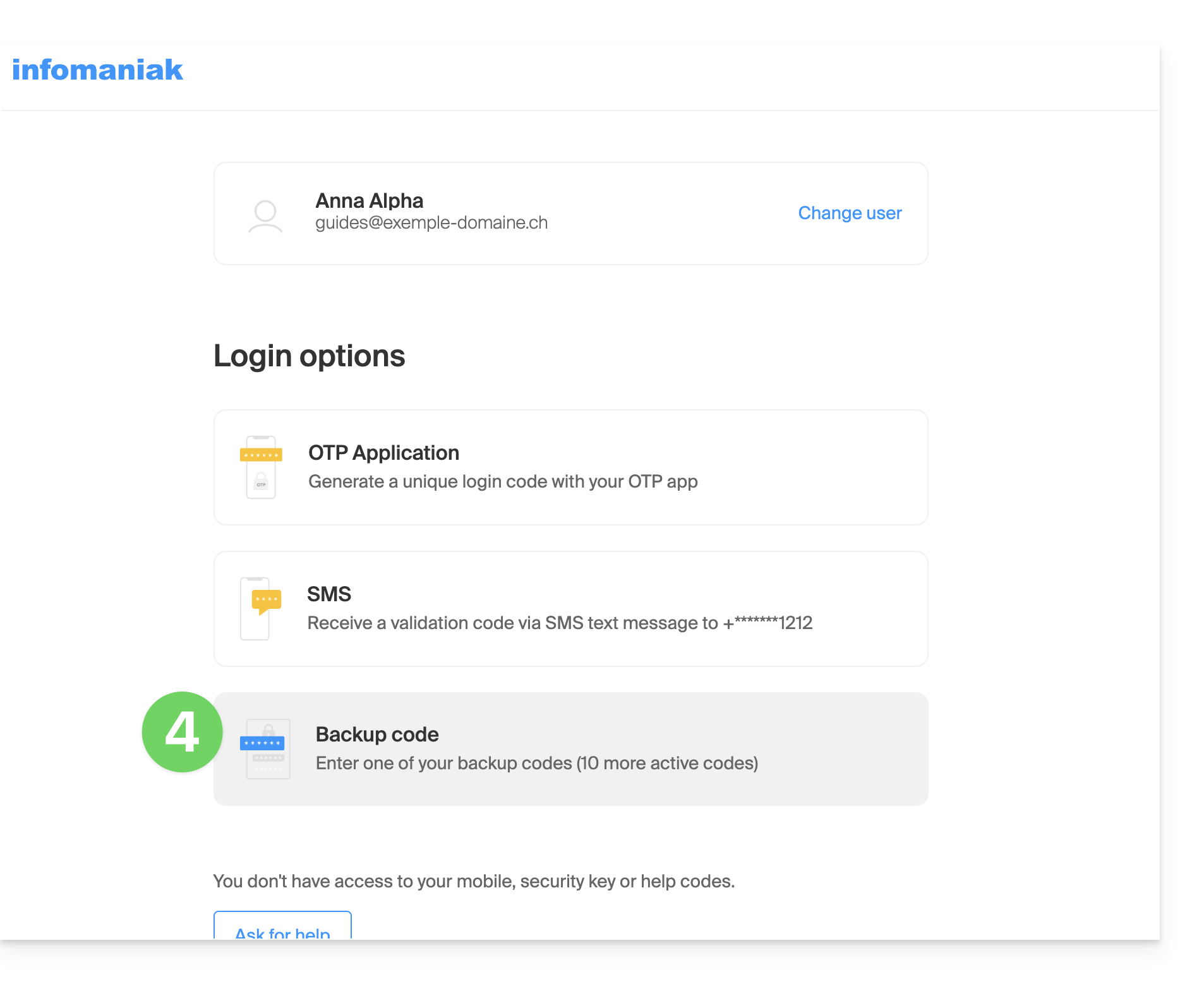
- Choose to enter one of your backup codes if you downloaded the sheet when activating 2FA:
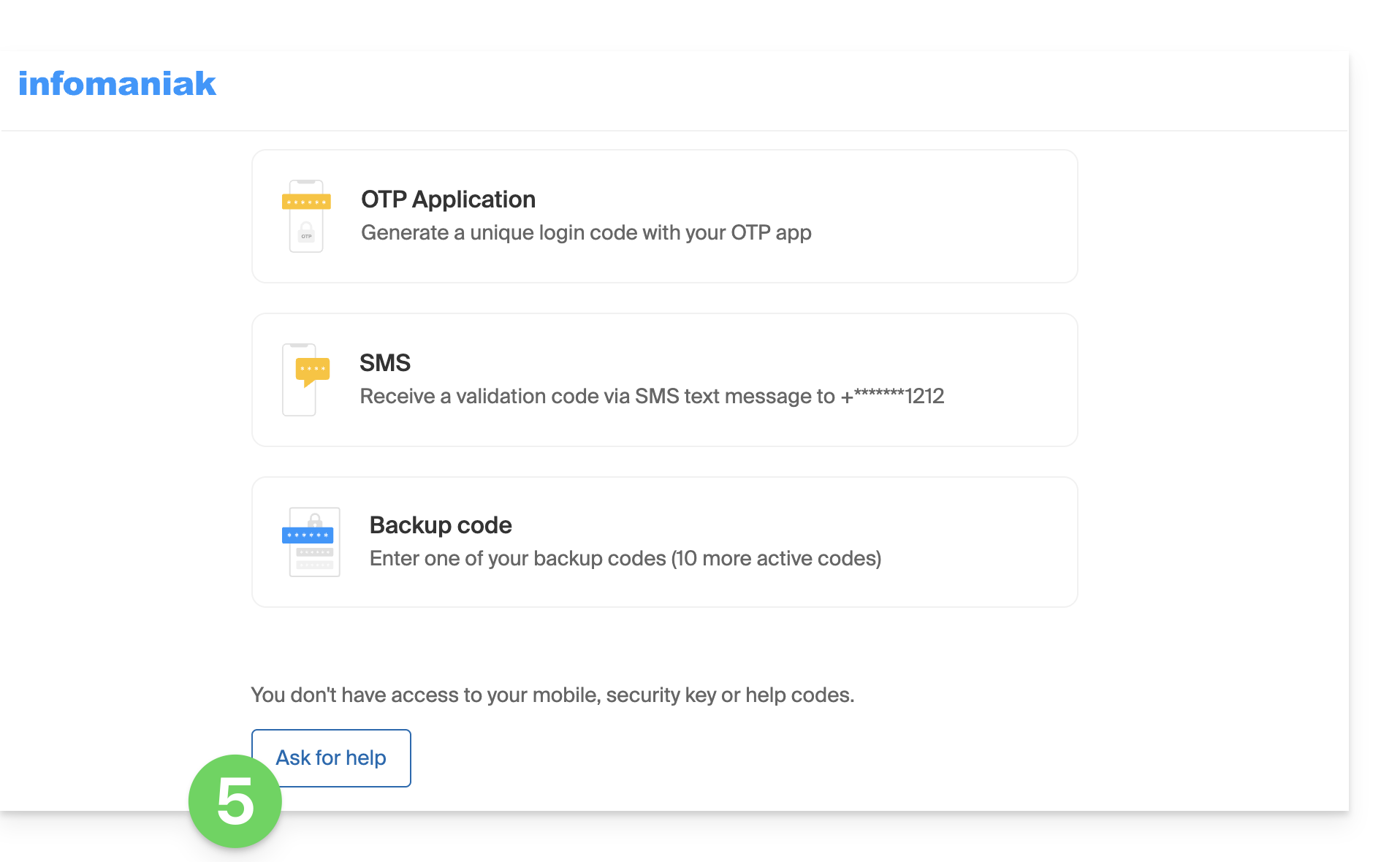
- Otherwise, select the last option to request assistance, which will take you to the form where you can submit your identification documents and a selfie for verification:
- Follow the procedure to the end and wait:
Link to this FAQ: https://faq.infomaniak.com/2021
Has this FAQ been helpful?
This guide explains how to transfer an Infomaniak product from one Organization to another.
Introduction
- You can move almost all products subscribed to with Infomaniak to a different Infomaniak Manager interface than the one the product is currently on; this is therefore an internal transfer, from Organization to Organization.
- kSuite cannot be transferred.
- Users who currently have access to the selected products will not be transferred (and may therefore no longer have access to the products).
- Regarding kDrive: users who currently have access to kDrive will be integrated into the new Organization.
- They will retain their access and their kDrive permissions, but any management rights they may have had on the product itself will be lost.
- Groups (formerly "work teams") are also not moved, and any rights managed via Groups will also be lost.
- If your user grants access to multiple Organizations, it is even easier to send the product of your choice to one of them.
- The invoices for the selected products will not be transferred.
- This operation will not cause any interruption.
Generate a transfer link
Prerequisites
- Be the Administrator or Legal Representative of the Organization.
To transfer a product:
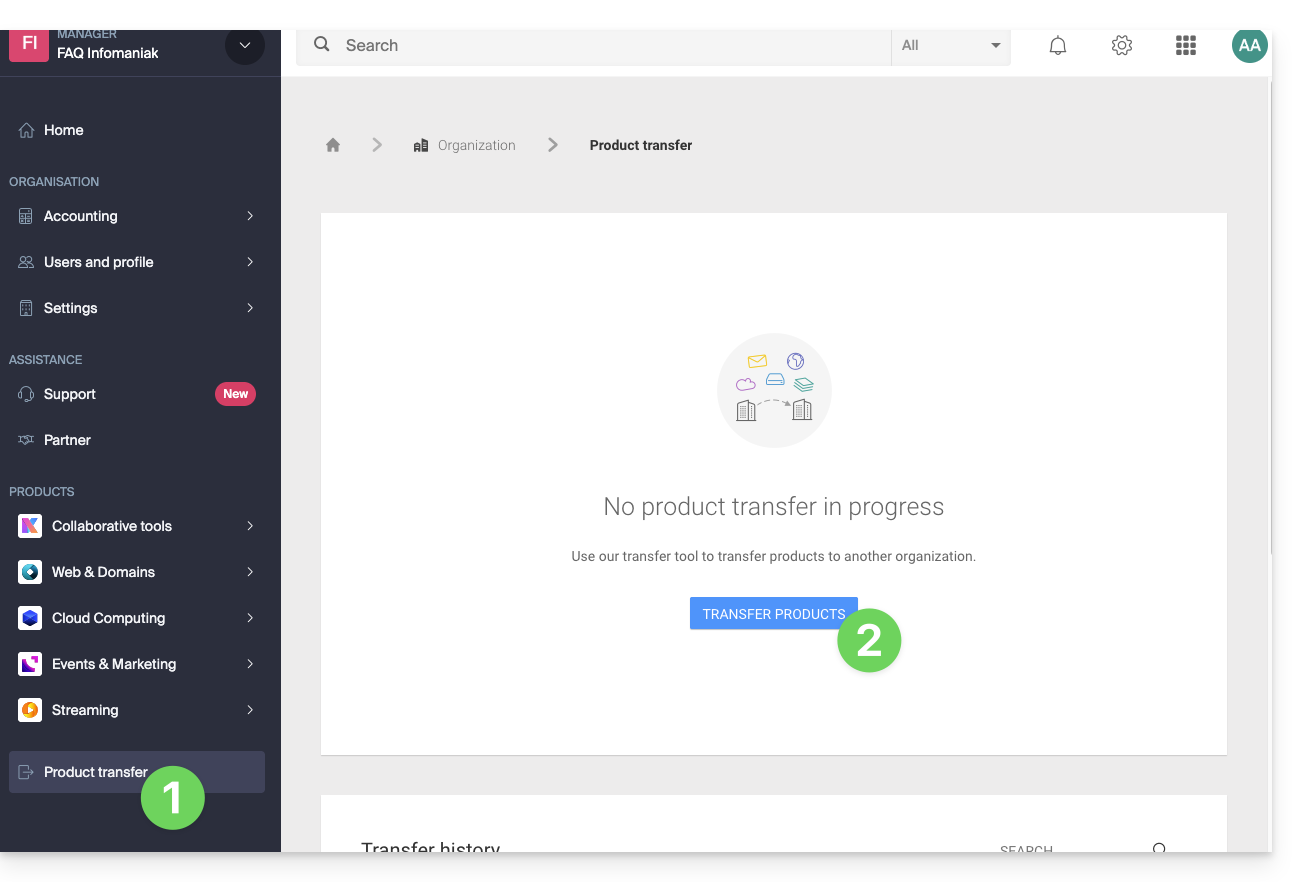
- Click here to access the product transfer management section in the Infomaniak Manager (need help?).
- Click on the Transfer products button:
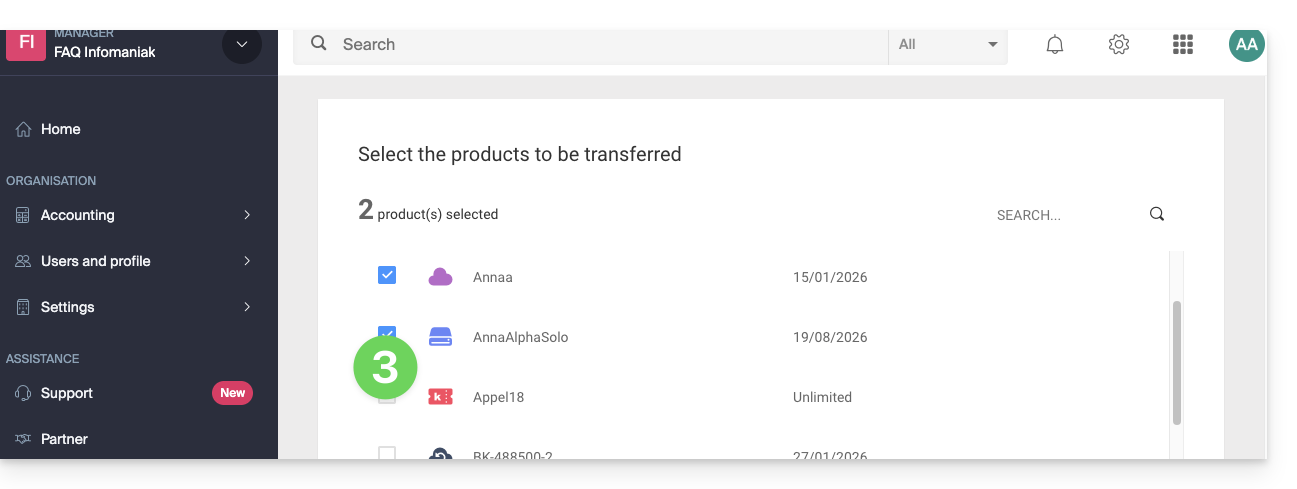
- Check the box next to the product(s) you want to move:
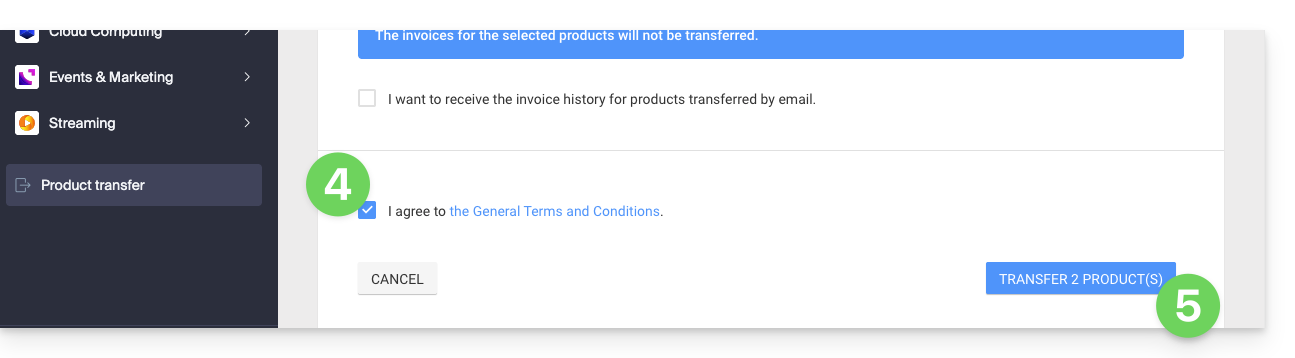
- Read and accept the terms and conditions.
- Click on the Transfer button:
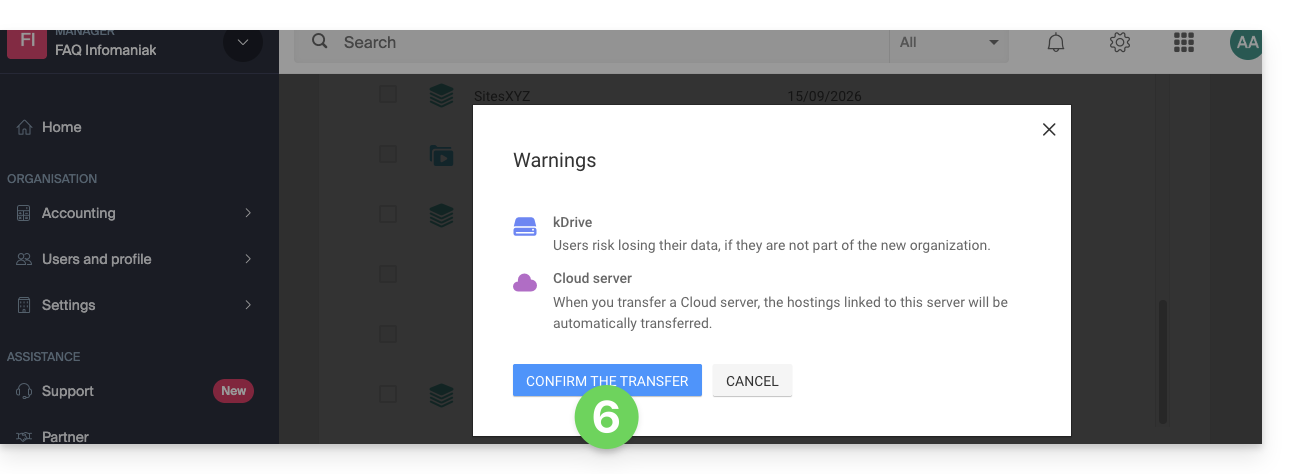
- Read and acknowledge any warnings:
The transfer has started. You can now, optionally:
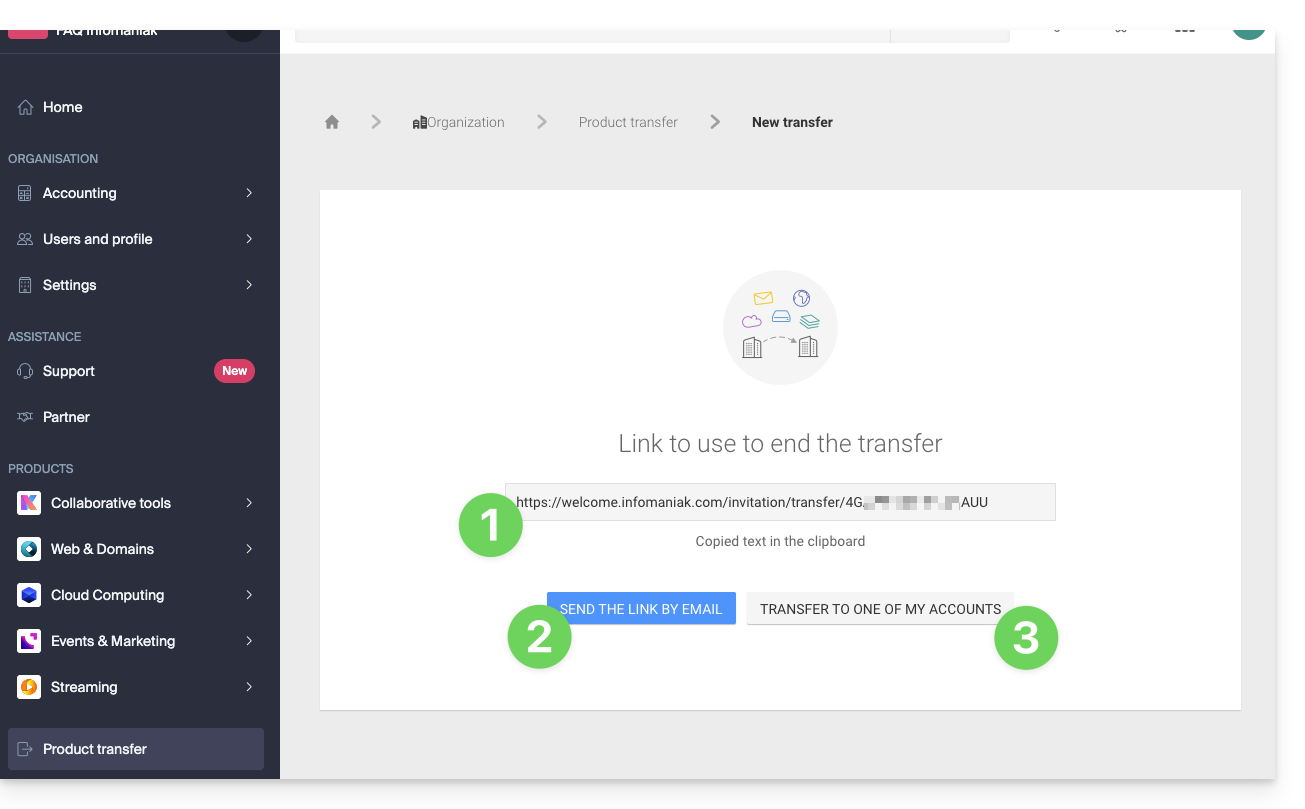
- Copy the transfer link…
- or send it to the email address of your choice…
- or directly select one of the Organizations to which your user is linked, and the selected product will be transferred there:
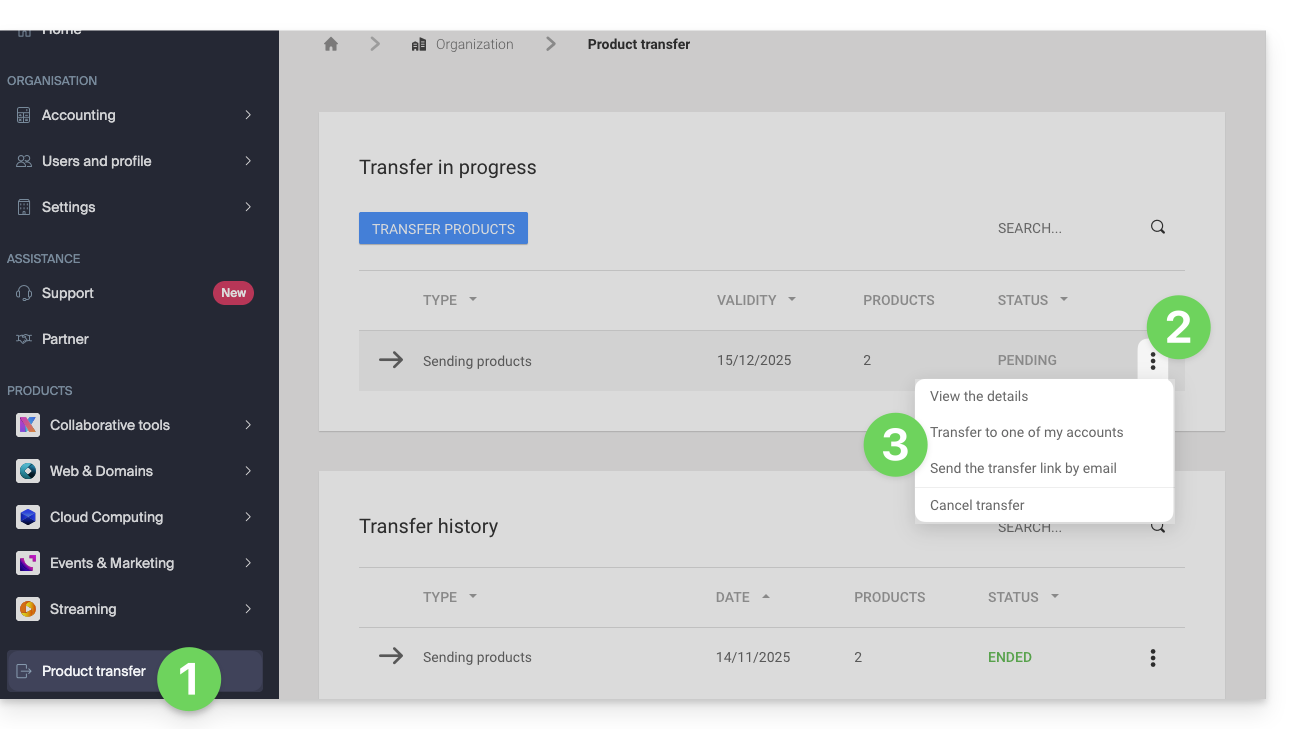
At any time, you can return to the product transfer page to find the options listed above:
Alternative method
In the case of a one-time transfer, you can also go directly to the dashboard of the product in question and click on Manage (see example in the image below). However, since this menu is not always present, it is best to use the first method described above, which also allows for bulk transfer: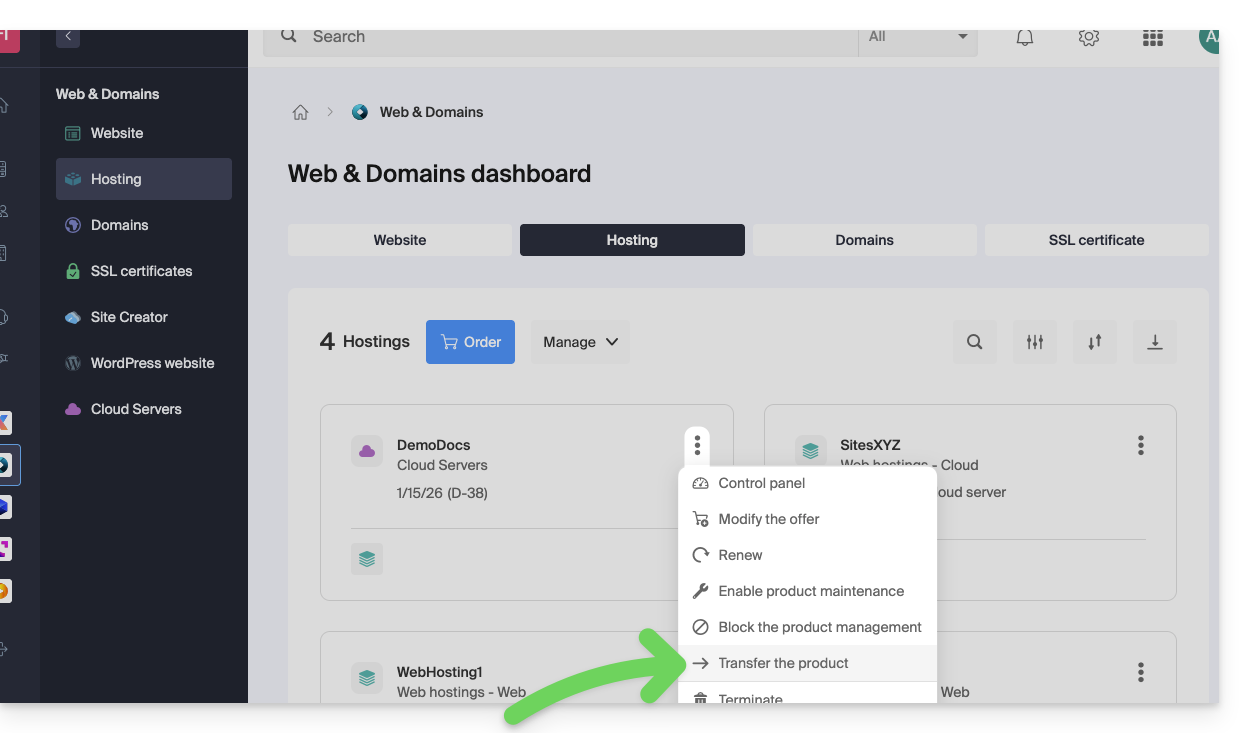
Please refer to this other guide regarding Jelastic Cloud.
Receiving the product
Once a product transfer has been initiated by a user…
1. Ensure you are logged in to the organization that should receive the product.
- Click here to log in to the Manager.The organization that will receive the product(s).
- The user specified when logging into the Infomaniak account must have administrative rights.
- If necessary, you can create a new Organization to receive products.
2. Execute the link obtained
- Click on the link obtained in the first step above.
- You can also simply paste it into a browser while logged into the appropriate Infomaniak account.
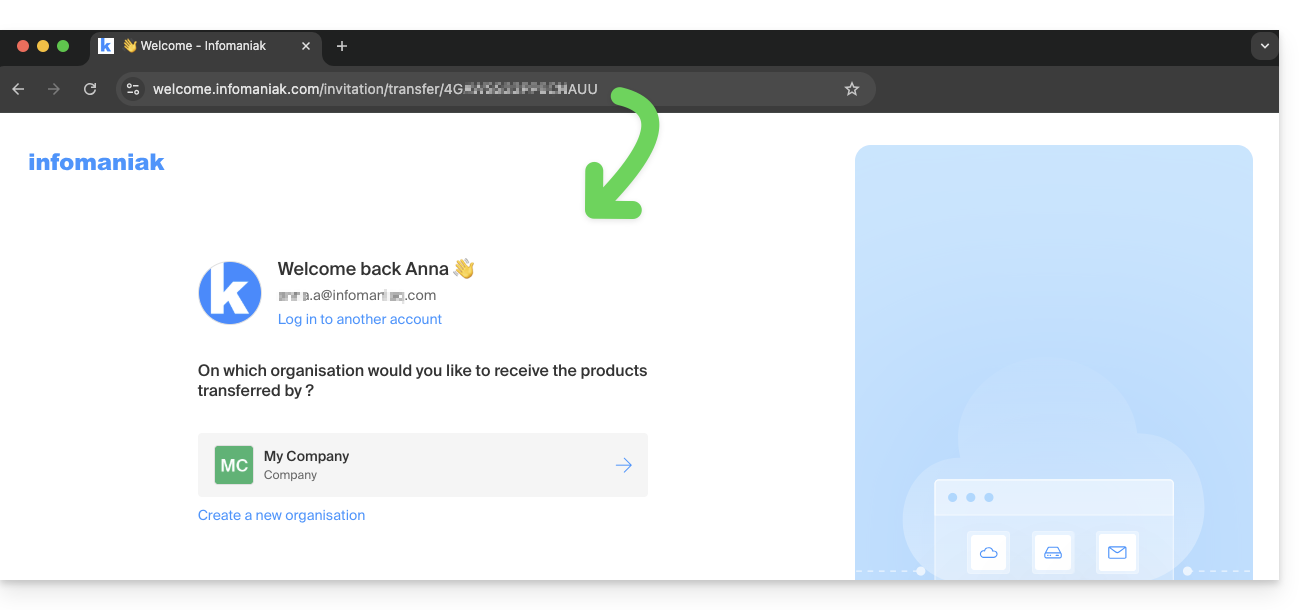
3. Confirm the product transfer
- If necessary, select the destination Organization using the drop-down menu.
- Read and accept the terms and conditions.
- Click the Receive product button (if the button is not clickable, make sure you have selected the Organization):
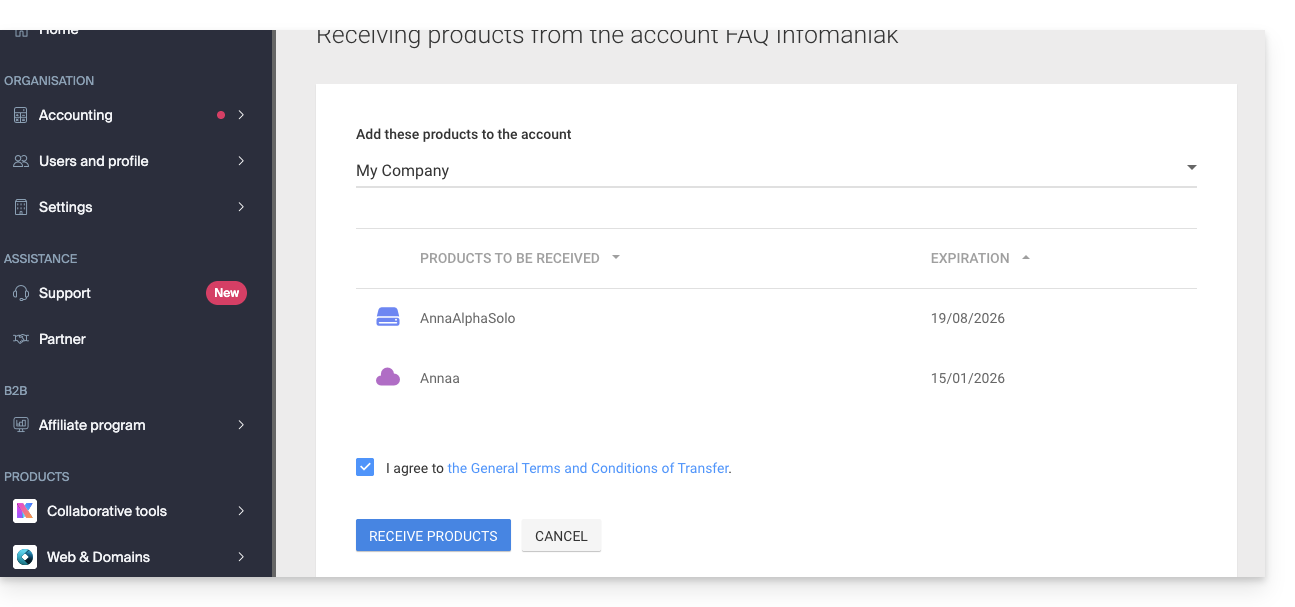
View your current or completed transfers at any time by clicking the icon at the bottom of the left-hand menu.Manager Infomaniak: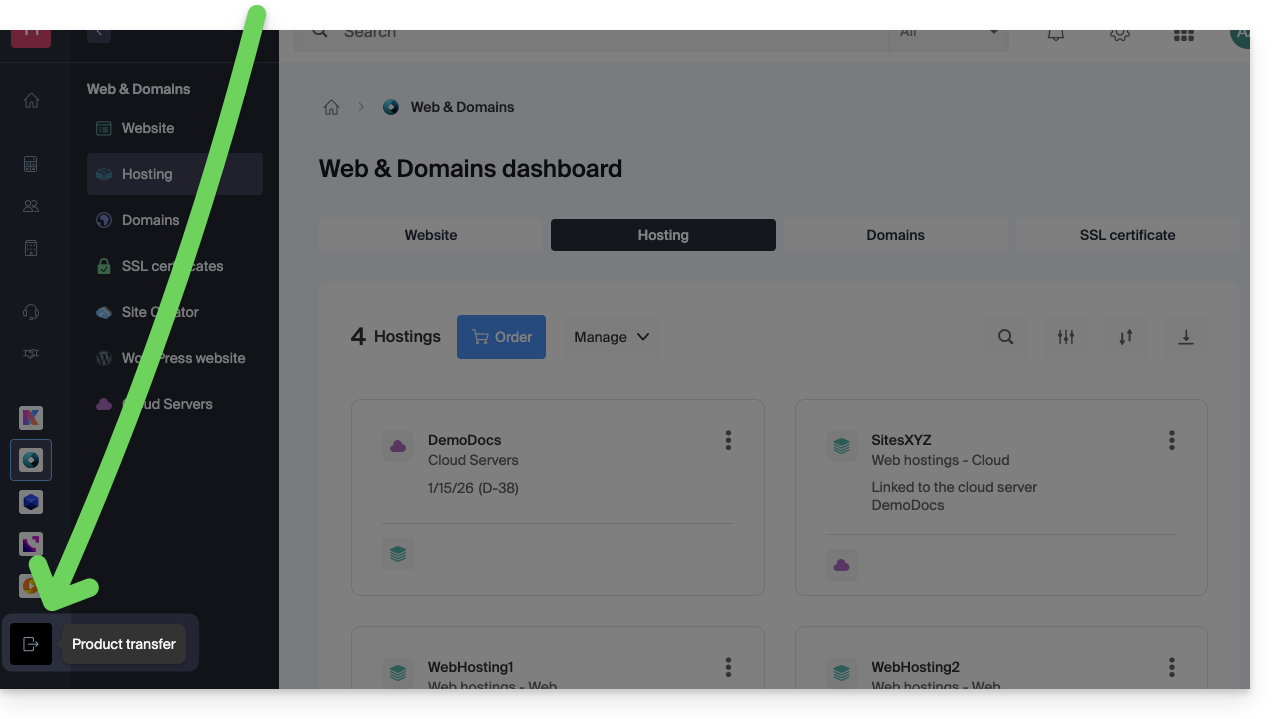
Link to this FAQ: https://faq.infomaniak.com/2024
Has this FAQ been helpful?
This guide explains how the Infomaniak Partner Program works, its eligibility requirements, and its many exclusive benefits for IT professionals.
Introduction
- By becoming a Partner, you can grow your business with a provider recognized for its reliability, security (ISO certified), and exemplary environmental commitment.
- The program is open to any professional entity (Swiss or European) that meets the following criteria:
- Be a company registered with the Commercial Register (or SIRET/equivalent) and have an active website.
- Manage a product volume equal to or greater than CHF 2000 / € 1800 per year.
- Provide first-level technical support and handle billing for its own customers.
- Commit to using exclusively Infomaniak solutions for projects originating from the tender platform.
- Comply with the specific Reseller terms and conditions.
- Become a Partner to immediately benefit from discounts, cashbacks, and centralized management tools.
- If you are an individual, opt for the Affiliate Program (cannot be combined with Partner status).
Exclusive Partner Benefits
The Partner Program is designed to maximize your profitability while offering you a sovereign and high-performance infrastructure.
Priority support "Support Plus" included
- Free access to Support Plus: as a Partner, you benefit from privileged access to Infomaniak experts.
- Your requests are handled with priority by technical teams based in Switzerland, guaranteeing maximum responsiveness for your customers.
- A direct line and a dedicated ticketing interface are available to quickly resolve your complex issues.
Profitability and Savings
- Discounts and Cashbacks: up to 35% off on Infomaniak's flagship products and recurring cashbacks on managed services.
- Domain Pricing: access to the best prices on the market for the most popular extensions.
- Included Tools: free and unlimited access to WordPress themes from Elegant Themes (Divi, etc.).
Visibility and Growth
- Tender offers: receive exclusive access to client needs submitted via the tender offer platform.
- Partner Directory: improve your SEO and visibility by being listed for free on the official directory.
Simplified Management (Reseller Console)
- Centralized interface: a single dashboard to manage your entire customer base and track your revenue.
- Access delegation: manage the access rights of your employees and define specific areas of responsibility for your clients' accounts.
- White-labeling and billing: complete freedom in reselling your services and simplified financial management.
Resources and Technical Guides
- What is a Partner?
- What is a Customer (in the Partner sense)?
- Add a Customer and manage their products
- Allow a Partner to manage your products
- Manage access permissions between Partner and Client
- Manage Infomaniak billing between Partner and Client
- Export customer billing data
- Terminate the relationship between a Partner and a Customer
Link to this FAQ: https://faq.infomaniak.com/2064
Has this FAQ been helpful?
This guide explains how to obtain the authorization code (EPP code) for a domain name managed by Infomaniak, allowing you to transfer the management of a domain to another registrar.
Introduction
- The terms "
EPP", "AuthCode", "AuthInfo", "transfer code", and "authorization code" all refer to alphanumeric sequences specific to the domain, the main purpose of which is to verify the owner's authorization before a transfer between registrars. - Consult the main guide regarding domain name transfer procedures.
- The authorization code is always and only sent to the email address of the owner registered in the WHOIS of the domain.
Get the authorization code for a domain
To obtain the transfer authorization code:
- Click here to access your domain management interface in the Infomaniak Manager (need help?).
- Click directly on the name assigned to the domain in question:
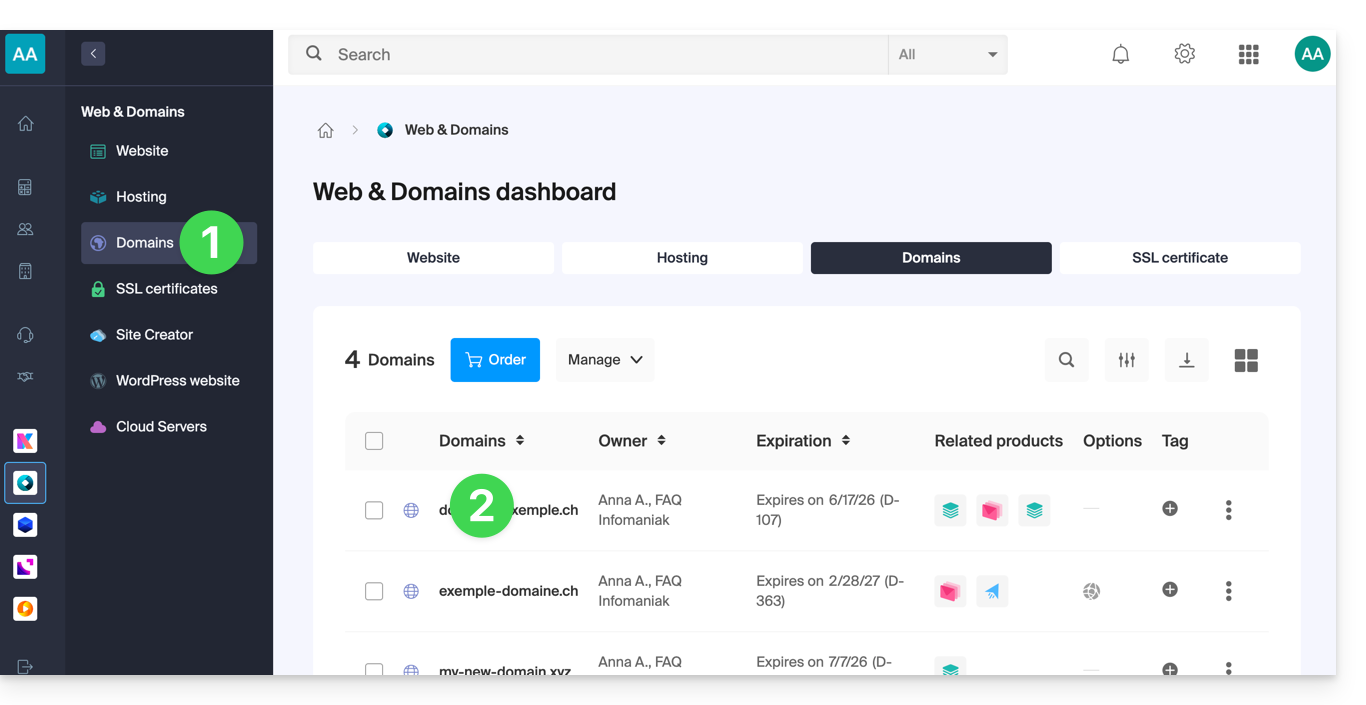
- Click on the Manage button .
- Click on Transfer to another registrar:
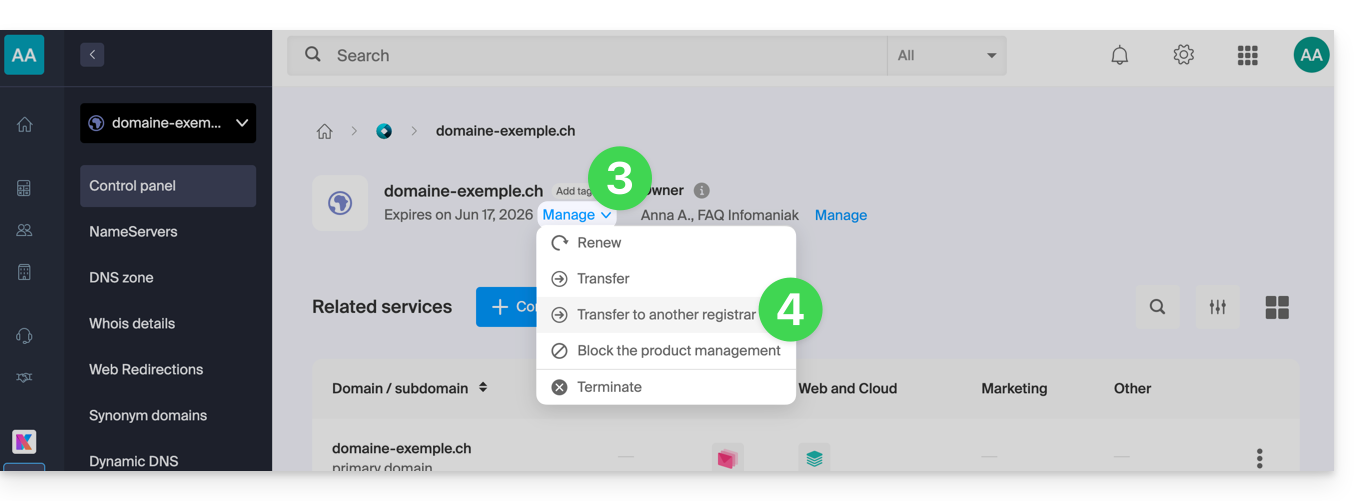
- If necessary, to authorize the transfer:
- Click to disable the Domain Privacy option.
- Click to Unlock this domain.
- Click the button to Continue:
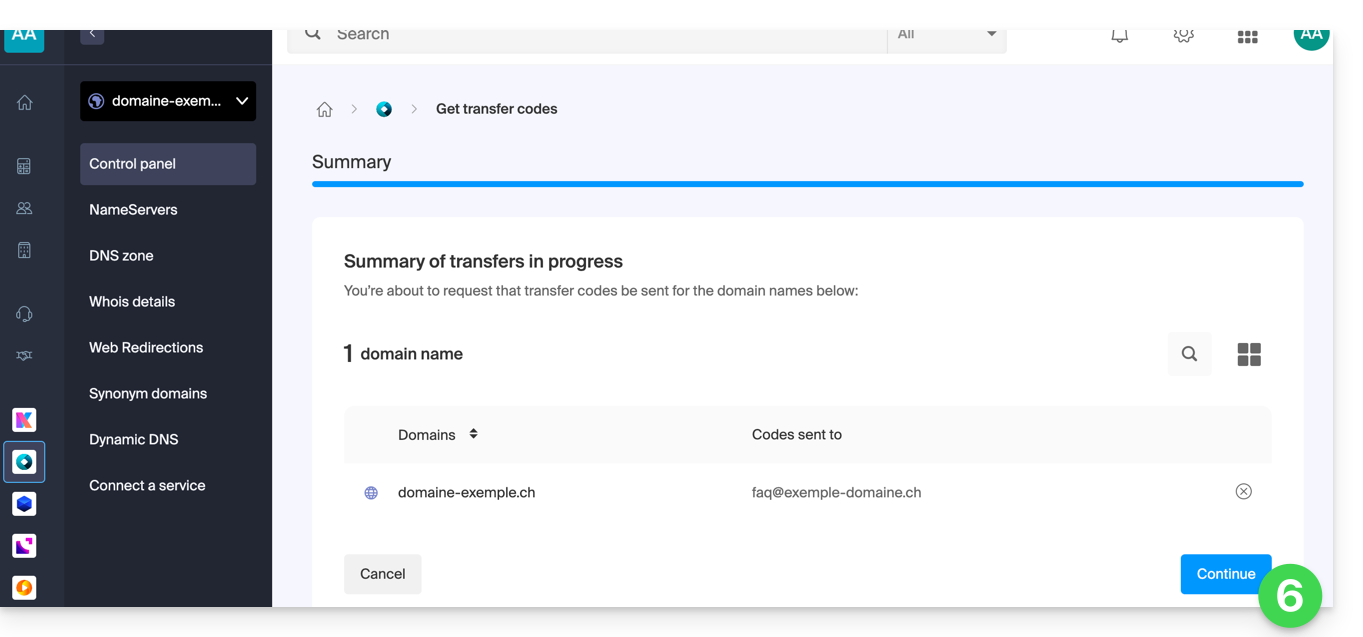
- The code is sent by email to the contact address (see the introduction above).
To resend the code, repeat the procedure from the beginning.
Specific features of certain extensions
What's next?
Once you have entered the authorization code with the third-party provider and the outgoing transfer has started, Infomaniak no longer intervenes.
Contact your new registrar to find out the transfer time during which the domain name will still be visible in your Infomaniak interface.Infomaniak cannot, unfortunately, intervene in any operation that would allow for accelerating the outgoing transfer..
Link to this FAQ: https://faq.infomaniak.com/2075
Has this FAQ been helpful?
Thank you for entrusting Infomaniak with the management of your services, and we hope you enjoyed using them.
Introduction
- For most products, confirm the cancellation request by email; otherwise, no data will be deleted.
- Any charges incurred and exceeding the included allowance will still be due.
- A cancellation confirmation is sent to any other administrators of the Organization.
- Backups will be permanently deleted upon cancellation, making any restoration impossible.
Which product/service would you like to delete?
Collaboration tools
Web & Domains
Cloud Computing
Events & Marketing
Streaming
Close your Infomaniak account or delete one of your Organizations.
Feel free to share your personal experience with InfomaniakFeedback from both satisfied and less satisfied customers is valuable and helps to improve the quality of services and offer solutions tailored to their needs!
Link to this FAQ: https://faq.infomaniak.com/2078
Has this FAQ been helpful?
This guide provides instructions on how to obtain one or more Infomaniak invoices before and after payment, view, download, and print all or part of the billing document history for your accounting purposes.
Introduction
- Final invoices can only be printed after they have been paid.
- If necessary, a personalized message can be easily added to your billing documents: see this other guide.
Accessing the Invoice History
Prerequisites
- Be Administrator or Legal Representative within the Organization…
- … or a simple user account but with the permission to manage accounting enabled:
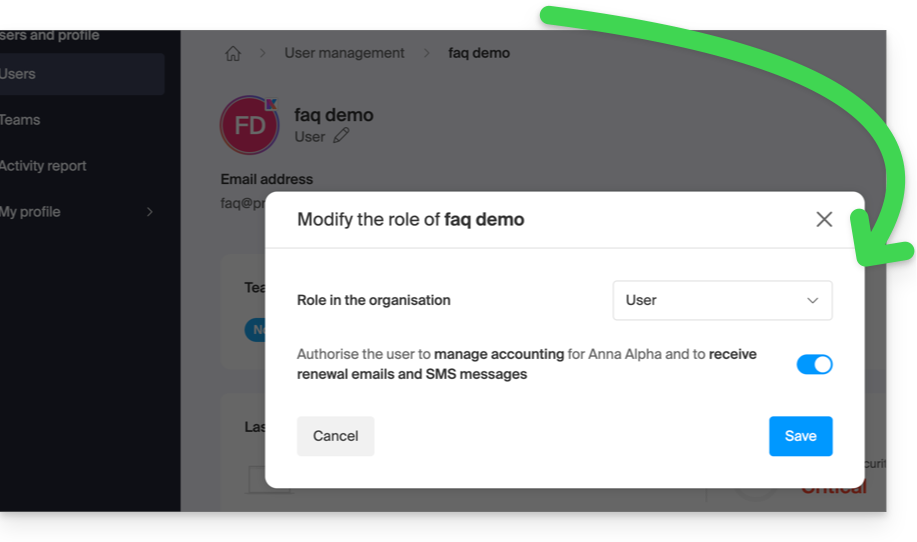
- … or a simple user account but with the permission to manage accounting enabled:
To go to the billing documents page:
- Click here to access the invoice history in the Infomaniak Manager:
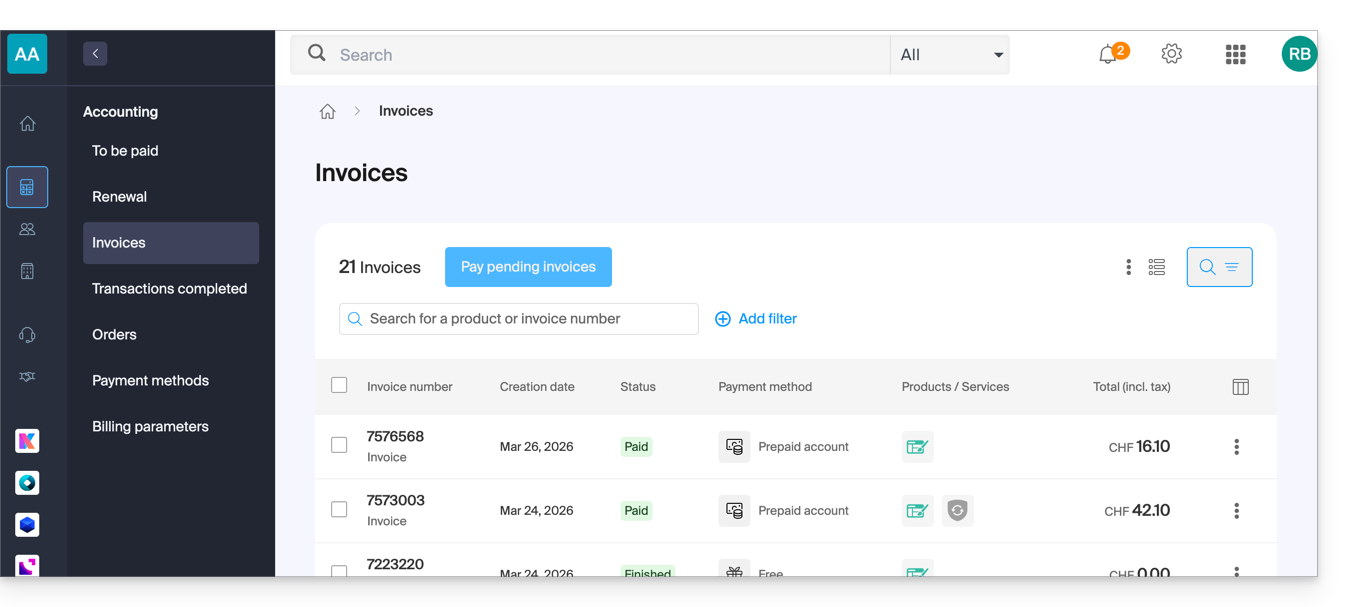
- The table automatically displays the most recent billing documents.
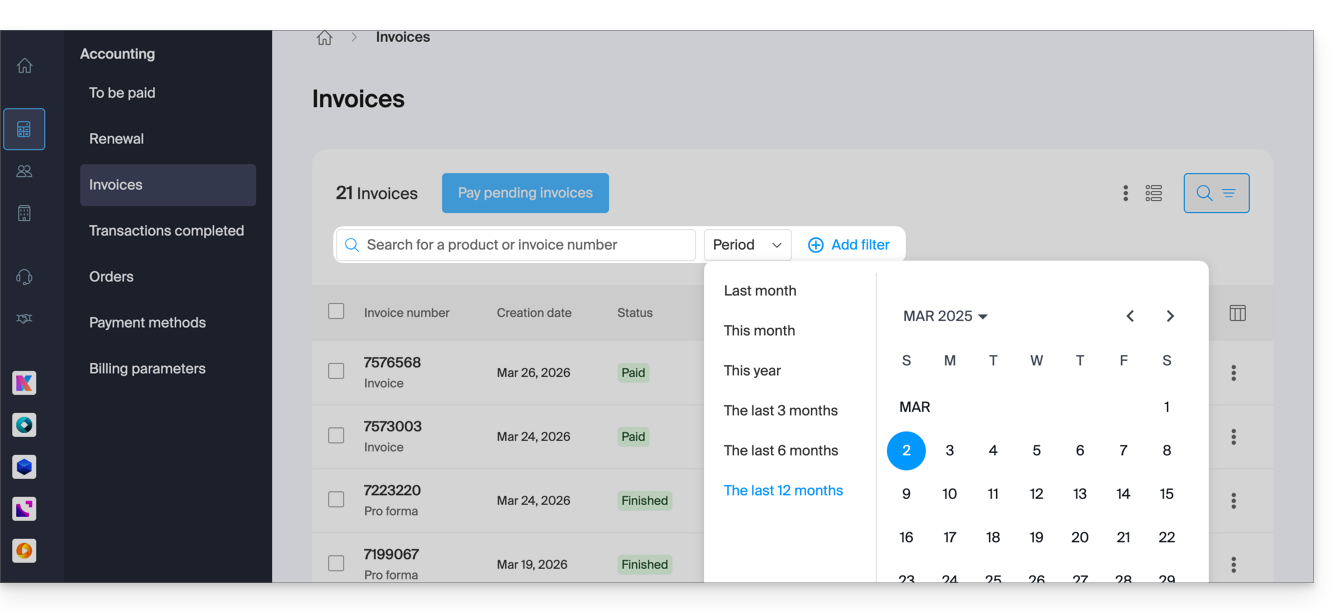
- The top section allows you to filter documents based on the Paid, Reimbursed, etc. status and based on the desired period (start and end date calendar):
Print/export a billing document
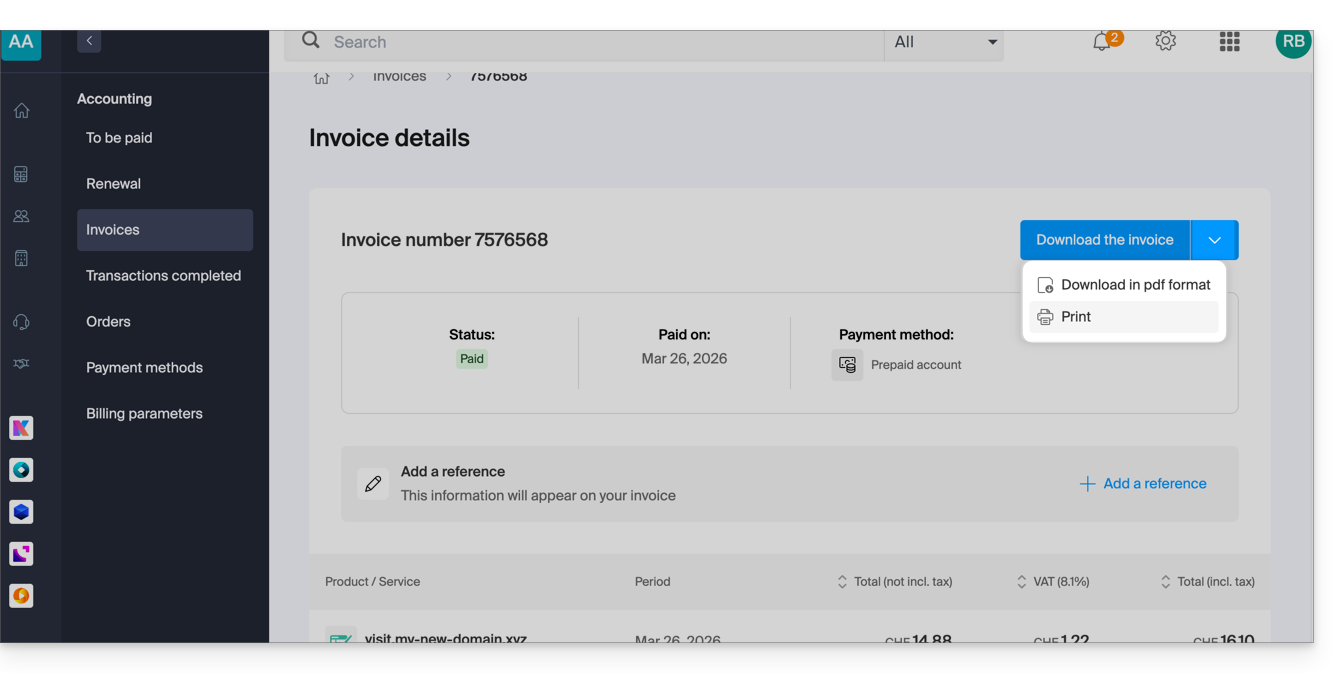
To view one of these documents in PDF format and then save it to your device or print it with your printer:
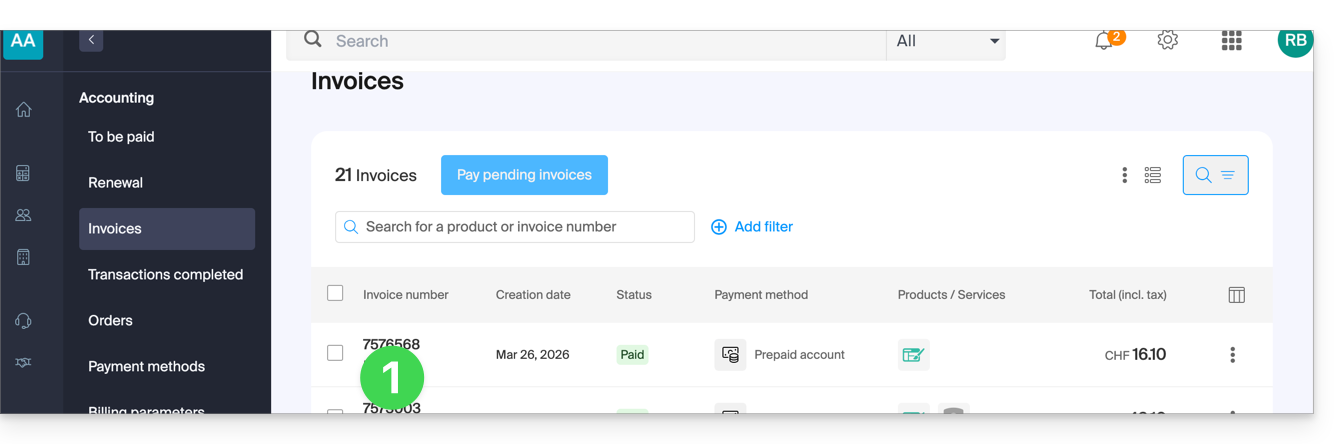
- On the same page, click on the invoice in question in the table that is displayed:
- Click the Download button or the chevron for more options:
Export a set of billing documents
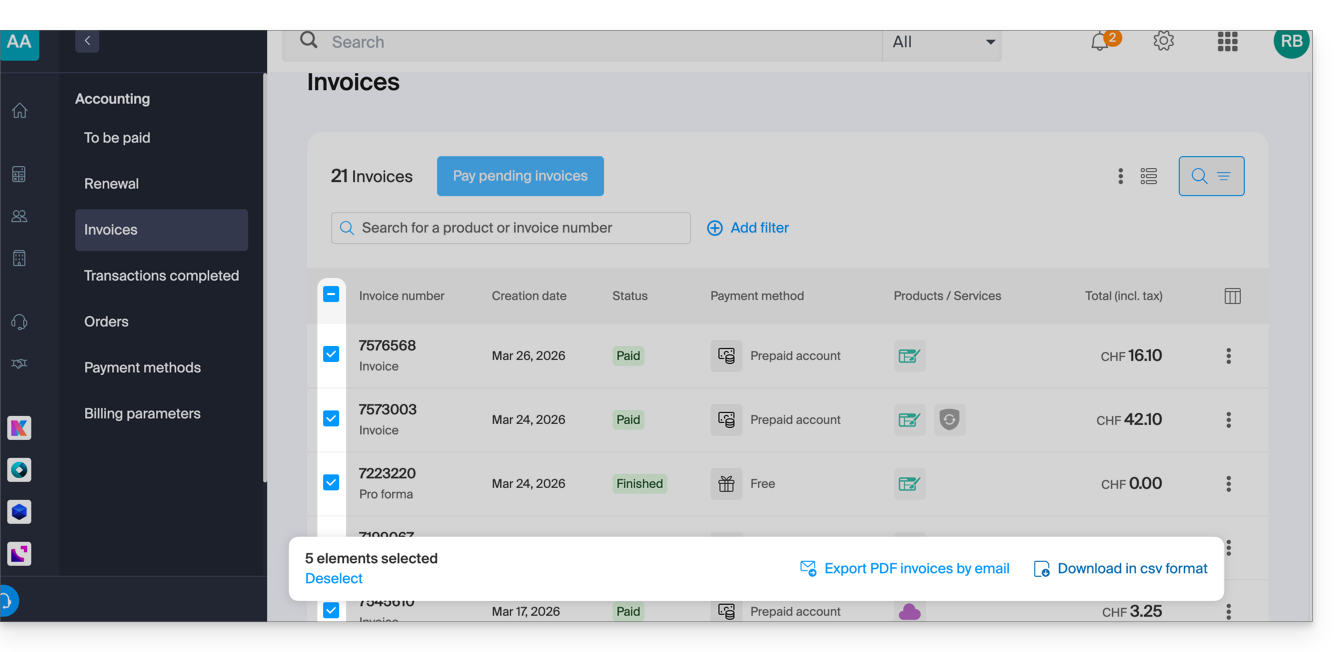
To download a set of documents in a CSV file in .csv format, or to receive them by email:
- On the same page, filter the documents based on the Paid, Reimbursed, etc. status, and based on the desired period (start and end dates).
- Click on the button at the bottom, depending on the type of export you want:
Receive the (next) PDF invoice by email
To ensure that the invoice is always attached in PDF format with each renewal email:
- Click here to access the configuration/accounting page in the Infomaniak Manager (need help?).
- Access requires authentication with a user who has sufficient rights.
- On this page, enable or disable the addition of PDF invoices:
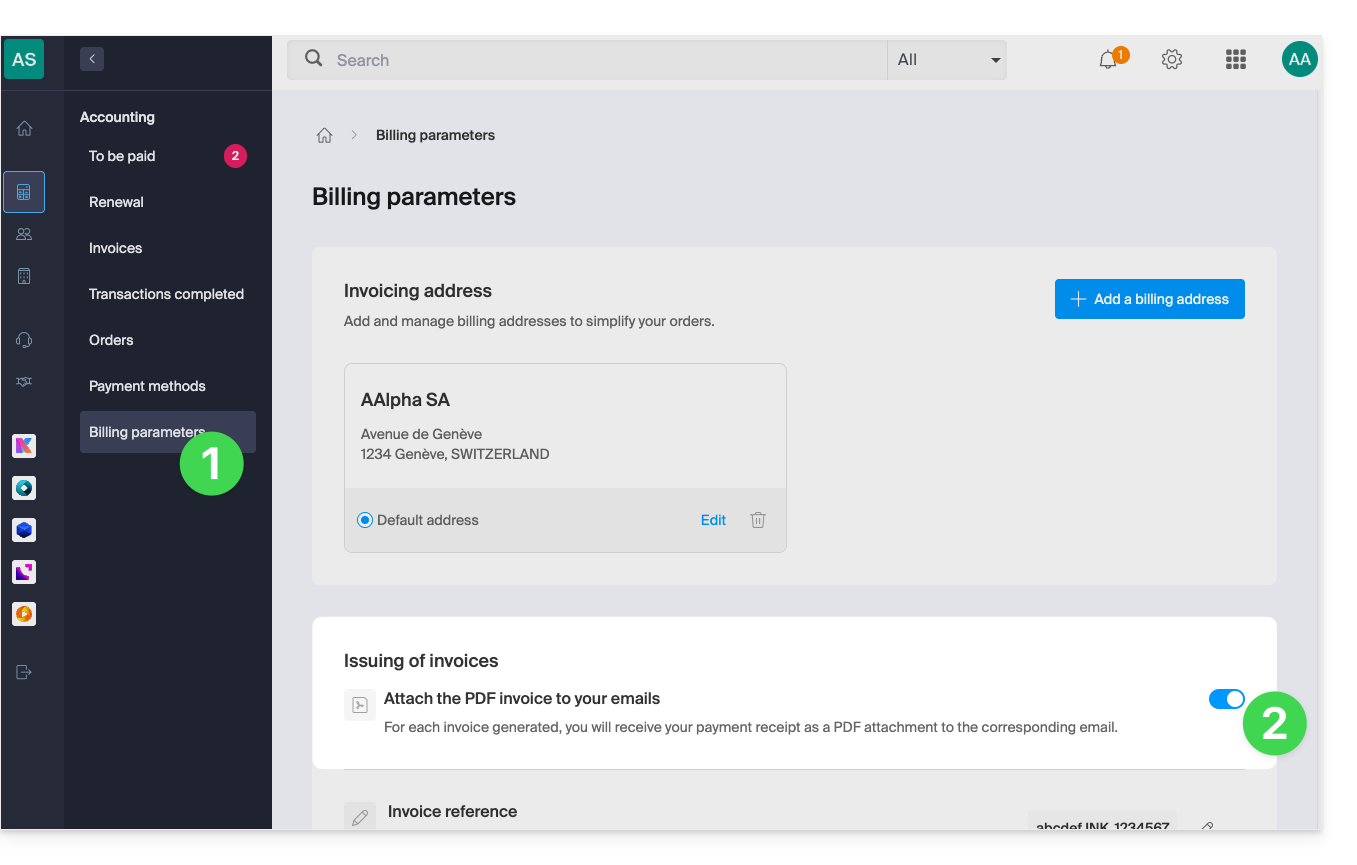
Your preferences are automatically saved as soon as a change is made on the page.
Print a Pro Forma Invoice
Pro Forma invoices do not have any legal, judicial, tax, or accounting value:
- Click here to access payment management in the Infomaniak Manager.
- Select the relevant products.
- Click on Generate a Pro Forma Invoice at the bottom of the table.
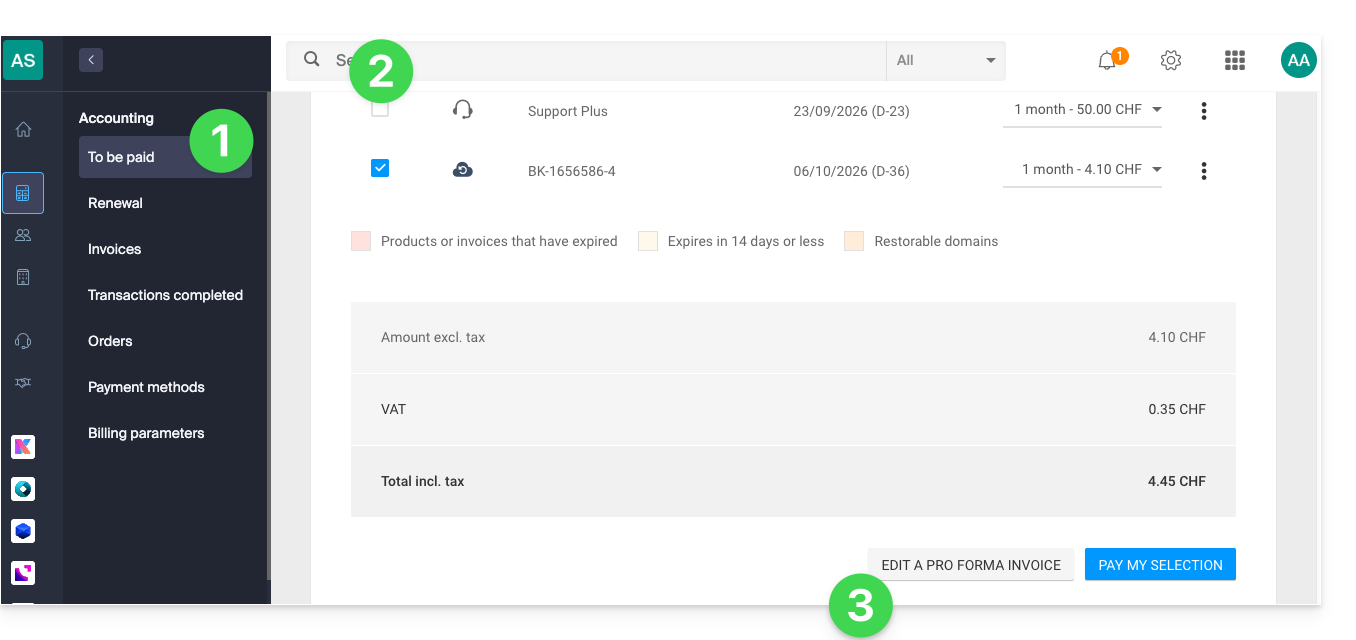
- Once displayed, you can then download the Pro Forma Invoice.
Link to this FAQ: https://faq.infomaniak.com/2091
Has this FAQ been helpful?
This guide provides 2 methods for changing the billing frequency of the services you have subscribed to with Infomaniak.
Change the invoice frequency
First method
The first method involves changing the frequency during a payment:
- Click here to access payment management in the Infomaniak Manager (need help?).
- Select the relevant product.
- Click on the dropdown menu to the right of the item in question to modify the period to which the payment should correspond:
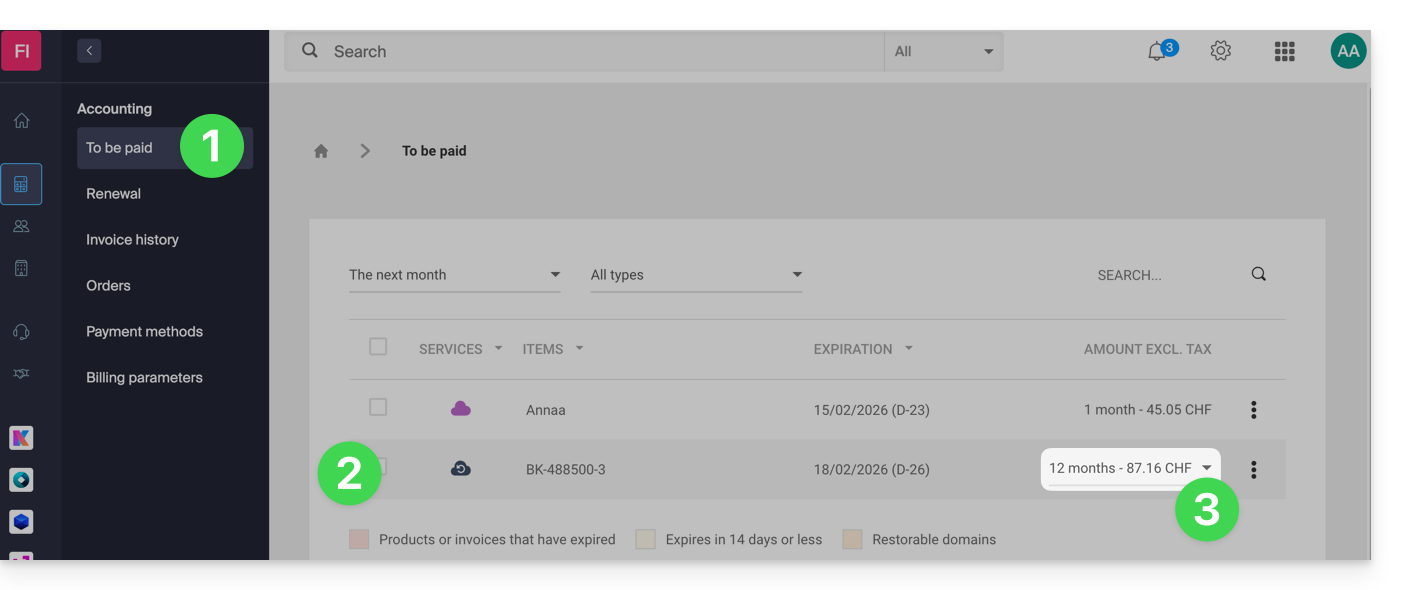
- Click on the blue button at the bottom of the page to pay for the selection and change the billing frequency of the selected product.
For the change to take effect, it is essential to change the frequency and pay the invoice including the product with the new frequency.
Second method
The second method is as follows:
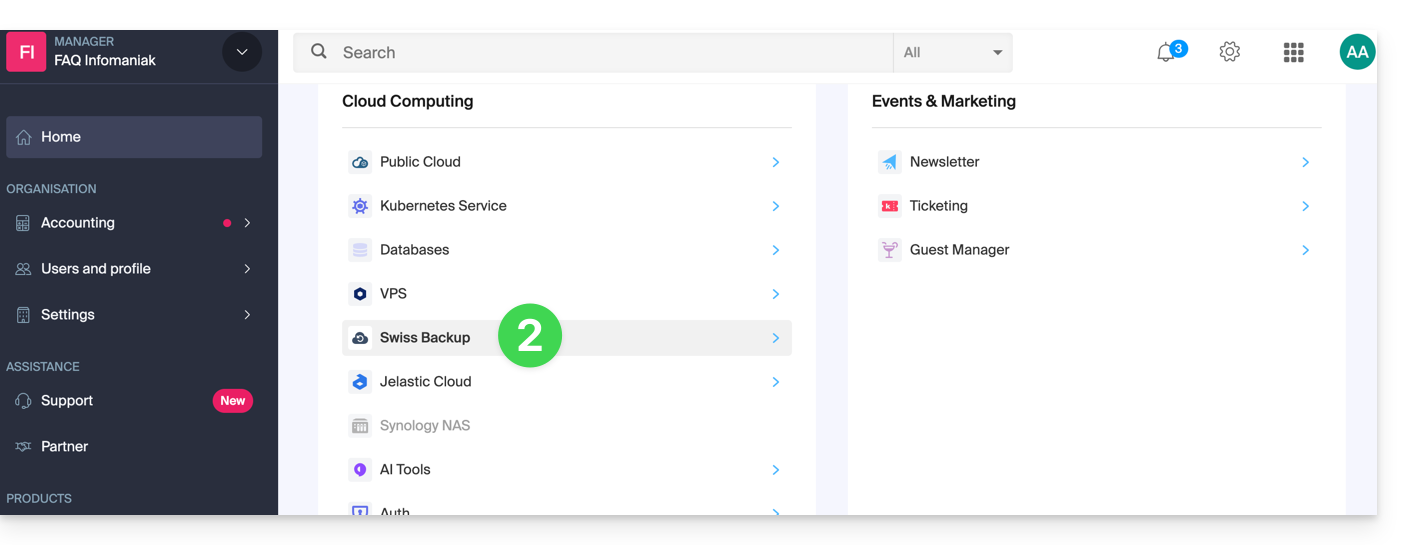
- Click here to access the management of your products on the Infomaniak Manager (need help?).
- Click on the type of product concerned (e.g. hosting, Cloud Server, etc.)
- Click on the name of the product concerned:
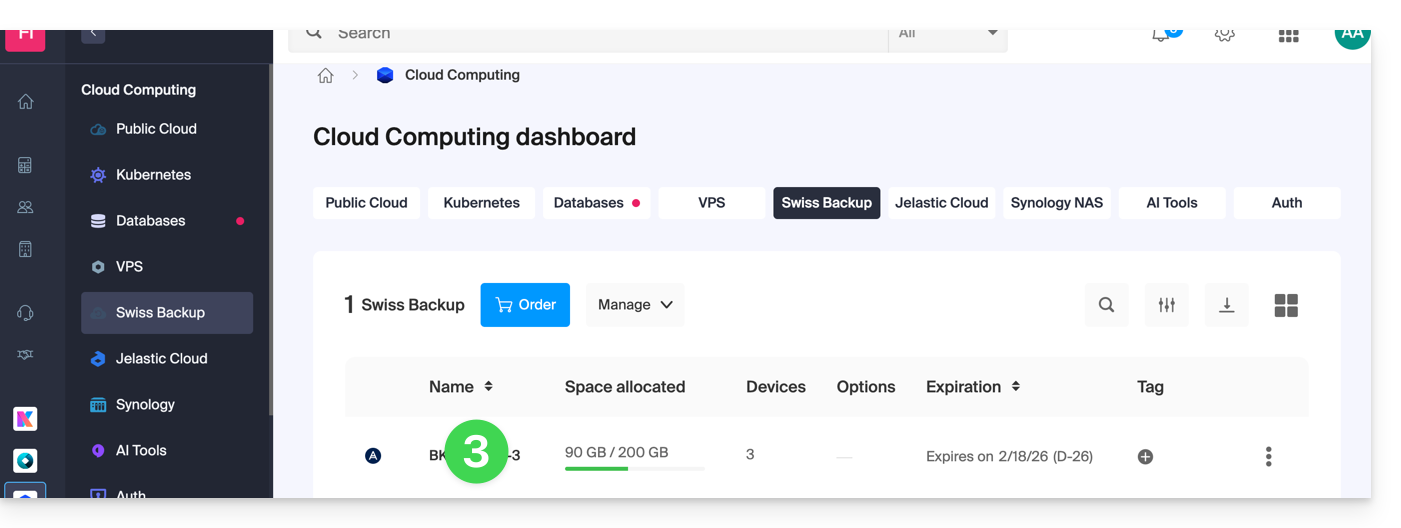
- Click on the Manage button.
- Click on Edit plan:
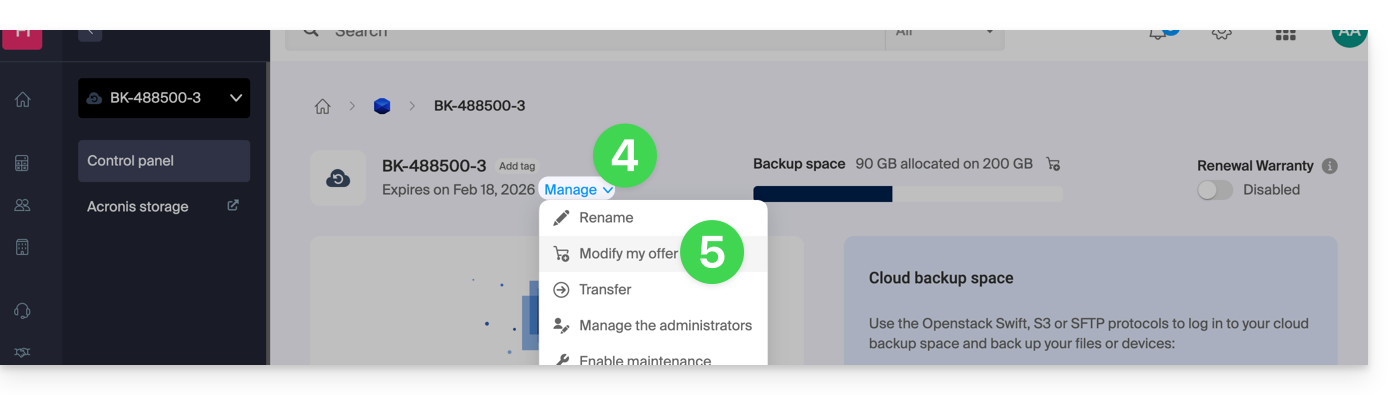
- Choose your preferred billing frequency.(only available from a certain amount).
- Confirm the change:
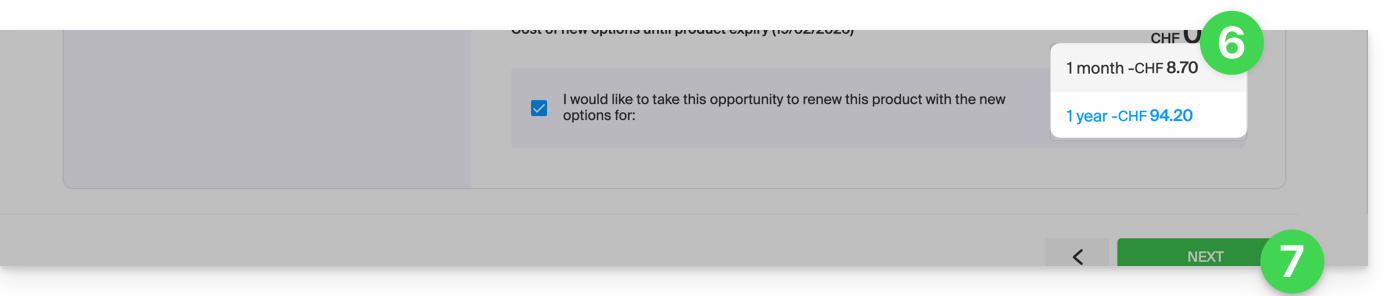
If you switch from annual billing to monthly or quarterly billing, you can only change the billing frequency during the month preceding the end of the current billing periodJanuary
Link to this FAQ: https://faq.infomaniak.com/2100
Has this FAQ been helpful?
This guide explains what a web hosting provider like Infomaniak is, and specifies its role, scope, and the limits of its technical support.
Infomaniak, a hosting provider since 1996
According to Wikipedia, a web host is a company that provides Internet hosting for computer systems for individuals or entities who do not wish to do so themselves.
Infomaniak also offers:
- … decades of experience in hosting and high-performance online solutions.
- … over a million users in Switzerland and Europe trusting us with the management of their critical data.
- … a company certified according to ISO 27001, 9001, 14001, 50001 standards and committed to sustainable digital practices.
- … 100% Swiss-made technological expertise with data hosted in Switzerland in its own data centers.
- … a comprehensive knowledge base and a customer support service available to assist you.
Responsibilities and scope of intervention
As a hosting provider, Infomaniak installs, secures, and keeps the server infrastructure up to dateis constantly improving its management interfaces (Manager) and helping its customers to make the most of the tools provided. Infomaniak strives to offer solutions that are accessible to everyone; however, human support for free products is inherently limited in order to guarantee the sustainability of these services.
For security and privacy reasons,No assistance will be provided without formal identificationof the person requesting it.
Support is exclusively for Organization administrators. End customers or users with a contract through a Reseller Partner must first contact their administrator or dedicated service provider.
Scope of technical support
Technical support does not provide assistance for:
- Development and programming: debugging websites, correcting source code, personal scripts (PHP, JS, etc.)
- API usage and integration.
- Application maintenance and webmastering: troubleshooting, updates, or content management for third-party applications (e.g., CMS such as WordPress, email clients such as Outlook, etc.).
- On-site and customized support: remote access, configuration of your own hardware, complex manual installations or migrations.
However, our support team will be happy to assist you with:
- Infrastructure and Manager: resolving incidents related to the network, hardware, or Infomaniak management interfaces.
- Using Infomaniak services: clarifying configuration processes and providing assistance with using our native features.
- Documentation: we will guide you to the relevant resources and technical guides to help you become self-sufficient.
A Premium support service and a migration service are available for more specific needs.
Find external support
For assistance with the content of your website, its programming, or the advanced organization of your email accounts, use the Infomaniak bidding platform, which lists over 1000 verified professionals, or consult the directory.
Link to this FAQ: https://faq.infomaniak.com/2103
Has this FAQ been helpful?
This guide details the payment system for your Infomaniak services using a prepaid account.
Introduction
- The prepaid account is a fund available in your Infomaniak Manager that you can top up as needed.
- Once credited, it allows you to pay for your financial transactions.
- Familiarize yourself with the limits and payment methods for the prepaid account.
Top up your prepaid account
To top up your prepaid account:
- Click here to access the prepaid account management section in the Infomaniak Manager.
- Click on the blue Credit account button:
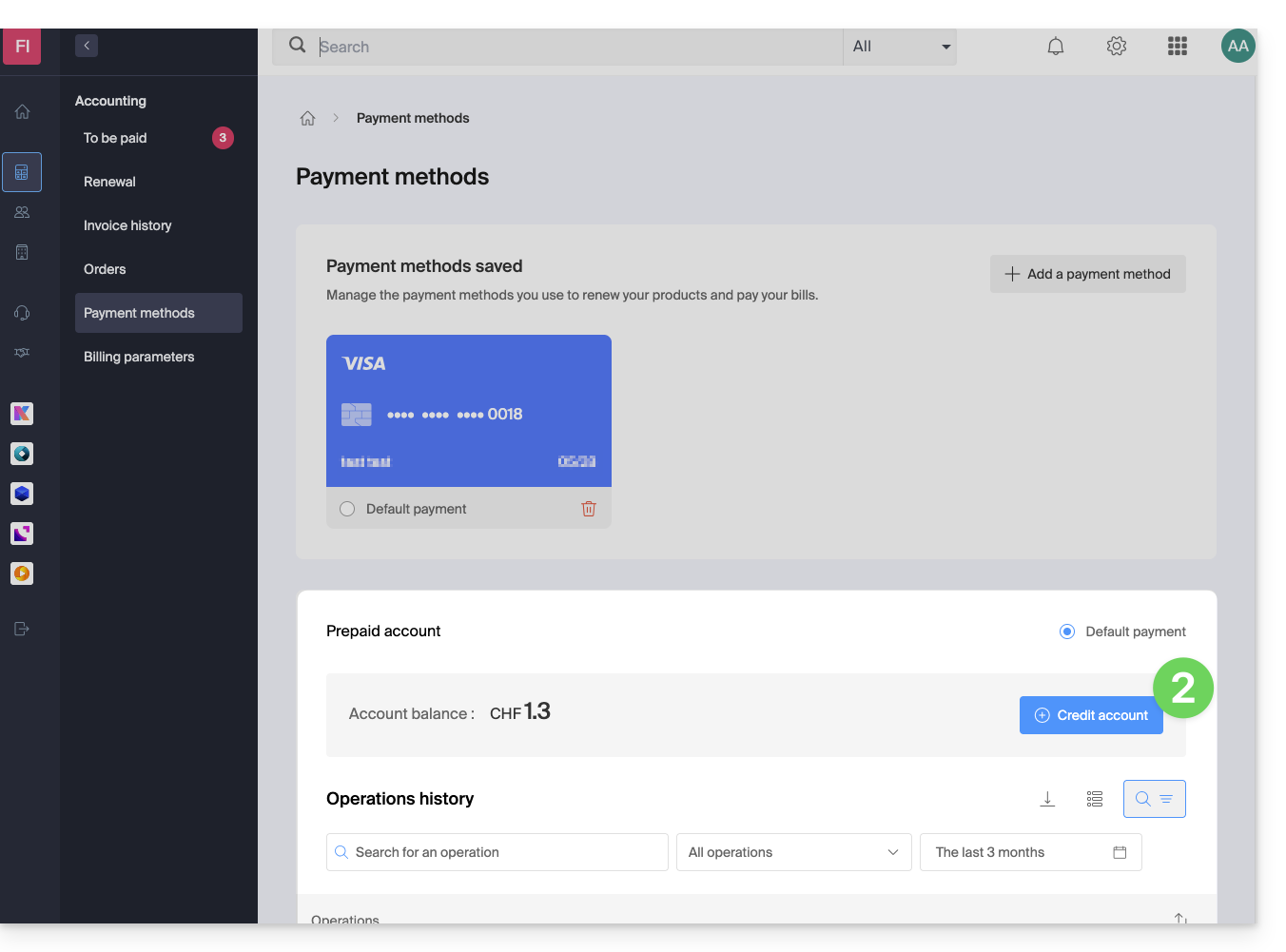
- Enter the amount to credit.
- Follow the on-screen instructions to credit the account using your payment method.
Prepay to pay for a new purchase
When ordering a new product, at the final step, click on the chevron to access other payment methods, including the prepaid account: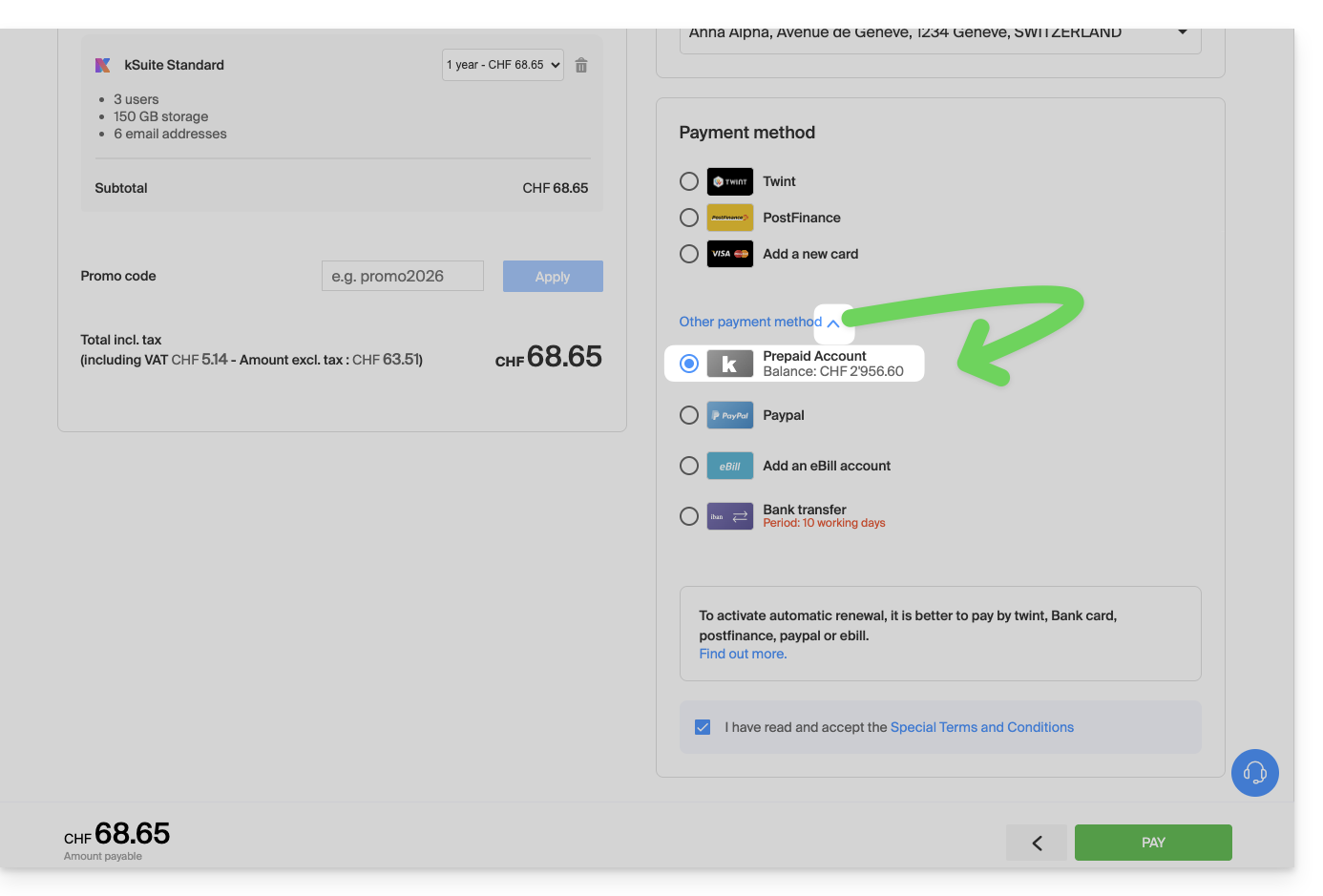
Prepayment to settle an open order
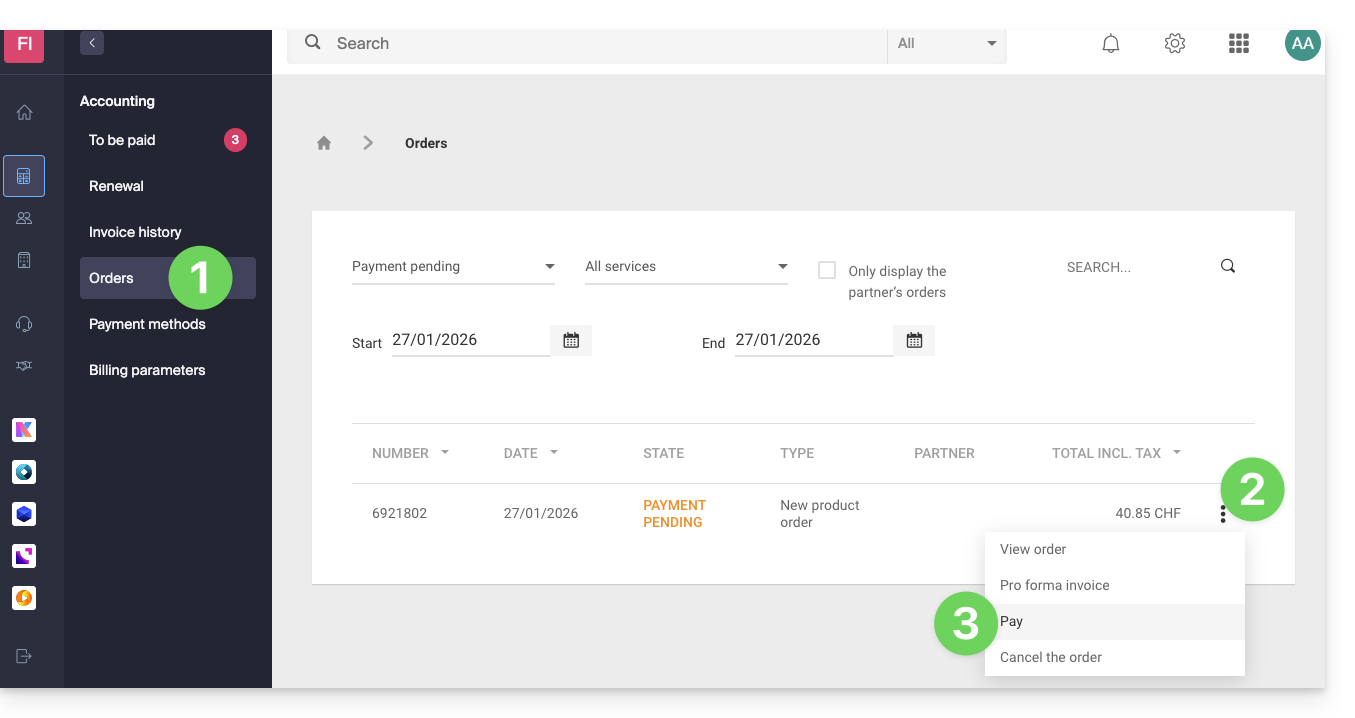
To settle an open order with your prepaid account:
- Click here to access the order management section in the Infomaniak Manager.
- Click on the action menu ⋮ located to the right of the relevant command.
- Choose Pay:
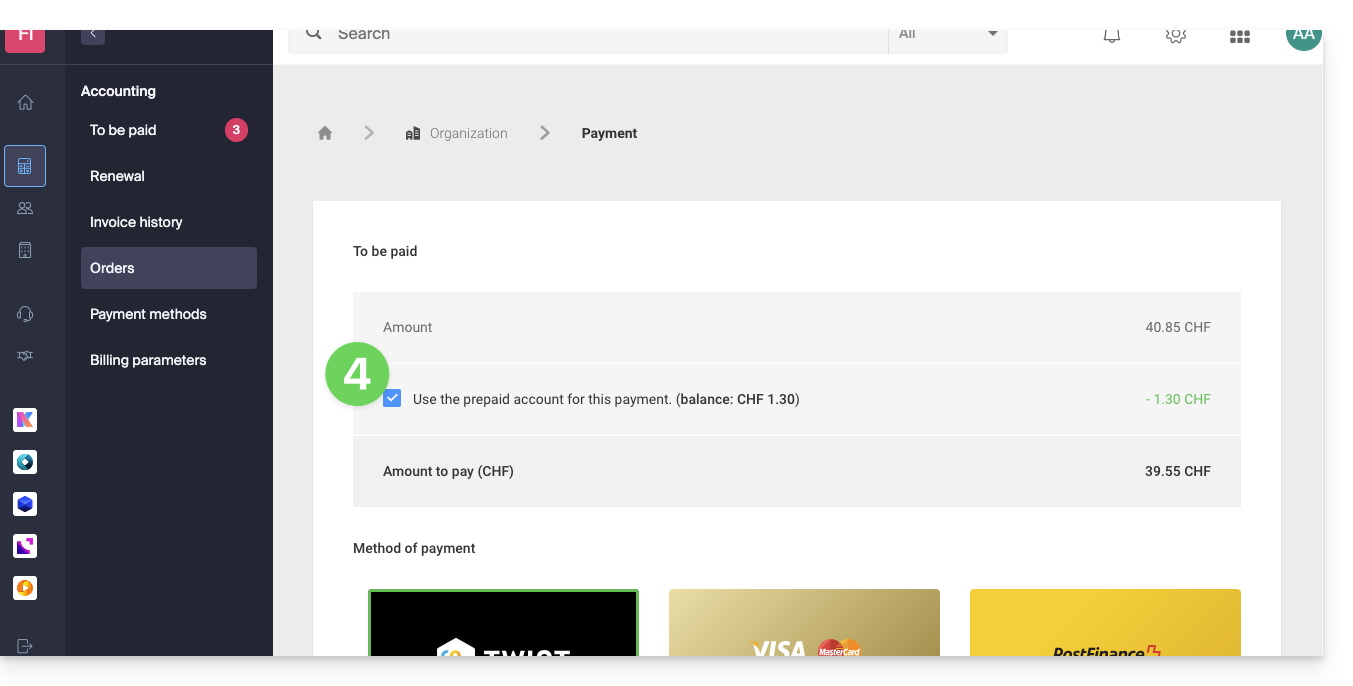
- Choose the prepaid account as your payment method and confirm to complete:
Prepayment to renew a product
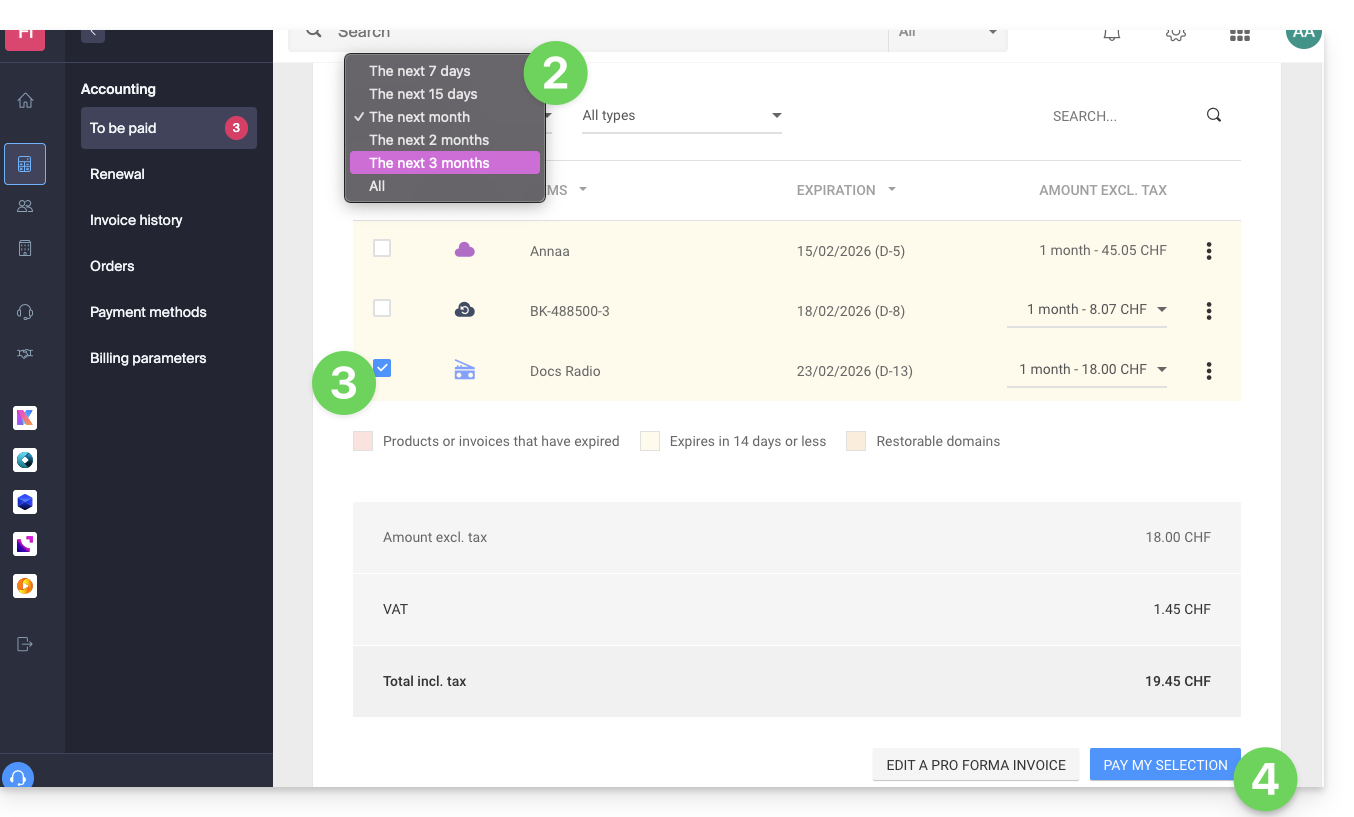
To pay an upcoming invoice for your prepaid account:
- Click here to access the payment management section in the Infomaniak Manager.
- If necessary, click on the date filter (next 2 months) to Show All.
- Select the product(s) to renew.
- Click the button to pay for your selection:
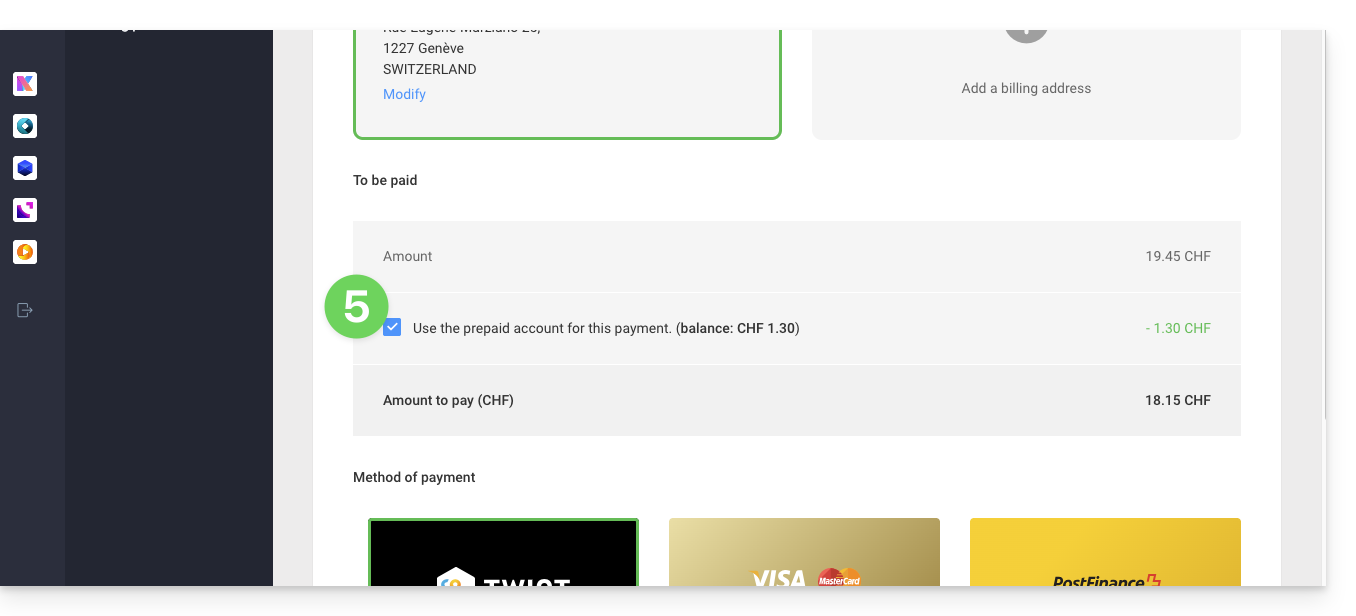
- Proceed to the payment page where you can select the prepaid account as your payment method and confirm to complete:
Automatically renew products
Activate automatic renewal with one click for the products of your choice. This feature ensures that you won't lose a domain name or inadvertently block access to your services. Modify your payment preferences at any time.
Link to this FAQ: https://faq.infomaniak.com/2117
Has this FAQ been helpful?
This guide explains how to modify certain language settings in the Manager and kSuite (Infomaniak Mail app, Calendar, Contacts, etc.).
Change the language of your Infomaniak account
To do this:
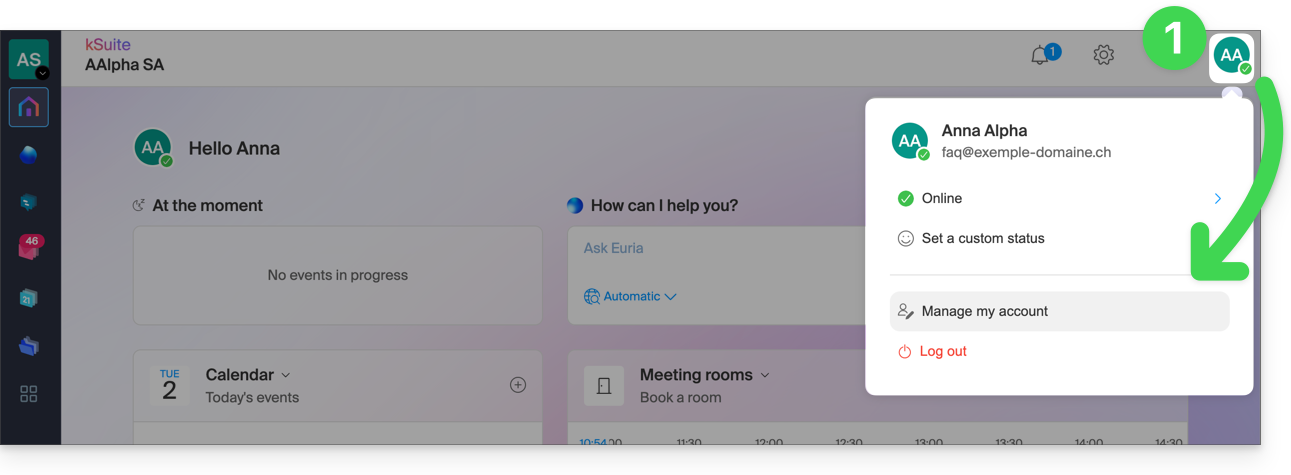
- Click here (or on the badge with your initials/avatar in the top right corner of the Infomaniak Manager) to "Manage my account":
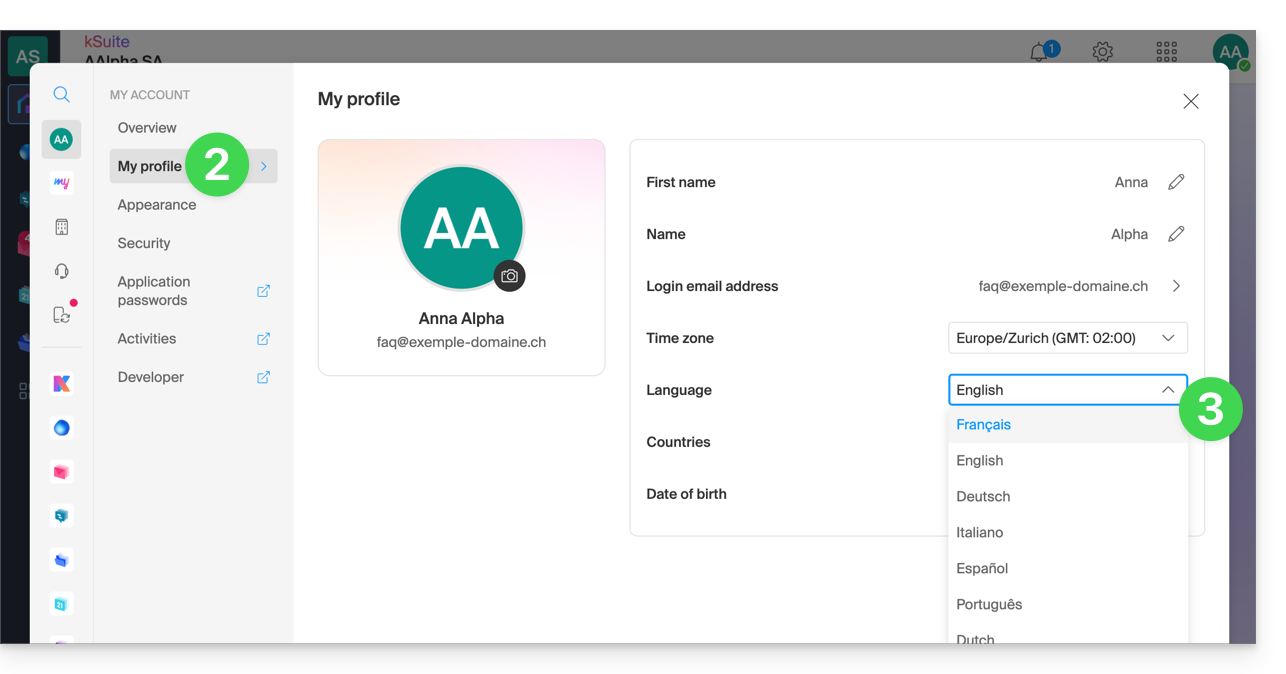
- Click on My profile in the left-hand menu.
- Click on the language dropdown menu to choose from French, English, German, Italian, Spanish, Portuguese, etc.:
Modify your account's regional settings
In the same section, you can set the time zone for your region/country: 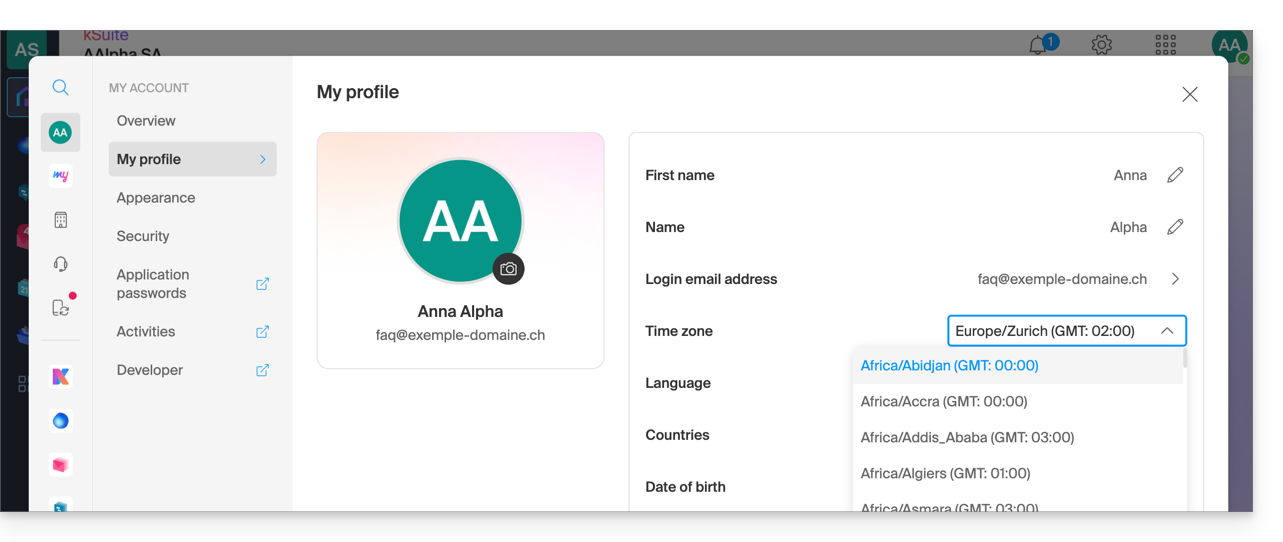
Link to this FAQ: https://faq.infomaniak.com/2144
Has this FAQ been helpful?
This guide explains how to change the email address used to recover access to your Infomaniak account.
Introduction
- If you forget your Infomaniak password, the procedure you can follow includes resetting your password via a link that will be sent to your secondary email address.
- You can specify or change this address in advance by following this guide.
Change your password recovery email address
To change your password recovery email address:
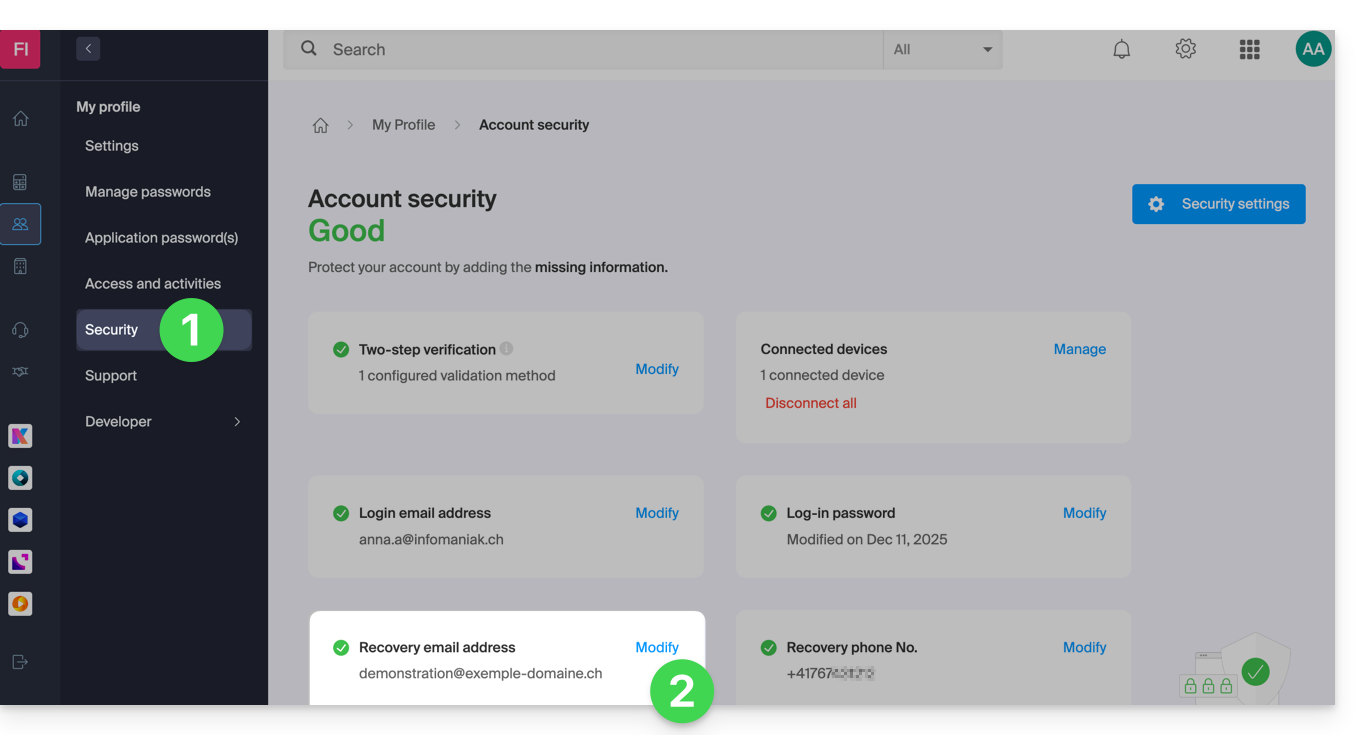
- Click here to access the management of your security information in the Infomaniak Manager.
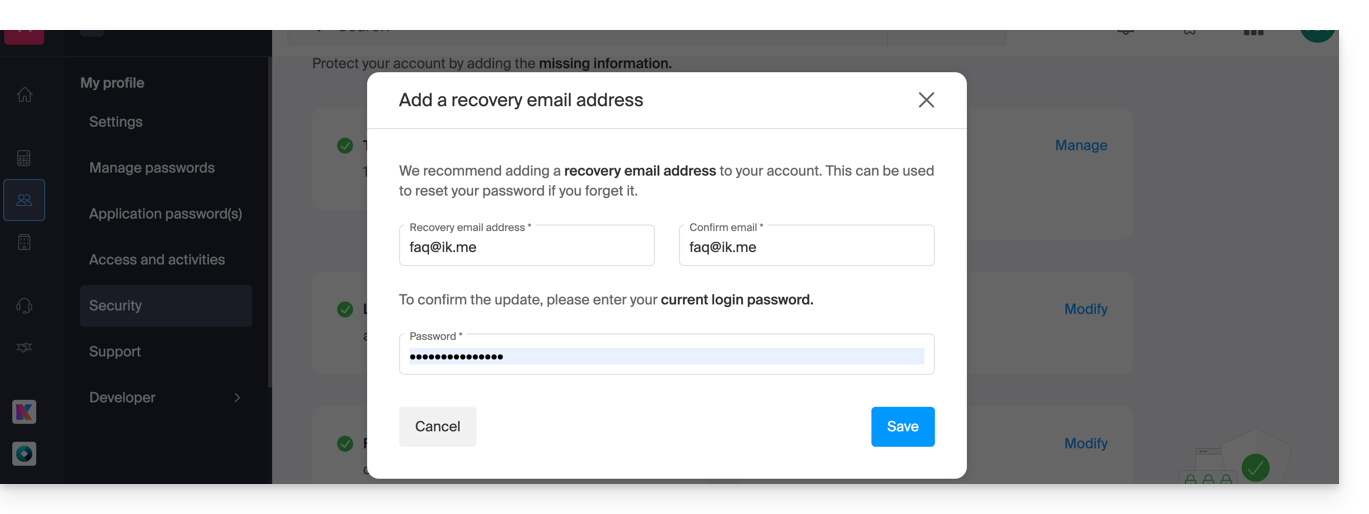
- Click on Edit in the Recovery email box:
- Enter the new recovery email address, then click Save:
- You will then need to confirm the addition of the email address by clicking on the link received in the email following this action.
- You can resend the activation email, or delete the current request, from this window:
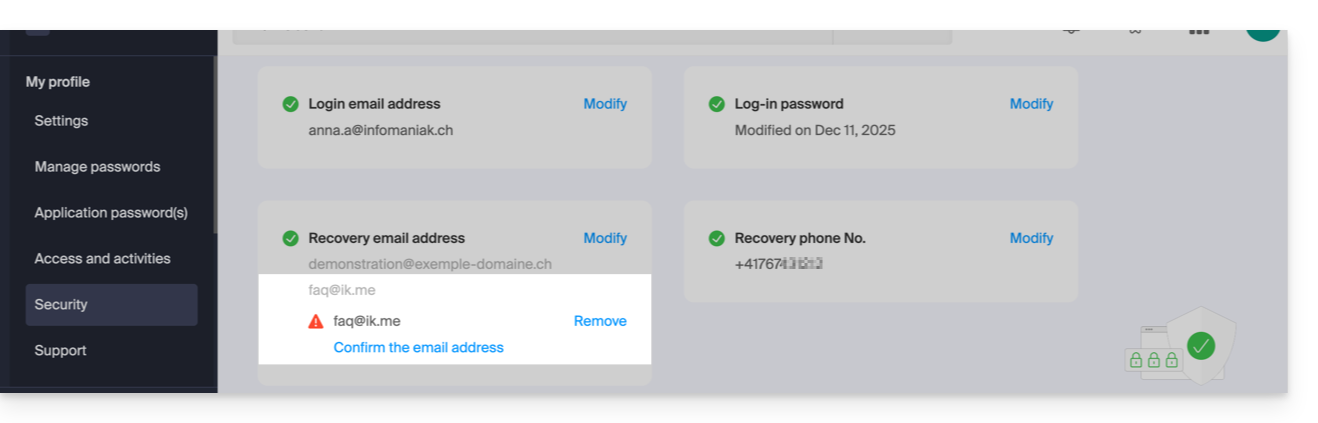
- You can resend the activation email, or delete the current request, from this window:
Link to this FAQ: https://faq.infomaniak.com/2146
Has this FAQ been helpful?
This guide explains how to remove yourself from an Organization to which you belong.
Introduction
- Since you opened your account with Infomaniak, you have been part of at least one Organization.
- If you were the only user and it wasn't an invitation, an Organization was created in your name, and you automatically become its Legal Representative.
- Otherwise, you belong to the Organization that invited you (to join its kSuite, to manage a product, etc.) with a defined role.
- As a user, you can leave any Organization on your own, as long as…
- …this user does not belong to the Organization's kSuite.
- …this user's login address is not within a Mail Service of the Organization.
- …this user is not the last owner of the Organization.
- If the organization in question is your “my kSuite”, please refer to this other guide.
Manage Organizations / Leave an Organization
To view all the Organizations you belong to (because you created them with your Infomaniak account or because you were invited to them) and, if necessary, remove your membership (if you are not the last user or the sole legal representative):
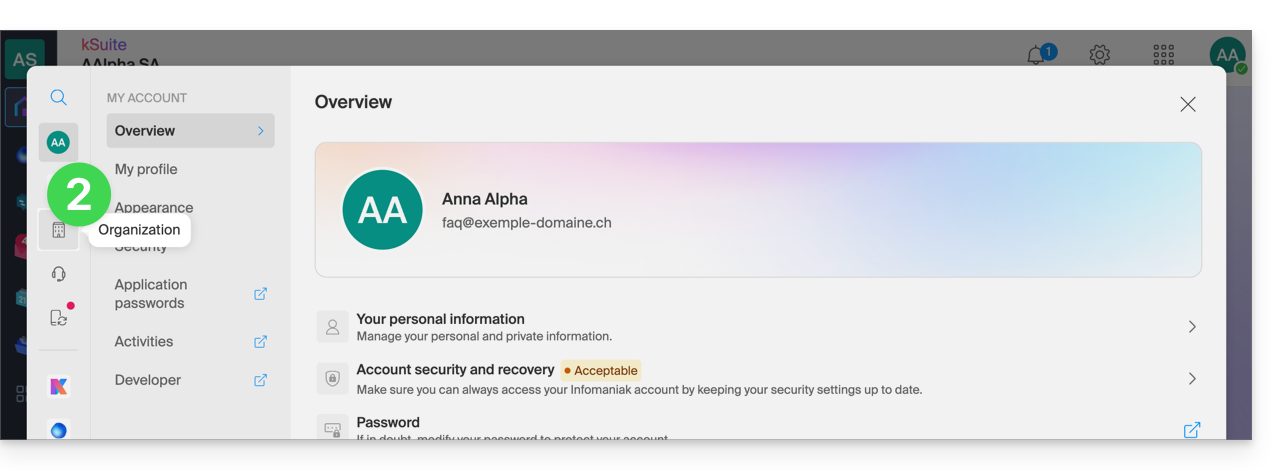
- Click here (or on the badge with your initials / avatar in the top right corner of the Infomaniak Manager) to "Manage my account":
- Click on Organizations in the left-hand menu:
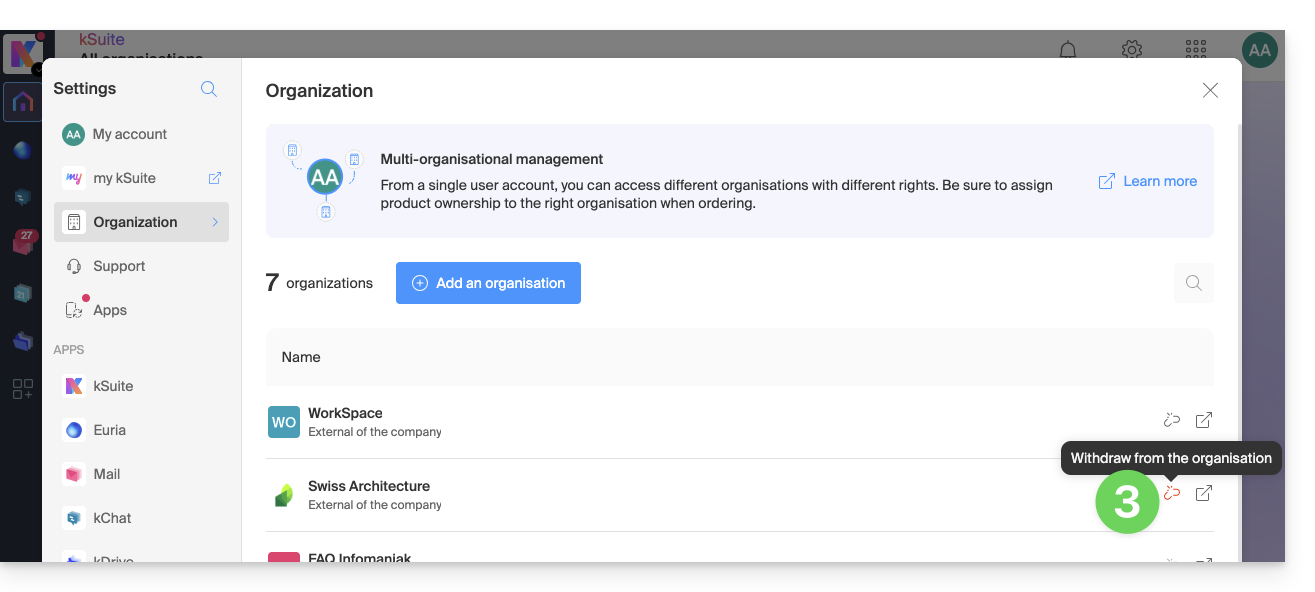
- Click on the non-grayed-out icon to the right of the Organization name to leave it, or hover over the icon if it is grayed out to see why you cannot detach from it:
Link to this FAQ: https://faq.infomaniak.com/2173
Has this FAQ been helpful?
This guide explains how to delete an Infomaniak Organization.
Introduction
- The Organization must be empty of all products and users other than yourself.
- This will not delete your user account.
- As a reminder, you can create multiple Organizations (i.e., a space for managing your products) and be a user of several of them, for example, to manage different products belonging to different entities; an administrator can delete one of them.
- If the organization in question is your “my kSuite”, please refer to this other guide.
- If you simply want to leave an organization where you are listed as a user, please refer to this other guide.
Delete the Organization
Prerequisites
- Cancel all products within the Organization.
- The services contained in the Organization can be stopped during the deletion process.
- Pay outstanding invoices.
- Invoices that have already been paid can be obtained by email during the deletion process.
- Remove other users who have access to the Organization.
- Withdraw the funds from the Infomaniak prepaid account.
To delete an Organization that you still have access to:
- Click here to access the management of your Organization in the Infomaniak Manager.
- Make sure you have selected the correct Organization.
- If not, switch to another Organization!
- Click on Delete Organization:
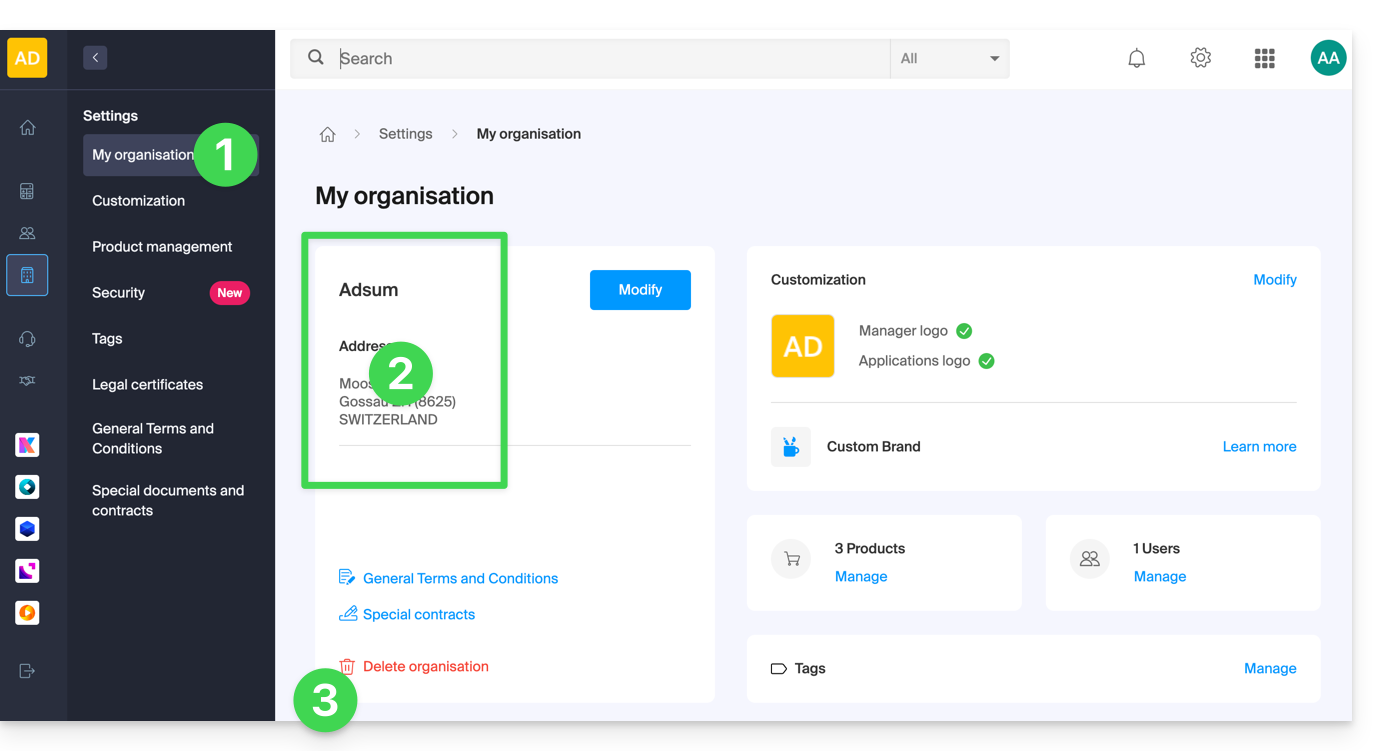
- Confirm the deletion and/or read the explanations on the screen:
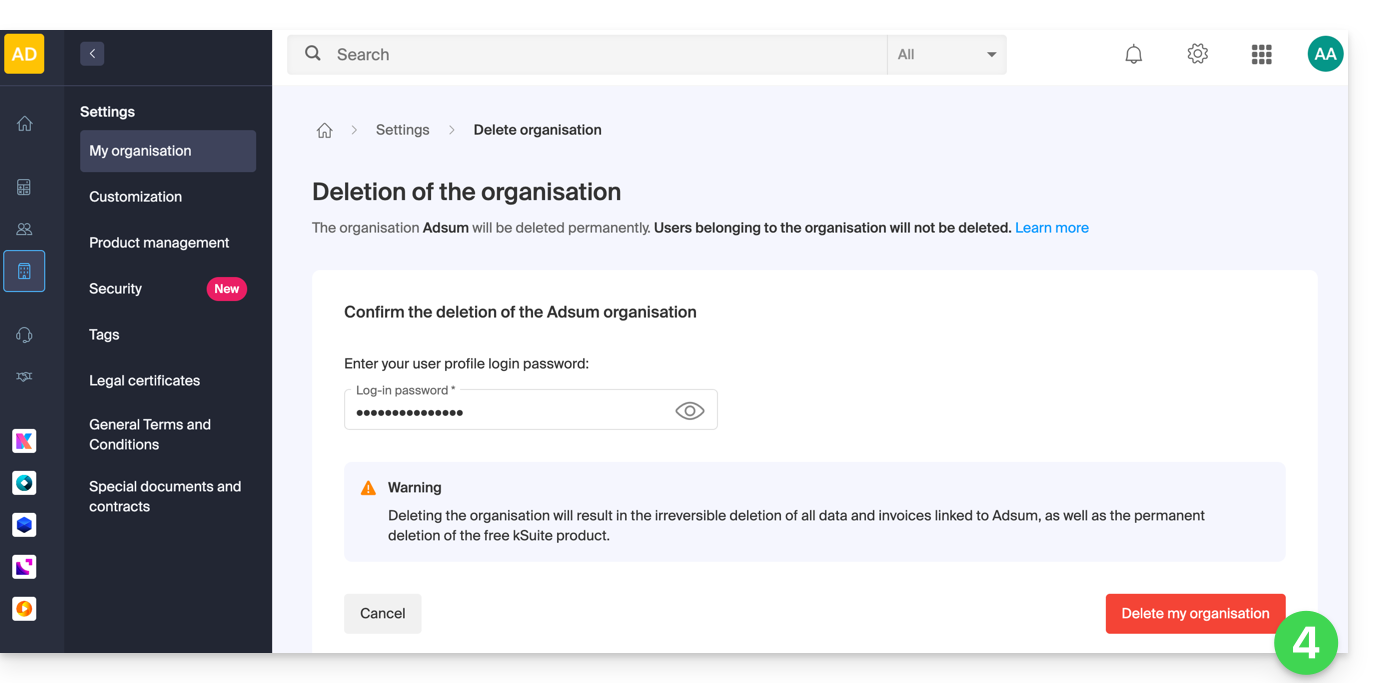
If the red link is not displayed, make sure you have met all of the above requirements.
Link to this FAQ: https://faq.infomaniak.com/2191
Has this FAQ been helpful?
This guide explains how to require users in your Organization to enable the two-factor authentication (2FA) feature, and then verify that it remains enabled.
Introduction
- Every Infomaniak user can enable two-factor authentication for access to their account, which significantly increases the security of all the Organization's services...
- A legal representative can require this activation, otherwise the user will no longer be able to access the Manager and web apps.
- Access to desktop apps (desktop application on macOS / Windows / Linux) and mobile apps (application for iOS / Android smartphones or tablets) will always be possible without 2FA.
- It is recommended to inform the users of your Organization in advance, so that they can continue to use the services.
- If an external user does not wish to perform the action requested by an organization administrator, they can choose to leave the organization instead of enabling it.
Identify and prevent users without 2FA
You can easily identify and contact people who have not yet enabled this security feature on their account:
- Click here to access the user management section for your Organization.
- If necessary, enable the Security column:
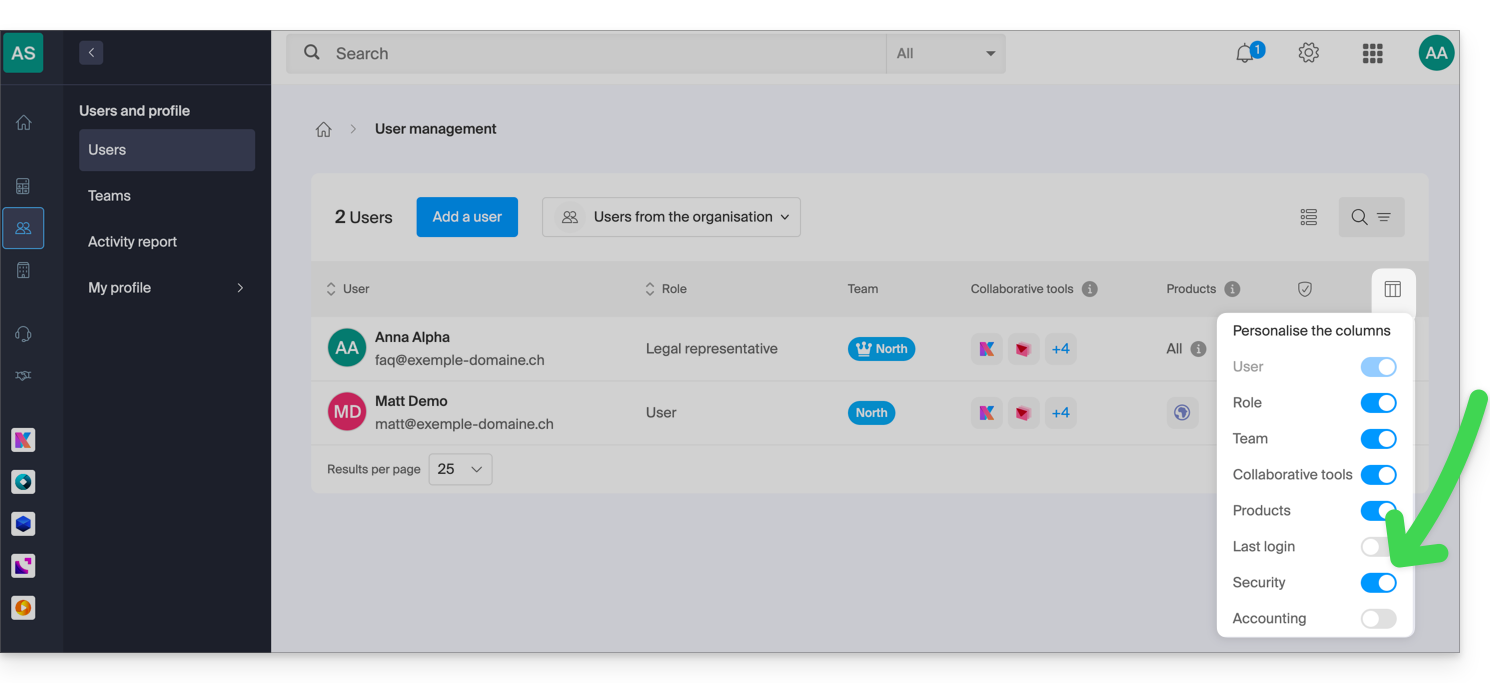
- In this Security column, the red symbol indicates that 2FA is not enabled:
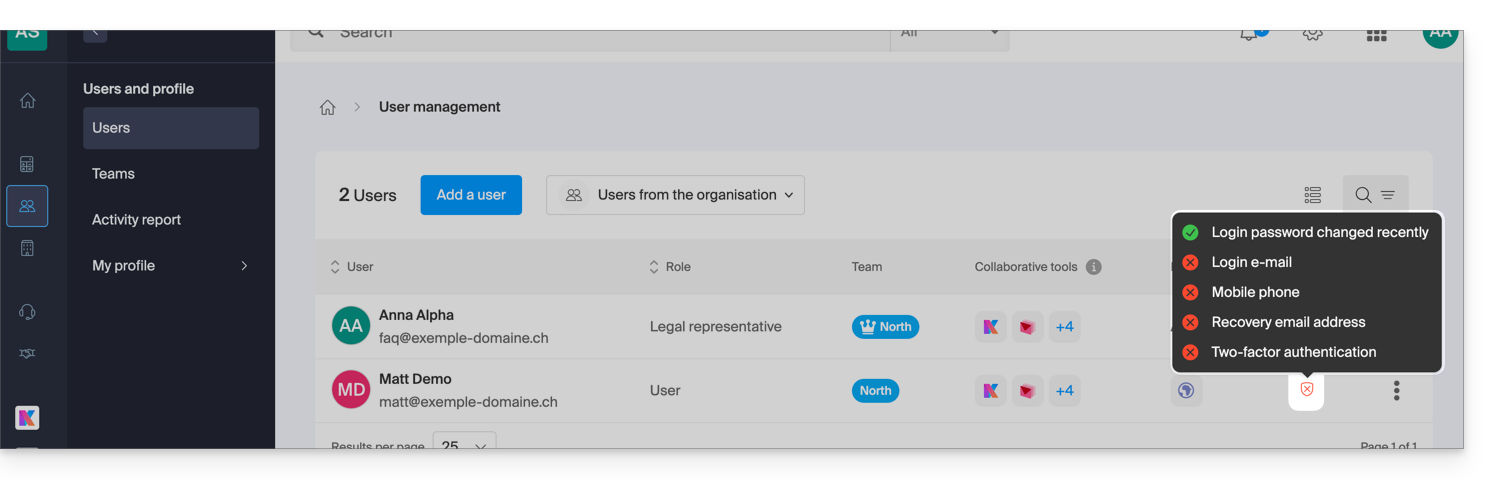
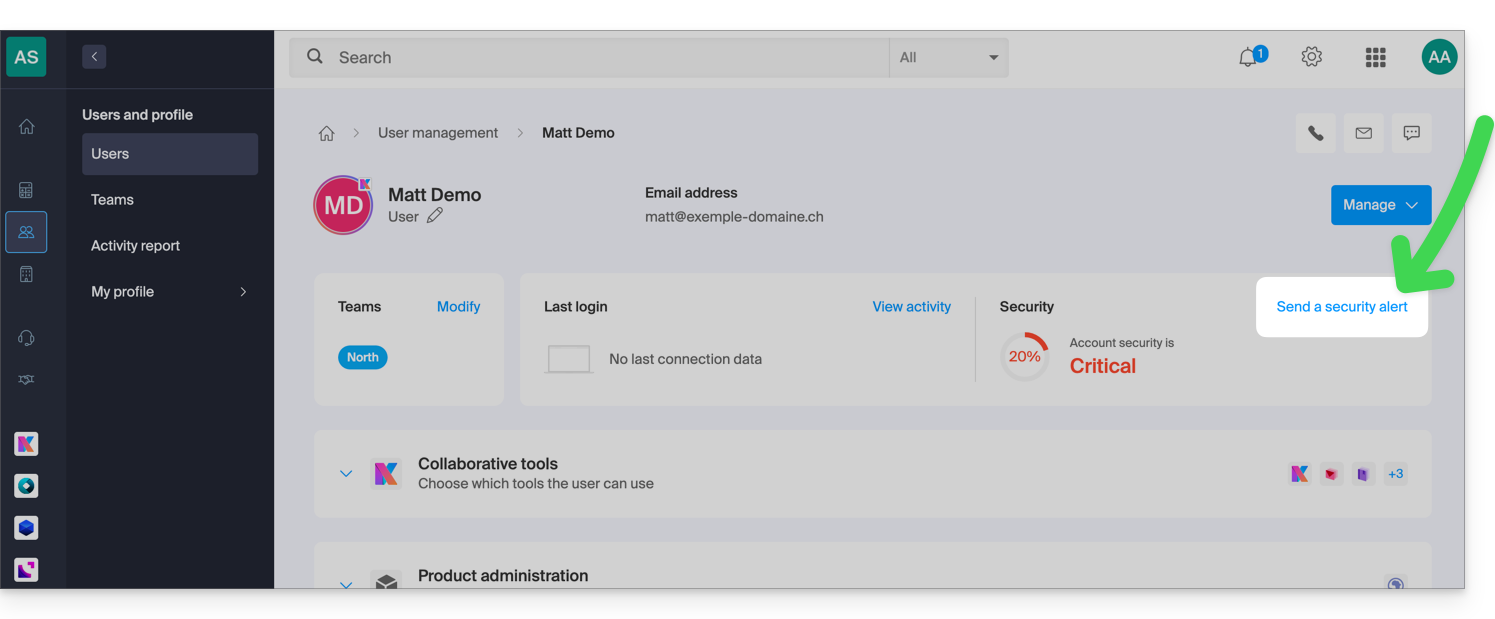
- Click on the user in question to access the alert sending feature:
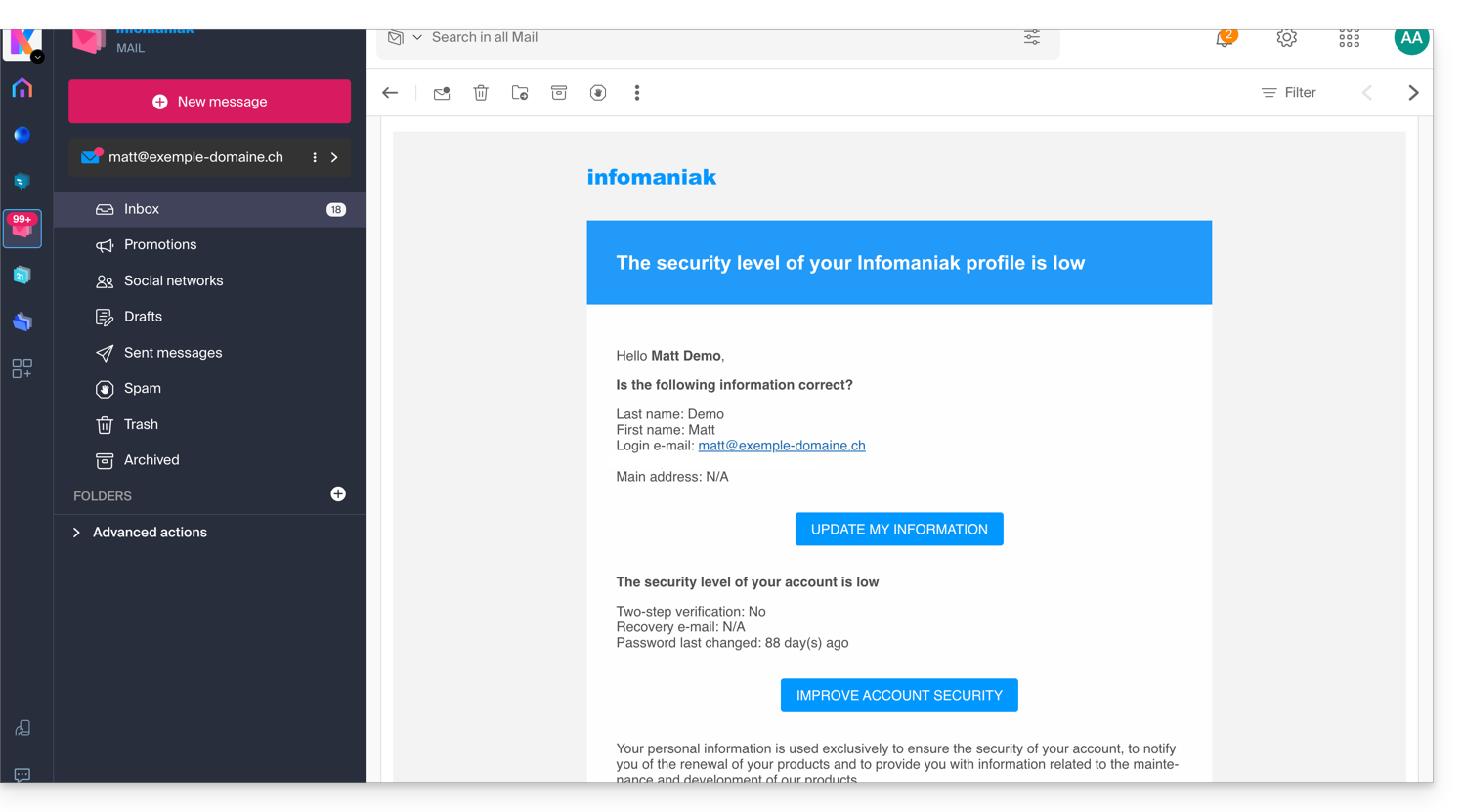
- After your confirmation, an alert email will be sent from a no-reply address to the user in question:
Require 2FA activation
Prerequisites
- Be an Administrator or Legal Representative within the Organization.
To access the settings:
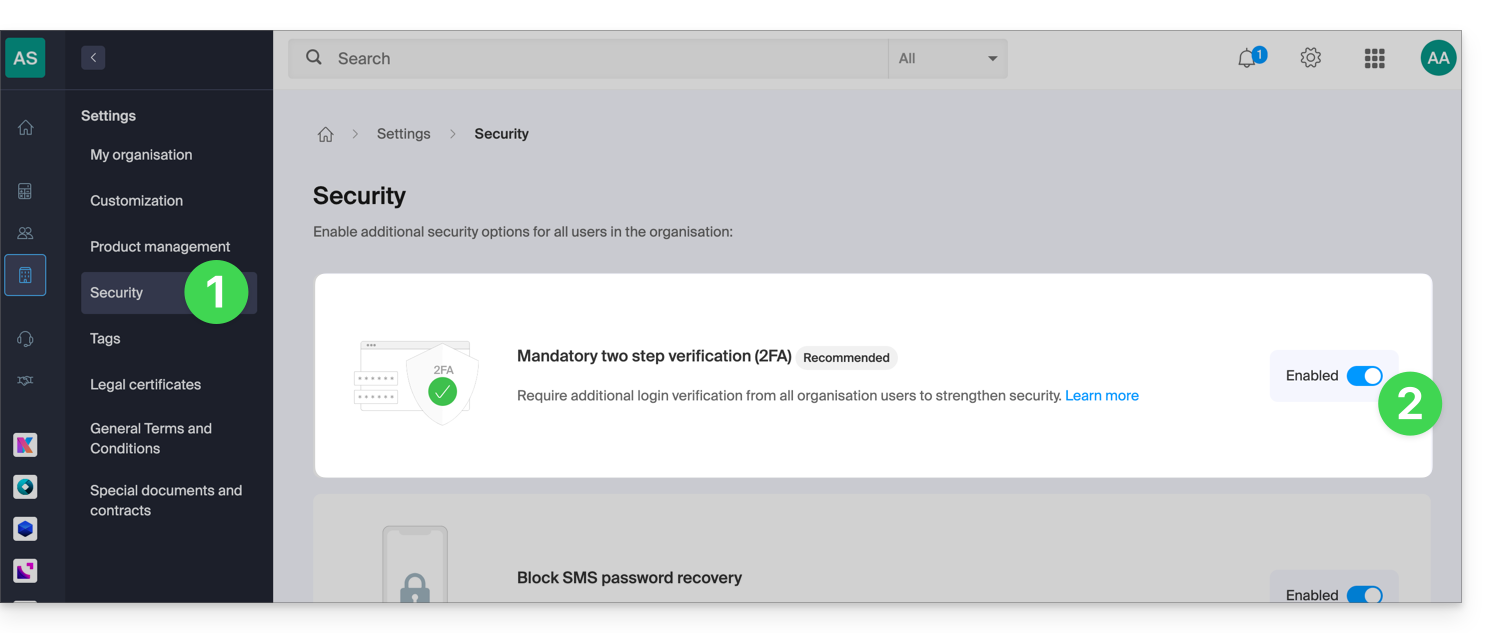
- Click here to access the organization's security management settings in the Infomaniak Manager (need help?).
- Click the toggle switch to enable a requirement for all users in the organization to undergo an additional login verification:
- Confirm the activation of the feature in the window that appears.
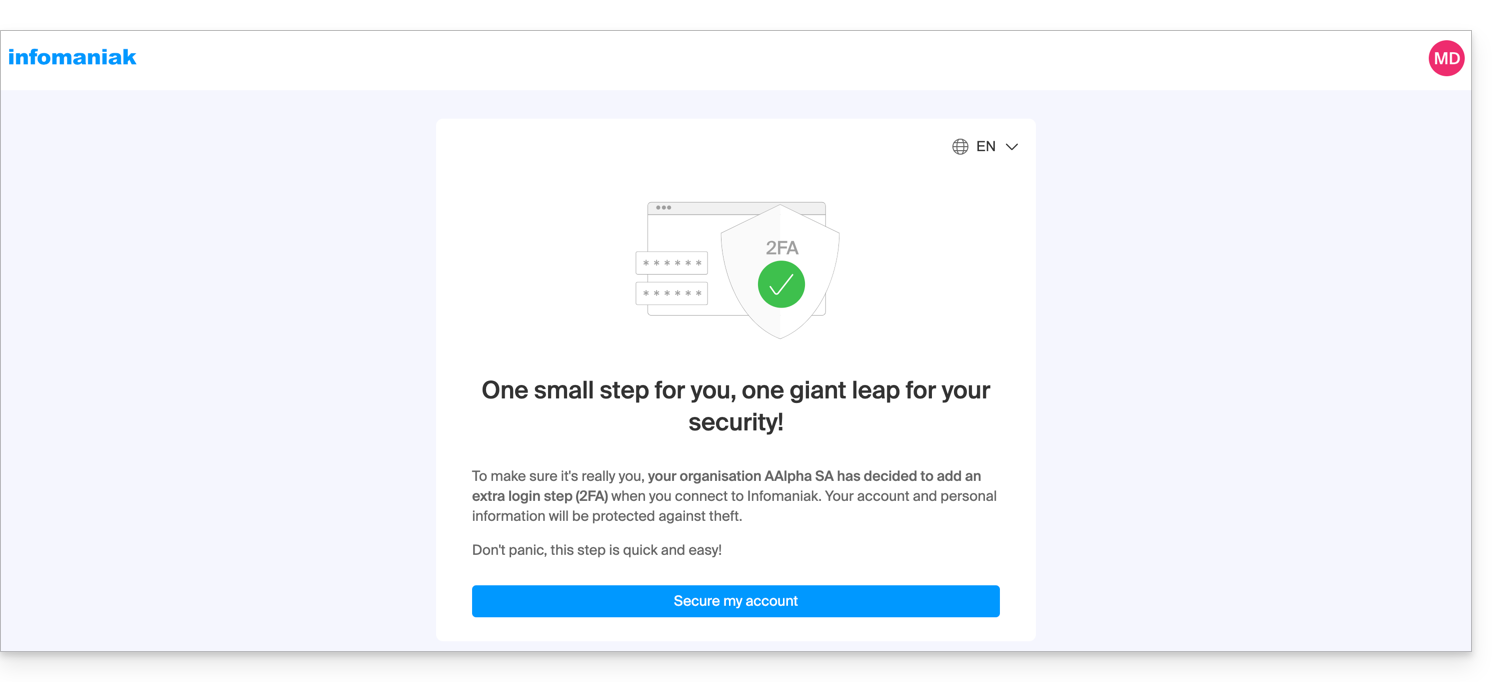
- Once the feature is activated, users in the Organization who have not yet activated 2FA will receive a message (the next time they perform an action on their account) prompting them to configure an additional authentication method from the available options and preventing them from performing any other action until they do so:
Link to this FAQ: https://faq.infomaniak.com/2192
Has this FAQ been helpful?
This guide explains how to view and modify the login ID for your user account in the Manager, the management interface and dashboard for your Infomaniak products. This same ID also allows you to log in to Mail Infomaniak and various iOS/Android applications such as kDrive, Infomaniak Mail, etc.
Introduction
- To manage your Infomaniak account details, please refer to this other guide.
- To change your phone number, please refer to this other guide.
- To manage the details of the Organization you belong to, please refer to this other guide.
View the currently logged-in ID
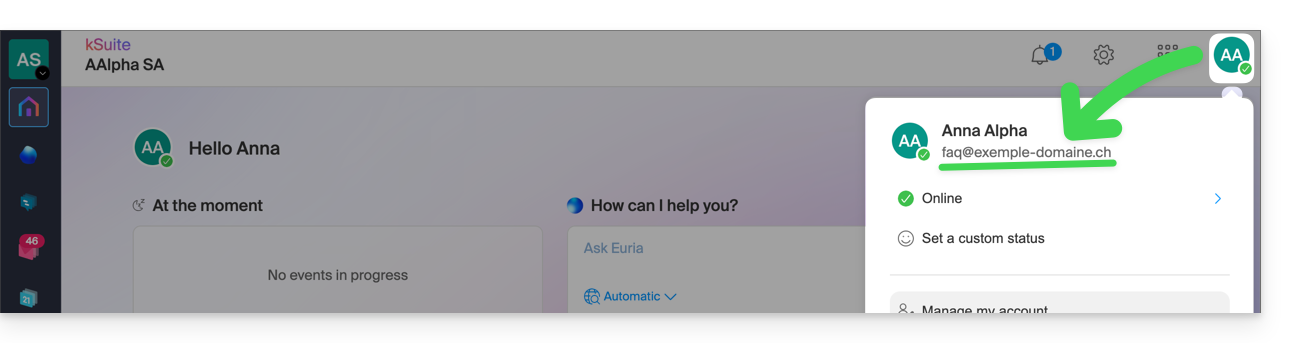
The email address used for the current login is displayed in your user menu + on the profile page:
- Click on the badge with your initials/avatar in the top right corner of the Infomaniak Manager to note the login ID currently in use:
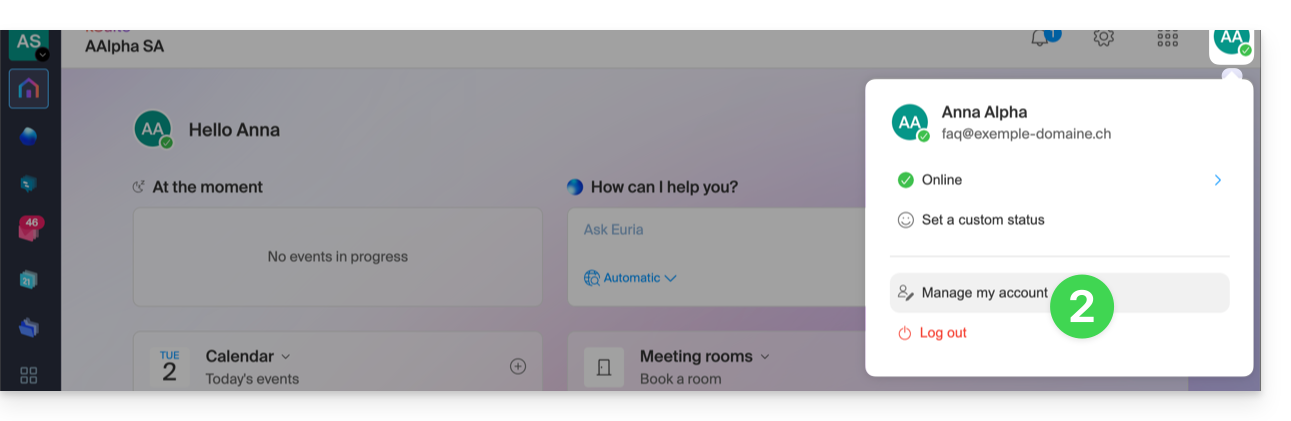
- Click on Manage my account just below to access your profile management in the Infomaniak Manager:
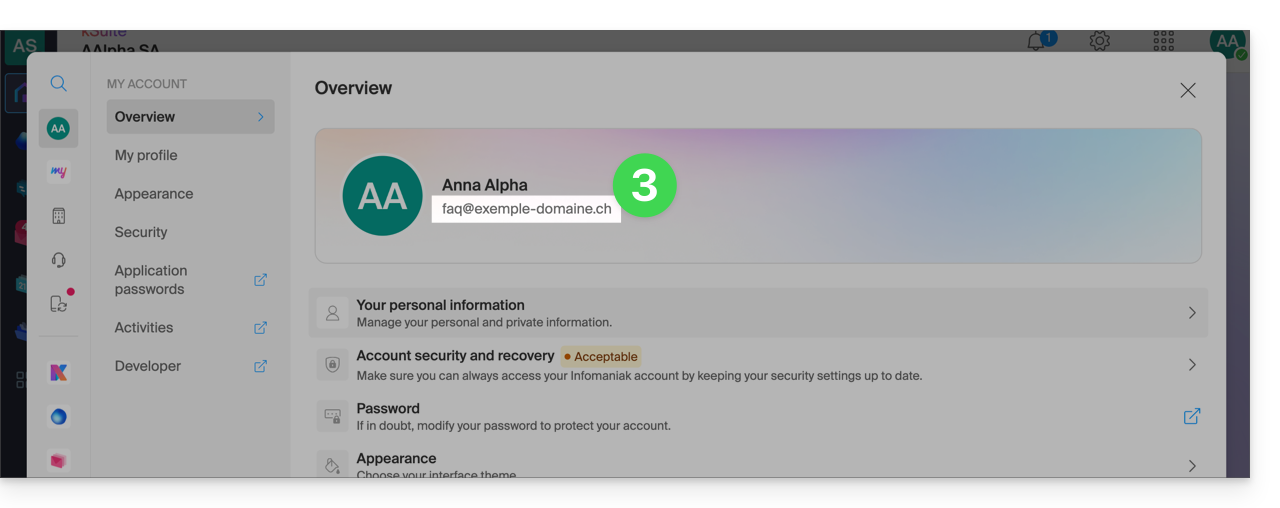
- Your current login ID is also displayed on the page:
Change the identifier (login email)
Prerequisites
- The login ID is an email address that must exist and that you must be able to access.
- The new email address must be different from the recovery email address.
- The new email address must not already be used as a login ID for another user account (if this is the case, you should first invite the user to the Organization to grant them all the necessary rights, and then you can remove the old account with the old login ID).
To change the login ID for your Infomaniak account:
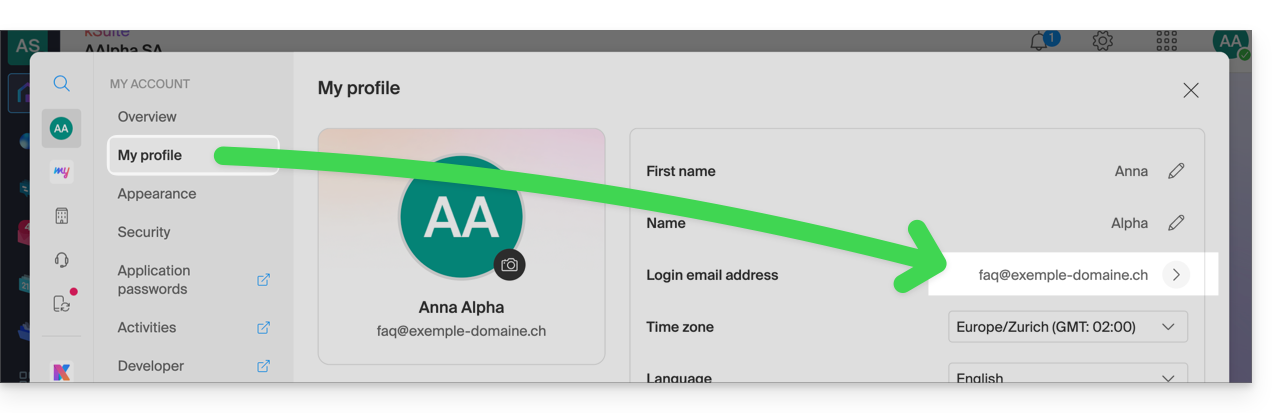
- Click here (or on the badge with your initials/avatar in the top right corner of the Infomaniak Manager) to "Manage my account":
- From the My profile menu, click on your login email address:
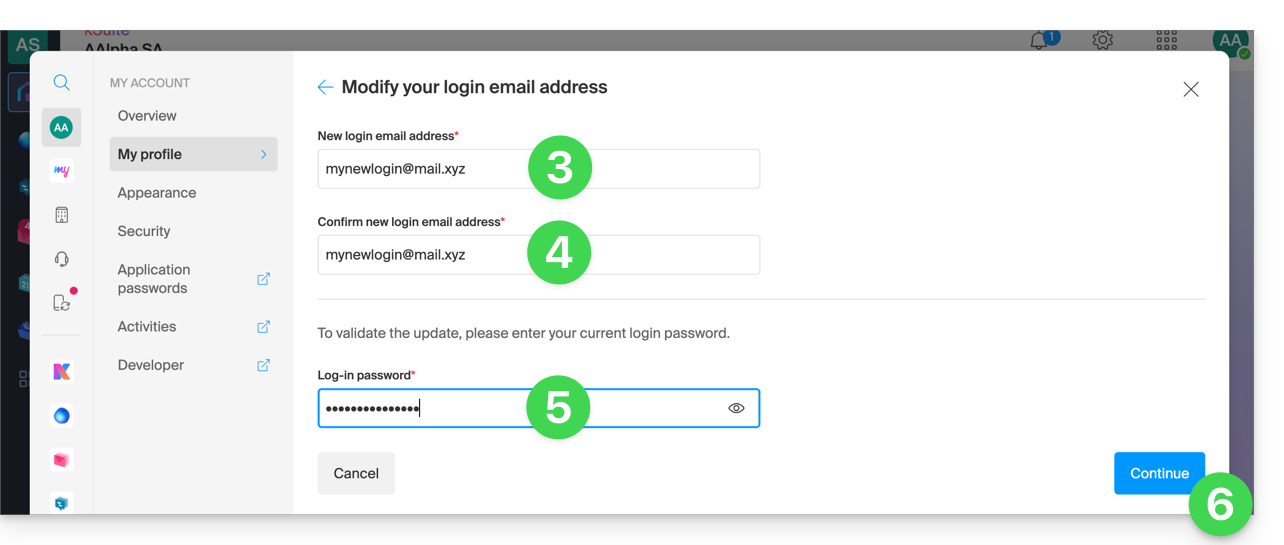
- Enter a new email address for login.
- Confirm your new address by entering it again.
- Enter the login password for your Infomaniak account.
- Click on Continue:
Link to this FAQ: https://faq.infomaniak.com/2193
Has this FAQ been helpful?
This guide explains how to modify the kSuite plan.
Introduction
- kSuite is a bundled offer that can be upgraded to a higher tier at any time (increase the number of users and the storage space for data).
- It is not possible to switch to a lower-priced plan later, nor to transfer kSuite to another Organization.
- The products included in kSuite cannot be moved or cancelled independently of each other.
- To help you identify the kSuite offer that best suits your needs, please refer to this other guide.
Modify the kSuite plan
To access the kSuite plan modification:
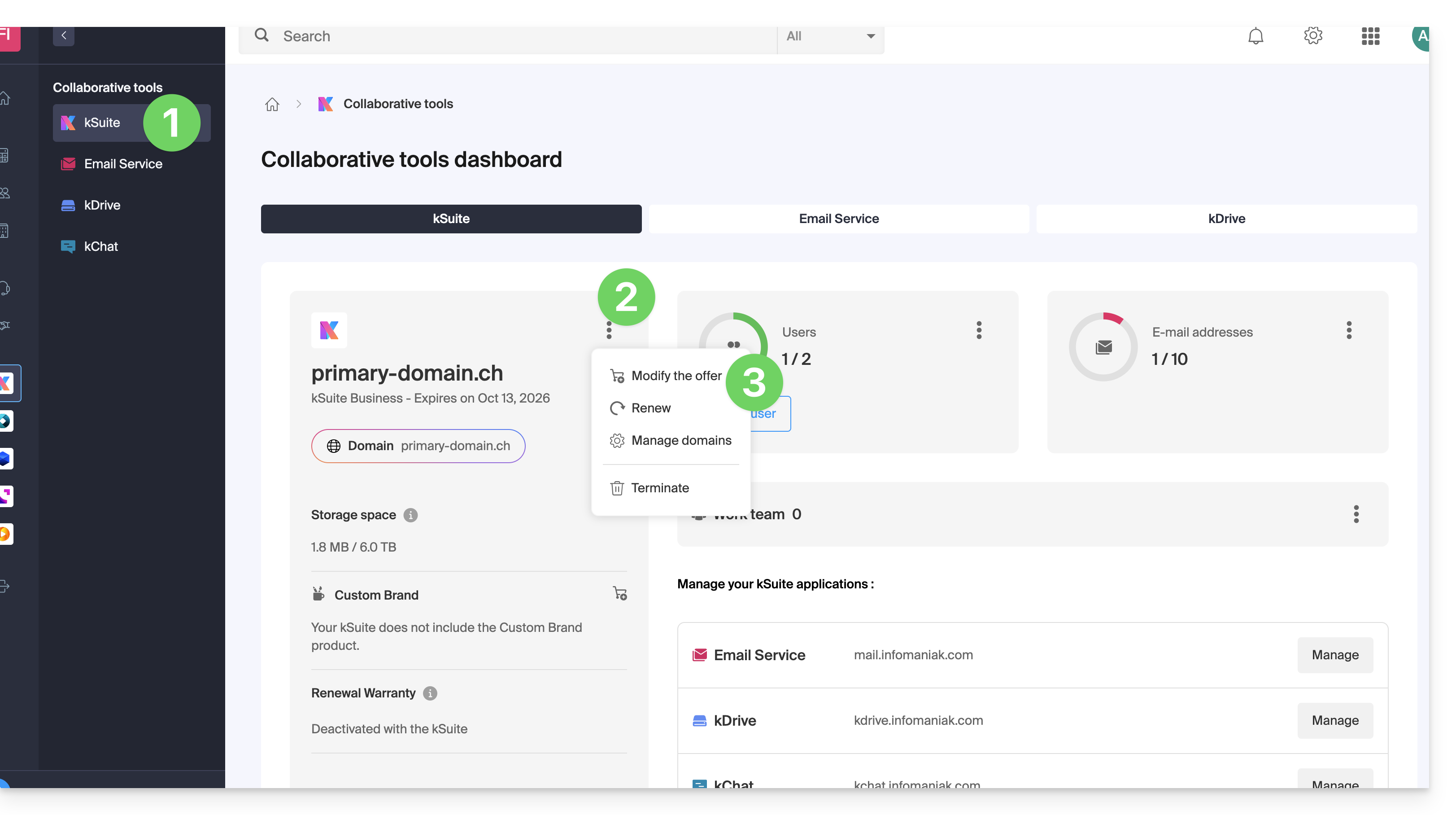
- Click here to access your product management in the Infomaniak Manager (need help?).
- Click on the action menu ⋮ to the right of the kSuite name.
- Click on Modify offer:
Link to this FAQ: https://faq.infomaniak.com/2197
Has this FAQ been helpful?
This guide explains how to pay for all your Infomaniak services at once, even in advance and even for several years (if available for the type of product to be paid).
Group products on a single invoice
To group and pay for all future product renewals in one go:
- Click here to access payment management on the Infomaniak Manager (need help?).
- Access requires authentication with a user who has sufficient rights.
- If necessary, click on the date filter (next 2 months) to Show all:

- Select the products to group.
- Click the Pay my selection button:

- Choose a payment method and complete the procedure (choose IBAN to obtain a Pro Forma invoice before payment).
Renew products for several months/years
Some products (domain names with the .ch extension, for example) can also be paid/renewed for several months or years, in advance:
- Click here to access payment management on the Infomaniak Manager (need help?).
- If necessary, click on the date filter (next 2 months) to Show all.
- Select the products to group.
- Choose the desired period (when available - depending on the type of product) using the dropdown menu located to the right of the item concerned:
- Click the Pay my selection button and complete the procedure.
Generate or print a PDF invoice
Refer to this other guide if you are looking for information about invoices.
Link to this FAQ: https://faq.infomaniak.com/2212
Has this FAQ been helpful?
This guide explains how to manage your Infomaniak Newsletter subscriptions based on the topics you are interested in.
Modify your Infomaniak news subscriptions
To select Infomaniak topics and receive newsletters based on them:
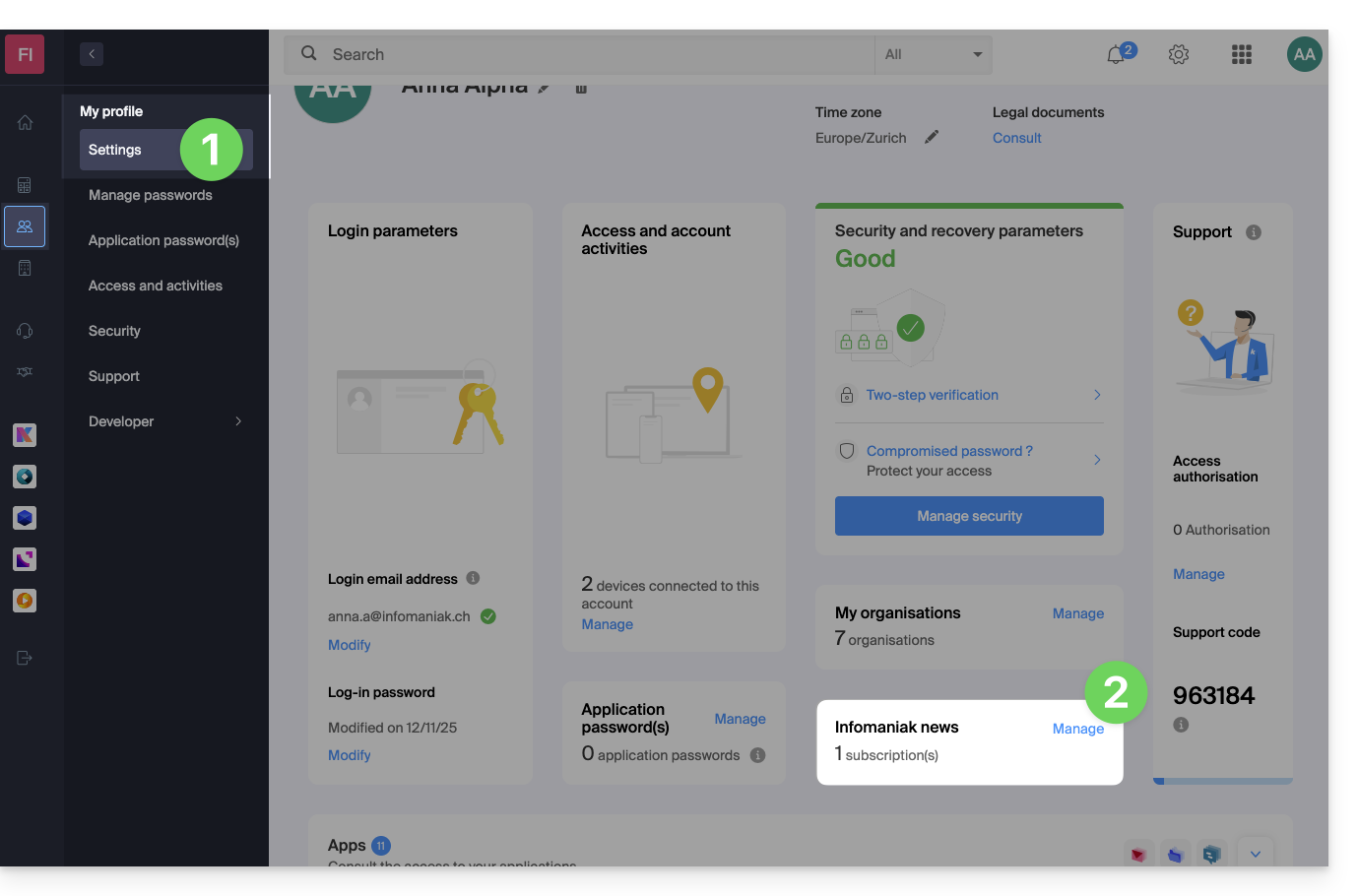
- Click here to access your settings management (Infomaniak Manager).
- Click on Manage (in the Infomaniak News box):
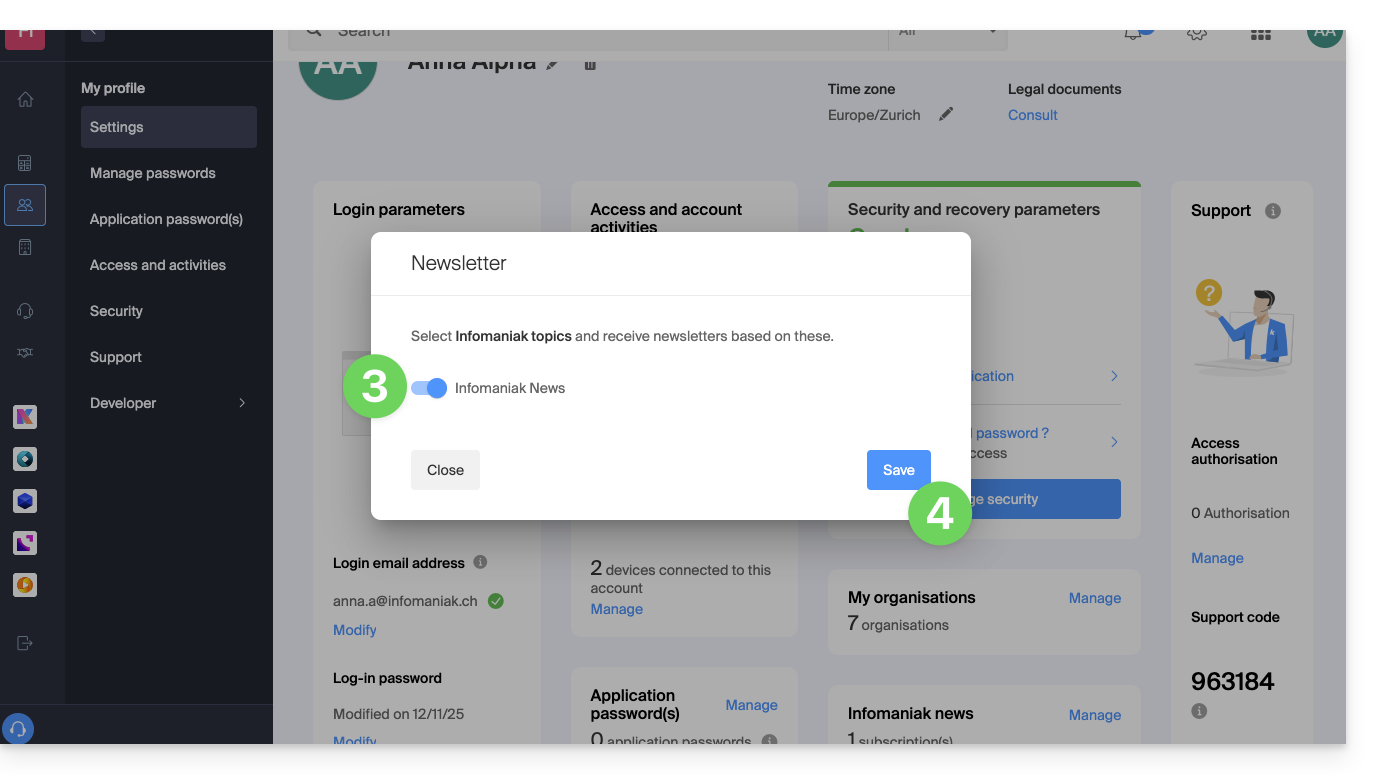
- Click on the toggle switch to the left of the news items to subscribe or unsubscribe.
- Click on Save:
You can also find Infomaniak News on https://news.infomaniak.com!
Link to this FAQ: https://faq.infomaniak.com/2228
Has this FAQ been helpful?
This guide explains how to create an Infomaniak account, which is your user account (customer account) that allows you to use Infomaniak services such as the Mail app or kDrive, order additional services, and be linked to one or more Organizations to collaborate effectively within the Infomaniak ecosystem.
Create a new Infomaniak account
To be able to order and manage Infomaniak products (including in cases where a user wishes to transfer existing products to you) within one or more Organizations, it is necessary to create a first Infomaniak account with a brand new login ID:
- Click here to register; you will need to enter a valid email address to receive the mandatory verification request.
- Fill in the required information and complete the registration.
To simply obtain a my kSuite / my kSuite+ account (ik.me, etik.com, ikmail.com), click here to register.
Link to this FAQ: https://faq.infomaniak.com/2232
Has this FAQ been helpful?