Knowledge base
1000 FAQs, 500 tutorials and instructional videos. Here, there are only solutions!
This guide explains how to link a domain name managed by Infomaniak to a Google Sites offer.
Introduction
- A website created on Google cannot be exported to be hosted on third-party servers, such as Infomaniak's servers.
- It is therefore recommended to create the website directly with Infomaniak using Site Creator or WordPress.
Connect Google Sites to your Infomaniak domain name
To configure your domain in Google Sites:
- Create or prepare your website on Google Sites.
- In the Google Sites settings, go to the "Use a custom domain" option.
- Add your custom domain.
Google will then ask you to verify your domain via DNS records (delete any old A and CNAME records if necessary, then add the new ones):
A Records
In order to achieve the result requested by Google, for example, 4 different IP addresses…
- Host:
@points to:216.239.32.21 - Host:
@points to:216.239.34.21 - Host:
@points to:216.239.36.21 - Host:
@points to:216.239.38.21
… create “A” type records with these IP addresses as the target:
- Click here to access your domain management in the Infomaniak Manager (need help?).
- Click directly on the name assigned to the domain in question.
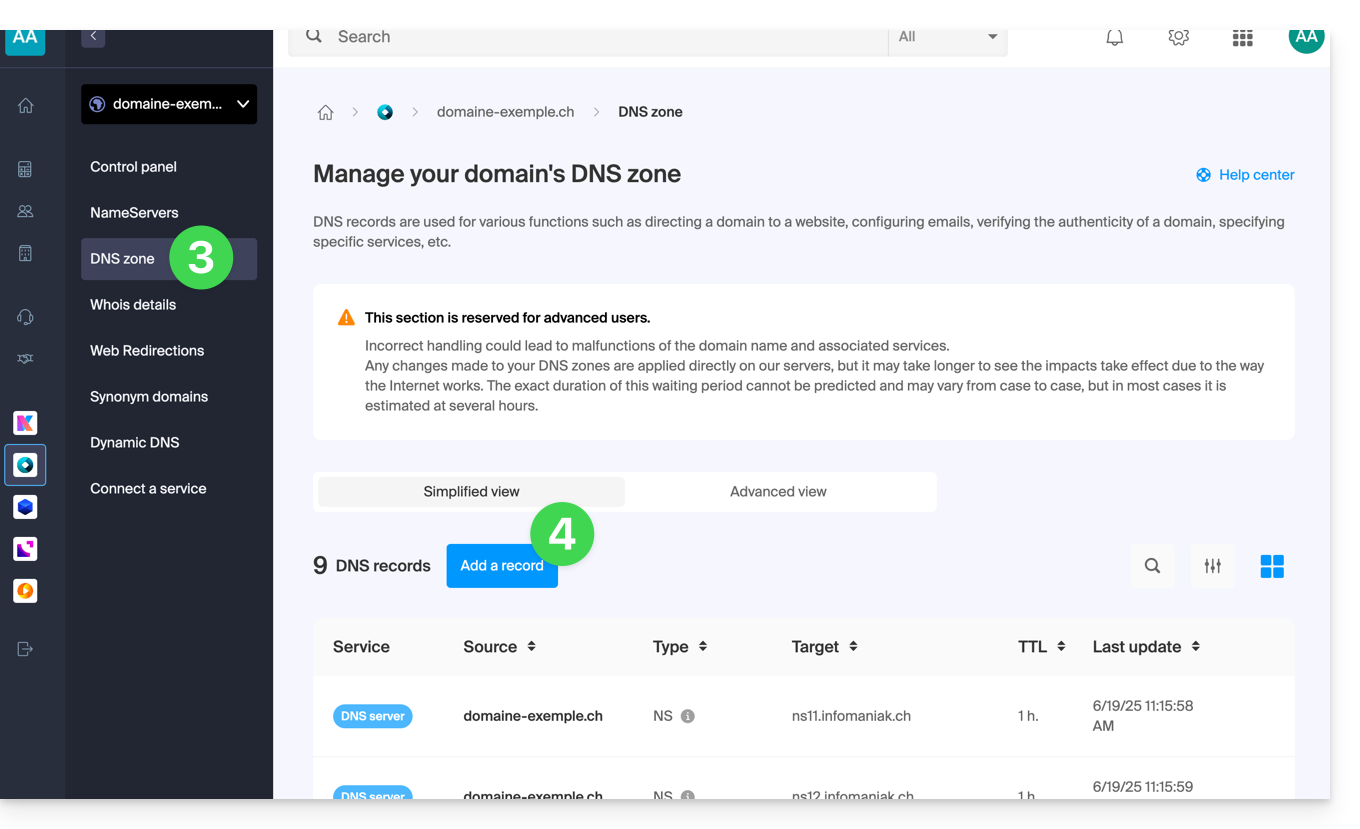
- Click on DNS Zone in the left-hand menu.
- Click on the blue Add entry button:
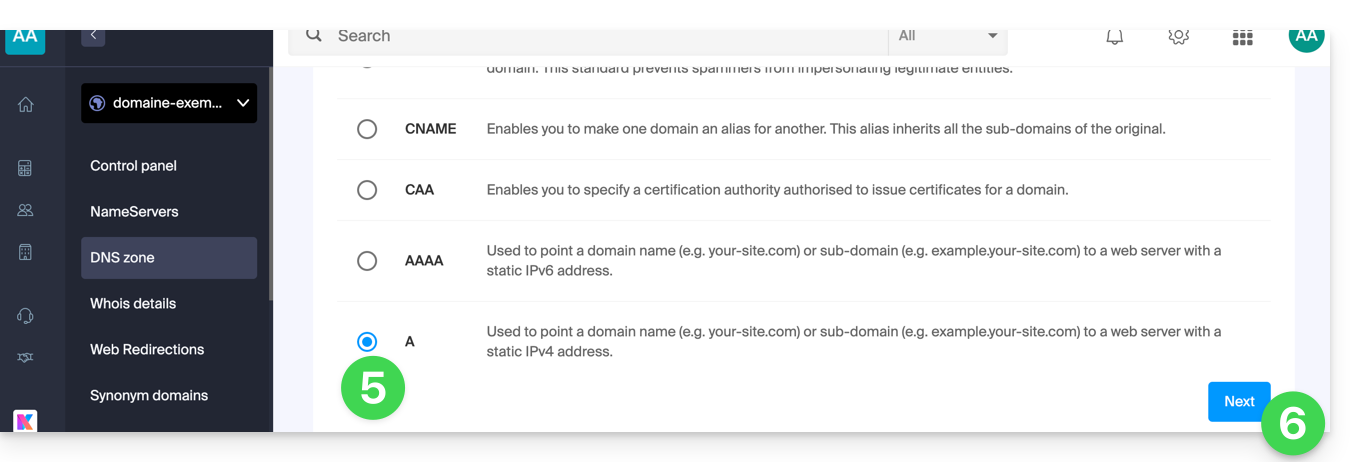
- Choose the A record type.
- Click on Next:
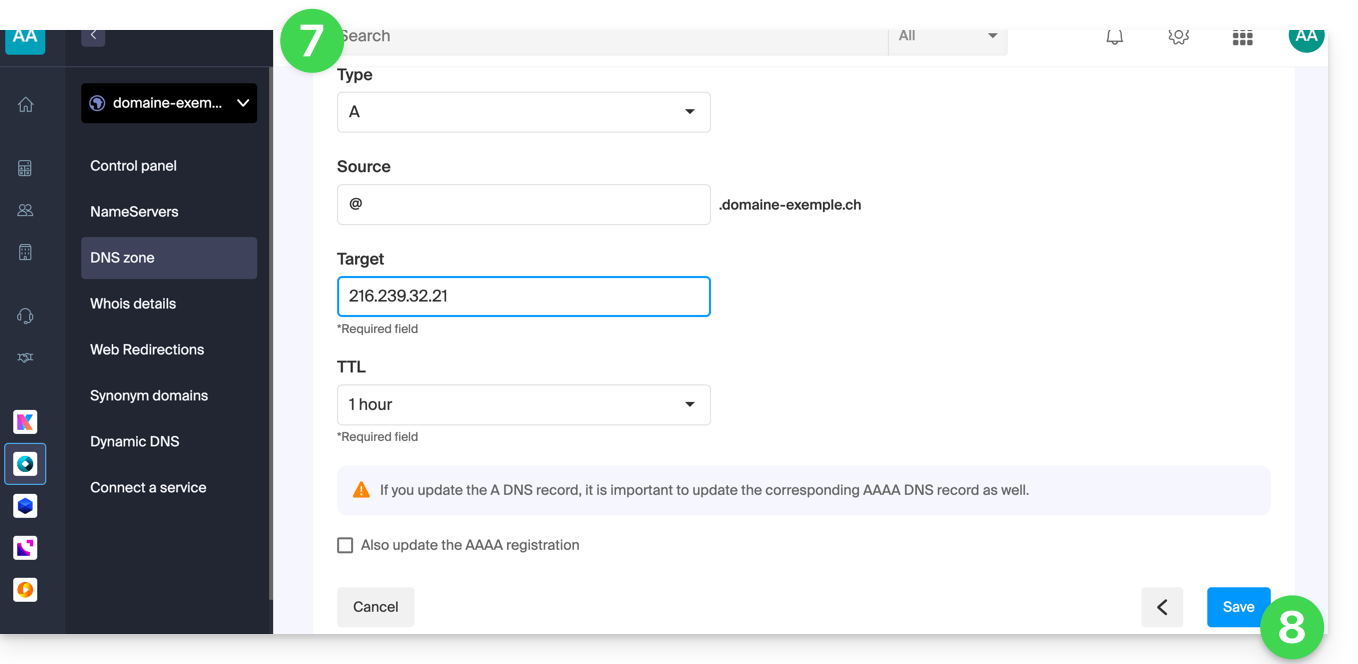
- Fill in the various fields with your information.
- Save the addition you made:
- If you have more records to add, start again at step 4.
CNAME Record
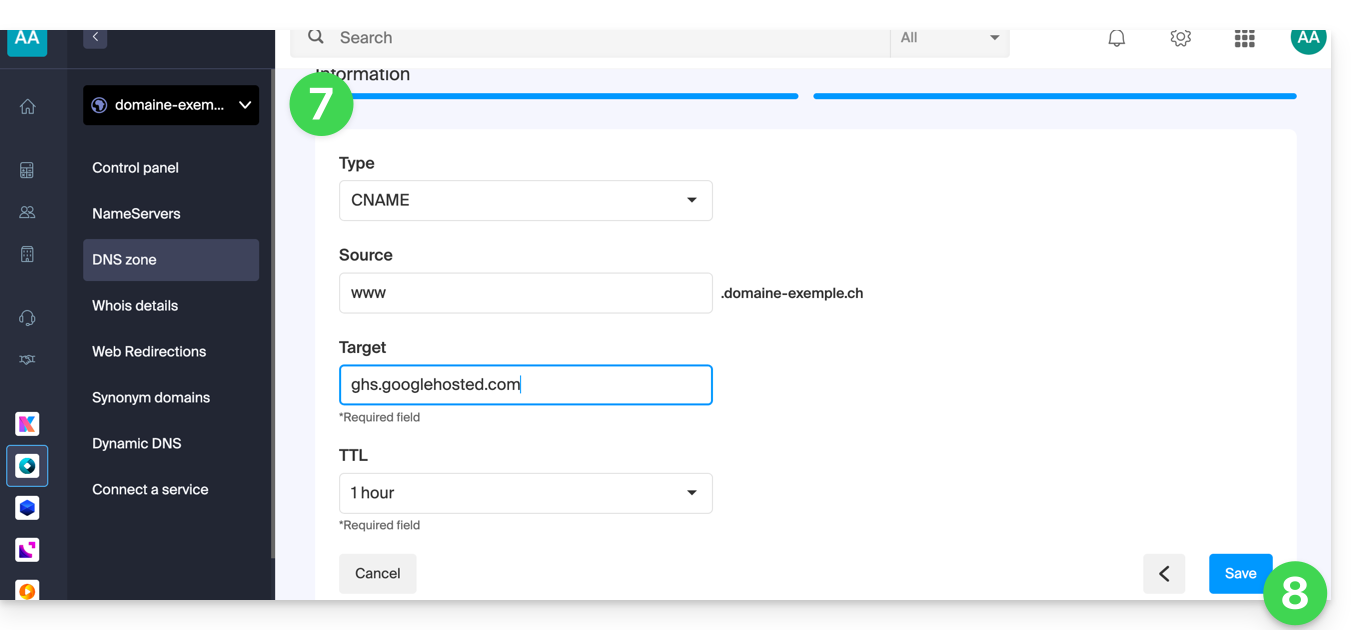
To achieve the result requested by Google, create a CNAME record with these values:
- Host:
www - Points to:
ghs.googlehosted.com
To do this:
- Click here to access your domain management in the Infomaniak Manager (need help?).
- Click directly on the name assigned to the domain in question.
- Click on DNS Zone in the left-hand menu.
- Click on the blue Add entry button:
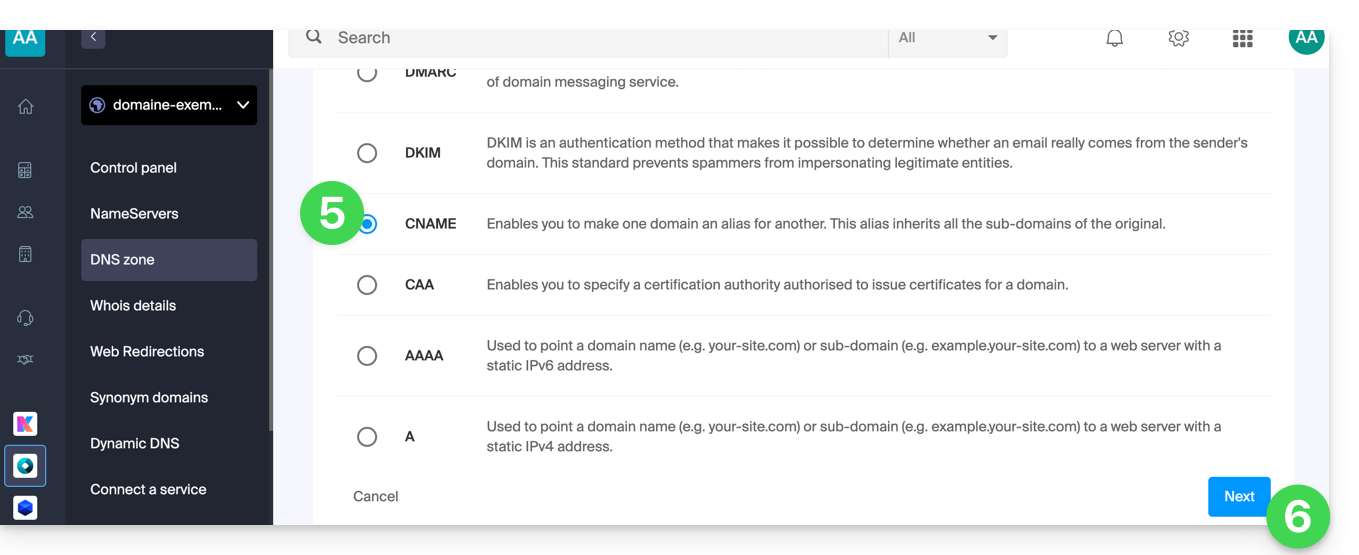
- Choose the type of CNAME record.
- Click on Next:
- Fill in the various fields with your information.
- Save the changes you made:
Verify your domain (Google Site Verification)
After configuring the DNS records, return to Google Sites to complete the verification. This may take up to 24 hours due to DNS propagation.
Final validation
Once the changes have propagated, your site should work with the custom domain. If you encounter any problems, check the DNS records or contact Google.
Link to this FAQ: https://faq.infomaniak.com/1917
Has this FAQ been helpful?
This guide explains how to add or modify one or more CAA recordsin the DNS zone (of a domain name) managed in the Infomaniak Manager.
Introduction
- A CAA record allows you to specify a certificate authority authorized to issue certificates for a domain.
Add a CAA
To manage this type of record in a DNS zone:
- Click here to access your domain management in the Infomaniak Manager (need help?).
- Click directly on the name assigned to the domain in question.
- Click on DNS Zone in the left-hand menu.
- Click the button to add a record:
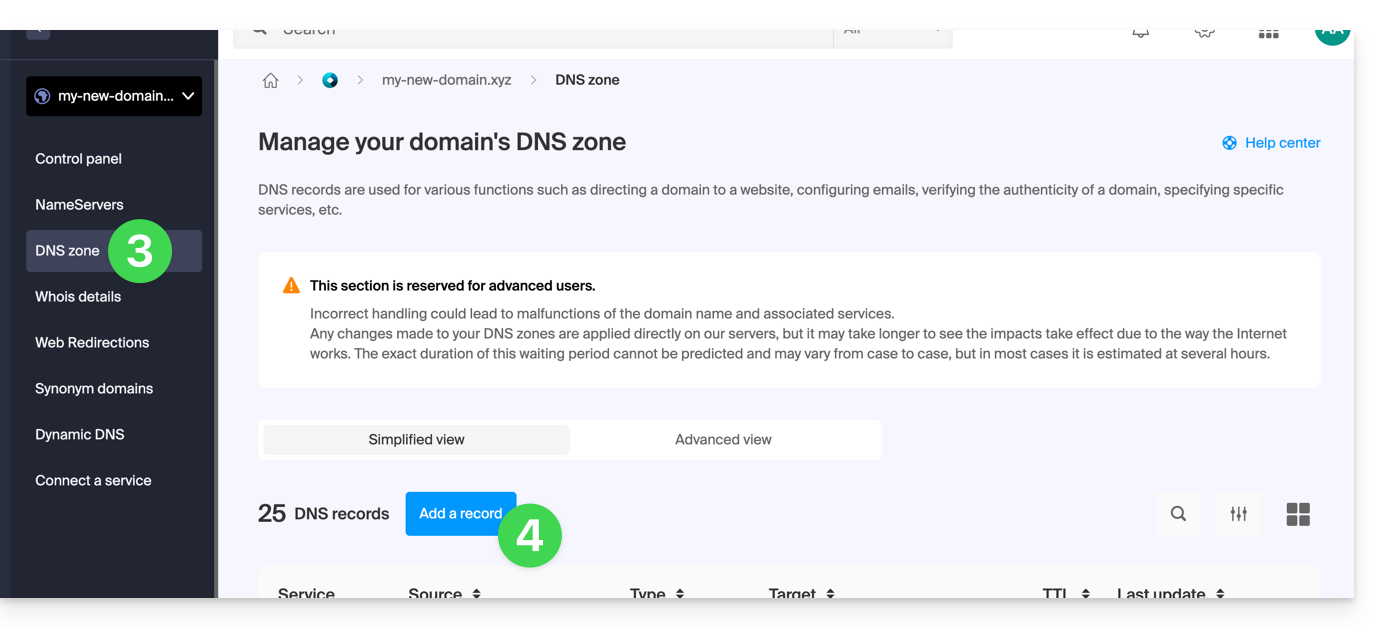
- Click the CAA radio button to add a record.
- Click on the Next button:
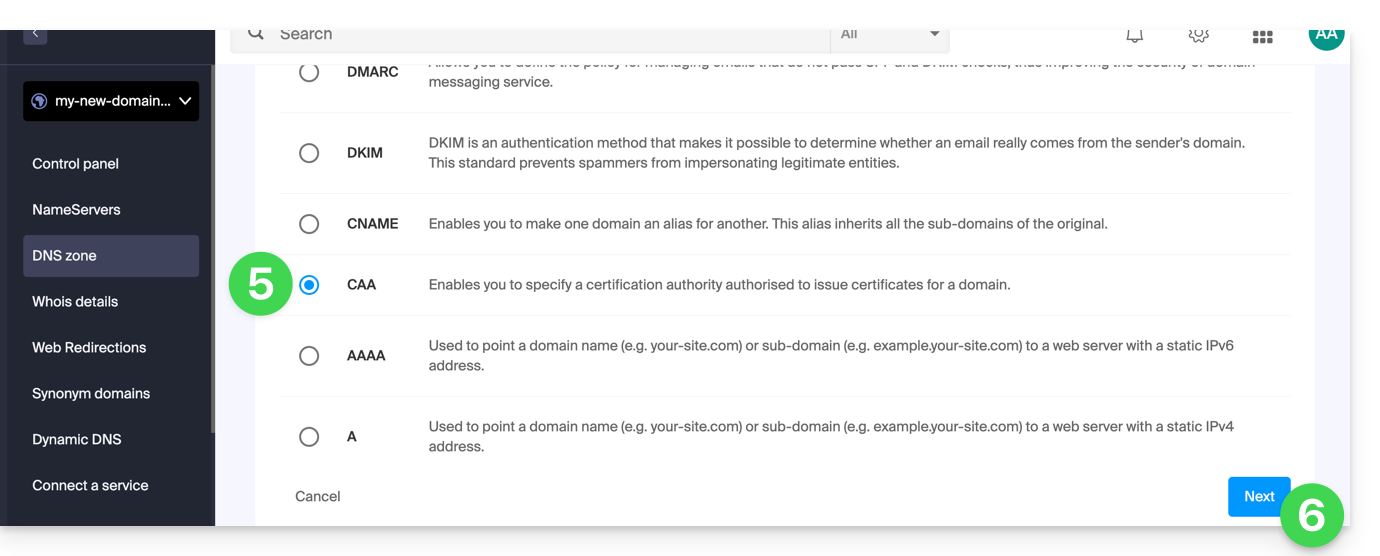
- Enter the CAA values required for your DNS zone: if you are validating an SSL certificate, please refer to the information below.
- Save your information by clicking the button at the bottom of the page.
Adding a CAA record to validate an SSL certificate…
… Sectigo
In the case of a Sectigo SSL certificate validation, follow the generic guide but specifically enter the following data:
- Choose “Issue for certificate authority”.
- Enter the flag:
0. - Specify
sectigo.com.
… Let's Encrypt
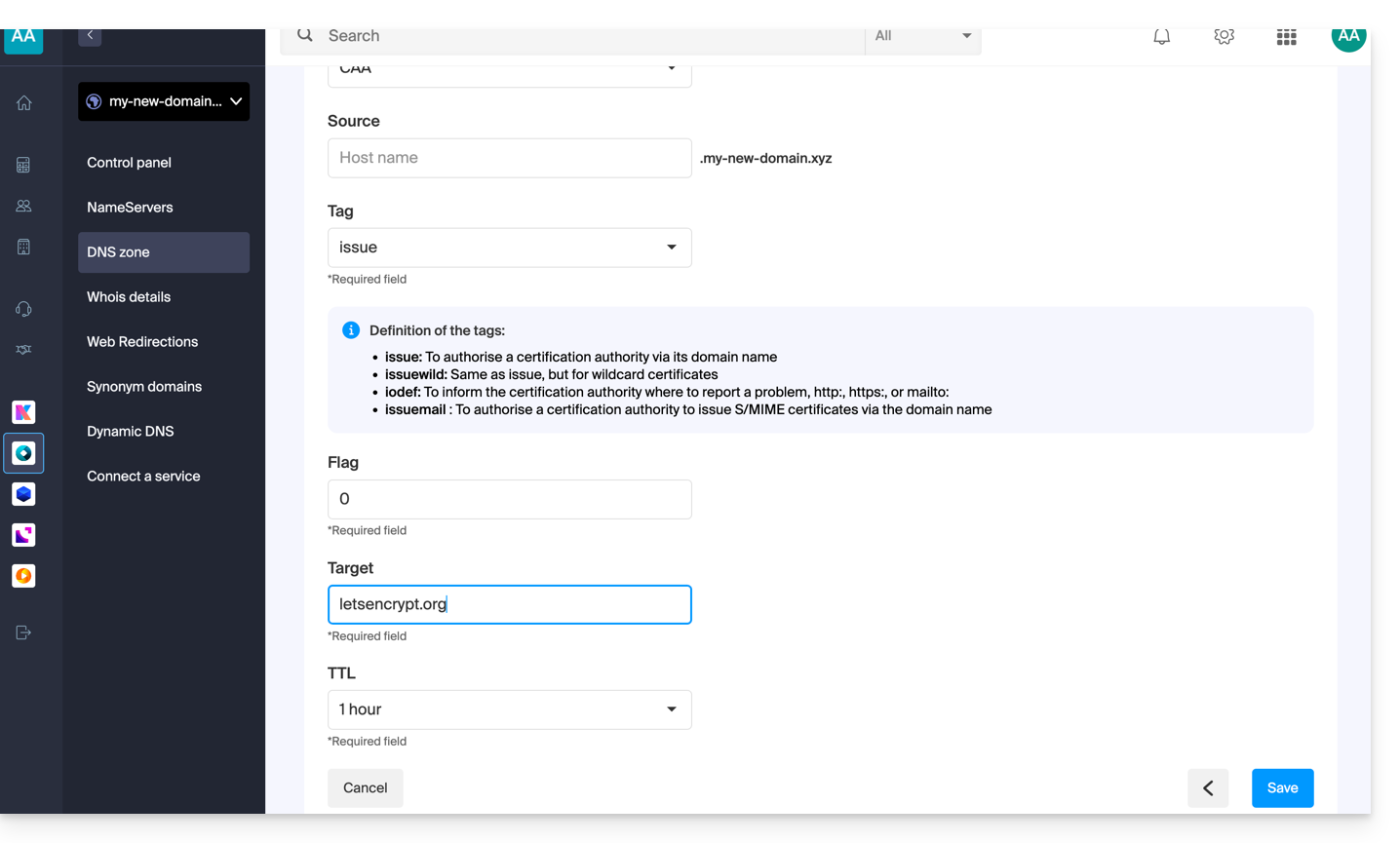
In the case of a Let's Encrypt SSL certificate validation, follow the generic guide but specifically enter the following data:
- Choose “Issued by certification authority”.
- Enter the flag:
0. - Specify
letsencrypt.org.
Link to this FAQ: https://faq.infomaniak.com/1394
Has this FAQ been helpful?
This guide explains how to enable a CDN to optimize an Infomaniak Web Hosting service.
Introduction
- CDN stands for "Content Delivery Network".
- A CDN stores a copy of your website's content (images, videos, CSS/JS files) on multiple servers distributed geographically.
- When a user accesses your site, the CDN provides this content from the server closest to their location, reducing loading times:
- Your site loads faster for visitors, which can reduce the bounce rate and improve the user experience.
- By distributing the content, the CDN reduces the load on your main server, improving its performance and availability.
- Some CDNs offer security features such as protection against DDoS attacks and data security.
Setting up a CDN
To use a CDN, you will generally need to make adjustments to your domain name configuration, specifically at the DNS record level. This will direct traffic from your website to the CDN's network of servers. In general, the process is as follows:
- Create an account on the website of the CDN of your choice and add your site to it.
- Modify the DNS zone of your domain name according to the instructions provided by the CDN.
- Test your site to ensure that the CDN is working correctly.
Specific Cloudflare Guide
For customers who wish to optimize their website against overloads caused by heavy bot traffic, using a CDN such as Cloudflare is often recommended. The Cloudflare CDN optimizes the performance and security of a website with features including:
- caching of a website's static content
- minification of HTML, CSS, and Javascript code
- basic anti-DDoS protection
- etc.
To set up Cloudflare:
- If necessary, create an account with Cloudflare.
- Add the domain name of the website in question.
- Transfer all DNS records from the domain's DNS zone to Cloudflare (A, MX, TXT, NS records, etc.).
- In the Infomaniak Manager, modify the DNS settings for the domain in question using the DNS servers provided by Cloudflare.
- Configure DKIM and DNSSEC if necessary.
- Any DNS addition or modification may take up to 48 hours to propagate.
Please note: mod_cloudflare is enabled by default on all paid web hosting plans.
Enable Cloudflare Rate Limiting
By default, Cloudflare simply acts as an intermediary between the website and Infomaniak, forwarding all requests to the Infomaniak servers. Thus, during traffic spikes or attacks, the requests still reach the origin server, but with Cloudflare IP addresses, making it difficult to manage mitigation on a shared server.
Implementing "rate limiting" rules in Cloudflare's application firewall is now an effective solution. This feature limits the number of requests sent to the server, blocking aggressive scans and protecting the server against excessive overloads.
And also…
… Amazon CloudFront
If you already use AWS services, CloudFront is easy to set up. Create a distribution, configure the settings, and link it to your site.
… Fastly
Sign up for Fastly, configure your service by adding your website and defining the caching settings. Fastly offers advanced configuration options.
Link to this FAQ: https://faq.infomaniak.com/2188
Has this FAQ been helpful?
This guide explains how to add an ANAME record to the DNS zone (of a domain name) managed in the Infomaniak Manager.
Introduction
- The
ANAMErecord type essentially allows you to point the root of a domain to another address, similar to a CNAME record, but it can be added without having to specify a source xyz preceding the domain (xyz.domain.com, for example). - Therefore, it is not a real DNS record as such and it is not displayed in the list of records that can be selected when editing the DNS zone.
- However, since this is a type of alias, please refer to the instructions below on how to set up an
ANAME.
Create an ANAME
Creating an ANAME is equivalent to creating a CNAME directly at the root of the domain, and this is not possible.
If you are certain of what you are doing, you can follow this method to create the equivalent of an ANAME:
- Create a web redirection from the domain root to www via the Manager.
- Add a CNAME entry that works with www and points to your desired target.
Link to this FAQ: https://faq.infomaniak.com/2493
Has this FAQ been helpful?
This guide explains how to link your Shopify site to the Mail service managed by Infomaniak.
If your domain name is managed by Infomaniak, you can configure it so that only Web traffic points to Shopify (refer to this other guide for more information).
⚠️ Important
It is strongly discouraged to use Shopify as a domain name manager if you wish to use the Infomaniak Mail Service.
- Shopify imposes a technical limit of 255 characters on DNS records.
- This prevents the correct addition of the Infomaniak DKIM key, which is essential to guarantee the deliverability and security of your emails.
- Shopify does not allow you to modify the name servers (NS).
- Therefore, you cannot delegate the management of the DNS zone to Infomaniak, which prevents the complete and compliant implementation of your email service.
- In practice, this means that you risk problems sending or receiving emails, as well as a degradation of your domain's reputation (emails marked as spam, unauthenticated, etc.).
For all these reasons,using a Shopify domain is not recommended with the Infomaniak mail service..
The best solution is to transfer your domain name to Infomaniak. This will give you complete and optimized DNS management, perfectly compatible with Infomaniak's email services.
If needed, call the technical support of the provider in question so they can help you set up the information specified below; Infomaniak will not be able to assist you further:
- Paste the Infomaniak MX record:
- In order for email to function correctly and for email traffic to be routed properly, the Infomaniak MX record must be added to your Shopify account:
- Refer to this other guide for instructions.
- Confirm the changes.
- Any DNS addition/modification may take up to 48 hours to propagate.
- Paste the Infomaniak SPF record using a TXT record:
- SPF is a verification method that ensures an email is sent by the claimed sender, helping to combat spam and fraudulent emails.
- It is essential to add the Infomaniak SPF record
v=spf1 include:spf.infomaniak.ch -allto your Shopify interface. - To do this, follow the detailed steps in this other guide.
- Any DNS addition/modification may take up to 48 hours to propagate.
- Also, check for the presence of a DKIM record if sending issues persist.
- Unfortunately, it seems that Shopify is not being updated to comply with current standards regarding DKIM records, which prevents you from configuring the record provided by Infomaniak. According to these messages, Shopify's customer service has been aware of this issue for several months. If your domain name or its DNS zone is hosted with them, it is recommended that you transfer it to Infomaniak as indicated above.
Link to this FAQ: https://faq.infomaniak.com/1777
Has this FAQ been helpful?
This guide explains how to link an external website (hosted by a turnkey website creation service, for example) to your Infomaniak email.
This will be useful if, for example, your webmaster has modified the technical information (DNS) of your domain name to direct it to your external website, and this has interrupted your email service.
Prerequisites
- Your domain name has the DNS records corresponding to the provider of your external web service (because it is the DNS zone at this provider that you will be editing).
- Note the Infomaniak MX record
mta-gw.infomaniak.chor sometimesmta-gw.infomaniak.ch.(note the trailing period). - Note the Infomaniak SPF record
v=spf1 include:spf.infomaniak.ch -all. - Note the Infomaniak DKIM.
- Be aware that any DNS addition/modification may take up to 48 hours to propagate.
Specific guides
Click on the link corresponding to the website provider:
- Wix
- Wordpress.com
- Shopify
- Jimdo (Guide A | Guide B)
Guide for any other web hosting provider
In general, you shouldfind the section on your web hosting provider's dashboard where you can add the technical information (the 3 settings listed in the prerequisites above, which allow Infomaniak's email service to function while your domain name directs all traffic to this web hosting provider:
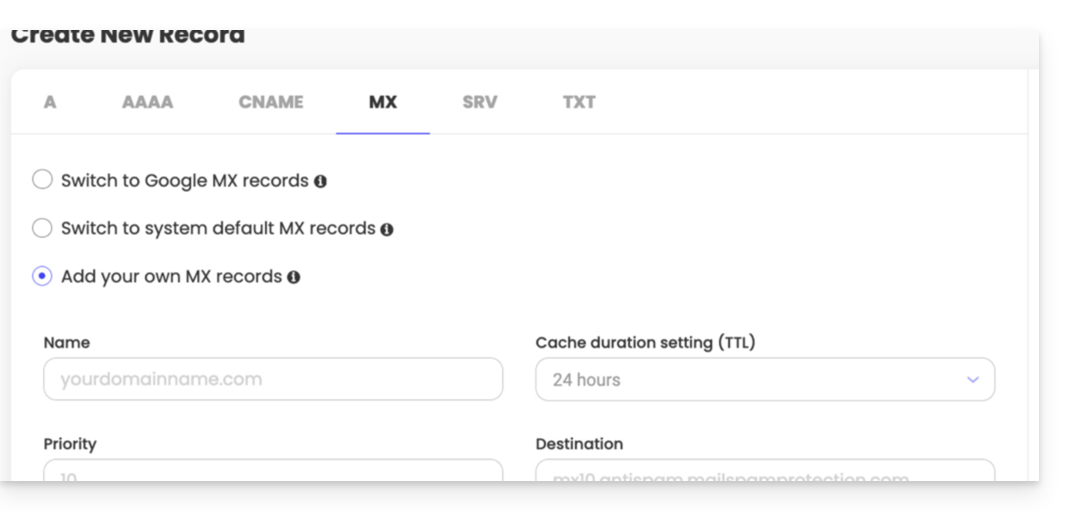
- Infomaniak's MX record.
- SPF is a verification method that ensures an email is sent by the claimed sender, helping to combat spam and fraudulent emails; it is often added as a TXT record.
- Having a DKIM record is now essential for the optimal functioning of your Infomaniak email service.
Link to this FAQ: https://faq.infomaniak.com/1775
Has this FAQ been helpful?
This guide is intended for users who wish to manage Glue records with Infomaniak.
Introduction
- Glue records are crucial for linking a domain name to its associated name servers by providing the IP addresses of these servers directly.
- For example, for the domain
domain.xyz, the glue records specify the name servers (ns1.domain.xyzandns2.domain.xyz) as well as their IP addresses (192.0.2.10and192.0.2.11).
- For example, for the domain
- This speeds up DNS resolution, allowing browsers and online services to find your site more quickly and efficiently.
- Warning: Adding an NS does not automatically add it to the DNS zone: you need to manually update the DNS zone for your domain!
Create Glue records…
… via “A record”
This method involves creating an A (address) record for ns1.domain.xyz, pointing it to the IP address of the NS. This will register the IP address with the registry. You can then add ns1.domain.xyz, which will be recognized and redirected to the correct NS.
domain.xyz. 3600 IN NS ns1.domain.xyz.domain.xyz. 3600 IN NS ns2.domain.xyz.
ns1.domain.xyz. 3600 IN A 192.0.2.10ns2.domain.xyz. 3600 IN A 192.0.2.11
… via the “Glue records” button
This method allows you to create, but also modify, existing Glue records:
- Click here to access your product management in the Infomaniak Manager (need help?).
- Click directly on the name assigned to the product in question.
- Click on DNS Servers in the left-hand menu.
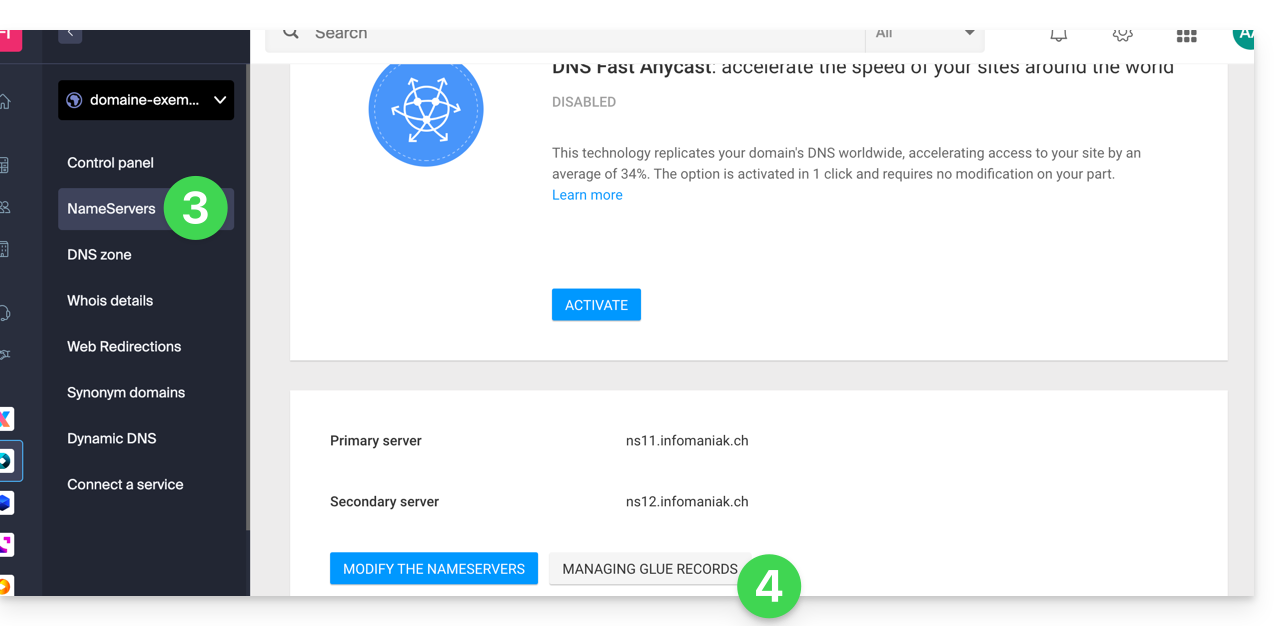
- Click on the Manage glue records button:
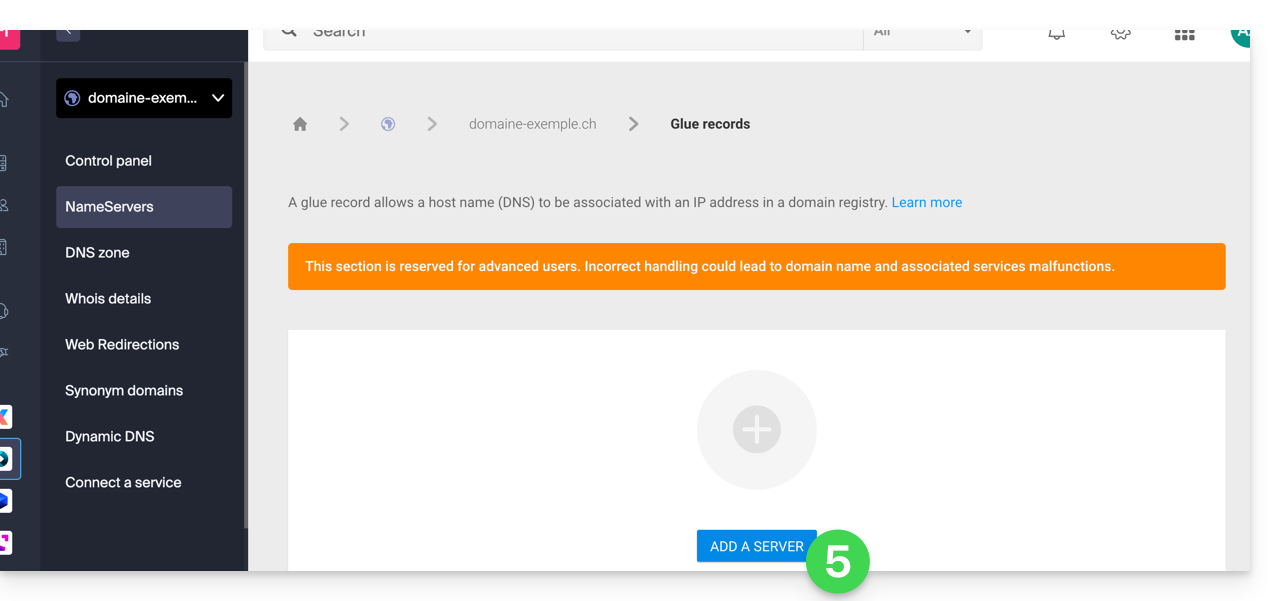
- Click on the Add a server button:
- Enter the name of the server to add, as well as its IP address.
- Click the Validate button.
Link to this FAQ: https://faq.infomaniak.com/1953
Has this FAQ been helpful?
This guide explains how to add or modify one or more SPF records in a DNS zone (of a domain name) managed in the Infomaniak Manager.
Introduction
- If your domain name is registered with Infomaniak, your email is managed by Infomaniak, but your website is hosted with another provider (Wix, for example), you are probably managing the DNS zone (and therefore the SPF) with that other provider: please refer to this other guide for more information.
Understanding SPF records
The SPF (Sender Policy Framework) record type is a standard for verifying the sender's domain name in an email and aims to reduce SPAM. It is used to indicate which server is authorized or not to send emails for a domain. If the SPF check fails for an email, it means that the email was not sent from an authorized server/IP address by the domain administrator. The email is then considered spam.
Strict SPF -all: rejecting unauthorized emails
Infomaniak automatically installs this type of record when creating an Email Service on your domain (strict SPF):
v=spf1 include:spf.infomaniak.ch -allThus, the recipient server of the email you send will evaluate that any email not coming from Infomaniak servers will be rejected. This prevents malicious individuals from spoofing email addresses from your domain.
Soft SPF ?all: tolerance for some emails
You can choose to modify the SPF to a more flexible model:
v=spf1 include:spf.infomaniak.ch ?allIn this case, the recipient server of the email you are sending will evaluate, according to its own rules, whether it accepts emails not originating from Infomaniak servers.
In summary:
?: the receiving server accepts the message even if the sender is not listed in the SPF~: the receiving server generally accepts the message if it is not listed in the SPF but identifies it as suspicious-: the receiving server rejects the message if it is not listed in the SPF (recommended)
Add an SPF via a TXT record
There are 2 ways to manage SPF.
If you have a Mail service with Infomaniak, the easiest way is to go to the Global Security tool to manage the SPF: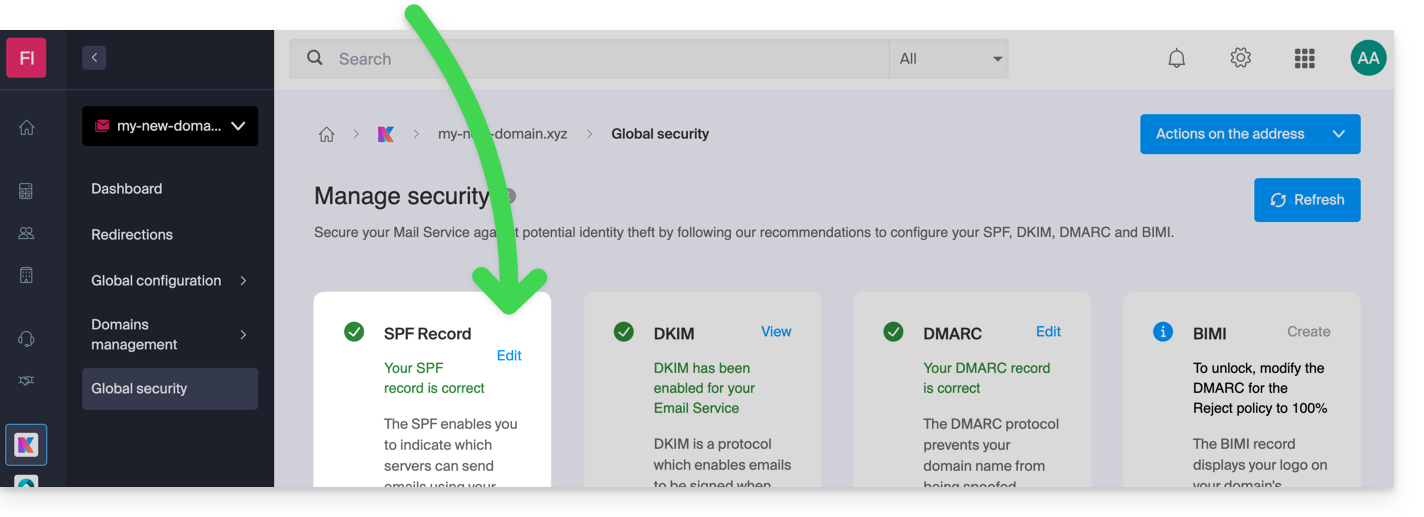
But since the SPF record is a type of DNS record of type TXT, you can also manage it from the DNS zone of the domain name:
- Click here to access the management of your domain on the Infomaniak Manager (need help?).
- Click directly on the name assigned to the domain in question.
- Click on DNS Zone in the left-hand menu.
- Check in the table that there is not already a TXT record with a value mentioning SPF, as shown here:
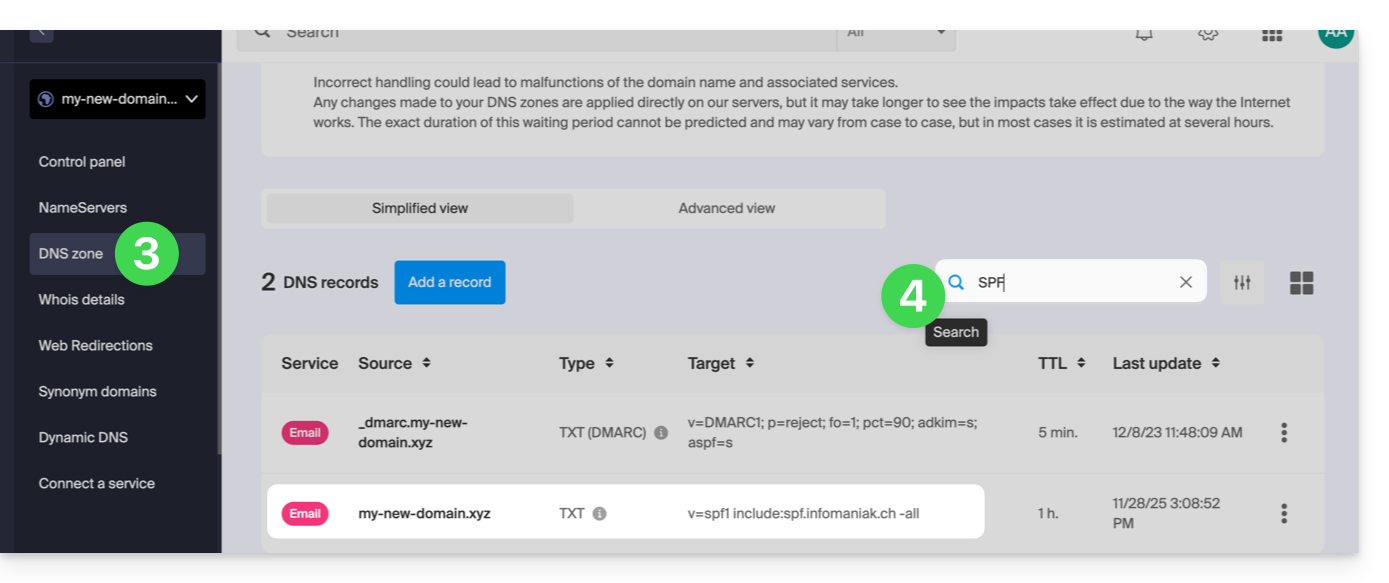
- Click the button to add a record (you will receive an error if you try to add a TXT record with an SPF value when one already exists in the zone):
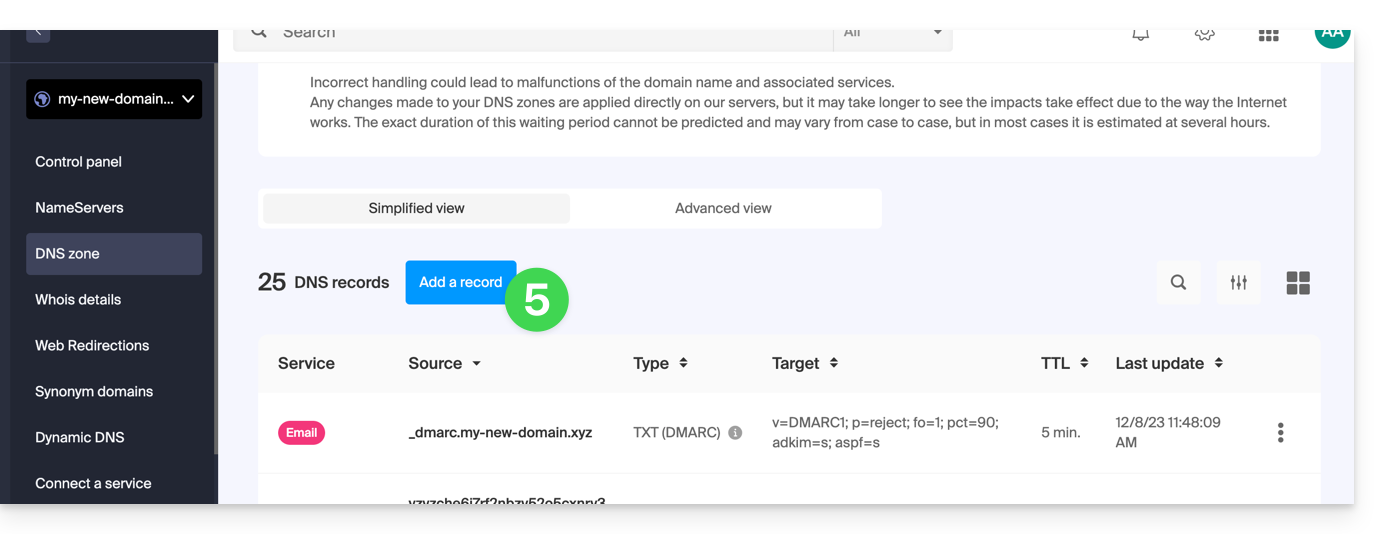
- Click the TXT radio button to add a record.
- Click the Next button:
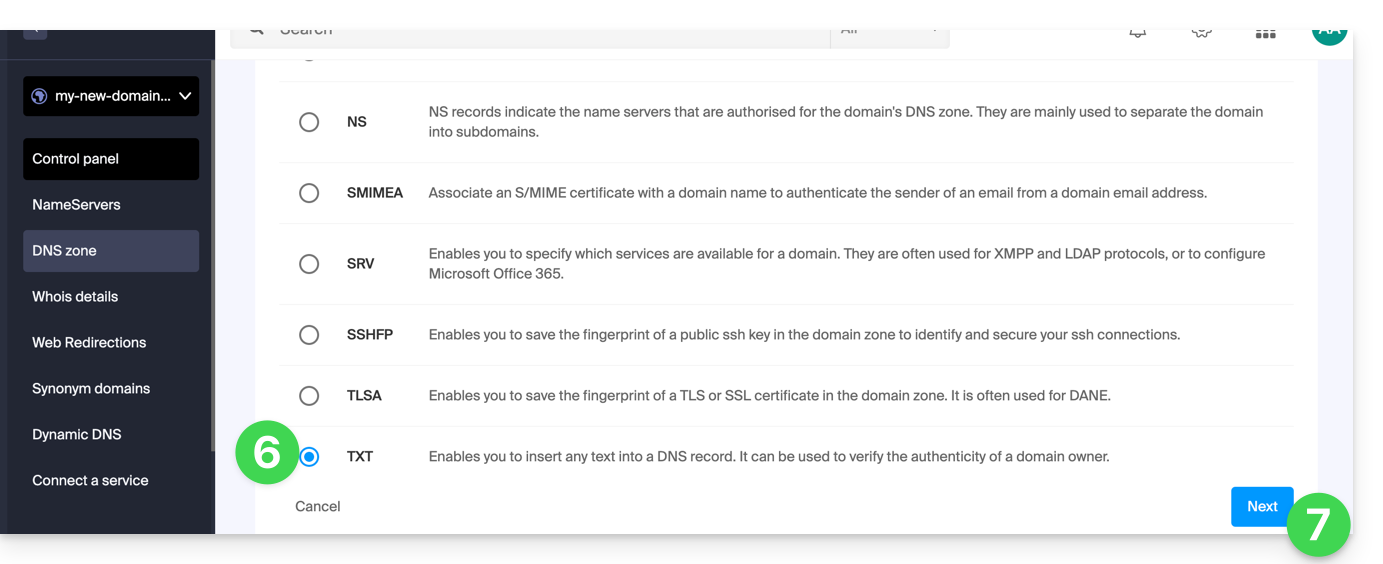
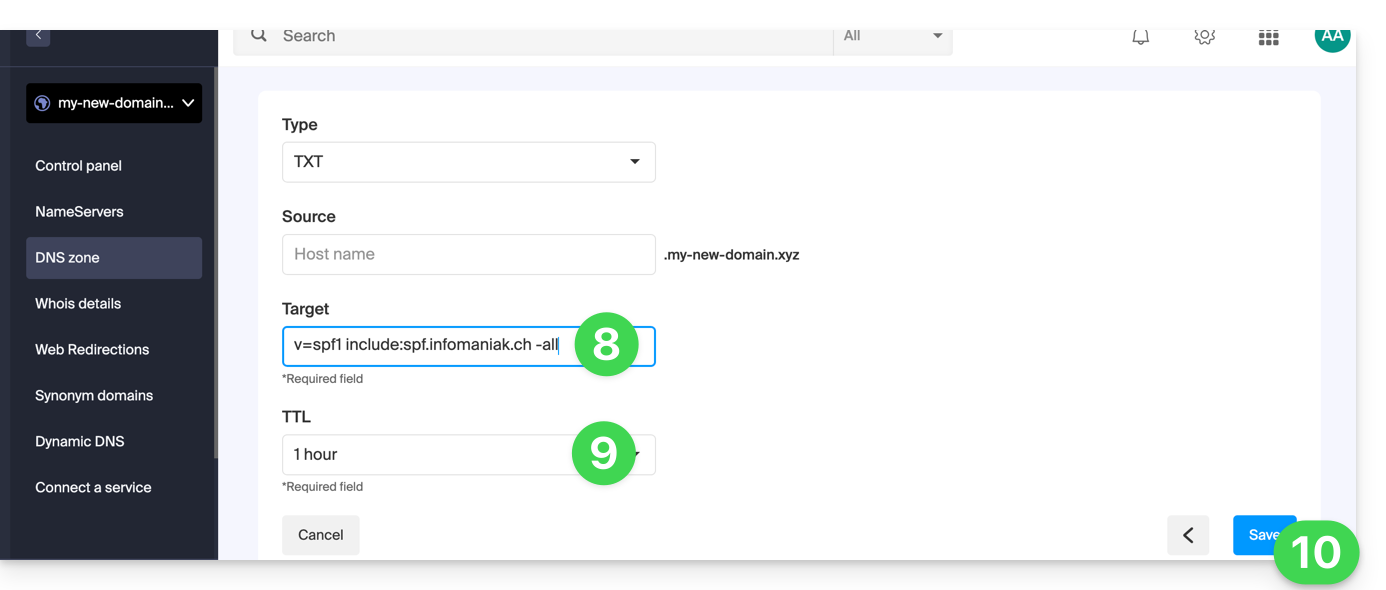
- Enter the SPF value required for your DNS zone.
- Leave the default value for the TTL.
- Click the Save button:
Adding Multiple SPF Records
If you use other email providers in addition to Infomaniak, you need to obtain their SPF records and then merge them with Infomaniak's SPF record using a specific syntax.
Having multiple separate SPF records will cause errors. It is essential to combine multiple SPF records into a single TXT record!
Example of 3 SPF records to merge:
- Infomaniak's:
v=spf1 include:spf.infomaniak.ch -all - Two secondary providers:
v=spf1 include:the-second-domain.xyz ?allv=spf1 include:the-other-domain.xyz ~all
... the final SPF record to be inserted into your DNS zone should be in the following format:
v=spf1 include:spf.infomaniak.ch include:the-second-domain.xyz include:the-other-domain.xyz -allRemove any other SPF entries from the DNS zone of your domain! Any DNS addition/modification may take up to 48 hours to propagate.
Limits on the Number of SPF Records
Multiple SPF records are limited to a maximum of 10 inclusions.
The Infomaniak SPF record generally already includes 4 entries:
include:relay.mail.infomaniak.chinclude:app.mail.infomaniak.chinclude:newsletter.infomaniak.cominclude:amazonses.com
Check the SPF record(s)
The Global Security tool in the Infomaniak Manager allows you to easily check and correct any problematic records.
If you encounter a problem, it is recommended to analyze your domain name on MxToolbox to check if your SPF record contains syntax errors, too many inclusions, or other issues that could lead to an error: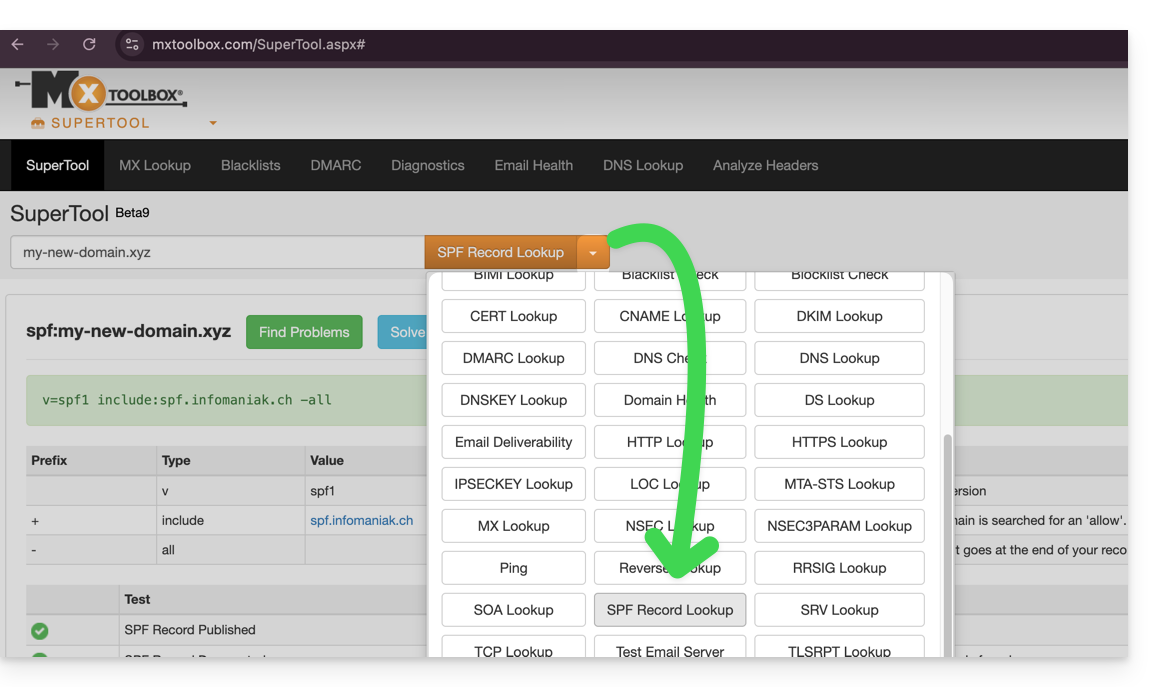
… or directly at https://mxtoolbox.com/spf.aspx.
Link to this FAQ: https://faq.infomaniak.com/2199
Has this FAQ been helpful?
This guide explains how to access a Synology NAS connected to the internet with a dynamic IP address from Infomaniak via a domain name.
Prerequisites
- Have a Synology NAS connected to the internet with a dynamic IP address.
- A dynamic DNS must have been created on the domain in question.
Link a Synology NAS to a domain name
1. Add Infomaniak as a service provider
- Open the Synology NAS management interface (DSM).
- Go to the Control Panel.
- Click on External Access (under the Connectivity section).
- Click on the Customize button (under the DDNS tab):
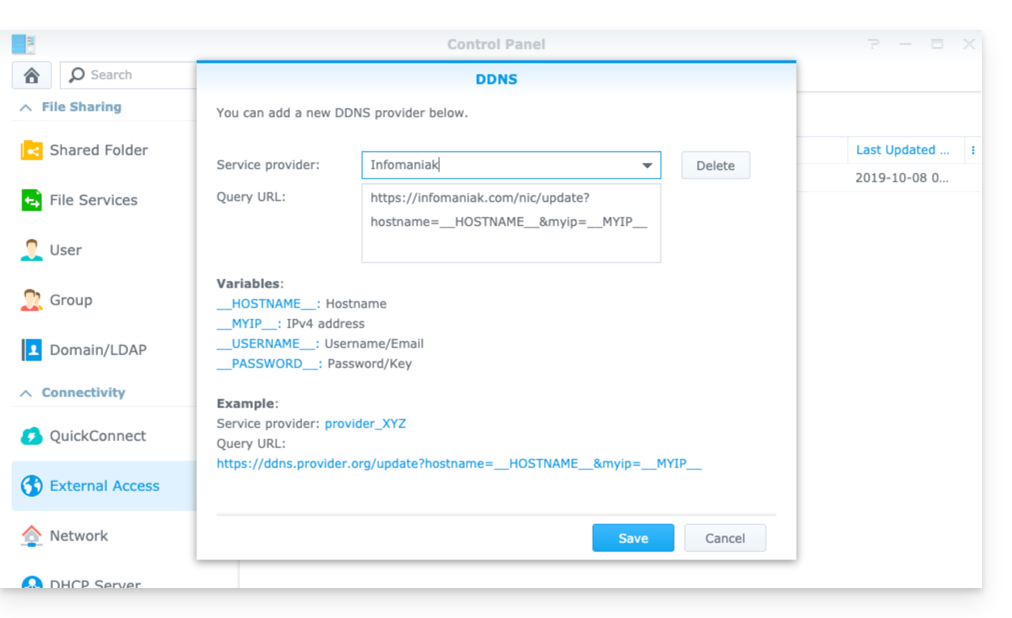
- Service provider:
Infomaniak - Query URL:
https://infomaniak.com/nic/update?hostname=__HOSTNAME__&myip=__MYIP__ - Click Save.
2. Add the dynamic DNS to your Synology
Now that Infomaniak has been added as a service provider:
- Open the Synology NAS management interface (DSM).
- Go to the Control Panel.
- Click on External Access (under the Connectivity section).
- Click on the Add button:
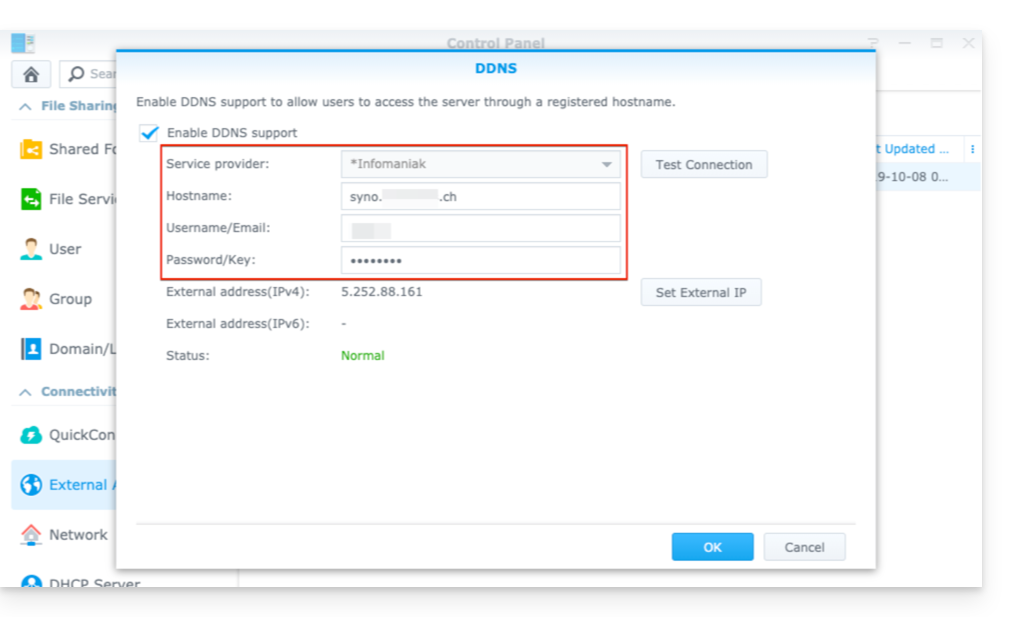
- Service provider:
Infomaniak(the profile created in the previous step) - Hostname: The
URLconfigured in the Manager when adding the Dynamic DNS. - Username: The
IDdefined in the Manager when adding the Dynamic DNS. - Password:
the passworddefined in the Manager when adding the Dynamic DNS
From this point on, the dynamic IP address of your Synology NAS will be automatically synchronized with your domain name.
3. Configure NAT for Synology DDNS
To make your NAS accessible from outside your network, you need to configure its NAT settings. By default, Synology NAS devices use ports 5000 and 5001.
You can access your NAS using the following syntax: http://votre-domaine:5000 or https://votre-domaine:5001.
For more information, please refer to the official Synology documentation.
4. Configuring a “Reverse Proxy”
If you do not want to specify ports :5000 or :5001 in your URLs, you can configure a Reverse Proxy from your Synology NAS, and redirect URLs to port 443 for port 5001 and port 80 for port 5000.official Synology documentation for this configuration).
Link to this FAQ: https://faq.infomaniak.com/2368
Has this FAQ been helpful?
This guide is for you if you want to change your current email provider and host your emails with Infomaniak.
Introduction
- To help you identify the offer that best suits your needs, please refer to this other guide.
- To avoid losing any messages and experiencing any interruptions:
- Follow the links in the order they are presented; they will open in a new tab in your browser, and return to this main guide after completing each step.
- If needed, you can also migrate your:
You are ordering a Mail Service only
Below are the different steps to securely migrate your email service to Infomaniak.
Step 1
You need to order the mail service by following this guide.
When placing your order, you can choose to transfer the domain name at the same time or order the mail service separately.
You can then import the content from your old email addresses to Infomaniak: refer to this other guide.
Step 2
Once the addresses are configured and your old content has been imported, you will be able to connect your external domain name to your Infomaniak Mail serviceto start receiving emails with Infomaniak. You will need to follow the "Link your external domain to your Mail Service" chapter of this guide.
You will find the MX/SPF records to add to your domain's DNS zone here:
SPF
Type: TXT
Host: Leave blank
Target: v=spf1 include:spf.infomaniak.ch -all
MX
Priority: 5
Host: Leave blank
Target: mta-gw.infomaniak.ch (for Gandi, it is necessary to add a period at the end: "mta-gw.infomaniak.ch.")
Step 3 (optional)
Once everything is working correctly, and if you haven't already done so, you can transfer your domain name: refer to this other guide.
As soon as the transfer is launched, you should have access to the DNS zone of your domain name in the Infomaniak Manager. You can then check…
1. … in the DNS diagnostic to see if any corrections need to be made and, if necessary, add the DNS entries that would be required for other services used with your domain name (newsletter or other).
2. … in the global security tab of your email service to check if DKIM is properly enabled.
If emails arrived during the migration with your previous provider, you can import the content of your old addresses into Infomaniak again by following this guide (duplicates are handled).
You are ordering a kSuite
Below are the different steps to securely migrate your external email service to an Infomaniak kSuite.
Step 1
Order kSuite from this page.
Once your order is complete, access your kSuite and add your domain name to it.
You can then create your email addresses and even import the content from your old addresses: refer to this other guide.
Step 2
Once the addresses are configured and your old content has been imported, link your external domain name to your Infomaniak Mail Service to start receiving emails with Infomaniak. Refer to the chapter "Linking the external domain to your Mail Service" in this other guide.
You will find the MX/SPF records to add to the DNS zone of your domain name here:
SPF
Type: TXT
Host: Leave blank
Target: v=spf1 include:spf.infomaniak.ch -all
MX
Priority: 5
Host: Leave blank
Target: mta-gw.infomaniak.ch (for Gandi, it is necessary to add a period at the end: "mta-gw.infomaniak.ch.")
Step 3 (optional)
Once everything is working correctly, and if you haven't already done so, you can transfer your domain name: refer to this other guide.
As soon as the transfer is initiated, you should have access to the DNS zone of your domain name in the Infomaniak Manager. You can then check…
1. … in the DNS diagnostic if there are corrections to be made, and if necessary, add the DNS entries that would be needed for other servicesused with your domain name (newsletter or other).
2. … in the global security tab of your email service if DKIM is properly enabled.
If emails arrived during the migration from your previous provider, you can import the content of your old addresses into Infomaniak again by following this guide (duplicates are handled).
Link to this FAQ: https://faq.infomaniak.com/2575
Has this FAQ been helpful?
This guide explains how to add a synonym domain to a domain name.
Introduction
- A synonym domain is a domain name that can serve as a secondary name for another domain.
- When a synonym domain is added, it automatically inherits the content of the DNS zone of the main domain (including
MX,A, etc. records), as well as its Web and Mail hosting. - Alternatively, you can also add an alias to a website or add an alias to a Mail service.
Add a synonym domain to a domain
Prerequisites
- The domain name of the future synonym or the management of its DNS zone…
- … must be registered with Infomaniak,
- … must be configured with Infomaniak DNS,
- … must not yet be linked to any product.
- The domain name to which the synonym will be added…
- … must not be associated with the Infomaniak Newsletter product.
To access your domain names:
- Click here to access the management of your domain in the Infomaniak Manager (need help?).
- Click directly on the name assigned to the main domain in question:
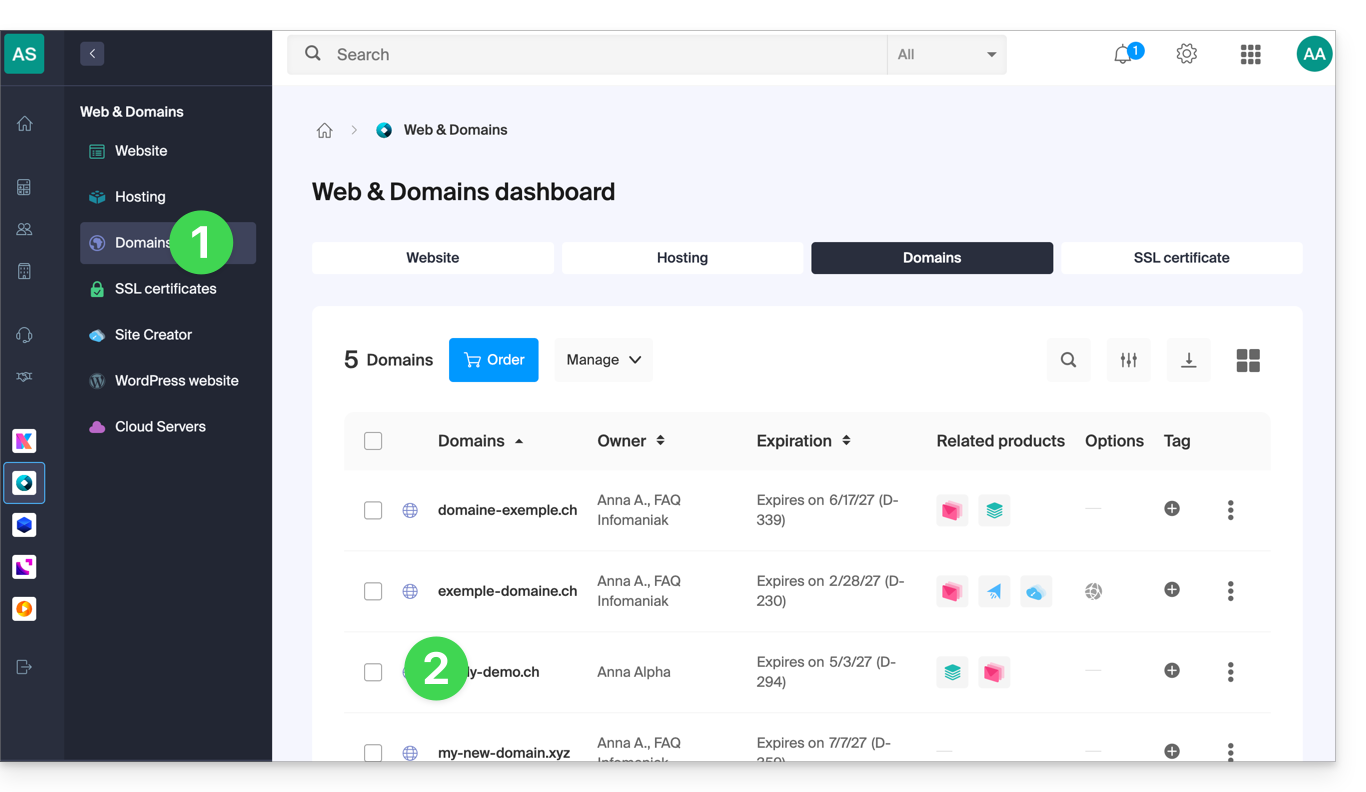
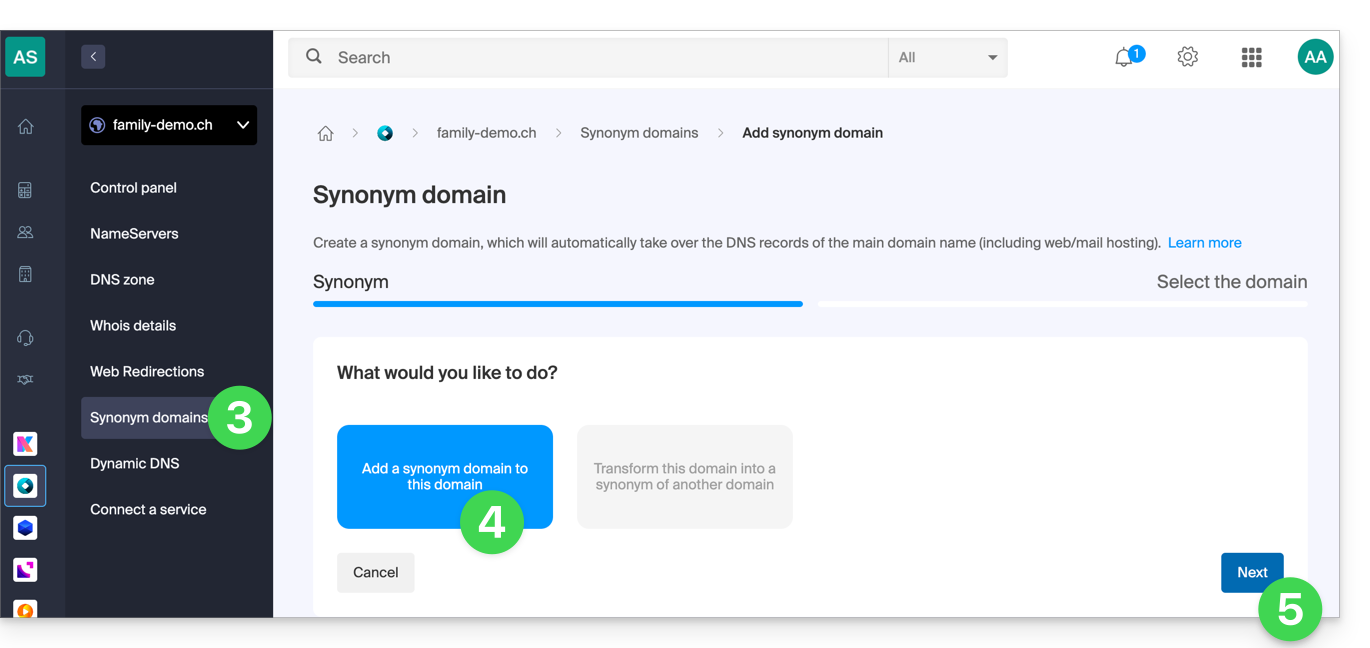
- Click on Synonymous Domains in the left-hand menu.
- Choose to add a synonym.
- Click on Next:
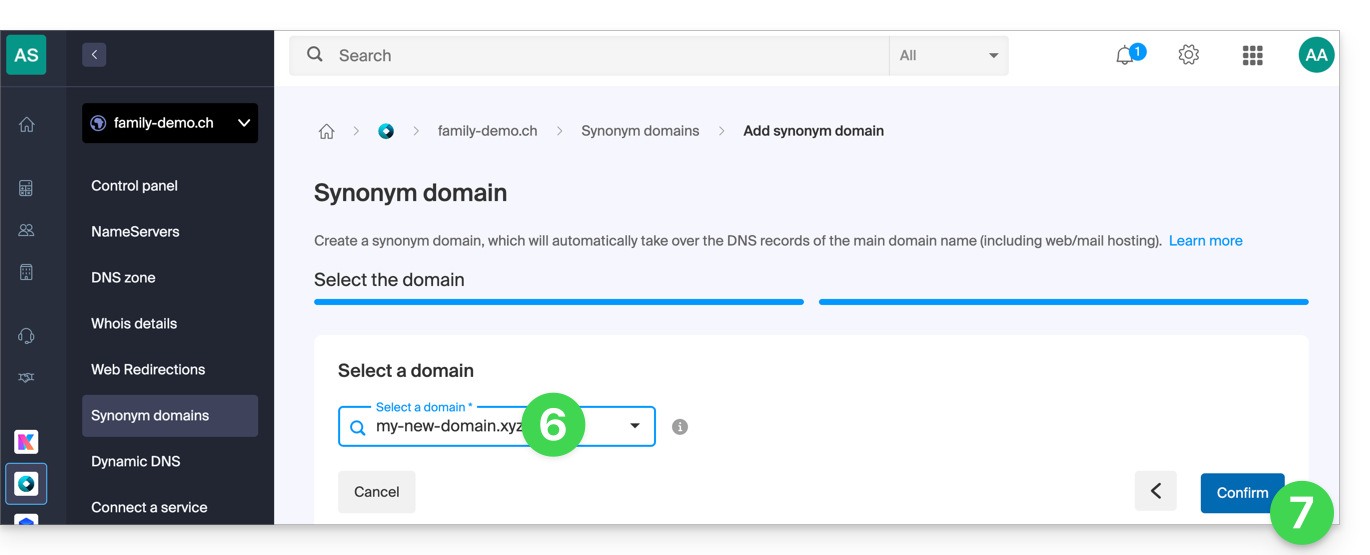
- Choose an existing domain for this Organization, or order a new domain in advance.
- Click the button to Confirm:
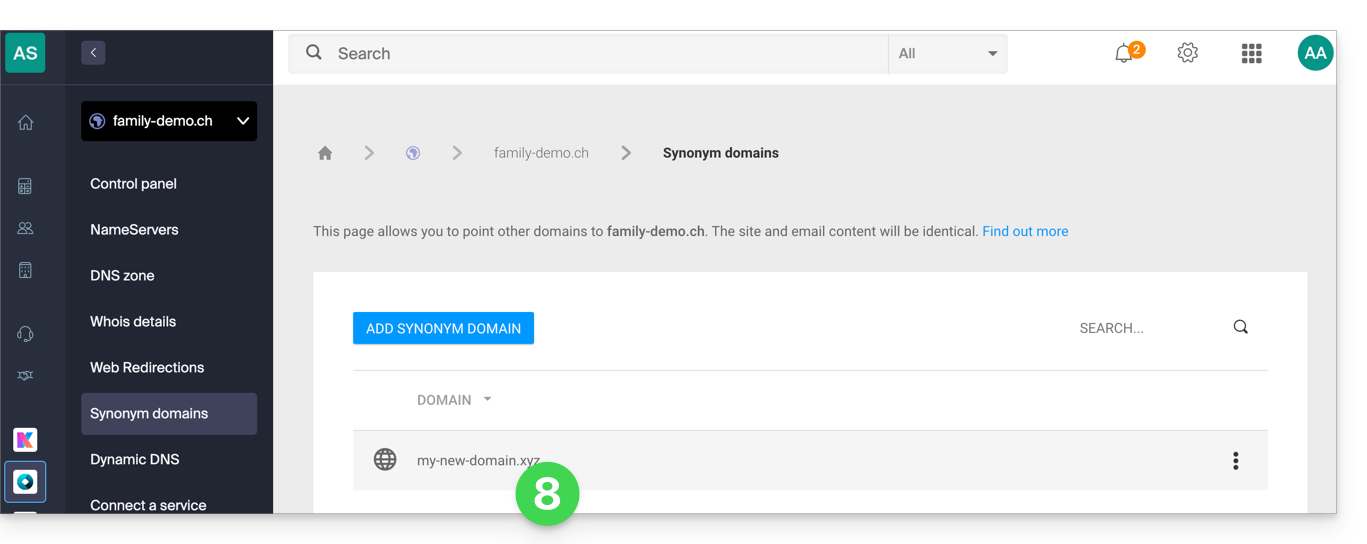
- That's it:
Refer to this other guide if you are looking for information on disassociating a synonymous domain name.
Link to this FAQ: https://faq.infomaniak.com/1999
Has this FAQ been helpful?
This guide explains how to access your Home Assistant smart home hub (which is behind a dynamic IP address provided by your ISP) with a domain name from Infomaniak via the free DynDNS option and a free script available here.
Introduction
- The integration you install acts as a messenger: it continuously monitors the IP address of your local network.
- As soon as it detects that your ISP has changed your IP address, it instantly sends a signal to Infomaniak.
- Infomaniak then updates your domain name (e.g.,
ha.domain.xyz) to point to the new IP address.
Install Infomaniak DynDNS — Home Assistant Integration
Prerequisites
- You must have a Home Assistant installation (e.g., on a Raspberry Pi 5) connected to the internet with a dynamic IP address.
- A dynamic DNS must have been created on the domain in question.
Then:
- Log in to your Home Assistant back office.
- Install HACS if you haven't already; go to the settings of Home Assistant:
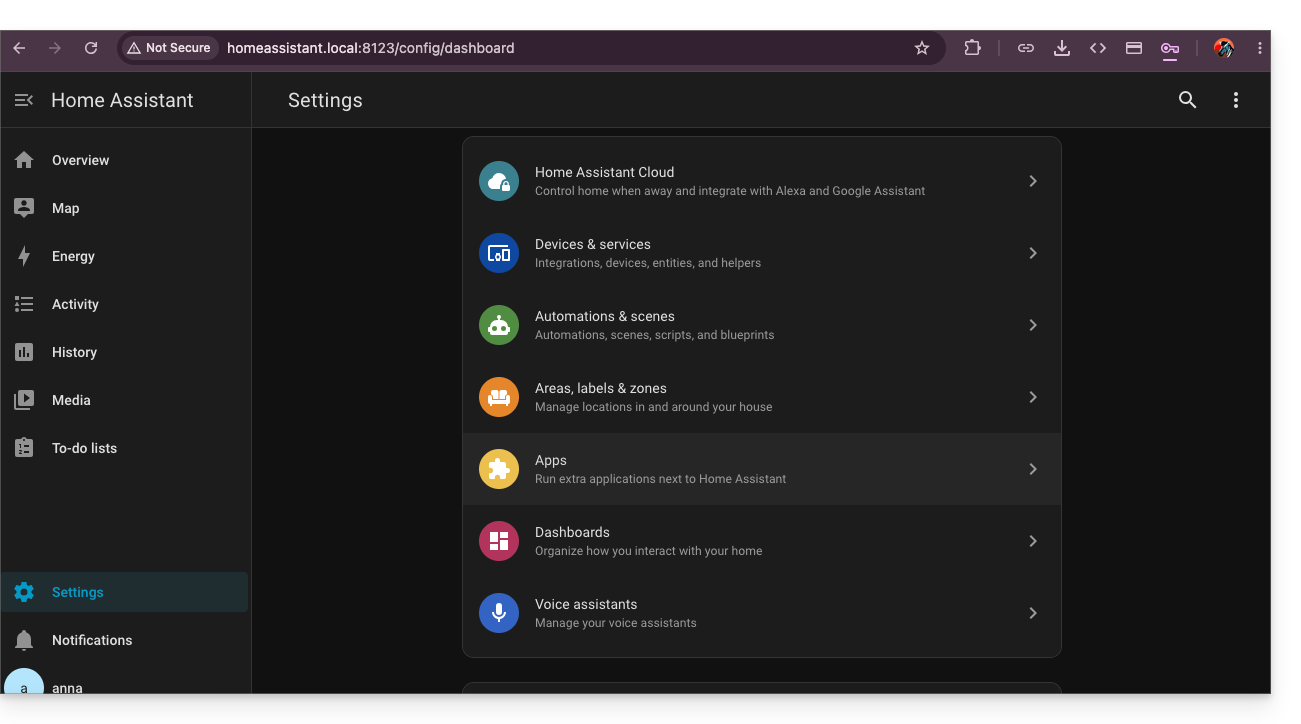
- Install the Terminal & SSH app:
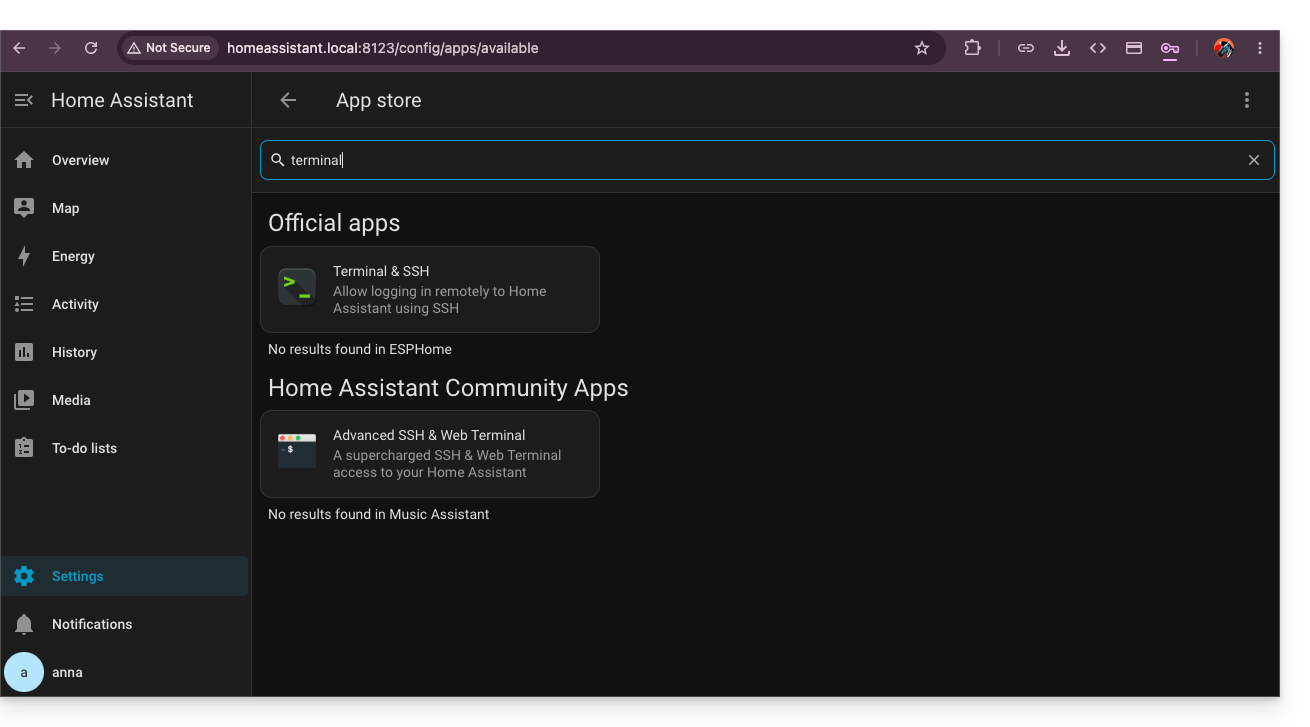
- In this terminal, enter the command
wget -O - https://get.hacs.xyz | bash -: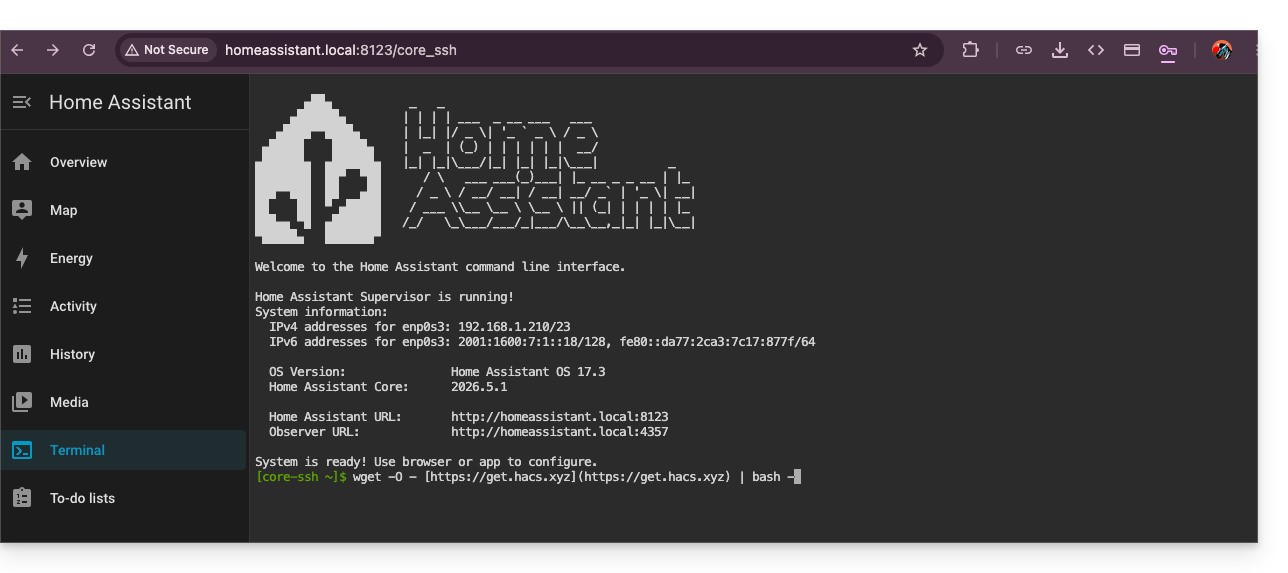
- Once HACS is installed, restart Home Assistant.
- Activate HACS by searching for it in the integrations:
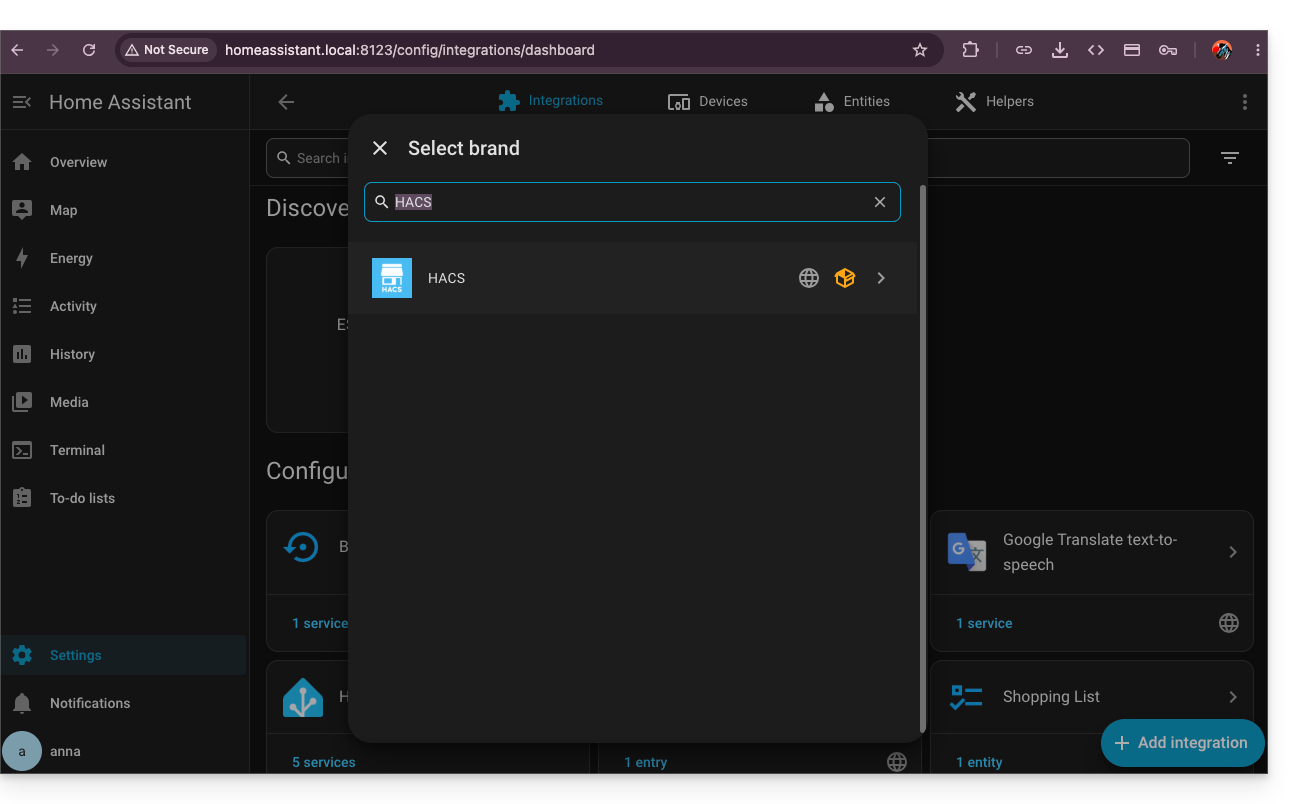
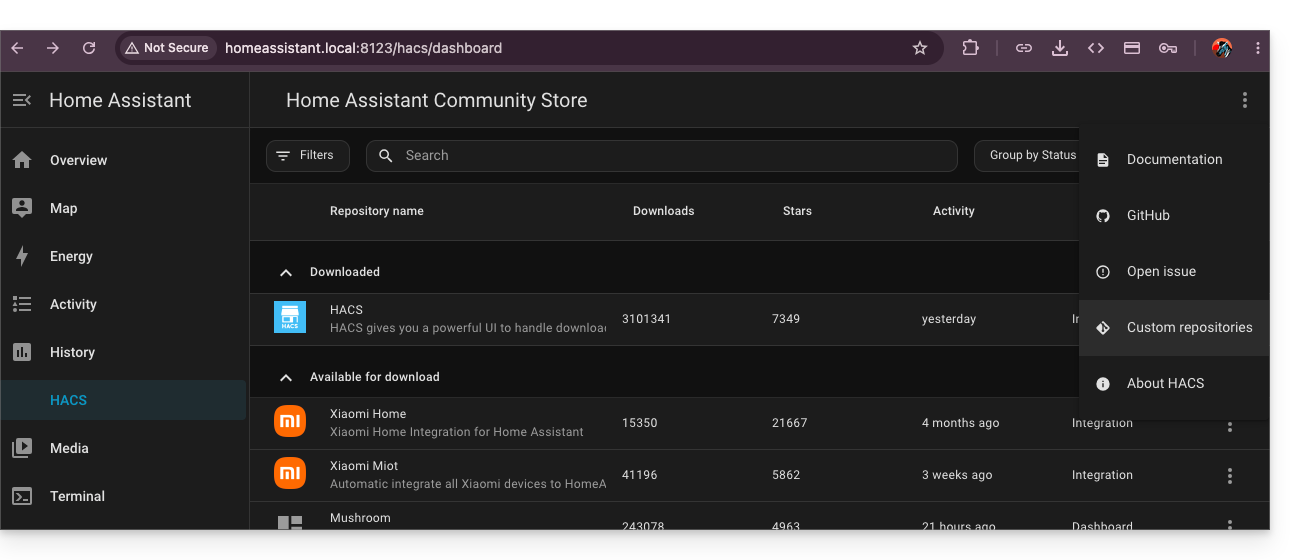
- Once the validation via Github is complete, return to HACS installed in your left sidebar, then click on the action menu ⋮ in the upper right corner of the HACS interface to choose the custom repositories:
- Enter the URL
https://github.com/cy-bertrand/Infomaniak-dyndns-haand choose the Integration type, before clicking on Add: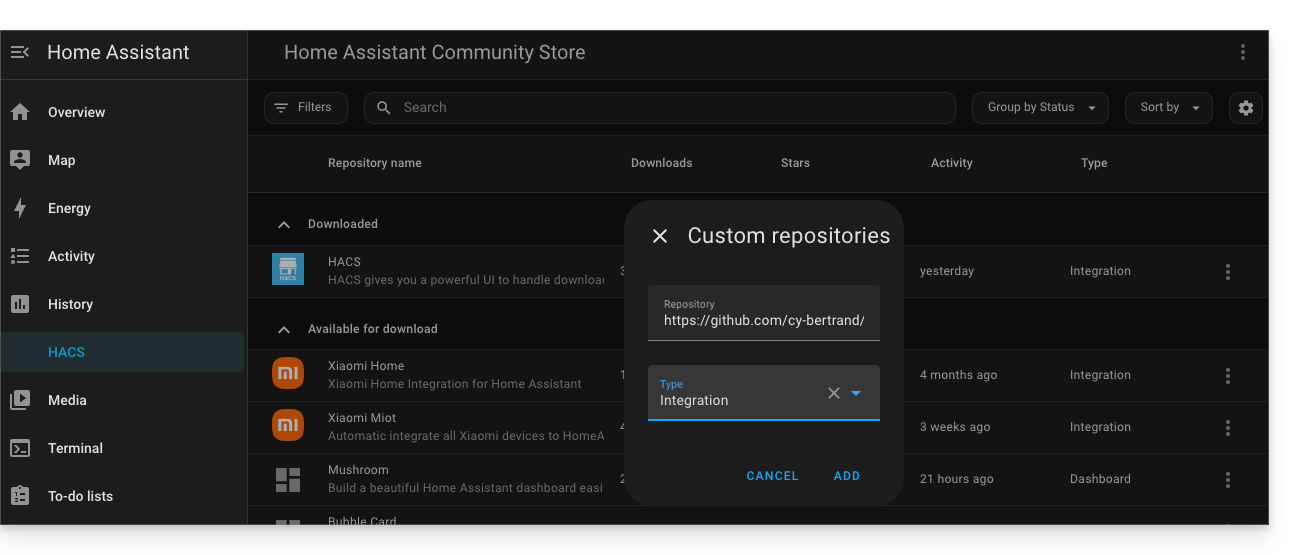
- Then search for Infomaniak DynDNS and click on it:
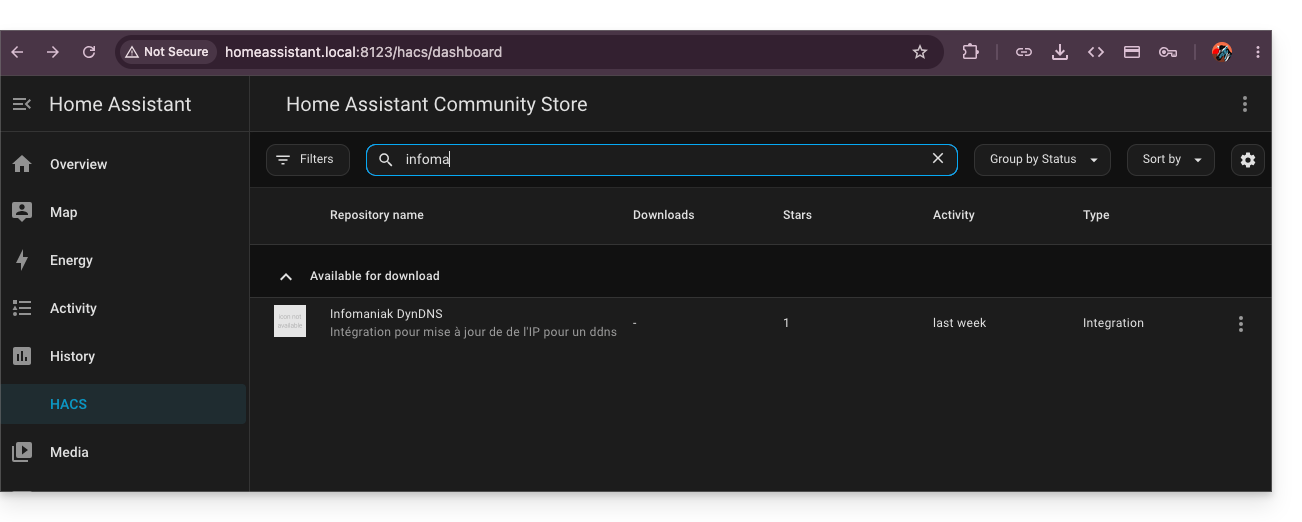
- Install this service by clicking on the Download button in the bottom right corner:
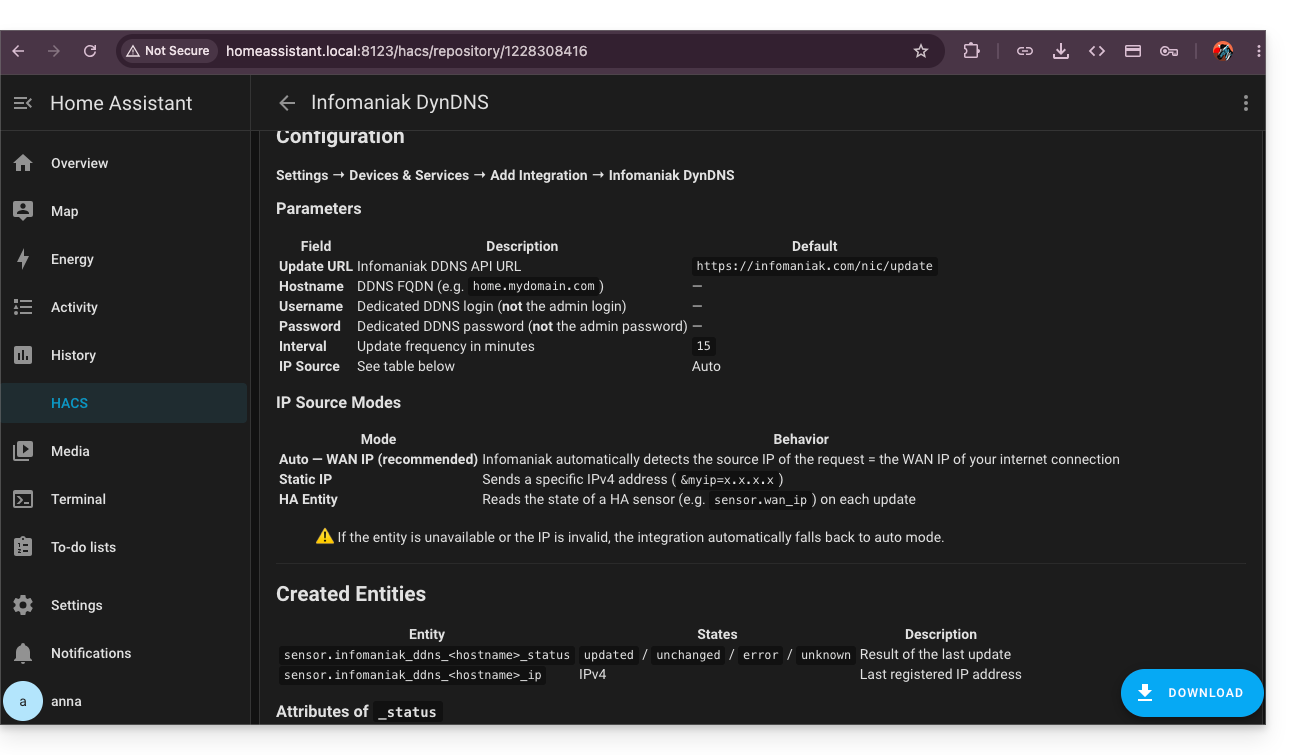
- Restart Home Assistant.
Configure Infomaniak DynDNS — Home Assistant Integration
To do this:
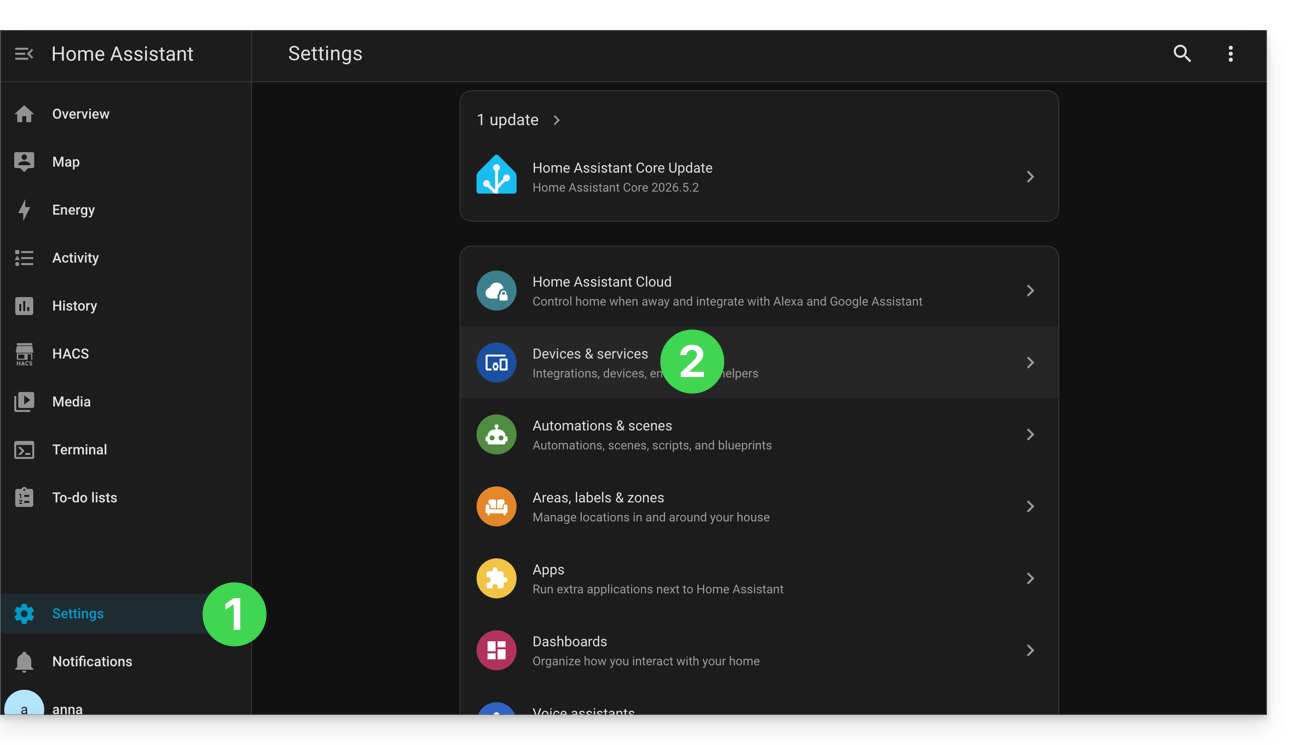
- Click on Settings in the left sidebar menu of HA.
- Click on Devices & services:
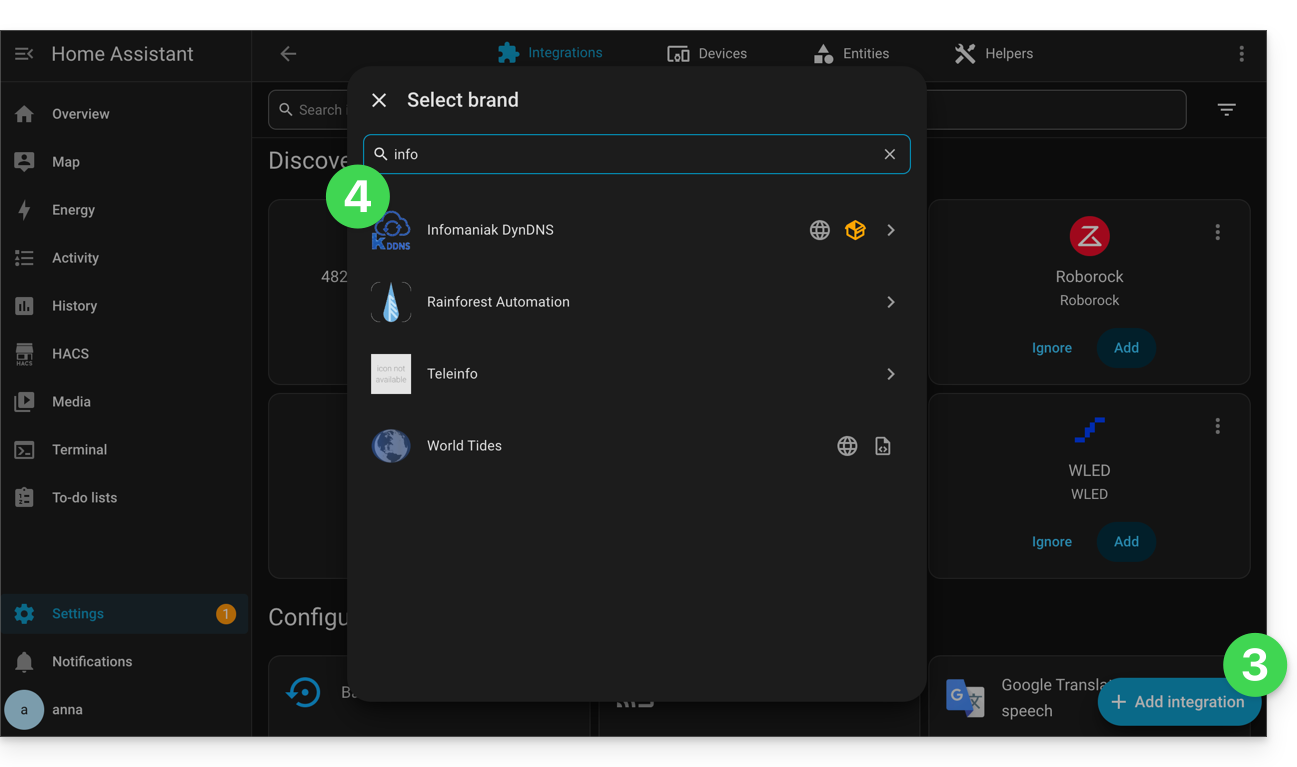
- Click on the button to Add integration.
- Click on Infomaniak DynDNS:
- Configure your equipment:
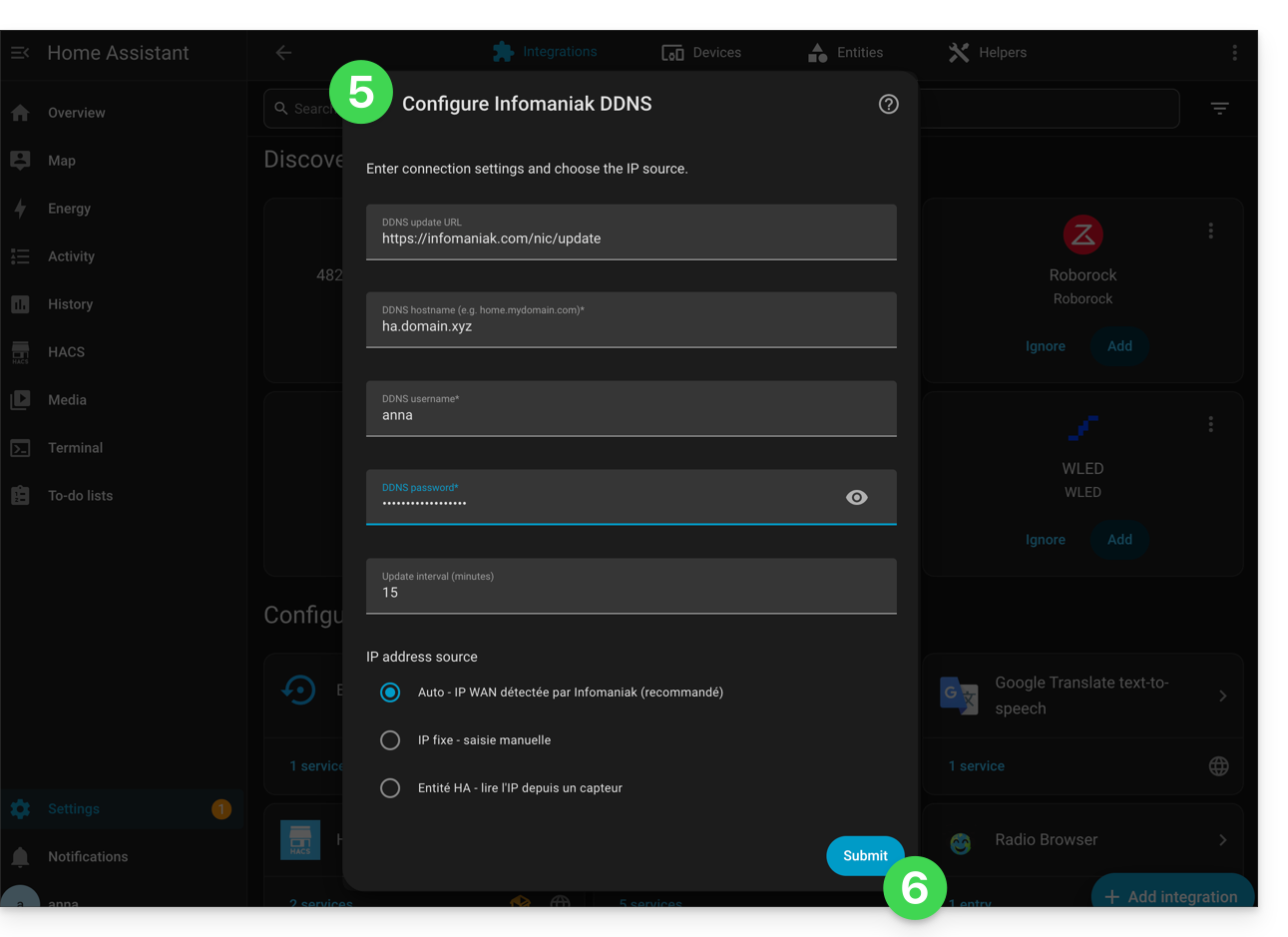
- Hostname: the URL configured in the Manager when adding the Dynamic DNS
- Username: the identifier defined in the Manager when adding the Dynamic DNS
- Password: the password defined in the Manager when adding the Dynamic DNS
- Validate at the bottom of the page.
- Give the entity a name and save your changes by clicking Finish:
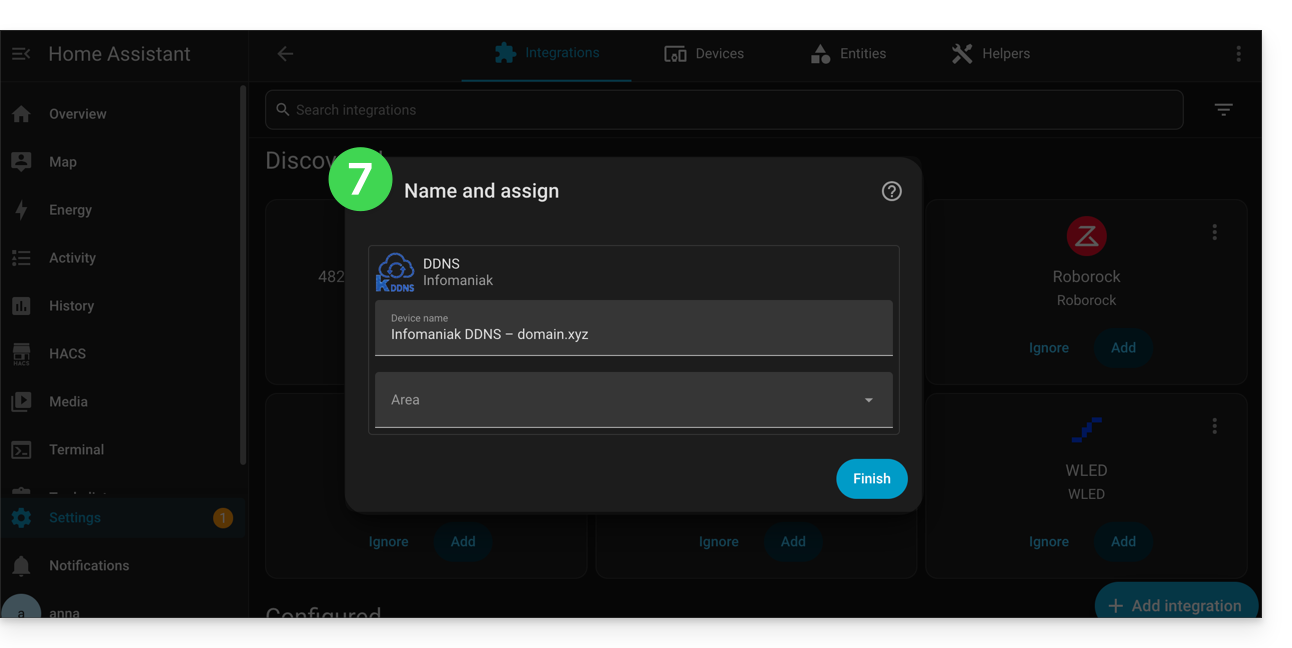
Home Assistant will check the external IP address every 15 minutes. If it has changed, the DNS will be updated. This way, your domain name will continuously point to your home automation installation, even if your Internet Service Provider changes your public IP address.
Also, refer to the official plugin documentation.
Link to this FAQ: https://faq.infomaniak.com/1665
Has this FAQ been helpful?
This guide presents the Global Security tool, which allows you to verify that the relationships between a domain name and an Infomaniak Mail Service are optimal in terms of security. This involves checking the SPF / DKIM / DMARC records, and the Global Security tool allows you to adjust the configuration if necessary.
Any DNS addition or modification may take up to 48 hours to propagate.
Accessing the Global Security diagnostic tool
To access Global Security:
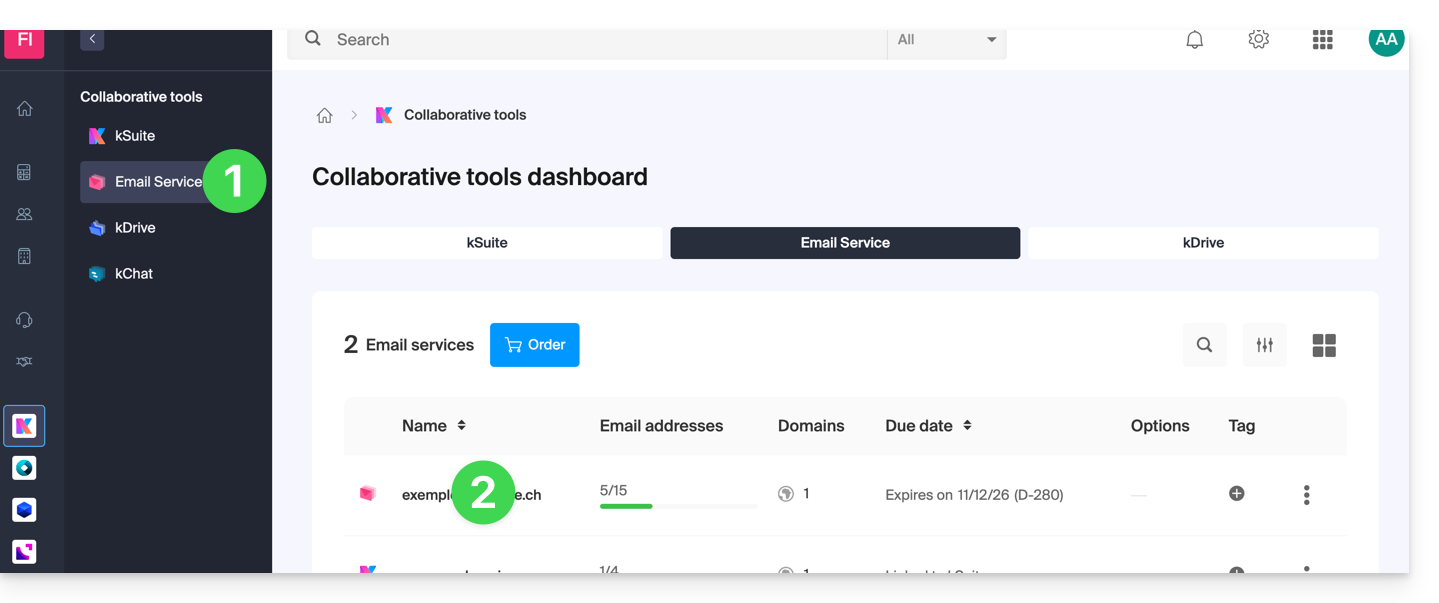
- Click here to access the management of your Mail Service in the Infomaniak Manager (need help?).
- Click directly on the name assigned to the Mail Service in question:
- Click on Global Security in the left-hand menu:
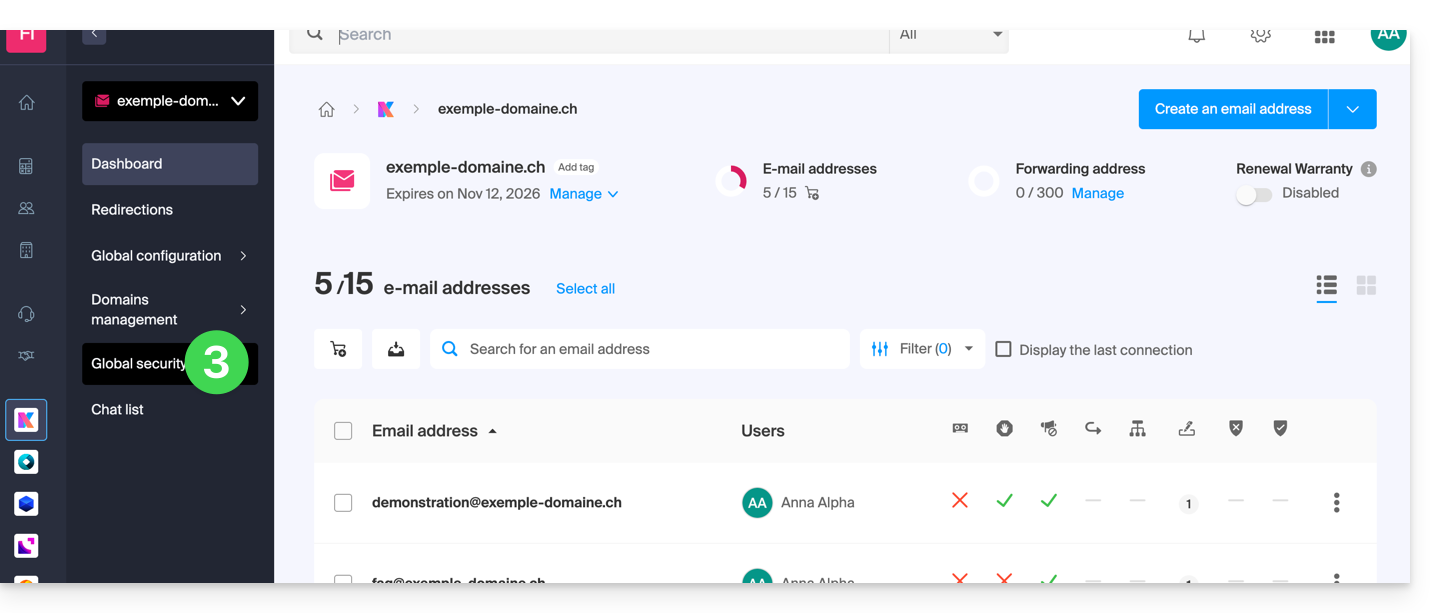
Check that the email service is working correctly
Once you are on the Global Security page, review and check the 3 security mechanisms inherent to emails: SPF, DKIM, and the DMARC policy. These settings should be displayed in green: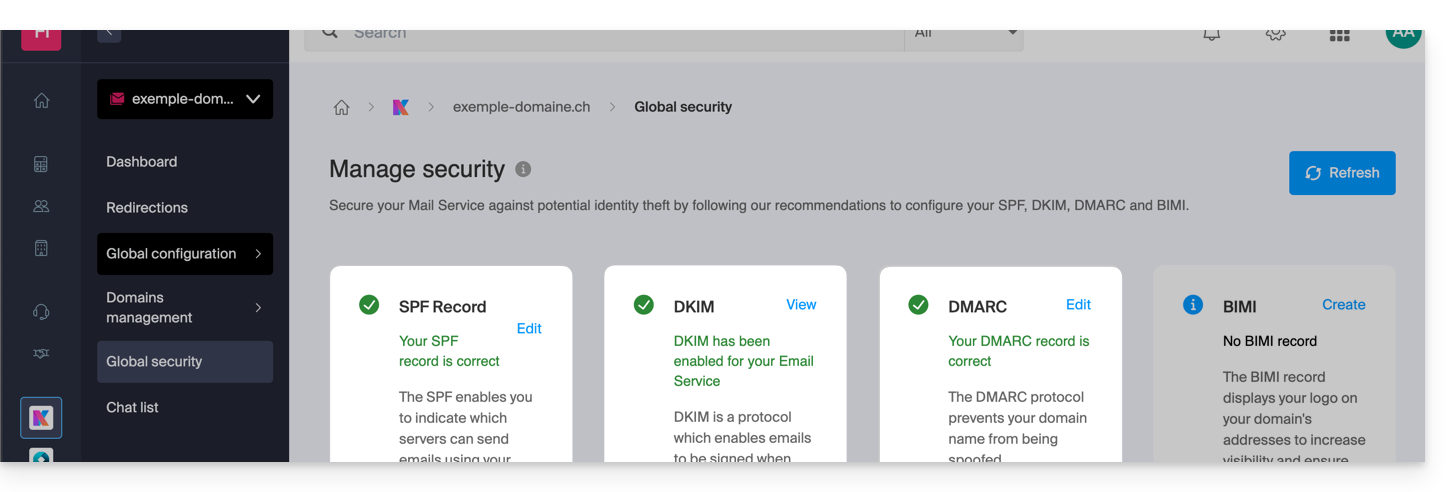
If this is not the case, it may explain why an email that is not spam is being treated as such.
Click on Edit or Create to configure SPF, DKIM, and DMARC according to the recommendations below to secure your Mail Service against potential identity theft:
SPF (Sender Policy Framework)
SPF (click here to configure) allows the owner of a domain name to specify which servers are authorized to send emails on behalf of that domain. This helps reduce the risk of spam and phishing, as the recipient's email server can verify whether the sender is authorized by consulting the DNS records of the sending domain: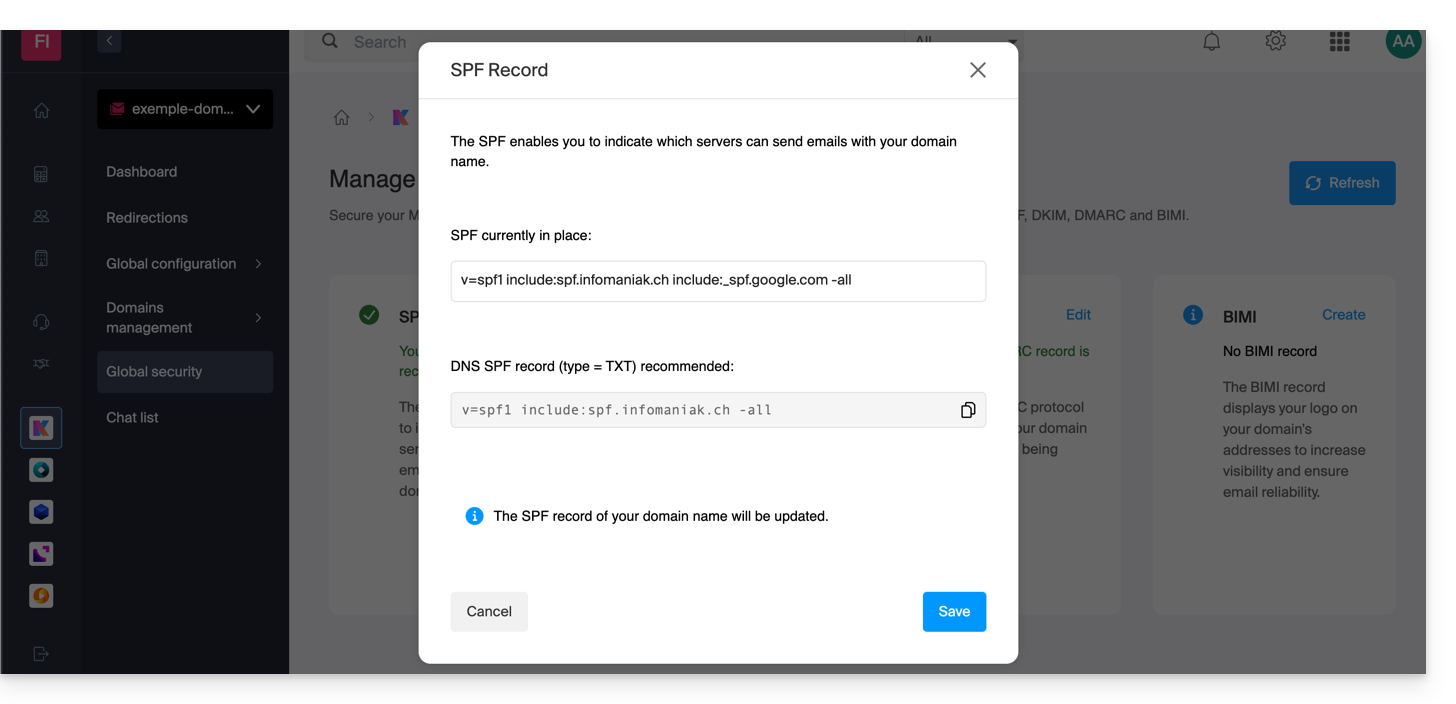
The analyses provided by the Global Security tool are only relevant if the domain name is hosted with Infomaniak and is configured to direct email traffic to Infomaniak.
Under these conditions, and if a problem is detected, you will find a Fix button that will allow you to automatically update your SPF record.
If fixing one or the other of the issues mentioned is not possible, it means that the fix must be made to the configuration set up by the owner or technician of the sender's domain name.
If your domain name points to Wix or another provider, the SPF record must be configured with the provider in question.
DKIM (Domain Keys Identified Mail)
DKIM (click here to configure) is a protocol that allows you to sign emails when they are sent.
When your domain name (or its DNS zone) is managed elsewhere, you will find the DKIM record to be added to the DNS zone in this section: Global Security > DKIM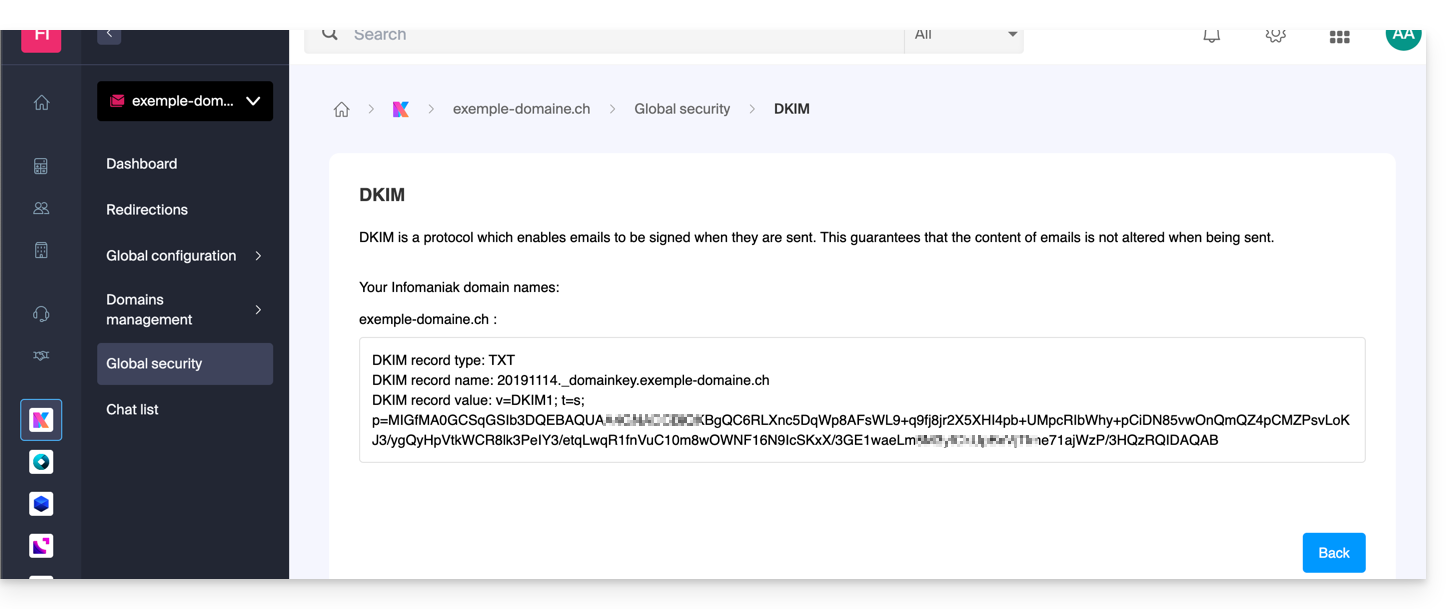
You can configure multiple DKIM records on your domain without any limit, unlike DMARC or SPF, which is crucial if you use multiple third-party email providers for your daily communications.
DMARC (Domain-based Message Authentication, Reporting, and Conformance)
DMARC (click here to configure) allows you to specify to other email servers (the email providers of the contacts to whom you send emails) the policy to follow in the event of receiving a "suspicious" email (not authenticated, for example) from your email server (hosted by Infomaniak). In addition, you can be notified of the "incident" by a summary message (called a "DMARC report") providing information on the recent activity of your email related to the domain name.
DMARC requires a valid SPF and DKIM. An assistant guides you through configuring DMARC according to Infomaniak's recommendations, either in simple mode or entirely to your liking in advanced mode (this expert mode allows you to enter the record of your choice):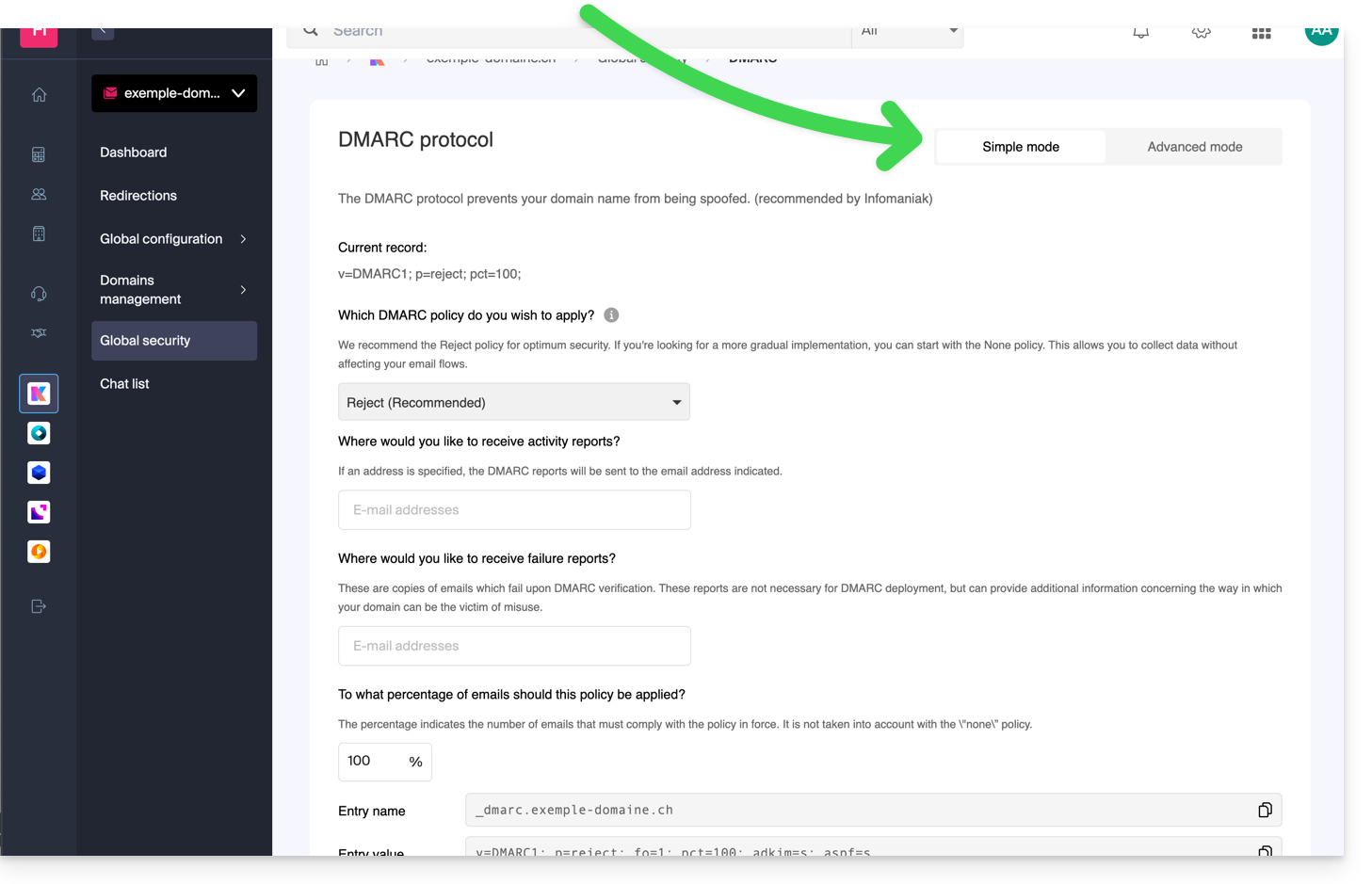 The corresponding entries (TXT type) will then be automatically applied to the DNS zone of the domain in question (if administratively possible - for example, if the domain is managed within the same Organization).
Infomaniak is unable toanalyze your DMARC reports and records,and will not be able to comment on their validity or compliance, as this is entirely your responsibility.
To check the records in your DNS, you can also use an external and free service like the one mentioned at the bottom of this other guide.
Refer to this other guide if you are looking for information on the fourth item on the Global Security page.
Link to this FAQ: https://faq.infomaniak.com/2692
Has this FAQ been helpful?
This guide explains how to link your Wix site to the Mail Service managed by Infomaniak.
Introduction
- By modifying your domain name managed by Infomaniak so that it points to the Wix servers, all web and email traffic now goes to Wix.
- Therefore, you need toInform Wix that the email service is managed by Infomaniak, by specifying 3 technical details:
- the Infomaniak MX record (fortunately, a drop-down menu will allow you to choose Infomaniak as your email provider, without having to specify the Infomaniak MX record manually)
- the Infomaniak SPF record
v=spf1 include:spf.infomaniak.ch -all - the Infomaniak DKIM record
1. Select Infomaniak MX
- In order for email to function correctly and for email traffic to be routed properly, you must choose Infomaniak from the list of providers in your Wix customer account.
- Read their official guide on this topic.
- Confirm and wait a few hours for the change to take effect (any DNS addition/modification may take up to 48 hours to propagate).
2. Add the Infomaniak SPF record using a TXT record
- Refer to their official guide on this topic.
- The information to enter is as follows:
- hostname: leave blank
- value (copy and paste entirely):
v=spf1 include:spf.infomaniak.ch -all - TTL: leave the current setting
- Validate and wait a few hours for the change to take effect (any DNS addition/modification may take up to 48 hours to propagate).
3. Paste the Infomaniak DKIM record
- Refer to their official guide on this topic.
- You will find the DKIM in the Infomaniak interface, under Global Security > DKIM.
- Confirm and wait a few hours for the change to take effect (any DNS addition/modification may take up to 48 hours to propagate).
Link to this FAQ: https://faq.infomaniak.com/1841
Has this FAQ been helpful?
This guide explains how to add a new domain name to a website on Infomaniak.
Introduction
- When you add a new domain name to a website, it is referred to as a linked domain, but also as an alias.
- In this case, a domain alias is an additional domain name that is also linked to an existing website.
- For example, to make the website
domain.xyzaccessible with a completely different domain name likeprivate.abc, you need to addprivate.abcas an alias to the website. - Second example, to make the website
domain.xyzalso accessible withwww.domain.xyz, you need to add it as an alias to the domaindomain.xyz. In this example,domain.xyzis the parent site of the aliaswww.domain.xyz. In general, thewwwalias is already added automatically and is present…
- For example, to make the website
Add an alias to an existing website
Prerequisites
- If the domain name (intended to become an alias) or its DNS zone is managed by Infomaniak, everything is fine. If not:
- The A record of the domain name must point to Infomaniak.
- To simplify, you can entrust the domain management to Infomaniak.
- It is also necessary that the future alias is not already linked to another website; if it is, you will need to unlink it from the current website beforehand (the same applies if it is a synonym).
To add an additional domain that will be linked to your website:
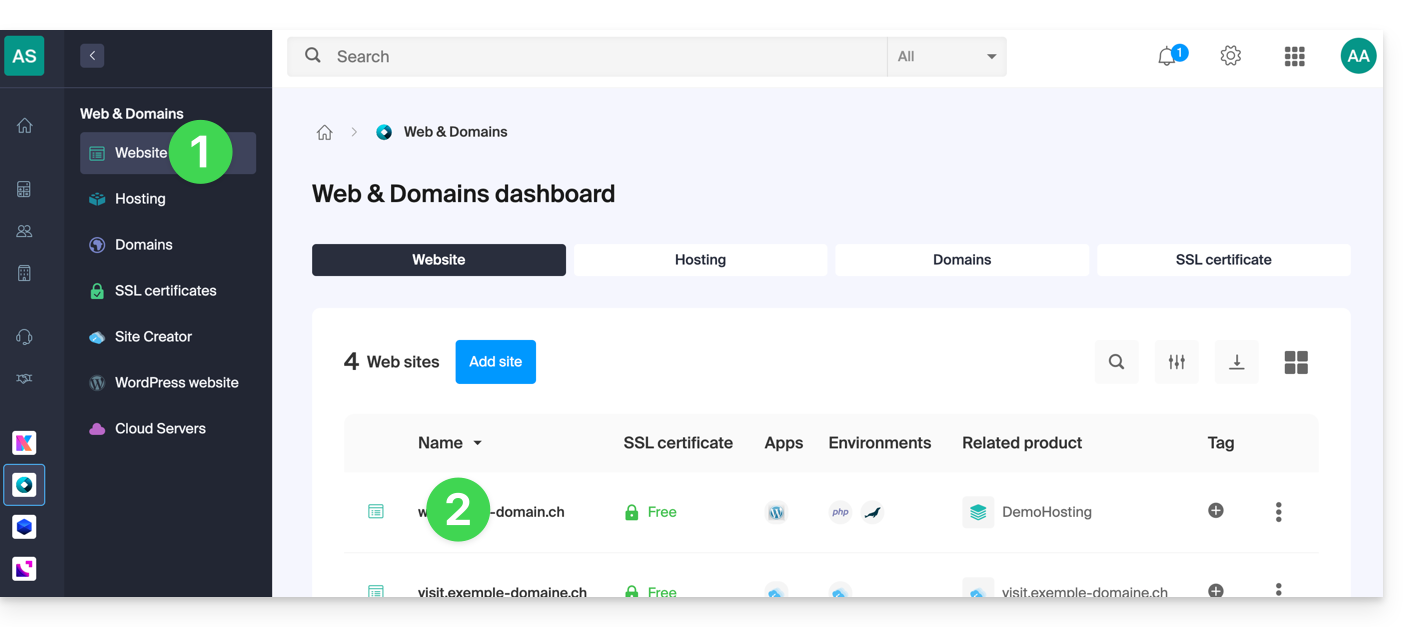
- Click here to access the management of your website in the Infomaniak Manager (need help?).
- Click directly on the name assigned to the website in question:
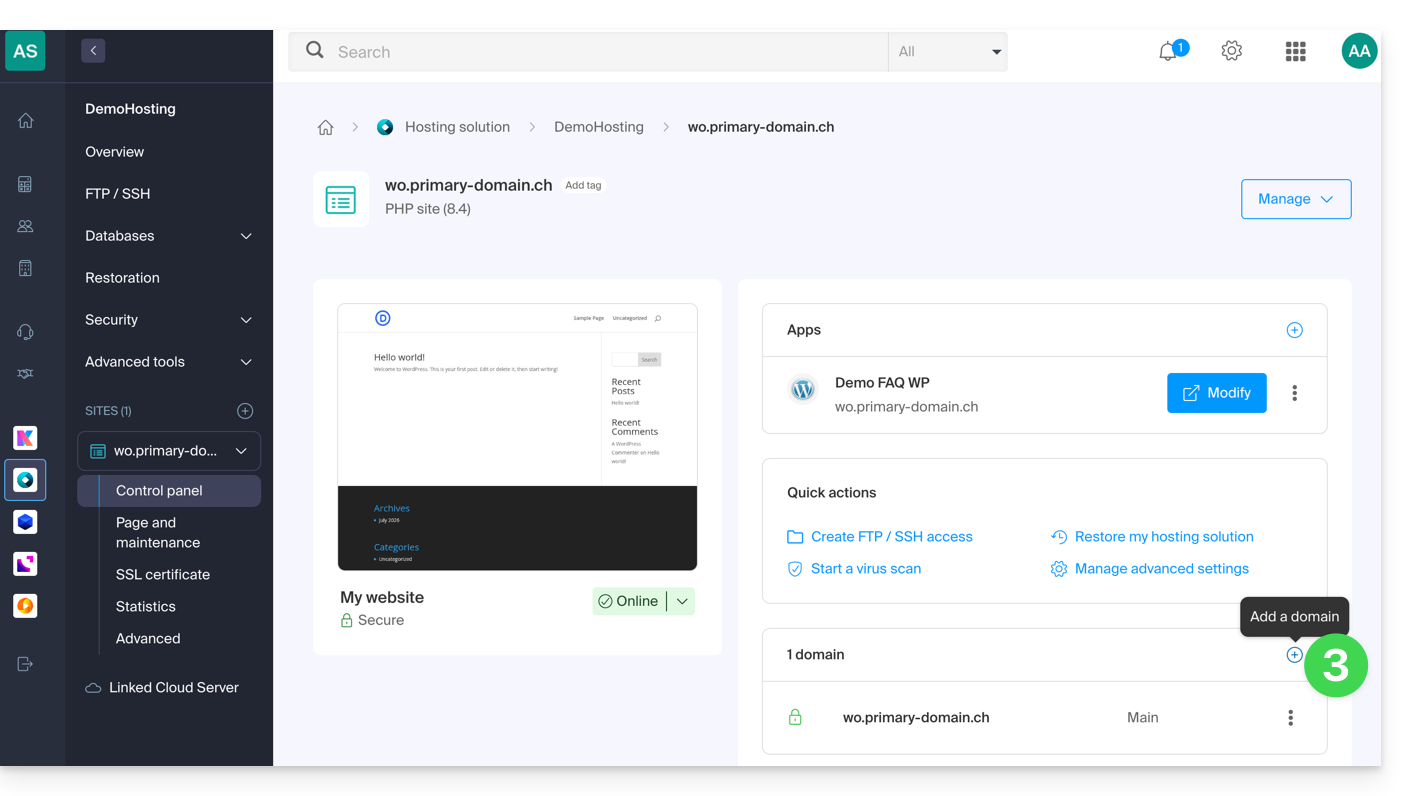
- Then, click on the Add a domain button:
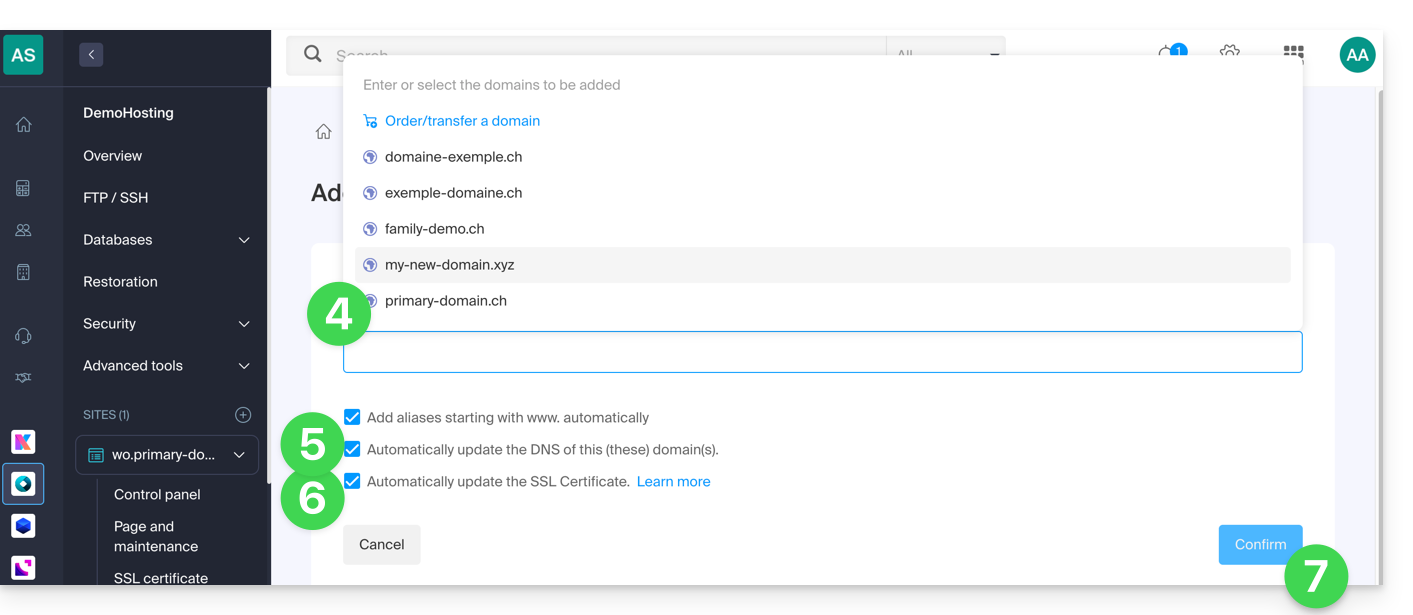
- Enter the domain name(s) to add, separating them with the Enter key.
- If the alias or its DNS zone is managed by Infomaniak, it is possible to automatically update the DNS entries. Otherwise, make any necessary changes with your registrar or transfer the domain name management to Infomaniak.
- If you have an SSL certificate, such as Let's Encrypt, you can request to update it here to include the new names.
- Click on Validate to complete the process:
- The domains linked to the website are updated:
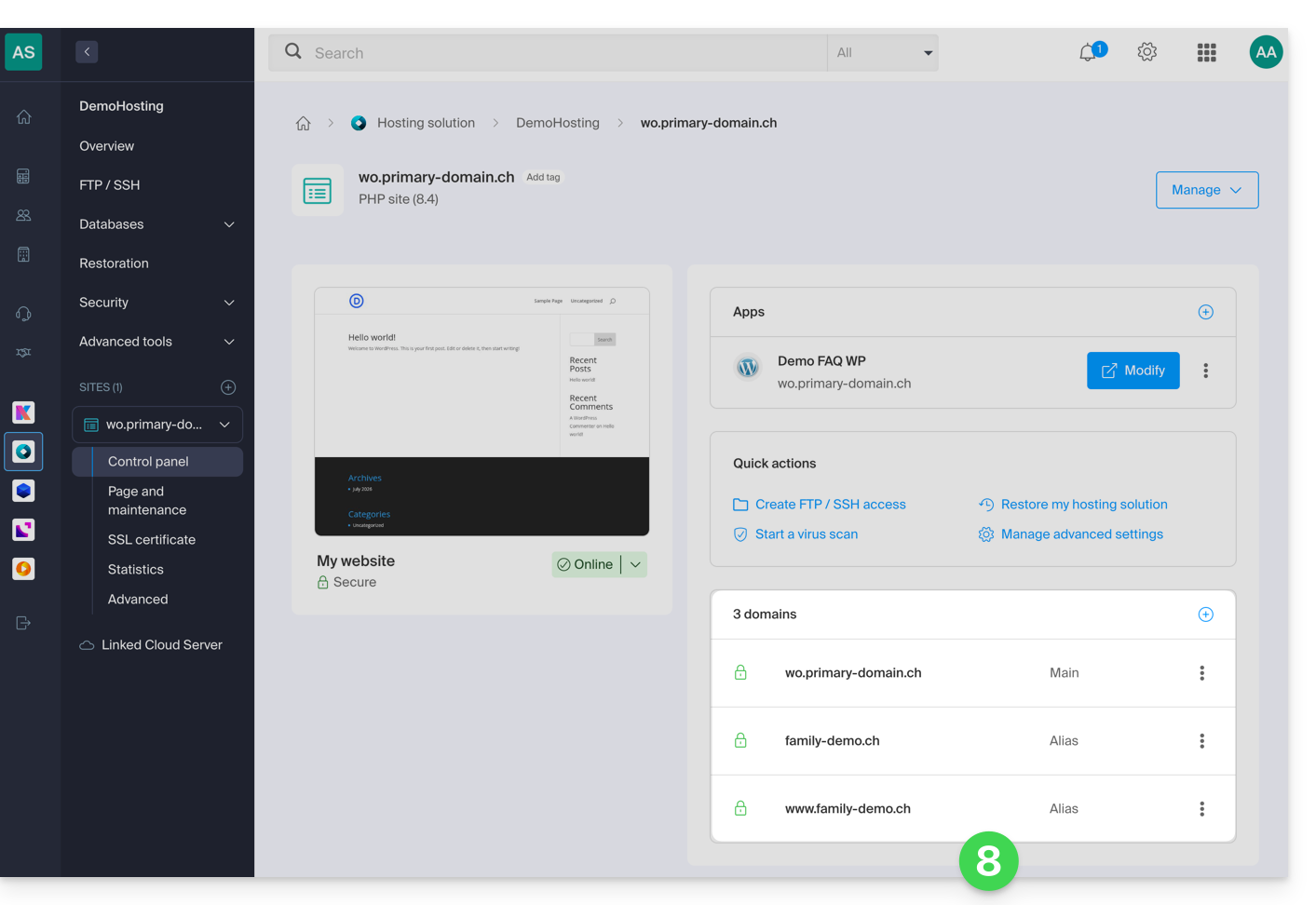
To define the alias as the main domain, please refer to this other guide.
Link to this FAQ: https://faq.infomaniak.com/1946
Has this FAQ been helpful?
This guide explains how to set up a DMARC policy for your email hosted by Infomaniak, an essential step to prevent potential email delivery issues.
Introduction
- The DMARC (Domain-based Message Authentication, Reporting, and Conformance) protocol enhances the security of your domain by relying on SPF and DKIM checks.
- It tells recipient servers how to handle emails that fail these authenticity tests, with three protection policies (None, Quarantine, Reject) detailed below.
- If authentication fails, the recipient may send you a DMARC report; this data is essential for identifying configuration errors or stopping phishing attempts using your domain name.
DMARC policy and acceptance rate
For the actions that can be taken on recipient servers when a suspicious message is detected, 3 policies (p = policy) exist and can be refined with a percentage (pct):
None: The email is delivered normally (observation mode)
With "p=none", no emails are rejected or placed in quarantine based on DMARC verification. However, the reception percentage can be used to collect data on unauthenticated emails, indicating how many of these emails should be subject to the DMARC policy. For example, "p=none; pct=10" means that 10% of unauthenticated emails will be subject to the DMARC policy, while the remaining 90% will be accepted.
Quarantine: The email is sent to spam
With "p=quarantine", unauthenticated emails can be placed in quarantine, but the percentage of reception determines the proportion actually subject to this policy. For example, "p=quarantine; pct=50" means that 50% of unauthenticated emails will be placed in quarantine, while the remaining 50% will be accepted.
Reject: The email is simply blocked/deleted
With "p=reject", unauthenticated emails are rejected. The percentage of reception determines the proportion of unauthenticated emails that will actually be rejected. For example, "p=reject; pct=20" means that 20% of unauthenticated emails will be rejected, while the remaining 80% will be accepted.
Create a DMARC record
There are 2 ways to manage DMARC.
If you have a Mail service with Infomaniak, the easiest way is to go to the Global Security tool to manage your DMARC security policy and reports: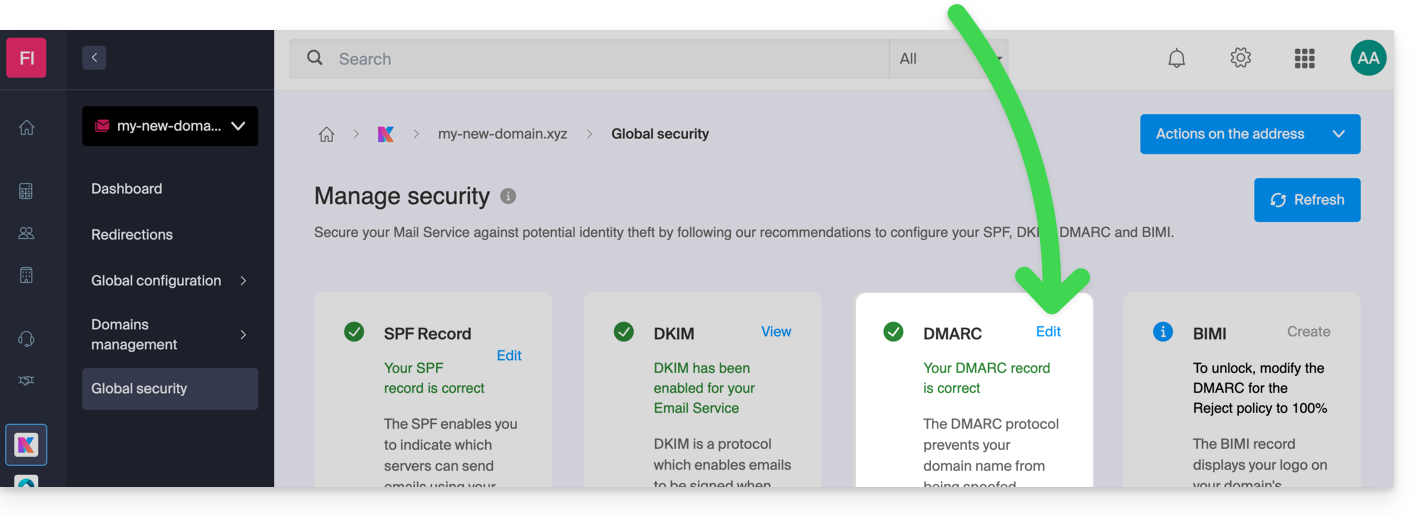
Since a DMARC record is a type of DNS record, generally of the TXT type, you can also manage it from the domain name's DNS zone:
- Click here to access the management of your domain on the Infomaniak Manager (need help?).
- Click directly on the name assigned to the domain in question.
- Click on DNS Zone in the left-hand menu.
- Click the button to add a record:
- Click the DMARC radio button to add a record.
- Click on the Next button:
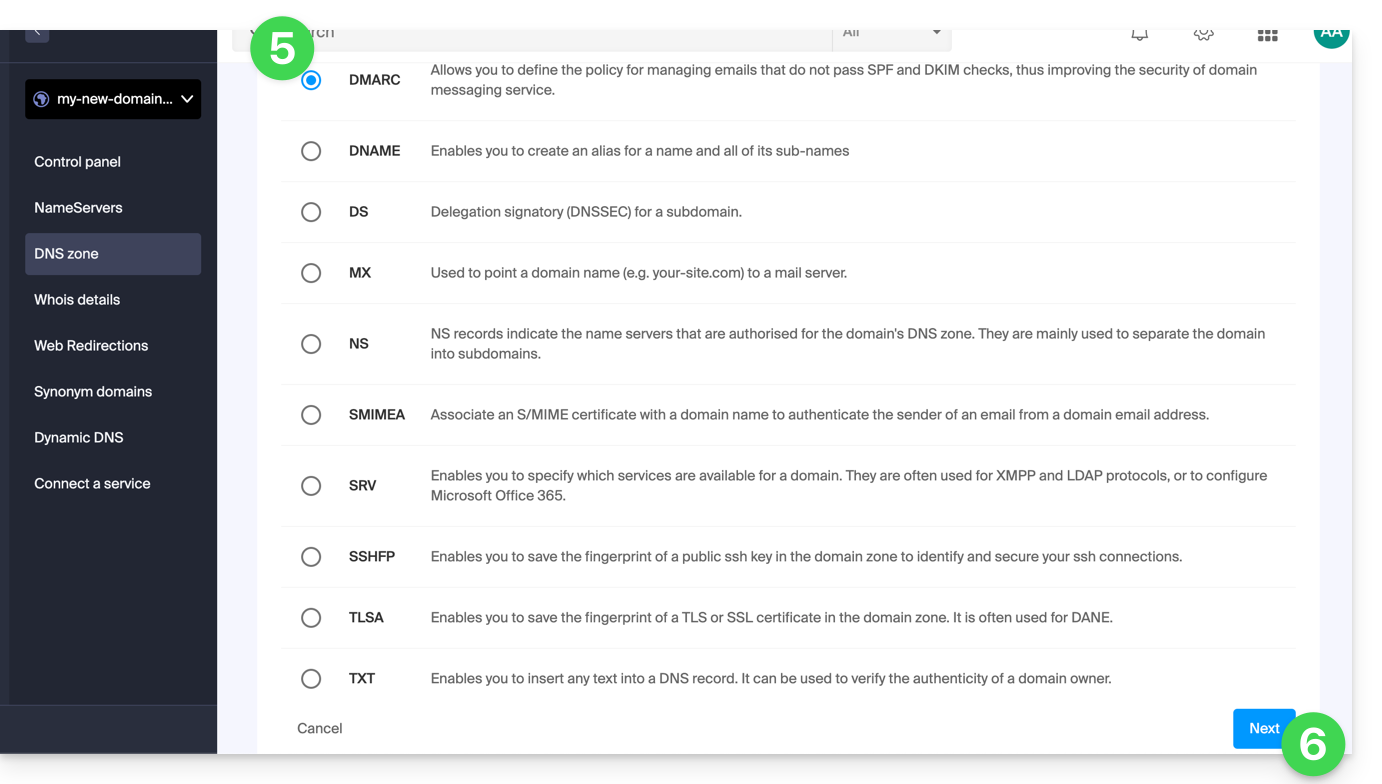
- Leave (or add if necessary) the
_dmarcvalue in the Source field. The Target field must contain the parameters you want to use, separated by
;:Tag Name Purpose Example v Protocol version v=DMARC1pct Percentage of messages subject to filtering pct=20ruf Reporting URI for forensic reports ruf=mailto:authfail@domain.xyzrua Reporting URI for aggregate reports rua=mailto:aggrep@domain.xyzp Policy for the organizational domain p=quarantinesp Policy for subdomains of the organizational domain sp=rejectadkim Alignment mode for DKIM adkim=saspf Alignment mode for SPF aspf=rwhich can result in, for example,
v=DMARC1;p=reject;pct=100;rua=mailto:postmaster@dmarcdomain.com(source)- Leave the default value for the TTL.
- Click the Save button:
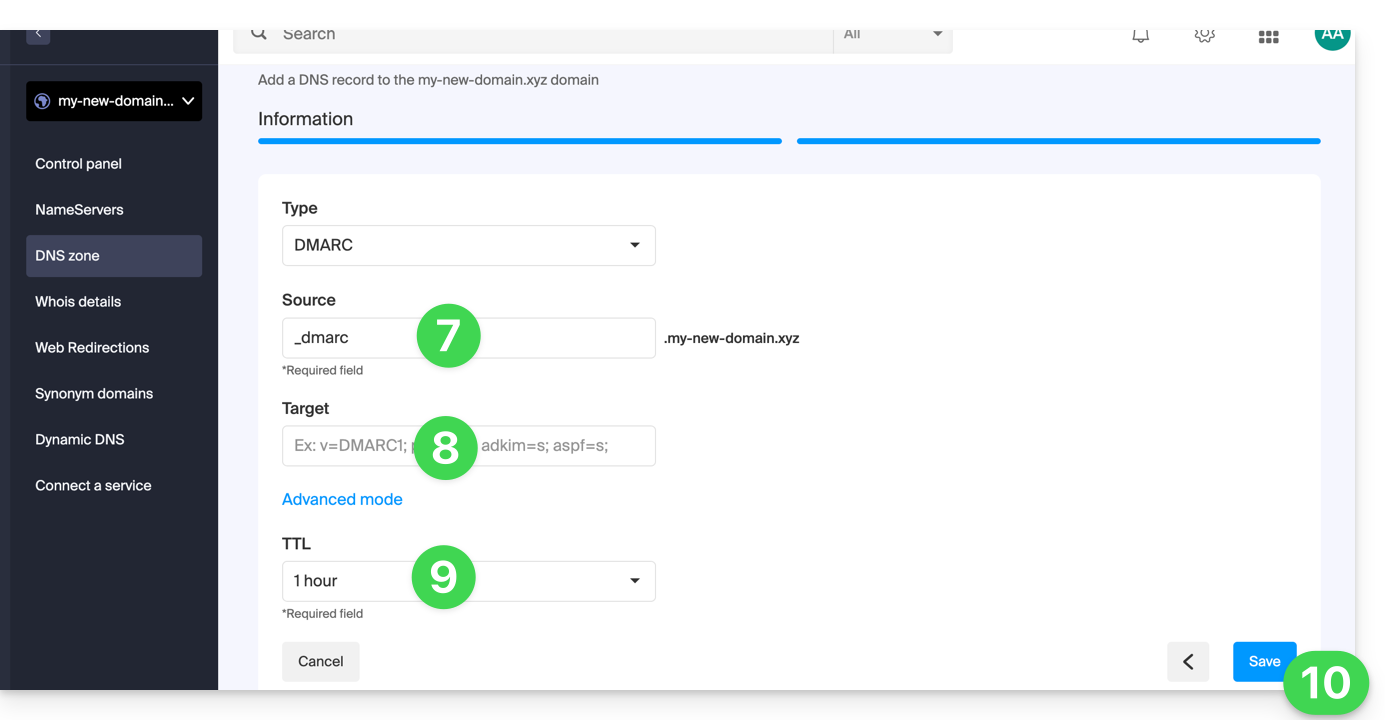
Any DNS addition/modification may take up to 48 hours to propagate.
Link to this FAQ: https://faq.infomaniak.com/1552
Has this FAQ been helpful?
This guide explains how to replace the primary domain name associated with a Mail Service in case you want to, for example, change the spelling of everything that comes after the @ symbol in your email address (i.e., the domain name). If your Mail Service is part of a kSuite, you will need to modify the kSuite domain directly.
Introduction
- You can also follow this procedure if the goal is to have completely new email addresses while keeping the history of your emails on Mail (since the email address will continue to exist, for example, info@premier-domaine.xyz will become info@nouveau-domaine.xyz without any modification to its content).
- IndeedIt is not possible to simply change the spelling of the domain name in question; therefore, it is necessary to replace the current domain name associated with your email addresses with another domain name.
- To simply add an additional domain name, please refer to this other guide.
- To instead modify the part of your email address that appears before the at symbol
@, please refer to this other guide. - It should also be noted that you can rename your product (example) in the Infomaniak Manager, but changing the name of a Mail Service has absolutely no impact on its addresses; you need to modify the domain name.
If your Mail Service is part of a kSuite, you will need to modify the kSuite domain directly.
Change the domain name for your Mail service
Prerequisites
- Own the new domain name (if necessary, create it beforehand).
- Review the instructions in this other guide and apply the instructions that correspond to your situation (to ensure that the domain name works when it is linked to your Mail service).
Once the new domain name is ready to be used in place of the old one, you need to add it to the Mail service and then perform a switchover:
- Click here to access the management of your product in the Infomaniak Manager (need help?).
- Click directly on the name assigned to the product in question.
- Click on Domain Management in the left-hand menu.
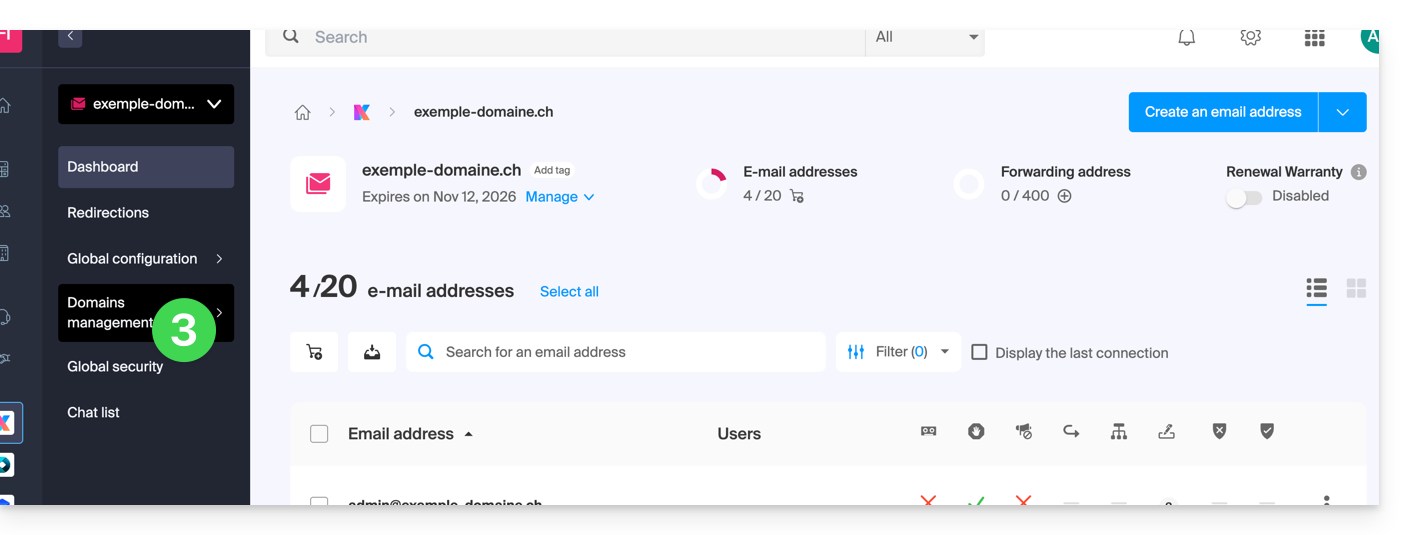
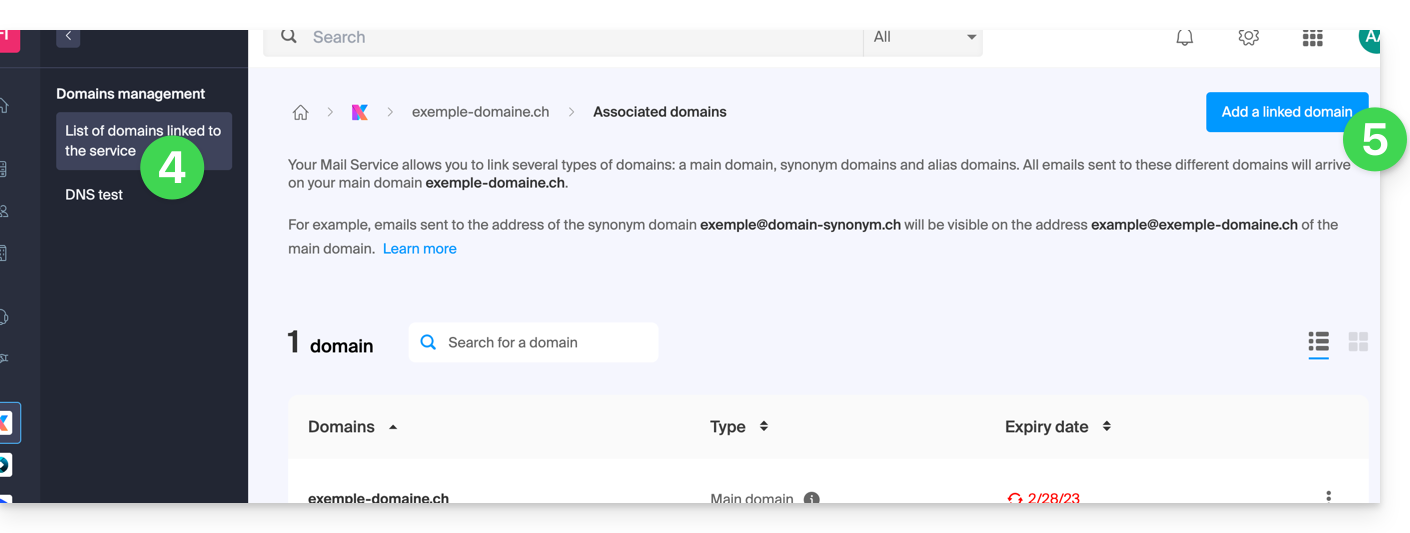
- Click on Domains linked to the service in the left-hand menu.
- Click the blue Add a linked domain button:
- You can:
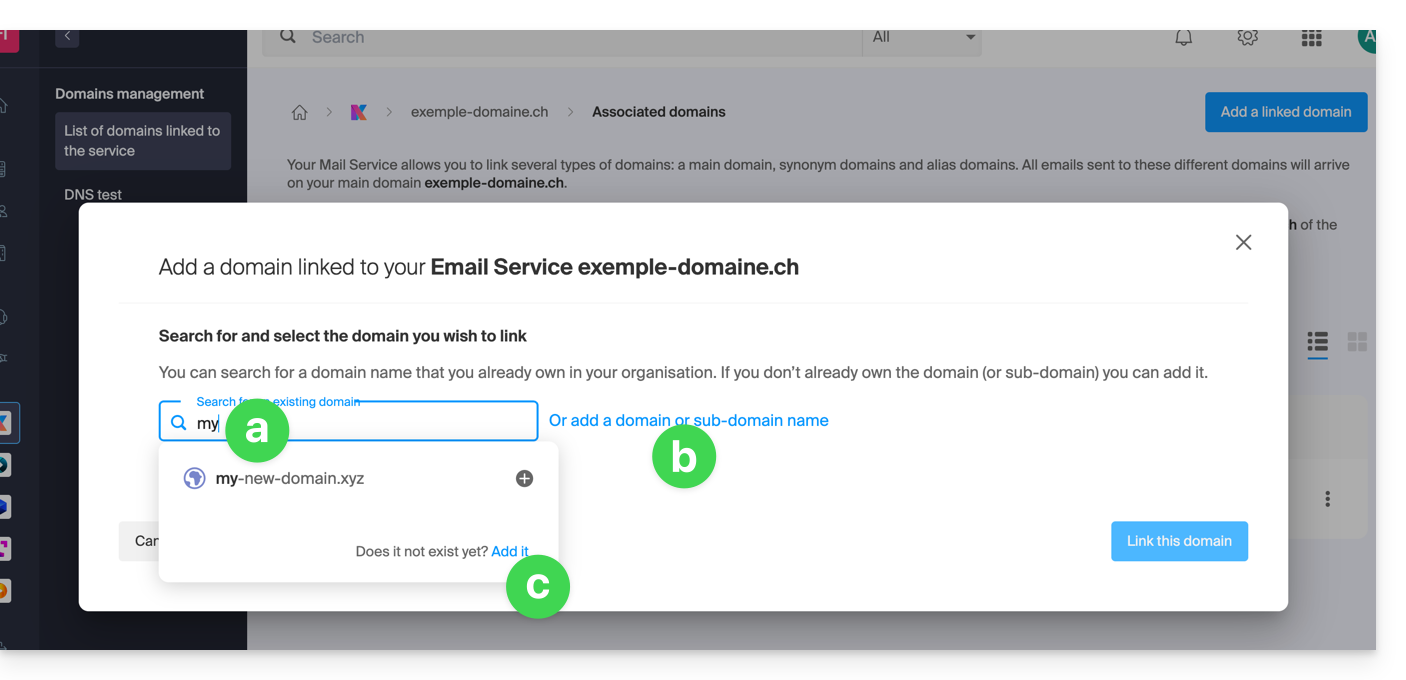
- Search for an existing domain within the Organization you are connected to; this will automatically link and update the DNS zone of the added domain.
- Add a domain name or subdomain to manually specify the domain name or subdomain to use (ideal if the domain name is located elsewhere).
- Purchase a new domain name (see prerequisites).
a: The domain exists at the Organization level
Before proceeding, be sure to unlink the domain name if it was previously defined as a synonym domain.
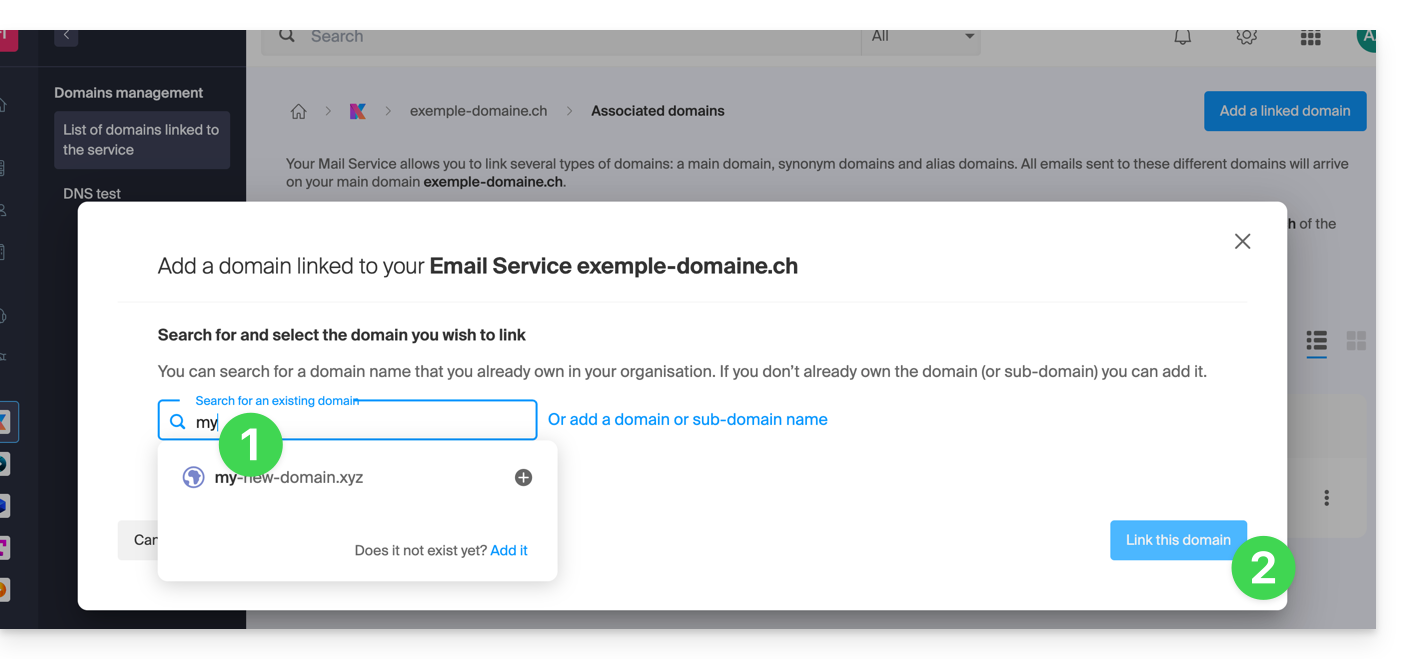
- Click on the proposed domain name.
- Click on the blue Link this domain button:
- Click on the ⋮ icon to the right of the newly added domain name.
- Click on Set as primary domain (you must have disassociated the alias domain from the primary domain if there was a previous association):

- Confirm the reversal and then wait for the operation to complete.
- Click on the ⋮ icon to the right of the old domain name.
- Click on Detach the domain:
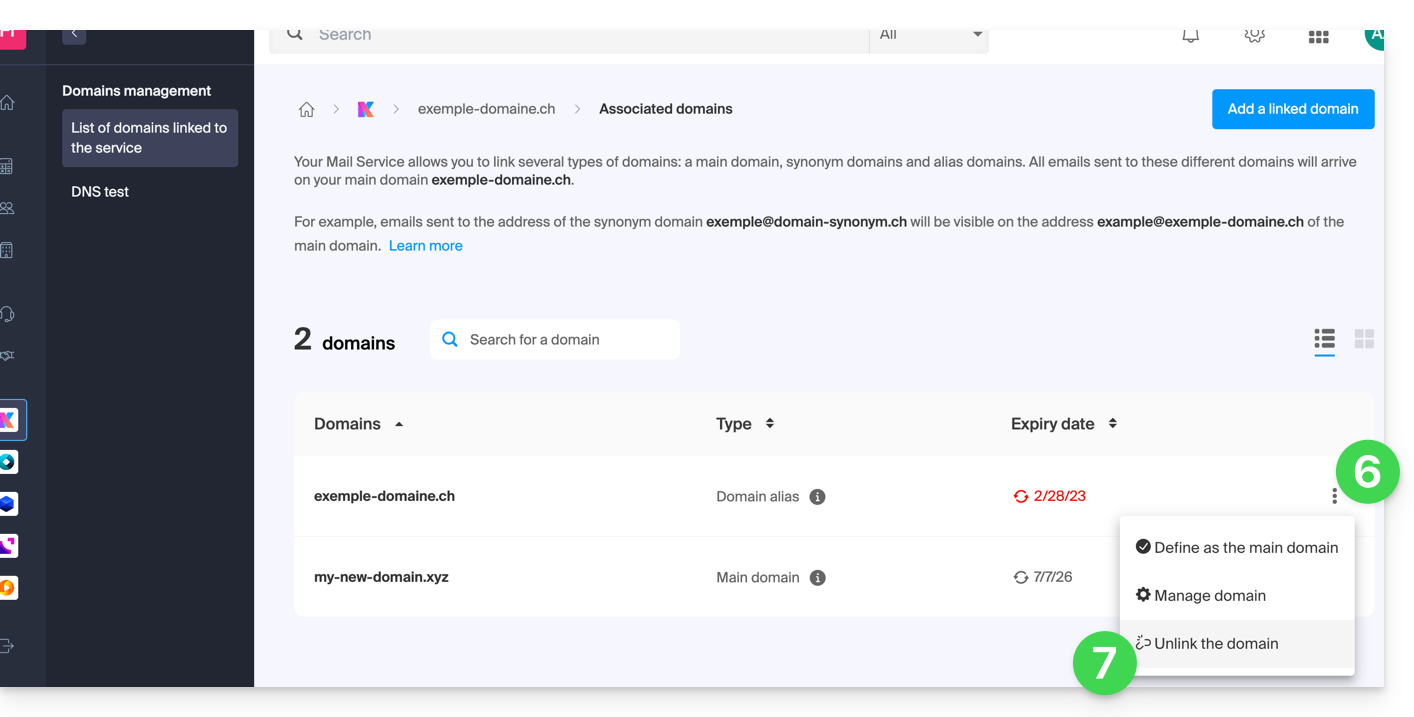
- Confirm the detachment by checking if you want to delete the associated DNS records during the detachment process.
That's it, the Mail Service now responds to a new domain name.
b: The domain exists but is hosted elsewhere
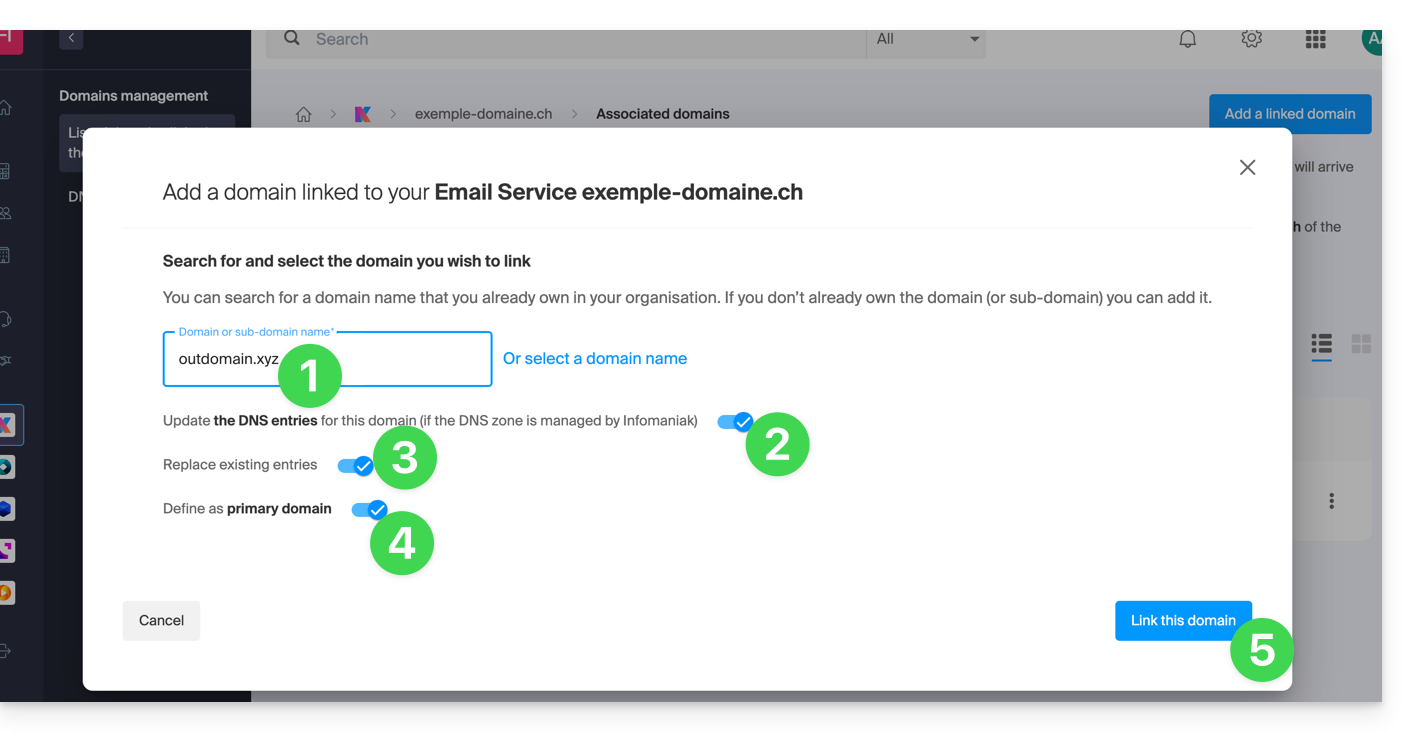
- After clicking Add a domain or subdomain, enter the domain name that will be used to replace the current one.
- Enable the DNS record update (if the domain name's status allows it, the domain name's DNS zone will be updated automatically).
- If the above point 2 is active, then enable the replacement of any existing entries.
- Enable domain name reversal (to avoid additional steps as in point "a" above).
- Click on the blue Link this domain button:
- Wait for the operation to complete.
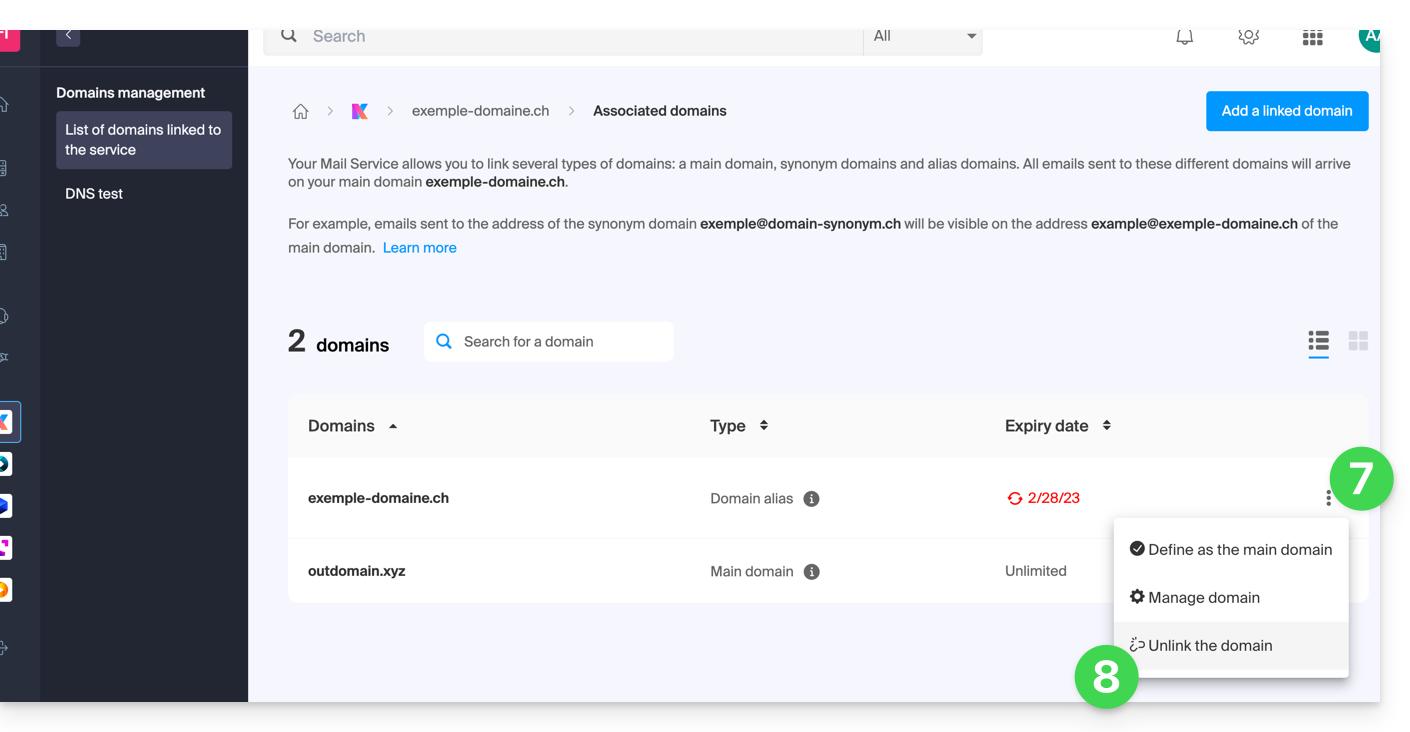
- Click on the ⋮ icon to the right of the old domain name.
- Click on Unlink domain:
Link to this FAQ: https://faq.infomaniak.com/1934
Has this FAQ been helpful?
This guide explains how to resolve the various issues related to the domain name when creating custom web addresses using Custom Brand!
Introduction
- As long as the domain name is linked to your custom web addresses, it is not possible to transfer it to another Infomaniak Organization or Registrar.
The domain name is not available
Is the domain name hosted by Infomaniak?
- If not, you can transfer the domain name to Infomaniak.
- You can also order DNS zone management from Infomaniak.
Is the domain name registered with another organization? Do you have access to it?
- The domain name must be registered in the account from which the URL customization will be configured. Therefore, you must either create the custom web address in the account where the domain name is located, or transfer it to the desired account.
Is the domain name already used by other services?
If your domain name is already linked to other services, you will not be able to use it. You will need to…
- … either unlink it from the services where it is used (modifying a DNS entry)…
- … or use a subdomain, for example my.domain.xyz.
The domain name extension is unavailable
Infomaniak offers hundreds of extensions for your domain name. However, it may happen that the extension used by your domain name is unavailable or undergoing maintenance:
- If the desired extension is not available, please consult the list of available extensions at Infomaniak.
- In rare cases, an extension may be indicated as being in "maintenance" by its registry (the organization that manages domain name registration); this means that global operations are in progress on this extension and that it is temporarily unavailable for purchase.
The domain name encountered a verification error
A domain name verification issue has occurred?
If you encounter this type of error, contact Infomaniak support.
Link to this FAQ: https://faq.infomaniak.com/2468
Has this FAQ been helpful?
This guide explains how to configure ddclient, a tool available on most Linux distributions, to use it with the Infomaniak DynDNS service.
Prerequisites
- Install the
ddclientpackage for your distribution (e.g.,sudo apt install ddclient). - Have a DynDNS record already created on the domain or subdomain to be updated.
- Make sure the SSL module for Perl is installed:
sudo apt install libio-socket-ssl-perl.
ddclient configuration
The configuration file /etc/ddclient.conf must contain the following information:
protocol=dyndns2
ssl=yes
use=web
server=infomaniak.com
login=enter_your_login
password=enter_your_password
yourdomain.xyz- ssl=yes: enables a secure connection. This parameter is required for the update to function correctly.
- use=web: instructs ddclient to use an external service to automatically detect your public IP address.
- login / password: DynDNS credentials defined in the Infomaniak Manager when adding the Dynamic DNS (help).
- yourdomain.xyz: replace with your domain or subdomain for DynDNS.
Test and verification
Before running ddclient as a service, you can test the configuration with:
sudo ddclient -daemon=0 -verbose -debugIf the configuration is correct, you will see a message such as SUCCESS: updating yourdomain.xyz.
Starting the service
Once the configuration is validated, restart and activate ddclient:
sudo systemctl restart ddclient
sudo systemctl enable ddclient
You can check its status with:
sudo systemctl status ddclient
But also:
- Protect the configuration file with:
sudo chmod 600 /etc/ddclient.conf. - Regularly check that the IP address is being updated correctly by performing a DNS lookup (
dig yourdomain.xyzornslookup). - If your IP address does not change frequently, keep a reasonable refresh interval to avoid unnecessary requests.
Link to this FAQ: https://faq.infomaniak.com/40
Has this FAQ been helpful?
This guide details the reasons why an email cannot be sent and instead returns a Sender denied: auth guards failed error.
Why is there an error when sending?
When you send emails from an address like abc@domain.xyz via Infomaniak, it may happen that these messages are rejected by some recipients (like outlook.com) or end up in spam.
This is not an error on Infomaniak's part, but a security measure related to how your domain name is configured. Indeed, each domain name has a protection system called SPF (Sender Policy Framework). This system indicates which servers are authorized to send emails for that domain. If your domain does not explicitly authorize Infomaniak's servers, emails sent from these servers may be blocked or considered suspicious.
Infomaniak is now strengthening its controls and directly rejecting emails that do not comply with SPF rules, to prevent your emails from being rejected or considered spam by your recipients, or that the servers are misused.
This means that if your domain does not correctly declare Infomaniak's servers, you will receive the error that led you here.
How to fix the issue?
To fix this problem, you need to modify the DNS configuration of your domain, i.e., the technical settings that define how your domain works on the Internet. You need to add or update a TXT record called SPF.
Refer to this other guide to find possible solutions and ensure your emails are sent correctly.
These simple adjustments will allow email services like Outlook, Gmail, or Yahoo to recognize that Infomaniak's servers are authorized to send emails for your domain, which will significantly improve the deliverability of your messages.
Any DNS addition/modification may take up to 48 hours to propagate.
Link to this FAQ: https://faq.infomaniak.com/1571
Has this FAQ been helpful?