Knowledge base
1000 FAQs, 500 tutorials and instructional videos. Here, there are only solutions!
This guide explains how to activate an auto-reply (automatic "out of office" email message) for an email address managed with Infomaniak. This allows you to inform your contacts that you are unable to respond to them immediately because you are away, on vacation, etc.
Introduction
- The automatic reply for absences can be activated from the Infomaniak Mail web app (online service ksuite.infomaniak.com/mail) and from the Manager, where all addresses for a Mail Service are managed.
- You can activate or deactivate an already saved message, but there can only be one active auto-reply for a single email address: activating one message deactivates any other, if applicable.
Activate the auto-reply from the Infomaniak Mail web app
Prerequisites
- You must have permission to manage the auto-reply: if you were invited to the Infomaniak Mail web app (online service ksuite.infomaniak.com/mail) to manage your address, it is possible that the manager of the Mail Service has removed this right from their admin account.
To activate the absence message:
- Click here to access the Infomaniak Mail web app (online service ksuite.infomaniak.com/mail).
- Click on the Settings icon in the top right corner.
- Check or select the relevant email address in the dropdown menu on the left-hand sidebar.
- Click on Auto Reply:
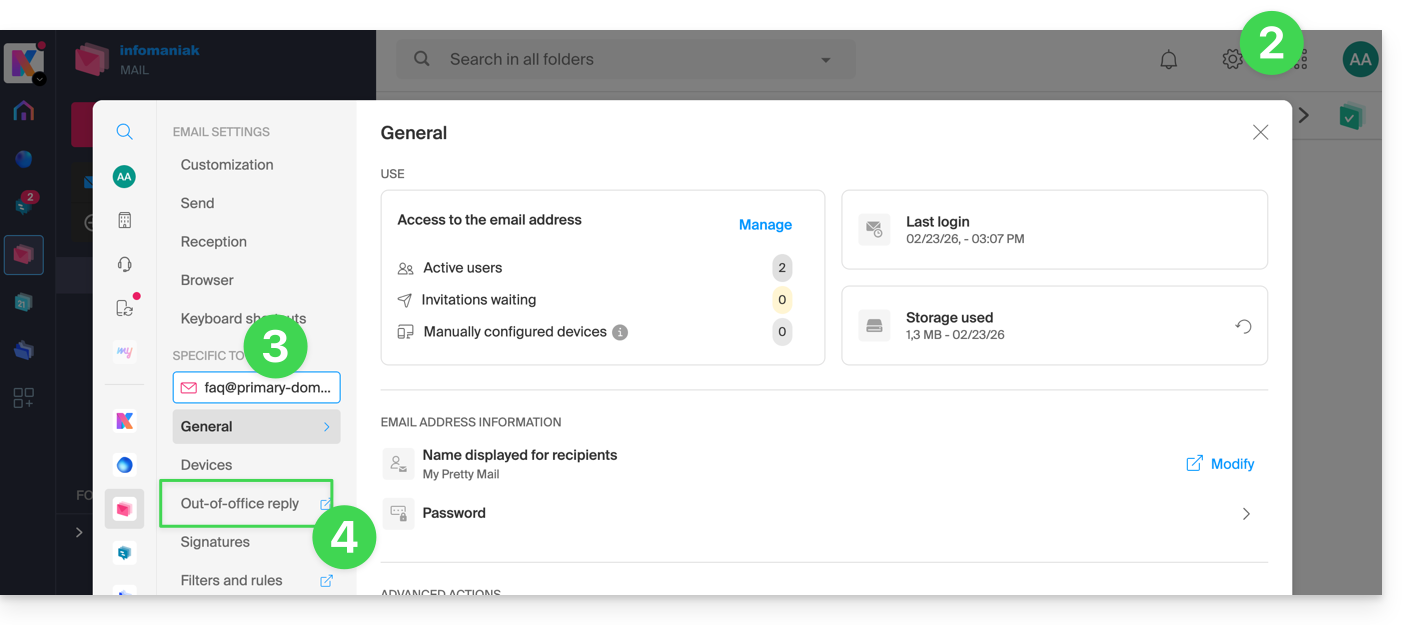
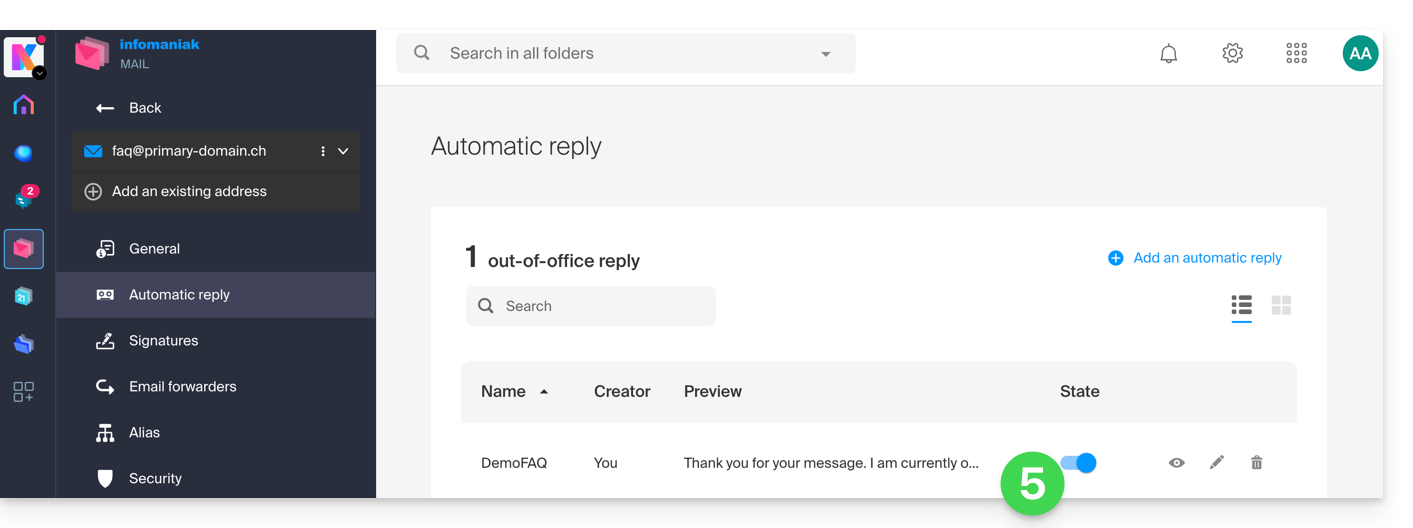
- Activate the automatic message if necessary, or read more below:
Activate the auto-reply from the Infomaniak Manager
To activate the out-of-office message from the Manager:
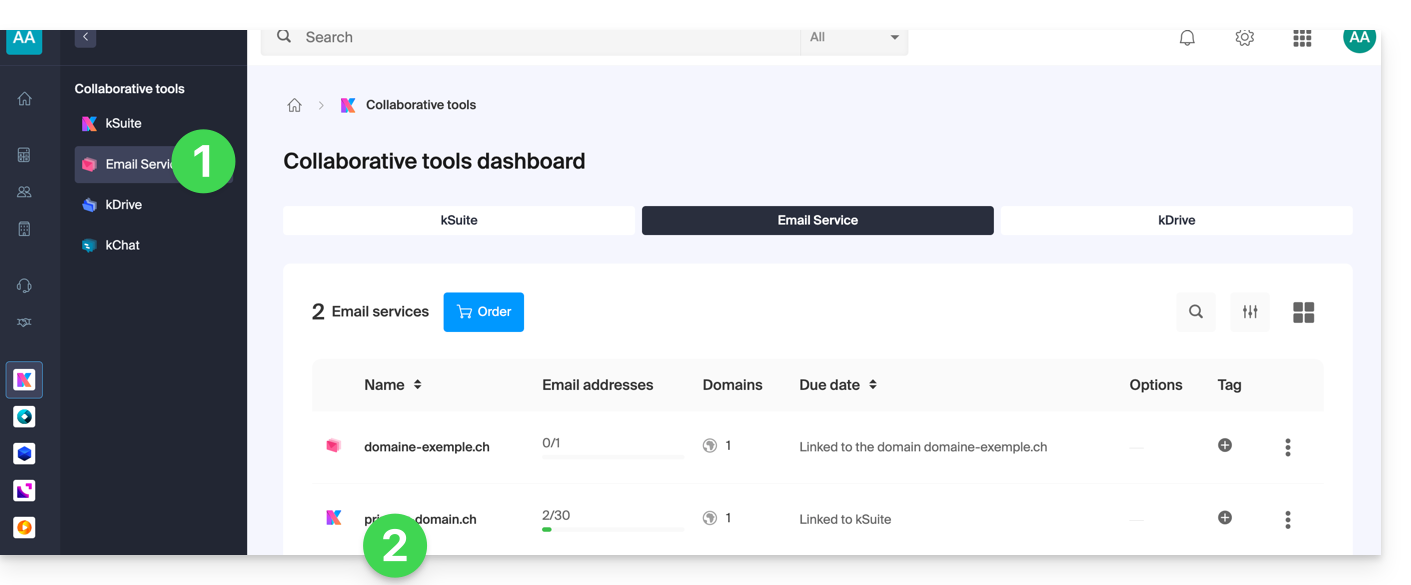
- Click here to access the management of your product on the Infomaniak Manager (need help?).
- Click directly on the name assigned to the relevant product:
- Click on the relevant email address in the table that appears:
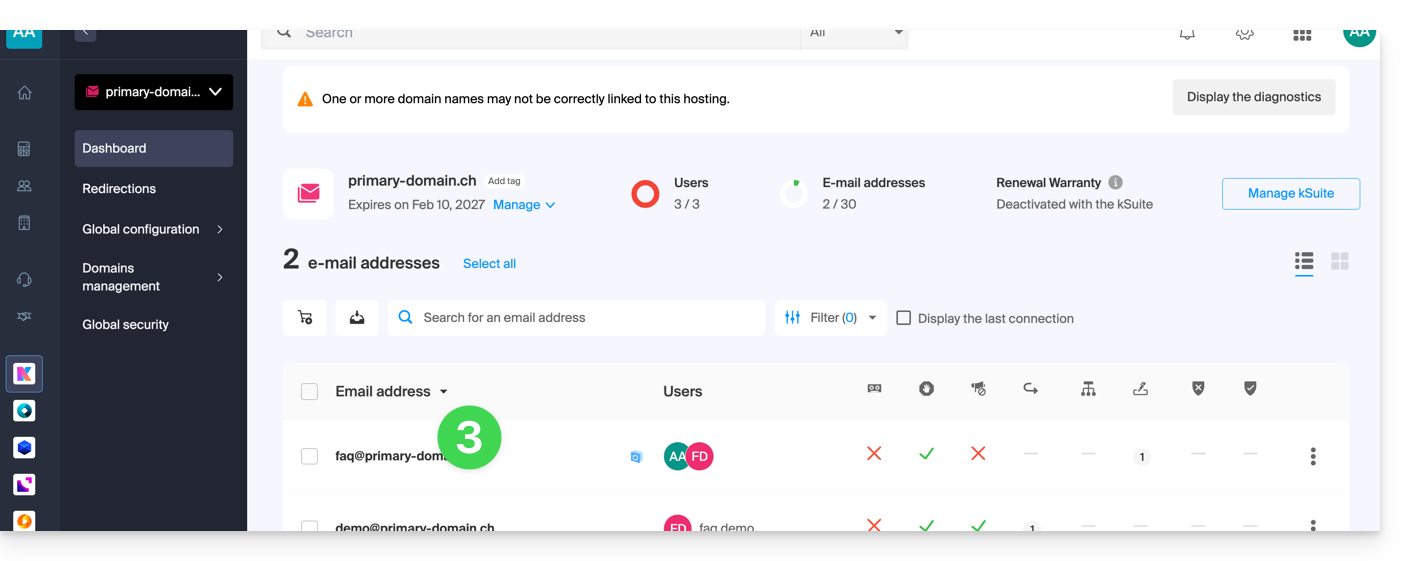
- Click on the Auto Reply menu in the left-hand sidebar.
- Activate the automatic message if necessary, or read more below:
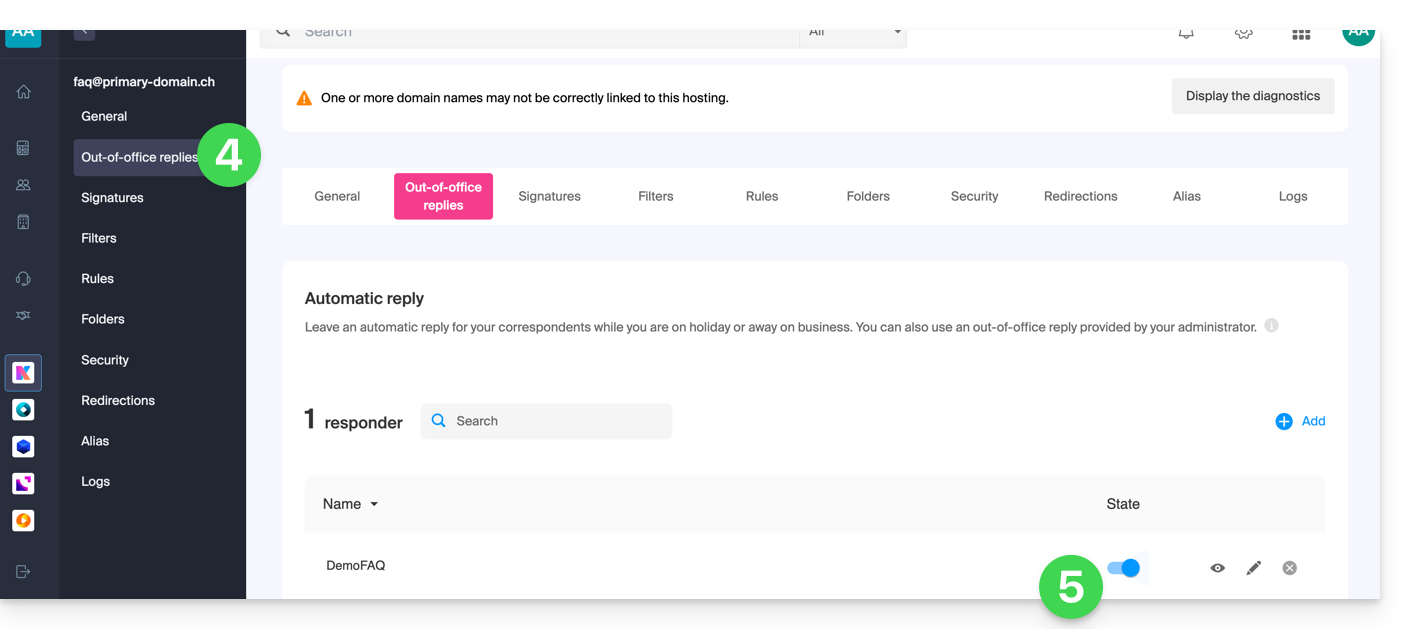
Compose the out-of-office message
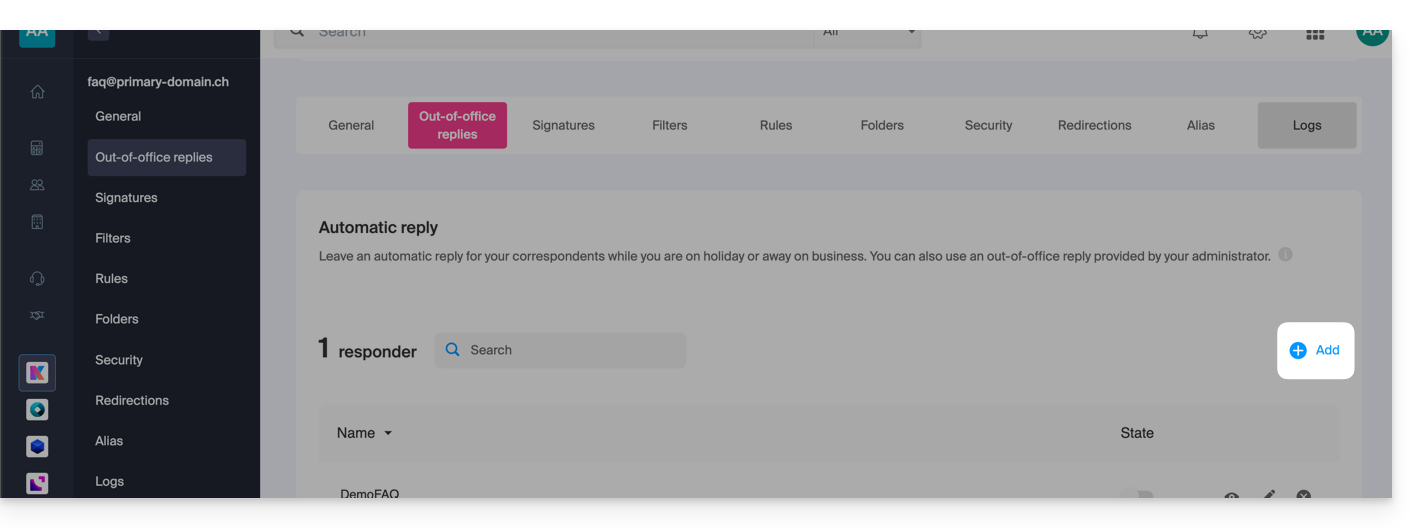
To manage the message that will be automatically sent in response:
- Click on Add:
Then: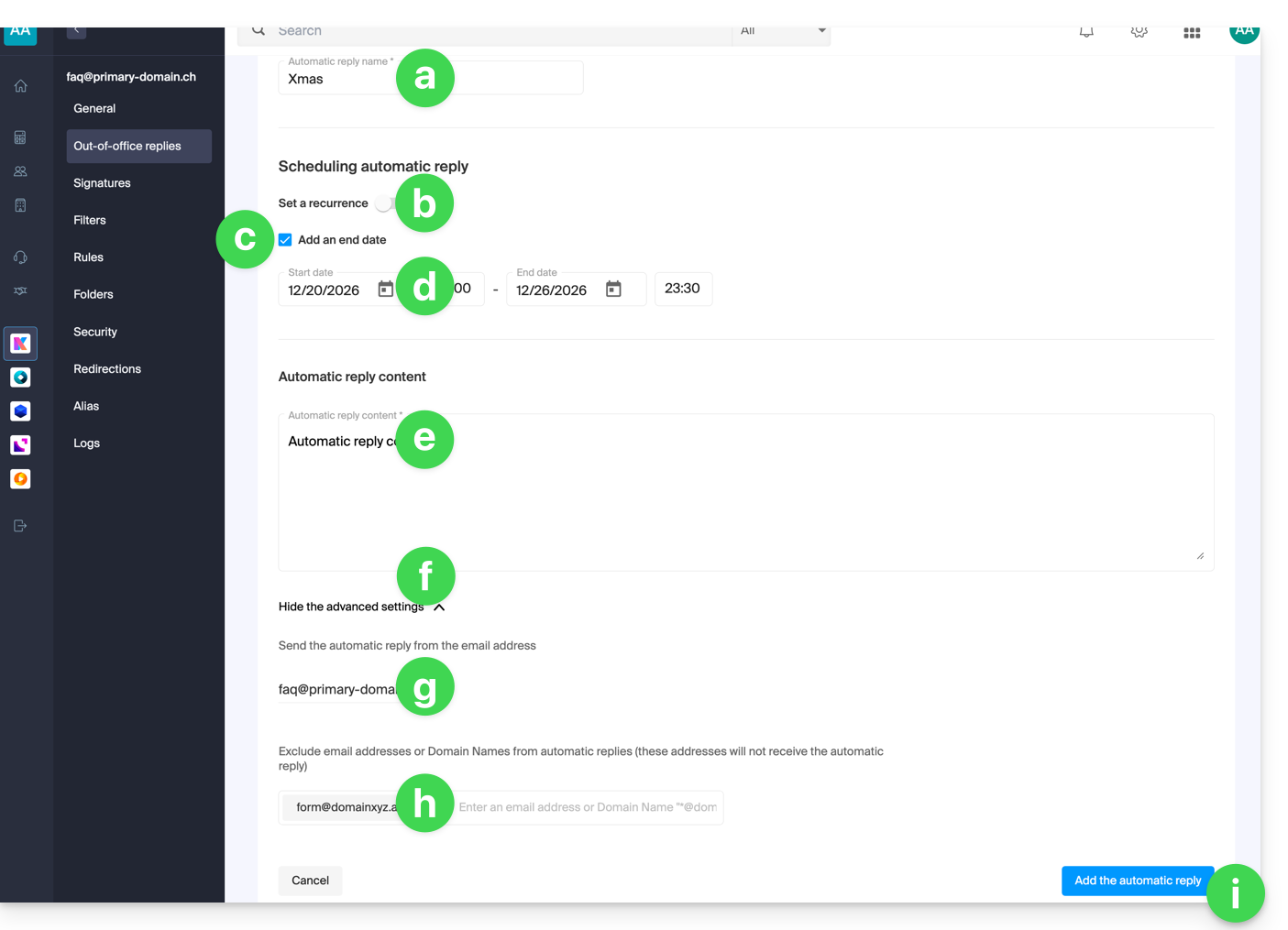
- Enter a name for your auto-reply (to distinguish it from other messages if you create several).
- Define whether the automatic reply should be sent repeatedly on specific days of the week.
- Define an end date/time if the message should no longer be sent after a certain period.
- Define a start date/time if the message is scheduled in advance for a specific period in the future.
- Write your out-of-office message.
- Display the advanced settings.
- Define any other email address that will be used to send your automatic out-of-office message; only the following types of addresses will appear:
- alternative email address (alias for example:
jean-francois@… /jf@…) - linked domain (alias for example jf@
domain1.abc/ jf@name.xyz)
- alternative email address (alias for example:
- Enter specific email addresses (or
@domain.xyzfor an entire domain) to prevent them from receiving this out-of-office message. - Click the blue button at the bottom right to Add the message.
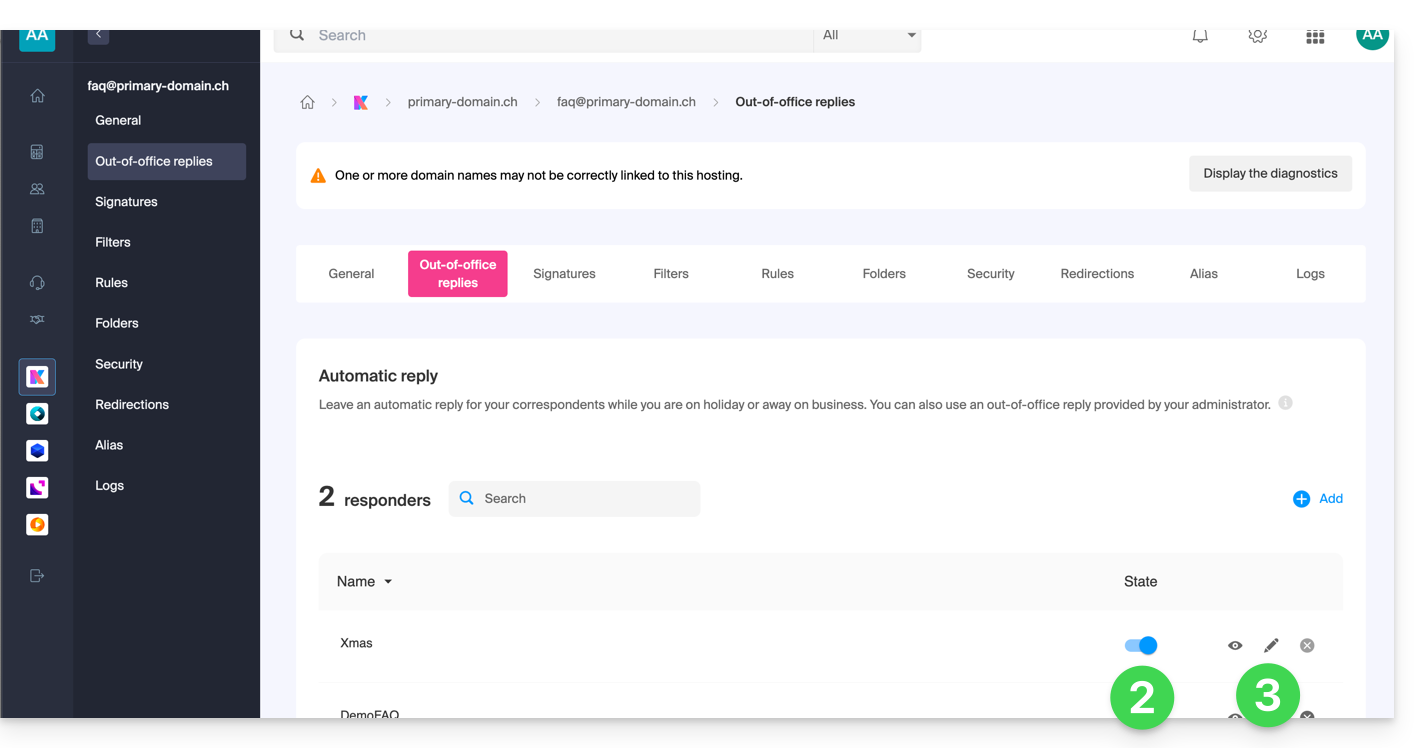
- Once added, you can activate or deactivate it.
- You can also edit an already saved message using the pencil ✎ icon on the right:
How often is the automatic reply sent?
Your reply is sent only once to the people who send you messages.
However, if the same sender sends you a new email 7 days after the previous one, and if your auto-reply is still activated, an automatic reply will be sent to them again to remind them that you do not have access to your mailbox.
Therefore, if you are testing it on your address, it is normal that it only works the first time. During subsequent tests, the auto-reply will no longer send the message when it detects that the message comes from an address that has already sent a message before. You will therefore need to try again from another email address.
You can reset the 7-day counter by clicking on Reset when you edit your message: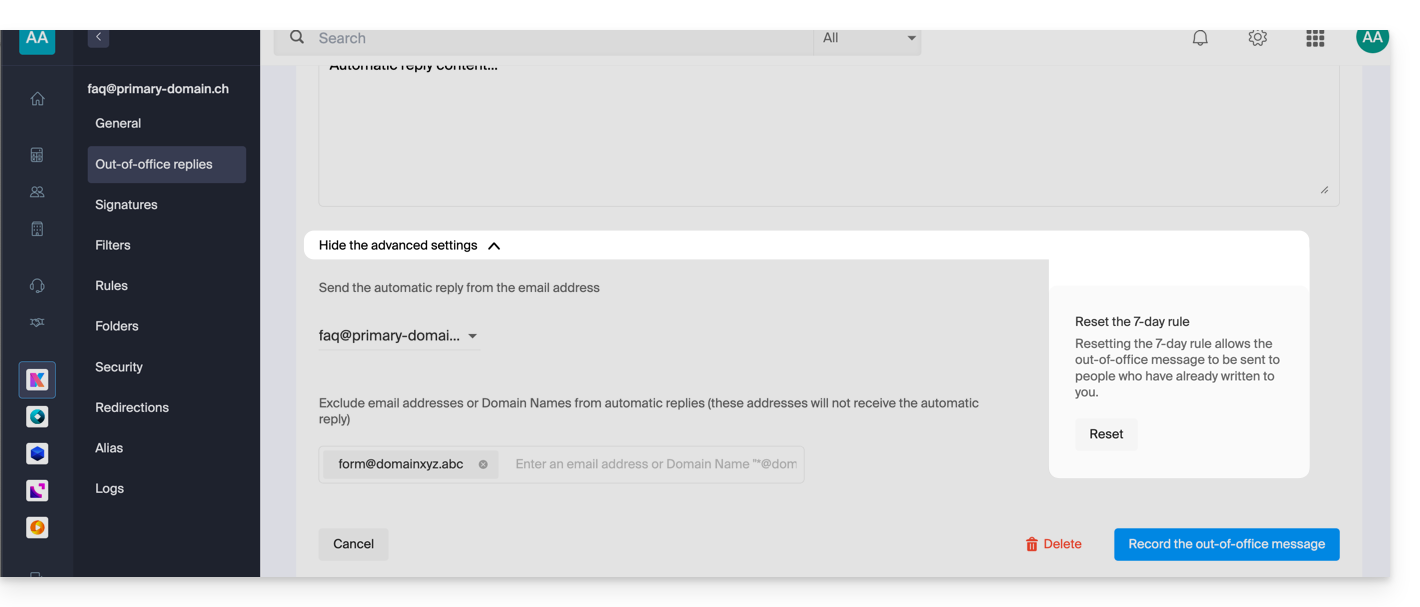
Go further with templates
Custom templates can be applied when creating a new email address on your Mail Service, for example, or in bulk on all addresses in your domain. Learn more
Link to this FAQ: https://faq.infomaniak.com/1759
Has this FAQ been helpful?
This guide explains how to mark selected emails as "favorites" in Infomaniak's email service, allowing you to "track" these messages more closely and display them separately if you choose.
Monitor one or more messages…
… from the Infomaniak Web Mail app
To add a message as a favorite:
- Click here to access the Infomaniak Mail web app (online service ksuite.infomaniak.com/mail).
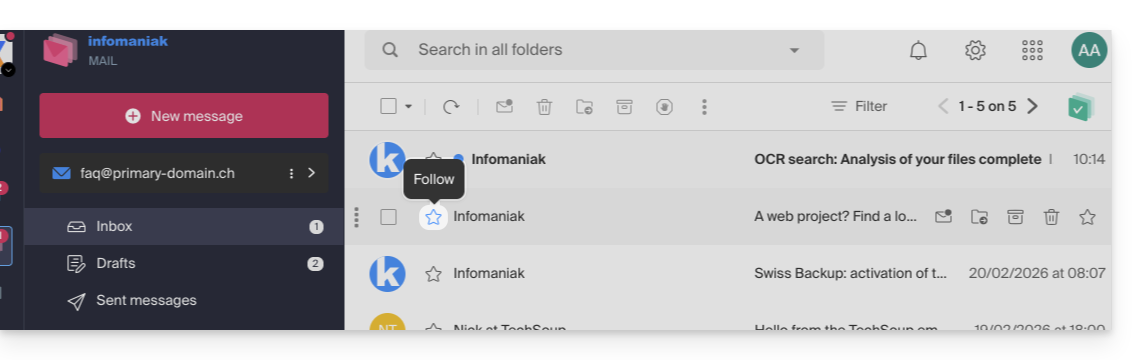
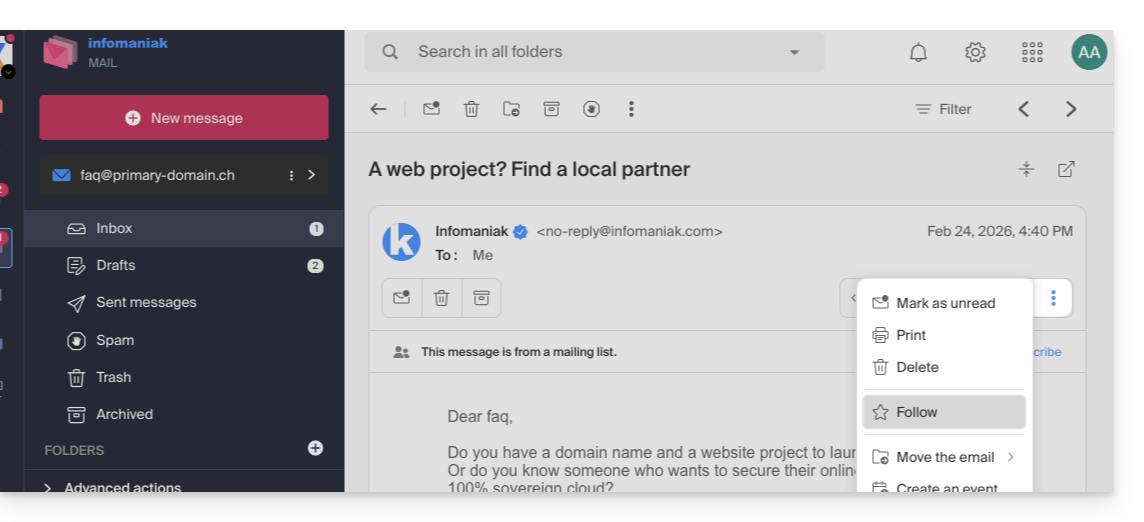
- Click on the ☆… icon:
- … to the left of a message in the message list
- … in the top right corner of the message reading window
- … to the left of a message in the message list
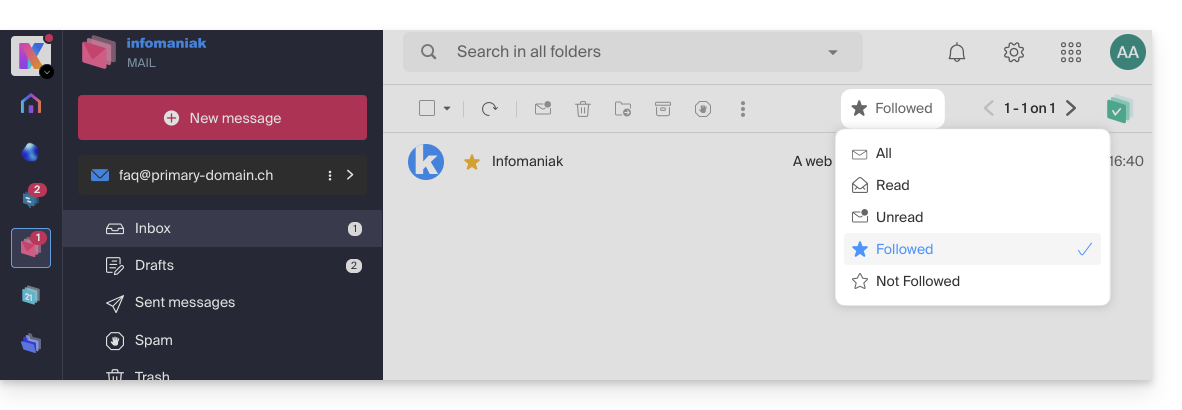
- Once tracking is enabled, a drop-down menu in the upper right corner allows you to display only a selection of your received messages based on several criteria: All, Read, Unread, Tracked, Untracked:
It is also possible to define an action on hover or add a shortcut in the bar above the message lists: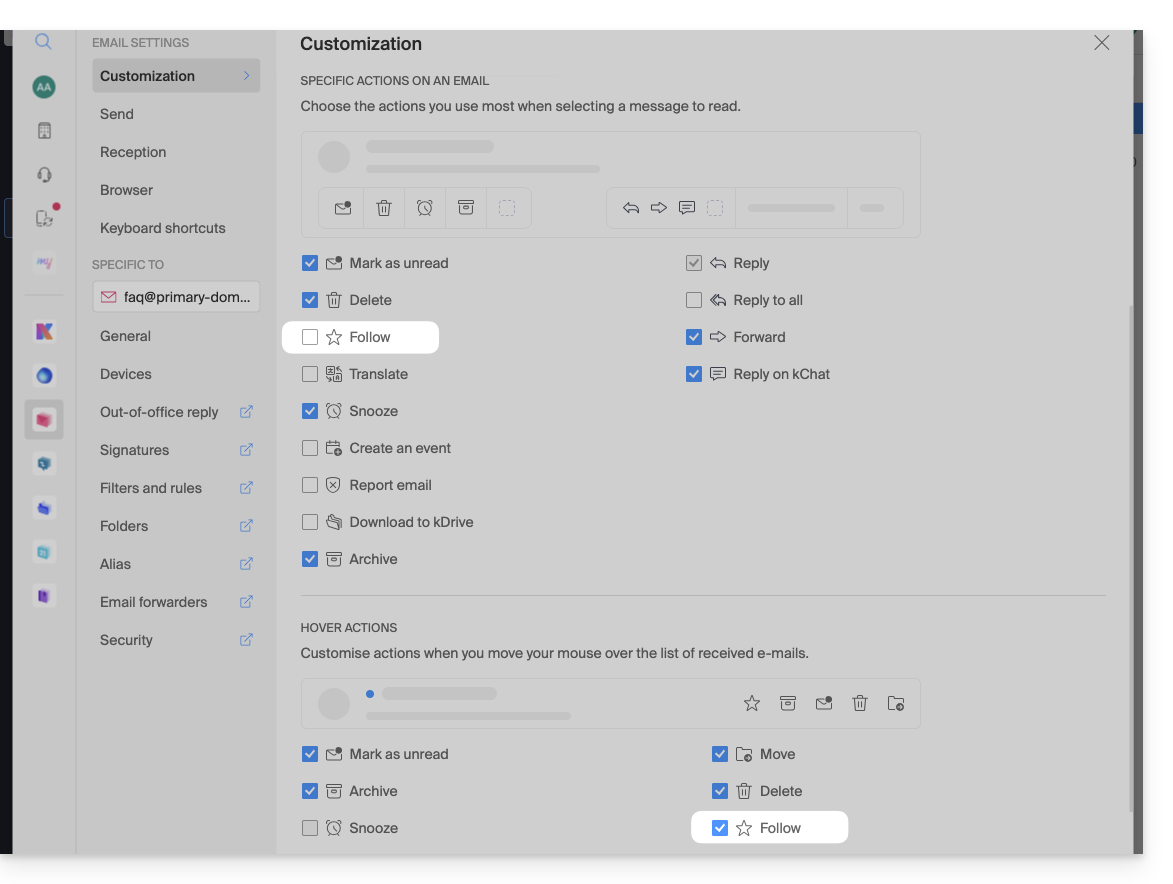
… from the Infomaniak Mail mobile app
In the message list:
- Tap and hold a message.
- Tap the ☆ icon at the bottom of the screen:
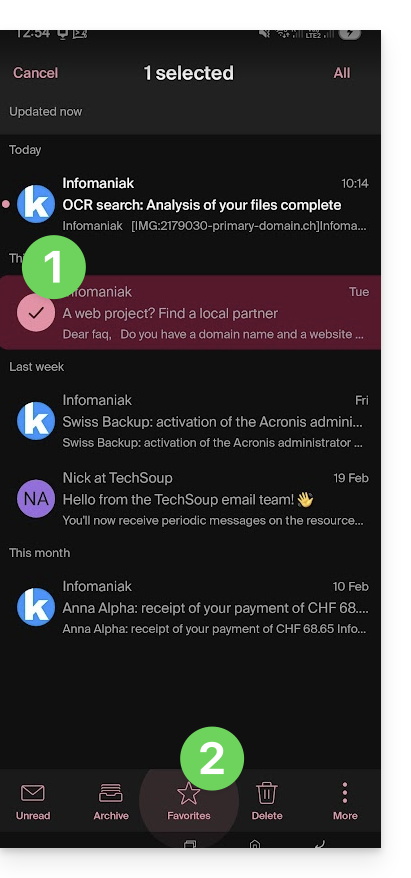
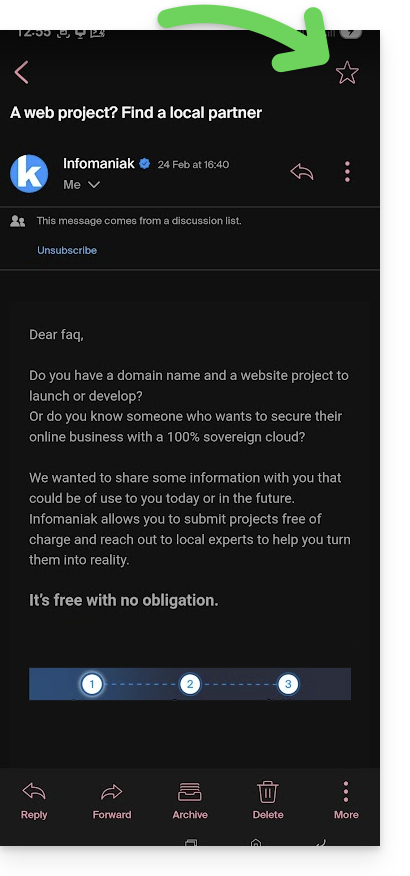
On an open message:
- Tap the ☆ icon in the upper right corner of the message reading window:
You can also define a swipe gesture that will mark the swiped message as a favorite.
Link to this FAQ: https://faq.infomaniak.com/1761
Has this FAQ been helpful?
This guide explains how to link an external website (hosted by a turnkey website creation service, for example) to your Infomaniak email.
This will be useful if, for example, your webmaster has modified the technical information (DNS) of your domain name to direct it to your external website, and this has interrupted your email service.
Prerequisites
- Your domain name has the DNS records corresponding to the provider of your external web service (because it is the DNS zone at this provider that you will be editing).
- Note the Infomaniak MX record
mta-gw.infomaniak.chor sometimesmta-gw.infomaniak.ch.(note the trailing period). - Note the Infomaniak SPF record
v=spf1 include:spf.infomaniak.ch -all. - Note the Infomaniak DKIM.
- Be aware that any DNS addition/modification may take up to 48 hours to propagate.
Specific guides
Click on the link corresponding to the website provider:
- Wix
- Wordpress.com
- Shopify
- Jimdo (Guide A | Guide B)
Guide for any other web hosting provider
In general, you shouldfind the section on your web hosting provider's dashboard where you can add the technical information (the 3 settings listed in the prerequisites above, which allow Infomaniak's email service to function while your domain name directs all traffic to this web hosting provider:
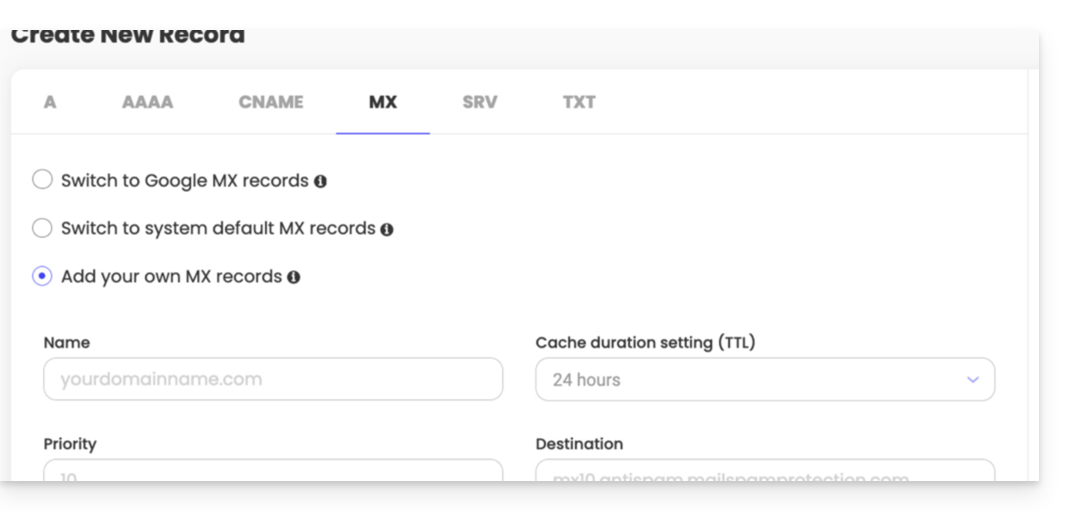
- Infomaniak's MX record.
- SPF is a verification method that ensures an email is sent by the claimed sender, helping to combat spam and fraudulent emails; it is often added as a TXT record.
- Having a DKIM record is now essential for the optimal functioning of your Infomaniak email service.
Link to this FAQ: https://faq.infomaniak.com/1775
Has this FAQ been helpful?
This guide explains how to link your Shopify site to the Mail service managed by Infomaniak.
If your domain name is managed by Infomaniak, you can configure it so that only Web traffic points to Shopify (refer to this other guide for more information).
⚠️ Important
It is strongly discouraged to use Shopify as a domain name manager if you wish to use the Infomaniak Mail Service.
- Shopify imposes a technical limit of 255 characters on DNS records.
- This prevents the correct addition of the Infomaniak DKIM key, which is essential to guarantee the deliverability and security of your emails.
- Shopify does not allow you to modify the name servers (NS).
- Therefore, you cannot delegate the management of the DNS zone to Infomaniak, which prevents the complete and compliant implementation of your email service.
- In practice, this means that you risk problems sending or receiving emails, as well as a degradation of your domain's reputation (emails marked as spam, unauthenticated, etc.).
For all these reasons,using a Shopify domain is not recommended with the Infomaniak mail service..
The best solution is to transfer your domain name to Infomaniak. This will give you complete and optimized DNS management, perfectly compatible with Infomaniak's email services.
If needed, call the technical support of the provider in question so they can help you set up the information specified below; Infomaniak will not be able to assist you further:
- Paste the Infomaniak MX record:
- In order for email to function correctly and for email traffic to be routed properly, the Infomaniak MX record must be added to your Shopify account:
- Refer to this other guide for instructions.
- Confirm the changes.
- Any DNS addition/modification may take up to 48 hours to propagate.
- Paste the Infomaniak SPF record using a TXT record:
- SPF is a verification method that ensures an email is sent by the claimed sender, helping to combat spam and fraudulent emails.
- It is essential to add the Infomaniak SPF record
v=spf1 include:spf.infomaniak.ch -allto your Shopify interface. - To do this, follow the detailed steps in this other guide.
- Any DNS addition/modification may take up to 48 hours to propagate.
- Also, check for the presence of a DKIM record if sending issues persist.
- Unfortunately, it seems that Shopify is not being updated to comply with current standards regarding DKIM records, which prevents you from configuring the record provided by Infomaniak. According to these messages, Shopify's customer service has been aware of this issue for several months. If your domain name or its DNS zone is hosted with them, it is recommended that you transfer it to Infomaniak as indicated above.
Link to this FAQ: https://faq.infomaniak.com/1777
Has this FAQ been helpful?
This guide explains how to transfer to Infomaniak email addresses currently hosted by Google (Workspace with a custom domain or @gmail address), using an IMAP import tool.
Introduction
- Consult this other guide if you are looking for an alternative to this IMAP process: it is indeed possible to perform a Google Takeout export and then an mBox import on our infrastructure.
- This operation does not affect either the data already present on the destination address or the data from the source address.
- The entire external mailbox will be imported.
- Once the import process has started, it is no longer possible to interrupt it.
- Any potential duplicates are handled: identical content will only be copied once.
Import your entire email history
Infomaniak Requirements
- You must have a Mail Service on your Infomaniak Manager.
- Have a number of available addresses or adjust it if necessary.
- Make sure that the email is properly secured
- Create one or more addresses on this Mail service.
- If you have many (10+) email addresses to create, please refer to this other guide regarding bulk creation.
- The destination email address must be linked to the user (= the Infomaniak account) you are using.
Import Gmail email content to Infomaniak
- Click here to access the import tool (online service https://import-email.infomaniak.com).
- If necessary, log in to your Infomaniak account for the relevant organization; the import will be done to one of the email addresses associated with the Infomaniak Mail web interface (online service ksuite.infomaniak.com/mail) of the Infomaniak account you are using.
- Click on the import via IMAP.
- Click on one-time import.
- Fill in the field on the left with your source email address (from which the content will be copied).
- Click on the "Sign in with Google" button that appears:
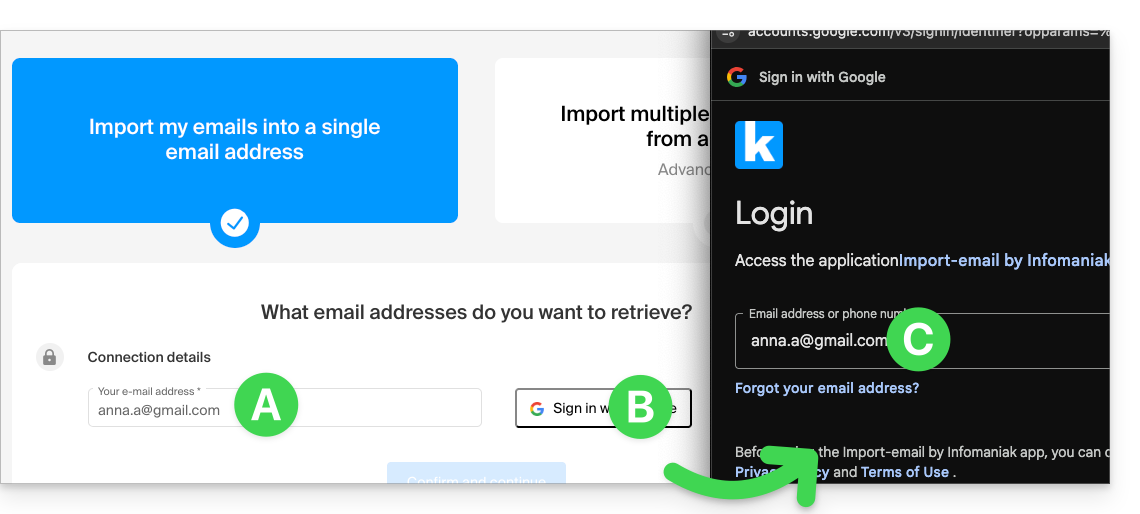
- Make sure you are signing in to the Google account that you want to use for email migration.
- Confirm that you authorize the Infomaniak tool to connect to your account (automatic process).
- Once you confirm the pop-up, choose the email address to which you want to import the emails; the drop-down menu lists the email addresses currently associated with your Infomaniak Web Mail interface (online service ksuite.infomaniak.com/mail) for the Infomaniak account you are logged into.
- After selecting the desired destination address from the list, click the blue Import Emails button.
- The copy process has started. You can wait and view the result on the page once the import is complete, or close the window (the import will continue in the background, and progress can be tracked - see below).
- A confirmation email will be automatically sent to all email addresses involved in the operation once the import is complete, indicating the number of messages copied.
- Tracking is available in the settings of the destination email address, and only on the web app Mail (online service ksuite.infomaniak.com/mail).
- Tracking allows you to view the import history for the address in question.
Adjust application settings
Once you have taken the necessary steps to ensure that the domain name associated with your email account works with Infomaniak, modify the settings of the email software/clients you use so that they connect correctly to the Infomaniak servers: follow the configuration wizard.
Labels and data volume
The storage space displayed in Infomaniak may not match the space shown in Gmail, particularly due to the different way labels are managed. Indeed, these labels, which are present in Gmail, will be converted into folders on the Infomaniak servers (the same principle applies as when retrieve mail using an IMAP email client/software such as Thunderbird):
Therefore, an email tagged in multiple Gmail folders may be counted multiple times during migration, which explains why an account displaying, for example, 6 GB in Gmail may occupy 18 GB once transferred to Infomaniak servers.
Please be patient when importing a large volume of emails; Gmail and Microsoft imports are intentionally slowed down (e.g., 1 GB/day bandwidth for Google) to avoid rejections from their end.
Link to this FAQ: https://faq.infomaniak.com/1785
Has this FAQ been helpful?
This guide explains how to connect the desktop app Outlook 2013 (desktop application on Windows) to an email address hosted by Infomaniak.
Add the email address to the application
Prerequisites
- Create the email address (❓: my kSuite | Mail Service/kSuite).
- Create a device password (❓: my kSuite | Mail/kSuite Service).
- Verify that the domain is configured correctly (❓: Mail/kSuite Service).
To configure the email application:
- Open the application.
- Click on the File menu:
- Click on Account Settings.
- Click on Add or remove accounts:
- Click on New:
- Click on Manual configuration:
- Click on POP / IMAP.
- Click on Next:
- Check and complete the missing information.
- Click on Additional Settings:
- Click on the Outgoing Server tab.
- Click on My outgoing server requires authentication.
- Click on the Advanced tab:
- Replace the port numbers with the correct information and enable SSL.
- Click OK.
- Click Next:
- Click on Close:
- Click on Finish:
- Click on Close:
- Done, your email address is now configured in the application:
Recommended settings
- Incoming IMAP server =
mail.infomaniak.com - IMAP port =
993(with SSL) - Outgoing SMTP server =
mail.infomaniak.com - SMTP port & encryption protocol and command/method to activate this protocol:
587+ STARTTLS - Username = the complete email address & (need help?)
- Password: the password generated for the email address you want to access (❓: my kSuite | Mail Service/kSuite).
- Authentication required for sending emails:
- Enable this in the SMTP settings of your application.
- Check "use the same settings as the incoming server" or, depending on the software/email client, enter a username (the complete email address) and the generated password.
Refer to this other guide if you are looking for information about other email ports and protocols that are supported (SSL / TLS, for example).
In case of a problem
Check that the Mail service is configured optimally.
It is not necessary to contact Infomaniak Support if your email address works correctly outside the application. The most common error concerns the use of an incorrect password. The troubleshooting guides will help you resolve any potential issues:
- Consult the solutions provided in this other guide regarding email in general.
- This other guide provides more specific information about Outlook.
… and if your Outlook is no longer working after a change of email password, please refer to this other guide.
Link to this FAQ: https://faq.infomaniak.com/1796
Has this FAQ been helpful?
This guide explains how to manage and modify user permissions (assigning an additional password, setting up an alias, etc. see below for the complete list) for an Infomaniak user, so that they can manage more or fewer configuration elements in the Infomaniak Mail web app (online service ksuite.infomaniak.com/mail).
Introduction
- The email address is first created within a Mail Service and can then be used within one or more Infomaniak Mail interfaces by one or more users.
- The creator (or manager) of the address may want to limit the possible actions for one or more of the users who will use the email address.
- This granular permission management can be done when creating an address or later, and you can also define what the default permissions should be, which will always be applied.
List of user email permissions
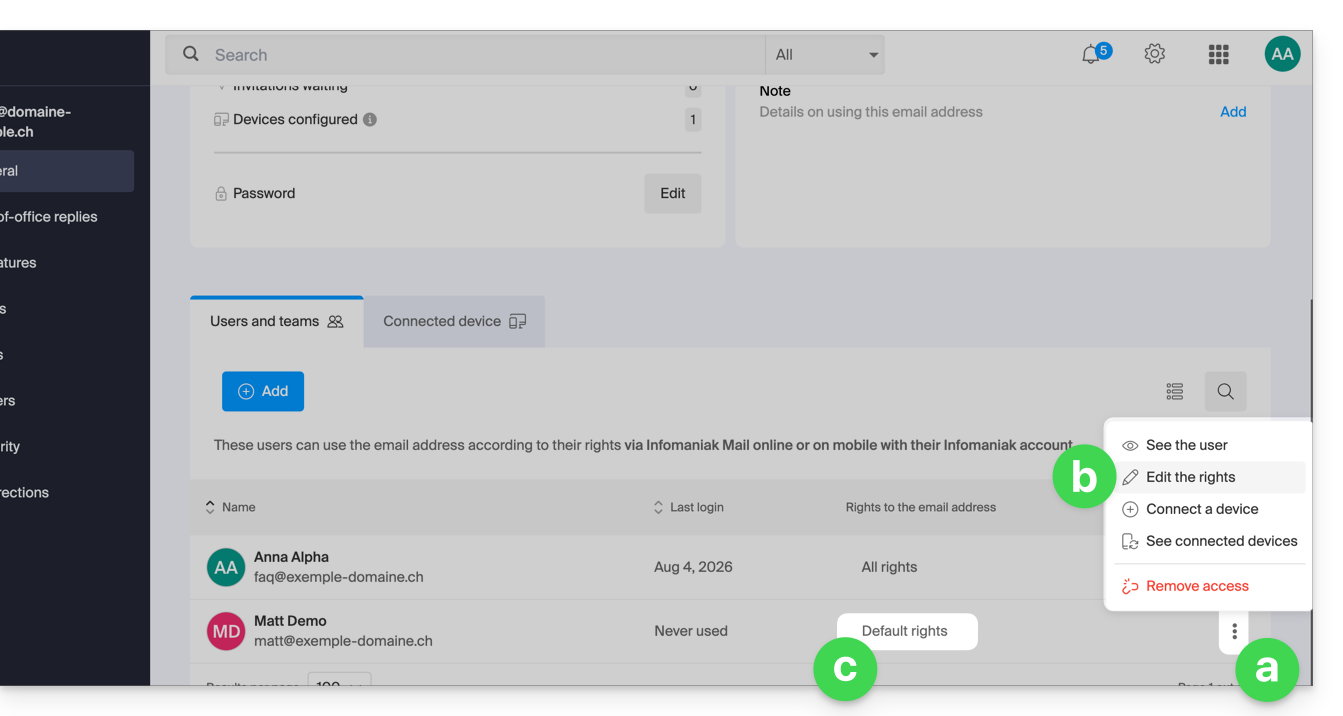
When you view the users with access to a specific email addresswithin a Mail service, a column allows you to quickly identify the type of permissions granted to the user: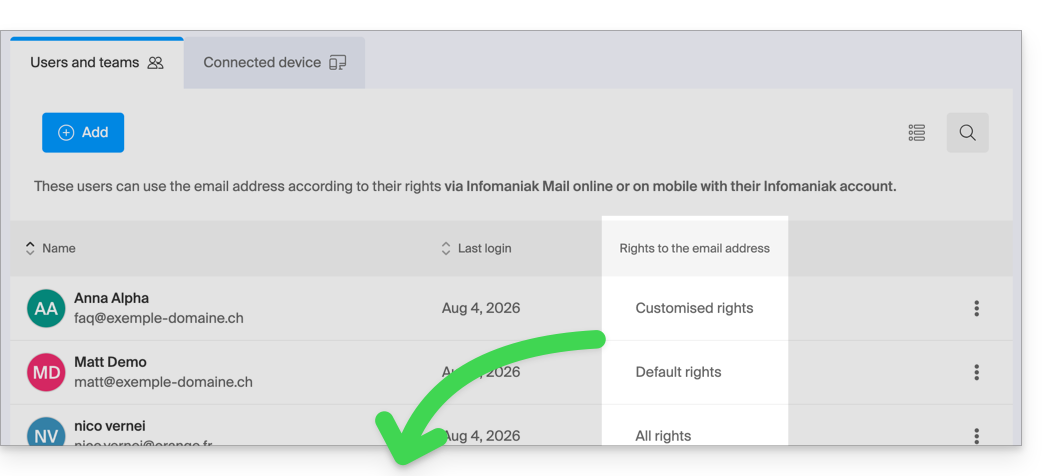
“All rights” is displayed when the user has all possible permissions.
“Default rights” is displayed when the permissions are identical to those specified in the global configuration.
“Custom rights” is displayed as soon as not all permissions are granted and they differ from the default template (global configuration).
Click on the indication to access the user's permission management, detailed below:
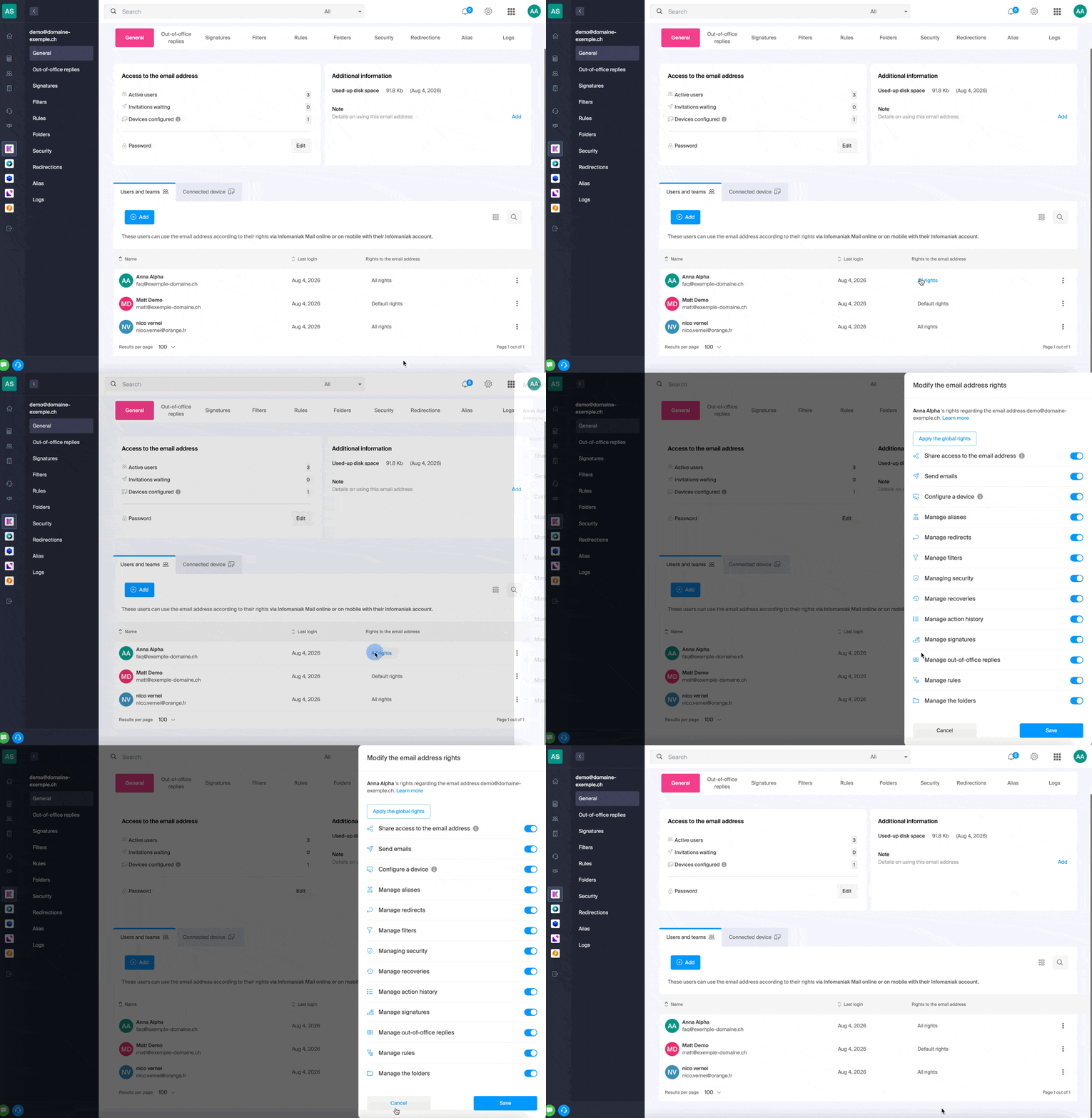
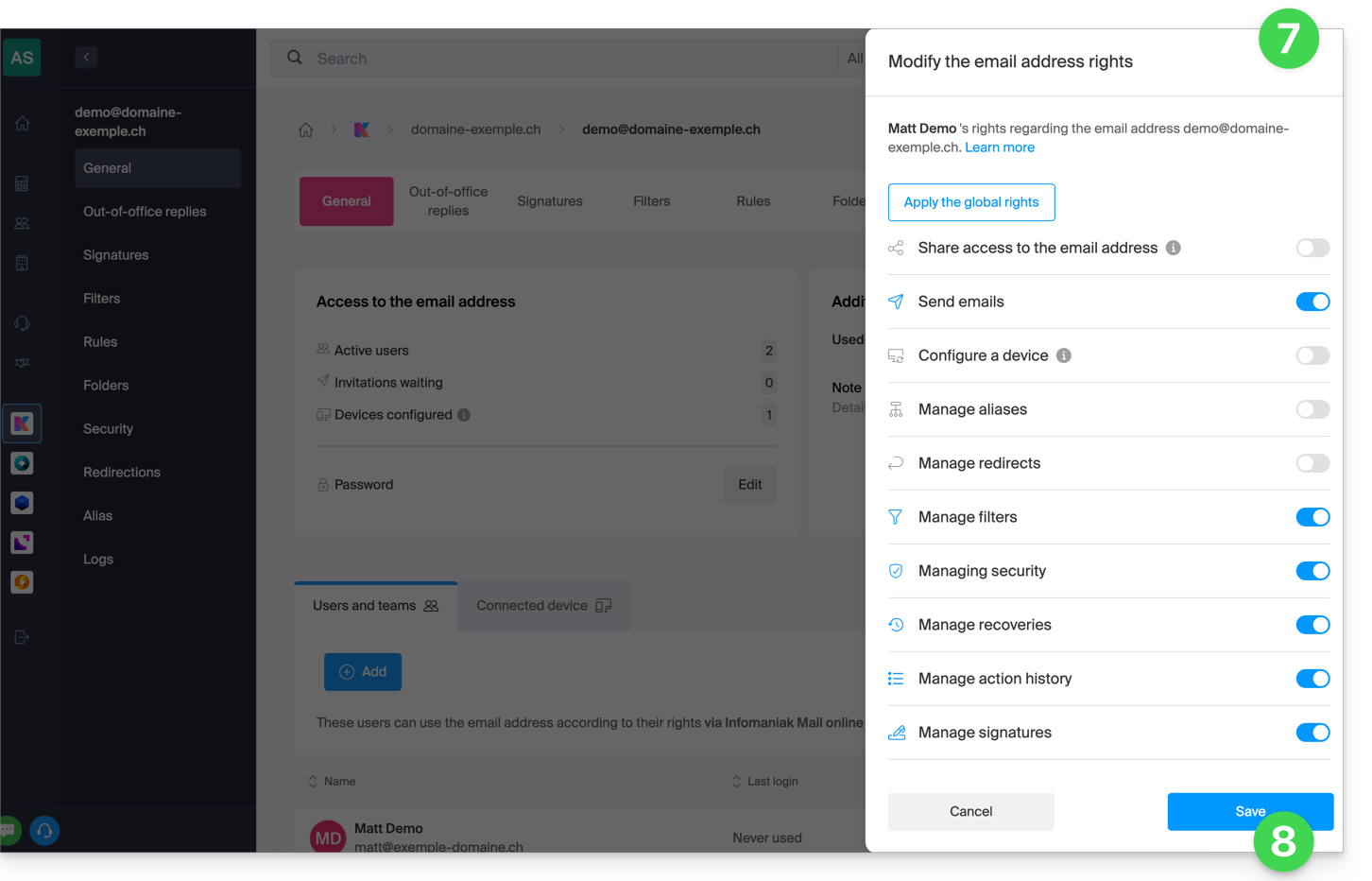
Simply click on the corresponding toggle switch to enable or disable the specific permission. Here is the list:
| Type / Icon | Description of the permission granted to the user |
|---|---|
| Share access to the email address | Manage users (ability to delegate mail access to another user in the Organisation) |
| Configure a device | Manage devices (ability to create a dedicated password) |
| Manage voicemail | Create an automatic reply (e.g., configure an out-of-office message) |
| Manage signatures | Add signatures and manage reply email addresses |
| Manage forwarding | Forward emails to one or more other addresses |
| Manage aliases | Create variations of your email address (by changing what comes before the @) |
| Manage the action history | Access the logs for the email address |
| Manage restores | Access backups and restores |
| Manage filters | Access SPAM and other filters |
| Manage rules | Automatically sort and categorize new incoming emails |
| Manage folders | Customize IMAP folders |
| Manage security | Manage blocked and approved addresses |
| Manage email sending | Enable sending emails (allow global SMTP) |
Manage permissions granted to a user
You may be asked for your Infomaniak account login password to make changes to the permissions.
… from the Mail Service
- Click here to access the management of your Mail Service in the Infomaniak Manager (need help?).
- Click directly on the name assigned to the Mail Service in question.
- Click on the email address in question in the table that appears.
- There are several ways to modify the permissions of an email address:
- When adding a user to an email address:
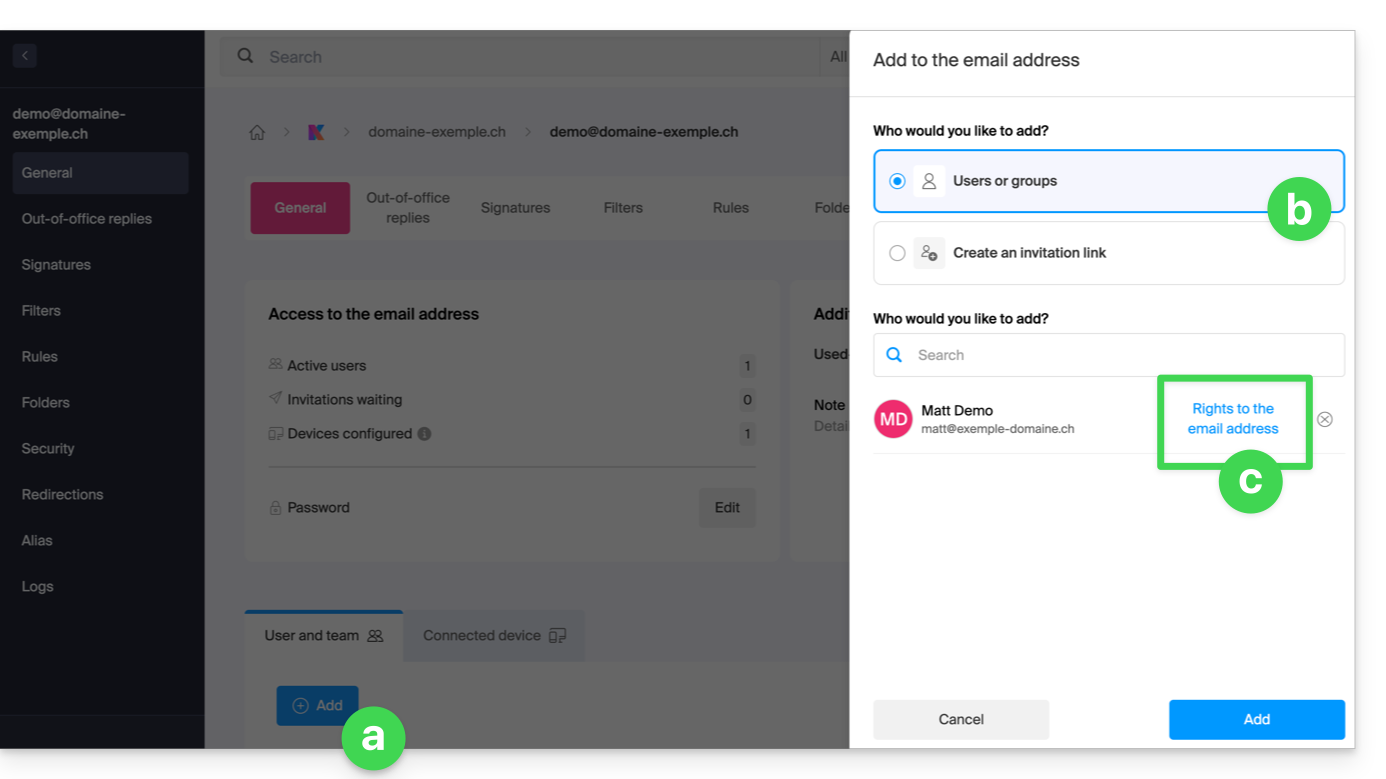
- Once the user has been added:
- Click on the action menu ⋮ located to the right of the user's name for the email address.
- Select ✎ Edit permissions.
- Or click directly on the indication regarding their permissions:
- When adding a user to an email address:
… from the Manager (user management)
- Click here to access user management in the Infomaniak Manager (need help?).
- Click on the relevant user in the table that appears.
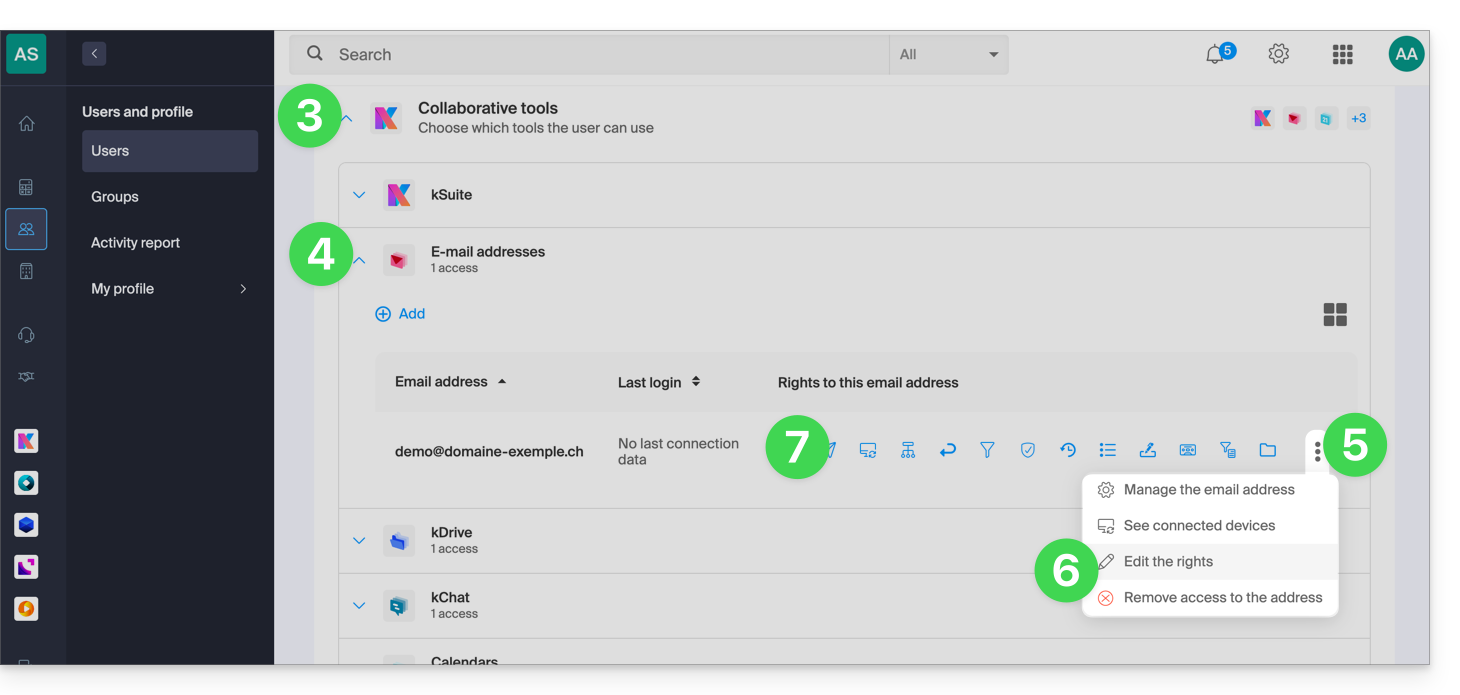
- Expand the collaborative tools section by clicking on the chevron .
- Expand the section displaying the email addresses accessible to the user by clicking on the chevron .
- Click on the action menu ⋮ located to the right of the email address in question.
- Select Edit permissions.
- Or click directly on the icons visible in the table:
… from the Web Mail app
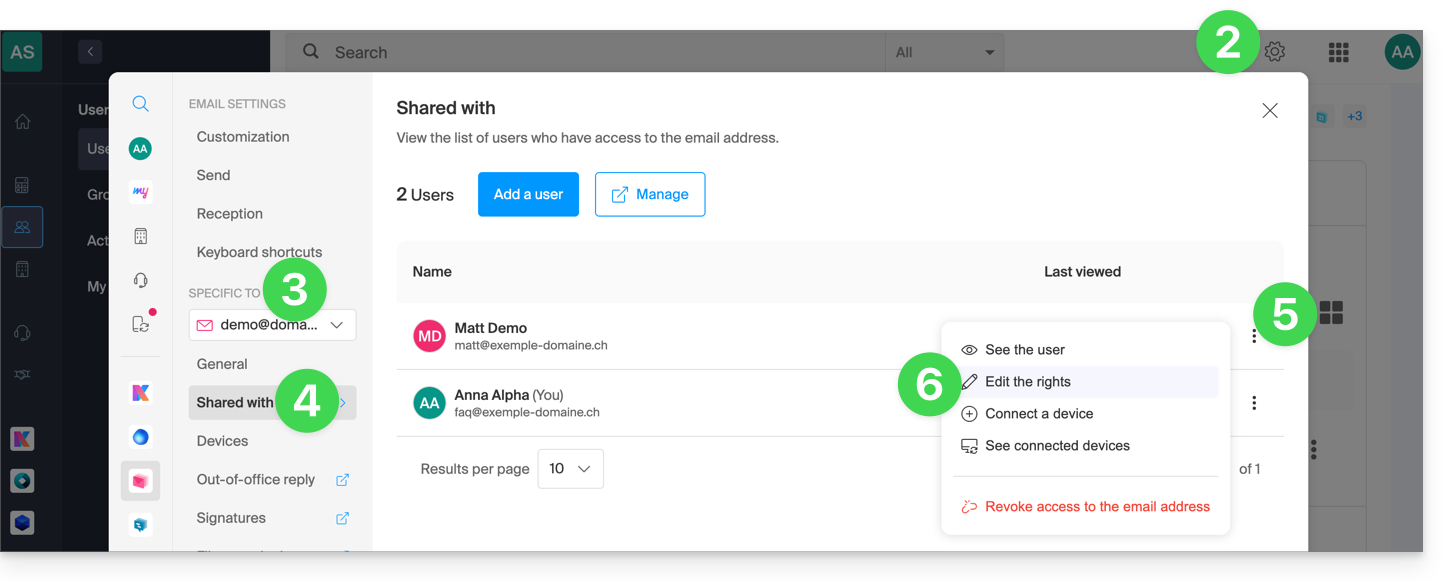
- Click here to access the Infomaniak Mail web app (online service ksuite.infomaniak.com/mail).
- Click on the Settings icon in the top right corner of the interface.
- Check or select the relevant email address from the dropdown menu in the left sidebar.
- Click on Shared with.
- Click on the action menu ⋮ located to the right of the email address user name.
- Select ✎ Edit permissions:
- You will be redirected to the settings for your email address in the Mail service, specifically to the permissions section for the user in question.
- Adjust the permissions and save at the bottom of the page:
Result for the user
The user whose permissions are revoked will no longer see certain corresponding menus in their email address settings.
For certain features, even if the menu is still accessible, some buttons will be inoperative or grayed out: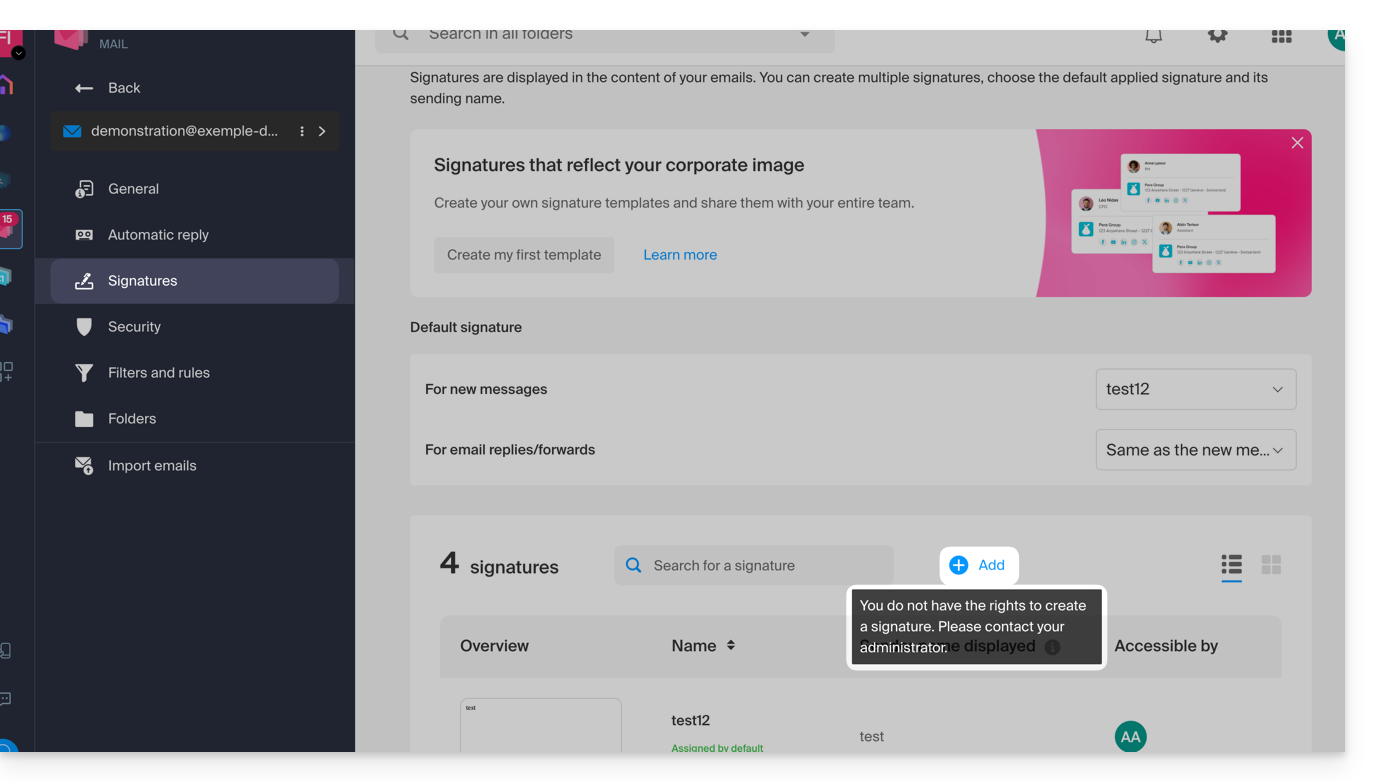
Link to this FAQ: https://faq.infomaniak.com/1811
Has this FAQ been helpful?
BIMI (Brand Indicators for Message Identification) is a standard that provides brand indicators for message identification) allows businesses to incorporate their logo into the emails they send.
Introduction
- Infomaniak applications (and those of other companies worldwide - see the troubleshooting section below) are compatible with BIMI and will display logos next to received email messages.
- Infomaniak Mail Services allow you to configure your email with your logo; the benefits are numerous:
- increased trust: recipients can visually identify your emails, reducing the risk of phishing.
- brand reinforcement: a clearly visible logo in inboxes strengthens brand awareness.
- improved deliverability: emails that comply with DMARC are more likely to reach the main inbox.
1. Create a logo
Create a logo in SVG format (Scalable Vector Graphics). This format is required because it ensures optimal quality regardless of the device or display size.
To be imported into the Infomaniak interface (see below), it must not exceed 10 MB, but it can also be hosted on a secure server that is publicly accessible, and you will simply need to provide its URL for the BIMI DNS record.
2. Obtain the VMC certificate
A verified logo certificate (VMC) is required; it confirms that you are the legitimate owner of the logo. You can obtain this certification from recognized certification authorities such as DigiCert and Entrust.
When your VMC certificate is issued, you will receive a PEM file containing the entity's certificate. This PEM file includes your logo in SVG format as well as the VMC.
3. Add the logo to the Mail service
Prerequisites
- All indicators Global Securityfor your Mail Service must be green (SPF + DKIM + DMARC)!
To access the Mail Service and define your company's logo:
- Click here to access the management of your Mail Service in the Infomaniak Manager (need help?).
- Click directly on the name assigned to the Mail Service in question.
- Click on Global Security in the left-hand menu.
- Click on the Create button (in the BIMI section):
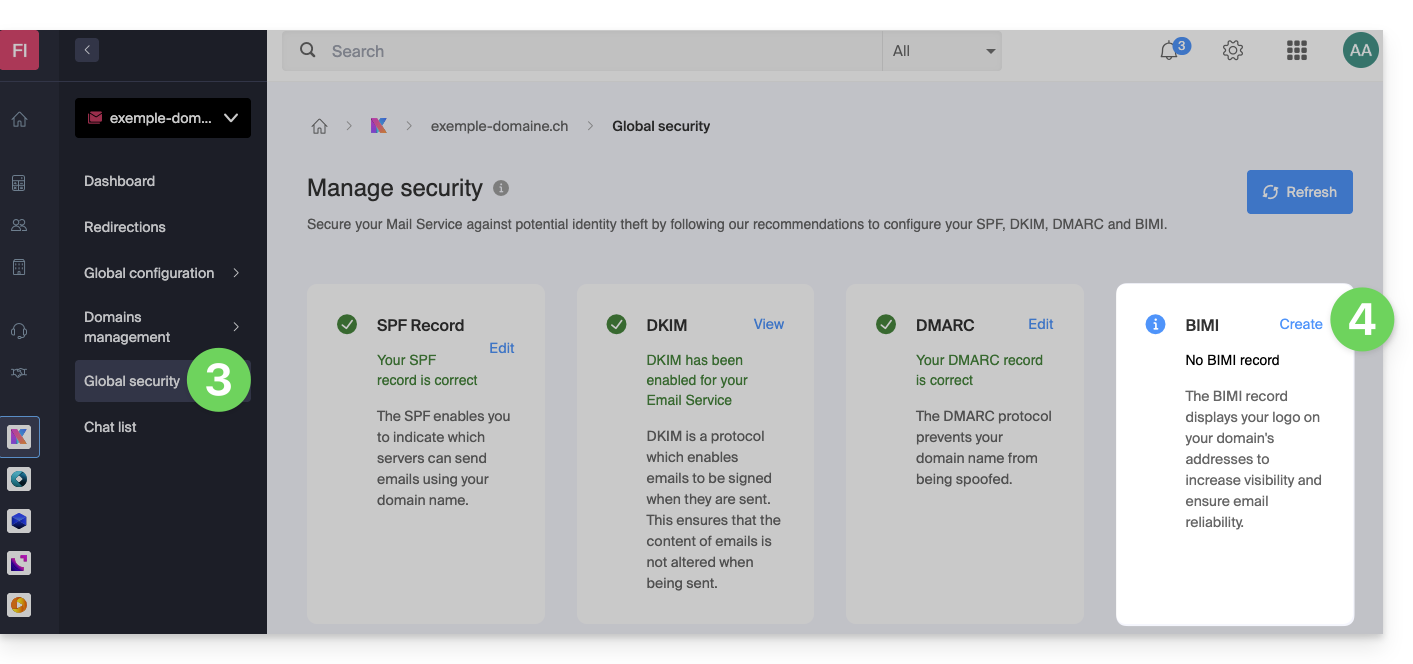
- Fill in the requested information using the documents you received (see chapter 2 above) and don't forget to save.
In case of a problem
- If the Create button in the BIMI box remains gray, carefully check the information messages: DMARC may exist but not be at the required rejection percentage, so adjust the settings according to the instructions.
- When there are multiple domains linked to the Mail service, make sure you have a certificate on each linked domain if you want BIMI to be enabled on those domains.
- Note that Apple Mail supports BIMI, unlike Microsoft Outlook, Thunderbird, and the Mail app from Samsung, which have not yet fully adopted it.
Disable BIMI
To disable BIMI, simply go to the domain name management page associated with the Mail service and delete the corresponding TXT record.
Link to this FAQ: https://faq.infomaniak.com/1816
Has this FAQ been helpful?
In order to combat spam and protect your contacts from email address hijacking, sending emails from a particular address may be blocked (SMTP ban). This security measure is automatic and does not affect the reception of emails.
Email Sending Suspension
If an Infomaniak user's email address sends a large number of messages, this may be due to an action performed
VOLONTAIRE
or UNINTENTIONALLY (e.g. in the event of the address being hacked)
In both cases, Infomaniak risks being blacklisted by providers such as Microsoft or Gmail, which would affect all customers.
Infomaniak has therefore implemented security measures to minimize this risk as much as possible, in order to guarantee email deliverability and protect your contacts from unwanted emails.
Unblocking email sending or securing the account
The legal representative and the email address user are immediately notified by email if email sending is blocked; they can then quickly unblock suspended email sending using an unblocking tool, the link to which is in the notification message:
- If the email was legitimate, the address will be unblocked, and you will no longer be blocked in the future with similar emails.
- Otherwise, you will be guided to change the password of the email address in order to proceed with the unblocking.
Link to this FAQ: https://faq.infomaniak.com/1821
Has this FAQ been helpful?
This guide explains how to block (or allow) email senders globally on an entire Mail Service. Please refer to this other guide if you are looking for information on how the blocked and allowed sender lists work.
Manage Security in the Global Configuration
A Mail Service administrator can add email addresses or even entire domains to the lists of approved or rejected senders, and these lists will be applied to all email addresses of a Mail Service (without modifying existing settings already configured for each email address):
- Click here to access the management of your Mail Service in the Infomaniak Manager (need help?).
- Click directly on the name assigned to the Mail Service in question:
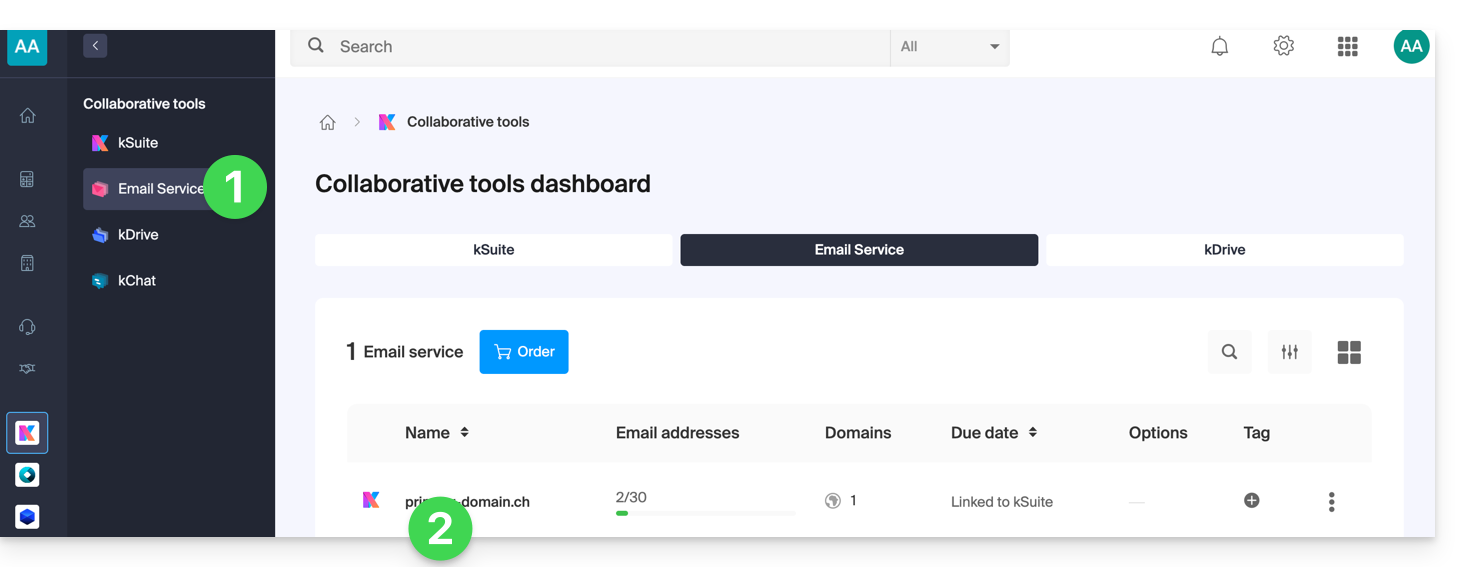
- Click on Global Configuration in the left-hand menu.
- Click on the Security tab.
- Click on the Add address button in the Blocked address box to block incoming emails from an unauthorized sender.
- Do the same for the senders that need to be approved in the other box:
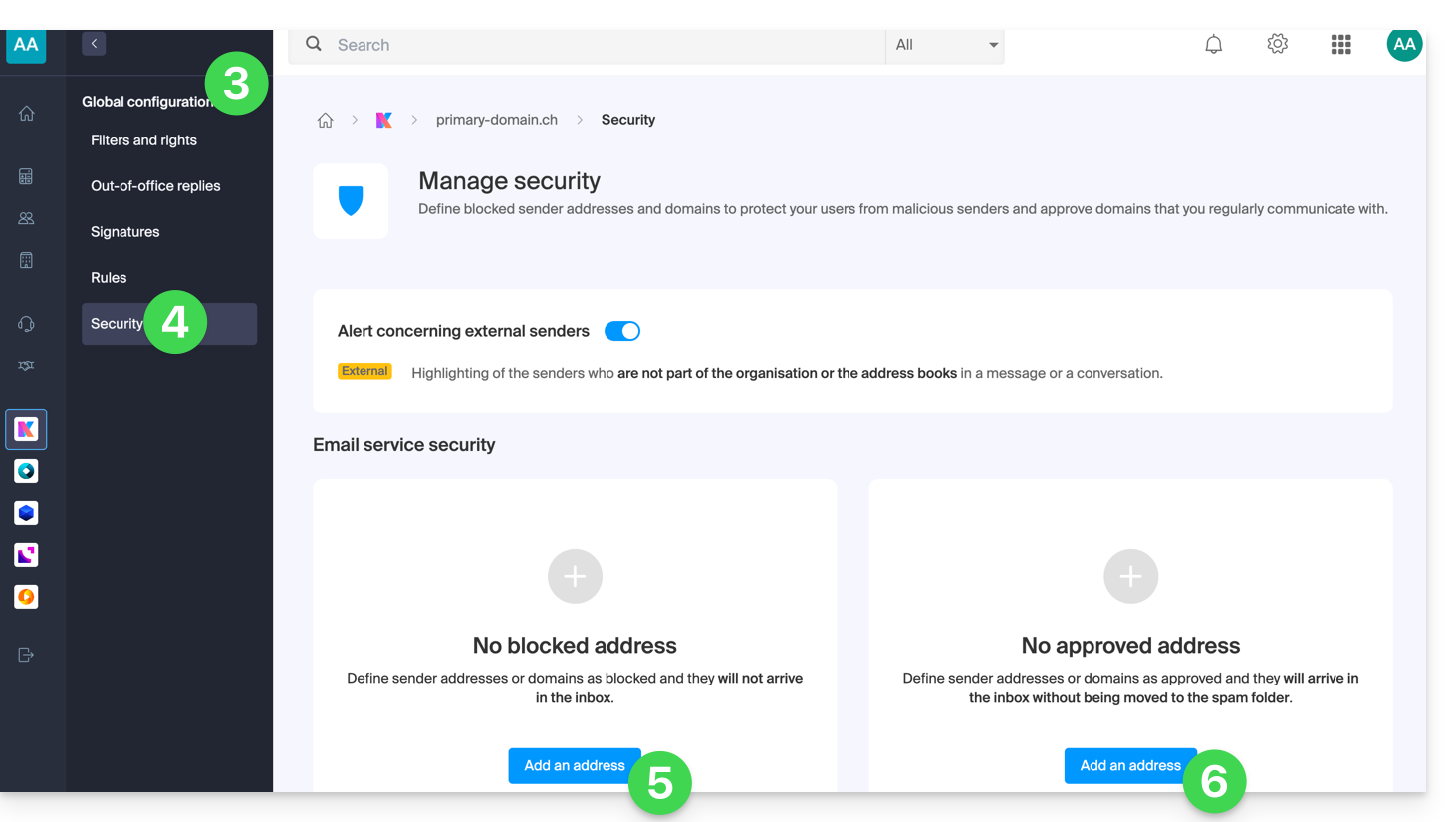
- Click on Validate to activate these lists for all email addresses in the domain.
Regarding the top part of the page, please refer to this other guide.
Link to this FAQ: https://faq.infomaniak.com/1837
Has this FAQ been helpful?
This guide explains how to create sorting rules in Advanced mode, scripts in Sieve language, to automatically categorize your incoming emails on Infomaniak based on certain conditions.
✘ NOT AVAILABLE with
kSuite Free
my kSuite (ik.me, etik.com, ikmail.com)
Mail Service Starter
Introduction
- If you do not have a compatible plan or prefer a simplified configuration, please refer to this other guide.
- ⚠️ No support is provided for the Sieve language (please refer to this documentation — also discover the role of the hosting provider).
- Unlike the sorting rules offered within email software/clients(Microsoft Outlook, Mozilla Thunderbird, Apple Mail...), these rules will act directly on the server of your mailboxes, even before the IMAP connection.
- You can import Sieve files using a button.
- Enabling this mode will preserve existing standard rules but disable them.
- The
redirectcommand (which allows you to forward an email to another address) is not allowed in scripts.- If you import a Sieve script from another provider, make sure to remove this command.
- To forward emails, use the wizard in Standard mode or the Redirections section of your Mail Service.
Accessing rules from the Infomaniak Web Mail app
Prerequisites
- Have permission to manage rules: if you were invited to the Infomaniak Mail web app (online service ksuite.infomaniak.com/mail)to manage your address, it is possible that the Mail Service administrator has removed this permission from their admin account.
To access the sorting filters for your Infomaniak email:
- Click here to access the Infomaniak Mail web app (online service ksuite.infomaniak.com/mail).
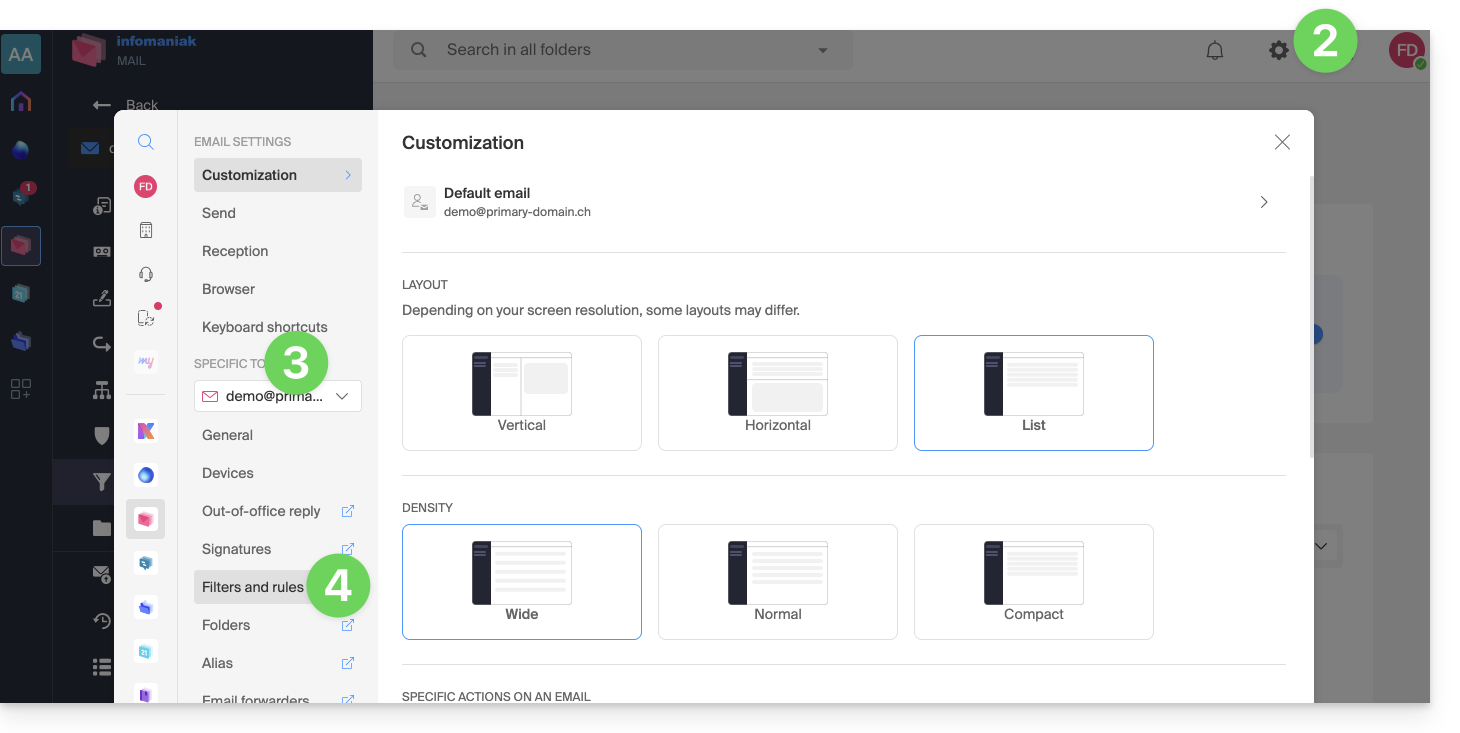
- Click on the Settings icon in the top right corner.
- Check or select the relevant email address from the drop-down menu.
- Click on Filters and rules:
Accessing rules from a Mail Service
To access the sorting filters for your Infomaniak email:
- Click here to access the management of your product on the Infomaniak Manager (need help?).
- Click directly on the name assigned to the product in question.
- Click on the email address in question in the table that appears.
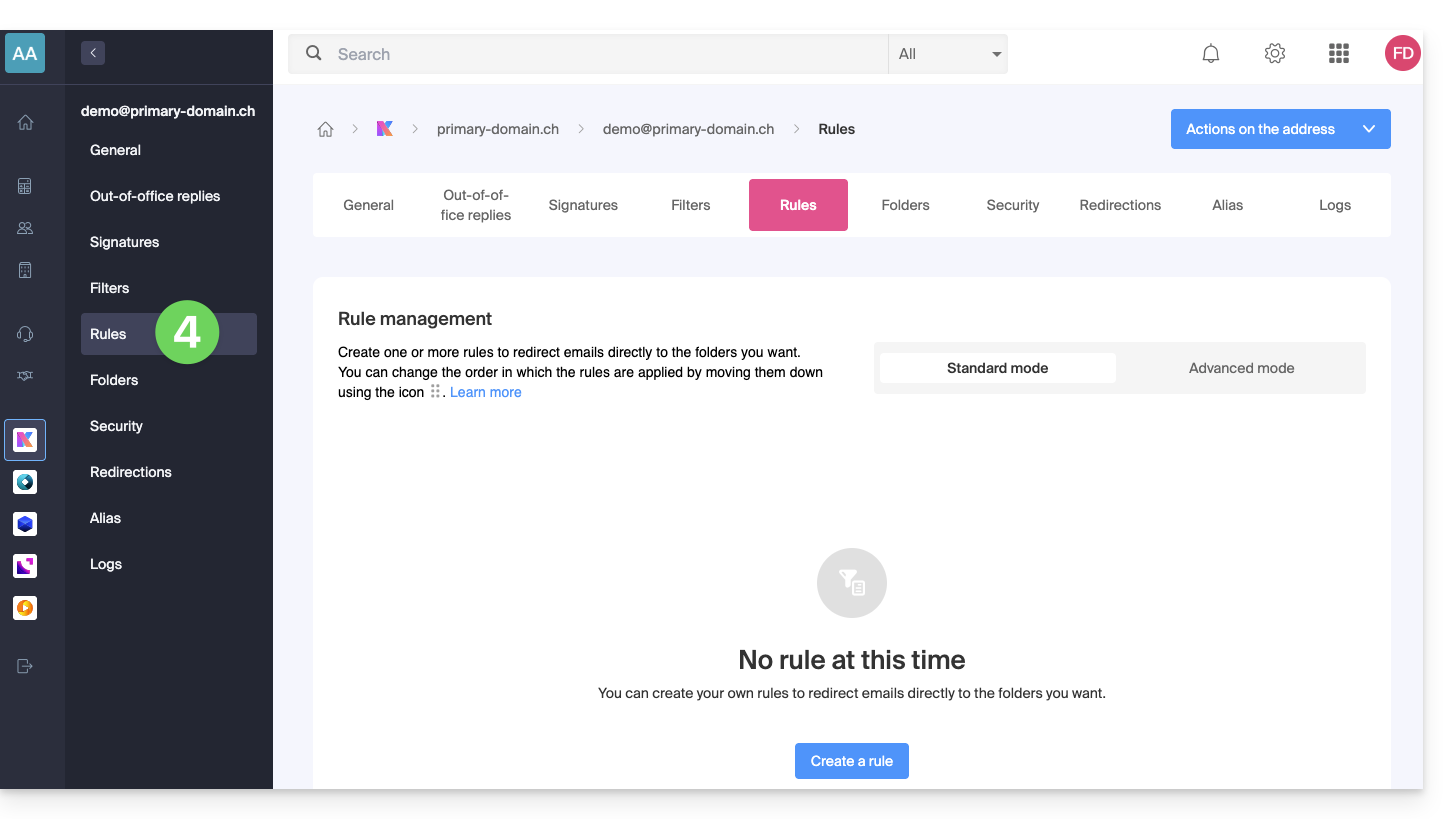
- Click on the Rules tab from the left-hand menu (or top bar):
Create a new rule in Advanced (expert) mode
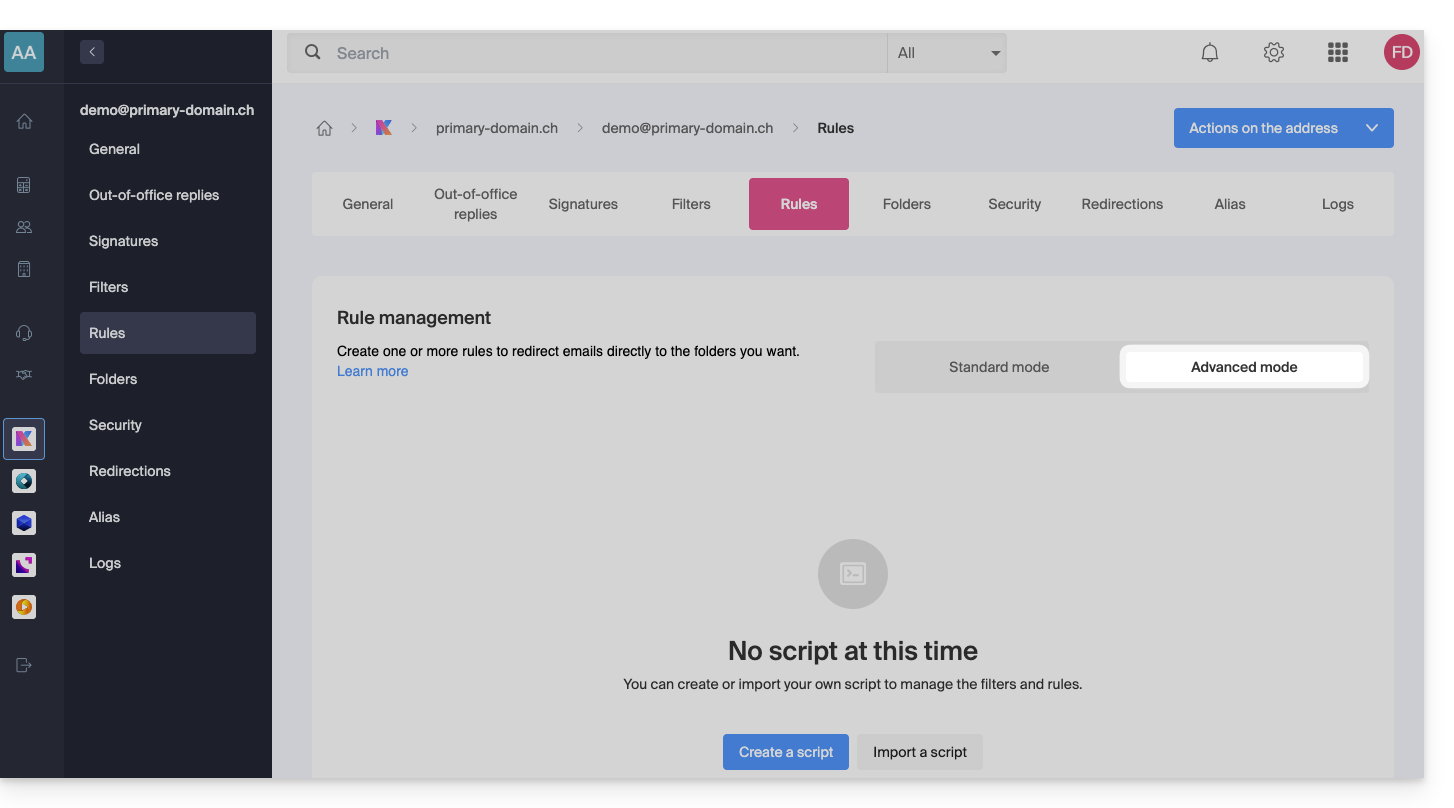
- Make sure to click on the Advanced mode:
First example of advanced sorting
Here is a simple example of a command using this language:
require ["fileinto"];
if address :contains "from" "facebook.com" {
    fileinto "fb";
} elsif header :matches "List-Unsubscribe" "*" {
    fileinto "nl";
} else {
    keep;
}
Explanation:
- Loading the required extensions: use
require ["fileinto"];to indicate that you will be using thefileintofunction. - Filtering Facebook messages: use
if address :contains "from" "facebook.com"to check if the sender's address contains "facebook.com"; if so, the message is filed in the "fb" folder withfileinto "fb";. - Message filtering with an unsubscribe link: use
elsif header :matches "List-Unsubscribe" "*"to check if the "List-Unsubscribe" header is present in the message; if so, the message is classified into the "nl" folder withfileinto "nl";. - Saving other messages: use
else { keep; }to save all other messages that do not meet the previous criteria.
Note:
- If you need to specify a subfolder, use the separator
/(as in the second example), but it is not necessary to specifyINBOXin your codes. - Make sure that the folders "
fb" and "nl" already exist in your inbox; otherwise, messages may not be sorted correctly. - The filter
address :contains "from" "facebook.com"works correctly for addresses that contain "facebook.com" in the "from" field. - The filter
header :matches "List-Unsubscribe" "*"only checks for the presence of the "List-Unsubscribe" header, not its content.
Second example of advanced sorting
This code modifies the subject based on the sender (adds a prefix to the subject when an email passes the filter, for example):
require ["fileinto", "editheader", "variables", "regex"];
if address "sender" "owner-scientific-linux-devel at LISTSERV.FNAL.GOV" {
    if header :regex "subject" "((Re|Fwd): *)\\[SCIENTIFIC-LINUX-DEVEL\\] *(.*)" {
        deleteheader "Subject";
        addheader "Subject" "${1}${3}";
    } else {
        # Ajouter un préfixe si l'objet ne correspond pas déjà au modèle
        deleteheader "Subject";
        addheader "Subject" "[SL-Devel] ${1}";
    }
    fileinto "Mail List/SL-Devel";
}
Explanation:
- Required extensions:
fileinto: for filing messages into folders.editheader: for modifying email headers.variables: for using variables in expressions.regex: for regular expressions.
- Condition on the sender:
if address "sender" "owner-scientific-linux-devel at LISTSERV.FNAL.GOV": checks if the sender matches.
- Condition on the subject:
if header :regex "subject" "((Re|Fwd): *)\\[SCIENTIFIC-LINUX-DEVEL\\] *(.*)": checks if the subject matches the specified pattern.deleteheader "Subject";andaddheader "Subject" "${1}${3}";: deletes the existing subject and adds a new subject with the captured parts.
- Add a prefix if the subject does not already match the pattern:
addheader "Subject" "[SL-Devel] ${1}";: adds the prefix "[SL-Devel]" to the subject if it is not already present.
- Message sorting:
fileinto "Mail List/SL-Devel";: sorts messages into the "Mail List/SL-Devel" folder.
Note:
- Make sure that the "
Mail List/SL-Devel" folder already exists in your inbox. - Verify that the script correctly modifies the email subject to add or adjust the prefix if necessary.
Link to this FAQ: https://faq.infomaniak.com/1839
Has this FAQ been helpful?
This guide explains how to link your Wix site to the Mail Service managed by Infomaniak.
Introduction
- By modifying your domain name managed by Infomaniak so that it points to the Wix servers, all web and email traffic now goes to Wix.
- Therefore, you need toInform Wix that the email service is managed by Infomaniak, by specifying 3 technical details:
- the Infomaniak MX record (fortunately, a drop-down menu will allow you to choose Infomaniak as your email provider, without having to specify the Infomaniak MX record manually)
- the Infomaniak SPF record
v=spf1 include:spf.infomaniak.ch -all - the Infomaniak DKIM record
1. Select Infomaniak MX
- In order for email to function correctly and for email traffic to be routed properly, you must choose Infomaniak from the list of providers in your Wix customer account.
- Read their official guide on this topic.
- Confirm and wait a few hours for the change to take effect (any DNS addition/modification may take up to 48 hours to propagate).
2. Add the Infomaniak SPF record using a TXT record
- Refer to their official guide on this topic.
- The information to enter is as follows:
- hostname: leave blank
- value (copy and paste entirely):
v=spf1 include:spf.infomaniak.ch -all - TTL: leave the current setting
- Validate and wait a few hours for the change to take effect (any DNS addition/modification may take up to 48 hours to propagate).
3. Paste the Infomaniak DKIM record
- Refer to their official guide on this topic.
- You will find the DKIM in the Infomaniak interface, under Global Security > DKIM.
- Confirm and wait a few hours for the change to take effect (any DNS addition/modification may take up to 48 hours to propagate).
Link to this FAQ: https://faq.infomaniak.com/1841
Has this FAQ been helpful?
This guide explains how to check your emails using the Infomaniak Mail mobile app (application for iOS/Android smartphones or tablets) designed by Infomaniak.
Download the Infomaniak Mail mobile app
From your iOS or Android mobile device, download the Infomaniak Mail app here:


Other versions and apps can be downloaded from the unified kSuite settings.
On your computer, you can configure your email address with third-party software or use the Mail Infomaniak web app (online service ksuite.infomaniak.com/mail).
Whether on ksuite.infomaniak.com/mail or the Infomaniak Mail app, it is essential to log in with your Infomaniak user account ID and its password. This will not work if you enter an email address and its password directly. Understand the difference
Getting started with the app
- Add an additional email address to Infomaniak Mail
- Modify Infomaniak Mail settings
- Configure Infomaniak Mail notifications
Some features of the Mail Infomaniak web app (online service ksuite.infomaniak.com/mail) are also available on the mobile version:
Specific features of the Infomaniak Mail mobile app
- Only intended for email hosted by Infomaniak.
Minimum iOS version required and supported: v16.4
No push notifications with the version available on F-Droid.
- QR code business card feature
Have a question or feedback?
- Contact Infomaniak support
- Click here to share feedback or a suggestion about an Infomaniak product.
Link to this FAQ: https://faq.infomaniak.com/1860
Has this FAQ been helpful?
This guide explains what spamtrap email addresses are.
Introduction
- A spamtrap, also known as a honeypot, is a tool used to detect and catch spammers.
- It is essentially an email address or system that is created with the aim of attracting unwanted messages, such as spam.
How a Spamtrap Address Works
A spamtrap address works by attracting spam and identifying the senders of unwanted messages. Here's how this can happen:
- An email address is created specifically to act as a spam trap; it is generally configured in such a way that it does not receive legitimate communications.
- The spam trap address is hidden or obscured so that it is not visible to legitimate users, but only to spammers; this can be done by placing it on hidden web pages, in forums inaccessible to the public, or by making it invisible to humans (for example, by using white text on a white background).
- Spammers use automated techniques to extract email addresses from various sources, such as websites, forums, social networks, or stolen address lists; during this process, they may unintentionally or intentionally include spam traps in their lists.
- When a spammer sends a message to a spam trap address, it is captured and recorded; since the address is not used for legitimate communication, any email received is considered unwanted.
- When a spamtrap receives spam, it triggers an alert for email service providers like Infomaniak; these providers can then identify the spammer by examining the message headers or information related to the source IP address.
- Once a spammer has been identified through a spamtrap address, measures can be taken to block or filter their unwanted messages; Infomaniak can add the spammer's IP address to a blacklist, implement stricter anti-spam filters, or take other measures to protect its users.
Link to this FAQ: https://faq.infomaniak.com/1863
Has this FAQ been helpful?
This guide explains how to order a DNS zone from Infomaniak.
Introduction
- Having your DNS zone with Infomaniak is useful if your domain name is registered elsewhere (with a third-party provider/registrar) and you want to easily link this domain to Infomaniak products.
- Indeed, simply having a
domain.xyzwebsite with Infomaniak and specifying the 2 Infomaniak DNS addresses with the domain name registrar (if it is not Infomaniak) is not enough for the website to be displayed when you typedomain.xyzin a browser. - You must add a DNS zone in the same location as your hosting to ensure your website functions correctly.
- This will also be particularly useful if the provider managing your domain name does not offer DNS zone management.
Order a DNS zone
To do this:
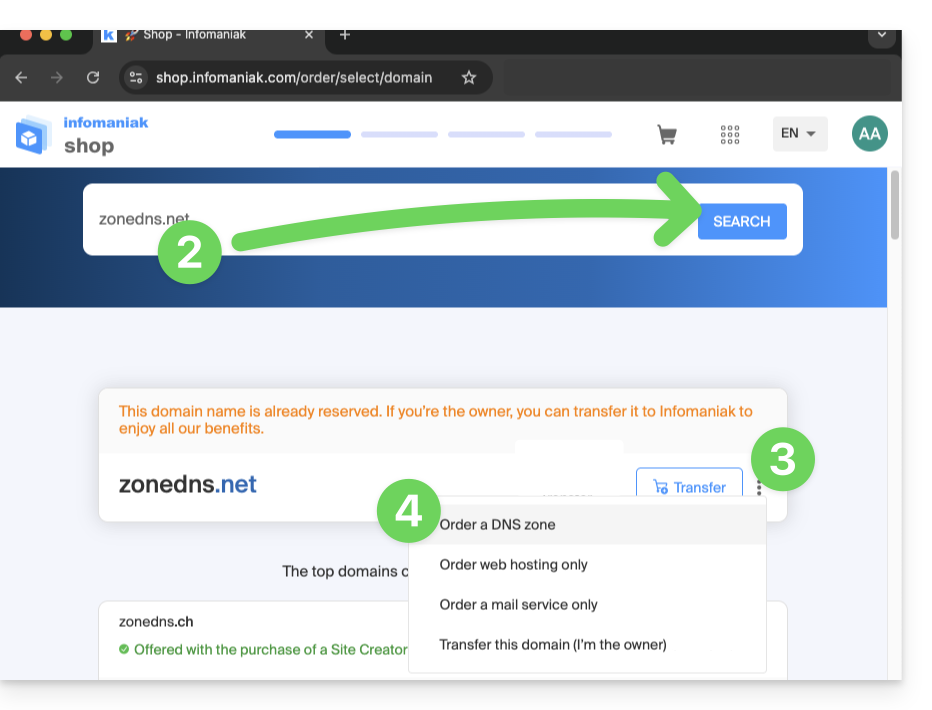
- Click here to access the Infomaniak domain Shop.
- Start a search with the name of the domain registered elsewhere.
- Click on the action menu ⋮ located to the right of the result.
- Select Order a DNS zone:
- Complete the purchase.
- Once added to your Manager, the zone can be edited.
Link to this FAQ: https://faq.infomaniak.com/1914
Has this FAQ been helpful?
This guide explains how to replace the primary domain name associated with a Mail Service in case you want to, for example, change the spelling of everything that comes after the @ symbol in your email address (i.e., the domain name). If your Mail Service is part of a kSuite, you will need to modify the kSuite domain directly.
Introduction
- You can also follow this procedure if the goal is to have completely new email addresses while keeping the history of your emails on Mail (since the email address will continue to exist, for example, info@premier-domaine.xyz will become info@nouveau-domaine.xyz without any modification to its content).
- IndeedIt is not possible to simply change the spelling of the domain name in question; therefore, it is necessary to replace the current domain name associated with your email addresses with another domain name.
- To simply add an additional domain name, please refer to this other guide.
- To instead modify the part of your email address that appears before the at symbol
@, please refer to this other guide. - It should also be noted that you can rename your product (example) in the Infomaniak Manager, but changing the name of a Mail Service has absolutely no impact on its addresses; you need to modify the domain name.
If your Mail Service is part of a kSuite, you will need to modify the kSuite domain directly.
Change the domain name for your Mail service
Prerequisites
- Own the new domain name (if necessary, create it beforehand).
- Review the instructions in this other guide and apply the instructions that correspond to your situation (to ensure that the domain name works when it is linked to your Mail service).
Once the new domain name is ready to be used in place of the old one, you need to add it to the Mail service and then perform a switchover:
- Click here to access the management of your product in the Infomaniak Manager (need help?).
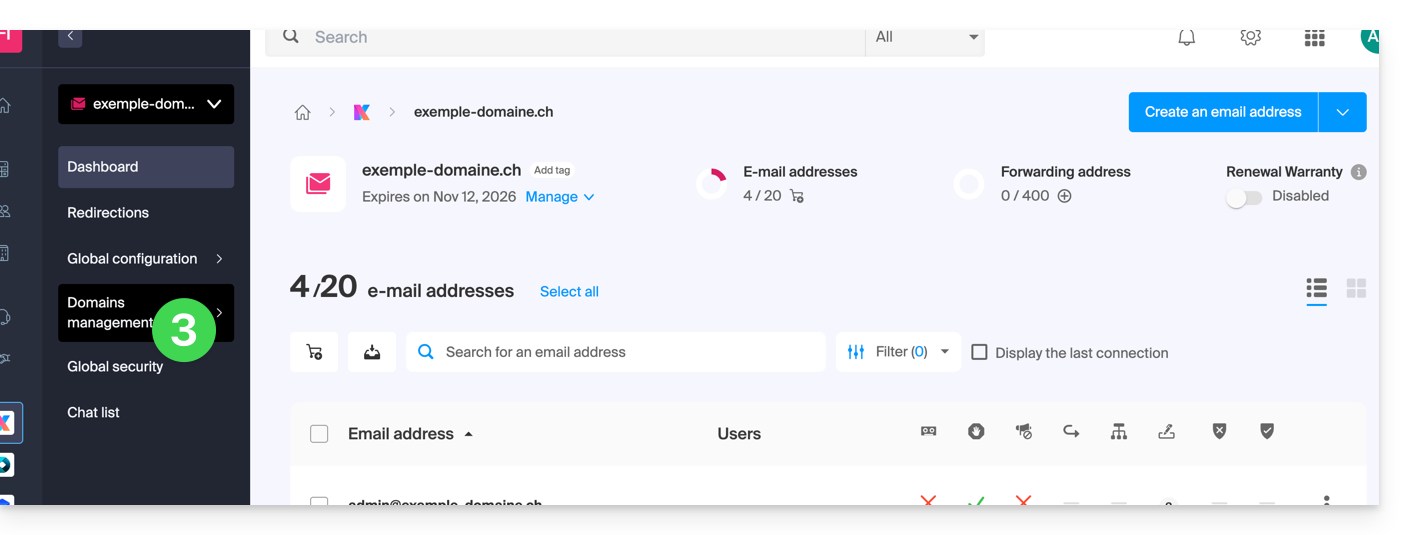
- Click directly on the name assigned to the product in question.
- Click on Domain Management in the left-hand menu.
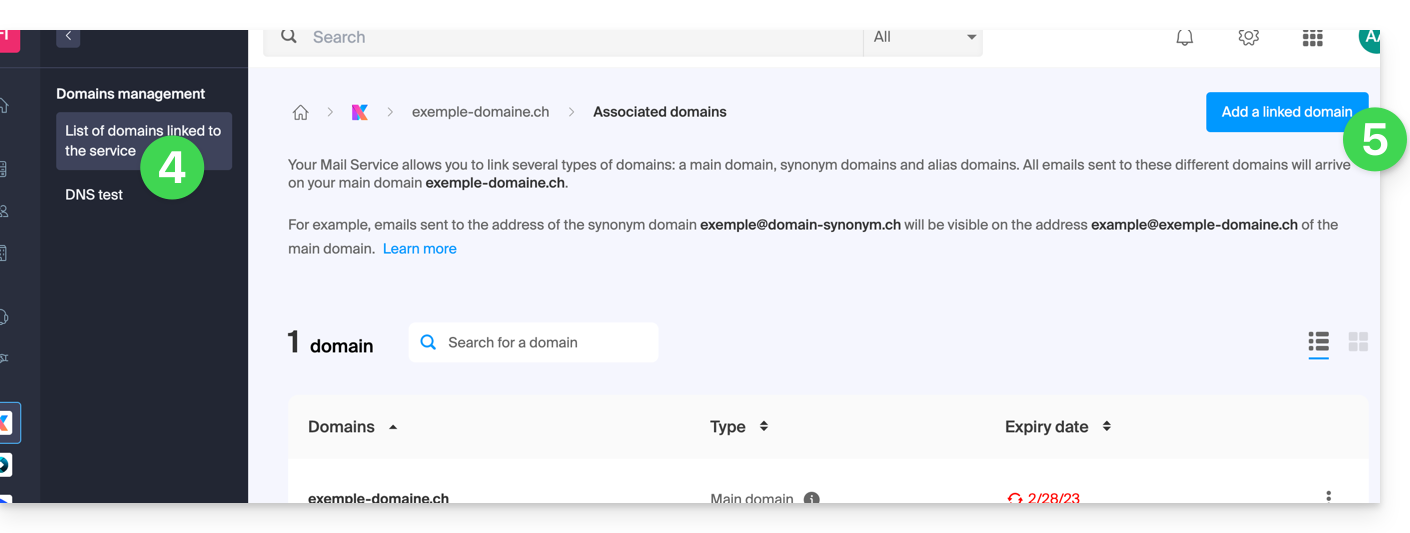
- Click on Domains linked to the service in the left-hand menu.
- Click the blue Add a linked domain button:
- You can:
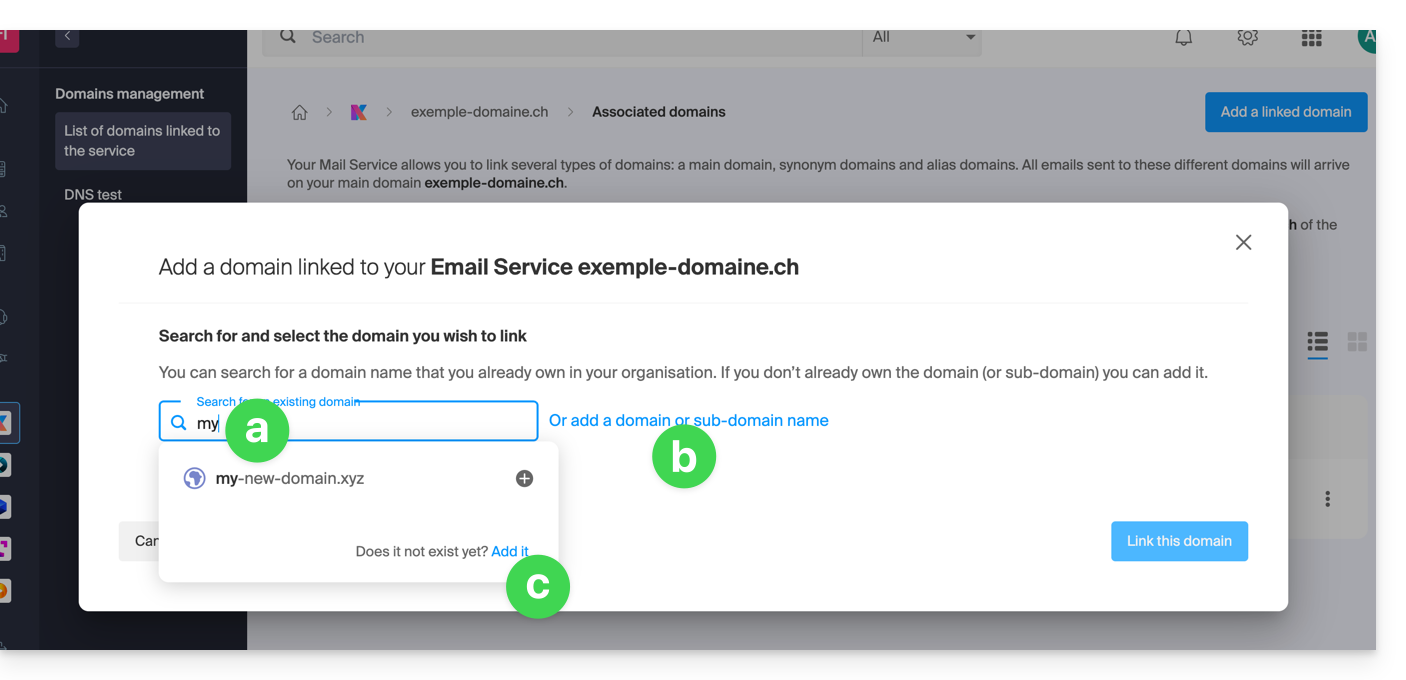
- Search for an existing domain within the Organization you are connected to; this will automatically link and update the DNS zone of the added domain.
- Add a domain name or subdomain to manually specify the domain name or subdomain to use (ideal if the domain name is located elsewhere).
- Purchase a new domain name (see prerequisites).
a: The domain exists at the Organization level
Before proceeding, be sure to unlink the domain name if it was previously defined as a synonym domain.
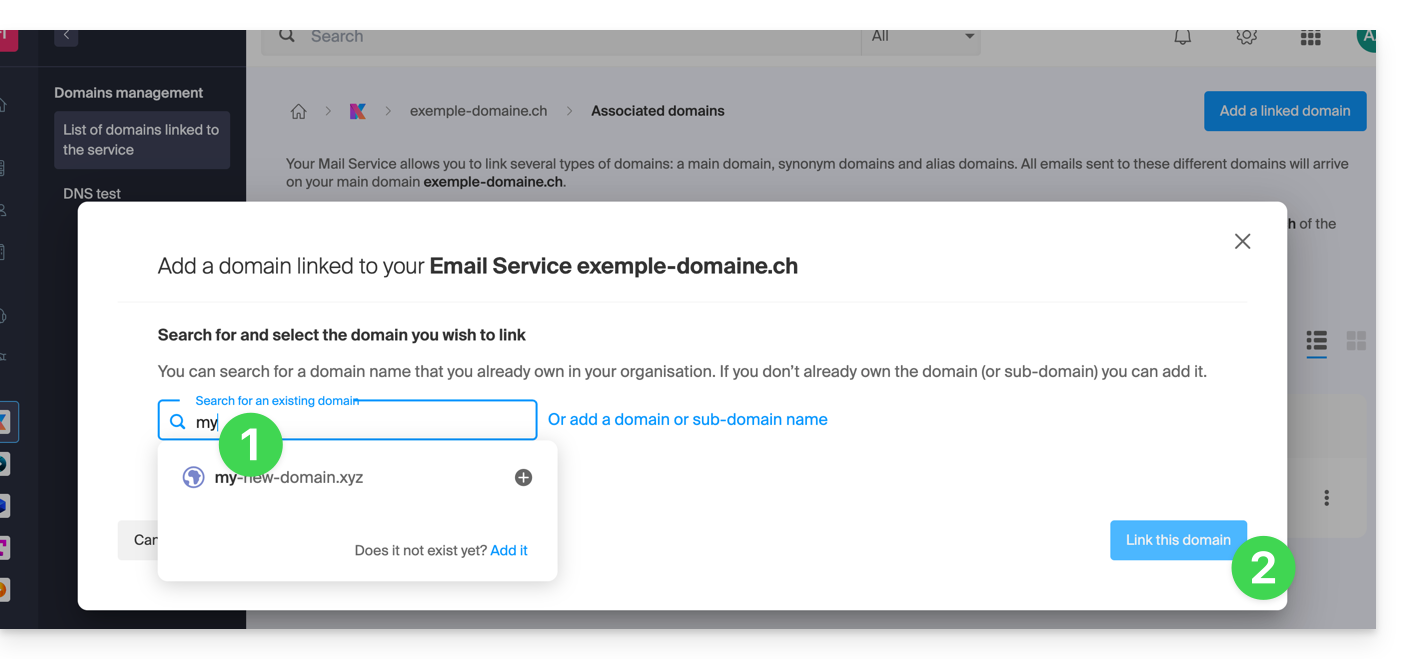
- Click on the proposed domain name.
- Click on the blue Link this domain button:
- Click on the ⋮ icon to the right of the newly added domain name.
- Click on Set as primary domain (you must have disassociated the alias domain from the primary domain if there was a previous association):

- Confirm the reversal and then wait for the operation to complete.
- Click on the ⋮ icon to the right of the old domain name.
- Click on Detach the domain:
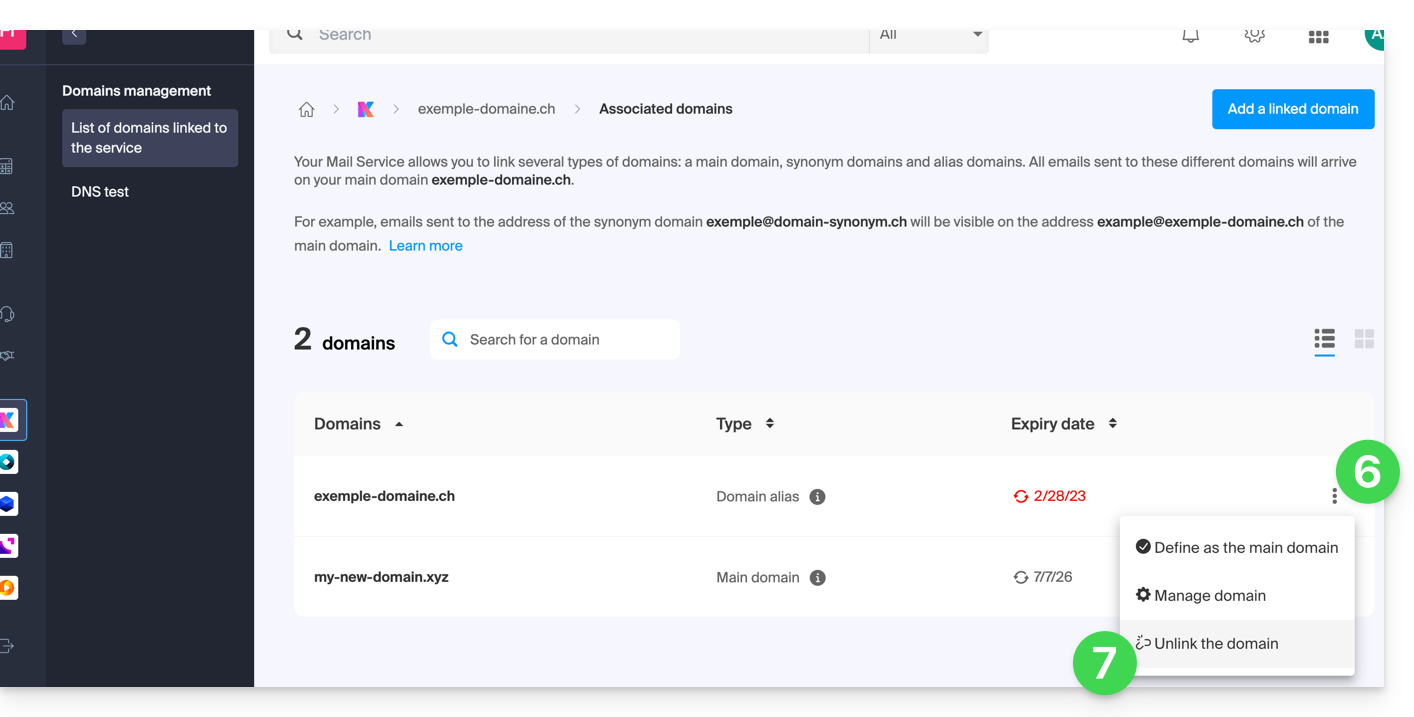
- Confirm the detachment by checking if you want to delete the associated DNS records during the detachment process.
That's it, the Mail Service now responds to a new domain name.
b: The domain exists but is hosted elsewhere
- After clicking Add a domain or subdomain, enter the domain name that will be used to replace the current one.
- Enable the DNS record update (if the domain name's status allows it, the domain name's DNS zone will be updated automatically).
- If the above point 2 is active, then enable the replacement of any existing entries.
- Enable domain name reversal (to avoid additional steps as in point "a" above).
- Click on the blue Link this domain button:
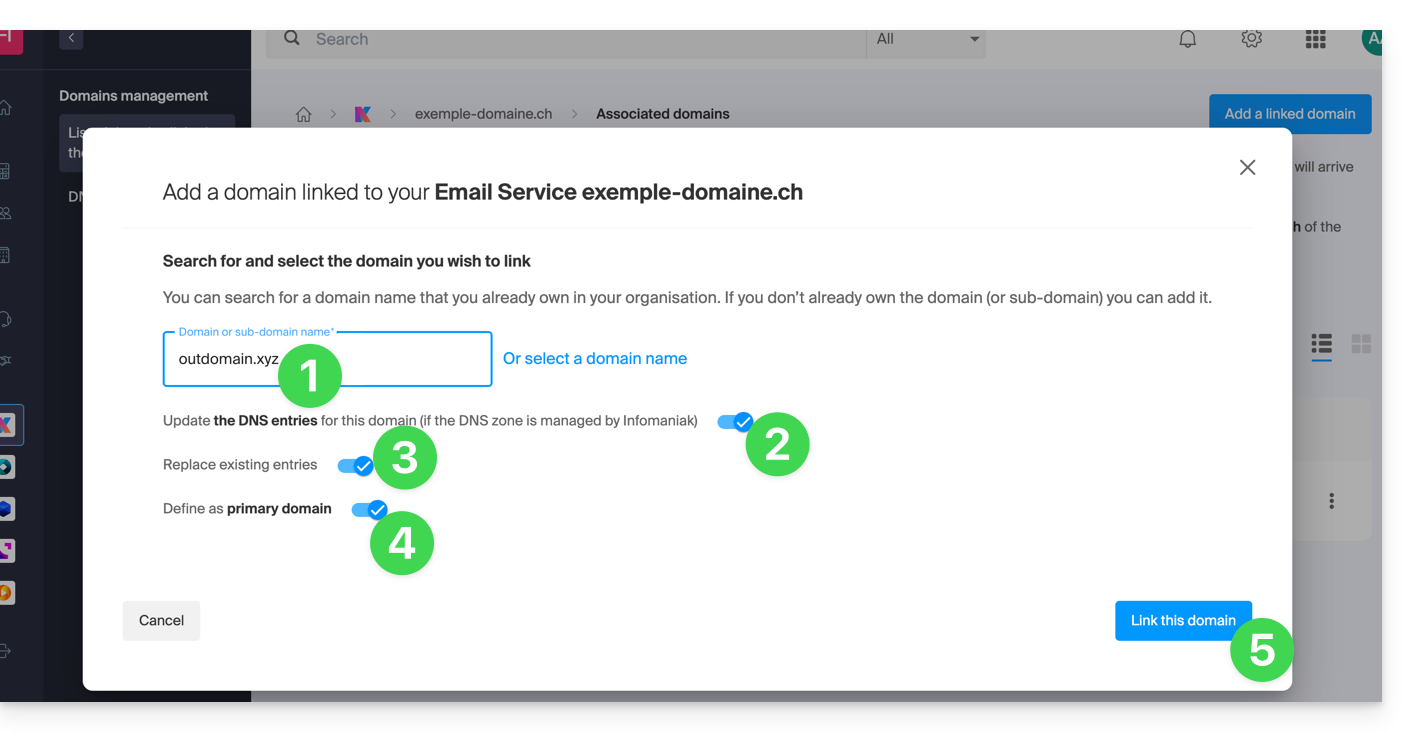
- Wait for the operation to complete.
- Click on the ⋮ icon to the right of the old domain name.
- Click on Unlink domain:
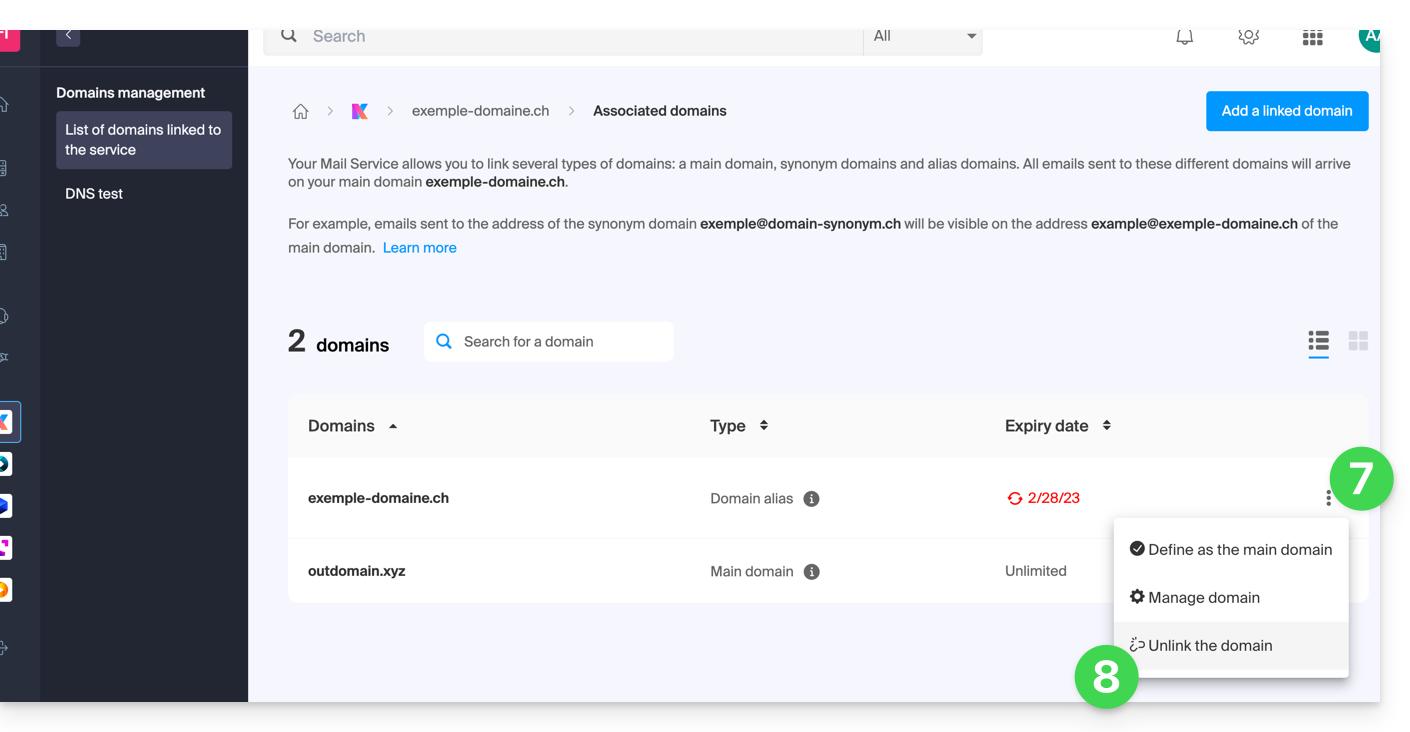
Link to this FAQ: https://faq.infomaniak.com/1934
Has this FAQ been helpful?
This guide explains how to obtain your email address(es) from the Swiss hosting provider Infomaniak.
Introduction
- With the exception of certain free offers, an email address at Infomaniak is always created within a Mail Service.
- This Mail Service is based on a personalized domain name that must exist and be configured for the email to work.
- Example: if you want the address
jean.dupont@domain.xyz, you need to:- Own the domain name “
domain.xyz”. - Obtain a Mail Service for “
domain.xyz”. - Create the email address “
jean.dupont”.
- Own the domain name “
- All of this is offered and requested during the ordering process on infomaniak.com, preceded by the creation of a mandatory user account (for which you will need to provide your personal email address, or an existing address in any case).
- If your domain name is already registered with an external registrar, you may need to enter the correct MX record in the DNS zone.
Ordering email addresses for a custom domain
Before or after your registration:
- Read this other guide to choose the email plan that best suits your needs and follow the process to start using the services.
- Once the Mail Service is ordered, you can create the email addresses and then, if necessary, the associated passwords.
Once the Mail Service is activated
- Create your email addresses.
- Configure your emails on your computer and devices.
- Synchronize your contacts & calendars on your devices.
- Migrate your content (including content from another provider).
Add an Additional Mail Service
To add a new Mail Service (in order to obtain new addresses on another domain):
- Click here to access the management of your product on the Infomaniak Manager (need help?).
- Click on the Order button above the table that appears:
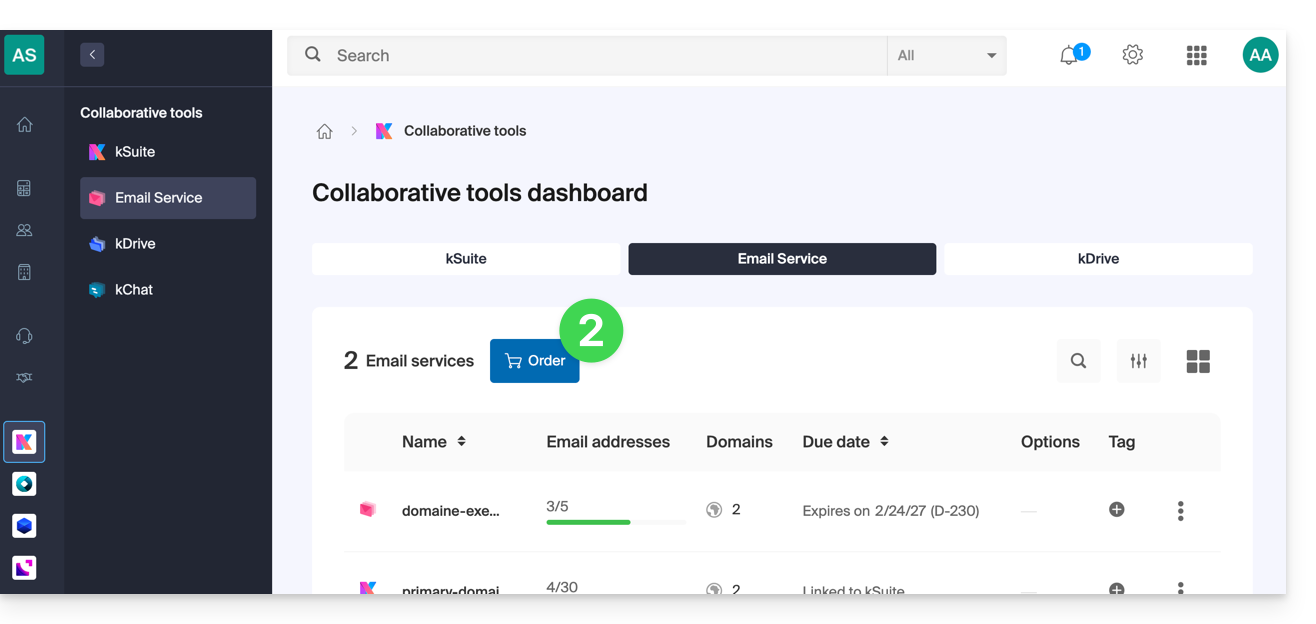
Increase the Number of Available Email Addresses on an Existing Mail Service
To increase the quota of available email addresses if necessary, please refer to this other guide.
Link to this FAQ: https://faq.infomaniak.com/1944
Has this FAQ been helpful?
This guide explains how to link a domain name to an Infomaniak Mail Service.
If the domain name is located…
… with Infomaniak, same Organization
If your domain name is registered with Infomaniak and is in the same user account or Organization as your email, then there is nothing to do.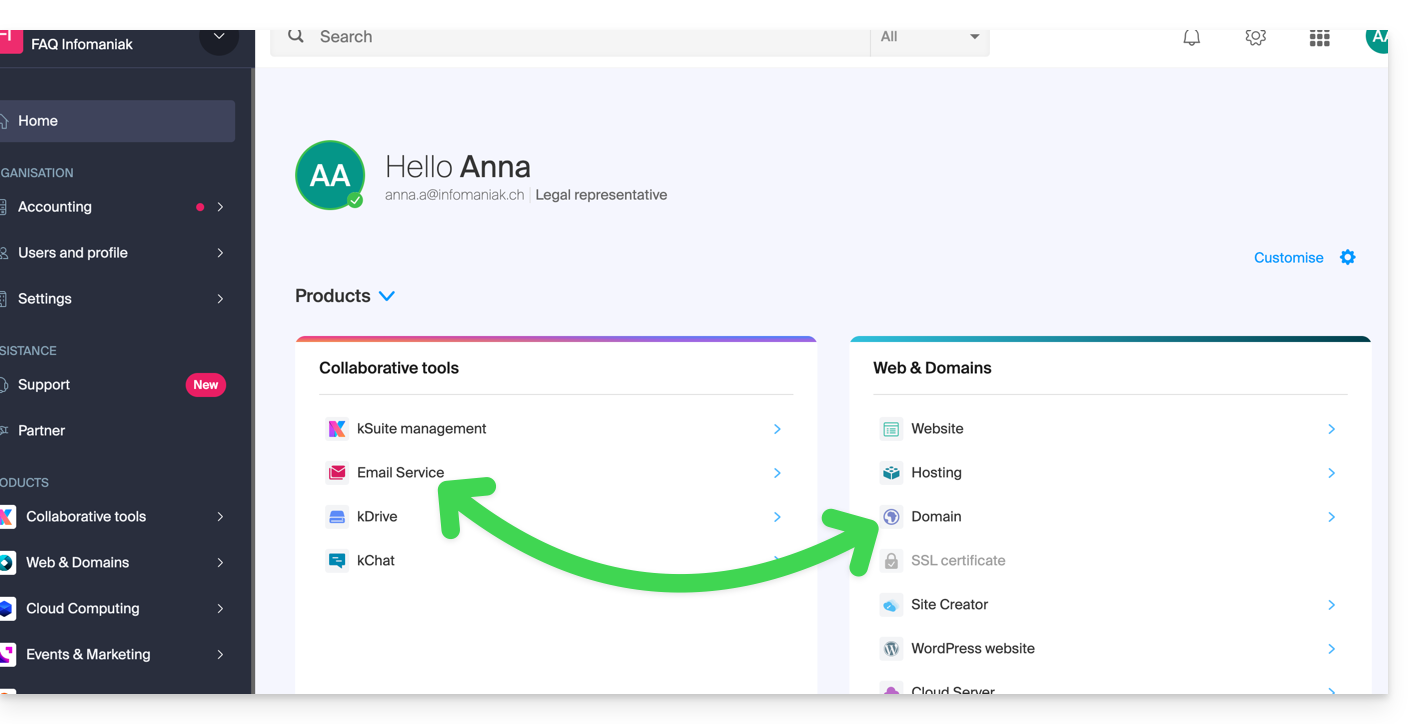
- Consult this other guide to check for and correct any configuration errors.
… with Infomaniak, different organization
If your domain name is registered with Infomaniak but in a different user account or Organization, then:
- Edit its DNS zone by specifying Infomaniak's MX record (+ SPF & DKIM).
- Any DNS addition/modification may take up to 48 hours to propagate.
OU
- Move it within the same Organization.
… with Infomaniak using external DNS
If your domain name uses DNS servers that are not Infomaniak's, then:
- Edit the current DNS zone where it is hosted (if necessary, consult the help documentation of the provider in question) and specify Infomaniak's MX record (+ SPF & DKIM).
- Any DNS addition/modification may take up to 48 hours to propagate.
OU
- Change your current DNS settings and select the option to use Infomaniak's DNS servers.
- Any DNS addition or modification may take up to 48 hours to propagate.
- Refer to this other guide to check for and correct any potential configuration errors.
… or with external DNS servers
If your domain name uses DNS servers that are not Infomaniak's, then:
- Edit the current DNS zone where it is located (if necessary, consult the documentation provided by your provider) and specify Infomaniak's MX record (+ SPF & DKIM).
- Any DNS addition/modification may take up to 48 hours to propagate.
OU
- Change the current DNS servers (if necessary, consult the documentation provided by your provider) and specify Infomaniak's DNS servers (this requires having a DNS zone with Infomaniak).
- Any DNS addition/modification may take up to 48 hours to propagate.
- This DNS zone with Infomaniak will be configured correctly, but please refer to this other guide to check for and correct any potential configuration errors.
… elsewhere, but you are moving it here
If your domain name is registered with another registrar and you would like to transfer it to the same location as your Infomaniak email, then:
- Transfer the domain name to Infomaniak (it will be configured correctly, but please refer to this other guide to check and correct any potential configuration errors).
Alternatively, consider ordering a new domain name if necessary.
Link to this FAQ: https://faq.infomaniak.com/1979
Has this FAQ been helpful?
This guide details the two main types of identifiers. They are distinct, even if the address format may be identical.
Infomaniak Account vs. Email Address
Here is a summary of these 2 types of identifier:
| Type of identifier | Usage | Where to use it | Associated password |
|---|---|---|---|
| Infomaniak account (login ID) | Access all of your Infomaniak services. | Connect to: | Password set during user account creation. ⚠️ Different from the password for your email addresses. |
| Email address hosted with Infomaniak | Send and receive emails. | Connect via SMTP/IMAP…
| Password specific to each email address (there may be several). ⚠️ Different from your Infomaniak account password. |
What to do if you have connection problems?
There is no need to contact Infomaniak Support (which does not have access to any of your passwords)...
- Having an issue with your Infomaniak account? Reset your account password.
- Having trouble with your email address? Reset your email password.
Explanation
- As with many other online services, you registered with Infomaniak using a personal email address.
- This personal email address serves as your login ID when you want to access Infomaniak services.
- This login ID has its own password (defined when creating your Infomaniak user account – your personal email address, see above).
There is no connection between…
- … this username/password combination described in points 1/2/3 above…
- … and the email addresses you created or obtained from Infomaniak.
A link may exist if the address is identical (for example, you registered with the email address toto@abc.xyz and you also manage this same email address with Infomaniak), but even in this case, the password will most likely be different – once for the login ID toto@abc.xyz and once for the email address toto@abc.xyz.
Other login IDs?
Acquiring other Infomaniak products involves obtaining other credentials, such as those required for FTP, MySQL, SSH connections, etc., but these credentials are entirely independent of the two types described above.
Link to this FAQ: https://faq.infomaniak.com/1980
Has this FAQ been helpful?
This guide explains how to create an email address using the Infomaniak Mail Service, the powerful and secure solution for hosting your email addresses.
Introduction
- To create multiple email addresses in bulk, please refer to this other guide.
- To delete one or more email addresses, please refer to this other guide.
Creating an Address in a Mail Service
Prerequisites
- You must have a Mail Service in your Infomaniak Manager.
- You must be an Administrator or Legal Representative within the Organization.
- You must have a quota of available addresses or adjust it beforehand if necessary.
Next, to create a new email address:
- Click here to access the management of your Mail Service in the Infomaniak Manager (need help?).
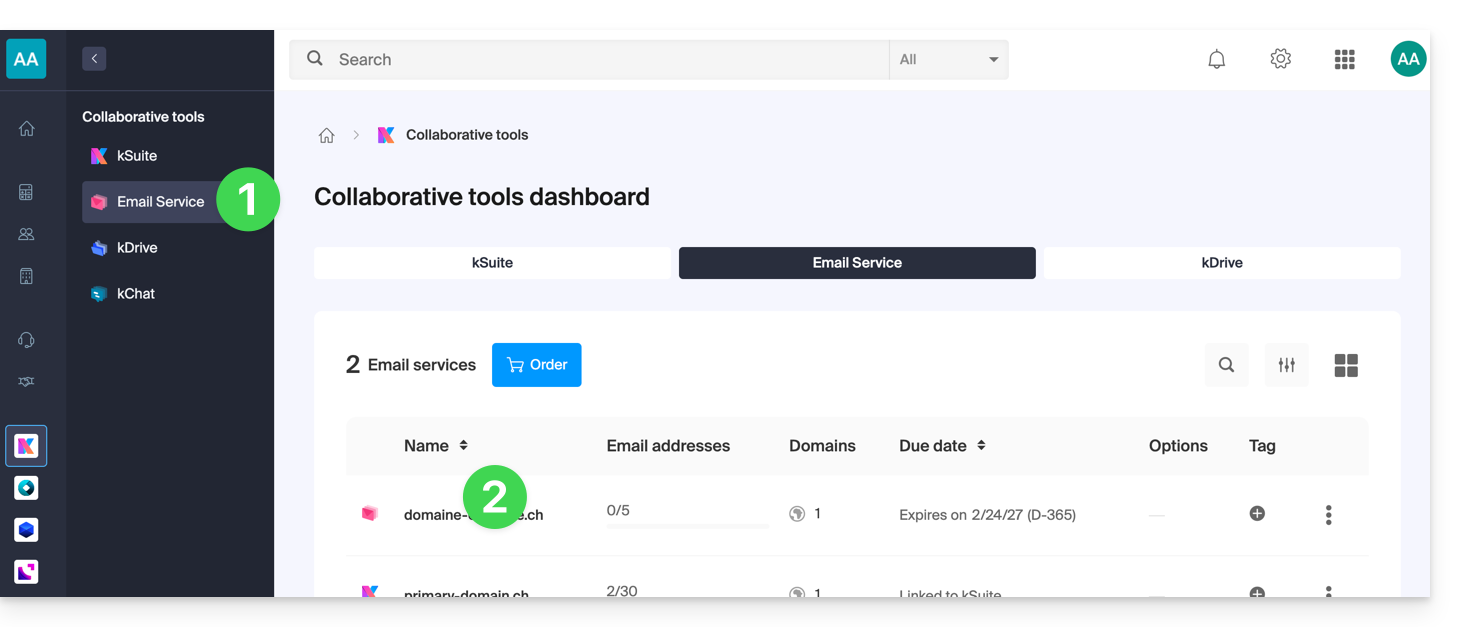
- Click directly on the name assigned to the Mail Service in question:
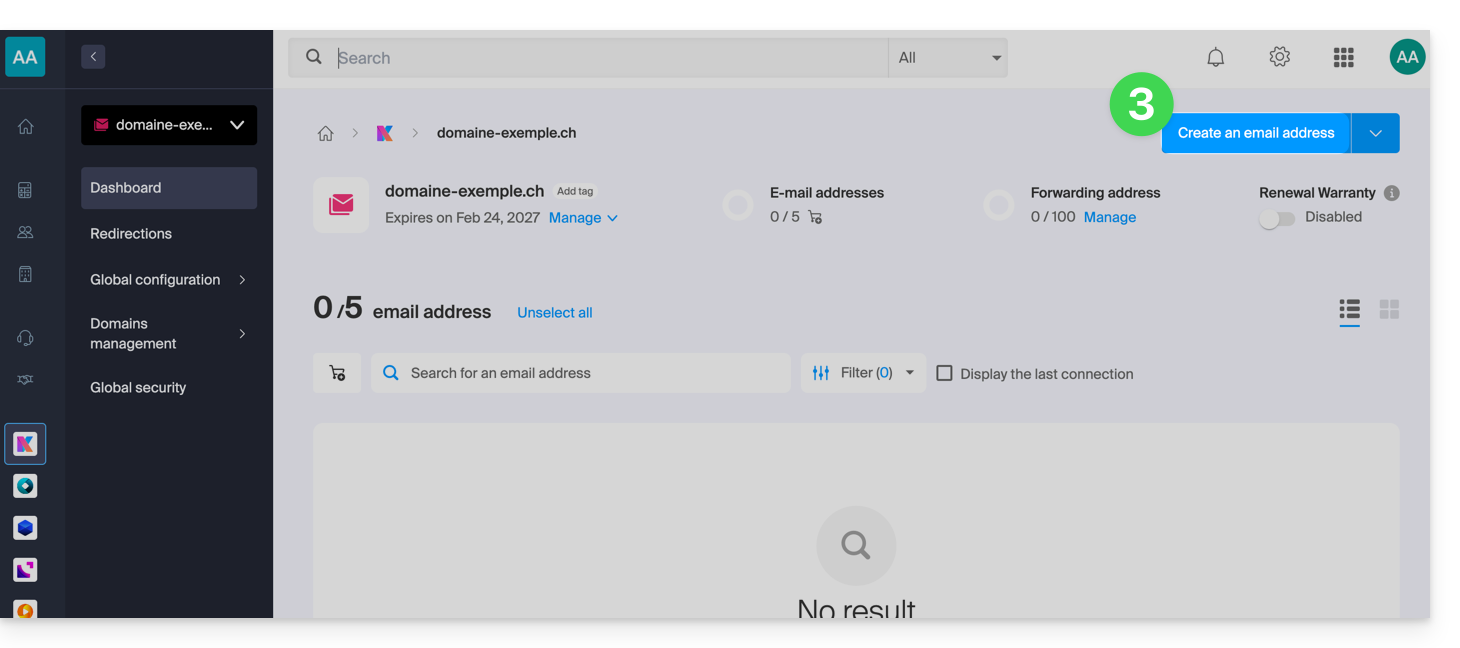
- Click on the blue Create an email address button in the upper right corner:
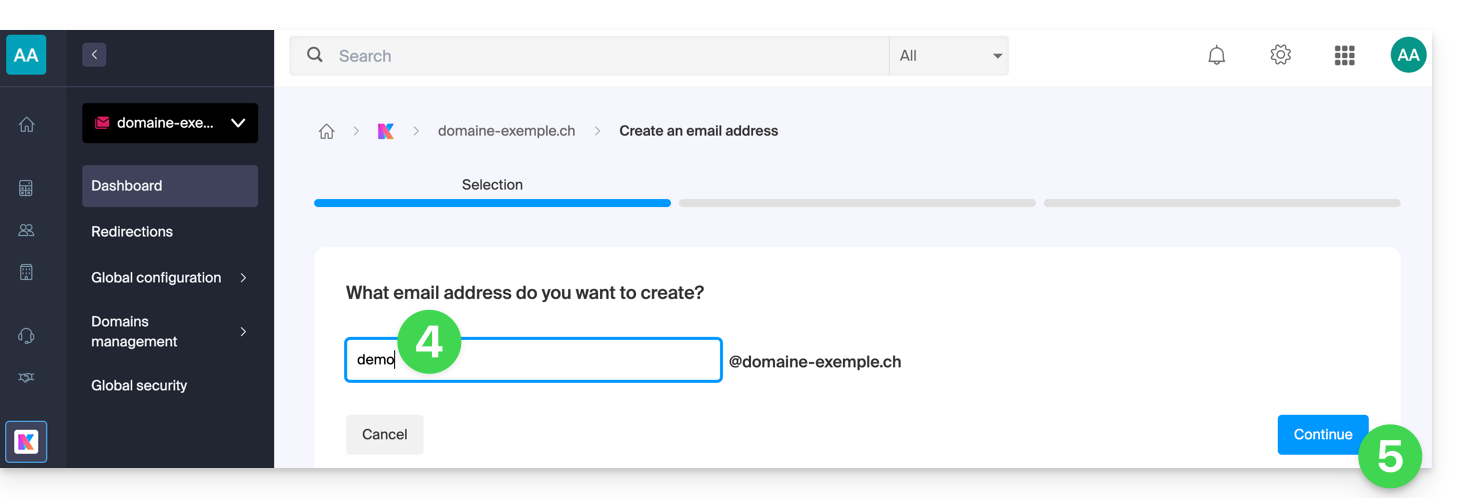
- Enter the name that will make up the email address.
- Click the button to continue:
- Select the creation method that suits your needs:
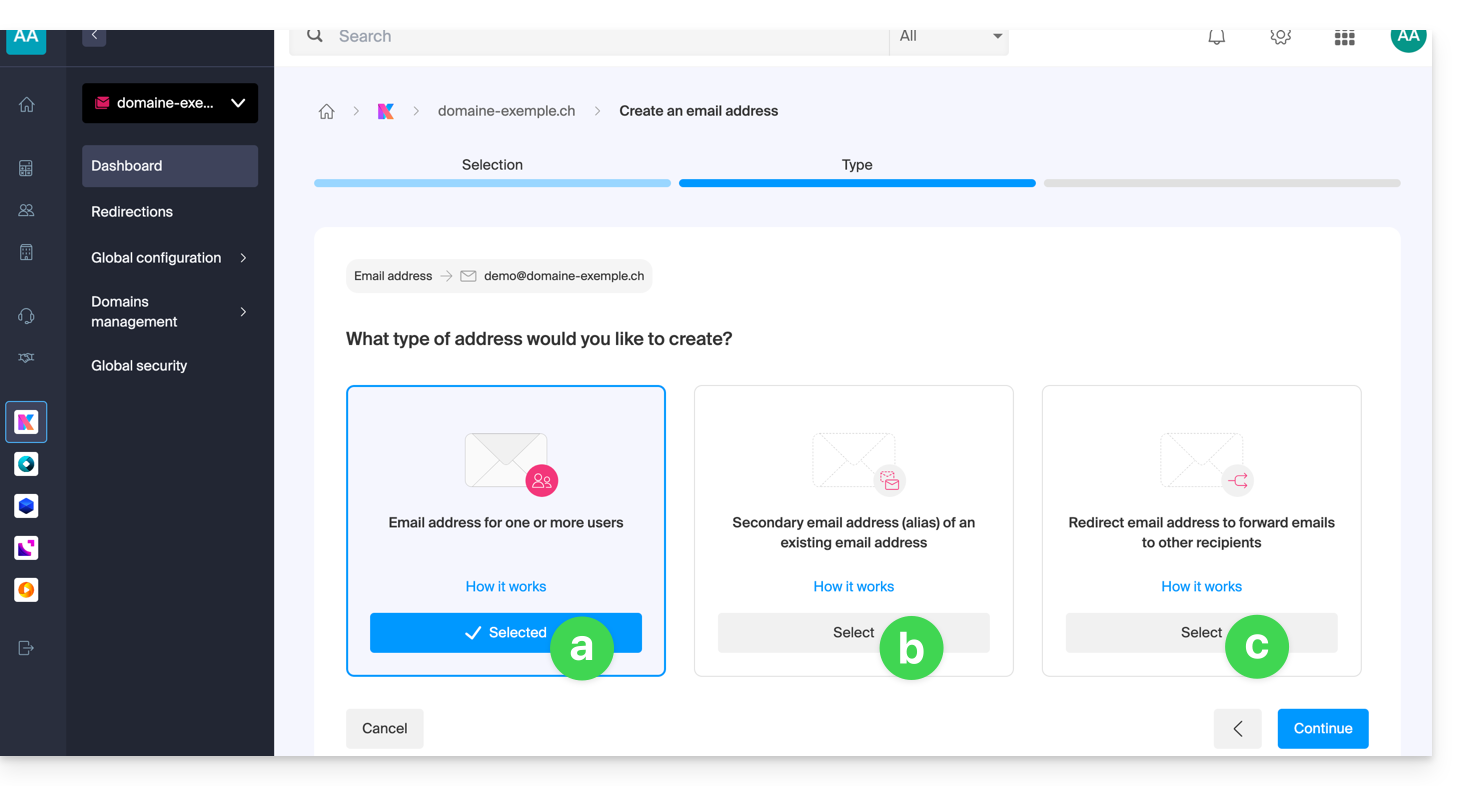
An address for you or other users [ ☍ ]
- Example: make the address directly visible in your Mail interface, or send invitations so that others can use it.
A secondary (alias) address [ ☍ ] that will not be counted towards the main quota
- Requires you to have a primary email address, to which the new name will be linked.
An address that is only used to forward emails [ ☍ ] that will not be counted towards the main quota
- You will not be able to send messages from this address, but only forward incoming emails to the existing address of your choice.
- Click the button to continue after making your choice.
Additional actions (button )
Click the chevron to the right of the Create an email address button to access additional actions: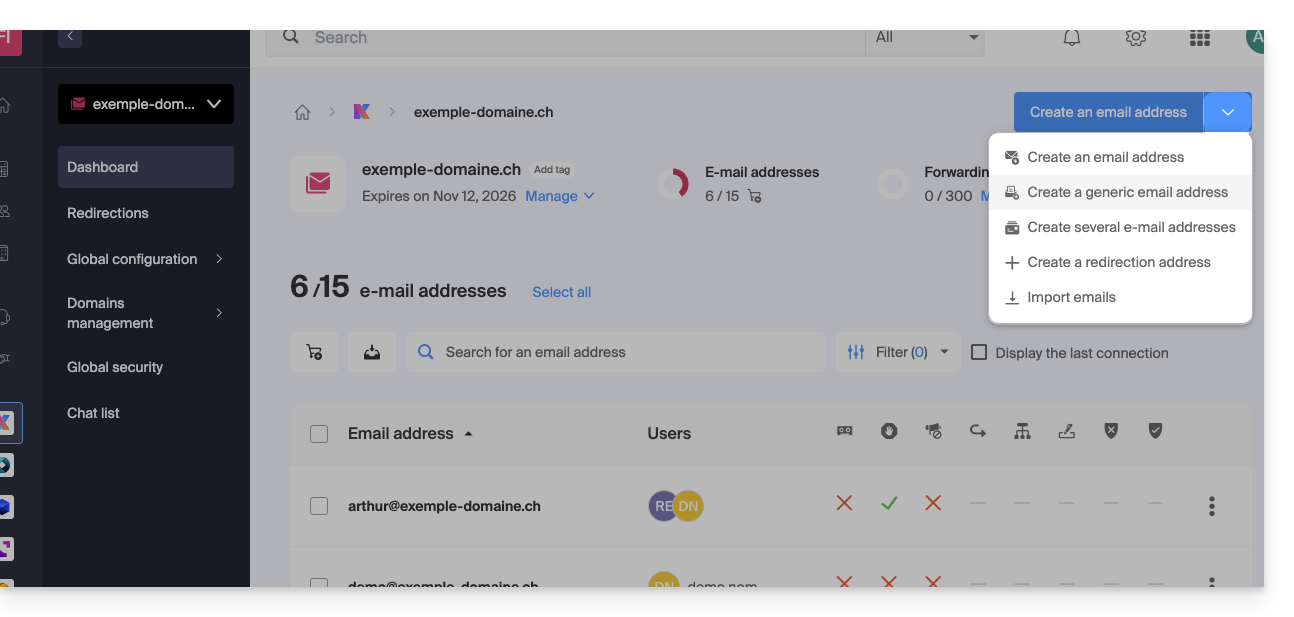
- Create a generic email address of the following type:
- no-reply (for sending confirmations, validations, invoices, etc.)
- catchall (allows you to receive all messages for which there is no specific email address on your domain)
- Create multiple email addresses: allows you to create multiple email addresses at once using a
CSVfile. - Create “virtual” addresses that serve as redirects.
- Import content from other email addresses.
Link to this FAQ: https://faq.infomaniak.com/1993
Has this FAQ been helpful?