Knowledge base
1000 FAQs, 500 tutorials and instructional videos. Here, there are only solutions!
This guide explains how to create a PTR record on the dedicated IPs of VPS Cloud / VPS Lite.
Introduction
- A PTR (Pointer Record) is a type of DNS record used to resolve IP addresses to domain names.
- The PTR record is used to associate an IP address with a domain name or subdomain.
- This is the opposite of an A record, which is used to resolve domain names into IP addresses.
Create a PTR record for the IP address of your Cloud VPS / VPS Lite
Prerequisites
- Make sure your domain or subdomain points to the IP address (v4 or v6) of your Cloud VPS / VPS Lite server.
- You can do this by creating an A record for your domain or by modifying the existing record to point to the IP address of your Cloud VPS / VPS Lite.
- Make sure your domain name points to the IP address of your Cloud VPS / VPS Lite (see 1).
- Note the IP address of your Cloud VPS / VPS Lite server (you can find this IP address in your server management dashboard or by using a command-line command such as "
ifconfig" or "ipconfig" depending on the operating system you are using).
Next, to create a PTR record for your dedicated IP address:
- Click here to access the management of your VPS in the Infomaniak Manager (need help?).
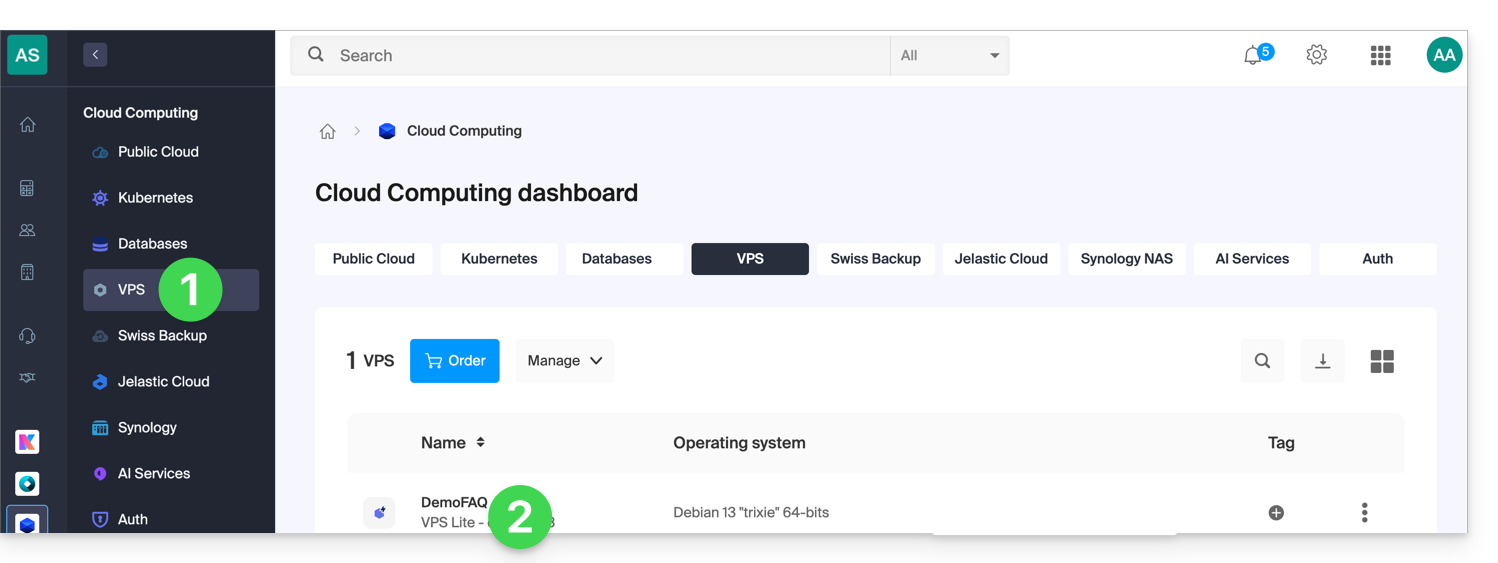
- Click directly on the name assigned to the VPS in question:
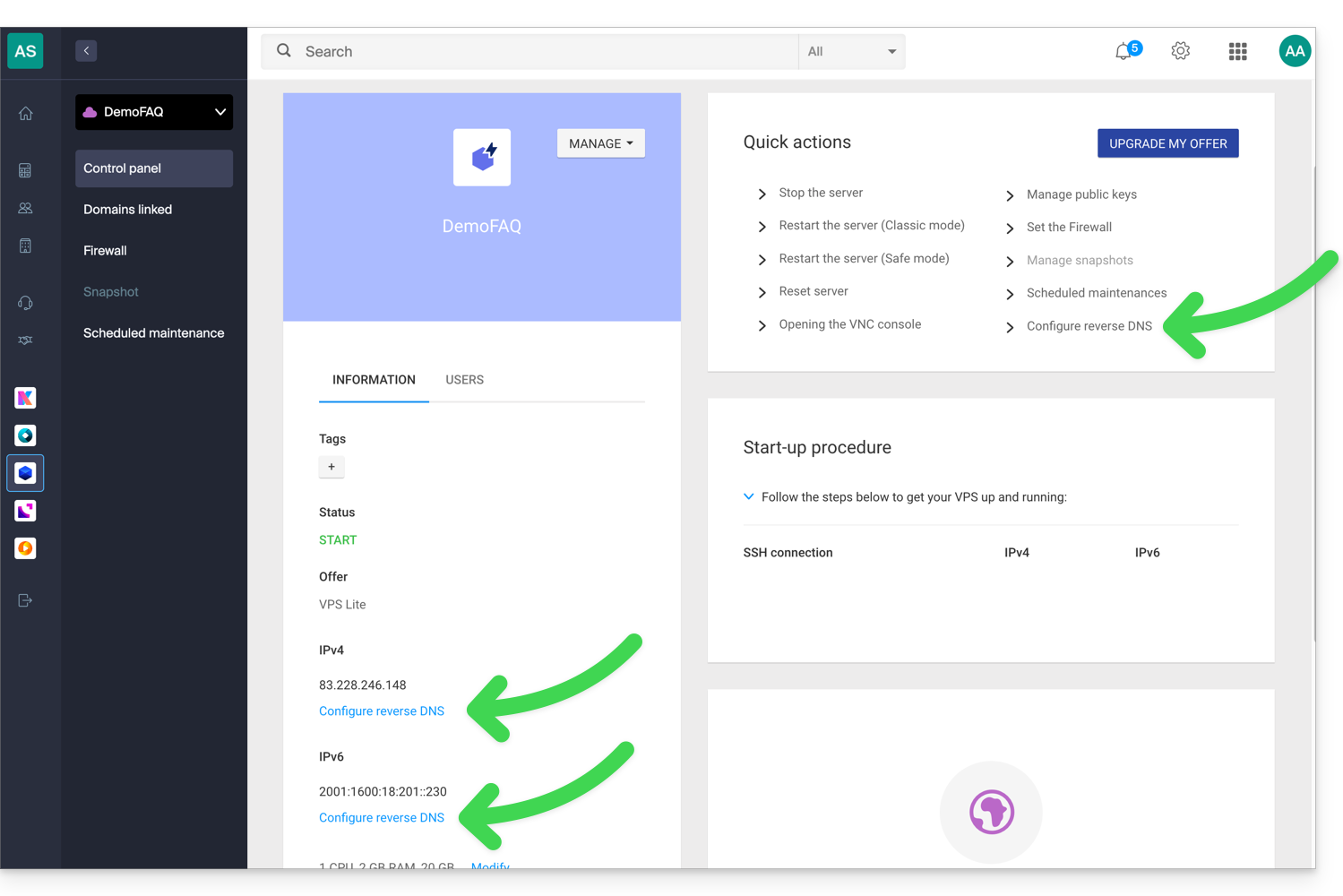
- Click on the appropriate quick action or directly on the menu items at the server's IP address level:
- Enter the desired information and save.
- Once the PTR record is created, use an online verification tool to ensure that the PTR record points to your domain or subdomain.
Link to this FAQ: https://faq.infomaniak.com/2012
Has this FAQ been helpful?
This guide explains how to replace, within an Infomaniak Web Hosting account, the address of a site currently using a subdomain (https://dev.domain.xyz) with the main domain (https://domain.xyz).
Introduction
- The operations in brief:
- Start with a site created and accessible via the main domain URL
dev.domain.xyz. - Add an alias
domain.xyzto it. - Reverse the two types (the main domain becomes an alias, and the alias becomes the main domain).
- Remove the old name
dev.domain.xyz.
- Start with a site created and accessible via the main domain URL
- Note that the site's location remains in the original folder on the server; the name of this location may be in the form
/sites/dev.domain.xyz, but this has absolutely no impact on the site in production. - Also, please refer to the last chapter of this other guide.
Reverse a linked domain
Here are the detailed steps to switch from a site with a subdomain-type address to a direct address (here, dev.domain-example.ch becomes domain-example.ch):
- Click here to access the management of your site on the Infomaniak Manager (need help?).
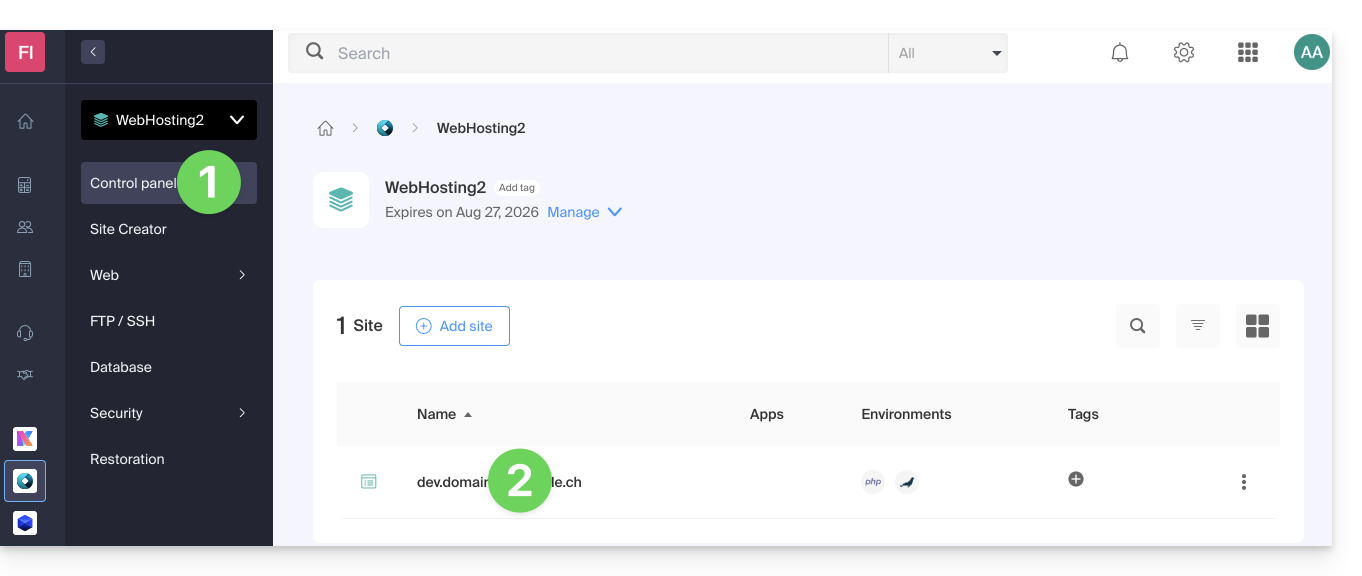
- Click directly on the name assigned to the site in question:
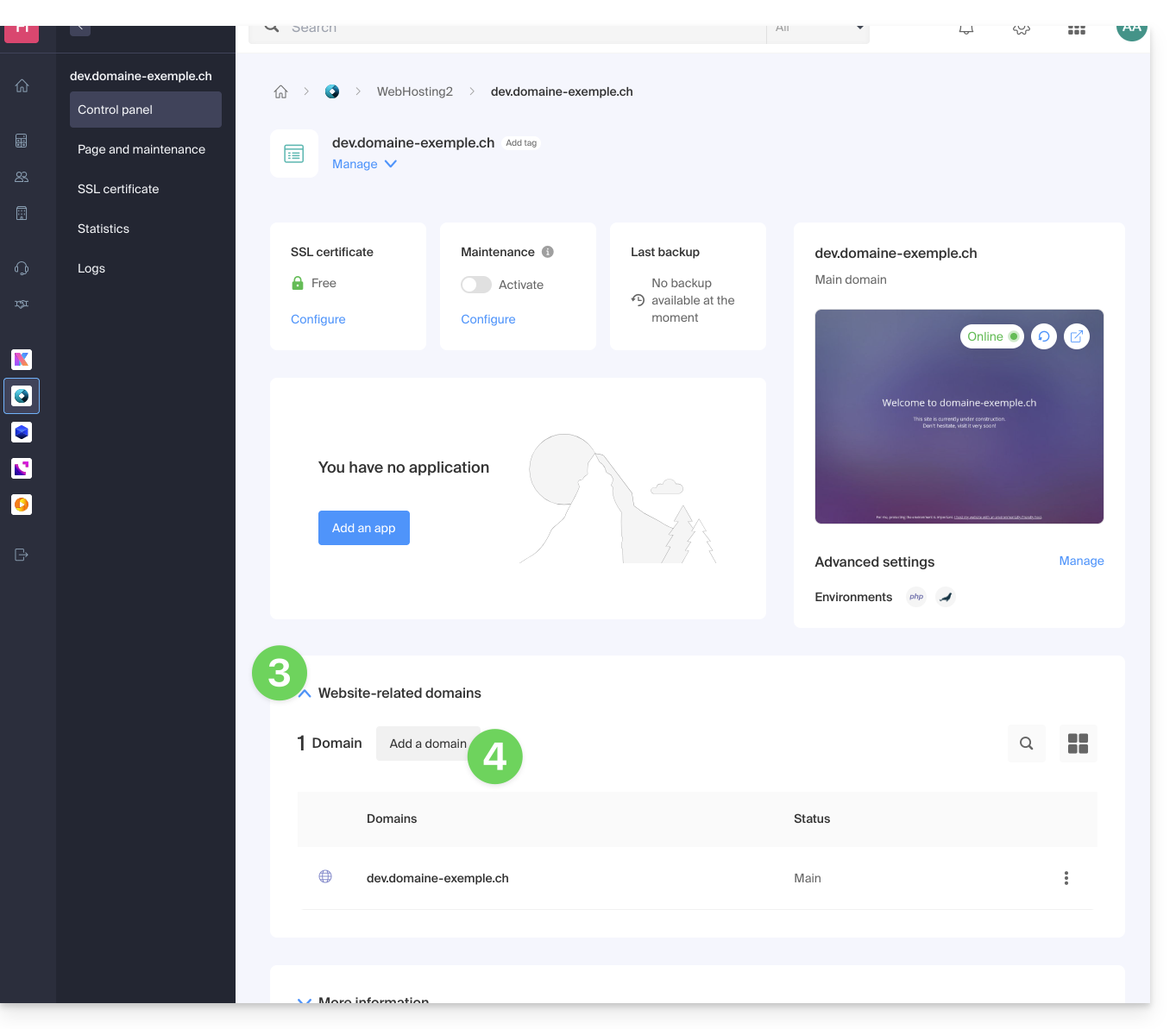
- Then, click on the chevron to expand the Domains section of this site:
- Click on the Add a domain button:
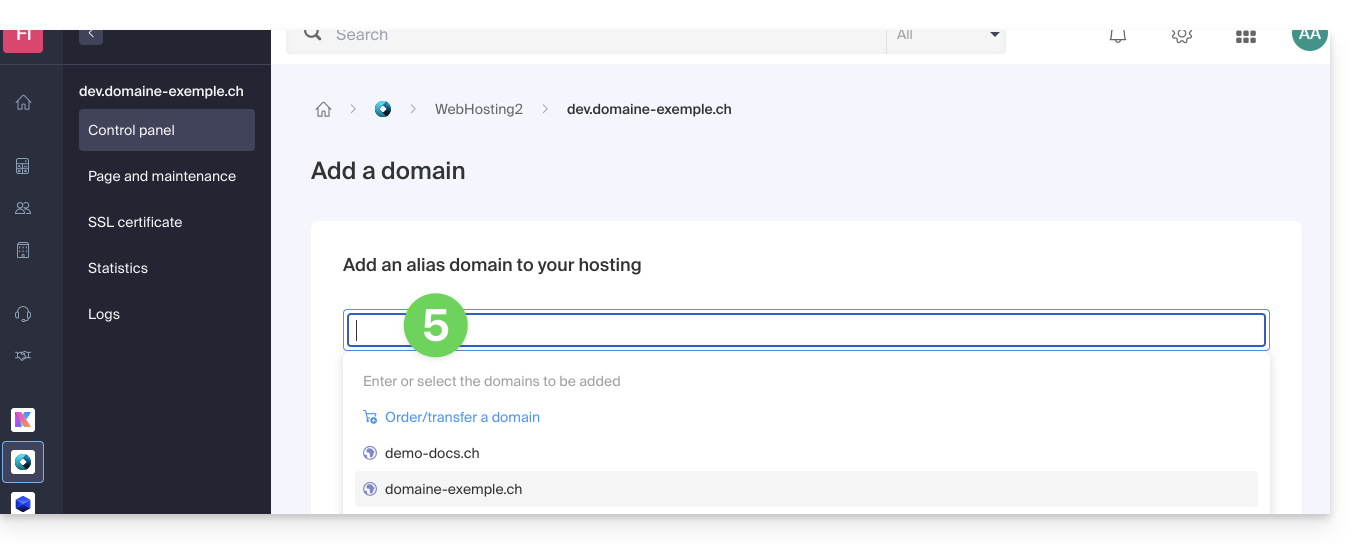
- Add the new desired name (if the domain name to be added is on the same Organization, it will be suggested in the list; otherwise, enter its spelling):
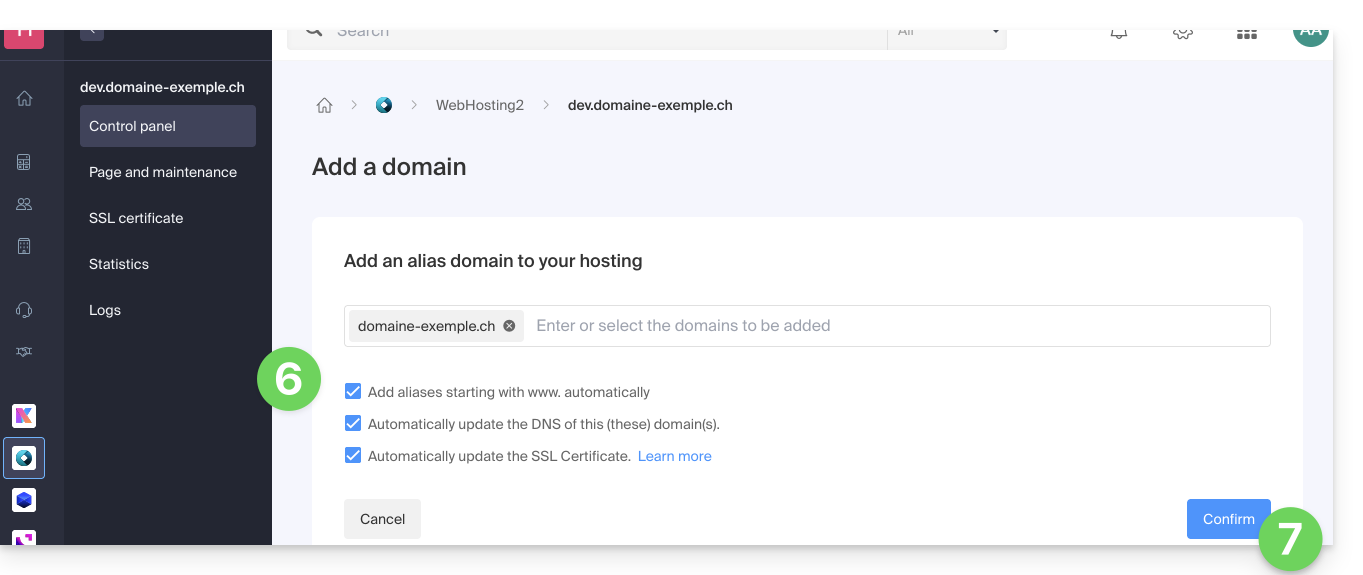
- Activate or deactivate the checkboxes:
- If the added domain is not in the form of a subdomain, you can request to automatically add the
wwwversion of the domain. - Automatically update (if possible) the DNS records of the added domains.
- Automatically update related SSL certificates (if possible).
- If the added domain is not in the form of a subdomain, you can request to automatically add the
- Click on the button to Confirm and wait:
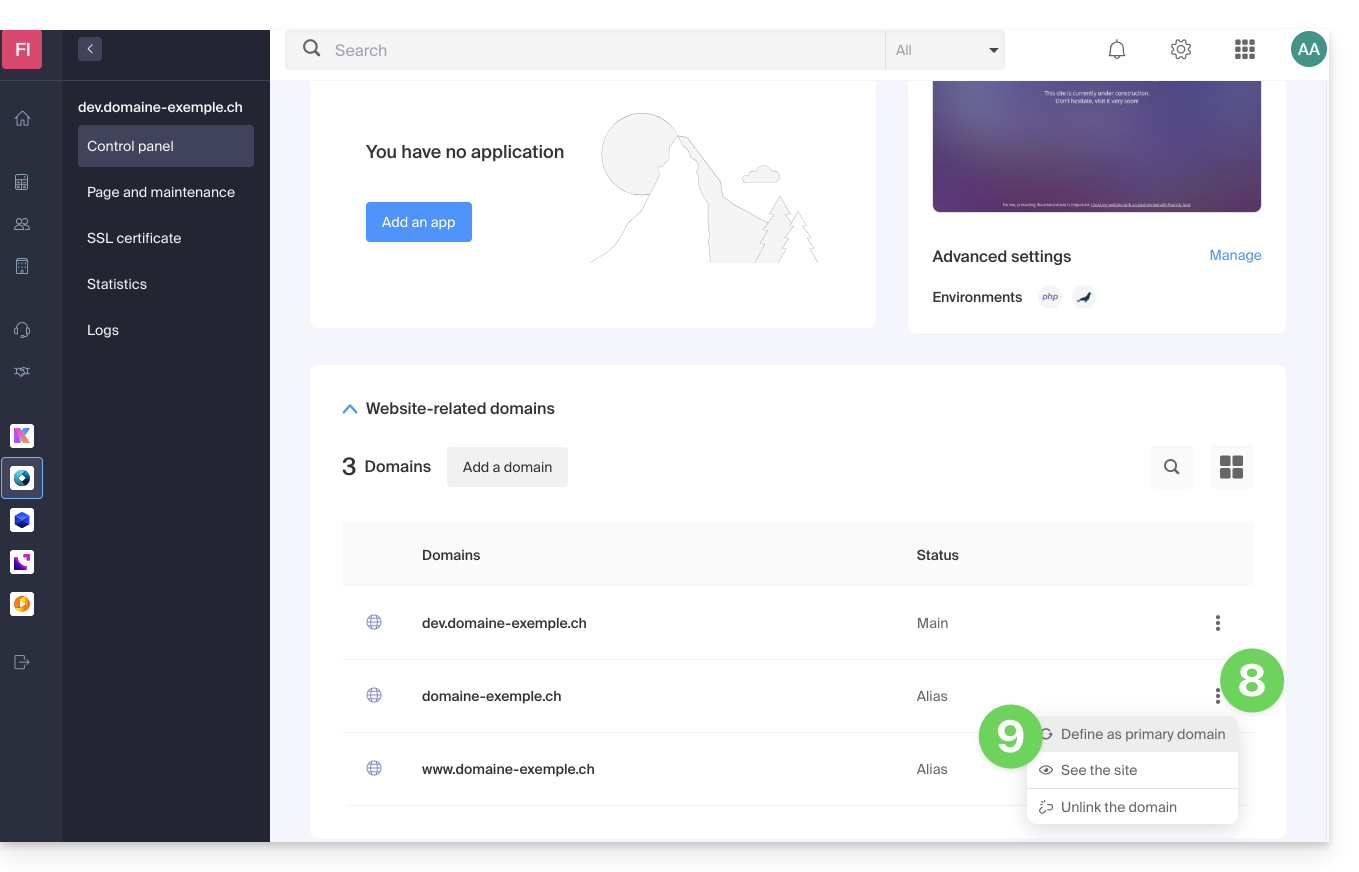
- Once the addition is complete, click on the action menu ⋮ located to the right of the domain that has just been added and that you want to set as the primary domain:
- Choose to define the item as the primary domain:
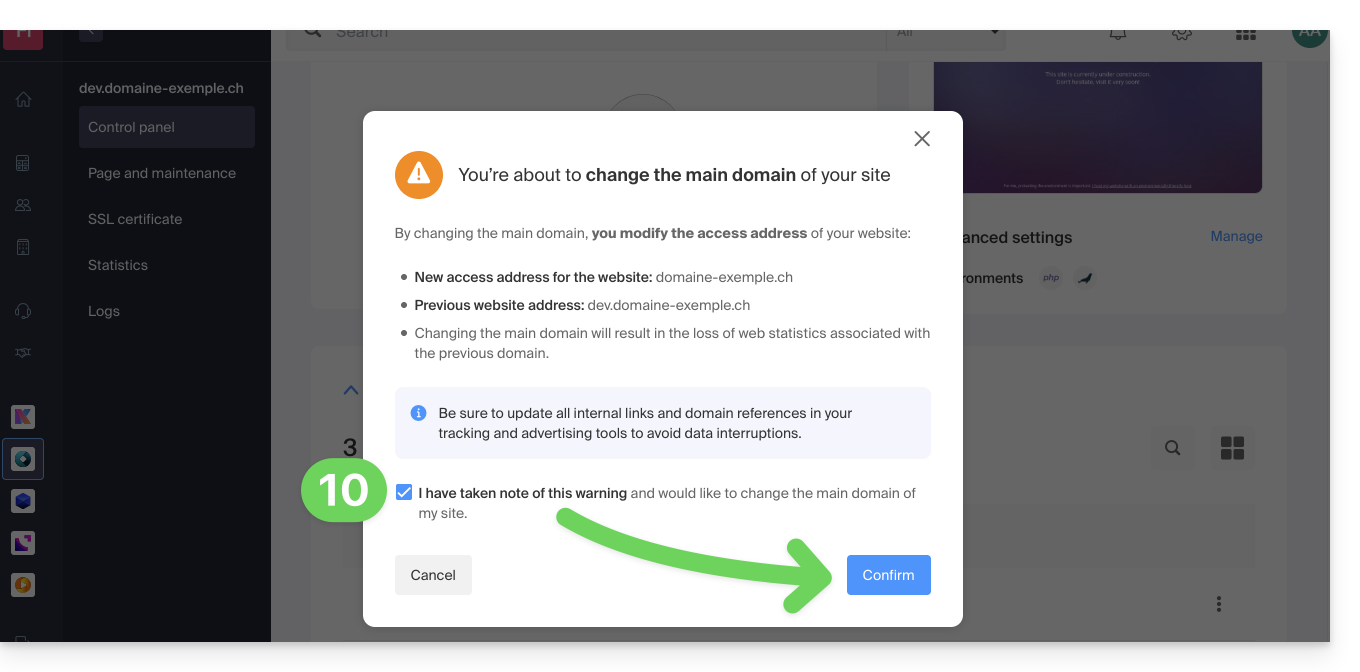
- Validate the operation to proceed with the domain switch:
Link to this FAQ: https://faq.infomaniak.com/2160
Has this FAQ been helpful?
This guide presents commands that can be executed to test a connection or network and thus further identify the possible source of the error.
Perform a Telnet…
TELNET allows you to test the connection to a server without taking into account all the additional settings of a mail or FTP application, in order to determine the source of a problem. For example, if the connection fails on an SMTP server, you will need to check whether your firewall is blocking port 587 or 465.
… on macOS
- Search for Network Utility.
- Go to the
Ping,Lookup, orTraceroutetab, depending on what you want to test. - You can also use a
Terminalapplication (command-line interface,CLI) on your device and, depending on what you want to test, enter:traceroute [server]nc [server] [port]
Replace[server]with the server name or its IP address, and do the same for[port]…
… on Windows
Enable Telnet beforehand if necessary.
- Use a
Terminalapplication (command-line interface,CLI) on your device, for example by typing Run thencmd. - In the window that opens, depending on what you want to test, type:
tracert [server]telnet [server] [port]
Example:telnet mail.infomaniak.com 587(this allows you to test the SMTP port if your software/email client does not allow you to send emails)…
… on Android
- Use the Simple Telnet Client app, which allows you to easily test by filling in two fields (for example,
mail.infomaniak.comand port143or993)…
Perform a PING
PING allows you to determine if a machine is accessible via the Internet. You can also use this tool to verify that you are connecting to the correct machine, for example, after a DNS change, by checking the IP address obtained. It is possible to perform a ping on a domain name, a hostname, or an IP address.
PING is definitely blocked on Infomaniak shared hosting plans.
Link to this FAQ: https://faq.infomaniak.com/727
Has this FAQ been helpful?
This guide explains how to view a website hosted by Infomaniak, even if no domain name/URL is currently configured to direct visitors to the site.
Introduction
- Using your website's preview URL, you can view the current version of your content in a browser, regardless of whether the corresponding domain name has been configured correctly.
- This website preview can be accessed using a preview URL and allows you to test a website before pointing a domain name to it, for example, if the domain name is currently pointing elsewhere.
- This temporary URL provided by Infomaniak may change at any time and is only available with paid plans.
Obtaining your website's preview URL
To do this:
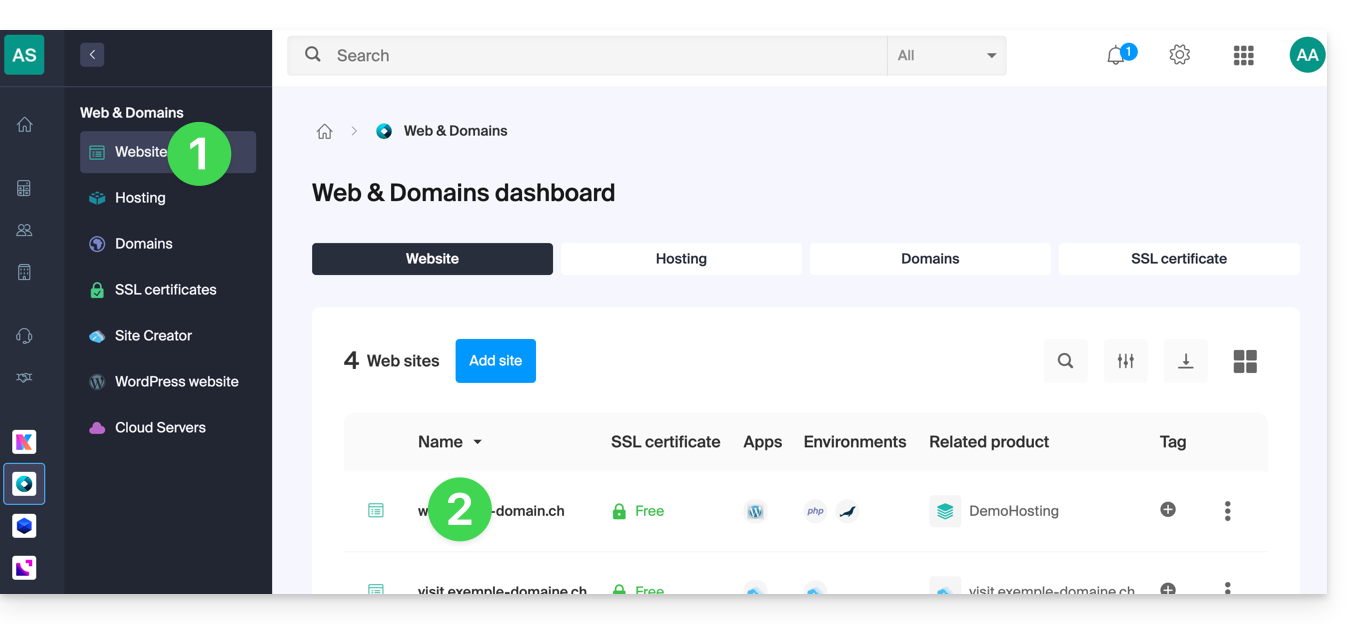
- Click here to access the management of your website on the Infomaniak Manager (need help?).
- Click directly on the name assigned to the website in question:
- Click on Advanced.
- The preview address is displayed under Preview URL (e.g.,
XXX.preview.infomaniak.website):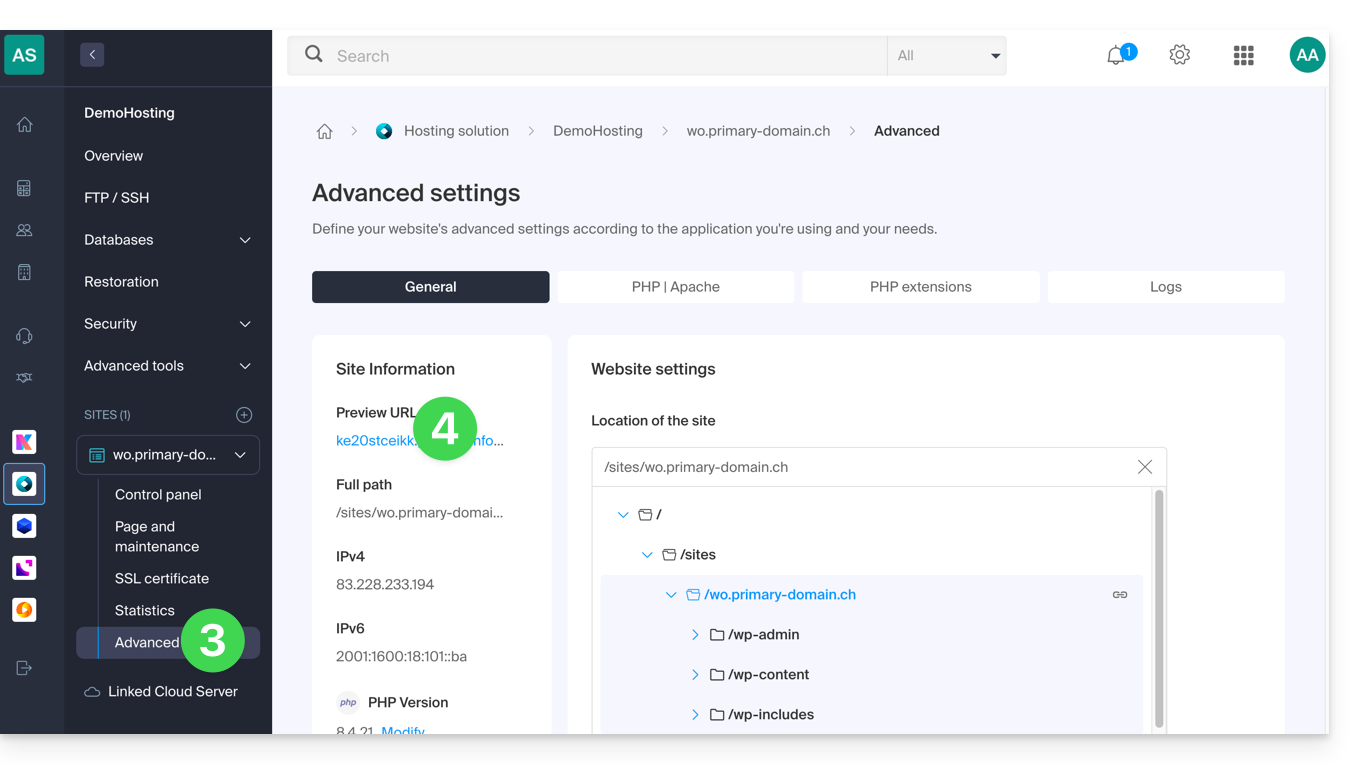
If you encounter a problem…
If, when visiting your preview address, the URL immediately changes to another, it may be due to a .htaccess file that you have modified to include rewrite rules. You should disable it and then test again.
… on WordPress
If the preview URL is always displayed, even though you have taken the necessary steps regarding your domain name, you need to assign the definitive address as the main address in your website's options.
Alternatives for previewing your site
If you wish to use a different method than the preview address provided by Infomaniak (see above), you can modify the hosts file on your computer (including with browser extensions such as this one for Firefox). For this, you will need the IP address of your site.
Once your tests are complete or the domain name's DNS records are updated, remember to delete any changes you made; otherwise, it will be impossible to display your site if the server's IP address is changed or the site is migrated to another web hosting.
Link to this FAQ: https://faq.infomaniak.com/2060
Has this FAQ been helpful?
This guide explains how to generate a certificate signing request (CSR) for a domain name and all its subdomains with a Web Hosting plan (excluding free Starter plans), allowing you to encrypt the connection to your domain name and all its subdomains via a single SSL certificate.
Introduction
- The configuration allows for a "named site" and a "backup site"; to ensure this works without conflict, make sure that the wildcard and your specific subdomains do not overlap on the same web hosting:
- DNS level: the priority is natural: if a specific subdomain exists (e.g.,
prive.domain.xyz), it is used; otherwise, the request is redirected to the wildcard (*.domain.xyz). - Server level: it is necessary to be vigilant: if the wildcard and the specific subdomain are on the same server, the software implementation (Apache) decides; Apache processes requests according to the evaluation order of the configuration files.
- The risk: if the wildcard is evaluated first, it "captures" all traffic, making your specific subdomain inaccessible, even if it exists elsewhere.
- Therefore, do not place the wildcard on the same hosting as a more specific subdomain that overlaps with it.
- DNS level: the priority is natural: if a specific subdomain exists (e.g.,
Setting up a Wildcard Certificate
1. Add a domain alias with an asterisk (*)
To add a wildcard alias (*) to your website:
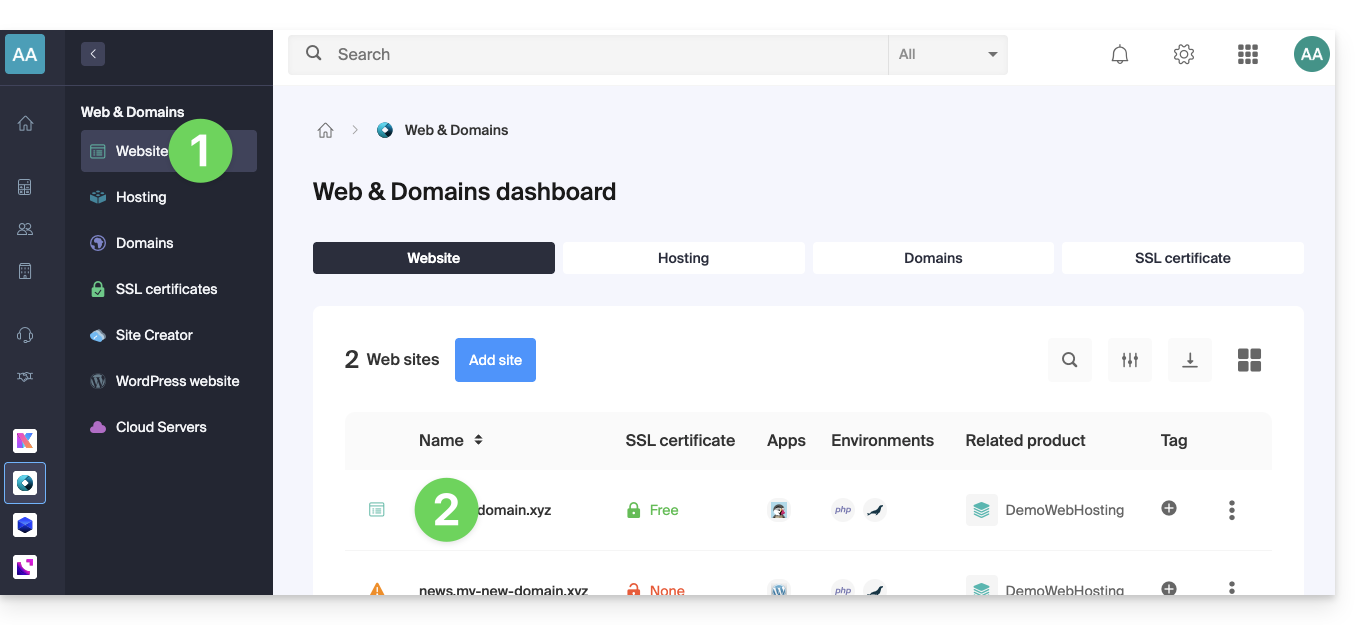
- Click here to access your website management area in the Infomaniak Manager (need help?).
- Click directly on the name assigned to the site in question:
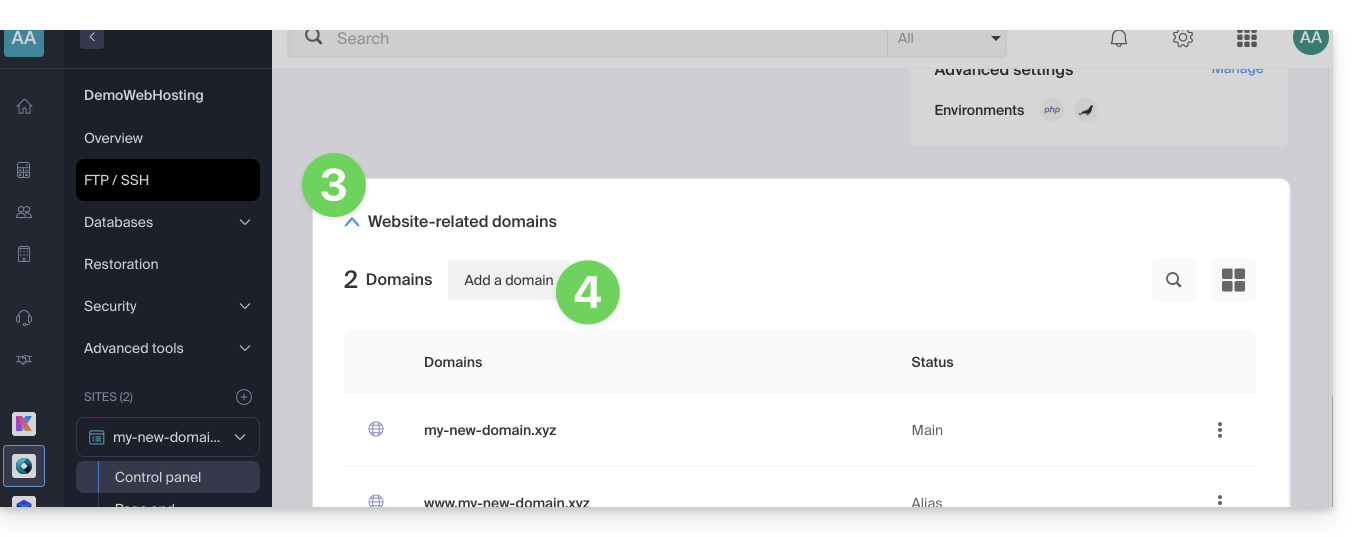
- Then, click on the down arrow to expand the Domains section of this site.
- Click on the Add a domain button:
- Enter the domain name to add in the following format:
*.domain.xyz(the asterisk is required, followed by a period, and then the domain name of the website, which in this example is domain.xyz)
- Click the Confirm button to complete the process:
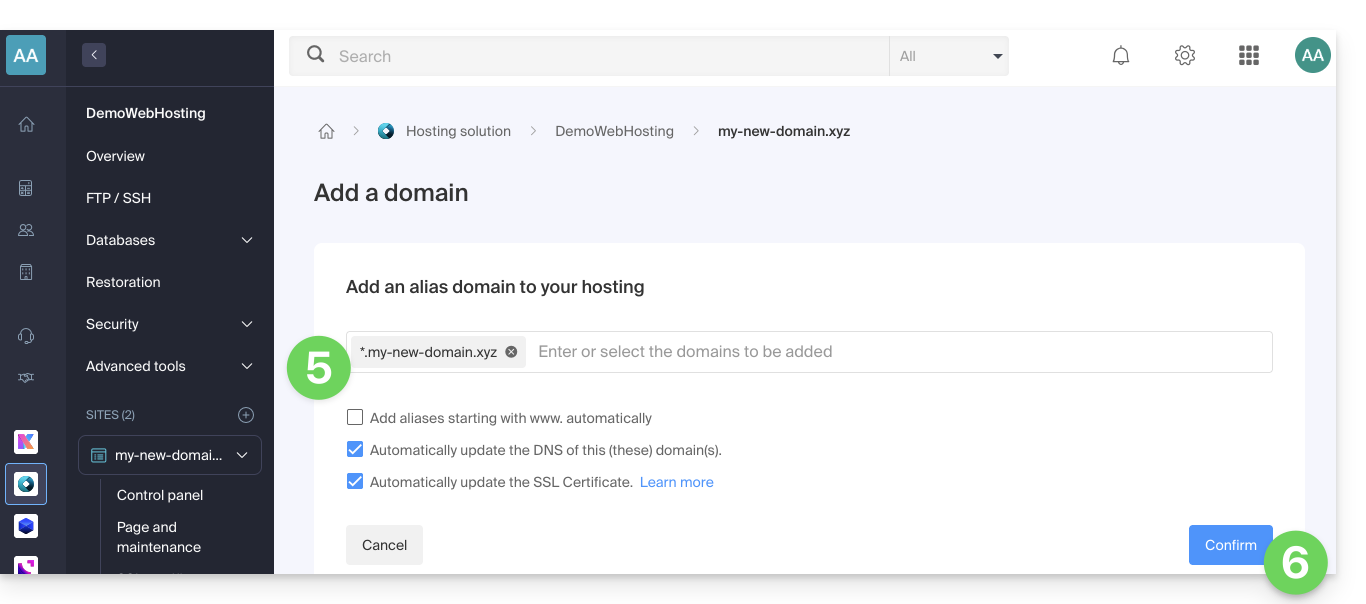
2. Install an SSL certificate or update it
Example of how to update the existing certificate to include the * wildcard subdomain:
- Click here to access the management interface for your website on the Infomaniak Manager (need help?).
- Click directly on the name assigned to the site in question.
- Click on SSL Certificate in the left-hand menu.
- Click on the action menu ⋮ located on the right.
- Click on Update certificate:
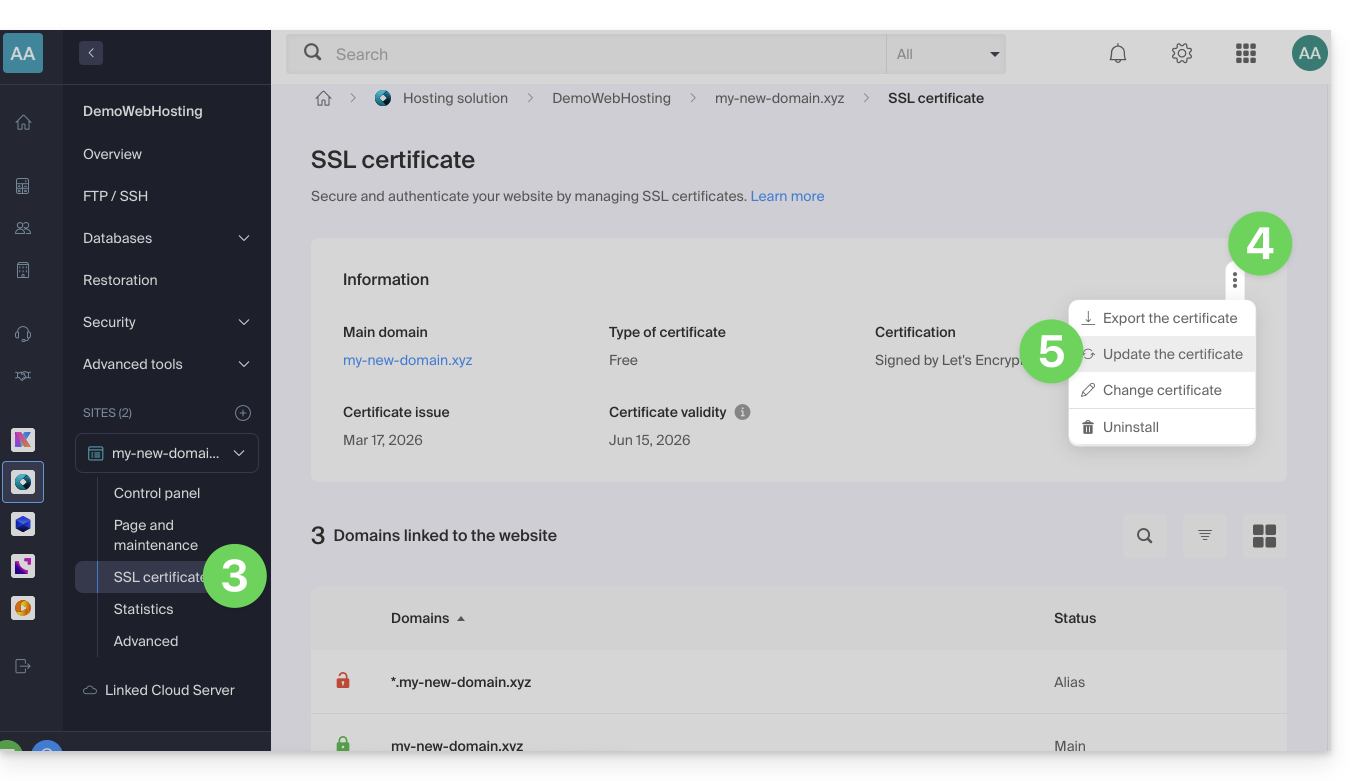
- Make sure the newly added subdomain is selected.
- Click the Install button at the bottom:
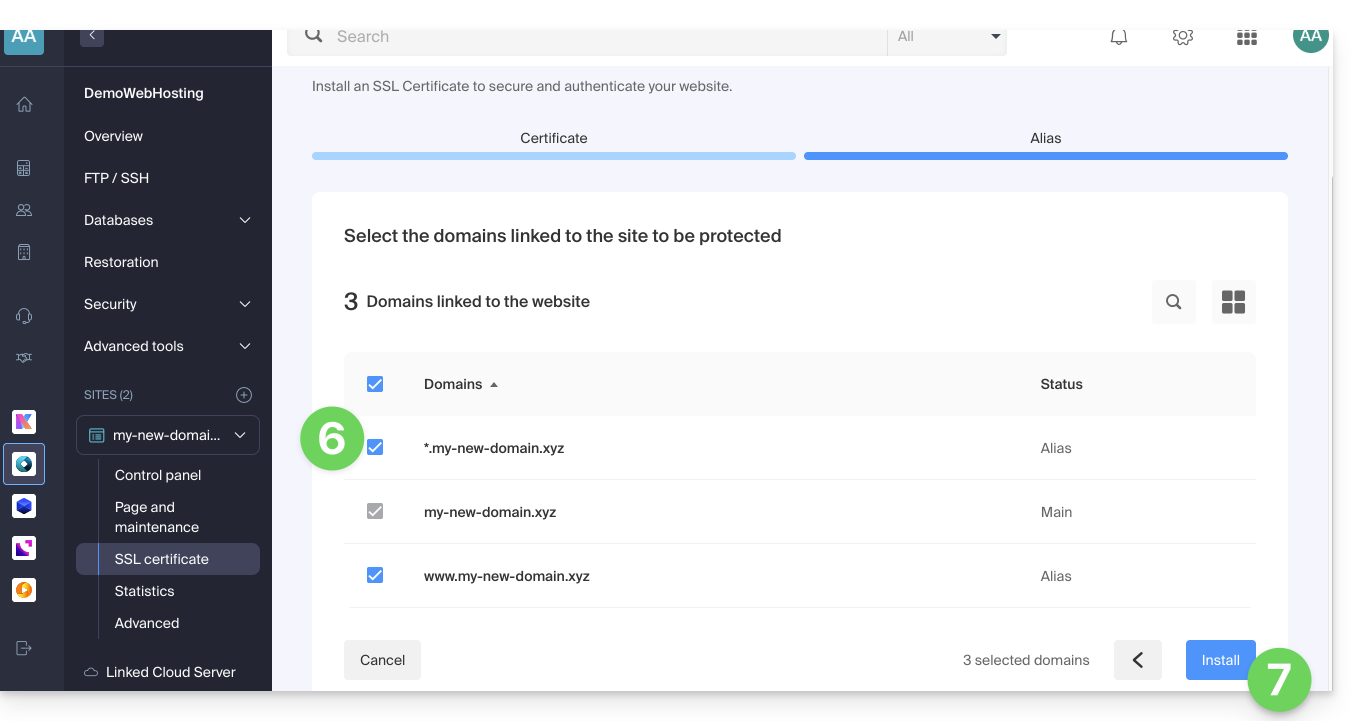
- Please wait while the process is created or updated.
Link to this FAQ: https://faq.infomaniak.com/2096
Has this FAQ been helpful?
This guide is intended for users of Infomaniak's Site Creator who wish to optimize their website's SEO.
Introduction
- Infomaniak is one of the most efficient hosting providers on the French-speaking market, which contributes to the good ranking of your websites.
- However, Infomaniak will not intervene on the content or development of the hosted websites (please refer to this other guide regarding SEO).
Add Site Creator to Google
Prerequisites
- Access Site Creator:
- Click here to access the management of your product in the Infomaniak Manager (need help?).
- Click directly on the name assigned to the Site Creator in question.
- Click on the Edit my site button to launch the editor:
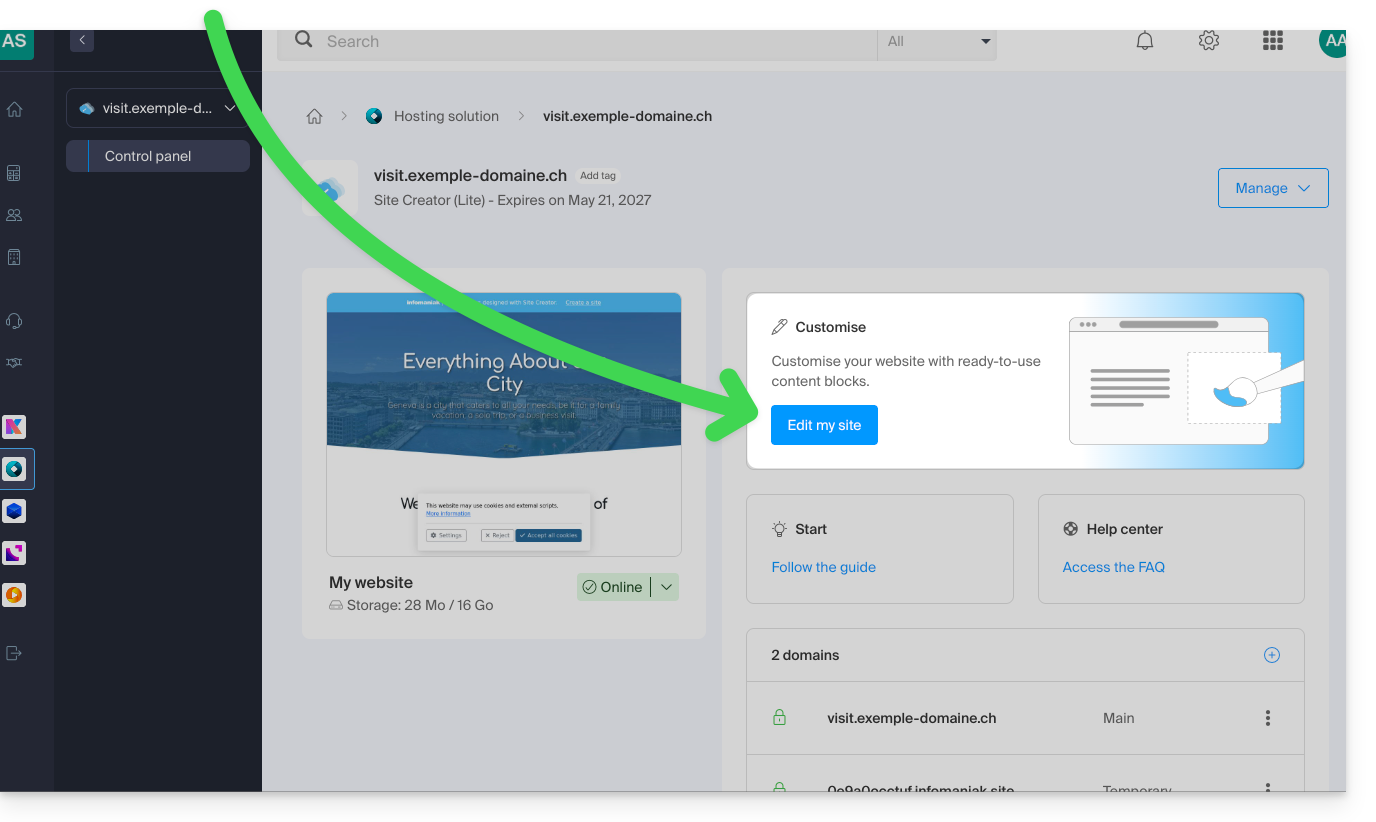
To submit your site to the Google search engine:
- Click on the Applications button in the left-hand menu.
- Click on the Add to Google application:
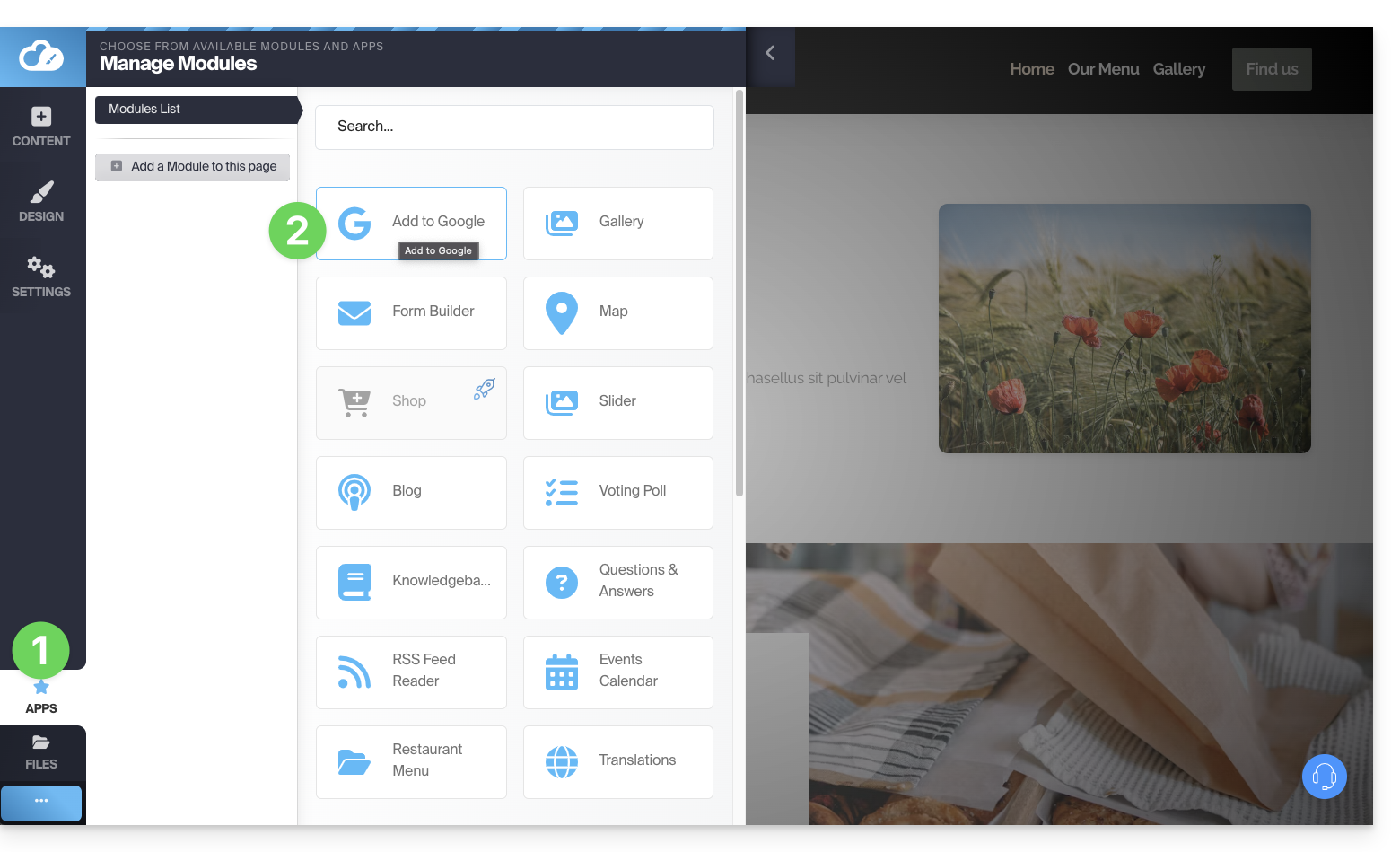
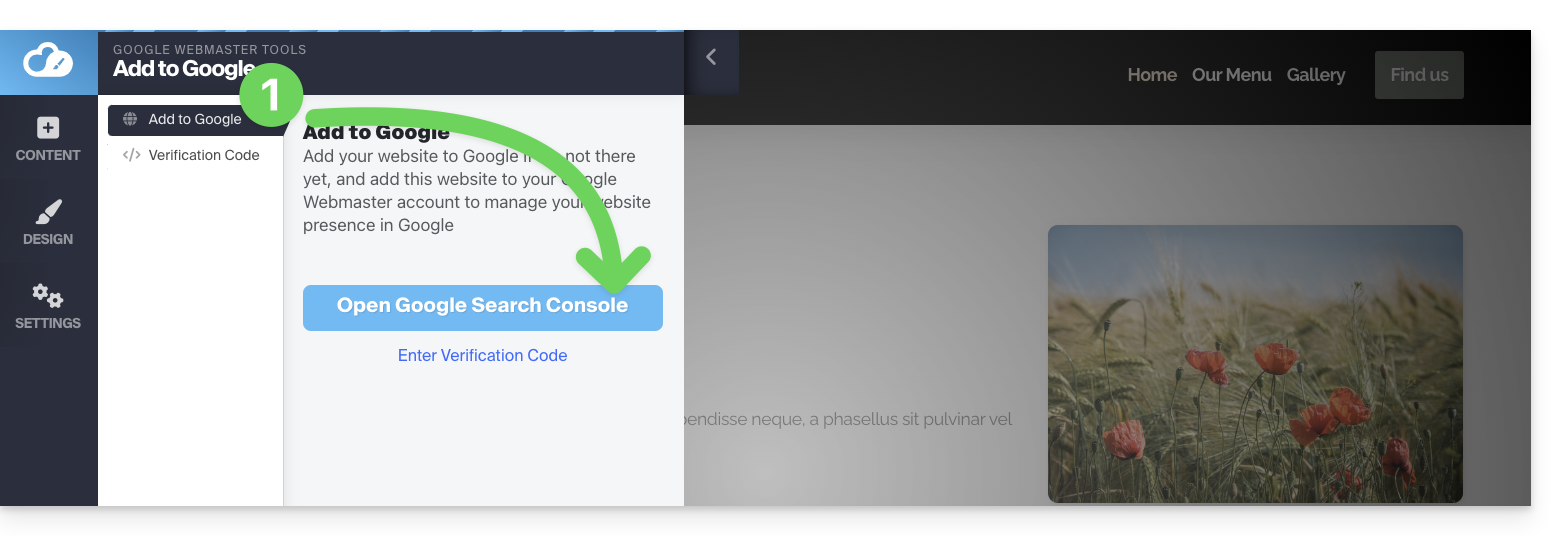
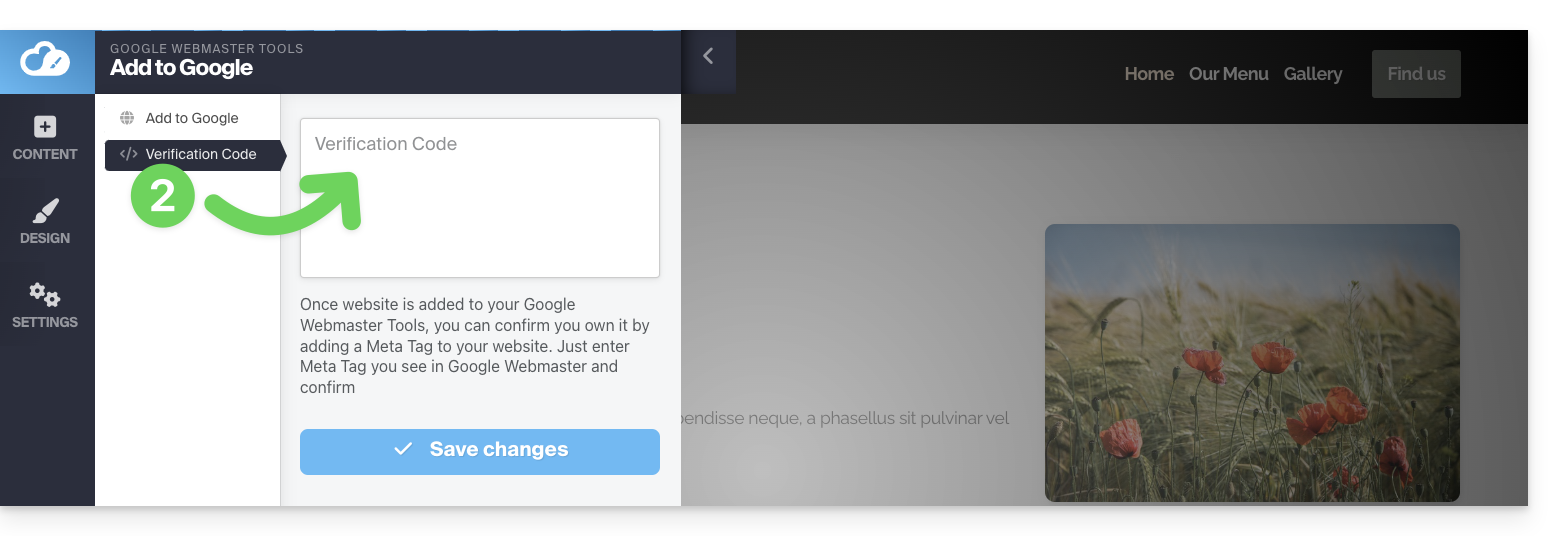
This application allows you to perform 2 operations:
- Open the Google Search Console interface, which allows you to manage the analytics for your site:
- You can insert the verification code provided by Google Search Console if you choose the simple method (see below):
Ownership verification (requested by Google)
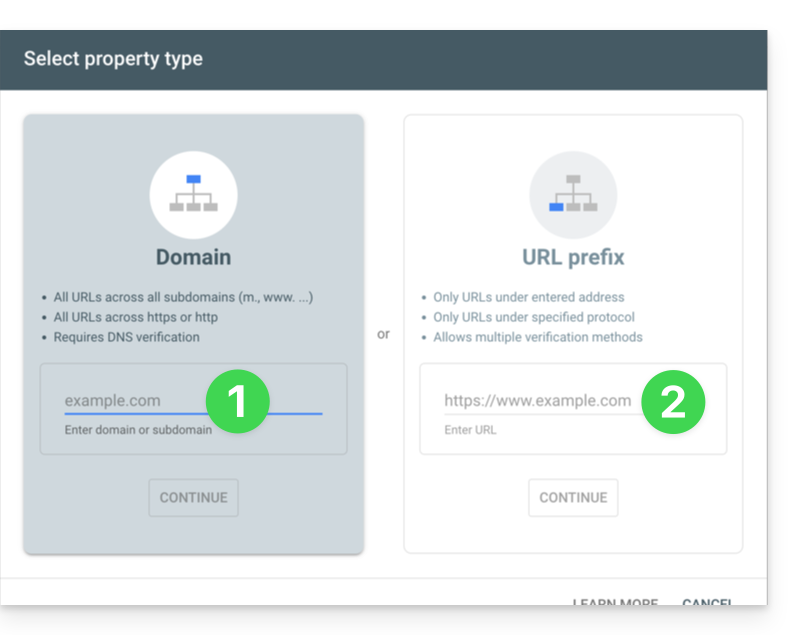
When you want to add your site to the Google tool and click on the button in step 1 above, you will be presented with two options:
- the method for monitoring an entire domain, which requires verification that you will need to perform at the domain name level (in the Infomaniak interface if your domain name/DNS zone is managed by Infomaniak),
- the easiest method for specifying the exact URL of your site, and for which verification will be performed directly from Site Creator:
1. Method with domain ownership verification
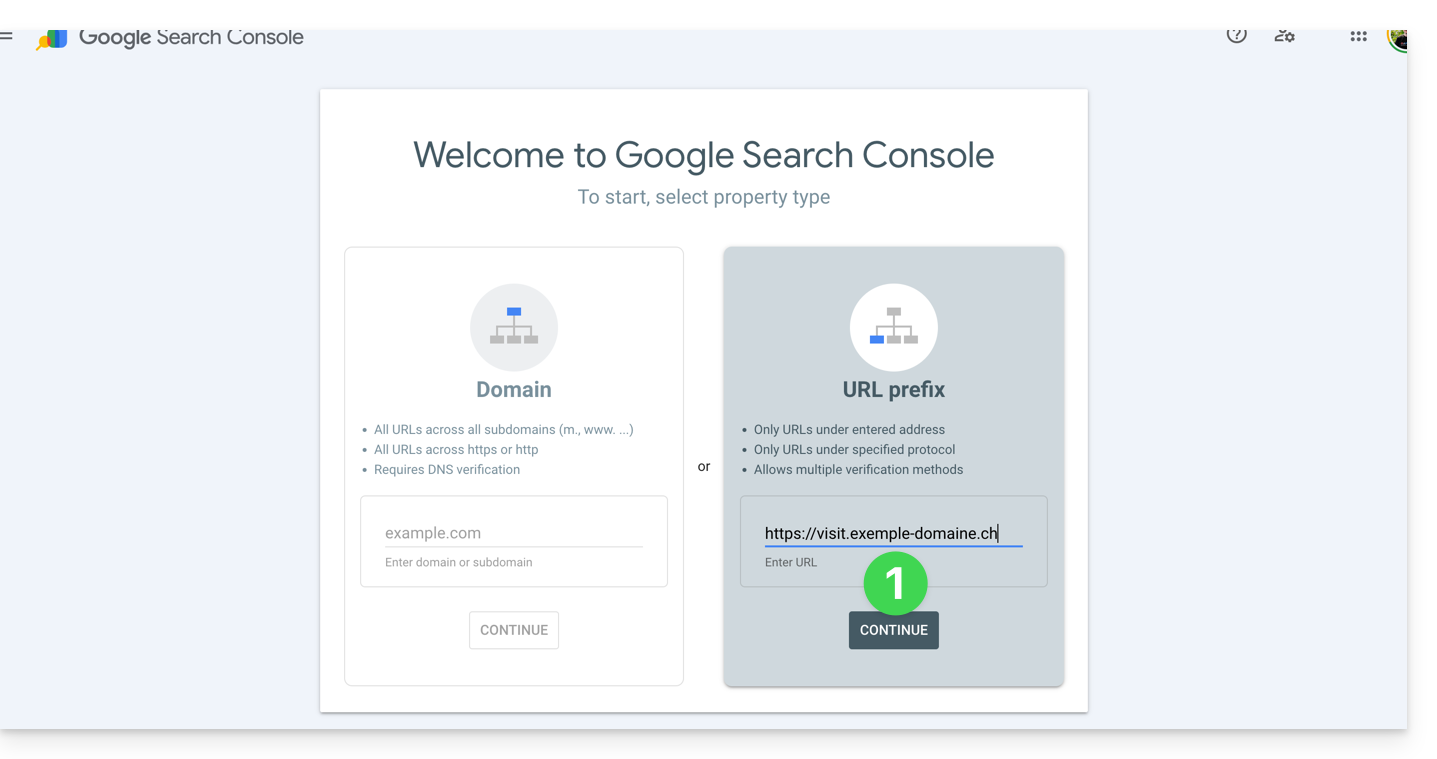
- Enter the complete URL of your Site Creator and click Continue:
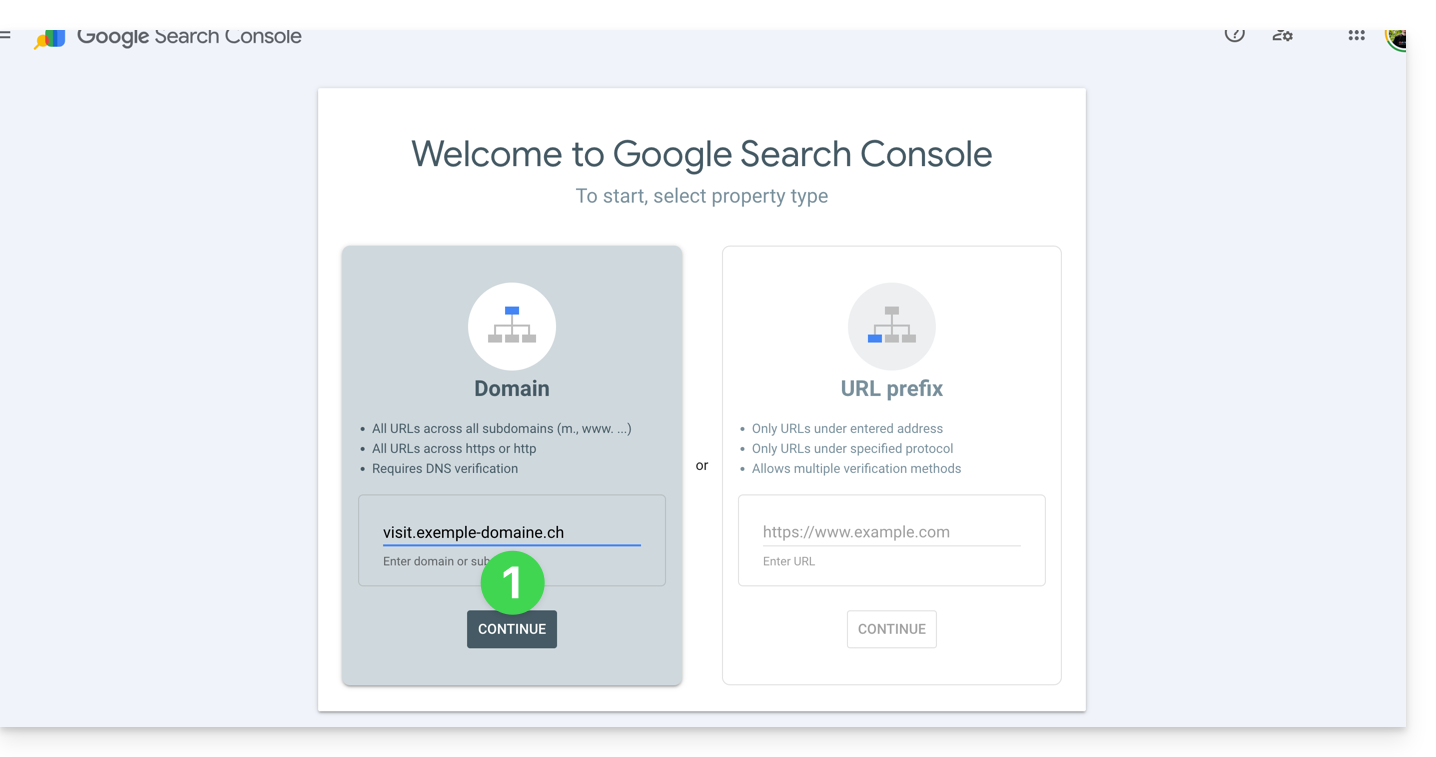
- Make sure that the
TXTtype is selected and click the COPY button: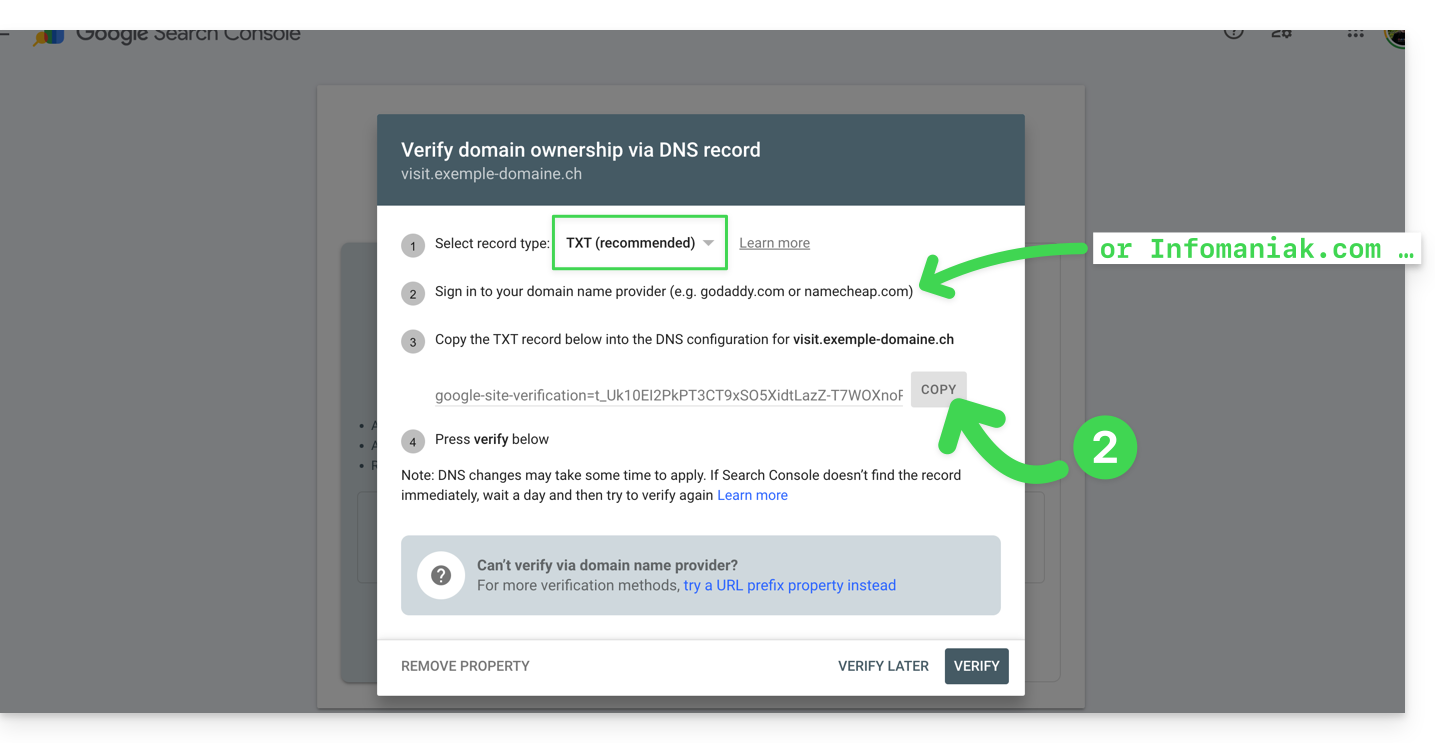
- Click here to access the management of your domain name if it is managed with Infomaniak (otherwise, you will need to perform these operations with the relevant provider).
- Click directly on the name assigned to the product in question.
- Click on DNS Zone in the left-hand menu.
- Click on the button to add a record:
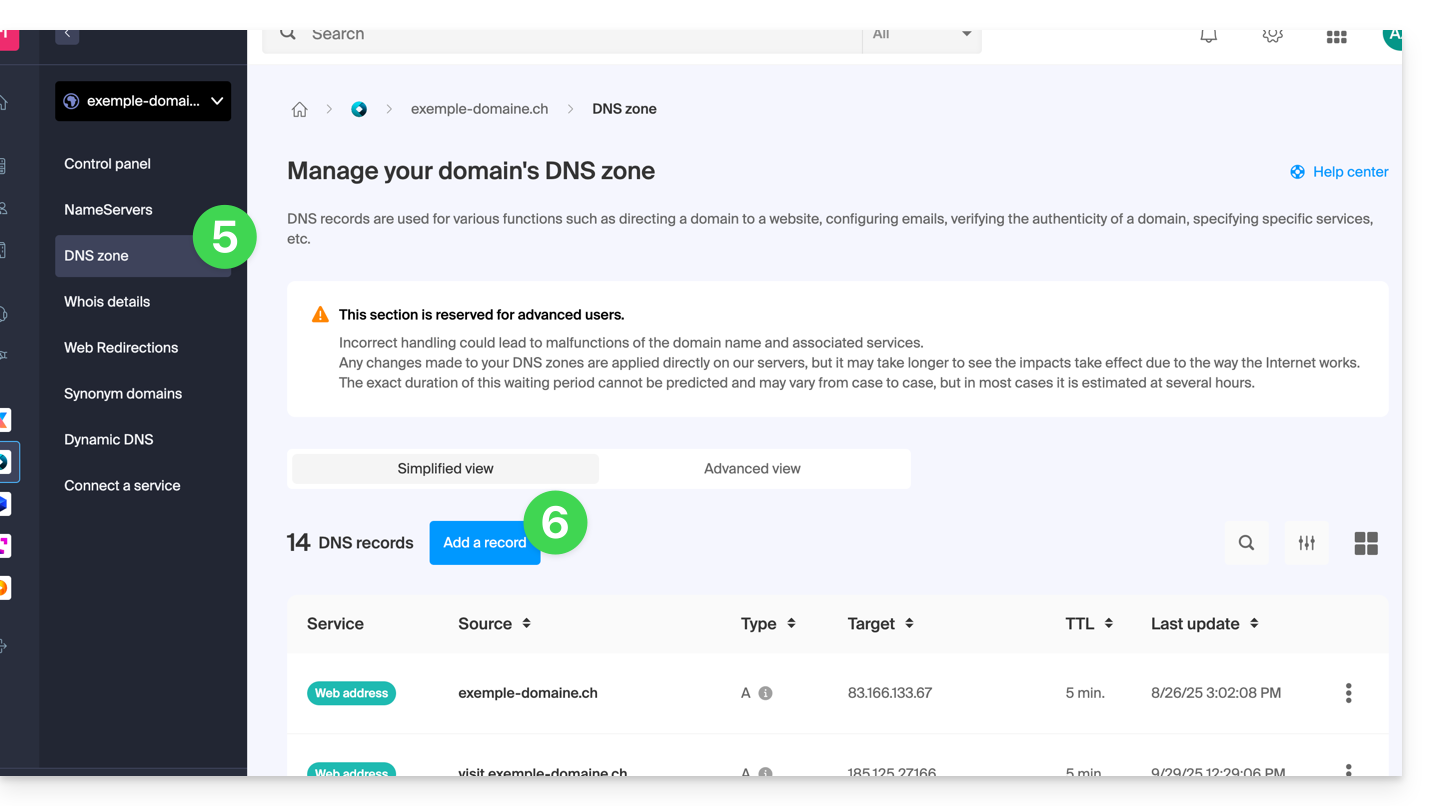
- Select the TXT type from the list.
- Click on the Next button:
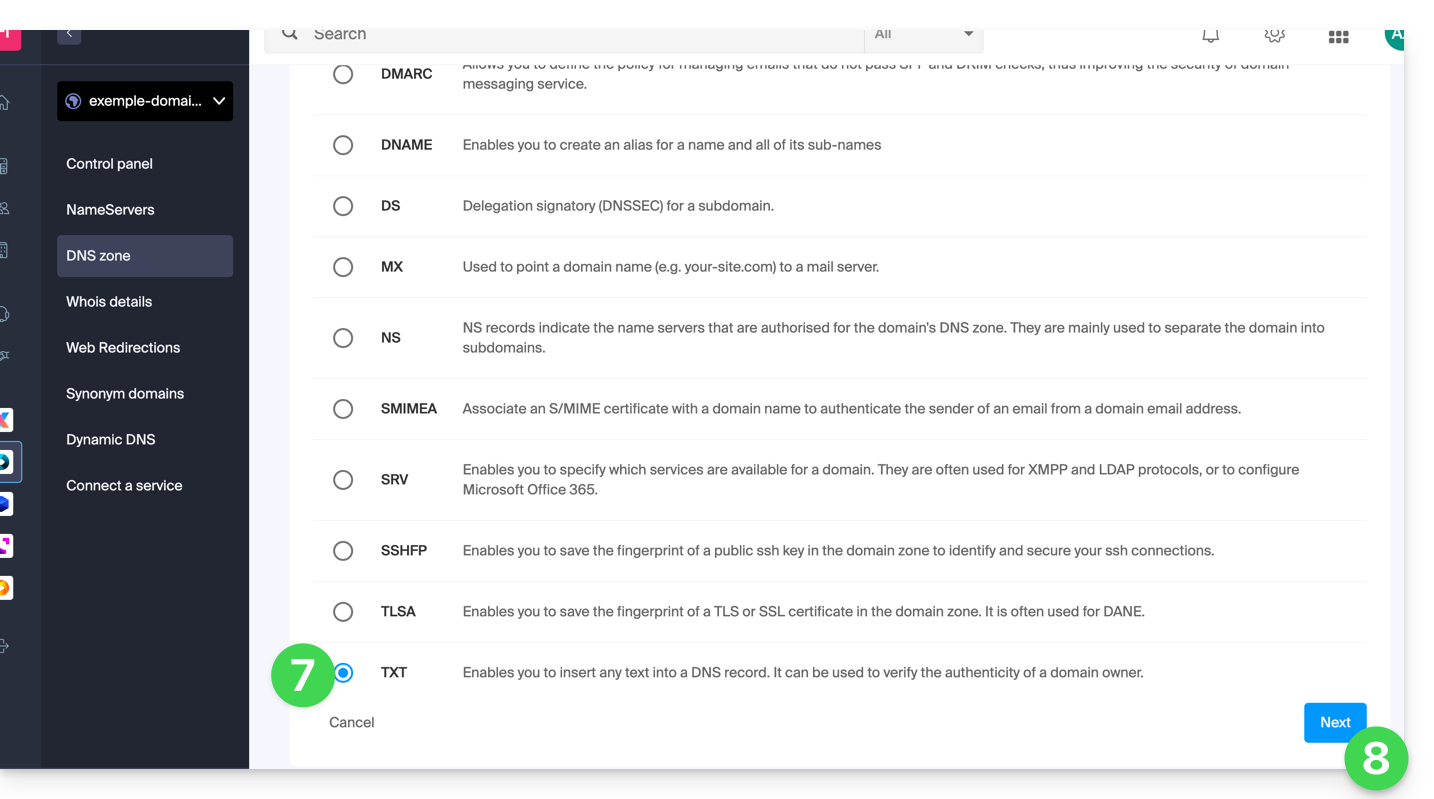
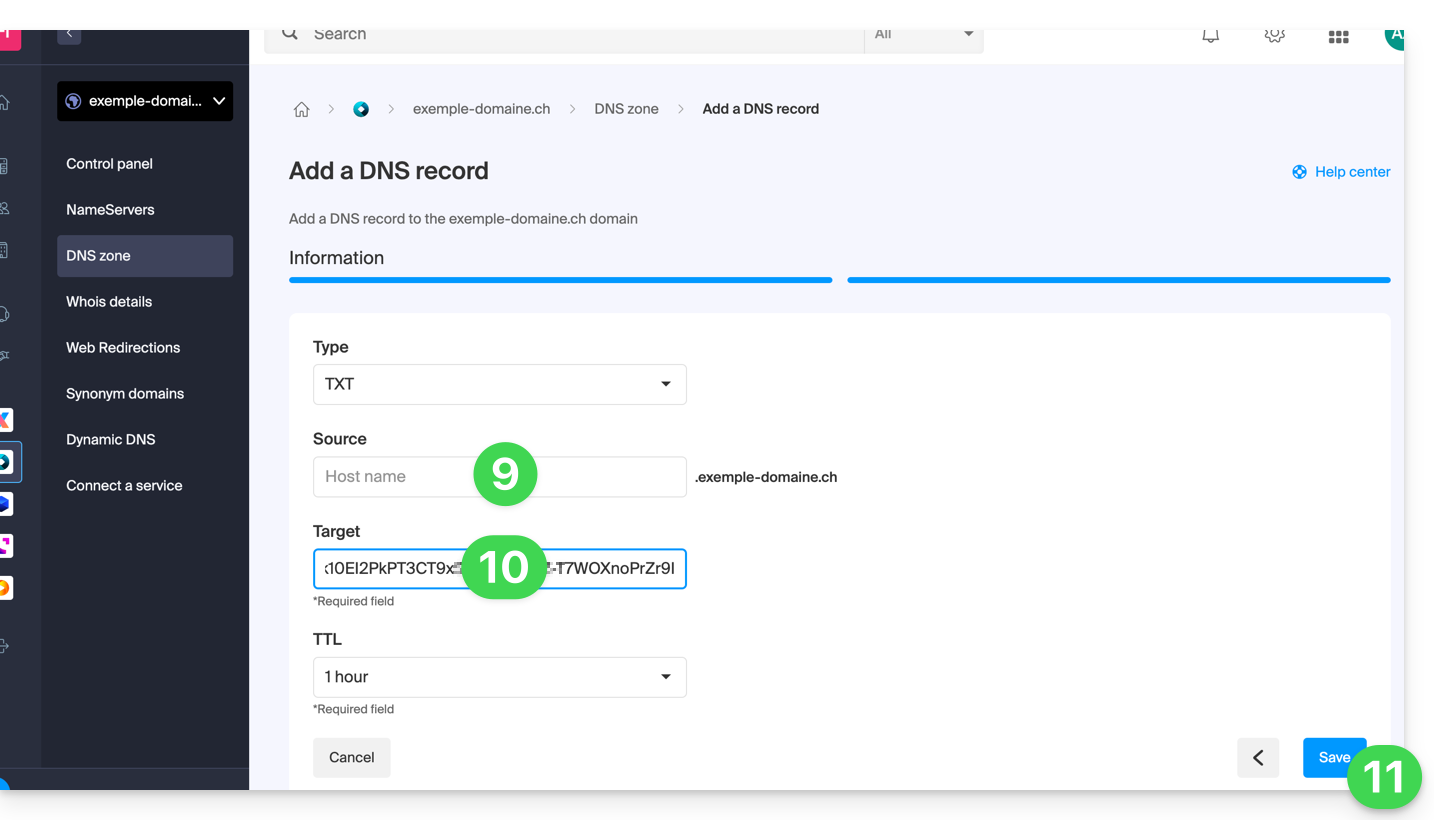
- Leave this field blank or enter the term preceding your domain name if you created a
xxx.domain.xyzsite (in this example, you would entervisitin the Source field, since Site Creator is created onhttps://visit.exemple-domaine.ch). - Paste the information retrieved in step 2 above.
- Click the button to Save:
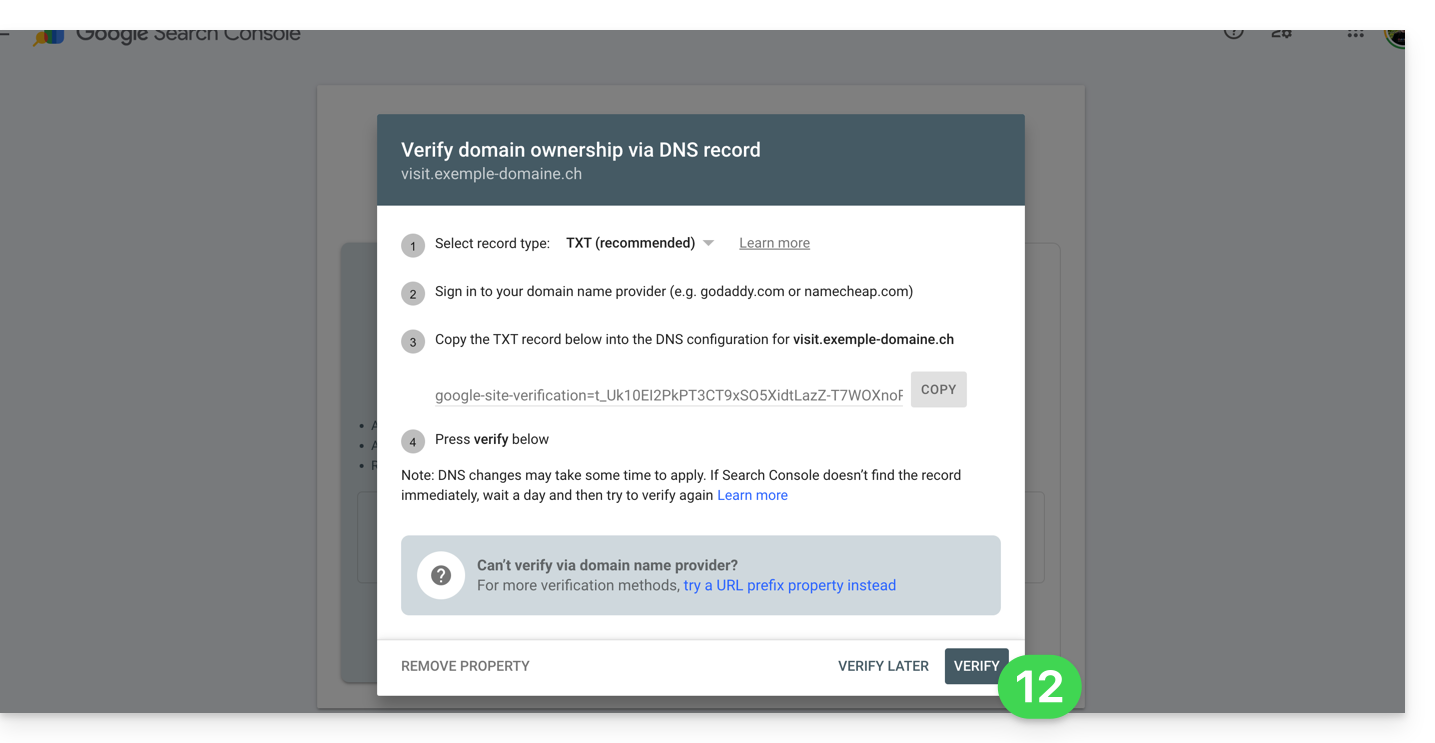
- Go back to the Google tool and click Verify (wait a few minutes if the verification doesn't start):
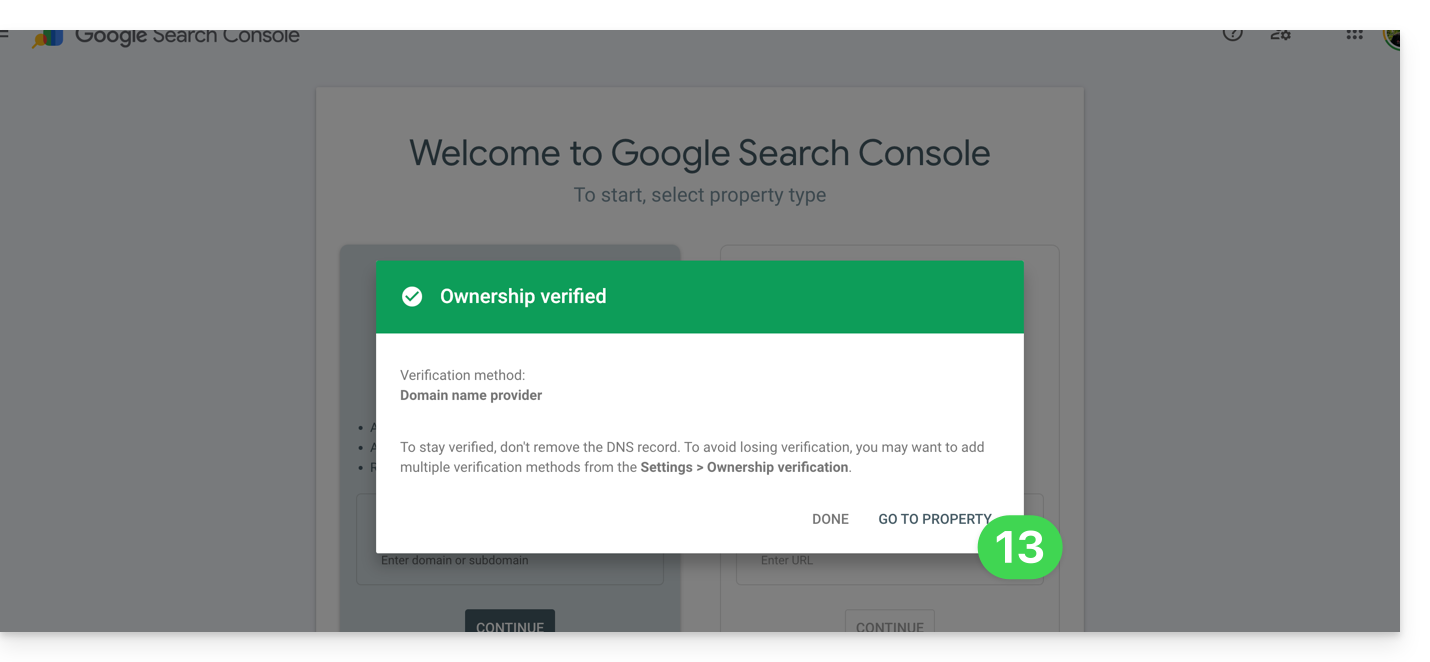
- There you go, the link between your Site Creator and the analysis console has been established; click the button to configure the property:
2. Simple method
- Enter the complete URL of your Site Creator and click Continue:
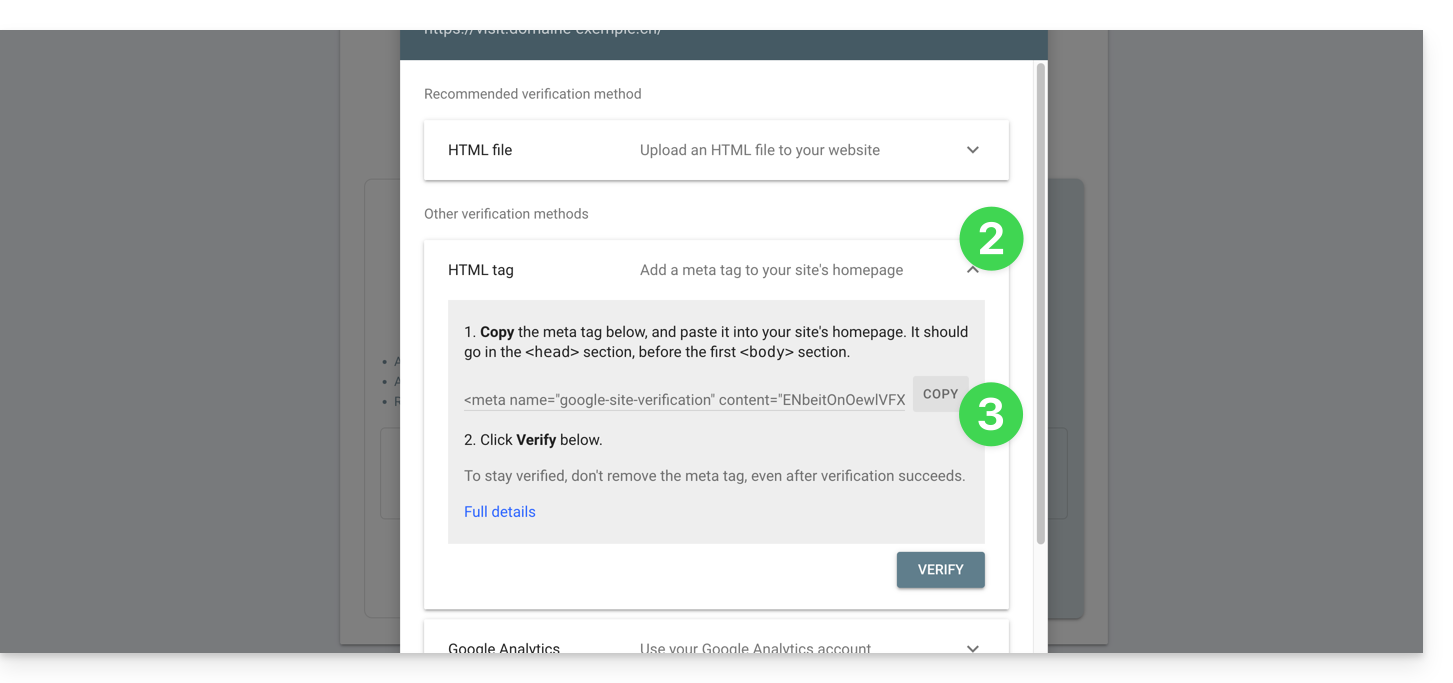
- Click on the chevron to expand the HTML TAG section, which provides the information to be copied into Site Creator to prove ownership.
- Click the COPY button:
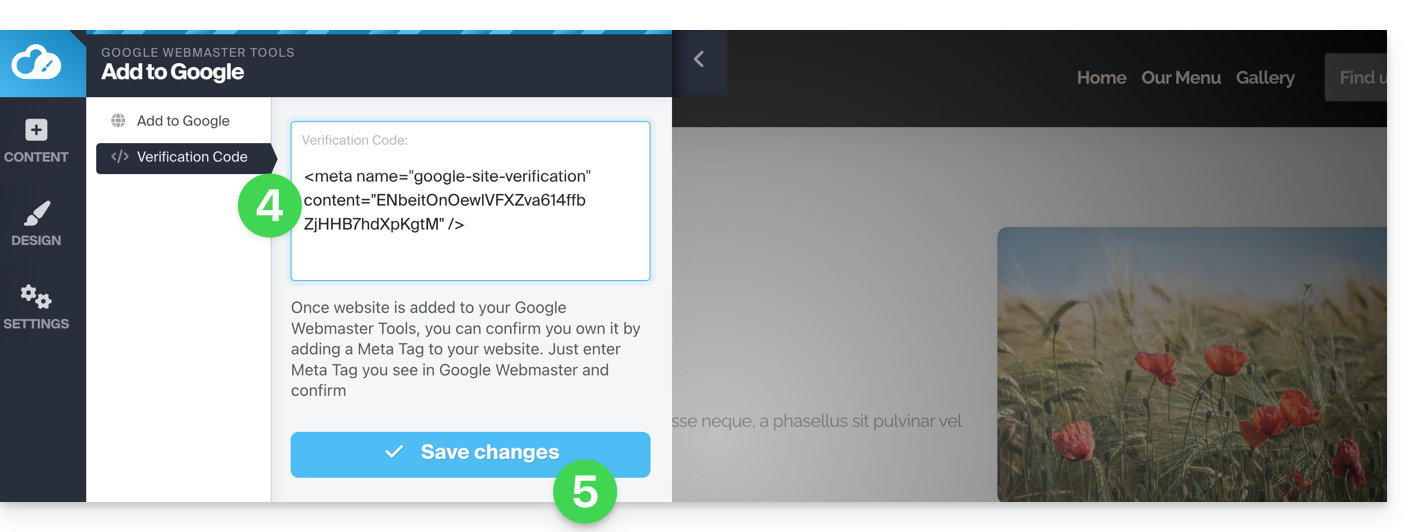
- Paste the information into the designated area in Site Creator.
- Save the changes:
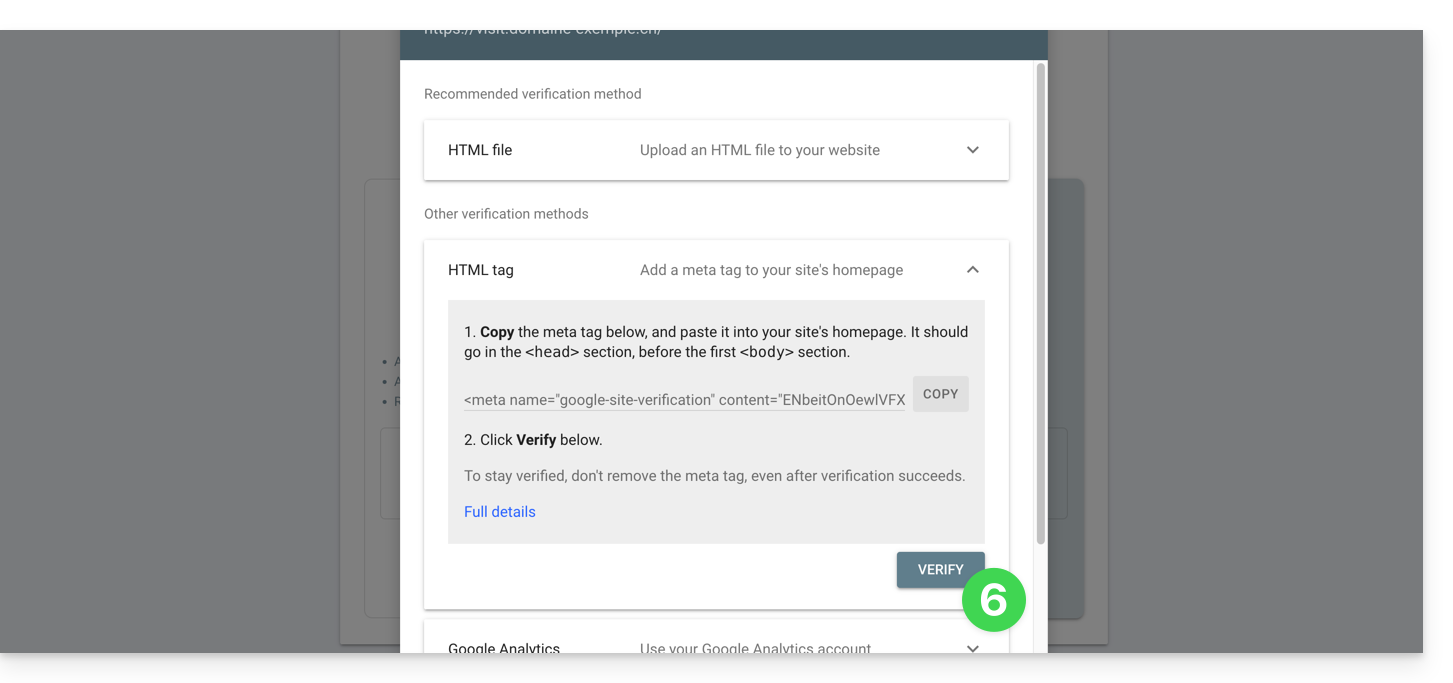
- Go back to the Google tool and click on Verify (wait a few minutes if the verification does not start):
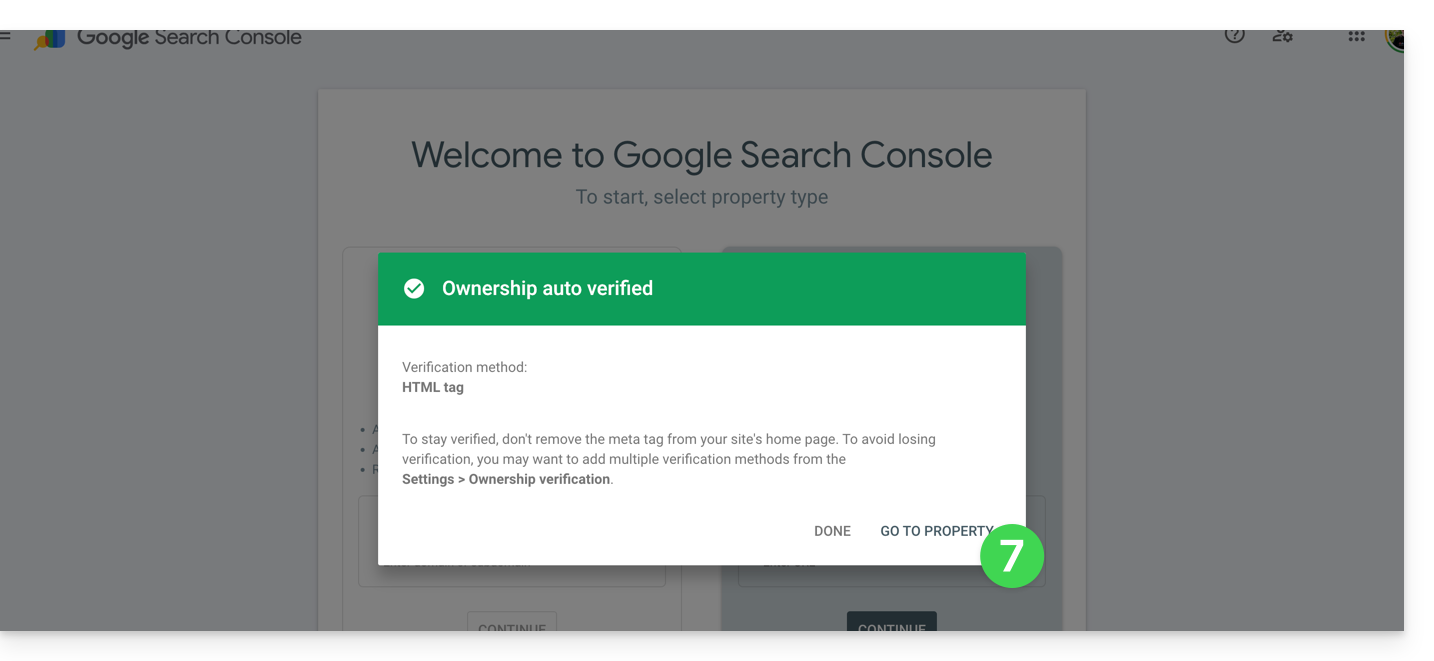
- There you go, the link between your Site Creator and the analytics console has been established; click the button to configure the property:
Define Meta Tags
Once in Site Creator:
- Click on the Settings button in the left-hand menu.
- Click on General Settings.
- Click on SEO and Metadata.
- Enter the title, description, and keywords for the entire site:
This is also where you can manage the robots.txt file if needed.
To define this, but for a specific page:
- Click on the Settings button in the left-hand menu.
- Click on General Settings.
- Click on Subpage Settings.
- Click on SEO & Metadata.
If you do not make any changes on this page, Site Creator will manage your tags dynamically.
You can also manage the URLs of your pages independently of the SEO title of your page (e.g., a page named "Contact" from an SEO perspective, while its URL will be, for example, "/enterprise").
What "Meta Keywords" should I use?
To enter multiple keywords, separate them with a comma or similar:
Sitemap.xml
Do not confuse this with the Sitemap module; the sitemap.xml file lists all the pages of your site to help search engines discover and index them efficiently. You can examine it to understand the site structure; replace domain.xyz with your domain name to access it (publicly) from a browser:
{{URL_30}}Submit your URL to Google Search Console (refer to the first chapter above in this guide) and other webmaster tools to improve indexing.
Insert tracking codes
Your website includes a simple Statistics module, but you can also use Google Analytics or other tracking methods (such as Facebook Pixel, Google Tag...) which require inserting a code on your site:
- Click on the Settings button in the left-hand menu.
- Click on General Settings.
- Click on SEO and statistics.
- Scroll down the page and insert your tracking codes.
Link to this FAQ: https://faq.infomaniak.com/2711
Has this FAQ been helpful?
This guide explains how to prepare your server and install the Acronis Backup Agent for Swiss Backup on AlmaLinux 9.
Install the Acronis CyberProtect Agent
1. System requirements
- Use an account with root privileges.
- Internet access required for uploads and downloads.
- Available disk space: approximately 2 GB.
2. System Preparation
Switch to the root user:
# Switch to root user
sudo -i
Update the DNF metadata cache:
# Refresh DNF metadata cache
dnf -y makecache
Check the current kernel and GCC versions:
# Check current kernel and GCC version
cat /proc/version
If the kernel version does not match the available kernel-devel package, an update will be necessary in the next step.
Install the build tool (make):
# Install make utility
dnf install -y make
# Verify installation
make -v | head -n 1
Install the GCC compiler:
# Install GCC compiler
dnf install -y gcc
# Verify version (should match the one in /proc/version)
gcc -dumpfullversion
Install the latest kernel and its headers (kernel-devel):
# List available versions
dnf list kernel kernel-devel --showduplicates | sort -r
# Install latest kernel and headers
dnf install -y kernel kernel-devel
Restart the server to load the new kernel:
# Reboot the system
systemctl reboot
After the restart, reconnect and switch back to root (
sudo -i).Confirm that all required tools are present:
# Final environment check
uname -r
rpm -qa | grep ^kernel-devel
make -v | head -n 1
gcc -dumpfullversion
perl -v | head -n 2
3. Downloading the installer
Install wget if necessary:
# Install wget dnf install -y wget- Get the download URL:
- Log in to https://acronis.infomaniak.com.
- Go to Terminals → All terminals.
- Click on Add and select Linux.
- Copy the complete URL containing your token.
Download the binary to your server:
# Download the installer using your URL
wget -O CyberProtect_AgentForLinux_x86_64.bin "metre_ici_URL_obtenue_avant"
Make the file executable:
# Set execution permissions
chmod +x CyberProtect_AgentForLinux_x86_64.bin
4. Installing the agent
Start the installation:
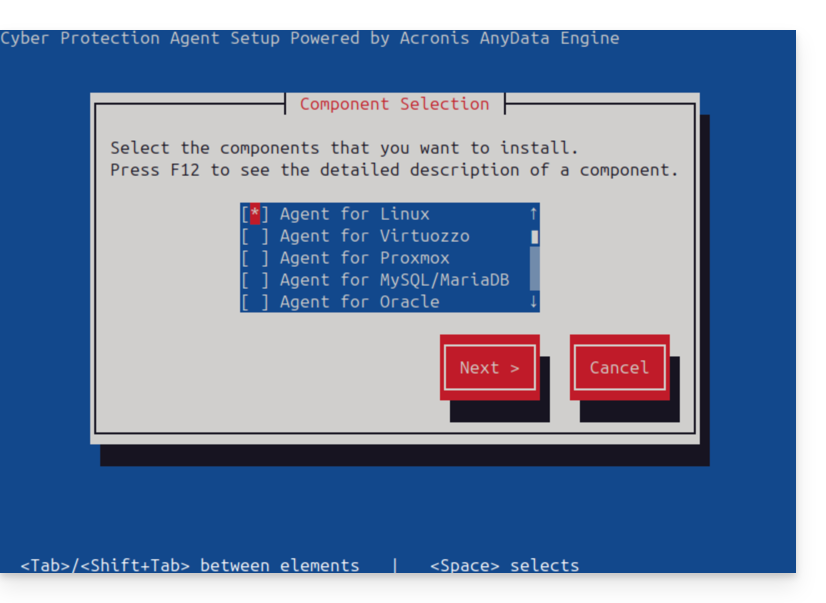
# Run the installation script ./CyberProtect_AgentForLinux_x86_64.bin- Use the Tab key to navigate and Enter to confirm in the text interface.
- Select Install.
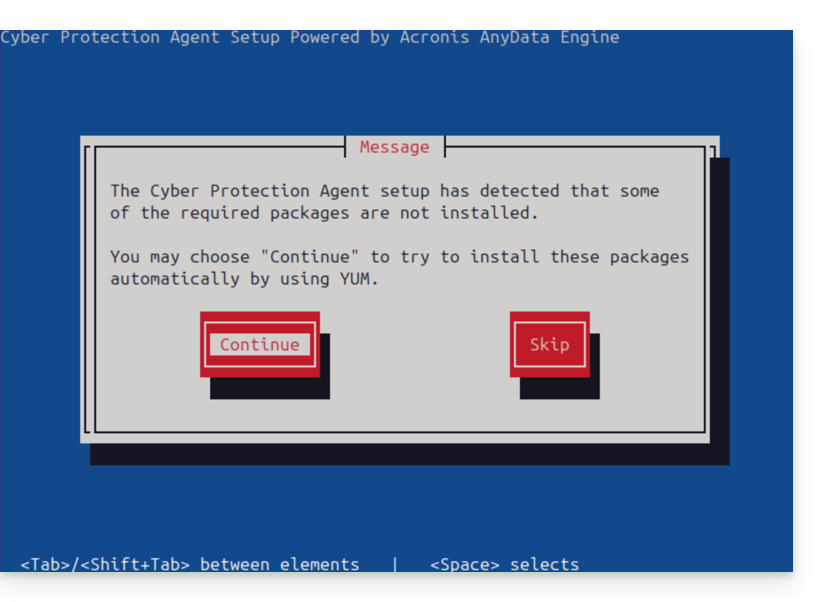
- Accept the automatic installation of any missing dependencies via YUM.
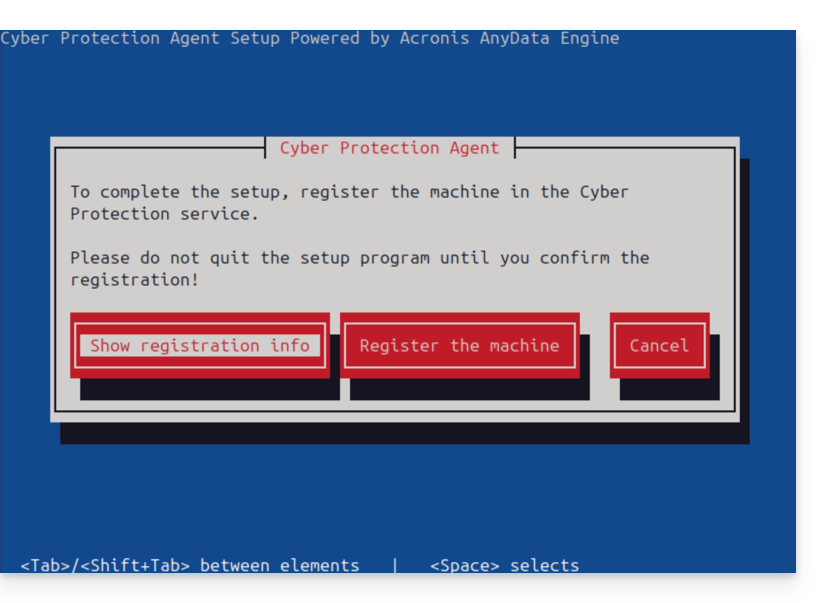
- At the end of the process, select Display registration information.
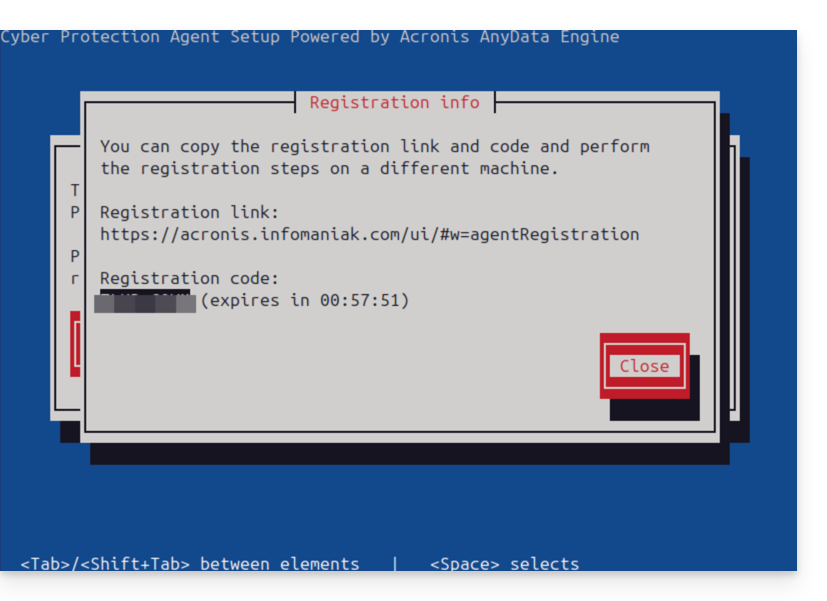
- Carefully note the Registration Code displayed (e.g., ABCD-1234).
5. Registration on the Acronis console
- Go back to your Acronis console (browser).
- Click on Add, then at the very bottom of the list, choose Registration by code.
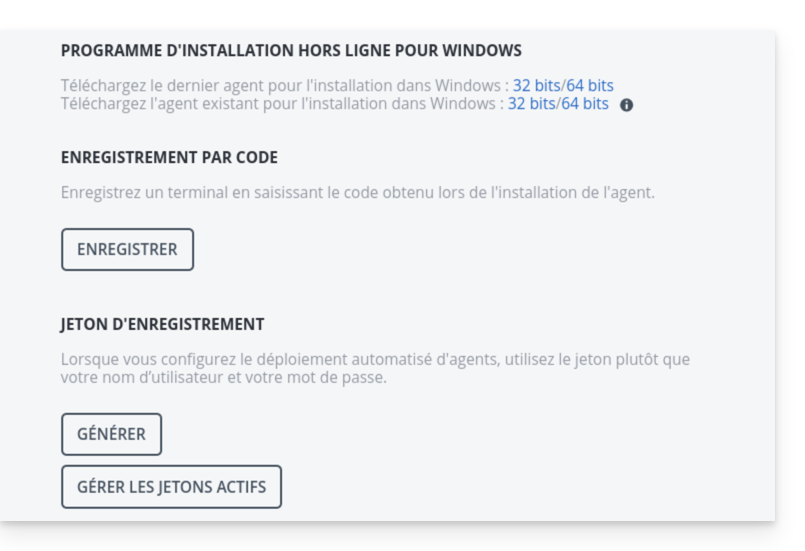
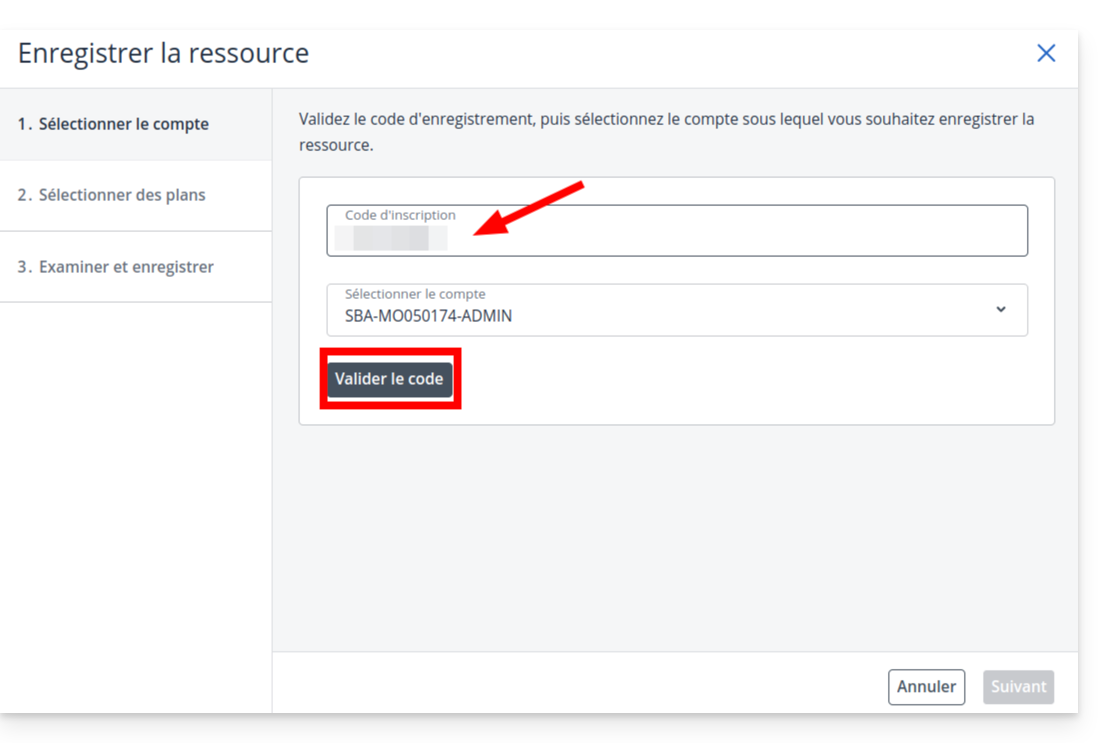
- Enter the code obtained from the server and click Validate.
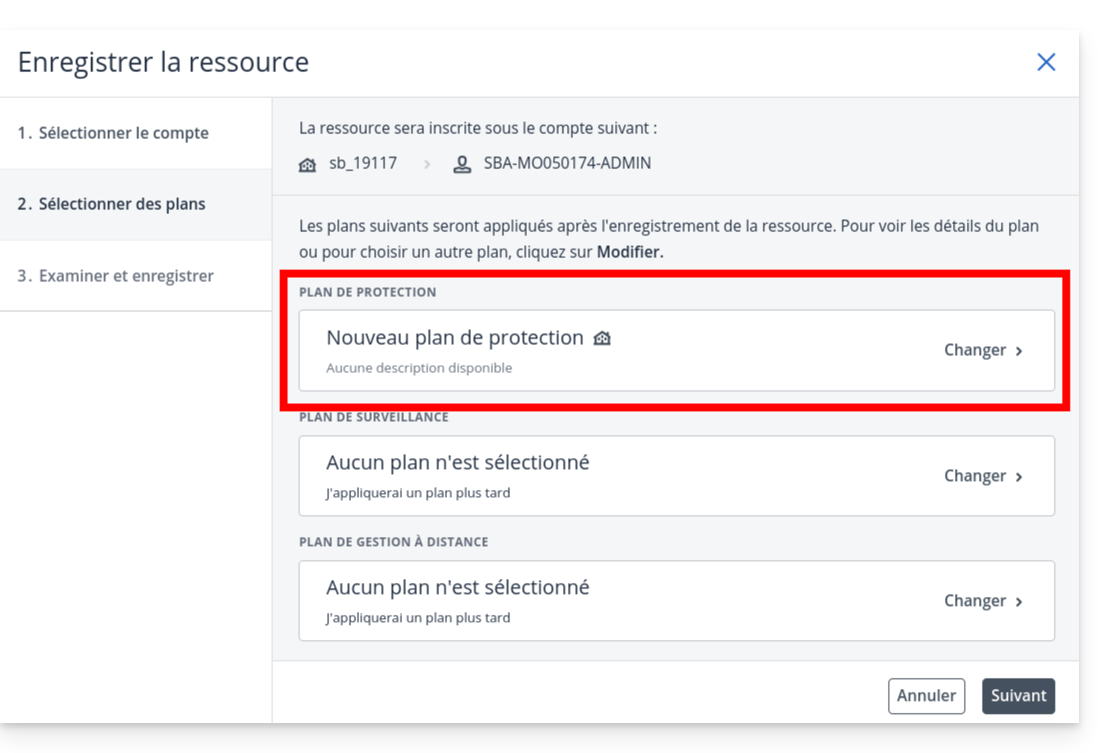
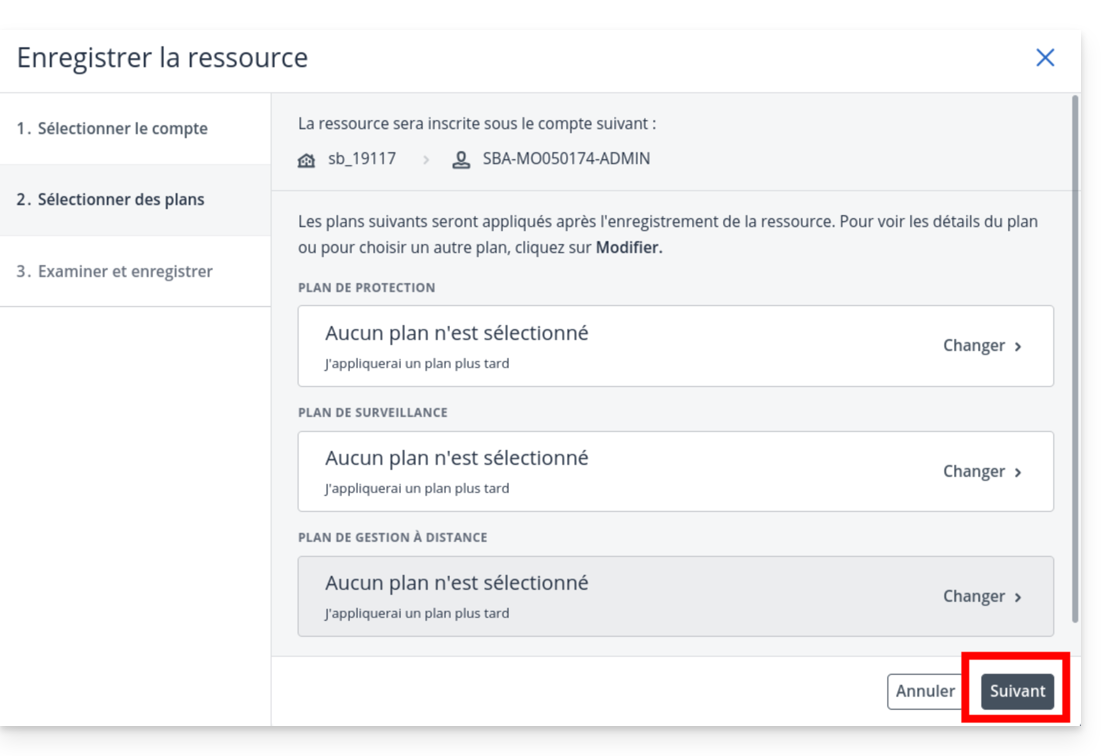
- Important: On the plan selection screen, click on the drop-down menu.
- and choose Do not apply.
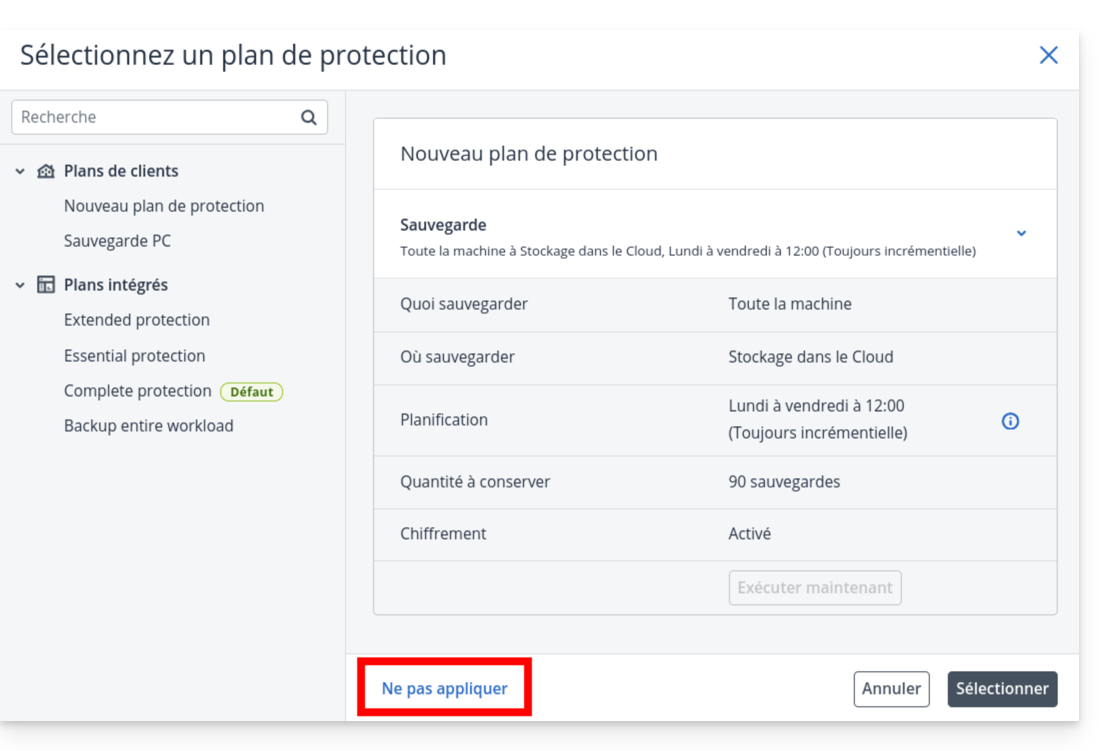
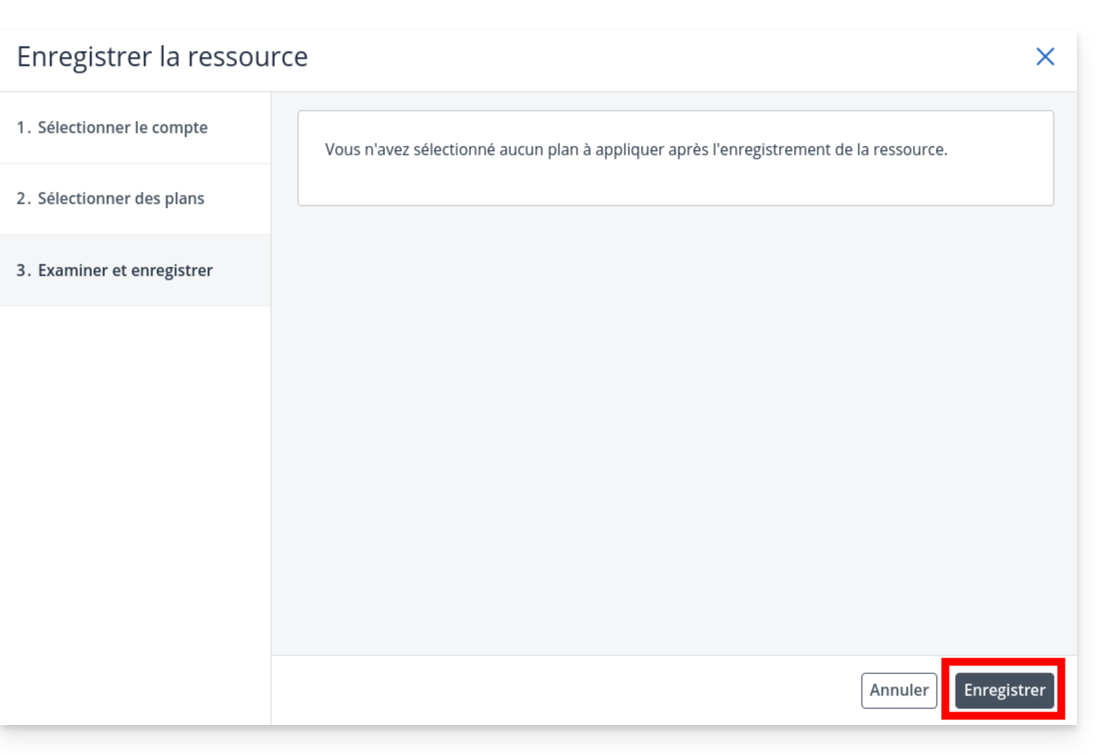
- Click on Next
- then click on Save.
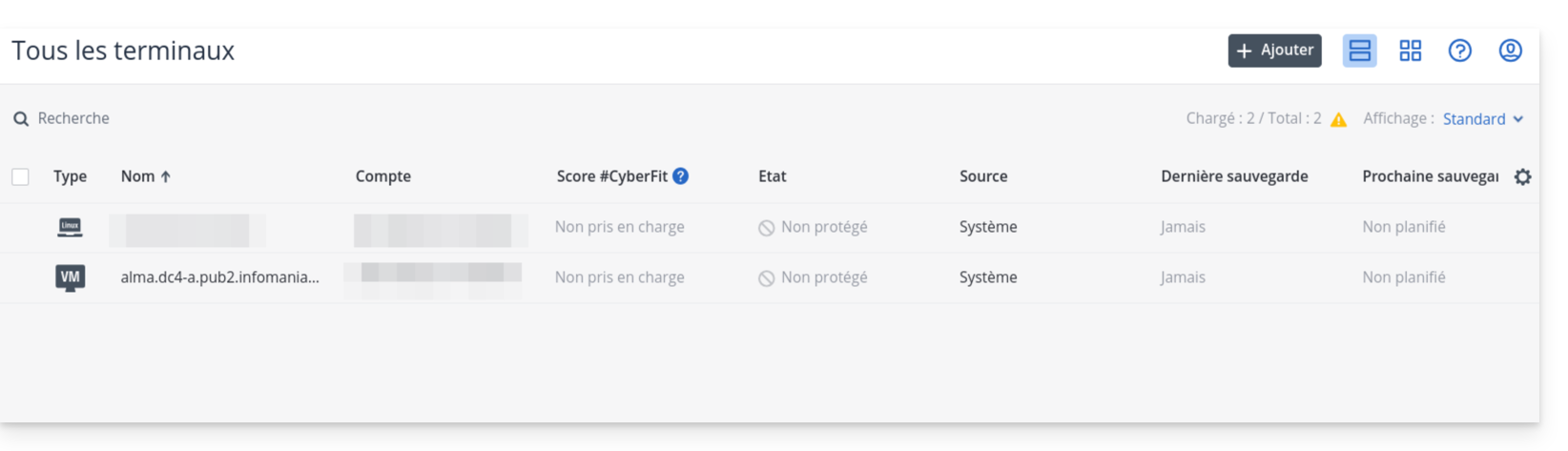
- Check that your server appears in the list of devices after a few seconds.
6. Creating the protection plan
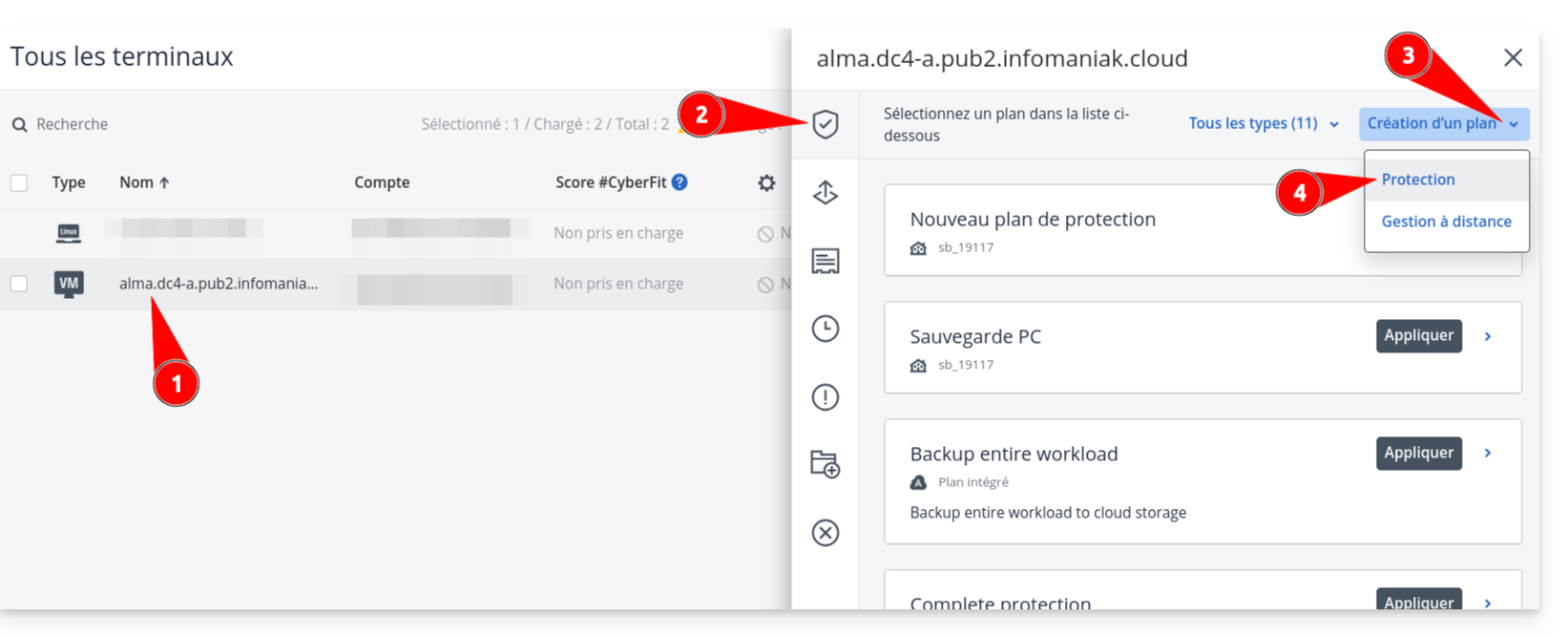
- Click on your server's name in the list, then click the Protect button.
- Choose Create a plan → Protection.
- Define your backup settings (frequency, retention, destination).
- Warning: If you enable encryption, keep the password in a safe place. Without it, your backups will be unusable.
- Check the configuration and click Create.
Link to this FAQ: https://faq.infomaniak.com/2555
Has this FAQ been helpful?
This guide explains how RBLs work, the questionable policies of some of them, and how to resolve any potential email blocking issues.
Introduction
- RBLs (Realtime Blackhole List) or DNSBL (Black List DNS) are lists containing addresses/IP addresses/provider names/servers that are known to be major sources of spam.
- These are often large, general blacklists used to identify messages considered undesirable and the senders of those messages, and are maintained by certain providers (smtpcheck, uceprotect: non-exhaustive list)…
Adding the email address to the RBL
When an email address is identified as belonging to an unwanted sender, it is blocked to prevent the receipt of unsolicited messages. A block in the RBL does not expire. Addresses will be listed indefinitely.
If you receive a message indicating that your email address is blocked by an RBL, it means that Infomaniak's security system has detected suspicious or undesirable activity associated with that email address. This may include sending large numbers of unsolicited messages, participating in phishing campaigns, or other malicious behavior.
Resolving an email block (RBL)…
… if the error message mentions your address and RBL
If you receive error messages like the following:
anna.a@domain.xyz is RBL blacklisted - http://chk.me/rbl
If you encounter this issue when sending an email and believe it is a false positive, contact Infomaniak support.
To prevent your email address from being blocked by the RBL blocking system in the future, follow these best practices for email usage:
- Do not send unsolicited messages or mass messages to unknown recipients.
- Regularly sort the list of recipients used.
- Do not participate in phishing or cybercrime activities.
- Ensure the highest level of security where your emails are used:
- strong password
- up-to-date software
- up-to-date operating system (iOS, Android, Windows, macOS, etc.)
- up-to-date configuration of the associated domain
… if the error mentions an organization such as Sorbs or Barracuda
If you receive errors such as
554 5.7.1 Client host blocked using sorbs
or similar:
- Follow the procedure outlined by the organization in question (for example, http://www.barracudacentral.org) to have your address removed from the list.
- Temporarily change your internet service provider or connection method – Wi-Fi vs. 4G/5G – to send your messages.
- Inform your recipient and their email provider to take the necessary steps and/or stop using an unreliable RBL.
- Please wait a few hours and try again.
Fewer and fewer professionals (ISPs, hosting providers, etc.) are using service providers such as Backscatterer / UCEPROTECT, whose primary purpose is financial gain. There are many other very effective lists, such as ABUSIX or SPAMCOP, which are well-maintained and whose real goal is to fight spam, one of Infomaniak's priorities.
Link to this FAQ: https://faq.infomaniak.com/1333
Has this FAQ been helpful?
BIMI (Brand Indicators for Message Identification) is a standard that provides brand indicators for message identification) allows businesses to incorporate their logo into the emails they send.
Introduction
- Infomaniak applications (and those of other companies worldwide - see the troubleshooting section below) are compatible with BIMI and will display logos next to received email messages.
- Infomaniak Mail Services allow you to configure your email with your logo; the benefits are numerous:
- increased trust: recipients can visually identify your emails, reducing the risk of phishing.
- brand reinforcement: a clearly visible logo in inboxes strengthens brand awareness.
- improved deliverability: emails that comply with DMARC are more likely to reach the main inbox.
1. Create a logo
Create a logo in SVG format (Scalable Vector Graphics). This format is required because it ensures optimal quality regardless of the device or display size.
To be imported into the Infomaniak interface (see below), it must not exceed 10 MB, but it can also be hosted on a secure server that is publicly accessible, and you will simply need to provide its URL for the BIMI DNS record.
2. Obtain the VMC certificate
A verified logo certificate (VMC) is required; it confirms that you are the legitimate owner of the logo. You can obtain this certification from recognized certification authorities such as DigiCert and Entrust.
When your VMC certificate is issued, you will receive a PEM file containing the entity's certificate. This PEM file includes your logo in SVG format as well as the VMC.
3. Add the logo to the Mail service
Prerequisites
- All indicators Global Securityfor your Mail Service must be green (SPF + DKIM + DMARC)!
To access the Mail Service and define your company's logo:
- Click here to access the management of your Mail Service in the Infomaniak Manager (need help?).
- Click directly on the name assigned to the Mail Service in question.
- Click on Global Security in the left-hand menu.
- Click on the Create button (in the BIMI section):
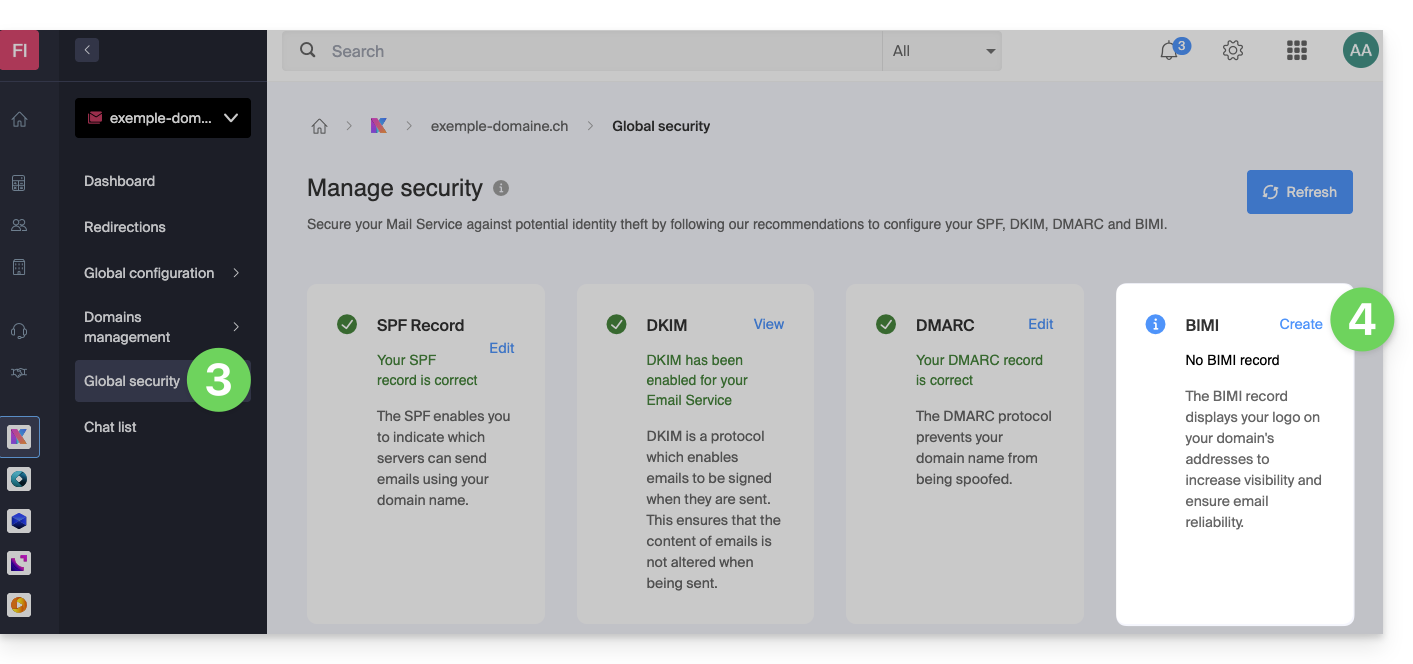
- Fill in the requested information using the documents you received (see chapter 2 above) and don't forget to save.
In case of a problem
- If the Create button in the BIMI box remains gray, carefully check the information messages: DMARC may exist but not be at the required rejection percentage, so adjust the settings according to the instructions.
- When there are multiple domains linked to the Mail service, make sure you have a certificate on each linked domain if you want BIMI to be enabled on those domains.
- Note that Apple Mail supports BIMI, unlike Microsoft Outlook, Thunderbird, and the Mail app from Samsung, which have not yet fully adopted it.
Disable BIMI
To disable BIMI, simply go to the domain name management page associated with the Mail service and delete the corresponding TXT record.
Link to this FAQ: https://faq.infomaniak.com/1816
Has this FAQ been helpful?
This guide explains how to order, link, or remove a dedicated IP for a website.
Manage dedicated IPs on a hosting plan
Order one or more dedicated IP addresses
To do this:
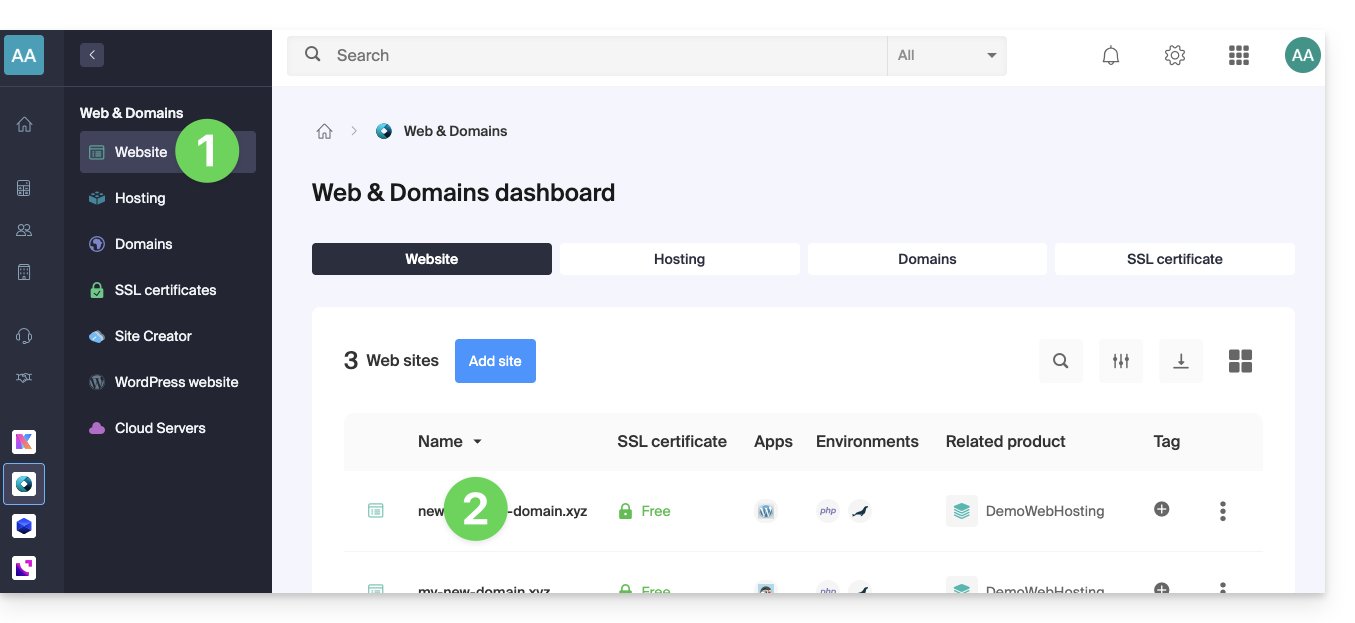
- Click here to access your website management in the Infomaniak Manager (need help?).
- Click directly on the name assigned to the website in question:
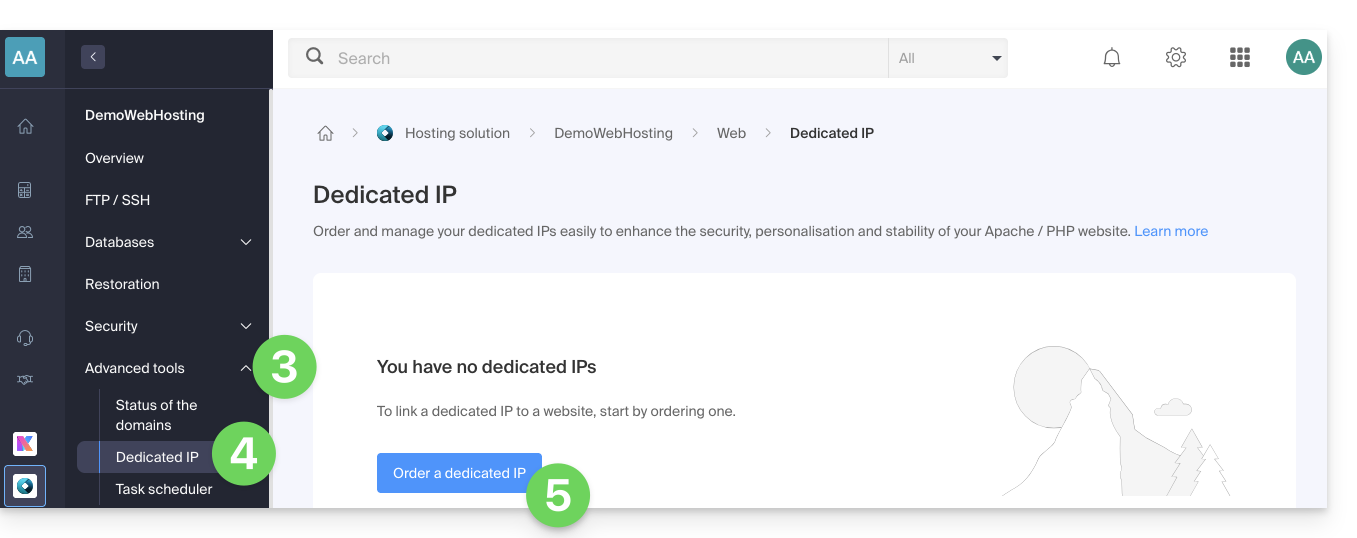
- Click on the chevron to the right of Advanced Tools in the left-hand menu.
- Click on Dedicated IPs in the left-hand menu.
- Click on the button to order one or more IP addresses:
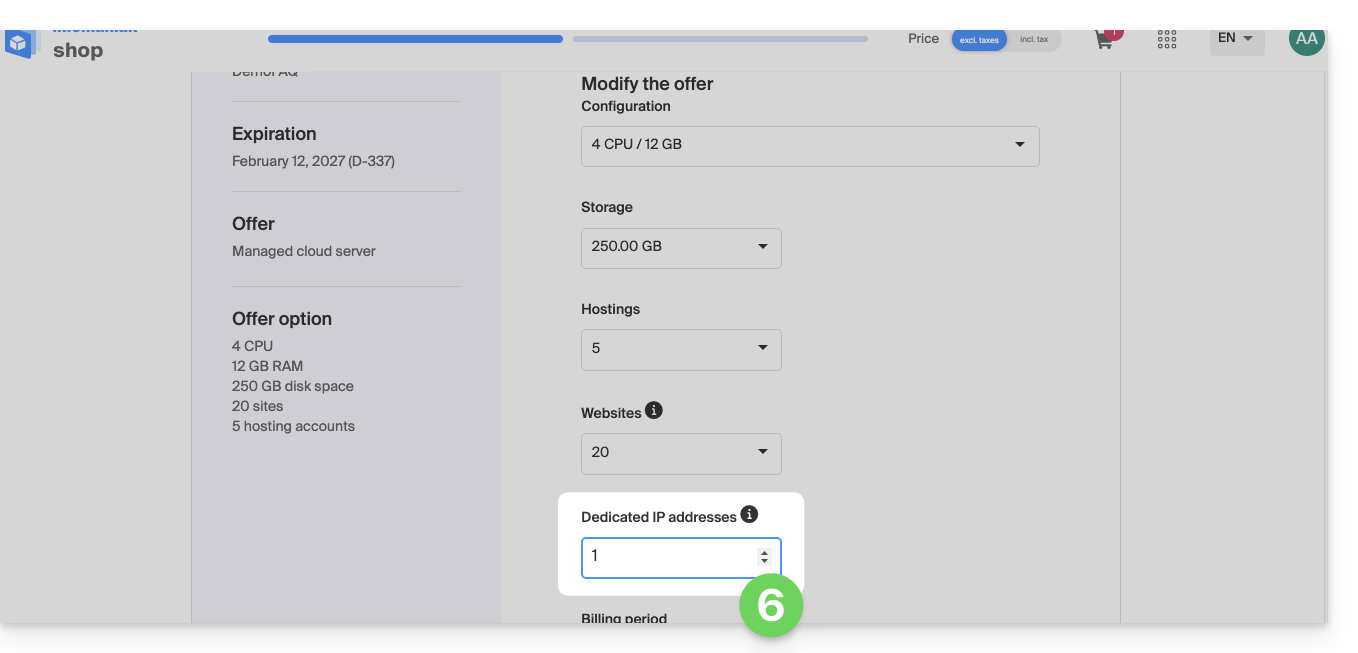
- Increase the quantity according to the number of IP addresses desired:
Order one or more additional dedicated IP addresses
To do this:
- Click here to access your website management in the Infomaniak Manager (need help?).
- Click directly on the name assigned to the website in question.
- Click on the chevron to the right of Advanced Tools in the left-hand menu.
- Click on Dedicated IPs in the left-hand menu.
- Click on the text to order one or more additional IP addresses:
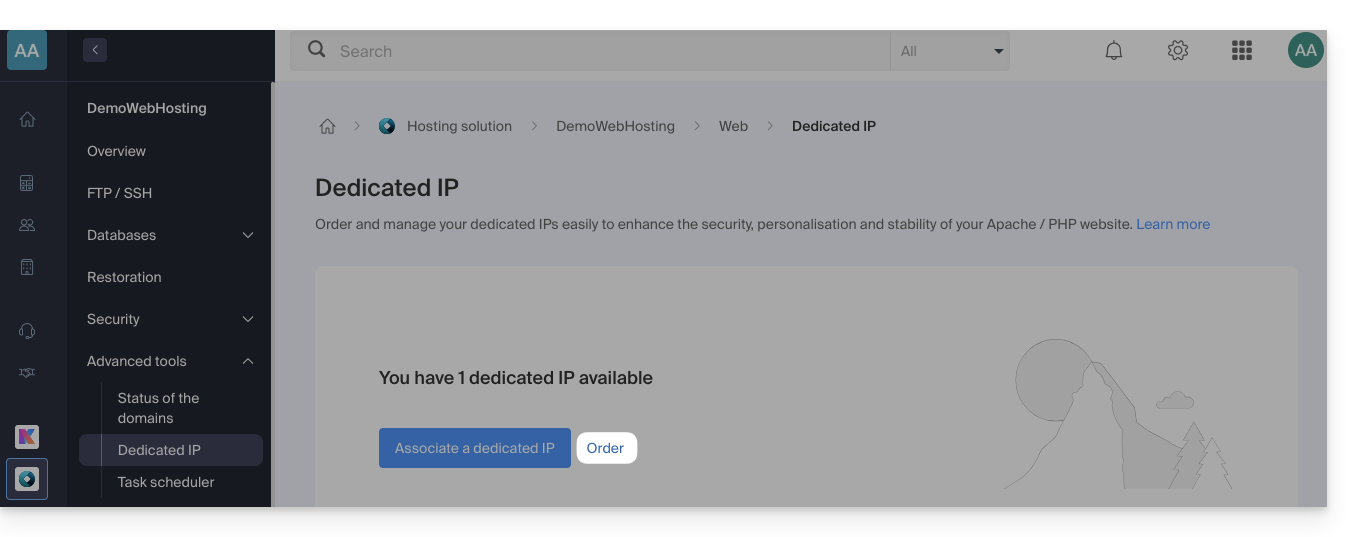
- Increase the quantity according to the number of IP addresses desired.
Associate a dedicated IP address with a website on your hosting
Once the IP address has been ordered and paid for, please review the prerequisites below, as switching to a dedicated IP address for a website may cause a temporary interruption, especially if a Let's Encrypt SSL certificate is in use.
Prerequisites
- Start by reducing the TTL of the DNS records
AandAAAA(for@andwww) to 5 minutes. - Wait for the duration of the previous TTL before making any changes.
- The change below should be made during a period of low traffic to limit the disruption caused by the inevitable interruption.
- At the end of the process, you will need to wait for the new TTL to take effect so that the new configuration can propagate and the SSL certificate can be regenerated. Then, verify that the site is accessible via HTTPS to ensure that everything is working correctly.
To switch to a dedicated IP address:
- Click here to access your website management in the Infomaniak Manager (need help?).
- Click directly on the name assigned to the website in question.
- Click on the chevron to the right of Advanced Tools in the left-hand menu.
- Click on Dedicated IPs in the left-hand menu.
- Click the button to associate the IP with a website in your hosting account:
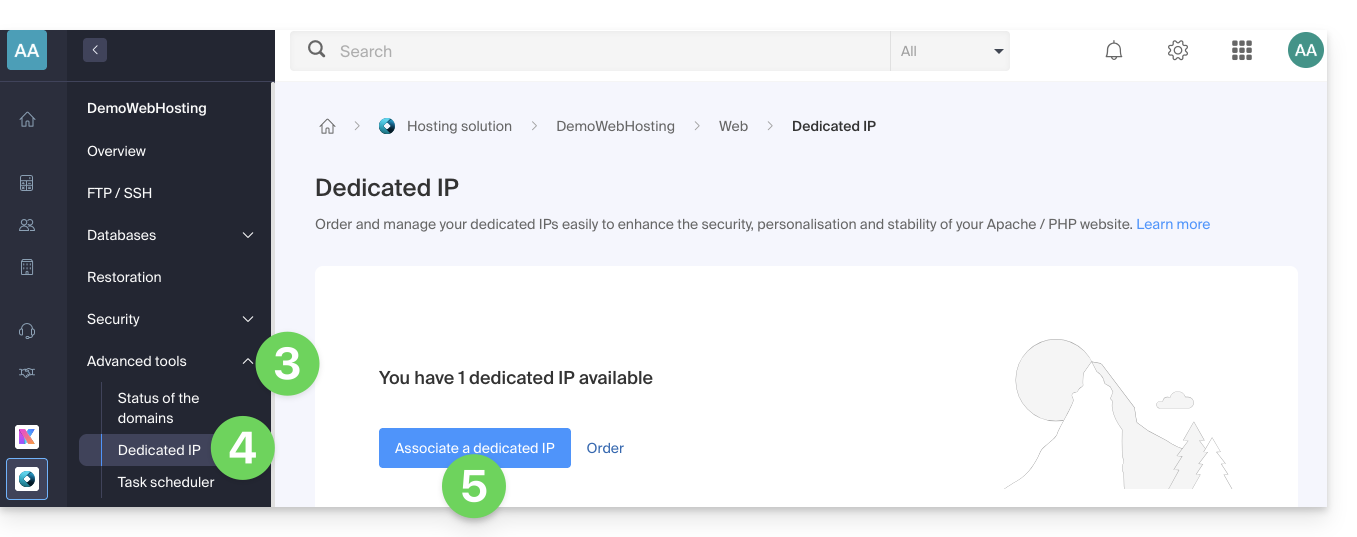
- Choose the website to which you want to assign the new IP address.
- Check the box after reading the warnings.
- Click the Associate button:
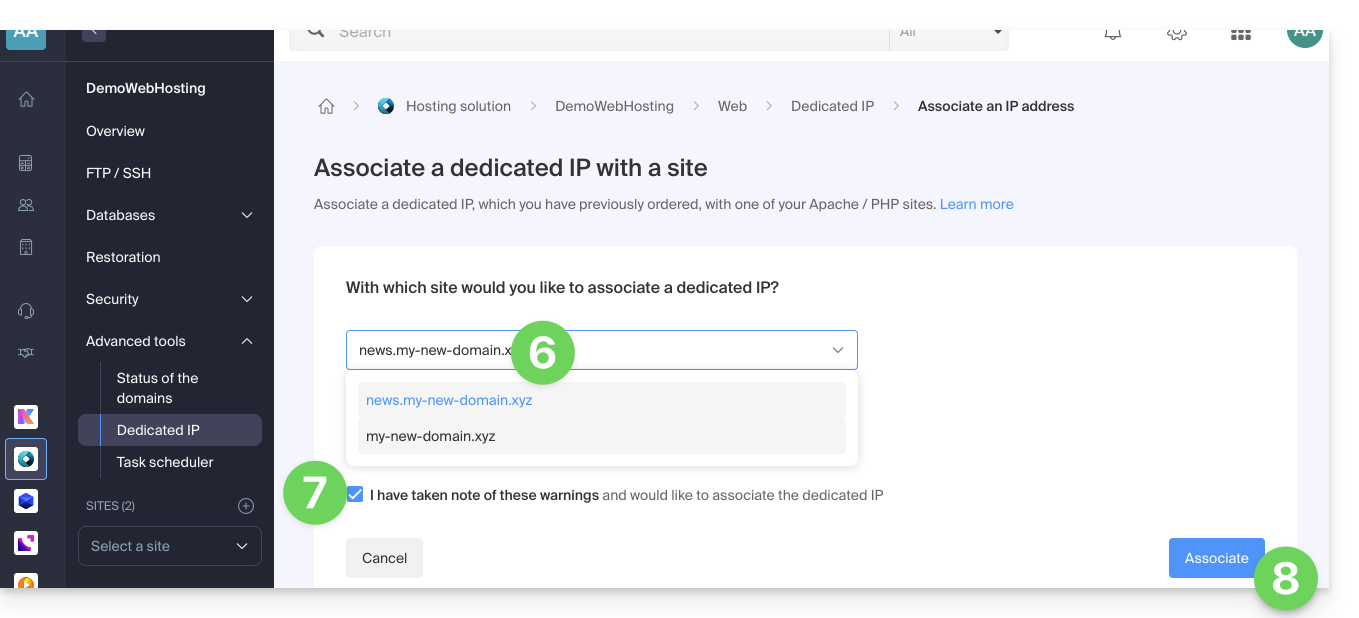
Remove a dedicated IP address from a website
Once the IP address is installed, to uninstall it:
- Click here to access your website management in the Infomaniak Manager (need help?).
- Click directly on the name assigned to the website in question.
- Click on the chevron to the right of Advanced Tools in the left-hand menu.
- Click on Dedicated IPs in the left-hand menu.
- Click on the action menu ⋮ located to the right of the item in question.
- Choose Unlink:
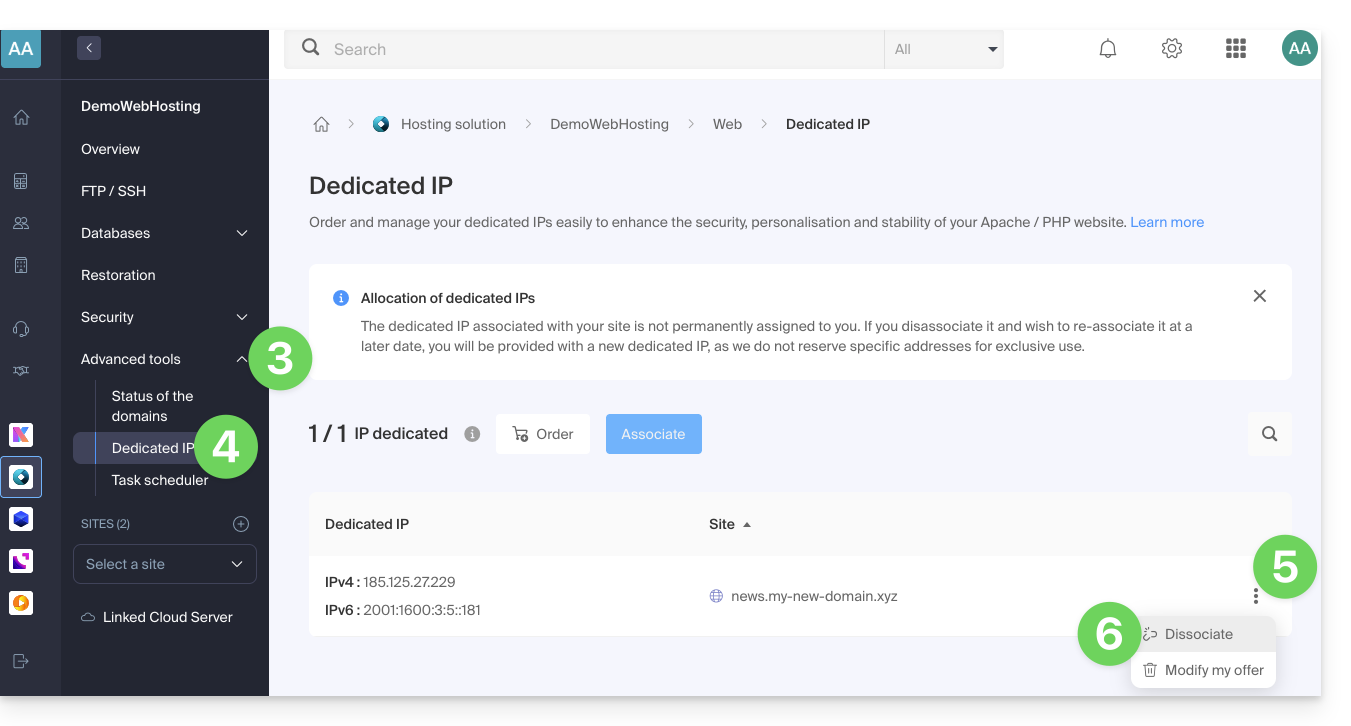
- Read the warnings and confirm the deletion to complete the IP uninstallation process.
Read this other guide if you are looking for information about potential issues related to your IP.
Link to this FAQ: https://faq.infomaniak.com/2139
Has this FAQ been helpful?
This guide explains how to deploy n8n using its official Docker image on the Jelastic Cloud platform (Infomaniak PaaS).
Introduction
- Unlike tools like Zapier or Make, n8n, a “fair-code” workflow automation tool, can be self-hosted, giving you complete control over your data while connecting hundreds of services via an intuitive visual interface.
- The official image used is
n8nio/n8n. - Using an external database (PostgreSQL) is highly recommended for stability and managing large volumes of data.
- The default internal port is
5678.
1. Creating the Jelastic Environment
Follow these steps to configure your topology:
- Log in to the Jelastic Cloud dashboard.
- Click on New environment.
- In the creation wizard:
- Go to the Docker tab.
- Click on Select an image and search for
n8nio/n8n. Specify a version (e.g.,latestor a specific version like1.75.0). - Load Balancer: add a node (e.g., Nginx) to manage SSL and public access.
- Database: add a PostgreSQL node (version 14+ recommended).
- Allocate sufficient Cloudlets (8 min. recommended for n8n in production) and name your environment.
- Click on Create.
Note: Adding a Load Balancer makes it easy to enable the Let's Encrypt module to secure your exchanges and webhooks in HTTPS.
2. Configuring Storage and Persistence
By default, Docker data is ephemeral. It is essential to mount a volume:
- On the n8n node, click the Configuration icon (the gear).
- Go to the Volumes section.
- Click on Add:
- Local path:
/home/node/.n8n
- Local path:
- Save; configuration files and local encryption will now be preserved.
3. Essential Environment Variables
Access the Environment Variables section of the n8n container to define the following settings:
| Variable | Suggested value / Description |
|---|---|
N8N_HOST | The domain name of your environment (e.g., n8n.nom.jpc.infomaniak.com). |
WEBHOOK_URL | The complete HTTPS URL (e.g., https://n8n.mondomaine.com/). Required for HTTP triggers. |
GENERIC_TIMEZONE | Europe/Bern (or your local time zone). |
N8N_ENCRYPTION_KEY | Generate a long, random string. Note it down carefully! |
Connection to PostgreSQL
To use the external database, also add:
DB_TYPE:postgresdbDB_POSTGRESDB_HOST: Internal IP address or DNS of the Postgres node.DB_POSTGRESDB_PORT:5432DB_POSTGRESDB_DATABASE: Database name (e.g.,n8n).DB_POSTGRESDB_USER: Your username.DB_POSTGRESDB_PASSWORD: Your password.
4. First access and security
- Once the container has restarted, open the URL of your environment.
- Account creation: n8n will ask you to create the first administrator account.
- SSL: if you are using a custom domain, install the Let's Encrypt add-on on the Load Balancer node.
Since version 1.0, the old N8N_BASIC_AUTH variables are obsolete. User management is now done directly in the n8n graphical interface.
5. Post-installation check
- Create a test workflow with a Webhook node and verify that the generated URL is in
https. - Check the container logs to see if any database connection errors appear.
Link to this FAQ: https://faq.infomaniak.com/2253
Has this FAQ been helpful?
This guide is about IP addresses, including…
- … those assigned to websites/hosting/servers, dynamic or static IPs, shared or dedicated IPs,
- … assigned by your Internet Service Provider (ISP) when establishing an Internet connection to your Infomaniak product.
Introduction
- A dedicated or static IP address for a website is a permanent IP address that is specifically assigned to it.
- Unlike a shared IP address, which is used by multiple websites, a dedicated IP address ensures that only this platform is associated with that address.
- Dedicated IP addresses for websites are often used in cases where stability, customization, and security are important, such as hosting servers, configuring firewalls, or enabling SSL certificates (although it is possible to proceed without a dedicated IP address to install an SSL certificate).
- Here are the main advantages:
- Configuring a PTR record or reverse DNS on dedicated IPs is useful, especially for installing a mail server, because some email providers check the PTR record before accepting emails sent from a server.
- Improved connection stability.
- Reduced risk of a bad reputation due to websites sharing the same IP address.
- Easier configuration of certain technical aspects.
- A dedicated IP can improve a website's search engine ranking (although there are differing opinions among SEO specialists).
- Note: Infomaniak does not allow access to websites via HTTP(S) using dedicated IPs on managed servers; you must use a domain name that points to the IP (or use the preview URL).
Add a dedicated IP to the website
To add a dedicated IP to your website, please refer to this guide.
If you are experiencing issues when directing web traffic to a specific port, please refer to this other guide.
Blocking the IP address (Internet connection)
If you can no longer access…
- … all your email addresses that you have with Infomaniak (which usually work fine) and this using an email software/client from a single Internet network (i.e., from the same IP address provided by your ISP)…
… or if you have unfortunately performed this type of operation:
- repeated, unsuccessful connection attempts via FTP, SSH, or on access points such as the WordPress login…
- requests returning too many errors, such as a large number of 403 errors…
… your access to Infomaniak servers may be blocked following the banning of the IP address (banip / ipban) of your internet connection.
To resolve this, contact Infomaniak support by email, specifying the domain concerned and, above all, your public IP address.
Permanent unblocking (IP whitelisting)
With a Cloud Server, you can request that the IP address in question be permanently whitelisted so that the blocking never happens again, regardless of the situation. To do this, you must:
- Have a dedicated IP associated with your Cloud Server.
- Be aware that Infomaniak will no longer block any potential attacks originating from this IP.; malicious attacks or access attempts originating from this address will no longer be automatically blocked by the security systems.
- Confirm via email and from a contact addressassociated with the account (owner or administrator), and that you understand and accept full responsibility in the event of an attack originating from this IP address.
Link to this FAQ: https://faq.infomaniak.com/2138
Has this FAQ been helpful?
This guide provides instructions for creating a highly available, multi-datacenter infrastructure with Jelastic Cloud.
Introduction
- The principle of a multi-datacenter high-availability infrastructure is to replicate all necessary elements (web server, database server, and load balancer) in another datacenter to ensure the operation of your websites and apps in the event of unforeseen circumstances (traffic spikes, hardware failures, network outages, etc.).
- The advantages of a multi-datacenter high-availability infrastructure are numerous:
- In the event of an issue with one server, another server immediately takes over; your websites and apps remain accessible.
- In the event of a disruption with a component in one datacenter, the replicated infrastructure in the other datacenter takes over immediately; your websites and apps remain accessible.
- In the event of significant traffic spikes, traffic is distributed between the two infrastructures by load balancers; your websites and apps remain accessible and fast.
Setting up a highly available infrastructure with Jelastic Cloud
For the purposes of this example, 2 web servers with 2 load balancers will be set up, each of these elements being hosted in Switzerland in a different Infomaniak datacenter.
Before proceeding, log in to the administration interface of your Jelastic Cloud server:
- Click here to access the management of your product on the Infomaniak Manager (need help?).
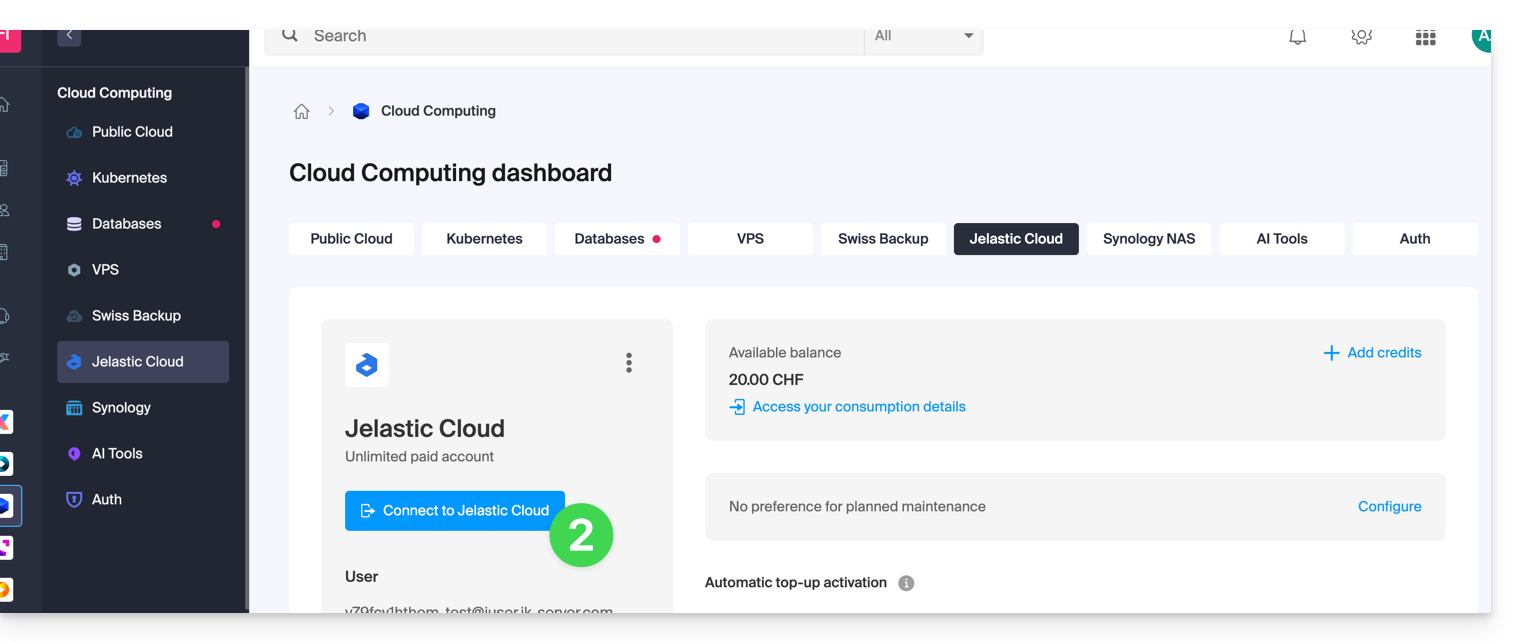
- Click on Connect to Jelastic Cloud:
1. Creating Web Servers
A web server hosts the content of your websites (PHP files, images, PDFs, etc.).
Here are the steps to create your first server:
- Click on New environment.
- Click on the PHP tab.
- In App. Servers, choose, for example, an Apache server.
- Adjust the environment's resources according to your needs.
- Choose Geneva DC2 for the server location.
- Rename the environment so you can easily identify it later (e.g. DC2-apache).
- Click on Create.
Then, create the second web server in a different datacenter:
- Click on New environment.
- Click on the PHP tab.
- In App. Servers, choose an Apache server, for example.
- Adjust the environment's resources according to your needs.
- Choose Geneva DC3 for the server location.
- Rename the environment so you can easily identify it later (e.g. DC3-apache).
- Click on Create.
2. Creating load balancers
A load balancer distributes the load and traffic of your websites across your web servers.
Here are the steps to create your first server:
- Click on New environment.
- Click on the PHP tab.
- In Load Balancing, choose an NGINX server, for example.
- Adjust the environment's resources according to your needs.
- Choose Geneva DC2 for the server location.
- Rename the environment to easily identify it later (e.g. DC2-nginx).
- Click on Create.
Then, create the second load balancer in a different datacenter:
- Click on New environment.
- Click on the PHP tab.
- In Load Balancing, choose an NGINX server, for example.
- Adjust the environment's resources according to your needs.
- Choose Geneva DC3 for the server location.
- Rename the environment so you can easily identify it later (e.g. DC3-nginx).
- Click on Create.
3. Configuring load balancers and the domain name
Now, you just need to tell the load balancers which web servers they should distribute traffic to.
Start by creating the load-balancer.conf file on both load balancers:
- Connect to the
DC2-nginxserver via SSH by clicking the Web SSH button in the environment. - Open the load-balancer.conf file:
nano /etc/nginx/conf.d/load-balancer.conf. - Adapt the code in the file with the URL of your web servers:
http {
upstream backend {
server apache-dc2.jcloud-ver-jpc.ik-server.com;
server apache-dc3.jcloud.ik-server.com;
}
server {
listen 80;
location / {
proxy_pass {{URL_4}}
}
}
}
- Repeat these 3 steps for the
DC3-nginxserver.
Next, modify the load balancer configuration file:
- Connect to the
DC2-nginxserver via SSH by clicking the Web SSH button in the environment. - Create the following configuration file:
nano /etc/nginx/nginx.conf. - Adjust the URL of the server configuration file:
user nginx;
worker_processes auto;
worker_rlimit_nofile 2048;
load_module modules/ngx_stream_module.so;
#load_module modules/ngx_http_modsecurity_module.so;
error_log /var/log/nginx/error_log info;
events {
worker_connections 2048;
use epoll;
}
include /etc/nginx/conf.d/load-balancer.conf;
- Restart the NGINX service:
sudo /etc/init.d/nginx restart. - Repeat these four steps for the
DC3-nginxserver.
You now need to specify which servers your domain name should redirect traffic to.
Beforehand,Install a public IP address on your load balancers :
- Deploy the DC2-nginx server node.
- Hover over the public IP line and click on the + that appears on the right.
- Add a public IPv4 address.
- Repeat these 3 steps for the DC3-nginx server.
At this point, all you have left to do is create two A records in the DNS zone of your domain name with the public IP address of your two load balancers.
To ensure that the changes are quickly taken into account, it is recommended to configure the A records with a TTL of 5 minutes.
In this example, the domain redirects your visitors to the load balancers, which in turn redirect traffic to the web servers.
4. Testing the high availability infrastructure
To test the proper functioning of your infrastructure, enter your domain name in a web browser and try disabling one element of your infrastructure (one of the two load balancers, one of the two web servers). If everything is working correctly, you should still be able to access the content hosted on one of the two web servers.
Please note: data replication between the web servers or database servers must be configured by you.
Link to this FAQ: https://faq.infomaniak.com/2401
Has this FAQ been helpful?
This guide explains how to check and configure DHCPv6 support on the operating system of your Infomaniak Cloud VPS.
Introduction
- During a planned operation requiring the migration of your Cloud VPS to another cluster, the assignment of the current IPv6 address will now rely on DHCPv6 in order to retain the address already assigned to the server.
- DHCPv6 is only used to automatically transmit this same IPv6 address to the operating system of the Cloud VPS.
- This change only concerns VPS Cloud where you manage the operating system yourself.
- This does not apply to managed Cloud Servers.
- If your operating system does not support DHCPv6, you can configure the IPv6 address statically in the operating system of your Cloud VPS.
- The IPv6 address to use is displayed in the dashboard of your Cloud VPS, accessible from the Infomaniak Manager.
Check that IPv6 is enabled
DHCPv6 cannot function if IPv6 is disabled on the system. Check the status of IPv6 using the following commands:
sysctl net.ipv6.conf.all.disable_ipv6
cat /proc/net/if_inet6
ip -6 addr show
The first command should return 0. The /proc/net/if_inet6 file must contain at least one IPv6 address.
Check that router advertisements are being accepted
Prerequisites
- Identify the name of the network interface in question, for example
eth0,ens3orenp1s0. - Replace
<interface>in the commands below with the name of this interface.
DHCPv6 triggering depends on the flags transmitted by router advertisements, called Router Advertisements (RA), and not only on the server's local configuration.
The router announces the following two indicators:
- M — Managed: use DHCPv6 to obtain the IPv6 address in stateful mode
- O — Other: use DHCPv6 only to obtain additional parameters, such as DNS servers, while the IPv6 address is assigned by SLAAC.
Verify that the interface accepts RA announcements:
sysctl net.ipv6.conf.<interface>.accept_raPossible values are:
0: RA ads are not allowed1: RA ads are allowed2: RA advertisements are accepted even when routing is enabled.
If the ndisc6 package is installed on Debian, Ubuntu, Fedora, or RHEL, display the received advertisements:
rdisc6 <interface>The following line indicates that the network is requesting the use of DHCPv6 to assign the IPv6 address:
Stateful address configuration: Yes
Configure DHCPv6 according to the network manager
The configuration to apply depends on the network manager used by the operating system of your Cloud VPS.
NetworkManager
NetworkManager is notably used by RHEL, Rocky Linux, AlmaLinux, CentOS Stream, Fedora, and frequently by Ubuntu Desktop.
Display the NetworkManager connections to identify the name of the one associated with the network interface:
nmcli connection showIn the following commands, replace <connection> with the name of this connection.
Display its IPv6 settings:
nmcli connection show "<connection>" | grep ipv6The key parameter is ipv6.method. It can contain the following values, among others:
auto: processes RA announcements and uses DHCPv6 when the router's transmitted indicators request it.dhcp: force the use of stateful DHCPv6manual: uses a manual IPv6 configurationdisabled: disables IPv6 for this connection
The auto value is recommended so that NetworkManager processes RA announcements and uses DHCPv6 when the network requests it.
To apply this configuration:
nmcli connection modify "<connection>" ipv6.method auto
nmcli connection up "<connection>"
Networking (Debian 11 Bullseye and earlier versions)
Debian versions up to Debian 11 (Bullseye) generally use the network manager.networking (ifupdown).
Check the network interface configuration:
cat /etc/network/interfacesMake sure that the relevant interface contains the following line:
iface <interface> inet6 dhcpThen, check that the networking service is active:
systemctl status networking
systemd-networkd (Debian 12 Bookworm and later)
Since Debian 12 (Bookworm), systemd-networkd is commonly used on server installations.
Check that the service is running:
systemctl status systemd-networkdNext, inspect the network configuration files:
cat /etc/systemd/network/*.networkThe file corresponding to the interface in question must contain one of the following configurations:
[Network]
DHCP=yes        # enable DHCPv4 & DHCPv6
or:
[Network]
DHCP=ipv6       # enable only DHCPv6
You can then check the overall network status or the status of a specific interface:
networkctl status
networkctl status <interface>
Netplan
Netplan is notably used by Ubuntu since version 18.04. It is an overlay that generates a configuration for systemd-networkd or NetworkManager.
In the corresponding file under /etc/netplan/*.yaml, enable DHCPv6 for the interface in question:
network:
  version: 2
  ethernets:
    eth0:
      dhcp6: true
      accept-ra: true
Replace eth0 with the name of the interface in question, then display the effective configuration and apply it:
netplan get
netplan apply
wicked
wicked is notably used by openSUSE and SUSE Linux Enterprise Server.
Check the DHCLIENT6_MODE setting in the file corresponding to the interface:
/etc/sysconfig/network/ifcfg-<interface>Then, check the status of the interface:
wicked show <interface>
Direct DHCPv6 client
The following commands allow you to perform a manual DHCPv6 test or use it directly, especially on Alpine Linux, Gentoo, and some Arch Linux installations.
With the ISC DHCP client:
dhclient -6 -v <interface>DHCPv6 leases are stored in:
/var/lib/dhcp/dhclient6.leasesWith dhcpcd:
dhcpcd -6 <interface>
Configure the IPv6 address statically
If the operating system of your Cloud VPS does not support DHCPv6, or if you cannot use it, configure the IPv6 address indicated in the dashboard of your Cloud VPS directly from the Infomaniak Manager.
The method depends on the network manager used by the operating system. In all cases, make sure to use the exact IPv6 address, prefix, and gateway provided for your Cloud VPS.
Link to this FAQ: https://faq.infomaniak.com/2914
Has this FAQ been helpful?
This guide concerns messages that begin with / on kChat, which are interpreted as slash commands.
Executing a slash command on kChat
To access slash commands on kChat:
- Click in the writing field within a channel.
- Enter a
/(slash or forward slash) and the associated command. - Validate to send the command.
If you only type the / sign, a modal will appear with the commands that can be executed, such as setting your status to "away," for example.
Here is a table of the main commands:
| command | description |
|---|---|
| /away | sets your status to "away" |
| /offline | sets your status to "offline" |
| /online | sets your status to "online" |
| /dnd | sets your status to "do not disturb" |
| /code | used to format text as code |
| /collapse | hides the content of the element in the message |
| /expand | expands the content of the element in the message |
| /echo | repeats the text following the command |
| /header | displays a header in a message |
| /purpose | sets or displays the channel description |
| /rename | renames the current channel |
| /leave | leaves the current channel |
| /mute | mutes the current channel |
| /reminders | manages reminders |
| /search | searches for messages and other content |
| /settings | opens the settings |
| /shortcuts | displays keyboard shortcuts |
Creating a custom slash command
Prerequisites
- You must not be an external user (they will not see the Integrations menu).
To create a custom slash command:
- Click here to access the Web kChat app (online service ksuite.infomaniak.com/kchat) or open the desktop kChat app (desktop application on macOS / Windows / Linux).
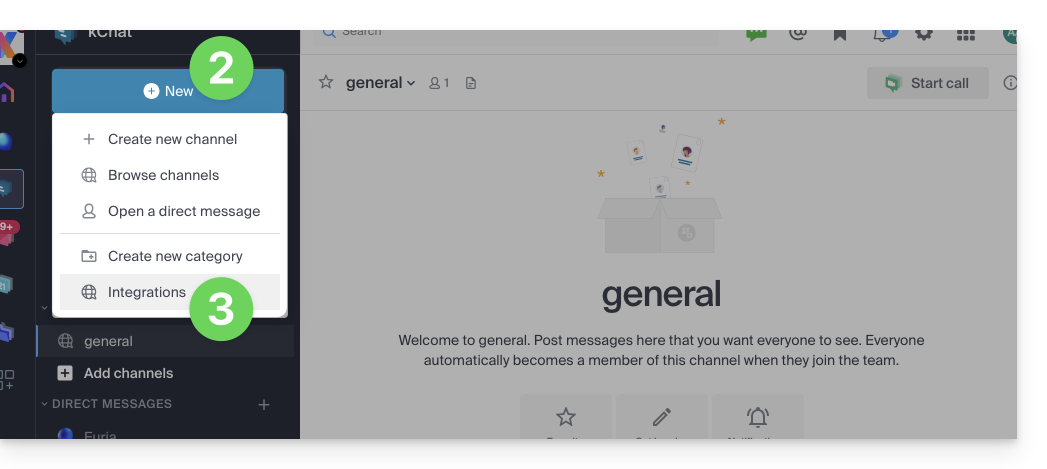
- Click on the New icon next to your kChat organization name.
- Click on Integrations:
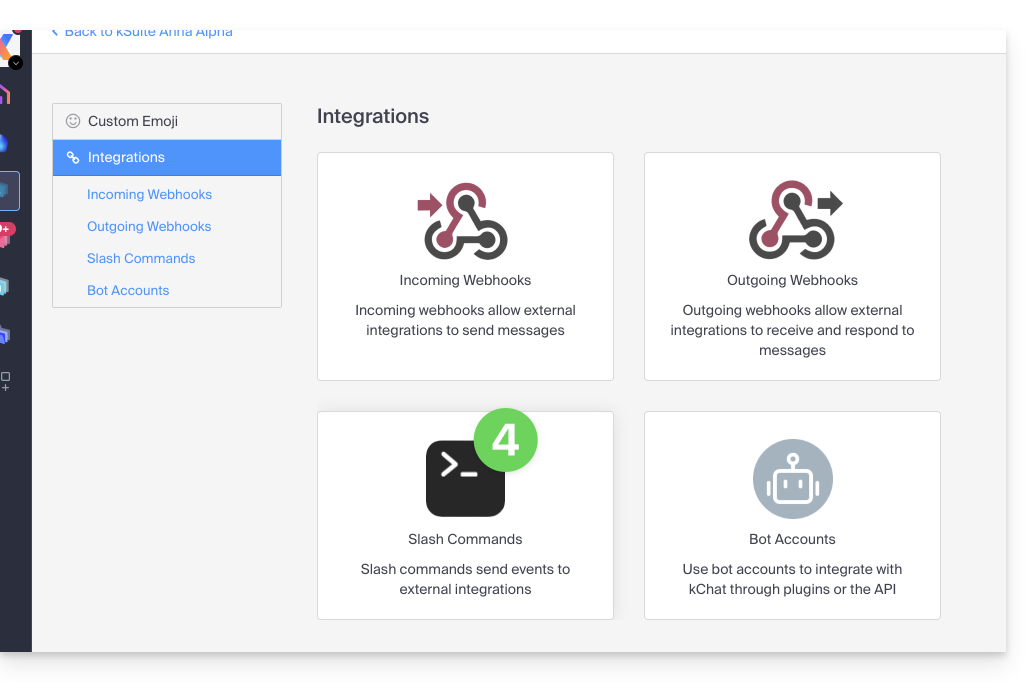
- Click on Slash command:
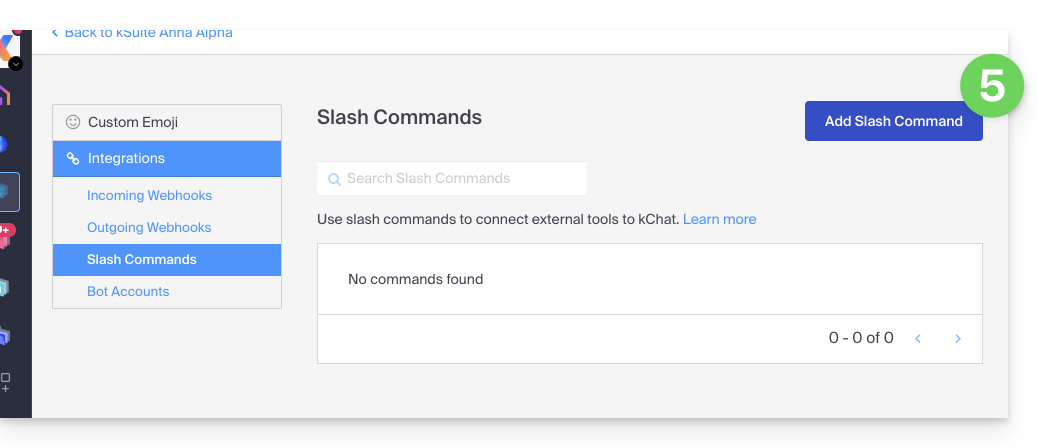
- Click on the blue button to Add a command:
- Configure the slash command (name, trigger (without the
/), expected content type, action to be executed*, etc., including whether the command should appear in the help modal mentioned in the chapter above).- * This may include calling an external API, running a script, displaying a specific response, etc. For this, you will generally need an external script or application that will respond to the commands. You can also define additional parameters for the command, such as drop-down options, check boxes, etc., depending on your needs.
- Save the command.
- Make sure to test the command to ensure it works as expected.
Keep in mind that creating custom slash commands may require additional programming skills, especially if you need to integrate custom features or interactions with external systems. Also, be sure to follow security best practices when creating these commands to avoid potential security vulnerabilities.
Link to this FAQ: https://faq.infomaniak.com/2134
Has this FAQ been helpful?