Knowledge base
1000 FAQs, 500 tutorials and instructional videos. Here, there are only solutions!
This guide explains how to have multiple domain names (everything that comes after the at symbol @ in your email address) for an existing Mail Service by adding related domain names to it.
Introduction
- Email addresses (existing and future) are automatically valid with all linked domains.
- To completely change and reverse the domain names of a Mail Service, please refer to this other guide.
- If you would prefer to modify the part of your email address that comes before the at symbol
@, please refer to this other guide. - Please also note that you can rename your product in the Infomaniak Manager, but changing the name of a Mail Service has absolutely no effect on its addresses; you need to modify the domain name.
Add a Domain Name to the Mail Service
Prerequisites
- Own the new domain name (if necessary, you may need to create it beforehand).
- Review the instructions in this other guide and apply the instructions that correspond to your situation (to ensure that the domain name works when it is linked to your Mail service).
Once the new domain name is ready to be used alongside the old one, you need to add it to the Mail service:
- Click here to access the management of your product in the Infomaniak Manager (need help?).
- Click directly on the name assigned to the product in question.
- Click on Domain Management in the left-hand menu:
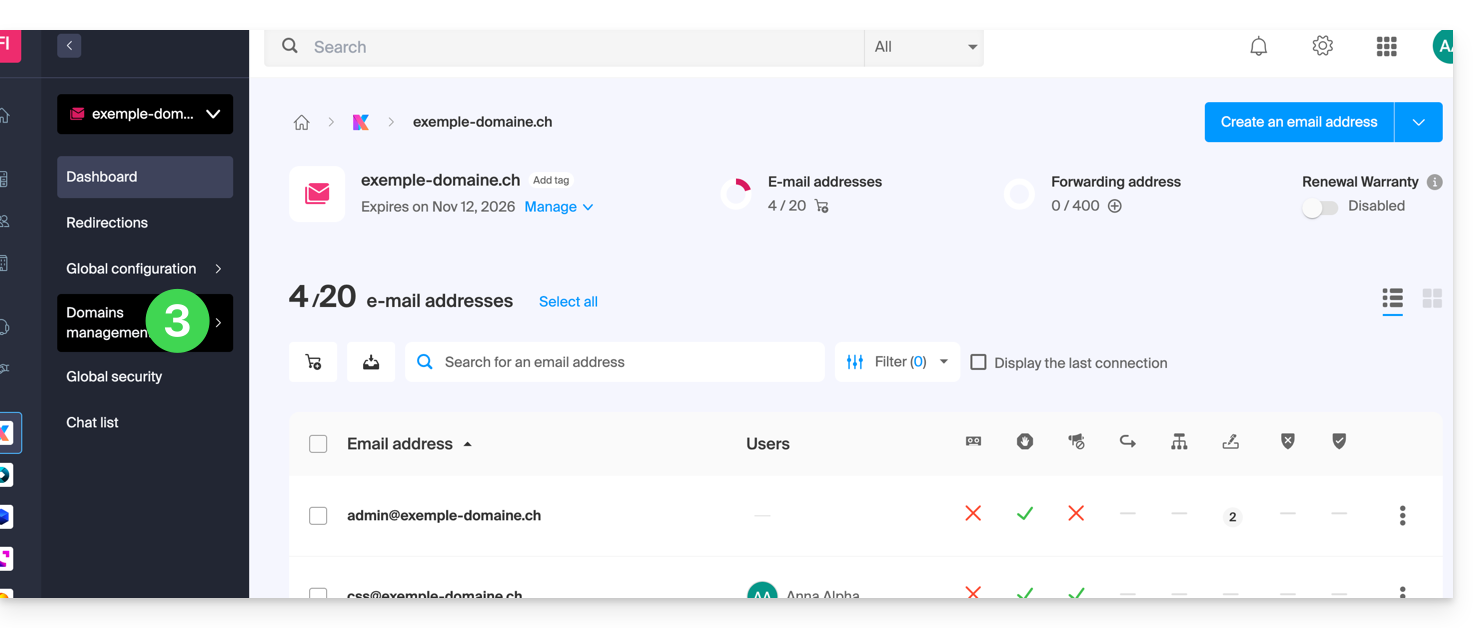
- Click on List of domains linked to the service in the left-hand menu.
- Click the blue Add a linked domain button:
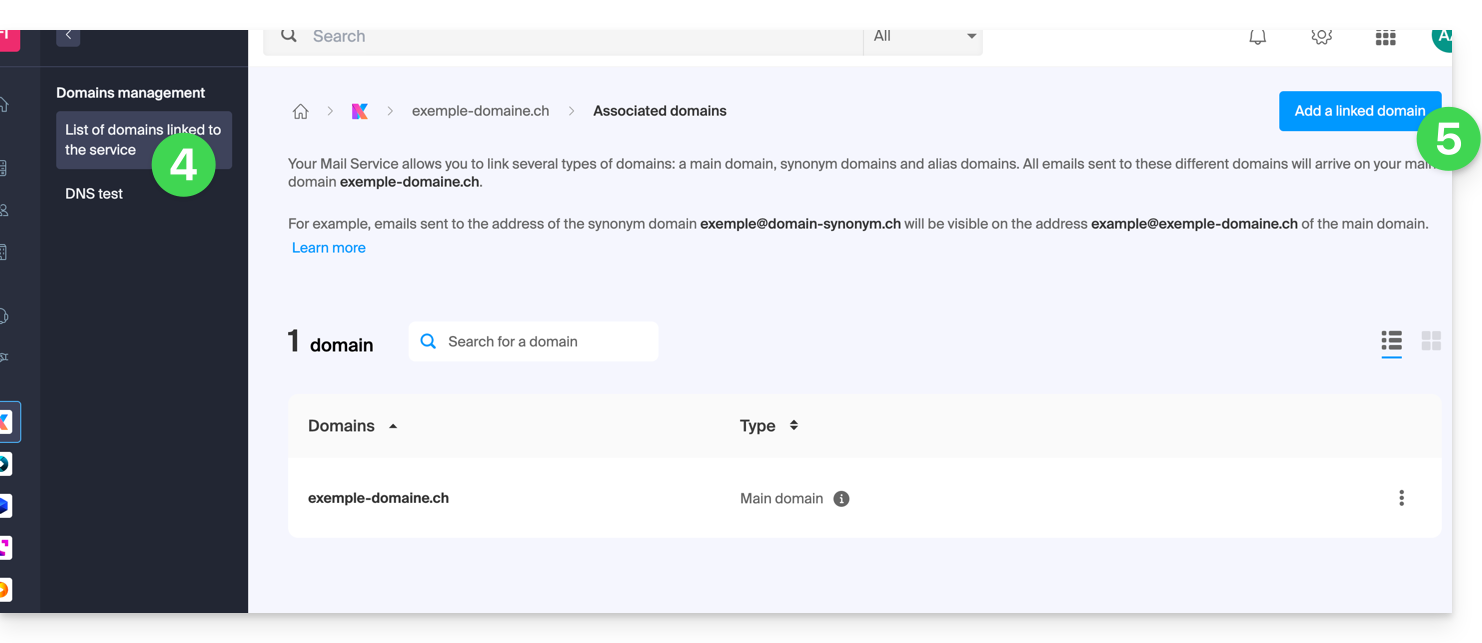
- It is possible to…
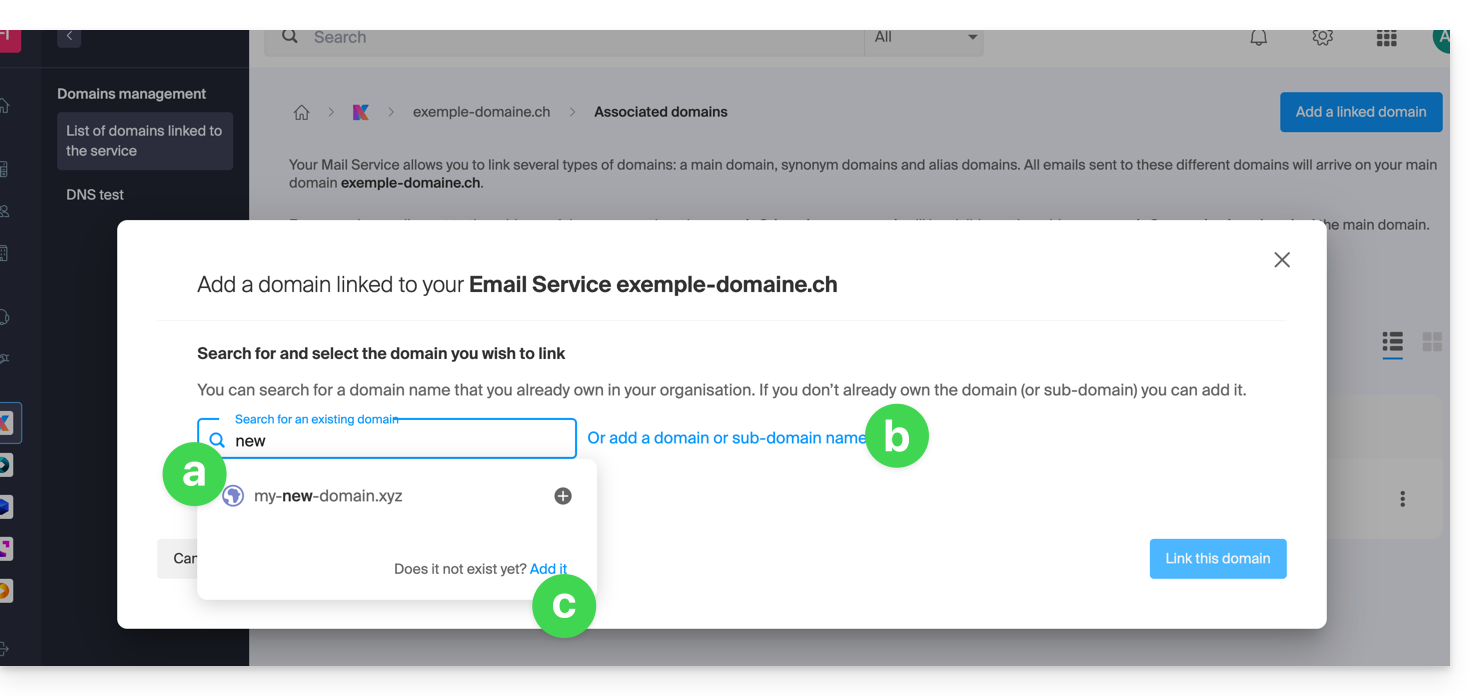
- … Search for an existing domain within the organization you are connected to; this will automatically link and update the DNS zone of the added domain.
- … Add a domain name or subdomain to manually specify the domain name or subdomain to use (ideal if the domain name is located elsewhere).
- … Buy a new domain name.
a: The domain exists at the Organization level
- Click on the proposed domain name.
- Click on the blue Link this domain button:
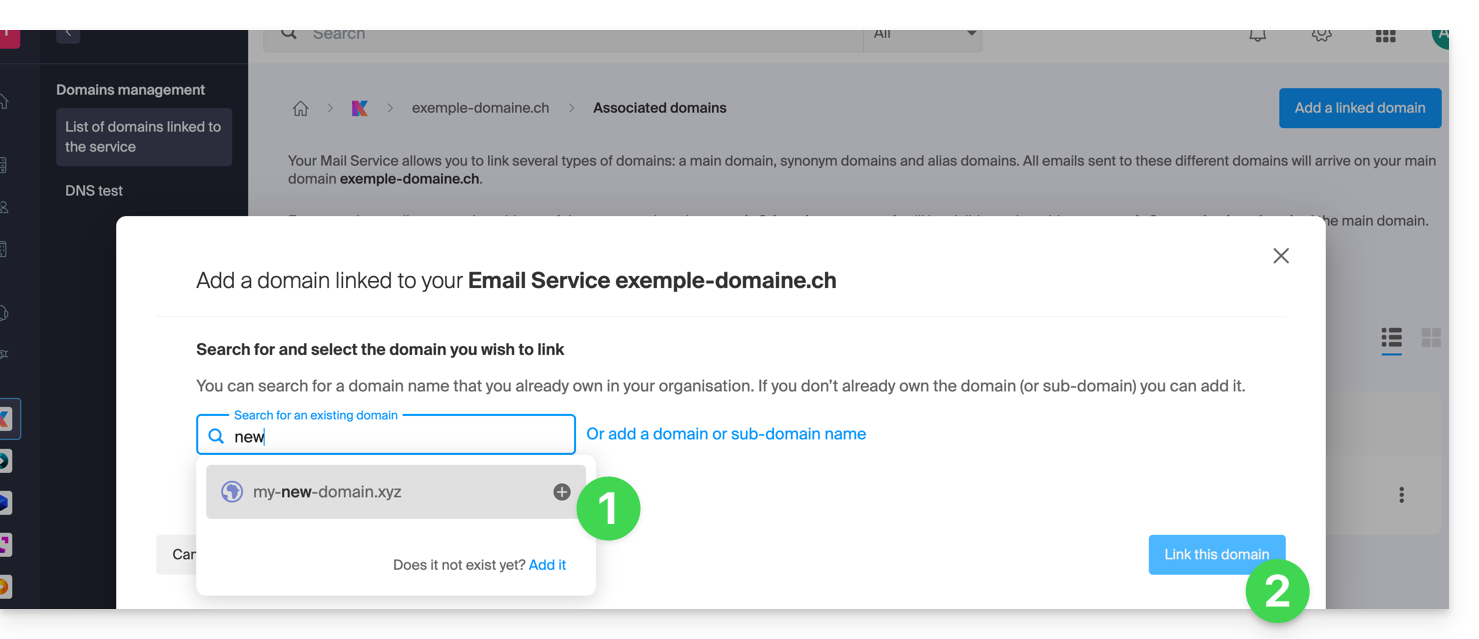
It's done: the Mail service now responds to a second domain name: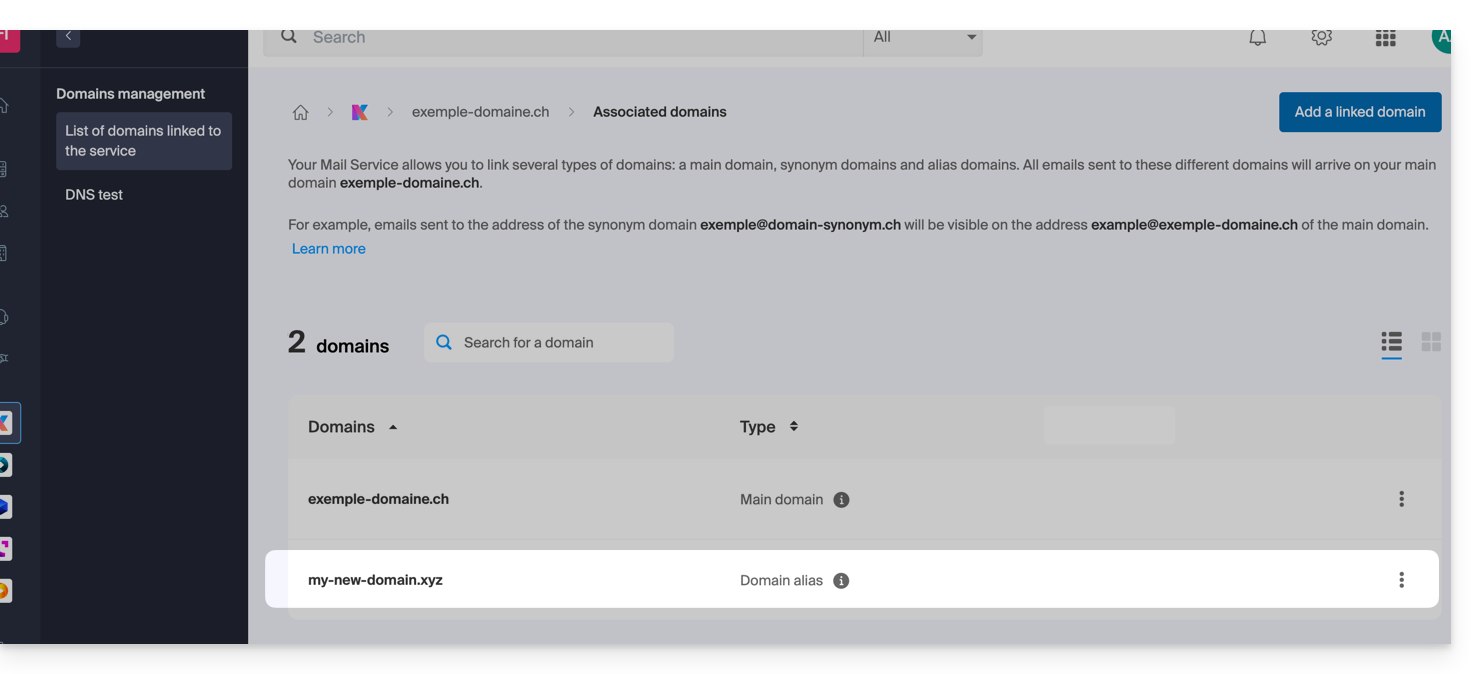
b: The domain exists but is registered elsewhere (another organization, another registrar...).
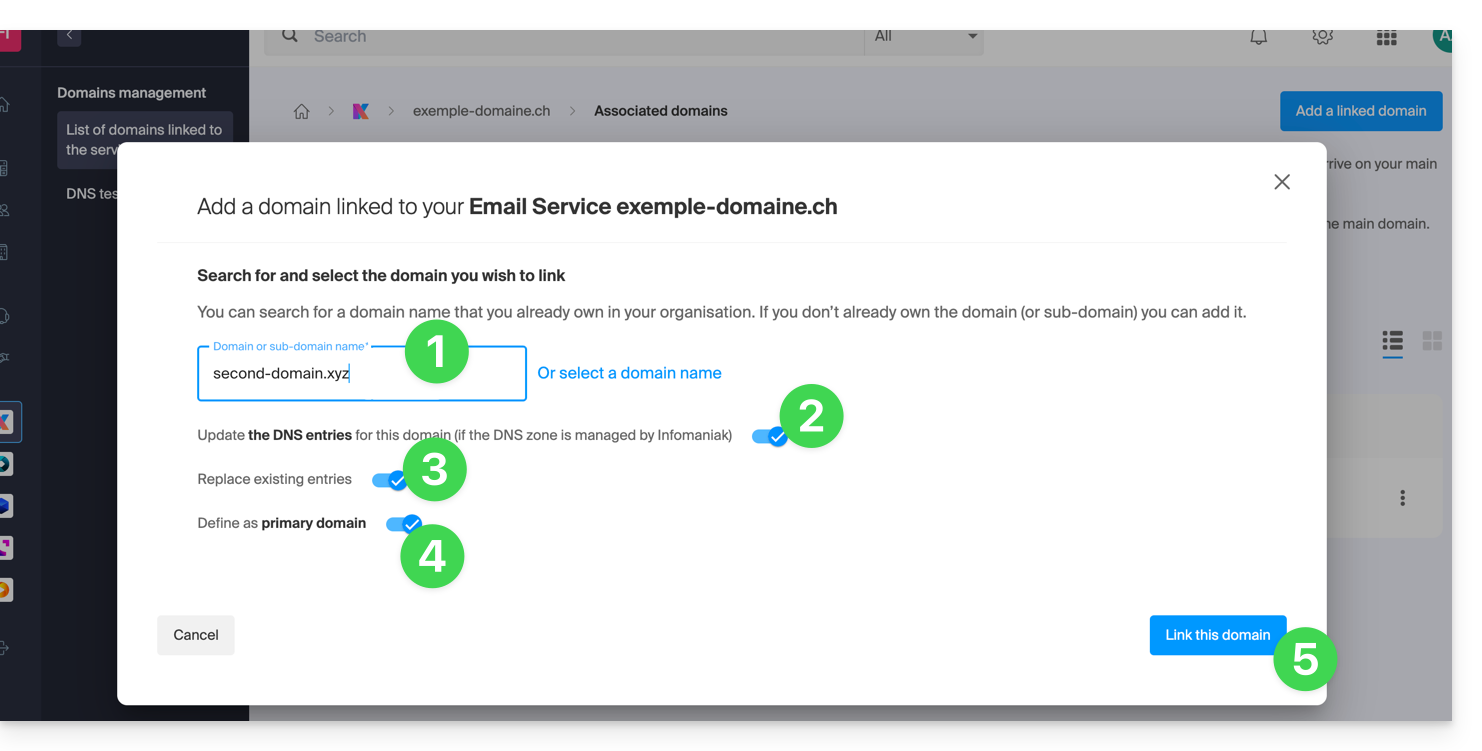
- Enter the domain name to add.
- Enable DNS record updates (if the domain name's status allows, the domain name's DNS zone will be updated automatically).
- If the above point 2 is active, then enable the replacement of any existing entries.
- Only enable domain name reversal if you want to define this new domain name as the primary one (this is mainly an administrative rather than a technical matter).
- Click on the blue Link this domain button:
Example of use
The email address contact@une-super-entreprise-familiale.com is a long email address. The synonymous domain contact@usef.com is shorter and easier to remember.
By adding the "usef.com" domain to the "une-super-entreprise-familiale.com" Mail service, you authorize all messages sent to contact@usef.com (the associated domain) will be among the messages received by the address contact@une-super-entreprise-familiale.com.
Link to this FAQ: https://faq.infomaniak.com/2097
Has this FAQ been helpful?
This guide shows you how to configure a UniFi gateway to access your services and devices via Infomaniak DynDNS.
Prerequisites
- You must have a compatible UniFi gateway, such as a UDM Pro/SE, a UDR, an UXG, a Cloud Gateway Ultra, or a USG.
- A dynamic DNS must have been created for the domain in question from the Infomaniak Manager.
- The UniFi gateway must have a public IP address on its WAN interface.
Configure DynDNS on a UniFi gateway
UniFi gateways include a DynDNS client that can be configured from the UniFi Network interface:
- Access your UniFi Network interface from the local IP address of your device or from the UniFi portal.
- Open the Settings.
- Select Internet.
- Click on the relevant WAN interface, usually named Primary or WAN.
- In the Dynamic DNS section, click on Create New Dynamic DNS.
- Enter the following information:
- Service: select Custom.
- Hostname: enter the fully qualified domain name configured in the Infomaniak Manager, for example
my-domain.xyzorddns.my-domain.xyz. - Username: enter the ID defined in the Infomaniak Manager when creating the DynDNS.
- Password: enter the password defined in the Infomaniak Manager.
- Then complete the configuration according to the fields displayed in your UniFi interface:
If the interface displays only a Server field:
Enter the following value, without adding
https://:infomaniak.com/nic/update?hostname=%h&myip=%i- If the interface displays separate Server and Request URL or Update URL fields:
Server:
infomaniak.comRequest URL / Update URL:
https://infomaniak.com/nic/update?hostname=%h&myip=%i
- Save the configuration.
Important: if your UniFi interface has a single Server field, do not insert https:// before the address. The variables %h and %i will be automatically replaced with the domain name and the public IP address.
Then, check that the configured domain name points to the public IP address of your connection.
Configure a port forwarding
DynDNS updates the IP address associated with the domain name, but does not open any access to your local network. To access a specific service from outside, such as a NAS, camera, or server, you need to configure port forwarding:
- In the Settings, open the Port Forwarding section. Depending on the version of UniFi Network, this may be found in Policy Engine or Security.
- Click the button to create a new rule.
- Configure the following settings:
- Name: enter a descriptive name, for example
NAS Access. - WAN Interface: select the relevant Internet interface.
- Incoming Port / Port: specify the port accessible from the Internet.
- Forward IP: enter the local IP address of the device, for example
192.168.1.123. - Forward Port: specify the port used by the service on the device.
- Protocol: select the required protocol, for example TCP, UDP, or both.
- Name: enter a descriptive name, for example
- Save the rule.
Warning: only open the ports that are strictly necessary and ensure that the exposed service is properly secured.
Link to this FAQ: https://faq.infomaniak.com/2891
Has this FAQ been helpful?
This guide explains the procedures for withdrawing and returning assets when a Public Cloud product is terminated.
Withdrawing and returning assets on Public Cloud
It is recommended to export and manually delete all resources before terminating the product.
When a voluntary termination is performed, the resources associated with the Public Cloud are gradually deactivated and then deleted.
DNS resources of the DNSaaS (Designate) type are immediately deleted upon termination.
All other resources are deactivated across all Public Cloud regions:
- deactivation of users and projects;
- inability to access remaining resources;
- deactivation of resources that are still exposed:
- S3 buckets and Swift containers (Object Storage);
- stopped Compute instances (powered off);
- automatic exit from pause mode before instance shutdown;
- automatic exit from rescue mode before instance shutdown;
- deactivation of Load Balancers (LBaaS);
- deactivation of orchestrations and alarms (Heat).
Resources that are not exposed are not immediately modified, including:
- volumes;
- images;
- backups;
- snapshots;
- public keys;
- private networks;
- secrets.
Asset retention period
With the exception of DNS resources, assets are retained for a period of 7 days after termination.
On the 7th day at 3:00 AM, all remaining resources are permanently deleted, with no possibility of restoration.
Asset recovery after termination
After the product is terminated, a recovery request can be submitted within a maximum of 3 calendar days.
This request requires:
- an active subscription to a Public Cloud product;
- an up-to-date billing status;
- compliance with the applicable contractual terms.
Provided that the data is still available on the storage infrastructure, suspended services can be reactivated within a maximum of 4 days after the request is approved.
Stopped instances are not restarted automatically. However, they can be restarted manually if necessary.
You are responsible for exporting the assets.
Link to this FAQ: https://faq.infomaniak.com/1052
Has this FAQ been helpful?
This guide explains how to add an additional website to an existing Infomaniak hosting plan.
Introduction
- Hosting can be on a shared web hosting plan or on an Infomaniak Cloud Server.
- The additional website can be either:
- a second domain name (e.g.
domain2.xyz), - or a subdomain (e.g.
abc.domain.xyz) of a domain name you already own.
- a second domain name (e.g.
- In this multi-site/multi-domain management (virtual host), the total disk space and resources of your hosting are shared between your sites/subdomains.
Accessing site management
Prerequisites
- If the 20 website slots offered with the web hosting package are already in use, order additional websites.
To access a web hosting plan and add a website:
- Click here to access the management of your products in the Infomaniak Manager (need help?).
- Click directly on the name assigned to the product in question.
- Click on the blue Add button:

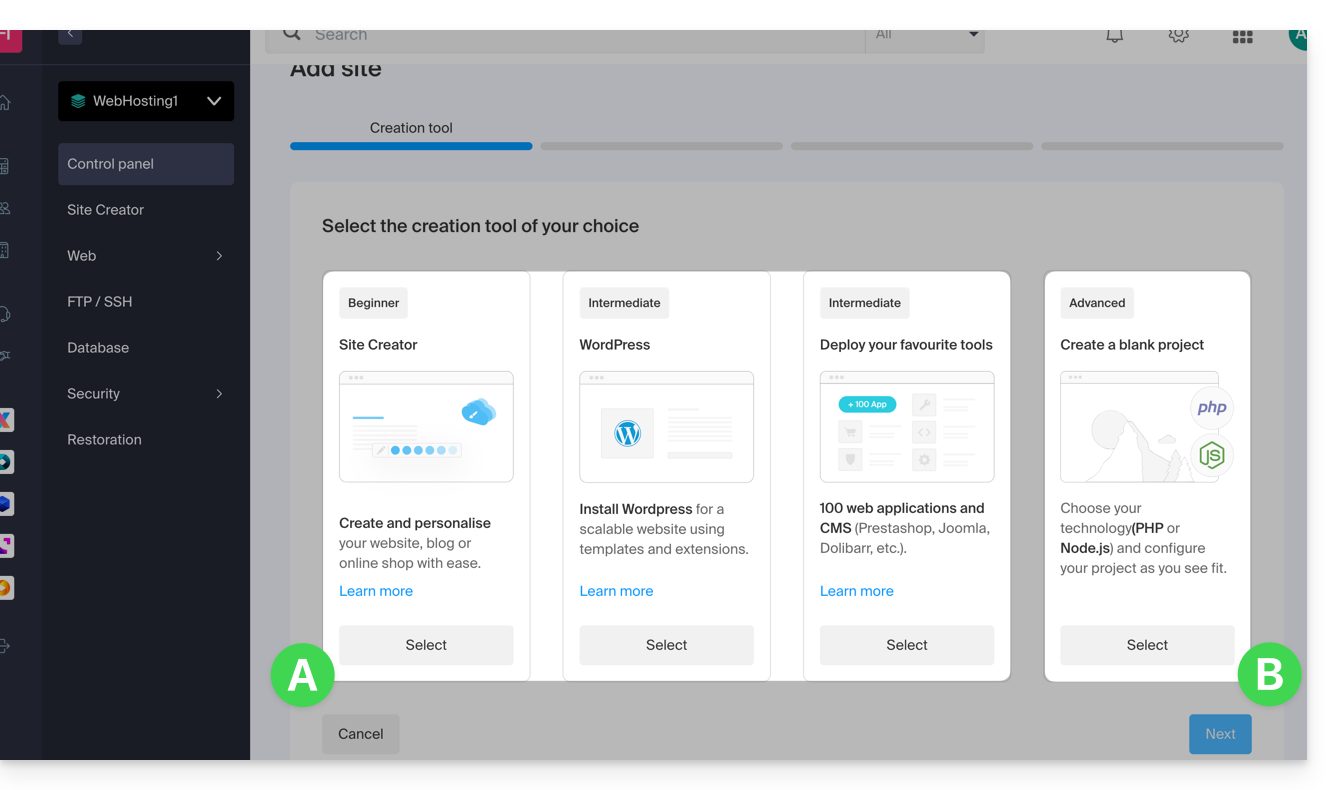
- Choose the optional content for the new site (A) or another specific installation, blank space, advanced technologies (Node.js for example) (B):
- Click on Next.
- Choose the type of domain to assign to this new site:
- an already acquired domain name
- a subdomain created from an already acquired domain name
- a domain name that is still available and to be ordered
- Enter the domain name (e.g.,
domain2.xyz) or the subdomain.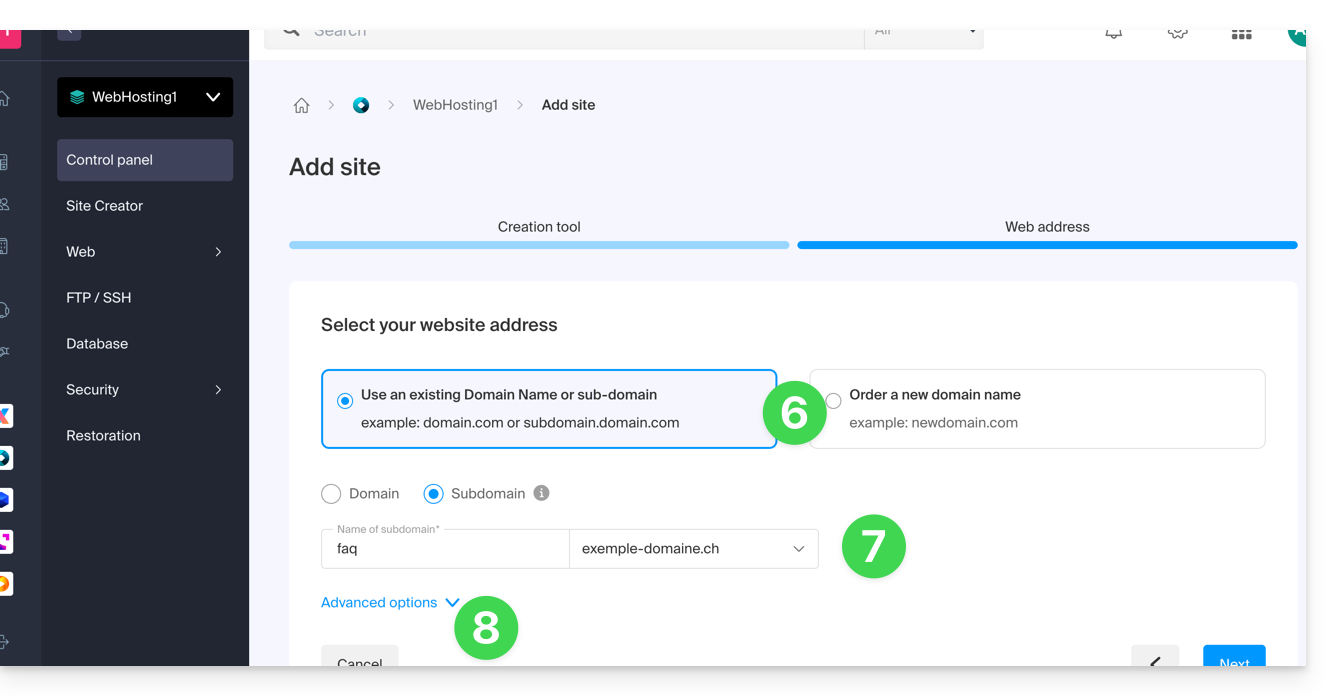
- Choose any desired advanced options, including:
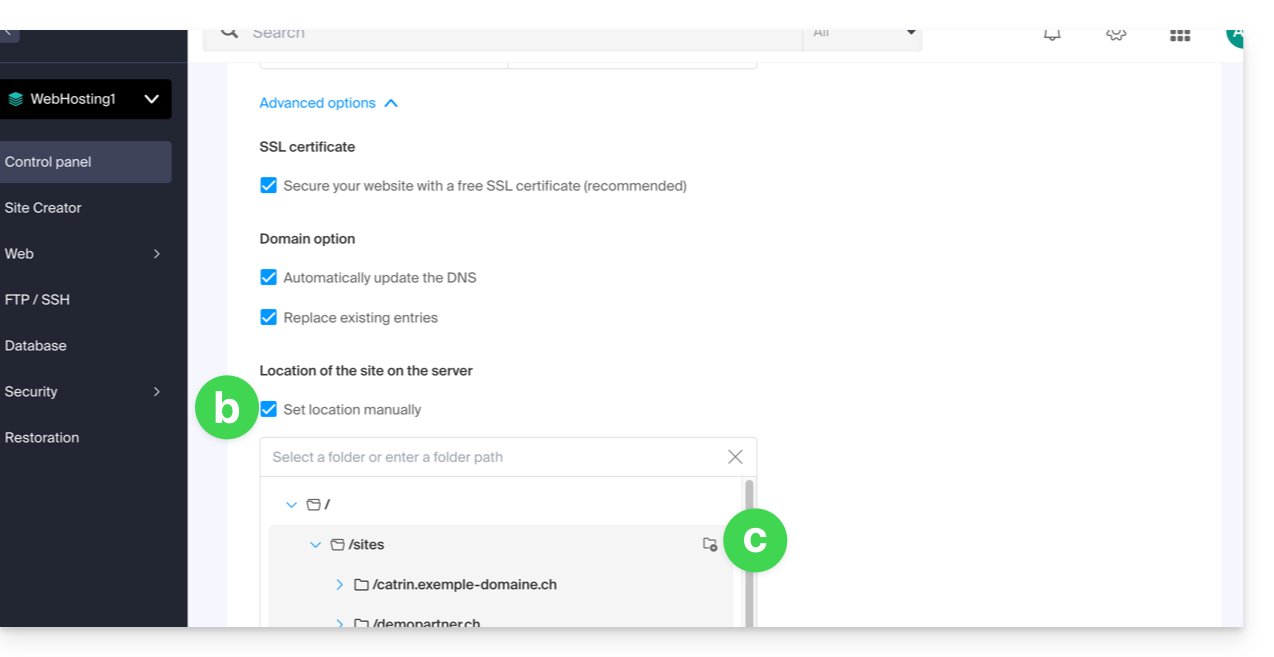
- By default, the new site is added to the
/sites/domain2.xyzdirectory on your FTP server. - To manually define a different directory, check Define the location manually and enter the path and name.
- Create a new folder if necessary:
- By default, the new site is added to the
- Click on Continue.
If it is a subdomain, or if the domain name or its DNS zone is managed by Infomaniak, it is possible to automatically update the existing DNS entries. Otherwise, make the necessary changes with your registrar or transfer the domain name management to Infomaniak.
Link to this FAQ: https://faq.infomaniak.com/1988
Has this FAQ been helpful?
This guide explains how to manage the email address used to send your invitations with Infomaniak's Guest Manager tool.
Introduction
- Any of your email addresses can be specified for sending invitations from the Guest Manager.
- There will be no issues with an email address already configured for use with Infomaniak.
- For a mail address from a generic domain such as
outlook.frorgmail.com, the mail addressno-reply@infomaniak.comwill be automatically used as the alternative sending address, and the same applies to all domain addresses for which you cannot modify the SPF (see below). - However, any replies will be sent to the mail address you have provided.
- For an email address on a custom domain that is not yet configured to work with Infomaniakand where you can access the DNS zone, please refer to the guide below to add the appropriate SPF record.
Specify the sending email address
The email address from which your invitations will be sent must be entered in the first step of configuring your invitations (after creating your subscriber lists):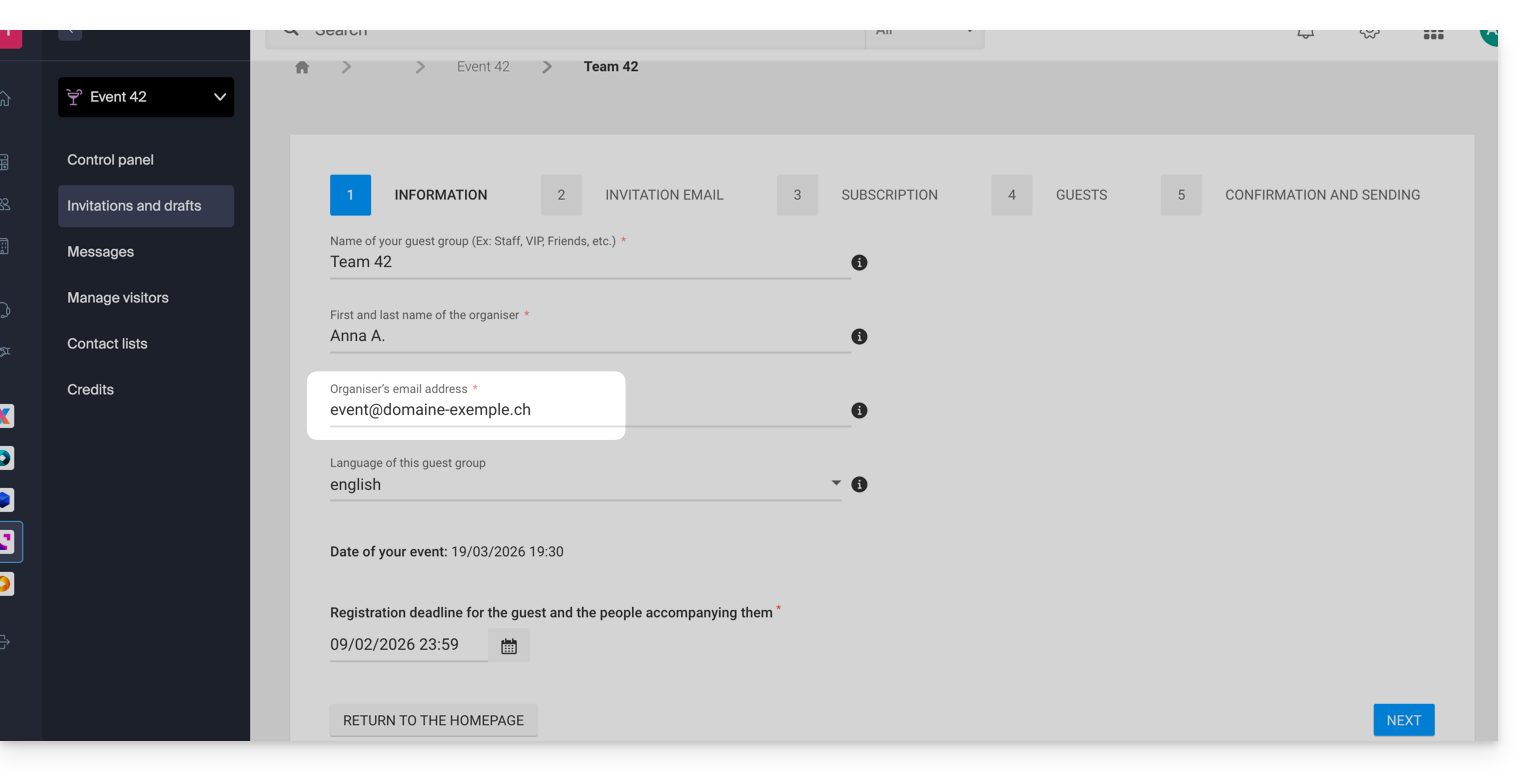
Depending on the email address specified, a pop-up will appear when you click on Next, warning you that SPF must be configured correctly for emails to be sent from the specified address. Otherwise, the invitations will be sent from a no-reply@infomaniak.com address.
You can still review and modify the address in the final step by clicking on the pencil ✎ icon: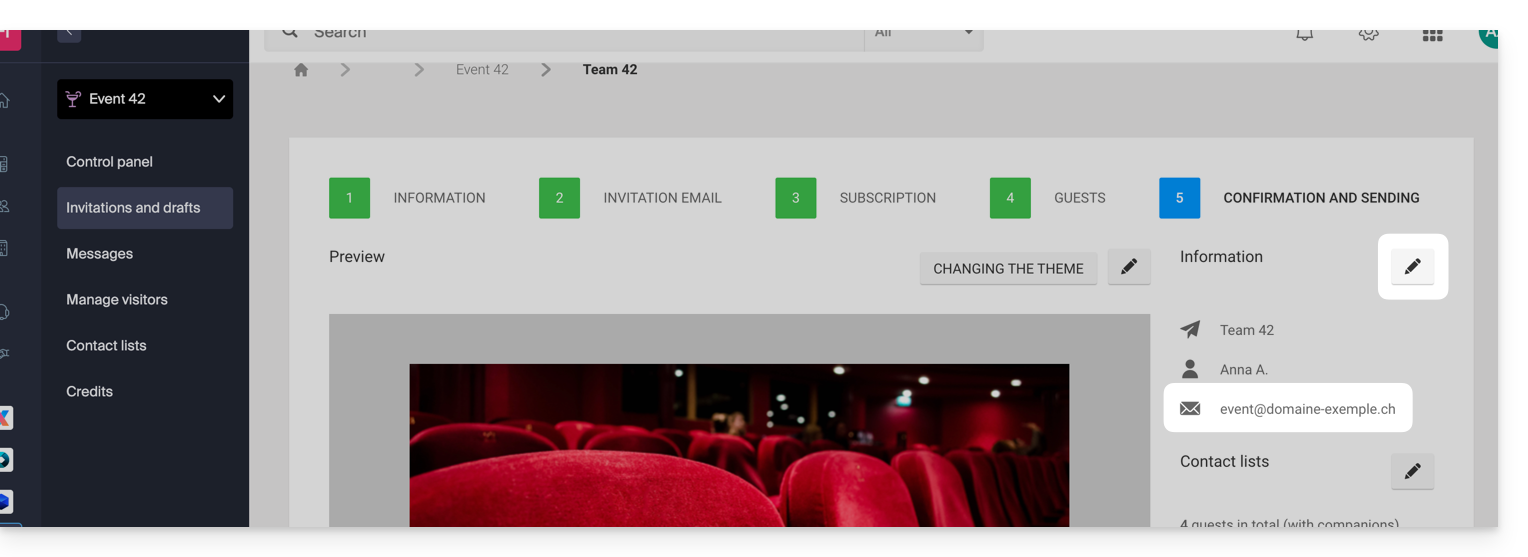
Add the Infomaniak SPF record to the DNS zone
If you want to use a custom email address to send invitations, you need to check and, if necessary, modify your domain's SPF record to allow Infomaniak to send emails on your behalf.
Please refer to this other guide, especially the chapter “Add multiple SPF records”, so that you don't replace your existing SPF record but simply add Infomaniak's: v=spf1 include:spf.infomaniak.ch -all
Link to this FAQ: https://faq.infomaniak.com/2881
Has this FAQ been helpful?
This guide provides instructions on how to use the API to update your Infomaniak DynDNS (dynamic DNS) record.
Introduction
- If you do not specify
myip(as in the examples below), the source IP address of the request will be included by default. - Make sure to connect an
IPv4orIPv6address, depending on the type of record to be updated (AorAAAA). - It is recommended not to use special characters in the username and password.
Using the DynDNS API
Make a POST request (GET is also allowed) to the following URL:
{{URL_1}}
The API requires the HTTPS protocol. Here is an example request:
{{URL_2}}This alternative request can also be used:
{{URL_3}}Link to this FAQ: https://faq.infomaniak.com/2376
Has this FAQ been helpful?
This guide explains how to create a custom MX record (mx.domain.xyz, assuming that domain.xyz belongs to you) to be used in the MX configuration of your NAS.
An MX record cannot be declared directly as an IP address, for example 178.123.456.789.
Custom MX record
To access your domain names:
- Click here to access your domain management in the Infomaniak Manager (need help?).
- Click directly on the name assigned to the domain in question.
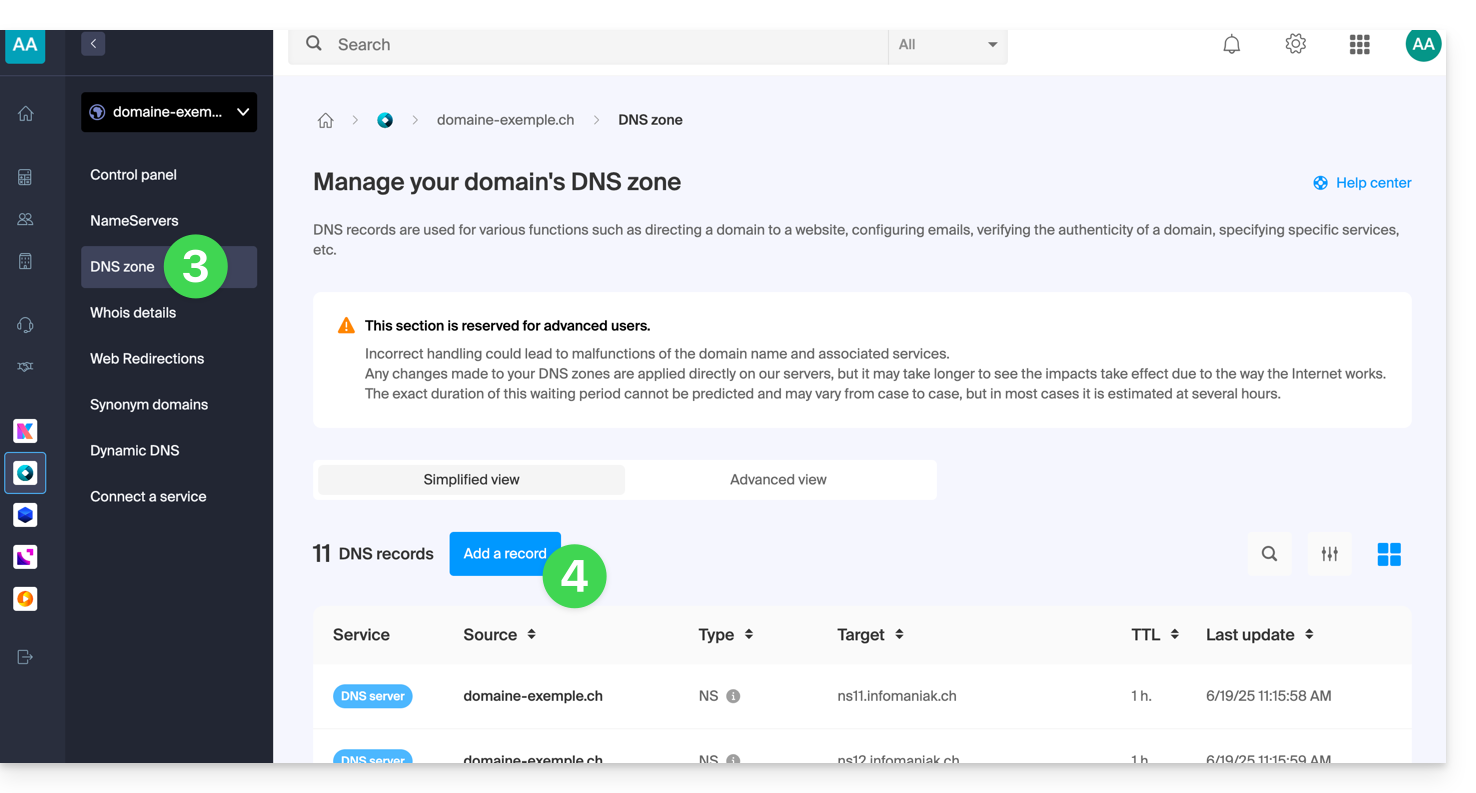
- Click on DNS Zone in the left-hand menu.
- Click on the blue Add record button:
- Select MX as the type of record.
- Click on Next:
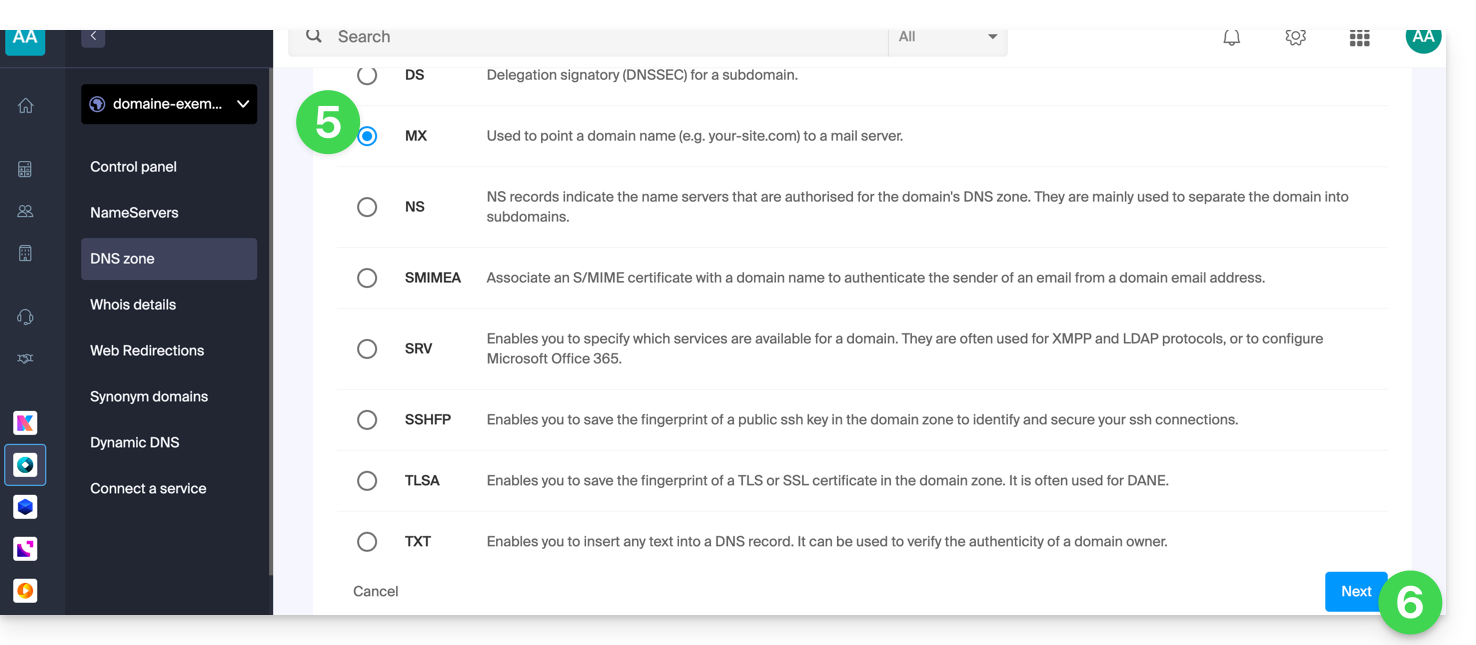
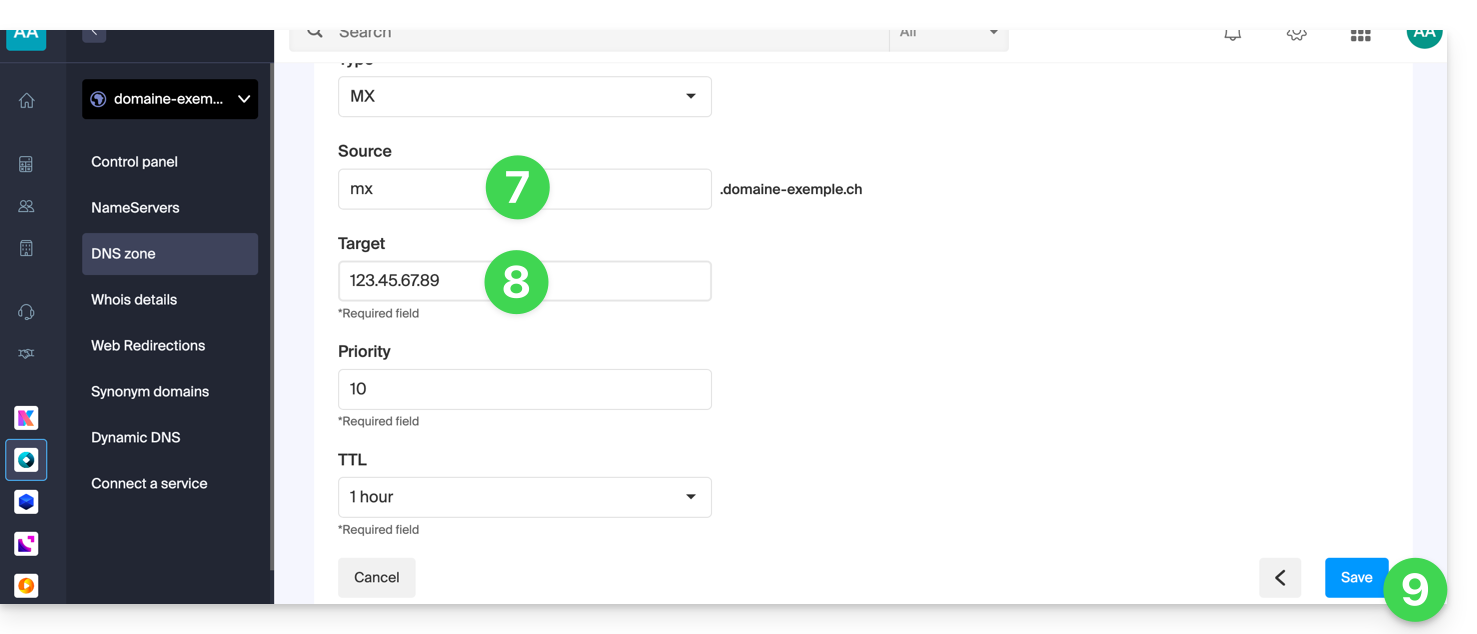
- Enter the desired MX record (e.g., "
mx.domain.xyz"). - Point the record to the desired IP address (target).
- Click on the Save button:
Link to this FAQ: https://faq.infomaniak.com/1896
Has this FAQ been helpful?
This guide explains how to resolve an issue with the installation of an SSL certificate (Let's Encrypt or Sectigo) if you are using Cloudflare with strict security rules, such as country or IP address filtering.
Adjust SSL / geoblocking settings
When an SSL certificate is requested via Infomaniak (free Let's Encrypt or Sectigo), the certificate authority must verify that you are the owner of the domain. This verification can be done via HTTP (using special files placed on your website), DNS, or email:
- Let's Encrypt uses
/.well-known/acme-challenge/. - Sectigo generally uses
/.well-known/pki-validation/(or DNS / email, depending on the option chosen).
If these checks fail (for example, because Cloudflare blocks access), the certificate cannot be issued or renewed. However, Let's Encrypt no longer verifies only from a single location. For some time now (and even more so since March 2024), it performs its checks from several countries simultaneously – including new ones such as Sweden or Singapore. As a result, if one of these countries is blocked by your Cloudflare settings, the certificate request may fail, even if everything else is configured correctly.
Even worse: even if you try to create an exception specifically for the challenge address (.well-known/acme-challenge), it may not work with certain Cloudflare rules. Indeed, blocking rules based on country or IP address are applied before any exception based on URL paths.
Adjust the SSL/TLS mode
In Cloudflare, use Full or Full (strict) mode. These modes temporarily tolerate an expired or self-signed certificate while validation is in progress: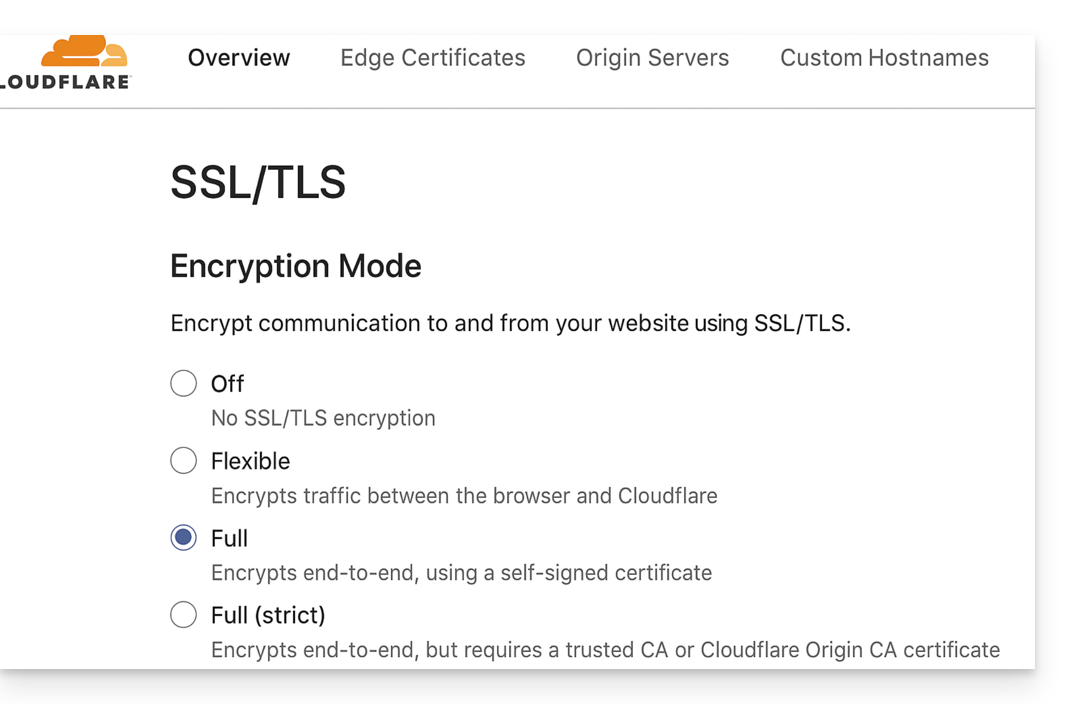
Allow validation paths
Avoid restrictive "IP Access Rules" and instead use "Custom Rules" that allow unrestricted access to the following paths:
/.well-known/acme-challenge/(Let's Encrypt)/.well-known/pki-validation/(Sectigo)
Temporarily disable geoblocking
If necessary, temporarily disable geographic or IP blocking during the validation process, then re-enable your security measures after the certificate is issued or renewed.
Link to this FAQ: https://faq.infomaniak.com/2517
Has this FAQ been helpful?
This guide details the "502 Bad Gateway" errors that you may encounter when visiting a website.
Introduction
- The 502 Bad Gateway error occurs when the server acting as a gateway between the browser and the origin web server receives an invalid response.
- This error can be caused by an overloaded web server, communication issues between a CDN and the web hosting server, or a misconfigured proxy server.
- Sometimes, the error may be caused by an incorrect entry in the DNS server.
Troubleshooting steps
To resolve the 502 Bad Gateway error, it is often necessary to proceed by elimination:
- Check if it is not a temporary server overload: simply reload the page after a few minutes and the error should disappear.
- Clear your browser's cache.
- Try using a different browser.
Link to this FAQ: https://faq.infomaniak.com/1509
Has this FAQ been helpful?
This guide explains how to remove the link between a domain name and kSuite Free.
Introduction
- Once deleted, the domain name is available again to be linked to one of your services.
Delete the linked domain
To unlink a domain name from kSuite Free:
- Click here to access the management interface for your kSuite in the Infomaniak Manager (need help?).
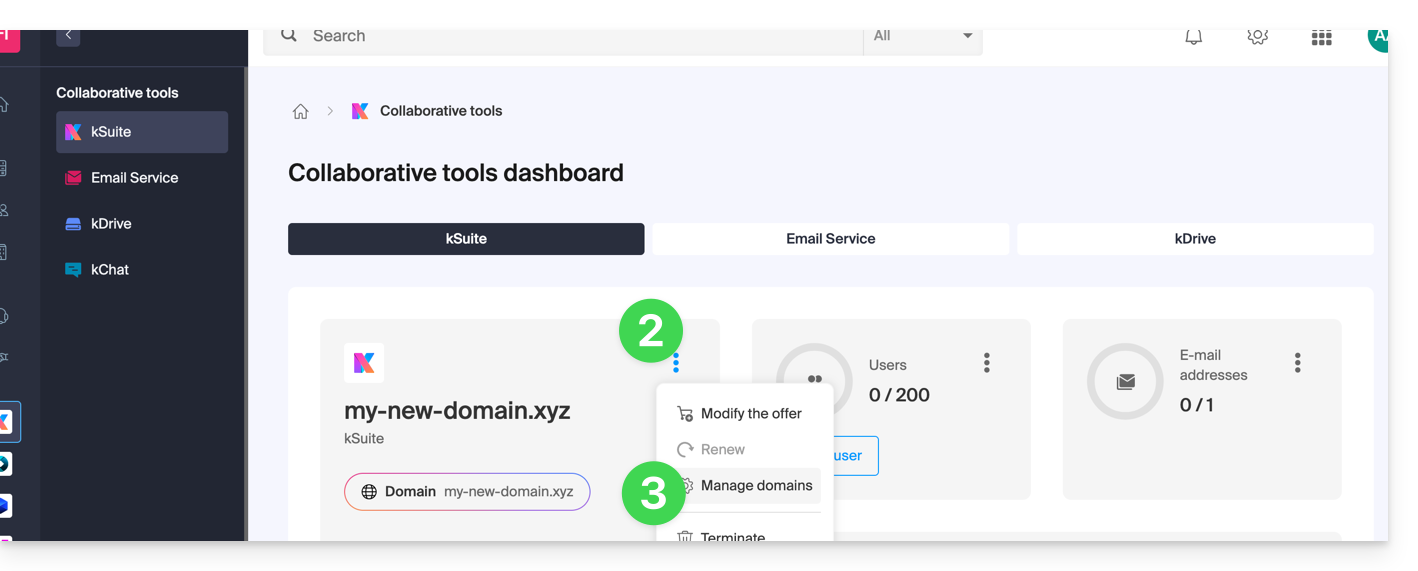
- Click on the action menu ⋮ to the right of the kSuite name.
- Select Manage domains:
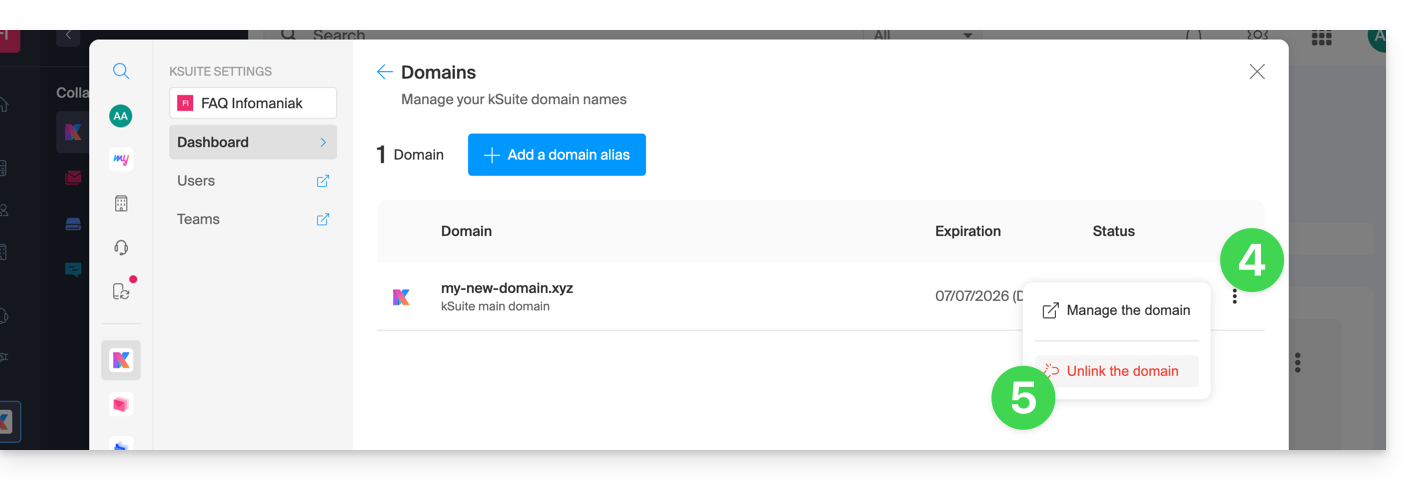
- Click on the ⋮ icon to the right of the domain name you wish to disassociate.
- Click on “Disassociate domain”:
- If you have a paid kSuite plan, you cannot disassociate the domain name (cancel the paid plan if necessary):
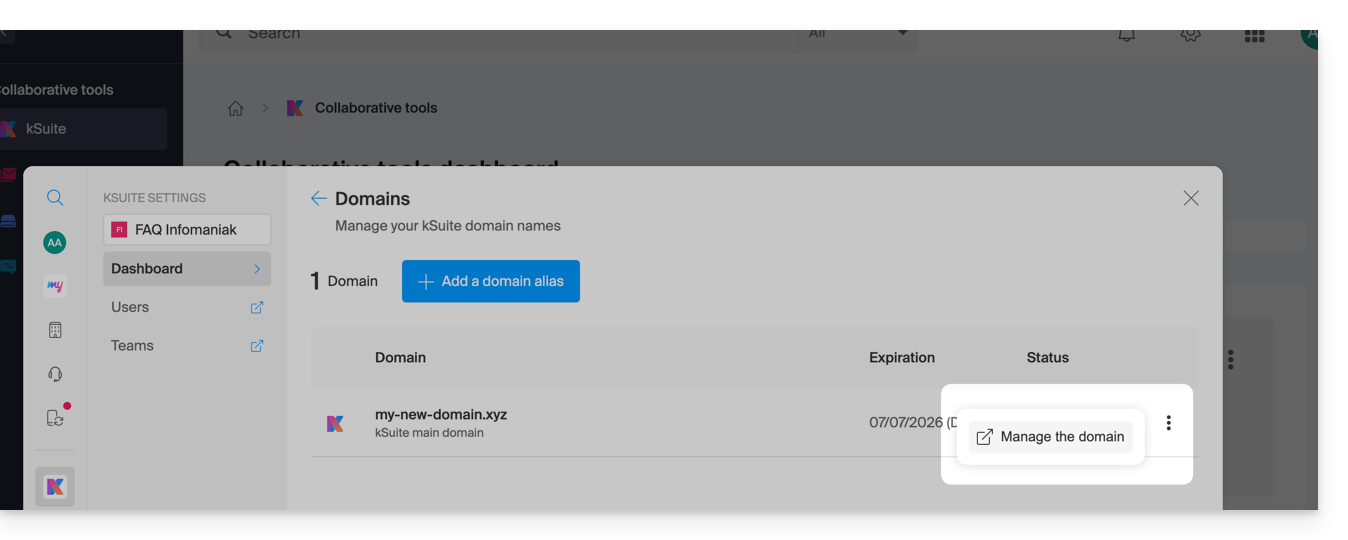
- If you have a paid kSuite plan, you cannot disassociate the domain name (cancel the paid plan if necessary):
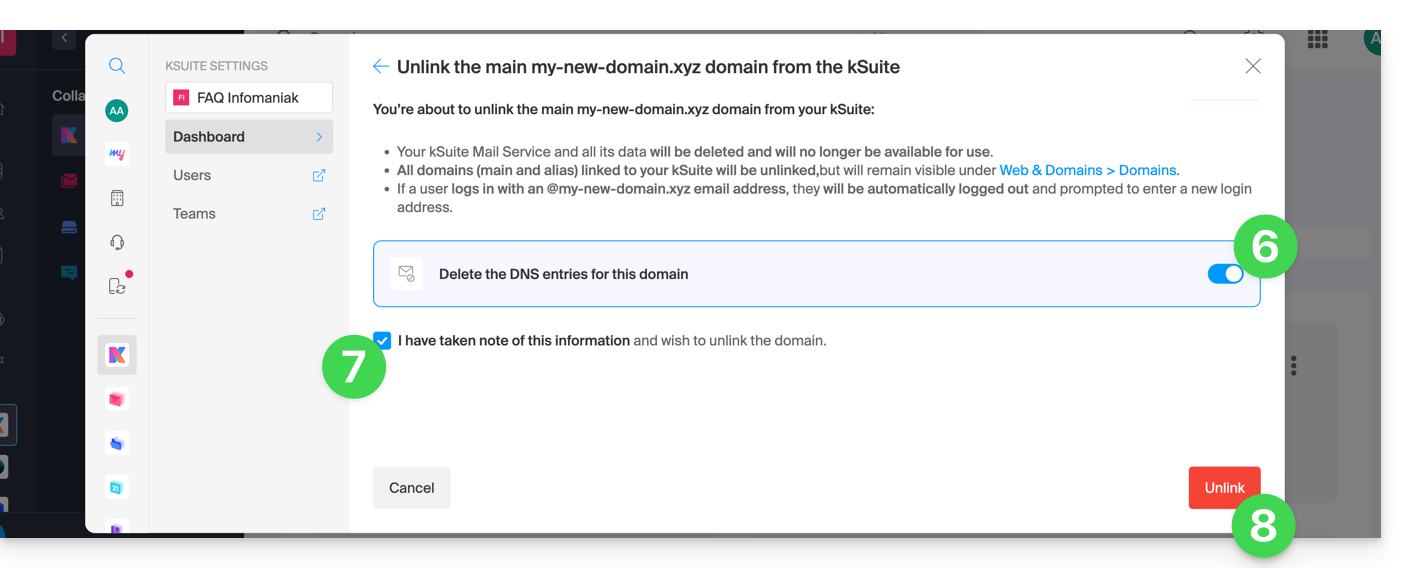
- If necessary, enable the deletion of the domain name's DNS entries.
- Confirm the detachment.
- Click the button to confirm:
Link to this FAQ: https://faq.infomaniak.com/2893
Has this FAQ been helpful?
This guide explains how to link a domain name managed by Infomaniak to a Shopify hosting plan.
Introduction
- A website created on Shopify cannot be exported to be hosted on third-party servers, such as those of Infomaniak.
- It is therefore recommended to create the website directly with Infomaniak using Site Creator or WordPress.
Linking Shopify to your domain name at Infomaniak
To link a website on Shopify with a domain name at Infomaniak:
- Click here to access the management of your domain in the Infomaniak Manager (need help?).
- Click directly on the name assigned to the domain in question.
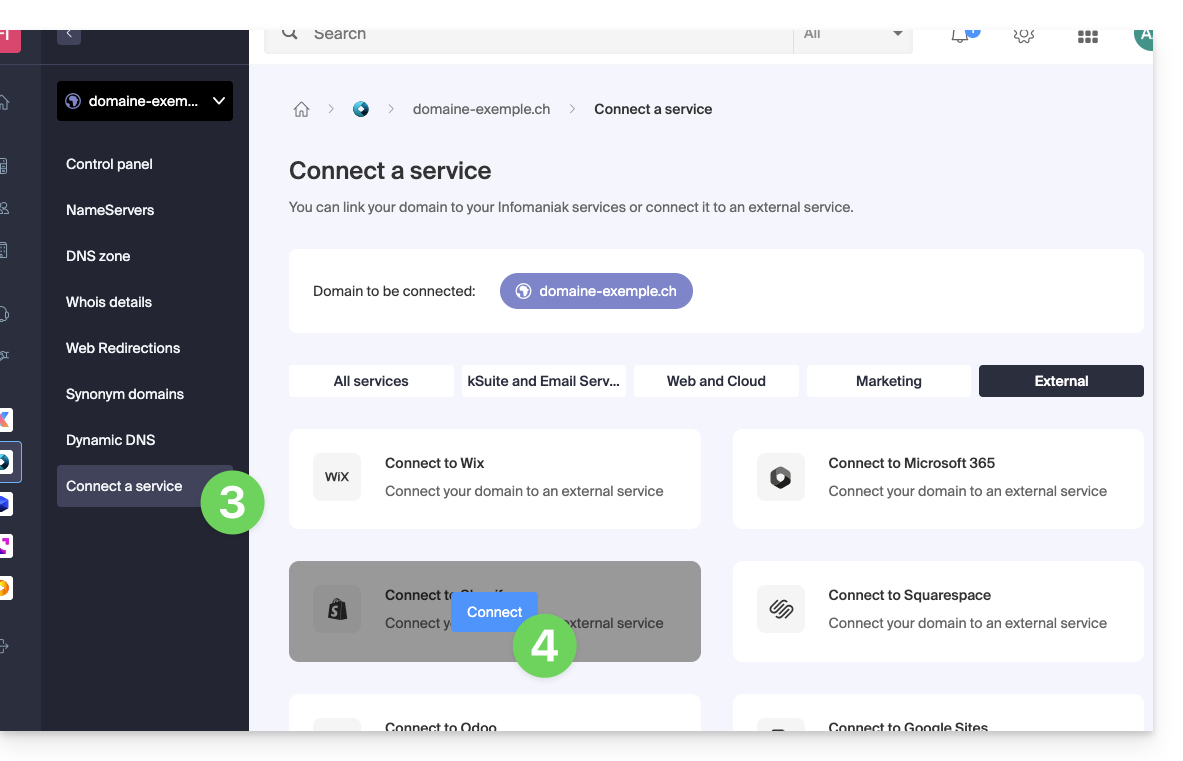
- Click on Connect a service in the left-hand menu.
- Click on the blue Connect button on the Shopify tile:
- The A records will be replaced with a record with the value
23.227.38.65. - The CNAME record "www" will be modified to have the value
shops.myshopify.com.
- The A records will be replaced with a record with the value
- Click on the Next button.
Web traffic will point to the Shopify servers a few hours later.
The mail configuration is not affected by these two DNS changes.
Link to this FAQ: https://faq.infomaniak.com/2164
Has this FAQ been helpful?
This guide explains how to transfer data (Web, Mail, Domain) currently hosted by Swisscom to InfomaniakThe first year of Web + Mail hosting (find out more) is offered to Swisscom customers who decide to switch to Infomaniak!
Transfer your Swisscom services to Infomaniak
To avoid interrupting your website and email services, migrate your services in the order indicated above.
Why choose Infomaniak?
By consolidating your domain names, websites, and email addresses with Infomaniak, you simplify the management of your invoices and services. Furthermore, your domains will be automatically linked to your website and email address. You will therefore not need to manually configure the DNS settings for your domains with another registrar.
Link to this FAQ: https://faq.infomaniak.com/2847
Has this FAQ been helpful?
This guide is about the DMARC policy and the optional security reports sent by email, which can be enabled or disabled upon request.
Optional DMARC reports
DMARC reports are optional and provide the following information:
- Third-party senders or servers that send emails on behalf of your domain.
- The percentage of messages originating from your domain that successfully pass the DMARC verification process.
- The servers or services that send emails failing DMARC verification.
- The DMARC actions performed by the receiving server for unauthenticated messages from your domain (none, quarantine, or reject).
When reports indicate that most emails pass DMARC checks successfully, it is recommended to strengthen your DMARC settings by enforcing stricter measures. This will enhance the protection of your domain against spoofing.
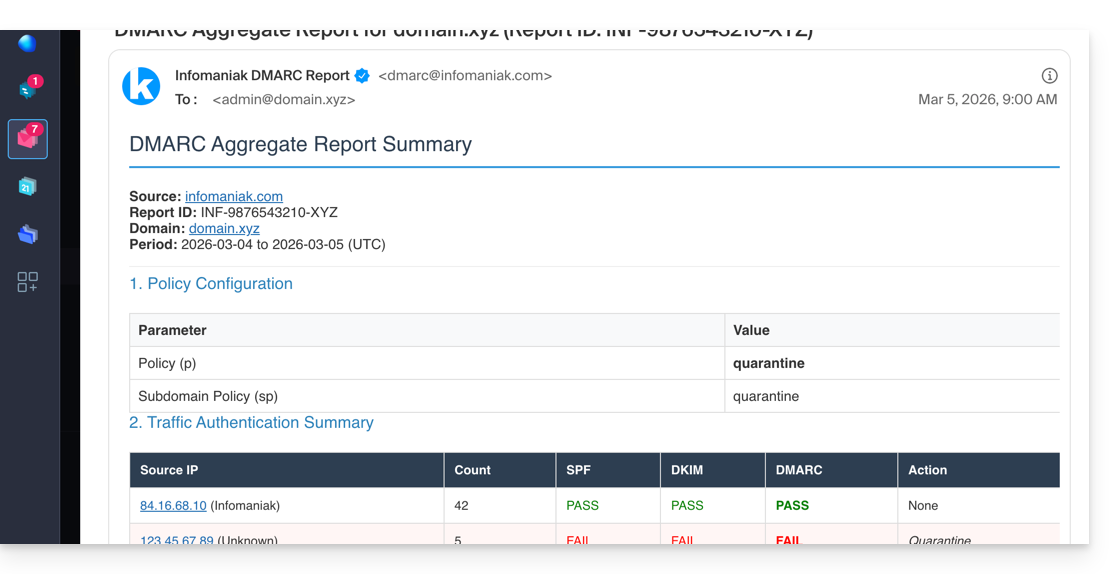
The written report is delivered as a ZIP archive containing the report in XML format. It is sent by email to the address you specify in the configuration and will come from dmarc@infomaniak.com or other providers such as Microsoft, Google, Yahoo, etc.: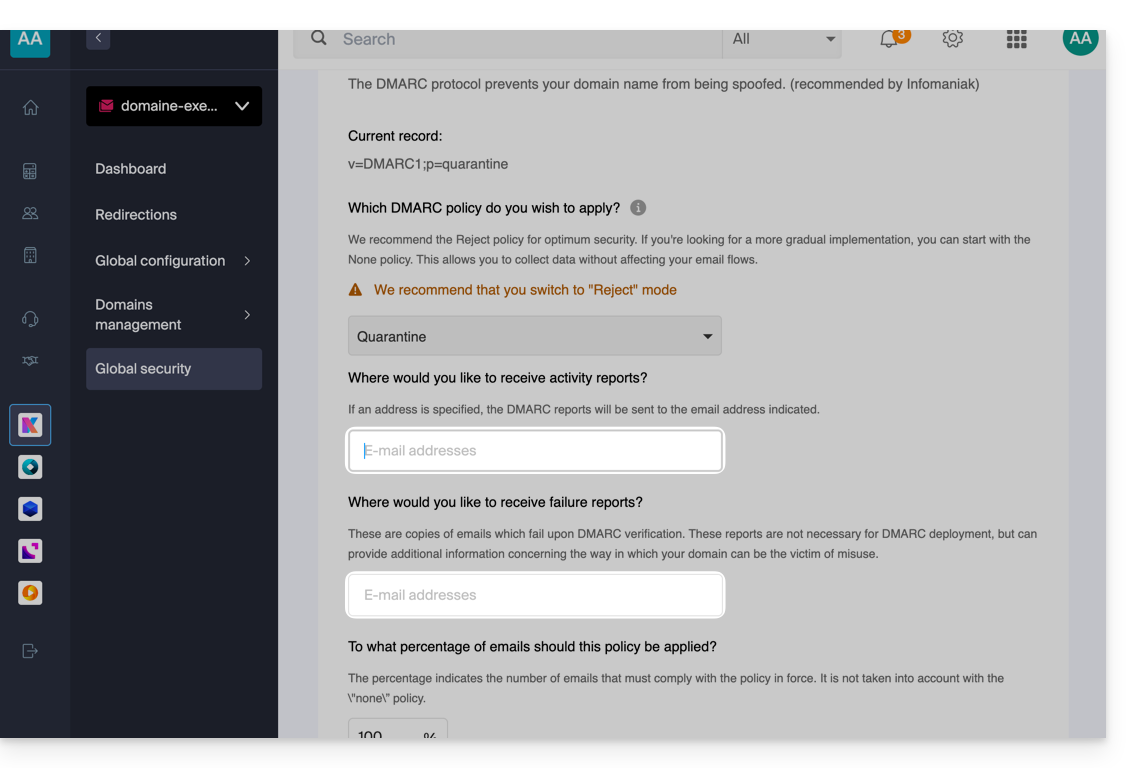
It is also possible to receive copies of the problematic emails.
Analyze a DMARC report
Infomaniak is unable toanalyze your DMARC reports and records. nor are we able to comment on the validity or compliance of these, as this is entirely your responsibility.
It is recommended to use an external service to analyze a DMARC report, such as https://dmarcadvisor.com/dmarc-analyzer/.
Disable a DMARC report…
… from a Mail Service
To disable the sending of a DMARC report if you still have a Mail Service (otherwise, see below):
- Click here to access the management of your product on the Infomaniak Manager (need help?).
- Click directly on the name assigned to the product in question.
- Click on Global Security in the left-hand menu.
- Click on Edit (in the DMARC section).
- Remove the saved addresses and validate at the bottom of the page to Apply the changes:
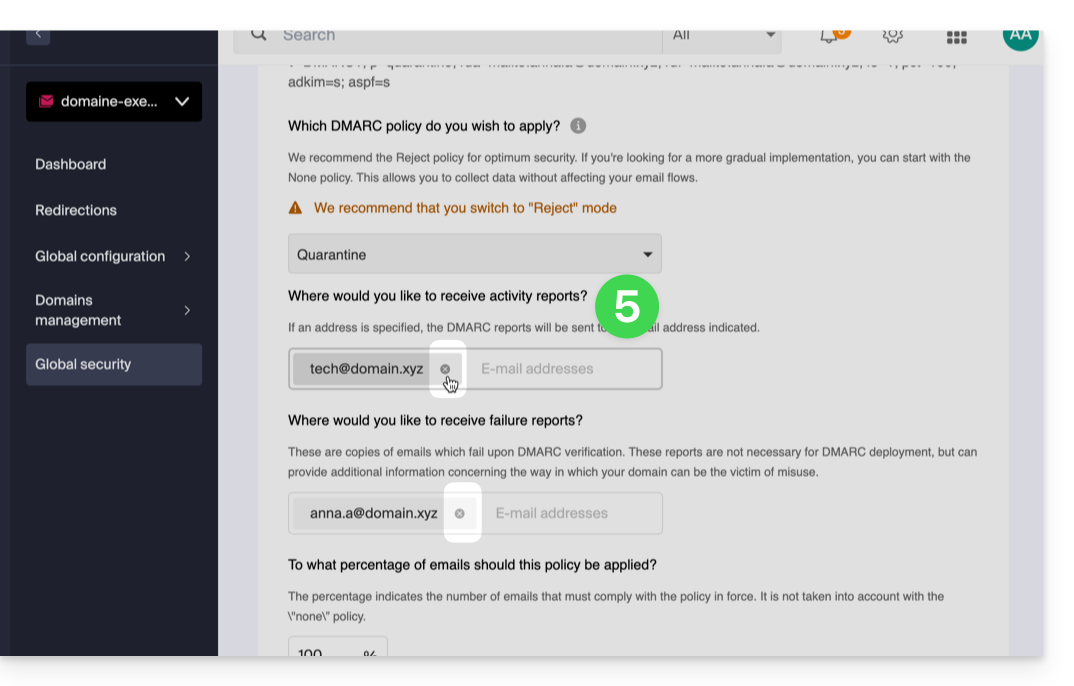
… from a domain's DNS zone
If the Mail service is no longer active but you continue to receive email reports, you need to take action directly on the domain name and delete the dmarc record.of its DNS zone (or simply edit it to completely remove the two rua
The difference between RUA and RUF
It is important to understand what you are disabling by removing ruf:
- RUA (Aggregate): a daily summary (explained above); it provides statistics: "Yesterday, 50 emails were successfully processed, and 10 failed."
- RUF (Forensic/Failure): an email sent instantly as soon as a single message fails the DMARC tests; it often contains the original content of the email (subject, message body).
Link to this FAQ: https://faq.infomaniak.com/1498
Has this FAQ been helpful?
This guide explains how to obtain a Mail service + web hosting free of charge after purchasing a domain name from Infomaniak.
Introduction
- For each domain name registered or transferred to Infomaniak, you can benefit from the following free services:
- a mail address that gives you access to the Mail Infomaniak app
- and 10 MB of web space for a basic page.
- It is also possible to have a free Mail service while having a paid Web offer, or vice versa.
- Instead of a Starter Mail service, there is also kSuite.
Activate the Starter Mail + Web offer
Prerequisites
- You must own a domain name with Infomaniak (a DNS zone is not sufficient).
- Depending on the desired type (Mail or Web), ensure that no corresponding product is already associated with the domain nameand this within any existing Infomaniak organization.
To order a Mail Starter service and a Web Hosting Starter included with each domain:
- Click here to access your product management interface in the Infomaniak Manager (need help?).
- Click directly on the name assigned to the product in question:
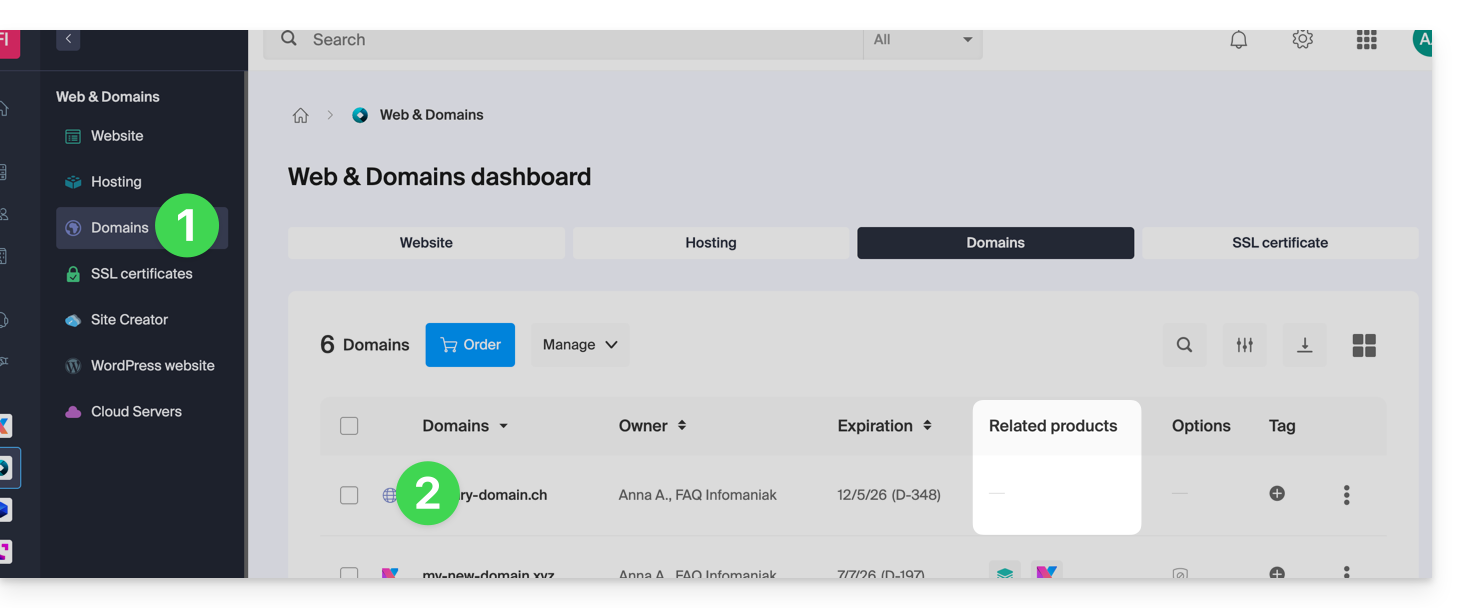
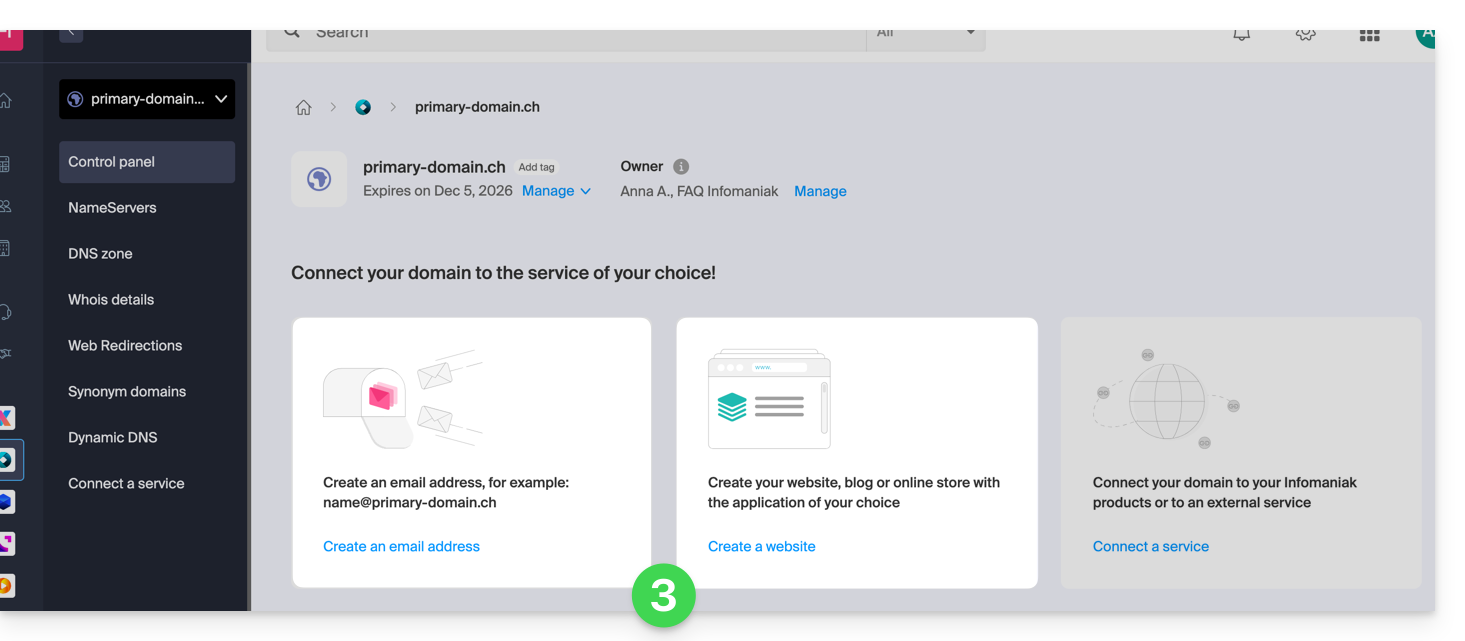
- No product should be linked to the domain at this time (as shown in the linked products column).
- Click on one of the shortcuts to Connect a service (mail or web):
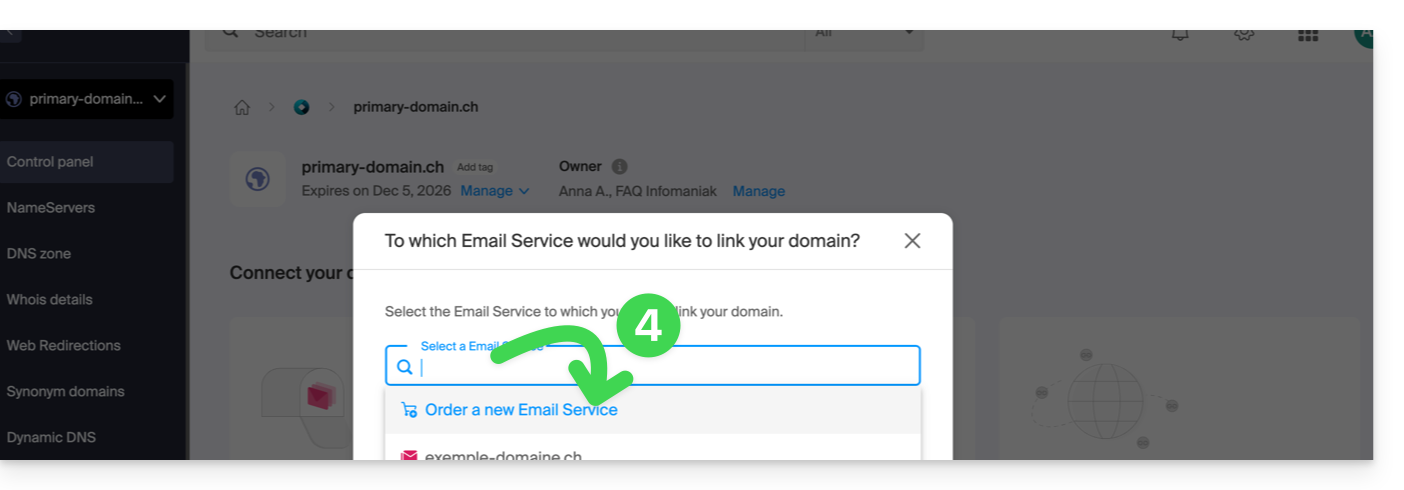
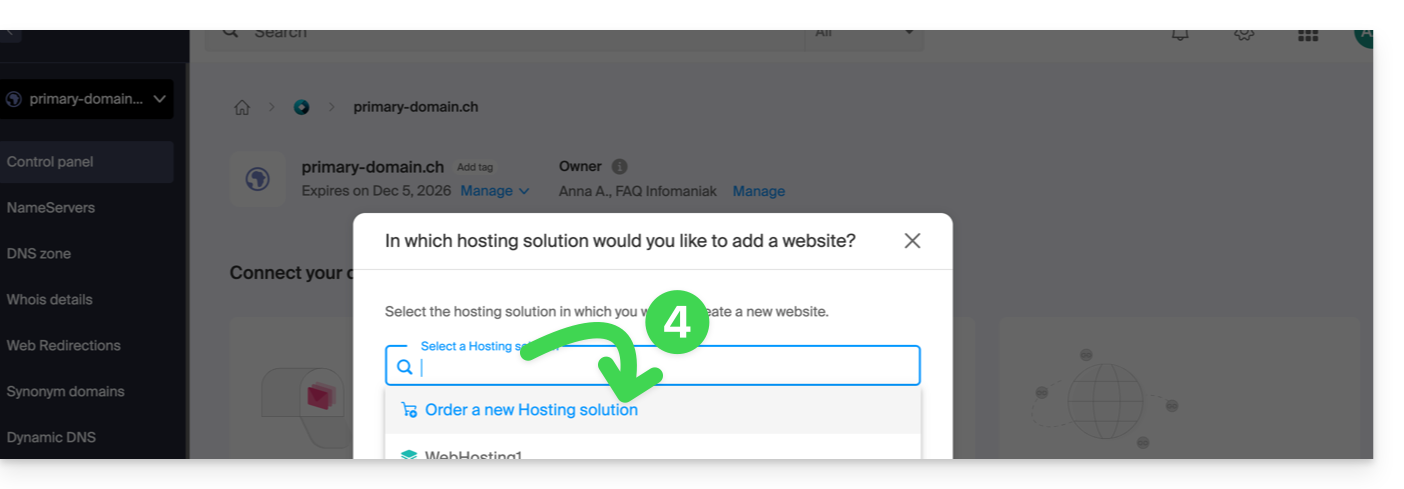
- In both cases, click on Order…:
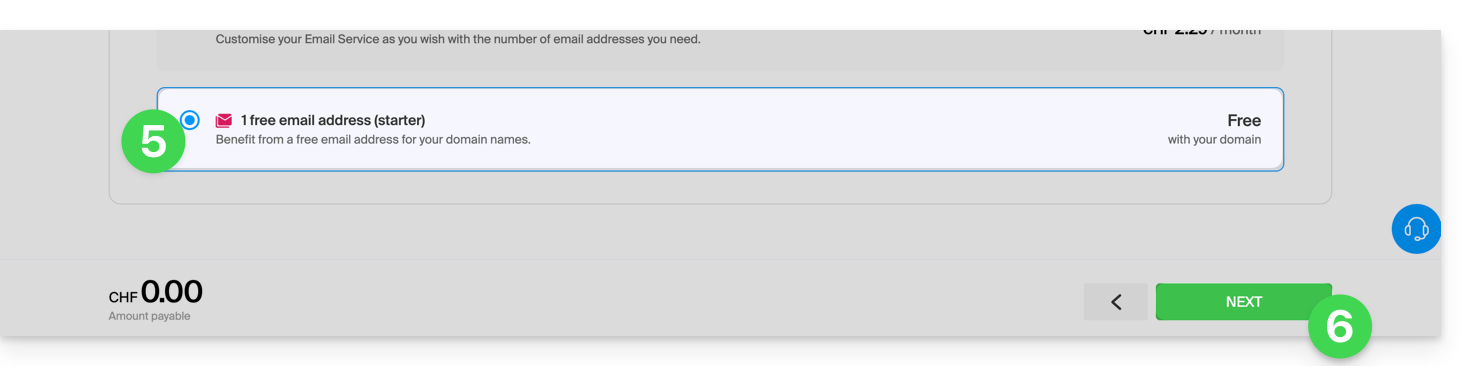
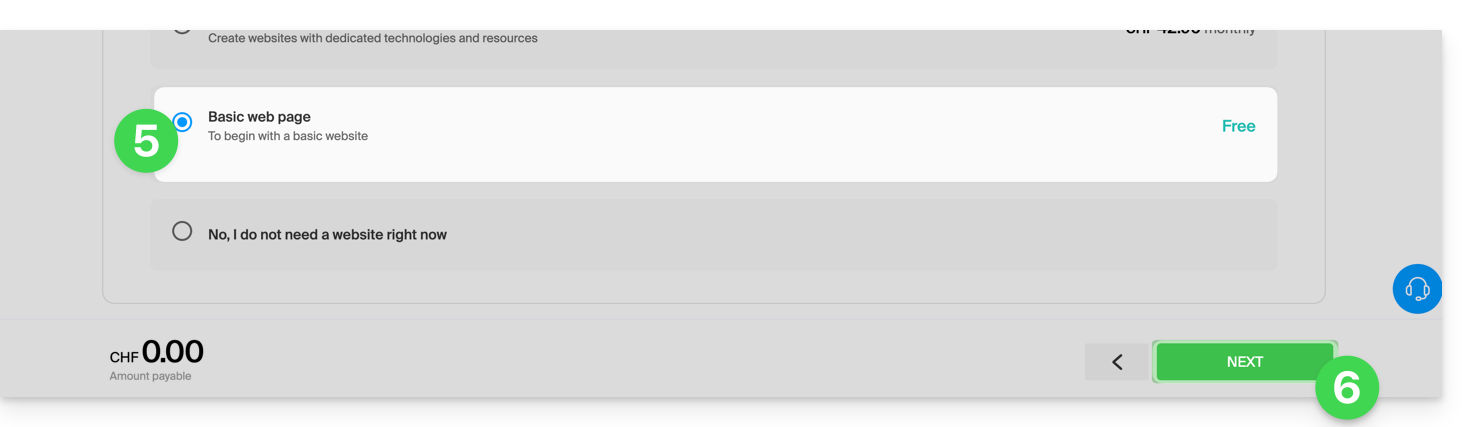
- You can choose the corresponding free service (mail or web), and the next step will allow you to choose the other one (mail or web) if desired.
- Click at the bottom of the page to continue:
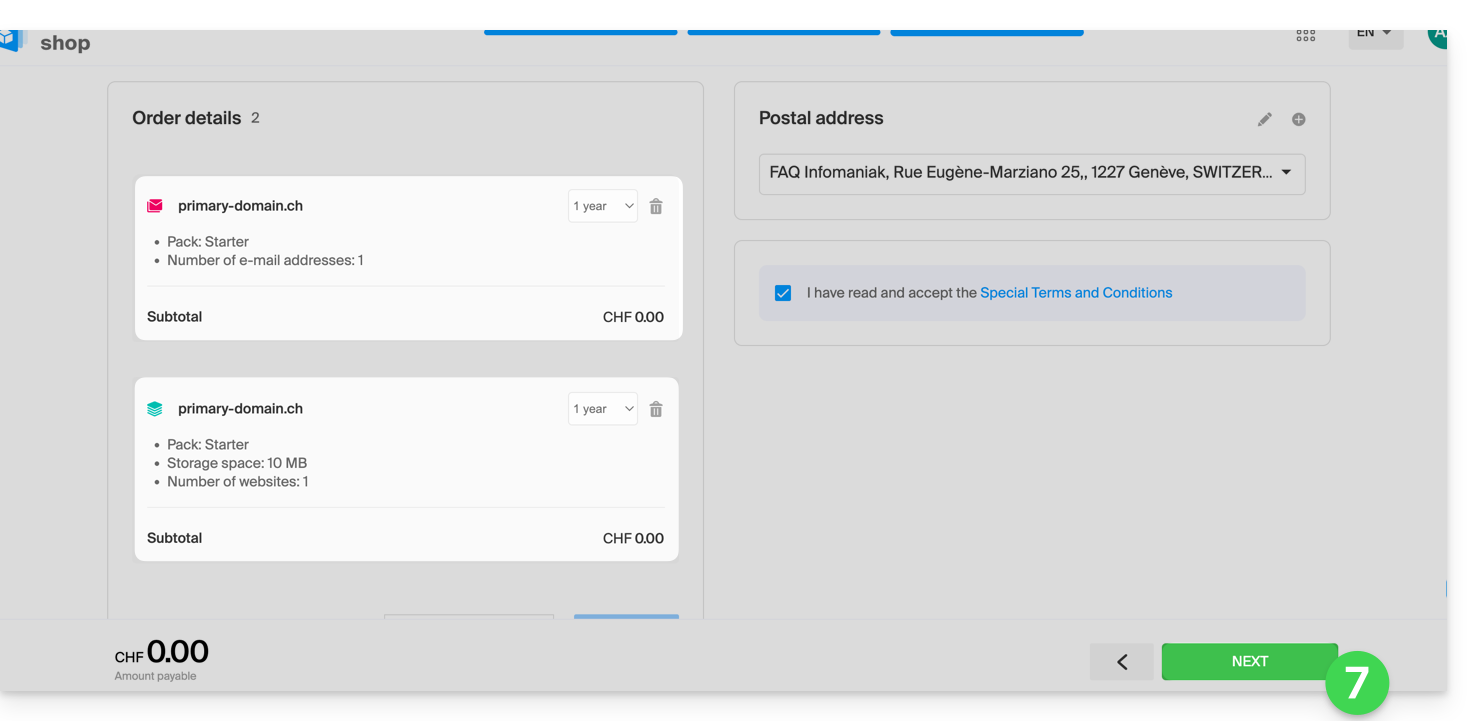
- Complete the order:
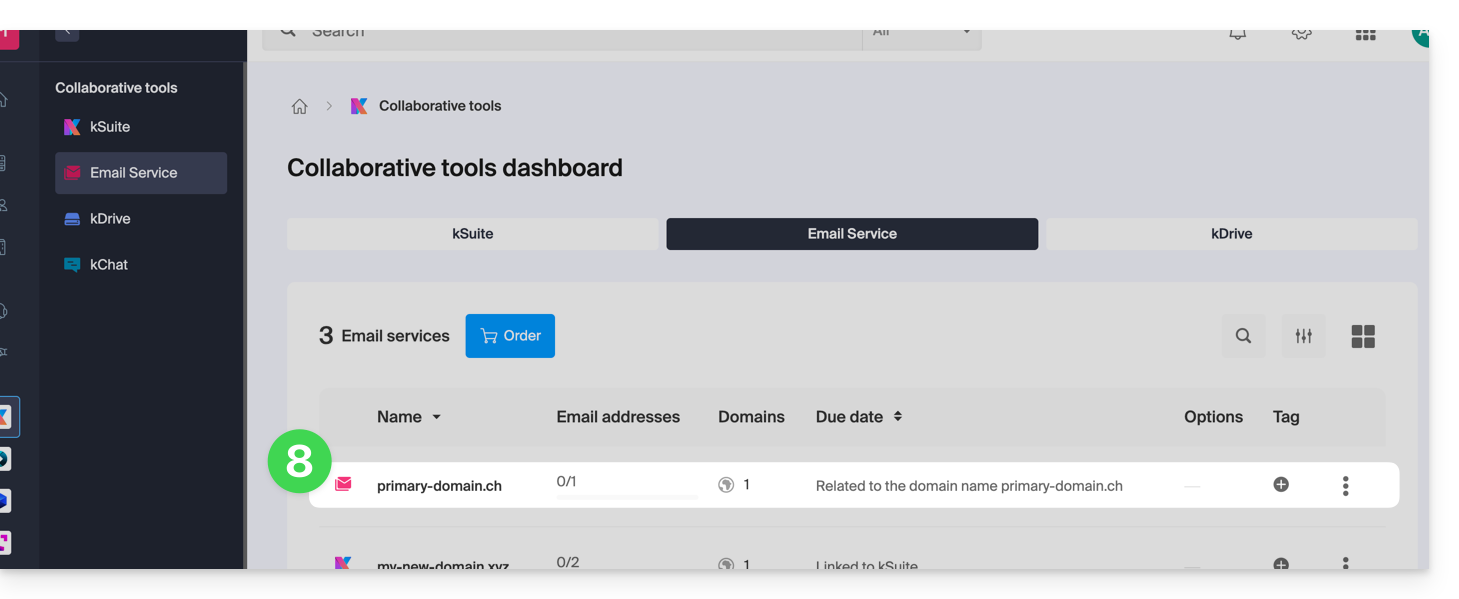
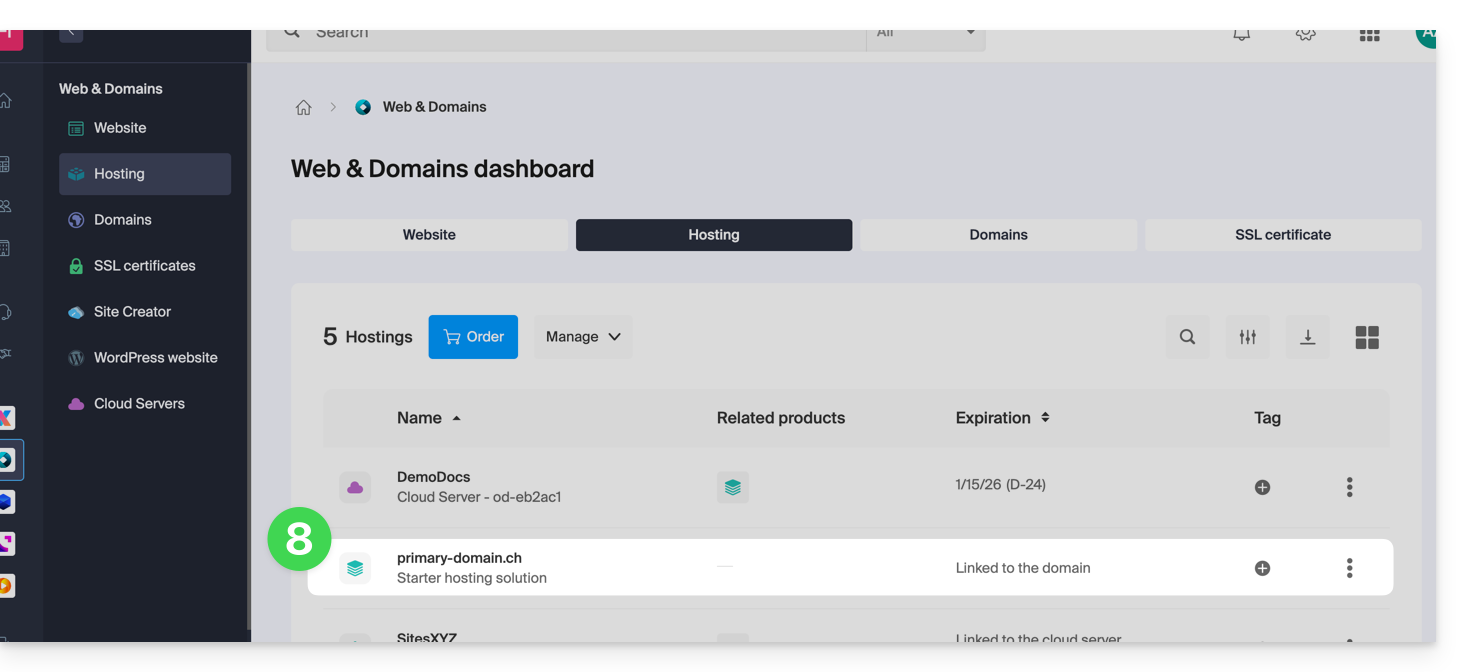
- Go back to your Infomaniak Manager to discover and use your new products:
Using your Starter products
- Create the email address you want on your Mail Starter service.
- To use the 10 MB of web space and create a basic web page on your Web Hosting Starter, use:
- the page editor
- or the Web FTP in the Manager to manage your HTML pages
- or any software/FTP client with the classic FTP protocol
Upgrading a Starter plan
- Modify a Mail plan (click here).
- Modify a Web plan (click here).
In case of a problem with a Starter hosting plan
A Starter web hosting plan does not offer IPv6. Therefore, be careful with AAAA records in the DNS zone of the domain in question, as they may prevent you from activating SSL; also, please refer to this other guide.
Link to this FAQ: https://faq.infomaniak.com/2002
Has this FAQ been helpful?
This guide explains how to create subdomains on an existing Infomaniak hosting account, using an .htaccess file.
✘ NOT AVAILABLE with
Site Creator Lite
hosting plans Starter
Preamble
- Hosting can be provided through a Shared Web Hosting plan or on an Infomaniak Cloud Server.
- Subdomains can be added very easily to your current hosting plan, as the basic plan includes 20 sites per hosting plan (sites = subdomains).
- If you do not wish to use this number of sites, you can follow the method below.
Create a subdomain as a shortcut
Subdomains created in this way make it easier to organize a hosting environment. For example, the address vlog.domain.xyz will be the shortcut for the address domain.xyz/vlog. In other words, the address vlog.domain.xyz will redirect to the vlog folder, which must be located at the root of the domain.xyz website. In this example, vlog is the subdomain of domain.xyz.
1. Add the subdomain as an alias for your website
To do this:
- Follow the procedure for adding an alias, but please read points 2 and 3 below.
- In the field for adding the associated domain, enter the complete address of the subdomain (e.g.
vlog.domain.xyz). - If your domain or its DNS zone is managed with Infomaniak, enable the following two options: Update DNS entries for this domain and Replace existing entries; if this is not the case, create an A record with your registrar using the following information:
- field: the complete URL of the subdomain (e.g.
vlog.domain.xyz) - target: the IPv4 address (A record) of your website (refer to this other guide to find the A record of your website)
- field: the complete URL of the subdomain (e.g.
2. Modify the .htaccess file of your website
Important: The following instructions are provided for guidance only. You may need to adapt the code to make it work in your specific situation.
Using your FTP software/client or Web FTP in the Manager, add and adapt the following code to the .htaccess file located in the root directory of your website:
RewriteCond %{HTTP_HOST} ^(.*)\.domain\.xyz [NC]
RewriteCond %{DOCUMENT_ROOT}/%1/ -d
RewriteCond %1::%{REQUEST_URI} !^(.*?)::/\1/?
RewriteRule "^(.*)$" "%{DOCUMENT_ROOT}/%1/$1" [L]
Explanation for the third line: https://stackoverflow.com/a/15981056
On the first line, replace:
domainwith your domain namexyzby extending your domain name (ch, fr, etc.)
Now, the address vlog.domain.xyz should display the content of the vlog folder located at the root of your website. If this is not the case, check that the vlog folder actually exists at the root of your website.
Link to this FAQ: https://faq.infomaniak.com/2036
Has this FAQ been helpful?
This guide explains how to move a Hosting (and all the websites it contains) from a Cloud Server to another managed Cloud Server.
If you want toupgrade your current Cloud Server to a new-generation server, please refer to this other guide.
Preamble
- FTP & MySQL
- When moving a hosting account from one Cloud Server to another:
- FTP access and database credentials remain unchanged.
- Only the hosting account's supported PHP and MariaDB versions, as well as the server's IPv4 and IPv6 addresses, will change.
- Hostnames remain unchanged and are automatically updated to point to the new IP addresses.
- When moving a hosting account from one Cloud Server to another:
- Temporary interruption:
- The websites hosted will be unavailable during the data migration.
- This process may take several minutes, depending on the number of files to be transferred to the new Cloud Server.
- Possible switch to HTTP/2:
- HTTP/2 is enabled on the new servers.
- Some directives that may be present in the .htaccess file of your server may require adaptation.
- Traffic redirection:
- A proxy is set up for 7 days to redirect traffic from the old server to the new one.
- Therefore, you should keep this in mind during this period, especially for cron jobs (see below).
- Cron jobs not migrated:
- Cron jobs via SSH are not migrated.
- Files and cron jobs are generally not deleted immediately, which can lead to duplicates.
- The management of cron jobs is your responsibility; depending on the progress of your migration, you need to:
- disable and re-enable cron jobs via SSH if you have any, to avoid any execution conflicts,
- check your cron jobs,
- ensure that they are configured correctly on your new Cloud Server.
Move Hosting
Prerequisites
- Both servers must be in the same Organization and accessible to the user performing the operation.
Once the second Cloud Server is operational:
- Click here to access the hosting management section in the Infomaniak Manager (need help?).
- Click directly on the name assigned to the hosting in question.
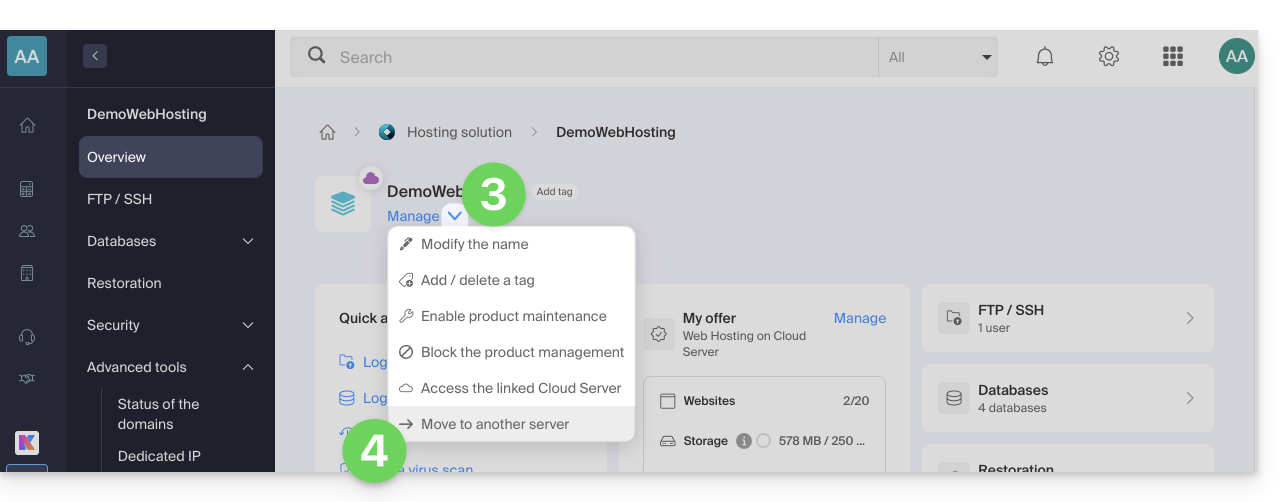
- Click on the Manage button.
- Click on Move to another server in the menu that appears:
- Choose the desired destination server.
- Click on Validate.
Adjust the DNS zone and finish
If your domain namesare not managed by Infomaniak or within the same Organization as the Cloud Server:
- Adjust the A record for the domains in question.
- Any DNS addition/modification may take up to 48 hours to propagate.
- It is therefore recommended not to cancel the old Cloud Server before this period.
- Cancel the old Cloud Server if necessary.
Link to this FAQ: https://faq.infomaniak.com/2194
Has this FAQ been helpful?
This guide details the conditions and procedure for using an Infomaniak Sectigo certificate on a website hosted elsewhere, with a third-party hosting provider.
Introduction
- You have the option to take advantage of Infomaniak's advantageous rates for your SSL certificates while managing your websites with another hosting provider.
Install a Sectigo certificate
Due to the different providers, the installation of your certificate will not be automatic:
1. Obtain the CSR
Export the CSR configuration file from your hosting provider and enter it in the certificate request form at Infomaniak.
2. Confirm domain ownership
Validate the domains included in the certificate using one of the following methods:
- Enter a validation code received at one of the following email addresses (the complete email address must exist on the domain to be validated, e.g., “
domain.xyz”):- admin@domain.xyz
- administrator@domain.xyz
- hostmaster@domain.xyz
- postmaster@domain.xyz
- webmaster@domain.xyz
- Create a unique CNAME record in the domain's DNS.
- Upload the validation .txt file via FTP to your site.
Link to this FAQ: https://faq.infomaniak.com/2305
Has this FAQ been helpful?
This guide is for you if you are experiencing issues with a Sectigo SSL certificate, either DV or EV type.
Sectigo Update (June 2025)
Since June 2025, Sectigo has been using a new validation infrastructure called MPIC, which performs the necessary checks for issuing SSL certificates (including EV and OV) from servers located around the world, and no longer only from the United States.
A challenge is a method used by the certificate authority to verify that the applicant controls the domain. This can involve an HTTP request, a DNS record, or an email. For EV and OV certificates, this challenge is combined with checks on the organization's identity.
With this new method, validation requests can originate from any country or internet service provider. If your website or server uses geo-blocking rules, a web application firewall (WAF), or a service like Cloudflare with access restrictions by country or ASN, these checks may be blocked, causing the validation to fail.
Even though Sectigo primarily discusses OV and EV certificates, this change may also indirectly affect DV certificates, since domain validation still relies on the ability to access the necessary resources.
⚠️ To avoid any issues, it is therefore recommended to temporarily disable any geographical restrictions or network filtering during certificate validation.
Link to this FAQ: https://faq.infomaniak.com/2790
Has this FAQ been helpful?
This guide explains how to install a free SSL certificate from Let's Encrypt on a website hosted by Infomaniak.
Introduction
- Once the certificate is installed, your website will be accessible via
httpandhttps… - If you want to include a domain alias that was recently added to your site, which already had a certificate, you need to update it.
- For multiple subdomains, please refer to this other guide.
- Let's Encrypt limits certificate installation to:
- 100 subdomains
- 20 certificates per 7 days per registered domain
- 5 unsuccessful requests per account per hostname per hour
Install a free SSL certificate on a site
Prerequisites
- For the installation to be possible, the DNS records for the domain name must be correctly configured to point to the site in question.
- If a change has just been made at this level, some operations may not be functional immediately.
To access the websites to install an SSL certificate:
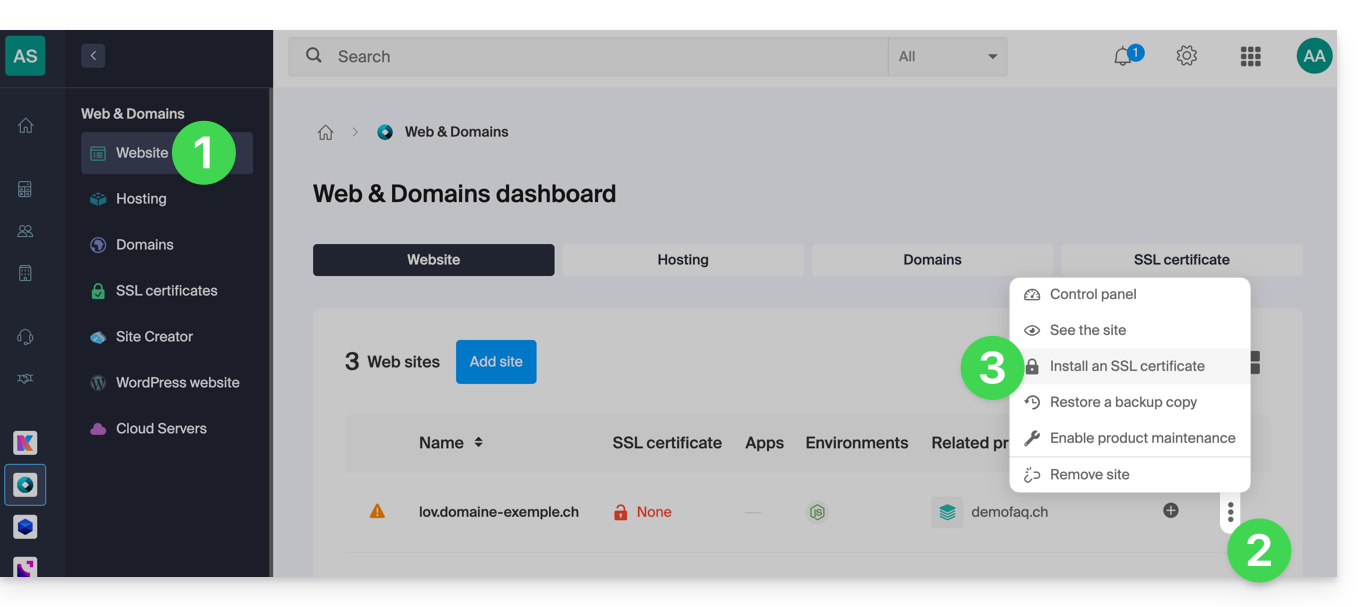
- Click here to access the management of your site on the Infomaniak Manager (need help?).
- Click on the action menu ⋮ located to the right of the website in question.
- Click on Install an SSL certificate:
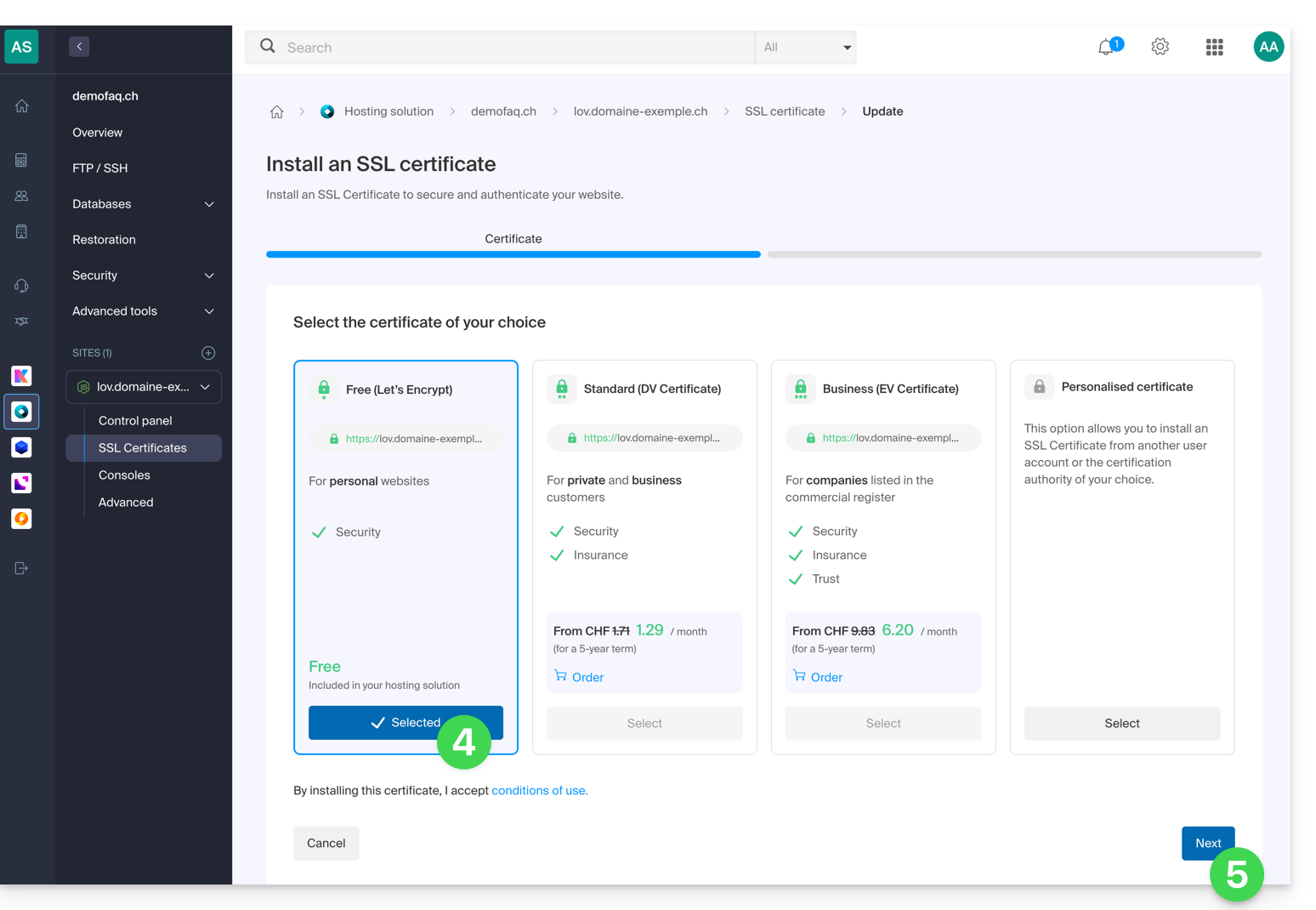
- Choose the free certificate.
- Click on the Next button:
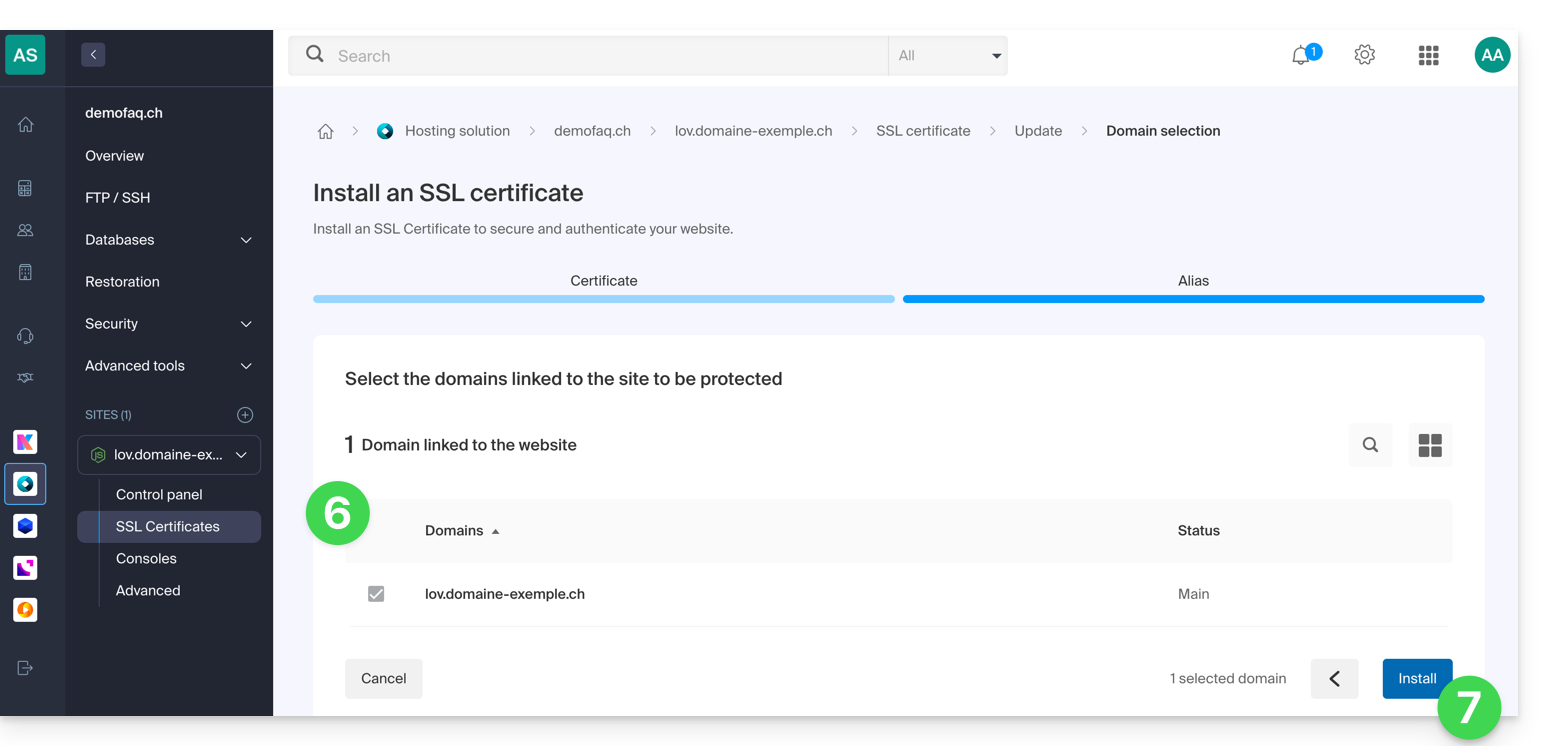
- Check or select the domains concerned.
- Click on the Install button:
- Wait a few minutes for the certificate to be obtained for the website.
Refer to this other guide if you encounter SSL errors and to this other guide specifically if you are using Cloudflare.
Link to this FAQ: https://faq.infomaniak.com/2130
Has this FAQ been helpful?
This guide explains how to set up a WordPress network of sites to manage multiple sites from a single Infomaniak WordPress installation, with URLs of the type site1.domain.xyz, site2.domain.xyz, or even with domain1.com, domain2.com, etc.
Installing WordPress multisite
To get started:
- Install WordPress via Infomaniak on your hosting space with a primary domain name:

- This first WordPress site must be accessible and function correctly:

- This first WordPress site must be accessible and function correctly:
- Connect via FTP.
- Edit the
wp-config.phpfile of the first WordPress site in question. - Above the line "
/* That's all, stop editing! Happy blogging. */" (#94), copy and paste the codedefine('WP_ALLOW_MULTISITE', true);:
- Save your changes.
- Then, log in to the administration area of your WordPress site.
- Temporarily disable all WordPress plugins:

- Go to the TOOLS menu to create a Network:
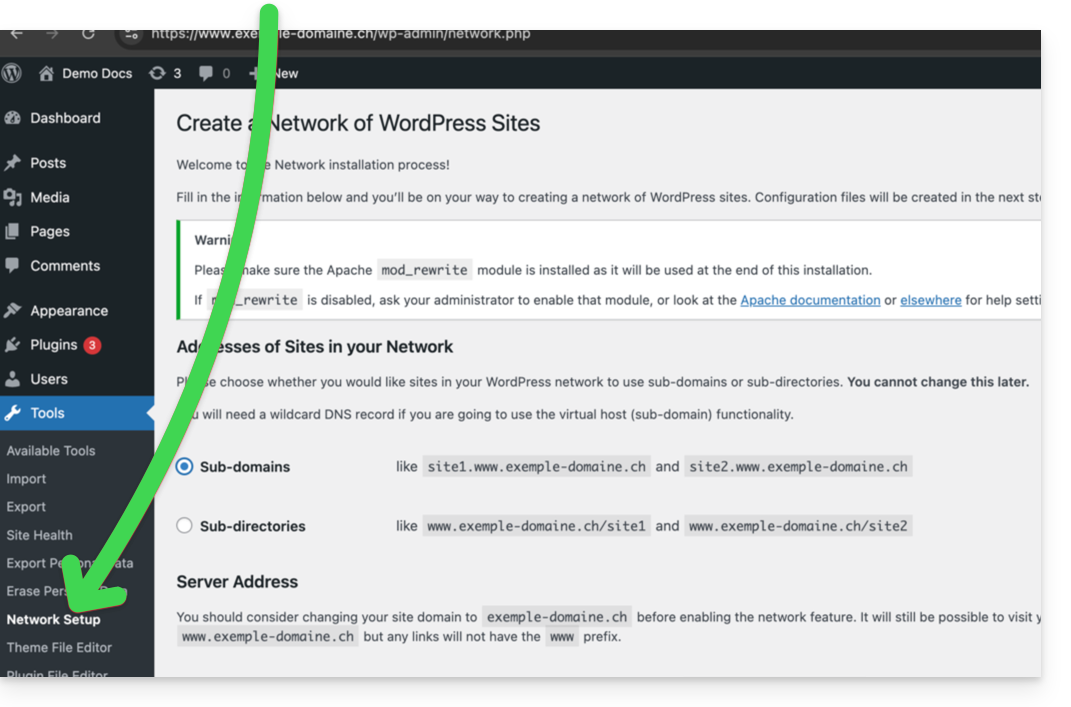
- Choose the method for creating your different WordPress sites (on subdomains)...
- Click on the installation button:

- Add the information displayed on the screen to the
wp-config.phpand.htaccessfiles on the server. - After reconnecting to your WordPress, you will have a new "My sites" menu where you can add and manage your different sites within the same network:

- Reactivate your deactivated plugins.
- In the Manager, add an alias to your website in the format
*.your-domain-here (the asterisk allows you to create a wildcard alias) with DNS update so that the correctCNAMEis automatically added to the zone:
- Install or update your SSL certificates:

- When you create a new website within the network, for example by naming it
home2, it will become accessible viahome2.domain.xyz, and so on:
Link to this FAQ: https://faq.infomaniak.com/1417
Has this FAQ been helpful?