Knowledge base
1000 FAQs, 500 tutorials and instructional videos. Here, there are only solutions!
Transfer a web hosting from one Cloud Server to another
Update 10/05/2026
This guide explains how to move a Hosting (and all the websites it contains) from a Cloud Server to another managed Cloud Server.
If you would like toupgrade your current Cloud Server to a new-generation server, please refer to this other guide.
Introduction
- FTP & MySQL
- When moving a hosting account from one Cloud Server to another:
- FTP access and database credentials remain unchanged.
- Only the hosting account's supported PHP and MariaDB versions, as well as the server's IPv4 and IPv6 addresses, will change.
- Hostnames remain unchanged and are automatically updated to point to the new IP addresses.
- When moving a hosting account from one Cloud Server to another:
- Temporary interruption:
- The websites hosted will be unavailable during the data migration.
- This process may take several minutes, depending on the number of files to be transferred to the new Cloud Server.
- Possible switch to HTTP/2:
- HTTP/2 is enabled on the new servers.
- Some directives that may be present in the
.htaccessfile of your server may require adaptation (❓: help).
- Traffic redirection:
- A proxy is set up for 7 days to redirect traffic from the old server to the new one.
- Therefore, you should keep this in mind during this period, especially for crons (see below).
- Crons not migrated:
- Crons via SSH are not migrated.
- Files and crons are generally not deleted immediately, which can lead to duplicates.
- Cron management is your responsibility; depending on the progress of your migration, you need to:
- disable and re-enable crons via SSH if you have any, to avoid any execution conflicts,
- check your crons,
- make sure they are configured correctly on your new Cloud Server.
Move Hosting
Prerequisites
- Both servers must be in the same Organization and accessible to the user performing the operation.
Once the second Cloud Server is operational:
- Click here to access the hosting management section in the Infomaniak Manager (need help?).
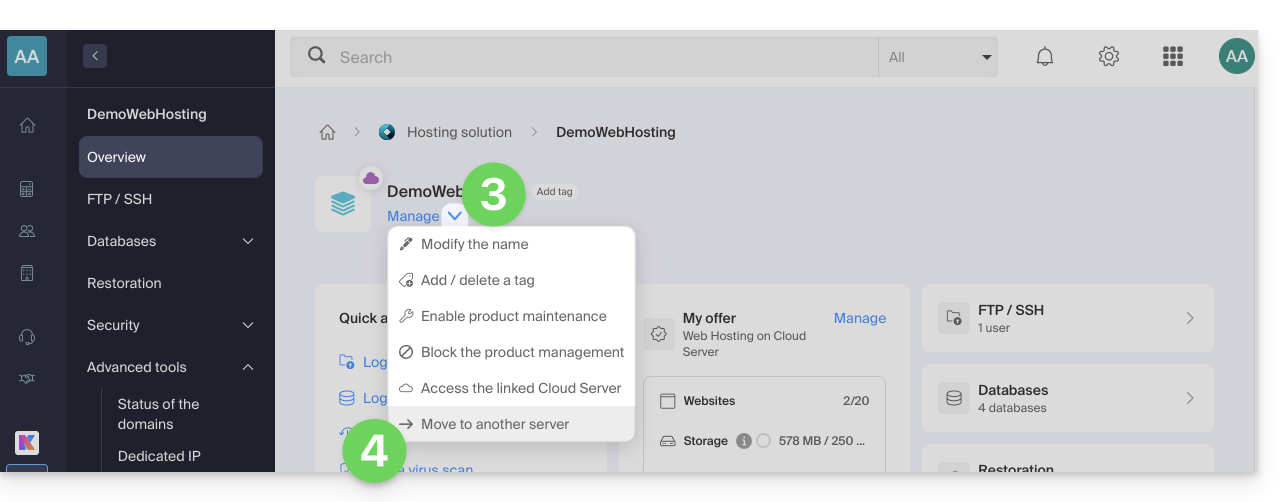
- Click directly on the name assigned to the hosting in question.
- Click on the Manage button.
- Click on Move to another server in the menu that appears:
- Choose the desired destination server.
- Click on Validate.
Adjust the DNS zone and finish
If your domain namesare not managed at Infomaniak or within the same Organization as the Cloud Server:
Link to this FAQ: https://faq.infomaniak.com/2194
Has this FAQ been helpful?