Knowledge base
1000 FAQs, 500 tutorials and instructional videos. Here, there are only solutions!
This guide details the customization options available for your Infomaniak organization, including custom URLs (Custom Brand addresses) for the Manager and kSuite tools such as kDrive or Euria.
Custom Brand is a service already included with kSuite Enterprise.
Creating custom URLs
To get a Custom Brand:
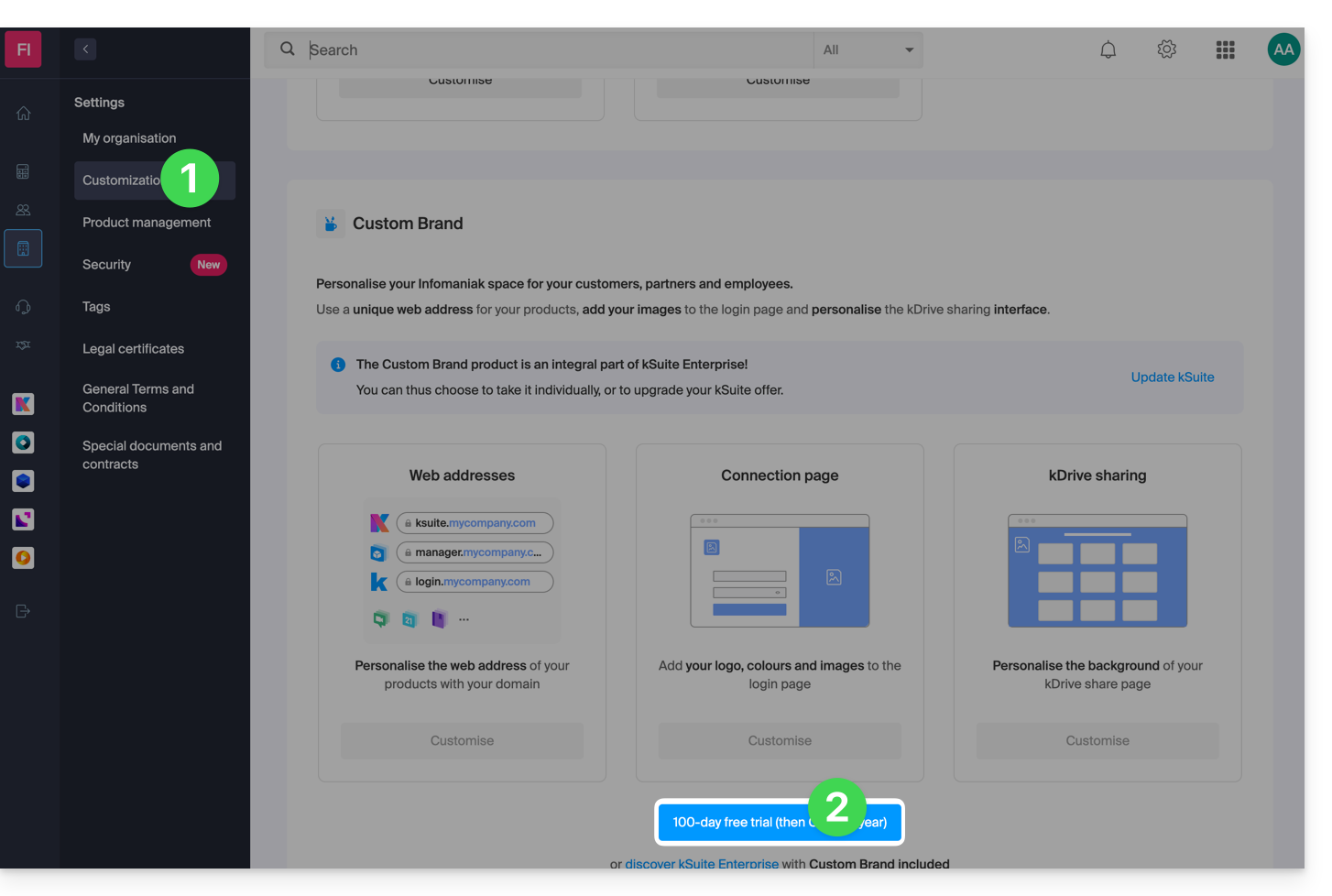
- Click here to access Custom Brand in the Infomaniak Manager (need help?).
- Click the blue Try for Free button (in the Custom Brand section).
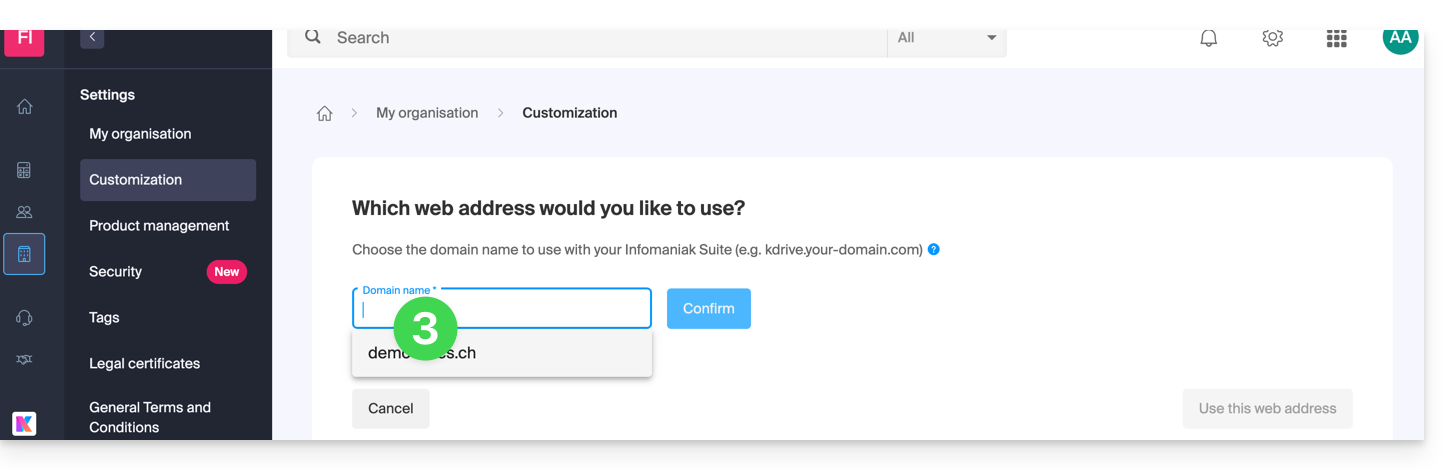
- Enter the domain name to use in your custom web address:
- If you do not yet have a domain name, you will be able to order one at this stage.
- If your domain name is already used for another service, you will be able to choose another one, or use a subdomain (example:
my.domain.xyz).
- When choosing the domain name, the interface will present you with examples of custom web addresses (example: manager.domain.xyz).
- Click on the blue “This web address suits me” button or select another domain name or subdomain until you find a custom web address that suits you.
- Preparing custom web addresses may take a few minutes; an email confirming the creation will be sent to the email address of the account owner.
To disable access via custom URLs:
- Click the blue Disable button in the top right corner of the Custom Brand section:
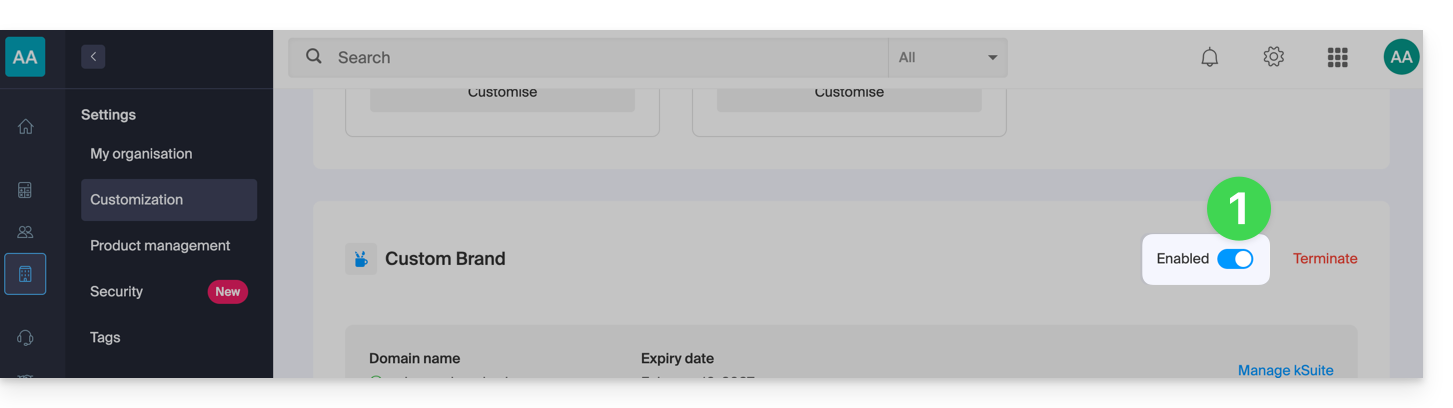
- You can reactivate the addresses later using the same button.
- You can also completely remove this service.
Interface Customization
In addition to customizing the web addresses of your Infomaniak products, you can also add a logo. You can also customize your login page using a slideshow of 3 images:
- Click here to access Custom Brand in the Infomaniak Manager (need help?).
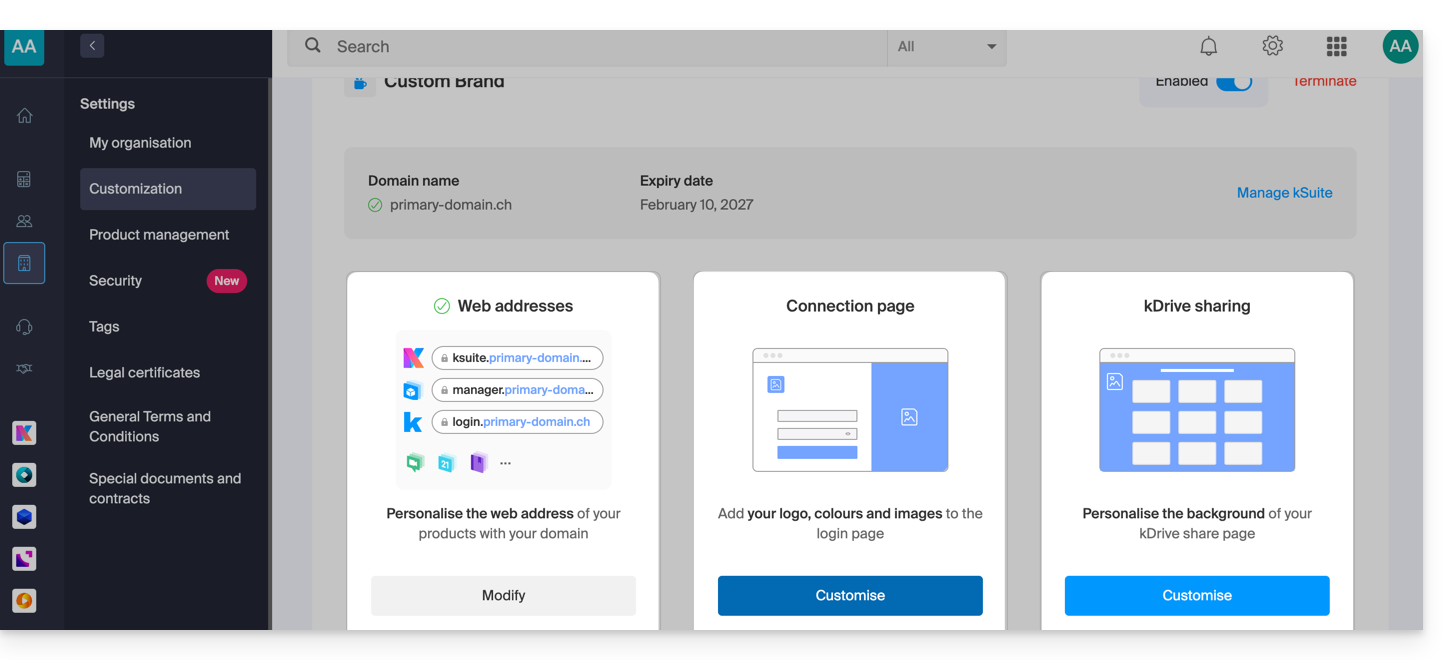
- Click on the blue Customize button (in the Custom Brand section):
- Upload an image or click Select an image to add it as a logo.
- Resize the image using the tool if it exceeds the maximum size of 270 x 70 pixels.
- This tool allows you to preview how your logo will look on a dark or light theme.
- Click Validate.
- To customize your login page, click the blue Next button on the far right.
- Using the two color selection fields, choose the color for the text and login buttons.
- Upload or click Select an image to create a slideshow of 3 images to the right of the login page (the images must be at least 865 x 1200 pixels).
- Click Add and then Finish to save the changes.
Link to this FAQ: https://faq.infomaniak.com/2467
Has this FAQ been helpful?
This guide explains how to start an online meeting with kMeet, Infomaniak's ethical and free video conferencing solution.
Introduction
- There is no limit to the number of participants with the paid kSuite plans.
- Participants can write in a common chat (❓: help), annotate a screen share (❓: help), and even control a remote device (❓: help).
- You can create a meeting room in advance and invite participants by creating an associated event in the Infomaniak calendar (❓: help).
- You can also share the video stream within a Streaming Video broadcast (❓: help), for example, to avoid relying on the connection to kMeet.
- Custom Brand: creating rooms on a specific domain (e.g., kMeet.domain.xyz) is not yet supported by the desktop application (especially under Linux).
Create a virtual meeting room
To do this:
- Click here to access kMeet in your Infomaniak kSuite (or launch the mobile/desktop app — ❓: help).
- Start a meeting (❓: help).
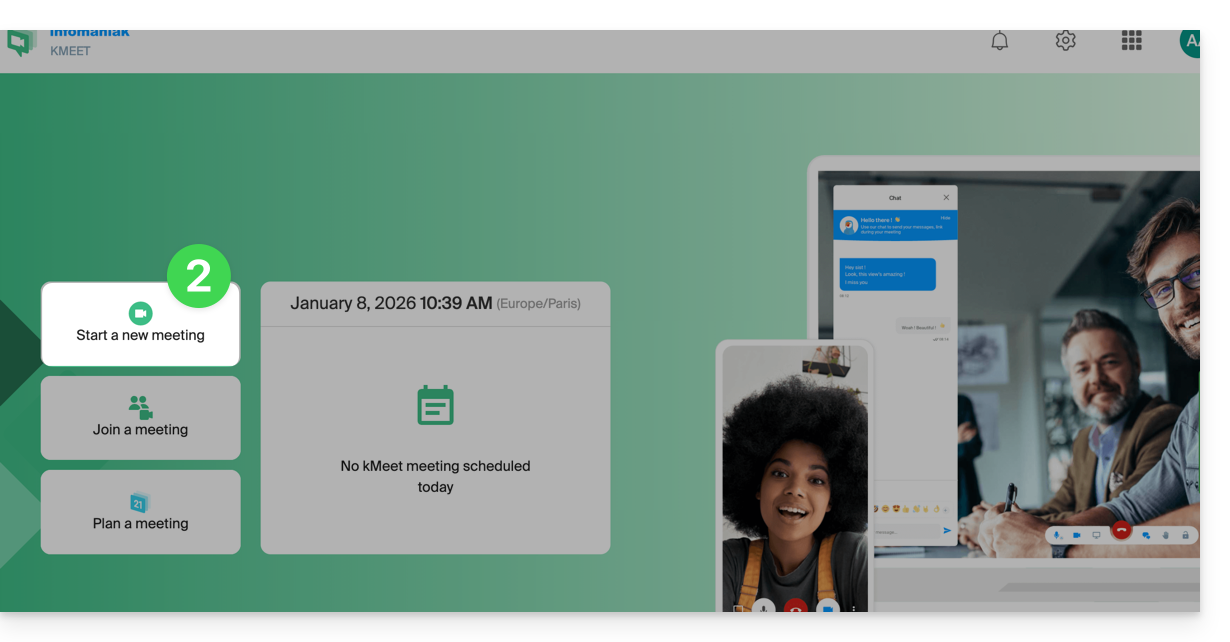
- Enter a name for your meeting room.
- Allow access to your webcam and microphone from your browser or from the application (❓: help).
- Enter a nickname or your first and last name.
- If necessary, enable participant control (❓: help), a password, or a custom encryption key (❓: help).
- Click Join the meeting.
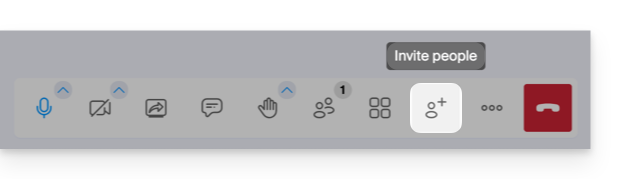
- Share the meeting link to invite participants to join you:
Link to this FAQ: https://faq.infomaniak.com/2475
Has this FAQ been helpful?
This guide will quickly introduce you to the essential functions of Euria, the artificial intelligence available within kSuite, which is particularly effective for summarizing discussions on the kChat app.
Introduction
- Euria can help you perform all kinds of calculations, translations, provide information on various topics, and answer your questions.
- Please read this other guide about the model used and the responsibilities of each party.
- When a new user is added, they receive a welcome message from Euria.
- Please read this other guide about the possibilities for discussing with the AI in kChat.
Automatically summarize a kChat message
To obtain a summary of a kChat message:
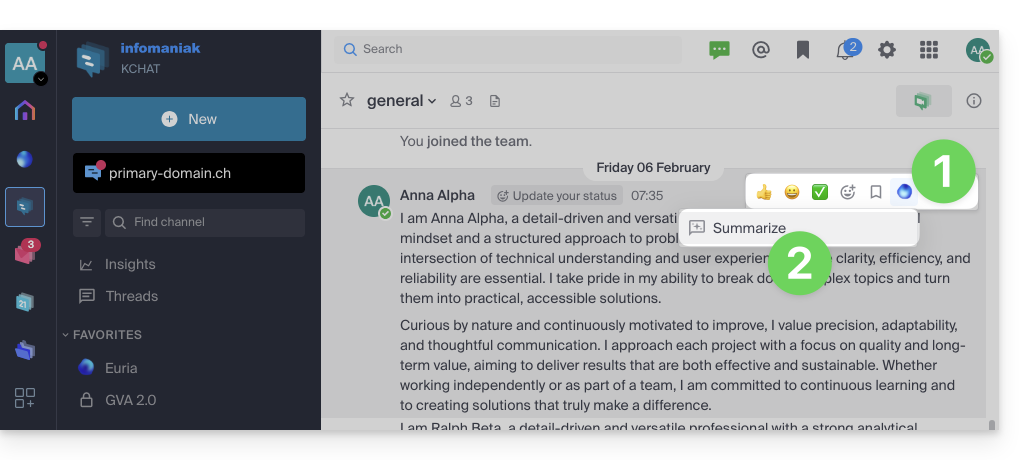
- Hover over the message and select the Euria actions icon in the upper right corner.
- Click on Summarize the conversation:
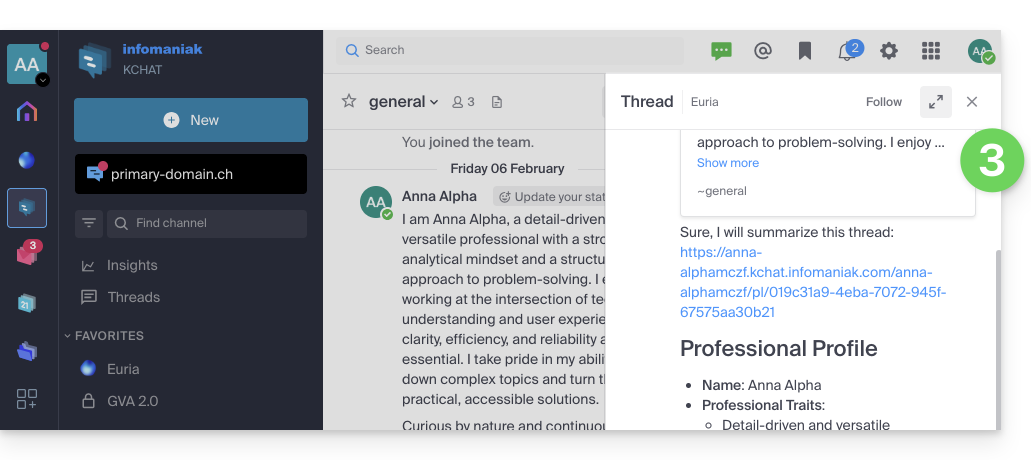
- Get the summary, generated by Euria in the right sidebar:
Link to this FAQ: https://faq.infomaniak.com/2480
Has this FAQ been helpful?
This guide details the limitations specific to the my kSuite offer (ik.me, etik.com, ikmail.com) and the benefits of the my kSuite+ offer.
Limitations of my kSuite only
The my kSuite plan has certain limitations that my kSuite+ does not.
Mail, contacts & calendars
- Disk space limited to 20 GB of storage for emails.
- No advanced mode in the message sorting rules.
- No aliases can be created for your email.
- "my kSuite" signature is enforced.
- No email sharing link.
- Only 1 address book, 1 calendar.
- Email backup retention (30 days); recoverable by changing your plan.
kDrive
- 1 single kDrive upload folder.
- 25 kDrive share links (without setting a duration or password, etc.).
- Keep previous versions of your files: 30 versions over 30 days (60 over 120 days for my kSuite+, some of which are kept indefinitely).
- 30-day trash/recycle bin (60 days for my kSuite+).
- No statistics.
- No PDF file editing/signing.
Limitations of the my kSuite & my kSuite+ offers
Click on the links below to learn more:
- Offer limited to one address per account (linked to a European phone number).
- You must providea valid mobile phone number to confirmregistration.
- Limited number of daily email sends, mail forwards, and unique recipients per message.
- No customizable email signature.
- Email scheduling and scheduled sending: limited features (without customization) on my kSuite and customizable with my kSuite+.
- 15 GB of Cloud storage with my kSuite, 1/2/6/12 TB with my kSuite+.
- Registration is only possible for people residing in OECD member countries (official list), including:
- Germany
- Australia
- Austria
- Belgium
- Canada
- Chile
- Colombia
- South Korea
- Costa Rica
- Denmark
- Spain
- Estonia
- United States
- Finland
- France
- Greece
- Guadeloupe
- French Guiana
- Hungary
- Ireland
- Iceland
- Israel
- Italy
- Japan
- Latvia
- Lithuania
- Luxembourg
- Martinique
- Mayotte
- Mexico
- Monaco
- New Caledonia
- New Zealand
- Norway
- Netherlands
- Poland
- French Polynesia
- Portugal
- Czech Republic
- Réunion
- United Kingdom
- Saint Barthélemy
- Saint Martin
- Saint Pierre and Miquelon
- Slovakia
- Slovenia
- Sweden
- Switzerland
- French Southern and Antarctic Lands
- Turkey
- Wallis and Futuna
my kSuite+ offer
The my kSuite+ offer allows you to send more messages per day to a larger number of unique recipients at once.
To help you identify the my kSuite / kSuite offer that best suits your needs, please refer to this other guide.
For sending emails to a large number of recipients, there is a Newsletter tool.
Link to this FAQ: https://faq.infomaniak.com/2485
Has this FAQ been helpful?
This guide explains how to manage a calendar and its events within the Google Calendar mobile app (application for iOS/Android smartphones or tablets) and/or the Infomaniak Calendar web app (online service ksuite.infomaniak.com/calendar), while keeping all data fully synchronized thanks to the Infomaniak mobile app kSync (application for Android smartphones or tablets).
Introduction
- Refer to this other guide if you only want to display an Infomaniak calendar in read-only mode on Google Calendar (web & mobile app).
- The reverse is also possible if you only want to display a Google calendar in read-only mode on the Calendar Infomaniak web app (online service ksuite.infomaniak.com/calendar).
- The procedure below allows you to edit calendar events on both sides, but only on the mobile version of the Google Calendar app.
Sync your Infomaniak calendar with your mobile device
Prerequisites
- Download the Google Calendar mobile app for Android.
- Download the Infomaniak kSync mobile app (application for Android smartphones or tablets) here:

- The kSync application is also available on F-droid.
- Install kSync.
Next, launch the kSync app on your Android device. A step-by-step assistant will help you configure the app according to your needs:
- Decide whether you want to synchronize tasks.
- Allow kSync to access the required items on the device, primarily the calendar.
- Allow the application to run in the background for better synchronization (uses more battery); settings can also be configured within the app itself:
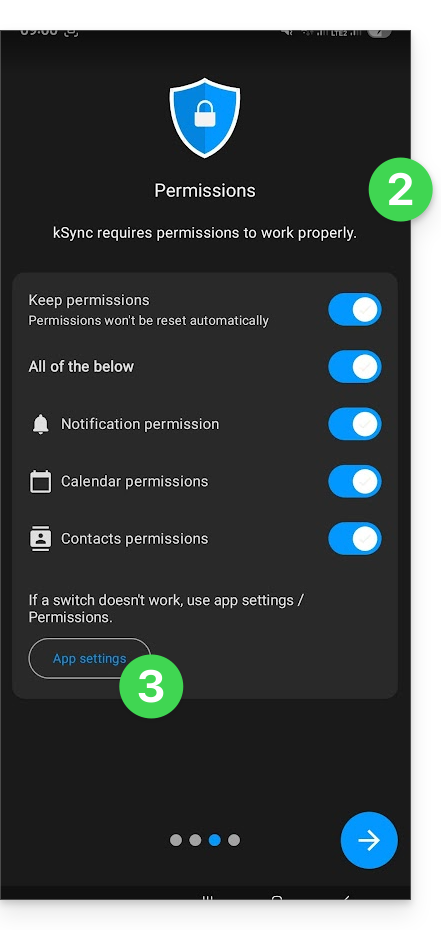
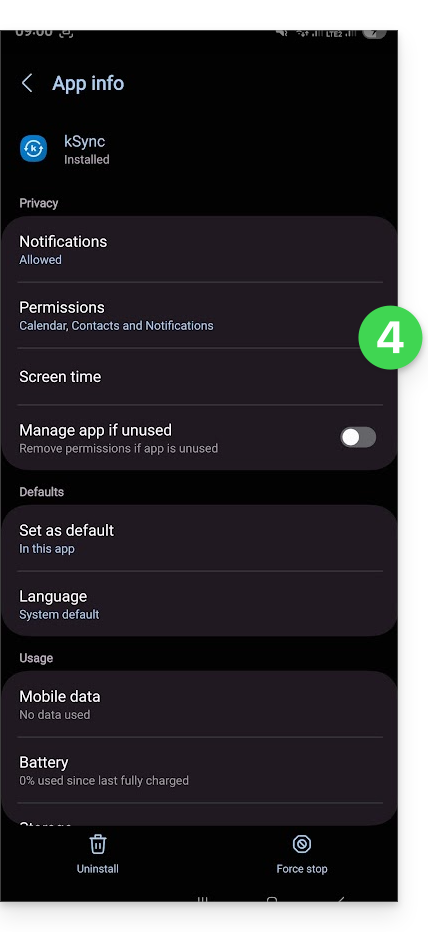
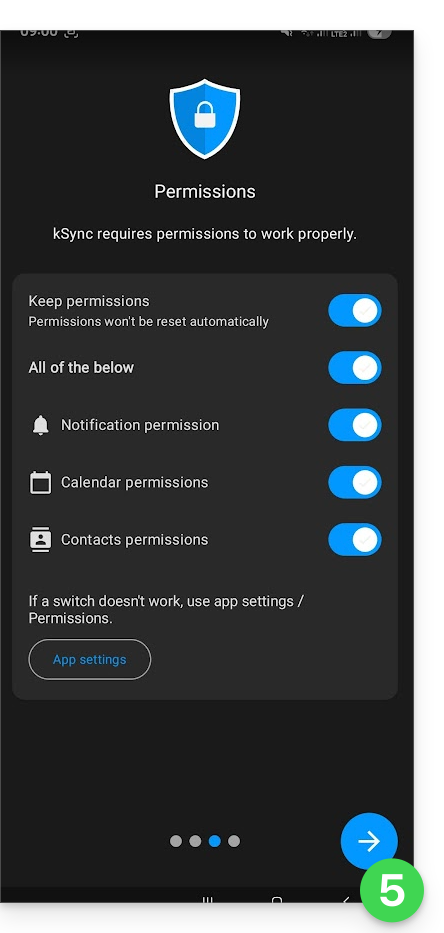
- The key is to grant access rights to the services you need to synchronize:
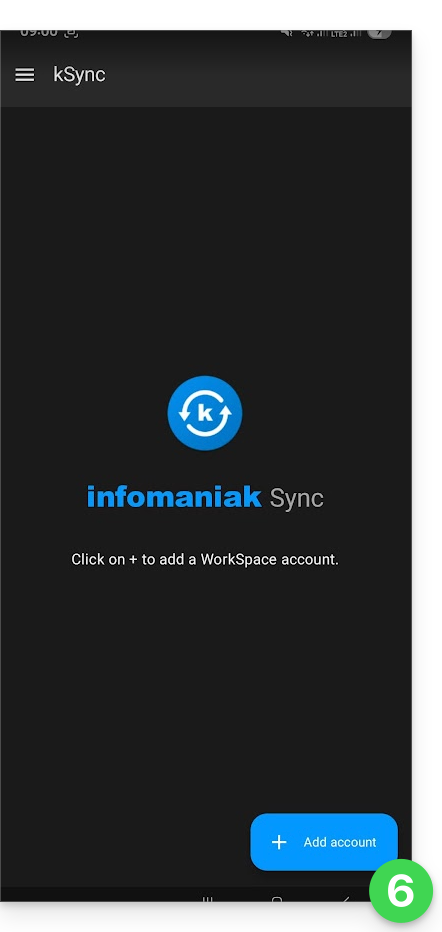
- Go back to the kSync app and continue the configuration:
- Tap to add an Infomaniak user account (the one you use to log in to your Infomaniak services):
- For example, in the Calendar web app, the user menu in the top right corner shows the login email address used.
- You can then access the calendars of the Organization to which the current user belongs:
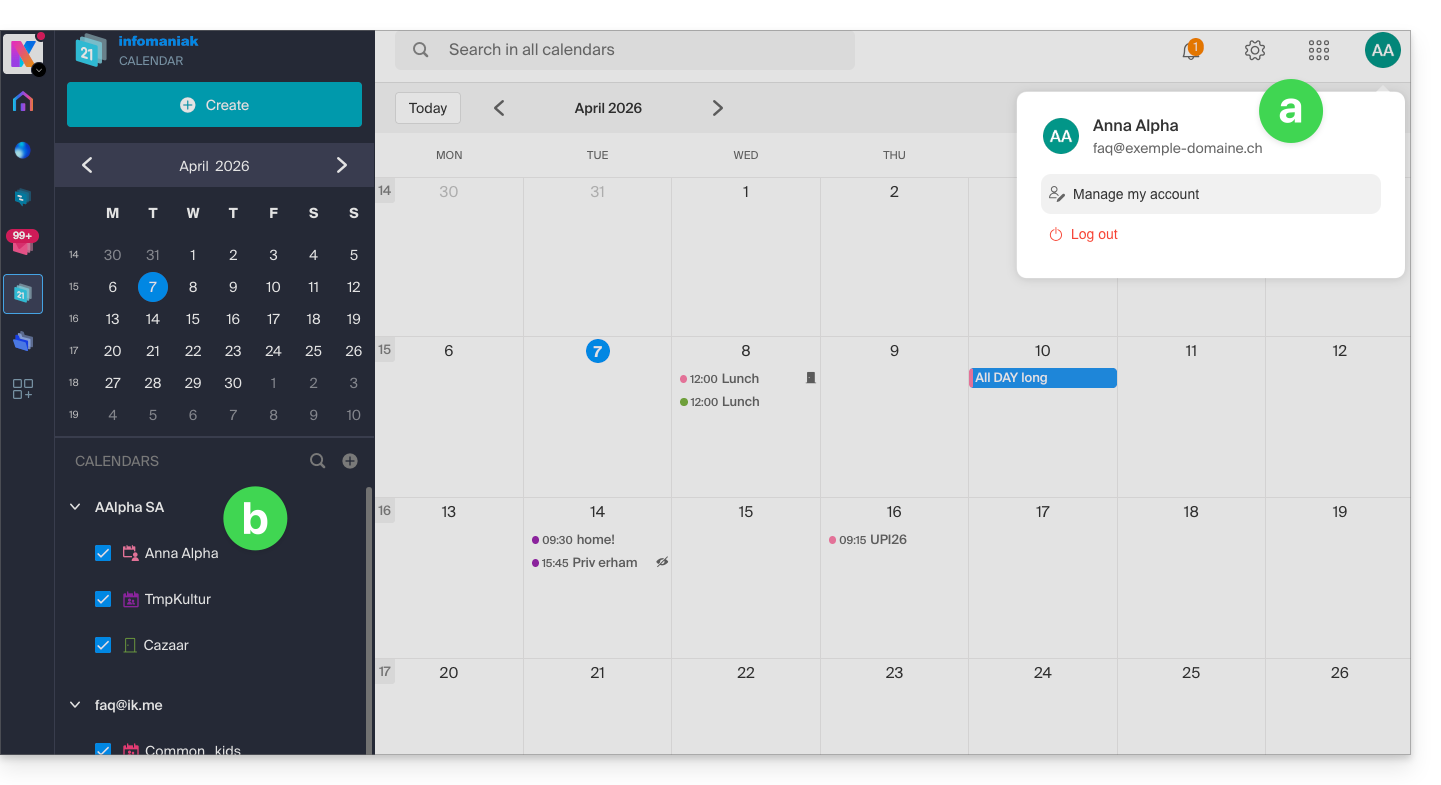
- This is the data that will be synchronized to your device when you log in to the same Infomaniak account on kSync…
- Enter your Infomaniak login credentials (see point a above).
- Click the button to log in:
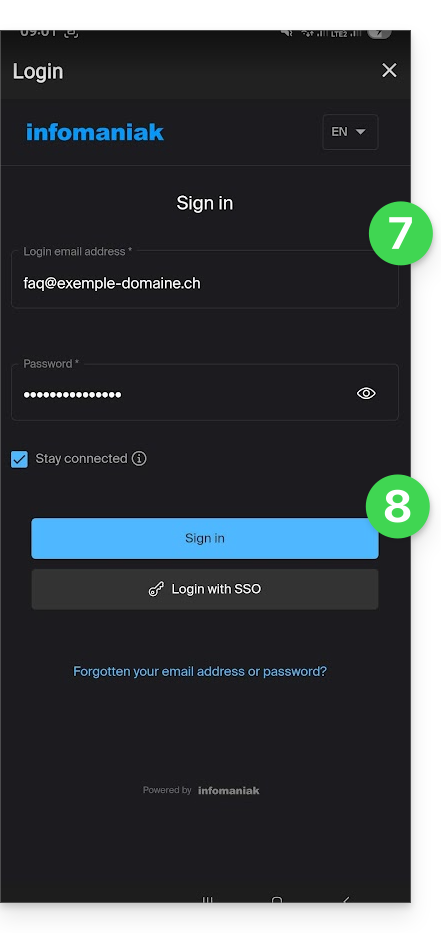
- Complete the two-factor authentication steps as you normally would when logging in.
- Once logged in to kSync, activate the calendars (from those displayed, which are the ones linked to your Infomaniak account) to be synchronized from the CALDAV tab:
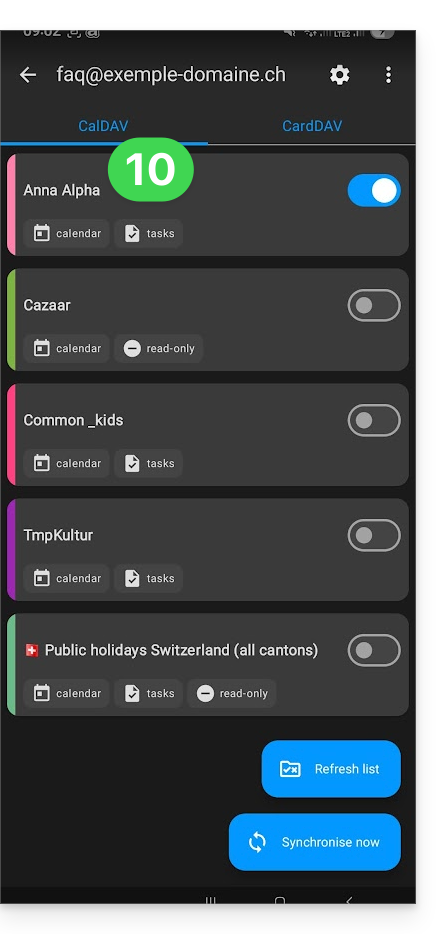
- Start the synchronization using the button located in the bottom right corner.
Automatic synchronization of the native calendar
- At this stage,it is the native application of your Android device.Samsung Calendarfor example, on devices from the Samsung brandwhich will be synchronized and display the events from your Infomaniak calendar (you may need to activate the account in the application):
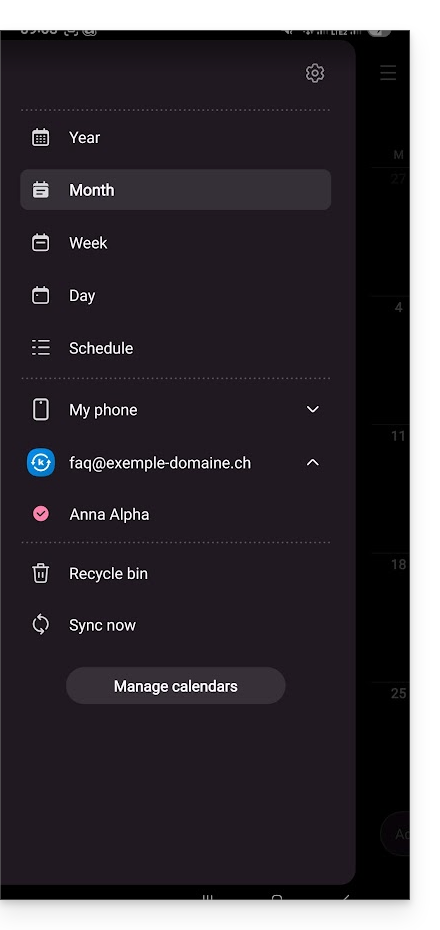
- An event added and/or modified in either interface will be automatically synchronized everywhere:
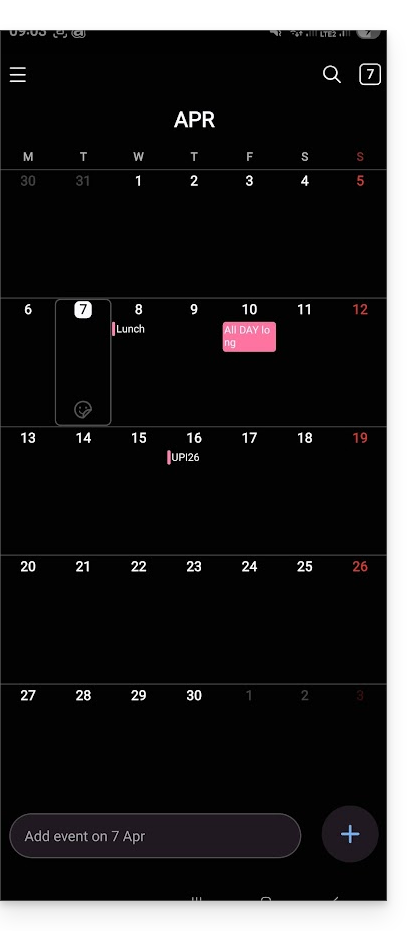
Enable the calendar in Google Calendar
To access your Infomaniak calendar in Google Calendar and be able to edit its events:
- Open Google Calendar on your Android device.
- Tap the menu button with three horizontal lines ☰ in the upper left corner of the interface:
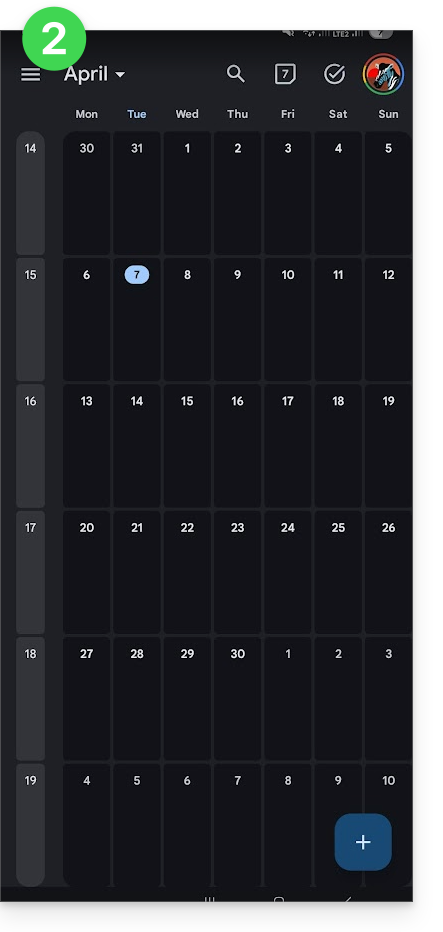
- Tap Settings at the bottom of the menu:
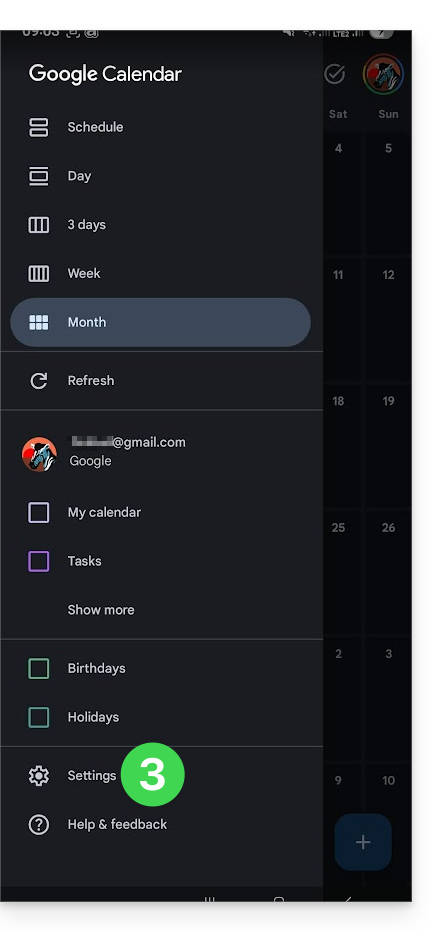
- Tap Manage accounts:
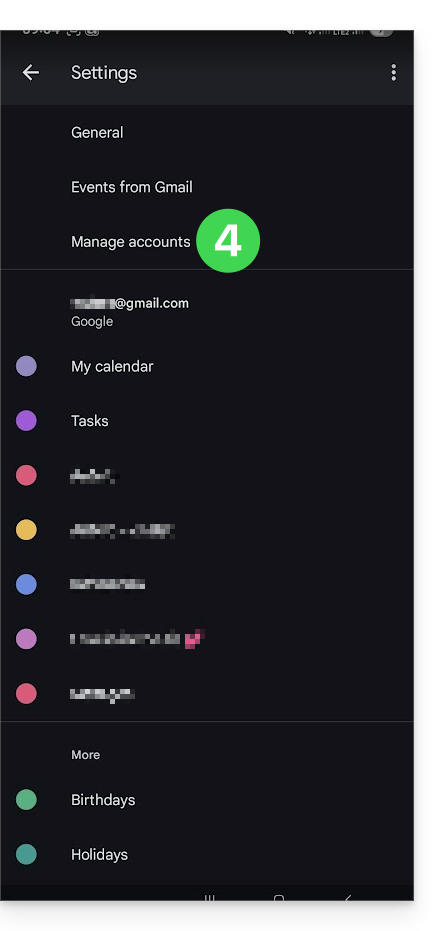
- Activate the account corresponding to your Infomaniak calendar:
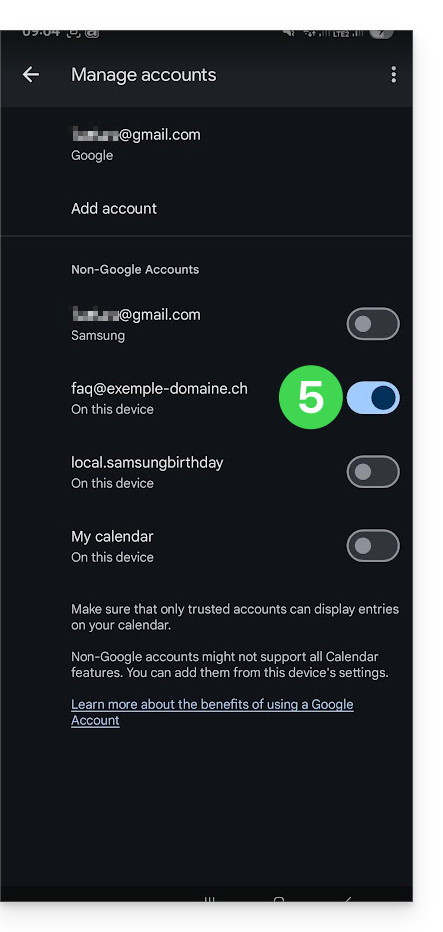
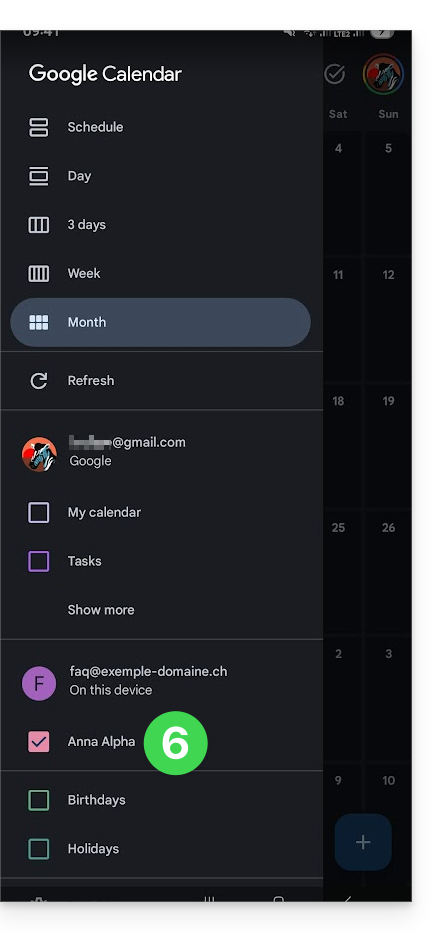
- Go back to the previous page and check that the Infomaniak calendar appears among the accounts, and modify the color if necessary:
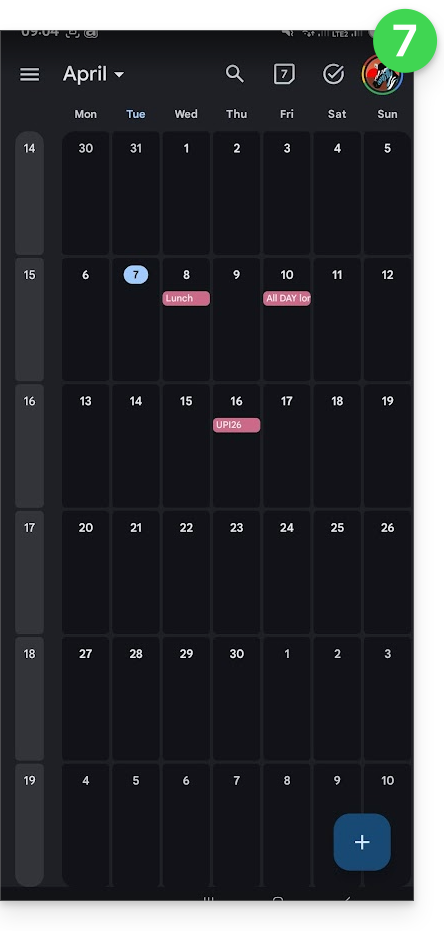
- That's it, Google Calendar is synchronized with the Infomaniak calendar. Any event added or modified in either interface will be automatically synchronized everywhere:
Link to this FAQ: https://faq.infomaniak.com/2486
Has this FAQ been helpful?
This guide helps you understand the structure of your Infomaniak services. The goal is to familiarize you with the terminology used and to help you easily manage your management interfaces, especially when using my kSuite (ik.me, etik.com, ikmail.com).
Introduction
- An Organisation is the term used to represent the grouping of Infomaniak services and users (you and any collaborators, family members, etc.).
- To understand what an Organisation actually represents, this guide is structured around several possible scenarios:
- Any new registration for a free address my ksuite (ik.me / etik.com / ikmail.com).
- Any new registration for other Infomaniak services.
- Combined use of my kSuite and other services in the ecosystem:
- Register for my kSuite by specifying an existing Infomaniak account.
- Purchase Infomaniak products using only a my kSuite account.
1. Registering for my kSuite (ik.me / etik.com / ikmail.com)
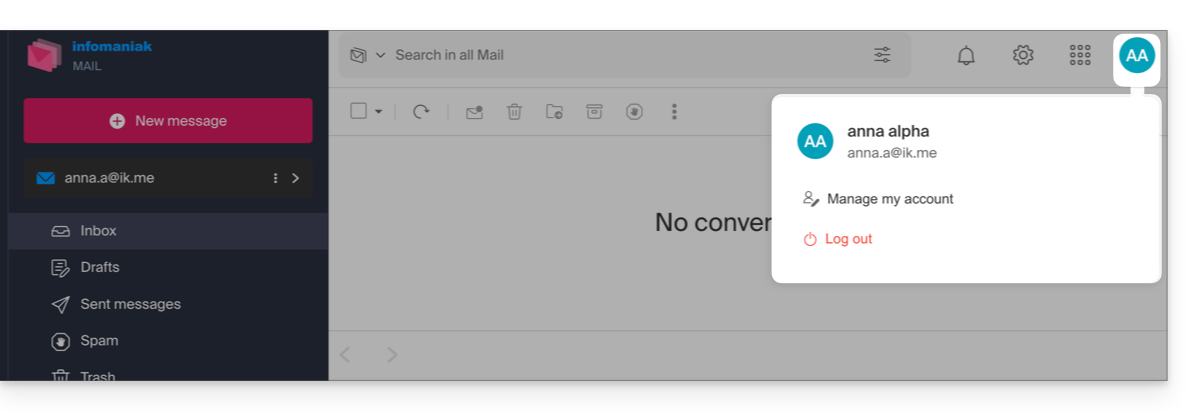
During registration on welcome.infomaniak.com/signup/myksuite, you chose the name for your email address, for example anna.a@ik.me, and then entered a personal phone number: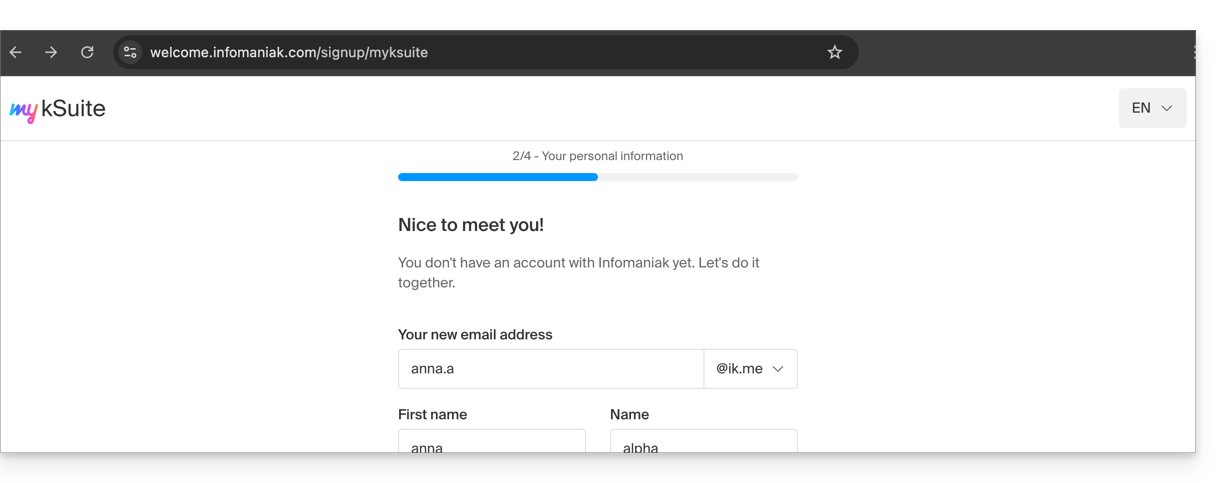
- Once your registration is validated, you can access your email address anna.a@ik.me via the web app Mail
ksuite.infomaniak.com/mail: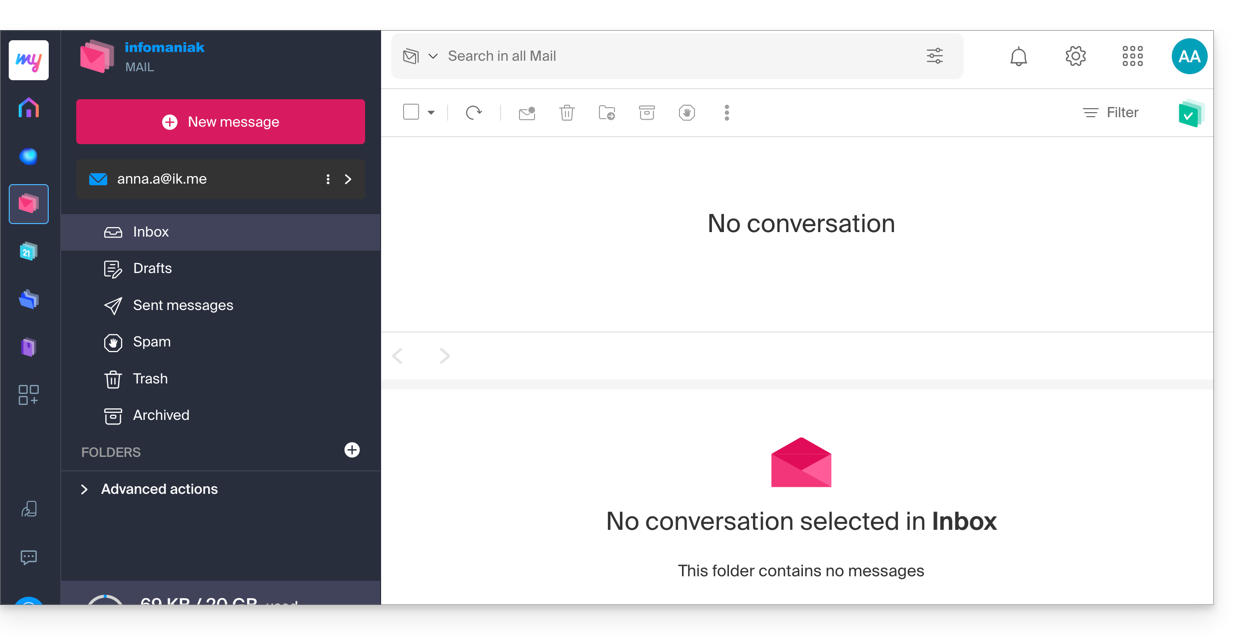
- You can distinguish:
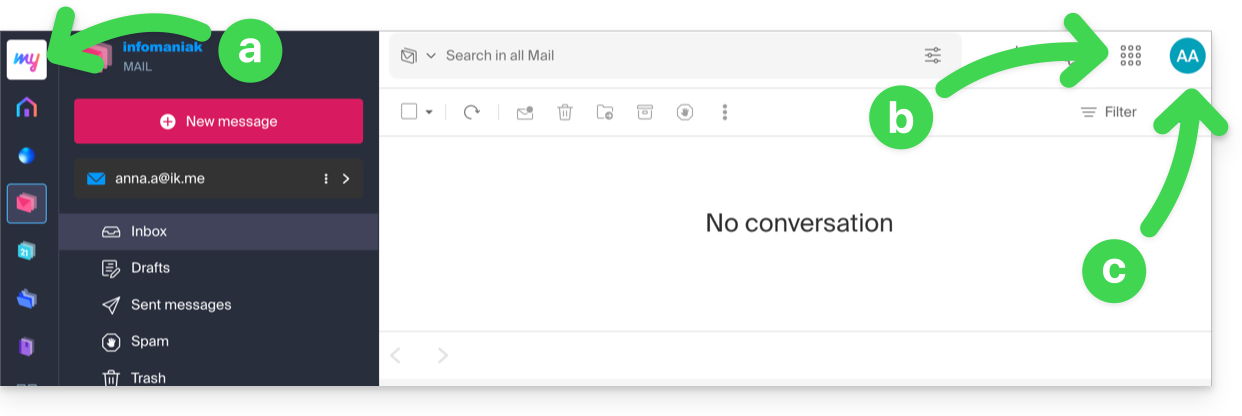
- The logo/type of your Organization, which in this case indicates that it is a my kSuite account.
- The button allows you to access the Manager
manager.infomaniak.comand other apps/services related to my kSuite: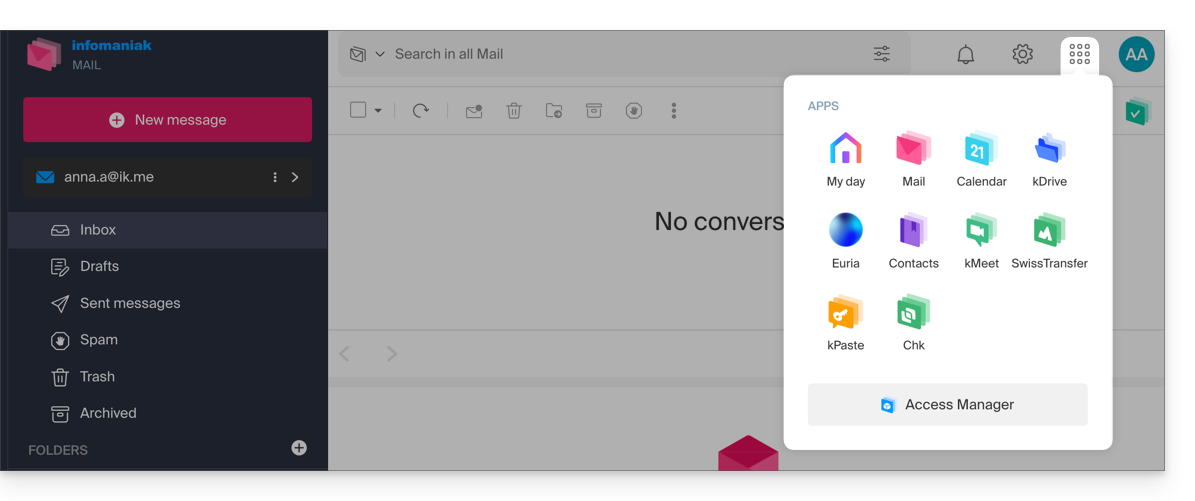
- In this case, the Manager will only contain information about managing your my kSuite account:
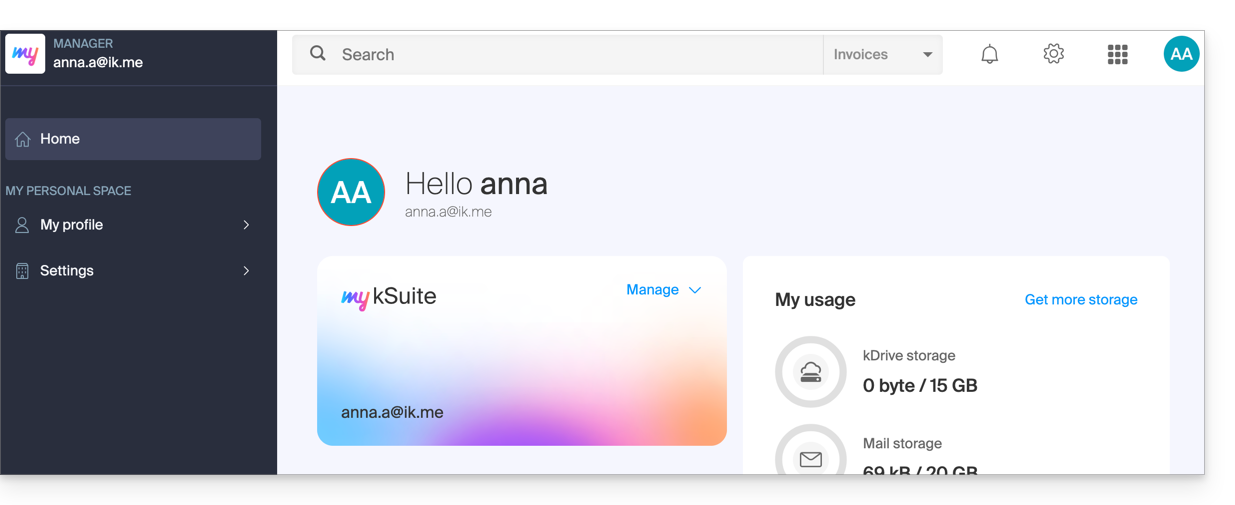
- In this case, the Manager will only contain information about managing your my kSuite account:
- The initials correspond to your Infomaniak account (first name/last name provided during registration):
This my kSuite account cannot directly contain hosting products, or kSuite Pro with a domain name, etc. The rest of this guide explains how to create a more comprehensive Organization if needed.
Please note that it is not possible to export your my kSuite services to another Organization.
To use your new my kSuite email address in the Mail web app, please refer to this other guide.
2. Registration and purchase of hosting, domain, etc.
When you registered on welcome.infomaniak.com/signup/, you chose your login ID, in the form of a personal email address, for example anna.alpha@orange.fr :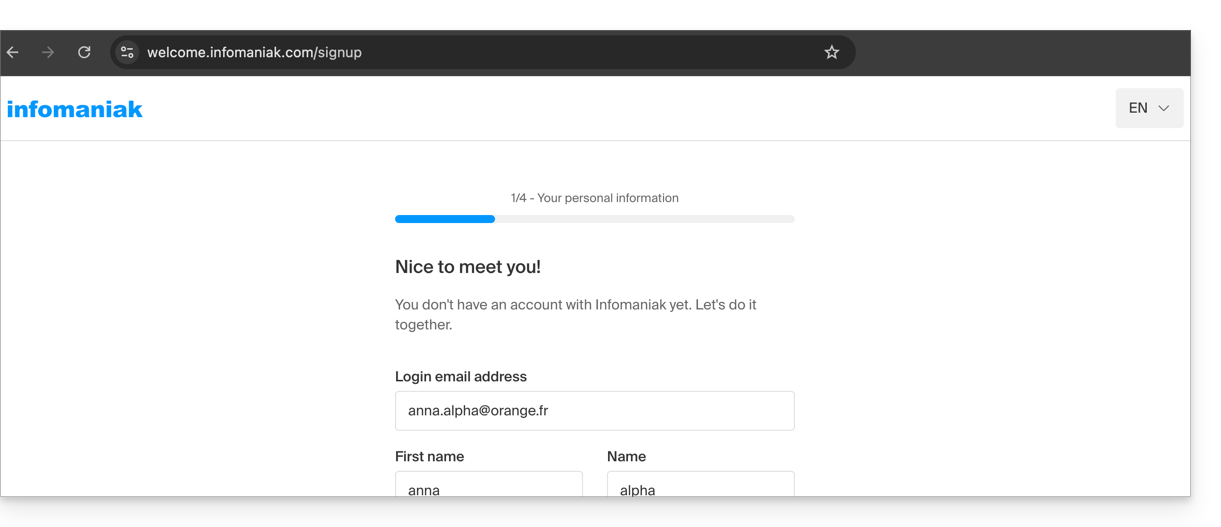
You then chose the type of Organization you wanted to create (personal, or for a company, association, etc.):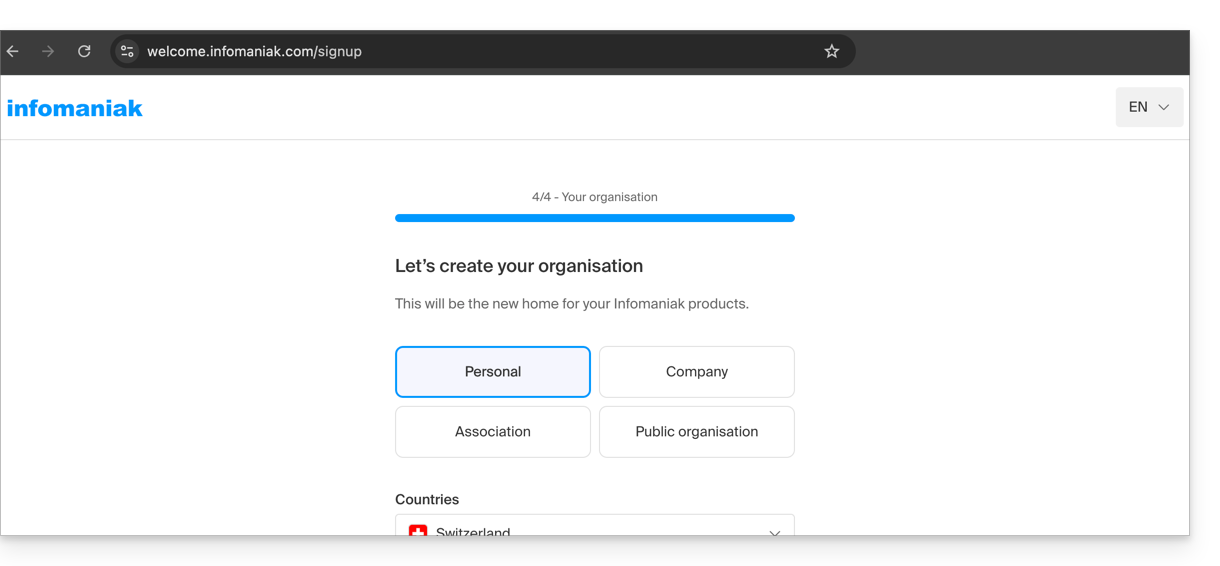
- Once your registration is validated, you can access the Manager at
manager.infomaniak.com, and your Organization is still an “empty shell” of which you are currently the sole legal representative: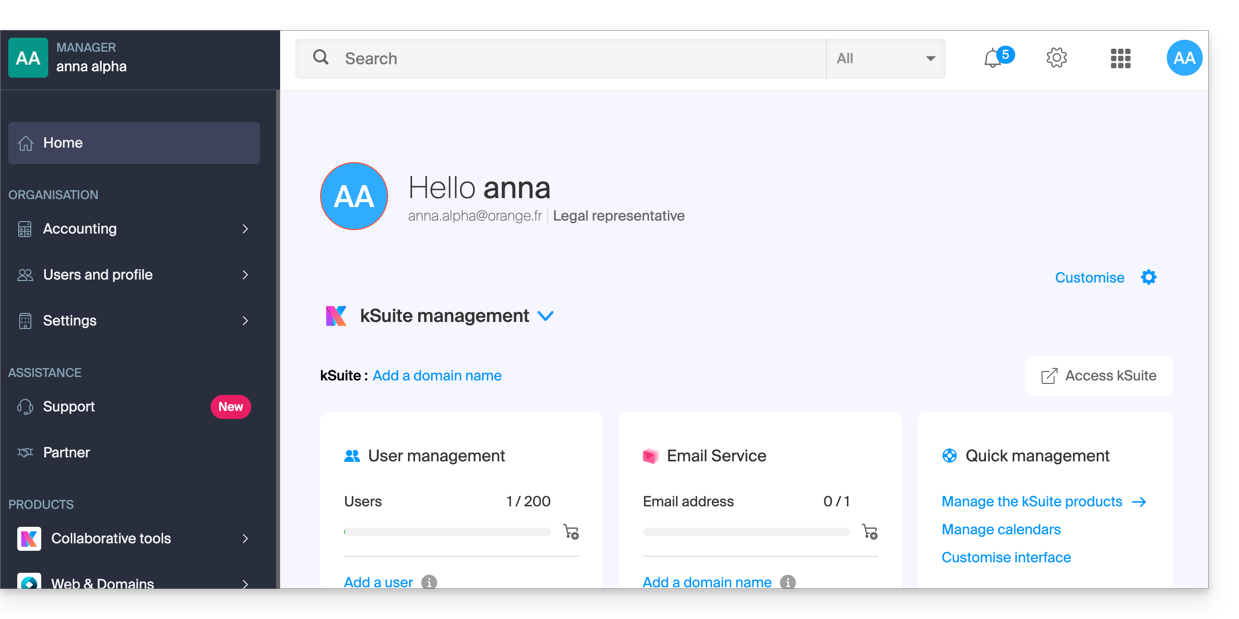
- You can distinguish:
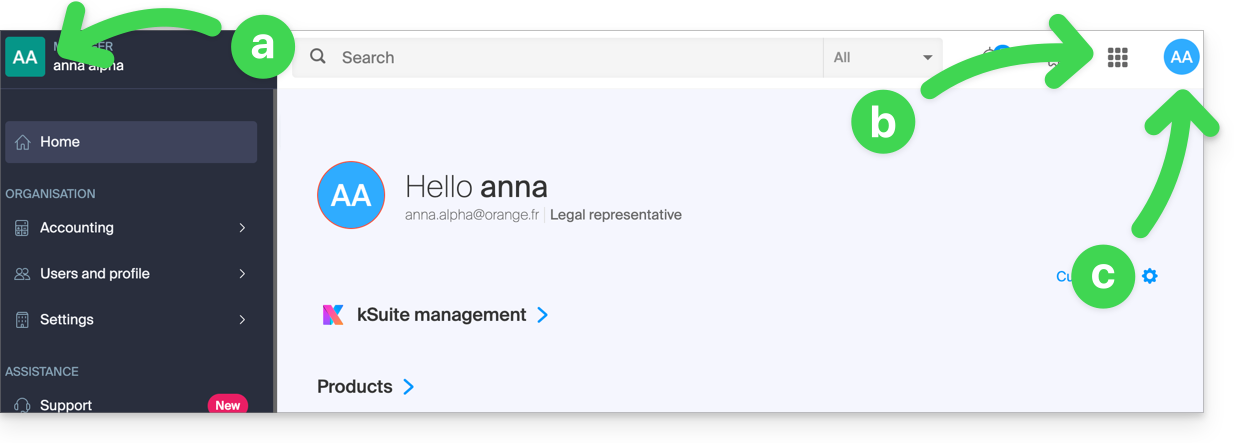
- The logo/type of your Organization, which in this case indicates that it is a personal Organization (automatically named during creation using the creator's first name/last name); this can be customized.
- The button allows you to access kSuite
ksuite.infomaniak.comand other apps/other services related to the kSuite Free added to your new Organization: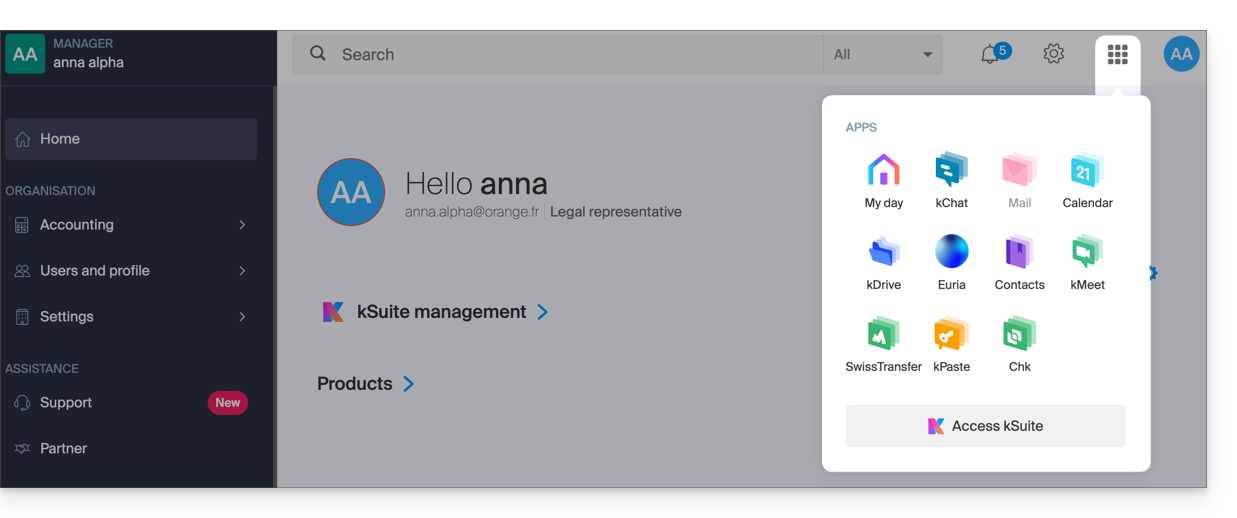
- The initials are those of your Infomaniak account (first name/last name provided during registration):
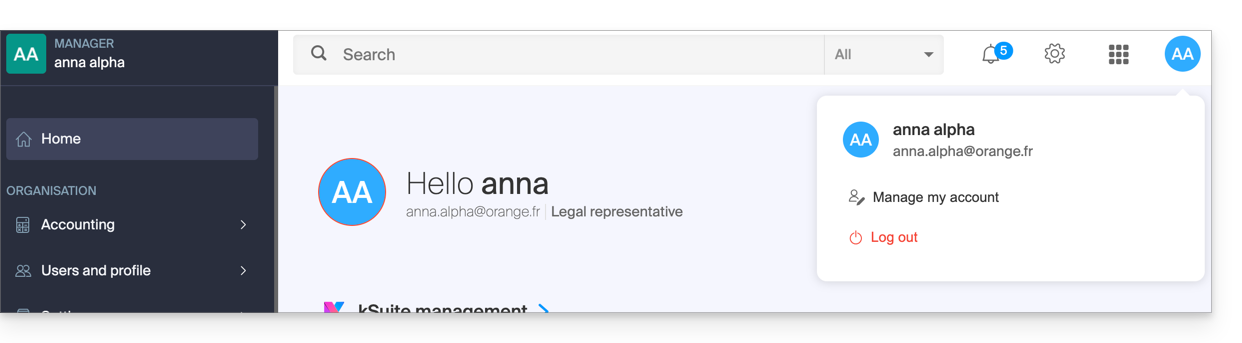
3. Combined Use
What happens if you sign up for my kSuite using an Infomaniak account that you already own for using hosting products?
Or, how to proceed if you want to purchase hosting products when you only have a my kSuite account?
Register for my kSuite by specifying an existing account
When registering on welcome.infomaniak.com/signup/myksuite, you choose to log in with an existing account…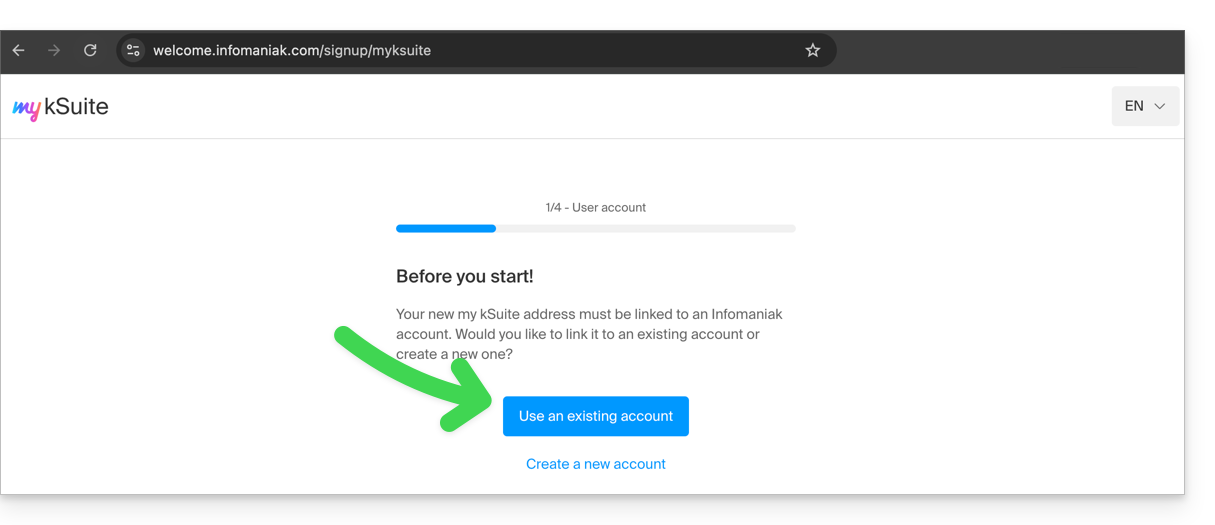
- Obviously, you should not enter a my kSuite account (
anna.a@ik.mefor example) as an existing account, because you cannot have multiple ik.me / etik.com / ikmail.com email addresses: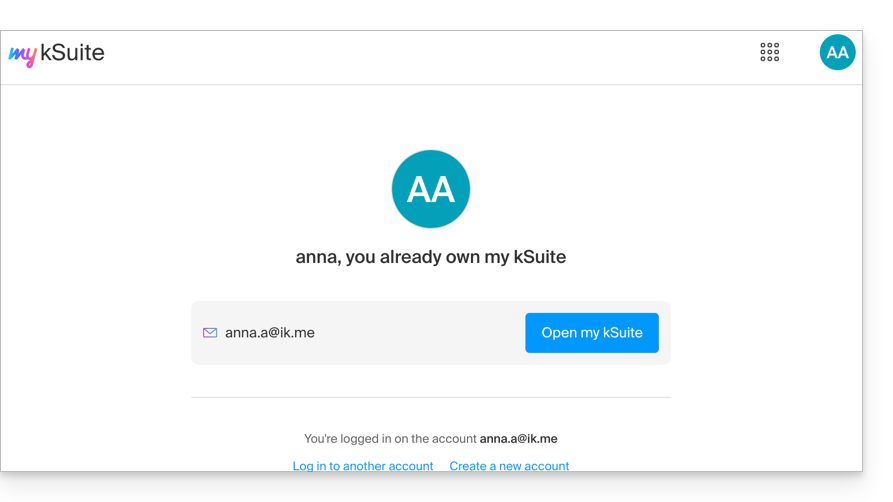
- Enter your existing Organization account,
anna.alpha@orange.fr: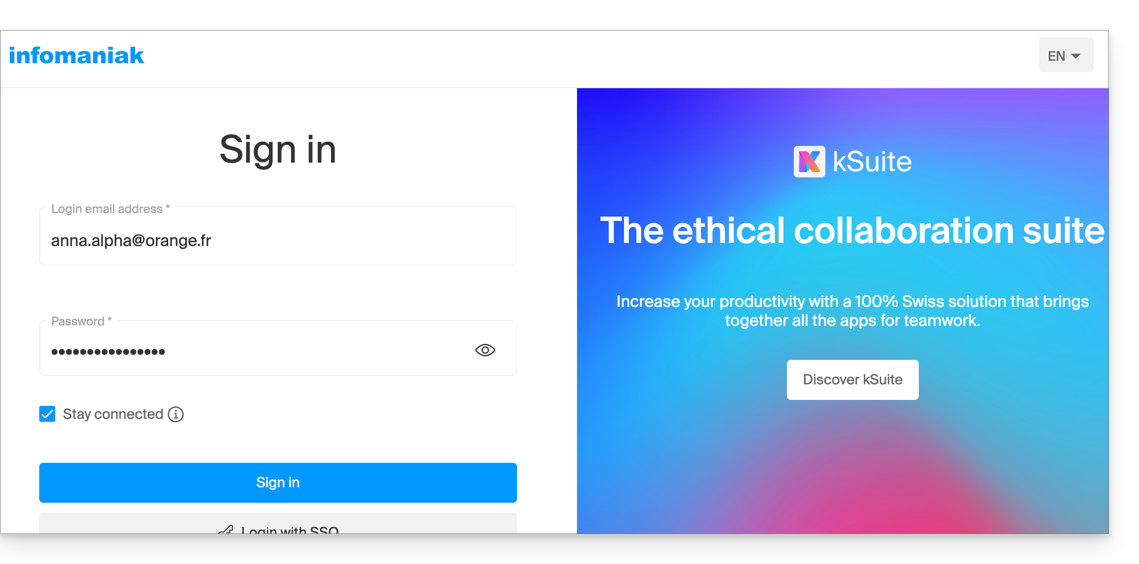
- This will prompt you to create a my kSuite account:
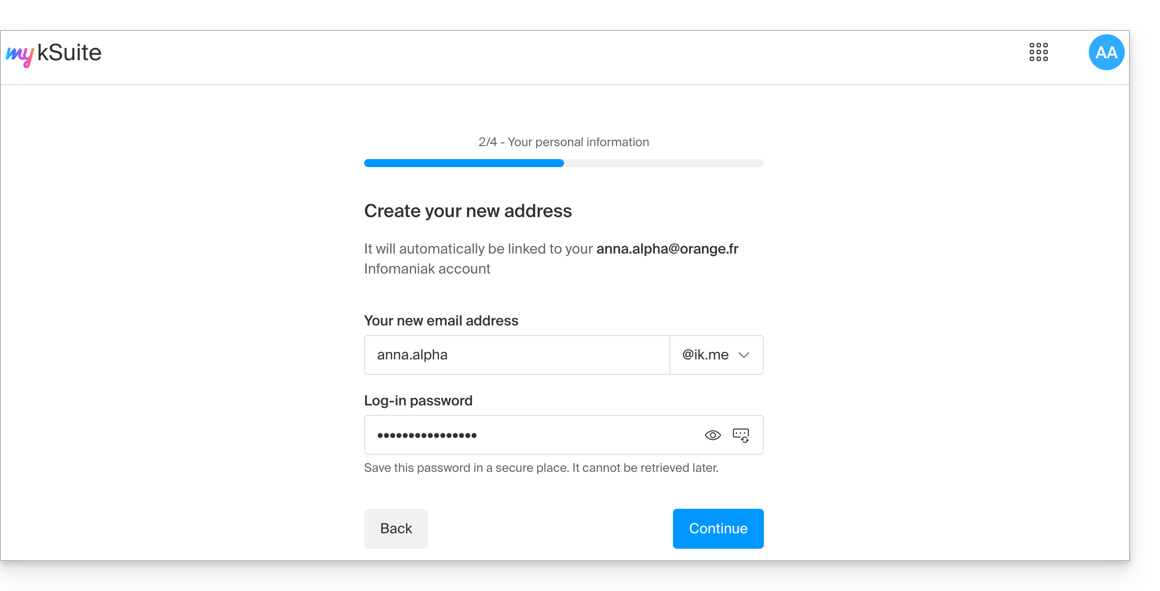
- Once your registration is validated, you will access the Manager at
manager.infomaniak.com:- Your previous Organization is visible…
- and is separate from my kSuite, which is currently selected:
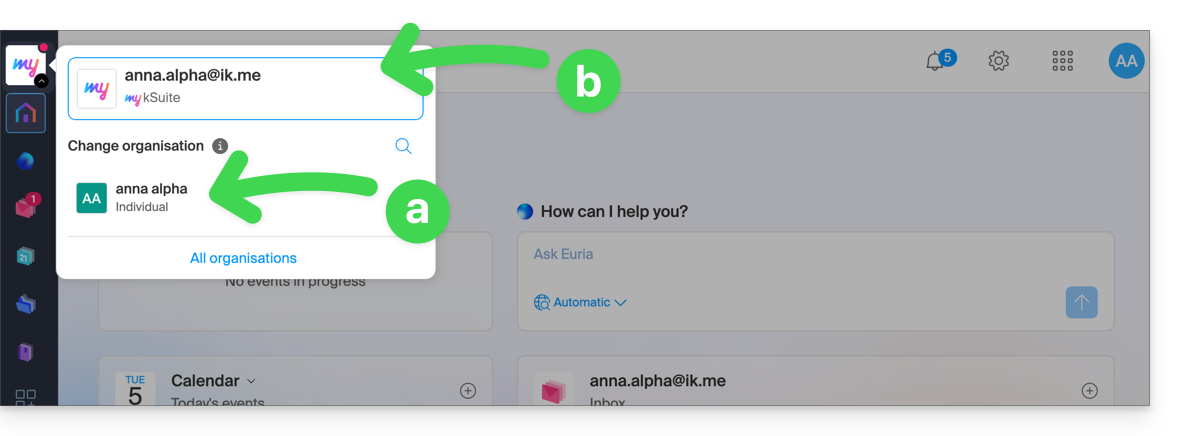
- Click on one of the Organizations/my kSuite in this menu (which is always accessible permanently in the upper left corner) to switch between them.
Purchase products using a my kSuite account
Another scenario: you want to purchase one of the services offered by Infomaniak on www.infomaniak.com, for example a domain name for your future website/email: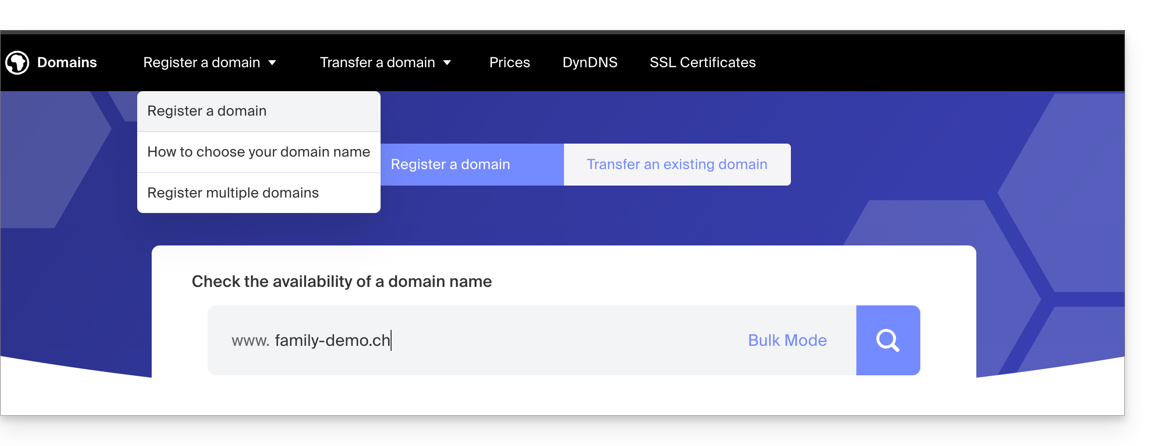
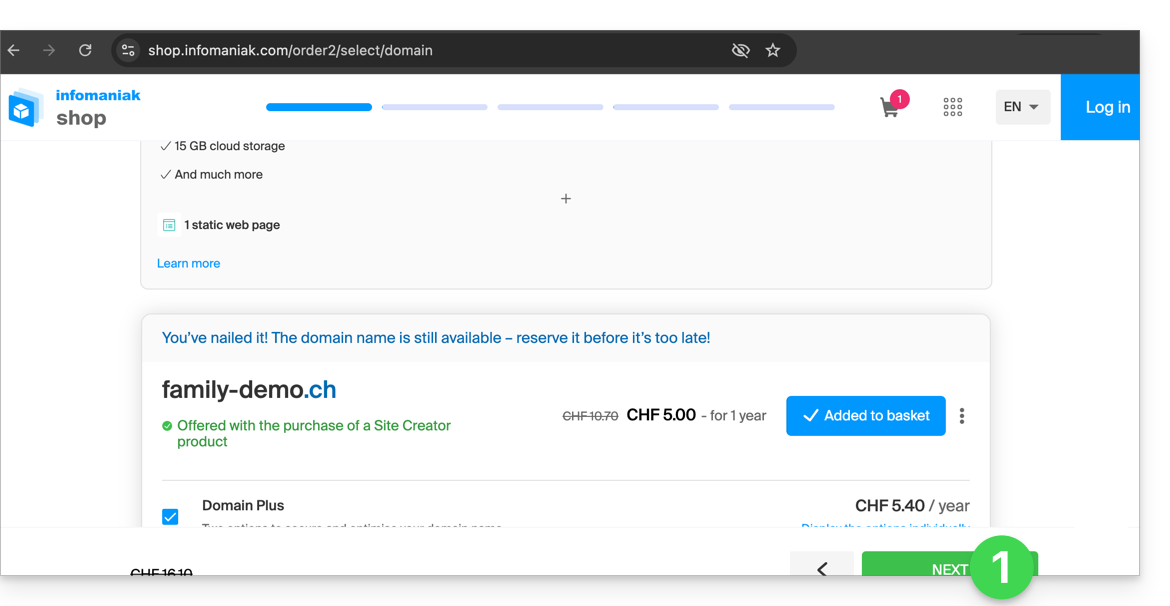
- You will be redirected to the Infomaniak Shop; proceed to the next step:
- At the step where you need to enter your existing Infomaniak ID, enter your existing my kSuite account (
anna.alpha@ikmail.comin this example):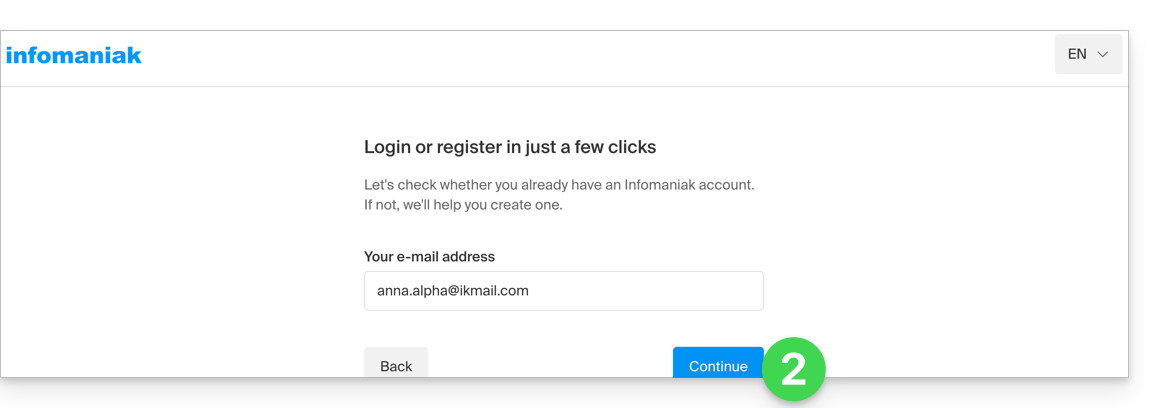
- Your existing ID is recognized; you must authenticate:
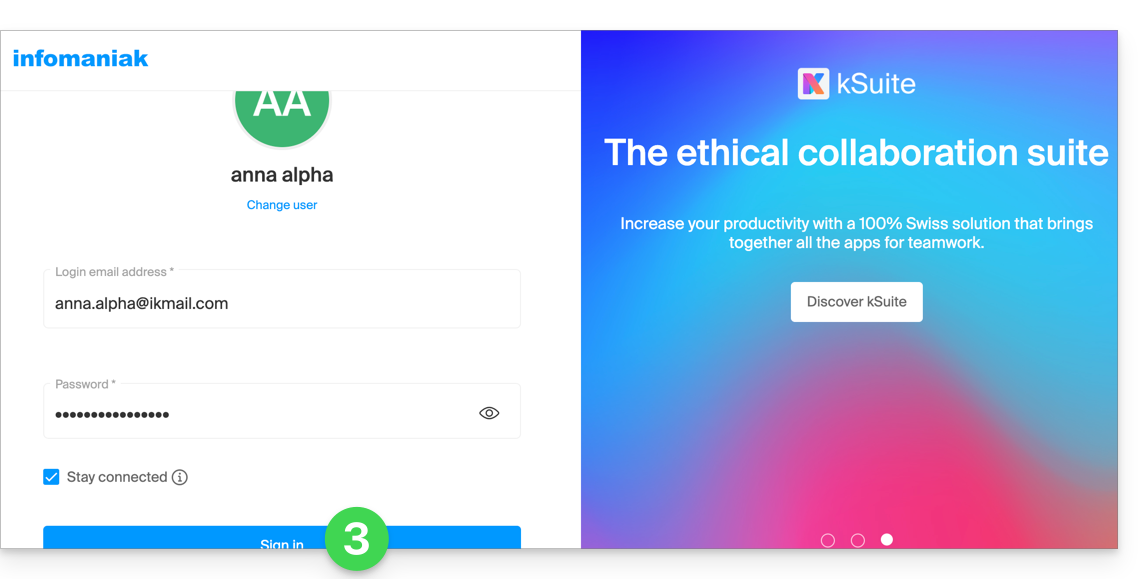
- You will then necessarily proceed to the Organization creation step; choose the type of Organization you wish to create (personal, or for a company, association, etc.):
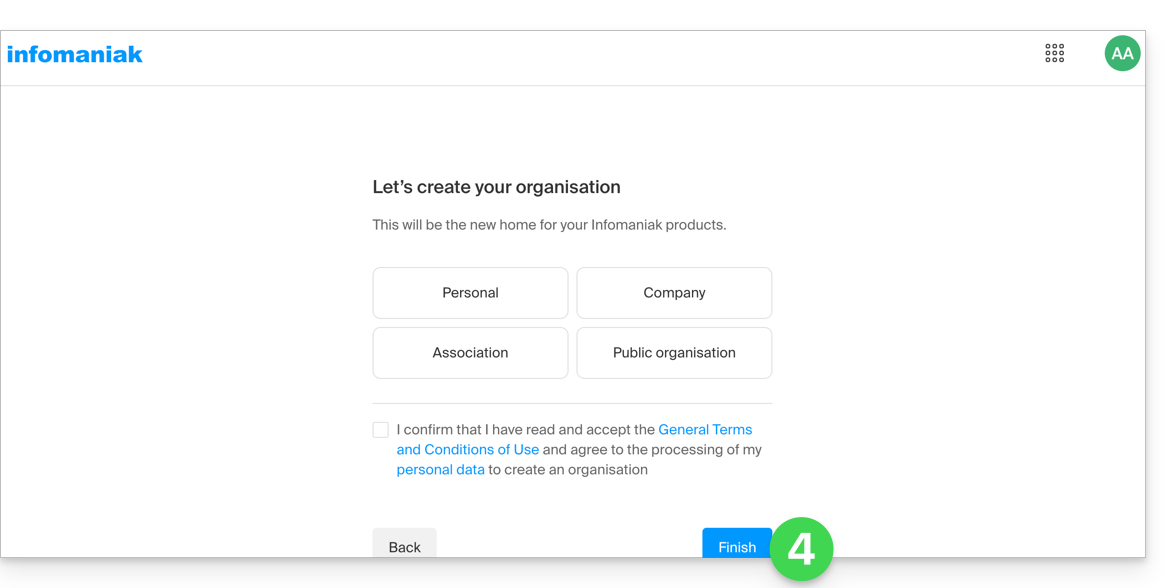
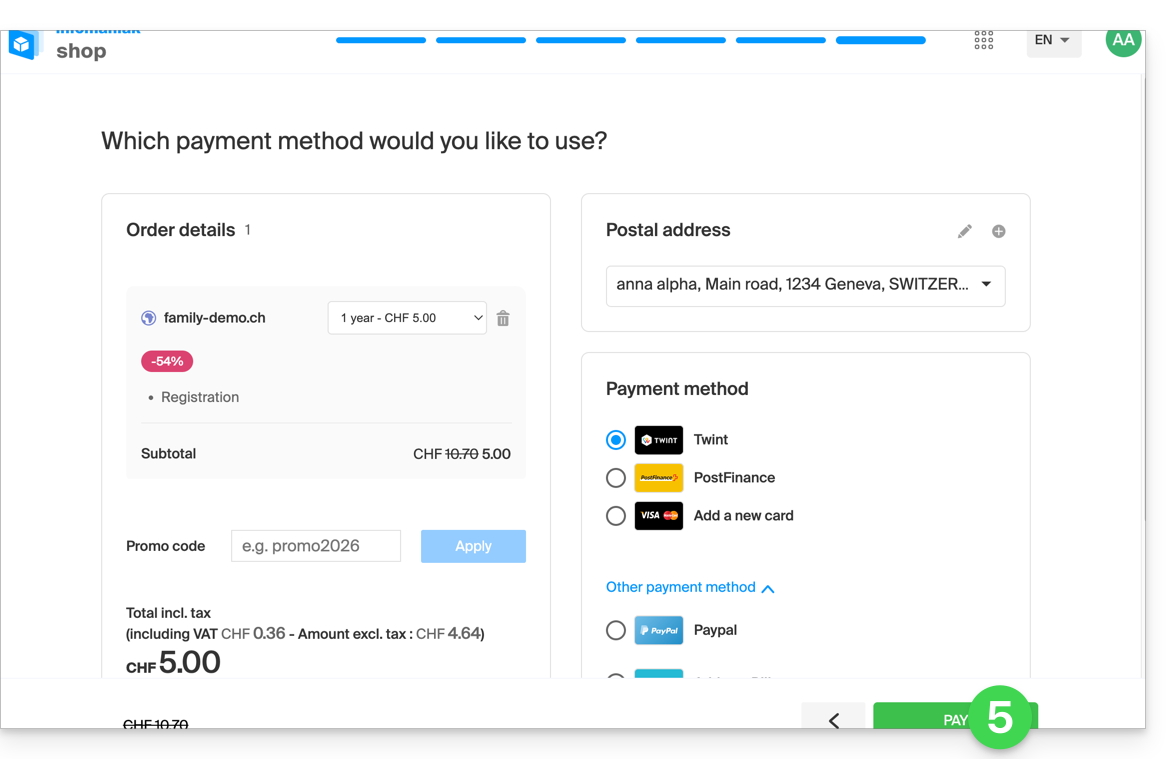
- To complete the purchase, the details relating to the Organization will be requested for billing purposes (they are also used to generate an owner for the domain name ordered); all that remains is to complete the order:
- Once the order is complete, you can access the Manager at
manager.infomaniak.com: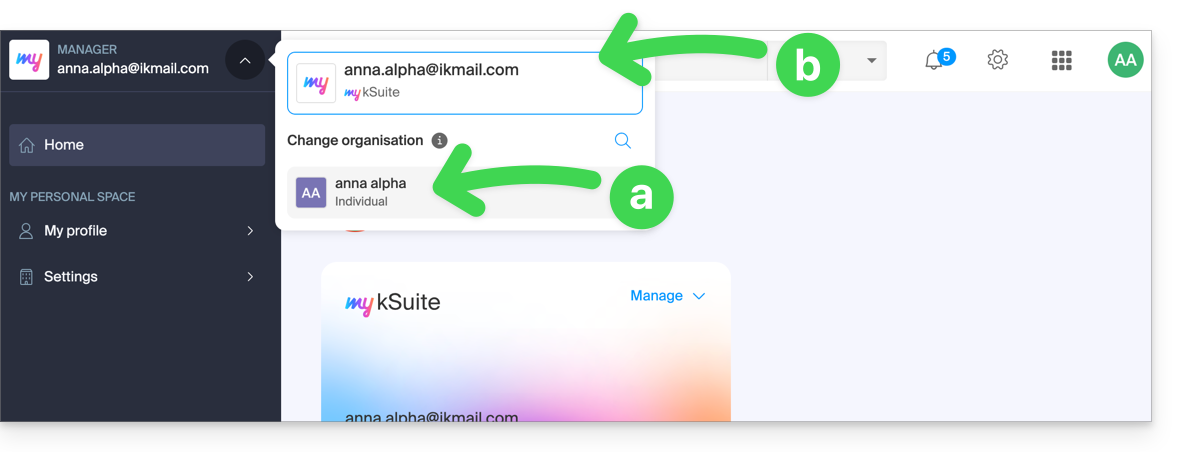
- Your new Organisation is visible…
- and is separate from my kSuite, which is currently selected.
- Click on the new Organisation to switch to it and manage your ordered products:
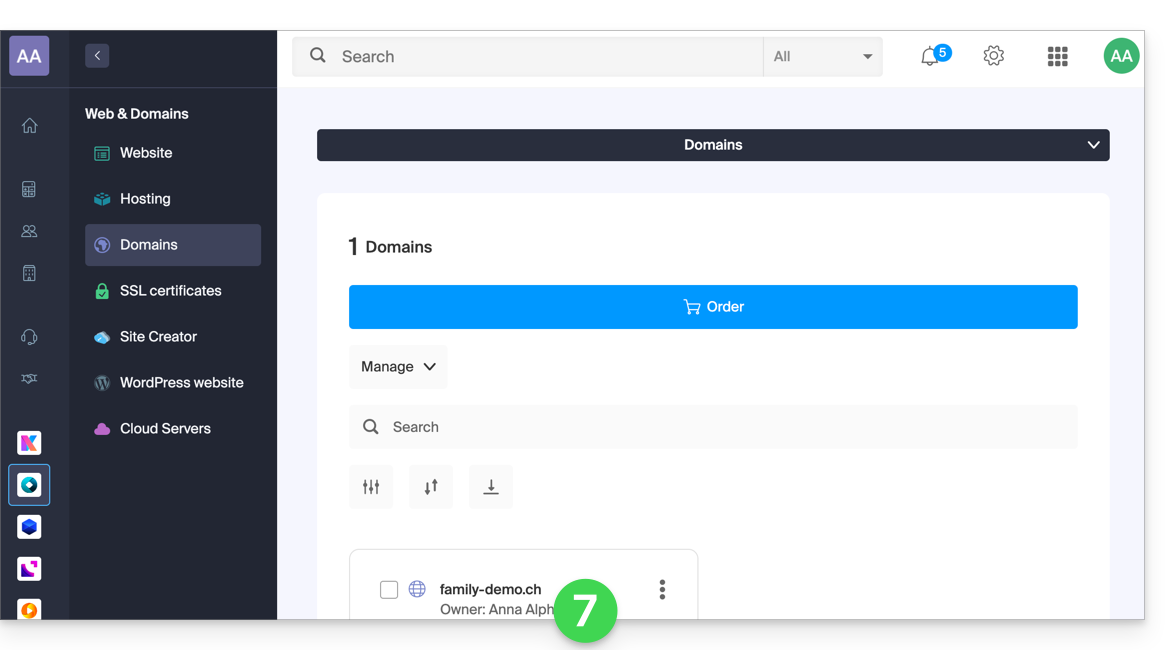
- To switch between your Organizations/my kSuite, click on this menu (always accessible permanently in the top left corner):
- First, to reach the main Manager page,
- then click on the chevron to select the destination:
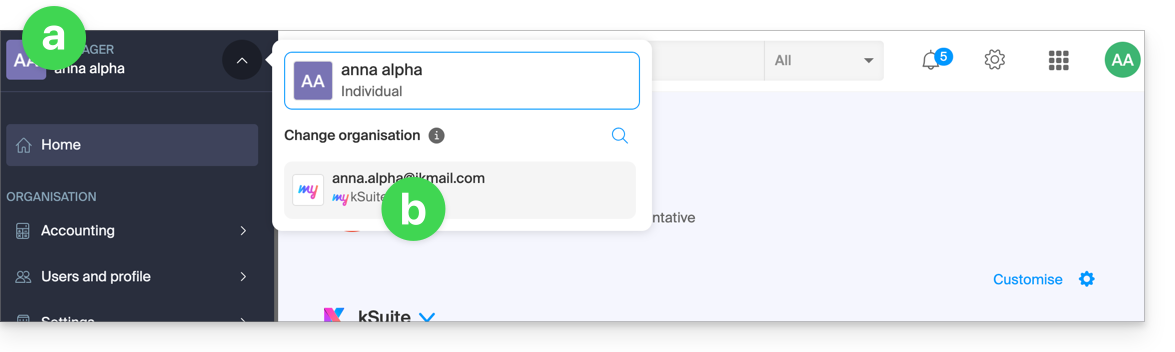
- You will then find your my kSuite email address.
To understand the different Infomaniak "Suites" (kSuite Pro, my kSuite...), please refer to this other guide.
Link to this FAQ: https://faq.infomaniak.com/2489
Has this FAQ been helpful?
Infomaniak's kSuite offering simplifies the creation and use of various Infomaniak products (kDrive, Mail Service, kChat...) all linked to a domain name.
Migrate to kSuite
If you subscribe to kSuite, you will receive separate products from your existing products.
However, if you already have a kDrive or Mail Service,you can upgrade your products to kSuite:
- Refer to this guide to upgrade a kDrive to kSuite…
- Refer to this other guide to upgrade a Mail Service to kSuite…
To help you identify the kSuite offer that best suits your needs, refer to this other guide.
What about the other way around?
You cannot separate kSuite products into individual products from the offer.
If you wish to cancel one of your kSuite products, you must cancel kSuite as a whole, after having saved the information you wish to keep, and then re-subscribe to the corresponding products.
Link to this FAQ: https://faq.infomaniak.com/2494
Has this FAQ been helpful?
This guide helps you get started with kSuite by integrating an existing Mail Service into your Organization.
Introduction
- To help you identify the kSuite offer that best suits your needs, please refer to this other guide.
- You can also integrate kDrive if it is not currently included in a kSuite.
Upgrading a Mail Service to kSuite
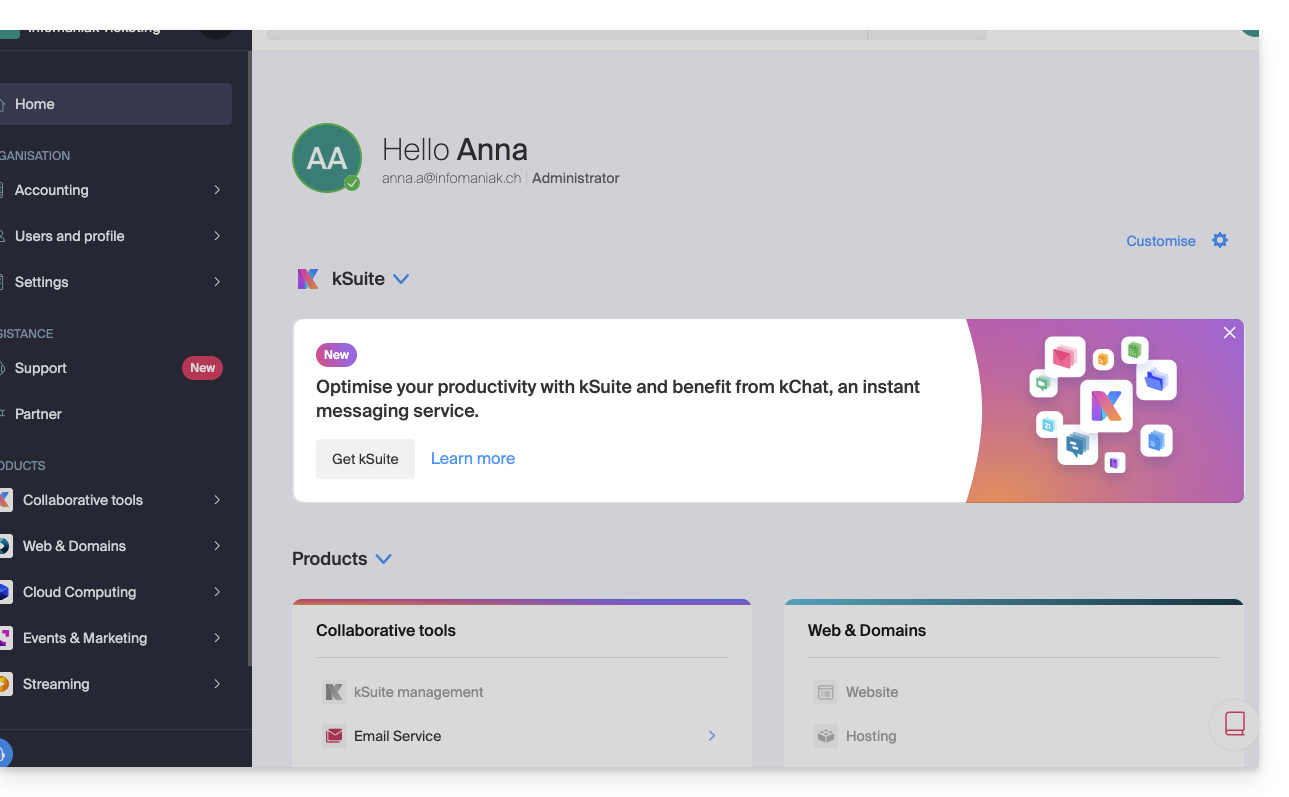
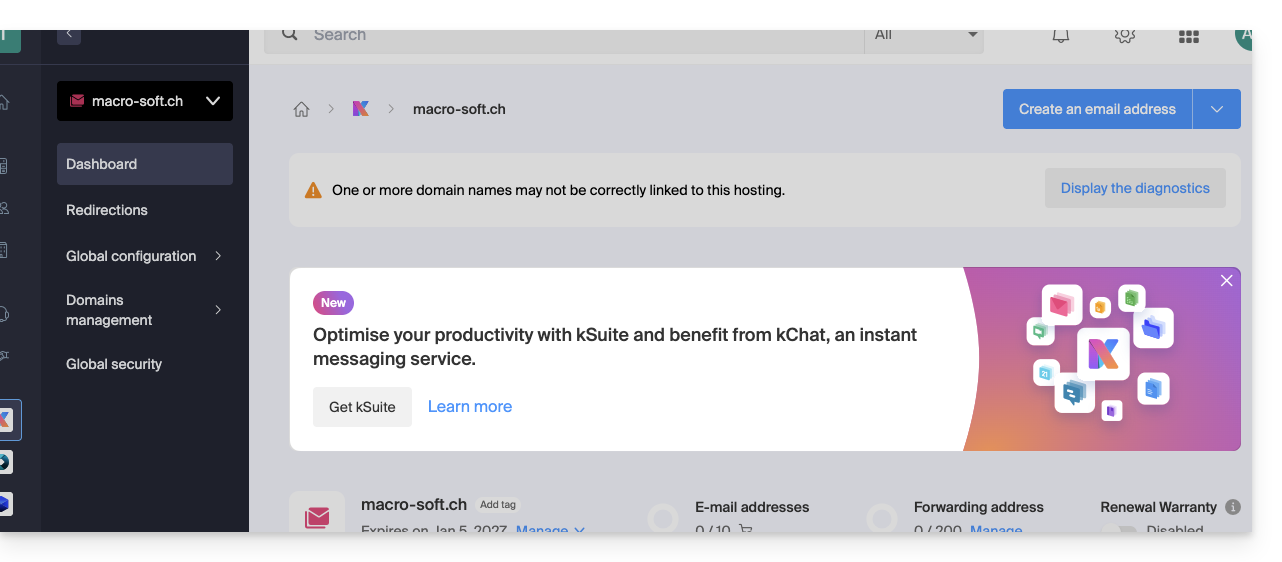
If no kSuite is currently present in the Organization, the easiest option is to order a new one and specify the domain name corresponding to your current Mail Service. This will integrate the latter into the new kSuite.
You can also do this from an information banner that is visible…
- … on the homepage of your Manager interface:
- … on the management page for your Mail service, excluding the current kSuite:
Link to this FAQ: https://faq.infomaniak.com/2495
Has this FAQ been helpful?
This guide explains how to upgrade your my kSuite plan (ik.me, etik.com, ikmail.com) and switch to a paid my kSuite+ plan, for example, to increase its maximum storage capacity. You will keep the email address you created when you subscribed to the free plan.
Introduction
- To help you identify the my kSuite / kSuite offer that best suits your needs, please refer to this other guide.
- Please refer to this other guide regarding the limitations specific to the my kSuite offer and the advantages of the my kSuite+ offer.
- You are not required to upgrade to my kSuite+ to add services: refer to this other guide about Organizations.
- You can also revert to my kSuite after subscribing to my kSuite+, but the incurred fees will still be due.
Upgrade to my kSuite+
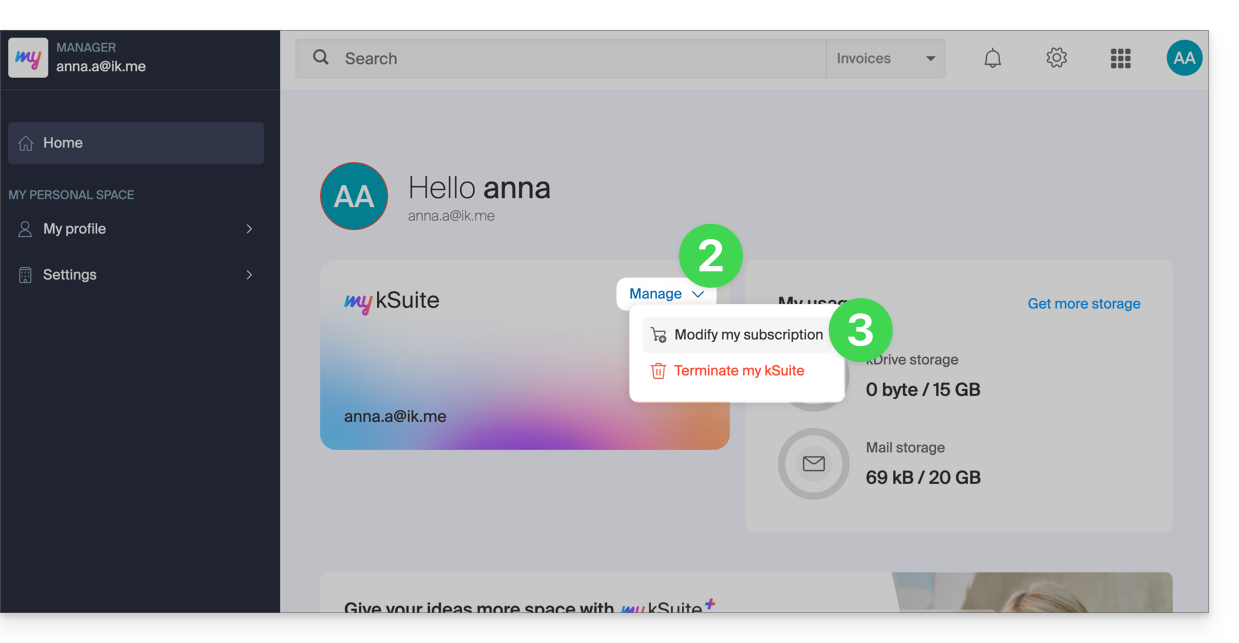
To access the current my kSuite plan and switch to a higher plan:
- Click here to access the Manager for your my kSuite plan.
- Click on the chevron to the right of Manage.
- Choose Modify my plan to upgrade from the free plan to a paid, more comprehensive plan:
- The reverse (switching from my kSuite+ back to my kSuite) is also possible, in the same place.
Order a new kDrive
There is no limit to the number of paid kDrives you can add to your Infomaniak account. Order a new kDrive if needed.
Link to this FAQ: https://faq.infomaniak.com/2496
Has this FAQ been helpful?
This guide is for you if you are looking for a comprehensive email and collaborative data storage solution. Its purpose is to help you better understand the different Infomaniak product suites when you are unsure or don't know which one to choose.
If you are looking to host a website, please refer to this other guide. If you are unsure which Mail-only offer to choose, please refer to this other guide.
A summary of the different plans
Here is a summary of the different plans (excluding web hosting plans):
| Free (or domain name to be paid for) | Paid |
|---|---|
my kSuite
| my kSuite+
|
Mail Starter service
| Mail Premium service
|
kSuite Pro: Free
| kSuite Pro: Standard / kSuite Business / kSuite Enterprise
|
Free or paid suites
Infomaniak offers several email solutions with or without additional collaboration tools:
- A Mail Service is the name given to the email service created by Infomaniak in Switzerland. You can order a Mail Service independently of kSuite.
- kSuite Pro is a collection of Infomaniak services that includes a Mail Service and is based around a personal domain name.
- my kSuite and my kSuite+ are limited versions of kSuite that do not require a domain name and can also fully meet your email needs. In the Infomaniak Manager, these offers will be “separated” from the rest.
Cost of simple email offers
This email service can be…
- … free if you are happy with an address using a generic domain name (the part after the at symbol
@), provided by Infomaniak (ik.me,etik.com,ikmail.com) by choosing my kSuite (my kSuite+ unlocks certain limitations of my kSuite) - … at a very low cost if you are happy with just one or two email addresses on a domain name that you pay for (there are domain names for less than CHF/€ 5 per year, which will be your only expense, and this allows you to customize your email addresses) by ordering:
- either the Starter plan (1 email address)
- or the kSuite Pro plan
Need a large number of email addresses?
If you need multiple email addresses on the same domain, you can order a Mail Service only (minimum of 5 email addresses) or kSuite Pro, which is available in 4 different versions:
- Free
- Standard
- Business
- Enterprise
All Mail offers have one thing in common: you must have a user account with Infomaniak (a login ID in the form of an email address, as well as a password) which will take you to your Organisation where your email will be located. Also, please refer to this other guide.
Additional tools (kDrive…)
If you choose a Suite (kSuite or my kSuite / my kSuite+), this user account will take you to your Organization, where you will find the suite of tools, including your email, kDrive, kChat, etc.
Click on the links to access the comparison charts detailing all the features available depending on the plan:
- kDrive can be obtained by creating a my kSuite or my kSuite+ account.
- kDrive can be obtained independently in 3 different versions:
- Solo
- Team
- Pro
- kDrive can be obtained by subscribing (for free or with a paid subscription) to kSuite Pro, which is available in 4 different versions:
- Free
- Standard
- Business
- Enterprise
Would you like to join Infomaniak?
Please refer to this other guide.
Link to this FAQ: https://faq.infomaniak.com/2497
Has this FAQ been helpful?
This guide provides the most common IMAP server addresses.
Introduction
- These addresses are provided for informational purposes and can be used to perform the content migration from your old email addresses to your Infomaniak email address.
- Not all of them have been individually verified and are subject to change without notice.
- For Gmail, Yahoo, Outlook, and iCloud, you generally need to generate an "App Password" in the security settings of your original account to allow the migration.
- If necessary, do not hesitate to contact your previous email provider to ask them for the exact email server to enter.
IMAP Server Addresses
| Provider | IMAP Hostname / Server |
|---|---|
| 1&1 (IONOS) | imap.ionos.fr |
| 9 Business | imap.9business.fr |
| 9 Telecom / Neuf | imap.neuf.fr |
| Alice | imap.aliceadsl.fr |
| Altern.org | imap.altern.org |
| AOL | imap.aol.com |
| Apple (iCloud / me.com) | imap.mail.me.com |
| Bouygues Telecom (Bbox) | imap4.bbox.fr |
| Caramail / GMX | imap.gmx.com |
| Cegetel | imap.cegetel.net |
| Club Internet | imap.club-internet.fr |
| Free | imap.free.fr |
| Freesurf | imap.freesurf.fr |
| Gmail (Google) | imap.gmail.com |
| Hotmail / Outlook / MSN | imap-mail.outlook.com— personal accounts (@hotmail, @outlook, @live, @msn)outlook.office365.com — Microsoft 365 / Exchange (professional) |
| Infomaniak | mail.infomaniak.com |
| La Poste | imap.laposte.net |
| Mailo (formerly NetCourrier) | imap.mailo.com |
| Noos | imap.noos.fr |
| Numericable | imap.numericable.fr |
| o2switch | server-name.o2switch.net(check your welcome email) |
| Online.net | imap.online.net |
| Orange / Wanadoo | imap.orange.fr |
| OVH (Shared) | ssl0.ovh.net |
| OVH (Pro / Exchange) | pro1.mail.ovh.net (or ex.mail.ovh.net) |
| Proton Mail | Direct copying is not possible |
| SFR | imap.sfr.fr |
| Skynet (Belgacom / Proximus) | imap.proximus.be |
| Tele2 | imap.tele2.com |
| Telenet | imap.telenet.be |
| Videotron | imap.videotron.ca |
| Yahoo Mail | imap.mail.yahoo.com |
Link to this FAQ: https://faq.infomaniak.com/2508
Has this FAQ been helpful?
This guide explains how to reply to an email visible in the Mail Infomaniak web app (online service ksuite.infomaniak.com/mail) by sending the reply directly in the kChat web app (online service ksuite.infomaniak.com/kchat) or the desktop app, as a private message to the email sender.
Introduction
- This feature allows you to reply to an email directly within kChat, with a reminder of the original message to facilitate understanding.
- It aims to streamline collaboration by enabling quick responses to emails without leaving the kSuite environment.
- It reduces the back-and-forth between traditional email and the collaborative workspace.
Reply to an email via kChat
Prerequisites
- The button providing access to the feature will only appear if the email was received from a sender associated with kSuite, and this within the same Organization as the user who wishes to reply.
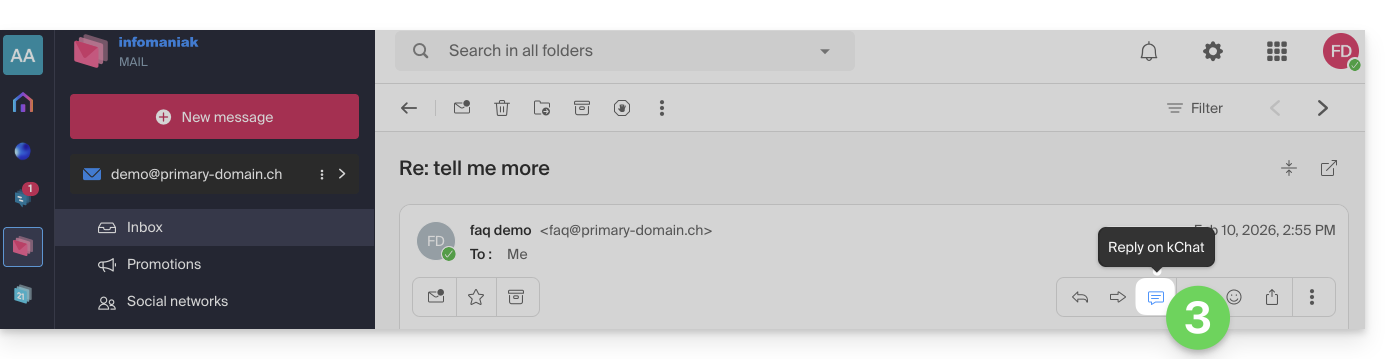
- To display a shortcut to this feature, as in the first point 3 below, please refer to this other guide.
When you have received an email from a colleague and you want to reply to them directly on kChat:
- Click here to access your emails on your Infomaniak kSuite (❓: help).
- Open the message you want to reply to using kChat.
- Click on the kChat icon in the email toolbar:
- You can also click on a button below the message:
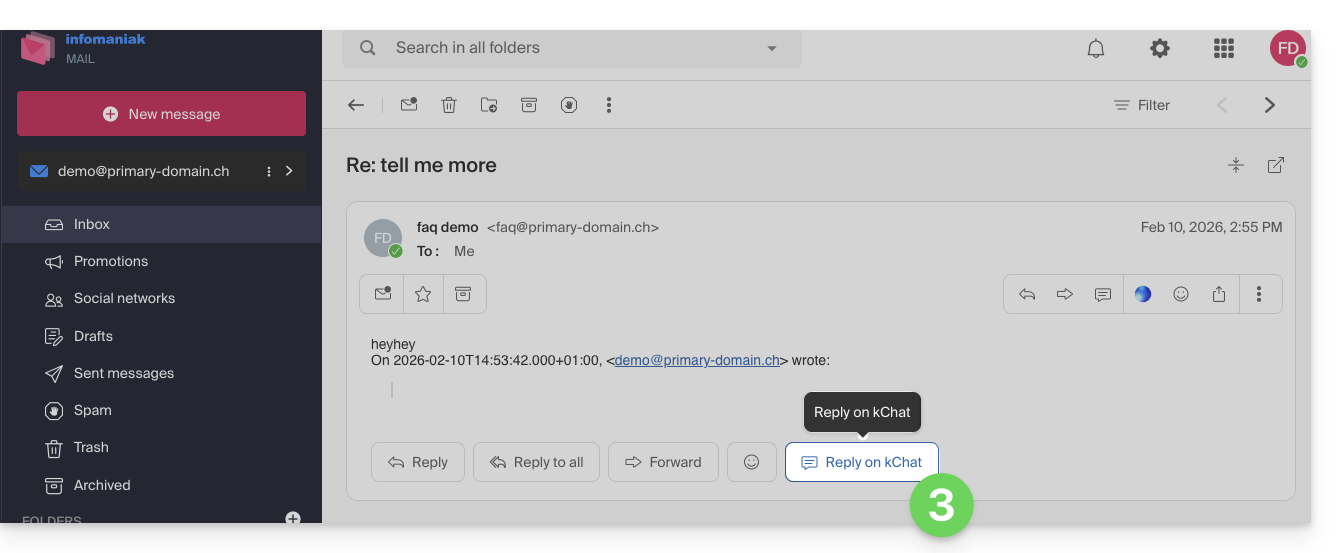
- You can also click on a button below the message:
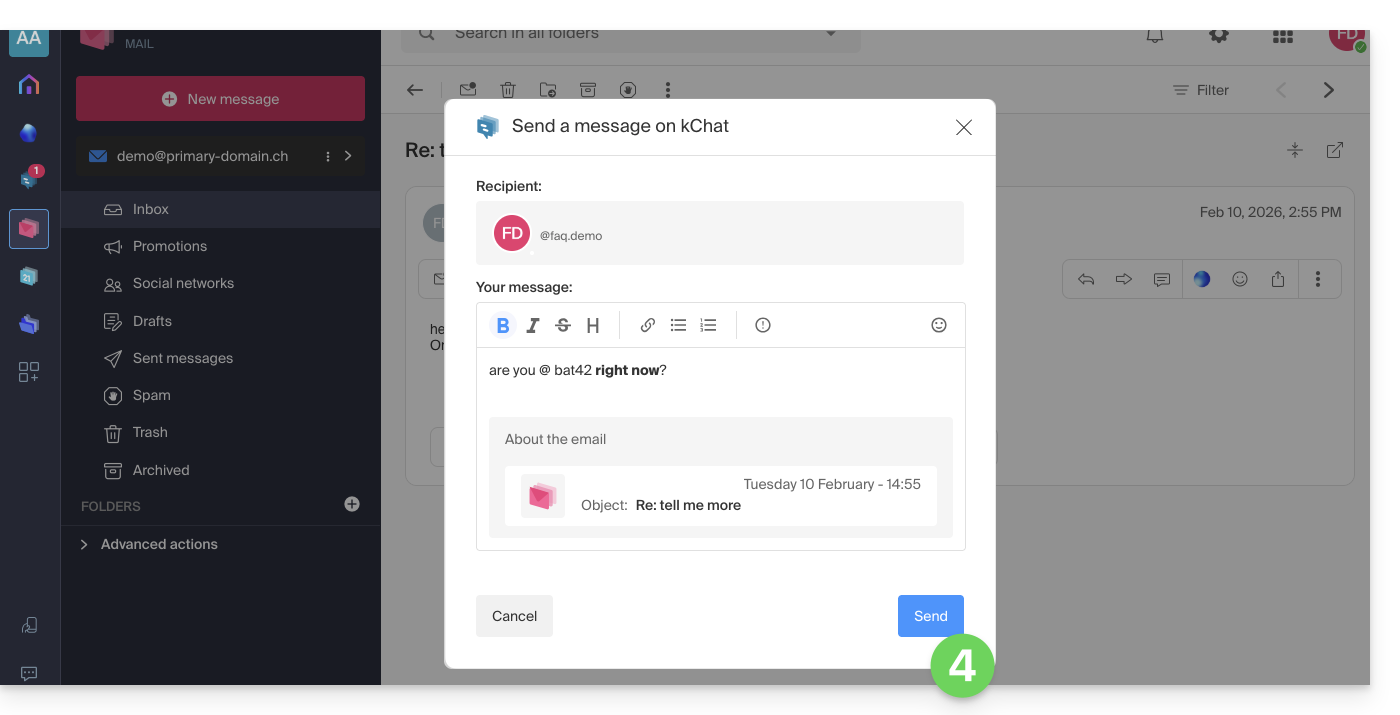
- Write your kChat message, format it if necessary, and click the Send button in the bottom right corner:
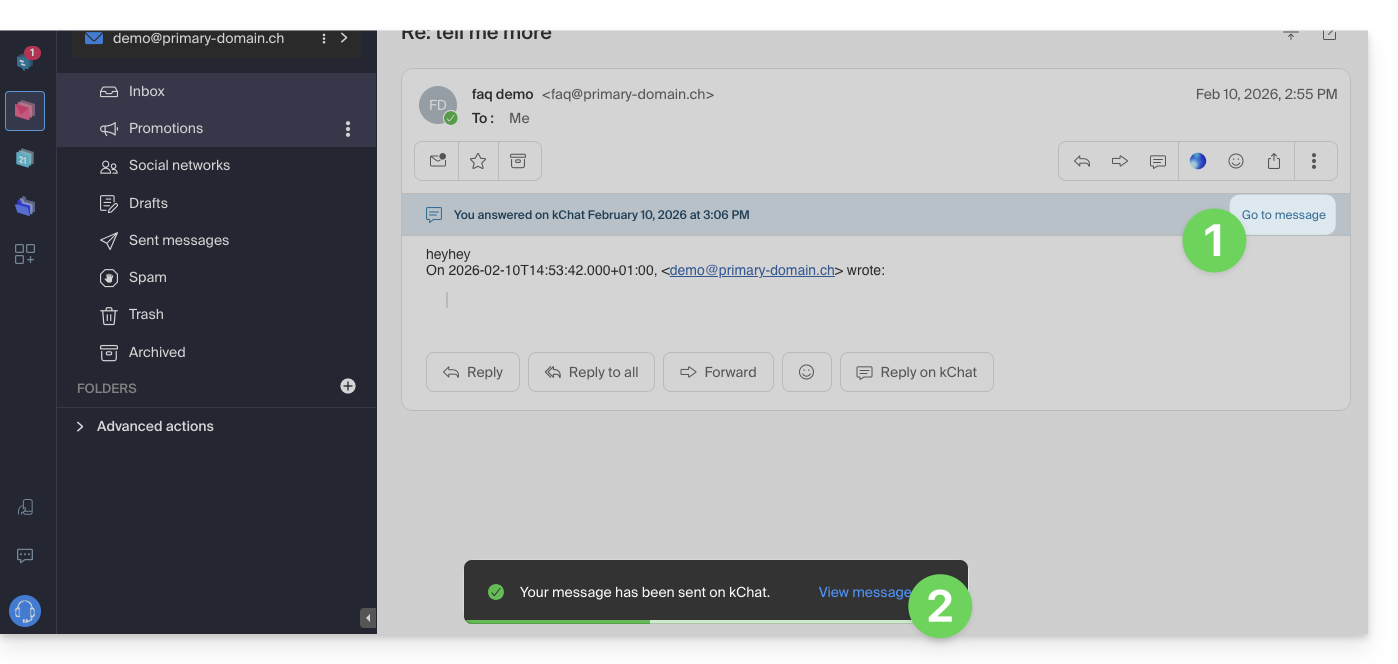
- Your contact receives the message on kChat, along with a box displaying the original email (date & time, subject):
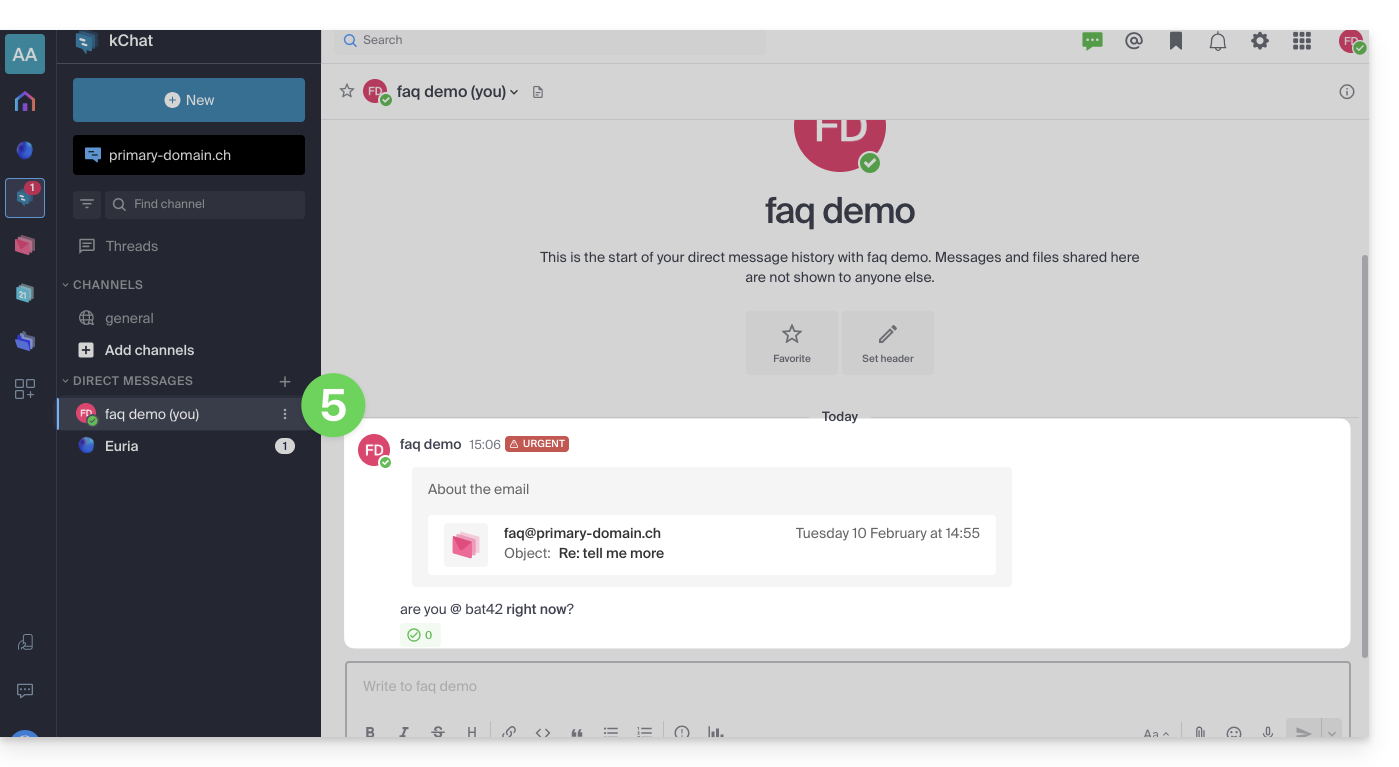
You can access this message on kChat (in the thread of private messages exchanged with your contact, as shown above), but also:
- in an information banner on the email conversation,
- in the confirmation message after sending:
Link to this FAQ: https://faq.infomaniak.com/2512
Has this FAQ been helpful?
This guide explains how to create, save, and edit an Office file (text, spreadsheet, presentation, etc.) on the web app kDrive (online service ksuite.infomaniak.com/kdrive) and on the mobile app kDrive (application for smartphone or iOS/Android tablet).
Note for LibreOffice users: to avoid display or formatting issues on kDrive, always convert your LibreOffice files (ODF: .ods, .odt, .odp) to their Microsoft Office XML equivalents (.xlsx, .docx, .pptx) before editing them online.
Using the native editor
kDrive natively integrates the Docs, Grids, and Points applications, which allow you to create, edit, and collaborate online on Word .docx, Excel .xlsx, and PowerPoint .ppsx documents. This allows you to work with:
- text document
- spreadsheet
- presentation
- notes
- draw.io document for diagrams, schematics, and wireframes
A feature allows you to add a bookmark (a shortcut to your favorite section of your document, or the equivalent of a web page anchor) that you can easily share with your contacts. You can also easily notify a user in your Organization directly on the document.
Please refer to the guide on this topic.
Using Microsoft Office Online
Another editing solution is available to you (kDrive Pro or kSuite Business / Enterprise required): the Microsoft Office Online editor.
Consult the guide on this topic.
Define the default editor
✘ UNAVAILABLE with
kSuite Free / kSuite Standard
my kSuite / my kSuite+ (ik.me, etik.com, ikmail.com)
kDrive Solo / kDrive Team / kDrive Pro
To specify which editor should always be used by default to open your collaborative Office files (text documents, spreadsheets, presentations, etc.) from the two options presented above:
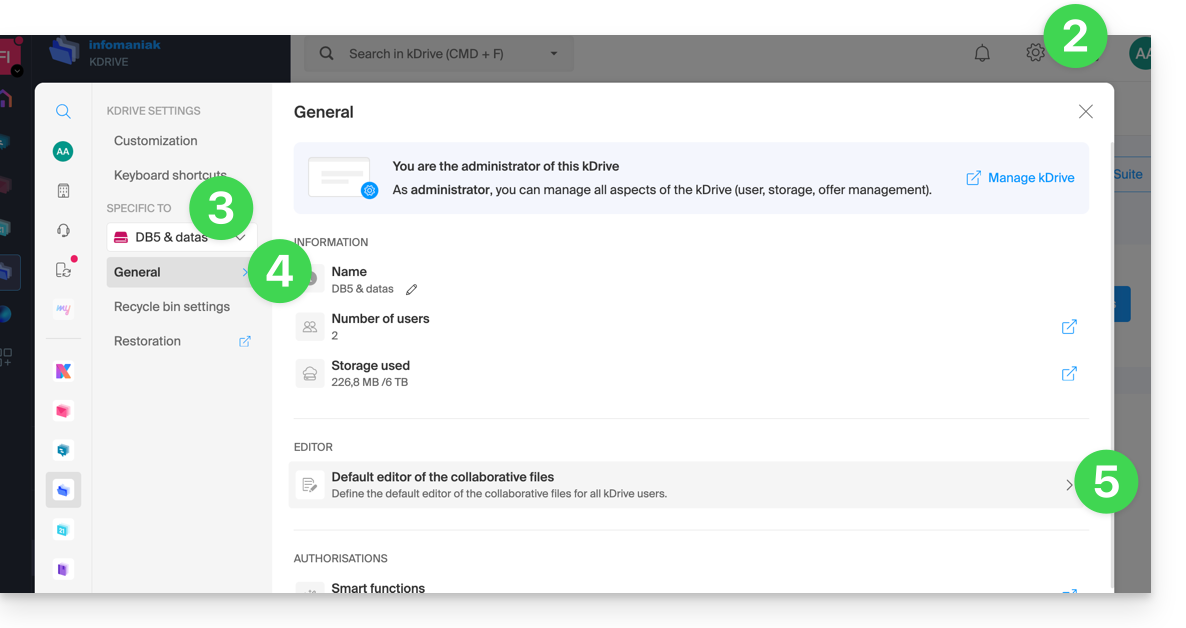
- Click here to access kDrive on your Infomaniak kSuite (❓: help).
- Click on Settings in the top right corner.
- Check or select the relevant kDrive from the dropdown menu in the left-hand menu.
- Click on General in the left-hand menu.
- Click on Default editor:
- Choose the default editor for the following file types:
.docx/.doc.xlsx/.xls.pptx/.ppt
Link to this FAQ: https://faq.infomaniak.com/2531
Has this FAQ been helpful?
This guide explains how to modify an Infomaniak Mail Service plan, the powerful and secure solution for hosting your email addresses, in order to increase or decrease the email address quota available within it.
Introduction
- Refer to this other guide if you simply want to create or delete an email address on your existing Mail service, without affecting the number of email addresses available within it.
- If your Mail service is not yet part of a kSuite, refer to this other guide to consider a possible change of plan along the way.
Modify the address quota for a Mail Service
Prerequisites
- Have a Mail Service on your Infomaniak Manager.
To view the number of email addresses currently available on your Mail Service, and then order more if necessary (or remove some):
- Click here to access the Mail Service management in your Infomaniak Manager (❓: help).
- Click on the name of the Mail Service in question.
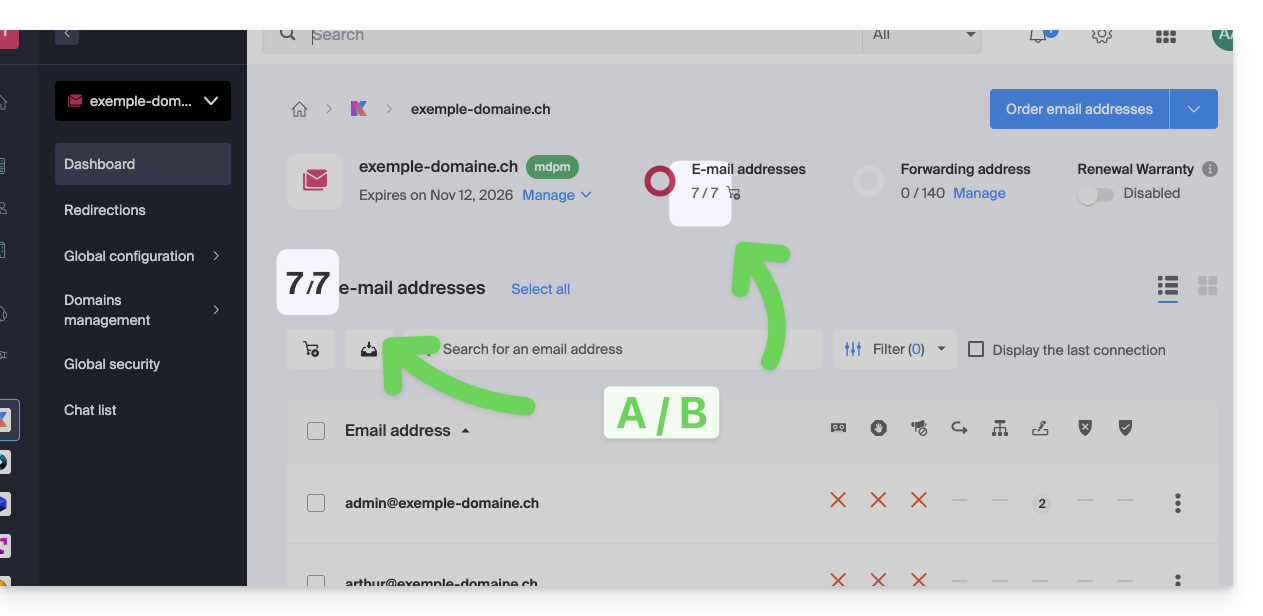
- The number of email addresses created (A) and the total number of addresses available (B) on the Service is displayed at the top of the page:
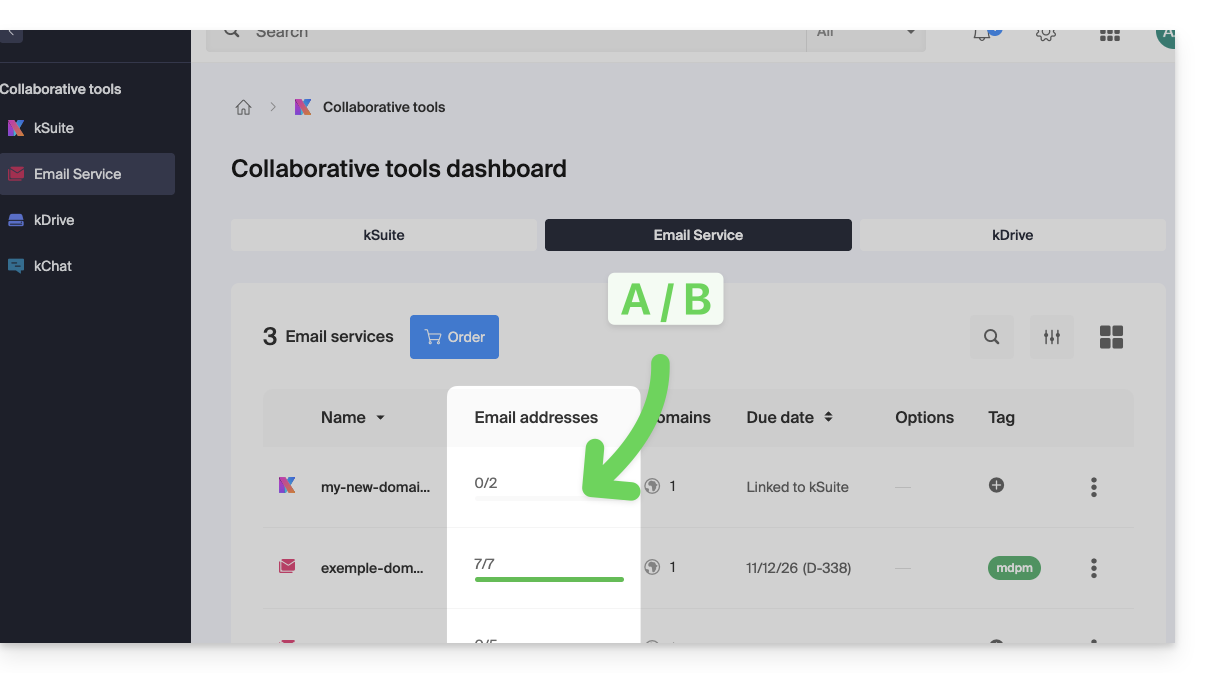
- Note that you can also view the quota directly in step 1, when you are on the page listing your Mail Services:
- Note that you can also view the quota directly in step 1, when you are on the page listing your Mail Services:
Increase the number of email addresses available
To increase the number of email addresses available to you on your Mail Service, allowing you to create new email addresses for yourself or your contacts:
- Click here to access the Mail Service management in your Infomaniak Manager (❓: help).
- Click on the name of the Mail Service in question.
- Click on the shopping cart icon at the top:
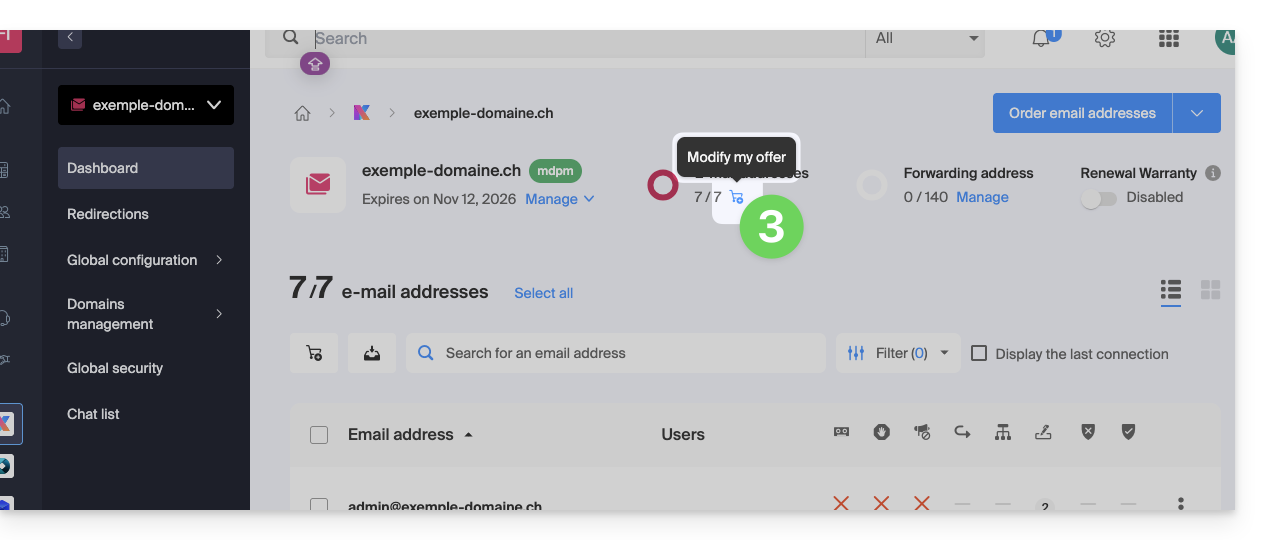
- Adjust the desired quota and proceed with ordering the number of additional addresses on the domain for the Mail service.
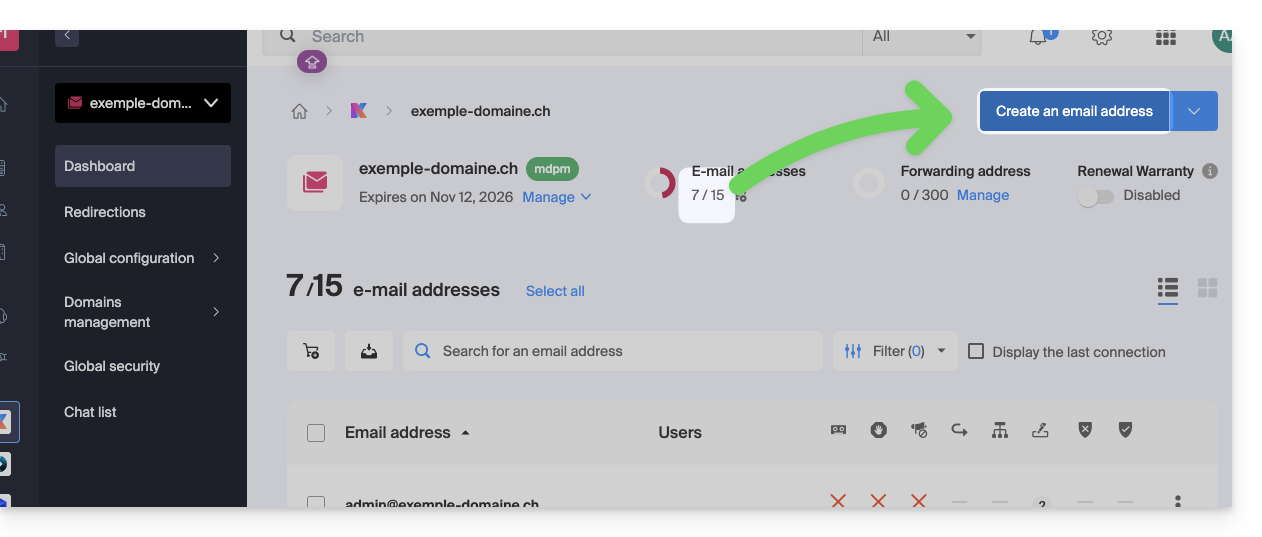
- Complete the payment process; you can now create your additional email addresses:
Reduce the number of email addresses available
To reduce the number of email addresses available on your Mail Service, allowing you to only pay for the number of addresses you actually want and use during the next renewal (a minimum of 5 addresses is required for all Mail Services, except for Mail Starter), you may need to delete any unnecessary email addresses and then:
- Click here to access the Mail Service management section in your Infomaniak Manager (❓: help).
- Click on the name of the Mail Service in question.
- Click on the shopping cart icon at the top:
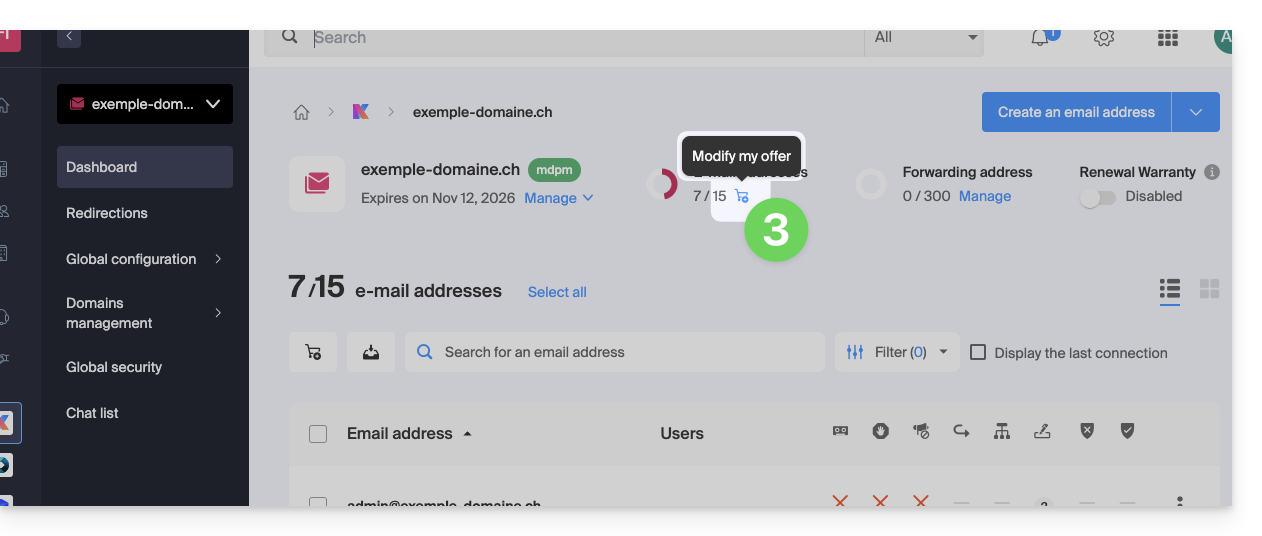
- Adjust the desired quota and complete the process by reviewing the important information displayed on the screen.
Link to this FAQ: https://faq.infomaniak.com/2541
Has this FAQ been helpful?
This guide details how to manage the Organization Directory, which is a special address book available within the Infomaniak Contacts web app (online service ksuite.infomaniak.com/contacts).
Introduction
- The Organization directory is "automatically created" by the various users that make up one of the Organizations to which your user is linked.
- If Groups are created within the Organization, they will be visible in the Organization directory:
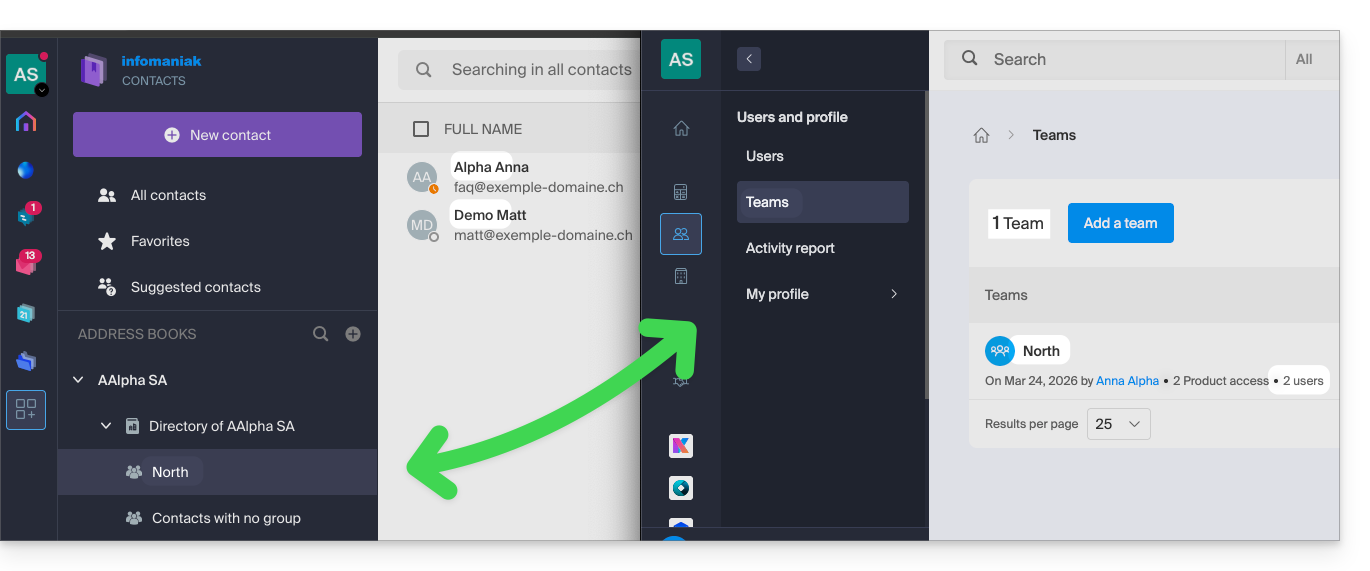
- This address book is automatically synchronized with all internal users of your Organization.
- An administrator of the Organization can make certain entries in the directory private, thereby hiding them from users with fewer permissions:
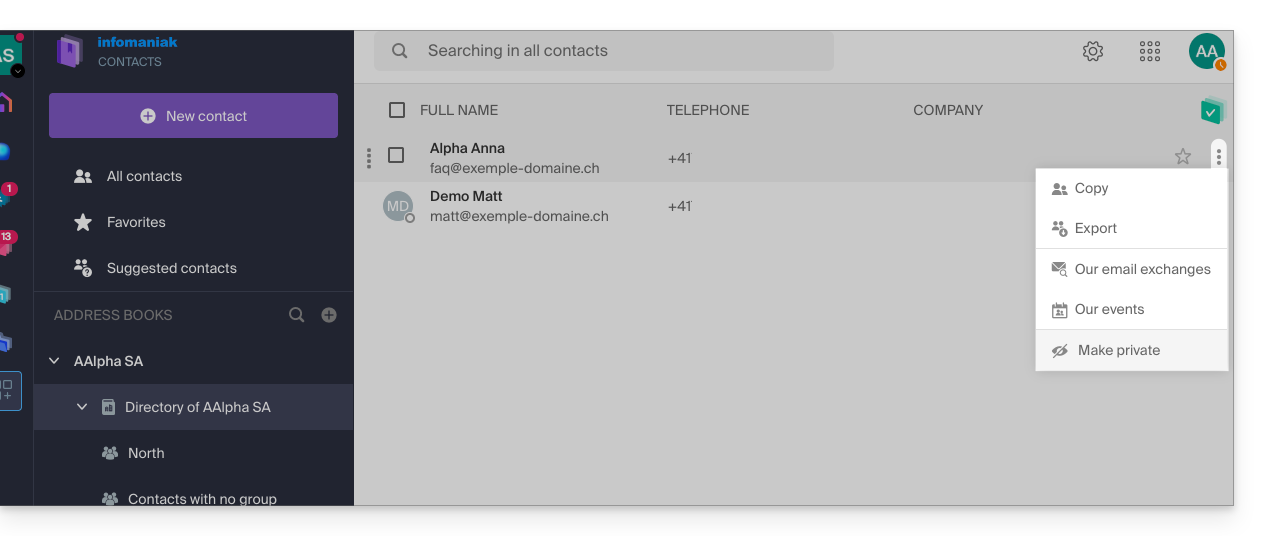
- It is not possible to export or rename it.
- You can change its display color:
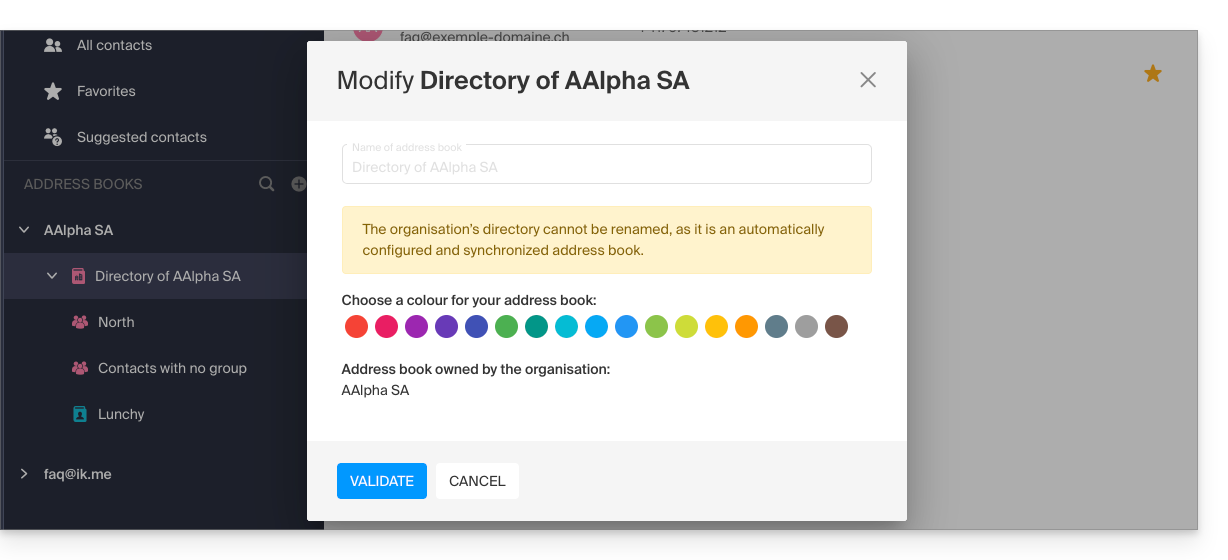
- You can change its display color:
Access the directory
If your login ID matches and belongs to one or more Organizations, you can access the various directories of these Organizations:
- Click here to access the Infomaniak Contacts web app (online service ksuite.infomaniak.com/contacts).
- Click on the chevron to the left of the name of the Organization in question.
- Click on {Organization name} Directory…
- The contacts of the selected Organization are displayed on the right:
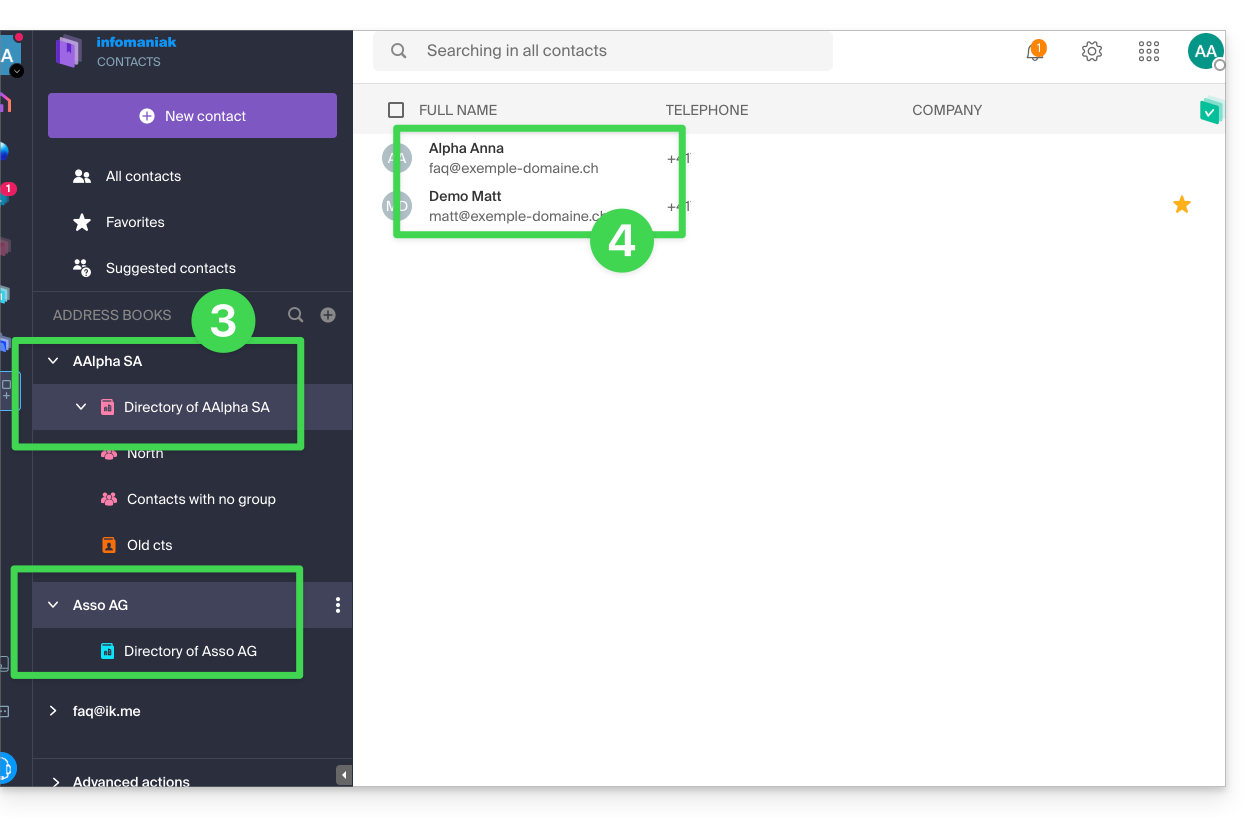
Modify the contact details of a contact in the directory
You can do many things (copy, export the contact information, view the email exchanges or calendar events, add to favorites, call, etc.) by clicking on a contact in the Organization Directory address book.However, you will not be able to modify the contact details on behalf of the person.: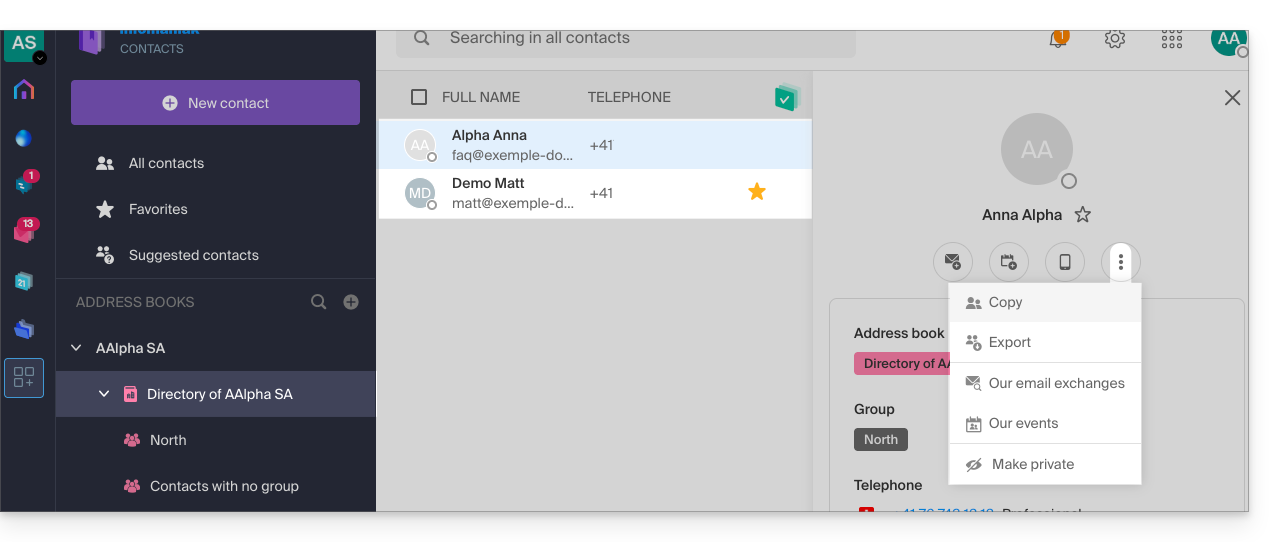
To modify the main information, the person concerned (the person for whom a change needs to be made) must log in to his/her profile and modify it (see below):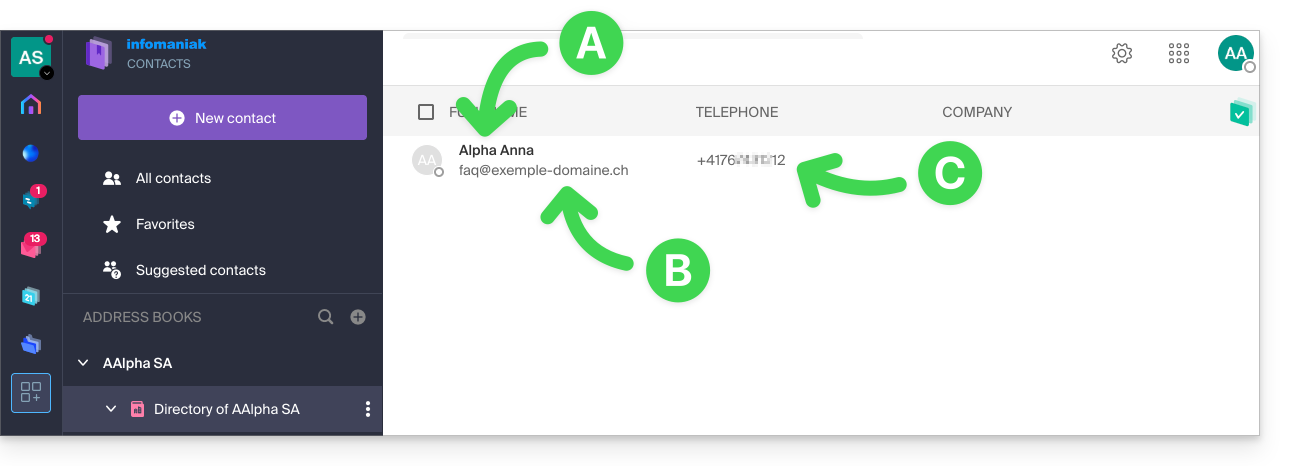
A. First name & Last name
To change the first name and last name displayed in one of the Organization notebooks, the user in question (here, faq@exemple-domaine.ch) must log in to their account and modify their contact information. Please refer to this other guide for more information.
B. Email address
To change the email address displayed in an organization's directory, the user in question must log in to their account and modify their contact details. Please refer to this other guide for more information.
C. Phone number
To change the phone number displayed in an organization's directory, the user in question must log in to their account and modify their contact information. Please refer to this other guide for more information.
Link to this FAQ: https://faq.infomaniak.com/2558
Has this FAQ been helpful?
This guide will quickly introduce you to the essential features of Euria, the artificial intelligence available within kSuite, which performs particularly well with the kDrive Infomaniak web app (online service ksuite.infomaniak.com/kdrive).
✘ UNAVAILABLE with
kSuite Free / kSuite Standard
my kSuite / my kSuite+ (ik.me, etik.com, ikmail.com)
kDrive Solo / kDrive Team / kDrive Pro
Use AI for your files on kDrive
Prerequisites
- You must be at least an Administrator of the Organization (❓: help).
- Enable Euria for all users of your kDrive: follow the wizard that appears when you log in to kDrive (❓: help).
- Read and understand this other guide about the model used and the responsibilities of each party.
To access Euria on kDrive:
- Click here to access the Infomaniak kDrive web app (online service ksuite.infomaniak.com/kdrive).
- Open a PDF document (Euria is also available with other text/code file types:
.md,.txt,.json,.php, etc.) or right-click on the file in question: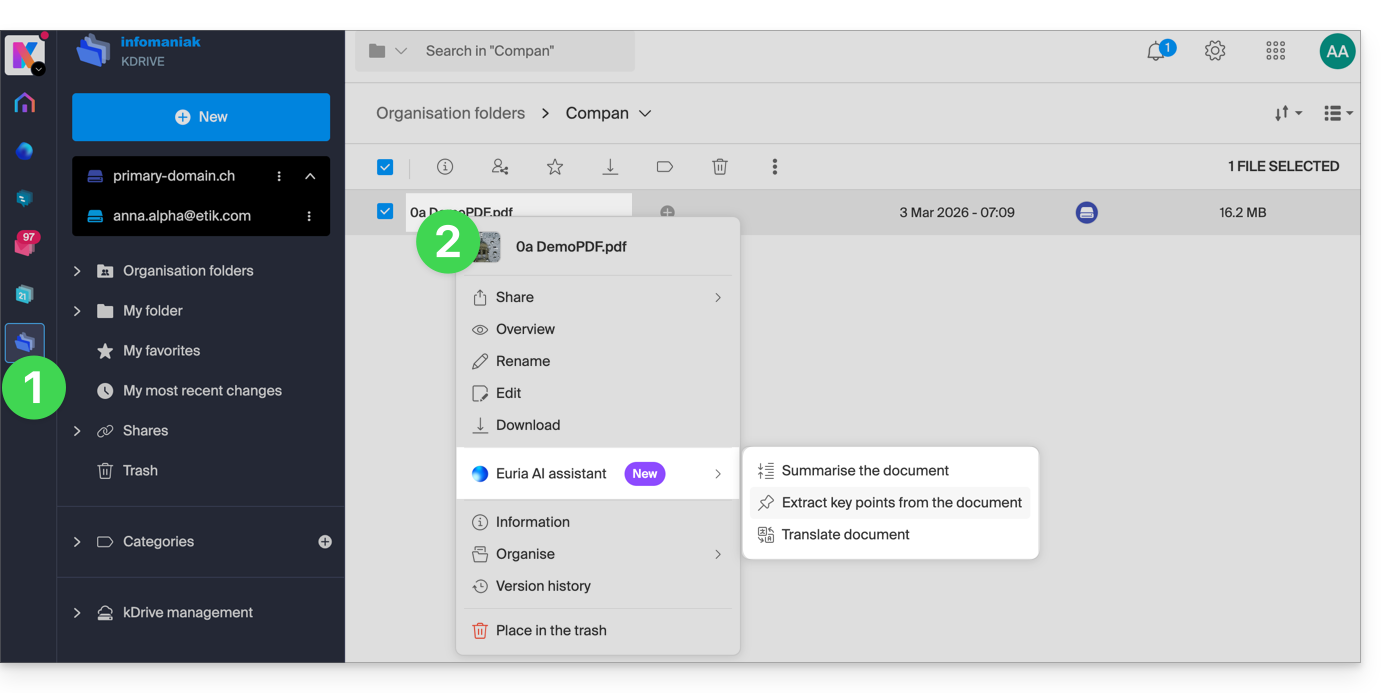
- Euria will open in a sidebar on the right; if you close it, Euria remains accessible via the round icon located in the upper right corner:
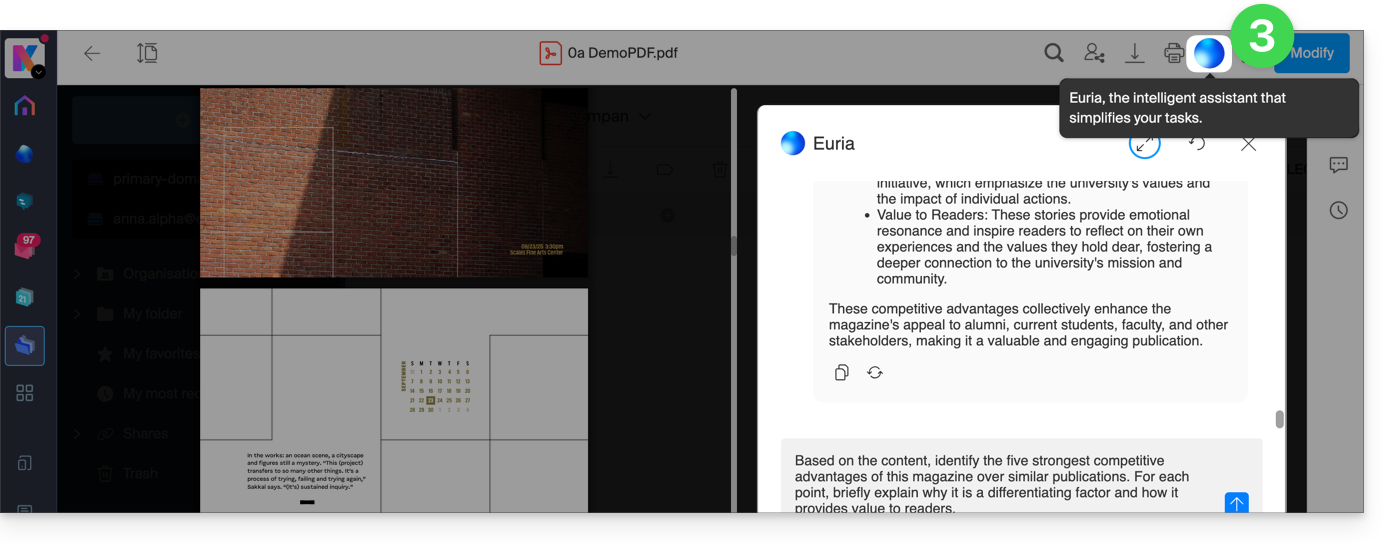
How can Euria help?
Euria helps you make the most of the document you have open (and only this one); it can, in particular:
- answer your questions about its content (details, statistics, changes)
- summarize the key points (or even simplify them, and even more so if you specify “for a 10-year-old”…)
- translate it
- provide metadata (size, creation or modification date)
- explain the terms or acronyms used
For example, if the document is a long company report on the past year, you can ask for the current size of the Development department, which projects are the highest priority, or the last date the document was modified…
Create an event for your calendar
With a document mentioning an appointment (e.g., a medical appointment), you can ask Euria to create a snippet of code that, once copied and pasted into an appropriate file, will allow you to add an event to your calendar. Example phrasing: “Create an event in ics format using the details of this appointment”.
Euria can also extract events from a more complex document: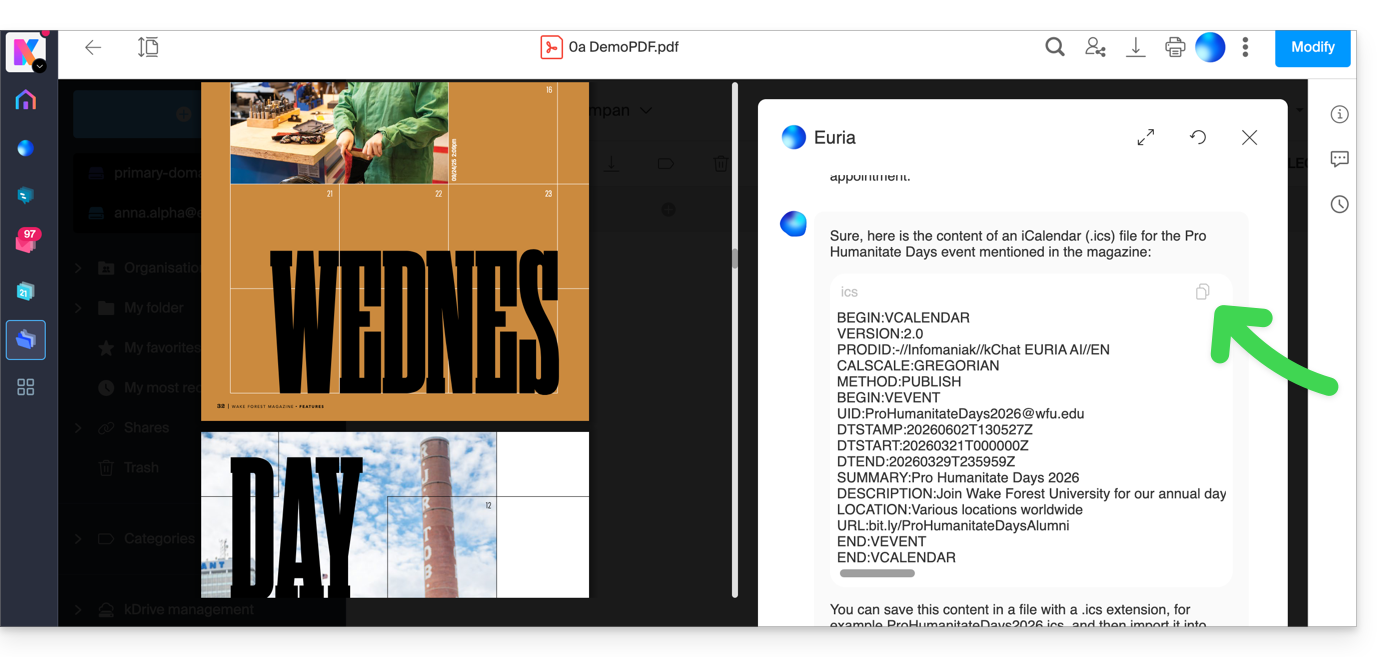
Euria will explain what it did (a VCALENDAR code) and what you need to do: create a new file with the .ics extension containing the code it generated, and open it on your computer to import it into your usual calendar app or import it into your kSuite calendar (❓: help)…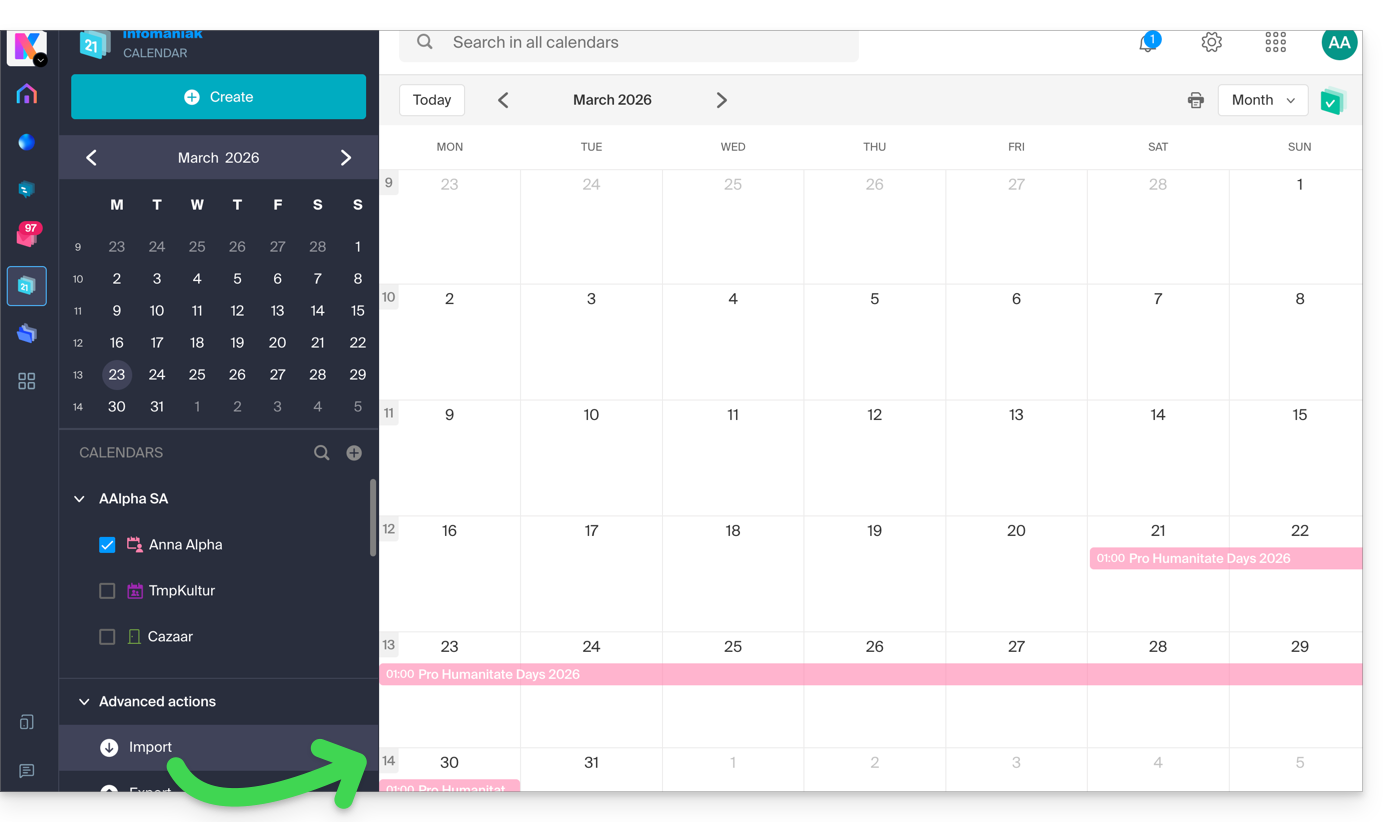
Create a character family tree
With a book stored on your kDrive, you can ask Euria to create a precise and complete family tree to show the relationships between all the characters. You will then obtain a list of names with their relationships.
But you can take the experience even further by then requesting a “Mermaid” diagram based on this list. Simply copy and paste the code provided by Euria into a tool like mermaid.live:
Analyze a survey, write a blog post
Based on a document of the type survey/report, you can ask Euria to write a new article in the tone you want and addressed to the desired target audience. Example: “Based on all of this, write a blog post with an engaging title and text of no more than 400 words, for a target audience of women aged 30 to 40.”.
But you can also ask it to find “what are the biases in this survey” or “what elements should be explored or verified in more detailEuria can thus help you adopt a critical perspective when reviewing a survey or report, by highlighting any potential shortcomings, exaggerations, or biases.
It can also rephrase the survey's conclusions for different audiences (professionals, teenagers, curious readers, etc.), suggest alternative angles for a related article, or even generate titles, introductions, or summaries according to the desired level of complexity.
The goal is to extract maximum editorial value from a single source content by diversifying the formats, tones, and perspectives.
Link to this FAQ: https://faq.infomaniak.com/2566
Has this FAQ been helpful?
This guide explains how to quickly schedule an event, such as a meeting between several users, from the Infomaniak Mail web app (online service ksuite.infomaniak.com/mail) using the features of Infomaniak Calendar.
Create an event with the email recipient(s)
To start the scheduling assistant, which will allow you to quickly create an event with the participants (senders/recipients) of the email you are currently viewing:
- Click here to access your emails on your Infomaniak kSuite (❓: help).
- Open the message from the sender (or the conversation between multiple participants) with whom you want to organize a meeting/event.
- Click on the action menu ⋮ in the top right corner of the open message.
- Click on Schedule in Calendar.
- Click on Create an event:
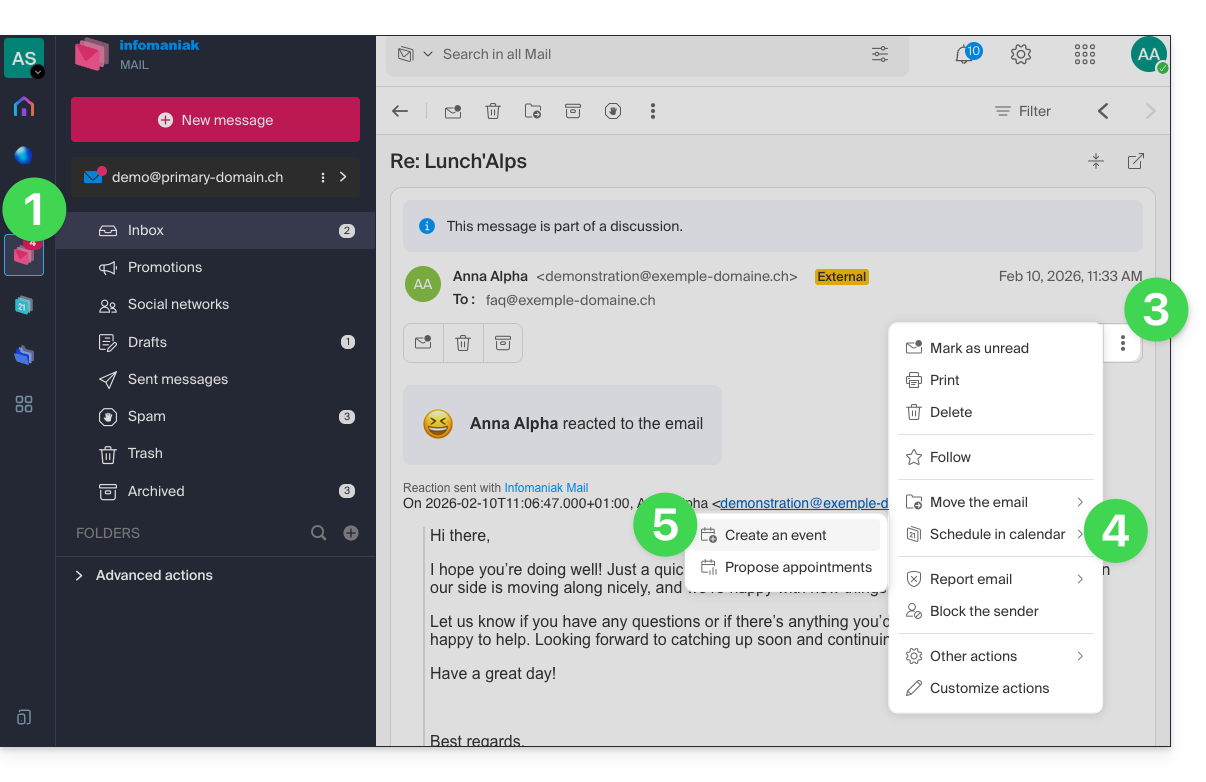
- The assistant for the Calendar app by Infomaniak appears.
- The meeting title is automatically generated from the email subject, but it can be modified.
- The duration of the event (and its time slot within the day) is automatically generated to be as close as possible to the current time, but it can be modified. You can also add a room below, if needed.
- Participants in the discussion are automatically added based on their email address.
- Check or change the calendar used.
- Save the information to create the event and the invitations:
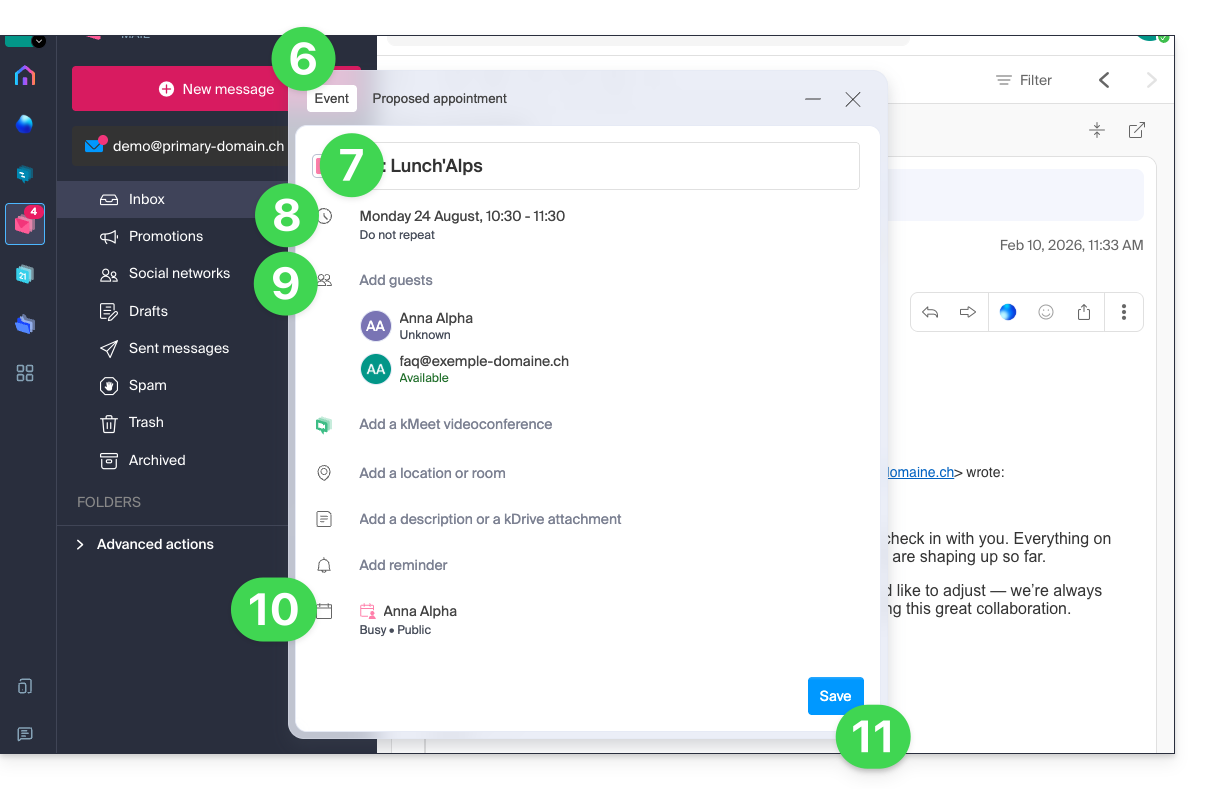
Suggest time slots for a meeting
To suggest a new shared event with the participants (senders/recipients) of the email you are currently viewing, use a meeting request:
- Click here to access your emails on your Infomaniak kSuite (❓: help).
- Open the message from the sender (or the conversation between multiple participants) with whom you want to organize a meeting/event.
- Click on the action menu ⋮ in the top right corner of the open message.
- Click on Schedule in Calendar.
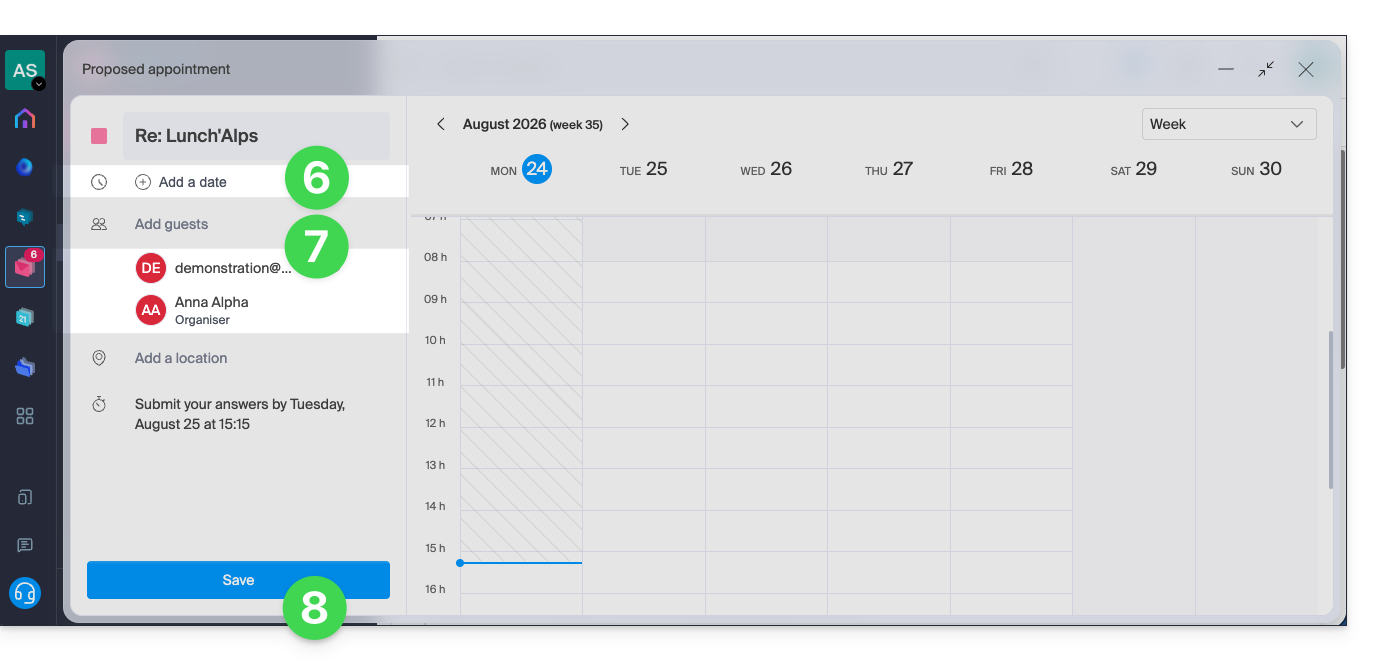
- Click on Suggest meeting time:
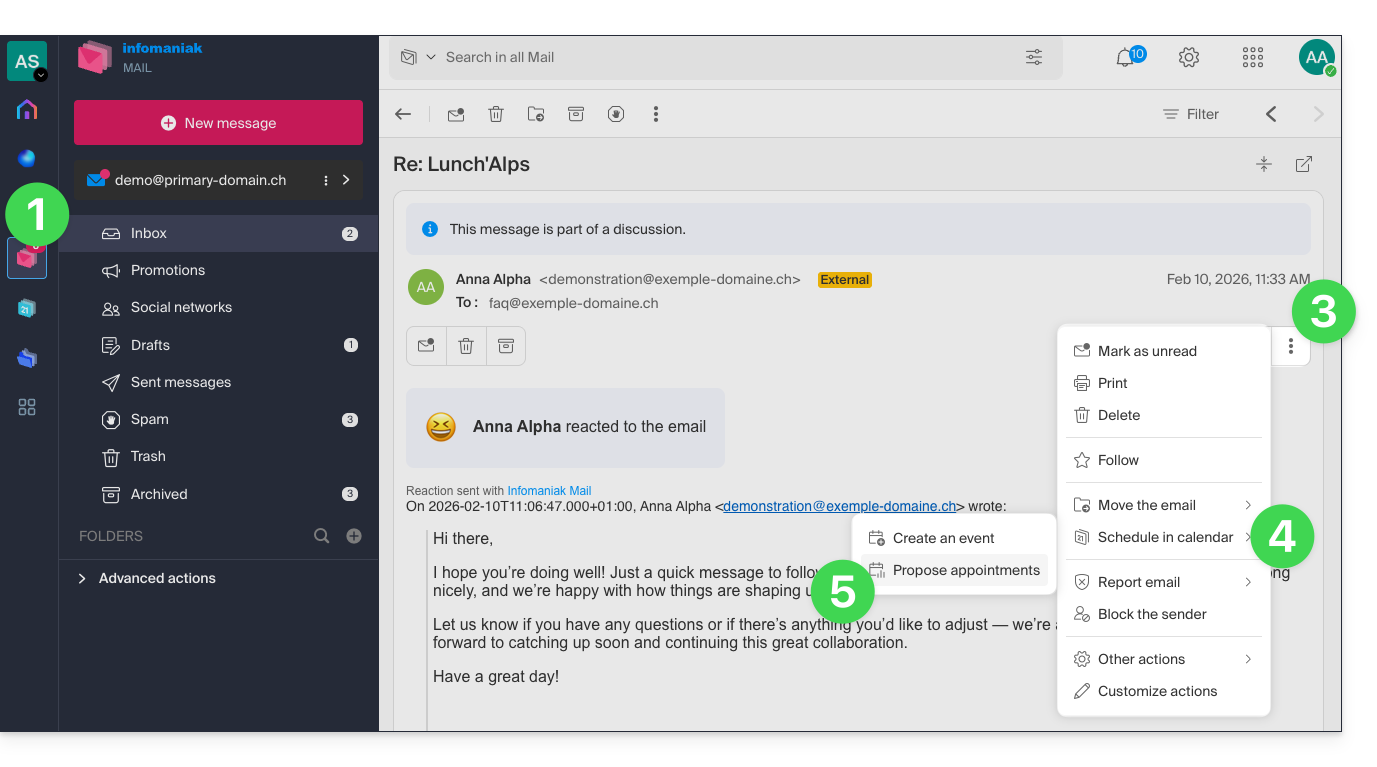
- You will then need to specify suggested dates/times to arrange a meeting with your contacts.
- Email contacts are automatically added.
- Don't forget to save:
Refer to this other guide to learn more about this feature.
Link to this FAQ: https://faq.infomaniak.com/2572
Has this FAQ been helpful?
This guide is for you if you want to change your current email provider and host your emails with Infomaniak.
Introduction
- To help you identify the offer that best suits your needs, please refer to this other guide.
- To avoid losing any messages and experiencing any interruptions:
- Follow the links in the order they are presented; they will open in a new tab in your browser, and return to this main guide after completing each step.
- If needed, you can also migrate your:
You are ordering a Mail Service only
Below are the different steps to securely migrate your email service to Infomaniak.
Step 1
You need to order the mail service by following this guide.
When placing your order, you can choose to transfer the domain name at the same time or order the mail service separately.
You can then import the content from your old email addresses to Infomaniak: refer to this other guide.
Step 2
Once the addresses are configured and your old content has been imported, you will be able to connect your external domain name to your Infomaniak Mail serviceto start receiving emails with Infomaniak. You will need to follow the "Link your external domain to your Mail Service" chapter of this guide.
You will find the MX/SPF records to add to your domain's DNS zone here:
SPF
Type: TXT
Host: Leave blank
Target: v=spf1 include:spf.infomaniak.ch -all
MX
Priority: 5
Host: Leave blank
Target: mta-gw.infomaniak.ch (for Gandi, it is necessary to add a period at the end: "mta-gw.infomaniak.ch.")
Step 3 (optional)
Once everything is working correctly, and if you haven't already done so, you can transfer your domain name: refer to this other guide.
As soon as the transfer is launched, you should have access to the DNS zone of your domain name in the Infomaniak Manager. You can then check…
1. … in the DNS diagnostic to see if any corrections need to be made and, if necessary, add the DNS entries that would be required for other services used with your domain name (newsletter or other).
2. … in the global security tab of your email service to check if DKIM is properly enabled.
If emails arrived during the migration with your previous provider, you can import the content of your old addresses into Infomaniak again by following this guide (duplicates are handled).
You are ordering a kSuite
Below are the different steps to securely migrate your external email service to an Infomaniak kSuite.
Step 1
Order kSuite from this page.
Once your order is complete, access your kSuite and add your domain name to it.
You can then create your email addresses and even import the content from your old addresses: refer to this other guide.
Step 2
Once the addresses are configured and your old content has been imported, link your external domain name to your Infomaniak Mail Service to start receiving emails with Infomaniak. Refer to the chapter "Linking the external domain to your Mail Service" in this other guide.
You will find the MX/SPF records to add to the DNS zone of your domain name here:
SPF
Type: TXT
Host: Leave blank
Target: v=spf1 include:spf.infomaniak.ch -all
MX
Priority: 5
Host: Leave blank
Target: mta-gw.infomaniak.ch (for Gandi, it is necessary to add a period at the end: "mta-gw.infomaniak.ch.")
Step 3 (optional)
Once everything is working correctly, and if you haven't already done so, you can transfer your domain name: refer to this other guide.
As soon as the transfer is initiated, you should have access to the DNS zone of your domain name in the Infomaniak Manager. You can then check…
1. … in the DNS diagnostic if there are corrections to be made, and if necessary, add the DNS entries that would be needed for other servicesused with your domain name (newsletter or other).
2. … in the global security tab of your email service if DKIM is properly enabled.
If emails arrived during the migration from your previous provider, you can import the content of your old addresses into Infomaniak again by following this guide (duplicates are handled).
Link to this FAQ: https://faq.infomaniak.com/2575
Has this FAQ been helpful?
This guide is intended for developers and advanced users and presents the possibilities offered by the Infomaniak API.
Introduction
- The Infomaniak API allows you to leverage the full potential of the Infomaniak ecosystem in your applications and using your preferred programming language.
- The Infomaniak API is a REST API; the protocol used is HTTP, requests and responses are encoded in JSON format; authentication is performed via the OAuth 2 protocol.
- Access to and use of the Infomaniak API is completely free.
Infomaniak API Usage Protocol
Using the API, you will be able to automate a wide range of actions and tasks on Infomaniak products and services, without having to use the product interfaces. Here are a few examples of how it can be used:
- Store data.
- Send email marketing campaigns.
- Broadcast video or audio streams.
- Order or manage products.
- … and much more!
For example, for a Mail Service: managing mailboxes, managing aliases, managing automatic replies, managing folders, etc. For kChat, post a message on a channel…
Create your first requests with the Infomaniak API
Consult the documentation available in English only to learn about the possibilities offered by the API.
Request format
The Infomaniak API is a REST API. The protocol used is HTTP, and requests and responses are encoded in JSON. Authentication is performed using the OAuth 2 protocol.
To initiate a request, use the following syntax: /{version}/{command_path}. You can omit the version, but in this case, the latest version will be applied. See all available requests with the Infomaniak API.
API response codes
When using the Infomaniak API, you may encounter various response codes. These codes indicate the status of your request. Refer to the complete list.
Limits & Restrictions
There is a limit of 60 requests per minute with the Infomaniak API. This limit cannot be increased. The use of the API is restricted to the products listed in the official documentation. Regular additions of products and services are made to this documentation. If the product or service you are interested in is in the documentation, you can use the following requests: GET; POST; PATCH; PUT; DELETE.
Learn more
Link to this FAQ: https://faq.infomaniak.com/2581
Has this FAQ been helpful?
This guide introduces Groups, the user management system for your Organization, available on the Infomaniak Manager.
Introduction
- To facilitate access and the addition of a collaborator within the Infomaniak ecosystem, the Groups feature allows you to create teams of users and, with a few clicks, grant them access to the services they need.
- It is entirely possible to:
- associate resources (Mail, kDrive, kChat) from the creation of the Group to automate onboarding,
- adjust individual permission levels: for kDrive, the individual permission takes precedence over the Group's permission, while for Mail, the permissions are cumulative.
- add the same user to multiple Groups,
- invite external users to your Organization to one of your Groups,
- add one or more users to a Group at a time,
- define a team leader to easily identify a project manager or the person to contact.
Manage Your Groups
Managing Groups now allows for complete centralization. There is no longer any need to intervene in each tool separately: everything is managed from the Infomaniak Manager for seamless reorganization of your collaborators. See the guides on this topic:
Examples
- You create a Group for a new department: immediately associate it with its dedicated mailboxes, its kDrive organization folders, and its dedicated kChat discussion channels; each new team member added to the team will automatically receive all these access rights.
- You are a Web agency and you want to give your webmaster teams access to all of your Web hosting: simply create a new group, select all the hosting accounts they need access to, and invite them to join the Group.
- You have a kDrive: grant access to a folder to a Group and adjust access based on the users added or removed from the team over time.
- You use Streaming or Ticketing services and want to give your teams access: create a new Group that will have access to both products, or two separate Groups that will have access to the two products completely independently.
Link to this FAQ: https://faq.infomaniak.com/2585
Has this FAQ been helpful?