Knowledge base
1000 FAQs, 500 tutorials and instructional videos. Here, there are only solutions!
This guide explains how to connect the Apple Mail desktop app on macOS (MacBook Pro, Neo, etc.) to an email address hosted by Infomaniak.
Introduction
- Instead of the manual configuration below, it is recommended to use the .mobileconfig configuration profiles provided by Apple (❓: help).
Manually add the email address to the application
Prerequisites
- Create the email address (❓: help my kSuite | Mail Service/kSuite).
- Create a device password (❓: help my kSuite | Mail/kSuite Service).
- Verify that the domain is configured correctly (❓: help).
To configure the email application:
- Open the application.
- If you have already configured an address, click on the Mail menu and then Add account:
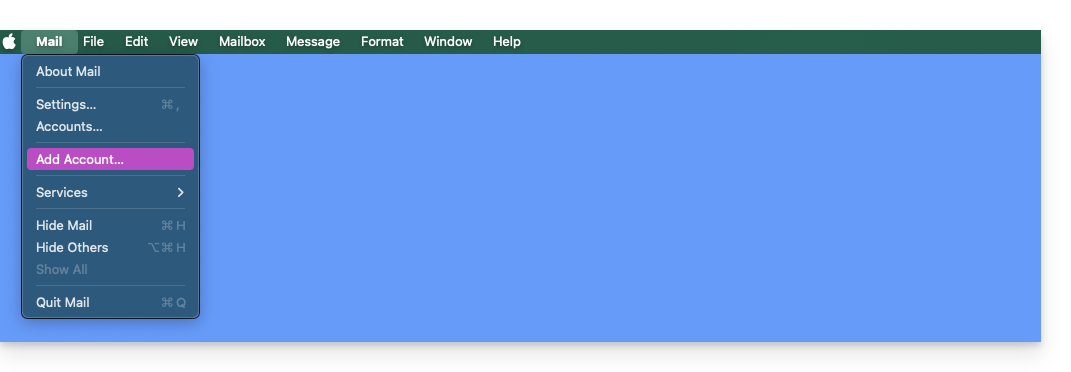
- If you have already configured an address, click on the Mail menu and then Add account:
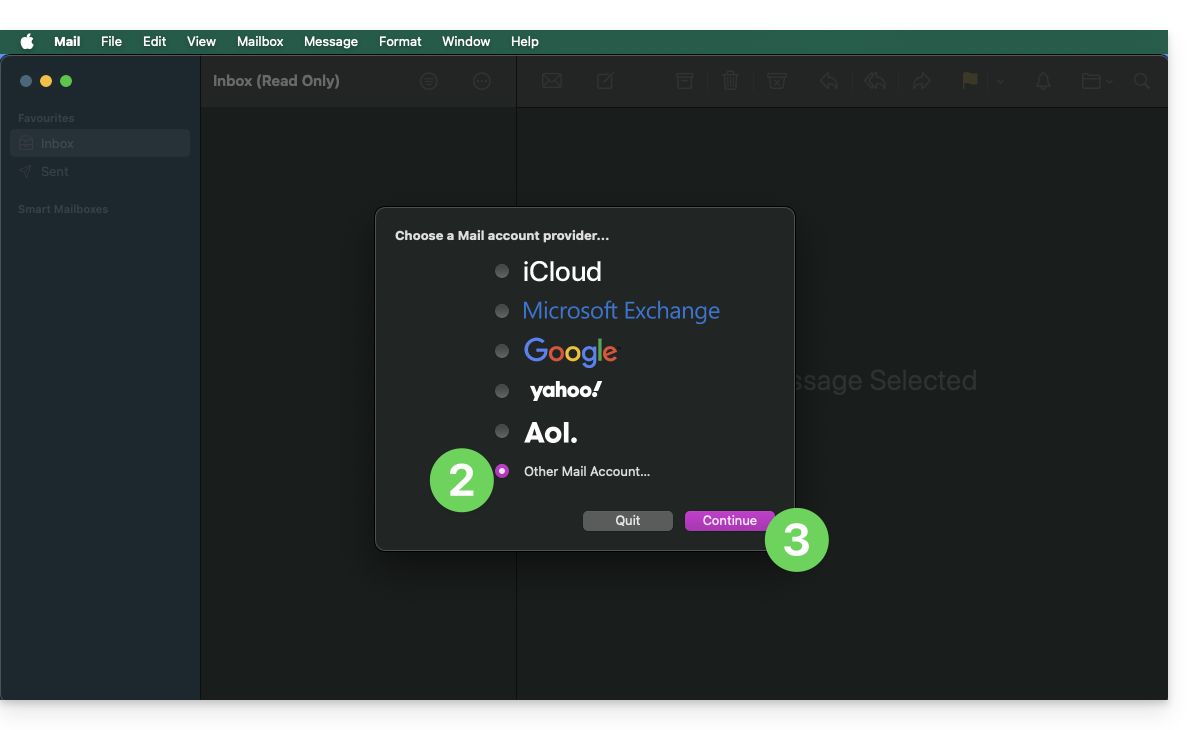
- Click on Other account.
- Click on Continue:
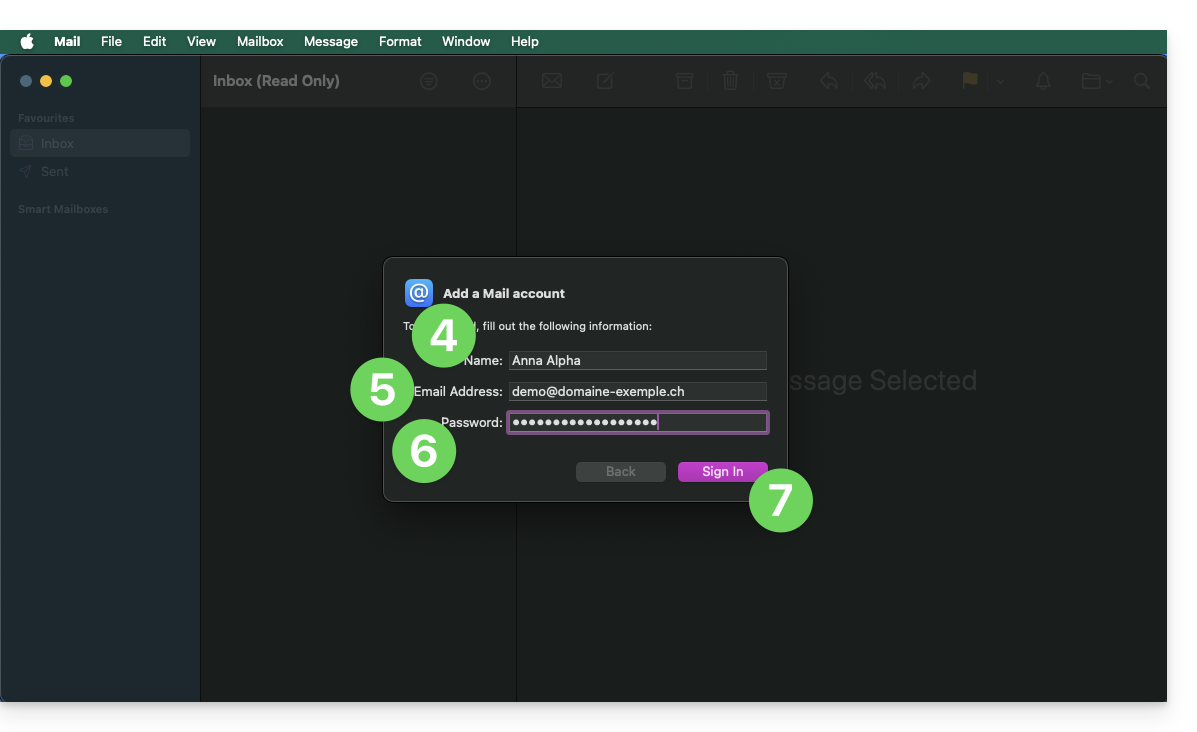
- Enter the account name.
- Enter the email address to associate.
- Paste the email account password generated in the Infomaniak Manager (❓: help).
- Click the blue Connect button:
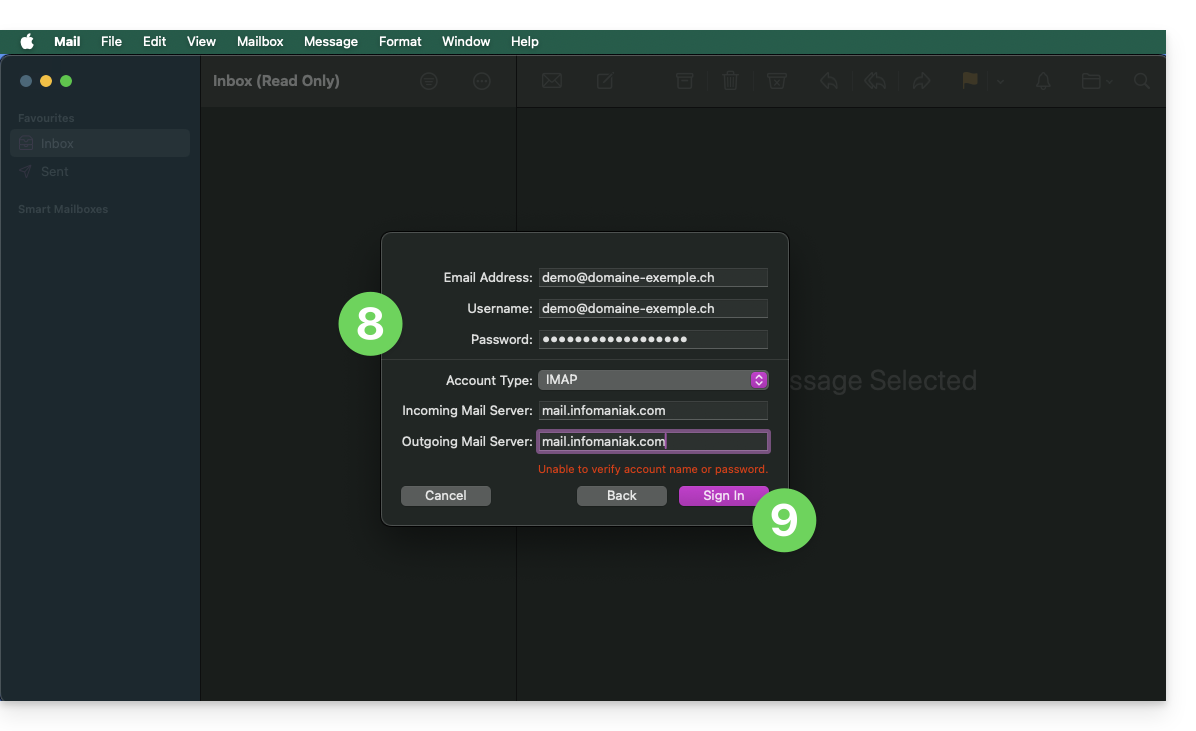
- Check and complete any missing information (❓: help).
- Click on Log in:
- Tap the button to confirm:
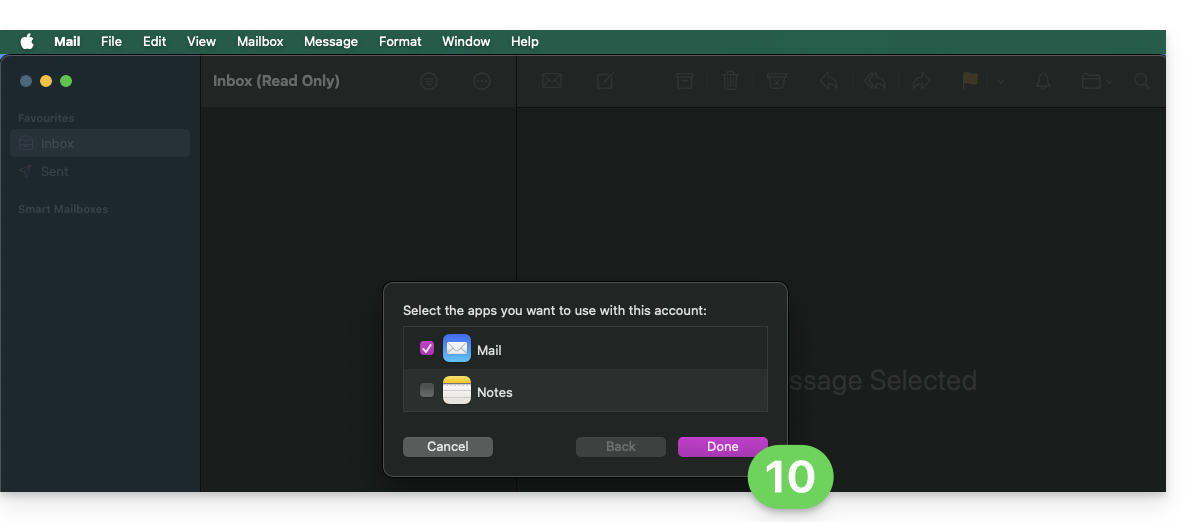
- Done, your email address is now configured in the application:
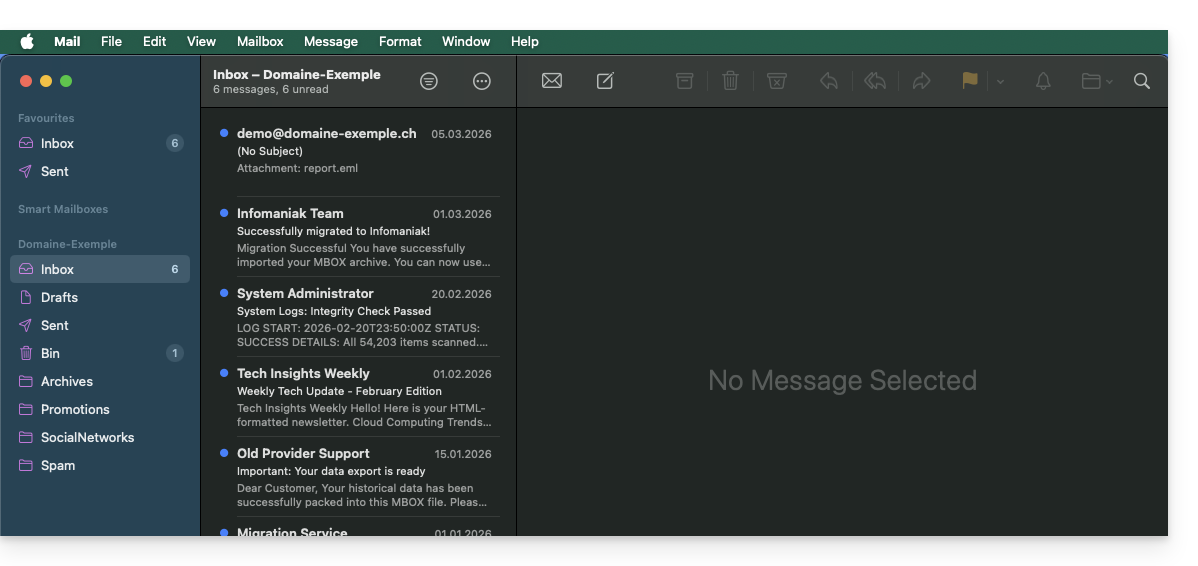
Recommended settings
- Incoming IMAP server =
mail.infomaniak.com - IMAP port =
993(with SSL) - Outgoing SMTP server =
mail.infomaniak.com - SMTP port & encryption protocol and command/method to activate this protocol:
587+ STARTTLS - Username = the complete email address & (❓: help)
- Password: the password generated for the email address you want to access (❓: help my kSuite | Mail/kSuite Service).
- Authentication required for sending emails:
- Enable this in the SMTP settings of your application.
- Check "use the same settings as the incoming server" or, depending on the software/email client, enter a username (the complete email address) and the generated password.
Refer to this other guide if you are looking for information about other email ports and protocols that are supported (SSL/TLS, for example).
In case of a problem
You do not need to contact Infomaniak Support if your email address works correctly outside the application. The most common error is using an incorrect password. The tool provided within Apple Mail can help you identify this: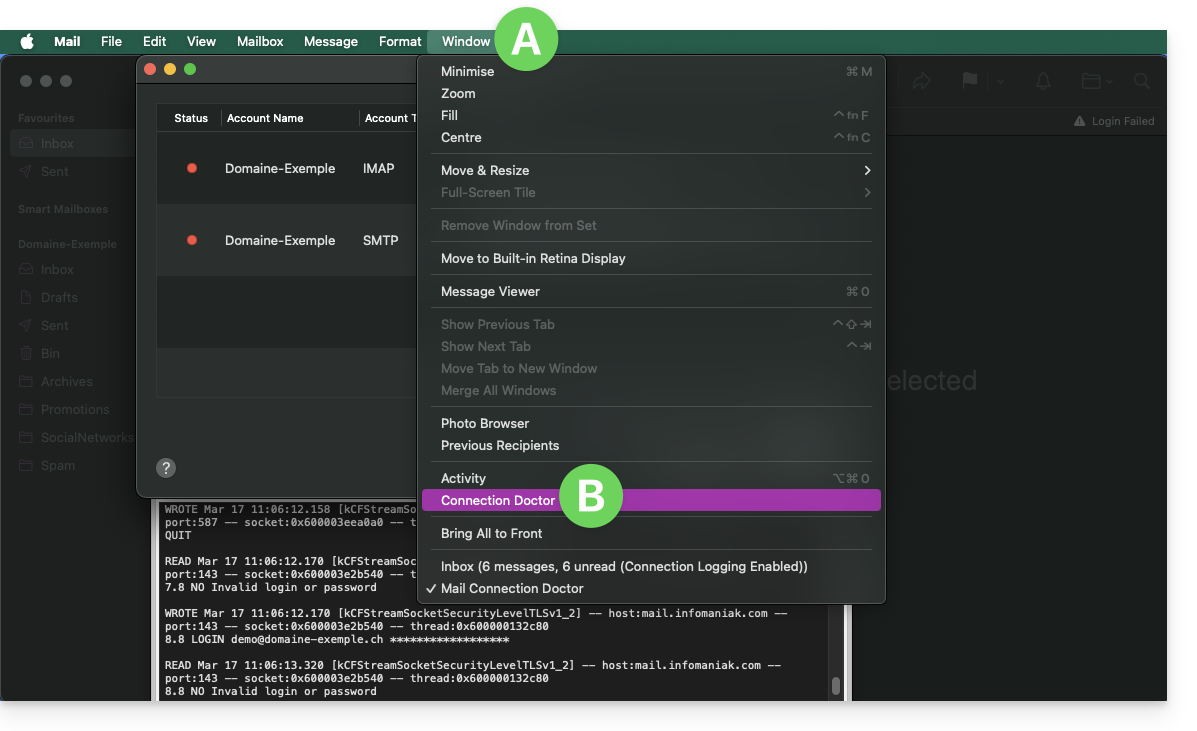
Create a new password from the Mail Service (❓: help) and restart the configuration of your account in the email application.
The troubleshooting guides will help you resolve any potential issues:
- Consult the solutions provided in this other guide regarding email in general.
- Delete any existing Apple configuration profiles (❓: help) related to your Infomaniak email before restarting the configuration.
And if your Apple Mail is no longer working after a change of email password, please refer to this other guide.
Link to this FAQ: https://faq.infomaniak.com/2442
Has this FAQ been helpful?
This guide offers solutions if you are no longer able to send or receive emails, or if you are experiencing synchronization errors with your contacts and calendars.
Remove an account in Outlook
Warning: Only follow these instructions if the account is configured using IMAP.
- Open Outlook.
- Click on File from the ribbon.
- Go to Account Settings.
- Select the email address to delete and click Delete.
- Refer to this other guide to properly reconfigure the email address.
Delete contacts & calendars (CalDav Sync)
- Open Outlook
- Click on CalDav Synchronizer from the ribbon.
- Go to Synchronization Profiles.
- Select the profile to remove and click on the red Delete cross.
- Refer to this other guide to properly reconfigure synchronization.
If the problem persists...
There is no need to contact Infomaniak Support if your email address works correctly outside of the application. The most common error concerns using an incorrect password.
If your Outlook is no longer working after a change of email password, please refer to this other guide; otherwise, follow the solutions provided in this other guide regarding email in general.
Link to this FAQ: https://faq.infomaniak.com/2443
Has this FAQ been helpful?
Are you no longer able to send or receive emails? Are you experiencing synchronization errors with your contacts & calendars? Follow the instructions in this guide to delete the problematic accounts and reconfigure them correctly.
Introduction
- Only follow these instructions to delete a mail account configured in IMAP (and not in POP3). Learn more
Delete the email address
To do this:
- Open Thunderbird.
- Right-click on the email address you want to delete and select Settings.
- Go to Account Management.
- Select Delete account and click Delete
- Refer to this other guide to properly reconfigure the email address
Delete contacts (in CardBook)
Now everything is integrated into Thunderbird, but if you still have an older version (which you should definitely update):
- Open Thunderbird.
- In CardBook, select the contact profile to delete.
- Click on the menu button with three horizontal lines ☰ in the top left corner of the interface, then click on Address Book and Delete Address Book.
- Confirm by clicking on OK.
- Refer to this other guide to reconfigure synchronization.
Delete the calendar (in Lightning)
Now everything is integrated into Thunderbird, but if you still have an older version (which you will need to update):
- Open Thunderbird.
- In Lightning, select the calendar profile you want to delete.
- Right-click on the calendar and select Unsubscribe from calendar.
- Confirm by clicking OK.
- Refer to this other guide to reconfigure synchronization.
Link to this FAQ: https://faq.infomaniak.com/2444
Has this FAQ been helpful?
This guide explains how to set up a different sending and reply address than the email address used on the Infomaniak platform.
✘ NOT AVAILABLE with
my kSuite (ik.me, etik.com, ikmail.com)
Introduction
- This is useful for working with one of your email aliases (special aliases excluded) or synonymous domains.
- This will work with the Infomaniak Mail web app (online service ksuite.infomaniak.com/mail) but also with most email software/clients.
- However, please note: there is no link between the settings entered in the Signature section of Infomaniak Mail and the email software/clients.
- Each email software/client has its own settings, and you can, for example, define a different reply address within each of the respective tools (see the bottom of this guide).
- To manage the sender of out-of-office messages, please refer to this other guide.
Setting the sending address in the Infomaniak Mail web app
Prerequisites
- The secondary email address that can be used must have been added as:
- … either as an email alias (example:
aa@instead ofanna.alpha@) but excluding special aliases: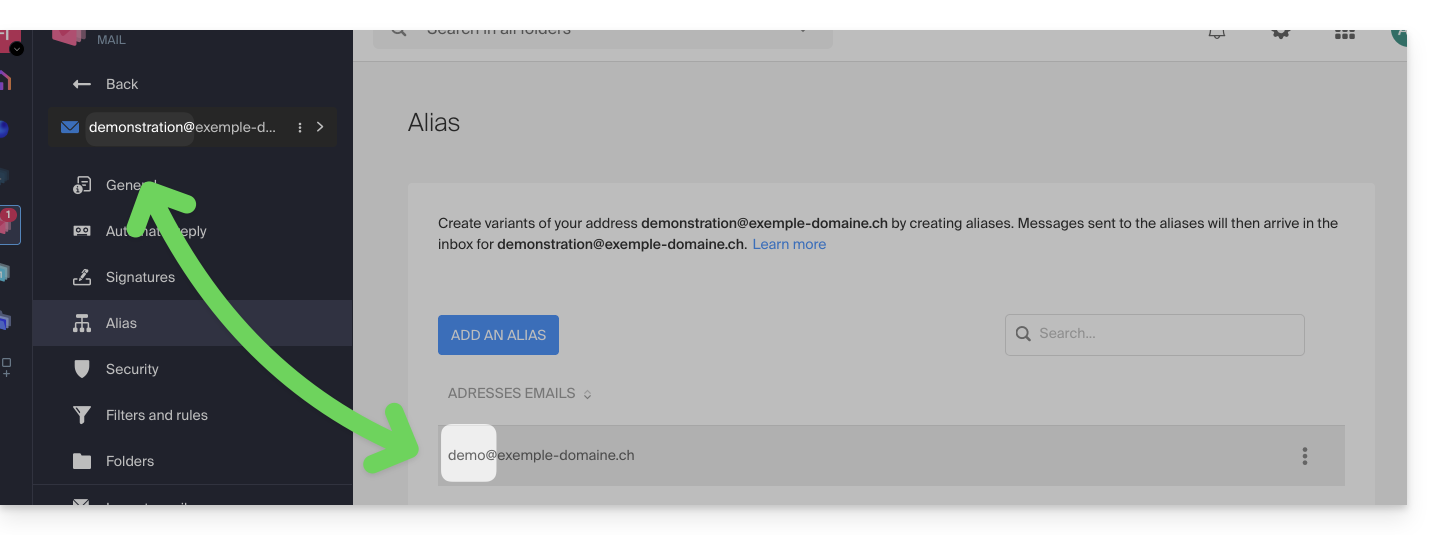
- … or as synonymous domains (example:
@short-dom.xyzinstead of@my-super-long-domain.xyz).
- … either as an email alias (example:
To access the options for sending addresses:
- Click here to access the Infomaniak Mail web app (online service ksuite.infomaniak.com/mail).
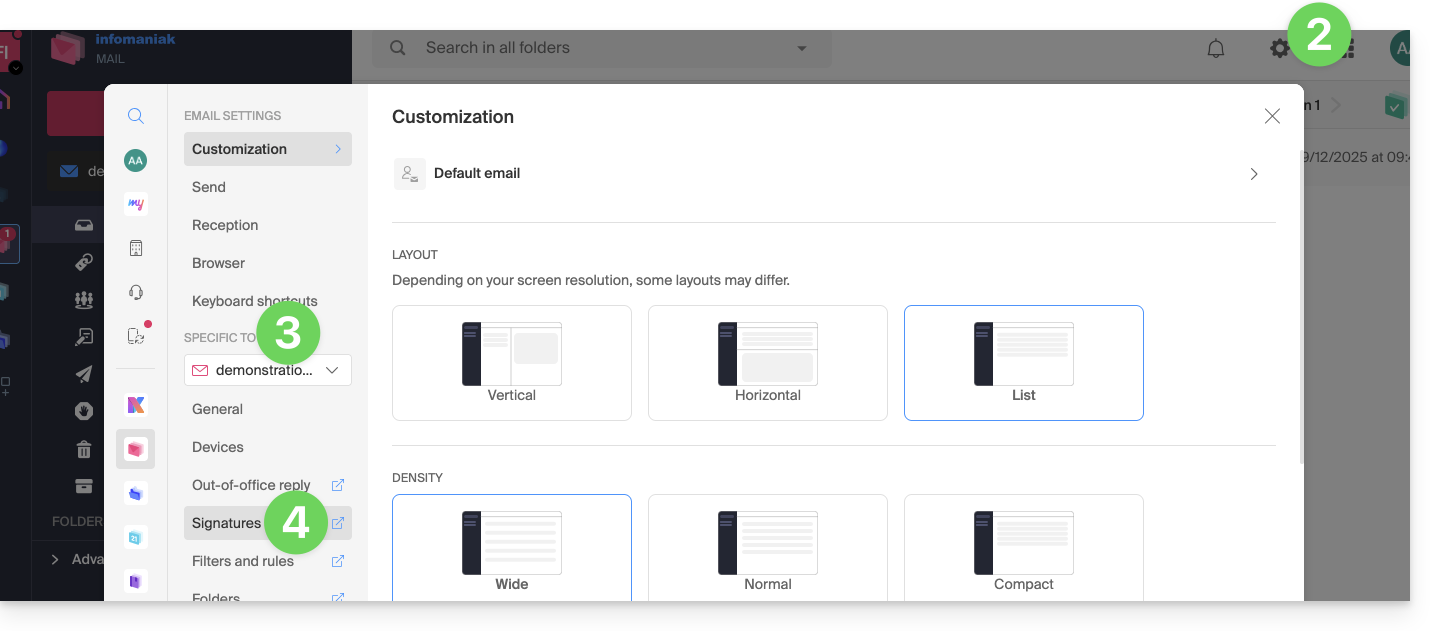
- Click on the Settings icon at the top right of the interface.
- Check or select the email address in question from the drop-down menu in the left-hand menu.
- Click on Signatures:
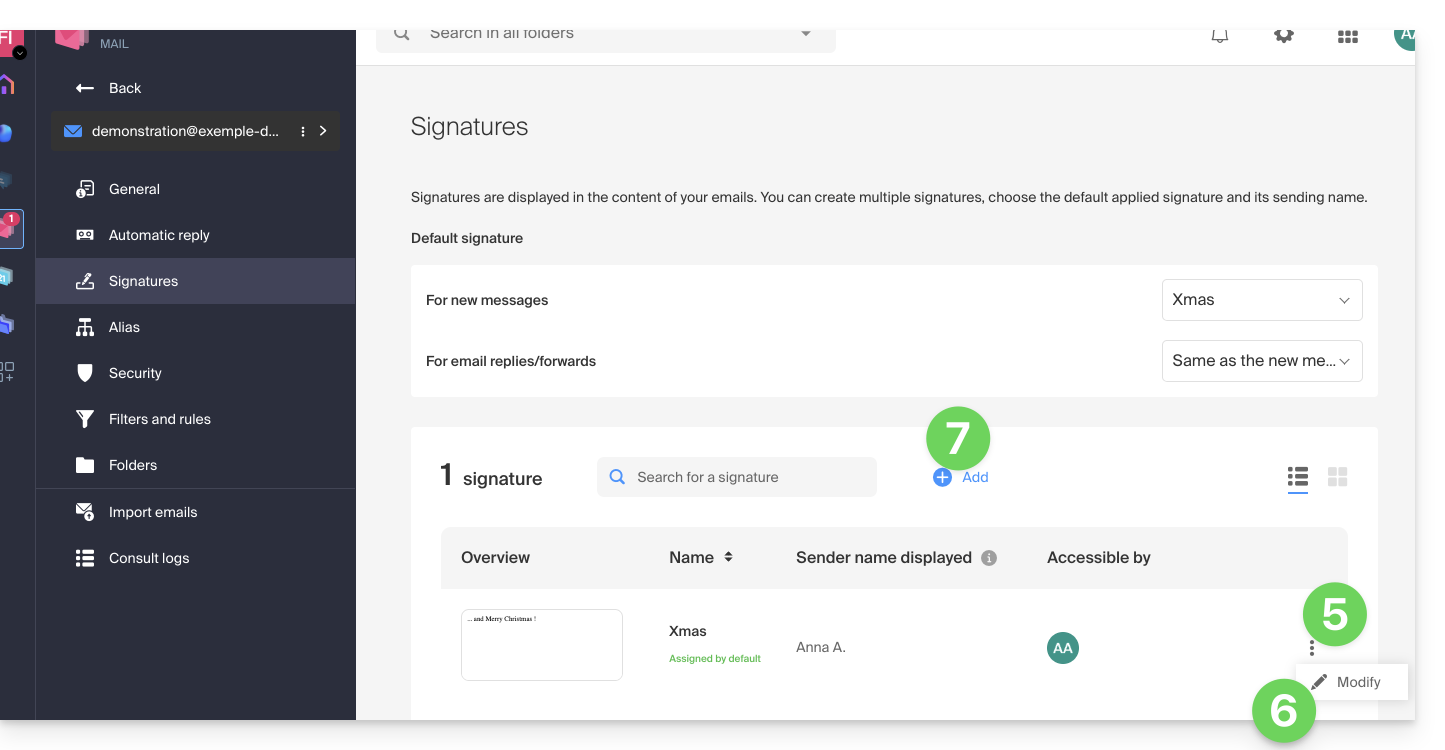
- Click on the action menu ⋮ to the right of the current signature.
- Click on the pencil icon ✎ to edit the current signature.
- OR create a new signature:
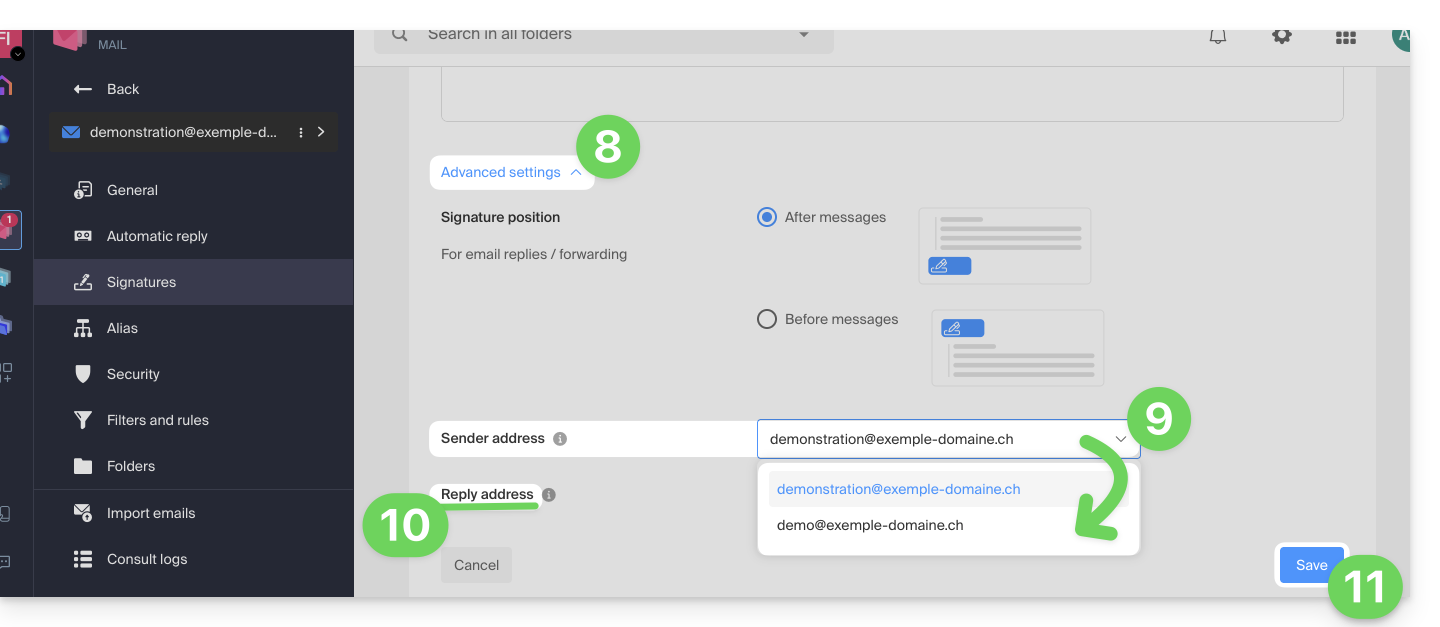
- Click on the chevron to expand the Advanced Settings section at the bottom of the page.
- The sender address allows you to specify, if available, the address that will be displayed as the sender in your recipients' inboxes.
- The reply-to address allows you to receive future replies to your messages (return-path) on a different address (from the options specified in the prerequisites above)…
- …and if you compose a message in response to a reply received on this alias, the signature that enables sending with this alternative identity will be applied instead of the signature defined by default.
- Save your changes by clicking the Save button (if the button remains grayed out, make sure all fields are filled in, especially the full name field):
- Compose a new message and select the corresponding signature:
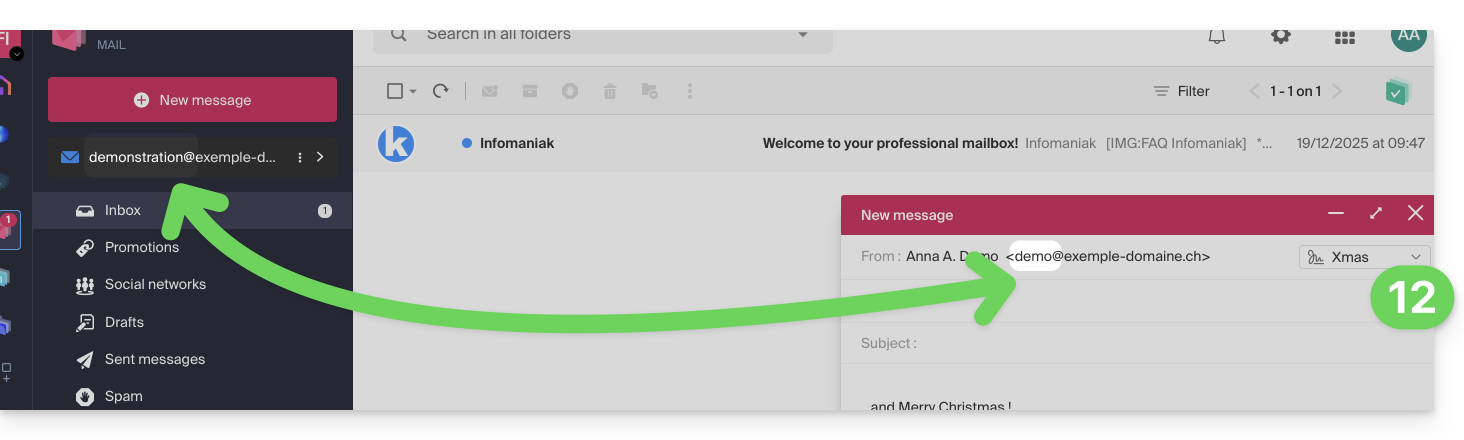
In the example above, the sender address has been modified, but not the reply-to address. This produces the expected result for the recipient (simply check the headers of the received message to confirm).
Now, add the same secondary address to a mail client/application; the effect will be the same.
Configure the sender address in a mail client/application
Prerequisites
- The secondary email address that can be used must have been added as:
- … either as a mail alias (example:
aa@instead ofanna.alpha@) including special aliases. - … or as synonymous domains (example:
@short-dom.xyzinstead of@my-super-long-domain.xyz).
- … either as a mail alias (example:
It is possible to configure an email client with any existing email address, even if it exists as an alias in your Mail Service. Sending will be done in the same way as with an address defined as a "primary" email.
Example in the Thunderbird software:
- Add an account with the correct email settings for the alias:
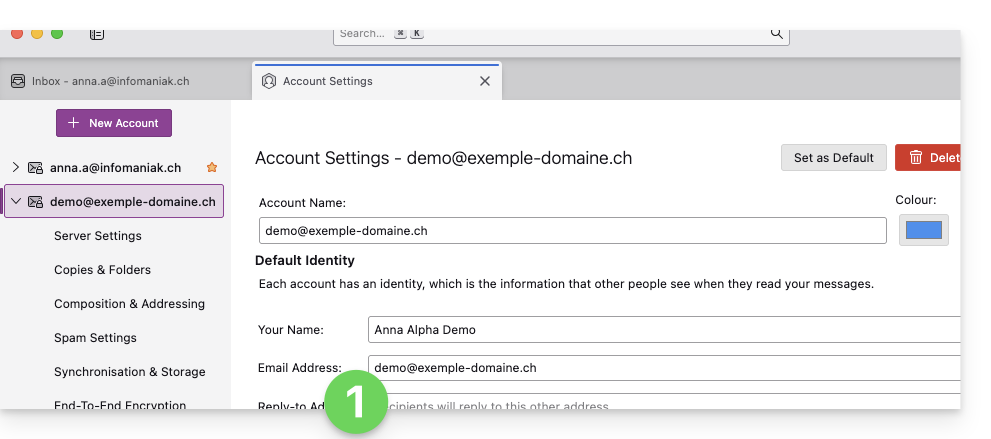
- Compose a new message from the email client.
- Once received, the message is correctly displayed, even in its headers, as being sent from an address that you know is an alias:
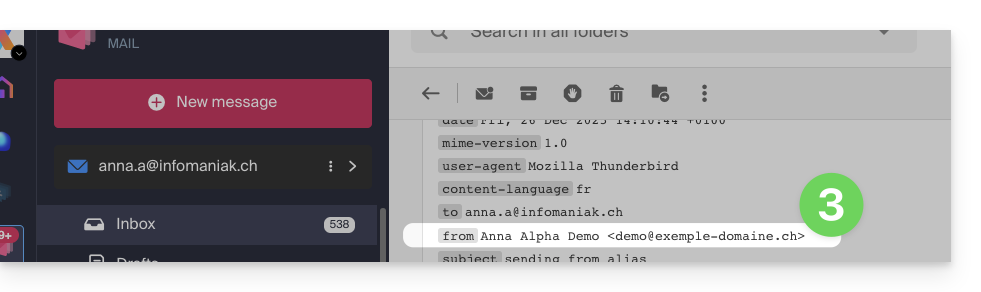
Link to this FAQ: https://faq.infomaniak.com/2490
Has this FAQ been helpful?
This guide helps you get started with kSuite by integrating an existing Mail Service into your Organization.
Introduction
- To help you identify the kSuite offer that best suits your needs, please refer to this other guide.
- You can also integrate kDrive if it is not currently included in a kSuite.
Upgrading a Mail Service to kSuite
If no kSuite is currently present in the Organization, the easiest option is to order a new one and specify the domain name corresponding to your current Mail Service. This will integrate the latter into the new kSuite.
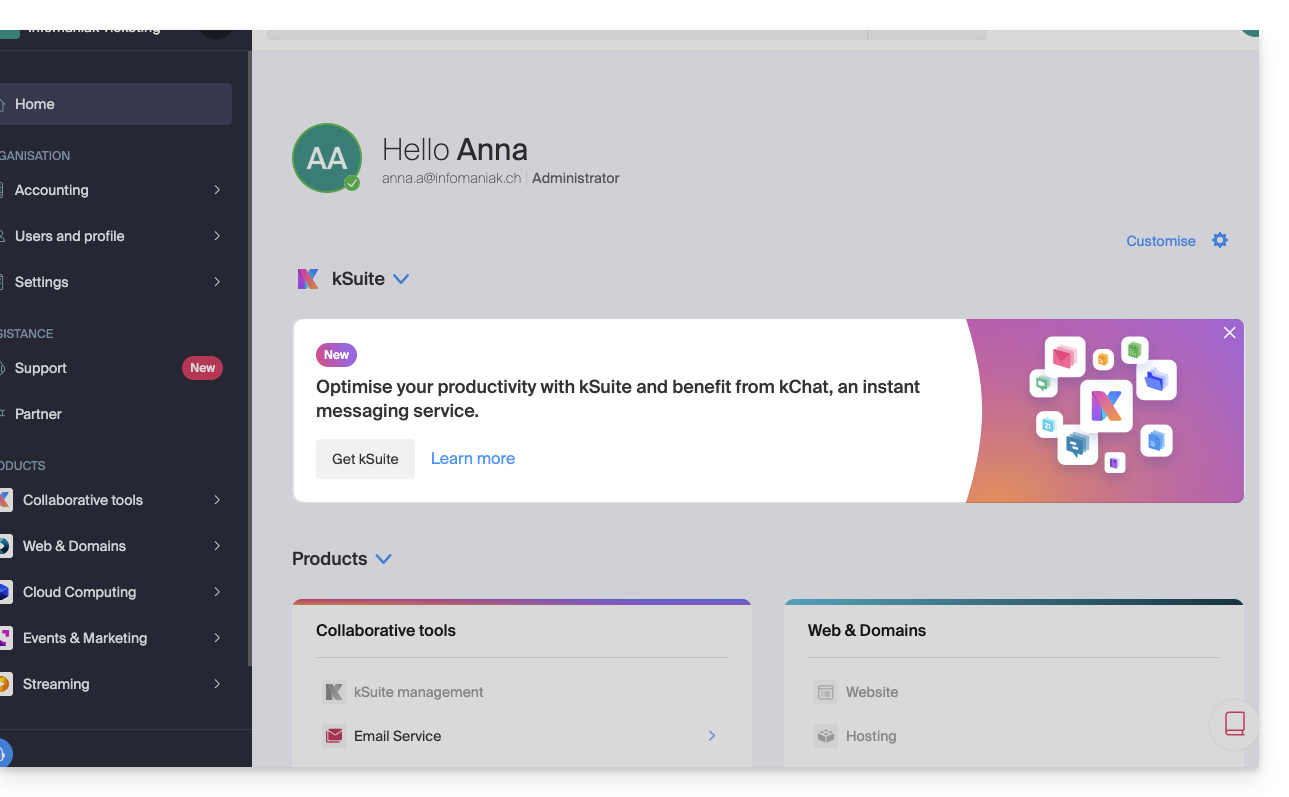
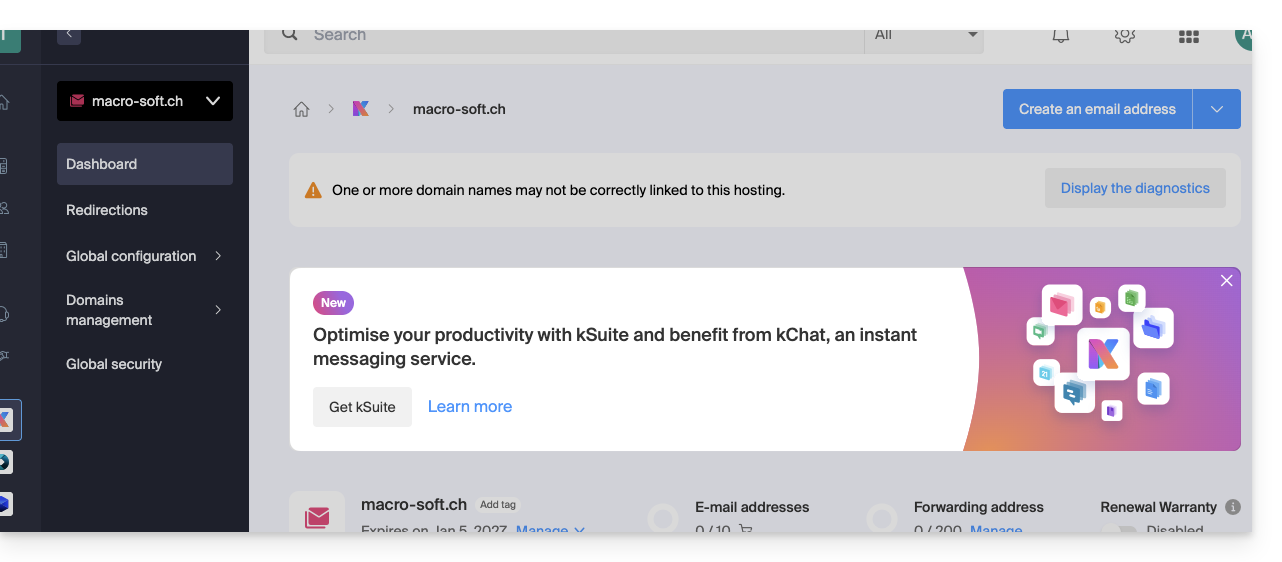
You can also do this from an information banner that is visible…
- … on the homepage of your Manager interface:
- … on the management page for your Mail service, excluding the current kSuite:
Link to this FAQ: https://faq.infomaniak.com/2495
Has this FAQ been helpful?
This guide provides the most common IMAP server addresses.
Introduction
- These addresses are provided for informational purposes and can be used to perform the content migration from your old email addresses to your Infomaniak email address.
- Not all of them have been individually verified and are subject to change without notice.
- For Gmail, Yahoo, Outlook, and iCloud, you generally need to generate an "App Password" in the security settings of your original account to allow the migration.
- If necessary, do not hesitate to contact your previous email provider to ask them for the exact email server to enter.
IMAP Server Addresses
| Provider | IMAP Hostname / Server |
|---|---|
| 1&1 (IONOS) | imap.ionos.fr |
| 9 Business | imap.9business.fr |
| 9 Telecom / Neuf | imap.neuf.fr |
| Alice | imap.aliceadsl.fr |
| Altern.org | imap.altern.org |
| AOL | imap.aol.com |
| Apple (iCloud / me.com) | imap.mail.me.com |
| Bouygues Telecom (Bbox) | imap4.bbox.fr |
| Caramail / GMX | imap.gmx.com |
| Cegetel | imap.cegetel.net |
| Club Internet | imap.club-internet.fr |
| Free | imap.free.fr |
| Freesurf | imap.freesurf.fr |
| Gmail (Google) | imap.gmail.com |
| Hotmail / Outlook / MSN | imap-mail.outlook.com— personal accounts (@hotmail, @outlook, @live, @msn)outlook.office365.com — Microsoft 365 / Exchange (professional) |
| Infomaniak | mail.infomaniak.com |
| La Poste | imap.laposte.net |
| Mailo (formerly NetCourrier) | imap.mailo.com |
| Noos | imap.noos.fr |
| Numericable | imap.numericable.fr |
| o2switch | server-name.o2switch.net(check your welcome email) |
| Online.net | imap.online.net |
| Orange / Wanadoo | imap.orange.fr |
| OVH (Shared) | ssl0.ovh.net |
| OVH (Pro / Exchange) | pro1.mail.ovh.net (or ex.mail.ovh.net) |
| Proton Mail | Direct copying is not possible |
| SFR | imap.sfr.fr |
| Skynet (Belgacom / Proximus) | imap.proximus.be |
| Tele2 | imap.tele2.com |
| Telenet | imap.telenet.be |
| Videotron | imap.videotron.ca |
| Yahoo Mail | imap.mail.yahoo.com |
Link to this FAQ: https://faq.infomaniak.com/2508
Has this FAQ been helpful?
✘ UNAVAILABLE with
my kSuite / my kSuite+ (ik.me, etik.com, ikmail.com)
Introduction
- This feature allows you to create a "virtual" email address without affecting the available quota for email addresses on the paid Mail service.
- It does not store any received messages; it is impossible to access, view, or restore them, or to view the logs of messages that have been forwarded.
- It is intended solely to forward incoming emails to one or more (max. 10 users per redirection) other existing addresses.
- Recipients who have subscribed to receive the redirected emails must first accept their addition for the redirection to them to work (see point 3 below).
- Emails considered as spam by Infomaniak will not be redirected (they will bounce back to the sender – and please refer to this other guide regarding potential Gmail to Gmail redirections).
- To manage redirects for existing email addresses on your Mail Service, please refer to this other guide.
- Number of redirect addresses that can be created per available address (depending on the Mail Service quota):
- kSuite Free = 1
- kSuite Standard = 20
- kSuite Business = 20
- kSuite Enterprise = 20
- Mail Service Starter = 1
- Mail Service Premium = 20
- For example: Paid Mail Service for 10 addresses = 200 redirect addresses available
Create the address to which emails will be redirected
1. Open the email redirection address management page
To access the feature:
- Click here to access the management interface for your product in the Infomaniak Manager (need help?).
- Click directly on the name assigned to the product in question.
- Click on the chevron to the right of the blue Create a mail address button.
- Choose to Create a forwarding address:
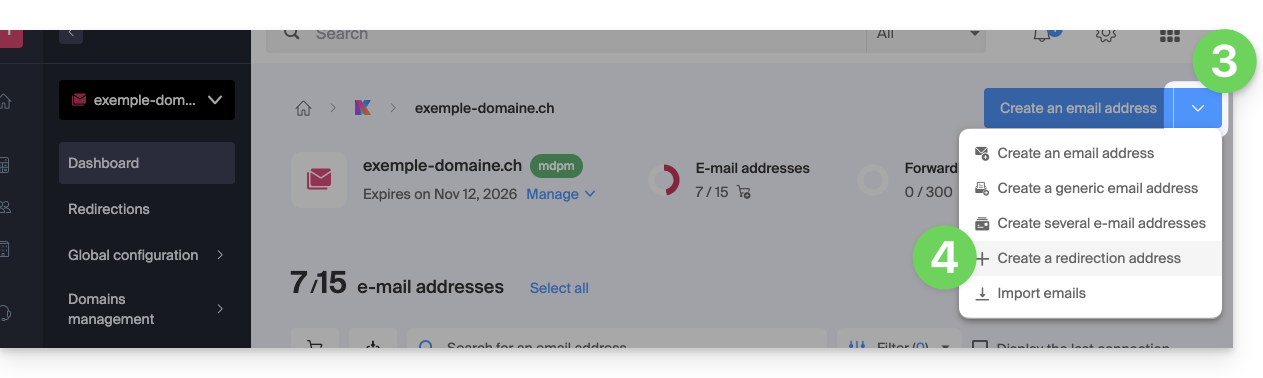
- You can also click on Forwarding mail in the left-hand menu:
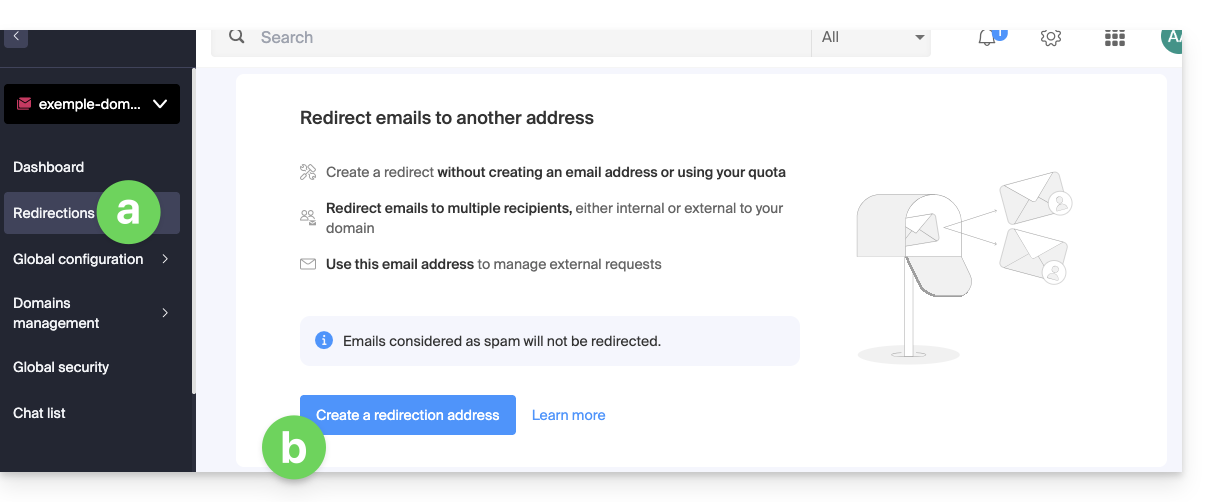
- You can also click on Forwarding mail in the left-hand menu:
2. Add a new forwarding address
Once on the redirection page:
- Click the button to Create a redirection address.
- Enter the email address that will receive the emails to be redirected (it will be valid on the main domain and its associated domains).
- Enter an email address that will receive the emails.
- Click the button to add the valid email address to the table below.
- If necessary, delete an address added to the table by clicking the trash can icon.
- Click on the Create button:

3. Confirm adding as a redirection recipient
The recipient addresses entered in the table will automatically receive an email requesting confirmation of the addition.
The entire redirection will not function until at least 1 of the mentioned users confirms the addition! As soon as 1 user has confirmed the addition, the redirection will function (to the user or users who confirmed the addition).
- The user must click on the link in the email to validate the addition.
- As long as the addition is not confirmed, the Pending status will remain displayed next to the destination address (visible if you modify the redirection address - see below).
Modify or delete the redirection
You cannot rename a redirection address after it has been created. However, to modify the list of recipients for the redirection, resend a confirmation request, or delete the redirection email address:
- Once on the redirection page:
- Recipients who have not yet confirmed their addition are preceded by a gray icon.
- Click on the action menu ⋮ to the right of the redirection address in question:
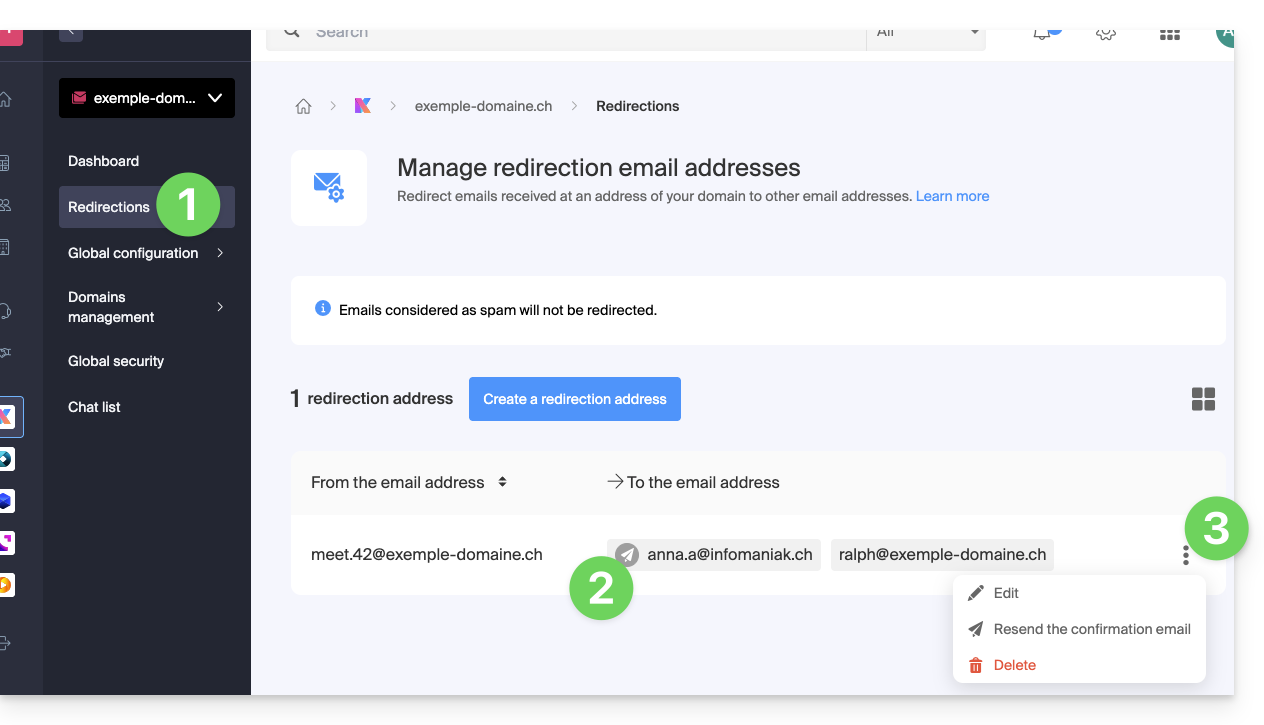
From this action menu ⋮, click on:
- Modify to add recipient email addresses:
- Click on the button to add the valid email address to the table below.
- Save the changes.
- Alternatively, click on the trash can icon to remove a recipient email address from the list.
- The detailed acceptance status is displayed to the right of the recipient address.
- Resend to immediately request the user to accept their addition to the list via email (a second reminder will only be possible after 24 hours; otherwise, the button will remain grayed out).
- Delete to remove the entire address (click on the confirmation pop-up to execute the deletion):
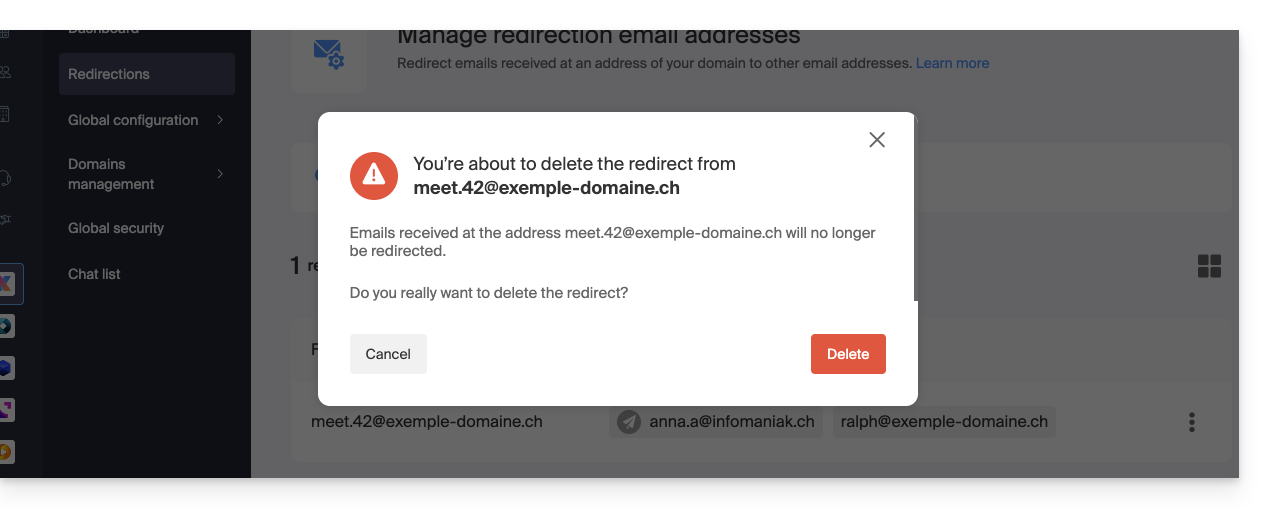
Link to this FAQ: https://faq.infomaniak.com/2524
Has this FAQ been helpful?
This guide explains how to modify an Infomaniak Mail Service plan, the powerful and secure solution for hosting your email addresses, in order to increase or decrease the email address quota available within it.
Introduction
- Refer to this other guide if you simply want to create or delete an email address on your existing Mail service, without affecting the number of email addresses available within it.
- If your Mail service is not yet part of a kSuite, refer to this other guide to consider a possible change of plan along the way.
Modify the address quota for a Mail Service
Prerequisites
- Have a Mail Service on your Infomaniak Manager.
To view the number of email addresses currently available on your Mail Service, and then order more if necessary (or remove some):
- Click here to access the management interface for your product in the Infomaniak Manager (need help?).
- Click directly on the name assigned to the product in question.
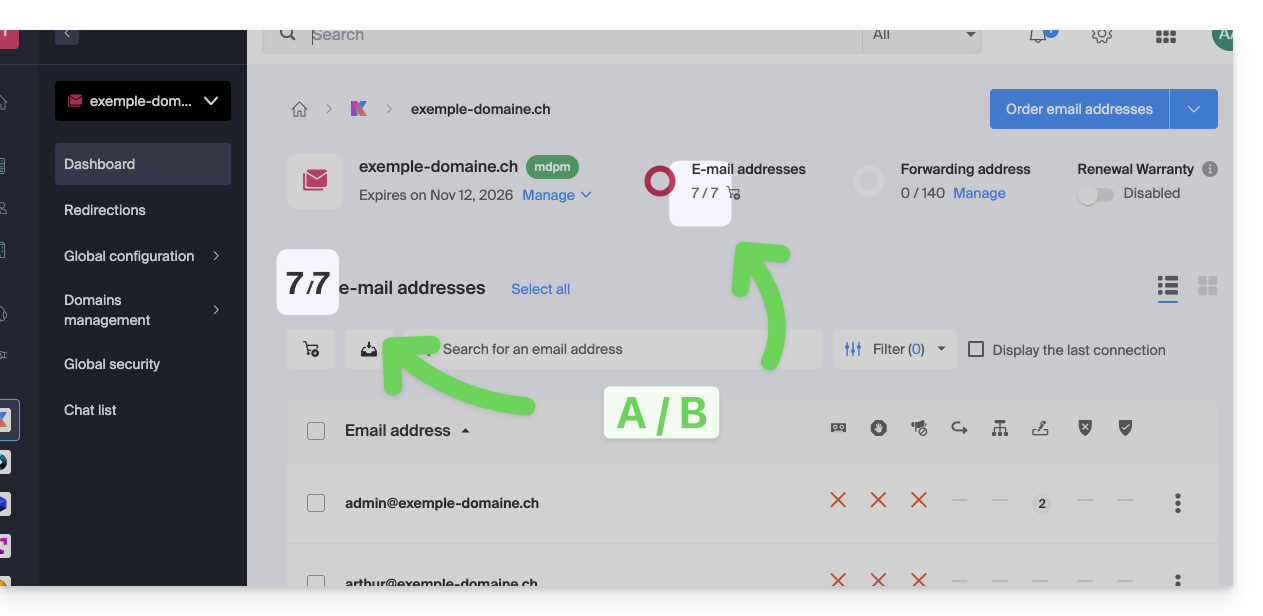
- The number of email addresses created (A) and the total number of addresses available (B) on the Service is displayed at the top of the page:
- Note that you can also view the quota directly in step 1, when you are on the page listing your Mail Services:
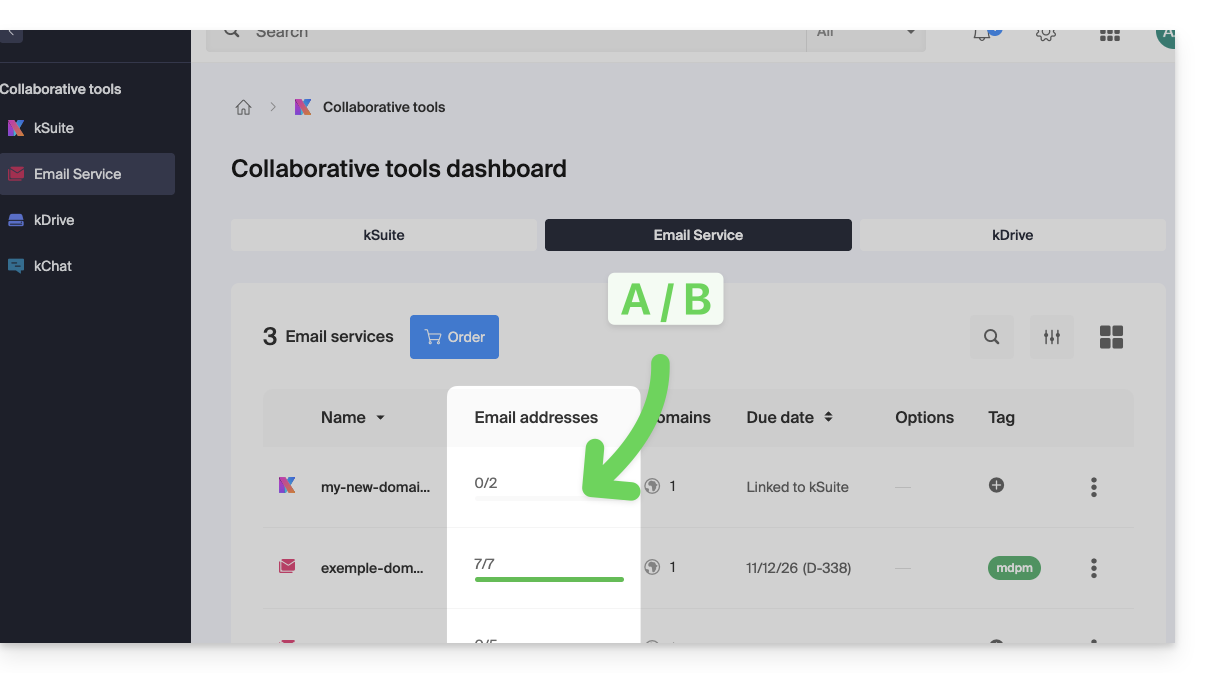
- Note that you can also view the quota directly in step 1, when you are on the page listing your Mail Services:
Increase the number of email addresses available
To increase the number of email addresses available to you on your Mail Service, allowing you to create new email addresses for yourself or your contacts:
- Click here to access the management of your product on the Infomaniak Manager (need help?).
- Click directly on the name assigned to the product in question.
- Click on the shopping cart icon at the top:
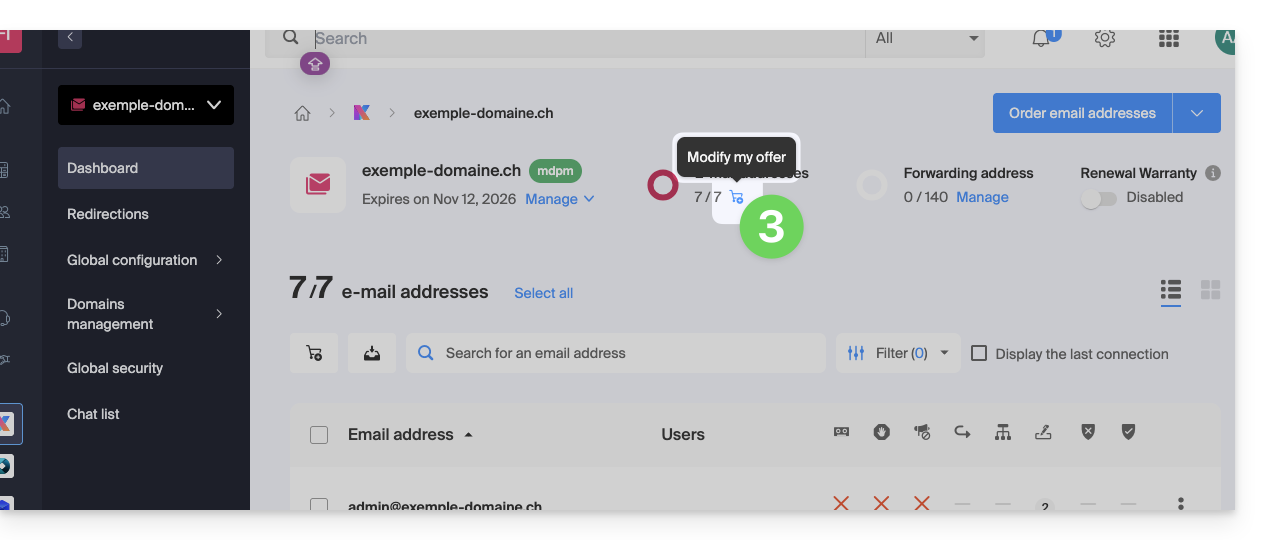
- Adjust the desired quota and proceed with ordering the additional number of addresses on the Mail Service domain.
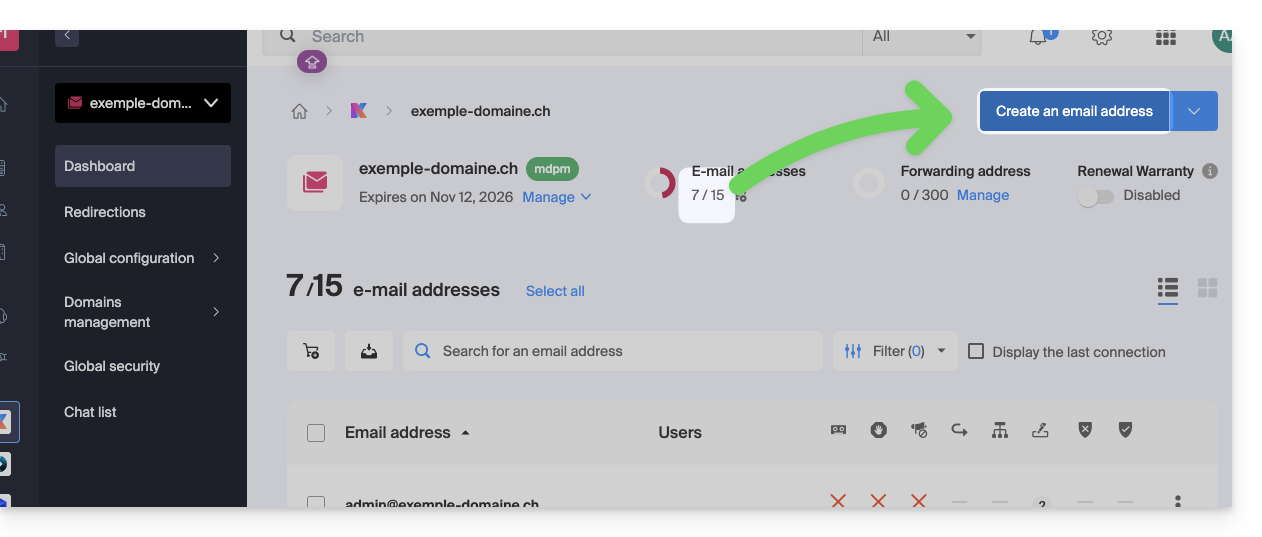
- Complete the payment process; you can now create your additional email addresses:
Reduce the number of email addresses available
To reduce the number of email addresses available on your Mail Service, allowing you to only pay for the number of addresses you actually want and use during the next renewal (a minimum of 5 addresses is required for all Mail Services, except for Mail Starter), you must first delete any unnecessary email addresses and then:
- Click here to access your product management interface in the Infomaniak Manager (need help?).
- Click directly on the name assigned to the product in question.
- Click on the shopping cart icon at the top:
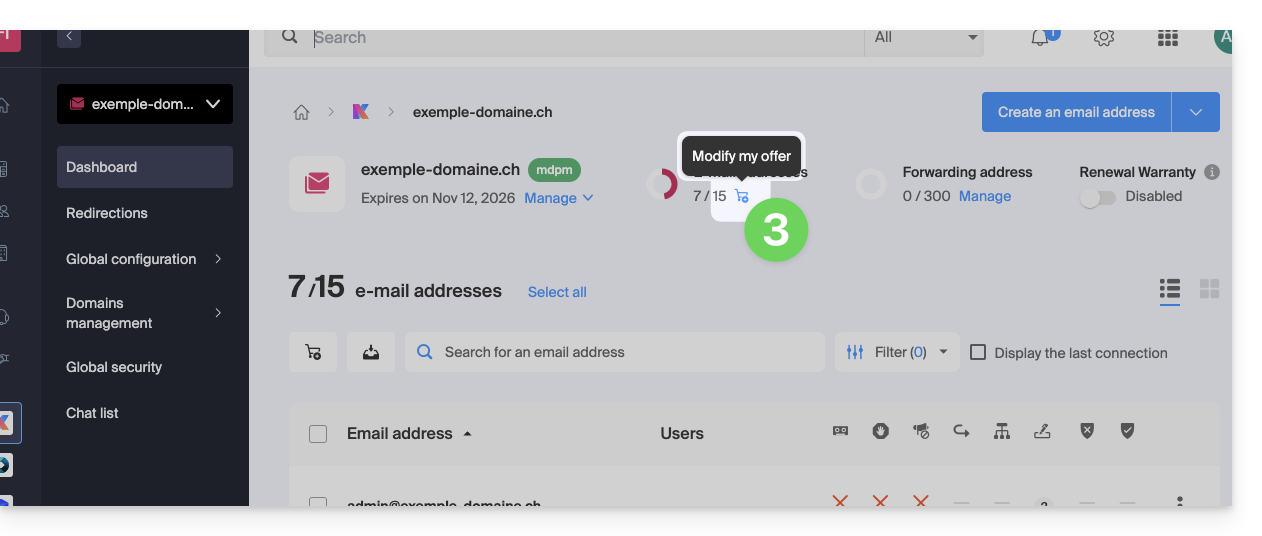
- Adjust the desired quota and complete the process by reviewing the important information displayed on the screen.
Link to this FAQ: https://faq.infomaniak.com/2541
Has this FAQ been helpful?
This guide explains how to update the password for an email address on your device after you have changed it from the Infomaniak Mail Service.
Introduction
- Also, please refer to the official Microsoft help on this topic.
New Outlook 2023-2024 (Windows)
Here's how to access the password settings (refer to the complete guide if needed):
- Open the New Outlook application.
- Click on the gear icon in the upper right corner:
- Click on the blue button to enter the new password and reconnect to the account:
Outlook for Mac
Here's how to access the password settings (refer to the complete guide if needed):
- Open the Outlook application.
- Go to Microsoft Outlook > Settings.
- Click on Accounts:
Outlook 365
Here's how to access the password settings (refer to the complete guide if needed):
- Open the Outlook application.
- Go to Outlook > Preferences.
- Click on Accounts.
- In the left-hand menu, select the Infomaniak account and enter the new password in the field provided.
The application may simply ask you to enter the new password the next time you launch it. Outlook 2019 (Windows)
Here's how to access the password settings (refer to the complete guide if needed):
- Open the Outlook application.
- Click on File:
- Click on Server Settings under the account settings:
- Enter the new information for the selected account:
Outlook 2016 (Windows)
Here's how to access the password settings (refer to the complete guide if needed):
- Open the Outlook application.
- Click on File:
- Click on Server Settings under the account settings:
- Enter the new information for the selected account:
Outlook 2013 (Windows)
Here's how to access the password settings (refer to the complete guide if needed):
- Open the Outlook application.
- Click on File:
- Click on Account Settings:
- Click on Edit to enter the new information for the selected account:
Microsoft Outlook (Android / iOS)
Here's how to remove your account to reconfigure it with the correct information (refer to the complete guide if needed - the application may also simply ask you to enter the new password the next time you launch it):
- Open the Outlook application on your smartphone.
- Click on the icon for your account in the top left corner:
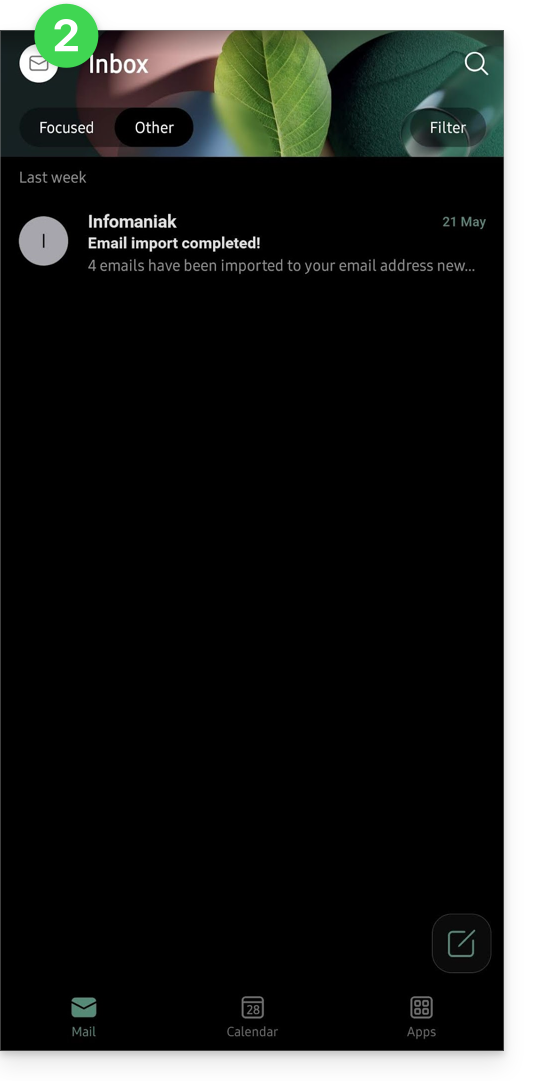
- Click on the icon
in the bottom left corner of the interface:
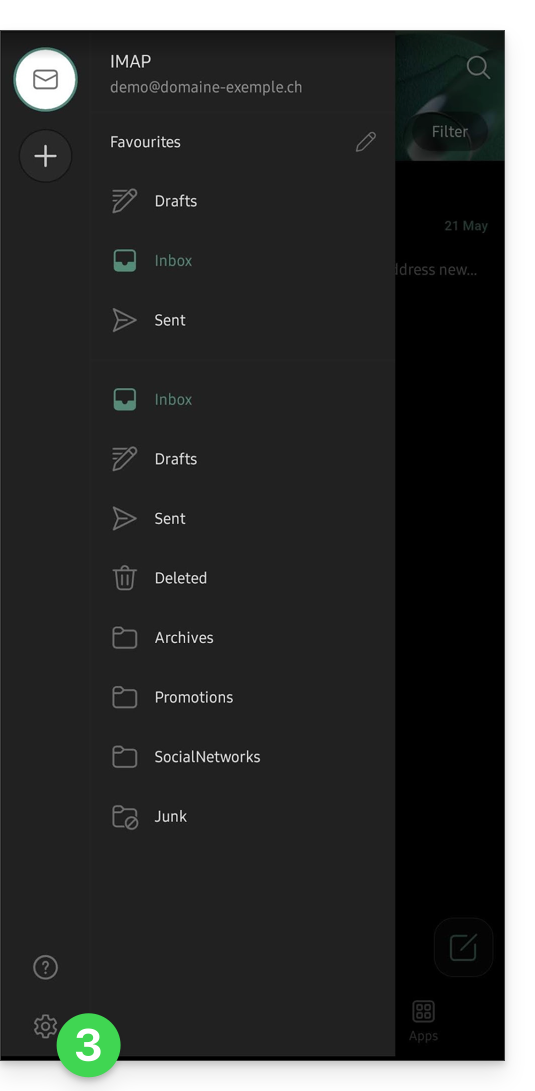
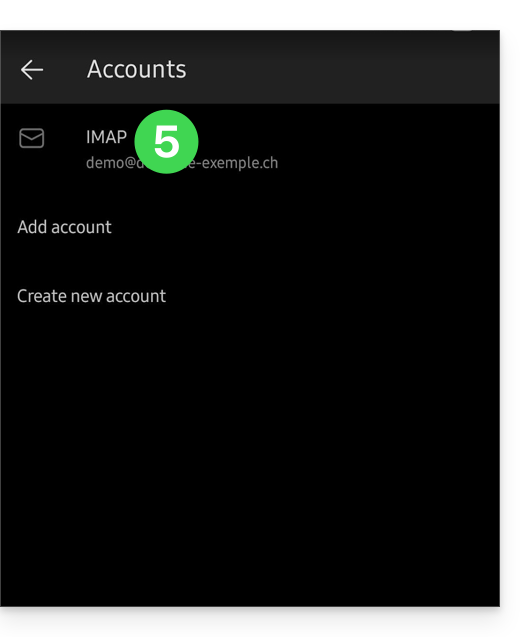
- Click on Accounts:
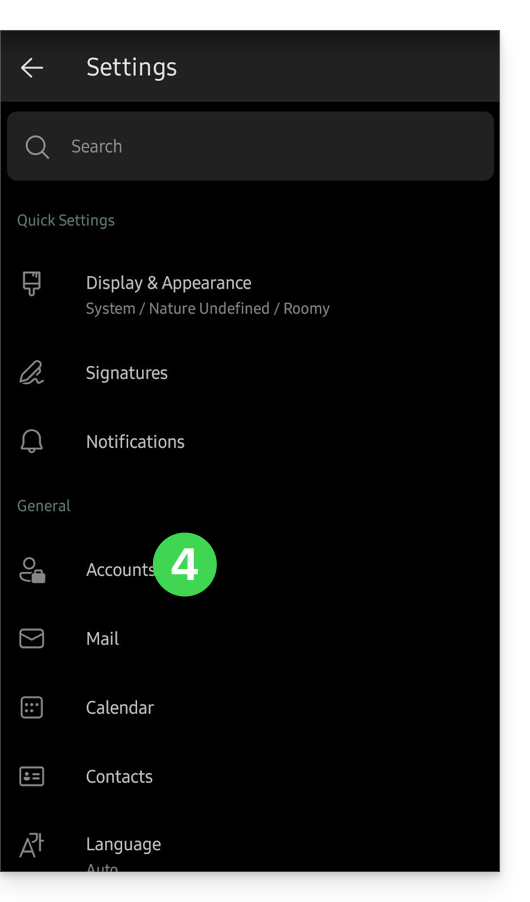
- Click on the name of your email account:
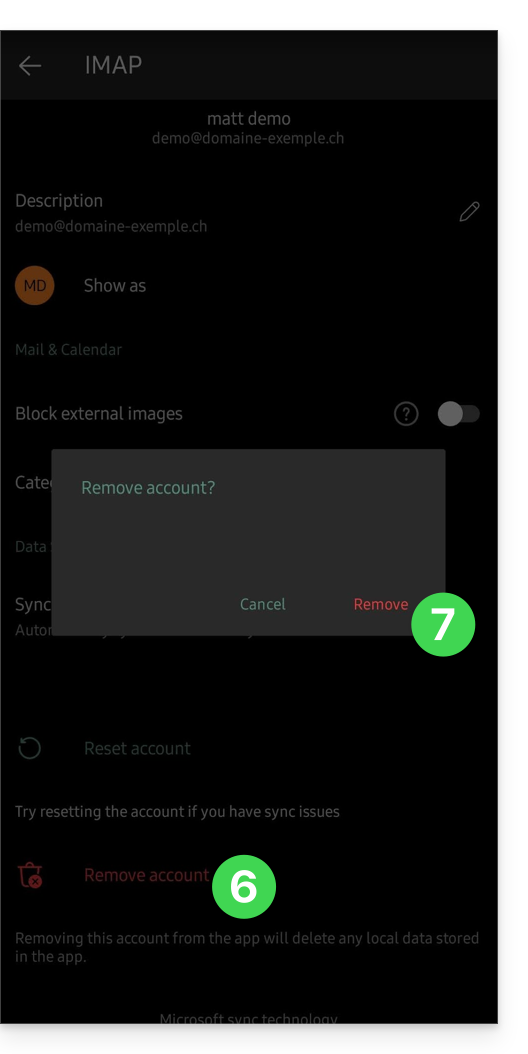
- Click on Remove account.
- Click on Remove to confirm:
Link to this FAQ: https://faq.infomaniak.com/2552
Has this FAQ been helpful?
This guide explains how to update the password for a mail address on your device after you have changed it from an Infomaniak Mail Service.
Introduction
- There may be a master password in place; refer to the official Mozilla help for more information.
Accessing the password menu
To do this:
- Open the Thunderbird email client.
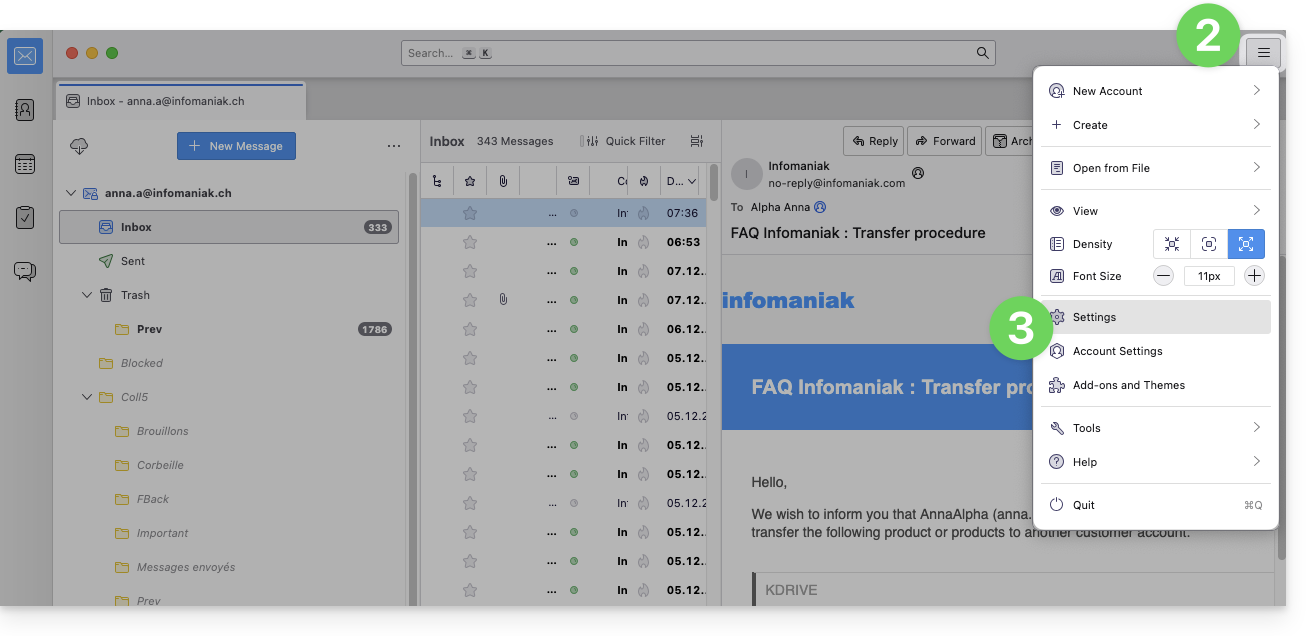
- Click on the menu icon in the top right corner.
- Click on Preferences:
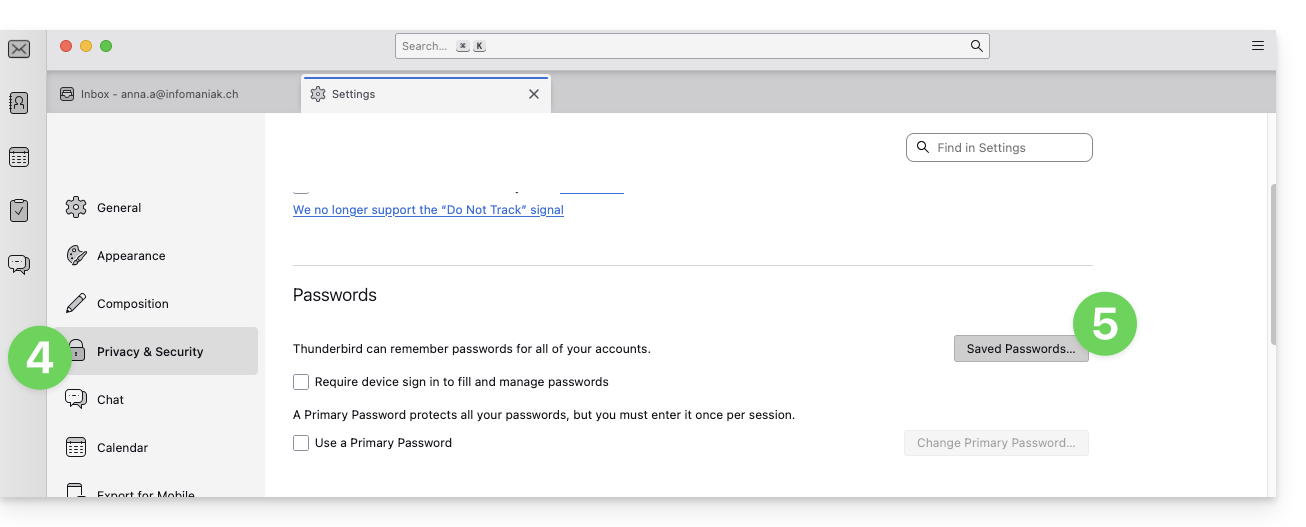
- Click on Privacy & Security in the left-hand menu.
- Click on Saved Passwords:
- Click on Show passwords in the bottom right corner.
- Double-click on the password associated with the email address (IMAP and possibly SMTP if necessary), and enter the new password:
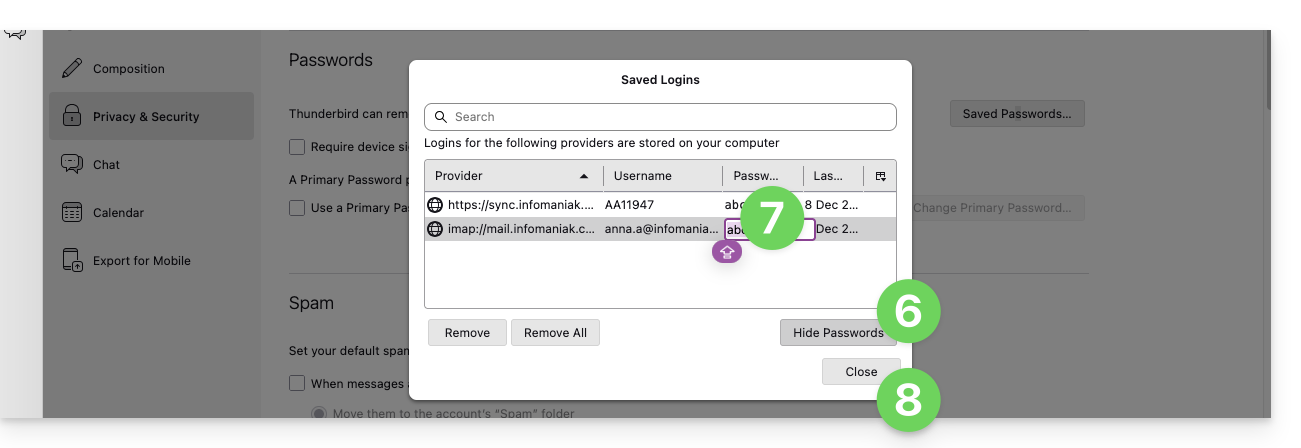
Link to this FAQ: https://faq.infomaniak.com/2553
Has this FAQ been helpful?
This guide explains how to update the password for an email address on your device after you have changed it from the Infomaniak Mail Service.
Enter the new password on Android
Gmail App (Android)
- Open the Gmail app.
- Tap the ☰ menu, then tap Settings.
- Select the relevant Infomaniak account.
- Tap Server settings.
- Enter the new password in the settings for the incoming and outgoing servers.
- See Google's official documentation.
Samsung Email
- Open the Samsung Email app.
- Tap the ☰ menu, then tap the settings icon .
- Select the relevant Infomaniak account.
- Tap Server settings.
- Enter the new password for the incoming and outgoing servers, then save.
- If the password cannot be changed, delete the account from the app, then add it again with the new password.
- See Samsung's official documentation.
Microsoft Outlook for Android
- Open the Outlook app after changing the email address password.
- When the synchronization error appears, enter the new password.
- If no prompt appears or synchronization fails, delete the account from Outlook, then add it again by selecting IMAP.
- View the official Microsoft documentation.
Thunderbird for Android
- Open Thunderbird.
- Tap the ☰ menu, then tap the settings icon .
- Select the Infomaniak account in question.
- Open Receiving messages, then Incoming server, and enter the new password.
- Open Sending messages, then Outgoing server, and enter the new password as well.
- View the official Mozilla documentation.
BlueMail
- Open BlueMail.
- Go to Settings, then Account settings.
- Select the Infomaniak account in question.
- Tap Update password.
- Enter the new password, then validate.
- View the official BlueMail documentation.
Link to this FAQ: https://faq.infomaniak.com/2554
Has this FAQ been helpful?
This guide explains how to update the password for a mail address on your device after you have changed it from an Infomaniak Mail Service.
Introduction
- You can also consult the official Apple help on this topic.
Apple Mail (macOS)
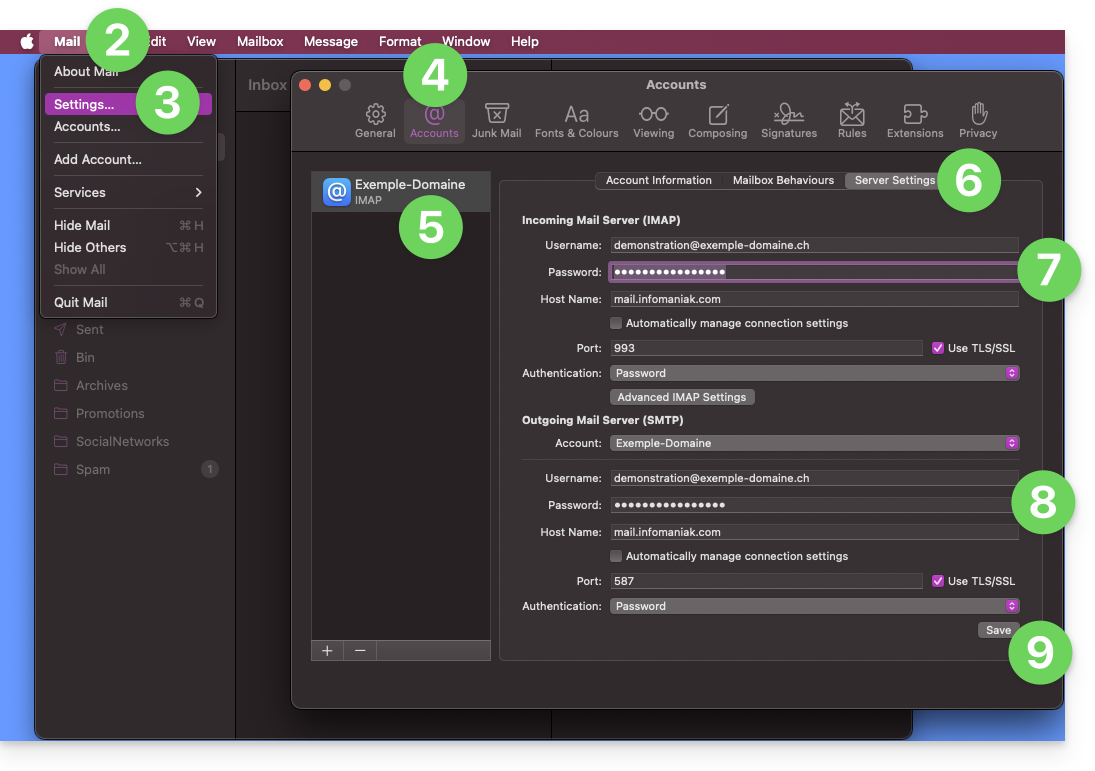
To access the password settings (refer to the complete guide if needed):
- Open the Mail application.
- Click on the Mail menu at the top left.
- Click on Settings.
- Click on Accounts.
- Make sure the relevant account is selected.
- Click on the Server Settings tab.
- Enter the IMAP password.
- Enter the SMTP password, then check the other settings, such as the port number, etc.
- Click the Save button:
iOS (iPhone, iPad, etc.)
Here's how to access the password settings (refer to the complete guide if needed):
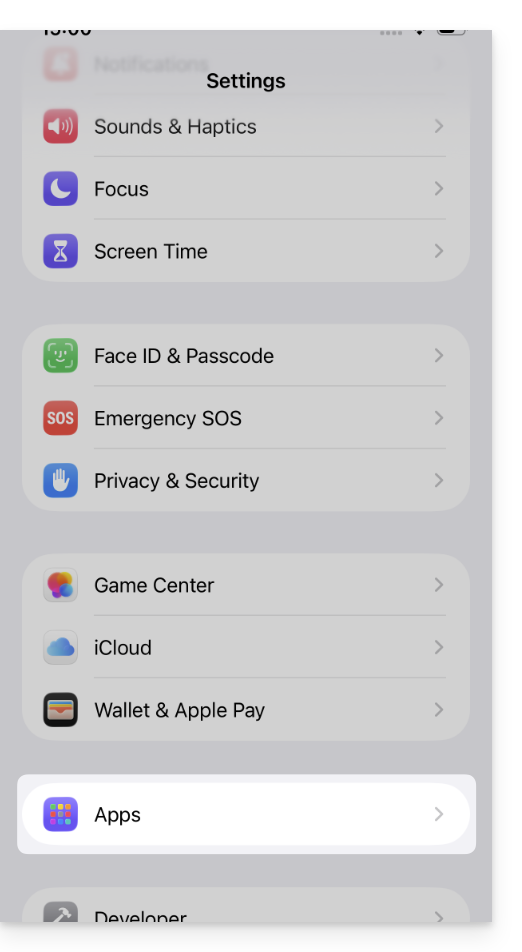
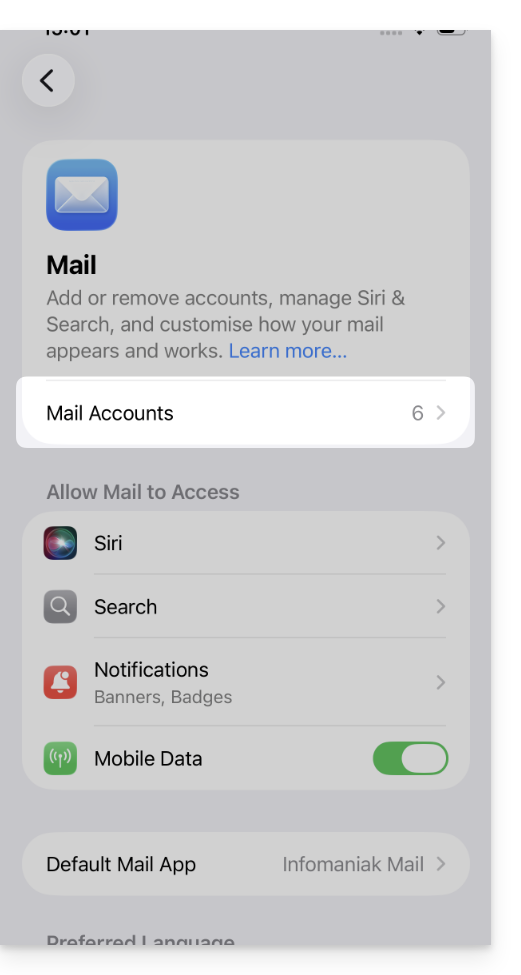
- Open the iPhone Settings and tap Apps:
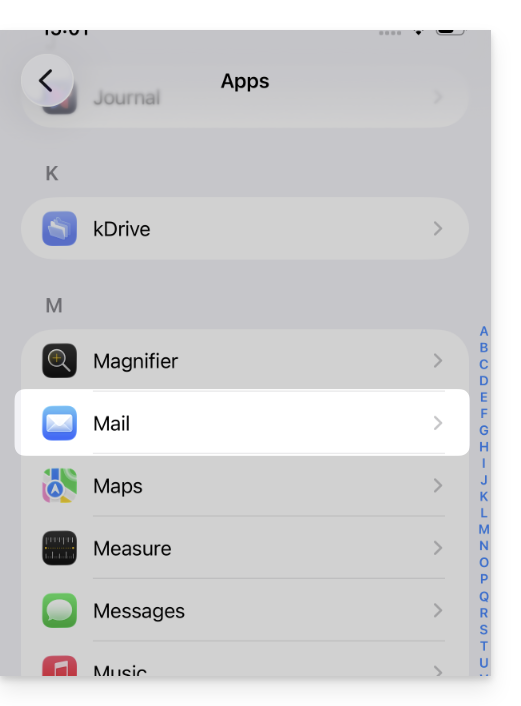
- In Apps, tap Mail:
- Tap Mail Accounts:
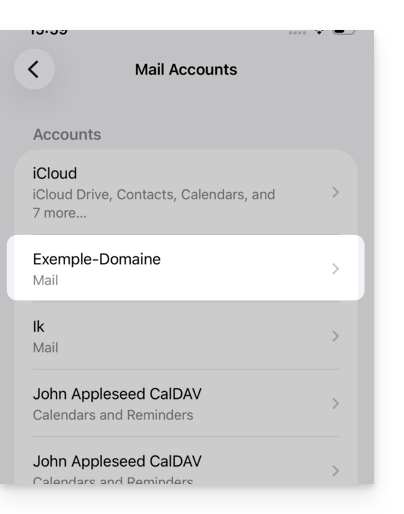
- Tap the account associated with your Infomaniak email address:
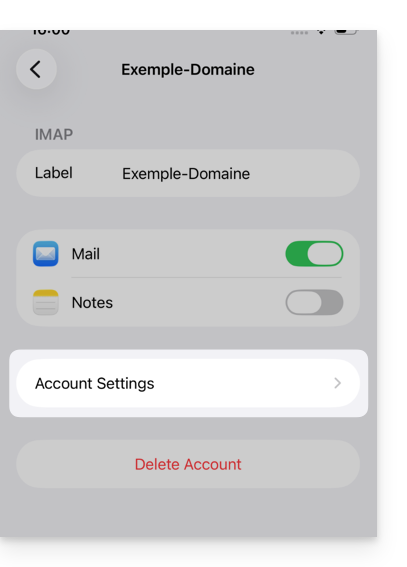
- Tap on Account settings:
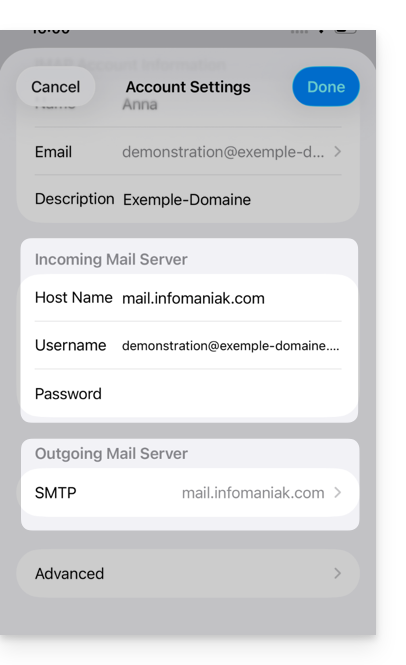
- Update the password in the Incoming Server section.
- Tap on the SMTP server in the Outgoing Server section to update the password or resolve an issue with a missing SMTP server, for example:
- Tap on the server associated with your Infomaniak email address (or if it is missing, tap on Add a server below and configure it according to these instructions):
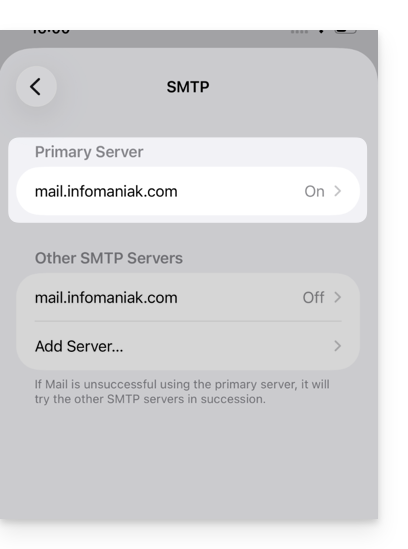
- Tap ON to enable the SMTP server if necessary.
- Update the password and verify all settings, including password authentication.
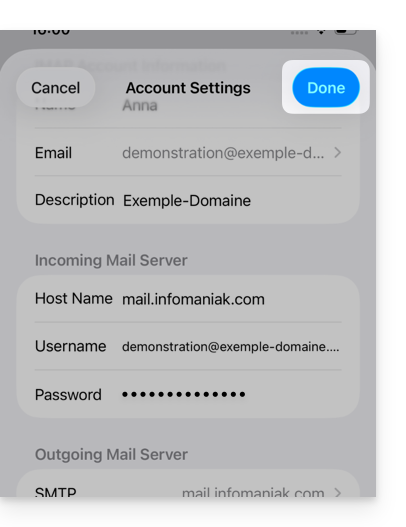
- Click Confirm in the top right corner:
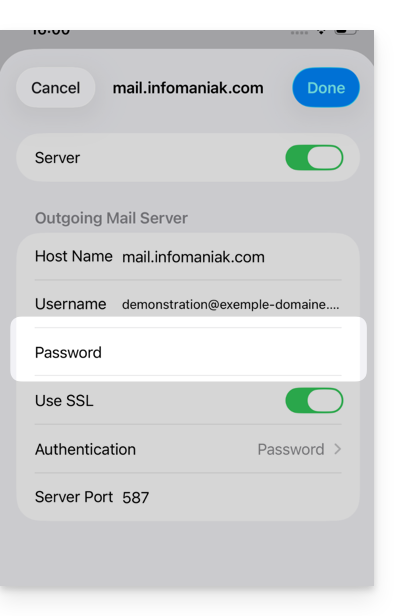
- The SMTP account is now correctly activated:
Link to this FAQ: https://faq.infomaniak.com/2556
Has this FAQ been helpful?
This guide is for you if you want to change your current email provider and host your emails with Infomaniak.
Introduction
- To help you identify the offer that best suits your needs, please refer to this other guide.
- To avoid losing any messages and experiencing any interruptions:
- Follow the links in the order they are presented; they will open in a new tab in your browser, and return to this main guide after completing each step.
- If needed, you can also migrate your:
You are ordering a Mail Service only
Below are the different steps to securely migrate your email service to Infomaniak.
Step 1
You need to order the mail service by following this guide.
When placing your order, you can choose to transfer the domain name at the same time or order the mail service separately.
You can then import the content from your old email addresses to Infomaniak: refer to this other guide.
Step 2
Once the addresses are configured and your old content has been imported, you will be able to connect your external domain name to your Infomaniak Mail serviceto start receiving emails with Infomaniak. You will need to follow the "Link your external domain to your Mail Service" chapter of this guide.
You will find the MX/SPF records to add to your domain's DNS zone here:
SPF
Type: TXT
Host: Leave blank
Target: v=spf1 include:spf.infomaniak.ch -all
MX
Priority: 5
Host: Leave blank
Target: mta-gw.infomaniak.ch (for Gandi, it is necessary to add a period at the end: "mta-gw.infomaniak.ch.")
Step 3 (optional)
Once everything is working correctly, and if you haven't already done so, you can transfer your domain name: refer to this other guide.
As soon as the transfer is launched, you should have access to the DNS zone of your domain name in the Infomaniak Manager. You can then check…
1. … in the DNS diagnostic to see if any corrections need to be made and, if necessary, add the DNS entries that would be required for other services used with your domain name (newsletter or other).
2. … in the global security tab of your email service to check if DKIM is properly enabled.
If emails arrived during the migration with your previous provider, you can import the content of your old addresses into Infomaniak again by following this guide (duplicates are handled).
You are ordering a kSuite
Below are the different steps to securely migrate your external email service to an Infomaniak kSuite.
Step 1
Order kSuite from this page.
Once your order is complete, access your kSuite and add your domain name to it.
You can then create your email addresses and even import the content from your old addresses: refer to this other guide.
Step 2
Once the addresses are configured and your old content has been imported, link your external domain name to your Infomaniak Mail Service to start receiving emails with Infomaniak. Refer to the chapter "Linking the external domain to your Mail Service" in this other guide.
You will find the MX/SPF records to add to the DNS zone of your domain name here:
SPF
Type: TXT
Host: Leave blank
Target: v=spf1 include:spf.infomaniak.ch -all
MX
Priority: 5
Host: Leave blank
Target: mta-gw.infomaniak.ch (for Gandi, it is necessary to add a period at the end: "mta-gw.infomaniak.ch.")
Step 3 (optional)
Once everything is working correctly, and if you haven't already done so, you can transfer your domain name: refer to this other guide.
As soon as the transfer is initiated, you should have access to the DNS zone of your domain name in the Infomaniak Manager. You can then check…
1. … in the DNS diagnostic if there are corrections to be made, and if necessary, add the DNS entries that would be needed for other servicesused with your domain name (newsletter or other).
2. … in the global security tab of your email service if DKIM is properly enabled.
If emails arrived during the migration from your previous provider, you can import the content of your old addresses into Infomaniak again by following this guide (duplicates are handled).
Link to this FAQ: https://faq.infomaniak.com/2575
Has this FAQ been helpful?
This guide explains how to display the folders in your Infomaniak email account using an email client, via the IMAP protocol.
Introduction
- The various default folders are created by Mail Infomaniak during the very first connection to the interface.
- Therefore, some IMAP email software/clients may not display any folders if no connection has been made beforehand in Mail.
- Even if they are present in Mail, some folders may not appear in your email software/clientconfigured in IMAP.
Force synchronization of IMAP folders…
… on Microsoft Outlook
In some cases, after configuring an Infomaniak address in the Outlook email client, certain folders may not appear. In this case, it is necessary to check the synchronization with subscribed folders in Outlook:
- Start the Outlook software on your computer.
- Under your Infomaniak email address, without selecting it first, right-click on the inbox folder.
- Select IMAP Folders from the menu that appears:

- If the IMAP Folders item is not present, deselect the address beforehand.
- If the IMAP Folders item is not present, deselect the address beforehand.
- Disable the
Only display subscribed folders when displaying the hierarchy in Outlookoption by unchecking the box: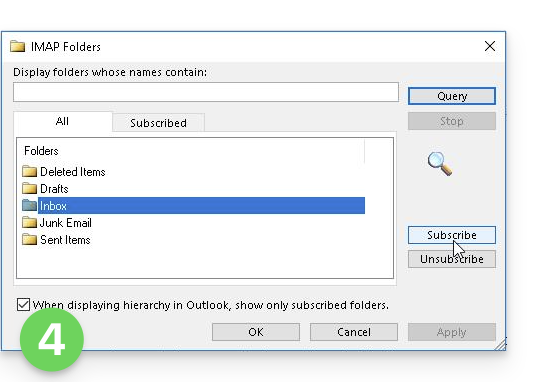
- Click Apply.
Depending on the version, the menu may be located here: 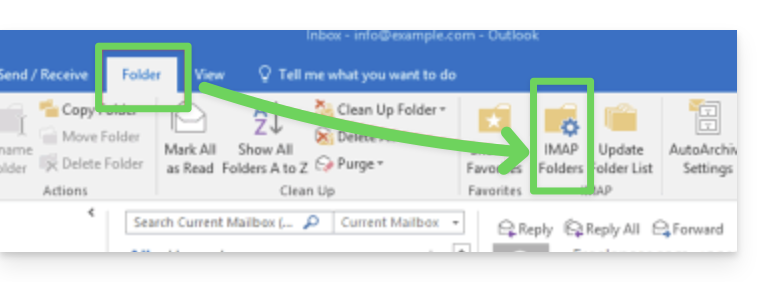
or here: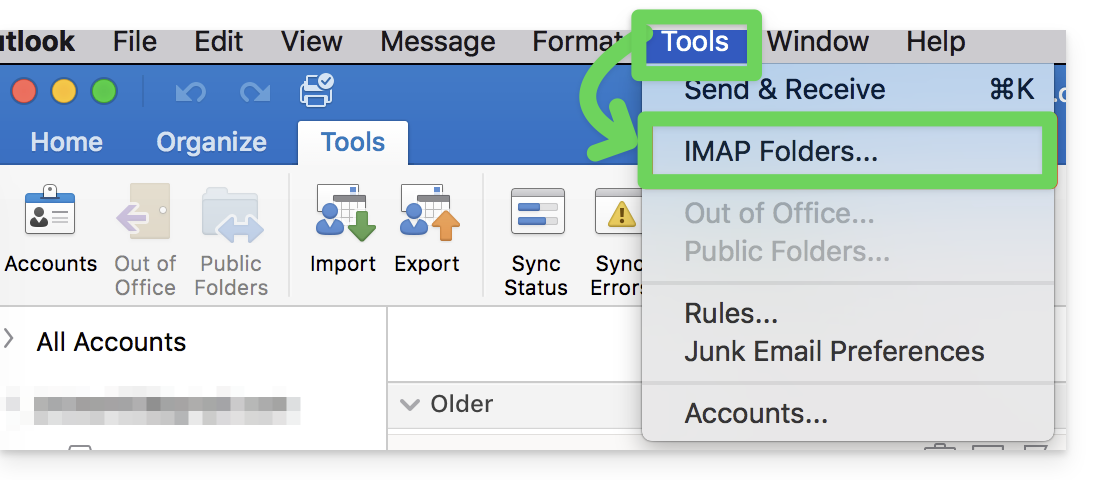
…on Thunderbird
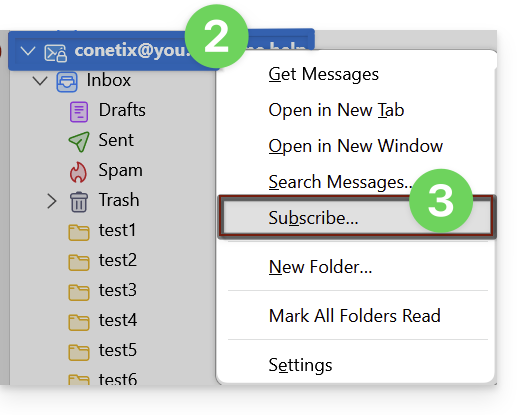
In some cases, after configuring an Infomaniak address in the Thunderbird email client, certain folders may not appear. In this case, you need to manually check these folders from the subscription menu in Thunderbird:
- Start the Thunderbird software on your computer.
- Right-click on the Infomaniak address in question.
- Select the Subscribe menu:
- Check the missing folders.
- Click OK to confirm your selection.
… elsewhere
In your usual email software/client, find the term "IMAP folders" and/or "subscribe", "IMAP subscription", etc.
Modify synchronized folders
Refer to this other guide to change the location of certain default folders.
Link to this FAQ: https://faq.infomaniak.com/2586
Has this FAQ been helpful?
This guide explains how to forward emails from a Gmail, Bluewin, Outlook, Proton, Yahoo, etc. address to your email address managed by Infomaniak.
Introduction
- By setting up automatic forwarding of all incoming emails to your previous email system, you can immediately start using your new Infomaniak email address while ensuring you don't miss any messages.
- By replying to your emails from your new Infomaniak address, your contacts will automatically use it to write to you in the future.
- You can also import the content from another Mail provider directly to your Infomaniak address.
- For further assistance, contact the provider on which you wish to activate message forwarding.
Specific guides
Consult the official guides based on your previous provider:
- Gmail
- iCloud
- Microsoft (Outlook / Hotmail / Live)
- Orange
- Proton Mail (please note, a paid plan is required)
- Sunrise:
- Click here to log in to Sunrise Mail.
- Click on Inbox.
- Click on Settings => Manage Inbox.
- Enter the corresponding email address under "Forwarding".
- Yahoo (note: requires Yahoo Mail Pro)
Bluewin
- Bluewin (see also below):
- Click here to log in to Bluewin.
- Click on Settings then Automatic forwarding.
- Click on Configure automatic forwarding.
- Follow the procedure to set up automatic redirection.
- Bluewin (alternative method):
- Click here to log in to MySwisscom.
- Click on the "More" menu, then "Settings":

- Then click on "Manage forwarding":

GMX
Click on these elements in order to set up a forwarding rule from GMX:
Link to this FAQ: https://faq.infomaniak.com/2598
Has this FAQ been helpful?
This guide explains how to automatically forward new messages from an existing email address, and managed with Infomaniak, to the email account of your choice, even if it is completely external to Infomaniak, while keeping (or not) the messages.
✘ UNAVAILABLE with
my kSuite (ik.me, etik.com, ikmail.com)
Preamble
- Emails detected by Infomaniak as spam…
- … ARE REDIRECTED when all redirection addresses are hosted by Infomaniak.
- … ARE NOT REDIRECTED AT ALL from the moment one of the redirection addresses is not hosted by Infomaniak (even if all other redirection addresses are).
- Emails not considered as spam ARE REDIRECTED, including to Gmail.However, be aware of this specific situation.
- Users of the email address on the Infomaniak Mail web app receive an email each time a redirect is added or removed.
- It is also possible to create email addresses intended solely for redirecting incoming emails (refer to this other guide for more information).
- Number of email redirects that can be added per email address:
- kSuite Free = 1
- kSuite Standard = 100
- kSuite Business = 100
- kSuite Enterprise = 100
- my kSuite+ (ik.me, etik.com, ikmail.com) = 100
- Mail Service Starter = 1
- Mail Service Premium = 100
Add a redirect from the Infomaniak Web Mail app
Prerequisites
- You must have permission to manage redirects: if you were invited tothe Infomaniak Mail web app (online service ksuite.infomaniak.com/mail) to manage your address, the Mail Service administrator may have removed this permission from their admin account.
To access your Infomaniak email:
- Click here to access the Infomaniak Mail web app (online service ksuite.infomaniak.com/mail).
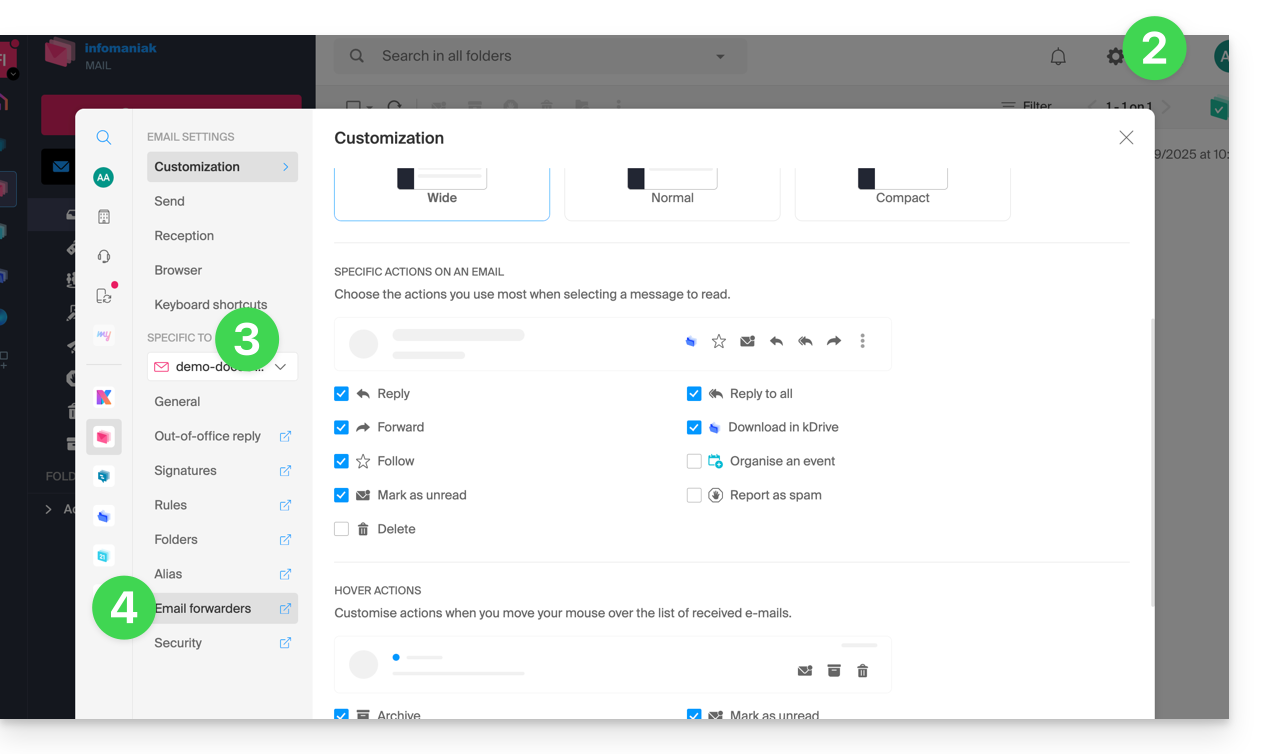
- Click on the Settings icon in the top right corner of the interface.
- Check or select the relevant email address in the dropdown menu on the left-hand sidebar.
- Click on Forwarding:
- Click on the blue Add a redirection button.
- Enter a destination email address per line.
- Click on Add.
Add a redirection from a Mail Service
To access the Mail Service:
- Click here to access the management of your Mail Service in the Infomaniak Manager (need help?).
- Click directly on the name assigned to the Mail Service in question:
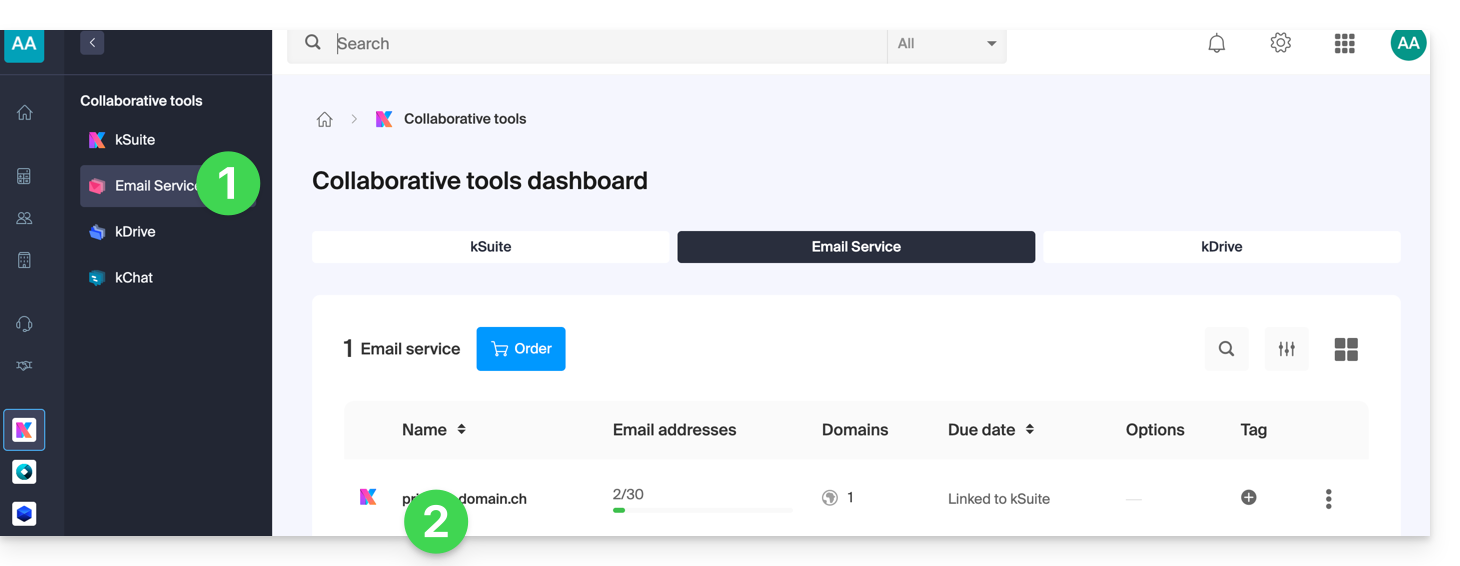
- Click on the mail address in question in the table that appears:
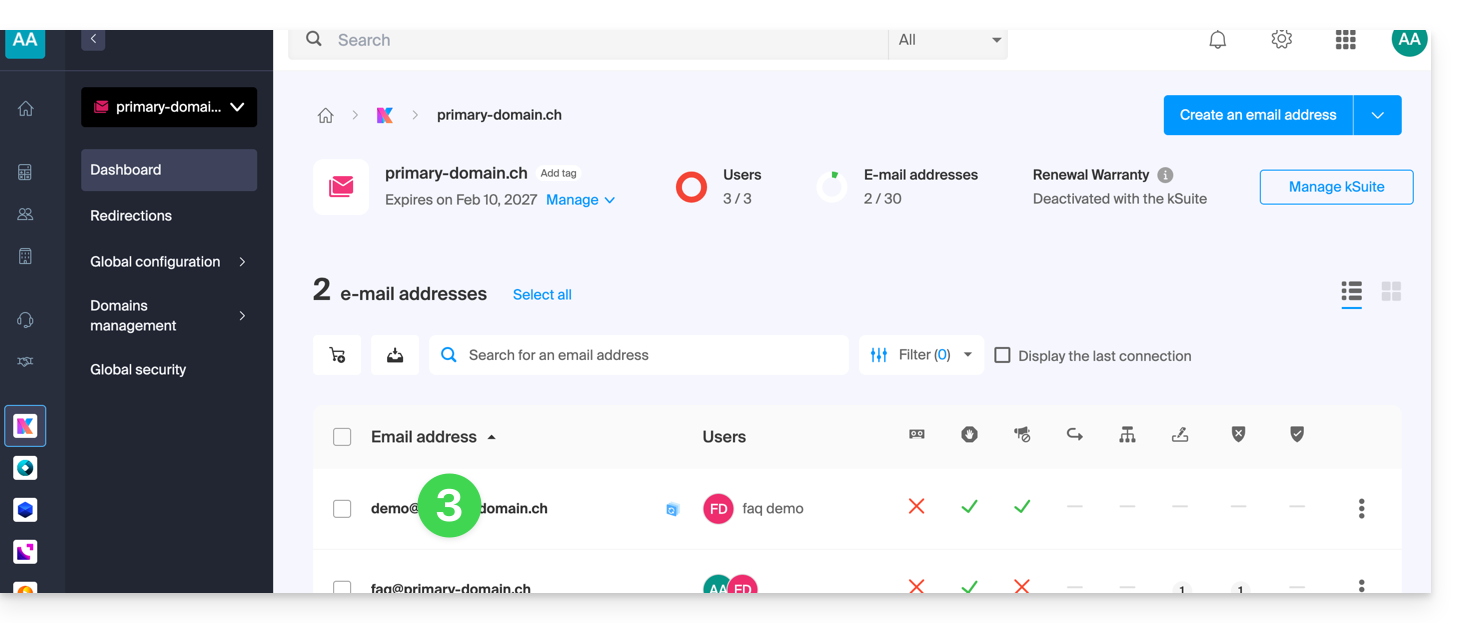
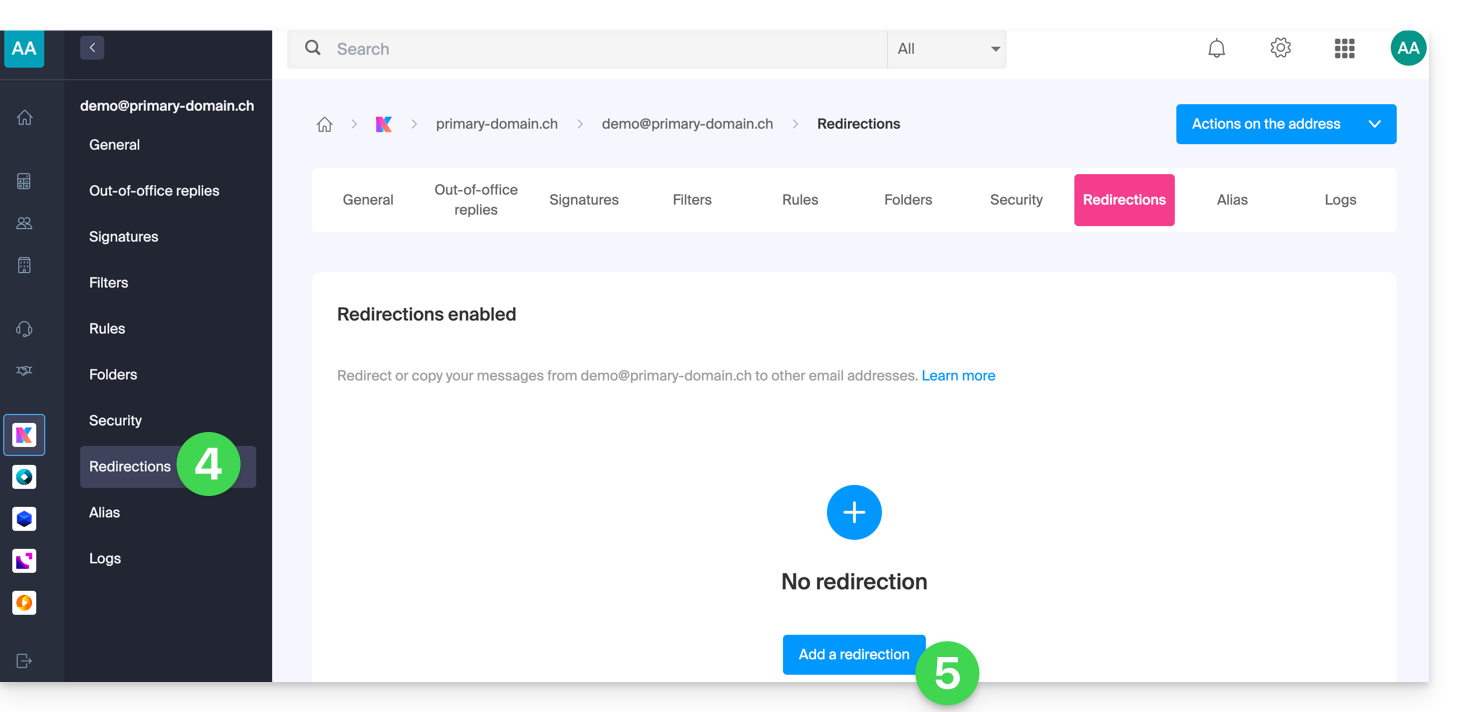
- Click on the Redirections menu in the left sidebar (or the tab).
- Click on the blue Add a redirection button (and if necessary, enter your login password for security):
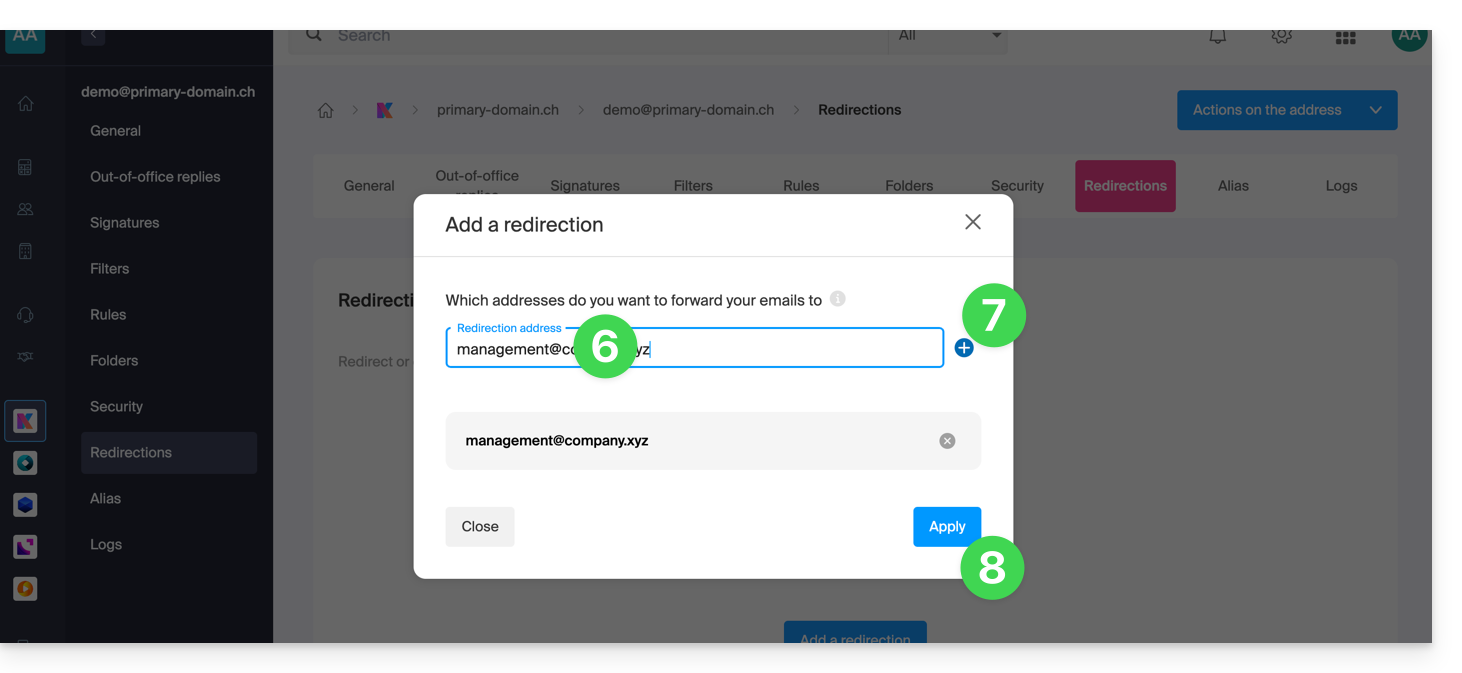
- Enter a destination email address.
- Click the blue + button to add more email addresses.
- Click on Confirm to complete the addition:
- Click on the toggle switch to Keep or delete a copy of emails on the email address after redirection:
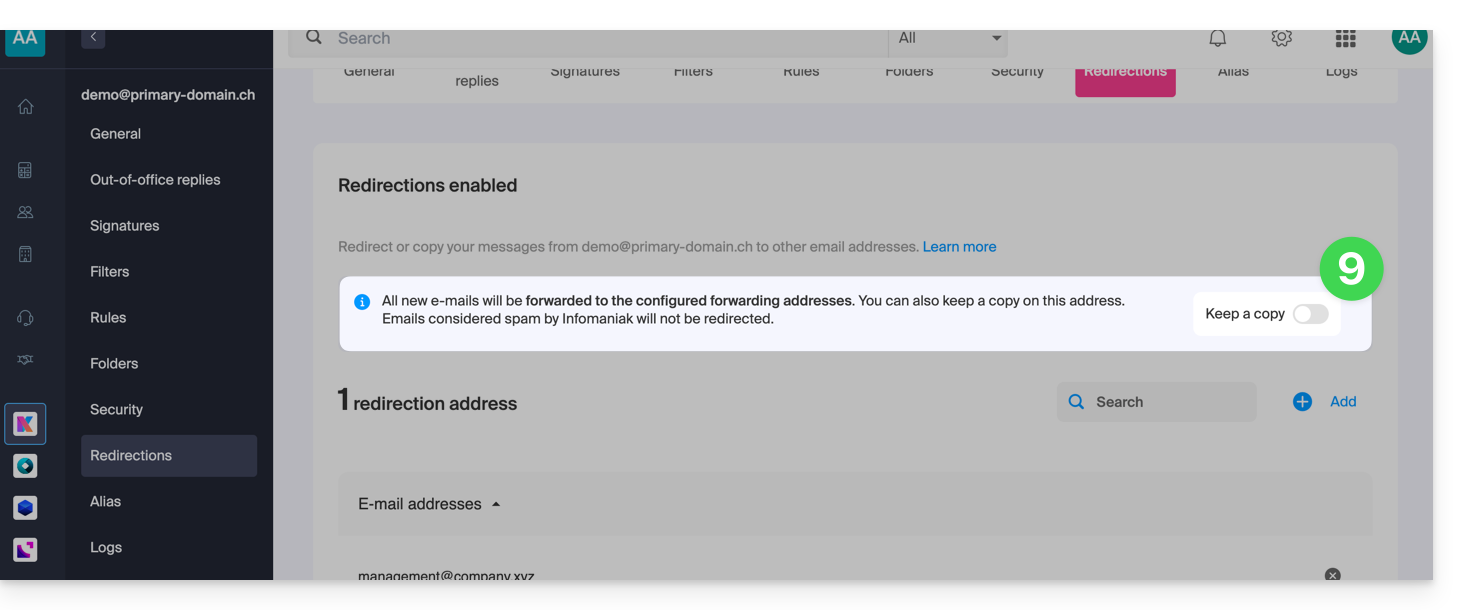
- Once a forwarding email address is added, you can check the box to delete emails from the server after forwarding. The redirection then becomes a move rather than a copy.
Delete email redirects
You cannot apply the redirection service to multiple email addresses within a domain in a single operation. However, the reverse is possible, and you will therefore be able toselect all addresses for a Mail service and delete any existing redirects: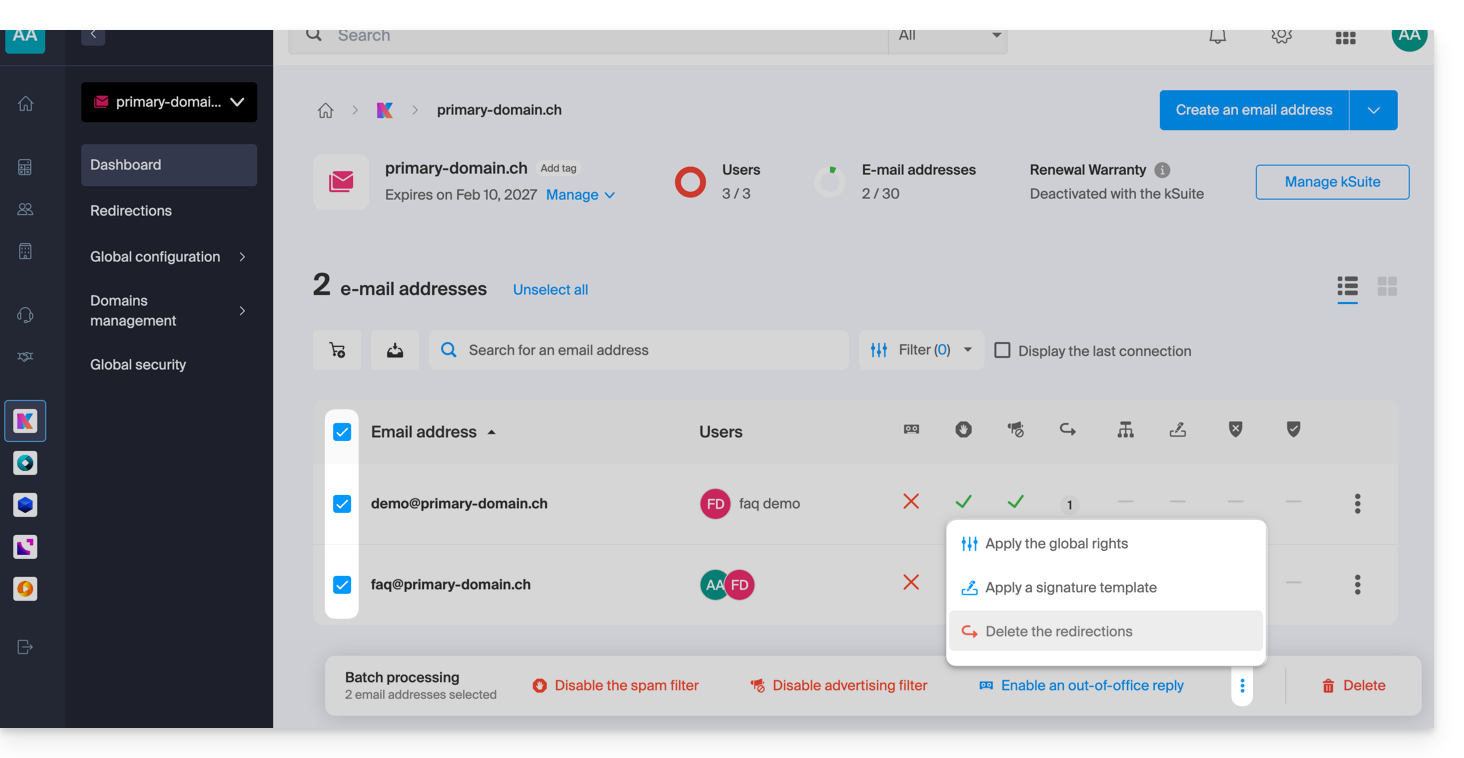
Link to this FAQ: https://faq.infomaniak.com/2614
Has this FAQ been helpful?
This guide explains how to create a template for the sorting/filtering tool (conditions that allow you to automatically categorize your emails based on certain criteria) for all your email accounts in the Infomaniak Mail web app (online service ksuite.infomaniak.com/mail).
Introduction
- A template allows you to create the basic structure of a tool that can then be used by multiple users of the same Infomaniak Mail service, and even customized according to the person who will be using it.
- In the case of a rule template, the template creator chooses the condition(s) that will trigger the action.however, it is up to the end user, from within their Mail interface, to define the action to be performed(e.g., moving to a specific folder) when adding a rule based on the existing template.
- For privacy reasons, it is not possible to apply sorting rules to multiple email addresses at the same time.
- You can also hide a template so that it is no longer used.
Create a sorting rule template
To create a template:
- Click here to access the management of your Mail Service in the Infomaniak Manager (need help?).
- Click directly on the name assigned to the Mail Service in question:
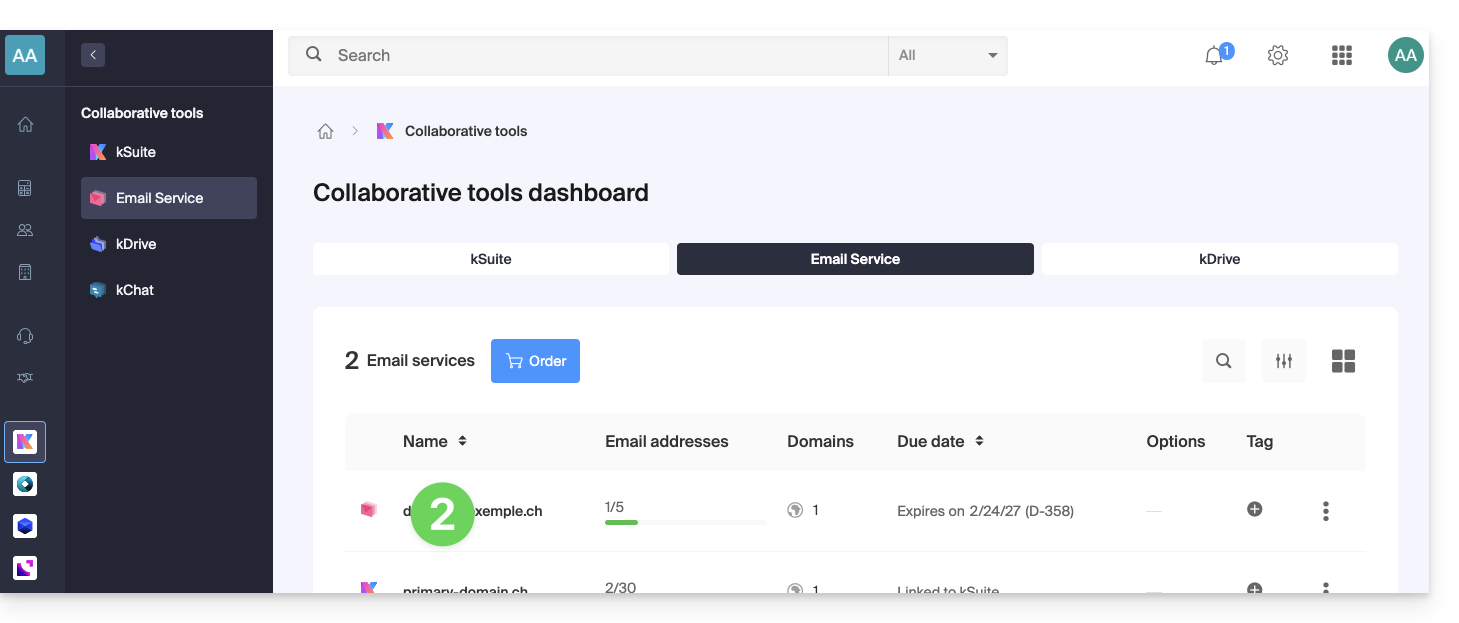
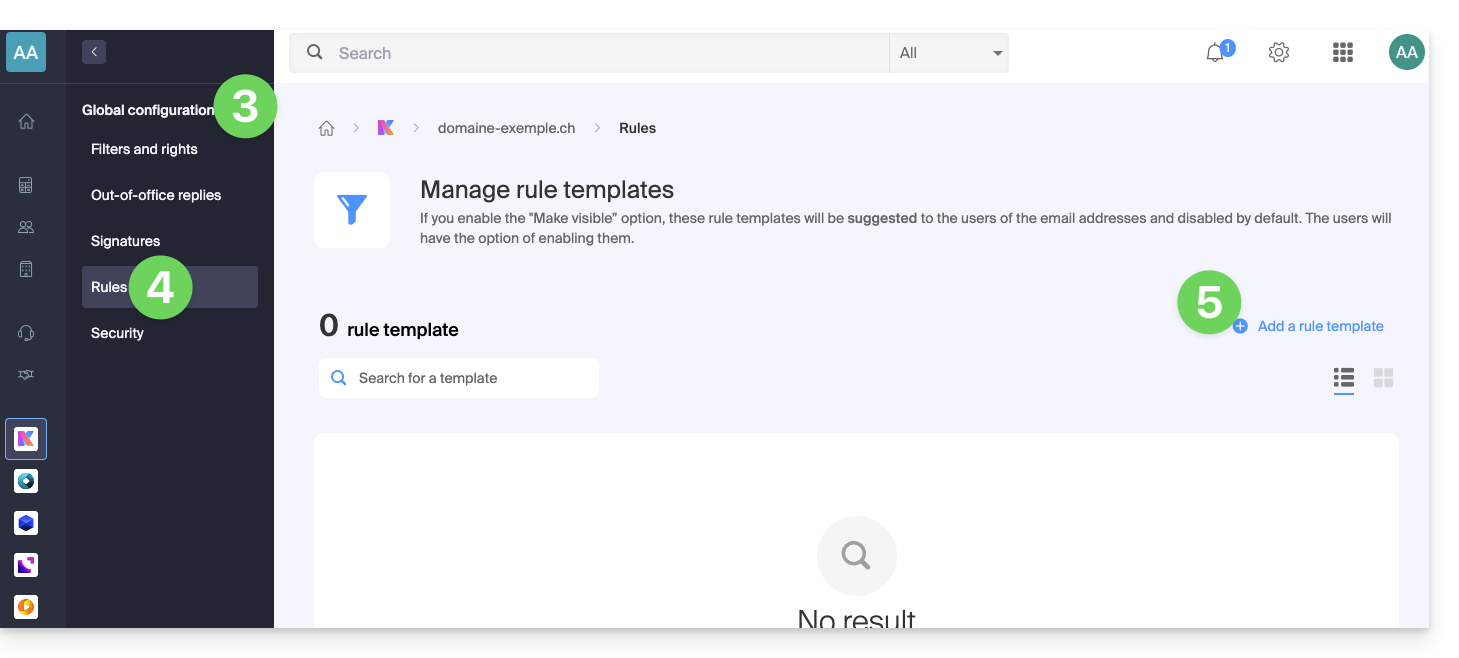
- Click on Global Settings in the left-hand menu.
- Click on the Rules tab.
- Click on Add a rule template:
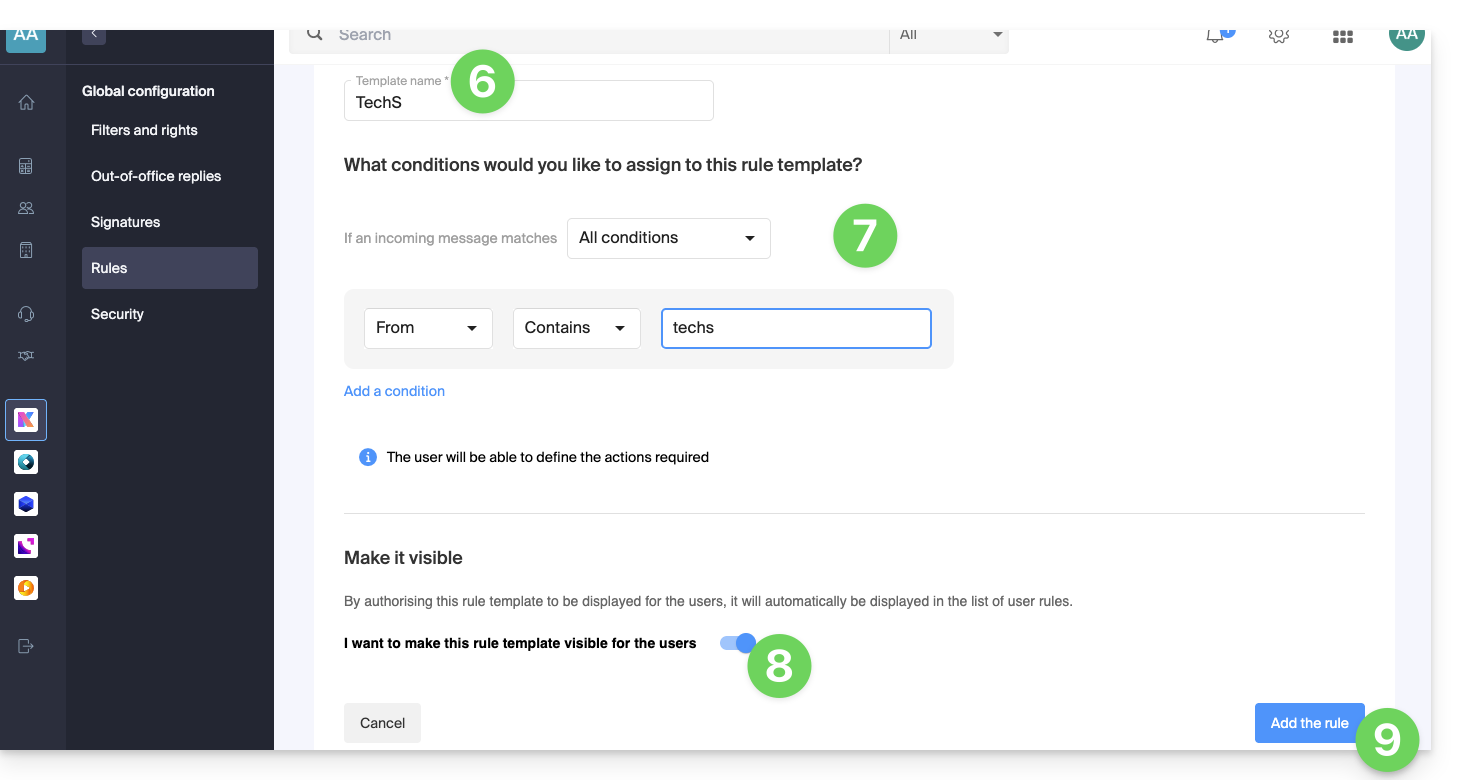
- Give the template a name.
- Define the condition for which the end-user will be able to choose the action to trigger.
- The different conditions available for sorting filters are presented in this other guide.
- If the Make visible option is enabled (during creation or can also be selected later), the rule templates created will be suggested to users of the email addresses in their FILTERS AND RULES section.
- Click on Add template:
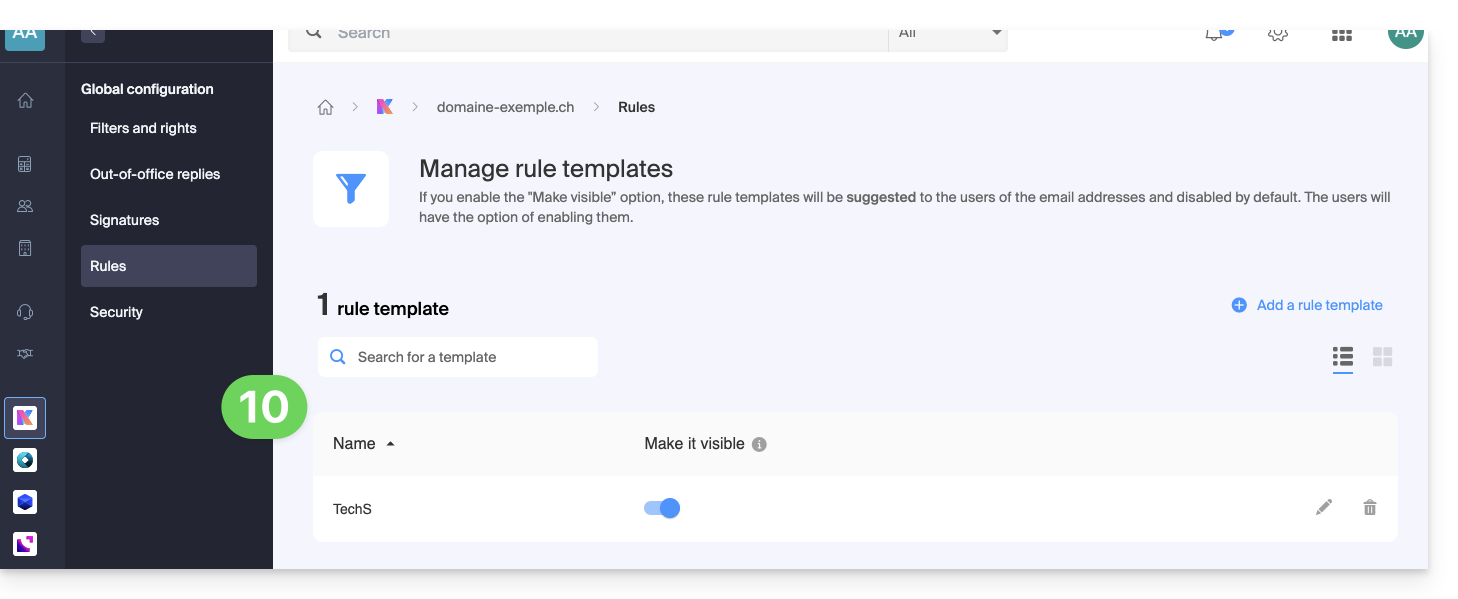
- The template is created:
- When a user with an email address from the Mail Service on which the rule template was defined accesses the configuration of their sorting rules, they can use the template as a starting point, which will save them from having to redo any complex configuration and simply choose the action to be performed:
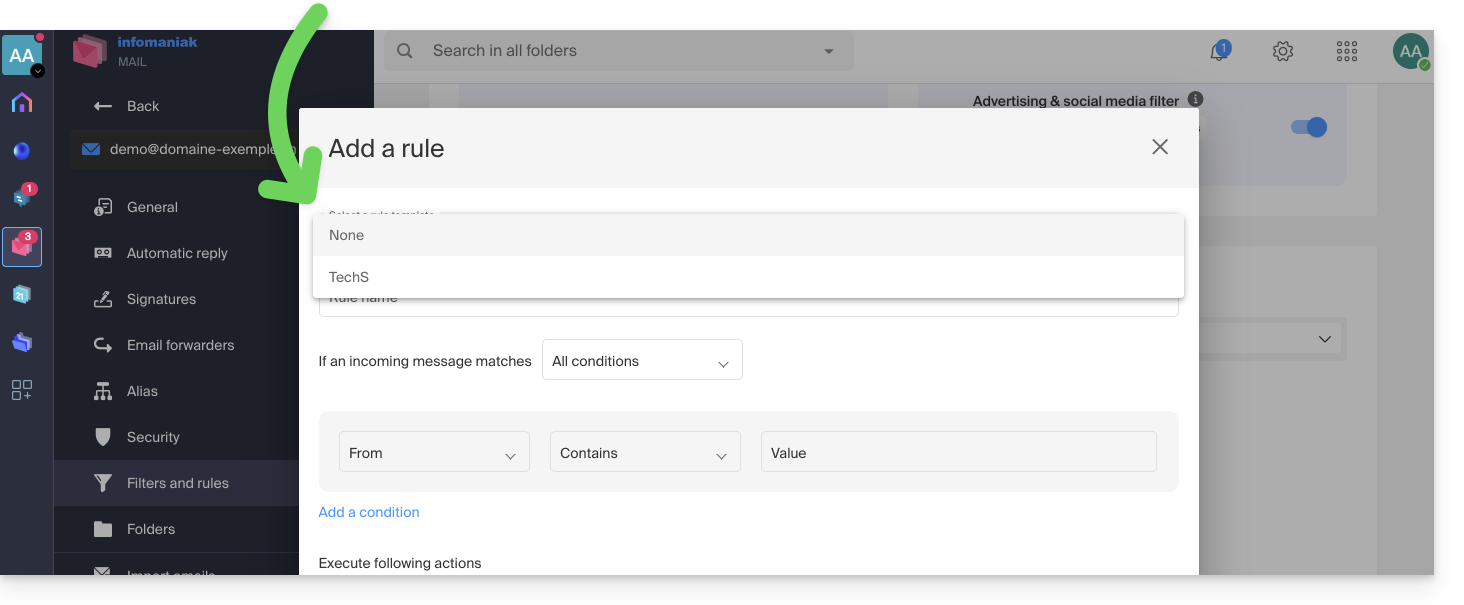
- When a user with an email address from the Mail Service on which the rule template was defined accesses the configuration of their sorting rules, they can use the template as a starting point, which will save them from having to redo any complex configuration and simply choose the action to be performed:
Link to this FAQ: https://faq.infomaniak.com/2617
Has this FAQ been helpful?
This guide explains how to block email addresses or entire domains to stop receiving unwanted messages, or conversely, how to allow addresses to bypass your Infomaniak email's anti-spam filter, ensuring you always receive their messages.
Introduction
- In addition to the Infomaniak anti-spam filter, which eliminates the majority of unwanted emails as it evolves, Infomaniak offers two distinct lists that you can fill in as you wish:
- blocked senders:
- emails and domains on the blocked list (blacklist) are then treated directly as spam…
- allowed senders:
- allowed senders and domains on the allowed list (whitelist) will no longer be filtered by the anti-spam filter…
- the list of allowed senders is only active for the original recipient of each message; if the message is addressed to an address abc@domain.xyz and then forwarded to def@domain.xyz, the anti-spam filter and the list of allowed senders must be configured for the address abc.
- blocked senders:
- These lists are specific to the email address on which the operation is performed, but a Mail Service administrator can also apply these lists to the entire Mail Service via the Global Configuration of a Mail Service.
- These lists are also automatically populated based on your actions on emails at the anti-spam filter level.
Formats that can be used
Replace the example domain (the-spam-domain.xyz) with the domain that is bothering you and that you want to send directly to the Spam folder:
Block a specific email address
john.example@the-spam-domain.xyz
Block all email addresses from a specific domain
*@the-spam-domain.xyz
Block certain email addresses from a specific domain
*example@the-spam-domain.xyz or john*@the-spam-domain.xyz
Block all incoming emails
*
Manage blocks or permissions from the Infomaniak Web Mail app
Prerequisites
- You must have permission to manage security: if you were invited to the Infomaniak Mail Web app (online service ksuite.infomaniak.com/mail) to manage your address, it is possible that the Mail Service administrator has removed this right from their admin account.
To block or allow senders:
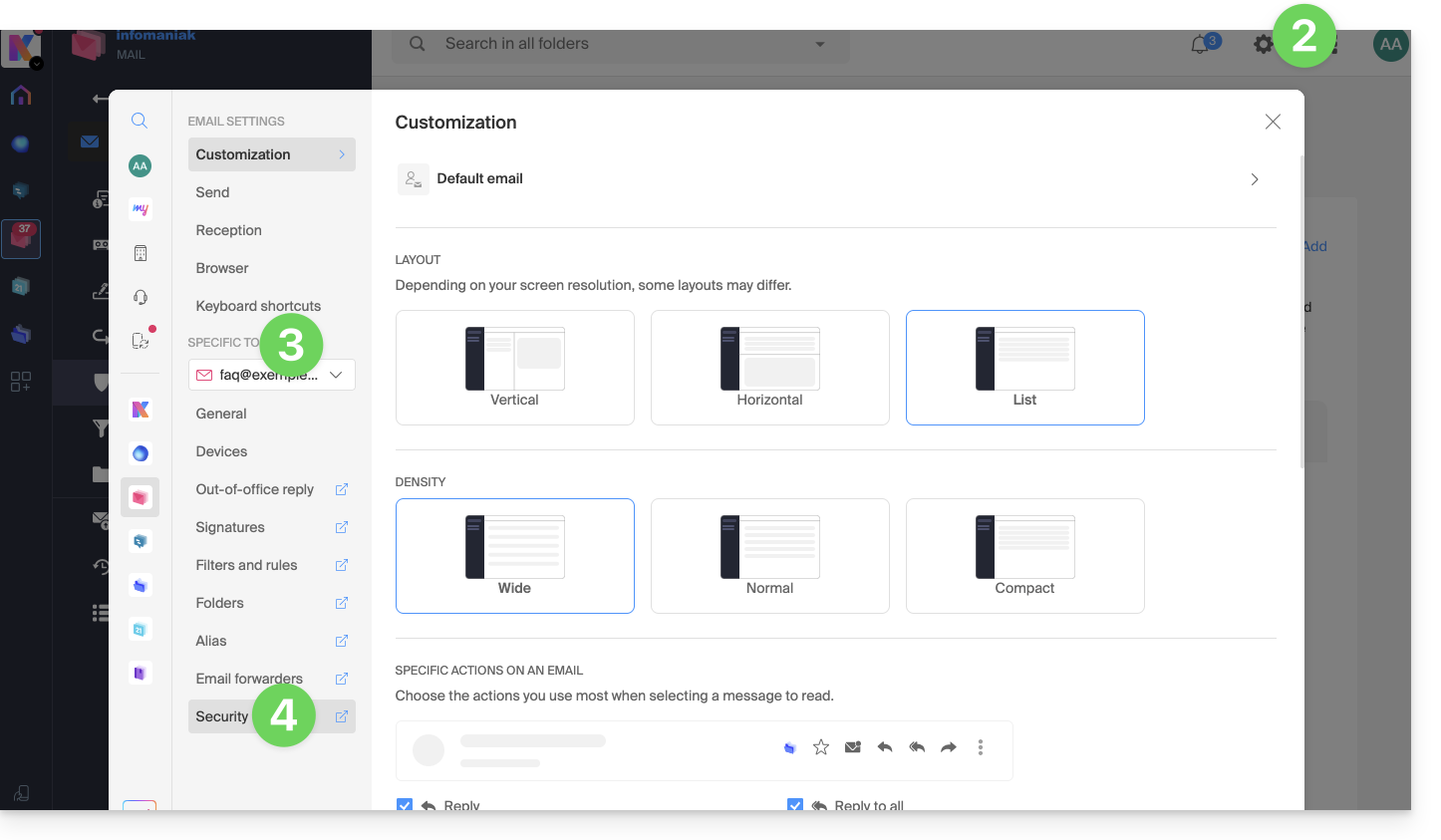
- Click here to access the Infomaniak Mail Web app (online service ksuite.infomaniak.com/mail).
- Click on the Settings icon in the upper right corner.
- Check or select the email address in question from the drop-down menu in the left-hand menu.
- Click on Security:
- To add a blocked sender (to the blacklist), click on the Add address button in the Blocked address box:
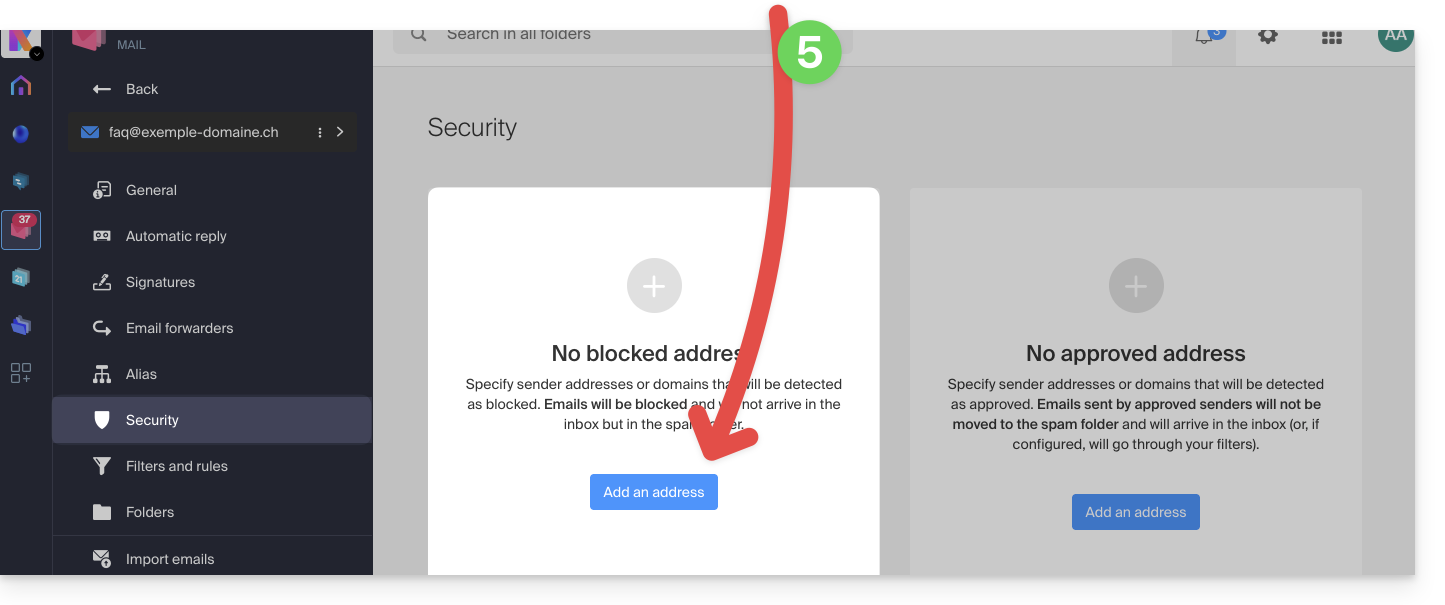
- To add an allowed sender (to the whitelist), click on the Add address button in the Approved address box:
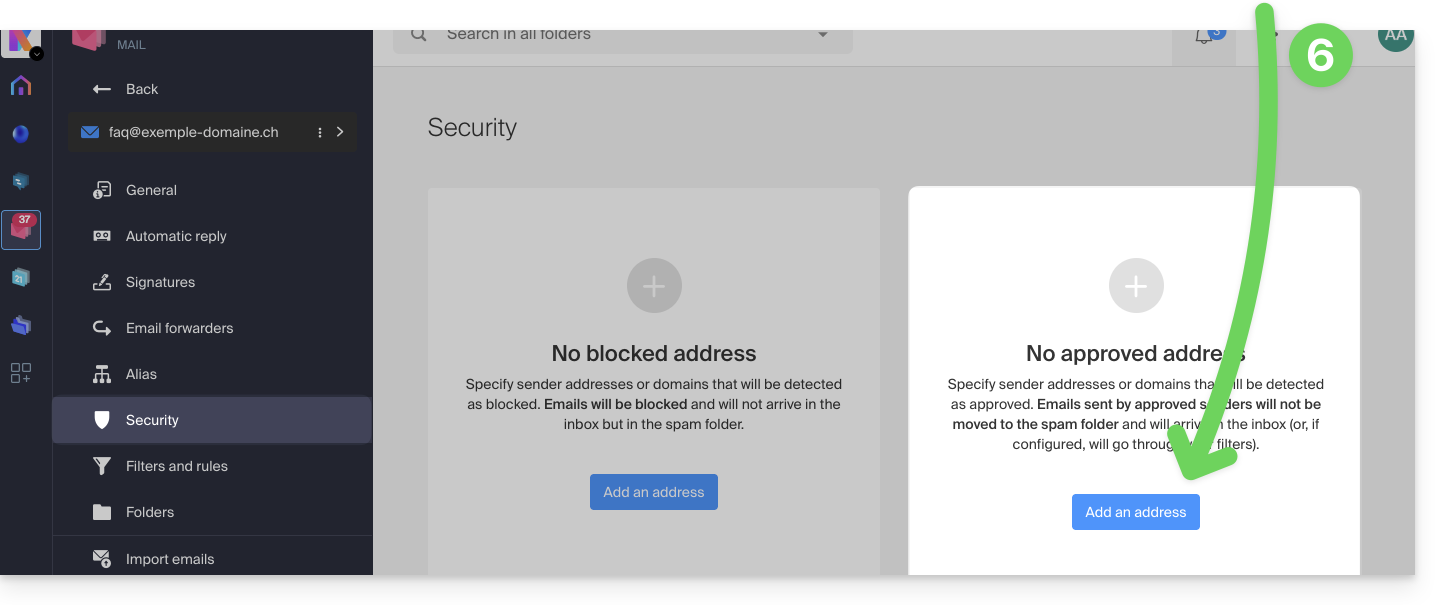
- Fill in the fields as desired and/or according to the formats indicated above.
You can also block a sender directly from the received email:
- Click here to access the Infomaniak Mail web app (online service ksuite.infomaniak.com/mail).
- Open the message from the unwanted sender.
- Click on the ⋮ icon at the top right of the open message.
- Choose Block sender to add it directly to the list of blocked addresses:
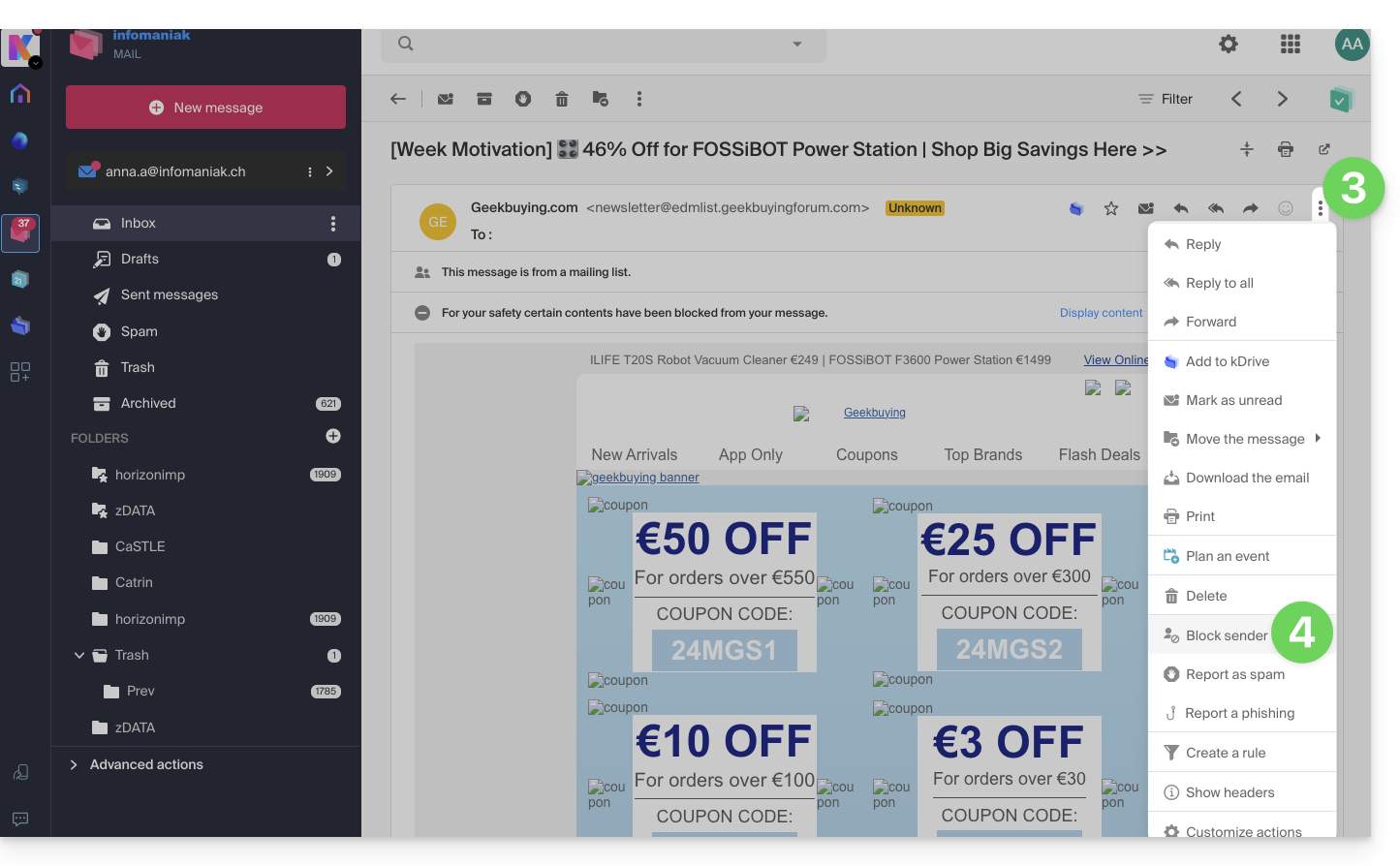
If necessary, remove the address by going back to the Security tab.
Manage blocked or allowed senders from a Mail Service
To block or allow senders from a Mail Service:
- Click here to access the management of your product on the Infomaniak Manager (need help?).
- Click directly on the name assigned to the product in question.
- Click on the email address concerned.
- Click on the Security tab or, from the left-hand menu, on Security:
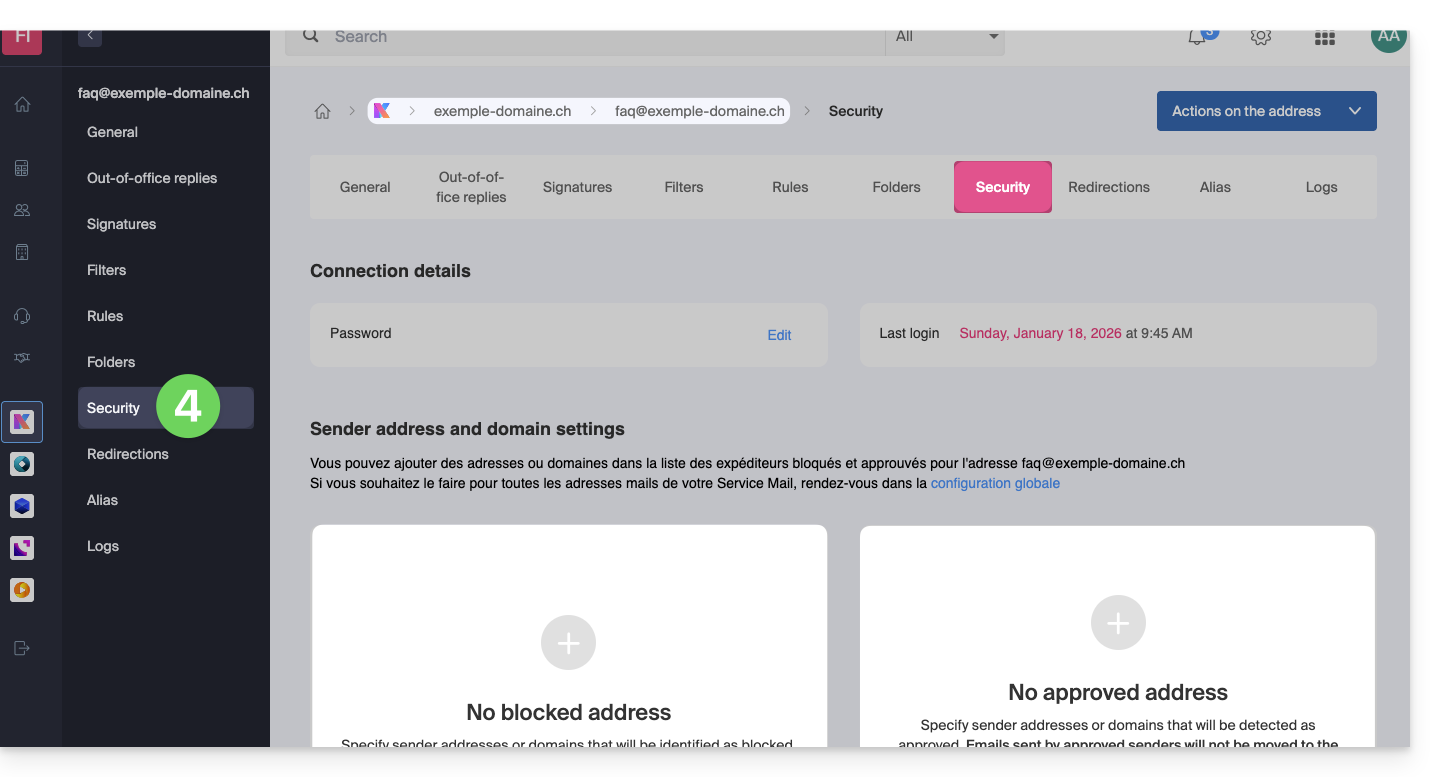
- To add a blocked sender, click on the Add address button in the Blocked address box:
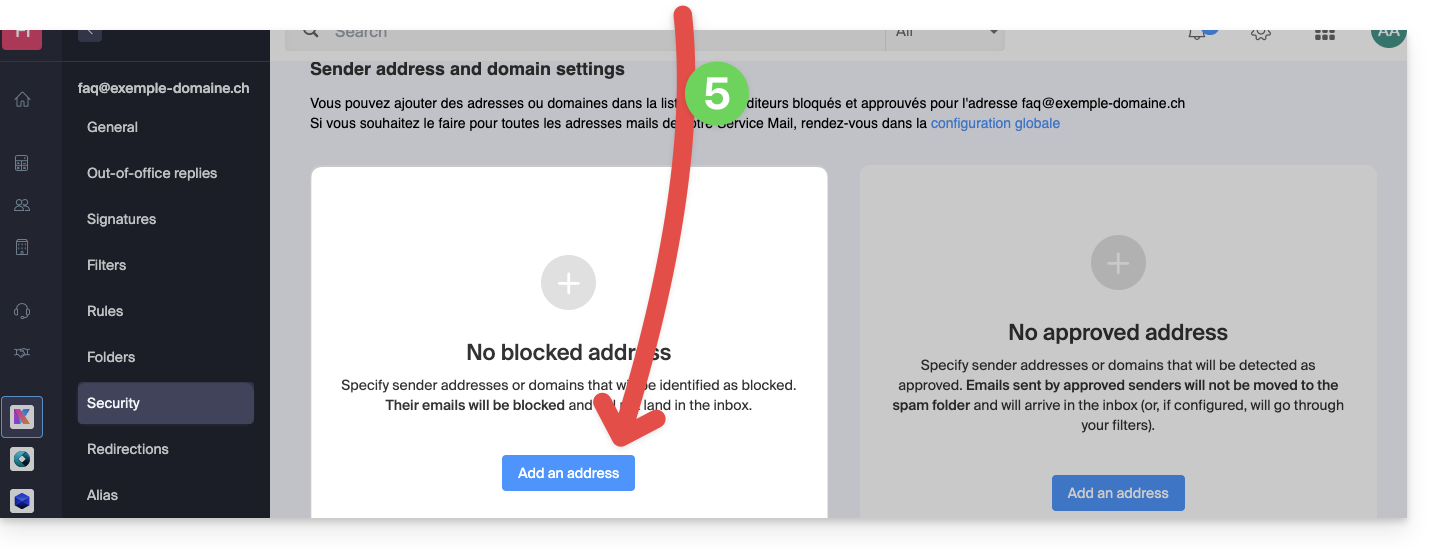
- To add an allowed sender, click on the Add address button in the Approved address box:
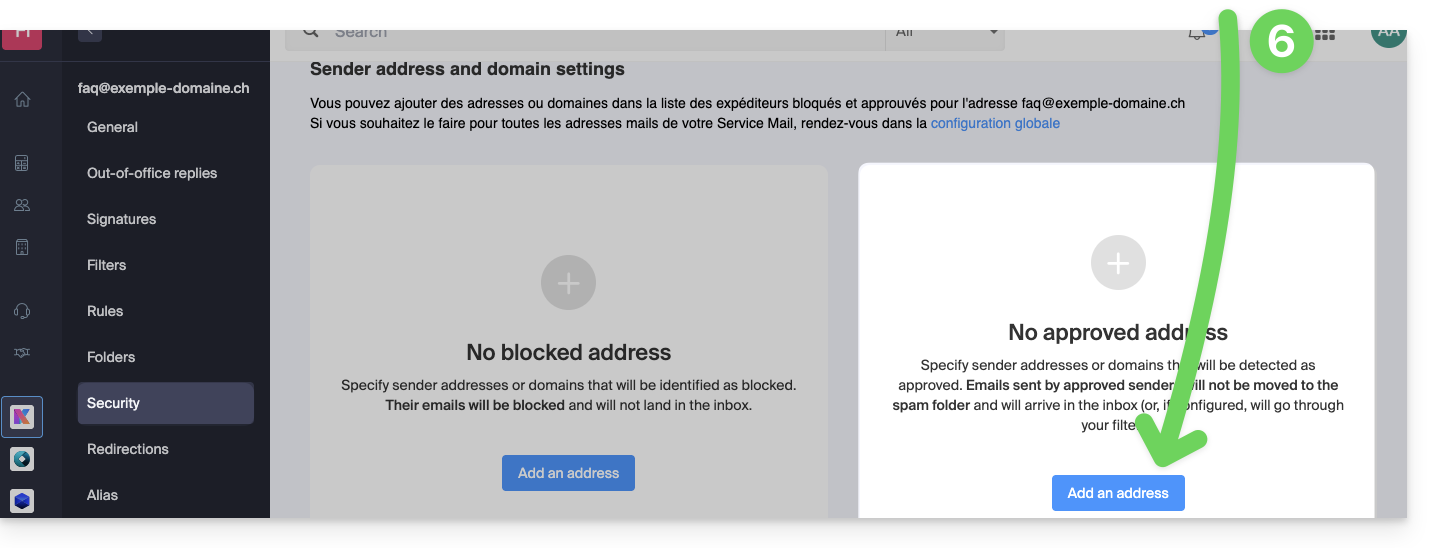
- Fill in the fields as desired and/or according to the formats indicated above.
Alternative
To manage your incoming emails, you can also use email filters. It is also possible to disable the use of email for an entire domain (messages will continue to be received).
Link to this FAQ: https://faq.infomaniak.com/2618
Has this FAQ been helpful?
This guide explains how to view the activity logs for email addresses within an Infomaniak Mail Service.
Introduction
- The logs for your email addresses are available free of charge for the past 19 days.
- Accessing logs for a longer period is subject to a fee:
View logs from the Infomaniak Web Mail app
Prerequisites
- Have valid access to the Infomaniak Mail web app (online service ksuite.infomaniak.com/mail) to which the email address is linked.
- Be Administrator or Legal Representativewithin the organization that manages the Mail service.
- Have permission to view the logs: it is possible that the Mail service manager has removed this permission from their admin account.
Next, to access the logs from Mail Infomaniak:
- Click here to access the Infomaniak Mail web app (online service ksuite.infomaniak.com/mail).
- Click on the Settings icon in the top right corner.
- Check or select the relevant email address from the dropdown menu in the left-hand sidebar.
- Click on General below.
- Click on View logs:
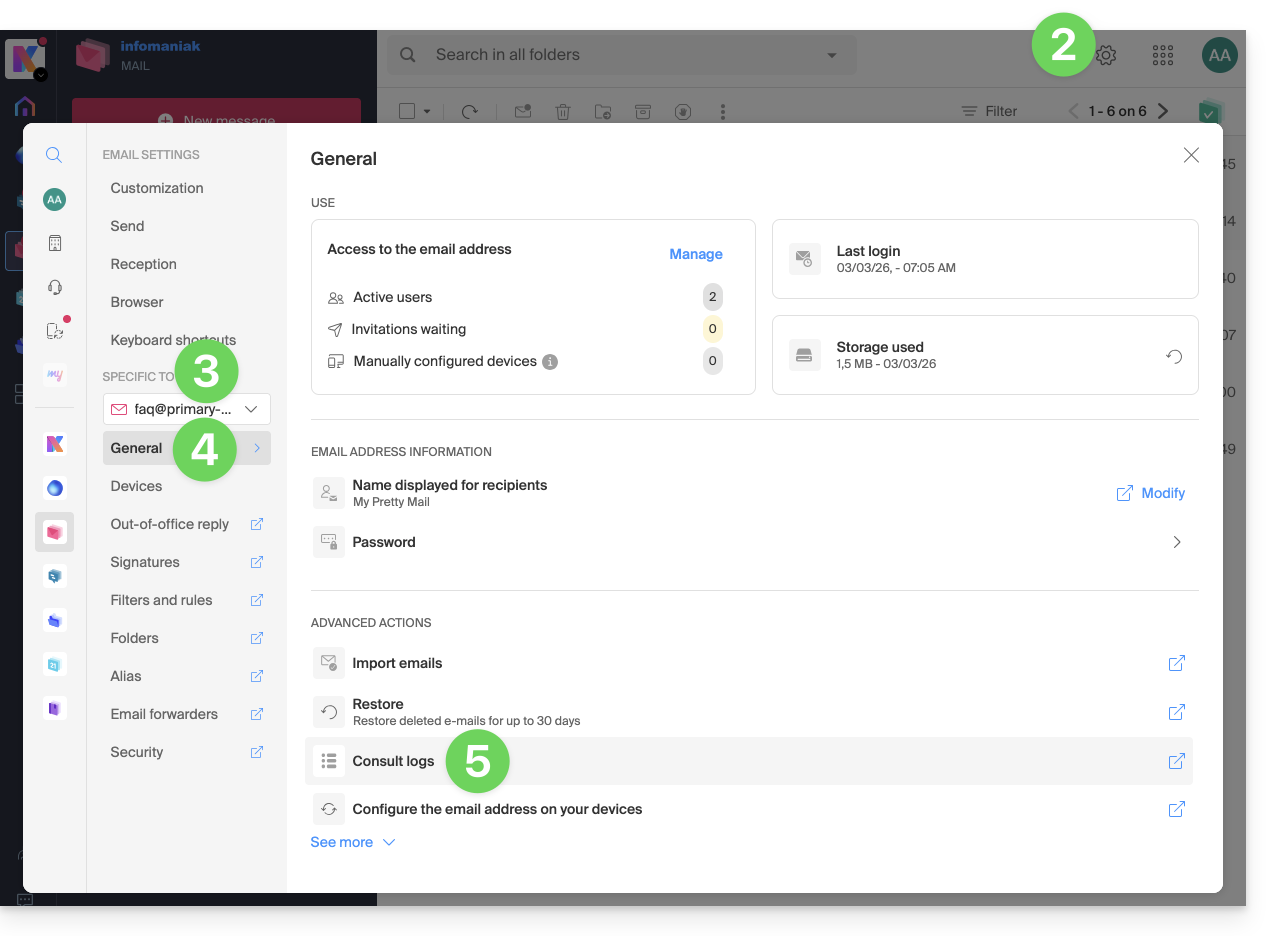
- Choose to view the logs of sent or received emails, and set the date and time.
- Click on Search:
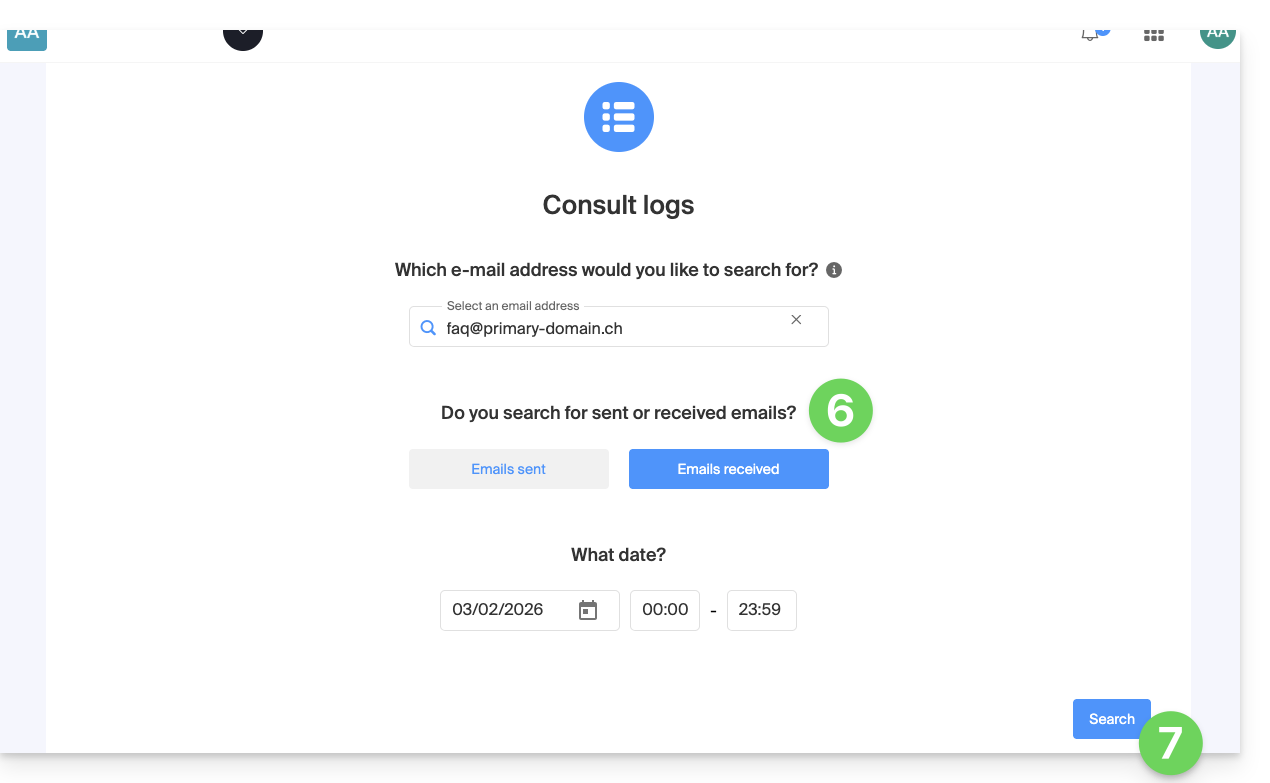
View logs from Service Mail
To access the Mail Service:
- Click here to access the management of your Mail Service in the Infomaniak Manager (need help?).
- Click directly on the name assigned to the Mail Service in question:
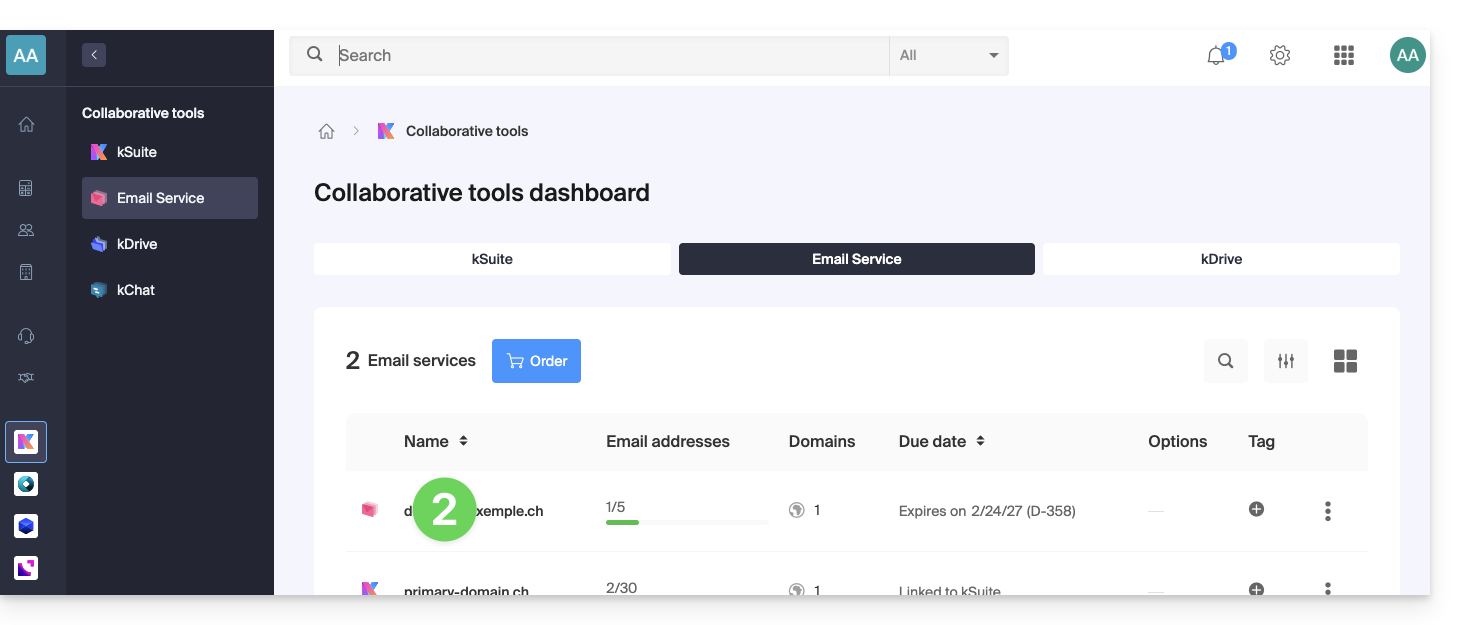
- Click on the mail address in question in the table that appears:
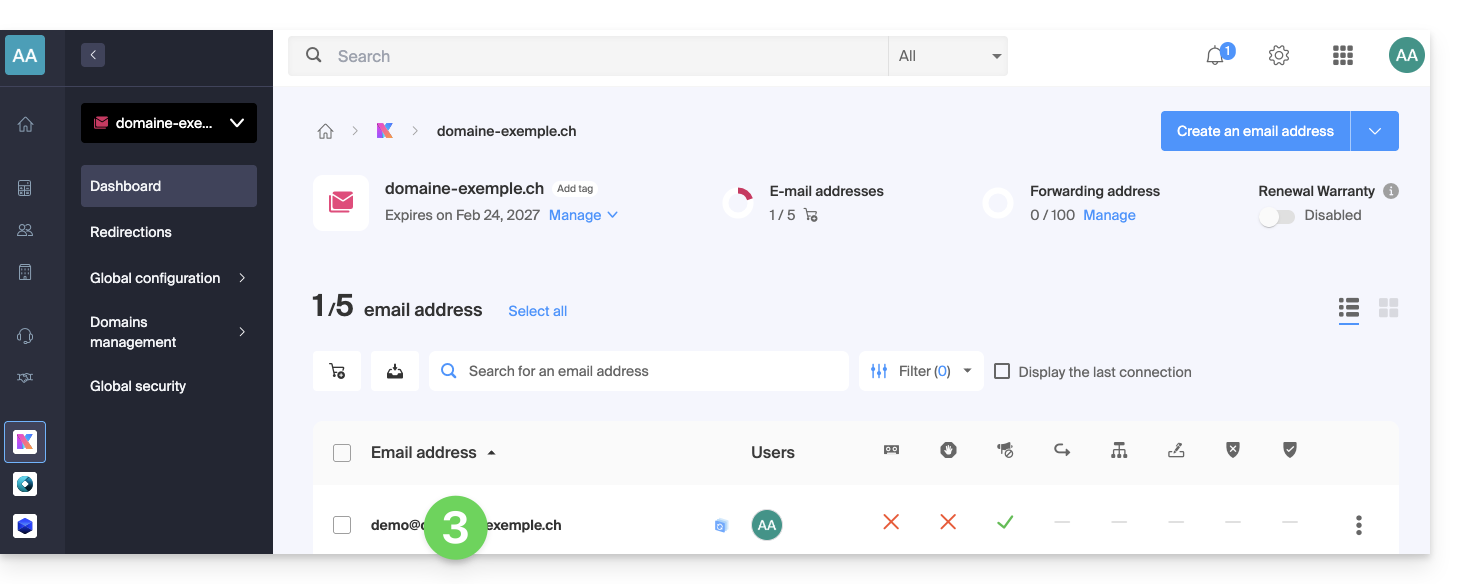
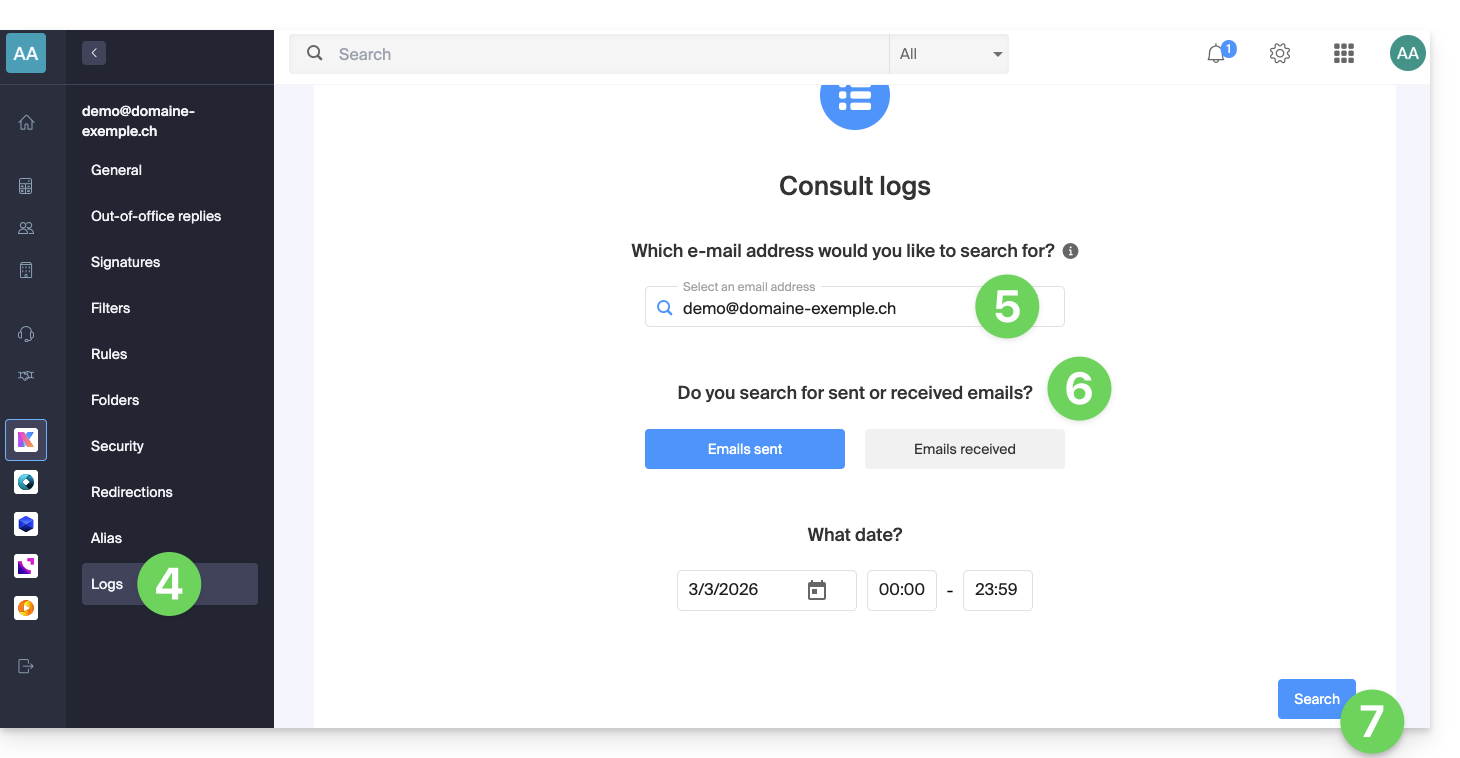
- Click on Logs in the left-hand menu.
- If necessary, select the relevant email address from the drop-down menu.
- Choose to view the logs of sent or received emails, and specify the date and time.
- Click on Search:
Log Results
Email sending and receiving logs will be presented in a table format.
Hover over the possible ⓘ icon in the Status column to display more information if needed: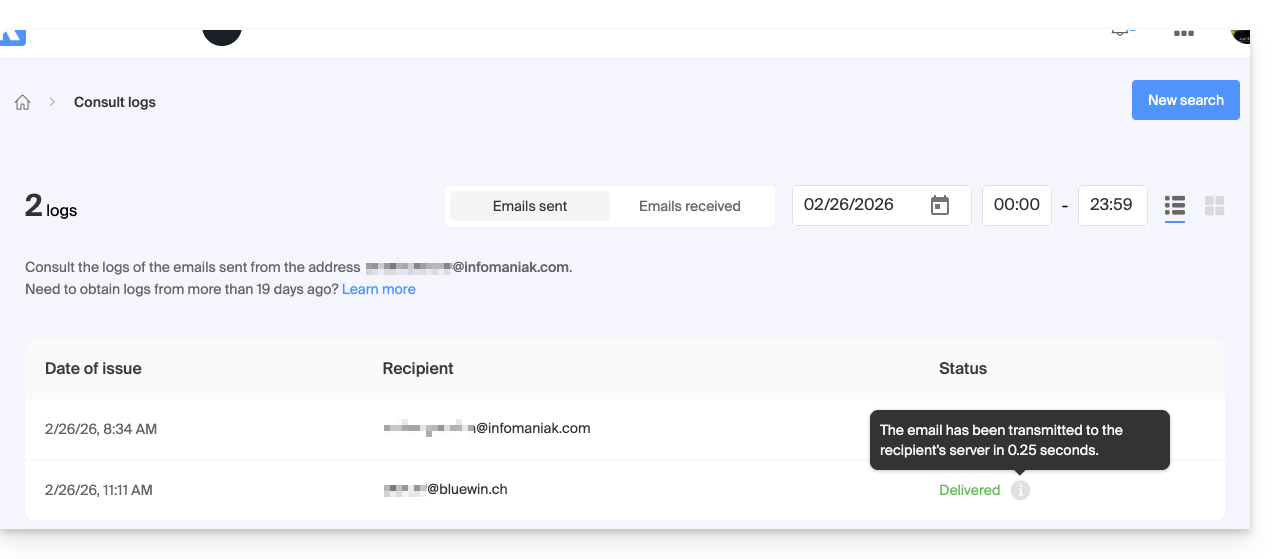
Link to this FAQ: https://faq.infomaniak.com/2630
Has this FAQ been helpful?
This guide explains how to perform a bulk action (deletion, activation of the anti-spam filter, etc.) on multiple existing email addresses within a Mail Service.
Introduction
To define the parameters that should be applied to all future email address creations, please refer to this other guide.
Bulk Actions
To perform these actions in bulk:
- Click here to access the management of your product on the Infomaniak Manager (need help?).
- Click directly on the name assigned to the product in question.
- Check the box to the left of Email address to select all addresses, or select the desired addresses one by one.
- The list of available actions will then appear at the bottom of the page, including in the action menu ⋮:
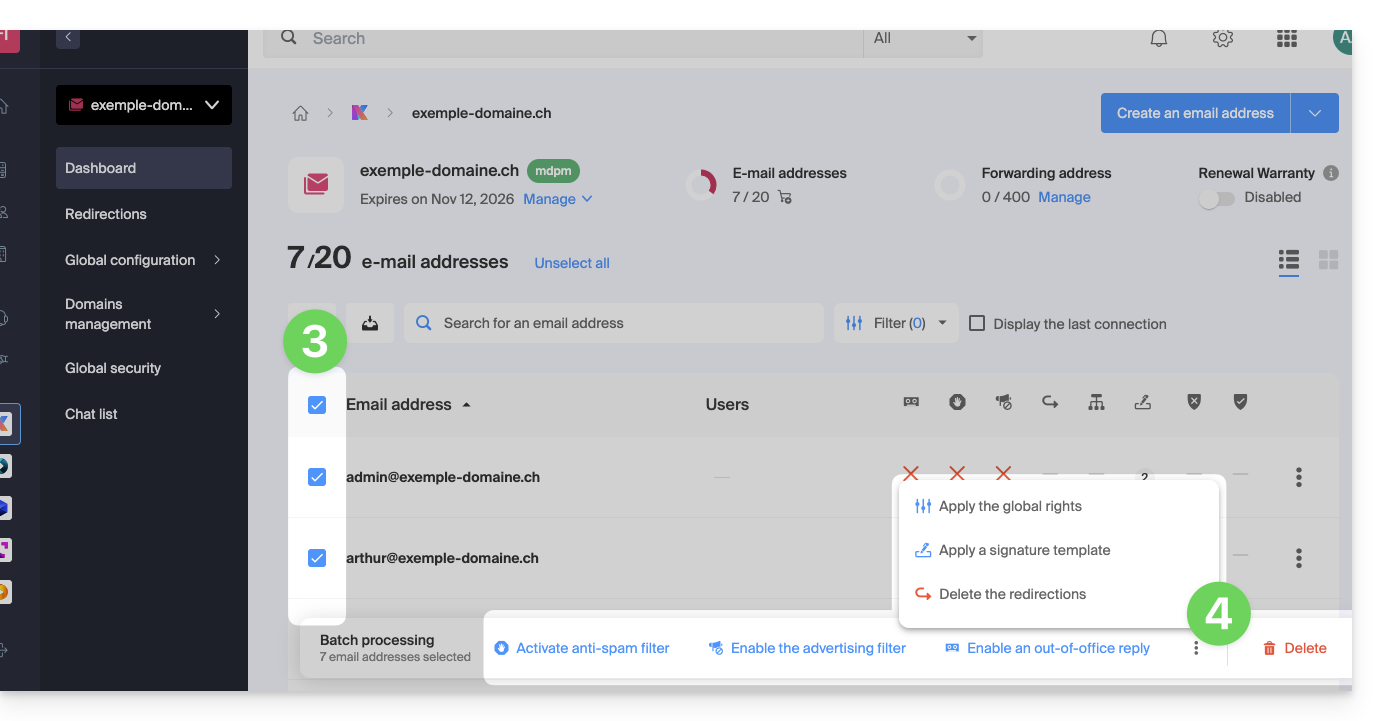
The following bulk actions are possible:
- activate the anti-spam filter
- activate the ad filters
- apply general rights
- activate an auto-reply
- apply a signature template
- delete forwarding rules
- delete email addresses
Link to this FAQ: https://faq.infomaniak.com/2683
Has this FAQ been helpful?