Knowledge base
1000 FAQs, 500 tutorials and instructional videos. Here, there are only solutions!
This guide explains how to obtain the EPP code for your domain name at Scaleway so that you can transfer it to Infomaniak.
Introduction
- The terms "
EPP", "AuthCode", "AuthInfo", "transfer code", and "authorization code" all refer to alphanumeric sequences specific to the domain, the main purpose of which is to verify the owner's authorization before a transfer between Registrars. - Refer to the main guide for the rest of the transfer procedure.
- ⚠️ This involves transferring a domain name that you own from a different provider than Infomaniak, so that the future management of this domain is handled by Infomaniak; therefore, this is not an internal transfer from one owner to another, and the code you need to obtain is not a code for an internal transfer to your current provider.
Transfer the domain name to Infomaniak
To obtain the authorization code from your current provider:
- Refer to the complete procedure provided by Scaleway to obtain the code and keep it in a safe place:
- Once you have obtained the authorization code, please consult the main Infomaniak guide regarding the rest of the domain name transfer procedure.
Link to this FAQ: https://faq.infomaniak.com/1804
Has this FAQ been helpful?
This guide explains how to obtain the EPP code for your domain name at GoDaddy so you can transfer it to Infomaniak.
Introduction
- The terms "
EPP", "AuthCode", "AuthInfo", "transfer code", and "authorization code" all refer to alphanumeric sequences specific to the domain, the main purpose of which is to verify the owner's authorization before a transfer between registrars. - Refer to the main guide for the rest of the transfer procedure.
- ⚠️ This involves transferring a domain name that you own from a different provider than Infomaniak, so that the future management of this domain is handled by Infomaniak; therefore, this is not an internal transfer from one account holder to another, and the code you need to obtain is not a code for an internal transfer to your current provider.
Transfer the domain name to Infomaniak
To obtain the authorization code from your current provider:
- Refer to the complete procedure provided by GoDaddy to obtain the code and keep it in a safe place.
- Once you have obtained the authorization code, please consult the main Infomaniak guide regarding the rest of the domain name transfer procedure.
Link to this FAQ: https://faq.infomaniak.com/1805
Has this FAQ been helpful?
This guide explains how to obtain the EPP code for your domain name at Namebay so that you can transfer it to Infomaniak.
Introduction
- The terms "
EPP", "AuthCode", "AuthInfo", "transfer code", and "authorization code" all refer to alphanumeric sequences specific to the domain, the main purpose of which is to verify the owner's authorization before a transfer between Registrars. - Refer to the main guide for the rest of the transfer procedure.
- ⚠️ This involves transferring a domain name that you own from a different provider than Infomaniak, so that the future management of this domain is handled by Infomaniak; therefore, this is not an internal transfer from one owner to another, and the code you need to obtain is not a code for an internal transfer to your current provider.
Transfer the domain name to Infomaniak
To obtain the authorization code from your current provider:
Watch the video to obtain the authorization code and keep it in a safe place:
- Once you have obtained the authorization code, please refer to the main Infomaniak guide for information on the rest of the domain name transfer process.
Link to this FAQ: https://faq.infomaniak.com/1807
Has this FAQ been helpful?
This guide explains how to obtain the EPP code for your domain name at OVH so that you can transfer it to Infomaniak.
Introduction
- The terms "
EPP", "AuthCode", "AuthInfo", "transfer code", and "authorization code" all refer to alphanumeric sequences specific to the domain, the main purpose of which is to verify the owner's authorization before a transfer between Registrars. - Refer to the main guide for the rest of the transfer procedure.
- ⚠️ This involves transferring a domain name that you own from a different provider than Infomaniak, so that the future management of this domain is handled by Infomaniak; therefore, this is not an internal transfer from one account holder to another, and the code you need to obtain is not a code for an internal transfer to your current provider.
Transfer the domain name to Infomaniak
To obtain the authorization code from your current provider:
- Consult the complete procedure provided by OVH to obtain the code and keep it in a safe place.
- Once you have obtained the authorization code, please consult the main Infomaniak guide regarding the rest of the domain name transfer procedure.
Link to this FAQ: https://faq.infomaniak.com/1808
Has this FAQ been helpful?
This guide explains how to obtain the EPP code for your domain name at Amen so that you can transfer it to Infomaniak.
Introduction
- The terms "
EPP", "AuthCode", "AuthInfo", "transfer code", and "authorization code" all refer to alphanumeric sequences specific to the domain, the main purpose of which is to verify the owner's authorization before a transfer between Registrars. - Refer to the main guide for the rest of the transfer procedure.
- ⚠️ This involves transferring a domain name that you own from a different provider than Infomaniak, so that the future management of this domain is handled by Infomaniak; therefore, this is not an internal transfer from one account holder to another, and the code you need to obtain is not a code for an internal transfer to your current provider.
Transfer the domain name to Infomaniak
To obtain the authorization code from your current provider:
- Refer to the complete procedure provided by Amen to obtain the code and keep it in a safe place.
- Once you have obtained the authorization code, please consult the main Infomaniak guide regarding the rest of the domain name transfer procedure.
Link to this FAQ: https://faq.infomaniak.com/1809
Has this FAQ been helpful?
This guide summarizes the key steps for transferring a domain name to Infomaniak and directs you to the specific instructions for your current provider.
Introduction
- Make sure the domain has been created or transferred more than 60 days ago.
- Ensure you have access to the email address associated with the domain's administrative contact.
- Note and save your current DNS records if your hosting (websites, emails) remains temporarily with a third party.
- Retrieve the authorization code (
AuthCode/EPP- see below) and ensure that transfer protection is disabled with your current provider.
1. Obtain the authorization code according to your registrar
Select your current registrar from the list below to view the step-by-step procedure for obtaining the AuthCode and unlocking the domain:
- Amen
- EuroDNS
- Gandi
- GoDaddy
- Hostinger
- Hostpoint
- IONOS (formerly 1and1)
- Namebay
- Namecheap
- o2switch
- OVH
- PlanetHoster
- Scaleway (formerly Online SAS)
- Squarespace (formerly Google Domains)
- Swisscom
- Swizzonic (formerly Switchplus)
Specific procedures for certain extensions
2. Your provider is not on the list?
If your current registrar is not on the list above, please refer to this other comprehensive step-by-step guide to transfer a domain to Infomaniak.
3. Multiple transfers
If you need to migrate multiple domain names in a single operation, use Infomaniak's batch transfer tool directly.
Need help migrating your websites and email addresses as well? Consult the service migration guide or contact Infomaniak support.
Link to this FAQ: https://faq.infomaniak.com/1814
Has this FAQ been helpful?
BIMI (Brand Indicators for Message Identification) is a standard that provides brand indicators for message identification) allows businesses to incorporate their logo into the emails they send.
Introduction
- Infomaniak applications (and those of other companies worldwide - see the troubleshooting section below) are compatible with BIMI and will display logos next to received email messages.
- Infomaniak Mail Services allow you to configure your email with your logo; the benefits are numerous:
- increased trust: recipients can visually identify your emails, reducing the risk of phishing.
- brand reinforcement: a clearly visible logo in inboxes strengthens brand awareness.
- improved deliverability: emails that comply with DMARC are more likely to reach the main inbox.
1. Create a logo
Create a logo in SVG format (Scalable Vector Graphics). This format is required because it ensures optimal quality regardless of the device or display size.
To be imported into the Infomaniak interface (see below), it must not exceed 10 MB, but it can also be hosted on a secure server that is publicly accessible, and you will simply need to provide its URL for the BIMI DNS record.
2. Obtain the VMC certificate
A verified logo certificate (VMC) is required; it confirms that you are the legitimate owner of the logo. You can obtain this certification from recognized certification authorities such as DigiCert and Entrust.
When your VMC certificate is issued, you will receive a PEM file containing the entity's certificate. This PEM file includes your logo in SVG format as well as the VMC.
3. Add the logo to the Mail service
Prerequisites
- All indicators Global Securityfor your Mail Service must be green (SPF + DKIM + DMARC)!
To access the Mail Service and define your company's logo:
- Click here to access the management of your Mail Service in the Infomaniak Manager (need help?).
- Click directly on the name assigned to the Mail Service in question.
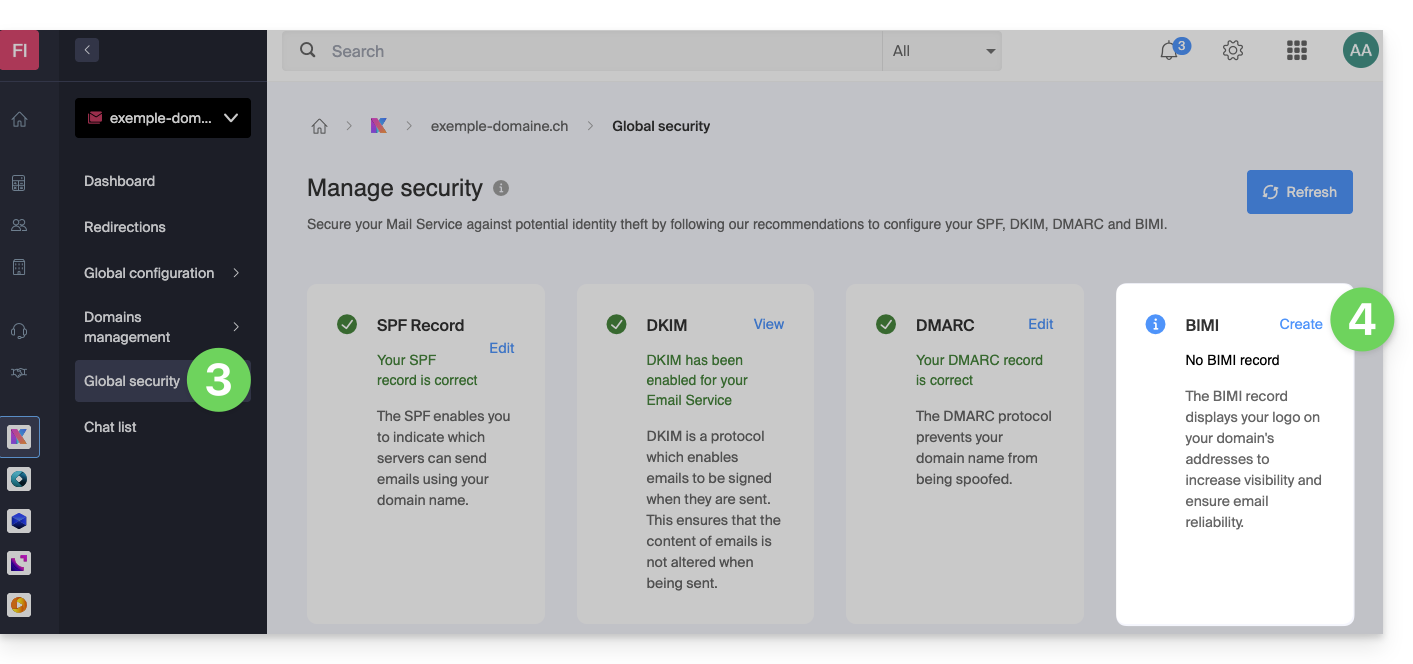
- Click on Global Security in the left-hand menu.
- Click on the Create button (in the BIMI section):
- Fill in the requested information using the documents you received (see chapter 2 above) and don't forget to save.
In case of a problem
- If the Create button in the BIMI box remains gray, carefully check the information messages: DMARC may exist but not be at the required rejection percentage, so adjust the settings according to the instructions.
- When there are multiple domains linked to the Mail service, make sure you have a certificate on each linked domain if you want BIMI to be enabled on those domains.
- Note that Apple Mail supports BIMI, unlike Microsoft Outlook, Thunderbird, and the Mail app from Samsung, which have not yet fully adopted it.
Disable BIMI
To disable BIMI, simply go to the domain name management page associated with the Mail service and delete the corresponding TXT record.
Link to this FAQ: https://faq.infomaniak.com/1816
Has this FAQ been helpful?
This guide explains how to renew or restore a domain name registered with Infomaniak.
Introduction
- You will automatically receive an email notification (at the address you provided) when one of your domain names is about to expire.
- If this domain name is not renewed before its expiration date, it enters a redemption period during which it is still possible to recover/restore it.
- The restoration fees and the duration of the redemption period are variable depending on the extension in question.
- Once the redemption period has expired, the domain name is free and can be registered again by anyone.
- If your domain is important for your business, Renewal Warranty offers you the assurance of never losing it: Infomaniak will do everything in its power to ensure that you can keep it, even if you do not provide timely notice before its expiration.
Renew a domain name before it expires
Renewing one or more domain names is done in exactly the same way as any other Infomaniak service renewal. Refer to this other guide if you are looking for information on how to renew the product in question.
Restore a domain name after expiration
To restore a domain during its redemption period:
- Click here to access your product management interface in the Infomaniak Manager (need help?).
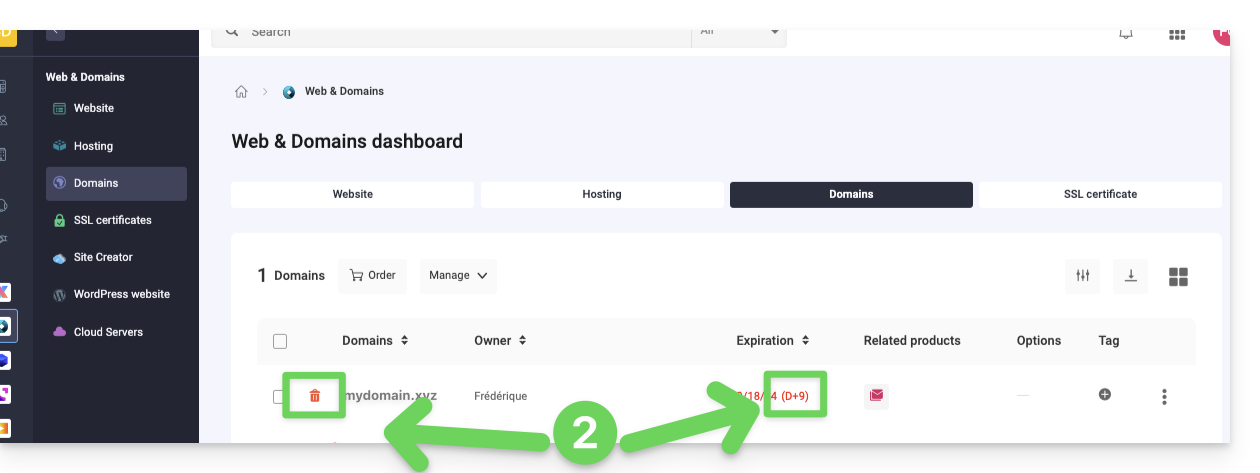
- An expired domain is indicated as such:
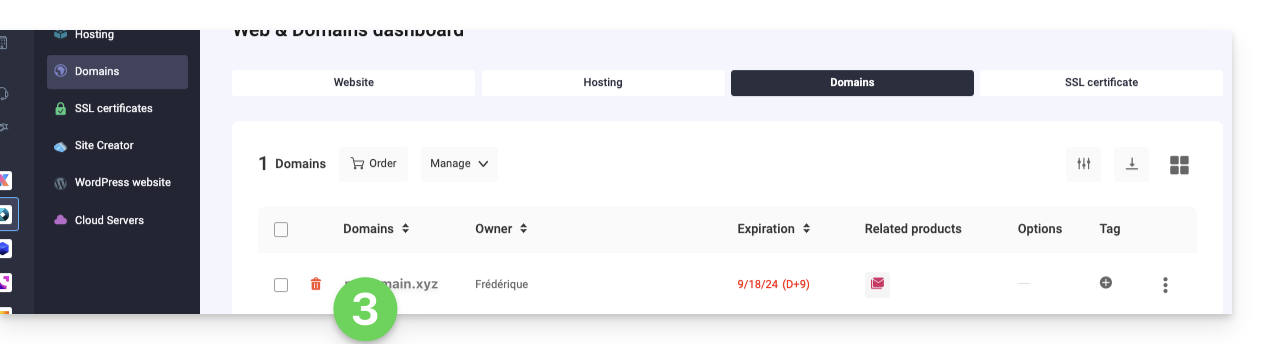
- Click directly on the name assigned to the product in question:
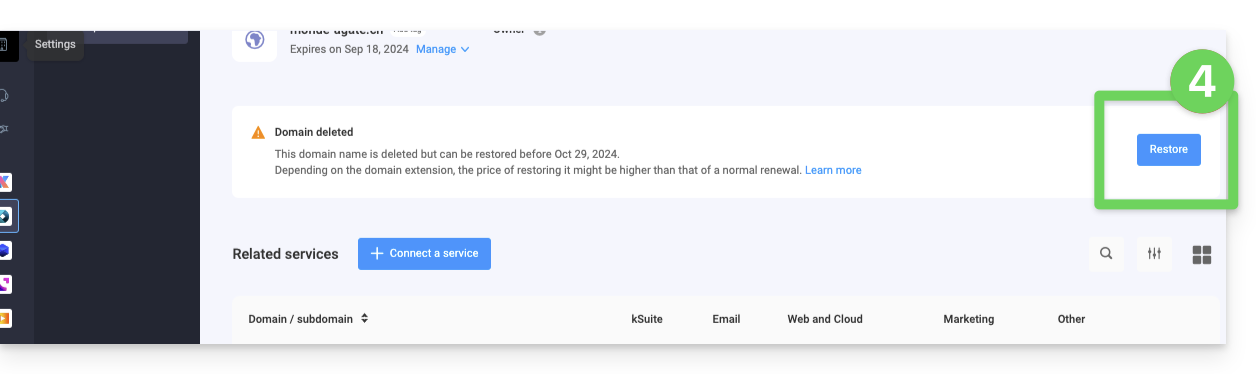
- Click on the Restore button:
- Follow the restoration steps until the end.
Troubleshooting
What to do if the domain does not appear in your account?
- Make sure you are logged in with the correct Infomaniak account (user account), and that you are viewing the correct Organization if you are associated with multiple entities.
- Go to the DOMAIN section of the Managerand not to a section of products to be billed or renewed.
- Repurchase the domain name if it has not been reserved in the meantime.
Link to this FAQ: https://faq.infomaniak.com/1825
Has this FAQ been helpful?
This guide details the different states in which a domain name can be.
Common statuses
"Active" or "OK"
The domain name is declared in the DNS, the domain name is active and unlocked. All administrative and/or technical operations are possible.
"Registrar-Lock / Registry-Lock" or "clientTransferProhibited"
The domain name is declared in the DNS. The domain name is active and locked to protect it, especially against unauthorized transfer requests.
Statuses requiring action or monitoring
"Registrar-Hold / Registry-Hold"
This status is applied when the domain has expired (not renewed). The only possible action is to renew it. Administrative and/or technical operations are not possible.
"RedemptionPeriod"
This status occurs if the domain has not been renewed. Please refer to this other guide if you are looking for information on this topic.
"PendingRestore"
This status appears during a restoration request. The registrar has 7 days to communicate all the necessary information to the registry for its restoration.
"PendingDelete"
This status follows the RedemptionPeriod status after 30 days if no restoration request has been made. The name will be deleted for a period of 15 days before reverting to the public domain.
In the case of a .fr domain extension
"Active"
The domain name is registered in the DNS (fully operational).
"Frozen"
The domain name is declared in the DNS, but no administrative or technical operations are possible. Possible causes: see article 6.1 of the AFNIC charter.
"Blocked"
The domain name is no longer declared in the DNS; it is no longer functional, and no administrative and/or technical operations are possible. Possible causes: see article 6.2 of the AFNIC charter.
Link to this FAQ: https://faq.infomaniak.com/1826
Has this FAQ been helpful?
This guide explains how to retry transferring a domain name to Infomaniak in case of failure.
Manually retry a domain transfer
If a domain transfer fails, you will receive an email with the possible reason for the problem.
The message also contains a link to retry the transfer request without paying the transfer fees again.
In case of a problem:
- Click here to access your domain management in the Infomaniak Manager (need help?).
- Click directly on the name assigned to the domain in question.
- Carefully follow the instructions displayed in red at the top of the page.
Link to this FAQ: https://faq.infomaniak.com/1842
Has this FAQ been helpful?
This guide explains how to modify the contact information associated with a domain name, i.e., the “WHOIS” contact information of the owner/holder/administrator.
Introduction
- Domain names have the particularity that they all have an owner whose contact details are specific to the domain itself, independent of the Infomaniak account that manages the product.
- These contact details, known as WHOIS, include information such as first name, last name, postal address, email address, etc., and can be viewed online using WHOIS services such as whois.infomaniak.com or whois.nic.swiss.
- Additional private contact details often exist outside the public WHOIS and are never visible and/or disclosed by Infomaniakwithout prior authentication!
- These details will always be considered definitive in the event of a dispute regarding the ownership of a domain name.it is therefore important to keep this information up to dateeven if you activate Domain Privacy to hide information.
Accessing the different types of contacts associated with domain names
To access this domain manager contact information:
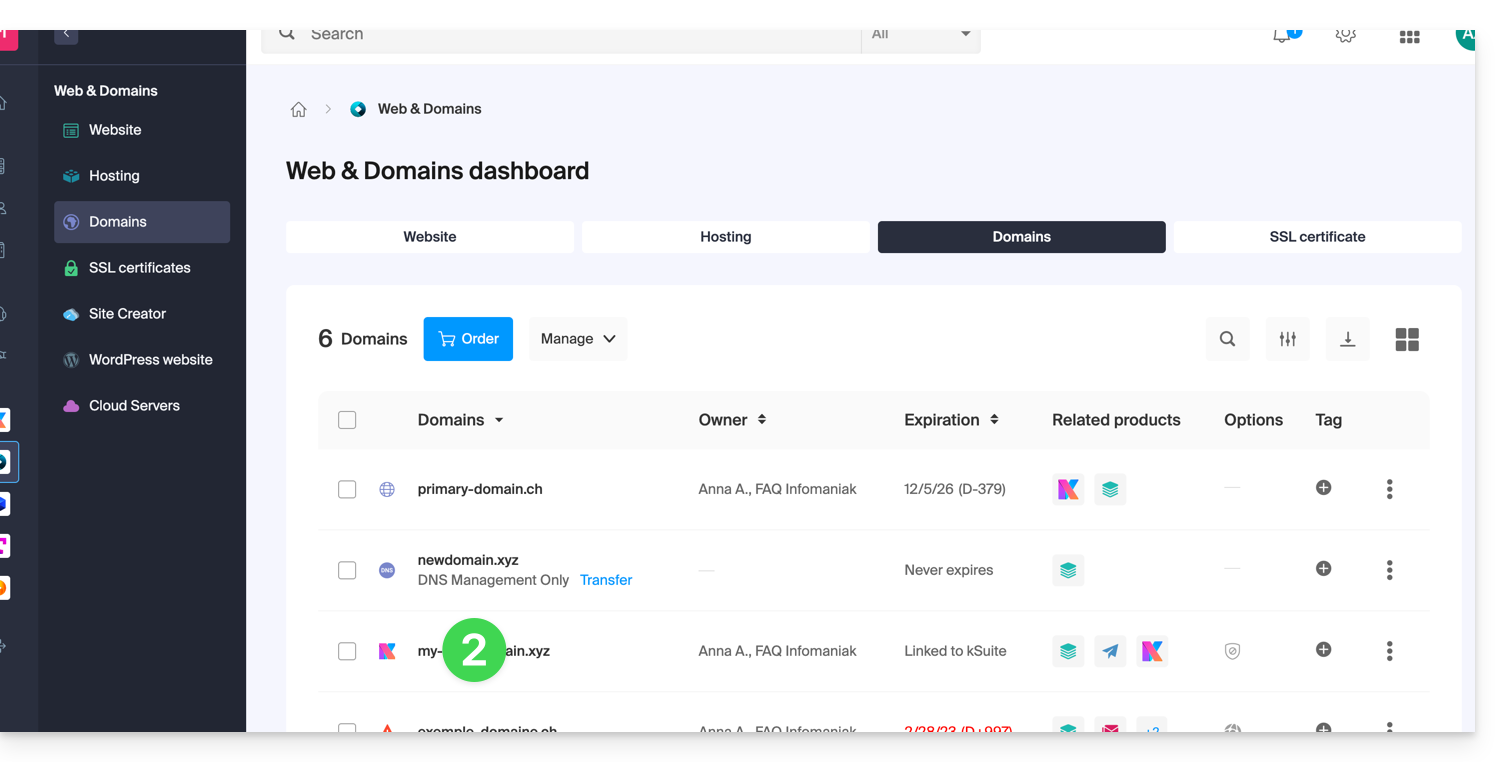
- Click here to access the management interface for your product in the Infomaniak Manager (need help?).
- Click directly on the name assigned to the product in question:
- Click on WHOIS Information in the left-hand menu:
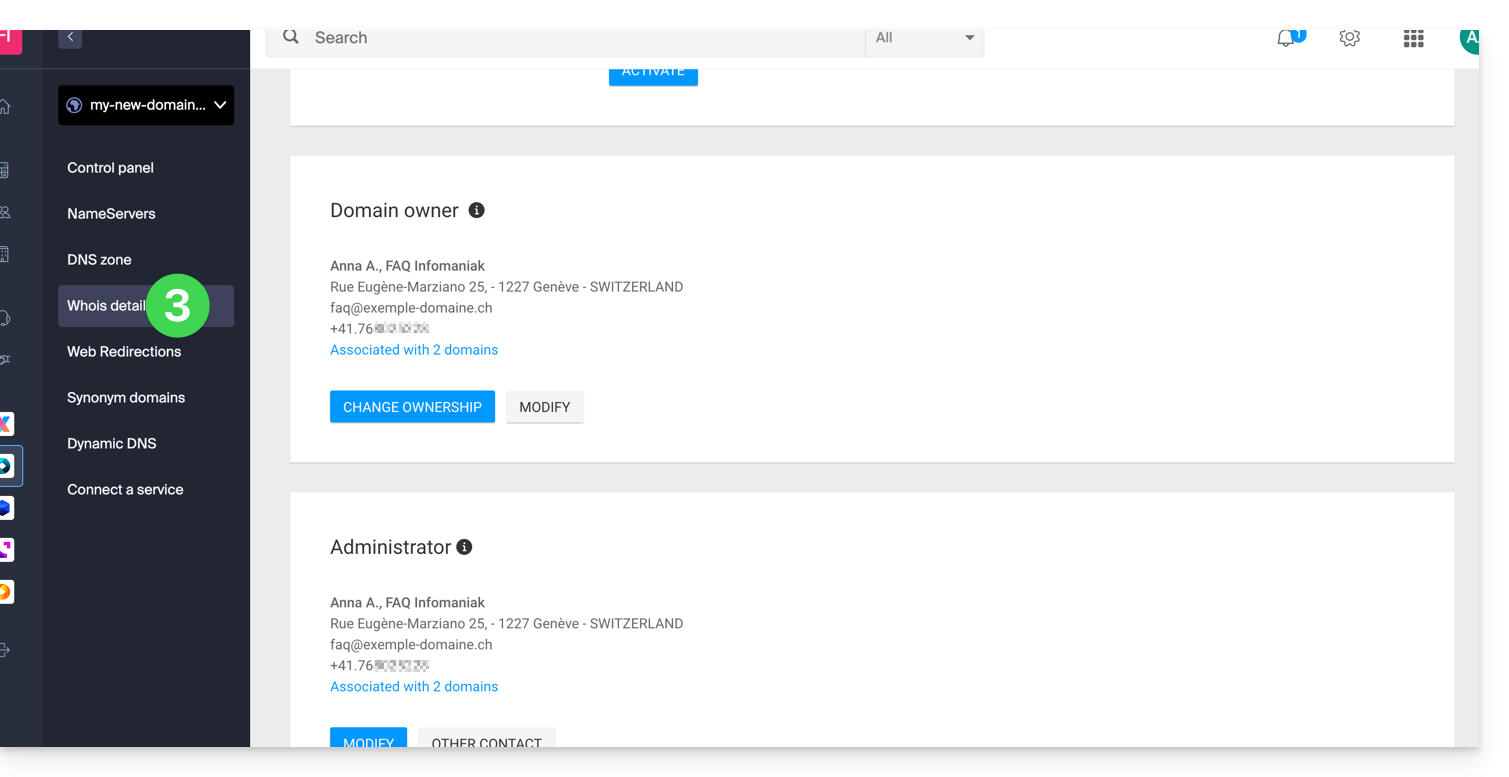
Contact the Owner
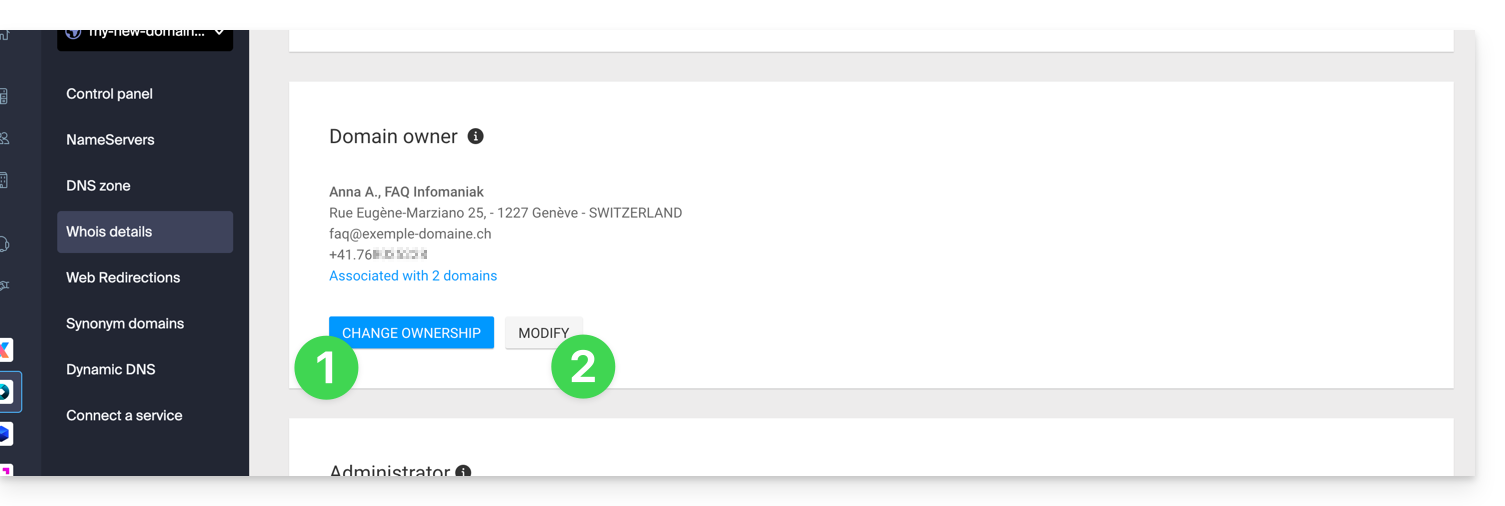
- Click the Change owner button to create a new contact entry, or select one that was previously used for one of the Organization's other domain names. Both parties must agree before the changes are applied.
- Click the Edit button to modify the language (for certain emails) as well as the postal and telephone contact details (an email is sent to the specified email address to request confirmation of the changes).
More details can be found below in this guide.
Contact Administrator
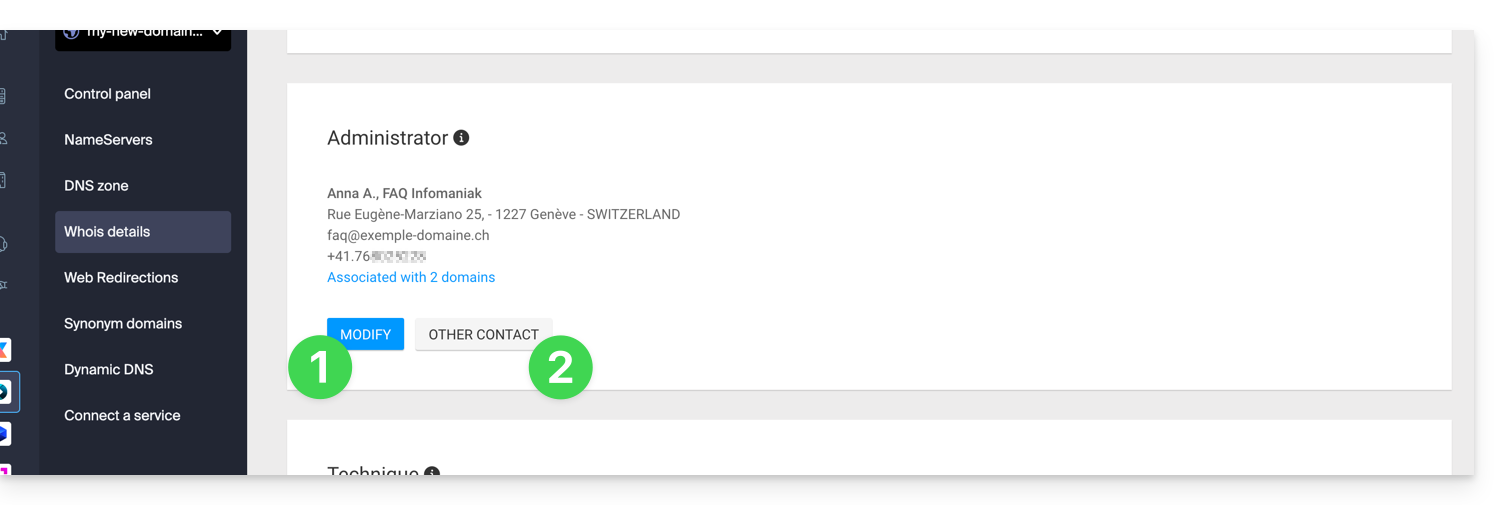
- Click on the Edit button to modify the language (for certain emails) as well as the postal and telephone contact details (an email will be sent to the email address provided to request confirmation of the changes).
- Click on Other Contact to create a new contact entry, or choose one previously used for one of the Organization's other domain names, with the need to obtain the agreement of both parties before applying the changes.
More details can be found below in this guide.
Technical Contact
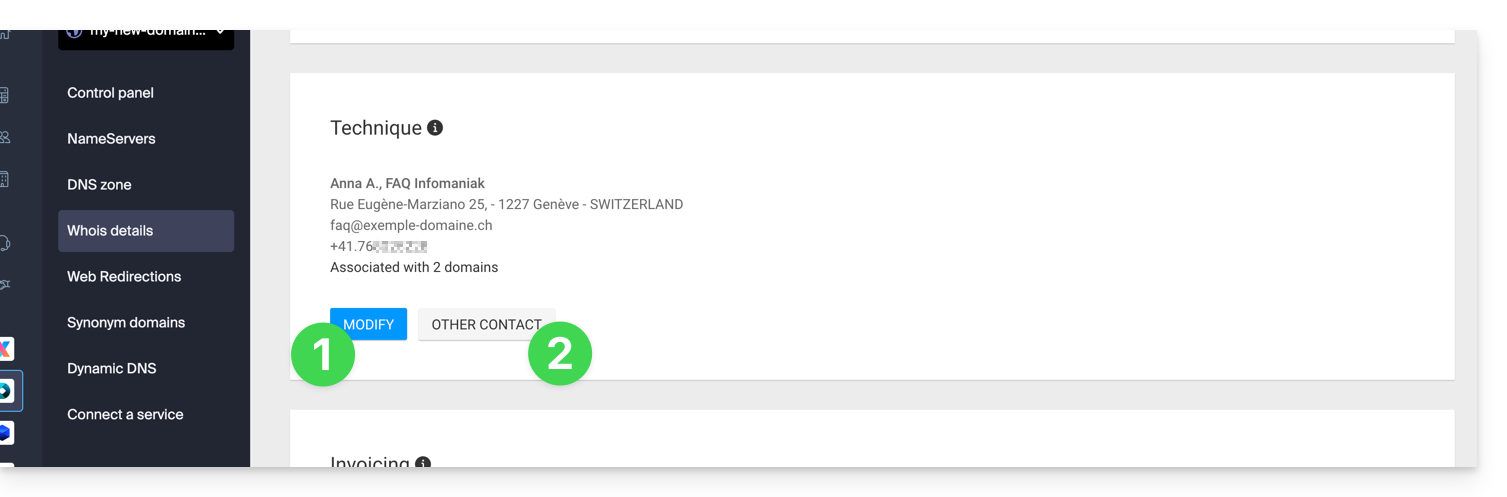
- Click on the Edit button to modify the language (for certain emails) as well as the postal and telephone contact details (an email is sent to the email address provided to request confirmation of the changes).
- Click on Other Contact to create a new contact entry, or choose one previously used for one of the other domains in the Organization, with the need to obtain the agreement of both parties before application.
More details can be found below in this guide.
Billing Contact
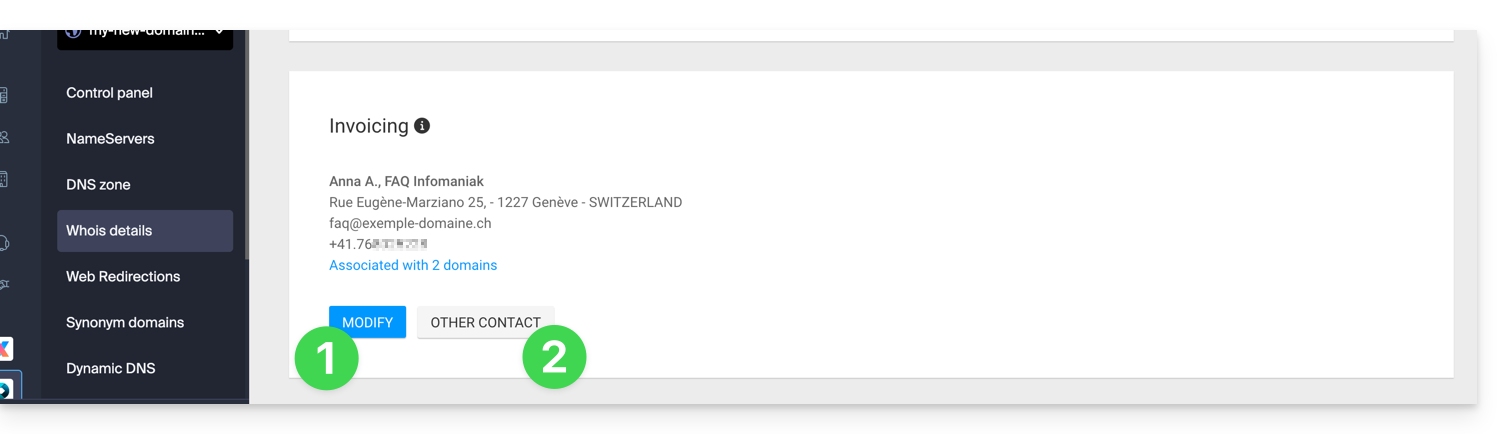
- Click on the Edit button to modify the language (for certain emails) as well as the postal and telephone contact details (an email is sent to the email address provided to request confirmation of the changes).
- Click on Other Contact to create a new contact entry, or choose one previously used for one of the other domains in the Organization, with the need to obtain the agreement of both parties before application.
More details can be found below in this guide.
Modify WHOIS contact information
Without creating a new contact entry, you can modify:
- the postal address (street, postal code, country, etc.)
- the phone number
- the language (for certain emails)
When creating a new contact, you can specify:
- Contact type (Company, Individual, Association, other)
- First name / Last name
- Email address
- the postal address (street, postal code, country, etc.)
- the telephone number
- the language (of certain emails)
Any changes to WHOIS contact information must be validated by the current contact. The latter will receive a Email with a validation link valid for two daysto validate the changes: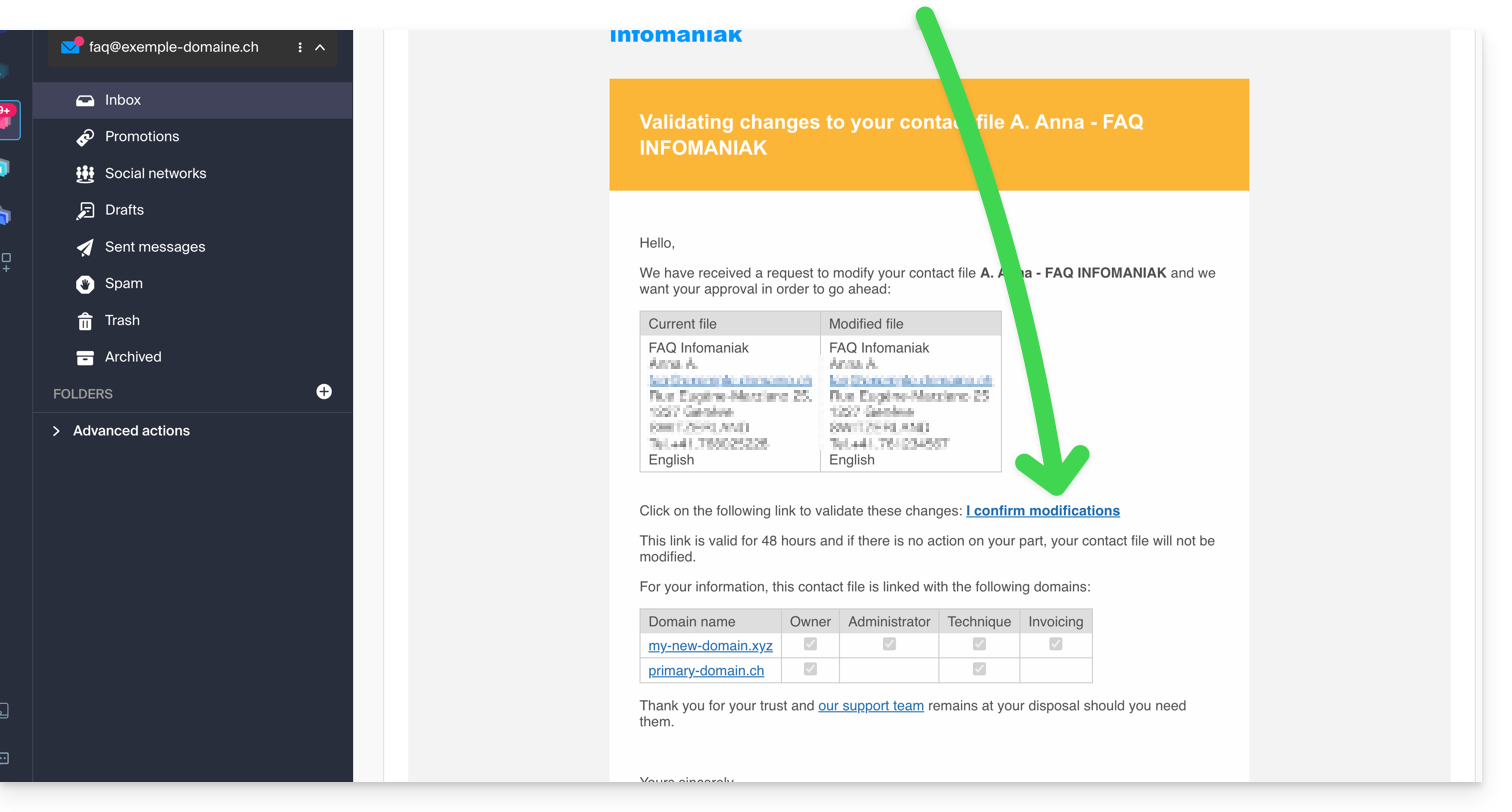
The email also indicates the other domain names affected by the operation (and which types of contacts are affected by the change).
While awaiting validation, a message is displayed on the domain management page: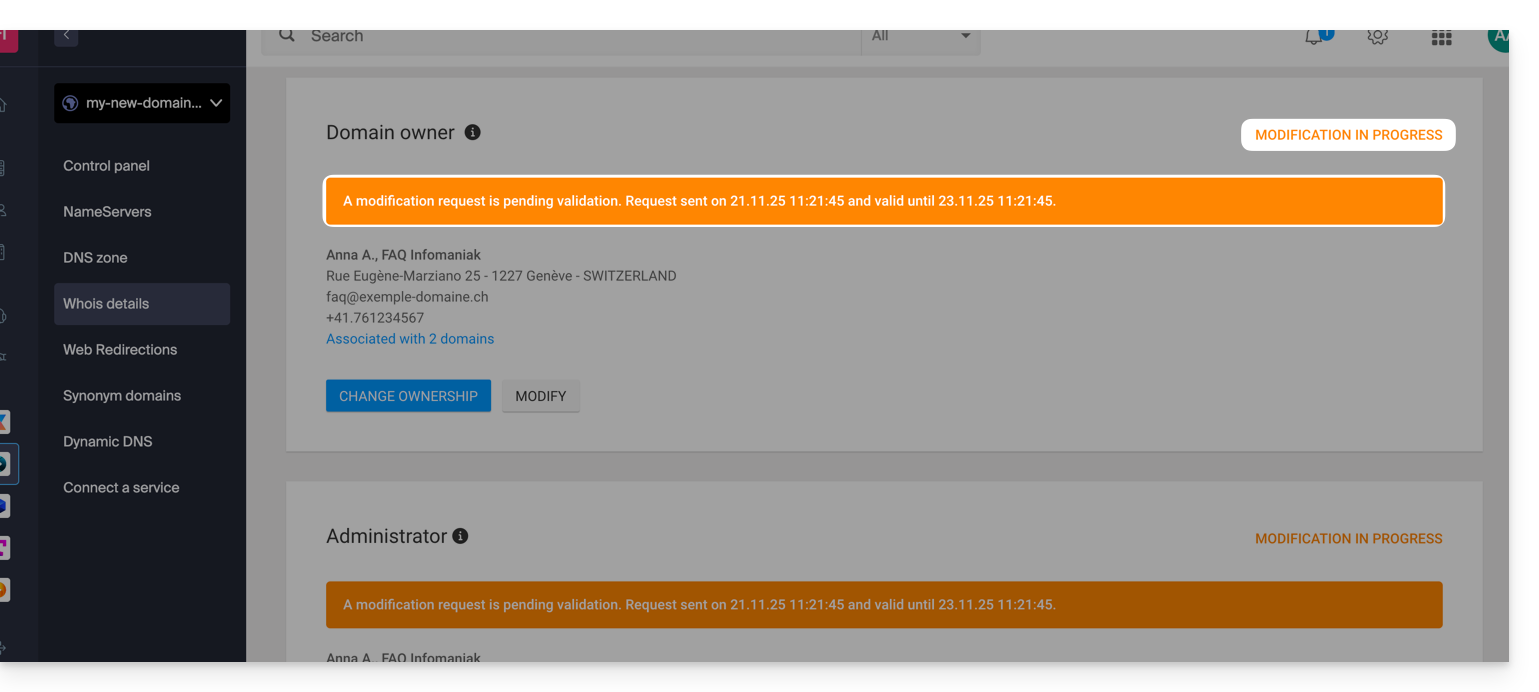
The change will not be applied if all actions are not completed fully and before the deadline expires!
Learn more
Depending on the extension of the domain in question, these operations may incur charges.
You can also do this on multiple domains at once: a contact record can be linked to multiple domains; modifying a record will therefore automatically affect all domains with the same WHOIS contact.
You can also consult the guides for specific extensions such as .es or .se…
Link to this FAQ: https://faq.infomaniak.com/1853
Has this FAQ been helpful?
This guide details domain name monetization, which is generally done via domain parking, while keeping the reseller's contact information hidden.
Domain parking
Domain parking is a technique that involves registering a domain name without immediately using it for a website.
Instead, the domain name is "parked" and usually displays a parking page with advertising banners generated by an affiliate network.
The owner of the "parked" domain name can then earn money through these ads as a source of passive income.
Infomaniak allows this practice, provided that online advertising and trademark laws are respected.
What if you are the visitor?
Be careful: some domain parking pages may look similar to legitimate websites, which can confuse users trying to access a specific website, and others may be infected with malware, which can be dangerous for users' computer security.
Link to this FAQ: https://faq.infomaniak.com/1861
Has this FAQ been helpful?
This guide explains the messages you may receive mentioning ERRP (Expiration Reminder Renewal Policy) or domain expiration.
Introduction
- These messages are related to notifications and rules for managing domain names on the Internet.
- Their purpose is to inform you of renewal deadlines in order to avoid any interruption of your online services, such as your website or your email addresses.
ERRP (Expiration Reminder Renewal Policy)
ERRP is a policy established by ICANN (Internet Corporation for Assigned Names and Numbers). It requires registrars (companies that register and manage domain names, such as Infomaniak or others) to inform domain holders when their domains are approaching expiration. The goal is to allow owners to renew their domain in time and avoid any service interruption.
How it works
- Renewal reminders: the registrar must send several notifications before and after the expiration date. Generally:
- 30 days before expiration,
- 7 days before expiration,
- 1 day after expiration.
- Message content: each email must specify the domain in question, the expiration date, and clear instructions on how to proceed with the renewal.
- Sending address: Reminders are sent to the email address registered with the domain. It is therefore important to keep this address up to date in your contact information.
Domain name expiration
When a domain is not renewed before its expiration date, it goes through several stages before being permanently deleted. Here's what generally happens:
- Grace period: after expiration, the owner still has 30 to 45 days to renew the domain without additional fees. During this period, the website or related services may be temporarily disabled.
- Redemption Grace Period: If the domain is not renewed during the grace period, it enters a redemption phase. The owner can still recover the domain, but additional fees apply. This period generally lasts about 30 days.
- Domain Deletion: If no action is taken after the redemption period, the domain is deleted from the registry and becomes available for new registration.
Emails mentioning ERRP and domain expiration
Emails that mention ERRP or domain expiration follow ICANN guidelines. They are used to inform domain owners about the actions they need to take to keep their domains active.
- Initial alert: A first email is sent approximately 30 days before the expiration date. It informs the domain owner that the domain is approaching its expiration date and includes instructions on how to renew it.
- Urgent reminder: A second email is sent 7 days before the expiration date, reminding the user of the importance of renewing the domain to avoid any service interruption.
- Post-expiration notification: A final email is sent immediately after expiration, indicating that the domain can still be renewed during the grace period.
These notifications are essential to ensure that owners retain control of their domains and that their websites or associated services remain available without interruption.
Link to this FAQ: https://faq.infomaniak.com/1878
Has this FAQ been helpful?
This guide explains how to create a custom MX record (mx.domain.xyz, assuming that domain.xyz belongs to you) to be used in the MX configuration of your NAS.
An MX record cannot be declared directly as an IP address, for example 178.123.456.789.
Custom MX record
To access your domain names:
- Click here to access your domain management in the Infomaniak Manager (need help?).
- Click directly on the name assigned to the domain in question.
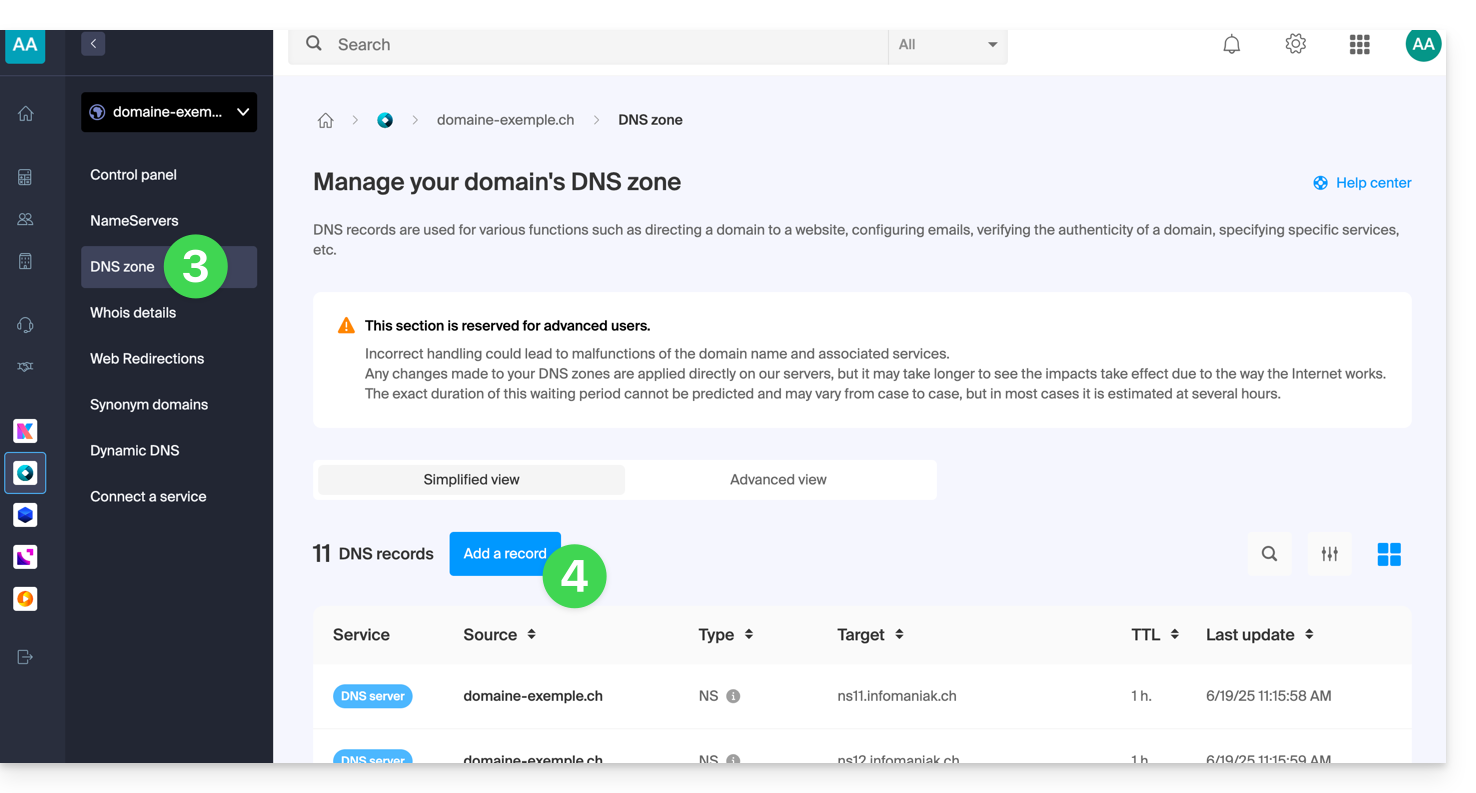
- Click on DNS Zone in the left-hand menu.
- Click on the blue Add record button:
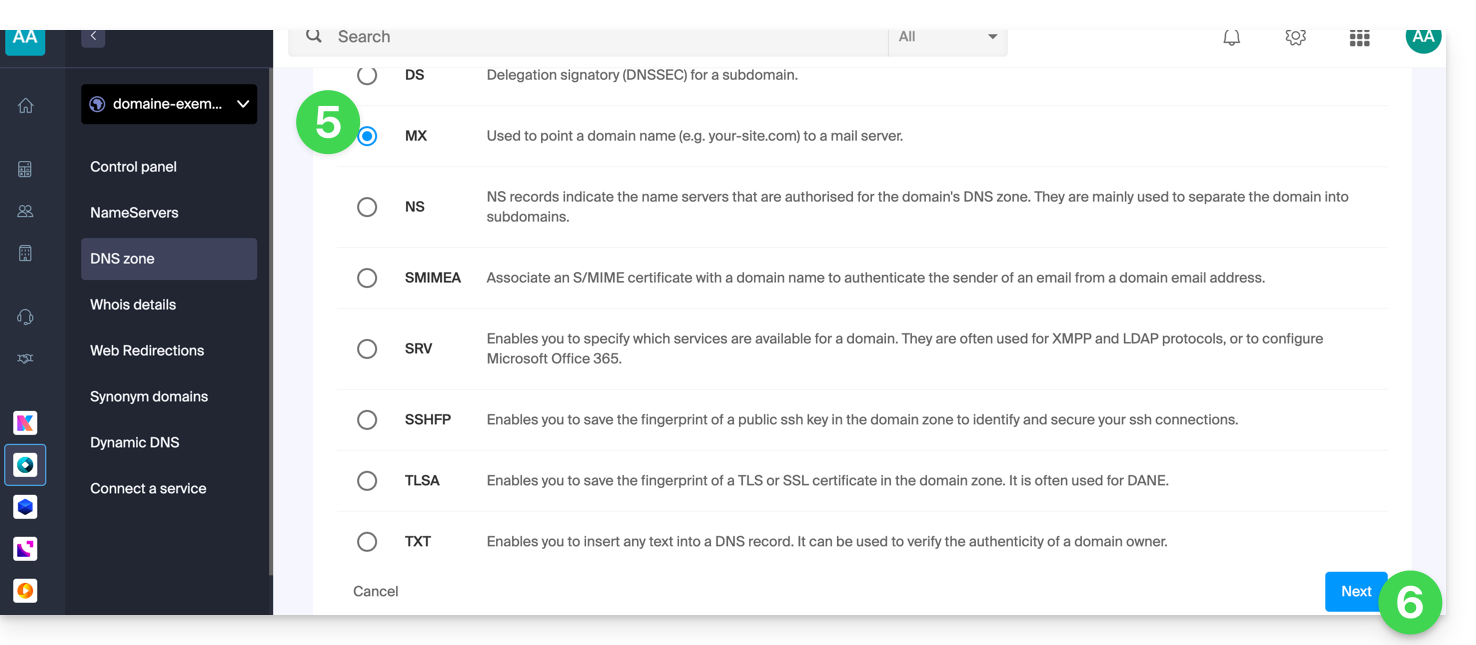
- Select MX as the type of record.
- Click on Next:
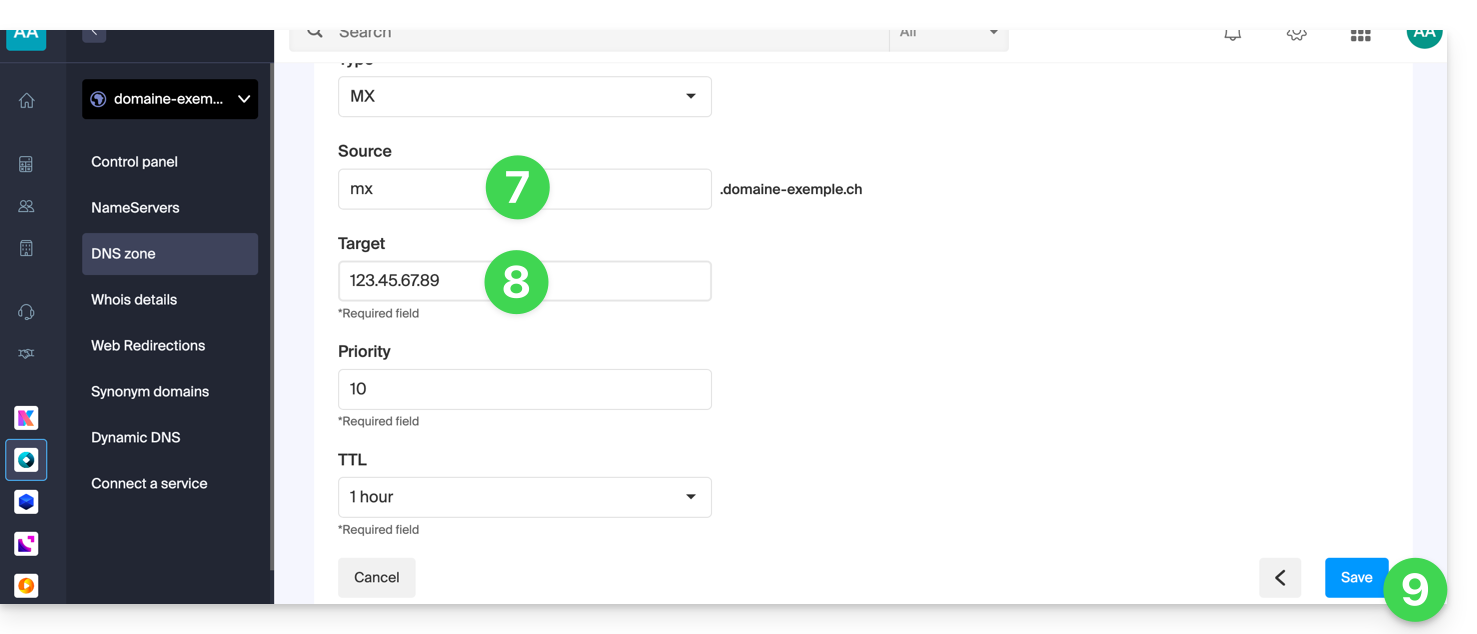
- Enter the desired MX record (e.g., "
mx.domain.xyz"). - Point the record to the desired IP address (target).
- Click on the Save button:
Link to this FAQ: https://faq.infomaniak.com/1896
Has this FAQ been helpful?
This guide explains how to access your Jeedom home automation box (which is located behind a dynamic IP address provided by your ISP) with a domain name at Infomaniak via the free DynDNS option.
Introduction
- The integration you install acts as a messenger: it continuously monitors the IP address of your local network.
- As soon as it detects that your ISP has changed your IP address, it instantly sends a signal to Infomaniak.
- Infomaniak then updates your domain name (e.g.,
jee.domain.xyz) so that it points to the new IP address.
Linking Jeedom to a domain name
Prerequisites
- You must have a Jeedom installation (e.g., on a Raspberry Pi 5) connected to the Internet with a dynamic IP address.
- A dynamic DNS must have been created on the domain in question.
Then:
- Install the official and free DynDNS plugin on your Jeedom application from the Market.
- Activate the plugin as usual.
- Configure a new device by selecting Infomaniak from the list of services:
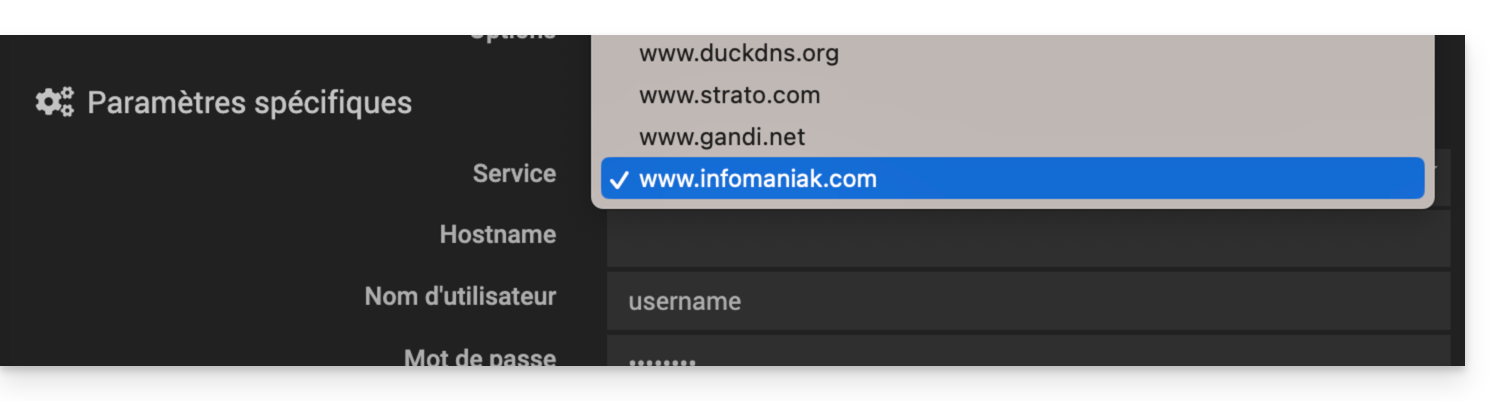
- Hostname: the URL configured in the Manager when adding the Dynamic DNS
- Username: the ID defined in the Manager when adding the Dynamic DNS
- Password: the password defined in the Manager when adding the Dynamic DNS
Jeedom will check the external IP address every 15 minutes. If it has changed, the DNS will be updated. This way, your domain name will continuously point to your home automation installation, even if your Internet Service Provider changes your public IP address.
Also, please refer to the official plugin documentation.
Link to this FAQ: https://faq.infomaniak.com/1913
Has this FAQ been helpful?
This guide explains how to order a DNS zone from Infomaniak.
Introduction
- Having your DNS zone with Infomaniak is useful if your domain name is registered elsewhere (with a third-party provider/registrar) and you want to easily link this domain to Infomaniak products.
- Indeed, simply having a
domain.xyzwebsite with Infomaniak and specifying the 2 Infomaniak DNS addresses with the domain name registrar (if it is not Infomaniak) is not enough for the website to be displayed when you typedomain.xyzin a browser. - You must add a DNS zone in the same location as your hosting to ensure your website functions correctly.
- This will also be particularly useful if the provider managing your domain name does not offer DNS zone management.
Order a DNS zone
To do this:
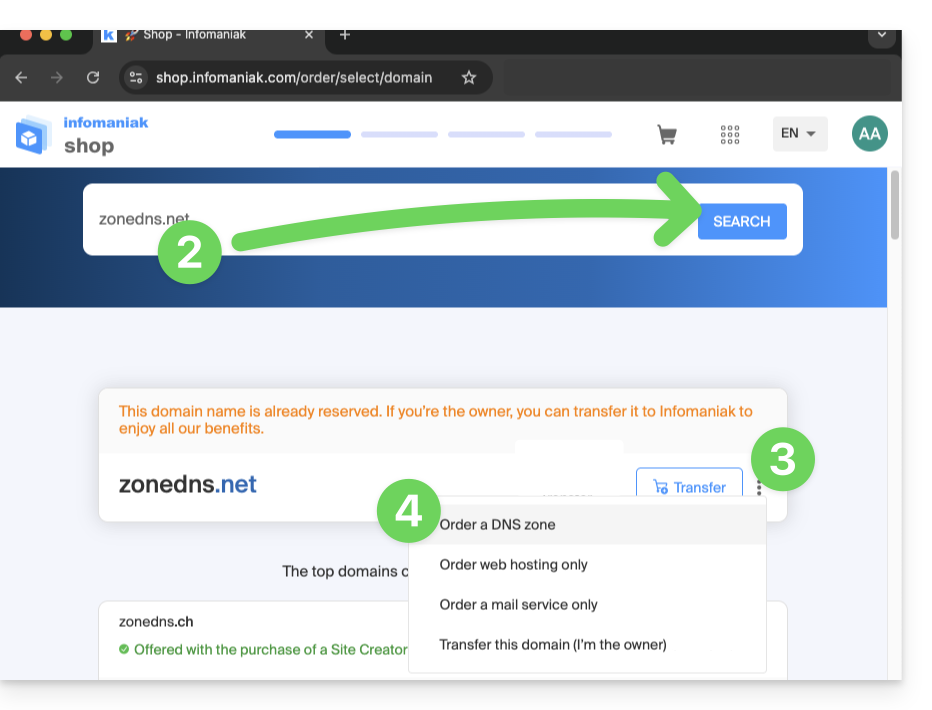
- Click here to access the Infomaniak domain Shop.
- Start a search with the name of the domain registered elsewhere.
- Click on the action menu ⋮ located to the right of the result.
- Select Order a DNS zone:
- Complete the purchase.
- Once added to your Manager, the zone can be edited.
Link to this FAQ: https://faq.infomaniak.com/1914
Has this FAQ been helpful?
This guide explains how to link a domain name managed by Infomaniak to a Google Sites offer.
Introduction
- A website created on Google cannot be exported to be hosted on third-party servers, such as Infomaniak's servers.
- It is therefore recommended to create the website directly with Infomaniak using Site Creator or WordPress.
Connect Google Sites to your Infomaniak domain name
To configure your domain in Google Sites:
- Create or prepare your website on Google Sites.
- In the Google Sites settings, go to the "Use a custom domain" option.
- Add your custom domain.
Google will then ask you to verify your domain via DNS records (delete any old A and CNAME records if necessary, then add the new ones):
A Records
In order to achieve the result requested by Google, for example, 4 different IP addresses…
- Host:
@points to:216.239.32.21 - Host:
@points to:216.239.34.21 - Host:
@points to:216.239.36.21 - Host:
@points to:216.239.38.21
… create “A” type records with these IP addresses as the target:
- Click here to access your domain management in the Infomaniak Manager (need help?).
- Click directly on the name assigned to the domain in question.
- Click on DNS Zone in the left-hand menu.
- Click on the blue Add entry button:
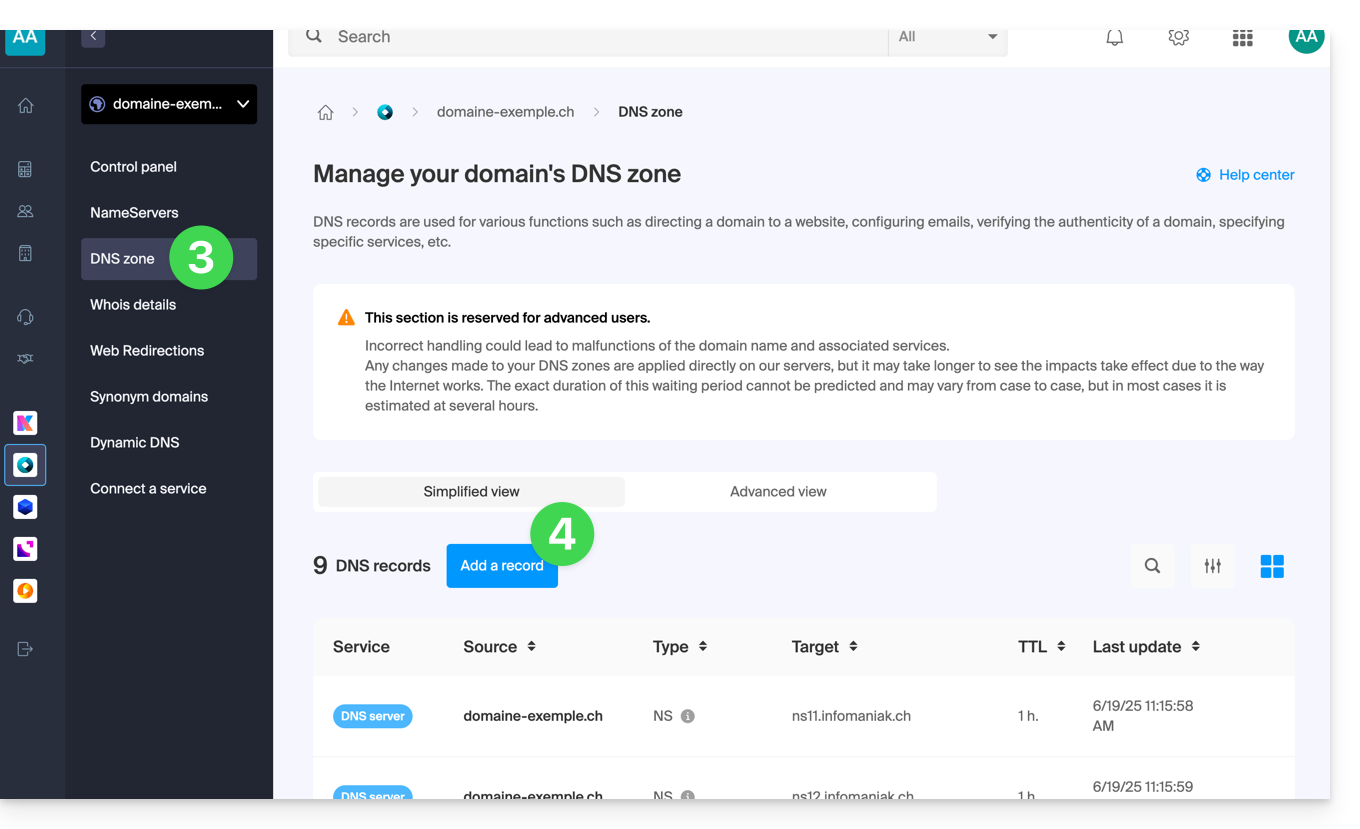
- Choose the A record type.
- Click on Next:
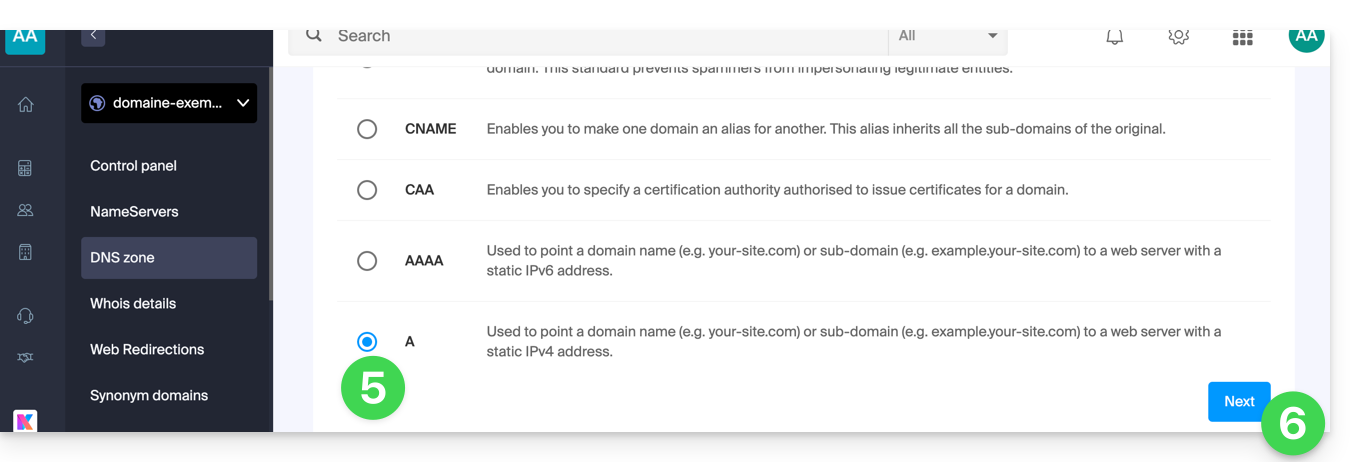
- Fill in the various fields with your information.
- Save the addition you made:
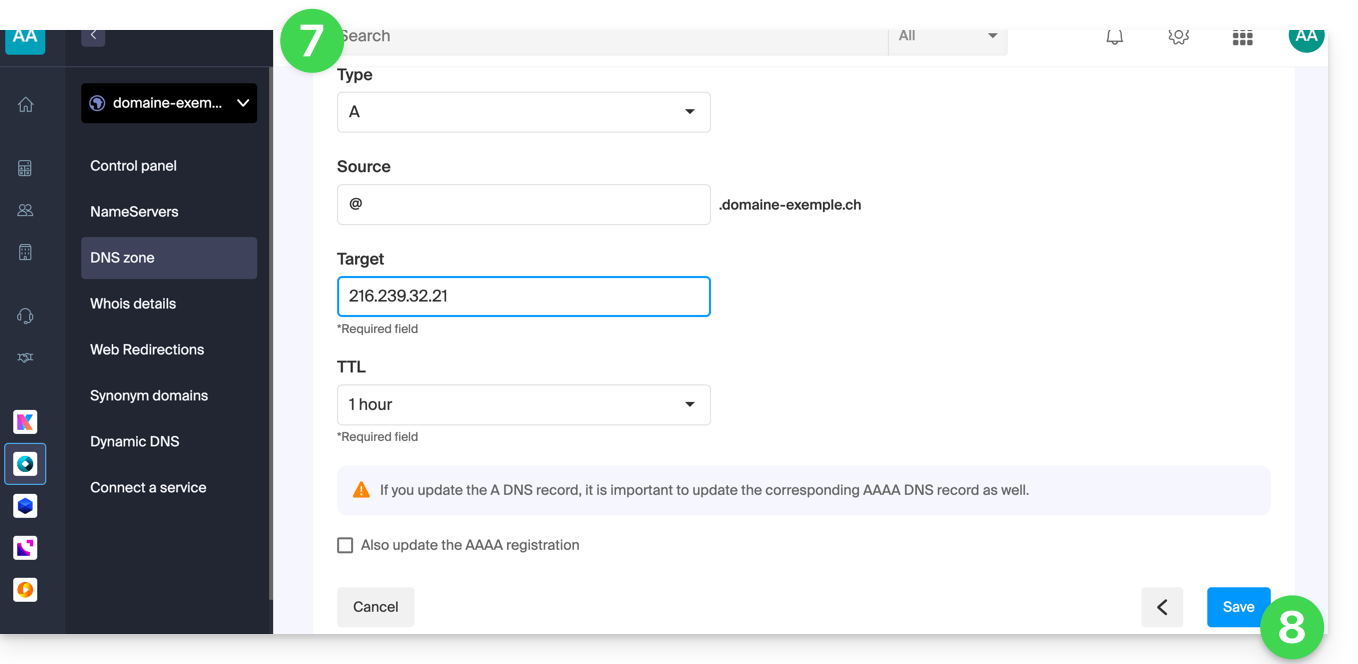
- If you have more records to add, start again at step 4.
CNAME Record
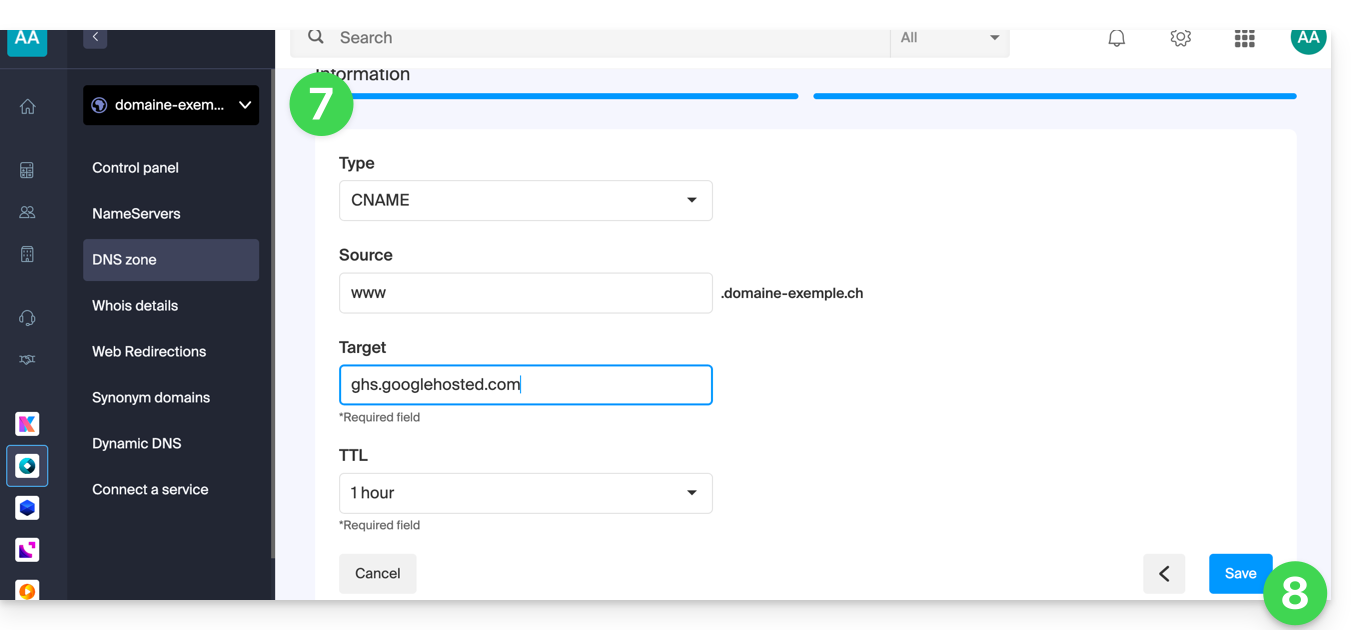
To achieve the result requested by Google, create a CNAME record with these values:
- Host:
www - Points to:
ghs.googlehosted.com
To do this:
- Click here to access your domain management in the Infomaniak Manager (need help?).
- Click directly on the name assigned to the domain in question.
- Click on DNS Zone in the left-hand menu.
- Click on the blue Add entry button:
- Choose the type of CNAME record.
- Click on Next:
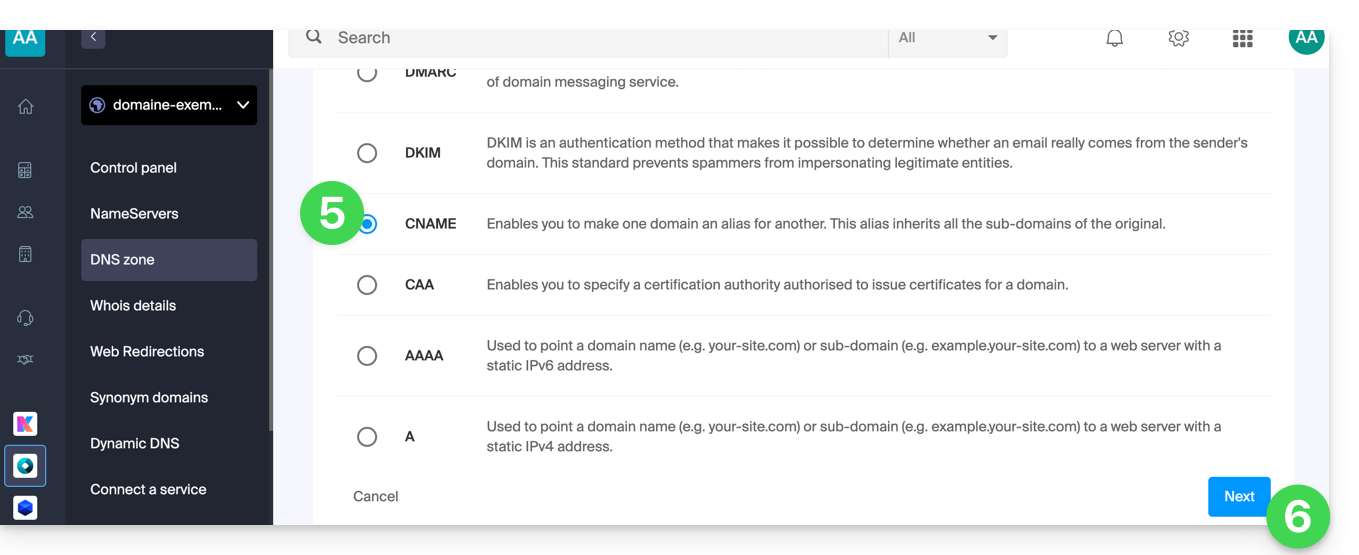
- Fill in the various fields with your information.
- Save the changes you made:
Verify your domain (Google Site Verification)
After configuring the DNS records, return to Google Sites to complete the verification. This may take up to 24 hours due to DNS propagation.
Final validation
Once the changes have propagated, your site should work with the custom domain. If you encounter any problems, check the DNS records or contact Google.
Link to this FAQ: https://faq.infomaniak.com/1917
Has this FAQ been helpful?
This guide explains how to replace the primary domain name associated with a Mail Service in case you want to, for example, change the spelling of everything that comes after the @ symbol in your email address (i.e., the domain name). If your Mail Service is part of a kSuite, you will need to modify the kSuite domain directly.
Introduction
- You can also follow this procedure if the goal is to have completely new email addresses while keeping the history of your emails on Mail (since the email address will continue to exist, for example, info@premier-domaine.xyz will become info@nouveau-domaine.xyz without any modification to its content).
- IndeedIt is not possible to simply change the spelling of the domain name in question; therefore, it is necessary to replace the current domain name associated with your email addresses with another domain name.
- To simply add an additional domain name, please refer to this other guide.
- To instead modify the part of your email address that appears before the at symbol
@, please refer to this other guide. - It should also be noted that you can rename your product (example) in the Infomaniak Manager, but changing the name of a Mail Service has absolutely no impact on its addresses; you need to modify the domain name.
If your Mail Service is part of a kSuite, you will need to modify the kSuite domain directly.
Change the domain name for your Mail service
Prerequisites
- Own the new domain name (if necessary, create it beforehand).
- Review the instructions in this other guide and apply the instructions that correspond to your situation (to ensure that the domain name works when it is linked to your Mail service).
Once the new domain name is ready to be used in place of the old one, you need to add it to the Mail service and then perform a switchover:
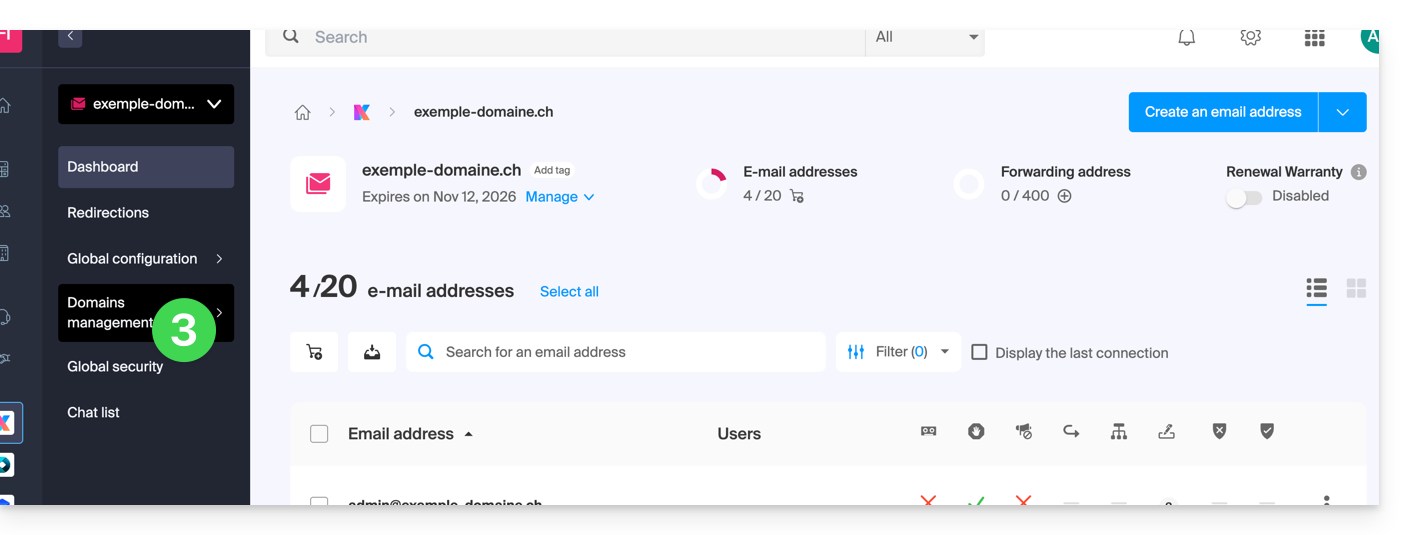
- Click here to access the management of your product in the Infomaniak Manager (need help?).
- Click directly on the name assigned to the product in question.
- Click on Domain Management in the left-hand menu.
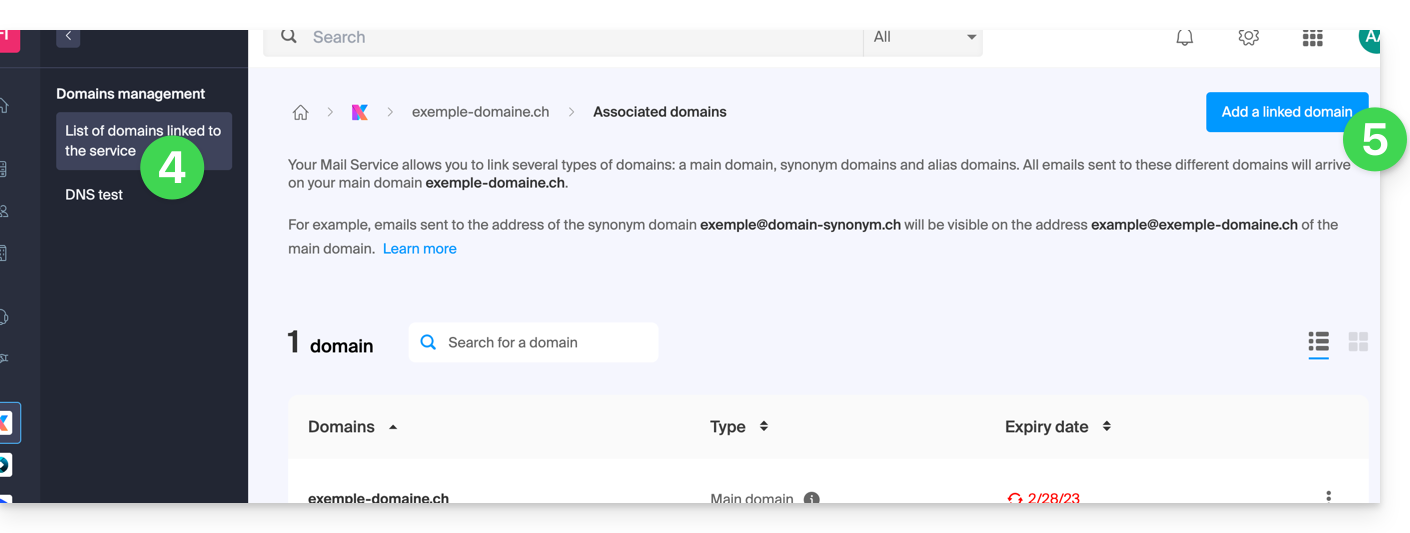
- Click on Domains linked to the service in the left-hand menu.
- Click the blue Add a linked domain button:
- You can:
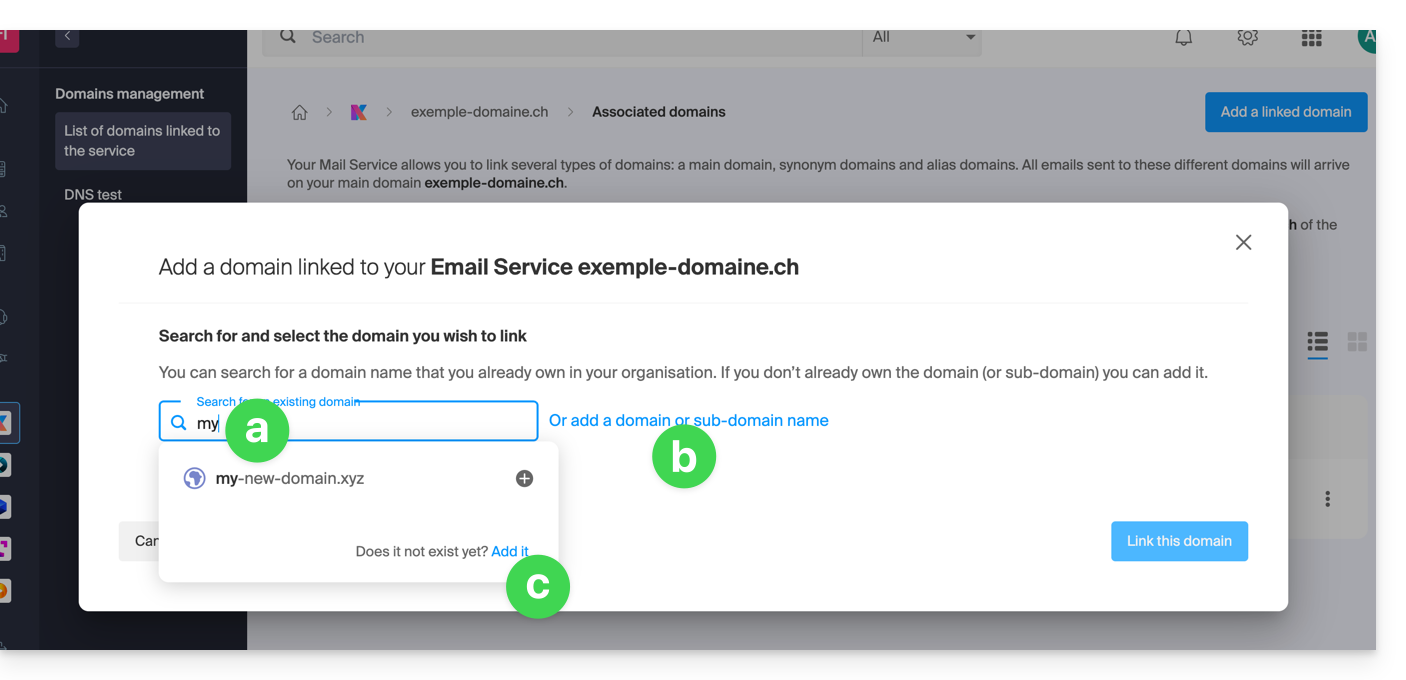
- Search for an existing domain within the Organization you are connected to; this will automatically link and update the DNS zone of the added domain.
- Add a domain name or subdomain to manually specify the domain name or subdomain to use (ideal if the domain name is located elsewhere).
- Purchase a new domain name (see prerequisites).
a: The domain exists at the Organization level
Before proceeding, be sure to unlink the domain name if it was previously defined as a synonym domain.
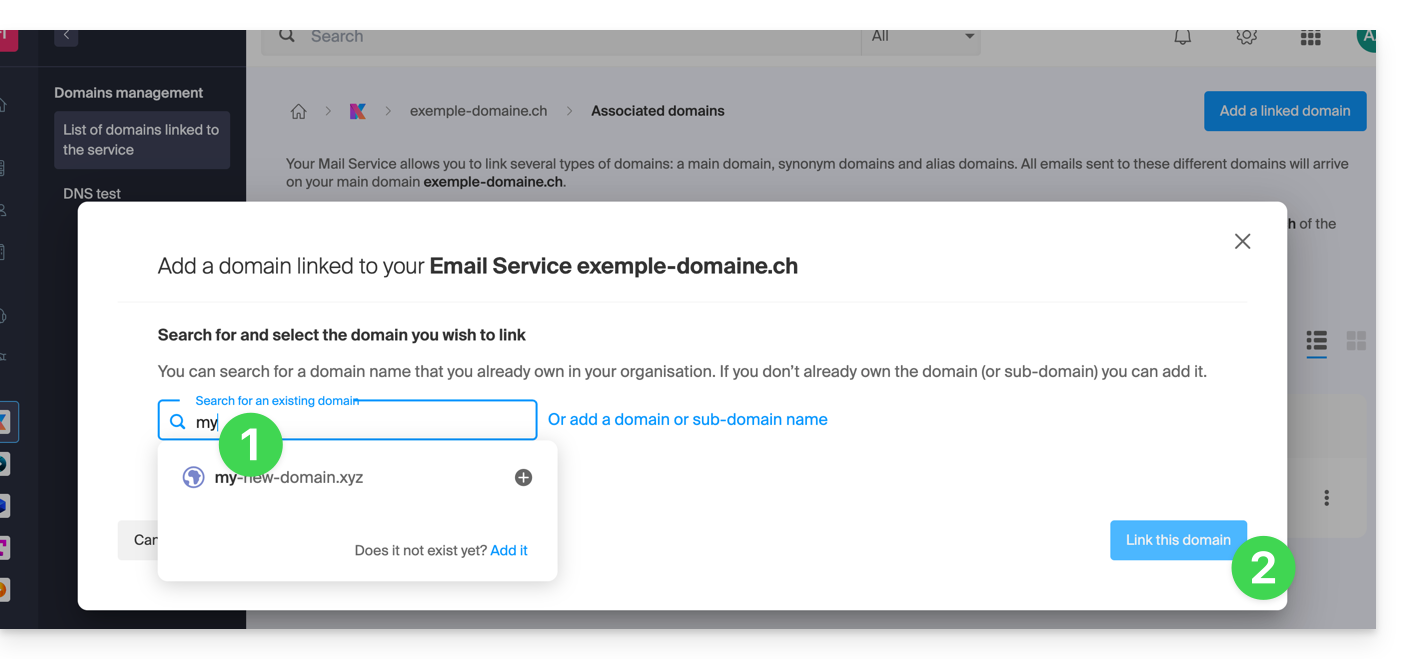
- Click on the proposed domain name.
- Click on the blue Link this domain button:
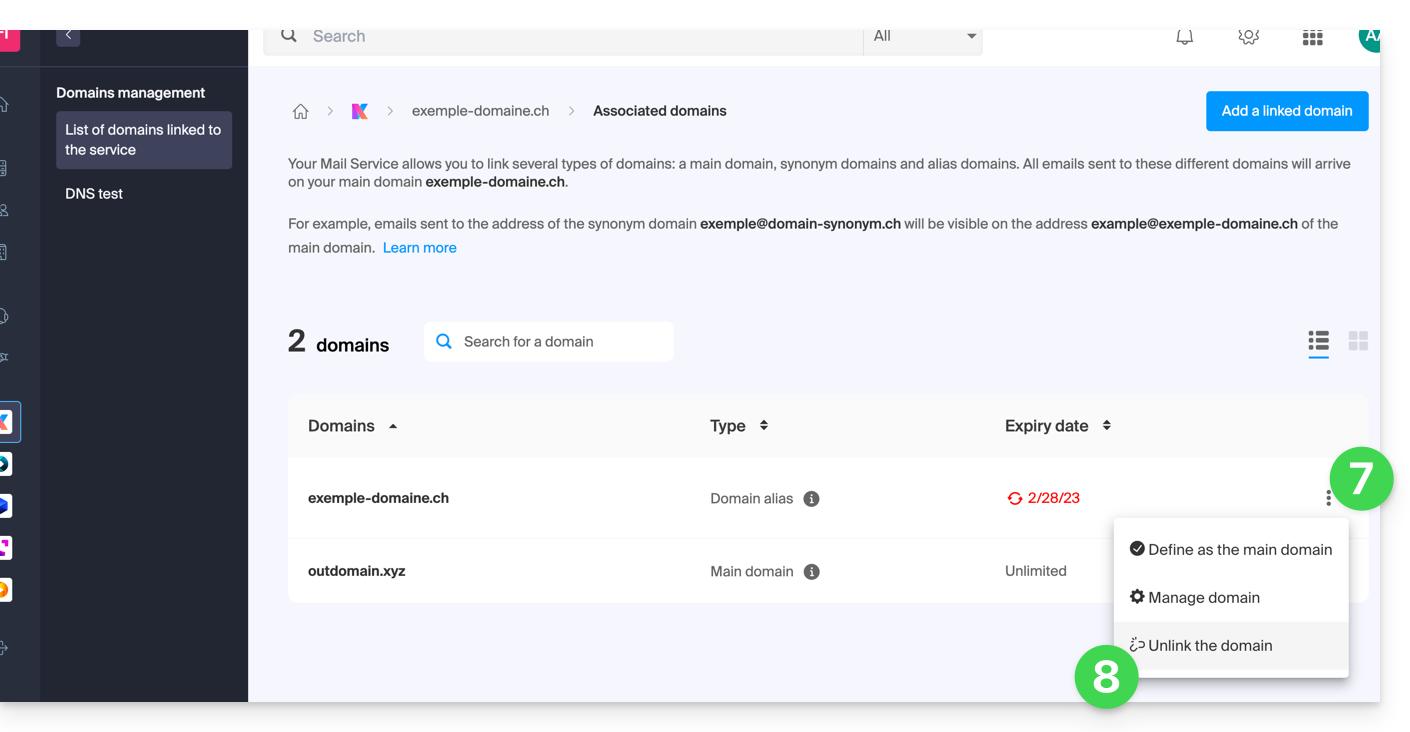
- Click on the ⋮ icon to the right of the newly added domain name.
- Click on Set as primary domain (you must have disassociated the alias domain from the primary domain if there was a previous association):

- Confirm the reversal and then wait for the operation to complete.
- Click on the ⋮ icon to the right of the old domain name.
- Click on Detach the domain:
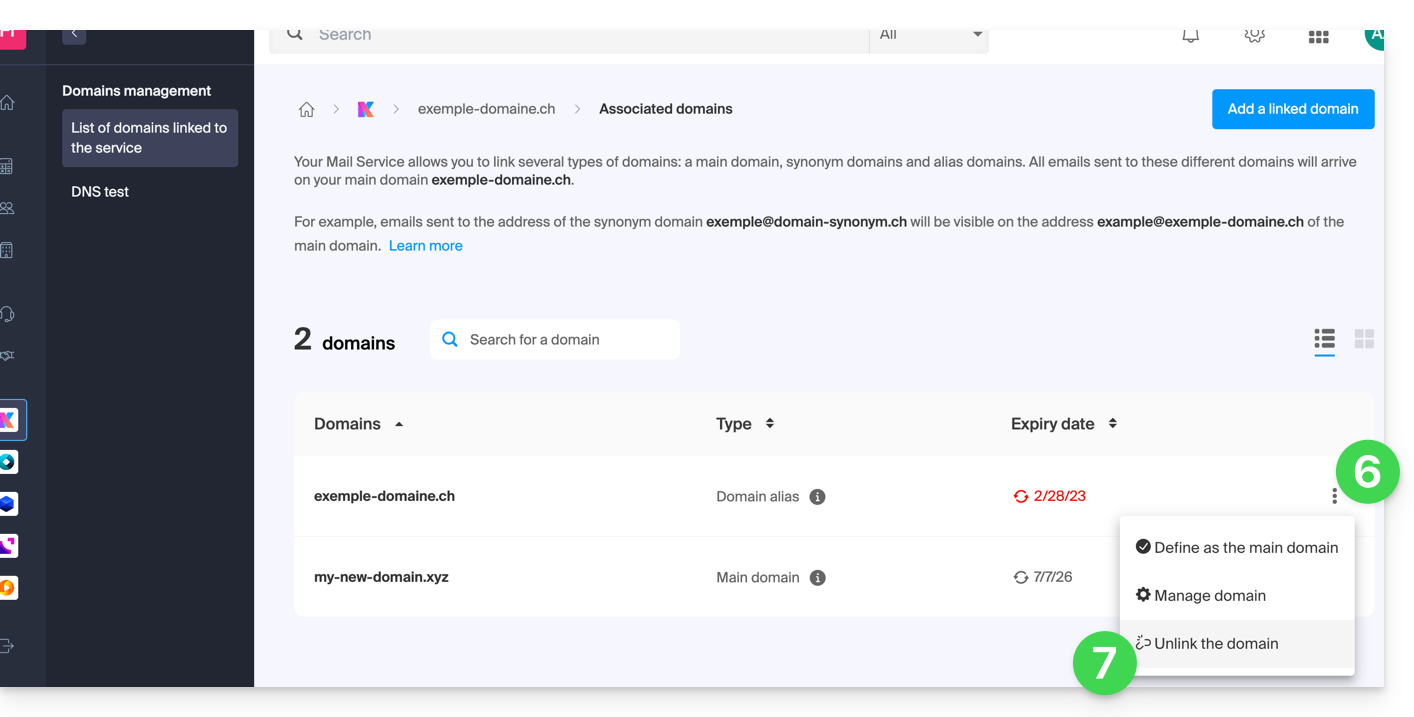
- Confirm the detachment by checking if you want to delete the associated DNS records during the detachment process.
That's it, the Mail Service now responds to a new domain name.
b: The domain exists but is hosted elsewhere
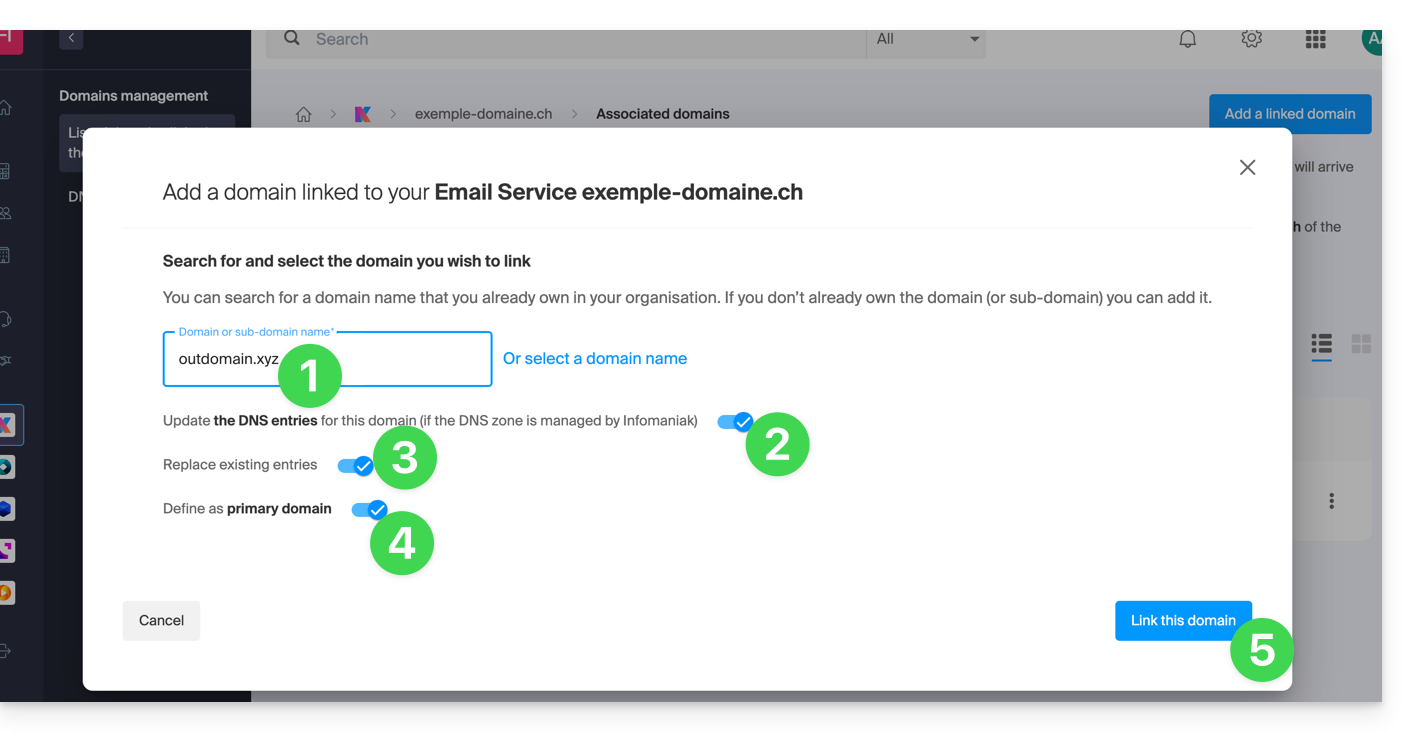
- After clicking Add a domain or subdomain, enter the domain name that will be used to replace the current one.
- Enable the DNS record update (if the domain name's status allows it, the domain name's DNS zone will be updated automatically).
- If the above point 2 is active, then enable the replacement of any existing entries.
- Enable domain name reversal (to avoid additional steps as in point "a" above).
- Click on the blue Link this domain button:
- Wait for the operation to complete.
- Click on the ⋮ icon to the right of the old domain name.
- Click on Unlink domain:
Link to this FAQ: https://faq.infomaniak.com/1934
Has this FAQ been helpful?
This guide explains how to add a new domain name to a website on Infomaniak.
Introduction
- When you add a new domain name to a website, it is referred to as a linked domain, but also as an alias.
- In this case, a domain alias is an additional domain name that is also linked to an existing website.
- For example, to make the website
domain.xyzaccessible with a completely different domain name likeprivate.abc, you need to addprivate.abcas an alias to the website. - Second example, to make the website
domain.xyzalso accessible withwww.domain.xyz, you need to add it as an alias to the domaindomain.xyz. In this example,domain.xyzis the parent site of the aliaswww.domain.xyz. In general, thewwwalias is already added automatically and is present…
- For example, to make the website
Add an alias to an existing website
Prerequisites
- If the domain name (intended to become an alias) or its DNS zone is managed by Infomaniak, everything is fine. If not:
- The A record of the domain name must point to Infomaniak.
- To simplify, you can entrust the domain management to Infomaniak.
- It is also necessary that the future alias is not already linked to another website; if it is, you will need to unlink it from the current website beforehand (the same applies if it is a synonym).
To add an additional domain that will be linked to your website:
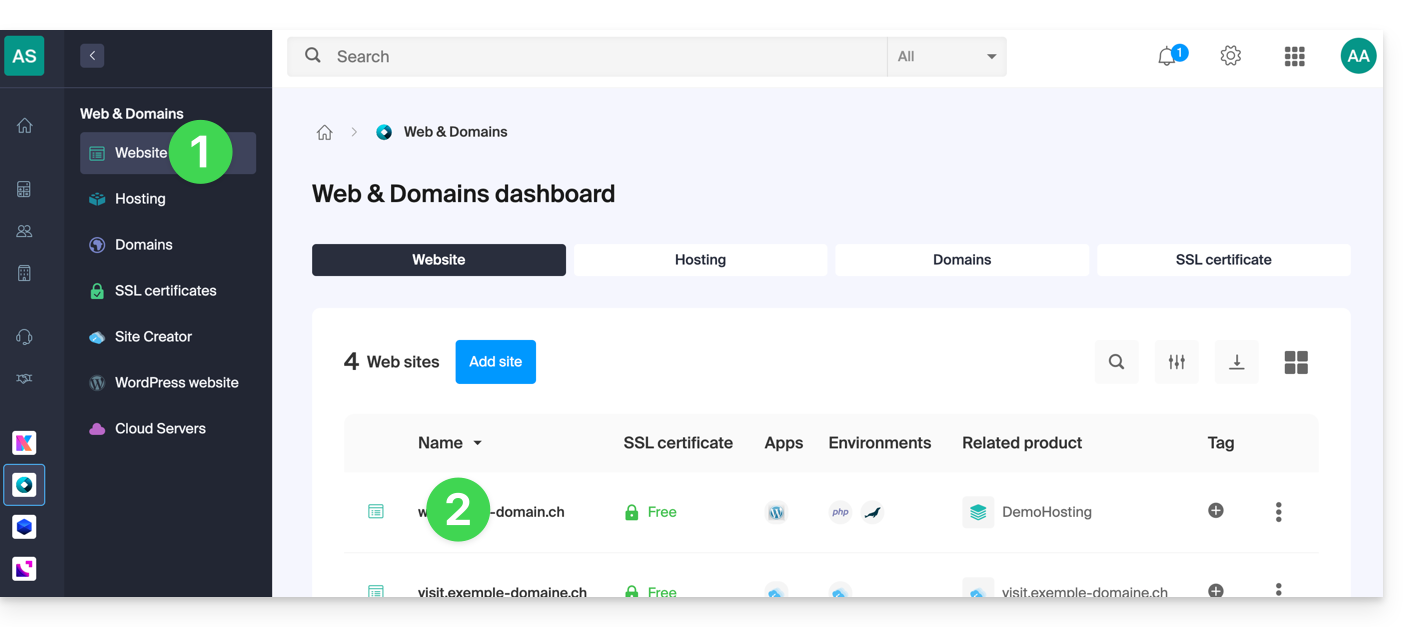
- Click here to access the management of your website in the Infomaniak Manager (need help?).
- Click directly on the name assigned to the website in question:
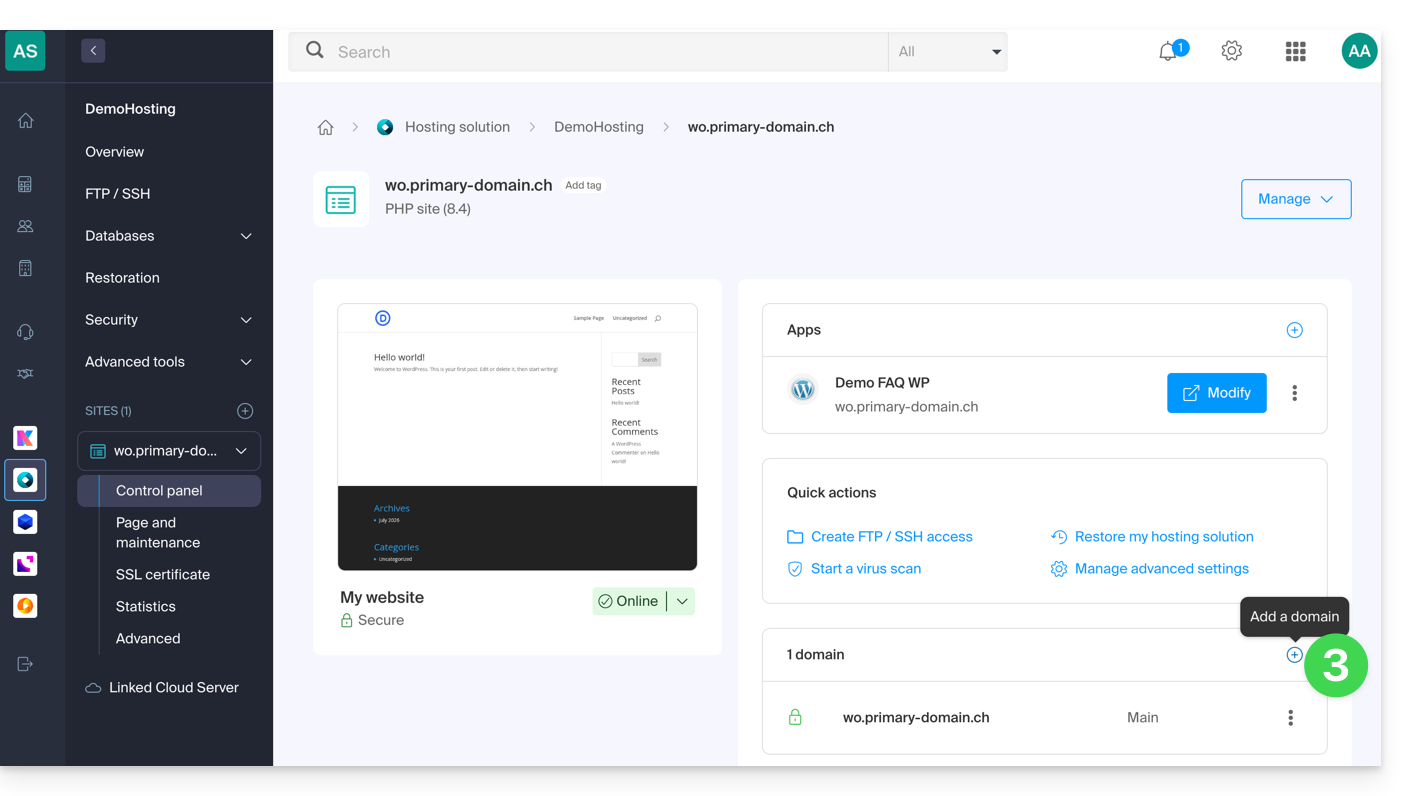
- Then, click on the Add a domain button:
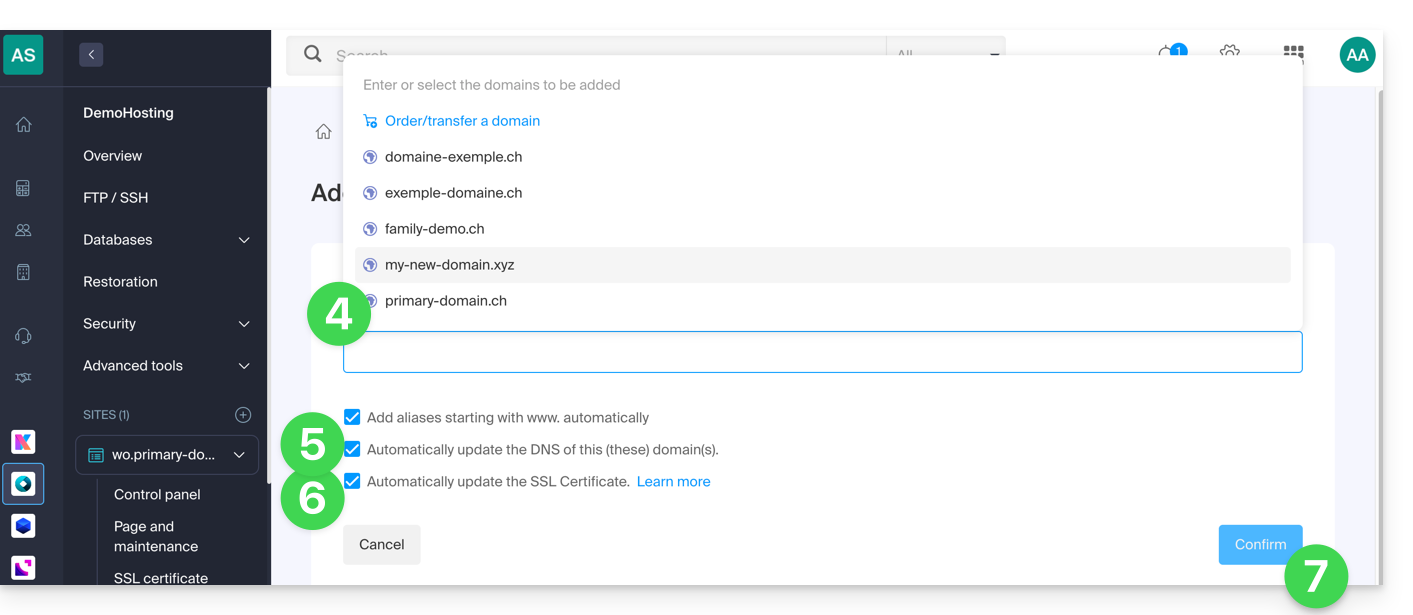
- Enter the domain name(s) to add, separating them with the Enter key.
- If the alias or its DNS zone is managed by Infomaniak, it is possible to automatically update the DNS entries. Otherwise, make any necessary changes with your registrar or transfer the domain name management to Infomaniak.
- If you have an SSL certificate, such as Let's Encrypt, you can request to update it here to include the new names.
- Click on Validate to complete the process:
- The domains linked to the website are updated:
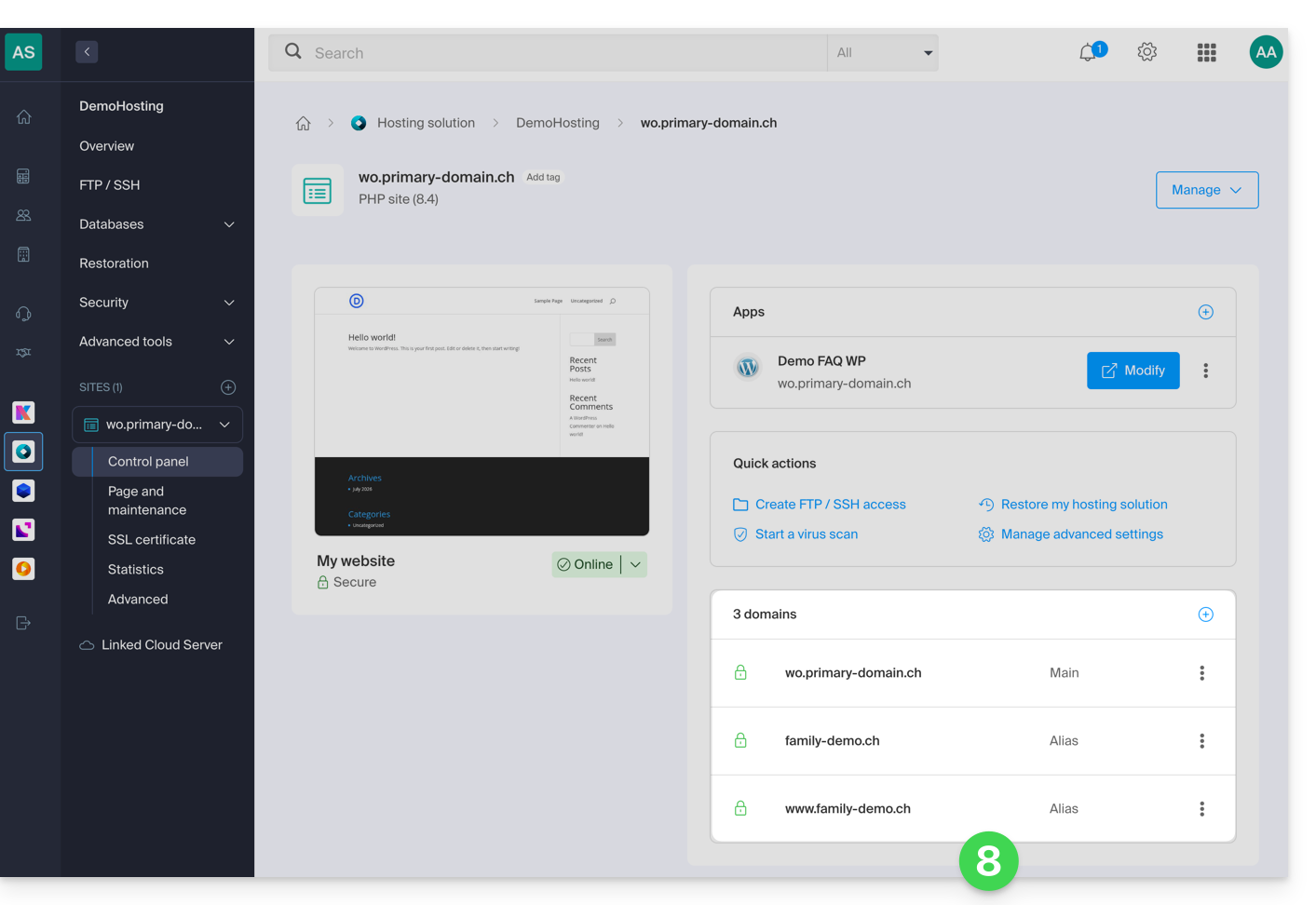
To define the alias as the main domain, please refer to this other guide.
Link to this FAQ: https://faq.infomaniak.com/1946
Has this FAQ been helpful?
This guide is intended for users who wish to manage Glue records with Infomaniak.
Introduction
- Glue records are crucial for linking a domain name to its associated name servers by providing the IP addresses of these servers directly.
- For example, for the domain
domain.xyz, the glue records specify the name servers (ns1.domain.xyzandns2.domain.xyz) as well as their IP addresses (192.0.2.10and192.0.2.11).
- For example, for the domain
- This speeds up DNS resolution, allowing browsers and online services to find your site more quickly and efficiently.
- Warning: Adding an NS does not automatically add it to the DNS zone: you need to manually update the DNS zone for your domain!
Create Glue records…
… via “A record”
This method involves creating an A (address) record for ns1.domain.xyz, pointing it to the IP address of the NS. This will register the IP address with the registry. You can then add ns1.domain.xyz, which will be recognized and redirected to the correct NS.
domain.xyz. 3600 IN NS ns1.domain.xyz.domain.xyz. 3600 IN NS ns2.domain.xyz.
ns1.domain.xyz. 3600 IN A 192.0.2.10ns2.domain.xyz. 3600 IN A 192.0.2.11
… via the “Glue records” button
This method allows you to create, but also modify, existing Glue records:
- Click here to access your product management in the Infomaniak Manager (need help?).
- Click directly on the name assigned to the product in question.
- Click on DNS Servers in the left-hand menu.
- Click on the Manage glue records button:
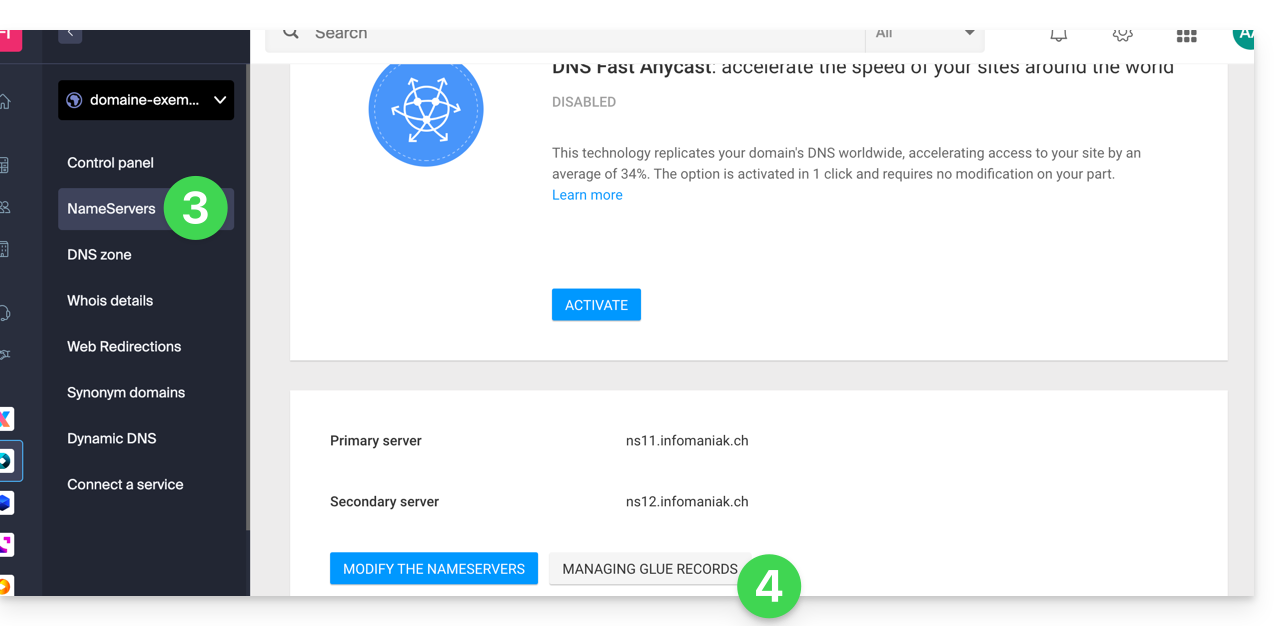
- Click on the Add a server button:
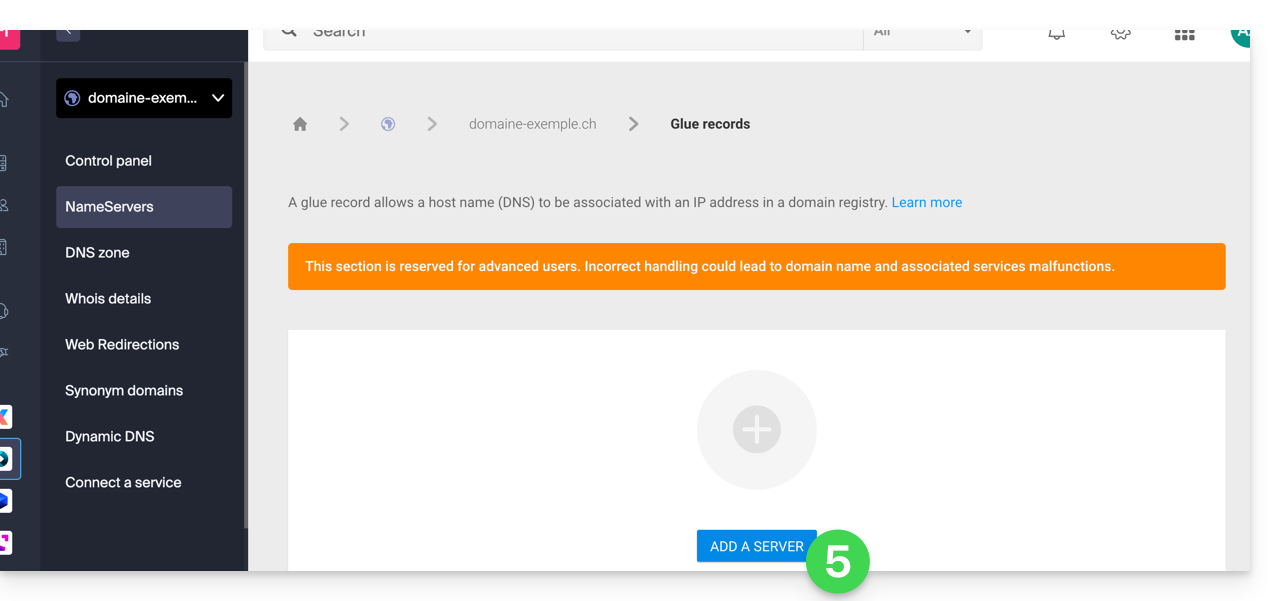
- Enter the name of the server to add, as well as its IP address.
- Click the Validate button.
Link to this FAQ: https://faq.infomaniak.com/1953
Has this FAQ been helpful?