Knowledge base
1000 FAQs, 500 tutorials and instructional videos. Here, there are only solutions!
This guide helps you troubleshoot configuration errors if you are experiencing difficulties linking your domain name to Site Creator.
Common issues and solutions
Identify the current status of your domain to apply the appropriate solution:
| Domain name status | Recommended solution |
|---|---|
| Managed by another provider (external) | Order a DNS zone or transfer the domain to Infomaniak |
| Already associated with a website or defined as an alias (synonym) | Delete the existing website or detach the domain |
| Currently using a dedicated IP address | Uninstall the dedicated IP |
| Protected by an SSL certificate (Self-signed, DV or EV) | Uninstall the certificate |
| Insufficient permissions on the hosting | Modify access rights |
Link to this FAQ: https://faq.infomaniak.com/1956
Has this FAQ been helpful?
This guide explains how to link a domain name to an Infomaniak Mail Service.
If the domain name is located…
… with Infomaniak, same Organization
If your domain name is registered with Infomaniak and is in the same user account or Organization as your email, then there is nothing to do.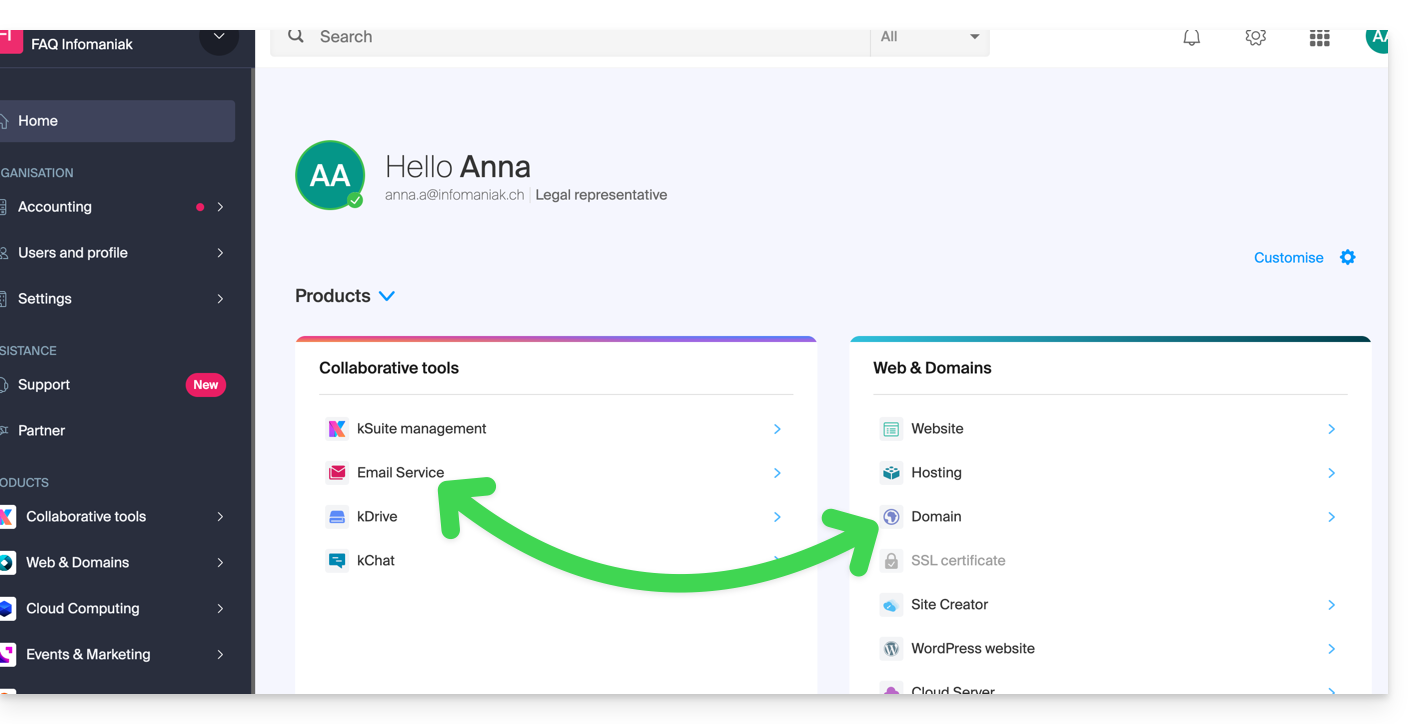
- Consult this other guide to check for and correct any configuration errors.
… with Infomaniak, different organization
If your domain name is registered with Infomaniak but in a different user account or Organization, then:
- Edit its DNS zone by specifying Infomaniak's MX record (+ SPF & DKIM).
- Any DNS addition/modification may take up to 48 hours to propagate.
OU
- Move it within the same Organization.
… with Infomaniak using external DNS
If your domain name uses DNS servers that are not Infomaniak's, then:
- Edit the current DNS zone where it is hosted (if necessary, consult the help documentation of the provider in question) and specify Infomaniak's MX record (+ SPF & DKIM).
- Any DNS addition/modification may take up to 48 hours to propagate.
OU
- Change your current DNS settings and select the option to use Infomaniak's DNS servers.
- Any DNS addition or modification may take up to 48 hours to propagate.
- Refer to this other guide to check for and correct any potential configuration errors.
… or with external DNS servers
If your domain name uses DNS servers that are not Infomaniak's, then:
- Edit the current DNS zone where it is located (if necessary, consult the documentation provided by your provider) and specify Infomaniak's MX record (+ SPF & DKIM).
- Any DNS addition/modification may take up to 48 hours to propagate.
OU
- Change the current DNS servers (if necessary, consult the documentation provided by your provider) and specify Infomaniak's DNS servers (this requires having a DNS zone with Infomaniak).
- Any DNS addition/modification may take up to 48 hours to propagate.
- This DNS zone with Infomaniak will be configured correctly, but please refer to this other guide to check for and correct any potential configuration errors.
… elsewhere, but you are moving it here
If your domain name is registered with another registrar and you would like to transfer it to the same location as your Infomaniak email, then:
- Transfer the domain name to Infomaniak (it will be configured correctly, but please refer to this other guide to check and correct any potential configuration errors).
Alternatively, consider ordering a new domain name if necessary.
Link to this FAQ: https://faq.infomaniak.com/1979
Has this FAQ been helpful?
This guide explains how to register a domain name with Infomaniak.
Introduction
- With a new domain name or an additional domain name, many possibilities open up to you, including access to free services, such as:
- You can also:
- use your existing Mail Service or website but with a different spelling,
- host a website here or with a third-party hosting provider,
- etc.
Order your first domain name
To do this:
- If necessary, create an Infomaniak account.
- Click here to access domain management in the Infomaniak Manager.
- Click to open the Shop:
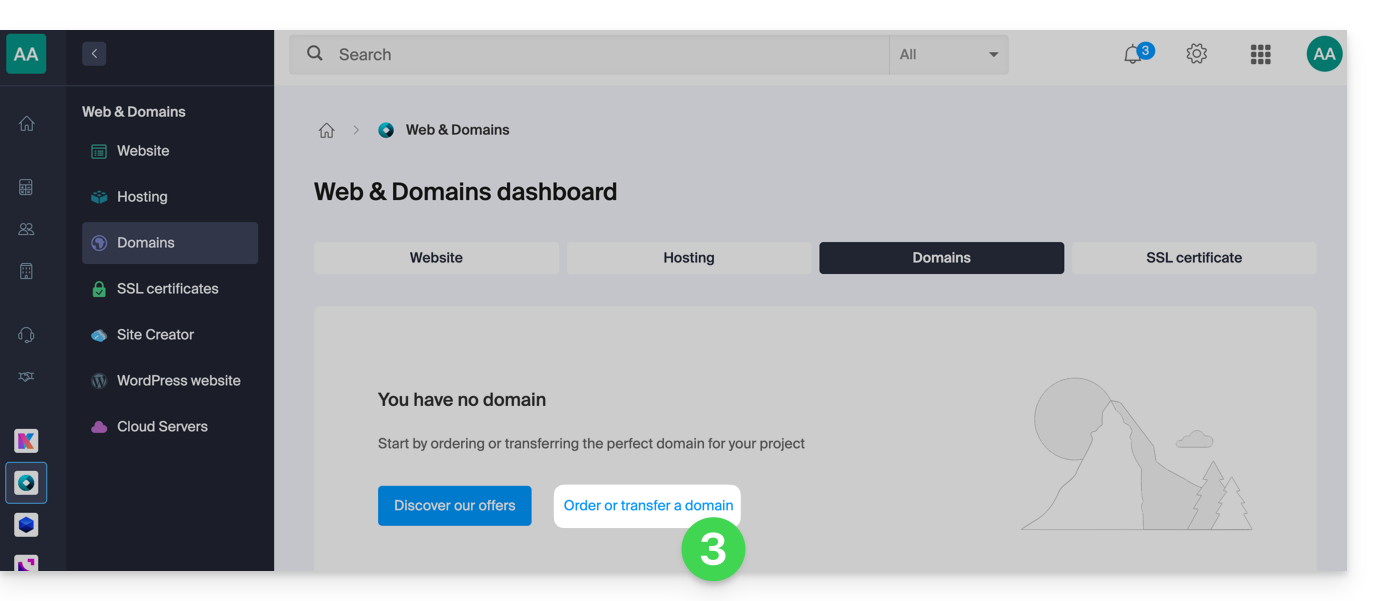
- If applicable, select the Organization in which to order your domain:
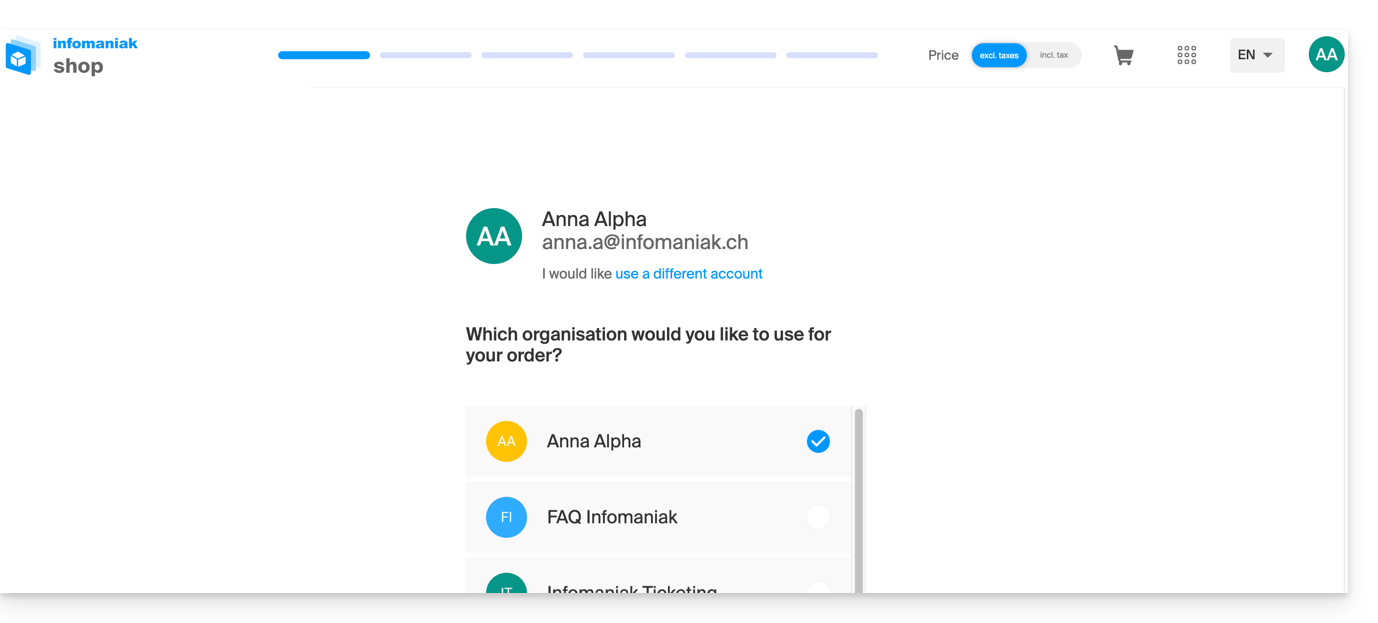
- If applicable, select the Organization in which to order your domain:
- Once in the Shop, enter the domain name to register and search for it:
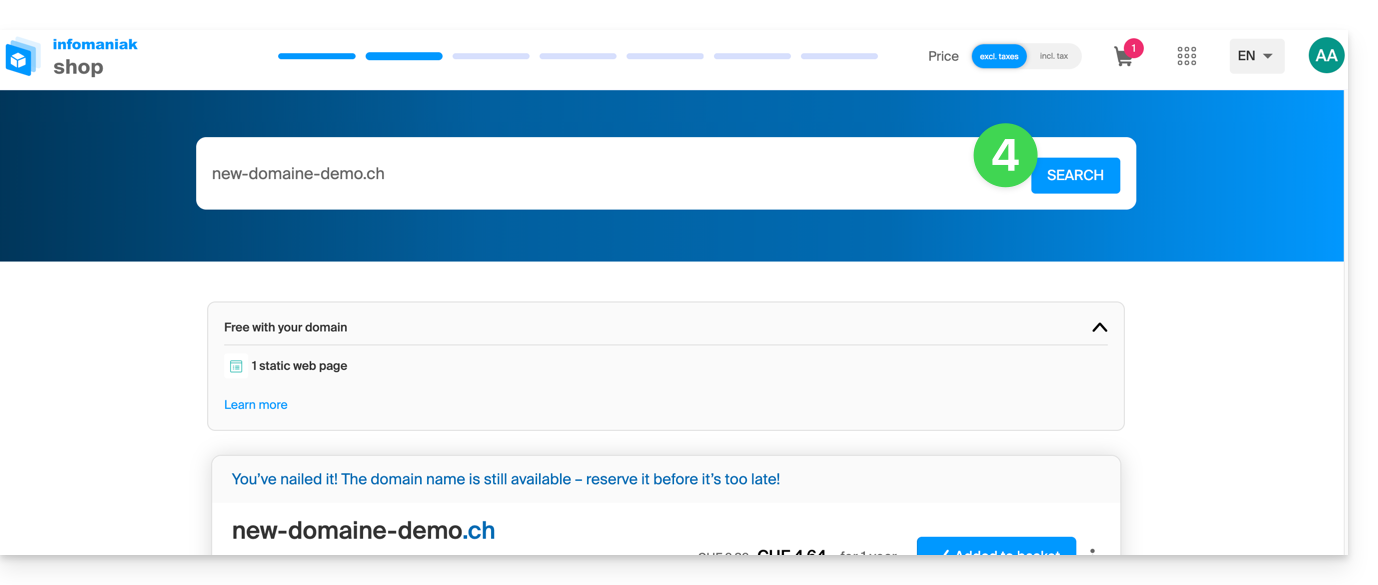
- Check or uncheck the additional options and extensions offered, and click Next to proceed.
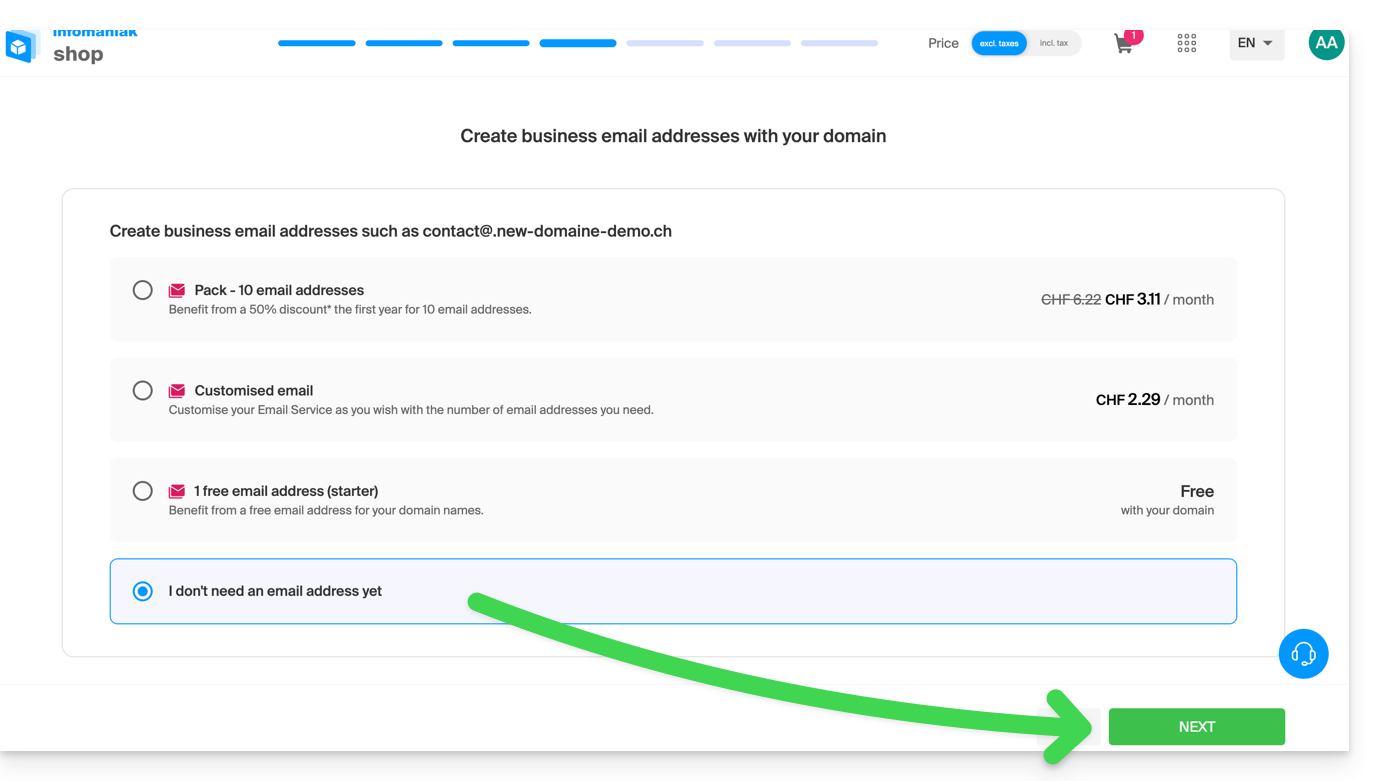
- Choose the desired options on each page, such as the Mail service associated with the domain name:
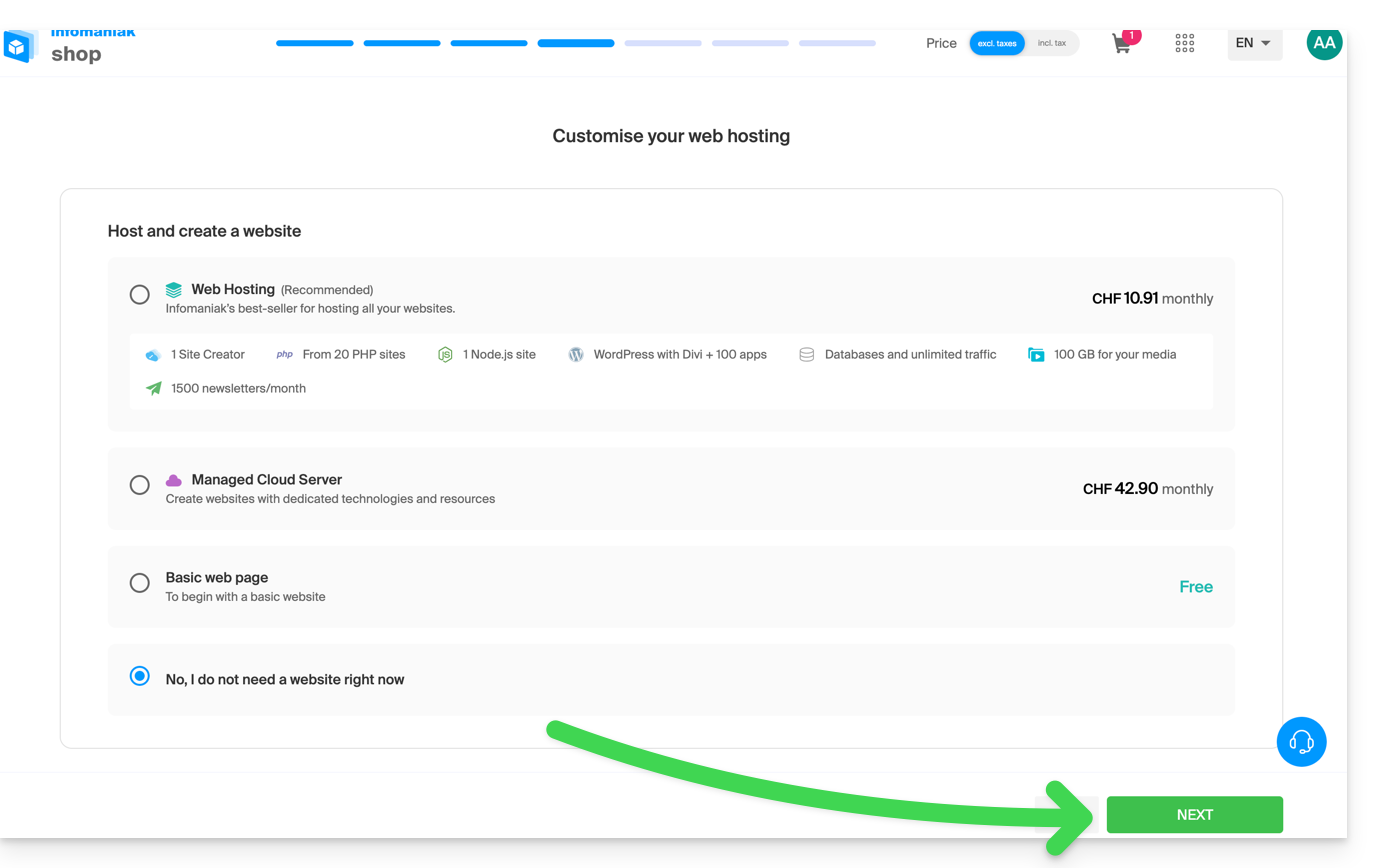
- Choose the desired options on the following pages, such as the web hosting associated with the domain name:
- Enter the contact information related to the domain name.
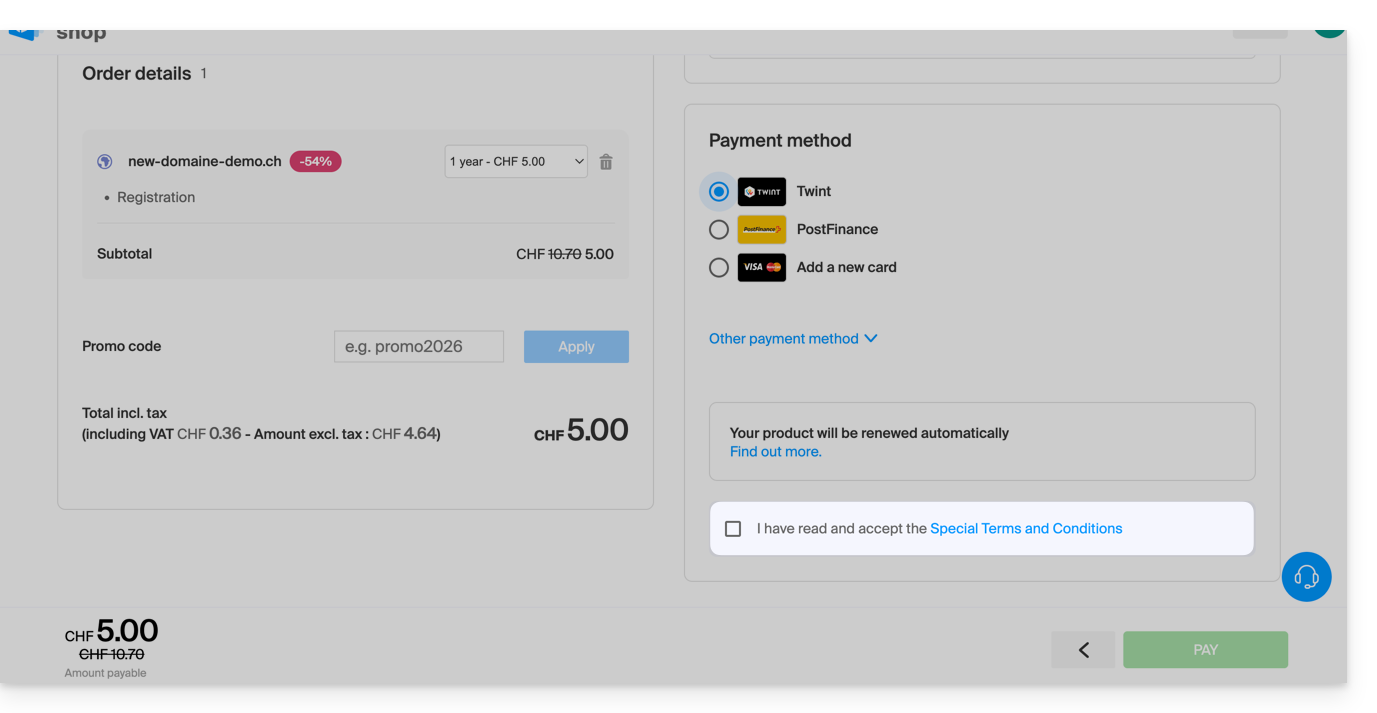
- Complete the purchase, remembering to read and accept the Terms and Conditions (you may need to scroll down the page first):
Once ordered, please wait a few hours for the setup to be completed (and schematically, for the propagation of your domain name to Internet Service Providers (ISPs) worldwide.
Order an additional domain name
To do this:
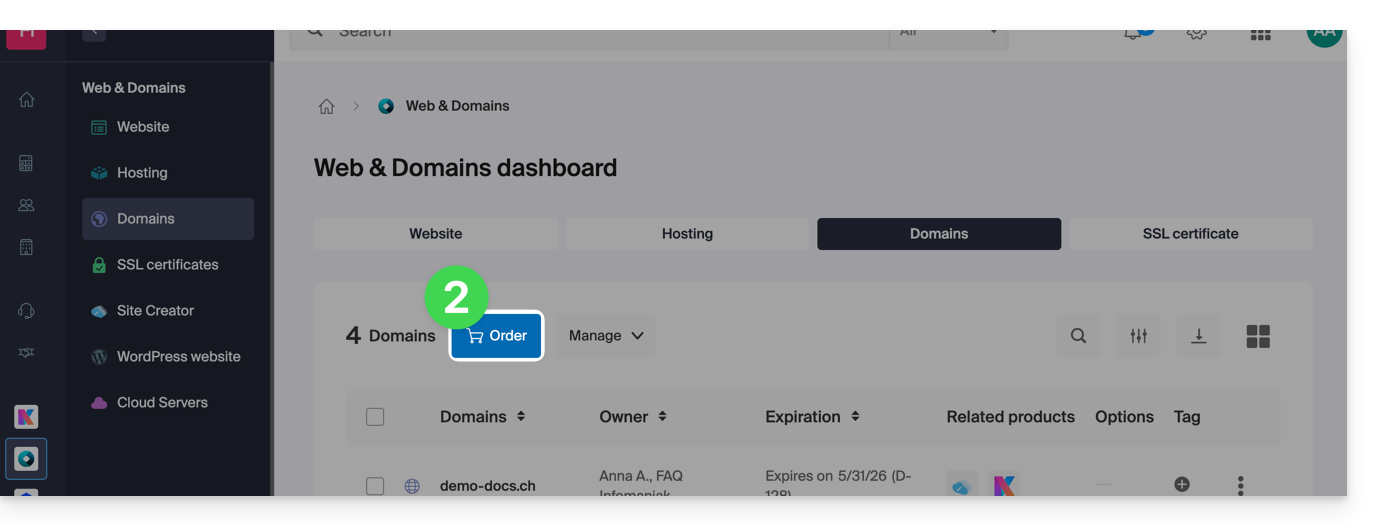
- Click here to access your product management interface in the Infomaniak Manager (need help?).
- Click the button to Order an additional domain:
- Follow the first guide above, starting from step 4.
Check the availability of a domain name
Please refer to this other page, which allows you to quickly check whether a domain is available for registration.
At least 3 main indicators can be identified:
- Available — in this case, it's good, you can book it.
- Transferable — you must own it with another provider in order to transfer to Infomaniak.
- Unavailable — unfortunately, it will not be possible to order it until it is released by its current owner.
Link to this FAQ: https://faq.infomaniak.com/1987
Has this FAQ been helpful?
This guide explains how to remove additional designations from an existing Mail Service (everything that comes after the @ symbol in your email address) by detaching its associated domain names.
Introduction
- Once removed, the domain name is again available to order a new Mail Service or to be linked to another existing Mail Service.
- It should also be noted that you can rename your product in the Infomaniak Manager, but changing the name of a Mail Service has absolutely no effect on its addresses; you must act on the domain name.
Remove the linked domain
Prerequisites
- Make sure the synonymous domain name is no longer associated with the main domain name if it was previously associated.
- Define the domain name to be disassociated as a secondary domain (instead of a primary domain) – this change can be made by following this other guide in the section titled "a" starting from point 3.
To unlink a domain name from your Mail service:
- Click here to access the management interface for your product in the Infomaniak Manager (need help?).
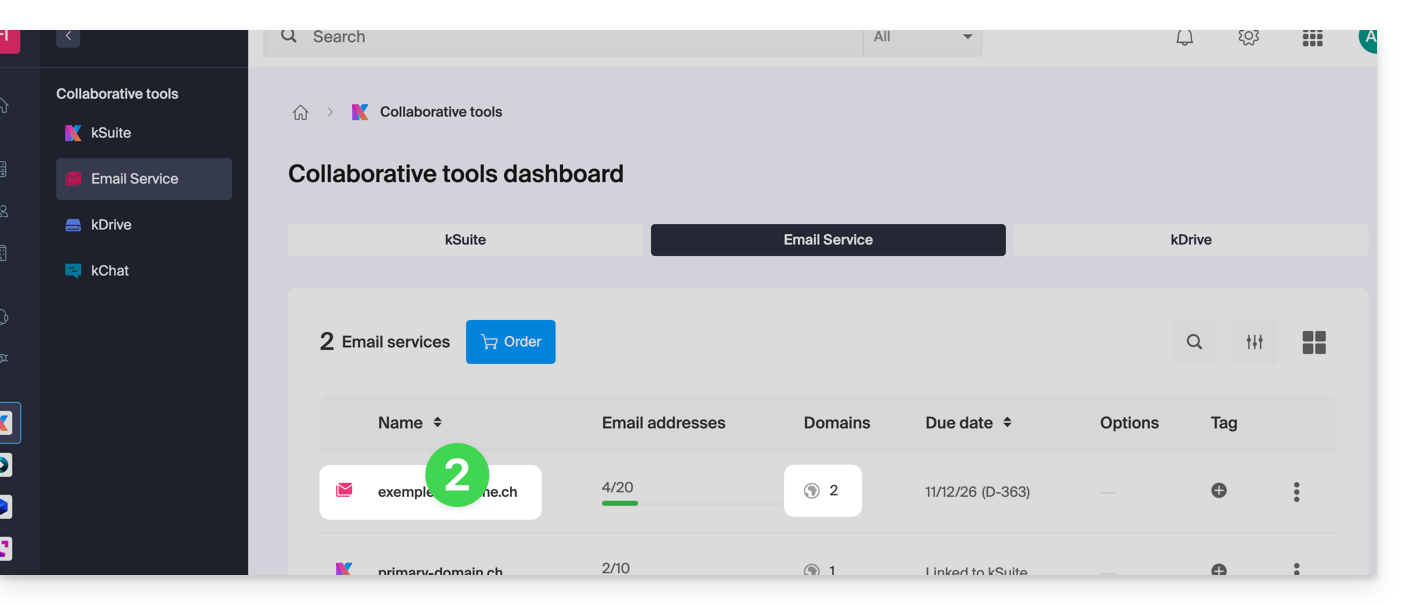
- Click directly on the name assigned to the product in question:
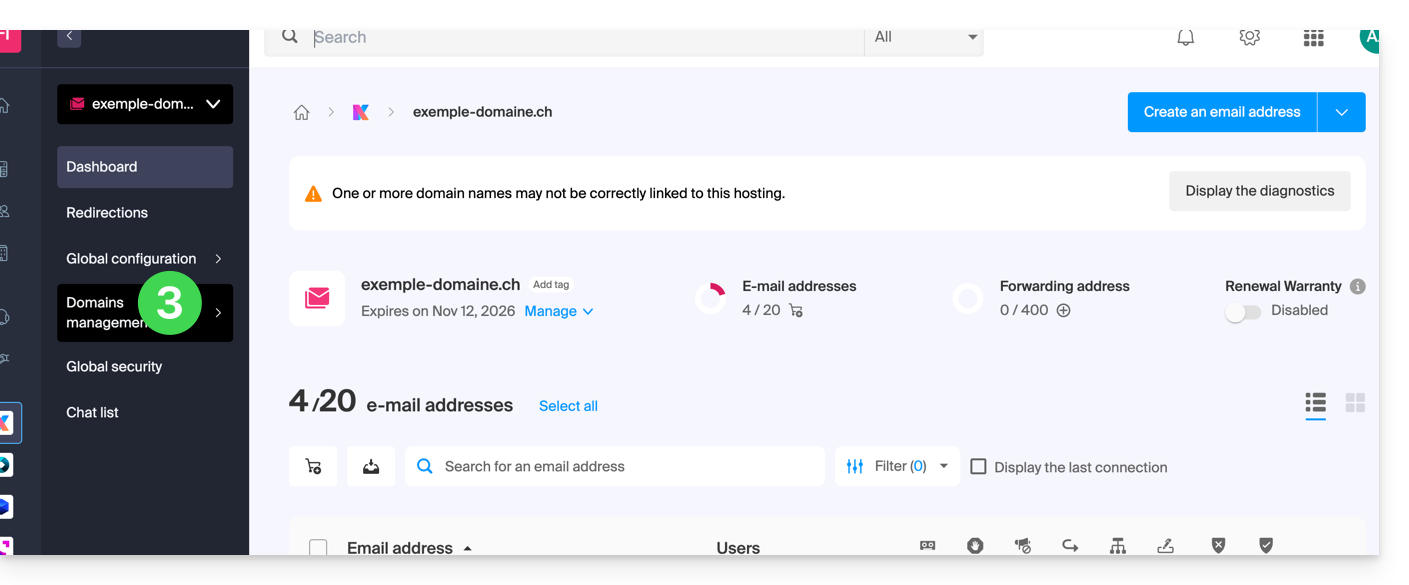
- Click on Domain Management in the left-hand menu:
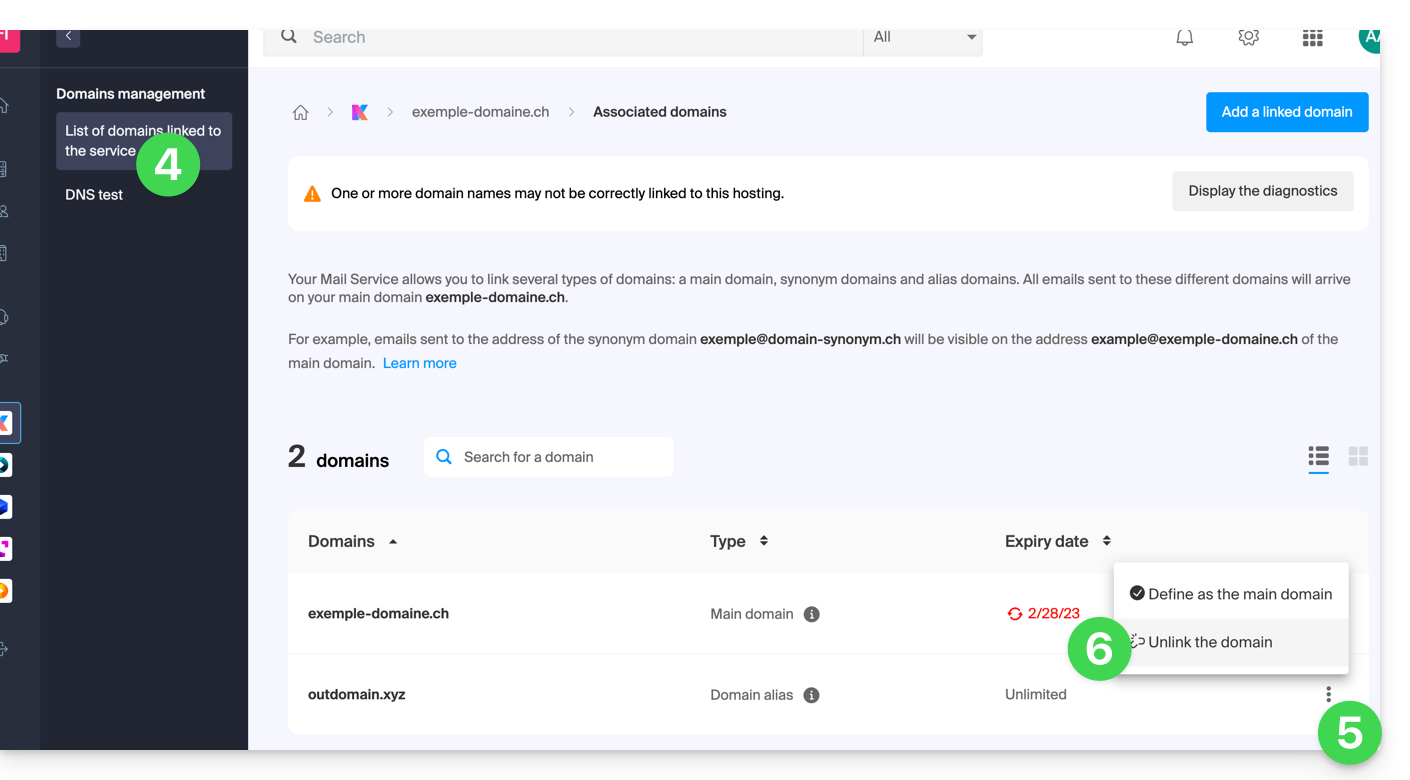
- Click on List of domains linked to the service in the left-hand menu.
- Click on the ⋮ icon to the right of the domain name you want to unlink.
- Click on Unlink domain (see prerequisites if this option is not available):
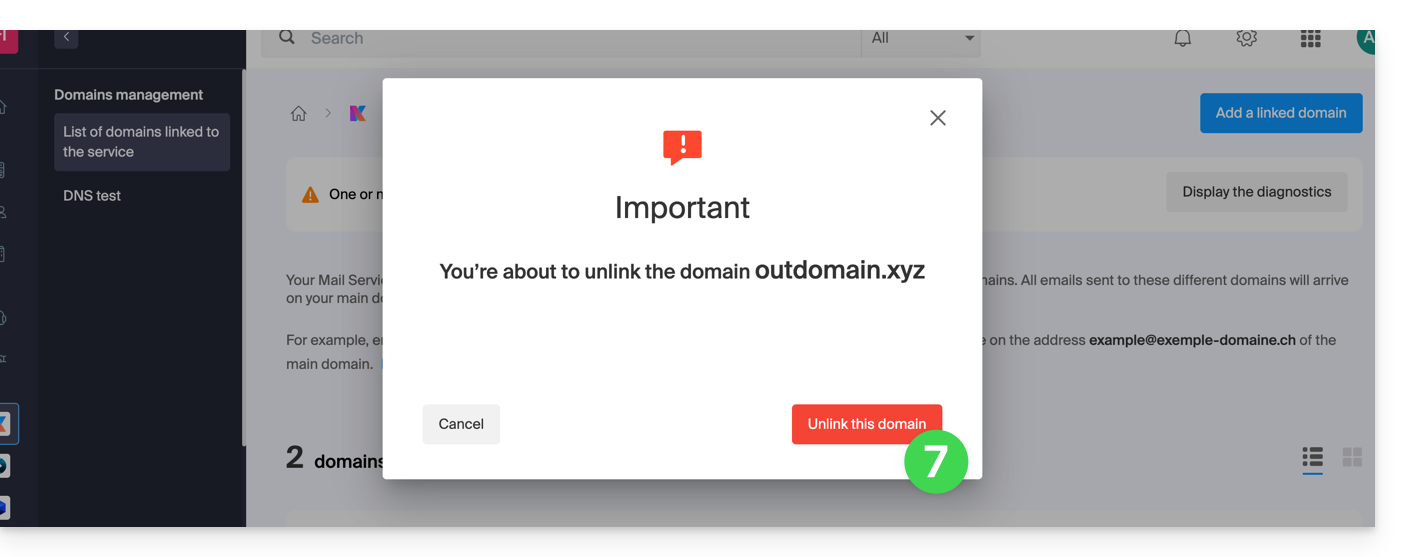
- Confirm the unlinking:
Link to this FAQ: https://faq.infomaniak.com/1996
Has this FAQ been helpful?
This guide explains how to remove an alias domain from an Infomaniak web hosting account. The main domain name of the site will then no longer be linked to any other domain name.
This allows you, in particular, to create a new web hosting account or a separate site for the unlinked domain name.
Prerequisites
- You must have unlinked the synonym domain name from the main domain name if they were previously linked.
Remove the alias domain
To remove an alias domain name from your site:
- Click here to access the management of your site on the Infomaniak Manager (need help?).
- Click directly on the name assigned to the site in question:
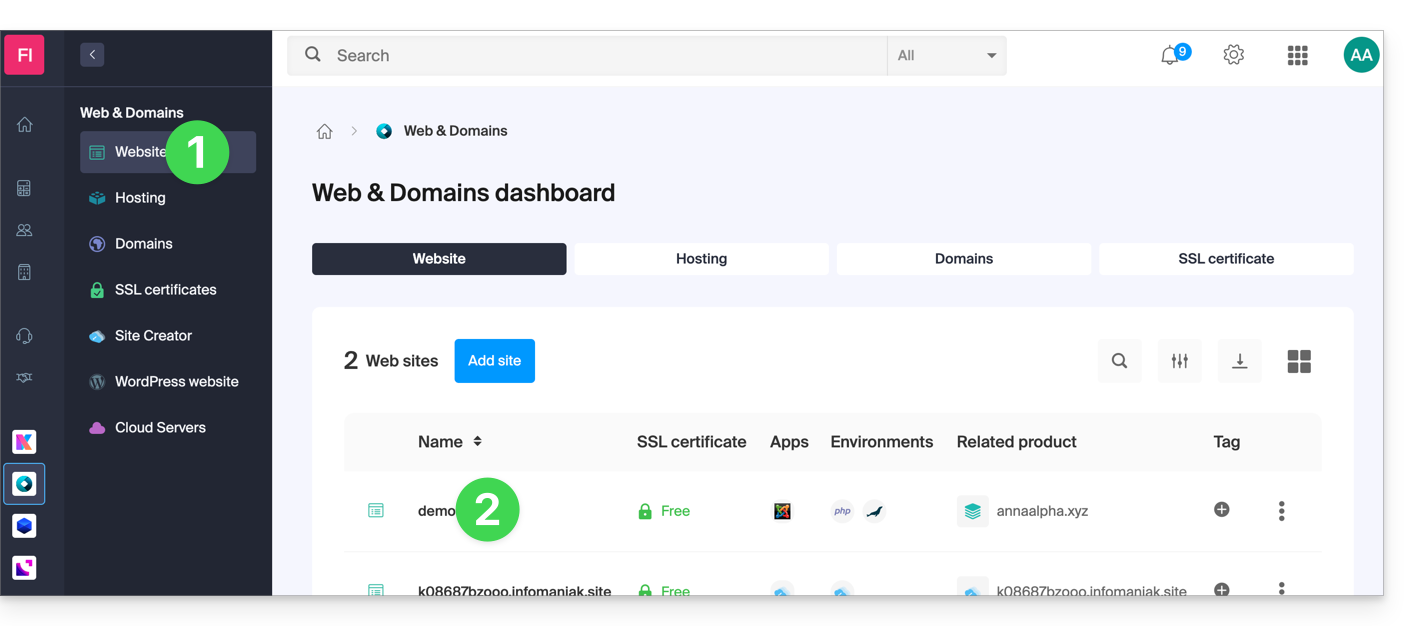
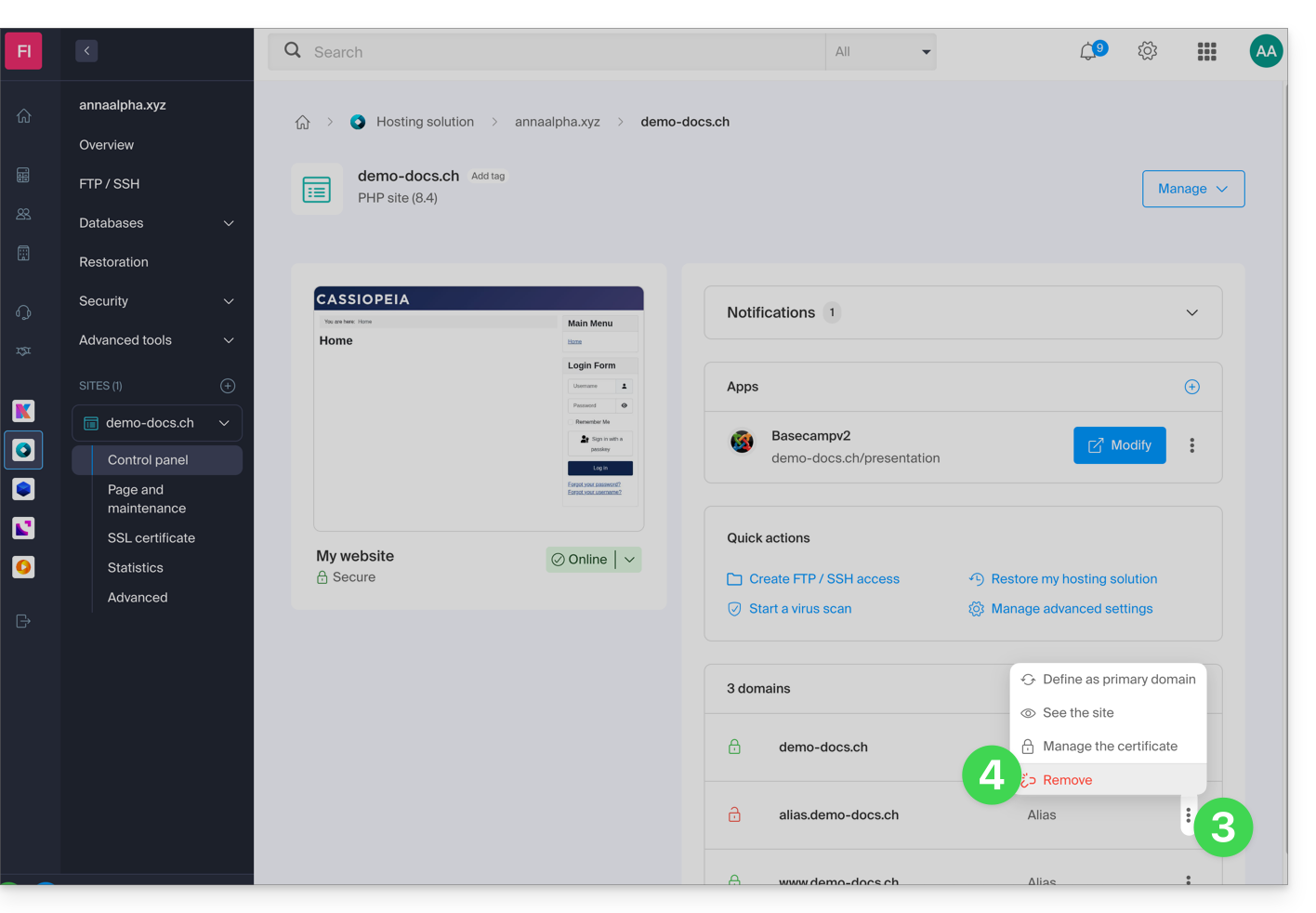
- Click on the action menu ⋮ to the right of the domain to be removed.
- Choose Unlink:
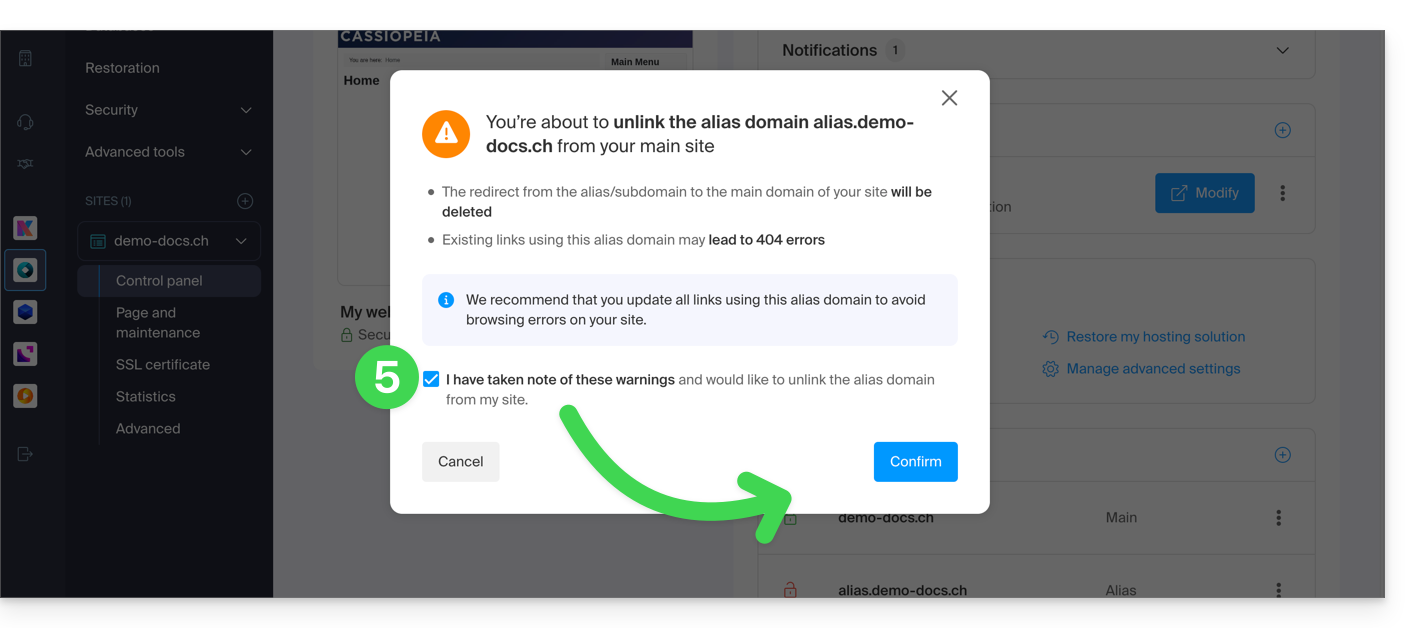
- Confirm the alias removal:
Link to this FAQ: https://faq.infomaniak.com/1997
Has this FAQ been helpful?
This guide explains how to unlink a synonym domain from an Infomaniak domain name.
Remove the synonym domain
To remove the synonym domain from the dashboard of the main domain:
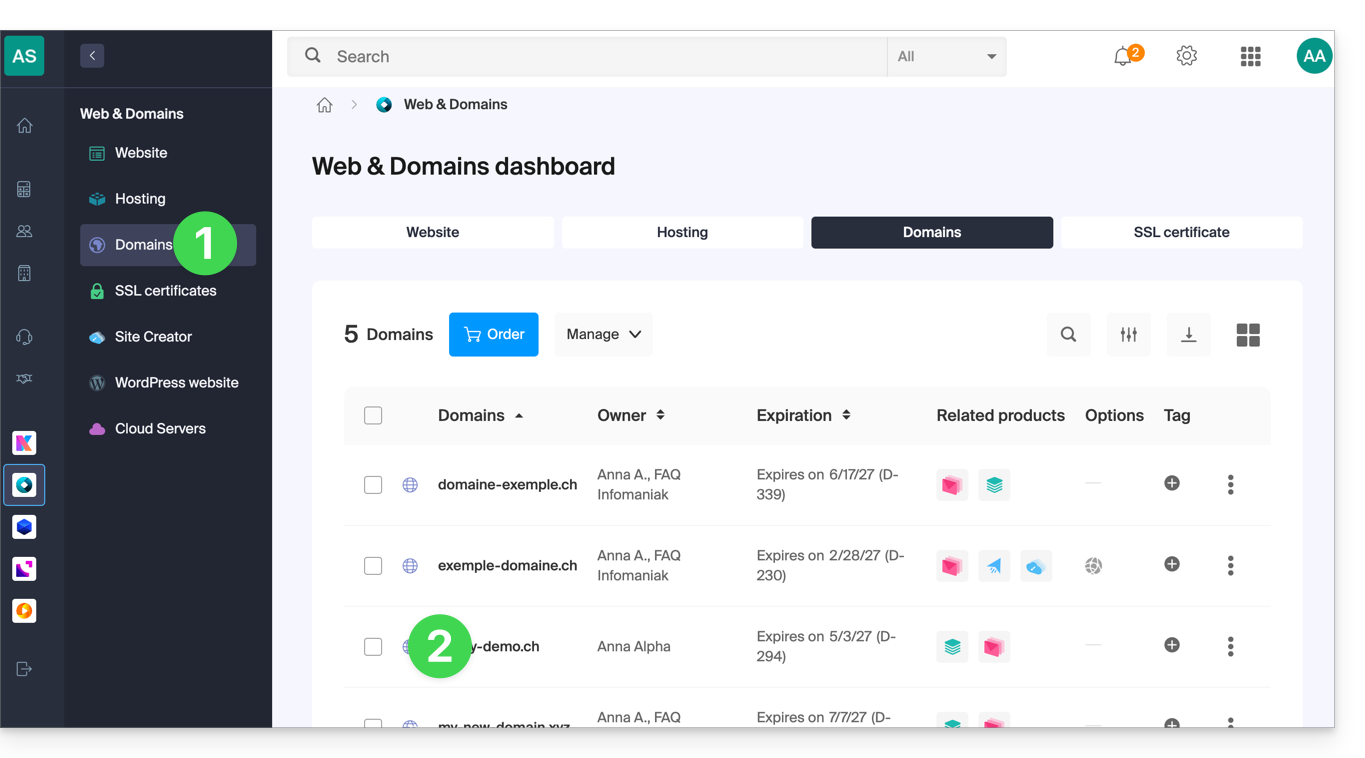
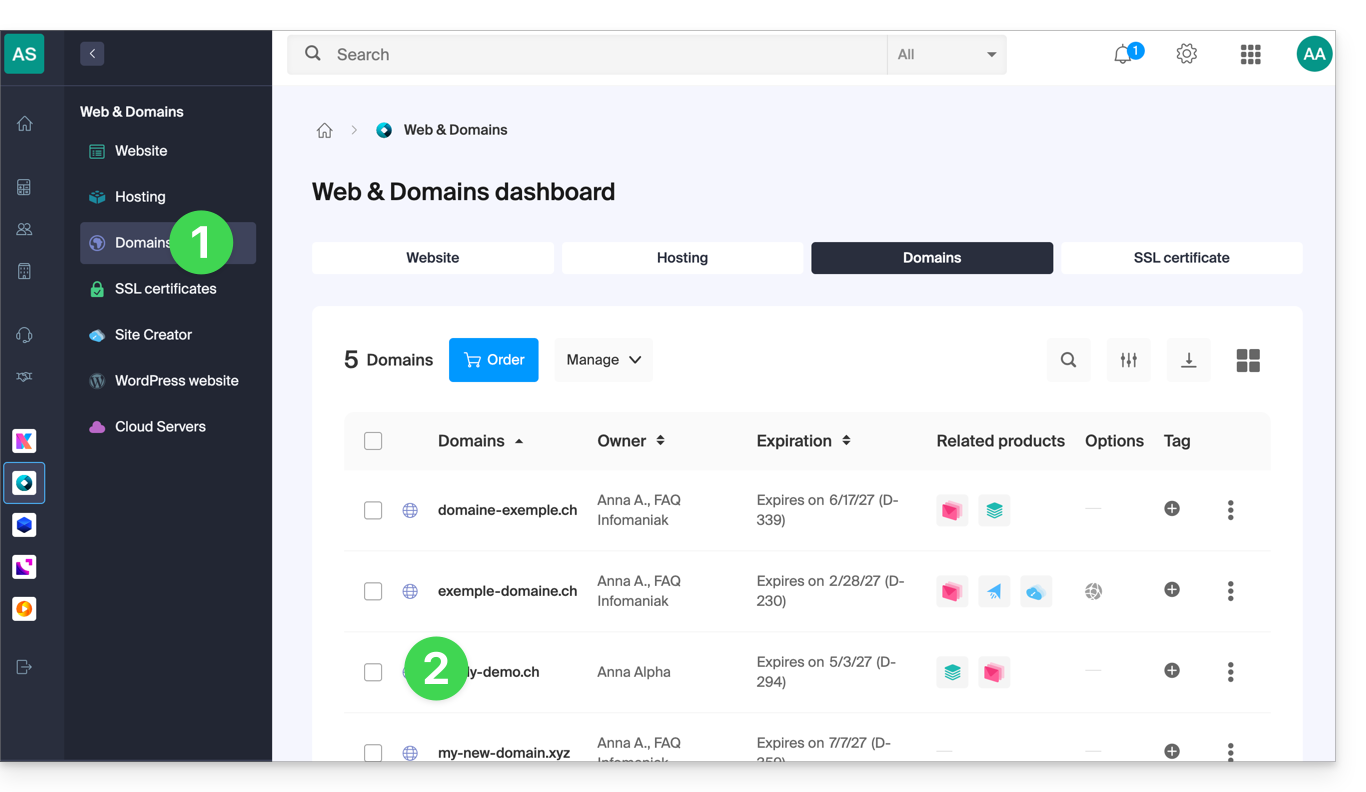
- Click here to access the management of your main domain on the Infomaniak Manager (need help?).
- Click directly on the name assigned to the domain in question:
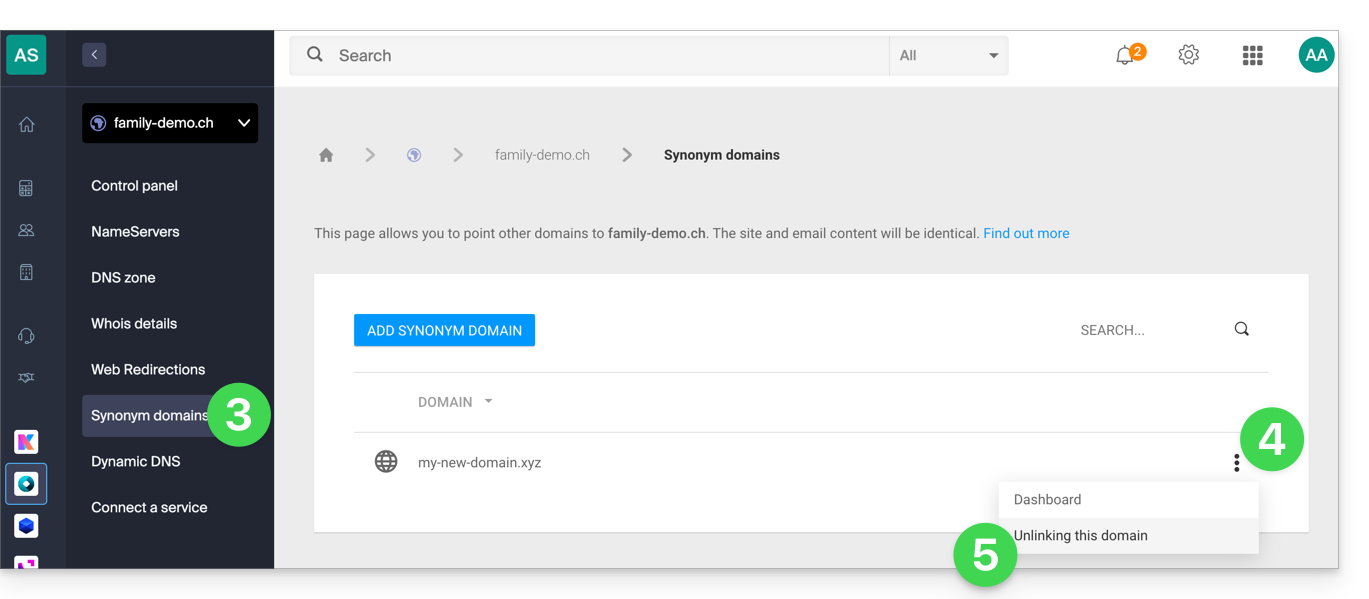
- Click on Synonym Domains in the left-hand menu.
- Click on the action menu ⋮ to the right of the synonym domain in the table that appears.
- Click on Unlink this domain:
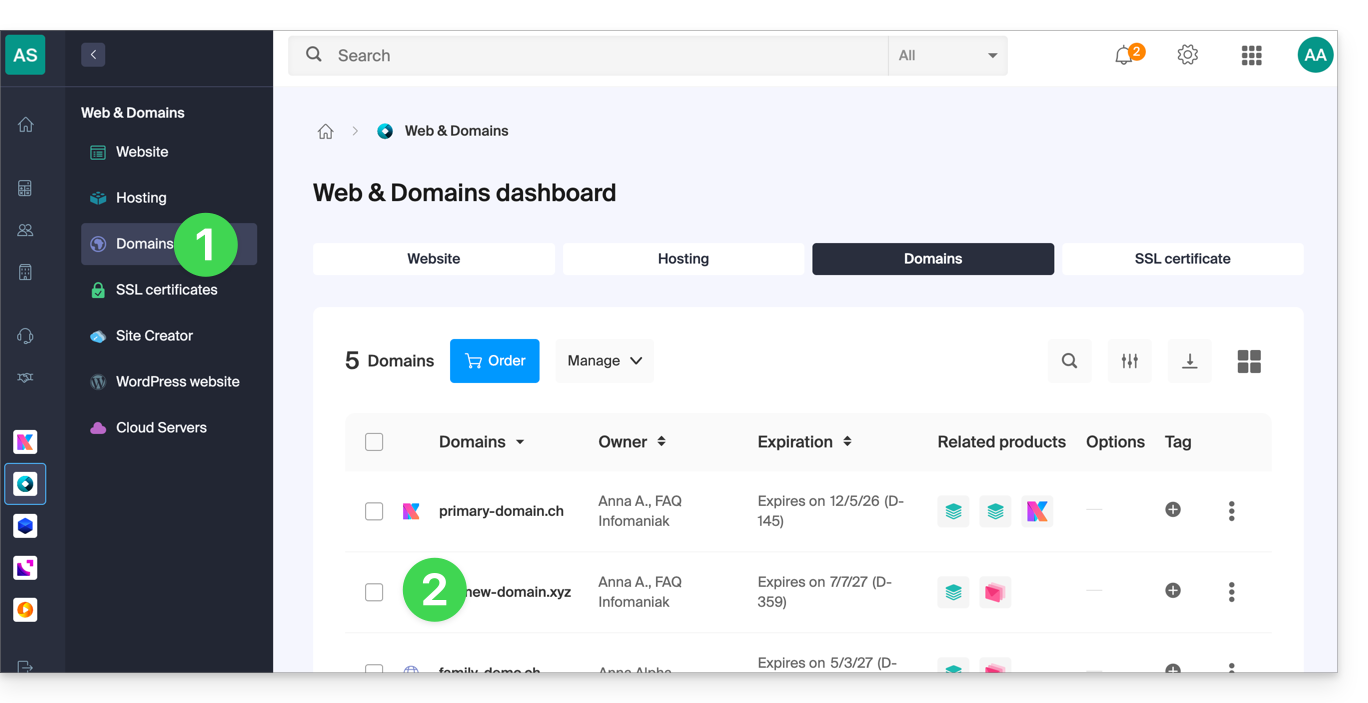
You can also proceed in the other direction, by going to the dashboard of the synonym domain:
- Click here to access the management of your synonym domain on the Infomaniak Manager (need help?).
- Click directly on the name assigned to the domain in question:
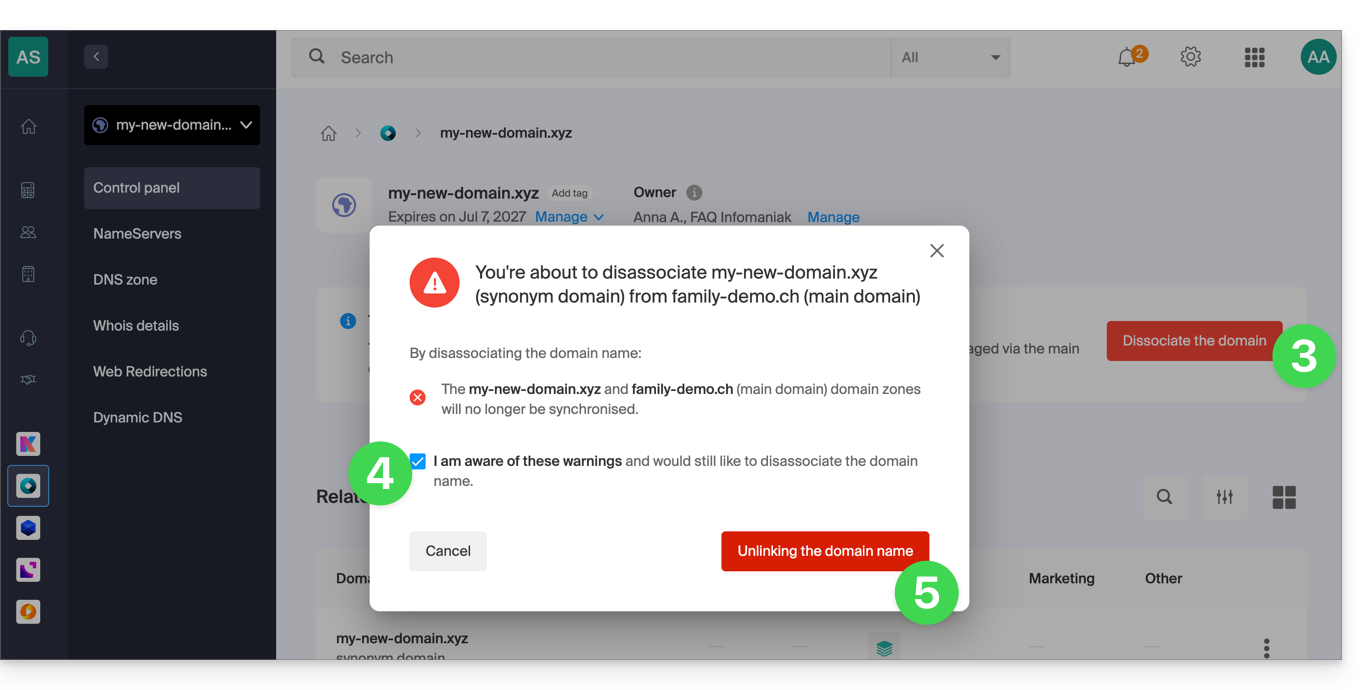
- Click on Unlink in the top banner.
- Check the box to confirm the voluntary unlinking of these 2 domains.
- Click the red button to Unlink the domain name:
At this stage, you will still need to unlink the alias domain from your Web Hosting and/or Mail service if necessary:
- Refer to this other guide to unlink an alias domain from a Mail service.
- Refer to this other guide to unlink an alias domain from a Web hosting service.
Link to this FAQ: https://faq.infomaniak.com/1998
Has this FAQ been helpful?
This guide explains how to add a synonym domain to a domain name.
Introduction
- A synonym domain is a domain name that can serve as a secondary name for another domain.
- When a synonym domain is added, it automatically inherits the content of the DNS zone of the main domain (including
MX,A, etc. records), as well as its Web and Mail hosting. - Alternatively, you can also add an alias to a website or add an alias to a Mail service.
Add a synonym domain to a domain
Prerequisites
- The domain name of the future synonym or the management of its DNS zone…
- … must be registered with Infomaniak,
- … must be configured with Infomaniak DNS,
- … must not yet be linked to any product.
- The domain name to which the synonym will be added…
- … must not be associated with the Infomaniak Newsletter product.
To access your domain names:
- Click here to access the management of your domain in the Infomaniak Manager (need help?).
- Click directly on the name assigned to the main domain in question:
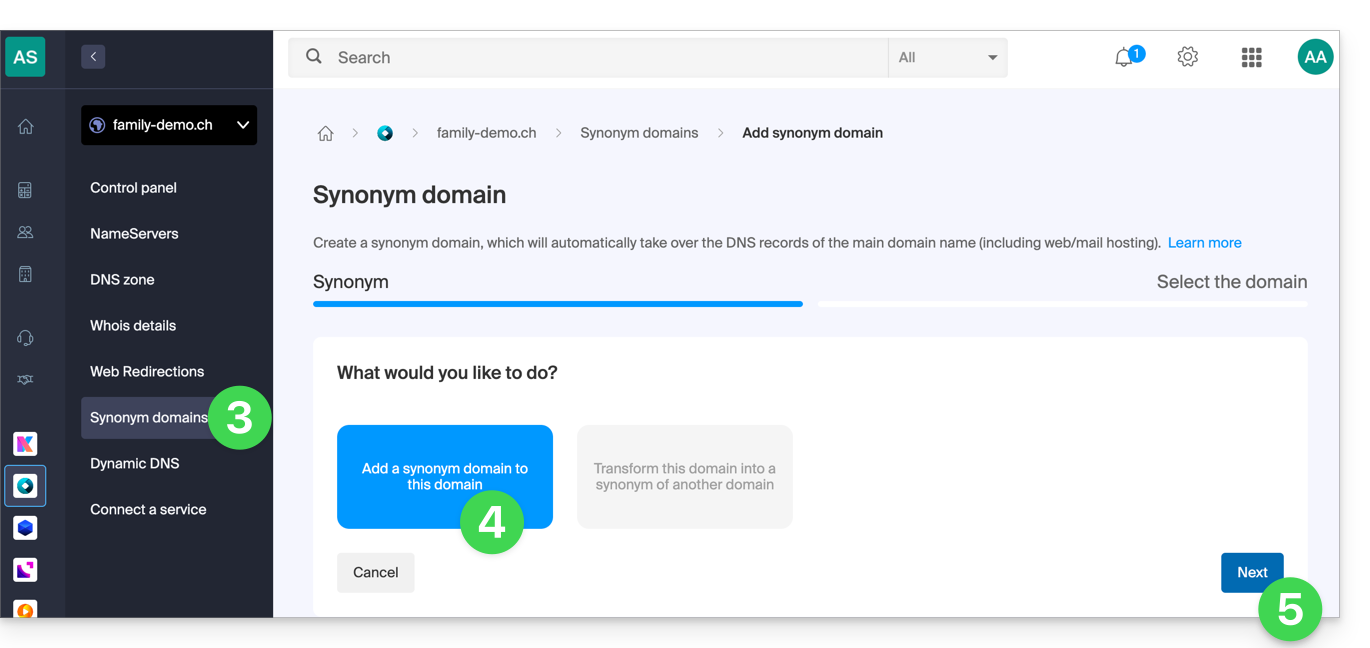
- Click on Synonymous Domains in the left-hand menu.
- Choose to add a synonym.
- Click on Next:
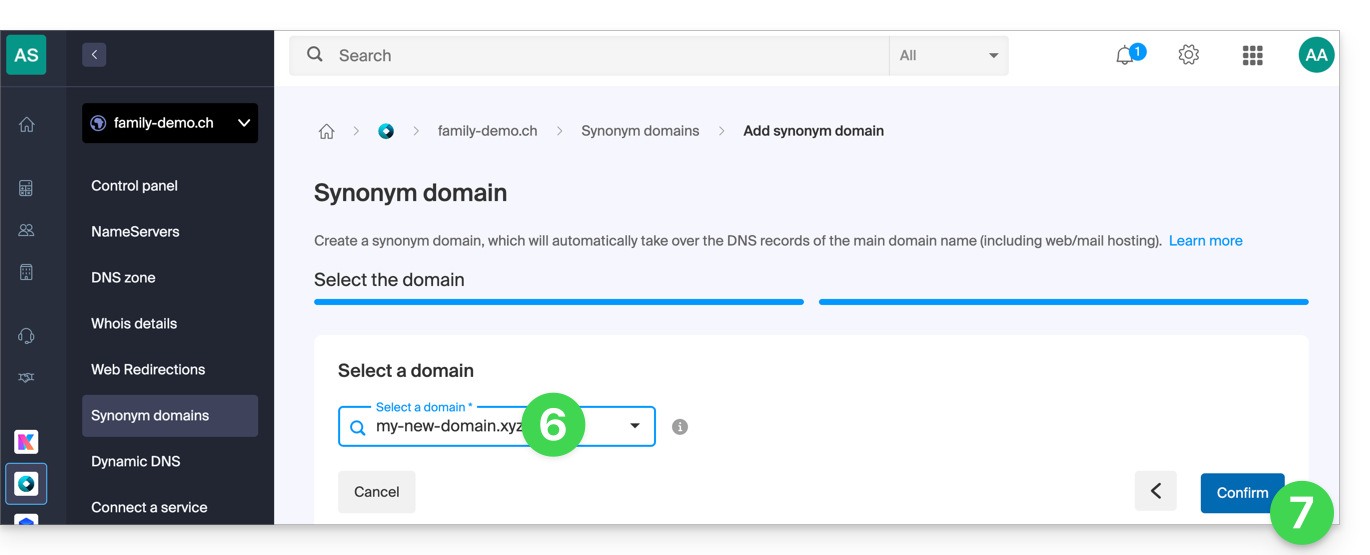
- Choose an existing domain for this Organization, or order a new domain in advance.
- Click the button to Confirm:
- That's it:
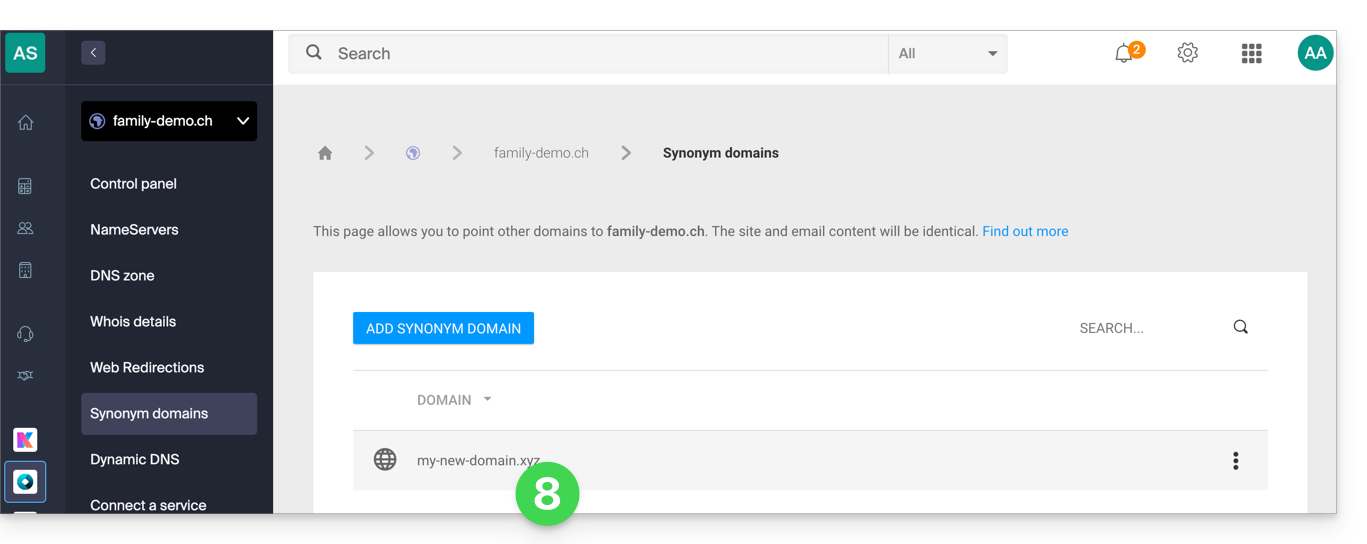
Refer to this other guide if you are looking for information on disassociating a synonymous domain name.
Link to this FAQ: https://faq.infomaniak.com/1999
Has this FAQ been helpful?
This guide explains how to add, modify, or delete specific entries (records of type A & AAAA, MX, TXT, etc.) within the DNS zone of a domain registered with Infomaniak.
Prerequisites
- Own a domain name with Infomaniak or at least have a DNS zone.
- Understand:
- how a domain and a DNS zone work before modifying the latter.
- that the DNS zone presented here is valid and used only if the name servers are those of Infomaniak.
- that any DNS addition/modification may take up to 48 hours to propagate.
Add a record (simple mode)
To configure the services associated with the domain and enable the correct resolution of domain names to the corresponding resources (such as external websites, third-party mail servers, etc.):
- Click here to access your domain management in the Infomaniak Manager (need help?).
- Click directly on the name assigned to the domain in question.
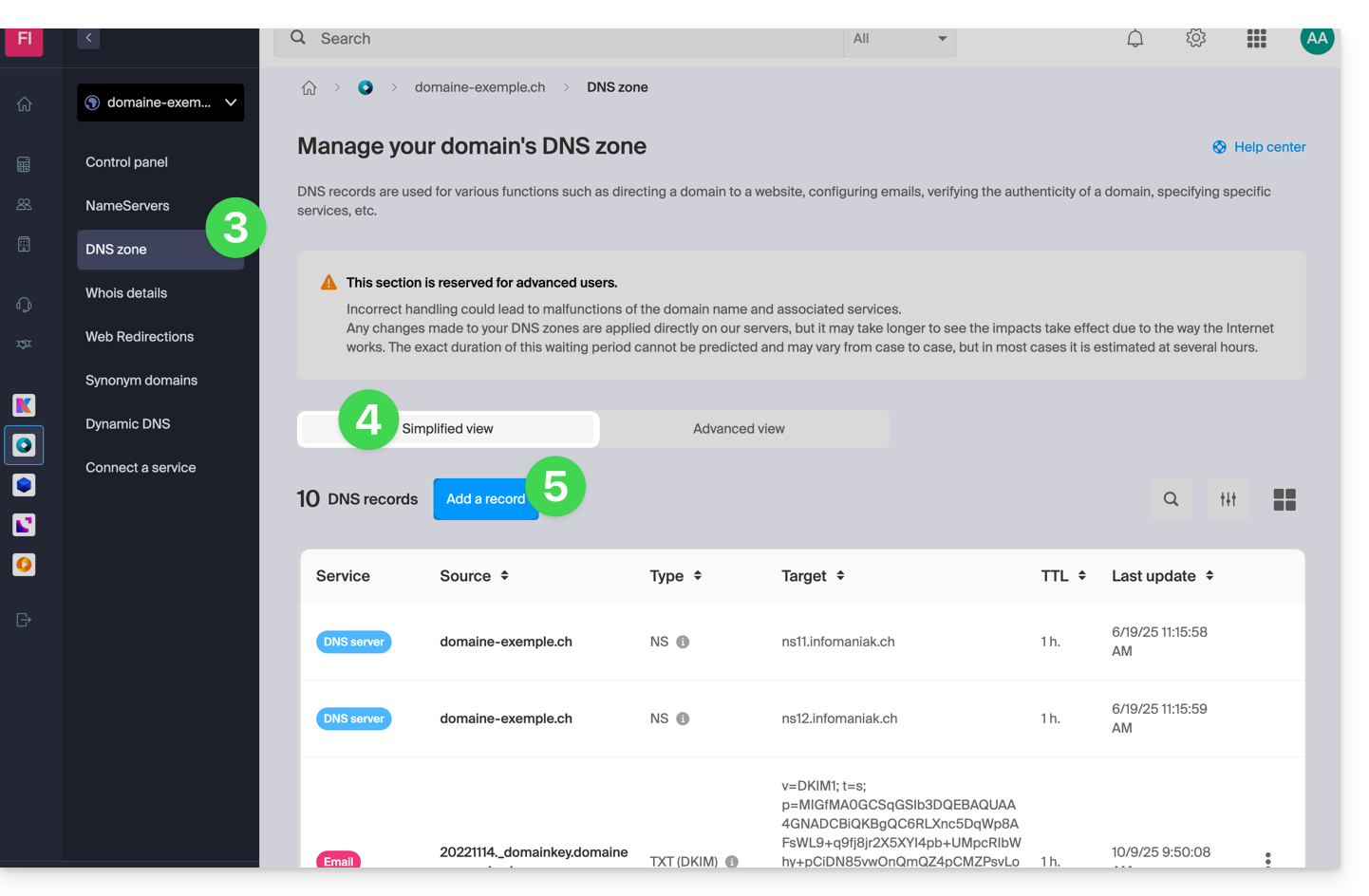
- Click on DNS Zone in the left-hand menu.
- The currently configured entries are listed in the Simple Mode table.
- Click on the blue Add entry button:
- Choose the desired record type (records of type A & AAAA, MX, TXT, etc.)
- Click on Next:
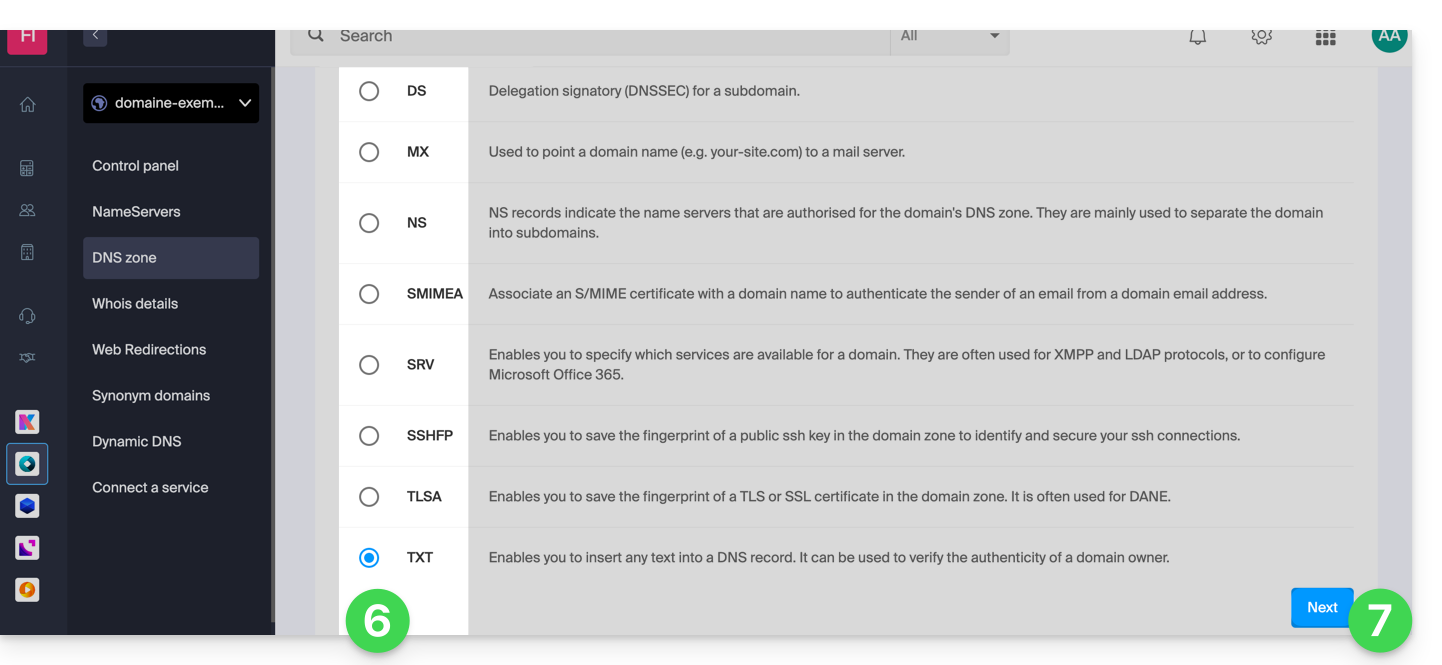
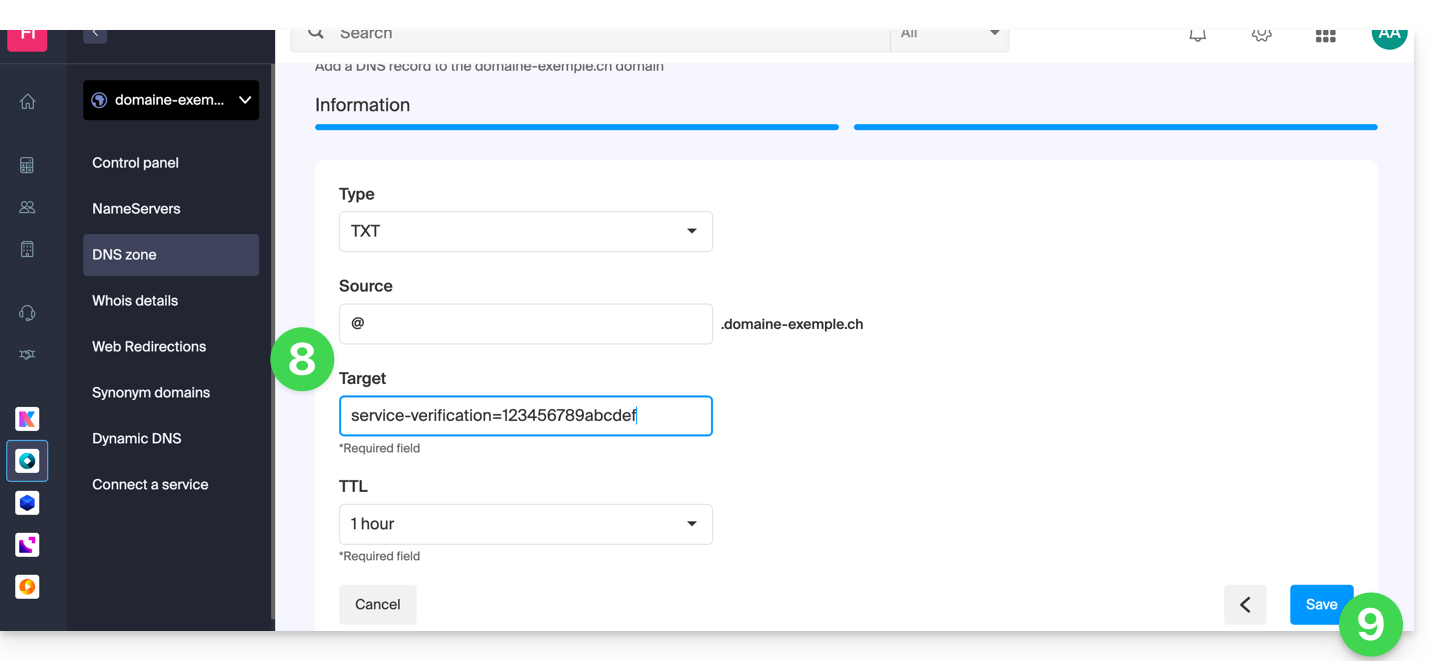
- Fill in the various fields according to your information:
- Under Source, leave the field blank or enter the relevant subdomain, if applicable.
- Under Target, enter the information obtained from your external provider or any other useful information.
- Leave the TTL as indicated.
- Save the changes you made:
Edit an existing record
To modify an existing DNS record:
- Follow steps 1 to 4 above.
- Click on the action menu ⋮ to the right of the entry you want to modify.
- Click on Edit to access the editing page:
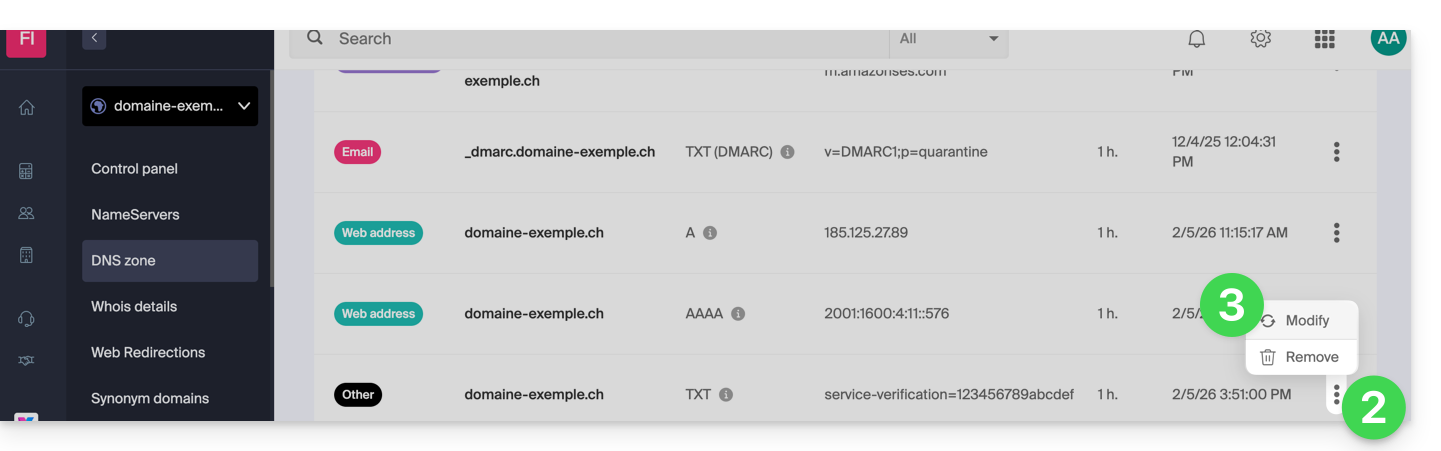
- Edit the desired information and then save your changes.
Delete an existing record
To delete an existing DNS record:
- Follow steps 1 to 4 above.
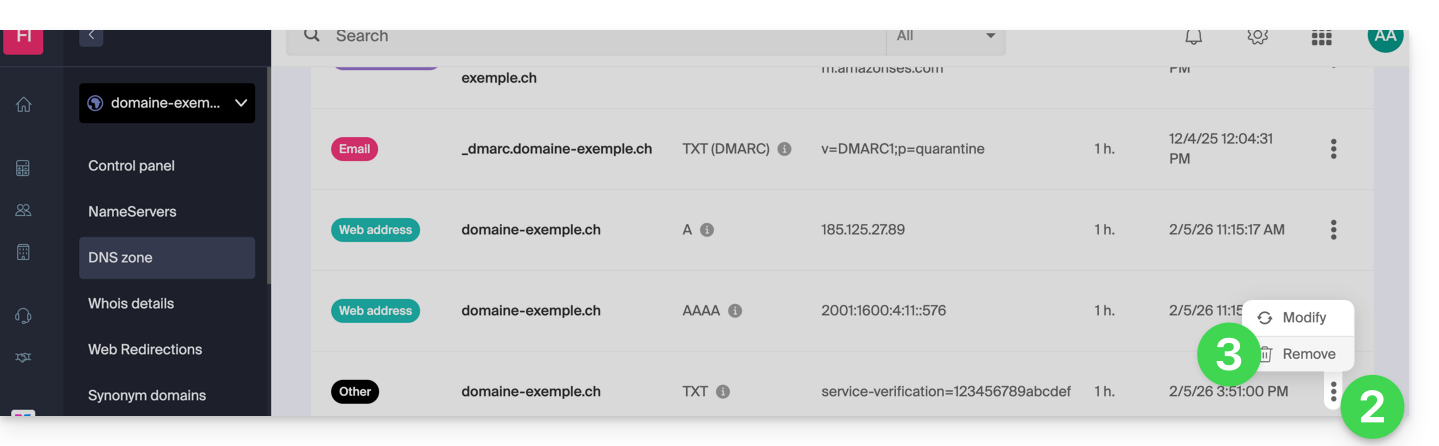
- Click on the action menu ⋮ to the right of the entry you want to modify.
- Click on Delete and confirm the deletion:
DNS Diagnostics
A tool available in your Manager allows you to easily correct certain problematic records. You can also use an external, free service like the one mentioned at the bottom of this other guide.
Expert mode
To edit the DNS zone in advanced (expert) mode, which allows you to restore a previous version of the various records, please refer to this other guide.
Link to this FAQ: https://faq.infomaniak.com/2000
Has this FAQ been helpful?
This guide explains how to obtain a Mail service + web hosting free of charge after purchasing a domain name from Infomaniak.
Introduction
- For each domain name registered or transferred to Infomaniak, you can benefit from the following free services:
- a mail address that gives you access to the Mail Infomaniak app
- and 10 MB of web space for a basic page.
- It is also possible to have a free Mail service while having a paid Web offer, or vice versa.
- Instead of a Starter Mail service, there is also kSuite.
Activate the Starter Mail + Web offer
Prerequisites
- You must own a domain name with Infomaniak (a DNS zone is not sufficient).
- Depending on the desired type (Mail or Web), ensure that no corresponding product is already associated with the domain nameand this within any existing Infomaniak organization.
To order a Mail Starter service and a Web Hosting Starter included with each domain:
- Click here to access your product management interface in the Infomaniak Manager (need help?).
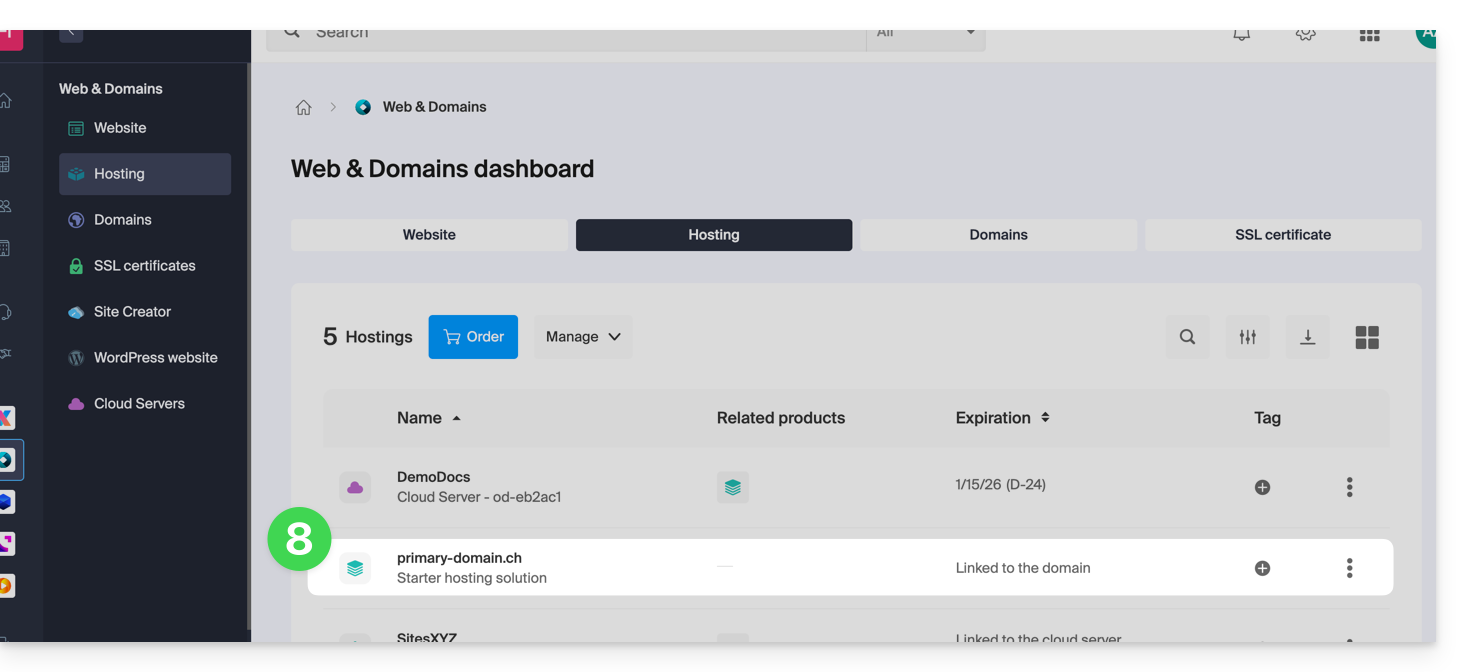
- Click directly on the name assigned to the product in question:
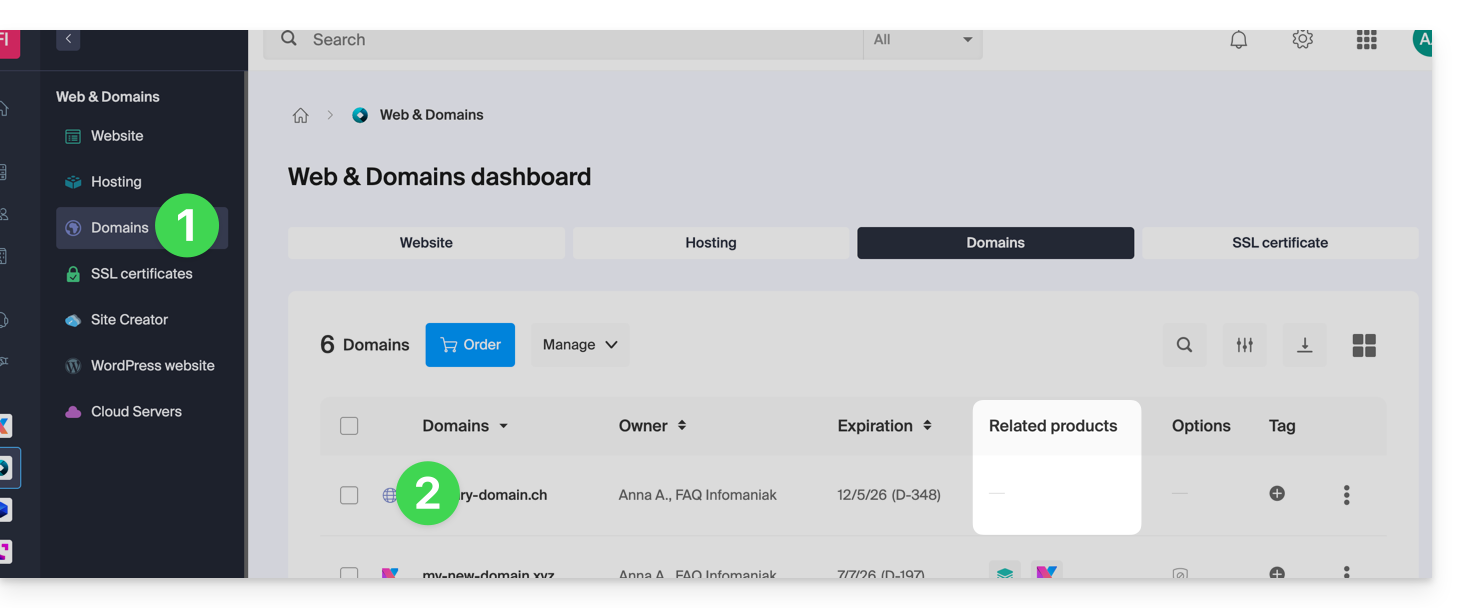
- No product should be linked to the domain at this time (as shown in the linked products column).
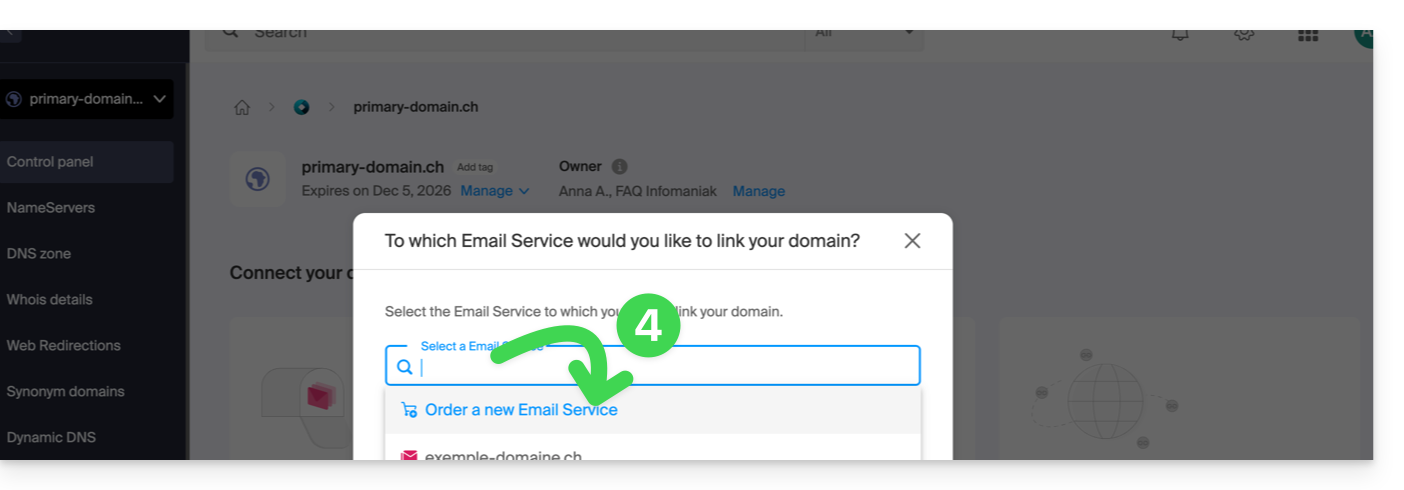
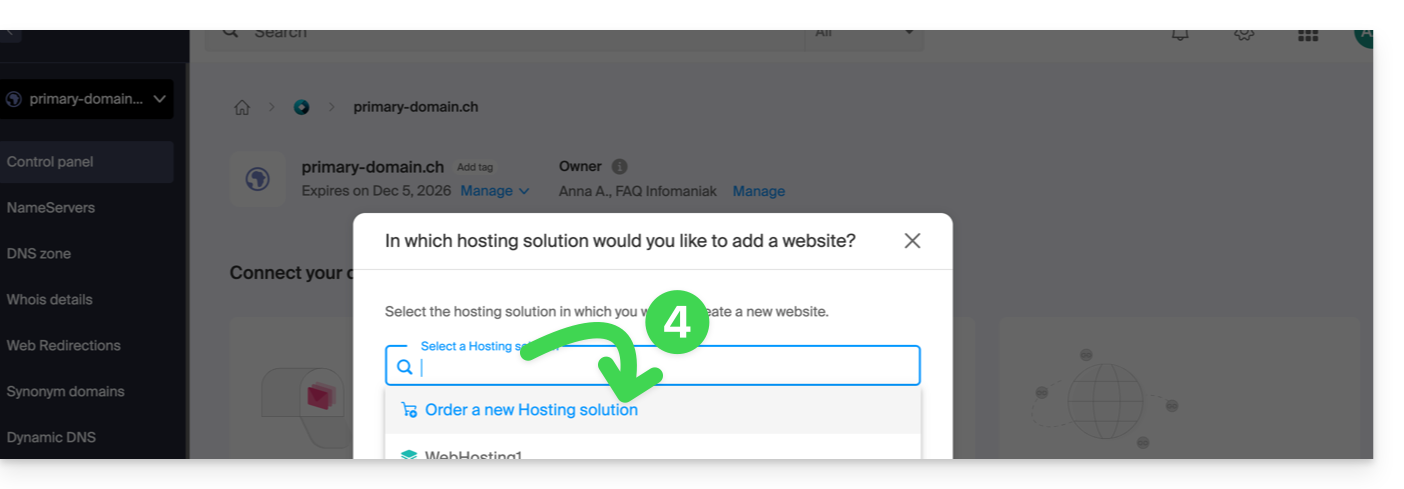
- Click on one of the shortcuts to Connect a service (mail or web):
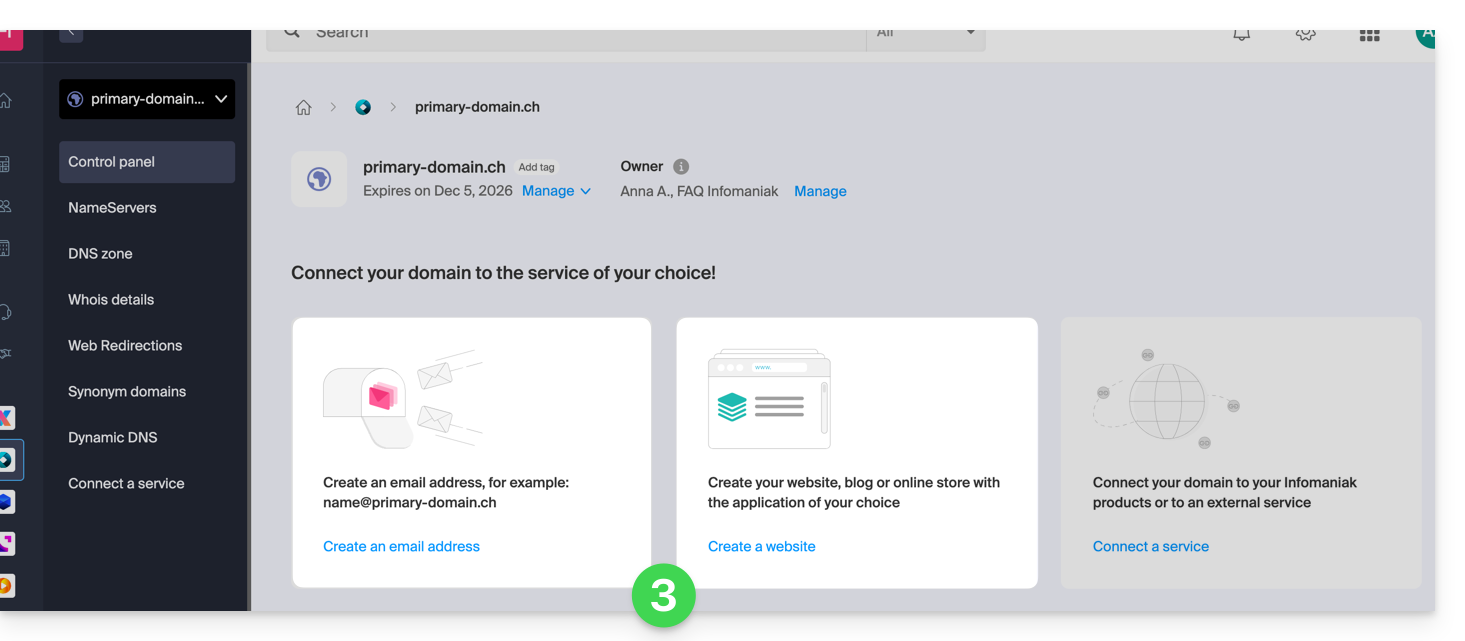
- In both cases, click on Order…:
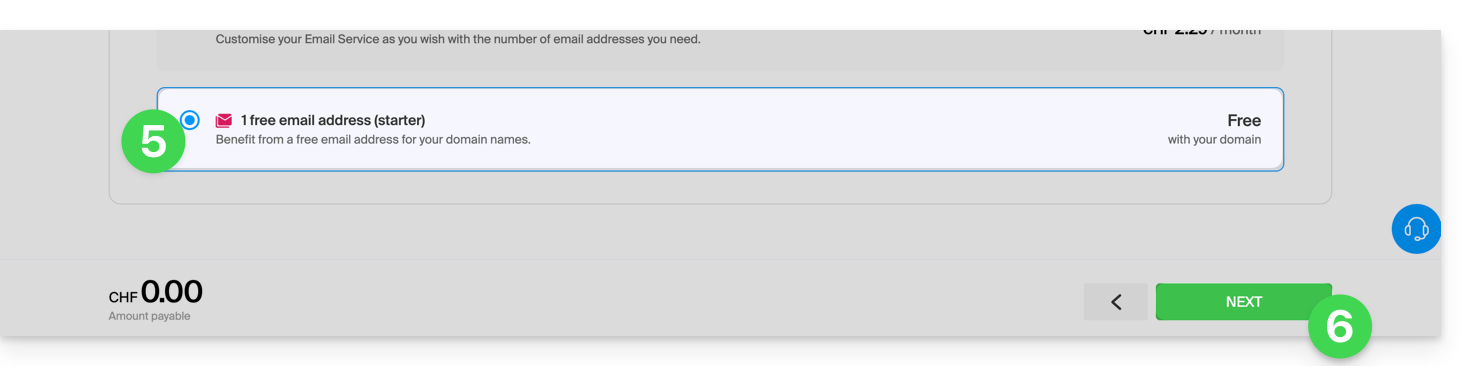
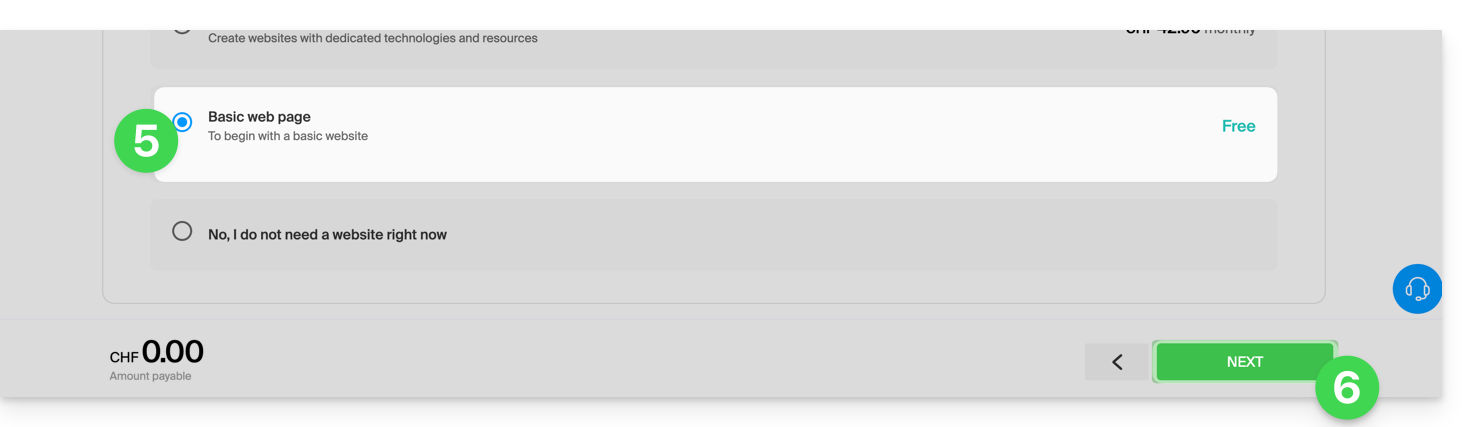
- You can choose the corresponding free service (mail or web), and the next step will allow you to choose the other one (mail or web) if desired.
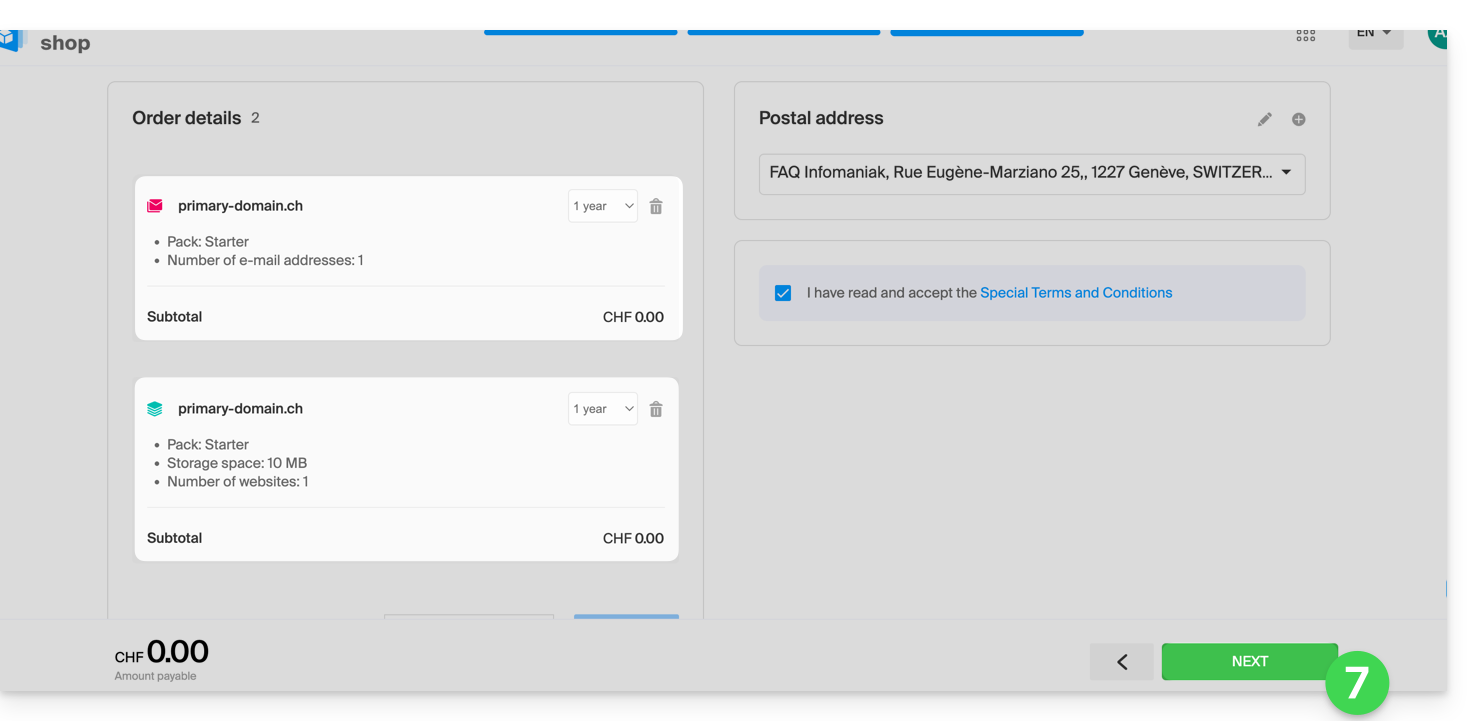
- Click at the bottom of the page to continue:
- Complete the order:
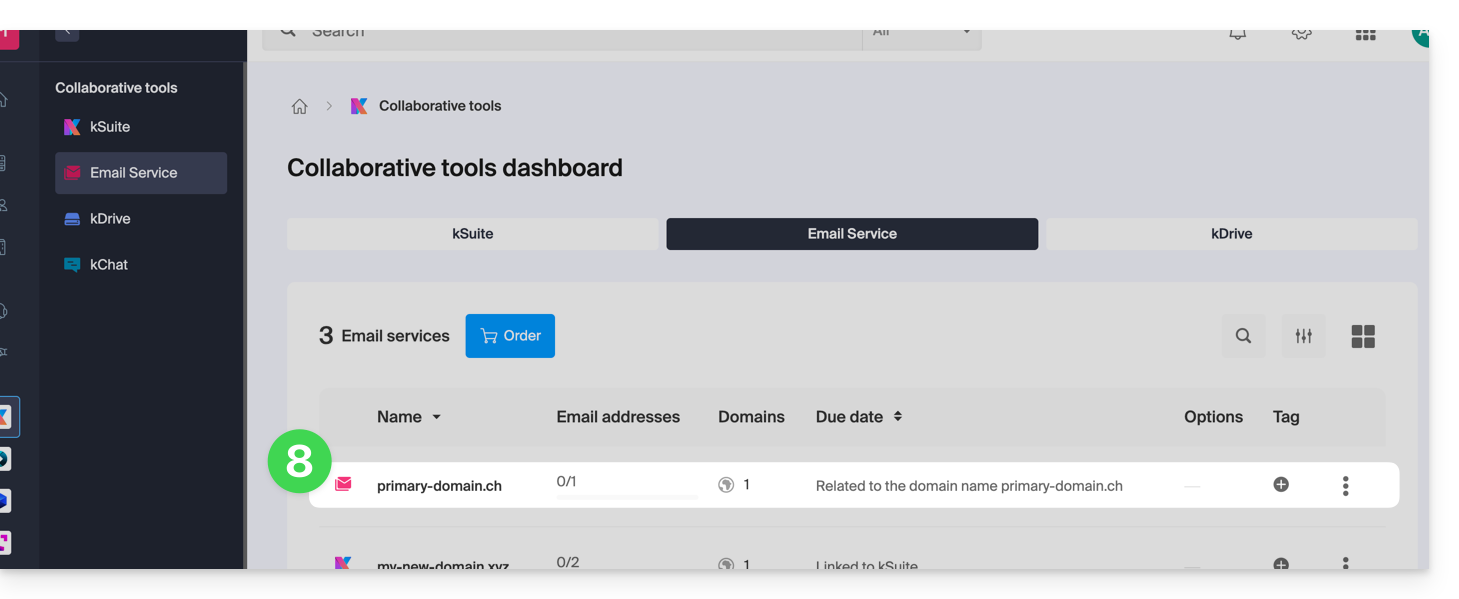
- Go back to your Infomaniak Manager to discover and use your new products:
Using your Starter products
- Create the email address you want on your Mail Starter service.
- To use the 10 MB of web space and create a basic web page on your Web Hosting Starter, use:
- the page editor
- or the Web FTP in the Manager to manage your HTML pages
- or any software/FTP client with the classic FTP protocol
Upgrading a Starter plan
- Modify a Mail plan (click here).
- Modify a Web plan (click here).
In case of a problem with a Starter hosting plan
A Starter web hosting plan does not offer IPv6. Therefore, be careful with AAAA records in the DNS zone of the domain in question, as they may prevent you from activating SSL; also, please refer to this other guide.
Link to this FAQ: https://faq.infomaniak.com/2002
Has this FAQ been helpful?
Thank you for entrusting Infomaniak with the management of your domain names.
This guide will help you quickly use the essential features of your new product.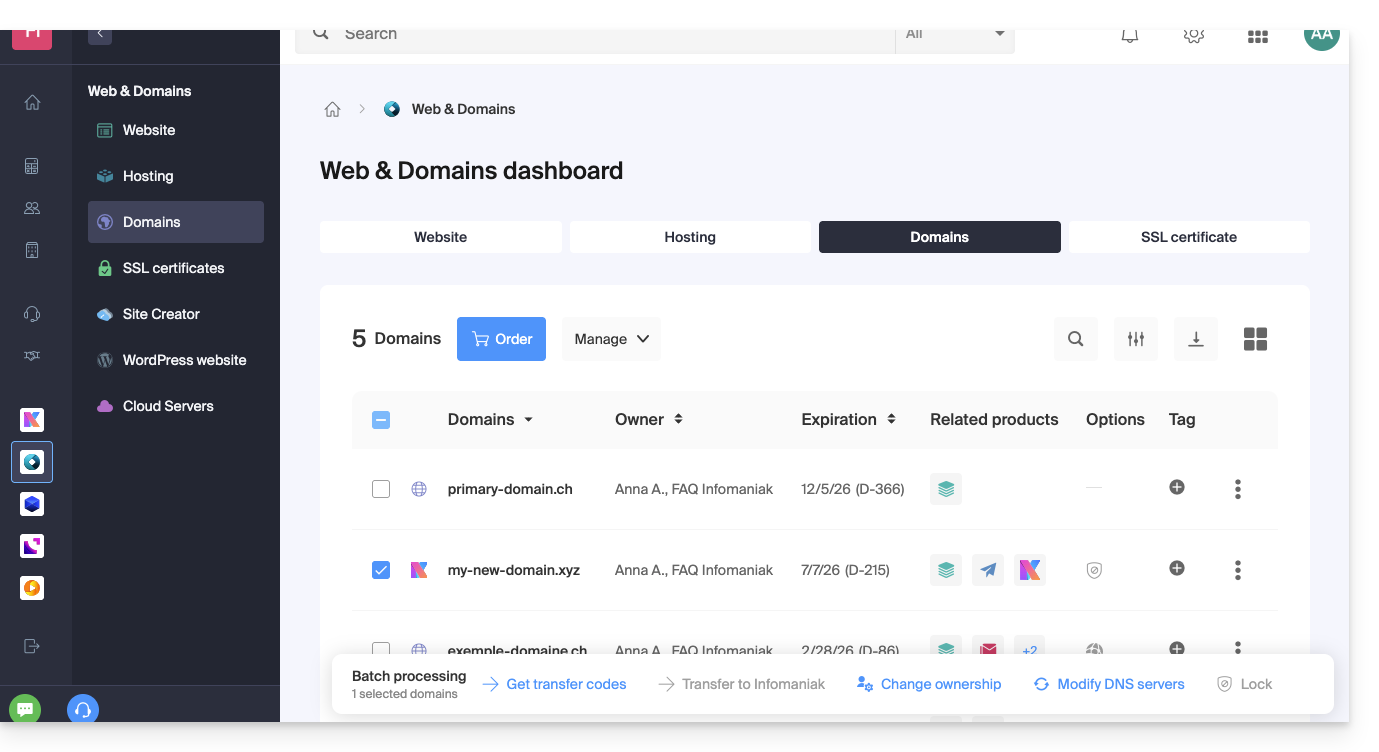
Some important guides
Administrative
- Protect your personal information in WHOIS
- Protect your domain against theft and loss
- Modify the domain name contact information
- Who owns a domain name?
- Using the free services (mail and Web 10 MB) associated with a domain managed by Infomaniak
- Transfer another domain name to Infomaniak
Techniques
- Edit the records (A, MX, Web, Mail, etc.) of a domain registered with Infomaniakfor example, to connect to a hosting service not managed by Infomaniak
- Modify DNS servers
- Redirect traffic
- Configure DynDNS
- Link a domain name to the Mail Service
- Link an additional domain name to the Mail Service
- Unlink a domain linked to the Mail Service
- Link a domain name to an Infomaniak Web Hosting
- Link an additional domain name to a website
- Unlink a domain linked to the website
- Link a domain name to your Infomaniak Synology NAS
- Link a domain name to Wix
- Link a domain name to Site Creator
- Link a domain name to the Newsletter
- Link an Infomaniak domain name to an external service
Otherwise, find the topic you are looking for among the other FAQs.
Click here to share feedback or a suggestion about an Infomaniak product.
Link to this FAQ: https://faq.infomaniak.com/2003
Has this FAQ been helpful?
This guide explains how to obtain the EPP code for your domain name at Swizzonic (formerly Switchplus) so that you can transfer it to Infomaniak.
Introduction
- The terms "
EPP", "AuthCode", "AuthInfo", "transfer code", and "authorization code" all refer to alphanumeric sequences specific to the domain, the main purpose of which is to verify the owner's authorization before a transfer between Registrars. - Refer to the main guide for the rest of the transfer procedure.
- ⚠️ This involves transferring a domain name that you own from a different provider than Infomaniak, so that the future management of this domain is handled by Infomaniak; therefore, this is not an internal transfer from one owner to another, and the code you need to obtain is not a code for an internal transfer to your current provider.
Transfer the domain name to Infomaniak
To obtain the authorization code from your current provider:
- Refer to the complete procedure provided by Swizzonic to obtain the code and keep it in a safe place.
- Once you have obtained the authorization code, please refer to the main Infomaniak guide for information on the rest of the domain name transfer procedure.
Link to this FAQ: https://faq.infomaniak.com/2011
Has this FAQ been helpful?
This guide explains the difference between the terms synonym and alias in the context of the Domain Name service offered by Infomaniak.
Introduction
- Refer to this other guide to add a domain as a synonym (or to disassociate it).
- Understand the difference between domains and DNS zones
Synonym domain / Alias domain
Synonym domains (domains that are entirely dependent on the main domain, without their own DNS configuration) and alias domains (independent domains, with their own DNS configuration) can both be used as secondary domains associated with a main domain.
For example, the domains pomme.xyz (alias) and banane.xyz (synonym) can redirect to a common main domain such as fruits.xyz.
Here is the technical distinction to remember:
- The synonym (also called a “linked domain” or “DNS mirror”) directly uses the DNS servers of the main domain. It does not have its own DNS zone.
- The alias (also called an “autonomous redirected domain” or “DNS alias”) has its own DNS records (independent DNS zone), although it points to the same hosting or the same services.
| pomme.xyz (alias domain – with custom DNS) ns1.personnalisable.ch ns2.personnalisable.ch | ⇢ | Dedicated DNS zone A, MX, etc. records | Web Hosting Mail Service |
| fruits.xyz (primary domain) ns1.infomaniak.ch ns2.infomaniak.ch | } | Dedicated DNS zone A, MX, etc. records | |
| banane.xyz (alias domain – without dedicated DNS) Automatically retrieves the DNS records from the main domain (fruits.xyz) |
Link to this FAQ: https://faq.infomaniak.com/2020
Has this FAQ been helpful?
This guide explains how to link a domain name to an Infomaniak Web Hosting.
Where is your domain name located?…
… With Infomaniak, even for Organizations
If your domain name is registered with Infomaniak and is in the same user account or organization as your email, then there is nothing to do.
- Consult this other guide to check and correct any potential configuration errors.
… At Infomaniak, Different Organization
If your domain name is registered with Infomaniak but in a different user account or Organization, then:
- Edit its DNS zone by specifying the website's IP address as an A record.
- Any DNS addition/modification may take up to 48 hours to propagate.
OU
- Move it within the same Organization.
… With Infomaniak and external DNS
If your domain name uses DNS servers that are not Infomaniak's, then:
- Edit the current DNS zone where it is hosted (if necessary, consult the help documentation of the provider in question) and specify the site's IP address as an A record.
- Any DNS addition or modification may take up to 48 hours to propagate.
OU
- Change your current DNS settings and select the option to use Infomaniak's DNS servers.
- Any DNS addition or modification may take up to 48 hours to propagate.
- Refer to this other guide to check for and correct any potential configuration errors.
… Elsewhere with external DNS
If your domain name uses DNS servers that are not Infomaniak's, then:
- Edit the current DNS zone where it is located (if necessary, consult the documentation provided by your provider) and specify the website's IP address in the form of an A record.
- Any DNS addition or modification may take up to 48 hours to propagate.
OU
- Change the current DNS servers (if necessary, consult the documentation provided by your provider) and specify Infomaniak's DNS servers (this implies that you have a DNS zone with Infomaniak).
- Any DNS addition or modification may take up to 48 hours to propagate.
- This DNS zone with Infomaniak will be configured correctly, but please refer to this other guide to check for and correct any potential configuration errors.
… Elsewhere, but you are moving it here
If your domain name is registered with another registrar and you want to transfer it to the same location as your Infomaniak website, then:
- Transfer the domain name to Infomaniak (it will be configured correctly, but please refer to this other guide to check and correct any potential configuration errors).
- If the domain name is intended to be an alias for your main website, you need to add the alias to your website.
Link to this FAQ: https://faq.infomaniak.com/2025
Has this FAQ been helpful?
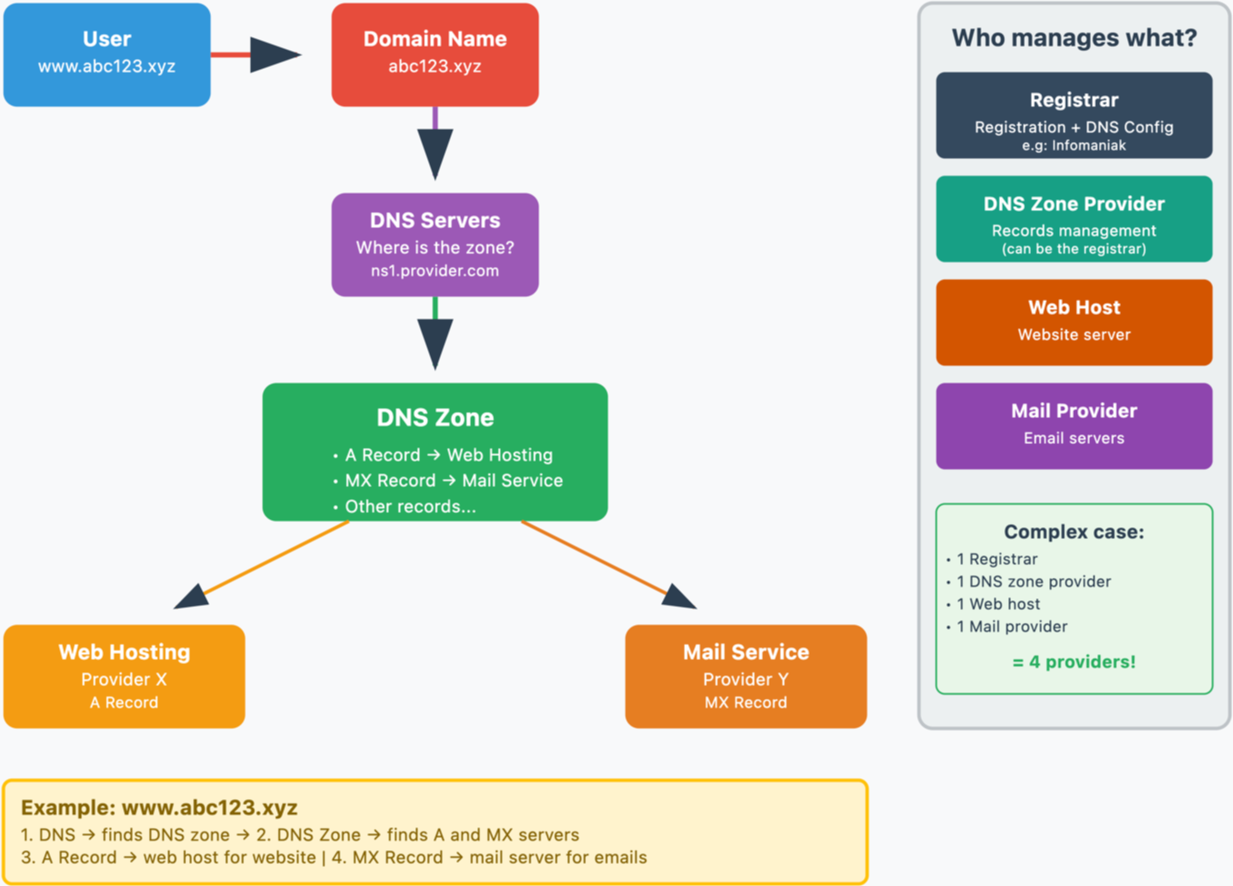
This guide explains how a domain name and a DNS zone work.
Introduction
- When you browse a website such as
https://www.abc123.xyz,abc123.xyzis the domain name. - Each domain name has DNS (Domain Name System), which indicates where the DNS zone is located (e.g., with which provider).
- The DNS zone then allows you to delegate the management of various services related to the domain name to different providers.
- For a single domain name, it is possible to delegate:
- web hosting to provider X (via an "
A" record) - and email service to provider Y (via an "
MX" record)
- web hosting to provider X (via an "
- For a single domain name, it is possible to delegate:
Domain name, DNS and DNS zone, then services
Who manages what?
- Each domain name is registered and managed by a registrar. For example, Infomaniak is a registrar, one of the cheapest in Switzerland.
- The DNS of a domain name is configured with the registrar that manages the domain name.
- The DNS zone can be managed by the registrar or another provider.
- Web hosting and email service can be managed by any hosting provider.
In the most complex case, it is therefore possible to have 1 different provider for the following services: domain name registration and DNS management, DNS zone management, web hosting, email service.
The following diagram summarizes these different possibilities with the involvement of different providers:
Infomaniak
As a registrar and hosting provider, Infomaniak can manage all of these services. This is the simplest solution.
- In the case of Infomaniak, the DNS servers are generally in the form nsXX.infomaniak.com and nsXX.infomaniak.com (XX being 11 or 12, for example).
- You can modify the DNS servers for your domain name, as well as modify the "internal" settings of these DNS servers, i.e., modify the DNS zone of a domain name.
And within these DNS zones, to redirect traffic to services, we distinguish:
- an MX record which allows a domain name (
domain.xyzfor example) to point to a mail server. - an A record which allows a domain name (
domain.xyzfor example) or a subdomain (example.domain.xyzfor example) to point to a web server that has a static IP address (otherwise, you would have to constantly edit the A record to enter the new IP address - see this other guide on this subject).
Possible scenarios
Examples and fictitious names
| All services are with Infomaniak | |||
|---|---|---|---|
| domain name | domain.xyz | registered with -> | Infomaniak |
| DNS of the domain name | ns1.infomaniak.com… | therefore, the DNS zone must exist with -> | Infomaniak |
| site hosted by -> | Infomaniak | therefore, the DNS zone must contain an A record | 123.45.67.8 for example |
| email hosted by -> | Infomaniak | therefore, the DNS zone must contain MX records | mx-mail.maniak for example |
| All services are with Infomaniak except email | |||
|---|---|---|---|
| domain name | domain.xyz | registered with -> | Infomaniak |
| DNS of the domain name | ns1.infomaniak.com… | therefore, the DNS zone must exist with -> | Infomaniak |
| website hosted by -> | Infomaniak | therefore, the DNS zone must contain A records | 123.45.67.8 for example |
| email hosted by -> | Medical Service | therefore, the DNS zone must contain MX records | med-mx.net for example |
| All services are with Infomaniak except the website | |||
|---|---|---|---|
| domain name | domain.xyz | registered with -> | Infomaniak |
| DNS of the domain name | ns1.infomaniak.com… | therefore, the DNS zone must exist with -> | Infomaniak |
| website hosted by -> | Clinic | therefore, the DNS zone must contain A records | 9.87.65.4 for example |
| email hosted by -> | Infomaniak | therefore, the DNS zone must contain MX records | mx-mail.maniak for example |
| All services are with Infomaniak except for the domain name | |||
|---|---|---|---|
| domain name | domain.xyz | registered with -> | GoMamie |
| Domain name DNS | ns1.infomaniak.com… | therefore the DNS zone must exist with -> | Infomaniak |
| website hosted by -> | Infomaniak | therefore the DNS zone must contain an A record | 123.45.67.8 for example |
| email hosted by -> | Infomaniak | therefore the DNS zone must contain an MX record | mx-mail.maniak for example |
| All services are with Infomaniak except for the DNS zone | |||
|---|---|---|---|
| domain name | domain.xyz | registered with -> | Infomaniak |
| Domain name DNS | ns.privateDNS.org… | therefore the DNS zone must exist with -> | Private DNS |
| website hosted by -> | Infomaniak | therefore the DNS zone must contain an A record | 123.45.67.8 for example |
| email hosted by -> | Infomaniak | therefore the DNS zone must contain an MX record | mx-mail.maniak for example |
| No service exists with Infomaniak except for the domain name | |||
|---|---|---|---|
| domain name | domain.xyz | registered with -> | Infomaniak |
| DNS of the domain name | ns.privateDNS.org… | therefore, the DNS zone must exist at -> | Private DNS |
| website hosted by -> | Clinic | therefore, the DNS zone must contain an A record | 9.87.65.4 for example |
| email hosted by -> | Medical Service | therefore, the DNS zone must contain an MX record | med-mx.net for example |
| No service exists with Infomaniak except for the DNS zone | |||
|---|---|---|---|
| domain name | domain.xyz | registered with -> | GoMamie |
| DNS of the domain name | ns1.infomaniak.com… | therefore, the DNS zone must exist at -> | Infomaniak |
| website hosted by -> | Clinic | therefore, the DNS zone must contain an A record | 9.87.65.4 for example |
| email hosted by -> | Medical Service | therefore, the DNS zone must contain an MX record | med-mx.net for example |
| No service exists with Infomaniak except for the email | |||
|---|---|---|---|
| domain name | domain.xyz | registered with -> | GoMamie |
| DNS of the domain name | ns.privateDNS.org… | therefore, the DNS zone must exist at -> | Private DNS |
| website hosted by -> | Clinic | therefore, the DNS zone must contain an A record | 9.87.65.4 for example |
| email hosted by -> | Infomaniak | therefore, the DNS zone must contain MX records | e.g., mx-mail.maniak |
etc.
Link to this FAQ: https://faq.infomaniak.com/2026
Has this FAQ been helpful?
This guide explains how to add or modify one or more records of type CNAME and DNAME in the DNS zone (of a domain name) managed in the Infomaniak Manager.
Introduction
- The
CNAMErecord type allows you to point a subdomain to a website address.- This is the method generally used to make the
wwwsubdomain work with your site, or to redirect a subdomain to a folder on the web server where your website is hosted.
- This is the method generally used to make the
- The
DNAMErecord type, for "delegation name", is particularly useful when reorganizing domains or for smooth transitions of part of your infrastructure to another, while preserving the hierarchical structure of the subdomains.- A
DNAMEcreates an alias for an entire domain and all its subdomains.
- A
- Unlike a
CNAME, which only applies to a single, specific hostname, aDNAMEautomatically redirects all subdomains. For example:- A
DNAMEforabc.site1.compointing tosite2.comwill automatically linkxyz.abc.site1.comtoxyz.site2.com,new.login.abc.site1.comtonew.login.site2.com, and so on.
- A
- ⚠ A
DNAMErecord cannot be used at the root zone of a domain (likesite1.comdirectly). It is generally used on a subdomain. If you want to redirect the main domain itself, you will need to use other types of records, such as anA,AAAA, orCNAME(with some restrictions for the latter).
Modify the DNS zone
To manage this type of record in a DNS zone:
- Click here to access your domain management in the Infomaniak Manager (need help?).
- Click directly on the name assigned to the domain in question.
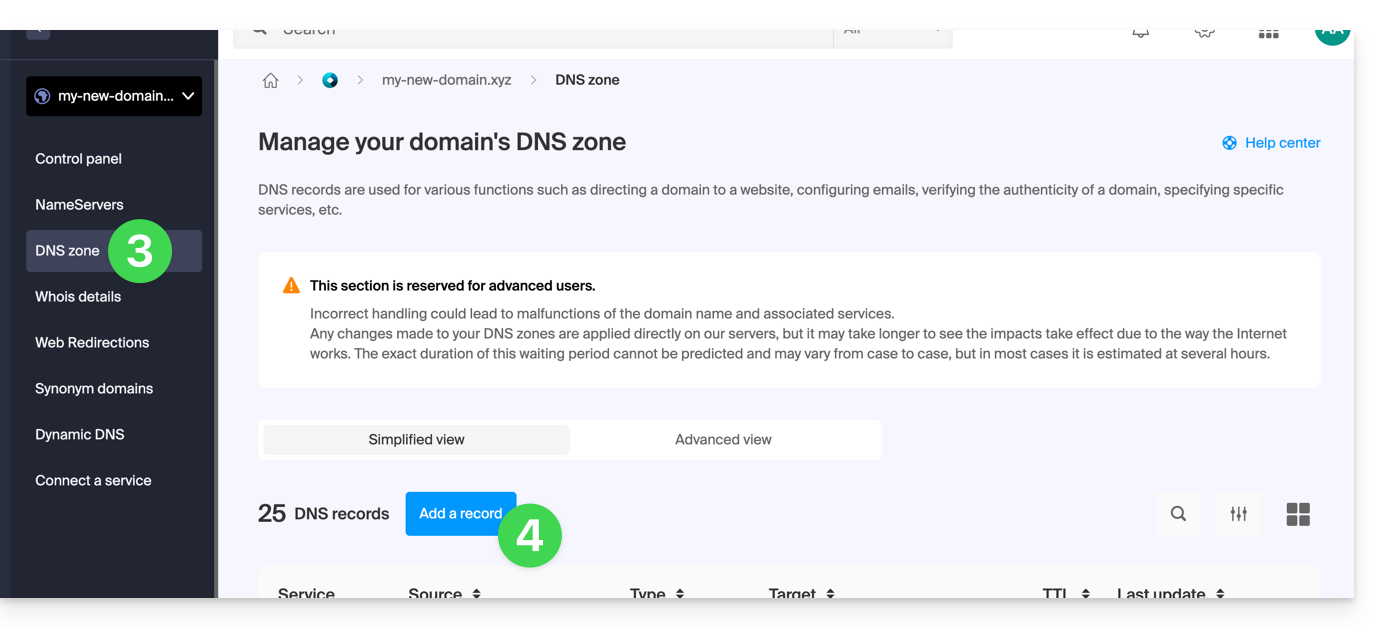
- Click on DNS Zone in the left-hand menu.
- Click the button to add a record:
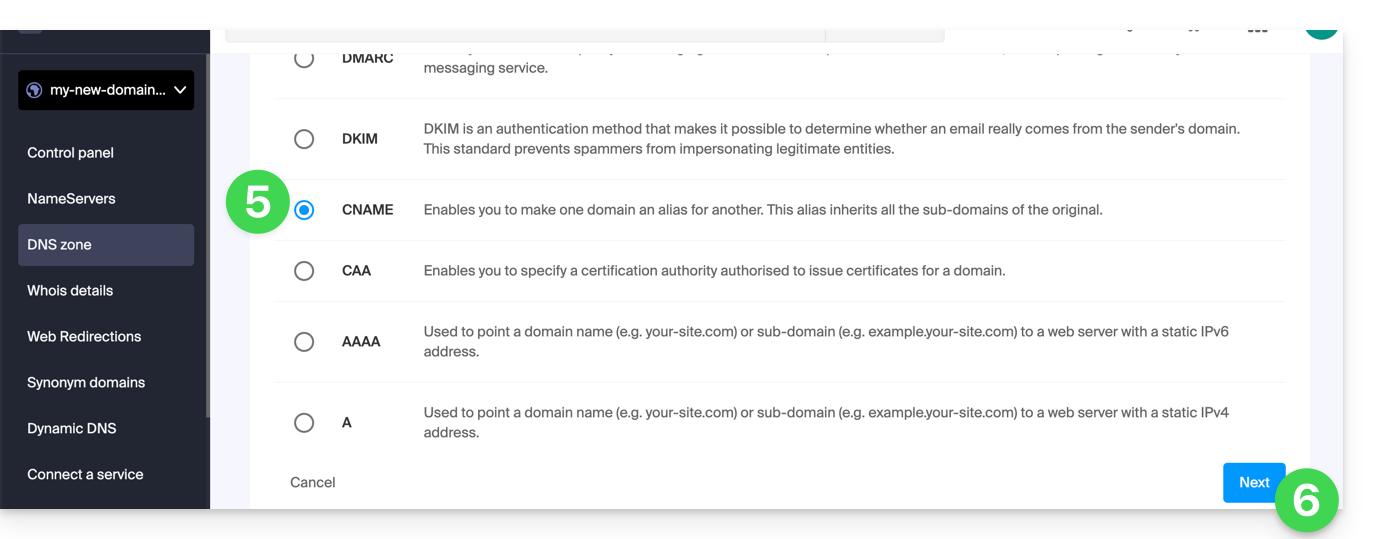
- Click the corresponding radio button to add a record.
- Click the Next button:
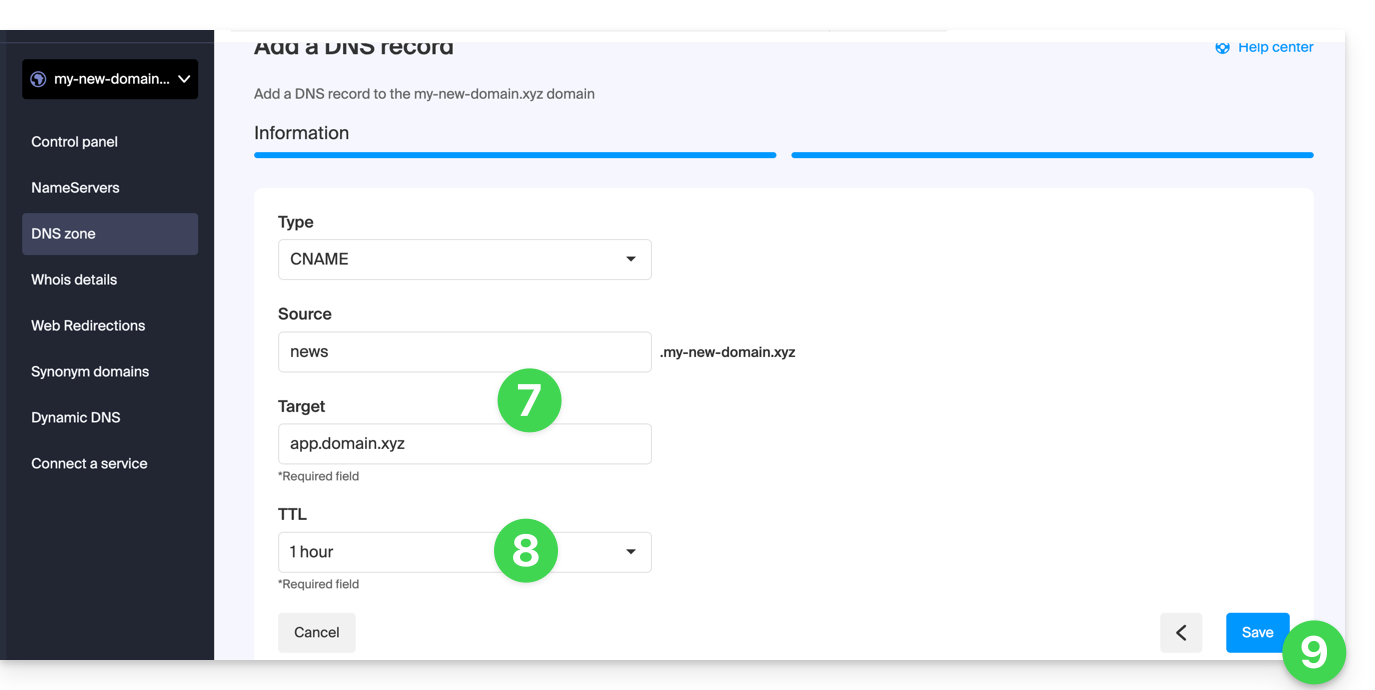
- Enter the values required for your DNS zone.
- Leave the default value for the TTL.
- Click on the Save button:
Link to this FAQ: https://faq.infomaniak.com/2033
Has this FAQ been helpful?
This guide explains how to create subdomains on an existing Infomaniak hosting account, using an .htaccess file.
✘ NOT AVAILABLE with
Site Creator Lite
hosting plans Starter
Preamble
- Hosting can be provided through a Shared Web Hosting plan or on an Infomaniak Cloud Server.
- Subdomains can be added very easily to your current hosting plan, as the basic plan includes 20 sites per hosting plan (sites = subdomains).
- If you do not wish to use this number of sites, you can follow the method below.
Create a subdomain as a shortcut
Subdomains created in this way make it easier to organize a hosting environment. For example, the address vlog.domain.xyz will be the shortcut for the address domain.xyz/vlog. In other words, the address vlog.domain.xyz will redirect to the vlog folder, which must be located at the root of the domain.xyz website. In this example, vlog is the subdomain of domain.xyz.
1. Add the subdomain as an alias for your website
To do this:
- Follow the procedure for adding an alias, but please read points 2 and 3 below.
- In the field for adding the associated domain, enter the complete address of the subdomain (e.g.
vlog.domain.xyz). - If your domain or its DNS zone is managed with Infomaniak, enable the following two options: Update DNS entries for this domain and Replace existing entries; if this is not the case, create an A record with your registrar using the following information:
- field: the complete URL of the subdomain (e.g.
vlog.domain.xyz) - target: the IPv4 address (A record) of your website (refer to this other guide to find the A record of your website)
- field: the complete URL of the subdomain (e.g.
2. Modify the .htaccess file of your website
Important: The following instructions are provided for guidance only. You may need to adapt the code to make it work in your specific situation.
Using your FTP software/client or Web FTP in the Manager, add and adapt the following code to the .htaccess file located in the root directory of your website:
RewriteCond %{HTTP_HOST} ^(.*)\.domain\.xyz [NC]
RewriteCond %{DOCUMENT_ROOT}/%1/ -d
RewriteCond %1::%{REQUEST_URI} !^(.*?)::/\1/?
RewriteRule "^(.*)$" "%{DOCUMENT_ROOT}/%1/$1" [L]
Explanation for the third line: https://stackoverflow.com/a/15981056
On the first line, replace:
domainwith your domain namexyzby extending your domain name (ch, fr, etc.)
Now, the address vlog.domain.xyz should display the content of the vlog folder located at the root of your website. If this is not the case, check that the vlog folder actually exists at the root of your website.
Link to this FAQ: https://faq.infomaniak.com/2036
Has this FAQ been helpful?
This guide explains how to set up a zone delegation for a subdomain.
Prerequisites
- Own a domain name with Infomaniak or at least a DNS zone.
- Understand:
- how a domain and a DNS zone work before modifying the latter.
- that the DNS zone presented here is valid and used only if the name servers are those of Infomaniak.
- that any DNS addition/modification may take up to 48 hours to propagate.
Setting up a zone delegation
To do this:
- Click here to access the management of your product in the Infomaniak Manager (need help?).
- Click directly on the name assigned to the product in question.
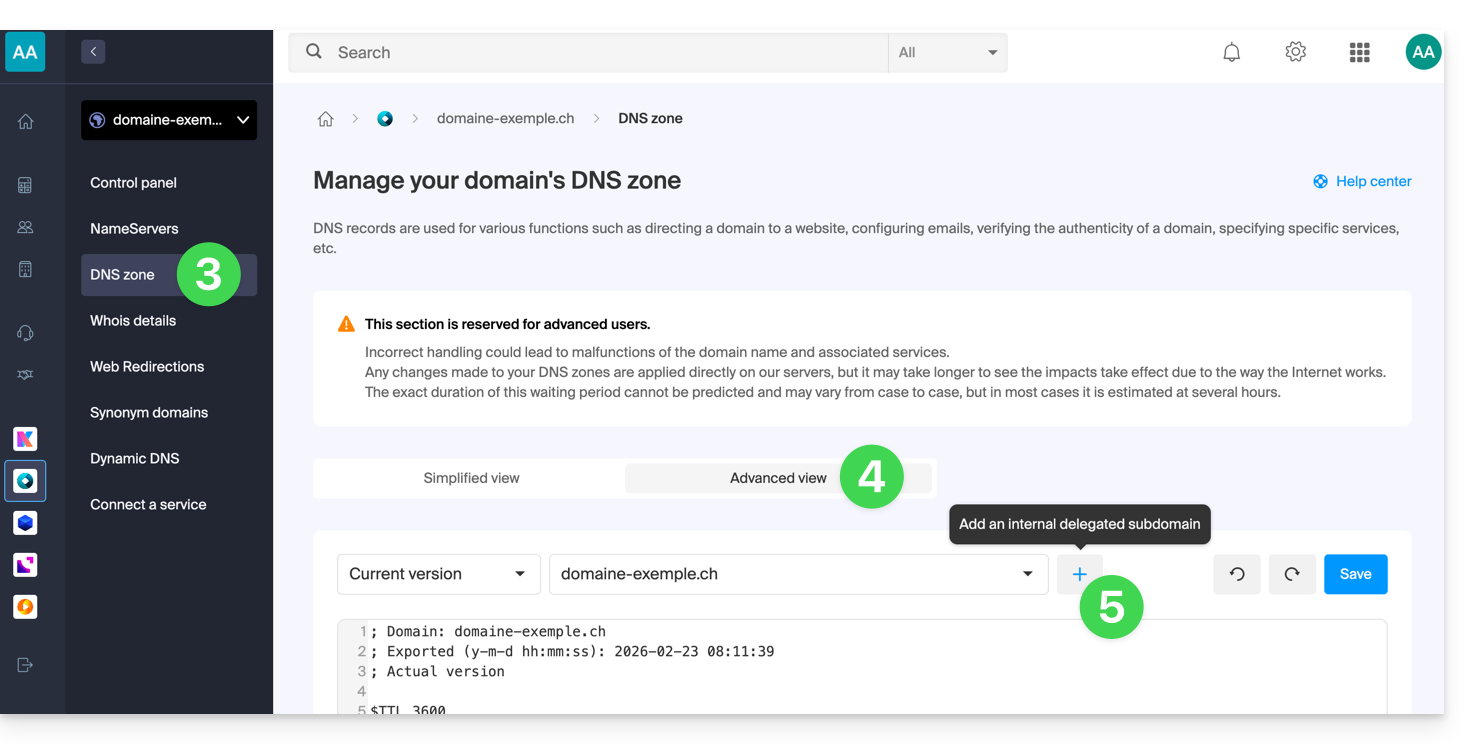
- Click on DNS Zone in the left-hand menu.
- Click on the Advanced View tab.
- Click on the + button:
- Enter the desired subdomain (e.g.,
testto obtaintest.domain.xyz) - You can now edit the DNS zone of the delegated subdomain.
Link to this FAQ: https://faq.infomaniak.com/2050
Has this FAQ been helpful?
This guide explains how to modify specific entries (records of type A & AAAA, MX, TXT, etc.) in advanced (expert) mode within the DNS zone of a domain registered with Infomaniak.
If you are a beginner, prefer the simple mode.
Prerequisites
- You must own a domain name with Infomaniak or at least a DNS zone.
- You must understand:
- the operation of a domain and a DNS zone before modifying it…
- that the DNS zone presented here is valid and used only if the name server is that of Infomaniak…
- that any DNS addition/modification may take up to 48 hours to propagate.
Modify an existing record
To configure the services associated with the domain and enable the proper resolution of domain names to the corresponding resources (such as external websites, third-party email servers, etc.):
- Click here to access the management of your domain in the Infomaniak Manager (need help?).
- Click directly on the name assigned to the domain in question:
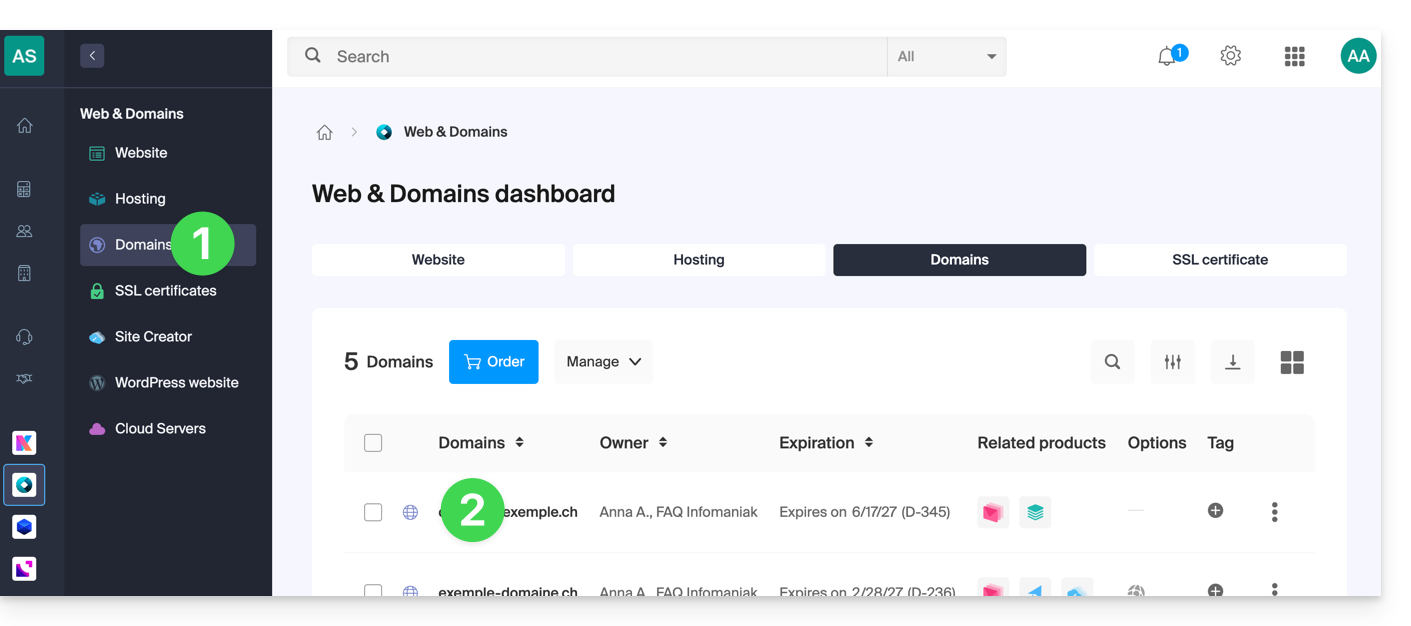
- Click on DNS Zone in the left-hand menu.
- Click on Advanced View:
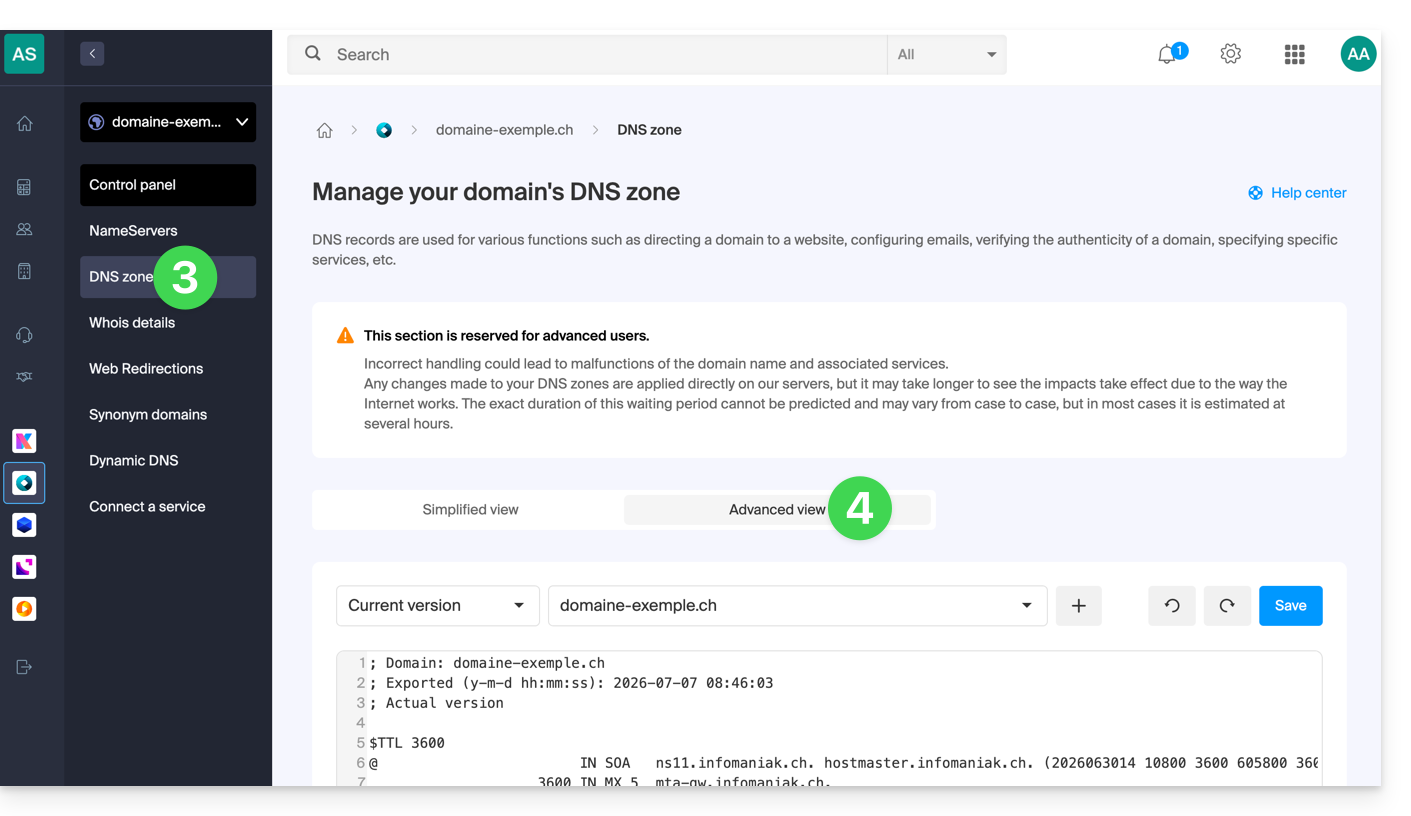
- Proceed with editing the desired information.
- The syntax is accepted in BIND format.
- Save your changes:
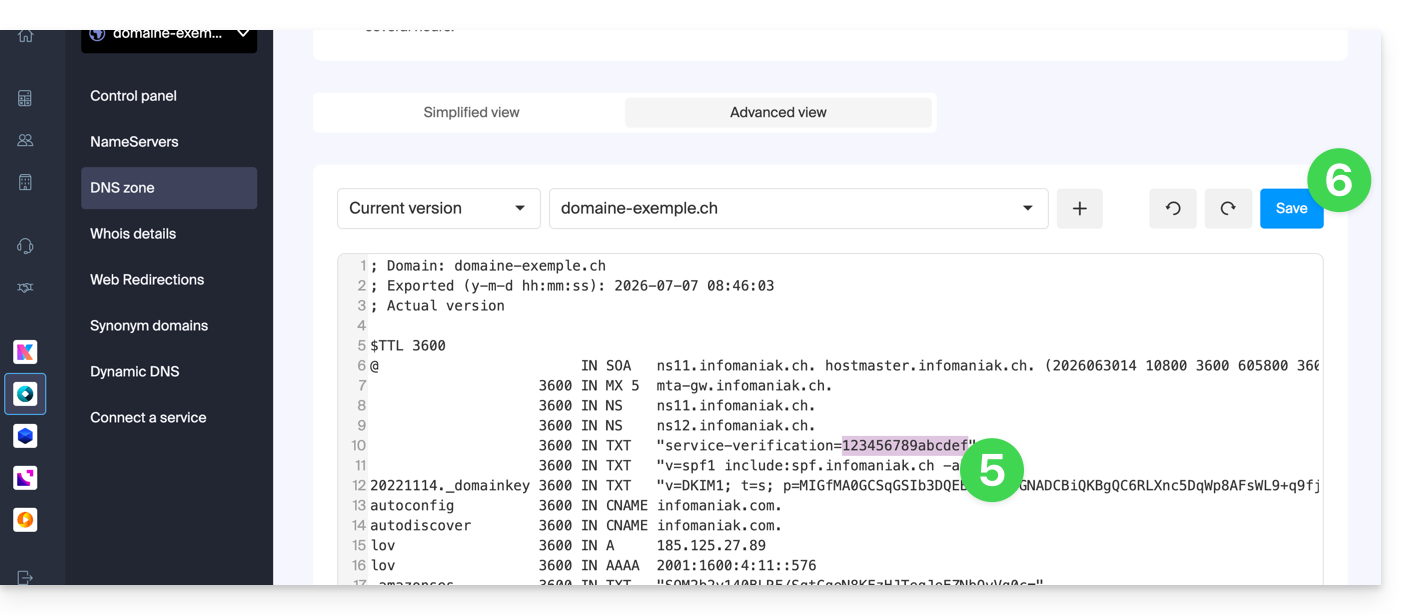
Restore a DNS zone
Thanks to Expert mode, you can use versioning to find a previous version of your domain name's DNS zone and restore it to how it was at a specific point in time:
- Once in the Advanced View tab (see above), click on Current Version to display the menu containing previous dates.
- Click on the desired date to get a preview of the changes.
- Click on the blue Save button on the right to revert to the chosen version:
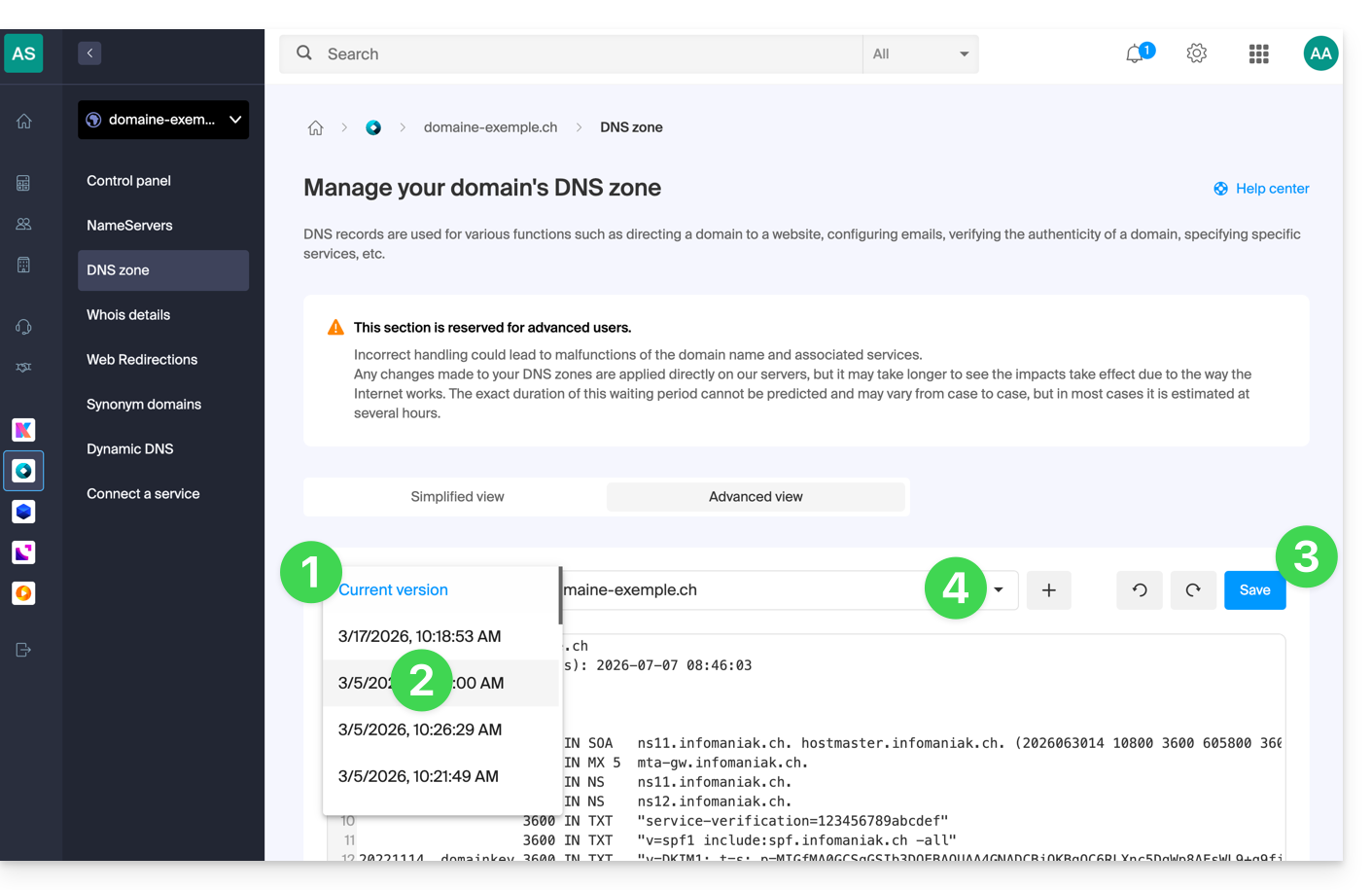
- Click on the second drop-down menu if necessary to access the restoration of the configuration of delegated subdomains.
DNS Diagnostics
A tool available in your Manager allows you to easily correct certain problematic records.
Link to this FAQ: https://faq.infomaniak.com/2051
Has this FAQ been helpful?
This guide explains how to transfer to Infomaniak data (Web, Mail, Domain, and even Cloud) currently hosted elsewhereYou remain the owner of your data, with no loss or interruption!
Introduction
- By consolidating your domain names, websites, and email addresses with Infomaniak, you simplify the management of your invoices and services.
- Furthermore, your domains will be automatically linked to your website and email address.
- You will not need to manually configure the DNS settings for your domains with another registrar.
Specific guides
Click on the link corresponding to your current hosting provider:
- Swisscom: complete guide to migrating Web, Mail, and domain name data
Guides for any other hosting provider
To avoid interrupting your website and email services and prevent data loss when importing your existing data, migrate your services in the order indicated:
Import Web data (any PHP, HTML, etc. website)
- For WordPress specifically, please refer to this other guide…
- For WordPress specifically, please refer to this other guide…
Copy Mail data (addresses and mailbox content, etc.) to kSuite or a simple Mail Service
Transfer the domain name (domain management, DNS zone, etc.)
You can also transfer other types of data to Infomaniak servers:
- Dropbox, Google Drive, etc. content: refer to this other guide
- Data on Synology or QNAP NAS: please refer to this other guide
Link to this FAQ: https://faq.infomaniak.com/2057
Has this FAQ been helpful?
This guide details the administrative steps required to transfer the management of a .lu domain to Infomaniak.
Transfer a .lu domain
Transferring a domain in .lu does not require a transfer code; instead, a validation email will be sent to the domain administrator (indicated in the WHOIS contact information) to validate the transfer to Infomaniak.
The domain owner then has 15 days to validate the transfer; otherwise, the transfer will fail.
Once the request is validated, the transfer is almost immediate.
Please note that, due to the specific process for transferring .lu domains, failed requests cannot be refunded. Any new attempt will be charged as a new transfer.
Link to this FAQ: https://faq.infomaniak.com/2059
Has this FAQ been helpful?