Knowledge base
1000 FAQs, 500 tutorials and instructional videos. Here, there are only solutions!
This guide explains how to attach files and/or images to emails sent from the Infomaniak Web Mail app (online service ksuite.infomaniak.com/mail), the complete online solution for reading and managing your emails.
Introduction
- Consult this other guide regarding email/attachment sending limits.
Attaching files from your computer to your message
To add an attachment from your computer:
- Click here to access the Infomaniak Mail web app (online service ksuite.infomaniak.com/mail).
- Click on New message.
- Click on the paperclip icon Attach a file:
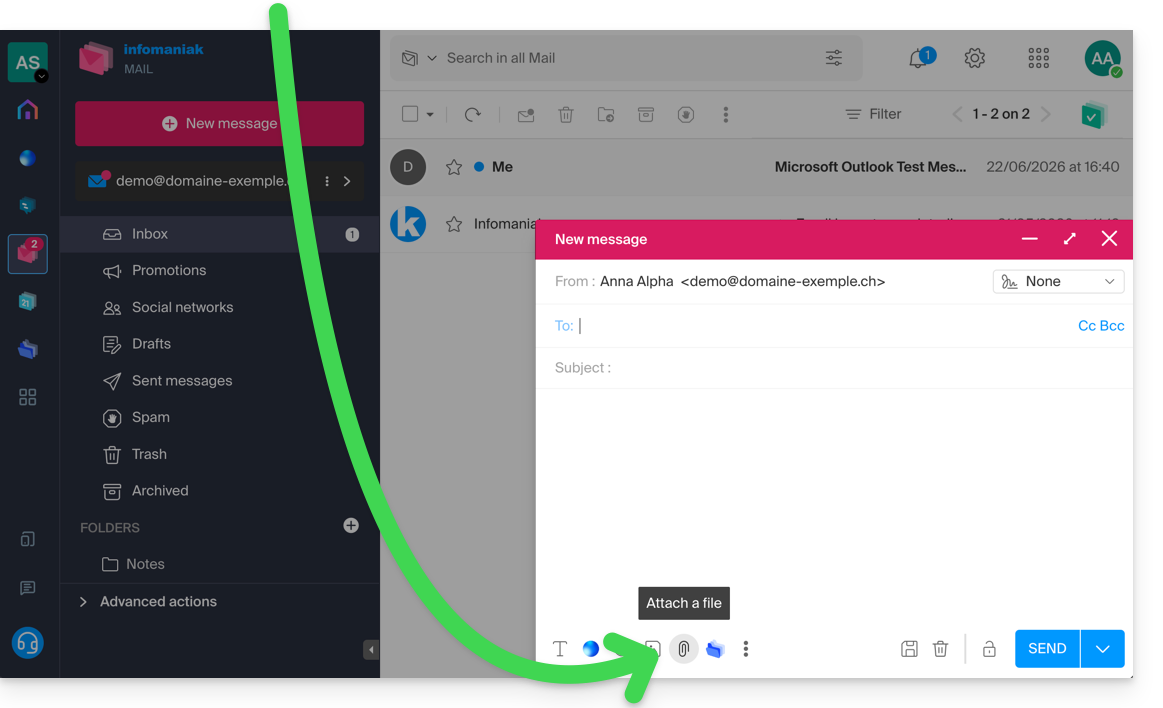
- Browse locations to select the files to attach to the message:
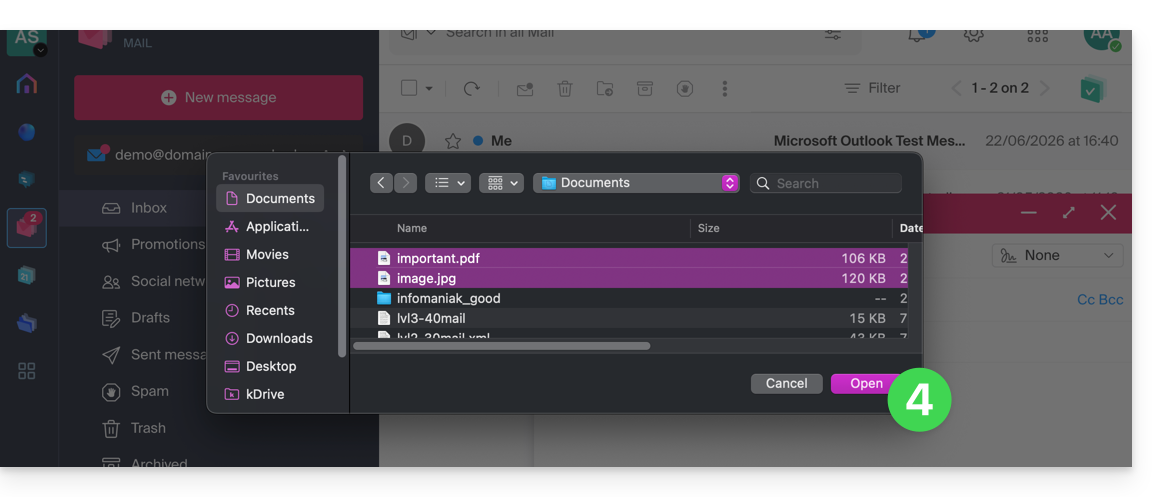
- With the Infomaniak Mail web app (online service ksuite.infomaniak.com/mail), the maximum size for attachments is 25 MB.
- If the size exceeds 25 MB (up to a maximum of 3 GB), a SwissTransfer link is generated and integrated into your message: the data is stored in Switzerland on Infomaniak's Cloud, and your recipients can use this link to easily download the attachments during a predefined period.
- For files larger than 3 GB (up to 50 GB), it is recommended to always use SwissTransfer for your uploads.
- With the Infomaniak Mail web app (online service ksuite.infomaniak.com/mail), the maximum size for attachments is 25 MB.
Attach kDrive files to your message
To add an existing attachment to kDrive:
- Click here to access the Infomaniak Mail web app (online service ksuite.infomaniak.com/mail).
- Click on New message.
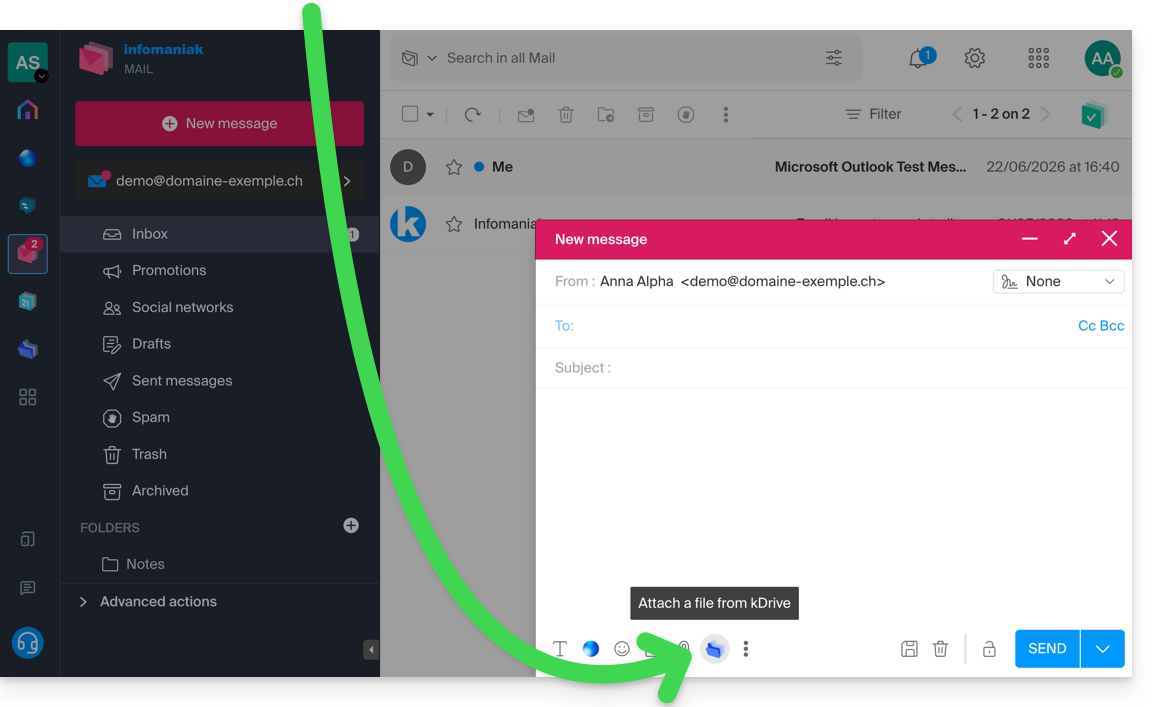
- Click on the kDrive folder icon to browse locations; select the kDrive files to attach to the message:
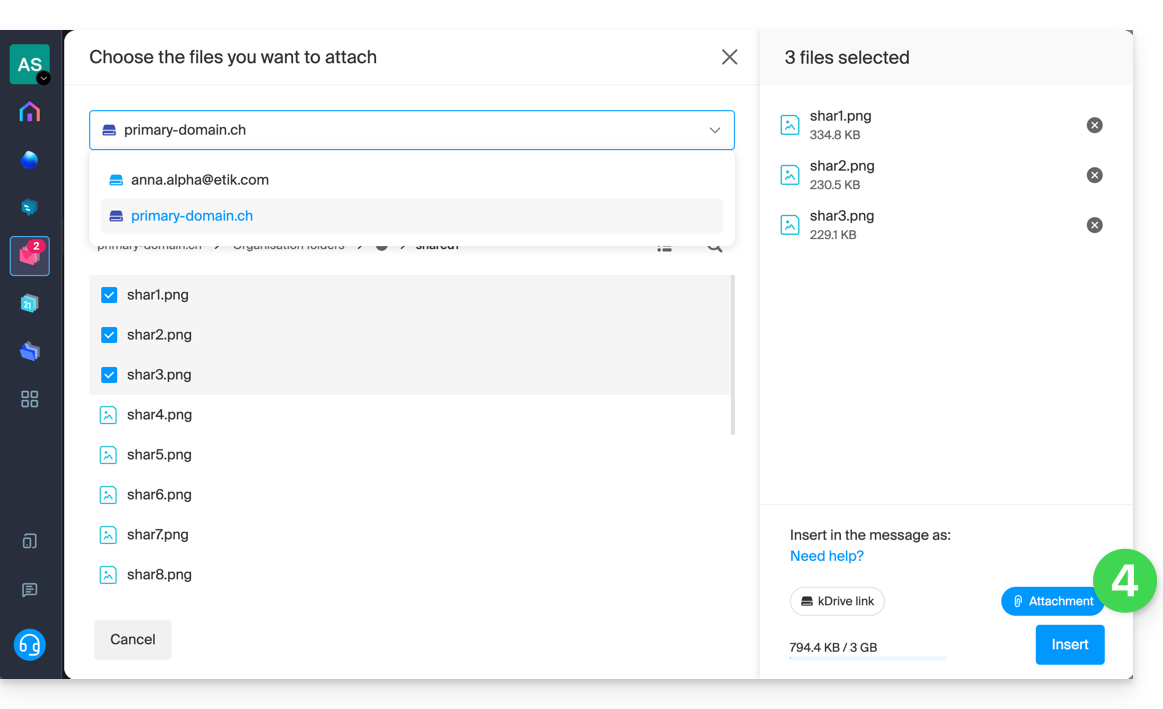
- Once the data has been found and added (if necessary, change the selected kDrive using the drop-down menu), select the Attachment option on the right (to attach the kDrive files to the message instead of sending a simple link to the files), then click the Insert button:
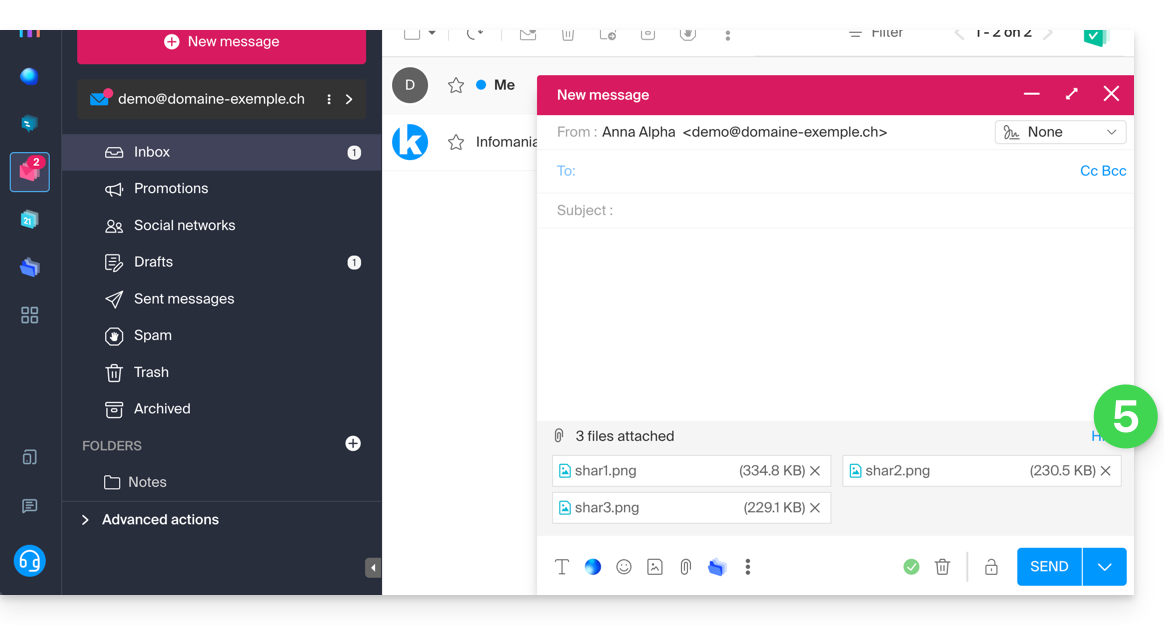
- The selected files are added to the message:
Include an image in the body of your message
To add an image to the message (e.g., in the middle of your message text), there are 2 options:
- Drag and drop the image into the input area.(Images larger than 10 MB will not be displayed but will be added as an attachment.
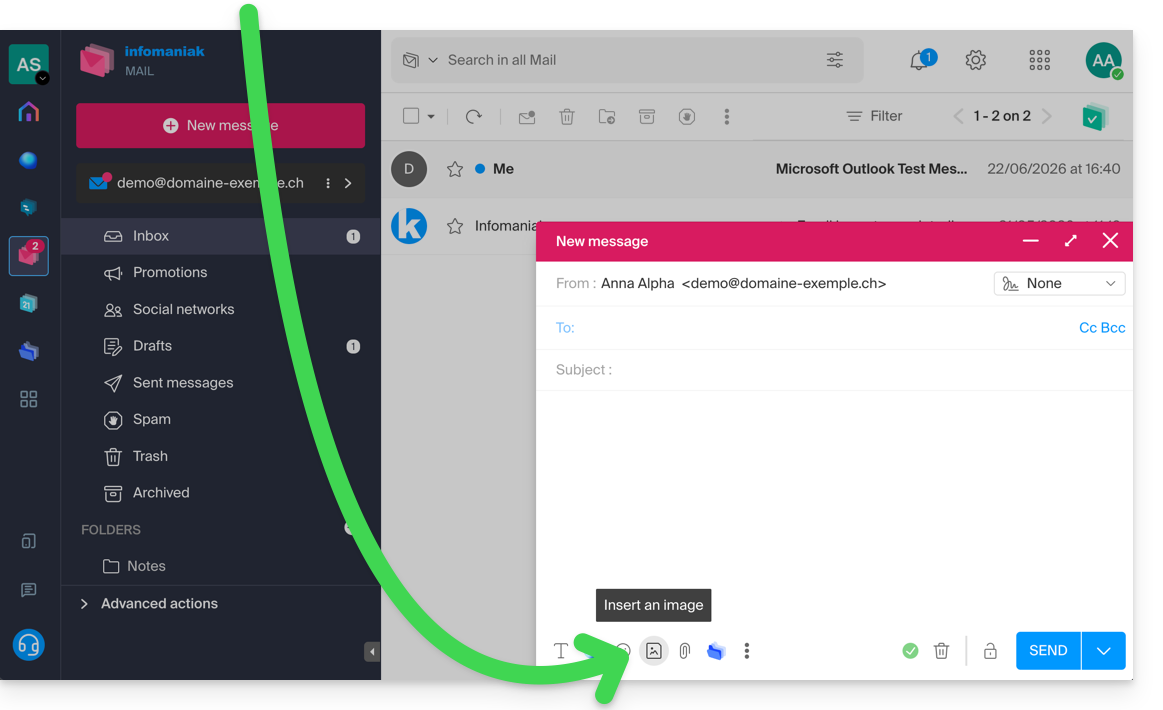
- … or click on the icon representing a landscape:
- then:
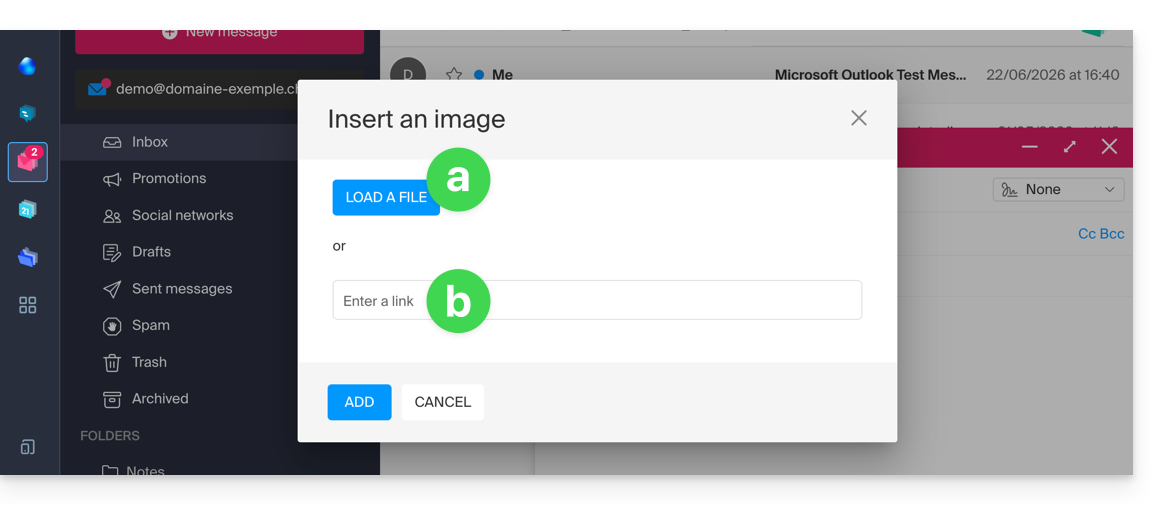
- Click on the button to upload an image (which allows you to choose its location and then insert it into the message body)…
- … or enter the URL of the image you want to include dynamically; the image must be located somewhere on the Internet (you can use Web FTP to upload your image to your hosting space if you have one) and must still be there when your recipient views the message.
- Click the button to add the image.
Link to this FAQ: https://faq.infomaniak.com/1697
Has this FAQ been helpful?
This guide explains how to create and automatically add a signature to messages sent from the Infomaniak Mail web app (online service ksuite.infomaniak.com/mail).
Refer to this other guide regarding the limitations of the my kSuite offer.
Introduction
- The signature will also be visible when you send emails from the Infomaniak Mail app (iOS / Android).
- It will not be present when using another sending method (such as Outlook, for example).
- It is also not added to the messages in the auto-reply; it is necessary to add one directly in the out-of-office message.
- One or more signatures can be added from Mail and from the Manager, where all the addresses of a Mail Service are managed; choose which signature to use when sending an email.
Access signatures from the Infomaniak Web Mail app
Prerequisites
- You must have permission to manage signatures: if you were invited tothe Infomaniak Mail web app (online service ksuite.infomaniak.com/mail) to manage your address, the Mail Service administrator may have removed this permission from their admin account
- Click here to access the Infomaniak Mail web app (online service ksuite.infomaniak.com/mail).
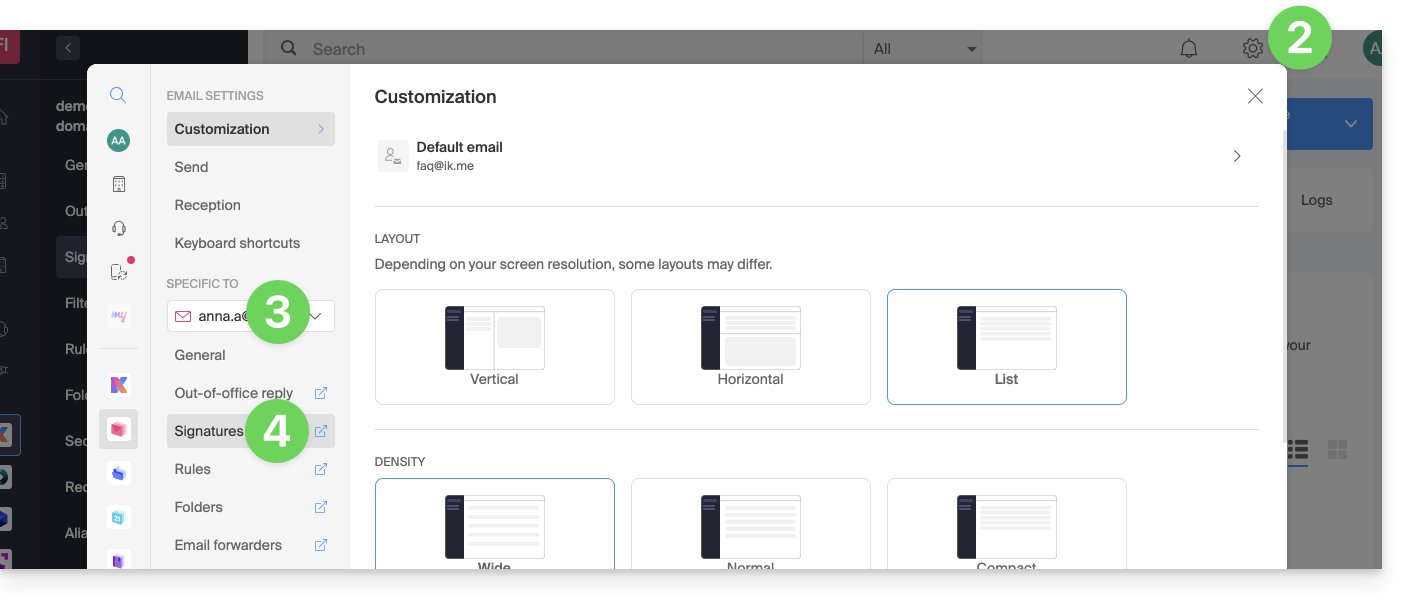
- Click on the Settings icon in the top right corner of the interface.
- Check or select the relevant email address from the dropdown menu in the left-hand sidebar.
- Click on Signatures:
Accessing signatures from Mail Service
To access Mail Service and manage signatures:
- Click here to access the management of your product in the Infomaniak Manager (❓: help).
- Click directly on the name assigned to the product in question.
- Click on the relevant email address in the table that appears.
- Click on Signatures in the left-hand menu:
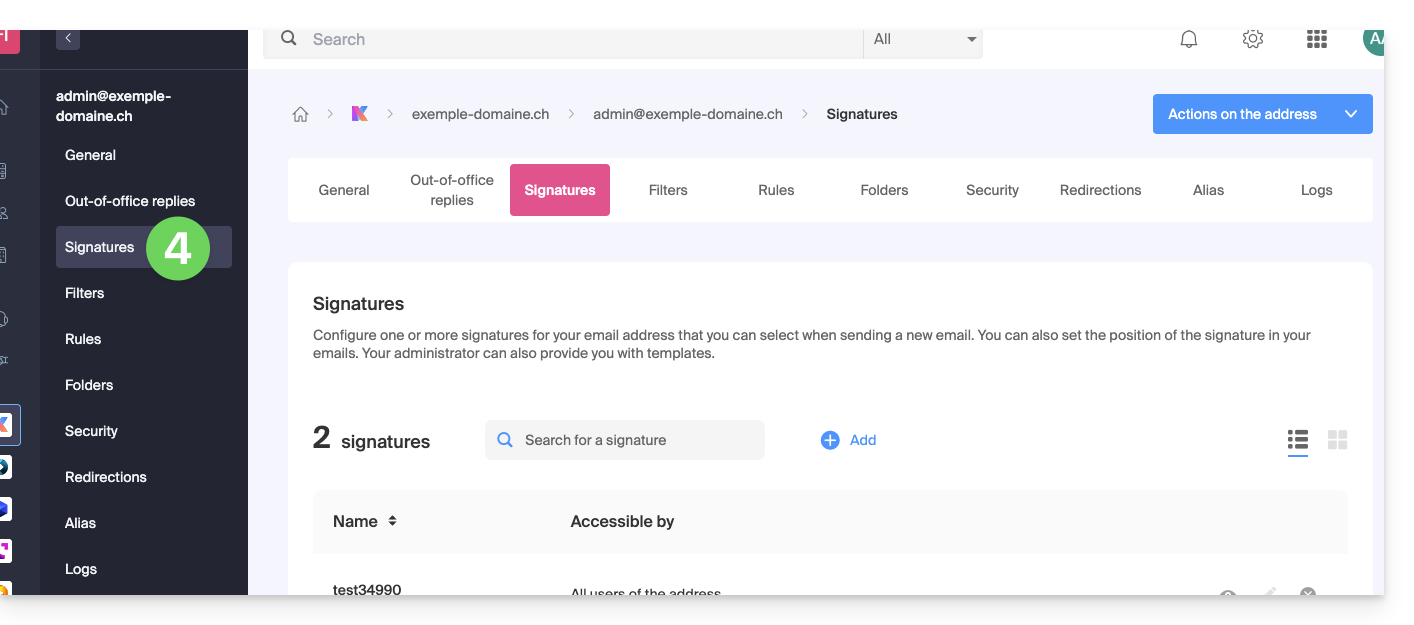
Create and edit your signature
You have two options:
- Click on Add to create a new signature.
- Click on the pencil icon ✎ next to an existing signature to edit it.
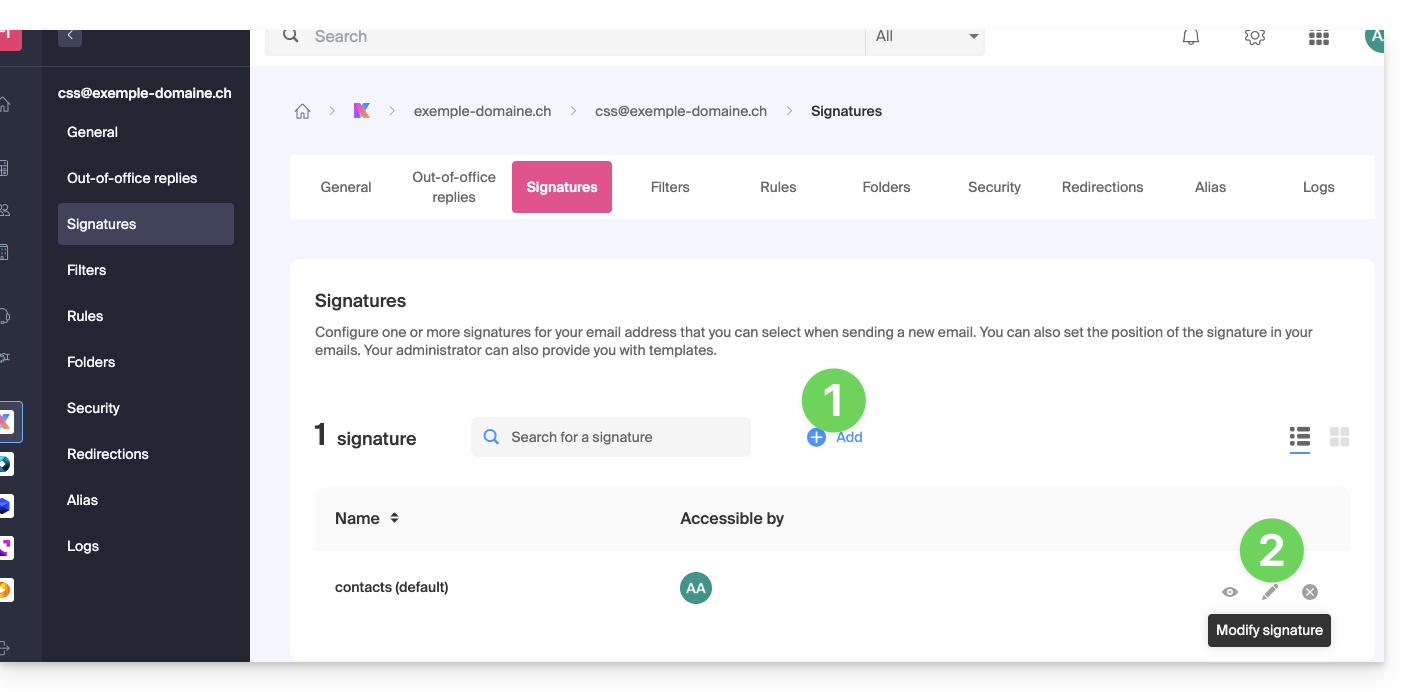
Next:
- Choose an existing template or create a new one:
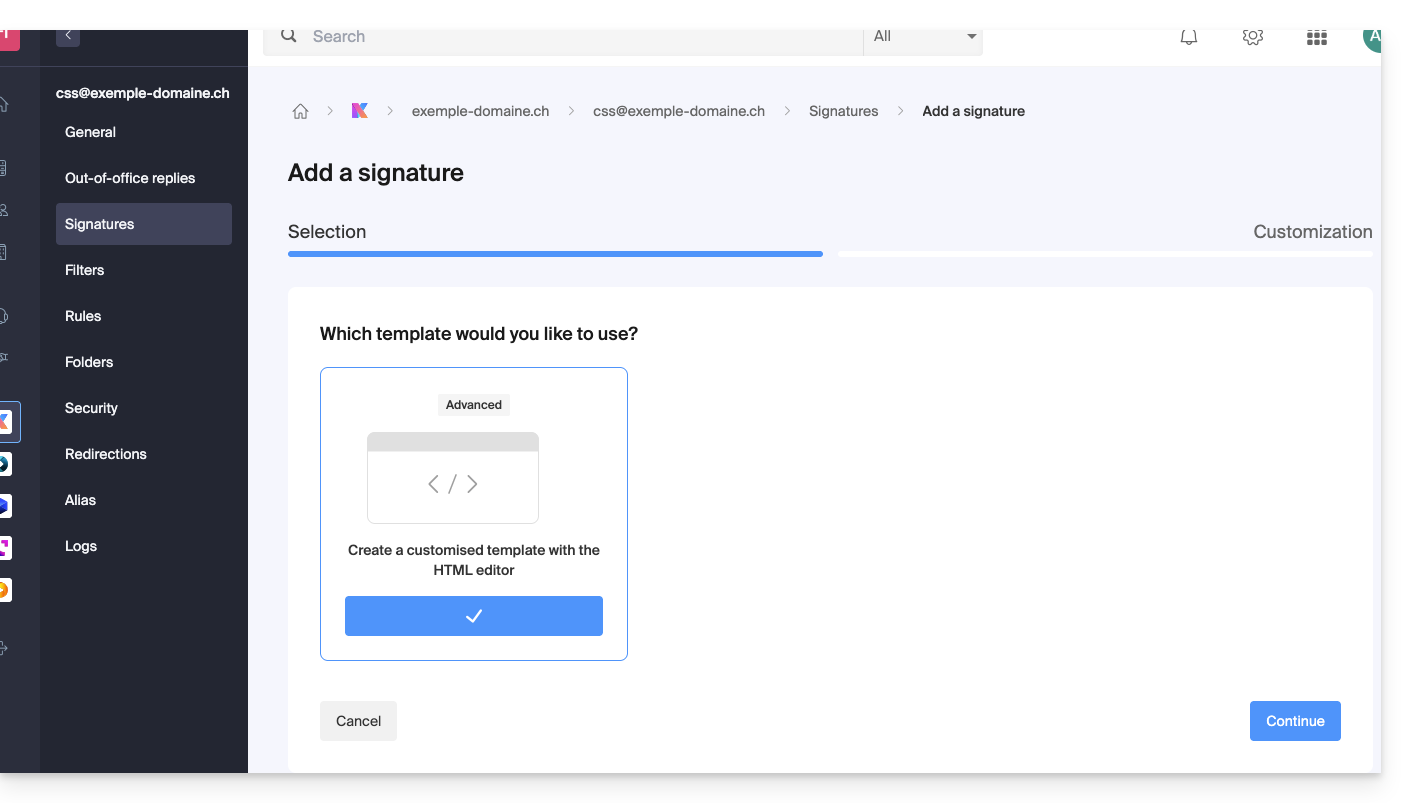
- Give your signature a name.
- Specify a name for your identity (it will be displayed next to your email address in messages received by your contacts).
- Create the signature content in the designated area (see below for formatting options).
- Choose whether or not to share the signature with all users of the Mail address.
- Click on Advanced Settings to choose where to insert your signature: before the message (i.e., at the top of the page) or after the message (i.e., as a signature).
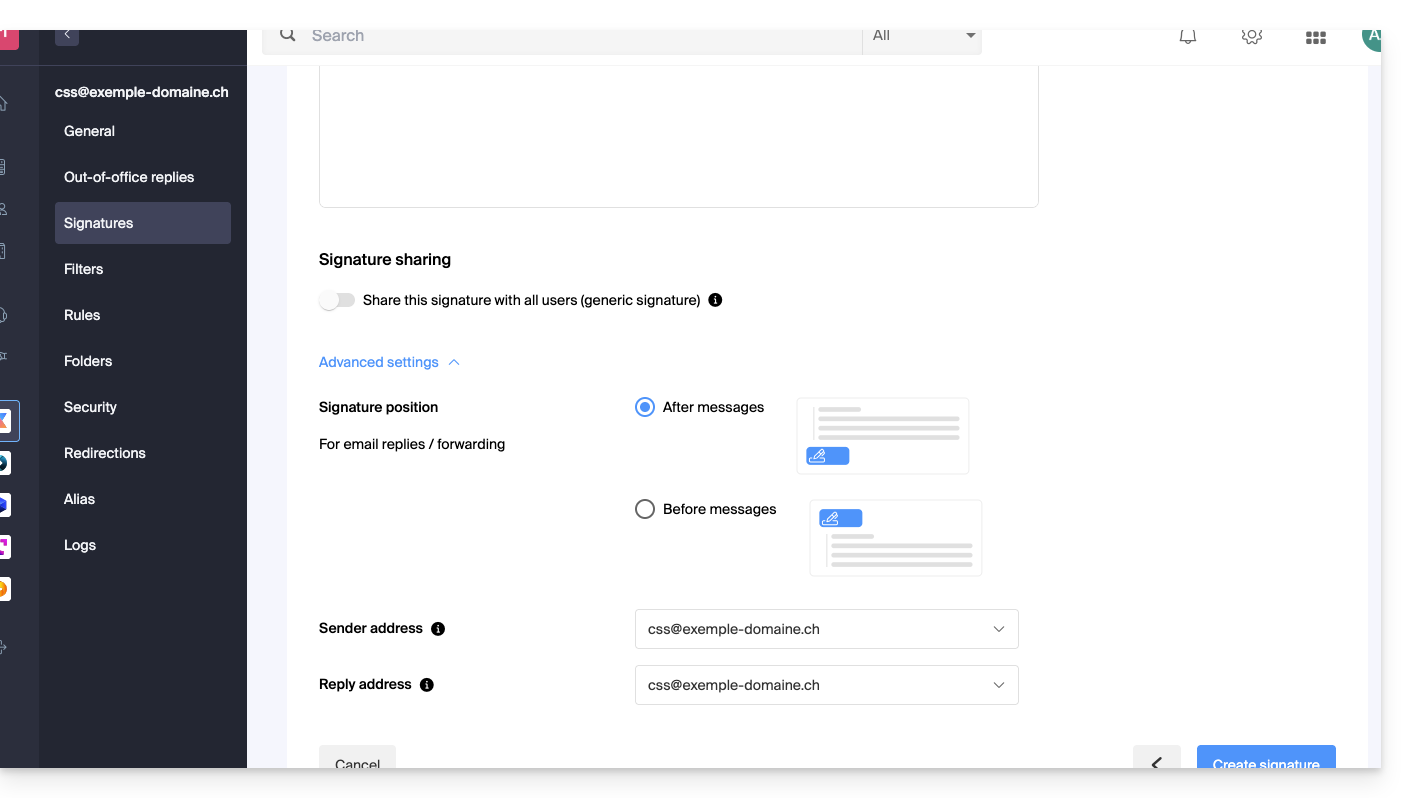
- Refer to this other guide regarding the selection of sending/reply addresses.
- Click on the Create signature button.
Signature formatting
You can use an image, edit the HTML source code, and format your text using a set of tools.
To avoid excessive line breaks, use the Shift key in conjunction with the Enter key on your keyboard, which will have the same effect as the HTML tag <br>, causing a line break instead of a new paragraph.
Define a default signature
To choose the signature used by default under certain conditions:
- Click here to access your signatures in the Infomaniak Mail web app.
- Check or select the relevant email address in the dropdown menu on the left-hand sidebar.
- Choose the signature that will be inserted by default when composing:
- a new message
- a reply / forward
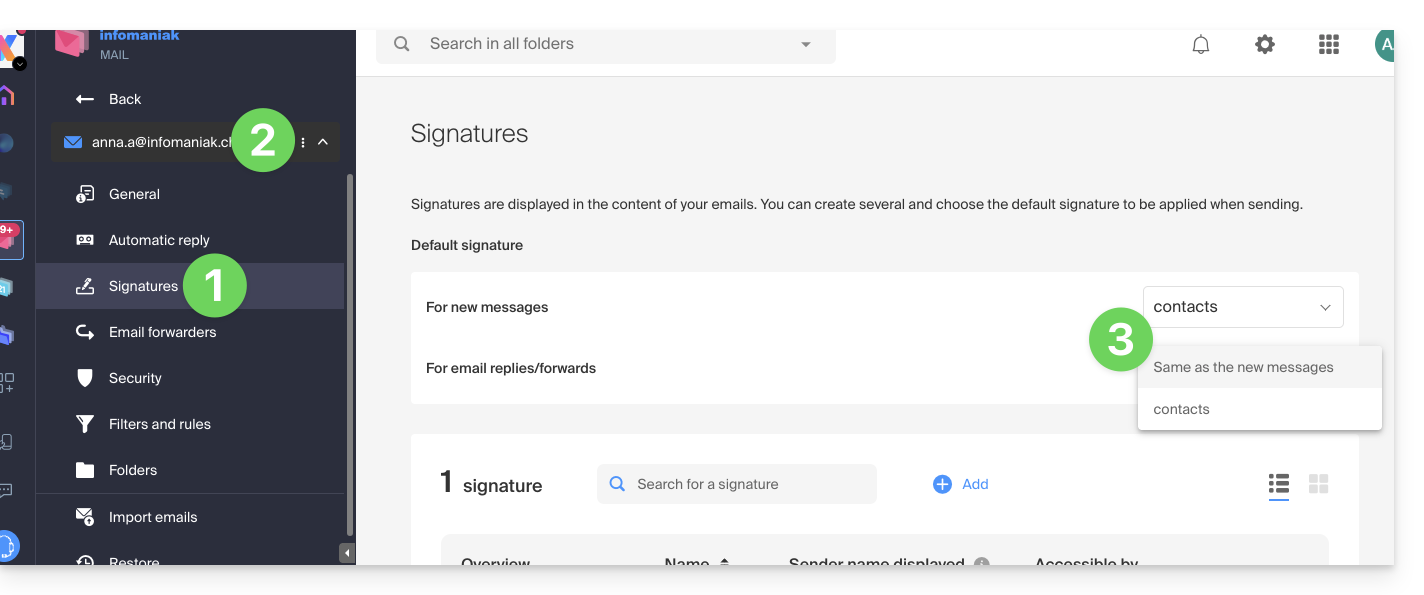
By defining a default signature, it will be automatically displayed in the body of the email when composing. You will still have the option to change the signature.
There is one case where the default signature will not be the one automatically inserted by default when composing a message: please refer to point 10 of this other guide.
Select or remove the signature while composing
When you start writing a new message:
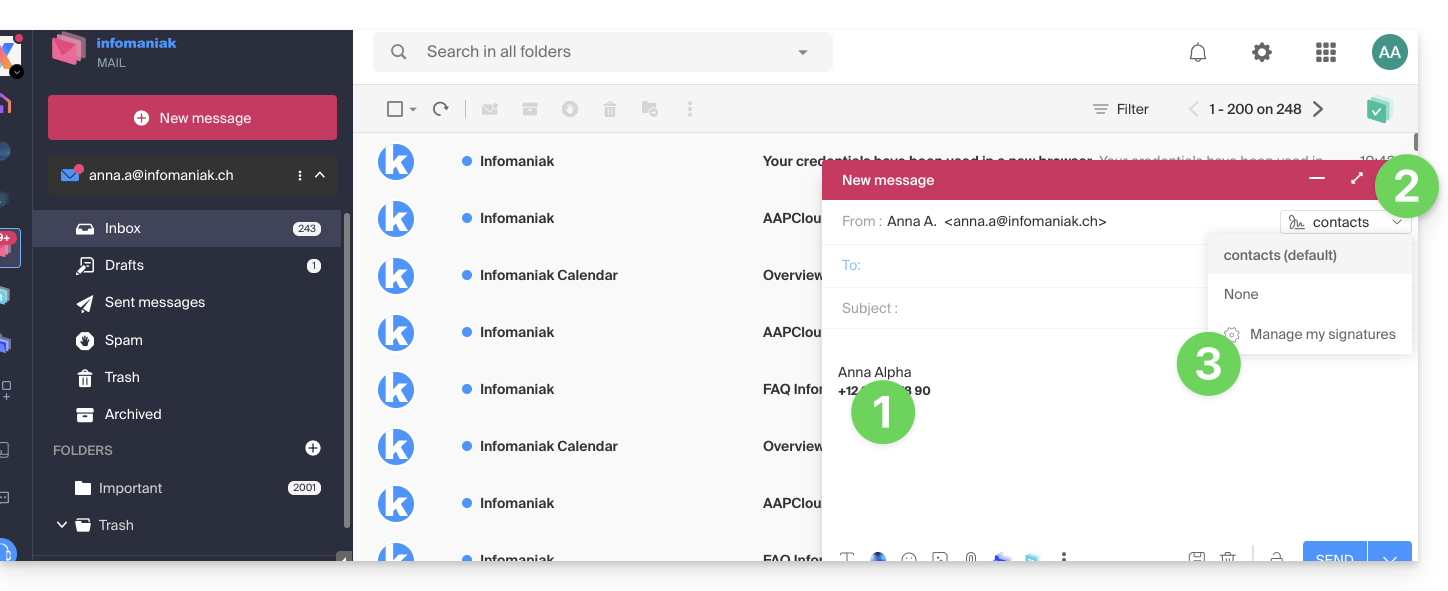
- The signature is inserted automatically.
- If multiple signatures exist, you can choose a different identity via the drop-down menu.
- You can also quickly access the signature settings via the button in the toolbar:
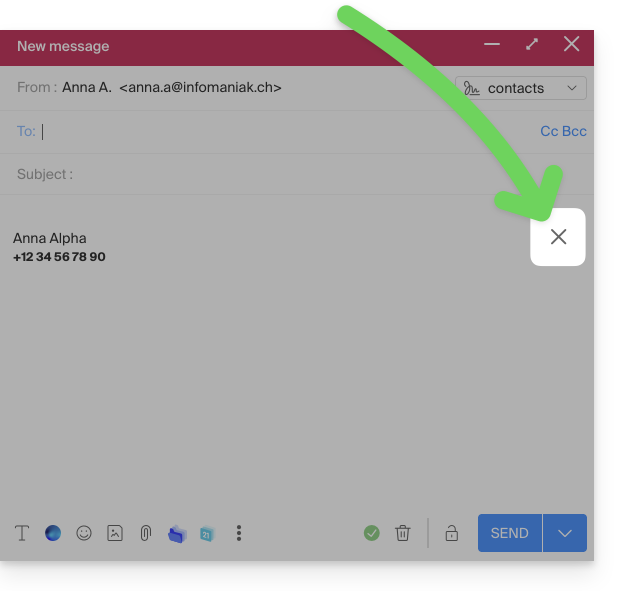
- You can remove the signature by hovering over it and clicking on the cross:
Associated addresses (multiple possible)
When a signature is based on a template (whether it was created from a template provided by Infomaniak or generated with the advanced editor):
- users do not have access to the signature content during editing,
- they can enter dynamic values such as the sender's name or personal data that may be requested, such as occupation or phone number,
- they can also modify the advanced settings of the signature (such as its position in a reply/forward), but to date, this setting is common to all users of the signature (1)
When a signature is created directly without using a template:
- if the signature is created from a predefined template:
- the behavior is the same as in the previous point, meaning a signature created from a template
- if the signature was created via the advanced editor:
- users have access to the signature content in edit mode, but be aware that this content is shared; if Morgane modifies the content, Vanessa will have the same content once she reloads her Infomaniak Mail interface,
- only the sender's name is specific to the user, and there are no dynamic values in this case,
- the advanced settings follow the same principle as in other cases: they are common to all users
In all cases, assigning a default signature to a mailbox is done at the user level. For example, within the same mailbox, the signature chosen by default by Morgane is independent of the one chosen by Vanessa.
Go further with templates
Refer to this other guide if you want to learn how to define custom templates that can be applied when creating a new email address on your Mail service, for example, or in bulk to all addresses in your domain.
Delete a signature
Users of the email address on the Mail web app receive an email each time a signature is deleted.
Link to this FAQ: https://faq.infomaniak.com/1700
Has this FAQ been helpful?
This guide helps you troubleshoot various issues related to setting up and using a DMARC policy with your email service.
Refer to this other guide if you encounter a DMARC problem specifically when using Google services.
DMARC error or rejection...
...during a redirection, even though the initial destination address received the message (SPF error)
Email redirection without SRS generating an SPF error
Imagine that you have configured an email redirection from the address "user@example2.com" to the address "user@yourdomain3.com", without using the SRS mechanism. When a message is sent to "user@example2.com", it is received by the first email server and then automatically forwarded to "user@yourdomain3.com". Example:
- sender: john.doe@gmahoo1.com
- initial recipient: user@example2.com
- final destination: user@yourdomain3.com
In simplified terms: when John sends an email to "user@example2.com", the "example2.com" email server redirects it to "user@yourdomain3.com". The destination server therefore receives the message from the "example2.com" servers, while the sender's envelope address still indicates "john.doe@gmahoo1.com".
In detail: during the redirection, the recipient's envelope address is replaced with "user@yourdomain3.com", but the sender's envelope address remains "john.doe@gmahoo1.com". The sender's address visible in the message also remains unchanged.
The SPF check may then fail because the "example2.com" servers are not normally authorized by the SPF record of "gmahoo1.com" to send messages for that domain.
An SPF error, however, does not always result in a DMARC failure. DMARC only fails if no valid SPF or DKIM mechanism is aligned with the domain of the sender's visible address. If the original DKIM signature is missing, invalid, or not aligned, the DMARC policy of the sending domain may then cause the message to be quarantined or rejected.
To prevent SPF from failing solely due to redirection, the provider performing the redirection must support the SRS mechanism.
How redirections work at Infomaniak
When an email received by an Infomaniak address is redirected to another address, Infomaniak uses SRS to rewrite the sender's envelope address. The sender's address visible to the recipient remains unchanged.
This rewriting allows the destination server to verify that the Infomaniak server performing the redirection is authorized to use the new envelope address. SRS does not modify the original DKIM signature and does not, on its own, guarantee DMARC validation. In the context of a redirection, DMARC can be validated, in particular, if the original DKIM signature remains valid and aligned.
...related to an incorrect DNS entry
The DMARC record must be published as a single TXT record on the "_dmarc" subdomain of the domain in question.
Malformed DMARC Record: if the DMARC record is not correctly formatted, it may be considered invalid. Check the syntax, semicolons, tags used, and their values.
Invalid DMARC Policy: the value of the main "p" tag must be "none", "quarantine", or "reject". Any other value renders the DMARC policy invalid.
Multiple DMARC records: a domain should only have one TXT DMARC record. If multiple records are published on the "_dmarc" subdomain, the configuration is considered invalid, and the policy cannot be applied correctly.
Combine all necessary DMARC settings into a single TXT record.
Check your current DMARC entry using a dedicated tool, such as the ones below:
...related to an email that fails to validate any aligned SPF or DKIM mechanism
DMARC does not require both SPF and DKIM to be valid. DMARC verification succeeds as long as at least one of these two mechanisms is valid and aligned with the sender's address domain.
A DMARC error or rejection can therefore occur when neither SPF nor DKIM validates a domain aligned with the sender's domain.
This can happen, for example, if you send an email with your Infomaniak address using the SMTP server of another provider. The server used may not be authorized by your domain's SPF record and may not apply a valid DKIM signature for that same domain.
To resolve this issue:
- Check the overall security of the Mail Service,
- use Infomaniak's SMTP servers to send messages from an Infomaniak address,
- if you are using an external sending service, configure your domain with that provider so that it properly supports SPF, DKIM, and their DMARC alignment.
Messages from a newly created domain are arriving in the spam folder
This behavior does not necessarily indicate a DMARC error. A newly created domain has little or no sending history, and its reputation is therefore not yet established with the various email providers.
Start by sending a small volume of legitimate messages to consenting recipients, then gradually increase the number of sends. Also, make sure that SPF, DKIM, and DMARC are configured correctly and avoid sudden or large-scale sends.
Sending messages to yourself can help test the configuration and mark a message as legitimate in the recipient's inbox. However, this is not enough to establish a general reputation with other email providers.
Successful SPF, DKIM, and DMARC checks do not guarantee that messages will be delivered to the inbox. Providers also take into account the reputation of the domain and sending servers, the volume of messages, their content, and the recipients' reactions.
I'm sending an email from my Infomaniak address and I'm receiving a "Reject DMARC" error message.
To resolve this issue:
- Check the overall security of the Mail Service,
- perform a test send from the Webmail mail.infomaniak.com,
- check the server settings of the software or email client, including the SMTP server used and the authentication of the sending address.
If the message is sent correctly from the Webmail, the problem is likely due to the configuration of the email software or the external SMTP server used for sending.
I'm sending an email from an external address (Microsoft, Google, Yahoo, Orange, etc.) and Infomaniak rejects it with a DMARC error.
The message probably does not comply with the DMARC policy published by the sender's domain. This may mean that SPF and DKIM have failed or that they are not aligned with the visible sender address.
To resolve this issue:
- Check with the sending address provider that messages are being sent in accordance with their recommendations.
- Forward the complete error message to the sending domain provider or administrator so they can check the SPF, DKIM, and DMARC configurations.
I want to receive an email on my Infomaniak address, but the sender is receiving a DMARC error
The message was blocked because it did not comply with the DMARC policy published by the sender's domain. The configuration of the recipient Infomaniak account does not allow for correcting an authentication error originating from the sender's domain.
To resolve this issue:
- Ask the sender to forward the complete error message to their email provider or domain administrator so that the SPF, DKIM, and DMARC configurations can be checked.
- If the Infomaniak address forwards messages to another address, also check at which stage of the redirection the rejection is generated.
Link to this FAQ: https://faq.infomaniak.com/1704
Has this FAQ been helpful?
This guide explains how to add an email address to the Infomaniak Mail web app (online service ksuite.infomaniak.com/mail), which allows you to manage one or more email addresses hosted by Infomaniak.
Introduction
- Any addition or removal of an email address visible in the Web Mail Infomaniak app will also be reflected in the Infomaniak Mail mobile app.
- This does not affect email/client software such as Outlook.
- Refer to this other guide if you are looking for information on permanently deleting an email address and its content.
- Refer to this other guide to unlink an email address.
Associate an email address
In this example, the administrator (a) will create an email address (b):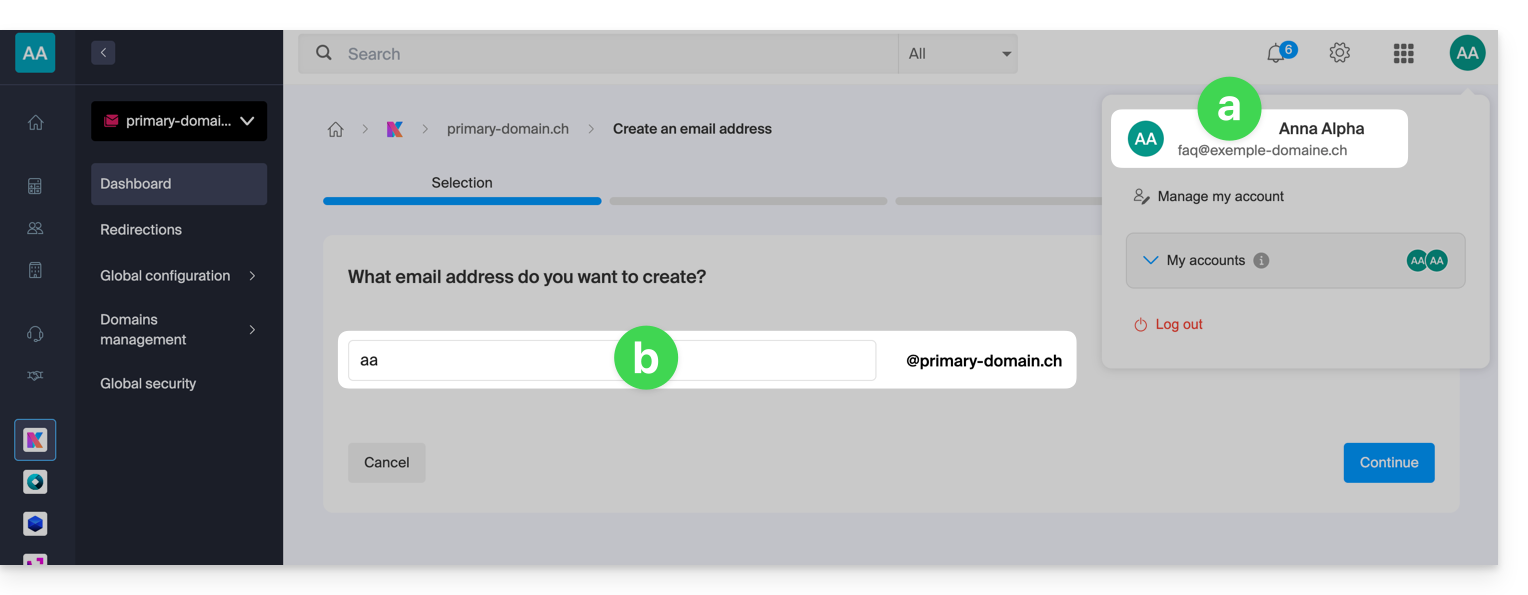
At the end of the creation process, he chooses to view the address himself (c):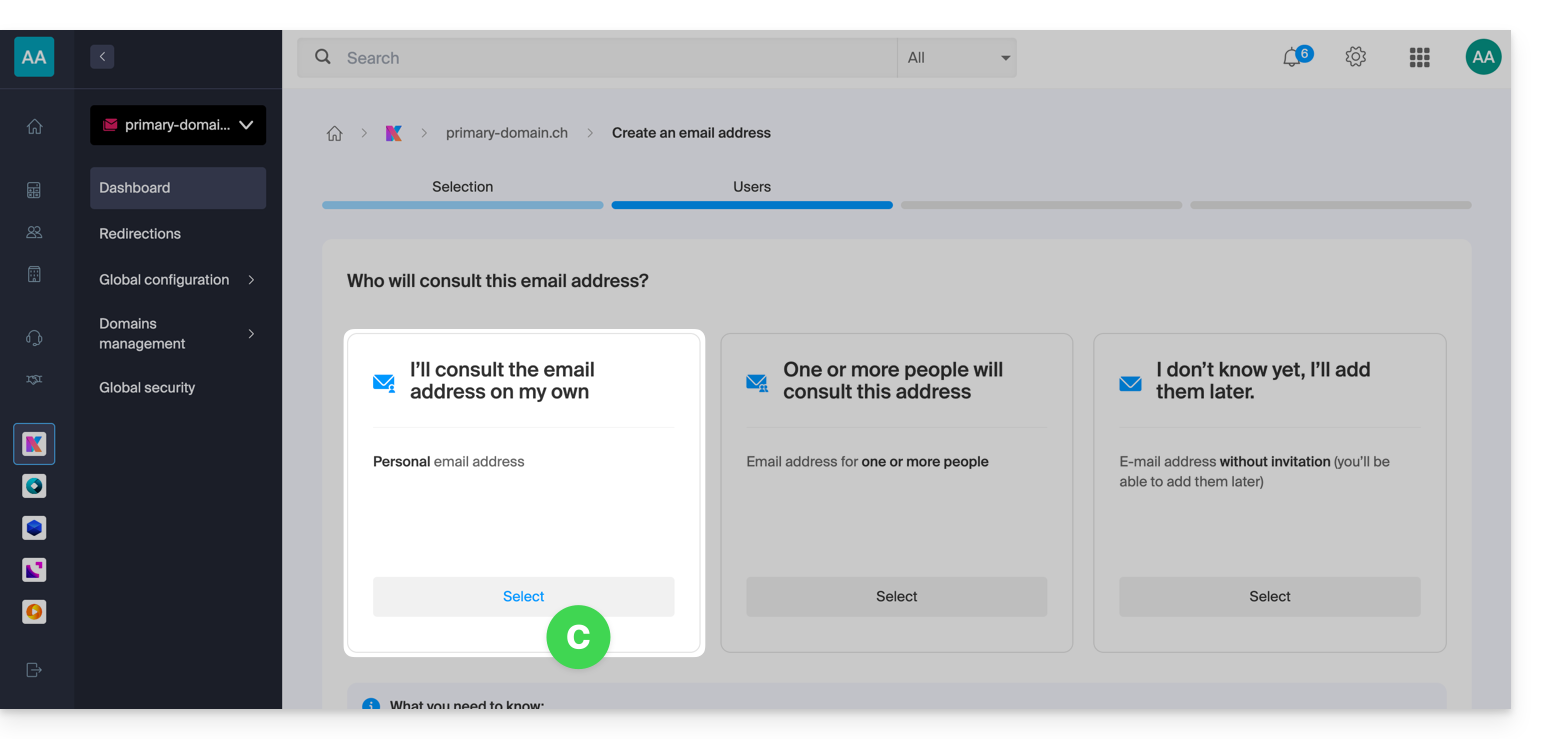
Result: the address is immediately visible on the Infomaniak Mail web app (online service ksuite.infomaniak.com/mail) for the administrator: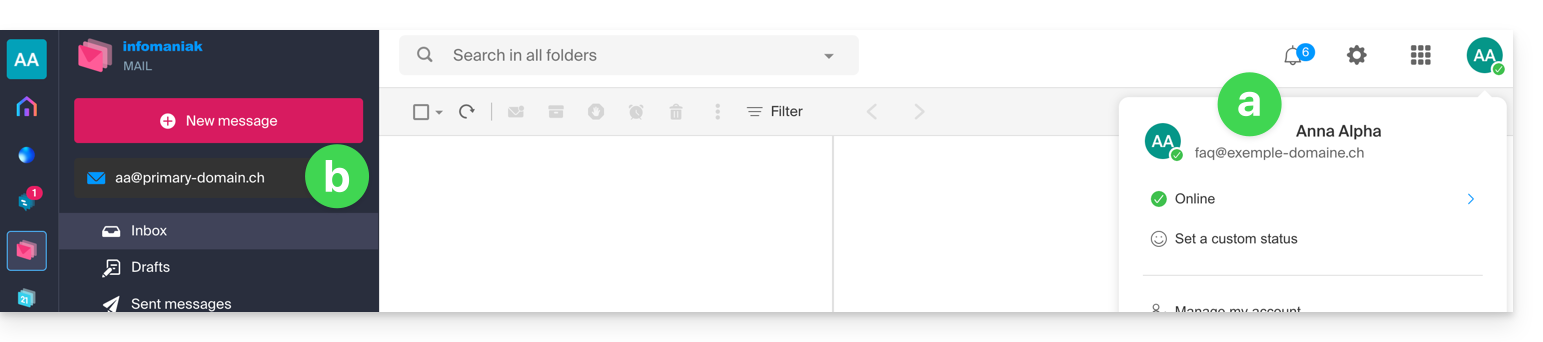
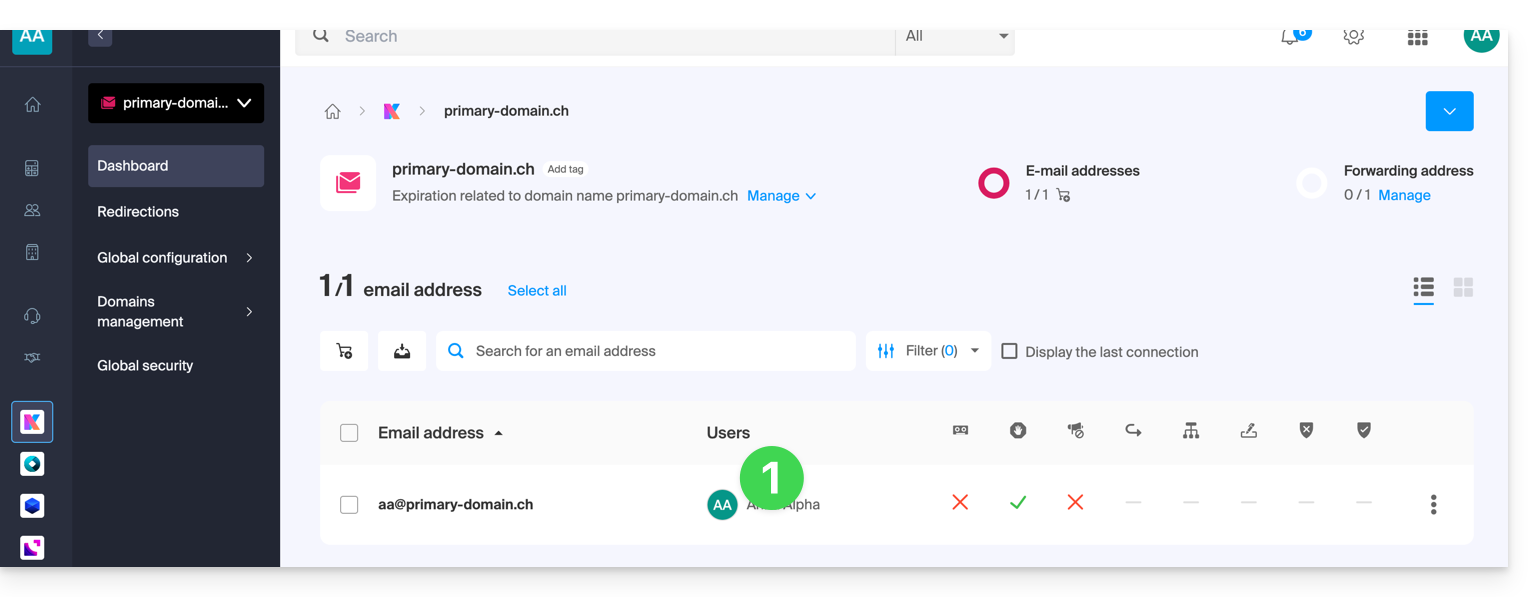
By returning to the Mail service where the email address was created, the administrator can grant access to this address to any other Infomaniak user (and therefore automatically link the address in the user's Mail web app):
- Click on the existing user:
- Click on Add a user:
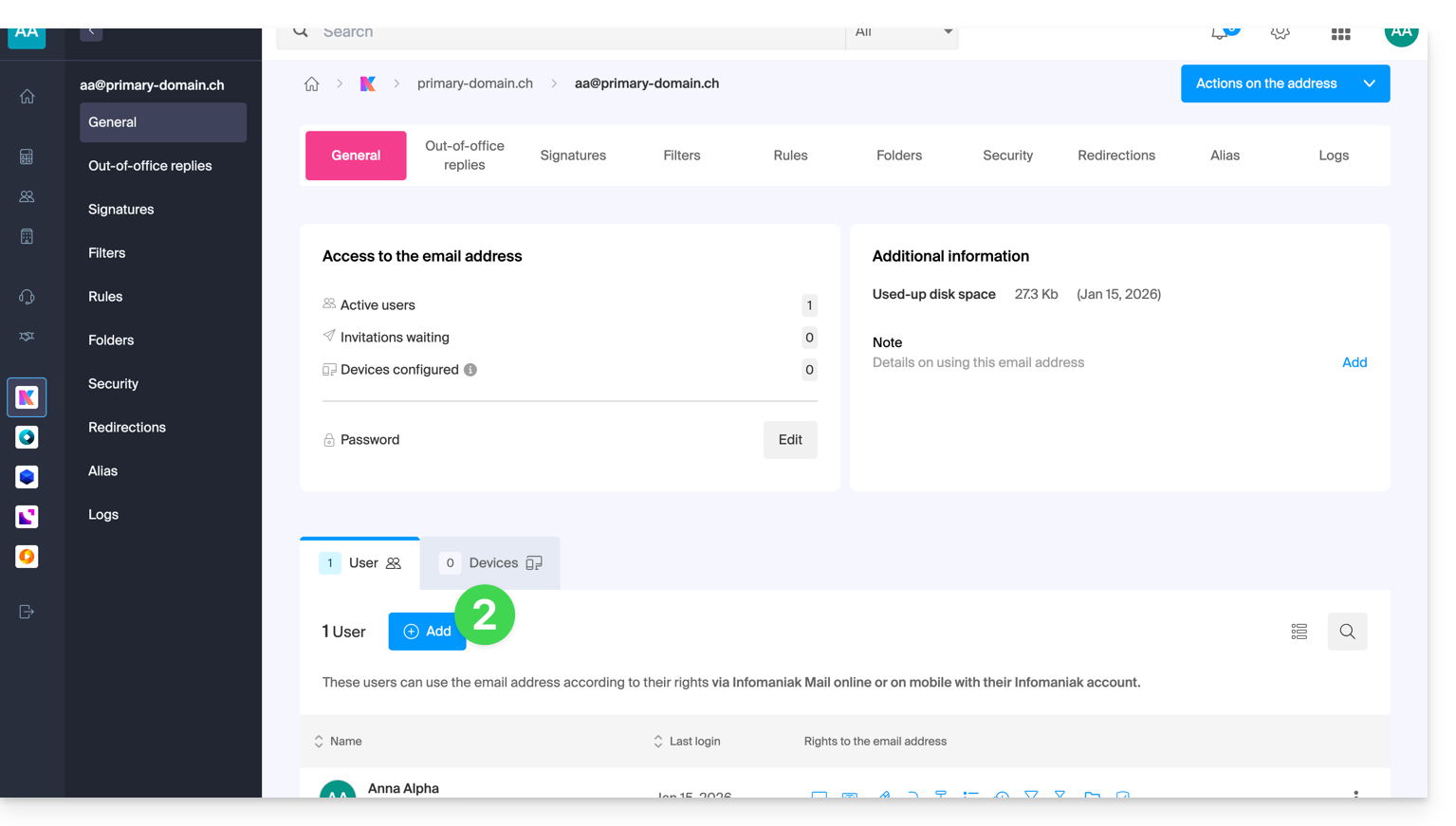
- Continue with the process (refer to this other guide if needed).
View the different associated addresses
To switch between addresses:
- Click here to access the Infomaniak Mail web app (online service ksuite.infomaniak.com/mail).
- Then, click on the downward-pointing chevron to the right of the email address displayed in the upper left corner:
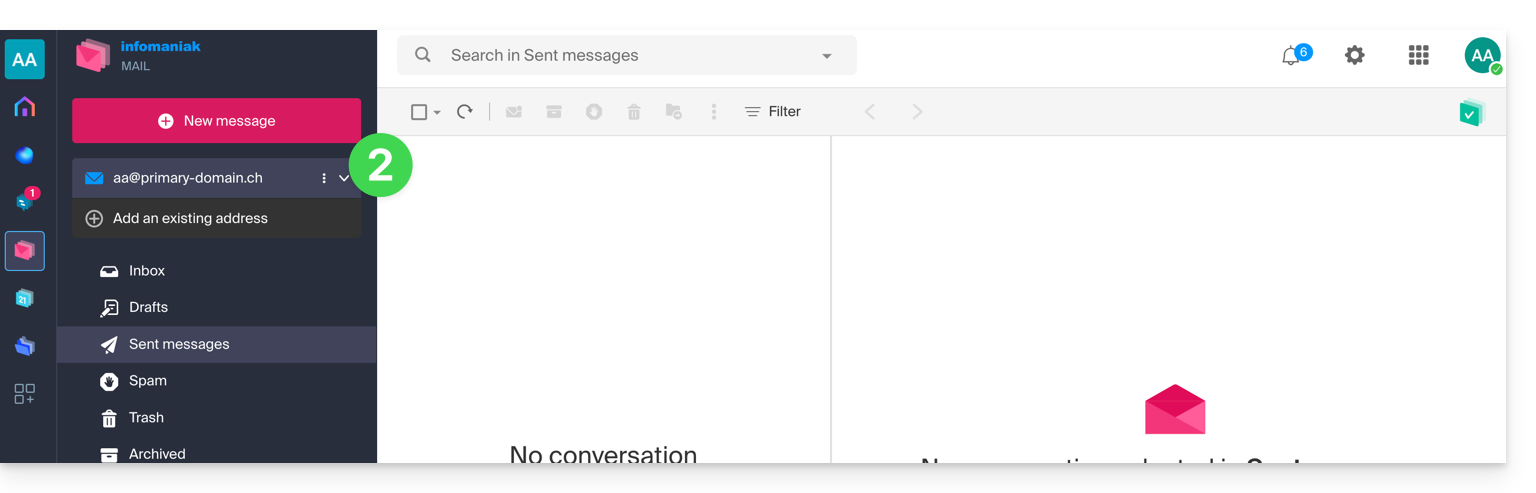
- Click on one of the addresses already associated.
The user can also switch between the various Organizations to which their Infomaniak account belongs, in order to access other addresses from other Mail Services (refer to this other guide).
Define the default way a new address opens
To choose whether a different address should be displayed by default in a new browser tab, or directly replacing the current display, in the same window:
- Click here to access the Infomaniak Mail web app (online service ksuite.infomaniak.com/mail).
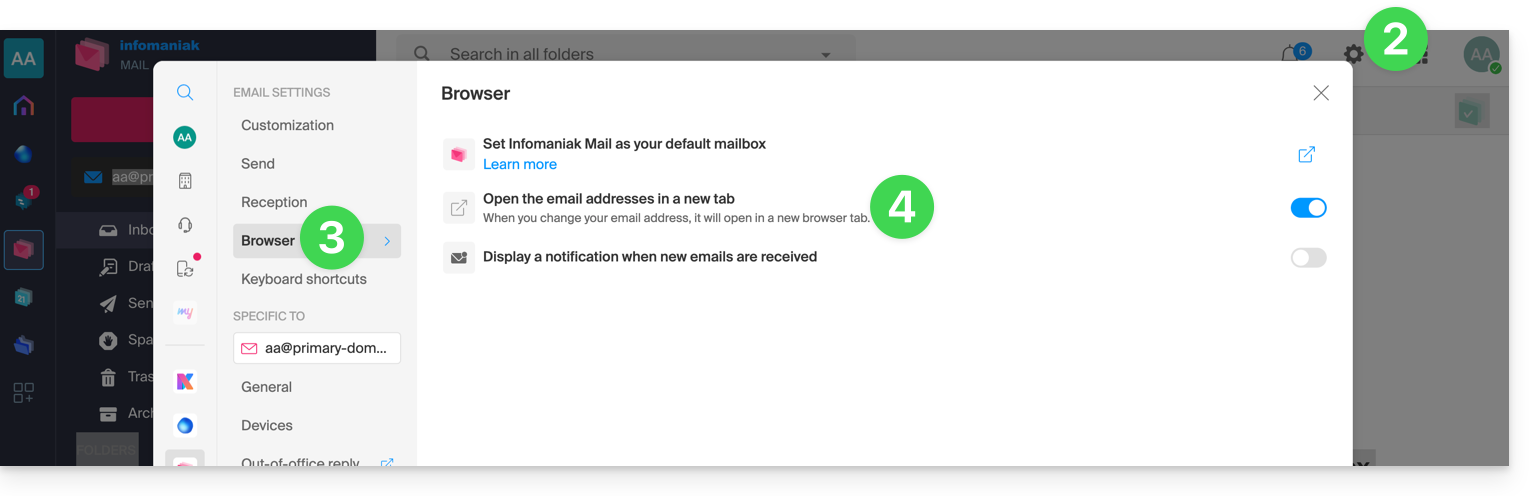
- Click on the Settings icon in the top right corner.
- Click on Browser.
- Click on the toggle switch to enable opening a mailbox by default in a new tab instead of in the current window:
And to define which address should be displayed first by defaulton the interface, refer to this other guide under “Customization: Default Email Address”.
Link to this FAQ: https://faq.infomaniak.com/1714
Has this FAQ been helpful?
This guide explains how to download an email from the Infomaniak Mail web app (online service ksuite.infomaniak.com/mail) to obtain a .eml file on your hard drive, which is compatible with all email software/clients.
This operation cannot be performed on the Infomaniak Mail mobile app (application for iOS/Android smartphones or tablets), but please refer to the alternatives provided at the end of this guide.
Download an email
To save an email from the Infomaniak Mail web app (online service ksuite.infomaniak.com/mail):
- Click here to access the Infomaniak Mail web app (online service ksuite.infomaniak.com/mail).
- Open the message to download.
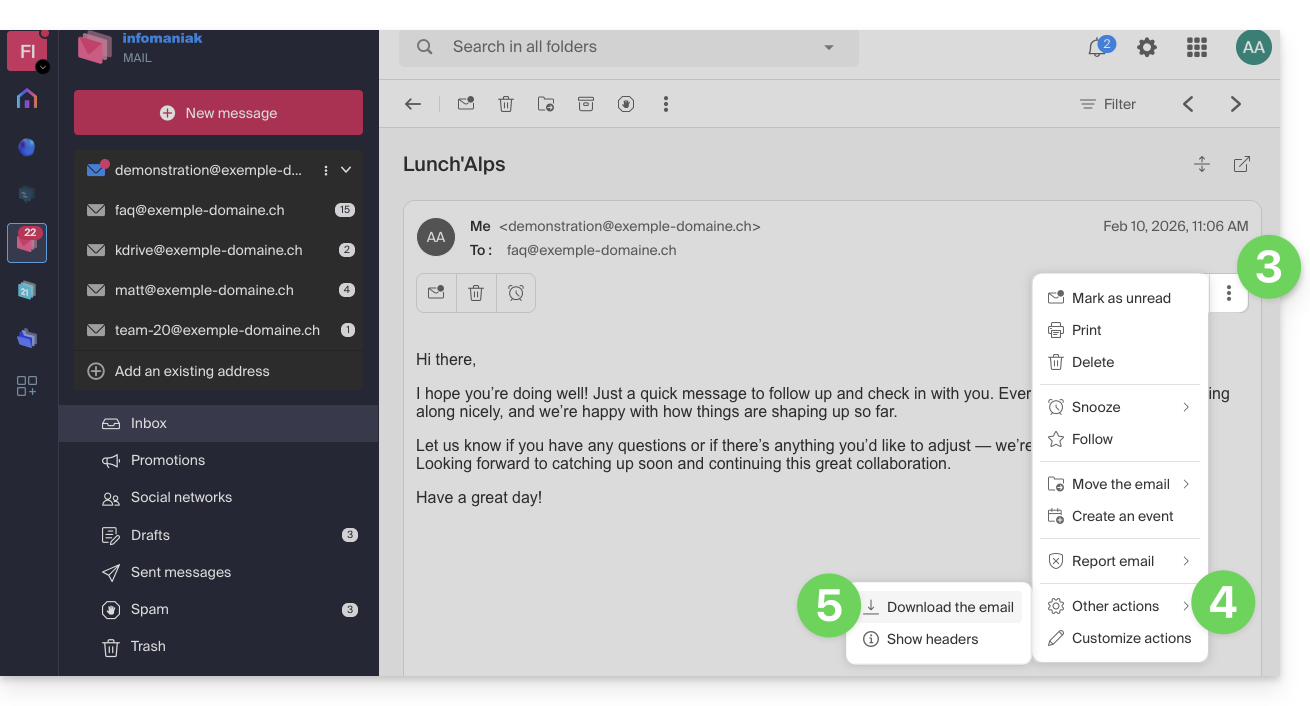
- Click on the action menu ⋮ to the right of the open email.
- Click on More actions.
- Select Download:
4 alternatives
- The Save As... function in an email client such as Thunderbird allows you to achieve the same result:
- Open the Thunderbird software.
- In the inbox, right-click on the message you want to save.
- Choose the location to save the
.emlfile.
- To print the message and choose PDF from the available printers, please refer to this other guide.
- To download the message to kDrive, please refer to this other guide.
- To share it publicly using a simple link, please refer to this other guide.
Link to this FAQ: https://faq.infomaniak.com/1718
Has this FAQ been helpful?
This guide explains how to create sorting rules (in Standard mode) to automatically categorize your incoming emails on Infomaniak based on certain conditions.
Introduction
- These rules enable the following automated actions:
- Delete or move messages from email addresses that you no longer want to receive.
- Forward emails from a specific email address to your partner so that you both receive them.
- Copy messages containing a specific keyword to a folder.
- etc.
- Unlike the sorting rules offered within email software/clients (❓: help), these rules will act directly on the server of your mailboxes even before the IMAP connection.
- You can use it as a template for all addresses in your Mail Service (❓: help).
- Warning: rules are evaluated one after the other: if an email meets the conditions of several rules, each of them will be executed.
- For example, a message from Amazon with the subject line containing "Advertisement" could be processed by two different rules.
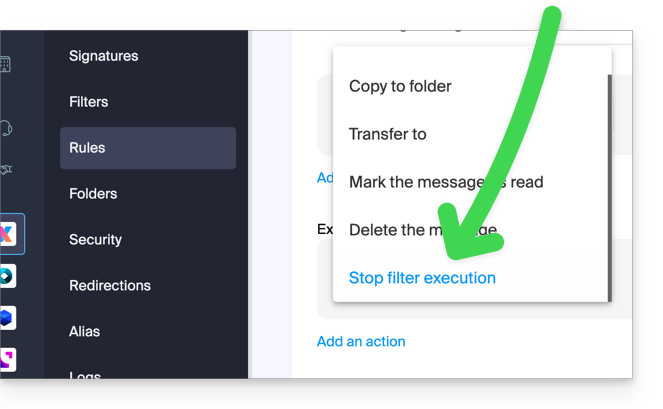
- To prevent the same email from being processed multiple times, add the action "Stop filter execution" to the end of the rule that should not be followed by subsequent rules:
- Depending on your plan, there is an advanced mode (❓: help) for creating sorting rules in a dedicated language.
Accessing rules from the Infomaniak Web Mail app
Prerequisites
- You must have permission to manage rules: if you were invited tothe Infomaniak Web Mail app (online service ksuite.infomaniak.com/mail) to manage your address, the Mail Service administrator may have removed this permission from their admin account (❓: help).
- To view archived messages, you will need to use the IMAP protocol (❓: help) or only Mail Infomaniak (because the POP protocol only retrieves messages that are in your main inbox).
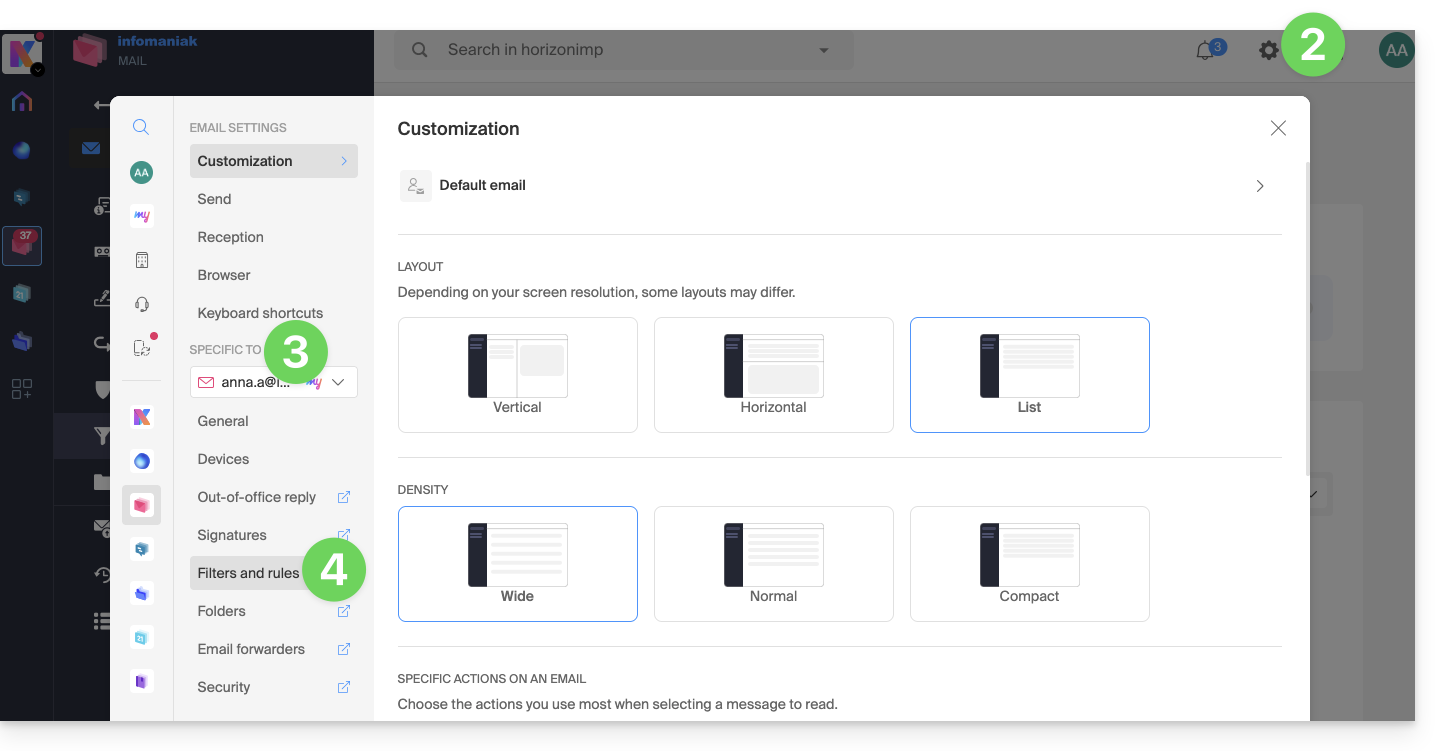
To access the sorting filters for your Infomaniak email:
- Click here to access the Infomaniak Mail web app (online service ksuite.infomaniak.com/mail).
- Click on the Settings icon in the top right corner.
- Check or select the relevant email address from the drop-down menu.
- Click on Filters and rules:
Define a rule based on a received email
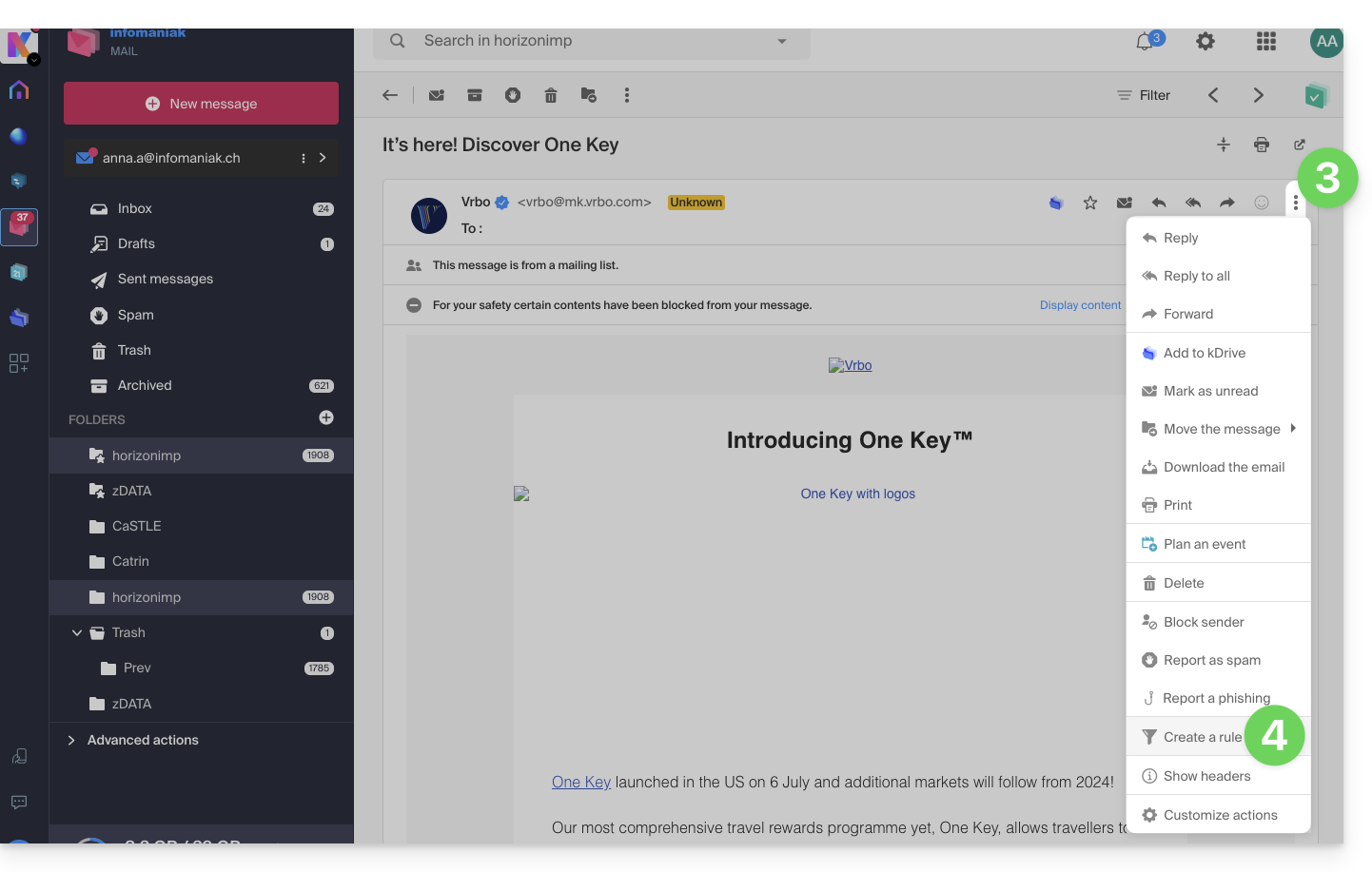
You can also create a rule directly from the received email:
- Click here to access the Infomaniak Mail web app (online service ksuite.infomaniak.com/mail).
- Open the message from the sender in question.
- Click on the action menu ⋮ in the upper right corner of the open message.
- Choose Create a ruleto open the creation wizard, which will be pre-filled with the message elements:
Accessing Rules from a Mail Service
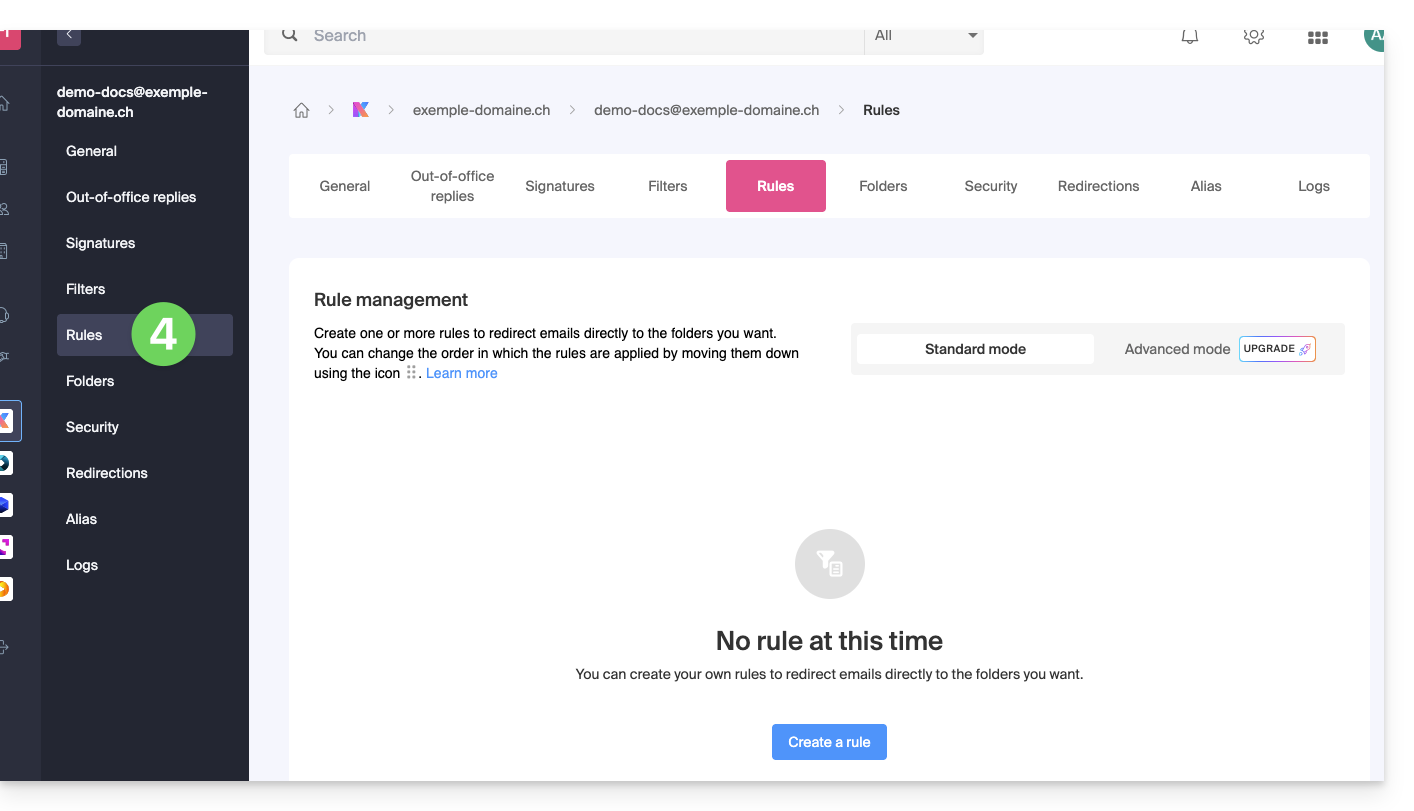
To access the sorting filters for your Infomaniak email:
- Click here to access the management interface for your product in the Infomaniak Manager (❓: help).
- Click directly on the name assigned to the product in question.
- Click on the email address in the table that appears.
- Click on the Rules tab from the left-hand menu (or top bar):
Create a new rule in Standard mode
- Click on the Add a rule button in Standard mode to create a new rule using a wizard/creation form:

- The different conditions available for sorting filters are presented in this other guide.
- Once a filter has been created, click Continue to activate it.
Add, duplicate, or modify a rule in Standard mode
If filters already exist, the button to add a new one is located in the upper right corner of the table: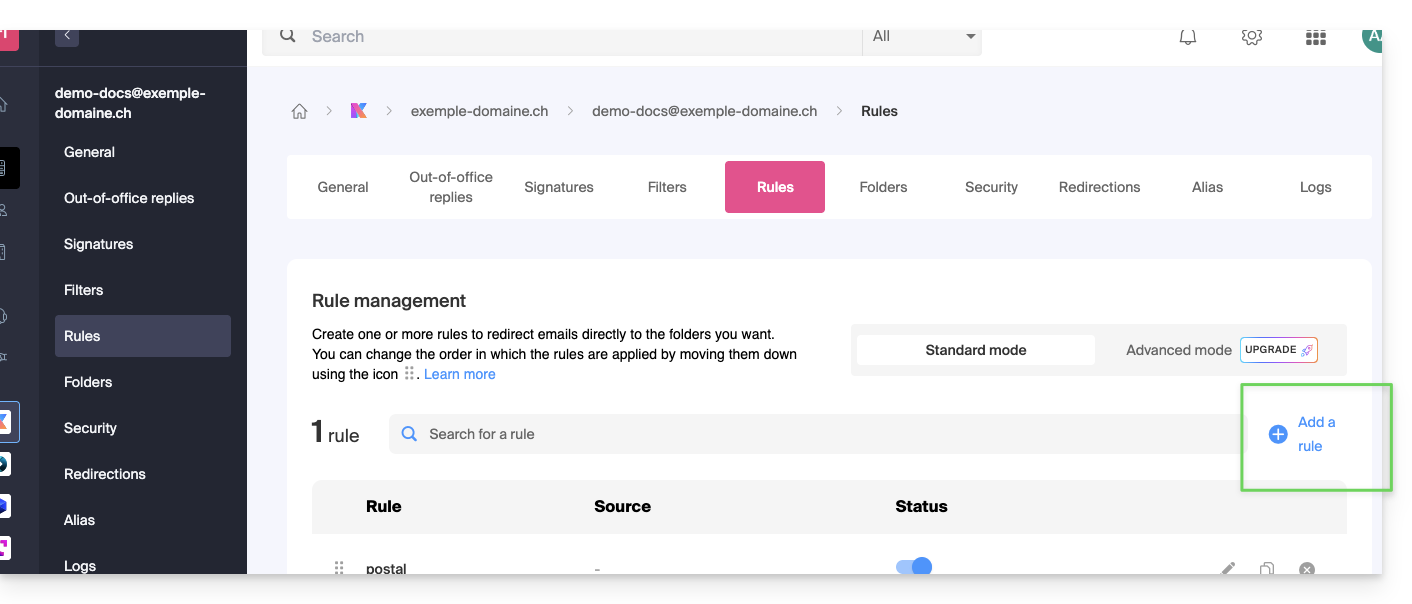
You can modify these settings at any time by clicking on the pencil ✎ icon to the right of the item in question.
You can also duplicate an existing rule to rework it as a copy without affecting the original: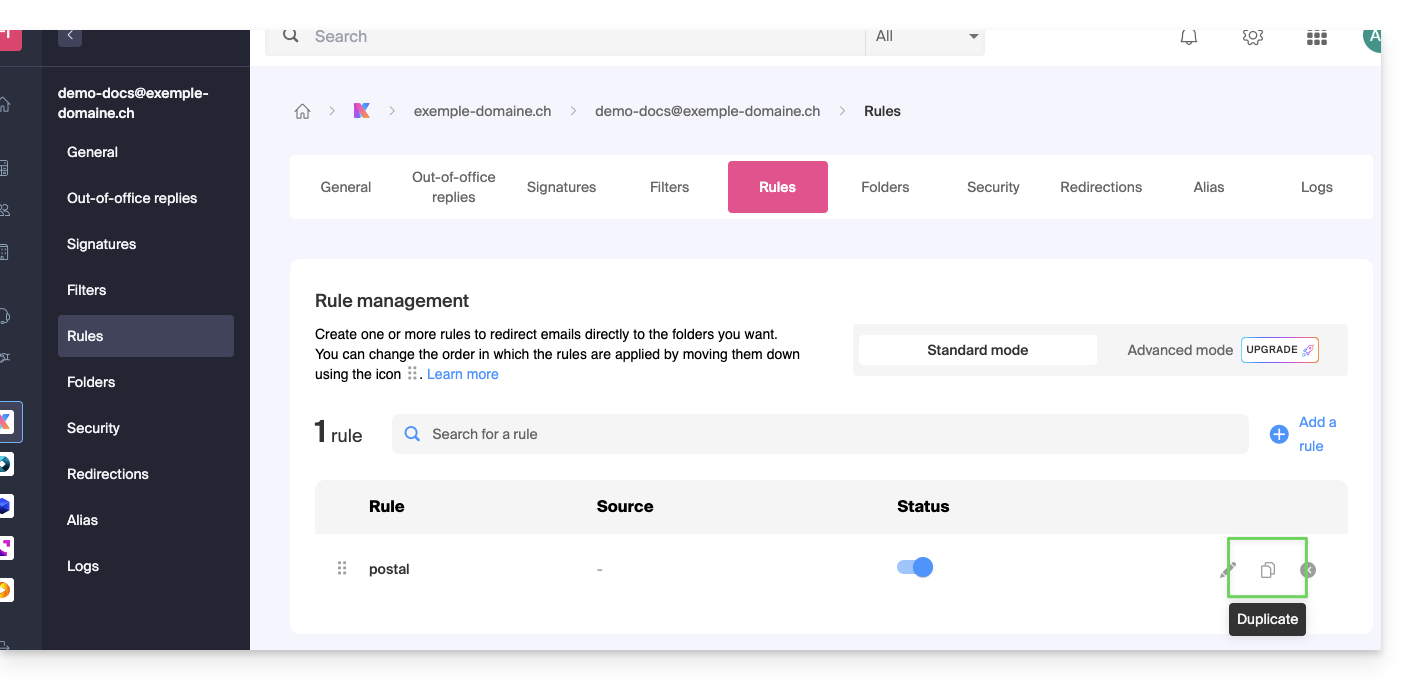
Link to this FAQ: https://faq.infomaniak.com/1729
Has this FAQ been helpful?
This guide details what you can search for in the Infomaniak Mail web app (online service ksuite.infomaniak.com/mail) or other kSuite services. For searching in kDrive, please refer to this other guide.
Search for an email
On ksuite.infomaniak.com/mail, type the term you want to find in the search bar at the top of the page.
The search will be performed within the email address mentioned in the left sidebar(to search across multiple email addresses simultaneously, use an IMAP email client to which you connect your different addresses):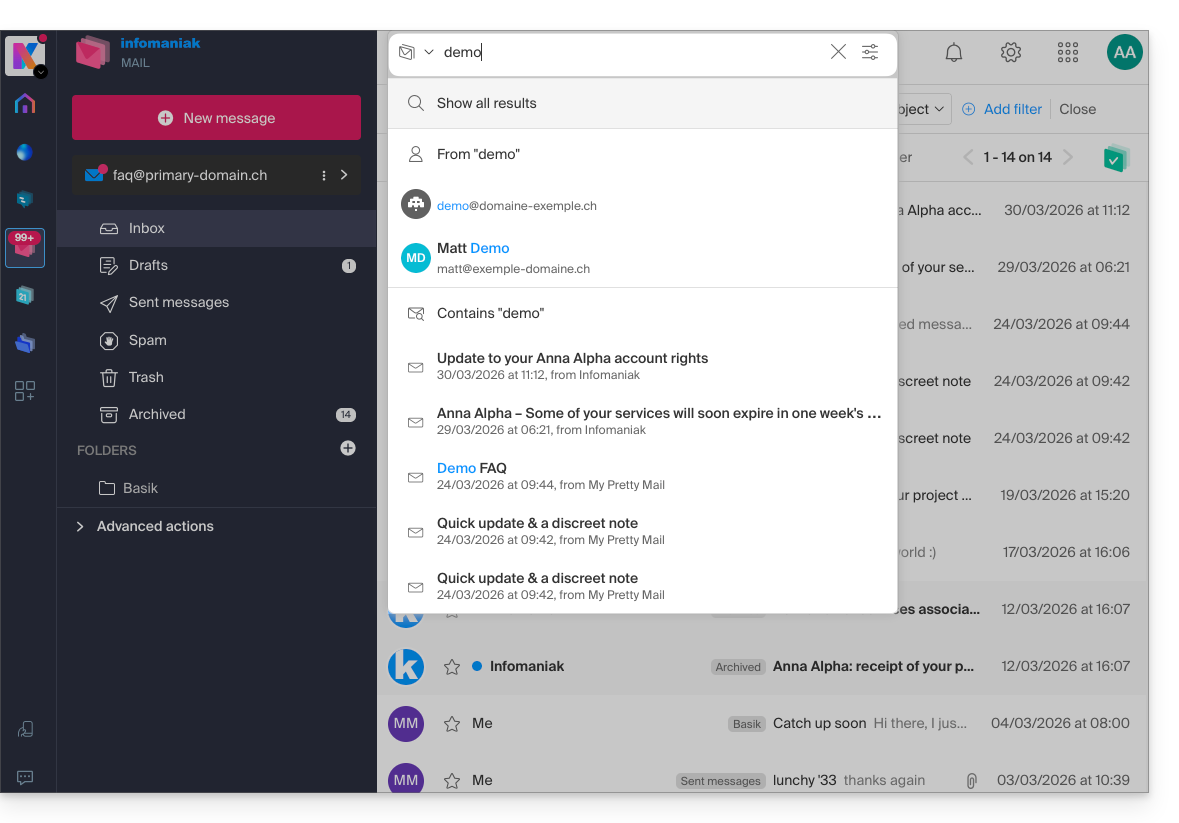
Advanced search is accessible to the right of the search field at the top of your Mail: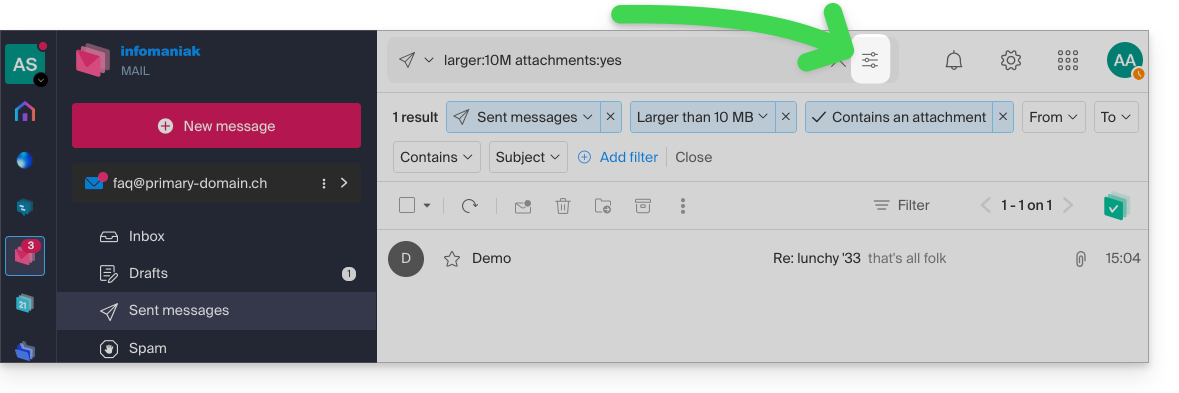
You can search for content…
- either in the body of the message,
- either in its subject,
- or among its senders/recipients…
You can also filter the search by message size and by whether or not it contains an attachment.
Regarding the scope of the searches:
- The content of encrypted emails is not indexed (except for the email subject).
- The content of attachments, as well as their name, is not indexed: therefore, it is not possible to find an email by searching for the name of the file that was attached to it.
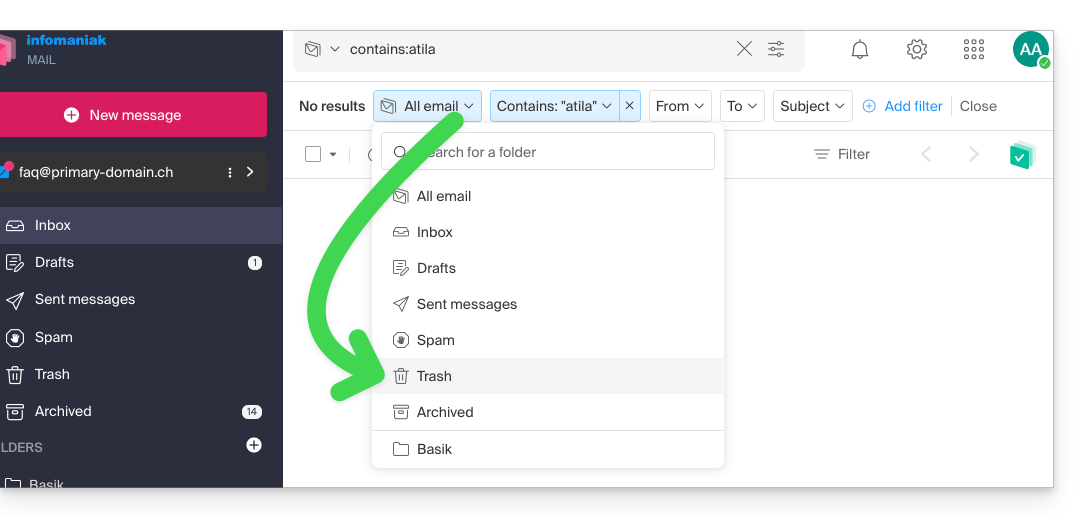
- The "Search all emails" function does not include the Trash or Spam folder:
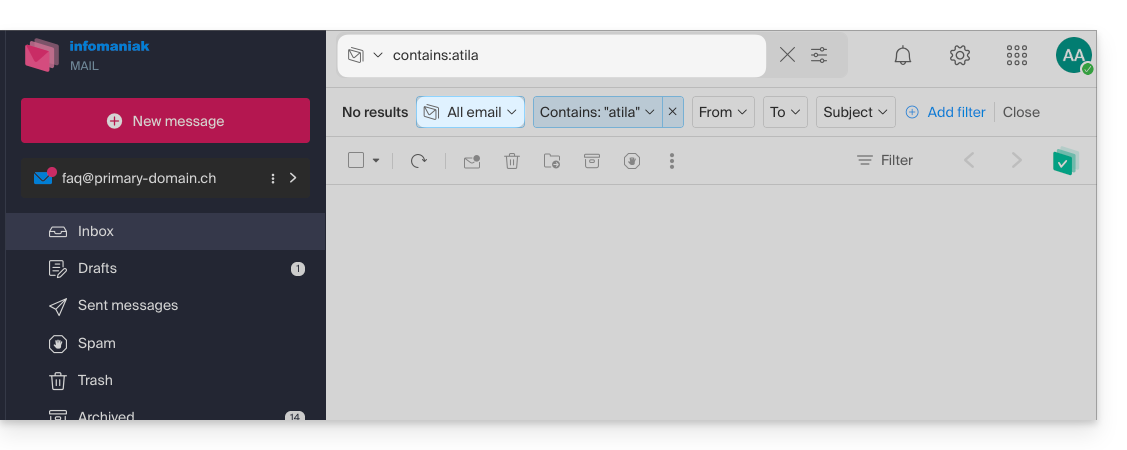
- If a global search returns no results, the email may be in one of these two folders.
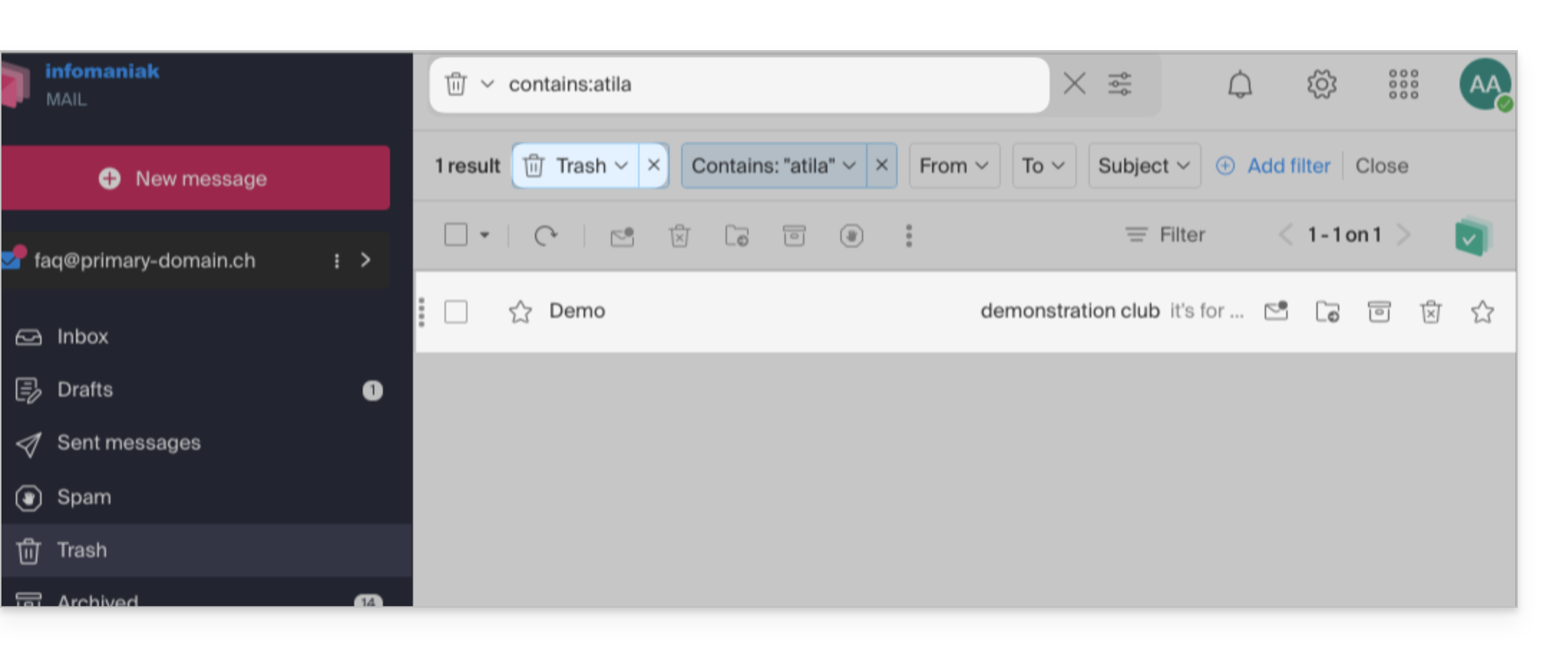
- You will then need to go specifically to the Trash or Spam folder to perform the search there, or launch the search by selecting one of these two items:
- Any items found will then be displayed:
- Similarly, when you want to find a message in a specific folder, it is best to go there first from the left-hand menu, and then launch a search.
To search for traces of an email or to see its activity, you can also search in the logs of an email address.
Email search with a software/email client
To find out how your specific email application performs searches, consult its documentation. For example, desktop apps like Thunderbird and Outlook can synchronize messages locally and perform local searches, while other applications may prefer searching on the IMAP server. In this case, the software/email client sends a search command to the server, which then searches through all messages stored on the server and returns the results to the software/email client.
Search for a contact in your address books
The search function automatically searches through all your address books, groups, and contacts using the search field at the top of the ksuite.infomaniak.com/contacts interface: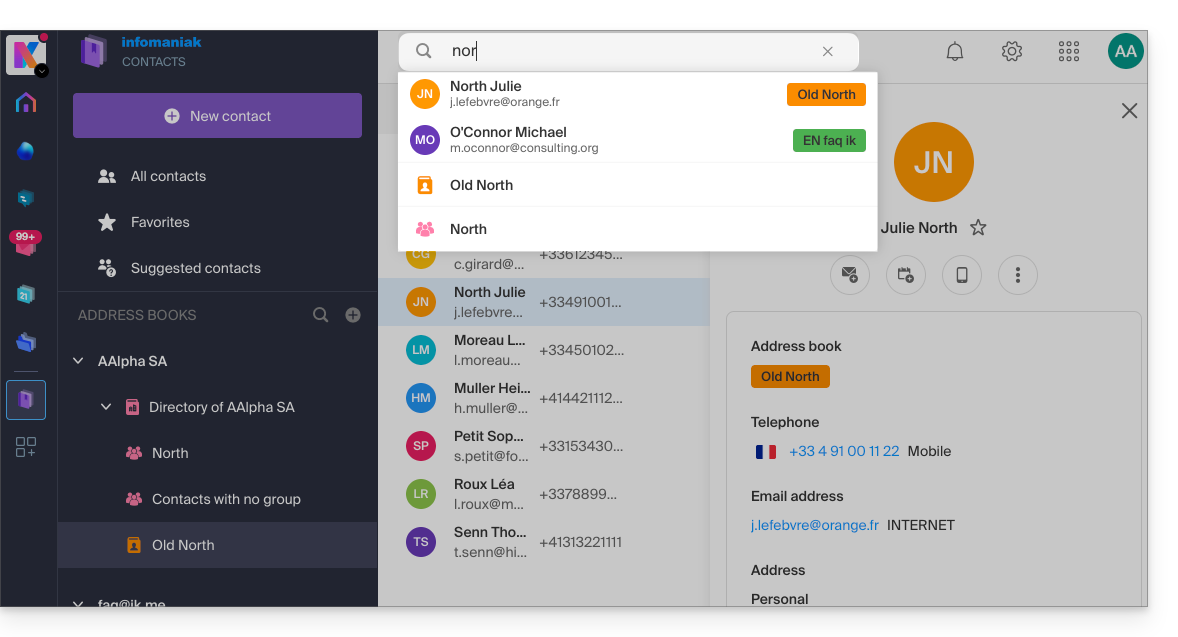
Search for an event in your calendars
Searching for an item on ksuite.infomaniak.com/calendar is performed automatically across all your calendars, events, and rooms, including within the description of these items and the people associated with them (if you click on a contact, you will see the events you have in common with that contact):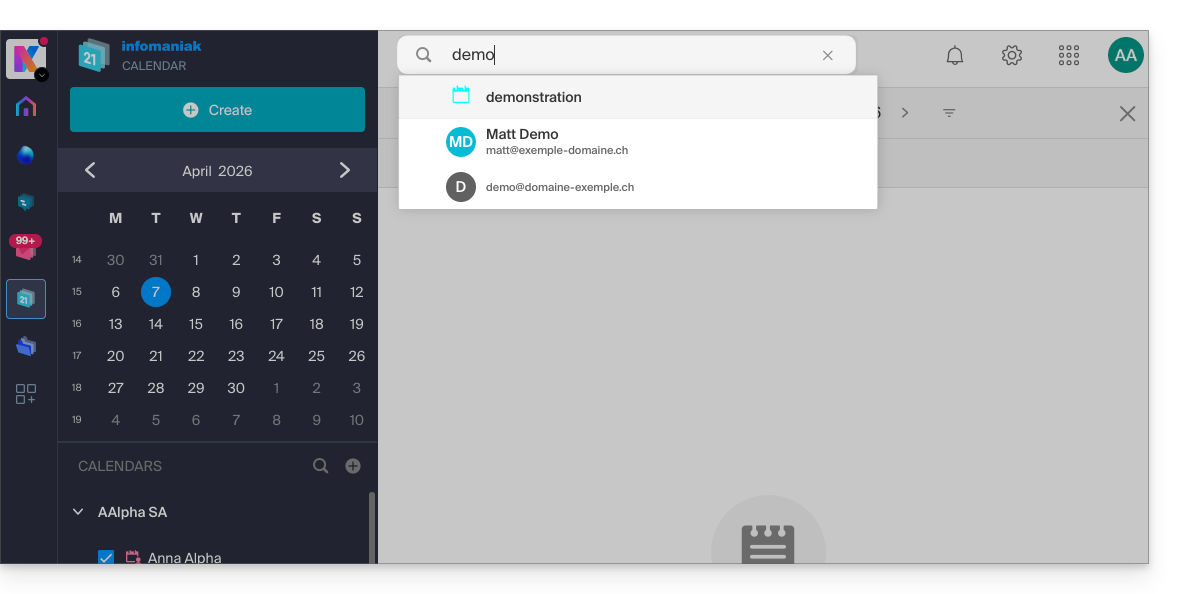
Search in kChat
To search for an item in ksuite.infomaniak.com/kchat, use the main search field to find messages, replies, or file content: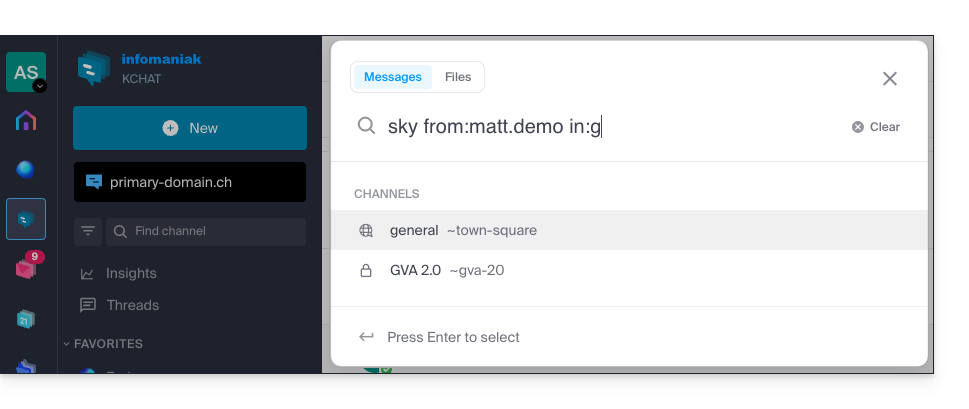
To refine your search results, several search modifiers are available:
from:: to find messages sent by a specific user (e.g.,from:jean.dupont).in:: to restrict the search to a specific public channel, private channel, or direct message (e.g.,in:channel-name).before:,after:,on:: to target a specific date (in YYYY-MM-DD format) or period (e.g.,on:2026-09-01).
Exclude a channel or terms from a search (exclusions)
It is possible to exclude certain search results by using the hyphen - before a term or modifier. This is an extremely useful feature for filtering out irrelevant results:
- Exclude a channel: add
-in:channel-nameto your query to completely exclude results from that channel. - Exclude a word: type
test -releaseso that the results include the term "test" while excluding messages containing "release". - Exclude a user: type
-from:userto hide messages sent by that specific person.
You can perfectly combine these exclusions. For example, the search test -release -in:release-discussion -from:anna will find the word "test", excluding the word "release", completely ignoring the "release-discussion" channel, and excluding messages from the user “anna”.
Link to this FAQ: https://faq.infomaniak.com/1733
Has this FAQ been helpful?
This guide explains how to, from a Mail service, reset or delete the passwords for a mail addressto disconnect a third-party application such as Outlook or Thunderbird.
Other access and management options are presented in the main guide.
Introduction
- Changing the password for an email address is equivalent to changing the IMAP / SMTP password:
- As soon as the password is changed, you must update your software (Outlook, etc.), mobile devices (iPhone), etc. with the new password (this is your responsibility).
- If you cannot log in to the Manager or Mail / kSuite, you will not be able to manage the passwords for any of your email addresses: please refer to this other guide in this case.
Remove a password / device
Prerequisites
- You must have at least the right to manage the Mail Service in question (or be an Administrator / Legal Representative within the Organization).
To disconnect any existing IMAP/POP/SMTP connections using a password generated in this interface (this will not remove the address from Infomaniak Mail apps – you need to manage the users of the email address for that), you can revoke a device or even delete all existing configurations with a single click:
- Click here to access the management interface for your product in the Infomaniak Manager (need help?).
- Click on the name of the product in question.
- Click on the email address in question in the table:
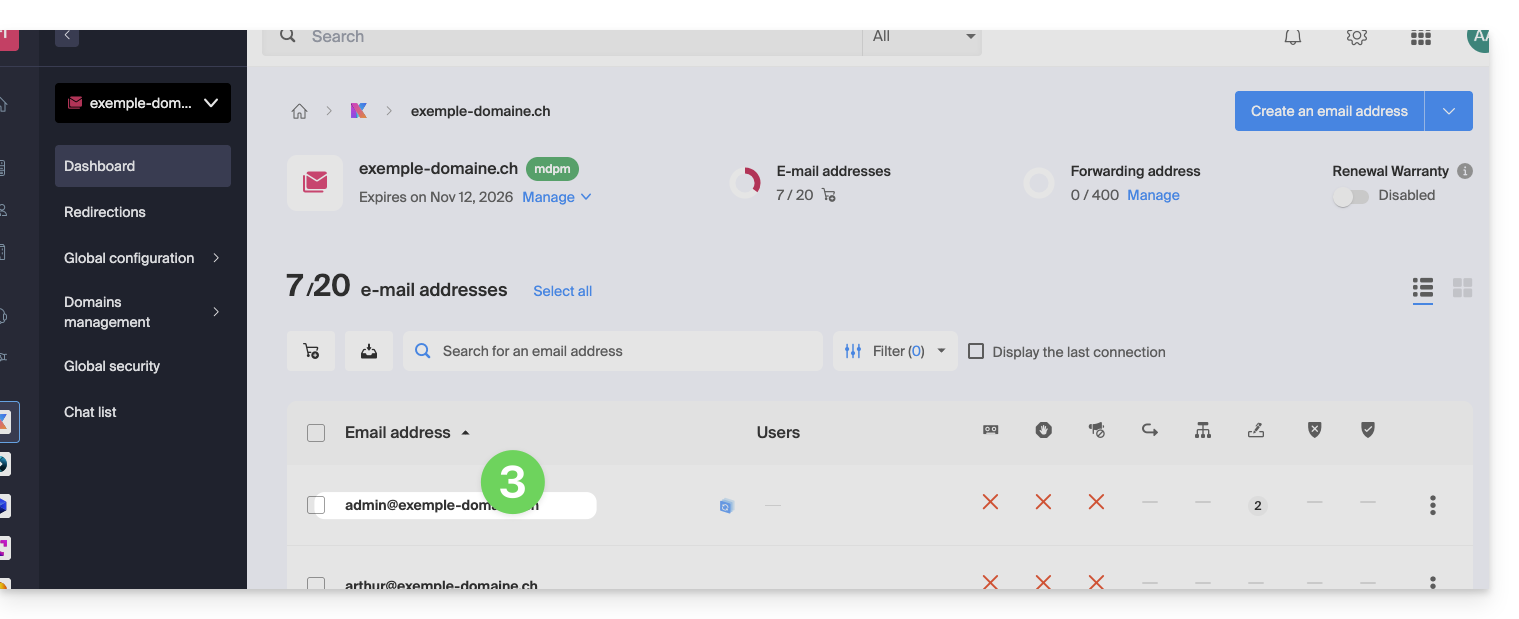
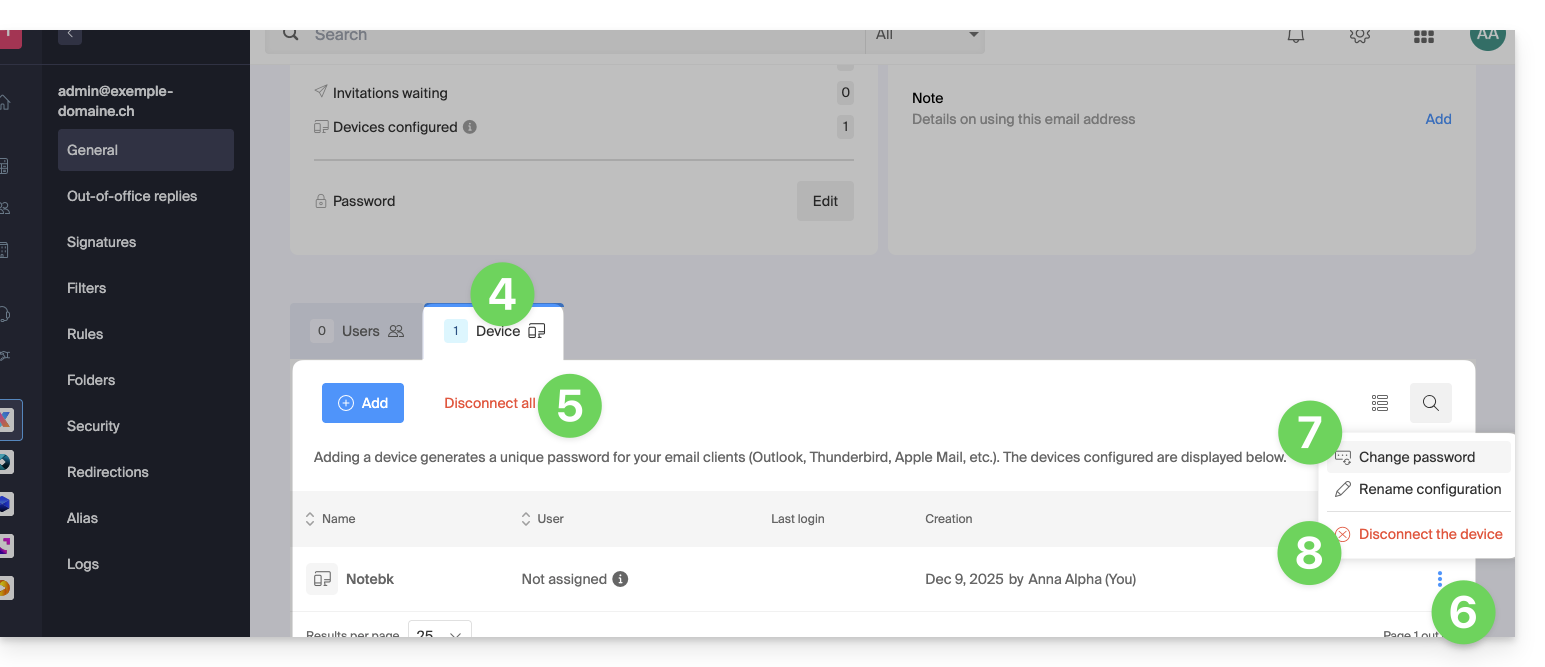
- Click on the Devices tab.
- Click on the red link to disconnect all registered devices (confirmation is required).
- Click on the action menu ⋮ located to the right of the device in question.
- Click on “Change password” to disconnect the current connection but allow the device to reconnect with a new password directly.
- Click on “Disconnect device” to remove it from the list and delete the corresponding connection:
What is a “generic” password?
Some email addresses may display a specific indication in the Devices section: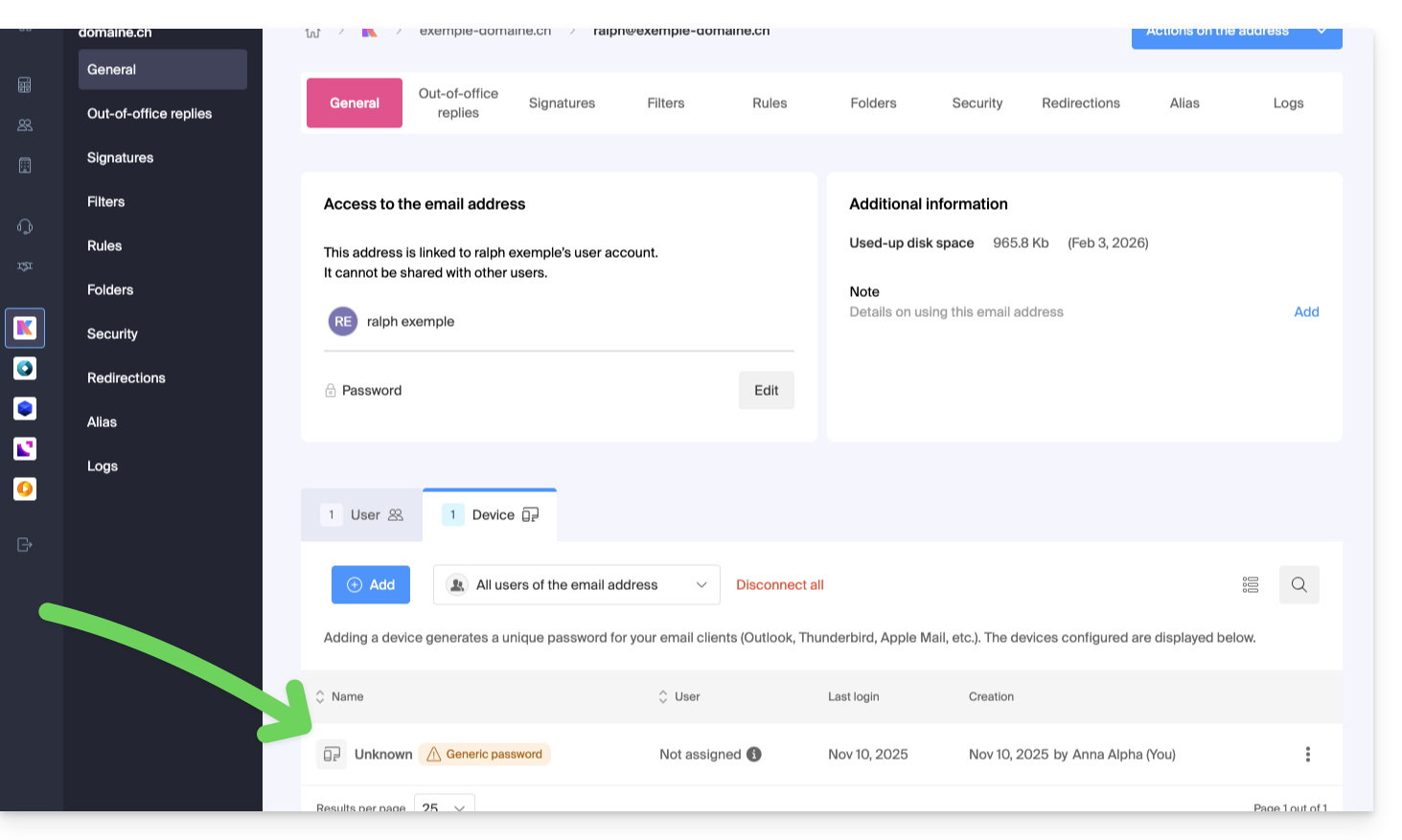
If this is the case, don't worry; it means that the address has a password assigned to it when it was created (prior to 2026). This password remains valid, but like other passwords, it cannot be displayed.And unlike other passwords, this one cannot be reset (the option is grayed out, disabled):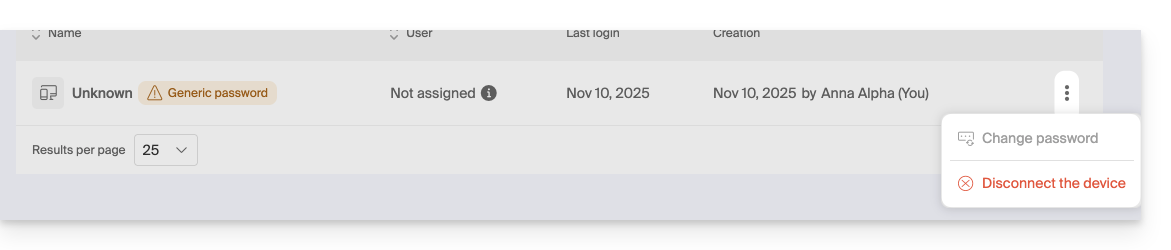
In this case, you can easily add an additional password.
Link to this FAQ: https://faq.infomaniak.com/1736
Has this FAQ been helpful?
This guide explains how to add a folder or subfolder as a favorite on the Infomaniak Mail web app (online service ksuite.infomaniak.com/mail).
Introduction
- Automatically placed at the top of your folder list, you will get quick and easy access to this folder.
- Multiple folders can be added to your favorites.
Mark a folder as favorite
To add a folder as a favorite or remove it:
- Click here to access the Infomaniak Mail web app (online service ksuite.infomaniak.com/mail).
- Click on the action menu ⋮ to the right of the folder in question in the left-hand menu.
- Choose the desired action:
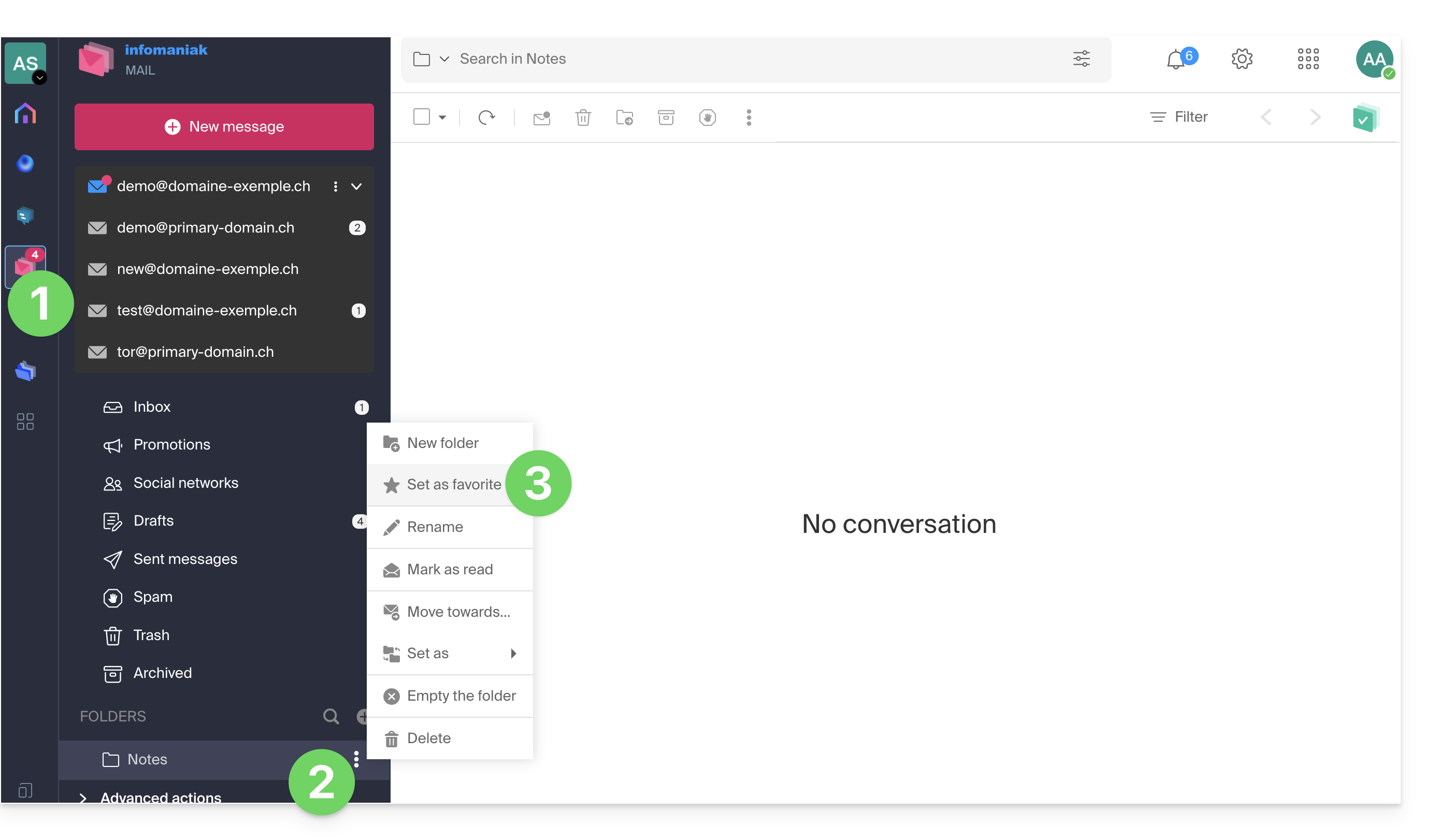
- The folder defined as a favorite is “duplicated” at the beginning of the folder list with a star on its icon (but it is the same folder as the one in the list below).
- You can remove a favorite at any time via the action menu:
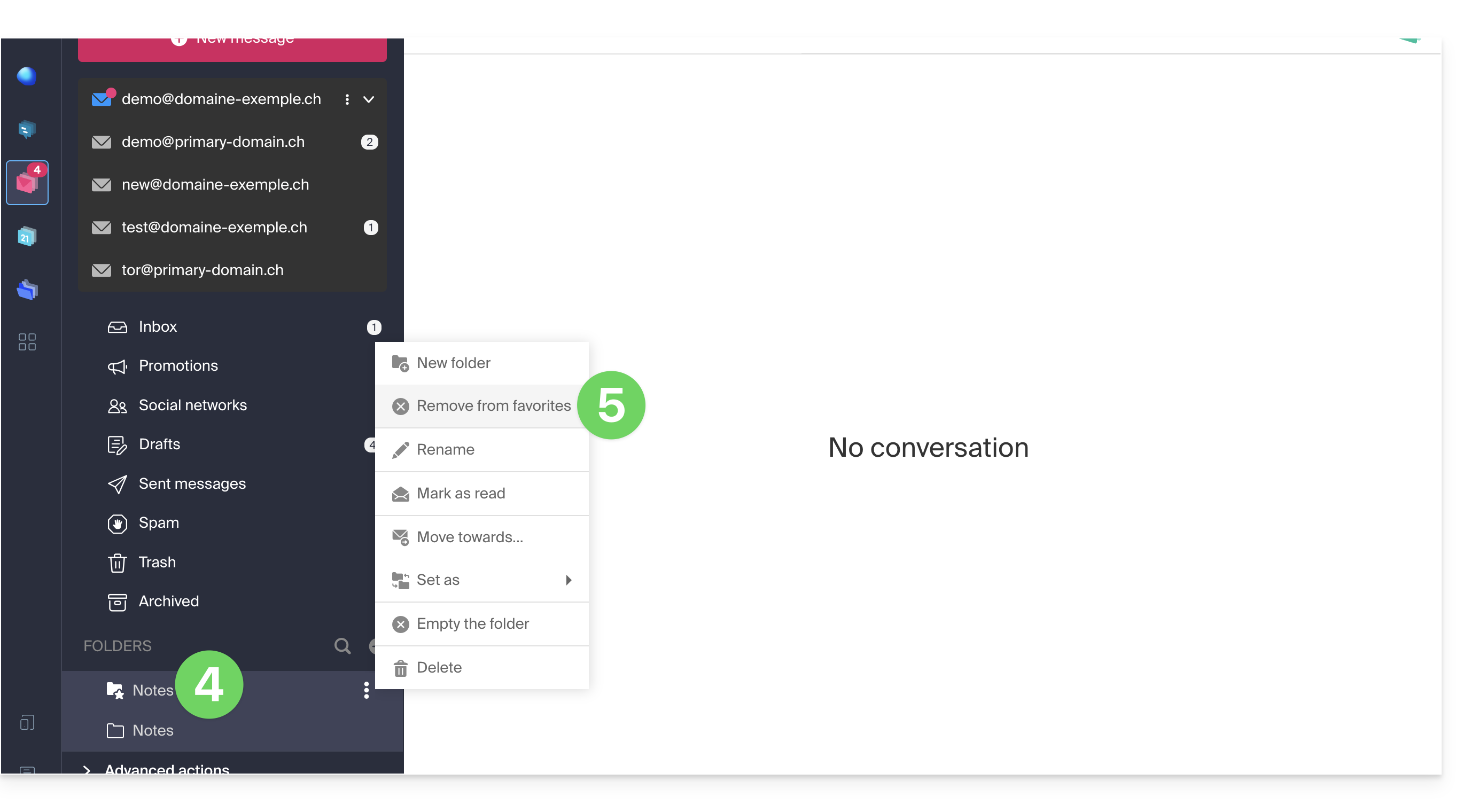
And on the mobile app?
It is not possible to add a folder as a favorite from the Infomaniak Mail mobile app (application for iOS/Android smartphones or tablets).
You can mark messages as favorites to keep track of them.
Alternatively, to access your folders on the mobile app:
- Tap the icon in the top left corner of the Mail inbox.
- A panel slides in from the left and displays several sections.
- The collapsible “Folders” section displays your folders in alphabetical order; you can create new folders, then rename or delete them by long-pressing the folder name in the list.
Link to this FAQ: https://faq.infomaniak.com/1745
Has this FAQ been helpful?
This guide explains how to forward one or more emails you have already received to a recipient, by placing them either…
- … directly in the body of a new message,
- … as an attachment (this allows you to forward the entire message with its headers, and not just its content).
Introduction
- To obtain a sharing link to view a specific email, please refer to this other guide.
- For automatically redirect all future incoming messages, please refer to this other guide.
- To filter and automatically redirect only certain messages, please refer to this other guide.
- To learn how to forward emails but from a third-party email software/client:
Forward a message from the Infomaniak Web Mail app
To do this:
- Click here to access the Infomaniak Mail web app (online service ksuite.infomaniak.com/mail).
- Open the message you want to forward.
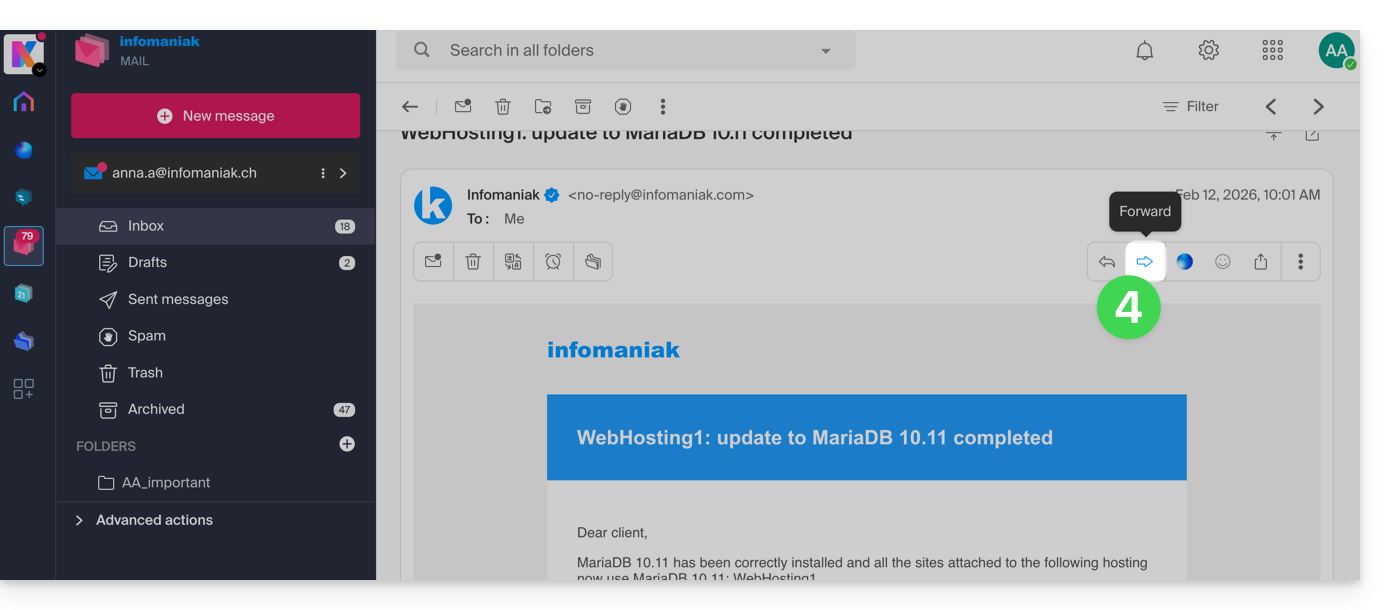
- The button to TRANSFER is located below the message:
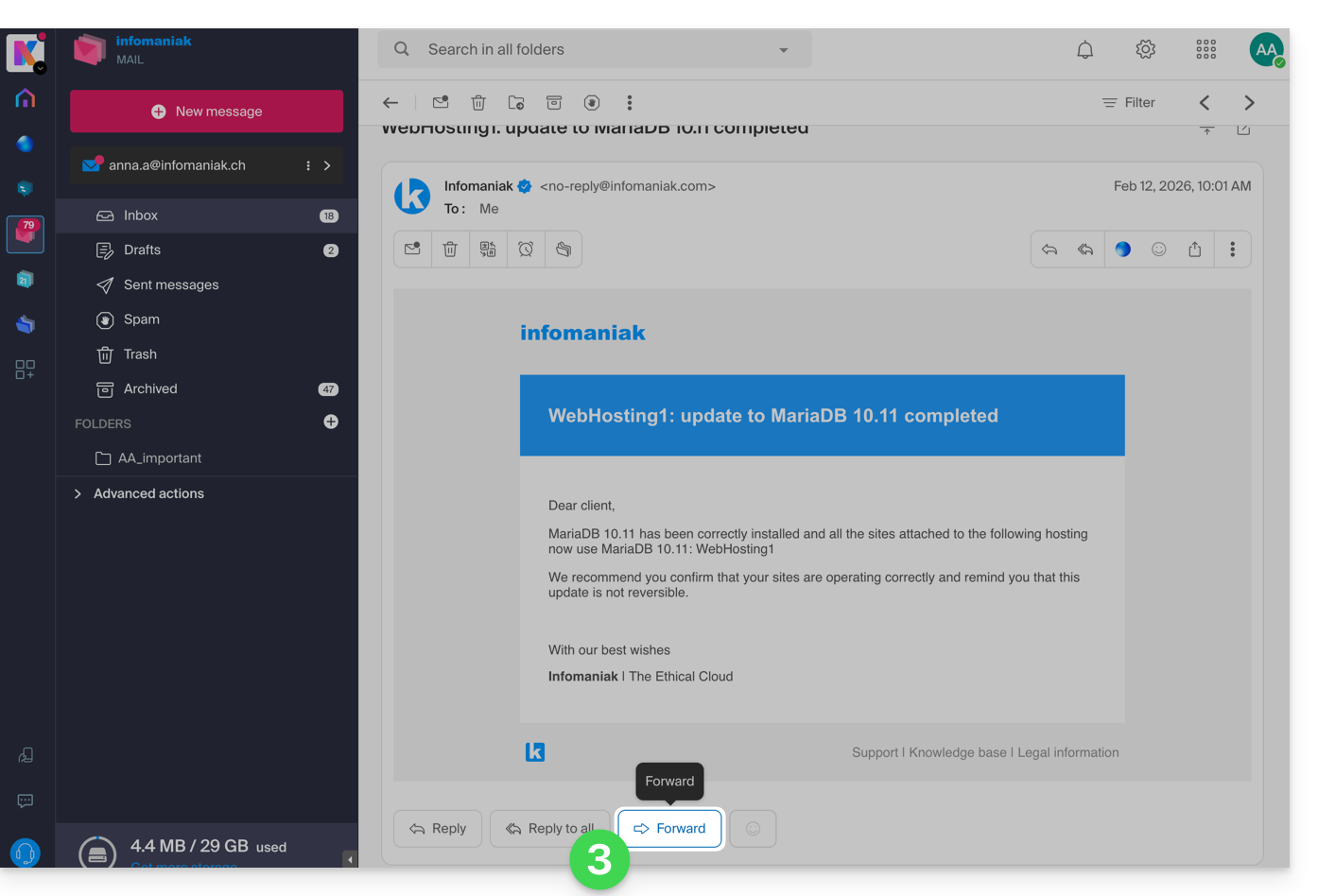
- You can also enable shortcuts so that a transfer button appears above the message, in the toolbar:
Configure the default forwarding method
You can configure Mail Infomaniak so that an email forward is always sent as an attachment and not quoted in the body of the message.
Indeed, by default, the original email will be quoted in plain text directly in the body of the email: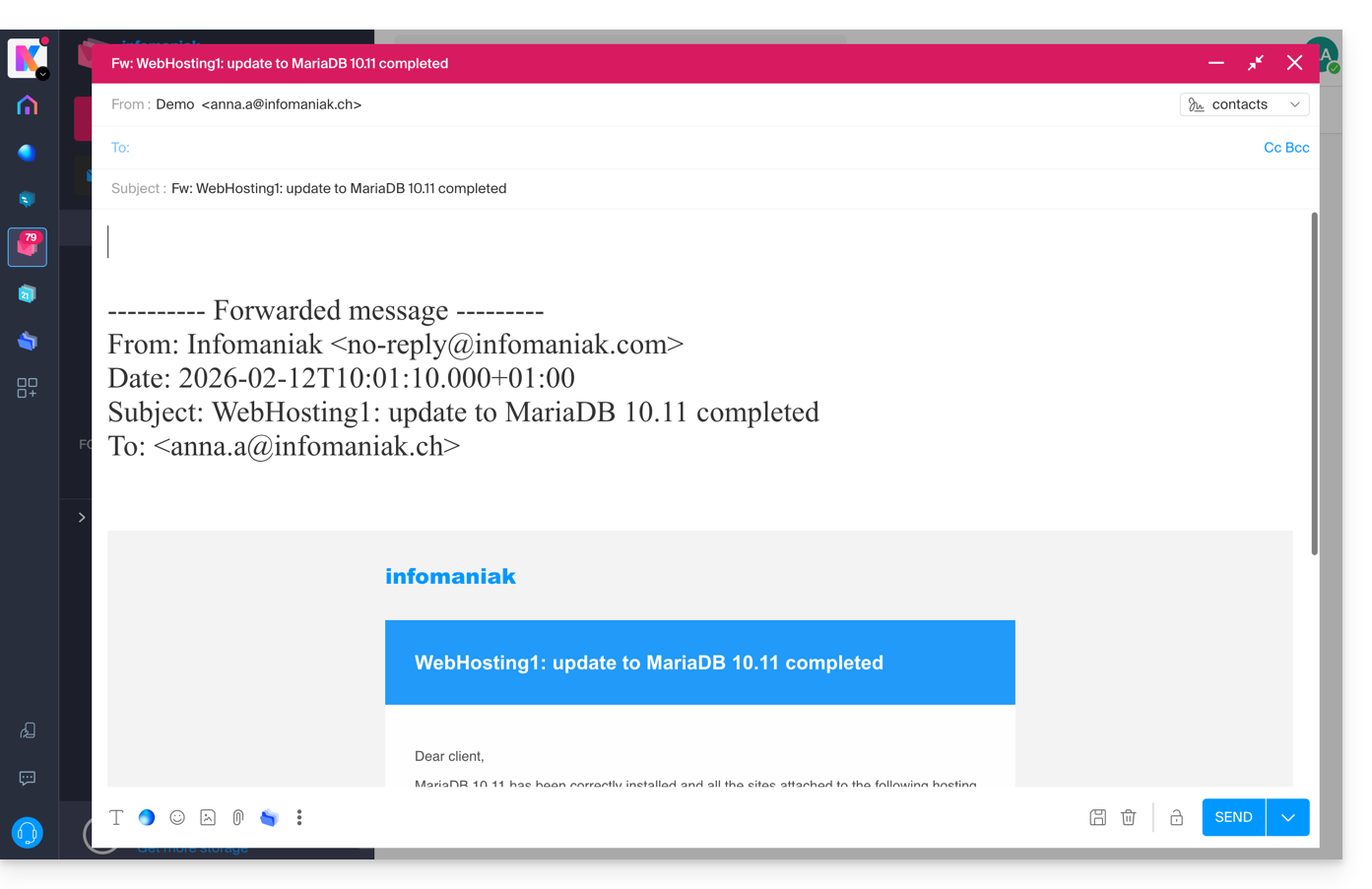
To change this and define the default transfer method:
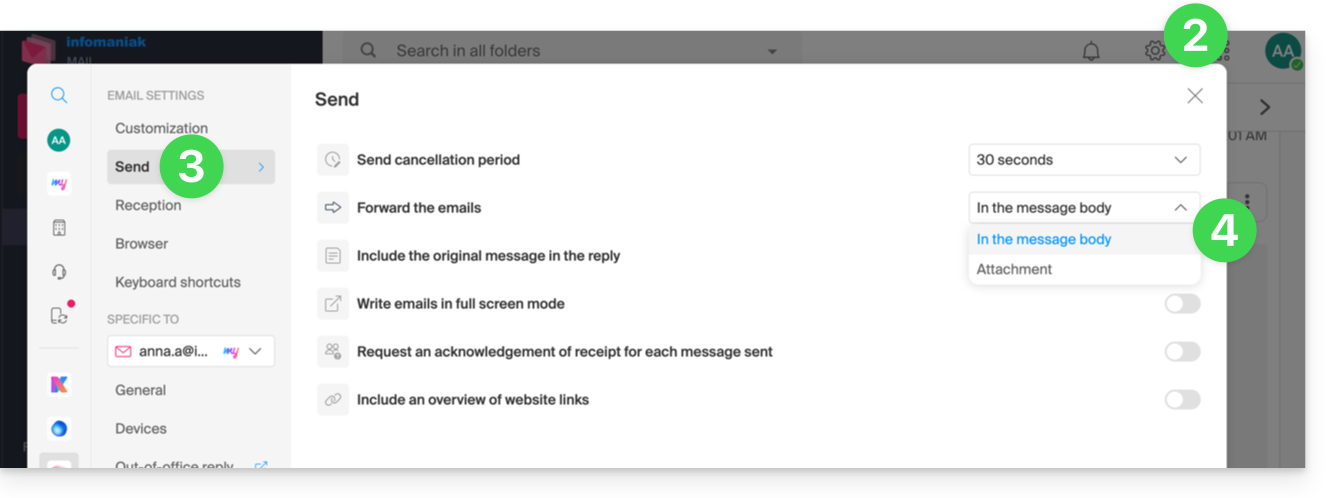
- Click here to access the Infomaniak Mail web app (online service ksuite.infomaniak.com/mail).
- Click on the Settings icon in the top right corner.
- Click on Send in the secondary sidebar menu.
- Click on the desired option ("As an attachment") to "Forward emails":
From now on, the original email will be attached as an attachment to the email: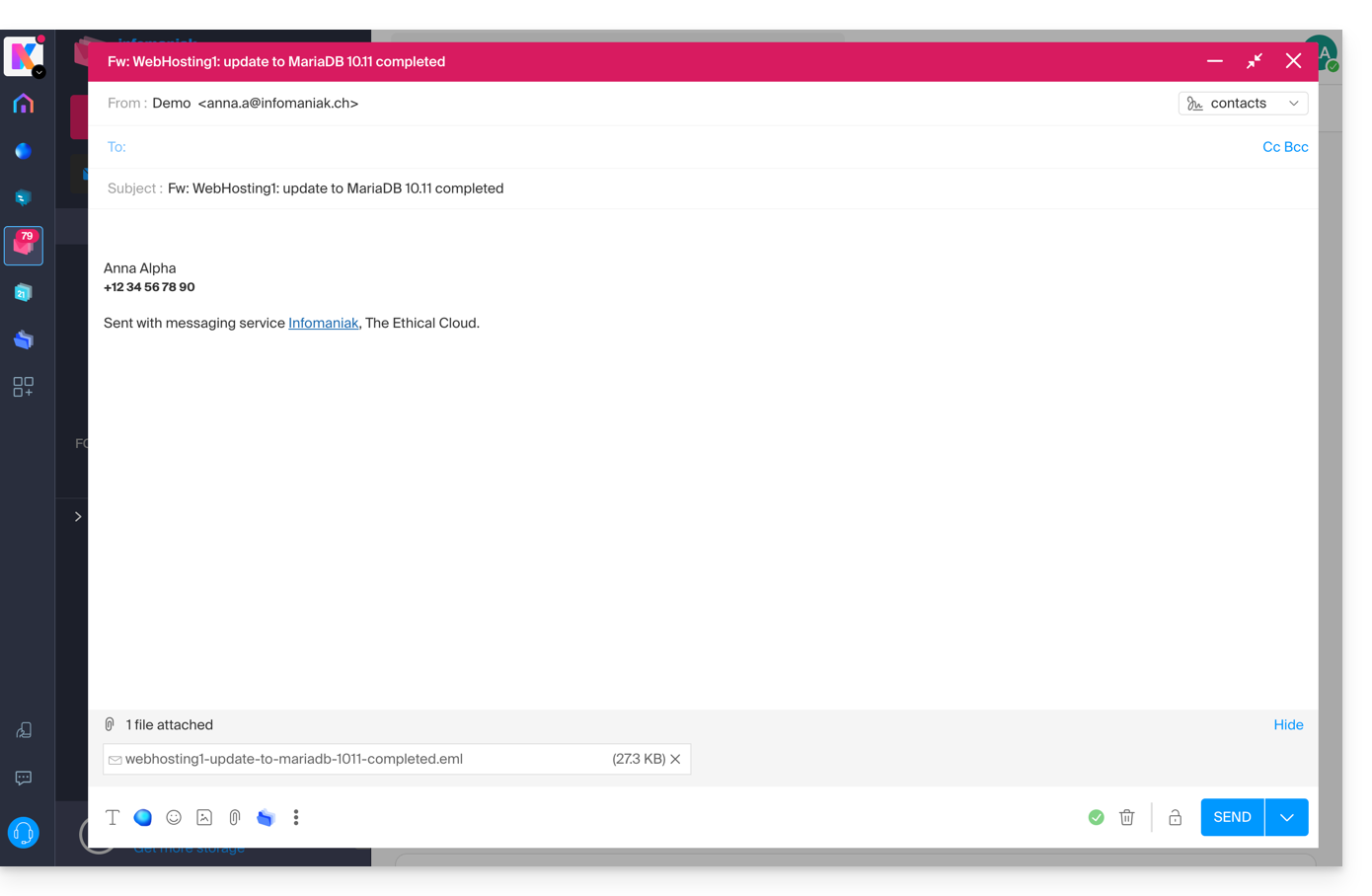
Link to this FAQ: https://faq.infomaniak.com/1750
Has this FAQ been helpful?
This guide explains how to activate an auto-reply (automatic "out of office" email message) for an email address managed with Infomaniak. This way, you can inform your contacts that you are unable to respond to them immediately because you are away, on vacation, etc.
Introduction
- The automatic reply for when you are away can be activated from the Infomaniak Mail web app (online service ksuite.infomaniak.com/mail) and from the Manager, where all the addresses of a Mail Service are managed.
- You can activate or deactivate an already saved message, but there can only be one active auto-reply on the same email address: activating one message deactivates any other, if applicable.
Enable the auto-reply from the Infomaniak Web Mail app
Prerequisites
- Having permission to manage the voicemail: if you were invited to the Infomaniak Mail web app (online service ksuite.infomaniak.com/mail) to manage your address, it is possible that the Mail Service administrator has remove this permission from their admin account (❓: help).
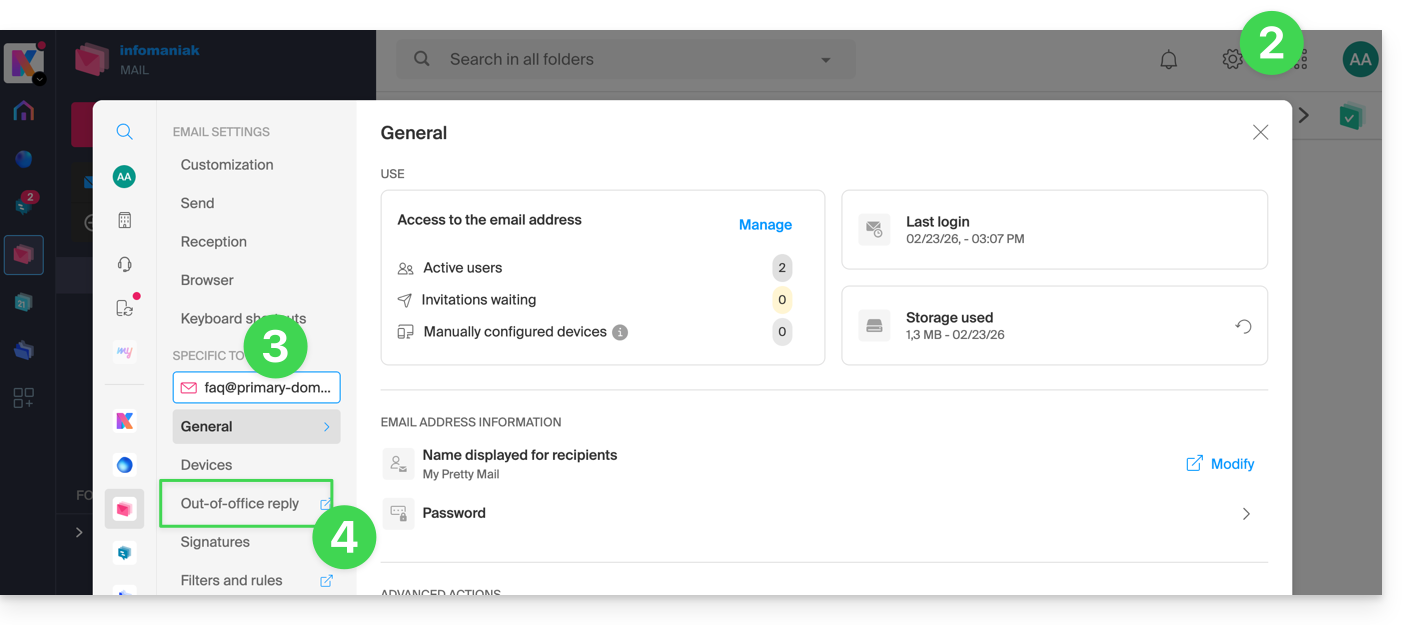
To enable the out-of-office message:
- Click here to access the Infomaniak Mail web app (online service ksuite.infomaniak.com/mail).
- Click on the Settings icon in the top right corner.
- Check or select the relevant email address from the dropdown menu in the left-hand sidebar.
- Click on Voicemail:
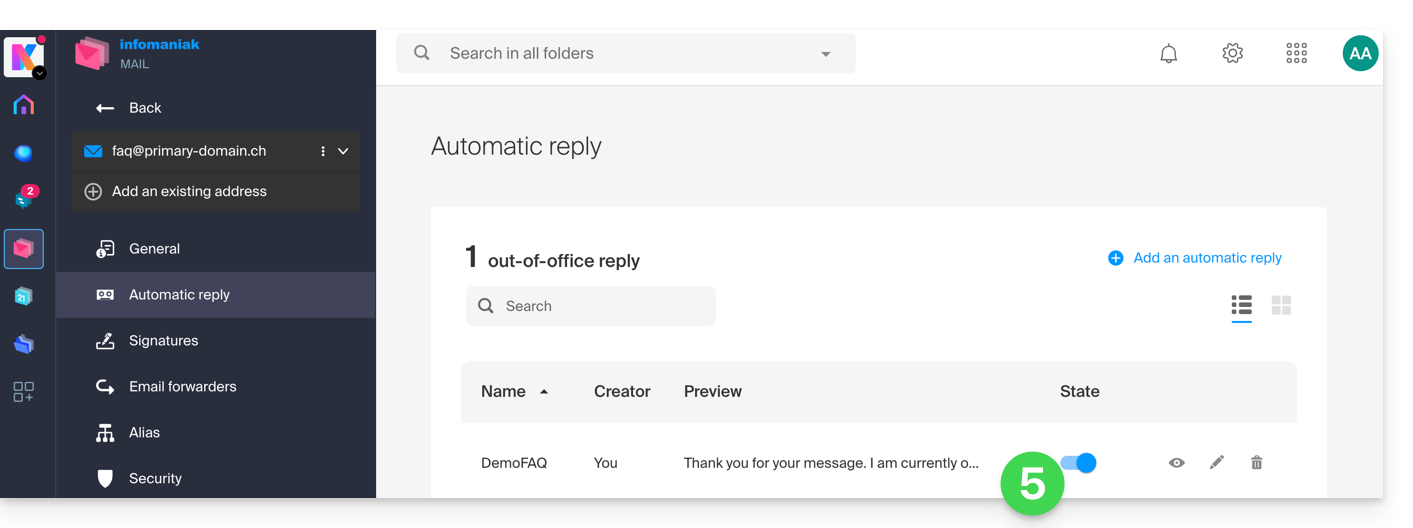
- Enable the auto-reply message if needed, or read more below:
Enable the auto-reply from the Infomaniak Manager
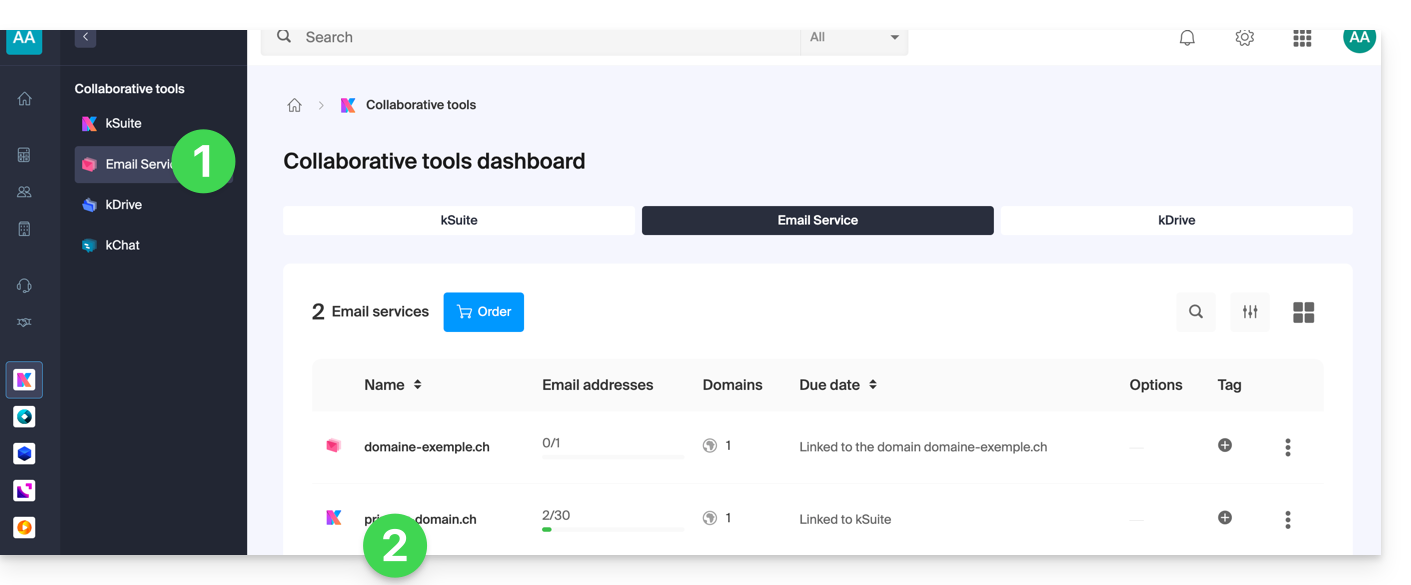
To enable the out-of-office message from the Manager:
- Click here to access your product management interface in the Infomaniak Manager (❓: help).
- Click directly on the name assigned to the product in question:
- Click on the email address in question in the table that appears:
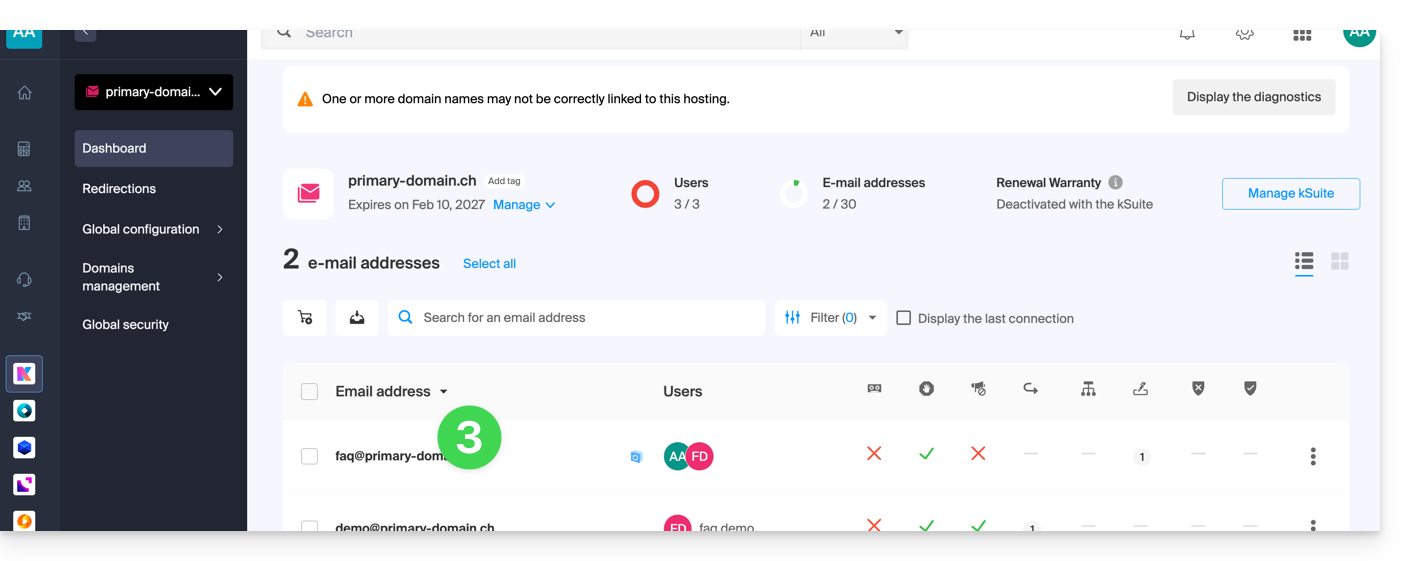
- Click on the Voicemail menu in the left-hand menu.
- Enable the automatic message if applicable, or read more below:
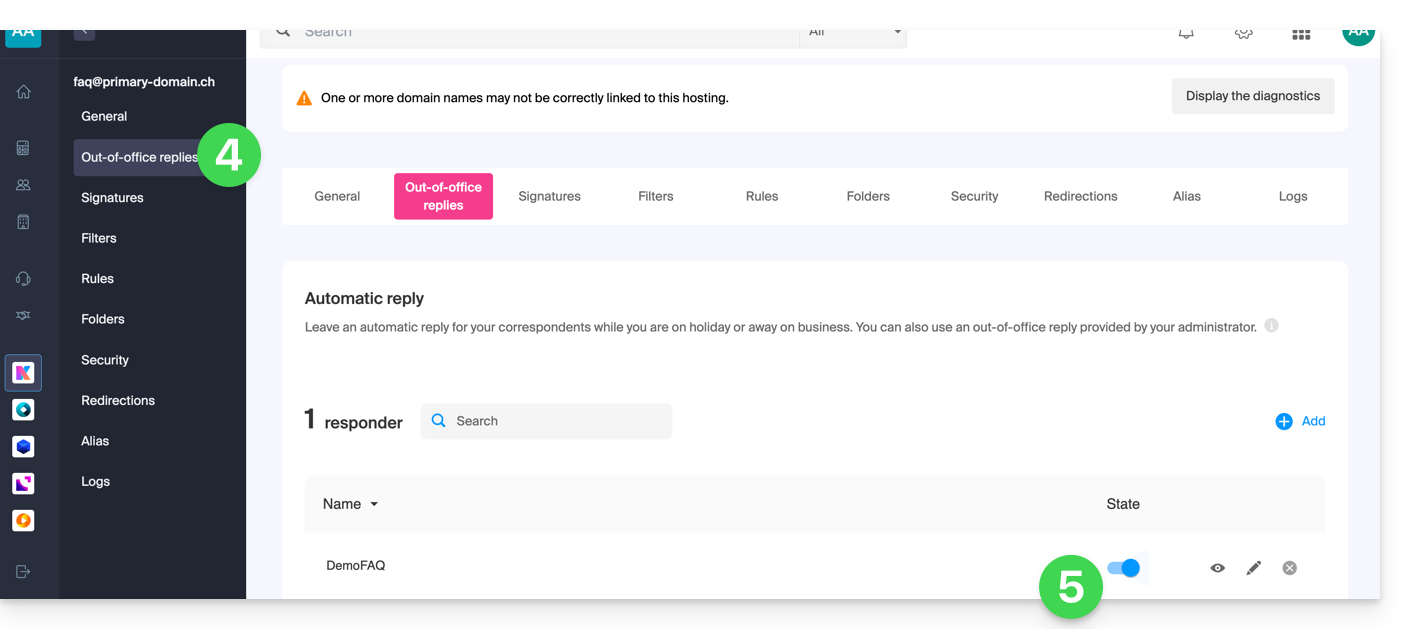
Compose your out-of-office message
To manage the message that will be automatically sent in response:
- Click on Add:
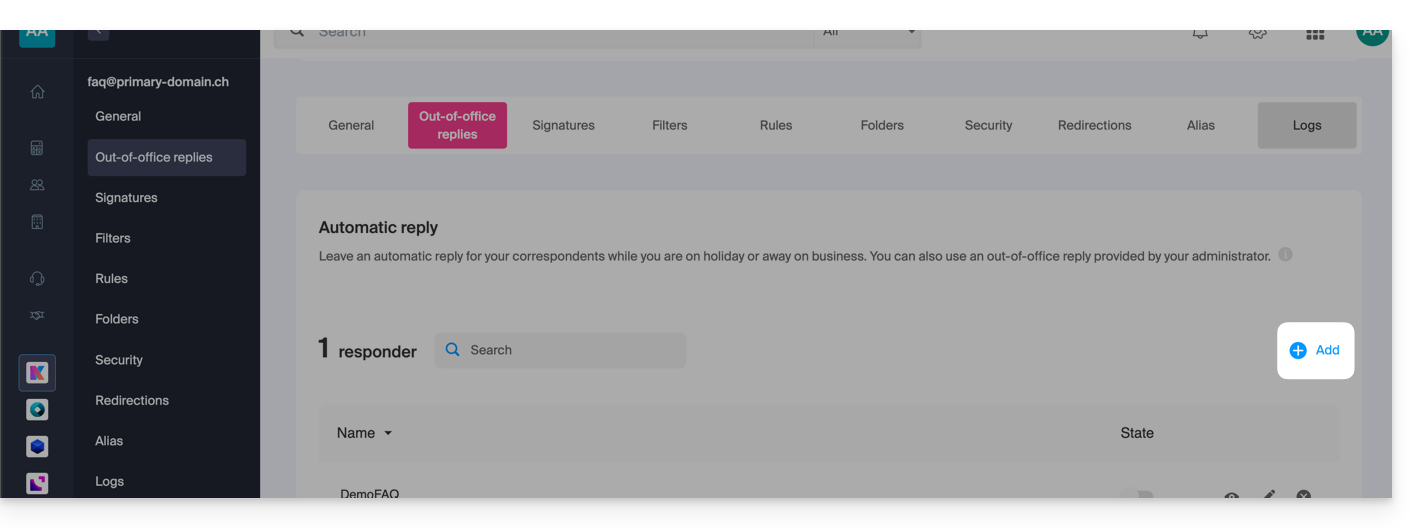
Then: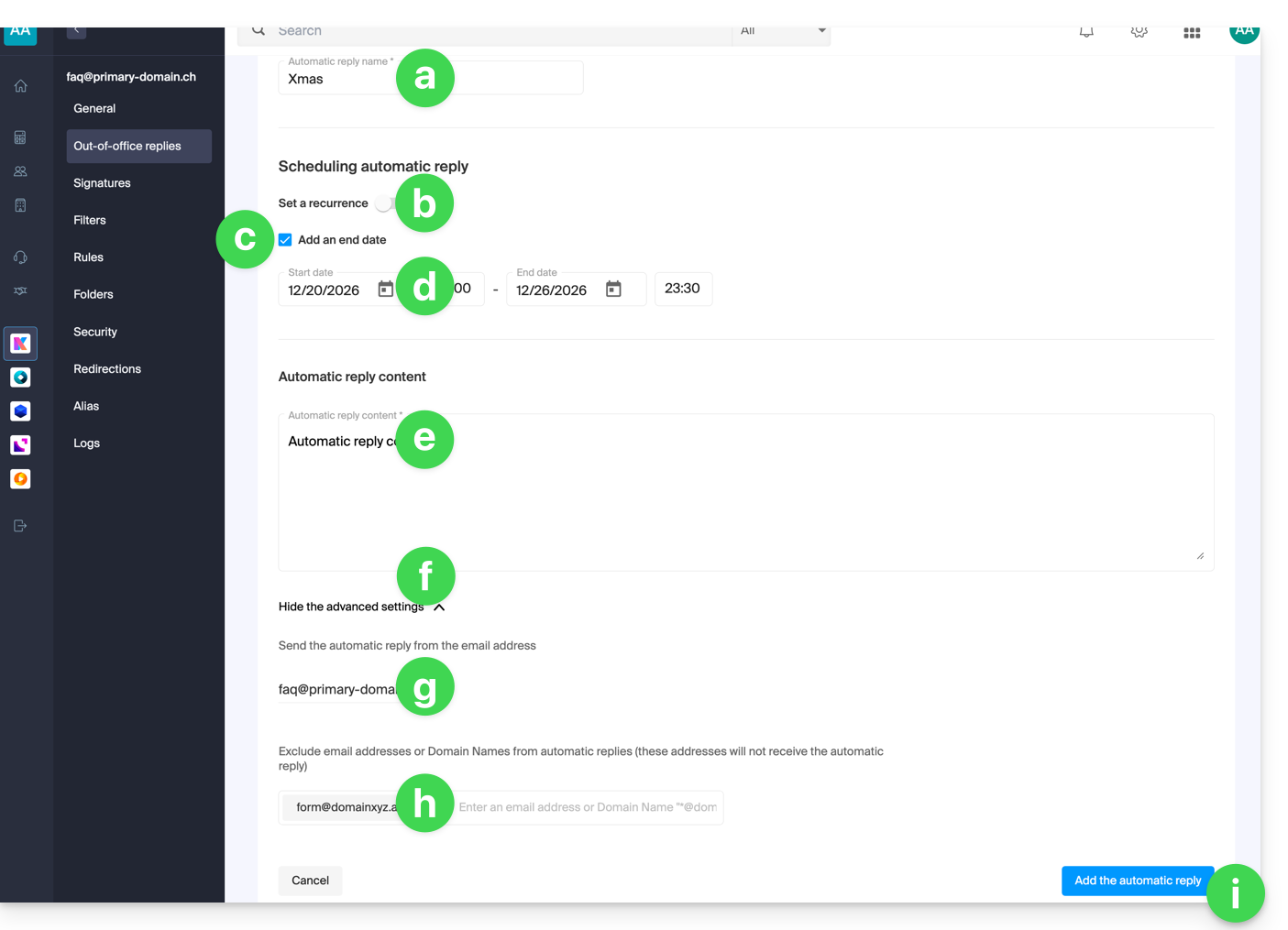
- Enter a name for your auto-reply (to distinguish it from other messages if you create several).
- Define whether the automatic reply should be sent repeatedly on specific days of the week.
- Define an end date/time if the message should no longer be sent after a certain period.
- Define a start date/time if the message is scheduled in advance for a specific period in the future.
- Write your out-of-office message.
- Display the advanced settings.
- Define another email address that will be used to send your automatic out-of-office message; only the following types of addresses will appear:
- Enter specific email addresses (or
@domain.xyzfor an entire domain) to prevent them from receiving this out-of-office message. - Click the blue button at the bottom right to Add the message.
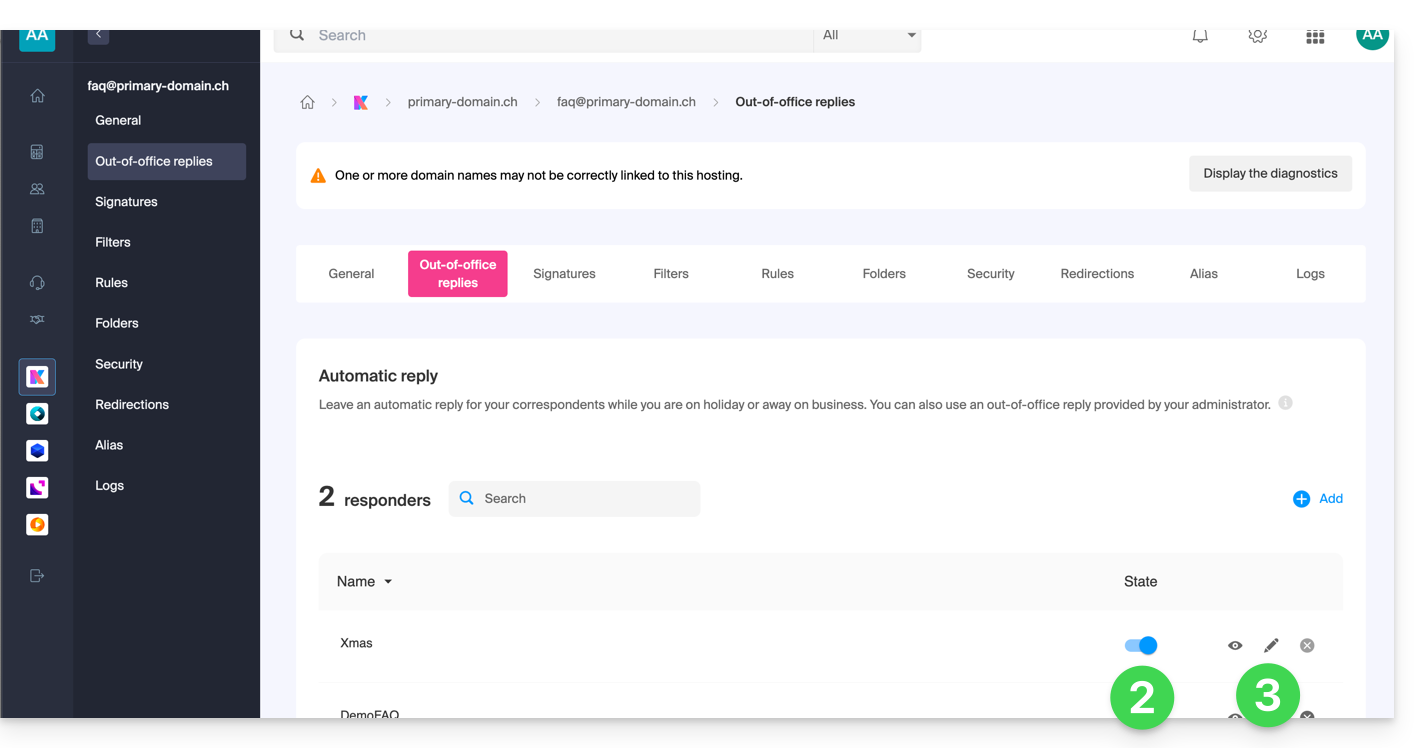
- Once added, you can enable or disable it.
- You can also edit a message that has already been saved using the pencil ✎ icon on the right:
How often is the auto-reply sent?
Your auto-reply is sent only once to people who send you messages.
However, if the same sender sends you a new email 7 days after the previous one, and your auto-reply is still enabled, an automatic reply will be sent to them again to remind them that you do not have access to your email.
Therefore, be aware that if you test this feature on your address, it will only work the first time. During subsequent tests, the auto-reply will no longer send the message when it detects that the message comes from an address that has already sent a message. You will therefore need to try again from a different email address.
You can reset the 7-day counter by clicking on Reset when editing your message: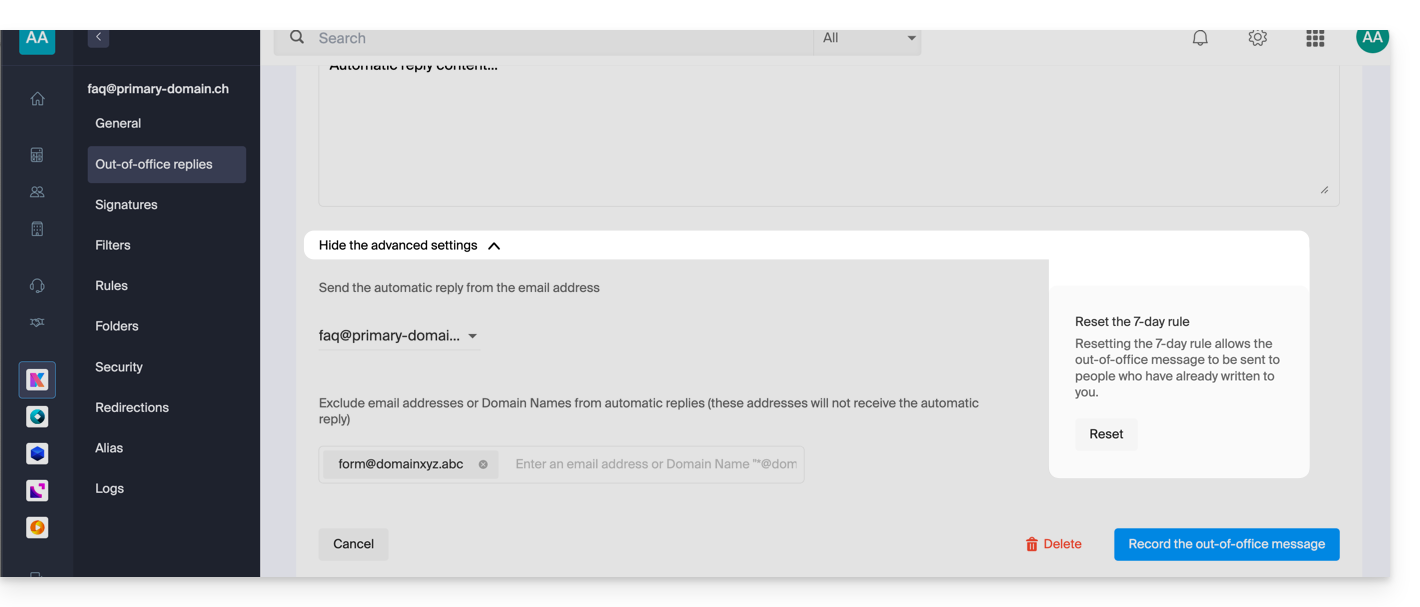
Go further with templates
Custom templates can be applied when creating a new email address on your Mail service, for example, or in bulk to all addresses in your domain (❓: help).
Link to this FAQ: https://faq.infomaniak.com/1759
Has this FAQ been helpful?
This guide explains how to mark selected emails as "favorites" in Infomaniak's email service, allowing you to "track" these messages more closely and display them separately if you choose.
Monitor one or more messages…
… from the Infomaniak Web Mail app
To add a message as a favorite:
- Click here to access the Infomaniak Mail web app (online service ksuite.infomaniak.com/mail).
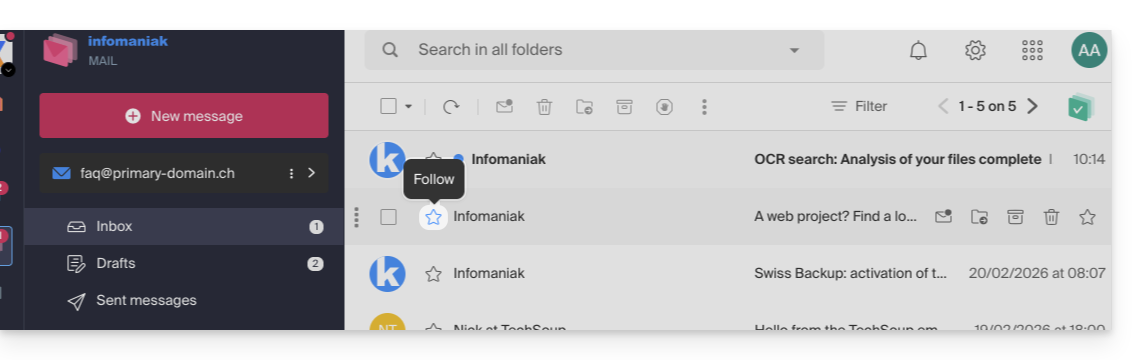
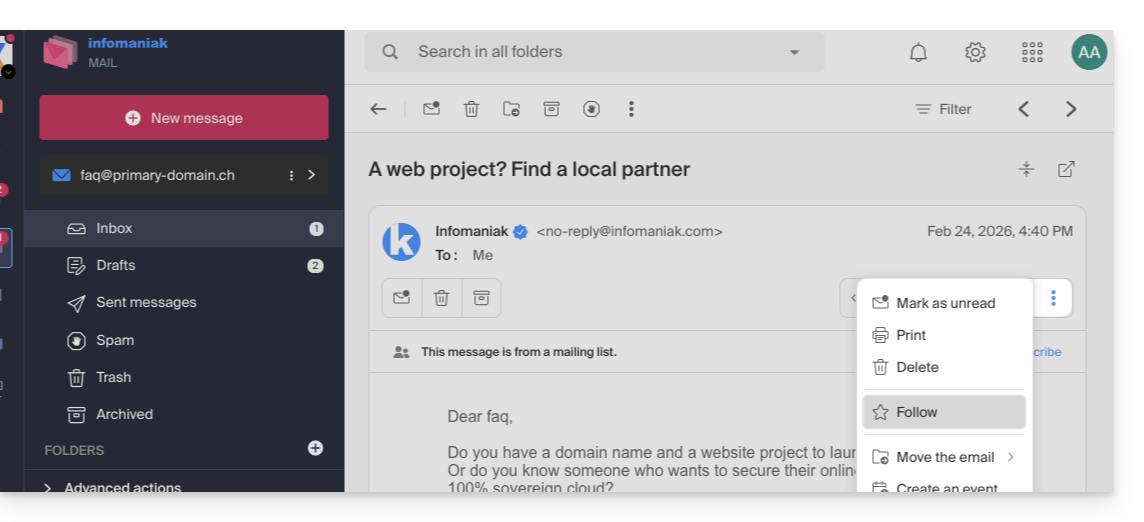
- Click on the ☆… icon:
- … to the left of a message in the message list
- … in the top right corner of the message reading window
- … to the left of a message in the message list
- Once tracking is enabled, a drop-down menu in the upper right corner allows you to display only a selection of your received messages based on several criteria: All, Read, Unread, Tracked, Untracked:
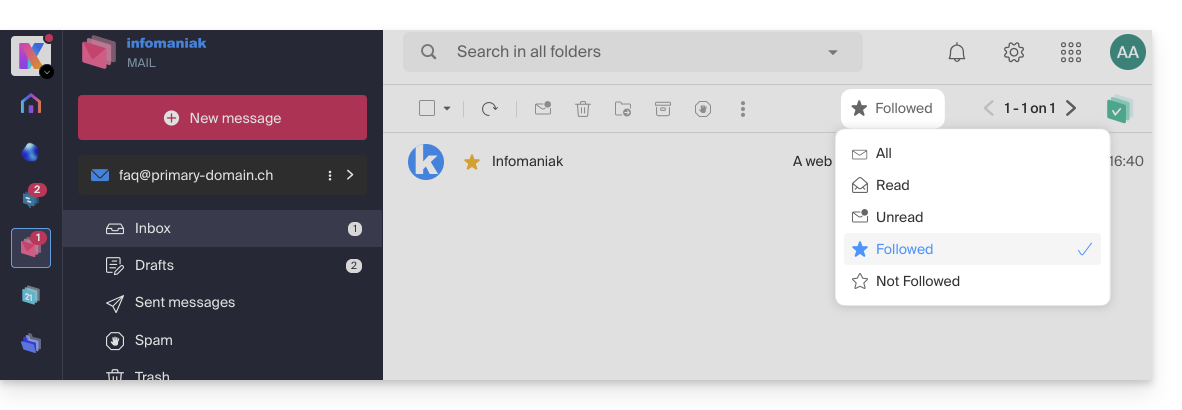
It is also possible to define an action on hover or add a shortcut in the bar above the message lists: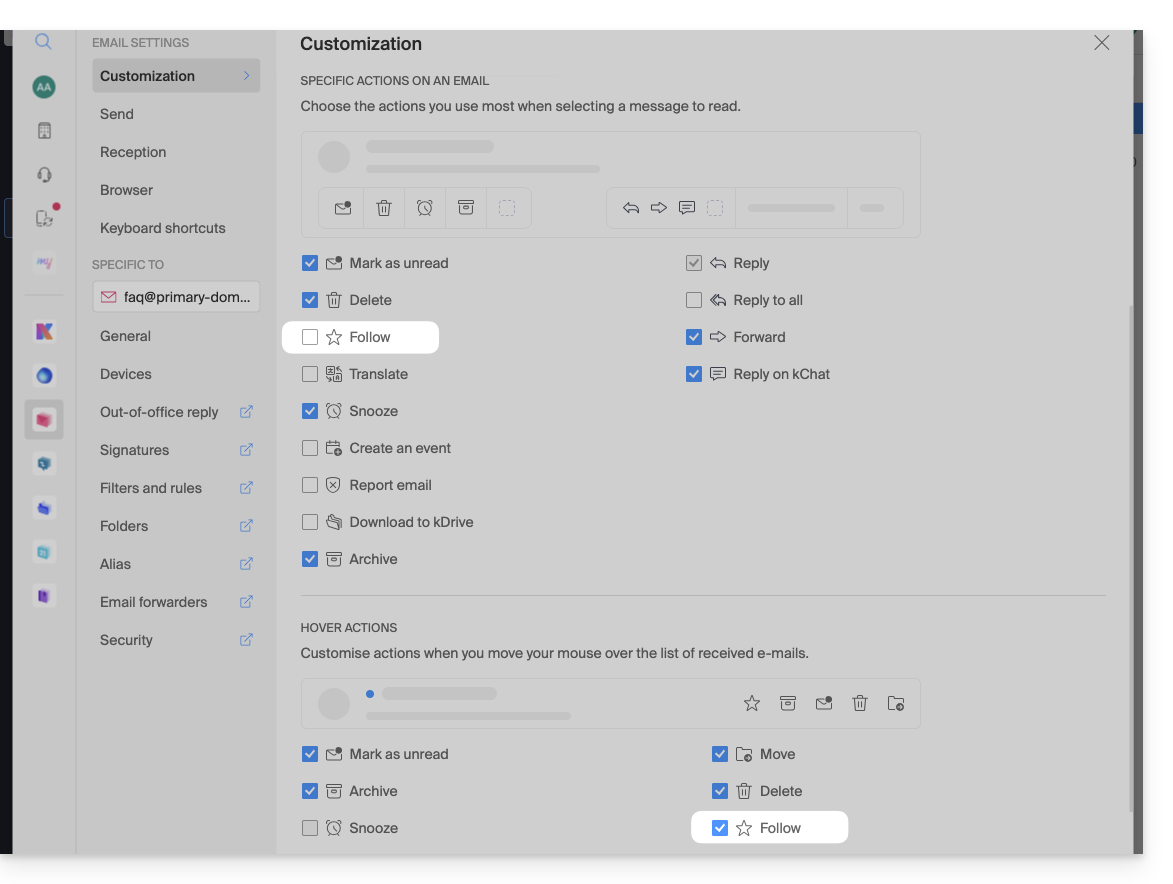
… from the Infomaniak Mail mobile app
In the message list:
- Tap and hold a message.
- Tap the ☆ icon at the bottom of the screen:
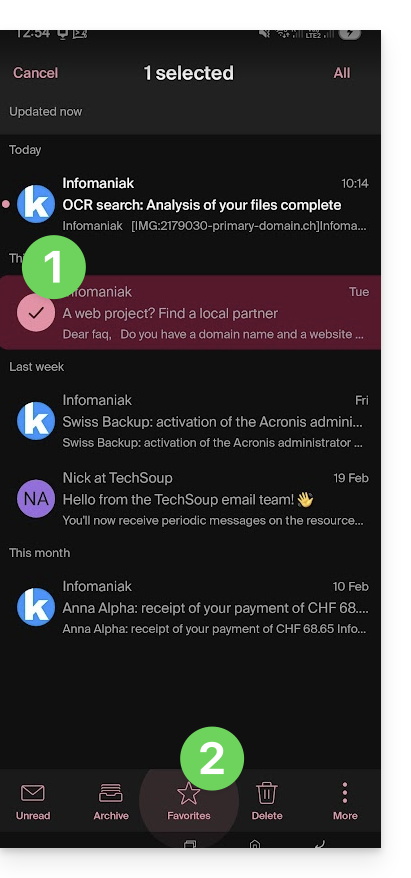
On an open message:
- Tap the ☆ icon in the upper right corner of the message reading window:
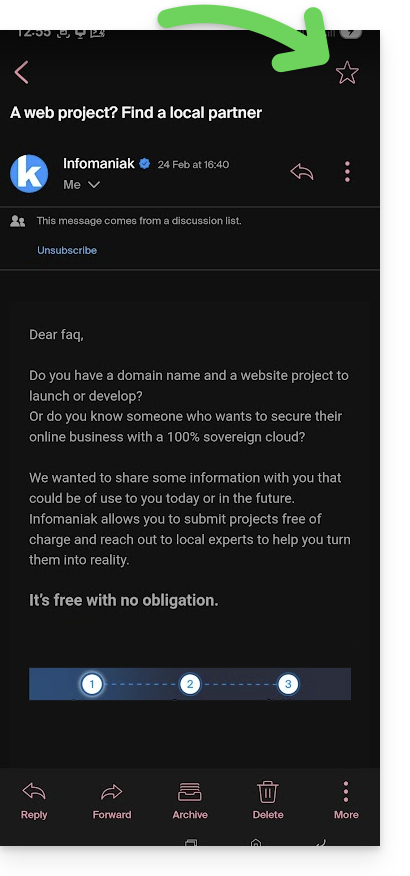
You can also define a swipe gesture that will mark the swiped message as a favorite.
Link to this FAQ: https://faq.infomaniak.com/1761
Has this FAQ been helpful?
This guide explains how to transfer to Infomaniak email addresses currently hosted by Google (Workspace with a custom domain or @gmail address), using an IMAP import tool.
Introduction
- Consult this other guide if you are looking for an alternative to this IMAP process: it is indeed possible to perform a Google Takeout export and then an mBox import on our infrastructure.
- This operation does not affect either the data already present on the destination address or the data from the source address.
- The entire external mailbox will be imported.
- Once the import process has started, it is no longer possible to interrupt it.
- Any potential duplicates are handled: identical content will only be copied once.
Import your entire email history
Infomaniak Requirements
- You must have a Mail Service on your Infomaniak Manager.
- Have a number of available addresses or adjust it if necessary.
- Make sure that the email is properly secured
- Create one or more addresses on this Mail service.
- If you have many (10+) email addresses to create, please refer to this other guide regarding bulk creation.
- The destination email address must be linked to the user (= the Infomaniak account) you are using.
Import Gmail email content to Infomaniak
- Click here to access the import tool (online service https://import-email.infomaniak.com).
- If necessary, log in to your Infomaniak account for the relevant organization; the import will be done to one of the email addresses associated with the Infomaniak Mail web interface (online service ksuite.infomaniak.com/mail) of the Infomaniak account you are using.
- Click on the import via IMAP.
- Click on one-time import.
- Fill in the field on the left with your source email address (from which the content will be copied).
- Click on the "Sign in with Google" button that appears:
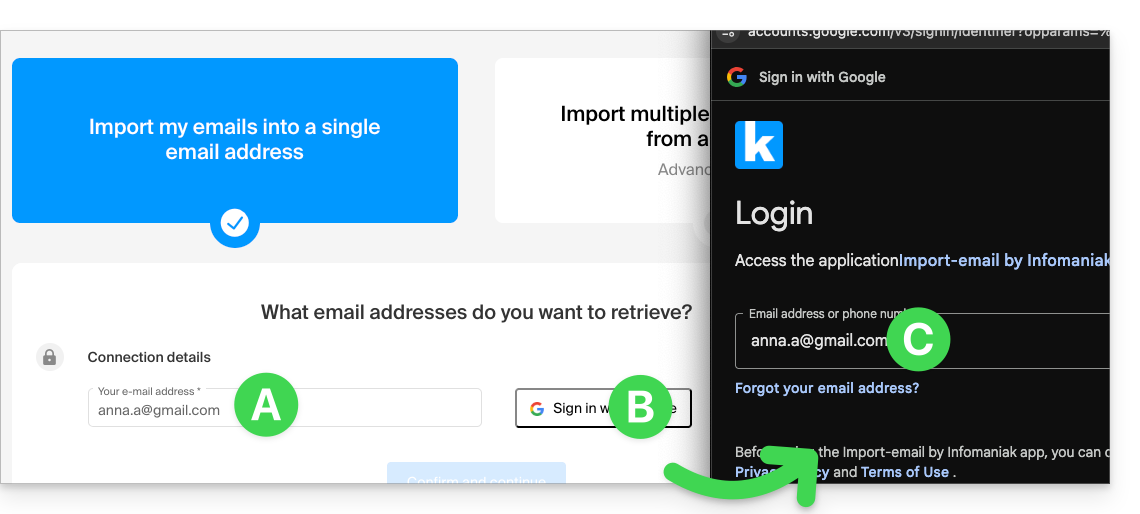
- Make sure you are signing in to the Google account that you want to use for email migration.
- Confirm that you authorize the Infomaniak tool to connect to your account (automatic process).
- Once you confirm the pop-up, choose the email address to which you want to import the emails; the drop-down menu lists the email addresses currently associated with your Infomaniak Web Mail interface (online service ksuite.infomaniak.com/mail) for the Infomaniak account you are logged into.
- After selecting the desired destination address from the list, click the blue Import Emails button.
- The copy process has started. You can wait and view the result on the page once the import is complete, or close the window (the import will continue in the background, and progress can be tracked - see below).
- A confirmation email will be automatically sent to all email addresses involved in the operation once the import is complete, indicating the number of messages copied.
- Tracking is available in the settings of the destination email address, and only on the web app Mail (online service ksuite.infomaniak.com/mail).
- Tracking allows you to view the import history for the address in question.
Adjust application settings
Once you have taken the necessary steps to ensure that the domain name associated with your email account works with Infomaniak, modify the settings of the email software/clients you use so that they connect correctly to the Infomaniak servers: follow the configuration wizard.
Labels and data volume
The storage space displayed in Infomaniak may not match the space shown in Gmail, particularly due to the different way labels are managed. Indeed, these labels, which are present in Gmail, will be converted into folders on the Infomaniak servers (the same principle applies as when retrieve mail using an IMAP email client/software such as Thunderbird):
Therefore, an email tagged in multiple Gmail folders may be counted multiple times during migration, which explains why an account displaying, for example, 6 GB in Gmail may occupy 18 GB once transferred to Infomaniak servers.
Please be patient when importing a large volume of emails; Gmail and Microsoft imports are intentionally slowed down (e.g., 1 GB/day bandwidth for Google) to avoid rejections from their end.
Link to this FAQ: https://faq.infomaniak.com/1785
Has this FAQ been helpful?
This guide for the Infomaniak Mail web app (online service ksuite.infomaniak.com/mail) or the Infomaniak Mail mobile app (application for iOS/Android smartphones or tablets) explains how to print an email to obtain a paper print (or better: a PDF) of your message, and not of the interface itself.
Printing an email…
… from the Infomaniak Web Mail app
To do this:
- Click here to access the Infomaniak Mail web app (online service ksuite.infomaniak.com/mail).
- View the email you want to print.
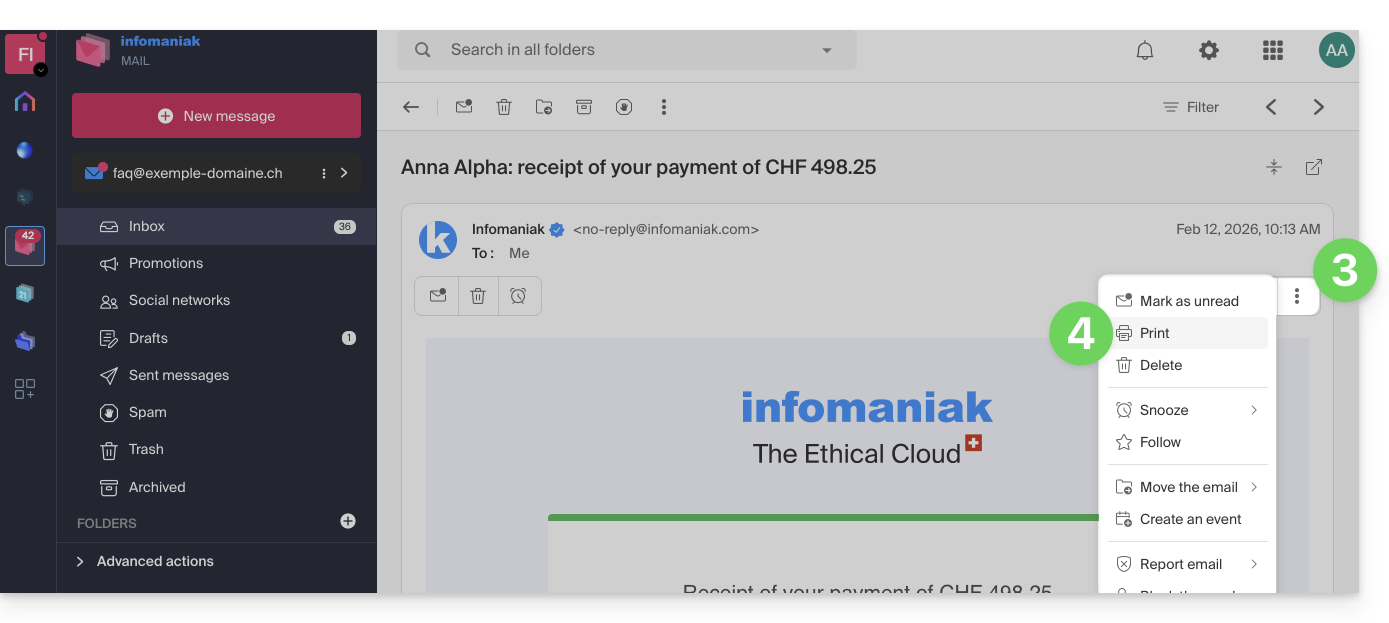
- Click the action menu ⋮ at the top of your message.
- Click Print:
… from the Infomaniak Mail mobile app
To do this:
- Open the Infomaniak Mail mobile app (application for iOS/Android smartphones or tablets).
- View the email you want to print.
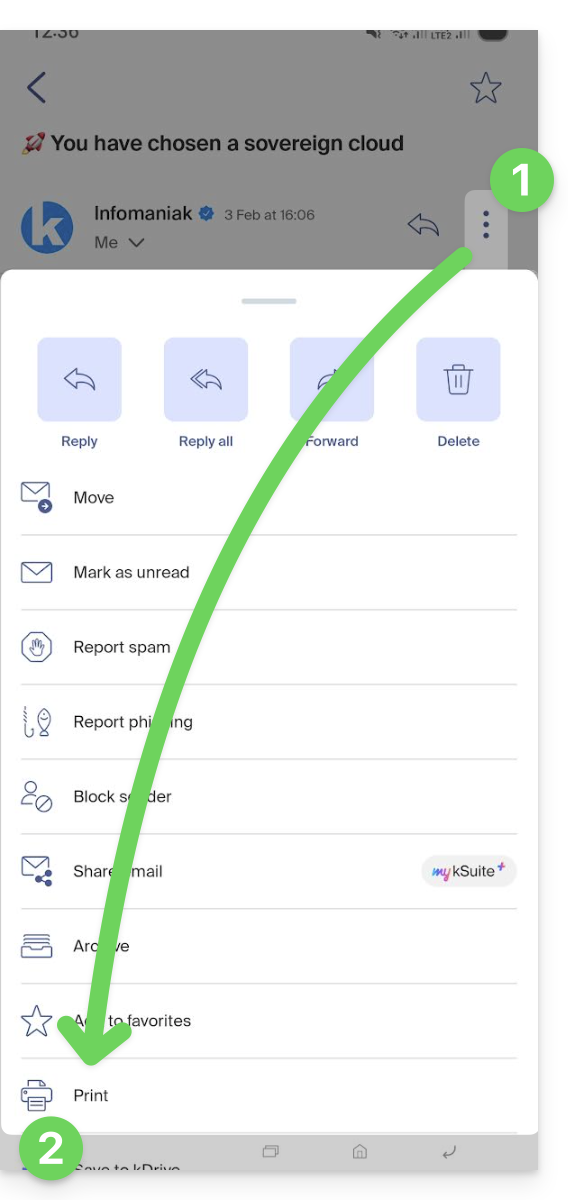
- Tap the action menu ⋮ in the top right corner of the message.
- Tap Print:
Link to this FAQ: https://faq.infomaniak.com/1786
Has this FAQ been helpful?
This guide explains how to connect the desktop app Outlook 2013 (desktop application on Windows) to an email address hosted by Infomaniak.
Add the email address to the application
Prerequisites
- Create the email address (❓: my kSuite | Mail Service/kSuite).
- Create a device password (❓: my kSuite | Mail/kSuite Service).
- Verify that the domain is configured correctly (❓: Mail/kSuite Service).
To configure the email application:
- Open the application.
- Click on the File menu:
- Click on Account Settings.
- Click on Add or remove accounts:
- Click on New:
- Click on Manual configuration:
- Click on POP / IMAP.
- Click on Next:
- Check and complete the missing information.
- Click on Additional Settings:
- Click on the Outgoing Server tab.
- Click on My outgoing server requires authentication.
- Click on the Advanced tab:
- Replace the port numbers with the correct information and enable SSL.
- Click OK.
- Click Next:
- Click on Close:
- Click on Finish:
- Click on Close:
- Done, your email address is now configured in the application:
Recommended settings
- Incoming IMAP server =
mail.infomaniak.com - IMAP port =
993(with SSL) - Outgoing SMTP server =
mail.infomaniak.com - SMTP port & encryption protocol and command/method to activate this protocol:
587+ STARTTLS - Username = the complete email address & (need help?)
- Password: the password generated for the email address you want to access (❓: my kSuite | Mail Service/kSuite).
- Authentication required for sending emails:
- Enable this in the SMTP settings of your application.
- Check "use the same settings as the incoming server" or, depending on the software/email client, enter a username (the complete email address) and the generated password.
Refer to this other guide if you are looking for information about other email ports and protocols that are supported (SSL / TLS, for example).
In case of a problem
Check that the Mail service is configured optimally.
It is not necessary to contact Infomaniak Support if your email address works correctly outside the application. The most common error concerns the use of an incorrect password. The troubleshooting guides will help you resolve any potential issues:
- Consult the solutions provided in this other guide regarding email in general.
- This other guide provides more specific information about Outlook.
… and if your Outlook is no longer working after a change of email password, please refer to this other guide.
Link to this FAQ: https://faq.infomaniak.com/1796
Has this FAQ been helpful?
This guide explains how to manage and modify user permissions (assigning an additional password, setting up an alias, etc. see below for the complete list) for an Infomaniak user, so that they can manage more or fewer configuration elements in the Infomaniak Mail web app (online service ksuite.infomaniak.com/mail).
Introduction
- The email address is first created within a Mail Service and can then be used within one or more Infomaniak Mail interfaces by one or more users.
- The creator (or manager) of the address may want to limit the possible actions for one or more of the users who will use the email address.
- This granular permission management can be done when creating an address or later, and you can also define what the default permissions should be, which will always be applied.
List of user email permissions
When you view the users with access to a specific email addresswithin a Mail service, a column allows you to quickly identify the type of permissions granted to the user: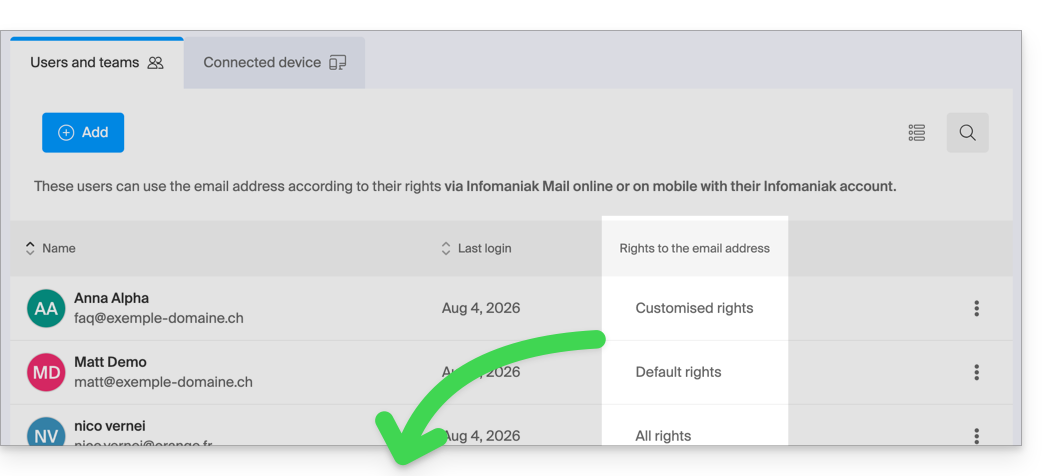
“All rights” is displayed when the user has all possible permissions.
“Default rights” is displayed when the permissions are identical to those specified in the global configuration.
“Custom rights” is displayed as soon as not all permissions are granted and they differ from the default template (global configuration).
Click on the indication to access the user's permission management, detailed below:
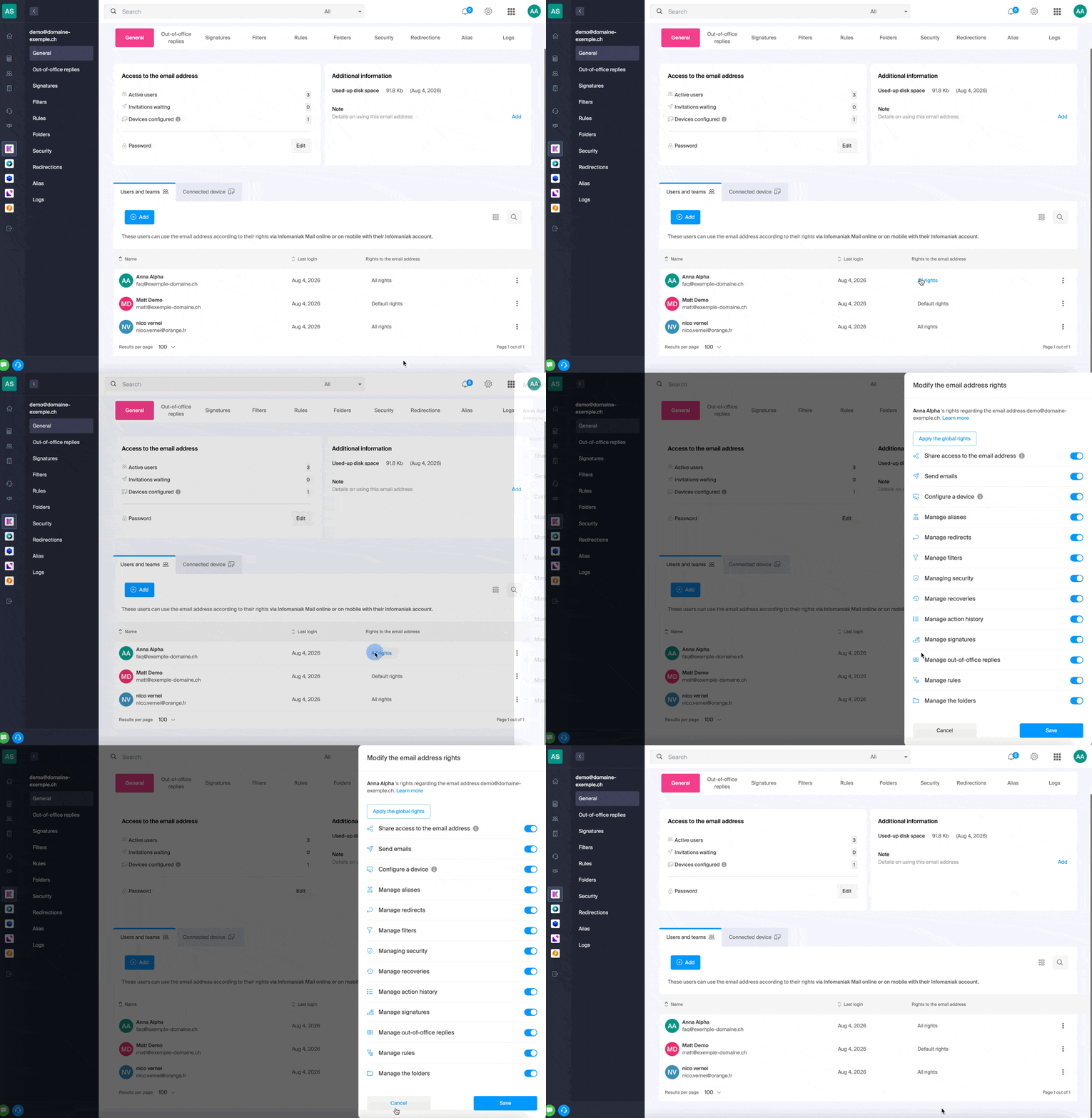
Simply click on the corresponding toggle switch to enable or disable the specific permission. Here is the list:
| Type / Icon | Description of the permission granted to the user |
|---|---|
| Share access to the email address | Manage users (ability to delegate mail access to another user in the Organisation) |
| Configure a device | Manage devices (ability to create a dedicated password) |
| Manage voicemail | Create an automatic reply (e.g., configure an out-of-office message) |
| Manage signatures | Add signatures and manage reply email addresses |
| Manage forwarding | Forward emails to one or more other addresses |
| Manage aliases | Create variations of your email address (by changing what comes before the @) |
| Manage the action history | Access the logs for the email address |
| Manage restores | Access backups and restores |
| Manage filters | Access SPAM and other filters |
| Manage rules | Automatically sort and categorize new incoming emails |
| Manage folders | Customize IMAP folders |
| Manage security | Manage blocked and approved addresses |
| Manage email sending | Enable sending emails (allow global SMTP) |
Manage permissions granted to a user
You may be asked for your Infomaniak account login password to make changes to the permissions.
… from the Mail Service
- Click here to access the management of your Mail Service in the Infomaniak Manager (need help?).
- Click directly on the name assigned to the Mail Service in question.
- Click on the email address in question in the table that appears.
- There are several ways to modify the permissions of an email address:
- When adding a user to an email address:
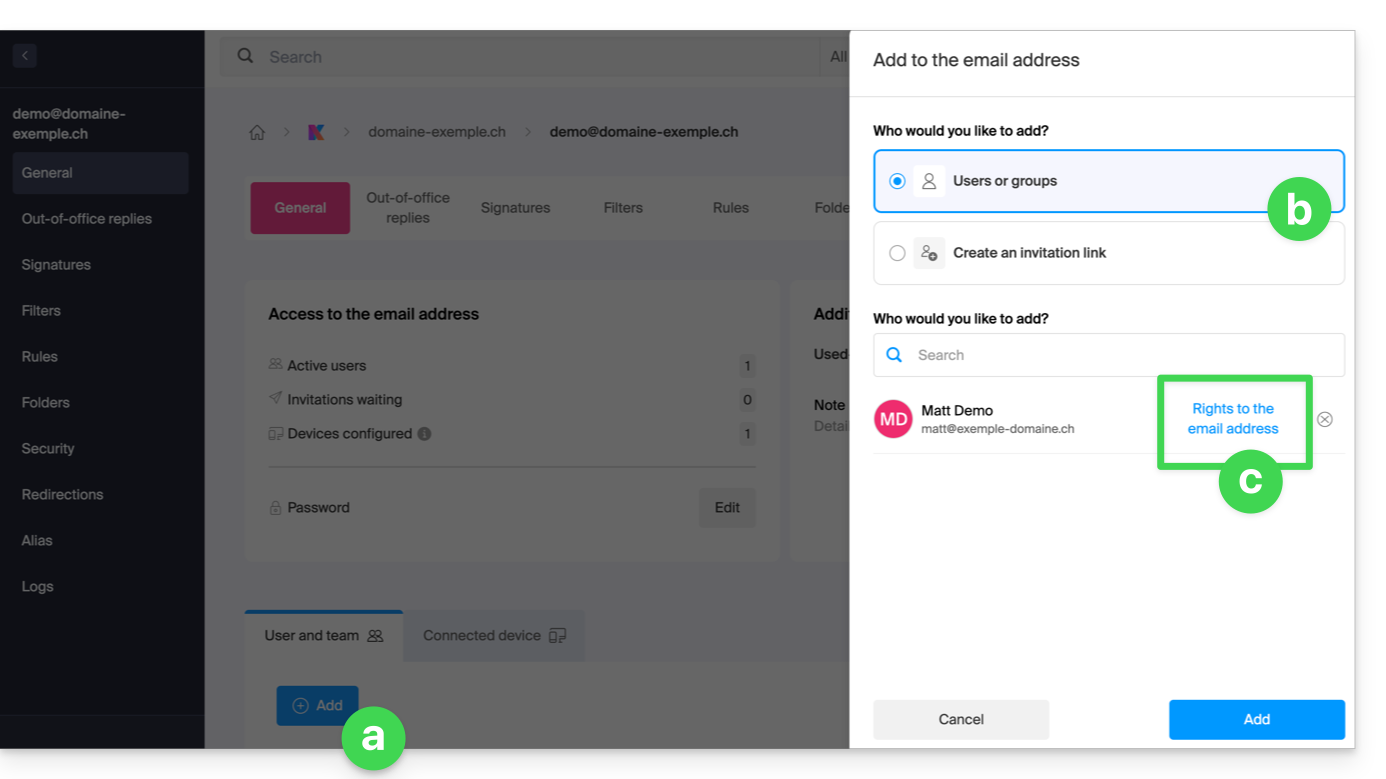
- Once the user has been added:
- Click on the action menu ⋮ located to the right of the user's name for the email address.
- Select ✎ Edit permissions.
- Or click directly on the indication regarding their permissions:
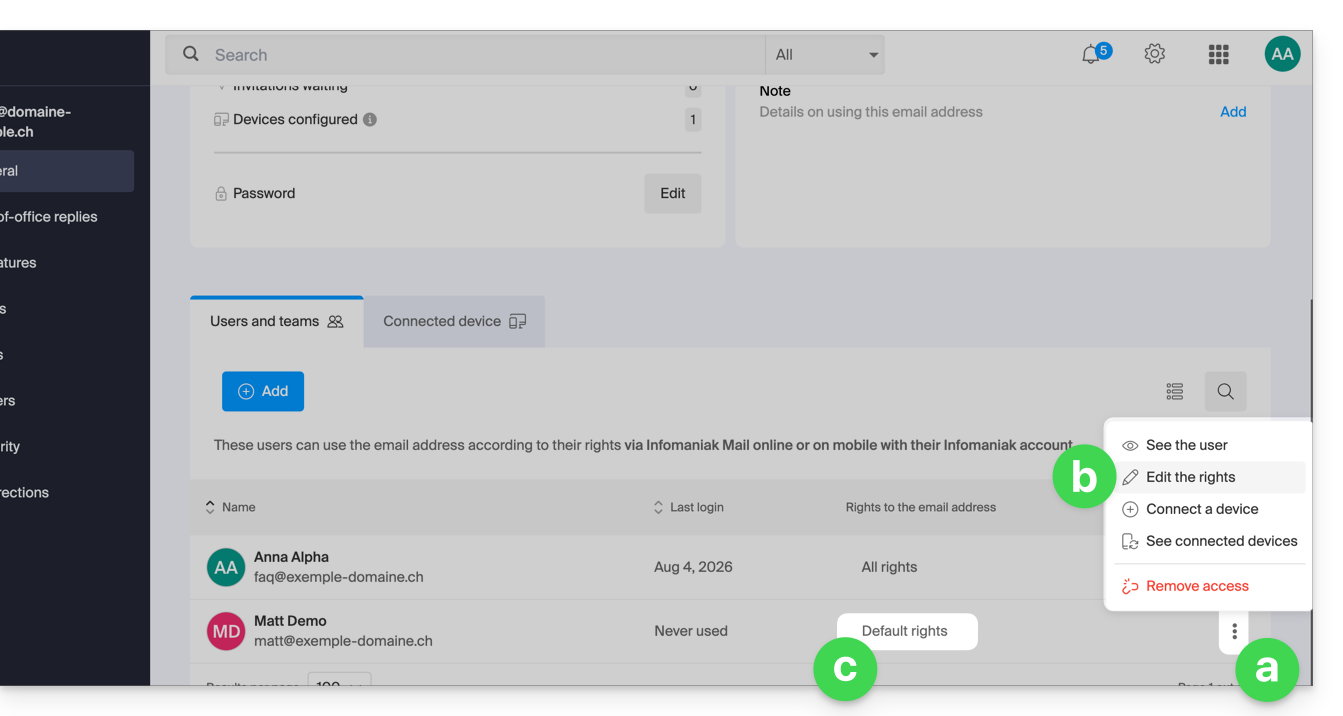
- When adding a user to an email address:
… from the Manager (user management)
- Click here to access user management in the Infomaniak Manager (need help?).
- Click on the relevant user in the table that appears.
- Expand the collaborative tools section by clicking on the chevron .
- Expand the section displaying the email addresses accessible to the user by clicking on the chevron .
- Click on the action menu ⋮ located to the right of the email address in question.
- Select Edit permissions.
- Or click directly on the icons visible in the table:
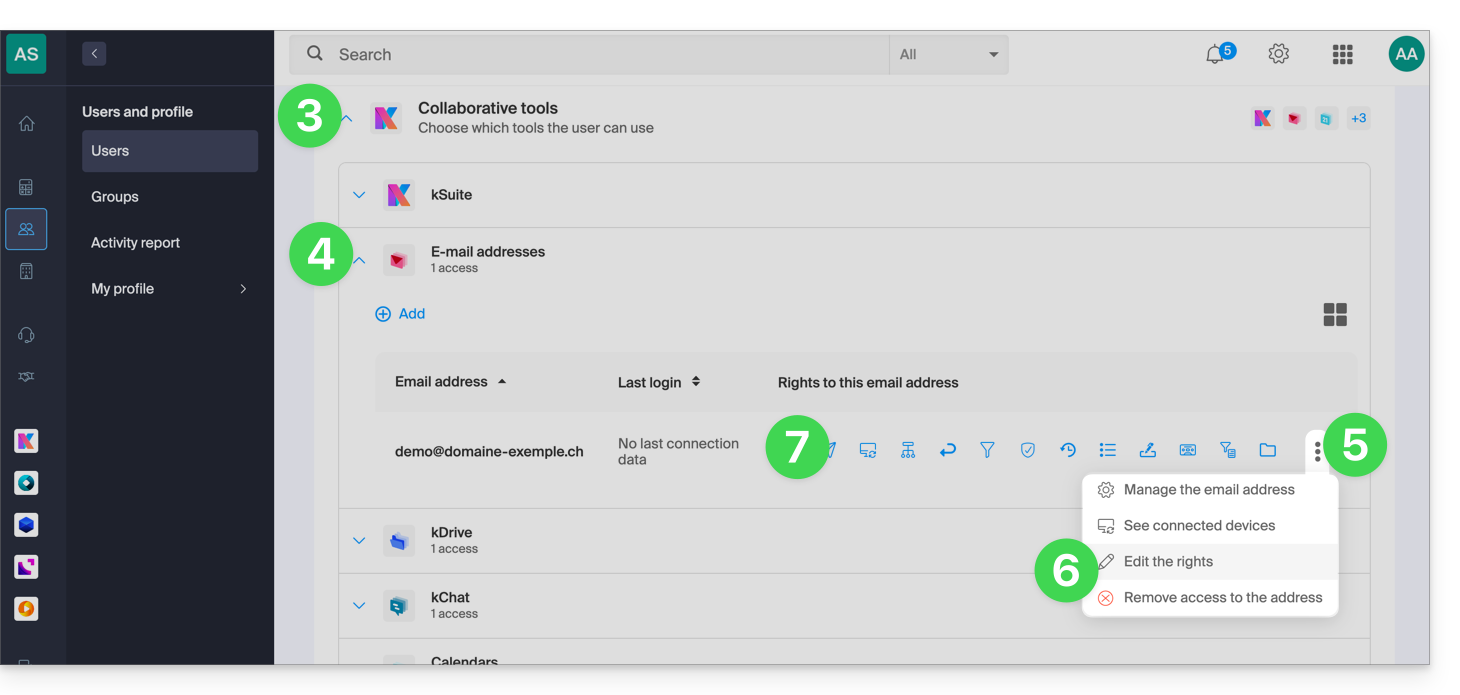
… from the Web Mail app
- Click here to access the Infomaniak Mail web app (online service ksuite.infomaniak.com/mail).
- Click on the Settings icon in the top right corner of the interface.
- Check or select the relevant email address from the dropdown menu in the left sidebar.
- Click on Shared with.
- Click on the action menu ⋮ located to the right of the email address user name.
- Select ✎ Edit permissions:
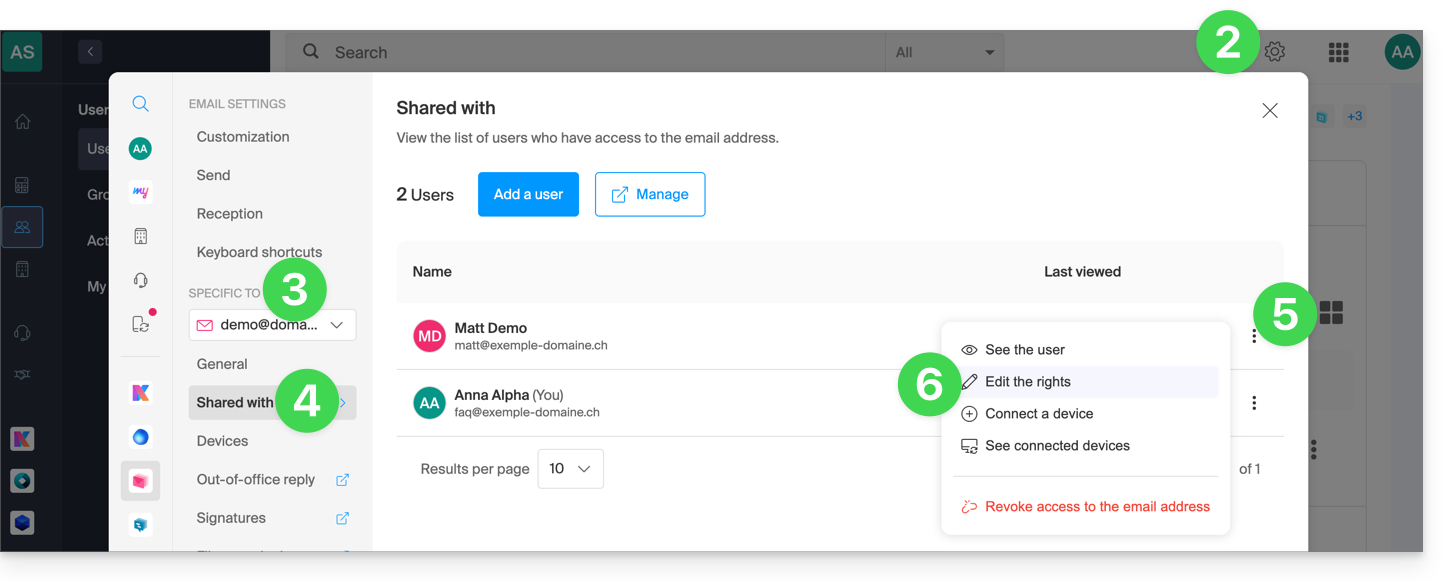
- You will be redirected to the settings for your email address in the Mail service, specifically to the permissions section for the user in question.
- Adjust the permissions and save at the bottom of the page:
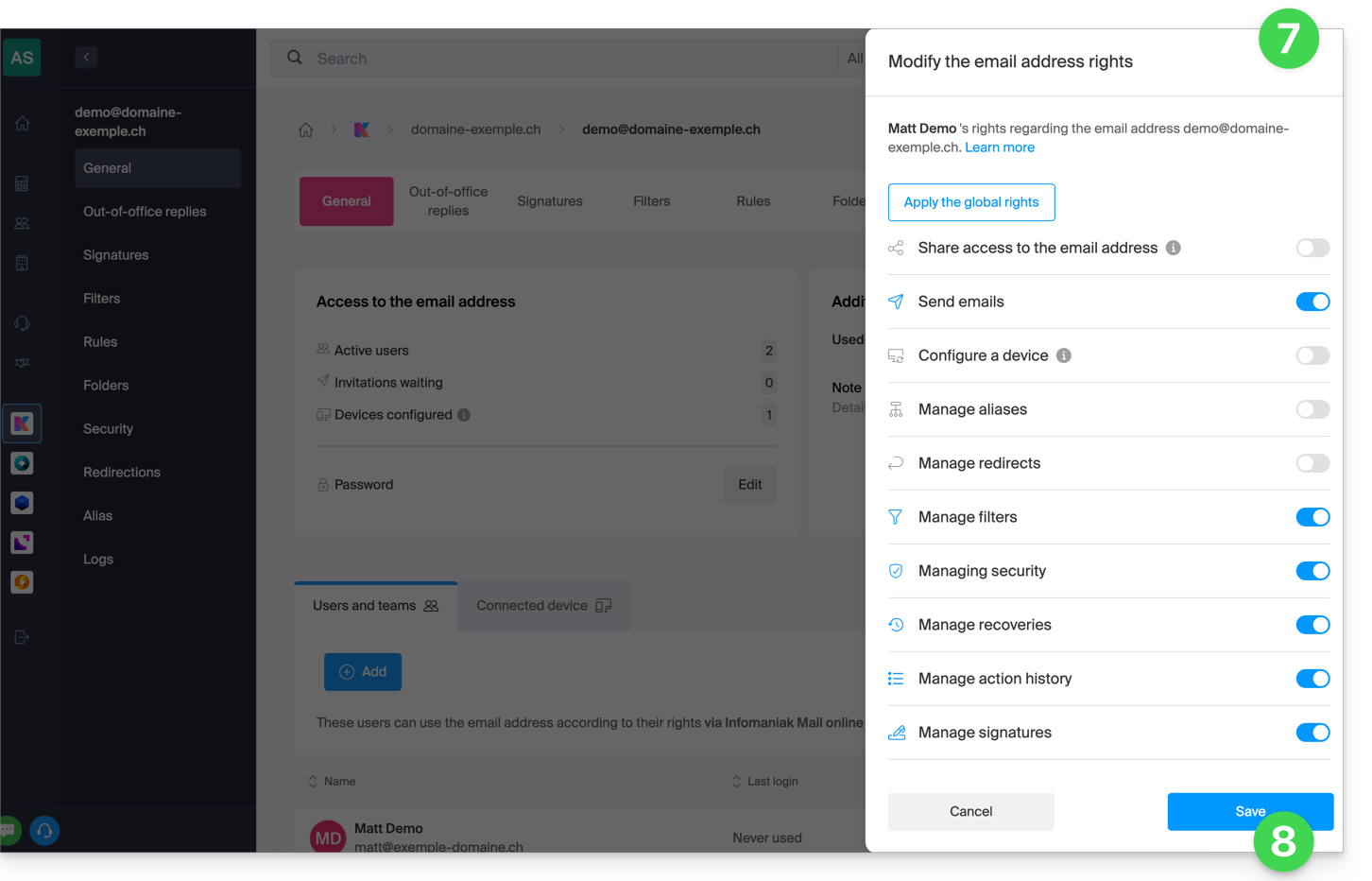
Result for the user
The user whose permissions are revoked will no longer see certain corresponding menus in their email address settings.
For certain features, even if the menu is still accessible, some buttons will be inoperative or grayed out: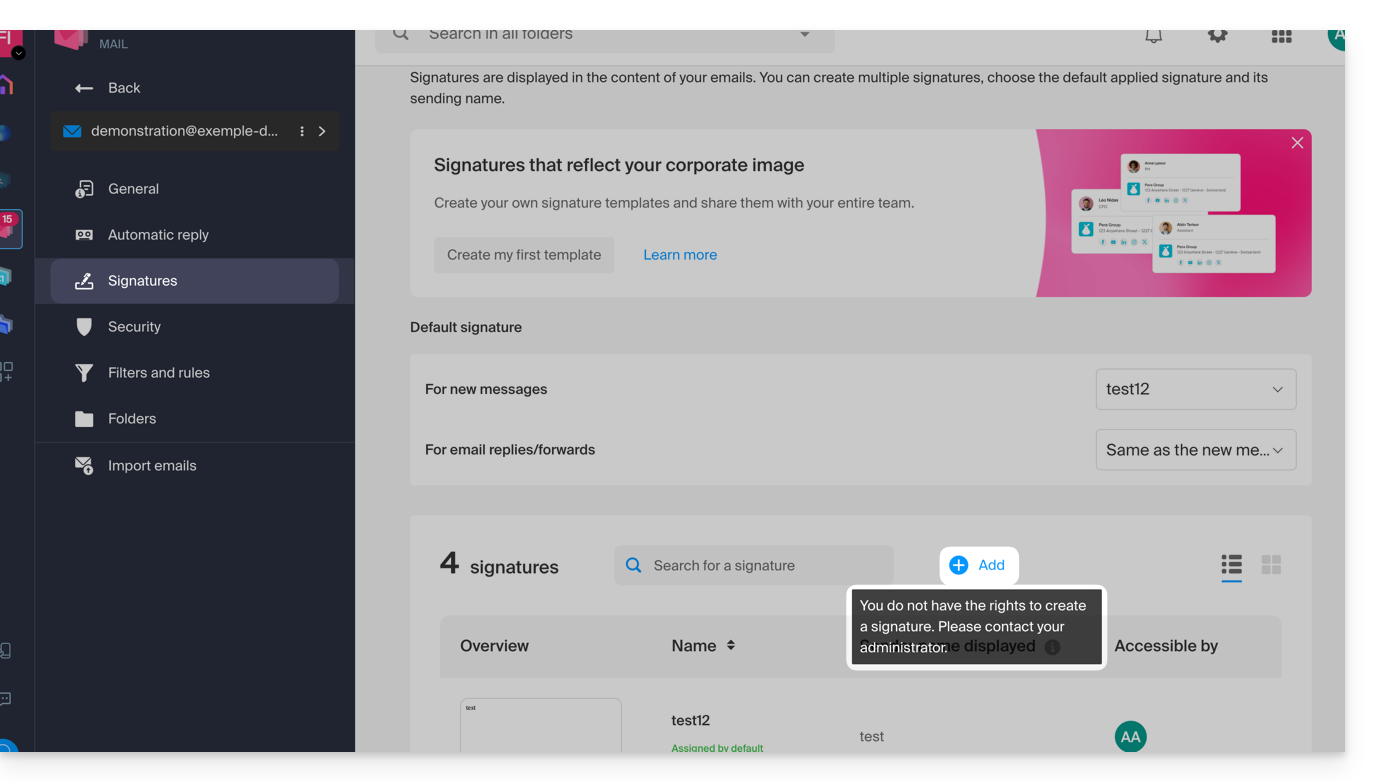
Link to this FAQ: https://faq.infomaniak.com/1811
Has this FAQ been helpful?
In order to combat spam and protect your contacts from email address hijacking, sending emails from a particular address may be blocked (SMTP ban). This security measure is automatic and does not affect the reception of emails.
Email Sending Suspension
If an Infomaniak user's email address sends a large number of messages, this may be due to an action performed
VOLONTAIRE
or UNINTENTIONALLY (e.g. in the event of the address being hacked)
In both cases, Infomaniak risks being blacklisted by providers such as Microsoft or Gmail, which would affect all customers.
Infomaniak has therefore implemented security measures to minimize this risk as much as possible, in order to guarantee email deliverability and protect your contacts from unwanted emails.
Unblocking email sending or securing the account
The legal representative and the email address user are immediately notified by email if email sending is blocked; they can then quickly unblock suspended email sending using an unblocking tool, the link to which is in the notification message:
- If the email was legitimate, the address will be unblocked, and you will no longer be blocked in the future with similar emails.
- Otherwise, you will be guided to change the password of the email address in order to proceed with the unblocking.
Link to this FAQ: https://faq.infomaniak.com/1821
Has this FAQ been helpful?
This guide explains how to create sorting rules in Advanced mode, scripts in Sieve language, to automatically categorize your incoming emails on Infomaniak based on certain conditions.
✘ NOT AVAILABLE with
kSuite Free
my kSuite (ik.me, etik.com, ikmail.com)
Mail Service Starter
Introduction
- If you do not have a compatible plan or prefer a simplified configuration, please refer to this other guide.
- ⚠️ No support is provided for the Sieve language (please refer to this documentation — also discover the role of the hosting provider).
- Unlike the sorting rules offered within email software/clients(Microsoft Outlook, Mozilla Thunderbird, Apple Mail...), these rules will act directly on the server of your mailboxes, even before the IMAP connection.
- You can import Sieve files using a button.
- Enabling this mode will preserve existing standard rules but disable them.
- The
redirectcommand (which allows you to forward an email to another address) is not allowed in scripts.- If you import a Sieve script from another provider, make sure to remove this command.
- To forward emails, use the wizard in Standard mode or the Redirections section of your Mail Service.
Accessing rules from the Infomaniak Web Mail app
Prerequisites
- Have permission to manage rules: if you were invited to the Infomaniak Mail web app (online service ksuite.infomaniak.com/mail)to manage your address, it is possible that the Mail Service administrator has removed this permission from their admin account.
To access the sorting filters for your Infomaniak email:
- Click here to access the Infomaniak Mail web app (online service ksuite.infomaniak.com/mail).
- Click on the Settings icon in the top right corner.
- Check or select the relevant email address from the drop-down menu.
- Click on Filters and rules:
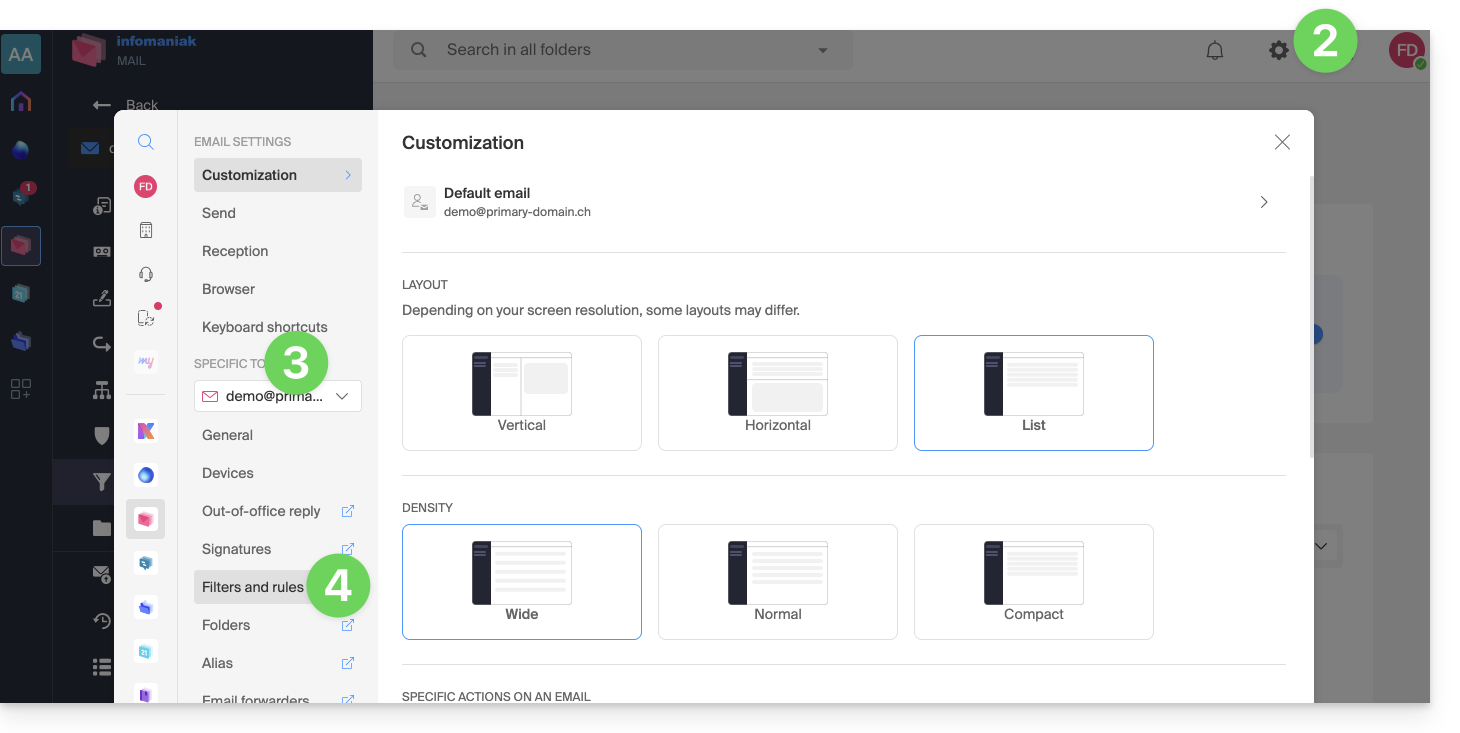
Accessing rules from a Mail Service
To access the sorting filters for your Infomaniak email:
- Click here to access the management of your product on the Infomaniak Manager (need help?).
- Click directly on the name assigned to the product in question.
- Click on the email address in question in the table that appears.
- Click on the Rules tab from the left-hand menu (or top bar):
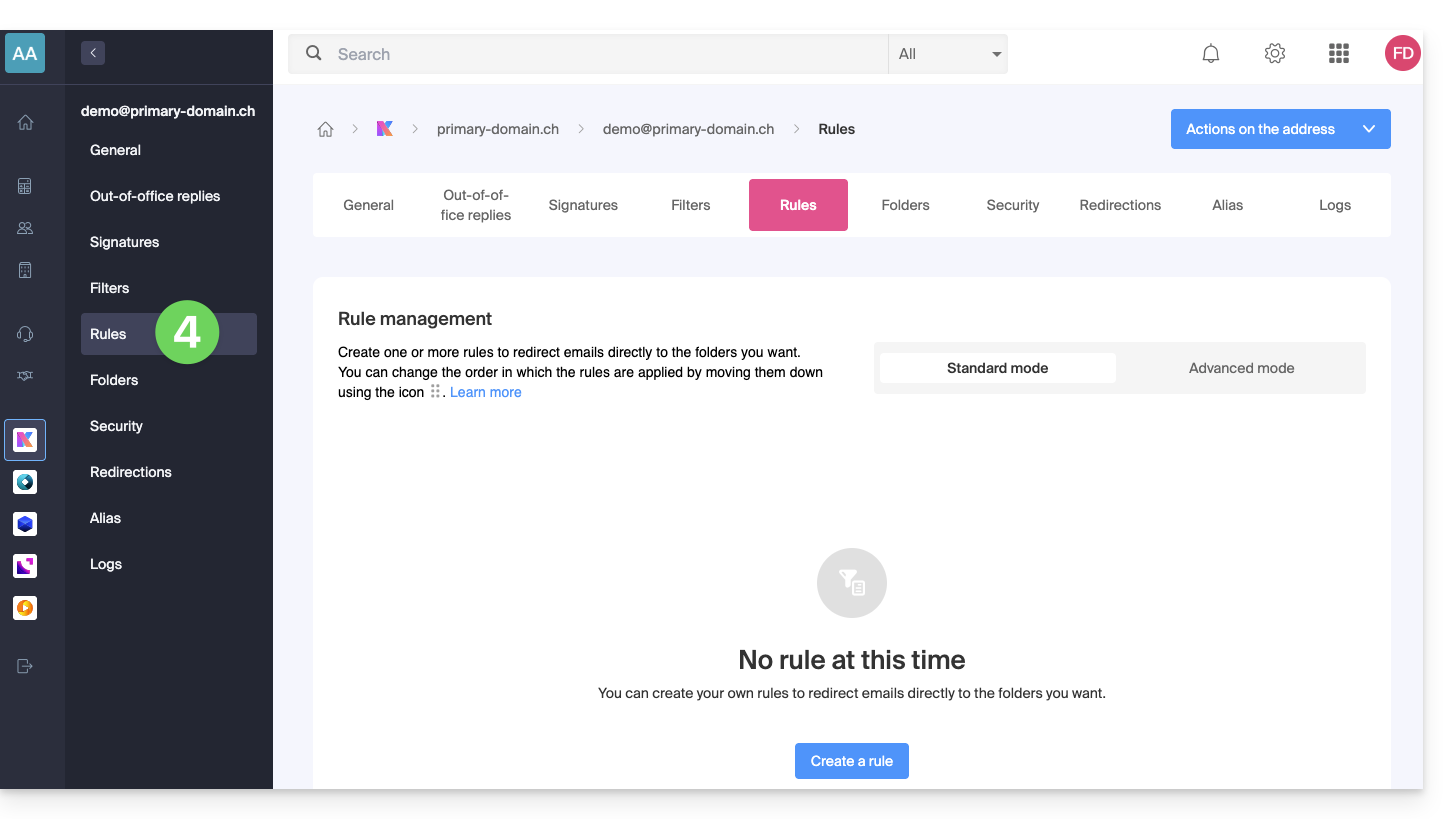
Create a new rule in Advanced (expert) mode
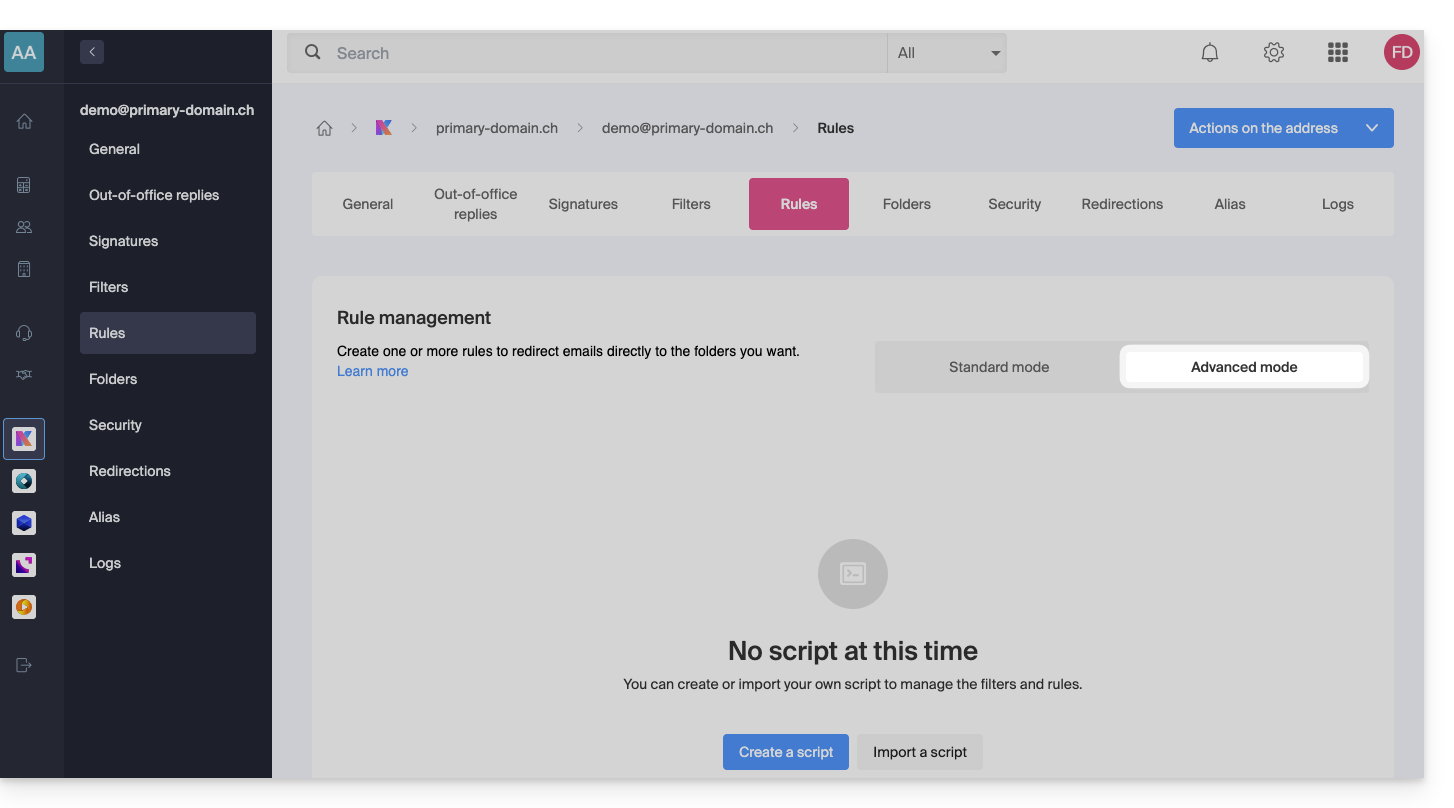
- Make sure to click on the Advanced mode:
First example of advanced sorting
Here is a simple example of a command using this language:
require ["fileinto"];
if address :contains "from" "facebook.com" {
    fileinto "fb";
} elsif header :matches "List-Unsubscribe" "*" {
    fileinto "nl";
} else {
    keep;
}
Explanation:
- Loading the required extensions: use
require ["fileinto"];to indicate that you will be using thefileintofunction. - Filtering Facebook messages: use
if address :contains "from" "facebook.com"to check if the sender's address contains "facebook.com"; if so, the message is filed in the "fb" folder withfileinto "fb";. - Message filtering with an unsubscribe link: use
elsif header :matches "List-Unsubscribe" "*"to check if the "List-Unsubscribe" header is present in the message; if so, the message is classified into the "nl" folder withfileinto "nl";. - Saving other messages: use
else { keep; }to save all other messages that do not meet the previous criteria.
Note:
- If you need to specify a subfolder, use the separator
/(as in the second example), but it is not necessary to specifyINBOXin your codes. - Make sure that the folders "
fb" and "nl" already exist in your inbox; otherwise, messages may not be sorted correctly. - The filter
address :contains "from" "facebook.com"works correctly for addresses that contain "facebook.com" in the "from" field. - The filter
header :matches "List-Unsubscribe" "*"only checks for the presence of the "List-Unsubscribe" header, not its content.
Second example of advanced sorting
This code modifies the subject based on the sender (adds a prefix to the subject when an email passes the filter, for example):
require ["fileinto", "editheader", "variables", "regex"];
if address "sender" "owner-scientific-linux-devel at LISTSERV.FNAL.GOV" {
    if header :regex "subject" "((Re|Fwd): *)\\[SCIENTIFIC-LINUX-DEVEL\\] *(.*)" {
        deleteheader "Subject";
        addheader "Subject" "${1}${3}";
    } else {
        # Ajouter un préfixe si l'objet ne correspond pas déjà au modèle
        deleteheader "Subject";
        addheader "Subject" "[SL-Devel] ${1}";
    }
    fileinto "Mail List/SL-Devel";
}
Explanation:
- Required extensions:
fileinto: for filing messages into folders.editheader: for modifying email headers.variables: for using variables in expressions.regex: for regular expressions.
- Condition on the sender:
if address "sender" "owner-scientific-linux-devel at LISTSERV.FNAL.GOV": checks if the sender matches.
- Condition on the subject:
if header :regex "subject" "((Re|Fwd): *)\\[SCIENTIFIC-LINUX-DEVEL\\] *(.*)": checks if the subject matches the specified pattern.deleteheader "Subject";andaddheader "Subject" "${1}${3}";: deletes the existing subject and adds a new subject with the captured parts.
- Add a prefix if the subject does not already match the pattern:
addheader "Subject" "[SL-Devel] ${1}";: adds the prefix "[SL-Devel]" to the subject if it is not already present.
- Message sorting:
fileinto "Mail List/SL-Devel";: sorts messages into the "Mail List/SL-Devel" folder.
Note:
- Make sure that the "
Mail List/SL-Devel" folder already exists in your inbox. - Verify that the script correctly modifies the email subject to add or adjust the prefix if necessary.
Link to this FAQ: https://faq.infomaniak.com/1839
Has this FAQ been helpful?
This guide explains how to quickly share content from the Infomaniak kDrive web app via email (online service ksuite.infomaniak.com/kdrive).
Share via email from kDrive
You can send a file (or rather, a link to a file, as the email will not contain an attachment) from your kDrive via email:
- Click here to access the kDrive web app (online service ksuite.infomaniak.com/kdrive).
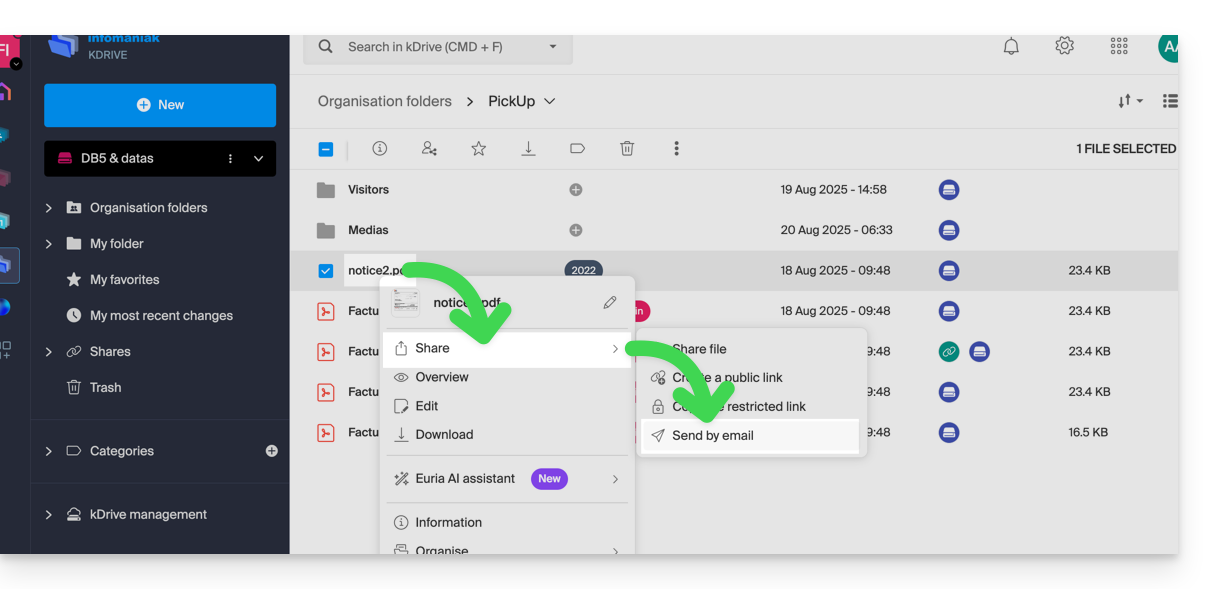
- Right-click on the file/folder in question or click on the action menu ⋮ to the right of the item in question.
- In the drop-down menu that appears, choose to share the item via email:
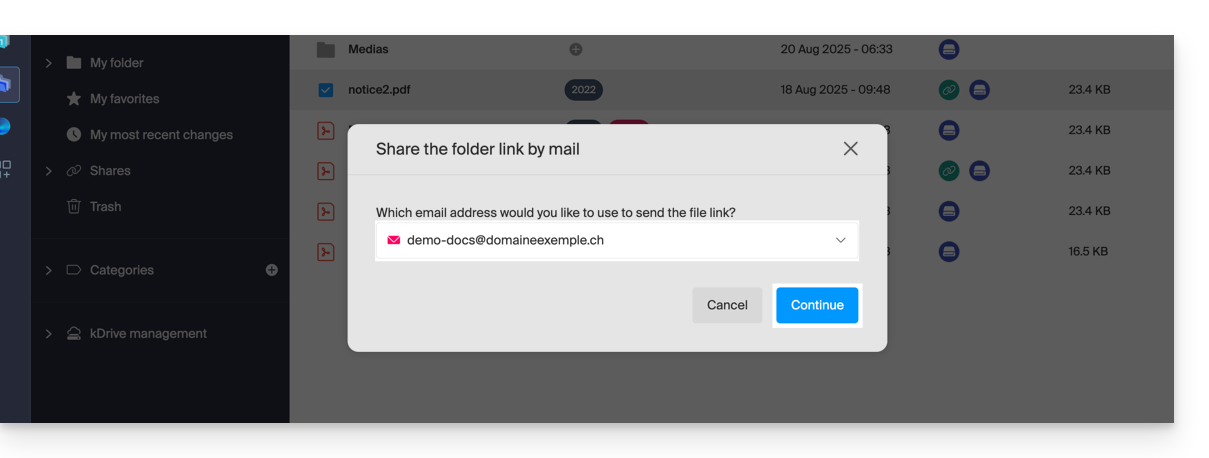
- Choose the email address (from those currently associated with your web app Mail) from which to send the file.
- Click on Continue:
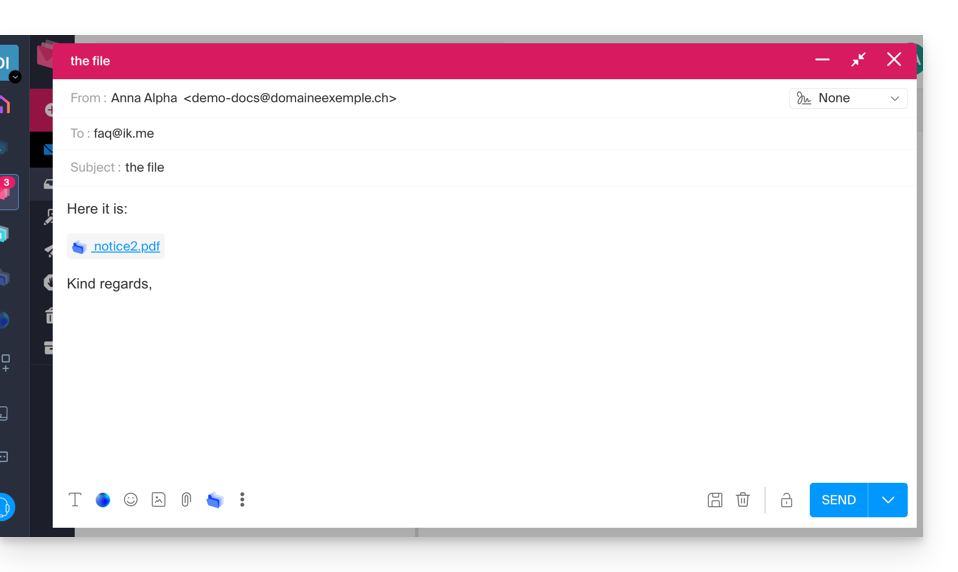
- The Web Mail app opens in the browser, and the message body automatically contains the links to the shared content:
- This is exactly the same method as if you select the file directly from the kDrive icon in the Mail Web app's compose window:
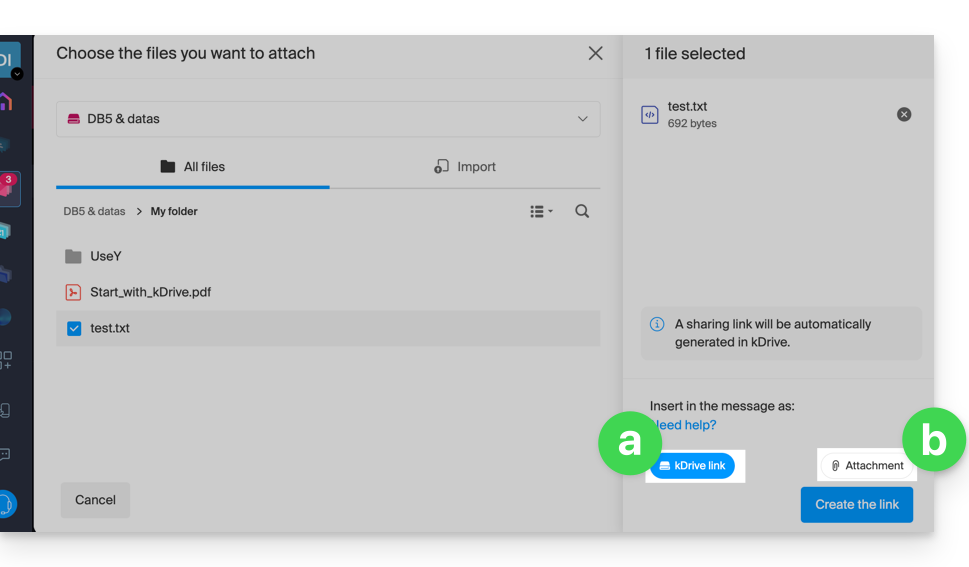
- However, by doing this (linking a kDrive file directly from Mail), an additional option allows you to attach the file itself as an attachment (the file will be sent in its current state at the time you select it; there is no longer the concept of collaboration / sharing as is the case with the method explained in this guide and in the choice of point “
a” above).
- This is exactly the same method as if you select the file directly from the kDrive icon in the Mail Web app's compose window:
Invite to collaborate on the file
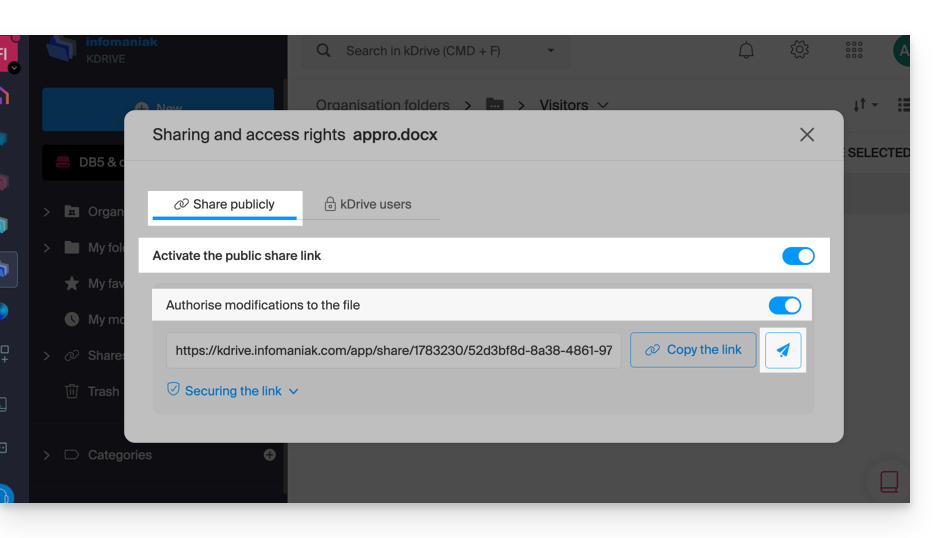
For documents with file extensions such as Office files .docx, .xls, etc., it is recommended to perform a standard document sharing (see the image below), which allows you to authorize document modification if you wish: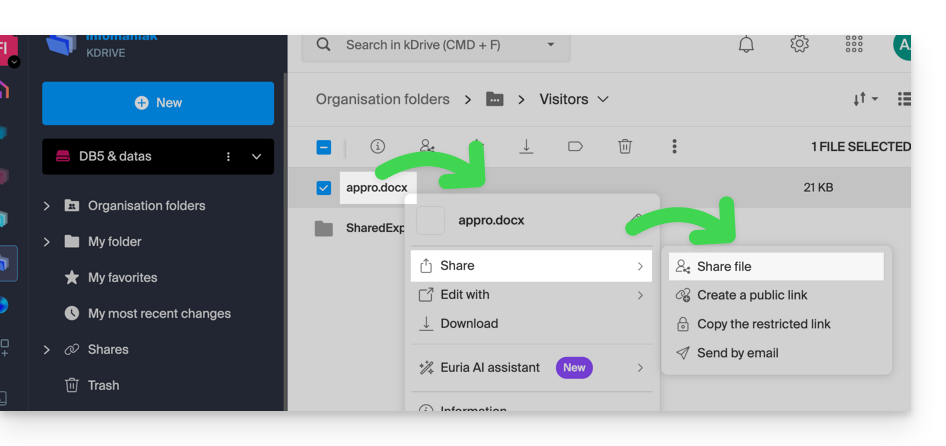
- If you authorize document modification from kDrive, the user will be able to collaborate (with or without prior registration), meaning they can edit in their browser and then save the document you shared:
Link to this FAQ: https://faq.infomaniak.com/1854
Has this FAQ been helpful?
This guide explains how to check your emails using the Infomaniak Mail mobile app (application for iOS/Android smartphones or tablets) designed by Infomaniak.
Download the Infomaniak Mail mobile app
From your iOS or Android mobile device, download the Infomaniak Mail app here:


Other versions and apps can be downloaded from the unified kSuite settings.
On your computer, you can configure your email address with third-party software or use the Mail Infomaniak web app (online service ksuite.infomaniak.com/mail).
Whether on ksuite.infomaniak.com/mail or the Infomaniak Mail app, it is essential to log in with your Infomaniak user account ID and its password. This will not work if you enter an email address and its password directly. Understand the difference
Getting started with the app
- Add an additional email address to Infomaniak Mail
- Modify Infomaniak Mail settings
- Configure Infomaniak Mail notifications
Some features of the Mail Infomaniak web app (online service ksuite.infomaniak.com/mail) are also available on the mobile version:
Specific features of the Infomaniak Mail mobile app
- Only intended for email hosted by Infomaniak.
Minimum iOS version required and supported: v16.4
No push notifications with the version available on F-Droid.
- QR code business card feature
Have a question or feedback?
- Contact Infomaniak support
- Click here to share feedback or a suggestion about an Infomaniak product.
Link to this FAQ: https://faq.infomaniak.com/1860
Has this FAQ been helpful?