Knowledge base
1000 FAQs, 500 tutorials and instructional videos. Here, there are only solutions!
Manage a user's email permissions
This guide explains how to manage and modify user permissions (assigning an additional password, setting up an alias, etc. – see below for the complete list) for an Infomaniak user, so that they can manage more or fewer configuration elements in the Infomaniak Mail web app (online service ksuite.infomaniak.com/mail).
Introduction
- The email address is first created within a Mail Service and can then be used within one or more Infomaniak Mail interfaces by one or more users.
- The creator (or manager) of the address may want to limit the actions possible for one or the other of the users who will use the email address.
- This fine-grained permission management can be done during address creation or afterwards, and you can also define what the default rights should be for any new address created (see Global Configuration below).
List of email user permissions
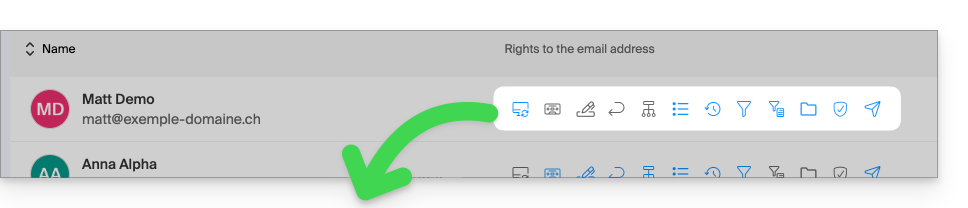
| Type / Icon | Description of the permission granted to the user |
|---|---|
| Configure a device | Manage devices (create a dedicated password) |
| Manage auto-replies | Create an out-of-office message (automatic reply) |
| Manage signatures | Add signatures and manage reply email addresses |
| Manage forwarding | Forward emails to one or more other addresses |
| Manage aliases | Create variations of your email address (by modifying what comes before the @) |
| Manage the history of actions | Access the logs for the email address |
| Manage restorations | Access backups and restorations |
| Manage filters | Access SPAM and other filters |
| Manage rules | Automatically sort and categorize new incoming emails |
| Manage folders | Customize IMAP folders |
| Manage security | Manage blocked and approved addresses |
| Manage email sending | Enable sending emails (authorize global SMTP) |
Manage permissions granted to a user
The password for logging into your Infomaniak account may be required to make changes to permissions.
… from the Mail Service
- Click here to access the management of your product in the Infomaniak Manager (need help?).
- Click directly on the name assigned to the product in question.
- Click on the email address in question in the table that appears.
- There are several ways to modify the permissions of a mail address:
- When adding a user to a mail address:
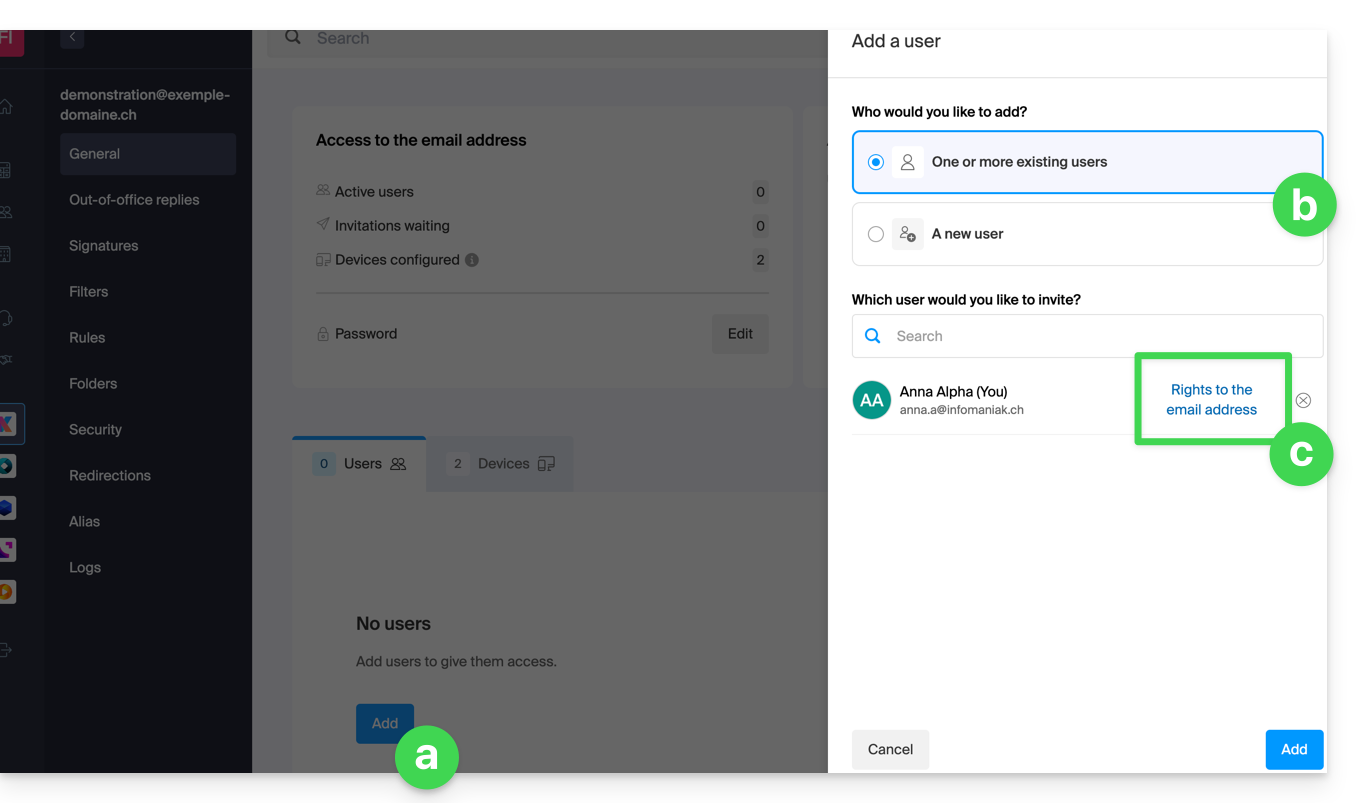
- Once the user has been added:
- Click on the action menu ⋮ located to the right of the user's name for the mail address.
- Select ✎ Modify permissions:
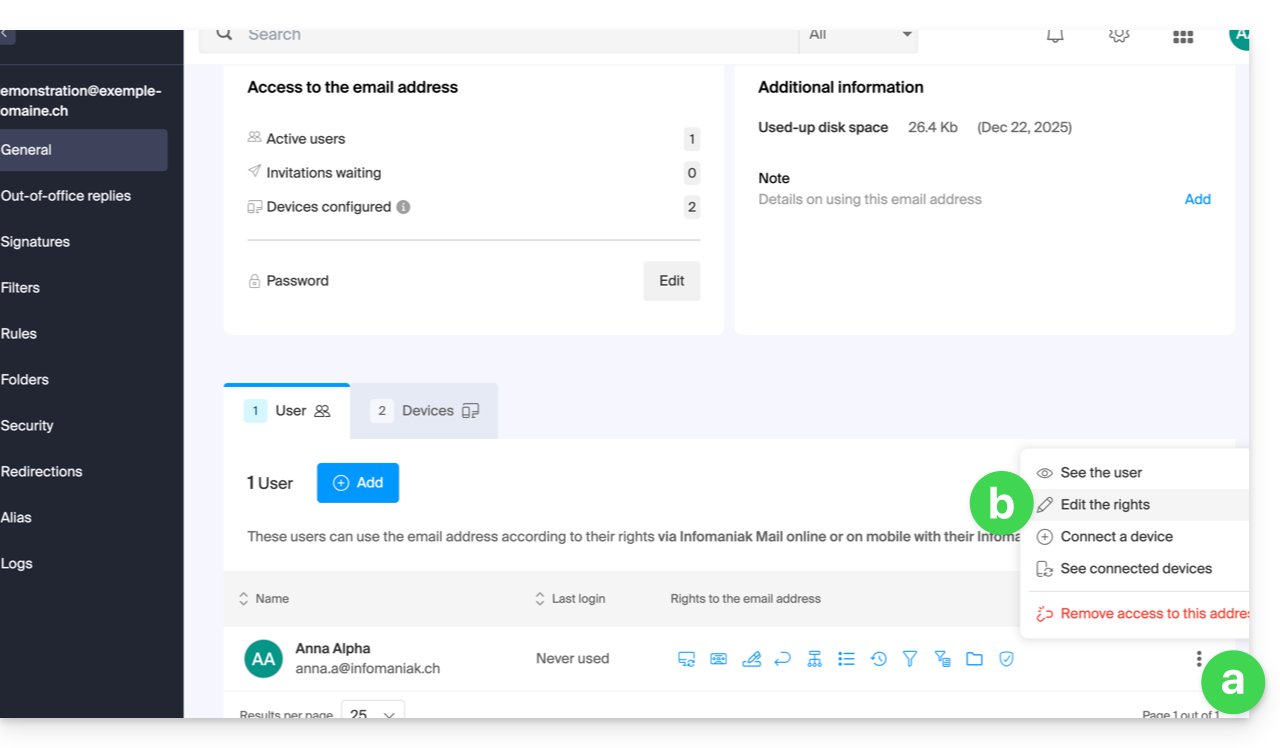
- Or click directly on the icons visible in the table:
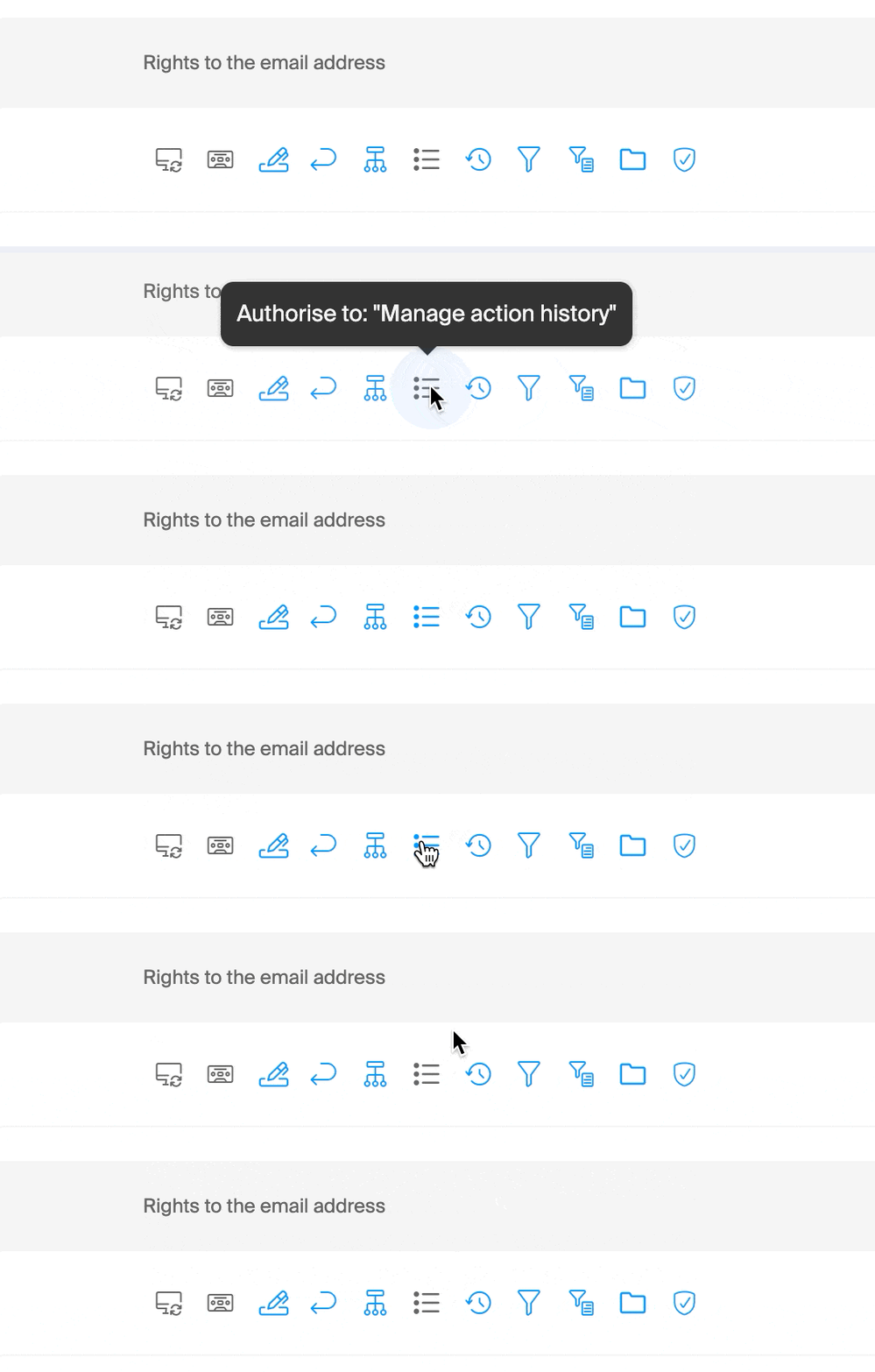
- When adding a user to a mail address:
… from the Manager (user management)
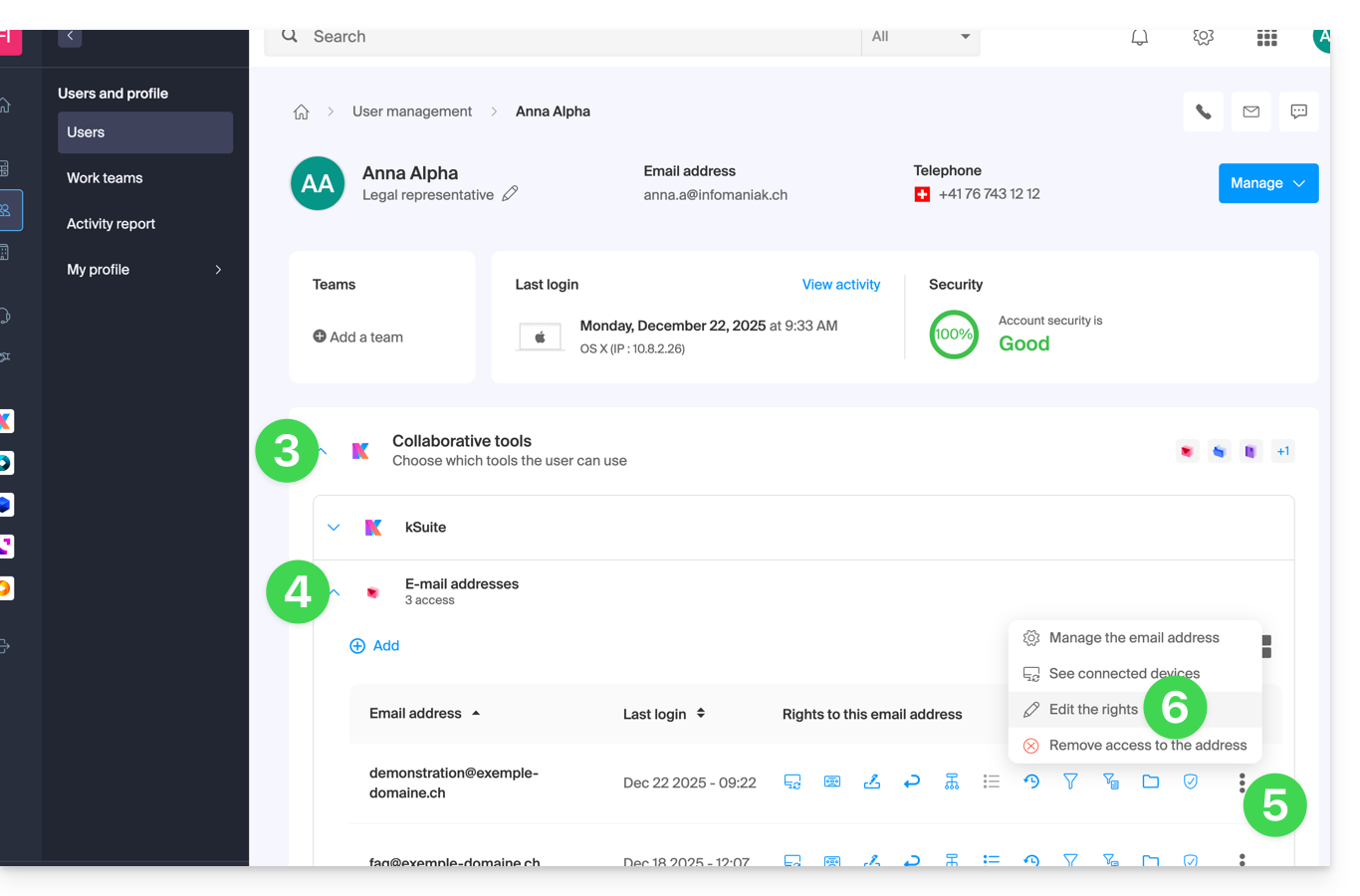
- Click here to access user management in the Infomaniak Manager (need help?).
- Click on the user concerned in the table that appears.
- Expand the collaboration tools section by clicking on the chevron .
- Expand the mail addresses section accessed by the user by clicking on the chevron .
- Click on the action menu ⋮ located to the right of the mail address concerned.
- Select Modify permissions:
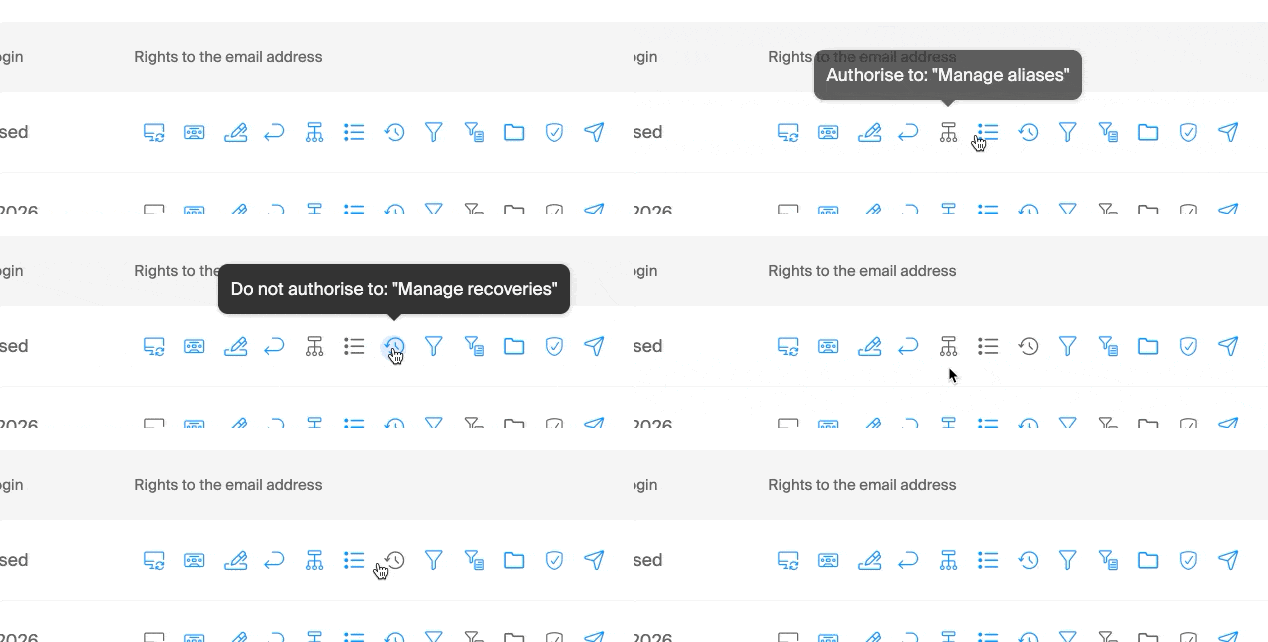
- Or, click directly on the icons visible in the table:
… from the Web Mail app
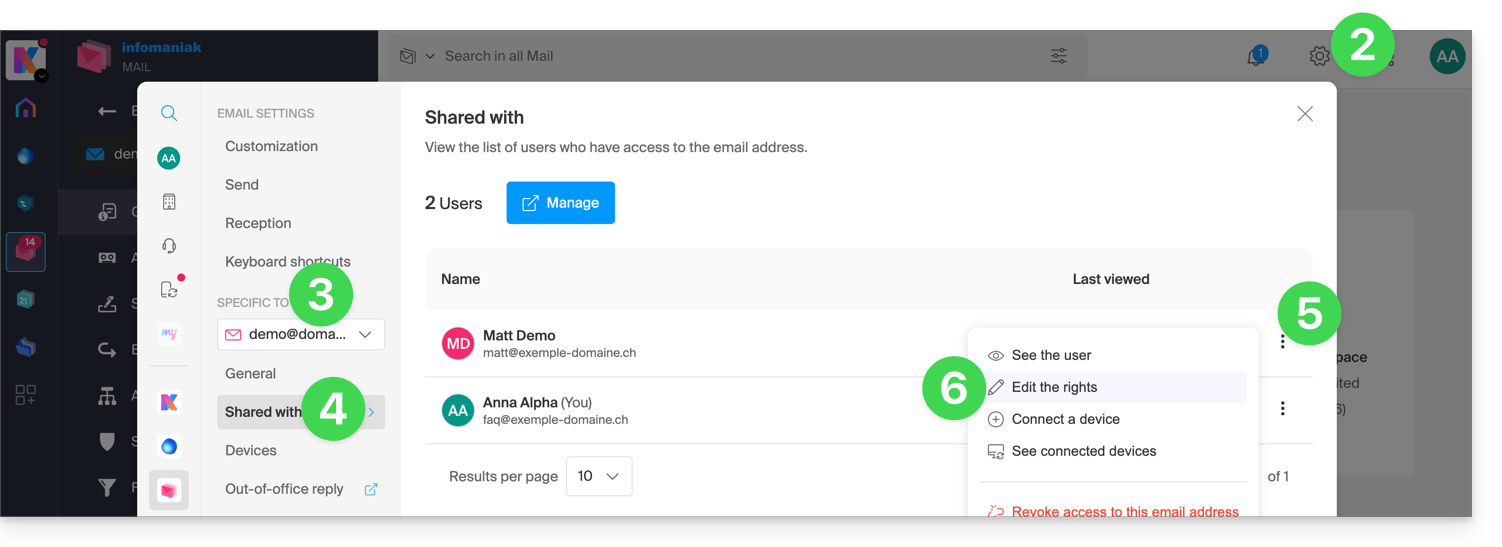
- Click here to access the Infomaniak Web Mail app (online service ksuite.infomaniak.com/mail).
- Click on the Settings icon in the top right corner of the interface.
- Check or select the email address in question from the drop-down menu in the left-hand menu.
- Click on Shared with.
- Click on the action menu ⋮ located to the right of the email address user's name.
- Select ✎ Edit permissions:
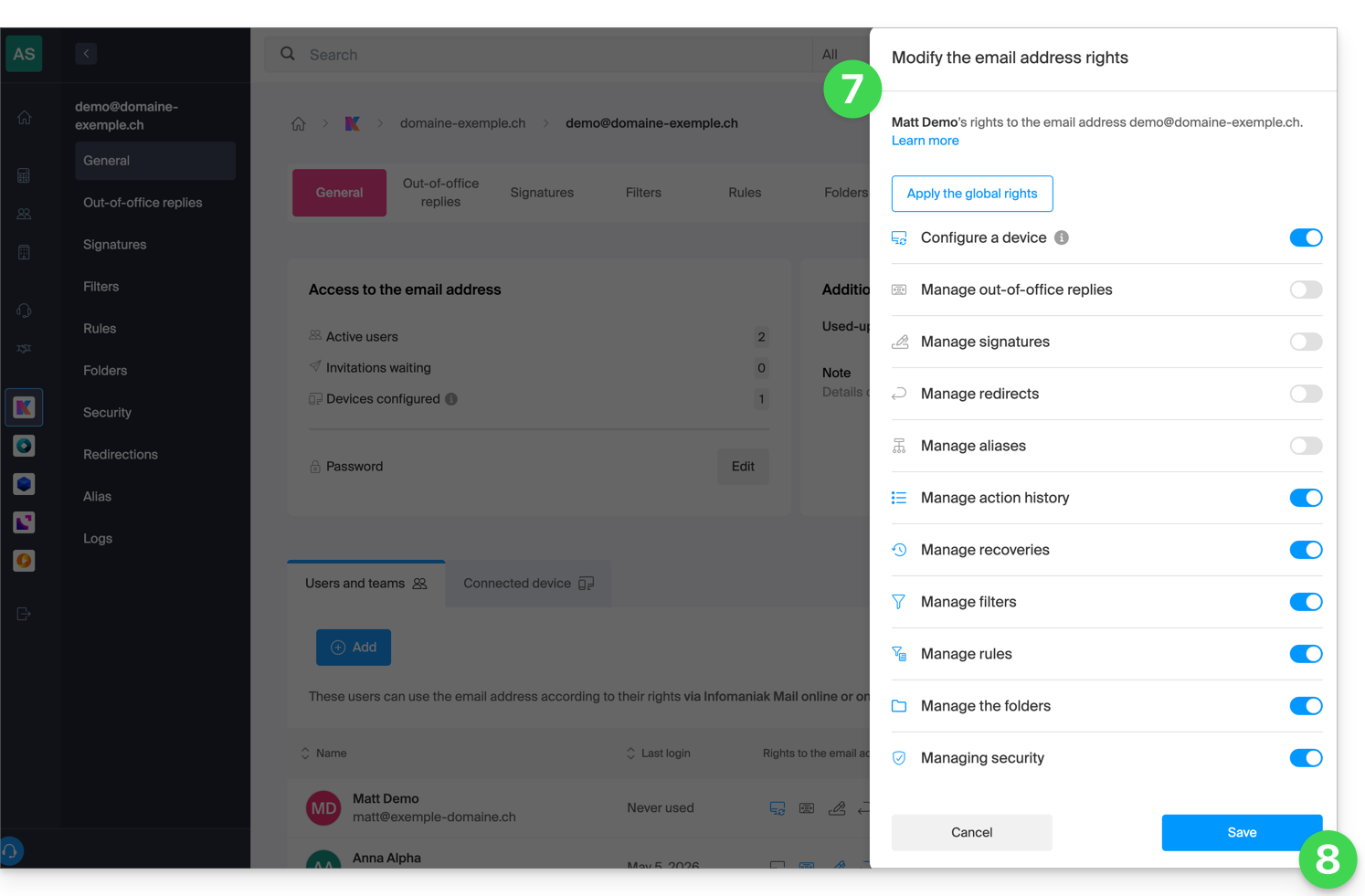
- You will be redirected to the settings for your email address in the Mail Service, and more specifically to the permissions section for the user in question.
- Adjust the permissions and save at the bottom of the page:
Result for the user
The user whose permissions are being revoked will no longer see certain corresponding menus in their email address settings.
For some features, even if the menu is still accessible, some buttons will be inoperative or grayed out: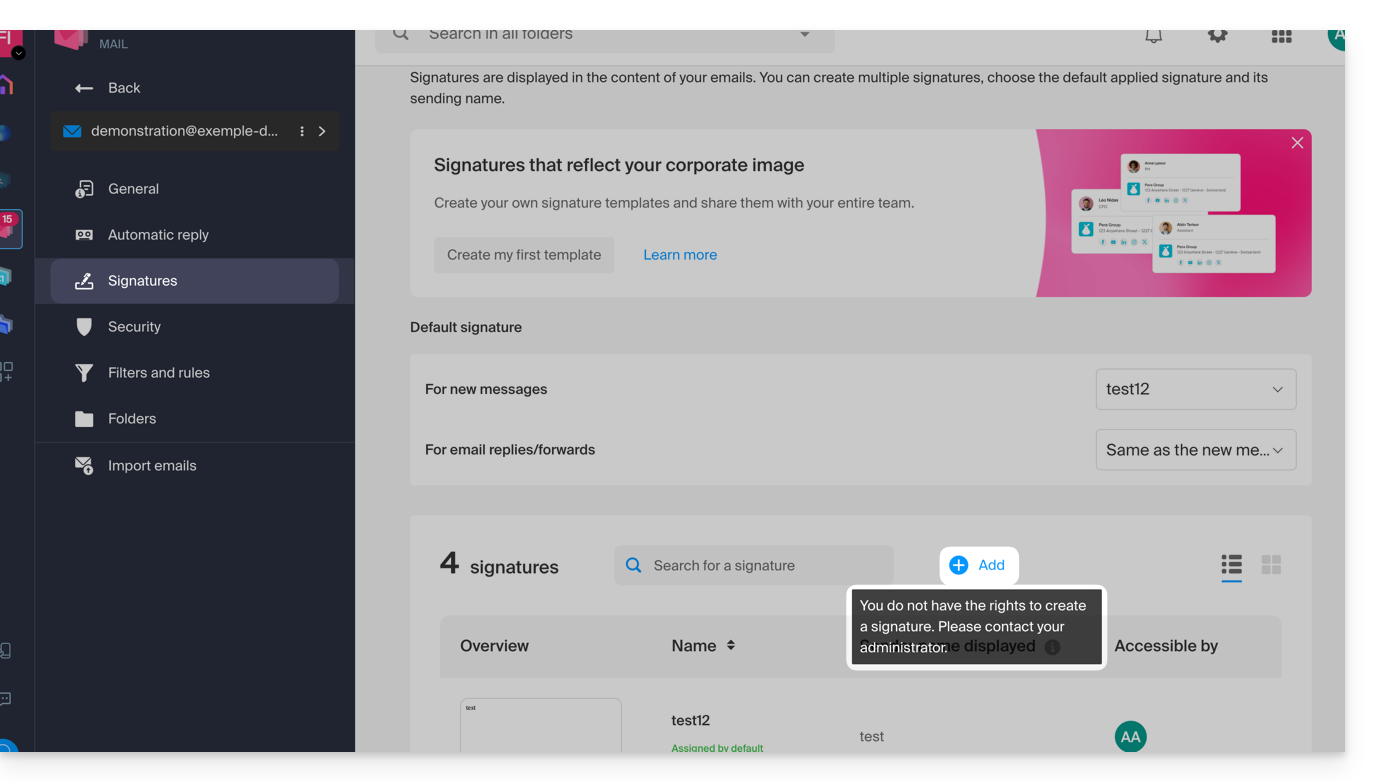
Global configuration
Define default settings
To define the default rights that will be automatically selected when the “global configuration” is applied by the administrator:
- Click here to access the management of your product on the Infomaniak Manager (need help?).
- Click directly on the name assigned to the product in question.
- Click on Global Configuration in the left-hand menu:
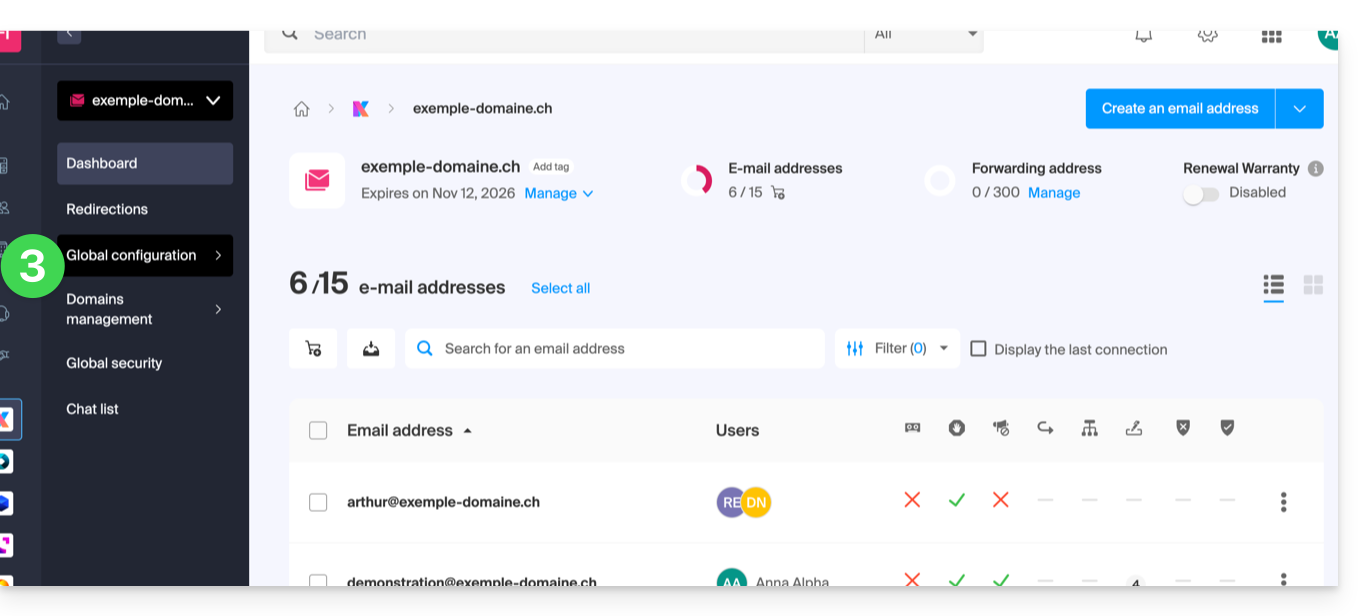
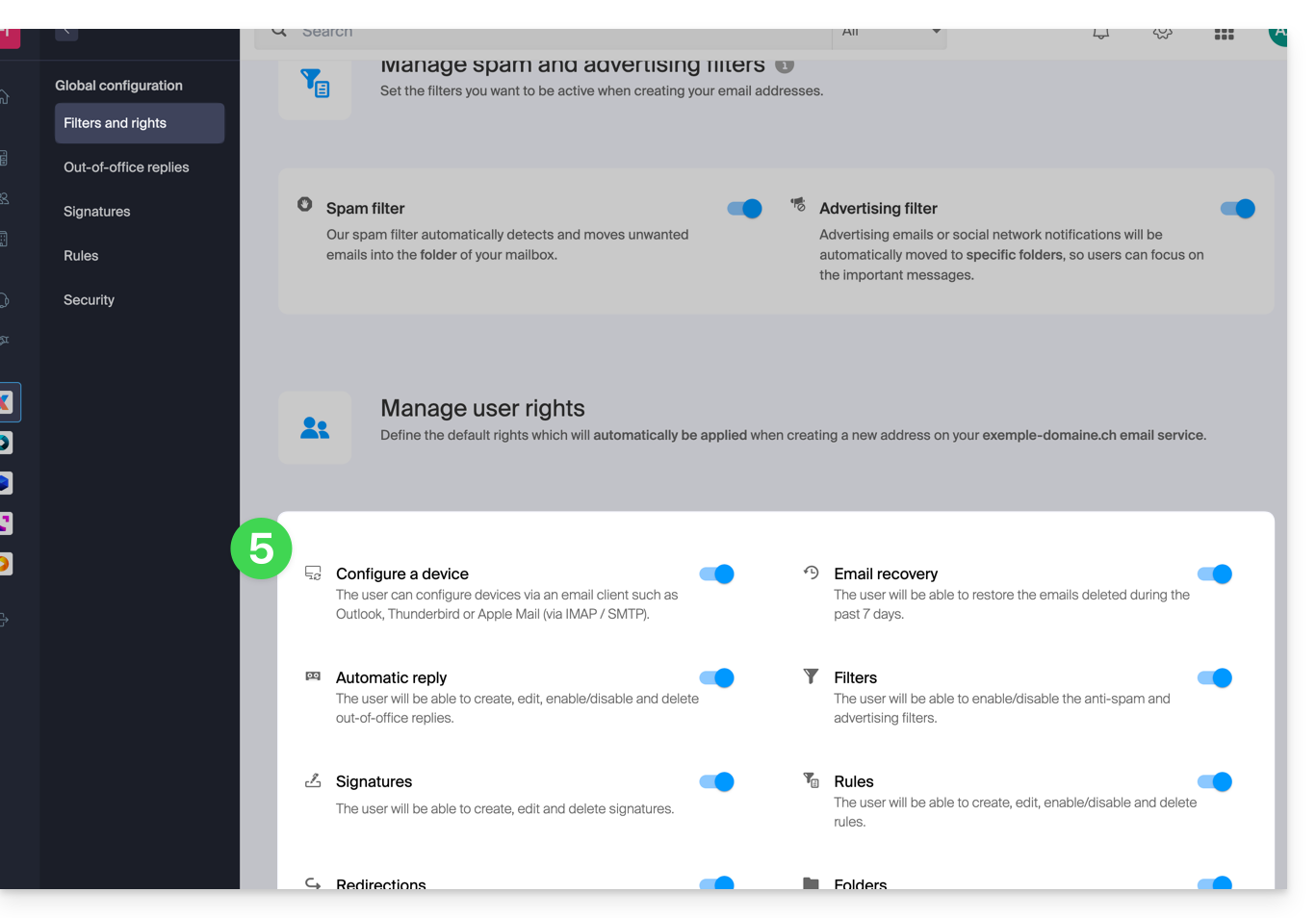
- Then click on Filters and Permissions.
- At the bottom, enable or disable the rights to be granted when creating new email addresses:
Global configuration during email address creation
If a new email address is created for one or more third-party users, the permissions defined in the Global Configuration will be automatically pre-selected during the wizard step: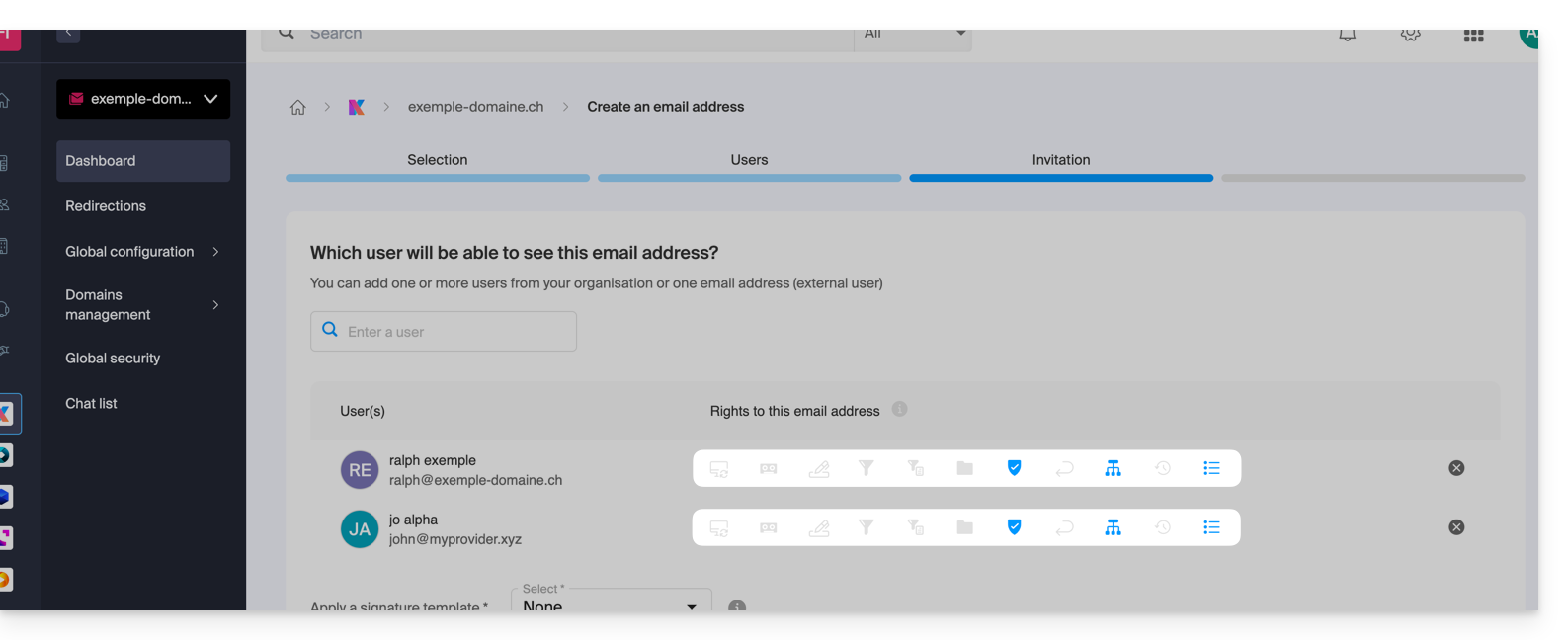
It is, of course, possible to modify the different permissions for the different users on a case-by-case basis.
Apply the global configuration to existing addresses
To apply this global configuration to the existing email addresses of a Mail Service (which will then apply to all users concerned, listed in the Users column):
- Click here to access the management of your product in the Infomaniak Manager (need help?).
- Click directly on the name assigned to the product in question.
- Select the email addresses concerned by checking the boxes to the left of the line.
- Click on Apply global configuration at the bottom of the screen (by first clicking on the action menu ⋮ if necessary):
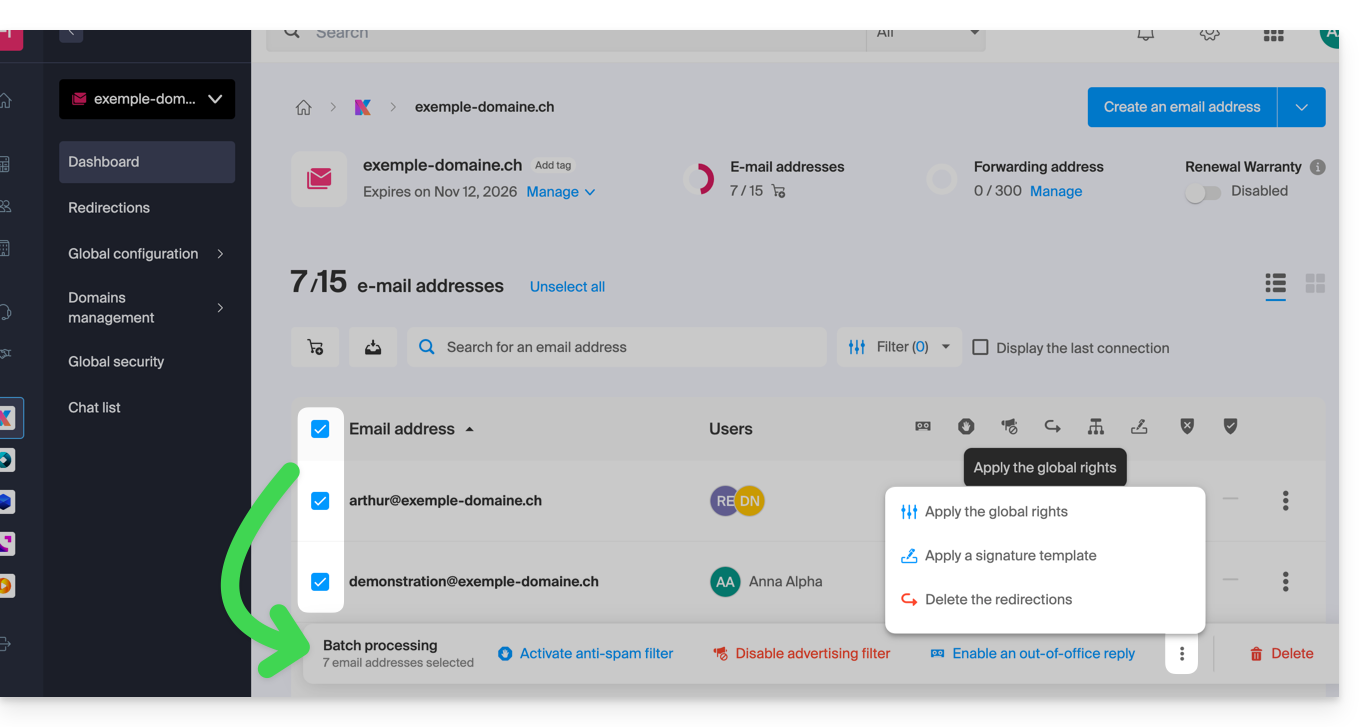
Apply the global configuration when managing permissions granted to a user
To apply this global configuration when you edit a user's permissions for an email address (refer to the "Manage permissions granted to a user" section at the top of this guide), click on the button dedicated to this purpose: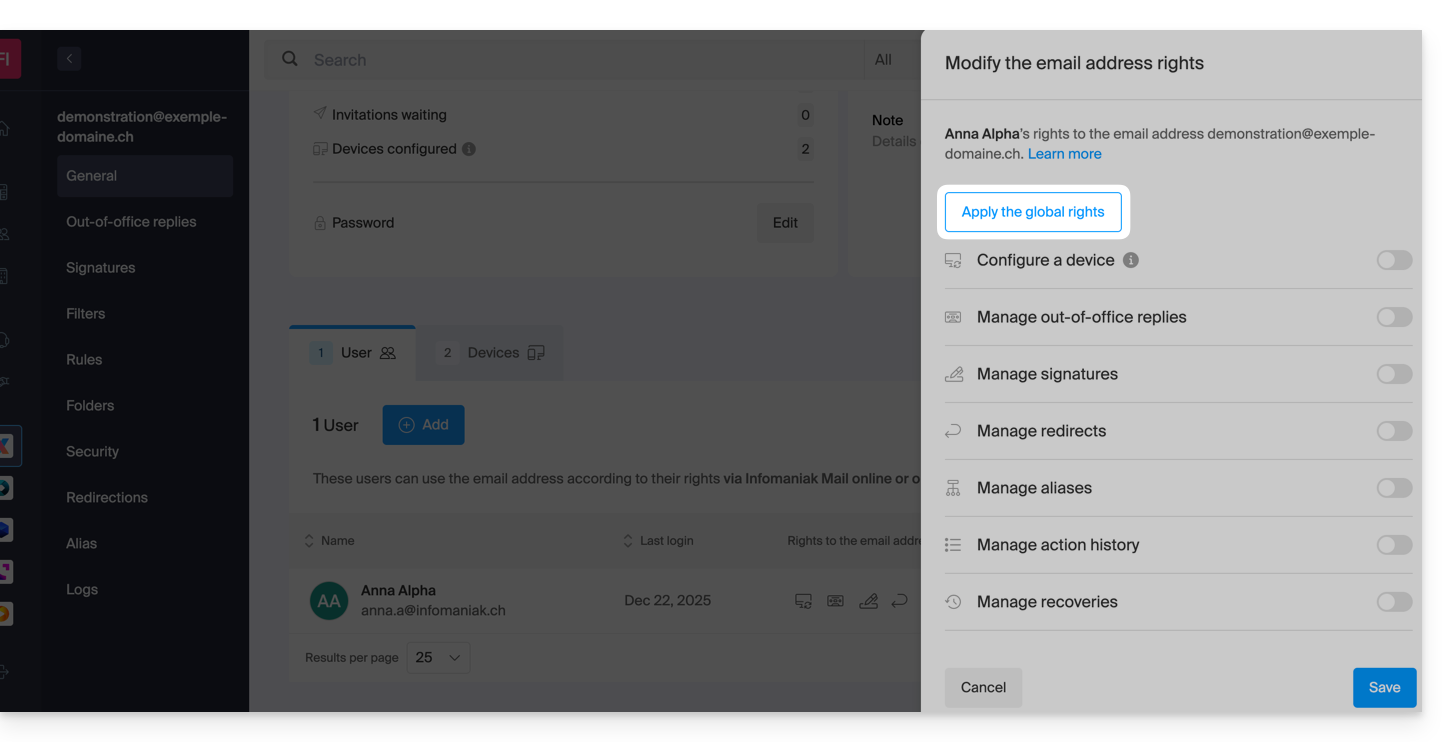
Link to this FAQ: https://faq.infomaniak.com/1811
Has this FAQ been helpful?