Knowledge base
1000 FAQs, 500 tutorials and instructional videos. Here, there are only solutions!
Unlink an email address from the Infomaniak account
This guide explains how to remove from the Web app Mail Infomaniak (online service ksuite.infomaniak.com/mail) an email address currently being viewed by your Infomaniak account.
Any operation (adding or removing an email address) performed from the Web app Mail Infomaniak will be immediately replicated on the mobile app Infomaniak Mail (this does not affect email software/clients like Outlook).
Detach an email address
To remove an email address currently being viewed:
- Click here to access the Web app Mail Infomaniak (online service ksuite.infomaniak.com/mail).
- If necessary, click on the chevron to the right of the email address currently visible on the Web app Mail Infomaniak.
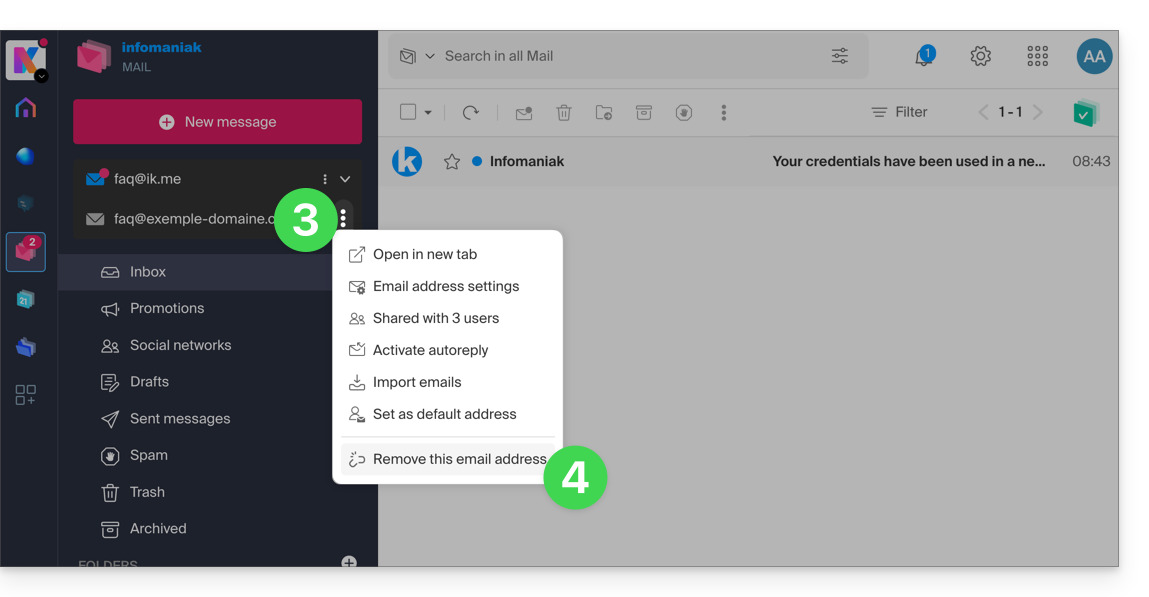
- Click on the action menu ⋮ to the right of the email address you wish to detach.
- Click on Detach this email address:
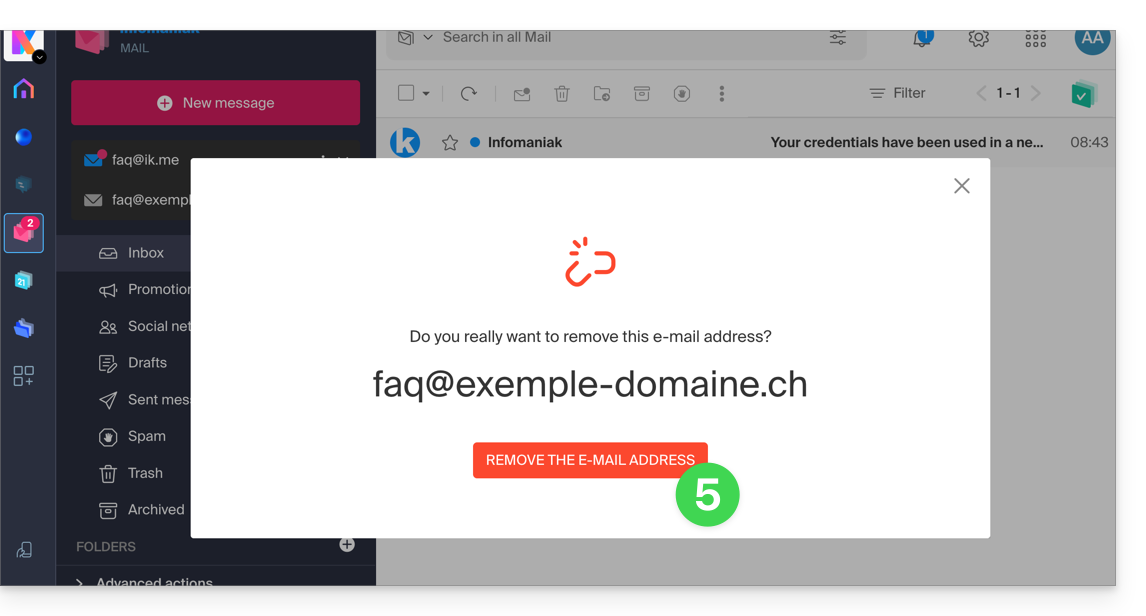
- Click on the red button to confirm the removal:
Detach an email address in error
To remove an email address currently attached and displaying a warning sign ⚠️: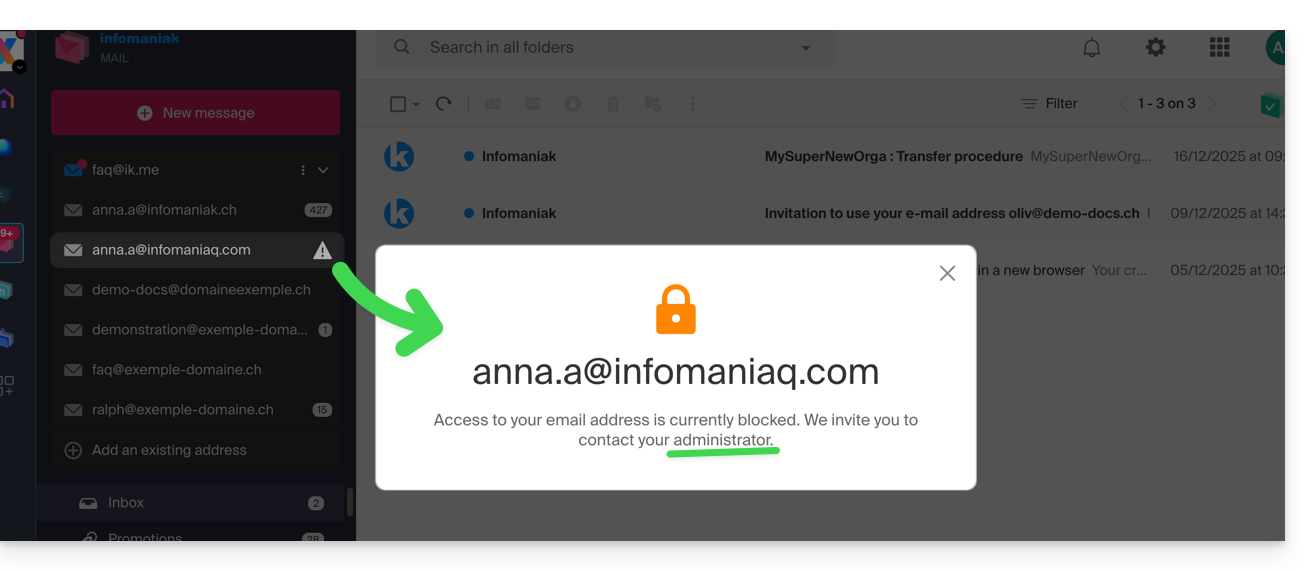
It is up to the administrator of the Mail Service concerned to take the necessary action (either by deleting the user's access from the management of the users of the email address in question, if necessary by unlocking the service beforehand if it is blocked due to an overdue payment deadline, or other security issue):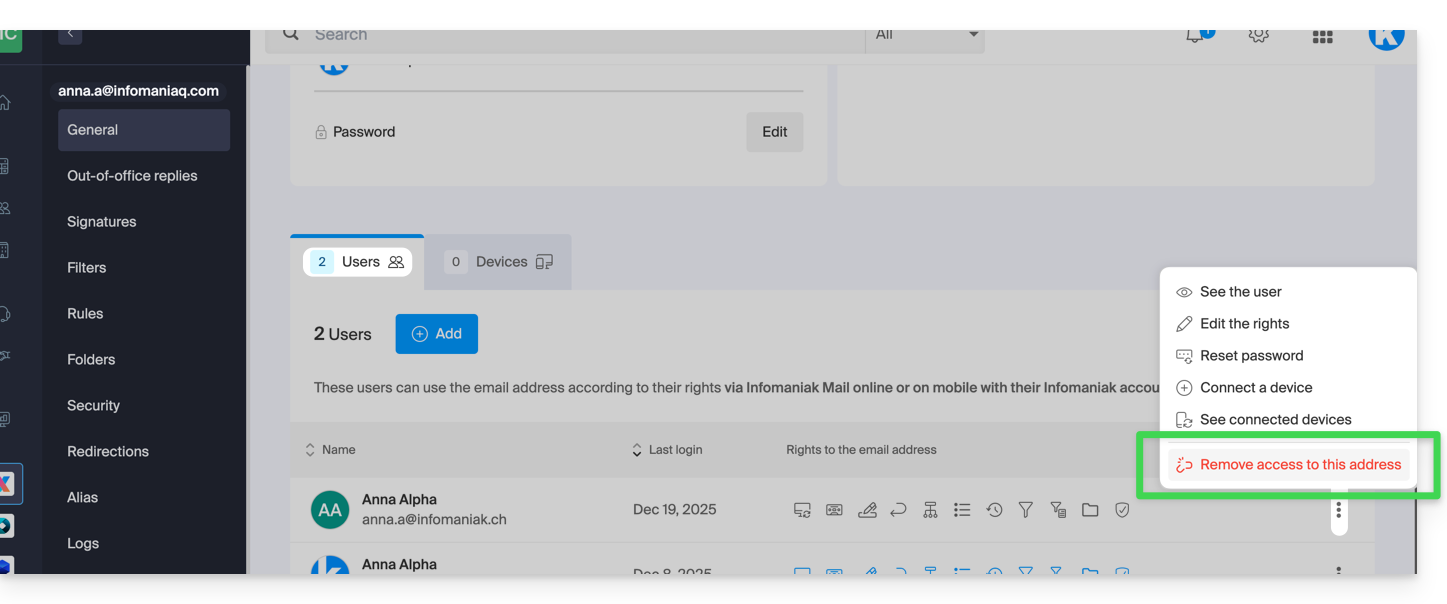
Refer to this other guide if you are looking for information about the deletion of an email address and its content, and to this other guide to link and view an additional email address.
Link to this FAQ: https://faq.infomaniak.com/2055
Has this FAQ been helpful?