Knowledge base
1000 FAQs, 500 tutorials and instructional videos. Here, there are only solutions!
Infomaniak offers various Site Creator plans, both free and paid, to meet different needs. It is essential to understand the terms and conditions associated with each type of plan before making your choice.
Understanding the Different Site Creator Plans
Site Creator is available…
- … either free of charge with every existing paid web hosting plan (add one if necessary):
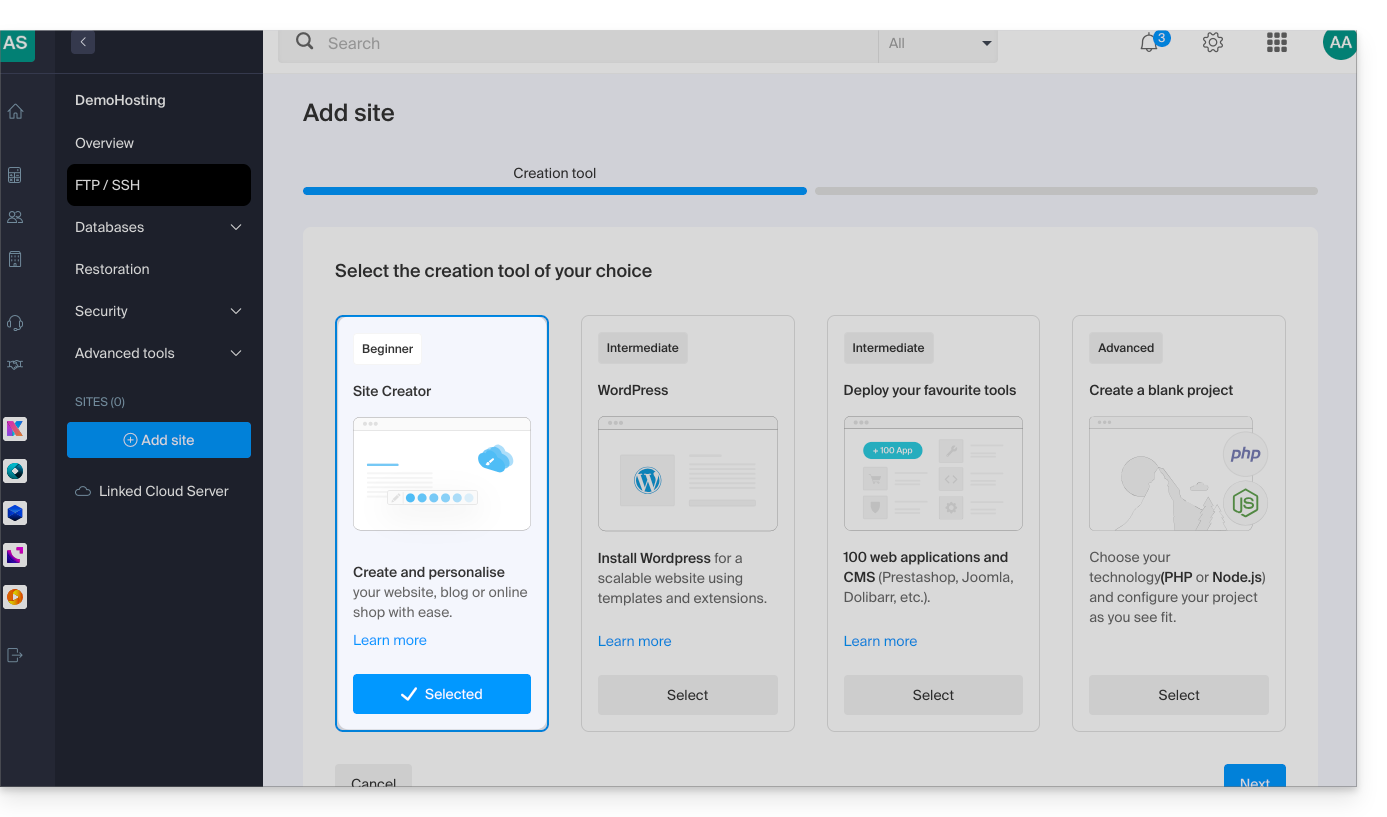
- In this case, only 1 Site Creator can be set up per Infomaniak web hosting plan.
- To manage multiple sites created with Site Creator within the same Organization, it is therefore necessary to have multiple web hosting plans.
- … orindependently (standalone available in 3 versions)and in this case, does not require any other specific offer:
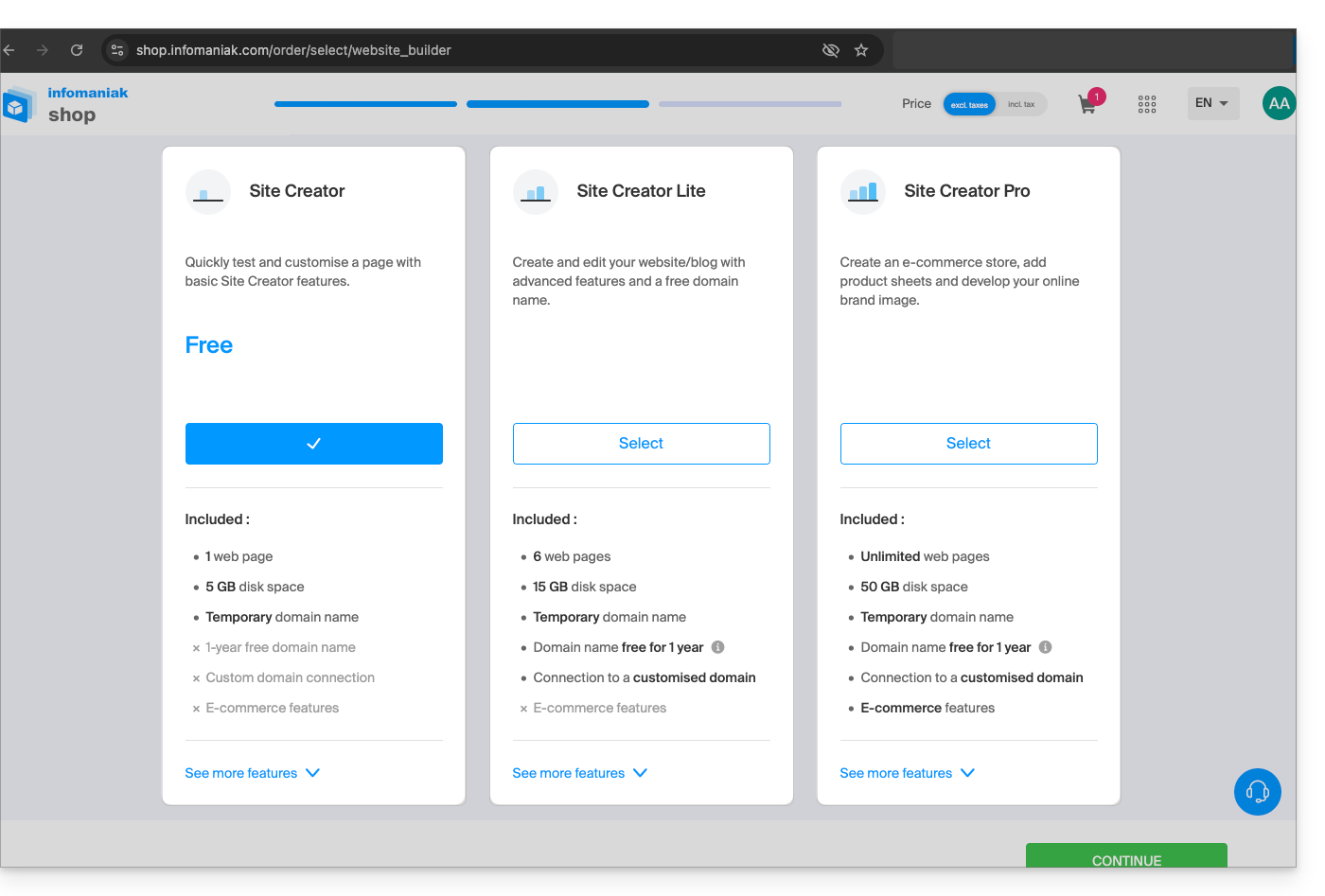
- Site Creator Free
- Site Creator Lite
- Site Creator Pro
1. Site Creator Free
This offer is designed as a trial and discovery solution and is completely free. It is intended for users who want to familiarize themselves with the tool or publish a very simple web page:
- It only allows one web page and offers limited disk space (5 GB).
- This offer does not allow connection to a custom domain name (it will be in the format
*.infomaniak.site) and includes the mandatory display of Infomaniak's advertising message. - Important growth modules, such as full blog management, the use of Artificial Intelligence for text generation, or the "Sitemap" function, are not included.
2. Site Creator Lite
The Lite plan is Infomaniak's entry-level paid plan. It is ideal for creating a simple showcase website or personal blog, as it eliminates the main limitations of the free version and unlocks the modules needed for a complete website:
- It allows you to create a more comprehensive website with a limit of 6 web pages and more storage space (15 GB).
- It includes a domain name for one year and, most importantly, removes all Infomaniak advertising from the website.
- Unlike the Free plan, the Lite plan unlocks access to important features for navigation and organization, including the Blog Creation and Management module and the Sitemap module.
3. Site Creator Pro
The Pro plan is the premium plan for Site Creator. It is exclusively designed for the most ambitious projects, such as launching a complete online store, by removing all content restrictions and integrating advanced e-commerce and analytics tools:
- It removes all limitations on content by offering unlimited web pages and a large disk space of 50 GB.
- This is the only plan that includes complete e-commerce management (orders, inventory, discounts) and allows integration of essential payment gateways (Stripe, PayPal, Mollie) for an online business.
- The Pro plan is the only one that provides access to crucial external analysis and performance tracking tools, such as Google Analytics, Hotjar, and tools like Google reCaptcha.
Commitment related to paid offers
Unlike other Infomaniak products, some Site Creator offers include a free domain name. These offers require a firm commitment for a minimum period of 12 months, with no possibility of a refund, even partial, even if:
- you decide to stop using Site Creator before the end of the first year,
- you cancel your products,
- you close your user account or your Organization.
Changes to offers and maintaining your site
You can upgrade from a free plan to a more comprehensive paid plan:
- Click here to access your website management in the Infomaniak Manager (need help?).
- Click on the action menu ⋮ to the right of the website in question in the table that appears.
- Click on Modify offer:
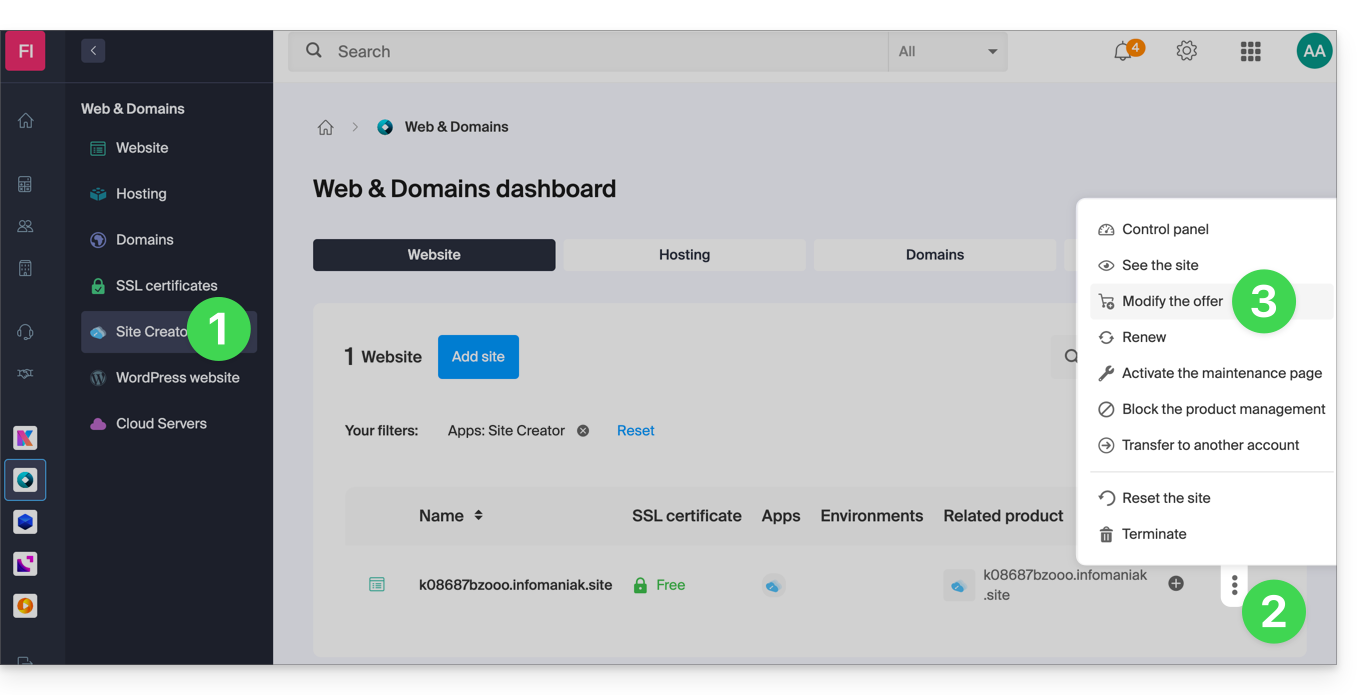
It is also possible to upgrade to a higher plan (e.g., from Lite to Pro).
However,It is not possible to downgrade to a lower planor revert to a free plan once a paid plan has been activated.
If you want to keep your site active, you must renew the same paid plan. It is not possible to switch to a free version of Site Creator, even if:
- you are not using any of the paid modules,
- your website only has one page.
What should you do if you want to revert to the free plan?
In this case, you must:
- cancel your current site after manually copying all the information you want to keep,
- activate a new free Site Creator offer,
- recreate your site by pasting the content retrieved from the old one.
Link to this FAQ: https://faq.infomaniak.com/2518
Has this FAQ been helpful?
This guide details the installation and maintenance of Ghost on an Infomaniak web hosting, in order to obtain a platform optimized for blogging and editorial publishing, a high-performance alternative to Substack or Medium.
Prerequisites
- A Node.js website (version 22 recommended).
- Active SSH access.
- A MySQL/MariaDB database.
- Stop the Node.js application from your Node.js site dashboard before performing any technical operations.
Ghost Installation
To do this:
- Connect to your server via SSH (need help?).
Run the following commands to launch the installer:
# Clone tools repo git clone {{URL_5}} cd hosting-tools/h3-ghost # Run installation script bash ./install.sh- The script will now:
- ask you a few questions (website URL, database information, SMTP, etc.)…
- download and configure Ghost automatically…
- take a few minutes — please be patient!
Answer the questions carefully, using the details you have noted.Do not close the terminal until it has finished!
Configuration du Manager (Node.js)
Once the script is complete, go to your Infomaniak Control Panel:
- Click here to access the hosting & website management section in your Infomaniak Manager (❓: help).
- Click on the name of the Node.js website in question.
- Click on Manage advanced settings:
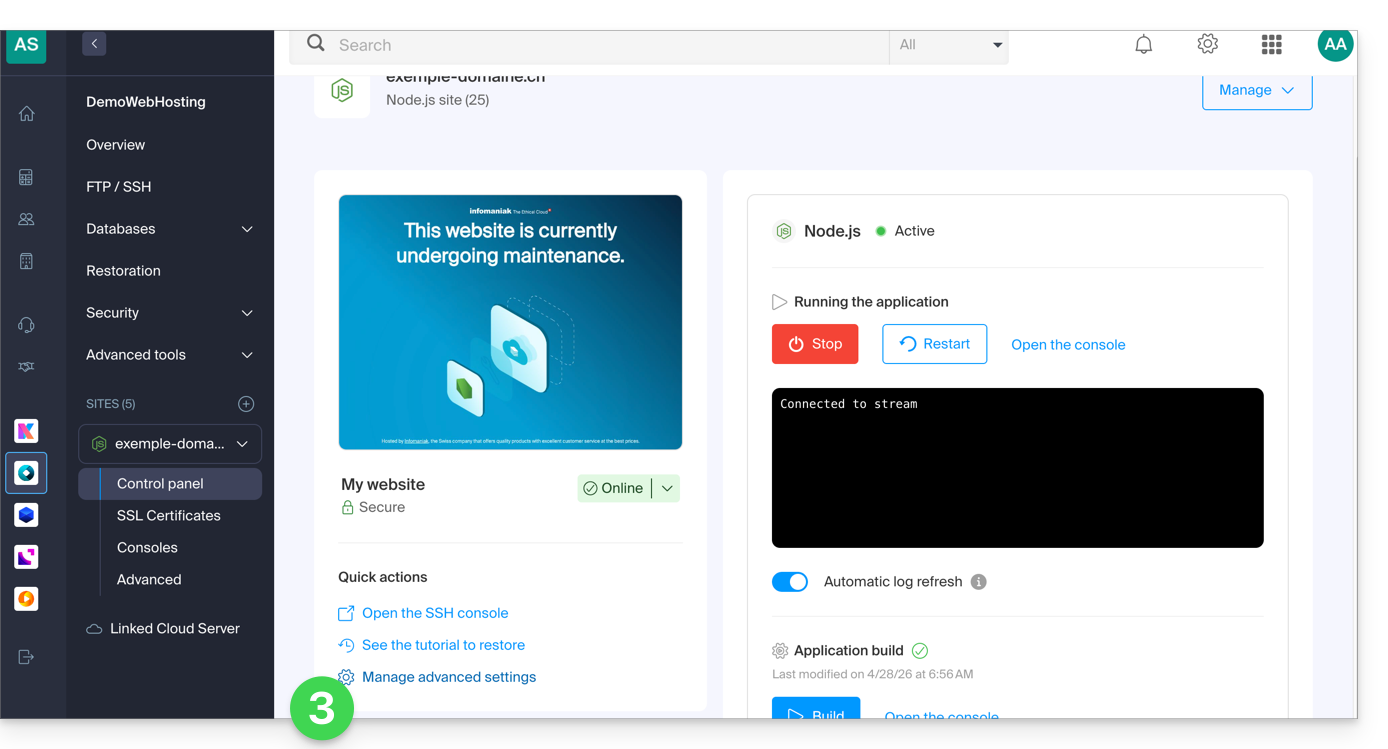
- Click on the Node.js tab to access the settings.
In the execution command field, enter:
/srv/customer/node_modules/ghost-cli/bin/ghost run- Make sure the port number is
3000. - Disable the build order case.
- Click the Save button at the bottom of the page:
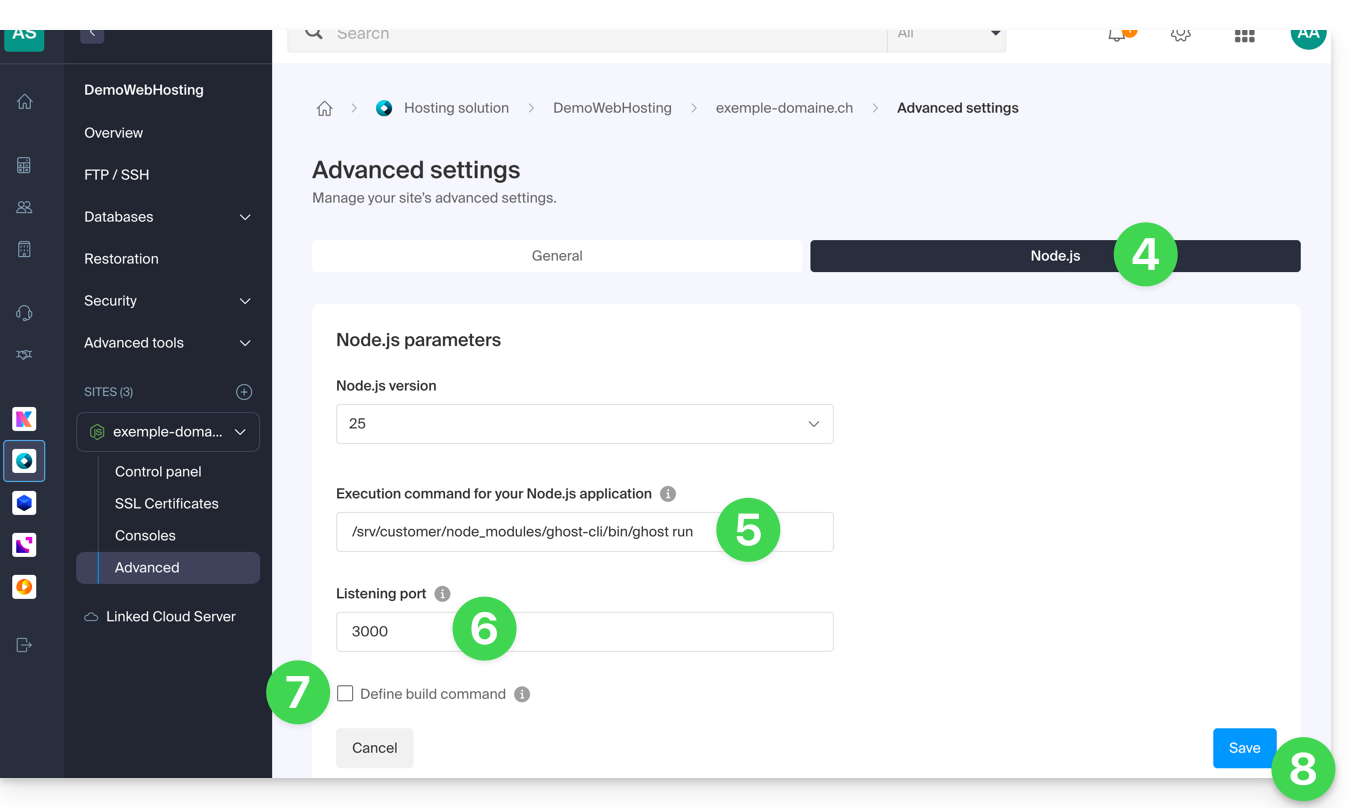
- On the main page, click the Start button (or Restart if it is already running).
- Confirm the operation if necessary:
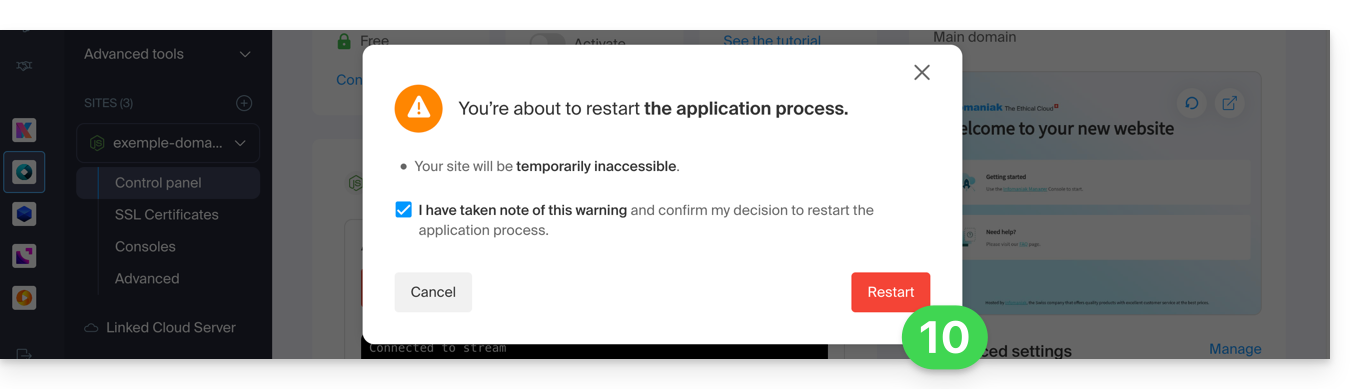
- Observe the logs showing the database creation and application startup.
Ghost Update
Before updating: do you want to back up your data? Please refer to this other guide.
To update Ghost CMS to the latest version or a specific version, follow these steps:
- Stop the Node.js application in the Infomaniak Manager.
Access the directory of your Ghost site
# Navigate to your Ghost site directory
cd ~/sites/ghost-site-name
Replace
ghost-site-namewith the actual name of your folder (e.g., blog, mysite, etc.).Make sure the file permissions are correct (this operation may take several minutes):
# Ensure file permissions are correct
find ./ -type d -exec chmod -v 00775 {} \;
Check for available updates:
# Check available ghost updates
/srv/customer/node_modules/ghost-cli/bin/ghost check-update
For the latest version (this operation may take several minutes):
# Update to the latest version
/srv/customer/node_modules/ghost-cli/bin/ghost update
For a specific version, such as v5 (this operation may take several minutes):
# Update to a specific version (e.g., v5) /srv/customer/node_modules/ghost-cli/bin/ghost update v5- Why go through v5? If you are using Ghost v4 and want to upgrade to v6, Ghost requires you to go through v5 as an intermediate step. This is essential for major version upgrades.
- Wait until the update is complete, then restart the application from the website dashboard to apply the update.
Done! Access your Ghost blog
Next, go to your website's URL to get started:
- Open your browser and go to
https://domain.xyz/ghost(replacedomain.xyzwith your current domain). - The first time:
- You will create an administrator account (your login for the blog)...
- Then, you can start writing articles!
User / mail configuration
To create the first user, add /ghost to your site's URL (e.g., https://ghost.domain.xyz/ghost) and follow the wizard.
You can also configure the "member portal support address": when new members wish to register, the portal sends the double opt-in confirmation from a specific address.
By default, this is the “noreply” address for your domain. To update it, navigate to “Settings”, “Membership”, “Portal Settings”, “Customize”, and “Account Page”: 
Troubleshooting technical incompatibility between Ghost and MariaDB
Certain SQL queries cause HTTP 400 errors on MariaDB, resulting in this type of error:
[2025-01-01 12:54:28] ERROR "GET /ghost/api/admin/posts/6834625e35802b06f1496305/?formats=mobiledoc%2Clexical&include=tags%2Cauthors%2Cauthors.roles%2Cemail%2Ctiers%2Cnewsletter%2Ccount.conversions%2Ccount.clicks%2Csentiment%2Ccount.positive_feedback%2Ccount.negative_feedback" 400 27ms
Could not understand request.
Error ID:
8f2b0d90-3a30-11f0-a25f-fd9c83e1cf02
Error Code:
ER_BAD_FIELD_ERROR
----------------------------------------
Error: select `posts`.*,
...
If needed, a patch exists to adapt Ghost's behavior.
To use this patch, enter the following command:
# Enter the current version folder and apply the MariaDB patch
cd current
curl -L {{URL_15}} | patch -p0
Link to this FAQ: https://faq.infomaniak.com/2519
Has this FAQ been helpful?
This guide helps you troubleshoot an issue with the CMS Prestashop, specifically with its “Faceted search” module, which manages filters on product category pages.
The problem
This specific Prestashop search module creates a database cache to speed up searches, however, the corresponding table is never cleared, which poses a problem for the hosting infrastructure.
First solution
The first solution is to disable the caching feature.
If you have a caching module, such as Ultimate Cache, there will be no negative impact.
To do this:
- In the PrestaShop administration panel, go to Modules → Module Manager.
- Select Modules and use the search field to find “facet”.
- Click on Configure next to the module found:
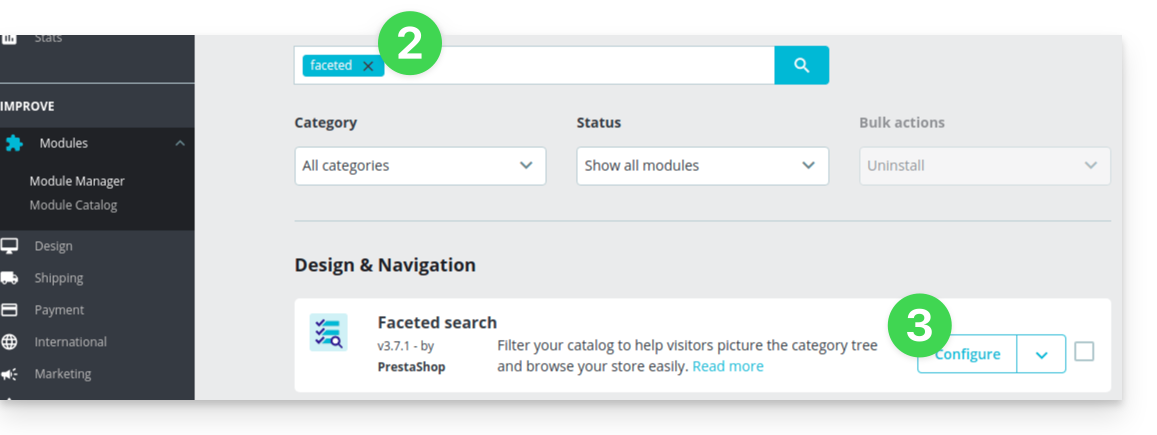
- Disable this button:
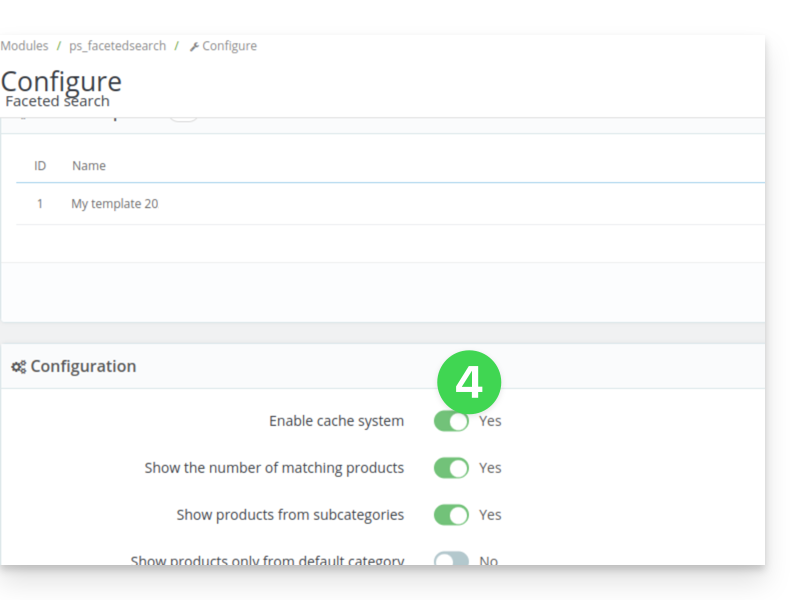
Second solution
The second solution is to set up a cron job to clean the table, for example, every evening:
- From the module settings, copy the existing URL from the
Clear cachebutton:
Then, from the Infomaniak Manager, create a webcron (refer to this other guide for more information) to execute the URL copied in step 1 above, for example once a day and at night.
Link to this FAQ: https://faq.infomaniak.com/2521
Has this FAQ been helpful?
This guide concerns the WordPress Infomaniak Connect for OpenID module, which allows users to log in to your WordPress site (whether hosted by Infomaniak or not) using their Infomaniak credentials (❓: help).
Introduction
- Allowing login via an Infomaniak account on your WordPress site enables your visitors to comment, register for courses, or access any content reserved for members with a single click, without having to create a new account.
- This saves them time and provides a more secure method for you, as you don't have to manage additional passwords.
- This external module functions identically to the "Sign in with Google", "Sign in with Facebook", or “Sign in with Apple” options; it uses the standard OAuth2 and OpenID Connect protocols to enable single sign-on (SSO).
A. Create an application with Auth Infomaniak
To do this:
- Click here to access the Auth service management in your Infomaniak Manager (❓: help).
- Click on the button to Create a new application:
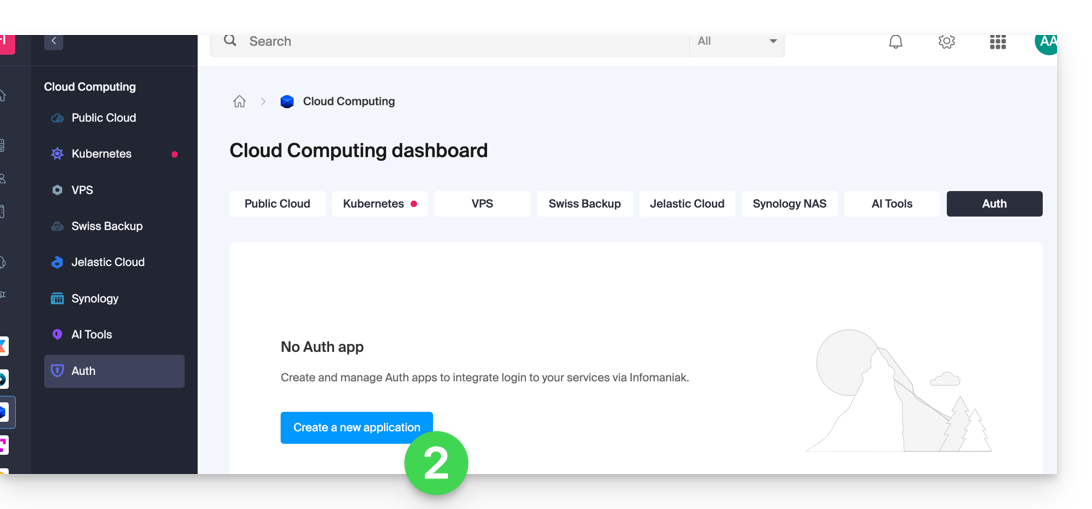
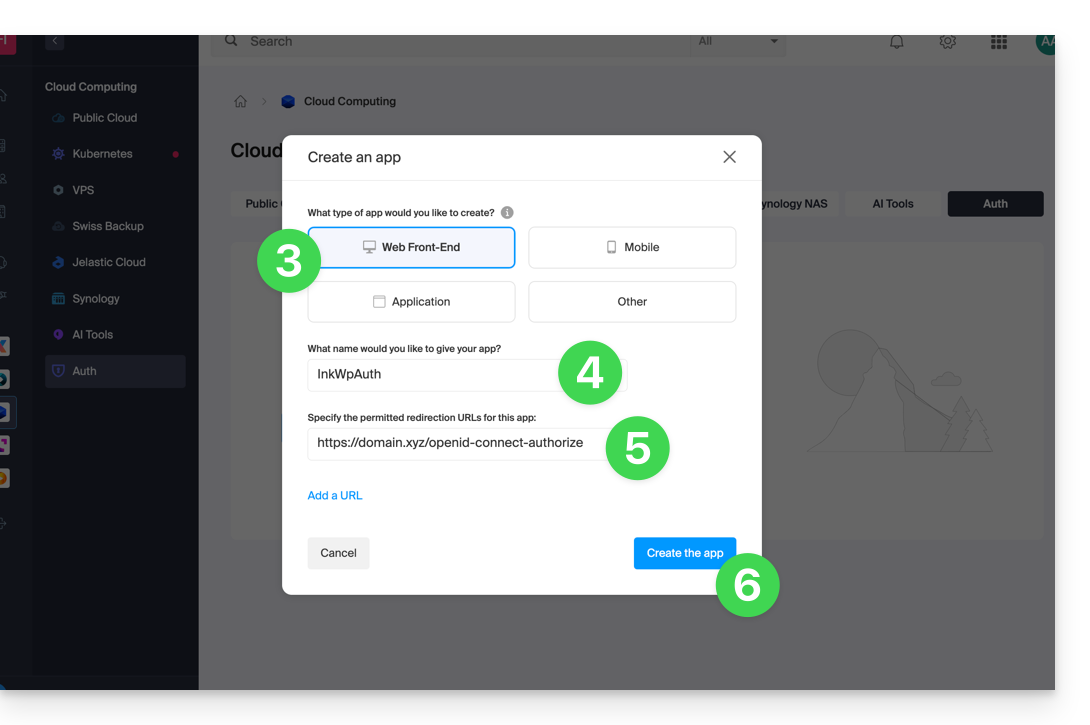
- Choose the “Web Front-End” type.
- Give your application a name.
- In the URL field, enter the domain name corresponding to your WordPress site followed by
/openid-connect-authorize(❓: help). - Click the button to complete the app creation:
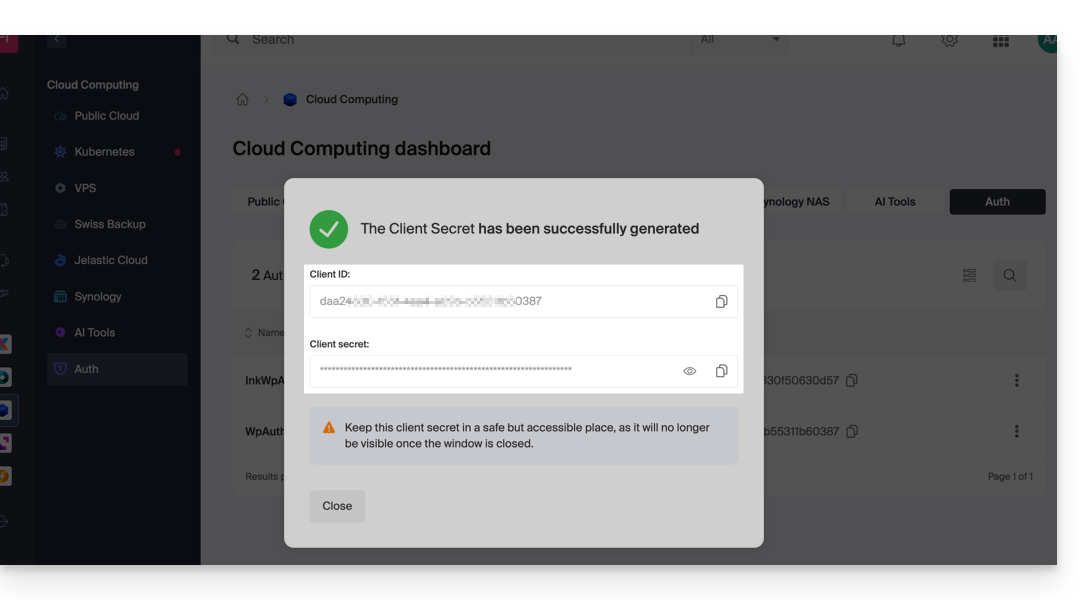
- Carefully note the 2 pieces of information obtained when finalizing your OAuth2 application:
B. Configure the WordPress extension
To do this:
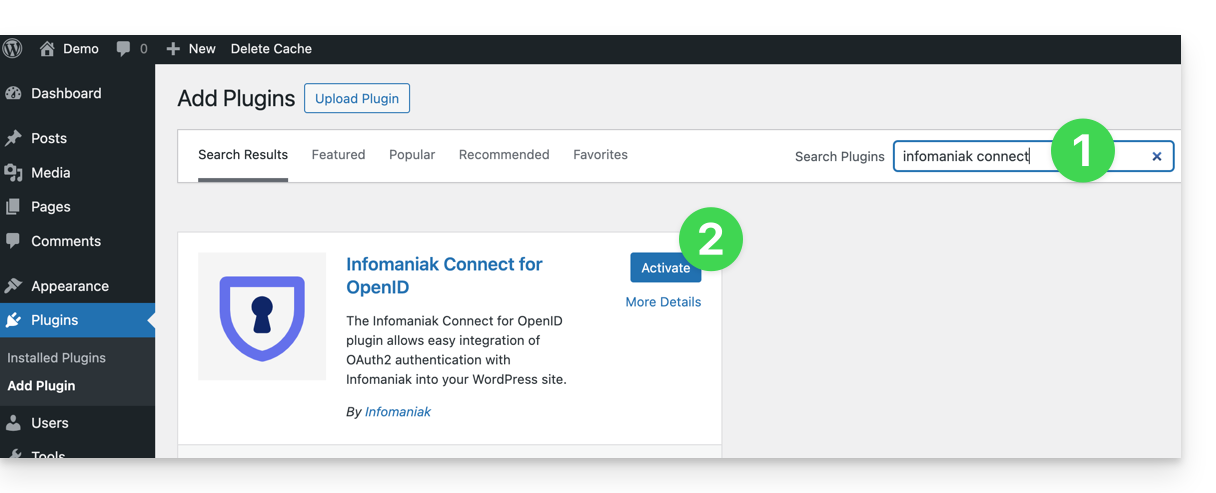
- Search for the
Infomaniak Connect for OpenIDextension on the WordPress extensions platform from your site. - Install and activate the extension:
- Configure the extension from the Settings menu:
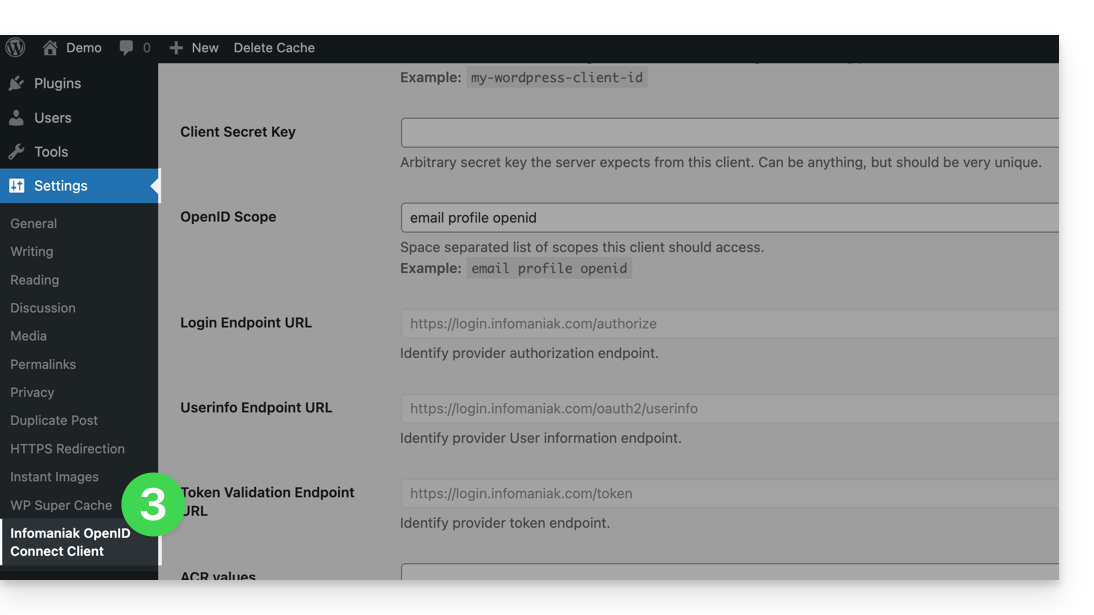
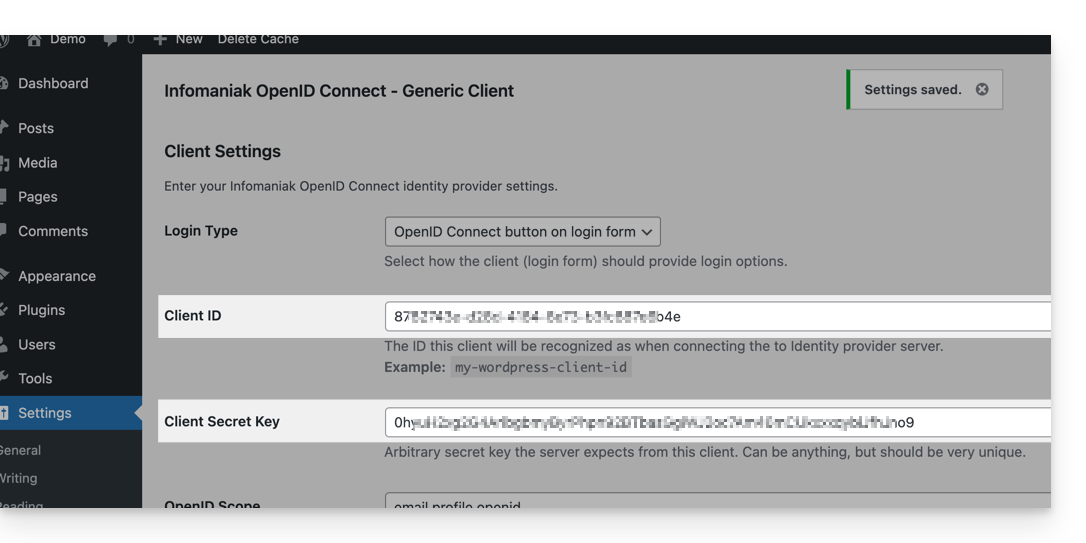
- The only fields to fill in are Client ID and Client Secret Key, and these come from the information obtained in step A above:
- Don't forget to save the changes made to the extension settings.
- An additional button, for logging in with your Infomaniak credentials, is now visible on your login page for
/wp-adminusers (/wp-login.php):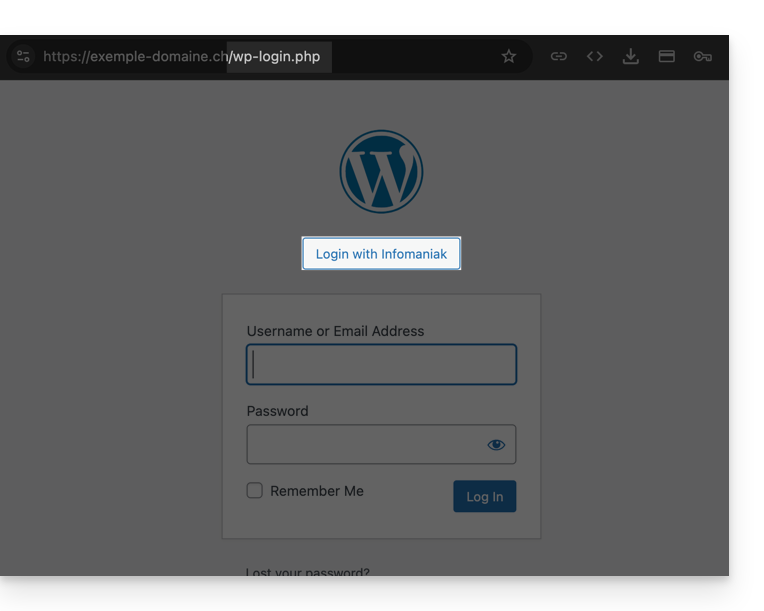
Link to this FAQ: https://faq.infomaniak.com/2529
Has this FAQ been helpful?
This guide concerns the Typo3 module t3ext-infomaniak-auth, which allows users to log in to your Typo3 site (whether hosted by Infomaniak or not) using their Infomaniak credentials (❓: help).
Introduction
- Allowing login via an Infomaniak account on your Typo3 site enables your visitors to comment, register for courses, or access any content reserved for members with a single click, without having to create a new account.
- This saves them time and provides a more secure method for you, as you don't have to manage additional passwords.
- This external module functions identically to the "Log in with Google", "Log in with Facebook", or “Log in with Apple” options; it uses the standard OAuth2 and OpenID Connect protocols to enable single sign-on (SSO).
A. Create an application with Auth Infomaniak
To do this:
- Click here to access the Auth service management in your Infomaniak Manager (❓: help).
- Click on the button to Create a new application:
- Choose the “Web Front-End” type.
- Give your application a name.
- In the URL field, enter the domain name corresponding to your WordPress site followed by
/openid-connect-authorize(❓: help). - Click the button to complete the app creation:
- Carefully note the 2 pieces of information obtained when finalizing your OAuth2 application:
B. Configure the Typo3 extension
Via SSH, deploy Composer if necessary to install the t3ext-infomaniak-auth extension (❓: help).
Next, in Typo3:
- Log in to your Typo3 administration interface.
- If necessary, check that the Infomaniak extension is enabled:
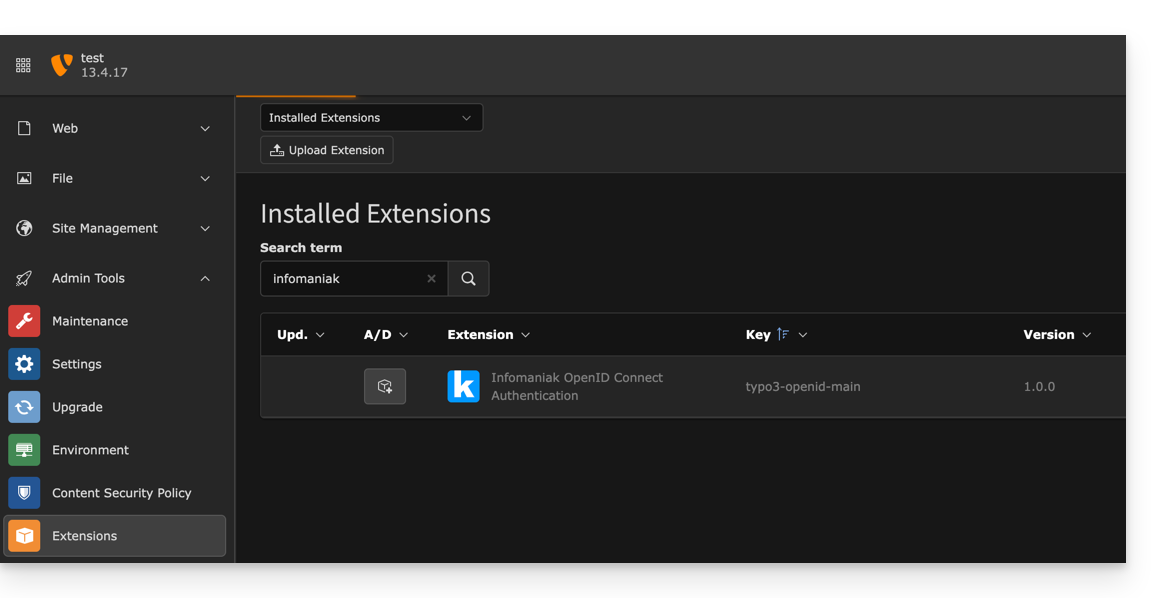
- If necessary, check that the Infomaniak extension is enabled:
- Click on Settings in the left-hand menu.
- Click on Configure extensions:
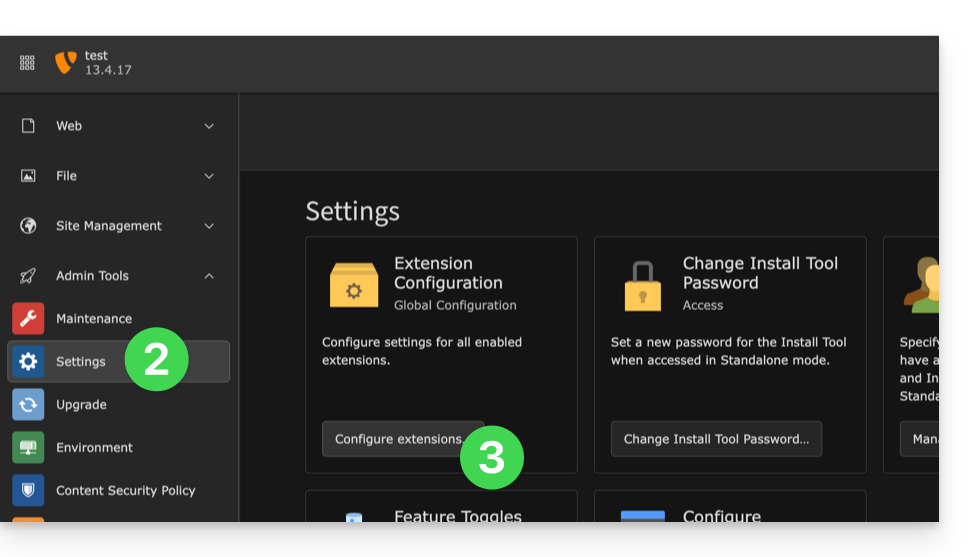
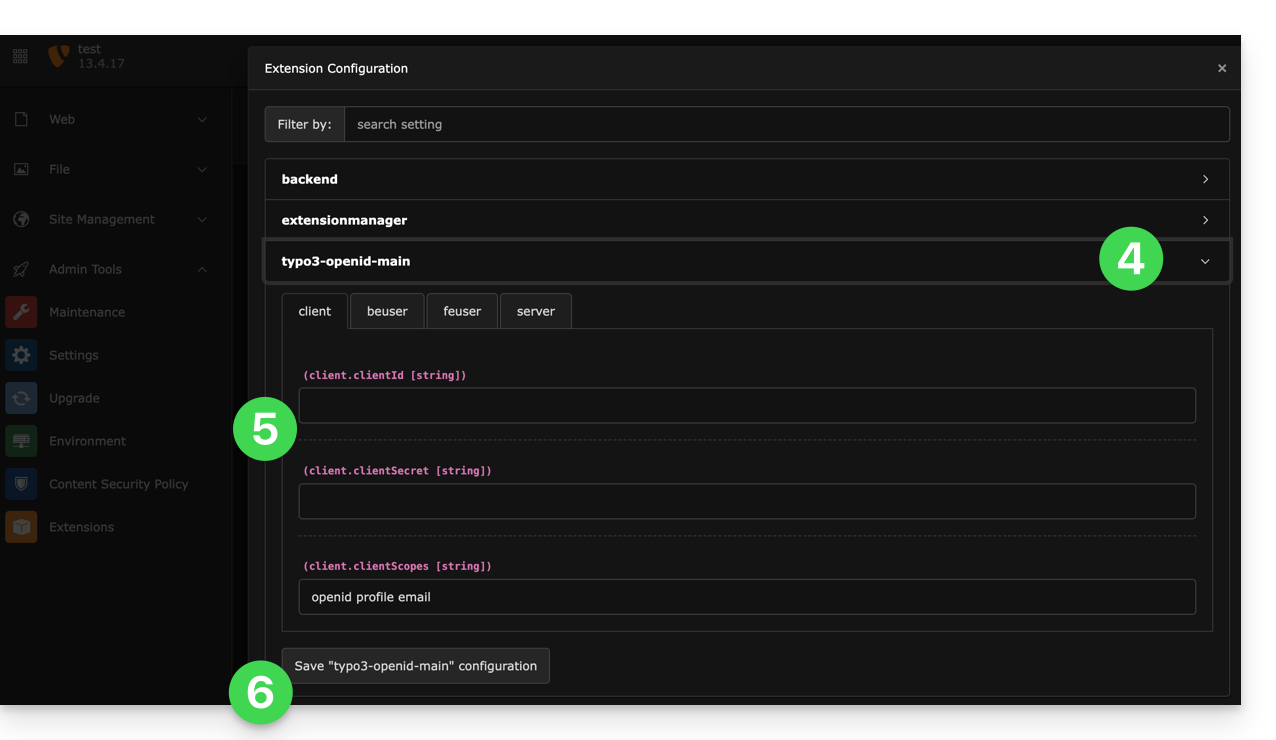
- Click on the chevron to the right of typo3-openid-main to expand the client tab.
- The only fields to fill in are clientID and clientSecret, and these values come from the information obtained in step A above.
- Remember to save the changes made to the extension settings:
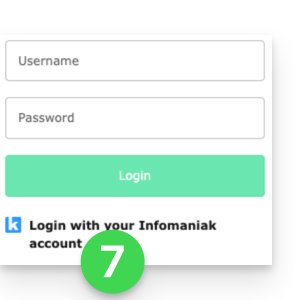
- An additional button for logging in with your Infomaniak credentials is now visible on your user login page:
Link to this FAQ: https://faq.infomaniak.com/2530
Has this FAQ been helpful?
This guide concerns the Drupal module Infomaniak_Connect, which allows users to log in to your Typo3 site (whether hosted by Infomaniak or not) using their Infomaniak credentials (❓: help).
Introduction
- Allowing login via an Infomaniak account on your Drupal site enables your visitors to comment, register for courses, or access any content reserved for members with a single click, without having to create a new account.
- This saves them time and provides a more secure method for you, as you don't have to manage additional passwords.
- This external module functions identically to the "Log in with Google", "Log in with Facebook", or “Log in with Apple” options; it uses the standard OAuth2 and OpenID Connect protocols to enable single sign-on (SSO).
A. Create an application with Auth Infomaniak
To do this:
- Click here to access the Auth service management in your Infomaniak Manager (❓: help).
- Click on the button to Create a new application:
- Choose the “Web Front-End” type.
- Give your application a name.
- In the URL field, enter the domain name corresponding to your WordPress site followed by
/openid-connect-authorize(❓: help). - Click the button to complete the app creation:
- Carefully note the 2 pieces of information obtained when finalizing your OAuth2 application:
B. Configure the Drupal extension
Via SSH, deploy Composer if necessary to install the openid_connect (❓: help) and infomaniak_connect (❓: help) extensions.
- You may need to edit the composer.json file, as the version of
openid_connectis not yet considered stable. Add: "minimum-stability": "dev", "prefer-stable": true
Next, in Drupal:
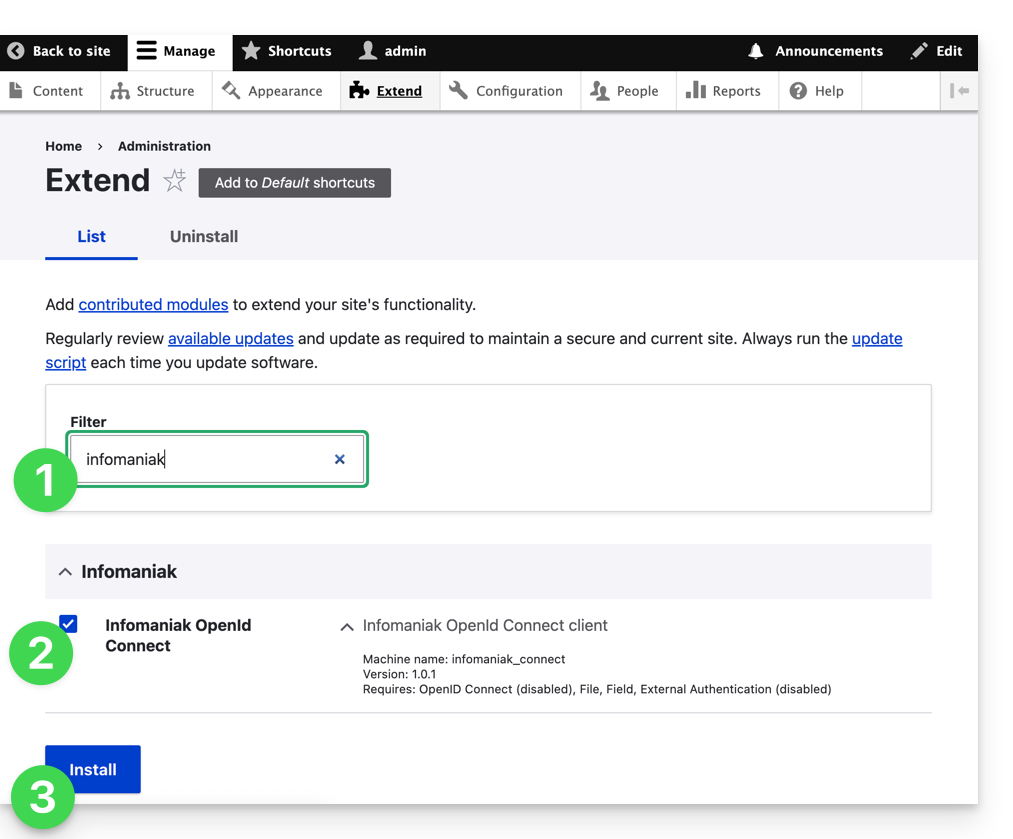
- Find the Infomaniak module among your pre-installed modules.
- Select it.
- Click on the Install button:
- The dependencies will now be installed:
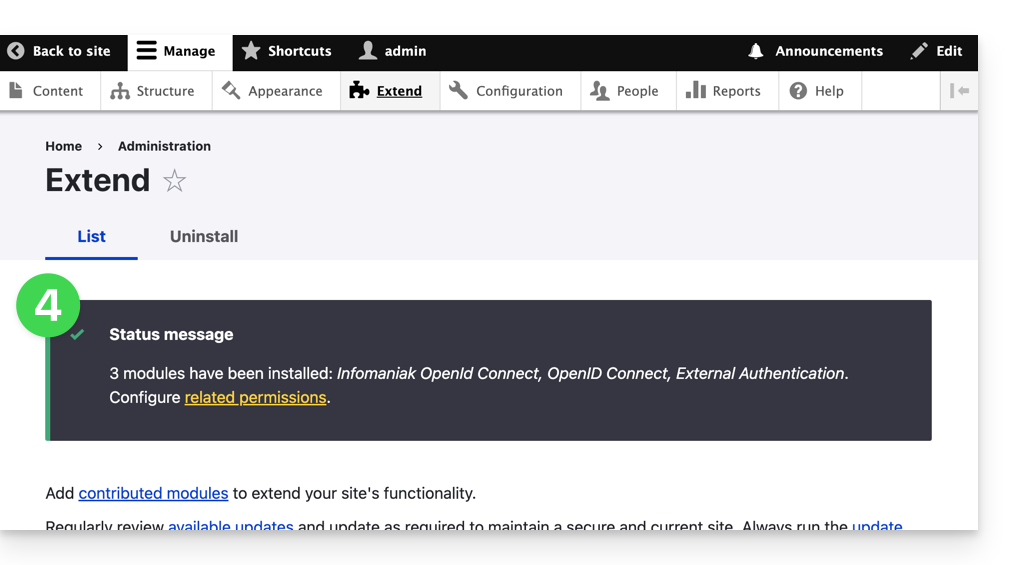
- Under Configuration, click to configure the OpenID connection:
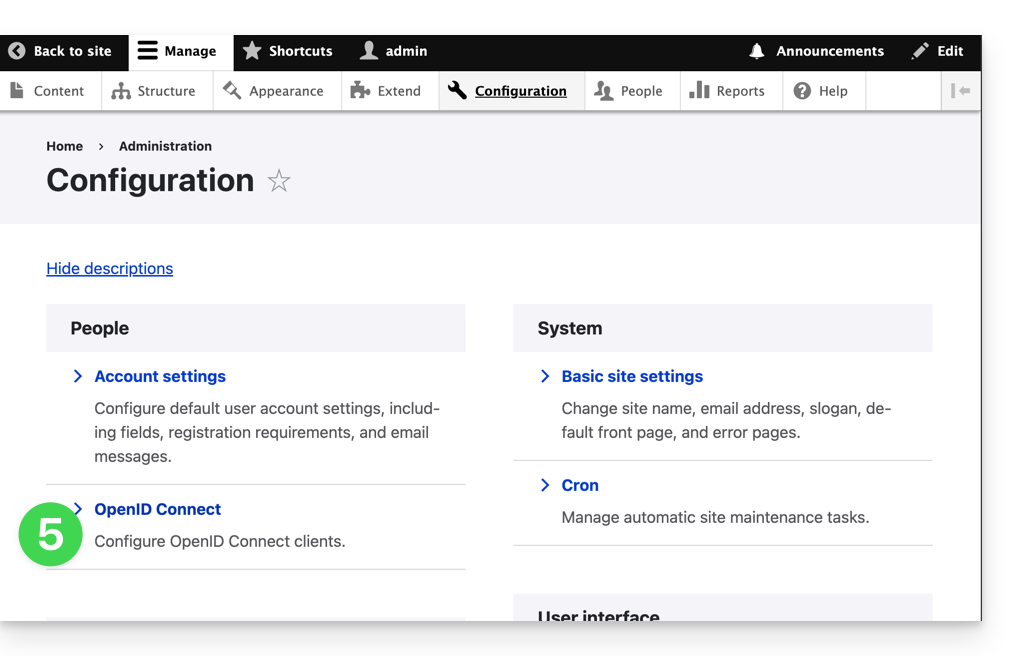
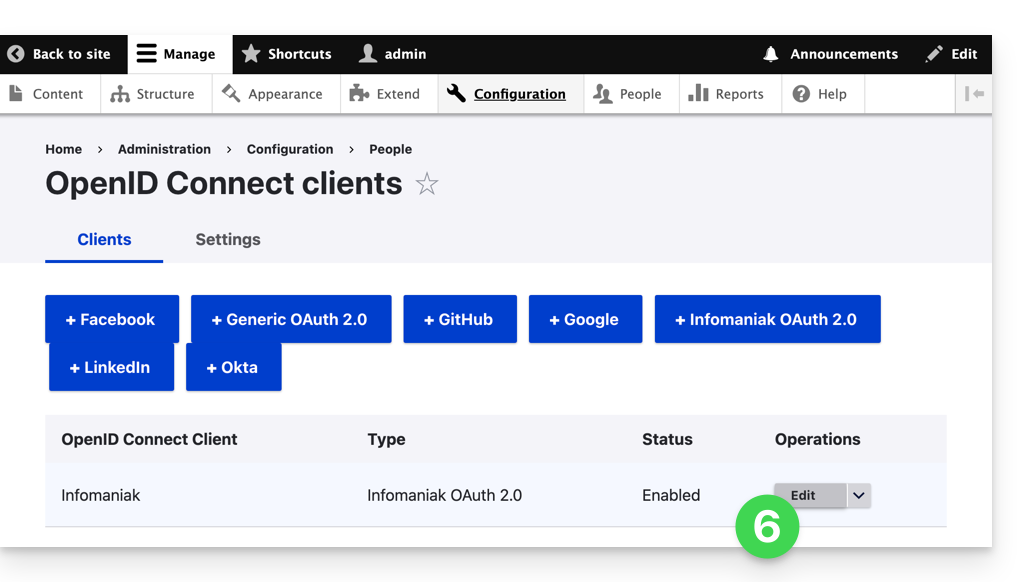
- Click on the Edit button:
- The only fields to fill in are Client ID and Client Secret, and they come from the information obtained in step A above:
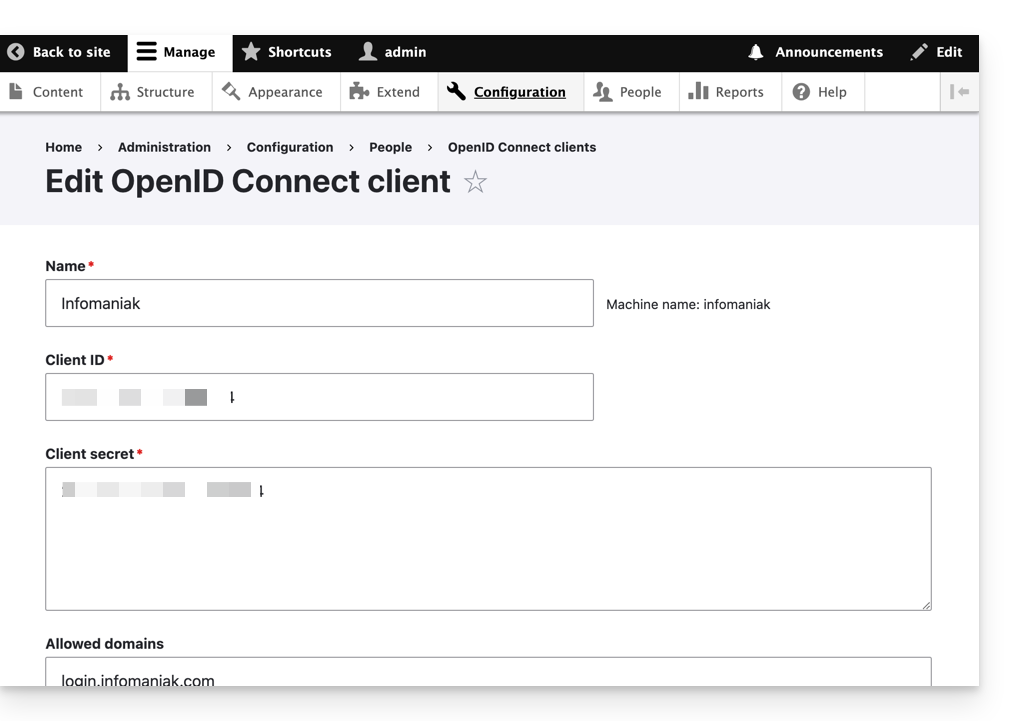
- Remember to save the changes you made to the extension settings.
- In the Settings tab, you can choose the display type for your login page; remember to save:
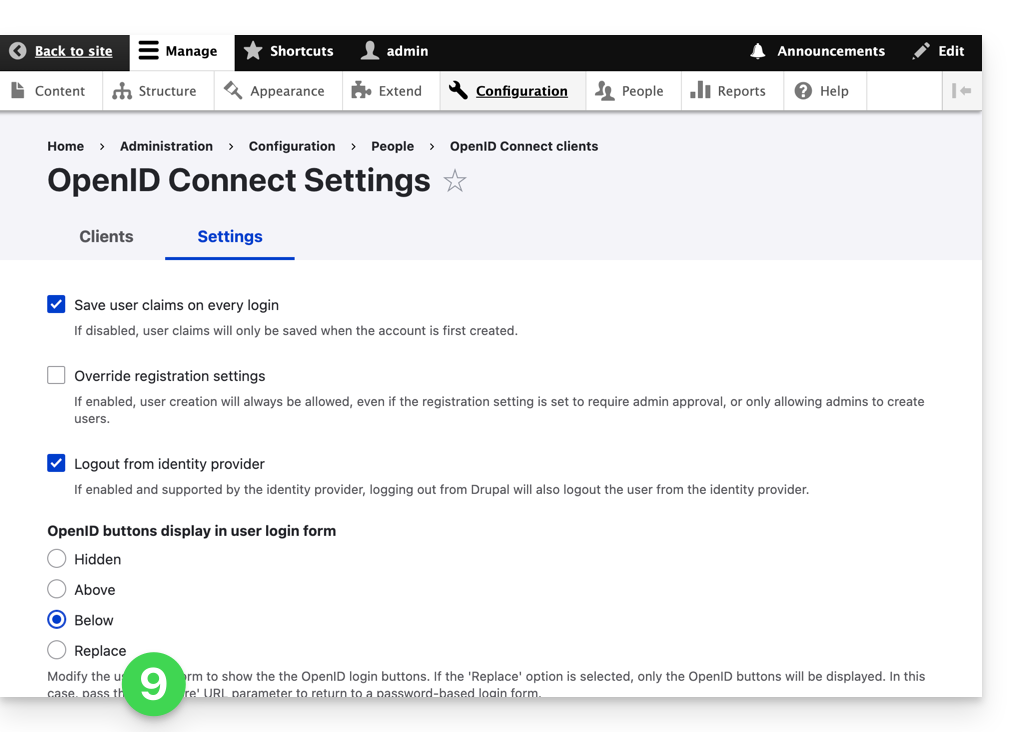
- An additional button, for logging in with your Infomaniak credentials, is now visible on your login page:
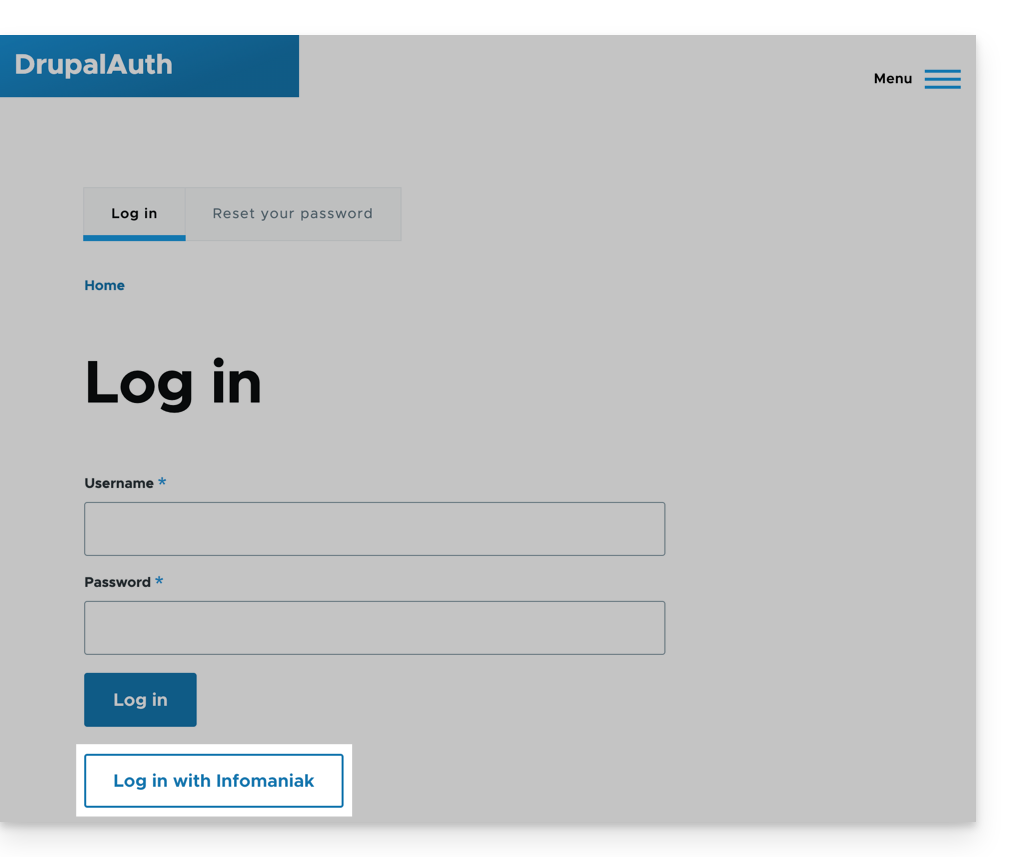
Link to this FAQ: https://faq.infomaniak.com/2532
Has this FAQ been helpful?
This guide explains why it is important to use a recent version of Node.js for your application and how to select a more recent version using a Node.js site hosted on the Infomaniak infrastructure.
Introduction
Node.js= the official name of the language/environment.NodeJS= the "technical" or simplified name used in certain contexts (often for practical reasons; there is no real technical difference).
Is an outdated version of Node.js dangerous?
When you use a version of Node.js that is nearing the end of its support period, a warning message will appear in the dashboard of the website in question.
The Node.js runtime is regularly updated: each new version brings performance improvements, security enhancements, and support for the latest features. Using a version that is no longer maintained exposes you to security risks and potential compatibility issues with other components. Malicious individuals could exploit known vulnerabilities in these versions to compromise your application. It is therefore strongly recommended to use a recent version and is officially supported.
Three situations are possible:
- Fully supported version: no action required
- Security support only version: it is recommended to upgrade to a newer version
- Outdated version: it is strongly recommended to update to a more recent version.
Use a more recent version of Node.js
The latest versions of Node.js offer improved performance and more stable behavior for your modern applications.
Before changing the version used
- If your application uses a specific framework or library (Next.js, Express, etc.), verify that the target version of Node.js is properly supported.
- If your code was developed specifically for your needs, consult the official Node.js documentation to identify the changes made (deprecated APIs, module management, etc.).
What if a problem occurs?
If your application does not function correctly after changing the Node.js version, you can revert to a previous version (if it is still supported) via the Advanced Settings tab of the relevant site.
Link to this FAQ: https://faq.infomaniak.com/2534
Has this FAQ been helpful?
This guide explains how to adjust the configuration of a Node.js site hosted on the Infomaniak infrastructure. You will learn how to adapt your application's behavior based on its evolution, dependencies, or your technical preferences.
Prerequisites
- Install a Node.js site on your hosting.
- Test your changes locally before applying them in production.
- Verify that your scripts (
start,build) are properly defined in yourpackage.jsonfile. - If you modify the structure of your project, remember to adjust the execution folder and the associated commands.
- Important: the listening port defined in the Manager must imperatively match the one used in the application's code.
Accessing the configuration
Each site has a dedicated dashboard to control the application (start, stop, restart), view execution logs, manage Node.js versions, and activate SSL certificates:
- Click here to access the management of your site on the Infomaniak Manager (need help?).
- Click directly on the name assigned to the site in question:
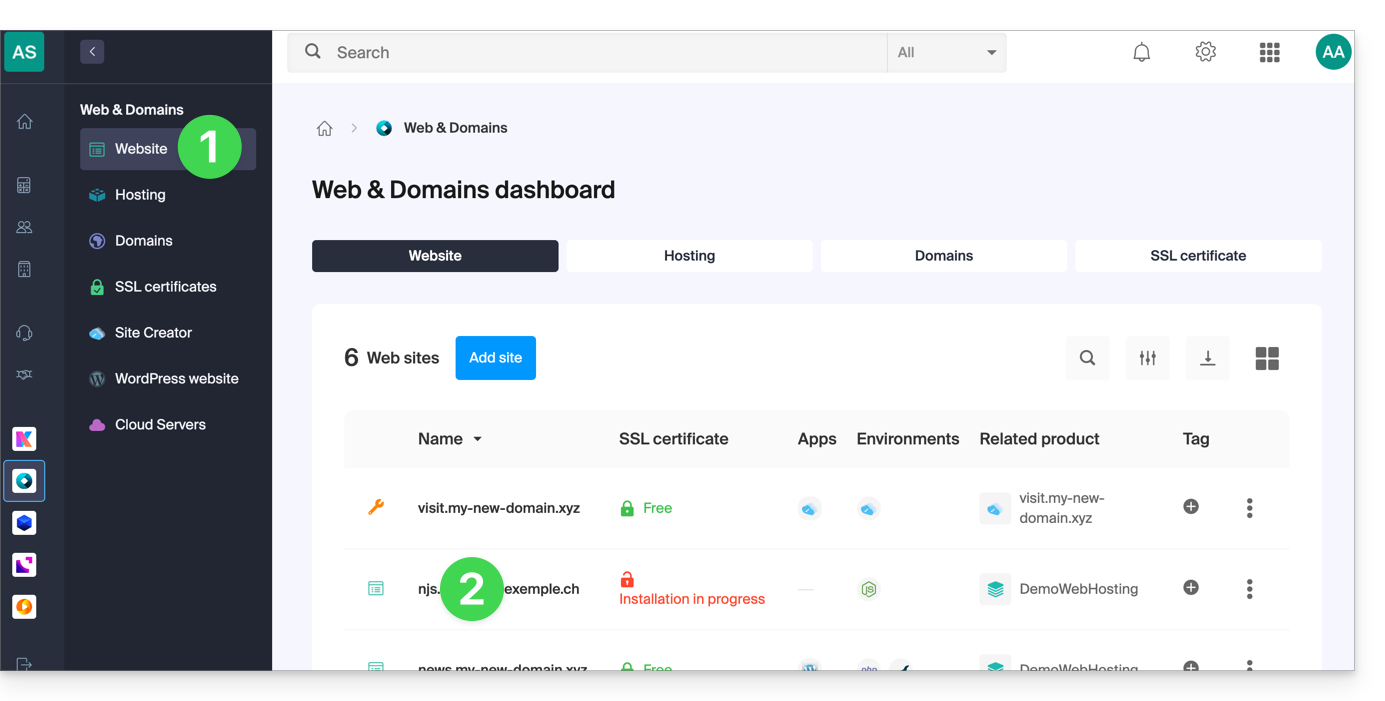
- Click on Manage advanced settings:
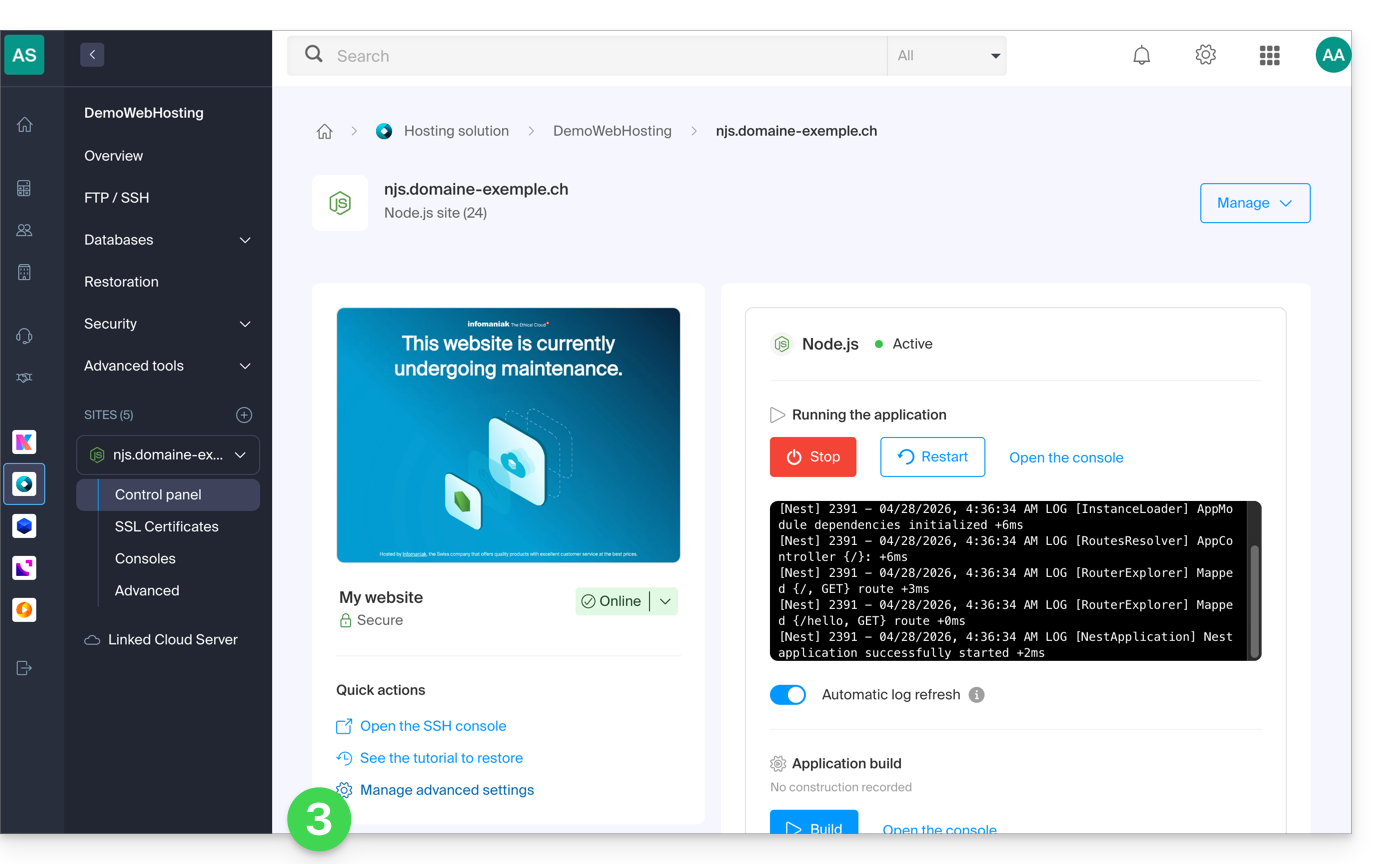
- Click on the Node.js tab to access the settings:
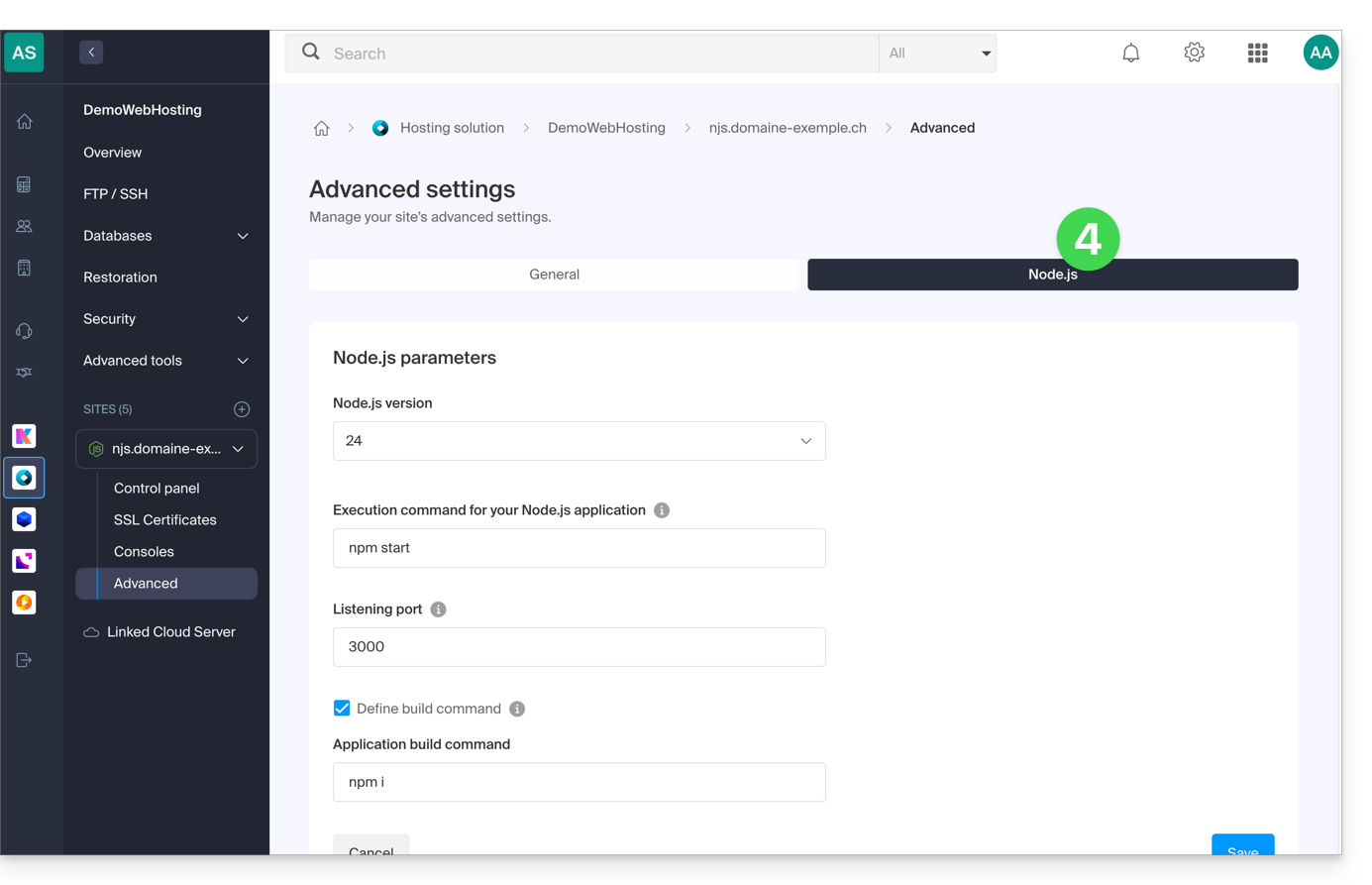
Commands and automation
Execution folder
The execution folder indicates the location on the server where the build and launch commands will be executed. It should point to the root directory of your application, where your package.json file is located.
./          // Root directory
./app       // Subfolder named app
./backend   // Subfolder named backend
Build command
If your application requires a preparation step (installing dependencies, compiling TypeScript, minifying), enter the command to execute here. This is the recommended method for deploying your updates.
Unlike a manual execution in SSH, this interface uses an environment with boosted performance to guarantee a fast build without impacting the resources of your site in production. You can chain several tasks here (such as a git pull followed by a build) and monitor the progress as well as the logs of the process in real time directly from the Manager.
# Example: install dependencies and build
npm install && npm run build

# Example: update code and build with yarn
git pull && yarn install && yarn build
Note: If your project is already compiled or requires no intermediate steps, this field can remain empty.
Launch command
This instruction starts your server. It should be identical to the one used in your local development environment to launch the application's entry point.
# Option 1: Direct file launch
node index.js

# Option 2: Using npm script
npm start

# Option 3: Using yarn script
yarn start
Listening port
Your application must imperatively listen on the dynamic port assigned by the Manager. This port is passed to your code via the PORT environment variable.
// Use the port provided by the environment
const port = process.env.PORT || 8080;

app.listen(port, () => {
  console.log(`Application started on port ${port}`);
});
Node.js version
You can select the desired Node.js version in the settings. It is advisable to prioritize a stable (LTS) version to ensure the security and longevity of your project.
Apply and validate the changes
Once your changes are saved in the Manager, you must restart your application from the dashboard so that the new parameters (new Node version, new port, or new build command) are taken into account.
If you encounter difficulties during startup, consult the execution console or refer to this other guide for troubleshooting.
Link to this FAQ: https://faq.infomaniak.com/2535
Has this FAQ been helpful?
This guide helps you quickly diagnose the cause of a problem if your Node.js site, hosted on the Infomaniak infrastructure, is not working as expected.
Check the application status
From the dashboard of your Node.js site, you can view the current status of the application:
- Active: your application is running normally.
- Restarting: the application is restarting, please wait a moment.
- Stopped or Error: there is a problem.
In case of an error or interruption:
- Click "Start" or "Restart" the application.
- Check the execution console immediately to identify any technical errors.
Read the execution console
The console displays error messages generated when launching your application. Here are some common errors:
- Incorrect launch command: make sure you are using the correct syntax (e.g.,
npm start,node app.js, etc.). - Error in the source code: this may be due to an unhandled exception, a missing module, or an incorrectly defined port.
Check the application settings
In the Advanced Settings section of the site, make sure that all settings are correct:
- Execution directory: the directory in which the
buildandstartcommands are executed. - Build command (optional): for example,
npm run buildif your app requires one. - Start command: for example,
node index.js,npm start, etc. - Listening port: the port on which the application listens for requests (e.g.
8080,3000, etc.).- The port configured in your application must match the one defined in the Manager.
- Node.js version: make sure it is compatible with your code.
Infomaniak provides the NPM and Yarn package managers. You can choose the one that suits your project in the configuration wizard.
Still stuck?
Is the site still inaccessible?
- Your application may be in maintenance mode.
- The application's listening port may be incorrect or blocked.
- The application does not return a correct HTTP response (e.g., no
res.send()orres.end()in your server).
Did you use an advanced installation method?
If you imported your code via Git, ZIP, SSH, or SFTP, make sure that:
- The code has been successfully unzipped or cloned into the correct folder.
- The essential files (
package.json,server.js,index.js, etc.) are present. - The dependencies are installed correctly (
node_modulesis present afternpm installoryarn install).
If the problem persists after all these checks:
- Try creating a new website using the simple method to test it with a functional example.
- Compare your configuration with the provided example.
- Consult the official Node.js documentation for specific errors.
- If necessary, contact Infomaniak support with a copy of the logs displayed in the console.
Link to this FAQ: https://faq.infomaniak.com/2536
Has this FAQ been helpful?
Infomaniak's Node.js hosting solutions allow you to run Node.js applications in a flexible, ready-to-use environment, without having to manage server infrastructure.
Introduction
- Offering the flexibility of a server without the complexity of its administration, this type of hosting is particularly suitable for API REST projects, for deploying the CMS Ghost, n8n, Strapi or frameworks like Express.js, NestJS or even socket.io, next.js, business tools or prototypes for:
- developers who want to deploy Node.js applications without managing infrastructure.
- webmasters looking to experiment with or learn Node.js.
- agencies and freelancers working on multiple client projects.
- students, teachers and schools needing a simple environment to test code.
- The NPM and Yarn package managers are supported.
- If you install
Node.json a web hosting within a Cloud Server, your site will not function with the guaranteed resources of the managed Cloud Server.- Refer to this other guide to use Fast Installer and deploy NVM.
Node.js= official name of the language/environment;NodeJS= "technical" or simplified name in certain contexts (often for practical reasons, no real technical difference).
Create a Node.js site
To access a web hosting plan and add a Node.js site to it:
- Click here to access the management of your web hosting accounts in the Infomaniak Manager (need help?).
- Click directly on the name assigned to the relevant web hosting account.
- Click on the blue Add button:
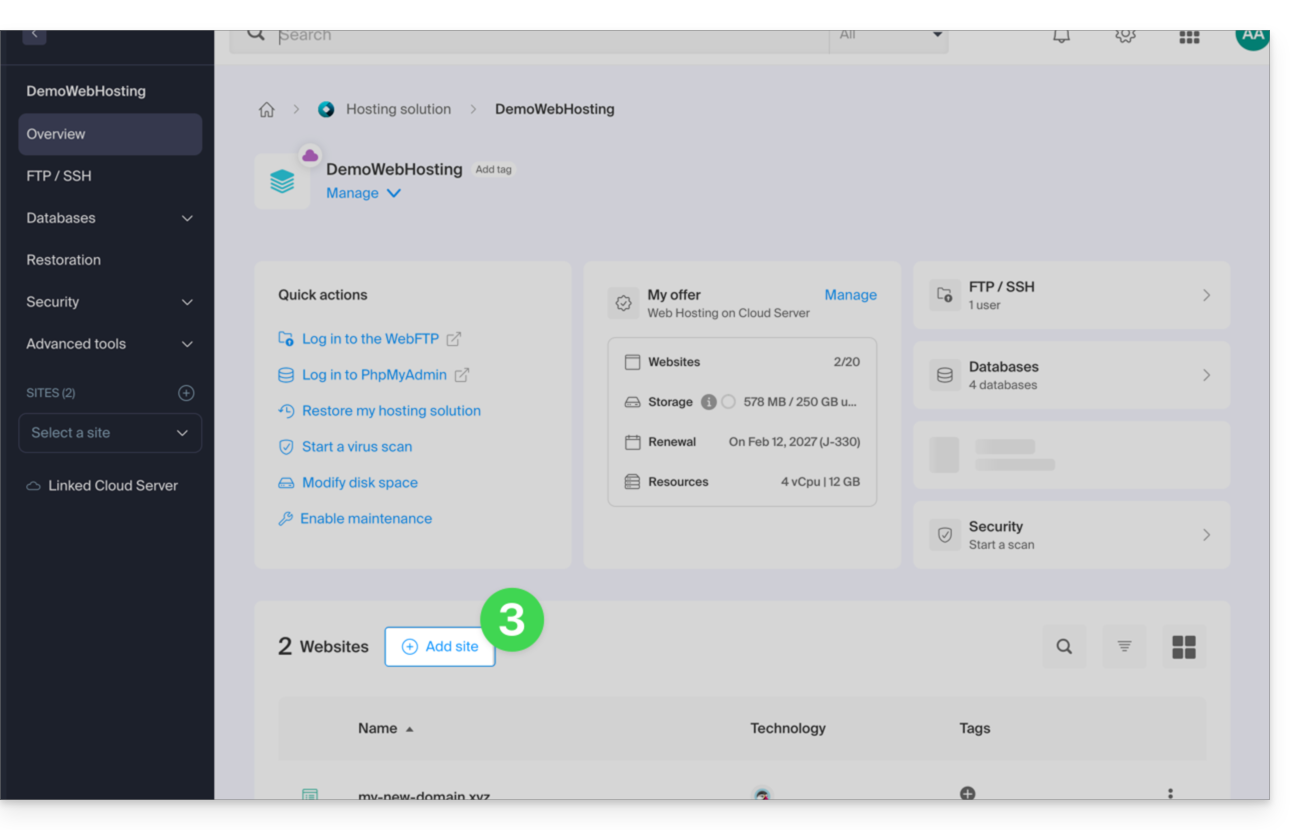
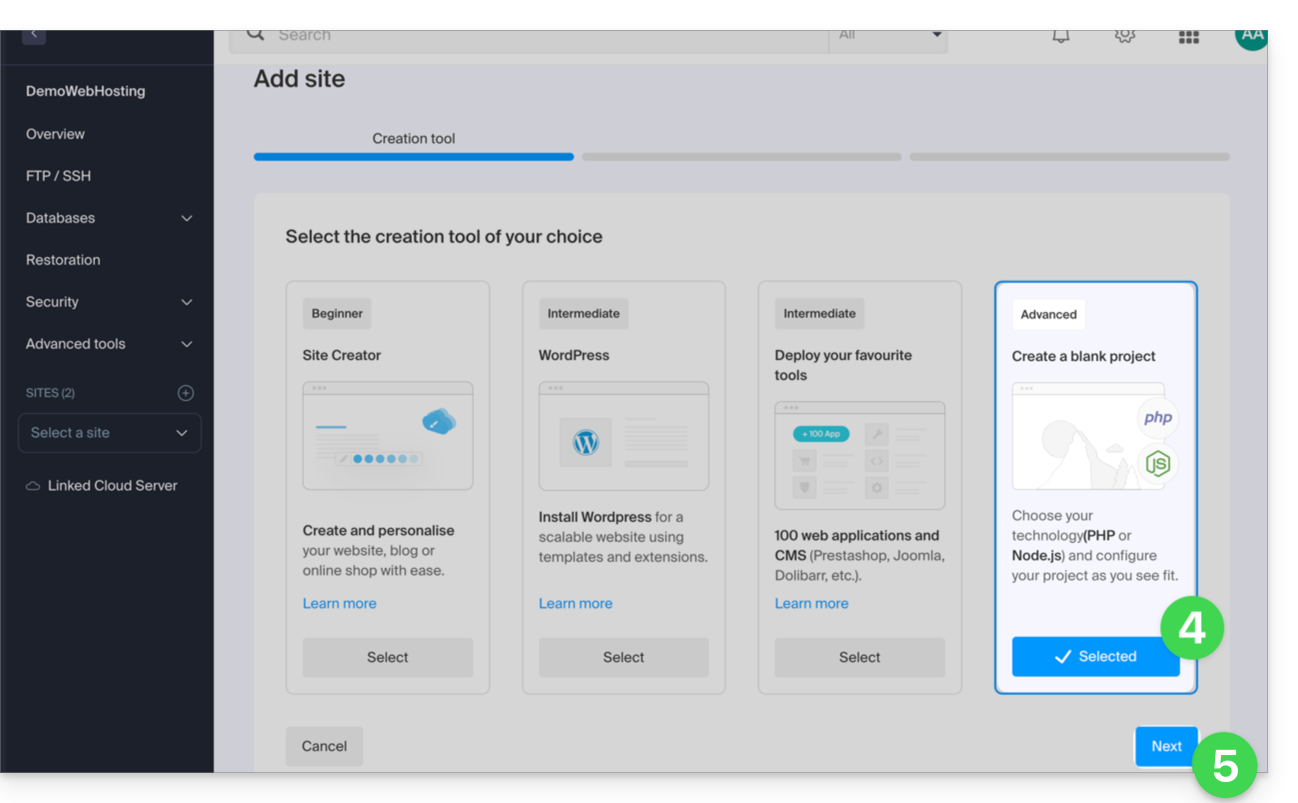
- Choose a project using advanced technologies.
- Click on Next:
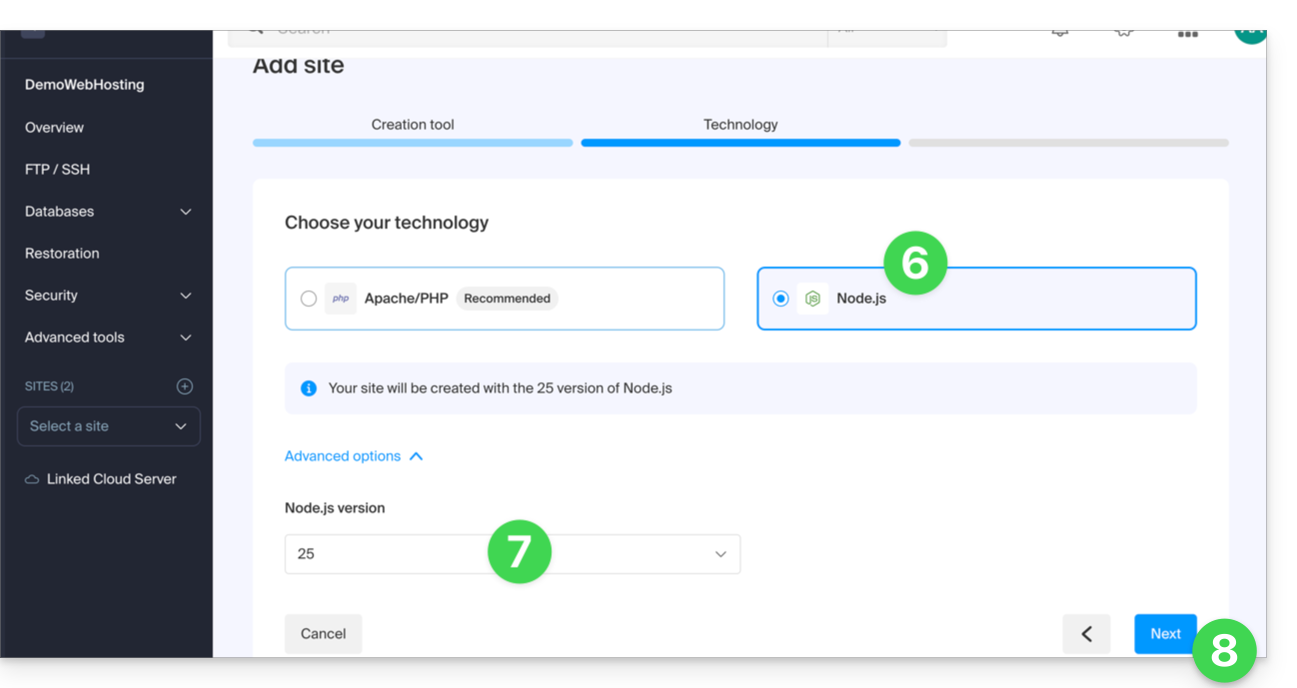
- Choose Node.js.
- Select any other version if necessary.
- Click on Next:
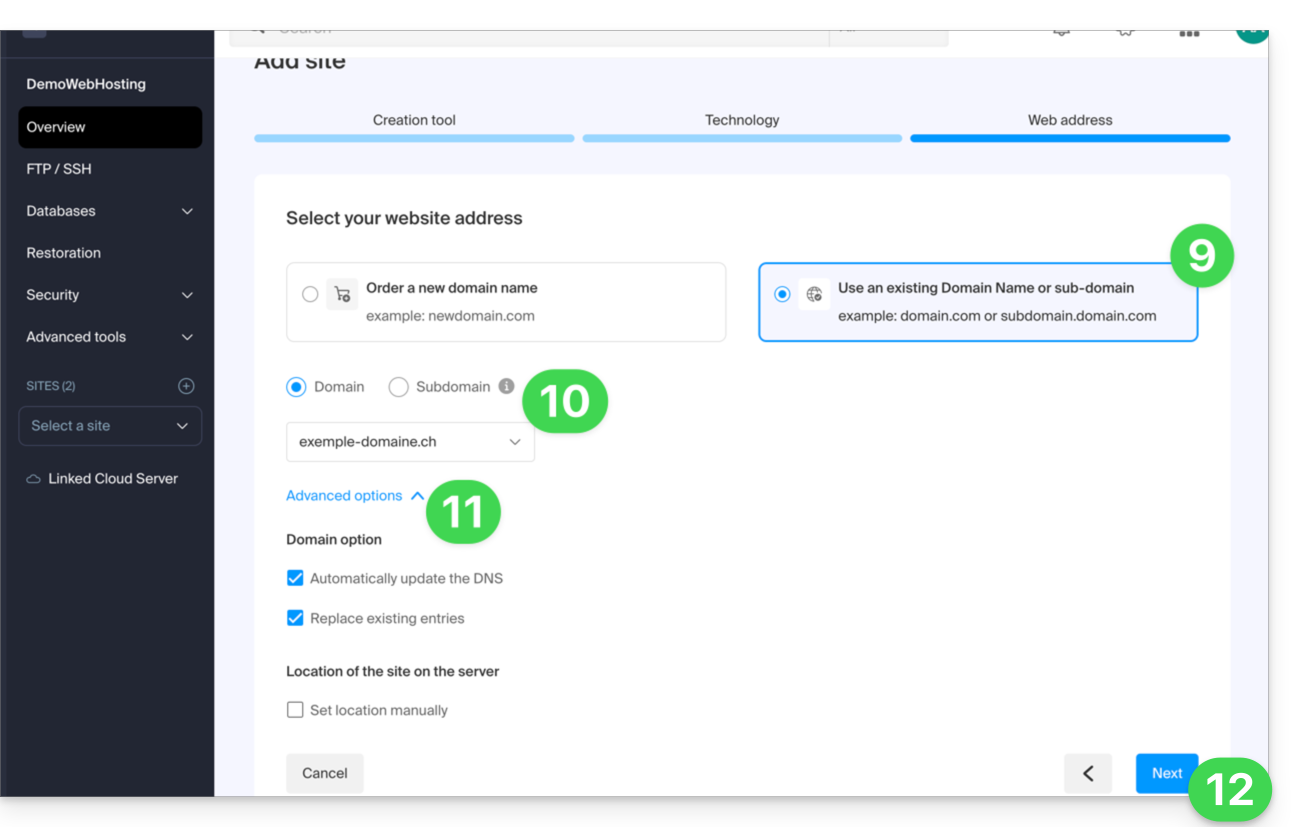
- Choose the type of domain to assign to this new site:
- an already acquired domain name
- a subdomain created from an already acquired domain name
- a domain name that is still available and to be ordered
- Enter the domain name or subdomain.
- Choose any desired advanced options.
- Click on Next:
- Choose one of the two possible approaches:
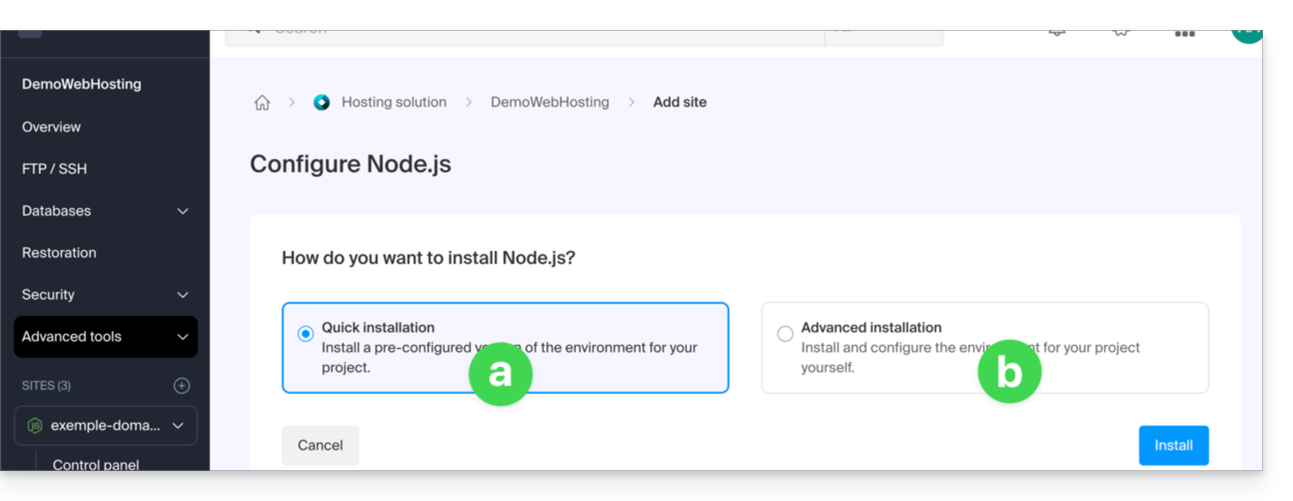
- Quick method:
- A preconfigured sample project is automatically installed.
- This approach is ideal for discovering Node.js or quickly setting up a functional base.
- Custom method:
- The source code can be imported via ZIP archive, SSH, or SFTP.
- You can also choose to use public repositories hosted on GitLab, GitHub, or any other platform compatible with Git.
- Private repositories are also supported using HTTP Basic authentication:
https://username:password@github.com/… - You define the scripts, entry points, listening port, and build commands yourself.
- Quick method:
- That's it, the site is ready:
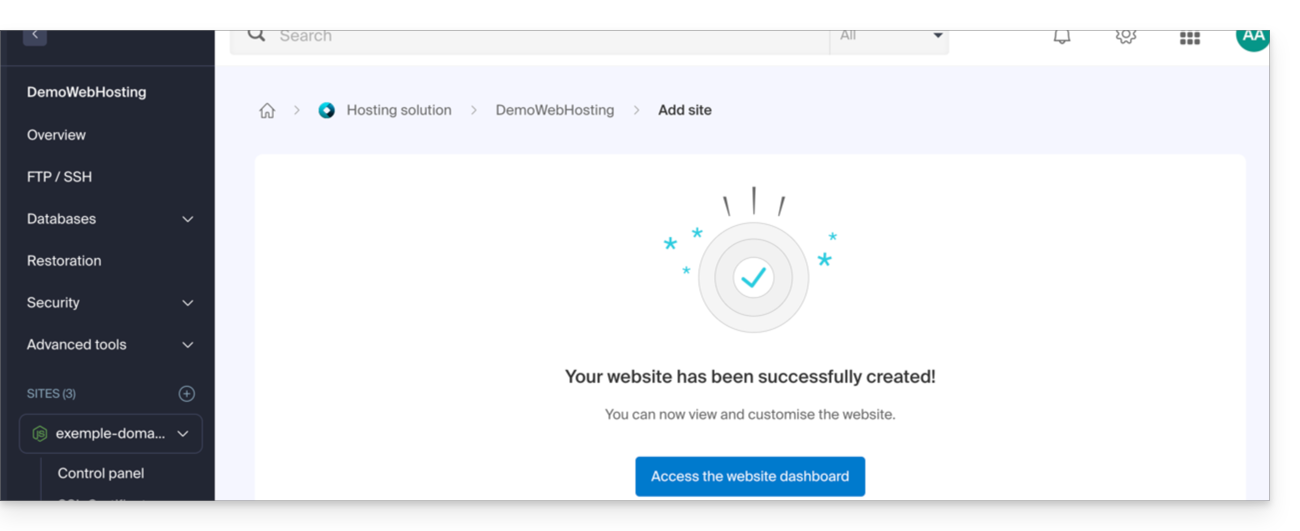
Each site has a dedicated dashboard to control the application (start, stop, restart), view the execution console, manage Node.js versions, configure domains, and activate SSL certificates: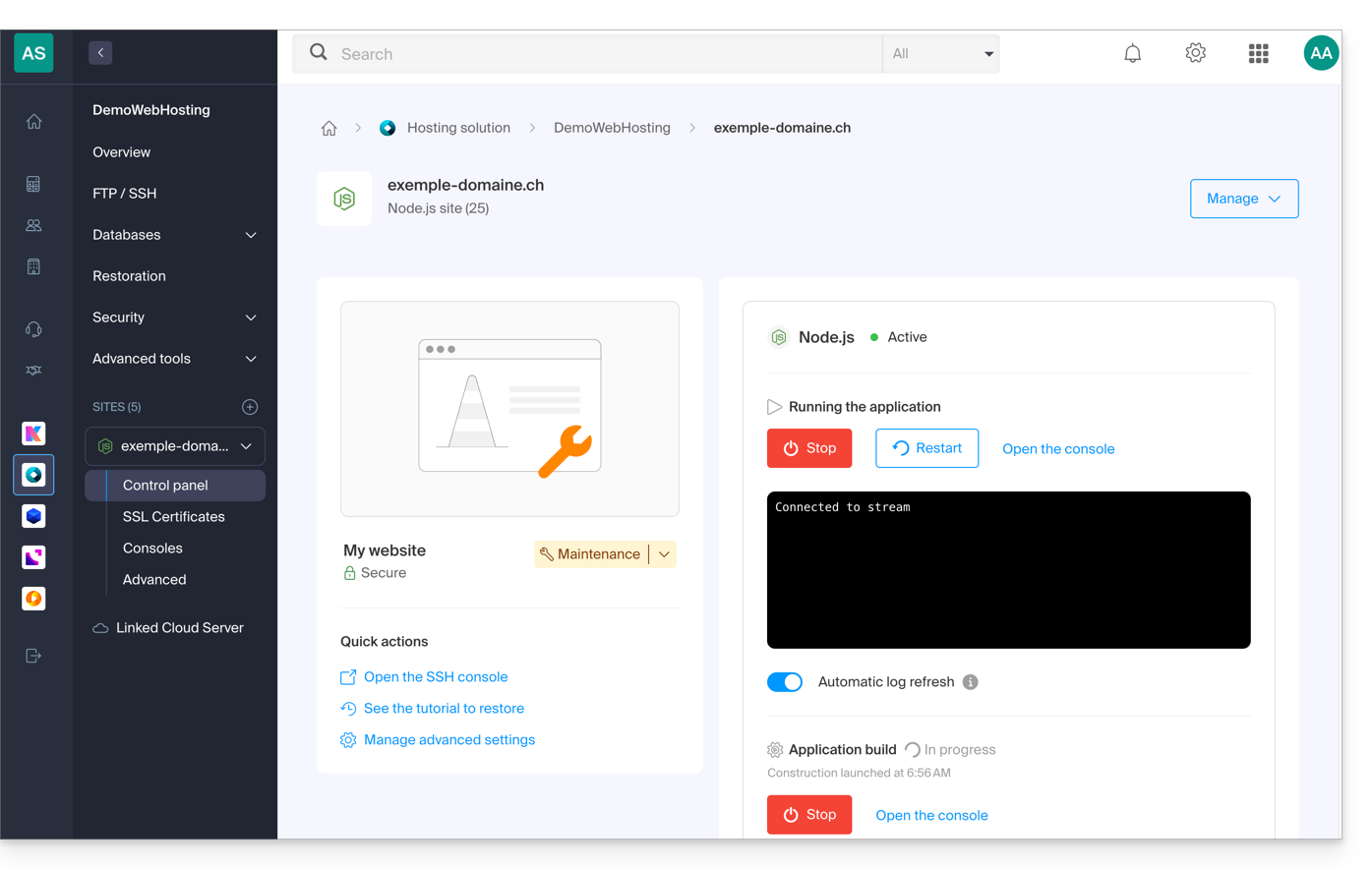
To go further in the configuration of your Node.js site, please refer to this other guide.
Link to this FAQ: https://faq.infomaniak.com/2537
Has this FAQ been helpful?
This guide details the specific rules to follow when creating a user password with mysqli_connect() that contains the “dollar” character $ on Infomaniak platforms.
Introduction
- If you receive the error message "Access denied for user" when using
mysqli_connect(), and your database user password contains a$character, the problem may be due to how strings are handled in PHP. - The problem may also occur with email scripts.
Rules to follow
When the special character $ is used in a user password and is followed by any character other than a number, the variable name is invalid and the substitution will not be performed correctly.
Here are some solutions to fix this:
- Place the password between single quotes:
'$******' - Make sure a number immediately follows the dollar sign:
"$2*****" - Use a backslash to "escape" the dollar sign in the password:
“\$****”
Link to this FAQ: https://faq.infomaniak.com/2559
Has this FAQ been helpful?
This guide explains the differences between a Domain (or main website), a Subdomain, and an Alias.
Introduction
- Although they are related, these three elements (Domain, Subdomain, and Alias) have different functions and purposes.
- They can impact a Web Hosting service via its domain name, or even the email service, since it is perfectly possible to have email addresses on a subdomain, for example.
What is a Domain?
A domain or domain name is the main entry point to your website. It is through this domain that your users will access your content. This main domain defines what will appear in the URL bar of your users' browsers.
Prerequisites
- You must own a domain.
- Have an Infomaniak web hosting plan.
Refer to the guide Create a new website on your web hosting.
What is a Subdomain?
A Subdomain is represented by an additional word that appears before your main domain name. This is very useful in several cases, for example:
- this can be used to display "exclusive" or targeted content, for example, by going to
faq.infomaniak.com, you will access the knowledge base where all the guides are located. - it can also be used (temporarily or permanently) when creating a new website or redesigning an existing one, for example by creating
new.domain.xyzwhen the main website was previouslydomain.xyz.
Prerequisites
- You must own at least one domain.
- Have an Infomaniak web hosting plan.
Refer to the guide Add a subdomain to your web hosting.
What is an Alias?
An Alias or Domain Alias is a second domain name that points directly to your main website; whether accessed through the linked domain or the main domain, they share the same web pages. The alias is another access point to your site. For example, the main website of the Swiss Confederation is www.ch.ch and www.suisse.ch is its alias.
Prerequisites
- You must own several domain names.
- Have an Infomaniak web hosting plan.
Refer to the guide Add an alias to your web hosting.
The equivalent also exists for a Mail Service.
The benefit of an Alias is that it allows you to increase the visibility of your site among your target audience by providing them with more ways to access it.
Link to this FAQ: https://faq.infomaniak.com/2560
Has this FAQ been helpful?
This guide details the ranges of public IP addresses used by Infomaniak; this facilitates the configuration of security systems (firewall, filtering, whitelisting).
Introduction
- The addresses are displayed in CIDR format (example:
192.0.2.0/24), which groups several consecutive addresses together. - The listing format includes the IP ranges used by the following products:
- kuite: all kSuite products
- vps: all VPS
- public-cloud: all Public Cloud
- all: includes all IPs on the Infomaniak network
IPv4 & IPv6 Address Ranges
The link to the JSON file listing the IPs is:
Link to this FAQ: https://faq.infomaniak.com/2564
Has this FAQ been helpful?
This guide explains how to create and manage an OAuth2/OpenID Connect (OIDC) application to allow a third-party application to use your Infomaniak login ID to authenticate users and, with their permission, access the resources provided by the granted authorizations (scopes).
Introduction
- An OAuth2 application is used, in particular, to implement a single sign-on (Single Sign-On) mechanism or to allow software to access certain data without having to transmit the account password.
Manage Infomaniak OAuth2 Applications
To create a new OAuth2 application:
- Click here to access the OAuth2 application management section in your Infomaniak Manager (❓: help).
- Click on the blue Create a new application button:
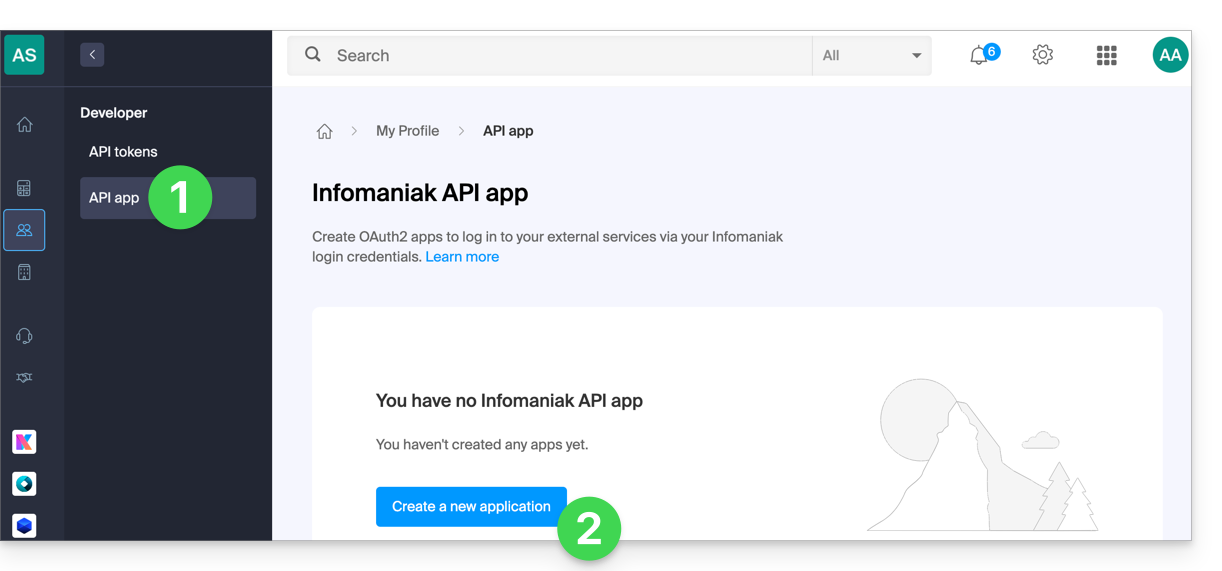
- Choose the application type that corresponds to your project. This choice determines, in particular, the OAuth2 authentication flow used.
- Give the application a name so you can easily identify it in the Manager.
- Enter the application's URL according to its technical configuration (e.g., its public URL or its redirect URL, depending on the type of application).
- Click the button to create the application:
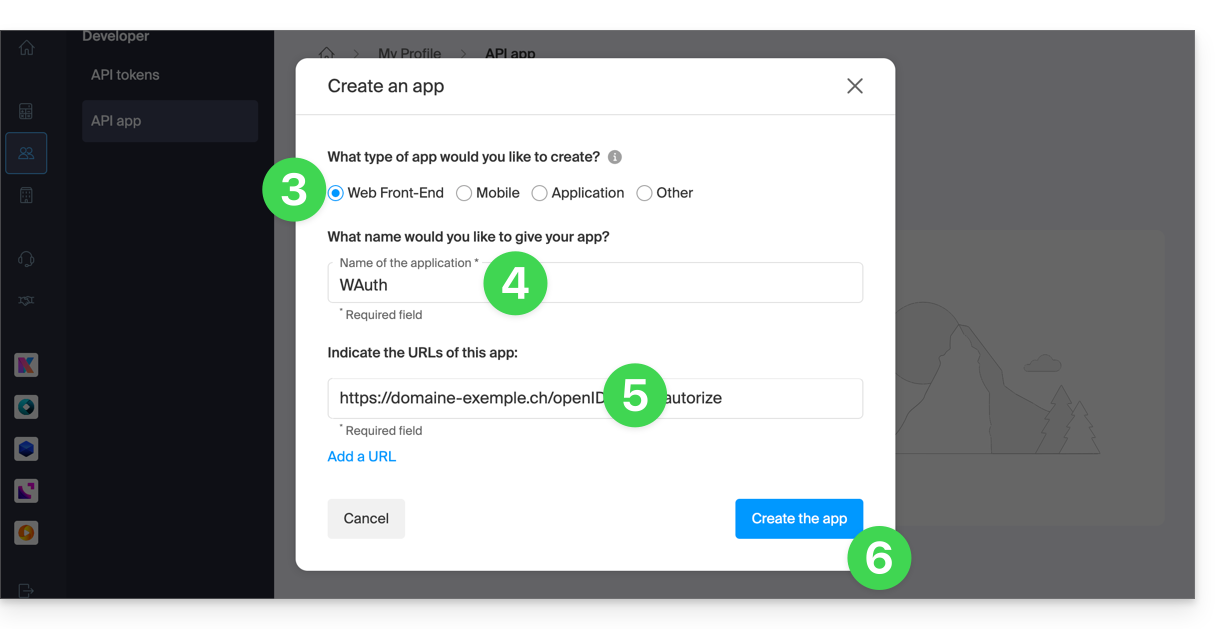
- Keep the
Client IDandClient secretin a safe place.- These credentials allow your application to authenticate with Infomaniak services.
- For security reasons, the
Client secretis only displayed once when it is created: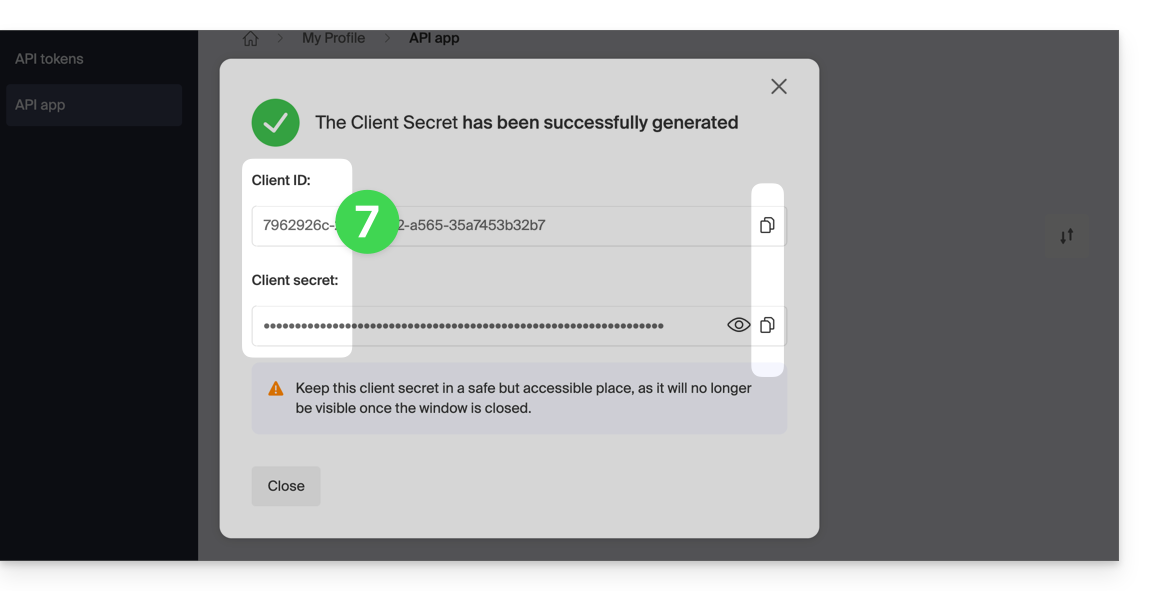
- You can renew the secret key from the main page.
Link to this FAQ: https://faq.infomaniak.com/2567
Has this FAQ been helpful?
This guide explains how to delete a website from a Web Hosting account.
Introduction
- Once removed, the website will no longer be accessible on the internet at its previous URL.
- The number of websites allowed on your hosting plan will be increased by one.
Remove a website from a paid Web Hosting plan
To access the Web Hosting plans and remove a website:
- Click here to access the hosting & website management section in your Infomaniak Manager (❓: help).
- Click on the name of the relevant hosting.
- Click on the action menu ⋮ to the right of the website in question in the table that appears.
- Click on Remove website:
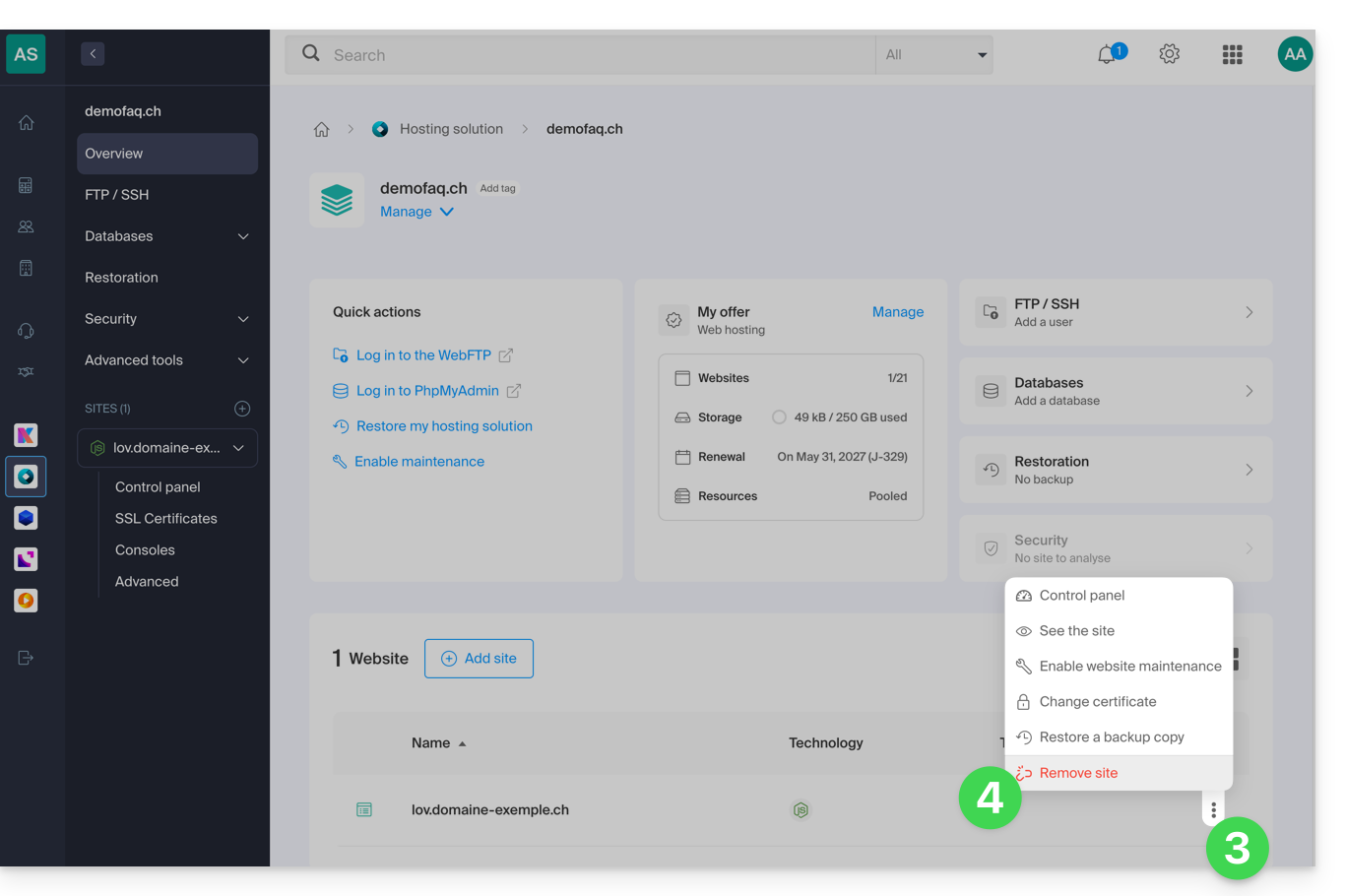
Unlinking a website from a free Starter hosting plan
A Starter hosting plan (basic webpage) contains only one website, which is specific to the domain name itself. Therefore, unlike paid plans, it is not possible to manage multiple websites or remove one website to add another.
You must therefore cancel the Starter hosting plan directly:
- This will cancel only your Starter web hosting product, i.e., the part concerning your website, without affecting other products, such as email or domain names.
- You must confirm the cancellation request by email; otherwise, no data will be deleted.
- A cancellation confirmation is sent to any other administrators of the Organization.
- Backups will be permanently deleted upon cancellation, making any restoration impossible.
To cancel:
- Click here to access the hosting & website management section in your Infomaniak Manager (❓: help).
- Click on the action menu ⋮ located to the right of the relevant hosting.
- Select the Cancel option.
- Follow the procedure until the end.
Link to this FAQ: https://faq.infomaniak.com/2569
Has this FAQ been helpful?
This guide explains how to add IP addresses to the whitelist of a website hosted with Infomaniak.
Introduction
- Allowing IPs on
xmlrpc.phpenables access to URLs that are blocked by default because they are considered risky. - This type of blocking is effective on all recent servers.
- Regarding WordPress, its XML-RPC functionality is only available by default through Infomaniak services and JetPack for security reasons.
Add IP addresses to the xmlrpc.php whitelist
To access the site management:
- Click here to access the hosting & site management section in your Infomaniak Manager (❓: help).
- Click on the name of the website in question.
- Click on Manage advanced settings:
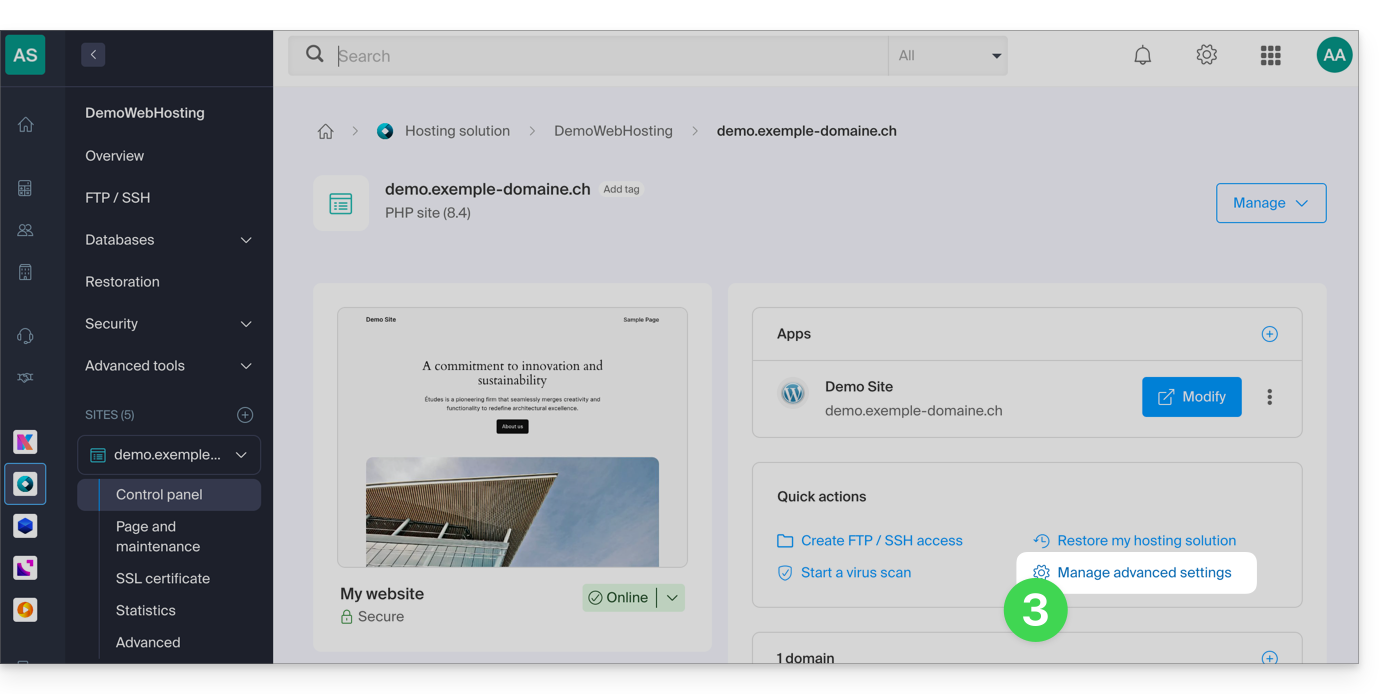
- Click on the PHP / Apache tab:
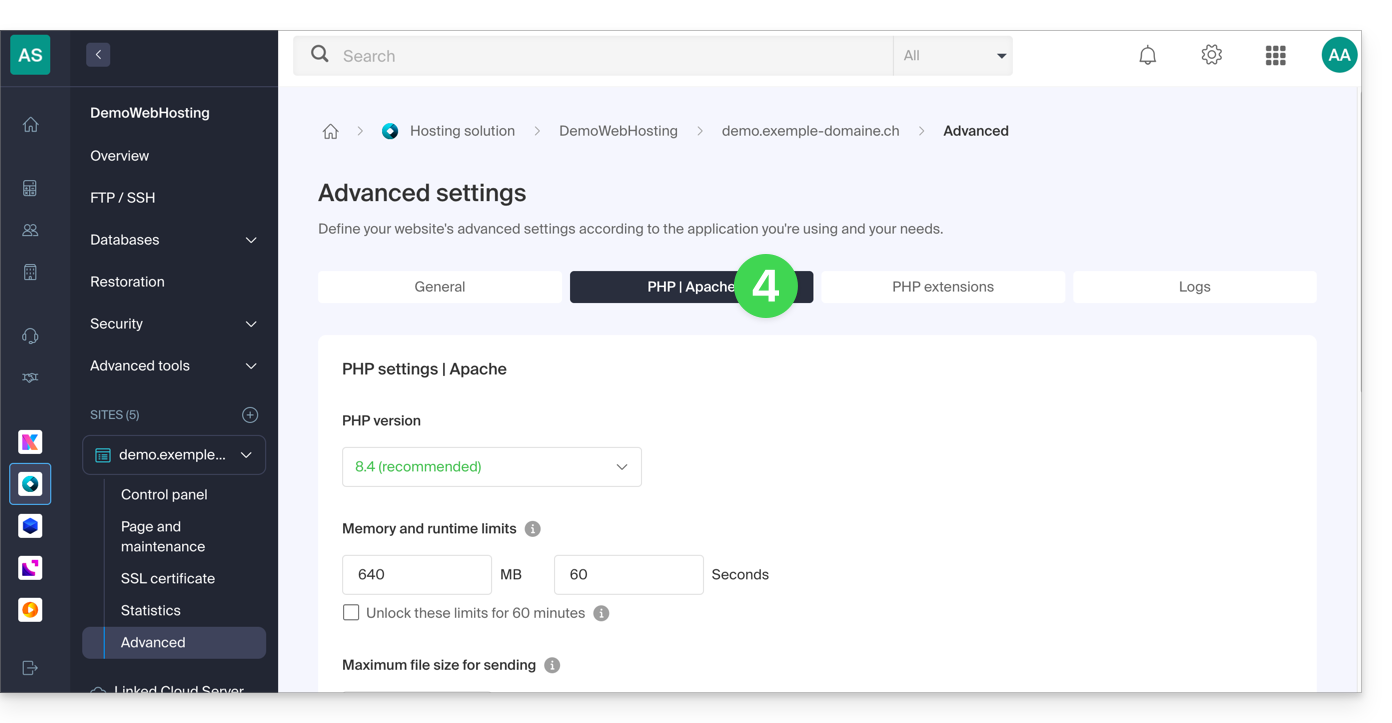
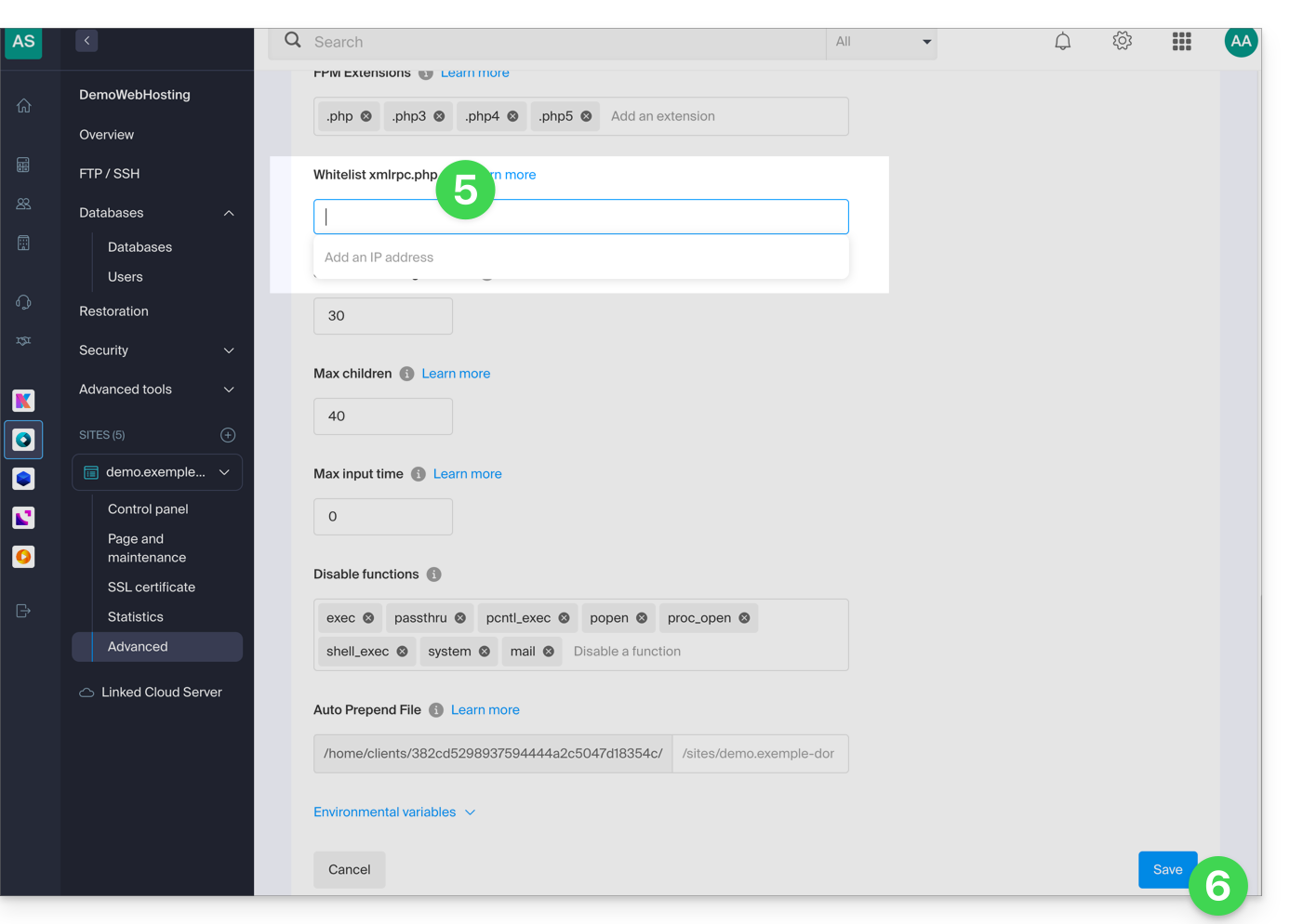
- Complete the relevant field.
- Click on the Save button at the bottom of the page:
Link to this FAQ: https://faq.infomaniak.com/2577
Has this FAQ been helpful?
This guide introduces Groups, the user management system for your Organization, available on the Infomaniak Manager.
Introduction
- To facilitate access and the addition of a collaborator within the Infomaniak ecosystem, the Groups feature allows you to create teams of users and, with a few clicks, grant them access to the services they need.
- It is entirely possible to:
- associate resources (Mail, kDrive, kChat) from the creation of the Group to automate onboarding,
- adjust individual permission levels: for kDrive, the individual permission takes precedence over the Group's permission, while for Mail, the permissions are cumulative.
- add the same user to multiple Groups,
- invite external users to your Organization to one of your Groups,
- add one or more users to a Group at a time,
- define a team leader to easily identify a project manager or the person to contact.
Manage Your Groups
Managing Groups now allows for complete centralization. There is no longer any need to intervene in each tool separately: everything is managed from the Infomaniak Manager for seamless reorganization of your collaborators. See the guides on this topic:
Examples
- You create a Group for a new department: immediately associate it with its dedicated mailboxes, its kDrive organization folders, and its dedicated kChat discussion channels; each new team member added to the team will automatically receive all these access rights.
- You are a Web agency and you want to give your webmaster teams access to all of your Web hosting: simply create a new group, select all the hosting accounts they need access to, and invite them to join the Group.
- You have a kDrive: grant access to a folder to a Group and adjust access based on the users added or removed from the team over time.
- You use Streaming or Ticketing services and want to give your teams access: create a new Group that will have access to both products, or two separate Groups that will have access to the two products completely independently.
Link to this FAQ: https://faq.infomaniak.com/2585
Has this FAQ been helpful?
This guide presents the different actions that can be performed on a MySQL table, depending on the permissions granted to a user.
Actions on tables based on user permissions…
… on shared web hosting
Read + Write + Admin
GRANT SELECT, INSERT, UPDATE, DELETE, CREATE, DROP, INDEX, ALTER, CREATE TEMPORARY TABLES, LOCK TABLES, CREATE VIEW, SHOW VIEWRead + Write
GRANT SELECT, INSERT, UPDATE, DELETE, CREATE TEMPORARY TABLES, LOCK TABLERead
GRANT SELECT
… on Cloud Server
Read + Write + Admin
GRANT ALLRead + Write
GRANT SELECT, INSERT, UPDATE, DELETE, CREATE TEMPORARY TABLES, LOCK TABLESRead
GRANT SELECTLink to this FAQ: https://faq.infomaniak.com/2588
Has this FAQ been helpful?
This guide will walk you through the installation of n8n on Infomaniak, a powerful and extensible workflow automation solution.
Introduction
- Unlike tools like Zapier or Make, n8n, a “fair-code” workflow automation tool, can be self-hosted, allowing you to maintain complete control over your data while connecting hundreds of services via an intuitive visual interface.
Installing n8n
Prerequisites
- A Node.js website (v22 recommended).
- Stop the Node.js application from your Node.js site dashboard before performing any technical operation.
To configure your site (via the Infomaniak Manager):
- Click here to access the hosting & website management section in your Infomaniak Manager (❓: help).
- Click on the name of the Node.js website in question.
- If necessary, stop the application, then click on Manage advanced settings:
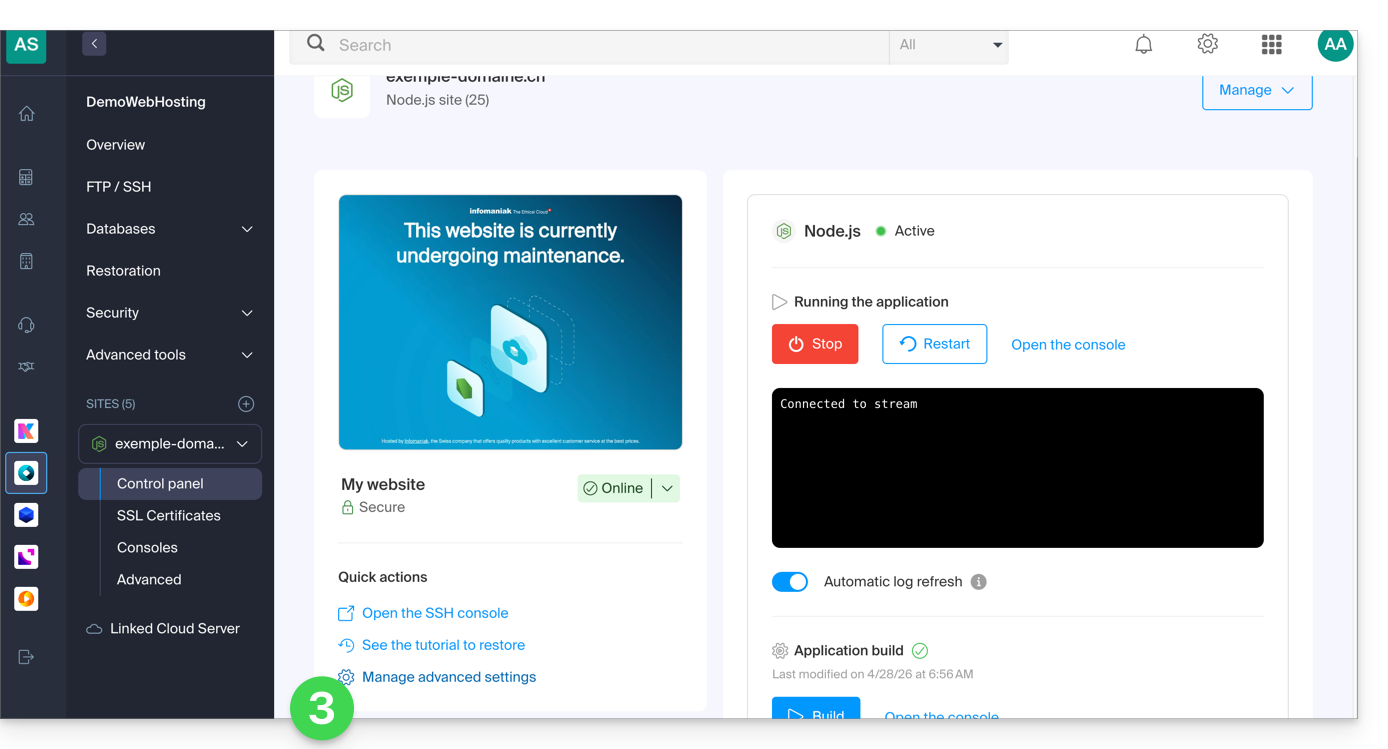
- Click on the Node.js tab to access the settings.
- Select a recent version (e.g., 24 or higher).
Enter the following command, replacing
https://domaine.xyzwith the actual address of your site:N8N_RELEASE_TYPE="stable" NODE_ENV="production" N8N_EDITOR_BASE_URL="{{URL_5}}" WEBHOOK_URL="{{URL_6}}" GENERIC_TIMEZONE="Europe/Zurich" /srv/customer/node_modules/.bin/n8n start- Enter
5678for the listening port. - Enable the "Set build command" checkbox.
Enter the following command:
cd && npm install n8n@latest sqlite3- Click on Save:
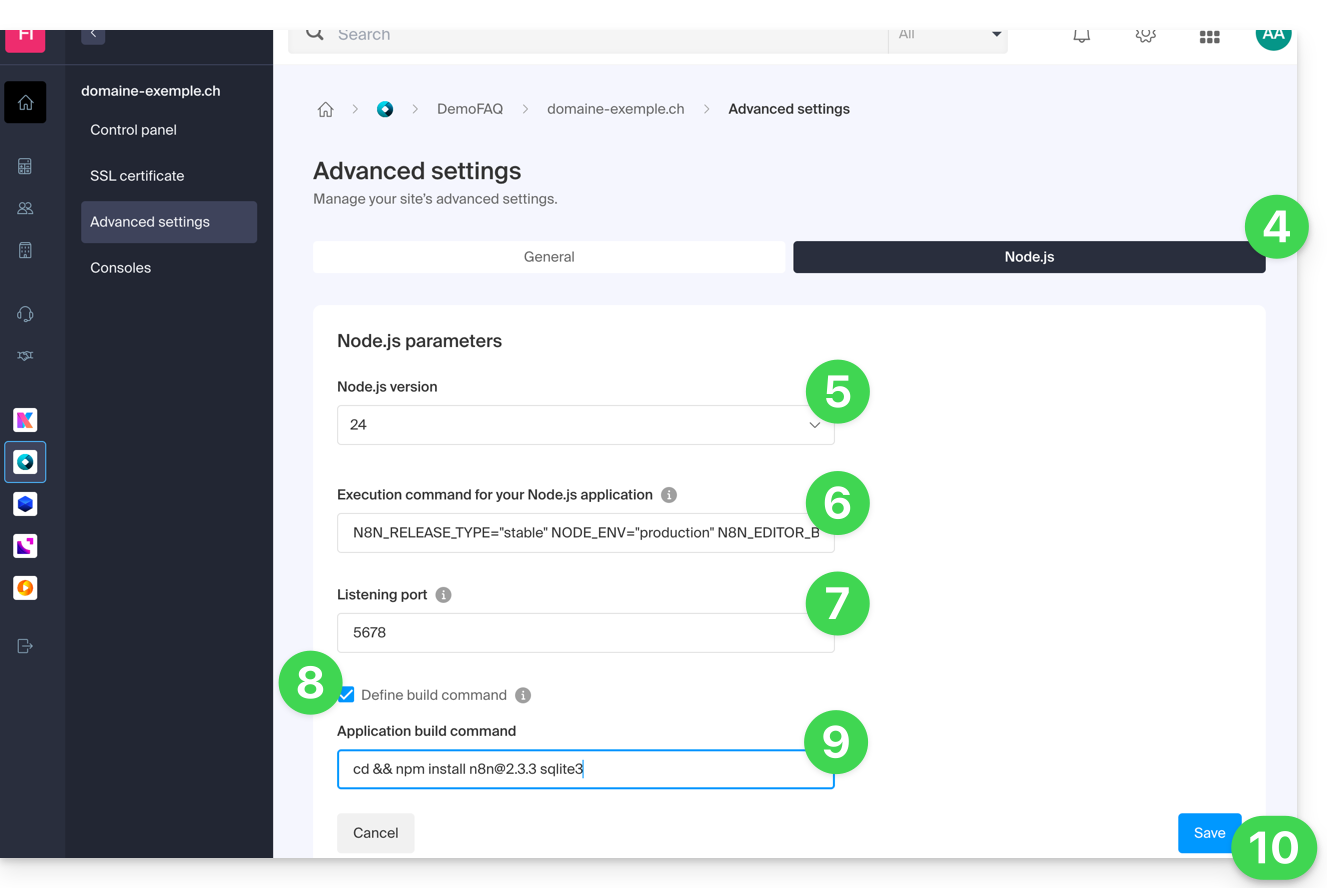
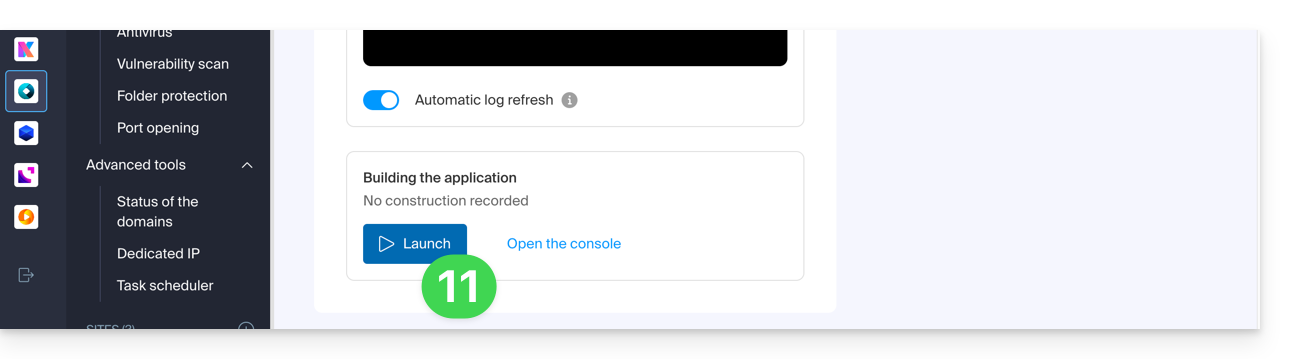
- Start the Build step by clicking the Start button under Application Build:
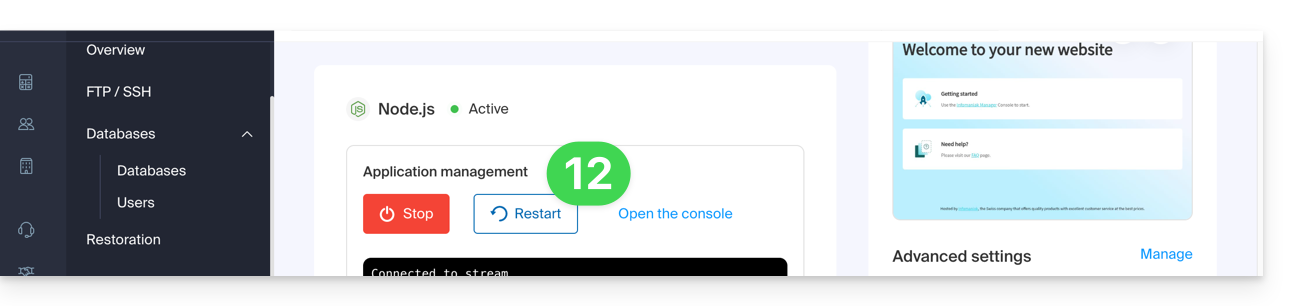
- On the main page, click the Start (or Restart) button:
- Wait a few minutes, then go to your site's URL (e.g.
https://domain.xyz). - During your first login, n8n will ask you to create an owner account to secure your instance.
Your n8n instance is now up and running! You can start creating your automations.
If you encounter an error indicating that the port is already in use when starting:
- Temporarily change the Node.js version in the settings (e.g., switch from v24 to v23) and save. This forces a complete shutdown of the processes.
- Set the desired version (v24) again and save.
- Restart the application.
Update n8n
It is recommended to regularly update your n8n instance to benefit from the latest features and security patches. Two methods are available:
Method 1: via the Infomaniak Manager (Recommended)
To update n8n, simply restart the application build process:
First, check in the Advanced Settings that your build command uses the
@latesttag:cd && npm install n8n@latest sqlite3- Click the Start button under the Application Build section.
- Important: Do not delete the
node_modulesfolder; the system will handle updating existing packages to their latest version: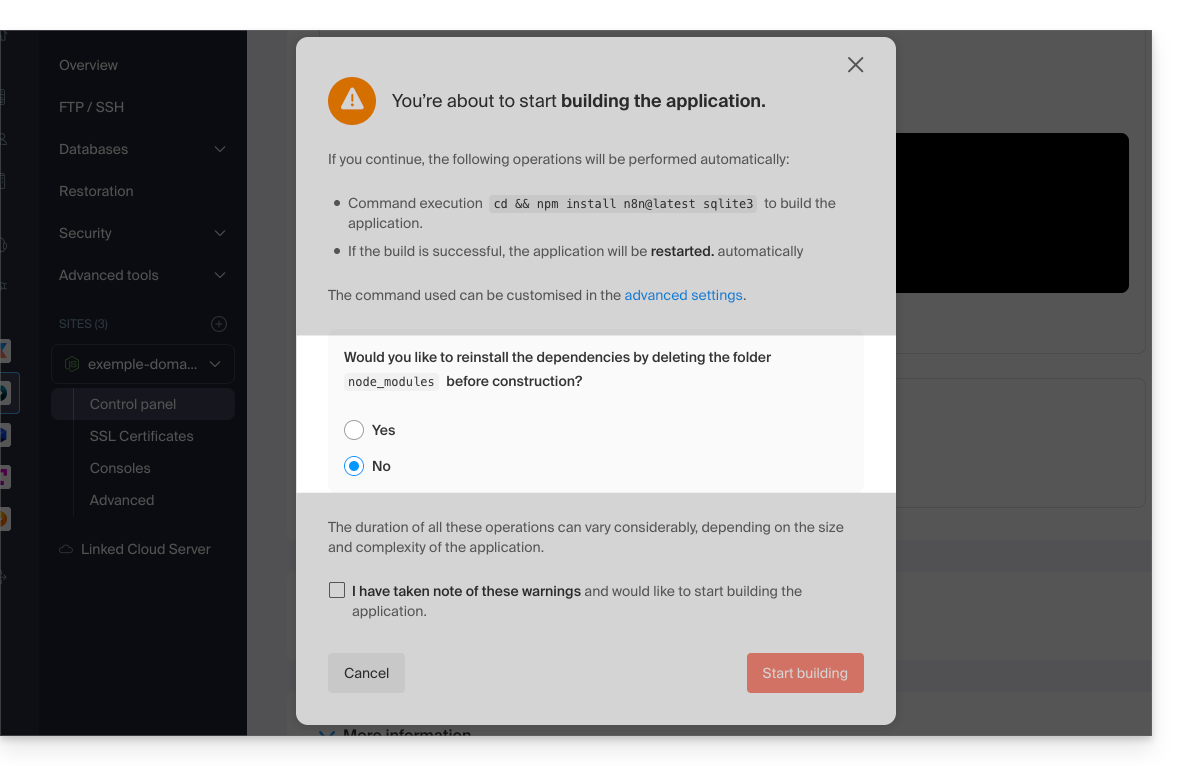
Method 2: via an SSH connection
If you prefer to use the command line, you can update n8n directly from the Node.js environment:
- Connect to your server via SSH.
Access the application directory and launch the update:
cd /srv/customer npm update n8n- Once the operation is complete, restart the application from the Infomaniak Manager to apply the changes.
Link to this FAQ: https://faq.infomaniak.com/2612
Has this FAQ been helpful?
This guide provides suggestions for improving and reducing the response time of your Infomaniak Web Hosting.
Introduction
- TTFB, or *Time To First Byte*, is a unit of measurement used to evaluate the response speed of a web server.
- TTFB measures the time between an HTTP request from a user or browser and the receipt of the first byte of the website page being viewed.
- This delay is particularly important. It may be one of the SEO criteria taken into account by search engines such as Google.
Ways to improve TTFB
To speed up your website and improve TTFB (Time To First Byte):
- Use a Content Delivery Network (CDN).
- Optimize the website code.
- Optimize the database queries.
- Limit HTTP requests.
- Embed CSS and JavaScript in your HTML pages to avoid using external resources.
- Use an RFPL (*Response First, Process Later*) caching system.
Refer to the Criticalcase article (in English) for more information.
Test the server response speed
If you have any doubts about the server response speed, you can create an index2.html file, which will be saved at the same level as the index.html (or .php) file. This will allow you to perform an optimization test (e.g., domain.xyz/index2.html) without the main site/CMS being taken into account.
If the response time is normal, it means that the slowdowns are due to the website and not the server.
To learn more
Please refer to the following resources:
Link to this FAQ: https://faq.infomaniak.com/2619
Has this FAQ been helpful?