Knowledge base
1000 FAQs, 500 tutorials and instructional videos. Here, there are only solutions!
This guide explains how to modify the display of your events (within the Infomaniak ticketing system).
Accessing the options to configure the display
To do this:
- Click here to access the management interface for your product in the Infomaniak Manager (need help?).
- Click directly on the name assigned to the ticketing system for the event.
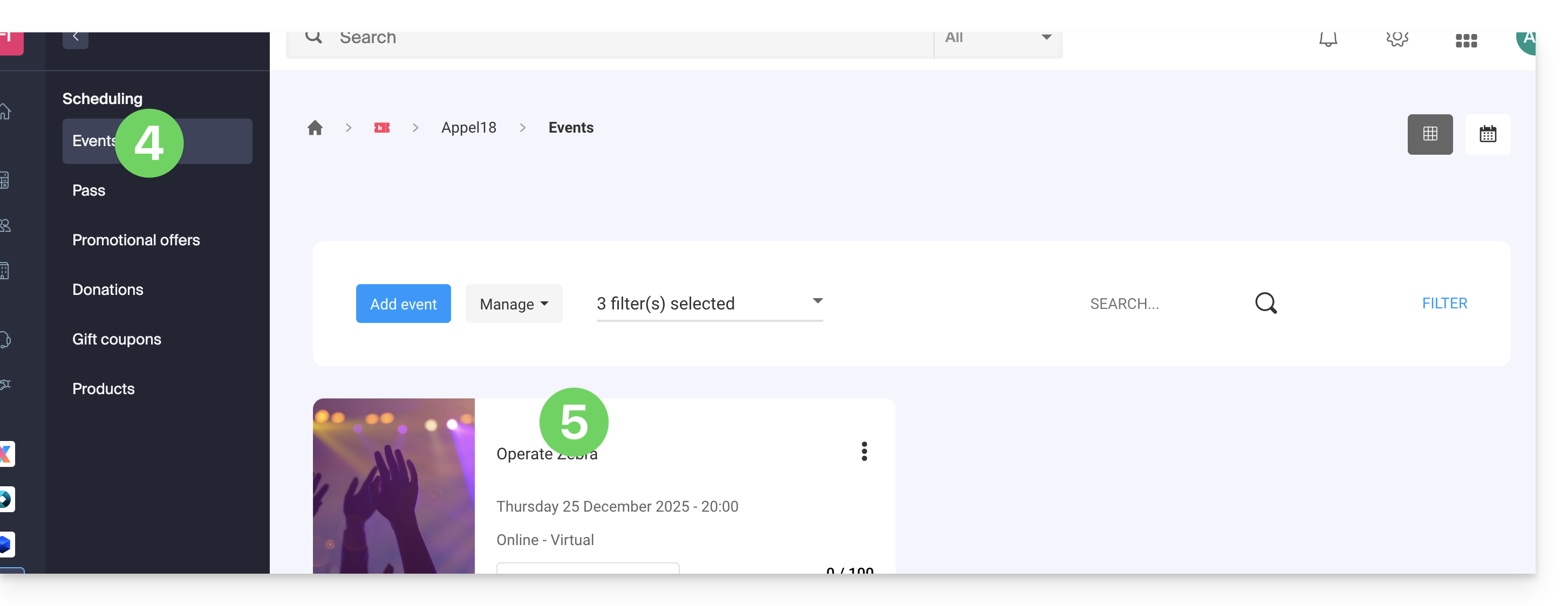
- Click on Schedule in the left-hand menu.
- Click on Events in the left-hand menu.
- Click on the name of the event in question:
- Click on the Edit button:
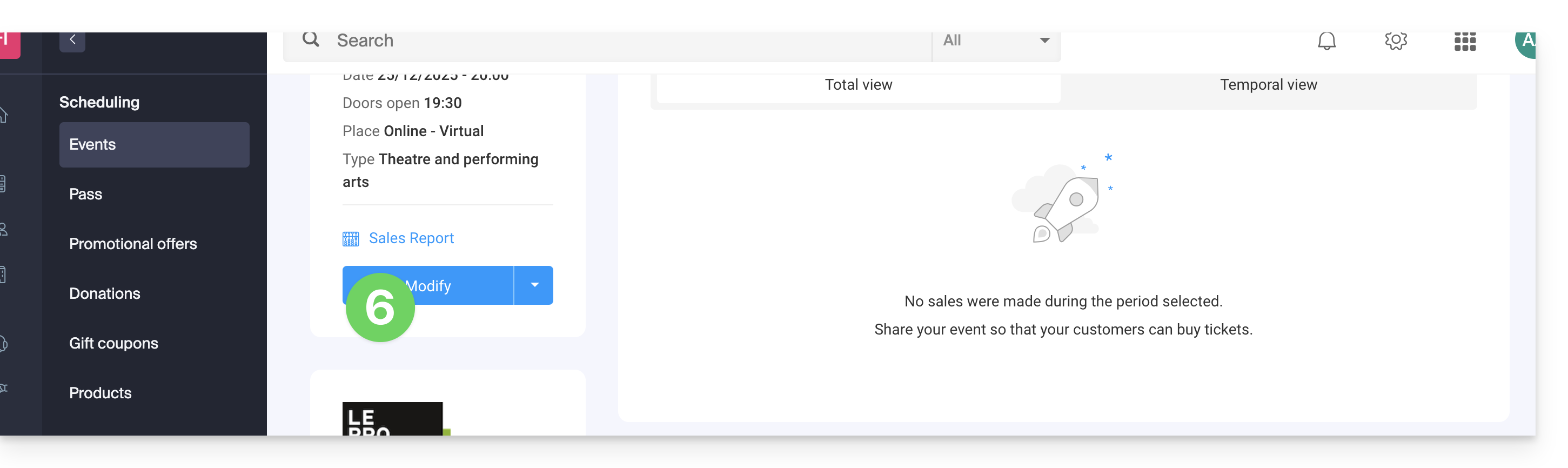
Choose a display mode for multi-date events
To do this:
- Add any new possible dates…
- Choose the display methods for these dates on the calendar; these modes will be available on the online ticketing system and will allow your customers to switch between the different display modes they prefer (see below)…
- Choose which display mode will be used by default…
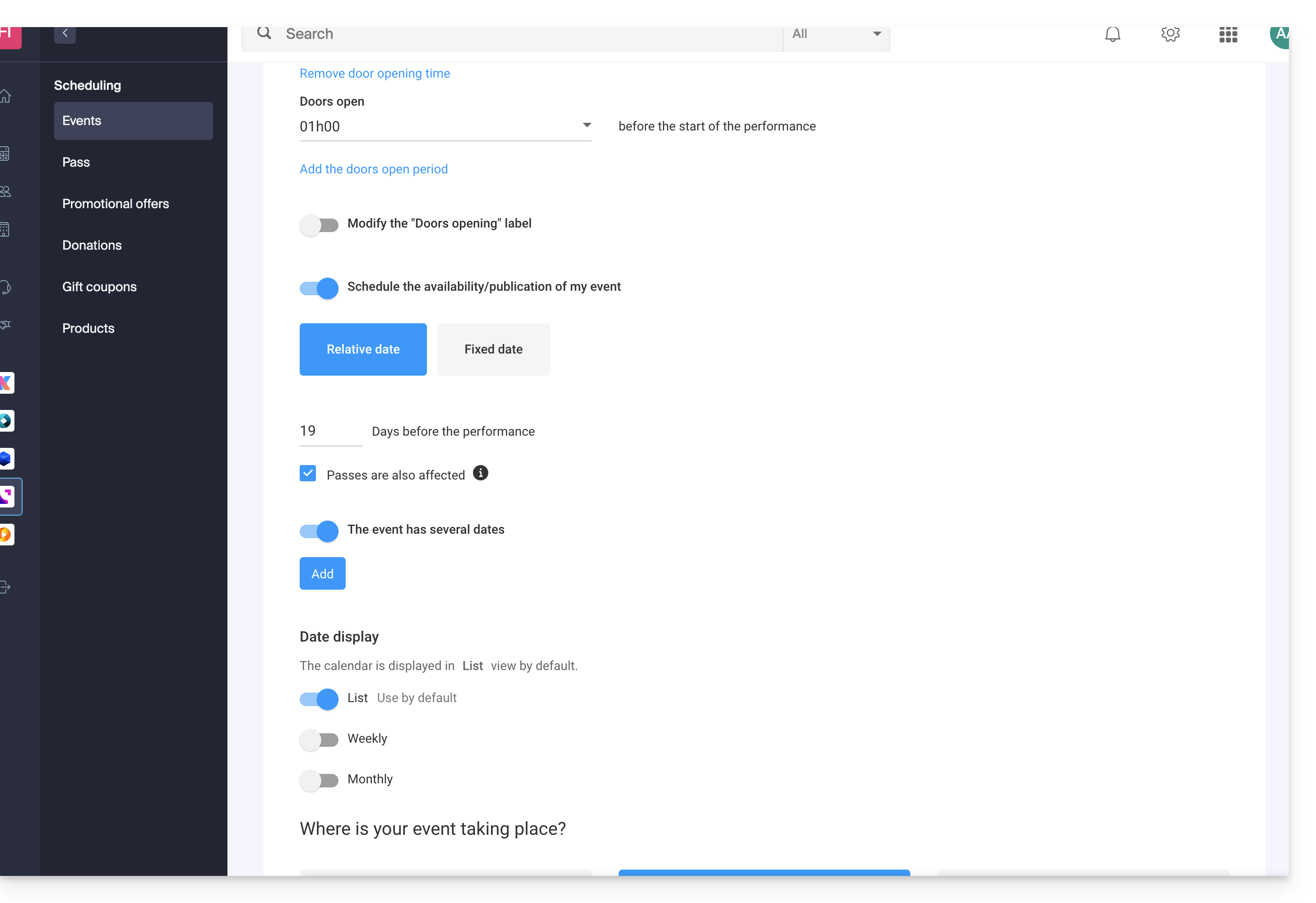
Available display options
List view
The list view is useful if the dates are spaced out over time with empty periods (e.g., weekly or monthly) and/or if the ticketing system needs to offer multiple dates or sessions without displaying them on a calendar.
The monthly calendar
The monthly calendar view allows you to display events on a monthly calendar. This is an effective display, but it can become very cluttered if there are many sessions per day.
The weekly calendar
Very useful if you want to display the dates by week, especially if there are several events per day, or in the case where the event only lasts for a short period, and you want to display the days of the week.
Link to this FAQ: https://faq.infomaniak.com/2696
Has this FAQ been helpful?
This guide explains how to collect and retrieve customer information when they order tickets through the Infomaniak ticketing system.
Set up a contact form
To gather information from customers:
- Click here to access your product management interface on the Infomaniak Manager (need help?).
- Click directly on the name assigned to the ticketing system for the event.
- Click on Settings in the left-hand menu.
- Click on Customer Registration in the left-hand menu.
- Enable the information to be requested from customers and choose the visibility:
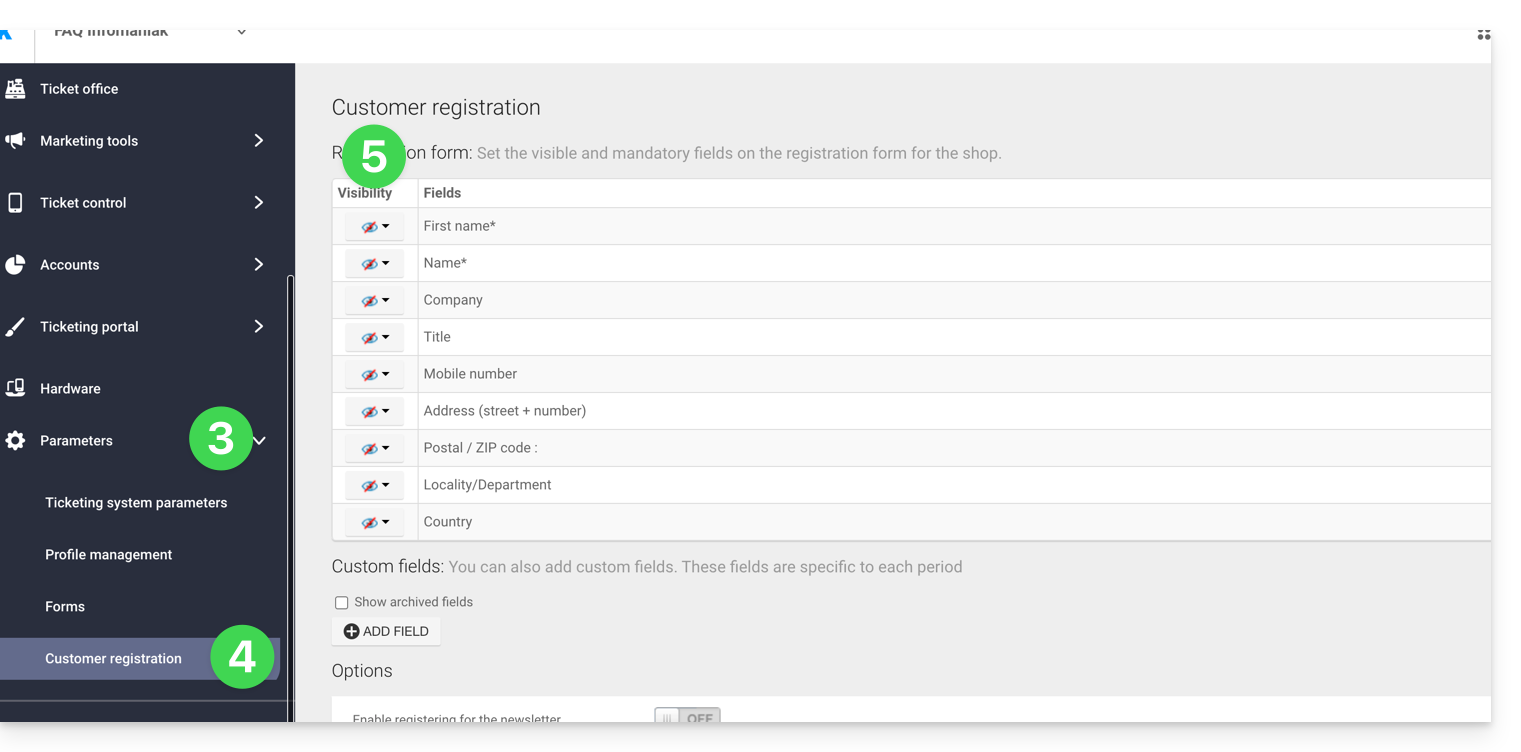
Visible and required
Visible, but optional
Invisible (do not ask)
Add additional fields
It is possible to add additional information to this form:
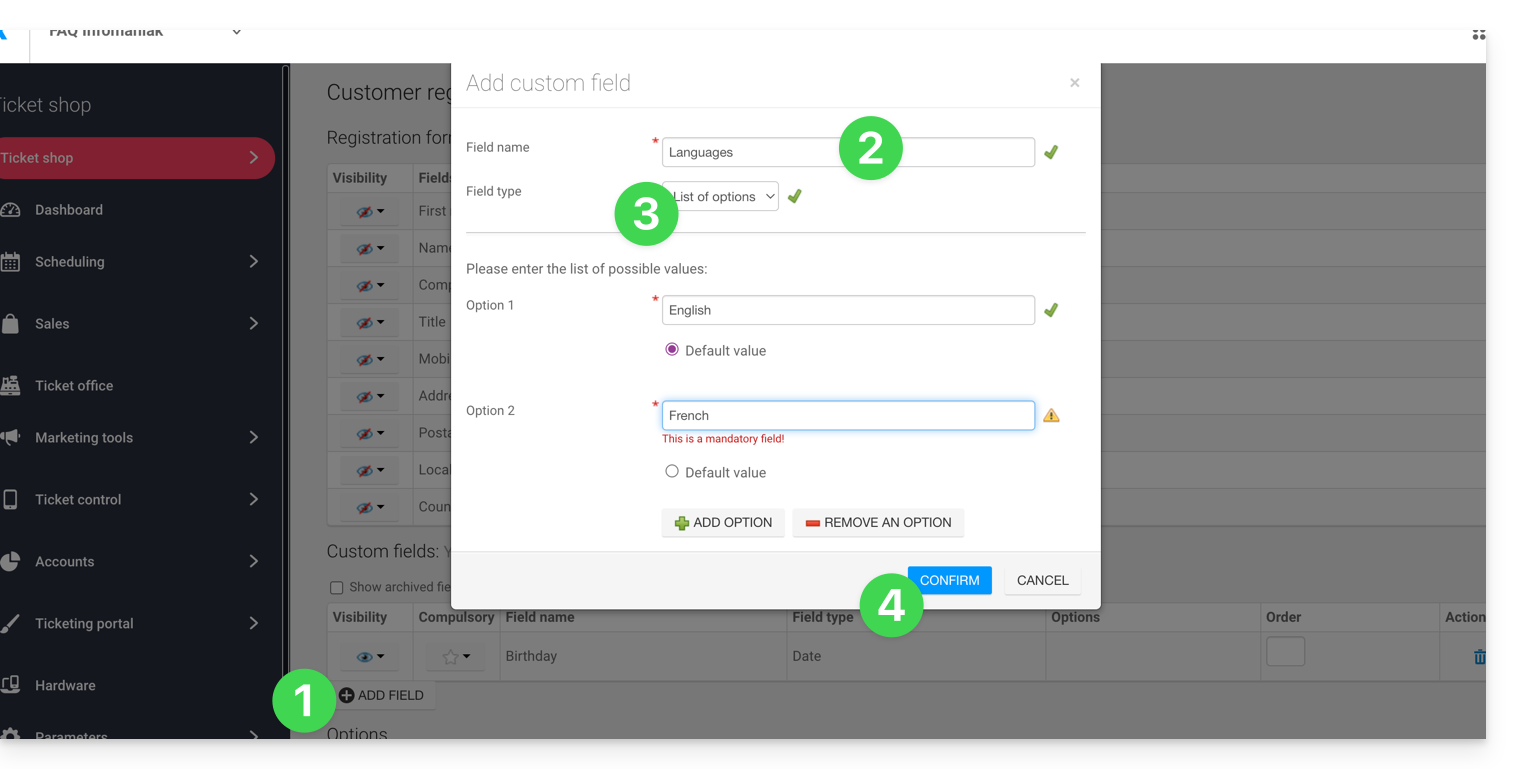
- Click on the Add field button.
- Give the field a name and choose the field type.
- Depending on the field type, complete the fields using the options in the drop-down menus or check boxes.
- Click the button to Confirm:
Link to this FAQ: https://faq.infomaniak.com/2697
Has this FAQ been helpful?
This guide explains how to export customer and participant information from events (within the Infomaniak ticketing system).
Introduction
- Exports allow you to download a file in
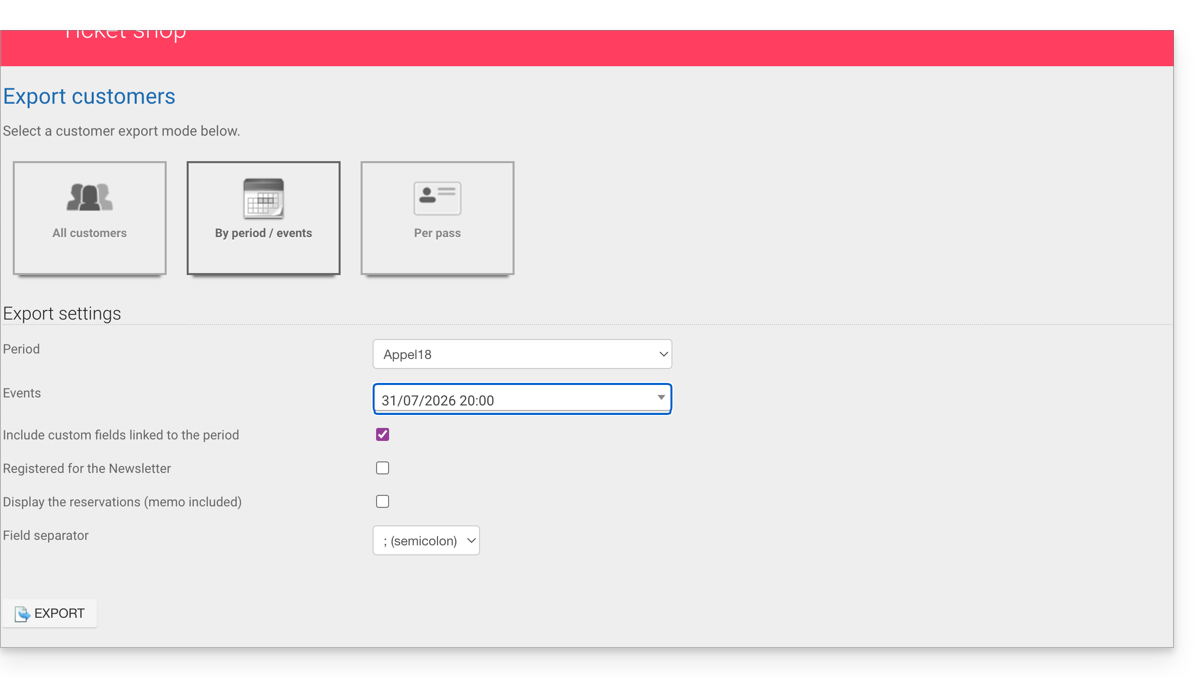
CSVformat containing the collected information; in some cases, such as the one illustrated below, the field separator type can be modified (e.g., semicolon). - For any information regarding the protection of personal data, please refer to this other guide.
Retrieve customer information
Customers are the individuals who provided information when placing an order through your online ticketing system:
- Click here to access the management of your product in the Infomaniak Manager (need help?).
- Click directly on the name assigned to the ticketing system for the event.
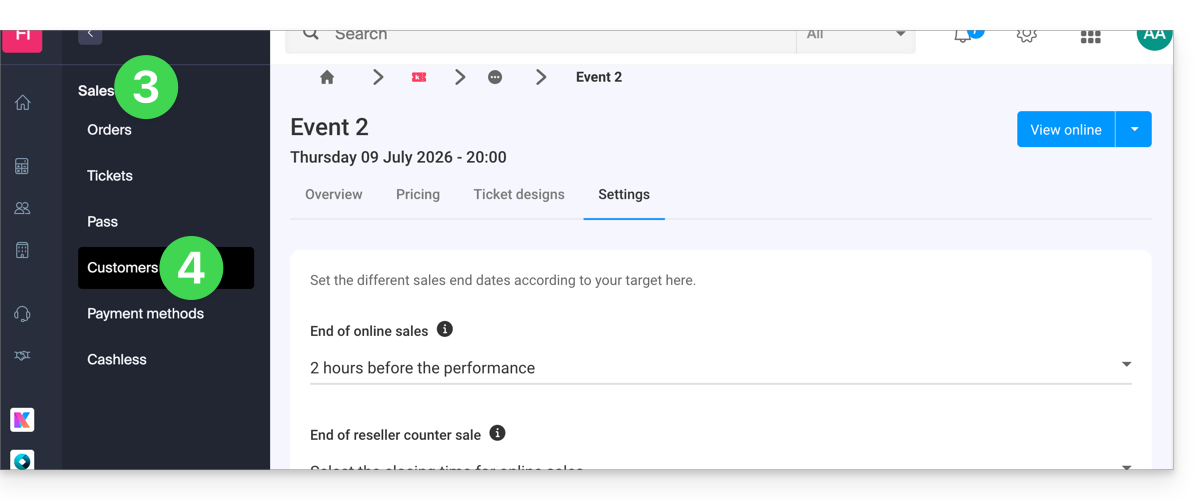
- Click on Sales in the left-hand menu.
- Click on Customers in the left-hand menu:
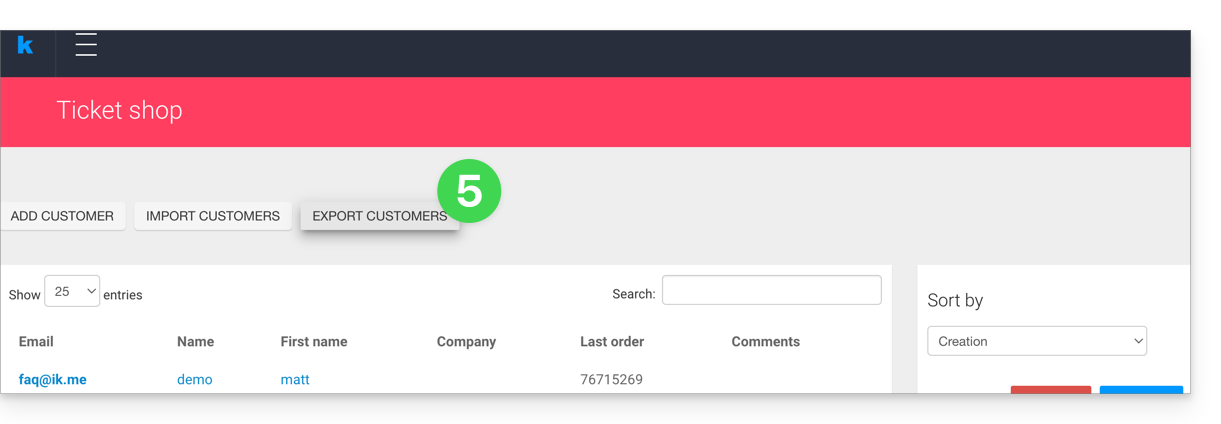
- Click on Export customers
- Choose the criteria for the export:
Retrieve participant information
Participant information can be retrieved from two locations:
- at the form by price level: this allows you to retrieve an Excel file with all the responses from participants, regardless of the date.
- at the level of a specific event, date, or session: this retrieves all the forms used for the event or the chosen date.
For a form
To do this:
- Click here to access the management of your product in the Infomaniak Manager (need help?).
- Click directly on the name assigned to the ticketing system for the event.
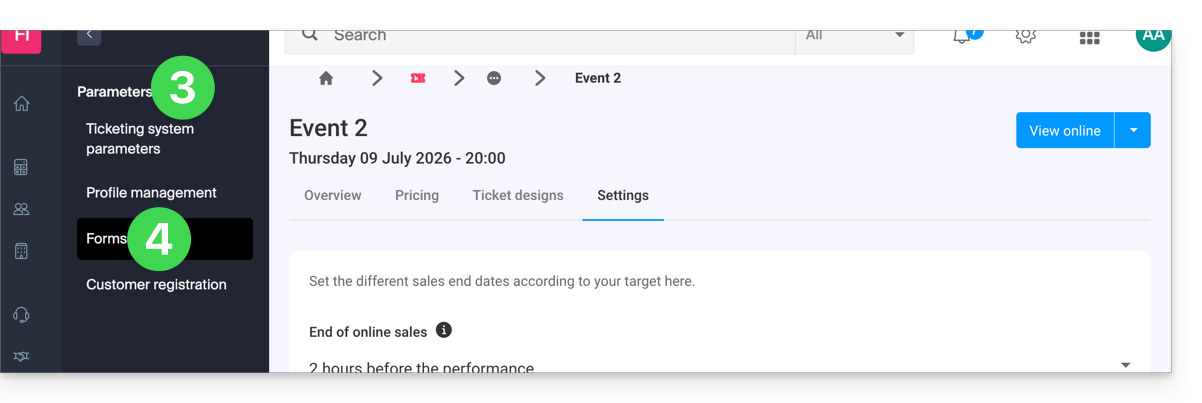
- Click on Settings in the left-hand menu.
- Click on Forms in the left-hand menu:
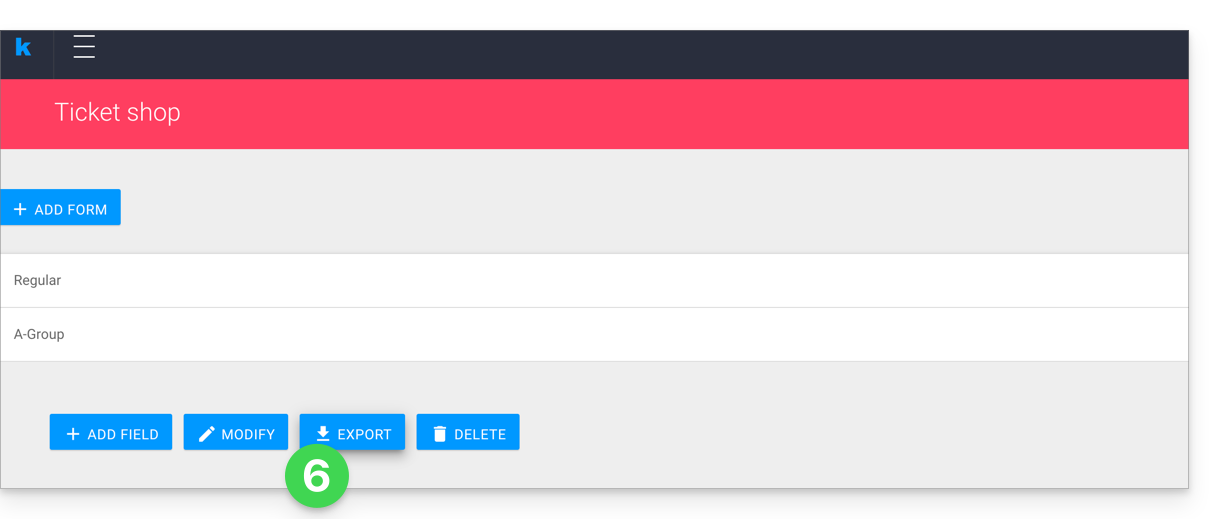
- Select the form to export.
- Click on Export:
For a specific date
To do this:
- Click here to access the management of your product in the Infomaniak Manager (need help?).
- Click directly on the name assigned to the ticketing system for the event.
- Click on Scheduling in the left-hand menu.
- Click on Events in the left-hand menu.
- Choose the event for which to export the information; in the case of a multi-date event, select the desired date.
- At the bottom of the page, click on the Export form data link to retrieve a file in
csvformat: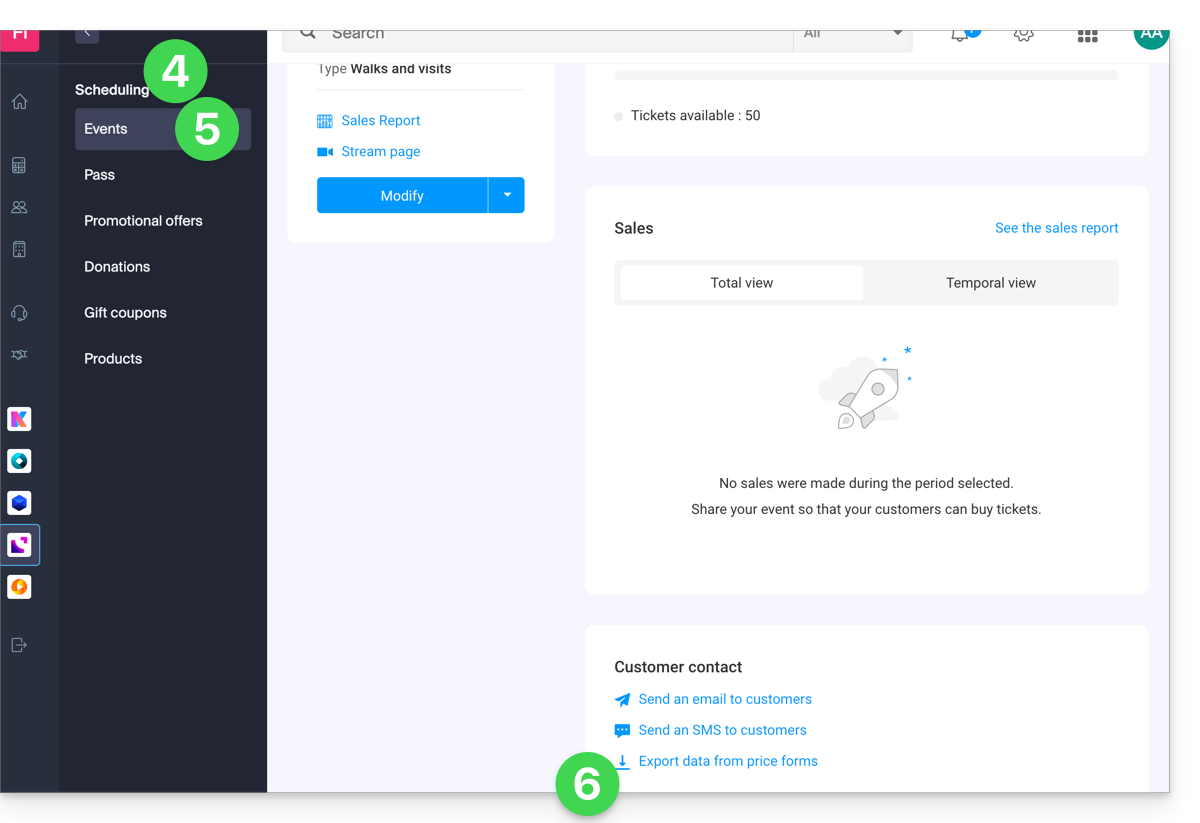
Link to this FAQ: https://faq.infomaniak.com/2699
Has this FAQ been helpful?
This guide explains how to contact people who purchased tickets for your events directly through the Infomaniak ticketing system.
Send an email or SMS to customers
This tool allows you to quickly communicate with your customers, whether to inform them of a change in schedule, a cancellation or postponement, or to provide specific important information. Emails or SMS messages are sent to the list of customers who have placed an order, and not to the participants:
- Click here to access the management of your product on the Infomaniak Manager (need help?).
- Click directly on the name assigned to the ticketing system for the event.
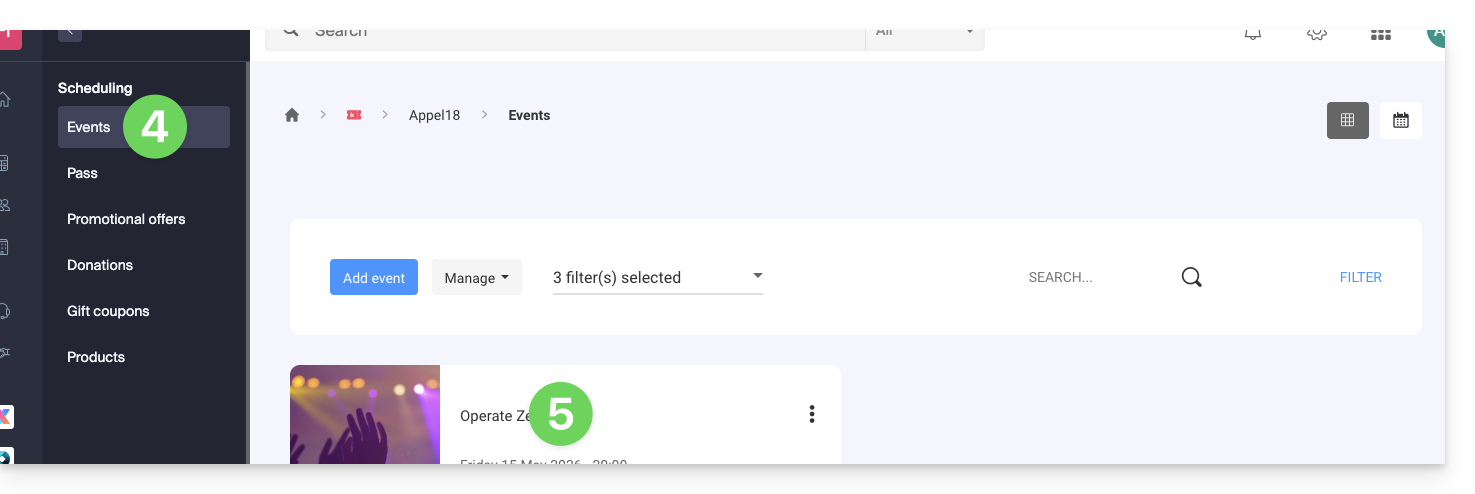
- Click on Schedule in the left-hand menu.
- Click on Events in the left-hand menu.
- Click on the name of the event in question:
- Click on the desired link at the bottom of the page:
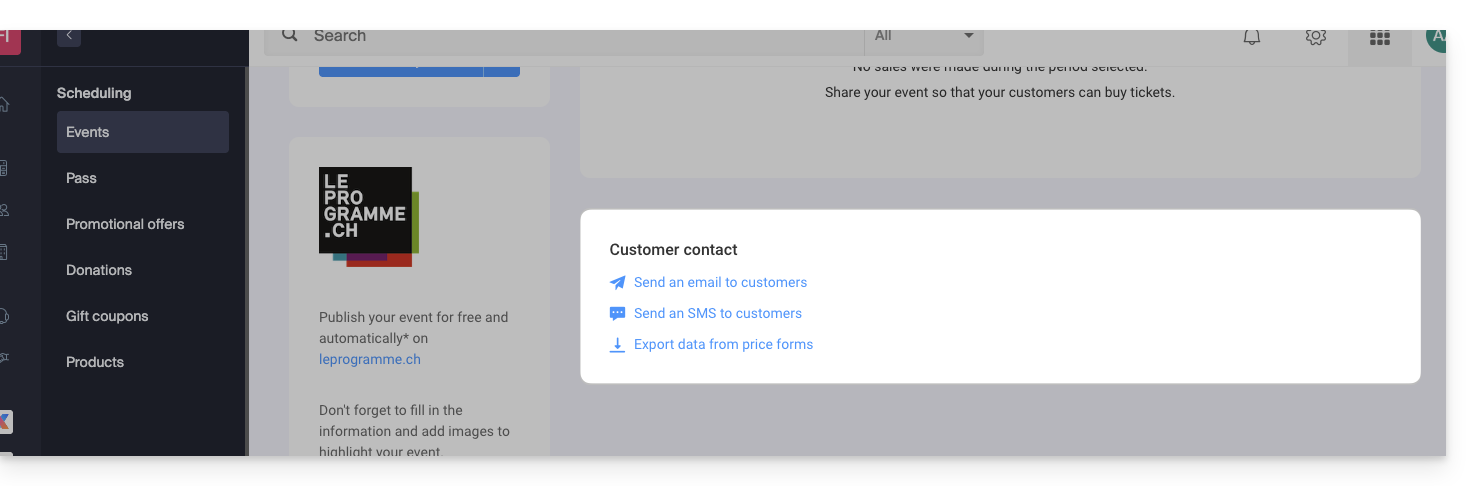
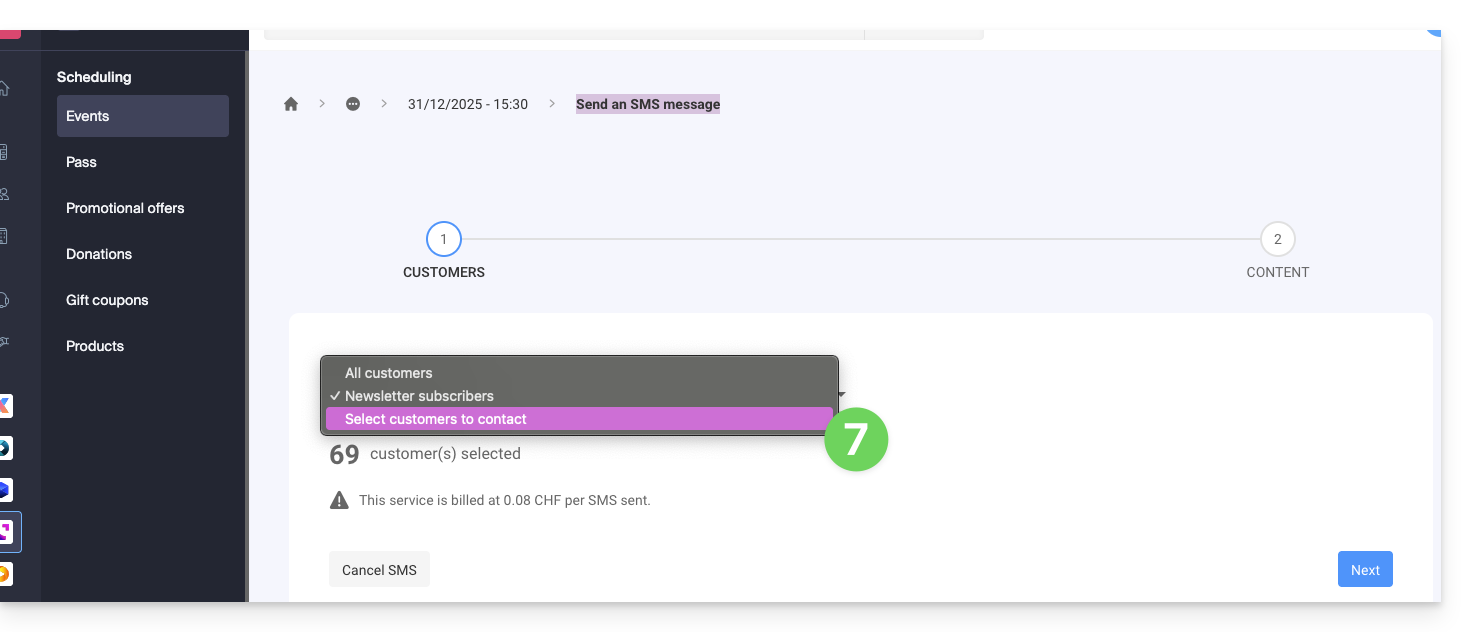
- Choose the contacts to reach (example of sending an SMS):
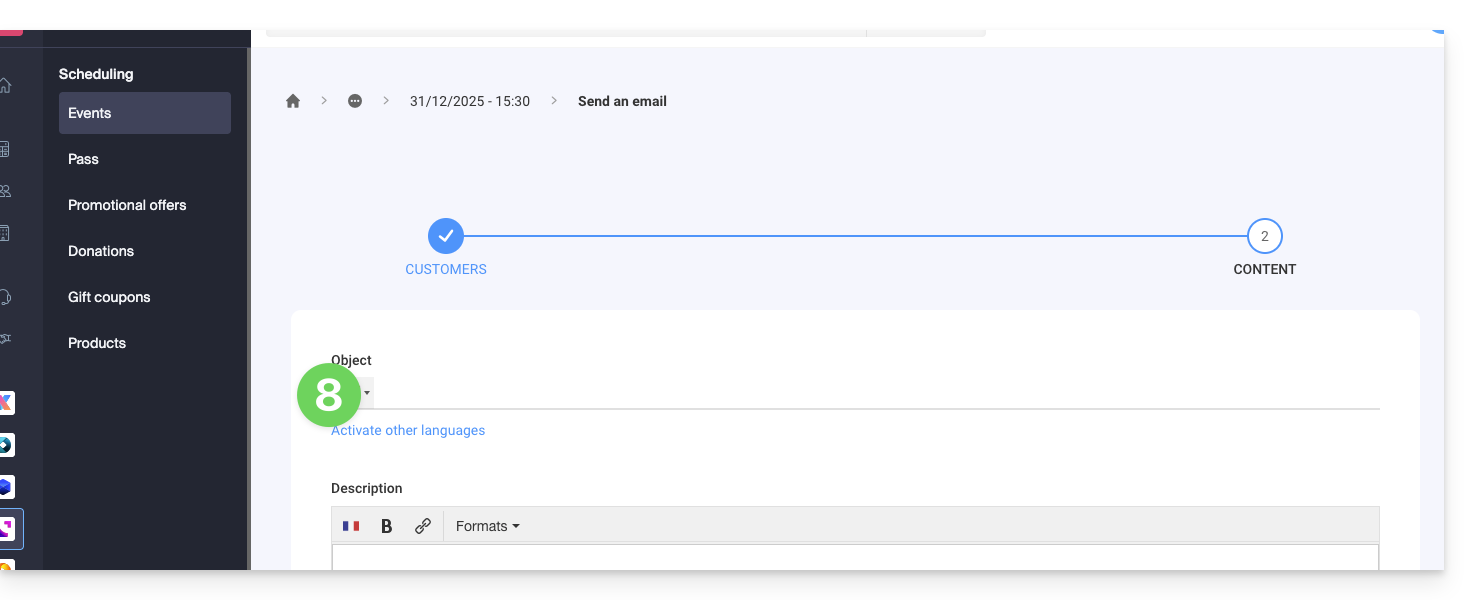
- Write the message to send (example of sending an email):
Link to this FAQ: https://faq.infomaniak.com/2700
Has this FAQ been helpful?
This guide explains how to add and configure the images for your events within the Infomaniak ticketing system.
Introduction
- The presentation images for your event can be defined in vertical and horizontal formats.
- A vertical image is mandatory, as it will be used on…
- … the administration tool for your ticketing system,
- … the ticket counter,
- … and your online store, in case there is no horizontal image.
- The horizontal image, on the other hand, will be used on…
- … your online store when there are multiple events,
- … the infomaniak.events portal.
- It is possible to add custom images or use a default image, as well as an image gallery associated with your event; it can accommodate up to 4 images and will be located on the event page of your online ticketing system below the description:

Adding Images When Creating the Event
When creating a new event, you can choose a vertical image, a horizontal image, and an image gallery by selecting the appropriate tab.
- Click here to access the management of your product on the Infomaniak Manager (need help?).
- Click directly on the name of the ticketing system in question.
- Click on Programming in the left-hand menu.
- Click on Events in the left-hand menu.
- Click on the Add an event button.
You can choose a photo from your media library or a royalty-free image from the list provided:
- Portrait:
1000 x 1414px, vertical image - Landscape:
1200 x 630px, horizontal image
Modify the images of an existing event
To modify the images of an existing event
- Click here to access the management of your product on the Infomaniak Manager (need help?).
- Click directly on the name of the event concerned.
- Click on Schedule in the left-hand menu.
- Click on Events in the left-hand menu.
- Click on the event concerned.
- Click on the Edit button:

- Click on the setting to modify under Visuals:

Link to this FAQ: https://faq.infomaniak.com/2703
Has this FAQ been helpful?
This guide explains how to configure the general settings for the Infomaniak ticketing system.
General Settings
The general settings are organized into 3 tabs:
- Ticketing: general settings used for your ticketing system
- Organizer Contact Information: information displayed on the online ticketing system and in the Infomaniak portal so that visitors can contact the organizer
- Terms and Conditions: allows you to define the terms and conditions for your online ticketing system
1. Ticketing Tab
- The "Ticketing Visibility" button allows you to set your ticketing system to visible mode once everything has been configured and after activating the online store; it allows you to quickly make your ticketing system accessible or not online.
- Test mode allows you to reactivate test mode. This option will no longer be accessible once an order has been placed in real mode.
- The name of the ticketing system that you enter in this field will be visible in the online store as well as on the tickets and in the emails that will be sent to your customers.
- The URL of your website will be displayed in the General Terms and Conditions of Sale (GTC) of the gift vouchers, instead of the legal name of your organization, if you do not want your legal name to be visible to your customers.
- To choose your logo, click on the pencil icon; the chosen logo will appear on your customers' invoices. The dimensions of your logo should be 600 x 160 pixels:

- By default, the currency for your ticketing system is the Swiss franc (CHF). To allow your customers to pay in euros (EUR), check the "I would like to activate another currency" box and then check the "EUR" box. The ticketing system only supports transactions in CHF and EUR.
- VAT liability: Does your organization have to pay VAT? To confirm this, please contact your legal or financial manager, or inquire with the town hall of your municipality. Check the "I am liable for VAT" box once you have confirmed this information:

- You can choose from several languages for your ticketing system: French - English - German - Spanish - Italian, etc. If you check more than one language box, remember to translate the content of your ticketing system (e.g., the description of your events) into all the selected languages.
- In this section, enter the signature of your organization, which will be displayed on all communications sent to your customers:

2. Organizer Contact Information Tab
The contact information you enter in this tab will be used for invoicing and on your online ticketing system.
- Organization name: Enter the name of your organization, company, association, or NGO.
- Address - Postal code - City - Country: Be sure to enter the exact address of your company, which will be used for accounting/invoicing.
- Email address: The email address you enter in this field will be used for order confirmations, tickets, and event-related information.
- Phone number: The number you enter in this field will allow your customers to contact you if they have questions or problems. Be sure to select the country code corresponding to the number you want to display.
- SMS sender name: Enter here the name you want to appear as the signature at the end of SMS messages:

You can leave the phone number field blank if you do not want to provide it to your customers.
3. Terms and conditions
In this tab, you can edit the terms and conditions. These must be accepted by your customers in their shopping cart before they can proceed with online payment. In this tab, default terms and conditions are provided for you to review and modify as needed.
If you have modified the terms and conditions, you can always revert to the default version by clicking on the blue text "Restore default terms and conditions" located below the terms and conditions area.
Link to this FAQ: https://faq.infomaniak.com/2769
Has this FAQ been helpful?
This guide explains how to create a pass (within the Infomaniak ticketing system). The pass can then be configured in several steps:
- Define the type during creation (subscription, ticket package, etc.) as well as the basic information and parameters (below)
- Associate events with passes
- Configure the visual appearance and information related to the pass
- Define and collect information from subscribers that will be linked to the passes
1. Start creating a pass
To do this:
- Click here to access the management of your product in the Infomaniak Manager (need help?).
- Click directly on the name assigned to the ticketing system for the event.
- Click on Scheduling in the left-hand menu.
- Click on Pass in the left-hand menu.
- Click on Add a pass:
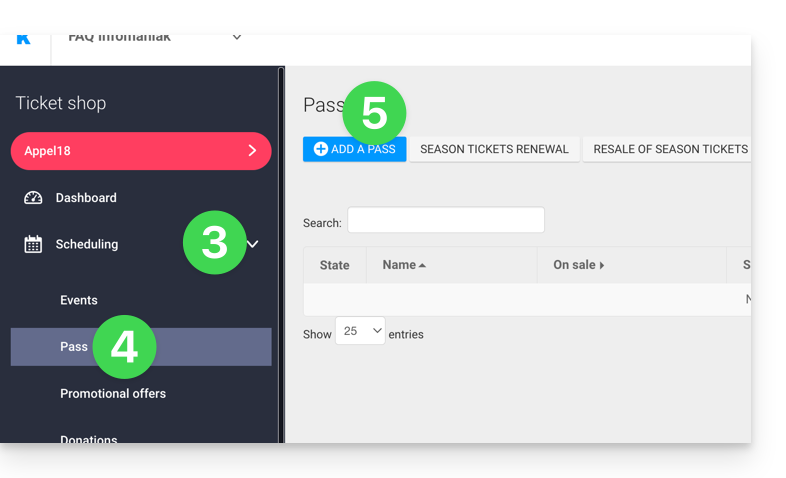
Pass name and description
This section allows you to define the pass name and a description for the pass: 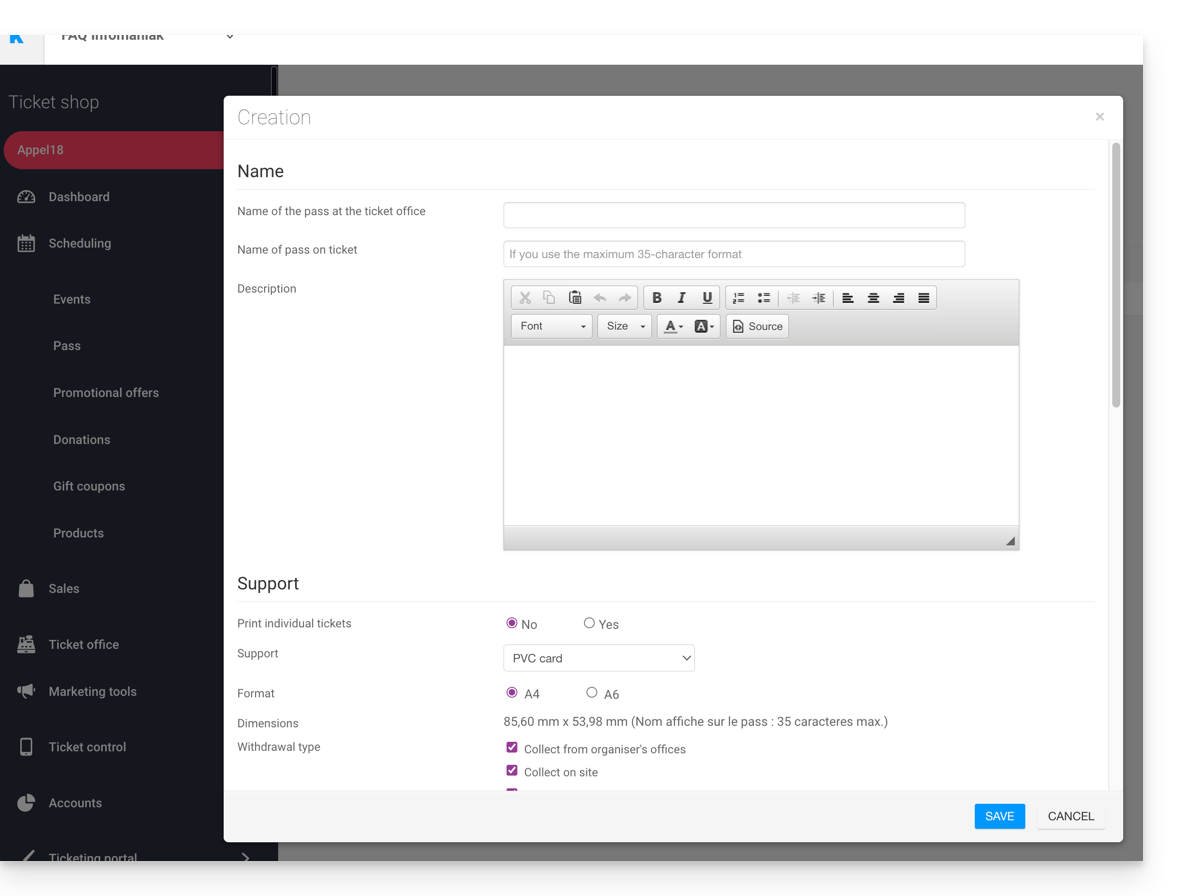
It is recommended to use a sufficiently short name in the Pass Name on Ticket field, as this will be printed directly on the pass.
Pass Support
You can choose from two types of support: 
- The PVC card, similar to a credit card, is often used for seasonal or annual subscriptions.
- Pay attention to the text size used for the Name displayed on the ticket, which will be reproduced here and limited to 35 characters.
- Choose the appropriate pick-up method that will be made available to the customer.
- The Phone/Paper format prioritizes the use of a mobile phone but also allows printing the ticket on an A4 or A6 sheet.
- The visitor will receive their pass in digital format in an email.
- They can download their pass in PDF format from the link included in the email.
Infomaniak does not send physical passes or tickets to visitors. Sending the pass is the responsibility of the organizer.
The appearance of the pass can be configured once the pass has been created (see step 3).
Manage the display during scan-based checks
The two options presented here allow you to define the parameters used for password checks:
- Passes will have random barcodes when created, but the organizer can freely modify them from the pass management section.
- The icon that will be displayed when checking the pass:

Pass price
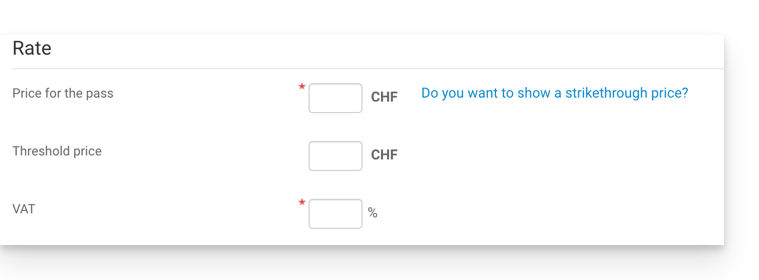
- Enter the desired amount:
Validity period
- The validity period will be used if you want to ensure that this pass is only available for a limited time.
- For example, you can configure a ticket package that can only be used during the winter season, for a seasonal promotion.
- Please note that if a pass is outside its validity period, it will be possible to purchase it, but it cannot be used or accessed to add tickets to it.
Types of passes
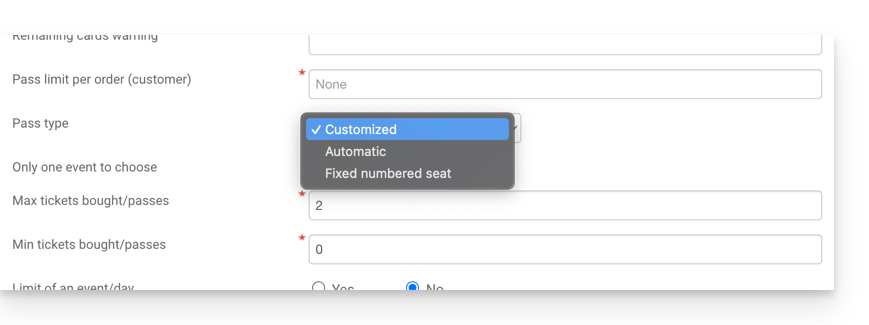
1. Custom
This pass allows the customer to choose events and dates from the available options. Therefore, the limitations of the pass must be defined:
- Only one event can be selected:
- The customer can only choose one event, but depending on the ticket limit, they can choose one or more tickets for the selected event.
- Please note: When a customer purchases a pass, the system will deduct the number of tickets entered in this field from all events associated with the pass.
- These tickets will be "reserved" for this pass.
- When the customer uses the pass at the scanners, the system will release the tickets for all other events.
- Maximum tickets
- The number of tickets that can be associated with the pass.
- Minimum tickets
- If a minimum of 0 is set, the customer can purchase an empty pass and choose their seats later.
- Any number other than 0 will require the customer to choose tickets when purchasing the pass.
- Limit of one event per day
- The pass is limited to one event per day.
- The customer cannot order more than one ticket per day for this pass.
- All tickets on the same day
- Allows you to choose a date and then select the events for that date.
- Limit the number of events per pass
- This option allows you to define whether a customer can attend the same event multiple times (in the case of multiple dates).
- If enabled, the customer can only book one ticket per event with the "same name" (or "same performance") for this pass.
- Note: the spelling of the event name must be identical.
- Minimum number of different events per pass
- The customer must book tickets for at least as many different events as are available on the pass.
- This is used to prevent visitors from booking all their tickets for a single event.
2. Automatic
The pass will not be customizable by the customer: it will automatically include the tickets defined by the organizer.
3. Fixed numbered seat
If the event takes place in a venue with a seating plan, this type of pass allows the customer to choose a pass with a numbered seat on the seating plan. This seat will remain the same for all events associated with the pass that take place in the same venue.
An organizer may want to set up passes with registration validation.
After creating the pass, the next step is to associate it with the corresponding events and configure the various available options.
Link to this FAQ: https://faq.infomaniak.com/2770
Has this FAQ been helpful?
This guide explains how to associate events with passes (within the Infomaniak ticketing system). These settings will be available once step 1 is completed:
- Define the type during creation (subscription, ticket package, etc.) as well as the basic information and settings
- Associate events with passes (below)
- Configure the visual and information related to the pass
- Define and collect subscriber information that will be linked to the passes
2. Associate events with the pass
Once the pass has been created, you will need to associate the events that will be linked to it:
- Click here to access the management interface for your product on the Infomaniak Manager (need help?).
- Click directly on the name assigned to the ticketing system for the event.
- Click on Schedule in the left-hand menu.
- Click on Pass in the left-hand menu.
- Click on the name of the pass in question.
- Click on Link events:

- Choose the events that will be linked to the pass.
- Choose the number of tickets that can be associated with this pass.
- Choose whether this event will incur an additional cost when added to the pass:
- A price of 0 in this field allows you to define tickets included in the price of the pass.
- Choose whether you want to set a total ticket limit for a pass:
- For example, if an event has 100 seats, but only 10 can be assigned, across all visitors, you should set the quota to 10.

- For example, if an event has 100 seats, but only 10 can be assigned, across all visitors, you should set the quota to 10.
Once the events have been associated, you can view the list of events and make corrections by clicking on the pencil ✎ icon to the right of the event, or delete it by clicking on the Trash Can icon.
An Organizer can decide to add events to a pass after it has been created.
The next step is toconfigure the visual elements and information related to the pass.
Link to this FAQ: https://faq.infomaniak.com/2771
Has this FAQ been helpful?
This guide explains how to configure the appearance of your pass (within the Infomaniak ticketing system).
For an overview of the pass and everything it can do, refer to this other guide.
Access the pass menu
To do this:
- Log in to your Infomaniak space
- Go to the
Ticketing
- From the left menu, under Programming, click on Pass
- Click on an existing pass
If you do not yet have a pass, refer to this other guide.
Set the visual appearance of the pass in PVC card R80 format
It is possible to set the color of the information appearing on the pass and the background image:
To change the background image, click on select a file and once the image is chosen, click on Save:
Appearance of the pass ticket
If the medium chosen for the pass is in ticket format, you can define a template for printing. You will need to create a ticket visual and save a template beforehand.
You can then simply choose the template you want:
Learn more
Link to this FAQ: https://faq.infomaniak.com/2772
Has this FAQ been helpful?
This guide shows you an example of a pass configured as a subscription where all events are included upon purchase (as part of the Infomaniak ticketing system).
The subscription with all events included
The example below allows you to have a pass that acts as a subscription for a single entry to all events included. Typical uses of this type of pass would include:
- Subscriptions for a season or a year of a sports club or a theater
- A 2, 3, 4, 5, 6, or 7-day subscription for a week-long festival
- A ticket sales package, if the event is broken down, for example, a conference during the day, a meal, and a concert. A package could be created for conference entry + meal, another for meal + concert, etc.
Pass creation
After filling in the information, such as the pass name, price, or quantity of passes available...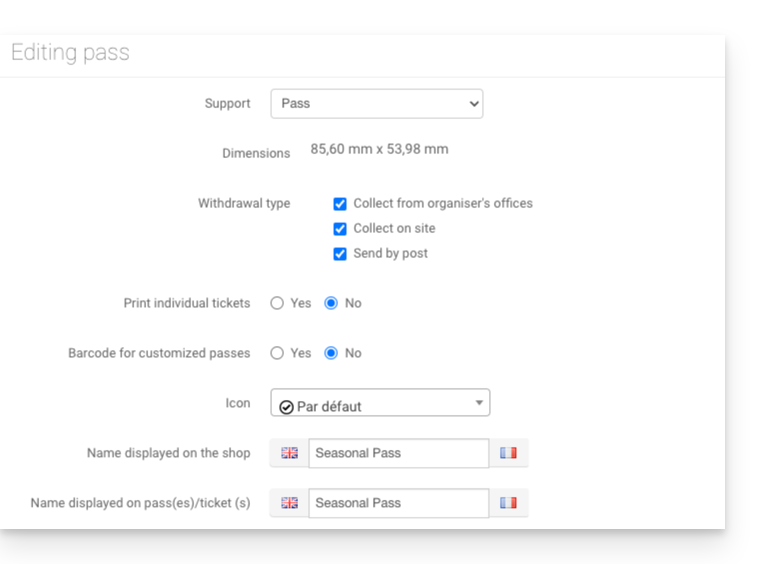
... you need to set the pass to Automatic: 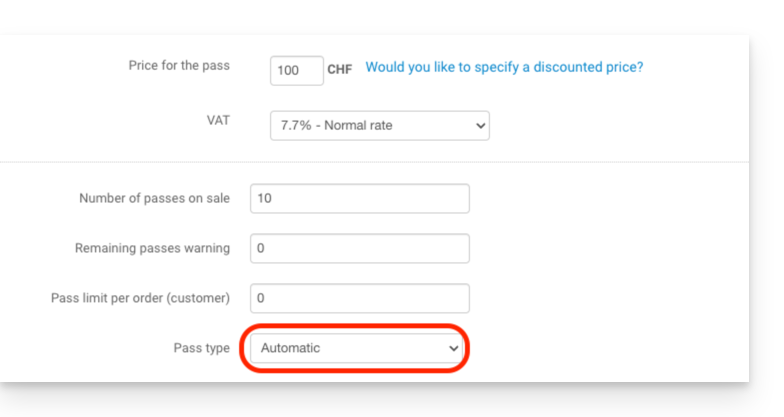
Event association
Events are associated with the pass, with a limit of one ticket per event and no additional cost: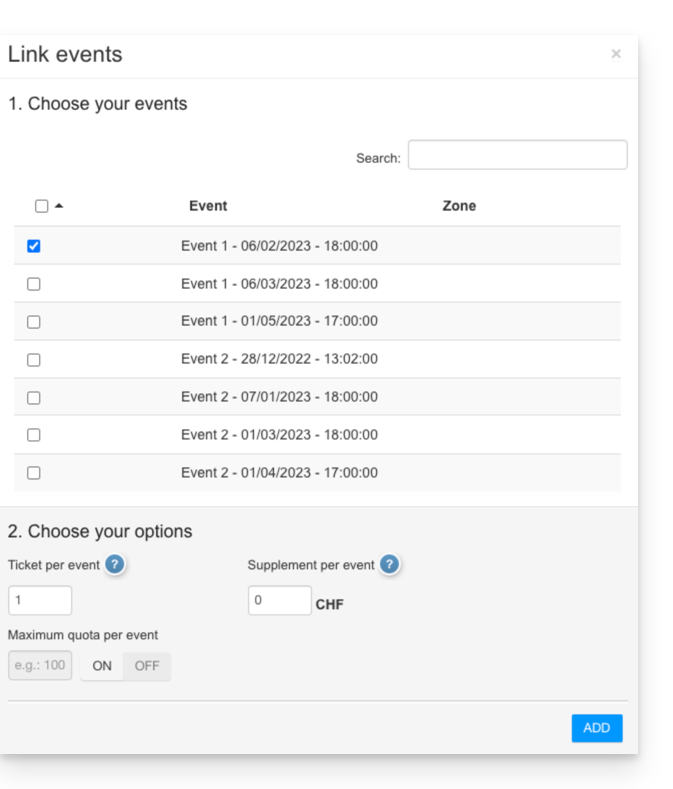
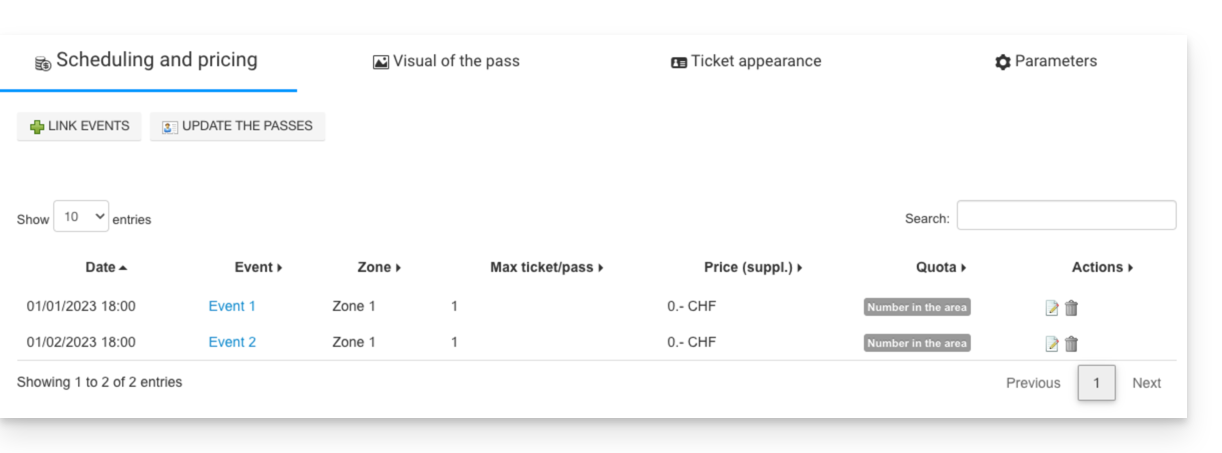
Pass visual
This pass will be used as a vertical badge and will therefore be printed on a PVC badge whose visual will be configured as follows: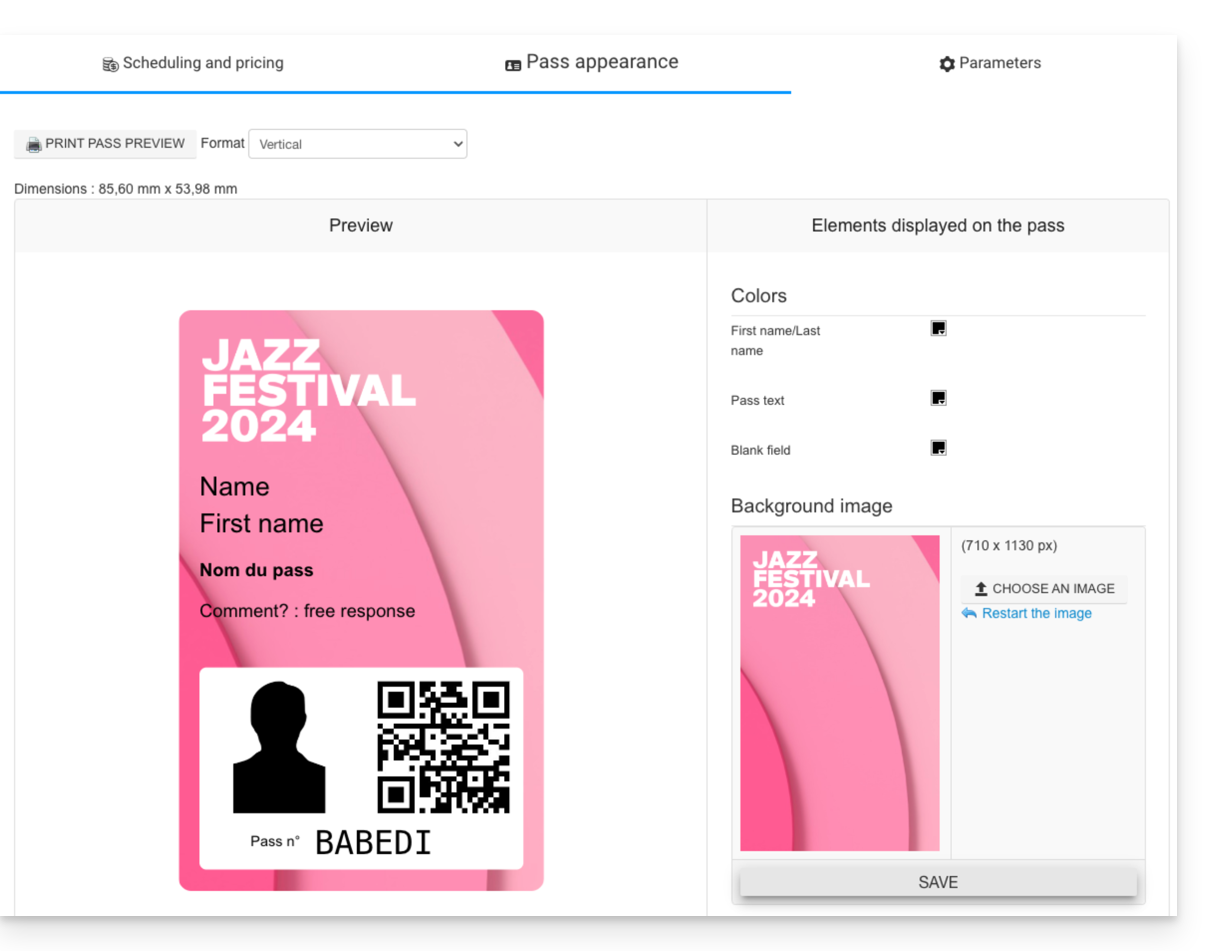
Information requested
Since this pass is personalized, the name and first name fields are mandatory, as well as a photo of the person: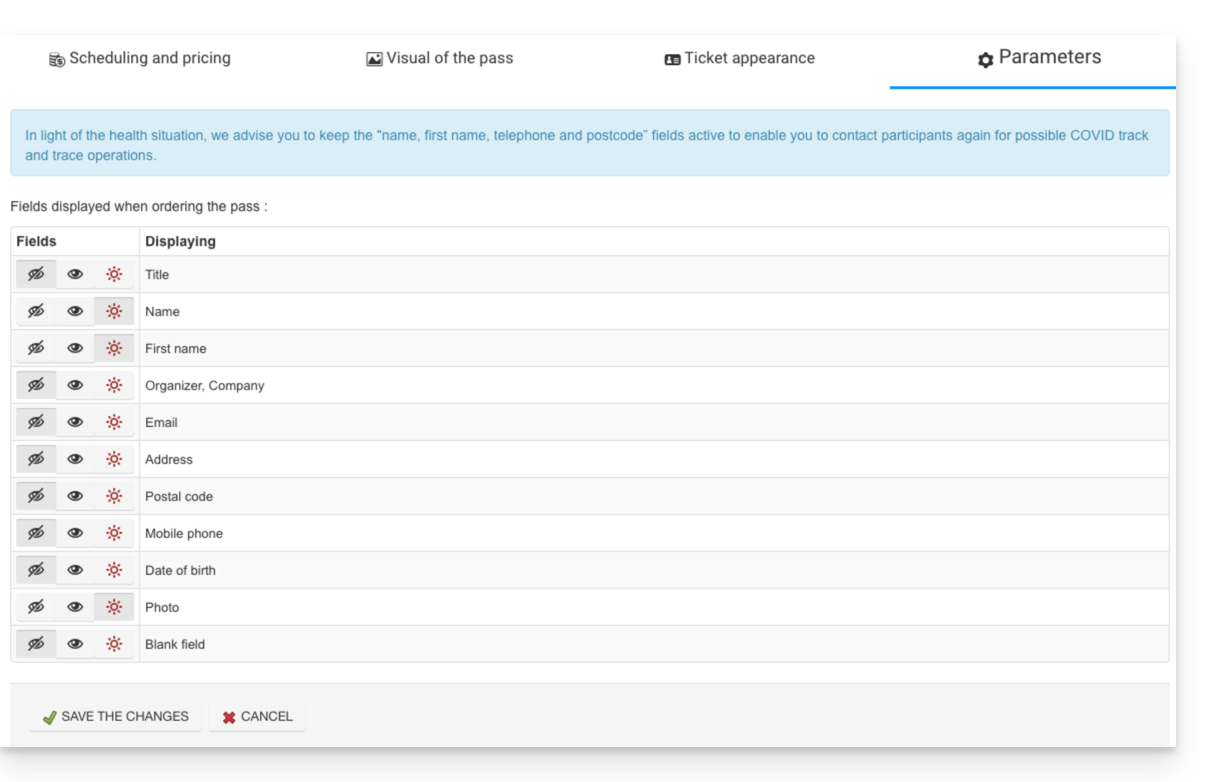
Link to this FAQ: https://faq.infomaniak.com/2773
Has this FAQ been helpful?
This guide shows an example of a pass configured as a subscription where all events are included upon purchase (as part of the Infomaniak ticketing system).
The ticket package
The example below shows a pass that acts as a bundle of multiple tickets. Typical uses for this type of pass include:
- A pass with tickets for 2, 3, or 4 nights of a multi-day festival.
- A pass with different activities, such as a "museum entry with meal" package, where entry and the meal are two separate events.
- A ticket package including entry to several establishments on the same day.
Pass creation
The pass is configured as a ticket so that participants can print each ticket individually: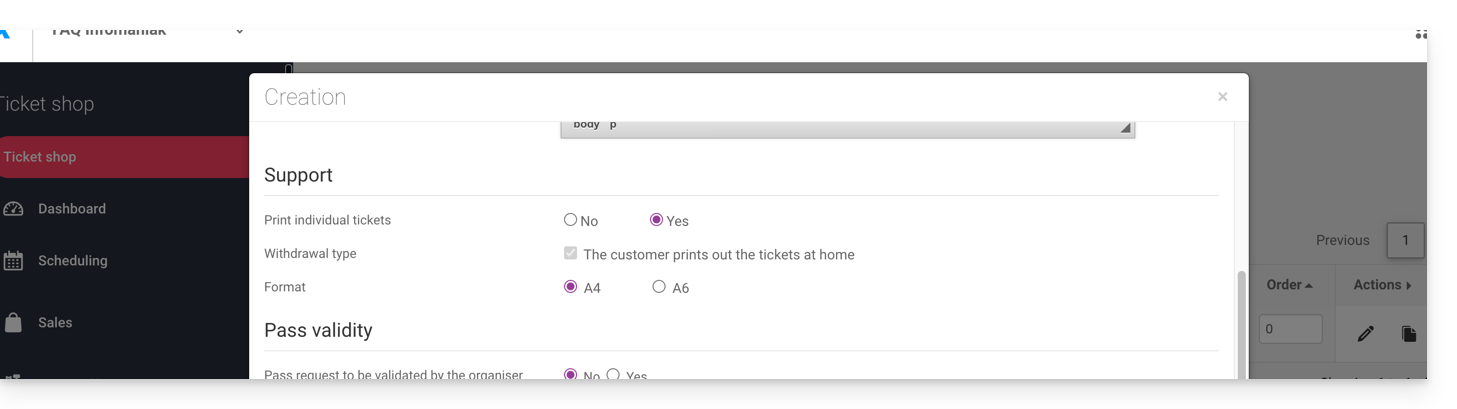
After filling in the information, such as the pass name, price, or the number of passes available, you must set the pass to Automatic: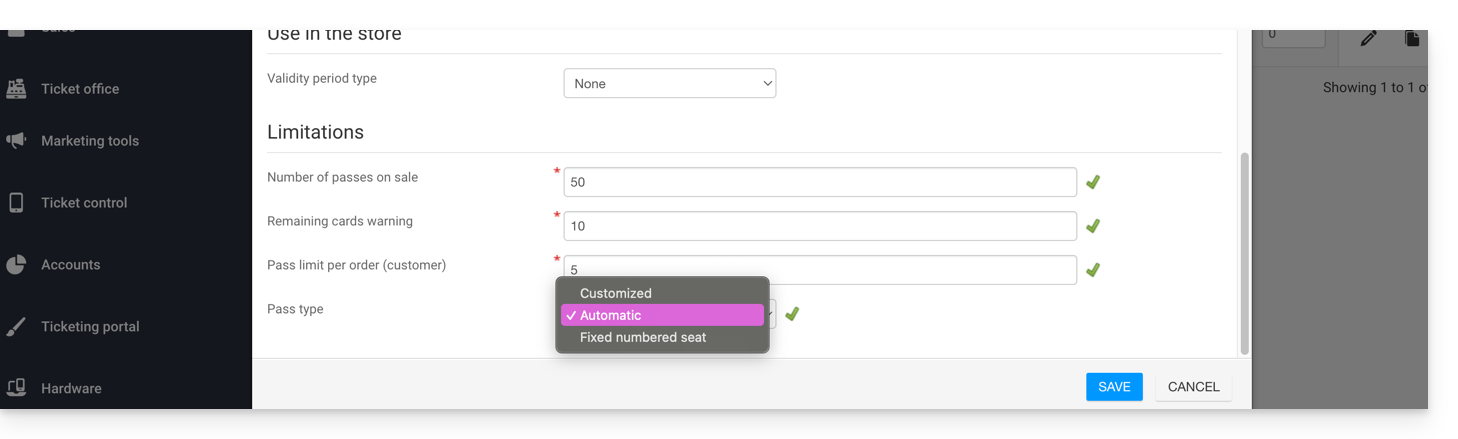
Event association
Events are associated with the pass, with a limit of one ticket per event and no additional cost:
This pass contains a ticket for event 1 and a ticket for event 2:
Pass Visual
This pass will never be printed, as only the individual tickets related to the events will be printed. Therefore, there is no need to configure the pass visual. The customer who purchases this pass will receive a ticket for event 1 and a ticket for event 2; therefore, you need to define the visual for these tickets.
Requested information
This pass is not personalized, but to facilitate identification, you can enter the first and last name:
Link to this FAQ: https://faq.infomaniak.com/2774
Has this FAQ been helpful?
This guide shows an example of a pass configured as a subscription, where customers can choose the events (within the Infomaniak ticketing system).
The pass with event selection
The example below shows a pass that acts as a bundle of several tickets, but allows the customer to choose events from the list of events offered. This is a versatile type of pass that can be configured in many ways to achieve the desired behavior:
- A pass with entries to multiple locations, but only for a chosen day.
- A pass with 10 tickets for shows during a season.
- A free pass that allows you to choose several discounted tickets.
- A pass that allows you to choose film screenings for each day of the festival, but limits you to one screening per day.
For this example, imagine a pass that allows access to two events on the same day, choosing from a list of 3 possible screenings per event. The pass itself will be free, but each screening will have a different cost. The customer can then choose to attend both events or just one of the two, depending on their budget.
Creating the pass
After filling in the information, such as the pass name, price, or the number of passes available, you need to set the pass to Custom.
The pass is configured as a single ticket, and the pass will be printed, not the individual tickets (this is a strategic choice). The customer will therefore not have multiple tickets, but rather a single ticket with a QR code that displays all their events.
Once the pass is configured as Custom, the settings will be configured as shown in the screenshot so that the customer can only choose one session per event.
Event association
Events are linked to the pass, with a limit of one ticket per event and the ticket price of 20.- for the first event…

The list of events will be as follows, with the maximum number of tickets and the price per event for the selected event:
When purchasing the pass, the customer will have an interface to choose their events, and it is possible to see in the shopping cart that the price of the tickets is correctly calculated individually when adding them.
Pass design
This pass will be printed in A4 format and will therefore have a ticket design. You will need to define the design of these tickets.
Information requested
Since this pass is not personalized, no information will be linked to the pass, but the customer's information will be requested during the order process.
Link to this FAQ: https://faq.infomaniak.com/2775
Has this FAQ been helpful?
This guide shows you how to add events to passes that have already been created and sold, but for which you need to add dates (as part of the Infomaniak ticketing system).
For an overview of passes and everything they can do, please refer to this other guide.
Prerequisites
- The relevant passes must be of the automatic type and have associated free events.
Using the pass update feature
When purchasing or creating a pass, it retrieves the list of events associated with the schedule (Schedule, Pass). If an event is added after sales have been made, only new passes will include this new event.
This function allows you to add this new event to existing passes so that subscribers can also access it.
How to update existing passes
When adding new events to a pass, the Update pass button will be available: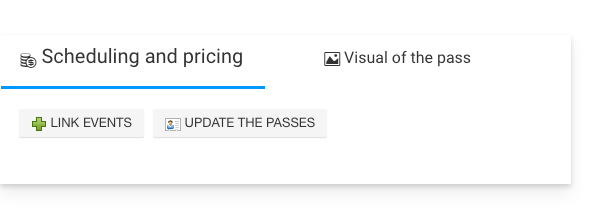
Clicking this button will display a message indicating the number of passes that will be updated: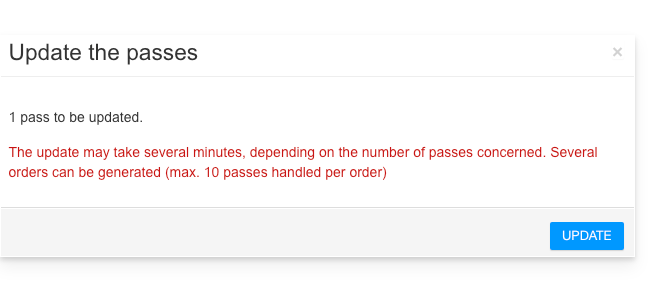
Link to this FAQ: https://faq.infomaniak.com/2776
Has this FAQ been helpful?
This guide explains how to use zones in the pricing menu (as part of the Infomaniak ticketing system).
Introduction
- Each event can contain one or more zones, each with its own pricing.
- This allows you to group prices within each zone and manage each zone independently:
- Each zone can contain prices, each with its own ticket quantity.
- Each zone can be assigned to the seating plan or not.
- Each zone and each price can have its own online visibility.

Access the pricing menu
To do this:
- Click here to access the management of your product in the Infomaniak Manager (need help?).
- Click directly on the name assigned to the ticketing system for the event.
- Click on Scheduling in the left-hand menu.
- Click on Events in the left-hand menu.
- Click on the event in question.
- Click on the Pricing tab.
- If the event has multiple dates, this section is replaced by “Dates”, which opens a calendar.
- Click on the date in the calendar to access the pricing…
- Enable zone management.This option will be automatically enabled if a floor plan is assigned to the event.:

This menu is also available when creating an event.
Adding a zone and a price, managing the settings for each zone
Here are the important buttons for managing your zones and rates:
Link to this FAQ: https://faq.infomaniak.com/2777
Has this FAQ been helpful?
This guide explains how to order rental equipment for on-site sales and access control (as part of the Infomaniak ticketing system).
Ordering Equipment
To do this:
- Click here to access the management interface for your product in the Infomaniak Manager (need help?).
- Click directly on the name assigned to the ticketing system for the event.
- Click on Hardware in the left-hand menu:

Overview of current orders and order history
If you have already placed orders, you can view the order status on the main page. You will see the status of the current order, along with details of its contents, and, in the case of postal shipments, the tracking number to follow its progress:
Place a new hardware order
To order rental hardware, simply click the New Request button and follow the wizard.
Choose the amount of hardware needed. Additional information is available in the form of tooltips:
Once the rental period has been entered, the estimated rental costs will be displayed just below.
Please specify the total rental period required, taking into account the installation and testing time needed.

If the wizard does not offer the desired dates, contact Infomaniak support.
Choose carefully whether the equipment should be shipped to you or if you will pick it up on-site:

If the equipment is available on the dates you specified, you will receive a confirmation email and tracking information for your order.
Learn more
Link to this FAQ: https://faq.infomaniak.com/2778
Has this FAQ been helpful?
This guide explains how to rename a ticketing system (within the Infomaniak ticketing system).
Introduction
- The name of the ticketing system appears, in particular, when shops are published on the infomaniak.events portal.
- In the case of multiple shops being displayed on the same page, it will be the name entered in the organizer's contact details.on the latest ticketing system created, which has events for sale.
Edit the details of a ticketing system
To do this:
- Click here to access the management interface for your product in the Infomaniak Manager (need help?).
- Click directly on the name of the relevant ticketing system:
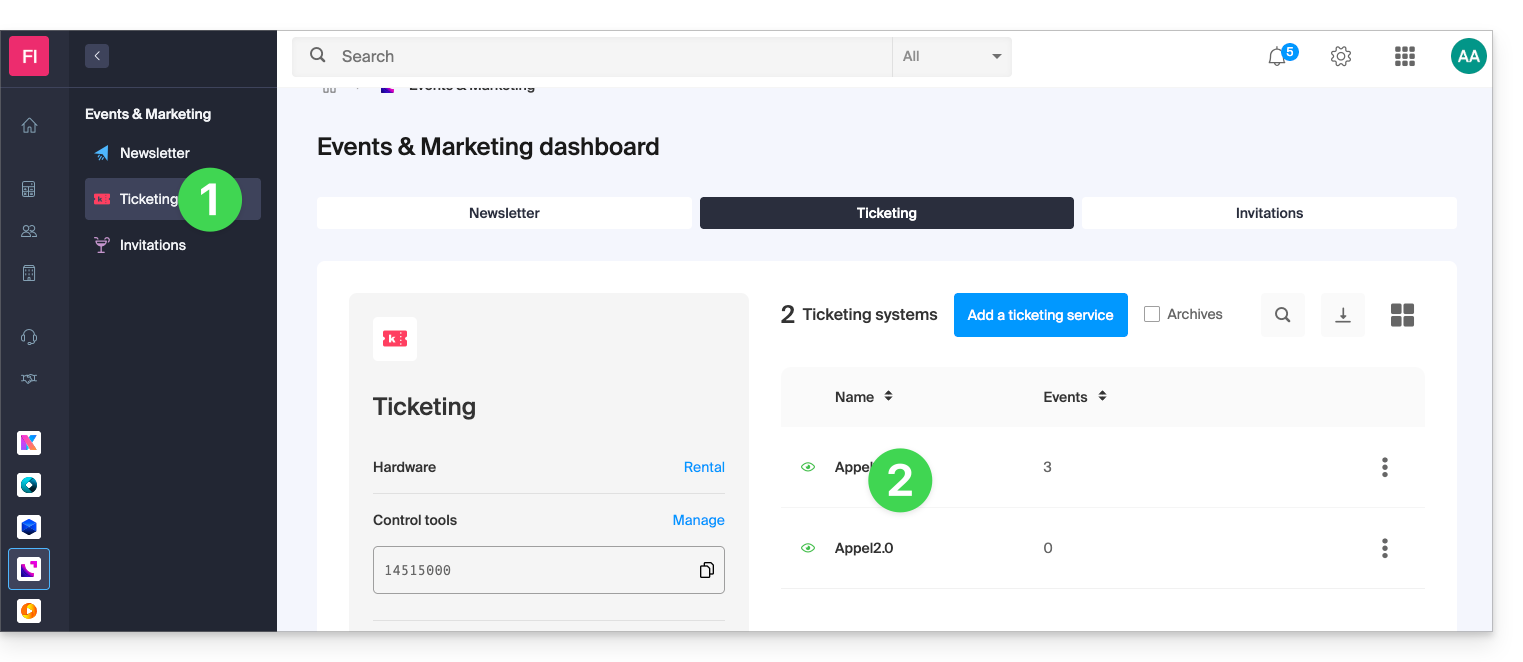
- Click on Settings in the left-hand menu:
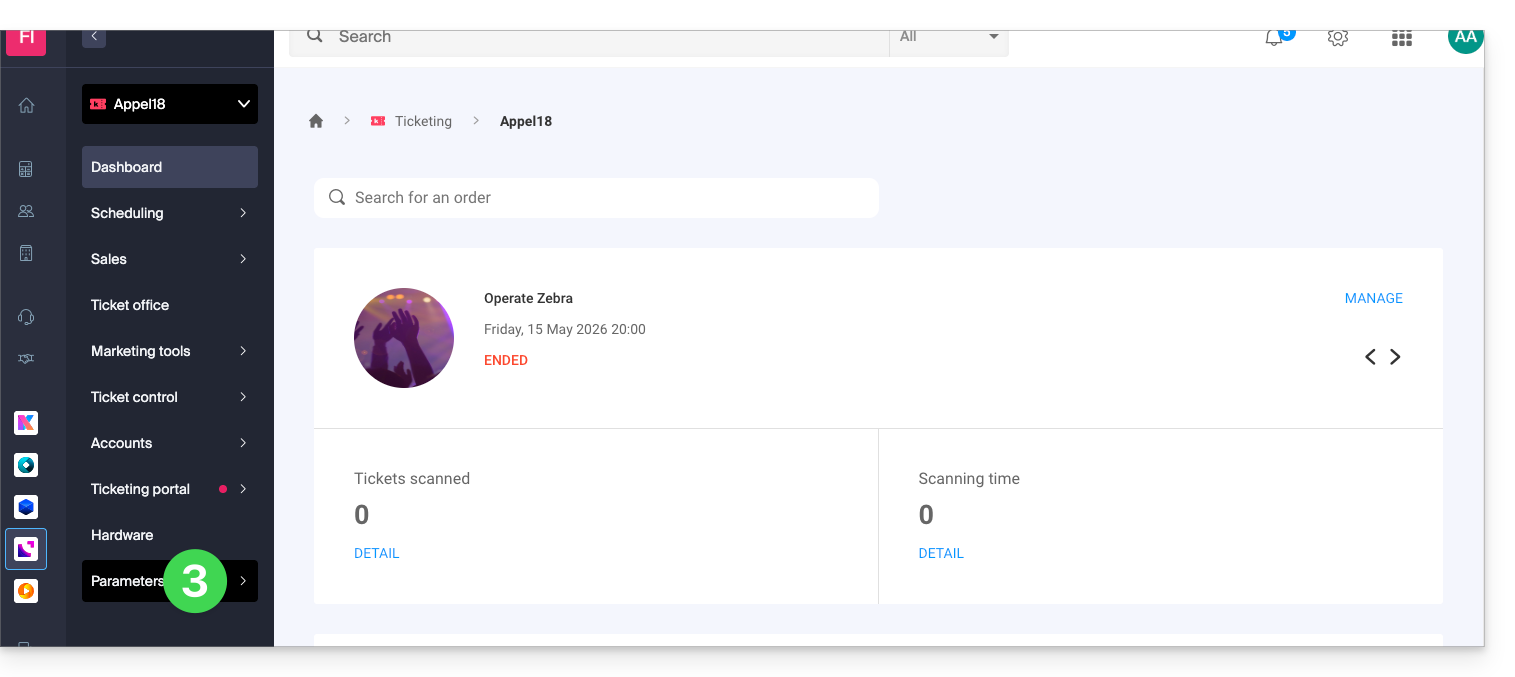
- Click on Ticket settings in the left-hand menu.
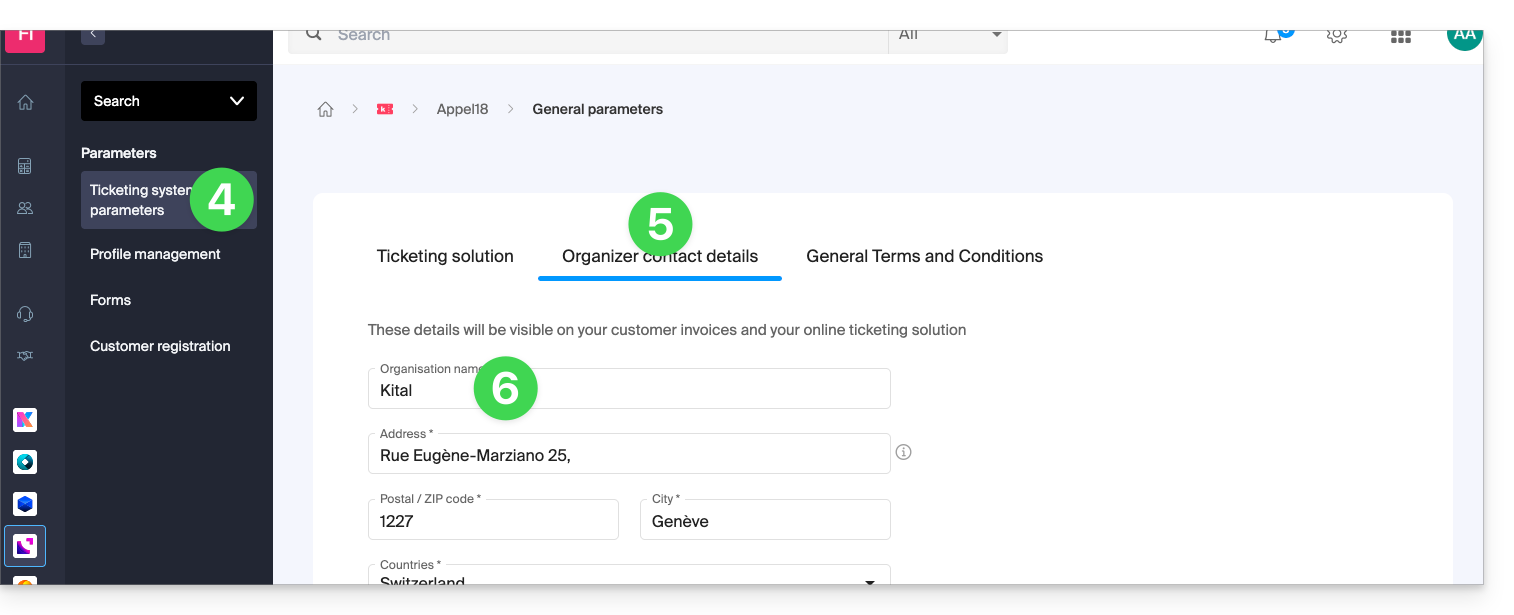
- Click on the Organizer details tab.
- Modify the name in the first field of the form:
- Click the Save button at the bottom of the page.
Example of a name change
The display before the change:
Modify the organizer's name using the procedure above:
The display is modified and becomes:
Link to this FAQ: https://faq.infomaniak.com/2779
Has this FAQ been helpful?
This guide explains how to sell products (within the framework of the Infomaniak ticketing system), such as refreshments during intermission, souvenirs, or merchandise related to your events.
Access the product menu to create one
To do this:
- Click here to access the management of your product on the Infomaniak Manager (need help?).
- Click directly on the name assigned to the ticketing concerned by the event.
- Click on Programming in the left sidebar menu.
- Click on Products in the left sidebar menu.
- Click on Create a new product:

- Fill in the Name and Description fields in all the languages of your ticketing:

- This information will be visible on the ticketing page during the purchasing process.
- Associate an image that will be displayed on the site for this product:

- Activate if necessary the association of the product to an event:

- The purchase of a product necessarily implies the purchase of a ticket (5 tickets in the example below); refer to this other guide on this subject:

- The purchase of a product necessarily implies the purchase of a ticket (5 tickets in the example below); refer to this other guide on this subject:
- Associate the attributes of your product.
- Attributes are the parameters that allow you to create different variations of a product.
- The dropdown list allows you to choose existing attributes, and the link below allows you to create new ones:

- For example, the attribute T-shirt size could include the variations XS, S, M, L, XL, and a second attribute will allow you to choose the colors of the T-shirt:

- It is also possible to manage attributes outside the creation form, under the tab dedicated to attribute management:

- Warning: attributes cannot be modified if sales have already taken place; variations can be added or modified at any time, but can only be deleted if there have been no sales.
- In the next step, define the price of each product variant, the VAT to be applied, the quantity put on sale, and the visibility of the product in your store.
- It is possible to remove a variant from the store in case there are no sales of this variation after the finalization of your online store:

- It is possible to remove a variant from the store in case there are no sales of this variation after the finalization of your online store:
- In the next step, define whether you want to add an automatic association rule when purchasing a ticket.
- This option means that the purchase of a specified ticket in this rule necessarily implies the purchase of the linked product (also refer to point 8 above):

- This option means that the purchase of a specified ticket in this rule necessarily implies the purchase of the linked product (also refer to point 8 above):
- Click on the Finish button to save your item.
Track sales and modify product parameters
Once the products are created, it is possible to track their sales and modify the parameters by clicking on the action menu ⋮ located to the right of the concerned element:
Link to this FAQ: https://faq.infomaniak.com/2780
Has this FAQ been helpful?
This guide explains how to split reservations with multiple tickets (within the Infomaniak ticketing system). This allows you to validate part of a reservation, in cases where the reservation may include multiple tickets, but only a portion needs to be validated at the counter.
Prerequisites
- This operation requires that an order is currently set to on-site payment.
- For more information about this payment method and how to enable it, please refer to this other guide.
Split payment from the web interface
To do this:
- Click here to access the management interface for your product in the Infomaniak Manager (need help?).
- Click directly on the name assigned to the ticket office for the event.
- Click on Ticket Office in the left-hand menu:
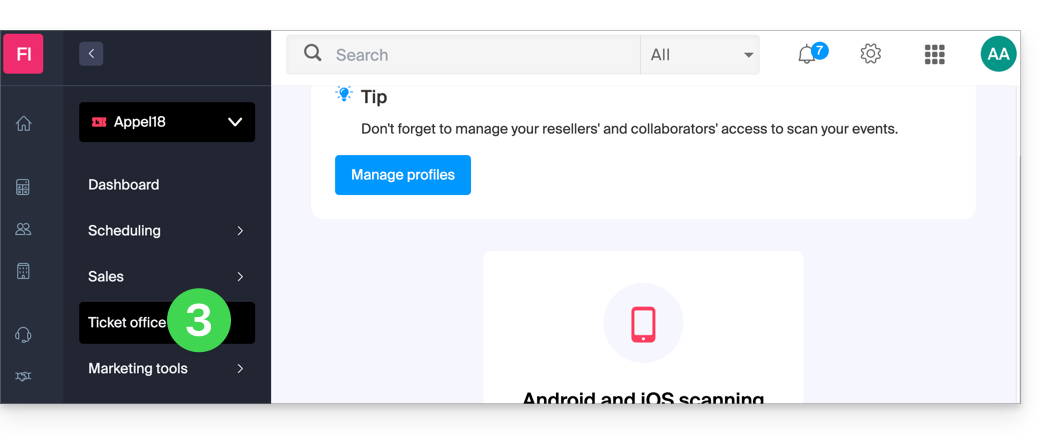
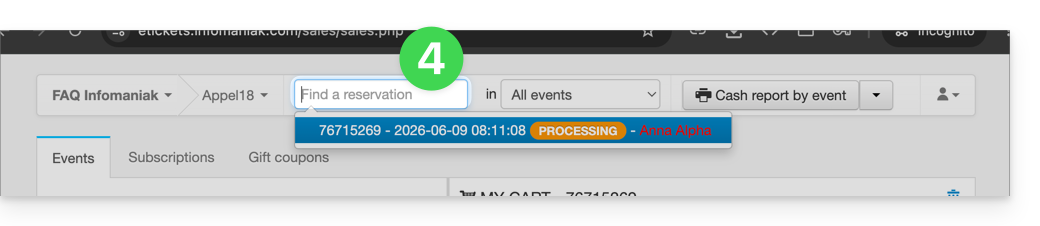
- Find the reservation using the search field at the top of the page; you can find the order using the order number or any other element related to the order:
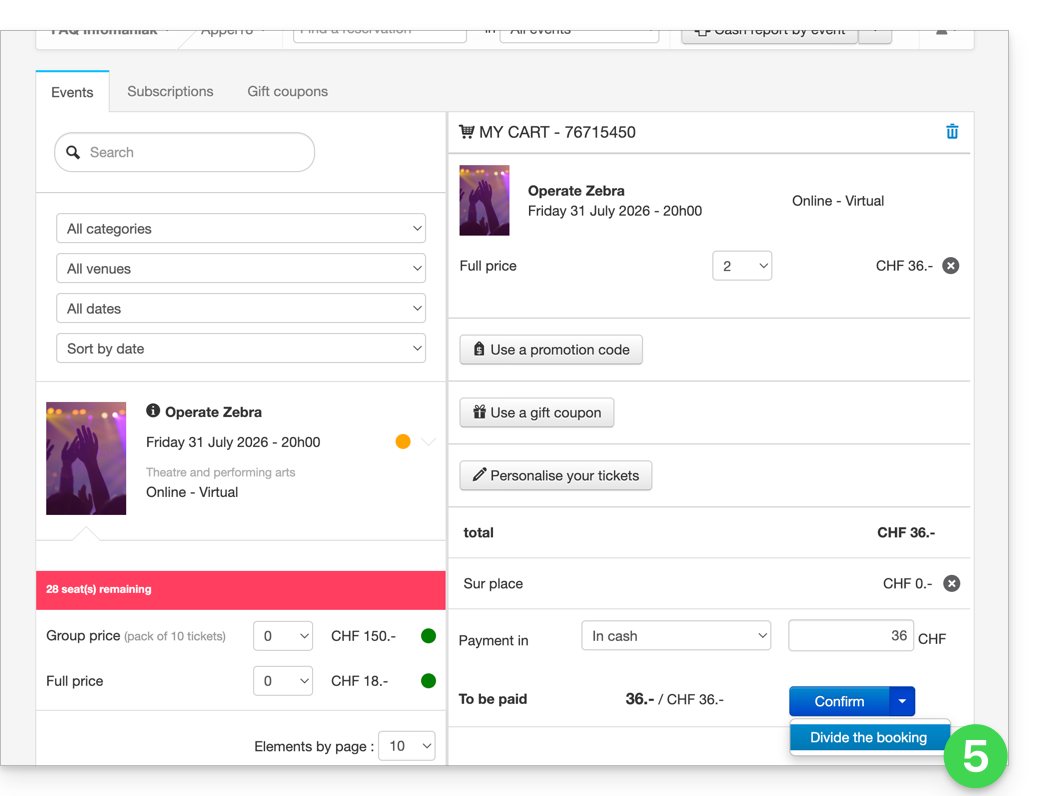
- The reservation is displayed in the right-hand column; if it is a reservation, you can click on the arrow to the right of the Confirm button and Split the reservation:
- The next screen allows you to select the tickets to validate:
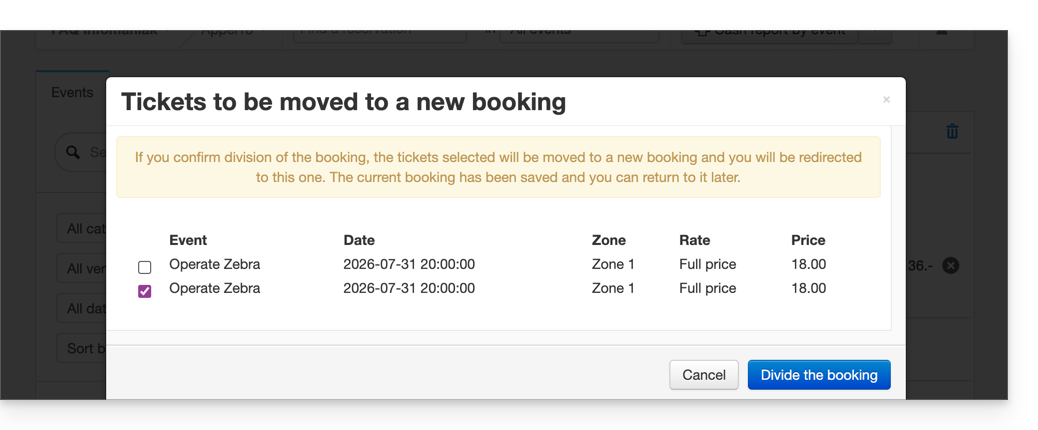
- Now, simply proceed with ordering the tickets to validate; you will see that this creates a new order, and the old order only contains the tickets that were not selected during the split:
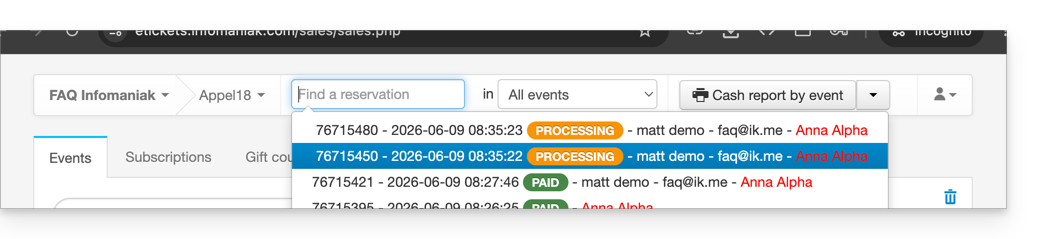
Split an order from the sales tablet
The procedure for splitting an order on a tablet is similar to the procedure on the web interface:
- Log in to your Infomaniak account.
- Click on the Orders tab and find the order you want to split.
- Click on the Tickets tab in the order:

- Select the tickets to validate and click on Split:

- Continue with the order to validate it:

- The new order appears as validated, and the initial order shows the remaining tickets:

Link to this FAQ: https://faq.infomaniak.com/2781
Has this FAQ been helpful?
This guide explains how to add tickets to your passes, ticket packs, and subscriptions (within the Infomaniak ticketing system).
Prerequisites
- Have your pass or subscription code ready.
- You can find this code in the confirmation email you received when you placed your order, or in your customer account.
- Go to the event organizer's ticketing page.
Add tickets to the pass
To do this:
- Click on the Subscribers Access button in the top right corner:

- Enter your pass or subscription code in the field provided and click Next:

- Choose the tickets to add to the pass by clicking on the button and confirm your choice by clicking on Add to cart:

- Continue with the ordering process.
You will receive a confirmation email for this new order at the address provided.
Link to this FAQ: https://faq.infomaniak.com/2787
Has this FAQ been helpful?
This guide explains how to set up a pass or subscription renewal system (as part of the Infomaniak ticketing system). This feature will allow visitors with subscriptions to renew them for the new season.
Introduction
- It is not mandatory to have seasonal or annual subscriptions to use the pass renewal feature, but it is essential to have a new period with passes configured.
- If the subscriptions are configured with fixed, numbered seats on an unchanged seating plan, the renewed subscriptions will retain the same seats for the new season.
- Renewed subscriptions will retain the same QR codes from season to season.
Create a renewal
Prerequisites
- To enable renewals on your ticketing system, you must create the passes for the new period.
Next:
- Click here to access the management of your product on the Infomaniak Manager (need help?).
- Click directly on the name assigned to the ticket office concerned by the event (this will take you to the period during which renewals will be offered).
- Click on Programming in the left-hand menu.
- Click on Pass in the left-hand menu.
- Click on Subscription renewal:
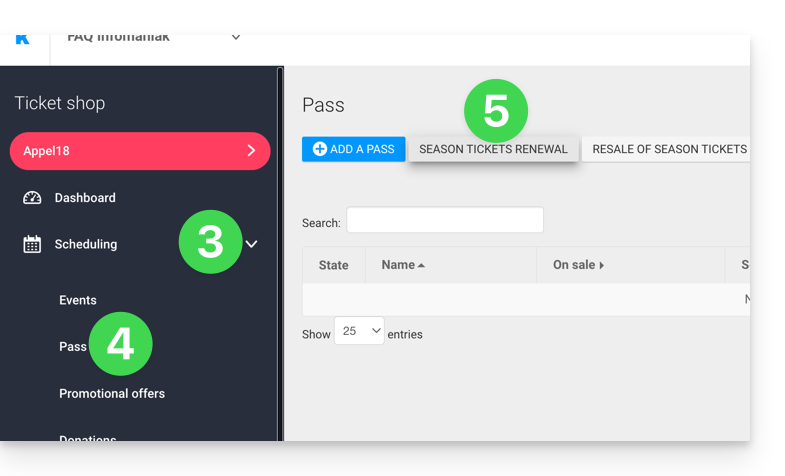
- Click on Create a renewal.
- In the pop-up window, enter the subscription details from the previous period in order…
- … then the subscriptions that visitors can choose from when renewing; several subscriptions can be offered at this stage.
- If you wish, specify a validity period for the renewal.
- Click the button to Confirm:
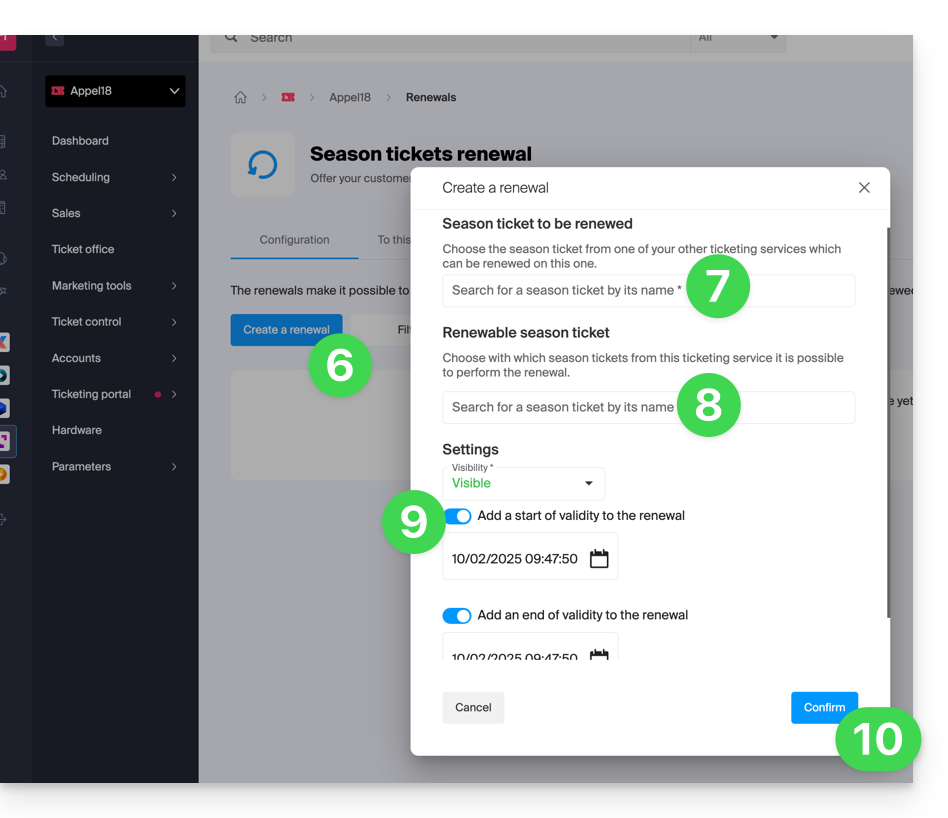
Renewal procedure for visitors
The visitor can renew their subscription by following this procedure from the renewal link, which can be found at the bottom of your ticketing page.
For direct integration, you can use the URL of the desired ticketing page and add /pass-renew to the end. For example: https://infomaniak.events/shop/abcABC4242I/pass-renew
Renewal Tracking
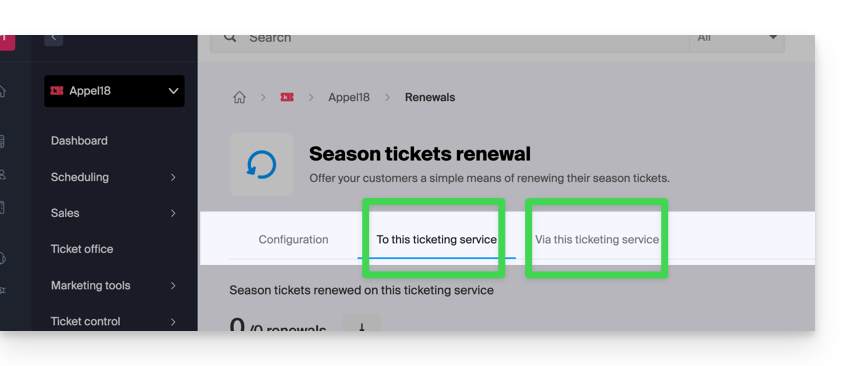
You can track each renewal via the renewal tabs:
- To this ticketing system: indicates the renewals made from a previous season to the current one.
- From this ticketing system: indicates the subscriptions renewed from the selected ticketing system to a new period.
Link to this FAQ: https://faq.infomaniak.com/2788
Has this FAQ been helpful?