Knowledge base
1000 FAQs, 500 tutorials and instructional videos. Here, there are only solutions!
Rename a ticketing system
This guide explains how to rename a ticketing system (within the Infomaniak ticketing system).
Introduction
- The name of the ticketing system appears, in particular, when shops are published on the infomaniak.events portal.
- In the case of multiple shops being displayed on the same page, it will be the name entered in the organizer's contact details.on the latest ticketing system created, which has events for sale.
Edit the details of a ticketing system
To do this:
- Click here to access the management interface for your product in the Infomaniak Manager (need help?).
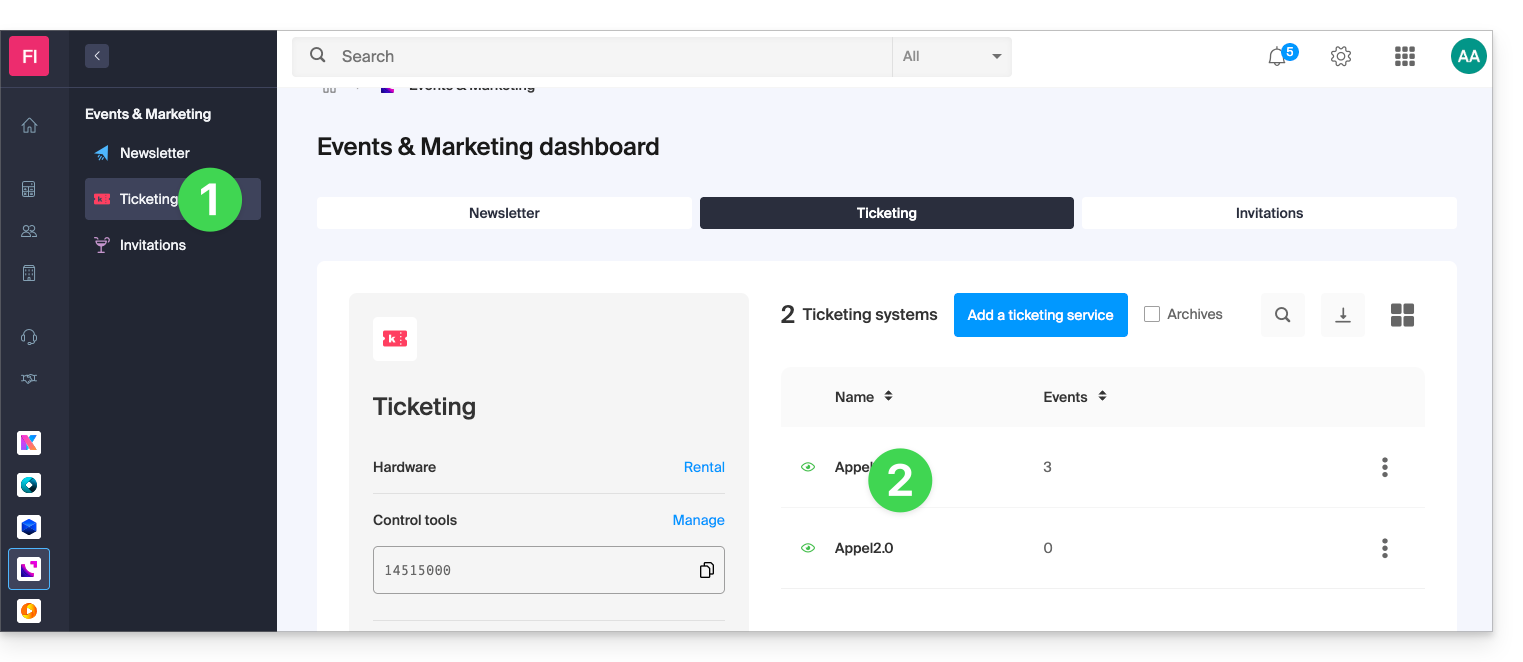
- Click directly on the name of the relevant ticketing system:
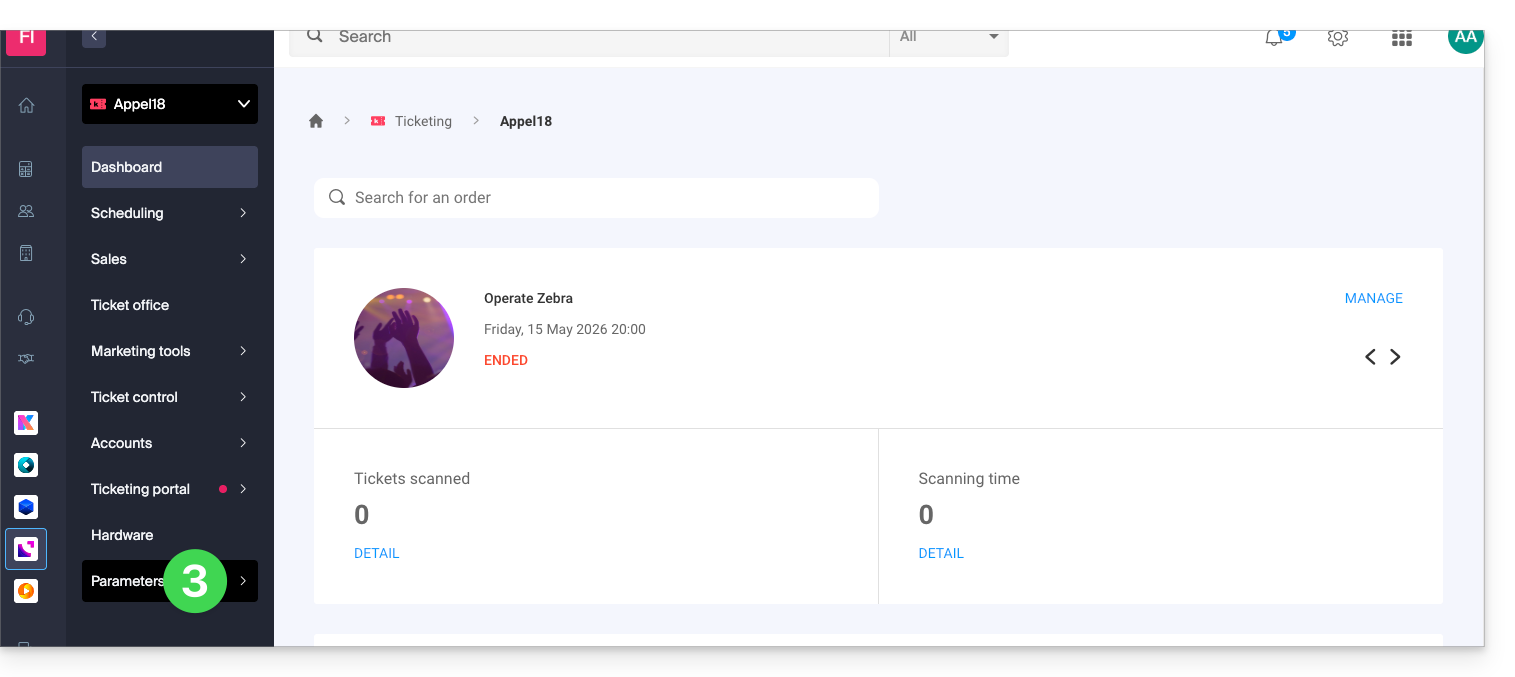
- Click on Settings in the left-hand menu:
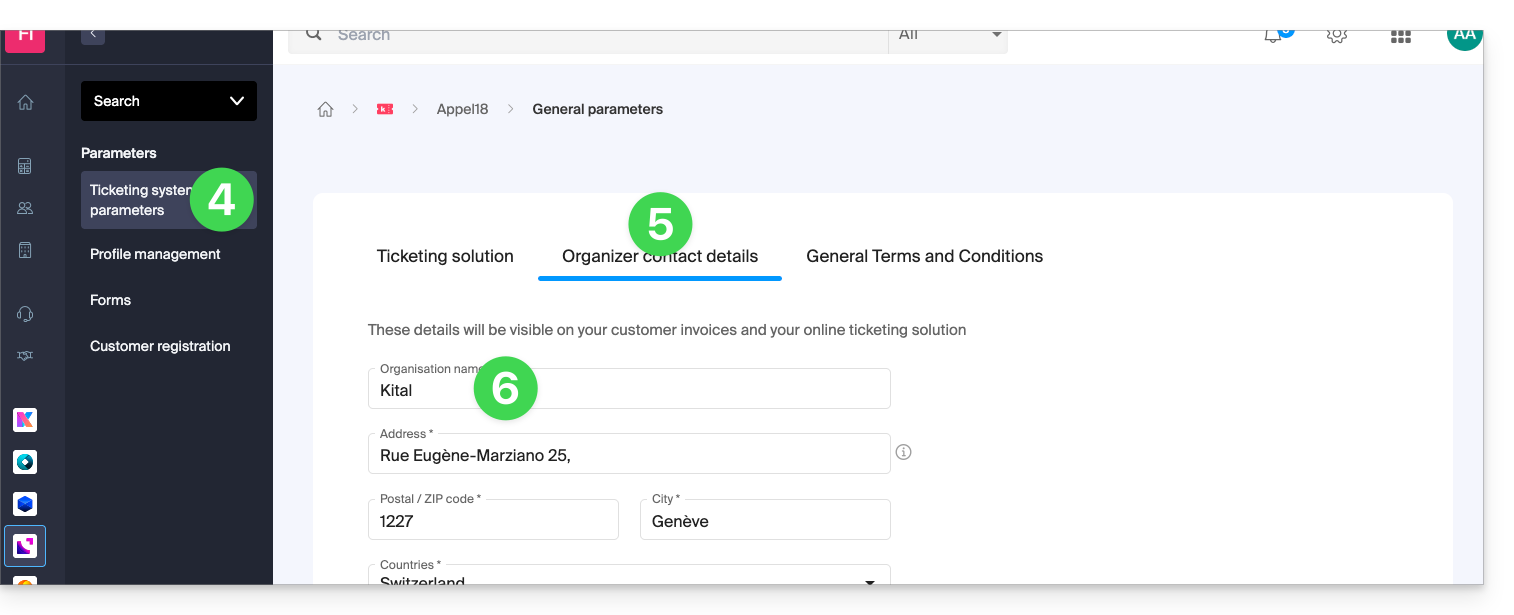
- Click on Ticket settings in the left-hand menu.
- Click on the Organizer details tab.
- Modify the name in the first field of the form:
- Click the Save button at the bottom of the page.
Example of a name change
The display before the change:
Modify the organizer's name using the procedure above:
The display is modified and becomes:
Link to this FAQ: https://faq.infomaniak.com/2779
Has this FAQ been helpful?